Qcom Technology Q802MIAG Mini-PCI 802.11a/b/g Wireless LAN Card User Manual Q802MIAG

Qcom Technology Inc. Mini-PCI 802.11a/b/g Wireless LAN Card Q802MIAG

Manual

         Q802MIAG Wireless Adapter User Manual
 2 Contents INTRODUCTION 3 Package Contents  3 Minimum System Requirements  3 CONNECTING THE WIRELESS ADAPTER  4 INSTALLING THE WIRELESS ADAPTER  5 UNINSTALLING THE WIRELESS ADAPTER  7 CONFIGURING THE WIRELESS ADAPTER  9 Connecting to an existing network  10 Configuration  12
 3 Introduction Thank you for purchasing the Wireless Adapter. This Wireless Adapter is easy to use and easy to setup. If you are tired of all those messy wires just to connect a laptop to your Home network, then take your networking to the next level with the Wireless Adapter. You will be able to share files, printers and even your High-Speed Internet access, all without wires.  Package Contents Make sure the following items came in this package: z Wireless Adapter z  Wireless Adapter Installation and User’s Manual CD  Minimum System Requirements z  One Pentium class computer, 200 Mhz or higher (preferably 300 Mhz or above) z  Microsoft Windows 98 Second Edition (SE), Windows ME, Windows XP, or Windows   2000 installed
 4 Connecting the Wireless Adapter 1.  Power down the notebook computer. 2.  Locate the miniPCI slot on the notebook, and carefully insert the miniPCI Wireless Adapter.  3.  Power on the notebook computer.
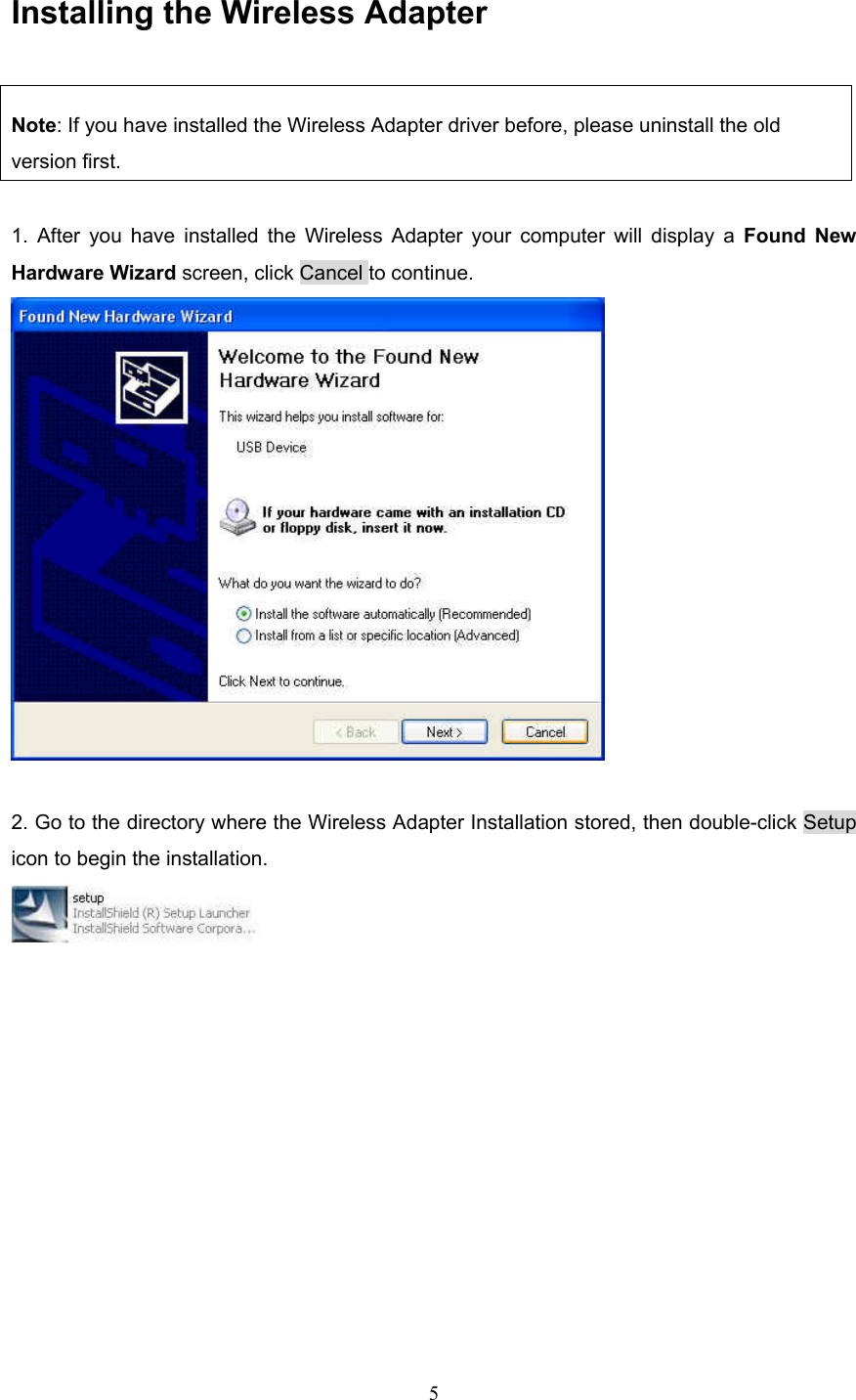
 5 Installing the Wireless Adapter Note: If you have installed the Wireless Adapter driver before, please uninstall the old version first.  1. After you have installed the Wireless Adapter your computer will display a Found New Hardware Wizard screen, click Cancel to continue.   2. Go to the directory where the Wireless Adapter Installation stored, then double-click Setup icon to begin the installation.
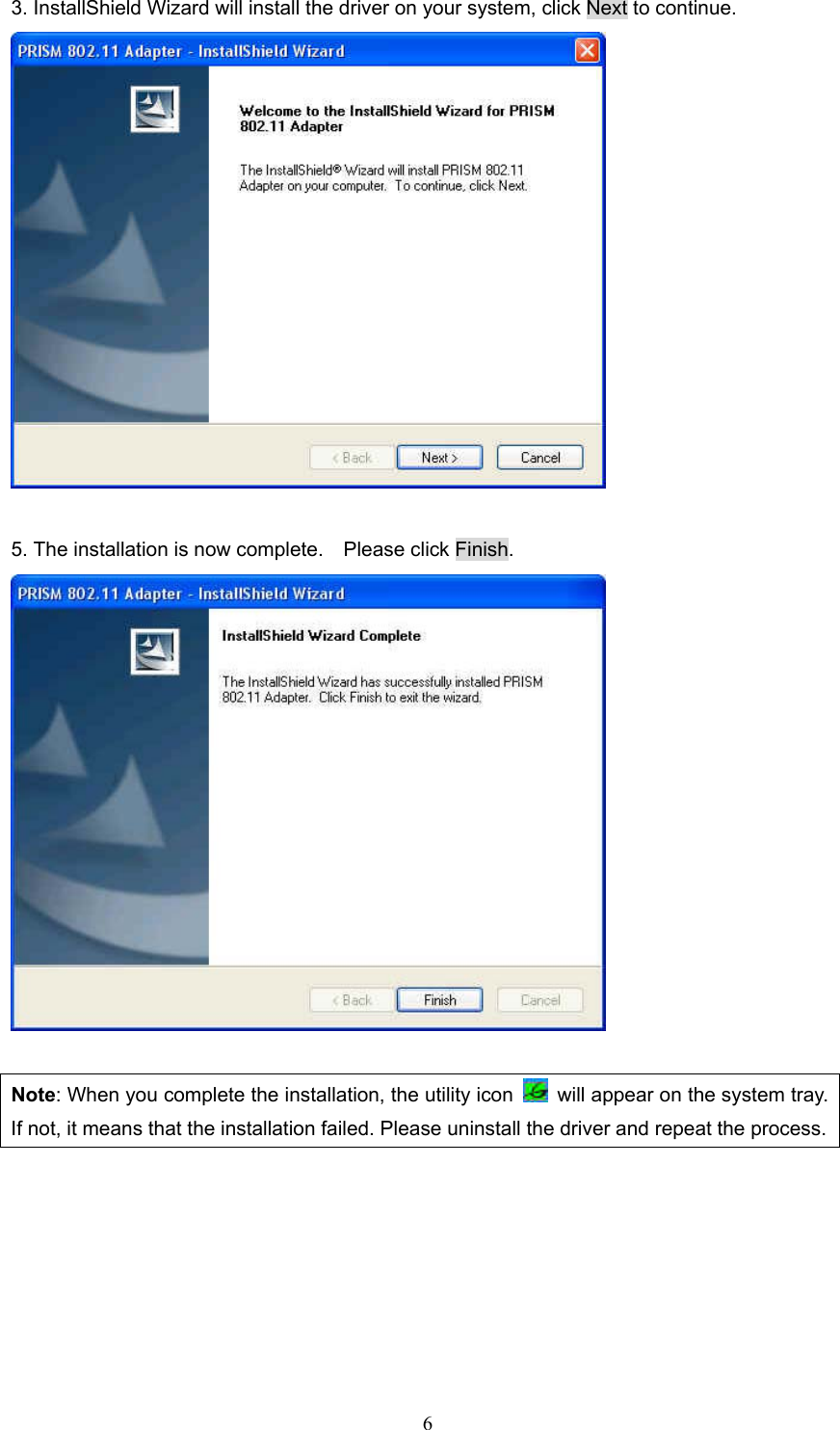
 6 3. InstallShield Wizard will install the driver on your system, click Next to continue.   5. The installation is now complete.    Please click Finish.   Note: When you complete the installation, the utility icon    will appear on the system tray. If not, it means that the installation failed. Please uninstall the driver and repeat the process.
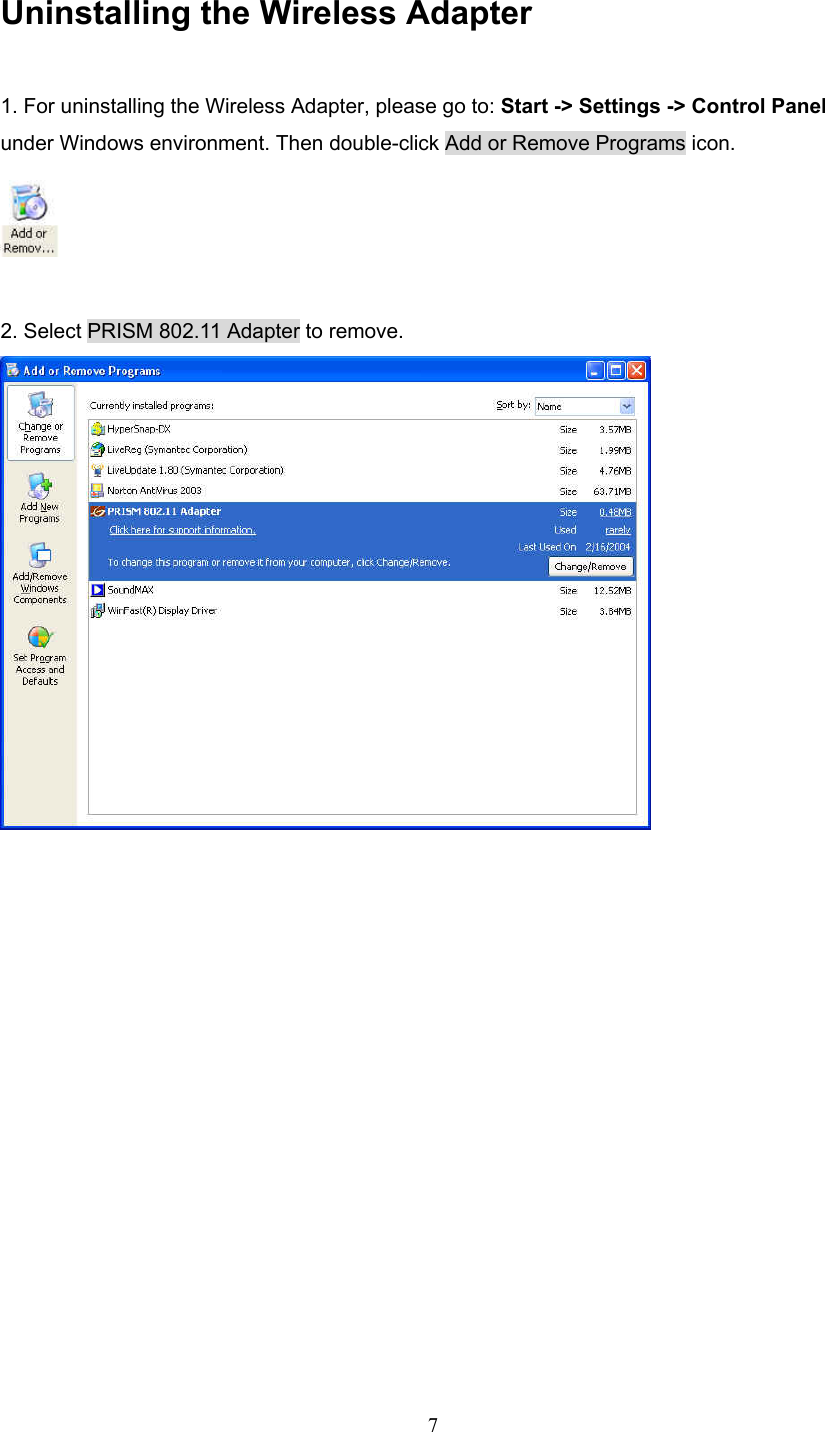
 7 Uninstalling the Wireless Adapter 1. For uninstalling the Wireless Adapter, please go to: Start -> Settings -> Control Panel under Windows environment. Then double-click Add or Remove Programs icon.   2. Select PRISM 802.11 Adapter to remove.
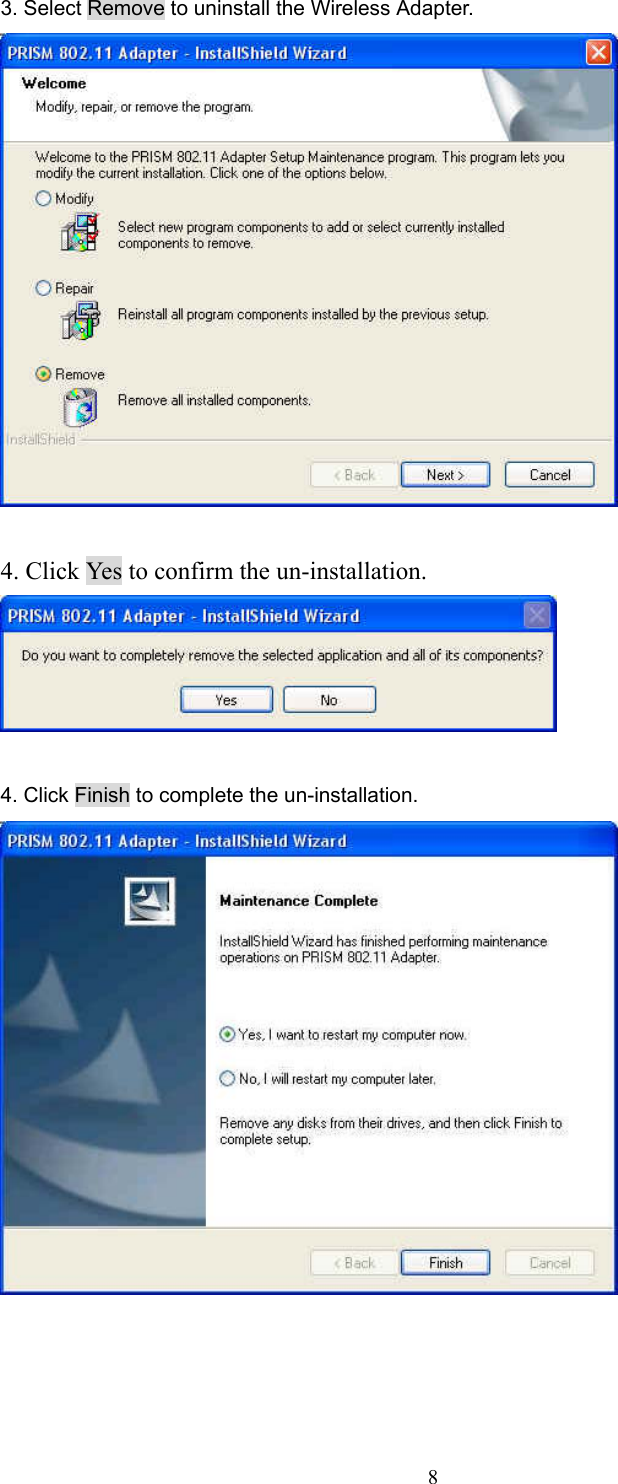
 8 3. Select Remove to uninstall the Wireless Adapter.   4. Click Yes to confirm the un-installation.   4. Click Finish to complete the un-installation.
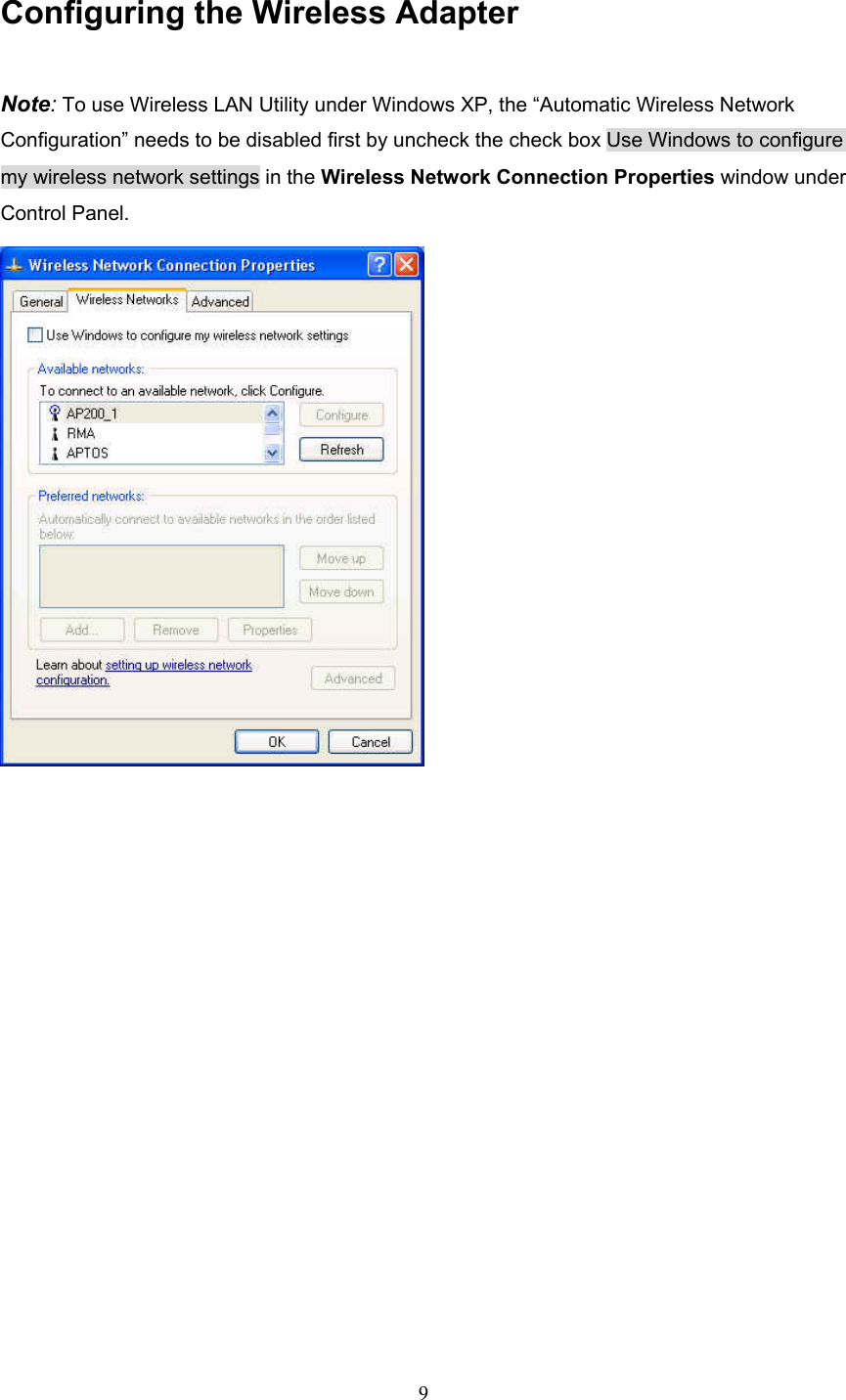
 9 Configuring the Wireless Adapter Note: To use Wireless LAN Utility under Windows XP, the “Automatic Wireless Network Configuration” needs to be disabled first by uncheck the check box Use Windows to configure my wireless network settings in the Wireless Network Connection Properties window under Control Panel.
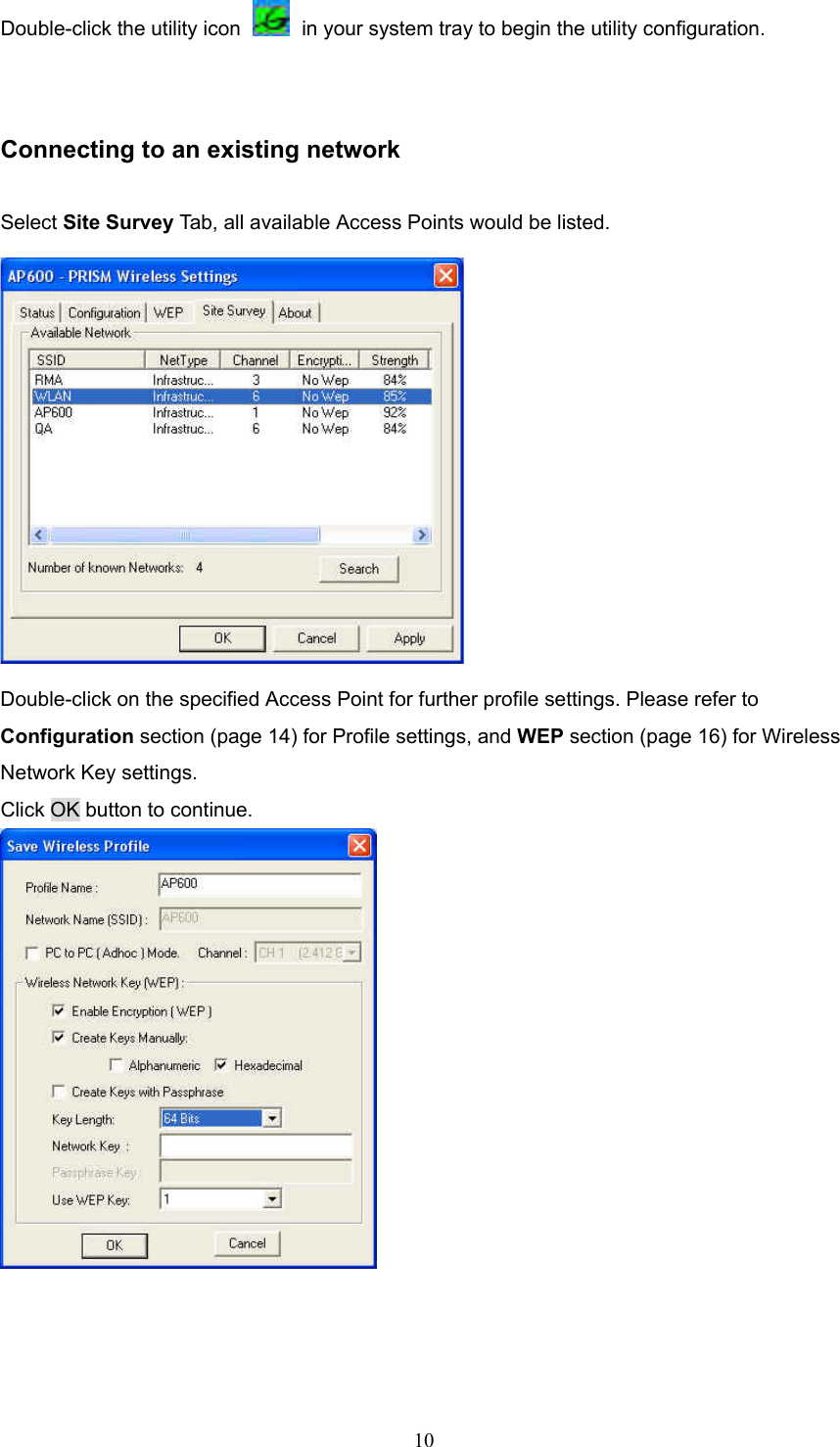
 10 Double-click the utility icon    in your system tray to begin the utility configuration.  Connecting to an existing network Select Site Survey Tab, all available Access Points would be listed.  Double-click on the specified Access Point for further profile settings. Please refer to Configuration section (page 14) for Profile settings, and WEP section (page 16) for Wireless Network Key settings. Click OK button to continue.
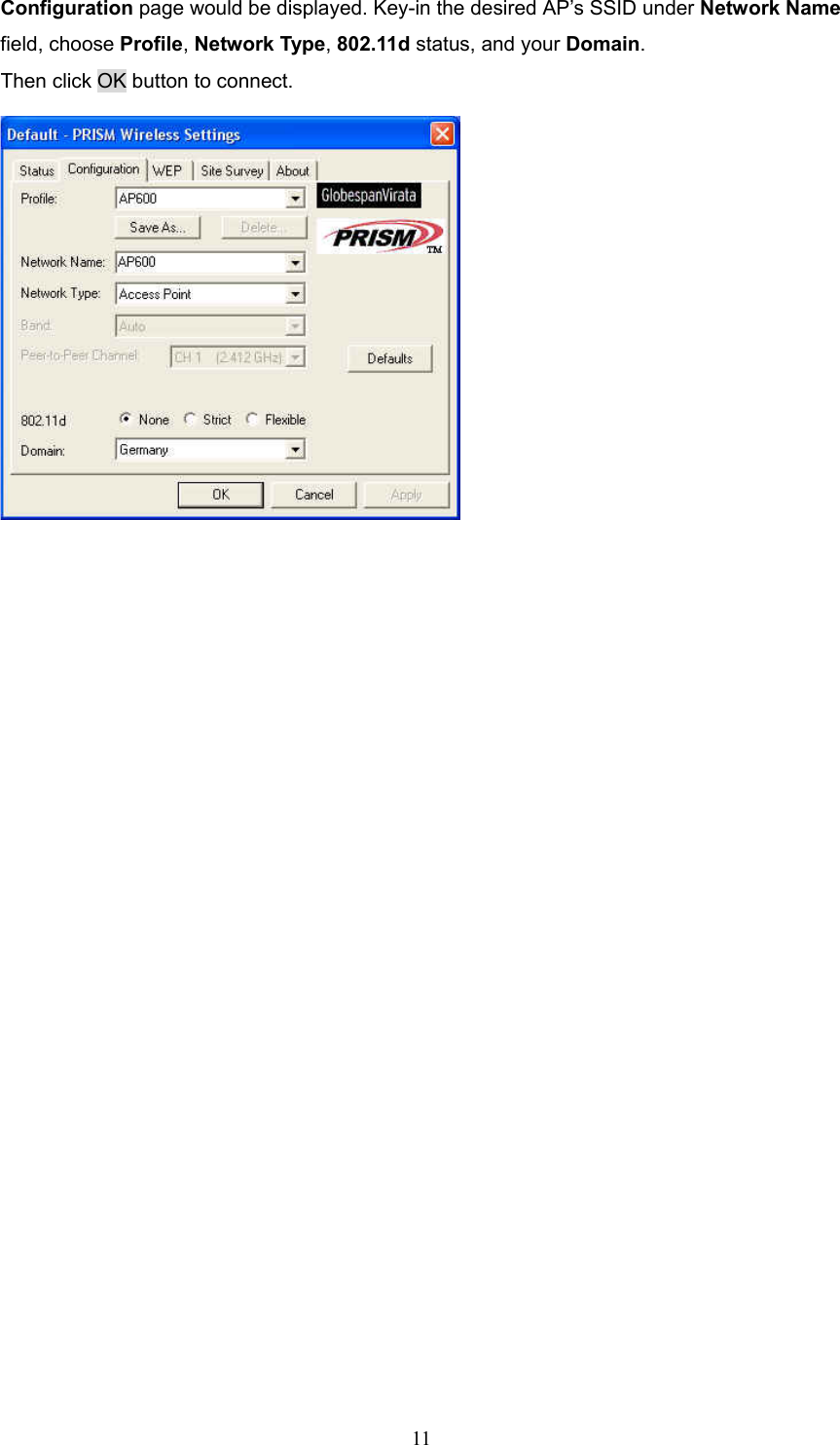
 11 Configuration page would be displayed. Key-in the desired AP’s SSID under Network Name field, choose Profile, Network Type, 802.11d status, and your Domain. Then click OK button to connect.
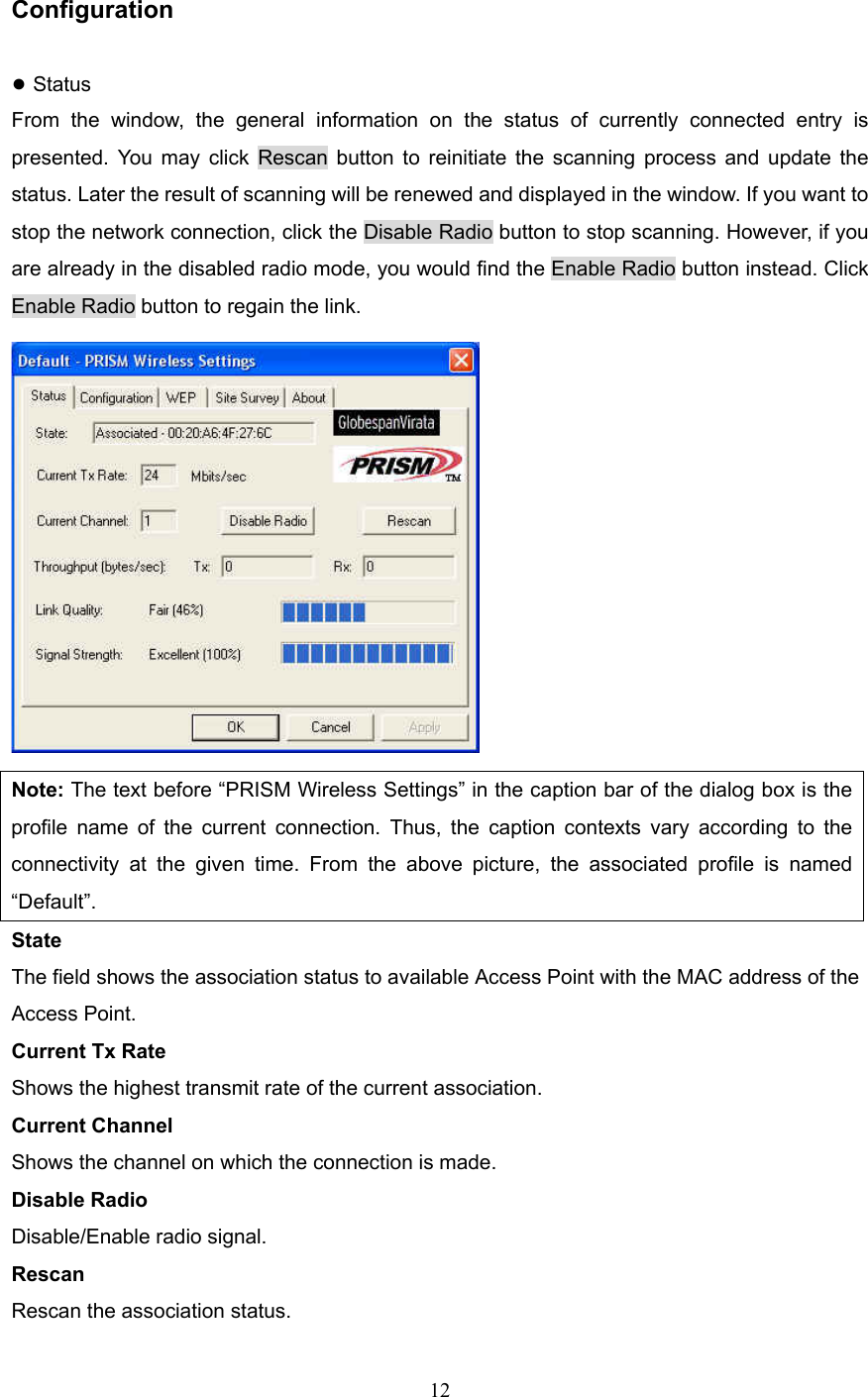
 12  Configuration ● Status From the window, the general information on the status of currently connected entry is presented. You may click Rescan button to reinitiate the scanning process and update the status. Later the result of scanning will be renewed and displayed in the window. If you want to stop the network connection, click the Disable Radio button to stop scanning. However, if you are already in the disabled radio mode, you would find the Enable Radio button instead. Click Enable Radio button to regain the link.  Note: The text before “PRISM Wireless Settings” in the caption bar of the dialog box is the profile name of the current connection. Thus, the caption contexts vary according to the connectivity at the given time. From the above picture, the associated profile is named “Default”. State The field shows the association status to available Access Point with the MAC address of the Access Point. Current Tx Rate Shows the highest transmit rate of the current association. Current Channel Shows the channel on which the connection is made. Disable Radio Disable/Enable radio signal. Rescan Rescan the association status.
 13 Throughput This displays the instantaneous wireless Receive and Transmit throughput in Kbits per second.   Link Quality / Signal Strength The Link Quality and Signal Strength bar graph is only active when the node is in Infrastructure Mode. The bar graph displays the quality and strength of the link between the node and its Access Point.
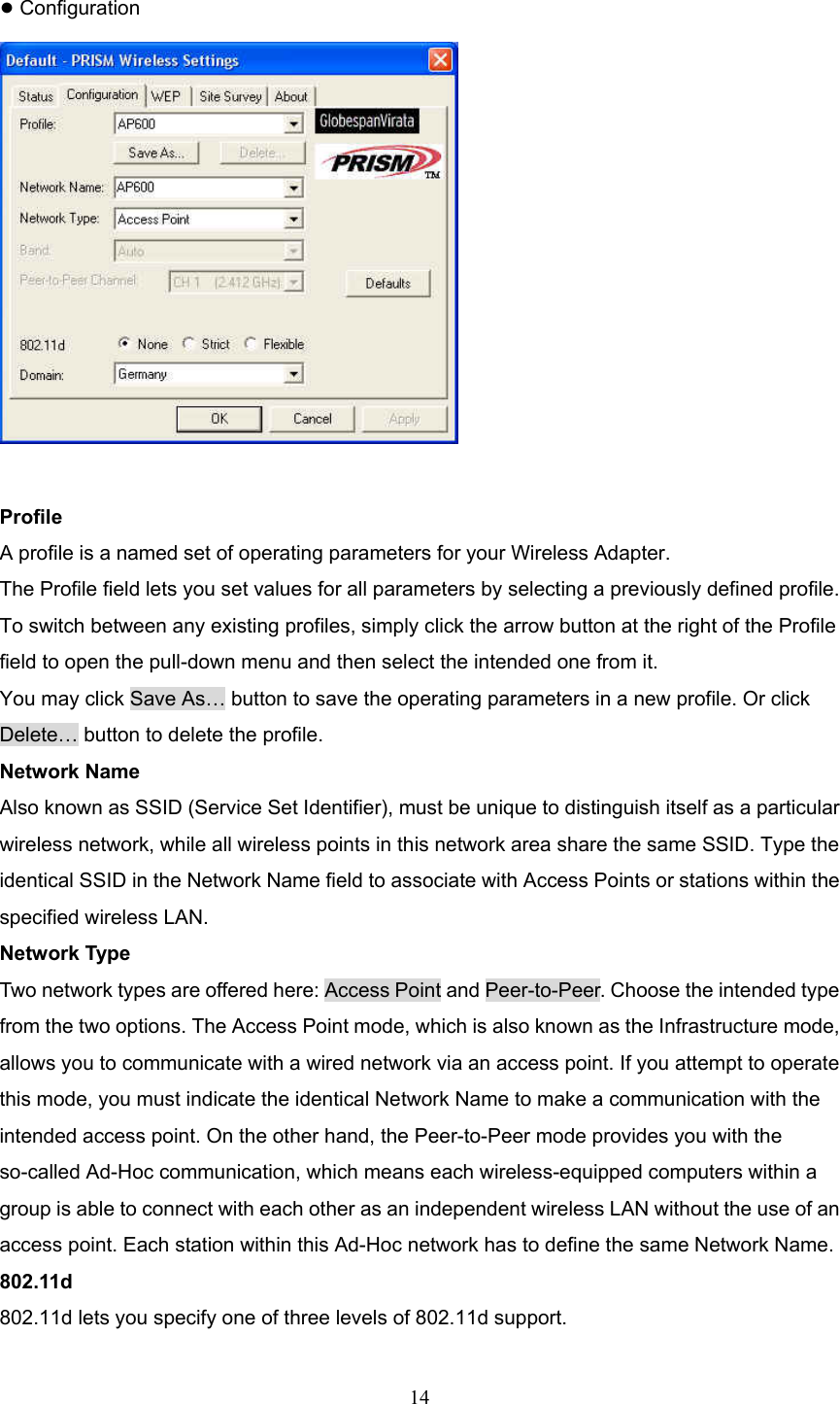
 14  ● Configuration   Profile A profile is a named set of operating parameters for your Wireless Adapter. The Profile field lets you set values for all parameters by selecting a previously defined profile. To switch between any existing profiles, simply click the arrow button at the right of the Profile field to open the pull-down menu and then select the intended one from it. You may click Save As… button to save the operating parameters in a new profile. Or click Delete… button to delete the profile. Network Name Also known as SSID (Service Set Identifier), must be unique to distinguish itself as a particular wireless network, while all wireless points in this network area share the same SSID. Type the identical SSID in the Network Name field to associate with Access Points or stations within the specified wireless LAN. Network Type Two network types are offered here: Access Point and Peer-to-Peer. Choose the intended type from the two options. The Access Point mode, which is also known as the Infrastructure mode, allows you to communicate with a wired network via an access point. If you attempt to operate this mode, you must indicate the identical Network Name to make a communication with the intended access point. On the other hand, the Peer-to-Peer mode provides you with the so-called Ad-Hoc communication, which means each wireless-equipped computers within a group is able to connect with each other as an independent wireless LAN without the use of an access point. Each station within this Ad-Hoc network has to define the same Network Name. 802.11d 802.11d lets you specify one of three levels of 802.11d support.
 15 If you specify None, you must choose the county in the Domain field that corresponds to your location. Your Wireless Adapter would operate according to the standards set by the appropriate regulatory agency. If you select Strict, your Wireless Adapter would only communicate with Access Points that provide 802.11d support. If you choose Flexible, your   Wireless Adapter can communicate with any Access Point it finds.   Note: If you specify Peer-to-Peer as the network type, you must specify None. Domain You may select your country from the drop-down list.
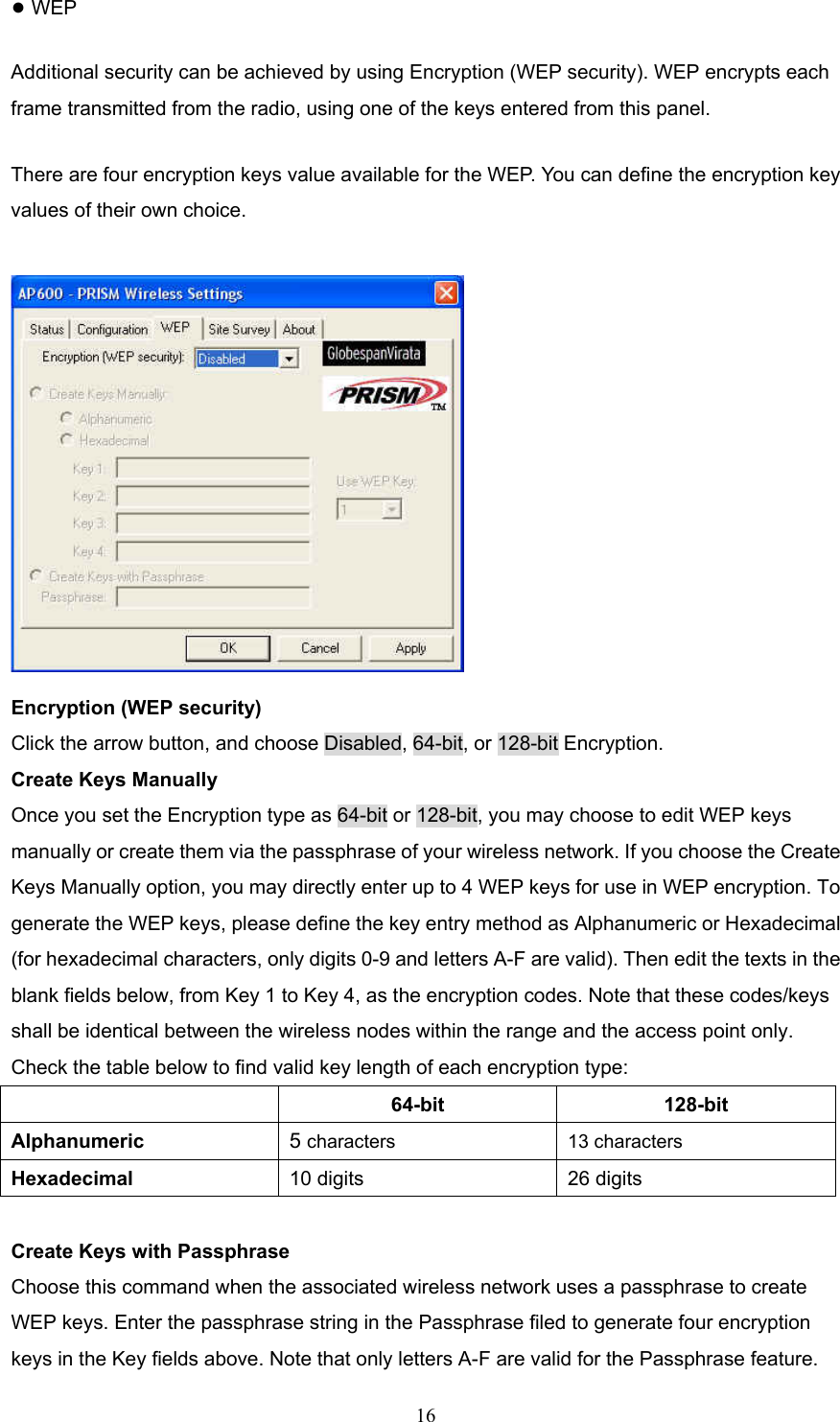
 16 ● WEP Additional security can be achieved by using Encryption (WEP security). WEP encrypts each frame transmitted from the radio, using one of the keys entered from this panel.   There are four encryption keys value available for the WEP. You can define the encryption key values of their own choice.  Encryption (WEP security) Click the arrow button, and choose Disabled, 64-bit, or 128-bit Encryption. Create Keys Manually Once you set the Encryption type as 64-bit or 128-bit, you may choose to edit WEP keys manually or create them via the passphrase of your wireless network. If you choose the Create Keys Manually option, you may directly enter up to 4 WEP keys for use in WEP encryption. To generate the WEP keys, please define the key entry method as Alphanumeric or Hexadecimal (for hexadecimal characters, only digits 0-9 and letters A-F are valid). Then edit the texts in the blank fields below, from Key 1 to Key 4, as the encryption codes. Note that these codes/keys shall be identical between the wireless nodes within the range and the access point only. Check the table below to find valid key length of each encryption type:  64-bit 128-bit Alphanumeric  5 characters 13 characters Hexadecimal   10 digits  26 digits  Create Keys with Passphrase Choose this command when the associated wireless network uses a passphrase to create WEP keys. Enter the passphrase string in the Passphrase filed to generate four encryption keys in the Key fields above. Note that only letters A-F are valid for the Passphrase feature.
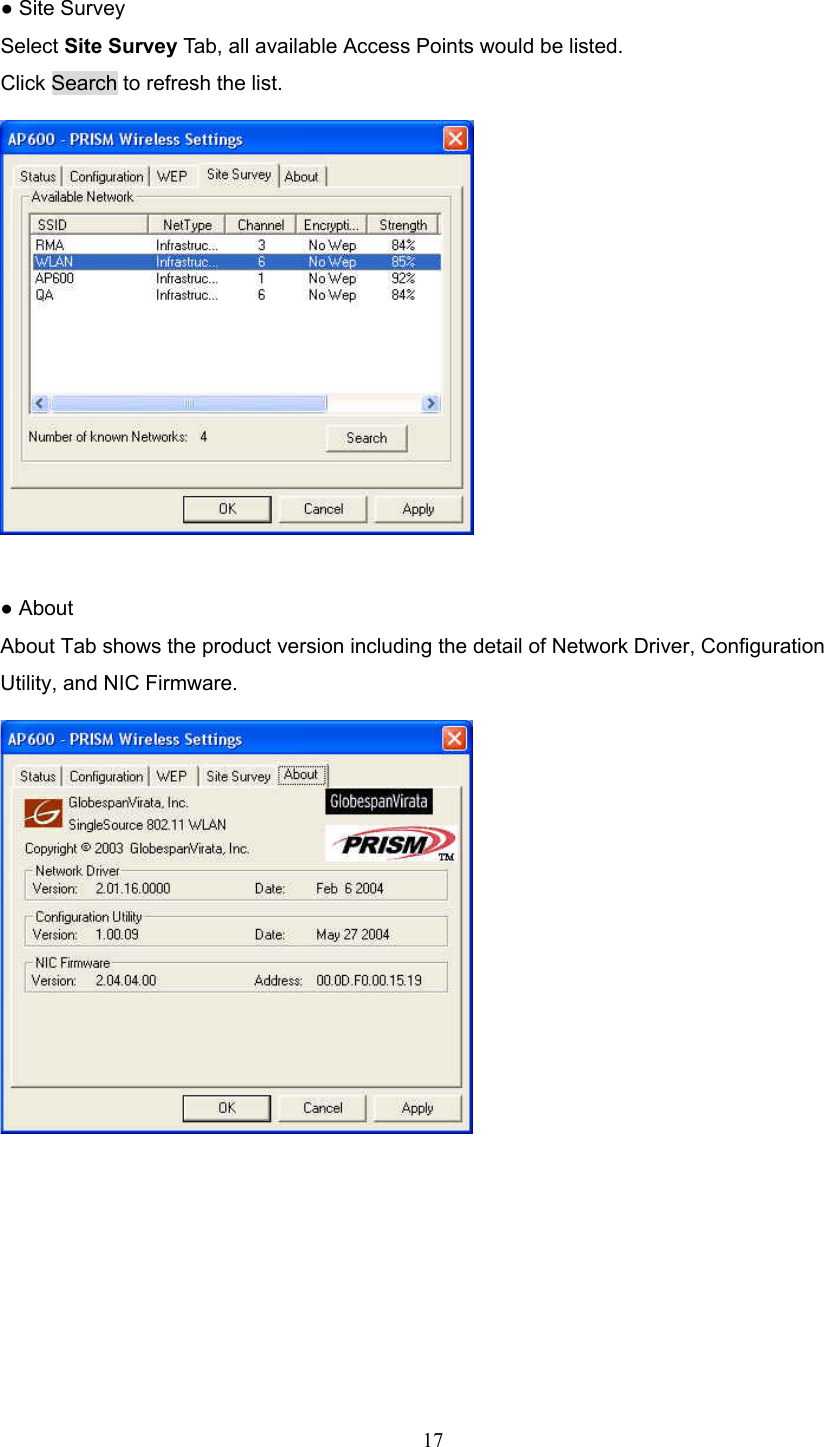
 17  ● Site Survey Select Site Survey Tab, all available Access Points would be listed. Click Search to refresh the list.   ● About About Tab shows the product version including the detail of Network Driver, Configuration Utility, and NIC Firmware.
 Federal Communication Commission Interference Statement This equipment has been tested and found to comply with the limits for a Class B digital device, pursuant to Part 15 of the FCC Rules.  These limits are designed to provide reasonable protection against harmful interference in a residential installation.  This equipment generates, uses and can radiate radio frequency energy and, if not installed and used in accordance with the instructions, may cause harmful interference to radio communications.  However, there is no guarantee that interference will not occur in a particular installation.  If this equipment does cause harmful interference to radio or television reception, which can be determined by turning the equipment off and on, the user is encouraged to try to correct the interference by one of the following measures:  - Reorient or relocate the receiving antenna. - Increase the separation between the equipment and receiver. - Connect the equipment into an outlet on a circuit different from that to which the receiver is connected. - Consult the dealer or an experienced radio/TV technician for help.  This device complies with Part 15 of the FCC Rules. Operation is subject to the following two conditions: (1) This device may not cause harmful interference, and (2) this device must accept any interference received, including interference that may cause undesired operation.  FCC Caution: Any changes or modifications not expressly approved by the party responsible for compliance could void the user's authority to operate this equipment.  IMPORTANT NOTE: FCC Radiation Exposure Statement: This equipment complies with FCC radiation exposure limits set forth for an uncontrolled environment. This equipment should be installed and operated with minimum distance 20cm between the radiator & your body. This transmitter must not be co-located or operating in conjunction with any other antenna or transmitter. 14
This device is intended only for OEM integrators under the following conditions: 1) The antenna must be installed such that 20 cm is maintained between the antenna and users, and   2) The transmitter module may not be co-located with any other transmitter or antenna. As long as 2 conditions above are met, further transmitter test will not be required. However, the OEM integrator is still responsible for testing their end-product for any additional compliance requirements required with this module installed (for example, digital device emissions, PC peripheral requirements, etc.).  IMPORTANT NOTE: In the event that these conditions can not be met (for example certain laptop configurations or co-location with another transmitter), then the FCC authorization is no longer considered valid and the FCC ID can not be used on the final product. In these circumstances, the OEM integrator will be responsible for re-evaluating the end product (including the transmitter) and obtaining a separate FCC authorization.  End Product Labeling This transmitter module is authorized only for use in device where the antenna may be installed such that 20 cm may be maintained between the antenna and users (for example :Laptop). The final end product must be labeled in a visible area with the following: “Contains TX FCC ID: RUJ-Q802MIAG”. Manual Information That Must be Included The OEM integrator has to be aware not to provide information to the end user regarding how to install or remove this RF module in the users manual of the end product which integrate this module.  The users manual for OEM integrators must include the following information in a prominent location “ IMPORTANT NOTE: To comply with FCC RF exposure compliance requirements, the antenna used for this transmitter must be installed to provide a separation distance of at least 20 cm from all persons and must not be co-located or operating in conjunction with any other antenna or transmitter. To prevent radio interference to the licensed service, this device is intended to be operated indoors and away from windows to provide maximum shielding. (Equipment (or its transmit antenna) that is installed outdoors is subject to licensing). 15
Canada Statement  Canada (IC):   To prevent radio interference to the licensed service (i.e. co-channel Mobile Satellite systems) this device is intended to be operated indoors and away from windows to provide maximum shielding. Equipment (or its transmit antenna) that is installed outdoors is subject to licensing.   Because high power radars are allocated as primary users (meaning they have priority) in 5250-5350 MHz, these radars could cause interference and/or damage to license exempt LAN devices.

Navigation menu