Qoobex QPHONE1 3-D Smartphone User Manual A102

Qoobex Inc. 3-D Smartphone A102

User manual

1 User's Guide Thank you for choosing our mobile phone. This User's Guide is intended to guide you through the functions and features of your phone.  Please read the below instructions first   ·Before using the phone, please read all safety precautions and User's Guide carefully to ensure safe and proper use.   · The descriptions in this manual are based on the default settings of the mobile phone.   · The images and screenshots used in User's Guide may be different from the actual product appearance.   The information contained in User's Guide may differ from the product or may differ from the software provided by the service provider. Subject to change without notice.   ·Available features and additional services may vary depending on mobile phone, software, or service providers. · The format and information in User's Guide is based on the Android operating system and may differ from the operating system used by the user.   · The application and its functionality may vary depending on country, region, or hardware specification. Performance issues caused by third-party applications are not within the scope of our responsibility. · Performance problems or incompatibilities caused by user's editing the registry settings are not within the scope of our responsibility. · Additional charges may incur for sending and receiving messages, uploading and downloading, automatic synchronization, or using the location service. To avoid additional costs, please choose the appropriate data charging scheme. For more information, contact your service provider.   · Please carefully keep this manual for future reference.  Indicating Icon Before you start to use the mobile phone, familiarize yourself with the icons in this manual: Warning   — occasions that may hurt the user or others Caution   — occasions that may cause damage to the phone or other equipment. Note   — comments, tips, or other information.  Installation Accessories Introduction Check if the following items are present in the product box:   . Mobile phone (including battery)
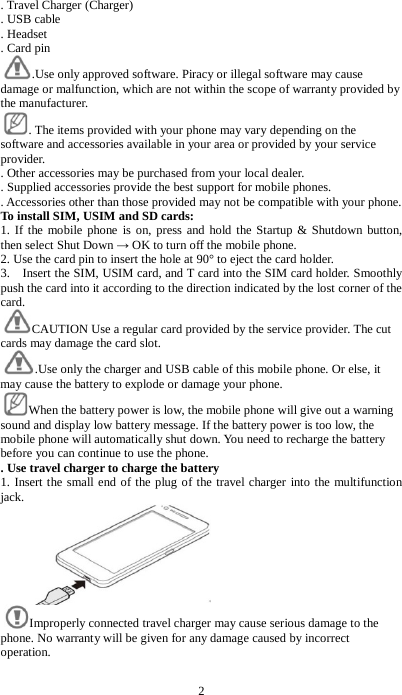
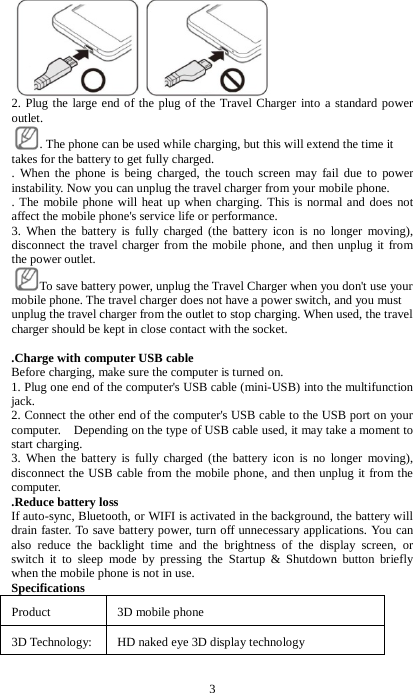
2 . Travel Charger (Charger)   . USB cable . Headset . Card pin .Use only approved software. Piracy or illegal software may cause damage or malfunction, which are not within the scope of warranty provided by the manufacturer.     . The items provided with your phone may vary depending on the software and accessories available in your area or provided by your service provider.   . Other accessories may be purchased from your local dealer.   . Supplied accessories provide the best support for mobile phones.   . Accessories other than those provided may not be compatible with your phone. To install SIM, USIM and SD cards: 1. If the mobile phone is on, press and hold the Startup & Shutdown button, then select Shut Down → OK to turn off the mobile phone. 2. Use the card pin to insert the hole at 90° to eject the card holder. 3.    Insert the SIM, USIM card, and T card into the SIM card holder. Smoothly push the card into it according to the direction indicated by the lost corner of the card. CAUTION Use a regular card provided by the service provider. The cut cards may damage the card slot. .Use only the charger and USB cable of this mobile phone. Or else, it may cause the battery to explode or damage your phone. When the battery power is low, the mobile phone will give out a warning sound and display low battery message. If the battery power is too low, the mobile phone will automatically shut down. You need to recharge the battery before you can continue to use the phone.   . Use travel charger to charge the battery 1. Insert the small end of the plug of the travel charger into the multifunction jack.    Improperly connected travel charger may cause serious damage to the phone. No warranty will be given for any damage caused by incorrect operation.
3  2. Plug the large end of the plug of the Travel Charger into a standard power outlet.   . The phone can be used while charging, but this will extend the time it takes for the battery to get fully charged.   . When the phone is being charged, the touch screen may fail due to power instability. Now you can unplug the travel charger from your mobile phone.   . The mobile phone will heat up when charging. This is normal and does not affect the mobile phone's service life or performance.   3. When the battery is fully charged (the battery icon is no longer moving), disconnect the travel charger from the mobile phone, and then unplug it from the power outlet. To save battery power, unplug the Travel Charger when you don't use your mobile phone. The travel charger does not have a power switch, and you must unplug the travel charger from the outlet to stop charging. When used, the travel charger should be kept in close contact with the socket.    .Charge with computer USB cable Before charging, make sure the computer is turned on. 1. Plug one end of the computer's USB cable (mini-USB) into the multifunction jack. 2. Connect the other end of the computer's USB cable to the USB port on your computer.    Depending on the type of USB cable used, it may take a moment to start charging. 3. When the battery is fully charged (the battery icon is no longer moving), disconnect the USB cable from the mobile phone, and then unplug it from the computer. .Reduce battery loss If auto-sync, Bluetooth, or WIFI is activated in the background, the battery will drain faster. To save battery power, turn off unnecessary applications. You can also reduce the backlight time and the brightness of the display screen, or switch it to sleep mode by pressing the Startup & Shutdown button briefly when the mobile phone is not in use. Specifications Product  3D mobile phone    3D Technology: HD naked eye 3D display technology
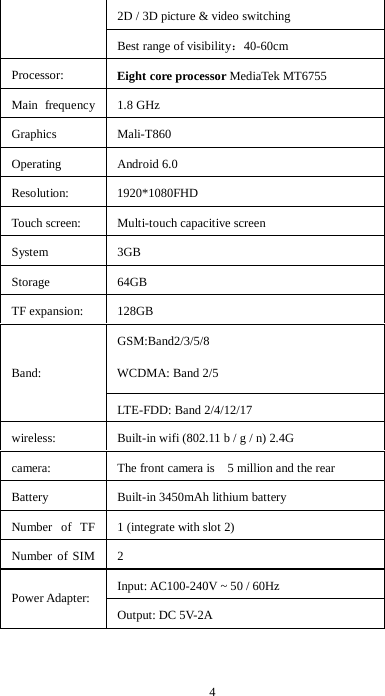
4 2D / 3D picture & video switching Best range of visibility:40-60cm Processor: Eight core processor MediaTek MT6755 Main frequency   1.8 GHz Graphics  Mali-T860 Operating  Android 6.0 Resolution: 1920*1080FHD Touch screen: Multi-touch capacitive screen System  3GB   Storage  64GB TF expansion: 128GB  Band: GSM:Band2/3/5/8   WCDMA: Band 2/5 LTE-FDD: Band 2/4/12/17 wireless: Built-in wifi (802.11 b / g / n) 2.4G   camera: The front camera is    5 million and the rear       Battery  Built-in 3450mAh lithium battery Number of TF   1 (integrate with slot 2) Number of SIM   2 Power Adapter: Input: AC100-240V ~ 50 / 60Hz   Output: DC 5V-2A
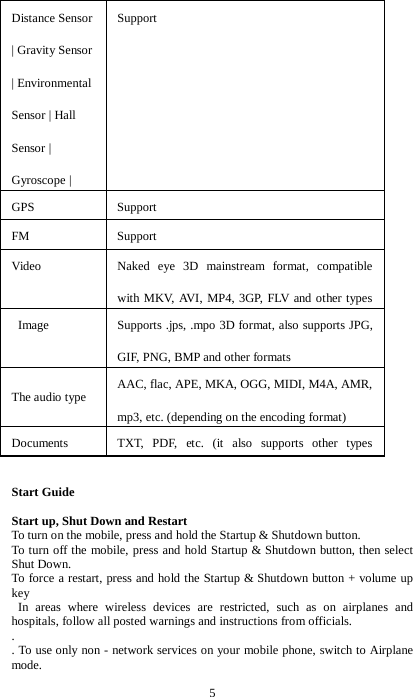
5 Distance Sensor | Gravity Sensor | Environmental Sensor | Hall Sensor | Gyroscope |   Support GPS Support   FM Support Video Naked eye 3D mainstream format, compatible with MKV, AVI, MP4, 3GP, FLV and other types              Image Supports .jps, .mpo 3D format, also supports JPG, GIF, PNG, BMP and other formats The audio type AAC, flac, APE, MKA, OGG, MIDI, M4A, AMR, mp3, etc. (depending on the encoding format) Documents TXT, PDF, etc. (it also supports other types         Start Guide  Start up, Shut Down and Restart To turn on the mobile, press and hold the Startup & Shutdown button. To turn off the mobile, press and hold Startup & Shutdown button, then select Shut Down. To force a restart, press and hold the Startup & Shutdown button + volume up key  In areas where wireless devices are restricted, such as on airplanes and hospitals, follow all posted warnings and instructions from officials. .   . To use only non - network services on your mobile phone, switch to Airplane mode.
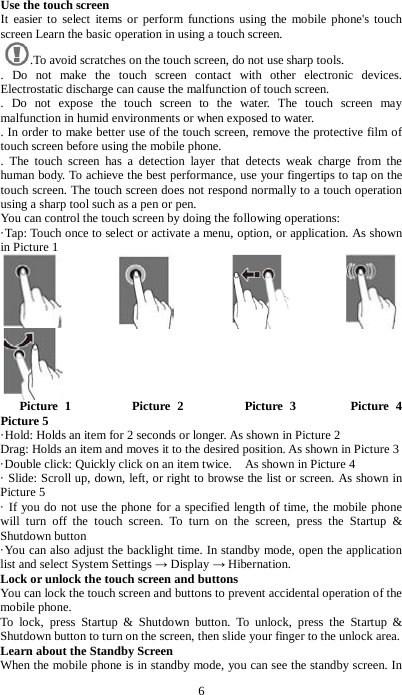
6 Use the touch screen It easier to select items or perform functions using the mobile phone's touch screen Learn the basic operation in using a touch screen.   .To avoid scratches on the touch screen, do not use sharp tools.   . Do not make the touch screen contact with other electronic devices. Electrostatic discharge can cause the malfunction of touch screen.   . Do not expose the touch screen to the water. The touch screen may malfunction in humid environments or when exposed to water. . In order to make better use of the touch screen, remove the protective film of touch screen before using the mobile phone.   . The touch screen has a detection layer that detects weak charge from the human body. To achieve the best performance, use your fingertips to tap on the touch screen. The touch screen does not respond normally to a touch operation using a sharp tool such as a pen or pen. You can control the touch screen by doing the following operations:   ·Tap: Touch once to select or activate a menu, option, or application. As shown in Picture 1                            Picture 1         Picture 2         Picture 3        Picture 4          Picture 5   ·Hold: Holds an item for 2 seconds or longer. As shown in Picture 2 Drag: Holds an item and moves it to the desired position. As shown in Picture 3 ·Double click: Quickly click on an item twice.    As shown in Picture 4 · Slide: Scroll up, down, left, or right to browse the list or screen. As shown in Picture 5 · If you do not use the phone for a specified length of time, the mobile phone will turn off the touch screen. To turn on the screen, press the Startup & Shutdown button ·You can also adjust the backlight time. In standby mode, open the application list and select System Settings → Display → Hibernation. Lock or unlock the touch screen and buttons You can lock the touch screen and buttons to prevent accidental operation of the mobile phone. To lock, press Startup & Shutdown button. To unlock, press the Startup & Shutdown button to turn on the screen, then slide your finger to the unlock area. Learn about the Standby Screen When the mobile phone is in standby mode, you can see the standby screen. In
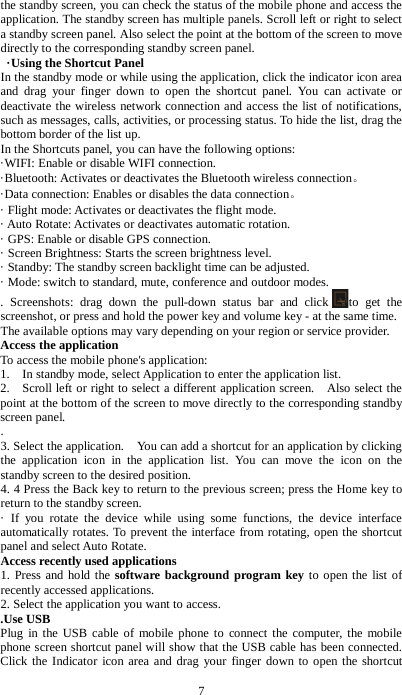
7 the standby screen, you can check the status of the mobile phone and access the application. The standby screen has multiple panels. Scroll left or right to select a standby screen panel. Also select the point at the bottom of the screen to move directly to the corresponding standby screen panel.    ·Using the Shortcut Panel In the standby mode or while using the application, click the indicator icon area and drag your finger down to open the shortcut panel. You can activate or deactivate the wireless network connection and access the list of notifications, such as messages, calls, activities, or processing status. To hide the list, drag the bottom border of the list up. In the Shortcuts panel, you can have the following options:   ·WIFI: Enable or disable WIFI connection.   ·Bluetooth: Activates or deactivates the Bluetooth wireless connection。   ·Data connection: Enables or disables the data connection。   · Flight mode: Activates or deactivates the flight mode.   · Auto Rotate: Activates or deactivates automatic rotation. · GPS: Enable or disable GPS connection. · Screen Brightness: Starts the screen brightness level. · Standby: The standby screen backlight time can be adjusted. · Mode: switch to standard, mute, conference and outdoor modes. . Screenshots: drag down the pull-down status bar and click to get the screenshot, or press and hold the power key and volume key - at the same time. The available options may vary depending on your region or service provider. Access the application To access the mobile phone's application: 1.    In standby mode, select Application to enter the application list. 2.    Scroll left or right to select a different application screen.    Also select the point at the bottom of the screen to move directly to the corresponding standby screen panel. . 3. Select the application.    You can add a shortcut for an application by clicking the application icon in the application list. You can move the icon on the standby screen to the desired position. 4. 4 Press the Back key to return to the previous screen; press the Home key to return to the standby screen.   · If you rotate the device while using some functions, the device interface automatically rotates. To prevent the interface from rotating, open the shortcut panel and select Auto Rotate.   Access recently used applications 1. Press and hold the software background program key to open the list of recently accessed applications.   2. Select the application you want to access. .Use USB Plug in the USB cable of mobile phone to connect the computer, the mobile phone screen shortcut panel will show that the USB cable has been connected. Click the Indicator icon area and drag your finger down to open the shortcut
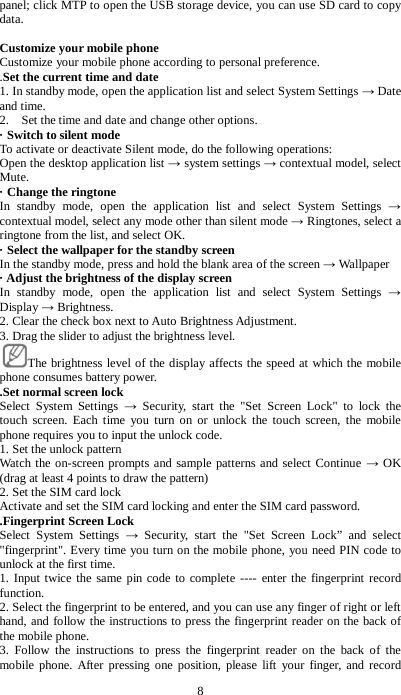
8 panel; click MTP to open the USB storage device, you can use SD card to copy data.  Customize your mobile phone Customize your mobile phone according to personal preference.     .Set the current time and date 1. In standby mode, open the application list and select System Settings → Date and time. 2.    Set the time and date and change other options.   · Switch to silent mode To activate or deactivate Silent mode, do the following operations:   Open the desktop application list → system settings → contextual model, select Mute. · Change the ringtone In standby mode, open the application list and select System Settings → contextual model, select any mode other than silent mode → Ringtones, select a ringtone from the list, and select OK. · Select the wallpaper for the standby screen In the standby mode, press and hold the blank area of the screen → Wallpaper   · Adjust the brightness of the display screen In standby mode, open the application list and select System Settings → Display → Brightness. 2. Clear the check box next to Auto Brightness Adjustment. 3. Drag the slider to adjust the brightness level.     The brightness level of the display affects the speed at which the mobile phone consumes battery power. .Set normal screen lock Select System Settings →  Security, start the "Set Screen Lock" to lock the touch screen. Each time you turn on or unlock the touch screen, the mobile phone requires you to input the unlock code.   1. Set the unlock pattern Watch the on-screen prompts and sample patterns and select Continue → OK (drag at least 4 points to draw the pattern)   2. Set the SIM card lock Activate and set the SIM card locking and enter the SIM card password. .Fingerprint Screen Lock Select System Settings →  Security, start the "Set Screen Lock” and select "fingerprint". Every time you turn on the mobile phone, you need PIN code to unlock at the first time.   1. Input twice the same pin code to complete ---- enter the fingerprint record function. 2. Select the fingerprint to be entered, and you can use any finger of right or left hand, and follow the instructions to press the fingerprint reader on the back of the mobile phone. 3. Follow the instructions to press the fingerprint reader on the back of the mobile phone. After pressing one position, please lift your finger, and record
9 different positions of the fingerprint after an interval of one second, until the above access bar is completed. .Use language and keyboard Select System Settings → Language and Keyboard 1. Select Language. You can select English, Chinese (Traditional) and Chinese (Simplified) 2. User Dictionary. Manually add the words or characters you need. 3. Input method. When selected, use such input method to input characters in the editing interface. .Copy and Paste text When you enter text, you can use text in other applications with copy and paste. 1. Place the cursor over the text you want to copy, and hold and drag the words or select all; select the desired text and then click Cut or Copy. 2. In another application, place the cursor over the place where you want to paste the text. Touch and hold Select → Paste. ·Download the installation files from the network Files downloaded from the network may contain viruses that can damage your mobile phone. To reduce risk, download files only from trusted sources. To install an application downloaded from a website other than Android Market, you must select System Settings → Applications → Unknown Sources → OK. .Restore factory settings and important data backup  Enter system settings → restore factory settings, backup data before reset. .Backup Recovery  Enter the application backup recovery and the mobile will display the list of backup, and click on the backup data to restore the previous data.  Communication Calling Learn how to use call functions, such as making and receiving calls, using available options during a call, or customizing and using call-related features.     .Make and receive calls When you make, answer, end, or reject a call, you can use buttons or touch screen.   · When the distance sensor is turned on, the phone automatically turns off and locks the touch screen to prevent accidental input when the phone is close to the face.   · Static electricity from the body and clothing during a call may interfere with the distance sensor. Making a call 1. In standby mode, select telephone number, enter the area code, and the phone number.   2. Select to make a voice call. 3. To end the call, select End Call.   Answer Calls 1. When there is a coming call, drag to the right. 2. To end the call, select End Call.
10 Reject Calls When there is a coming call, drag to the left. Make International Calls 1. In standby mode, select Phone → Keyboard, then press 0 to insert a + sign. 2. Enter the full number you want to dial (country code, area code, and phone number), and select Call.     .Use headphones Plug your headset into your mobile phone, and you can answer calls and use handsfree functions:   . To answer a call, briefly press the headset button.   . To reject the call, press and hold the headset button. . To end the call, press and hold the headset button.   . Use options in a voice call 1. Dial keypad: Enter the number   2. Hold: after clicking on it, the call is held on, and multi-party calls can also be made; click it again to resume the previous call.   3. Handsfree:    Activate the speaker. 4. Contact list: Activate a contact person to make a call or send a text message. 5. Add a call: Activate the dial pad to enter the number for dialing. 6. Bluetooth: Turn on to make a Bluetooth call. 7.    Start recording: Starts the recording. . Check the History of Calls You can check the history of calls based on the types. 1. In standby mode, select Dialer Options → Call History. 2.    Press "All" to display missed calls, received calls, and dialed calls. Information Learn how to create and send text messages (SMS) or multimedia messages (MMS), and check or manage the sent or received messages. .Send Messages 1. In standby mode, select Messages → Create message 2. Add the recipients.   . Enter the phone number manually, separated by semicolons or commas.   . Click on the icon on the right side to select a phone number from the list. 3.  Enter text: To insert an emotion icon, press the keyboard Smile →  Insert smiley symbol. 4. Select: Send to send the message.   .Send a Multimedia Message 1. In standby mode, select Messages → Create message 2. Add the recipients.   . Enter the phone number or e-mail address manually, with semicolons or commas to separate multiple numbers or addresses.   . Select: You can select a phone number or an e-mail address from the list. When you enter an e-mail address, the mobile phone converts the message to a multimedia message. 3. Press Menu → Add Theme, and then add a message theme. 4. Select: Tap to enter the message, and then enter the message text. To insert an emotion icon, press the keyboard Smile → Insert smiley symbol.
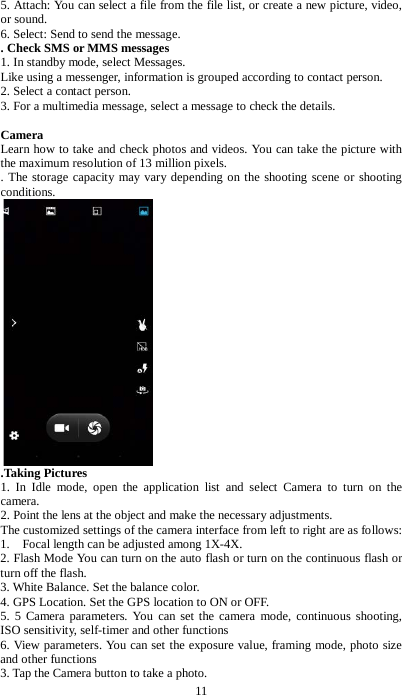
11 5. Attach: You can select a file from the file list, or create a new picture, video, or sound. 6. Select: Send to send the message.   . Check SMS or MMS messages 1. In standby mode, select Messages. Like using a messenger, information is grouped according to contact person. 2. Select a contact person.   3. For a multimedia message, select a message to check the details.    Camera Learn how to take and check photos and videos. You can take the picture with the maximum resolution of 13 million pixels. . The storage capacity may vary depending on the shooting scene or shooting conditions.    .Taking Pictures 1. In Idle mode, open the application list and select Camera to turn on the camera. 2. Point the lens at the object and make the necessary adjustments.   The customized settings of the camera interface from left to right are as follows: 1.  Focal length can be adjusted among 1X-4X. 2. Flash Mode You can turn on the auto flash or turn on the continuous flash or turn off the flash. 3. White Balance. Set the balance color. 4. GPS Location. Set the GPS location to ON or OFF. 5. 5 Camera parameters. You can set the camera mode, continuous shooting, ISO sensitivity, self-timer and other functions 6. View parameters. You can set the exposure value, framing mode, photo size and other functions 3. Tap the Camera button to take a photo.
12   Photos will be automatically saved, and you can check the photos by clicking on the picture box on the right. . To check more photos, scroll left or right.   . To zoom in or out, place two fingers on the screen, then separate your fingers (close your fingers to zoom out), or double - click the screen.   . To send a photo to others, select Share.   . To set the photo as wallpaper or a call image for a contact person, select More → Set to.   . To delete a photo, select Delete.   Recording Video In standby mode, open the application list and select   1. Camera Turn on the camera. 2. Point the lens at the object and make the necessary adjustments.   3. Check the camera status.   4. Start recording. End recording. The video is automatically saved. After recording a video, select Image Viewer to view the recorded video.   .  To view more videos, scroll left or right; To send a video to others, select Share; To play a video, tap Play; To delete a video, select Delete. Learn how to use the video player to play a variety of videos. Video player supports the following file formats: 3gp, mp4, avi and so on . Some file formats are not supported, depending on the phone software.   . If the file size exceeds the available memory, an error occurs when opening the file.  Music Learn how to use your music player to listen to your favorite music. The music player supports the following file formats: mp3, m4a, mp4, 3gp, ogg, oga, aac, flac.   . Some file formats are not supported, depending on the phone software.   . If the file size exceeds the available memory, an error occurs when opening the file.   . To add music files to your phone, you need first transfer the file to your phone or memory card.
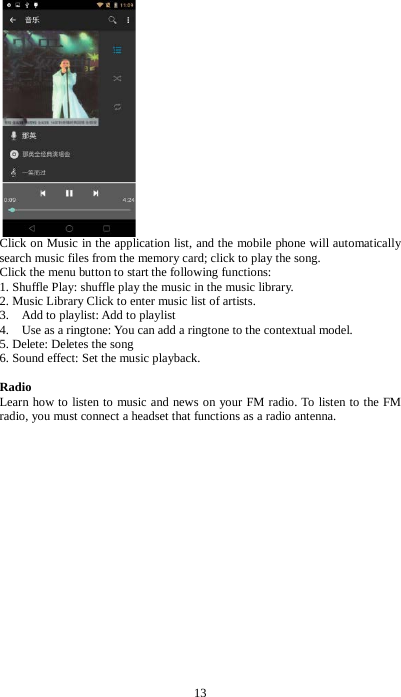
13  Click on Music in the application list, and the mobile phone will automatically search music files from the memory card; click to play the song. Click the menu button to start the following functions: 1. Shuffle Play: shuffle play the music in the music library. 2. Music Library Click to enter music list of artists. 3.    Add to playlist: Add to playlist 4.    Use as a ringtone: You can add a ringtone to the contextual model. 5. Delete: Deletes the song 6. Sound effect: Set the music playback.  Radio Learn how to listen to music and news on your FM radio. To listen to the FM radio, you must connect a headset that functions as a radio antenna.
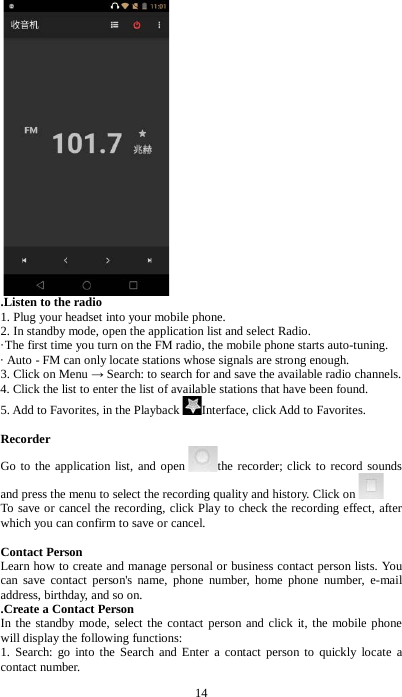
14  .Listen to the radio   1. Plug your headset into your mobile phone.   2. In standby mode, open the application list and select Radio.   ·The first time you turn on the FM radio, the mobile phone starts auto-tuning.   · Auto - FM can only locate stations whose signals are strong enough. 3. Click on Menu → Search: to search for and save the available radio channels. 4. Click the list to enter the list of available stations that have been found. 5. Add to Favorites, in the Playback Interface, click Add to Favorites.  Recorder Go to the application list, and open the recorder; click to record sounds and press the menu to select the recording quality and history. Click on  To save or cancel the recording, click Play to check the recording effect, after which you can confirm to save or cancel.    Contact Person Learn how to create and manage personal or business contact person lists. You can save contact person's name, phone number, home phone number, e-mail address, birthday, and so on.     .Create a Contact Person   In the standby mode, select the contact person and click it, the mobile phone will display the following functions: 1. Search: go into the Search and Enter a contact person to quickly locate a contact number.
15 2. Create a new contact person: go into Create a New Contact Person to enter the telephone number and save it to phone or SIM card. 3. Delete Contact Person: go into Delete Contact Person, and you can select the number that you want to delete. 4. Groups: Adding a number to a Group allows you to manage the number in your mobile phone. 5.  Import / Export: the telephone number can be copied from SIM card to mobile phone, or from mobile phone to SIM card, or from mobile phone to SD card, or from SD card to mobile phone. 6. The contact person to be displayed: you can separately choose numbers to be saved in mobile phone and SIM card and so on. 7. Accounts: You can add accounts to Renren or Exchange accounts to synchronize contacts. 8.  Share the visible contact: You can send contacts saved in your mobile phone or SIM card to an SD card, e-mail, SMS, or Bluetooth.  Clock Learn how to set and control the alarm and world clock. You can also use the stopwatch and desktop clock.    .Set a new alarm In standby mode, open the application list and select Clock → Alarm. 2.    Select to create an alarm: Add an alarm: after setting the alarm time, click "Settings" to enable the alarm; click "repear" to set the specific week of the alarm; click "ringtones" to set the alarm tone; click "vibration", the alarm has vibrations when started; click "label" to add the alarm prompt. . Stop the Alarm
16 To stop the alarm when the alarm sounds, click "Cancel" to stop the alarm. To repeat the alarm after the specified time, click "Pause".   .Delete the Alarm Select the alarm you want to delete from the list, and the mobile phone will pop up the editing interface, and you just need to click "Delete Alarm" button. . Create World Clock 1. In standby mode, open the application list and select Clock → World clock. 2.    Press the below button on the World Clock screen: Add Clock: you will enter the quick search interface, and select the time you want to add. Edit: Select the time you want to delete, and enter the quick search interface, select the time you want to cancel.  Calculator 1. In standby mode, open the application list and select Calculator. 2. Use the buttons corresponding to the calculator display to perform the basic arithmetic operations. Go to "Advanced Panel" to turn on the scientific calculator.  The internet The network service requires a data connection. Contact the service provider and choose the best data plan. Browser Learn how to access your favorite pages and add them to your bookmarks.   . If you access the internet or download media, additional charges may apply. For more information, contact your service provider.   ·The available options may vary depending on your region or service provider.    Connection .Bluetooth Bluetooth is a short-range wireless communication technology that can be used to exchange information within a distance of about 6 meters without the need for a physical connection. When sending messages using Bluetooth, you don't need to use wires to connect the equipment. Even if the devices are located in different rooms, as long as the distance between two devices does not exceed the Bluetooth reception range, they can exchange information.     . When sharing and receiving data, make sure that the appropriate device is properly secured and that it is a trusted device. If there is an obstacle between the devices, the effective distance may be shortened. . Some devices, especially those that are untested or not Bluetooth enabled, may not be compatible with your mobile phone.   .Activate the Bluetooth wireless function 1. In standby mode, open the application list and select System settings → Bluetooth settings. 2. Select Bluetooth to open and scan for devices.
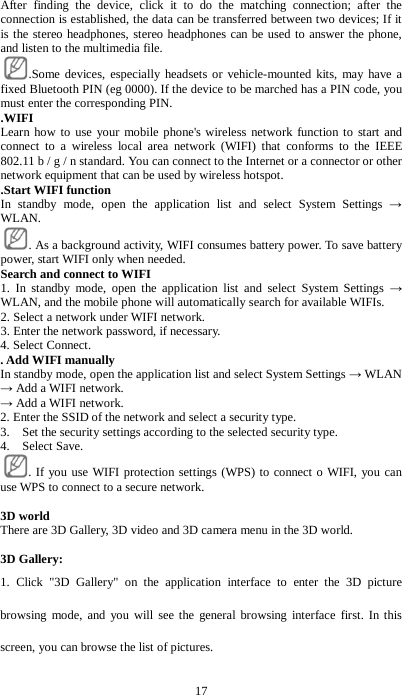
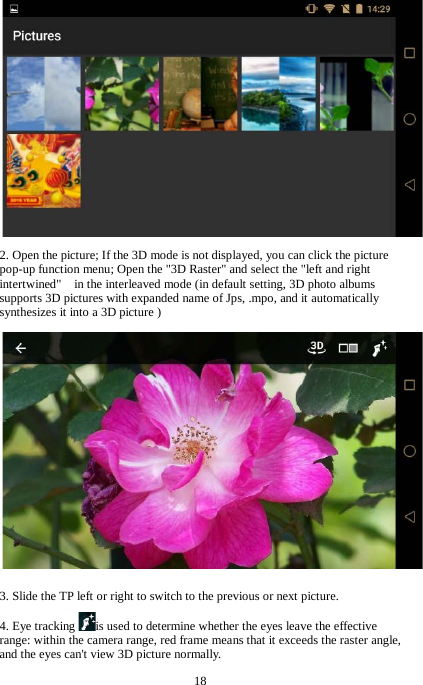
17 After finding the device, click it to do the matching connection; after the connection is established, the data can be transferred between two devices; If it is the stereo headphones, stereo headphones can be used to answer the phone, and listen to the multimedia file. .Some devices, especially headsets or vehicle-mounted kits, may have a fixed Bluetooth PIN (eg 0000). If the device to be marched has a PIN code, you must enter the corresponding PIN.   .WIFI Learn how to use your mobile phone's wireless network function to start and connect to a wireless local area network (WIFI) that conforms to the IEEE 802.11 b / g / n standard. You can connect to the Internet or a connector or other network equipment that can be used by wireless hotspot.     .Start WIFI function In standby mode, open the application list and select System Settings → WLAN. . As a background activity, WIFI consumes battery power. To save battery power, start WIFI only when needed. Search and connect to WIFI   1. In standby mode, open the application list and select System Settings → WLAN, and the mobile phone will automatically search for available WIFIs. 2. Select a network under WIFI network. 3. Enter the network password, if necessary.   4. Select Connect. . Add WIFI manually   In standby mode, open the application list and select System Settings → WLAN → Add a WIFI network. → Add a WIFI network. 2. Enter the SSID of the network and select a security type.   3.    Set the security settings according to the selected security type.   4.  Select Save.  . If you use WIFI protection settings (WPS) to connect o WIFI, you can use WPS to connect to a secure network.  3D world There are 3D Gallery, 3D video and 3D camera menu in the 3D world.  3D Gallery: 1. Click "3D Gallery" on the application interface to enter the 3D picture browsing mode, and you will see the general browsing interface first. In this screen, you can browse the list of pictures.
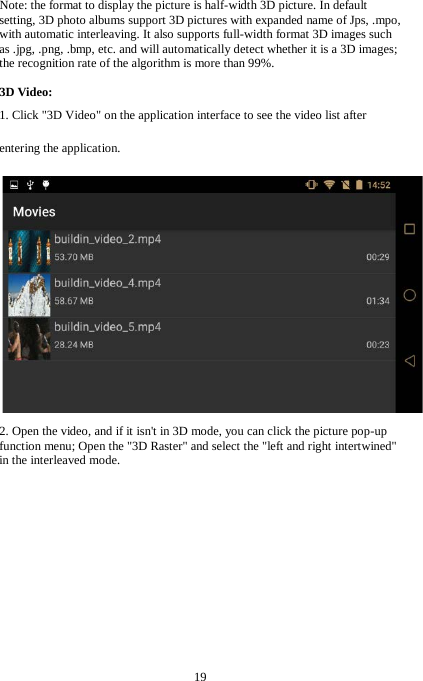
18  2. Open the picture; If the 3D mode is not displayed, you can click the picture pop-up function menu; Open the "3D Raster" and select the "left and right intertwined"    in the interleaved mode (in default setting, 3D photo albums supports 3D pictures with expanded name of Jps, .mpo, and it automatically synthesizes it into a 3D picture )  3. Slide the TP left or right to switch to the previous or next picture. 4. Eye tracking is used to determine whether the eyes leave the effective range: within the camera range, red frame means that it exceeds the raster angle, and the eyes can't view 3D picture normally.
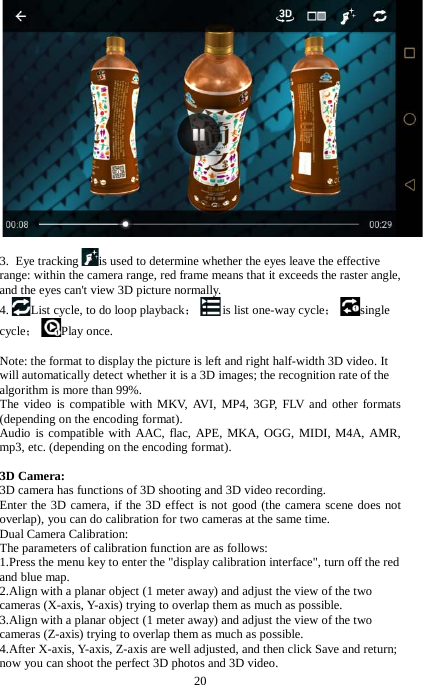
19  Note: the format to display the picture is half-width 3D picture. In default setting, 3D photo albums support 3D pictures with expanded name of Jps, .mpo, with automatic interleaving. It also supports full-width format 3D images such as .jpg, .png, .bmp, etc. and will automatically detect whether it is a 3D images; the recognition rate of the algorithm is more than 99%.  3D Video: 1. Click "3D Video" on the application interface to see the video list after entering the application.  2. Open the video, and if it isn't in 3D mode, you can click the picture pop-up function menu; Open the "3D Raster" and select the "left and right intertwined"   in the interleaved mode.
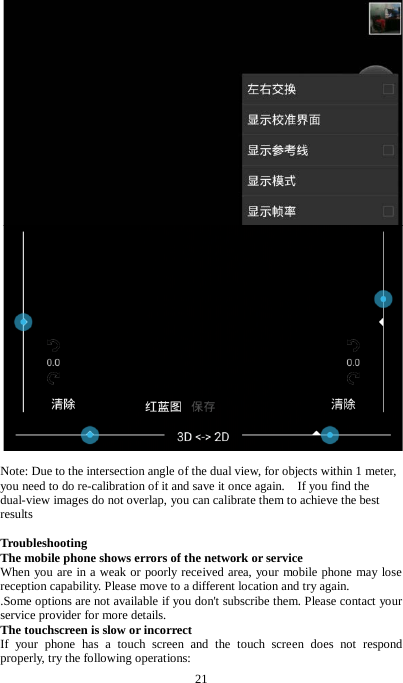
20  3.  Eye tracking is used to determine whether the eyes leave the effective range: within the camera range, red frame means that it exceeds the raster angle, and the eyes can't view 3D picture normally. 4. List cycle, to do loop playback;is list one-way cycle;single cycle;Play once.  Note: the format to display the picture is left and right half-width 3D video. It will automatically detect whether it is a 3D images; the recognition rate of the algorithm is more than 99%.   The video is compatible with MKV, AVI, MP4, 3GP, FLV and other formats (depending on the encoding format). Audio is compatible with AAC, flac, APE, MKA, OGG, MIDI, M4A, AMR, mp3, etc. (depending on the encoding format).  3D Camera: 3D camera has functions of 3D shooting and 3D video recording. Enter the 3D camera, if the 3D effect is not good (the camera scene does not overlap), you can do calibration for two cameras at the same time. Dual Camera Calibration: The parameters of calibration function are as follows: 1.Press the menu key to enter the "display calibration interface", turn off the red and blue map. 2.Align with a planar object (1 meter away) and adjust the view of the two cameras (X-axis, Y-axis) trying to overlap them as much as possible.   3.Align with a planar object (1 meter away) and adjust the view of the two cameras (Z-axis) trying to overlap them as much as possible. 4.After X-axis, Y-axis, Z-axis are well adjusted, and then click Save and return; now you can shoot the perfect 3D photos and 3D video.
21    Note: Due to the intersection angle of the dual view, for objects within 1 meter, you need to do re-calibration of it and save it once again.    If you find the dual-view images do not overlap, you can calibrate them to achieve the best results  Troubleshooting The mobile phone shows errors of the network or service   When you are in a weak or poorly received area, your mobile phone may lose reception capability. Please move to a different location and try again.   .Some options are not available if you don't subscribe them. Please contact your service provider for more details. The touchscreen is slow or incorrect If your phone has a touch screen and the touch screen does not respond properly, try the following operations:
22 . Remove any protective film from the touch screen. Protective film may prevent the mobile phone from doing the recognition input, and we do not recommend the use of protective film touch screen for the mobile phone.   . When you touch the touch screen, make sure your fingers are dry and clean.   . Reboot your mobile phone to clear any temporary software errors.   . Make sure your mobile phone software has been upgraded to the latest version.   . If the touch screen is scratched or damaged, send it to a local service center. The mobile phone is frozen or there is a serious error If your mobile phone is frozen or suspended, you may need to close the program or reset your mobile phone to regain functionality. If the mobile phone is frozen or has slow respond problem, press and hold the Startup & Shutdown button for 8 to 10 seconds. The mobile phone will automatically restart. If the problem still exists, reset factory data. In standby mode, open the application list and select System Settings →Restore factory settings. Call interrupted When you are in a weak or poorly received area, the network connection may be disconnected. Please move to a different location and try again. Outgoing call cannot be reached   . Make sure that the numbers are actually pressed.   . Make sure you are on the correct cellular network.   . Make sure that call restrictions are not set for dialed phone numbers. The incoming call cannot be reached   . Make sure your mobile phone is turned on.   . Make sure you are on the correct cellular network.   . Make sure that call restrictions are not set for the incoming phone numbers. The caller cannot hear you   . Make sure you don't cover the built-in microphone.   .Make sure the built-in microphone is near your mouth.   . If you are using a headset, make sure the headset is connected correctly. Sound quality is poor   Make sure that the built - in antenna of the mobile phone is not blocked.   When you are in a weak or poorly received area, your mobile phone may lose reception capability. Please move to a different location and try again. When you make a call from a contact, you cannot reach it.     . Make sure that the number stored in your contact list is correct.   . If necessary, re-enter and save the number.   . Make sure that call restrictions are not set for the number of contact person. The mobile phone beeps and the battery icon flashes The battery is low. You need to charge the battery or replace the battery before continuing to use the mobile phone. The mobile phone feels hot When you use a power-hungry application or use the application for a long time on your mobile phone, the mobile phone will be very hot touch, which is normal, and this does not affect the mobile phone's life or performance. Can not find another Bluetooth device   . Make sure that the Bluetooth wireless function of the mobile phone is
23 activated.   .  Make sure that the device you are connecting to have Bluetooth wireless function enabled (if necessary).   . Make sure that the distance between this unit and another Bluetooth device is within the maximum Bluetooth range (6 m). If the above methods do not solve the problem, please contact the service center. The connection isn't established after connecting the mobile phone to the computer   . Make sure that the USB cable is compatible with your mobile phone。   . Make sure that the appropriate driver is installed on your computer and that the driver has been updated.  Safety Precautions To protect you and others from injury or to protect your mobile phone from damage, please read all of the following before using your mobile phone. Treat and dispose the batteries and chargers carefully   . Use only approved batteries and chargers designed specifically for mobile phones. Incompatible batteries and chargers may cause danger or damage to the mobile phone.   . Do not throw the battery or mobile phone into a fire. When disposing the used batteries or mobile phones, please observe local regulations.   . Do not place the battery or mobile phone inside or on top of a heating device such as a microwave oven, oven, or radiator. The overheat battery may explode.   . Do not squeeze or puncture the battery. Do not expose the battery to external high voltage, otherwise it may cause internal short circuit and overheat. Protect the mobile phone, battery and charger from damage   . Avoid exposing your mobile phone and battery to extremely cold or extremely hot temperatures.   . Extreme temperatures can cause the deformation of mobile phone, lower the charge capacity of mobile phone and shorten the useful life of mobile phone and battery.   .  Prevent the battery from contacting metal objects, or else the positive and negative terminals of the battery may be connected, causing the battery to be temporarily or permanently damaged.   . Do not use a damaged charger or battery. Note: When using your mobile phone in a restricted area, follow all safety warnings and regulations. Turn off your mobile phone if you are not allowed to use your mobile phone Turn off the phone in an explosive environment   . Turn off the mobile phone in an explosive environment, rather than removing the battery.   . Always follow instructions, guides and signs in potentially explosive environments.   . Do not use your mobile phone at a gas station (service station) or near flammable materials and chemicals, or in explosive areas.   . Do not store or carry flammable liquids, gases, or explosive materials in a box
24 containing mobile phones, or its parts or accessories. Turn off your mobile phone when you are aboard a plane Use of mobile phones in aircraft is illegal, mobile phones may interfere with the aircraft's electronic navigator. The electronic equipment of a motor vehicle may fail due to the radio frequency of the mobile phone; automobile's electronic equipment may fail due to the radio frequency and failure of mobile phone. Keep and use the mobile phone correctly and keep the mobile phone dry   . Moisture and various liquids may damage the parts or electronic circuits of mobile phone.   . When the mobile phone is wet, remove the battery and do not turn on the mobile phone. Wipe the mobile phone with a towel until it is dried and then bring it to the service center.   Do not use or store the mobile phone in dusty or dirty places. Dust may cause malfunction of the mobile phone. Do not place the mobile phone on the bevel; If the mobile phone slips, it will be damaged. Do not store your mobile phone in hot or cold locations. Use the mobile phone within the temperature range of -20 ° C to 50 ° C . If the mobile phone is in a closed vehicle, the mobile phone may explode because the internal temperature of the vehicle may be as high as 80 ° C.   . Do not expose the mobile phone to direct sunlight for long periods of time, such as on the car dashboard.   . Store the battery in an environment of 0 ° C to 40 ° C.   Do not store your mobile phone near or inside water heaters, microwave ovens, hot cooking equipment, or high pressure vessels.   . The battery may leak.   . The mobile phone may overheat and cause a fire. Use the batteries, chargers, accessories and supplies approved by the manufacturer   . Using a universal battery or charger may shorten the life of your mobile phone or cause your mobile phone to malfunction.   . We are not responsible for the safety of users when the user uses unapproved accessories or supplies. Do not disassemble, modify, or repair the phone   . Any changes or modifications made by the manufacturer to the mobile phone will void the warranty. For maintenance, please bring the mobile phone to the service center. .   . Do not disassemble or puncture the battery, which may cause an explosion or fire. Do not paint or stick the paper on the mobile phone Paint and stickers can block mobile phone parts and interfere with normal use. If you are allergic to paint or metal parts of your mobile phone, it may cause itching, eczema, or skin swelling. When this happens, please stop using the mobile phone and consult a doctor. When cleaning your mobile phone:
25 . Wipe the mobile phone or charger with a towel or eraser.   . Clean the battery contacts with a cotton ball or towel.   . Do not use chemicals or cleaners. Do not use your mobile phone when the screen has cracks or damage Broken glass may hurt your hands and face. Take the mobile phone to a service center and repair it. Be sure to back up important data In the event of loss of data, we are not responsible for it.
26  FCC Warning: This equipment has been tested and found to comply with the limits for a Class B digital device, pursuant to part 15 of the FCC Rules. These limits are designed to provide reasonable protection against harmful interference in a residential installation. This equipment generates, uses and can radiate radio frequency energy and, if not installed and used in accordance with the instructions, may cause harmful interference to radio communications. However, there is no guarantee that interference will not occur in a particular installation. If this equipment does cause harmful interference to radio or television reception, which can be determined by turning the equipment off and on, the user is encouraged to try to correct the interference by one or more of the following measures: • Reorient or relocate the receiving antenna. • Increase the separation between the equipment and receiver. • Connect the equipment into an outlet on a circuit different from that to which the receiver is connected. • Consult the dealer or an experienced radio/TV technician for help. Caution: Any changes or modifications to this device not explicitly approved by manufacturer could void your authority to operate this equipment. This device complies with part 15 of the FCC Rules. Operation is subject to the following two conditions: (1) This device may not cause harmful interference, and (2) this device must accept any interference received, including interference that may cause undesired operation.   Specific Absorption Rate (SAR) information: This Mobile phone meets the government's requirements for exposure to radio waves. The guidelines are based on standards that were developed by independent scientific organizations through periodic and thorough evaluation of scientific studies. The standards include a substantial safety margin designed to assure the safety of all persons regardless of age or health. FCC RF Exposure Information and Statement the SAR limit of USA (FCC) is 1.6 W/kg averaged over one gram of tissue. Device types: Smart phone (FCC ID: 2AMO6QPHONE1) has also been tested against this SAR limit. This device was tested for typical body-worn operations with the back of the phone kept 10mm from the body. To maintain compliance with FCC RF exposure requirements, use accessories that maintain a 10mm separation distance between the user's body and the back of the phone. The use of belt clips, holsters and similar accessories should not contain metallic components in its assembly. The use of accessories that do not satisfy these requirements may not comply with FCC RF exposure requirements, and should be avoided.

Navigation menu