Quantum Q Ekm Users Guide Encryption Key Manager (Q EKM) User's
2015-07-28
: Quantum Quantum-Q-Ekm-Users-Guide-780278 quantum-q-ekm-users-guide-780278 quantum pdf
Open the PDF directly: View PDF  .
.
Page Count: 93
- Cover
- Contents
- Figures
- Preface
- Overview
- Planning Your Q-EKM Environment
- Tips for Success
- Upgrading Q-EKM
- Q-EKM Server Operation and Configuration
- Sharing Encrypted Tapes – Import/Export Operations
- Sharing Encrypted Tape Cartridges
- Special Considerations for Exchanging Files Between Linux and Windows Servers
- Understanding How Q-EKM Uses Aliases
- Why You Should Not Change File Names
- Exporting the Public Certificate
- Importing a Public Certificate
- Exporting Data Encryption Keys
- Importing Data Encryption Keys
- Displaying the Native Public Certificate
- Displaying Imported Public Certificates
- Running Reports
- Troubleshooting
- Setting the System Path Variable in Windows
- Glossary
- Index

Quantum Encryption Key Manager
6-01847-02
Quantum Encryption Key Manager
Scalar Libraries
5SERS'UIDE5SERS'UIDE5SERS'UIDE5SERS'UIDE5SERS'UIDE
Quantum Encryption Key Manager User’s Guide, 6-01847-02, Rev A, August 2010. Product of USA.
Quantum Corporation provides this publication “as is” without warranty of any kind, either express or implied,
including but not limited to the implied warranties of merchantability or fitness for a particular purpose. Quantum
Corporation may revise this publication from time to time without notice.
COPYRIGHT STATEMENT
Copyright 2010 by Quantum Corporation. All rights reserved.
Your right to copy this manual is limited by copyright law. Making copies or adaptations without prior written
authorization of Quantum Corporation is prohibited by law and constitutes a punishable violation of the law.
TRADEMARK STATEMENT
Quantum, the Quantum logo, and Scalar are registered trademarks of Quantum Corporation. IBM is a trademark of
International Business Machines Corporation. Java and all Java-based trademarks are trademarks of Sun
Microsystems, Inc. in the United States, other countries, or both. Windows is a registered trademark of Microsoft
Corporation in the United States, or other countries (or regions), or both. UNIX is a registered trademark of The Open
Group in the United States and other countries (or regions). Other trademarks may be mentioned herein which belong
to other companies.

Quantum Encryption Key Manager User’s Guide iii
Contents
Preface viii
Chapter 1 Overview 1
Library Managed Encryption........................................................................... 2
Encryption-Enabled Tape Drive............................................................... 2
Quantum Encryption Key Management (Q-EKM)................................ 2
Encryption-Enabled Tape Library............................................................ 2
Managing Encryption With Q-EKM ............................................................... 3
Quantum Encryption Key Manager (Q-EKM) Components....................... 4
Keystore ....................................................................................................... 5
Configuration Files..................................................................................... 6
Tape Drive Table......................................................................................... 6
Encryption Keys................................................................................................. 6
Encryption Key Processing ....................................................................... 7
Encryption Certificates...................................................................................... 8
Chapter 2 Planning Your Q-EKM Environment 9
System Requirements........................................................................................ 9
Server Requirements.................................................................................. 9
Operating System Requirements............................................................ 10

Quantum Encryption Key Manager User’s Guide iv
Supported Libraries and Tape Drives ................................................... 10
Supported Media ...................................................................................... 11
Library Firmware Requirements ............................................................ 11
Tape Drive Firmware Requirements ..................................................... 11
Linux System Library Requirements ..................................................... 11
Using Multiple Q-EKM Servers for Redundancy ....................................... 11
Q-EKM Server Configurations....................................................................... 12
Single-Server Configuration.................................................................... 12
Two-Server Configuration....................................................................... 13
Multiple Libraries Accessing One Q-EKM Server or Server Pair ............. 14
Backing Up Keystore and Configuration Data............................................ 15
Disaster Recovery Planning............................................................................ 16
Chapter 3 Tips for Success 17
Chapter 4 Upgrading Q-EKM 19
Chapter 5 Q-EKM Server Operation and Configuration 24
Overview........................................................................................................... 25
Using and Changing Passwords.................................................................... 25
Q-EKM Admin Password........................................................................ 25
Keystore Password ................................................................................... 26
Logging On to Q-EKM Commands............................................................... 27
Q-EKM Server Commands............................................................................. 29
Displaying the Q-EKM Software Version ............................................. 30
Displaying the Q-EKM Server On/Off Status...................................... 30
Stopping the Q-EKM Server Process ..................................................... 30
Starting the Q-EKM Server Process ....................................................... 30
Turning Debug Logging On and Off ............................................................ 31
Synchronizing Primary and Secondary Q-EKM Servers ........................... 33
Keeping the Keystores Matched .................................................................... 36
Changing the Communication Port Settings ............................................... 37

Quantum Encryption Key Manager User’s Guide v
Chapter 6 Sharing Encrypted Tapes – Import/Export Operations 39
Sharing Encrypted Tape Cartridges.............................................................. 39
Special Considerations for Exchanging Files Between Linux
and Windows Servers .............................................................................. 41
Understanding How Q-EKM Uses Aliases .................................................. 41
Public Certificate Alias............................................................................. 41
Data Encryption Key Alias...................................................................... 42
Why You Should Not Change File Names................................................... 42
Exporting the Public Certificate..................................................................... 43
Importing a Public Certificate........................................................................ 45
Exporting Data Encryption Keys................................................................... 47
Exporting Your Native Keys................................................................... 47
Exporting Imported Keys ........................................................................ 49
Importing Data Encryption Keys................................................................... 52
Displaying the Native Public Certificate ...................................................... 54
Displaying Imported Public Certificates ...................................................... 54
Chapter 7 Running Reports 56
Drives that Accessed the Q-EKM Server...................................................... 56
Q-EKM Server Keys......................................................................................... 58
End User License Agreement......................................................................... 59
Available WWN Key Ranges for Export ...................................................... 59
Chapter 8 Troubleshooting 61
Frequently Asked Questions.......................................................................... 62
What to do if Your Q-EKM Server Fails ....................................................... 64
Single Server Configuration Failure....................................................... 64
Two-Server Configuration Failure ......................................................... 64
Log Files ............................................................................................................ 65
Audit Log................................................................................................... 65
Debug Log.................................................................................................. 66
Standard Error Messages Log................................................................. 66
Standard Out Messages Log ................................................................... 66
Capturing a Log Snapshot....................................................................... 66
Errors Reported By Q-EKM............................................................................ 67


Quantum Encryption Key Manager User’s Guide vii
Figures
Figure 1 Q-EKM Components ................................................................... 4
Figure 2 Single Q-EKM Server................................................................. 13
Figure 3 Two Q-EKM Servers.................................................................. 14
Figure 4 Password Changes Menu.......................................................... 26
Figure 5 Q-EKM Commands Menu........................................................ 29
Figure 6 Debug Mode Change Menu ..................................................... 32
Figure 7 Key Import/Export Menu ........................................................ 44
Figure 8 Reports Menu ............................................................................. 57

Quantum Encryption Key Manager User’s Guide viii
Preface
Audience This book is intended for storage and security administrators responsible
for security and backup of vital data, and anyone assisting in the setup
and maintenance of Quantum Encryption Key Manager (Q-EKM) servers
in the operating environment. It assumes the reader has a working
knowledge of storage devices and networks.
Purpose This book contains information to help you use the Q-EKM component
for the Java™ platform. It includes concepts and procedures pertaining
to:
• Encryption on the IBM LTO-4 and LTO-5 tape drives
• Cryptographic keys
• Digital certificates

Quantum Encryption Key Manager User’s Guide ix
Document Organization This document is organized as follows:
•Chapter 1, Overview, provides an overview of tape encryption and
the Quantum Encryption Key Manager (Q-EKM) components.
•Chapter 2, Planning Your Q-EKM Environment, provides the
information you need and the factors you should consider when
determining the best configuration for your Q-EKM environment.
•Chapter 3, Tips for Success, provides tips for maintaining successful
Q-EKM operations and recovery in case of server failure.
•Chapter 4, Upgrading Q-EKM, provides instructions for upgrading
your Q-EKM software.
•Chapter 5, Q-EKM Server Operation and Configuration, provides
operational procedures for using Q-EKM.
•Chapter 6, Sharing Encrypted Tapes – Import/Export Operations,
provides instructions on how to share encrypted tapes with different
sites, including importing and exporting public certificates and
encryption keys.
•Chapter 7, Running Reports, describes several reports you can run
from the Q-EKM interface.
•Chapter 8, Troubleshooting, provides troubleshooting procedures for
common Q-EKM issues.
•Appendix A, Setting the System Path Variable in Windows, tells you
how to set the system path so you can enter Q-EKM commands from
the command line without changing the directory to the Q-EKM
directory.
This document concludes with a glossary and an index.
Notational Conventions This manual uses the following conventions:
Note: Notes emphasize important information related to the main
topic.
Caution: Cautions indicate potential hazards to equipment and are
included to prevent damage to equipment.

Quantum Encryption Key Manager User’s Guide x
This manual also uses the following conventions:
Related Documents The following publications provide information related to encryption on
Scalar® libraries:
Refer to the appropriate product manuals for information about your
tape drive and cartridges.
Warning: Warnings indicate potential hazards to personal safety and
are included to prevent injury.
Convention Usage
bold Bold words or characters represent system
elements that you must use literally, such as
command names, file names, flag names,
path names, and selected menu options.
Arial regular text Examples, text specified by the user, and
information that the system displays appear
in Arial regular font.
italic Italicized words or characters represent
variable values that you must supply.
[item] Indicates optional items.
{item} Encloses a list from which you must choose
an item in format and syntax descriptions.
| A vertical bar separates items in a list of
choices.
<key> Indicates keys you press.
Document No. Document Title
6-01210-xx Scalar i500 User’s Guide
6-00421-xx Scalar i2000 User’s Guide
6-66879-xx Scalar i6000 User’s Guide

Quantum Encryption Key Manager User’s Guide xi
Contacts Quantum company contacts are listed below.
Quantum Corporate Headquarters 0
To order documentation on Quantum Encryption Key Manager or other
products contact:
Quantum Corporation (Corporate Headquarters)
1650 Technology Drive, Suite 700
San Jose, CA 95110-1382
Technical Publications 0
To comment on existing documentation send an e-mail to:
doc-comments@quantum.com
Quantum Home Page 0
Visit the Quantum home page at:
http://www.quantum.com
Getting More Information or
Help
StorageCare™, Quantum’s comprehensive service approach, leverages
advanced data access and diagnostics technologies with cross-
environment, multi-vendor expertise to resolve backup issues faster and
at lower cost.
Accelerate service issue resolution with these exclusive Quantum
StorageCare services:
•Service and Support Web site - Register products, license software,
browse Quantum Learning courses, check backup software and
operating system support, and locate manuals, FAQs, firmware
downloads, product updates and more in one convenient location.
Benefit today at:
www.quantum.com/support
•Telephone Support – Find contact information for your location at:
http://www.quantum.com/ServiceandSupport/Contacts/
ProductSelect/Index.aspx

Quantum Encryption Key Manager User’s Guide xii
•eSupport – Submit online service requests, update contact
information, add attachments, and receive status updates via e-mail.
Online Service accounts are free from Quantum. That account can
also be used to access Quantum’s Knowledge Base, a comprehensive
repository of product support information. Sign up today at:
http://www.quantum.com/osr
Non-Quantum Support Red Hat Information
The following URL provides access to information about Red Hat Linux®
systems:
•http://www.redhat.com
Microsoft Windows Information 0
The following URL provides access to information about Microsoft®
Windows® systems:
•http://www.microsoft.com
Quantum Encryption Key Manager User’s Guide xiii

Quantum Encryption Key Manager User’s Guide 1
Chapter 1
1Overview
Data is one of the most highly valued resources in a competitive business
environment. Protecting that data, controlling access to it, and verifying
its authenticity while maintaining its availability are priorities in our
security-conscious world. Data encryption is a tool that answers many of
these needs.
IBM LTO-4 and LTO-5 Fibre Channel and SAS tape drives are capable of
encrypting data as it is written to compatible data cartridges. Encryption
is performed at full line speed in the tape drive after compression.
(Compression is more efficiently done before encryption.) This new
capability adds a strong measure of security to stored data without the
processing overhead and performance degradation associated with
encryption performed on the server or the expense of a dedicated
appliance.
This chapter covers:
•Library Managed Encryption
•Managing Encryption With Q-EKM
•Quantum Encryption Key Manager (Q-EKM) Components
•Encryption Keys
•Encryption Certificates

Overview
Library Managed Encryption
Quantum Encryption Key Manager User’s Guide 2
Library Managed Encryption
The library managed tape drive encryption solution is composed of the
following elements:
•Encryption-Enabled Tape Drive
•Quantum Encryption Key Management (Q-EKM)
•Encryption-Enabled Tape Library
Encryption-Enabled Tape
Drive 1
IBM LTO-4 and LTO-5 Fibre Channel and SAS tape drives are encryption-
capable. This means that they are functionally capable of performing
hardware encryption, but this capability has not yet been activated. In
order to perform hardware encryption, the tape drives must be
encryption-enabled. They can be encryption enabled via the tape library.
SCSI IBM LTO-4 tape drives are encryption aware (they can load and
handle encrypted LTO-4 cartridges, but cannot process encryption
operations).
See Supported Libraries and Tape Drives on page 10 for a list of which
tape drives are supported by your library.
Quantum Encryption Key
Management (Q-EKM) 1
Encryption involves the use of several kinds of keys. How these keys are
generated, maintained, controlled, and transmitted depends upon the
operating environment where the encrypting tape drive is installed.
Some host applications are capable of performing key management. For
environments without such applications or those where application
agnostic encryption is desired, Quantum provides the Quantum
Encryption Key Manager (Q-EKM) component for the Java platform to
perform all necessary key management tasks. Managing Encryption With
Q-EKM on page 3 describes these tasks in more detail.
Encryption-Enabled Tape
Library 1
On an encryption-enabled library, tape encryption occurs automatically
and transparently. The library communicates with the EKM server to
obtain encryption keys for the drives to read from or write to encrypted
data to the tapes.

Overview
Managing Encryption With Q-EKM
Quantum Encryption Key Manager User’s Guide 3
Library managed encryption is provided for IBM LTO-4 and LTO-5 tape
drives in a Quantum Scalar tape libraries (see Supported Libraries and
Tape Drives on page 10).
Managing Encryption With Q-EKM
Quantum Encryption Key Manager (Q-EKM) generates, protects, stores,
and maintains data encryption keys that are used to encrypt information
being written to, and decrypt information being read from, tape media
(tape and cartridge formats).
Q-EKM uses a keystore to hold JCEKS keys and certificates required for
all encryption tasks.
Q-EKM acts as a process awaiting key generation or key retrieval
requests sent to it through a TCP/IP communication path between
Q-EKM and the tape library.
When a tape drive writes encrypted data, it first requests an encryption
key from Q-EKM.
Upon receipt of the request, Q-EKM retrieves an existing Advanced
Encryption Standard (AES) key from a keystore and wraps it for secure
transfer to the tape drive, where it is unwrapped upon arrival and used to
encrypt the data being written to tape.
When an encrypted tape is read by a tape drive, the tape drive requests,
via the library, the required data encryption key from the Q-EKM server.
Q-EKM retrieves the required data encryption key from the keystore and
securely transfers it to the library, which provides it to the tape drive. The
tape drive uses the data encryption key to perform encryption and
decryption.
No data encryption key is stored anywhere on the cartridge memory or
the tape. Only the name of the data encryption key is stored on the tape,
so that in the future the key can be requested for further read or write
purposes.
Overview
Quantum Encryption Key Manager (Q-EKM) Components
Quantum Encryption Key Manager User’s Guide 4
Quantum Encryption Key Manager (Q-EKM) Components
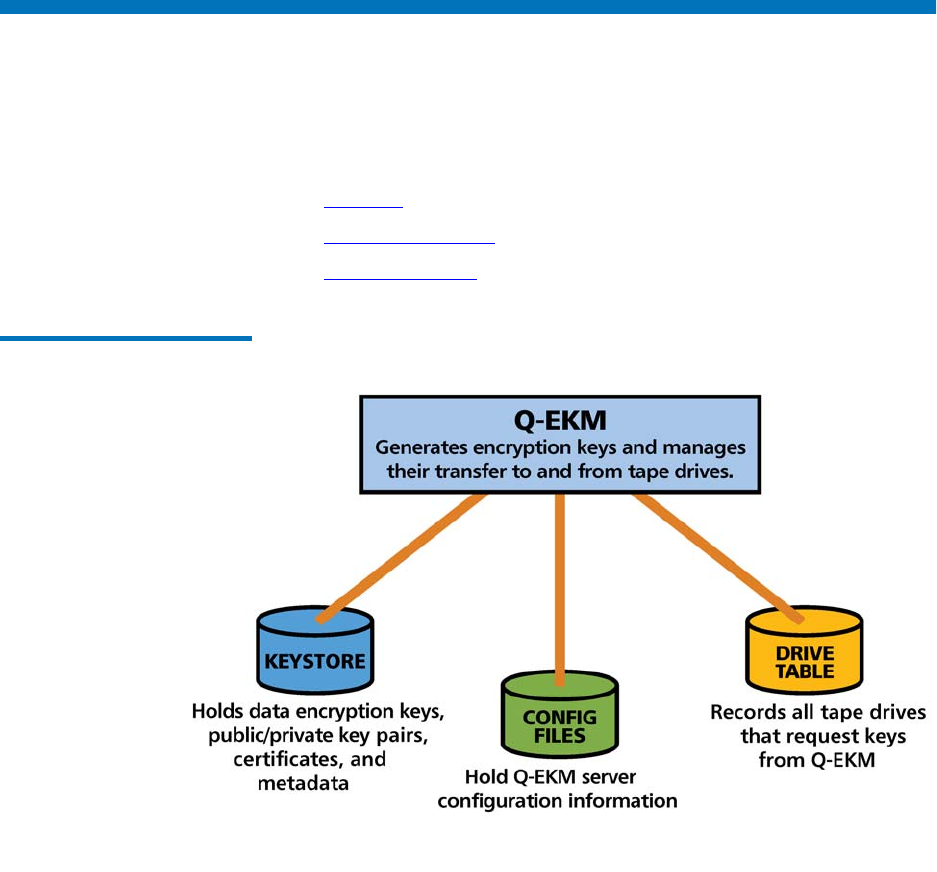
Q-EKM is part of the IBM Java environment and uses the IBM Java
Security components for its cryptographic capabilities. Q-EKM has three
main components:
•Keystore
•Configuration Files
•Tape Drive Table
Figure 1 Q-EKM Components

Overview
Quantum Encryption Key Manager (Q-EKM) Components
Quantum Encryption Key Manager User’s Guide 5
Keystore 1The keystore is defined as part of the Java Cryptography Extension (JCE)
and an element of the Java Security components, which are, in turn, part
of the Java runtime environment. Q-EKM supports the JCEKS keystore.
The keystore contains:
• The 1024 data encryption keys generated by the Q-EKM server on
which it resides. These keys are used for encrypting and decrypting
tapes.
• Data encryption keys that you imported (for example, keys that other
companies or individuals sent to you). These keys can be used to
decrypt tapes provided by the other parties.
• Your Q-EKM server’s native public certificate.
• Public certificates that you imported from other parties. These are
used to wrap your data encryption keys for transit to another party to
use in decrypting tapes you may have provided to them).
• Public and private keys used for secure communication.
• Metadata (for example, which data encryption keys were used on
which tapes).
The keystore file is named EKMKeys.jck and is located in the root QEKM
directory as follows:
Windows c:\Program Files\Quantum\QEKM
Linux /opt/Quantum/QEKM
Caution: It is impossible to overstate the importance of preserving
your keystore data. Without access to your keystore, you
will not be able to decrypt your encrypted tapes. Please see
Backing Up Keystore and Configuration Data on page 15
and Disaster Recovery Planning on page 16 for
information on how to protect your keystore data.
Overview
Encryption Keys
Quantum Encryption Key Manager User’s Guide 6
Configuration Files 1The configuration files contain the configuration information for your
Q-EKM server installation.
The two configuration files are named:
• ClientKeyManagerConfig.properties
• KeyManagerConfig.properties
The configuration files are located in the root QEKM directory as follows:
Tape Drive Table 1The tape drive table is used by Q-EKM to keep track of all the tape drives
that have ever requested a key from the Q-EM server. The tape drive
table is a non-editable, binary file. Q-EKM automatically adds new/
replaced tape drives to the drive table.
Encryption Keys
An encryption key is typically a random string of bits generated
specifically to scramble and unscramble data. Encryption keys are created
using algorithms designed to ensure that each key is unique and
unpredictable. The longer the length of key used, the harder it is to break
the encryption code.
The IBM LTO-4 and LTO-5 method of encryption uses 256-bit AES
algorithm keys to encrypt data. 256-bit AES is the encryption standard
currently recognized and recommended by the U.S. government, which
allows three different key lengths. 256-bit keys are the longest allowed by
AES.
Windows c:\Program Files\Quantum\QEKM
Linux /opt/Quantum/QEKM
Caution: Do not edit these files. If you make a mistake when
altering the configuration files, you could lose access to
your keystore and be unable to encrypt or restore data.

Overview
Encryption Keys
Quantum Encryption Key Manager User’s Guide 7
Q-EKM uses two types of encryption algorithms:
• Symmetric
• Asymmetric
Symmetric, or secret key encryption, uses a single key for both encryption
and decryption. Symmetric key encryption is generally used for
encrypting large amounts of data in an efficient manner. 256-bit AES keys
are symmetric keys.
Asymmetric, or public/private encryption, uses a pair of keys. Data that
is encrypted using one key can only be decrypted using the other key in
the public/private key pair. When an asymmetric key pair is generated,
the public key is typically used to encrypt, and the private key is typically
used to decrypt.
Q-EKM uses both symmetric and asymmetric keys—symmetric
encryption for high-speed encryption of user or host data, and
asymmetric encryption (which is necessarily slower) for protecting the
symmetric key.
Upon installation, Q-EKM generates 1024 unique encryption keys.
Encryption Key
Processing 1
In library-managed tape encryption, unencrypted data is sent to the tape
drive and converted to ciphertext using a pre-generated symmetric data
key from the keystore available to Q-EKM, and is then written to tape.
Q-EKM selects a pre-generated data key in round-robin fashion. Data
keys are reused on multiple tape cartridges when all pre-generated data
keys have been used at least once.
The data key is sent to the tape drive in encrypted, or wrapped, form by
Q-EKM. The tape drive unwraps this data key and uses it to perform
encryption or decryption. However, no wrapped key is stored anywhere
on the tape cartridge.
After the encrypted volume is written, the data key must be accessible,
based on the alias or key label, and available to Q-EKM in order for the
volume to be read.

Overview
Encryption Certificates
Quantum Encryption Key Manager User’s Guide 8
Encryption Certificates
Each Q-EKM server pair uses one unique encryption certificate. The
encryption certificate contains the public key of the public/private key
pair that protects data encryption keys during transit to another site. The
destination Q-EKM server provides its public key to the source Q-EKM
server as part of its public certificate, which the source Q-EKM server
uses to wrap (encrypt) exported data encryption keys for transport. Upon
arrival, the file containing the wrapped data encryption keys can only be
unwrapped by the corresponding private key, which resides on the
destination Q-EKM server and is never shared.

Quantum Encryption Key Manager User’s Guide 9
Chapter 2
2Planning Your Q-EKM
Environment
Use the information in this chapter to determine the best Q-EKM
configuration for your needs. Many factors must be considered when you
are planning how to set up your encryption strategy. Please review these
topics with care.
•System Requirements
•Using Multiple Q-EKM Servers for Redundancy
•Q-EKM Server Configurations
•Multiple Libraries Accessing One Q-EKM Server or Server Pair
•Backing Up Keystore and Configuration Data
•Disaster Recovery Planning
System Requirements
Server Requirements 2Q-EKM server requirements are:
• Xeon-class server.
• Minimum 1 GB memory.
• Minimum 10 GB free hard disk space.

Planning Your Q-EKM Environment
System Requirements
Quantum Encryption Key Manager User’s Guide 10
• The Q-EKM server must have IP connectivity through any firewalls
to all Quantum libraries using the Q-EKM server to obtain data
encryption keys. The Q-EKM firmware uses TCP port 3801 for the
Q-EKM server and TCP port 443 for SSL, by default.
• Domain Name System (DNS) must be configured on all Q-EKM
servers in order for the servers to communicate successfully.
• The Q-EKM server should be protected and backed up following
your data protection practices so that critical keystore data can be
quickly restored in the event of a server failure.
• It is strongly recommended that the server(s) you designate for
Q-EKM not be running any other programs or have any other files on
them, especially .jre or java. If they do, you may have problems with
installation.
• On Windows machines, Q-EKM must be installed on the “C” drive
only. Make sure your server has a working “C” drive.
Operating System
Requirements 2
Q-EKM runs on:
• Windows Server 2003
• Windows Server 2008
• Red Hat Enterprise Linux 4
• Red Hat Enterprise Linux 5
Supported Libraries and
Tape Drives 2Q-EKM supports the following libraries and tape drives:
Scalar i500 tape library IBM LTO-4 (Fibre-Channel and SAS)
IBM LTO-5 (Fibre-Channel)
Scalar i2000 tape library IBM LTO-4 (Fibre-Channel)
Scalar i6000 tape library IBM LTO-4 (Fibre-Channel)
IBM LTO-5 (Fibre-Channel)
Note: In order to use LTO-5 tape drives with Q-EKM, you must be
running Q-EKM version 2.0 or higher.

Planning Your Q-EKM Environment
Using Multiple Q-EKM Servers for Redundancy
Quantum Encryption Key Manager User’s Guide 11
Supported Media 2Q-EKM supports IBM LTO-4 and IBM LTO 5 media.
Library Firmware
Requirements 2
It is recommended that you upgrade your library to the latest released
version.
Tape Drive Firmware
Requirements 2
It is recommended that you upgrade your tape drive firmware to the
latest version qualified with your library firmware.
Linux System Library
Requirements 2
For Linux, the following libraries must be installed on your Q-EKM
server:
•glibc, version 2.3 or later
•libstdc++.so5
•libXp.so.6
Using Multiple Q-EKM Servers for Redundancy
Q-EKM is designed to work with tape drives and libraries to allow
redundancy, and thus high availability, so you can have up to two
Q-EKM server servicing the same tape drives and libraries. Moreover,
these Q-EKM servers need not be on the same systems as the tape drives
and libraries. The only requirement is that they be available to the
libraries through TCP/IP connectivity.
This allows you to have two Q-EKM servers that are mirror images of
each other with built-in synchronization as well as a failover in the event
that one Q-EKM server becomes unavailable. When you configure your
library, you can point it to two Q-EKM servers (primary and secondary).
If the primary Q-EKM server becomes unavailable for any reason, the
library will use the secondary Q-EKM server.
In order for the secondary server to be used in a failover situation, its
keystore must be identical to that of the primary server. Keeping the
keystores matched is a manual process (it does not happen
automatically). See Keeping the Keystores Matched on page 36.

Planning Your Q-EKM Environment
Q-EKM Server Configurations
Quantum Encryption Key Manager User’s Guide 12
Q-EKM Server Configurations
Q-EKM can be installed as a Single-Server Configuration or as a Two-
Server Configuration.
Single-Server
Configuration 2
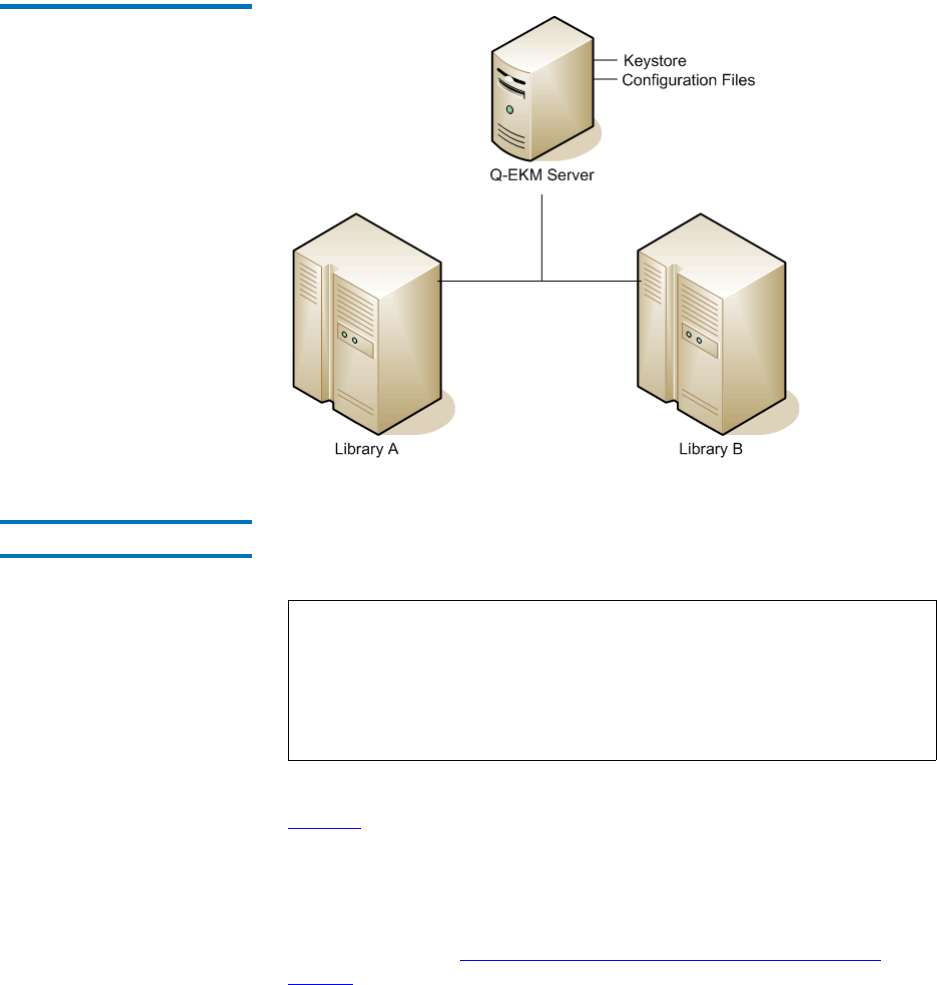
A single-server configuration, shown in Figure 2, is the simplest Q-EKM
configuration. However, because of the lack of redundancy, it is not
recommended. In this configuration, all tape drives rely on a single key
manager server with no backup. Should the server go down, the keystore
becomes unavailable, making any encrypted tape unreadable (and
preventing encrypted writes). In a single-server configuration, you must
make sure that current, non-encrypted backup copies of the keystore and
configuration files are maintained in a safe place, separate from Q-EKM,
so its function can be rebuilt on a replacement server if the server copies
are lost.
The keystore and configuration files are:
•ClientKeyManagerConfig.properties
•EKMKeys.jck
•KeyManagerConfig.properties
•library_serialnum
•library_wwnamekey
•QEKMIEKey<librarySN>.pk12
The files are all in the root QEKM directory located here:
Windows c:\Program Files\Quantum\QEKM
Linux /opt/Quantum/QEKM
Planning Your Q-EKM Environment
Q-EKM Server Configurations
Quantum Encryption Key Manager User’s Guide 13
Figure 2 Single Q-EKM Server
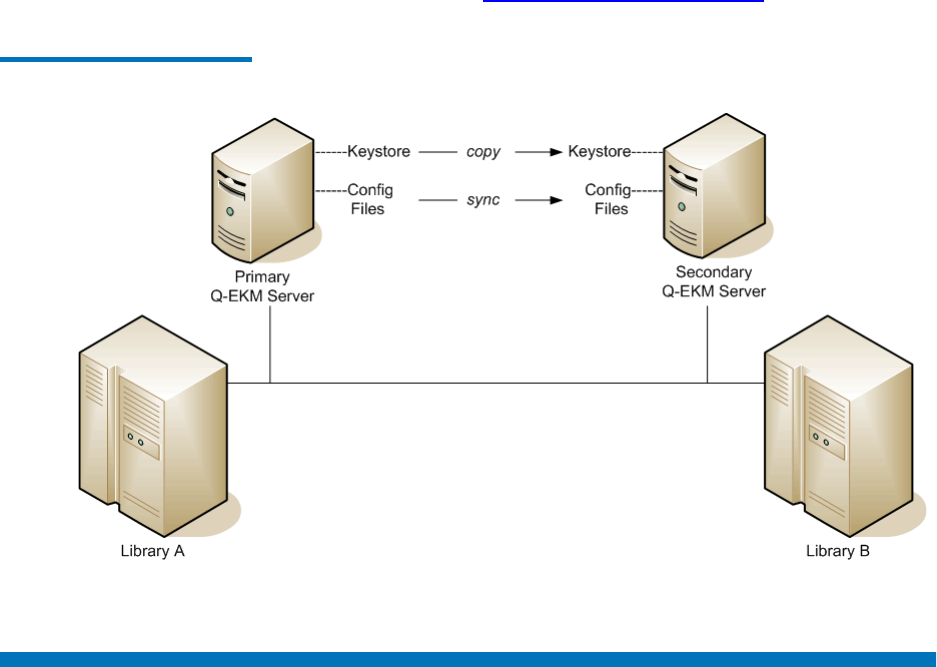
Two-Server Configuration 2The recommended two-server configuration allows the library to
automatically fail over to the secondary Q-EKM server should the
primary Q-EKM server be inaccessible for any reason.
In an environment with two Q-EKM servers, such as those shown in
Figure 3, the library will automatically fail over to the secondary Q-EKM
server should the primary go down. In such a configuration it is essential
that the servers are synchronized and that the two keystores match.
Once synchronization is configured, updates to the configuration files of
the primary Q-EKM server are automatically duplicated on the secondary
Q-EKM server (see Synchronizing Primary and Secondary Q-EKM
Servers on page 33). However, the keystore file is not automatically
updated. Any change to the keystore on the primary server (such as
Note: When different Q-EKM servers are used to handle requests
from the same set of tape drives, the information in the
associated keystores MUST be identical. This is required so
that regardless of which Q-EKM server is contacted, the
necessary information is available for the Q-EKM server to
support requests from the tape drives.
Planning Your Q-EKM Environment
Multiple Libraries Accessing One Q-EKM Server or Server Pair
Quantum Encryption Key Manager User’s Guide 14
importing certificates and keys) must be manually duplicated on the
secondary server (see Keeping the Keystores Matched on page 36).
Figure 3 Two Q-EKM Servers
Multiple Libraries Accessing One Q-EKM Server or Server
Pair
Multiple libraries may access and use the same Q-EKM server (in a
single-server configuration) or server pair. The only requirement is that
the libraries be available to the Q-EKM servers through TCP/IP
connectivity. If you want to connect more than one library to an Q-EKM
server/pair, keep the following in mind:
• Each library must have its own Encryption Key Management license
(see your library user’s guide for instructions).

Planning Your Q-EKM Environment
Backing Up Keystore and Configuration Data
Quantum Encryption Key Manager User’s Guide 15
• Each library can only be configured to use one Q-EKM server/pair at
a time.
• The ports configured on the library must be set to the same values as
the ports on the Q-EKM server (see Changing the Communication
Port Settings on page 37 and your library user’s guide for details).
Backing Up Keystore and Configuration Data
Due to the critical nature of the keys in the keystore, you should always
back up the keystore so that you can recover it, if needed, and be able to
read the tapes that were encrypted using certificates imported into the
keystore.
Your configuration files are also important to back up so that if your
server dies you can reconstruct it exactly as it was configured before.
Use your system backup capabilities to back up the entire QEKM directory
regularly. The QEKM directory is located here:
For disaster recovery, see Disaster Recovery Planning on page 16.
Windows c:\Program Files\Quantum\QEKM
Linux /opt/Quantum/QEKM
Caution: Do not use Q-EKM to encrypt the backups! Back up to
clear tape! If you encrypt your backup, and you later lose
your keystore, you will not be able to decrypt the tapes to
recover your data.

Planning Your Q-EKM Environment
Disaster Recovery Planning
Quantum Encryption Key Manager User’s Guide 16
Disaster Recovery Planning
Quantum recommends that you plan for disaster recovery in the event
that your primary and secondary servers become unavailable.
Disaster recovery requires that you maintain, in a secure location,
current, non-Q-EKM encrypted copies of the following files:
• ClientKeyManagerConfig.properties
• EKMKeys.jck
• KeyManagerConfig.properties
• library_serialnum
• library_wwnamekey
• QEKMIEKey<librarySN>.pk12
The files are all in the root QEKM directory located here:
Successful recovery requires the following two things:
• The backed-up files must be current. Any time the keystore or
configuration files are changed (i.e., creating, importing, or exporting
keys or certificates), you must remember to save a backup. If you
back up your files regularly as recommended, this should not be an
issue (see Backing Up Keystore and Configuration Data on page 15).
• The backup files must not be encrypted with Q-EKM. If the primary
and secondary servers are unavailable, the encrypted files will not be
able to be decrypted and reused in the disaster recovery server.
Upon failure of the Q-EKM server, Quantum Support can set up a new
“disaster recovery” Q-EKM server or servers to replace the ones that
became unavailable.
Windows c:\Program Files\Quantum\QEKM
Linux /opt/Quantum/QEKM

Quantum Encryption Key Manager User’s Guide 17
Chapter 3
3Tips for Success
Do these things to ensure optimal performance and successful recovery
in case of server loss:
•Remember your keystore password — otherwise you can’t import and
export certificates and keys, or share encrypted tapes with other sites.
•Remember your Q-EKM admin password — otherwise you can’t log
onto Q-EKM Commands or upgrade your system.
•Save a copy of your keystore and configuration files from your initial
install. Quantum Support will provide these files to you at the install.
Quantum recommends you store them securely and don’t touch
them unless needed. If you lose both your servers and all your
backups, these files will allow you to recover. You will not have any
imported keys or certificates, but you will have what you need to
read and write YOUR tapes, and you can always re-import keys and
certificates from others at a future date.
•Keep the keystores matched. This is a manual process. In a two-server
configuration, any time you update the keystore on one server (by
importing public certificates or encryption keys), you must either
import the items on the other server or copy the keystore manually
from one server to the other. This will allow one server to take over
for the other in a failover scenario.
•Make sure your servers are synchronized. For two-server
configurations, Quantum Support will set up synchronization at
initial install. This keeps your configuration files the same. This is
important for communication between the paired servers and
between the servers and the library.
Tips for Success
Quantum Encryption Key Manager User’s Guide 18
•Back up your keystore and configuration files regularly. In case of
catastrophic server failure, a current backup will allow you to start
up again immediately right where you left off.

Quantum Encryption Key Manager User’s Guide 19
Chapter 4
4Upgrading Q-EKM
Upgrading updates the Q-EKM software to the latest version, preserving
your keystore and configuration settings.
Note: If you have a Q-EKM server pair, you should upgrade both
Q-EKM servers in the pair. You may upgrade them at the same
time or with time in between upgrades. The order of the steps
presented here is for upgrading servers with time between
upgrades. If you upgrade the servers at the same time, or with
little time in between upgrades, you can avoid the having to
turn library partitions offline and online twice by performing
Step 2 before upgrading either server and performing Step 14
after both servers are upgraded. Library partitions must be
offline during the upgrade, and all host communication to the
Q-EKM server must be stopped, so this may or may not be
practical for your situation.
Note: If you need to downgrade your Q-EKM system (meaning, go
to a lower version), this requires a Service installation. Contact
Quantum Support to schedule an appointment.

Upgrading Q-EKM
Quantum Encryption Key Manager User’s Guide 20
1Stop all host I/O communication to the Q-EKM server.
2On all libraries that access the Q-EKM server, make the following
configuration changes (see your library user’s guide or online help
for instructions):
aIf automatic EKM path diagnostics is enabled, disable it.
bFor all partitions configured for library managed encryption,
make sure all move operations are completed.
cTurn all partitions configured for library managed encryption
offline.
3Determine which version of Q-EKM software is currently installed. If
you don’t know, then open a command window and type
versionQEKMServer at the command prompt (in Windows you must
be in the c:\Program Files\Quantum\QEKM directory). This command
works if you are running the initial version of code (2.1_007). If the
command fails, follow the instructions in Displaying the Q-EKM
Software Version on page 30.
4Manually stop the Q-EKM server process as follows:
If your currently
installed version is... Do this...
2.1_007 Enter stopQEKMServer at the command
prompt.
250Q.GC01400 or
greater:
Follow the instructions in Stopping the
Q-EKM Server Process on page 30.

Upgrading Q-EKM
Quantum Encryption Key Manager User’s Guide 21
5Insert the upgrade CD into your Q-EKM server’s CD ROM drive. If
the CD does not autorun, do the following:
The installation process checks for currently installed versions of
Q-EKM.
6Possible Step: If a previously installed version of Q-EKM is detected
and you did not accept the End User License Agreement (EULA) in
the previous version, you must do so now. If the EULA does not
display, then skip this step.
aRead the EULA. Press <Enter> repeatedly to scroll through the
EULA.
When the EULA ends, you are asked if you accept the EULA.
bAccept the End User License Agreement by pressing y and
<Enter>.
7If a previously installed version of Q-EKM is detected, the screen
displays three choices:
•r) Remove/uninstall current Q-EKM server version x.
•u) Upgrade Q-EKM server to version y.
•q) Quit.
8Enter u to upgrade.
Windows Do one of the following:
• Navigate to the CD directory and double-
click the file named installWindows.bat; or
• Open a command window. Change the
directory to the root directory on the CD.
At the command prompt, enter
installWindows.bat.
Linux Open a command window. Change the
directory to the Q-EKM CD directory. At
the command prompt, enter
sh installLinux.sh.
Caution: Do NOT choose remove/uninstall! This will delete
your keystore and configuration files! If you
accidentally remove/uninstall Q-EKM, contact
Quantum Support.

Upgrading Q-EKM
Quantum Encryption Key Manager User’s Guide 22
9If the Q-EKM server is running, you are prompted for the Q-EKM
admin password. Enter the password (see Q-EKM Admin Password
on page 25). If the Q-EKM server is not running, no password is
requested.
The Q-EKM server process confirms it is stopped.
10 When prompted, press <Enter>.
The old JRE is removed and a new one is installed. This may take a
few minutes. The Q-EKM server process restarts. When the upgrade
process is complete, you are prompted to press <Enter>.
11 When prompted, press <Enter>.
The command window may close.
12 Log on to Q-EKM Commands to verify the new version is installed
(the version displays at the top of the command menu). See Logging
On to Q-EKM Commands on page 27 for instructions.
13 Verify the Q-EKM server process started by doing one of the
following:
•Issue the Display the Q-EKM server status command (see
Displaying the Q-EKM Server On/Off Status on page 30), or
•Check the native_stdout.log file (located in the keymanager folder
in the QEKM directory; see Standard Out Messages Log on
page 66).
14 On all libraries that access the Q-EKM server, make the following
configuration changes (see your library user’s guide or online help
for instructions):
aIf you disabled automatic EKM path diagnostics earlier, then
re-enable it.
bTurn all partitions configured for library managed encryption
online.
15 Resume host I/O communication to the Q-EKM server.
16 Repeat this process on the other Q-EKM server in the Q-EKM server
pair.
17 Run EKM Path Diagnostics to verify both Q-EKM servers and the
library are connected and working together as they should (see your
library user’s guide or online help for instructions).

Upgrading Q-EKM
Quantum Encryption Key Manager User’s Guide 23
18 Make a copy of the keystore and configuration files and store these in
a secure location. If you were to ever lose your servers, you could
recover with this backup. (It is preferable to use a current backup [see
Backing Up Keystore and Configuration Data on page 15], but you
should keep this also in a secure location in case nothing else exists.)
Do NOT use Q-EKM to encrypt this backup!
The files you need to copy are:
• ClientKeyManagerConfig.properties
• EKMKeys.jck
• KeyManagerConfig.properties
• library_serialnum
• library_wwnamekey
• QEKMIEKey<librarySN>.pk12
The files are all in the root QEKM folder located here:
Windows c:\Program Files\Quantum\QEKM
Linux /opt/Quantum/QEKM

Quantum Encryption Key Manager Service and Installation Manual 24
Chapter 5
5Q-EKM Server Operation
and Configuration
This chapter details the Q-EKM passwords you will use and the
commands available to customers via the command line interface. Topics
include:
•Overview
•Using and Changing Passwords
•Q-EKM Admin Password
•Keystore Password
•Logging On to Q-EKM Commands
•Q-EKM Server Commands
•Displaying the Q-EKM Software Version
•Displaying the Q-EKM Server On/Off Status
•Stopping the Q-EKM Server Process
•Starting the Q-EKM Server Process
•Turning Debug Logging On and Off
•Synchronizing Primary and Secondary Q-EKM Servers
•Keeping the Keystores Matched
•Changing the Communication Port Settings

Chapter 5 Q-EKM Server Operation and Configuration
Overview
Quantum Encryption Key Manager Service and Installation Manual 25
Overview
Once installed, Q-EKM performs all of its operations from a single folder
on your server. The folder is called QEKM and is located here:
This folder contains log files, your keystore, and configuration files.
To access the Q-EKM user interface to perform operations, you need to
log into the Q-EKM commands menu (see Logging On to Q-EKM
Commands on page 27).
Using and Changing Passwords
There are two different passwords you use with Q-EKM. They are:
•Q-EKM Admin Password
•Keystore Password
Q-EKM Admin Password 5You use the Q-EKM admin password to enter the Q-EKM commands
menu. The default Q-EKM admin password is changeME. Customers can
change this password (see Changing the Q-EKM Admin Password on
page 26)
The Q-EKM admin password is case sensitive, can contain a maximum of
24 characters, and can contain any combination of letters, numbers, and
special characters.
Windows c:\Program Files\Quantum\QEKM
Linux /opt/Quantum/QEKM
Note: Not all special characters are supported (for example, the “at”
symbol [@] and asterisk [*] are not supported). If you get a
message stating “invalid password,” one of your special
characters may not be supported.
Chapter 5 Q-EKM Server Operation and Configuration
Using and Changing Passwords
Quantum Encryption Key Manager Service and Installation Manual 26
Changing the Q-EKM Admin Password 5
1Log on to Q-EKM Commands (see Logging On to Q-EKM
Commands on page 27).
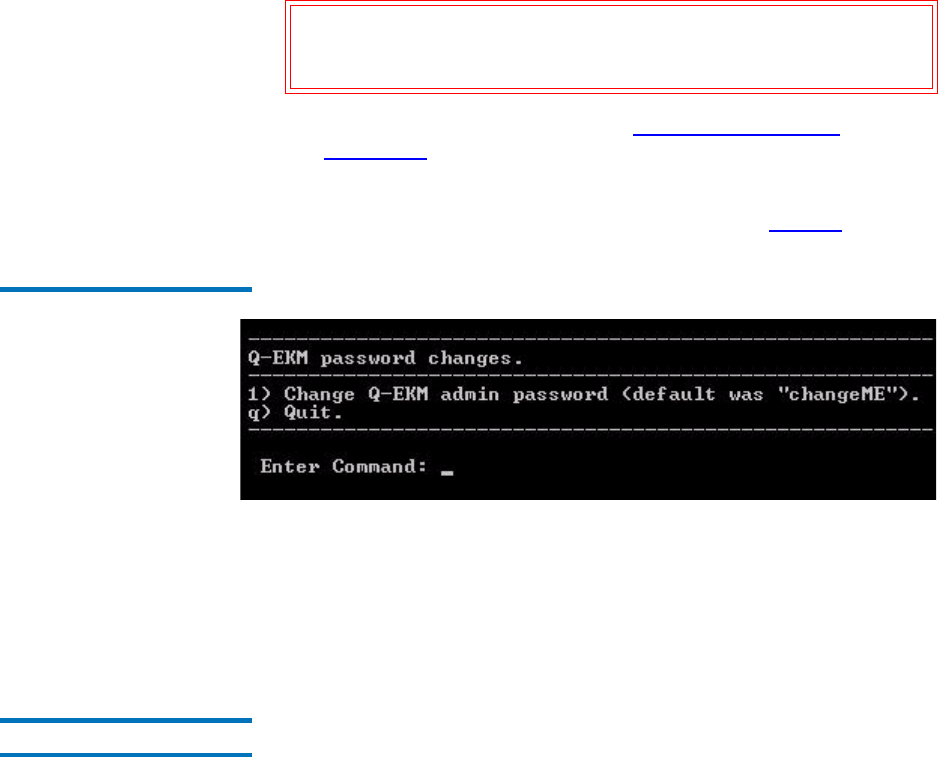
2At the Enter Command prompt, enter 4 (for Change passwords).
The Q-EKM password change menu displays (see Figure4).
Figure 4 Password Changes
Menu
3Enter 1 (for Change the Q-EKM admin password).
4Enter the new Q-EKM admin password.
5Re-enter the new Q-EKM admin password.
6Press <Enter> to return to the command menu.
Keystore Password 5The keystore password allows you to add, import, and export keys or
certificates to your Q-EKM server’s native keystore (EKMkeys.jck).
You set up the keystore password at the initial Q-EKM server installation.
Q-EKM does not currently provide a way to change the keystore
password.
Caution: It is CRITICAL that you remember the Q-EKM admin
password! Without it, you will not be able to issue any Q-
EKM commands.

Chapter 5 Q-EKM Server Operation and Configuration
Logging On to Q-EKM Commands
Quantum Encryption Key Manager Service and Installation Manual 27
The keystore password is case sensitive, must contain a minimum of 6
characters and a maximum of 24 characters, and can contain any
combination of letters, numbers, and special characters.
Encryption and decryption of tapes will still occur if you forget the
password, but if you want to read encrypted tapes provided by another
organization or company, of if you want to enable other organizations or
companies to read your encrypted tapes, you will need to import and
export keystore information, which you cannot do without the keystore
password.
Changing the Native Keystore Password 5
This feature is not currently implemented.
Logging On to Q-EKM Commands
Q-EKM provides a menu of commands to use.
To log on:
1Open a command window.
Note: Not all special characters are supported (for example, the “at”
symbol [@] and asterisk [*] are not supported). If you get a
message stating “invalid password,” one of your special
characters may not be supported.
Caution: REMEMBER THE PASSWORD! If you forget the password,
neither you nor Quantum will be able to recover it. You
will not be able to import or export keys and certificates
or share encrypted tapes.
Note: It is recommended that only one person be logged on to
Q-EKM Commands at one time.

Chapter 5 Q-EKM Server Operation and Configuration
Logging On to Q-EKM Commands
Quantum Encryption Key Manager Service and Installation Manual 28
2Navigate to the correct directory:
3Enter the following command to access the command menu:
4Enter the Q-EKM admin password (see Q-EKM Admin Password on
page 25).
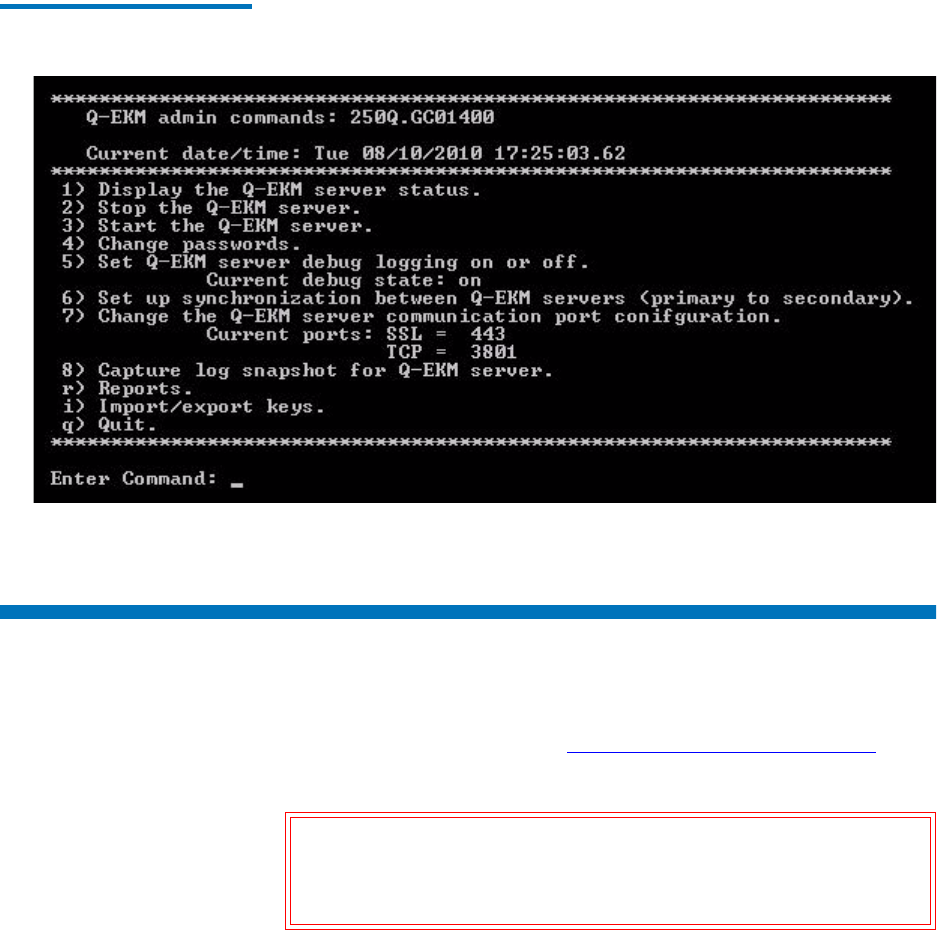
The list of commands displays (see Figure 5 on page29).
Windows C:\Program Files\Quantum\QEKM
(Alternatively, you may choose to update
your Windows system path variable — see
Appendix A, Setting the System Path
Variable in Windows.)
Linux /opt/Quantum/QEKM
Windows qekmcmds
Linux ./qekmcmds
Chapter 5 Q-EKM Server Operation and Configuration
Q-EKM Server Commands
Quantum Encryption Key Manager Service and Installation Manual 29
Figure 5 Q-EKM Commands
Menu
Q-EKM Server Commands
Q-EKM commands are presented in a menu format. For instructions on
accessing these commands, see Logging On to Q-EKM Commands on
page 27.
Caution: Any commands that change configuration settings will
shut down and then restart the Q-EKM server process. Do
not perform such commands if backup operations are in
process.

Chapter 5 Q-EKM Server Operation and Configuration
Q-EKM Server Commands
Quantum Encryption Key Manager Service and Installation Manual 30
Displaying the Q-EKM
Software Version 5
The Q-EKM software version is displayed in the first line of the Q-EKM
commands menu (see Logging On to Q-EKM Commands on page 27).
You can also find the software version listed in the qekm_version file
located in the QEKM directory:
Displaying the Q-EKM
Server On/Off Status 5
Displays whether Q-EKM server is running or stopped.
1Log on to Q-EKM Commands (see Logging On to Q-EKM
Commands on page 27).
2At the Enter Command prompt, enter 1. You receive one of the
following two responses:
• If the Q-EKM server is running, you receive confirmation that
looks similar to the following:
Server is running. TCP port: 3801, SSL port: 443
• If the Q-EKM server is not running, you receive the following:
EKM server cannot be reached. It appears to be stopped.
3Press <Enter> to return to the command menu.
Stopping the Q-EKM
Server Process 5
Stops the Q-EKM server process.
1Log on to Q-EKM Commands (see Logging On to Q-EKM
Commands on page 27).
2At the Enter Command prompt, enter 2.
The server shuts down and you receive confirmation that looks
similar to the following:
EKMServer: shut down complete.
3Press <Enter> to return to the command menu.
Starting the Q-EKM
Server Process 5
Starts the Q-EKM server process.
1Log on to Q-EKM Commands (see Logging On to Q-EKM
Commands on page 27).
Windows c:\Program Files\Quantum\QEKM
Linux /opt/Quantum/QEKM

Chapter 5 Q-EKM Server Operation and Configuration
Turning Debug Logging On and Off
Quantum Encryption Key Manager Service and Installation Manual 31
2At the Enter Command prompt, enter 3.
You receive the following message:
Starting EKM Server...
Please check the logs to make sure EKM Server has started
successfully.
3Press <Enter> to return to the command menu.
4Verify the Q-EKM server process started by doing one of the
following:
•Issue the Display the Q-EKM server status command (see
Displaying the Q-EKM Server On/Off Status on page 30), or
•Check the native_stdout.log file (located in the keymanager folder
in the QEKM directory; see Standard Out Messages Log on
page 66).
Turning Debug Logging On and Off
The debug log is named debug_server and is located here:
The debug log captures a record of everything the Q-EKM server does.
The debug log does not collect information unless debug is turned on.
This file will continue to grow as long as debug logging is turned on. The
file can grow very quickly. When debug logging is turned off, the log
captures no data.
Debug logging is turned off by default in order to prevent the debug log
file from becoming too large and overwhelming the system. If you have a
problem that requires assistance from Quantum Support, you will may
Windows c:\Program Files\Quantum\QEKM\keymanager
Linux /opt/Quantum/QEKM/keymanager
Chapter 5 Q-EKM Server Operation and Configuration
Turning Debug Logging On and Off
Quantum Encryption Key Manager Service and Installation Manual 32
be asked to turn debug logging on and then re-create the problem in
order to generate troubleshooting data.
The current debug state (on or off) is listed on the Q-EKM commands
menu under item number 5 (see Figure 5 on page29).
Turning the log on or off shuts down the Q-EKM server, changes the
KeyManagerConfig.properties file, and then restarts the Q-EKM server.
1Log on to Q-EKM Commands (see Logging On to Q-EKM
Commands on page 27).
2At the Enter Command prompt, enter 5 (for Set Q-EKM server debug
logging on or off).
The Q-EKM server process stops.
3When prompted, press <Enter>.
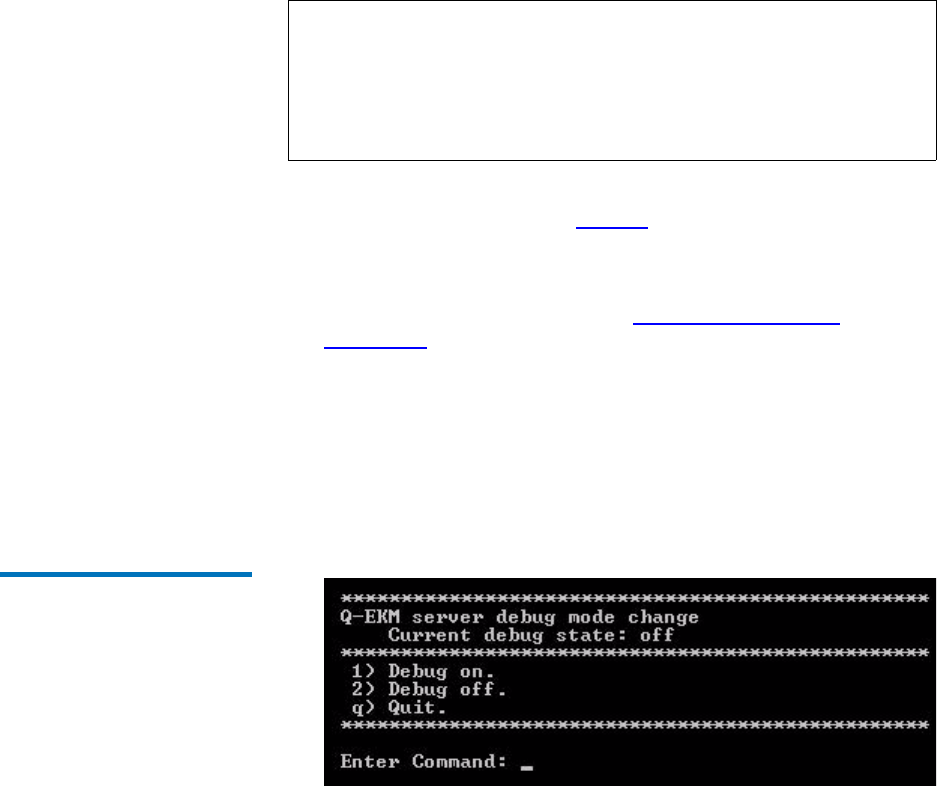
The Q-EKM server debug mode change menu displays.
Figure 6 Debug Mode Change
Menu
4At the Enter Command prompt, enter 1 to turn debug logging ON;
2 to turn debug logging OFF, or q to quit.
The command is entered into the system.
5Press <Enter>.
The Q-EKM server process starts.
Note: Remember to turn debug off once you have finished gathering
data. If you forget to do this and the file becomes too large,
stop the Q-EKM server process, delete the debug_server file,
and restart the Q-EKM server process. This re-creates the
debug log with no data in it. You can then turn debug on or off
as needed.

Chapter 5 Q-EKM Server Operation and Configuration
Synchronizing Primary and Secondary Q-EKM Servers
Quantum Encryption Key Manager Service and Installation Manual 33
6Verify the Q-EKM server process started by doing one of the
following:
•Issue the Display the Q-EKM server status command (see
Displaying the Q-EKM Server On/Off Status on page 30), or
•Check the native_stdout.log file (located in the keymanager folder
in the QEKM directory; see Standard Out Messages Log on
page 66).
7Press <Enter> to return to the command menu.
8Verify the debug logging is set as desired by checking the status on
the Q-EKM commands menu.
Synchronizing Primary and Secondary Q-EKM Servers
A synchronized configuration means that the configuration files on the
primary and secondary Q-EKM match.
The two configuration files are:
• ClientKeyManagerConfig.properties
• KeyManagerConfig.properties
The servers must be synchronized or you will not have accurate data
should failover from the primary to the secondary server occur. (See
What to do if Your Q-EKM Server Fails on page 64.)
Synchronization copies the two configuration files from the primary
server to the secondary server automatically once per hour as long as
both servers are up and running and connected to the network. The files
are also coped immediately whenever a configuration change occurs on
the primary server. In order for synchronization to occur, you must first
set it up. Instructions for setting synchronization up follow below.
Quantum Support should have set up synchronization at the initial
install.
Note: Only set up synchronization on the primary Q-EKM server.

Chapter 5 Q-EKM Server Operation and Configuration
Synchronizing Primary and Secondary Q-EKM Servers
Quantum Encryption Key Manager Service and Installation Manual 34
To set up synchronization, do the following:
1Ensure that both the primary and secondary Q-EKM servers are up
and running and connected to the network.
2Log on to Q-EKM Commands on the primary Q-EKM server (see
Logging On to Q-EKM Commands on page 27).
The primary Q-EKM server shuts down. You receive confirmation
that looks similar to the following:
Q-EKM Server: shut down complete.
3Press <Enter>.
Note: In order to synchronize properly, the TCP and SSL ports on the
primary and secondary Q-EKM servers must be set to the
same values. Synchronization causes the entire configuration
files of the primary server to overwrite the configuration files
on the secondary server. Because the TCP and SSL ports are
listed in the configuration files, the primary and secondary
servers must use the same TCP and SSL port settings. In
addition, make sure the libraries that access these servers have
their Q-EKM port configuration settings set to the correct
values.
Note: Synchronization does NOT copy the keystore. If the you make
changes to the keystore by importing keys, you must
manually copy the keystore file (EKMKeys.jck) from the QEKM
directory on the primary server to the QEKM directory on the
secondary server so the keystore data is the same (C:\Program
Files\Quantum\QEKM on Windows and opt/Quantum/QEKM on
Linux).
Note: Both the primary and secondary Q-EKM servers must be
running in order for synchronization to occur.
Note: Keep in mind that synchronization occurs from the primary
Q-EKM server to the secondary, not vice versa. The secondary
server remains the secondary server, even during a failover.
Do not make changes to the secondary server’s configuration
because the primary server’s configuration files will overwrite
them during the next synchronization.

Chapter 5 Q-EKM Server Operation and Configuration
Synchronizing Primary and Secondary Q-EKM Servers
Quantum Encryption Key Manager Service and Installation Manual 35
4When prompted, enter the secondary Q-EKM server’s IP address.
You receive a message that looks similar to the following:
Sync IP address: x.x.x.x
port: 443
ipaddress=x.x.x.x
1 file(s) moved.
1 file(s) moved.
5When prompted, press <Enter>.
The primary Q-EKM server starts. You receive confirmation that
looks similar to the following:
Starting EKM Server...
Please check the logs to make sure EKM Server has started
successfully.
6Press <Enter>.
7Verify the Q-EKM server process started by doing one of the
following:
•Issue the Display the Q-EKM server status command (see
Displaying the Q-EKM Server On/Off Status on page 30), or
•Check the native_stdout.log file (located in the keymanager folder
in the QEKM directory; see Standard Out Messages Log on
page 66).
Caution: Ensure you enter the correct IP address of the
secondary Q-EKM server. If you enter the wrong IP
address, changes to the configuration files will not be
synchronized to the secondary server.

Chapter 5 Q-EKM Server Operation and Configuration
Keeping the Keystores Matched
Quantum Encryption Key Manager Service and Installation Manual 36
8Press <Enter>.
The synchronization setup completes and the first sync occurs. You
receive several lines of confirmation text:
* Verify primary to secondary server sync has been configured.
* Primary to secondary sync has been configured.
Syncing primary to secondary
---------------------------------------------
Sync completed
---------------------------------------------
Press <Enter> to return to the command menu.
Keeping the Keystores Matched
In order for failover to work, the primary and secondary keystores must
match. Unlike the configuration files, which are copied from the primary
to the secondary Q-EKM server automatically once you set up
synchronization, the keystore is not automatically copied from one server
to the other. You must manually ensure that the keystores match any time
you make changes to the keystore. Changes to the keystore include:
• Importing keys
• Importing certificates
There are two was to make sure the keystores match. Do one of the
following:
• Import the keys or certificates onto both Q-EKM servers (see
Chapter 6, Sharing Encrypted Tapes – Import/Export Operations).
• Import the keys or certificates onto one Q-EKM server, and then copy
the keystore file from that server onto the other server. The keystore
file is called EKMKeys.jck and is located in the QEKM directory of the
Q-EKM server:
Windows c:\Program Files\Quantum\QEKM
Linux /opt/Quantum/QEKM

Chapter 5 Q-EKM Server Operation and Configuration
Changing the Communication Port Settings
Quantum Encryption Key Manager Service and Installation Manual 37
Changing the Communication Port Settings
Changes the communication port settings on the Q-EKM server. You
should not need to change the default port settings unless the default
ports are being used by other software on the host.
The Q-EKM server is set up with the following ports by default:
• TCP Port (also referred to as the EKM Port) – Default Value 3801
•SSL Port – Default Value 443.
In order for synchronization between the primary and secondary Q-EKM
servers to occur, the TCP and SSL port settings on the primary and
secondary Q-EKM servers must be set to the same values. In order for
library-to-Q-EKM communication to occur, all libraries accessing to the
Q-EKM server(s) must have their Q-EKM port settings configured to the
same values.
The current ports are listed on the Q-EKM commands menu under item
number 7 (see Figure 5 on page29).
To change either of the port numbers:
1Log on to Q-EKM Commands (see Logging On to Q-EKM
Commands on page 27).
2At the Enter Command prompt, enter 7.
The Q-EKM server process stops.
3Press <Enter>.
4When prompted, enter ssl (to change the SSL port) or tcp (to change
the TCP port).
5Enter the new port number.
The port number is changed.
6When prompted, press <Enter>.
The Q-EKM server starts.
7Press <Enter> to return to the command menu.

Chapter 5 Q-EKM Server Operation and Configuration
Changing the Communication Port Settings
Quantum Encryption Key Manager Service and Installation Manual 38
8Verify the Q-EKM server process started by doing one of the
following:
•Issue the Display the Q-EKM server status command (see
Displaying the Q-EKM Server On/Off Status on page 30), or
•Check the native_stdout.log file (located in the keymanager folder
in the QEKM directory; see Standard Out Messages Log on
page 66).
9Verify the port changed by looking at the Current ports display on the
command menu under item number 7.
10 Change the port settings on the other Q-EKM server in the server pair
to the same values.
11 Change the port settings on all libraries that access the Q-EKM server
to match the new port settings. See your library user’s guide or online
help for instructions on how to do this.

Quantum Encryption Key Manager User’s Guide 39
Chapter 6
6Sharing Encrypted Tapes –
Import/Export Operations
This chapter covers:
•Sharing Encrypted Tape Cartridges
•Special Considerations for Exchanging Files Between Linux and
Windows Servers
•Understanding How Q-EKM Uses Aliases
•Why You Should Not Change File Names
•Exporting the Public Certificate
•Importing a Public Certificate
•Exporting Data Encryption Keys
•Importing Data Encryption Keys
•Displaying the Native Public Certificate
•Displaying Imported Public Certificates
Sharing Encrypted Tape Cartridges
It is common practice to share tapes with other organizations (that are not
using the same Q-EKM server/keystore for encryption) for data transfer,
joint development, contracting services, or other purposes.

Sharing Encrypted Tapes – Import/Export Operations
Sharing Encrypted Tape Cartridges
Quantum Encryption Key Manager User’s Guide 40
Q-EKM creates unique key aliases across all Q-EKM installations
worldwide (see Understanding How Q-EKM Uses Aliases on page 41).
This ensures that you can safely share Q-EKM-encrypted tapes with other
sites or companies.
In order to share encrypted data on an encrypted tape, a copy of the
symmetric key used to encrypt the data on the tape must be made
available to the other organization to enable them to read the tape.
In order for the symmetric key to be shared, the other organization must
share their public key with you. This public key will be used to wrap the
symmetric key when it is exported from the Q-EKM keystore.
When the other organization imports the symmetric key into their
Q-EKM keystore, it will be unwrapped using their corresponding private
key. This ensures that the symmetric key will be safe in transit since only
the holder of the private key will be able to unwrap the symmetric key.
With the symmetric key that was used to encrypt the data in their Q-EKM
keystore, the other organization will then be able to read the data on the
tape.
The process is as follows:
1The destination administrator exports the native public certificate that
belongs to the destination Q-EKM server (see Exporting the Public
Certificate on page 43).
2The destination administrator sends the public certificate file to the
source administrator.
3The source administrator imports the public certificate onto the
source Q-EKM server (see Importing a Public Certificate on page 45).
4The source administrator exports the data encryption keys, assigning
the public certificate from the destination server to wrap (encrypt) the
keys. See Exporting Data Encryption Keys on page 47.
5The source administrator sends the exported data encryption key file
to the destination administrator.
6The destination administrator imports the data encryption keys onto
the destination Q-EKM server (see Importing Data Encryption Keys
on page 52).
7Tape drives installed in libraries connected to the destination Q-EKM
server can now read the encrypted tapes.

Sharing Encrypted Tapes – Import/Export Operations
Special Considerations for Exchanging Files Between Linux and Windows Servers
Quantum Encryption Key Manager User’s Guide 41
Special Considerations for Exchanging Files Between
Linux and Windows Servers
When moving public certificate files and key files between Linux and
Windows servers, make sure the files are copied and transported in
binary format. Files transported in other formats, such as ASCII, will
become corrupted. (Windows defaults to an ASCII; FTP generally creates
ASCII output.) Using SFTP to copy files will ensure they are binary.
Understanding How Q-EKM Uses Aliases
Q-EKM creates “aliases” as unique ways to identify public certificates
and data encryption keys for use when sharing these items between
Q-EKM environments. There are two types of aliases referred to in the
Q-EKM scripts. Understanding what they mean may help you
understand some of the script values that are returned in various
situation.
Public Certificate Alias 6The public certificate alias is the library serial number associated with the
Q-EKM server from which the public certificate came. (It is the same
library serial number that was entered during Q-EKM installation.) The
alias (library serial number) appears in the file name of the public
certificate file when it is exported from the Q-EKM server. For instance, in
file name QEKMIECertA0C0115928.cer, the alias is A0C0115928.
Q-EKM needs the unique alias to associate with an imported public
certificate. Normally Q-EKM pulls the alias off of the file name without
any input from the user required. Occasionally, the owner of the file may
change the file name so that the serial number no longer appears. In this
Alias Type Alias is Composed of
Public Certificate Alias Library serial number
Data Encryption Key Alias Library WWN key

Sharing Encrypted Tapes – Import/Export Operations
Why You Should Not Change File Names
Quantum Encryption Key Manager User’s Guide 42
case, the recipient is asked to enter the library serial number when
importing the file. In these cases, the originator must supply the alias.
The alias is listed in the library_serialnum file located in the QEKM
directory of the originating Q-EKM server:
Data Encryption Key
Alias 6
The data encryption key alias is the WWN key associated with the
Q-EKM server from which the data encryption keys originated. (It is the
same WWN key that was entered during Q-EKM installation.) The alias
(WWN key) appears in the file name of the exported encryption key file
when it is exported from the Q-EKM server. For instance, in file name
EXK00E09E0978f7_29072010.jck, the alias is 0978f7.
Q-EKM needs the unique alias to associate with an imported encryption
key file. Normally Q-EKM pulls the alias off of the file name without any
input from the user required. Occasionally, the owner of the file may
change the file name so that the WWN key no longer appears. In this case,
the recipient is asked to enter the WWN key when importing the file. In
these cases, the originator must supply the alias.
The alias is listed in the library_wwnamekey file located in the QEKM
directory:
Why You Should Not Change File Names
It is strongly recommended that you do NOT change the default names of
public certificate files and data encryption key files that you export or
import. Q-EKM allows you to change file names; however, it is not
recommended. Changing the file name creates more work for both the
sender and receiver of these files, and may cause confusion.
Windows c:\Program Files\Quantum\QEKM
Linux /opt/Quantum/QEKM
Windows c:\Program Files\Quantum\QEKM
Linux /opt/Quantum/QEKM

Sharing Encrypted Tapes – Import/Export Operations
Exporting the Public Certificate
Quantum Encryption Key Manager User’s Guide 43
The reasons you should NOT change file names are:
• The default file name contains an alias, which is either the library
serial number or WWN key (see Understanding How Q-EKM Uses
Aliases on page 41). The alias is required in order to import the file. If
you remove the alias from the name of a file you are sending to a
recipient, you will still have to provide the recipient with the alias so
they can enter it when importing the file. Then the recipient must
perform an extra step to manually enter the alias during import,
instead of allowing Q-EKM to pull the alias off of the file name
automatically. If you change the name after you receive a file and
before you import it, you will need to request the alias from the
sender before importing.
• Even if a public certificate file name is changed, Q-EKM converts the
file name back to the default file name when it imports the file. When
Q-EKM displays the names of the certificates in a report or export
operation, you will not see the same file name you imported, and
might wonder what became of your file. If you like to keep track of
files received and imported, this will make it more difficult.
• Encryption key file names are not displayed in reports or export
scripts, but rather the WWN key (alias) and key ranges are displayed.
For tracking purposes, if you leave the WWN key in the file name, at
least you will have something with which to compare Q-EKM’s
displayed information.
Exporting the Public Certificate
To receive encryption keys from another Q-EKM server (i.e., the “source”
Q-EKM server), you must first send your Q-EKM server’s native public
certificate to that server. The public key contained in the certificate will be
used to wrap (encrypt) the encryption keys to protect them during
transport to you.
1Log on to Q-EKM Commands (see Logging On to Q-EKM
Commands on page 27).
2At the Command Prompt, enter i (for Import/export keys).
The Key Import/Export menu displays (see Figure 7).
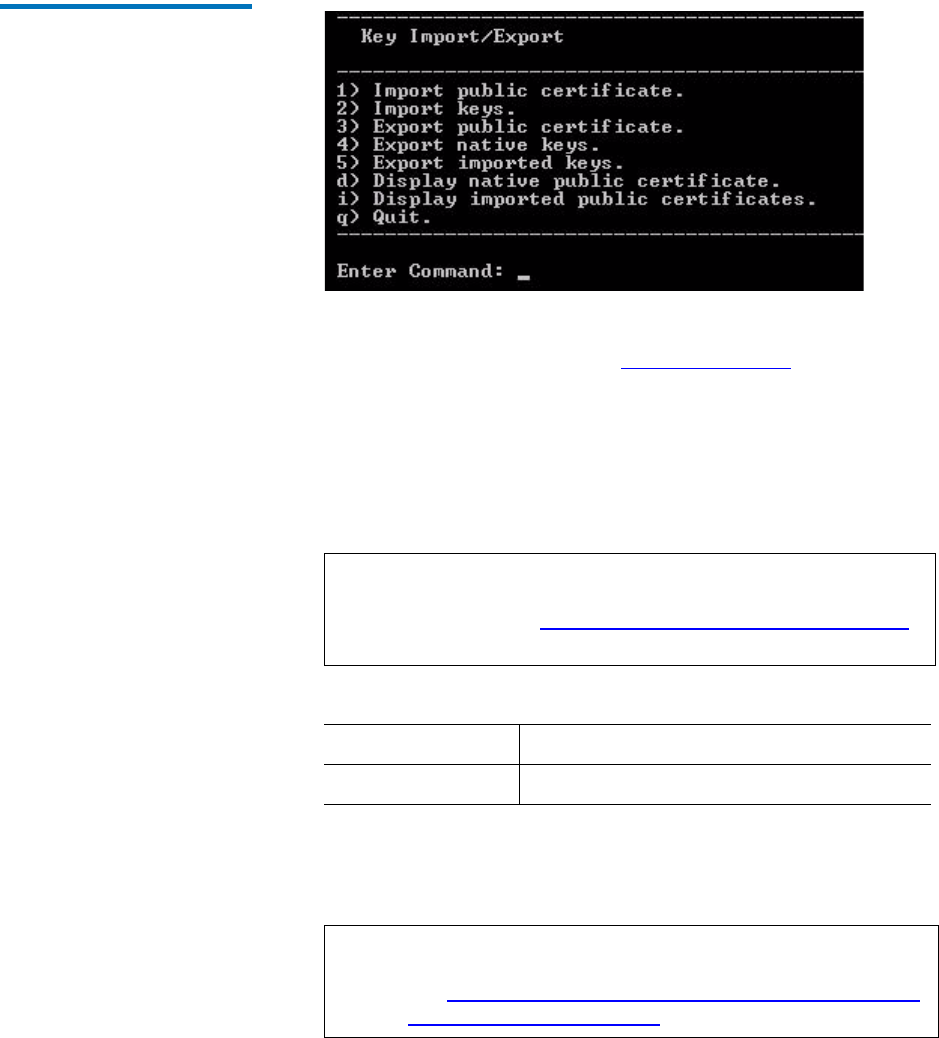
Sharing Encrypted Tapes – Import/Export Operations
Exporting the Public Certificate
Quantum Encryption Key Manager User’s Guide 44
Figure 7 Key Import/Export
Menu
3At the command prompt, enter 3 (for Export public certificate).
4Enter the keystore password (see Keystore Password on page 26).
5You are requested to “Enter a file name for the public certificate or
press enter [QEKMIECert<library_SN>.cer]:” The name in [brackets]
is the default file name of your native public certificate file.
To export the public certificate with the file name as shown, just press
<Enter>. To change the name of the file, enter an alternate name and
then press <Enter>.
The native public certificate is exported to the QEKM directory here:
6Press <Enter> to return to the Key Import/Export menu.
7Send the public certificate file to the source Q-EKM server
administrator.
Note: IMPORTANT: It is recommended that you do NOT change
the file name because it creates more work and may cause
confusion. See Why You Should Not Change File Names
on page 42.
Windows c:\Program Files\Quantum\QEKM
Linux /opt/Quantum/QEKM
Note: If sending between Linux and Windows systems, make
sure the files are copied and transported in binary format
(see Special Considerations for Exchanging Files Between
Linux and Windows Servers on page 41).

Sharing Encrypted Tapes – Import/Export Operations
Importing a Public Certificate
Quantum Encryption Key Manager User’s Guide 45
8If you changed the default name of the public certificate file so that it
no longer includes the library serial number (the default name is
QEKMIECert<library SN>.cer), you must provide the library serial
number along with the public certificate file to the source Q-EKM
server administrator, because they need it to export their keys for
you. See Understanding How Q-EKM Uses Aliases on page 41 for
more information.
The library serial number can be found in the library_serialnum file
located in the QEKM directory:
Importing a Public Certificate
The public certificate contains a public key that is used to wrap (encrypt)
encryption keys prior to transporting them to another Q-EKM server.
When sharing tape cartridges, you need to import the public certificate of
the destination Q-EKM server.
1Receive the public certificate file from the Q-EKM server to which you
will be sending keys, and place it in the QEKM directory:
2Log on to Q-EKM Commands (see Logging On to Q-EKM
Commands on page 27).
3At the Command Prompt, enter i (for the Import/export keys option).
The Key Import/Export menu displays (see Figure 7 on page44).
4At the command prompt, enter 1 (for Import public certificate).
5Enter the name of the public certificate file.
6Enter your Q-EKM server’s keystore password.
Windows c:\Program Files\Quantum\QEKM
Linux /opt/Quantum/QEKM
Windows c:\Program Files\Quantum\QEKM
Linux /opt/Quantum/QEKM

Sharing Encrypted Tapes – Import/Export Operations
Importing a Public Certificate
Quantum Encryption Key Manager User’s Guide 46
7Possible Step: You may be asked to enter the library serial number
associated with the public certificate. If you are not asked for the
library serial number, then skip this step.
You will be asked for the library serial number if the default name of
the key file was changed and Q-EKM cannot identify the library
serial number from the file name (the default name is
QEKMIECert<library SN>.cer). Q-EKM looks for the library serial
number during the import process (see Understanding How Q-EKM
Uses Aliases on page 41). If the library serial number no longer
appears in the file name, then the administrator who sent you the file
must provide the library serial number and you must enter it
manually.
The library serial number can be found in the library_serialnum file
located in the QEKM directory of the Q-EKM server that generated the
public certificate:
8The public certificate is added to your keystore and the keystore is
refreshed and reloaded.
9When prompted, press <Enter> to return to the Key Import/Export
menu.
10 Import the public certificate into the other server in the Q-EKM
server pair, or copy the keystore over to the other server.
Windows c:\Program Files\Quantum\QEKM
Linux /opt/Quantum/QEKM
Caution: IMPORTANT: Importing certificates updates the
keystore file. To make sure the primary and secondary
keystores match, when finished importing, either
import the public certificate into the other server in
the Q-EKM server pair, or manually copy the keystore
to the other server in the Q-EKM server pair. You
must do this manually because the synchronization
process does not copy the keystore.

Sharing Encrypted Tapes – Import/Export Operations
Exporting Data Encryption Keys
Quantum Encryption Key Manager User’s Guide 47
The keystore file is called EKMKeys.jck and is located in the QEKM
directory of the Q-EKM server:
Exporting Data Encryption Keys
In order for another Q-EKM server (i.e., the “destination server”) to read
tapes encrypted by your Q-EKM server, you need to export the
encryption keys used to encrypt those tapes and send them to the
destination server.
Currently, Q-EKM does not support exporting individual encryption
keys. Instead, you must export complete sets of 1024 encryption keys.
You can do the following types of exports:
•Exporting Your Native Keys — Exports your Q-EKM server’s set of
1024 “native” encryption keys to enable other sites to read from or
write to tapes encrypted by you.
•Exporting Imported Keys — Exports a set of keys that you previously
imported. You might want to do this if an encrypted tape sent to you
by another site (along with its encryption keys, which you imported)
needs to be accessed by still another site.
In either case, the keys are exported as a single file.
Exporting Your Native
Keys 6
To export your Q-EKM server’s set of 1024 data encryption keys:
1Make sure you have imported the public certificate of the destination
Q-EKM server (see Importing a Public Certificate on page 45).
2Log on to Q-EKM Commands (see Logging On to Q-EKM
Commands on page 27).
3At the Command Prompt, enter i (for the Import/export keys option).
The Key Import/Export menu displays (see Figure 7 on page44).
4From the Key Import/Export menu, enter 4 (for Export native keys).
Windows c:\Program Files\Quantum\QEKM
Linux /opt/Quantum/QEKM

Sharing Encrypted Tapes – Import/Export Operations
Exporting Data Encryption Keys
Quantum Encryption Key Manager User’s Guide 48
5Enter your keystore password.
A list of certificates available to export keys displays. The list includes
your Q-EKM server’s native public certificate and all public
certificates that you have ever imported. The list displays in the
following format:
Available certificates to export keys:
Serial Number Certificate
Source
--------------------------------------------------
A0C0123456 (QEKMIECertA0C0123456.cer)
A0C0789012 (QEKMIECertA0C0789012.cer)
A0C0234578 (Native)
The serial number listed is the library serial number associated with
the Q-EKM server that generated the public certificate file, followed
by the name of the public certificate file. The file identified as
“Native” is your Q-EKM server’s native public certificate.
You are asked to enter one of the listed serial numbers to use to
export the encryption keys.
6Enter the serial number corresponding to the public certificate you
want to use to wrap the exported keys. Choose the certificate that
came from the server which will be importing the keys.
7The data encryption key file is exported to the QEKM directory. The
name and location of the file are displayed on the screen. The file is
named: EXK00E09E<WWN key>_<date>.jck (where the WWN key is
the WWN key entered at initial install) and is located here:
8Press <Enter> to return to the Key Import/Export menu.
Note: Even if the file name for the public certificate was changed
from the default format, Q-EKM converts it back into the
default format when it is imported. This is one reason it is
recommended NOT to change file names (see Why You
Should Not Change File Names on page 42).
Windows c:\Program Files\Quantum\QEKM
Linux /opt/Quantum/QEKM

Sharing Encrypted Tapes – Import/Export Operations
Exporting Data Encryption Keys
Quantum Encryption Key Manager User’s Guide 49
9Send the data encryption key file to the administrator of the
destination Q-EKM server.
If you change the default name of the exported encryption key file so
that it no longer includes the WWN key (the default name is
EXK00E09E<WWN key>_<date>.jck), you must provide the library
WWN key along with the encryption key file to the destination
Q-EKM server administrator, because they need it to import your
keys (see Understanding How Q-EKM Uses Aliases on page 41). The
library WWN key can be found in the library_wwnamekey file located
in the QEKM directory:
Exporting Imported Keys6To export a set of data encryption keys that you previously imported:
1Make sure you have imported the public certificate of the destination
Q-EKM server (see Importing a Public Certificate on page 45).
2Log on to Q-EKM Commands (see Logging On to Q-EKM
Commands on page 27).
3At the Command Prompt, enter i (for the Import/export keys option).
The Key Import/Export menu displays (see Figure 7 on page44).
4From the Key Import/Export menu, enter 5 (for Export imported
keys).
Note: If sending between Linux and Windows systems, make
sure the files are copied and transported in binary format
(see Special Considerations for Exchanging Files Between
Linux and Windows Servers on page 41).
Note: IMPORTANT: It is recommended that you do NOT change
the file name because it creates more work and may cause
confusion. See Why You Should Not Change File Names
on page 42.
Windows c:\Program Files\Quantum\QEKM
Linux /opt/Quantum/QEKM

Sharing Encrypted Tapes – Import/Export Operations
Exporting Data Encryption Keys
Quantum Encryption Key Manager User’s Guide 50
5Enter your keystore password.
A list of certificates available to export keys displays. The list includes
your Q-EKM server’s native public certificate and all public
certificates that you have ever imported. The list displays in the
following format:
Available certificates to export keys:
Serial Number Certificate
Source
--------------------------------------------------
A0C0123456 (QEKMIECertA0C0123456.cer)
A0C0789012 (QEKMIECertA0C0789012.cer)
A0C0234578 (Native)
The serial number listed is the library serial number associated with
the Q-EKM server that generated the public certificate file, followed
by the name of the public certificate file. The file identified as
“Native” is your Q-EKM server’s native public certificate.
You are asked to enter one of the listed serial numbers to use to
export the encryption keys.
6Enter the serial number corresponding to the public certificate you
want to use to wrap the exported keys. Choose the certificate that
came from the server which will be importing the keys.
7A list of imported WWN key ranges available for export displays.
The list displays in the following format:
wwname key Range
-----------------------------------------------------------
09c330 key00000000009c330000-00000000009c3303ff
033123 key000000000033123000-0000000000331233ff
034123 key000000000034123000-0000000000341233ff
Note: Even if the file name for the public certificate was changed
from the default format, Q-EKM converts it back into the
default format when it is imported. This is one reason it is
recommended NOT to change file names (see Why You
Should Not Change File Names on page 42).

Sharing Encrypted Tapes – Import/Export Operations
Exporting Data Encryption Keys
Quantum Encryption Key Manager User’s Guide 51
You are asked to enter one of the listed WWN keys to identify the
range of keys that you want to export. Each range represents a set of
1024 encryption keys that you imported. You will need to know the
WWN key of the set that you want to export. If you don’t know the
WWN key, your choices are either:
• Get the WWN key from the original owner of the key set.The
library WWN key can be found in the library_wwnamekey file
located in the QEKM directory of the server that originally
generated the keys:
• Export all of the key sets one by one (and the recipient would
then have to import them all one by one).
8Enter a listed WWN key for the key set you want to export.
9The data encryption key file is exported to the QEKM directory. The
name and location of the file are displayed on the screen. The file is
named: EXK00E09E<WWN key>_<date>.jck (where the WWN key is
the WWN key entered at initial install) and is located here:
10 Press <Enter> to return to the Key Import/Export menu.
11 Send the data encryption key file to the administrator of the
destination Q-EKM server.
Windows c:\Program Files\Quantum\QEKM
Linux /opt/Quantum/QEKM
Windows c:\Program Files\Quantum\QEKM
Linux /opt/Quantum/QEKM
Note: If sending between Linux and Windows systems, make
sure the files are copied and transported in binary format
(see Special Considerations for Exchanging Files Between
Linux and Windows Servers on page 41).
Note: IMPORTANT: It is recommended that you do NOT change
the file name because it creates more work and may cause
confusion. See Why You Should Not Change File Names
on page 42.

Sharing Encrypted Tapes – Import/Export Operations
Importing Data Encryption Keys
Quantum Encryption Key Manager User’s Guide 52
If you change the default name of the exported encryption key file so
that it no longer includes the WWN key (the default name is
EXK00E09E<WWN key>_<date>.jck), you must provide the library
WWN key that you selected for the export in Step 7 along with the
encryption key file to the destination Q-EKM server administrator,
because they need it to import your keys. See Understanding How Q-
EKM Uses Aliases on page 41 for more information.
Importing Data Encryption Keys
In order to read tapes encrypted by a different (i.e., source) Q-EKM
server, you need to import the encryption keys used to encrypt those
tapes onto your Q-EKM server (i.e., destination).
1Receive the encryption key file from the administrator of the source
Q-EKM server and place the file in the QEKM directory located here:
2Log on to Q-EKM Commands (see Logging On to Q-EKM
Commands on page 27).
3At the Command Prompt, enter i (for the Import/Export keys option).
The Key Import/Export menu displays (see Figure 7 on page44).
4At the command prompt, enter 2 (for Import keys).
5Enter the file name of the encryption key file.
The import process begins.
6Enter your Q-EKM server’s keystore password (see Keystore
Password on page 26).
Note: Currently, Q-EKM does not support importing individual
encryption keys. Instead, you will import all 1024 data
encryption keys as one file.
Windows c:\Program Files\Quantum\QEKM
Linux /opt/Quantum/QEKM

Sharing Encrypted Tapes – Import/Export Operations
Importing Data Encryption Keys
Quantum Encryption Key Manager User’s Guide 53
7Possible Step: You may be asked to enter the WWN key for the
imported keys. If you are not asked for the WWN key, then skip this
step.
You will be asked for the WWN key if the default name of the key file
was changed and Q-EKM cannot identify the WWN key from the file
name (the default name is EXK00E09E<WWN key>_<date>.jck).
Q-EKM looks for the WWN key during the import process (see
Understanding How Q-EKM Uses Aliases on page 41). If the WWN
key no longer appears in the file name, then the administrator who
sent you the file must provide the WWN key and you must enter it
manually.
The WWN key can be found in the library_wwnamekey file located in
the QEKM directory on the Q-EKM server that generated the key file:
8The import process takes a few minutes. When complete, you are
prompted to press <Enter>.
9When prompted, press <Enter> to return to the Key Import/Export
menu.
10 Import the data encryption keys on the other server in the Q-EKM
server pair or copy the keystore to the other server.
The keystore file is called EKMKeys.jck and is located in the QEKM
directory of the Q-EKM server:
Windows c:\Program Files\Quantum\QEKM
Linux /opt/Quantum/QEKM
Caution: IMPORTANT: Importing keys updates the keystore file.
To make sure the primary and secondary keystores
match, when finished importing, either import the
keys on the other server in the Q-EKM server pair, or
manually copy the keystore to the other server in the
Q-EKM server pair. You must do this manually
because the synchronization process does not copy the
keystore.
Windows c:\Program Files\Quantum\QEKM
Linux /opt/Quantum/QEKM

Sharing Encrypted Tapes – Import/Export Operations
Displaying the Native Public Certificate
Quantum Encryption Key Manager User’s Guide 54
Displaying the Native Public Certificate
You can view the contents of your Q-EKM server’s native public
certificate, including the alias (see Public Certificate Alias on page 41),
owner/issuer, and validity dates.
To display the information:
1Log on to Q-EKM Commands (see Logging On to Q-EKM
Commands on page 27).
2At the Command Prompt, enter i (for the Import/Export keys option).
The Key Import/Export menu displays (see Figure 7 on page44).
3At the command prompt, enter d (for Display native public certificate).
4Enter your keystore password (see Keystore Password on page 26).
The information is displayed.
5Press <Enter> to return to the Key Import/Export menu.
Displaying Imported Public Certificates
You can view the contents of all the public certificates you imported onto
your Q-EKM server, including the alias (see Public Certificate Alias on
page 41), owner/issuer, and validity dates.
To display the information:
1Log on to Q-EKM Commands (see Logging On to Q-EKM
Commands on page 27).
2At the Command Prompt, enter i (for the Import/Export keys option).
The Key Import/Export menu displays (see Figure 7 on page44).
3At the command prompt, enter i (for Display imported public
certificates).

Sharing Encrypted Tapes – Import/Export Operations
Displaying Imported Public Certificates
Quantum Encryption Key Manager User’s Guide 55
4Enter your keystore password (see Keystore Password on page 26).
The information is displayed.
If it just displays “Keystore entries: xxxx” that means you have no
imported certificates.
5Press <Enter> to return to the Key Import/Export menu.

Quantum Encryption Key Manager Service and Installation Manual 56
Chapter 7
7Running Reports
This chapter details the reports you can run from the Q-EKM commands
menu. The reports are:
•Drives that Accessed the Q-EKM Server
•Q-EKM Server Keys
•End User License Agreement
•Available WWN Key Ranges for Export
Drives that Accessed the Q-EKM Server
This report provides a list of all drives that have ever successfully asked
for a key from the Q-EKM server. There is no maximum number of
entries, and all drives will remain on the list even if they are removed
from the library.
The data is displayed on the screen and also saved to a file. The file is
named drivereport.txt and is located here:
Windows c:\Program Files\Quantum\QEKM
Linux /opt/Quantum/QEKM
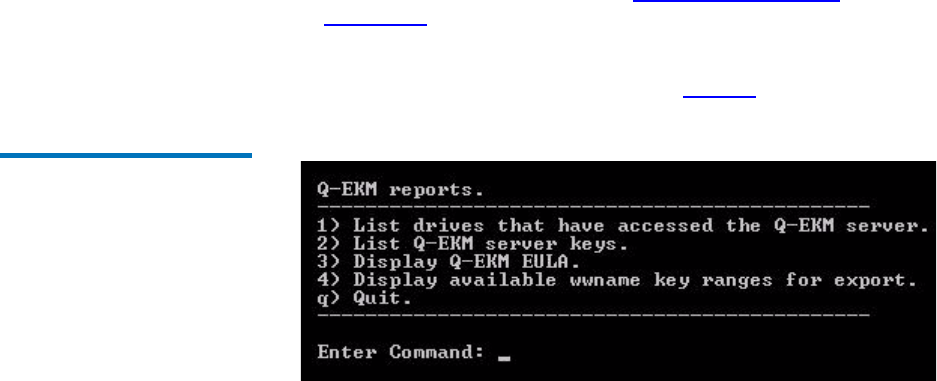
Chapter 7 Running Reports
Drives that Accessed the Q-EKM Server
Quantum Encryption Key Manager Service and Installation Manual 57
To generate the tape drive report:
1Log on to Q-EKM Commands (see Logging On to Q-EKM
Commands on page 27).
2At the Enter Command prompt, enter r (for Reports).
The Q-EKM Reports menu displays (see Figure8).
Figure 8 Reports Menu
3Enter 1 (for List drives that have accessed the Q-EKM server).
The information is displayed on the screen and also collected and
saved to a file. The name and location of the file is displayed. The
total number of drives, followed by a listing of all the drives by drive
serial number, is displayed on the screen. The displayed data looks
similar to the following:
Drive entries: 2
SerialNumber = 001300000392
SerialNumber = 001310000363
4Press <Enter> repeatedly to scroll through the list. To exit the
scrolling display, enter q.
5Press <Enter> to return to the Q-EKM reports menu.
Chapter 7 Running Reports
Q-EKM Server Keys
Quantum Encryption Key Manager Service and Installation Manual 58
Q-EKM Server Keys
This report provides a list of all the data encryption keys and certificates
in the keystore. The list includes the keys and certificates generated by
your Q-EKM server, plus all of the keys and certificates you imported.
The data is displayed on the screen and also saved to a file. The file is
named keyreport.txt and is located here:
To generate the key report:
1Log on to Q-EKM Commands (see Logging On to Q-EKM
Commands on page 27).
2At the Enter Command prompt, enter r (for Reports).
The Q-EKM Reports menu displays (see Figure 8 on page57).
3Enter 2 (for List Q-EKM server keys).
The information returned by the command looks similar to the
following:
key000000000094330119, Mon Aug 02 16:21:32 CDT 2010, keyEntry,
AES, Active:True
key000000000094330118, Mon Aug 02 16:21:32 CDT 2010, keyEntry,
AES, Active:True
key000000000094330117, Mon Aug 02 16:21:32 CDT 2010, keyEntry,
AES, Active:True
4Press <Enter> repeatedly to scroll through the list. To exit the
scrolling display, enter q.
5When finished, press <Enter> to return to the Q-EKM reports menu.
Windows c:\Program Files\Quantum\QEKM
Linux /opt/Quantum/QEKM
Note: The “alias” listed in the report is your Q-EKM server’s
public certificate alias (see Understanding How Q-EKM
Uses Aliases on page 41)

Chapter 7 Running Reports
End User License Agreement
Quantum Encryption Key Manager Service and Installation Manual 59
End User License Agreement
The End User License Agreement (EULA) is presented during the
installation or upgrade process and must be accepted by the user before
installation/upgrade can take place. If you wish to review the EULA at
any time thereafter, do the following:
To generate the key report:
1Log on to Q-EKM Commands (see Logging On to Q-EKM
Commands on page 27).
2At the Enter Command prompt, enter r (for Reports).
The Q-EKM Reports menu displays (see Figure 8 on page57).
3Enter 3 (for Display Q-EKM EULA).
The EULA displays.
4Press <Enter> repeatedly to scroll through the EULA.
5When finished, press <Enter> to return to the Q-EKM reports menu.
Available WWN Key Ranges for Export
This report provides a list of WWN keys and their associated data
encryption key ranges corresponding to the data encryption key sets that
you imported. These are the imported key sets that you can export (see
Exporting Imported Keys on page 49).
This report does not include your native set of 1024 data encryption keys.
You might want to run this report to make sure the keys you want to
export are actually in your keystore before starting the export process.
To generate the key report:
1Log on to Q-EKM Commands (see Logging On to Q-EKM
Commands on page 27).

Chapter 7 Running Reports
Available WWN Key Ranges for Export
Quantum Encryption Key Manager Service and Installation Manual 60
2At the Enter Command prompt, enter r (for Reports).
The Q-EKM Reports menu displays (see Figure 8 on page57).
3Enter 4 (for Display available wwname key ranges for export).
The information returned by the command looks similar to the
following:
wwname key Range
-----------------------------------------------------------
09c330 key00000000009c330000-00000000009c3303ff
033123 key000000000033123000-0000000000331233ff
034123 key000000000034123000-0000000000341233ff
4Press <Enter> to return to the Q-EKM reports menu.


Troubleshooting
Frequently Asked Questions
Quantum Encryption Key Manager User’s Guide 62
Frequently Asked Questions
Question Answer
How can I tell if the Q-EKM server is
running?
Do one of the following:
• Issue the Q-EKM “status: command (see Displaying the
Q-EKM Server On/Off Status on page 30).
•Check the native_stdout.log (see Standard Out Messages
Log on page 66).
What is the difference between
Application-Managed Encryption (AME)
and Library-Managed Encryption (LME)
and how do they work?
AME is not part of Q-EKM. In AME, the ISV application
manages the interaction with the encryption-capable
drive. AME requires an ISV application that supports it.
With LME, the library (and the Q-EKM server) manages
the interaction with the encryption-capable tape drive.
LME does not require any ISV support and is transparent
to the application.
When is media encrypted? Media (either new or re-labeled) is encrypted when it is
initially written to at the beginning of the tape (BOT).
What state must the media be in to be
encrypted using Q-EKM?
The media must be either blank or erased (re-labeled). If
any unencrypted data is on the media, no encryption will
occur.
If the media contains anything other than LME-encrypted
data, the data must be erased. Interleaving LME data with
non-encrypted or AME-encrypted data is not supported.
How can I verify that tapes are being
encrypted using Q-EKM?
• The library interface provides several reports that
indicate which tapes are encrypted. See your library
user’s guide for details.
• You can check the Q-EKM audit log for key retrieval
traffic (see Audit Log on page 65).
How can I tell which tapes are encrypted
and which are not encrypted?
The library interface provides several reports that indicate
which tapes are encrypted. See your library user’s guide
for details

Troubleshooting
Frequently Asked Questions
Quantum Encryption Key Manager User’s Guide 63
How will I be notified of write/read
errors or Q-EKM server problems?
Q-EKM does not report these types of errors. Errors are
reported in the following ways:
• The host/ISV application reports read and write
failures.
• The library issues a RAS ticket when a write or read
operation fails.
• The library issues a RAS ticket when it cannot
communicate with a Q-EKM server.
How will I know if one of the Q-EKM
servers in a pair goes down and fails over
to the other one?
The library issues RAS tickets when:
• The primary server failed and successful failover to the
secondary server occurred.
• A key request to a Q-EKM server failed.
How will I know if both Q-EKM servers
go down?
If both servers go down, the library issues RAS tickets for
key server communication failure.
How will I know if just the secondary
Q-EKM server goes down (while the
primary is still working fine)?
If Automatic EKM Path Diagnostics is enabled, the library
will issue a RAS ticket if it cannot communicate with the
secondary Q-EKM server. If Automatic EKM Path
Diagnostics is not enabled, then you will not be notified.
Will I be notified if synchronization
between the primary and secondary
servers fails?
Not specifically. The Q-EKM audit log reports an error but
Q-EKM does not overtly notify you. However,
synchronization can only occur when both servers are
running and connected. The library issues RAS tickets for
server communication failure, which can signify that
synchronization failed.
Question Answer

Troubleshooting
What to do if Your Q-EKM Server Fails
Quantum Encryption Key Manager User’s Guide 64
What to do if Your Q-EKM Server Fails
This section covers:
•Single Server Configuration Failure
•Two-Server Configuration Failure
Single Server
Configuration Failure 8
If the single Q-EKM server goes down, the library issues a “failed” RAS
ticket indicating it cannot communicate with the server.
If the Q-EKM server failed due to circumstances within your control (for
instance, a power outage), get it back up and running as soon as possible.
If the server failed and cannot be recovered, contact Quantum Support as
soon as possible to arrange for a disaster recovery installation.
Two-Server Configuration
Failure 8
If the primary Q-EKM server fails, the library “fails over” to the
secondary server and issues a RAS ticket. The library will continue to use
the secondary server for key requests (even if the primary server comes
back online) until it the either the secondary server fails (in which case the
library attempts to “fail over” to the primary server again) or the library
is rebooted. When the primary server comes back online, if you want the
library to go back to using the primary server, you must reboot the
library.
If the primary server is down and the secondary server also goes down,
the library issues a RAS ticket indicating it cannot communicate with the
server.
If a Q-EKM server goes down due to circumstances within your control
(for instance, a power outage), get it back up and running as soon as
possible.
If a Q-EKM server fails and cannot be recovered, contact Quantum
Support as soon as possible to arrange for a disaster recovery installation.

Troubleshooting
Log Files
Quantum Encryption Key Manager User’s Guide 65
Log Files
Q-EKM provides the following log files that can be used for
troubleshooting and debug:
•Audit Log
•Debug Log
•Standard Error Messages Log
•Standard Out Messages Log
•Capturing a Log Snapshot
Audit Log 8The audit log timestamps drive vendor, serial number, world-wide name
(WWN), media volser, and key servings results. The data it collects is a
subset of the much more comprehensive Debug Log. The audit log is
always available and collecting data. The Q-EKM application limits the
size of this file to 10 MB. When the file reaches the maximum size, old
information is deleted as new information is added.
The audit log file is named \kms_audit.log and is located here:
Note: Keep in mind that synchronization occurs from the primary
Q-EKM server to the secondary, not vice versa. The secondary
server remains the secondary server, even during a failover.
Do not make changes to the secondary server’s configuration
because the primary server’s configuration files will overwrite
them during the next synchronization.
Windows c:\Program Files\Quantum\QEKM\keymanager\audit
Linux /opt/Quantum/QEKM/keymanager/audit

Troubleshooting
Log Files
Quantum Encryption Key Manager User’s Guide 66
Debug Log 8The debug log captures a record of everything the Q-EKM server does.
The debug log does not collect information unless debug is turned on.
Debug logging is turned off by default. See Turning Debug Logging On
and Off on page 31 for more information about the debug log and how to
to turn logging on and off.
The debug log file is named debug_server and is located here:
Standard Error Messages
Log 8
The standard error messages log lists errors that occurred during Q-EKM
startup or shutdown. This log is generally used in combination with the
Standard Out Messages Log.
The standard error messages log file is named native_stderr.log and is
located here:
Standard Out Messages
Log 8
The standard out messages log provides information about Q-EKM
startup and shutdown operations, and lets you know whether the
operation completed successfully. This log is generally used in
combination with the Standard Error Messages Log.
The standard out messages log file is named native_stdout.log and is
located here:
Capturing a Log
Snapshot 8
The capture log snapshot command creates a folder (in Windows) or
a.tgz file (in Linux) containing information about Q-EKM at a given point
in time. The folder/file contains configuration files and audit and error
logs that Quantum Support can use to troubleshoot problems with the
library. Normally you would only need to capture a snapshot when
instructed by Quantum Support.
Windows c:\Program Files\Quantum\QEKM\keymanager
Linux /opt/Quantum/QEKM/keymanager
Windows c:\Program Files\Quantum\QEKM\keymanager
Linux /opt/Quantum/QEKM/keymanager
Windows c:\Program Files\Quantum\QEKM\keymanager
Linux /opt/Quantum/QEKM/keymanager

Troubleshooting
Errors Reported By Q-EKM
Quantum Encryption Key Manager User’s Guide 67
When you run the command, Q-EKM creates the following:
To capture a log snapshot:
1Log on to Q-EKM Commands (see Logging On to Q-EKM
Commands on page 27).
2At the Enter Command prompt, enter 8 (for Capture log snapshot for
Q-EKM server).
The snapshot folder/file is created and the screen displays the name
and location.
Press <Enter> to return to the commands menu.
Errors Reported By Q-EKM
This section defines error messages that are reported by Q-EKM in the
audit log (see Audit Log on page 65).
The table below includes the error number, a short description of the
failure, and corrective actions.
Windows c:\Program Files\Quantum\QEKM\
snapshot_<date>_<time>
Linux /opt/Quantum/QEKM/
QEKMsnapshot_<date>_<time>.tgz

Troubleshooting
Errors Reported By Q-EKM
Quantum Encryption Key Manager User’s Guide 68
Error
Number Description Action
EE02 Encryption Read
Message Failure:
DriverErrorNotifyParam
eterError: “Bad ASC &
ASCQ received. ASC &
ASCQ does not match
with either of Key
Creation/Key
Translation/Key
Acquisition operation.”
The tape drive asked for an unsupported action.
Ensure that you are running the latest version of Q-EKM
(to determine the latest version, contact your Quantum
Representative).
Check the versions of drive or library firmware and
update them to the latest release, if needed.
Turn on Debug on the Q-EKM server.
Try to re-create the problem and gather debug logs.
When finished collecting data, turn Debug off.
If the problem persists, contact Quantum Global Call
Center.
EE0F Encryption logic error:
Internal error:
“Unexpected error.
Internal programming
error in EKM.”
Ensure that you are running the latest version of Q-EKM
(to determine the latest version, contact your Quantum
Representative).
Check the versions of drive or library firmware and
update them to the latest release, if needed.
Turn on Debug on the Q-EKM server.
Try to re-create the problem and gather debug logs.
When finished collecting data, turn Debug off.
If the problem persists, contact Quantum Global Call
Center.

Troubleshooting
Errors Reported By Q-EKM
Quantum Encryption Key Manager User’s Guide 69
EE23 Encryption Read
Message Failure: Internal
error: ”Unexpected
error........”
The message received from the drive or library could not
be parsed because of general error.
Ensure that you are running the latest version of Q-EKM
(to determine the latest version, contact your Quantum
Representative).
Turn on Debug on the Q-EKM server.
Try to re-create the problem and gather debug logs.
When finished collecting data, turn Debug off.
If the problem persists, contact Quantum Global Call
Center.
EE25 Encryption
Configuration Problem:
Errors that are related to
the drive table occurred.
Ensure that the config.drivetable.file.url is correct in the
KeyManagerConfig.properties file, if that parameter is
supplied.
Run the listdrives -drivename <drivename> command on the
Q-EKM server to verify whether the drive is correctly
configured (for example, the drive serial number, alias,
and certificates are correct).
Ensure that you are running the latest version of Q-EKM
(to determine the latest version, contact your Quantum
Representative).
Check the versions of drive or library firmware and
update them to the latest release, if needed.
Turn on Debug on the Q-EKM server.
Try to re-create the problem and gather debug logs.
When finished collecting data, turn Debug off.
If the problem persists, contact Quantum Global Call
Center.
Error
Number Description Action

Troubleshooting
Errors Reported By Q-EKM
Quantum Encryption Key Manager User’s Guide 70
EE29 Encryption Read
Message Failure: Invalid
signature
The message received from the drive or library does not
match the signature on it.
Ensure that you are running the latest version of Q-EKM
(to determine the latest version, contact your Quantum
Representative).
Turn on Debug on the Q-EKM server.
Try to re-create the problem and gather debug logs.
When finished collecting data, turn Debug off.
If the problem persists, contact Quantum Global Call
Center.
EE2B Encryption Read
Message Failure: Internal
error: “Either no
signature in DSK or
signature in DSK can not
be verified.”
Ensure that you are running the latest version of Q-EKM
(to determine the latest version, contact your Quantum
Representative).
Check the versions of drive or library firmware and
update them to the latest release, if needed.
Turn on Debug on the Q-EKM server.
Try to re-create the problem and gather debug logs.
When finished collecting data, turn Debug off.
If the problem persists, contact Quantum Global Call
Center.
Error
Number Description Action

Troubleshooting
Errors Reported By Q-EKM
Quantum Encryption Key Manager User’s Guide 71
EE2C Encryption Read
Message Failure:
QueryDSKParameterErr
or: “Error parsing a
QueryDSKMessage from
a device. Unexpected
dsk count or unexpected
payload.”
The tape drive asked Q-EKM to do an unsupported
function.
Ensure that you are running the latest version of Q-EKM
(to determine the latest version, contact your Quantum
Representative).
Check the versions of drive or library firmware and
update them to the latest release, if needed.
Turn on Debug on the Q-EKM server.
Try to re-create the problem and gather debug logs.
When finished collecting data, turn Debug off.
If the problem persists, contact Quantum Global Center.
EE2D Encryption Read
Message Failure: Invalid
Message Type
Q-EKM received a message out of sequence or received a
message that it does not know how to handle.
Ensure that you are running the latest version of Q-EKM
(to determine the latest version, contact your Quantum
Representative).
Turn on Debug on the Q-EKM server.
Try to re-create the problem and gather debug logs.
When finished collecting data, turn Debug off.
If the problem persists, contact Quantum Global Call
Center.
Error
Number Description Action

Troubleshooting
Errors Reported By Q-EKM
Quantum Encryption Key Manager User’s Guide 72
EE2E Encryption Read
Message Failure: Internal
error: Invalid signature
type
The message received from the drive or library does not
have a valid signature type.
Ensure that you are running the latest version of Q-EKM
(to determine the latest version, contact your Quantum
Representative).
Turn on Debug on the Q-EKM server.
Try to re-create the problem and gather debug logs.
When finished collecting data, turn Debug off.
If the problem persists, contact Quantum Global Call
Center.
EE31 Encryption
Configuration Problem:
Errors that are related to
the keystore occurred.
Check the key labels that you are trying to use or
configured for the defaults.
If you know that you are trying to use the defaults, then
run the listdrives -drivename drivename command on the
Q-EKM server to verify whether the drive is correctly
configured (for example, the drive serial number, and
associated aliases/key labels are correct).
If the drive in question has no aliases/key labels
associated with it, then check the values of
default.drive.alias1 and default.drive.alias2.
If this does not help or the alias/key label exists, then turn
on Debug on the Q-EKM server, gather debug logs, and
contact Quantum Global Call Center.
When finished collecting data, turn Debug off.
Error
Number Description Action

Troubleshooting
Errors Reported By Q-EKM
Quantum Encryption Key Manager User’s Guide 73
EEE1 Encryption logic error:
Internal error:
“Unexpected error: EK/
EEDK flags conflict with
subpage.”
Ensure that you are running the latest version of Q-EKM
(to determine the latest version, contact your Quantum
Representative).
Check the versions of drive or library firmware and
update them to the latest release, if needed.
Turn on Debug on the Q-EKM server.
Try to re-create the problem and gather debug logs.
When finished collecting data, turn Debug off.
If the problem persists, contact Quantum Global Call
Center.
EF01 Encryption
Configuration Problem:
“Drive not configured.”
The drive that is trying to communicate with Q-EKM is
not present in the drive table. Ensure that the
config.drivetable.file.url is correct in the
KeyManagerConfig.properties file, if that parameter is
supplied.
Run the listdrives command to check whether the drive is in
the list. If not, configure the drive manually by using the
adddrive command with the correct drive information or
set the “drive.acceptUnknownDrives” property to true
using the modconfig command.
Turn on Debug on the Q-EKM server.
Try to re-create the problem and gather debug logs.
When finished collecting data, turn Debug off.
If the problem persists, contact Quantum Global Call
Center.
Error
Number Description Action

Quantum Encryption Key Manager User’s Guide 74
Appendix A
ASetting the System Path
Variable in Windows
You may wish to update your system Path environment variable to
include the path to the QEKM directory. This allows you to enter Q-EKM
commands on any command line rather than having to change the
directory to the QEKM directory each time.
To update the system Path environment variable:
1Choose Start > Control Panel > System.
2Select the Advanced tab.
3Click Environment Variables.
4Under System variables, select Path.
5Click Edit.
6In the Edit System Variable dialog box, click in the Variable value field
and enter c:\Program Files\Quantum\QEKM.
7Click OK, OK, OK.
Note: If there is already a value in the field, use a semicolon
(;) to separate the paths.

Quantum Encryption Key Manager User’s Guide 75
Glossary
This glossary defines the special terms, abbreviations, and
acronyms used in this publication and other related publications.
AAES Advanced Encryption Standard. A block cipher adopted as an
encryption standard by the US government.
alias A unique identifier used to match the encrypted data key with
the private key required to unwrap the protected symmetric data
key.
application-managed encryption (AME) A system of encryption where a
host application manages the interaction with the encryption-
capable drive. AME requires an application that supports it.
Q-EKM is NOT part of AME.
Ccertificate A digital document that binds a public key to the identity of
the certificate owner, thereby enabling the certificate owner to be
authenticated.
Ddata key An alphanumeric string used to encrypt data.

Quantum Encryption Key Manager User’s Guide 76
EEKM Encryption Key Management. A system whereby encryption
keys are generated, stored, protected, transferred, loaded, and
used.
encryption The conversion of data into a cipher. A key is required to
encrypt and decrypt the data. Encryption provides protection
from persons or software that attempt to access the data without
the key.
IIP Internet Protocol. The method or protocol by which data is
transmitted from one computer (or host) to another over the
Internet using a system of addresses and gateways.
JJCE Java Cryptography Extension.
JCEKS Java Cryptography Extension Keystore.
Kkeystore A database of private keys and their associated digital
certificate chains used to authenticate the corresponding public
keys.
Llibrary managed encryption (LME) A system of encryption whereby the
library manages the interaction with the encryption-capable tape
drive. LME does not require any ISV support and is transparent
to the application. Q-EKM works with library managed
encryption.
Pprivate key One key in an asymmetric key pair, typically used for
decryption. Q-EKM uses private keys to unwrap protected AES
data keys prior to decryption.
public key One key in an asymmetric key pair, typically used for
encryption. Q-EKM uses public keys to wrap (protect) AES data
keys prior to storing them on the tape cartridge.
QQ-EKM Quantum Encryption Key Manager. A Java application that
handles encryption key management (EKM) via Quantum’s tape
libraries.

Quantum Encryption Key Manager User’s Guide 77
SSSL Secure Sockets Layer. A security protocol that works in
conjunction with IP to ensure that packets reach their intended
destinations securely.
TTCP Transmission Control Protocol. Works in conjunction with IP to
ensure that packets reach their intended destinations.

Quantum Encryption Key Manager User’s Guide 78
Index
A
aliases 41
data encryption key 42
public certificate 41
asymmetric encryption 7
audit log 65
B
backing up 10, 15, 18
backups
encryption of 15, 16
C
changing file names 42
changing port settings 37
changing the Q-EKM admin
password 26
commands 29
commands menu 29
communication ports, changing 37
configuration files 6
backup 15
configurations
single server 12
two servers 13
D
debug log 31, 66
debug logging, turning on and off
31
disaster recovery 16, 17
display Q-EKM server status 30
DNS requirements 10
domain name system requirements
10
downgrading 19
drive code 11
drive report 56
drive table 6
E
EKM path diagnostics 23
encrypting backups 15
encryption
algorithms 6
asymmetric 7
data key 7
key wrapping 3
keys 6, 7
planning 9
private key 7
process 3
public key 7
symmetric 7
encryption key management 2
encryption-aware tape drive 2
encryption-capable tape drive 2
encryption-enabled tape drive 2
encryption-enabled tape library 2
end user license agreement 59
error codes 67
EULA 59

Quantum Encryption Key Manager User’s Guide 79
exporting
data encryption keys 47
imported keys 49
native keys 47
public certificate 43
F
failed server 64
failover 64
file names, changing 42
firmware requirements
library 11
tape drive 11
frequently asked questions 62
G
glossary 75
I
importing
data encryption keys 52
public certificate 45
K
key report 58
keys
exporting 47
importing 52
private 40
public 40
symmetric 40
keystore 5
backing up 15
manually copying 17
matching 17, 36
password 17, 26
L
library 2
Linux requirements 11
Linux-to-Windows transfers 41
logging on 27
logs
audit 65
debug 31, 66
snapshot 66
standard error messages 66
standard out messages 66
M
matching keystores 36
media, supported 11
memory requirements 9
menus
commands 29
debug mode change 32
key import/export 43, 44
password changes 26
reports 57
multiple libraries 14
multiple servers 11, 13
N
non-Quantum support xii
O
operating system requirements 10
P
passwords 25
changing Q-EKM admin 26
keystore 17, 26
Q-EKM admin 17, 25
planning 9
ports
changing 37
SSL 37
TCP 37
private key 40
public certificate
displaying 54
exporting 43
imported, displaying 54
importing 45
public key 40
publications x
Q
Q-EKM 2
admin password 17, 25
commands menu 29
components 4

Quantum Encryption Key Manager User’s Guide 80
installing and configuring 24, 56
planning 9
Q-EKM server
running 30
status 30
stopped 30
Quantum Encryption Key Manager,
see Q-EKM
R
recovering 17
redundancy 11
reports
drives 56
end user license agreement 59
key list 58
WWN key ranges 59
requirements
firmware, library 11
firmware, tape drive 11
Linux 11
memory 9
operating system 10
server 9
tape drives 10
S
server
configurations 12
failure 64
requirements 9
synchronization 13
servers, multiple 11, 13
sharing encrypted tapes 39
shutting down Q-EKM server
process 30
single-server configuration 12
snapshot, capturing 66
SSL port 37
standard error messages log 66
standard messages out log 66
starting the Q-EKM server process
30
stopping the Q-EKM server process
30
supported media 11
supported tape drives 10
symmetric encryption 7
symmetric key 40
synchronizing 13, 17
T
tape drive code 11
tape drive table 6
tape drives
encryption aware 2
encryption capable 2
encryption enabled 2
supported 10
TCP port 37
terminology 75
tips for success 17
troubleshooting 61
two-server configuration 13
U
upgrading 19
W
Windows-to-Linux transfers 41
WWN key report 59
