RCA F19421 User Manual TV Manuals And Guides L0520910
RCA Direct View/Digital 26 and under TV Manual L0520910 RCA Direct View/Digital 26 and under TV Owner's Manual, RCA Direct View/Digital 26 and under TV installation guides
User Manual: RCA F19421 F19421 RCA TV - Manuals and Guides View the owners manual for your RCA TV #F19421. Home:Electronics Parts:Rca Parts:Rca TV Manual
Open the PDF directly: View PDF  .
.
Page Count: 32
Television User's Guide
Changing Entertainment. Again.
Please read these instructions before
operating this product for the first time.
TOCOM 15920020
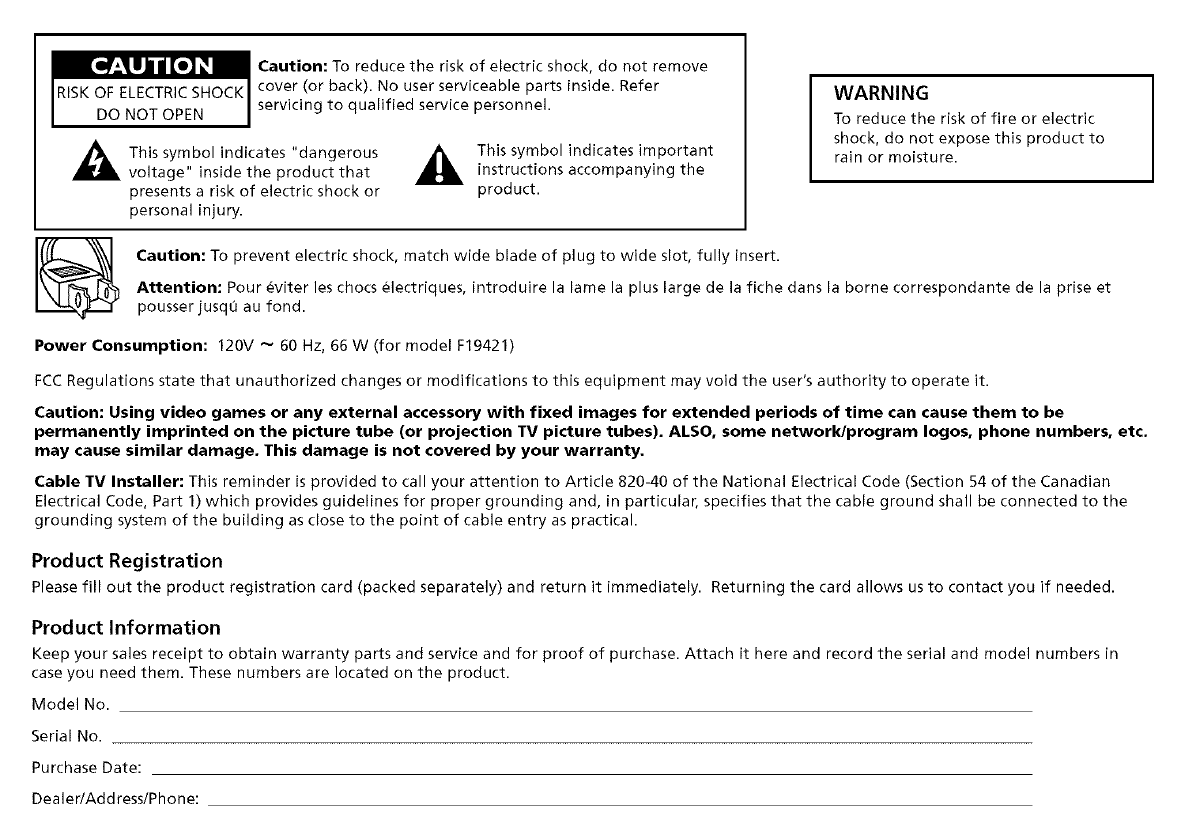
_aution: To reduce the risk of electric shock, do not remove
cover (or back). No user serviceable parts inside. Refer
DO NOT OPEN Iservicing to qualified service personnel.
_L, This symbol indicates "dangerous _, This symbol indicates important
voltage" inside the product that _, instructions accompanying the
presents a risk of electric shock or product.
personal injury.
WARNING
To reduce the risk of fire or electric
shock, do not expose this product to
rain or moisture.
Caution: To prevent electric shock, match wide blade of plug to wide slot, fully insert.
Attention: Pour _viter les chocs electriques, introduire la lame la plus large de la fiche dans la borne correspondante de la prise et
pousser jusqlO au fond.
Power Consumption: 120V _ 60 Hz, 66 W (for model F19421)
FCC Regulations state that unauthorized changes or modifications to this equipment may void the user's authority to operate it.
Caution: Using video games or any external accessory with fixed images for extended periods of time can cause them to be
permanently imprinted on the picture tube (or projection TV picture tubes). ALSO, some network/program Iogos, phone numbers, etc.
may cause similar damage. This damage is not covered by your warranty.
Cable TV Installer: This reminder is provided to call your attention to Article 820-40 of the National Electrical Code (Section 54 of the Canadian
Electrical Code, Part 1) which provides guidelines for proper grounding and, in particular, specifies that the cable ground shall be connected to the
grounding system of the building as close to the point of cable entry as practical.
Product Registration
Please fill out the product registration card (packed separately) and return it immediately. Returning the card allows us to contact you if needed.
Product Information
Keep your sales receipt to obtain warranty parts and service and for proof of purchase. Attach it here and record the serial and model numbers in
case you need them. These numbers are located on the product.
Model No.
Serial No.
Purchase Date:
Dealer/Address/Phone:

Tabi÷ of C@_÷nts
Chapter 1: Getting Started
Things to Consider Before You Connect ...................... 2
Setup and Connections ................................................. 3
Step 1: Connect your TV ......................................... 3
Step 2: Plug in the TV .............................................. 3
Step 3: Put Batteries in the Remote ....................... 3
Step 4: Turn on the TV ............................................ 3
Step 5: Auto Channel Search .................................. 4
Step 6 (optional): Connect other components ...... 4
The Buttons on the Remote Control ............................ 5
Chapter 2: Using the TV's Features
Channel Marker ............................................................. 7
Front Panel Lock ............................................................ 7
V-Chip Parental Controls ............................................... 8
How V-Chip Works .................................................. 8
V-Chip Movie Rating Limit ...................................... 9
TV Rating Limit ...................................................... 10
Blocking Specific Content Themes ....................... 14
Viewing Specific Content Themes ........................ 15
V-Chip Unrated Program Block ............................ 16
Lock/Unlock Parental Controls ............................. 16
Chapter 3: Using the TV's Menu System
How to Use Your TV's Menu System .......................... 17
Picture Quality Menu .................................................. 18
Screen Menu ................................................................ 18
Using Closed Captioning ....................................... 19
Channel Menu .............................................................. 20
Time Menu ................................................................... 20
Chapter 4: Other Information
Troubleshooting ........................................................... 21
TV Problems ........................................................... 21
The Remote Control Doesn't Work ...................... 22
Problems with V-Chip/Parental Controls .............. 23
The Front of Your TV - Front Panel ............................ 23
Care and Cleaning ....................................................... 24
Limited Warranty ......................................................... 25
Accessory Information ................................................ 28
How To Order ........................................................ 28
Chapter t: Sta ed
Things to Consider Before You Connect
Protect Against Power Surges
•Com_ect all components bef_re you plug _mv of their po_ er cords into the wall outlet.
•TUI'I_ Of'f" th(' "['V _H_(I or (oll_pof_('I_t ])el'ore y(Rl Conl'_('ct or (liscoi/l'_('ct _ll/_ c_/])]('s.
• hl:_k(' sure :dl :mtem_:_s _md c:d)les are properly grounded. Refer to the Import_mt S_ffeguarcls sheet p:.ked with your TV.
Protect Components from Overheating
•Don't block ventil_tion holes on _my of the components. Arr_lnge the components so theft _ir c_m drcul_te freely.
• Don't st_lck col3?p()l?(-!f?[s.
•When you pl:_ce components il'_ a st:rod, m:_ke sure you :dlow adeqtmte ventil_/tion.
', If you connect _m mlclio receiver or _mlplif'ier, plnce it on the top shelf so the he_ted _dr from it wo_ft flow nround other components.
Position Cables Properly to Avoid Audio Interference
', Insert each c_d)le firmly into the design_m'd j_,ck.
• If you place components _ll)ove the TV, route _11 cables do_x n the side of the back of the TV inste_ld of straight down the middle
of the b_ck of the TV.
" If your _mtem_ uses 300-ohm t_x in lead c_d)les, do not coil the c_d)les. Also, keep the twin le_ld c_d)les _w_v from _mdioivideo cables.
Important Stand and Base Safety Information
Choose the loc_tion for your TV c_refully. Place the TV on a st_md or base th:_t is of _dequat_ _ size _md strength to prevent the TV
fl'om being _ccidentally tipped over, pushed off. or pulled off. l'his could c_mse personal injmy and/or (l_m_ge the TV. Refer to the
Impl_rtant Safeguards sheet packed with your TV.
Use Indirect Light
Don't plaice the TV where sunlight or room lighting will be directed to_x _u'd the screen. [se soft OF indirect lighting.
2 Gra/)hi(_ conmin(,d z_ithin this pz_b/ication an).fi)r r(])r('s(,nmtion o_z/), loz¢r z¢nit m_@t d!_'#,r stir@@.
Chapter t: Ge_in_ Sta_ed
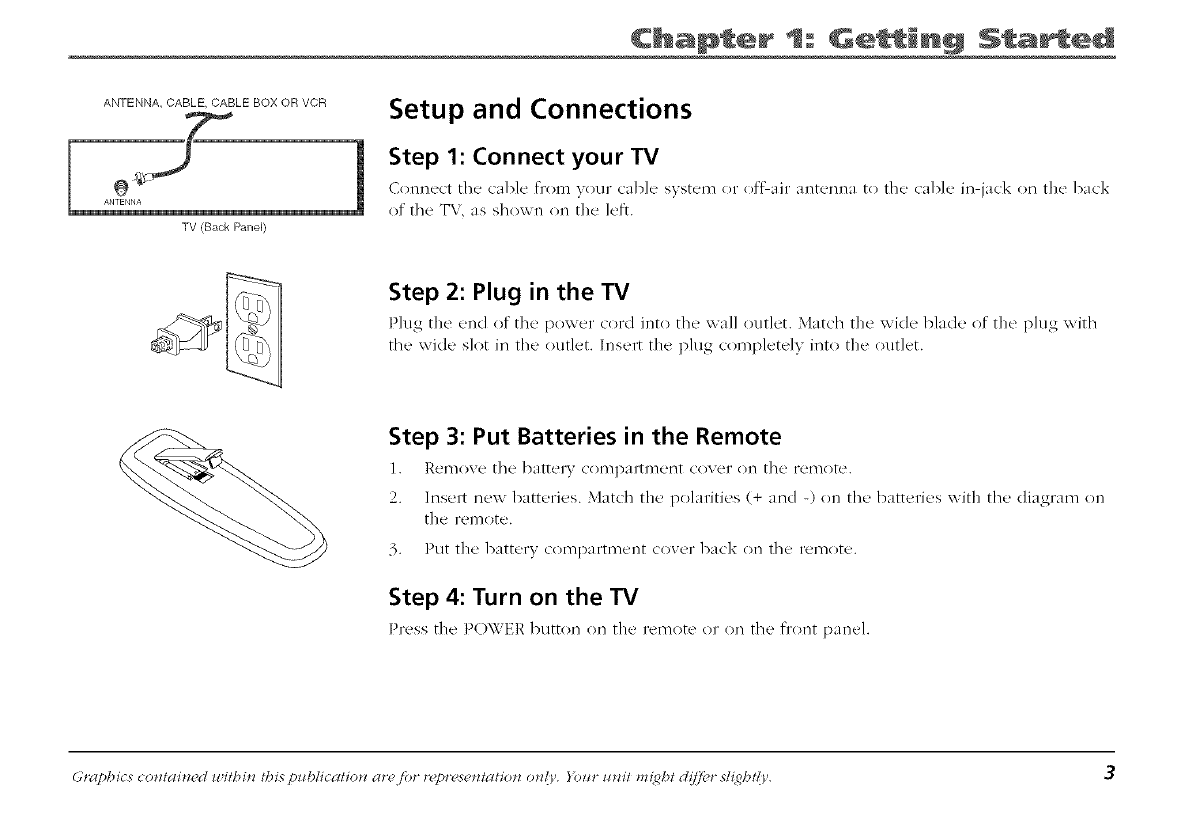
ANTENNA, CABLE, CABLE BOX OR VCR
TV (Back Panel}
Setup and Connections
Step 1: Connect your TV
Connect the' cable flrom your cable s?st_'m or of'fair antenna to the cable, in jack on the back
of the T\, as shown on the left.
Step 2: Plug in the TV
Plug the end of the' poxx er (ord into the' wall outlut. Mat(h the x_i(le blade of the plug xxith
the wide slot in the outlet. Insert the plug completely into the outlet.
Step 3: Put Batteries in the Remote
]. Remove the battery C()l]l])al't/Eei'ff cover oil the i'el]'lO]fe.
2. Insert hey,: batteries. Match the polarities (+ and -) on the batteries with the diagram on
the remote.
3. Put the battery compartment cover back on the remote.
Step 4: Turn on the TV
Press the POWER button on the l'(qllot(' ()1' ()r/the t'l'Orlt p_lll<Z].
Graphics co*zlaindd lritbi_z this p_blicatio*z ar( /br r£/)r( s_ *ztatio*z o*z/ '. }i)_n _ _t*zil m{ghl cl!ffi'r slight()'. 3
Chapter t: Sta ed
VIDEO AUDIO
Audio/Video
cables
Coaxial cable
Step 5: Auto Channel Search
Ped'orm an AzHo (,23c,_el &_c,_ro_(desc' bed in the (;7_a_Jzel menu section).
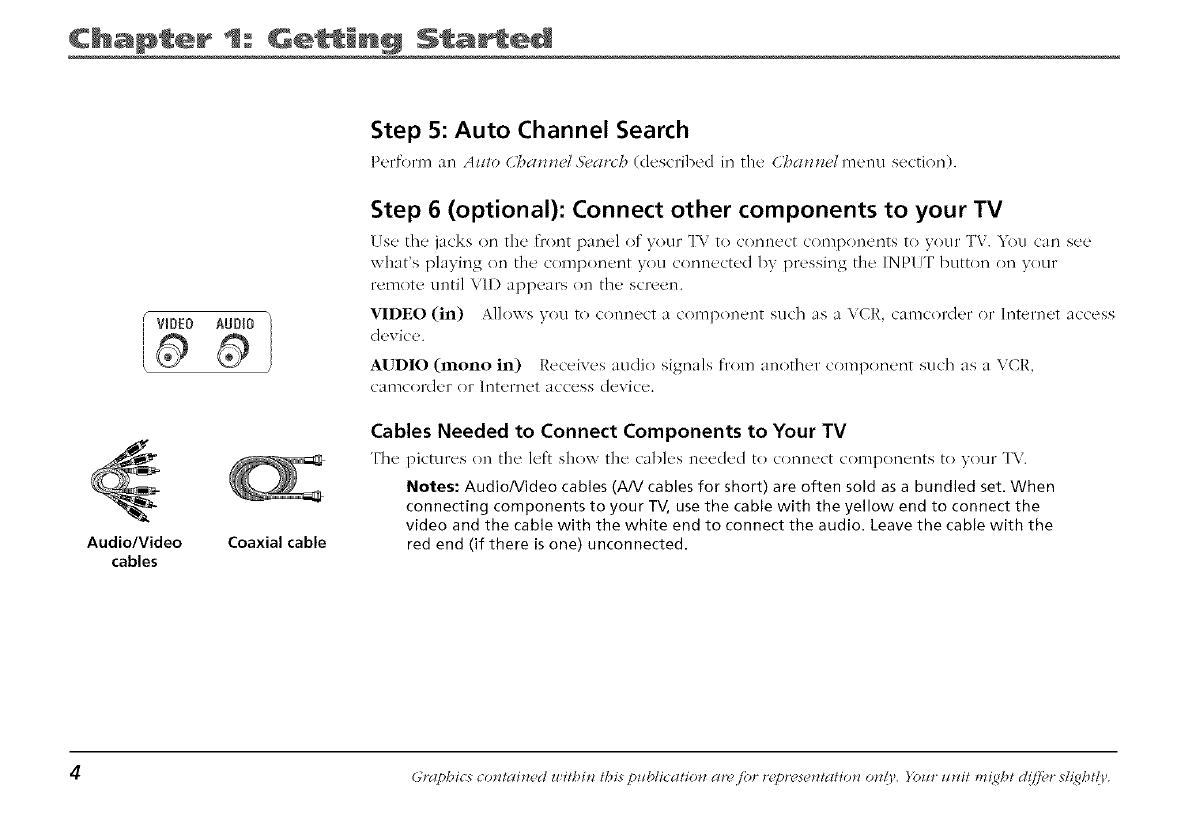
Step 6 (optional): Connect other components to your TV
(se the' jacks on the front par_(.l of your TV to connect components to your TV. _ou can see
',k+r]]at's[3]a_-iT_{_ _ 0]_I th(-! comp(m_'nt _r<)t_C'()_I_e(tec] by pressing the [NPIT button on v()ur
remote until VI]) app_.ars (m the' scr_.en.
VIDEO (in) Allows you t() connect a comp(ment such as a VCR, camcorder or Internet access
device.
AUDIO (mono in) Receives audio signals fl'om another component such as a VCR,
camcorder or ]nternet access device.
Cables Needed to Connect Components to Your TV
The pictures (m the left shoxx the cable's needed to connect compon_'nts to your T\ <.
Notes: Audio/Video cables (AN cables for short) are often sold as a bundled set. When
connecting components to your TV, use the cable with the yellow end to connect the
video and the cable with the white end to connect the audio. Leave the cable with the
red end (if there is one) unconnected.
4 Graphics co*ztai*zcd withi_z this p_b/icatio*z cz*'_fi>r r('pr(?s(_*ztatio*z o*zl ', Yozlr z!*zit m{_ht d{7"fi_r s/z_ght{)',
Chapter t= Ge_in_ Sta_ed
POWER
DISpLAyO 0
MUTE PREV OH
© ©
CHAN
VOL _ VOL
CLEAR MENU RESET
© @ ©
020 3o
405060
r08090
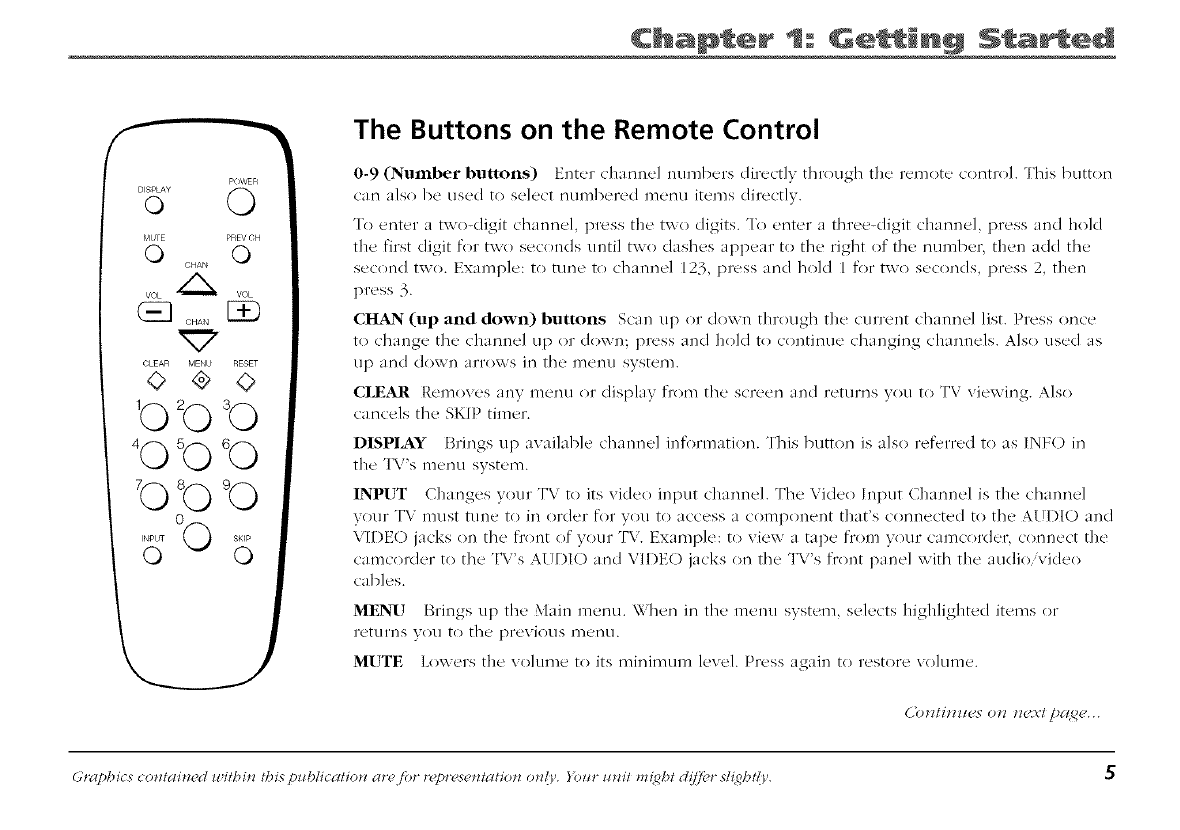
The Buttons on the Remote Control
0-9 (Number buttons) Enter channel nunabers directly through the remote control. This button
can also be used to select numbered menu items directly.
%> enter a two<ligit channel, l/ress the txxo digits. To enter a three-digit charmel, press and hold
the fii>t digit for two seconds until two dashes appear to the right of the number, then add the
second two. Example: to tune to channel 123, press and hold 1 for txxo seconds, press 2, then
press 3.
CHAIN (up and down) buttons Scala up or down through the current channel list. Press once
to change the channel up or down; press and hold to continue changing channels. Also used as
/113and (](),,via a[TOXVS ill the U]elll.l system.
CI,EAR Removes any menu ()r display fl'()m the screen and returns you to TV viewing. Also
cancels the SKIP timer.
DISPLAY Brings up available channel information. This button is also referred to as [NF() in
the TV's menu system.
INPUT Changes your TV to its video input channel. The Video Input Channel is the channel
your TV must tune to in order for you to access a component that's connected to the AUDI© and
VIDEO jacks on the fl'ont of your TV. Example: to view a tape fl'om your camcorder, connect the
camcorder to the TV's AUDI() and VII)E() jacks on the TV's fl'ont panel with the audio/video
cables.
MENU Brings up the Main menu. When ira the menu system, selects highlighted items or
l'etH/'las V()1.1 to the [3['eViOlaS l_3elaH.
MUTE Lowers the wahlme to its minimum level. Press again to restore walume.
(]()Iziil*ll_'S 01_ IZ{'.Vi pcl_{_...
Graphics co*zlained l_'itbin this p_blicatio*z ar( /br r(,pr( s_ *ztation on/'. }tntr ztnil m{ghl d!ffbr slight()', 5
Chapter t: Ge_n_ Sta_ed
POWER
DISPLAYo O
MHTE PREVCH
O O
CHAN
VOL "_
CLEAA MENU AESET
© @ ©
3o
bb O
,5,b
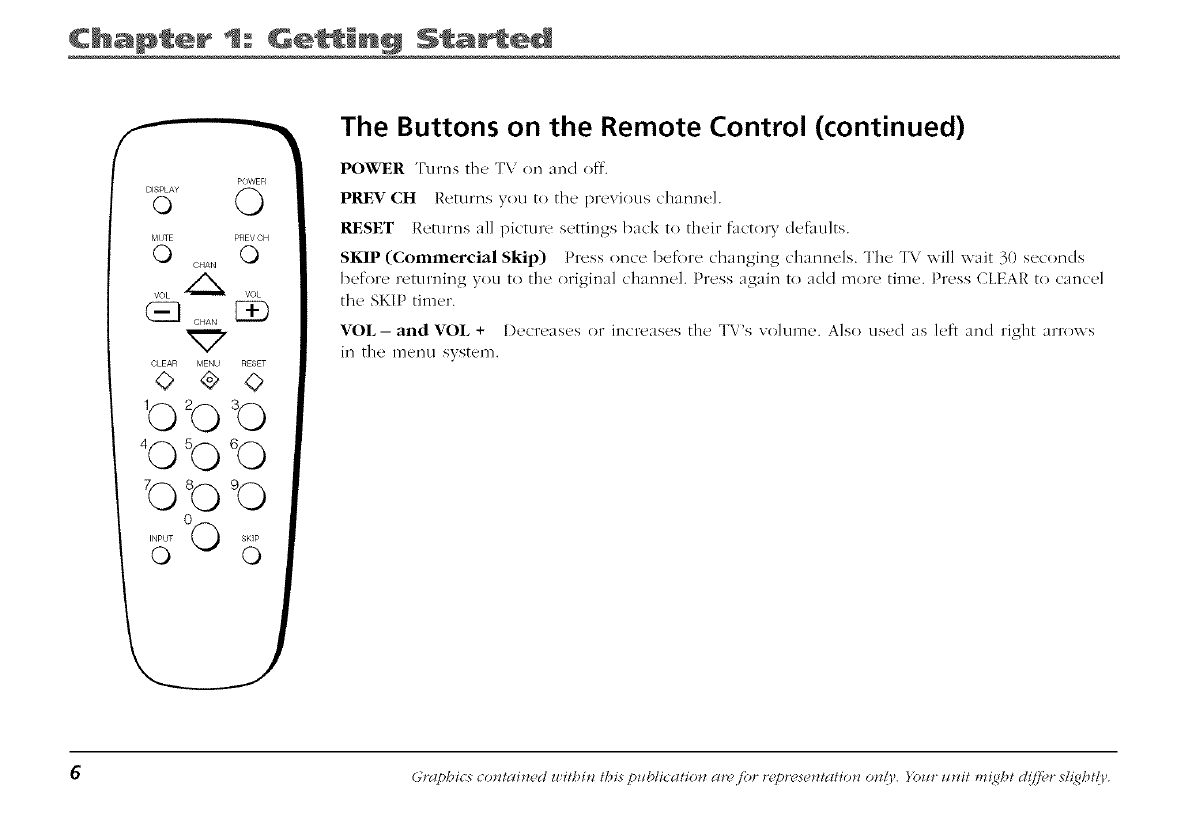
The Buttons on the Remote Control (continued)
POWER Turns the' TV on and off.
PRE¥ CH Returns you to the' pr_'vious channel
RESET Returns a]] picture settings N.k to their factory defaults.
SKIP (Commercial Skip) Press once 1)_'foreOaanging ch:mne/s. The TV _xill wait 30 seconds
heft)re returning you to the original channel. Press again to add more time. Press CLEAR to cancel
the SKIP timer.
¥OL- and ¥OL + Decreases or increases the T\'s w)lume. Also used as /eft and dght arrow s
in the menu system.
Graphics co*ztai*zed withi_z this p_blicati:o*z ar_ /br r(_)rese*ztatio*z o*d ', Yo_lr zlnit m{ght d{7_fi_r sh_ght{y.
Chapter 2: Usin th÷ F÷atur÷s
Sample displays on a Channel Marker. The Channel
Marker shown is just an example of what your
screen may look like.
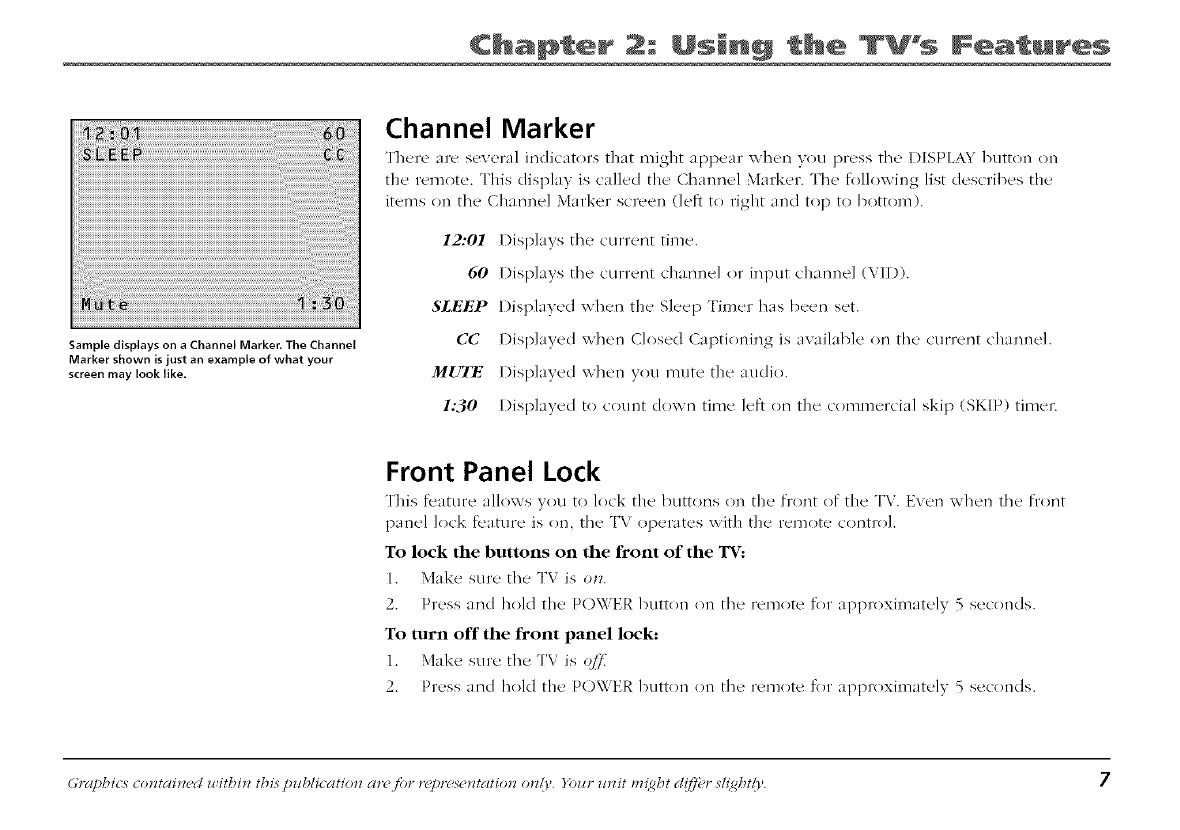
Channel Marker
There are several indicators that might appear _ hen you press the DISPLh_ 1)utton on
th(' remot('. This displa 3 is called the chann(q Marker. The' following list describes the
items on the Channel Marker screen (left to right and top to bottom).
12.'01 I)isplavs the current time.
60 l)isplavs the current channel or input channel (VII)).
SLEEP Displayed when the Sleep Timer has been set.
CC I)isplaved when Closed Captioning is available on the current channel.
MUTE 1)isplaved when y<)u mute the audio.
1:30 Displayed to cotmt down time left on the commercial skip (SKIP) timen
Front Panel Lock
This f_ature allows you to lock the buttons on the front of the TV. Ew'n when the front
panel lock feature is on. the TV operates with the remote control.
To lock the buttons on the front of the 'IV..
1. Make sure th{' TV is o*z.
2. Press and hold the POWER 1)utton on the remote for approximately 5 seconds.
To turn off the front panel l(*ck:
1. Make sure the TV is (_if
2. Press and hold the POWER 1)utton on the remote for approximately 5 seconds.
Graphics comai*zed u,itbi*z this p_tblicatio*z arej{)r r_y)resematio*z o*dr. )b_lr _mit m_gbt ct(i,]_'r sl_gbt/y, 7
Chapter 2: Usin 9 the Features
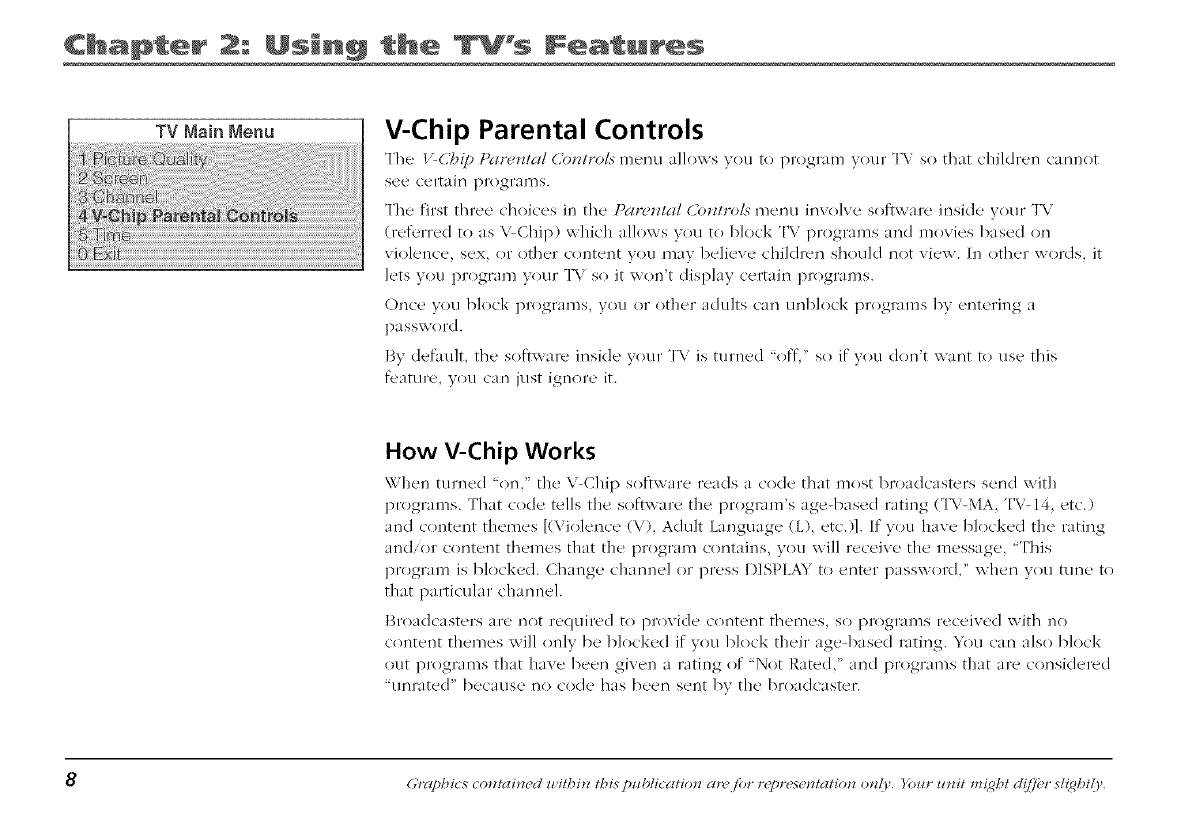
V-Chip Parental Controls
Thu V-Chip Par_'_la/(,b_zlro!s metal allows wm to program your TV so @_atc'hildrer_ tar'mot
see certail_ progral]]s.
The first three choices in the [)ar._/_! db_ziro/._ menu invo]ve software inside your TV
(refl-rred to as V Chip) which allows you to block TV programs and movies based on
violence, sex, or other content you may believe children should not view. In other words, it
lets you program your TV so it xxon't display certain programs.
()nee you block programs, you or other adults can unl)lock programs by entering a
l)a ssword.
By default, the softxxare inside your TV is turned "off," so if you don't want to use this
feature, you can just ignore it.
How V-Chip Works
\'i hen turned "(m.' the V-Chip softwaw reads a code that most 1)roadcasters send with
programs. That code tells the softxxare the program's age-based rating (TV-MA. TV-14, etc.)
and content themes [(Violence (V), Adult Language (L), etc.)]. If vou have blocked the rating
and/or content themes that the program contains, you will receive the message, "This
program is blocked. Change charmel or press I)]SPLA5 to enter password," when vou rune to
that particular channel.
]_roa(lcastelTs are I?ot re(luired to provide content themes, so [)l'Ogl'_///lsreceived with l]()
content themes will only be blocked if you block their age based rating. You can a/so block
out programs that have been given a rating of "Not Rated." and programs that are considered
"unrated" because no code has been sent by the broadcaster.
8 (;tog)hies co*ztai*wd within this/)ublicatio*z cmfi)r r('pr('se*ztatio*z o*z{V. Y(mr _¢*zit ml_ght d(ff_?rsl{g/:_t()'.
Chapt÷r 2: Usin th÷ F÷atur÷s
V-Chip Parental ContrNs
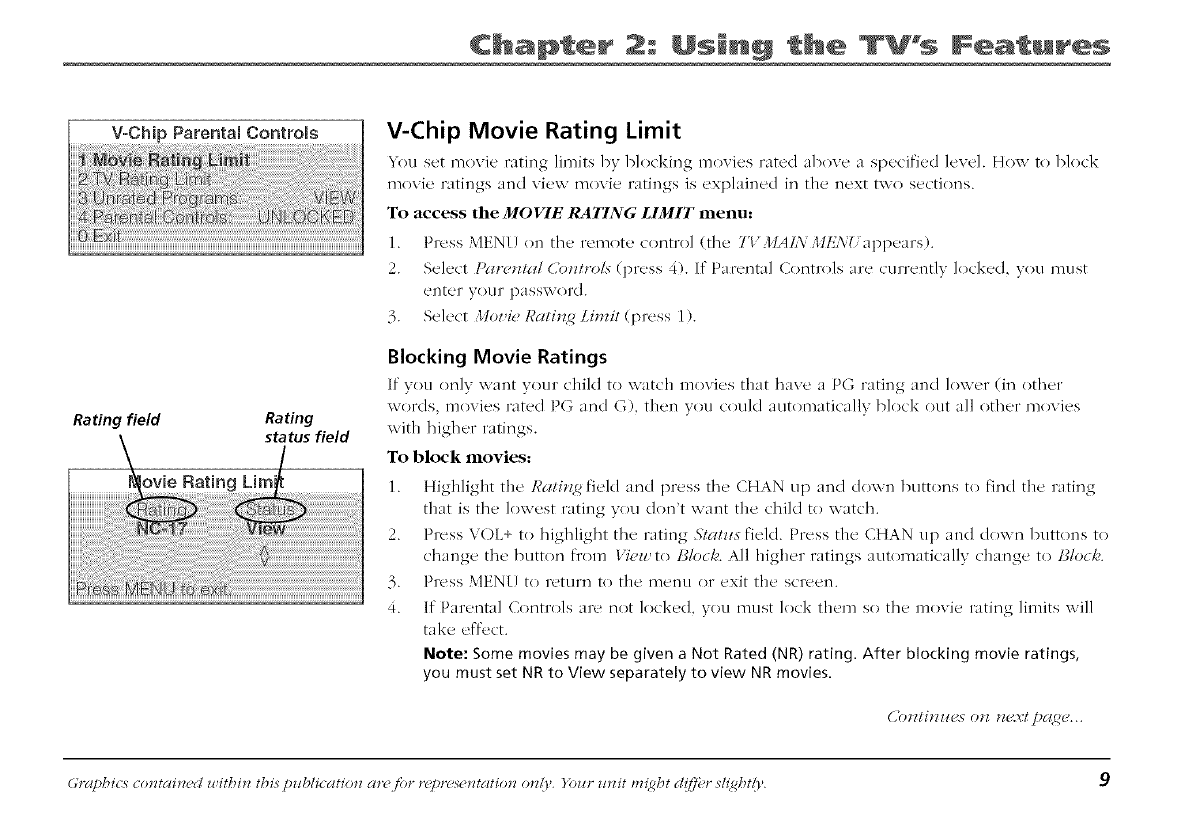
Rating field Rating
status field
ovie Rating Lira
V-Chip Movie Rating Limit
lou set movie' rating limits b) blocking movies ratud above a specified level. How to block
movie ratings and view movie ratings is explained in the next two sections.
To access the MOVIE RATING LIMIT menu:
1. Press MEN[ on th(' remote control (th(' TVMAL\ Mt:',\_ app('ars).
2. Select [_tlru_lI_ll d'otzlro/s (press 4). If Parental Controls are currently locked, you must
ellter your password.
3. Select Moz,i_ Rali_? 2 Limil (press 1 ).
Blocking Movie Ratings
If"you only want vour child to watch movi('s that have a P(7, rating and lov_x'r (il'_ othur
words, movies rated PG and G), then you could automatically block out all other movies
xxith higher ratings.
To block movies:
1. Highlight the Rali*4gfield and press the CHAN up and down buttons to find the rating
that ix the lowest rating you don't want the child to watch.
2. Press VOL+ to highlight the rating ,s/_d]zs field. Press the CHAN up and d(}xxn buttons to
change the' button from l'iuu_to lJMc:/_. All higher ratings automatically change to l_;loc/<
3. Press MEN{] to return to the menu or exit the screen.
4. If Parental Controls are not locked, you must lock them so the movie rating limits will
take effect.
Note: Some movies may be given a Not Rated (NR) rating. After blocking movie ratings,
you must set NR to View separately to view NR movies.
Ubszli,zz_us o_z m'.vI [)g(_u...
Graphics comai*zed u,itbi*z this p_tblicatio*z arejbr r_y)resematio*z o*dr. Yoztr mzit m_;gbt d(if'r sh;gbt/y. 9
Chapter 2: %% Features
Viewing Movie Ratings
After you b]ock movie rutil'_gs, you huw' th<-! optioe of changing som_, of the ruting _,tatus buttons bu_k to 17u_:
1. Highlight the IJali_z 2 fk']d and press the' CHAN up and down buttons to find the rating you want to viexx.
2. Press VOL+ to highlight the rating .Sifllzls field. Press the CHAN up and do',x n buttons to change the button
fl'om 13locl,, to l'iuw.
For example, if movies with a rating of PG-13 and higher are blocked, you can change the rating stares
COrl>Sponding with NC 17. Your child would then be able to watch all movies with a G, PG, and NC 17 Rating.
3. Press MEN{ to exit the screen, and be sure parental controls are locked.
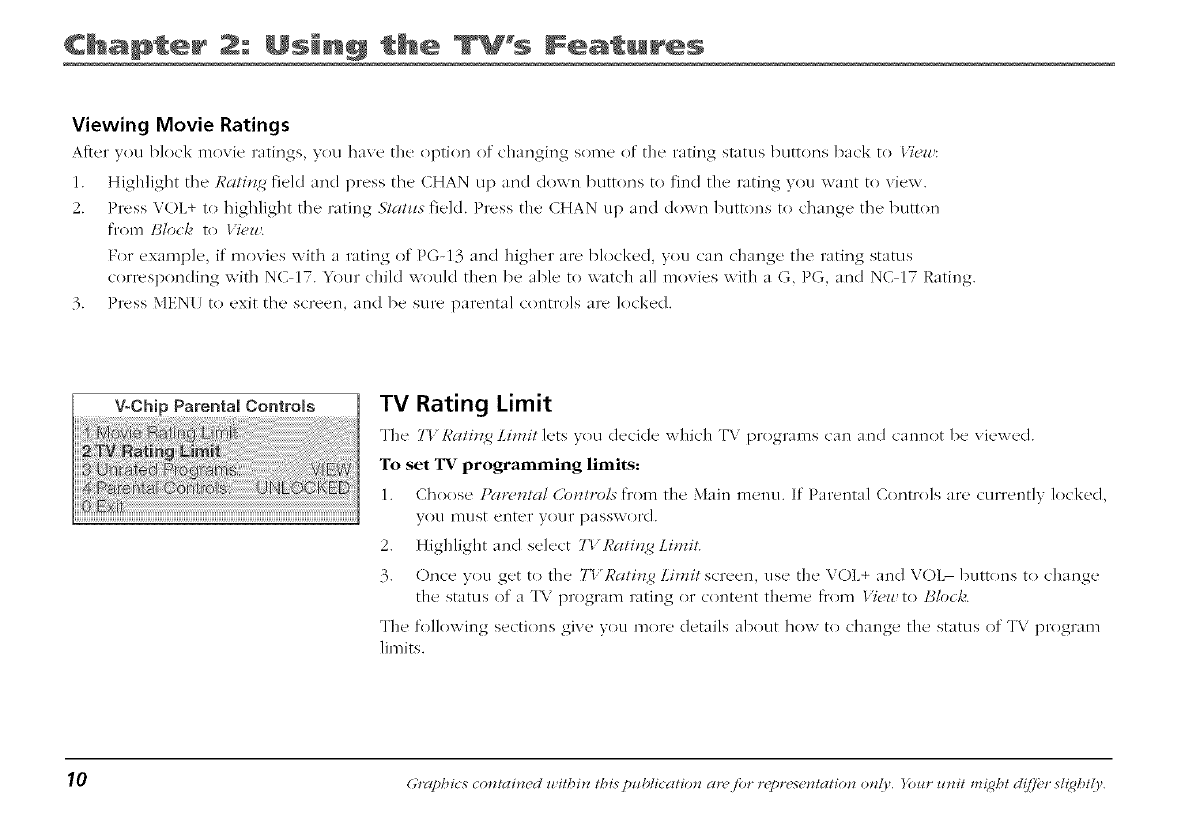
TV Rating Limit
The 71' IJa/i_z2 Limil lets you ducide which TV programs c'un and c'unnot be viewed.
To set 'IV programming Hmits:
1. Choose Par, m_d Comrols from the Muin menu. [f"Purental Controls aru currently lock_'d,
you n]ust elite1' y()L]/' [3_ISS\VO/'(].
2. Highlight and select TV Rali*z2 LimiL
3. Once you get to the 2_Ruli*_ 2 Lit*Hlscreen, use the VOL+ and V()L- buttons to change
the status of a TV program rating or content theme fl'om I)'(,_ to 13lock.
The following secti(ms give you more details about how to change the status of TV program
limits.
_0 Graphics comai_wd within this ])ublicatio_z ar_ fi>r r(y)r('scmatio_z o_z{},. )bin" _nzit ml_ht d(ff_?r sl_ht/y.
Chapter Usin th÷ F÷atur÷s
The TV Rating Limit Screen
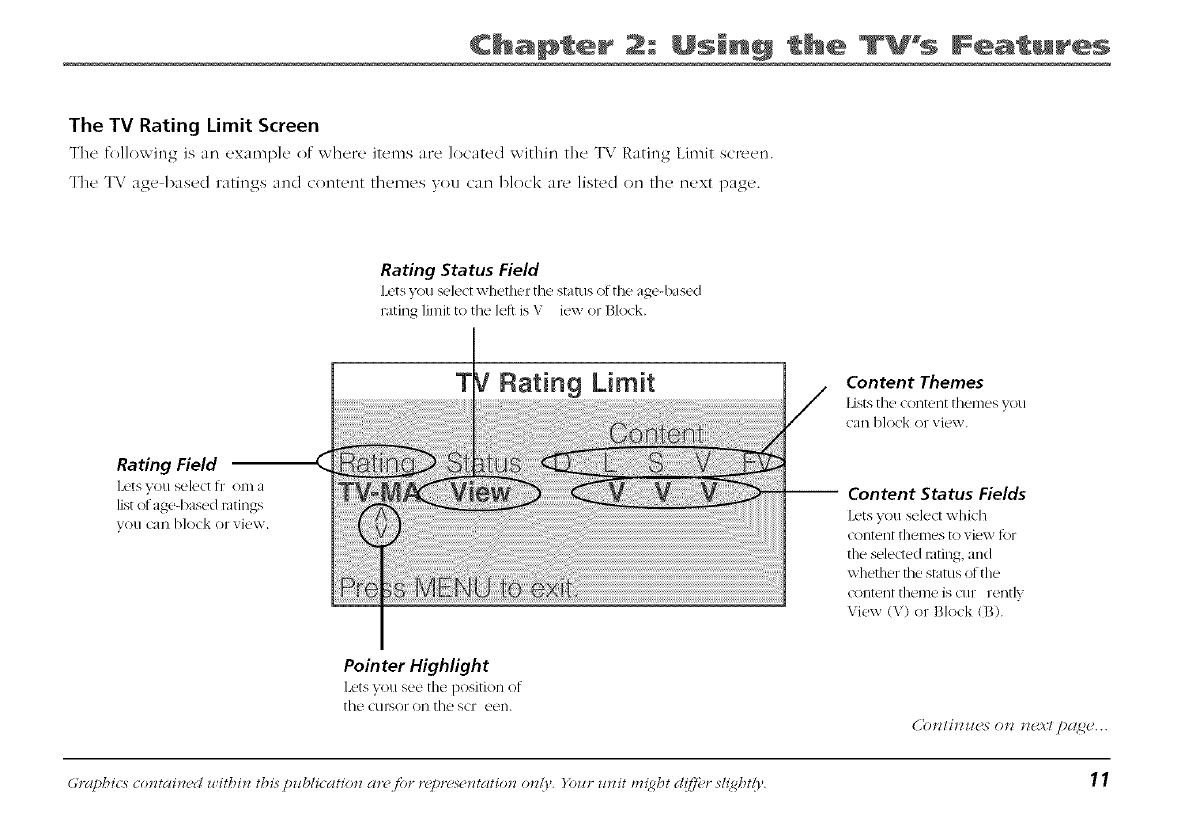
The following is an example of _ h_'re items are located _ithh_ the T\ Rating Limit screen.
The T\ age based ratings and cont_,nt themes you can block are listed on the next page.
Rating Status Field
L('ts you select x,_I-leth(qTthe st I[[IS ()f tho agc,-I)ased
rating limit to the leti is V Jew oYBlock,
Rating Field
]1'iF, VO!I St.!lO_[ [_17Om a
list of aged)as_<l ratings
VO!IC_II]block or xiew,
Rating Limit Content Themes
Lists tht.! _()Ht_nt tht.!l//t.,s _,ou
_an block or view,
-- Content Status Fields
lx'ts you s('lect whid]
(_)l]t_'l][ themes to view ti)r
the sele(led rating, and
whefl?er the status of tile
(_)l]t_'l/l []]e///e is Ctll7 rentlv
View (V) or Block (B).
Pointer Highlight
Lets you se(' file position ot
[h(' (LIl'SOl" OH [ho S(17 O(_l/,
(,'OI_/IIIII{*S 0_ "d_*.)t:l pcl(_C...
Graphics co*ztai*zed withi*z this p_blicatio*z cw(? fi)r r(y)res(?*ztatio*z (rely, Yo_lr mzit m_;ght d(i,]br sh;ghtly. 11
Chapter %% Features
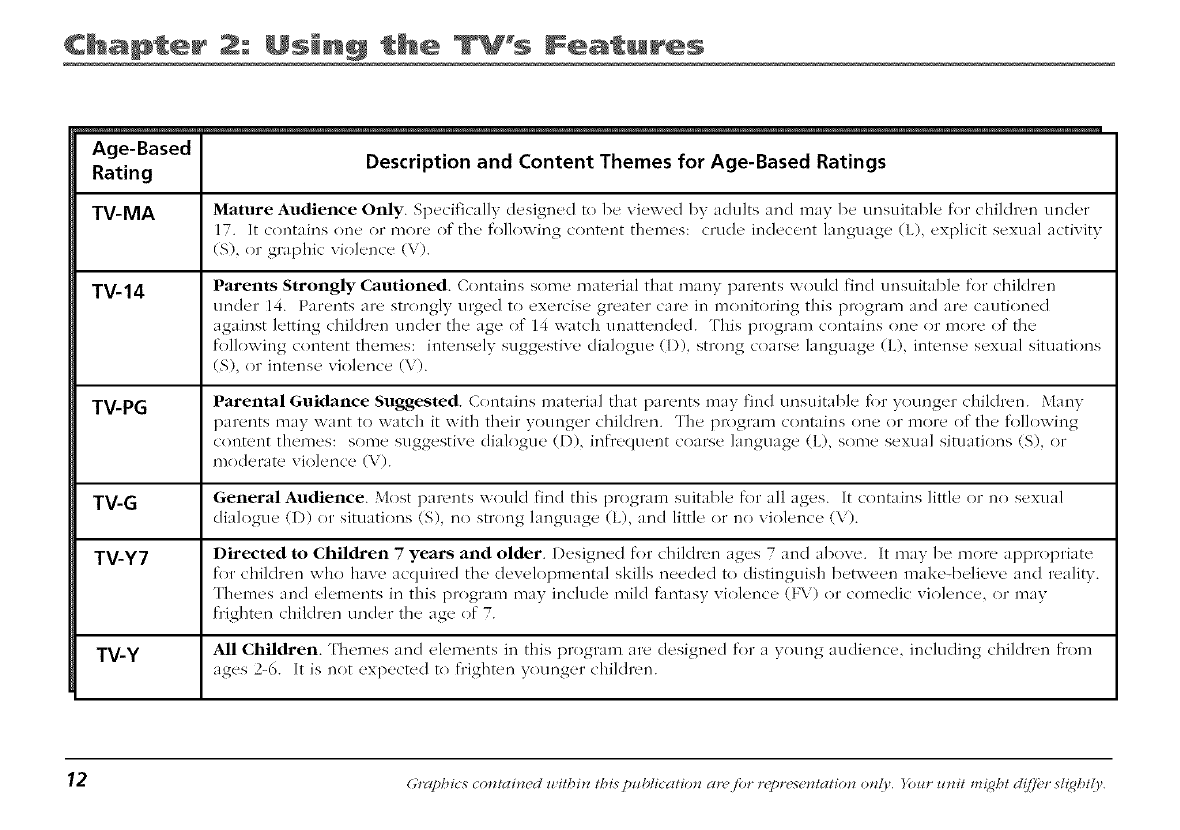
Age-Based
Rating Description and Content Themes for Age-Based Ratings
TV-MA Mature Audience Only. Specifically designed to 1)e viewed by adults and may lx' unsuitable for children under
17. It contains one or more of the follo_x ing content themes: crude inde(ent language (L), explicit sexual activity
(S), or graphic vkllence (V).
TV-14 Parents Strongly Cautioned. Contains some material that many parents xxould find unsuitable for chiMren
tinder 14. Parents 31'e strongly urged to exercise greater care in l?loi?itolTing this pl'()gl'am and al'e catlti()rled
against letting children under the age of 14 watch unattended. This program contains one or more of the
following, content themes: intensely,, su_,,,_estive dialogue_ (I)), strong coarse language (L), intense sexual situations
(S), or intense violence (\).
TV-PG Parental Guidance Suggested. Contains material that parents may find tmsuital)le for younger children. Man 3
parents ma} want to watch it with their younger children. The program contains one or more of the folloxviIlg
content themes: some suggestive dialogue (D), infrequent coarse language (E), some sexual situations (S), or
moderate violence (\).
TV-G General Audience. Most parents xxould find this program suitable for _-/ll,..q,es. It contains little or no sexual
dialogue (1)) or situations (S), no strong language (I), and little or no violence (\).
TV-Y7 Directed to Children 7years and older. Designed for children ages 7 and al)ove. It ma_ be more appropriate
for children who have acquired the developmental skills needed to distinguish between make-believe and realitv.
Themes and elements in this program ma? inchlde mild f:mtas} violence (F\) or comedic xiolence, or may
frighten children under the "l(,e of 7.
TV-Y All Children. Themes and elements in this program are designed for a xoung audience, including children from
ages 2-6. It is not expected to frighten_ votm(,er._ children.
"12 (;tog)hies co*ztai*wd within this publl:catio*_ cm /br r('pr('s('*ztati:on o*_{V. Ibm" _n_it ml_ght d(ff_'r sl{ght/r.
Chapter 2: Usin th÷ TV% F÷atur÷s
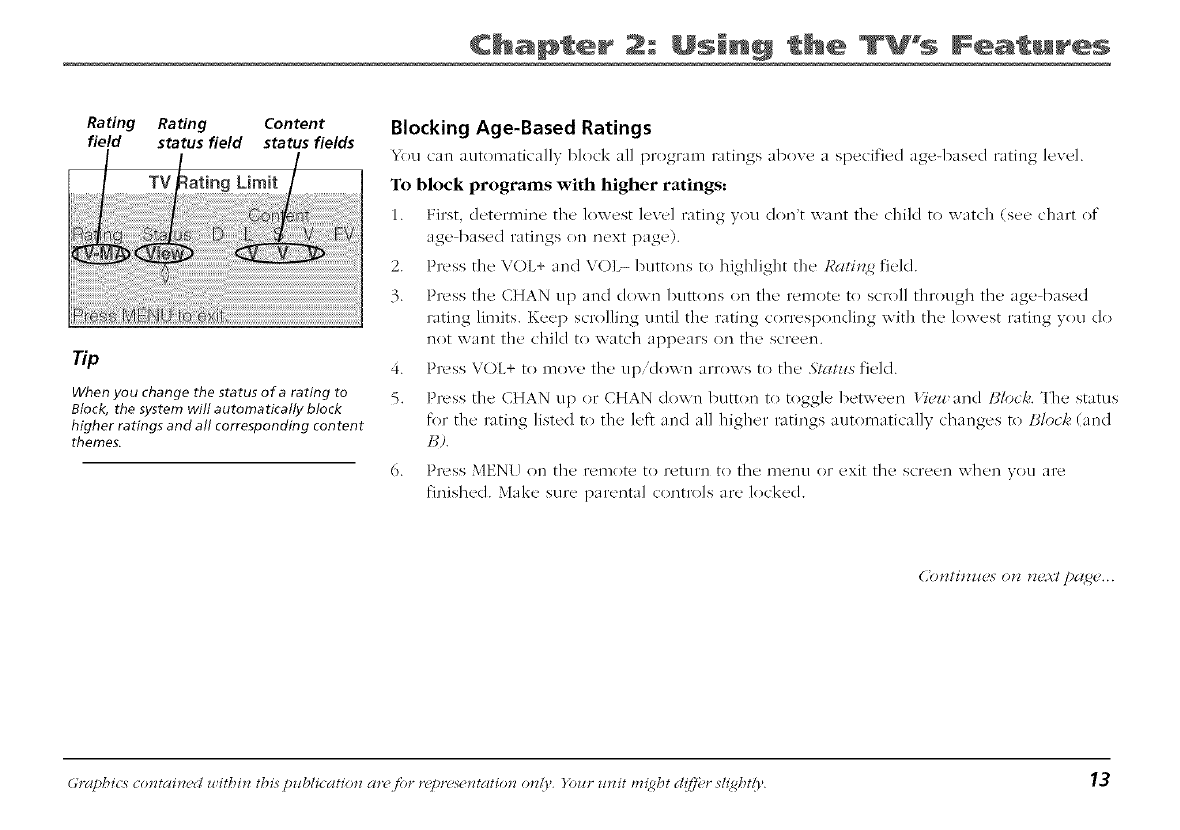
Rating Rating Content
field status field status fields
Tip
When you change the status of a rating to
Block, the system will automatically block
higher ratings and all corresponding content
themes.
Blocking Age-Based Ratings
_km can autonlatk'ally block all program ratings above a specified age-based rating level.
To block programs with higher ratings:
h First. dc,turminc the lowest ]cve] rating you don't want thu child to watch (seu chart of
age based ratings on next page).
2. Press the VOL+ and V()L- buttons to highlight the Ra/i_ 2 field.
3. Press the CHAN up and cloxx n buttons on the remote to scroll through the age based
rating limits. Keel? scrolling until the rating corresponding with the lowest rating you do
not want the child to watch appem's on the screen.
4. Press VOL+ to move the up/down arrows to the .Sl_dzzs field.
5. Pxess the CHAN up or CHAN down button to toggle between IiTuz#and Bloc/,,. The status
for the rating listed to the/eft and all higher ratings automatically changes to 131oc/,,(and
H).
(_. Press MEN{ on the remote t() l'etlArl] t() the l]]eÀ]l.l (11"exit the screen w]]el] VO1A are
finished. Make sure parental controls are locked.
C_)_llinl_us on n*_x'lpc%qu...
Gral)bi<_ cotzmim,d u itbitz this publicatio*z an" f)r nj)r('setzmtiotz o,z!), ]oztr u*zit nz_;@t d(/-fi'r she@t@ _3
Chapter 2: Us_n_ _he %% Features
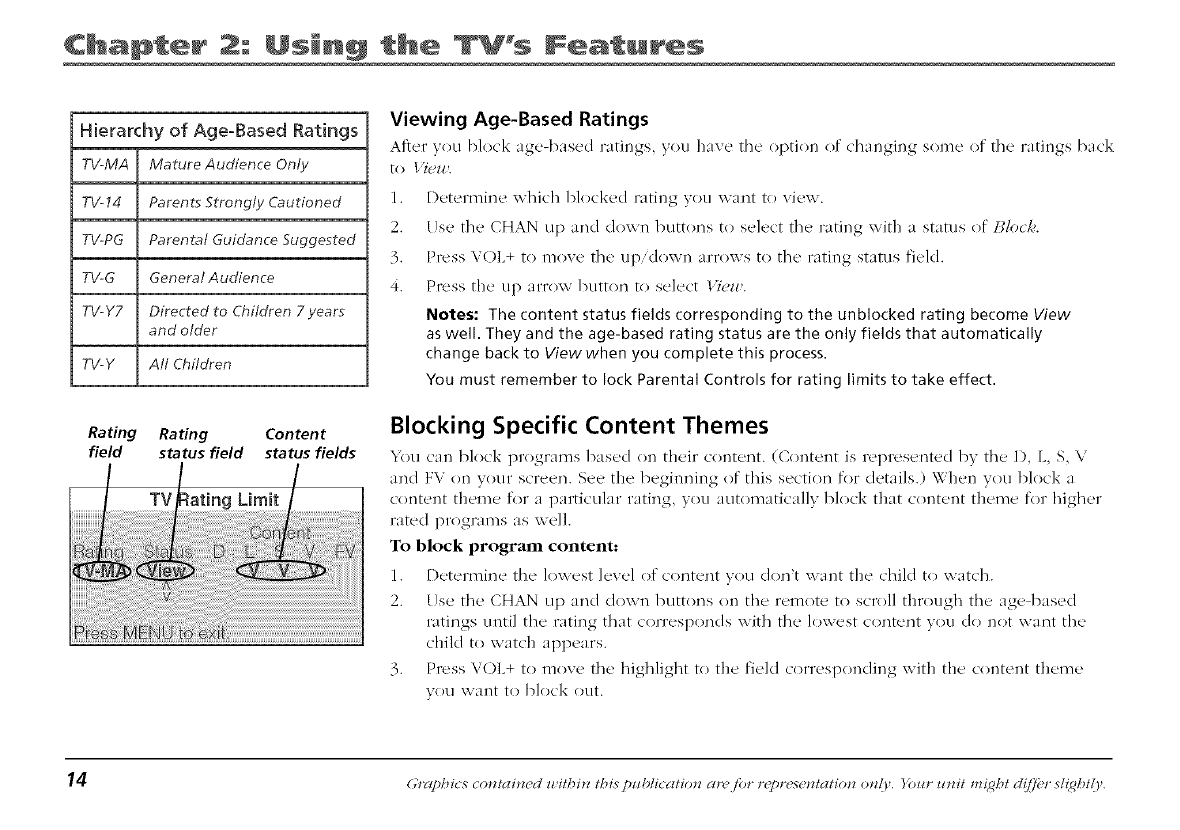
Hierarchy of Age:Based Ratings
TV MA Mature Audience Only
TV14 Parents Strongly Cautioned
TV PG Parentat Guidance Suggested
TV G General Audience
TV Y7 Directed to Children 7 years
and older
TVY AIt Children
Viewing Age-Based Ratings
After you block age-based ratings, you have the option of changing some of the ratings ba_k
1. Detemline which blocked rating you want to Vi('x*V.
2. [}se the CHAN up and down butt<ms to select the rating xxith a status ()f ]3loc/,e.
3. Press V()L+ to move the up/down arrows to the rating stares field.
4. Press the up arrow button to select l'iew.
Notes: The content status fields corresponding to the unblocked rating become View
aswell. They and the age-based rating status are the only fields that automatically
change back to View when you complete this process.
You must remember to lock Parental Controls for rating limits to take effect.
Rating Rating Content Blocking Specific Content Themes
field status field status fields _0u can block programs 1)ased on their contunt. (Co ltent is represented b_ thu 1). L, S, \
i and FV on }our screen. See the 1)eginning of this section for details.) When you block a
content theme for a particular rating, xou aut()maticallv block that c()ntent theme for higher
,-.tedproof.ms.s.re.
To block program contellt:
1. Determine the lowest luxel of c<mtent 3ou don't want the child t() xxat(h.
2. Use thu CHAN up and down buttons on the remote to scroll through the age based
r.,t,n s t>r ,t,n th ,tc ,rres>nds. ,ththe,,,...stc ,nt,nt>., n.t th.
child to watch appears.
3. Press V()L+ t(, movu the highlight to the field c<)rrusp(mding with the content theme
V()tl XV_ll]t to I)]ock ()tit.
14 (;tog)hies comai*wd within this publicatio*z ar_ /br r('pr('s(?matio*z o*z{V. Ibm" _nzit ml_ght d(ff_?r sl{ght/y.
Chapter 2: Usin th÷ F÷atur÷s
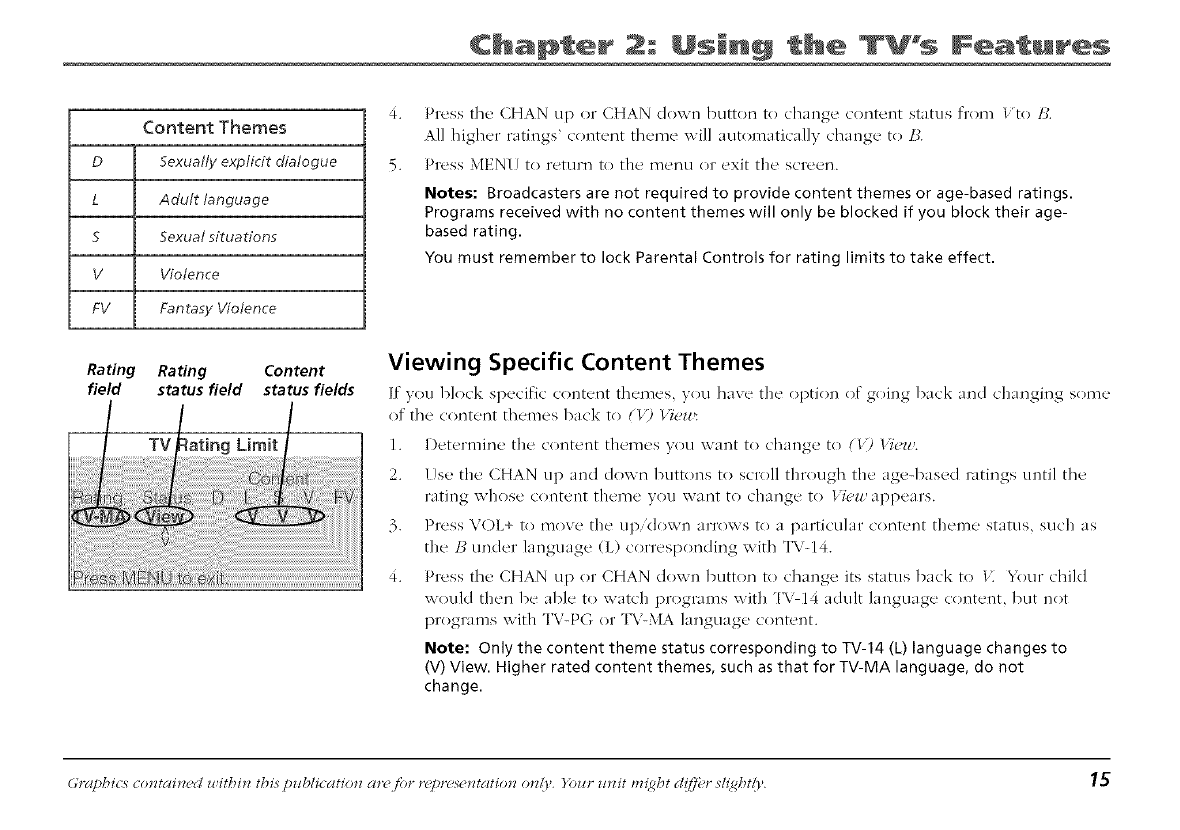
Content Themes
DSexuat/y explicit dialogue
L Adult language
5Sexual situations
V Violence
FV Fantasy Violence
Rating Rating Content
field status field status fields
4. Press tile CHAN up or CHAN down button t(} change content status fl'(}m l/to/3.
All higher ratings' content theme will automatically change t(}/3.
5. Press MEN[ to return to the menu or exit the sc_'een.
Notes: Broadcasters are not required to provide content themes or age-based ratings.
Programs received with no content themes will only be blocked if you block their age-
based rating.
You must remember to lock Parental Controls for rating limits to take effect.
Viewing Specific Content Themes
[f"you 1)l(xk specific contunt th_'mes, you have the option of going back and changing some
of the content themes I)ack to (I'2 l'iu/#:
1. Determine the content themes v(}u want to change t(} (/') 17e_.
2. [se the CHAN up and c](}xxn buttons to scroll thr(}ugh the age-based ratings until the
rating whose C()lltent theme you \vane to change to l'iuzu appears.
3. Press V()L+ to move the up/down arroxx s to a particular content theme status, such as
the/_ under language (L) corresponding xxith TV-14.
4. Press the CHAN up (}rCHAN down button to change its status back to lit '_2}urchild
would then 1)e able t{) watch pro)grams with TV 14 adult language c(mtent, but not
pro)grams with TV-PG or TV-MA language content.
Note: Only the content theme status corresponding to TV-14 (L) language changes to
(V) View. Higher rated content themes, such as that for TV-MA language, do not
change.
Graphics co*ztai*zed _,itbi*z //_isp_tblicatio*z ar_' fi)r r_y}rds_'*ztatio*zo*z(r. }bzlr mzit t*z_gbtd(t]_,r sh_g_l{f'. 15
Chapter 2: Us_n_ _he %% Features
V-Chip Unrated Program Block
Selecting this option lets vou decide if programs that the VChip recognizes as kmrate(l" can
be viewed. Note that "um'ated" TV programs may include news, sports, political, re]igious,
local and weather l)rogr:llllS, emergency bulletins, public announcements, and [31x)gl'_///]s
without ratings.
View All um'ated programs are available.
Block All um'ated programs are not available.
Note: You must remember to lock Parental Controls for rating limits to take effect.
Lock/Unlock Parental Controls
Selecting this option lets you lock and unlock parental controls settings using a password.
If you do not lock parental controls, none of the settings for TV rating and content,
movie rating and unrated program blocks will take effect.
If you forget your password, the passxx ord can 1)e resc-t to 0000 by pressing and holding the
volume down and the channel up buttons simultanei)usly for five seconds. Using this
password, you Can then access the \-chip l_]el?tlS.
_6 Graphics comai_wd within this pubh:catio_z cm jbr r(y)r('s(,ztati:on o_z{v. )b_zr Inzit ml;_ht d(ffbr sl_¢ht(),.
How to Use Your TV's Menu System
X_OLI tlSe the 1)tltto]]s on the remote or the front of" x, otH" T\ to acc('ss the l]lei]LI SVSE('H] _]HCI l]]_lk(' ch_IH_L's Eo
the settings.
The follo_ ing pages explain how to use the different t?pes of menus to adjust the features of vour TV.
Tip
Feel free to explore the menu
system. If you're ever unsure where
you are in the menu system, or
you're just plain tired of exploring,
press CLEAR to remove the menus
from the screen and start over
again.
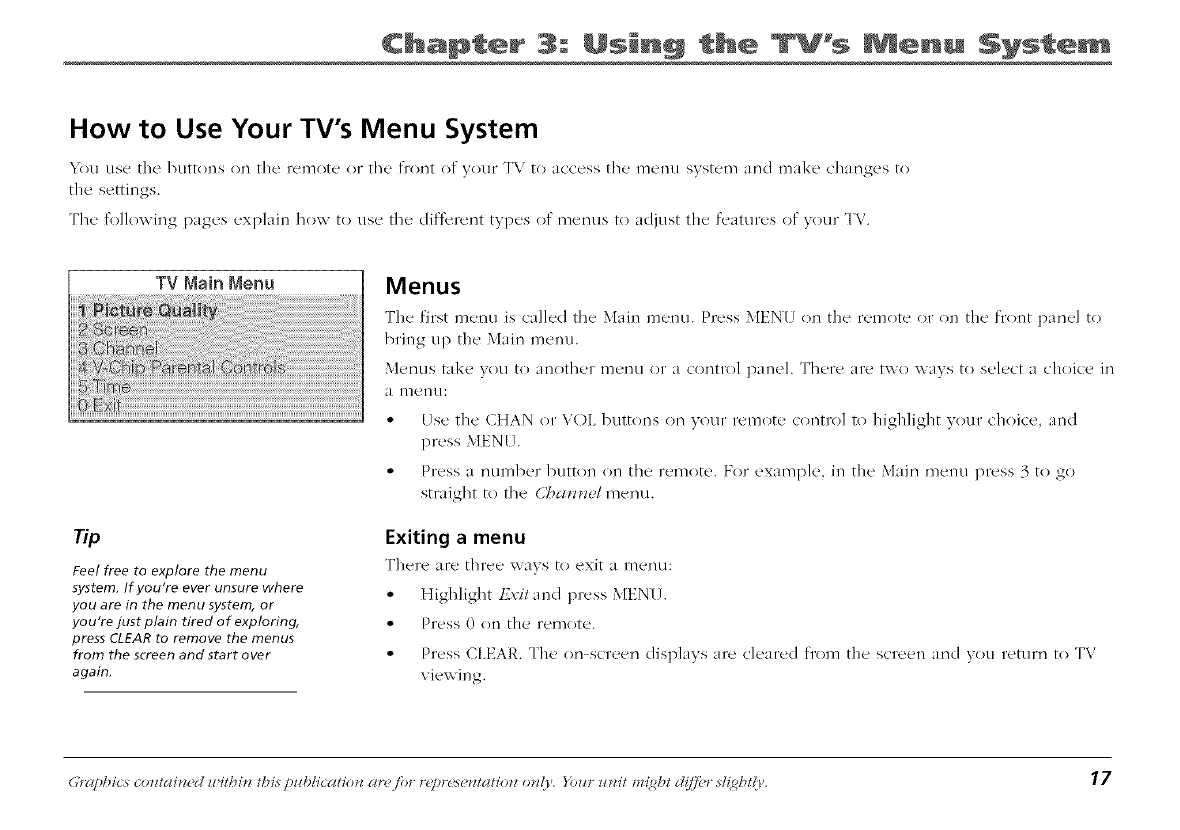
Menus
The first menu is called the Main menu. Press MEN[ on the remote or on the front panel to
bring up the Main menu.
Metals take VOLI t(} another l_]ei?u or a c()i?tl'()] panel. There are ix,\ (1 x,\ avs to select achoice JI?
* Use the CHAN (}r VOL 1)utt(ms on your remote control to ]]ighlight your ch(}ice, and
press MEN [].
ePress a []LII_]I)(T I)LIEEOI] ()1] th{' remote. For example, in the Main i]]el]u l)/'c_ss 3 to go
straJgI]t to the (•_l_z_z(_/i]]entl.
Exiting a menu
There a['{' El]re{ _ ,A-a_'s to exit a l]lei]tl:
• Highlight t£x:i/and press MEN!.
" Press 0 Ol1 the remote.
'* Press CLEAR. The on screen displays are cleared fi'om the screen and you return to TV
viewing.
Graphics comai*zed u'iU)in this p¢sblicatio*z cm fi>r represemati(m o*z{V. )bin __nzit ml;ght d(ff}?r s/{gbt(l'. 17
Screen
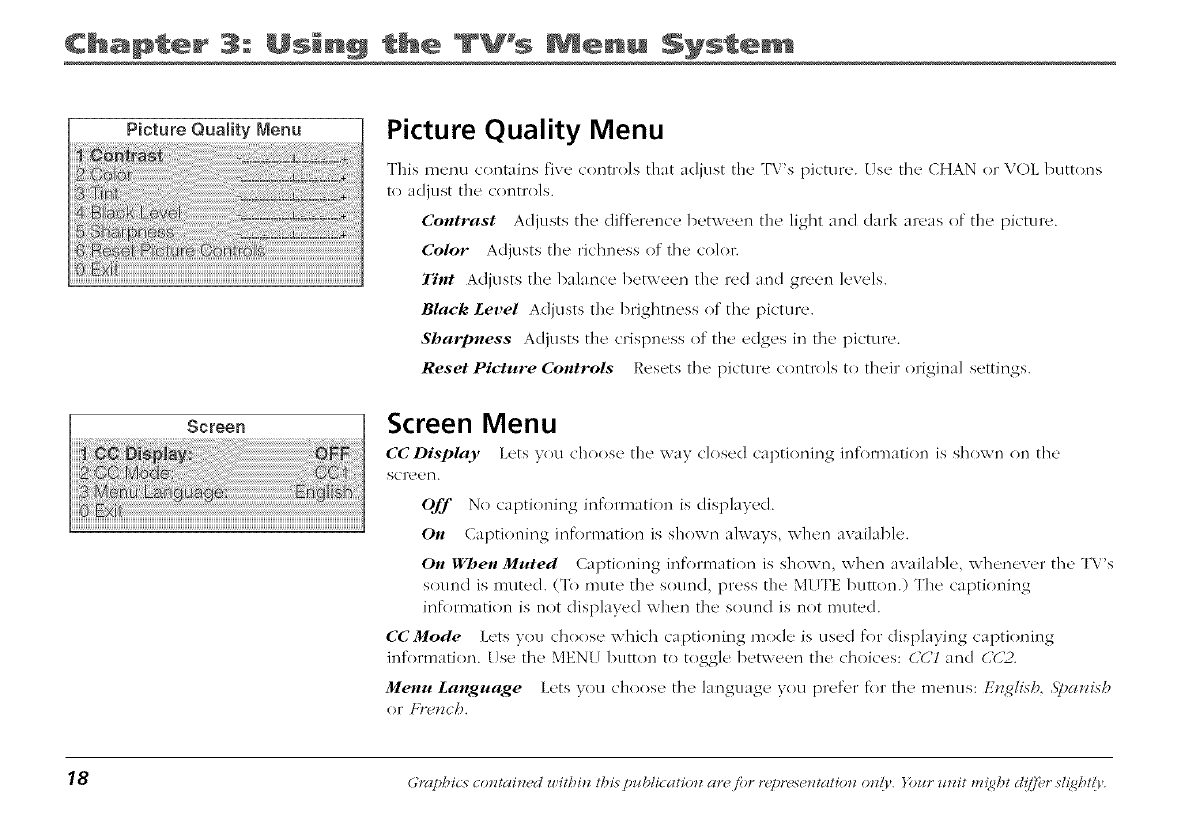
Picture Quality Menu
This m_'nu contains five controls that adjust the "['V's picture'. Us_' the CHAN or V()L buttons
to adjust the controls.
Contrast Adjusts the diff..fence between the light and dark areas of the picture.
Color Adjusts the rkhness of the color.
Tint Adjusts the balance between the red and green levels.
Black Level Adjusts the brightness of the picture.
Sharpness Adjusts the crispness of the edges in the picture.
Reset Picture Controls Resets the picture controls to their original settings.
Screen Menu
CCDisplay Ix'ts you choose the way closed captioning infomaati(m is shown on the
screen.
Off No captioning information is displayed.
On Capri(ruing information is shown always, when available.
On When Muted Captioniiag infllrmatiol'_ is shown, when available, x.xhenever the TV's
sound is muted. (To mute the sound, press the MUTE button.) The captioning
info,'mation is not displayed when the sound is not muted.
CCMode Lets you choose which captioning mode is used for displaying captioning
information. Use the MENU button to toggle 1)etxxeen the choices: ('(,7 and C(,Z).
Menu Language Lets you choose the language you pref_w for the menus: E_glish, .S])a*zish
or F}w*zch.
18 Graphics comai_zed w#hi_z this publicatio_z ar(@)r r(y)r('sematio_z o_z(V. )b¢tr mzit mz;_ht ct(ffi?r sh_ht(r'.

Using Closed Captioning
Many programs are encoded with clost'd captioning infomlatkm, which lets you display the audio portion
()f _/ [3FOgF_///] aS text on the TV screen.
Closed captioning ix not available on all channels at all times. ()nly specific programs encoded with
closed captioning information are applicable. When a program ix closed captioned, the C(i icon ix
displayed in the channel marker. See Chapter 2 for more information about the channel marker.
Turning off Closed-Caption
1. Sek>ct .ST:r_,r,tzfrom the Main mc'nu.
2. Press MENU to select C(/Disi)/t{l,.
3. Press VOL+ until Qffis selected.
4. Press CLEAR to clear the menu fl'om the screen.
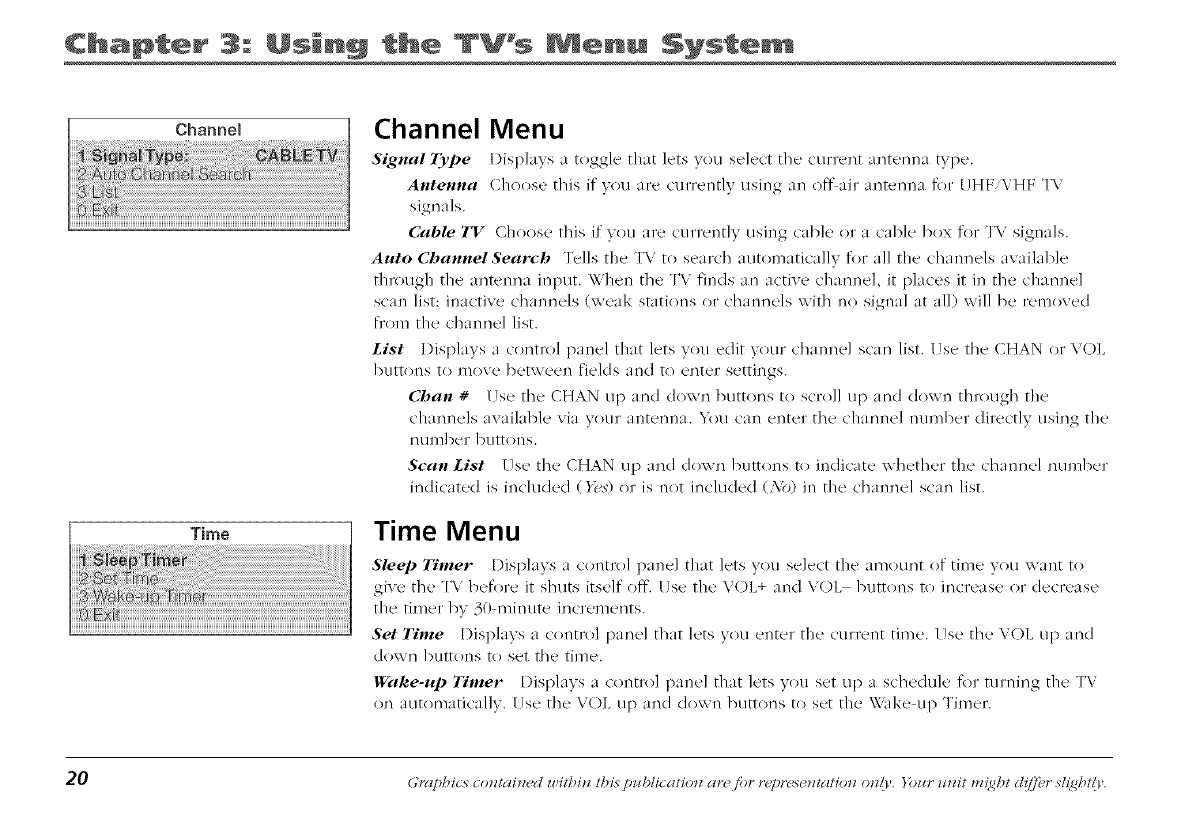
Channel Menu
SignalType Displays a toggle that ]{'ts you s{+'ct the current antenna type.
Antenna Choose this if v()u are currently using an ()flair ant{'nna for [JHF VHF TV
signals.
Cable TV Choose this if vou are currently using cable (}r a cable box for TV signals.
Auto ChannelSearch T{.lls the TV to search automatically for all the channels available
through the antenna input. When the TV finds an active channel, it places it il't the charmel
scan list: inactive channels (weak stations or channels with no signal at all) will be removed
fl'om the channel list.
List Displays a control panel that lets you edit v(}ur channel scan list. Use the CHAN or V()L
1)utt(ms to move between fields and to enter settings.
Chan #Use the CHAN up and down buttons to scroll up and down through the
charmels availabl{' via your ant{'nlaa. _ou can enter the charmel lmml)er directly I.lSir'lg the
I'ltll_]] )e [" ])tirE( )l'lS.
Scan List lse the CHAN up and down 1)uttons t(} indicate xxhether the channel number
indicated is included (};,s) or is not included (Ao) in the channel scan list.
Time Menu
Sleep Timer Displays a c(mtrol pan{q that lets you select the amount of tim{' you want to
give the TV before it shuts itself off. Use the V()L+ and V()L 1)utt(ms t() increase or decrease
the timer by 30-minute increments.
Set Time Displays a c(mtrol panel that lets you enter the current time. [se the V()L up and
(]()\vi'_ ])UtE()I?S t() set the time.
Wake-up Timer Displays a c(mtrol panel that lets you set up a schedule for turning the TV
on aut(}maticallv. [se the VOL up and down buttons to set the \\"ake up Timer.
20 (;rapbics comahzed u,#bhz this publicatio_z arQ/br r_y)resemafio_z o_dy. lb¢tr _m# mz;_bt ct(_]i'r she@t@,
Chapter O her mnf@rmat @n
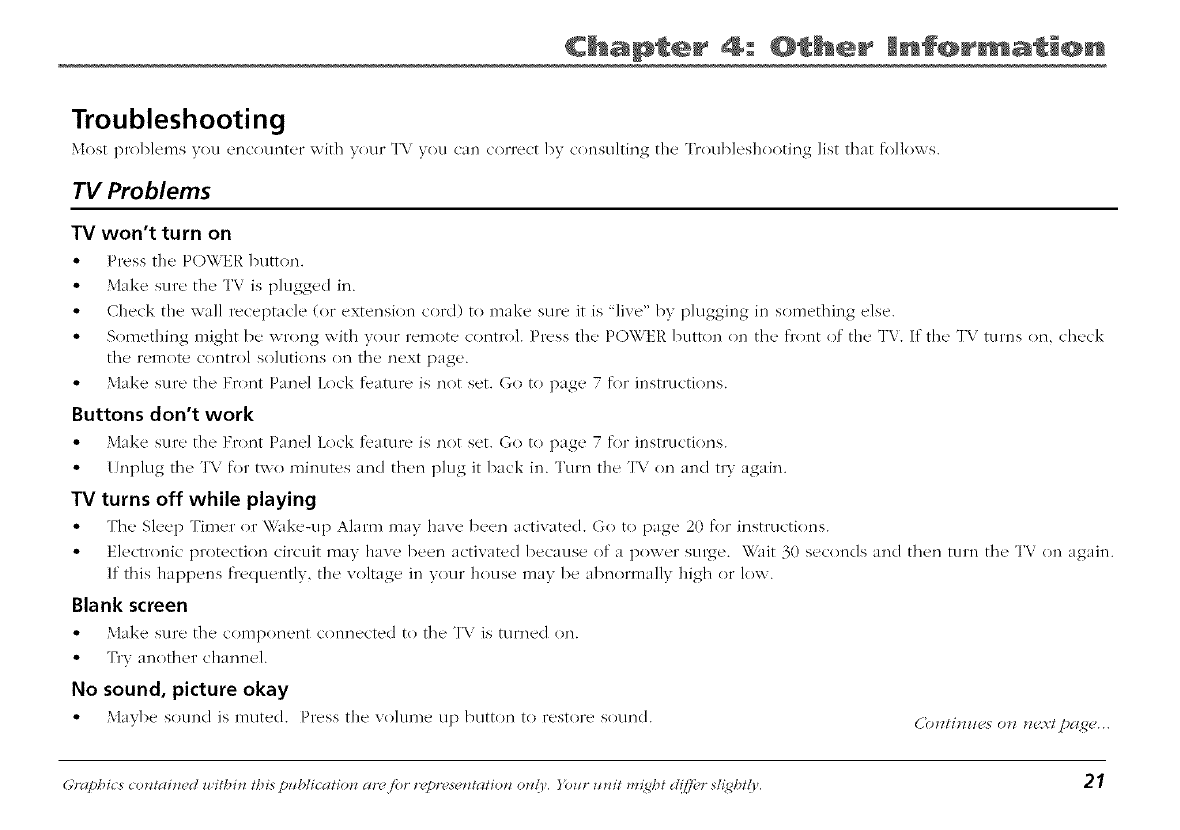
Troubleshooting
Most problcnls you enc()unt_*r wifll your T\ <you can correct by c(msulfing file Tr()ublesh()<)ting list that follows.
TV Problems
TV won't turn on
•Press the PO\X ER button.
°\lake sure th{' TV is plugged in.
• Check the wall receptacle (or extension cord) to make sure it is "live" bv plugging in something else.
• S(}mething might be wrong with your remote control. Press the POWER button (m the fr(mt of the I'V. If the T\ <turns on, check
the remote COlltFo] s()]tltions oil the next page.
° Make sure the Front Panel Lock feature is not set. Go to page 7 for instructions.
Buttons don't work
° Make sure the Front Pan{q Lock featur{' is not set. Go to page 7 for instructions.
° ! nplug the TV for txxo minutes and then plug it back in. Turn the TV on and try again.
TV turns off while playing
• The Sle{'p Timer (}r \Xake-up Alarm may have b{'en activaR_d. G<)t<) page 20 for instructi(ms.
° Electr(mic protection circuit may have been activated because of a power stuge, wait 30 seconds and then turn the TV (m again.
If this happens fl'equent/y, the voltage in your house may be abnormally high or low.
Blank screen
° Make sure th{' component conn{.cR_d t(}th{' T\ <is turned on.
• "[t+yanother channel.
No sound, picture okay
• Mayl){' s<)und is muted. Press the v()hlm{' up butt<m to restore s()uncl. (,'o*z/i_zzzPso_z m'.v/ pa2e...
Graphics cotztaitzed u ithitz tbis pub/icatio*z ar('/br r_y)r('s__ztatiotz o_d.}, }_ur utzit m_;@t d(i]i'r she@t@. 21
Chapter Other mnf@rmation
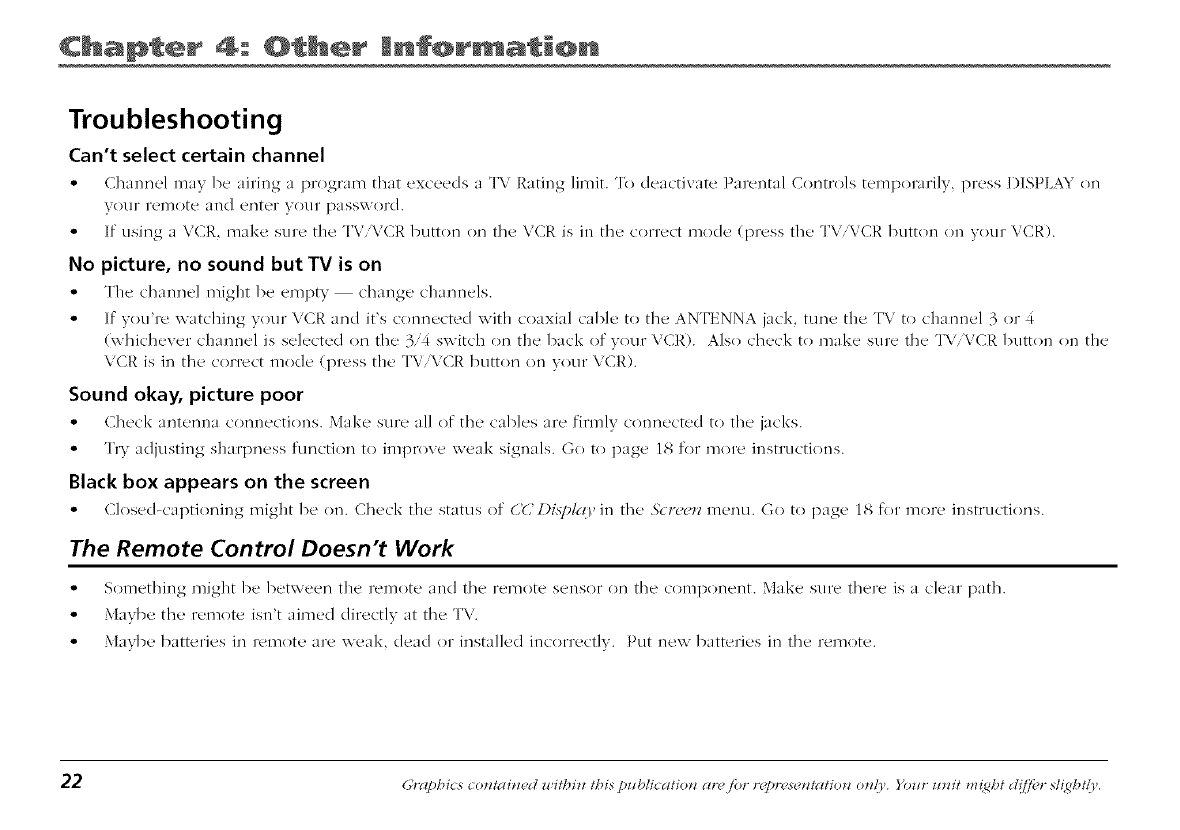
Troubleshooting
Can't select certain channel
', Channel may be airing a program that exceeds a TV Rating limit. To deactivate Parental Controls temporarily, press 1)ISPLAt (m
VOI.IF remote and enter }'our p_/ssxvol'd.
• [f using a VCR, make sure the TVVCR button on the VCR is in the correct mode (press the TV\CR butt(m (m your VCR).
No picture, no sound but TV is on
• The channel might be empty change channels.
• [f you're watching your VCR and it's connected with coaxial cable to the ANTENNA jack, tune the TV to charmel 3 or 4
(whichever channel is selected on the 3/4 switch on the back of your VCR). Also check to make sure the TV\CR butt(m (m the
VCR is in the correct mode (press the TVVCR button on your VCR).
Sound okay, picture poor
• Ch_'ck antenna connections. Make sur_' all of the' cables are firmly connect<'d to the' jacks.
•l)'y adjusting sharpness function to improve weak signals. G() t() page 18 for more instructions.
Black box appears on the screen
° Closed-captioning might 1)e on. Check the status of CC Displr O, in the ,S;_:r,,r,_zmenu. Go to page 18 for more instructions.
The Remote Control Doesn't Work
° Something might be between the remote and the remote sensor on the component. Make sure there is a clear path.
° Maybe the remote isn't aimed directly at the TV.
° Maybe batteries in remote are xxeak, dead or installed incorrectly. Put new batteries in the remote.
Chapter O her mnf@rmat @n
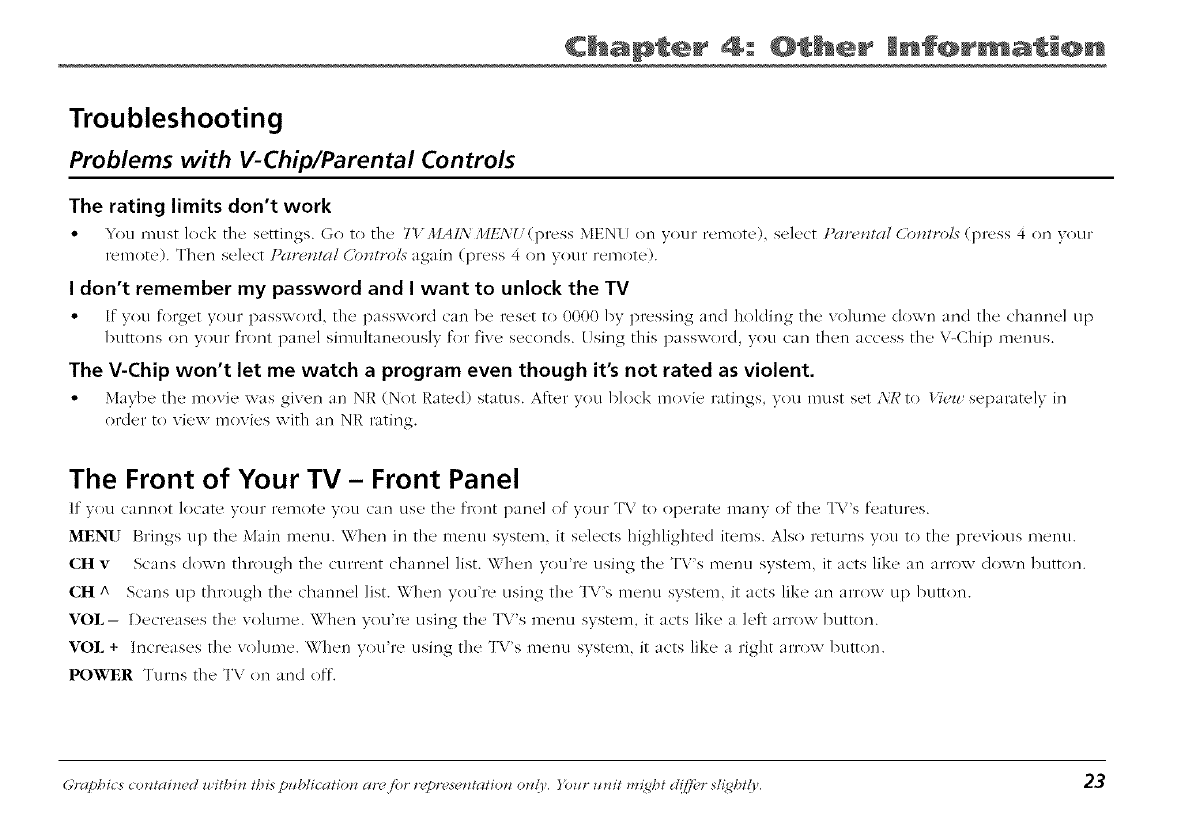
Troubleshooting
Problems with V-Chip/Parental Controls
The rating limits don't work
° lou must lock the settings. Go to the 71'MAL\ ,I,HL\ _ (press MEN_ on your remote), select Par_/a/(2>_/ro!s (press 4 on w)ur
remote). Then select ])a_w/l_z/(,'o_i_z)/x again (press 4 on your remote).
I don't remember my password and I want to unlock the TV
°[f you f(>lNet your passxx or(l, the password can be reset to 0000 by pressing and holding the w>lume down and the channel up
buttons on your front panel simultaneously for five seconds. [Jsing this password, you can then access the V-Chip menus.
The V-Chip won't let me watch a program even though it's not rated as violent.
* Maybe the movie was given an NR (Not Rated) status. After you block movie ratings, you must set NN to bTt)zz separately in
order t<) view movies with an NR rating.
The Front of Your TV - Front Panel
If you cannot locate your l'_21_/ot(' you (ari us(' the' front l)an_'l of your TV to operate many of thv TV's feature's.
MENU Brings up the Main menu. When in the menu system, it selects highlighted items. Also returi'_s you to the previous menu.
CH vScans down through the current channel list. When you're using the TV's menu system, it acts like an arrow down button.
CH ^ Scans up through the channel list. When you're using the TV's menu system, it acts like an arroxx up button.
VOI,- Decreases the v<)lume. When you're using the T\<'s menu system, it acts like a left arrow butt<re.
VOL + Increases the w)lume. When you're using the TV's menu system, it acts like a right arrow button.
POWER Turns the TV on and off.
Graphics cotztaitzed z*ithitz fbi's pzcb/icatio*z ar('/br rupr(,s{ _ztatiotz o_d), )))z_r zctzit m_;@t g/(i_i'r sh;ght{_,. 23
Chapter 4: Other mnf@rmation
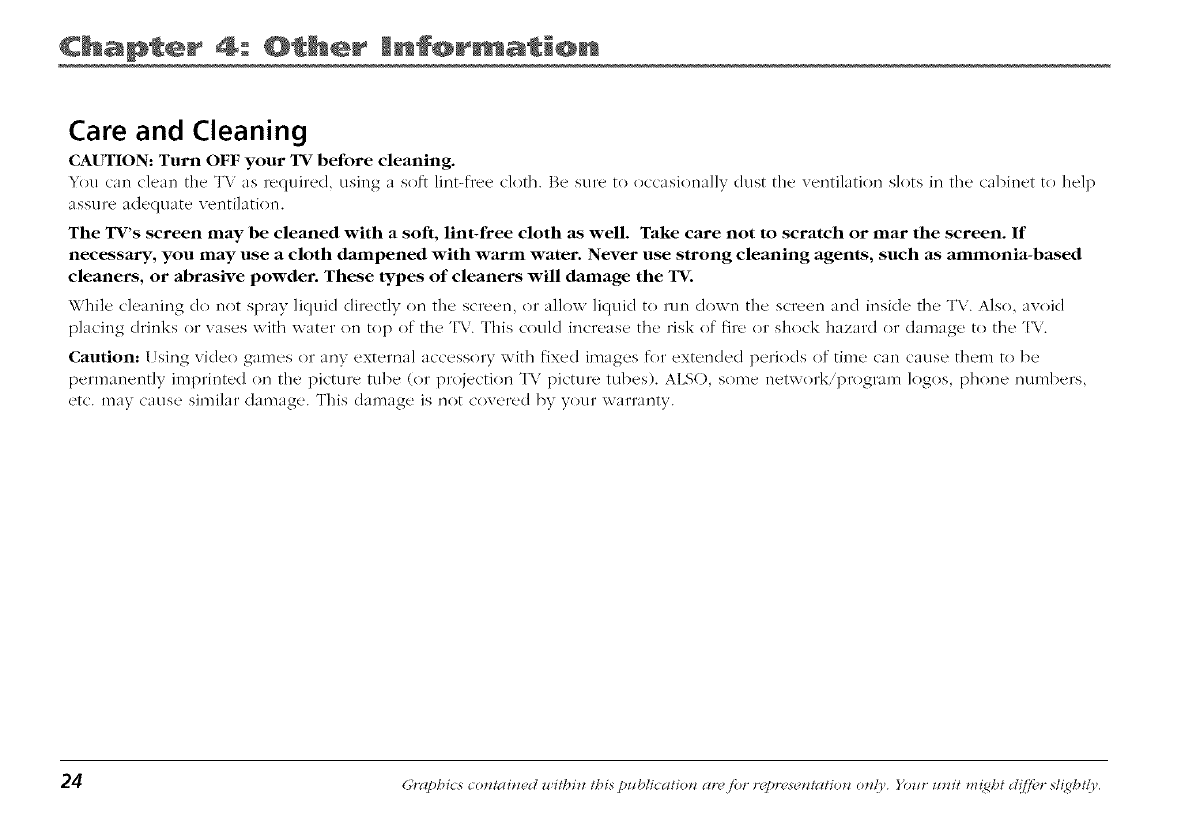
Care and Cleaning
CAUTION: Turn OFF your TV before cleaning.
_'i_u can ck':m the T\ as r_'quir_'(1, using :_ soft lint-fre_' cloth. Be' sure to occ_sion:dly dust the w'ntil:_tion slots ill the' c_d>inet to help
assure adeqtmte ventil_tion.
The TV's screen may be cleaned with a soft, lint-free cloth as well. Take care not to scratch or mar the screen. If
necessary, you may use a cloth dampened with warm water. Never use strong cleaning agent.s, such as ammonia-based
cleaners, or abrasive powder. These types of cleaners will damage the TV.
While' cl_'aning do not spray liquid (lir_'ctly on the' screen, or allow liquid to run down the' scr_'_'n amd insi&' the' TV. Also, a_void
pl_cing drinks ()l"vases with water on top of the TV. This could increase the risk (if fire or shock hazard or dam_/ge tit the "['V.
Caution: l Jsing video g_unes or any externnl accessory with fixed im_ges for extended periods of time Call cause them to be
permanently imprinted on tile picture tube (or projection TV picture tubes). ALSO, some network/program logos, phone numl_ers,
etc. may cnuse similar damage. This (lamnge is not covered by your warranty.
Chapter 4: O her mnf@rmat @n
Limited Warranty
What your warranty covers:
* D('f('cts in mat('rials or workmanship.
For how long after your purchase:
* 90 days fi'om date of purchase for labor charges.
° One year" fl'om (Hate of purchase for parts.
* Two yeal's fl'om <late of purchase for the picture tube.
The warran W peliod for rental units 1)egii'Jswith the first rental or 45 days from (late of shipment to the l>ntal fil'm, whichever comes first.
What we will do:
° Pay any Authorized RCA Television Service Center the labor charges to repair your television.
° Pay ally Authorized RCA qVlevision Selwice Center for the new or, at our option, refurbished replacement pa['ts and picture tube
required to repair your television.
How you get service:
° For screen sizes of 26" and smaller: Take your RCA television to any Authorized RCA %qevision Service Center and pick up
whet1 l'e[3ailTSare complete.
° For screen sizes lalger than 26": Request home or pick up, repair, and return service fl'om any Authorized RCA T¢.levision
Se_wice Center, provided that your television is located within the geographic territoiw covered by an Authorized RCA Television
Sexwice Center. [f not, you must take your television to the Selwice Center location at your own expense, or pay for the cost the
Selwice (]enter may cha['ge to ti'ansp()l't you/' television to and from yOtl/' home.
° To identify your nearest Authorized RCA Television Selwice Center ask your dealer, look in the Yellow Pages, or call 1 800 336
1900.
° Proof of purchase in the form of a bill of sale or receipted invoice which is evidence that the product is within the war'rantv
period must be presented t() ()l)tain waiTantv service. For rental firms, pl'o()f (if first rental is also re(/uired.
(Continues on next page)
Graphics comai*wd withHz this p_tblicatl;o*z ar(£/br repr(?s_ matio*z o*d)', }_mr _nzl;t m_ht d(ff_?r sll_ght(r,, 2_
Chapter 4: Other mnf@r ation
What your warranty does not cover:
• Customer instruction. (5our ()wners Manual describes how to install, adjust, and operate your television. Any additional
information should be obtained fi'om your dealer.)
° Installation and related adjusmaents.
° Signal reception problems not caused I)5 your television.
• ])an_age f'['l)ln l'Nistlse or neglect.
• Batteries.
• CtlstolT/er replacel_lent ftlses.
° I)amage fl'om images burnt onto the screen.
° A television that has been modified or incorporated into other products or is used for institutional or other commercial purposes.
° A television purchased or serviced outside the [ .S.A.
° Acts of nature, such as but not limited to lightning damage.
Product Registration:
° Please complete and mail the Product Registration Card packed with your TV. It will make it easier to contact you should it ever
be necessary. The return of the card is not required for warranty coverage.
I,imitation of Warranty:
° THE WARRANTY STATED ABOVE IS THE ONIX _rARRANTY APPIJCABI,E TO THIS PRODUCT. AIR, OTHER WARRANTIES,
EXPRESS OR IMPLIED (INCLUDING AI,L IMPLIED WARRANTIES OF MERCHANTABILITY OR FITNESS FOR APARTICULAR
PURPOSE) ARE HEREBY DISCLAEMED. NO VERBAl, OR WRITTEN INFORMATION GIVEN BY THOMSON MULTIMEDIA
INC., ITS AGENTS OR EMPI,OYEES SHAH, CREATE A GUARANTY OR IN ANY WAY INCREASE THE SCOPE OF THIS
WARRANTY.
2_ Grog)bits contahzed _,itbin tbis p*tblication arejbr repn s_ nlcltion on{l', }_mr ztnit m{gbt d!ffbr sl{gb@'.
Chapter 4: O her mnf@r at @n
REPAIR OR REPLACEMENT AS PROVIDED UNDER THIS WARRANTY IS THE EXCLUSIVE REMEDY OF THE CONSUMER.
THOMSON MULTIMEDIA INC. SHAI3_ NOT BE IJABLE FOR INCIDENTAl, OR CONSEQUENTIAL DAMAGES RESULTING
FROM THE, USE OF THIS PRODUCT OR ARISING OUT OF ANY BREACH OF ANY EXPRESS OR IMPLIED WARRANTY ON
THIS PRODUCT. THIS DISCLAIMER OF WARRANTIES AND HMITED WARRANTY ARE GOVERNED BY THE IAWS OF THE
STATE OF INDIANA. EXCEIXF TO THE EXTENT PROHIBITED BY APPLICABI_ IAW, ANY IMPLIED WARRANTY OF
MERCHANTABH,ITY OR FITNESS FOR A PARTICULAR PI[TRPOSE ON THIS PRODUCT IS LIMITED TO THE APPIJCABLE
WARRANTY PERIOD SET FORTH ABOVE,.
How state law relates to this warranty:
• S()me states do not allow the exclusion nor limitation of incidental or consequenti:d dam_ges, or limitations on how long an
implied w_rranty l_sts, so the _dx)ve limit_ltions or exclusions m_y not _pp/y to you.
• This warranty gives you specific leg_l rights, _md you also may have other rights tlmt vary from st_lte to state.
If you purchased your product outside the United States:
•This w_lrmnty do(.s not :q)ply. (2ont_ct your (h':d('r for w_lrmnty inform_tion.
Service calls which do not inw)lve defective materials or workmanship are not covered by this warranty. Costs of such
service calls are the sole responsibility of the purchaser.
(;rct/)hics comai_wd withi_z this p_blicatl;(.z at(@." repr(?s_ mcttio_z o_z/)', )imr _zl;t tm;_ht d(ffi?r sll;_ht(r,, 27
Chapter 4: Other mnf@rmation
Accessory Information
"['h_q'e are w_rious _ccessories av_filal)le to complement your TV. Prices _/Fe subject to change without notice.
All accessories are subject to _vailabilitv.
A shil)ping and handling fee xxill be charged upon ordering, _md we are required by law to collect the
appropriate sales tax for each individual st_te, countly, and locality to which the merclmndise ix being sent.
How To Order
"V_)place _m order l',y i',hone, have your Visa,
M_asterCard or Discover C_n'd ready and (till the toll
fl'ee ntmtl)er listed below.
Use this number only to place an order f_w
_/CCL_SS()FV items.
1-800-338-0376
}'Otl C:II? buy s()llte _/ccessolies on line _/t
www.rca.com.
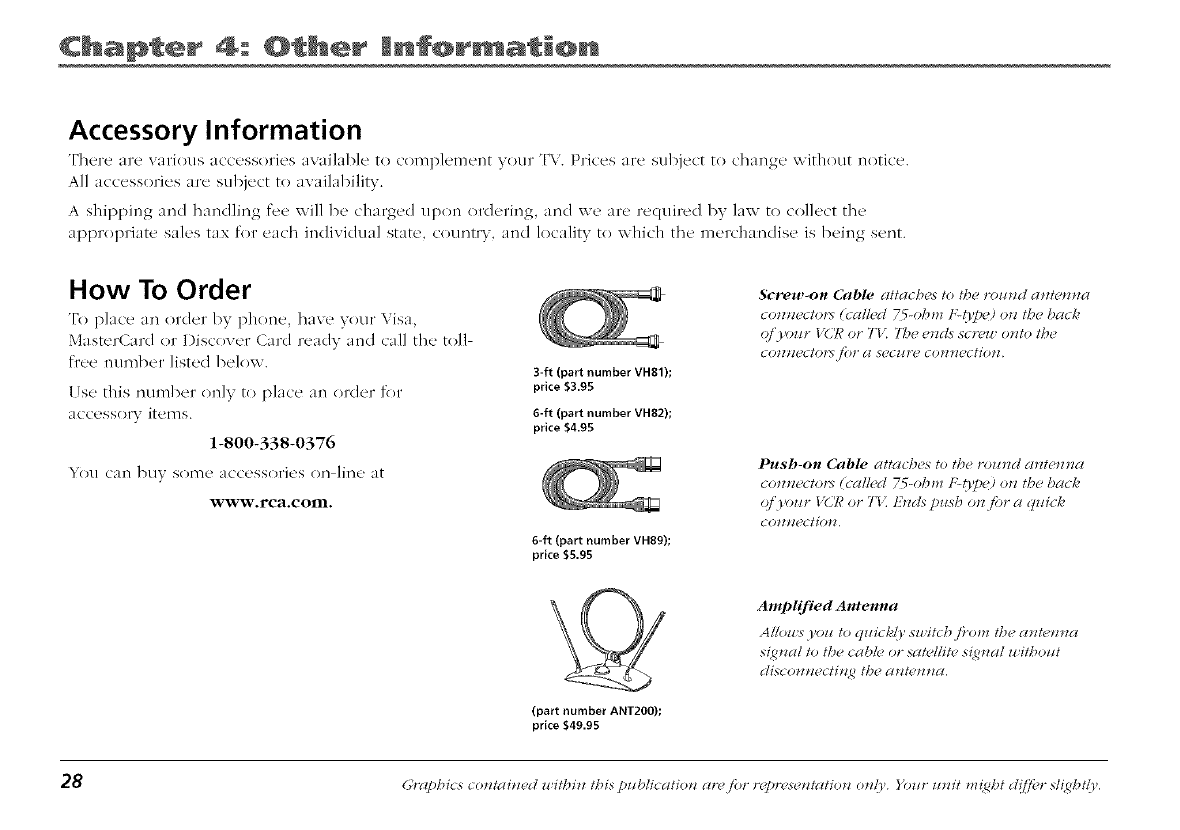
3-ft (part number VH81);
price $3.95
6-ft (part number VH82);
price $4.95
6-ft (part number VH89);
price $5.95
Screw-on Cable attaches to tbe rozcnd a_z/emza
comz.ctors (call.d ZS-obm t:-0]_¢) o_z the back
qi'your iL7¢ or 711 7be emls scn u onto the
CO_I_!('C 101"S /()1" (2 SU(I!K_" COPI_IOC_iOPl.
Push-on Cable a//acbes to/be roared a_z/e_zna
comz.ctors (ca//('d ZS-obm t_0])_') on the back
ql'y<)ur _L7¢or 71'. Ends push o_z.#)r a quick
(part number ANT200);
price $49.95
Amplified Antenna
A]lows )'o¢t to quic#!l sz* itcb,/}'om tbe ant_,m_a
s_zal to the cabh' o1"sclte//it_ _ s_nal zt ilboz/t
discomzectit_ 2 the antunna,
28 Grcq)bics co_ztai_zed witbin tbis pztblicatio_z are /br r(y)r_ s_ _zlc_tio_z o_zll'. Y(mr ztm:t m_bt d!ffi?r sl_b@',
Chapter 4: O her mnf@r at @n
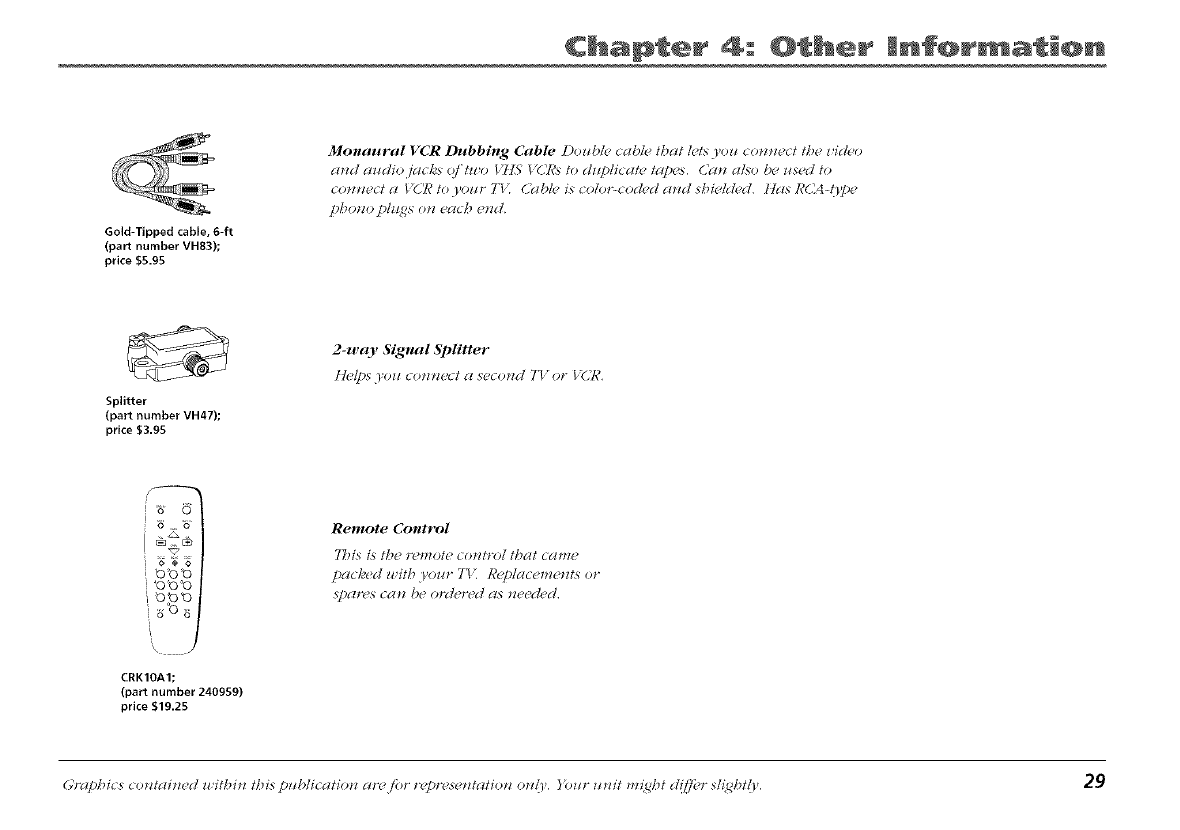
Gold-Tipped cable, 6-ft
(part number VH83);
price $5.95
Monaural VCR l_bbing Cable Doz_b/¢ _cabl¢ _/bat !./s loz_ com_ec/ the _id¢,o
a_d a_ldio.ja_ bs (_/"tzt o t'l/.S V(Sl_sto d_!j_/icat_, td]),s. (._t_z a!so be used /o
co*z*zec/ d t _C7_to )'our TV: (._abk_is co/or-cod_d d*zd sbi('kk_d, tt_ts RC4-O'])e
])bo*zo ])luqs o*z e_tcb e*zd.
Splitter
(part number VH47);
price $3.95
2-u,ay Signal Splitter
i b_o_
Remote Control
7_is is the remote co_ztro/ /ba/ came
jmcte_ d u itb yo_sr Tt _l¢_,placeme_zts or
5_)¢l K(_S C(t _! b( > o l? /( >F(>d (ts _tg'( >d_'d,
CRKIOA1;
(part number 240959)
price $19.25
(;rc_pbic._ comcti_zed witbi_z ibis ])_blicatio_z cwC/br repres_ mcttio_z o_d)', }tmr _m:t m_bt d(ff_?r sll_bt(r,, 29
Visit the RCA web site at www.rca.com
Please do not send any products to the Indianapolis address listed in this manual or on the carton. This will only
add delays in service for your product.
IMPORTER (for Mexico only):
Comercializadora Thomson de M&xico, S.A. de C.V.
Miguel de Cervantes Saavedra 57
Col. Ampliaci6n Granada
C.R 11529 M&xico D.R
Tel&fono: (55) 25 81 53 20
RFC: CTM-980723-KS5
Thomson multimedia Inc.
10330 North Meridian Street
Indianapolis, IN 46290
©2002 Thomson multimedia Inc.
Trademark(s)® Registered
Marca(s) Registrada(s)
Printed in Thailand
TOCOM 15920020
