RF Solutions Q1864-PDU Positional display unit for Tensator queue forwarding system User Manual

RF Solutions Ltd. Positional display unit for Tensator queue forwarding system

User manual

 F o r   m o r e   in fo r m a t io n    C a ll:  +4 4   (0 )  1 9 0 8   6 8 4 6 0 6   F a x :   +4 4  (0 )  1 9 0 8   6 8 4 7 0 0  jam e s . a u s t in @t e n s a t o r . c o m  w w w . t e n s a t o r . c o m     Tensator ECF Media System  Tensator Wireless ECF User Guide      Project Number:  T01150 Document Version:  1 Date:  14th September 2009 Document Status:  DRAFT
T01150 - Wireless ECF User Guide.doc (c)2009 Tensator Ltd    Page 2 of 10 Version History Version Date By Changes Sections 1 14/9/2009 James Austin Initial document.    Contents    Page  1 Brief ................................................................................................................................ 2 2 Hardware Configuration ...................................................................................................... 3 2.1 PDUs ........................................................................................................................ 3 2.2 Buttons ..................................................................................................................... 3 3 Software Configuration ....................................................................................................... 4 3.1 Programming a Button Address .................................................................................... 9 3.2 Programming a PDU Address ....................................................................................... 9    1 Brief  The Tensator Wireless ECF provides both wireless data connection to PDUs and to a new generation of Tensator RF Button.  The Wireless PDU provides mains connected LED PDUs with a wireless data link back to a Tensator Hub.  The Tensator hub requires a CTRX (transceiver) unit to be connected.  A maximum of 24 units can be connected to any one system.  There are 254 different zones that can be used and these zones are used to allow multiple systems to be installed within a shared area.  Wireless RF buttons share the same CTRX as the PDUs.  Again, there is a maximum of 24 buttons per zone (1 zone per CTRX).  The  estimated  operational  distance  is  100 meters  line-of-site.   Every  site  has slightly different  RF characteristics  and  therefore  during  the  installation  the  CTRX  (transceiver)  unit  should  be  tried  in different locates until the optimum position is found.
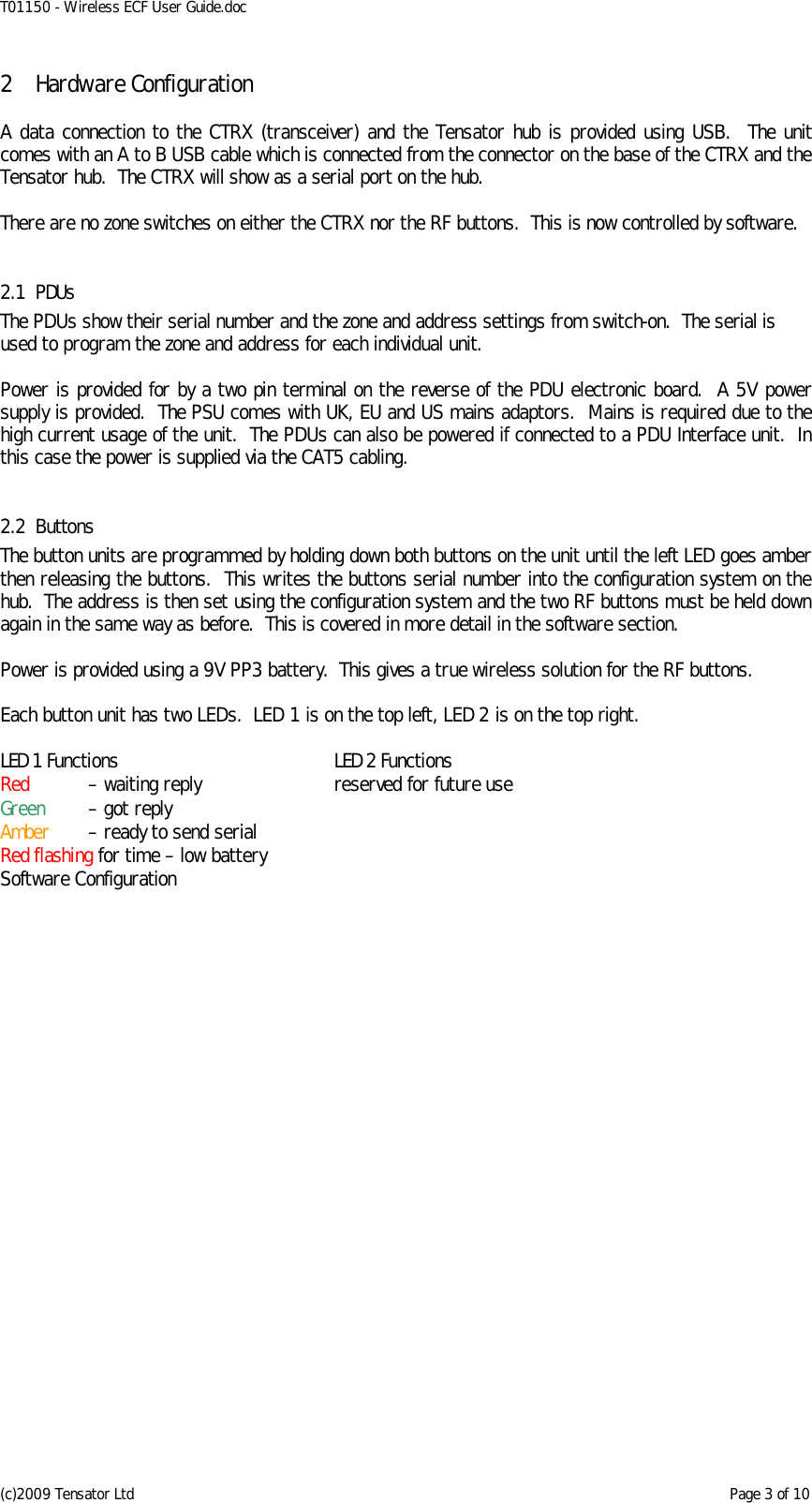
T01150 - Wireless ECF User Guide.doc (c)2009 Tensator Ltd    Page 3 of 10 2 Hardware Configuration  A data connection to the CTRX (transceiver) and the Tensator hub is provided using USB.  The unit comes with an A to B USB cable which is connected from the connector on the base of the CTRX and the Tensator hub.  The CTRX will show as a serial port on the hub.  There are no zone switches on either the CTRX nor the RF buttons.  This is now controlled by software.  2.1 PDUs The PDUs show their serial number and the zone and address settings from switch-on.  The serial is used to program the zone and address for each individual unit.  Power is provided for by a two pin terminal on the reverse of the PDU electronic board.  A 5V power supply is provided.  The PSU comes with UK, EU and US mains adaptors.  Mains is required due to the high current usage of the unit.  The PDUs can also be powered if connected to a PDU Interface unit.  In this case the power is supplied via the CAT5 cabling.  2.2 Buttons The button units are programmed by holding down both buttons on the unit until the left LED goes amber then releasing the buttons.  This writes the buttons serial number into the configuration system on the hub.  The address is then set using the configuration system and the two RF buttons must be held down again in the same way as before.  This is covered in more detail in the software section.  Power is provided using a 9V PP3 battery.  This gives a true wireless solution for the RF buttons.  Each button unit has two LEDs.  LED 1 is on the top left, LED 2 is on the top right.  LED 1 Functions  LED 2 Functions Red   – waiting reply  reserved for future use Green   – got reply   Amber   – ready to send serial   Red flashing for time – low battery Software Configuration
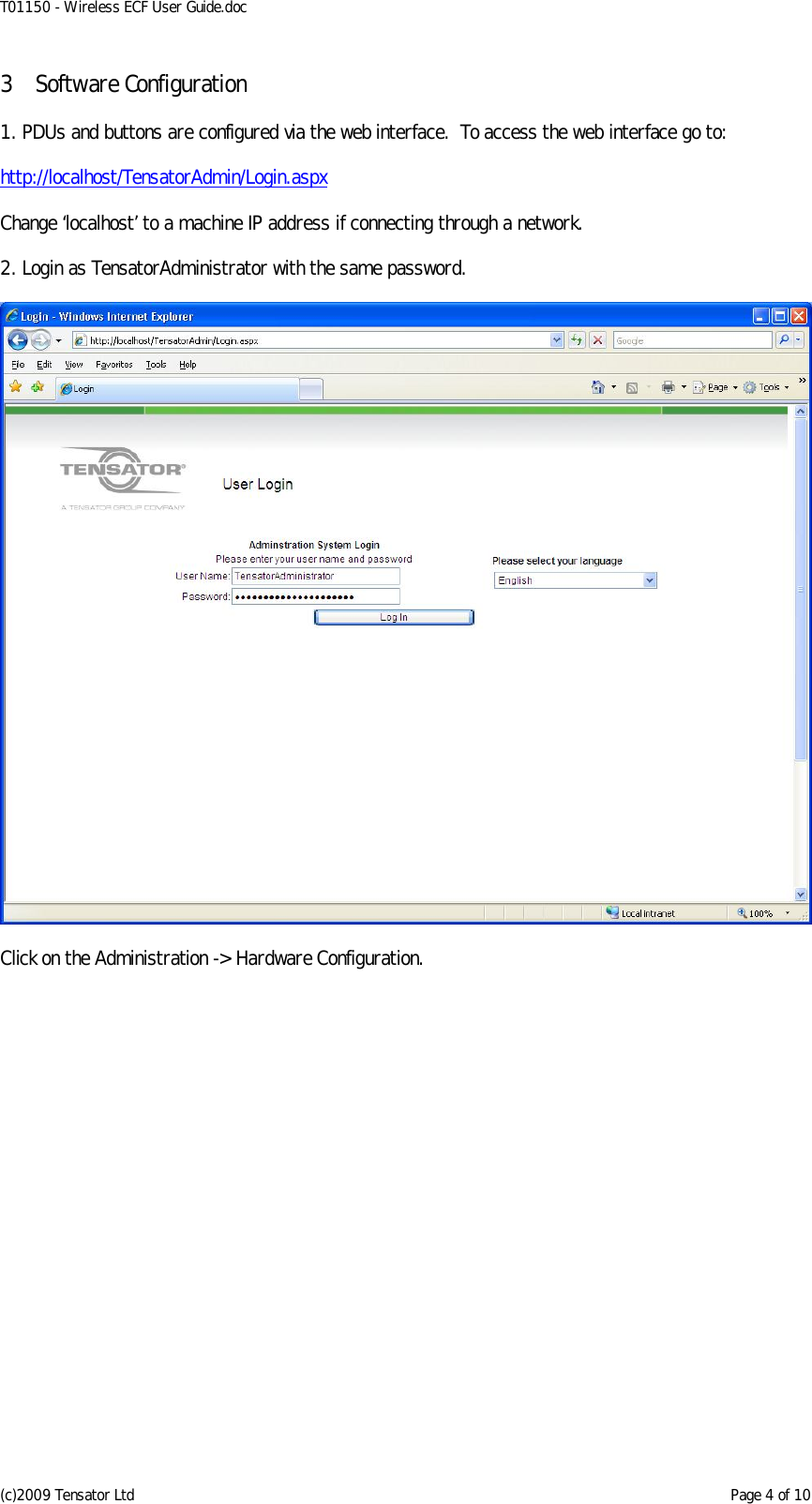
T01150 - Wireless ECF User Guide.doc (c)2009 Tensator Ltd    Page 4 of 10 3 Software Configuration  1. PDUs and buttons are configured via the web interface.  To access the web interface go to:  http://localhost/TensatorAdmin/Login.aspx  Change ‘localhost’ to a machine IP address if connecting through a network.  2. Login as TensatorAdministrator with the same password.    Click on the Administration -> Hardware Configuration.
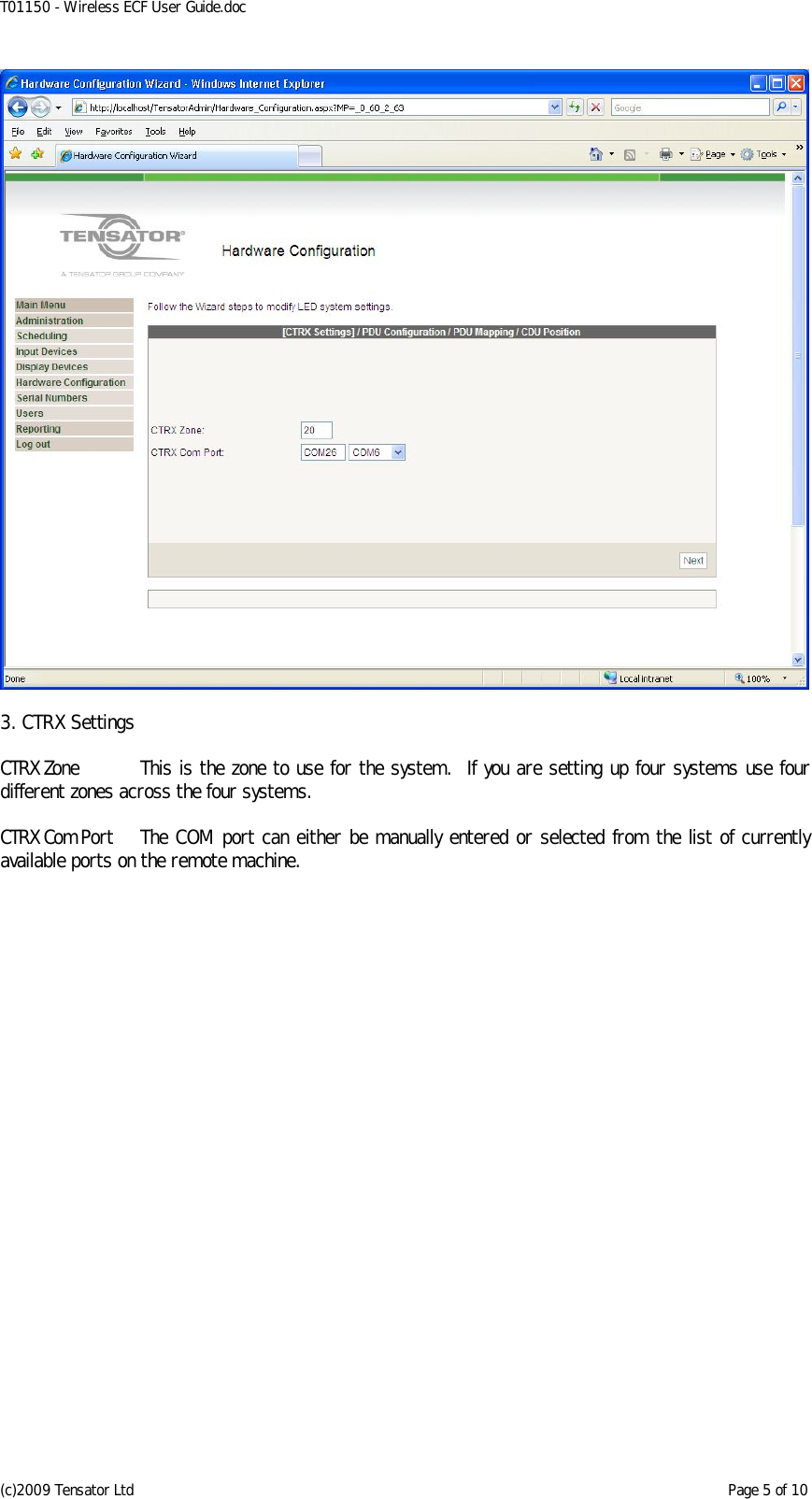
T01150 - Wireless ECF User Guide.doc (c)2009 Tensator Ltd    Page 5 of 10   3. CTRX Settings  CTRX Zone  This is the zone to use for the system.  If you are setting up four systems use four different zones across the four systems.  CTRX Com Port  The COM port can either be manually entered or selected from the list of currently available ports on the remote machine.
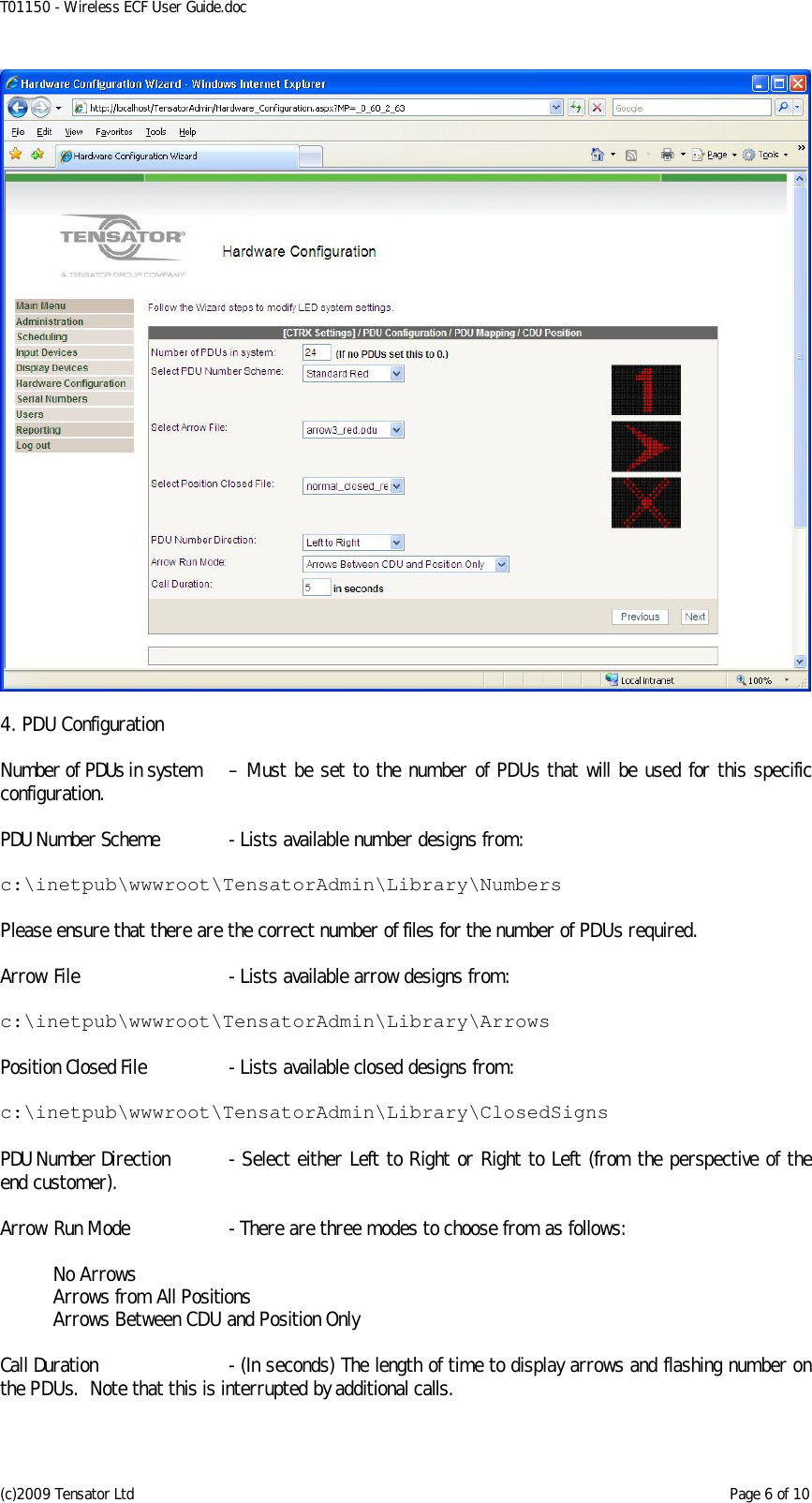
T01150 - Wireless ECF User Guide.doc (c)2009 Tensator Ltd    Page 6 of 10   4. PDU Configuration  Number of PDUs in system  – Must be set to the number of PDUs that will be used for this specific configuration.  PDU Number Scheme  - Lists available number designs from:  c:\inetpub\wwwroot\TensatorAdmin\Library\Numbers  Please ensure that there are the correct number of files for the number of PDUs required.  Arrow File  - Lists available arrow designs from:  c:\inetpub\wwwroot\TensatorAdmin\Library\Arrows  Position Closed File  - Lists available closed designs from:  c:\inetpub\wwwroot\TensatorAdmin\Library\ClosedSigns  PDU Number Direction  - Select either Left to Right or Right to Left (from the perspective of the end customer).  Arrow Run Mode  - There are three modes to choose from as follows:    No Arrows   Arrows from All Positions   Arrows Between CDU and Position Only  Call Duration  - (In seconds) The length of time to display arrows and flashing number on the PDUs.  Note that this is interrupted by additional calls.
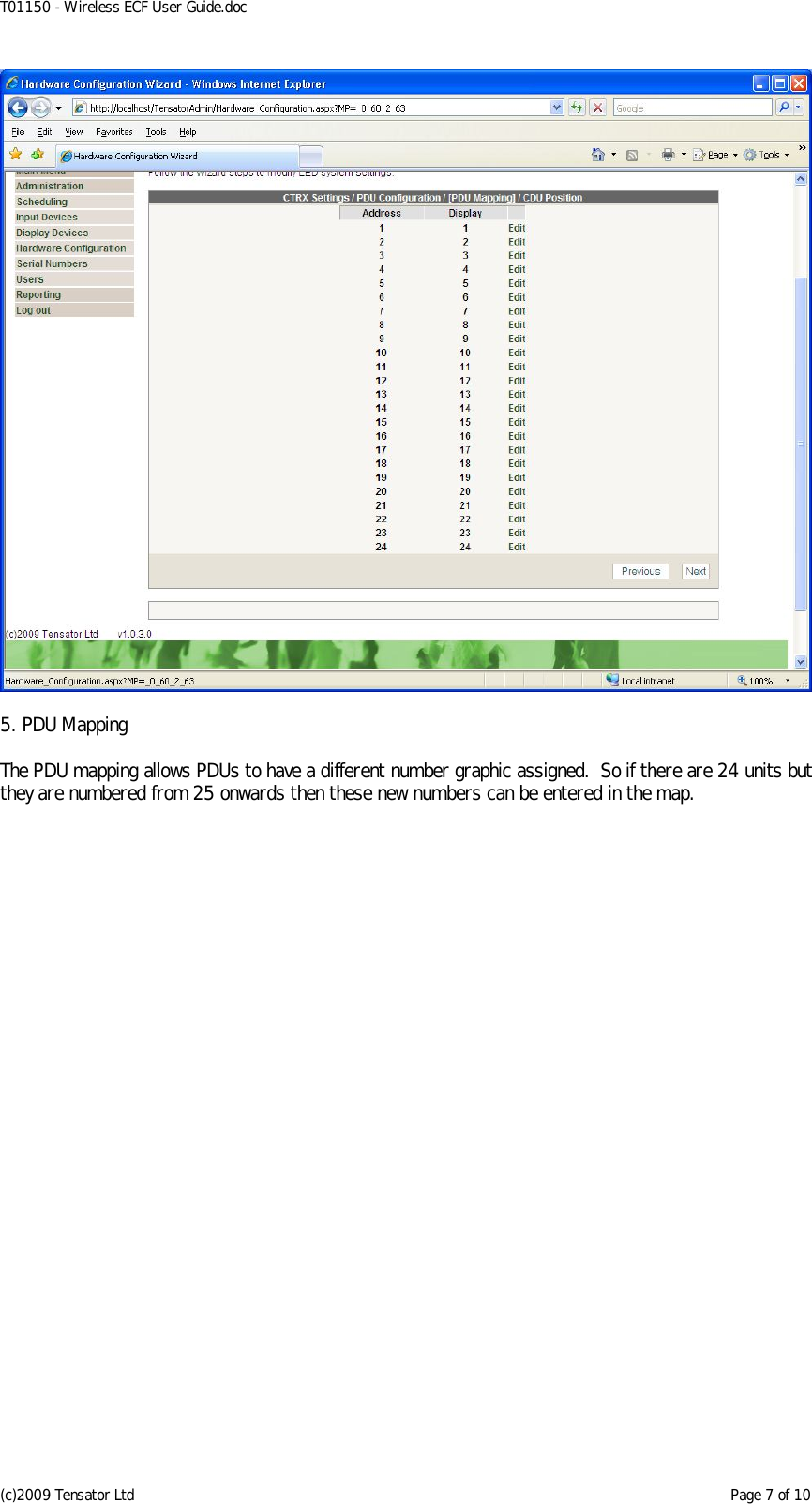
T01150 - Wireless ECF User Guide.doc (c)2009 Tensator Ltd    Page 7 of 10   5. PDU Mapping  The PDU mapping allows PDUs to have a different number graphic assigned.  So if there are 24 units but they are numbered from 25 onwards then these new numbers can be entered in the map.
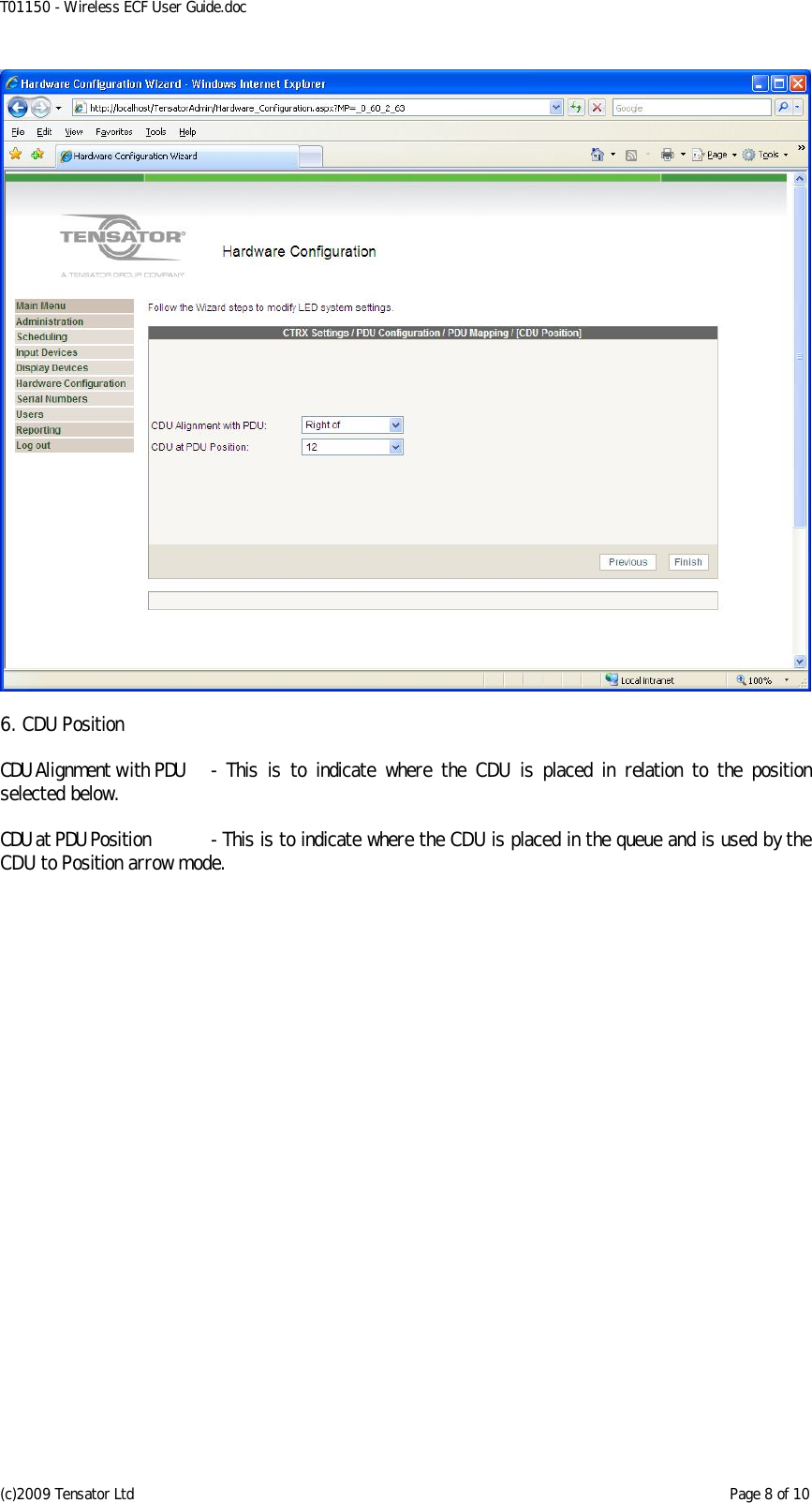
T01150 - Wireless ECF User Guide.doc (c)2009 Tensator Ltd    Page 8 of 10   6. CDU Position  CDU Alignment with PDU  -  This  is  to  indicate  where  the  CDU  is  placed in  relation  to  the  position selected below.  CDU at PDU Position  - This is to indicate where the CDU is placed in the queue and is used by the CDU to Position arrow mode.
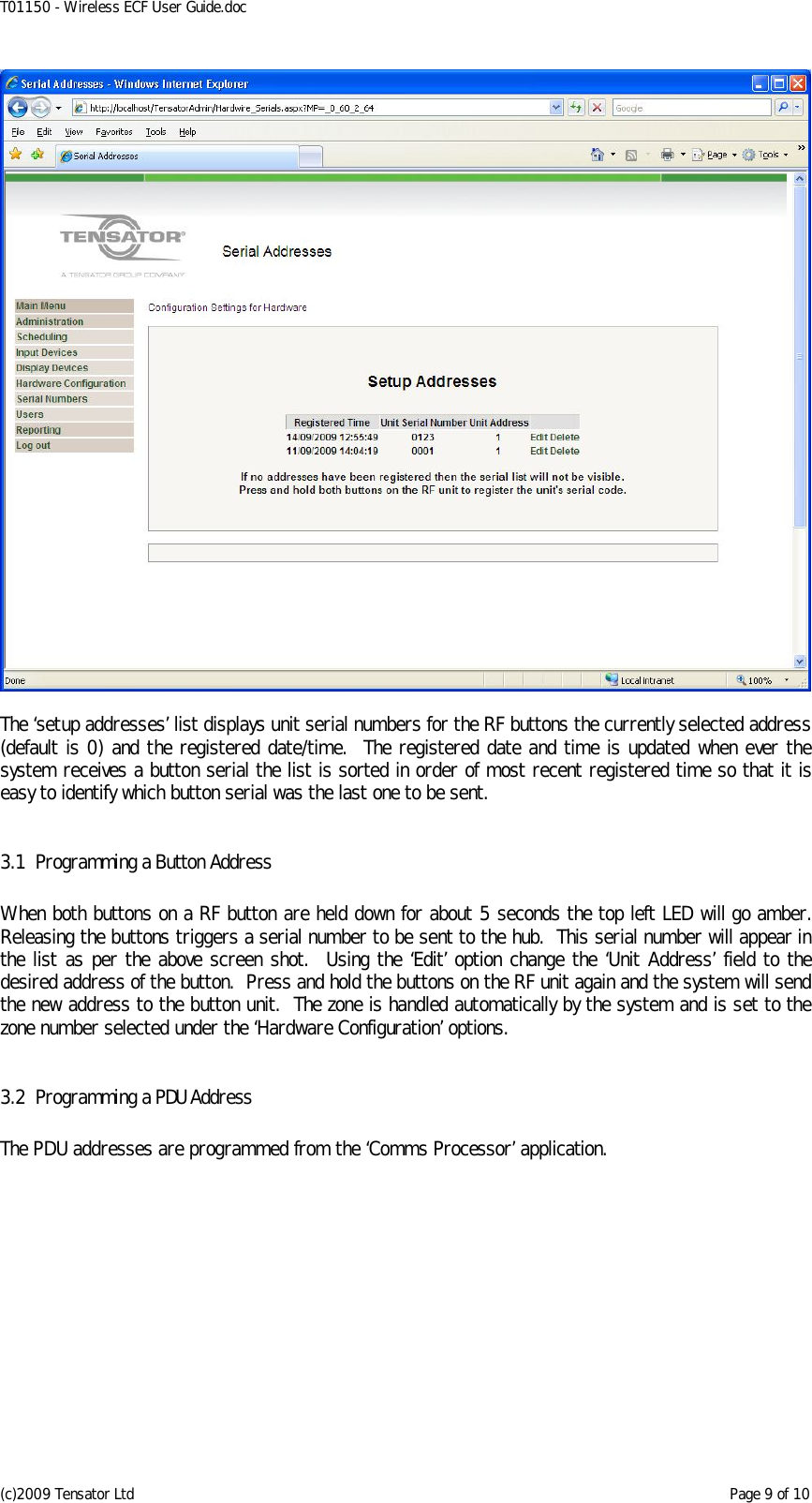
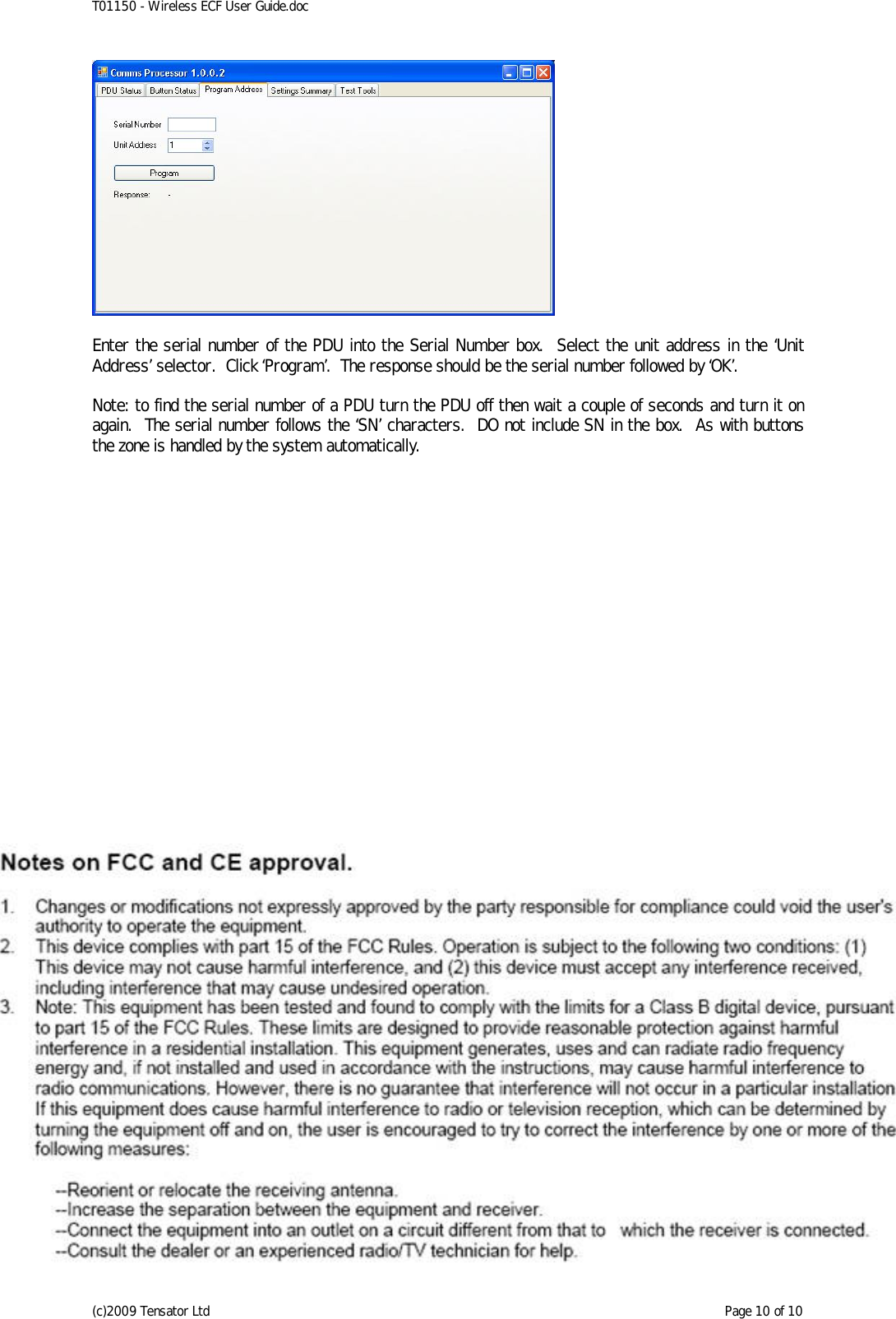
T01150 - Wireless ECF User Guide.doc (c)2009 Tensator Ltd    Page 9 of 10   The ‘setup addresses’ list displays unit serial numbers for the RF buttons the currently selected address (default is 0) and the registered date/time.  The registered date and time is updated when ever the system receives a button serial the list is sorted in order of most recent registered time so that it is easy to identify which button serial was the last one to be sent.  3.1 Programming a Button Address  When both buttons on a RF button are held down for about 5 seconds the top left LED will go amber.  Releasing the buttons triggers a serial number to be sent to the hub.  This serial number will appear in the list as per the above screen shot.  Using the ‘Edit’ option change the ‘Unit Address’ field to the desired address of the button.  Press and hold the buttons on the RF unit again and the system will send the new address to the button unit.  The zone is handled automatically by the system and is set to the zone number selected under the ‘Hardware Configuration’ options.  3.2 Programming a PDU Address  The PDU addresses are programmed from the ‘Comms Processor’ application.
T01150 - Wireless ECF User Guide.doc (c)2009 Tensator Ltd    Page 10 of 10   Enter the serial number of the PDU into the Serial Number box.  Select the unit address in the ‘Unit Address’ selector.  Click ‘Program’.  The response should be the serial number followed by ‘OK’.  Note: to find the serial number of a PDU turn the PDU off then wait a couple of seconds and turn it on again.  The serial number follows the ‘SN’ characters.  DO not include SN in the box.  As with buttons the zone is handled by the system automatically.

Navigation menu