RF WINDOW RPH-1000 VOIP SYSTEM User Manual ETUMESDQJOOW
RF WINDOW Co.,Ltd. VOIP SYSTEM ETUMESDQJOOW
Users Manual
1
RPH-1000
PicoCast VoIP Phone
2
Contents
04. Cautions for the safety
07. Introduction to the product
08. Basic components
09. Name and function of each part
10. Description of icons on the mobile device
11. Installing the battery
13. Charging the mobile device
14. Instructions to use the product
15. Typing texts
16. Telephone function
16. Busy signal
17. Receiving a call
17. Missed calls
18. Menu functions
19. Phonebook
-Searching a phone number
-Adding a phone number
-Group management
-Speed dial number management
20. SMS message
-Typing texts
-Incoming messages
-Outgoing messages
-Message box
-Spam message
-Message settings
21. Organizer
-Simple alarm
-User alarm
-Scheduler
-Memo
-Electronic calculator
-World time
-Stopwatch
23. Additional function
-Broadcasting service
3
24. Settings
-Sound settings
-Display settings
-Communication Settings
-Telephone function settings
-System Info
-Version
26. Lock settings
-Change password
-Lock functions
-Lock calls
-Initialize storage

4
Cautions for the safety
1.
Cautions for the safety
The followings are the details for protecting user
Read the followings carefully
and use the product properly.
A possibility of severe
death in case this direction is
violated.
Warning
Do not install the product on the
product in a safe and proper manner.
-
Near office products including a computer, copying machine or fax
-
A place with direct heat or sunlight
-
A place surrounded with thick walls or steel structures
-
A place with heavy dust
-
A place with heavy
moisture
Cautions for using the battery
-
Keep the battery out of children
leakage from the battery.
-
Do not allow any leakage from the battery
-
Do not apply the shock to the
-
Do not remove or rebuild the
-
Collect and
throw away the
-
Use the standard battery charger
charging the battery.
-
Do not disassemble the
Cautions for the safety
-
Do not pull the cord of the adaptor or touch the power plug with wet hands.
-
Do not use a
damaged power cord, plug or loose socket.
-
Do not use the product in a place with high
-
Dropping or
applying a severe shock to the product might damage the product.
-
Do not disassemble, repair or rebuild the product based o
Cautions for using the product
-
Wet a soft cloth with a neutral detergent and wipe the product in case it is necessary
to clean the mobile device
5
Cautions for the safety
The followings are the details for protecting user
’
s safety and preventing the property loss
and use the product properly.
A possibility of severe
injury or
death in case this direction is
A possibility of minor
product damage in case this
direction is violated.
Caution
Do not install the product on the
following places in order to use the
product in a safe and proper manner.
Near office products including a computer, copying machine or fax
A place with direct heat or sunlight
A place surrounded with thick walls or steel structures
A place with heavy dust
moisture
Cautions for using the battery
Keep the battery out of children
’
s reach and do not allow them to suck or eat any
leakage from the battery.
Do not allow any leakage from the battery
contact with eyes, skin or cloth.
Do not apply the shock to the
battery or place the battery
near fire.
Do not remove or rebuild the
battery cover.
throw away the
battery separately.
Use the standard battery charger
approved by a government-
designated agency for
charging the battery.
Do not disassemble the
battery
based on your discretion or apply a shock
Cautions for the safety
Do not pull the cord of the adaptor or touch the power plug with wet hands.
damaged power cord, plug or loose socket.
Do not use the product in a place with high
temperatures
or moist environments.
applying a severe shock to the product might damage the product.
Do not disassemble, repair or rebuild the product based o
n your discretion
Cautions for using the product
Wet a soft cloth with a neutral detergent and wipe the product in case it is necessary
to clean the mobile device
, the mainframe and the charging cradle.
s safety and preventing the property loss
.
A possibility of minor
injury or
product damage in case this
direction is violated.
following places in order to use the
s reach and do not allow them to suck or eat any
contact with eyes, skin or cloth.
near fire.
designated agency for
based on your discretion or apply a shock
.
Do not pull the cord of the adaptor or touch the power plug with wet hands.
or moist environments.
applying a severe shock to the product might damage the product.
n your discretion
.
Wet a soft cloth with a neutral detergent and wipe the product in case it is necessary
-
The battery might be discharged
the mobile device
for over 5 hours
Other cautions
-
Use the
mobile device
-
The call distance might vary according to the
wires, base stations or
distance.)
-
The call quality might
product.
1. FCC Statement
This device complies with Part 15 of the FCC Rules. Operation is
conditions:
(1) This device may not cause harmful interference. and
(2) This device must accept any interference received, including interference that
may cause undesired operation.
2. Caution
To assure continued compliance, any changes or modifications not expressly approved by the
party responsible for compliance could void the user's authority to operate this equipment.
To comply with FCC RF exposure compliance requirements, a separation di
20 cm must be maintained
between
must not be co-
located or operation in conjunction with any other antenna or transmitter.
6
The battery might be discharged
naturally during t
he distribution process. Recharge
for over 5 hours
before use.
mobile device
within the call distance.
The call distance might vary according to the
surrounding
environments.
wires, base stations or
any product using or radio frequencies might affect the call
The call quality might
vary
according to a product using the same frequency with this
This device complies with Part 15 of the FCC Rules. Operation is
subject to the following two
(1) This device may not cause harmful interference. and
(2) This device must accept any interference received, including interference that
may cause undesired operation.
To assure continued compliance, any changes or modifications not expressly approved by the
party responsible for compliance could void the user's authority to operate this equipment.
To comply with FCC RF exposure compliance requirements, a separation di
between
the antenna of this device and all persons. This device
located or operation in conjunction with any other antenna or transmitter.
he distribution process. Recharge
environments.
(High-tension
any product using or radio frequencies might affect the call
according to a product using the same frequency with this
subject to the following two
(2) This device must accept any interference received, including interference that
To assure continued compliance, any changes or modifications not expressly approved by the
party responsible for compliance could void the user's authority to operate this equipment.
To comply with FCC RF exposure compliance requirements, a separation di
stance of at least
the antenna of this device and all persons. This device
located or operation in conjunction with any other antenna or transmitter.

7
Introduction to the product
Basic components
Name and function of each part
Description of icons on the mobile device
Installing the battery
Charging the mobile device
8
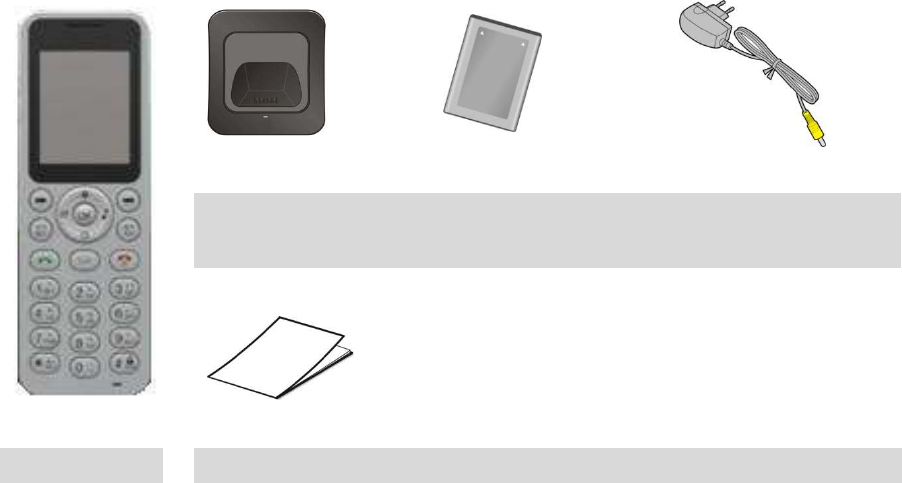
1. Basic components
Check thoroughly to see if there’s any component missing after purchasing the product.
Charging cradle Battery Power adaptor
RPH-1000 Fast user’s manual
▶ Check the components first when purchasing the product. Contact the place where you
purchased the product if you find any problem.
▶ The actual product might be different from the one shown in the figure above according to
the manufacturer’s policy.
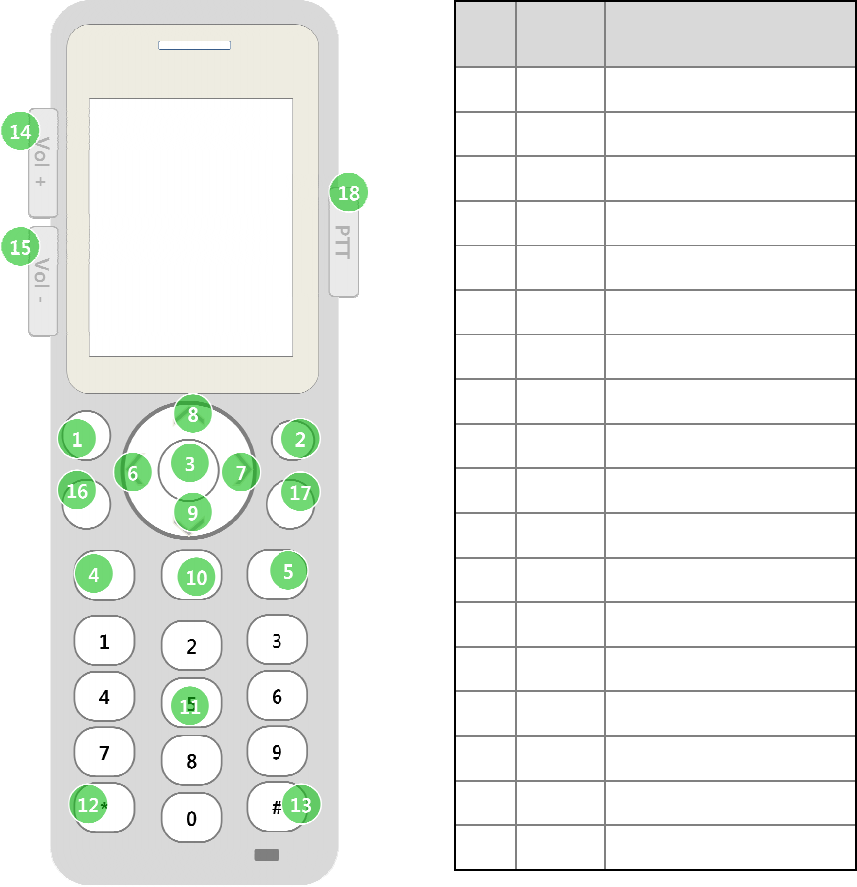
2.
Name and function of each part
▶
Name and function of each part in the
9
Name and function of each part
Name and function of each part in the
mobile device
No.
Button
name
Defined function of each
button
1 LSK
Soft key
2 RSK
Soft key
3 OK Store/
Enter
4 SEND
Making a call
5 END
6 N.LEFT
Arrow key left
7 N.RIGHT
Arrow key right
8 N.TOP
Arrow key up
9 N.DOWN
Arrow key down
10 CANCEL
Cancel
11 D.0 ~ 9
Number
12 D.*
Bell key
13 D.#
Sharp key
14 V.UP
Volume
15 V.DOWN
Volume down
16 PICKUP
Call pickup
17 TRANS
Call transfer
18 PTT
Push To Talk
Defined function of each
button
Soft key
left
Soft key
right
Enter
/Edit/See/End
Making a call
End
Arrow key left
Arrow key right
Arrow key up
Arrow key down
Cancel
/Erase/Back
Number
0 ~ 9
Bell key
Sharp key
Volume
up
Volume down
Call pickup
Call transfer
Push To Talk
3.
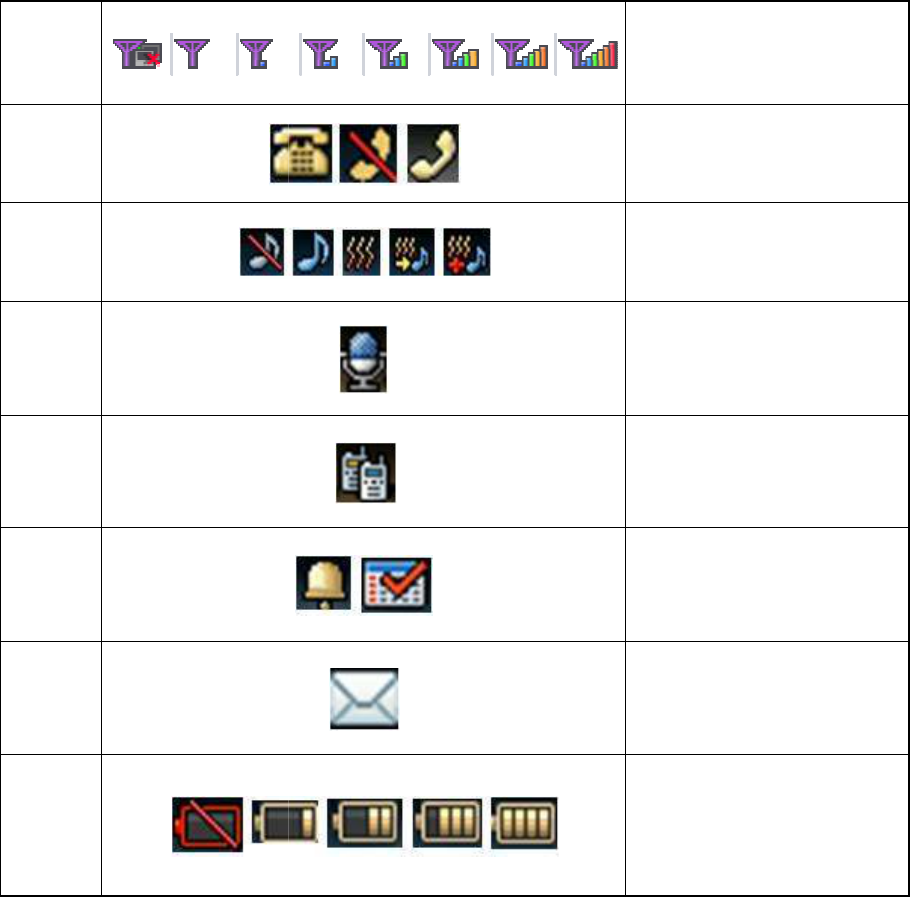
Description of icons on the mobile device
▶ Description of icons in the
mobile device
RSSI
Call status
Ringtone
Broadcasti
ng status
PTT status
Alarm
SMS
Battery
- The battery
life duration might vary according to the service type provided by the mobile carrier,
the environment and the period of
-
The battery will be discharged even if the product is not
functions of the product shortens the battery stand
- The battery
is a consumable product so that its life duration will be shortened gradually. In case
the battery life duration has
been shortened more than a ha
recommended to purchase and use a new battery.
10
Description of icons on the mobile device
mobile device
Signal strength
RSSI
value
Call waiting
Silent,
normal
meeting, headset
Broadcasting
wireless set
Alarm
SMS
It indicates the
Battery
indicator
life duration might vary according to the service type provided by the mobile carrier,
the environment and the period of
battery used.
The battery will be discharged even if the product is not
used, and using various additional
functions of the product shortens the battery stand
-by time.
is a consumable product so that its life duration will be shortened gradually. In case
been shortened more than a ha
lf of its original duration, it is
recommended to purchase and use a new battery.
Description of icons on the mobile device
Signal strength
value
: 1 ~ RSS value: 7
Call waiting
, No call, Calling
normal
,
manner mode,
meeting, headset
Broadcasting
PTT
wireless set
Alarm
, scheduler
SMS
reception
It indicates the
battery
condition.
indicator
1 ~ Battery
indicator 4
life duration might vary according to the service type provided by the mobile carrier,
used, and using various additional
is a consumable product so that its life duration will be shortened gradually. In case
lf of its original duration, it is
4.
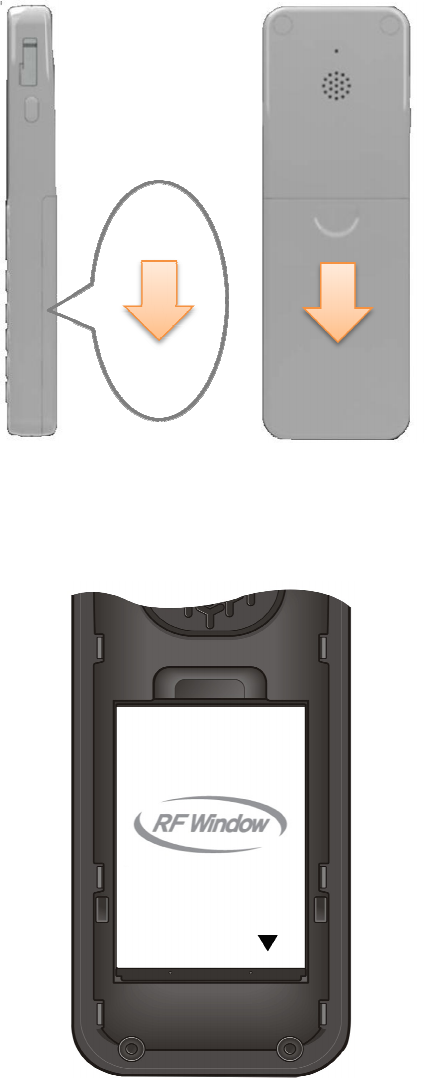
Installing the battery
▶
Take down the cover on the back of the
to the outside.
▶ Insert the charged battery
into the
11
Installing the battery
Take down the cover on the back of the
mobile device
and remove the cover from the inside
into the
mobile device
as shown in the figure below.
and remove the cover from the inside
as shown in the figure below.
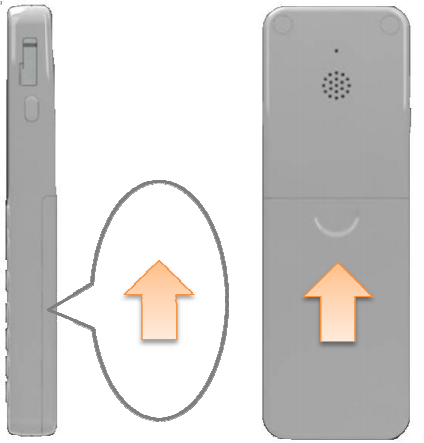
▶ Fit the cover
to the groove on the device,
▶ Cautions for using the
battery
- Use only the battery
provided with the mobile device. Using
cause the explosion of the battery.
- Do not use the battery
in an environment with a direct sunlight or a high temperature including
spa.
- Inserting the battery
in a wrong direction might cause overheating, fire, explosion of battery or
risk of injuries.
-
Do not apply severe shock or make a hole in the
-
Do not allow the battery wet or sink under the water.
-
Do not allow children or a pet to bite or suck the battery.
- Do not allow the battery
charging socket to con
- Discard the used battery
only at a designated place.
12
to the groove on the device,
cover and push the cover up.
battery
provided with the mobile device. Using
any un
approved
cause the explosion of the battery.
in an environment with a direct sunlight or a high temperature including
in a wrong direction might cause overheating, fire, explosion of battery or
Do not apply severe shock or make a hole in the
battery
with a sharp object.
Do not allow the battery wet or sink under the water.
Do not allow children or a pet to bite or suck the battery.
charging socket to con
tact with metals.
only at a designated place.
approved
battery might
in an environment with a direct sunlight or a high temperature including
in a wrong direction might cause overheating, fire, explosion of battery or
with a sharp object.
13
5. Charging the mobile device
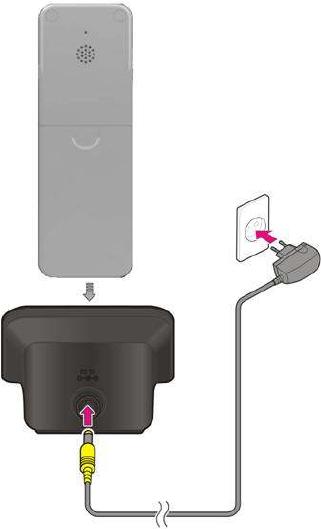
Charge the battery of the mobile device as shown in the figure below.
▶ Connect the power adaptor to the power port on the back of the charging cradle and the
electrical outlet.
▶ When placing the mobile device on the charging cradle, the battery charging will begin.
- It is recommended to charge the battery for at least 5 hours before use.
▶ Cautions for charging the battery
- Use only the adaptor provided with the product together.
- The battery life duration is guaranteed for 6 months after purchase.
- The battery is a consumable product so that its life duration will be shortened according to the
overcharging and discharging. In case the battery life has ended, the battery might expand and
release gas, giving the risk of burns. It is recommended to purchase and use a new original
battery before the battery life duration has been shortened more than a half of its original
duration or the shape of the battery is altered (expanding).

14
Instructions to use the product
Typing texts
Telephone function
Busy signal
Receiving a phone call
Missed calls
15
1. Typing texts
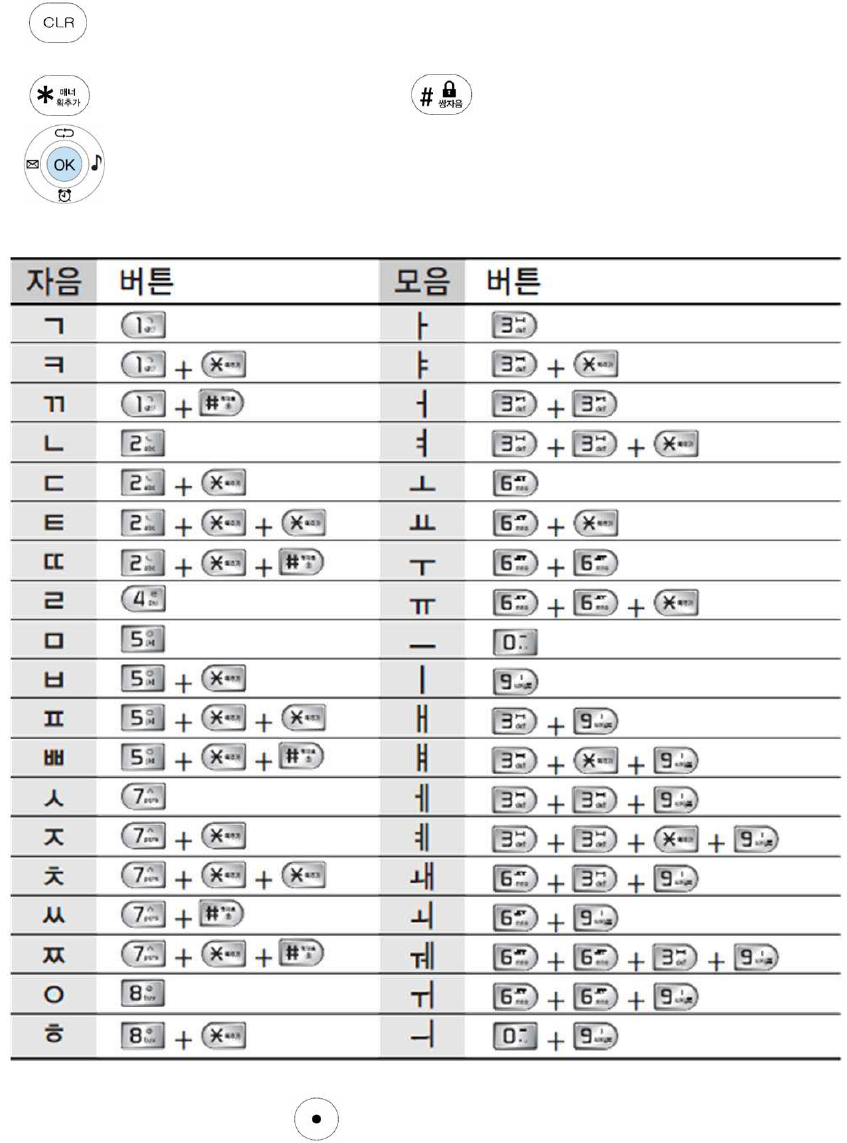
Use this section at the input field required for typing texts such as SMS message, screen phrase
or names in the phonebook.
▶ button: Use for erasing a letter while typing texts
▶ button: Use for adding a stoke ▶ button: Use for a pair of consonants
▶ : Use for adding a space between letters by using the right note button while typing
texts
▶ The user can use Korean letters, English alphabets (Upper case), English alphabets (Lower case),
numbers and special characters by pressing the right.
16
2. Telephone function
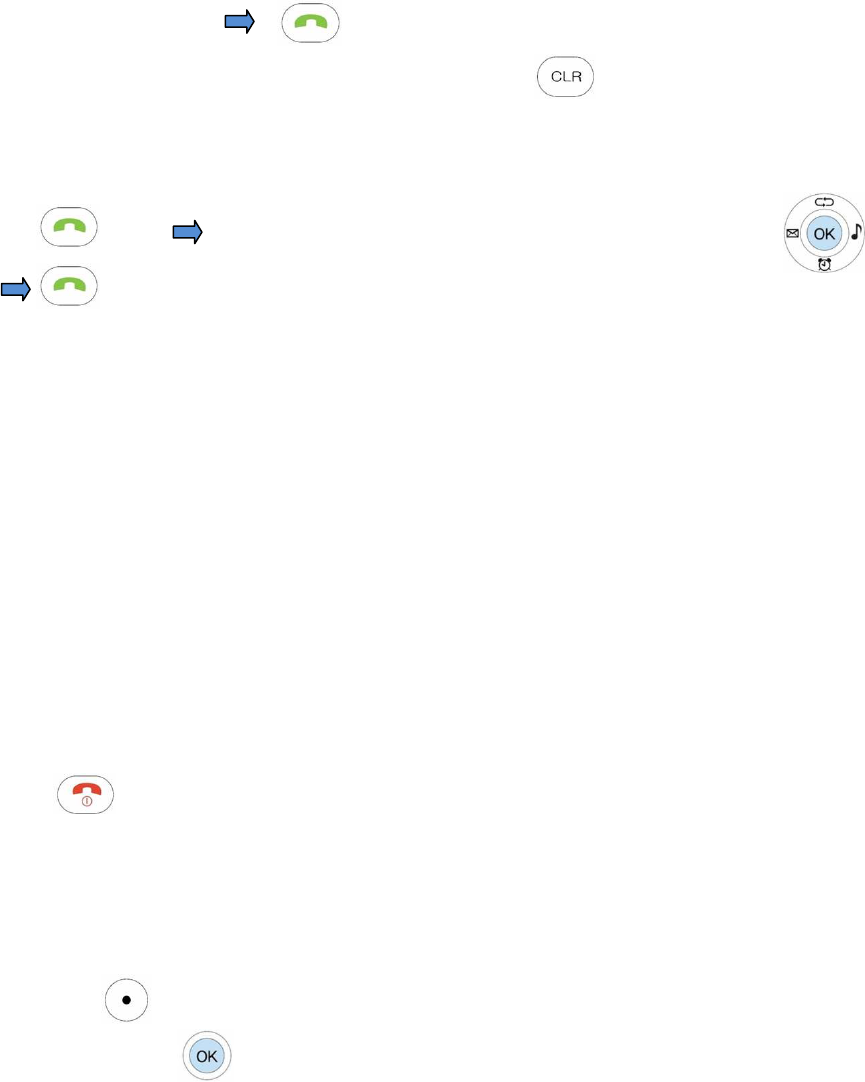
1) Making a phone call
- Making a phone call by entering a phone number
Enter a phone number
(In case of entering a wrong phone number, you can press and edit the number.)
- Making a phone call by searching recent call history
Press shortly Select a number you want to call by using the arrow keys on
- Making a phone call by using a speed dial number
Press a speed dial number stored in the phonebook longer in the stand-by status.
(You can make a phone call by pressing the number longer in case the speed dial number is
between 0 and 9 and by pressing the second number longer in case the speed dial number is
between 10 and 99.)
2) Hanging up
- Hanging up after a phone call
Press to hang up.
3. Busy signal
Menu: Press [Left] key to use this function.
Speakerphone: Press key to use this function.
17
Mute: Press [Right] key to use this function
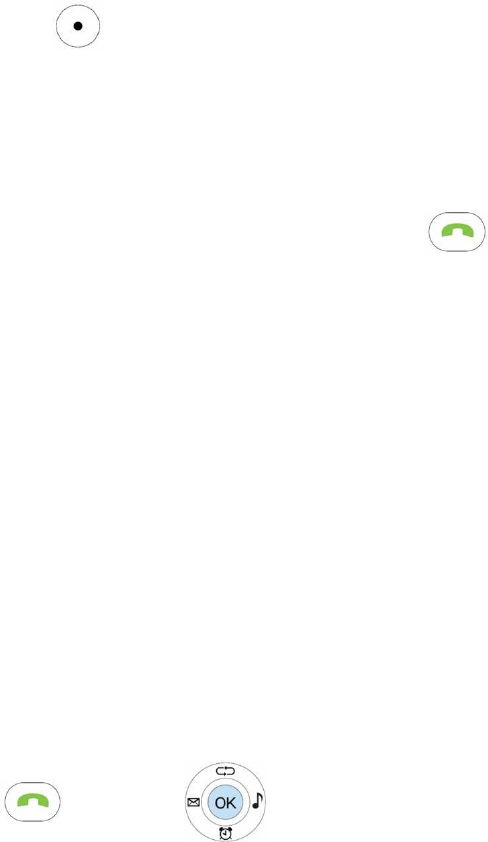
4. Answering a phone call
- Answering a phone call in the stand-by status
Check the caller’s name or phone number and press .
(You can answer a phone call by using all keys according to the “Answering a phone call” settings
under the “3. Communication settings” of “5. Settings” on the menu.)
- Call forwarding
Forward a phone call to a registered call forwarding number in case the call forwarding function
is set.
5. Missed calls
- Check the missed called in the stand-by status
Press key and use key to move to “Missed call list” menu and check.

18
Menu functions
Phonebook
SMS message
Organizer
Additional function
Preferences
Lock settings
19
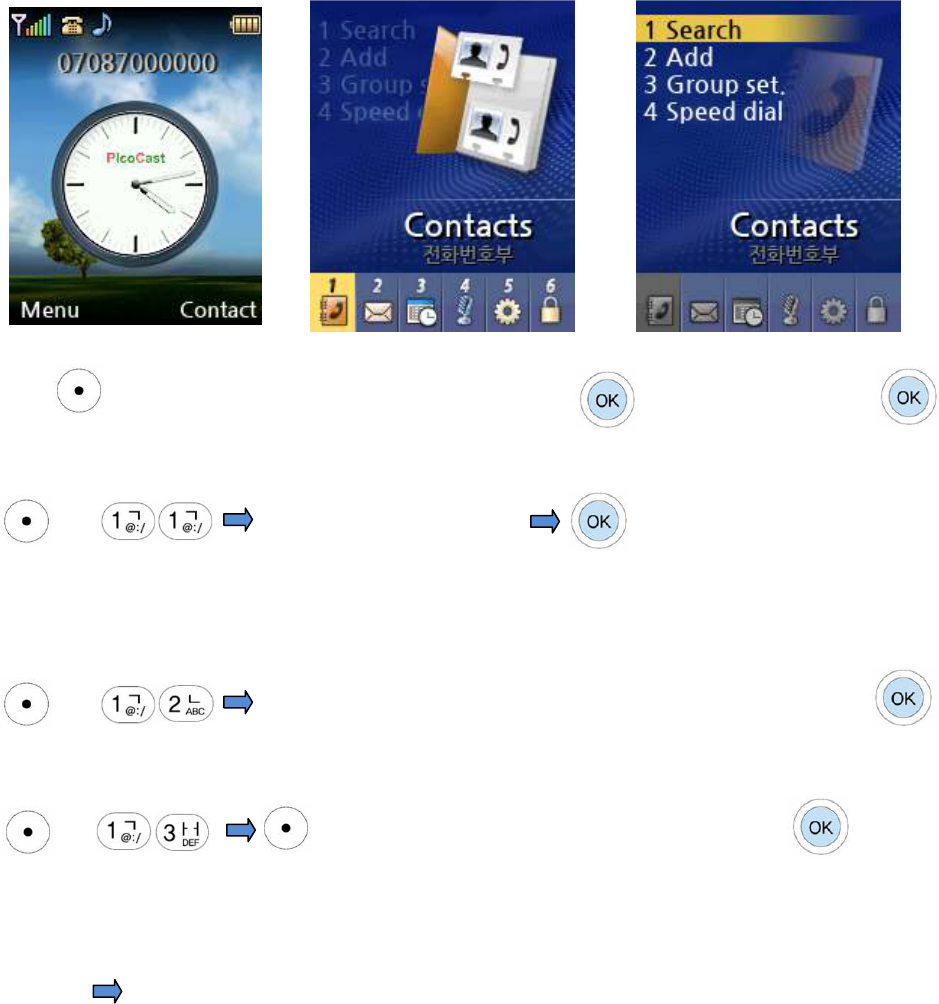
1. Phonebook
Press [Left] on the initial
screen.
Select the phonebook and press Select a function and press
1) Search phone number: Use to search a stored phonebook
[Left] Select a function you want
You can search the phonebook by using both a name and a phone number.
2) Add phone number: Store a new phone number
[Left] Select and enter the name, group, commemoration day and memo
3) Group management: Manage groups for phone numbers stored in the phonebook
[Left] [Left] Select SMS message, Group add/Edit/Delete
4) Speed dial number management: Manage speed dial numbers for phone
numbers stored in the phonebook
Left, 1, 4 Select speed dial number, search and select a stored phone number and click OK
20
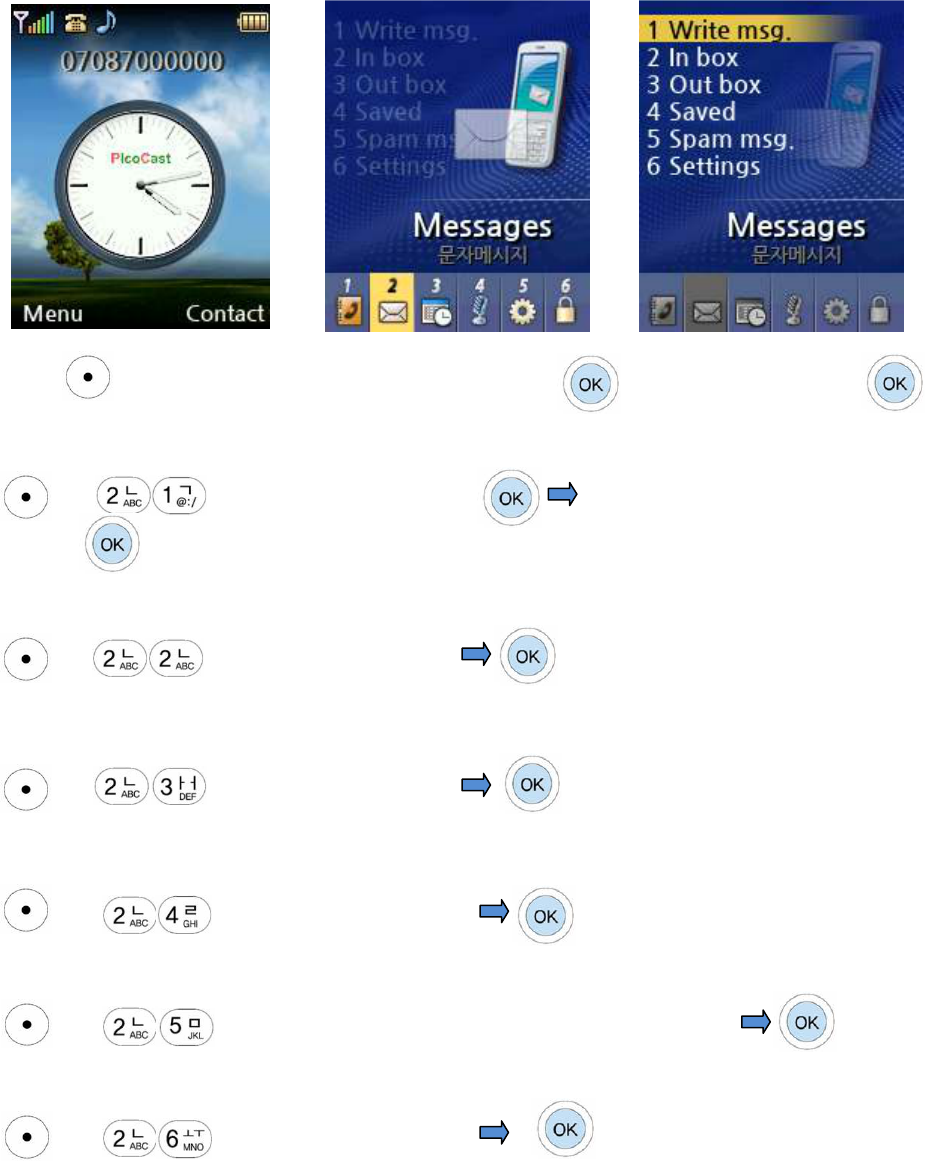
2. SMS message
Press [Left] on the initial
screen
Select SMS message and press Select a function and press
1) Write message
[Left] , type SMS message to send Enter and enter the sender and
receiver
2) Incoming message
[Left] Check incoming messages
3) Outgoing message
[Left] Check outgoing messages
4) Message box
[Left] Check the stored messages
5) Spam message
[Left] Block messages incoming from a specific phone number
6) Message settings
[Left] Check the stored messages
21
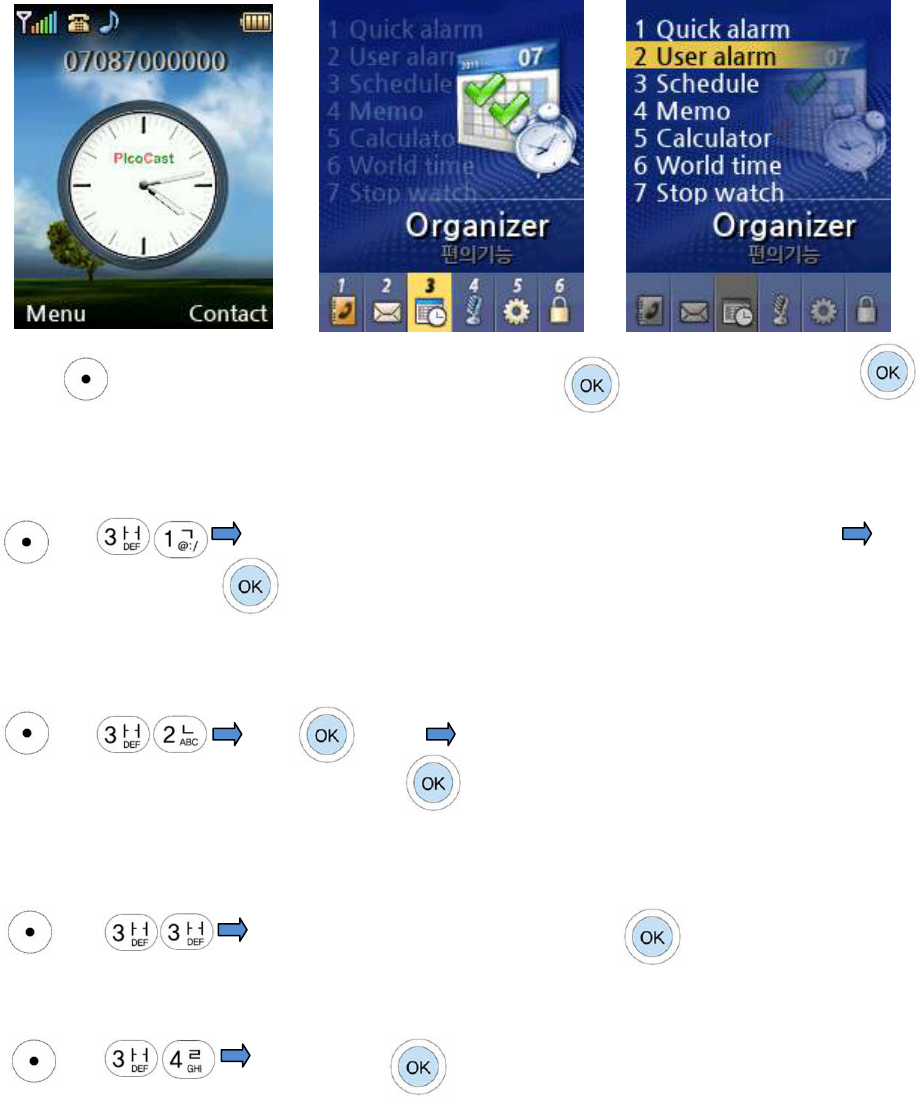
3. Organizer
Press [Left] on the initial
screen
Select the Organizer and press
Select a function and press
1) Simple alarm: Select among time input, 1,2,3,5,10,15,30 minutes, user settings
or cancel
[Left] Select time input, (1,2,3,5,10,15,30 minutes, user settings, cancel)
Select an alarm sound
2) User’s alarm: Select among Once, Daily, Mon~Fri, Mon~Sat, Cancel
[Left] Press to add Set the cycle (Once, per day of the week, user
settings), time, repetition, and alarm sound
3) Scheduler: Select a specific date to record an important schedule and store
[Left] Enter start time, end time and details
4) Memo: Functions to write memo, delete memo and delete all memo
[Left] Enter memo
22
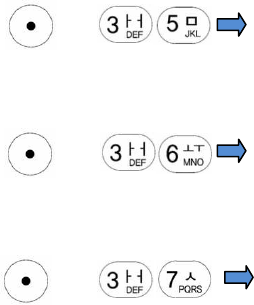
5) Electronic calculator
[Left] The electronic calculator function provided
6) World time
[Left] World time function, World time DST, Dual time function
7) Stopwatch
[Left] Stopwatch function
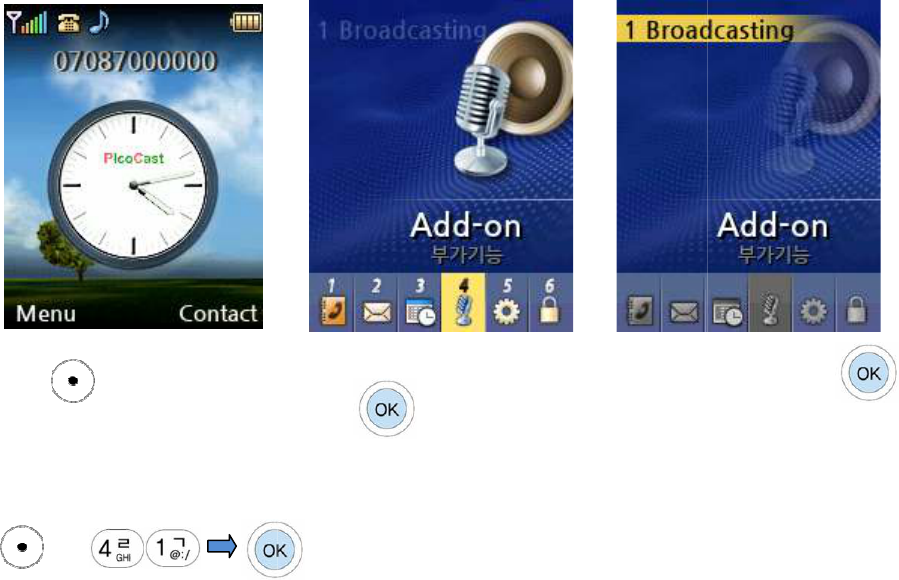
4.
Additional function
Press [Left] on the initial
screen
1) Broadcasting service
[Left]
23
Additional function
Select the additional function and
press
Select a function and press
Select a function and press
24
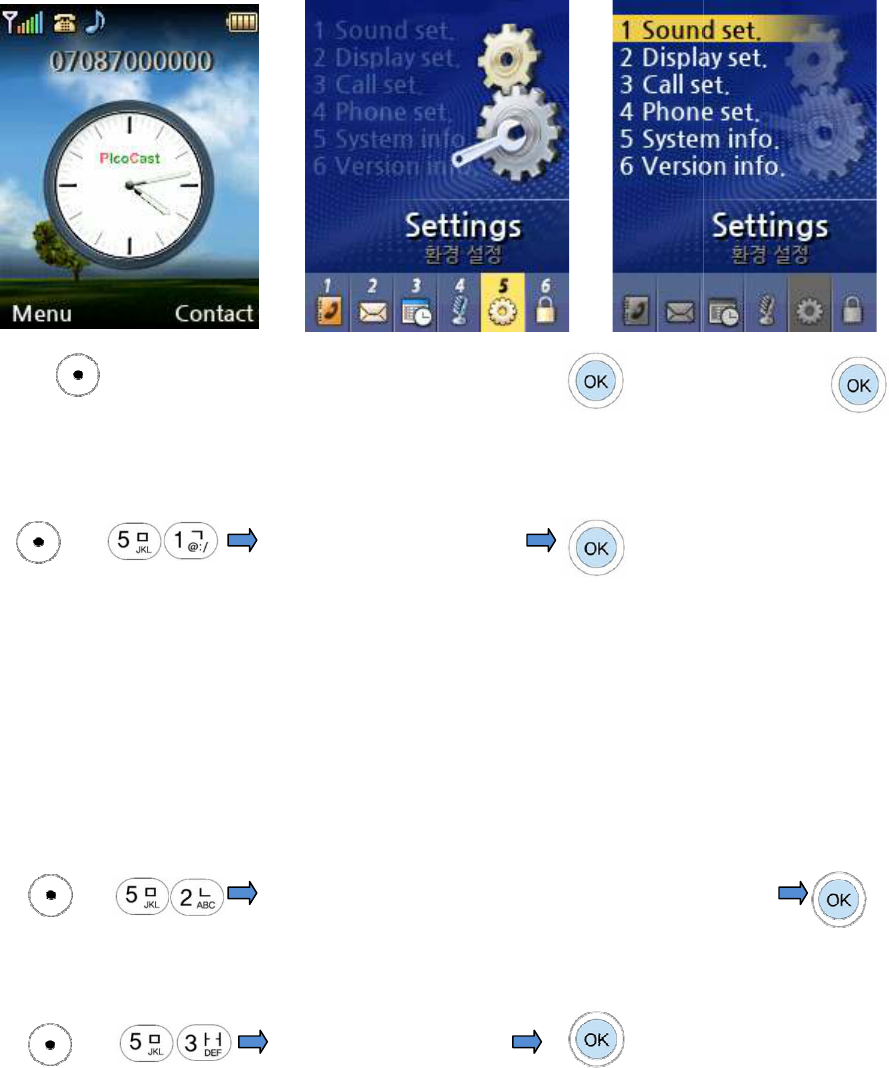
5. Preferences
Press [Left] on the initial
screen
1) Sound settings:
Select a ringtone
[Left]
Select a ringtone you want
1. Profile setting
2. Electronic sound
Ringtone
3. Classic ringtone
4. Melody ringtone
2)
Display settings:
Set the background image, clock and wording used
[Left]
Set the background image, clock and wording to use
3)
Communication settings:
Set the method to make a phone call and the area code
[Left]
Set the
1. Making a phone call:
With any key
2. Area code settings:
Add the area code automatically when entering a phone number
25
Select the preferences and press
Select a function and press
Select a ringtone
to use when receiving a call
Select a ringtone you want
Ringtone
Set the background image, clock and wording used
in the
Set the background image, clock and wording to use
Set the method to make a phone call and the area code
Set the
method you want
With any key
/ With Send key
Add the area code automatically when entering a phone number
Select a function and press
to use when receiving a call
stand-by mode.
Set the background image, clock and wording to use
Set the method to make a phone call and the area code
Add the area code automatically when entering a phone number
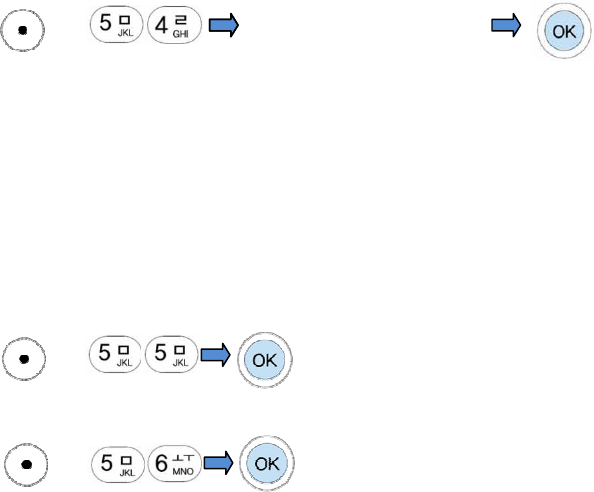
4) Telephone function setting:
Set the method to receive a phone call and the area code
[Left]
1. Language settings:
Korean
2. Time display settings:
12
3. Brightness settings:
Set the brightness of
4.
Backlighting time setting
5) System Info:
Display the telephone info
[Left]
6)
Version:
Display the telephone info
[Left]
26
Set the method to receive a phone call and the area code
Set the method you want
Korean
/English
12
-hour / 24-hour
Set the brightness of
LCD screen
Backlighting time setting
: Set the time of LCD lighting on
Display the telephone info
, IP and the network settings info
Display the telephone info
,
Final update time, and the network settings info
Set the method to receive a phone call and the area code
Final update time, and the network settings info
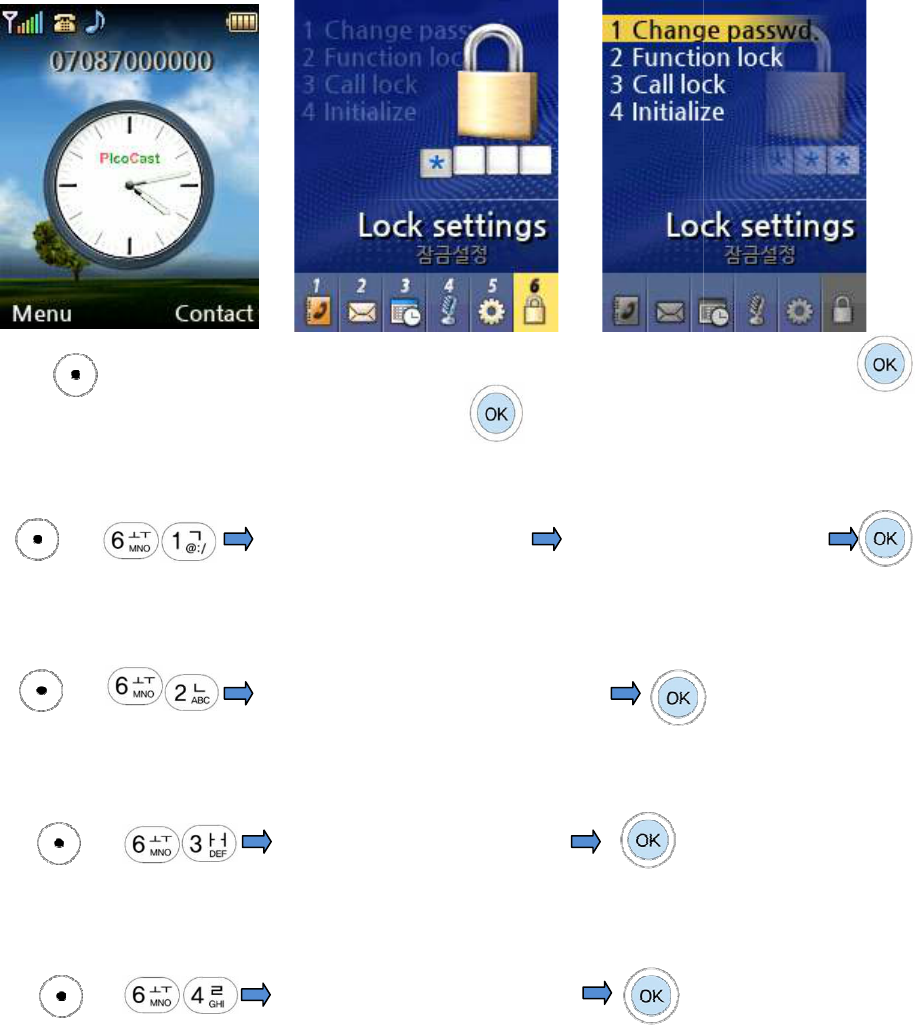
6.
Lock settings
Press [Left] on the initial
screen
1) Password change
[Left]
Enter the previous password
(
The default password of the product is
2) Lock functions
[Left]
Select one of lock functions settings
SMS message Lock/
phonebook
3) Lock Calls
[Left]
Set lock for making a call/
Send
4) Initialize Storage:
Function to initialize data used by the telephone user
[Left]
Initialize settings/data including P
27
Lock settings
Select the lock settings and
press
Select a function and press
Enter the previous password
Enter new password (Twice)
The default password of the product is
“0000”.)
Select one of lock functions settings
phonebook
Lock/Call History Lock settings
Select the Lock calls function
Send
SMS message/International Call
Function to initialize data used by the telephone user
Select the User data initialize
Initialize settings/data including P
honebook/Call history/SMS message
Select a function and press
Enter new password (Twice)
Function to initialize data used by the telephone user