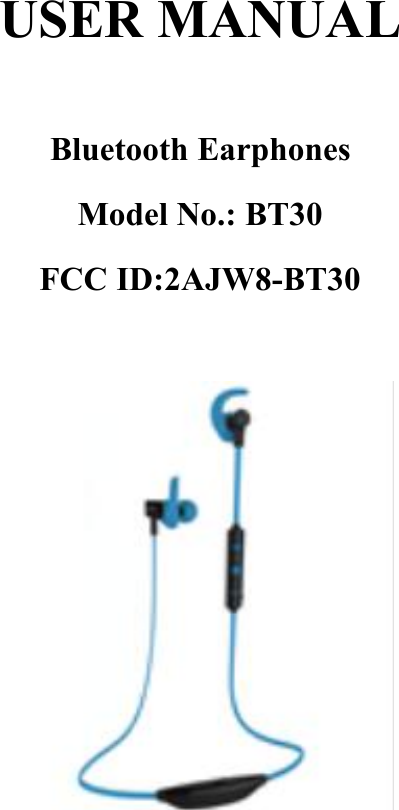
RILLPAC BT30 Bluetooth Earphones User Manual

RILLPAC (CHINA) CO., LIMITED Bluetooth Earphones

User Manual

USER MANUALBluetooth EarphonesModel No.: BT30FCC ID:2AJW8-BT30
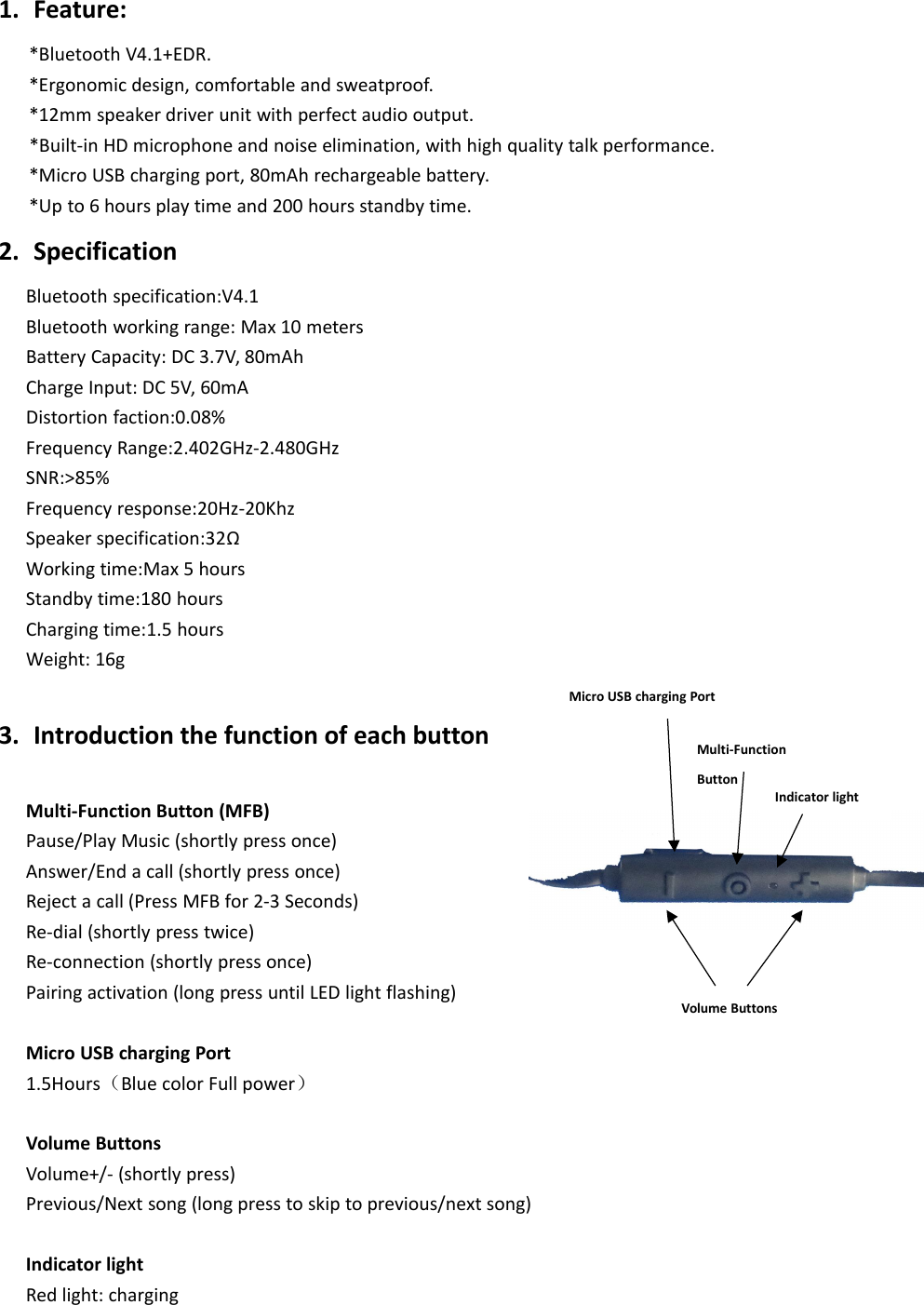
1. Feature:*Bluetooth V4.1+EDR.*Ergonomic design, comfortable and sweatproof.*12mm speaker driver unit with perfect audio output.*Built-in HD microphone and noise elimination, with high quality talk performance.*Micro USB charging port, 80mAh rechargeable battery.*Up to 6 hours play time and 200 hours standby time.2. SpecificationBluetooth specification:V4.1Bluetooth working range: Max 10 metersBattery Capacity: DC 3.7V, 80mAhCharge Input: DC 5V, 60mADistortion faction:0.08%Frequency Range:2.402GHz-2.480GHzSNR:>85%Frequency response:20Hz-20KhzSpeaker specification:32ΩWorking time:Max 5 hoursStandby time:180 hoursCharging time:1.5 hoursWeight: 16g3. Introduction the function of each buttonMulti-Function Button (MFB)Pause/Play Music (shortly press once)Answer/End a call (shortly press once)Reject a call (Press MFB for 2-3 Seconds)Re-dial (shortly press twice)Re-connection (shortly press once)Pairing activation (long press until LED light flashing)Micro USB charging Port1.5Hours(Blue color Full power)Volume ButtonsVolume+/- (shortly press)Previous/Next song (long press to skip to previous/next song)Indicator lightRed light: chargingMulti-FunctionButtonMicro USB charging PortVolume ButtonsIndicator light
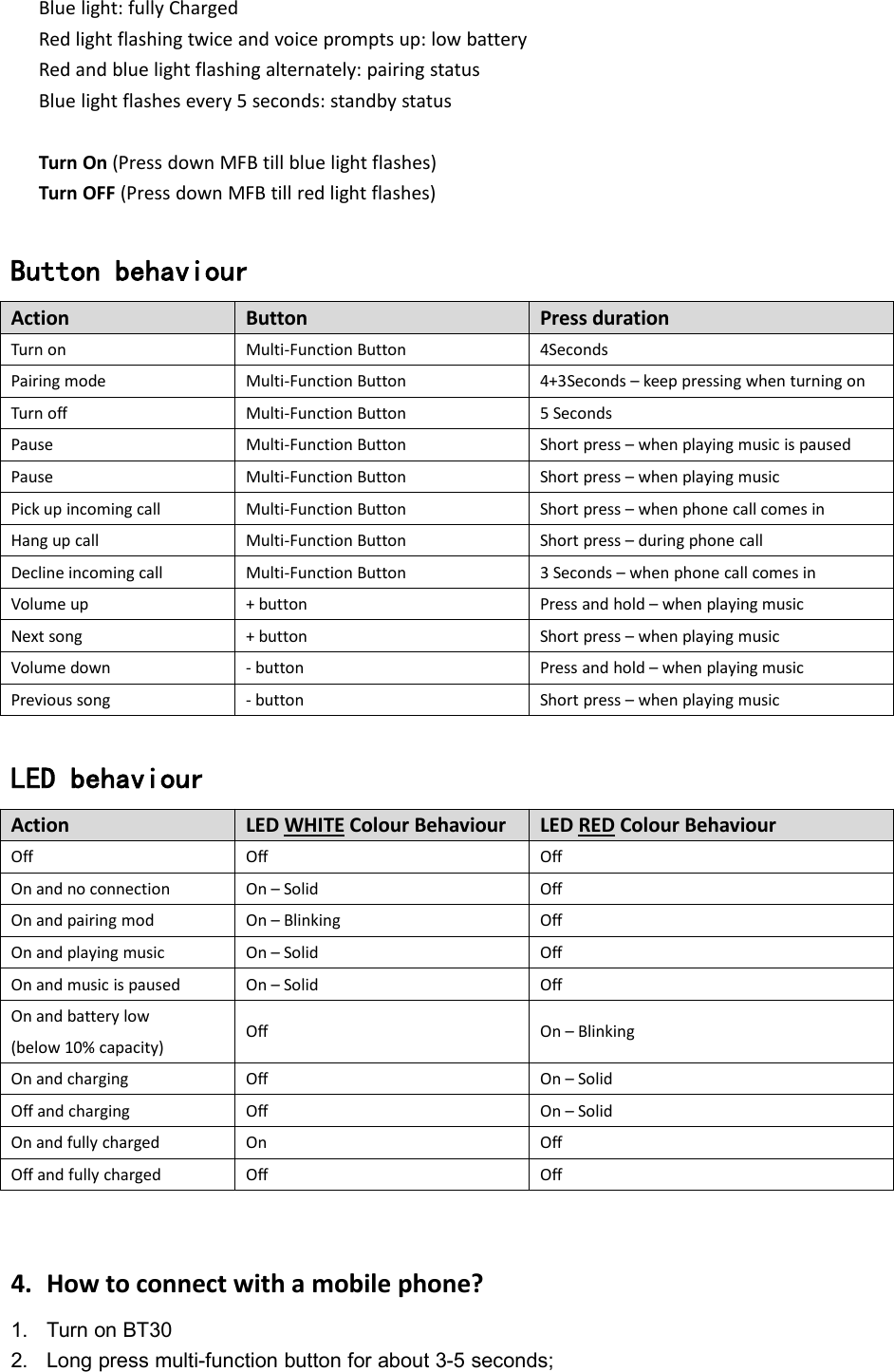
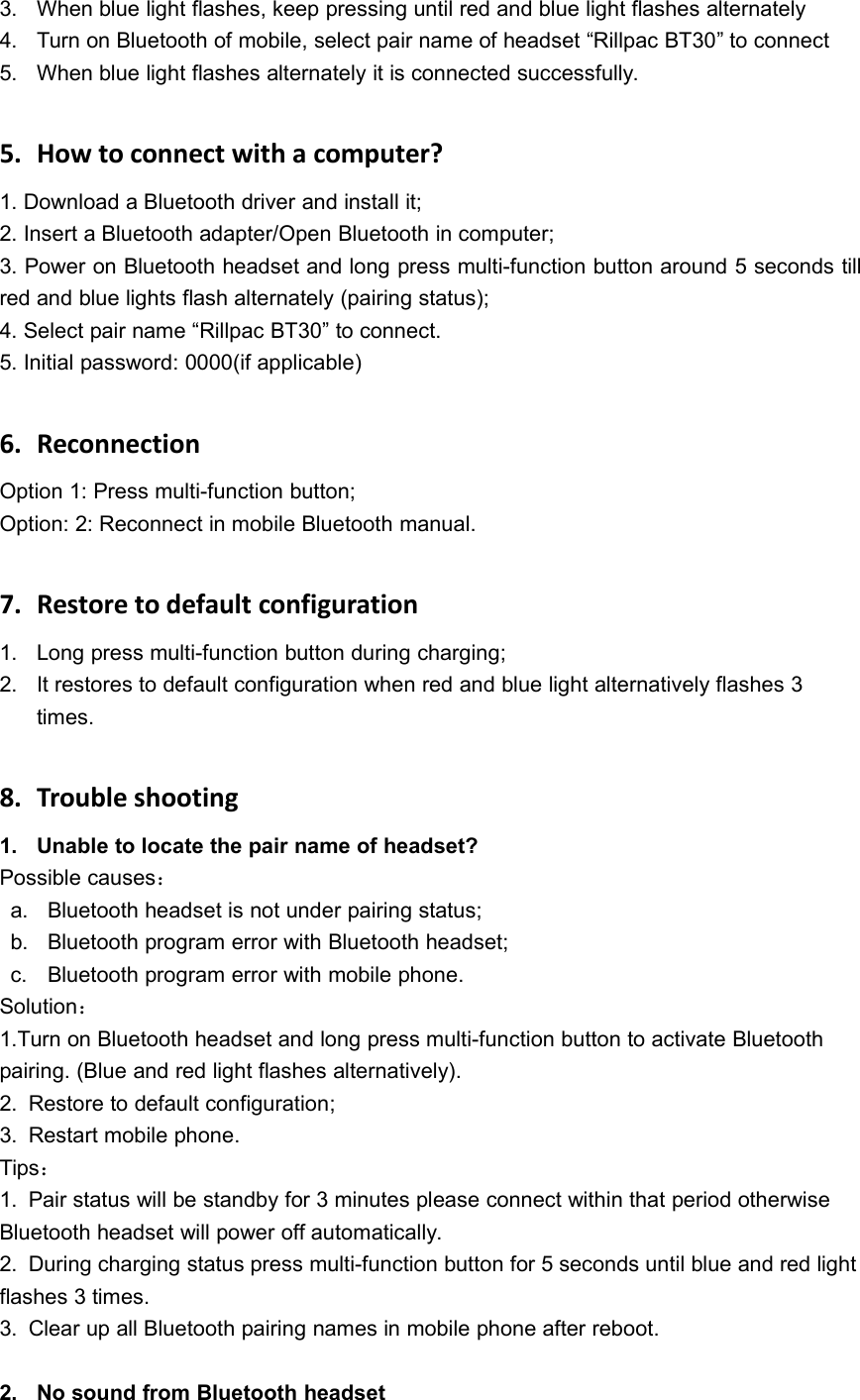
Blue light: fully ChargedRed light flashing twice and voice prompts up: low batteryRed and blue light flashing alternately: pairing statusBlue light flashes every 5 seconds: standby statusTurn On (Press down MFB till blue light flashes)Turn OFF (Press down MFB till red light flashes)Button behaviourActionButtonPress durationTurn onMulti-Function Button4SecondsPairing modeMulti-Function Button4+3Seconds – keep pressing when turning onTurn offMulti-Function Button5 SecondsPauseMulti-Function ButtonShort press – when playing music is pausedPauseMulti-Function ButtonShort press – when playing musicPick up incoming callMulti-Function ButtonShort press – when phone call comes inHang up callMulti-Function ButtonShort press – during phone callDecline incoming callMulti-Function Button3 Seconds – when phone call comes inVolume up+ buttonPress and hold – when playing musicNext song+ buttonShort press – when playing musicVolume down- buttonPress and hold – when playing musicPrevious song- buttonShort press – when playing musicLED behaviourActionLED WHITE Colour BehaviourLED RED Colour BehaviourOffOffOffOn and no connectionOn – SolidOffOn and pairing modOn – BlinkingOffOn and playing musicOn – SolidOffOn and music is pausedOn – SolidOffOn and battery low(below 10% capacity)OffOn – BlinkingOn and chargingOffOn – SolidOff and chargingOffOn – SolidOn and fully chargedOnOffOff and fully chargedOffOff4. How to connect with a mobile phone?1. Turn on BT302. Long press multi-function button for about 3-5 seconds;
3. When blue light flashes, keep pressing until red and blue light flashes alternately4. Turn on Bluetooth of mobile, select pair name of headset “Rillpac BT30” to connect5. When blue light flashes alternately it is connected successfully.5. How to connect with a computer?1. Download a Bluetooth driver and install it;2. Insert a Bluetooth adapter/Open Bluetooth in computer;3. Power on Bluetooth headset and long press multi-function button around 5 seconds tillred and blue lights flash alternately (pairing status);4. Select pair name “Rillpac BT30” to connect.5. Initial password: 0000(if applicable)6. ReconnectionOption 1: Press multi-function button;Option: 2: Reconnect in mobile Bluetooth manual.7. Restore to default configuration1. Long press multi-function button during charging;2. It restores to default configuration when red and blue light alternatively flashes 3times.8. Trouble shooting1. Unable to locate the pair name of headset?Possible causes:a. Bluetooth headset is not under pairing status;b. Bluetooth program error with Bluetooth headset;c. Bluetooth program error with mobile phone.Solution:1.Turn on Bluetooth headset and long press multi-function button to activate Bluetoothpairing. (Blue and red light flashes alternatively).2. Restore to default configuration;3. Restart mobile phone.Tips:1. Pair status will be standby for 3 minutes please connect within that period otherwiseBluetooth headset will power off automatically.2. During charging status press multi-function button for 5 seconds until blue and red lightflashes 3 times.3. Clear up all Bluetooth pairing names in mobile phone after reboot.2. No sound from Bluetooth headset
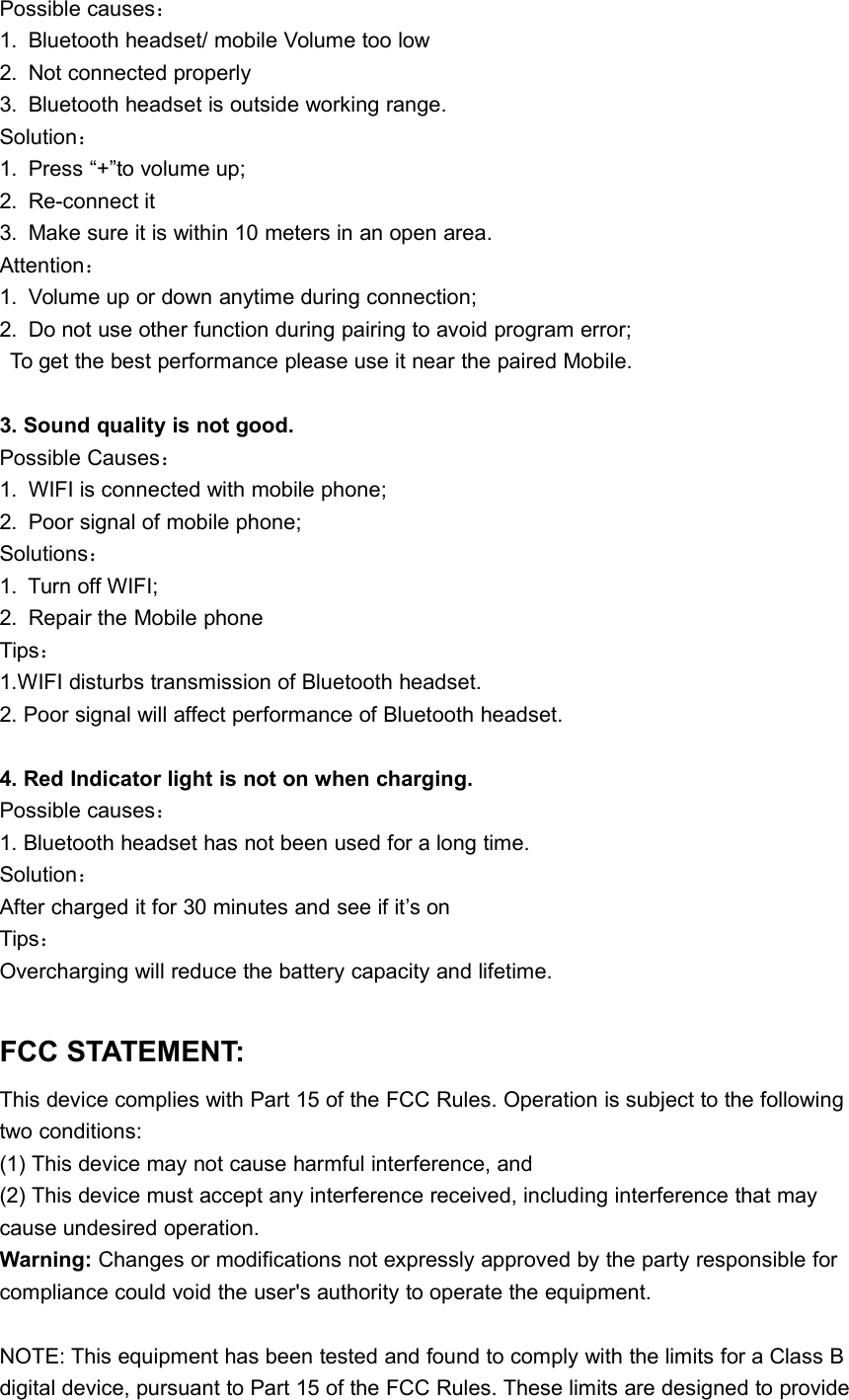
Possible causes:1. Bluetooth headset/ mobile Volume too low2. Not connected properly3. Bluetooth headset is outside working range.Solution:1. Press “+”to volume up;2. Re-connect it3. Make sure it is within 10 meters in an open area.Attention:1. Volume up or down anytime during connection;2. Do not use other function during pairing to avoid program error;To get the best performance please use it near the paired Mobile.3. Sound quality is not good.Possible Causes:1. WIFI is connected with mobile phone;2. Poor signal of mobile phone;Solutions:1. Turn off WIFI;2. Repair the Mobile phoneTips:1.WIFI disturbs transmission of Bluetooth headset.2. Poor signal will affect performance of Bluetooth headset.4. Red Indicator light is not on when charging.Possible causes:1. Bluetooth headset has not been used for a long time.Solution:After charged it for 30 minutes and see if it’s onTips:Overcharging will reduce the battery capacity and lifetime.FCC STATEMENT:This device complies with Part 15 of the FCC Rules. Operation is subject to the followingtwo conditions:(1) This device may not cause harmful interference, and(2) This device must accept any interference received, including interference that maycause undesired operation.Warning: Changes or modifications not expressly approved by the party responsible forcompliance could void the user's authority to operate the equipment.NOTE: This equipment has been tested and found to comply with the limits for a Class Bdigital device, pursuant to Part 15 of the FCC Rules. These limits are designed to provide
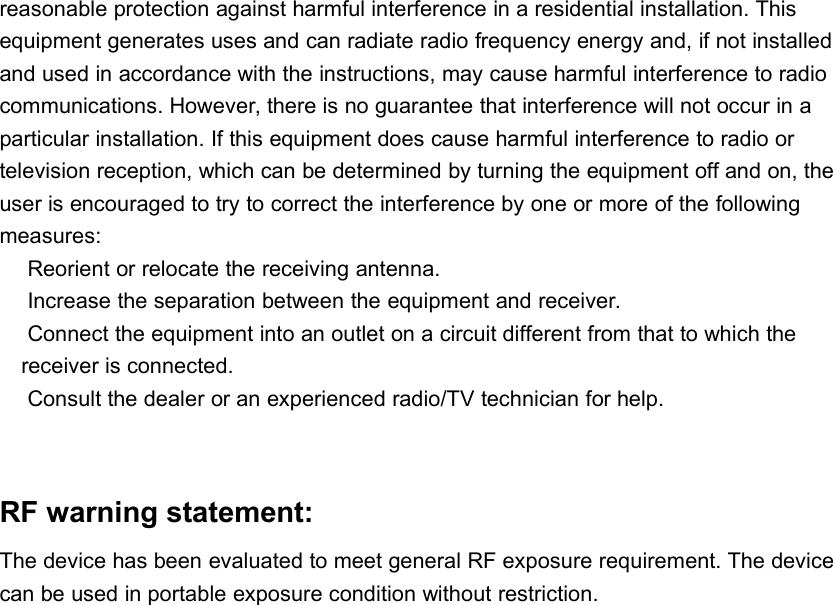
reasonable protection against harmful interference in a residential installation. Thisequipment generates uses and can radiate radio frequency energy and, if not installedand used in accordance with the instructions, may cause harmful interference to radiocommunications. However, there is no guarantee that interference will not occur in aparticular installation. If this equipment does cause harmful interference to radio ortelevision reception, which can be determined by turning the equipment off and on, theuser is encouraged to try to correct the interference by one or more of the followingmeasures:Reorient or relocate the receiving antenna.Increase the separation between the equipment and receiver.Connect the equipment into an outlet on a circuit different from that to which thereceiver is connected.Consult the dealer or an experienced radio/TV technician for help.RF warning statement:The device has been evaluated to meet general RF exposure requirement. The devicecan be used in portable exposure condition without restriction.

Navigation menu