RSIAlarm TE00 Remote Control of alarm system User Manual Product Catalog

RSIAlarm Remote Control of alarm system Product Catalog

User Manual

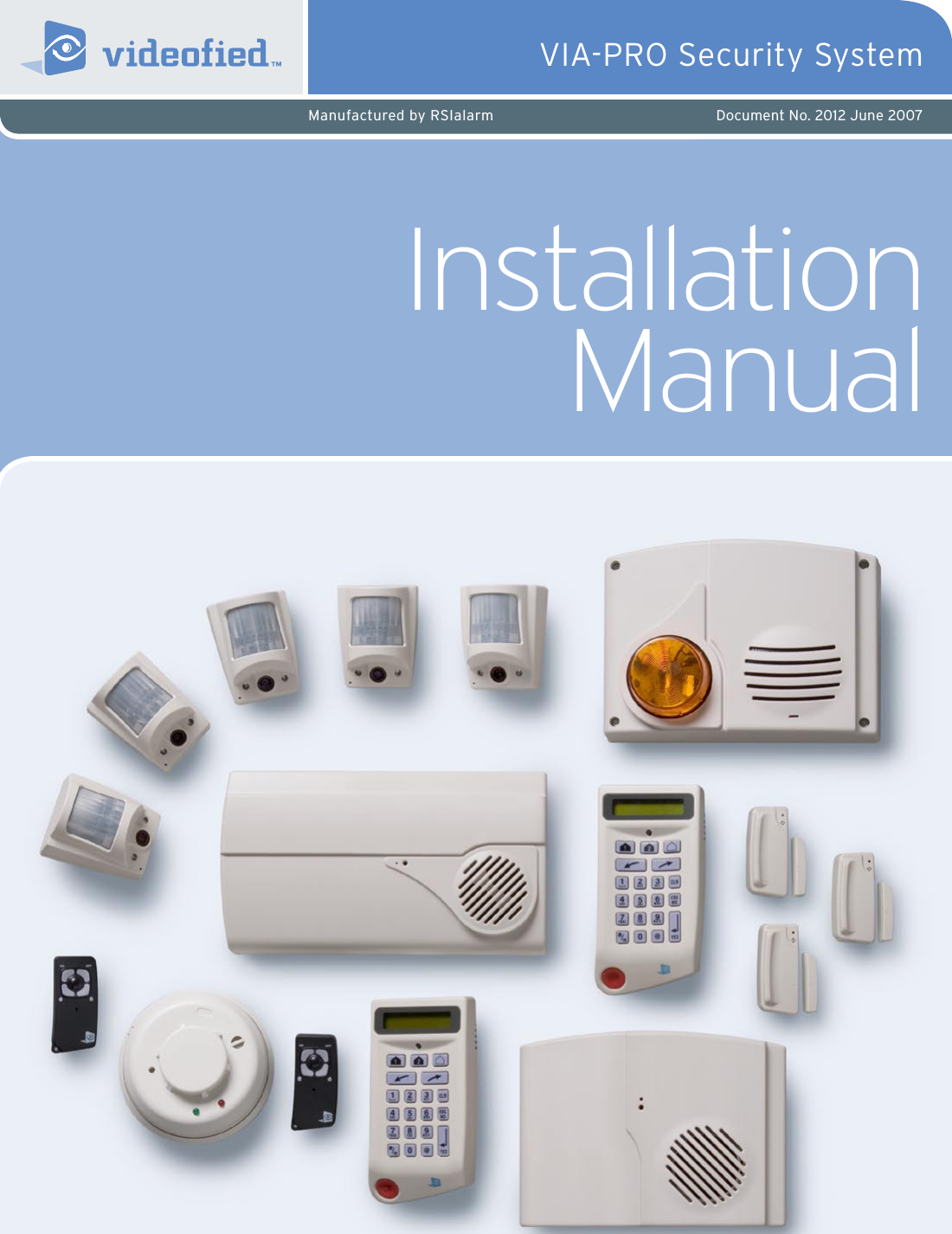
Installation  ManualVIA-PRO Security SystemManufactured by RSIalarm Document No. 2012 June 2007
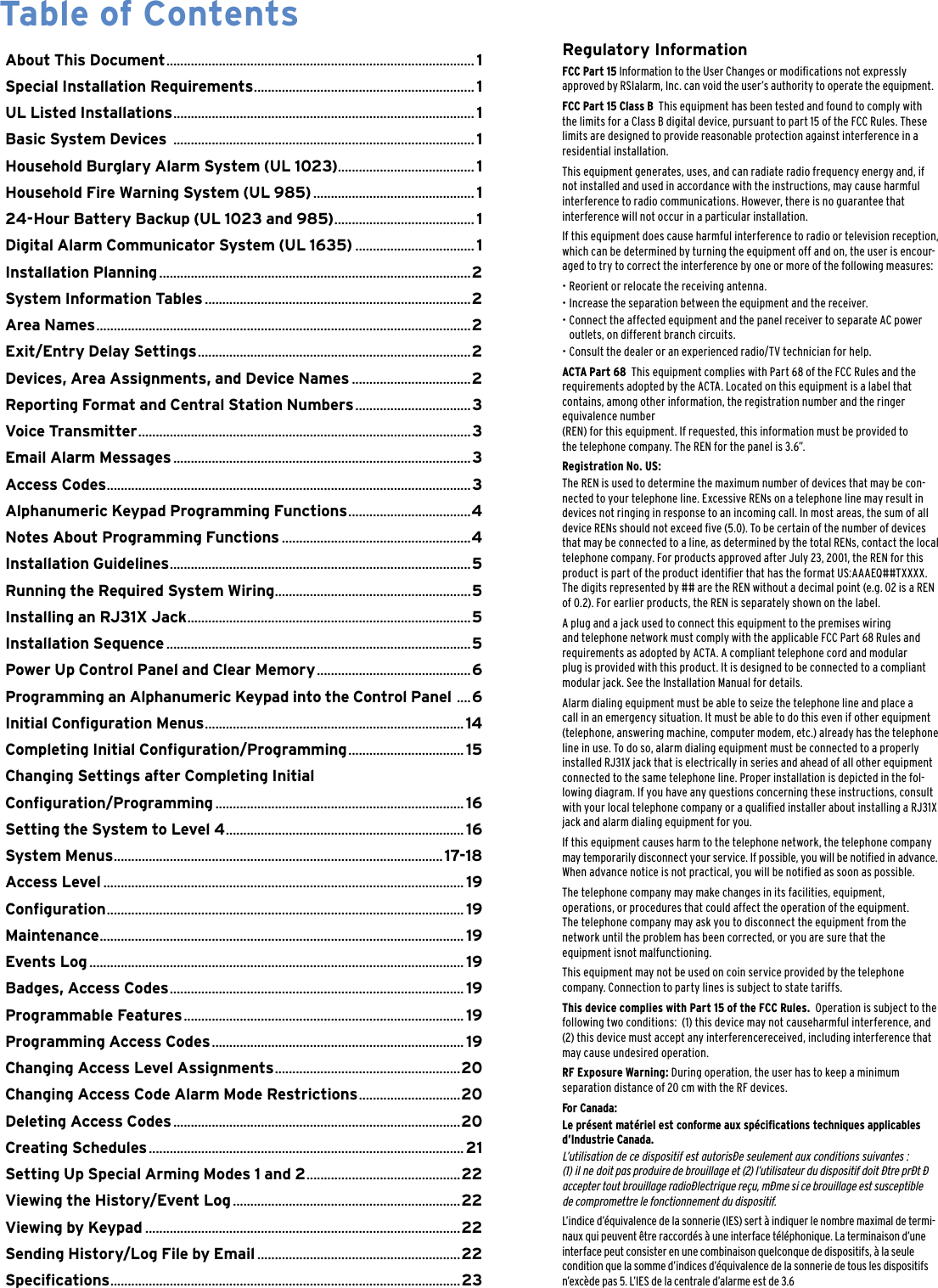
Regulatory InformationFCC Part 15 Information to the User Changes or modications not expressly  approved by RSIalarm, Inc. can void the user’s authority to operate the equipment.FCC Part 15 Class B  This equipment has been tested and found to comply with the limits for a Class B digital device, pursuant to part 15 of the FCC Rules. These limits are designed to provide reasonable protection against interference in a residential installation.This equipment generates, uses, and can radiate radio frequency energy and, if not installed and used in accordance with the instructions, may cause harmful interference to radio communications. However, there is no guarantee that interference will not occur in a particular installation.If this equipment does cause harmful interference to radio or television reception, which can be determined by turning the equipment off and on, the user is encour-aged to try to correct the interference by one or more of the following measures:•  Reorient or relocate the receiving antenna.• Increase the separation between the equipment and the receiver.•  Connect the affected equipment and the panel receiver to separate AC power    outlets, on different branch circuits.•  Consult the dealer or an experienced radio/TV technician for help.ACTA Part 68  This equipment complies with Part 68 of the FCC Rules and the  requirements adopted by the ACTA. Located on this equipment is a label that contains, among other information, the registration number and the ringer equivalence number  (REN) for this equipment. If requested, this information must be provided to  the telephone company. The REN for the panel is 3.6”.Registration No. US:The REN is used to determine the maximum number of devices that may be con-nected to your telephone line. Excessive RENs on a telephone line may result in devices not ringing in response to an incoming call. In most areas, the sum of all device RENs should not exceed ve (5.0). To be certain of the number of devices that may be connected to a line, as determined by the total RENs, contact the local telephone company. For products approved after July 23, 2001, the REN for this product is part of the product identier that has the format US:AAAEQ##TXXXX. The digits represented by ## are the REN without a decimal point (e.g. 02 is a REN of 0.2). For earlier products, the REN is separately shown on the label.A plug and a jack used to connect this equipment to the premises wiring  and telephone network must comply with the applicable FCC Part 68 Rules and  requirements as adopted by ACTA. A compliant telephone cord and modular plug is provided with this product. It is designed to be connected to a compliant modular jack. See the Installation Manual for details.Alarm dialing equipment must be able to seize the telephone line and place a call in an emergency situation. It must be able to do this even if other equipment (telephone, answering machine, computer modem, etc.) already has the telephone line in use. To do so, alarm dialing equipment must be connected to a properly installed RJ31X jack that is electrically in series and ahead of all other equipment connected to the same telephone line. Proper installation is depicted in the fol-lowing diagram. If you have any questions concerning these instructions, consult with your local telephone company or a qualied installer about installing a RJ31X jack and alarm dialing equipment for you.If this equipment causes harm to the telephone network, the telephone company may temporarily disconnect your service. If possible, you will be notied in advance. When advance notice is not practical, you will be notied as soon as possible.The telephone company may make changes in its facilities, equipment,  operations, or procedures that could affect the operation of the equipment.  The telephone company may ask you to disconnect the equipment from the network until the problem has been corrected, or you are sure that the  equipment isnot malfunctioning.This equipment may not be used on coin service provided by the telephone company. Connection to party lines is subject to state tariffs. This device complies with Part 15 of the FCC Rules.  Operation is subject to the following two conditions:  (1) this device may not causeharmful interference, and (2) this device must accept any interferencereceived, including interference that may cause undesired operation.RF Exposure Warning: During operation, the user has to keep a minimum  separation distance of 20 cm with the RF devices.For Canada:Le présent matériel est conforme aux spécications techniques applicables d’Industrie Canada. L’utilisation de ce dispositif est autorisée seulement aux conditions suivantes :  (1) il ne doit pas produire de brouillage et (2) l’utilisateur du dispositif doit étre prét é accepter tout brouillage radioélectrique reçu, méme si ce brouillage est susceptible  de compromettre le fonctionnement du dispositif. L’indice d’équivalence de la sonnerie (IES) sert à indiquer le nombre maximal de termi-naux qui peuvent être raccordés à une interface téléphonique. La terminaison d’une interface peut consister en une combinaison quelconque de dispositifs, à la seule condition que la somme d’indices d’équivalence de la sonnerie de tous les dispositifs n’excède pas 5. L’IES de la centrale d’alarme est de 3.6About This Document ........................................................................................ 1Special Installation Requirements ...............................................................1UL Listed Installations ......................................................................................1Basic System Devices  ......................................................................................1Household Burglary Alarm System (UL 1023) .......................................1Household Fire Warning System (UL 985) ..............................................1 24-Hour Battery Backup (UL 1023 and 985) ........................................1Digital Alarm Communicator System (UL 1635) ..................................1Installation Planning .........................................................................................2System Information Tables ............................................................................2Area Names ...........................................................................................................2Exit/Entry Delay Settings ..............................................................................2Devices, Area Assignments, and Device Names ..................................2Reporting Format and Central Station Numbers .................................3Voice Transmitter ...............................................................................................3Email Alarm Messages .....................................................................................3Access Codes ........................................................................................................3Alphanumeric Keypad Programming Functions ...................................4Notes About Programming Functions ......................................................4Installation Guidelines ......................................................................................5Running the Required System Wiring ........................................................5Installing an RJ31X Jack .................................................................................5Installation Sequence .......................................................................................5 Power Up Control Panel and Clear Memory ............................................6Programming an Alphanumeric Keypad into the Control Panel  ....6Initial Conguration Menus ..........................................................................14Completing Initial Conguration/Programming .................................15Changing Settings after Completing InitialConguration/Programming .......................................................................16Setting the System to Level 4 .................................................................... 16System Menus ..............................................................................................17-18Access Level .......................................................................................................19Conguration ......................................................................................................19Maintenance ........................................................................................................19Events Log ...........................................................................................................19Badges, Access Codes .................................................................................... 19Programmable Features ................................................................................19Programming Access Codes ........................................................................19Changing Access Level Assignments .....................................................20Changing Access Code Alarm Mode Restrictions .............................20Deleting Access Codes ..................................................................................20Creating Schedules ..........................................................................................21Setting Up Special Arming Modes 1 and 2 ............................................22Viewing the History/Event Log .................................................................22Viewing by Keypad ..........................................................................................22Sending History/Log File by Email ..........................................................22Specications ....................................................................................................23Table of Contents
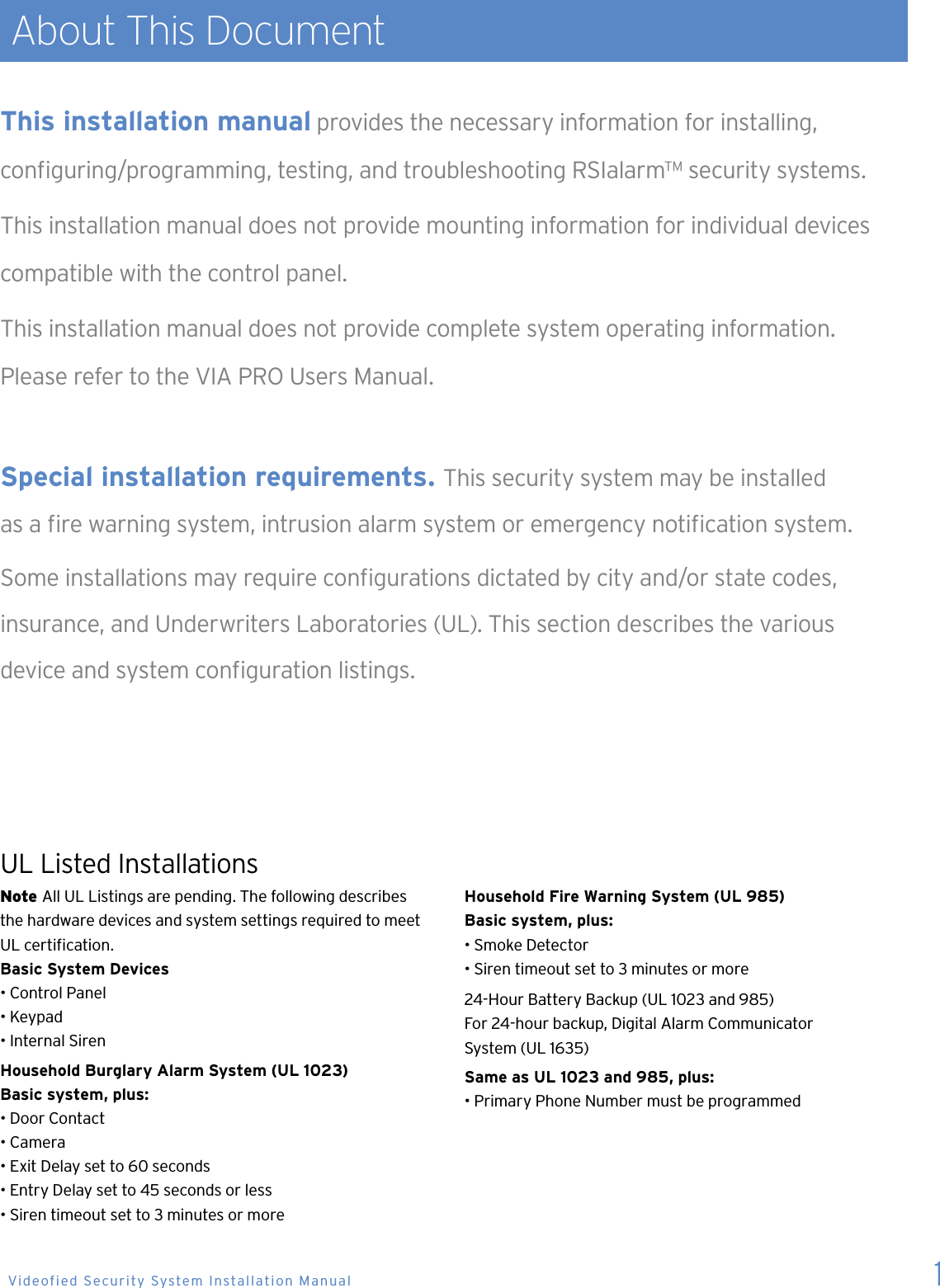
 About This DocumentNote All UL Listings are pending. The following describes  the hardware devices and system settings required to meet UL certication.Basic System Devices• Control Panel• Keypad• Internal SirenHousehold Burglary Alarm System (UL 1023)Basic system, plus:• Door Contact• Camera• Exit Delay set to 60 seconds• Entry Delay set to 45 seconds or less• Siren timeout set to 3 minutes or moreHousehold Fire Warning System (UL 985)Basic system, plus:• Smoke Detector• Siren timeout set to 3 minutes or more24-Hour Battery Backup (UL 1023 and 985)For 24-hour backup, Digital Alarm Communicator  System (UL 1635)Same as UL 1023 and 985, plus:• Primary Phone Number must be programmedThis installation manual provides the necessary information for installing,  conguring/programming, testing, and troubleshooting RSIalarm™ security systems.This installation manual does not provide mounting information for individual devices compatible with the control panel. This installation manual does not provide complete system operating information.  Please refer to the VIA PRO Users Manual. Special installation requirements.  This security system may be installed  as a re warning system, intrusion alarm system or emergency notication system.Some installations may require congurations dictated by city and/or state codes,  insurance, and Underwriters Laboratories (UL). This section describes the various  device and system conguration listings.UL Listed Installations 1 Videofied Security System Installation Manual
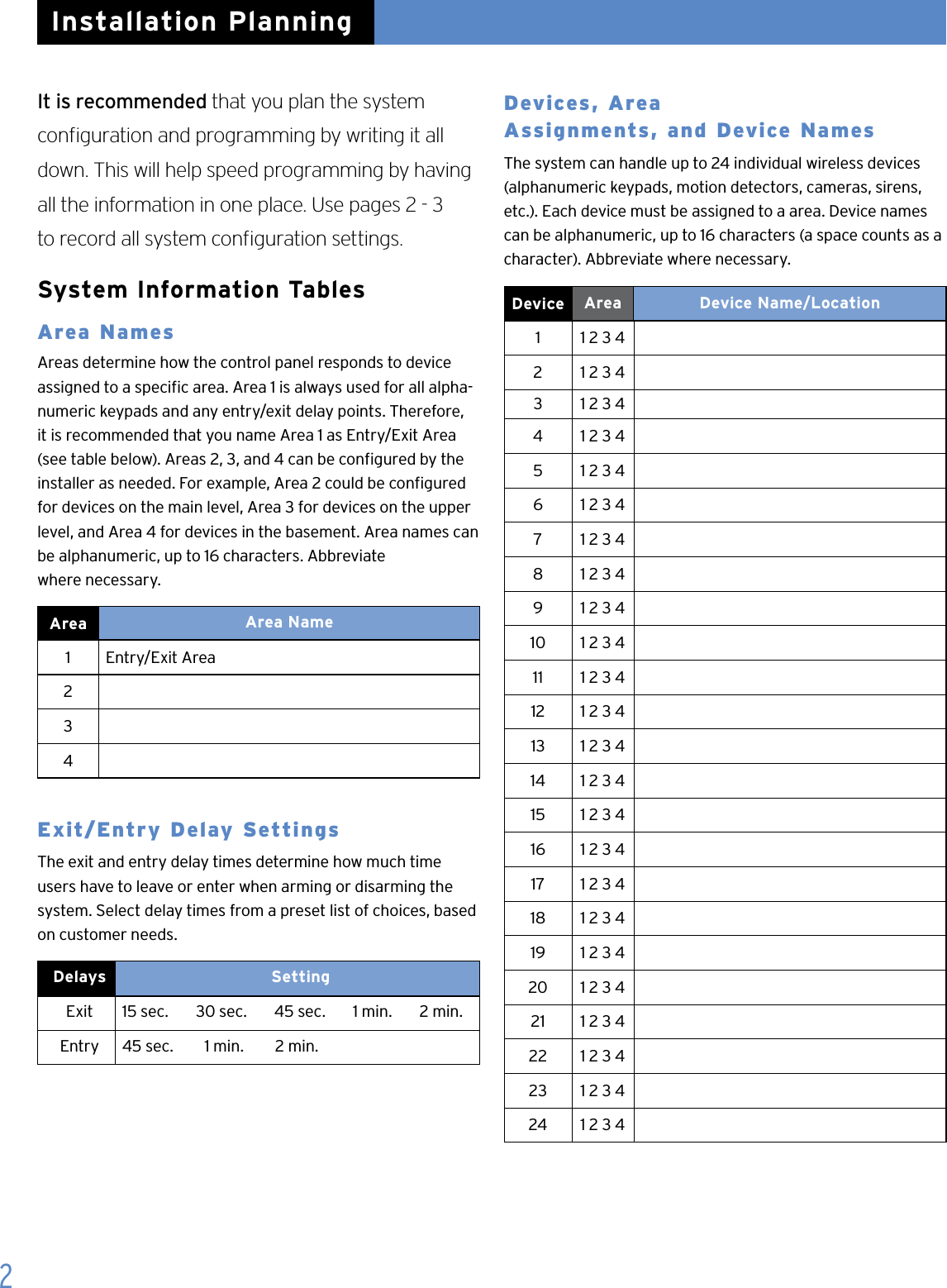
2It is recommended that you plan the system  conguration and programming by writing it all down. This will help speed programming by having all the information in one place. Use pages 2 - 3  to record all system conguration settings.System Information TablesArea Names   Areas determine how the control panel responds to device assigned to a specic area. Area 1 is always used for all alpha-numeric keypads and any entry/exit delay points. Therefore, it is recommended that you name Area 1 as Entry/Exit Area (see table below). Areas 2, 3, and 4 can be congured by the installer as needed. For example, Area 2 could be congured for devices on the main level, Area 3 for devices on the upper level, and Area 4 for devices in the basement. Area names can be alphanumeric, up to 16 characters. Abbreviate  where necessary.Area   Area Name1   Entry/Exit Area  234Exit/Entry Delay SettingsThe exit and entry delay times determine how much time users have to leave or enter when arming or disarming the system. Select delay times from a preset list of choices, based on customer needs.Delays   SettingExit 15 sec.       30 sec.       45 sec.       1 min.       2 min.Entry 45 sec.        1 min.        2 min.  Devices, Area   Assignments, and Device NamesThe system can handle up to 24 individual wireless devices (alphanumeric keypads, motion detectors, cameras, sirens, etc.). Each device must be assigned to a area. Device names can be alphanumeric, up to 16 characters (a space counts as a character). Abbreviate where necessary. Device   Area Device Name/Location1 1 2 3 42 1 2 3 43 1 2 3 44 1 2 3 45 1 2 3 46 1 2 3 47 1 2 3 48 1 2 3 49 1 2 3 410 1 2 3 411 1 2 3 412 1 2 3 413 1 2 3 414 1 2 3 415 1 2 3 416 1 2 3 417 1 2 3 418 1 2 3 419 1 2 3 420 1 2 3 421 1 2 3 422 1 2 3 423 1 2 3 424 1 2 3 4Installation Planning
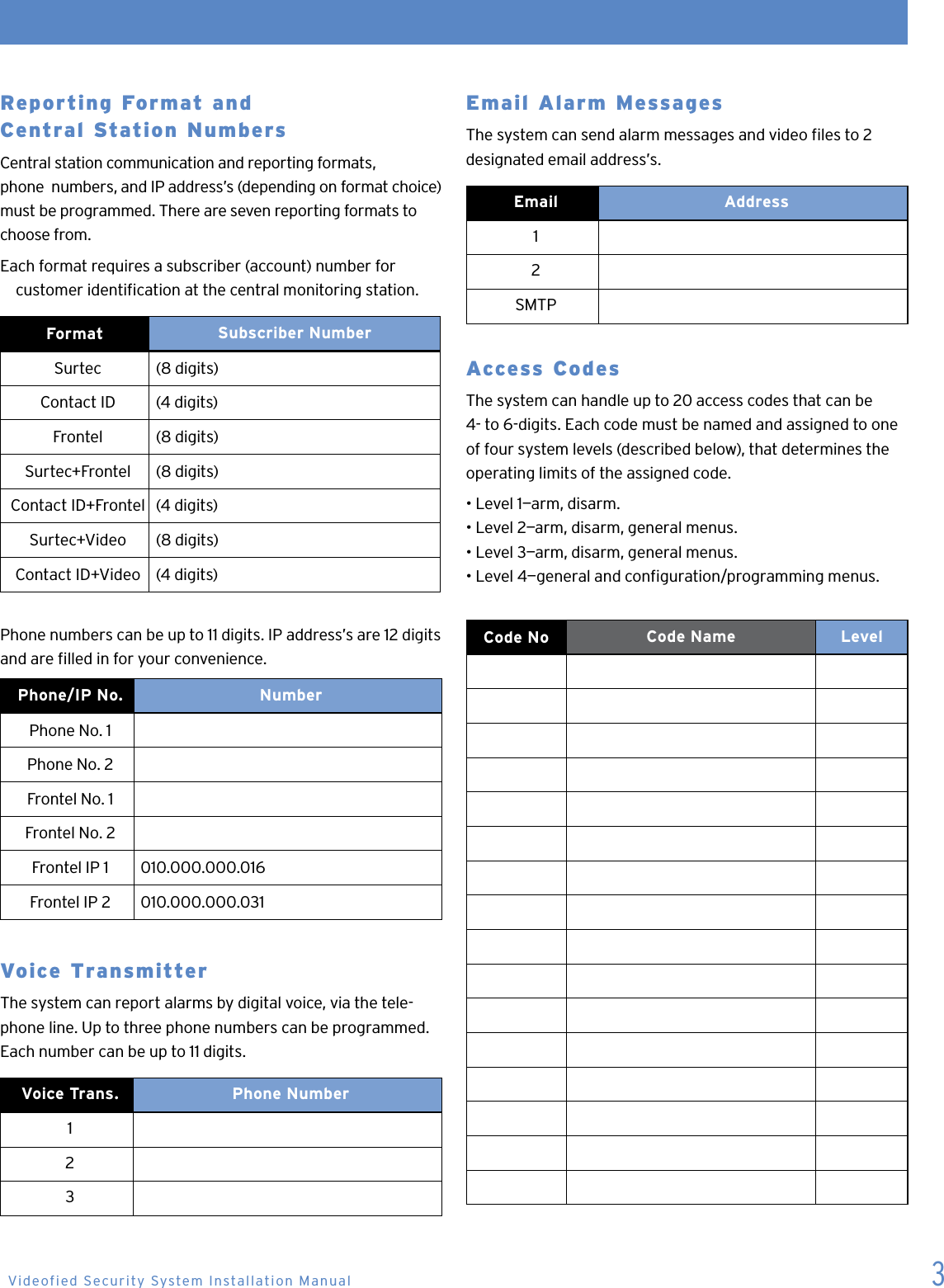
3Reporting Format and   Central Station NumbersCentral station communication and reporting formats,  phone  numbers, and IP address’s (depending on format choice) must be programmed. There are seven reporting formats to choose from.Each format requires a subscriber (account) number for      customer identication at the central monitoring station.Format  Subscriber NumberSurtec  (8 digits) Contact ID  (4 digits)Frontel (8 digits)Surtec+Frontel  (8 digits)Contact ID+Frontel  (4 digits)Surtec+Video (8 digits)Contact ID+Video (4 digits)Phone numbers can be up to 11 digits. IP address’s are 12 digits and are lled in for your convenience.Phone/IP No.  NumberPhone No. 1Phone No. 2Frontel No. 1Frontel No. 2Frontel IP 1 010.000.000.016Frontel IP 2 010.000.000.031Voice Transmitter The system can report alarms by digital voice, via the tele-phone line. Up to three phone numbers can be programmed. Each number can be up to 11 digits. Voice Trans.   Phone Number123Email Alarm Messages The system can send alarm messages and video les to 2 designated email address’s.Email Address12SMTPAccess Codes The system can handle up to 20 access codes that can be 4- to 6-digits. Each code must be named and assigned to one of four system levels (described below), that determines the operating limits of the assigned code.• Level 1—arm, disarm.• Level 2—arm, disarm, general menus.• Level 3—arm, disarm, general menus.• Level 4—general and conguration/programming menus.   Code No Code Name LevelVideofied Security System Installation Manual
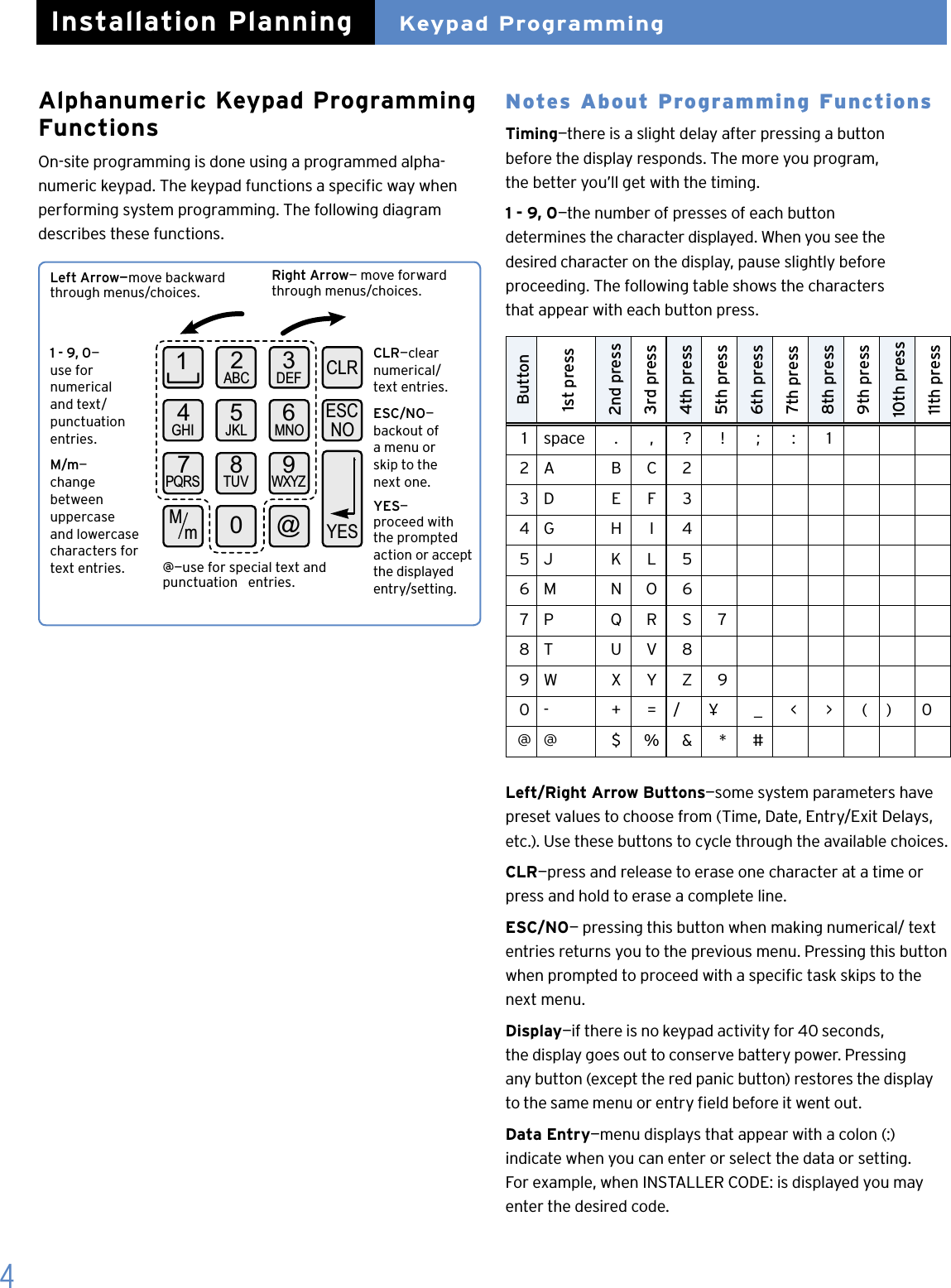
4Alphanumeric Keypad Programming FunctionsOn-site programming is done using a programmed alpha-numeric keypad. The keypad functions a specic way when performing system programming. The following diagram describes these functions. 2ABC 3DEF14GHI 5JKL 6MNO7PQRS 8TUV 9WXYZ0@MmYESESCNOCLRNotes About Programming FunctionsTiming—there is a slight delay after pressing a button  before the display responds. The more you program,  the better you’ll get with the timing.1 - 9, 0—the number of presses of each button  determines the character displayed. When you see the  desired character on the display, pause slightly before    proceeding. The following table shows the characters    that appear with each button press. Button1st press2nd press 3rd press4th press5th press6th press7th press8th press9th press10th press11th press1 space . , ? ! ; : 12 A  B  C 23 D E F 34 G H I 4 5 J K L 56 M N O 67 P Q R S 78 T U V 89 W X Y Z 90 - + = / ¥ _ < > ( ) 0@ @ $ % & * #  Left/Right Arrow Buttons—some system parameters have preset values to choose from (Time, Date, Entry/Exit Delays, etc.). Use these buttons to cycle through the available choices.CLR—press and release to erase one character at a time or press and hold to erase a complete line.ESC/NO— pressing this button when making numerical/ text entries returns you to the previous menu. Pressing this button when prompted to proceed with a specic task skips to the next menu.Display—if there is no keypad activity for 40 seconds,  the display goes out to conserve battery power. Pressing  any button (except the red panic button) restores the display to the same menu or entry eld before it went out.Data Entry—menu displays that appear with a colon (:)  indicate when you can enter or select the data or setting.  For example, when INSTALLER CODE: is displayed you may enter the desired code. Installation PlanningLeft Arrow—move backward through menus/choices.Right Arrow— move forward through menus/choices.1 - 9, 0— use for  numerical  and text/ punctuation entries.M/m— change  between  uppercase and lowercase characters for text entries.CLR—clear numerical/  text entries.ESC/NO— backout of  a menu or  skip to the  next one.YES— proceed with the prompted  action or accept the displayed  entry/setting.@—use for special text and punctuation   entries.Keypad Programming
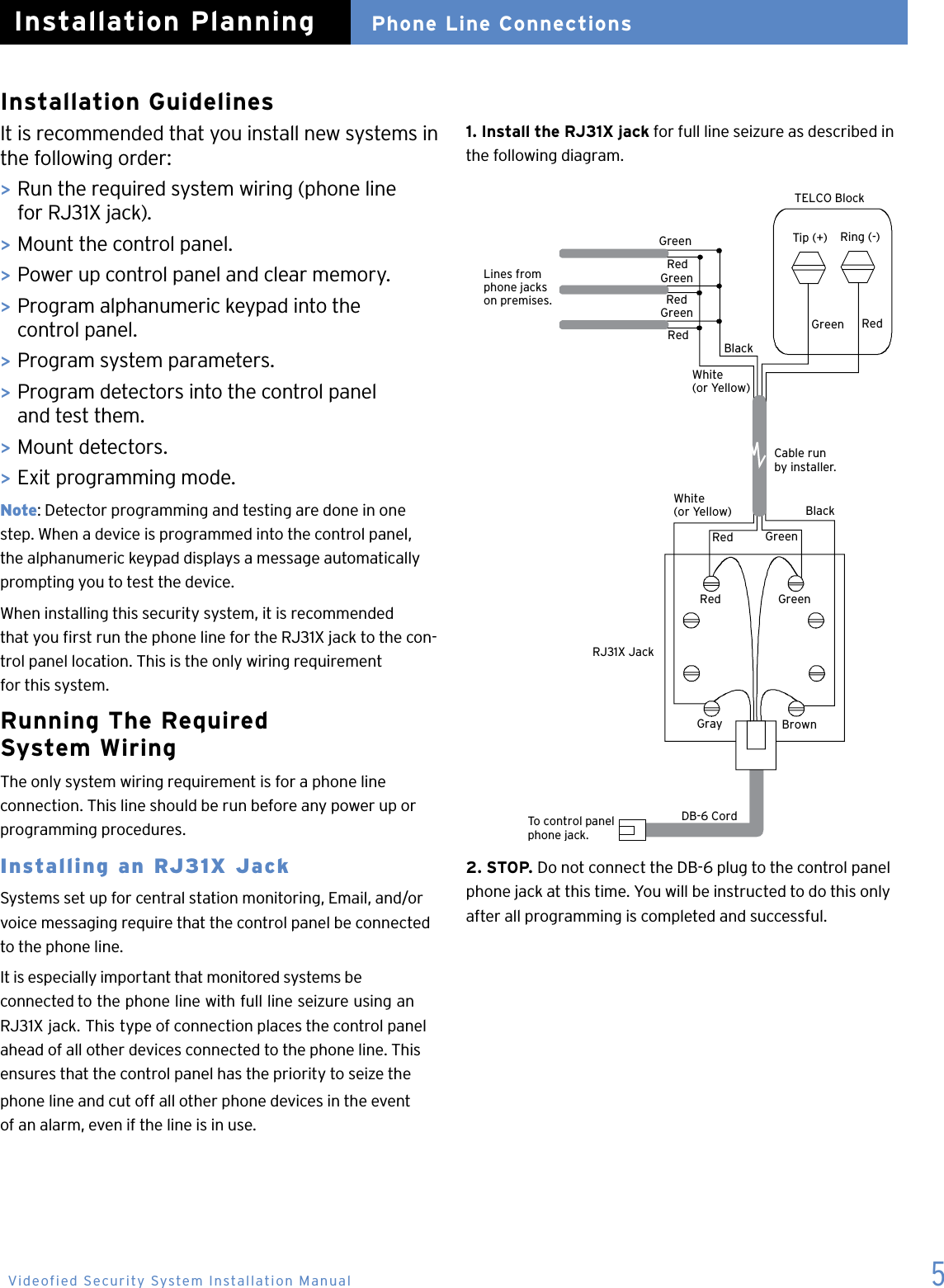
5RJ31X JackDB-6 CordTo control panelphone jack.Red GreenGray BrownCable runby installer.Tip (+) Ring (-)Green RedRedRedRedGreenGreenGreenBlackWhite(or Yellow)BlackWhite(or Yellow)Red GreenLines fromphone jackson premises.TELCO BlockInstallation GuidelinesIt is recommended that you install new systems in the following order:> Run the required system wiring (phone line    for RJ31X jack).> Mount the control panel.> Power up control panel and clear memory.>  Program alphanumeric keypad into the    control panel.>  Program system parameters.>  Program detectors into the control panel     and test them.>  Mount detectors.>  Exit programming mode.Note: Detector programming and testing are done in one  step. When a device is programmed into the control panel, the alphanumeric keypad displays a message automatically prompting you to test the device.When installing this security system, it is recommended  that you rst run the phone line for the RJ31X jack to the con-trol panel location. This is the only wiring requirement  for this system.Running The Required  System WiringThe only system wiring requirement is for a phone line  connection. This line should be run before any power up or programming procedures.Installing an RJ31X JackSystems set up for central station monitoring, Email, and/or voice messaging require that the control panel be connected to the phone line.It is especially important that monitored systems be  connected to the phone line with full line seizure using an RJ31X jack. This type of connection places the control panel ahead of all other devices connected to the phone line. This ensures that the control panel has the priority to seize the phone line and cut off all other phone devices in the event  of an alarm, even if the line is in use.2. STOP. Do not connect the DB-6 plug to the control panel phone jack at this time. You will be instructed to do this only after all programming is completed and successful.Phone Line ConnectionsInstallation Planning1. Install the RJ31X jack for full line seizure as described inthe following diagram.Videofied Security System Installation Manual
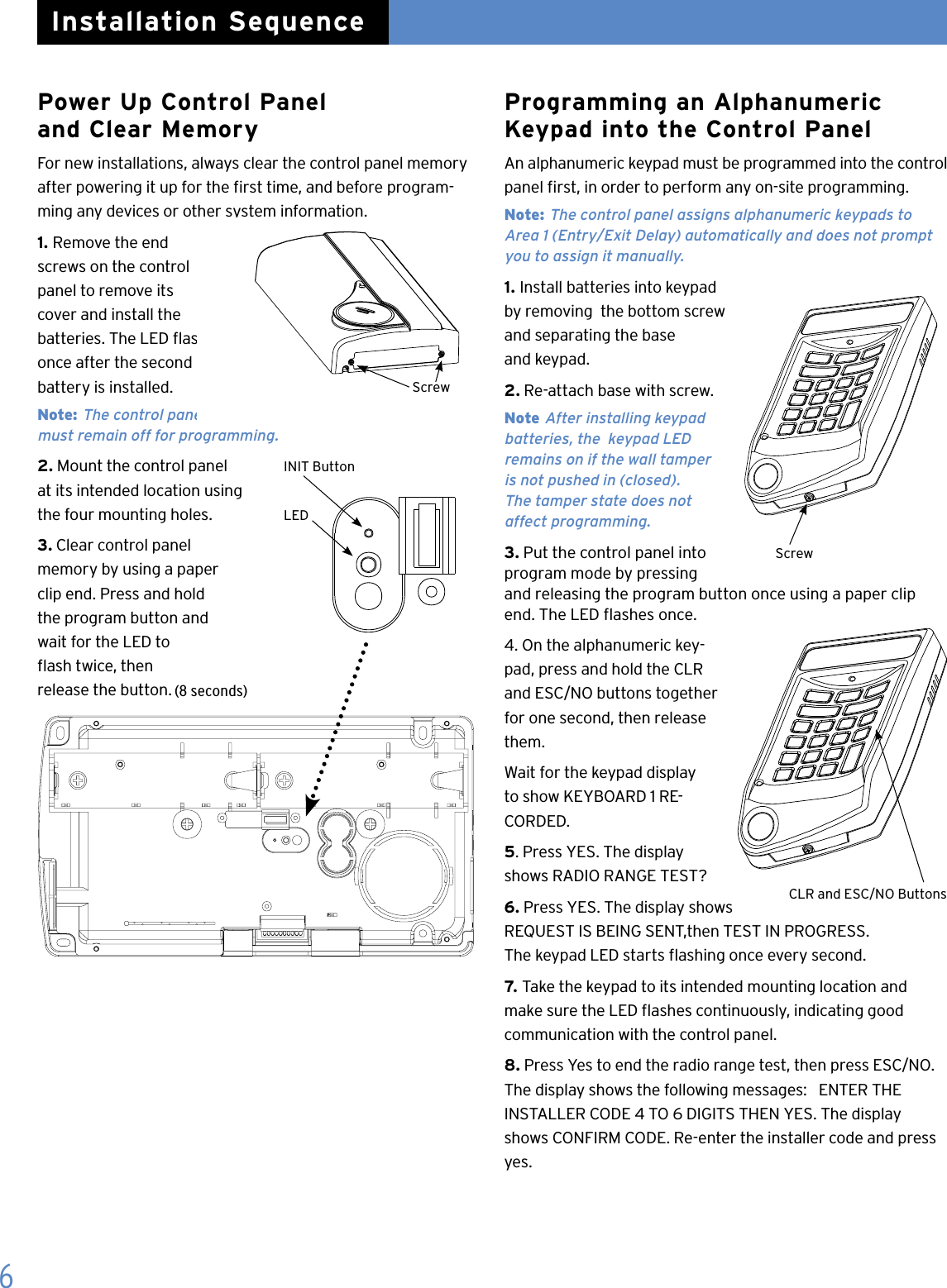
Power Up Control Panel  and Clear MemoryFor new installations, always clear the control panel memory after powering it up for the rst time, and before program-ming any devices or other system information.1. Remove the end screws on the control panel to remove its cover and install the  batteries. The LED ashes  once after the second  battery is installed. Note: The control panel cover  must remain off for programming.2. Mount the control panel  at its intended location using  the four mounting holes.3. Clear control panel memory by using a paper  clip end. Press and hold  the program button and  wait for the LED to  ash twice, then  release the button.Programming an Alphanumeric Keypad into the Control PanelAn alphanumeric keypad must be programmed into the control panel rst, in order to perform any on-site programming.Note: The control panel assigns alphanumeric keypads to  Area 1 (Entry/Exit Delay) automatically and does not prompt you to assign it manually.1. Install batteries into keypad by removing  the bottom screw and separating the base  and keypad.2. Re-attach base with screw.Note After installing keypad batteries, the  keypad LED  remains on if the wall tamper  is not pushed in (closed).  The tamper state does not   affect programming.3. Put the control panel into program mode by pressing   and releasing the program button once using a paper clip  end. The LED ashes once.4. On the alphanumeric key-pad, press and hold the CLR and ESC/NO buttons together for one second, then release them.Wait for the keypad display to show KEYBOARD 1 RE-CORDED.5. Press YES. The display shows RADIO RANGE TEST?6. Press YES. The display shows  REQUEST IS BEING SENT,then TEST IN PROGRESS.  The keypad LED starts ashing once every second.7. Take the keypad to its intended mounting location and  make sure the LED ashes continuously, indicating good  communication with the control panel.8. Press Yes to end the radio range test, then press ESC/NO. The display shows the following messages:   ENTER THE       INSTALLER CODE 4 TO 6 DIGITS THEN YES. The display shows CONFIRM CODE. Re-enter the installer code and press yes.ScrewCLR and ESC/NO Buttons6Installation SequenceScrewINIT ButtonLED(8 seconds)
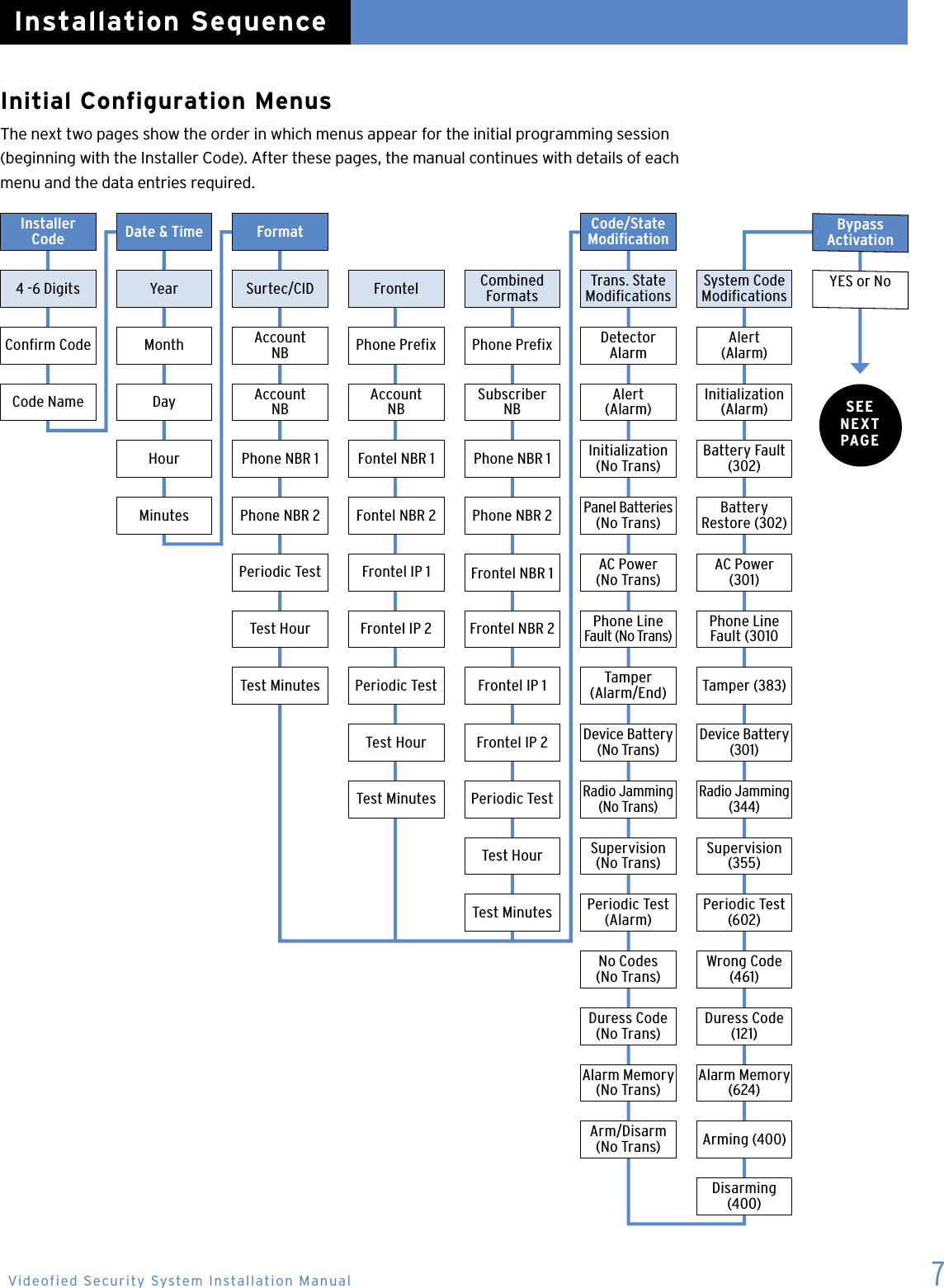
Initial Configuration MenusThe next two pages show the order in which menus appear for the initial programming session (beginning with the Installer Code). After these pages, the manual continues with details of each menu and the data entries required. 7Installer  Code Date & Time Format Code/State Modication  Bypass Activation4 -6 Digits Year Surtec/CID Frontel Combined Formats Trans. State ModicationsSystem Code Modications YES or NoConrm Code Month Account  NB Phone Prex Phone Prex Detector AlarmAlert  (Alarm)Code Name Day Account  NBAccount  NBSubscriber  NBAlert  (Alarm)Initialization (Alarm)Hour Phone NBR 1 Fontel NBR 1 Phone NBR 1 Initialization (No Trans)Battery Fault (302)Minutes Phone NBR 2 Fontel NBR 2 Phone NBR 2Panel Batteries (No Trans)Battery  Restore (302)Periodic Test Frontel IP 1 Frontel NBR 1 AC Power  (No Trans)AC Power  (301)Test Hour Frontel IP 2 Frontel NBR 2 Phone Line Fault (No Trans)Phone Line Fault (3010Test Minutes Periodic Test Frontel IP 1 Tamper (Alarm/End) Tamper (383)Test Hour Frontel IP 2 Device Battery (No Trans)Device Battery (301)Test Minutes Periodic TestRadio Jamming (No Trans)Radio Jamming (344)Test Hour Supervision (No Trans)Supervision (355)Test Minutes Periodic Test (Alarm)Periodic Test (602)No Codes  (No Trans)Wrong Code (461)Duress Code (No Trans)Duress Code (121)Alarm Memory (No Trans)Alarm Memory (624)Arm/Disarm (No Trans) Arming (400)Disarming (400)Installation SequenceSEE  NEXT  PAGEVideofied Security System Installation Manual
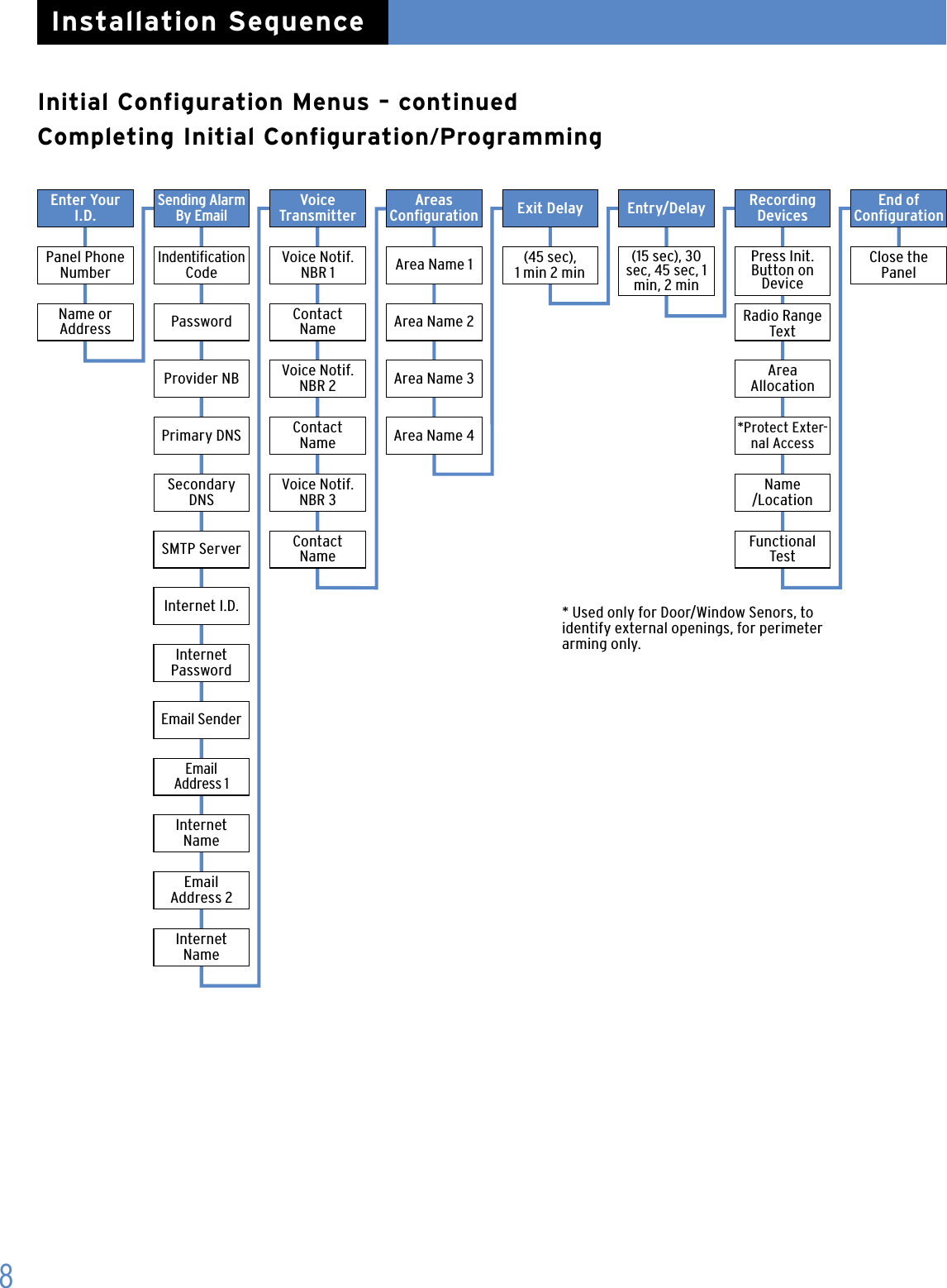
Initial Configuration Menus – continued Completing Initial Configuration/Programming8Installation SequenceEnter Your I.D.Sending Alarm By EmailVoice  Transmitter Entry/Delay End of  CongurationPanel Phone NumberIndentication CodeVoice Notif. NBR 1 Area Name 1 (45 sec),  1 min 2 min(15 sec), 30 sec, 45 sec, 1 min, 2 min Press Init.  Button on DeviceClose the PanelName or  Address Password Contact  Name Area Name 2 Radio Range TextProvider NB Voice Notif. NBR 2 Area Name 3 Area AllocationPrimary DNS Contact  Name Area Name 4  *Protect Exter-nal AccessSecondary DNSVoice Notif. NBR 3Name /LocationContact  NameSMTP ServerInternet I.D.Internet  PasswordEmail SenderEmail  Address 1Internet  NameEmail  Address 2Internet NameAreas  Conguration Exit Delay Recording DevicesFunctional Test* Used only for Door/Window Senors, to identify external openings, for perimeter arming only.
9Installer CodeLets you program a code that is used for all programming and maintenance functions. The installer code cannot arm/disarm the system.  Note: An installer code must be programmed in order    to program user access codes.1.   With the display showing INSTALLER CODE: enter    the desired code, then press YES. The display shows    CONFIRM CODE.2.  Re-enter the code and press YES. The display shows    CODE NAME.3.  Enter a name for the installer code using the    alphanumeric buttons (up to 16 characters), then    press YES. The display shows “Install Entry Complete”. Adjusting Time and DateInitial Configuration/ProgrammingInstallation SequenceData and Time 1.   With the display showing DATE (Year):, press the left    or right arrow button repeatedly until the correct year    number is displayed, then press YES.2.  With the display showing DATE (Month):, press the    left or right arrow button repeatedly until the correct    month number is displayed, then press YES.3. With the display showing DATE (Day):, press the left    or right arrow button repeatedly until the correct day    number is displayed, then press YES.4. With the display showing DATE (Hour):, press the left    or right arrow button repeatedly until the correct hour    number is displayed, then press YES.5. With the display showing DATE (Minutes):, press the    left or right arrow button repeatedly until the correct    minutes number is displayed, then press YES. The    display shows the programmed time and date    RECORDED. Then display shows “Entry Complete”. Format Lets you set up the system for reporting to a central moni-toring station. The format selection determines how much information must be programmed.For Surtec and Contact ID formats:1.  With the display showing FORMAT: press either arrow    button until SURTEC or CONTACT ID is displayed, then    press YES.2. With the display showing PHONE PREFIX: enter the    required prex (such as a 9 with a pause for outside    line access) + YES or press ESC/NO if no prex    is required.  Note: To program a pause, press the @ button six times    for the # sign. Each # entry adds a 2-second pause.3. With the display showing Account Number:  enter    the subscriber (account) number (8 digits for Surtec,    4 digits for Contact ID), then press YES.4. With the display showing PHONE NBR 1: enter the    primary central station phone number the control    panel will dial rst to send reports, then press YES.5. With the display showing PHONE NBR 2: press     ESC/NO to skip to the next step, or enter the secondary    phone number the control panel will dial to send    reports if attempts using the primary number are    unsuccessful, then press YES.6. With the display showing PERIODIC TEST:    24 HOURS, press either arrow button to select    the desired interval (1 hour, 12 hours, 24 hours,   48 hours, 7 days, or No Test) the control panel reports    a phone communication test to the central monitoring    station, then press YES.  Note: If you select No Test and press YES, the next    menu prompt (CODE/STATE MODIFICATION?) appears.7.  With the display showing TEST HOUR: press YES    to accept the default hour displayed, or press either    arrow button until the desired hour is displayed,    then press YES.8. With the display showing TEST (MINUTES): press YES    to accept the default minutes displayed, or press either    arrow button until the desired minute is displayed, then    press YES.Videofied Security System Installation ManualConnected To Monitor Station? [YES = continue, ESC/NO = skip]
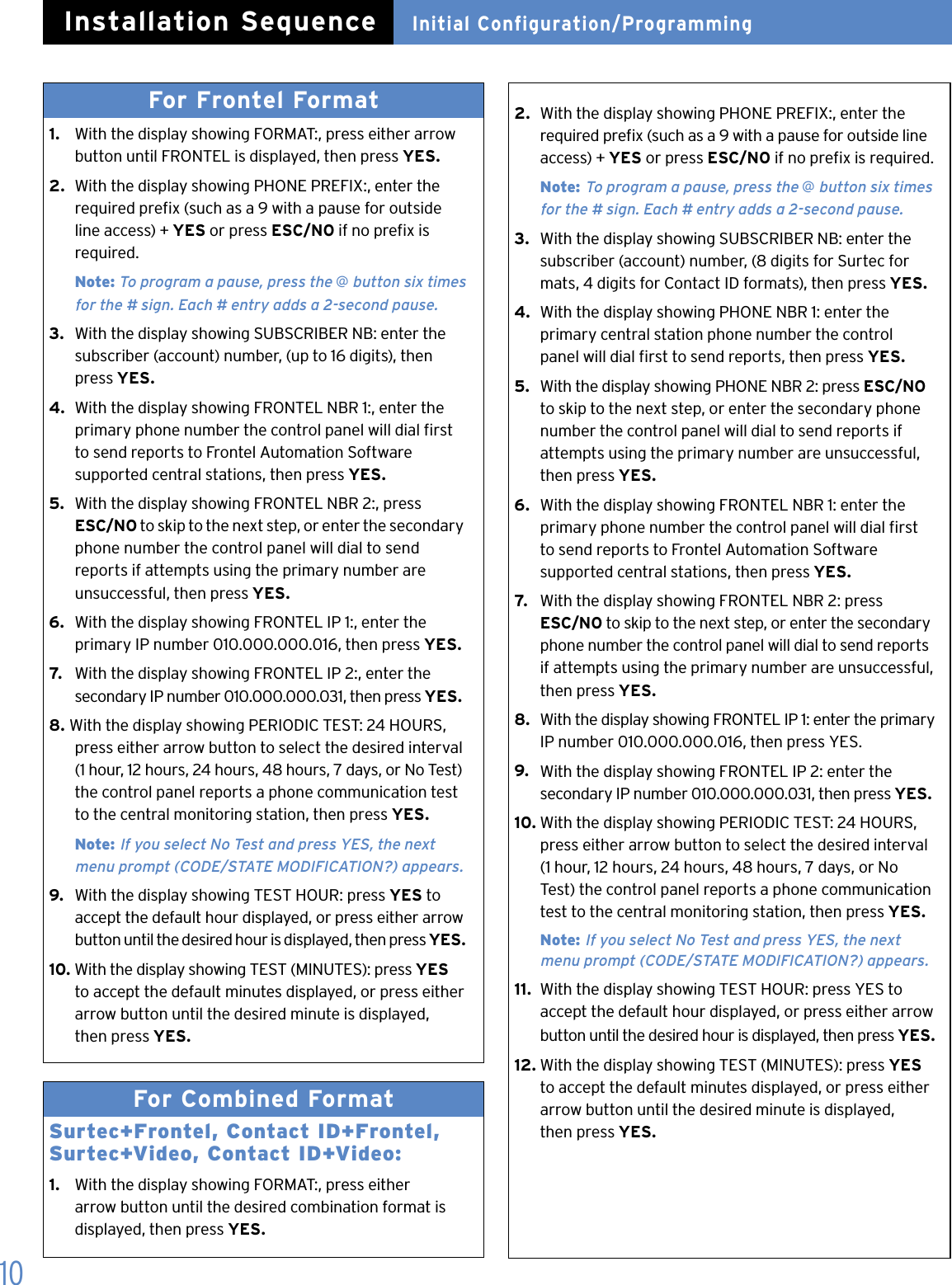
10For Frontel Format 1.   With the display showing FORMAT:, press either arrow    button until FRONTEL is displayed, then press YES.2.  With the display showing PHONE PREFIX:, enter the    required prex (such as a 9 with a pause for outside    line access) + YES or press ESC/NO if no prex is    required.  Note: To program a pause, press the @ button six times    for the # sign. Each # entry adds a 2-second pause.3.   With the display showing SUBSCRIBER NB: enter the    subscriber (account) number, (up to 16 digits), then    press YES.4.  With the display showing FRONTEL NBR 1:, enter the    primary phone number the control panel will dial rst    to send reports to Frontel Automation Software    supported central stations, then press YES.5.  With the display showing FRONTEL NBR 2:, press   ESC/NO to skip to the next step, or enter the secondary    phone number the control panel will dial to send     reports if attempts using the primary number are    unsuccessful, then press YES.6.  With the display showing FRONTEL IP 1:, enter the    primary IP number 010.000.000.016, then press YES.7.   With the display showing FRONTEL IP 2:, enter the    secondary IP number 010.000.000.031, then press YES.8. With the display showing PERIODIC TEST: 24 HOURS,    press either arrow button to select the desired interval    (1 hour, 12 hours, 24 hours, 48 hours, 7 days, or No Test)    the control panel reports a phone communication test    to the central monitoring station, then press YES.  Note: If you select No Test and press YES, the next    menu prompt (CODE/STATE MODIFICATION?) appears.9.  With the display showing TEST HOUR: press YES to    accept the default hour displayed, or press either arrow    button until the desired hour is displayed, then press YES.10. With the display showing TEST (MINUTES): press YES    to accept the default minutes displayed, or press either    arrow button until the desired minute is displayed,    then press YES.For Combined Format Surtec+Frontel, Contact ID+Frontel, Surtec+Video, Contact ID+Video:1.   With the display showing FORMAT:, press either    arrow button until the desired combination format is    displayed, then press YES. 2.  With the display showing PHONE PREFIX:, enter the    required prex (such as a 9 with a pause for outside line    access) + YES or press ESC/NO if no prex is required.  Note: To program a pause, press the @ button six times      for the # sign. Each # entry adds a 2-second pause.3.  With the display showing SUBSCRIBER NB: enter the    subscriber (account) number, (8 digits for Surtec for   mats, 4 digits for Contact ID formats), then press YES.4.  With the display showing PHONE NBR 1: enter the    primary central station phone number the control    panel will dial rst to send reports, then press YES.5.  With the display showing PHONE NBR 2: press ESC/NO    to skip to the next step, or enter the secondary phone    number the control panel will dial to send reports if    attempts using the primary number are unsuccessful,    then press YES.6.  With the display showing FRONTEL NBR 1: enter the    primary phone number the control panel will dial rst    to send reports to Frontel Automation Software                supported central stations, then press YES.7.   With the display showing FRONTEL NBR 2: press   ESC/NO to skip to the next step, or enter the secondary    phone number the control panel will dial to send reports    if attempts using the primary number are unsuccessful,    then press YES.8.  With the display showing FRONTEL IP 1: enter the primary    IP number 010.000.000.016, then press YES.9.  With the display showing FRONTEL IP 2: enter the    secondary IP number 010.000.000.031, then press YES.10. With the display showing PERIODIC TEST: 24 HOURS,    press either arrow button to select the desired interval    (1 hour, 12 hours, 24 hours, 48 hours, 7 days, or No    Test) the control panel reports a phone communication    test to the central monitoring station, then press YES.  Note: If you select No Test and press YES, the next   menu prompt (CODE/STATE MODIFICATION?) appears.11.  With the display showing TEST HOUR: press YES to    accept the default hour displayed, or press either arrow    button until the desired hour is displayed, then press YES.12. With the display showing TEST (MINUTES): press YES    to accept the default minutes displayed, or press either    arrow button until the desired minute is displayed,    then press YES.Initial Configuration/ProgrammingInstallation Sequence
11Code/State Modification? [YES = continue, ESC/NO = skip]Tran. State Modification   Lets you change the control panel default settings for    how and/or whether certain conditions are reported to    the central station. There are three possible settings    for each state:  Alarm—alarm reports only Alarm/End—alarm and restore reports  No Trans—no report  There are 15 states described below    with their default setting that can be changed. > DEVICE—Alarm > ALERT —Alarm > INITIALIZATION —No Trans > PANEL BATTERIES—No Trans > AC POWER—No Trans > PHONE LINE FAULT—No Trans > TAMPER—Alarm/End > DEVICE BATT.—No Trans > RADIO JAMMING—No Trans  > SUPERVISION—No Trans  > PERIODIC TEST—Alarm > WRONG CODES—No Trans > DURESS CODE—No Trans > ALARM MEMORY—No Trans > ARM/DISARM—No Trans1.   With the display showing TRANS. STATE MODIFICATION:    press Yes. The display shows the rst state/setting    DETECTOR ALARM.2.  Press YES to change this setting or press either arrow    button until the desired state/setting is displayed, then    press YES. A colon (:) appears indicating that you may    now change the current setting.3.  Press either arrow button until the desired setting    appears, then press YES. The colon disappears and the    the new setting is displayed.4. Repeat steps 2 and 3 for all other setting changes.5.  When all desired changes are done, press ESC/NO.    The display returns to TRANS. STATE MODIFICATION.6.  Press the right arrow button once. The display shows    ALARM CODE MODIFICATION.  Alarm Code Modification   Lets you change the default alarm reporting code of    each system device. Note: Although this menu appears at this point in the      cycle, pressing YES produces the display message NO      EQUIPMENTS RECORDED. After devices (equipment)    and all initial system programming are programmed      (recorded) into control panel memory, you must start      a new programming session to modify these codes.System Code Modification   Lets you change the system codes the control panel    reports to the central station. There are 16 codes    described below with their default settings that can    be changed.  > ALERT—code 120  > INITIALIZATION—code 305 > BATTERY FAULT—code 302 > BATTERY RESTORE—code 302 > AC POWER—code 301 > PHONE LINE FAULT—code 351 > TAMPER—code 383 > DEVICE BATTERY—code 384 > RADIO JAMMING—code 344 > SUPERVISION—code 355 > PERIODIC TEST—code 602 > WRONG CODES—code 461 > DURESS CODE—code 121 > ALARM MEMORY—code 624 > ARMING—code 400 > DISARMING—code 4001.   With the display showing ALARM CODE MODIFICATION,    press the right arrow button once. The display shows    SYSTEM CODE MODIFICATION.2.  Press YES. The display shows ALERT CODE 1203.  Press either arrow button until the desired system    code is displayed, then press YES. A colon (:) appears    indicating that you may now change the current setting.4.  Enter the desired 3-digit code, then press YES.    The colon disappears and the new setting is displayed.5.  Repeat steps 3 and 4 for all other setting changes.6.  When all desired changes are done, press ESC/NO.    The display returns to SYSTEM CODE MODIFICATION. Initial Configuration/ProgrammingInstallation SequenceVideofied Security System Installation Manual
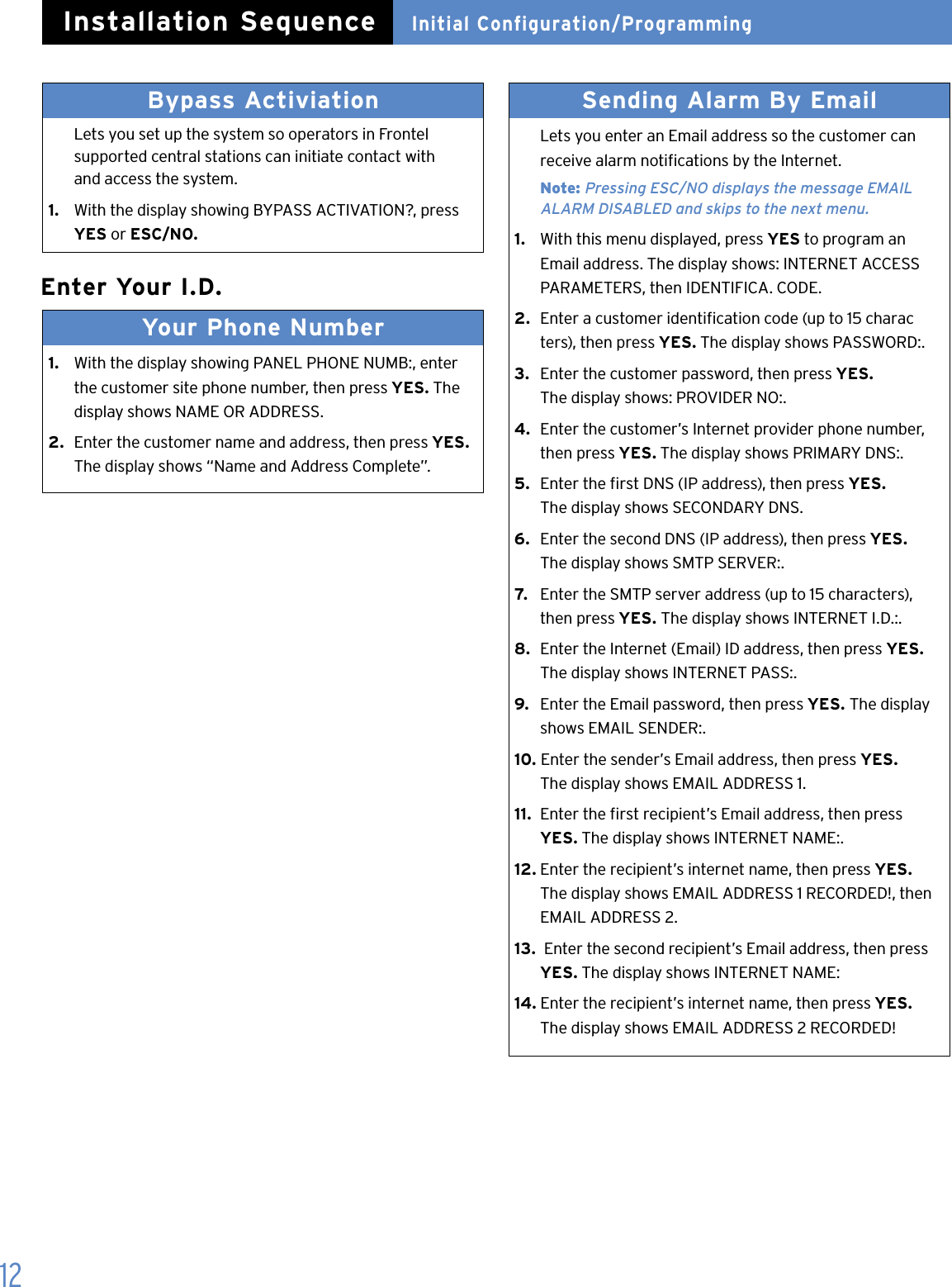
12Enter Your I.D.Your Phone Number 1.   With the display showing PANEL PHONE NUMB:, enter    the customer site phone number, then press YES. The    display shows NAME OR ADDRESS.2.  Enter the customer name and address, then press YES.   The display shows “Name and Address Complete”.Sending Alarm By Email   Lets you enter an Email address so the customer can    receive alarm notications by the Internet. Note: Pressing ESC/NO displays the message EMAIL      ALARM DISABLED and skips to the next menu.1.   With this menu displayed, press YES to program an    Email address. The display shows: INTERNET ACCESS    PARAMETERS, then IDENTIFICA. CODE.2.  Enter a customer identication code (up to 15 charac   ters), then press YES. The display shows PASSWORD:.3.  Enter the customer password, then press YES.   The display shows: PROVIDER NO:.4.  Enter the customer’s Internet provider phone number,    then press YES. The display shows PRIMARY DNS:.5.  Enter the rst DNS (IP address), then press YES.    The display shows SECONDARY DNS.6.  Enter the second DNS (IP address), then press YES.    The display shows SMTP SERVER:.7.   Enter the SMTP server address (up to 15 characters),    then press YES. The display shows INTERNET I.D.:.8.  Enter the Internet (Email) ID address, then press YES.   The display shows INTERNET PASS:.9.  Enter the Email password, then press YES. The display    shows EMAIL SENDER:.10. Enter the sender’s Email address, then press YES.    The display shows EMAIL ADDRESS 1.11.  Enter the rst recipient’s Email address, then press   YES. The display shows INTERNET NAME:.12. Enter the recipient’s internet name, then press YES.   The display shows EMAIL ADDRESS 1 RECORDED!, then    EMAIL ADDRESS 2.13.  Enter the second recipient’s Email address, then press   YES. The display shows INTERNET NAME:14. Enter the recipient’s internet name, then press YES.   The display shows EMAIL ADDRESS 2 RECORDED!Bypass Activiation   Lets you set up the system so operators in Frontel    supported central stations can initiate contact with    and access the system.1.  With the display showing BYPASS ACTIVATION?, press    YES or ESC/NO. Initial Configuration/ProgrammingInstallation Sequence
13Area ConfigurationUsing The Voice Transmitter   Lets you set up the system for voice reporting to as    many as three customer designated phone numbers.   The report includes the device, zone, alarm type, time,    and date.  During an alarm, the control panel makes three    attempts using the rst phone number. If all attempts    are unsuccessful, the control panel waits for one minute    and makes three more attempts using the  second    phone number. If these attempts are unsuccessful, the    control panel waits for one minute and makes three    more attempts using the third phone number.  Follow these steps to enter the destination phone    numbers, contact /recipient names, passwords, and    name assigned to each password. Note: Pressing ESC/NO displays the message VOICE      TRANS. DISABLED and skips to the next menu.1.   With this menu displayed, press YES to set up the voice   transmitter. The display shows VOICENOTIF . PHONE    NBR 1:.2.   Enter the rst phone number destination, then press   YES. The display shows CONTACT NAME.3.  Enter the appropriate contact name, then press YES.  The display shows “Entry Complete”, then      VOICENOTIF . PHONE NBR 2:. Note: If only programming one voice transmitter number,     press ESC/ NO to skip programming the next two voice      transmitter numbers.4.  Enter the second phone number destination, then press    YES. The display shows CONTACT NAME:.5.  Enter the second appropriate contact name, then    press YES. The display shows “Entry Complete”,  then    VOICENOTIF .  PHONE NBR 3:.  Note: If only programming two voice transmitter    numbers, press ESC/NO to skip programming the third      voice transmitter number.6.  Enter the third phone number destination, then press   YES. The display shows CONTACT NAME:.7.   Enter the third appropriate contact name, then press   YES. The display shows “Entry Complete”.Area Name 1   Lets you name each of the four areas used for    identifying the different areas of the installation. Area 1 is predened from the factory for alphanumeric    keypads and any entry/exit delay points. Area 1 should    be named appropriately to identify it as the delay area.  Areas 2, 3, and 4 have no predened default    properties and can be named as required for the    installation. For example,  Area 2 could be congured and named as Main Level,    Area 3 Upper Level, and Area 4 Basement.1.   With the display showing AREA NAME 1: enter the    desired name, then press YES. The display shows    [NAME], AREA 1 RECORDED, then AREA NAME 2.2.  Enter the desired area 2 name, then press YES.    The display shows [NAME], AREA 2 RECORDED,    then AREA NAME 3.3.   Enter the desired area 3 name, then press YES. The    display shows [NAME], AREA 3 RECORDED, then AREA    NAME 4.4.  Enter the desired area 4 name, then press YES. The    display shows [NAME], AREA 4 RECORDED. Exit Delay   Determines the amount of time users have to leave    through a delay door without causing an alarm. Note: For UL Listed installations, the Exit Delay must be     set to 60 seconds or less.  >  With the display showing EXIT DELAY: 45 sec, press   YES to accept the default setting, or press either arrow    button until the desired exit delay time appears (45 sec,    1 min, or 2 min), then press Yes.Entry Delay   Determines the amount of time users have to disarm    the system upon entry, before an alarm occurs. Note: For UL Listed installations, the Entry Delay must      be set to 45 seconds or less.  >  With the display showing ENTRY DELAY: 15 sec, press    YES to accept the default setting, or press either arrow    button until the desired entry delay time appears (15    sec,  30 sec, 45 sec, 1 min, or 2 min), then press Yes.Initial Configuration/ProgrammingInstallation SequenceVideofied Security System Installation Manual
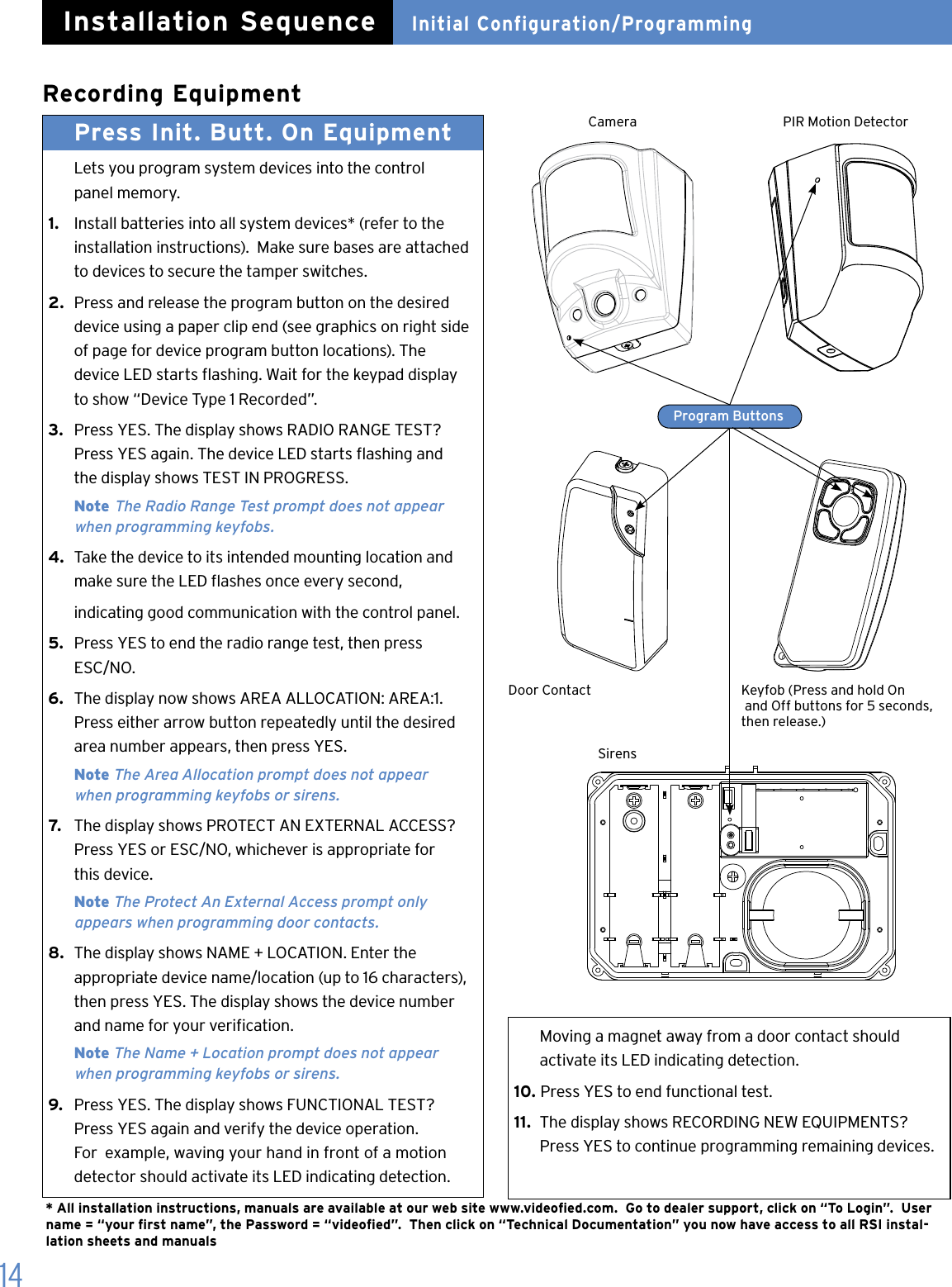
14Recording EquipmentPress Init. Butt. On Equipment  Lets you program system devices into the control    panel memory.1.   Install batteries into all system devices* (refer to the    installation instructions).  Make sure bases are attached    to devices to secure the tamper switches.2.  Press and release the program button on the desired    device using a paper clip end (see graphics on right side    of page for device program button locations). The    device LED starts ashing. Wait for the keypad display    to show “Device Type 1 Recorded”.3.   Press YES. The display shows RADIO RANGE TEST?    Press YES again. The device LED starts ashing and    the display shows TEST IN PROGRESS.  Note The Radio Range Test prompt does not appear    when programming keyfobs.4.  Take the device to its intended mounting location and    make sure the LED ashes once every second,   indicating good communication with the control panel.5.  Press YES to end the radio range test, then press    ESC/NO.6.  The display now shows AREA ALLOCATION: AREA:1.    Press either arrow button repeatedly until the desired    area number appears, then press YES.  Note The Area Allocation prompt does not appear      when programming keyfobs or sirens.7.   The display shows PROTECT AN EXTERNAL ACCESS?    Press YES or ESC/NO, whichever is appropriate for    this device.  Note The Protect An External Access prompt only    appears when programming door contacts.8.  The display shows NAME + LOCATION. Enter the    appropriate device name/location (up to 16 characters),    then press YES. The display shows the device number    and name for your verication.  Note The Name + Location prompt does not appear    when programming keyfobs or sirens.9.   Press YES. The display shows FUNCTIONAL TEST?    Press YES again and verify the device operation.    For  example, waving your hand in front of a motion    detector should activate its LED indicating detection.    Moving a magnet away from a door contact should    activate its LED indicating detection.10. Press YES to end functional test.11.  The display shows RECORDING NEW EQUIPMENTS?    Press YES to continue programming remaining devices.Camera PIR Motion DetectorDoor Contact Keyfob (Press and hold On   and Off buttons for 5 seconds, then release.)SirensProgram ButtonsInitial Configuration/ProgrammingInstallation Sequence* All installation instructions, manuals are available at our web site www.videoed.com.  Go to dealer support, click on “To Login”.  User name = “your rst name”, the Password = “videoed”.  Then click on “Technical Documentation” you now have access to all RSI instal-lation sheets and manuals
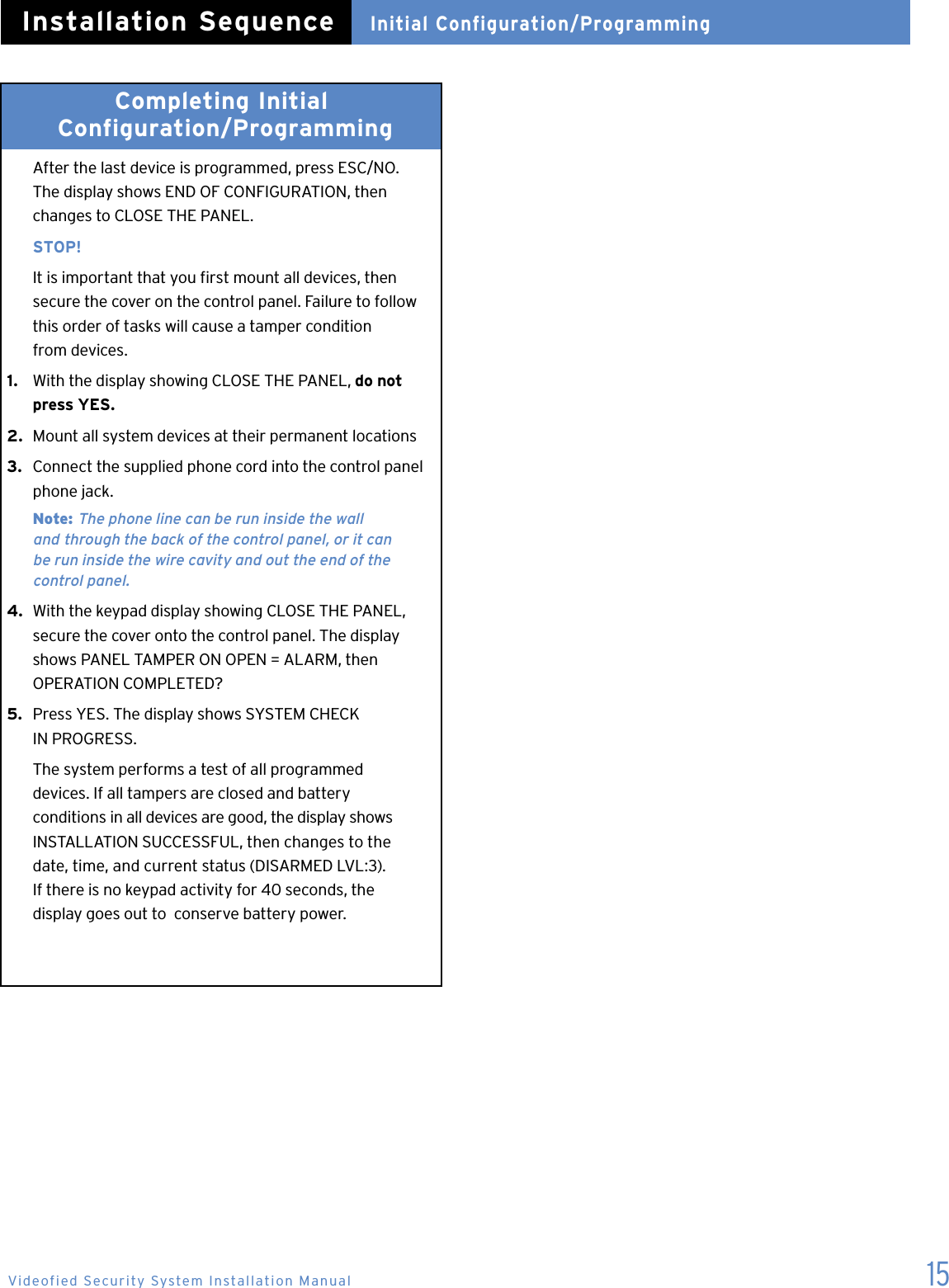
15Completing Initial   Configuration/Programming   After the last device is programmed, press ESC/NO.    The display shows END OF CONFIGURATION, then    changes to CLOSE THE PANEL.   STOP!  It is important that you rst mount all devices, then    secure the cover on the control panel. Failure to follow    this order of tasks will cause a tamper condition    from devices.1.   With the display showing CLOSE THE PANEL, do not    press YES.2.  Mount all system devices at their permanent locations3.  Connect the supplied phone cord into the control panel    phone jack.  Note: The phone line can be run inside the wall    and  through the back of the control panel, or it can    be run inside the wire cavity and out the end of the      control panel.4.  With the keypad display showing CLOSE THE PANEL,    secure the cover onto the control panel. The display    shows PANEL TAMPER ON OPEN = ALARM, then    OPERATION COMPLETED?5.  Press YES. The display shows SYSTEM CHECK    IN PROGRESS.  The system performs a test of all programmed    devices. If all tampers are closed and battery    conditions in all devices are good, the display shows    INSTALLATION SUCCESSFUL, then changes to the    date, time, and current status (DISARMED LVL:3).    If there is no keypad activity for 40 seconds, the    display goes out to  conserve battery power.Initial Configuration/ProgrammingInstallation SequenceVideofied Security System Installation Manual
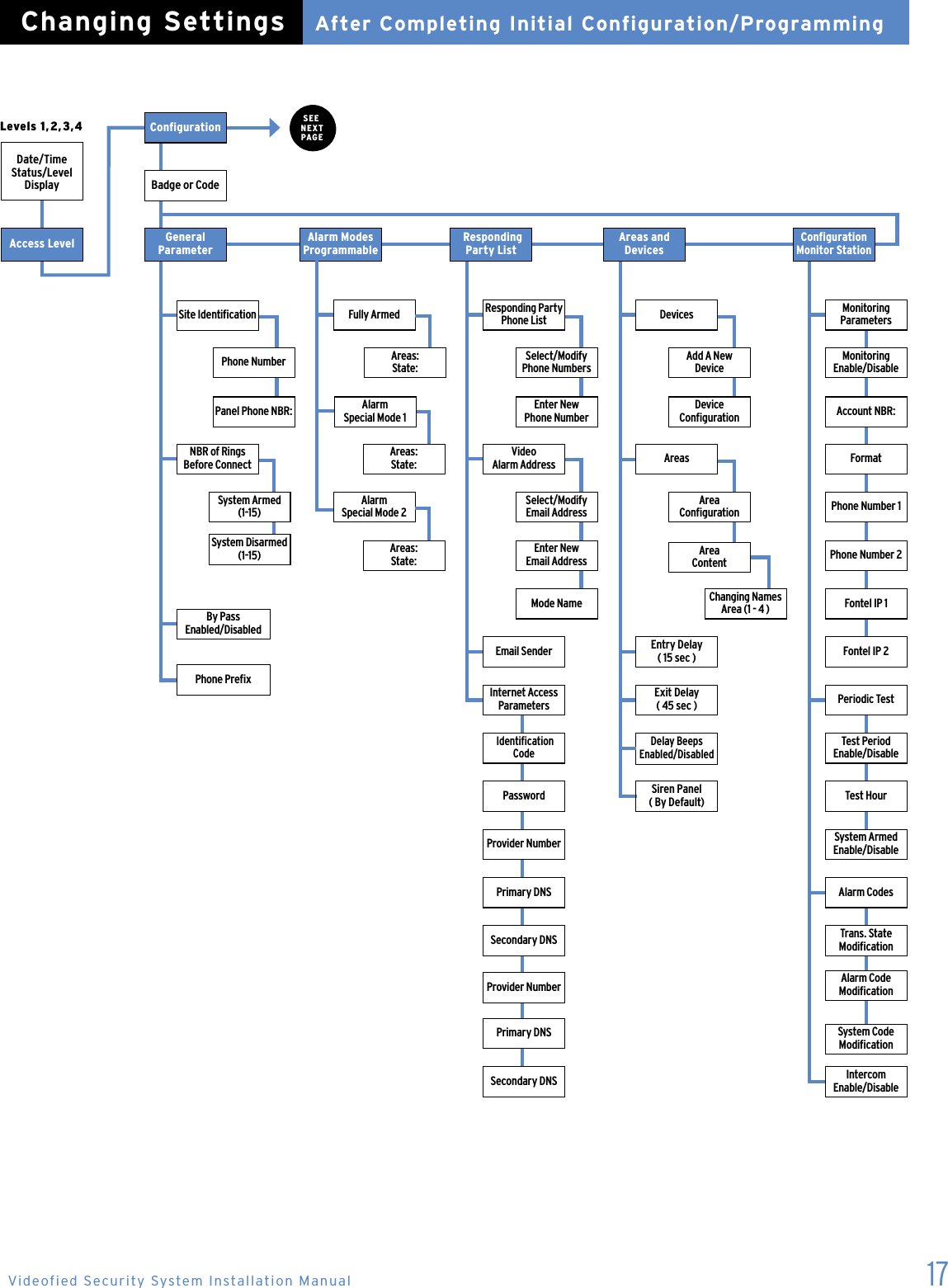
16Changing Settings After Completing Initial Conguration/Programmin  Once the control panel cover is secured in place,    removing it causes a tamper alarm. Changing settings    made during the initial conguration or adding devices    now requires setting the system to Access Level 4,    using your installer code.  Setting the System to Level 41.   With the display showing [DATE/ TIME], DISARMED    LEVEL:3, press the right arrow button once. The display    shows ACCESS LEVEL 3.2.  Press YES. The display now shows a colon (:) between    LEVEL and 3 (LEVEL:3).3.  Press the right arrow button once to change the    level number to 4, then press YES. The display shows    BADGE OR CODE.4.  Enter your installer code, then press YES. The display     shows ACCESS LEVEL 4. You can now access the following menus: > Conguration > Maintenance > Event Log > Badges-Access codes > Programmable FeaturesTo make changes press the arrow keys to go to the desired menu and press YES.  Only the Conguration & Badges-Ac-cess Codes menus require an access code to enter to view or change data.  Review the system menus on the next few pages to see the programmable options.System Menus   The next two pages show the order in which menus    now appear with the system in operational mode.    There are six main menus available in the operating    mode. The system level determines which menus are    available, some with their own set of submenus.  The main menus and submenus are described    afterward. To access these menus, press either arrow    button until the desired main menu is displayed, then    press YES to proceed.After Completing Initial Configuration/ProgrammingChanging Settings
17Area CongurationArea  ContentSEE  NEXT  PAGEDate/Time Status/Level DisplayAccess LevelAfter Completing Initial Configuration/ProgrammingChanging SettingsCongurationBadge or CodeGeneral ParameterNBR of Rings Before ConnectBy Pass  Enabled/DisabledPhone PrexAlarm Modes ProgrammableFully ArmedAreas:  State:Alarm  Special Mode 1Alarm  Special Mode 2 Responding Party ListSelect/Modify Phone NumbersEnter New    Phone NumberSelect/Modify Email AddressEnter New     Email AddressMode NameEmail SenderInternet Access Parameters Identication CodePasswordProvider NumberPrimary DNSSecondary DNSProvider NumberPrimary DNSSecondary DNSAreas and  DevicesAdd A New  DeviceDevice   CongurationAreasEntry Delay ( 15 sec )Exit Delay ( 45 sec )Delay Beeps Enabled/DisabledSiren Panel ( By Default)Conguration Monitor StationResponding Party Phone ListVideo  Alarm AddressDevicesChanging Names Area (1 - 4 )  Intercom  Enable/DisableMonitoring ParametersMonitoring  Enable/DisableAccount NBR:FormatPhone Number 1Phone Number 2Fontel IP 1Fontel IP 2System Armed Enable/DisablePeriodic TestTest Period  Enable/DisableTest HourAlarm CodesTrans. State ModicationAlarm Code ModicationSystem Code ModicationLevels 1,2,3,4Videofied Security System Installation ManualPhone NumberPanel Phone NBR:Site IdenticationSystem Armed (1-15)System Disarmed (1-15)Areas:  State:Areas:  State:
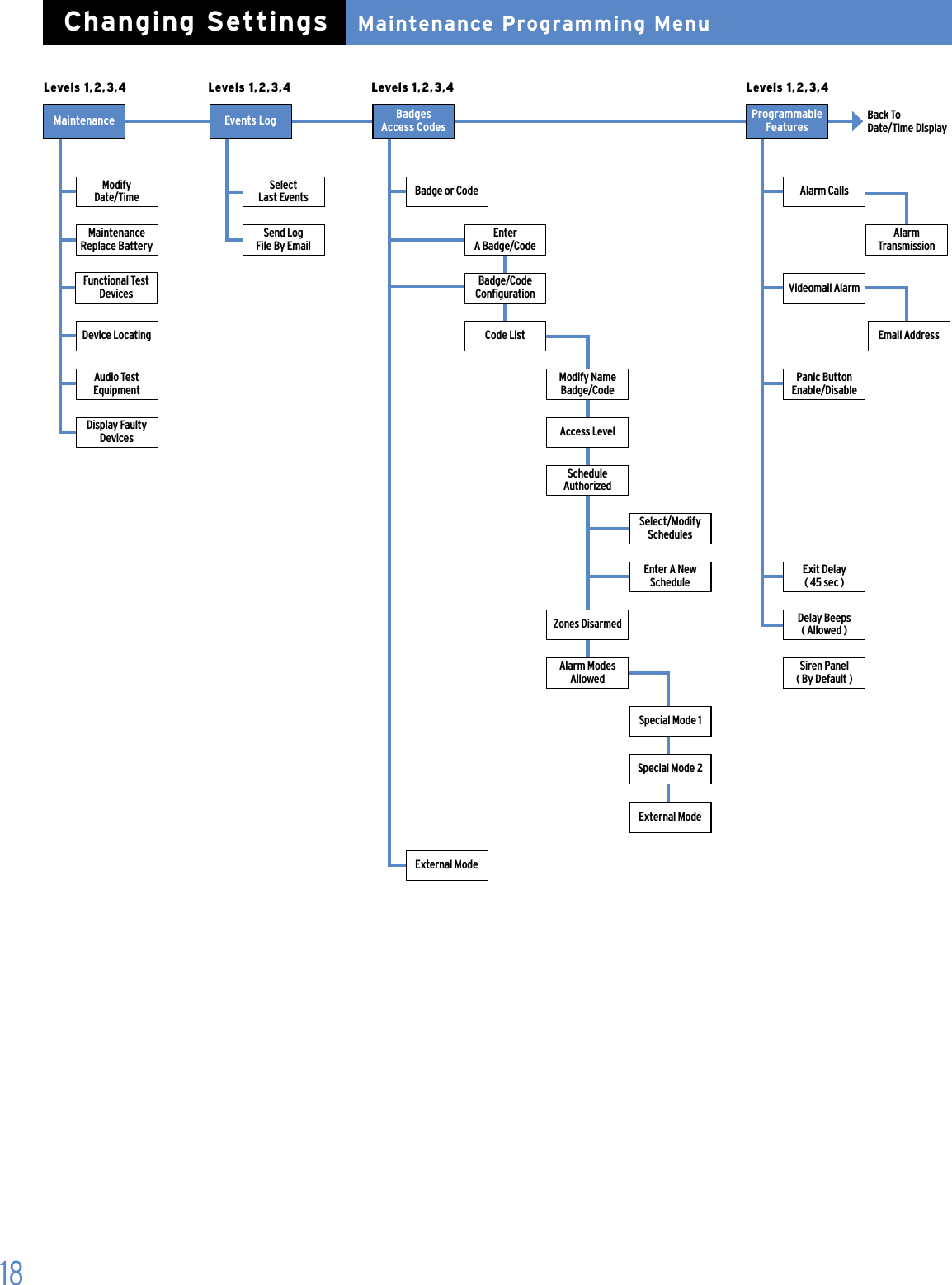
18Maintenance Programming MenuChanging SettingsMaintenance Events Log  Badges  Access CodesProgrammable  FeaturesLevels 1,2,3,4 Levels 1,2,3,4 Levels 1,2,3,4 Levels 1,2,3,4Back To  Date/Time DisplayMaintenance  Replace BatteryDevice LocatingAudio Test  EquipmentDisplay Faulty DevicesModify  Date/TimeFunctional Test DevicesSelect  Last EventsSend Log  File By EmailExternal ModeExternal ModeBadge or CodeEnter   A Badge/CodeBadge/Code CongurationCode ListModify Name Badge/CodeAccess LevelSchedule  AuthorizedSelect/Modify SchedulesEnter A New ScheduleZones DisarmedAlarm Modes AllowedSpecial Mode 1Special Mode 2Alarm CallsVideomail AlarmPanic Button Enable/DisableExit Delay  ( 45 sec )Delay Beeps  ( Allowed )Siren Panel  ( By Default )Alarm  TransmissionEmail Address
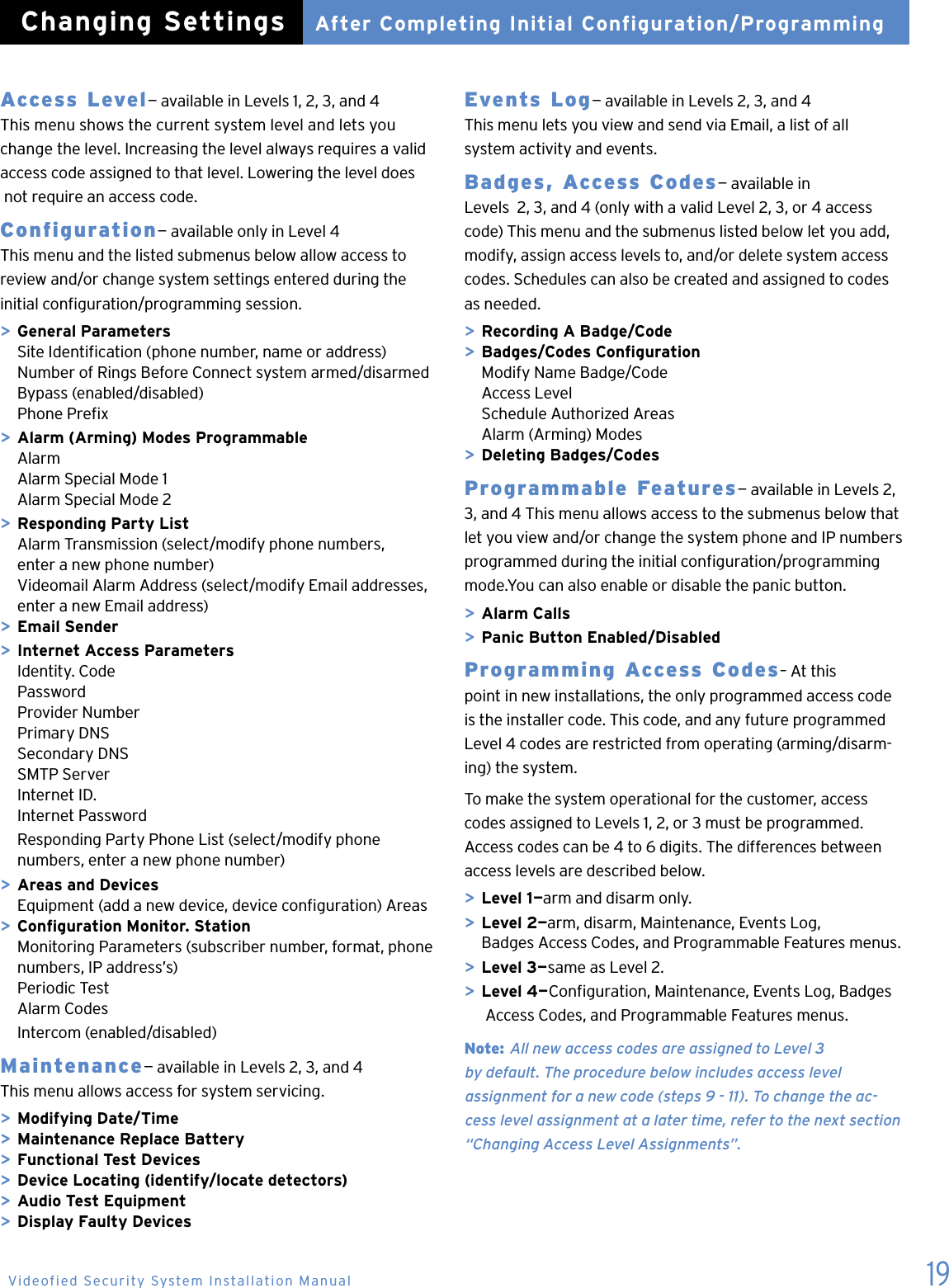
19Access Level— available in Levels 1, 2, 3, and 4 This menu shows the current system level and lets you change the level. Increasing the level always requires a valid access code assigned to that level. Lowering the level does  not require an access code.Configuration— available only in Level 4 This menu and the listed submenus below allow access to  review and/or change system settings entered during the initial conguration/programming session.> General Parameters  Site Identication (phone number, name or address)  Number of Rings Before Connect system armed/disarmed  Bypass (enabled/disabled)  Phone Prex> Alarm (Arming) Modes Programmable  Alarm  Alarm Special Mode 1  Alarm Special Mode 2> Responding Party List  Alarm Transmission (select/modify phone numbers,    enter a new phone number)  Videomail Alarm Address (select/modify Email addresses,   enter a new Email address)> Email Sender> Internet Access Parameters  Identity. Code  Password  Provider Number  Primary DNS  Secondary DNS  SMTP Server  Internet ID.  Internet Password  Responding Party Phone List (select/modify phone    numbers, enter a new phone number)> Areas and Devices  Equipment (add a new device, device conguration) Areas> Conguration Monitor. Station  Monitoring Parameters (subscriber number, format, phone    numbers, IP address’s)  Periodic Test  Alarm Codes  Intercom (enabled/disabled)Maintenance— available in Levels 2, 3, and 4 This menu allows access for system servicing.> Modifying Date/Time> Maintenance Replace Battery> Functional Test Devices> Device Locating (identify/locate detectors)> Audio Test Equipment> Display Faulty DevicesEvents Log— available in Levels 2, 3, and 4 This menu lets you view and send via Email, a list of all  system activity and events.Badges, Access Codes— available in  Levels  2, 3, and 4 (only with a valid Level 2, 3, or 4 access code) This menu and the submenus listed below let you add, modify, assign access levels to, and/or delete system access  codes. Schedules can also be created and assigned to codes  as needed.> Recording A Badge/Code> Badges/Codes Conguration  Modify Name Badge/Code  Access Level  Schedule Authorized Areas  Alarm (Arming) Modes> Deleting Badges/CodesProgrammable Features— available in Levels 2, 3, and 4 This menu allows access to the submenus below that let you view and/or change the system phone and IP numbers programmed during the initial conguration/programming mode.You can also enable or disable the panic button.> Alarm Calls> Panic Button Enabled/DisabledProgramming Access Codes– At this  point in new installations, the only programmed access code  is the installer code. This code, and any future programmed Level 4 codes are restricted from operating (arming/disarm-ing) the system.To make the system operational for the customer, access codes assigned to Levels 1, 2, or 3 must be programmed. Access codes can be 4 to 6 digits. The differences between access levels are described below.> Level 1—arm and disarm only.> Level 2—arm, disarm, Maintenance, Events Log,    Badges Access Codes, and Programmable Features menus.> Level 3—same as Level 2.> Level 4—Conguration, Maintenance, Events Log, Badges      Access Codes, and Programmable Features menus.Note: All new access codes are assigned to Level 3  by default. The procedure below includes access level  assignment for a new code (steps 9 - 11). To change the ac-cess level assignment at a later time, refer to the next section “Changing Access Level Assignments”.   After Completing Initial Configuration/ProgrammingChanging SettingsVideofied Security System Installation Manual
20 1.  With the display showing the current date, time, and    LVL:4, press the left arrow button twice. The display    shows BADGES ACCESS CODES.2.  Press YES. The display shows BADGE OR CODE.    Enter your installer code + YES. The display shows    RECORDING A BADGE/CODE.3.  Press YES. The display shows BADGE OR CODE.4.  Enter the desired code + YES. The display shows    CONFIRM THE CODE.5.  Re-enter the code + YES. The display shows    CODE NAME:.6.  Enter the desired name + YES. The display shows    [NAME] ENTRY COMPLETE, then returns to    RECORDING A BADGE/CODE.7.   Press the right arrow button once. The display shows    BADGES/CODES CONFIGURATION.8.  Press YES. The display shows MODIF NAME    BADGE CODE.9.   Press the right arrow button once. The display shows    ACCESS LEVEL 3.10. Press YES. The display now shows a colon (:) between    LEVEL and 3.11.  Press either arrow button until the desired level is    displayed, then press YES. The display shows the new    level assignment.12. Press ESC/NO three times to return to BADGES    ACCESS CODES.13.  Repeat steps 2 - 12 for remaining codes.Changing Access Level Assignments You can change the access level assignments as needed any-time, using the following steps.1.   With the display showing the current date, time, and    LVL: 4, press the left arrow button twice. The display    shows BADGES ACCESS CODES.2.  Press YES. The display shows BADGE OR CODE.    Enter your installer code + YES. The display shows    ENTER A BADGE/CODE.3.   Press the right arrow button once. The display shows    BADGES/CODES CONFIGURATION.4.  Press YES. The display shows the rst programmed    access code.5.  Press either arrow button until the desired code    appears, then press YES. The display shows MODIF    NAME BADGE/CODE.6.  Press the right arrow button once. The display shows    ACCESS LEVEL 3.7.   Press YES. The display now shows a colon (:) between    LEVEL and 3.8.  Press either arrow button until the desired level    assignment appears, then press YES. The display    shows the new level assignment.9.  Press ESC/NO.10. Repeat steps 5 - 9 for other level assignment changesChanging Access Code Alarm Mode Restrictions– After programming a new access code, altering alarm (arming) modes for any access code, using the following steps.1.   With the display showing date, time and LVL 4, press    the left arrow button twice. The display shows BADGES    ACCESS CODES.2.  Press YES. The display shows BADGE OR CODE. Enter    a Level 2 or 3 access code + YES. The display shows    ENTER A BADGE/CODE.3.  Press the right arrow button once. The display shows    BADGES/CODES CONFIGURATION.4. Press YES. The display shows the rst programmed    access code.5.  Press either arrow button until the desired code    appears, then press YES. The display shows MODIFY    NAME BADGE/CODE.6.  Press the left arrow button once. The display shows    ALARM MODES ALLOWED.7.   Press YES. The display shows SPECIAL MODE 1    ALLOWED.8.  Press either arrow button until the desired mode    appears, then press YES. The display shows a colon (:)    next to ALLOWED.9.   Press either arrow button once. The display changes    to DISABLED.10. Press YES. The display shows the new alarm (arming)    mode setting without the colon.11.  Repeat steps 5 - 10 for other code restriction changes.Deleting Access Codes– Delete access codes as needed anytime, using the following steps.1.   With the display showing the current date, time, and    LVL: 4, press the left arrow button twice. The display    shows BADGES ACCESS CODES.2.  Press YES. The display shows BADGE OR CODE.    Enter your installer code + YES. The display shows    ENTER A BADGE/CODE.3.   Press the left arrow button once. The display shows    DELETING BADGES/CODES.4.  Press YES. The display shows the rst programmed    access code.5.  Press either arrow button until the desired code    appears, then press YES. The display shows    DELETING CODE.6.  Press YES again. The display shows CODE DELETED.7.   Repeat steps 5 - 6 to continue deleting codes.After Completing Initial Configuration/ProgrammingChanging Settings
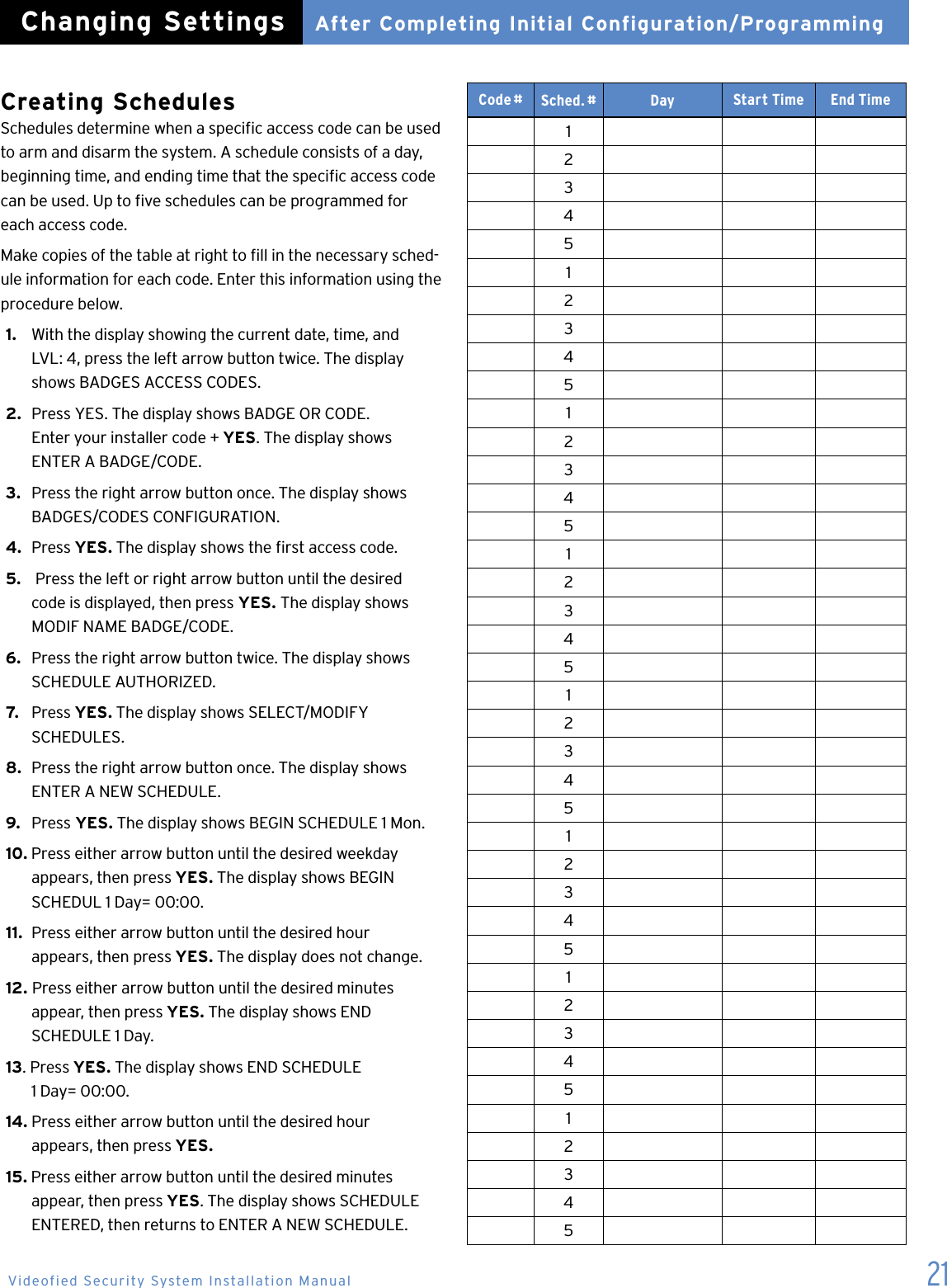
21Creating Schedules Schedules determine when a specic access code can be used to arm and disarm the system. A schedule consists of a day, beginning time, and ending time that the specic access code can be used. Up to ve schedules can be programmed for each access code.Make copies of the table at right to ll in the necessary sched-ule information for each code. Enter this information using the procedure below.1.   With the display showing the current date, time, and    LVL: 4, press the left arrow button twice. The display    shows BADGES ACCESS CODES.2.  Press YES. The display shows BADGE OR CODE.    Enter your installer code + YES. The display shows    ENTER A BADGE/CODE.3.   Press the right arrow button once. The display shows    BADGES/CODES CONFIGURATION.4.  Press YES. The display shows the rst access code.5.   Press the left or right arrow button until the desired    code is displayed, then press YES. The display shows    MODIF NAME BADGE/CODE.6.  Press the right arrow button twice. The display shows    SCHEDULE AUTHORIZED.7.   Press YES. The display shows SELECT/MODIFY    SCHEDULES.8.  Press the right arrow button once. The display shows    ENTER A NEW SCHEDULE.9.  Press YES. The display shows BEGIN SCHEDULE 1 Mon.10. Press either arrow button until the desired weekday    appears, then press YES. The display shows BEGIN    SCHEDUL 1 Day= 00:00.11.  Press either arrow button until the desired hour    appears, then press YES. The display does not change.12. Press either arrow button until the desired minutes    appear, then press YES. The display shows END    SCHEDULE 1 Day.13. Press YES. The display shows END SCHEDULE    1 Day= 00:00.14. Press either arrow button until the desired hour    appears, then press YES.15. Press either arrow button until the desired minutes    appear, then press YES. The display shows SCHEDULE    ENTERED, then returns to ENTER A NEW SCHEDULE. Code #Sched. # Day Start Time End Time1234512345123451234  512345123451234512345After Completing Initial Configuration/ProgrammingChanging SettingsVideofied Security System Installation Manual
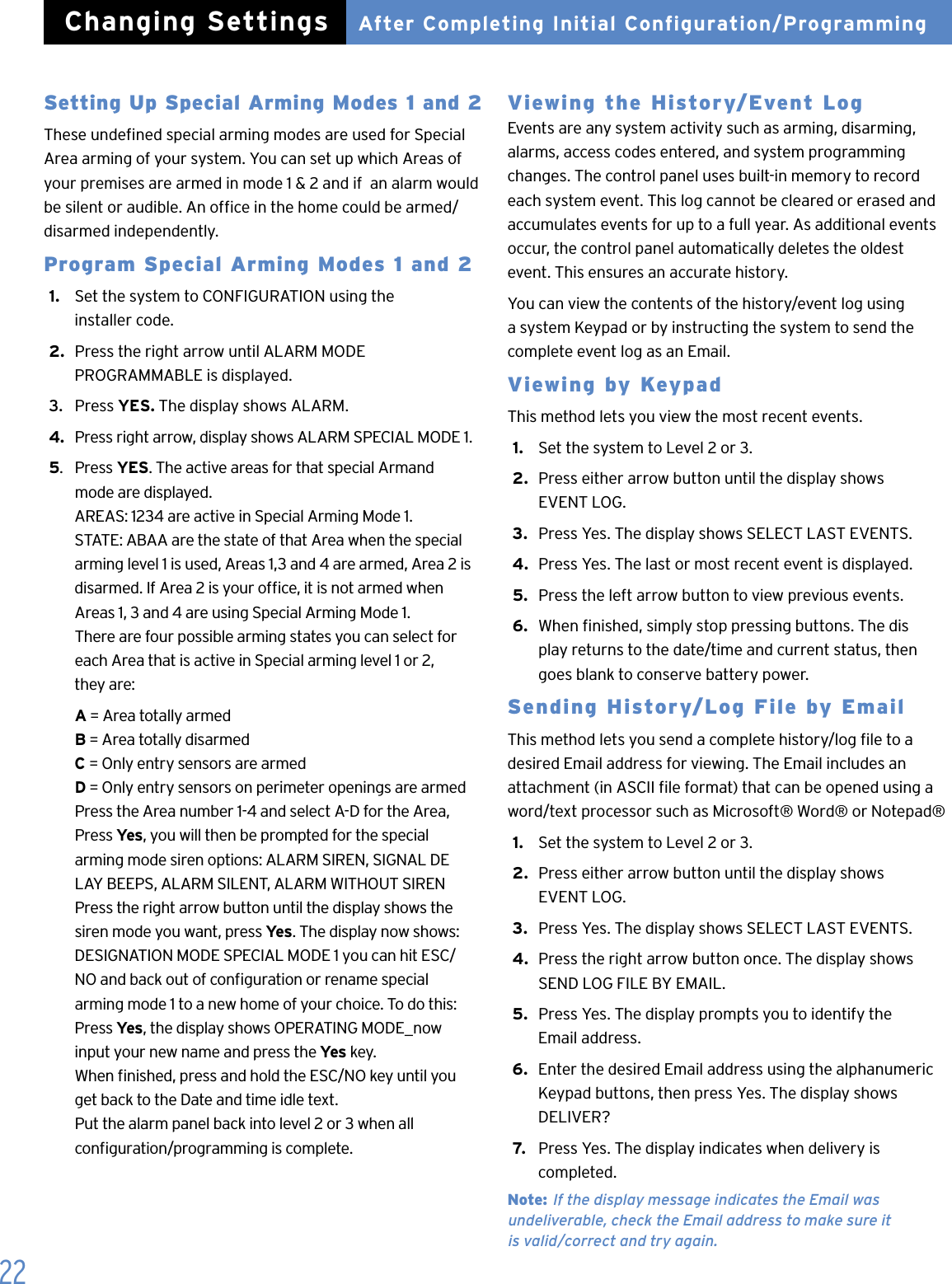
22Setting Up Special Arming Modes 1 and 2These undened special arming modes are used for Special Area arming of your system. You can set up which Areas of your premises are armed in mode 1 & 2 and if  an alarm would be silent or audible. An ofce in the home could be armed/ disarmed independently.Program Special Arming Modes 1 and 21.   Set the system to CONFIGURATION using the    installer code.2.  Press the right arrow until ALARM MODE    PROGRAMMABLE is displayed.3.   Press YES. The display shows ALARM.4.   Press right arrow, display shows ALARM SPECIAL MODE 1.5.  Press YES. The active areas for that special Armand    mode are displayed.   AREAS: 1234 are active in Special Arming Mode 1.   STATE: ABAA are the state of that Area when the special    arming level 1 is used, Areas 1,3 and 4 are armed, Area 2 is    disarmed. If Area 2 is your ofce, it is not armed when    Areas 1, 3 and 4 are using Special Arming Mode 1.   There are four possible arming states you can select for    each Area that is active in Special arming level 1 or 2,    they are: A = Area totally armed  B = Area totally disarmed   C = Only entry sensors are armed  D = Only entry sensors on perimeter openings are armed    Press the Area number 1-4 and select A-D for the Area,    Press Yes, you will then be prompted for the special    arming mode siren options: ALARM SIREN, SIGNAL DE   LAY BEEPS, ALARM SILENT, ALARM WITHOUT SIREN    Press the right arrow button until the display shows the    siren mode you want, press Yes. The display now shows:   DESIGNATION MODE SPECIAL MODE 1 you can hit ESC/   NO and back out of conguration or rename special    arming mode 1 to a new home of your choice. To do this:   Press Yes, the display shows OPERATING MODE_now    input your new name and press the Yes key.    When nished, press and hold the ESC/NO key until you    get back to the Date and time idle text.   Put the alarm panel back into level 2 or 3 when all    conguration/programming is complete.   Viewing the History/Event Log Events are any system activity such as arming, disarming, alarms, access codes entered, and system programming changes. The control panel uses built-in memory to record each system event. This log cannot be cleared or erased and accumulates events for up to a full year. As additional events occur, the control panel automatically deletes the oldest event. This ensures an accurate history.You can view the contents of the history/event log using  a system Keypad or by instructing the system to send the complete event log as an Email.Viewing by KeypadThis method lets you view the most recent events.1.   Set the system to Level 2 or 3.2.  Press either arrow button until the display shows    EVENT LOG.3.  Press Yes. The display shows SELECT LAST EVENTS.4.  Press Yes. The last or most recent event is displayed.5.  Press the left arrow button to view previous events.6.  When nished, simply stop pressing buttons. The dis   play returns to the date/time and current status, then    goes blank to conserve battery power.Sending History/Log File by EmailThis method lets you send a complete history/log le to a desired Email address for viewing. The Email includes an attachment (in ASCII le format) that can be opened using a word/text processor such as Microsoft® Word® or Notepad®1.   Set the system to Level 2 or 3.2.  Press either arrow button until the display shows    EVENT LOG.3.  Press Yes. The display shows SELECT LAST EVENTS.4.  Press the right arrow button once. The display shows    SEND LOG FILE BY EMAIL.5.  Press Yes. The display prompts you to identify the    Email address.6.  Enter the desired Email address using the alphanumeric    Keypad buttons, then press Yes. The display shows    DELIVER?7.   Press Yes. The display indicates when delivery is    completed.Note: If the display message indicates the Email was  undeliverable, check the Email address to make sure it  is valid/correct and try again.After Completing Initial Configuration/ProgrammingChanging Settings
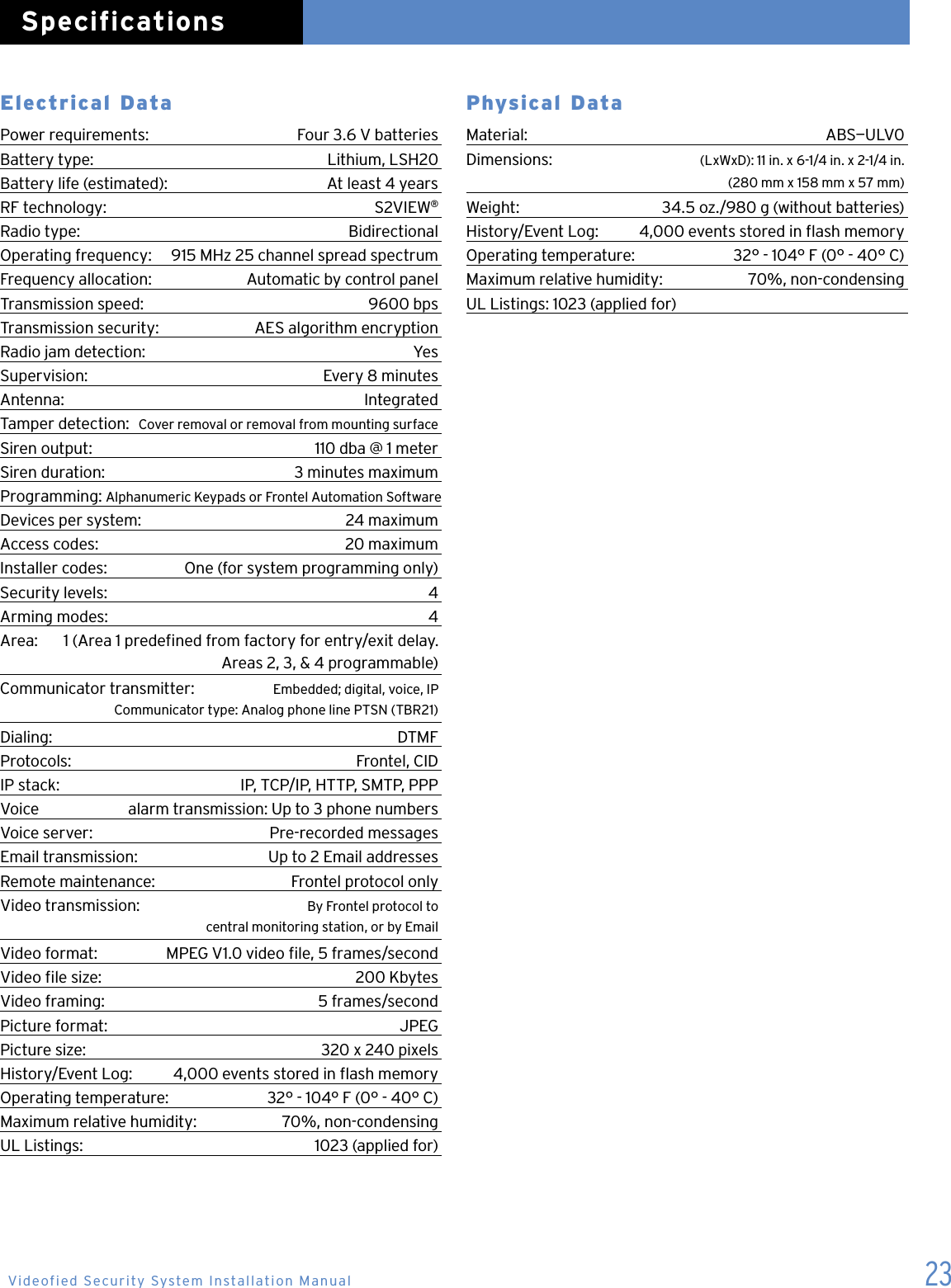
23Electrical DataPower requirements:   Four 3.6 V batteriesBattery type:  Lithium, LSH20 Battery life (estimated):  At least 4 yearsRF technology:  S2VIEW®Radio type:  BidirectionalOperating frequency:  915 MHz 25 channel spread spectrumFrequency allocation:  Automatic by control panelTransmission speed:  9600 bpsTransmission security:  AES algorithm encryptionRadio jam detection:  YesSupervision:  Every 8 minutesAntenna:  IntegratedTamper detection:  Cover removal or removal from mounting surfaceSiren output:  110 dba @ 1 meterSiren duration:   3 minutes maximumProgramming:  Alphanumeric Keypads or Frontel Automation SoftwareDevices per system:  24 maximumAccess codes:  20 maximumInstaller codes:  One (for system programming only)Security levels:  4Arming modes:  4Area:  1 (Area 1 predened from factory for entry/exit delay.    Areas 2, 3, & 4 programmable)Communicator transmitter:  Embedded; digital, voice, IP    Communicator type: Analog phone line PTSN (TBR21)Dialing:   DTMFProtocols:   Frontel, CIDIP stack:   IP, TCP/IP, HTTP, SMTP, PPPVoice   alarm transmission: Up to 3 phone numbersVoice server:   Pre-recorded messagesEmail transmission:   Up to 2 Email addressesRemote maintenance:   Frontel protocol onlyVideo transmission:   By Frontel protocol to    central monitoring station, or by EmailVideo format:   MPEG V1.0 video le, 5 frames/secondVideo le size:   200 KbytesVideo framing:   5 frames/secondPicture format:   JPEGPicture size:   320 x 240 pixelsHistory/Event Log:   4,000 events stored in ash memoryOperating temperature:   32° - 104° F (0° - 40° C)Maximum relative humidity:   70%, non-condensingUL Listings:   1023 (applied for)Physical Data Material:   ABS—ULV0Dimensions:   (LxWxD): 11 in. x 6-1/4 in. x 2-1/4 in.    (280 mm x 158 mm x 57 mm)Weight:   34.5 oz./980 g (without batteries)History/Event Log:   4,000 events stored in ash memoryOperating temperature:   32° - 104° F (0° - 40° C)Maximum relative humidity:   70%, non-condensingUL Listings: 1023 (applied for) SpecificationsVideofied Security System Installation Manual

Navigation menu