RadarFind T33110 INDOOR EQUIPMENT LOCATION SYSTEM User Manual 319 Tag Installation Manual Draft

RadarFind Corporation INDOOR EQUIPMENT LOCATION SYSTEM 319 Tag Installation Manual Draft

Users Manual

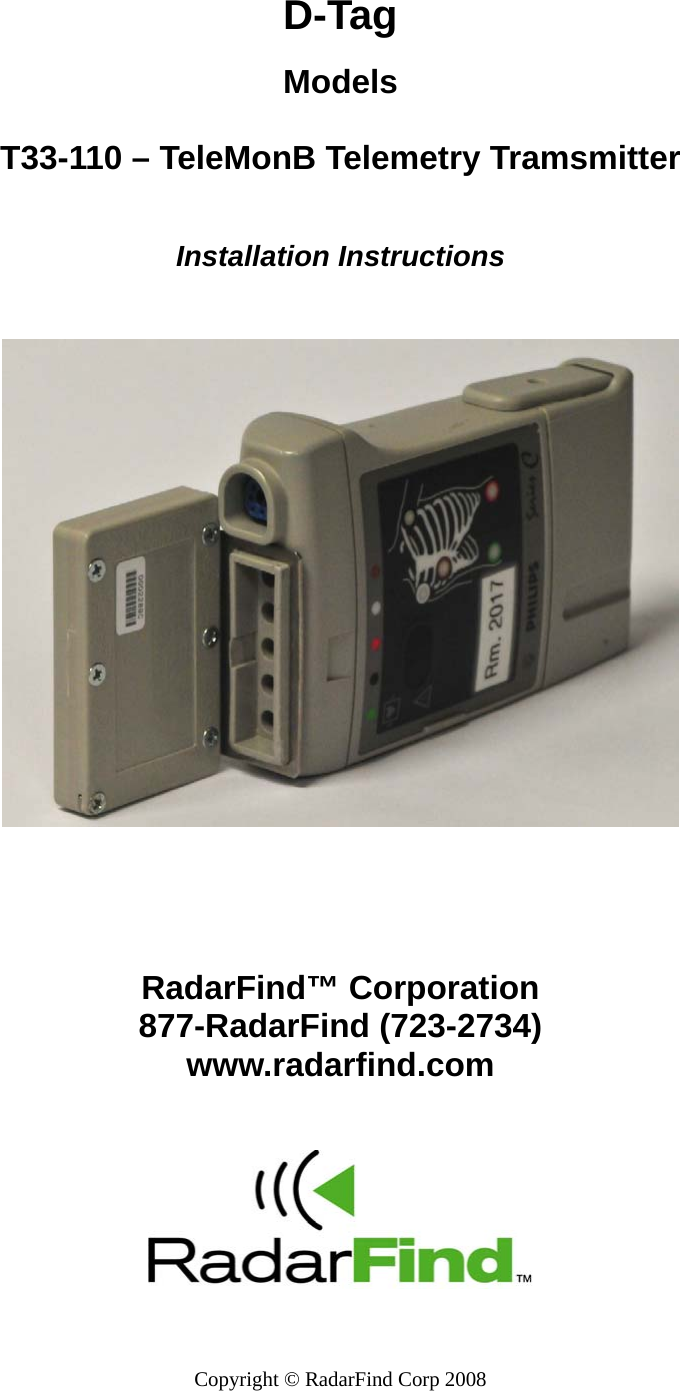
  Copyright © RadarFind Corp 2008  D-Tag  Models   T33-110 – TeleMonB Telemetry Tramsmitter    Installation Instructions        RadarFind™ Corporation 877-RadarFind (723-2734) www.radarfind.com
 Radarfind Corporation 8/25/2010                                       A-Tag Installation Instructions                                    Page  2   Copyright © RadarFind Corp 2009  Warnings:  It is important to follow all instructions shipped with this product.  UNPACKING: After unpacking the unit, examine it for damage that may have occurred in transit. If the equipment has been damaged, do not attempt to install or operate it. File a claim immediately with the carrier stating the extent of the damage, or contact RadarFind customer service for repair or replacement.  Read and understand all instructions before installing or operating this equipment.  The selection of the mounting location for the device is to be accomplished under the direction of the director of Clinical Engineering and conform to all company policies, and must be in accordance with specifications in the sub-chapter for each device type.  CAUTION: Risk of malfunction. Install these devices only in areas with an ambient temperature between 0° and 50°C.  [15.19] This device complies with Part 15 of the FCC Rules. Operation is subject to the following two conditions: (1) this device may not cause harmful interference, and (2) this device must accept any interference received, including interference that may cause undesired operation.  [15.21] Information to user: Changes or modifications not expressly approved by the RadarFind Corporation could void the user's authority to operate the equipment  [15.105] NOTE: This equipment has been tested and found to comply with the limits for a Class A digital device, pursuant to Part 15 of the FCC Rules. These limits are designed to provide reasonable protection against harmful interference when the equipment is operated in a commercial environment. This equipment generates, uses, and can radiate radio frequency energy and, if not installed and used in accordance with the instruction manual, may cause harmful interference to radio communications. Operation of this equipment in a residential area is likely to cause harmful interference in which case the user will be required to correct the interference at his own expense.  [15.249] This equipment operates under Section 15.249 of the Title 47 FCC Rules.  This product protected by one or more of the following U.S. Patents: 7372365, 7525432 & 7528716. Other patents pending.
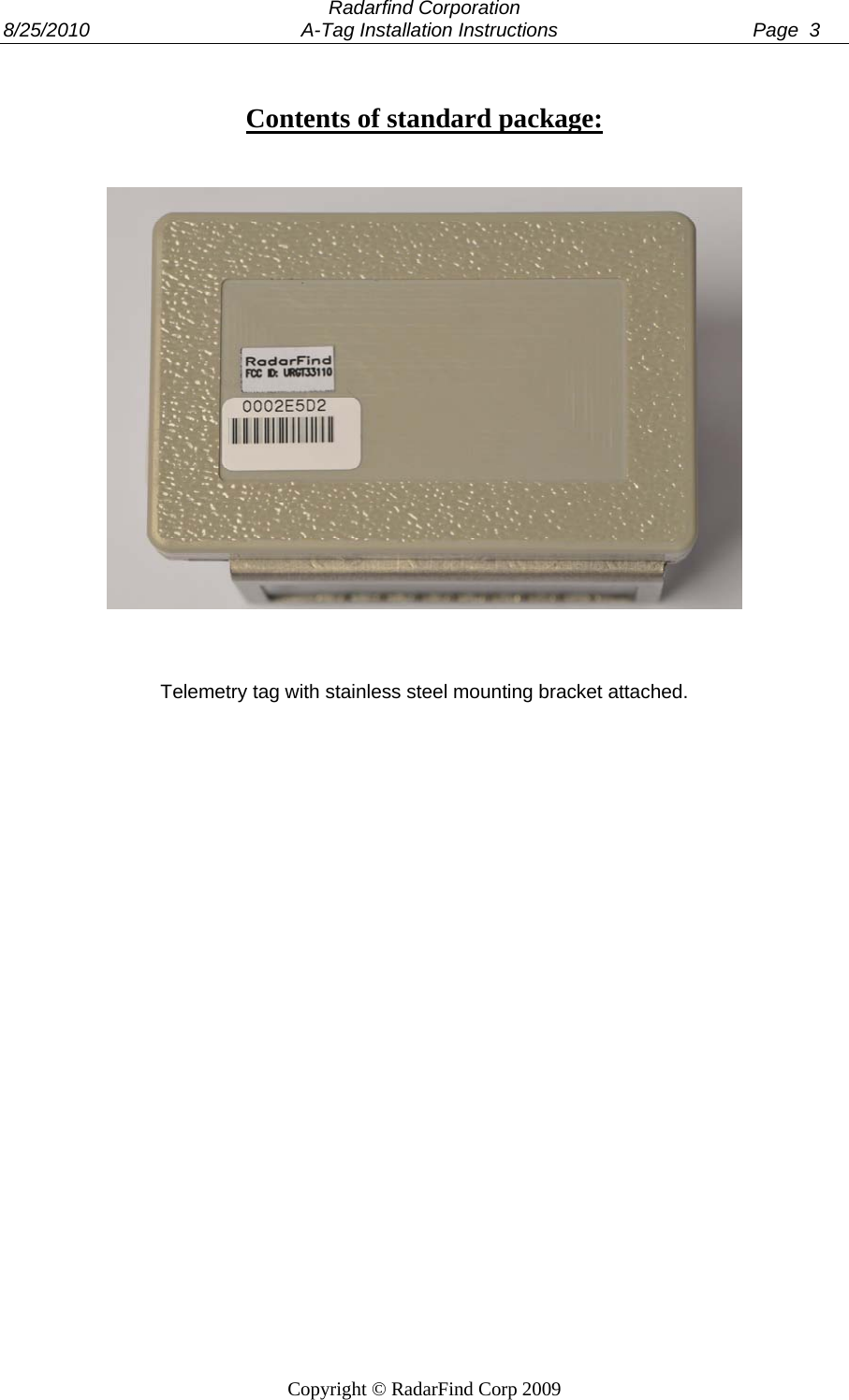
 Radarfind Corporation 8/25/2010                                       A-Tag Installation Instructions                                    Page  3   Copyright © RadarFind Corp 2009  Contents of standard package:       Telemetry tag with stainless steel mounting bracket attached.
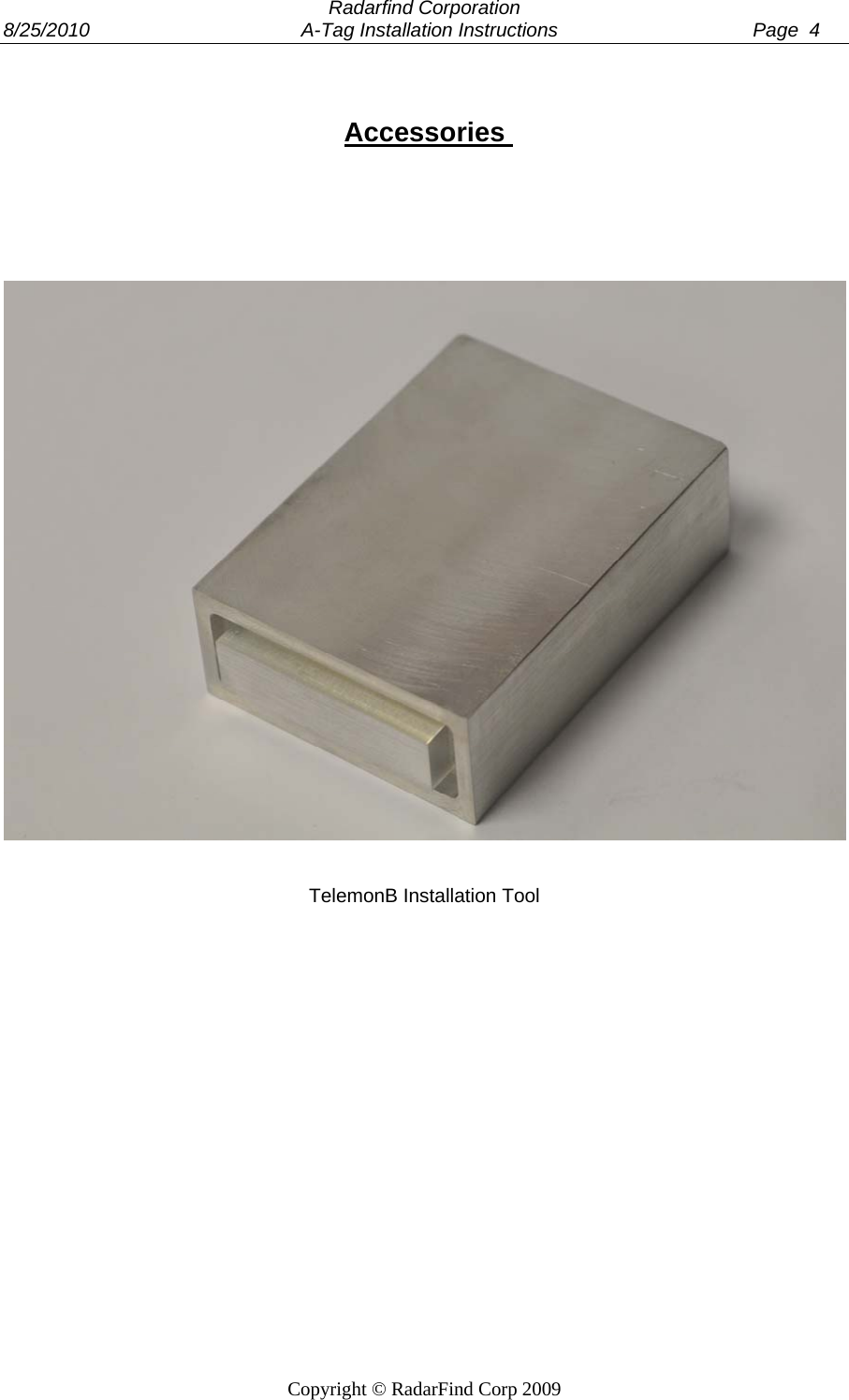
 Radarfind Corporation 8/25/2010                                       A-Tag Installation Instructions                                    Page  4   Copyright © RadarFind Corp 2009   Accessories          TelemonB Installation Tool
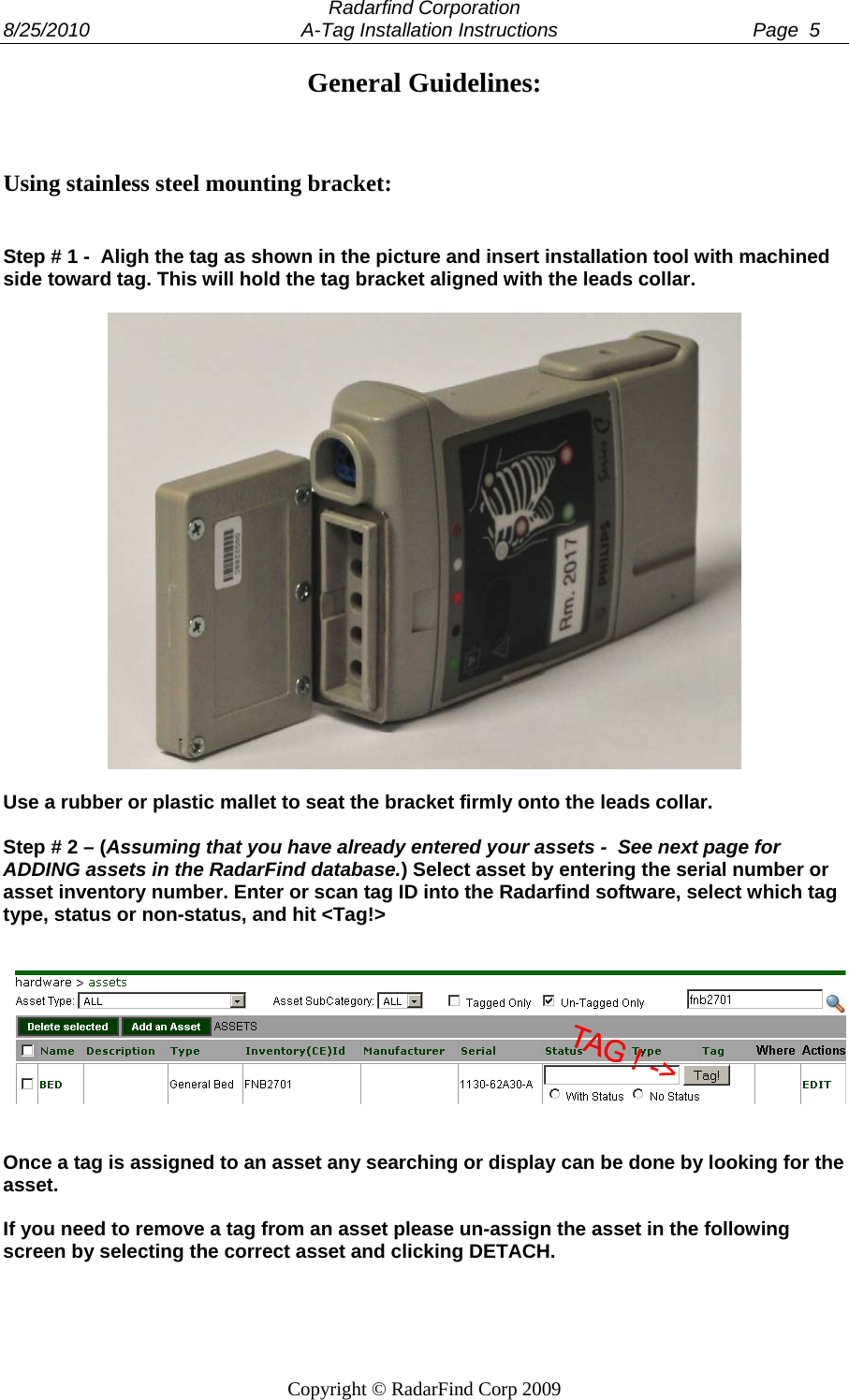
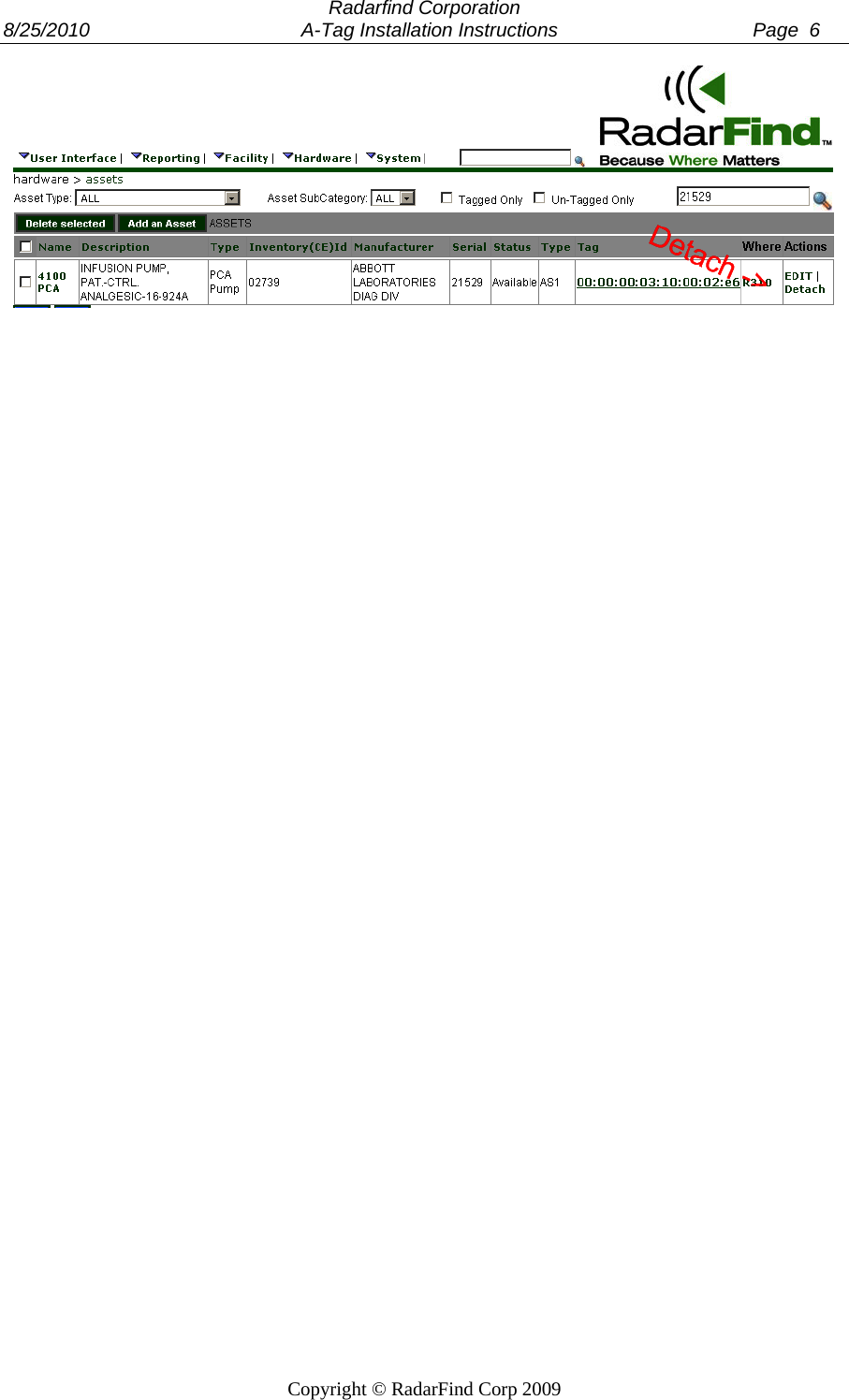
 Radarfind Corporation 8/25/2010                                       A-Tag Installation Instructions                                    Page  5   Copyright © RadarFind Corp 2009 General Guidelines:    Using stainless steel mounting bracket:   Step # 1 -  Aligh the tag as shown in the picture and insert installation tool with machined side toward tag. This will hold the tag bracket aligned with the leads collar.     Use a rubber or plastic mallet to seat the bracket firmly onto the leads collar.  Step # 2 – (Assuming that you have already entered your assets -  See next page for ADDING assets in the RadarFind database.) Select asset by entering the serial number or asset inventory number. Enter or scan tag ID into the Radarfind software, select which tag type, status or non-status, and hit <Tag!>      Once a tag is assigned to an asset any searching or display can be done by looking for the asset.   If you need to remove a tag from an asset please un-assign the asset in the following screen by selecting the correct asset and clicking DETACH.
 Radarfind Corporation 8/25/2010                                       A-Tag Installation Instructions                                    Page  6   Copyright © RadarFind Corp 2009
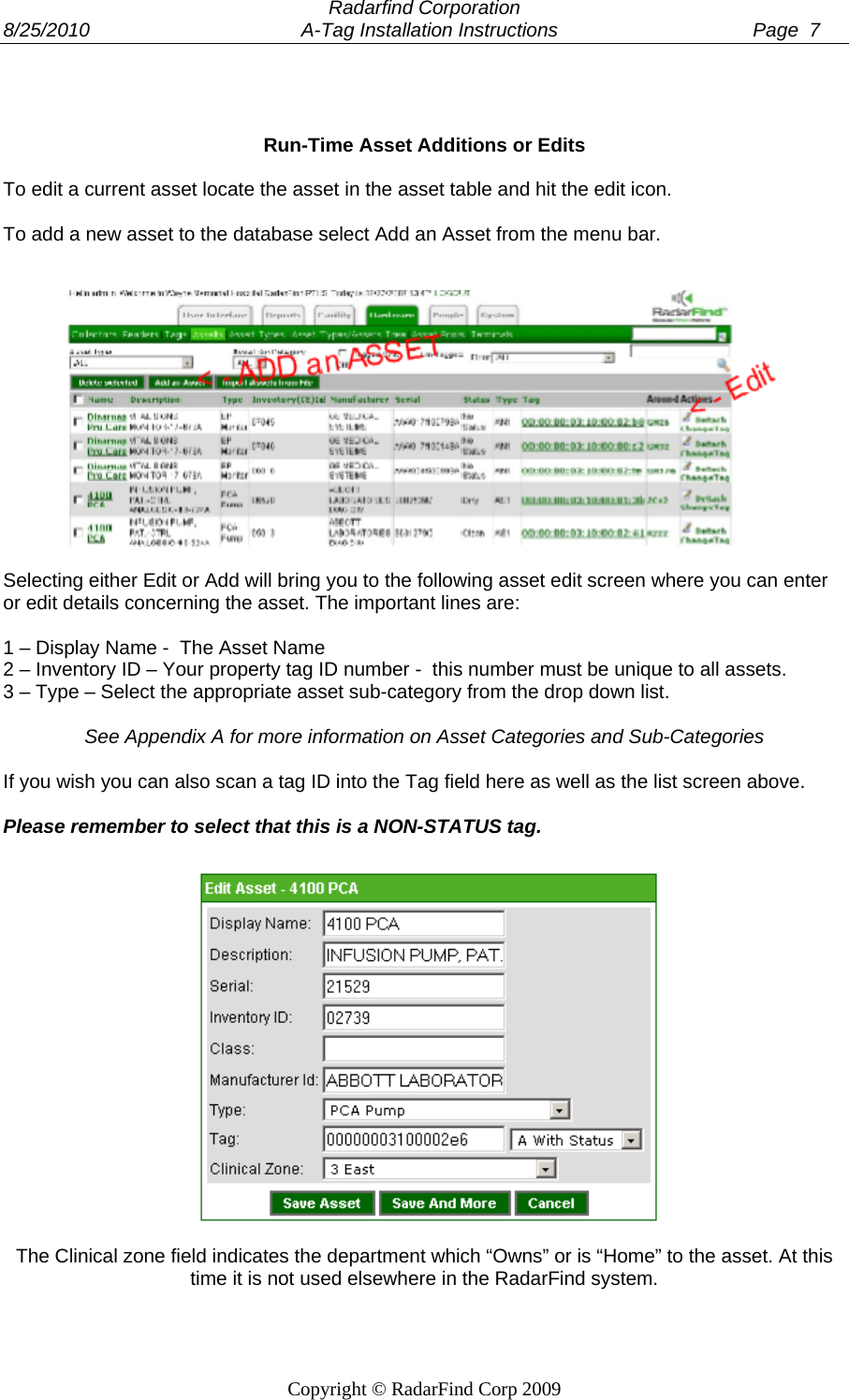
 Radarfind Corporation 8/25/2010                                       A-Tag Installation Instructions                                    Page  7   Copyright © RadarFind Corp 2009    Run-Time Asset Additions or Edits  To edit a current asset locate the asset in the asset table and hit the edit icon.  To add a new asset to the database select Add an Asset from the menu bar.     Selecting either Edit or Add will bring you to the following asset edit screen where you can enter or edit details concerning the asset. The important lines are:  1 – Display Name -  The Asset Name 2 – Inventory ID – Your property tag ID number -  this number must be unique to all assets. 3 – Type – Select the appropriate asset sub-category from the drop down list.  See Appendix A for more information on Asset Categories and Sub-Categories  If you wish you can also scan a tag ID into the Tag field here as well as the list screen above.   Please remember to select that this is a NON-STATUS tag.   The Clinical zone field indicates the department which “Owns” or is “Home” to the asset. At this time it is not used elsewhere in the RadarFind system.
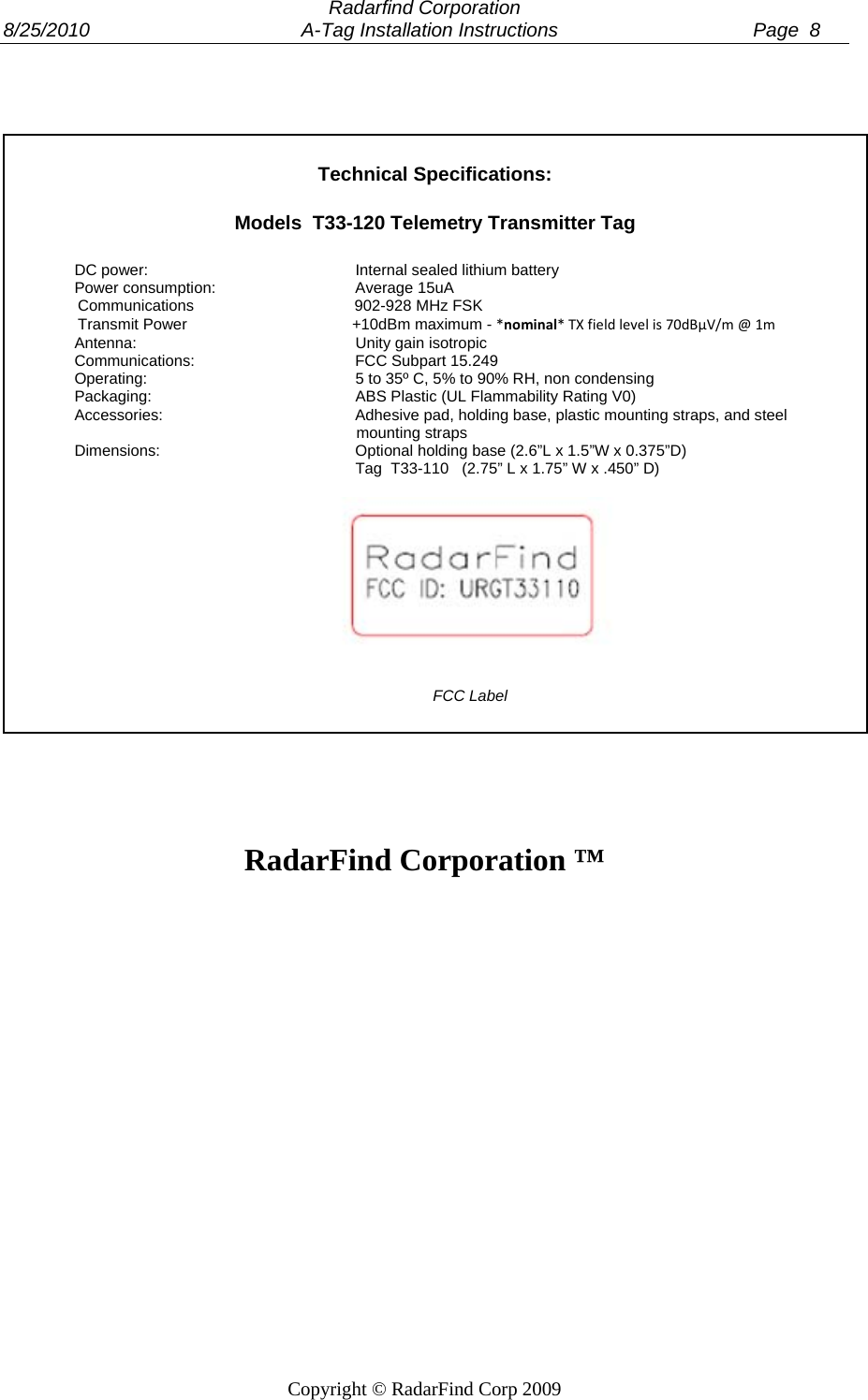
 Radarfind Corporation 8/25/2010                                       A-Tag Installation Instructions                                    Page  8   Copyright © RadarFind Corp 2009     Technical Specifications:  Models  T33-120 Telemetry Transmitter Tag  DC power:      Internal sealed lithium battery Power consumption:    Average 15uA                  Communications                                     902-928 MHz FSK                  Transmit Power                                      +10dBm maximum - *nominal*TXfieldlevelis70dBµV/m@1m Antenna:    Unity gain isotropic Communications:   FCC Subpart 15.249 Operating:      5 to 35º C, 5% to 90% RH, non condensing Packaging:      ABS Plastic (UL Flammability Rating V0) Accessories:      Adhesive pad, holding base, plastic mounting straps, and steel                                                                   mounting straps Dimensions:   Optional holding base (2.6”L x 1.5”W x 0.375”D)         Tag  T33-110   (2.75” L x 1.75” W x .450” D)         FCC Label     RadarFind Corporation ™
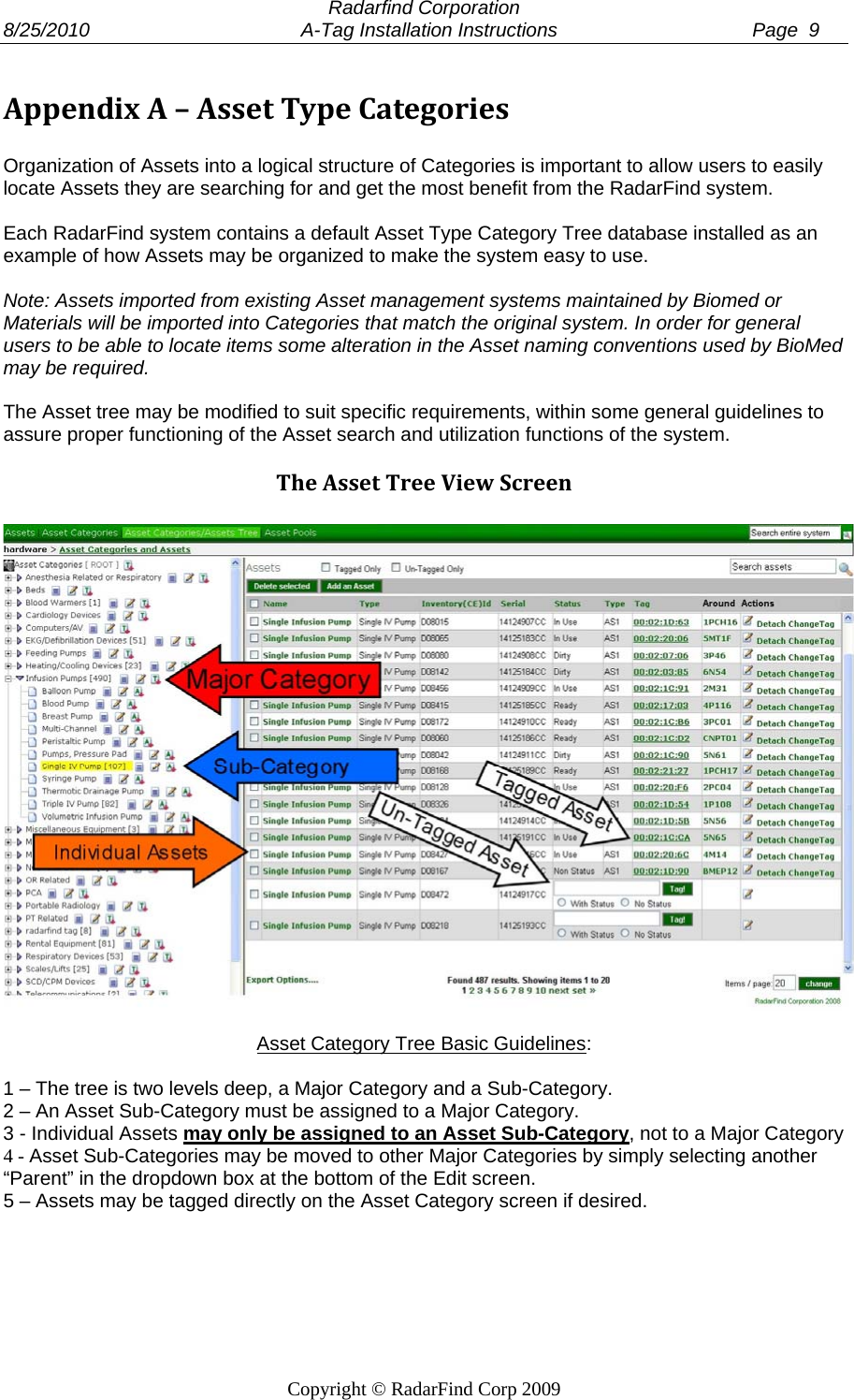
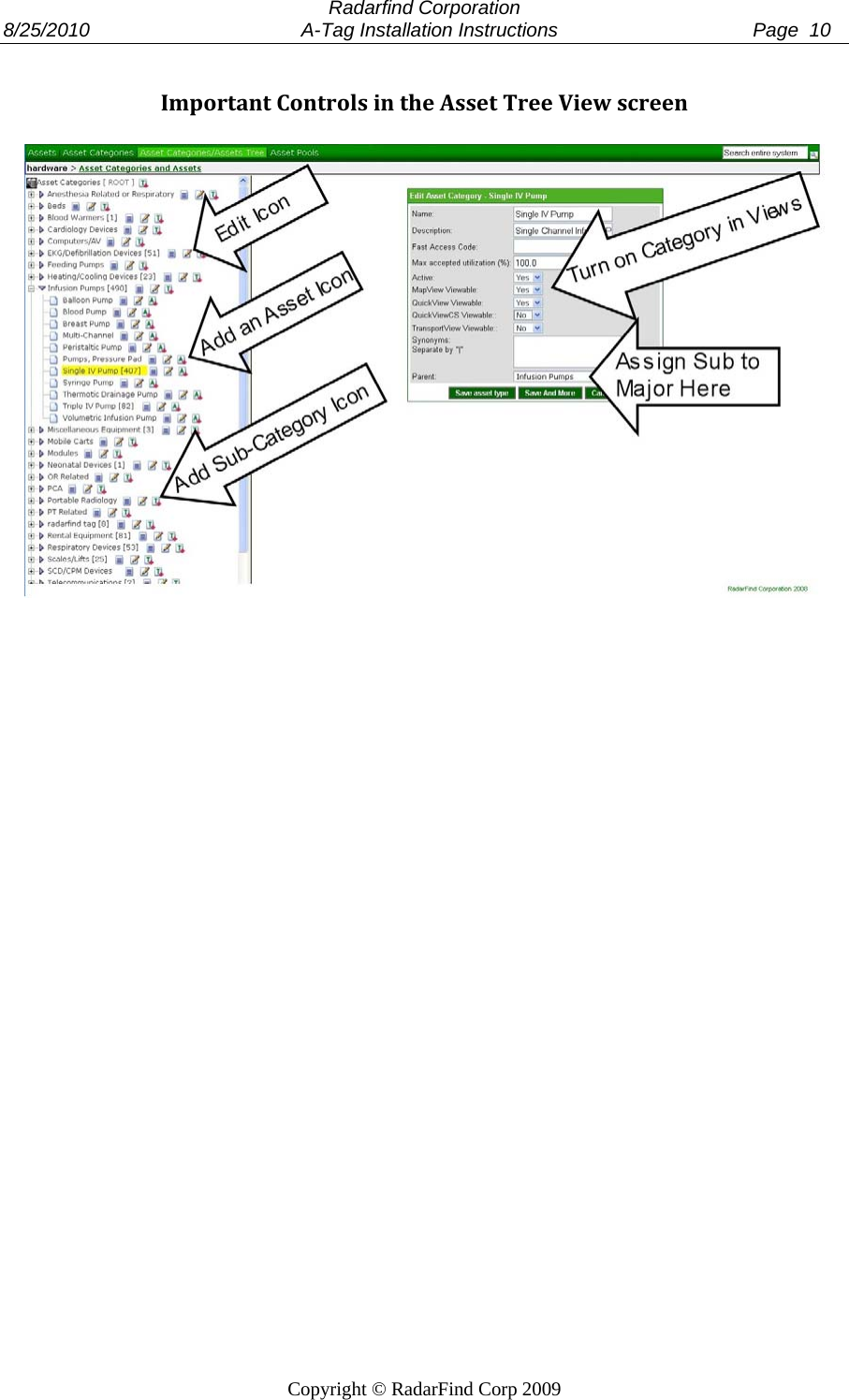
 Radarfind Corporation 8/25/2010                                       A-Tag Installation Instructions                                    Page  9   Copyright © RadarFind Corp 2009 AppendixA–AssetTypeCategories Organization of Assets into a logical structure of Categories is important to allow users to easily locate Assets they are searching for and get the most benefit from the RadarFind system.    Each RadarFind system contains a default Asset Type Category Tree database installed as an example of how Assets may be organized to make the system easy to use.   Note: Assets imported from existing Asset management systems maintained by Biomed or Materials will be imported into Categories that match the original system. In order for general users to be able to locate items some alteration in the Asset naming conventions used by BioMed may be required.   The Asset tree may be modified to suit specific requirements, within some general guidelines to assure proper functioning of the Asset search and utilization functions of the system.  TheAssetTreeViewScreen   Asset Category Tree Basic Guidelines:  1 – The tree is two levels deep, a Major Category and a Sub-Category. 2 – An Asset Sub-Category must be assigned to a Major Category. 3 - Individual Assets may only be assigned to an Asset Sub-Category, not to a Major Category 4 - Asset Sub-Categories may be moved to other Major Categories by simply selecting another “Parent” in the dropdown box at the bottom of the Edit screen. 5 – Assets may be tagged directly on the Asset Category screen if desired.
 Radarfind Corporation 8/25/2010                                       A-Tag Installation Instructions                                    Page  10   Copyright © RadarFind Corp 2009  ImportantControlsintheAssetTreeViewscreen

Navigation menu