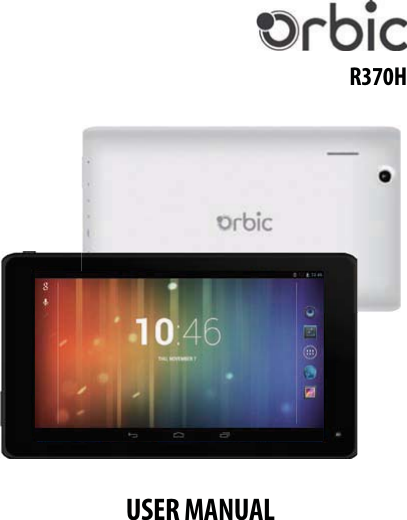
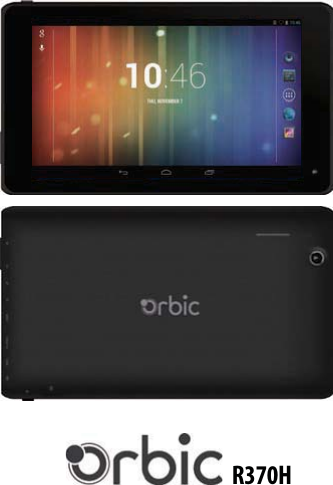
Reliance Communications R370H Tablet PC User Manual R370H

Reliance Communications LLC Tablet PC R370H

User manual

R370HUSER MANUAL
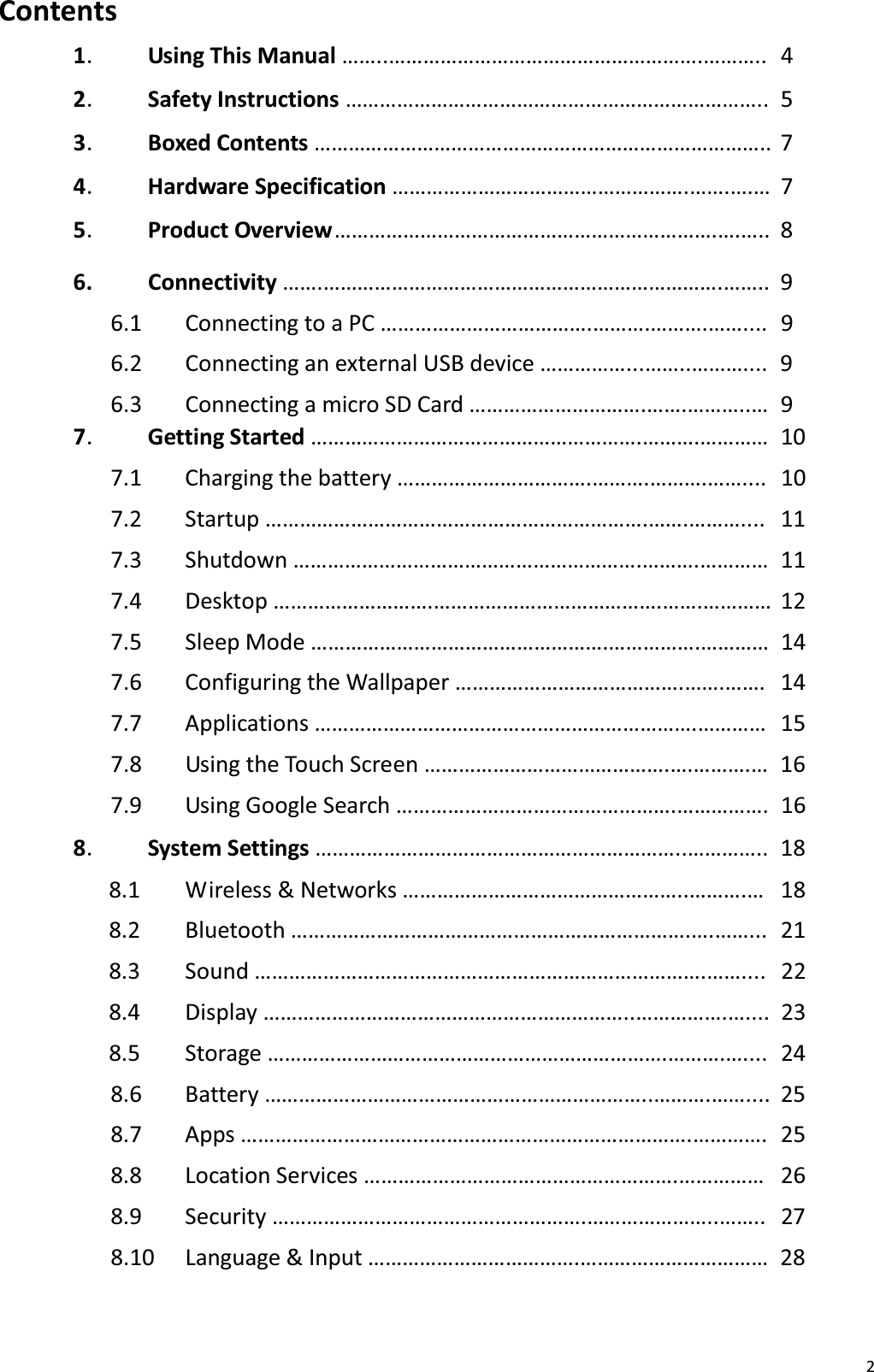
2Contents1㸬Using This Manual ……..……………………………………………….………..  4 2㸬Safety Instructions ………………………………………………………………..  5 3㸬Boxed Contents …………………………………………………………………….. 7 4㸬Hardware Specification …………………………………………….…….….… 7 5㸬Product Overview ………………………………………………………….….….. 8 6. Connectivity …….…………………………………………………………….…….. 9 6.1  Connecting to a PC ……………………………….……….……….……....  9 6.2  Connecting an external USB device ……………...……..………....  9 6.3  Connecting a micro SD Card ………………………….…….………..…  9 7㸬Getting Started ………………………………………………….……….………… 107.1 Charging the battery …………………………….……….……….…….... 107.2 Startup ………………………………………………………….…….……….... 117.3 Shutdown …………………………………………………….……….………… 117.4 Desktop ……………………….………………………………….…….………… 127.5 Sleep Mode …………………………………………….…………….…………  14 7.6  Configuring the Wallpaper ………………………………….…….…….   14 7.7 Applications ………………………………………………………….…………  15 7.8  Using the Touch Screen …………………………………….….……….…  16 7.9  Using Google Search ………………………………………….…………….  16 8㸬System Settings ………………………………………………………..…………..  18 8.1  Wireless & Networks …………………………………………..……….…   18 8.2 Bluetooth …………………………………………………………….….……...  21 8.3 Sound …………………………………………………………………….……....  22 8.4 Display ………………………………………………………..…………….….... 23 8.5 Storage …………………………………………………………….……….…....  24 8.6 Battery …………………………………………………………..……….…….... 25 8.7 Apps …………………………………………………………………….………….  25 8.8 Location Services ……………………………………………….……………  26 8.9 Security ……………………………………………….…………………..……..  27 8.10 Language & Input ……………………………….……………………………  28
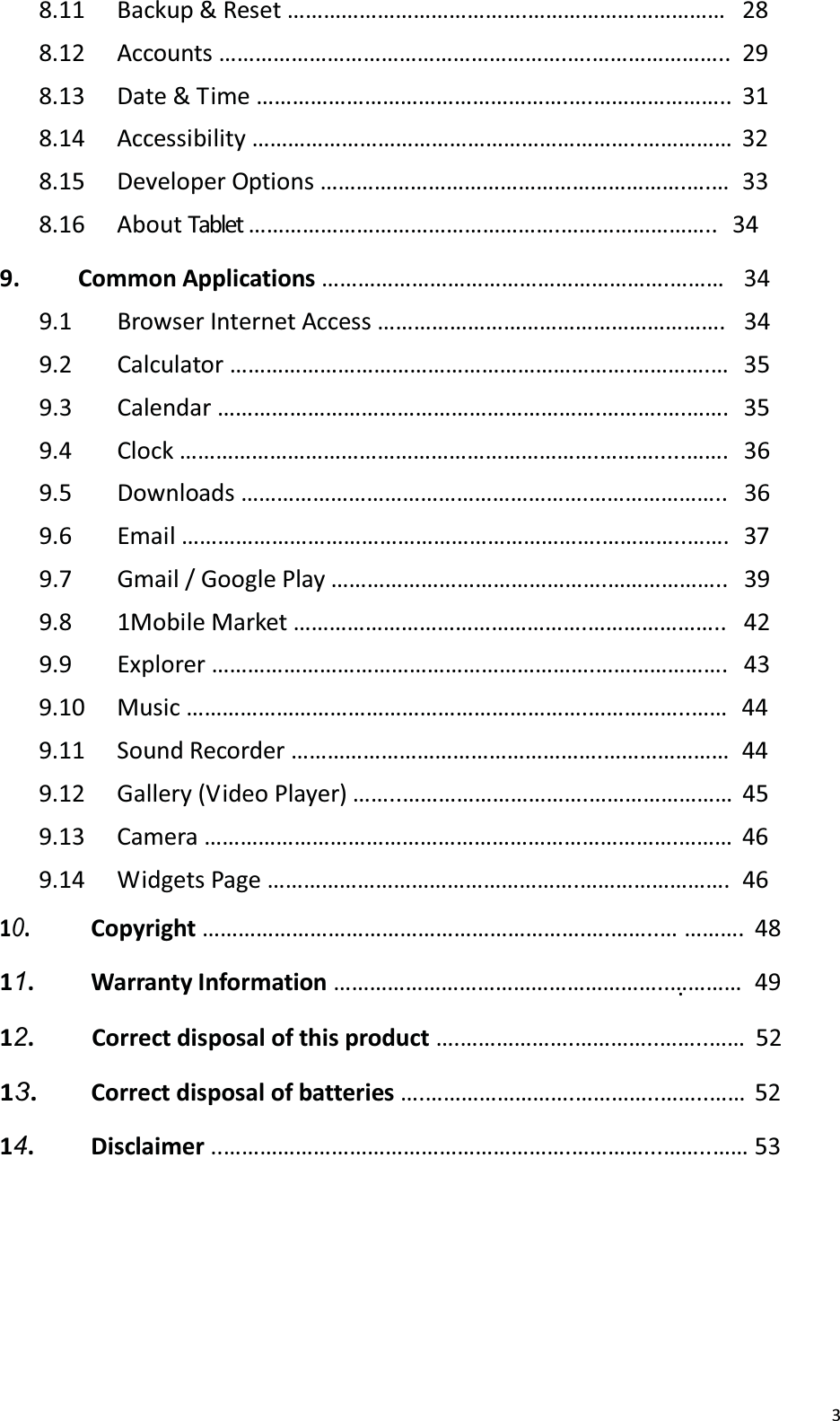
38.11 Backup & Reset ………………………………….……………………………  28 8.12 Accounts ………………………………………………….….………………….. 29 8.13  Date & T ime …………………………………………….….…………………..  31 8.14 Accessibility ………………………………………………………..…………… 32 8.15 Developer Options …………………………………………………….….…  33 8.16 About Tablet …………………………………………….……………………..   34 9. Common Applications ………………………………………………….……… 349.1 Browser Internet Access …………………………………………………. 349.2 Calculator ………………………………………………………….………….… 359.3 Calendar ……………………………………………………….……….….……. 359.4 Clock …………………………………………………………….……….....……. 369.5 Downloads ………………………………………………….………………….. 369.6 Email …………………………………………………………….…………..……. 379.7 Gmail / Google Play ……………………………………….……………….. 399.8 1Mobile Market ………………………………………….………………….. 429.9 Explorer ……………………………………………………….…………………. 439.10 Music ………………………………………………………….……………..……  44 9.11 Sound Recorder …………………………………………….…………………  44 9.12 Gallery (Video Player) ……..………………………….…………………… 45 9.13 Camera …………………………………………………………………….……… 46 9.14 Widgets Page …………………………………………….……………………. 4610.  Copyright ……………………………………………………….….……..… ……….  48 11. Warranty Information ………………………………………………..…. ………  49 12.   Correct disposal of this product ….……………….…………..……..…… 52 13.  Correct disposal of batteries ….…………………….…………..……..…… 52 14. Disclaimer ..………………………………………………….…………...……..…… 53
41. Using This ManualCongratulations on your purchase of this Tablet. This powerful and versatiletablet brings the best of the web and mobile computing to your fingertips in a lightweight, highly versatile platform that fits an active lifestyle. Built around the Google Android Jelly Bean operating system, the tablet gives you access to thousands of useful and entertaining applications to enhance your mobile experience.With integrated wireless access and a highly responsive touchscreen, you can read books and newspapers on the go; stay up-to-date on the latest news, sports, andweather; manage your multimedia and business files; browse the web, and lots more.Note: This Tablet does not have built in 3G and can only access the Internet when connected to a wireless (Wi-Fi) network. If you would like to access the Internet while on the move there are a number of 3G Mobile Hotspots / MiFi devices available from all the major mobile operators. These will allow the Tablet to connect wirelessly withthe Hotspot, bringing the Internet to you when on the move.Read Me Firstx   Please keep this manual for future reference.x   Please read this manual and all safety instructions carefully before using yourTablet to ensure safe and proper use.x   The descriptions in this manual are based on the default settings of your device.x   Images and screenshots used in this user manual may differ in appearance from the actual product.x   Formatting and delivery of this user manual is based on the Google Android JellyBean operating system and may vary depending on the device.x   Content in this user manual may differ from the product, and is subject to change without prior notice. x   Available features and additional services may vary by device, software, or service provider. x   Applications and their functions may vary by country, region, or hardware specification. are not liable for performance issues caused by third-party applications.x   Tablet is not liable for performance issues or incompatibilities caused by user editing of system settings.x   Software, wallpapers, images, sound sources, and other contents provided in this device are licenced for limited use between and their respective owners.Extracting and using these materials for commercial or other purposes is an infringement of copyright laws. cannot be held liable for such copyrightinfringement by the user.
5TrademarksTablet and the  logo are registered trademarks. The Android logo, Google Search™, Google Maps™, Google Mail™, YouTube™, Android Market™, and GoogleTalk™ are trademarks of Google, Inc. Bluetooth® is a registered trademark of the Bluetooth SIG, Inc. worldwide.HDMI® is a registered trademark of HDMI Licensing, LLC. 2. Safety InstructionsThis user manual contains important safety instructions and information for proper use of the device. Please follow the instructions in this manual carefully. x   This is a high-density electronic product; please do not dismantle it by yourself. x   Avoid shocks and do not let the device fall, as otherwise it may cause damage tothe device. x   Do not use damaged power cords or plugs, or loose electrical sockets. x   Do not touch the power cord with wet hands, or disconnect the charger by pulling the cord.x   Do not bend or damage the power cord. x   Avoid  using   this   product in   the  following  environments:   high   and  lowtemperatures, humid environments, dusty environments, areas with strong magnetic fields and prevent long-term exposure to the sun. In particular please avoid leaving the device in the car during summer if the doors are closed. x   To clean the product, gently wipe the product using a moist cotton cloth; the use of other chemical cleaning is prohibited unless they are specifically designed for this purpose. This product should be kept away from water droplets splashes, so cups  filled  with liquids should  not  be  placed  near  the  product.  Do  not  use alcohol, thinners or petrol to clean the display. x   If using the headset for a long time, high volume may cause permanent damage to hearing.x   Do  not use  headphones when going across  a road, driving a motorcycle orbicycle, in order to avoid traffic accidents.x   Please use only the supplied battery, charger and accessories, the use of any other type of product would be a breach of warranty regulations, and may bedangerous.x   Do not short-circuit the charger or the battery.
6x   Do not drop or cause an impact to the charger or the battery. x   Please deal with waste machinery and accessories according to local environmental regulations.x   If you have any questions about the use of this product, please contact your local dealer or the Tablet customer service center. x   The Standby T ime of the batteries may vary due to different environmental influences.x   Any loss of data caused by product damage, repair or through any other issuesrelating to the device are not covered under warranty. Please ensure you make timely backups of all your data. x   Do not handle a damaged or leaking Lithium Ion (Li-Ion) battery. For safe disposal of your Li-Ion batteries, contact your nearest authorised recycling centre.x   Handle and dispose of batteries and chargers with care. Never dispose ofbatteries or devices in a fire. Follow all local regulations when disposing of used batteries or devices. x   Never place batteries or devices on or in heating devices, such as microwave ovens, cookers, or radiators. Batteries may explode when overheated. x   Never crush or puncture the battery. Avoid exposing the battery to high external pressure, which can lead to an internal short circuit and overheating. Touchscreen PrecautionsFor optimal use of the touch screen, remove the screen protection film before using your device.To avoid scratching the touch screen, do not use sharp tools.Do not allow the touch screen to come into contact with other electrical devices.Electrostatic discharges can cause the touch screen to malfunction.Do not allow the touch screen to come into contact with water. The touch screen may malfunction in humid conditions or when exposed to water. Your touch screen has a layer that detects small electrical charges emitted by thehuman body. For best performance, tap the touch screen with your fingertip. The touch screen will not react to touches of sharp tools, such as a stylus or pen which could damage and mark the screen.
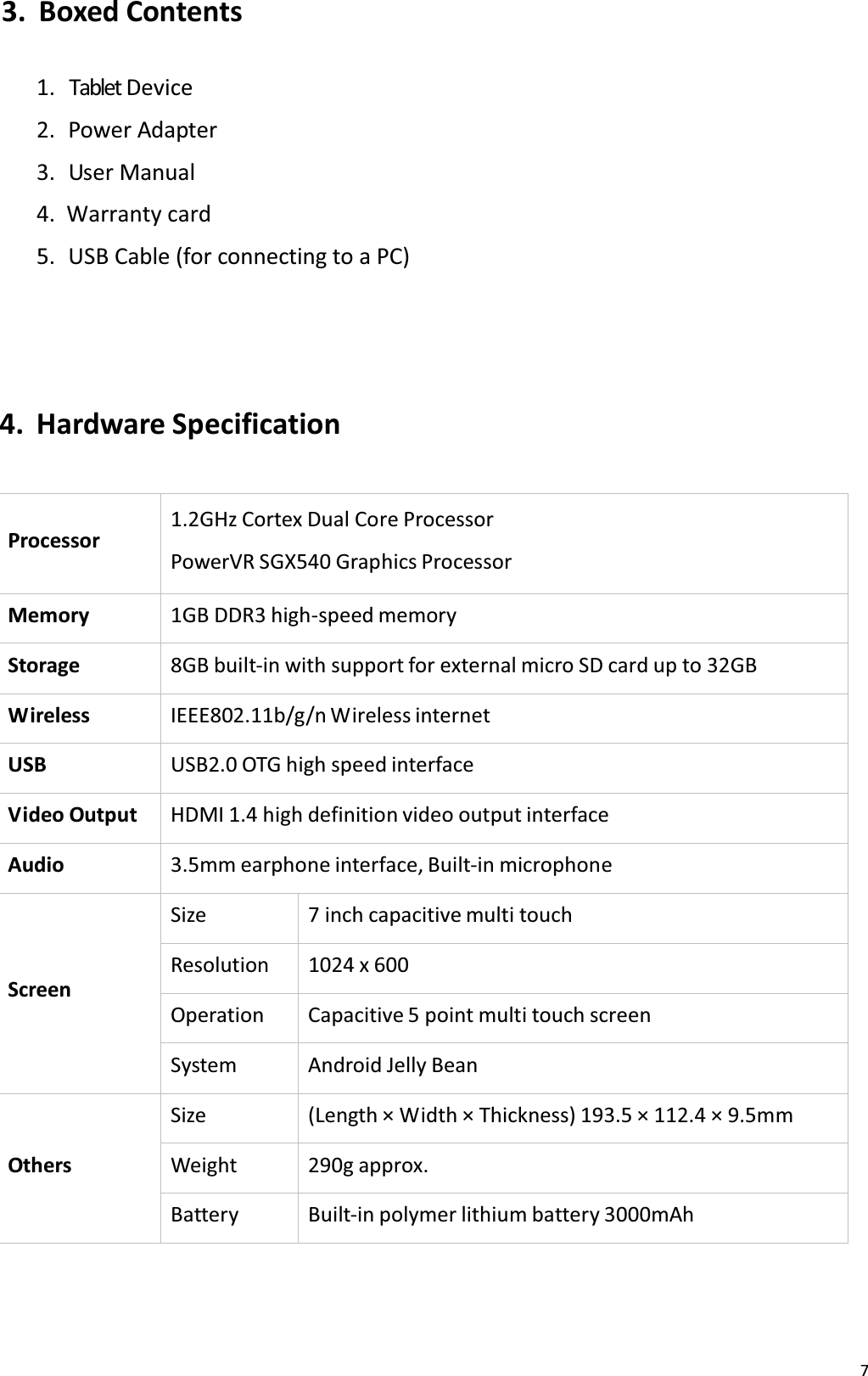
73. Boxed Contents1. Tablet Device2.  Power Adapter3.  User Manual 4. tĂƌƌĂŶƚLJĐĂƌĚ5. USB Cable (for connecting to a PC) 4. Hardware SpecificationProcessor1.2GHz Cortex Dual Core Processor PowerVR SGX540 Graphics ProcessorMemory 1GB DDR3 high-speed memoryStorage 8GB built-in with support for external micro SD card up to 32GBWireless IEEE802.11b/g/n Wireless internetUSB USB2.0 OTG high speed interfaceV ideo  Output HDMI 1.4 high definition video output interfaceAudio 3.5mm earphone interface, Built-in microphoneScreenSize 7 inch capacitive multi touchResolution 1024 x 600Operation Capacitive 5 point multi touch screenSystem Android Jelly BeanOthersSize (Length × Width × Thickness) 19ϯ͘ϱ × 11Ϯ͘ϰ × 9͘ϱmmWeight 290g approx.Battery Built-in polymer lithium battery 3000mAh
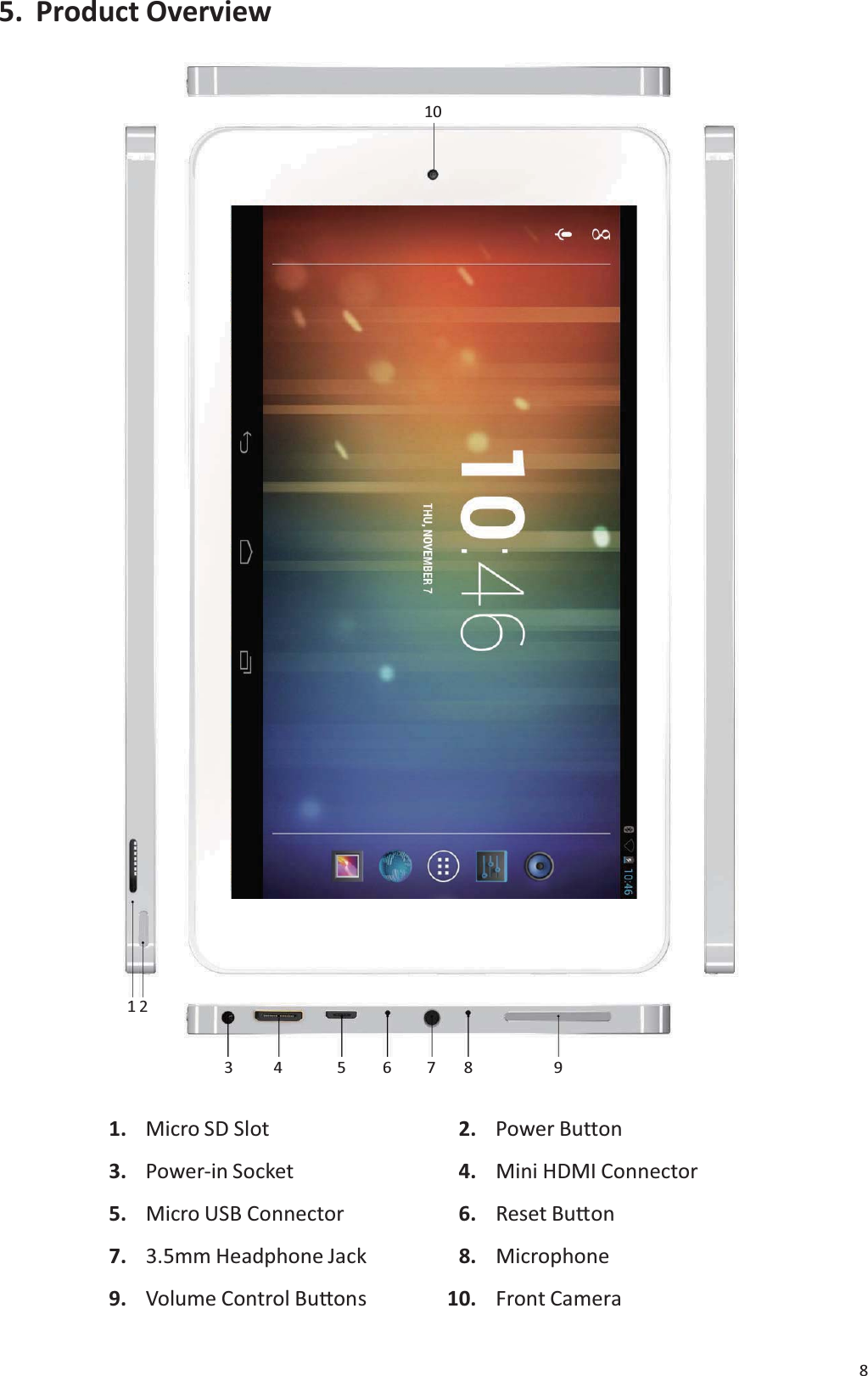
85. Product Overview101234 5678 91. Micro SD Slot 2. Power Button3. Power-in Socket 4. Mini HDMI Connector5. Micro USB Connector 6. Reset BuƩon7. 3.5mm Headphone Jack 8. Microphone9. Volume Control BuƩons 10. Front Camera
96. Connectivity6.1 Connecting to a PCYou can connect the Tablet directly to a PC or Laptop using the supplied USB cable.Once connected to a PC, the Tablet will appear as a mass storage device allowingyou to access it in the same way you would a removable hard drive, with access via explorer or my computer. 1. Using the USB cable, connect the micro USB connector to your Tablet. 2.  Connect the USB connector to a PC or Laptop.3. Open folders to view files. 4.  Copy files from the PC or Laptop to your Tablet. To disconnect the Tablet from a PC, click the USB device icon on the Windows taskbar and click the option to safely remove the mass storage device. Then remove theUSB cable from the PC. Failure to follow these instructions may result in loss of data on your Tablet or damage to your device.6.2 Connecting an external USB deviceYou can use a USB storage device to store additional files.Note: Your device may not support some USB storage devices. 1. Using the USB Adapter Cable, connect the micro USB connector to yourTablet. 2.  Connect a USB device to the USB connector on the Adapter Cable.3. Open Explorer.4.  Touch the USB symbol  to view files on the USB device.6.3 Connecting a micro SD CardYou can insert a micro SD Card into your Tablet to store additional files. Capacities up to 32GB are supported. 1. Insert a micro SD Card into the micro SD Card slot. 2. Open Explorer.3.  Touch the SD Card symbol  to view files on the micro SD Card.See chapter 9.9 for more information on using Explorer.
107. Getting Started7.1 Charging the batteryThe Tablet has a built-in battery. Before using the device for the first time, you mustfully charge the battery. Use only the 5V power adapter provided with the device, or alternatively the Tablet can be charged via a USB cable to a PC or otherUSB charging source. Unauthorised chargers can cause batteries to explode or damage your device.When your battery charge is low, the device will emit a warning tone and display a lowbattery message. The battery icon will also be empty. If the battery charge becomestoo low, the Tablet will automatically power off.If the battery is completely discharged, the Tablet will not turn on. Allow a depleted battery to charge for a few minutes before you try to turn on the device.Charging via the power adapter1.  Connect the power adapter to the Power-in socket.2.  Plug the power adapter into a power outlet.Charging via USB1.  Connect the USB cable to the micro USB socket.2.  Plug the USB cable into a USB power source (power adapter, PC, Laptop etc.). When it is charging, the battery symbol in the bottom right hand corner of the desktop will show a charging (lightning) symbol . When the battery is fully charged (no lightning symbol in the battery icon), unplug the power adapter or USB cable from the Tablet and then from the power socket. To save energy, unplug or turn off the power adapter at the socket, when not in use.Note: You can use the Tablet while it is charging, but it may take longer to charge. While the Tablet is charging, the touch screen may not function correctly. If thishappens, unplug the power adapter from the device in order to use it.While charging, the Tablet may get warm. This is normal and should not affect yourdevice’s lifespan or performance.If your Tablet is not charging properly, please contact support (see chapter 11).Connecting the power adapter or USB cable improperly may cause serious damage tothe Tablet, the power adapter or the USB power source. Anydamage caused by misuse is not covered by the warranty.
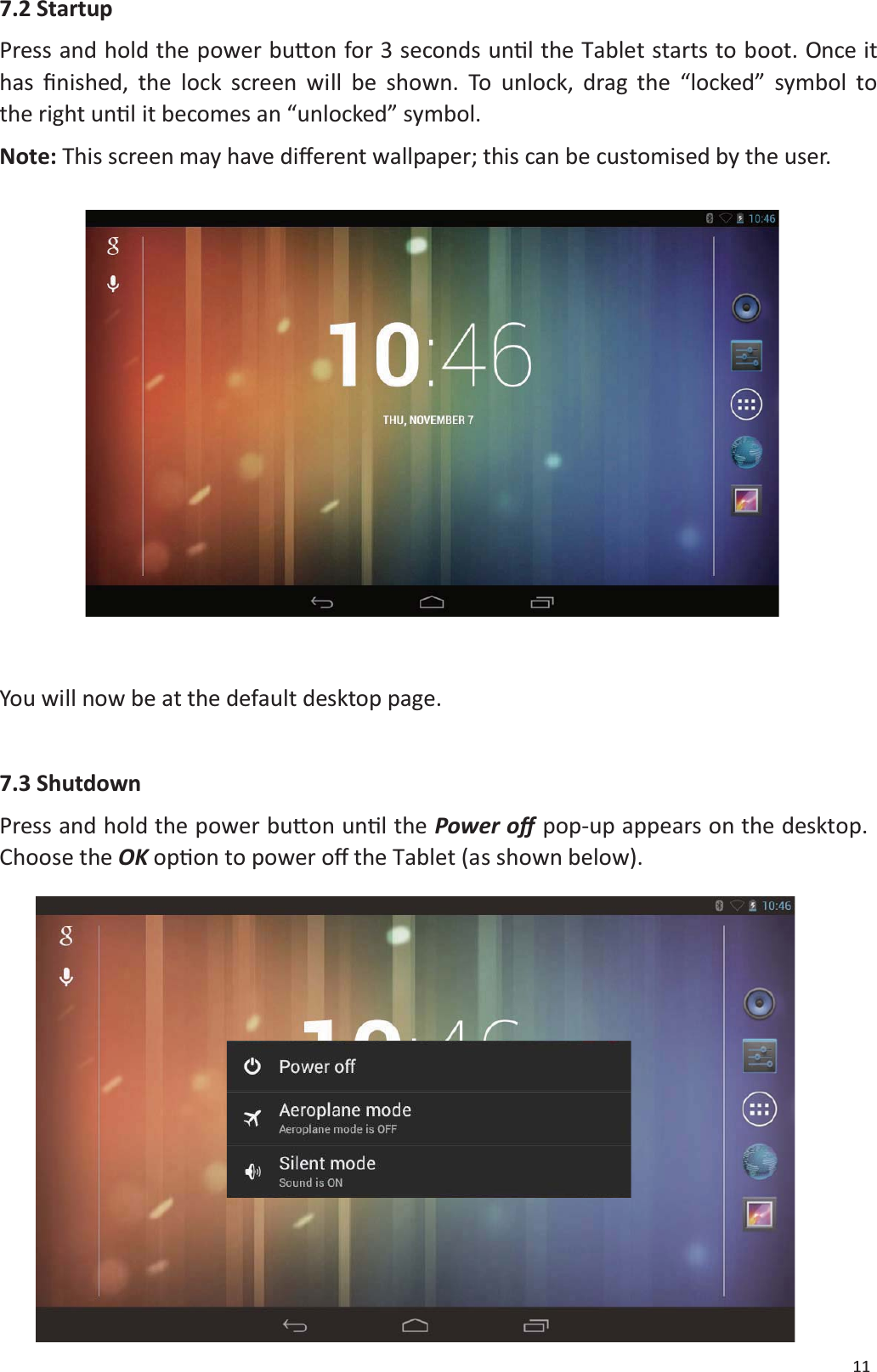
117.2 StartupPress and hold the power buƩon for 3 seconds unƟl the Tablet starts to boot. Once ithas Įnished, the lock screen will be shown. To unlock, drag the “locked” symbol tothe right unƟl it becomes an “unlocked” symbol.Note: This screen may have diīerent wallpaper; this can be customised by the user.You will now be at the default desktop page.7.3 ShutdownPress and hold the power buƩon unƟlthePower oīpop-up appears on the desktop.Choose the OK opƟon to power Žī the Tablet (as shown below).
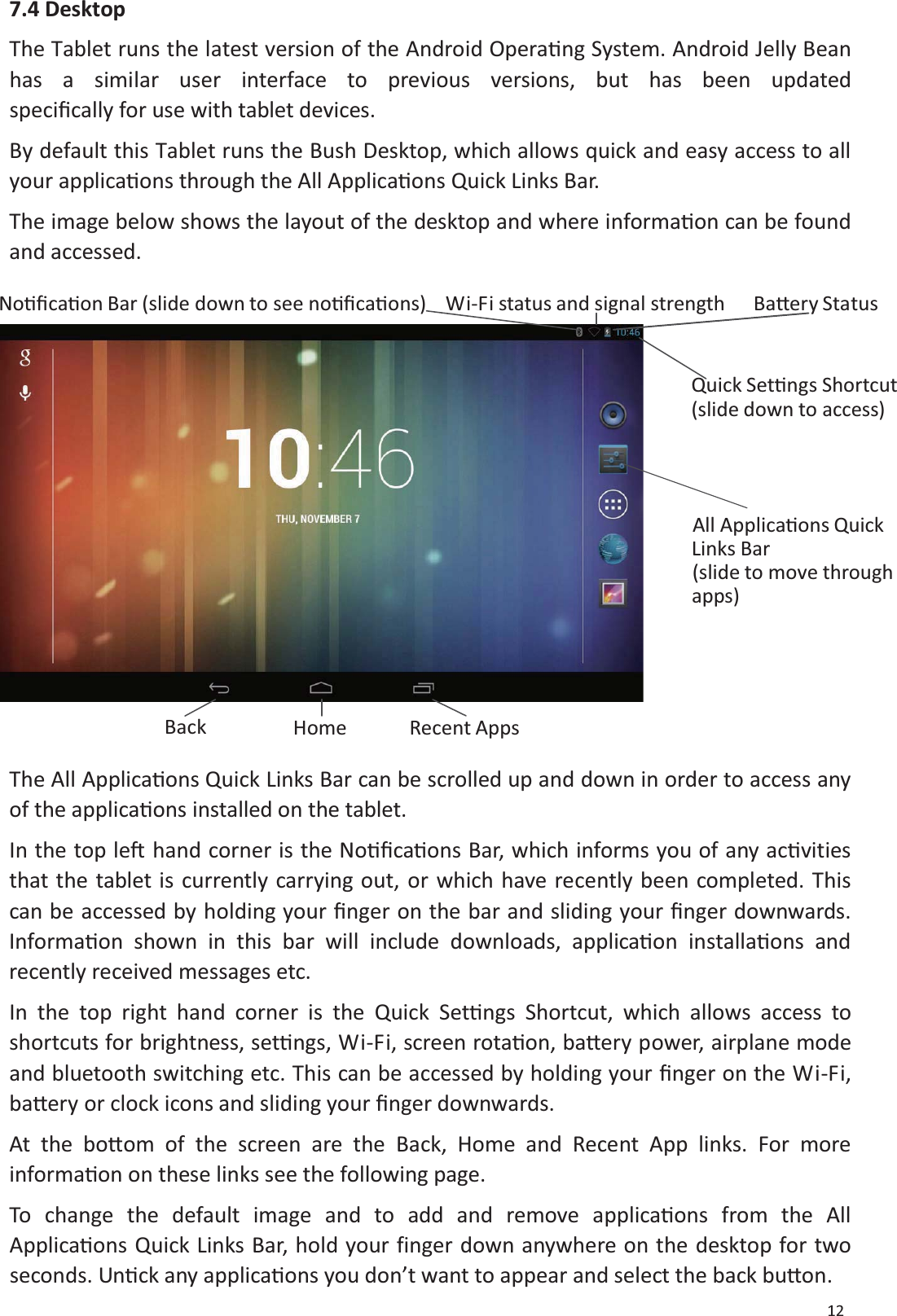
127.4 DesktopThe Tablet runs the latest version of the Android OperaƟng System. Android Jelly Beanhas a similar user interface to previous versions, but has been updatedspeciĮcally for use with tablet devices.By default this Tablet runs the Bush Desktop, which allows quick and easy access to allyour applicaƟons through the All ApplicaƟons Quick Links Bar.TheimagebelowshowsthelayoutofthedesktopandwhereinformaƟon can be foundand accessed.NoƟĮcaƟon Bar (slide down to see noƟĮcaƟons) Wi-Fi status and signal strength BaƩery StatusQuick SetƟngsShortcut(slide down toaccess)All ApplicaƟonsQuickLinksBar(slide to movethroughapps)Back Home Recent AppsThe All ApplicaƟons Quick Links Bar can be scrolled up and down in order to access anyof the applicaƟons installed on the tablet.In the top leŌhand corner is the NoƟĮcaƟons Bar, which informs you of any acƟvitiesthat the tablet is currently carrying out, or which have recently been completed. Thiscan be accessed by holding your Įnger on the bar and sliding your Įnger downwards.InformaƟon shown in this bar will include downloads, applicaƟon installaƟons andrecently received messages etc.In the top right hand corner is the Quick SetƟngs Shortcut, which allows access toshortcuts for brightness, setƟngs, Wi-Fi, screen rotaƟon, baƩery power, airplane modeand bluetooth switching etc. This can be accessed by holding your Įnger on the Wi-Fi,baƩery or clock icons and sliding your Įnger downwards.At the boƩom of the screen are the Back, Home and Recent App links. For moreinformaƟon on these links see the following page.To change the default image and to add and remove applicaƟons from the AllApplicaƟons Quick Links Bar, hold your finger down anywhere on the desktop for twoseconds. UnƟck any applicaƟons you don’t want to appear and select the back buƩon.
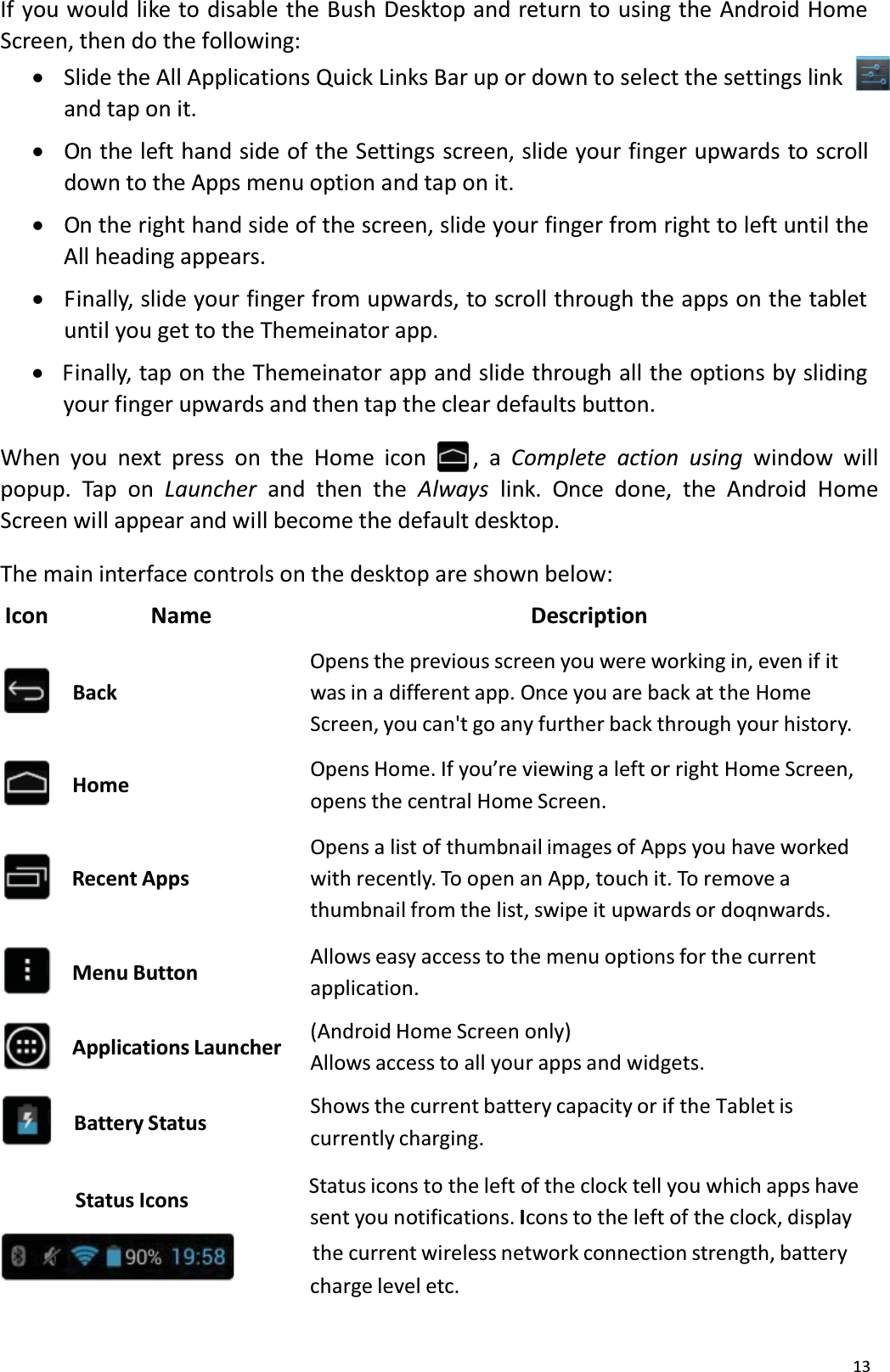
13If you would like to disable the Bush Desktop and return to using the Android Home Screen, then do the following:xSlide the All Applications Quick Links Bar up or down to select the settings linkand tap on it.xOn the left hand side of the Settings screen, slide your finger upwards to scroll down to the Apps menu option and tap on it.xOn the right hand side of the screen, slide your finger from right to left until the All heading appears. xFinally, slide your finger from upwards, to scroll through the apps on the tabletuntil you get to the Themeinator app. xFinally, tap on the Themeinator app and slide through all the options by sliding your finger upwards and then tap the clear defaults button.When you next press on the Home icon , a Complete action using window will popup. Tap on Launcher and then the Always link. Once done, the Android Home Screen will appear and will become the default desktop.The main interface controls on the desktop are shown below: Icon                  Name                                                         DescriptionOpens the previous screen you were working in, even if it BackHomewas in a different app. Once you are back at the HomeScreen, you can't go any further back through your history. Opens Home. If you’re viewing a left or right Home Screen, opens the central Home Screen. Recent AppsMenu ButtonApplications LauncherBattery StatusOpens a list of thumbnail images of Apps you have workedwith recently. To open an App, touch it. To remove a thumbnail from the list, swipe it upwards or doqnwards. Allows easy access to the menu options for the currentapplication.(Android Home Screen only)Allows access to all your apps and widgets.Shows the current battery capacity or if the Tablet is currently charging.Status Icons Status icons to the left of the clock tell you which apps havesent you notifications. Icons to the left of the clock, display                   the current wireless network connection strength, battery charge level etc.
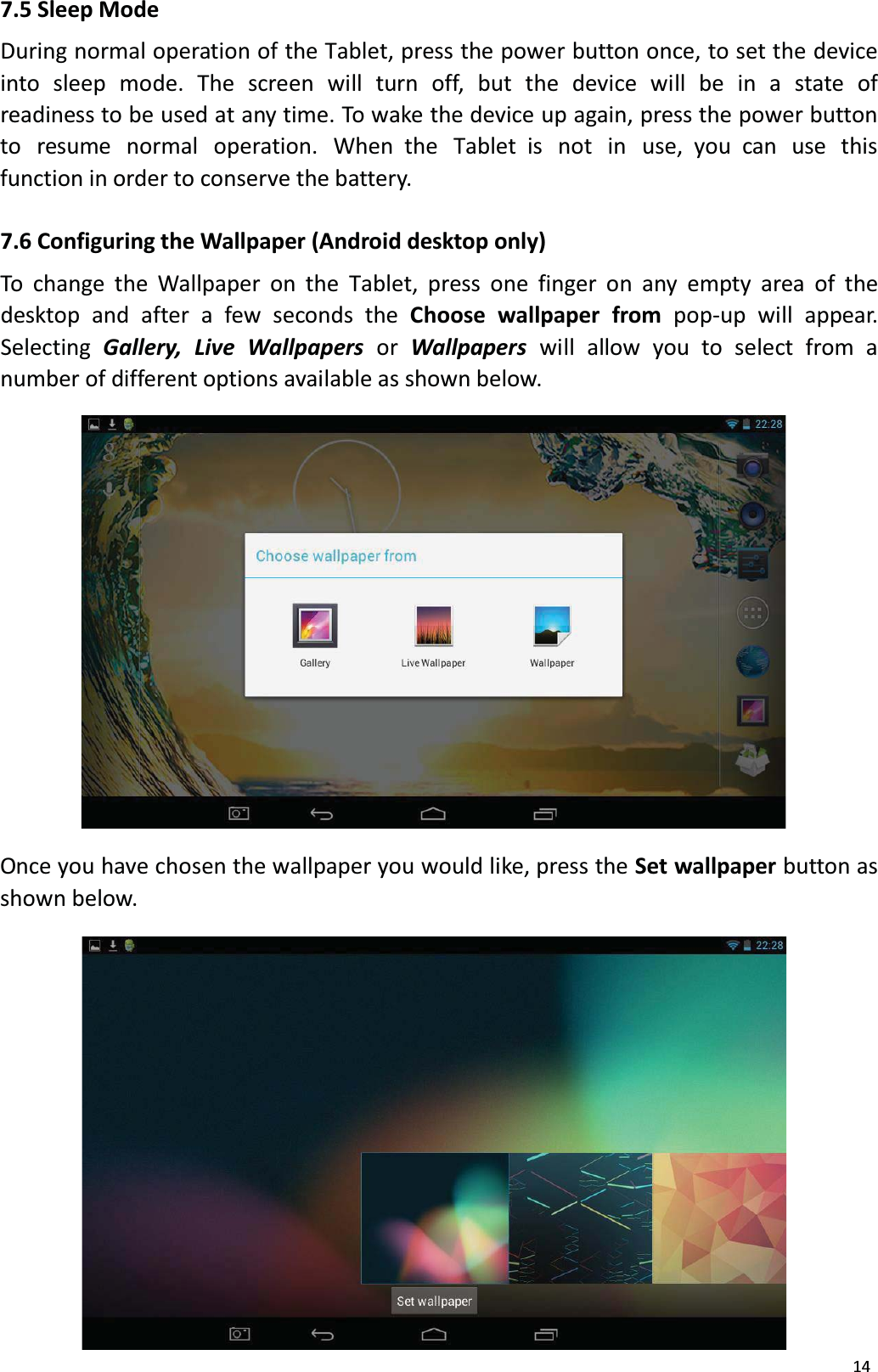
147.5 Sleep ModeDuring normal operation of the Tablet, press the power button once, to set the deviceinto sleep mode. The screen will turn off, but the device will be in a state ofreadiness to be used at any time. To wake the device up again, press the power button to  resume normal  operation.  When the  Tablet is  not in  use, you can  use  this function in order to conserve the battery. 7.6 Configuring the Wallpaper (Android desktop only)To change the Wallpaper on the Tablet, press one finger on any empty area of thedesktop and after a few seconds the Choose wallpaper from pop-up will appear. Selecting Gallery,  Live  Wallpapers or  Wallpapers will  allow  you  to select  from  a number of different options available as shown below. Once you have chosen the wallpaper you would like, press the Set wallpaper button asshown below.
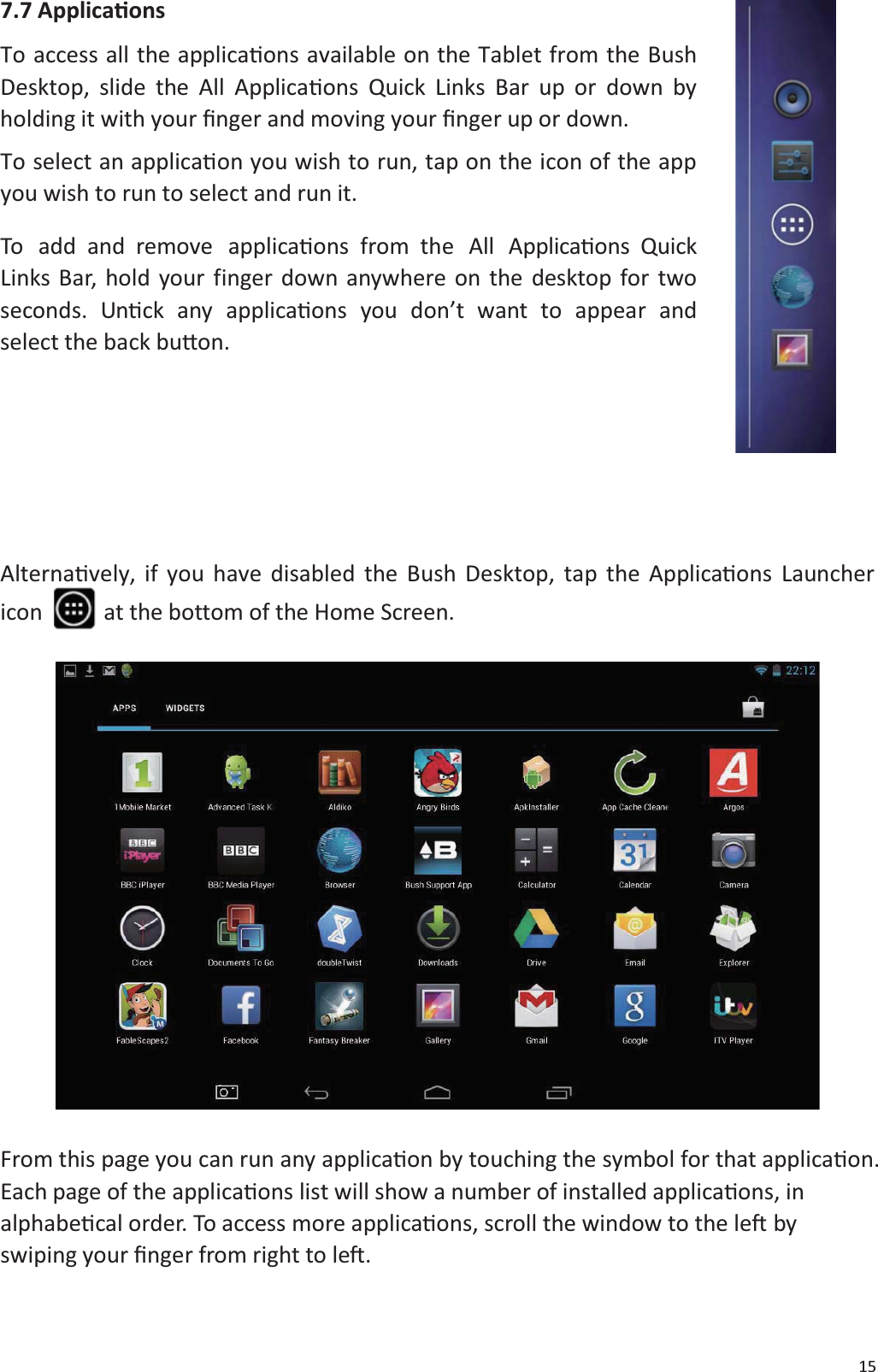
157.7 ApplicaƟonsTo access all the applicaƟons available on the Tablet from the BushDesktop, slide the All ApplicaƟons Quick Links Bar up or down byholding it with your Įnger and moving your Įnger up or down.To select an applicaƟon you wish to run, tap on the icon of the appyou wish to run to select and run it.To add and remove applicaƟons from the All ApplicaƟons QuickLinks Bar, hold your finger down anywhere on the desktop for twoseconds. UnƟck any applicaƟons you don’t want to appear andselect the back buƩon.AlternaƟvely, if you have disabled the Bush Desktop, tap the ApplicaƟons Launchericon at the bottom of the Home Screen.From this page you can run any applicaƟon by touching the symbol for that applicaƟon.Each page of the applicaƟons list will show a number of installed applicaƟons, inalphabeƟcal order. To access more applicaƟons, scroll the window to the leŌbyswiping your Įnger from right to leŌ.
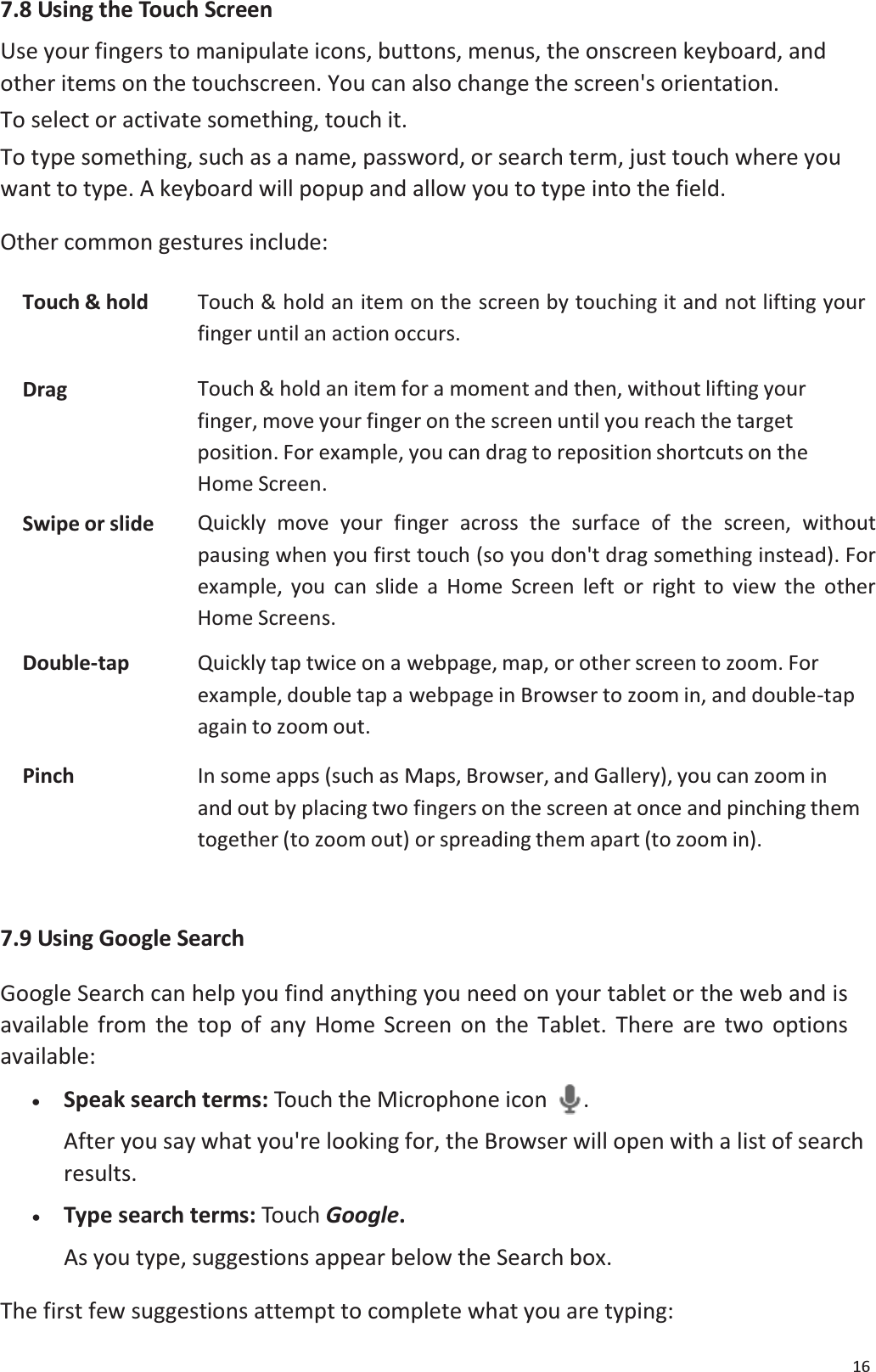
167.8 Using the Touch ScreenUse your fingers to manipulate icons, buttons, menus, the onscreen keyboard, andother items on the touchscreen. You can also change the screen's orientation.To select or activate something, touch it.To type something, such as a name, password, or search term, just touch where you want to type. A keyboard will popup and allow you to type into the field. Other common gestures include:Touch & hold Touch & hold an item on the screen by touching it and not lifting yourfinger until an action occurs.Drag Touch & hold an item for a moment and then, without lifting yourfinger, move your finger on the screen until you reach the targetposition. For example, you can drag to reposition shortcuts on the Home Screen.Swipe or slide Quickly move your finger across the surface of the screen, without pausing when you first touch (so you don't drag something instead). For example, you can slide a Home Screen left or right to view the otherHome Screens.Double-tap Quickly tap twice on a webpage, map, or other screen to zoom. For example, double tap a webpage in Browser to zoom in, and double-tap again to zoom out.Pinch In some apps (such as Maps, Browser, and Gallery), you can zoom inand out by placing two fingers on the screen at once and pinching them together (to zoom out) or spreading them apart (to zoom in).7.9 Using Google SearchGoogle Search can help you find anything you need on your tablet or the web and is available from the top of any Home Screen on the Tablet. There are two options available: x   Speak search terms: Touch the Microphone icon . After you say what you're looking for, the Browser will open with a list of searchresults.x   Type search terms: Touch Google.As you type, suggestions appear below the Search box. The first few suggestions attempt to complete what you are typing:
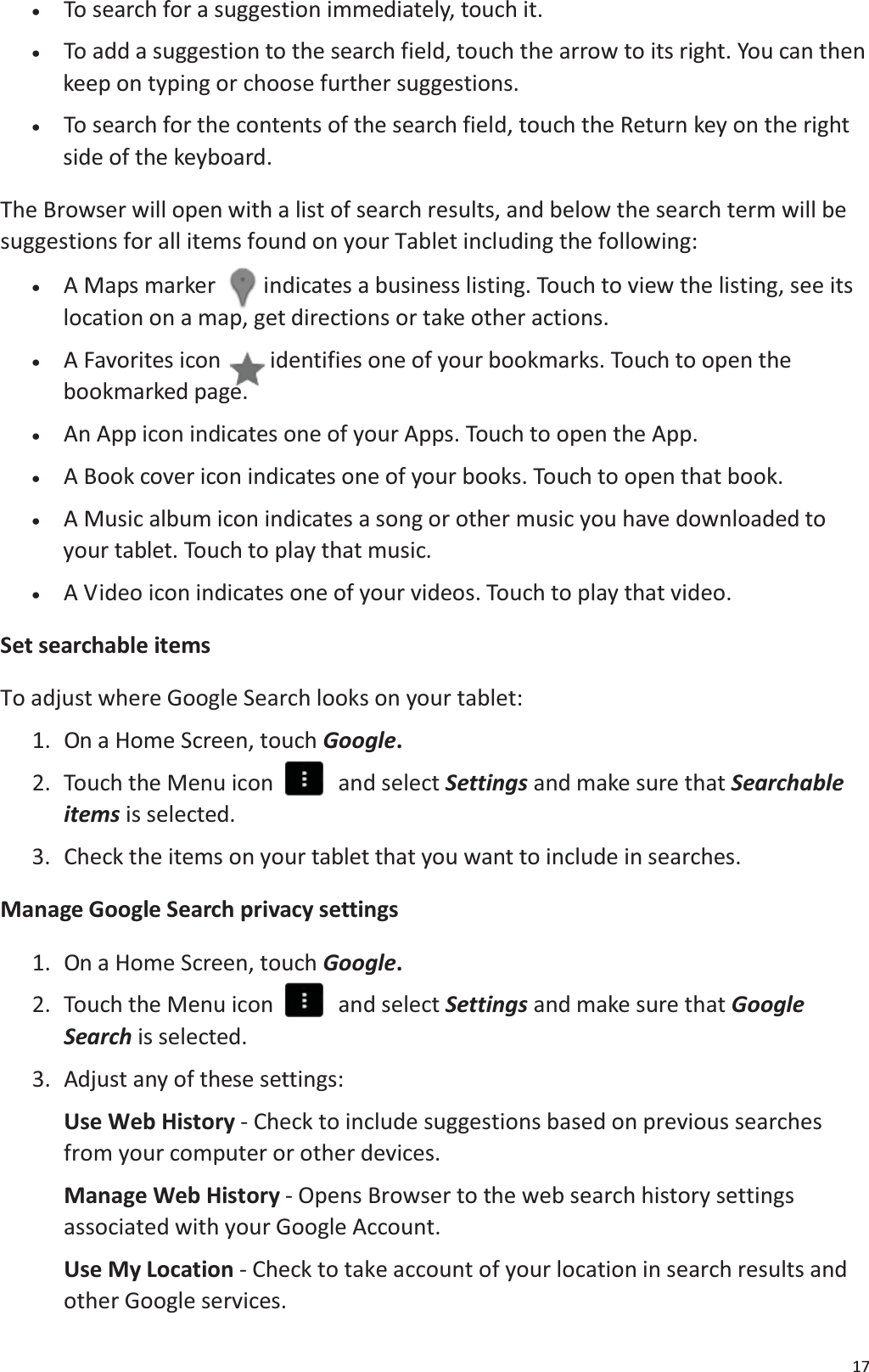
17x   To search for a suggestion immediately, touch it.x    To add a suggestion to the search field, touch the arrow to its right. You can then keep on typing or choose further suggestions.x    To search for the contents of the search field, touch the Return key on the rightside of the keyboard. The Browser will open with a list of search results, and below the search term will besuggestions for all items found on your Tablet including the following: x    A Maps marker indicates a business listing. Touch to view the listing, see itslocation on a map, get directions or take other actions.x    A Favorites icon  identifies one of your bookmarks. Touch to open the bookmarked page.x   An App icon indicates one of your Apps. Touch to open the App. x   A Book cover icon indicates one of your books. Touch to open that book.x    A Music album icon indicates a song or other music you have downloaded toyour tablet. Touch to play that music.x   A Video icon indicates one of your videos. Touch to play that video.Set searchable itemsTo adjust where Google Search looks on your tablet: 1.  On a Home Screen, touch Google.2.  Touch the Menu icon    and select Settings and make sure that Searchableitems is selected. 3. Check the items on your tablet that you want to include in searches.Manage Google Search privacy settings1.  On a Home Screen, touch Google.2.  Touch the Menu icon    and select Settings and make sure that GoogleSearch is selected. 3.  Adjust any of these settings:Use Web History - Check to include suggestions based on previous searches from your computer or other devices.Manage Web History - Opens Browser to the web search history settings associated with your Google Account.Use My Location - Check to take account of your location in search results andother Google services.
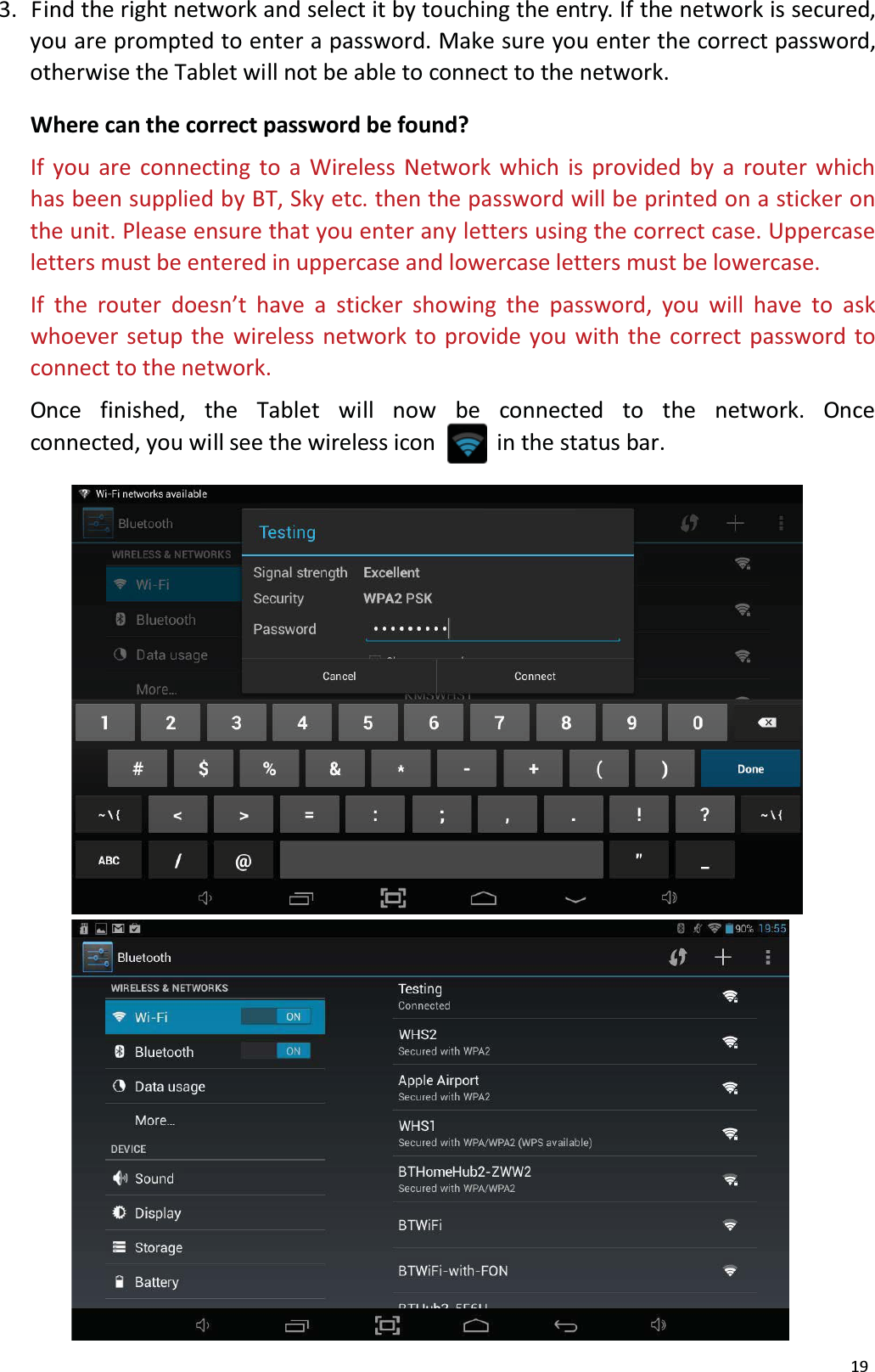
188. System SettingsTo access all the available System Settings for the Tablet, you will need to access thesettings menu. Slide the All Applications Quick Links Bar up or down to select the settings link  and tap on it. Alternatively, if you have disabled the Bush Desktop, tap the Applications Launcher icon    at the bottom of the Home Screen. Tap on the Settings icon from Application Launcher. This will open the system settings interface. On the left hand side of the screen are all the available settings options. Touching oneof these groups allows access to all the settings available within that group on the righthand side of the screen. 8.1 Wireless & NetworksWi-Fi is a wireless networking technology that can provide Internet access at distances of up to 100 meters, depending on the Wi-Fi router and your surroundings. To use Wi-Fi, you need to connect to a wireless access point, or "hotspot." Some hotspots are open and you can simply connect to them. Others implement security features that require a password to be entered in order to ensure that only authorized users can connect.Note: To extend the life of your battery between charges, turn off Wi-Fi when you are not using it. You can also set your Tablet to disconnect automatically from Wi-Finetworks when it is sleeping. To enable Wi-Fi: 1.  Slide the Wi-Fi switch to the right of Wi-Fi to the On position.2.  Once Wi-Fi has been turned on, the Tablet will automatically scan for available Wi-Fi networks and display the names of those it finds. Secured networks are indicated with a Lock icon. If the Tablet finds a network that you connected to previously, itwill automatically connect to it.
193.  Find the right network and select it by touching the entry. If the network is secured, you are prompted to enter a password. Make sure you enter the correct password, otherwise the Tablet will not be able to connect to the network.Where can the correct password be found?If you are connecting to a Wireless Network which is provided by a router whichhas been supplied by BT, Sky etc. then the password will be printed on a sticker on the unit. Please ensure that you enter any letters using the correct case. Uppercase letters must be entered in uppercase and lowercase letters must be lowercase.If the router doesn’t have a sticker showing the password, you will have to ask whoever setup the wireless network to provide you with the correct password to connect to the network.Once  finished,  the  Tablet  will  now  be  connected  to  the  network.  Once connected, you will see the wireless icon           in the status bar.
20Add a Wi-Fi networkIf your wireless network does not broadcast its name (SSID), or you are outside therange of a Wi-Fi network, you can still add a Wi-Fi network so your Tablet will remember it, along with any security credentials, and connect to it automatically when it's in range.1.  Turn on Wi-Fi, if it's not already on.2.  Touch Add Network at the top of the screen. 3.  Enter the SSID (name) of the network. If necessary, enter security or other network configuration details.4.  Touch Save.The information about the network is saved. Your Tablet will connect to this network automatically the next time you come within range.Forget a Wi-Fi networkYou can make the Tablet forget about the details of a Wi-Fi network that you added, if you no longer use it.1.  Turn on Wi-Fi, if it's not already on.2.  In the Wi-Fi settings screen, touch the name of the network.3.  Touch Forget in the dialog that opens.Note: You should use Forget if you have entered the wrong password and need tosetup the connection again. Configure proxy settings for a Wi-Fi networkSome networks require you to connect to internal or external network resources via aproxy server. By default, the Wi-Fi networks you add are not configured to connect via a proxy, but you can change that for each Wi-Fi network you've added. 1.  In the Wi-Fi settings screen, touch and hold the name of the network. 2.  Touch Modify network in the dialog that opens.3. Select Show advanced options. 4.  If the network has no proxy settings, touch None under Proxy Settings. If it does, touch Manual in the menu that opens.5.  Enter the proxy settings supplied by your network administrator. 6.  Touch Save.The proxy settings apply only to the Wi-Fi network you modified. To change the proxy settings for other Wi-Fi networks, modify them individually.
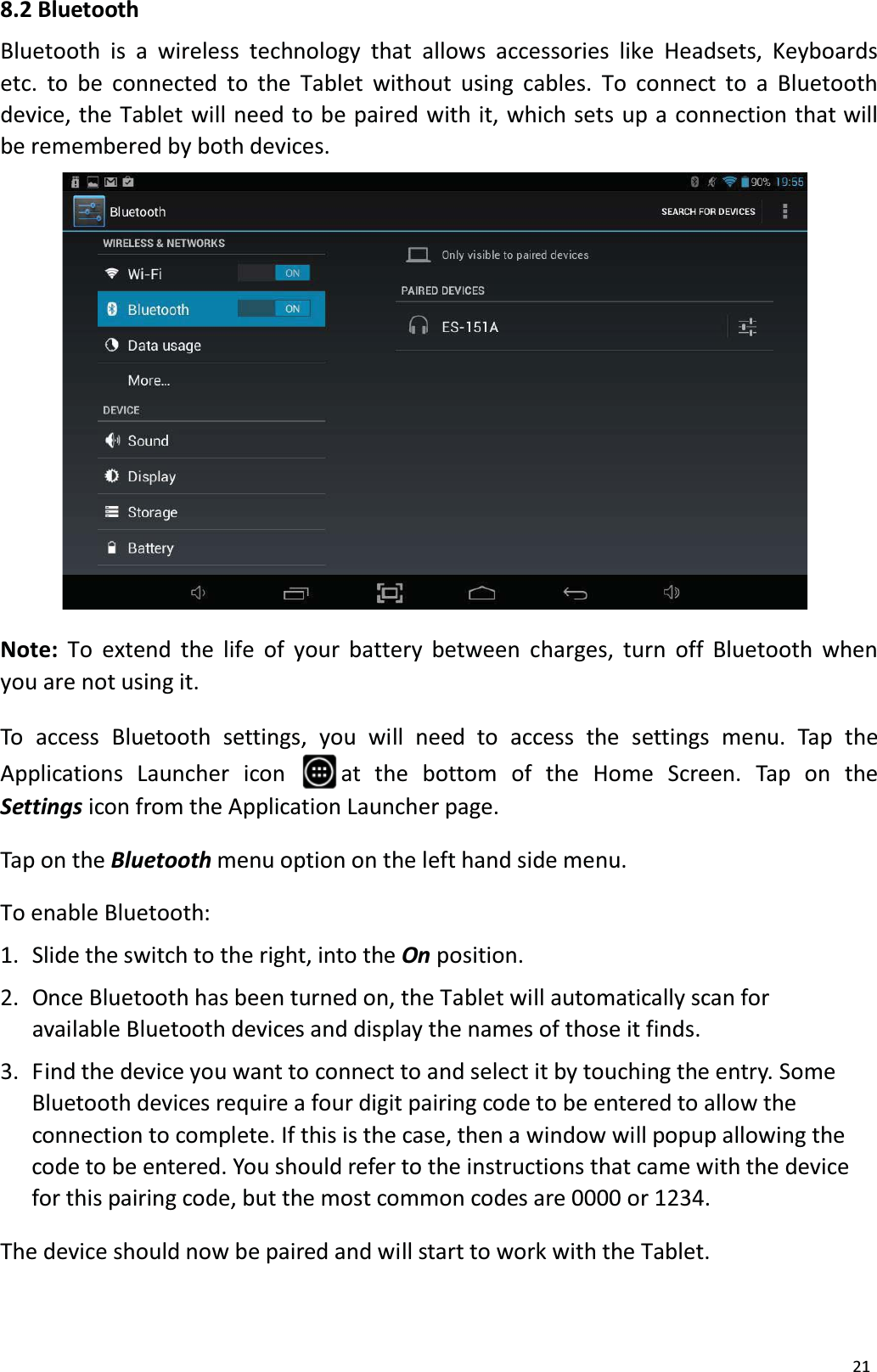
218.2 BluetoothBluetooth is a wireless technology that allows accessories like Headsets, Keyboardsetc. to be connected to the Tablet without using cables. To connect to a Bluetooth device, the Tablet will need to be paired with it, which sets up a connection that willbe remembered by both devices.Note: To extend the life of your battery between charges, turn off Bluetooth when you are not using it.To access Bluetooth settings, you will need to access the settings menu. Tap the Applications Launcher  icon  at  the  bottom  of  the  Home  Screen.  Tap  on  the Settings icon from the Application Launcher page.Tap on the Bluetooth menu option on the left hand side menu.To enable Bluetooth: 1.  Slide the switch to the right, into the On position.2.  Once Bluetooth has been turned on, the Tablet will automatically scan for available Bluetooth devices and display the names of those it finds.3.  Find the device you want to connect to and select it by touching the entry. SomeBluetooth devices require a four digit pairing code to be entered to allow theconnection to complete. If this is the case, then a window will popup allowing thecode to be entered. You should refer to the instructions that came with the device for this pairing code, but the most common codes are 0000 or 1234. The device should now be paired and will start to work with the Tablet.
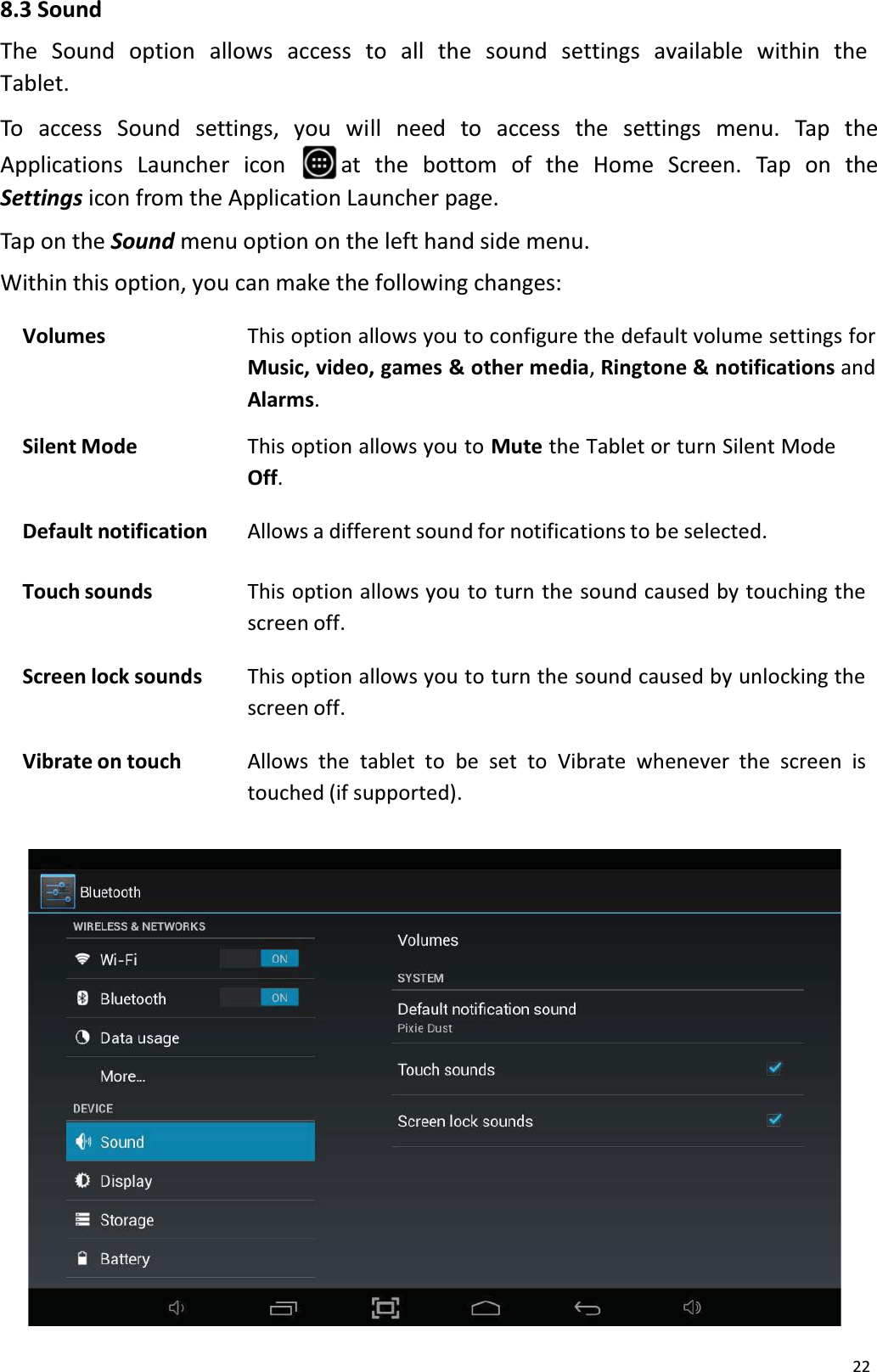
228.3 SoundThe  Sound option  allows  access  to  all  the  sound settings available  within  theTablet. To access Sound settings, you will need to access the settings menu. Tap theApplications Launcher  icon  at  the  bottom  of  the  Home Screen.  Tap  on  theSettings icon from the Application Launcher page.Tap on the Sound menu option on the left hand side menu.Within this option, you can make the following changes:Volumes This option allows you to configure the default volume settings for Music, video, games & other media, Ringtone & notifications andAlarms.Silent Mode This option allows you to Mute the Tablet or turn Silent Mode Off.Default notification Allows a different sound for notifications to be selected.Touch sounds This option allows you to turn the sound caused by touching the screen off.Screen lock sounds This option allows you to turn the sound caused by unlocking the screen off.Vibrate on touch Allows the tablet to be set to Vibrate whenever the screen is touched (if supported).
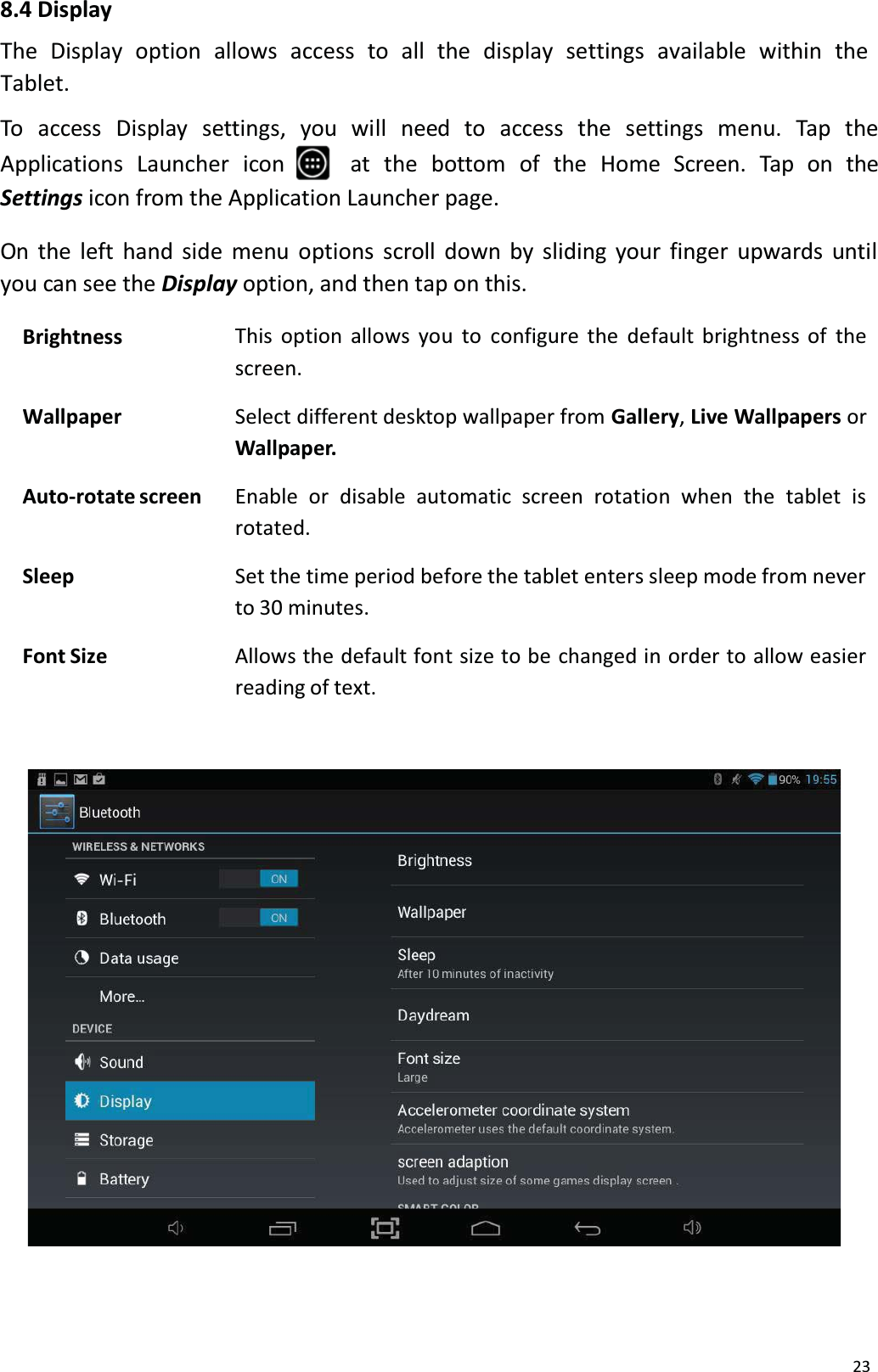
238.4 DisplayThe  Display  option  allows  access  to all  the  display  settings  available  within  the Tablet. To access Display settings, you will need to access the settings menu. Tap theApplications Launcher  icon at  the  bottom  of  the  Home  Screen.  Tap  on  the Settings icon from the Application Launcher page.On the left hand side menu options scroll down by sliding your finger upwards untilyou can see the Display option, and then tap on this.Brightness This option allows you to configure the default brightness of the screen.Wallpaper Select different desktop wallpaper from Gallery,Live Wallpapers or Wallpaper.Auto-rotate screen Enable  or  disable  automatic screen  rotation  when  the  tablet  isrotated.Sleep Set the time period before the tablet enters sleep mode from neverto 30 minutes.Font Size Allows the default font size to be changed in order to allow easierreading of text.
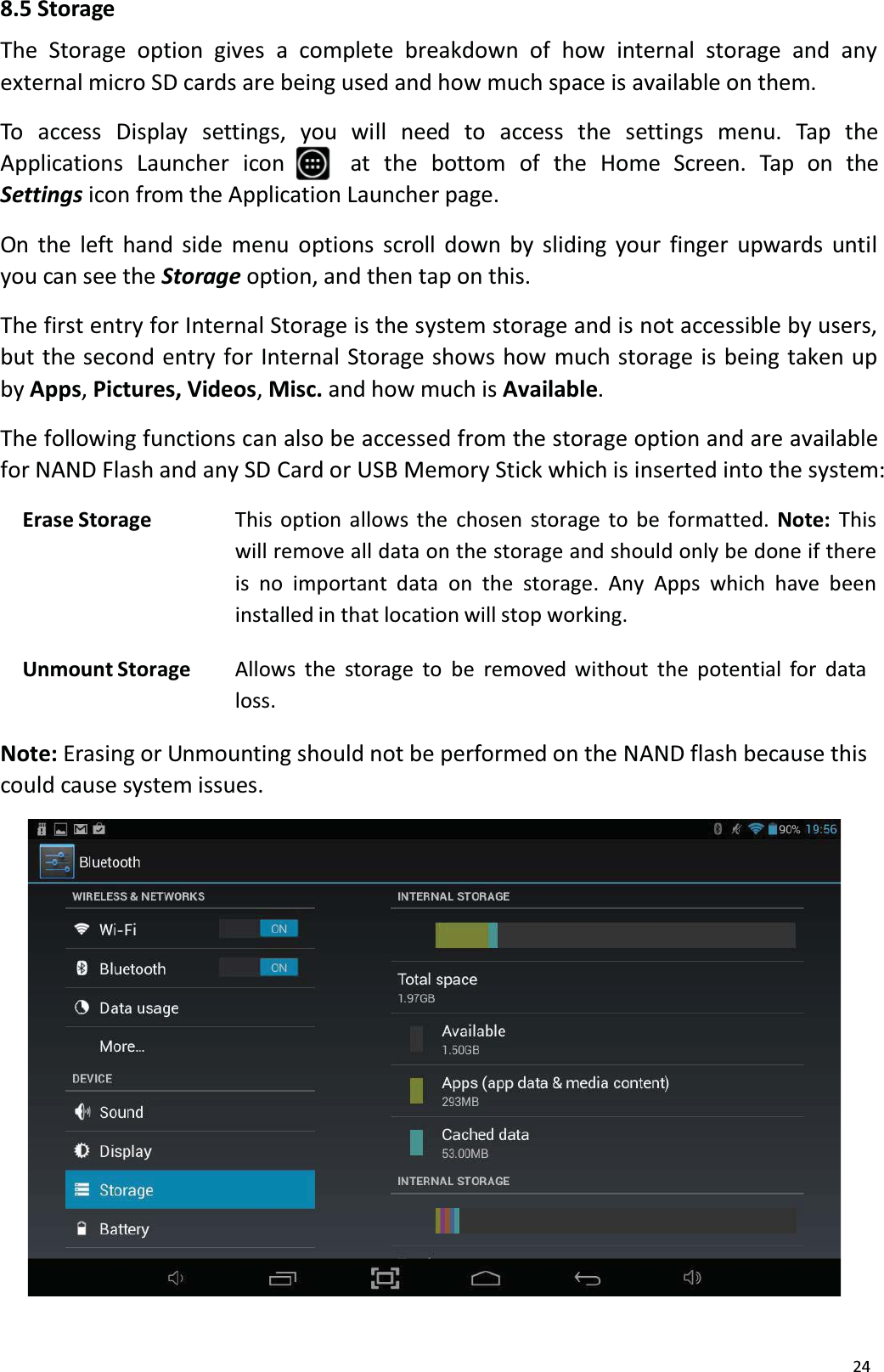
248.5 StorageThe Storage option gives a complete breakdown of how internal storage and any external micro SD cards are being used and how much space is available on them. To access Display settings, you will need to access the settings menu. Tap theApplications Launcher  icon at  the  bottom  of  the  Home  Screen.  Tap  on  the Settings icon from the Application Launcher page.On the left hand side menu options scroll down by sliding your finger upwards untilyou can see the Storage option, and then tap on this.The first entry for Internal Storage is the system storage and is not accessible by users,but the second entry for Internal Storage shows how much storage is being taken up by Apps, Pictures, Videos, Misc. and how much is Available. The following functions can also be accessed from the storage option and are available for NAND Flash and any SD Card or USB Memory Stick which is inserted into the system:Erase Storage This option allows the chosen storage to be formatted. Note: Thiswill remove all data on the storage and should only be done if there is no important data on the storage. Any Apps which have been installed in that location will stop working.Unmount Storage Allows the storage to be removed without the potential for data loss.Note: Erasing or Unmounting should not be performed on the NAND flash because this could cause system issues.
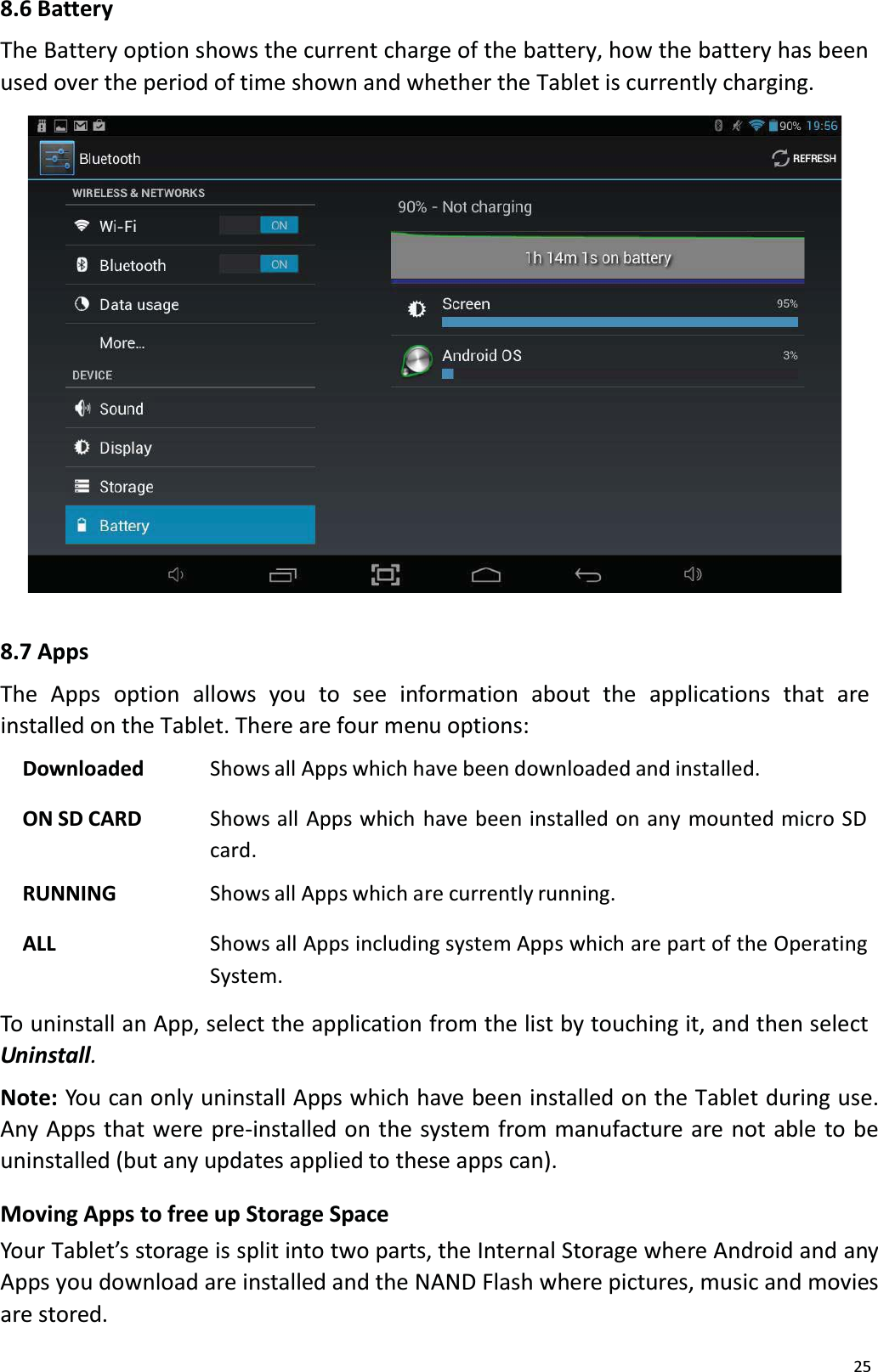
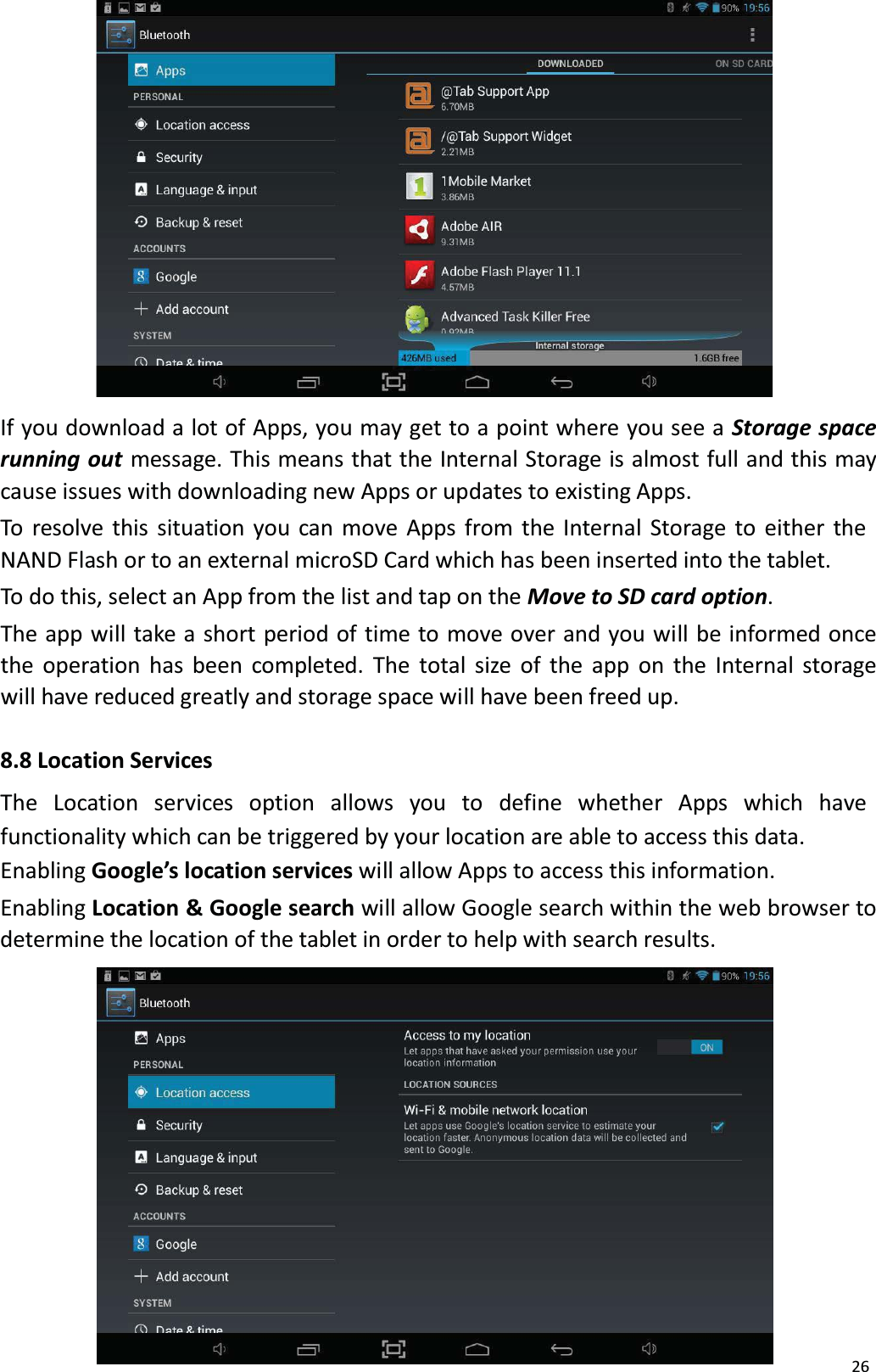
258.6 BatteryThe Battery option shows the current charge of the battery, how the battery has been used over the period of time shown and whether the Tablet is currently charging. 8.7 AppsThe Apps option  allows  you  to see  information  about  the  applications  that  areinstalled on the Tablet. There are four menu options:Downloaded Shows all Apps which have been downloaded and installed.ON SD CARD Shows all Apps which have been installed on any mounted micro SD card.RUNNING Shows all Apps which are currently running.ALL Shows all Apps including system Apps which are part of the OperatingSystem.To uninstall an App, select the application from the list by touching it, and then select Uninstall.Note: You can only uninstall Apps which have been installed on the Tablet during use.Any Apps that were pre-installed on the system from manufacture are not able to be uninstalled (but any updates applied to these apps can). Moving Apps to free up Storage SpaceYour Tablet’s storage is split into two parts, the Internal Storage where Android and any Apps you download are installed and the NAND Flash where pictures, music and moviesare stored.
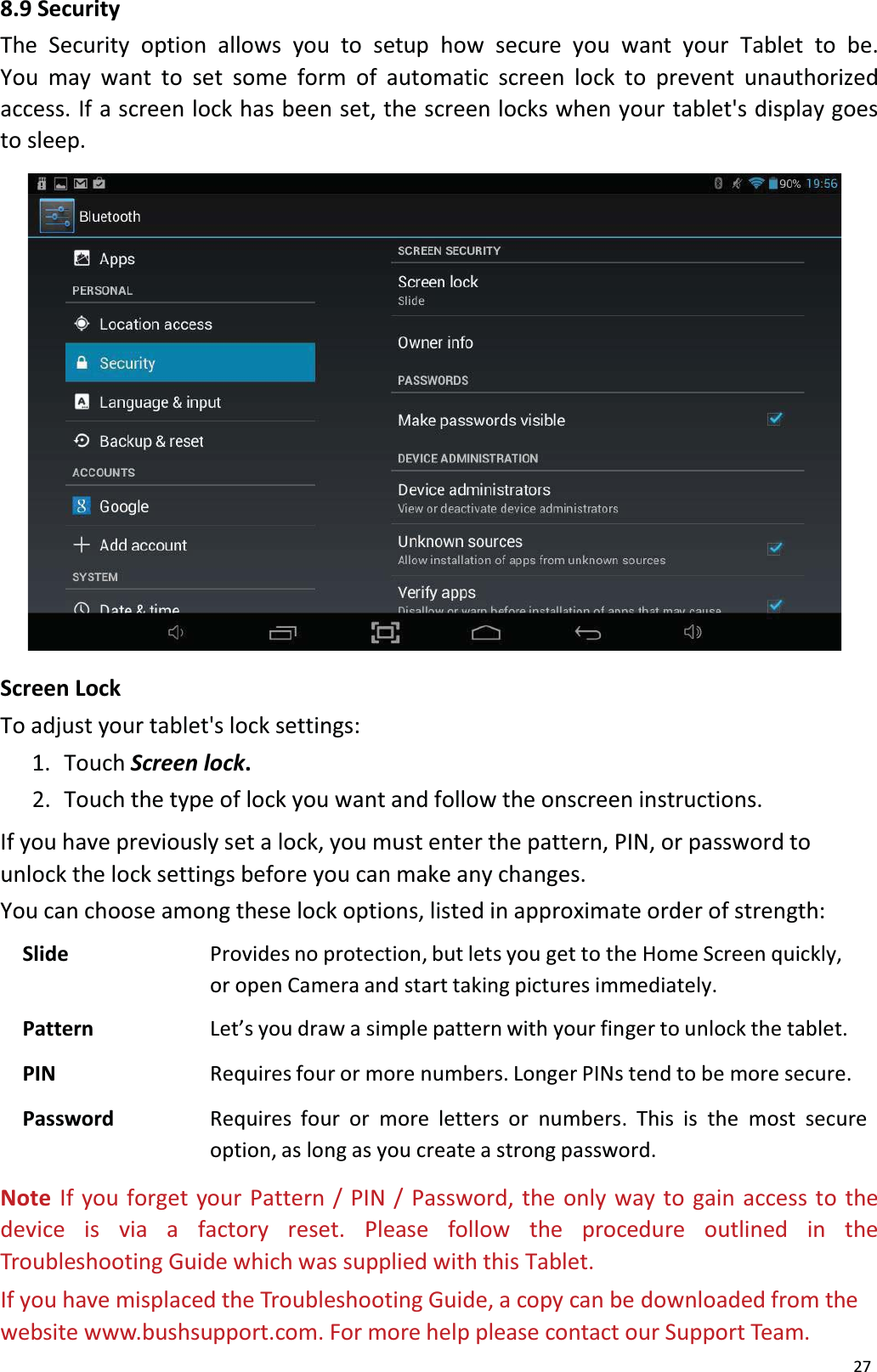
26If you download a lot of Apps, you may get to a point where you see a Storage spacerunning out message. This means that the Internal Storage is almost full and this may cause issues with downloading new Apps or updates to existing Apps.To resolve this situation you can move Apps from the Internal Storage to either the NAND Flash or to an external microSD Card which has been inserted into the tablet.To do this, select an App from the list and tap on the Move to SD card option. The app will take a short period of time to move over and you will be informed once the operation has been completed. The total size of the app on the Internal storage will have reduced greatly and storage space will have been freed up. 8.8 Location ServicesThe Location  services  option  allows  you  to  define whether  Apps which  havefunctionality which can be triggered by your location are able to access this data. Enabling Google’s location services will allow Apps to access this information.Enabling Location & Google search will allow Google search within the web browser todetermine the location of the tablet in order to help with search results.
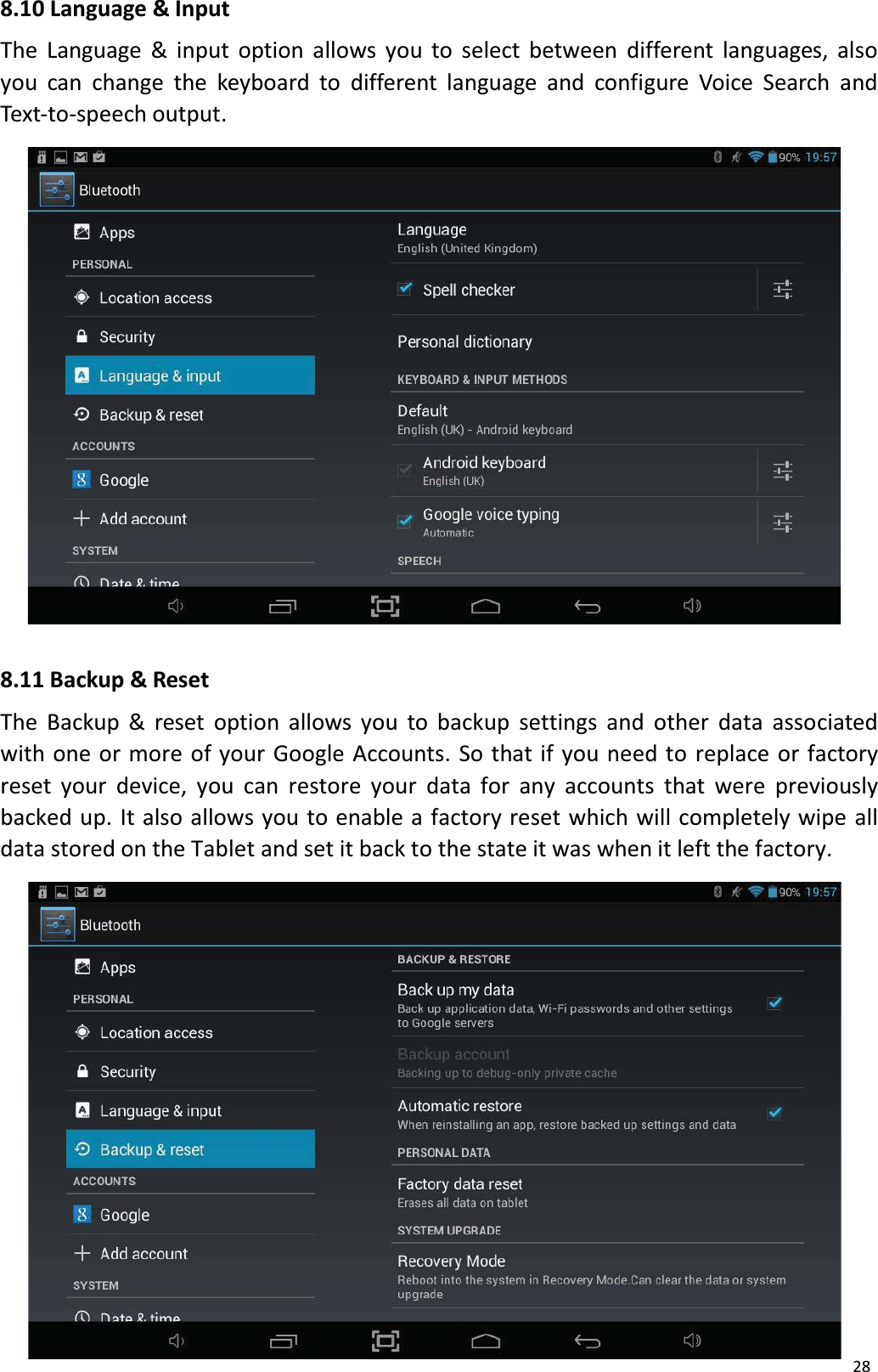
278.9 SecurityThe Security option allows you to setup how secure you want your Tablet to be. You may want to set some form of automatic screen lock to prevent unauthorized access. If a screen lock has been set, the screen locks when your tablet's display goes to sleep. Screen LockTo adjust your tablet's lock settings:1.  Touch Screen lock.2.  Touch the type of lock you want and follow the onscreen instructions.If you have previously set a lock, you must enter the pattern, PIN, or password to unlock the lock settings before you can make any changes.You can choose among these lock options, listed in approximate order of strength: Slide Provides no protection, but lets you get to the Home Screen quickly, or open Camera and start taking pictures immediately.Pattern Let’s you draw a simple pattern with your finger to unlock the tablet.PIN Requires four or more numbers. Longer PINs tend to be more secure.Password Requires four or more letters or numbers. This is the most secureoption, as long as you create a strong password.Note  If you forget your Pattern / PIN / Password, the only way to gain access to thedevice is via a factory reset. Please follow the procedure outlined in theTroubleshooting Guide which was supplied with this Tablet.If you have misplaced the Troubleshooting Guide, a copy can be downloaded from thewebsite www.bushsupport.com. For more help please contact our Support Team.
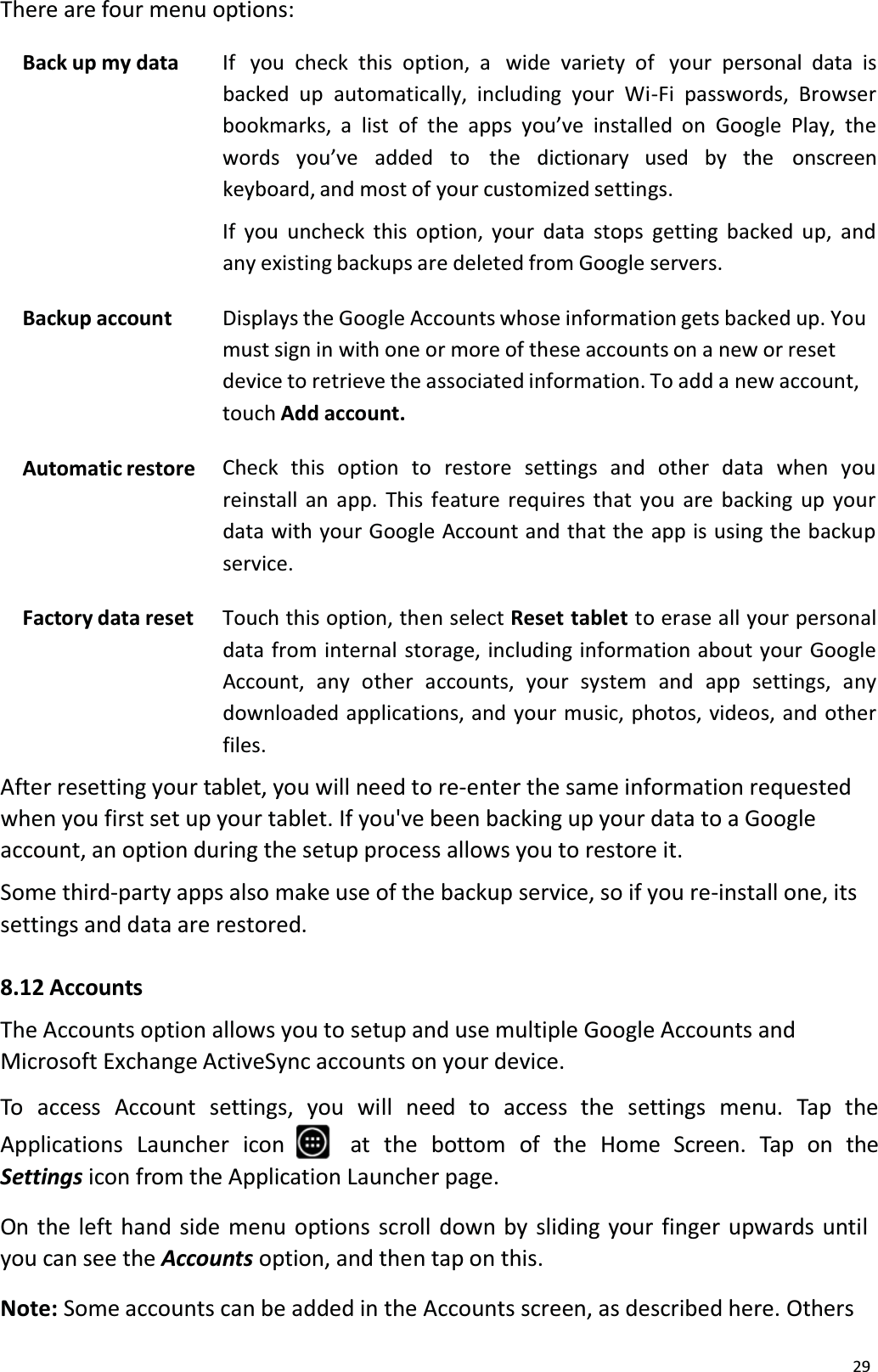
288.10 Language & InputThe Language & input option allows you to select between different languages, alsoyou can change the keyboard to different language and configure Voice Search andText-to-speech output.8.11 Backup & ResetThe Backup & reset option allows you to backup settings and other data associated with one or more of your Google Accounts. So that if you need to replace or factory reset your device, you can restore your data for any accounts that were previously backed up. It also allows you to enable a factory reset which will completely wipe all data stored on the Tablet and set it back to the state it was when it left the factory.
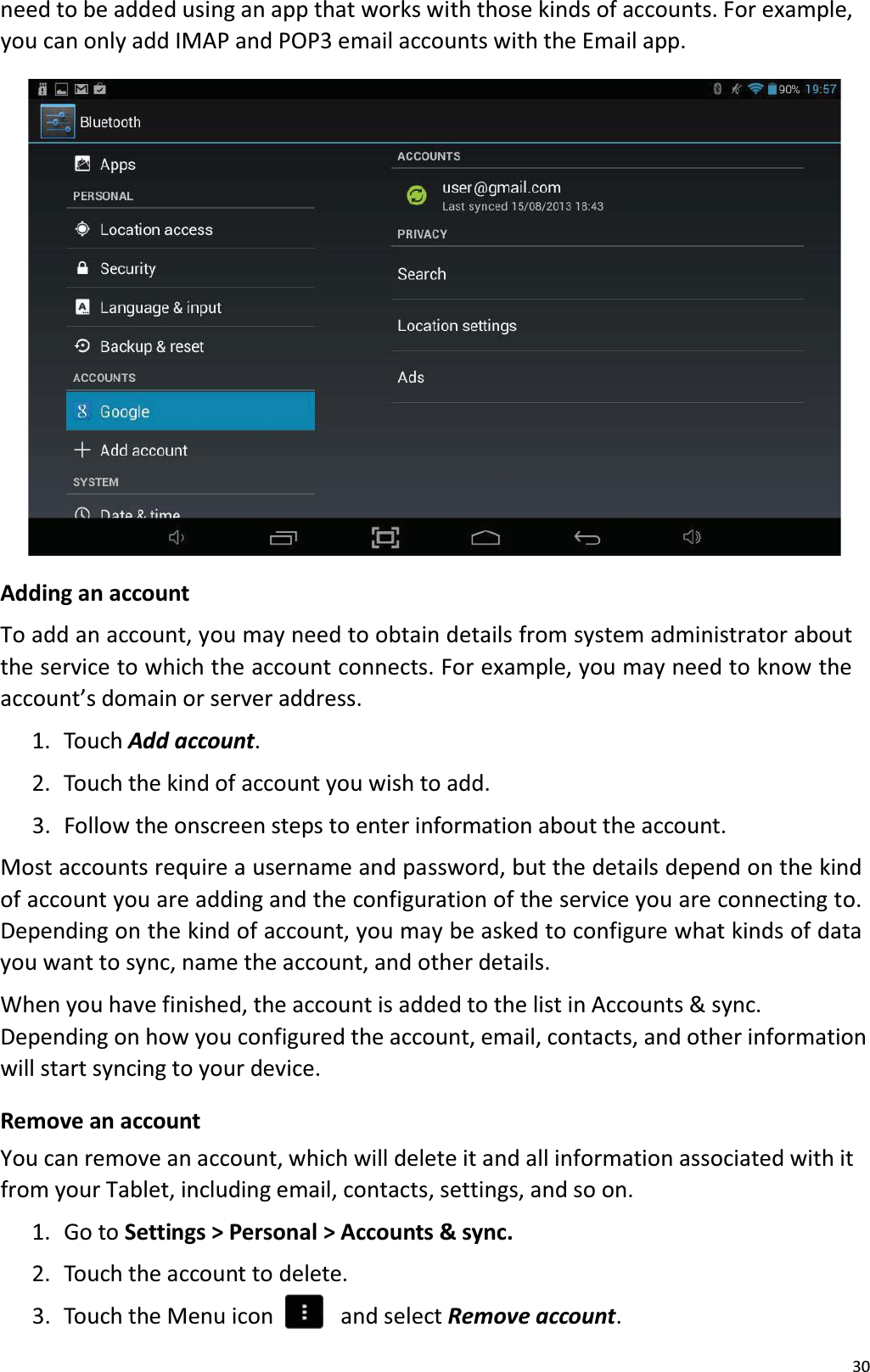
29There are four menu options:Back up my data If  you check this option, a  wide variety of  your personal data isbacked up automatically, including your Wi-Fi passwords, Browser bookmarks, a list of the apps you’ve installed on Google Play, the words you’ve   added to   the   dictionary  used  by  the   onscreenkeyboard, and most of your customized settings.If you uncheck this option, your data stops getting backed up, and any existing backups are deleted from Google servers.Backup account Displays the Google Accounts whose information gets backed up. You must sign in with one or more of these accounts on a new or resetdevice to retrieve the associated information. To add a new account, touch Add account.Automatic restore Check this option to restore settings and other data when you reinstall an app. This feature requires that you are backing up yourdata with your Google Account and that the app is using the backup service.Factory data reset Touch this option, then select Reset tablet to erase all your personal data from internal storage, including information about your GoogleAccount, any other accounts, your system and app settings, any downloaded applications, and your music, photos, videos, and otherfiles.After resetting your tablet, you will need to re-enter the same information requestedwhen you first set up your tablet. If you've been backing up your data to a Google account, an option during the setup process allows you to restore it.Some third-party apps also make use of the backup service, so if you re-install one, itssettings and data are restored. 8.12 AccountsThe Accounts option allows you to setup and use multiple Google Accounts and Microsoft Exchange ActiveSync accounts on your device.To access Account settings, you will need to access the settings menu. Tap theApplications Launcher  icon at  the  bottom  of  the  Home  Screen.  Tap  on  the Settings icon from the Application Launcher page.On the left hand side menu options scroll down by sliding your finger upwards until you can see the Accounts option, and then tap on this.Note: Some accounts can be added in the Accounts screen, as described here. Others
30need to be added using an app that works with those kinds of accounts. For example,you can only add IMAP and POP3 email accounts with the Email app. Adding an accountTo add an account, you may need to obtain details from system administrator about the service to which the account connects. For example, you may need to know theaccount’s domain or server address. 1.  Touch Add account. 2.  Touch the kind of account you wish to add. 3.  Follow the onscreen steps to enter information about the account.Most accounts require a username and password, but the details depend on the kind of account you are adding and the configuration of the service you are connecting to. Depending on the kind of account, you may be asked to configure what kinds of data you want to sync, name the account, and other details. When you have finished, the account is added to the list in Accounts & sync. Depending on how you configured the account, email, contacts, and other information will start syncing to your device.Remove an accountYou can remove an account, which will delete it and all information associated with itfrom your Tablet, including email, contacts, settings, and so on.1. Go to Settings > Personal > Accounts & sync.2.  Touch the account to delete.3.  Touch the Menu icon    and select Remove account.
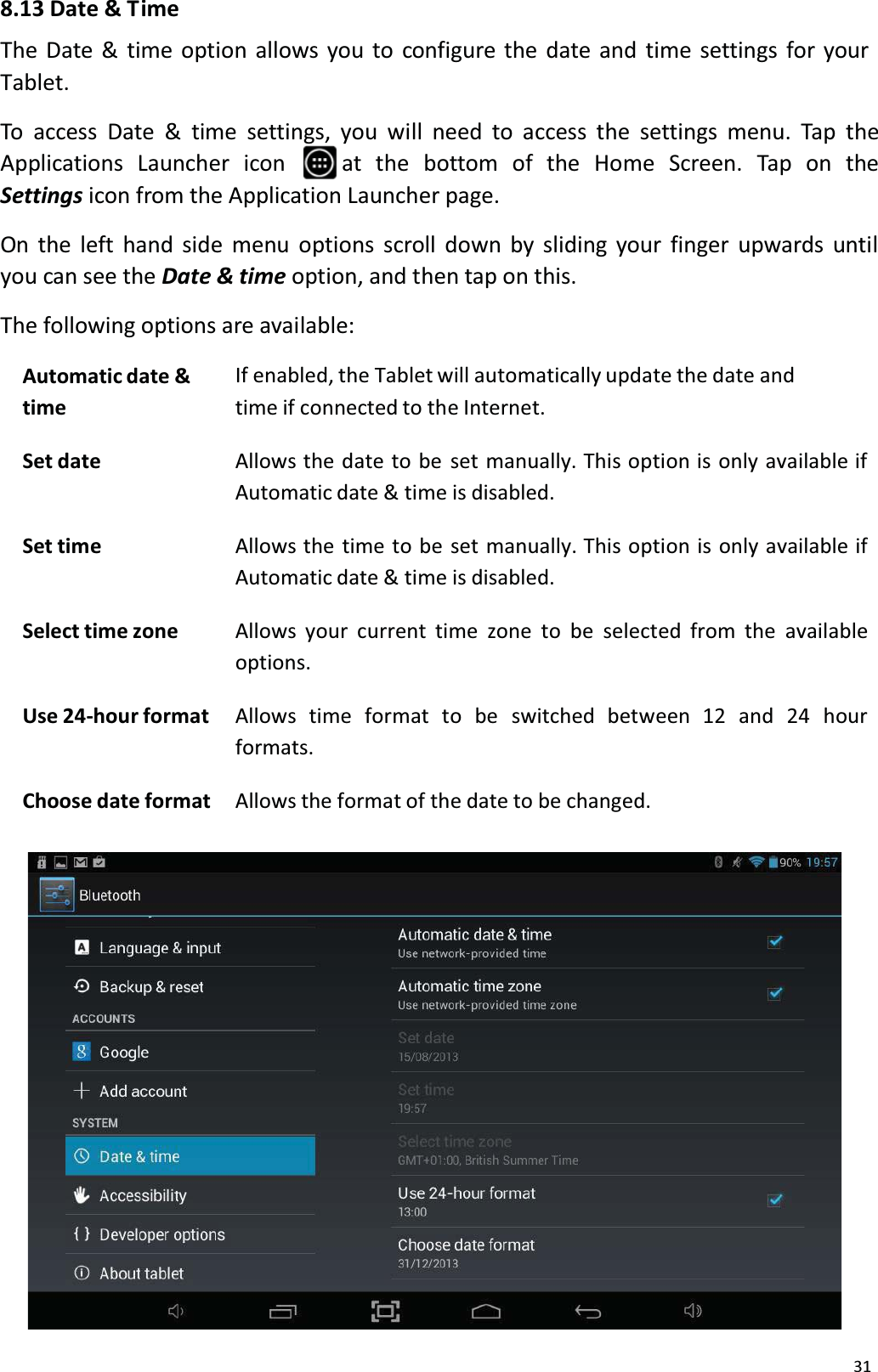
318.13 Date & T imeThe Date & time option allows you to configure the date and time settings for your Tablet. To access Date & time settings, you will need to access the settings menu. Tap theApplications Launcher  icon  at  the  bottom  of  the  Home Screen.  Tap  on  theSettings icon from the Application Launcher page.On the left hand side menu options scroll down by sliding your finger upwards untilyou can see the Date & time option, and then tap on this.The following options are available:Automatic date &timeIf enabled, the Tablet will automatically update the date and time if connected to the Internet.Set date Allows the date to be set manually. This option is only available ifAutomatic date & time is disabled.Set time Allows the time to be set manually. This option is only available ifAutomatic date & time is disabled.Select time zone Allows your current time zone to be selected from the availableoptions.Use 24-hour format Allows  time  format  to  be  switched  between  12  and 24  hour formats.Choose date format Allows the format of the date to be changed.
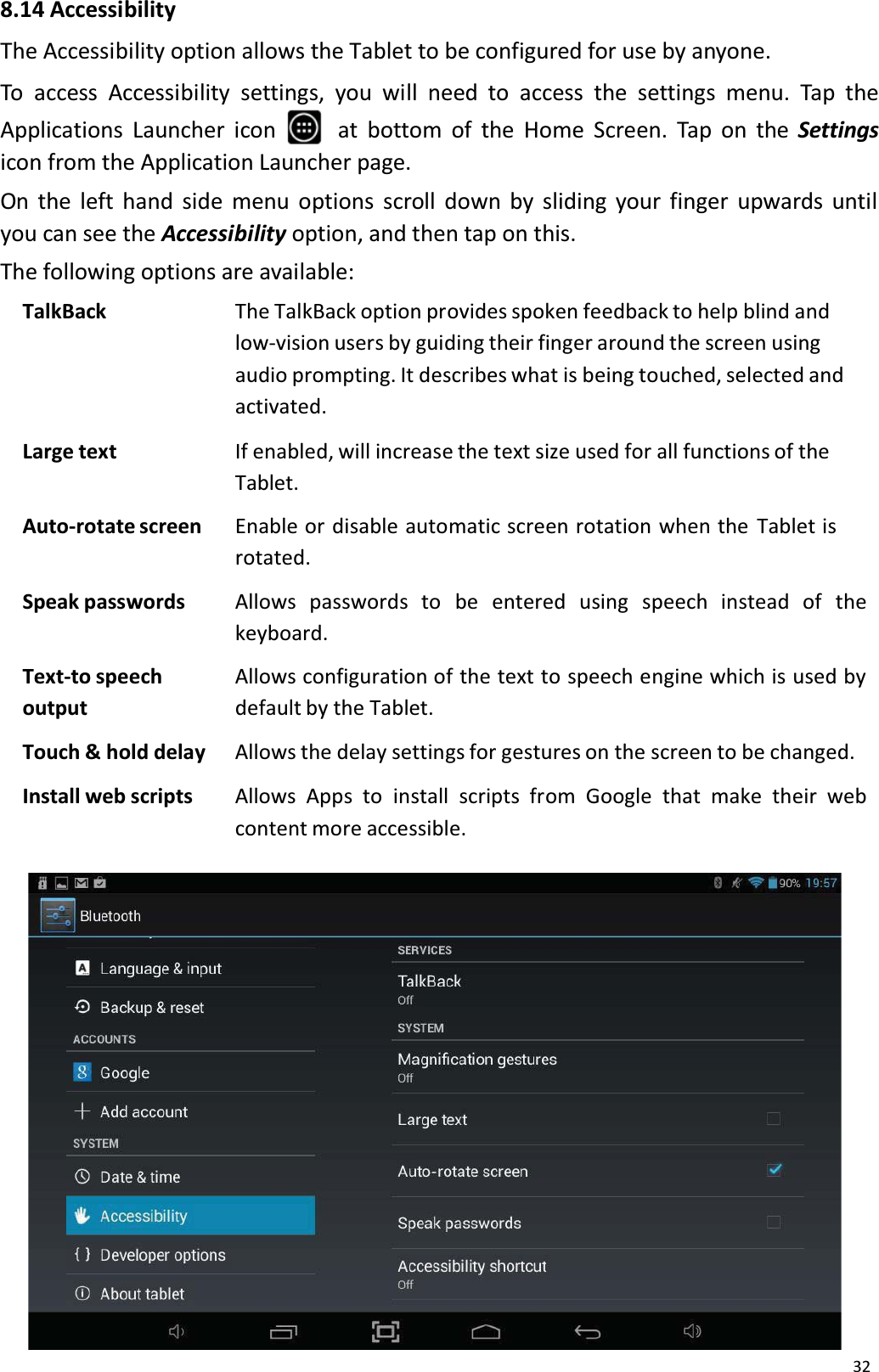
328.14 AccessibilityThe Accessibility option allows the Tablet to be configured for use by anyone.To access Accessibility settings, you will need to access the settings menu. Tap theApplications Launcher icon    at bottom of the Home Screen. Tap on the Settingsicon from the Application Launcher page.On the left hand side menu options scroll down by sliding your finger upwards untilyou can see the Accessibility option, and then tap on this.The following options are available:TalkBack The TalkBack option provides spoken feedback to help blind and low-vision users by guiding their finger around the screen using audio prompting. It describes what is being touched, selected and activated.Large text If enabled, will increase the text size used for all functions of theTablet.Auto-rotate screen Enable or disable automatic screen rotation when the Tablet isrotated.Speak passwords Allows   passwords  to  be   entered   using   speech   instead   of   the keyboard.Text-to speech outputAllows configuration of the text to speech engine which is used by default by the Tablet.Touch & hold delay Allows the delay settings for gestures on the screen to be changed.Install web scripts Allows Apps to  install scripts from Google that make their web content more accessible.
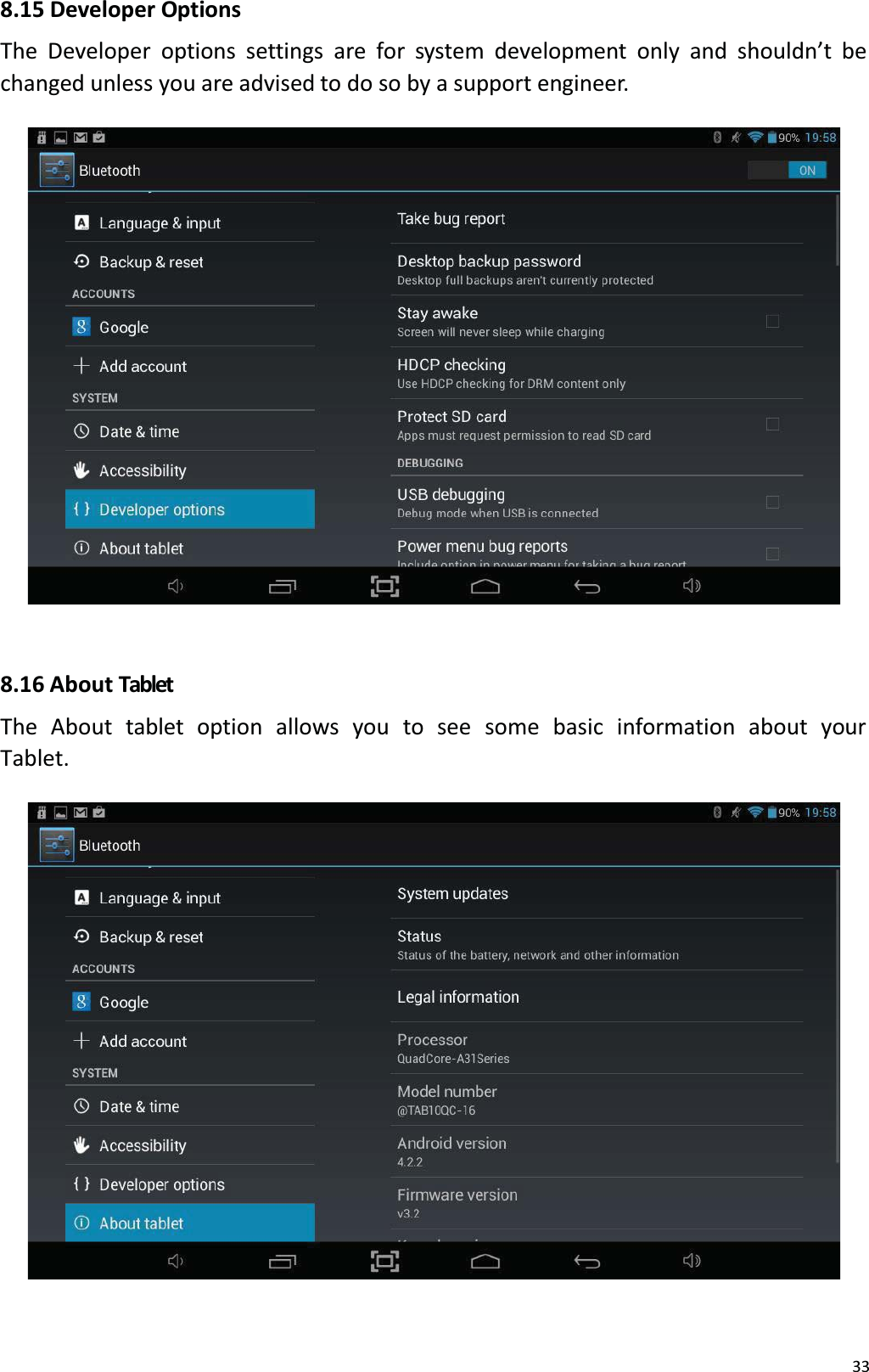
338.15 Developer OptionsThe Developer options settings are for system development only and shouldn’t be changed unless you are advised to do so by a support engineer. 8.16 About TabletThe About  tablet  option  allows  you  to see  some  basic  information  about  your Tablet.
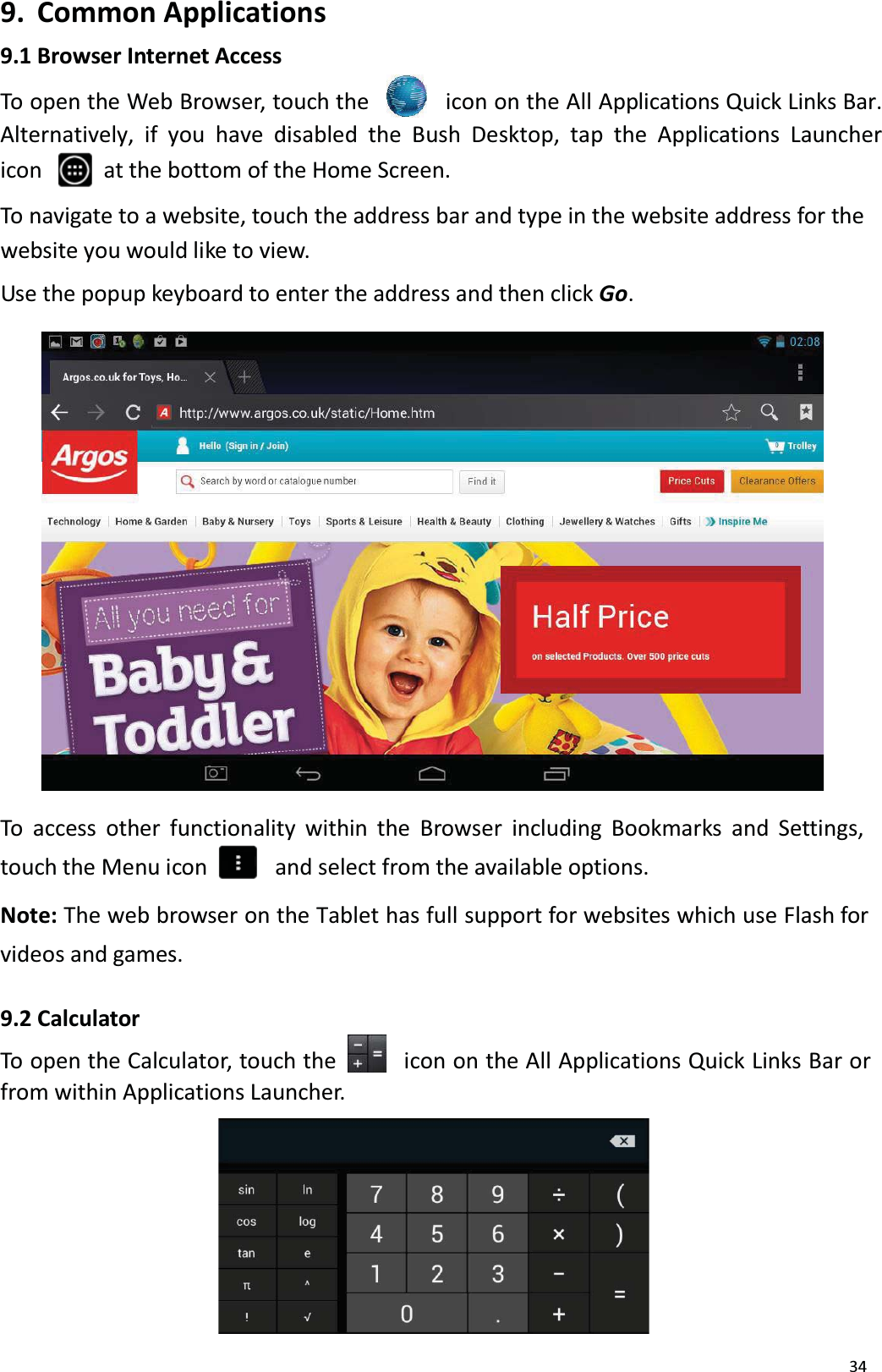
349. Common Applications9.1 Browser Internet AccessTo open the Web Browser, touch the icon on the All Applications Quick Links Bar. Alternatively, if you have disabled the Bush Desktop, tap the Applications Launcher icon  at the bottom of the Home Screen. To navigate to a website, touch the address bar and type in the website address for thewebsite you would like to view. Use the popup keyboard to enter the address and then click Go. To access other functionality within the Browser including Bookmarks and Settings, touch the Menu icon    and select from the available options.Note: The web browser on the Tablet has full support for websites which use Flash for videos and games.9.2 CalculatorTo open the Calculator, touch the     icon on the All Applications Quick Links Bar or from within Applications Launcher.
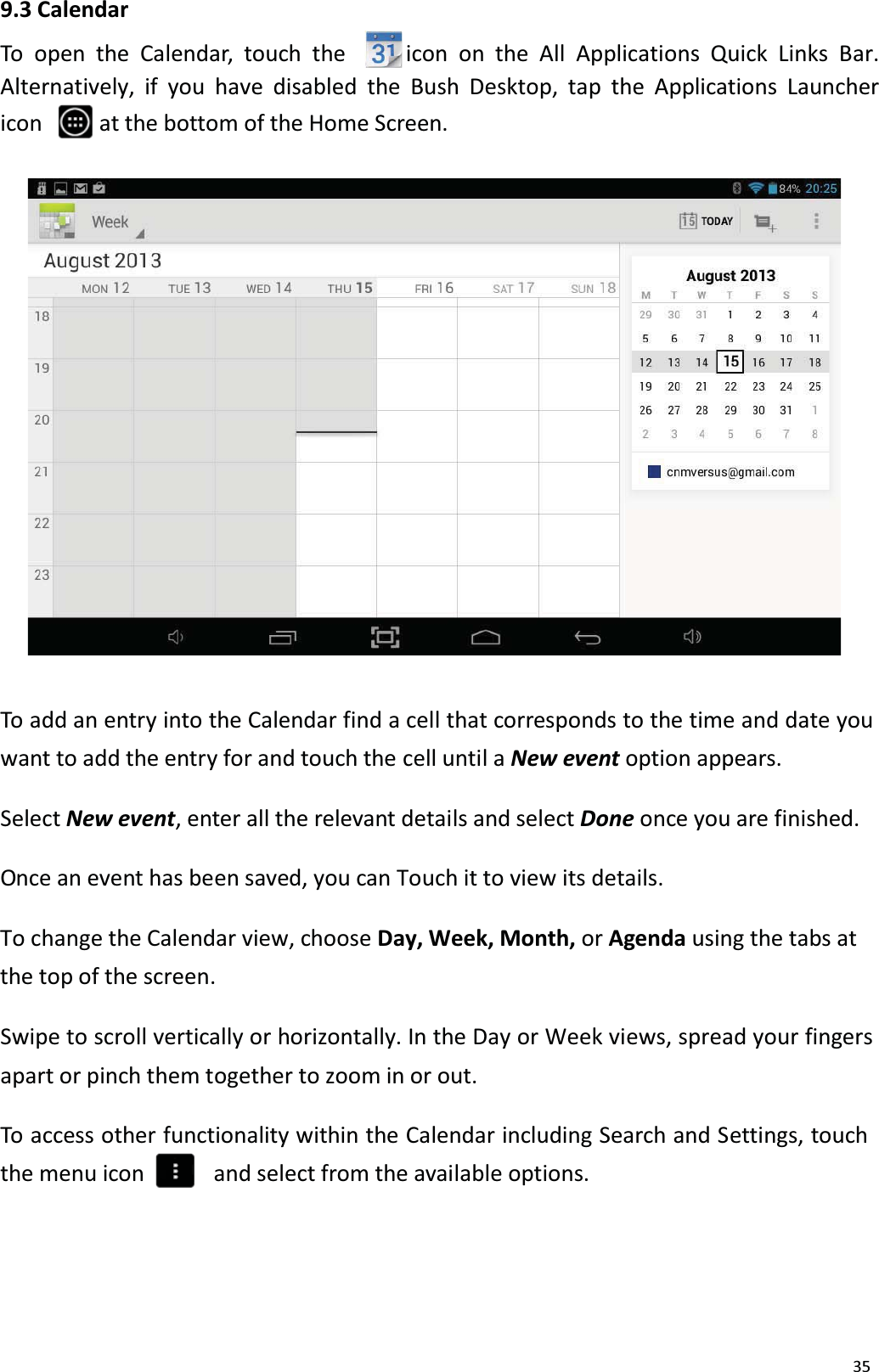
359.3 CalendarTo open the Calendar, touch the icon on the All Applications Quick Links Bar. Alternatively, if you have disabled the Bush Desktop, tap the Applications Launcher icon  at the bottom of the Home Screen. To add an entry into the Calendar find a cell that corresponds to the time and date you want to add the entry for and touch the cell until a New event option appears.Select New event, enter all the relevant details and select Done once you are finished.Once an event has been saved, you can Touch it to view its details. To change the Calendar view, choose Day, Week, Month, or Agenda using the tabs atthe top of the screen. Swipe to scroll vertically or horizontally. In the Day or Week views, spread your fingers apart or pinch them together to zoom in or out.To access other functionality within the Calendar including Search and Settings, touchthe menu icon and select from the available options.
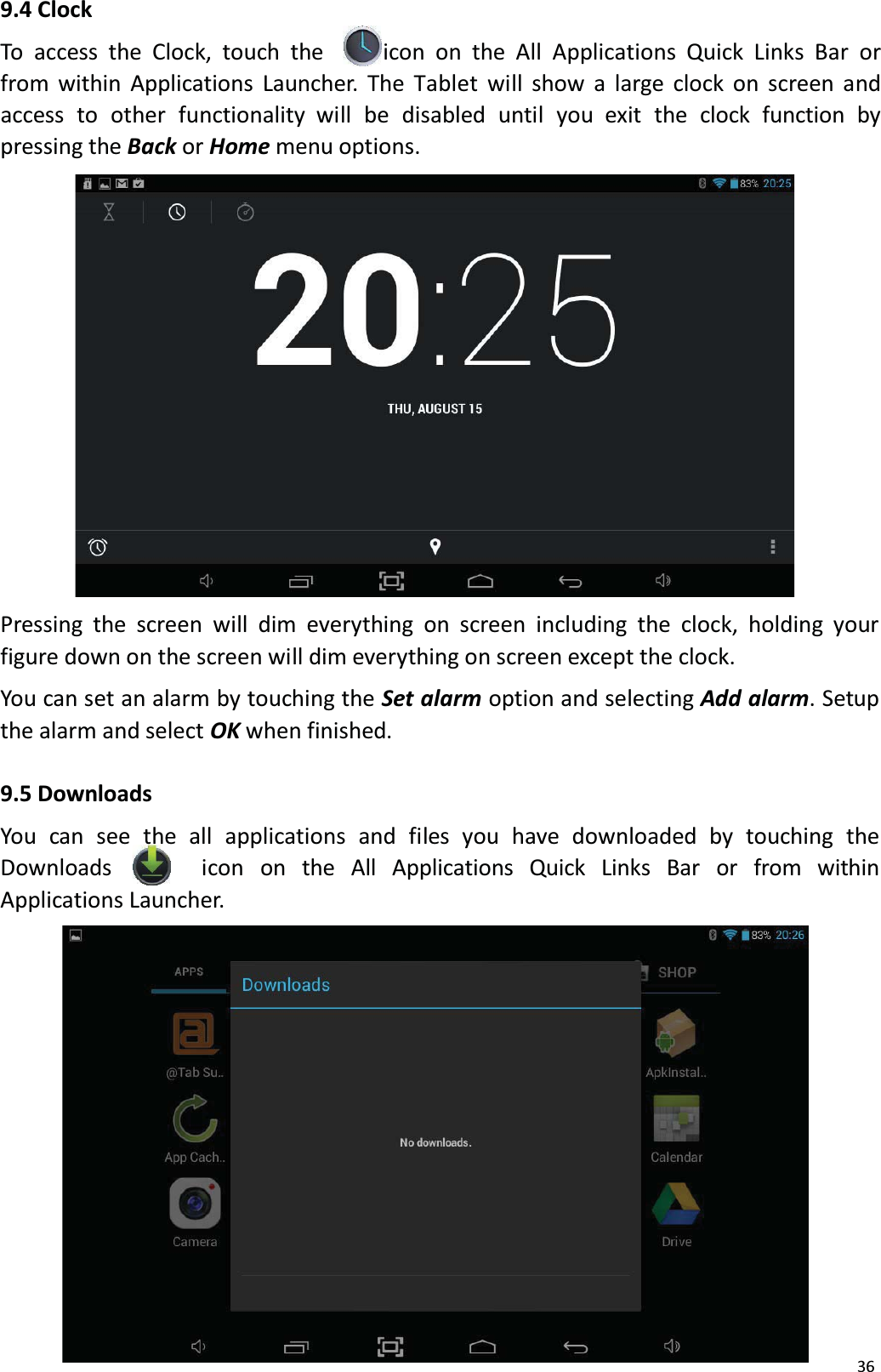
9.4 ClockTo access the Clock, touch the icon on the All Applications Quick Links Bar or from within Applications Launcher. The Tablet will show a large clock on screen and access  to  other  functionality  will  be  disabled  until  you  exit  the  clock  function  by pressing the Back or Home menu options.Pressing the screen will dim everything on screen including the clock, holding your figure down on the screen will dim everything on screen except the clock. You can set an alarm by touching the Set alarm option and selecting Add alarm. Setup the alarm and select OK when finished. 9.5 DownloadsYou can see the all applications and files you have downloaded by touching the Downloads  icon  on  the  All  Applications  Quick  Links   Bar  or   from   within Applications Launcher. 36
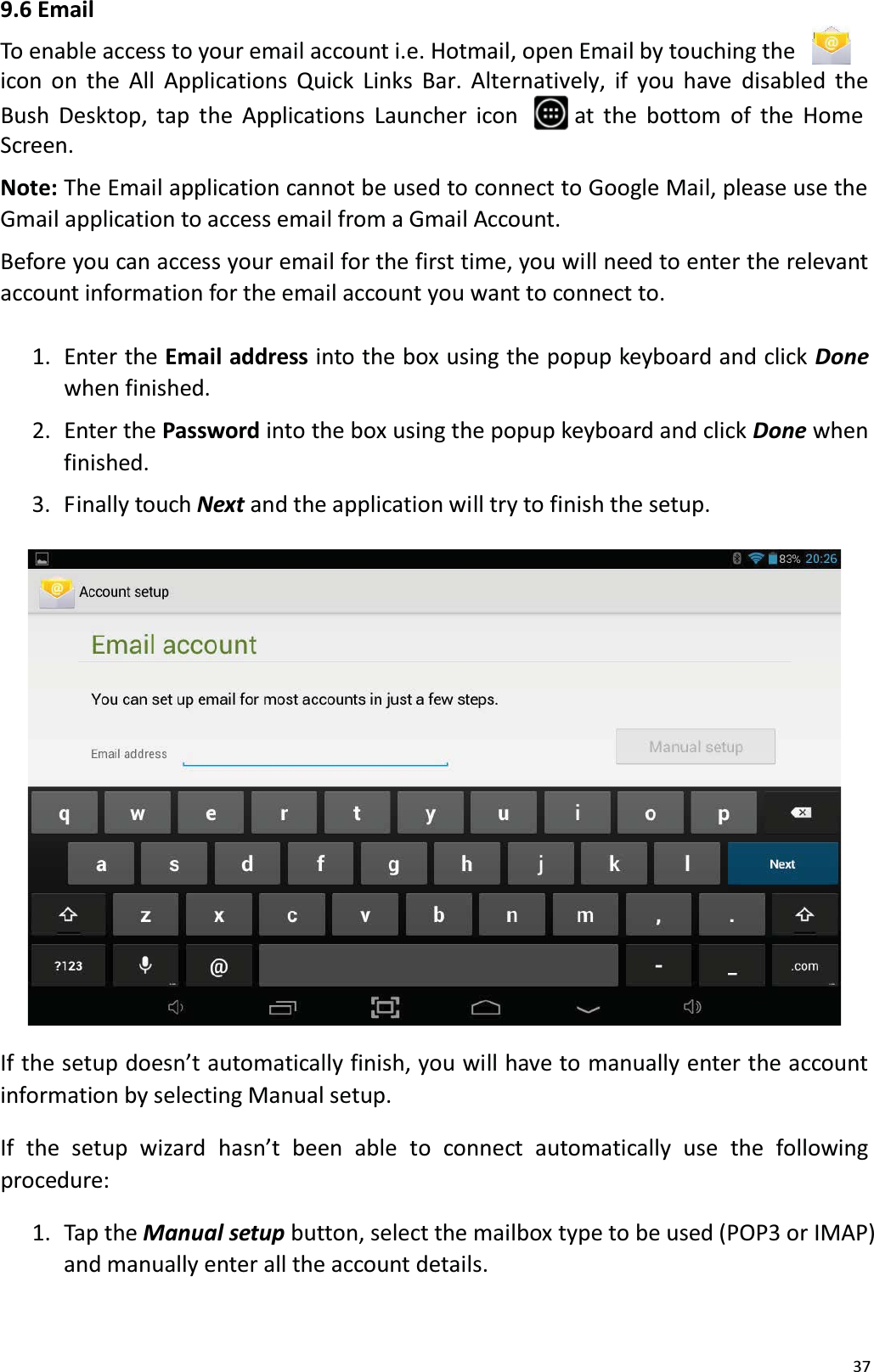
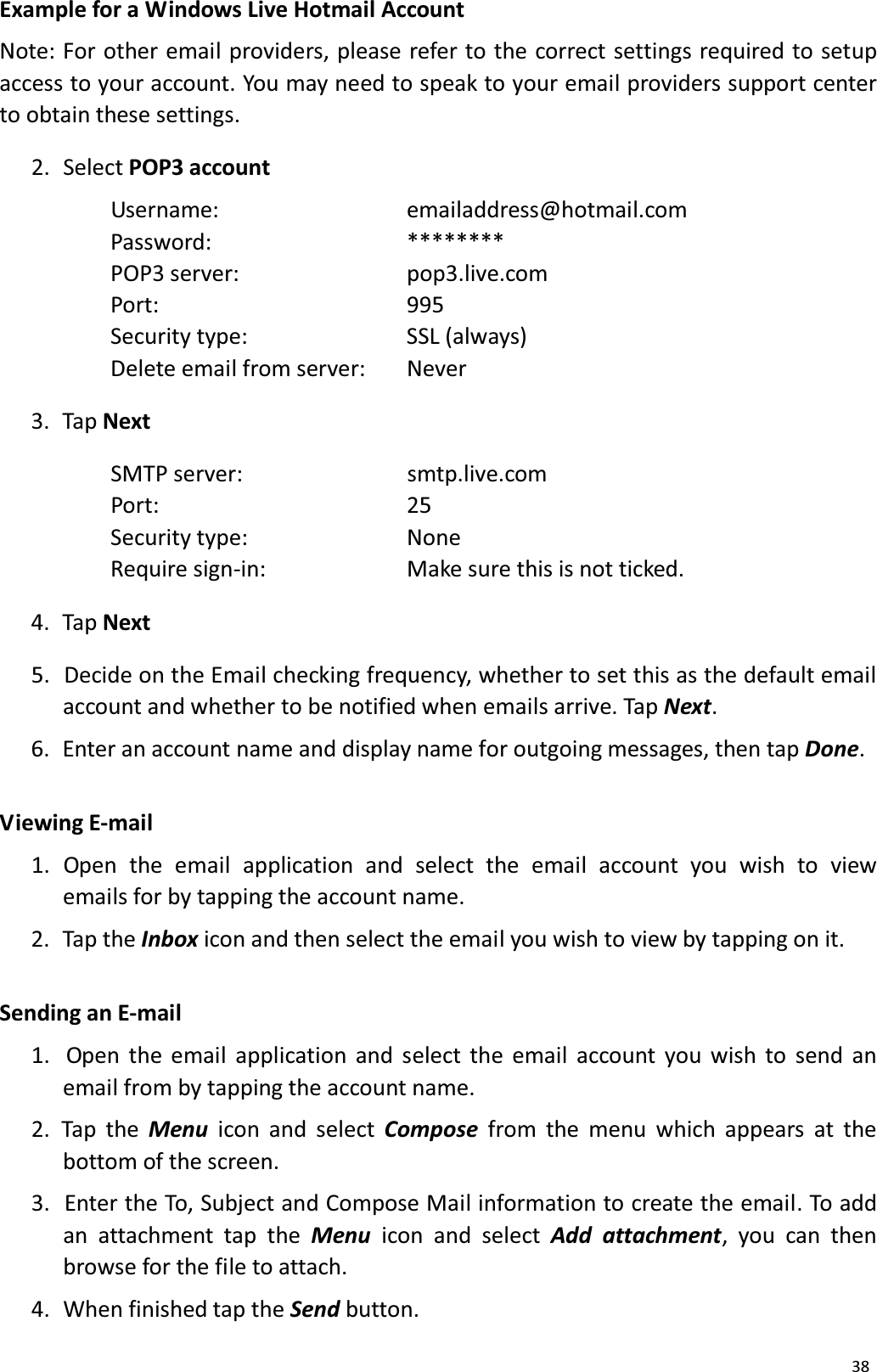
379.6 EmailTo enable access to your email account i.e. Hotmail, open Email by touching the icon  on the All Applications Quick Links Bar. Alternatively, if you have disabled theBush Desktop, tap the Applications Launcher icon  at the bottom of the HomeScreen. Note: The Email application cannot be used to connect to Google Mail, please use theGmail application to access email from a Gmail Account.Before you can access your email for the first time, you will need to enter the relevantaccount information for the email account you want to connect to.1.  Enter the Email address into the box using the popup keyboard and click Donewhen finished. 2.  Enter the Password into the box using the popup keyboard and click Done when finished. 3.  Finally touch Next and the application will try to finish the setup. If the setup doesn’t automatically finish, you will have to manually enter the account information by selecting Manual setup. If  the  setup  wizard  hasn’t  been  able  to  connect  automatically  use  the  followingprocedure:1.  Tap the Manual setup button, select the mailbox type to be used (POP3 or IMAP)and manually enter all the account details.
38Example for a Windows Live Hotmail AccountNote: For other email providers, please refer to the correct settings required to setup access to your account. You may need to speak to your email providers support center to obtain these settings.2. Select POP3 accountUsername: emailaddress@hotmail.comPassword: ******** POP3 server: pop3.live.com Port: 995Security type: SSL (always) Delete email from server:  Never3.  Tap NextSMTP server: smtp.live.comPort: 25Security type: NoneRequire sign-in: Make sure this is not ticked. 4.  Tap Next5.  Decide on the Email checking frequency, whether to set this as the default emailaccount and whether to be notified when emails arrive. Tap Next. 6.  Enter an account name and display name for outgoing messages, then tap Done. V iewing  E-mail1.  Open  the  email  application  and select  the  email  account  you  wish  to view emails for by tapping the account name.2.  Tap the Inbox icon and then select the email you wish to view by tapping on it.Sending an E-mail1.  Open the email application and select the email account you wish to send an email from by tapping the account name.2. Tap the Menu icon and select Compose from the menu which appears at the bottom of the screen. 3.  Enter the To, Subject and Compose Mail information to create the email. To addan attachment tap the Menu icon and select Add attachment, you can then browse for the file to attach. 4.  When finished tap the Send button.
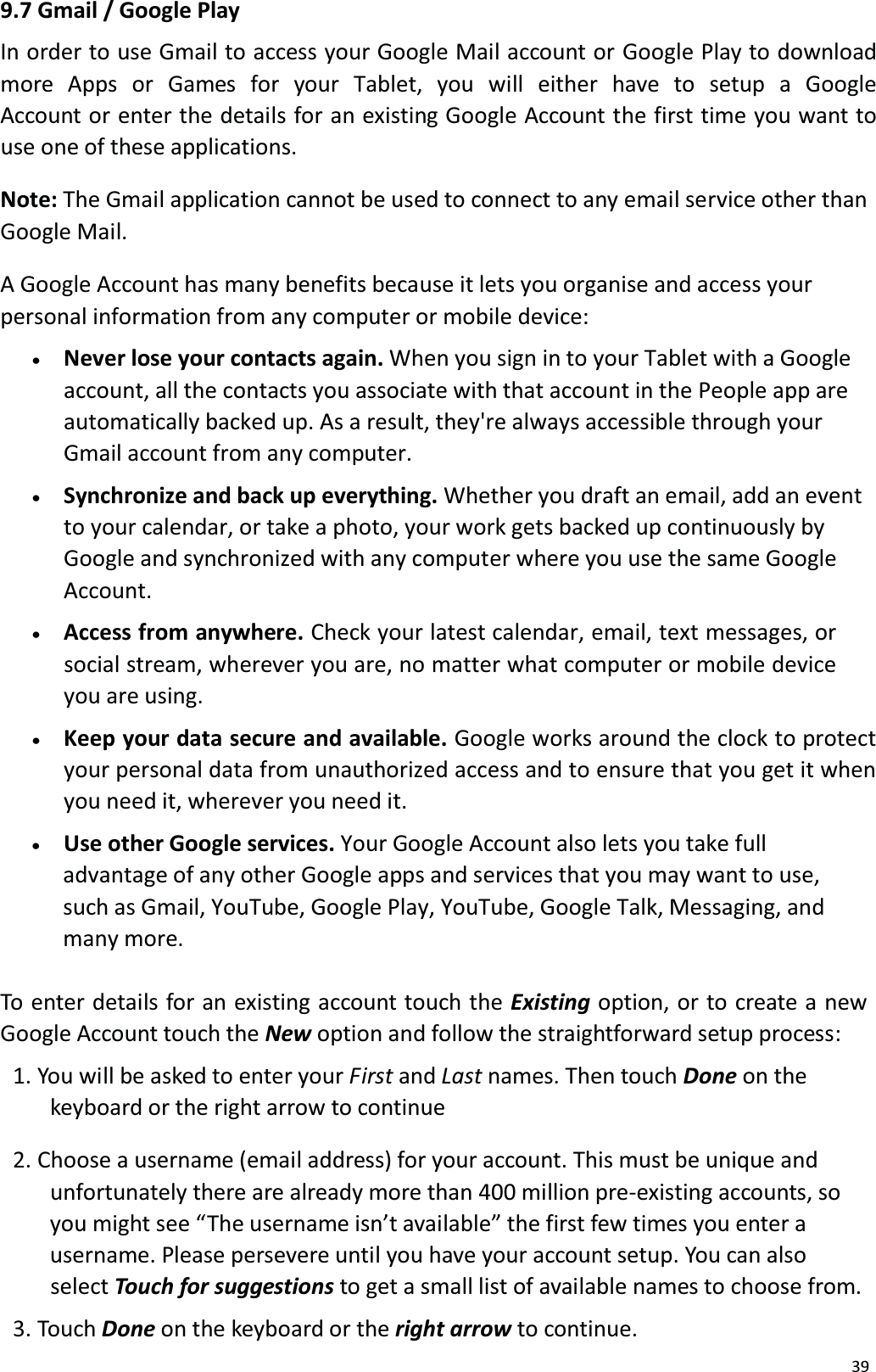
399.7 Gmail / Google PlayIn order to use Gmail to access your Google Mail account or Google Play to download more Apps or  Games  for  your  Tablet,  you  will  either  have  to  setup  a  Google Account or enter the details for an existing Google Account the first time you want touse one of these applications.Note: The Gmail application cannot be used to connect to any email service other thanGoogle Mail. A Google Account has many benefits because it lets you organise and access your personal information from any computer or mobile device:x   Never lose your contacts again. When you sign in to your Tablet with a Googleaccount, all the contacts you associate with that account in the People app are automatically backed up. As a result, they're always accessible through yourGmail account from any computer.x   Synchronize and back up everything. Whether you draft an email, add an eventto your calendar, or take a photo, your work gets backed up continuously by Google and synchronized with any computer where you use the same Google Account.x   Access from anywhere. Check your latest calendar, email, text messages, or social stream, wherever you are, no matter what computer or mobile device you are using.x   Keep your data secure and available. Google works around the clock to protect your personal data from unauthorized access and to ensure that you get it when you need it, wherever you need it.x    Use other Google services. Your Google Account also lets you take full advantage of any other Google apps and services that you may want to use, such as Gmail, YouTube, Google Play, YouTube, Google Talk, Messaging, andmany more.To enter details for an existing account touch the Existing option, or to create a newGoogle Account touch the New option and follow the straightforward setup process: 1. You will be asked to enter your First and Last names. Then touch Done on thekeyboard or the right arrow to continue 2. Choose a username (email address) for your account. This must be unique andunfortunately there are already more than 400 million pre-existing accounts, so you might see “The username isn’t available” the first few times you enter a username. Please persevere until you have your account setup. You can also select Touch for suggestions to get a small list of available names to choose from. 3. Touch Done on the keyboard or the right arrow to continue.
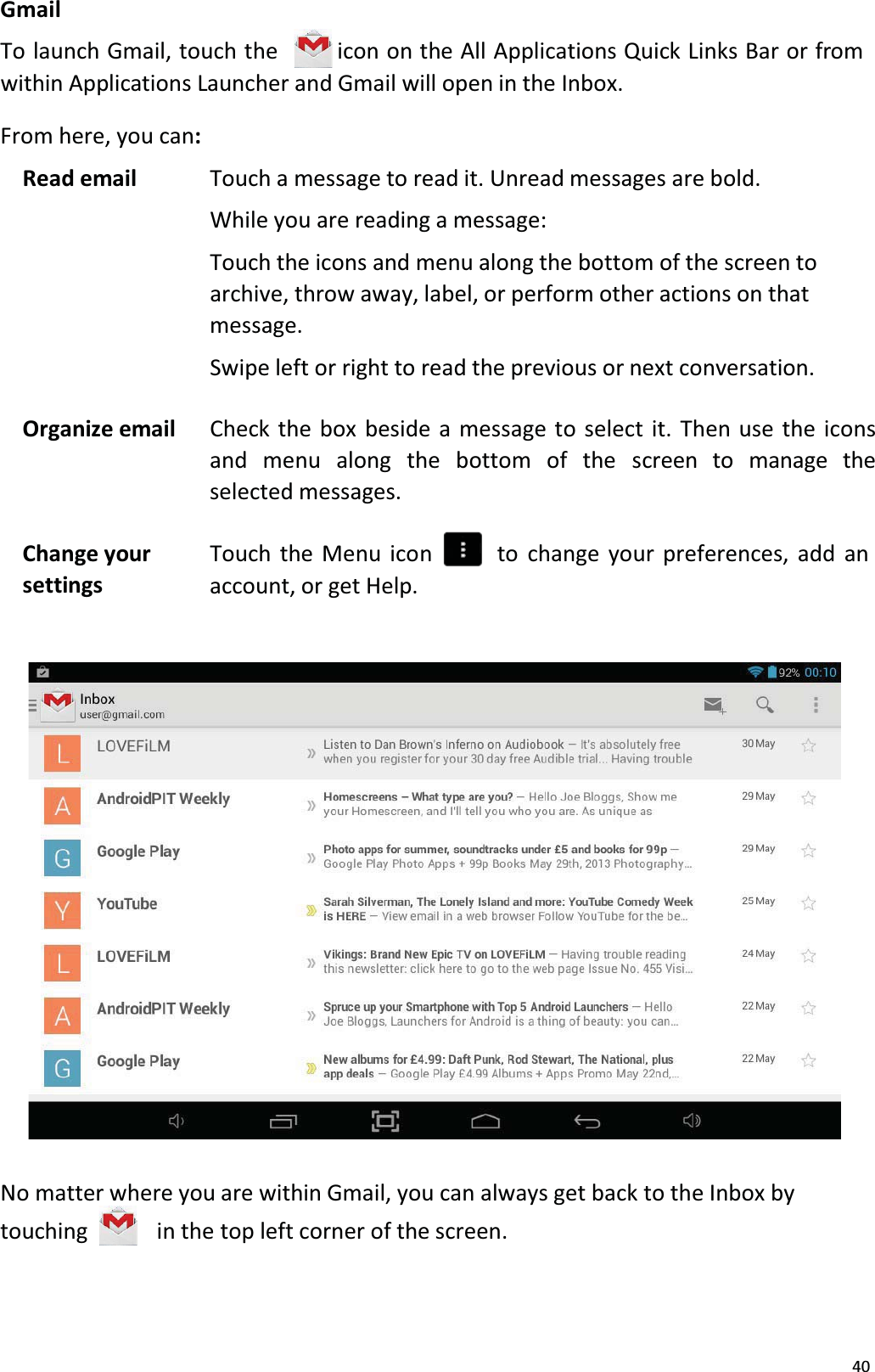
40GmailTo launch Gmail, touch the icon on the All Applications Quick Links Bar or from within Applications Launcher and Gmail will open in the Inbox. From here, you can:Read email Touch a message to read it. Unread messages are bold.While you are reading a message:Touch the icons and menu along the bottom of the screen to archive, throw away, label, or perform other actions on that message.Swipe left or right to read the previous or next conversation.Organize email Check the box beside a message to select it. Then use the iconsand  menu  along the  bottom  of  the  screen  to  manage  the selected messages.Change yoursettingsTouch the Menu icon     to change your preferences, add an account, or get Help.No matter where you are within Gmail, you can always get back to the Inbox by touching in the top left corner of the screen.
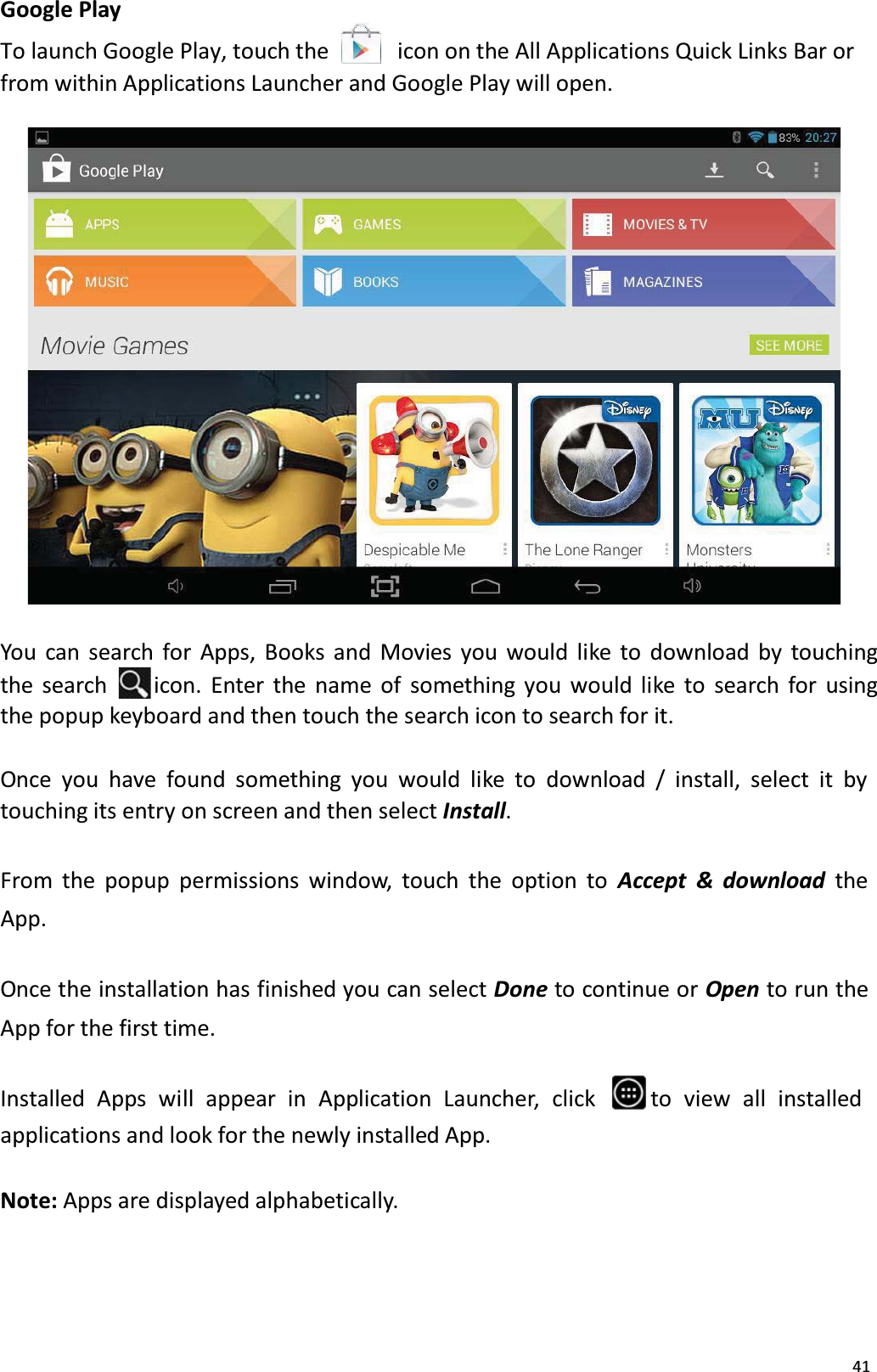
41Google PlayTo launch Google Play, touch the     icon on the All Applications Quick Links Bar orfrom within Applications Launcher and Google Play will open. You can search for Apps, Books and Movies you would like to download by touching the search  icon. Enter the name of something you would like to search for using the popup keyboard and then touch the search icon to search for it.Once you have found something you would like to download / install, select it by touching its entry on screen and then select Install. From the popup permissions window, touch the option to Accept & download the App. Once the installation has finished you can select Done to continue or Open to run the App for the first time.Installed  Apps  will  appear  in  Application  Launcher,  click  to view all installedapplications and look for the newly installed App. Note: Apps are displayed alphabetically.
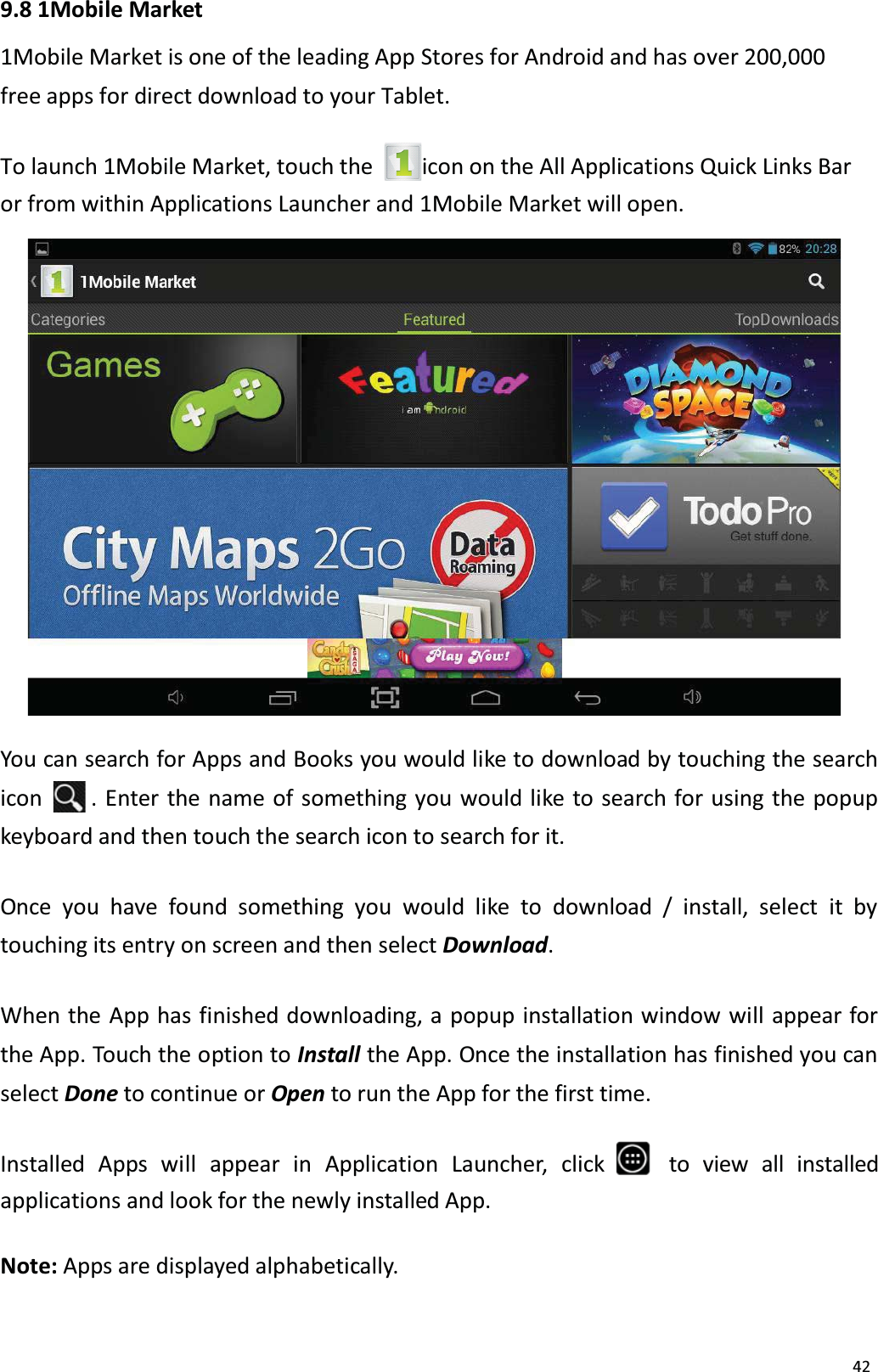
429.8 1Mobile Market1Mobile Market is one of the leading App Stores for Android and has over 200,000free apps for direct download to your Tablet. To launch 1Mobile Market, touch the  icon on the All Applications Quick Links Bar or from within Applications Launcher and 1Mobile Market will open. You can search for Apps and Books you would like to download by touching the searchicon . Enter the name of something you would like to search for using the popupkeyboard and then touch the search icon to search for it. Once you have found something you would like to download / install, select it by touching its entry on screen and then select Download. When the App has finished downloading, a popup installation window will appear forthe App. Touch the option to Install the App. Once the installation has finished you can select Done to continue or Open to run the App for the first time.Installed Apps  will  appear  in  Application  Launcher,  click to view all installed applications and look for the newly installed App. Note: Apps are displayed alphabetically.
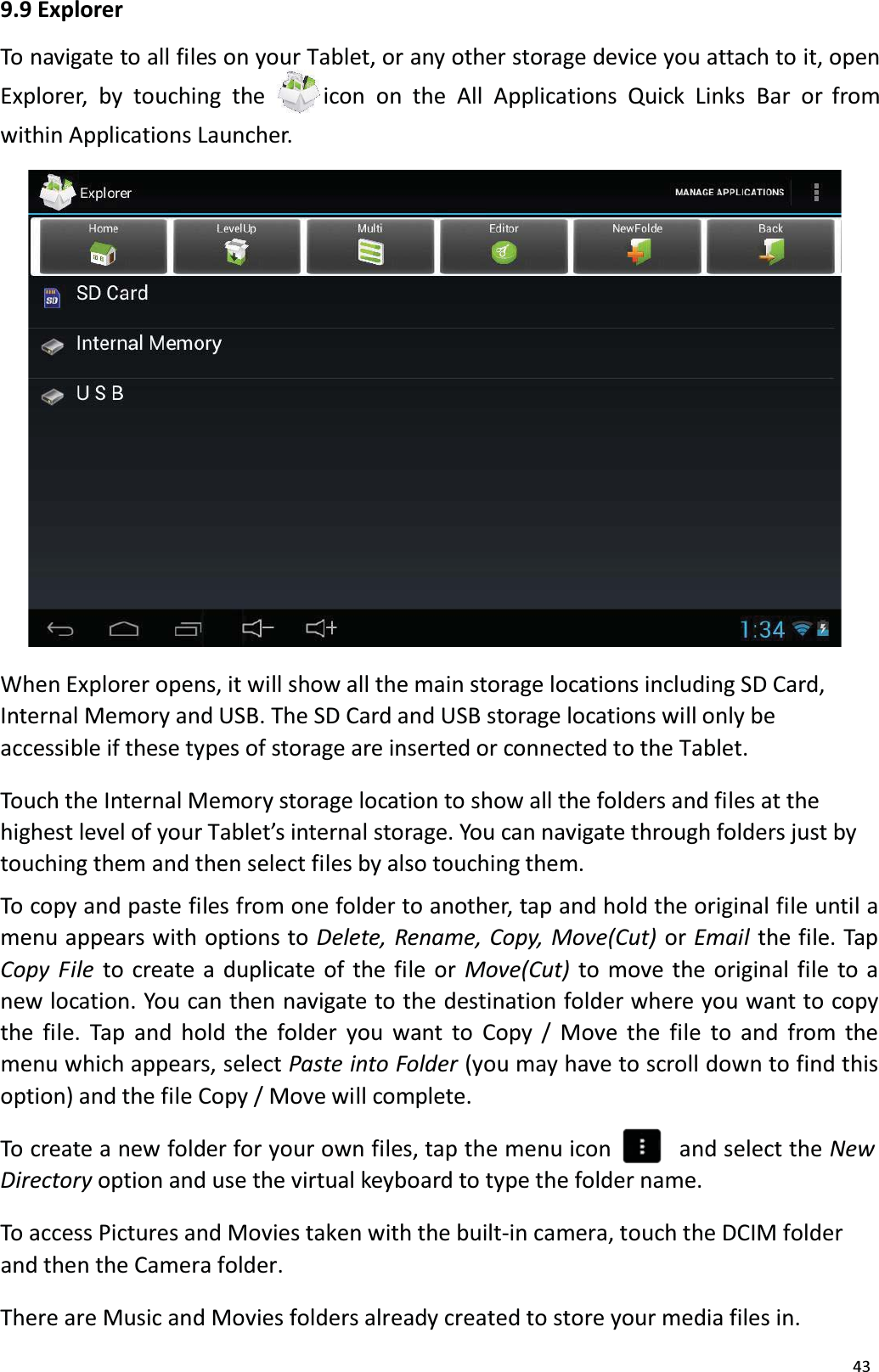
439.9 ExplorerTo navigate to all files on your Tablet, or any other storage device you attach to it, openExplorer, by touching the  icon on the All Applications Quick Links Bar or fromwithin Applications Launcher. When Explorer opens, it will show all the main storage locations including SD Card, Internal Memory and USB. The SD Card and USB storage locations will only beaccessible if these types of storage are inserted or connected to the Tablet. Touch the Internal Memory storage location to show all the folders and files at thehighest level of your Tablet’s internal storage. You can navigate through folders just by touching them and then select files by also touching them. To copy and paste files from one folder to another, tap and hold the original file until amenu appears with options to Delete, Rename, Copy, Move(Cut) or Email  the file. TapCopy File to create a duplicate of the file or Move(Cut)  to move the original file to anew location. You can then navigate to the destination folder where you want to copy the file. Tap and hold the folder you want to Copy / Move the file to and from the menu which appears, select Paste into Folder (you may have to scroll down to find thisoption) and the file Copy / Move will complete.To create a new folder for your own files, tap the menu icon    and select the NewDirectory option and use the virtual keyboard to type the folder name.To access Pictures and Movies taken with the built-in camera, touch the DCIM folderand then the Camera folder.There are Music and Movies folders already created to store your media files in.
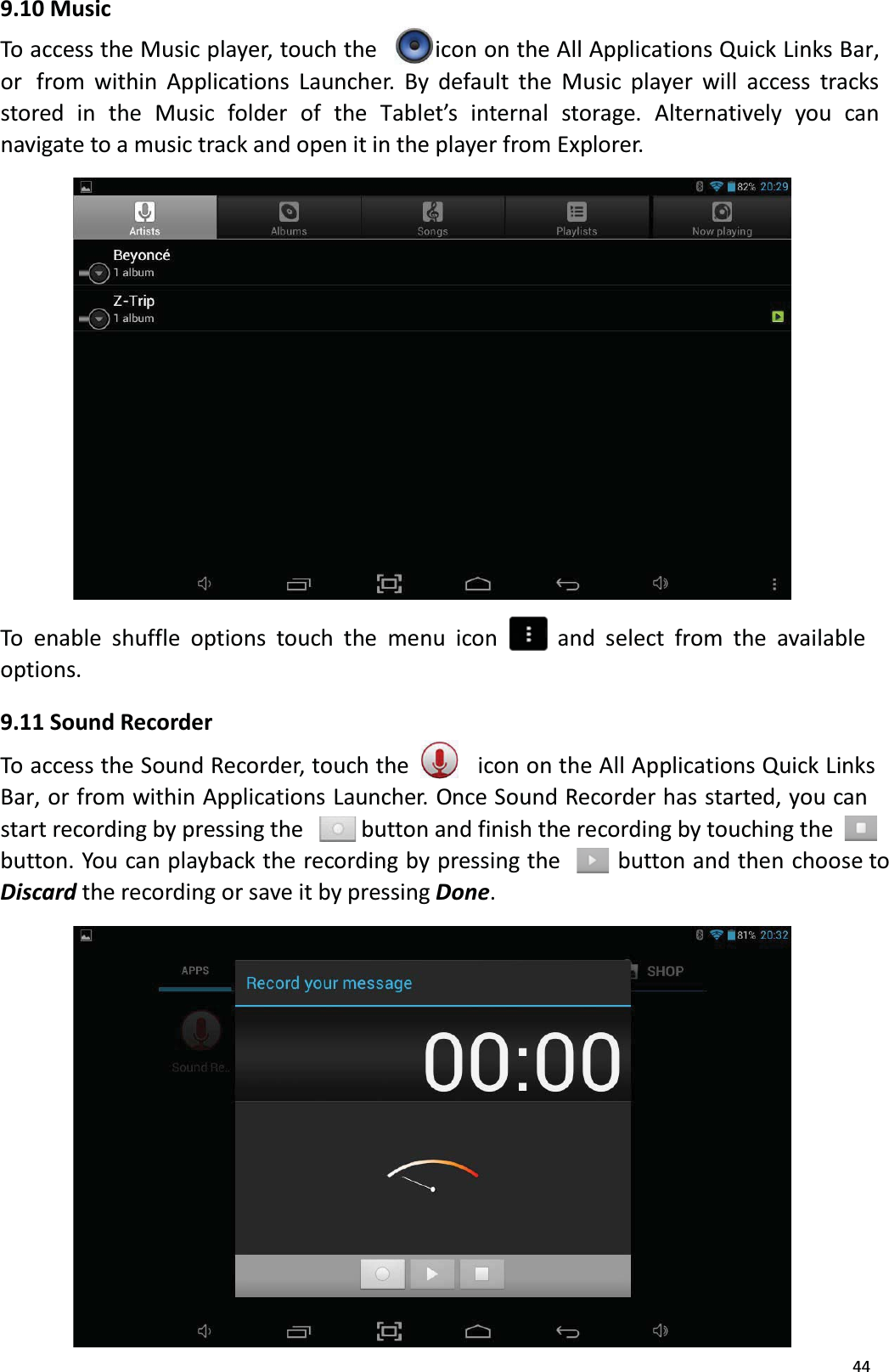
449.10 MusicTo access the Music player, touch the  icon on the All Applications Quick Links Bar, or  from within Applications Launcher. By default the Music player will access tracksstored in the Music folder of the Tablet’s internal storage. Alternatively you can navigate to a music track and open it in the player from Explorer. To enable shuffle options touch the menu icon and select from the available options.9.11 Sound RecorderTo access the Sound Recorder, touch the  icon on the All Applications Quick Links Bar, or from within Applications Launcher. Once Sound Recorder has started, you can start recording by pressing the button and finish the recording by touching the button. You can playback the recording by pressing the button and then choose toDiscard the recording or save it by pressing Done.
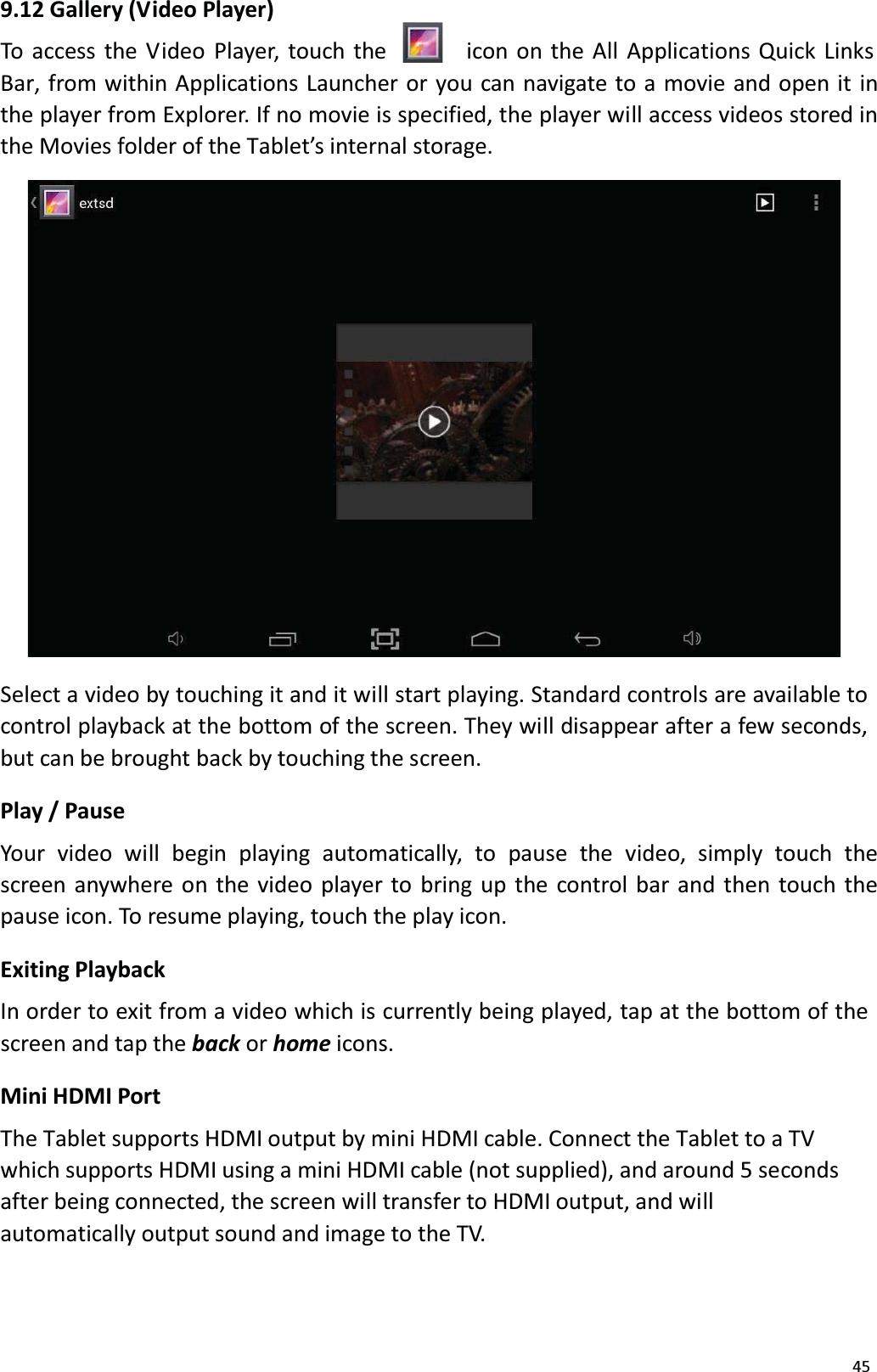
459.12 Gallery (V ideo Player)To access the Video Player, touch the  icon on the All Applications Quick LinksBar, from within Applications Launcher or you can navigate to a movie and open it in the player from Explorer. If no movie is specified, the player will access videos stored in the Movies folder of the Tablet’s internal storage. Select a video by touching it and it will start playing. Standard controls are available tocontrol playback at the bottom of the screen. They will disappear after a few seconds, but can be brought back by touching the screen. Play / PauseYour  video  will  begin  playing  automatically,  to  pause  the  video,  simply  touch  thescreen anywhere on the video player to bring up the control bar and then touch the pause icon. To resume playing, touch the play icon.Exiting PlaybackIn order to exit from a video which is currently being played, tap at the bottom of thescreen and tap the back or home icons.Mini HDMI PortThe Tablet supports HDMI output by mini HDMI cable. Connect the Tablet to a TVwhich supports HDMI using a mini HDMI cable (not supplied), and around 5 secondsafter being connected, the screen will transfer to HDMI output, and will automatically output sound and image to the TV.
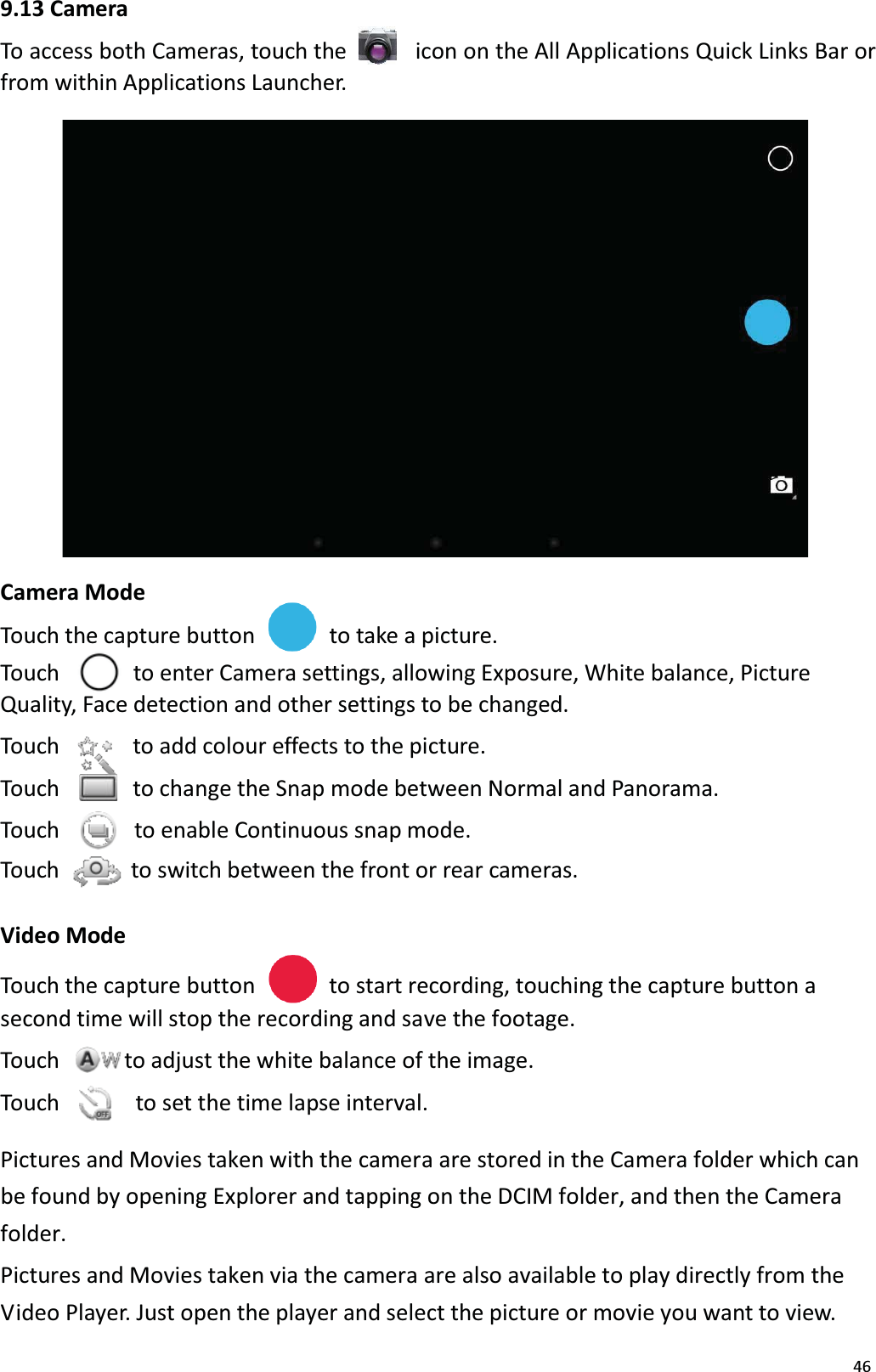
469.13 CameraTo access both Cameras, touch the  icon on the All Applications Quick Links Bar or from within Applications Launcher. Camera ModeTouch the capture button to take a picture.Touch to enter Camera settings, allowing Exposure, White balance, PictureQuality, Face detection and other settings to be changed.Touch  to add colour effects to the picture.Touch    to change the Snap mode between Normal and Panorama.Touch  to enable Continuous snap mode.Touch  to switch between the front or rear cameras.Video ModeTouch the capture button to start recording, touching the capture button a second time will stop the recording and save the footage.Touch to adjust the white balance of the image. Touch  to set the time lapse interval. Pictures and Movies taken with the camera are stored in the Camera folder which can be found by opening Explorer and tapping on the DCIM folder, and then the Camera folder. Pictures and Movies taken via the camera are also available to play directly from the Video Player. Just open the player and select the picture or movie you want to view.
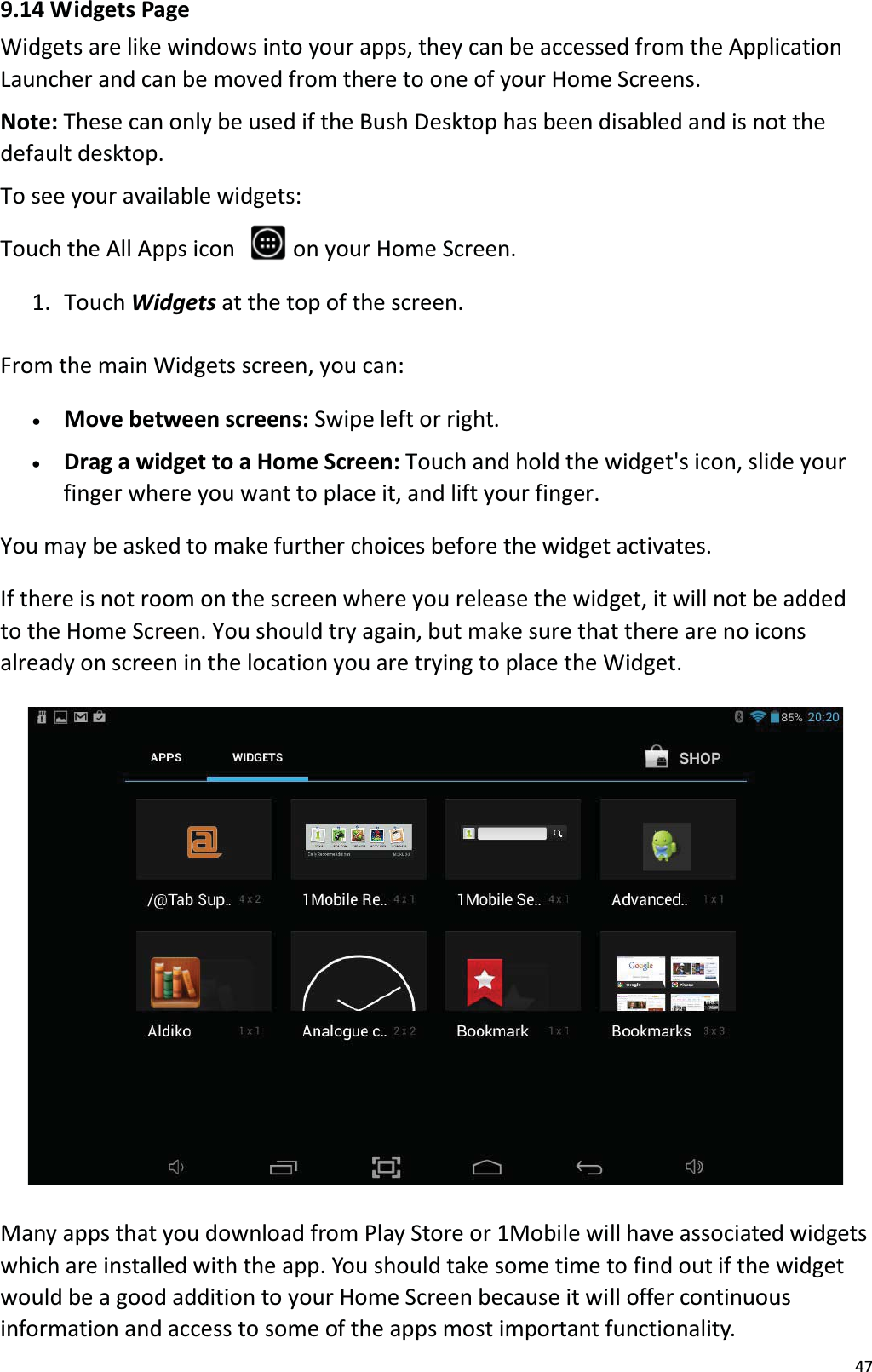
479.14 Widgets PageWidgets are like windows into your apps, they can be accessed from the ApplicationLauncher and can be moved from there to one of your Home Screens.Note: These can only be used if the Bush Desktop has been disabled and is not the default desktop.To see your available widgets:Touch the All Apps icon   on your Home Screen.1.  Touch Widgets at the top of the screen. From the main Widgets screen, you can: x   Move between screens: Swipe left or right. x    Drag a widget to a Home Screen: Touch and hold the widget's icon, slide your finger where you want to place it, and lift your finger. You may be asked to make further choices before the widget activates.If there is not room on the screen where you release the widget, it will not be addedto the Home Screen. You should try again, but make sure that there are no icons already on screen in the location you are trying to place the Widget.Many apps that you download from Play Store or 1Mobile will have associated widgetswhich are installed with the app. You should take some time to find out if the widgetwould be a good addition to your Home Screen because it will offer continuous information and access to some of the apps most important functionality.
481ײCopyrightAll rights reserved. No part of this manual may be reproduced, stored in a retrievalsystem, or transmiƩed in any form or by any means, electronic, mechanical,photocopying, recording or otherwise, without the prior written permission from thecopyright holder. According to copyright law, no recorded data may be used forpurposes other than personal enjoyment without permission from the copyrightholder.We hope you enjoy your product.dŚŝƐĚĞǀŝĐĞĐŽŵƉůŝĞƐǁŝƚŚWĂƌƚϭϱŽĨƚŚĞ&ZƵůĞƐ͘KƉĞƌĂƟŽŶŝƐƐƵďũĞĐƚƚŽƚŚĞĨŽůůŽǁŝŶŐƚǁŽĐŽŶĚŝƟŽŶƐ͗(1) This device may not cause harmful interference, and(2) This device must accept any interference received, including interference that may cause       undesiredFCC StatementFCC WARNINGdŚŝƐĚĞǀŝĐĞĐŽŵƉůŝĞƐǁŝƚŚWĂƌƚϭϱŽĨƚŚĞ&ZƵůĞƐ͘KƉĞƌĂƟŽŶŝƐƐƵďũĞĐƚƚŽƚŚĞĨŽůůŽǁŝŶŐƚǁŽĐŽŶĚŝƟŽŶƐ͗(1) This device may not cause harmful interference, and(2) This device must accept any interference received, including interference that may cause ƵŶĚĞƐŝƌĞĚŽƉĞƌĂƟŽŶ͘EKdϭ͗This equipment has been tested and found to comply with the limits for a Class B digital device, pursuant to part 15 of the FCC Rules. These limits are designed to provide reasonable ƉƌŽƚĞĐƟŽŶĂŐĂŝŶƐƚŚĂƌŵĨƵůŝŶƚĞƌĨĞƌĞŶĐĞŝŶĂƌĞƐŝĚĞŶƟĂůŝŶƐƚĂůůĂƟŽŶ͘dŚŝƐĞƋƵŝƉŵĞŶƚŐĞŶĞƌĂƚĞƐuses and can radiate radio frequency energy and, if not installed and used in accordance with ƚŚĞŝŶƐƚƌƵĐƟŽŶƐ͕ŵĂLJĐĂƵƐĞŚĂƌŵĨƵůŝŶƚĞƌĨĞƌĞŶĐĞƚŽƌĂĚŝŽĐŽŵŵƵŶŝĐĂƟŽŶƐ͘,ŽǁĞǀĞƌ͕ƚŚĞƌĞŝƐŶŽŐƵĂƌĂŶƚĞĞƚŚĂƚŝŶƚĞƌĨĞƌĞŶĐĞǁŝůůŶŽƚŽĐĐƵƌŝŶĂƉĂƌƟĐƵůĂƌŝŶƐƚĂůůĂƟŽŶ͘/ĨƚŚŝƐĞƋƵŝƉŵĞŶƚĚŽĞƐĐĂƵƐĞŚĂƌŵĨƵůŝŶƚĞƌĨĞƌĞŶĐĞƚŽƌĂĚŝŽŽƌƚĞůĞǀŝƐŝŽŶƌĞĐĞƉƟŽŶ͕ǁŚŝĐŚĐĂŶďĞĚĞƚĞƌŵŝŶĞĚďLJƚƵƌŶŝŶŐƚŚĞĞƋƵŝƉŵĞŶƚŽīĂŶĚŽŶ͕ƚŚĞƵƐĞƌŝƐĞŶĐŽƵƌĂŐĞĚƚŽƚƌLJƚŽĐŽƌƌĞĐƚƚŚĞŝŶƚĞƌĨĞƌĞŶĐĞďLJŽŶĞŽƌŵŽƌĞŽĨƚŚĞĨŽůůŽǁŝŶŐŵĞĂƐƵƌĞƐ͗- Reorient or relocate the receiving antenna.Ͳ/ŶĐƌĞĂƐĞƚŚĞƐĞƉĂƌĂƟŽŶďĞƚǁĞĞŶƚŚĞĞƋƵŝƉŵĞŶƚĂŶĚƌĞĐĞŝǀĞƌ͘ͲŽŶŶĞĐƚƚŚĞĞƋƵŝƉŵĞŶƚŝŶƚŽĂŶŽƵƚůĞƚŽŶĂĐŝƌĐƵŝƚĚŝīĞƌĞŶƚĨƌŽŵƚŚĂƚƚŽǁŚŝĐŚƚŚĞƌĞĐĞŝǀĞƌŝƐconnected.- Consult the dealer or an experienced radio/TV technician for help.EKdϮ͗The manufacturer is not responsible for any radio or TV interference caused by unauthorizedŵŽĚŝĮĐĂƟŽŶƐƚŽƚŚŝƐĞƋƵŝƉŵĞŶƚ͘^ƵĐŚŵŽĚŝĮĐĂƟŽŶƐĐŽƵůĚǀŽŝĚƚŚĞƵƐĞƌ͛ƐĂƵƚŚŽƌŝƚLJƚŽoperate the equipment.
491׳.  Warranty InformationOne year limited hardware warrantyThis product is covered by a one year warranty against defects in material andworkmanship. This warranty excludes the battery, which is covered by a six month warranty. This limited warranty applies only to the original end user customer of the product for so long as the original end user customer owns the product. This limited warranty is non-transferable. For all warranty issues please contact your place of purchase.Bush warrants to the original end user customer of its products specified below that itsproducts are free from defects in material and workmanship. Subject to the conditions and limitations set forth below, Bush will, at its option, either repair or replace any part of its products that prove defective by reason of improper workmanship ormaterials. Repaired parts or replacement products will be provided by Bush on an exchange basis, and will be either new or refurbished to be functionally equivalent tonew. If Bush is unable to repair or replace the product, it will refund the current value of the product at the time the warranty claim is made.This limited warranty does not cover any damage to this product that results from improper   installation, accident,  abuse,   misuse,   natural   disaster,   insufficient   or excessive electrical supply, abnormal mechanical or environmental conditions, or any unauthorized disassembly, repair, or modification. This limited warranty also does notapply to any product on which the original identification information has been altered,obliterated or removed, has not been handled or packaged correctly, has been sold assecond-hand or has been resold contrary to the US export regulations.This limited warranty covers only repair, replacement or refund for defective Bush products, as provided above. Bush is not liable for, and does not cover under warranty, any  loss  of  data  or  any  costs  associated  with  determining  the  source  of  system problems or removing, servicing or installing Bush products. This warranty excludes 3rd party software, connected equipment or stored data. In the event of a claim,Bush’s sole obligation shall be replacement of the hardware.The foregoing is the complete warranty for Bush products and supersedes all other warranties and representations, whether oral or written. except as expressly set forth above,  no  other  warranties  are  made  with  respect  to  Bush  products  and  Bush expressly disclaims all warranties not stated herein, including, to the extent permittedby applicable law, any warranty that may exist under national, state, provincial or local law including but not limited to any implied warranty of non-infringement,merchantability or fitness for a particular purpose.
50All warranties, whether express or implied, are limited to the periods of time set forth above. Some states or other jurisdictions do not allow the exclusion of impliedwarranties or limitations on how long an implied warranty lasts, so the abovelimitations may not apply to you.Bush products are not authorized for use as critical components in life supportequipment or for applications in which the failure or malfunction of the productswould create a situation in which personal injury or death is likely to occur. Bush shall not be liable for the death of any person or any loss, injury or damage to persons or property by use of products used in applications including, but not limited to, military or military-related equipment, traffic control equipment, disaster prevention systemsand medical or medical-related equipment. If such use is intended, contact Bush for components suitable for such applications.Bush’s total liability under this or any other warranty, express or implied, is limited torepair, replacement or refund. Repair, replacement or refund are the sole and exclusiveremedies for breach of warranty or any other legal theory. to the fullest extentpermitted by applicable law, Bush shall not be liable to the purchaser or end user customer of a Bush product for any damages, expenses, lost data, lost revenues, lostsavings, lost profits, or any other incidental or consequential damages arising from the purchase, use or inability to use the Bush product, even if Bush has been advised ofthe possibility of such damages. Some states or other jurisdictions do not allow the exclusion  or  limitation  of incidental  or  consequential  damages,  so  the  above limitations or exclusions may not apply to you.This limited warranty gives you specific legal rights, and you may also have other rightswhich vary from state to state or jurisdiction to jurisdiction.With regards to citizens of countries that are members of the European Union, if this product is purchased by a consumer and not in the course of a business, this warranty shall not affect your statutory rights as a consumer. This disclaimer does not purport tolimit or exclude Bush’s liability for death or injury caused by its negligence or for fraudulent misrepresentation.
51Limitation of warrantyThe above warranty shall not apply to defects resulting from:misuse; unauthorized modification; opening for any reason; operation or storageoutside the environmental specifications for the product; in-transit damage; improper maintenance; physical damage to the unit, such as a cracked or broken screen or defect resulting from use software, accessories, media, supplies, consumables, or suchitems not designed for use with the product.There is no other express warranty, whether written or oral, with respect to this product.Any implied warranty of merchantability or fitness for a particular purpose is limited tothe one-year duration of this written warranty. Some states, provinces, or countries do not allow limitations on how long an impliedwarranty lasts, so the above limitation or exclusion may not apply to you.This warranty gives your specific legal rights, and you may also have other rights thatvary from state to state, province to province, or country to country. All information is subject to change without notice.
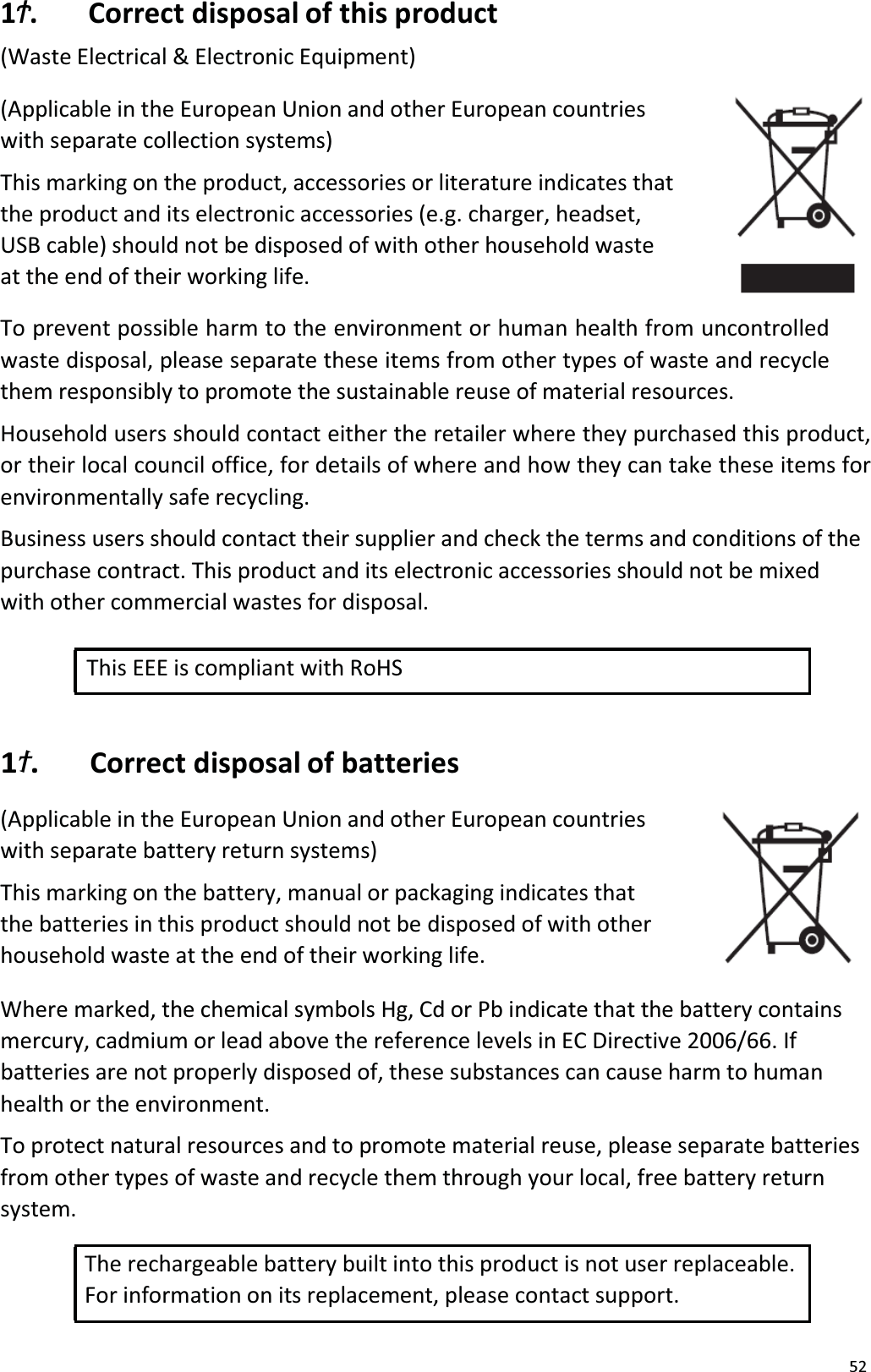
521״. Correct disposal of this product(Waste Electrical & Electronic Equipment)(Applicable in the European Union and other European countrieswith separate collection systems)This marking on the product, accessories or literature indicates that the product and its electronic accessories (e.g. charger, headset, USB cable) should not be disposed of with other household wasteat the end of their working life. To prevent possible harm to the environment or human health from uncontrolled waste disposal, please separate these items from other types of waste and recycle them responsibly to promote the sustainable reuse of material resources. Household users should contact either the retailer where they purchased this product, or their local council office, for details of where and how they can take these items forenvironmentally safe recycling. Business users should contact their supplier and check the terms and conditions of thepurchase contract. This product and its electronic accessories should not be mixedwith other commercial wastes for disposal. This EEE is compliant with RoHS 1׵. Correct disposal of batteries(Applicable in the European Union and other European countrieswith separate battery return systems)This marking on the battery, manual or packaging indicates that the batteries in this product should not be disposed of with other household waste at the end of their working life.Where marked, the chemical symbols Hg, Cd or Pb indicate that the battery contains mercury, cadmium or lead above the reference levels in EC Directive 2006/66. Ifbatteries are not properly disposed of, these substances can cause harm to humanhealth or the environment.To protect natural resources and to promote material reuse, please separate batteries from other types of waste and recycle them through your local, free battery returnsystem. The rechargeable battery built into this product is not user replaceable. For information on its replacement, please contact support.
531׶.  DisclaimerSome content and services accessible through this device belong to third parties andare protected by copyright, patent, trademark and / or other intellectual property laws. Such content and services are provided solely for your personal non-commercial use. You may not use any content or services in a manner that has not been authorised by the content owner or service provider. Without limiting the foregoing, unless expressly authorised by the applicable content owner or service provider, you may not modify, copy, republish, upload, post, transmit, translate, sell, create derivative works,exploit, or distribute in any manner or medium any content or services displayed through this device.Third party content and services are provided as is. Bush does not warrant the contentor services provided, this is neither expressed nor implied, for any purpose. Bush expressly disclaims any implied warranties, including but not limited to, warranties of merchantability or fitness for a particular purpose. Bush does not guarantee theaccuracy, validity, timeliness, legality, or completeness of any content or service madeavailable through this device and under no circumstances, including negligence, shall Bush be liable, whether in contract or tort, for any direct, indirect, incidental, special or consequential damages, attorney fees, expenses, or any other damages arising outof, or in connection with, any information contained in, or as a result of the use of any content or service by you or any third party, even if advised of the possibility of suchdamages.Third party services may be terminated or interrupted at any time, and Bush makes norepresentation or warranty that any content or service will remain available for any period of time. Content and services are transmitted by third parties by means of networks and transmission facilities over which Bush has no control. Without limitingthe generality of this disclaimer, Bush expressly disclaims any responsibility or liability for any interruption or suspension of any content or service made available through this device.Bush is neither responsible nor liable for customer service related to the content andservices. Any question or request for service relating to the content or services shouldbe made directly to the respective content and service providers.
18 FCC Warning Statement Changes or modifications not expressly approved by the party responsible for compliance could void the user's authority to operate the equipment. This equipment has been tested and found to comply with the limits for a Class B digital device, pursuant to Part 15 of the FCC Rules.    These limits are designed to provide reasonable protection against harmful interference in a residential installation. This equipment generates uses and can radiate radio frequency energy and, if not installed and used in accordance with the instructions, may cause harmful interference to radio communications.    However, there is no guarantee that interference will not occur in a particular installation.    If this equipment does cause harmful interference to radio or television reception, which can be determined by turning the equipment off and on, the user is encouraged to try to correct the interference by one or more of the following measures: -- Reorient or relocate the receiving antenna.     -- Increase the separation between the equipment and receiver.       -- Connect the equipment into an outlet on a circuit different from that to which the receiver is connected.   -- Consult the dealer or an experienced radio/TV technician for help
R370H

Navigation menu