Remington Security Camera CAM02420 Wireless Camera User Manual WL2002MON RevisedInstructionManual

Remington Security Camera Inc. Wireless Camera WL2002MON RevisedInstructionManual

users manual

WL2002MON  5.5” B/W Monitor w/ built in wireless Receiver   Important Safety Precautions      THIS DEVICE COMPLIES WITH PART 15 OF THE FCC RULES. OPERATION IS SUBJECT TO THE FOLLOWING TWO CONDITIONS, (1) THIS DEVICE MAY NOT CAUSE HARMFUL INTERFERENCE AND (2) THIS DEVICE MUST ACCEPT ANY INTERFERENCE RECEIVED, INCLUDING INTERFERENCE THAT MAY CAUSE UNDESIRED OPERATION,  NOTE : THE MANUFACTURER IS NOT RESPONSIBLE FOR ANY RADIO OR TV INTERFERENCE CAUSED BY UNAUTHORIZED MODIFICATIONS TO THIS EQUIPMENT. SUCH MODIFICATIONS COULD VOID THE USER’S AUTHORITY TO OPERATE THE EQUIPMENT.                                     1. HEED WARNINGS - All warnings on the appliance and in the operating     instructions should be adhered to.  2. FOLLOW INSTRUCTIONS - All operating instructions should be      followed.  3. WATER AND MOISTURE - Do not use this  video product near water -      for example, a bath tub, wash bowl, kitchen sink, laundry tub or swimming     pool, or in a wet basement.    4. POWER SOURCES - This product should be operated only from the type     of power source indicated on the marking label.   6. OVERLOADING - Do not overload outlets and extension cords, which     can result in a risk of fire or electric shock.  7. SERVICING - Do not attempt to service this product yourself.  Opening or     removing covers may expose you to dangerous voltage or other hazards.      Refer all servicing or repairs to qualified service personnel.
Index   1. Description of Box Contents 2. Connection and Setup   3. Installation 4. Operation 5. Specification
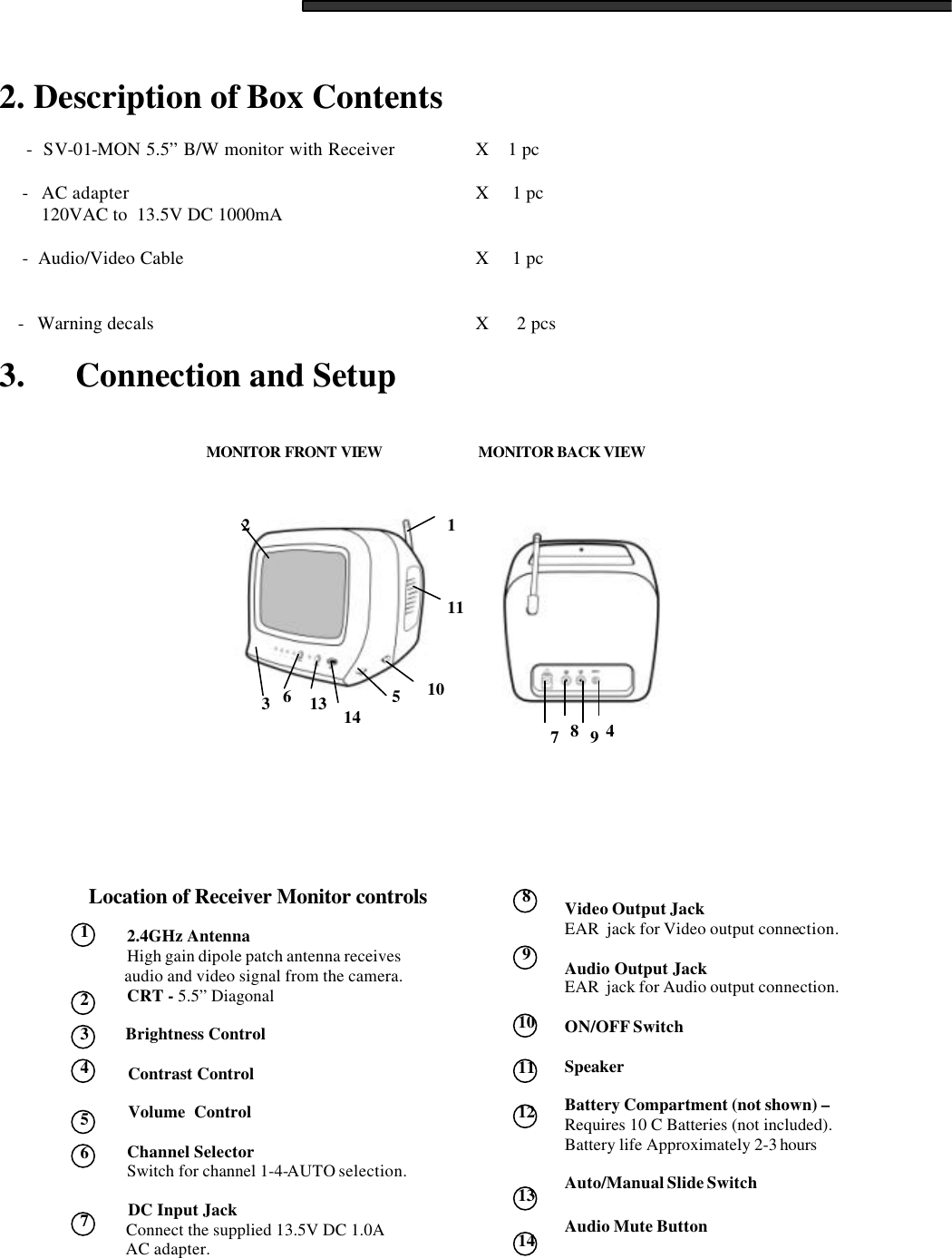
 2. Description of Box Contents        -  SV-01-MON 5.5” B/W monitor with Receiver     X    1 pc       -   AC adapter       X     1 pc          120VAC to  13.5V DC 1000mA        -  Audio/Video Cable       X     1 pc            -   Warning decals       X      2 pcs  3.      Connection and Setup                                            1   2   3   4   5   6   7 3211110514 13 67894MONITOR BACK VIEW  MONITOR FRONT VIEW  Location of Receiver Monitor controls           2.4GHz Antenna           High gain dipole patch antenna receives           audio and video signal from the camera.          CRT - 5.5” Diagonal           Brightness Control           Contrast Control            Volume  Control            Channel Selector           Switch for channel 1-4-AUTO selection.             DC Input Jack           Connect the supplied 13.5V DC 1.0A           AC adapter.  Video Output Jack   EAR  jack for Video output connection.  Audio Output Jack  EAR  jack for Audio output connection.  ON/OFF Switch  Speaker  Battery Compartment (not shown) – Requires 10 C Batteries (not included).  Battery life Approximately 2-3 hours    Auto/Manual Slide Switch  Audio Mute Button   8   9  10  11  12  13  14
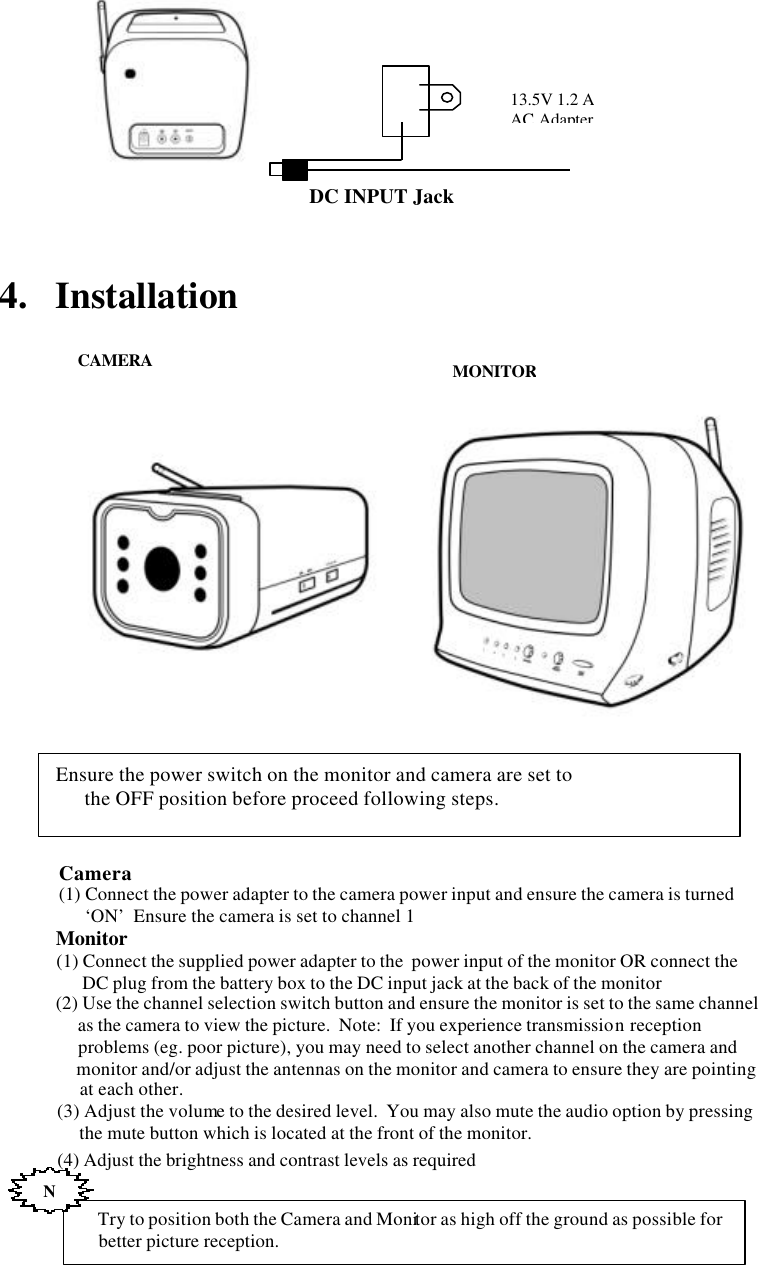
             4.   Installation                                          Ensure the power switch on the monitor and camera are set to        the OFF position before proceed following steps.        Try to position both the Camera and Monitor as high off the ground as possible for      better picture reception.  N    Camera     (1) Connect the power adapter to the camera power input and ensure the camera is turned                ‘ON’  Ensure the camera is set to channel 1    Monitor     (1) Connect the supplied power adapter to the  power input of the monitor OR connect the            DC plug from the battery box to the DC input jack at the back of the monitor     (2) Use the channel selection switch button and ensure the monitor is set to the same channel          as the camera to view the picture.  Note:  If you experience transmission reception           problems (eg. poor picture), you may need to select another channel on the camera and           monitor and/or adjust the antennas on the monitor and camera to ensure they are pointing           at each other.     (3) Adjust the volume to the desired level.  You may also mute the audio option by pressing           the mute button which is located at the front of the monitor.     (4) Adjust the brightness and contrast levels as required MONITORCAMERA DC INPUT Jack 13.5V 1.2 AAC Adapter
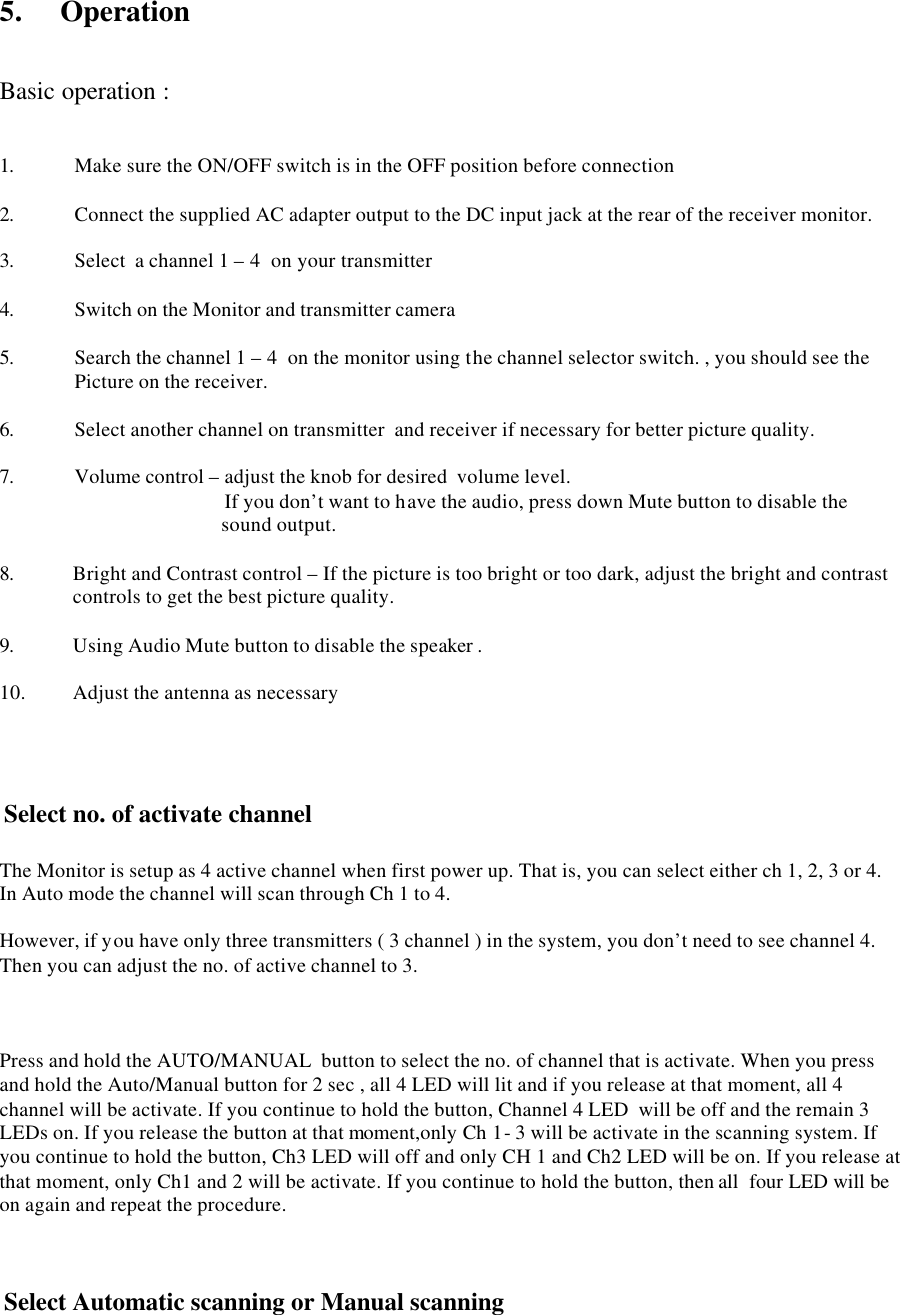
5.    Operation   Basic operation :   1. Make sure the ON/OFF switch is in the OFF position before connection  2. Connect the supplied AC adapter output to the DC input jack at the rear of the receiver monitor.   3. Select  a channel 1 – 4  on your transmitter  4. Switch on the Monitor and transmitter camera  5. Search the channel 1 – 4  on the monitor using the channel selector switch. , you should see the Picture on the receiver.  6. Select another channel on transmitter  and receiver if necessary for better picture quality.  7. Volume control – adjust the knob for desired  volume level.    If you don’t want to have the audio, press down Mute button to disable the sound output.  8. Bright and Contrast control – If the picture is too bright or too dark, adjust the bright and contrast controls to get the best picture quality.  9. Using Audio Mute button to disable the speaker .  10. Adjust the antenna as necessary      Select no. of activate channel   The Monitor is setup as 4 active channel when first power up. That is, you can select either ch 1, 2, 3 or 4. In Auto mode the channel will scan through Ch 1 to 4.  However, if you have only three transmitters ( 3 channel ) in the system, you don’t need to see channel 4. Then you can adjust the no. of active channel to 3.                Press and hold the AUTO/MANUAL  button to select the no. of channel that is activate. When you press and hold the Auto/Manual button for 2 sec , all 4 LED will lit and if you release at that moment, all 4 channel will be activate. If you continue to hold the button, Channel 4 LED  will be off and the remain 3 LEDs on. If you release the button at that moment,only Ch 1- 3 will be activate in the scanning system. If you continue to hold the button, Ch3 LED will off and only CH 1 and Ch2 LED will be on. If you release at that moment, only Ch1 and 2 will be activate. If you continue to hold the button, then all  four LED will be on again and repeat the procedure.     Select Automatic scanning or Manual scanning
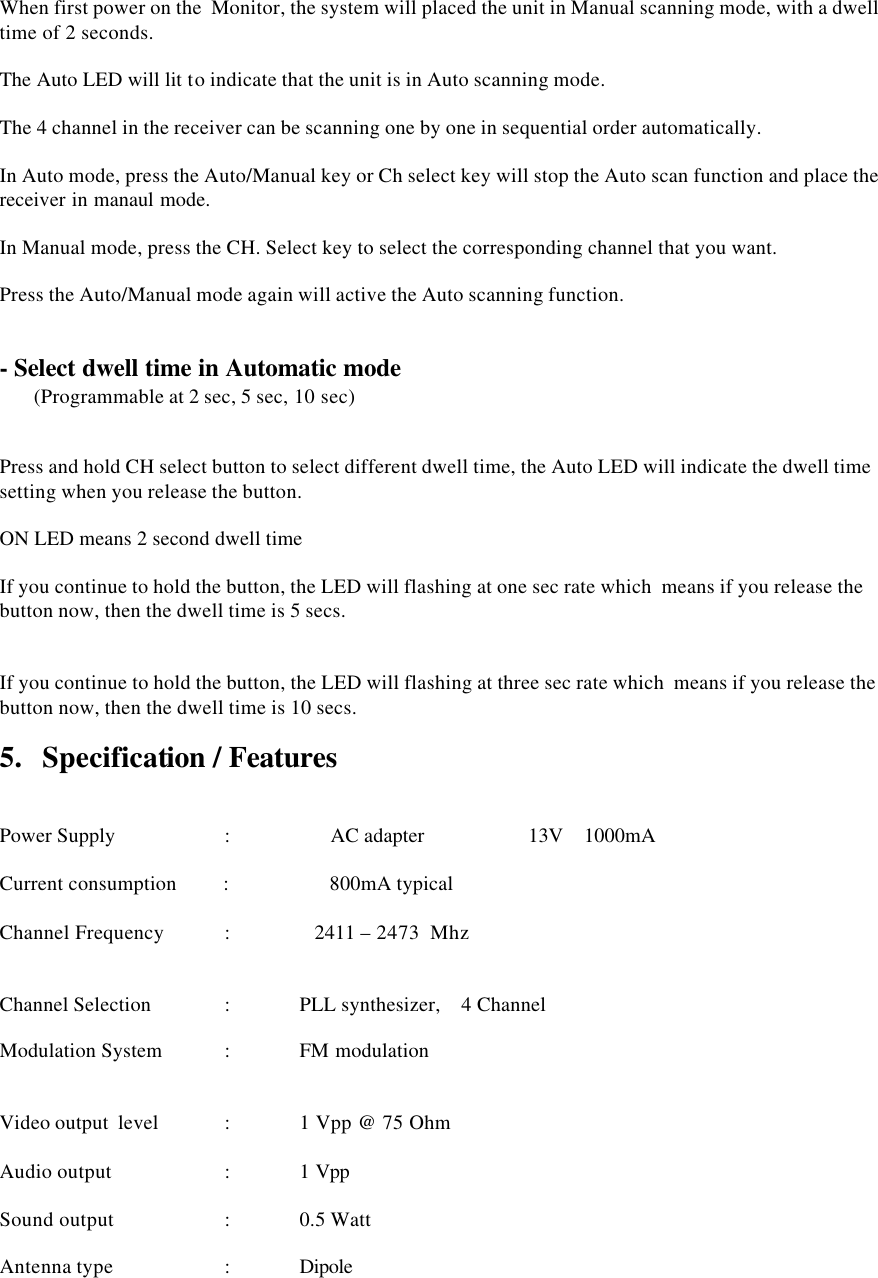
  When first power on the  Monitor, the system will placed the unit in Manual scanning mode, with a dwell time of 2 seconds.  The Auto LED will lit to indicate that the unit is in Auto scanning mode.  The 4 channel in the receiver can be scanning one by one in sequential order automatically.  In Auto mode, press the Auto/Manual key or Ch select key will stop the Auto scan function and place the receiver in manaul mode.  In Manual mode, press the CH. Select key to select the corresponding channel that you want.  Press the Auto/Manual mode again will active the Auto scanning function.   - Select dwell time in Automatic mode  (Programmable at 2 sec, 5 sec, 10 sec)     Press and hold CH select button to select different dwell time, the Auto LED will indicate the dwell time setting when you release the button.  ON LED means 2 second dwell time   If you continue to hold the button, the LED will flashing at one sec rate which  means if you release the button now, then the dwell time is 5 secs.     If you continue to hold the button, the LED will flashing at three sec rate which  means if you release the button now, then the dwell time is 10 secs.  5.   Specification / Features    Power Supply           :       AC adapter                    13V    1000mA               Current consumption         :       800mA typical    Channel Frequency  :    2411 – 2473  Mhz          Channel Selection       : PLL synthesizer,    4 Channel   Modulation System    : FM modulation   Video output  level  : 1 Vpp @ 75 Ohm  Audio output    : 1 Vpp   Sound output     : 0.5 Watt  Antenna type         : Dipole

Navigation menu