Ricoh Is 2235 Users Manual
IS 2245 B1986508
IS 2245 to the manual 66dc8e5d-6c7f-412f-8817-1e8200495811
2015-01-23
: Ricoh Ricoh-Is-2235-Users-Manual-274912 ricoh-is-2235-users-manual-274912 ricoh pdf
Open the PDF directly: View PDF  .
.
Page Count: 196 [warning: Documents this large are best viewed by clicking the View PDF Link!]
Paper type: OK Prince Eco G100(55kg), Paper Thickness=80 µm // Pages in book=192 // Print scale=81%
Gap (when printed at 81% scale) = Pages in book × Paper thickness / 2 = 7.680000 mm
Operating Instructions General Settings Guide
B1986508
Operating Instructions General Settings Guide
Operating Instructions
General Settings Guide
Read this manual carefully before you use this machine and keep it handy for future reference. For safe and correct use, be sure to read the
Safety Information in this manual before using the machine.
Getting Started
Combined Function Operations
Document Server
User Tools (System Settings)
Registering Addresses and Users for Facsimile/Scanner Functions
Troubleshooting
Remarks
Entering Text
Specifications
1
2
3
4
5
6
7
8
9
Type for DSm735/LD235/Aficio 3035/IS 2235
Type for DSm745/LD245/Aficio 3045/IS 2245
Printed in China
AE AE B198-6508
Paper type: OK Prince Eco G100(55kg), Paper Thickness=80 µm // Pages in book=192 // Print scale=81%
Gap (when printed at 81% scale) = Pages in book × Paper thickness / 2 = 7.680000 mm
In accordance with IEC 60417, this machine uses the following symbols for the main power switch:
a means POWER ON.
c means STAND BY.
Introduction
This manual contains detailed instructions and notes on the operation and use of this machine. For your
safety and benefit, read this manual carefully before using the machine. Keep this manual in a handy
place for quick reference.
Important
Contents of this manual are subject to change without prior notice. In no event will the company be li-
able for direct, indirect, special, incidental, or consequential damages as a result of handling or oper-
ating the machine.
Notes:
Some illustrations in this manual might be slightly different from the machine.
Certain options might not be available in some countries. For details, please contact your local dealer.
Laser Safety:
This machine is considered a class 1 laser device, safe for office/EDP use. The machine contains two
GaAIAs laser diodes, 5-milliwatt, 760-800 nanometer wavelength for each emitter. Direct (or indirect
reflected ) eye contact with the laser beam might cause serious eye damage. Safety precautions and
interlock mechanisms have been designed to prevent any possible laser beam exposure to the opera-
tor.
The following label is attached on the back side of the machine.
Caution:
Use of controls or adjustments or performance of procedures other than those specified in this manual
might result in hazardous radiation exposure.
Notes:
The model names of the machines do not appear in the following pages. Check the type of your ma-
chine before reading this manual. (For details, see p.14 “Machine Types”.)
• Type 1: DSm735/LD235/Aficio 3035/IS 2235
• Type 2: DSm745/LD245/Aficio 3045/IS 2245
Certain types might not be available in some countries. For details, please contact your local dealer.
Two kinds of size notation are employed in this manual. With this machine refer to the metric version.
For good copy quality, the supplier recommends that you use genuine toner from the supplier.
The supplier shall not be responsible for any damage or expense that might result from the use of parts
other than genuine parts from the supplier with your office products.
Power Source
220 - 240V, 50/60Hz, 8A or more
Please be sure to connect the power cord to a power source as above. For details about power source,
see p.153 “Power Connection”.
Copyright © 2005

i
Manuals for This Machine
The following manuals describe the operational procedures of this machine. For
particular functions, see the relevant parts of the manual.
Note
❒Manuals provided are specific to machine type.
❒Adobe Acrobat Reader/Adobe Reader is necessary to view the manuals as a
PDF file.
❒Two CD-ROMs are provided:
• CD-ROM 1 “Operating Instructions”
• CD-ROM 2 “Scanner Driver and Document Management Utility”
❖General Settings Guide (this manual)
Provides an overview of the machine and describes System Settings (such as
Tray Paper Settings), Document Server functions, and troubleshooting.
Refer to this manual for Address Book procedures such as registering fax
numbers, e-mail addresses, and user codes.
❖Security Reference
This manual is for administrators of this machine. It describes security func-
tions that the administrators can use to protect data from being tampered, or
prevent the machine from unauthorized use.
Also refer to this manual for the procedures for registering administrators, as
well as setting user and administrator authentication.
❖Network Guide (PDF file - CD-ROM1)
Provides information about configuring and operating the printer in a net-
work environment or using software.
This manual covers all models, and therefore contains functions and settings
that may not be available for your model. Images, illustrations, functions, and
supported operating systems may differ from those of your model.
❖Copy Reference
Describes operations, functions, and troubleshooting for the machine's copier
function.
❖Facsimile Reference <Basic Features>
Describes operations, functions, and troubleshooting for the machine's fac-
simile function.
❖Facsimile Reference <Advanced Features>
Describes advanced facsimile functions such as line settings and procedures
for registering IDs.
❖Printer Reference
Describes system settings, operations, functions, and troubleshooting for the
machine's printer function.
AdonisC4-AE_zen_F_FM_forPaper.book Page i Thursday, May 12, 2005 3:32 PM
ii
❖Scanner Reference (PDF file - CD-ROM1)
Describes operations, functions, and troubleshooting for the machine's scan-
ner function.
❖Manuals for DeskTopBinder Lite
DeskTopBinder Lite is a utility included on the CD-ROM labeled “Scanner
Driver and Document Management Utility”.
• DeskTopBinder Lite Setup Guide (PDF file - CD-ROM2)
Describes installation of, and the operating environment for DeskTop-
Binder Lite in detail. This guide can be displayed from the [Setup] display
when DeskTopBinder Lite is installed.
• DeskTopBinder Introduction Guide (PDF file - CD-ROM2)
Describes operations of DeskTopBinder Lite and provides an overview of
its functions. This guide is added to the [Start] menu when DeskTopBinder
Lite is installed.
• Auto Document Link Guide (PDF file - CD-ROM2)
Describes operations and functions of Auto Document Link installed with
DeskTopBinder Lite. This guide is added to the [Start] menu when Desk-
TopBinder Lite is installed.
❖Other manuals
• PS3 Supplement (PDF file - CD-ROM1)
• Unix Supplement (Available from an authorized dealer, or as a PDF file on
our Web site.)
AdonisC4-AE_zen_F_FM_forPaper.book Page ii Thursday, May 12, 2005 3:32 PM
iii
What You Can Do with This Machine
The following introduces the functions of this machine, and the relevant manu-
als containing detailed information about them.
Products marked with * are optional. For details about optional products, see
p.17 “Options”, or contact your local dealer.
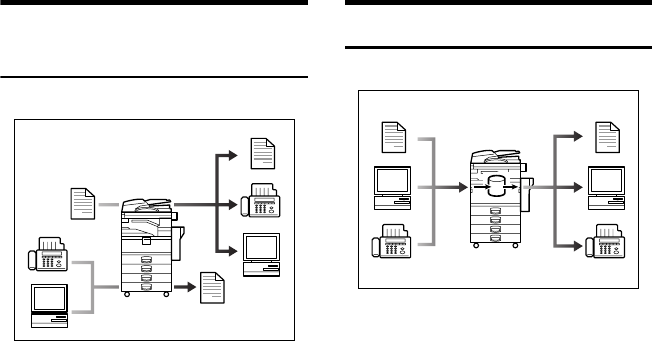
Copier, Facsimile, Printer, and
Scanner Functions
This machine provides copier, fac-
simile*, printer*, and scanner* func-
tions.
• You can make copies of originals.
With a finisher*, you can sort and
staple copies. See Copy Reference.
• You can send originals by fax or e-
mail, and receive faxes from other
parties. See Facsimile Reference <Ba-
sic Features>, and Facsimile Refer-
ence <Advanced Features>.
• You can print documents created
in computer applications. See
Printer Reference .
• You can scan originals and send
scan files to a computer. See Scan-
ner Reference.
Utilizing Stored Documents
• You can store files scanned by this
machine, or files sent from other
fax machine or computers, into the
machine's hard disk. You can print
and fax stored files as required.
You can also change print settings
and print multiple documents
(Document Server). See p.35 “Us-
ing the Document Server”.
• With DeskTopBinder Profession-
al*/Lite, you can search, check,
print, and delete stored documents
using your computer. You can also
retrieve stored documents scanned
in scanner mode. With file format
converter*, you can even down-
load documents stored in copy and
printer functions to your compu-
ter. See Network Guide and Scanner
Reference.
AHT002S
GCKONN2J
AdonisC4-AE_zen_F_FM_forPaper.book Page iii Thursday, May 12, 2005 3:32 PM
iv
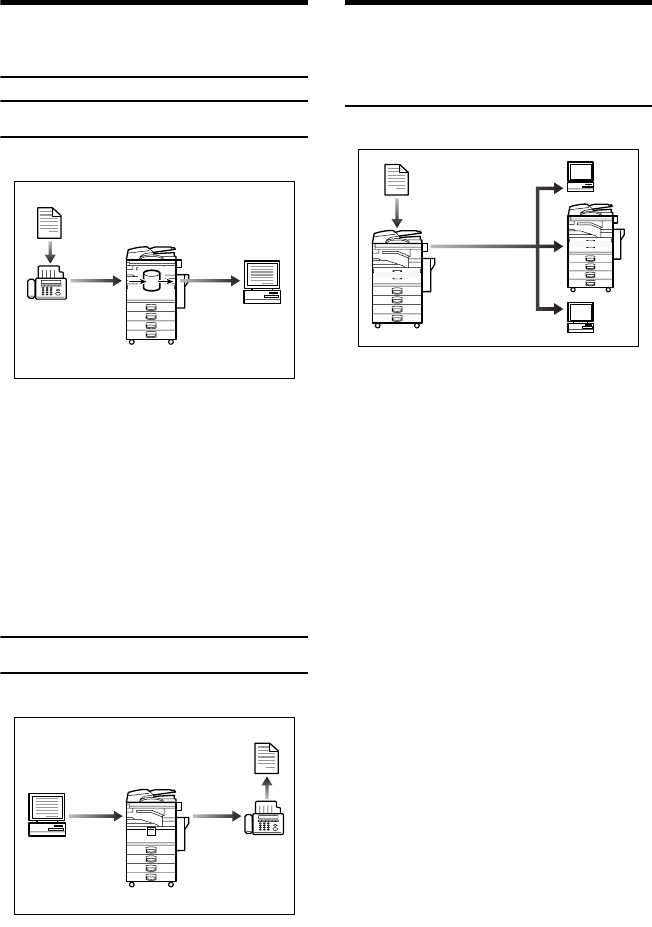
Paperless Fax Transmission
and Reception
Reception
• You can store received fax messag-
es on the machine's hard disk, in-
stead of printing them onto paper.
You can use DeskTopBinder Pro-
fessional or Web Image Monitor to
check, print, delete, retrieve, or
download documents using your
computer (Storing received docu-
ments). See Facsimile Reference
<Advanced Features>.
Transmission
• You can send documents created
in computer applications to anoth-
er party's fax machine directly,
without performing a print job
(LAN-Fax). See Facsimile Reference
<Advanced Features>.
Fax Transmission and
Reception Through the
Internet
•
You can send fax documents through
e-mail by specifying the recipient’s
e-mail address (Internet Fax Trans-
mission).
You can receive sent documents
via Internet Fax, or from comput-
ers (Internet Fax Reception).
See Facsimile Reference<Basic Fea-
tures>.
• You can send faxes by using data
such as the IP address to specify
the IP-Fax destination (IP-Fax
Transmission).
The transmitted files can be re-
ceived using an Internet fax ma-
chine (IP-Fax Reception). See
Facsimile Reference <Basic Features>.
GCKONN3J
AHT003S
xxx@xxx.com
xxx@xxx.com
GCKONN8J
AdonisC4-AE_zen_F_FM_forPaper.book Page iv Thursday, May 12, 2005 3:32 PM
v
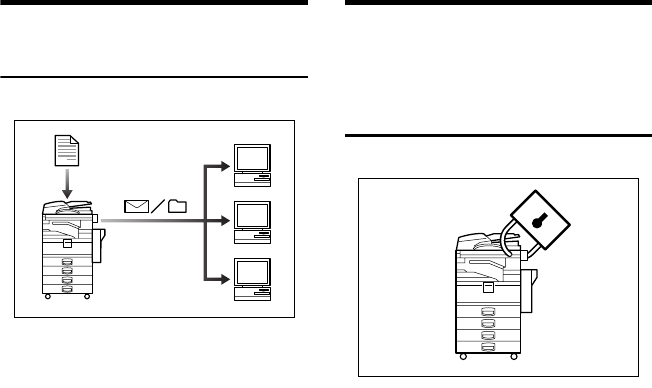
Using the Scanner in a
Network Environment
• You can send scan files to a speci-
fied destination using e-mail
(Sending scan file by e-mail). See
Scanner Reference.
• With ScanRouter delivery soft-
ware, you can save scan files in
specified destinations on network
computers (Using the network de-
livery scanner function). See Scan-
ner Reference.
• You can send scan files directly to
folders (Sending scan file by Scan
to Folder). See Scanner Reference.
Administrating the
Machine/Protecting
Documents (Security
Functions)
• You can protect documents from
unauthorized access and stop
them from being copied without
permission. See Security Reference.
• You can control the use of the ma-
chine, as well as prevent machine
settings from being changed with-
out authorization. See Security Ref-
erence.
• By setting passwords, you can pre-
vent unauthorized access via the
network. See Security Reference.
• You can erase the data on the hard
disk to prevent the information
from leaking out. See the manual
for the DataOverWriteSecurity
Unit* and Security Reference.
AHT005S
AHT006S
AdonisC4-AE_zen_F_FM_forPaper.book Page v Thursday, May 12, 2005 3:32 PM
vi
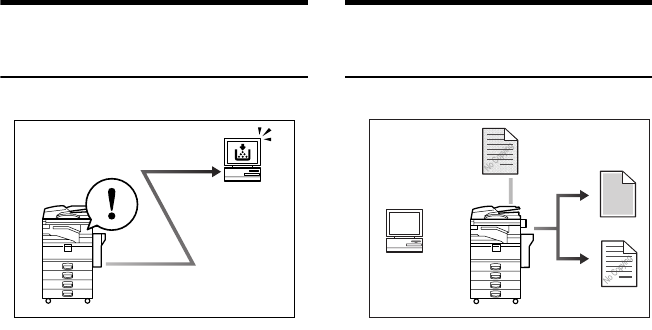
Monitoring the Machine Via
Computer
You can monitor machine status and
change settings using a computer.
• Using SmartDeviceMonitor for
Admin, SmartDeviceMonitor for
Client, or Web Image Monitor, you
can use a computer to view the ma-
chine's status, such as to check on
paper quantities, or misfeeds, etc.
See Network Guide.
• You can use Web Image Monitor to
make network settings. See Net-
work Guide.
• You can also use Web Image Mon-
itor to register and manage items
such as user codes, fax numbers, e-
mail addresses, and folders in the
Address Book. See the Web Image
Monitor's Help.
• Using Web Image Monitor, you
can receive e-mails notifying you
when toner runs out or a paper
misfeed occurs. See the Web Image
Monitor Help.
• Using Web Image Monitor, you
can receive information on the ma-
chine status via e-mail. See the
Web Image Monitor Help.
Preventing an Unauthorized
Copy
• Using the printer driver, you can
embed a pattern in the printed
document. If the document is cop-
ied on a machine with the Copy
Data Security Unit(*), protected
pages are grayed out in the copy,
preventing confidential informa-
tion from being copied. If the doc-
ument is copied on a machine
without the Copy Data Security
Unit(*), the hidden text becomes
conspicuous in the copy, showing
that the copy is unauthorized. See
the printer driver Help and Printer
Reference.
• Using the printer driver, you can
embed text in the printed docu-
ment for unauthorized copy pre-
vention. If the document is copied,
scanned, or stored in a Document
Server by a copier or multifunction
printer, the embedded text ap-
pears conspicuous in the copy, dis-
couraging such unauthorized
copying. See the printer driver
Help and Printer Reference.
• If a document protected by unau-
thorized copy guard is copied on a
machine that is equipped with the
Copy Data Security Unit (*), the
machine beeps to notify users that
unauthorized copying is being at-
tempted. See Security Reference.
AHT007S AHU004S
AdonisC4-AE_zen_F_FM_forPaper.book Page vi Thursday, May 12, 2005 3:32 PM

vii
TABLE OF CONTENTS
Manuals for This Machine ......................................................................................i
What You Can Do with This Machine.................................................................. iii
Copier, Facsimile, Printer, and Scanner Functions................................................... iii
Utilizing Stored Documents....................................................................................... iii
Paperless Fax Transmission and Reception............................................................. iv
Fax Transmission and Reception Through the Internet ............................................ iv
Using the Scanner in a Network Environment ........................................................... v
Administrating the Machine/Protecting Documents (Security Functions) .................. v
Monitoring the Machine Via Computer...................................................................... vi
Preventing an Unauthorized Copy ............................................................................ vi
Copyrights and Trademarks ................................................................................. 1
Trademarks ................................................................................................................1
Information about Installed Software..........................................................................2
How to Read This Manual .....................................................................................8
Safety Information .................................................................................................9
Safety During Operation............................................................................................. 9
Positions of RWARNING and RCAUTION labels ............................................ 11
ENERGY STAR Program .....................................................................................12
Machine Types .....................................................................................................14
1. Getting Started
Guide to Components .........................................................................................15
Options ................................................................................................................. 17
External Options.......................................................................................................17
Internal Options........................................................................................................18
Control Panel........................................................................................................19
Display Panel ...........................................................................................................21
When the Authentication Screen is displayed..........................................................22
Turning On the Power .........................................................................................23
Turning On the Main Power .....................................................................................23
Turning On the Power .............................................................................................. 24
Turning Off the Power .............................................................................................. 24
Turning Off the Main Power .....................................................................................24
Saving Energy..........................................................................................................25
2. Combined Function Operations
Changing Modes ..................................................................................................27
Multi-Access.........................................................................................................29
AdonisC4-AE_zen_F_FM_forPaper.book Page vii Thursday, May 12, 2005 3:32 PM
viii
3. Document Server
Relationship between the Document Server and Other Functions.................33
Document Server Display ........................................................................................34
Using the Document Server................................................................................ 35
Storing Data .............................................................................................................35
Changing Stored Document's File Name, User Name, or Password.......................38
Searching for Stored Documents .............................................................................39
Printing Stored Documents ...................................................................................... 40
Deleting Stored Documents .....................................................................................43
Viewing Stored Documents Using Web Image Monitor ...........................................44
Downloading Stored Documents.............................................................................. 44
Settings for the Document Server...................................................................... 45
4. User Tools (System Settings)
User Tools Menu (System Settings)...................................................................47
Accessing User Tools (System Settings) ..........................................................50
Changing Default Settings .......................................................................................50
Quitting User Tools .................................................................................................. 50
Settings You Can Change with User Tools .......................................................51
General Features .....................................................................................................51
Tray Paper Settings .................................................................................................55
Timer Settings ..........................................................................................................58
Administrator Tools ..................................................................................................61
5. Registering Addresses and Users for Facsimile/Scanner
Functions
Address Book.......................................................................................................69
Registering Names ..............................................................................................72
Registering a Name .................................................................................................72
Changing a Registered Name..................................................................................73
Deleting a Registered Name ....................................................................................73
Authentication Information ................................................................................. 74
Registering a New User Code..................................................................................74
Changing a User Code.............................................................................................75
Deleting a User Code...............................................................................................76
Displaying the Counter for Each User Code ............................................................76
Printing the Counter for Each User Code.................................................................76
Clearing the Number of Prints..................................................................................77
Fax Destination .................................................................................................... 78
Registering a Fax Destination ..................................................................................79
Changing a Registered Fax Destination ..................................................................81
Deleting a Registered Fax Destination.....................................................................82
Registering an IP-Fax Destination ...........................................................................83
Changing a Registered IP-Fax Destination..............................................................84
Deleting a Registered IP-Fax Destination ................................................................85
E-mail Destination................................................................................................86
Registering an E-mail Destination............................................................................86
Changing a Registered E-mail Destination ..............................................................87
Deleting a Registered E-mail Destination ................................................................88
AdonisC4-AE_zen_F_FM_forPaper.book Page viii Thursday, May 12, 2005 3:32 PM

ix
Registering Folders .............................................................................................89
Using SMB to Connect.............................................................................................89
Using FTP to Connect..............................................................................................93
Using NCP to Connect.............................................................................................96
Registering Names to a Group .........................................................................100
Registering a New Group....................................................................................... 100
Registering Names to a Group...............................................................................101
Displaying Names Registered in Groups ............................................................... 101
Removing a Name from a Group ........................................................................... 102
Changing a Group Name .......................................................................................102
Deleting a Group ....................................................................................................103
Adding a Group to Another Group .........................................................................103
Deleting a Group within a Group............................................................................103
Registering a Protection Code ......................................................................... 105
Registering a Protection Code To a Single User ...................................................105
Registering a Protection Code To a Group User ...................................................106
Registering the Transfer Request ....................................................................107
Registering a Transfer Station/Receiving Station ..................................................107
Changing a Registered Transfer Station/Receiving Station...................................109
Deleting a Registered Transfer Station/Receiving Station ..................................... 110
Registering Authentication ...............................................................................111
SMTP Authentication .............................................................................................111
LDAP Authentication .............................................................................................. 112
6. Troubleshooting
If Your Machine Does Not Operate As You Want............................................115
General .................................................................................................................. 115
Document Server ...................................................................................................118
B Loading Paper ...............................................................................................119
Loading Paper into Paper Trays ............................................................................119
Loading Paper into Large Capacity Tray (optional)................................................119
D Adding Toner.................................................................................................122
Removing Toner.................................................................................................123
Inserting Toner...................................................................................................124
x Clearing Misfeeds .........................................................................................125
Changing the Paper Size...................................................................................134
Changing the Paper Size of the Paper Tray .........................................................134
d Adding Staples..............................................................................................137
1000-Sheet Finisher...............................................................................................137
2 Tray Finisher .......................................................................................................138
Booklet Finisher ..................................................................................................... 140
Removing Jammed Staples ..............................................................................142
1000-Sheet Finisher...............................................................................................142
2 Tray Finisher .......................................................................................................143
Booklet Finisher ..................................................................................................... 144
y Removing Punch Waste ............................................................................... 146
Replacing the Stamp Cartridge ........................................................................ 147
AdonisC4-AE_zen_F_FM_forPaper.book Page ix Thursday, May 12, 2005 3:32 PM

x
7. Remarks
Dos and Don'ts...................................................................................................149
Toner ...................................................................................................................150
Handling Toner.......................................................................................................150
Toner Storage ........................................................................................................151
Used Toner ............................................................................................................151
Where to Put Your Machine ..............................................................................152
Machine Environment ............................................................................................152
Moving.................................................................................................................... 152
Power Connection..................................................................................................153
Access to the Machine ........................................................................................... 153
Maintaining Your Machine ................................................................................ 154
Cleaning the Exposure Glass................................................................................. 154
Cleaning the Exposure Glass Cover ......................................................................154
Cleaning the Auto Document Feeder.....................................................................154
Changing the Photoconductor Unit (PCU) .............................................................155
Other Functions .................................................................................................156
Inquiry ....................................................................................................................156
Changing the Language.........................................................................................156
Counter ...............................................................................................................157
Displaying the Total Counter.................................................................................. 157
8. Entering Text
Entering Text ......................................................................................................159
Available Characters .............................................................................................. 159
Keys ....................................................................................................................... 159
How to Enter Text .................................................................................................. 160
9. Specifications
Main unit .............................................................................................................161
Options ............................................................................................................... 165
Exposure Glass Cover ...........................................................................................165
Auto Document Feeder..........................................................................................165
1000-Sheet Finisher...............................................................................................166
2 Tray Finisher .......................................................................................................167
Punch Kit................................................................................................................168
Booklet Finisher ..................................................................................................... 169
Bridge Unit .............................................................................................................170
Internal Tray 2 (1 bin tray)......................................................................................171
Large Capacity Tray...............................................................................................171
Paper Tray Unit ......................................................................................................172
Copy Paper .........................................................................................................173
Recommended Paper Sizes and Types.................................................................173
Unusable Paper .....................................................................................................176
Paper Storage ........................................................................................................ 177
INDEX....................................................................................................... 178
AdonisC4-AE_zen_F_FM_forPaper.book Page x Thursday, May 12, 2005 3:32 PM

1
Copyrights and Trademarks
Trademarks
Microsoft®, Windows® and Windows NT® are registered trademarks of Micro-
soft Corporation in the United States and/or other countries.
Acrobat® is a registered trademark of Adobe Systems Incorporated.
The Bluetooth® word mark and logos are owned by the Bluetooth SIG, Inc. and
any use of such marks by Ricoh Company, Ltd. is under license.
NetWare is a registered trademark of Novell, Inc.
Other product names used herein are for identification purposes only and might
be trademarks of their respective companies. We disclaim any and all rights to
those marks.
The proper names of the Windows operating systems are as follows:
• The product name of Windows® 95 is Microsoft® Windows® 95
• The product name of Windows® 98 is Microsoft® Windows® 98
• The product name of Windows® Me is Microsoft® Windows® Millennium
Edition (Windows Me)
• The product names of Windows® 2000 are as follows:
Microsoft® Windows® 2000 Advanced Server
Microsoft® Windows® 2000 Server
Microsoft® Windows® 2000 Professional
• The product names of Windows® XP are as follows:
Microsoft® Windows® XP Professional
Microsoft® Windows® XP Home Edition
• The product names of Windows Server™ 2003 are as follows:
Microsoft® Windows Server™ 2003 Standard Edition
Microsoft® Windows Server™ 2003 Enterprise Edition
Microsoft® Windows Server™ 2003 Web Edition
• The product names of Windows® NT are as follows:
Microsoft® Windows NT® Server 4.0
Microsoft® Windows NT® Workstation 4.0
AdonisC4-AE_zen_F_FM_forPaper.book Page 1 Thursday, May 12, 2005 3:32 PM

2
Information about Installed Software
expat
• The software including controller, etc. (hereinafter "software") installed on
this product uses the expat under the conditions mentioned below.
• The product manufacturer provides warranty and support to the software of
the product including the expat, and the product manufacturer makes the in-
itial developer and copyright holder of the expat, free from these obligations.
• Information relating to the expat is available at:
http://expat.sourceforge.net/
Copyright (c) 1998, 1999, 2000 Thai Open Source Software Centre, Ltd. and Clark
Cooper.
Copyright © 2001, 2002 Expat maintainers.
Permission is hereby granted, free of charge, to any person obtaining a copy of
this software and associated documentation files (the "Software"), to deal in the
Software without restriction, including without limitation the rights to use,
copy, modify, merge, publish, distribute, sublicense, and/or sell copies of the
Software, and to permit persons to whom the Software is furnished to do so, sub-
ject to the following conditions:
The above copyright notice and this permission notice shall be included in all
copies or substantial portions of the Software.
THE SOFTWARE IS PROVIDED "AS IS", WITHOUT WARRANTY OF ANY
KIND, EXPRESS OR IMPLIED, INCLUDING BUT NOT LIMITED TO THE
WARRANTIES OF MERCHANTABILITY, FITNESS FOR A PARTICULAR
PURPOSE AND NONINFRINGEMENT. IN NO EVENT SHALL THE AU-
THORS OR COPYRIGHT HOLDERS BE LIABLE FOR ANY CLAIM, DAMAG-
ES OR OTHER LIABILITY, WHETHER IN AN ACTION OF CONTRACT,
TORT OR OTHERWISE, ARISING FROM, OUT OF OR IN CONNECTION
WITH THE SOFTWARE OR THE USE OR OTHER DEALINGS IN THE SOFT-
WARE.
NetBSD
1. Copyright Notice of NetBSD
For all users to use this product:
This product contains NetBSD operating system:
For the most part, the software constituting the NetBSD operating system is not
in the public domain; its authors retain their copyright.
The following text shows the copyright notice used for many of the NetBSD
source code. For exact copyright notice applicable for each of the files/binaries,
the source code tree must be consulted.
A full source code can be found at http://www.netbsd.org/.
Copyright © 1999, 2000 The NetBSD Foundation, Inc.
All rights reserved.
AdonisC4-AE_zen_F_FM_forPaper.book Page 2 Thursday, May 12, 2005 3:32 PM
3
Redistribution and use in source and binary forms, with or without modifica-
tion, are permitted provided that the following conditions are met:
ARedistributions of source code must retain the above copyright notice, this list
of conditions and the following disclaimer.
BRedistributions in binary form must reproduce the above copyright notice,
this list of conditions and the following disclaimer in the documentation
and/or other materials provided with the distribution.
CAll advertising materials mentioning features or use of this software must
display the following acknowledgment:
This product includes software developed by The NetBSD Foundation, Inc.
and its contributors.
DNeither the name of The NetBSD Foundation nor the names of its contribu-
tors may be used to endorse or promote products derived from this software
without specific prior written permission.
THIS SOFTWARE IS PROVIDED BY THE NETBSD FOUNDATION, INC. AND
CONTRIBUTORS ''AS IS'' AND ANY EXPRESS OR IMPLIED WARRANTIES,
INCLUDING, BUT NOT LIMITED TO, THE IMPLIED WARRANTIES OF MER-
CHANTABILITY AND FITNESS FOR A PARTICULAR PURPOSE ARE DIS-
CLAIMED. IN NO EVENT SHALL THE FOUNDATION OR CONTRIBUTORS
BE LIABLE FOR ANY DIRECT, INDIRECT, INCIDENTAL, SPECIAL, EXEM-
PLARY, OR CONSEQUENTIAL DAMAGES (INCLUDING, BUT NOT LIMIT-
ED TO, PROCUREMENT OF SUBSTITUTE GOODS OR SERVICES; LOSS OF
USE, DATA, OR PROFITS; OR BUSINESS INTERRUPTION) HOWEVER
CAUSED AND ON ANY THEORY OF LIABILITY, WHETHER IN CON-
TRACT, STRICT LIABILITY, OR TORT (INCLUDING NEGLIGENCE OR OTH-
ERWISE) ARISING IN ANY WAY OUT OF THE USE OF THIS SOFTWARE,
EVEN IF ADVISED OF THE POSSIBILITY OF SUCH DAMAGE.
2.Authors Name List
All product names mentioned herein are trademarks of their respective owners.
The following notices are required to satisfy the license terms of the software
that we have mentioned in this document:
• This product includes software developed by the University of California,
Berkeley and its contributors.
• This product includes software developed by Jonathan R. Stone for the NetB-
SD Project.
• This product includes software developed by the NetBSD Foundation, Inc.
and its contributors.
• This product includes software developed by Manuel Bouyer.
• This product includes software developed by Charles Hannum.
• This product includes software developed by Charles M. Hannum.
• This product includes software developed by Christopher G. Demetriou.
• This product includes software developed by TooLs GmbH.
• This product includes software developed by Terrence R. Lambert.
• This product includes software developed by Adam Glass and Charles Han-
num.
• This product includes software developed by Theo de Raadt.
AdonisC4-AE_zen_F_FM_forPaper.book Page 3 Thursday, May 12, 2005 3:32 PM

4
• This product includes software developed by Jonathan Stone and Jason R.
Thorpe for the NetBSD Project.
• This product includes software developed by the University of California,
Lawrence Berkeley Laboratory and its contributors.
• This product includes software developed by Christos Zoulas.
• This product includes software developed by Christopher G. Demetriou for
the NetBSD Project.
• This product includes software developed by Paul Kranenburg.
• This product includes software developed by Adam Glass.
• This product includes software developed by Jonathan Stone.
• This product includes software developed by Jonathan Stone for the NetBSD
Project.
• This product includes software developed by Winning Strategies, Inc.
• This product includes software developed by Frank van der Linden for the
NetBSD Project.
• This product includes software developed for the NetBSD Project by Frank
van der Linden
• This product includes software developed for the NetBSD Project by Jason R.
Thorpe.
• The software was developed by the University of California, Berkeley.
• This product includes software developed by Chris Provenzano, the Univer-
sity of California, Berkeley, and contributors.
Sablotron
Sablotron (Version 0.82) Copyright © 2000 Ginger Alliance Ltd. All Rights Reserved
a)
The application software installed on this product includes the Sablotron soft-
ware Version 0.82 (hereinafter, "Sablotron 0.82"), with modifications made by the
product manufacturer. The original code of the Sablotron 0.82 is provided by Gin-
ger Alliance Ltd., the initial developer, and the modified code of the Sablotron 0.82
has been derived from such original code provided by Ginger Alliance Ltd.
b) The product manufacturer provides warranty and support to the application
software of this product including the Sablotron 0.82 as modified, and the prod-
uct manufacturer makes Ginger Alliance Ltd., the initial developer of the Sablo-
tron 0.82, free from these obligations.
c) The Sablotron 0.82 and the modifications thereof are made available under the
terms of Mozilla Public License Version 1.1 (hereinafter, "MPL 1.1"), and the ap-
plication software of this product constitutes the "Larger Work" as defined in
MPL 1.1. The application software of this product except for the Sablotron 0.82
as modified is licensed by the product manufacturer under separate agree-
ment(s).
d) The source code of the modified code of the Sablotron 0.82 is available at:
http://support-download.com/services/device/sablot/notice082.html
e)
The source code of the Sablotron software is available at: http://www.gingerall.com
f) MPL 1.1 is available at: http://www.mozilla.org/MPL/MPL-1.1.html
AdonisC4-AE_zen_F_FM_forPaper.book Page 4 Thursday, May 12, 2005 3:32 PM

5
JPEG LIBRARY
• The software installed on this product is based in part on the work of the In-
dependent JPEG Group.
SASL
CMU libsasl
Tim Martin
Rob Earhart
Rob Siemborski
Copyright (c) 2001 Carnegie Mellon University. All rights reserved.
Redistribution and use in source and binary forms, with or without modifica-
tion, are permitted provided that the following conditions are met:
ARedistributions of source code must retain the above copyright notice, this list
of conditions and the following disclaimer.
BRedistributions in binary form must reproduce the above copyright notice,
this list of conditions and the following disclaimer in the documentation
and/or other materials provided with the distribution.
CThe name "Carnegie Mellon University" must not be used to endorse or pro-
mote products derived from this software without prior written permission.
For permission or any other legal details, please contact:
Office of Technology Transfer
Carnegie Mellon University
5000 Forbes Avenue
Pittsburgh, PA 15213-3890
(412) 268-4387, fax: (412) 268-7395
tech-transfer@andrew.cmu.edu
DRedistributions of any form whatsoever must retain the following acknowl-
edgment:
"This product includes software developed by Computing Services at Carne-
gie Mellon University (http://www.cmu.edu/computing/)."
CARNEGIE MELLON UNIVERSITY DISCLAIMS ALL WARRANTIES WITH
REGARD TO THIS SOFTWARE, INCLUDING ALL IMPLIED WARRANTIES
OF MERCHANTABILITY AND FITNESS, IN NO EVENT SHALL CARNEGIE
MELLON UNIVERSITY BE LIABLE FOR ANY SPECIAL, INDIRECT OR CON-
SEQUENTIAL DAMAGES OR ANY DAMAGES WHATSOEVER RESULTING
FROM LOSS OF USE, DATA OR PROFITS, WHETHER IN AN ACTION OF
CONTRACT, NEGLIGENCE OR OTHER TORTIOUS ACTION, ARISING OUT
OF OR IN CONNECTION WITH THE USE OR PERFORMANCE OF THIS
SOFTWARE.
AdonisC4-AE_zen_F_FM_forPaper.book Page 5 Thursday, May 12, 2005 3:32 PM

6
MD4
Copyright (C) 1990-2, RSA Data Security, Inc. All rights reserved.
License to copy and use this software is granted provided that it is identified as
the "RSA Data Security, Inc. MD4 Message-Digest Algorithm" in all material
mentioning or referencing this software or this function.
License is also granted to make and use derivative works provided that such
works are identified as "derived from the RSA Data Security, Inc. MD4 Message-
Digest Algorithm" in all material mentioning or referencing the derived work.
RSA Data Security, Inc. makes no representations concerning either the mer-
chantability of this software or the suitability of this software for any particular
purpose. It is provided "as is" without express or implied warranty of any kind.
These notices must be retained in any copies of any part of this documentation
and/or software.
MD5
Copyright (C) 1991-2, RSA Data Security, Inc. Created 1991. All rights reserved.
License to copy and use this software is granted provided that it is identified as
the "RSA Data Security, Inc. MD5 Message-Digest Algorithm" in all material
mentioning or referencing this software or this function.
License is also granted to make and use derivative works provided that such
works are identified as "derived from the RSA Data Security, Inc. MD5 Message-
Digest Algorithm" in all material mentioning or referencing the derived work.
RSA Data Security, Inc. makes no representations concerning either the mer-
chantability of this software or the suitability of this software for any particular
purpose. It is provided "as is" without express or implied warranty of any kind.
These notices must be retained in any copies of any part of this documentation
and/or software.
AdonisC4-AE_zen_F_FM_forPaper.book Page 6 Thursday, May 12, 2005 3:32 PM
7
Samba(Ver 2.2.2-ja-1.1)
For SMB transmission, this machine uses Samba ver 2.2.2-ja-1.1 (hereinafter re-
ferred to as Samba 2.2.2-ja-1.1).
Copyright © Andrew Tridgell 1994-1998
This program is free software; you can redistribute it and/or modify it under the
terms of the GNU General Public License as published by the Free Software
Foundation; either version 2 of the License, or (at your option) any later version.
This program is distributed in the hope that it will be useful, but WITHOUT
ANY WARRANTY; without even the implied warranty of MERCHANTABILI-
TY or FITNESS FOR A PARTICULAR PURPOSE. See the GNU General Public
License for more details.
You should have received a copy of the GNU General Public License along with
this program; if not, write to the Free Software Foundation, Inc., 675 Mass Ave,
Cambridge, MA 02139, USA
Note
❒The source code for SMB transmission by this machine can be downloaded
from the following website:
http://support-download.com/services/scbs
RSA BSAFE®
• This product includes RSA BSAFE® cryptographic or security protocol soft-
ware from RSA Security Inc.
• RSA and BSAFE are registered trademarks of RSA Security Inc. in the United
States and/or other countries.
• RSA Security Inc. All rights reserved.
AdonisC4-AE_zen_F_FM_forPaper.book Page 7 Thursday, May 12, 2005 3:32 PM
8
How to Read This Manual
Symbols
The following set of symbols is used in this manual.
R
WARNING:
This symbol indicates a potentially hazardous situation that might result in
death or serious injury when you misuse the machine without following the in-
structions under this symbol. Be sure to read the instructions, all of which are de-
scribed in the Safety Information section.
R
CAUTION:
This symbol indicates a potentially hazardous situation that might result in mi-
nor or moderate injury or property damage that does not involve personal injury
when you misuse the machine without following the instructions under this
symbol. Be sure to read the instructions, all of which are described in the Safety
Information section.
* The statements above are notes for your safety.
Important
If this instruction is not followed, paper might be misfed, originals might be
damaged, or data might be lost. Be sure to read this.
Preparation
This symbol indicates information or preparations required prior to operating.
Note
This symbol indicates precautions for operation, or actions to take after abnor-
mal operation.
Limitation
This symbol indicates numerical limits, functions that cannot be used together,
or conditions in which a particular function cannot be used.
Reference
This symbol indicates a reference.
[]
Keys that appear on the machine's display panel.
{}
Keys built into the machine's control panel.
AdonisC4-AE_zen_F_FM_forPaper.book Page 8 Thursday, May 12, 2005 3:32 PM

9
Safety Information
When using this machine, the following safety precautions should always be fol-
lowed.
Safety During Operation
In this manual, the following important symbols are used:
R WARNING:
R
WARNING:
Indicates a potentially hazardous situation which, if instructions
are not followed, could result in death or serious injury.
R
CAUTION:
Indicates a potentially hazardous situation which, if instructions are not
followed, may result in minor or moderate injury or damage to property.
•Connect the power cord directly into a wall outlet and do not use an
extension cord.
•Disconnect the power plug (by pulling the plug, not the cable) if the
power cable or plug becomes frayed or otherwise damaged.
•To avoid hazardous electric shock or laser radiation exposure, do not
remove any covers or screws other than those specified in this man-
ual.
•Turn off the power and disconnect the power plug (by pulling the plug,
not the cable) if any of the following occurs:
•You spill something into the machine.
•You suspect that your machine needs service or repair.
•The external housing of your machine has been damaged.
•Do not incinerate used toner or toner containers. Toner dust might ig-
nite when exposed to an open flame.
•Disposal can take place at our authorized dealer.
•Dispose of used toner containersin accordance with local regulations.
•Keep the machine away from flammable liquids, gases, and aerosols.
A fire or an electric shock might occur.
•Connect the machine only to the power source described on the in-
side front cover of this manual.
•Do not damage, break or make any modifications to the power cord.
Do not place heavy objects on it. Do not pull it hard nor bend it more
than necessary.These actions could cause an electric shock or fire.
AdonisC4-AE_zen_F_FM_forPaper.book Page 9 Thursday, May 12, 2005 3:32 PM

10
R CAUTION:
•Protect the machine from dampness or wet weather, such as rain and snow.
•Unplug the power cord from the wall outlet before you move the machine.
While moving the machine, you should take care that the power cord will not
be damaged under the machine.
•When you disconnect the power plug from the wall outlet, always pull the
plug (not the cable).
•Do not allow paper clips, staples, or other small metallic objects to fall inside
the machine.
•Keep toner (used or unused) and toner containers out of reach of children.
•For environmental reasons, do not dispose of the machine or expended
supply waste at household waste collection points. Disposal can take place
at an authorized dealer.
•The inside of the machine could be very hot. Do not touch the parts with a
label indicating the “hot surface”. Otherwise, an injury might occur.
•The fusing section of this machine might be very hot. Caution should be tak-
en when removing misfed paper.
•Keep the machine away from humidity and dust. Otherwise a fire or an elec-
tric shock might occur.
•Do not place the machine on an unstable or tilted surface. If it topples over,
an injury might occur.
•Do not use aluminum foil, carbon paper, or similar conductive paper to avoid
a fire or machine failure.
•If you use the machine in a confined space, make sure there is a continuous
air turnover.
•If toner or used toner is inhaled, gargle with plenty of water and move into a
fresh air environment. Consult a doctor if necessary.
•If toner or used toner gets into your eyes, flush immediately with large
amounts of water. Consult a doctor if necessary.
•If toner or used toner is swallowed, dilute by drinking a large amount of wa-
ter. Consult a doctor if necessary.
•Avoid getting toner on your clothes or skin when removing a paper jam or
replacing toner. If your skin comes into contact with toner, wash the affected
area thoroughly with soap and water.
•If toner gets on your clothing, wash with cold water. Hot water will set the
toner into the fabric and may make removing the stain impossible.
AdonisC4-AE_zen_F_FM_forPaper.book Page 10 Thursday, May 12, 2005 3:32 PM
11
Positions of RWARNING and RCAUTION
labels
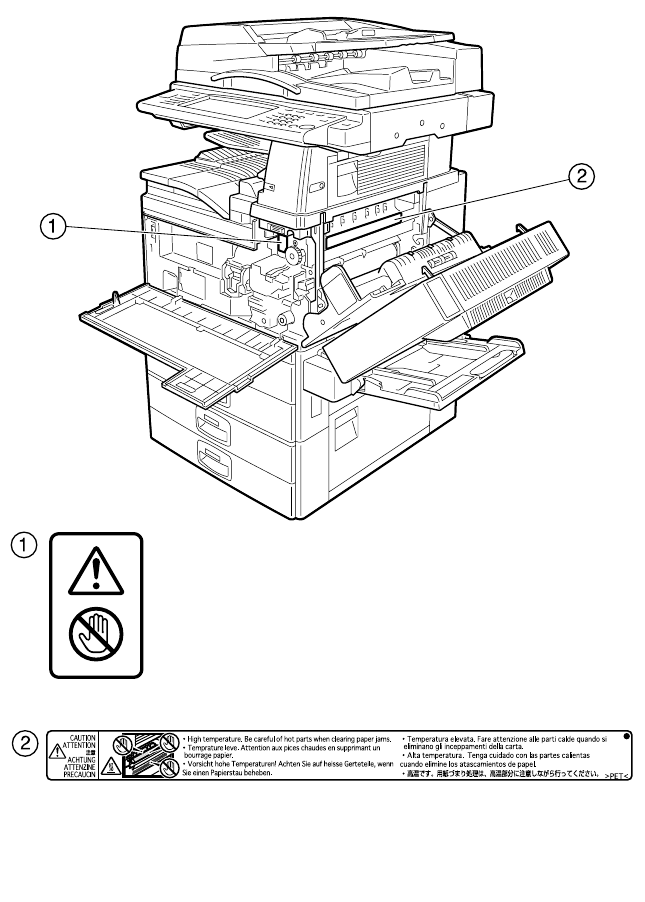
This machine has labels for
R
WARNING and
R
CAUTION at the positions shown
below. For safety, please follow the instructions and handle the machine as indicated.
ZKZH010E
AdonisC4-AE_zen_F_FM_forPaper.book Page 11 Thursday, May 12, 2005 3:32 PM

12
ENERGY STAR Program
❖Low-Power mode and Off mode or Sleep mode
This product automatically lowers its power consumption when it is not op-
erated for a fixed time (standard setting time: 1 minute). This is called “Off
mode” on a single function copying machine, and “Sleep mode” on a multiple
function machine equipped with optional facsimile and printing functions.
• Off mode: Same as the condition when the operation switch is turned off.
• Sleep mode: Same as the condition when the operation switch is turned off.
Receiving fax messages and printing from a computer are possible.
If you want to operate this product while it is in either of these modes, do one
of the following:
• Turn on the operation switch.
• Place an original in the Auto Document Feeder (ADF).
• Lift and lower the exposure glass cover or the ADF.
The default interval before entering Off mode or Sleep mode can be adjusted.
To change it, see p.58 “Auto Off Timer”.
The ENERGY STAR Program establishes two modes which lower the power
consumption of the product when it is not operated for a fixed time. These
modes are the Low-power mode and the Off mode or Sleep mode. This prod-
uct has only one mode, the Off mode or Sleep mode. This mode meets the re-
quirements of both the Low-power mode and Off mode or Sleep mode. In this
manual, the Off mode is called the Auto Off mode.
As an ENERGY STAR Partner, we have determined
that this machine model meets the ENERGY STAR
Guidelines for energy efficiency.
The ENERGY STAR Guidelines intend to establish an international energy-saving system for
developing and introducing energy-efficient office equipment to deal with environmental is-
sues, such as global warming.
When a product meets the ENERGY STAR Guidelines for energy efficiency, the Partner shall
place the ENERGY STAR logo onto the machine model.
This product was designed to reduce the environmental impact associated with office equip-
ment by means of energy-saving features, such as Low-power mode.
AdonisC4-AE_zen_F_FM_forPaper.book Page 12 Thursday, May 12, 2005 3:32 PM
13
❖Duplex Priority
The ENERGY STAR Program recommends the duplex function. By conserv-
ing paper resources this function is less of a burden to the environment. For
applicable machines, duplex function (one-sided originals→ two-sided cop-
ies) can be selected preferentially when the operation switch or the main pow-
er switch is turned on, the {Energy Saver} key is pressed, or the machine resets
automatically.
Reference
To change the settings of the Duplex Priority mode, see “Duplex Mode Pri-
ority”in “General Features 2/4”, Copy Reference.
Specifications
Recycled Paper
In accordance with the ENERGY STAR Program, we recommend use of recycled
paper which is environmentally friendly. Please contact your sales representa-
tive for recommended paper.
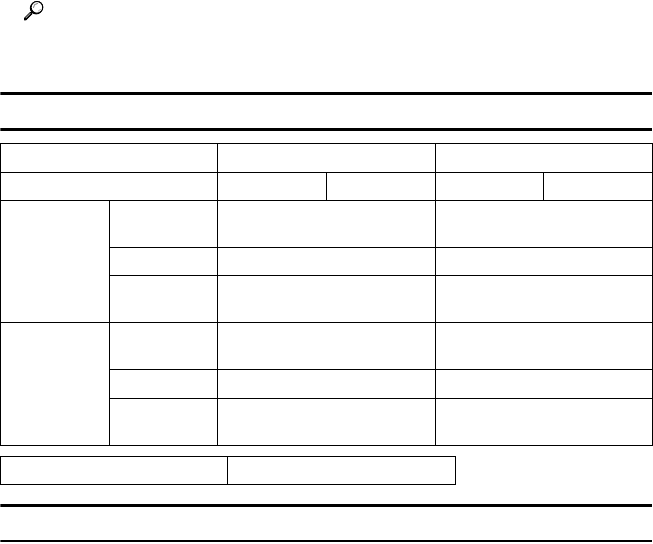
Copier only
Fax, printer and scanner installed
Type 1 Type 2 Type 1 Type 2
Low-power
Mode, Off
Mode
Power con-
sumption
1.2 W —
Default interval
1 minute —
Recovery
time
10 seconds or less —
Low-power
mode, Sleep
mode
Power con-
sumption
— 8.4 W
Default interval
—1 minute
Recovery
time
— 10 seconds or less
Duplex priority One-sided→One-sided
AdonisC4-AE_zen_F_FM_forPaper.book Page 13 Thursday, May 12, 2005 3:32 PM

14
Machine Types
This machine comes in two models which vary in copy speed. To ascertain
which model you have, see the inside front cover.
Type 1 Type 2
Copy speed 35 copies/minute
(A4K, 81/2" × 11"K)
45 copies/minute
(A4K, 81/2" × 11"K)
AdonisC4-AE_zen_F_FM_forPaper.book Page 14 Thursday, May 12, 2005 3:32 PM
15
1. Getting Started
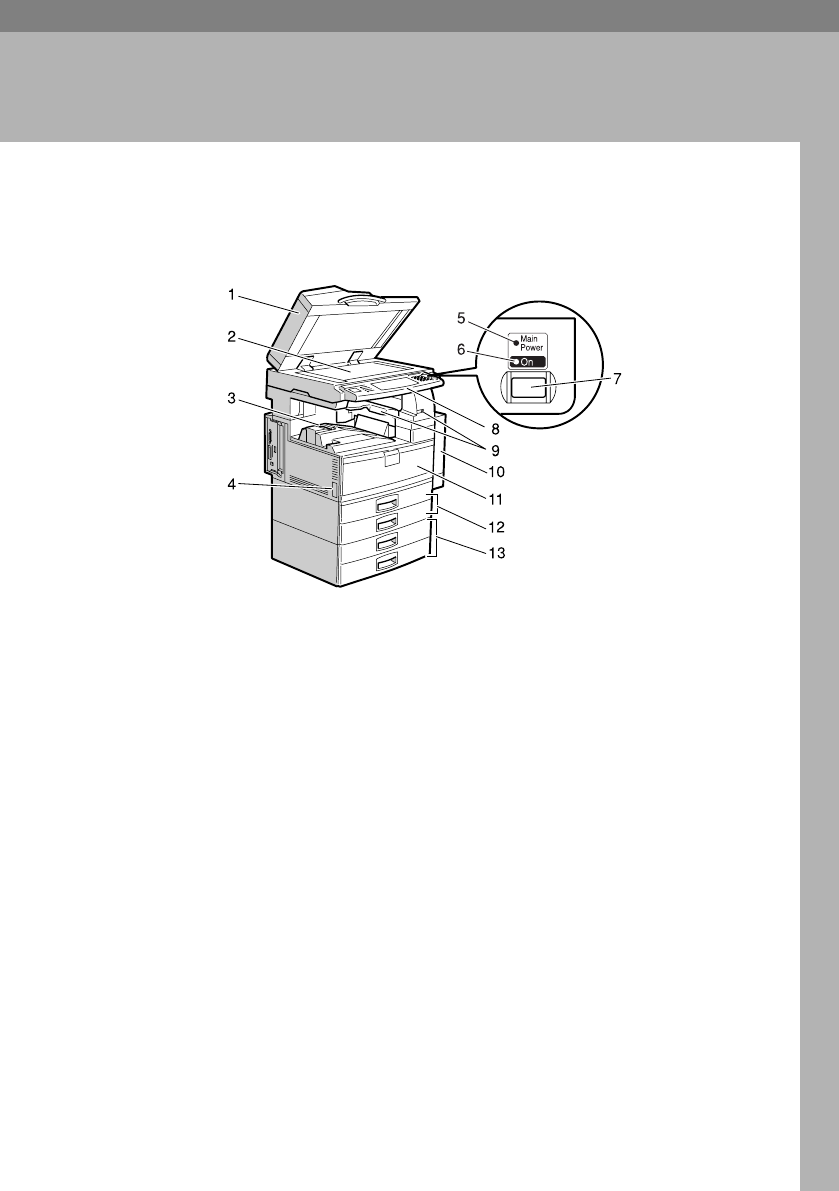
Guide to Components
1. Exposure glass cover (optional) or
Auto Document Feeder (ADF) (op-
tional)
See p.17 “External Options”.
(The illustration shows the ADF.)
2. Exposure glass
Place originals face down here for copy-
ing.
3. Internal tray
Copied, printed paper or fax messages
are delivered here.
4. Main power switch
If the machine does not operate after
turning on the operation switch, check
the main power switch is turned on. See
p.23 “Turning On the Power”.
5. Main power indicator
Lights when the main power switch is
turned on, and goes off when the switch
is turned off.
6. On indicator
Lights when the operation switch is
turned on, and goes off when the switch
is turned off.
7. Operation switch
Press to turn the power on (the On indi-
cator lights up). To turn the power off,
press again (the On indicator goes off).
See p.23 “Turning On the Power”.
8. Control panel
See p.19 “Control Panel”.
9.
Internal tray 2 (1 bin tray) (optional)
The indicator lights when paper is deliv-
ered to internal tray 2 (1 bin tray). If inter-
nal tray 2 has not been installed, the
indicator does not light. See p.17 “Exter-
nal Options”.
10. Duplex unit (unit for two-sided
copies)
Allows you to print on both sides of a
piece paper in copier and printer func-
tion.
AHU014S
AdonisC4-AE_zen_F_FM_forPaper.book Page 15 Thursday, May 12, 2005 3:32 PM
Getting Started
16
1
11. Front cover
Open to access the inside of the machine.
12. Paper tray (upper: Tray 1, lower:
Tray 2)
Load paper here.
13. Paper tray unit (optional <up-
per: Tray 3, lower: Tray 4>)
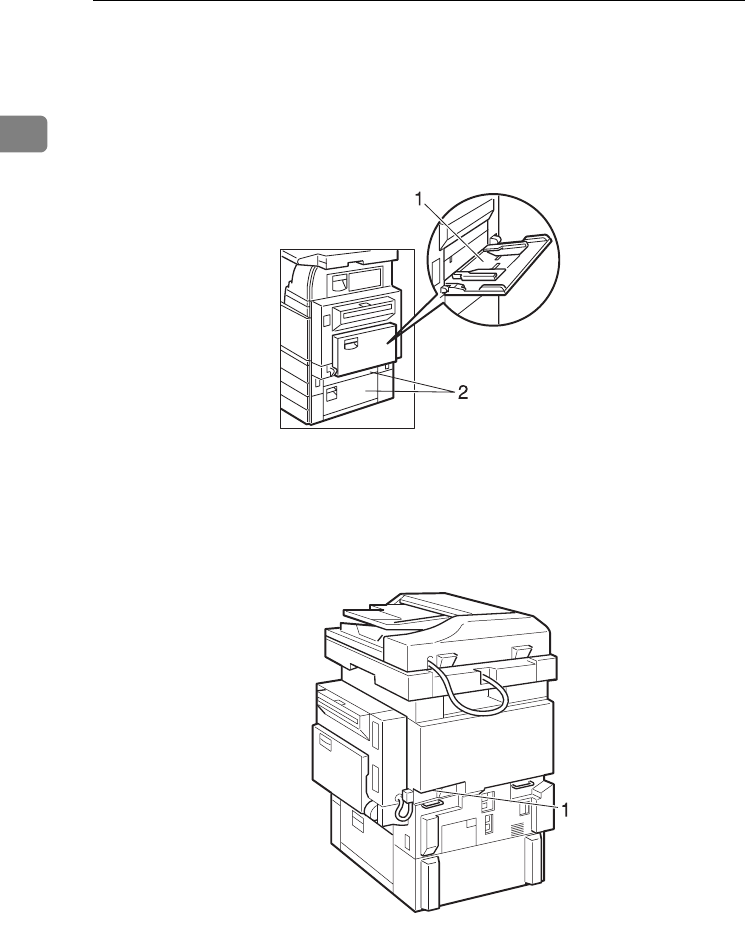
1. Bypass tray
Use when copying onto OHP transparen-
cies, adhesive labels, translucent paper,
postcards, and custom size paper.
2. Right side cover
Open this when a paper jam occurs.
1. Ventilation holes
Prevent overheating. Do not obstruct the
ventilation holes by placing objects near
them or leaning things against them. If
the machine overheats, a fault might oc-
cur.
ZDSH020J
AHU009S
AdonisC4-AE_zen_F_FM_forPaper.book Page 16 Thursday, May 12, 2005 3:32 PM
Options
17
1
Options
External Options
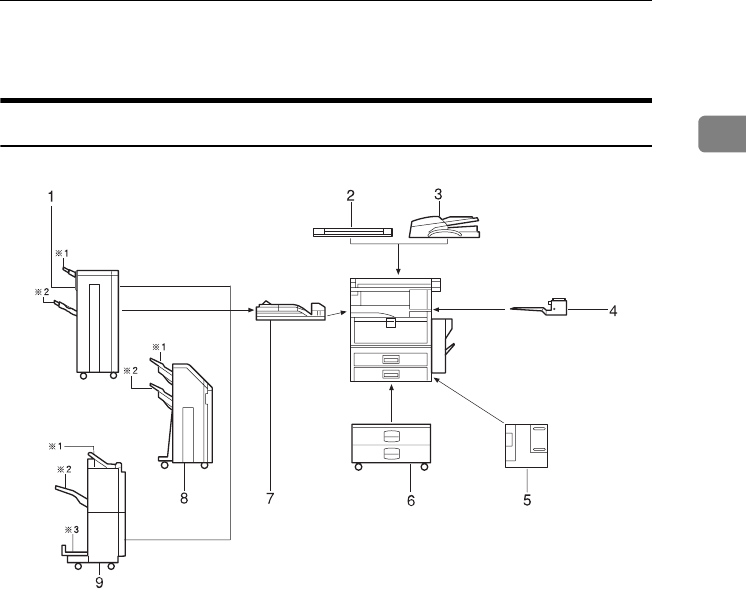
1. 1000-sheet finisher
Sorts, stacks, and staples copies.
*1: Finisher upper tray
*2: Finisher shift tray
2. Exposure glass cover
Lower over originals for copying.
3. Auto Document Feeder
Place stacks of originals here. They will
feed in automatically.
4. Internal tray 2 (1 bin tray)
If you select this as the output tray, cop-
ied paper will be delivered here face
down.
5. Large Capacity Tray (LCT)
Holds up to 1,500 sheets of paper.
6. Paper tray unit
Consists of two paper trays.
7. Bridge unit
Relays copies to the finisher.
8. 2 Tray finisher
Sorts, stacks, and staples copies. You can
also punch copies. (The Punch function is
optional.)
*1: Finisher shift tray 1
*2: Finisher shift tray 2
9. Booklet finisher
Sorts, stacks, and staples copies. The sad-
dle stitch function can staple the copies in
the centre and folds them like a booklet.
*1: Finisher upper tray
*2: Finisher shift tray
*3: Finisher booklet tray
AHU005S
AdonisC4-AE_zen_F_FM_forPaper.book Page 17 Thursday, May 12, 2005 3:32 PM
Getting Started
18
1
Internal Options
AFax unit
Allows you to use the facsimile function.
BPrinter/Scanner unit
Allows you to use the printer and scanner functions.
CUser account enhance unit
Allows you to increase memory for storing user codes.
DFile format converter
Allows you to download documents stored using the copier and printer func-
tions from the Document Server. See p.44 “Downloading Stored Documents”.
EIEEE 1394 interface board
Allows you to connect to an IEEE 1394 cable.
FIEEE 802.11b wireless LAN board
Allows you to install a wireless LAN interface.
GBluetooth unit
Allows you to expand the interface.
HIEEE 1284 Interface Board
Connects to an IEEE 1284 cable.
IDataOverWriteSecurity Unit
Allows you to erase data on the hard disk.
JCopy Data Security Unit
If a document containing embedded text for unauthorized copy guard is cop-
ied, protected pages are grayed out in the copy.
Note
❒You cannot install two or more of the options below: IEEE 1394 interface
board, IEEE 802.11b wireless LAN board, Bluetooth unit, IEEE 1284 interface
board.
❒If the Copy Data Security Unit is installed in the machine, you cannot use the
scanner and fax functions.
AdonisC4-AE_zen_F_FM_forPaper.book Page 18 Thursday, May 12, 2005 3:32 PM
Control Panel
19
1
Control Panel
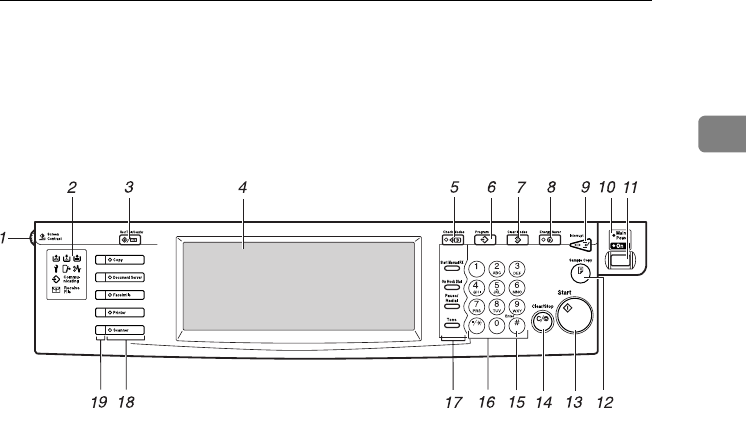
This illustration shows the control panel of the machine with options fully in-
stalled.
1. Screen contrast knob
Adjusts display panel brightness.
2. Indicators
Show errors and machine status.
•d: Add Staple indicator. See p.137
“d Adding Staples”.
•D: Add Toner indicator. See p.122
“D Adding Toner”.
•B: Load Paper indicator. See p.119
“B Loading Paper”.
•L: Service Call indicator
•M: Open Cover indicator
•x: Misfeed indicator. See p.125 “x
Clearing Misfeeds”.
•m: Data In indicator. See “Control
Panel”, Printer Reference.
• Communicating: Communicating in-
dicator. See “Control Panel”, Facsimile
Reference <Basic Features>.
•i: Confidential File indicator. See
“Control Panel”, Facsimile Reference
<Basic Features>.
• Receiving File: Receiving File indica-
tor. See “Control Panel”, Facsimile Ref-
erence <Basic Features>.
3. {User Tools/Counter} key
•User Tools
Press to change the default and condi-
tions to meet your requirements. See
p.50 “Accessing User Tools (System
Settings)”.
•Counter
Press to check or print the counter val-
ue. See p.157 “Counter”.
4. Display panel
Displays operation status, error messag-
es, and function menus.
5. {Check Modes} key
Press to check settings.
6. {Program} key (copier/facsimi-
le/scanner mode)
Press to register frequently used settings,
or to recall registered settings.
7. {Clear Modes} key
Press to clear previously entered copy job
settings.
8. {Energy Saver} key
Press to switch to and from Energy Saver
mode. See p.25 “Energy Saver Mode”.
AHU022S
AdonisC4-AE_zen_F_FM_forPaper.book Page 19 Thursday, May 12, 2005 3:32 PM

Getting Started
20
1
9. {Interrupt} key (copier/scanner
mode)
Press to make interrupt copies during
copying or scanning. See “Interrupt
Copy”, Copy Reference.
10. Main power indicator and On
indicator
The main power indicator goes on when
you turn on the main power switch.
The On indicator lights when the power
is on.
Important
❒Do not turn off the main power
switch while the power indicator is
lit or blinking. Doing so may dam-
age the hard disk.
11. Operation switch
Press to turn the power on (the On indi-
cator goes on). To turn the power off,
press again (the On indicator goes off).
12. {Sample Copy} key
Press to make a single set of copies or
prints to check print quality before mak-
ing multiple sets.
13. {Start} key
Press to start copying. Start scanning or
printing documents stored using the
Document Server function.
14. {Clear/Stop} key
•Clear
Press to delete a number entered.
•Stop
Press to stop a job in progress, such as
scanning, faxing, or printing.
15. {#} key
Press to enter a value.
16. Number keys
Use to enter the numbers for copies, fax
numbers and data for the selected func-
tion.
17. {Start Manual RX} key, {On Hook Di-
al} key, {Pause/Redial} key, and
{Tone} key
Reference
Facsimile Reference <Basic Features>
and Facsimile Reference <Advanced
Features>
18. Function keys
Press to select one of the following func-
tions:
•Copy
• Document Server
• Facsimile
•Printer
•Scanner
19. Function status indicators
These show the status of the above func-
tions:
• Green: active.
• Red: interrupted.
AdonisC4-AE_zen_F_FM_forPaper.book Page 20 Thursday, May 12, 2005 3:32 PM
Control Panel
21
1
Display Panel
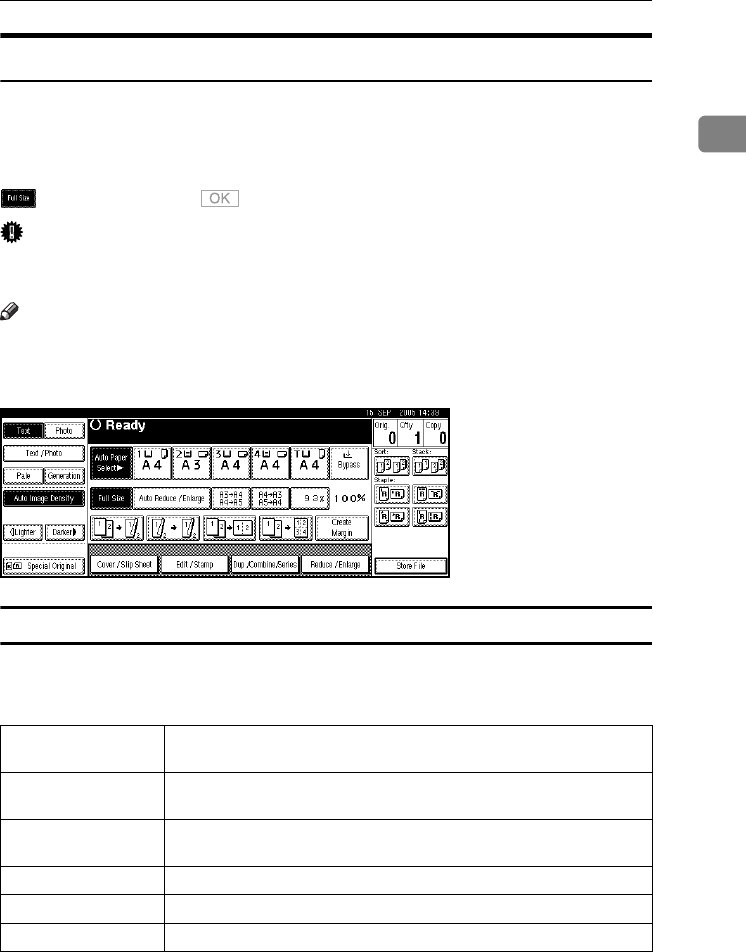
The display panel shows machine status, error messages, and function menus.
The function items displayed serve as selector keys. You can select or specify an
item by lightly pressing them.
When you select or specify an item on the display panel, it is highlighted like
. Keys appearing as cannot be used.
Important
❒A force or impact of more than 30 N (about 3 kgf) will damage the display
panel.
Note
❒The following display is of a machine with the optional 2 Tray finisher and
LCT installed.
The copying screen is displayed as default after power on.
Common key operations
The following keys are common to all screens:
❖Key list
[OK]Acknowledges a selected function or entered values, and then returns
to the previous display.
[Cancel]Deletes a selected function or entered values, and then returns to the
previous display.
[UPrev.] [TNext]Moves to the previous or next display when all items cannot be shown
on the same display.
[OK] [Yes]Closes displayed messages.
[Clear]Cancels entered values but does not change the settings.
[Exit]Returns to the previous display.
AdonisC4-AE_zen_F_FM_forPaper.book Page 21 Thursday, May 12, 2005 3:32 PM
Getting Started
22
1
When the Authentication
Screen is displayed
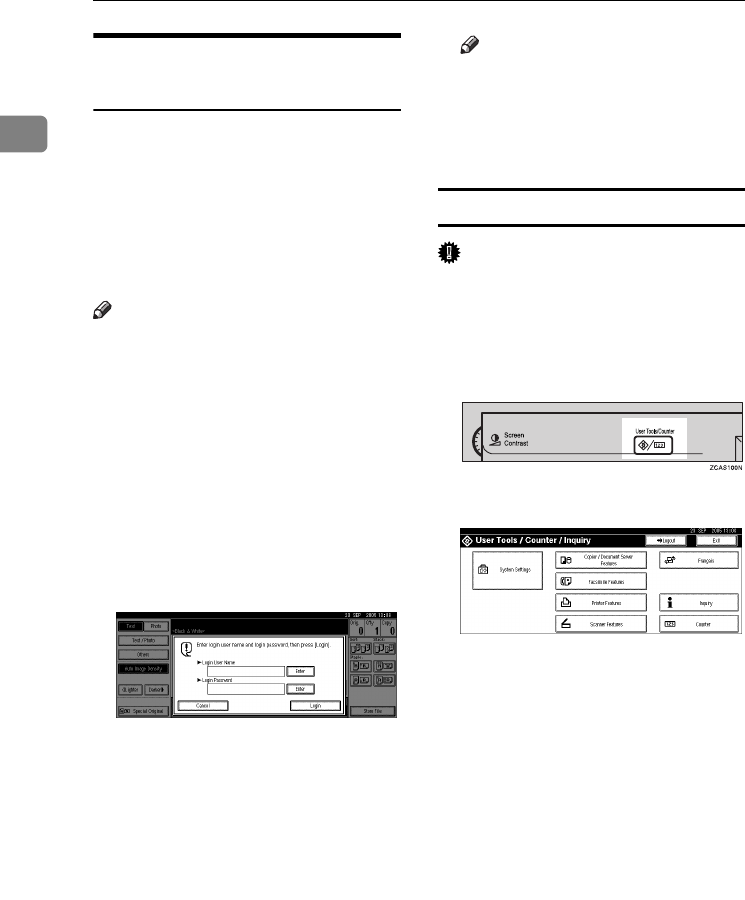
When Basic Authentication, Win-
dows Authentication, LDAP Authen-
tication, or Integration Server
Authentication is set, the authentica-
tion screen is displayed. Unless a val-
id user name and password are
entered, operations are not possible
with the machine.
Note
❒Consult the User Administrator
about your login user name and
login password. For details of the
various types of user authentica-
tion, consult the respective admin-
istrators.
❒When User Code Authentication is
set, the screen for entering a user
code is displayed instead. For de-
tails, see p.74 “Authentication In-
formation”.
APress [Enter] for Login User Name.
BEnter a login user name, and then
press [OK].
CPress [Enter] for Login Password.
DEnter a login password, and then
press [OK].
EPress [Login].
When the user is authenticated, the
screen for the function you are us-
ing appears.
Note
❒When the entered login user
name or login password is not
correct, "Authentication has
failed." appears. Check the login
user name and password.
Log Off
Important
❒To prevent unauthorized users
from using the machine, always
log off when you have finished us-
ing the machine.
APress {User Tools / Counter}.
BPress [Logout].
CPress [Yes].
DPress {User Tools / Counter}.
AdonisC4-AE_zen_F_FM_forPaper.book Page 22 Thursday, May 12, 2005 3:32 PM
Turning On the Power
23
1
Turning On the Power
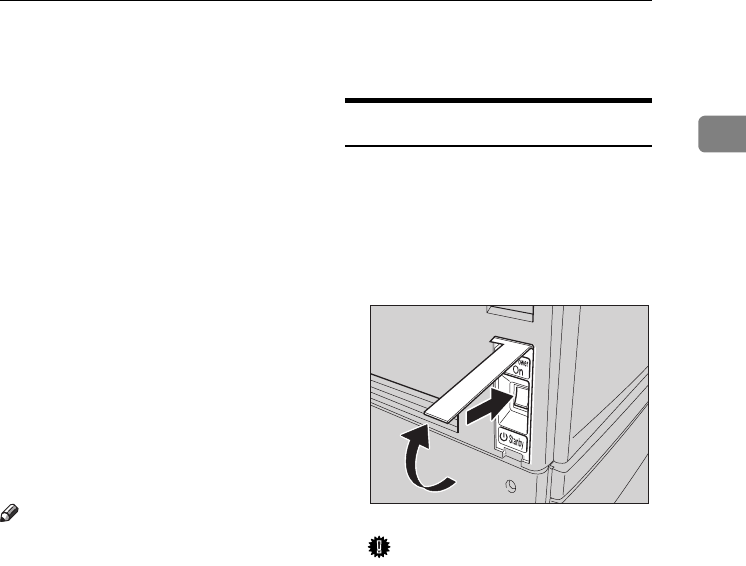
This machine has two power switches.
❖Operation switch (right side of the
control panel)
Press to activate the machine.
When the machine has finished
warming up, you can make copies.
❖Main power switch (left side of the ma-
chine)
Turning off this switch makes the
main power indicator on the right
side of the control panel go off.
When this is done, machine power
is completely off.
When the fax unit (optional) is in-
stalled, fax files in memory may be
lost if you turn this switch off. Use
this switch only when necessary.
Note
❒This machine automatically enters
Energy Saver mode or turns itself
off if you do not use it for a while.
See p.58 “Auto Off Timer” and
p.59 “Panel Off Timer”.
Turning On the Main Power
AMake sure the power cord is firm-
ly plugged into the wall outlet.
BOpen the switch cover and turn
on the main power switch.
The main power indicator goes on.
Important
❒Do not turn off the main power
switch immediately after turn-
ing it on. Doing so may result in
damage to the hard disk or
memory, leading to malfunc-
tions.
AHU016S
AdonisC4-AE_zen_F_FM_forPaper.book Page 23 Thursday, May 12, 2005 3:32 PM

Getting Started
24
1
Turning On the Power
APress the operation switch.
The On indicator goes on.
Note
❒If the power does not come on
when the operation switch is
pressed, check the main power
switch is on. If it is off, turn it on.
Turning Off the Power
AMake sure the exposure glass cov-
er or the ADF is in the right posi-
tion.
BPress the operation switch.
The On indicator goes off.
Note
❒Even if you press the operation
switch, the indicator does not
go out, but blinks in the follow-
ing cases:
•
When the exposure glass cov-
er
or ADF is open.
• During communication with
external equipment.
• When the hard disk is active.
• If a file is waiting to be trans-
mitted within the next
minute using the “Send Lat-
er” facsimile function.
Turning Off the Main Power
Important
❒Do not turn off the main power
switch when the On indicator is lit
or blinking. Doing so may result in
damage to the hard disk or memo-
ry.
❒Make sure to turn off the main
power switch before pulling out
the power plug. Not doing this
may result in damage to the hard
disk or memory.
AMake sure the On indicator is not
lit.
BOpen the switch cover, and then
turn off the main power switch.
The main power indicator goes
out.
AdonisC4-AE_zen_F_FM_forPaper.book Page 24 Thursday, May 12, 2005 3:32 PM

Turning On the Power
25
1
-When the fax unit (optional) is
installed
When the main power switch is
turned off while using the fax func-
tion, waiting fax and print jobs may
be canceled, and incoming fax docu-
ments not received. If you have to
turn off this switch for some reason,
keep the following points in mind:
Important
❒Make sure 100% is shown as avail-
able memory on the display before
turning off the main power switch
or unplugging the power cord. Fax
files in memory are deleted an
hour after you turn off the main
power switch or unplug the power
cord. See "Turning Off the Main
Power/In the Event of Power Fail-
ure", Facsimile Reference <Advanced
Features>.
❒The On indicator does not go out,
but blinks in dial-in mode even if
you press the operation switch.
When this happens, check the ex-
planations below, and turn off the
main power switch.
• the computer is not controlling
the machine.
• the machine is not receiving a
fax.
Saving Energy
-Energy Saver Mode
If you do not use the machine for a
certain period after an operation, or
when you press the {Energy Saver}
key, the display disappears and the
machine goes into Energy Saver
mode. When you press the {Energy
Saver} key again, the machine returns
to the ready condition. The machine
uses less electricity in Energy Saver
mode.
Note
❒You can change the amount of time
the machine waits before switch-
ing to Energy Saver mode after
copying has finished or the last op-
eration is performed. See p.59
“Panel Off Timer”.
AdonisC4-AE_zen_F_FM_forPaper.book Page 25 Thursday, May 12, 2005 3:32 PM

Getting Started
26
1
-Auto Off
The machine automatically turns it-
self off when the job is finished, after
a certain period of time has elapsed.
This function is called "Auto Off".
Note
❒You can change the Auto Off time.
See p.58 “Auto Off Timer”.
❒The Auto Off Timer function will
not operate in the following cases:
• When a warning message ap-
pears
• When the service call message
appears
• When paper is jammed
• When the cover is open
• When the "Add Toner" message
appears
• When toner is being replen-
ished
• When the User Tools/Coun-
ter/Inquiry screen is displayed
•
When fixed warm-up is in progress
• When the facsimile, printer, or
other functions are active
•
When operations were suspend-
ed
during printing
•
When the On-hook dialing func-
tion
is in use
• When a recipient is being regis-
tered in the address list or
group dial list
• When the Data In indicator is on
or blinking
• When the screen of stored docu-
ment under the printer function
is displayed
AdonisC4-AE_zen_F_FM_forPaper.book Page 26 Thursday, May 12, 2005 3:32 PM

27
2. Combined Function
Operations
Changing Modes
Note
❒You cannot switch modes in any of the following situations:
• When scanning in a fax message for transmission
• During immediate transmission
• When accessing User Tools
• During interrupt copying
• During On hook dialing for fax transmission
• While scanning an original
AdonisC4-AE_zen_F_FM_forPaper.book Page 27 Thursday, May 12, 2005 3:32 PM
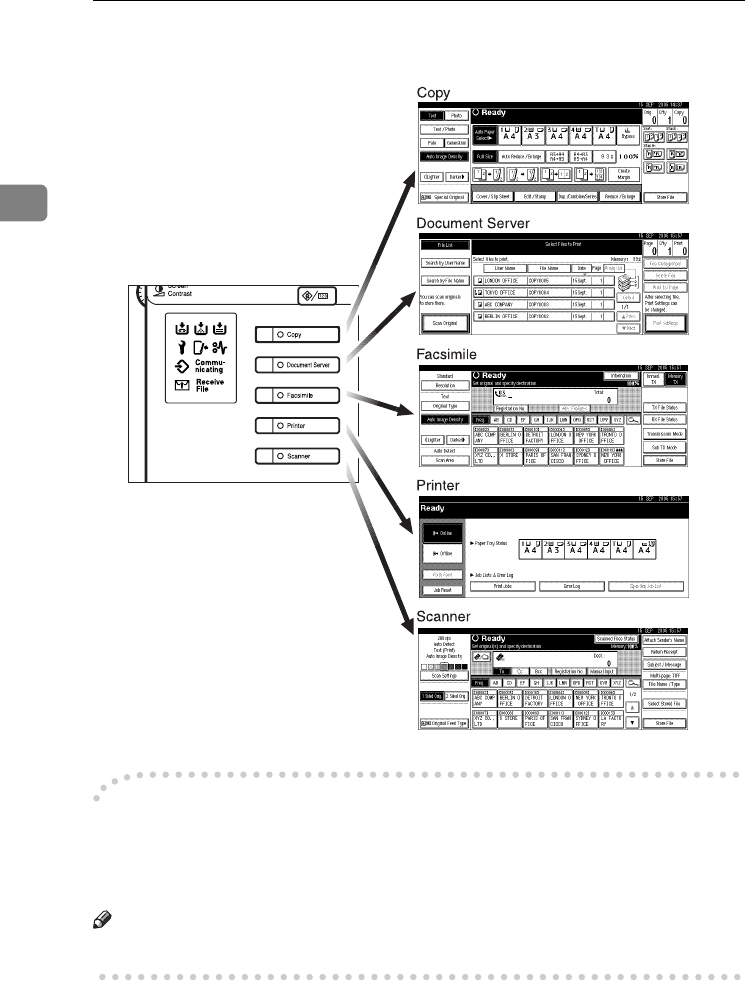
Combined Function Operations
28
2
❒The copying screen is displayed as default after power on. You can change
this default setting. See p.51 “Function Priority”.
-System Reset
The machine returns automatically to its initial condition when the job is fin-
ished, after a certain period of time has elapsed. This function is called "System
Reset".
Note
❒You can change the System Reset time. See p.59 “System Auto Reset Timer”.
AHU020S
AdonisC4-AE_zen_F_FM_forPaper.book Page 28 Thursday, May 12, 2005 3:32 PM

Multi-Access
29
2
Multi-Access
You can carry out another job using a different function while the current job is
being performed. Performing multiple functions simultaneously like this is
called "Multi-accessing".
This allows you to handle jobs efficiently, regardless of how the machine is being
used. For example:
• While making copies, you can scan documents to store in the Document Serv-
er.
• While printing documents stored in the Document Server, the machine can
receive print data.
• You can make copies while receiving fax data.
• While printing print data, you can make operations for copying.
Note
❒See p.52 “Print Priority” for setting function priority. As default, [Display
Mode] is set to first priority.
❒When the optional 1000-sheet finisher, 2 Tray finisher or booklet finisher is in-
stalled on the machine, you can specify the output tray where documents are
delivered. For details about how to specify the output tray for each function,
see the following descriptions:
• p.53 “Output: Copier (copier)”
• p.53 “Output: Document Server (Document Server)”
• p.53 “Output: Facsimile (facsimile)”
• p.54 “Output: Printer (printer)”
-Function compatibility
The chart shows function compatibility when print priority is set to "Interleave".
See p.52 “Print Priority”.
|: Simultaneous operations are possible.
$: Operation is enabled when the relevant function key is pressed and remote
switching (of the scanner) is done.
❍: Operation is enabled when the {Interrupt} key is pressed to interrupt the pre-
ceding operation.
→: Operation is performed automatically once the preceding operation ends.
×: The operation must be started once the preceding operation ends. (Simultane-
ous operations are not possible.)
AdonisC4-AE_zen_F_FM_forPaper.book Page 29 Thursday, May 12, 2005 3:32 PM

Combined Function Operations
30
2
Function you want to se-
lect
Copier
Interrupt Copying
Facsimile Printer Scanner
Document Server
DeskTopBinder
Professional/Lite
Web Document Server
Using the control panel
Transmission
Reception
Data Reception
Print
Function in progress
Using the control panel
Stapling
Sort
Using the control panel
Copying
Scanning an Original for Memory Transmission
Memory Transmission
Immediate Transmission
Memory Reception
Printing Received Data
Printing
Stapling
Using the control panel
Scanning using the Network TWAIN Scanner
Scanning
Using the control panel
Scanning a Document to Store in Document Server
Printing from Document Server
Printing from Document Server
Sending a Fax from Document Server
Printing
Copier
Using the
control
panel
×××❍❍$$|$|||||$$$$$$|||
Stapling |
*1
→
*1
→
*1
❍❍
*5
$$
*2
|$
*2
||||→$$
*2
$
*2
$$
*2
|
*4
|
*4
||
*4
Sort |
*1
→
*1
→
*1
❍❍$$
*2
|$
*2
|||||$$
*2
$
*2
$$
*2
||||
Interrupt
Copying
Using the
control
panel
❍❍❍××××|×|||||××××××|||
Copying ❍❍❍××××|×|→|→→××××××→|→
Facsimile
Using the control panel $$$❍❍××|×|||||$$$$$$|||
Transmission
Scanning
an Original
for Memo-
ry Trans-
mission
×××××××|×|||||××××××|||
Memory
Transmis-
sion
||||||||
*3
|
*3
|
*3
|
*7
||||||||||→|
Immediate
Transmis-
sion
×××××××|
*3
×|
*3
||||××××××|→|
Reception
Memory
Reception
||||||||
*3
|
*3
|
*3
|
*7
||||||||||||
Printing
Received
Data
||||||||
*7
||
*7
×||||||||||||
Printer
Data Reception |||||||||||→→→|||||||||
Print
Sort Print |||❍❍|||||||→→|||||||||
Stapling |→|❍❍
*5
|||||||→→||||||
*4
|
*4
||
*4
AdonisC4-AE_zen_F_FM_forPaper.book Page 30 Thursday, May 12, 2005 3:32 PM

Multi-Access
31
2
Scanner
Using the
control
panel
$$$❍❍$$❍$|||||×××$$$|||
Scanning
using the
Network
TWAIN
Scanner
×××××××|×|||||××××××|||
Scanning $××❍❍$×|×|||||×××$×$|||
Document Server
Using the
control
panel
$$$❍❍$$|$|||||$$$×××|||
Scanning a
Document
to Store in
Document
Server
$××❍❍$×|×|||||$×××××|||
Printing
from Docu-
ment Server
$|
*4
|❍❍|||||||||
*4
||||
*6
|
*6
|
*6
|||
DeskTopBinder
Professional/Lite
Printing
from Docu-
ment Server
||
*4
||||||||||||
*4
||||||×||
Sending a
Fax from
Document
Server
|||||||||||||||||||||×|
Web Document
Server
Printing ||
*4
||||||||||||
*4
||||||→|→
Function you want to se-
lect
Copier
Interrupt Copying
Facsimile Printer Scanner
Document Server
DeskTopBinder
Professional/Lite
Web Document Server
Using the control panel
Transmission
Reception
Data Reception
Print
Function in progress
Using the control panel
Stapling
Sort
Using the control panel
Copying
Scanning an Original for Memory Transmission
Memory Transmission
Immediate Transmission
Memory Reception
Printing Received Data
Printing
Stapling
Using the control panel
Scanning using the Network TWAIN Scanner
Scanning
Using the control panel
Scanning a Document to Store in Document Server
Printing from Document Server
Printing from Document Server
Sending a Fax from Document Server
Printing
AdonisC4-AE_zen_F_FM_forPaper.book Page 31 Thursday, May 12, 2005 3:32 PM

Combined Function Operations
32
2
*1 Simultaneous operations are only possible once the preceding job documents are all
scanned and [Next Job] appears.
*2 You can scan a document once the preceding job documents are all scanned.
*3 Simultaneous operations are only possible with an additional line installed and
when the fax function is not using the line given priority in the facsimile settings.
*4 During stapling, printing automatically starts after the current job.
*5 Stapling is not available.
*6 Simultaneous operations become possible after you press [Next Job].
*7 During parallel reception, any subsequent job is suspended until reception is com-
pleted.
Limitation
❒Stapling cannot be used at the same time for multiple functions.
Note
❒A machine with the 1000-sheet finisher installed, that is printing with the sta-
pling operation on paper larger than A4 size, starts the subsequent job (for
which the finisher shift tray is specified as the output tray) only after the cur-
rent print job finishes.
❒While printing is in progress, scanning using another function may take more
time.
AdonisC4-AE_zen_F_FM_forPaper.book Page 32 Thursday, May 12, 2005 3:32 PM
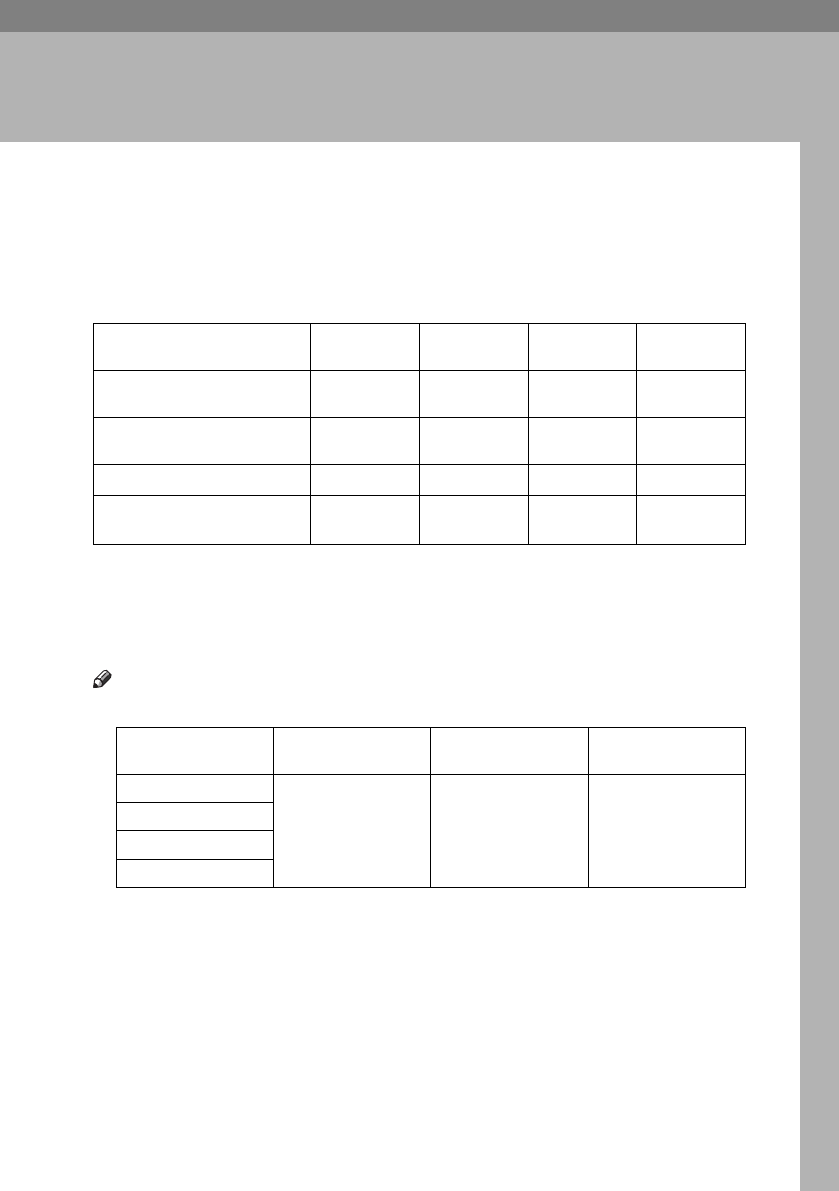
33
3. Document Server
Relationship between the Document
Server and Other Functions
The following table describes the relationship between the Document Server
and other functions.
*1 You can send stored documents using the fax function. See “Sending a Stored File”,
Facsimile Reference <Advanced Features>.
*2 You can display stored documents using scanner function. See "Displaying the List
of Stored Files", Scanner Reference .
*3 You can send stored documents from scanner mode. See “Sending Stored Files by E-
mail or Scan to Folder, or Delivering”, Scanner Reference.
Note
❒The following table shows the capacity of the Document Server.
Function
Where to store
documents
Displaying a
list
Printing stored
documents
Sending
documents
Copier Copier/Doc-
ument Server available available not available
Printer Document
Server available available not available
Facsimile Facsimile available available available *1
Scanner Scanner not available
*2 not available available *3
Number of pages for
each file
Number of files Number of pages in
total
Copier
1,000 pages 3,000 files 9,000 pages
Printer
Scanner
Facsimile
AdonisC4-AE_zen_F_FM_forPaper.book Page 33 Thursday, May 12, 2005 3:32 PM
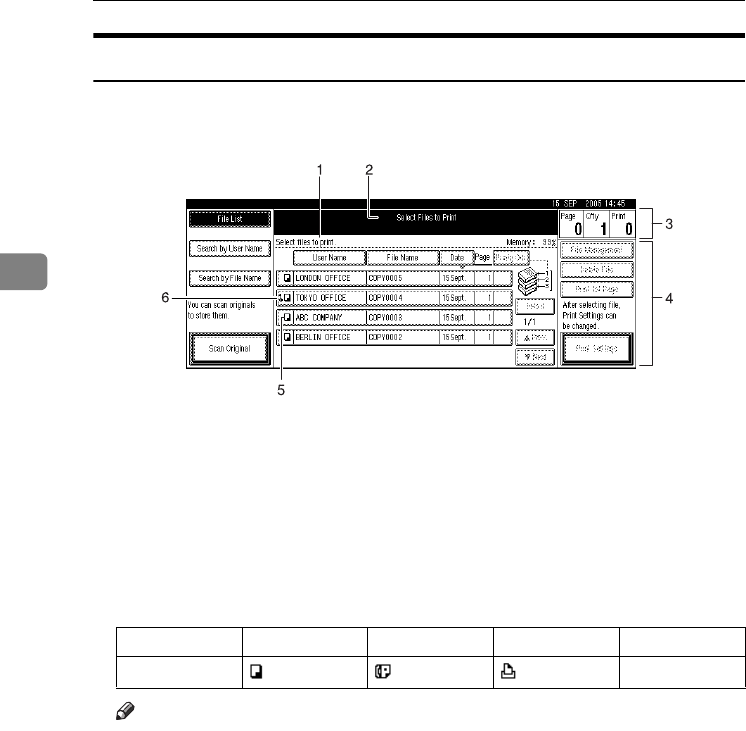
Document Server
34
3
Document Server Display
❖Document Server Main Display
1. Operating status and messages.
2. The title of the currently selected
screen.
3. The numbers of originals, copies,
and printed pages.
4. The operation keys.
5. The functions under which the
documents were stored.
6. A lock icon appears next to each
password-protected file.
The icons below show the functions active when the documents were stored
in the Document Server.
Note
❒Depending on the settings of security functions, not all the stored docu-
ments may be displayed.
AHT028S
Mode Copier Facsimile Printer Scanner
Icon --
AdonisC4-AE_zen_F_FM_forPaper.book Page 34 Thursday, May 12, 2005 3:32 PM
Using the Document Server
35
3
Using the Document Server
Storing Data
❖File name
Stored documents are automatically
named "COPY0001", "COPY0002".
You can change assigned file
names.
❖User name
You can register a user name to
identify the user or user group that
stored the documents. To assign it,
you can register the user name us-
ing the name assigned to the user
code, or by entering the name di-
rectly.
Reference
For details about user codes, see
p.72 “Registering Names”.
❖Password
To prevent unauthorized printing,
you can set a password for any
stored file. A protected file can
only be accessed if its password is
entered. When a password is set
for the documents, appears next
to the documents.
Reference
To store documents without using
Document Server functions, see
the manuals for those modes.
Important
❒Data stored in the machine might
be lost if some kind of failure oc-
curs. The manufacturer shall not
be responsible for any damage re-
sulting from loss of data.
❒Be careful not to let anyone know
your password, especially when
entering a password or recording
it. Keep any record of your pass-
word in a secure place.
❒Avoid using a single number or
consecutive numbers for a pass-
word such as "0000" or "1234",
since the numbers like this are easy
to guess, so using them will not
provide a worthwhile level of se-
curity.
❒A document accessed with a cor-
rect password remains selected
even after operations are complete,
and it can be accessed by other us-
ers. To stop this, be sure to press
the {Clear Modes} key to cancel the
document selection.
❒The user name used when adding
a document to the Document Serv-
er is to identify the document crea-
tor and type. It is not to protect
confidential documents from oth-
ers.
Note
❒Enter a four-to eight-digit pass-
word.
❒By default, data stored in the Doc-
ument Server is deleted after three
days (72 hours). You can specify
the time taken for the stored data
to be deleted automatically. See
p.66 “Auto delete File in Docu-
ment Server”.
❒If you do not want stored data to
be automatically deleted, select
[No] in Auto Delete File before stor-
ing a document. If you select [Yes]
later, data stored after will be auto-
matically deleted.
AdonisC4-AE_zen_F_FM_forPaper.book Page 35 Thursday, May 12, 2005 3:32 PM
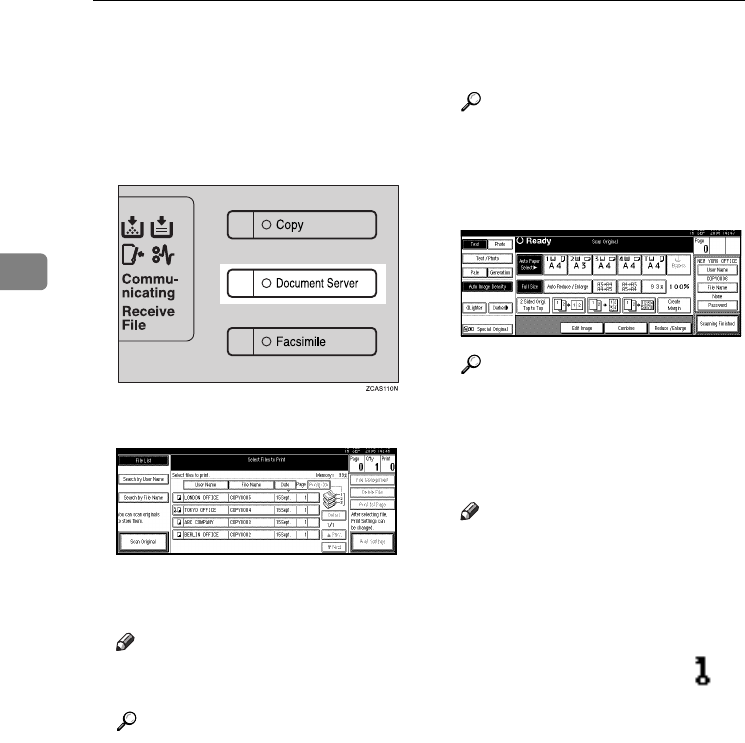
Document Server
36
3
❒When the machine is printing a
document stored using the copier
function, wait until printing has
finished before you store a docu-
ment in the Document Server.
APress the {Document Server} key.
BPress [Scan Original].
CEnter a file name, user name, or
password if necessary.
Note
❒If you do not enter a file name,
one is automatically assigned.
Reference
p.37 “To register or change the
user name”
p.37 “To change the file name”
p.38 “To set or change the pass-
word”
DPlace originals either on the expo-
sure glass or in the ADF.
Reference
For information about types of
originals and how to place
them, see Copy Reference.
EMake any required settings.
Reference
For details, see Copy Reference.
FPress the {Start} key.
The document is stored in the Doc-
ument Server.
Note
❒To stop scanning, press the
{Clear/Stop} key. To restart a
paused scanning job, press [Con-
tinue] in the confirmation dis-
play. To delete saved images
and cancel the job, press [Stop].
❒When a password is set, ap-
pears on the left side of the file
name.
❒After scanning, stored docu-
ments appear on the Select Files
to Print display. If this display
does not appear, press [Scanning
Finished].
❒When placing an original on the
exposure glass, press [Scanning
Finished] after all the originals
have been scanned.
AdonisC4-AE_zen_F_FM_forPaper.book Page 36 Thursday, May 12, 2005 3:32 PM
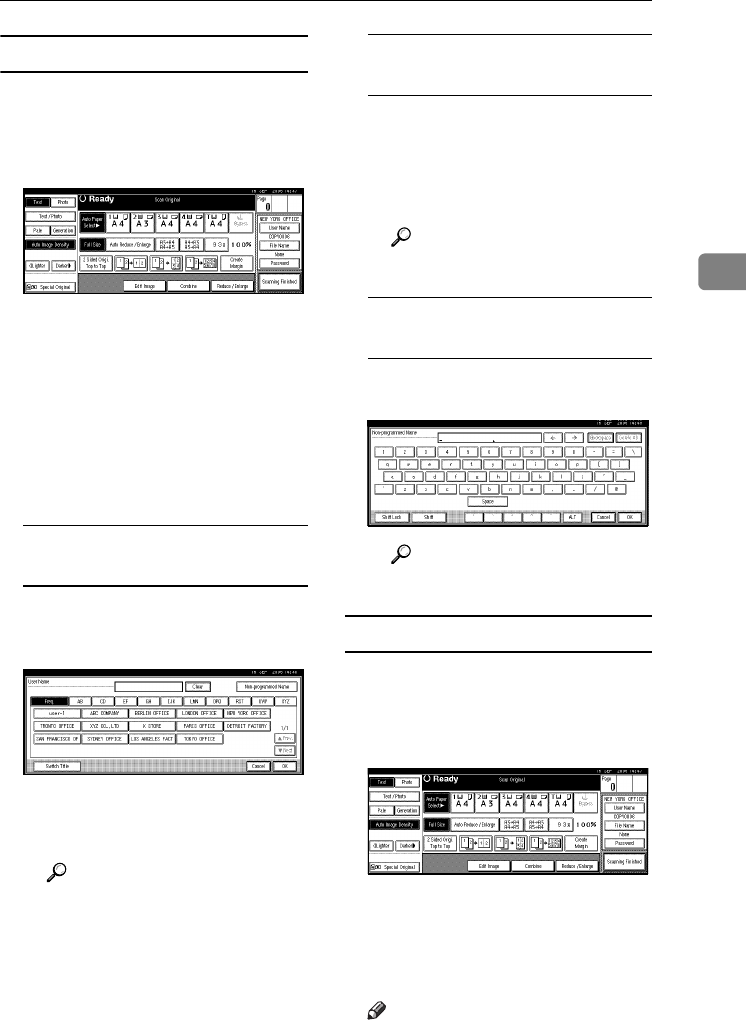
Using the Document Server
37
3
To register or change the user name
APress [Scan Original].
The Scan Original display appears.
BPress [User Name].
If user names are already regis-
tered, the Change User Name dis-
play appears. To use an
unregistered user name, press
[Non-programmed Name].
When no user name are registered
in the Address Book, the User
(Destination) Name entry display
appears.
When using a registered user
name in the Address Book
ASelect a registered user name
from the list, and then press
[OK].
To change your user name to an
unregistered user name, pro-
ceed to the next step.
Reference
p.74 “Registering a New
User Code”
When using an unregistered user
name in the Address Book
ATo enter an unregistered user
name, press [Non-programmed
Name].
BEnter a new user name, and
then press [OK].
Reference
p.159 “Entering Text”
When no user name has been
registered in the Address Book
AEnter a new user name, and
then press [OK].
Reference
p.159 “Entering Text”
To change the file name
APress [Scan Original].
The Scan Original display appears.
BPress [File Name].
The Change File Name display ap-
pears.
CPress [Delete All] to delete the old
file name.
Note
❒You can also use [Backspace] to
delete unnecessary characters.
AdonisC4-AE_zen_F_FM_forPaper.book Page 37 Thursday, May 12, 2005 3:32 PM
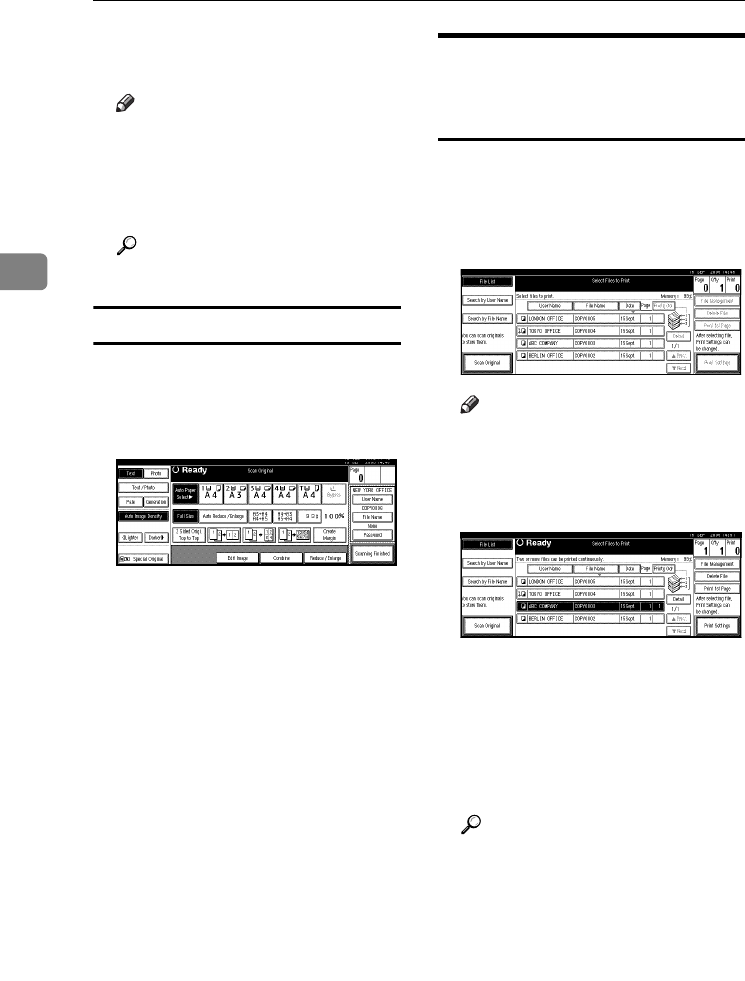
Document Server
38
3
DEnter a new file name, and then
press [OK].
Note
❒Up to 20 characters can be en-
tered as a file name. Note that
only 15 characters of each file
name appear in the document
list.
Reference
p.159 “Entering Text”
To set or change the password
APress [Scan Original].
The Scan Original display appears.
BPress [Password].
C
Enter a password using the number
keys (four-to eight-digits), and
then press the {#} key.
DReenter the password (four-to
eight-digits) for verification, and
then press the {#} key.
EPress [OK].
Changing Stored Document's
File Name, User Name, or
Password
APress the {Document Server} key.
BSelect the document with the user
name, file name, or password you
want to change.
Note
❒If a password is already set for
the document, enter that pass-
word, and then press [OK].
CPress [File Management].
DPress [Change File Name], [Change
User Name], or [Change Password].
EEnter the new file name, user
name, or password using the let-
ter keys or number keys, and then
press [OK].
Reference
p.37 “To register or change the
user name”
p.37 “To change the file name”
p.38 “To set or change the pass-
word”
FPress [OK].
AdonisC4-AE_zen_F_FM_forPaper.book Page 38 Thursday, May 12, 2005 3:32 PM
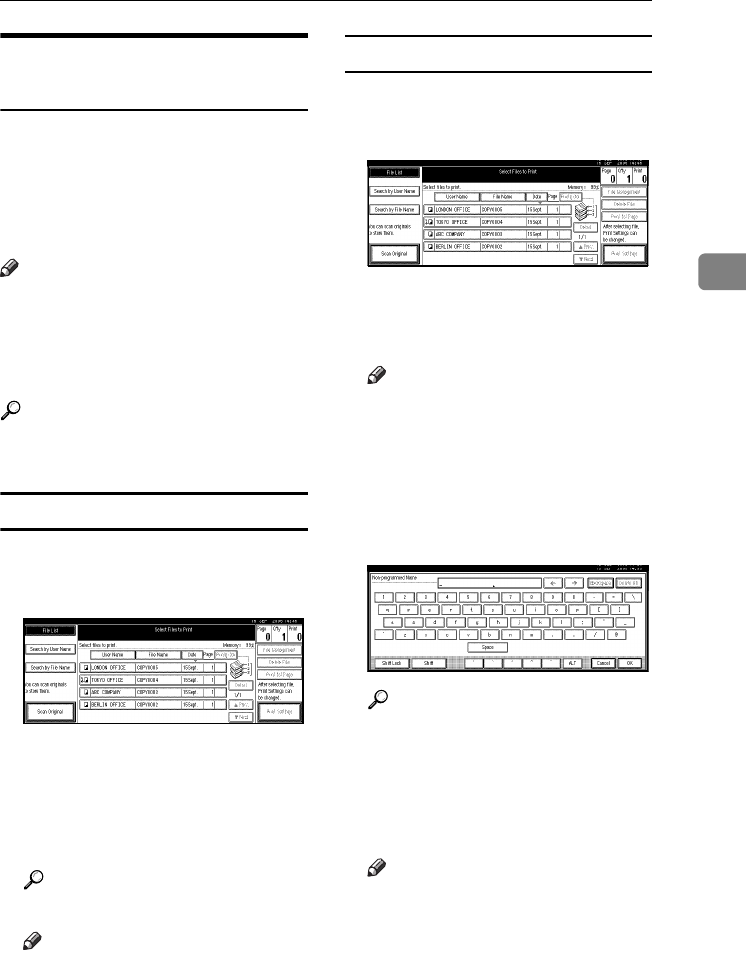
Using the Document Server
39
3
Searching for Stored
Documents
You can use either [Search by File
Name] or [Search by User Name] to
search for documents stored in the
Document Server. You can also list
stored documents in a preferred or-
der.
Note
❒If you install DeskTopBinder Pro-
fessional or DeskTopBinder Lite
on your computer, you can search
for and rearrange documents us-
ing your computer.
Reference
Manuals for DeskTopBinder Pro-
fessional/Lite or Help
To search by file name
APress the {Document Server} key.
BPress [Search by File Name].
CEnter the file name using the let-
ter keys, and then press [OK].
Only files beginning with the
name entered appear in the Select
Files to Print display.
Reference
p.159 “Entering Text”.
Note
❒To display all files stored in the
Document Server, press [File
List].
To search by user name
APress the {Document Server} key.
BPress [Search by User Name].
CTo specify a registered user name,
select the user name from the dis-
played list, and then press [OK].
Note
❒To specify an unregistered user
name, follow the procedure be-
low.
DTo specify an unregistered user
name, press [Non-programmed
Name]. Enter a user name, and
then press [OK].
Reference
p.159 “Entering Text”
EPress [OK].
Only files beginning with the
name entered appear in the Select
Files to Print display.
Note
❒To display all files stored in the
Document Server, press [File
List].
AdonisC4-AE_zen_F_FM_forPaper.book Page 39 Thursday, May 12, 2005 3:32 PM
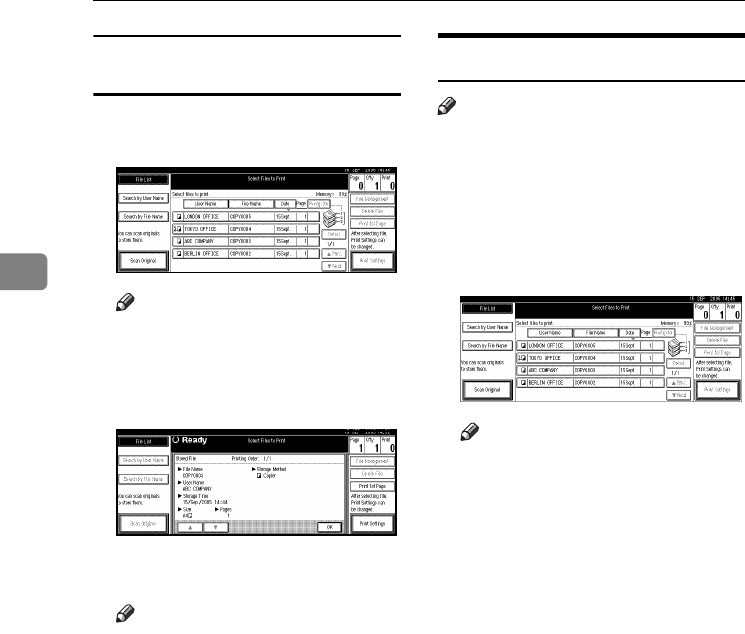
Document Server
40
3
Checking the Details of Stored
Documents
ASelect a document to display its
detailed information.
Note
❒If a password is already set for
the document, enter that pass-
word, and then press [OK].
BPress [Detail].
Detailed information about the
document appears.
Note
❒If you selected several docu-
ments, use [U] and [T] to view
the details of each.
❒Press [OK]. The Select Files to
Print display reappears.
Printing Stored Documents
Note
❒You can print stored documents
from a network computer using
Web Image Monitor. For details
about how to start the Web Image
Monitor, see Network Guide.
ASelect a document you want to
print.
Note
❒If a password is already set for
the document, enter that pass-
word, and then press [OK].
❒You can search for a document
using [Search by User Name] or
[Search by File Name]. See p.39
“Searching for Stored Docu-
ments”.
❒You can sort document names
in the list by user name, file
name or date. To sort docu-
ments, press [User Name], [File
Name] or [Date].
❒If you cannot determine the
contents of a document by its
file name, you can print only the
first page of the document for
checking purposes. See p.43
“Printing first page”.
❒To cancel a selection, press the
highlighted document again.
AdonisC4-AE_zen_F_FM_forPaper.book Page 40 Thursday, May 12, 2005 3:32 PM
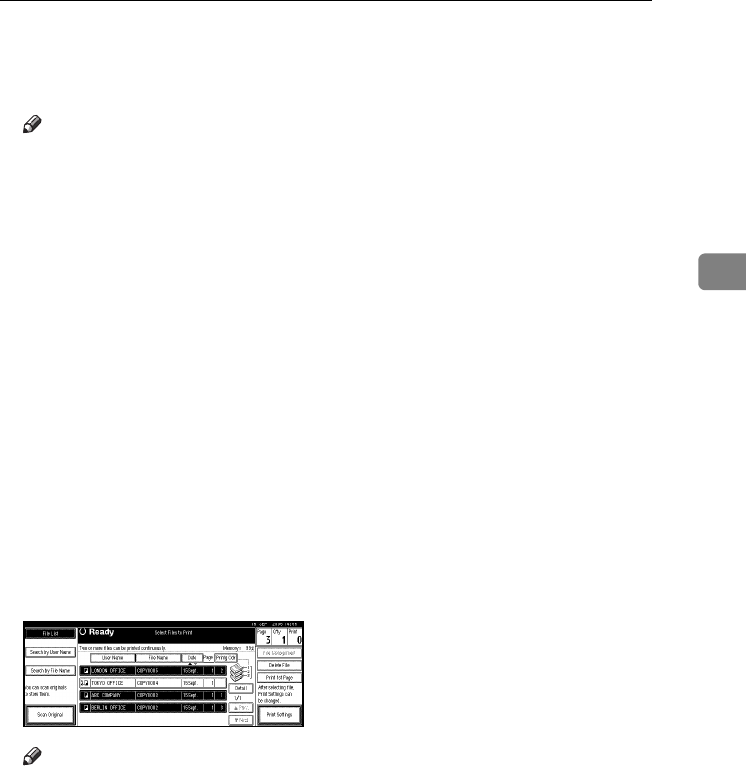
Using the Document Server
41
3
BTo print multiple documents, re-
peat stepA in the order that you
want to print.
Note
❒You can select up to 30 docu-
ments.
❒If sizes or resolutions of selected
documents are not the same, the
documents may not be printed.
❒If you wish to change the order
for printing, cancel the selec-
tion, and reselect in the desired
order.
❒If you press the {Clear Modes}
key, selection of all documents
will be canceled.
❒If you press [Printg Odr], the doc-
uments will be displayed in the
order of printing.
CIf you need to change print set-
tings, press [Print Settings].
The Print Settings display appears.
User names, file names, and print
order of documents appear.
Note
❒Print settings made for printing
in copier or printer function re-
main after printing and applied
to the next job. Print settings
made in facsimile mode, how-
ever, do not remain.
❒If you select multiple docu-
ments, print settings remain ap-
plied to the first document, but
not to other documents.
❒Print setting items are listed be-
low. For details about print re-
sults of each setting, see Copy
Reference.
❖Binding format
•
Two-sided Copy Top to Top
• Two-sided Copy Top to
Bottom
•Booklet
• Magazine
❖Cover handling
• Cover/Slip sheet
• Edit/Stamp
❖Finish
•Sort
•Stack
•Staple
• Punch (optional)
❒If you print more than one set
using the Sort function, you can
check the print result by print-
ing out only the first set. See
p.42 “Sample copy”.
❒When multiple documents are
printed at the same time, you
can combine them into a single
set by adjusting the print order.
❒When multiple documents are
printed at the same time, print
settings made for the document
printed first are applied to all
other documents.
❒If you select multiple files, you
can check file names or print or-
der selected in step A by scroll-
ing the list using [T] and [U].
❒Press [Select File] to return to the
Select Files to Print display.
❒The Booklet, Magazine, and
Stamp functions are not availa-
ble for documents stored in fac-
simile mode.
AdonisC4-AE_zen_F_FM_forPaper.book Page 41 Thursday, May 12, 2005 3:32 PM
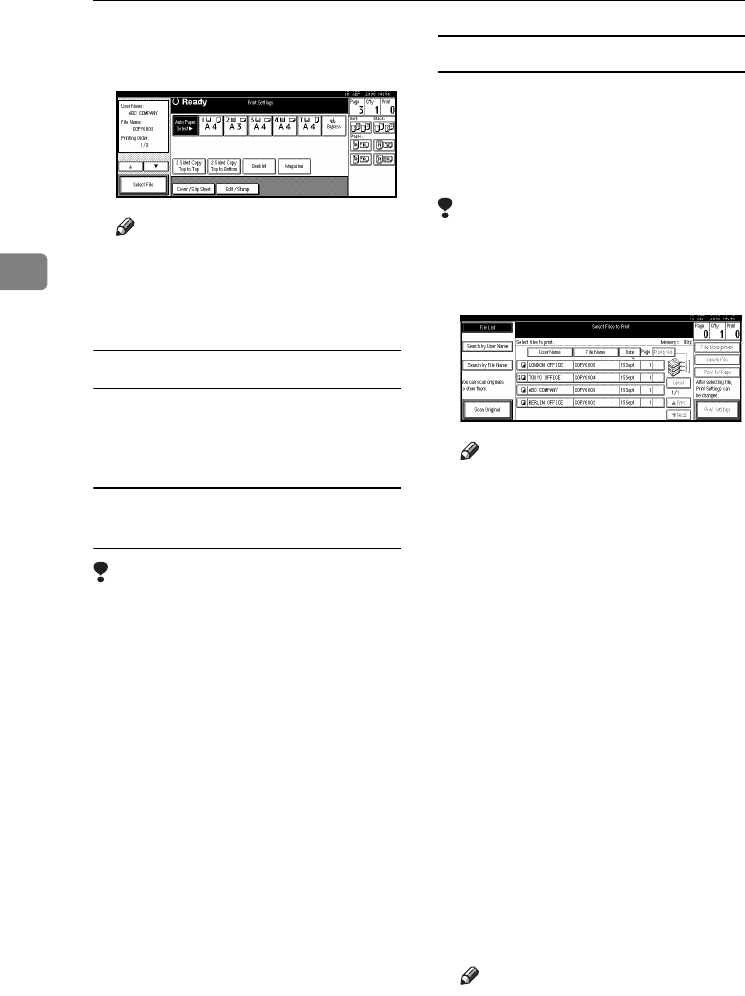
Document Server
42
3
DEnter the required number of
prints using the number keys.
Note
❒Up to 999 can be entered.
EPress the {Start} key.
Printing starts.
To stop printing
APress the {Clear/Stop} key.
BPress [Stop].
Changing the number of copies
during printing
Limitation
❒The number of copies can only be
changed when the Sort function is
selected in the print settings.
APress the {Clear/Stop} key.
BPress [Change Quantity].
CEnter a new number of copies us-
ing the number keys.
DPress the {#} key.
EPress [Continue].
Printing restarts.
Sample copy
If you print multiple sets using the
Sort function, you can check the print
order or print settings are correct by
printing only the first set using the
{Sample Copy} key.
Limitation
❒This function can only be used
when the Sort function is selected.
ASelect the document.
Note
❒If a password is already set for
the document, enter that pass-
word, and then press [OK].
❒You can search for the docu-
ment using [Search by User Name]
or [Search by File Name] at the left
top of the display. See p.39
“Searching for Stored Docu-
ments”.
❒You can sort document names
in the list by user name, file
name, or date. To sort docu-
ments, press [User Name], [File
Name], or [Date].
❒To cancel a document selection,
press it again.
BPress the {Sample Copy} key.
The first set prints out.
CPress [Continue].
Printing restarts.
Note
❒Press [Suspend] to cancel print-
ing and return to the Print Set-
tings menu to change settings.
AdonisC4-AE_zen_F_FM_forPaper.book Page 42 Thursday, May 12, 2005 3:32 PM
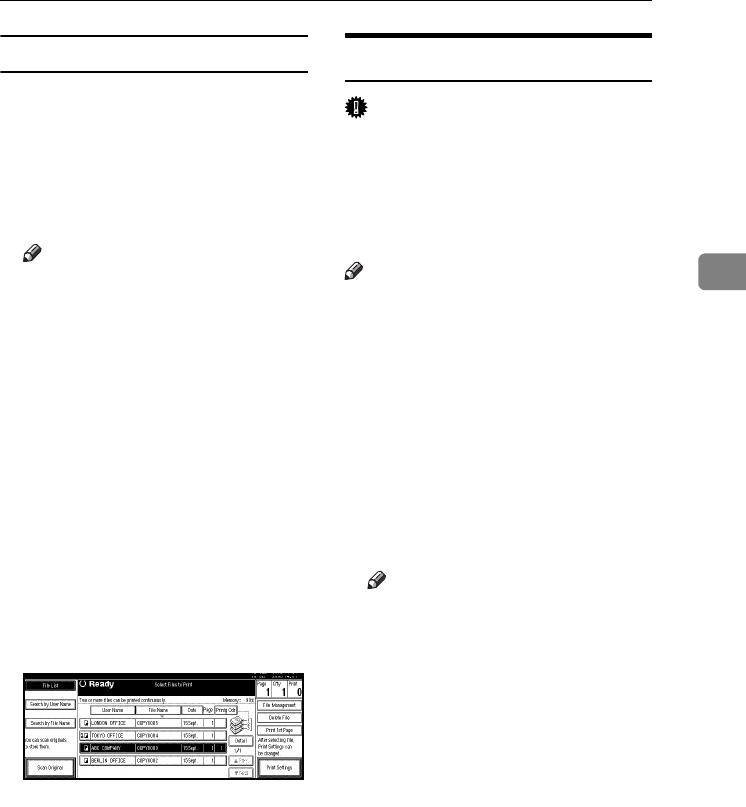
Using the Document Server
43
3
Printing first page
You can print the first page of the doc-
ument selected in the Select Files to
Print display to check its content.
If more than one document is select-
ed, the first page of each is printed.
ASelect the document.
Note
❒If a password is already set for
the document, enter that pass-
word, and then press [OK].
❒You can search for the docu-
ment using [Search by User Name]
or [Search by File Name] at the left
top of the display. See p.39
“Searching for Stored Docu-
ments”.
❒You can sort document names
in the list by user name, file
name, or date. To sort docu-
ments, press [User Name], [File
Name], or [Date].
❒To cancel a document selection,
press it again.
BPress [Print 1st Page].
CPress the {Start} key.
Deleting Stored Documents
Important
❒You can store up to 3,000 docu-
ments in the Document Server. No
more documents can be stored
when the total is 3,000. You should
delete unnecessary documents to
increase available memory.
Note
❒You can delete all the stored docu-
ments at once with User Tools. See
p.67 “Delete All Files in Document
Server”.
❒You can delete stored documents
from a network computer using
the Web Image Monitor. For de-
tails about how to start the Web
Image Monitor, see Network Guide.
APress the {Document Server} key.
BSelect the document to delete.
Note
❒If a password is already set for
the document, enter that pass-
word, and then press [OK].
❒You can delete multiple docu-
ments at once.
❒You can search for a document
by user or file name, using
[Search by User Name] or [Search
by File Name] respectively. See
p.39 “Searching for Stored Doc-
uments”.
❒You can sort document names
in the list by the user name, file
name, or date. To sort docu-
ments, press [User Name], [File
Name], or [Date].
❒If you cannot find the document
by name, you can print the first
page of a document to check its
contents. See p.43 “Printing first
page”.
AdonisC4-AE_zen_F_FM_forPaper.book Page 43 Thursday, May 12, 2005 3:32 PM
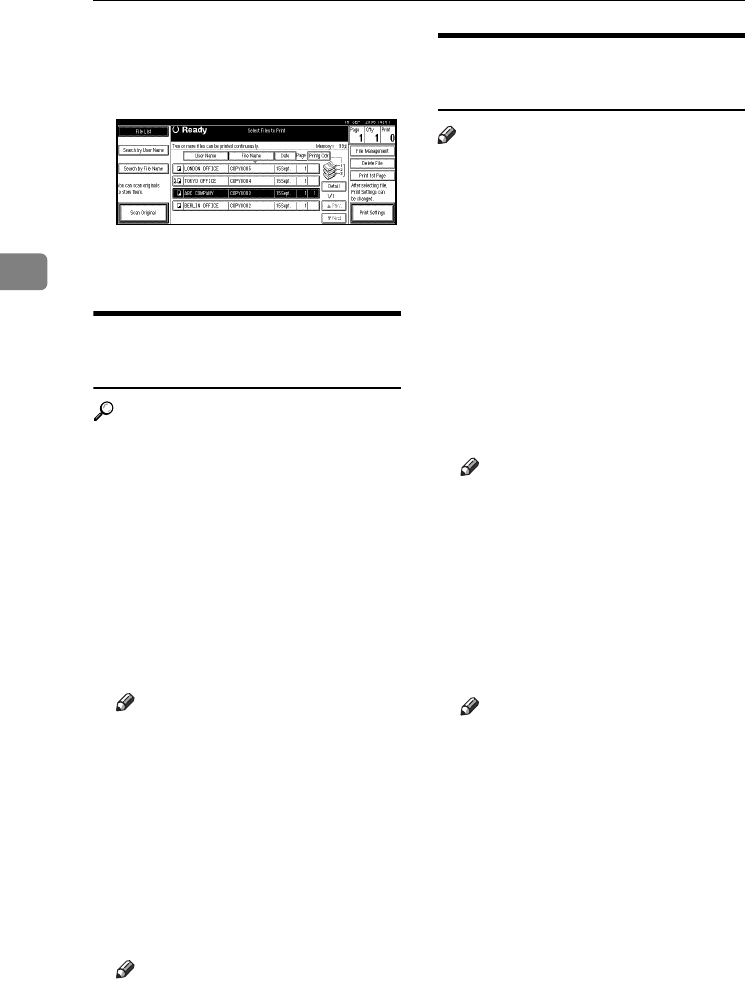
Document Server
44
3
❒Press the selected line again to
cancel the print job.
CPress [Delete File].
DPress [Delete] to delete the docu-
ment.
Viewing Stored Documents
Using Web Image Monitor
Reference
The Web Image Monitor's Help.
AStart Web browser.
BEnter “http:// (IP address of this
machine) /” in the [Address] box.
The top page of Web Image Moni-
tor appears.
CClick [Document Server].
The [Document Server File List] ap-
pears.
Note
❒To switch the display format,
click [Details], [Thumbnails] or
[Icons] from the [Display method]
list.
DClick the properties button of the
document you want to check.
Information about that document
appears.
EConfirm the document's content.
Note
❒To enlarge the document pre-
view, click [Enlarge Image].
Downloading Stored
Documents
Note
❒File format converter is required
when downloading documents
stored in copier or printer mode.
AStart Web browser.
BEnter “http:// (IP address of this
machine) /” in the [Address] box.
The top page of Web Image Moni-
tor appears.
CClick [Document Server].
The [Document Server File List] ap-
pears.
Note
❒To switch the display format,
click [Details], [Thumbnails] or
[Icons] from the [Display method]
list.
DClick the properties button of the
document you want to download.
ESelect [PDF], or [Multi-page TIFF] in
the [File format] list.
Note
❒
[
Multi-page TIFF
]
is available when
file format converter is in-
stalled.
❒[Multi-page TIFF] cannot be select-
ed for documents stored in cop-
ier or printer mode.
FClick [Download].
GClick [OK].
AdonisC4-AE_zen_F_FM_forPaper.book Page 44 Thursday, May 12, 2005 3:32 PM
Settings for the Document Server
45
3
Settings for the Document Server
❖Copier/Document Server Features (See "General Features 4/4", Copy Refer-
ence.)
❖System Settings (See p.51 “General Features”, p.55 “Tray Paper Settings”, p.58
“Timer Settings”, and p.61 “Administrator Tools”.)
Items Default
General Features
Document Server Storage Key: F1
2 Sided Original Top to Top
Document Server Storage Key: F2
1 Sided
→
1 Sided Combine
Document Server Storage Key: F3
1 Sided
→
1 Sided Combine: 4
originals
Document Server Storage Key: F4
1 Sided
→
1 Sided Combine: 8
originals
Document Server Storage Key: F5
Create Margin
Items Default
General Features Warm Up Notice On
Copy Count Display Up
Output: Document Server Internal Tray 1
Tray Paper Settings Paper Tray Priority: Copier Tray 1
Front Cover Sheet Tray Off
Slip Sheet Tray Off
Timer Settings Copier/Document Server
Auto Reset Timer
60 seconds
Administrator Tools Auto Delete File in Docu-
ment Server
Yes After 3 day(s)
Delete All Files in Document
Server
--
AdonisC4-AE_zen_F_FM_forPaper.book Page 45 Thursday, May 12, 2005 3:32 PM

Document Server
46
3
AdonisC4-AE_zen_F_FM_forPaper.book Page 46 Thursday, May 12, 2005 3:32 PM
47
4. User Tools (System Settings)
User Tools Menu (System Settings)
Reference
For details about Interface Settings and File Transfer, see “Connecting and
Setting Up”, Network Guide.
For details about parallel interface, see “System Settings (Parallel Connec-
tion)”, Printer Reference.
❖General Features (See p.51 “General Features”.)
Default
Panel Tone On
Warm Up Notice On
Copy Count Display Up
Function Priority Copier
Print Priority Display Mode
Function Reset Timer 3 Seconds
Output: Copier Internal Tray 1
Output: Document Server Internal Tray 1
Output: Facsimile Internal Tray 2
Output: Printer Internal Tray 1
Prepare Stapling --
<F/F4>Size Setting 81/2"
×
13" L
AdonisC4-AE_zen_F_FM_forPaper.book Page 47 Thursday, May 12, 2005 3:32 PM
User Tools (System Settings)
48
4
❖Tray Paper Settings (See p.55 “Tray Paper Settings”.)
❖Timer Settings (See p.58 “Timer Settings”.)
❖Interface Settings
• For details about network settings, see “Connecting and Setting Up”, Net-
work Guide.
• For details about parallel interface, see “System Settings (Parallel Connec-
tion)”, Printer Reference.
Default
Paper Tray Priority: Copier Tray 1
Paper Tray Priority: Facsimile Tray 1
Paper Tray Priority: Printer Tray 1
Tray Paper Size: Tray 1 A4K, 81/2"
×
11" K
Tray Paper Size: Tray 2 A3L, 11"
×
17"L
Tray Paper Size: Tray 3 A4L, 81/2"
×
11"L
Tray Paper Size: Tray 4 A4L, 81/2"
×
14"L
Paper Type: Bypass tray No display
Paper Type: Tray 1 No display/2 Sided Copy/Auto Paper Select on
Paper Type: Tray 2 No display/2 Sided Copy/Auto Paper Select on
Paper Type: Tray 3 No display/2 Sided Copy/Auto Paper Select on
Paper Type: Tray 4 No display/2 Sided Copy/Auto Paper Select on
Paper Type: LCT No display/2 Sided Copy/Auto Paper Select on
Front Cover Sheet Tray Off
Slip Sheet Tray Off
Printer Bypass Paper Size A4K
Default
Auto Off Timer 1 minute(s)
Panel Off Timer 1 minute(s)
System Auto Reset Timer 60 seconds
Copier/Document Server Auto Reset Timer 60 seconds
Facsimile Auto Reset Timer 30 seconds
Printer Auto Reset Timer 60 seconds
Scanner Auto Reset Timer 60 seconds
Set Date --
Set Time --
Auto Logout Timer Off
AdonisC4-AE_zen_F_FM_forPaper.book Page 48 Thursday, May 12, 2005 3:32 PM
User Tools Menu (System Settings)
49
4
❖File Transfer
See “Connecting and Setting Up”, Network Guide.
❖Administrator Tools (See p.61 “Administrator Tools”.)
Default
User Authentication Management Off
Administrator Authentication Management Off
Program / Change Administrator --
Key Counter Management --
Extended Security --
Display/Print Counter --
Display/Clear/Print Counter per User --
Address Book Management --
Address Book:Program/Change/Delete Group --
Address Book:Program/Change/Delete Transfer Request --
Address Book:Change Order --
Print Address Book: Destination List --
Address Book:Edit Title --
Address Book:Select Title Title 1
Auto Delete File in Document Server After 3 day(s)
Delete All Files in Document Server --
Program / Change / Delete LDAP Server --
Use LDAP Server Off
AOF(Always On) On
Firmware Version --
Network Security Level --
Transfer Log Setting Off
Data Security for Copying Off
AdonisC4-AE_zen_F_FM_forPaper.book Page 49 Thursday, May 12, 2005 3:32 PM
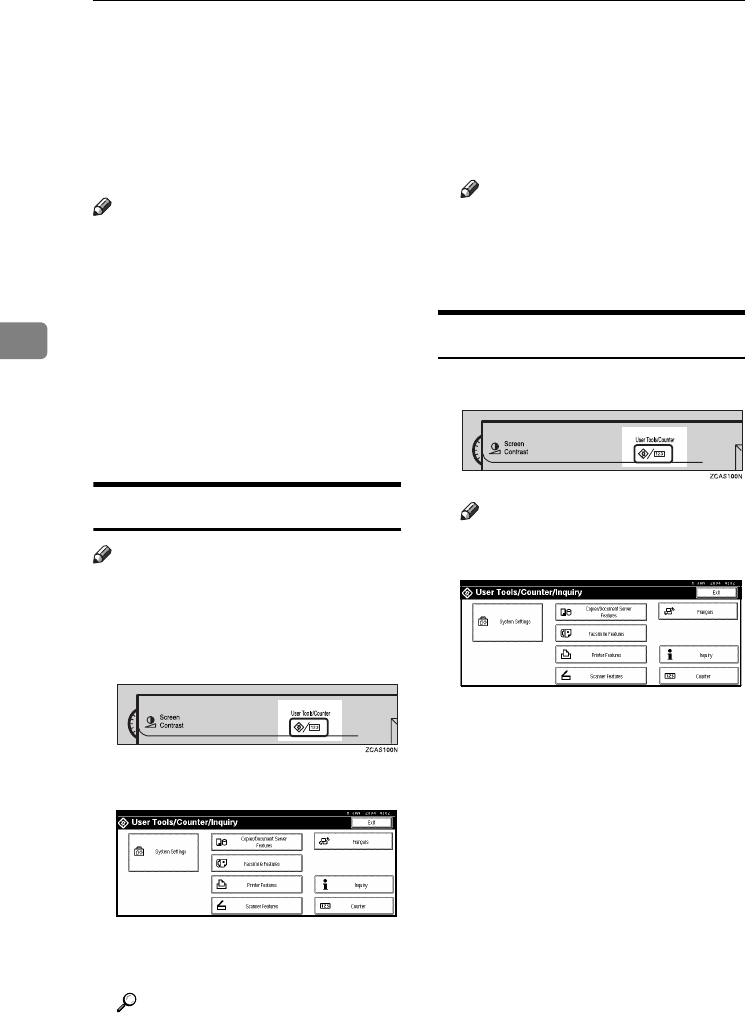
User Tools (System Settings)
50
4
Accessing User Tools (System Settings)
This section is for Administrators in
charge of this machine.
User Tools allow you to change or set
defaults.
Note
❒Operations for system settings dif-
fer from normal operations. Al-
ways quit User Tools when you
have finished. See p.50 “Quitting
User Tools”.
❒Any changes you make with User
Tools remain in effect even if the
main power switch or operation
switch is turned off, or the {Energy
Saver} or {Clear Modes} key is
pressed.
Changing Default Settings
Note
❒If the Administrator Authentica-
tion specified, contact your admin-
istrator.
APress the {User Tools/Counter} key.
BPress [System Settings].
CSelect the menu, and then press
the appropriate key.
Reference
p.47 “User Tools Menu (System
Settings)”
DChange settings by following in-
structions on the display panel,
and then press [OK].
Note
❒To cancel changes made to set-
tings and return to the initial
display, press the {User
Tools/Counter} key.
Quitting User Tools
APress the {User Tools/Counter} key.
Note
❒You can also quit User Tools by
pressing [Exit].
AdonisC4-AE_zen_F_FM_forPaper.book Page 50 Thursday, May 12, 2005 3:32 PM
Settings You Can Change with User Tools
51
4
Settings You Can Change with User Tools
Reference
To access User Tools, see p.50 “Accessing User Tools (System Settings)”.
General Features
❖Panel Tone
The beeper (key tone) sounds when a key is pressed.
Note
❒Default: On
❖Warm Up Notice (copier/Document Server)
You can have the beeper sound when the machine becomes ready to copy af-
ter leaving Energy Saver mode, or when the power is turned on.
Note
❒If the Panel Tone setting is “Off”, the beeper does not sound, whatever the
Warm Up Notice setting.
❒Default: On
❖Copy Count Display (copier/Document Server)
The copy counter can be set to show the number of copies made (count up) or
the number of copies yet to be made (count down).
Note
❒Default: Up (count up)
❖Function Priority
You can specify the mode to be displayed immediately after the operation
switch is turned on, or when System Reset mode is turned on.
Note
❒Default: Copier
AdonisC4-AE_zen_F_FM_forPaper.book Page 51 Thursday, May 12, 2005 3:32 PM

User Tools (System Settings)
52
4
❖Print Priority
Gives print priority to the mode displayed.
Reference
p.29 “Multi-Access”
Note
❒Default: Display Mode
❒When [Interleave] is selected, the current print job will be interrupted after
a maximum of five sheets.
❒When the optional internal tray 2, 1000-sheet finisher, 2 Tray finisher or
booklet finisher is installed on the machine, you can specify an output tray
for documents delivery. For details about how to specify an output tray for
each function, see the following sections:
• p.53 “Output: Copier (copier)”
• p.53 “Output: Document Server (Document Server)”
• p.53 “Output: Facsimile (facsimile)”
• p.54 “Output: Printer (printer)”
❖Function Reset Timer
You can set the length of time the machine waits before changing modes
when using the multi-access function (see p.29 “Multi-Access”). This is useful
if you are making many copies and have to change settings for each copy. If
you set a longer reset period, you can prevent interruption from other func-
tions.
Note
❒Default: Set Time
❒The Function Reset Timer setting is ignored if Interleave is set for Print Pri-
ority (see p.52 “Print Priority”).
❒When you select [Set Time], enter the time (3–30 seconds, in 1 second incre-
ments) using the number keys.
❒The default time is three seconds.
AdonisC4-AE_zen_F_FM_forPaper.book Page 52 Thursday, May 12, 2005 3:32 PM
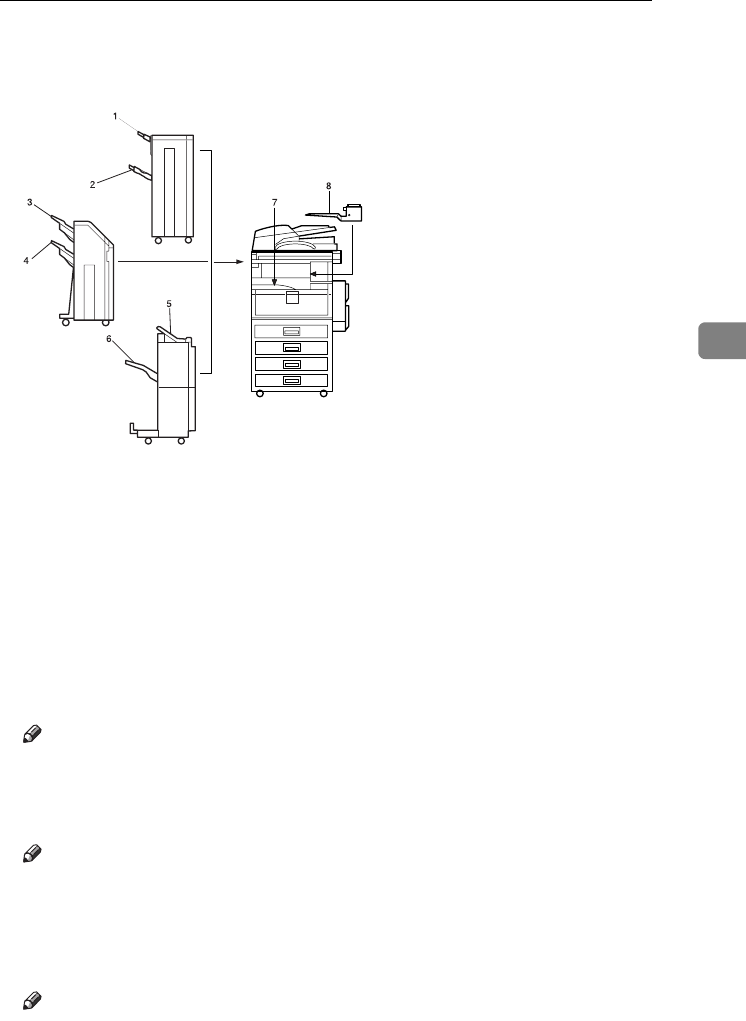
Settings You Can Change with User Tools
53
4
❖Output: Copier (copier)
You can specify a tray to which documents are delivered.
1. Finisher Upper Tray
2. Finisher Shift Tray
3. Finisher Shift Tray 1
4. Finisher Shift Tray 2
5. Finisher Upper Tray
6. Finisher Shift Tray
7. Internal Tray 1
8. Internal Tray 2
Note
❒Default: Internal Tray 1
❖Output: Document Server (Document Server)
You can specify a tray to which documents are delivered.
Note
❒Default: Internal Tray 1
❒For details about output trays, see p.53 “Output: Copier (copier)”.
❖Output: Facsimile (facsimile)
You can specify a tray to which documents are delivered.
Note
❒Default: Internal Tray 2
❒For details about output trays, see p.53 “Output: Copier (copier)”.
AHU006S
AdonisC4-AE_zen_F_FM_forPaper.book Page 53 Thursday, May 12, 2005 3:32 PM
User Tools (System Settings)
54
4
❖Output: Printer (printer)
You can specify a tray to which documents are delivered.
Note
❒Default: Internal Tray 1
❒The output trays set on the printer driver have priority over the output tray
specified above.
❒For details about output trays, see p.53 “Output: Copier (copier)”.
❖Prepare Stapling
When the booklet finisher is installed, perform a stapling test (five to seven
times) after replacing staples for saddle stitching, or removing jammed sta-
ples.
Note
❒The display for this setting appears only when the booklet finisher is in-
stalled. See p.141 “Using “Prepare Stapling ”in User Tools to initialize the
staple unit”.
❖<F/F4>Size Setting
Currently three types of F size are available; 81/2"×13"L, 81/4"×13"L and
8"×13"L. The ADF or exposure glass cover sensor cannot distinguish these
three types of originals. This function sets the F size from the ADF or expo-
sure glass cover sensor. Auto Paper Select or Auto Reduce/Enlarge can be
used for F size originals based on this setting.
Note
❒Default: 81/2"
×
13"L
Output tray settings
Limitation
❒You cannot interrupt the current stapling job even if a stapling job is specified
by a different function.
❒When the 1000-sheet finisher, 2 Tray finisher or booklet finisher is installed
and stapling or shift-sorting is specified for a job, the job will be delivered to
the finisher shift tray, finisher shift tray 1 or finisher shift tray 2 regardless of
the output tray specified.
AdonisC4-AE_zen_F_FM_forPaper.book Page 54 Thursday, May 12, 2005 3:32 PM
Settings You Can Change with User Tools
55
4
Tray Paper Settings
❖Paper Tray Priority: Copier (copier/Document Server)
You can specify the tray to supply paper for output.
Note
❒Default: Tray 1
❖Paper Tray Priority: Facsimile (facsimile)
You can specify the tray to supply paper for output.
Note
❒Default: Tray 1
❖Paper Tray Priority: Printer (printer)
You can specify the tray to supply paper for output.
Note
❒Default: Tray 1
❖Tray Paper Size: Tray 1–4
Select the size of the paper loaded in the paper tray.
• The paper sizes you can set for Tray 1 to Tray 4 are as follows:
•A3L, B4 JIS (Japanese Industrial Standard)L, A4K, A4L, B5 JISK, B5
JISL, A5L
•11"×17"L, 81/2"×14"L, 81/2"×13"L, 81/2"×11"K, 81/2"×11"L,
81/4"×13"L, 81/4"×14"L, 11"×14"L, 8"×13"L, 71/4"×101/2"L,
8"×101/2"K, 8"×101/2"L, 51/2"×81/2"L
Important
❒If the specified paper size differs from the actual size of the paper loaded
in the paper tray, a misfeed might occur because the correct paper size was
not detected.
Note
❒Default:
•Tray 1: A4K, 81/2" × 11"K
•Tray 2: A3L, 11" × 17"L
•Tray 3: A4L, 81/2" × 11"L
•Tray 4: A4L, 81/2" × 14"L
❒
The paper guide for the optional LCT is fixed for A4
K
, 8
1
/
2
"
×
11"
K
size pa-
per. Contact your service representative if you need to change the paper size.
❒If the paper size set for the selector in the paper tray is different to the pa-
per size for this setting, the paper size of the selector has priority.
❒If you load paper of a size not indicated on the paper size selector in the
paper tray, set the selector to "p".
AdonisC4-AE_zen_F_FM_forPaper.book Page 55 Thursday, May 12, 2005 3:32 PM
User Tools (System Settings)
56
4
Reference
p.134 “Changing the Paper Size”
❖Paper Type: Bypass tray
Sets the display so you can see what type of paper is loaded in the bypass tray.
• The paper types you can set for the bypass tray are as follows:
• recycled paper, special paper, colour paper, letterhead, label paper, pre-
punched paper, bond paper, cardstock, thick paper, OHP
Note
❒Default: No Display
❖Paper Type: Tray 1–4
Sets the display so you can see what type of paper is loaded in each paper
tray. The print function use this information to automatically select the paper
tray.
• The paper types you can set are as follows:
• recycled paper, special paper, colour paper, letterhead, preprinted pa-
per, prepunched paper, bond paper, cardstock
Note
❒Default:
• Paper Type: No Display
• Copying Method in Duplex: 2 Sided Copy
• Apply Auto Paper Select: Yes
❒When paper of the same type and size is loaded in two different paper
trays and you want to specify one as 2 Sided Copy and one as 1 Sided
Copy, specify the upper tray for 2 Sided Copy. If one of the trays is speci-
fied as the default in Paper Tray Priority, assign 2 Sided Copy to that tray.
❒A appears next to the paper tray if [No] is selected in Auto Paper Select.
Limitation
❒[Auto Paper Select] can only be selected for the copier function if [No display]
and [Recycled paper] are selected. If [No] is selected, Auto Paper Select is not
valid for the tray.
AdonisC4-AE_zen_F_FM_forPaper.book Page 56 Thursday, May 12, 2005 3:32 PM

Settings You Can Change with User Tools
57
4
❖Paper Type: LCT
Sets the display so you can see what type of paper is loaded in the LCT.
• The paper types you can set are as follows:
• recycled paper, special paper, colour paper, letterhead, preprinted pa-
per, prepunched paper, bond paper, cardstock
Note
❒Default:
• Paper Type: No Display
• Copying Method in Duplex: 2 Sided Copy
• Apply Auto Paper Select: Yes
❒A appears next to the LCT if [No] is selected in Auto Paper Select.
Limitation
❒[Auto Paper Select] can only be selected for the copier function if [No display]
and [Recycled paper] are selected. If [No] is selected, Auto Paper Select is not
valid for the LCT.
❖Front Cover Sheet Tray
Allows you to specify and display the paper tray that is setting cover sheets.
After selecting the paper tray, you can also specify the display timing and
copy method for two-sided copying.
Note
❒Default:
•Tray to Program: Off
❒Functions using the cover sheet tray setting are the front cover function
and front/back cover function.
❒When [At Mode Selected] is selected, cover sheet tray settings only appear
when the cover function or slip sheet function is selected.
❒When [Full Time] is selected, the cover sheet tray is always displayed.
❒You can set Copying Method in Duplex only when [At Mode Selected] is se-
lected.
Reference
“Covers”, Copy Reference
AdonisC4-AE_zen_F_FM_forPaper.book Page 57 Thursday, May 12, 2005 3:32 PM
User Tools (System Settings)
58
4
❖Slip Sheet Tray
Allows you to specify and display the paper tray that is inserting slip sheets.
After selecting the paper tray, you can also specify the display timing and
copy method for two-sided copying.
Note
❒Default:
•Tray to Program: Off
❒When [At Mode Selected] is selected, slip sheet tray settings only appear
when the cover function or slip sheet function is selected.
Reference
"Slip Sheets", Copy Reference
❖Printer Bypass Paper Size
You can specify the size of the paper in the bypass tray when printing data
from the computer.
• The paper types you can set for trays are as follows:
A3L, A4K, A4L, A5K, A5L, A6L, B4 JISL, B5 JISK, B5 JISL, B6
JISL, C5 EnvK, C6 EnvK, DL EnvK, 12" × 18"L, 11" × 17"L, 81/2" ×
14"L, 81/2" × 13"L, 81/2" × 11"K, 81/2" × 11"L, 81/4" × 13"L, 8" × 13"L,
71/4" × 101/2"K, 71/4" × 101/2"L, 51/2" × 81/2"K, 51/2" × 81/2"L, 41/8" ×
91/2"K, 37/8" × 71/2"K, 8KL, 16KK, 16KL
Note
❒Default:A4K
❒You can specify a custom size of between 90.0 and 297.0 mm (3.6"-11.7")
vertically, and between 148.0 and 432.0 mm (5.9"-17.0") horizontally.
Timer Settings
❖Auto Off Timer
After a specified period has passed, following job completion, the machine
automatically turns off, in order to conserve energy. This function is called
"Auto Off".
The machine status after the Auto Off operation is referred to as "Off mode", or
"Sleep mode". For the Auto Off Timer, specify the time to elapse before Auto Off.
Note
❒Default: 1 minute(s)
❒The time can be set from 10 seconds to 240 minutes, using the number keys.
❒
From “Off mode” or “Sleep mode”, the machine is ready to use within 10 seconds.
❒Auto Off may not work when error messages appear.
❒The machine may not shift to "Sleep Mode" at the set time, if the main pow-
er switch has just been turned on and functions other than copier function
are still in the process of starting up.
AdonisC4-AE_zen_F_FM_forPaper.book Page 58 Thursday, May 12, 2005 3:32 PM

Settings You Can Change with User Tools
59
4
❖Panel Off Timer
Set the amount of time the machine waits before switching the panel off after
copying has finished or performing the last operation.
Note
❒Default: 1 minute(s)
❒The time can be set from 10 seconds to 240 minutes, using the number keys.
❖System Auto Reset Timer
The System Reset setting automatically switches the screen to that of the func-
tion set in Function Priority when no operations are in progress, or when an
interrupted job is cleared. This setting determines the system reset interval.
See p.51 “Function Priority”.
Note
❒Default: On, 60 seconds
❒The time can be set from 10 to 999 seconds in 1 second increments, using
the number keys.
❖Copier/Document Server Auto Reset Timer (copier/Document Server)
Specifies the time to elapse before copier and Document Server modes reset.
Note
❒If [Off] is selected, the machine does not automatically switch to the user
code entry screen.
❒Default: On, 60 seconds
❒The time can be set from 10 to 999 seconds, using the number keys.
❖Facsimile Auto Reset Timer (facsimile)
Specifies the time to elapse before the facsimile mode resets.
Note
❒Default: 30 seconds
❒The time can be set from 30 to 999 seconds, using the number keys.
❖Printer Auto Reset Timer(printer)
Specifies the time to elapse before the printer function resets.
Note
❒Default: On, 60 seconds
❒If [Off] is selected, the machine does not automatically switch to the user
code entry screen.
❒The time can be set from 10 to 999 seconds, using the number keys.
AdonisC4-AE_zen_F_FM_forPaper.book Page 59 Thursday, May 12, 2005 3:32 PM

User Tools (System Settings)
60
4
❖Scanner Auto Reset Timer (scanner)
Specifies the time to elapse before the scanner function resets.
Note
❒If [Off] is selected, the machine will not automatically switch to the user
code entry screen.
❒Default: On, 60 seconds
❒The time can be set from 10 to 999 seconds, using the number keys.
❖Set Date
Set the date for the copier's internal clock using the number keys.
Note
❒To change between year, month, and day, press [←] and [→].
❖Set Time
Set the time for the copier's internal clock using the number keys.
Note
❒To change between hours, minutes and seconds, press [←] and [→].
❒Enter the time using the 24–hour format (in 1 second increments).
❖Auto Logout Timer
You can specify whether or not to automatically log out a user when the user
does not operate the machine for a specified period of time after logging in.
Note
❒Default: On, 60 seconds
❒When [On] is selected, the time can be set from 10 to 999 seconds, in one sec-
ond increments, using the number keys.
AdonisC4-AE_zen_F_FM_forPaper.book Page 60 Thursday, May 12, 2005 3:32 PM
Settings You Can Change with User Tools
61
4
Administrator Tools
Administrator Tools are used by the administrator. To change these settings,
contact the administrator. We recommend specifying Administrator Authenti-
cation before making Administrator Tools settings. See Security Reference.
❖User Authentication Management
• User Code Authentication
Using User Code Authentication, you can limit the available functions and
supervise their use.
When using User Code Authentication, register the user code.
See p.74 “Authentication Information”.
•Copier
•Document Server
• Facsimile
•Scanner
•Printer
• Printer: PC Control
Note
❒Using the Printer PC Control function, you can obtain a log of prints cor-
responding to the codes entered using the printer driver.
• Basic Authentication
• Windows Authentication
• LDAP Authentication
• Integration Server Authentication
•Off
Note
❒Default: Off
Reference
For details about Basic Authentication, Windows Authentication, LDAP
Authentication, and Integration Server Authentication, see Security Refer-
ence.
❖Administrator Authentication Management
See Security Reference.
❖Program / Change Administrator
See Security Reference.
❖Key Counter Management
You can specify that functions that you want to manage with the key counter.
AdonisC4-AE_zen_F_FM_forPaper.book Page 61 Thursday, May 12, 2005 3:32 PM
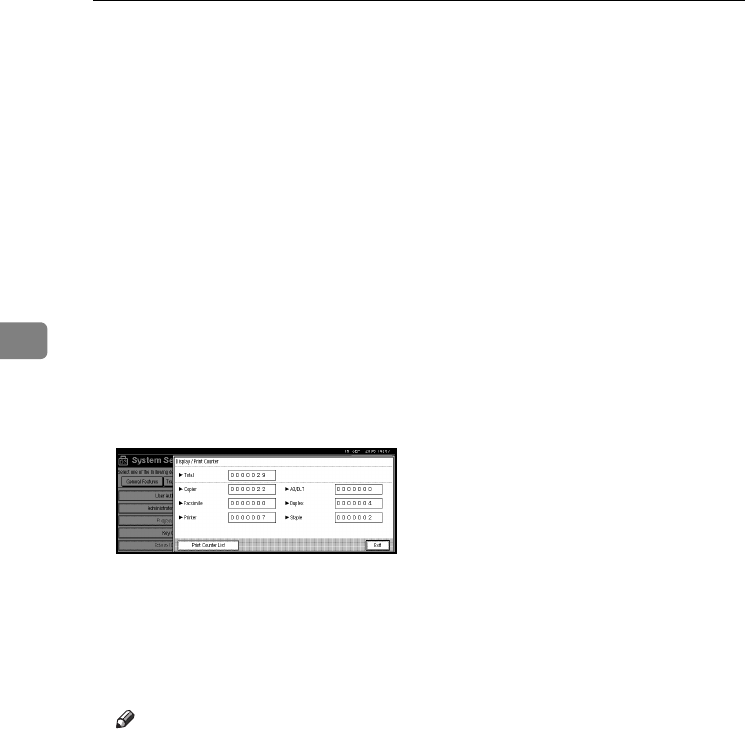
User Tools (System Settings)
62
4
❖Extended Security
You can specify whether or not to use the extended security functions. For de-
tails about the extended security functions, see Security Reference.
❖Display/Print Counter
Allows you to view and print the number of prints.
•Display/Print Counter
Displays the number of prints for each function (Total, Copier, Facsimile,
Printer, A3/DLT, Duplex, and Staple).
• Print Counter List
Prints out a list of the number of prints made under each function.
• To print the counter list:
APress the {User Tools/Counter} key.
BPress [System Settings].
CPress [Administrator Tools].
DPress [Display / Print Counter].
EPress [Print Counter List].
FPress the {Start} key.
GPress [Exit].
❖Display/Clear/Print Counter per User
Allows you to view and print the numbers of prints accessed with user codes,
and to set those values to 0.
Note
❒Press [U] and [T] to show all the numbers of prints.
❒The number of prints may differ from the counter value shown in Dis-
play/Print Counter.
• Print Counter for All Users
Prints the counter values for all the users.
• Clear Counter for All Users
Sets the counter value for all the users.
• Print Counter per User
Prints the counter values for each user.
•Clear Counter per User
Sets the counter value for each user.
AdonisC4-AE_zen_F_FM_forPaper.book Page 62 Thursday, May 12, 2005 3:32 PM

Settings You Can Change with User Tools
63
4
Note
❒To print a list for each user, see p.76 “Printing the Counter for Each User
Code”.
❖Address Book Management
You can add, change or delete information registered in the Address Book.
For details, see p.69 “Address Book”.
•[Program / Change]
You can register and change names as well as user codes.
•Names
You can register a name, key display, registration number, and title selec-
tion.
•Auth. Info
You can register a user code, and specify the functions available to each
user code. You can also register user names and passwords to be used
when sending e-mail, sending files to folders, or accessing an LDAP server.
•Protection
You can register a protection code.
•Fax Dest.
You can register a fax number, international TX mode, fax header, label in-
sertion, IP-Fax destination, and protocol.
•E-mail
You can register an e-mail address.
•Folder
you can register the protocol, path, port number, and server name.
•Add to Group
You can put names registered in the Address Book into a group.
•[Delete]
You can delete a name from the Address Book.
Note
❒You can register up to 2,000 names.
❒You can register up to 100 user codes. If you add the optional user account
enhance unit, you can register up to 500 user codes.
❒You can also register user codes from SmartDeviceMonitor for Admin.
(printer option required)
❒You can also register and manage data in the Address Book using Web Im-
age Monitor. See the Web Image Monitor's Help.
AdonisC4-AE_zen_F_FM_forPaper.book Page 63 Thursday, May 12, 2005 3:32 PM
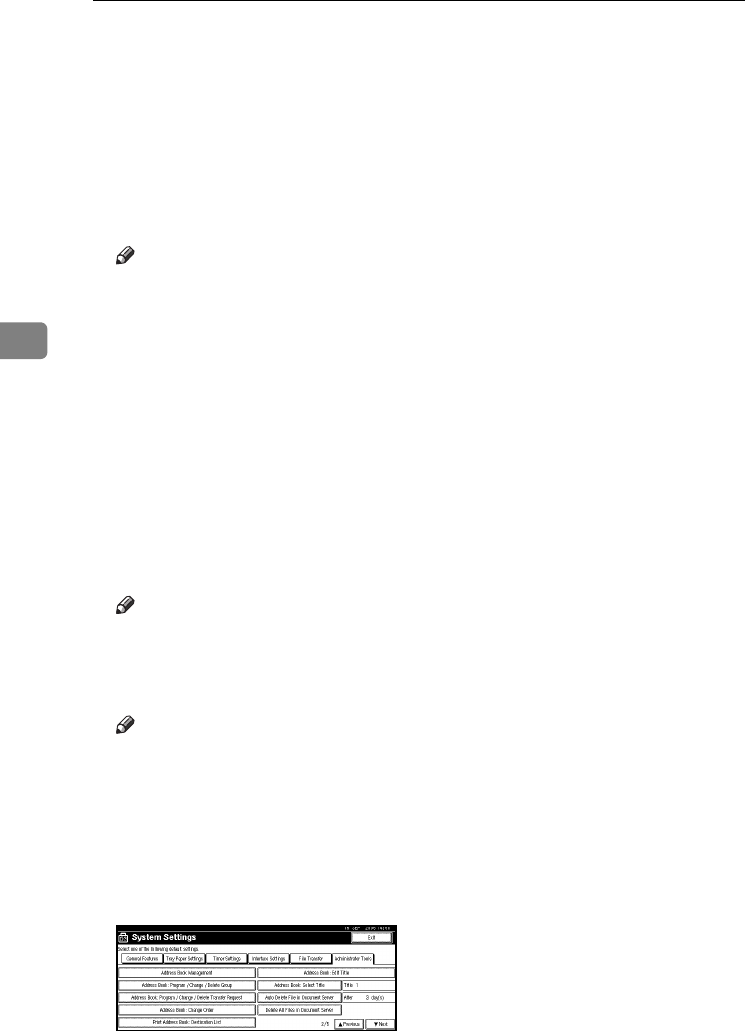
User Tools (System Settings)
64
4
❖Address Book: Program / Change / Delete Group
Names registered in the Address Book can be added into a group.
You can then easily manage the names registered in each group. For details,
see p.100 “Registering Names to a Group”.
•[Program / Change]
You can register new groups, or changes a group name, key display, title
selection or registration number.
•[Delete]
You can delete a group.
Note
❒You can register up to 100 groups.
❒You can also group users using Web Image Monitor. For more informa-
tion, see the Web Image Monitor help.
❖Address Book: Program/Change/Delete Transfer Request
You can register fax destinations for the Transfer Request function in facsim-
ile mode.
For details about operations, see p.107 “Registering the Transfer Request”.
•[Program/Change]
This registers new transfer requests and receiving stations, or changes the
transfer request name, key display, title selection, registration number, fax
destination, or e-mail address.
•[Delete]
Deletes a transfer request.
Note
❒You can register up to 10 transfer requests.
❖Address Book: Change Order
Changes the order of registered name.
Note
❒You can rearrange the order of items on the same page, but you cannot
move items to another page. For example, you cannot move an item from
“PLANNING” ([OPQ]) to “DAILY” ([CD]).
APress the {User Tools/Counter} key.
BPress [System Settings].
CPress [Administrator Tools], and then press [TNext].
DPress [Address Book: Change Order].
AdonisC4-AE_zen_F_FM_forPaper.book Page 64 Thursday, May 12, 2005 3:32 PM
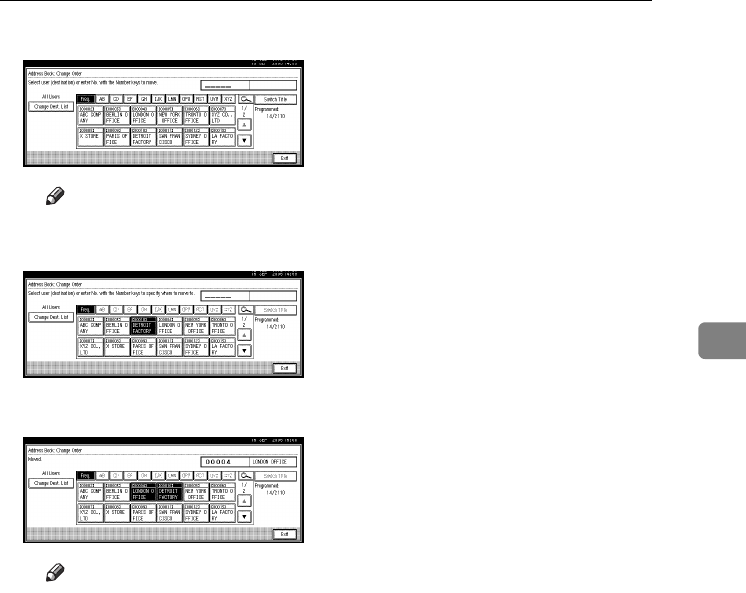
Settings You Can Change with User Tools
65
4
EPress the name key to be move.
Note
❒You can select a name using the number keys.
FPress the name key in the place you want to move to.
The name selected in step E moves to the place selected in step F, and the
keys for other names will be shifted accordingly.
Note
❒You can also select a name using the number keys.
❖Print Address Book: Destination List
You can print the destination list registered in the Address Book.
•Print in Title 1 Order
Prints the Address Book in Title 1 order.
•Print in Title 2 Order
Prints the Address Book in Title 2 order.
•Print in Title 3 Order
Prints the Address Book in Title 3 order.
•Print Group Dial List
Prints the group Address Book.
ASelect the print format.
BTo print the list on two-sided pages, select [Print on 2 Sides].
CPress the {Start} key.
The list prints out.
AdonisC4-AE_zen_F_FM_forPaper.book Page 65 Thursday, May 12, 2005 3:32 PM
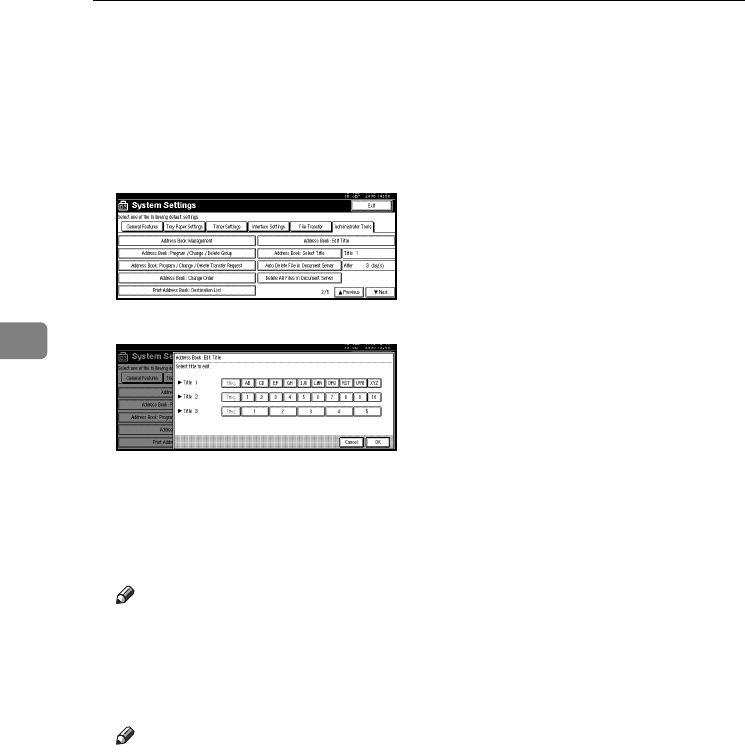
User Tools (System Settings)
66
4
❖Address Book: Edit Title
You can edit the title to easily find a user.
APress the {User Tools/Counter} key.
BPress [System Settings].
CPress [Administrator Tools], and then press [TNext].
DPress [Address Book: Edit Title].
EPress the title key you want to change.
FEnter the new name, and then press [OK].
GPress [Exit].
❖Address Book: Select Title
Specifies the title to select a name.
Note
❒Default: Title 1
❖Auto delete File in Document Server
You can specify whether documents stored in the Document Server will or
will not be deleted after a specified period of time.
Note
❒Default: Yes After 3 day(s)
❒If you select [Yes], documents stored subsequently are deleted after the
specified period.
❒If you select [No], documents are not automatically deleted.
❒If you select [Yes], enter a number of days from 1 to 180 (in 1 day incre-
ments).
❒The default is 3 days, this means documents are deleted 3 days (72 hours)
after they are stored.
AdonisC4-AE_zen_F_FM_forPaper.book Page 66 Thursday, May 12, 2005 3:32 PM

Settings You Can Change with User Tools
67
4
❖Delete All Files in Document Server
You can delete files stored in the Document Server, including files stored for
Sample Print, Locked Print, Hold Print, and Stored Print under the printer
function.
Note
❒Even if a password is always set, all documents are deleted.
❒A confirmation message appears. To delete all documents, select [OK].
❖Program / Change / Delete LDAP server
See "Program / Change / Delete LDAP Server", Network Guide
❖Use LDAP Server
You can specify whether or not to use the LDAP server for searching.
Note
❒Default: Off
❒If you select [OFF], [Search LDAP] will not appear on the searching display.
❖AOF (Always ON)
Specify whether or not to use Auto Off.
Note
❒Default: On
❖Firmware Version
You can check the version of the software installed in this machine.
❖Network Security Level
For details about this function, consult your administrator.
❖Delete All Logs
For details about this function, consult your administrator.
❖Transfer Log Setting
For details about this function, consult your administrator.
❖Data Security for Copying
For details about this function, consult your administrator.
AdonisC4-AE_zen_F_FM_forPaper.book Page 67 Thursday, May 12, 2005 3:32 PM

User Tools (System Settings)
68
4
AdonisC4-AE_zen_F_FM_forPaper.book Page 68 Thursday, May 12, 2005 3:32 PM
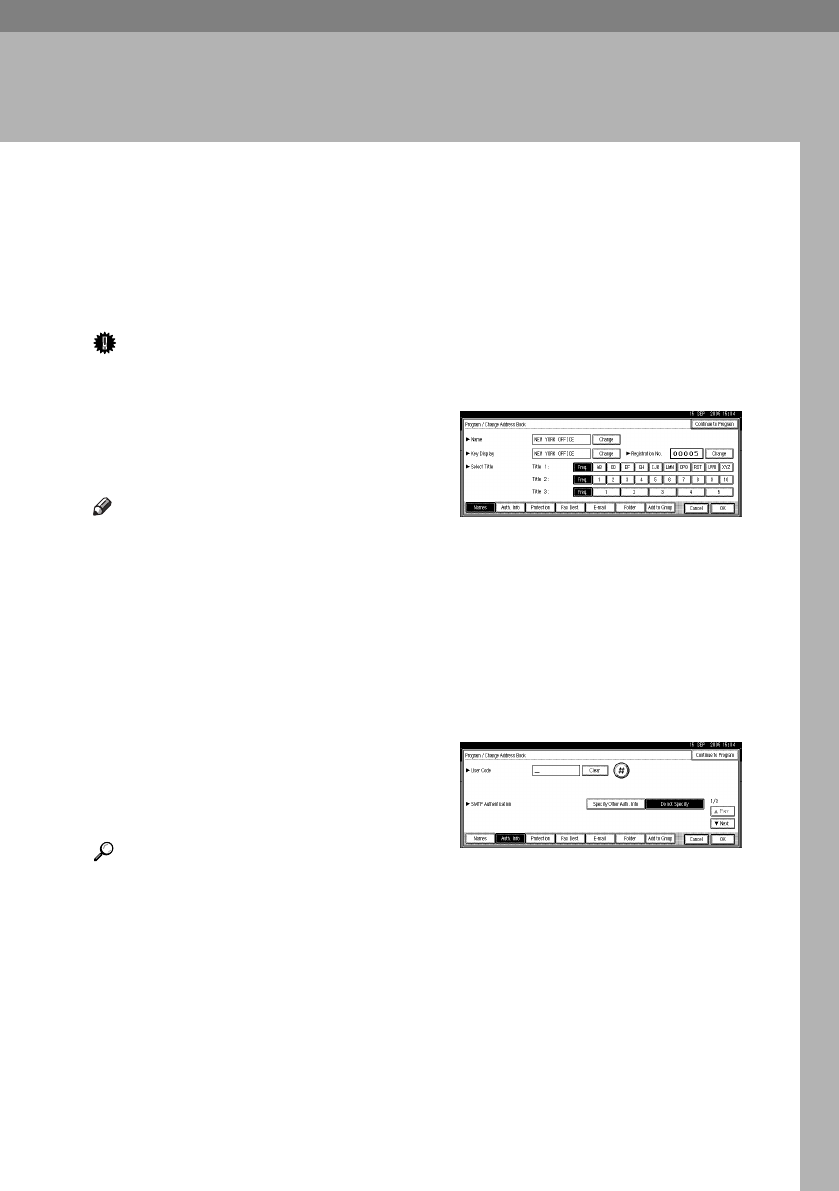
69
5.
Registering Addresses and Users
for Facsimile/Scanner Functions
Address Book
Registering information such as the
names of users and their e-mail ad-
dresses in the Address Book allows
you to manage them easily.
Important
❒Address Book data is stored on the
hard disk. It can be lost if there is
some kind of hard disk failure. The
manufacturer shall not be respon-
sible for any damages resulting
data loss.
Note
❒You can also use Web Image Mon-
itor to register names in the Ad-
dress Book. With the
SmartDeviceMonitor for Admin,
you can register multiple names at
the same time.
❒Using [Address Management Tool] in
SmartDeviceMonitor for Admin,
you can backup Address Book da-
ta. We recommend backing up
data when using the Address
Book.
❒Printer option is required to use
SmartDeviceMonitor for Admin.
Reference
For details about using Web Image
Monitor, see the Web Image Moni-
tor Help.
For details about SmartDevice-
Monitor for Admin and how to in-
stall it, see Printer Reference.
For operating instructions, see
SmartDeviceMonitor for Admin
Help.
You can register and manage the fol-
lowing items in the Address Book:
❖Name
You can register the name of the
user and the key display. This is
the basic information required for
managing user of the machine.
❖Authentication Information
You can register user codes in or-
der to restrict particular functions
to certain users, and to check their
use of each function. You can also
register login user names and login
passwords to be used when send-
ing e-mail, sending to folders, or
accessing an LDAP server.
AdonisC4-AE_zen_F_FM_forPaper.book Page 69 Thursday, May 12, 2005 3:32 PM
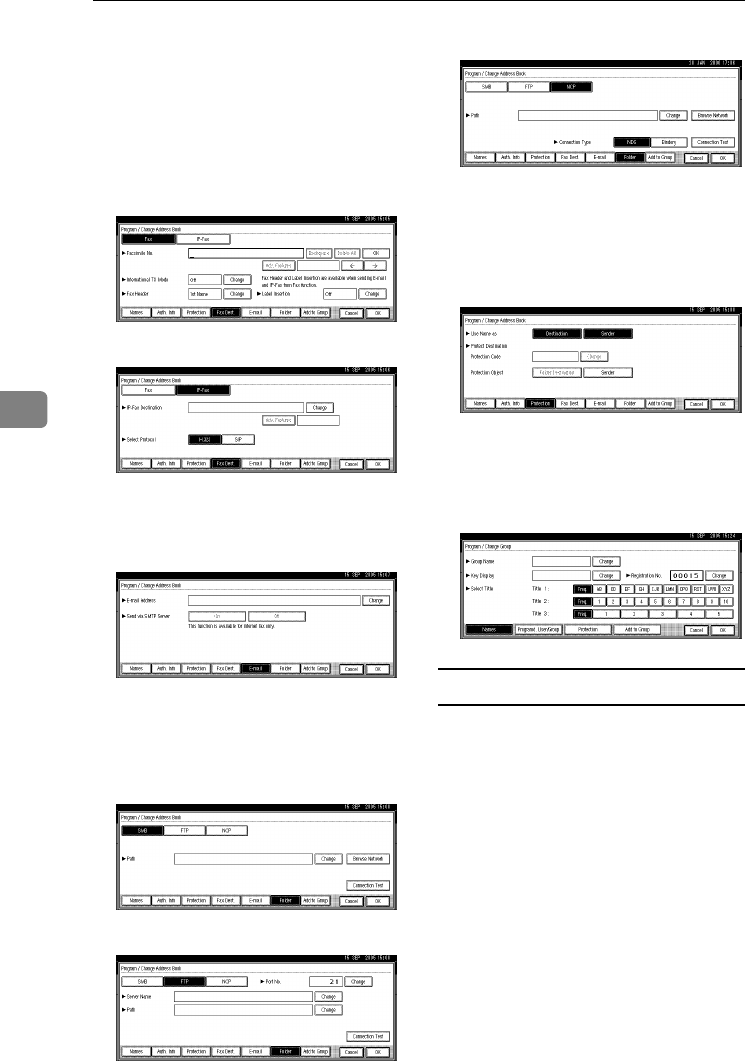
Registering Addresses and Users for Facsimile/Scanner Functions
70
5
❖Fax Dest.
You can register fax numbers, line,
fax header and select label inser-
tion.
When using IP-Fax, you can regis-
ter the IP-Fax destination and se-
lect the protocol.
• Fax Destination
• IP-Fax Destination
❖E-mail
You can register e-mail destina-
tions in the Address Book.
❖Folder
You can register the protocol, path
name and server name.
•SMB
•FTP
•NCP
❖Protection
You can set protection codes to
stop sender's name from being
used or folders from being ac-
cessed without authorization.
❖Add to Group
You can put registered e-mail and
folder destinations into a group for
easier management.
Managing names in the Address Book
By registering a name and key dis-
play beforehand, you can specify e-
mail and folder destinations simply
by selecting the name key.
See p.72 “Registering Names”.
AdonisC4-AE_zen_F_FM_forPaper.book Page 70 Thursday, May 12, 2005 3:32 PM

Address Book
71
5
Sending fax by Quick Dial
Register a fax number in the Address
Book so you can specify it only by se-
lecting the fax destination, shown on
the fax initial display when sending a
fax. When label insertion is set to
“ON”, the receiver's name and stand-
ard messages are printed on the fax
message when it is received at the
other end.
By registering IP-Fax destinations in
the Address Book, you can specify a
destination simply by selecting it
from the destinations that appear in
the initial fax display.
Registered IP-Fax numbers can be
used and printed as sender’s IP-Fax
numbers.
See p.78 “Fax Destination”.
Sending e-mail by Quick Dial
By registering e-mail addresses in the
Address Book, you can specify e-mail
destinations simply by selecting them
from the fax initial display when
sending a document by internet fax.
You can also specify an e-mail ad-
dress by selecting the destination
shown on the initial scanner display
when sending a document using the
scanner function.
A registered e-mail address can be
used as the sender's address, and the
sender's address are automatically
entered in the “From” field of an e-
mail header.
See p.86 “E-mail Destination”.
Sending scanned files to a shared folder
directly
After registering the path name, user
name and password, you can connect
to a shared folder simply by selecting
the destination shown on the initial
scanner display whenever sending
files using the scanner function to a
shared folder.
To share the folder using Windows,
select the SMB protocol.
To register the folder to the FTP serv-
er, select the FTP protocol.
To register the folder to the NetWare
server, select the NCP protocol.
See p.89 “Registering Folders”.
Preventing unauthorized user access to
shared folders from the machine
After registering a protection code,
you can specify the object of protec-
tion to prevent an e-mail destination
from being used without permission.
You can prevent unauthorized access
to registered folders. See p.105 “Reg-
istering a Protection Code”.
Managing users and machine usage
Register user codes to limit users to
the following functions and check
their use of each function:
•Copier
• Document Server
• Facsimile
• Scanner
•Printer
See p.74 “Authentication Informa-
tion”.
AdonisC4-AE_zen_F_FM_forPaper.book Page 71 Thursday, May 12, 2005 3:32 PM
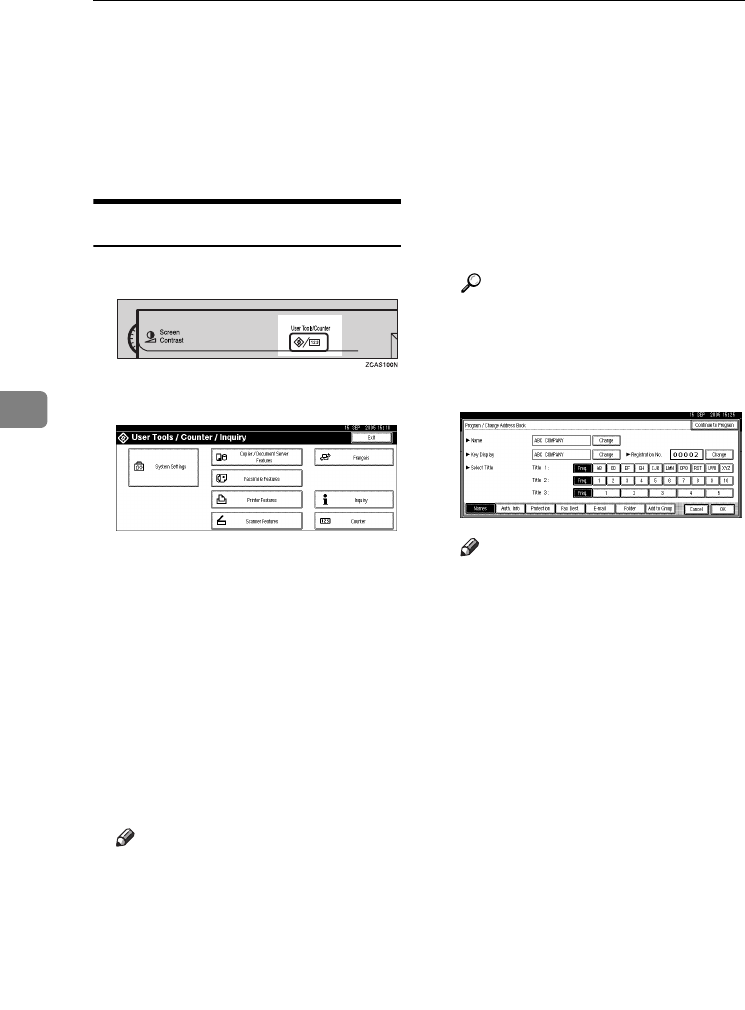
Registering Addresses and Users for Facsimile/Scanner Functions
72
5
Registering Names
The user name is useful for selecting a
destination when sending faxes or e-
mail. You can also use it as a folder
destination.
Registering a Name
APress the {User Tools/Counter} key.
BPress [System Settings].
C
Press
[
Administrator Tools
]
, and then
press [TNext].
DPress [Address Book Management].
EPress [New Program].
FPress [Change] on the right of the
Name.
The name entry display appears.
GEnter the name, and then press
[OK].
Note
❒The name can be used for docu-
ments in the Document Server.
For details about the Document
Server, see p.35 “Using the Doc-
ument Server”.
❒You can register up to 2000
names and allocate them regis-
tration numbers between 00001
and 50000.
❒Registration numbers are ini-
tially assigned automatically,
but you can change them after-
ward. To change a registration
number, press [Change] to the
right of “Registration No.”, and
enter a new number using the
number keys.
Reference
p.159 “Entering Text”
HPress the key for the classification
you want to use under Select Ti-
tle.
Note
❒The keys you can select are as
follows:
•[Freq.]… Added to the page
that is displayed first.
•[AB], [CD], [EF], [GH], [IJK],
[LMN], [OPQ], [RST], [UVW],
[XYZ], [1] to [10]… Added to
the list of items in the select-
ed title.
❒You can select [Freq.] and one
more page for each title.
ITo continue registering the name,
press [Continue to Program], and
then repeat the procedure from
step F.
JPress [OK].
KPress [Exit].
LPress the {User Tools/Counter} key.
AdonisC4-AE_zen_F_FM_forPaper.book Page 72 Thursday, May 12, 2005 3:32 PM
Registering Names
73
5
Changing a Registered Name
APress the {User Tools/Counter} key.
BPress [System Settings].
C
Press
[
Administrator Tools
]
, and then
press [TNext].
DPress [Address Book Management].
ESelect the registered name you
want to change.
Press the name key, or enter the
registered number using the
number keys
Note
❒If you press , you can search
by the registered name, user
code, fax number, folder name,
e-mail address, or IP-Fax desti-
nation.
To change the name or key
display
APress [Change] on the right of
the name or key display.
BEnter the name or key display,
and then press [OK].
Reference
p.159 “Entering Text”
To change a registration number
APress [Change] to the right of
“Registration No.”
B
Enter a new registration number
using the number keys, and
then press [#].
To change the title
APress the key for the classifica-
tion you want to use from Se-
lect Title.
FPress [OK].
GPress [Exit].
HPress the {User Tools/Counter} key.
Deleting a Registered Name
If you delete a name, data associated
with that name, such as e-mail ad-
dresses, fax number, folder name,
and IP-Fax destination, is also delet-
ed.
APress the {User Tools/Counter} key.
BPress [System Settings].
C
Press
[
Administrator Tools
]
, and then
press [TNext].
DPress [Address Book Management].
EPress [Delete].
FSelect the name you want to de-
lete.
Press the key, or enter the regis-
tered number using the number
keys
GPress [Yes].
HPress [Exit].
IPress the {User Tools/Counter} key.
AdonisC4-AE_zen_F_FM_forPaper.book Page 73 Thursday, May 12, 2005 3:32 PM
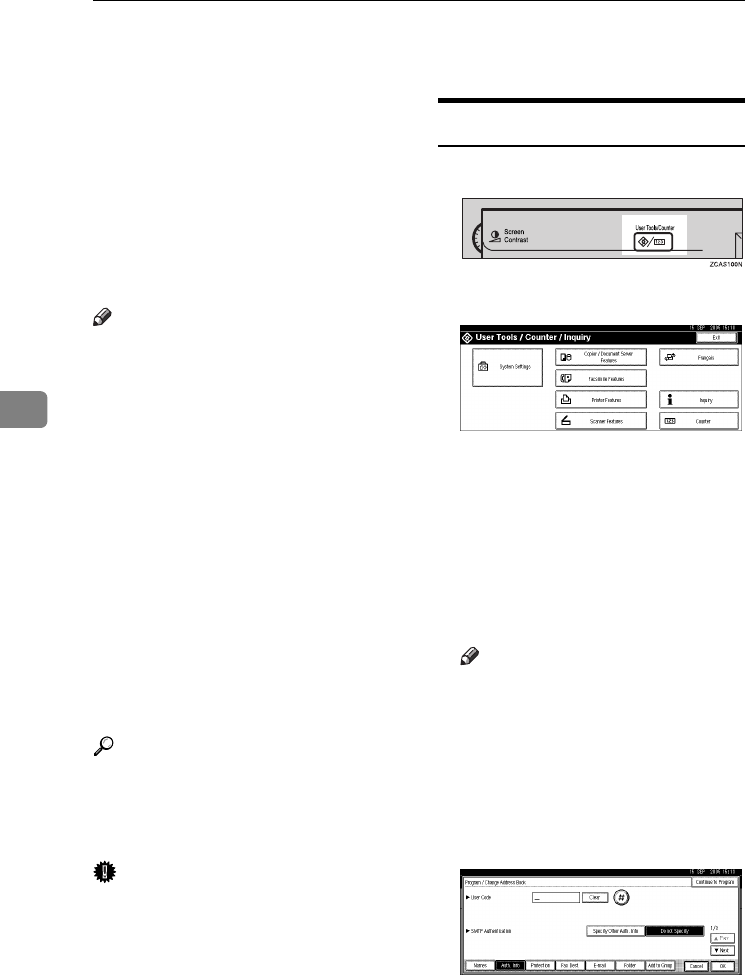
Registering Addresses and Users for Facsimile/Scanner Functions
74
5
Authentication Information
Register user codes to limit users to
the following functions and check
their use of each function:
•Copier
•Document Server
• Facsimile
•Scanner
•Printer
Note
❒The number of copies made of doc-
uments stored in the Document
Server using the facsimile function
is counted for each user code. This
allows you to check each user's us-
age.
❒The number of copies scanned us-
ing the scanner function is counted
for each user code. This allows you
to check each user's usage.
❒To automatically register the print-
er driver user code, select [PC Con-
trol] for the printer in User Code
Authentication. To use the user
code set in User Tools, set the user
codes registered in User Tools for
the printer driver. See p.74 “Regis-
tering a New User Code”.
Reference
For details about setting user codes
for the printer driver, see Printer
Reference or the printer driver
Help.
Important
❒The functions associated with each
user code are the same. If you
change or delete user codes, man-
agement data and limits associated
with that code become invalid.
Registering a New User Code
APress the {User Tools/Counter} key.
BPress [System Settings].
C
Press
[
Administrator Tools
]
, and then
press [TNext].
DPress [Address Book Management].
EPress the name whose code is to
be registered, or enter the regis-
tered number using the number
key.
Note
❒You can enter a one-to eight-
digit user code.
❒To register the name, see p.72
“Registering Names”.
FPress [Auth. Info].
GEnter the user code using the
number keys, and then press [#].
AdonisC4-AE_zen_F_FM_forPaper.book Page 74 Thursday, May 12, 2005 3:32 PM
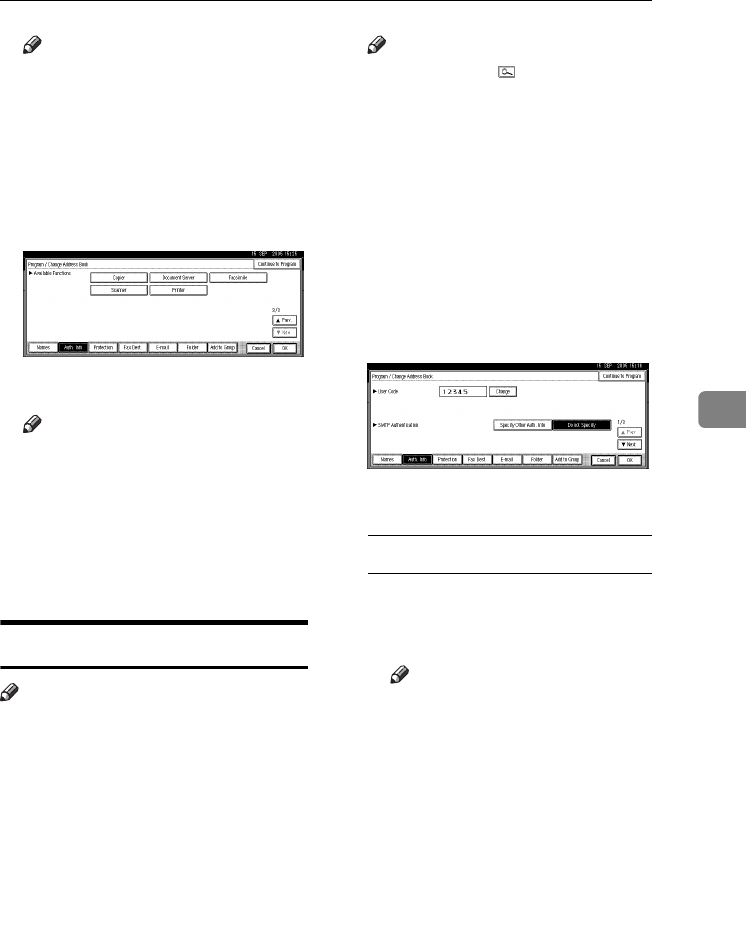
Authentication Information
75
5
Note
❒If you make a mistake, press
[Clear] or the {Clear/Stop} key,
and then enter the code again.
HPress [TNext] twice.
ISelect the functions to be used
with the user code from Available
Functions.
JPress [OK].
Note
❒To continue registering user
codes, press [Continue to Pro-
gram], and then repeat the pro-
cedure from step E.
KPress [Exit].
LPress the {User Tools/Counter} key.
Changing a User Code
Note
❒Even if you change a user code, the
counter value will not be cleared.
APress the {User Tools/Counter} key.
BPress [System Settings].
C
Press
[
Administrator Tools
]
, and then
press [TNext].
DPress [Address Book Management].
ESelect the user whose user code
you want to change.
Press the name key, or enter the
registered number using the
number keys
Note
❒If you press , you can search
for a user by the registered
name, user code, fax number,
folder name, e-mail address, or
IP-Fax destination.
❒To change the name, key dis-
play and title, see p.73 “Chang-
ing a Registered Name”.
FPress [Auth. Info].
GPress [Change], and then enter the
new user code using the number
keys
HPress [#].
To change the available functions
APress [TNext] twice.
BPress the key to select the func-
tions to enable them.
Note
❒Press the key to highlight it,
and then the function is ena-
bled. To cancel a selection,
press the highlighted key.
IPress [OK].
JPress [Exit].
KPress the {User Tools/Counter} key.
AdonisC4-AE_zen_F_FM_forPaper.book Page 75 Thursday, May 12, 2005 3:32 PM
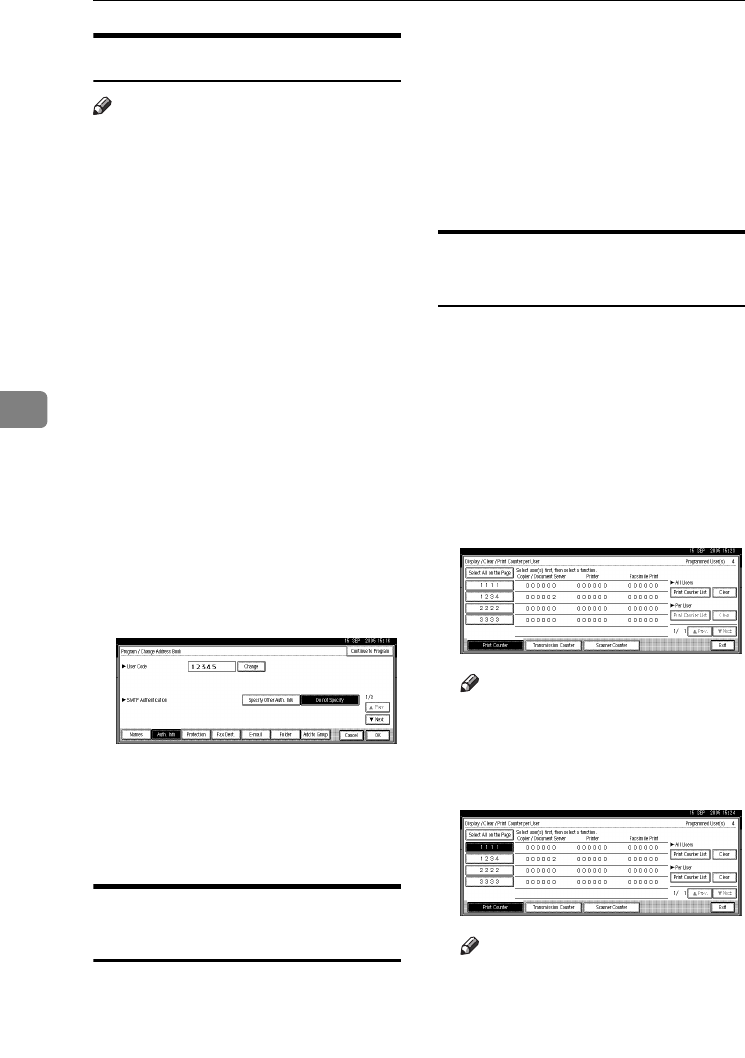
Registering Addresses and Users for Facsimile/Scanner Functions
76
5
Deleting a User Code
Note
❒After clearing the user code, the
counter is automatically cleared.
❒To delete a name from the Address
Book entirely, see p.73 “Deleting a
Registered Name”.
APress the {User Tools/Counter} key.
BPress [System Settings].
C
Press
[
Administrator Tools
]
, and then
press [TNext].
DPress [Address Book Management].
ESelect the name whose code is to
be deleted.
Press the name key, or enter the
registered number using the
number keys
FPress [Auth. Info].
GPress [Change] to delete the user
code, and then press [#].
HPress [OK].
IPress [Exit].
JPress the {User Tools/Counter} key.
Displaying the Counter for
Each User Code
APress the {User Tools/Counter} key.
BPress [System Settings].
CPress [Administrator Tools].
DPress [Display / Clear / Print Counter
per User].
ESelect [Print Counter], [Transmission
Counter] or [Scanner Counter].
Counters for individual function
usage under each user code ap-
pear.
Printing the Counter for Each
User Code
APress the {User Tools/Counter} key.
BPress [System Settings].
CPress [Administrator Tools].
DPress [Display / Clear / Print Counter
per User].
ESelect a user code from the left
side of the display.
Note
❒Press [Select All on the Page] to se-
lect all user codes on the page.
FPress [Print Counter List] under Per
User.
Note
❒Enter the user code, and then
press [#] if the user code is regis-
tered.
AdonisC4-AE_zen_F_FM_forPaper.book Page 76 Thursday, May 12, 2005 3:32 PM
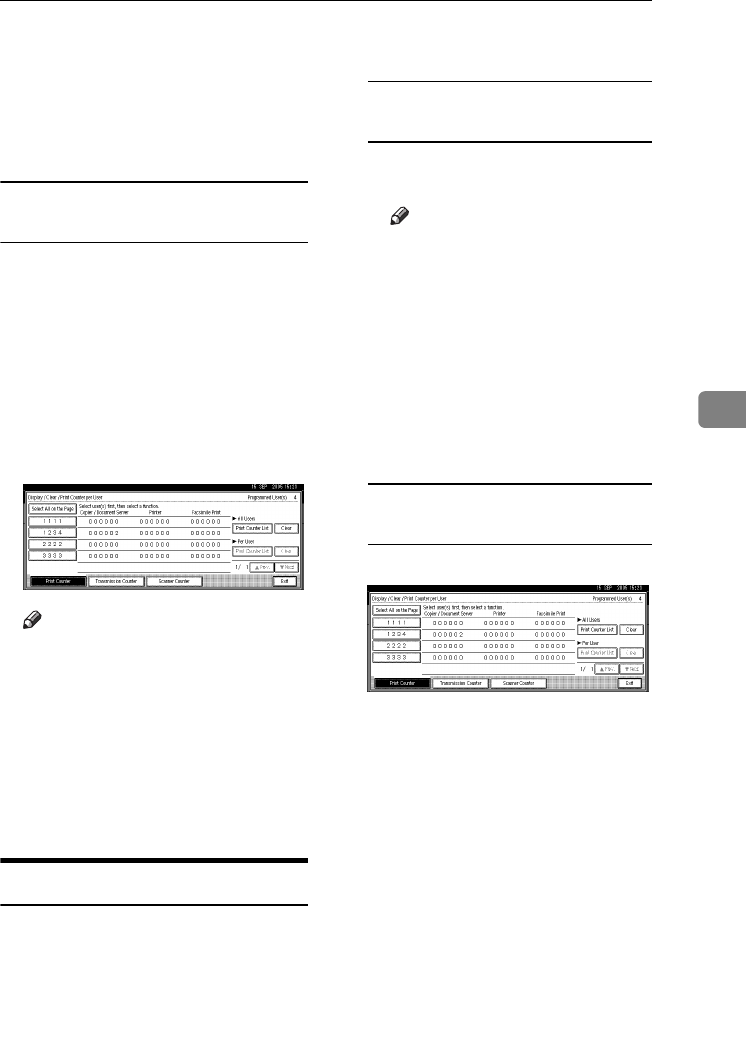
Authentication Information
77
5
GSelect the function usage you
want to print from [Print Counter],
[Transmission Counter], and [Scanner
Counter].
HPress [Print].
To print the number of prints for all
user codes
APress the {User Tools/Counter} key.
BPress [System Settings].
CPress [Administrator Tools].
DPress [Display / Clear / Print Counter
per User].
EPress [Print Counter List] under All
Users.
Note
❒Enter the user code, and then
press [#] if the user code is regis-
tered.
FSelect the function usage you
want to print from [Print Counter],
[Transmission Counter], and [Scanner
Counter].
GPress [Print].
Clearing the Number of Prints
APress the {User Tools/Counter} key.
BPress [System Settings].
CPress [Administrator Tools].
DPress [Display / Clear / Print Counter
per User].
ESelect the user code to clear.
To clear the number of prints
made under a user code
ASelect the user code from the
left side of the display.
Note
❒Press [Select All on the Page] to
select all user codes on the
page.
BPress [Clear] under Per User
Codes.
CSelect the function usage you
want to clear from [Print Coun-
ter], [Transmission Counter], and
[Scanner Counter].
DPress [OK].
To clear the number of prints for
all user codes
APress [Clear] under All Users.
BSelect the function usage you
want to clear from [Print Coun-
ter], [Transmission Counter], and
[Scanner Counter].
CPress [OK].
FPress [Exit].
GPress the {User Tools/Counter} key.
AdonisC4-AE_zen_F_FM_forPaper.book Page 77 Thursday, May 12, 2005 3:32 PM

Registering Addresses and Users for Facsimile/Scanner Functions
78
5
Fax Destination
Register a fax destination so you do
not need to enter fax numbers each
time, and can send documents that
have been scanned in using the fac-
simile function.
For details about the number of fax
destinations that can be registered,
see Facsimile Reference <Basic Fea-
tures>.
• It is easy to select the fax destina-
tion if you register “Name” and
“Key Display” for the fax destina-
tion.
• You can register fax destinations
by selecting them from redial func-
tion.
• You can register fax destinations as
a group.
Registered Fax numbers can be used
as sender's Fax numbers.
There are two types of fax destina-
tion, as shown below:
•Fax Destination
Select this to send the fax over the
telephone network.
•IP-Fax
Select this to send the fax to a ma-
chine on a TCP/IP network.
Limitation
❒You cannot send the fax to a ma-
chine on another network if that
network is behind a firewall.
❖Fax Destination
You can program the following
items in a fax destination:
•Fax number
Registers the destination's fax
number. You can enter a fax
number using up to 128 digits.
You must include every digit in
the number.
•SUB Code
Registering a SUB Code allows
you to use Confidential Trans-
mission to send messages to the
other fax machines which sup-
port a similar function called
“SUB Code”. See “SUB Code”,
Facsimile Reference <Advanced
Features>.
•SEP Code
Registering a SEP Code allows
you to use Polling Reception to
receive faxes from the other fax
machines which support Poll-
ing Reception. See “SEP Code”,
Facsimile Reference <Advanced
Features>.
•Line
If the optional extra G3 interface
unit is installed, you can select
the line type per destination.
• Fax header
You can select to print a fax
header on fax messages the oth-
er party receives. The default is
“1st Name”. See Facsimile Refer-
ence <Advanced Features>.
• Label insertion
Use label insertion to print in-
formation such as the destina-
tion name on the sheet printed
out at the destination. Data is
printed as follows:
• Destination Name: The desti-
nation name specified in [Fax
Destination] is printed with
“To” before it at the top of the
sheet.
• Standard Message: A regis-
tered two-line sentence is
printed under “Destination
Name”.
AdonisC4-AE_zen_F_FM_forPaper.book Page 78 Thursday, May 12, 2005 3:32 PM
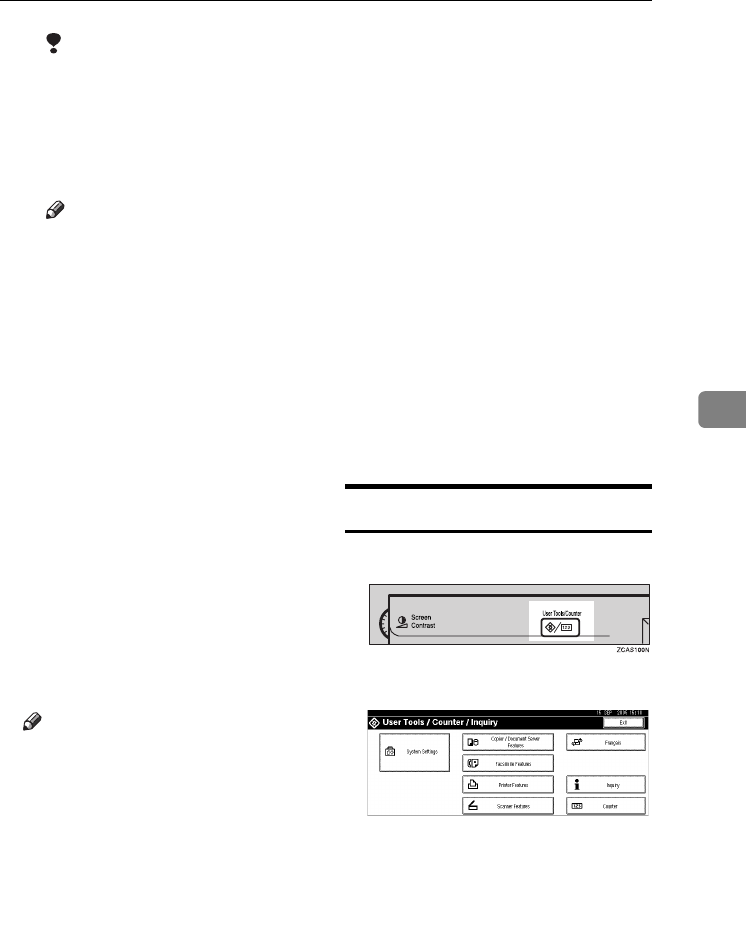
Fax Destination
79
5
Limitation
❒To use this function, set La-
bel Insertion to [On] when
programming fax destina-
tions and also select [Pro-
grammed Name] when sending
fax documents.
Note
❒Fax header and label inser-
tion are also printed when
sending by e-mail using the
fax function.
❒You can program a standard
message other than those
registered in the machine.
See “Programming, Chang-
ing, and Deleting Standard
Messages”, Facsimile Refer-
ence <Advanced Features>.
• International TX mode
When setting the International
TX mode to [On], the machine
transmits more carefully by
lowering transmission speed.
However, communication
times increase.
❖IP-Fax Destination
You can program the following
items in an IP-Fax Destination:
Note
❒This setting only works if the IP
fax function has been selected.
• IP-Fax
Register the IP-Fax destination.
You can register the name using
up to 128 characters. You must
make this setting when using
IP-Fax.
•SUB Code
Registering a SUB Code allows
you to use Confidential Trans-
mission to send messages to the
other fax machines which sup-
port a similar function called
“SUB Code”. See “SUB Code”,
Facsimile Reference <Advanced
Features>.
•SEP Code
Registering a SEP Code allows
you to use Polling Reception to
receive faxes from the other fax
machines which support Poll-
ing Reception. See “SEP Code”,
Facsimile Reference <Advanced
Features>.
• Select Protocol
Select the protocol for the IP-
Fax transmission.
Registering a Fax Destination
APress the {User Tools/Counter} key.
BPress [System Settings].
C
Press
[
Administrator Tools
]
, and then
press [TNext].
DPress [Address Book Management].
ESelect the name whose fax desti-
nation you want to register.
Press the name key, or enter the
registered number using the
number keys.
AdonisC4-AE_zen_F_FM_forPaper.book Page 79 Thursday, May 12, 2005 3:32 PM
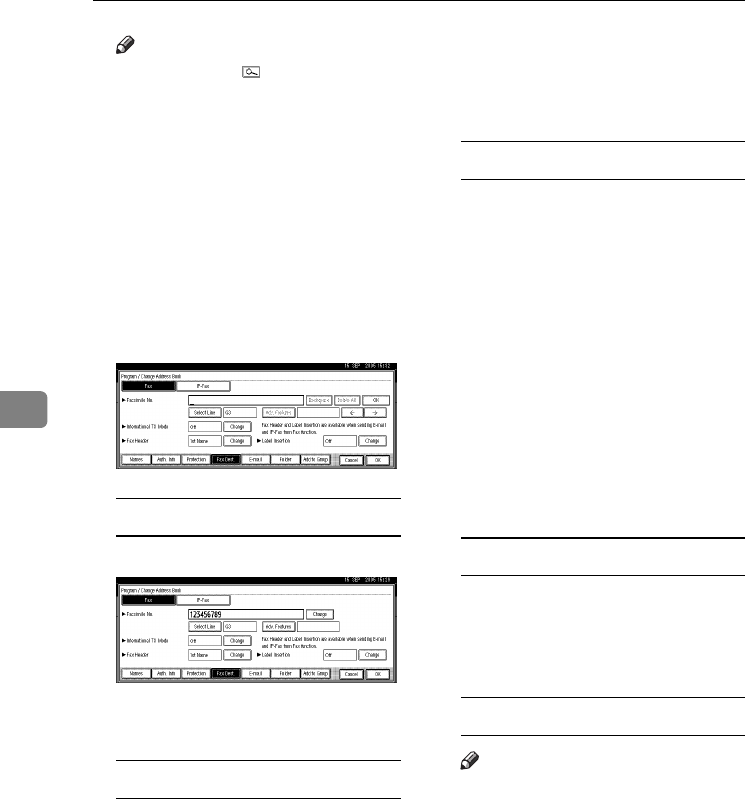
Registering Addresses and Users for Facsimile/Scanner Functions
80
5
Note
❒If you press , you can search
by the registered name, user
code, fax number, folder name,
e-mail address, or IP-Fax desti-
nation.
❒To register the name, key dis-
play, and title, see p.72 “Regis-
tering Names”.
FPress [Fax Dest.].
GEnter the fax number using the
number keys, and then press [OK]
under Facsimile No..
To select the line
APress [Select Line].
BSelect the line, and then press
[OK].
To program the SUB Code
APress [Adv. Features], and then
select [SUB Code].
BPress [Change] under TX SUB
Code.
CEnter a SUB Code using the
number keys, and then press
[OK].
DTo enter a password, press
[Change] under Password
(SID).
EEnter a password using the
number keys, and then press
[OK].
FPress [OK].
To program the SEP Code
APress [Adv. Features], and then
select [SEP Code].
BPress [Change] under RX SEP
Code.
CEnter a SEP Code using the
number keys, and then press
[OK].
DTo enter a password, press
[Change] under Password
(PWD).
EEnter a password using the
number keys, and then press
[OK].
FPress [OK].
To set the International TX Mode
APress [Change] under Interna-
tional TX Mode.
BSelect [Off] or [On], and then
press [OK].
To select the fax header
Note
❒You can register the fax header
in Program Fax Information in
the system settings for Facsimi-
le Features. See “Program-
ming”, Facsimile Reference <Basic
Features>.
APress [Change] under Fax Head-
er.
BSelect [1st Name] or [2nd Name],
and then press [OK].
AdonisC4-AE_zen_F_FM_forPaper.book Page 80 Thursday, May 12, 2005 3:32 PM
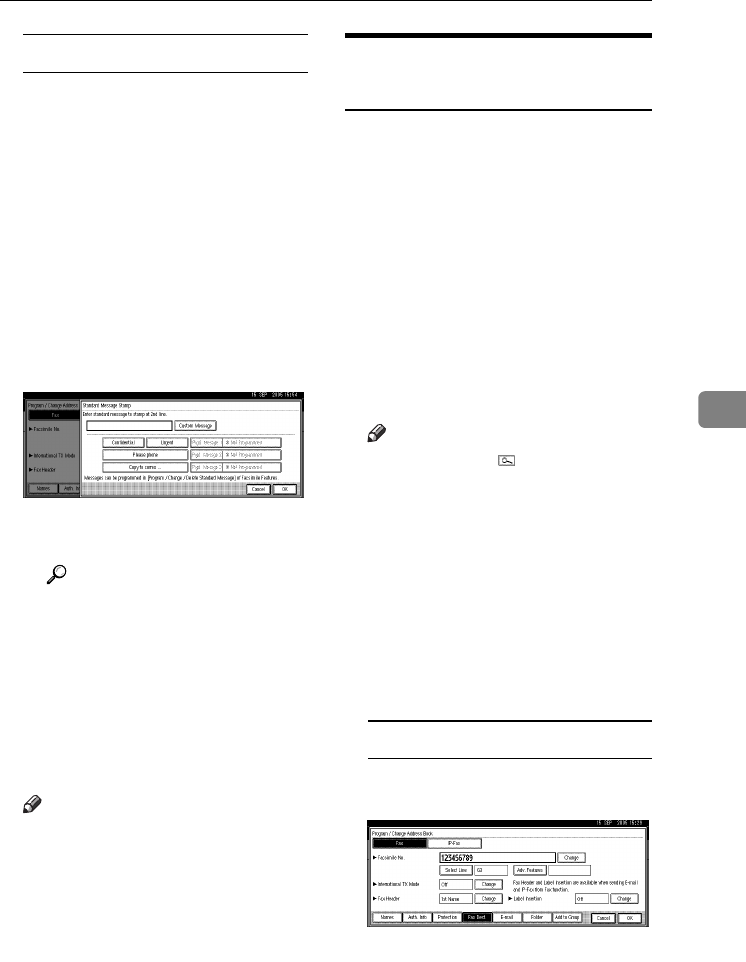
Fax Destination
81
5
To set label insertion
When Label Insertion is set to ON,
the receiver's name and standard
messages are printed on the fax
message when it is received at the
other end.
APress [Change] under Label In-
sertion.
BSelect [On].
CPress [Change] under Line 2.
DSelect a standard message to
print on the second line. To
stamp a customized message,
press [Custom Message].
EEnter a message, and then
press [OK].
Reference
p.159 “Entering Text”
FPress [OK].
GPress [Change] under Line 3.
HSelect a standard message, and
then press [OK].
IPress [OK].
HPress [OK].
Note
❒When a group is registered, you
can also add this fax destination
to the group. See p.100 “Regis-
tering Names to a Group”.
IPress [Exit].
JPress the {User Tools/Counter} key.
Changing a Registered Fax
Destination
APress the {User Tools/Counter} key.
BPress [System Settings].
C
Press
[
Administrator Tools
]
, and then
press [TNext].
DPress [Address Book Management].
ESelect the name whose fax desti-
nation you want to change.
Press the name key, or enter the
registered number using the
number keys.
Note
❒If you press , you can search
by the registered name, user
code, fax number, folder name,
e-mail address, or IP-Fax desti-
nation.
❒To change the name, key dis-
play and title, see p.73 “Chang-
ing a Registered Name”.
FPress [Fax Dest.].
GChange the settings.
To change the fax number
APress [Change] under Facsimile
No..
BEnter the new fax number us-
ing the number keys, and then
press [OK].
AdonisC4-AE_zen_F_FM_forPaper.book Page 81 Thursday, May 12, 2005 3:32 PM
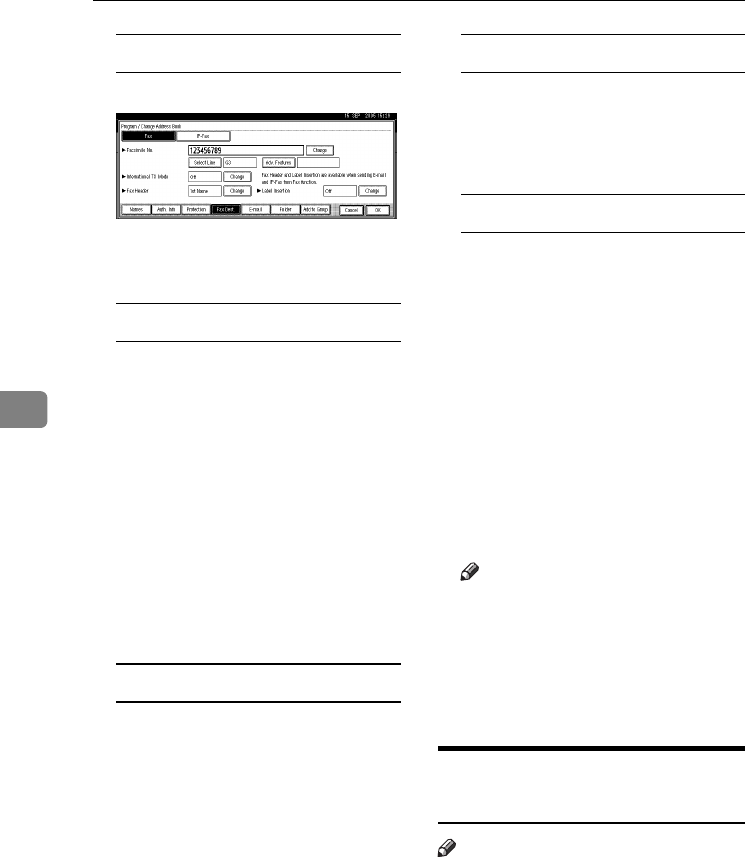
Registering Addresses and Users for Facsimile/Scanner Functions
82
5
To change the line
APress [Select Line].
BSelect the line.
CPress [OK].
To change the SUB Code
APress [Adv. Features].
BPress [SUB Code].
CPress [Change] under TX SUB
Code.
DEnter the new SUB Code, and
then press [OK].
ETo change the password, press
[Change] under Password
(SID).
FEnter the new password, and
then press [OK].
GPress [OK].
To change the SEP Code
APress [Adv. Features].
BPress [SEP Code].
CPress [Change] under RX SEP
Code.
DEnter the new SEP Code, and
then press [OK].
ETo change the password, press
[Change] under Password
(PWD).
FEnter the new password, and
then press [OK].
GPress [OK].
To change the fax header
APress [Change] under Fax Head-
er.
BSelect the new fax header, and
then press [OK].
To change the label insertion
APress [Change] under Label In-
sertion.
BPress [Change] under Line 2.
CSelect the new standard mes-
sage or press [Custom Message]
to enter the new message.
DPress [OK].
EPress [Change] under Line 3.
FSelect the new standard mes-
sage, and then press [OK].
GPress [OK].
HPress [OK].
Note
❒To change the name, key dis-
play and title, see p.73 “Chang-
ing a Registered Name”.
IPress [Exit].
JPress the {User Tools/Counter} key.
Deleting a Registered Fax
Destination
Note
❒If you delete a destination that is a
specified delivery destination,
messages to its registered Personal
Box, for example, cannot be deliv-
ered. Be sure to check the settings
in the fax function before deleting
any destinations.
❒To delete a name entirely, see p.73
“Deleting a Registered Name”.
AdonisC4-AE_zen_F_FM_forPaper.book Page 82 Thursday, May 12, 2005 3:32 PM
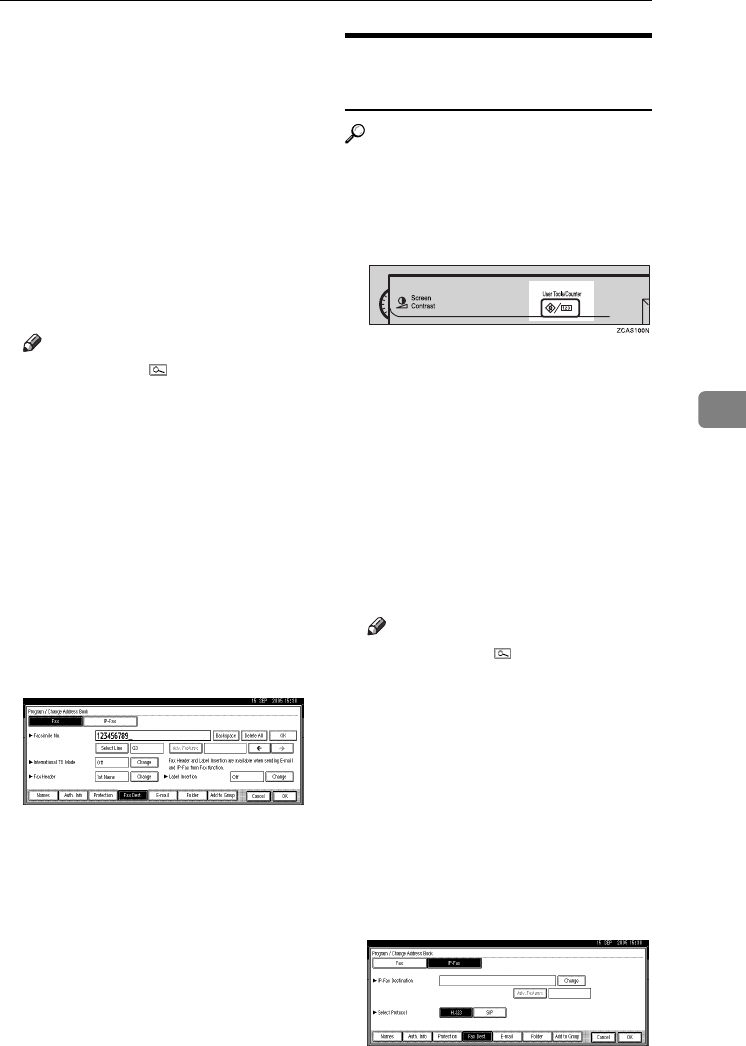
Fax Destination
83
5
APress the {User Tools/Counter} key.
BPress [System Settings].
C
Press
[
Administrator Tools
]
, and then
press [TNext].
DPress [Address Book Management].
ESelect the name whose fax desti-
nation you want to delete.
Press the name key, or enter the
registered number using the
number keys.
Note
❒If you press , you can search
by the registered name, user
code, fax number, folder name,
e-mail address, or IP-Fax desti-
nation.
❒To delete the name, key display,
and title, see p.73 “Deleting a
Registered Name”.
FPress [Fax Dest.].
GPress [Change] under Facsimile
No..
HPress [Delete All], and then press
[OK].
IPress [OK].
JPress [Exit].
KPress the {User Tools/Counter} key.
Registering an IP-Fax
Destination
Reference
For details about sending an IP-
Fax, see Facsimile Reference <Basic
Features>.
APress the {User Tools / Counter} key.
BPress [System Settings].
C
Press
[
Administrator Tools
]
, and then
press [TNext].
DPress [Address Book Management].
ESelect the name whose IP-Fax
destination you want to register.
Press the name key, or enter the
registered number using the
number keys.
Note
❒If you press , you can search
by the registered name, user
code, fax number, folder name,
e-mail address, or IP-Fax desti-
nation.
❒To register the name, key dis-
play, and title, see p.72 “Regis-
tering Names”.
FPress [Fax Dest.]
GPress [IP-Fax].
HPress [Change].
AdonisC4-AE_zen_F_FM_forPaper.book Page 83 Thursday, May 12, 2005 3:32 PM

Registering Addresses and Users for Facsimile/Scanner Functions
84
5
IEnter the IP-Fax destination and
then press [OK].
To program the SUB Code
APress [Adv. Features], and then
select [SUB Code].
BPress [Change] under TX SUB
Code.
CEnter a SUB Code using the
number keys, and then press
[OK].
DTo enter a password, press
[Change] under Password
(SID).
EEnter a password using the
number keys, and then press
[OK].
FPress [OK].
To program the SEP Code
APress [Adv. Features], and then
select [SEP Code].
BPress [Change] under RX SEP
Code.
CEnter a SEP Code using the
number keys, and then press
[OK].
DTo enter a password, press
[Change] under Password
(PWD).
EEnter a password using the
number keys, and then press
[OK].
FPress [OK].
To select the protocol
ASelect [H.323] or [SIP].
JPress [OK].
Changing a Registered IP-Fax
Destination
APress the {User Tools / Counter} key.
BPress [System Settings].
C
Press
[
Administrator Tools
]
, and then
press [TNext].
DPress [Address Book Management].
ESelect the name whose IP-Fax
destination you want to change.
Press the name key, or enter the
registered number using the
number keys
Note
❒If you press , you can search
for a user by the registered
name, user code, fax number,
folder name, e-mail address, or
IP-Fax destination.
❒To change the name, key dis-
play and title, see p.73 “Chang-
ing a Registered Name”.
FPress [Fax Dest.].
GPress [IP-Fax].
HChange the settings.
To change the IP-Fax Destination
APress [Change] under IP-Fax
Destination.
BEnter the new destination us-
ing the number keys, and then
press [OK].
To change the SUB Code
APress [Adv. Features].
BPress [SUB Code].
AdonisC4-AE_zen_F_FM_forPaper.book Page 84 Thursday, May 12, 2005 3:32 PM
Fax Destination
85
5
CPress [Change] under TX SUB
Code.
DEnter the new SUB Code, and
then press [OK].
ETo change the password, press
[Change] under Password
(SID).
FEnter the new password, and
then press [OK].
GPress [OK].
To change the SEP Code
APress [Adv. Features].
BPress [SEP Code].
CPress [Change] under RX SEP
Code.
DEnter the new SEP Code, and
then press [OK].
ETo change the password, press
[Change] under Password
(PWD).
FEnter the new password, and
then press [OK].
GPress [OK].
To change the protocol
ASelect [H.323] or [SIP].
IPress [OK].
Deleting a Registered IP-Fax
Destination
Note
❒If you delete a destination that is a
specified delivery destination,
messages to its registered Personal
Box, for example, cannot be deliv-
ered. Be sure to check the settings
in the fax function before deleting
any destinations.
❒To delete a name entirely, see p.73
“Deleting a Registered Name”.
APress the {User Tools/Counter} key.
BPress [System Settings].
C
Press
[
Administrator Tools
]
, and then
press [TNext].
DPress [Address Book Management].
ESelect the name whose IP-fax des-
tination you want to delete. Press
the name key, or enter the regis-
tered number using the number
keys.
Note
❒If you press , you can search
by the registered name, user
code, fax number, folder name,
e-mail address, or IP-Fax desti-
nation.
❒To delete the name, key display,
and title, see p.73 “Deleting a
Registered Name”.
FPress [Fax Dest.].
GPress [IP-Fax].
HPress [Change] under Facsimile
No..
IPress [Delete All], and then press
[OK].
JPress [OK].
KPress [Exit].
LPress the {User Tools/Counter} key.
AdonisC4-AE_zen_F_FM_forPaper.book Page 85 Thursday, May 12, 2005 3:32 PM
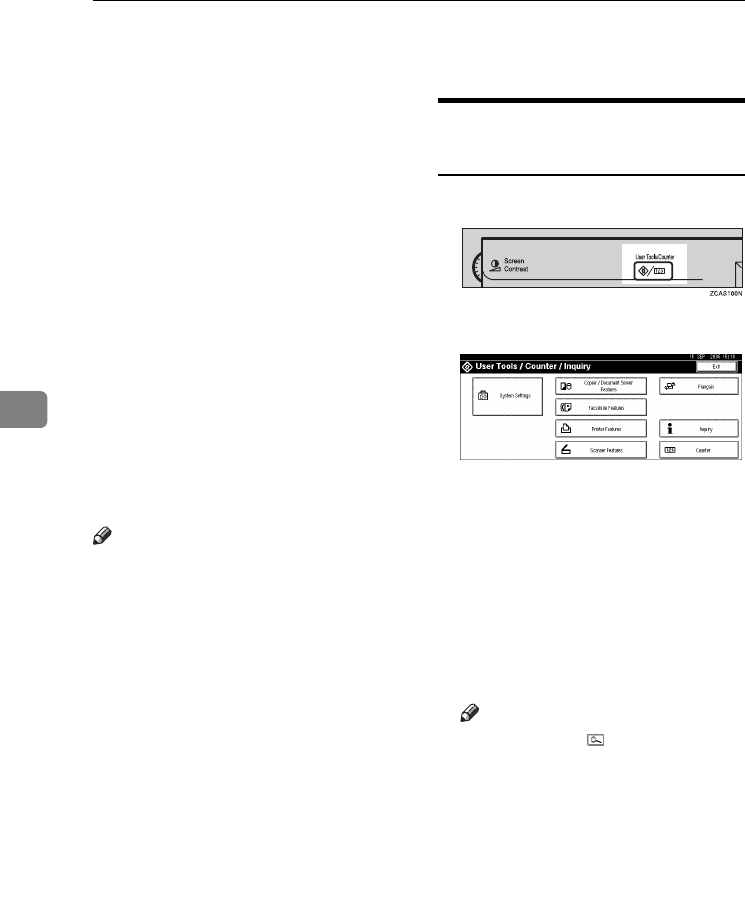
Registering Addresses and Users for Facsimile/Scanner Functions
86
5
E-mail Destination
Register e-mail destinations so you
do not need to enter an e-mail address
every time, and can send scan files
from scanner or fax function by e-
mail.
• It is easy to select the e-mail desti-
nation if you register “Name” and
“Key Display” as the e-mail desti-
nation.
• You can register e-mail destina-
tions as a group.
• You can use the e-mail address as
the sender's address when sending
scan files in scanner mode. If you
want to do this, set a protection
code on the sender address to pre-
vent unauthorized access. See
p.105 “Registering a Protection
Code”.
Note
❒You can select an e-mail address
from an LDAP server, and then
register it in the Address Book.
“Sending Scan File by E-mail”,
Scanner Reference.
❒You can set the machine to send a
Transmission Result Report by e-
mail whenever a transmission is
sent. See Facsimile Reference <Ad-
vanced Features>.
Registering an E-mail
Destination
APress the {User Tools/Counter} key.
BPress [System Settings].
C
Press
[
Administrator Tools
]
, and then
press [TNext].
DPress [Address Book Management].
ESelect the name whose e-mail ad-
dress you want to register.
Press the name key, or enter the
registered number using the
number keys.
Note
❒If you press , you can search
by the registered name, user
code, fax number, folder name,
e-mail address, or IP-Fax desti-
nation.
❒To register the name, key dis-
play, and title, see p.72 “Regis-
tering Names”.
FPress [E-mail].
AdonisC4-AE_zen_F_FM_forPaper.book Page 86 Thursday, May 12, 2005 3:32 PM
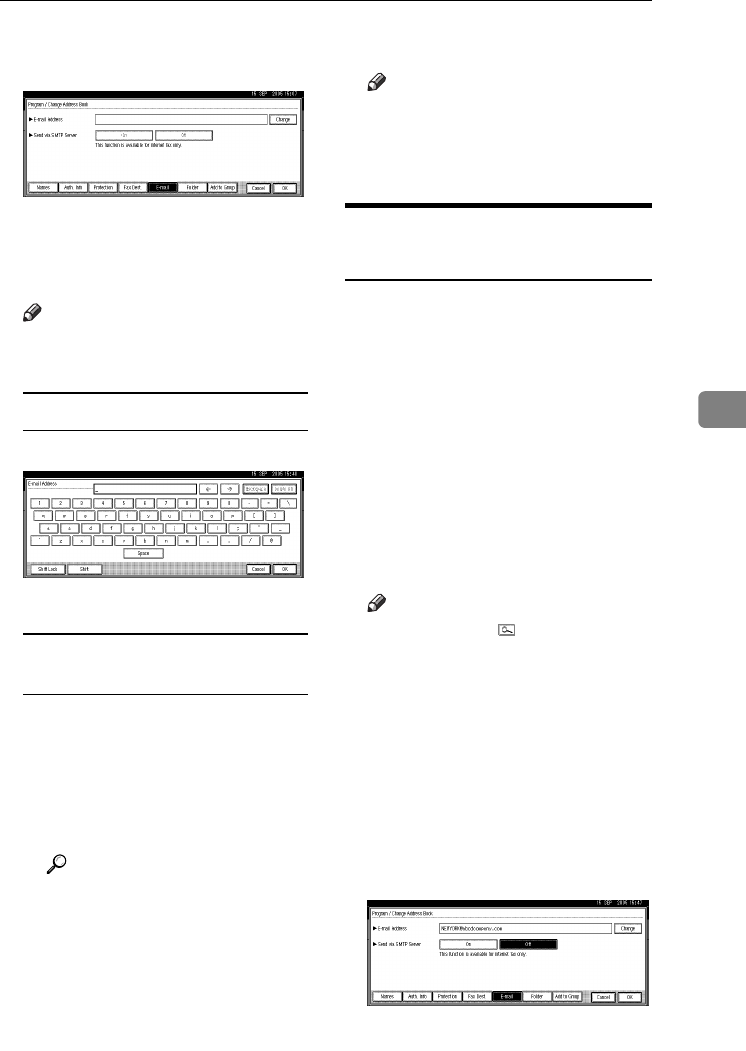
E-mail Destination
87
5
GPress [Change] under E-mail Ad-
dress.
HEnter the e-mail address, and then
press [OK].
Note
❒You can enter up to 128 charac-
ters for the e-mail address.
Entering the e-mail address
AEnter the e-mail address.
BPress [OK].
Using the e-mail address as the
sender
When an e-mail address is entered,
it can be used as the sender's ad-
dress.
APress [Protection].
BPress [Sender] on the right side
of Use Name as.
Reference
p.105 “Registering a Protec-
tion Code”
CPress [OK].
IIf you want to use internet fax,
specify whether or not to use "
Send via SMTP Server".
JPress [Exit].
KPress the {User Tools/Counter} key.
Note
❒When a group is registered, you
can add the e-mail destinations
to the group. See p.100 “Regis-
tering Names to a Group”.
Changing a Registered E-mail
Destination
APress the {User Tools/Counter} key.
BPress [System Settings].
C
Press
[
Administrator Tools
]
, and then
press [TNext].
DPress [Address Book Management].
ESelect the name whose e-mail ad-
dress you want to change.
Press the name key, or enter the
registered number using the
number keys
Note
❒If you press , you can search
by the registered name, user
code, fax number, folder name,
e-mail address, or IP-Fax desti-
nation.
❒To change the name, key dis-
play, and title, see p.73 “Chang-
ing a Registered Name”.
FPress [E-mail].
GPress [Change] under E-mail Ad-
dress.
AdonisC4-AE_zen_F_FM_forPaper.book Page 87 Thursday, May 12, 2005 3:32 PM

Registering Addresses and Users for Facsimile/Scanner Functions
88
5
HEnter the e-mail address, and then
press [OK].
Reference
p.159 “Entering Text”
IPress [OK].
JIf you want to use internet fax,
specify whether or not to use "
Send via SMTP Server".
KPress [Exit].
LPress the {User Tools/Counter} key.
Deleting a Registered E-mail
Destination
To delete a name entirely, see p.73
“Deleting a Registered Name”.
APress the {User Tools/Counter} key.
BPress [System Settings].
C
Press
[
Administrator Tools
]
, and then
press [TNext].
DPress [Address Book Management].
ESelect the name whose e-mail ad-
dress you want to delete.
Press the name key, or enter the
registered number using the
number keys.
Note
❒If you press , you can search
by the registered name, user
code, fax number, folder name,
e-mail address, or IP-Fax desti-
nation.
❒To delete the name, key display,
and title, see p.73 “Deleting a
Registered Name”.
FPress [E-mail].
GPress [Change] under E-mail Ad-
dress.
HPress [Delete All], and then press
[OK].
IPress [OK].
JPress [Exit].
KPress the {User Tools/Counter} key.
AdonisC4-AE_zen_F_FM_forPaper.book Page 88 Thursday, May 12, 2005 3:32 PM
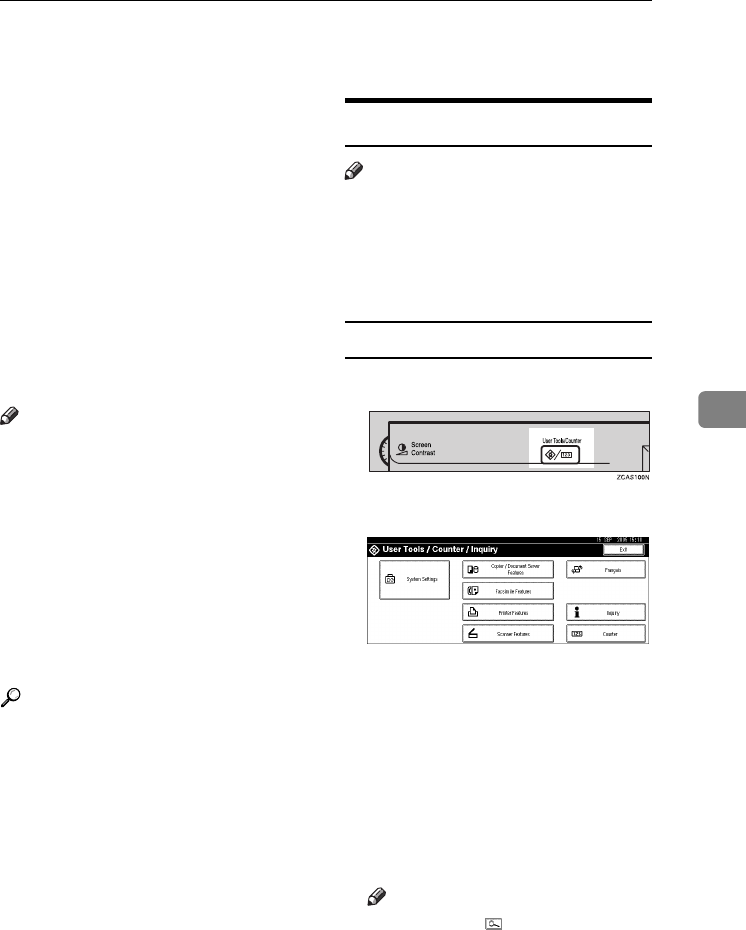
Registering Folders
89
5
Registering Folders
By registering a shared folder, you
can send scan files to it directly.
There are three types of protocol you
can use:
•SMB
For sending files to shared Win-
dows folders
•FTP
Use when sending files to an FTP
server.
•NCP
Use when sending files to an Net-
Ware server.
Note
❒For details about protocols, server
names, and folder levels, consult
your network administrator.
❒You can prevent unauthorized us-
ers from accessing folders from the
machine. See p.105 “Registering a
Protection Code”.
❒You can only select either SMB,
FTP, or NCP. If you change proto-
col after finishing your settings, all
previous entries are cleared.
Reference
For details about network settings,
see “Setting Up the Machine on a
Network”, Network Guide.
For details about Scan to Folder,
see "Sending Scan Files by Scan to
Folder" Scanner Reference.
Using SMB to Connect
Note
❒
To register a folder in an FTP server,
see
p.93 “Using FTP to Connect”.
❒To register a folder in an NetWare
server, see p.96 “Using NCP to
Connect”.
To register an SMB folder
APress the {User Tools/Counter} key.
BPress [System Settings].
C
Press
[
Administrator Tools
]
, and then
press [TNext].
DPress [Address Book Management].
ESelect the name whose folder you
want to register.
Press the name key, or enter the
registered number using the
number keys.
Note
❒If you press ,
you can search by
the registered name, user code,
fax number, folder name, e-mail
address, or IP-Fax destination.
❒To register the name, key dis-
play, and title, see p.72 “Regis-
tering Names”.
AdonisC4-AE_zen_F_FM_forPaper.book Page 89 Thursday, May 12, 2005 3:32 PM
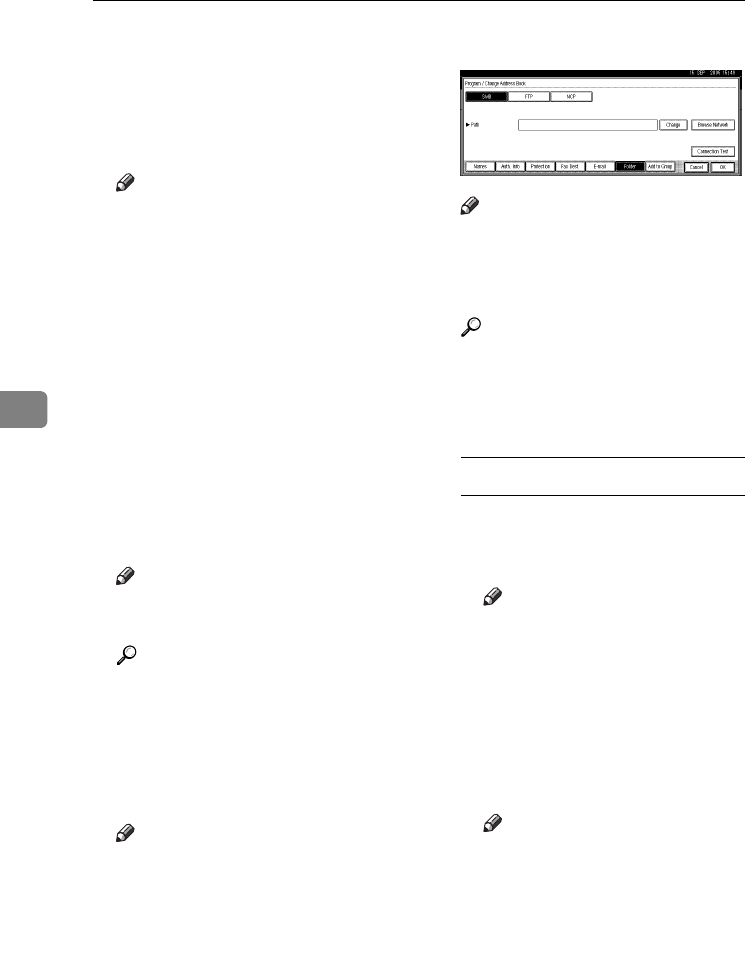
Registering Addresses and Users for Facsimile/Scanner Functions
90
5
FPress [Auth. Info], and then press
[TNext].
GPress [Specify Other Auth. Info] on
the right side of Folder Authenti-
cation.
Note
❒When [Do not Specify] is selected,
the SMB User Name and SMB
Password that you have speci-
fied in Default User Name /
Password (Send) of File Trans-
fer settings applies. For details,
see "Connecting and Setting
Up", Network Guide.
❒If User Authentication is speci-
fied, contact your administra-
tor.
HPress [Change] under Login User
Name.
IEnter the login user name, and
then press [OK].
Note
❒You can enter up to 64 charac-
ters for the user name.
Reference
p.159 “Entering Text”
JPress [Change] under Login Pass-
word.
KEnter the password, and then
press [OK].
Note
❒You can enter up to 64 charac-
ters for the password.
LEnter the password again to con-
firm, and then press [OK].
MPress [Folder].
NConfirm that [SMB] is selected.
Note
❒To specify a folder, you can ei-
ther enter the path manually or
locate the folder by browsing
the network.
Reference
p.90 “To locate the folder manu-
ally”
p.91 “Using Browse Network to
locate the folder”
To locate the folder manually
APress [Change] under Path.
BEnter the path where the folder
is located.
Note
❒Enter the path using this for-
mat: “\\ServerName\Share-
Name\PathName”.
❒You can also enter an IP ad-
dress.
❒You can enter a path using
up to 128 characters.
CPress [OK].
Note
❒If the format of the entered
path is not correct, a message
appears. Press [Exit], and
then enter the path again.
AdonisC4-AE_zen_F_FM_forPaper.book Page 90 Thursday, May 12, 2005 3:32 PM
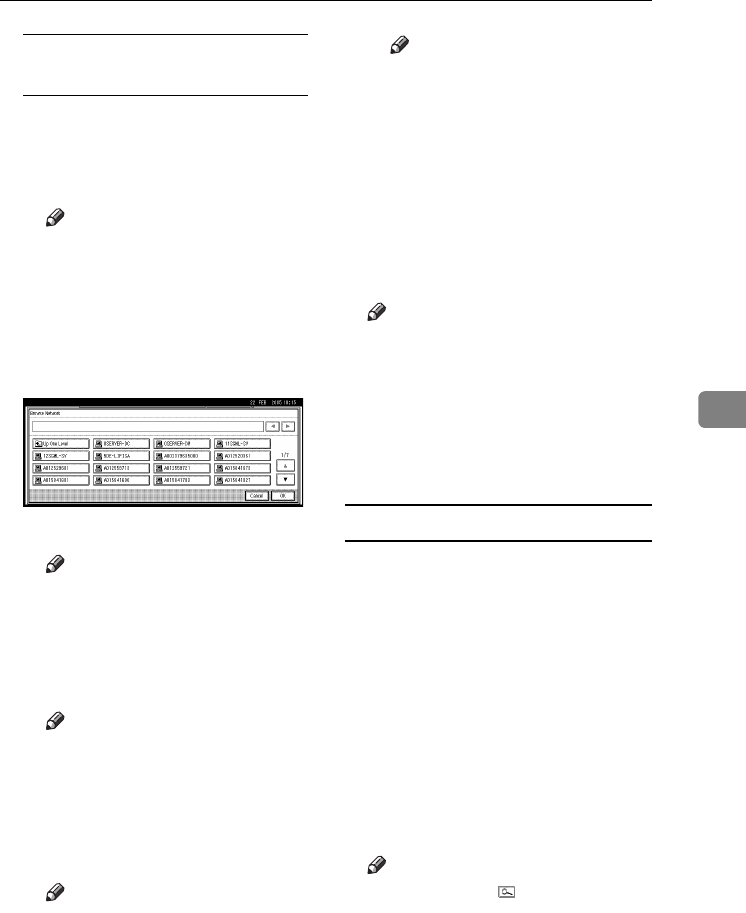
Registering Folders
91
5
Using Browse Network to locate
the folder
APress [Browse Network].
The client computers sharing
the same network as the ma-
chine appear.
Note
❒If you have already specified
your user name and pass-
word in steps F to L, the
Browse Network display
only lists client computers
you are authorized to access.
BSelect a client computer.
Shared folders under it appear.
Note
❒You can press [Up One Level]
to switch between levels.
CSelect the folder you want to
register.
The Logon display appears.
Note
❒If you have already entered
an authorized user name and
password, the Logon display
will not appear. Proceed to
step F.
DEnter the user name.
Note
❒This is a user name which is
authorized to access the fold-
er.
EEnter the user's password, and
then press [OK].
The Browse Network display
reappears.
Note
❒If the entered user name or
password is not correct, a
message appears. Press [Exit],
and then enter the user name
and password again.
FPress [OK].
OPress [Connection Test] to check the
path is set correctly.
PPress [Exit].
Note
❒If the connection test fails, check
the settings, and then try again.
QPress [OK].
RPress [Exit].
SPress the {User Tools/Counter} key.
Changing a registered folder
APress the {User Tools/Counter} key.
BPress [System Settings].
C
Press
[
Administrator Tools
]
, and then
press [TNext].
DPress [Address Book Management].
ESelect the name whose folder you
want to change.
Press the user name key, or enter
the registered number using the
number keys
Note
❒If you press , you can search
by the registered name, user
code, fax number, folder name,
e-mail address, or IP-Fax desti-
nation.
❒To change the name, key dis-
play, and title, see p.73 “Chang-
ing a Registered Name”.
AdonisC4-AE_zen_F_FM_forPaper.book Page 91 Thursday, May 12, 2005 3:32 PM
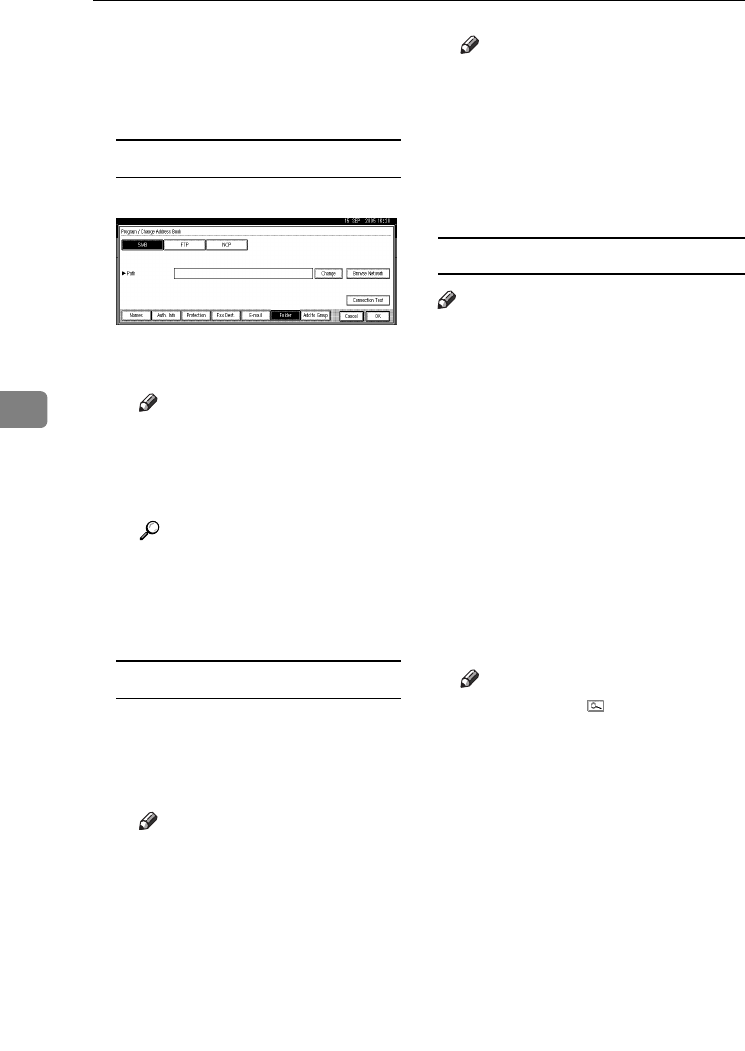
Registering Addresses and Users for Facsimile/Scanner Functions
92
5
FPress [Folder].
GSelect the items you want to
change.
To change the protocol
APress [FTP] or [NCP].
BA confirmation message ap-
pears. Press [Yes].
Note
❒Changing the protocol will
clear all settings made under
the previous protocol.
CEnter each item again.
Reference
p.93 “To register an FTP fold-
er”
p.96 “To register an NCP
folder”
Changing items under SMB
APress [Change] under Path.
BEnter the new path where the
folder is located, and then
press [OK].
Note
❒You can also use Browse Net-
work to specify a new folder.
For details, see ]p.91 “Using
Browse Network to locate
the folder”
HPress [Connection Test] to check the
path is set correctly.
IPress [Exit].
Note
❒If the connection test fails, check
the settings, and then try again.
JPress [OK].
KPress [Exit].
LPress the {User Tools/Counter} key.
Deleting a registered folder
Note
❒To delete a name entirely, see p.73
“Deleting a Registered Name”.
APress the {User Tools/Counter} key.
BPress [System Settings].
C
Press
[
Administrator Tools
]
, and then
press [TNext].
DPress [Address Book Management].
ESelect the name whose folder you
want to delete.
Press the name key, or enter the
registered number using the
number keys.
Note
❒If you press , you can search
by the registered name, user
code, fax number, folder name,
e-mail address, or IP-Fax desti-
nation.
❒To delete the name, key display,
and title, see p.73 “Deleting a
Registered Name”.
FPress [Folder].
GPress the protocol which is not
currently selected.
A confirmation message appears.
HPress [Yes].
IPress [OK].
AdonisC4-AE_zen_F_FM_forPaper.book Page 92 Thursday, May 12, 2005 3:32 PM
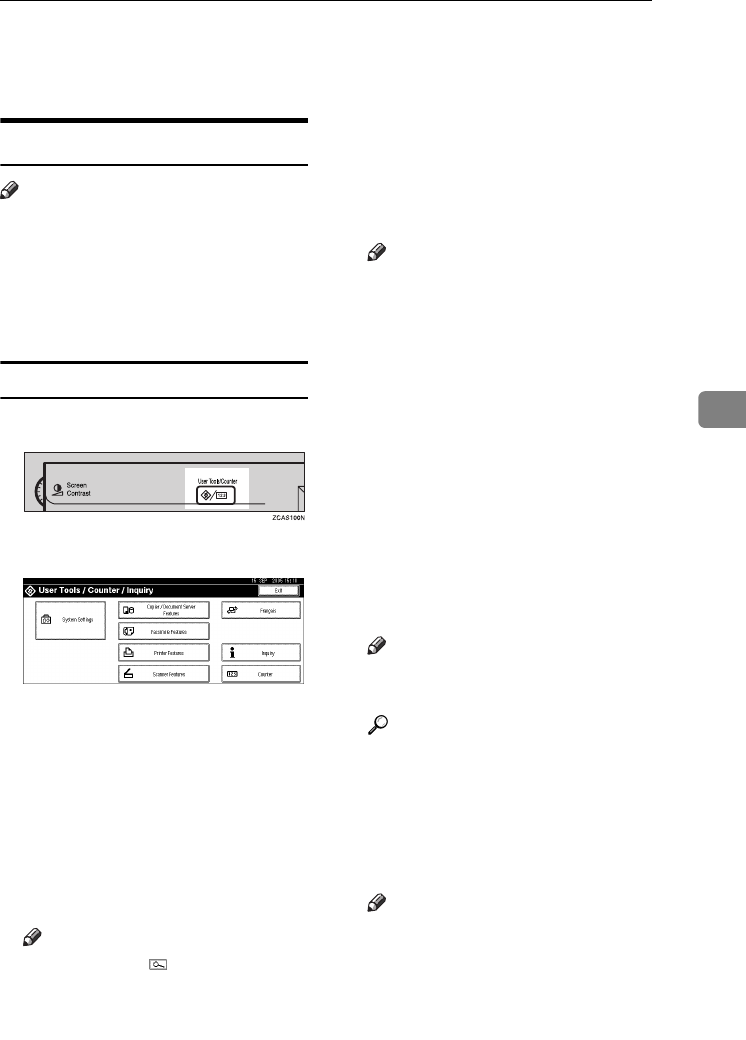
Registering Folders
93
5
JPress [Exit].
KPress the {User Tools/Counter} key.
Using FTP to Connect
Note
❒To register a shared folder config-
ured in Windows, see p.89 “Using
SMB to Connect”.
❒To register a folder in an NetWare
server, see p.96 “Using NCP to
Connect”.
To register an FTP folder
APress the {User Tools/Counter} key.
BPress [System Settings].
C
Press
[
Administrator Tools
]
, and then
press [TNext].
DPress [Address Book Management].
ESelect the name whose folder you
want to register.
Press the name key, or enter the
registered number using the
number keys.
Note
❒If you press , you can search
by the registered name, user
code, fax number, folder name,
e-mail address, or IP-Fax desti-
nation.
❒To register the name, key dis-
play, and title, see p.72 “Regis-
tering Names”.
FPress [Auth. Info], and then press
[TNext].
GPress [Specify Other Auth. Info] on
the right side of Folder Authenti-
cation.
Note
❒When [Do not Specify] is selected,
the SMB User Name and SMB
Password that you have speci-
fied in Default User Name /
Password (Send) of File Trans-
fer settings applies. For details,
see "Connecting and Setting
Up", Network Guide.
❒If User Authentication is speci-
fied, contact your administra-
tor.
HPress [Change] under Login User
Name.
IEnter the login user name, and
then press [OK].
Note
❒You can enter up to 64 charac-
ters for the user name.
Reference
p.159 “Entering Text”
JPress [Change] under Login Pass-
word.
K
Enter the password, and then press
[OK].
Note
❒You can enter up to 64 charac-
ters for the password.
LEnter the password again to con-
firm, and then press [OK].
MPress [Folder].
AdonisC4-AE_zen_F_FM_forPaper.book Page 93 Thursday, May 12, 2005 3:32 PM
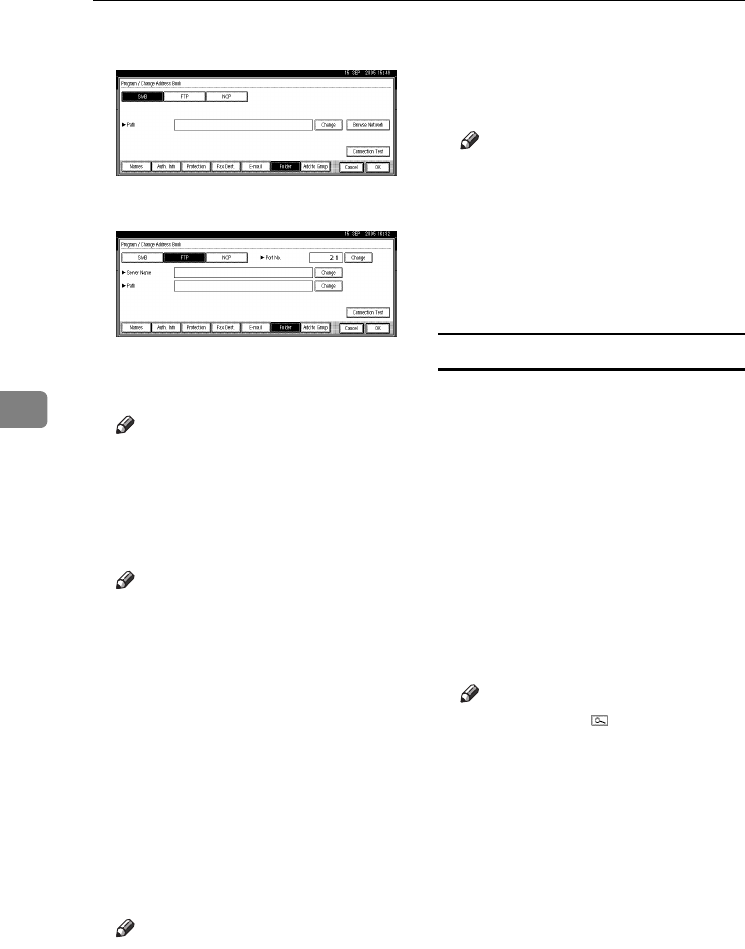
Registering Addresses and Users for Facsimile/Scanner Functions
94
5
NPress [FTP].
O
Press
[
Change
]
under Server Name.
PEnter the server name, and then
press [OK].
Note
❒You can enter a server name us-
ing up to 64 characters.
QPress [Change] under Path.
REnter the path.
Note
❒You can enter an absolute path,
using this format: “/us-
er/home/username”; or a rela-
tive path, using this format:
“directory/sub-directory”.
❒If you leave the path blank, the
login directory is assumed to be
the current working directory.
❒You can also enter an IP ad-
dress.
❒You can enter a path using up to
128 characters.
SPress [OK].
Note
❒To change the port number,
press [Change] under Port No..
Enter the port number using the
number keys, and then press [#].
❒You can enter 1 to 65535.
TPress [Connection Test] to check the
path is set correctly.
UPress [Exit].
Note
❒If the connection test fails, check
the settings, and then try again.
VPress [OK].
WPress [Exit].
XPress the {User Tools/Counter} key.
Changing a registered folder
APress the {User Tools/Counter} key.
BPress [System Settings].
C
Press
[
Administrator Tools
]
, and then
press [TNext].
DPress [Address Book Management].
ESelect the name whose folder you
want to change.
Press the name key, or enter the
registered number using the
number keys
Note
❒If you press , you can search
for a user by the registered
name, user code, fax number,
folder name, e-mail address, or
IP-Fax destination.
❒To change the name, key dis-
play, and title, see p.73 “Chang-
ing a Registered Name”.
FPress [Folder].
AdonisC4-AE_zen_F_FM_forPaper.book Page 94 Thursday, May 12, 2005 3:32 PM
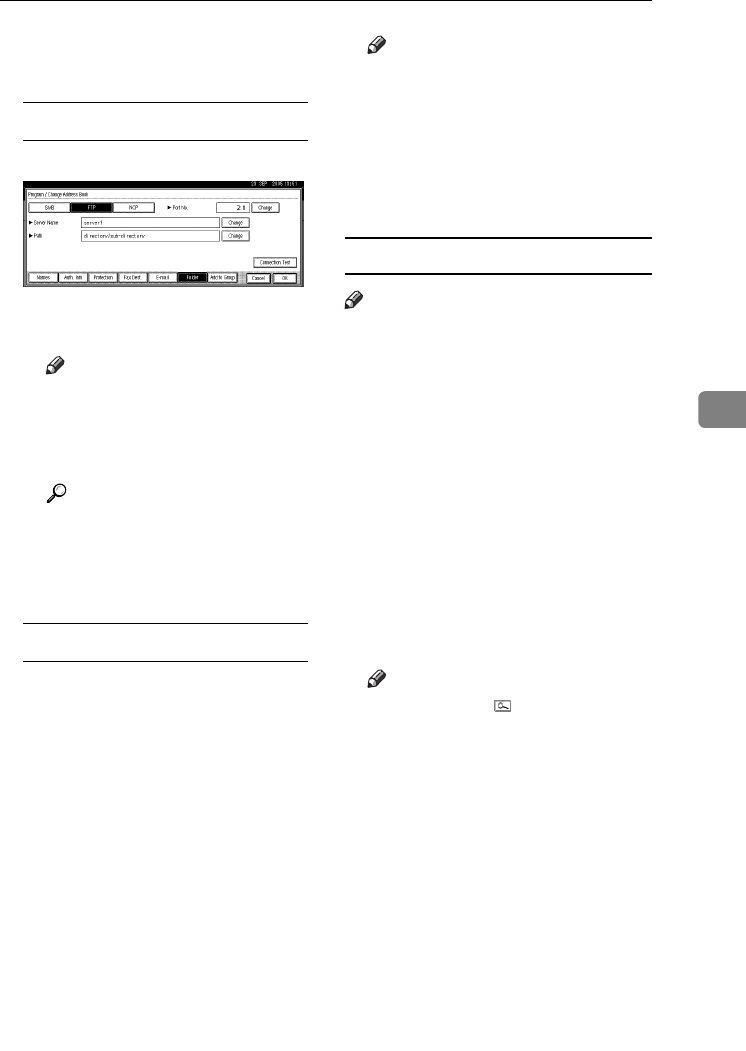
Registering Folders
95
5
GSelect the items you want to
change.
To change the protocol
APress [SMB], or [NCP].
BA confirmation message ap-
pears. Press [Yes].
Note
❒Changing the protocol will
clear all settings made under
the previous protocol.
CEnter each item again.
Reference
p.89 “To register an SMB
folder”
p.96 “To register an NCP
folder”
Changing items under FTP
APress [Change] under Port No.
BEnter the new port number,
and then press [#].
CPress [Change] under Server
Name.
DEnter the new server name, and
then press [OK].
EPress [Change] under Path.
FEnter the new path, and then
press [OK].
HPress [Connection Test] to check the
path is set correctly.
IPress [Exit].
Note
❒If the connection test fails, check
the settings, and then try again.
JPress [OK].
KPress [Exit].
LPress the {User Tools/Counter} key.
Deleting a registered folder
Note
❒To delete a name entirely, see p.73
“Deleting a Registered Name”.
APress the {User Tools/Counter} key.
BPress [System Settings].
C
Press
[
Administrator Tools
]
, and then
press [TNext].
DPress [Address Book Management].
ESelect the name whose folder you
want to delete.
Press the name key, or enter the
registered number using the
number keys.
Note
❒If you press , you can search
by the registered name, user
code, fax number, folder name,
e-mail address, or IP-Fax desti-
nation.
❒To delete the name, key display,
and title, see p.73 “Deleting a
Registered Name”.
FPress [Folder].
GPress the protocol which is not
currently selected.
A confirmation message appears.
HPress [Yes].
IPress [OK].
AdonisC4-AE_zen_F_FM_forPaper.book Page 95 Thursday, May 12, 2005 3:32 PM
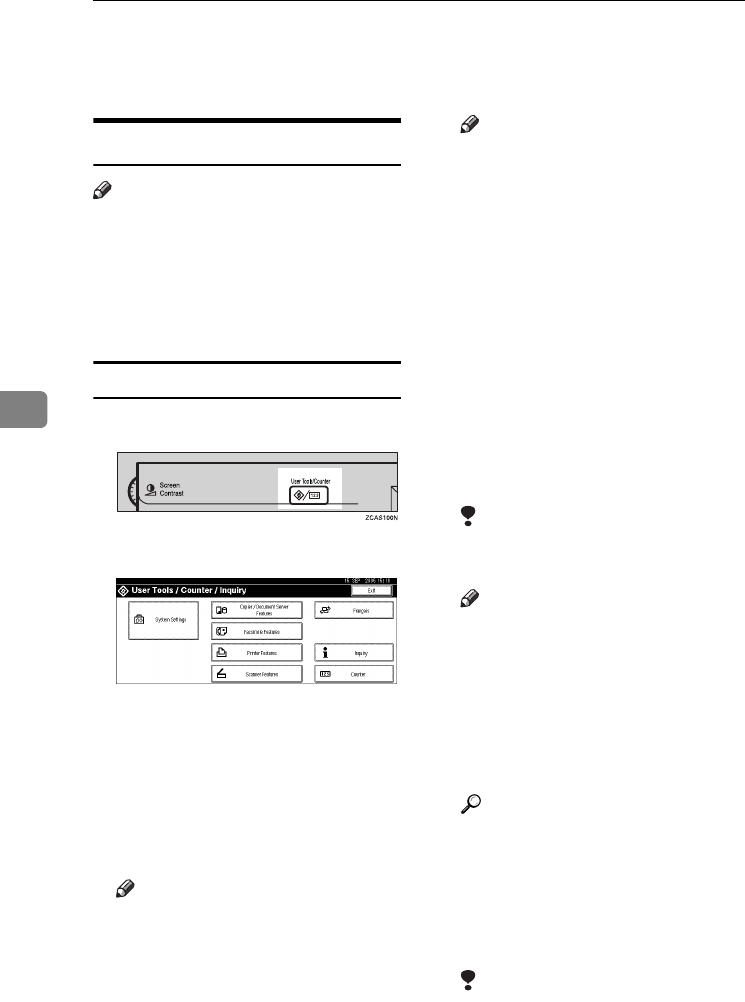
Registering Addresses and Users for Facsimile/Scanner Functions
96
5
JPress [Exit].
KPress the {User Tools/Counter} key.
Using NCP to Connect
Note
❒To register a shared folder config-
ured in Windows, see p.89 “Using
SMB to Connect”
❒To register a folder in an FTP serv-
er, see p.93 “Using FTP to Con-
nect”
To register an NCP folder
APress the {User Tools/Counter}key.
BPress [System Settings].
C
Press
[
Administrator Tools
]
, and then
press [TNext.].
DPress [Address Book Management].
EPress the name you want to regis-
ter or enter the registered number
using the number keys.
Note
❒To register a name in the Ad-
dress Book, see p.72 “Register-
ing a Name”.
FPress [Auth. Info], and then press
[TNext.].
GPress [Specify Other Auth. Info] on
the right side of Folder Authenti-
cation.
Note
❒When [Do not Specify] is selected,
the SMB User Name and SMB
Password that you have speci-
fied in Default User Name /
Password (Send) of File Trans-
fer settings applies. For details,
see "Connecting and Setting
Up", Network Guide.
❒If User Authentication is speci-
fied, contact your administra-
tor.
HPress [Change] under Login User
Name.
IEnter the login user name, and
then press [OK].
Limitation
❒You can enter up to 64 charac-
ters for the user name.
Note
❒If you have set "Connection
Type" to [NDS], enter the user
name followed by the name of
the context where the user ob-
ject is located. If the user name
is “user” and the context name
is “context”, enter “user.con-
text”
Reference
p.159 “Entering Text”
JPress [Change] under Login Pass-
word.
KEnter the password, and then
press [OK].
Limitation
❒You can enter up to 64 charac-
ters for the password.
AdonisC4-AE_zen_F_FM_forPaper.book Page 96 Thursday, May 12, 2005 3:32 PM
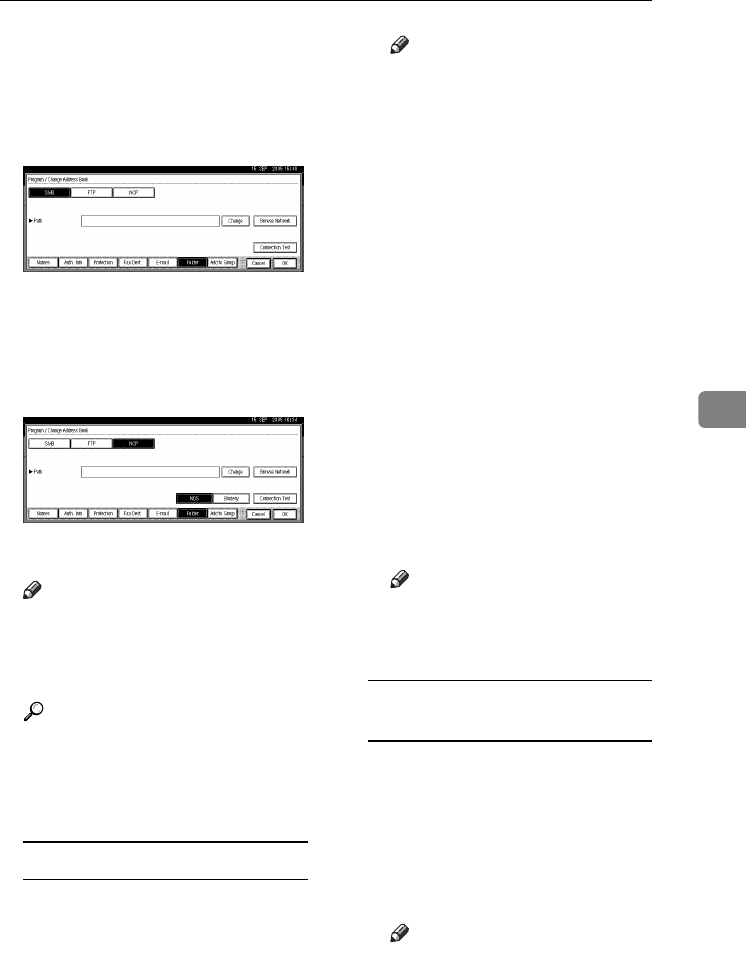
Registering Folders
97
5
LEnter the password again to con-
firm, and then press [OK].
MPress [Folder].
NPress [NCP].
OSelect "Connection Type".
If you want to specify a folder in an
NDS tree, press [NDS]. If you want
to specify a folder on a NetWare
server, press [Bindery].
PSpecify the folder.
Note
❒To specify a folder, you can ei-
ther enter the path manually or
locate the folder by browsing
the network.
Reference
p.97 “To locate the folder manu-
ally”
p.97 “Using Browse Network to
locate the folder”
To locate the folder manually
APress [Change] under Path.
BEnter the path where the folder
is located.
Note
❒If you set "Connection Type"
to [NDS], and if the NDS tree
name is "tree", the name of
the context including the vol-
ume is "context", the volume
name is "volume" and the
folder name is "folder", then
the path will be "\\tree\vol-
ume.context\folder".
❒If you set "Connection Type"
to [Bindery], and if the Net-
Ware server name is "server",
the volume name is "volume"
and the folder name is "fold-
er", then the path will be
"\\server\volume\folder".
❒You can enter a path using
up to 128 characters.
CPress [OK]
DPress [Connection Test] to check
the path is set correctly.
EPress [OK].
Note
❒If the connection test fails,
check the settings, and then
try again.
Using Browse Network to locate
the folder
APress [Browse Network].
If you have set "Connection
Type" to [NDS], a list of items in
the NDS tree appears.
If you have set "Connection
Type" to [Bindery], a list of items
on the NetWare server appears.
Note
❒Only the folders you are al-
lowed to access appear in
[Browse Network].
AdonisC4-AE_zen_F_FM_forPaper.book Page 97 Thursday, May 12, 2005 3:32 PM
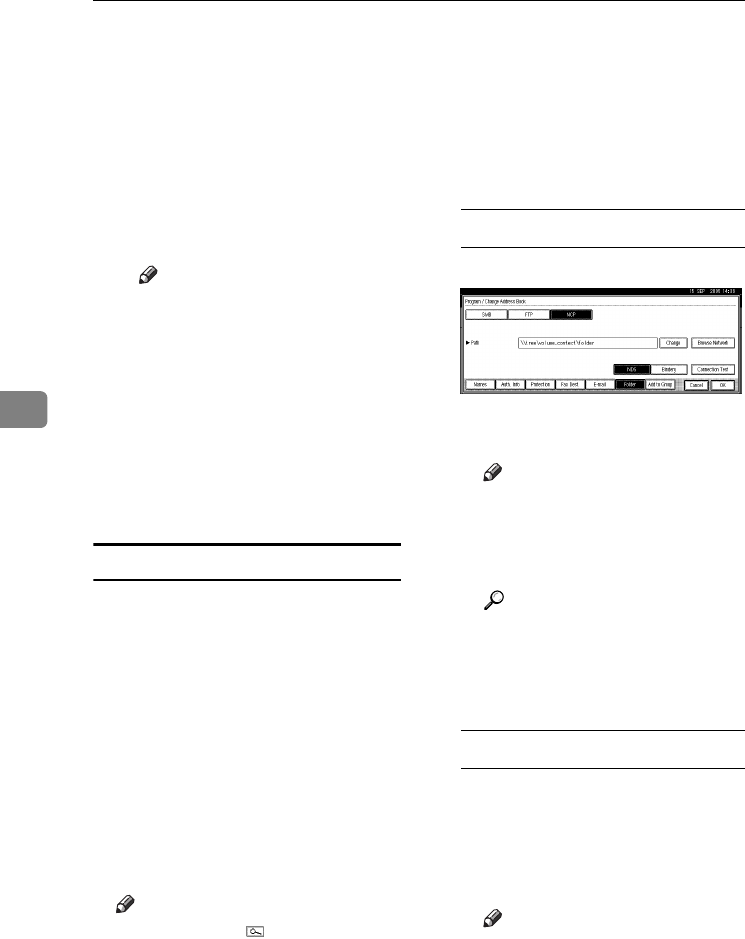
Registering Addresses and Users for Facsimile/Scanner Functions
98
5
❒If the languages used on the
machine and the destination
you want to view differ, the
items in the list may not ap-
pear correctly.
❒Up to 100 items can be dis-
played in the list.
BSearch for the destination fold-
er in the NDS tree or NetWare
server.
Note
❒You can press [Up One Level]
to switch between levels.
CSelect the folder you want to
register.
DPress [OK].
QPress [OK].
RPress [Exit].
SPress the {User Tools / Counter} key.
Changing a registered folder
APress the{User Tools/Counter}key.
BPress [System Settings].
C
Press
[
Administrator Tools
]
, and then
press [TNext].
DPress [Address Book Management].
ESelect the user of the registered
folder you want to change.
Press the name key, or enter the
registered number using the
number keys
Note
❒If you press , you can search
for a user by the registered
name, user code, fax number,
folder name, e-mail address, or
IP-Fax destination.
❒To change the name, key dis-
play, and title, see p.73 “Chang-
ing a Registered Name”.
FPress [Folder].
GSelect the items you want to
change.
To change the protocol
APress [SMB] or [FTP].
BA confirmation message ap-
pears. Press [Yes].
Note
❒Changing the protocol will
clear all settings made under
the previous protocol.
CEnter each item again.
Reference
p.89 “To register an SMB
folder”.
p.93 “To register an FTP fold-
er”.
Changing items under NCP
ASelect "Connection Type".
BPress [Change] under Path.
CEnter the new path where the
folder is located, and then
press [OK].
Note
❒You can also use Browse Net-
work to specify a new folder.
For details, see p.97 “Using
Browse Network to locate
the folder”.
AdonisC4-AE_zen_F_FM_forPaper.book Page 98 Thursday, May 12, 2005 3:32 PM
Registering Folders
99
5
HPress [Connection Test] to check the
path is set correctly.
IPress [Exit].
Note
❒If the connection test fails, check
the settings, and then try again.
JPress [OK].
KPress [Exit].
LPress the{User Tools / Counter}key.
To delete the registered folder
Note
❒To delete a name entirely, see p.73
“Deleting a Registered Name”.
APress the{User Tools/Counter}key.
BPress [System Settings].
C
Press
[
Administrator Tools
]
, and then
press [TNext].
DPress [Address Book Management].
ESelect a user of the folder you
want to delete.
Press the name key, or enter the
registered number using the
number keys.
FPress [Folder].
GPress the protocol which is not
currently selected.
A confirmation message appears.
HPress [Yes].
IPress [OK].
JPress [Exit].
KPress the {User Tools / Counter} key.
AdonisC4-AE_zen_F_FM_forPaper.book Page 99 Thursday, May 12, 2005 3:32 PM
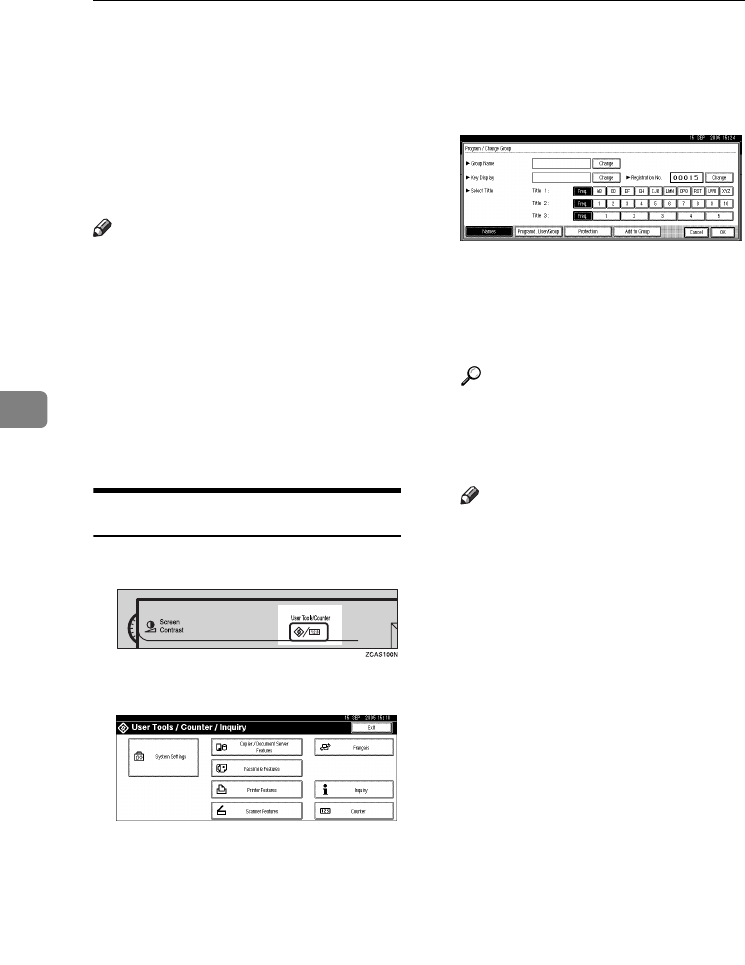
Registering Addresses and Users for Facsimile/Scanner Functions
100
5
Registering Names to a Group
You can register names to a group to
enable easy management of e-mail
addresses and folders for each group.
To add names to a group, the groups
must be registered beforehand.
Note
❒You can register up to 100 groups.
❒When using Scan to Folder func-
tion, you cannot send scan files to a
group with over 50 folders regis-
tered.
❒You can set a protection code to
prevent unauthorized access to the
folders registered in a group. For
details, see p.105 “Registering a
Protection Code”.
Registering a New Group
APress the {User Tools/Counter} key.
BPress [System Settings].
C
Press
[
Administrator Tools
]
, and then
press [TNext].
D
Press
[
Address Book: Program / Change /
Delete Group
]
.
EPress [New Program].
F
Press
[
Change
]
under Group Name.
GEnter the group name, and then
press [OK].
The Key Display name is set auto-
matically.
Reference
p.159 “Entering Text”
HPress the title key under Select Ti-
tle, if necessary.
Note
❒The keys you can select are as
follows:
•[Freq.]… Added to the page
that is displayed first.
•[AB], [CD], [EF], [GH], [IJK],
[LMN], [OPQ], [RST], [UVW],
[XYZ], [1] to [10]… Added to
the list of items in the select-
ed title.
❒You can select [Freq.] and one
more page for each title.
IWhen you want to change the key
display, press [Change] under Key
Display. Enter the key display,
and then press [OK].
JPress [OK].
KPress [Exit].
LPress the {User Tools/Counter} key.
AdonisC4-AE_zen_F_FM_forPaper.book Page 100 Thursday, May 12, 2005 3:32 PM
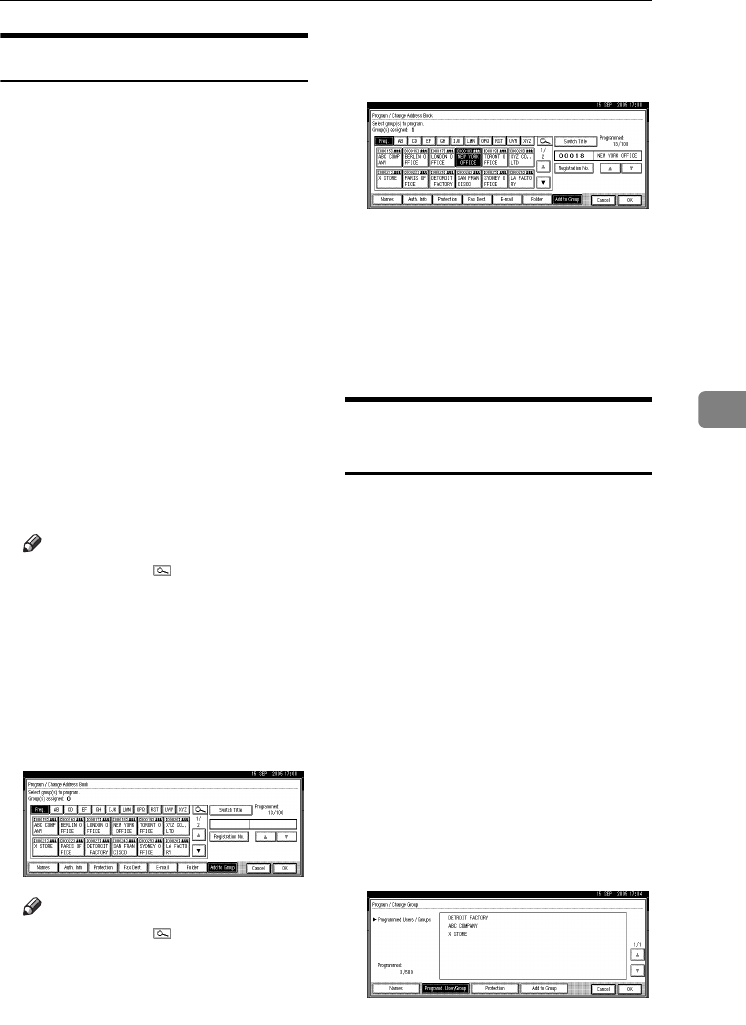
Registering Names to a Group
101
5
Registering Names to a Group
You can put names that have been
registered in the Address Book into a
group.
When registering new names, you
can also register groups at the same
time.
APress the {User Tools/Counter} key.
BPress [System Settings].
C
Press
[
Administrator Tools
]
, and then
press [TNext].
DPress [Address Book Management].
ESelect the name to register in a
group.
Press the name key, or enter the
registered number using the
number keys.
Note
❒If you press , you can search
by the registered name, user
code, fax number, folder name,
e-mail address, or IP-Fax desti-
nation.
FPress [Add to Group].
GSelect a group to which you want
to add the name to.
Note
❒If you press , you can search
for a group by entering the
group name.
The group key that you have se-
lected becomes highlighted, and
the name is added to it.
To remove the name, click the
highlighted group again.
HPress [OK].
IPress [Exit].
JPress the {User Tools/Counter} key.
Displaying Names Registered
in Groups
You can check the names or groups
registered in each group.
APress the {User Tools/Counter} key.
BPress [System Settings].
C
Press
[
Administrator Tools
]
, and then
press [TNext].
D
Press
[
Address Book: Program / Change /
Delete Group
]
.
ESelect the group where the mem-
bers you want to check is regis-
tered.
FPress [Programd. User/Group].
All the names registered will be
displayed.
GPress [OK].
AdonisC4-AE_zen_F_FM_forPaper.book Page 101 Thursday, May 12, 2005 3:32 PM
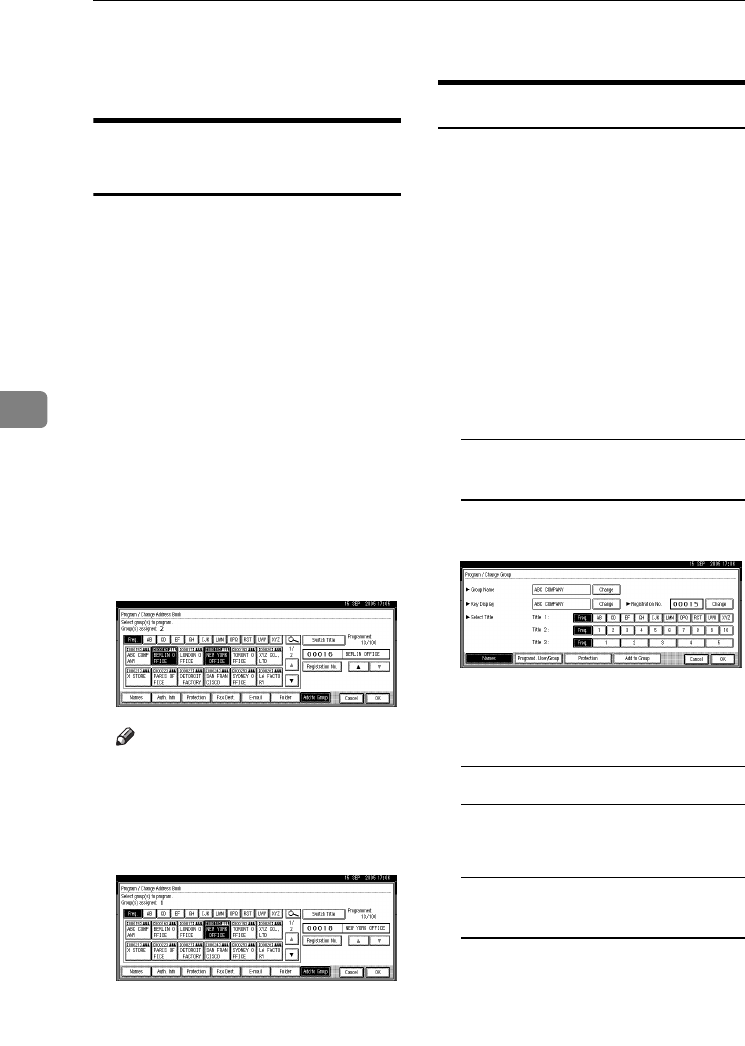
Registering Addresses and Users for Facsimile/Scanner Functions
102
5
HPress [Exit].
IPress the {User Tools/Counter} key.
Removing a Name from a
Group
APress the {User Tools/Counter} key.
BPress [System Settings].
C
Press
[
Administrator Tools
]
, and then
press [TNext].
DPress [Address Book Management].
ESelect the name to remove from a
group.
Press the name key, or enter the
registered number using the
number keys.
FPress [Add to Group].
GSelect the group from which you
want to remove the name.
Note
❒
Highlighted keys indicate groups
in which the name has been reg-
istered.
The name is removed from the
group.
HPress [OK].
IPress [Exit].
JPress the {User Tools/Counter} key.
Changing a Group Name
APress the {User Tools/Counter} key.
BPress [System Settings].
C
Press
[
Administrator Tools
]
, and then
press [TNext].
D
Press
[
Address Book: Program / Change /
Delete Group
]
.
EPress the group key you want to
change.
FEnter the items.
To change the group name and
key display
APress [Change] under Group
Name or Key Display.
BEnter the new group name or
key display, and then press
[OK].
To change the title
APress the title key under Select
Title.
To change the registration
number
APress [Change] under Registra-
tion No..
BEnter the new registration
number using the number keys.
CPress [#].
AdonisC4-AE_zen_F_FM_forPaper.book Page 102 Thursday, May 12, 2005 3:32 PM
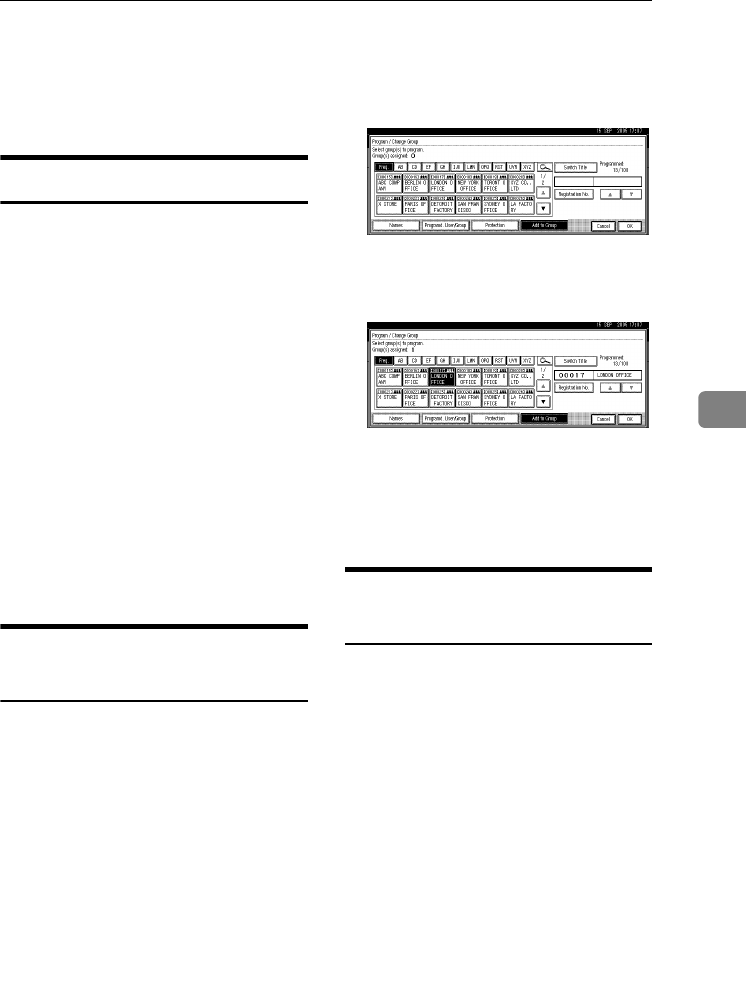
Registering Names to a Group
103
5
GPress [OK].
HPress [Exit].
IPress the {User Tools/Counter} key.
Deleting a Group
APress the {User Tools/Counter} key.
BPress [System Settings].
C
Press
[
Administrator Tools
]
, and then
press [TNext].
D
Press
[
Address Book: Program / Change /
Delete Group
]
.
EPress [Delete].
FPress a group key you want to de-
lete.
GPress [Yes].
HPress [Exit].
IPress the {User Tools/Counter} key.
Adding a Group to Another
Group
You can add a group to another
group.
APress the {User Tools/Counter} key.
BPress [System Settings].
C
Press
[
Administrator Tools
]
, and then
press [TNext].
D
Press
[
Address Book: Program / Change /
Delete Group
]
.
ESelect the group that you want to
put into another group.
Press the group key, or enter the
registered number using the
number keys.
FPress [Add to Group].
GSelect the group which you want
to add to.
The group key that you have se-
lected becomes highlighted, and
the group is added to it.
HPress [OK].
IPress [Exit].
JPress the {User Tools/Counter} key.
Deleting a Group within a
Group
APress the {User Tools/Counter} key.
BPress [System Settings].
C
Press
[
Administrator Tools
]
, and then
press [TNext].
D
Press
[
Address Book: Program / Change /
Delete Group
]
.
EWithin the group you want to de-
lete.
Press the group key, or enter the
registered number during the
number keys.
FPress [Add to Group].
The keys of groups in which the
group is registered appear high-
lighted.
AdonisC4-AE_zen_F_FM_forPaper.book Page 103 Thursday, May 12, 2005 3:32 PM
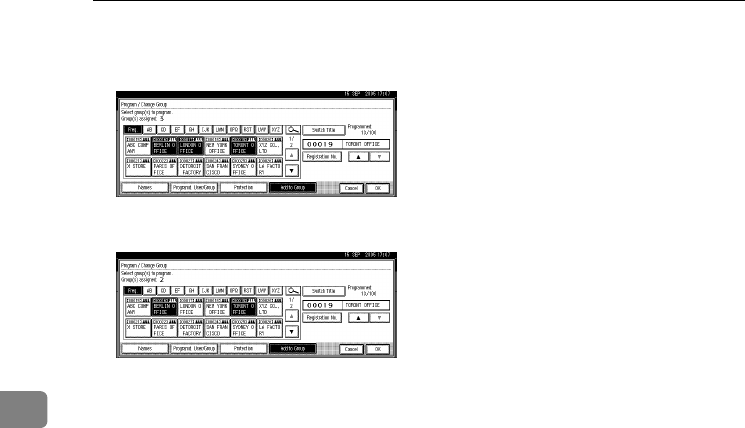
Registering Addresses and Users for Facsimile/Scanner Functions
104
5
GSelect the group that you want to
delete from.
HPress [OK].
The group key is deselected and
the group is deleted from it.
AdonisC4-AE_zen_F_FM_forPaper.book Page 104 Thursday, May 12, 2005 3:32 PM
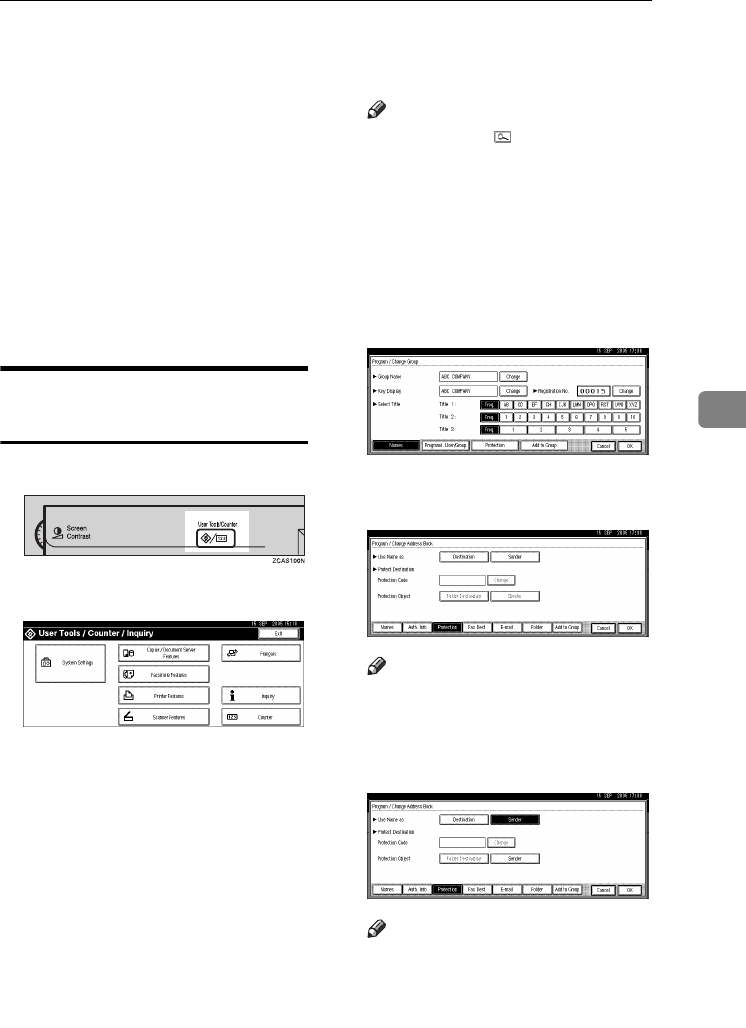
Registering a Protection Code
105
5
Registering a Protection Code
You can stop sender's names or fold-
ers being accessed by setting a protec-
tion code.
You can use this function to protect
the following:
•Folders
You can prevent unauthorized ac-
cess to folders.
•Sender's names
You can prevent misuse of sender's
names.
Registering a Protection Code
To a Single User
APress the {User Tools/Counter} key.
BPress [System Settings].
C
Press
[
Administrator Tools
]
, and then
press [TNext].
DPress [Address Book Management].
ESelect the name whose protection
code you want to register.
Press the name key, or enter the
registered number using the
number keys.
Note
❒If you press , you can search
by the registered name, user
code, fax number, folder name,
e-mail address, or IP-Fax desti-
nation.
❒To register the name, key dis-
play, and title, see p.72 “Regis-
tering Names”.
FPress [Protection].
GPress [Destination] or [Sender] un-
der Use Name as.
Note
❒Both [Destination] and [Sender]
can be selected at the same time.
HPress [Folder Destination] or [Sender]
under Protection Object.
Note
❒Both [Folder Destination] and
[Sender] can be selected at the
same time.
IPress [Change] under Protection
Code.
AdonisC4-AE_zen_F_FM_forPaper.book Page 105 Thursday, May 12, 2005 3:32 PM
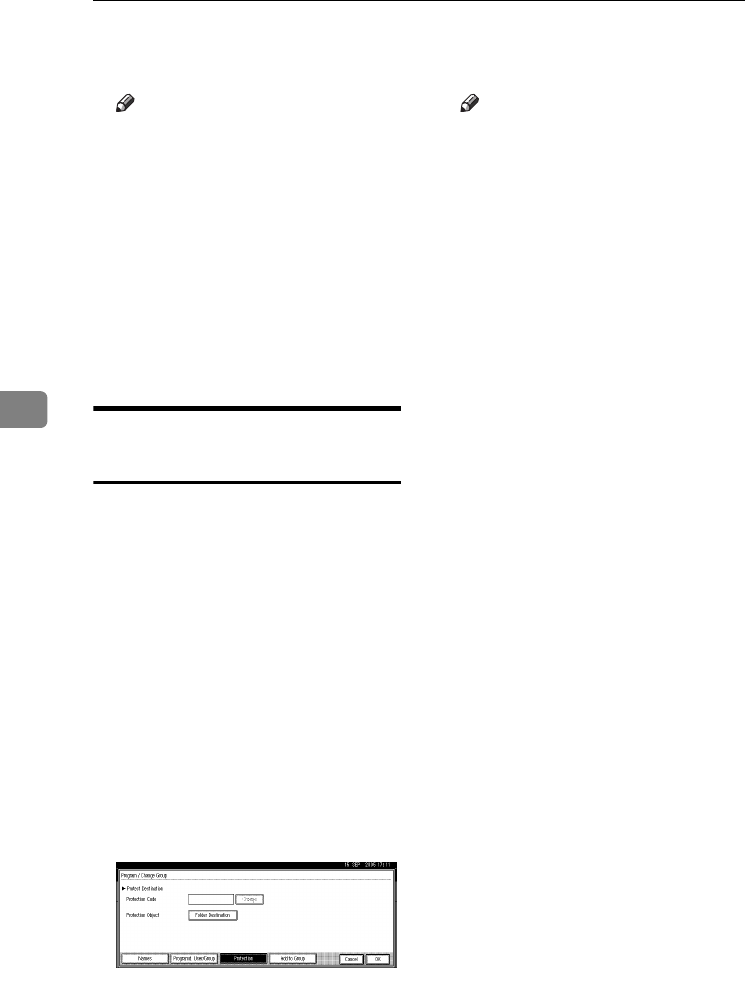
Registering Addresses and Users for Facsimile/Scanner Functions
106
5
JEnter a protection code using the
number keys, and then press [#].
Note
❒By default, no protection code is
specified.
❒You can specify a protection
code of up to eight digits. You
can also specify “Protection”
without specifying a protection
code.
KPress [OK].
LPress [Exit].
MPress the {User Tools/Counter} key.
Registering a Protection Code
To a Group User
APress the {User Tools/Counter} key.
BPress [System Settings].
C
Press
[
Administrator Tools
]
, and then
press [TNext].
D
Press
[
Address Book: Program / Change /
Delete Group
]
.
EPress the group key you want to
register or enter the registered
number using the number keys.
FPress [Protection].
G
Press
[
Folder Destination
]
under Pro-
tection
Object.
HPress [Change] under Protection
Code.
IEnter a protection code using the
number keys, and then press [#].
Note
❒By default, no protection code is
specified.
❒You can specify a protection
code of up to eight digits. You
can also specify “Protection”
without specifying a protection
code.
JPress [OK].
KPress [Exit].
LPress the {User Tools/Counter} key.
AdonisC4-AE_zen_F_FM_forPaper.book Page 106 Thursday, May 12, 2005 3:32 PM
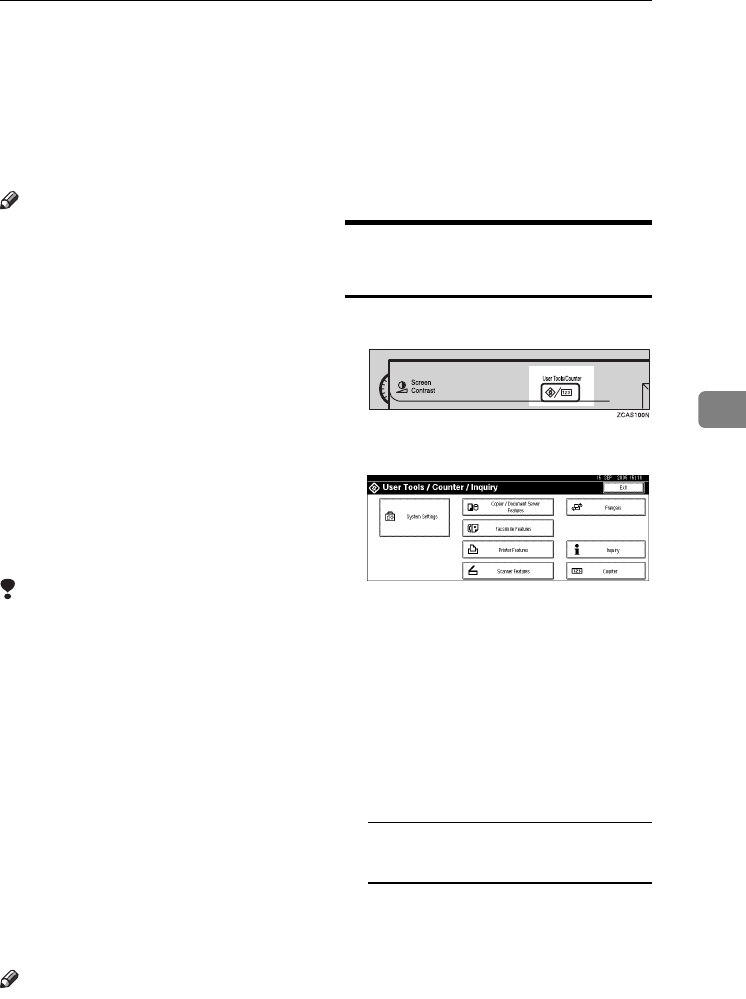
Registering the Transfer Request
107
5
Registering the Transfer Request
This section describes how to register
the Transfer Station and Receiving
Station used in the fax function's
Transfer Request.
Note
❒Before you can use Transfer Re-
quest, you must program the Poll-
ing ID and set the Transfer Report.
See “Programming a Polling
ID”and “Transfer Report”, Facsim-
ile Reference <Advanced Features>.
❖Transfer Station
Refers to the machine that receives
the Transfer Request to forward in-
coming messages to another desti-
nation.
❖Receiving Station
Refers to the facsimile or computer
that receives messages from the
Transfer Station.
Limitation
❒When messages are transferred by
fax, Transfer Stations must be ma-
chines of the same manufacturer as
this one, and have the Transfer Sta-
tion function.
❒When messages are transferred by
e-mail, Transfer Stations must be
machines of the same manufactur-
er as this one, and have both the
Transfer Station and Internet Fax
functions.
❒You cannot use Transfer Request
without programming the fax
number or e-mail address of the
Requesting Party in the Address
Book of the Transfer Stations.
Note
❒Polling IDs of the Requesting Party
(this machine) and Transfer Sta-
tions must be identical.
❒You can have up to 30 Receiving
Stations per Transfer Station. If
you specify a Transfer Station
Group, the group counts as a sin-
gle receiver.
Registering a Transfer
Station/Receiving Station
APress the {User Tools/Counter} key.
BPress [System Settings].
C
Press
[
Administrator Tools
]
, and then
press [TNext].
D
Press
[
Address Book: Program / Change /
Delete Transfer Request
]
.
EPress [New Program].
FSet the Transfer Request's infor-
mation.
To register the Transfer Request
name and key display
APress [Change] under Transfer
Request Name or Key Display.
The name entry display ap-
pears.
B
Enter the Transfer Request name
or key display, and then press
[OK].
AdonisC4-AE_zen_F_FM_forPaper.book Page 107 Thursday, May 12, 2005 3:32 PM
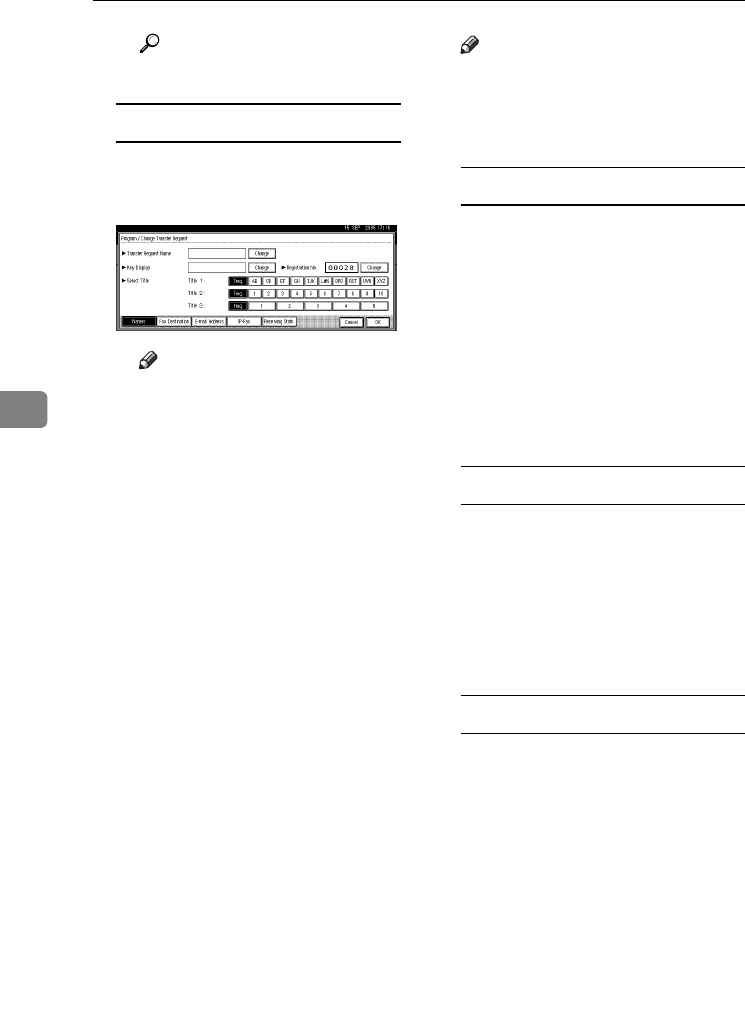
Registering Addresses and Users for Facsimile/Scanner Functions
108
5
Reference
p.159 “Entering Text”
To select the title
ATo associate a Transfer Re-
quest name with a title, press
the title key under Select Title.
Note
❒The keys you can select are as
follows:
•[Freq.]… Added to the
page that is displayed
first.
•[AB], [CD], [EF], [GH], [IJK],
[LMN], [OPQ], [RST], [UVW],
[XYZ], [1] to [10]… Added
to the list of items in the
selected title.
❒You can select [Freq.] and one
more page for each title.
GPress [Fax Dest.].
HEnter the items. See step G on p.79
“Registering a Fax Destination”.
IPress [E-mail].
JEnter the items. See p.86 “Regis-
tering an E-mail Destination”.
KPress [IP-Fax].
LEnter the items. See steps H - J on
p.83 “Registering an IP-Fax Desti-
nation”.
MPress [Receiving Statn.].
NSpecify the Receiving Stations.
Note
❒When specifying the Receiving
Stations, use the numbers
stored in Quick Dial keys, or
Groups in the Transfer Station.
Quick Dial
APress [qQuick Dial].
BEnter the number stored in the
Quick Dial of the Transfer Sta-
tion using the number keys
For example, to select the desti-
nation stored in Quick Dial 01 of
the Transfer Station, enter
{0}{1}.
CTo specify an additional Re-
ceiving Station, press [Add].
Speed Dial
APress [qpSpeed Dial].
BEnter the Speed Dial number
using the number keys.
For example, to select the desti-
nation stored in Speed Dial 12 of
the Transfer Station, enter
{1}{2}.
Group Dial
APress [qppGroup Dial].
BEnter the Group number using
the number keys.
For example, to select the desti-
nations stored in Group 04 of
the Transfer Station, enter
{0}{4}.
CTo specify an additional Re-
ceiving Station, press [Add].
OWhen you have specified all the
Receiving Stations, press [OK].
PPress [Exit].
AdonisC4-AE_zen_F_FM_forPaper.book Page 108 Thursday, May 12, 2005 3:32 PM
Registering the Transfer Request
109
5
QPress the {User Tools/Counter} key.
Changing a Registered
Transfer Station/Receiving
Station
APress the {User Tools/Counter} key.
BPress [System Settings].
C
Press
[
Administrator Tools
]
, and then
press [TNext].
D
Press
[
Address Book: Program / Change /
Delete Transfer Request
]
.
ESelect the name whose Transfer
Station/Receiving Station you
want to change.
Press the name key, or enter the
registered number using the
number keys.
Note
❒If you press , you can search
by the group name, fax number,
mail address, or IP-Fax destina-
tion.
❒To change the name, key dis-
play, and title, see p.73 “Chang-
ing a Registered Name”.
Note
❒If you press , you can search
for a user by Transfer Request
name, fax number, or e-mail ad-
dress.
FEnter the items.
To change the Transfer Request
name and key display
APress [Change] under Transfer
Request Name or Key Display.
BEnter the new Transfer Re-
quest Name or key display,
and then press [OK].
To change the title
APress the title key under Select
Title.
To change the Fax Station
APress [Fax Dest.].
Proceed to step A of "To change
the E-mail Transfer Station"
when messages are transferred
by e-mail.
BChange the Transfer Station's
information. See p.81 “Chang-
ing a Registered Fax Destina-
tion”.
To change the IP-Fax Station
APress [IP-Fax].
BChange the Transfer Station's
information. See step H on p.84
“Changing a Registered IP-Fax
Destination”.
To change the E-mail Transfer
Station
APress [E-mail].
BChange the Transfer Station's
information. See steps G and H
on p.87 “Changing a Regis-
tered E-mail Destination”.
To change the Receiving Station
APress [Receiving Statn.].
BSelect the Receiving Station
you want to change.
C
P
ress
[
Clear
]
to clear the number,
and then enter the new number
using the number keys.
AdonisC4-AE_zen_F_FM_forPaper.book Page 109 Thursday, May 12, 2005 3:32 PM

Registering Addresses and Users for Facsimile/Scanner Functions
110
5
GPress [OK].
HPress [Exit].
IPress the {User Tools/Counter} key.
Deleting a Registered Transfer
Station/Receiving Station
APress the {User Tools/Counter} key.
BPress [System Settings].
C
Press
[
Administrator Tools
]
, and then
press [TNext].
D
Press
[
Address Book: Program / Change /
Delete Transfer Request
]
.
EPress [Delete].
FSelect the name whose Transfer
Station/Receiving Station you
want to delete.
Press the name key, or enter the
registered number using the
number keys.
Note
❒If you press , you can search
by the group name, fax number,
e-mail address, or IP-Fax desti-
nation.
❒To delete the name, key display,
and title, see p.73 “Deleting a
Registered Name”.
GPress [Yes].
HPress [Exit].
IPress the {User Tools/Counter} key.
AdonisC4-AE_zen_F_FM_forPaper.book Page 110 Thursday, May 12, 2005 3:32 PM
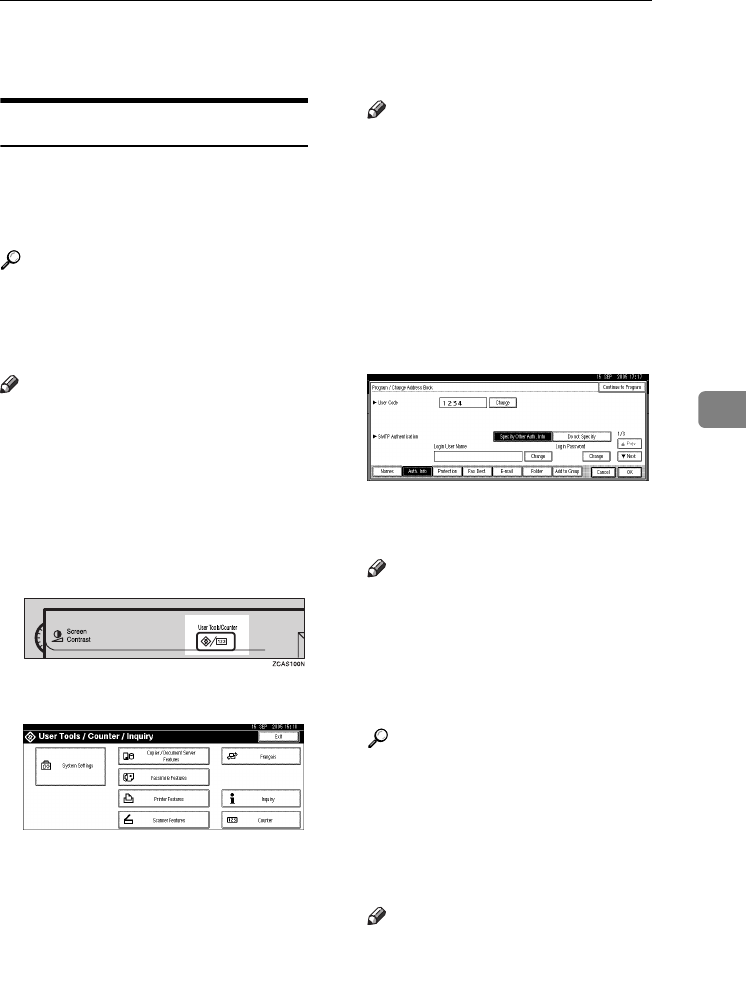
Registering Authentication
111
5
Registering Authentication
SMTP Authentication
For each user registered in the Ad-
dress Book, you can register a login
user name and login password to be
used when accessing an SMTP server.
Reference
To use an SMTP server, you need
to program it beforehand. For de-
tails, see “SMTP Server Settings”,
Network Guide.
Note
❒When [Do not Specify] is selected for
SMTP Authentication, the User
Name and Password that you have
specified in SMTP Authentication
of File Transfer settings applies.
For details, see “Connecting and
Setting Up", Network Guide.
APress the {User Tools/Counter} key.
BPress [System Settings].
C
Press
[
Administrator Tools
]
, and then
press [TNext].
DPress [Address Book Management].
EPress the name you want to regis-
ter or enter the registered number
using the number keys
Note
❒To register a name in the Ad-
dress Book, see p.72 “Register-
ing Names”.
FPress [Auth. Info].
GPress [Specify Other Auth. Info] on
the right side of SMTP Authenti-
cation.
HPress [Change] under Login User
Name.
IEnter the login user name, and
then press [OK].
Note
❒You can enter up to 64 charac-
ters for the user name.
❒When using POP before SMTP
Authentication, you can enter
up to 63 alphanumeric charac-
ters.
Reference
p.159 “Entering Text”
JPress [Change] under Login Pass-
word.
KEnter the password, and then
press [OK].
Note
❒You can enter up to 64 charac-
ters for the password.
LEnter the password again to con-
firm, and then press [OK].
AdonisC4-AE_zen_F_FM_forPaper.book Page 111 Thursday, May 12, 2005 3:32 PM
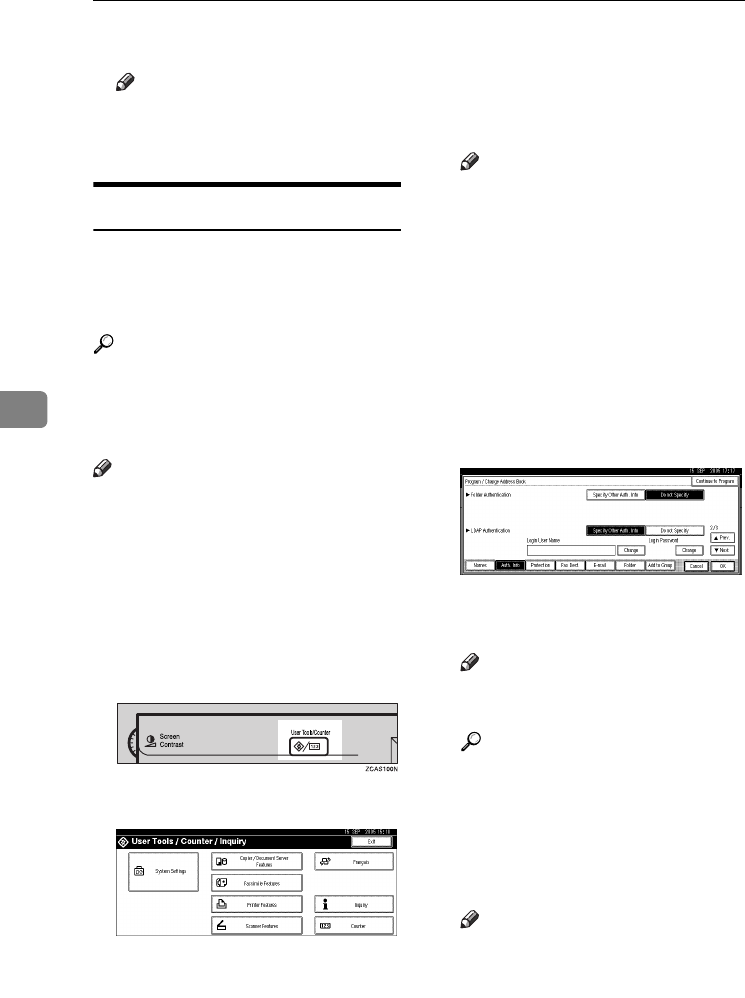
Registering Addresses and Users for Facsimile/Scanner Functions
112
5
MPress [OK].
Note
❒To change the SMTP Authenti-
cation settings, repeat steps H to
M.
LDAP Authentication
For each user registered in the Ad-
dress Book, you can register a login
user name and login password to be
used when accessing an LDAP server.
Reference
To use an LDAP server, you need
to program it beforehand. For de-
tails, see “LDAP Server Settings”,
Network Guide.
Note
❒When [Do not Specify] is selected for
LDAP Authentication, the User
Name and Password that you have
specified in Program/Change
LDAP Server of Administrator
Tools settings applies. For details,
see “Program / Change / Delete
LDAP Server”, Network Guide.
APress the {User Tools/Counter} key.
BPress [System Settings].
CPress [Administrator Tools], and
then press [TNext].
DPress [Address Book Management].
EPress the name you want to regis-
ter or enter the registered number
using the number keys
Note
❒To register a name in the Ad-
dress Book, see Registering
Names p.72 “Registering
Names”.
FPress [Auth. Info], and then press
[TNext].
GPress [Specify Other Auth. Info] on
the right side of LDAP Authenti-
cation.
HPress [Change] under Login User
Name.
IEnter the login user name, and
then press [OK].
Note
❒You can enter up to 64 charac-
ters for the user name.
Reference
p.159 “Entering Text”
JPress [Change] under Login Pass-
word.
KEnter the password, and then
press [OK].
Note
❒You can enter up to 64 charac-
ters for the password.
LEnter the password again to con-
firm, and then press [OK].
AdonisC4-AE_zen_F_FM_forPaper.book Page 112 Thursday, May 12, 2005 3:32 PM

Registering Authentication
113
5
MPress [OK].
Note
❒To change the LDAP Authenti-
cation settings, repeat steps H to
M.
AdonisC4-AE_zen_F_FM_forPaper.book Page 113 Thursday, May 12, 2005 3:32 PM

Registering Addresses and Users for Facsimile/Scanner Functions
114
5
AdonisC4-AE_zen_F_FM_forPaper.book Page 114 Thursday, May 12, 2005 3:32 PM
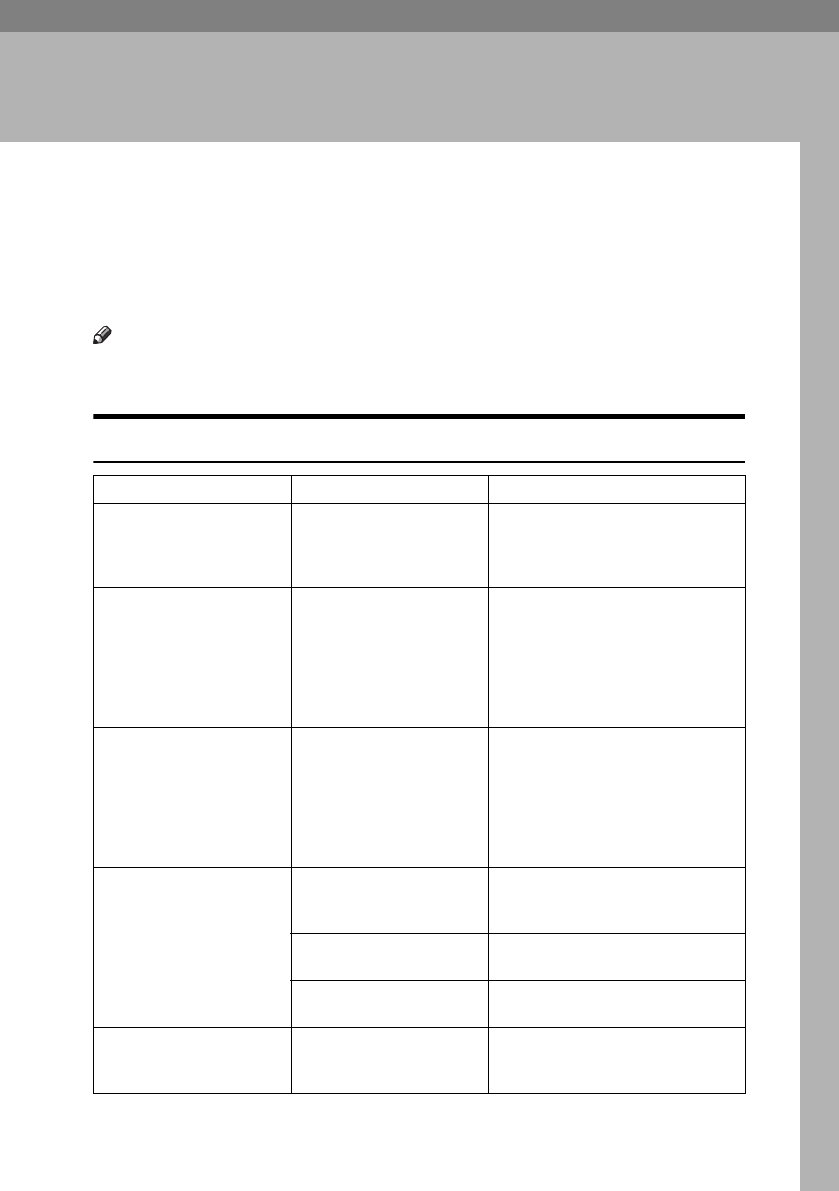
115
6. Troubleshooting
If Your Machine Does Not Operate As You
Want
The following chart gives explanations of common problems and messages. If
other messages appear, follow the instructions displayed.
Note
❒If you cannot make copies as you want because of paper type, paper size or
paper capacity problems, use recommended paper. See p.173 “Copy Paper”.
General
Problem Causes Solutions
“Please wait.” ap-
pears
This message appears
when you turn on the oper-
ation switch or change the
toner bottle.
Wait for the machine to get ready.
Although the copier screen
appears when the machine
is turned on using the main
power switch, it cannot be
switched to another screen
by pressing the {Facsimile}
or {Scanner} key.
Functions other than the
copier function are not yet
ready.
Wait a little longer.
The machine has just been
turned on and the User
Tools screen is displayed,
but the User Tools menu
has items missing.
Functions other than the
copier function are not yet
ready. Time required var-
ies by function. Functions
appear in the User Tools
menu when they become
ready for use.
Wait a little longer.
The display is off. The screen contrast knob is
turned to the dark position.
Set the screen contrast knob to the
light position to see the display pan-
el properly.
The machine is in Energy
Saver mode.
Press the {Energy Saver} key to can-
cel Energy Saver mode.
The operation switch is
turned off.
Turn on the operation switch.
Nothing happens when the
operation switch is turned
on.
The main power switch is
turned off.
Turn on the main power switch.
AdonisC4-AE_zen_F_FM_forPaper.book Page 115 Thursday, May 12, 2005 3:32 PM

Troubleshooting
116
6
Memory is full. There are too many
scanned pages or stored
files: hard disk capacity is
exceeded.
Press [Delete File] to delete unneces-
sary documents.
The function status indica-
tor is red.
The function associated
with the red indicator was
interrupted.
Press the function key correspond-
ing to the indicator. Follow the in-
structions that appeared on the
control panel.
You forgot your user code. - Contact your service representative.
The user code entry dis-
play appears.
Users are restricted by user
management.
Enter the user code (up to eight dig-
its), and then press [#].
The Authentication screen
appears.
Basic Authentication, Win-
dows Authentication,
LDAP Authentication, or
Integration Server Authen-
tication is set.
Enter your login user name and user
password. See p.22 “When the Au-
thentication Screen is displayed”.
“You do not have
the privileges to
use this func-
tion.” is displayed.
The use of the function is
restricted to authenticated
users only.
Contact the administrator.
“You do not have
the privileges to
use this func-
tion.” continues to be
displayed even though you
have entered a valid user
code.
This user code is not al-
lowed to use the function
selected.
Press the {Energy Saver} key. Check
the display goes off, and then press
the {Energy Saver} key again. The
user code entry display returns.
When printing under the copier or
printer function, press {Energy Sav-
er} only after printing has finished.
Authentication has failed. The entered login user
name or login password is
not correct.
Inquire the user administrator for
the correct login user name and
login password.
The machine cannot per-
form authentication.
Contact the administrator.
"The selected
file(s) which you
do not have access
privileges to
could not be de-
leted." is displayed.
You have tried to delete
files without the authority
to do so.
Files can be deleted by the person
who created the file. To delete a file
which you are not authorized to de-
lete, contact the person who created
the file.
Problem Causes Solutions
AdonisC4-AE_zen_F_FM_forPaper.book Page 116 Thursday, May 12, 2005 3:32 PM

If Your Machine Does Not Operate As You Want
117
6
Problem Causes Solutions
The main power indicator
continues blinking and
does not turn off when
pressed.
This occurs in the follow-
ing cases:
• The exposure glass cov-
er or the ADF is open.
• The machine is commu-
nicating with external
equipment.
• The hard disk is active.
Close the exposure glass cover or
ADF, and check if the machine is
communicating with a computer.
Original images are print-
ed on the reverse side of
the paper.
You may have loaded the
paper incorrectly.
Load paper correctly. Load paper
into Tray 1-4 with the print side up,
and into the LCT or bypass tray
with the print side down. See p.121
“Orientation-Fixed Paper or Two-
Sided Paper”.
Misfeeds occur frequently. The tray's side guides may
not be locked.
Check the side guides are locked.
p.134 “Changing the Paper Size”.
The tray's end guide may
not be set properly.
Check the end guide is set properly.
See p.134 “Changing the Paper
Size”.
You may have loaded pa-
per of a size not shown on
the paper size selector.
When using paper of a size that can-
not be detected automatically, use
Tray Paper Settings to set the paper
size. See p.55 “Tray Paper Size: Tray
1–4” and p.173 “Copy Paper”.
An error message remains,
even if misfed paper is re-
moved.
When a misfeed message
appears, it remains until
you open and close the cov-
er, as required.
Clear misfed paper, and then open
and close the front cover. See p.125
“x Clearing Misfeeds”.
Cannot print in duplex
mode.
You cannot use paper in
the bypass tray for duplex
printing.
For duplex printing, select Tray 1-4
in copier mode or with the printer
driver.
[1 Sided Copy] is selected for
Paper Type: Tray 1-4.
Select [2 Sided Copy] for Paper Type:
Tray 1-4. See p.56 “Paper Type: Tray
1–4”
AdonisC4-AE_zen_F_FM_forPaper.book Page 117 Thursday, May 12, 2005 3:32 PM
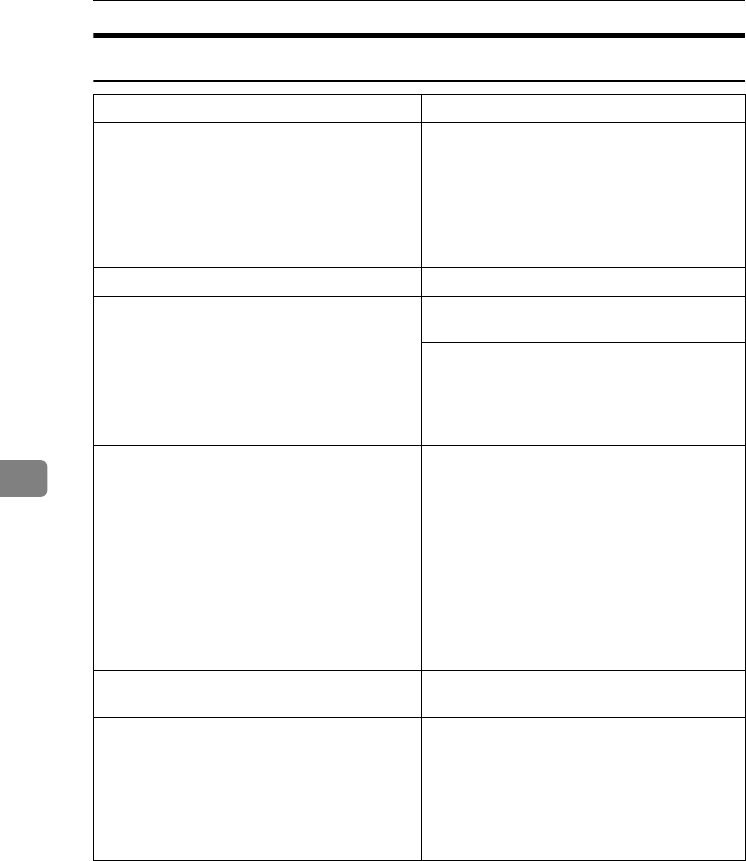
Troubleshooting
118
6
Document Server
Problem Solutions
"Scanned pages exceeded max.
number. Do you want to store the
scanned pages as a file?" appears.
The number of scanned pages exceeds the ca-
pacity per file of the Document Server.
To store scanned pages as a file, press [Store
File]. Scanned data is stored as a file in the Doc-
ument Server. If you do not want to store
scanned pages, press [No]. Scanned data is de-
leted.
You forgot your password. Contact the administrator.
You cannot find out what is stored in a file. Check the date or time column in the Docu-
ment Server: Select Files to Print display.
Check the document content by printing its
first page. Press the line of the desired docu-
ment in the Document Server: Select Files to
Print display, and then press [Print 1st Page]
followed by the {Start} key.
Memory frequently becomes full. Delete unnecessary files. On the file selection
display, select unnecessary files, and then
press [Delete]. If this does not increase availa-
ble memory, do the following.
• Switch to the scanner screen, and then de-
lete unnecessary files stored under the
scanner function.
• Switch to the printer screen, and then de-
lete unnecessary files stored under Sample
Print, Locked Print, Hold Print, or Stored
Print.
You want to check print quality before making
a large print run.
Check print quality by printing out only the
first set using the {Sample Copy} key.
"Original is being scanned by
another function." appears.
The copier or scanner function is in use. To
cancel a job in progress, first press [Exit], and
then press the {Copy} key or {Scanner} key.
Next, press the {Clear/Stop} key. When the
message "[Stop] key was
pressed.Stop printing?" appears,
press [Stop].
AdonisC4-AE_zen_F_FM_forPaper.book Page 118 Thursday, May 12, 2005 3:32 PM
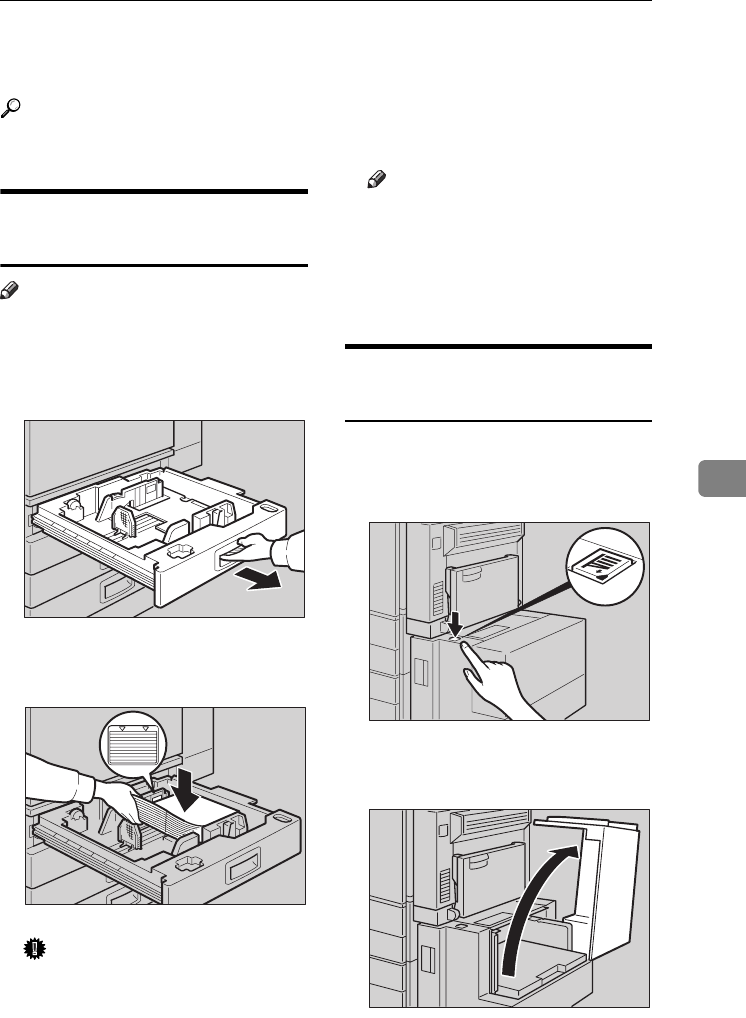
B Loading Paper
119
6
B Loading Paper
Reference
For paper types and sizes, see
p.173 “Copy Paper”.
Loading Paper into Paper
Trays
Note
❒You can change the paper size, see
p.134 “Changing the Paper Size”.
APull the paper tray out slowly un-
til it stops.
BSquare the paper, and then load it
into the tray.
Important
❒Check that the top of the stack is
not higher than the limit mark
inside the tray.
❒Make sure the paper stack is
flush against the right side
fence.
Note
❒Fan the paper before loading.
❒Straighten curled or warped pa-
per before loading.
CPush the paper tray in until it
stops.
Loading Paper into Large
Capacity Tray (optional)
APress the key if it is not lit.
The key blinks while the bottom
plate is moving down.
BWhen the key stops blinking and
lights up, open the top cover.
ZDSY100J
ZKYY010J
ZDSO080J
ZDSO040J
AdonisC4-AE_zen_F_FM_forPaper.book Page 119 Thursday, May 12, 2005 3:32 PM
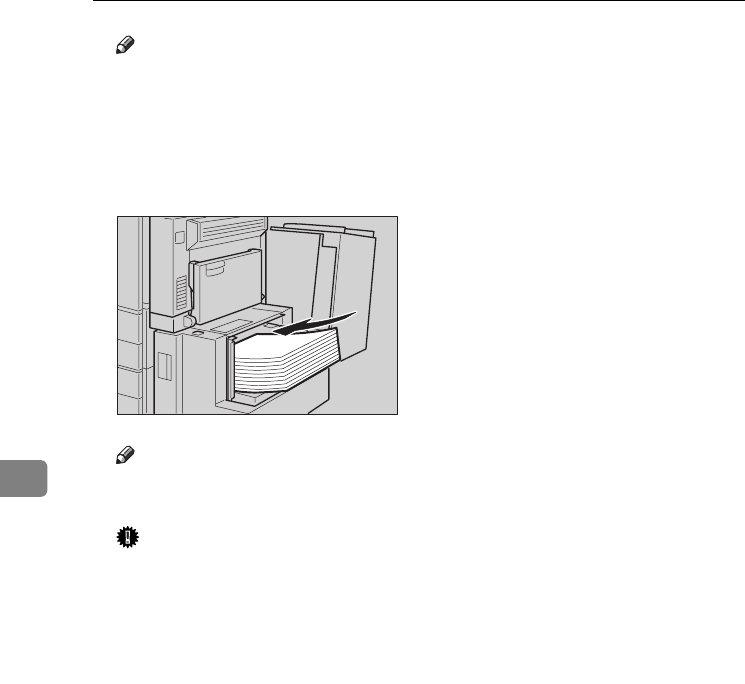
Troubleshooting
120
6
Note
❒Make sure no paper sheet is in-
volved in the paper feeding side
of the LCT. Remove the sheet, if
any.
CLoad paper into the tray along the
edge on the left.
Note
❒The tray contains up to 1,500
sheets.
Important
❒Make sure the paper stack is
flush against the left side fence.
❒Check the top of the stack is not
higher than the limit mark in-
side the tray.
DClose the top cover.
ZDSO050J
AdonisC4-AE_zen_F_FM_forPaper.book Page 120 Thursday, May 12, 2005 3:32 PM
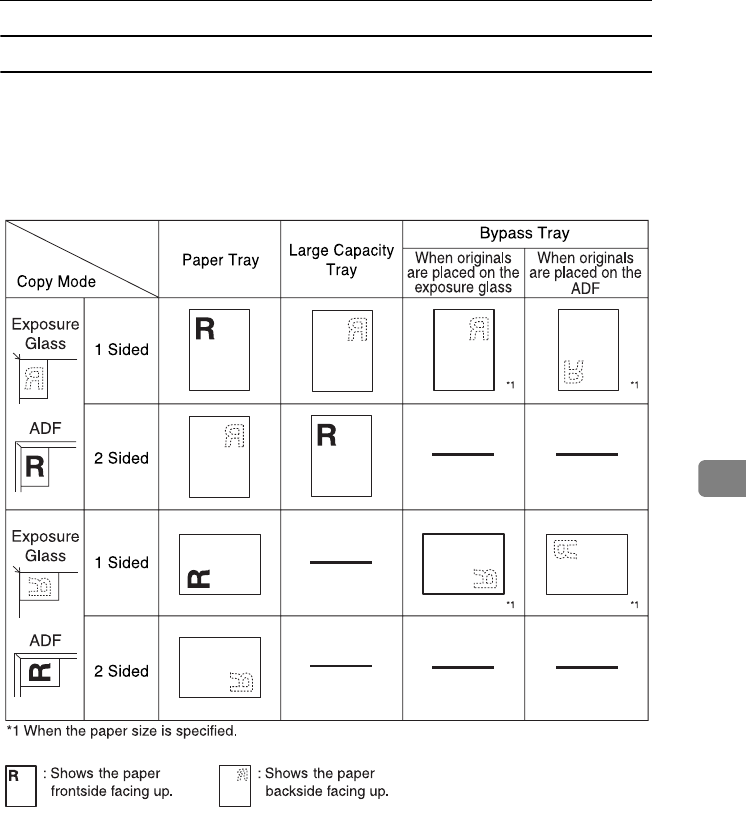
B Loading Paper
121
6
Orientation-Fixed Paper or Two-Sided Paper
Orientation-fixed (top to bottom) or two-sided paper (for example, letterhead
paper, prepunched paper, or copied paper) might not print correctly, depending
on how the originals and paper are placed. Select [Yes] in Letterhead Setting un-
der Copier/Document Server Features, and then place the original and paper as
shown below (see Copy Reference). When printing with the printer function, plac-
ing orientation is the same.
GLTHD01E
AdonisC4-AE_zen_F_FM_forPaper.book Page 121 Thursday, May 12, 2005 3:32 PM
Troubleshooting
122
6
D Adding Toner
When D appears, it is time to add toner.
R
WARNING:
R
CAUTION:
R
CAUTION:
R
CAUTION:
R
CAUTION:
R
CAUTION:
Important
❒Faults may occur if you use toner other than the recommended type.
❒When adding toner, do not turn off the operation switch. If you do, settings
will be lost.
❒Always add toner when the machine instructs you.
❒Do not repeatedly install and remove toner bottles. This will result in toner
leakage.
❒Do not shake the removed toner bottle. Remaining toner might scatter.
Note
❒You can make about 90 copies even after the “DToner is almost emp-
ty.”and “Replace Toner Bottle.” messages appear, but replace toner ear-
ly to prevent poor copy quality.
Reference
For details about toner storage, see p.151 “Toner Storage”.
•Do not incinerate used toner or toner containers. Toner dust might ig-
nite when exposed to an open flame. Dispose of used toner containers
in accordance with local regulations.
•Keep toner (used or unused) and toner containers out of reach of children.
•If toner or used toner is inhaled, gargle with plenty of water and move into a
fresh air environment. Consult a doctor if necessary.
•If toner or used toner gets into your eyes, flush immediately with large
amounts of water. Consult a doctor if necessary.
•If toner or used toner is swallowed, dilute by drinking a large amount of wa-
ter. Consult a doctor if necessary.
•Avoid getting toner on your clothes or skin when removing a paper jam or
replacing toner. If your skin comes into contact with toner, wash the affected
area thoroughly with soap and water.
•If toner gets on your clothing, wash with cold water. Hot water will set the
toner into the fabric and may make removing the stain impossible.
AdonisC4-AE_zen_F_FM_forPaper.book Page 122 Thursday, May 12, 2005 3:32 PM
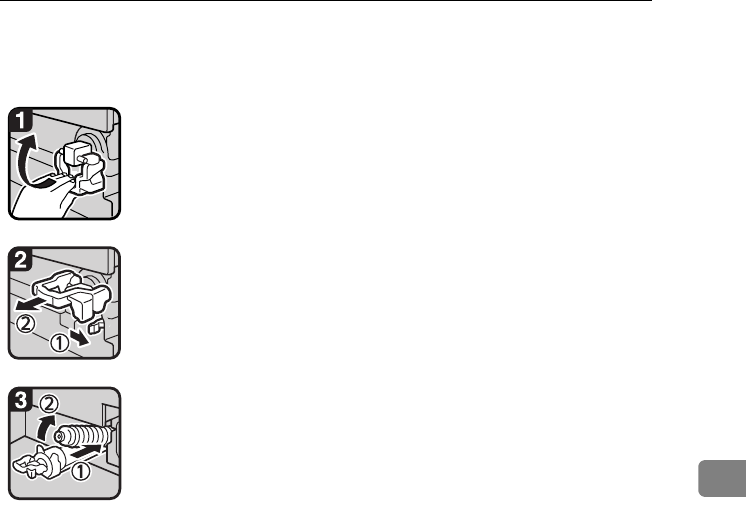
Removing Toner
123
6
Removing Toner
• 1: Open the front cover of the machine.
• 2: Raise the toner holder lever.
• 3: Push the green lever, and then gently
pull out the holder.
• 4: Press the toner bottle back to raise its top,
and then gently pull it out.
ZHWT060E
ZHWT070E
ZHWT080E
AdonisC4-AE_zen_F_FM_forPaper.book Page 123 Thursday, May 12, 2005 3:32 PM
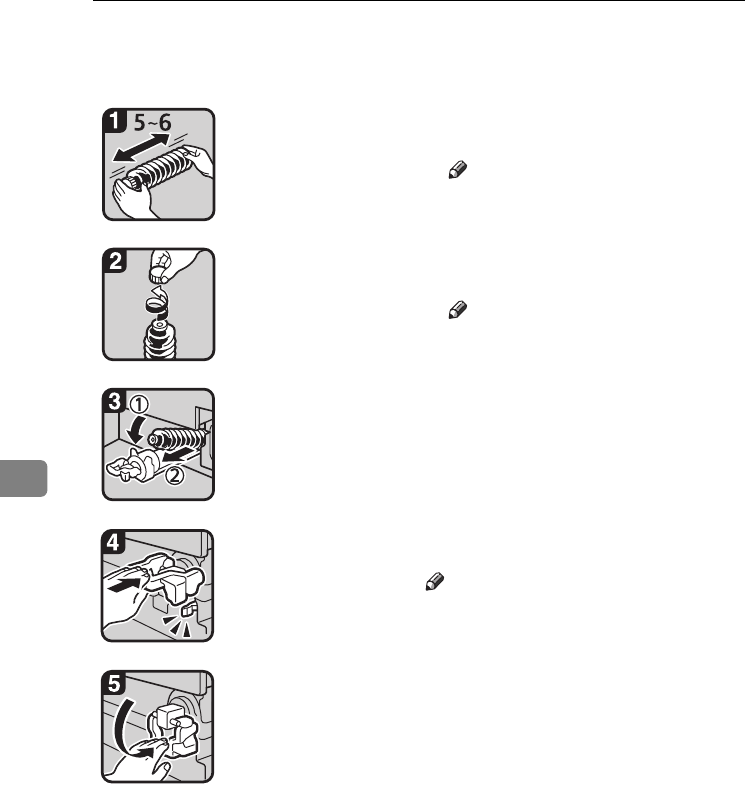
Troubleshooting
124
6
Inserting Toner
• 1: Hold the new bottle horizontally and
shake it from side to side five or six times.
Note
❒Do not remove the black cap before
shaking.
• 2: Remove the black cap.
Note
❒Do not remove the inner cap.
• 3: Put the toner bottle on the holder, and
then pull its top forward.
• 4: Push in the green lever until it clicks.
Note
❒Before lowering the toner holder lever, be
sure to push the toner holder fully in.
• 5: Lower the toner holder lever back into its
original position.
• 6: Close the machine's front cover.
ZHWT010E
ZHWT020E
ZHWT030E
ZHWT040E
ZHWT050E
AdonisC4-AE_zen_F_FM_forPaper.book Page 124 Thursday, May 12, 2005 3:32 PM
x Clearing Misfeeds
125
6
x Clearing Misfeeds
R
CAUTION:
Important
❒When clearing misfeeds, do not turn off the operation switch. If you do, your
copy settings will be lost.
❒To prevent misfeeds, do not leave any torn scraps of paper inside the ma-
chine.
❒If paper misfeeds occur frequently, contact your service representative.
Note
❒More than one misfeed may be indicated. When this happens, check all the
areas indicated. See the following charts: A, B, C, D, E, P, U, R, Y, Z
❒Inside the finisher, or inside the front cover, there is a sticker explaining how
to remove misfed paper.
•The fusing section of this machine might be very hot. Caution should be tak-
en when removing misfed paper.
AdonisC4-AE_zen_F_FM_forPaper.book Page 125 Thursday, May 12, 2005 3:32 PM
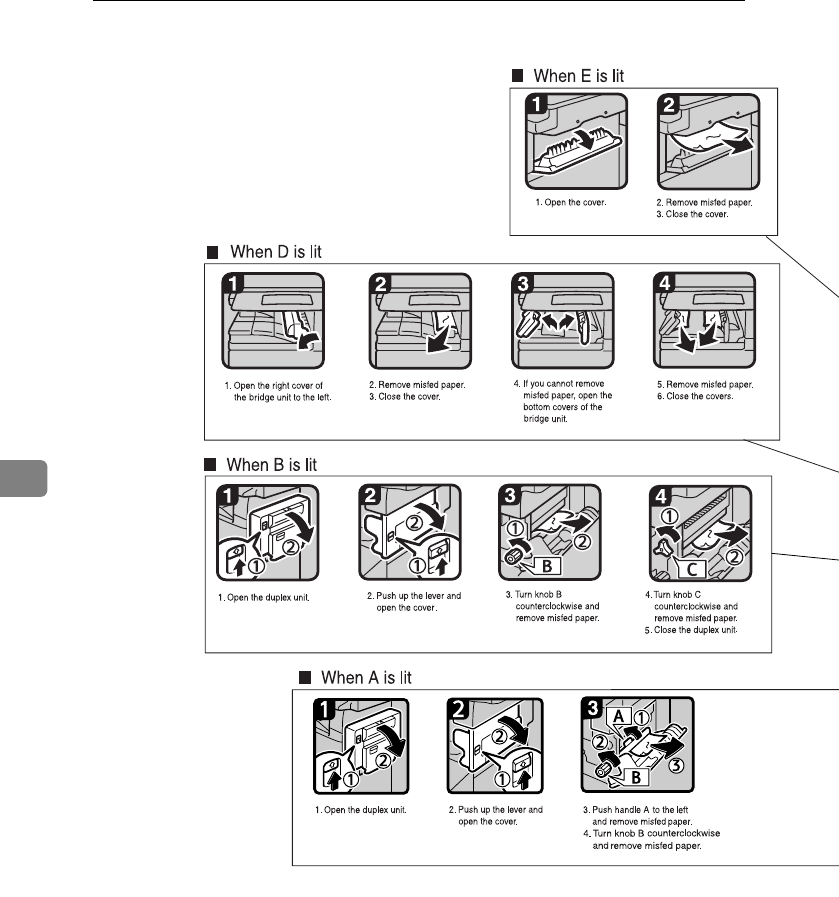
Troubleshooting
126
6
AdonisC4-AE_zen_F_FM_forPaper.book Page 126 Thursday, May 12, 2005 3:32 PM
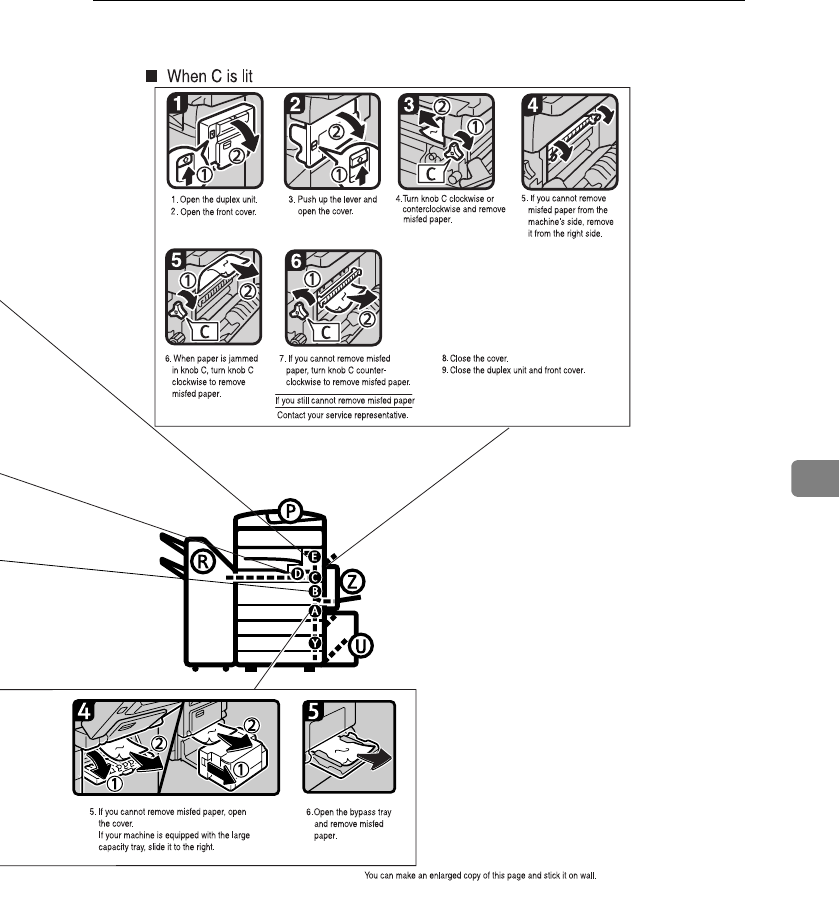
x Clearing Misfeeds
127
6
AHU013S
AdonisC4-AE_zen_F_FM_forPaper.book Page 127 Thursday, May 12, 2005 3:32 PM
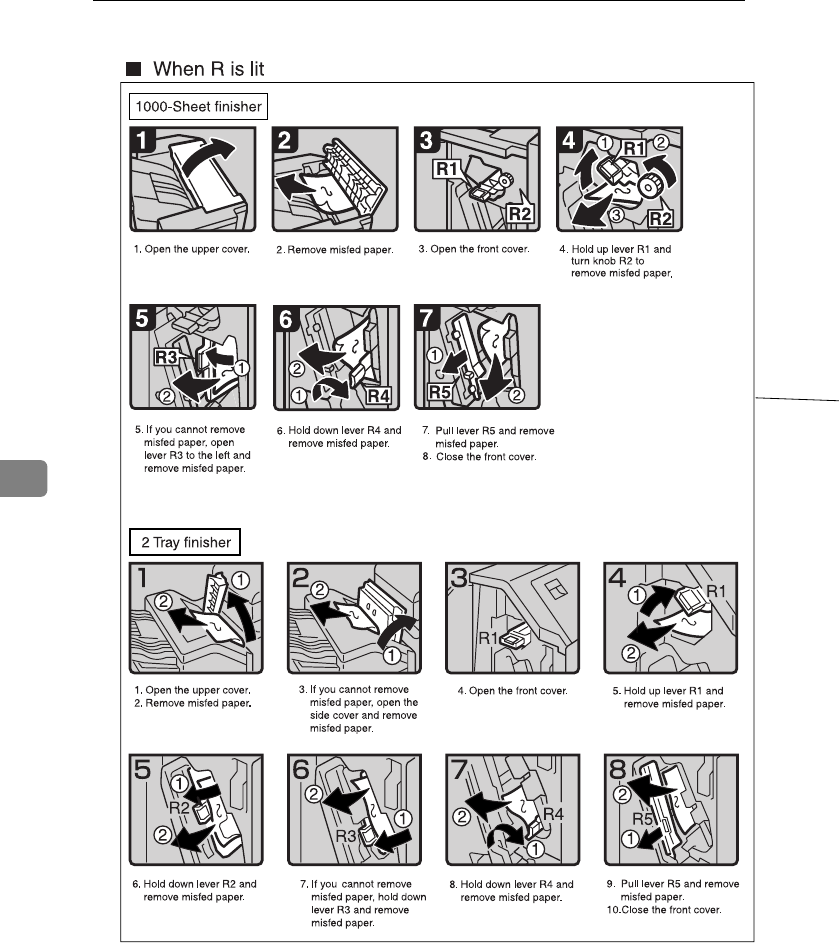
Troubleshooting
128
6
AdonisC4-AE_zen_F_FM_forPaper.book Page 128 Thursday, May 12, 2005 3:32 PM
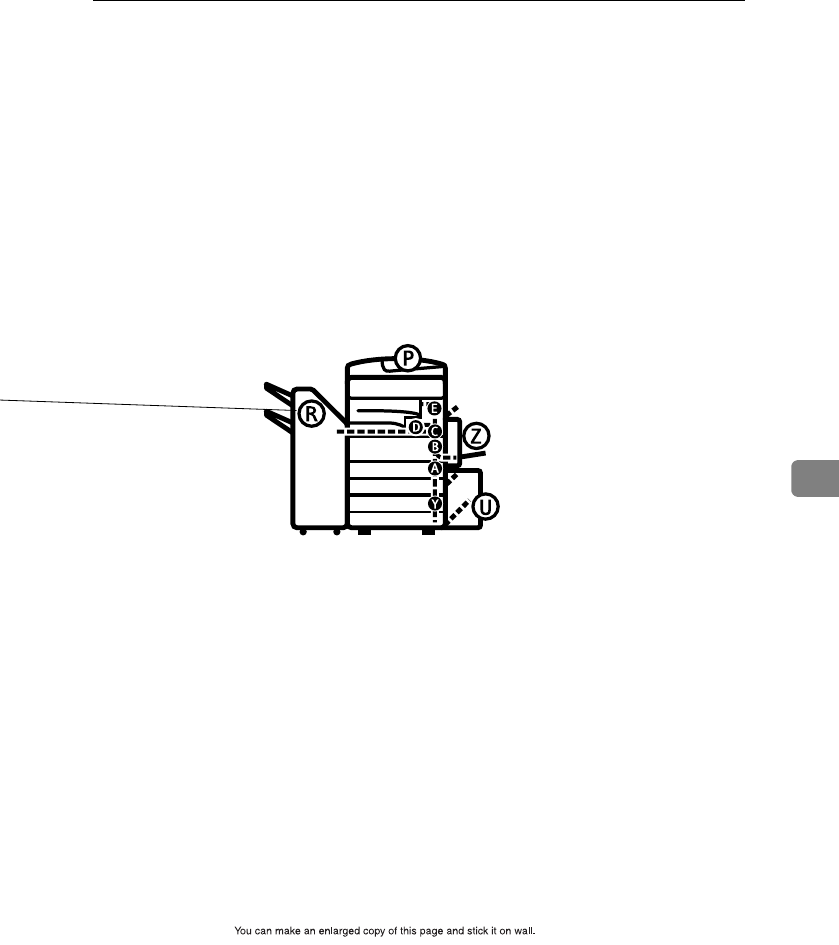
x Clearing Misfeeds
129
6
ZHVX020J
AdonisC4-AE_zen_F_FM_forPaper.book Page 129 Thursday, May 12, 2005 3:32 PM
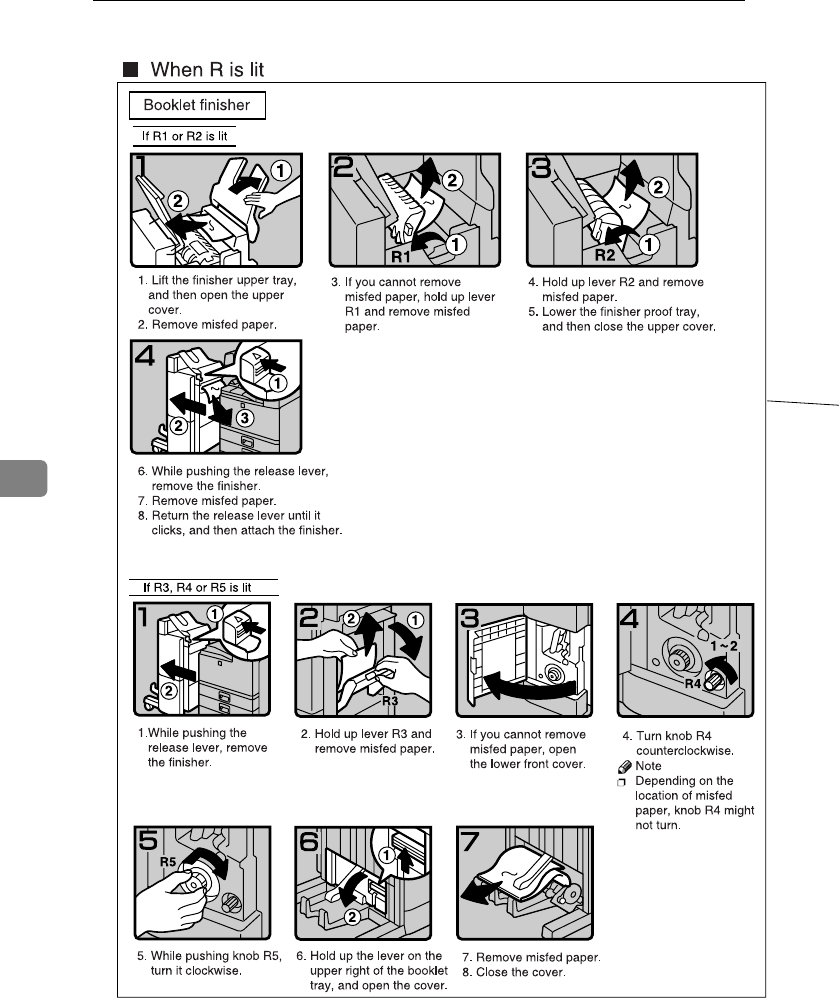
Troubleshooting
130
6
AdonisC4-AE_zen_F_FM_forPaper.book Page 130 Thursday, May 12, 2005 3:32 PM
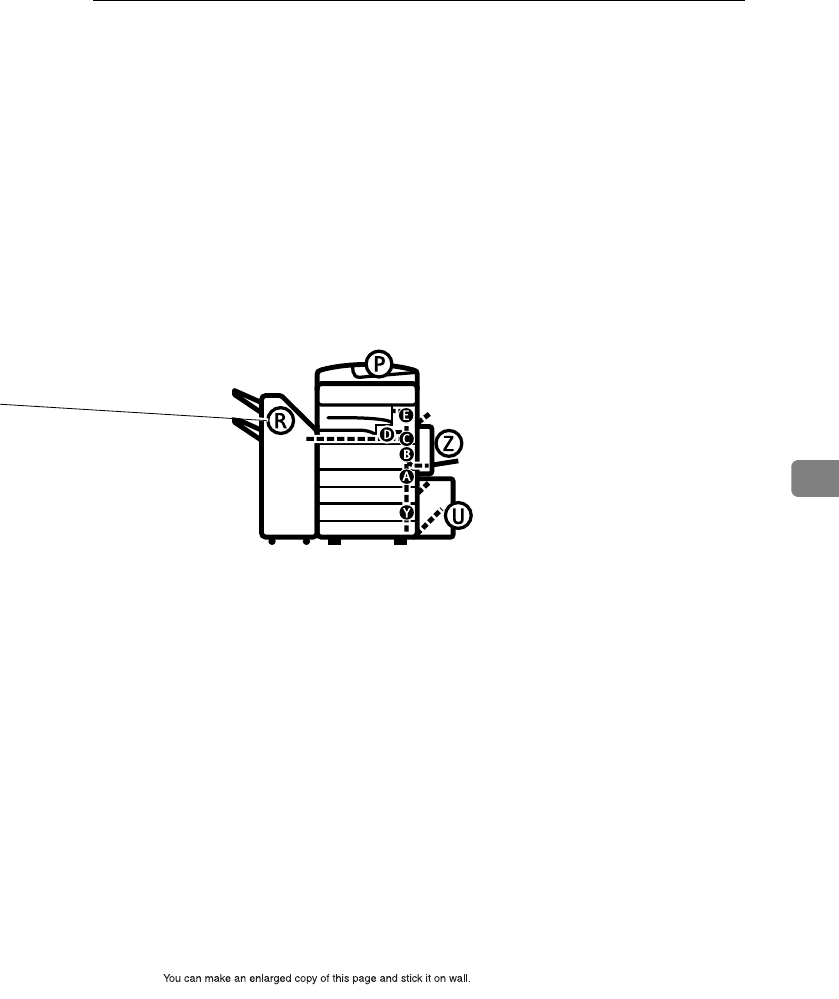
x Clearing Misfeeds
131
6
ZHVX030J
AdonisC4-AE_zen_F_FM_forPaper.book Page 131 Thursday, May 12, 2005 3:32 PM
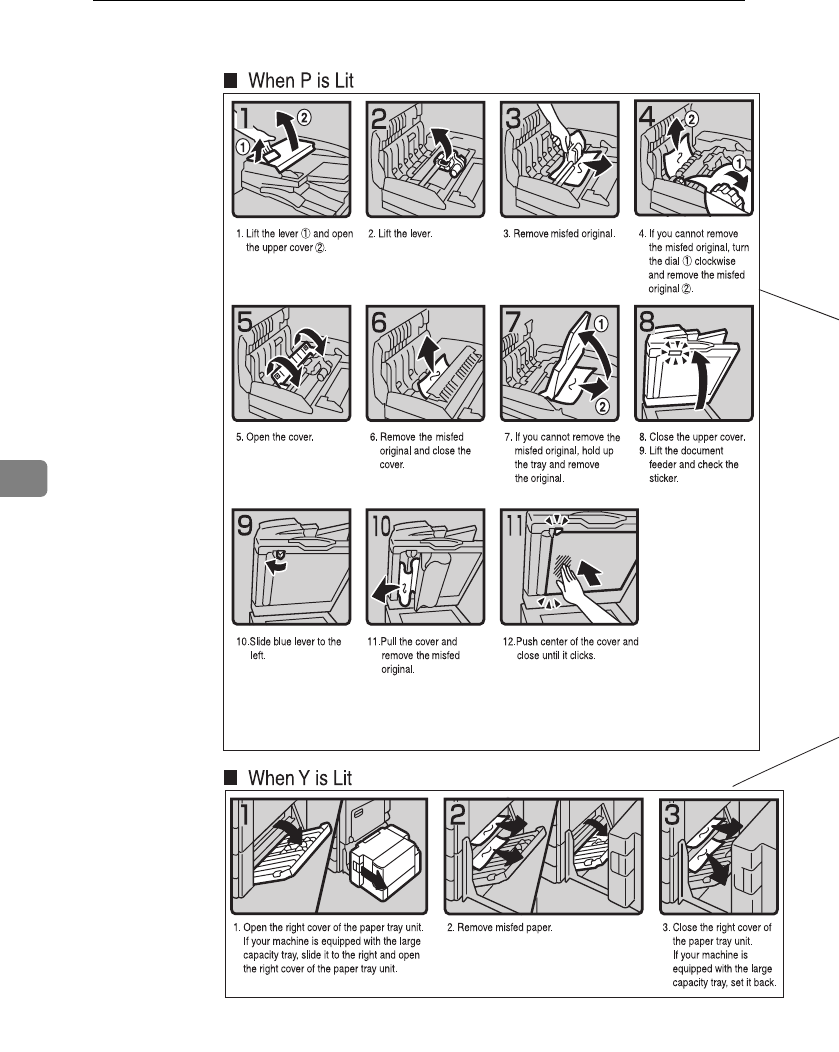
Troubleshooting
132
6
AdonisC4-AE_zen_F_FM_forPaper.book Page 132 Thursday, May 12, 2005 3:32 PM
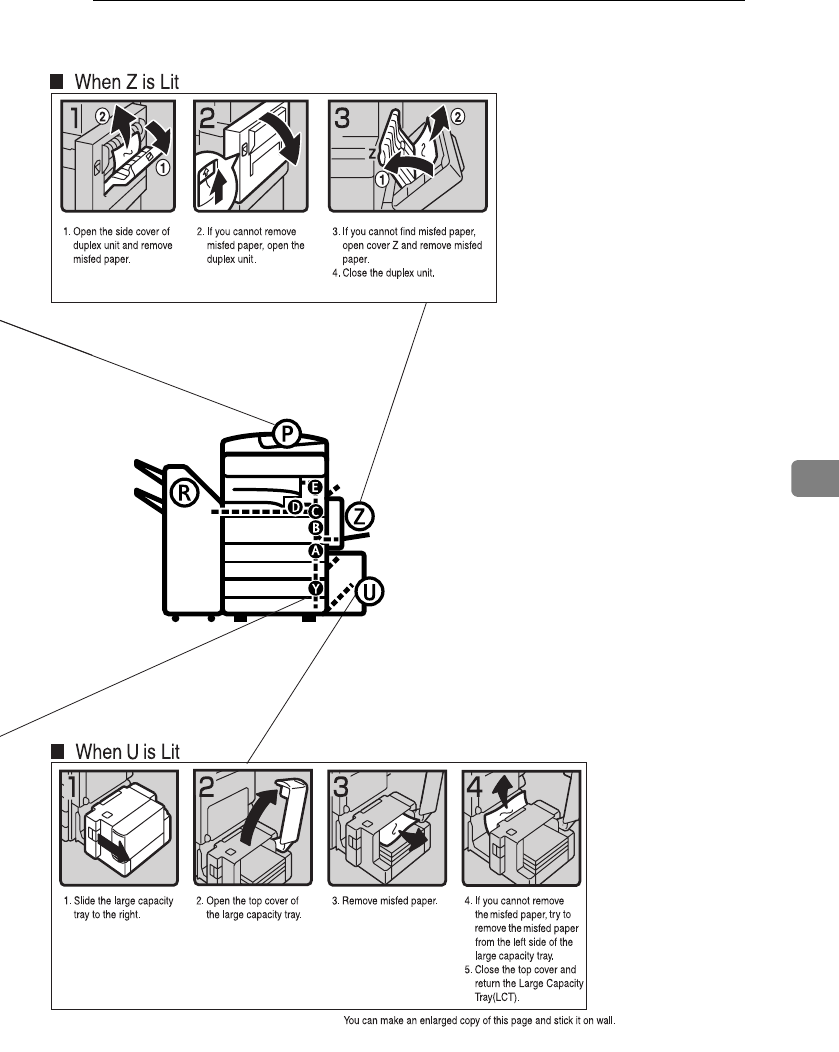
x Clearing Misfeeds
133
6
ZCAJ030E
AdonisC4-AE_zen_F_FM_forPaper.book Page 133 Thursday, May 12, 2005 3:32 PM
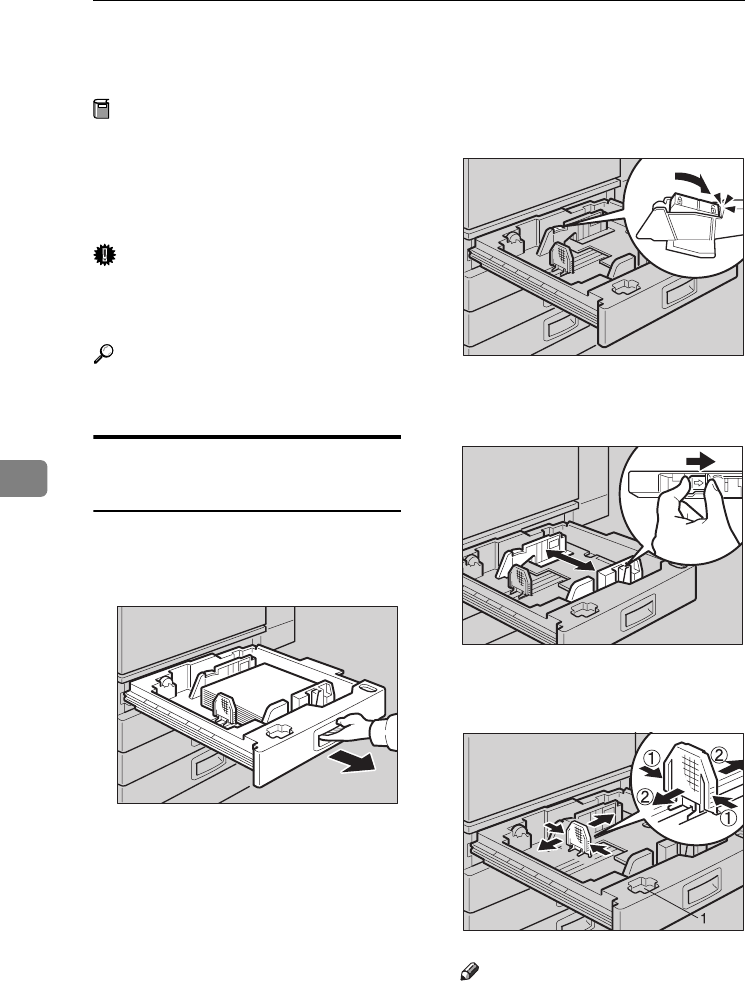
Troubleshooting
134
6
Changing the Paper Size
Preparation
Be sure to select the paper size
with User Tools and the paper size
selector. If you do not, misfeeds
might occur. See p.55 “Tray Paper
Size: Tray 1–4”.
Important
❒If you want to change the paper
size set in the LCT, contact your
service representative.
Reference
For details about paper sizes and
types, see p.173 “Copy Paper”.
Changing the Paper Size of the
Paper Tray
AMake sure the paper tray is not in
use. Then, pull the paper tray out
slowly.
BIf paper is loaded in the tray, re-
move it.
CRelease the side lever to the "un-
locked" position.
DWhile pressing the release lever,
adjust the side fences.
EAdjust the back guide to the new
paper size.
Note
❒For 11” × 17” paper, put the
back guide inside 1.
ZDSY130J
HWY010E
HWY020E
HWY030E
AdonisC4-AE_zen_F_FM_forPaper.book Page 134 Thursday, May 12, 2005 3:32 PM
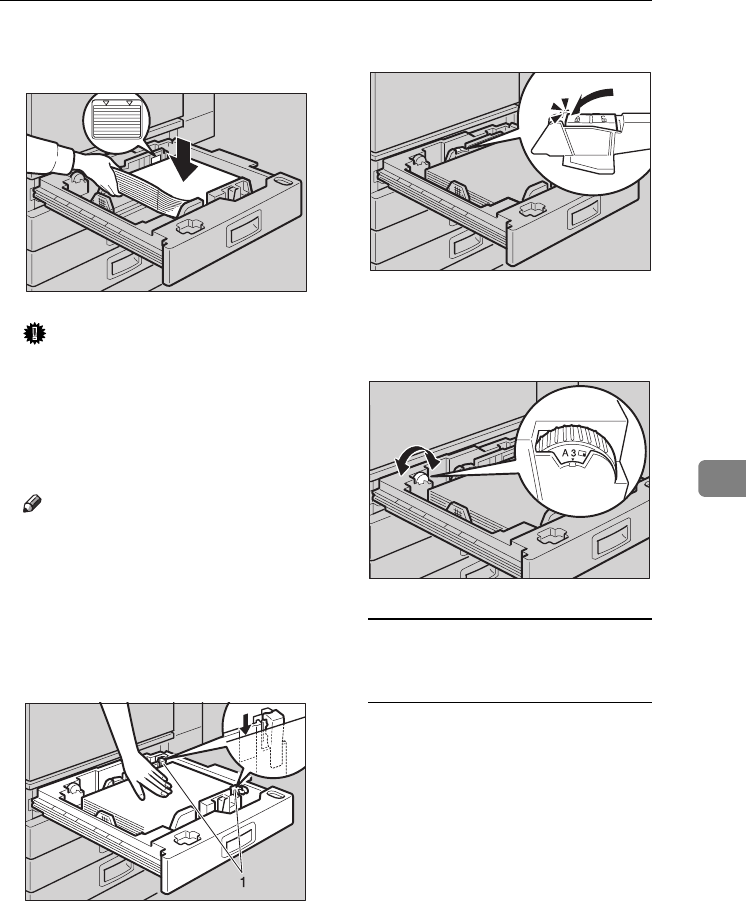
Changing the Paper Size
135
6
FSquare the paper and load it into
the tray.
Important
❒Check that the top of the stack is
not higher than the limit mark
inside the tray.
❒Make sure the paper stack is
flush against the right side
fence.
Note
❒Fan the paper before loading.
❒Straighten curled or warped pa-
per before loading.
GAfter loading, make sure that on
either side, the paper does not
catch (on 1). Push down the paper
stack.
HLock the side lever.
IAdjust the tray size with the pa-
per size selector to the new paper
size.
To adjust the paper size to a size
not indicated on the paper size
selector
ASet the paper size selector to
the p mark.
BPress the {User Tools/Counter}
key.
CPress [System Settings].
DPress [Tray Paper Settings].
EPress [Tray Paper Size: ][Tray 1],
[Tray Paper Size: ][Tray 2], [Tray
Paper Size: ][Tray 3] or [Tray Paper
Size: ][Tray 4].
FSelect the required size, and
then press [OK].
G
Press
[
Exit
]
or the
{
User Tools/Coun-
ter
}
key to quit User Tools.
HWY040E
ZKYY011J
HWY050E
ZDSY180J
AdonisC4-AE_zen_F_FM_forPaper.book Page 135 Thursday, May 12, 2005 3:32 PM

Troubleshooting
136
6
Reference
p.55 “Tray Paper Size: Tray
1–4”
JGently push the paper tray in un-
til it stops.
KCheck the paper size shown on
the display panel.
AdonisC4-AE_zen_F_FM_forPaper.book Page 136 Thursday, May 12, 2005 3:32 PM
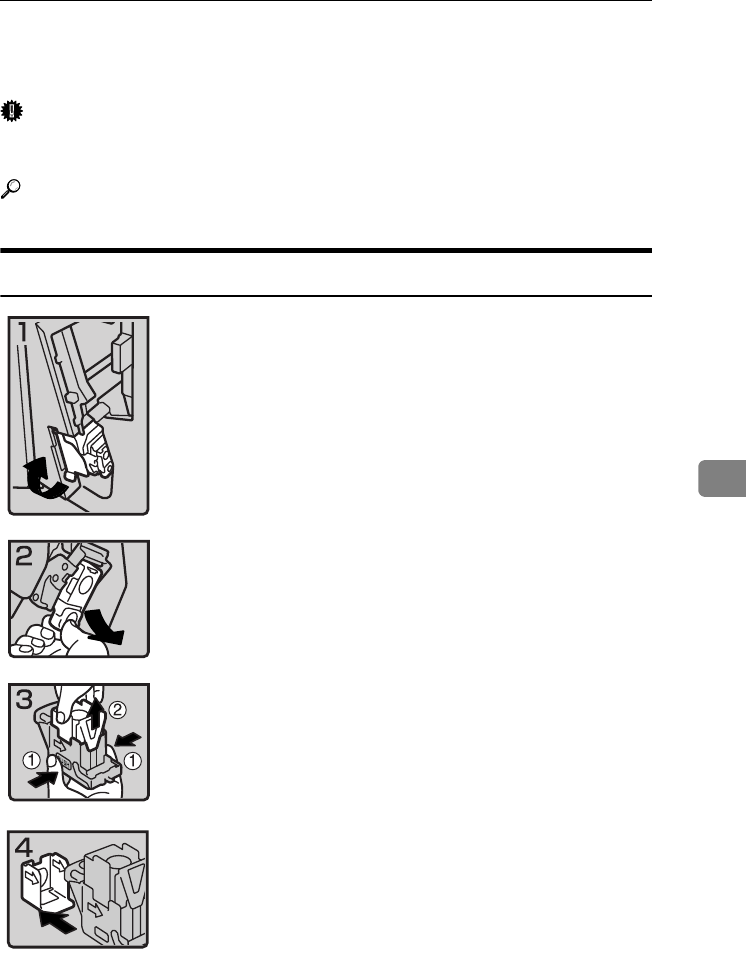
d Adding Staples
137
6
d Adding Staples
Important
❒Stapling failure or jams may occur if you use a staple cartridge other than that
recommended.
Reference
For details about the type of finisher, see p.17 “External Options”.
1000-Sheet Finisher
• 1: Open the front cover of the finisher, and
then pull out the staple unit.
• 2: Hold the green lever while gently pull-
ing out the cartridge.
• 3: Hold both sides of the cartridge.
• 4: Pull up the upper unit of the cartridge.
• 5: Take out the empty refill in the arrow di-
rection.
ZGJS801E
ZGJS802E
ZGJS803E
ZGJS804E
AdonisC4-AE_zen_F_FM_forPaper.book Page 137 Thursday, May 12, 2005 3:32 PM
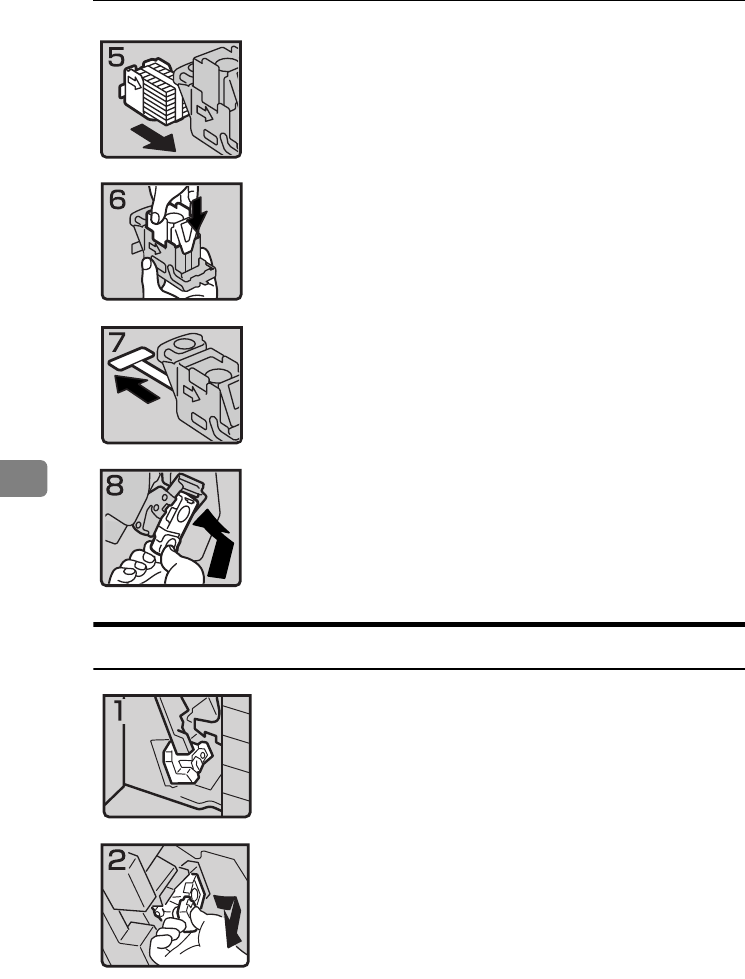
Troubleshooting
138
6
2 Tray Finisher
• 6: Align the arrows on the new refill with
those on the cartridge, and then push in the
refill until it clicks.
• 7: Gently push down the upper unit into
the cartridge.
• 8: Pull out the ribbon.
• 9: Hold the green lever while pushing in
the cartridge until it clicks.
• 10: Push back the staple unit, and then
close the front cover of the finisher.
• 1: Open the front cover of the finisher.
• 2: Hold the green lever while gently pull-
ing out the cartridge.
ZGJS805E
ZGJS806E
ZGJS807E
ZGJS808E
ZCAJ031E
ZCAJ040E
AdonisC4-AE_zen_F_FM_forPaper.book Page 138 Thursday, May 12, 2005 3:32 PM
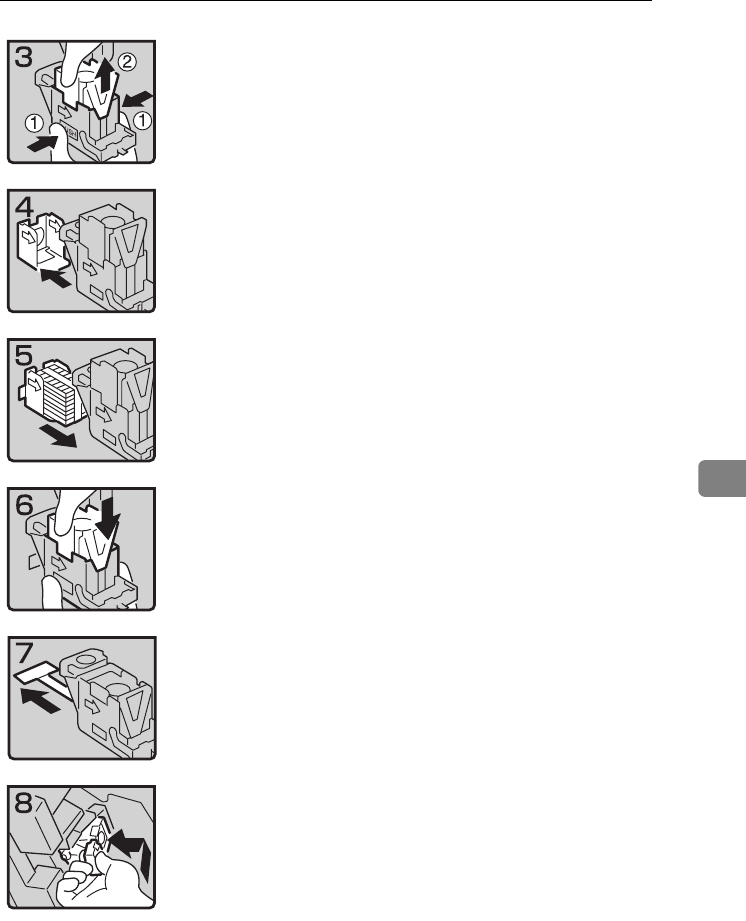
d Adding Staples
139
6
• 3: Hold both sides of the cartridge.
• 4: Pull up the upper unit of the cartridge.
• 5: Take out the empty refill in the arrow di-
rection.
• 6: Align the arrows on the new refill and
the cartridge, and then push in the refill
until it clicks.
• 7: Gently push down the upper unit into
the cartridge.
• 8: Pull out the ribbon.
• 9: Hold the green lever while pushing in
the cartridge until it clicks.
• 10: Close the front cover of the finisher.
ZCAJ050E
ZCAJ060E
ZCAJ070E
ZCAJ080E
ZCAJ090E
ZCAJ100E
AdonisC4-AE_zen_F_FM_forPaper.book Page 139 Thursday, May 12, 2005 3:32 PM
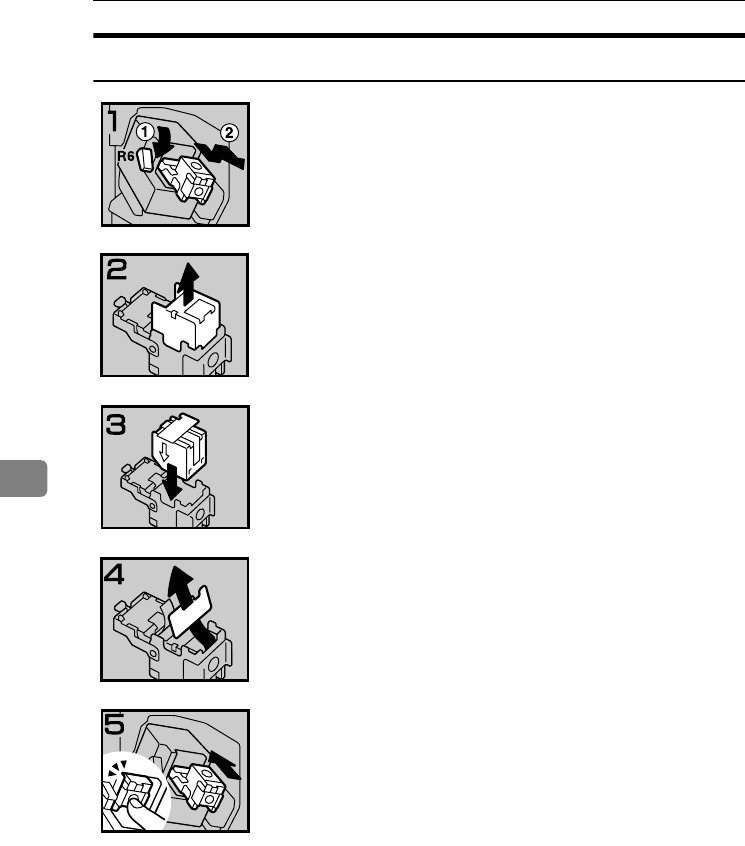
Troubleshooting
140
6
Booklet Finisher
• 1: Open the front cover of the finisher.
• 2: Pull lever R6 down, and then pull out the
cartridge while lifting the cartridge.
• 3: Take out the empty refill in the arrow di-
rection.
• 4: Set the new refill.
• 5: Pull out the ribbon.
• 6: Push in the cartridge until it clicks.
• 7: Close the front cover of the finisher.
ZBQP020E
ZBQP030E
ZBQP040E
ZBQP050E
ZBQP060E
AdonisC4-AE_zen_F_FM_forPaper.book Page 140 Thursday, May 12, 2005 3:32 PM
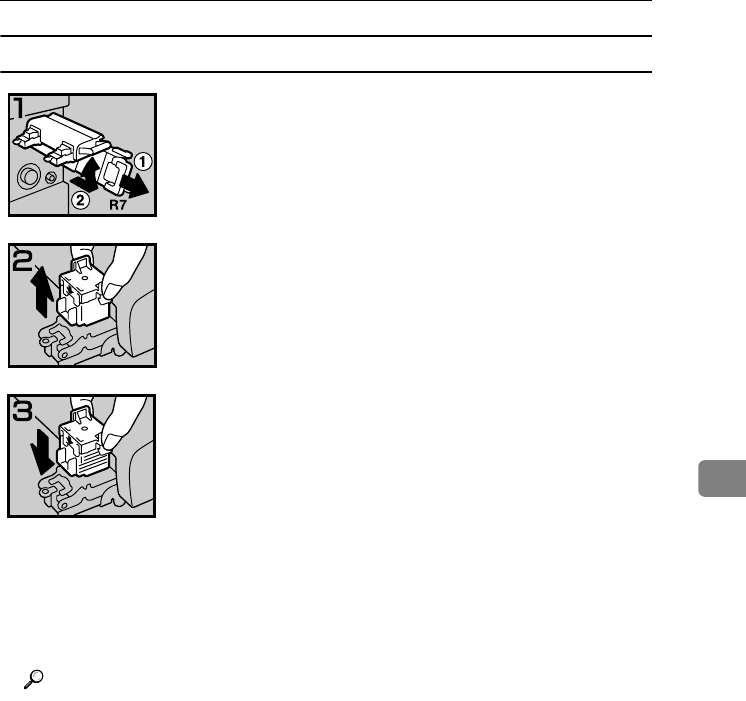
d Adding Staples
141
6
Staple unit for saddle stitch function
❖Using “Prepare Stapling ”in User Tools to initialize the staple unit
When the booklet finisher is installed, make sure to initialize the staple unit
for the saddle stitch function with User Tools after adding staples or removed
jammed staples. If you do not do this, copies may not be stapled and misfeeds
may occur.
Reference
p.54 “Prepare Stapling”
APress the {User Tools/Counter} key.
BPress [System Settings].
CPress [Prepare Stapling ]on the menu of General Features 2/2.
DPress [OK].
The machine staples five to seven times without ejecting staples.
EPress [Exit].
FPress [Exit].
• 1: Open the front bottom cover of the fin-
isher.
• 2: Pull lever R7 and fully pull out the staple
unit.
• 3: Lift the lever of the staple unit while
pulling it.
• 4: Take out the empty cartridge.
• 5: Set the new cartridge.
• 6: Bring the staple unit back into place.
• 7: Close the front bottom cover of the fin-
isher.
ZBQP070E
ZBQP080E
ZBQP090E
AdonisC4-AE_zen_F_FM_forPaper.book Page 141 Thursday, May 12, 2005 3:32 PM
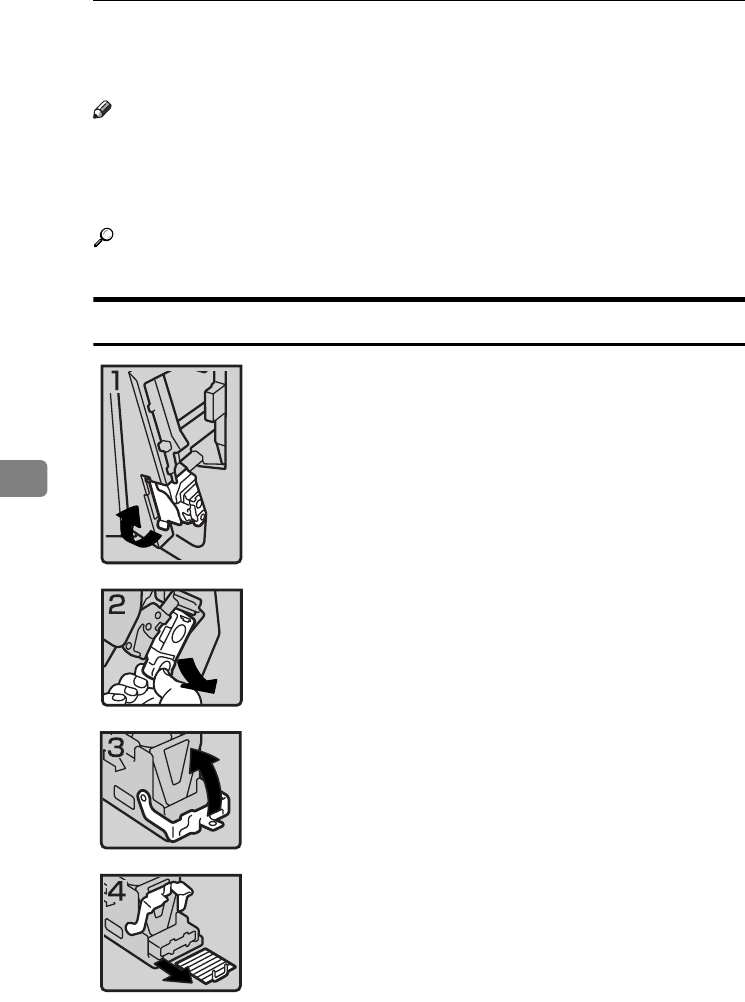
Troubleshooting
142
6
Removing Jammed Staples
Note
❒Curled paper may cause staples to jam. To avoid this, turn copy paper over
in the tray. If there is no improvement, change to stiffer copy paper.
❒When the booklet finisher is installed, after removing jammed staples, staples
will not be ejected the first few times you try to use the stapler.
Reference
For types of finisher, see p.17 “External Options”.
1000-Sheet Finisher
• 1: Open the front cover of the finisher, and
then pull out the staple unit.
• 2: Hold the green lever while gently pull-
ing out the cartridge .
• 3: Open the cartridge's face plate.
• 4: Remove any jammed staples.
ZGJS801E
ZGJS802E
ZGJS813E
ZGJS814E
AdonisC4-AE_zen_F_FM_forPaper.book Page 142 Thursday, May 12, 2005 3:32 PM
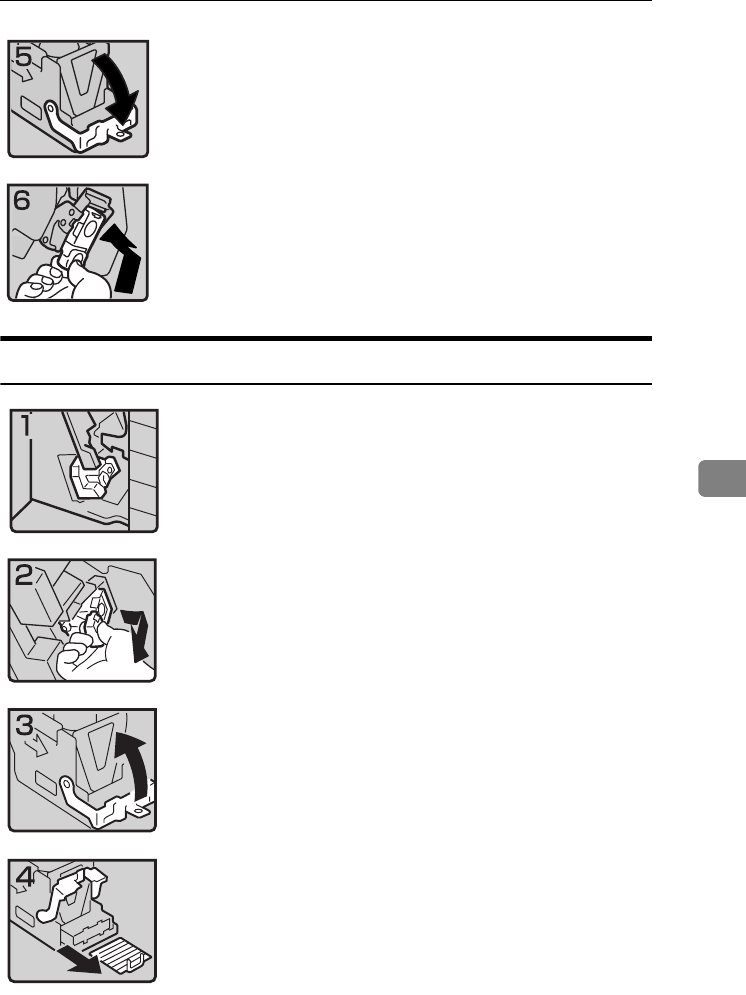
Removing Jammed Staples
143
6
2 Tray Finisher
• 5: Pull down the cartridge's face plate until
it clicks.
• 6: Hold the green lever while pushing in
the cartridge until it clicks.
• 7: Push back the staple unit, and then close
the front cover of the finisher.
• 1: Open the front cover of the finisher.
• 2: Hold the green lever while gently pull-
ing out the cartridge .
• 3: Pull up the cartridge's knob.
• 4: Take out all staples slid from the car-
tridge.
ZGJS815E
ZGJS864E
ZCAJ031E
ZCAJ040E
ZCAJ110E
ZCAJ120E
AdonisC4-AE_zen_F_FM_forPaper.book Page 143 Thursday, May 12, 2005 3:32 PM
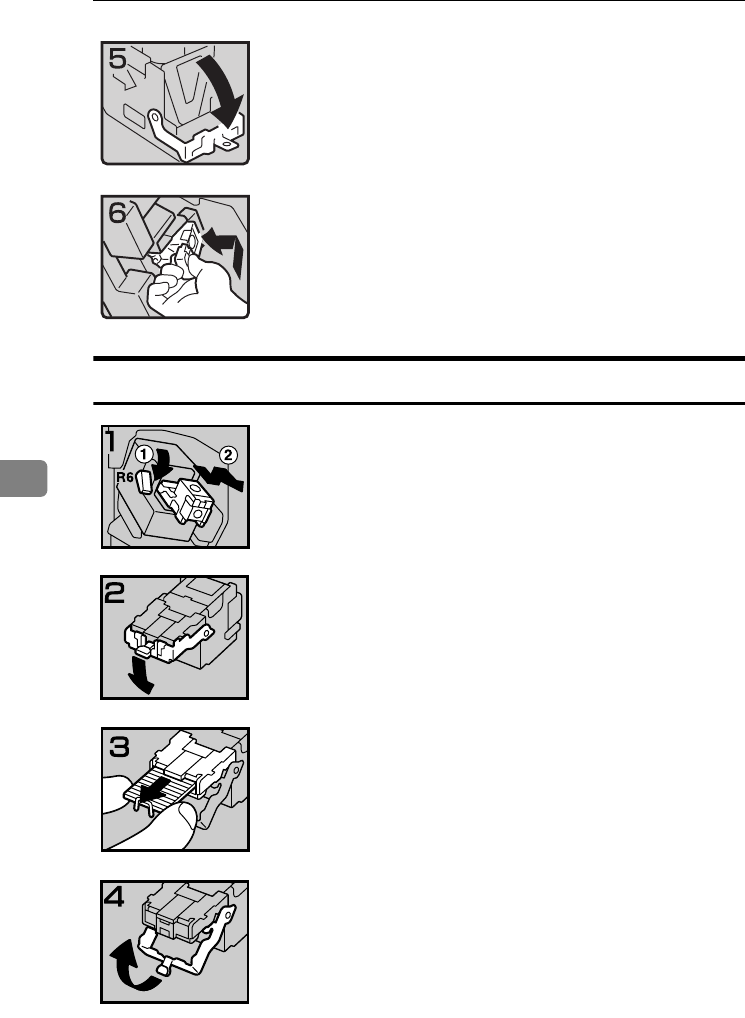
Troubleshooting
144
6
Booklet Finisher
• 5: Pull down the cartridge's knob until it
clicks.
• 6: Hold the green lever while pushing in
the cartridge until it clicks.
• 7: Close the front cover of the finisher.
• 1: Open the front cover of the finisher.
• 2: Pull lever R6 down, and then pull out the
cartridge while lifting the cartridge.
• 3: Pull down the cartridge's knob.
• 4: Take out all staples slid from the car-
tridge.
• 5: Set the cartridge's knob back into place.
ZCAJ130E
ZCAJ140E
ZBQP100E
ZBQP110E
ZBQP120E
ZBQP130E
AdonisC4-AE_zen_F_FM_forPaper.book Page 144 Thursday, May 12, 2005 3:32 PM
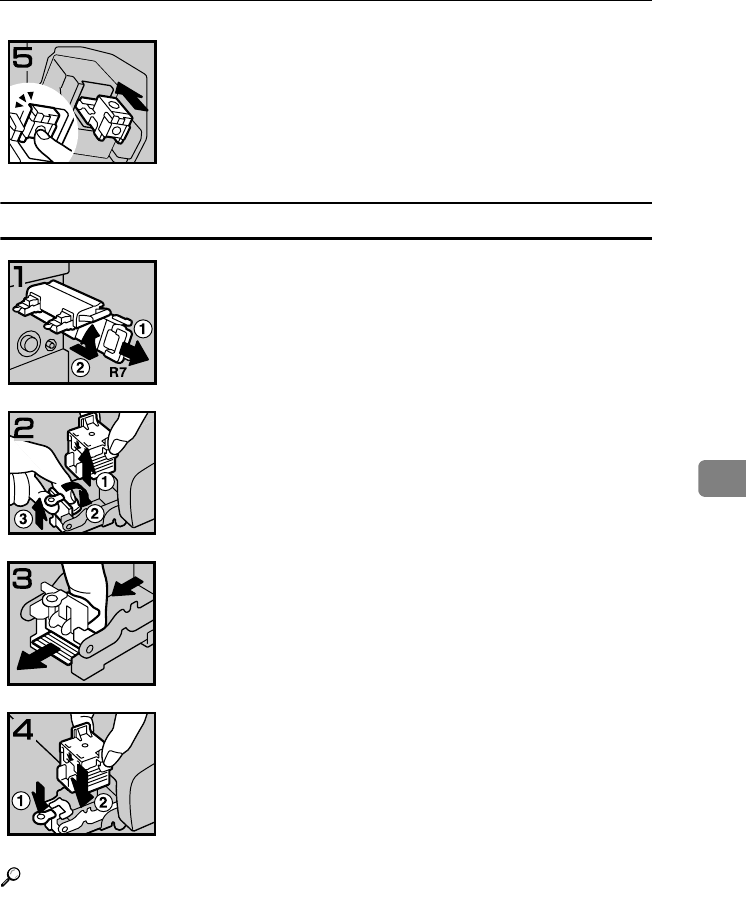
Removing Jammed Staples
145
6
Staple unit for saddle stitch function
Reference
Initialize the staple unit for the saddle stitch function after removing jammed
staples. See p.141 “Using “Prepare Stapling ”in User Tools to initialize the sta-
ple unit”.
• 6: Push in the cartridge until it clicks.
• 7: Close the front cover of the finisher.
• 1: Open the front bottom cover of the fin-
isher.
• 2: Pull lever R7 and fully pull out the staple
unit.
• 3: Lift the lever of the staple unit while
pulling it.
• 4: Take out the cartridge.
• 5: Pull the blue knob down, and then lift
the knob of the face plate.
• 6: Remove all jammed staples.
• 7: Bring the face plate back into place by
pushing it.
• 8: Push the cartridge.
• 9: Bring the staple unit back into place, and
then close the front bottom cover of the fin-
isher.
ZBQP140E
ZBQP150E
ZBQP160E
ZBQP170E
ZBQP180E
AdonisC4-AE_zen_F_FM_forPaper.book Page 145 Thursday, May 12, 2005 3:32 PM
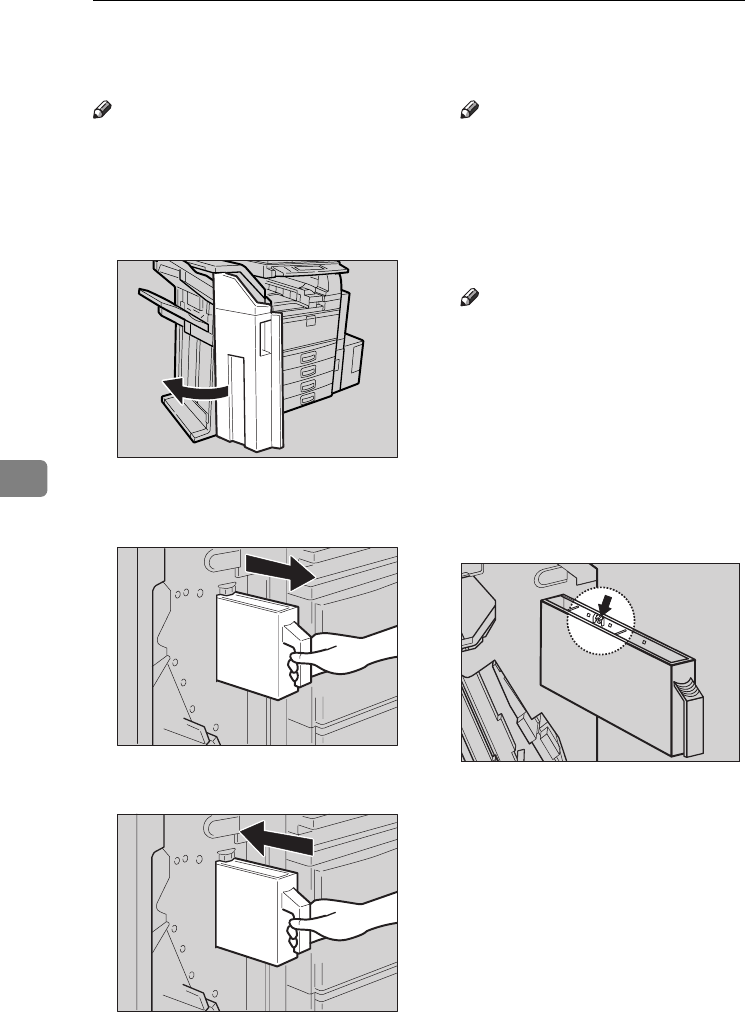
Troubleshooting
146
6
y Removing Punch Waste
Note
❒While “Punch Receptacle Full”
is displayed, you cannot use the
Punch function.
AOpen the front cover of the 2 Tray
finisher.
BPull out the punch waste box, and
then remove punch waste.
CReinstall the punch waste box.
Note
❒If you do not, “Punch Recepta-
cle Full” is still displayed.
DClose the front cover of the 2 Tray
finisher.
“Punch Receptacle Full” disap-
pears.
Note
❒If the message is still displayed,
reinstall the punch waste box.
❒The message “Punch Recepta-
cle Full” may appear even
when the punch waste box is
not yet full. If this happens, the
position of the punch waste box
(indicated by the arrow as
shown) may be blocked by
punch waste. Remove the
punch waste.
AHT011S
ZDSO020J
ZDSO030J
ZHVP010J
AdonisC4-AE_zen_F_FM_forPaper.book Page 146 Thursday, May 12, 2005 3:32 PM
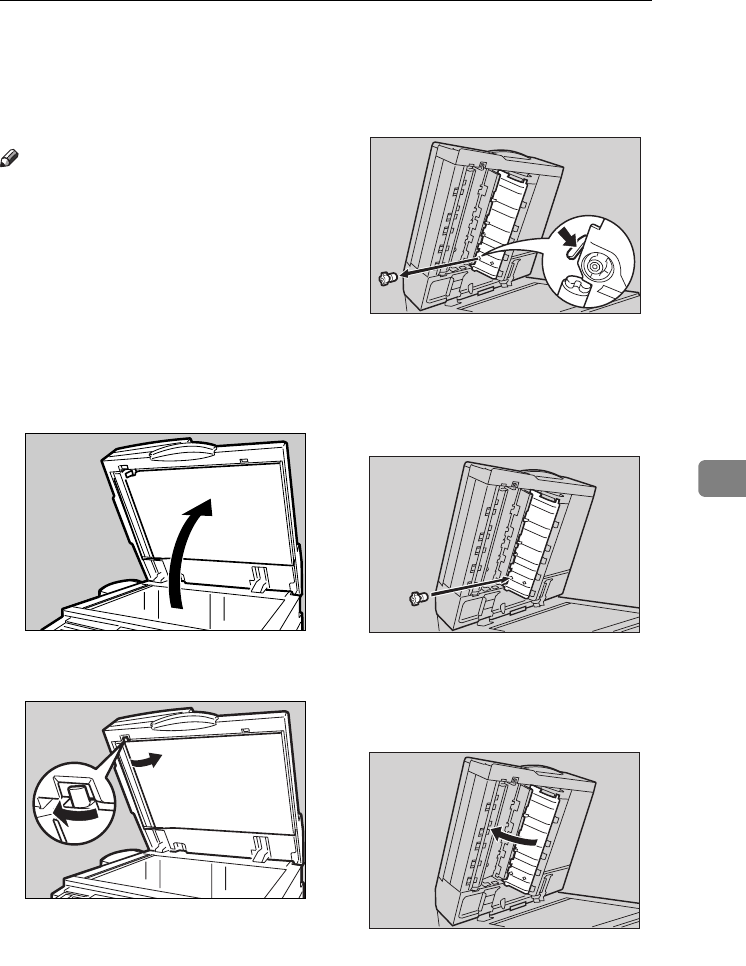
Replacing the Stamp Cartridge
147
6
Replacing the Stamp Cartridge
When the stamp becomes lighter, re-
place the cartridge.
Note
❒This stamp cartridge is used for
facsimile and scanner functions.
❒Use the cartridge specified for this
machine.
❒Do not add ink to the cartridge by
yourself. Neglecting this can cause
ink leakage.
❒Be sure not to dirty your fingers
with ink from the cartridge.
AOpen the ADF unit.
BOpen the stamp cover.
CPull out the old stamp cartridge.
DInsert the new stamp cartridge.
Insert the cartridge until the metal
parts are no longer visible.
1. New Cartridge
EReplace the stamp cover until it
clicks.
FClose the ADF unit.
ZGNH010J
ZJFH010J
ZDPH080J
ZDPH090J
ZDPH100J
AdonisC4-AE_zen_F_FM_forPaper.book Page 147 Thursday, May 12, 2005 3:32 PM

Troubleshooting
148
6
AdonisC4-AE_zen_F_FM_forPaper.book Page 148 Thursday, May 12, 2005 3:32 PM
149
7. Remarks
Dos and Don'ts
R
CAUTION:
Important
❒Do not turn the power off while
the On indicator is lit or blinking.
Doing so may damage the hard
disk.
❒Before unplugging the power cord
or turning off the main power
switch, make sure remaining
memory space is at 100%, as
shown on the display. See p.24
“Turning Off the Power” and
“Turning Off the Main Power”.
•When you use this machine for a
long time in a confined space with-
out good ventilation, you may de-
tect an odd smell. To keep the
workplace comfortable, we recom-
mend that you keep it well venti-
lated.
• Do not touch areas on or around
the fusing unit. These areas get hot.
• After scanning originals continu-
ously, the exposure glass may be-
come warm—this is not a
malfunction.
• The area around the ventilation
hole might feel warm. This is
caused by exhaust air and is not a
malfunction.
• When the machine is not in use
and in stand-by mode, you may
hear a small noise inside. This is
caused by the image stabilization
process and is not a malfunction.
• Do not turn off the power when
the machine is still in operation.
• The machine might not produce
good images if condensation forms
inside as a result of rapid tempera-
ture change.
• Do not open the covers of the ma-
chine when it is in operation. If you
do, misfeeds might occur.
• Do not move the machine when
the power is on.
• If you operate the machine im-
properly or a machine failure oc-
curs, settings might be lost. Be sure
to make a note of your machine
settings.
• The manufacturer shall not be lia-
ble for any loss or damage result-
ing from mechanical failure, loss of
settings, or use of the machine.
•Unplug the power cord from the
wall outlet before you move the
machine. While moving the ma-
chine, you should take care that
the power cord will not be dam-
aged under the machine.
AdonisC4-AE_zen_F_FM_forPaper.book Page 149 Thursday, May 12, 2005 3:32 PM
Remarks
150
7
Toner
Handling Toner
R
WARNING:
R
CAUTION:
R
CAUTION:
R
CAUTION:
R
CAUTION:
R
CAUTION:
Important
❒Faults may occur if you use toner other than the recommended type.
Reference
To add toner, see p.122 “D Adding Toner”.
•Do not incinerate used toner or toner containers. Toner dust might ig-
nite when exposed to an open flame. Dispose of used toner containers
in accordance with local regulations.
•Keep toner (used or unused) and toner containers out of reach of children.
•If toner or used toner is inhaled, gargle with plenty of water and move into a
fresh air environment. Consult a doctor if necessary.
•If toner or used toner gets into your eyes, flush immediately with large
amounts of water. Consult a doctor if necessary.
•If toner or used toner is swallowed, dilute by drinking a large amount of wa-
ter. Consult a doctor if necessary.
•Avoid getting toner on your clothes or skin when removing a paper jam or
replacing toner. If your skin comes into contact with toner, wash the affected
area thoroughly with soap and water.
•If toner gets on your clothing, wash with cold water. Hot water will set the
toner into the fabric and may make removing the stain impossible.
AdonisC4-AE_zen_F_FM_forPaper.book Page 150 Thursday, May 12, 2005 3:32 PM

Toner
151
7
Toner Storage
When storing toner, the following precautions should always be followed:
• Store toner containers in a cool, dry place free from direct sunlight.
• Store on a flat surface.
Used Toner
Note
❒Toner cannot be re-used.
AdonisC4-AE_zen_F_FM_forPaper.book Page 151 Thursday, May 12, 2005 3:32 PM
Remarks
152
7
Where to Put Your Machine
Machine Environment
Choose your machine's location care-
fully. Environmental conditions
greatly affect its performance.
Optimum environmental conditions
R
CAUTION:
R
CAUTION:
• Temperature: 10-32 °C (50-89.6 °F)
(humidity to be 54% at 32
°
C, 89.6
°
F)
• Humidity: 15-80% (temperature to
be 27 °C, 80.6 °F at 80%)
• A strong and level base.
• The machine must be level within
5 mm, 0.2 inches: both front to rear
and left to right.
• To avoid possible buildup of
ozone, make sure to locate this ma-
chine in a large well ventilated
room that has an air turnover of
more than 30 m3/hr/person.
Environments to avoid
• Locations exposed to direct sun-
light or other sources of strong
light (more than 1,500 lux).
• Locations directly exposed to cool
air from an air conditioner or heat-
ed air from a heater. (Sudden tem-
perature changes can cause
condensation to form inside the
machine.)
• Locations close to machines gener-
ating ammonia, such as a diazo
copy machine.
• Places where the machine will be
subject to frequent strong vibra-
tion.
•Dusty areas.
• Areas with corrosive gases.
Moving
R
CAUTION:
Important
❒Be careful when moving the ma-
chine. Take the following precau-
tions:
• Turn off the main power. See
p.24 “Turning Off the Main
Power”.
•Unplug the power cord from
the wall outlet. When you pull
out the plug from the socket,
grip the plug to avoid damag-
ing the cord, thereby reducing
the risk of fire or electric shock.
• Close all covers and trays, in-
cluding the front cover and by-
pass tray.
•Keep the machine away from hu-
midity and dust. Otherwise a fire
or an electric shock might occur.
•Do not place the machine on an
unstable or tilted surface. If it top-
ples over, an injury might occur.
•If you use the machine in a con-
fined space, make sure there is a
continuous air turnover. •Unplug the power cord from the
wall outlet before you move the
machine. While moving the ma-
chine, you should take care that
the power cord will not be dam-
aged under the machine.
AdonisC4-AE_zen_F_FM_forPaper.book Page 152 Thursday, May 12, 2005 3:32 PM
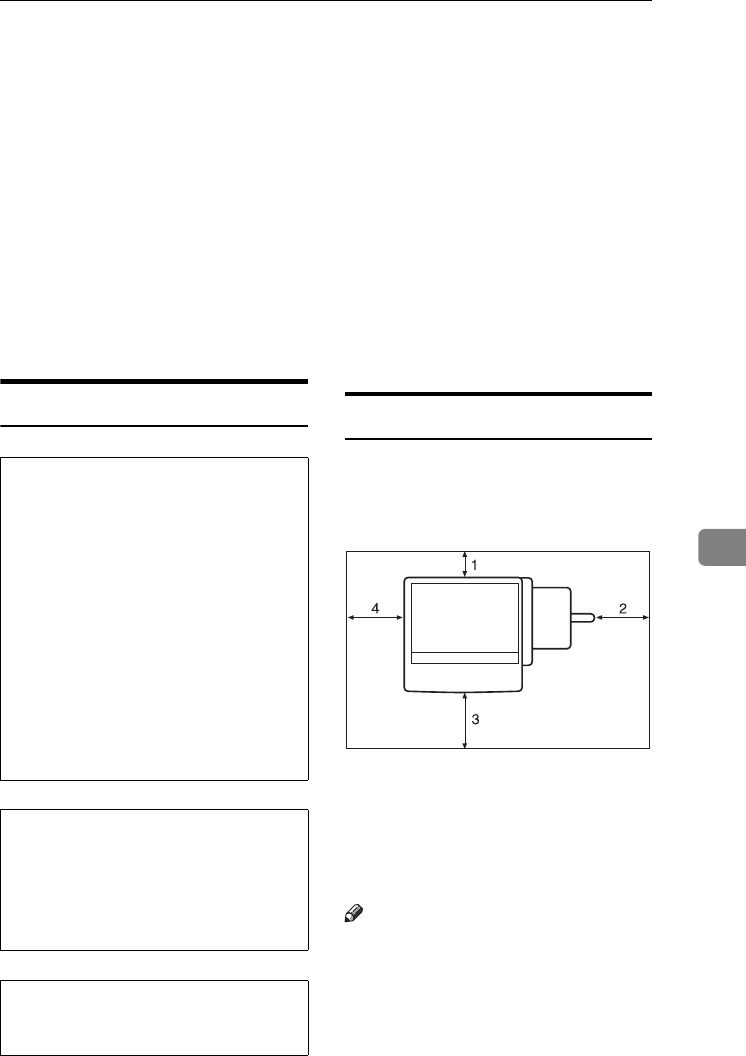
Where to Put Your Machine
153
7
❒Do not carry the machine, by hold-
ing the scanner assembly. Keep the
machine level and carry it careful-
ly, taking care not to jolt or tip it.
Rough handling may cause a mal-
function or damage the hard disk
or memory, resulting in loss of
stored files.
❒Do not take off the holding stand.
❒Protect the machine from strong
shocks. Impact can damage the
hard disk and cause stored files to
be lost. As a precautionary meas-
ure, files should be copied to an-
other computer.
Power Connection
R
WARNING:
R
CAUTION:
R
CAUTION:
• When the main power switch is in
the stand-by position, the optional
anti-condensation heaters are on.
In an emergency, unplug the ma-
chine's power cord.
• When you unplug the power cord,
the anti-condensation heaters turn
off.
• Make sure the plug is inserted
firmly in the wall outlet.
• Voltage must not fluctuate by
more than 10%.
• The wall outlet shall be installed
near the machine and shall be eas-
ily accessible.
Access to the Machine
Place the machine near the power
source, providing the clearance areas
shown.
1. Rear: 10 cm (4") or more
2. Right: 10 cm (4") or more
3. Front: 75 cm (29.6") or more
4. Left: 10 cm (4") or more
Note
❒For the required space when op-
tions are installed, contact your
service representative.
•Connect the machine only to
the power source described on
the inside front cover of this
manual. Connect the power
cord directly into a wall outlet
and do not use an extension
cord.
•Do not damage, break or make
any modifications to the power
cord. Do not place heavy ob-
jects on it. Do not pull it hard
nor bend it more than neces-
sary. These actions could
cause an electric shock or fire.
•Unplug the power cord from the
wall outlet before you move the
machine. While moving the ma-
chine, you should take care that
the power cord will not be dam-
aged under the machine.
•When you disconnect the power
plug from the wall outlet, always
pull the plug (not the cable).
TSPS060E
AdonisC4-AE_zen_F_FM_forPaper.book Page 153 Thursday, May 12, 2005 3:32 PM
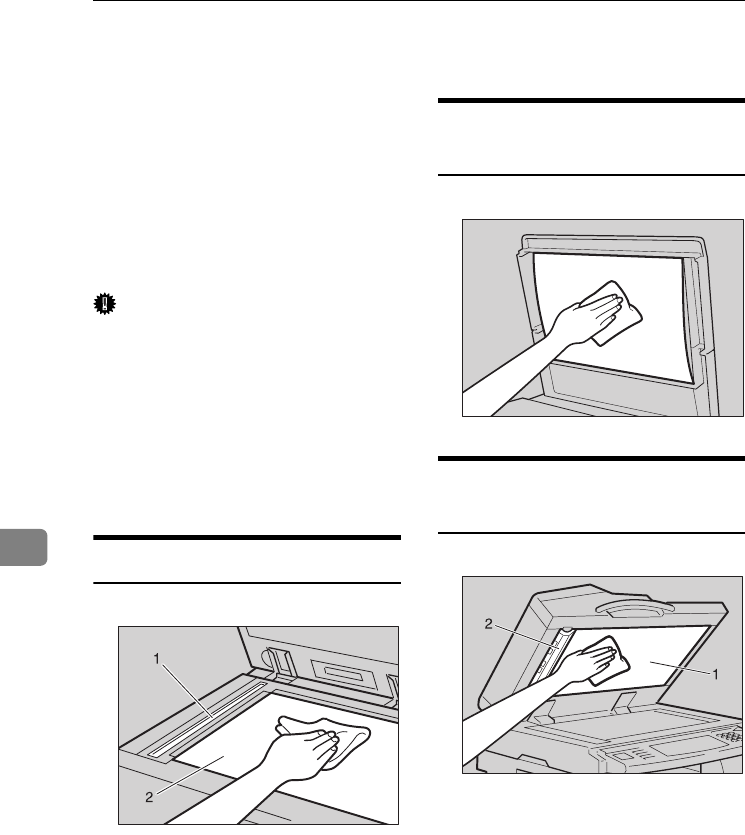
Remarks
154
7
Maintaining Your Machine
If the exposure glass, exposure glass
cover, or ADF belt is dirty, copy clari-
ty may be reduced. Clean these parts
if they are dirty.
❖Cleaning the machine
Wipe the machine with a soft,
damp cloth, and then wipe it with
a dry cloth to remove the water.
Important
❒Do not use chemical cleaners or or-
ganic solvents, such as thinner or
benzene. If such substances get in-
side the machine or melt plastic
parts, a failure might occur.
❒Do not clean parts other than those
explicitly specified in this manual.
Other parts should only be cleaned
by your service representative.
Cleaning the Exposure Glass
Clean 1 and 2.
Cleaning the Exposure Glass
Cover
Cleaning the Auto Document
Feeder
Clean 1 and 2.
GDSH050J
ZGJS826E
GDSH130J
AdonisC4-AE_zen_F_FM_forPaper.book Page 154 Thursday, May 12, 2005 3:32 PM

Maintaining Your Machine
155
7
Changing the Photoconductor
Unit (PCU)
Only use the photoconductor unit
made specifically for this machine.
Follow the procedure below to
change the unit.
Important
❒Be sure to unplug the power code
from the outlet before changing
the photoconductor unit.
A Open the front door, duplex unit,
and then transfer unit right cover.
B Push the development unit to the
left, and then pull out the photocon-
ductor unit.
C Remove the harness clamps on the
charge unit and cleaning unit of the
new photoconductor unit.
D Push the development unit to the
left, and then install the new photo-
conductor unit.
Note
❒If the copy quality is still not satis-
factory after replacing the photo-
conductor unit, contact your
service representative.
AdonisC4-AE_zen_F_FM_forPaper.book Page 155 Thursday, May 12, 2005 3:32 PM
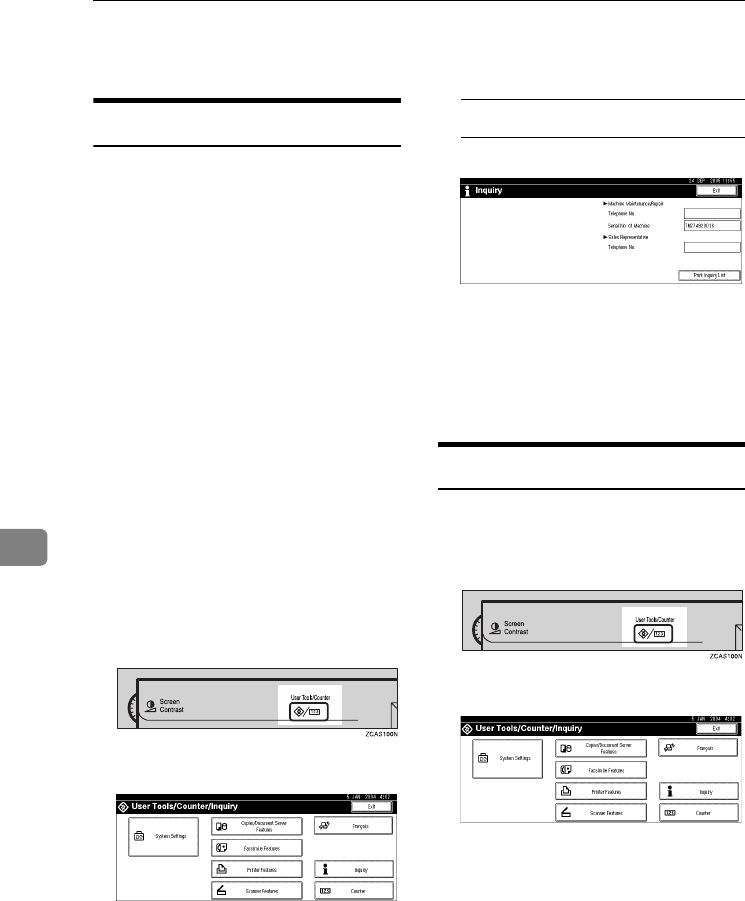
Remarks
156
7
Other Functions
Inquiry
The inquiry function lets you check
the telephone numbers to contact for
repairs, or ordering consumables
such as toner. Be sure to contact your
service engineer to verify the follow-
ing:
❖Consumables
• Telephone No. to order
•Toner
•Staple
• Staple (Centre)
•TX Stamp Name
❖Machine Maintenance/Repair
• Telephone No.
• Serial No. of Machine
❖Sales Representative
• Telephone No.
APress the {User Tools/Counter} key.
BPress [Inquiry].
Inquiry information appears.
Printing inquiry information
APress [Print Inquiry List].
BPress the {Start} key.
Inquiry information prints out.
CPress [Exit].
DPress [Exit].
Changing the Language
You can change the language used on
the display. English is set as default.
APress the {User Tools/Counter} key.
BPress [Français].
The language is changed to
French.
CPress [Sortie].
The menu appears in French.
AdonisC4-AE_zen_F_FM_forPaper.book Page 156 Thursday, May 12, 2005 3:32 PM
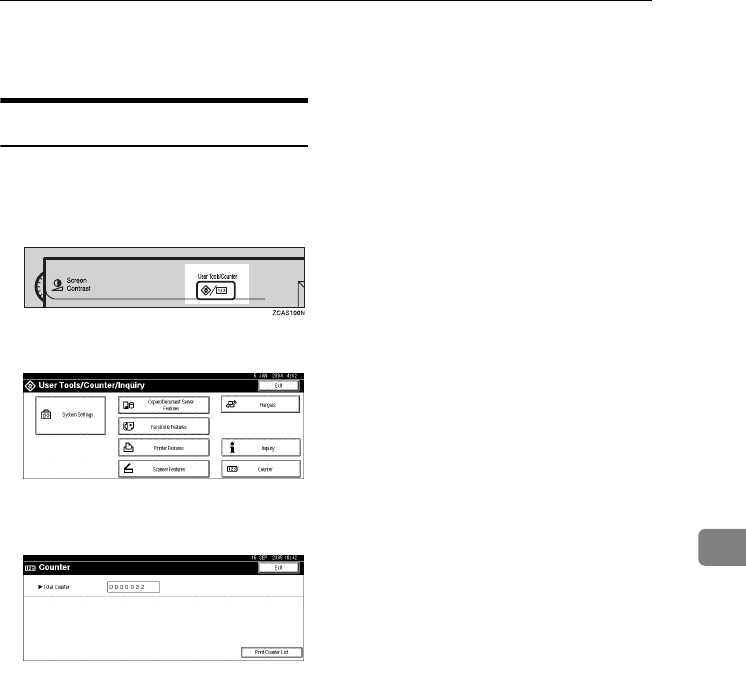
Counter
157
7
Counter
Displaying the Total Counter
You can display the total counter val-
ue used for all functions.
APress the {User Tools/Counter} key.
BPress [Counter].
CTo print a counter list, press [Print
Counter List].
DPress the {Start} key.
A counter list prints out.
AdonisC4-AE_zen_F_FM_forPaper.book Page 157 Thursday, May 12, 2005 3:32 PM

Remarks
158
7
AdonisC4-AE_zen_F_FM_forPaper.book Page 158 Thursday, May 12, 2005 3:32 PM
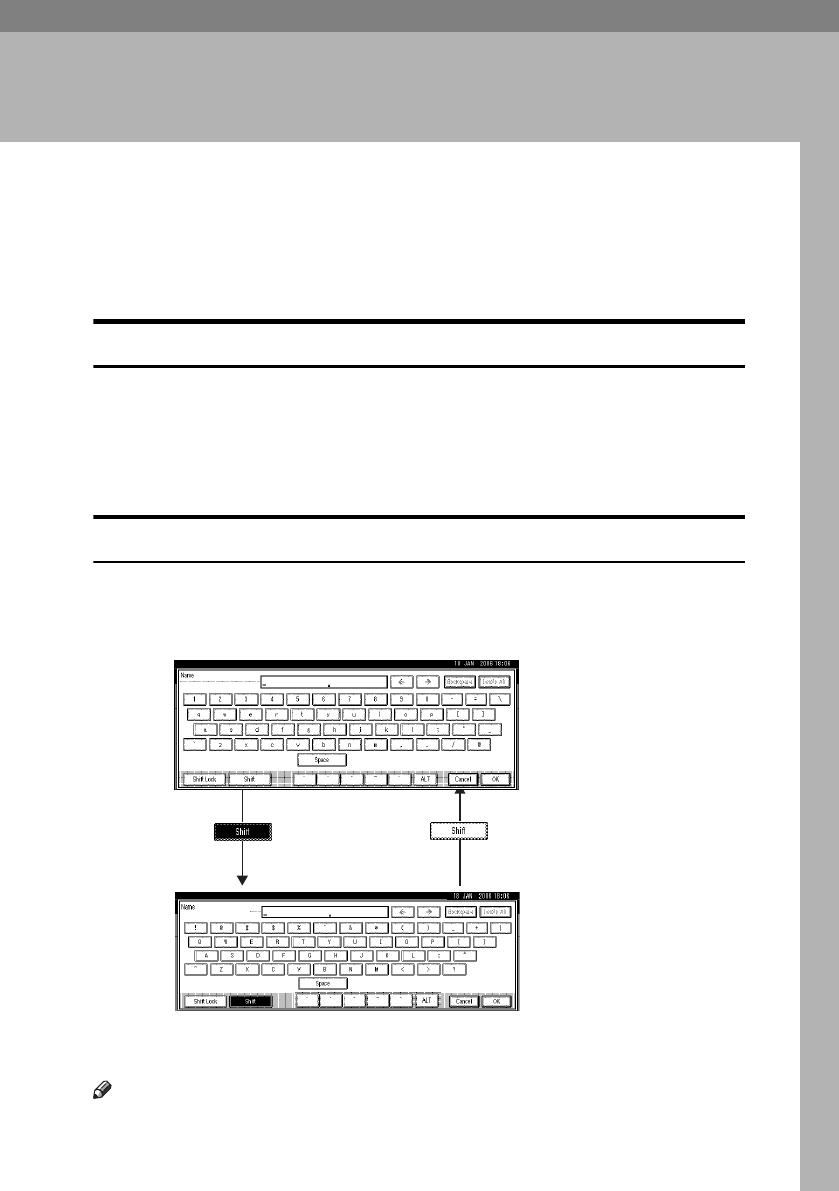
159
8. Entering Text
Entering Text
This section describes how to enter characters. When you enter a character, it ap-
pears at the position of the cursor. If there is a character already at the cursor po-
sition, the entered character appears before that.
Available Characters
• Alphabetic characters
ABCDEFGHIJKLMNOPQRSTUVWXYZabcdefghijklmnopqrstuvwxyz
•Symbols
•Numerals
0123456789
Keys
Note
❒When entering uppercase or lowercase letters continuously, use [Shift Lock] to
lock the case.
AHR039S
AdonisC4-AE_zen_F_FM_forPaper.book Page 159 Thursday, May 12, 2005 3:32 PM
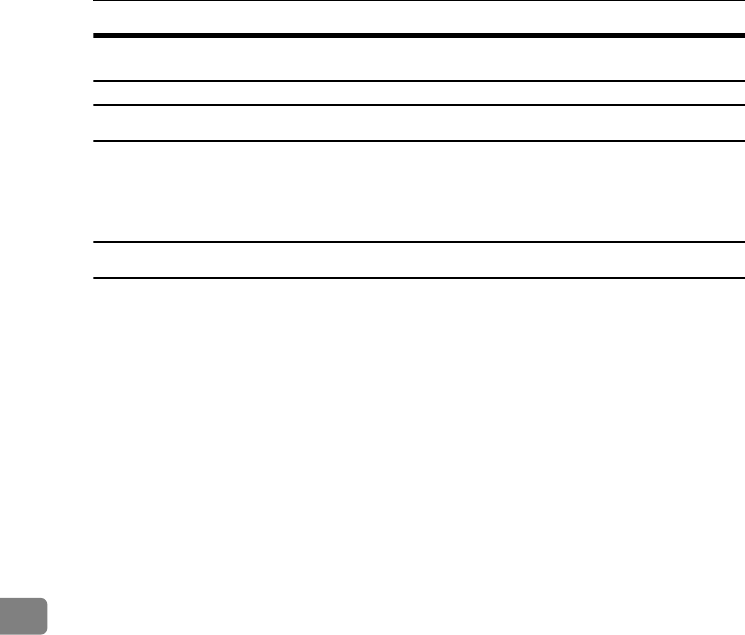
Entering Text
160
8
How to Enter Text
Entering letters
APress [Shift] to switch between uppercase and lowercase.
BPress the letters you want to enter.
Deleting characters
APress [Backspace] or [Delete All] to delete characters.
AdonisC4-AE_zen_F_FM_forPaper.book Page 160 Thursday, May 12, 2005 3:32 PM

161
9. Specifications
Main unit
❖Configuration:
Desktop
❖Photosensitivity type:
OPC drum
❖Original scanning:
One-dimensional solid scanning system through CCD
❖Copy process:
Dry electrostatic transfer system
❖Development:
Dry two-component magnetic brush development system
❖Fusing:
Heating roll pressure system
❖Resolution:
600 dpi
❖Exposure glass:
Stationary original exposure type
❖Original reference position:
Rear left corner
❖Warm-up time:
From the main power switch
• Type 1: 12.5 seconds or less (23 °C) (When Facsimile or Printer is installed:
15 seconds or less (23 °C))
• Type 2: Less than 12.5 seconds (23 °C)
From the operation switch
• Type 1: Less than 10 seconds (23 °C)
• Type 2: Less than 10 seconds (23 °C)
❖Originals:
Sheet/book/objects
❖Maximum original size:
A3L, 11" × 17"L
AdonisC4-AE_zen_F_FM_forPaper.book Page 161 Thursday, May 12, 2005 3:32 PM

Specifications
162
9
❖Copy paper size:
•Trays: A3L – A5L, 11" × 17"L – 51/2" × 81/2"L
•Bypass: A3L – A6L, 11" × 17"L – 51/2" × 81/2"L
•Bypass (custom size):
Vertical: 100 – 297 mm, 4 – 11.7 in
Horizontal: 148 – 600 mm, 5.9 – 23.6 in
•Duplex: A3L – A5L, 11" × 17"L – 51/2" × 81/2"L (except A5K, 51/2" ×
81/2" K)
•LCT: A4K, 81/2" × 11"K
❖Paper weight:
• Paper tray 1, 2: 64 – 105 g/m2, 17 – 28 lb.
• Bypass tray: 52 – 163 g/m2, 14 – 43.6 lb.
• Duplex: 64 – 105 g/m2, 17 – 28 lb.
❖Non-reproduction area:
• Leading edge: 3 ± 2 mm or less
• Trailing edge: 2 ± 2 mm or less
• Left edge: 2 ± 1.5 mm or less
• Right edge: 2 + 2.5/-1.5 mm or less
❖First copy time:
• Type 1: 4.2 seconds or less
(A4K, 100%, feeding from the tray 1, on the exposure glass, Text·Photo
mode, Auto Image Density)
• Type 2: 3.5 seconds or less
(A4K, 100%, feeding from the tray 1, on the exposure glass, Text·Photo
mode, Auto Image Density)
❖Copying speed: (Type 1)
•19 copies/minute (A3L, 11" × 17"L)
•35 copies/minute (A4K, 81/2" × 11"K)
❖Copying speed: (Type 2)
•22 copies/minute (A3L, 11" × 17"L)
•45 copies/minute (A4K, 81/2" × 11"K)
AdonisC4-AE_zen_F_FM_forPaper.book Page 162 Thursday, May 12, 2005 3:32 PM
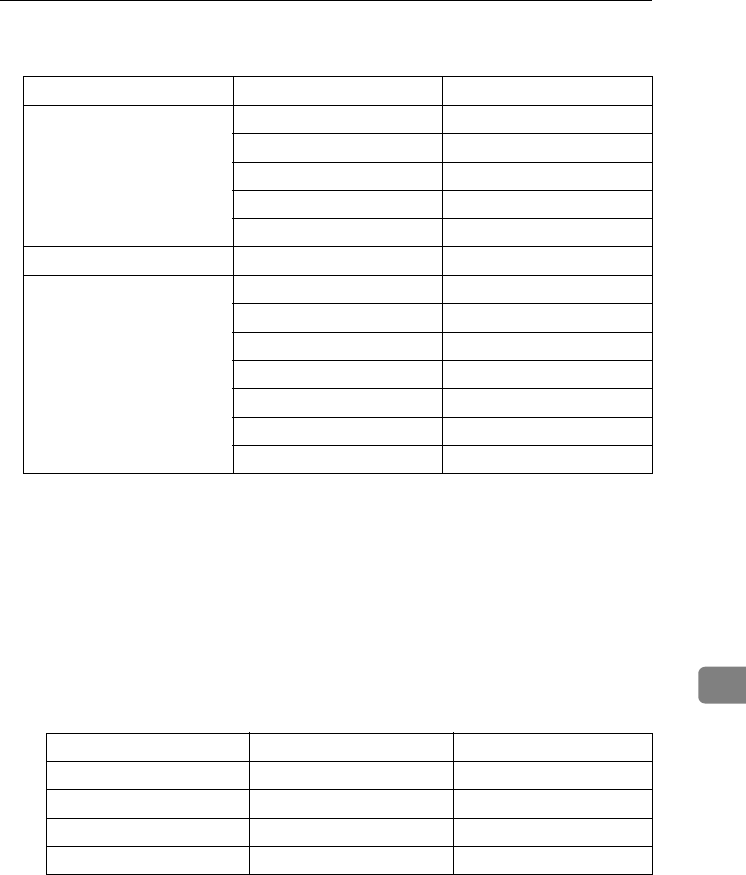
Main unit
163
9
❖Reproduction ratio:
Preset reproduction ratios:
Zoom: From 25 to 400% in increments of 1%.
❖Maximum continuous copy run:
999 sheets
❖Paper capacity:
• Tray 1, 2: 550 sheets (72 g/m2, 19 lb.)
• Bypass tray: 50 sheets (72 g/m2, 19 lb.)
❖Power consumption:
• Main unit only
Metric version Inch version
Enlargement 400% 400%
200% 200%
141% 155%
122% 129%
115% 121%
Full size 100% 100%
Reduction 93% 93%
82% 85%
75% 78%
71% 73%
65% 65%
50% 50%
25% 25%
Type 1 Type 2
Warm-up 1.37 kW 1.37 kW
Stand-by 165 W 175 W
During printing 670 W 825 W
Maximum 1.37 kW 1.37 kW
AdonisC4-AE_zen_F_FM_forPaper.book Page 163 Thursday, May 12, 2005 3:32 PM
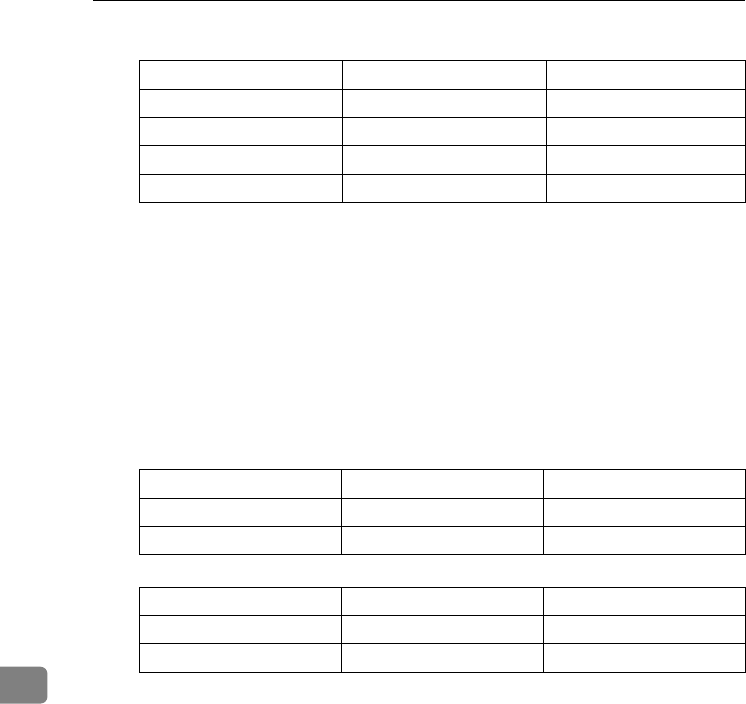
Specifications
164
9
• Complete system *1
*1 The complete system consists of the main unit, ADF, internal tray 2, paper tray
unit, bridge unit, 2 tray finisher, LCT, fax unit and printer/scanner unit.
❖Dimensions (W × D × H up to exposure glass):
Type 1, 2: 670 × 650 × 720 mm, 26.4 × 25.6 × 28.3 in
❖Space for main unit (W × D):
Type 1, 2: 980 × 650 mm, 38.6 × 25.6 in (Bypass tray extender is used for large
size paper)
❖Noise emission *1 :
Sound power level:
• Main unit only
• Complete system *3
*1 The above measurements, made in accordance with ISO 7779 are actual values.
*2 Measured at the position of the bystander.
*3 The complete system consists of the main unit, ADF, internal tray 2, paper tray
unit, bridge unit, 2 tray finisher and LCT.
❖Weight:
Type 1, 2: Approx. 79 kg, 174.2 lb.
❖HDD:
40 GB or more
• Capacity for Document Server
7.6 GB
• Capacity for memory sorting
5.3 GB
• Capacity for others
7.1 GB or more
Type 1 Type 2
Warm-up 1.4 kW 1.4 kW
Stand-by 200 W 210 W
During printing 755 W 900 W
Maximum 1.4 kW 1.4 kW
Type 1 Type 2
Stand-by 42 dB (A) 42 dB (A)
Copying 68 dB (A) 68 dB (A)
Type 1 Type 2
Stand-by 46 dB (A) 46 dB (A)
Copying 72 dB (A) 72 dB (A)
AdonisC4-AE_zen_F_FM_forPaper.book Page 164 Thursday, May 12, 2005 3:32 PM
Options
165
9
Options
Exposure Glass Cover
Lower this over originals for copying.
Auto Document Feeder
❖Mode:
ADF mode, Batch mode, SADF mode, Mixed Size mode, Custom Size Origi-
nals mode
❖Original size:
•A3L – B6 JISKL(except two-sided originals of B6 JISKL)
• 11" × 17"L – 51/2" × 81/2"KL
❖Original weight:
• One-sided originals: 40–128 g/m2 (11–34 lb.)
• Two-sided originals: 52–105 g/m2 (14–28 lb.)
❖Maximum number of originals:
80 sheets (80 g/m2, 20 lb.) or less than 11 mm, 0.43 in
❖Maximum power consumption:
Less than 60 W (power is supplied from the main unit)
❖Dimensions (W×D×H):
570 × 518 × 150 mm, 22.4 × 20.4 × 5.9 in
❖Weight:
Approx. 12 kg, 26.5 lb.
Note
❒Specifications are subject to change without notice.
AdonisC4-AE_zen_F_FM_forPaper.book Page 165 Thursday, May 12, 2005 3:32 PM

Specifications
166
9
1000-Sheet Finisher
Finisher Upper Tray:
❖Paper size:
A3L, B4 JISL, A4KL, B5 JISKL, A5KL, B6 JISL, A6L, 12" × 18"L, 11"
× 17"L, 81/2" × 14"L, 101/2" × 71/4"KL, 81/2" × 13"L, 81/2" × 11"KL, 8" ×
13"L, 81/4" × 13"L, 51/2" × 81/2"KL
❖Paper weight:
52–163 g/m2, 14–43 lb.
❖Stack capacity:
• 250 sheets (A4KL, 81/2" × 11"KL or smaller) (80 g/m2, 20 lb.)
• 50 sheets (B4 JISL, 8" × 13"L or larger) (80 g/m2, 20 lb.)
Finisher Shift Tray:
❖Paper size:
A3L, B4 JISL, A4KL, B5 JISKL, A5KL, 12" × 18"L, 11" × 17"L, 81/2" ×
11"KL, 81/2" × 13"L, 81/2" × 14"L, 101/2" × 71/4"KL, 8" × 13L, 81/4" ×
13"L, 51/2" × 81/2" KL
❖Paper weight:
52 – 163 g/m2, 14 – 43 lb.
❖Stack capacity:
• 1,000 sheets (A4KL, 81/2" × 11"KL or smaller) (80 g/m2, 20 lb.)
• 500 sheets (B4 JISL, 8" × 13"L or larger) (80 g/m2, 20 lb.)
❖Staple capacity:
• 50 sheets (A4KL, 81/2" × 11"KL or smaller) (80 g/m2, 20 lb.)
• 30 sheets (B4 JISL, 8" × 13"L or larger) (80 g/m2, 20 lb.)
❖Staple paper size:
A3L, B4 JISL, A4KL, B5 JISKL, 12" × 18"L, 11" × 17"L, 81/2" × 14"L,
81/2" × 11"KL, 101/2" × 71/4"KL, 8" × 13"L, 81/2" × 13"L, 81/4" × 13"L
❖Staple paper weight:
64–90 g/m2, 17–24 lb.
❖Staple position:
• 1 staple – 2 positions
• 2 staples – 1 position
❖Power consumption:
Less than 50 W (power is supplied from the main unit)
AdonisC4-AE_zen_F_FM_forPaper.book Page 166 Thursday, May 12, 2005 3:32 PM

Options
167
9
❖Dimensions (W × D × H):
520 × 520 × 790 mm, 20.5 × 20.5 × 31.1 in (including trays)
❖Weight:
Approx. 25 kg, 55.2 lb.
2 Tray Finisher
Finisher Shift Tray 1:
❖Paper size:
A3L, B4 JISL, A4KL, B5 JISKL, A5KL, B6 JISL, A6L, 11" × 17"L,
81/2" × 14"L, 81/2" × 11"KL, 51/2" × 81/2"KL
❖Paper weight:
52 – 163 g/m2, 14 – 43 lb.
❖Stack capacity:
• 500 sheets (A4KL, B5 JISKL, A5K, 81/2" × 11"KL) (80 g/m2, 20 lb.)
• 250 sheets (A3L, B4 JISL, 81/2" × 14"L, 11" × 17"L) (80 g/m2, 20 lb.)
• 100 sheets (A5L, 51/2" × 81/2"KL) (80 g/m2, 20 lb.)
Finisher Shift Tray 2:
❖Paper size:
A3L, B4 JISL, A4KL, B5 JISKL, A5KL, B6 JISL, A6L, 11" × 17"L,
81/2" × 14"L, 81/2" × 11"KL, 51/2" × 81/2" KL
❖Paper weight:
52 – 163 g/m2, 14 – 43 lb.
❖Stack capacity:
No Staple:
• 2,000 sheets (A4K, 81/2" × 11"K) (80 g/m2, 20 lb.)
• 750 sheets (A3L, B4 JISL, A4L, B5 JISKL, 11" × 17"L, 81/2" × 14"L,
81/2" × 11"L) (80 g/m2, 20 lb.)
• 500 sheets (A5K) (80 g/m2, 20 lb.)
• 100 sheets (A5L, 51/2" × 81/2" KL) (80 g/m2, 20 lb.)
Staple:
• 1,500 sheets (A4K, 81/2" × 11"K) (80 g/m2, 20 lb.)
• 750 sheets (A3L, B4 JISL, A4L, B5 JISKL, 11" × 17"L, 81/2" × 14"L,
81/2" × 11"L) (80 g/m2, 20 lb.)
• 500 sheets (A5K) (80 g/m2, 20 lb.)
• 100 sheets (A5L, 51/2" × 81/2" KL) (80 g/m2, 20 lb.)
❖Staple capacity:
• 50 sheets (A4KL, B5 JISKL, 81/2" × 11"KL) (80 g/m2, 20 lb.)
• 30 sheets (A3L, B4 JISL, 11" × 17"L, 81/2" × 14"L) (80 g/m2, 20 lb.)
AdonisC4-AE_zen_F_FM_forPaper.book Page 167 Thursday, May 12, 2005 3:32 PM

Specifications
168
9
❖Staple paper size:
A3L, B4 JISL, A4KL, B5 JISKL, 11" × 17"L, 81/2" × 14"L, 81/2" × 11"KL
❖Staple paper weight:
64 – 90 g/m2, 17 – 24 lb.
❖Staple position:
• 1 staple – 3 positions
• 2 staples – 1 position
❖Power consumption:
Less than 50 W (power is supplied from the main unit)
❖Dimensions (W × D × H):
520 × 520 × 790 mm, 20.5 × 20.5 × 31.1 in (including trays)
❖Weight:
Approx. 25 kg, 55.2 lb.
Punch Kit
❖Paper size
•2 holes: A3L – A5KL, 11" × 17"L, 81/2" × 14"L – 51/2" × 81/2"KL
•3 holes: A3L, B4 JISL, A4K, B5 JISK, 11" × 17"L, 81/2" × 11"K
•4 holes:
• Metric version: A3L, B4 JISL, A4K, B5 JISK, 11" × 17"L, 81/2" × 11"K
• Narrow 2 × 2 version: A3L – A5K, 11" × 17"L, 81/2" × 14"L – 51/2" ×
81/2"K
❖Paper weight:
• 4 holes: 52 – 163 g/m2, 14 lb. – 43 lb.
• 2 or 3 holes: 52 – 163 g/m2, 14 lb. – 43 lb.
❖Power consumption:
26.4 W (power is supplied from the main unit.)
❖Dimensions (W × D × H):
142 × 456 × 92 mm, 55.9 × 179.5 × 36.2 in
❖Weight:
Approx. 2.9 kg, 6.4 lb
Note
❒Specifications are subject to change without notice.
AdonisC4-AE_zen_F_FM_forPaper.book Page 168 Thursday, May 12, 2005 3:32 PM

Options
169
9
Booklet Finisher
Finisher Upper Tray:
❖Paper size:
A3L, B4 JISL, A4KL, B5 JISKL, A5KL, B6 JISL, A6L, 11" × 17"L, 11"
× 15"L, 81/2" × 14"L, 81/2" × 11"KL, 51/2" × 81/2"L
❖Paper weight:
52 – 163 g/m2, 14 – 43 lb.
❖Stack capacity:
• 150 sheets
Finisher Shift Tray:
❖Paper size:
A3L, B4 JISL, A4KL, B5 JISKL, A5K, 11" × 17"L, 81/2" × 11"KL
❖Paper weight:
52 – 163 g/m2, 14 – 43 lb.
❖Stack capacity:
No Staple:
• 1,000 sheets (A4K, B5 JISKL, A5K, 81/2" × 11"K) (80 g/m2, 20 lb.)
• 500 sheets (A3L, B4 JISL, A4L, 11" × 17"L, 81/2" × 11"L) (80 g/m2, 20
lb.)
Staple:
• 750 sheets (A4K, B5 JISKL, A5K, 81/2" × 11"K) (80 g/m2, 20 lb.)
• 500 sheets (A3L, B4 JISL, A4L, 11" × 17"L, 81/2" × 11"L) (80 g/m2, 20
lb.)
❖Staple capacity:
• 50 sheets (A4K, B5 JISK, 81/2" × 11"K, 71/4" × 101/2"K) (80 g/m2, 20 lb.)
•30 sheets (A3L, B4 JISL, A4L, 11" × 17"L, 81/2" × 14"L, 81/2" × 13"L,
81/2" × 11"L) (80 g/m2, 20 lb.)
❖Staple paper size:
A3L, B4 JISL, A4KL, B5 JISKL, 11" × 17"L, 81/2" × 14"L, 81/2" × 11"KL
❖Staple paper weight:
64 – 80 g/m2, 17 – 20 lb.
❖Staple position:
• 1 staple – 2 positions
• 2 staples – 2 positions
AdonisC4-AE_zen_F_FM_forPaper.book Page 169 Thursday, May 12, 2005 3:32 PM

Specifications
170
9
❖Saddle stitch
• Paper size:
A3L, B4 JISL, A4L, 11" × 17"L, 81/2" × 11"L, 81/2" × 14"L(80 g/m2, 20
lb.)
• Saddle stitching capacity: 15 sheets
• Stack capacity:
2–5 sheets: 25 sets
6–10 sheets: 15 sets
11–15 sheets: 10 sets
• Folding: Centre folding
•Paper weight:
Plain paper: 64 – 80 g/m2, 17 – 20 lb.
Cover sheet (one sheet): 64 – 128 g/m2, 17 – 34 lb.
• Position: 1 position
❖Power consumption:
Less than 55 W (power is supplied from the main unit)
❖Dimensions (W × D × H):
689 × 603 × 1,055 mm, 27.1 × 23.7 × 41.5 in
❖Weight:
Approx. 50 kg, 110.2 lb. (main unit only)
Bridge Unit
❖Dimensions:
413 × 435 × 126 mm, 16.3 × 17.1 × 5.0 in
❖Weight:
3.6 kg, 7.9 lb.
AdonisC4-AE_zen_F_FM_forPaper.book Page 170 Thursday, May 12, 2005 3:32 PM
Options
171
9
Internal Tray 2 (1 bin tray)
❖Number of bins:
1
❖Paper size:
A3L, B4 JISL, B5 JISKL, A5L, 11" × 17"L, 81/2" × 14"L, 81/2" × 11"KL,
51/2" × 81/2" L
❖Paper capacity:
125 sheets (80 g/m2, 20 lb.)
❖Paper weight:
60 – 105 g/m2 (16 – 28 lb.)
❖Maximum power consumption:
Less than 15 W (power is supplied from the main unit)
❖Dimensions (W × D × H):
470 × 565 × 140 mm, 18.5 × 22.2 × 5.5 in
❖Weight:
Approx. 4 kg, 8.8 lb.
Note
❒Specifications are subject to change without notice.
Large Capacity Tray
❖Paper size:
A4K, 81/2" × 11"K
❖Paper weight:
60 – 105 g/m2, 16 – 28 lb.
❖Paper capacity:
1,500 sheets (80 g/m2, 20 lb.)
❖Power consumption:
Maximum 40 W (power is supplied from the main unit)
❖Dimensions (W × D × H, option unit):
390 × 500 × 390 mm, 15.4 × 19.7 × 15.4 in
❖Weight:
Approx. 17 kg, 37.5 lb.
Note
❒Specifications are subject to change without notice.
AdonisC4-AE_zen_F_FM_forPaper.book Page 171 Thursday, May 12, 2005 3:32 PM

Specifications
172
9
Paper Tray Unit
❖Paper weight:
60–105 g/m2 (16–28 lb.)
❖Paper size:
A3L, B4 JISL, A4KL, B5 JISKL, A5L, 11" × 17"L, 81/2" × 14"L, 81/2" ×
13"L, 81/2" × 11"KL, 81/4" × 13"L, 8" × 13"L, 71/4" × 101/2"L, 81/4" ×
14"L, 11" × 14"L, 8" × 101/2"KL, 51/2" × 81/2" L
❖Maximum power consumption:
Less than 50 W (power is supplied from the main unit)
❖Paper capacity:
550 sheets (72 g/m2, 19 lb.) × 2 trays
❖Dimensions (W × D × H):
540 × 650 × 270 mm, 21.3 × 25.6 × 10.6 in
❖Weight:
Approx. 25 kg, 55.2 lb.
Note
❒Specifications are subject to change without notice.
AdonisC4-AE_zen_F_FM_forPaper.book Page 172 Thursday, May 12, 2005 3:32 PM
Copy Paper
173
9
Copy Paper
Recommended Paper Sizes and Types
The following limitations apply to each tray:
Tray type Paper type and
weight
Metric version Inch version Paper
capacity
Tray 1, 2
Paper tray
unit
(optional)
Tray 1, 2:
64-105 g/m2
(17-28 lb.)
Paper tray unit:
60-105 g/m2
(16-28 lb.)
A3L, A4KL, 11" × 17"L, 81/2" × 14"L,
81/2" × 11"KL
550 sheets
*5
*1
A3
L
, B4 JIS
L
, A4
KL
, B5 JIS
KL
, A5
L
, 11"
×
17"
L
,
81/2" × 14"L, 81/2" × 11"KL, 51/2" × 81/2"L,
7
1
/
4
"
×
10
1
/
2
"
L
, 8"
×
13"
L
, 8
1
/
2
"
×
13"
L
, 8
1
/
4
"
×
13"
L
,
81/4" × 14"L, 11" × 14"L, 8" × 10"1/2KL
AdonisC4-AE_zen_F_FM_forPaper.book Page 173 Thursday, May 12, 2005 3:32 PM
Specifications
174
9
*1 See p.135 “To adjust the paper size to a size not indicated on the paper size selector”
*2 When copying onto custom size paper, you need to specify vertical and horizontal
dimensions. See “Copying from the Bypass Tray”, Copy Reference.
Bypass
tray *1 *2
Standard paper
60-90.2 g/m2
(16-24 lb.)
A3L, A4KL, A5KL,
8" × 13"LA3L, 11" × 17"L, 81/2" ×
11"KL, 51/2" × 81/2"L
50 sheets
*1
B4 JISL, B5 JISKL,
B6 JIS
L
, A6
L
, Postcard
L
,
11"
×
17"
L
, 8
1
/
2
"
×
14"
L
,
81/2" × 11"KL,
51/2" × 81/2"L,
71/4" × 101/2"KL,
8
1
/
2
"
×
13"
L
, 8
1
/
4
"
×
13"
L
,
8
1
/
4
"
×
14"
L
, 11"
×
14"
L
,
11" × 15"L, 10" × 14"L,
10"
×
15"
L
, 8"
×
10"
KL
,
8" × 101/2"KL
*1
B4 JIS
L
, A4
KL
, B5 JIS
KL
,
A5KL, B6 JISL, A6L,
Postcard
L
, 8
1
/
2
"
×
14"
L
,
71/4" × 101/2"KL,
8
1
/
2
"
×
13"
L
, 8
1
/
4
"
×
13"
L
,
11" × 14"L, 11" × 15"L,
10" × 14"L, 10" × 15"L,
8" × 10"KL,
8" × 101/2"KL
Custom size *8
Vertical: 100-297 mm
Horizontal: 148-600 mm
*9
Custom size *8
Vertical: 3.9-11.6 in
Horizontal: 5.8-23.4 in *9
Thin paper *5
52-59 g/m2
(14-16 lb.)
A3L, A4KL, A5KL,
8" × 13"LA3L, 11" × 17"L, 81/2" ×
11"KL, 51/2" × 81/2"L
50 sheets
Custom size *8
Vertical: 100-297 mm
Horizontal: 148-600 mm
*9
Custom size *8
Vertical: 3.9-11.6 in
Horizontal: 5.8-23.4 in *9
Thick paper *3 *5
*7
91-163 g/m2
(24-43.5 lb.)
A3L, A4KL, A5KL,
8" × 13"LA3L, 11" × 17"L, 81/2" ×
11"KL, 51/2" × 81/2"L
25 sheets
*8 Custom size
Vertical: 100-297 mm
Horizontal: 148-600 mm
*9
*8 Custom size
Vertical: 3.9-11.6 in
Horizontal: 5.8-23.4 in *9
Translucent
paper *4 *5
A3L, A4KL, A5KL,
8" × 13"LA3L, 11" × 17"L, 81/2" ×
11"KL, 51/2" × 81/2"L
40 sheets
OHP transpar-
encies *3 *4
A4L81/2" × 11"L20 sheets
Postcards *7 100 × 148 mmL15 sheets
*10
Label paper (ad-
hesive labels)
A3L, A4KL, A5KL,
8" × 13"LA3L, 11" × 17"L, 81/2" ×
11"KL, 51/2" × 81/2"L
1 sheet
LCT (op-
tional) *5 *6
60-105 g/m2
(16-28 lb.)
A4K, 81/2" × 11"K1500
sheets
Tray type Paper type and
weight
Metric version Inch version Paper
capacity
AdonisC4-AE_zen_F_FM_forPaper.book Page 174 Thursday, May 12, 2005 3:32 PM

Copy Paper
175
9
*3 Select [OHP Sheet] or [Thick Paper] in the display panel. See “Copying from the Bypass
Tray”, Copy Reference.
*4 Placing one sheet at a time is recommended. See “Copying from the Bypass Tray”,
Copy Reference.
*5 When loading paper, make sure the top of the stack is not higher than the limit mark
of the paper tray.
*6 The paper guide is immovable. If you want to change the size of paper placed in this
tray, contact your service representative.
*7 If you want to use thick (128–163 g/m2, 34 lb.–43.5 lb.) paper, select [Thick Paper] on
the display panel. See “Copying from the Bypass Tray”, Copy Reference.
*8 With paper longer than 433 mm, misfeeds, jams and creasing may occur. Make sure
that paper is placed correctly so that it feeds in straight.
*9 The horizontal size is 148–432 mm (5.8"–17") when the booklet finisher is installed.
*10 It is recommended to place one sheet at a time.
Important
❒If you use damp or curled paper, a misfeed may occur.
Note
❒Load paper into the Tray 1-4 with the print side up.
❒Place paper in the LCT and bypass tray with the print side down.
❒When using the bypass tray, it is recommended to set the paper orientation to
L.
❒When loading OHP transparencies, check the front and back of the sheets,
and place them correctly, or a misfeed might occur. Set the paper orientation
to L and select A4L, 81/2"×11"K as paper size.
❒When using OHP transparencies, fan them for each use. If you store the sheets
in the tray, they may adhere and may cause feeding problems.
❒When copying onto OHP transparencies, remove copied sheets one by one.
❒If multiple-sheet jams occur, load the paper sheet by sheet.
❒Postcards should be fed using the bypass tray. Select [Thick Paper] on the dis-
play panel. See “Copying from the Bypass Tray”, Copy Reference.
❒When copying onto letterhead paper, the paper placing orientation is differ-
ent depends on which function you are using. See p.121 “Orientation-Fixed
Paper or Two-Sided Paper”.
❒If you load paper of the same size in the same orientation in two or more
trays, the machine automatically shifts to the other tray when the first tray in
use runs out of paper. This function is called “Auto Tray Switching”. (How-
ever, if one tray has recycled or special paper, the settings of the other trays
must be the same for Auto Tray Switching to work.) This saves interrupting
a copy run to replenish paper when making a large number of copies. See
“General Features 1/4 Auto Tray Switching”, Copy Reference and p.55 “Tray
Paper Size: Tray 1–4”.
❒The paper types you can select in System Settings are only general classifica-
tions. Copy quality for every kind of paper in a classification is not guaran-
teed. See p.176 “Unusable Paper” for details.
AdonisC4-AE_zen_F_FM_forPaper.book Page 175 Thursday, May 12, 2005 3:32 PM
Specifications
176
9
Unusable Paper
R
CAUTION:
Important
❒To prevent faults, do not use any of the following kinds of paper:
• Paper for inkjet printers
•Thermal fax paper
• Art paper
• Aluminum foil
•Carbon paper
•Conductive paper
• Colored OHP transparencies
•Paper with perforated lines
• Hemmed-edge paper
❒Do not use paper designed for inkjet printers, as these may stick to the fusing
unit and cause a misfeed.
❒Do not use copy paper that has been already copied onto, faults could occur
if you do.
Note
❒To prevent misfeeds, do not use the following kinds of paper:
• Bent, folded, or creased paper
• Torn paper
• Slippery paper
• Perforated paper
• Rough paper
• Thin paper with little stiffness
• Paper with a dusty surface
❒If you copy onto rough grain paper, the image might be blurred.
•Do not use aluminum foil, carbon paper, or similar conductive paper to avoid
a fire or machine failure.
AdonisC4-AE_zen_F_FM_forPaper.book Page 176 Thursday, May 12, 2005 3:32 PM

Copy Paper
177
9
Paper Storage
Note
❒When storing paper, the following precautions should always be followed:
• Do not store paper where it will be exposed to direct sunlight.
• Avoid storing paper in humid areas (humidity: 70% or less).
• Store on a flat surface.
❒Do not store paper vertically.
❒Under high temperature and humidity conditions, or low temperature and
humidity conditions, store paper in vinyl bags.
AdonisC4-AE_zen_F_FM_forPaper.book Page 177 Thursday, May 12, 2005 3:32 PM

178
INDEX
1000-sheet finisher, 17, 166
1 bin tray, 17
2 Tray finisher, 17, 167
A
Adding a Group to Another Group, 103
Adding staples, 137
Adding toner, 122
Address Book
change order, 64
edit title, 66
Program / Change / Delete Group, 64
program/change/delete transfer request
, 64
select title, 66
Address book, 69
Address Book Management, 63
Administrator Authentication
Management, 61
Authentication Information, 74
Auto delete File in Document Server, 66
Auto Document Feeder, 17, 165
cleaning, 154
Auto Logout Timer, 60
Auto Off, 26
Auto off timer, 58
Auto reset timer
copier/Document Server, 59
facsimile, 59
printer, 59
scanner, 60
system, 59
B
Booklet finisher, 169
Bridge unit, 17, 170
Browse network, 91
Bypass tray, 16
C
Changing a group name, 102
Changing a name Registered Name, 73
Changing a registered e-mail destination
, 87
Changing a registered fax destination, 81
Changing a registered folder, 91, 94
Changing a Registered IP-Fax Destination
, 84
Changing a registered
Transfer Station/Receiving Station, 109
Changing a user code, 75
Changing default settings, 50
Changing paper, 134
Changing the language, 156
Changing the paper size, 134
Check Modes key, 19
Clear
counter per user, 62
Clearing misfeeds, 125
Clearing the number of prints, 77
Clear Modes key, 19
Clear/Stop key, 20
Combined function operations, 27
Common key operations, 21
Control panel, 19
Copy Count Display, 51
Copy paper, 173
D
Data Security for Copying, 67
Delete
All Files in Document Server, 67
Delete All Logs, 67
Deleting a group, 103
Deleting a registered e-mail destination
, 88
Deleting a registered fax destination, 82
Deleting a registered folder, 92, 95
Deleting a registered
Transfer Station/Receiving Station, 110
Deleting a user, 73
Deleting a user code, 76
Display
counter, 62
counter per user, 62
Displaying names registered in groups
, 101
Displaying the Counter for each user code
, 76
Displaying the total counter, 157
Display panel, 19, 21
Document Server, 33
Deleting, 43
Printing, 40
Using the Document Server, 35
Dos and Don'ts, 149
AdonisC4-AE_zen_F_FM_forPaper.book Page 178 Thursday, May 12, 2005 3:32 PM

179
E
E-mail destination, 86
Energy Saver key, 19
Entering text, 159
Environment, 152
Exposure glass, 15
cleaning, 154
Exposure glass cover, 17
cleaning, 154
Extended Security, 62
External options, 17
F
Fax destination, 78
Finisher
1000-sheet finisher, 17
2 Tray finisher, 17
Booklet finisher, 17
Firmware Version, 67
Front cover, 16
Front Cover Sheet Tray, 57
FTP, 93
Function keys, 20
Function Priority, 51
Function reset timer, 52
Function status indicators, 20
I
Indicators, 19
Inquiry, 156
Internal options, 18
Internal tray, 15
Internal tray 2, 15, 17
Interrupt key, 20
K
Key Counter Management, 61
L
Large Capacity Tray, 17, 171
LCT, 17, 171
Loading paper, 119
Large Capacity Tray, 119
paper trays, 119
M
Machine environment, 152
Main power indicator, 15, 20
Main power switch, 15, 23
Maintaining your machine, 154
Main unit, 161
Misfeeds, 125
Moving, 152
Multi-Access, 29
N
NCP, 96
Network Security Level, 67
Number keys, 20
O
On indicator, 20
Operation switch, 20, 23
Options, 165
P
Panel off timer, 59
Panel Tone, 51
Paper
changing, 134
loading, 119
Paper tray, 16
Paper tray priority
copier, 55
facsimile, 55
printer, 55
Paper tray unit, 17
Paper type
bypass tray, 56
LCT, 57
tray 1–4, 56
Power connection, 153
Prepare stapling, 54
Print
Address Book, 65
counter, 62
counter per user, 62
Printer Bypass Paper Size, 58
Printing the Counter for each user code
, 76
Print Priority, 52
Program / Change Administrator, 61
Program / Change / Delete LDAP server
, 67
Program key, 19
AdonisC4-AE_zen_F_FM_forPaper.book Page 179 Thursday, May 12, 2005 3:32 PM

180
Protection
code, 105, 106
destination, 105
Punch kit, 168
R
Receiving Station, 107
Registering a fax destination, 79
Registering a name, 72
Registering an e-mail destination, 86
Registering a New Group, 100
Registering a new user code, 74
Registering an IP-Fax Destination, 83
Registering a protection code, 105
Registering a protection code to a group user
, 106
Registering a protection code to a single user
, 105
Registering a Transfer
Station/Receiving Station, 107
Registering Authentication, 111
Registering Folders, 89
Registering Names, 72
Registering names to a group, 100, 101
Registering the Transfer Request, 107
Remarks, 149
Removing a name from a group, 102
Removing jammed staples, 142
Removing punch waste, 146
S
Safety information, 9
Sample Copy key, 20
Saving energy, 25
Screen contrast knob, 19
Set date, 60
Set time, 60
# (sharp) key, 20
size setting, 54
Slip sheet tray, 58
SMB, 89
Specifications, 161
1000-sheet finisher, 166
2 Tray finisher, 167
Auto Document Feeder, 165
booklet finisher, 169
bridge unit, 170
internal tray 2 (1 bin tray), 171
Large Capacity Tray (LCT), 171
main unit, 161
paper tray unit, 172
punch kit, 168
Staples
adding, 137
removing jammed staples, 142
Start key, 20
System Reset, 28
T
Toner, 150
adding, 122
storage, 151
To register an FTP folder, 93
To register an SMB folder, 89
Transfer Log Setting, 67
Transfer Station, 107
Tray paper size, 55
U
Use LDAP server, 67
User Authentication Management, 61
User Tools, 50
User Tools/Counter key, 19
User Tools (System Settings), 47
Using FTP to Connect, 93
Using NCP to Connect, 96
Using SMB to Connect, 89
V
Ventilation holes, 16
W
Warm Up Notice (copier/Document Server)
, 51
AdonisC4-AE_zen_F_FM_forPaper.book Page 180 Thursday, May 12, 2005 3:32 PM
181
MEMO
AdonisC4-AE_zen_F_FM_forPaper.book Page 181 Thursday, May 12, 2005 3:32 PM

182 AE AE B198-6508
MEMO
AdonisC4-AE_zen_F_FM_forPaper.book Page 182 Thursday, May 12, 2005 3:32 PM
Paper type: OK Prince Eco G100(55kg), Paper Thickness=80 µm // Pages in book=192 // Print scale=81%
Gap (when printed at 81% scale) = Pages in book × Paper thickness / 2 = 7.680000 mm
In accordance with IEC 60417, this machine uses the following symbols for the main power switch:
a means POWER ON.
c means STAND BY.
Introduction
This manual contains detailed instructions and notes on the operation and use of this machine. For your
safety and benefit, read this manual carefully before using the machine. Keep this manual in a handy
place for quick reference.
Important
Contents of this manual are subject to change without prior notice. In no event will the company be li-
able for direct, indirect, special, incidental, or consequential damages as a result of handling or oper-
ating the machine.
Notes:
Some illustrations in this manual might be slightly different from the machine.
Certain options might not be available in some countries. For details, please contact your local dealer.
Laser Safety:
This machine is considered a class 1 laser device, safe for office/EDP use. The machine contains two
GaAIAs laser diodes, 5-milliwatt, 760-800 nanometer wavelength for each emitter. Direct (or indirect
reflected ) eye contact with the laser beam might cause serious eye damage. Safety precautions and
interlock mechanisms have been designed to prevent any possible laser beam exposure to the opera-
tor.
The following label is attached on the back side of the machine.
Caution:
Use of controls or adjustments or performance of procedures other than those specified in this manual
might result in hazardous radiation exposure.
Notes:
The model names of the machines do not appear in the following pages. Check the type of your ma-
chine before reading this manual. (For details, see p.14 “Machine Types”.)
• Type 1: DSm735/LD235/Aficio 3035/IS 2235
• Type 2: DSm745/LD245/Aficio 3045/IS 2245
Certain types might not be available in some countries. For details, please contact your local dealer.
Two kinds of size notation are employed in this manual. With this machine refer to the metric version.
For good copy quality, the supplier recommends that you use genuine toner from the supplier.
The supplier shall not be responsible for any damage or expense that might result from the use of parts
other than genuine parts from the supplier with your office products.
Power Source
220 - 240V, 50/60Hz, 8A or more
Please be sure to connect the power cord to a power source as above. For details about power source,
see p.153 “Power Connection”.
Copyright © 2005

Paper type: OK Prince Eco G100(55kg), Paper Thickness=80 µm // Pages in book=192 // Print scale=81%
Gap (when printed at 81% scale) = Pages in book × Paper thickness / 2 = 7.680000 mm
Operating Instructions General Settings Guide
B1986508
Operating Instructions General Settings Guide
Operating Instructions
General Settings Guide
Read this manual carefully before you use this machine and keep it handy for future reference. For safe and correct use, be sure to read the
Safety Information in this manual before using the machine.
Getting Started
Combined Function Operations
Document Server
User Tools (System Settings)
Registering Addresses and Users for Facsimile/Scanner Functions
Troubleshooting
Remarks
Entering Text
Specifications
1
2
3
4
5
6
7
8
9
Type for DSm735/LD235/Aficio 3035/IS 2235
Type for DSm745/LD245/Aficio 3045/IS 2245
Printed in China
AE AE B198-6508
