Riedel Communications and Co KG ACROBATWB2 Wireless Beltpack User Manual Acrobat V3 30 Rev1 0

Riedel Communications GmbH&Co; KG Wireless Beltpack Acrobat V3 30 Rev1 0

User Manual

Riedel AcrobatDigital Wireless Intercom systemAcrobat WB-2 Wireless Beltpack
   User Manual Acrobat V3.30 Rev1.0    This device complies with Part 15 of the FCC Rules and with RSS-210 of Industry Canada. Operation is subject to the following two conditions. (1) this device may not cause harmful interference, and (2) this device must accept any interference received, including interference that may cause undesired operation.   Federal Communications Commission (FCC) Statement  Manual Requirements according 15.19 / RSS-210  Changes or modifications made to this equipment not expressly approved by Riedel Communications may void the FCC authorization to operate this equipment.    Manual Requirements according 15.105  This equipment has been tested and found to comply with the limits for a Class A digital device, pursuant to Part 15 of the FCC Rules. These limits are designed to provide reasonable protection against harmful interference when the equipment is operated in a commercial environment. This equipment generates, uses, and can radiate radio frequency energy and, if not installed and used in accordance with the instruction manual, may cause harmful interference to radio communications. Operation of this equipment in a residential area is likely to cause harmful interference in which case the user will be required to correct the interference at his own expense.    Manual / Label requirements according ICES-003  This Class A digital apparatus complies with Canadian ICES-003. Cet appareil numérique de la classe A est conforme à la norme NMB-003 du Canada.    RF Exposure Information according 2.1091 / 2.1093 / OET bulletin 65  Radiofrequency radiation exposure Information: The radiated output power of the device is far below the FCC radio frequency exposure limits. Nevertheless, the device shall be used in such a manner that the potential for human contact during normal operation is minimized.                        © 2009 Riedel Communications GmbH & Co KG. All rights reserved.  Under the copyright laws, this manual may not be copied, in whole or in part, without the written consent of Riedel. Every effort has been made to ensure that the information in this manual is accurate. Riedel is not responsible for printing or clerical errors. All trademarks are the property of their respective owners. Page 2
User Manual Acrobat V3.30 Rev1.0   Content 1 Safety Information .................................................................5 1.1 Explanations of Symbols ................................................................................................................................................................... 5 1.1.1 Danger ................................................................................................................................................................................................ 5 1.1.2 Warning............................................................................................................................................................................................... 5 1.1.3 Caution................................................................................................................................................................................................ 5 1.1.4 Hint...................................................................................................................................................................................................... 5 1.2 Service ................................................................................................................................................................................................ 6 1.3 Voltage ................................................................................................................................................................................................ 6 1.4 Environment ....................................................................................................................................................................................... 6 1.5 Battery Safety ..................................................................................................................................................................................... 6 1.6 Disposal .............................................................................................................................................................................................. 6 2 Introduction ............................................................................7 2.1 General ............................................................................................................................................................................................... 7 2.2 Terminology ........................................................................................................................................................................................ 8 2.3 Supported headsets .......................................................................................................................................................................... 8 2.4 Restrictions......................................................................................................................................................................................... 8 3 User Elements ........................................................................9 3.1 User Elements Top............................................................................................................................................................................. 9 3.1.1 Error LED (red).................................................................................................................................................................................... 9 3.1.2 Power LED (red).................................................................................................................................................................................. 9 3.1.3 Call LED (orange) .............................................................................................................................................................................10 3.1.4 Channel A/B LED (green) ................................................................................................................................................................10 3.1.5 Display...............................................................................................................................................................................................11 3.1.6 Channel Knob (dual purpose) .........................................................................................................................................................12 3.1.7 CALL Key ...........................................................................................................................................................................................13 3.1.8 SCALL Key.........................................................................................................................................................................................13 3.1.9 Battery...............................................................................................................................................................................................13 3.2 User Elements Bottom.....................................................................................................................................................................14 3.2.1 Power switch.....................................................................................................................................................................................14 3.2.2 Power contacts.................................................................................................................................................................................14 3.2.3 Headset Connector (4-pole male XLR) ...........................................................................................................................................14 3.2.4 Ethernet Connector..........................................................................................................................................................................15 3.2.5 DIP Switch Functions .......................................................................................................................................................................15 4 Service menu....................................................................... 16 4.1 Activation of service menu ..............................................................................................................................................................16 4.1.1 Prerequisites ....................................................................................................................................................................................16 4.1.2 Open service menu ..........................................................................................................................................................................16 4.2 Operation of service menu..............................................................................................................................................................17 4.2.1 User elements (Navigation keys) ....................................................................................................................................................17 4.2.2 Navigation.........................................................................................................................................................................................17 4.2.3 Menu structure (Overview) ..............................................................................................................................................................19 5 Tones and events ................................................................ 20 5.1 Tones.................................................................................................................................................................................................20 5.2 Events ...............................................................................................................................................................................................20 5.3 Troubleshooting ...............................................................................................................................................................................20 6 Service ................................................................................. 21 7 NOTES................................................................................... 22    Page 3
   User Manual Acrobat V3.30 Rev1.0   Document History  Revision Comment  Date 3.28 Rev. 1.0  Initial revision for Riedel Acrobat Digital Wireless Intercom system - Version 3.28.x  01.07.2009 3.28 Rev. 1.1  Enhancements - Version 3.28.2  05.07.2009 3.28 Rev. 1.2  Enhancements - Version 3.28.3  23.07.2009 3.30 Rev. 1.0  Updated for Firmware Version 3.30  12.10.2009  Page 4
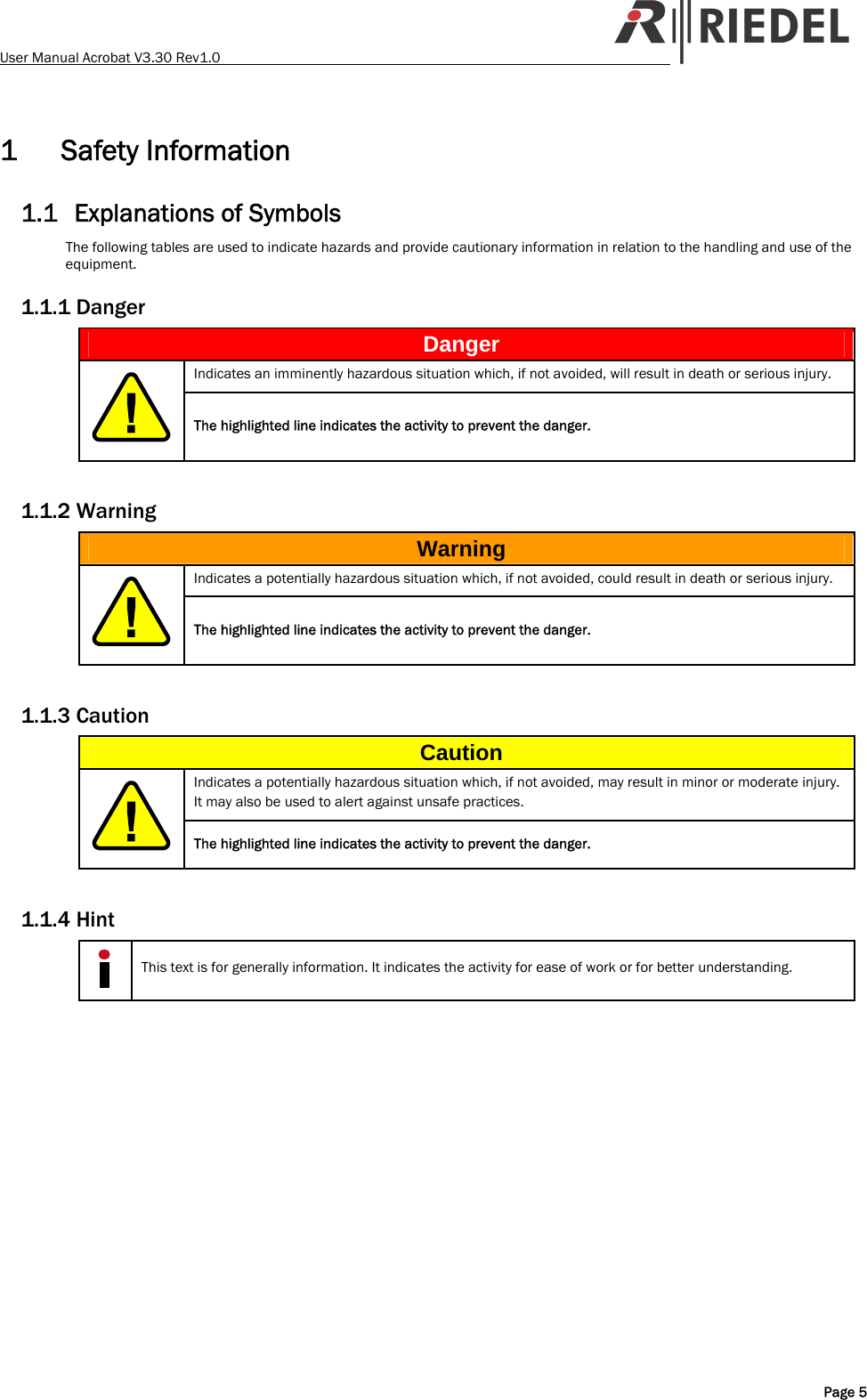
User Manual Acrobat V3.30 Rev1.0   1 Safety Information 1.1 Explanations of Symbols The following tables are used to indicate hazards and provide cautionary information in relation to the handling and use of the equipment. 1.1.1 Danger Danger Indicates an imminently hazardous situation which, if not avoided, will result in death or serious injury.  The highlighted line indicates the activity to prevent the danger.  1.1.2 Warning Warning Indicates a potentially hazardous situation which, if not avoided, could result in death or serious injury.  The highlighted line indicates the activity to prevent the danger.  1.1.3 Caution Caution Indicates a potentially hazardous situation which, if not avoided, may result in minor or moderate injury. It may also be used to alert against unsafe practices.  The highlighted line indicates the activity to prevent the danger.  1.1.4 Hint  This text is for generally information. It indicates the activity for ease of work or for better understanding.   Page 5
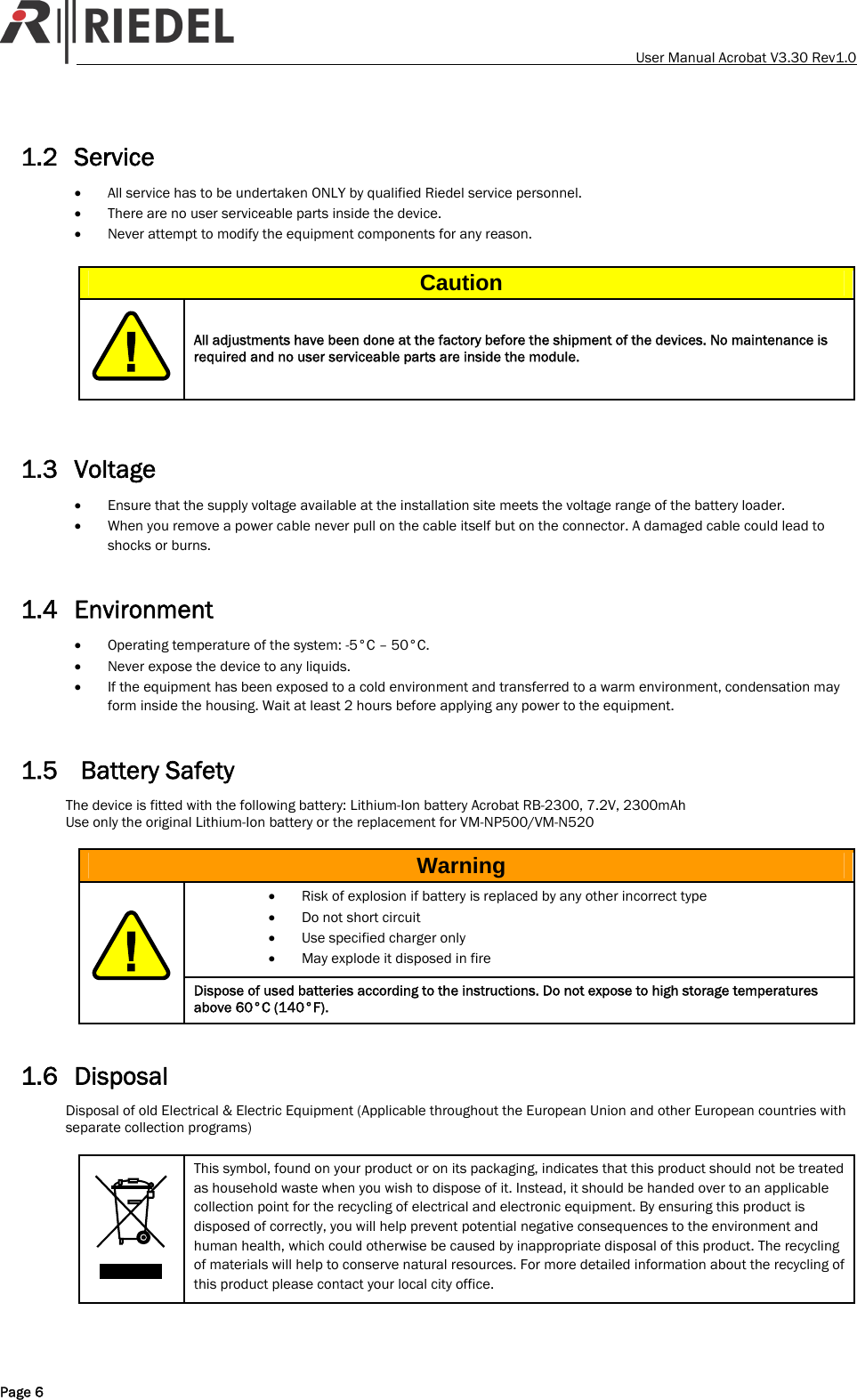
   User Manual Acrobat V3.30 Rev1.0 1.2 Service • All service has to be undertaken ONLY by qualified Riedel service personnel. • There are no user serviceable parts inside the device. • Never attempt to modify the equipment components for any reason.  Caution  All adjustments have been done at the factory before the shipment of the devices. No maintenance is required and no user serviceable parts are inside the module.   1.3 Voltage • Ensure that the supply voltage available at the installation site meets the voltage range of the battery loader. • When you remove a power cable never pull on the cable itself but on the connector. A damaged cable could lead to shocks or burns.  1.4 Environment • Operating temperature of the system: -5°C – 50°C. • Never expose the device to any liquids. • If the equipment has been exposed to a cold environment and transferred to a warm environment, condensation may form inside the housing. Wait at least 2 hours before applying any power to the equipment.  1.5  Battery Safety The device is fitted with the following battery: Lithium-Ion battery Acrobat RB-2300, 7.2V, 2300mAh Use only the original Lithium-Ion battery or the replacement for VM-NP500/VM-N520  Warning • Risk of explosion if battery is replaced by any other incorrect type • Do not short circuit • Use specified charger only • May explode it disposed in fire  Dispose of used batteries according to the instructions. Do not expose to high storage temperatures above 60°C (140°F).  1.6 Disposal Disposal of old Electrical & Electric Equipment (Applicable throughout the European Union and other European countries with separate collection programs)   This symbol, found on your product or on its packaging, indicates that this product should not be treated as household waste when you wish to dispose of it. Instead, it should be handed over to an applicable collection point for the recycling of electrical and electronic equipment. By ensuring this product is disposed of correctly, you will help prevent potential negative consequences to the environment and human health, which could otherwise be caused by inappropriate disposal of this product. The recycling of materials will help to conserve natural resources. For more detailed information about the recycling of this product please contact your local city office. Page 6
User Manual Acrobat V3.30 Rev1.0   2 Introduction 2.1 General Thank you for choosing a Riedel product.  This Manual describes the Installation, Configuration and Operation of the Acrobat WB-2 Wireless Beltpack for the Riedel Acrobat Digital Wireless Intercom system.  For further information about the Acrobat hardware please contact your local distributor or the Riedel headquarters in Wuppertal.   Offices  Headquarters Riedel Communications GmbH Uellendahler Straße 353 42109 Wuppertal Germany Phone: +49 (0) 202 292 – 90   Riedel Communications GmbH Ernst-Augustin-Str. 12 12489 Berlin Germany Phone: +49 (0) 30 67 82 61 – 20  Riedel Communications  51 Bukit Batok Crescent #06-07 Unity Centre  Singapore 658077 Phone: +65 6260 2913   Riedel Communications Austria GmbH Dörfelstr. 6-8 1120 Wien Austria Phone: +43 1 523 66 85 – 0  Riedel Communications Rm 1109, Blok A, Huibin Office Building, 8 Beichendong Rd,  Chao Yang District Beijing 100101 P.R. China Phone +86 10 8498 1197  Riedel Communications Inc. 2521 North Ontario Street Burbank, CA 91504 USA Phone: +1 818.563.4100  Riedel Communications Australia Pty- Ltd. South Sydney Technology Park 68/45-51 Huntley Street Alexandria 2015  Australia Phone: +61 (0) 2 9550 4537      Other countries: contact your local distributor, to be found at www.riedel.net Æ partners             © April 2009  Page 7
   User Manual Acrobat V3.30 Rev1.0  2.2 Terminology The term Beltpack is used as a synonym for a Acrobat WB-2 Wireless Beltpack. The term IWU (InterWorking Unit) is used as a synonym for a Acrobat CC-8 Cell Controller. The term Acrobat is used as a synonym for the whole Acrobat Digital Wireless Intercom system.  2.3 Supported headsets • Riedel PRO Headset • Riedel MAX Headset  2.4 Restrictions In the current firmware version, the following features or functionalities which are mentioned in the documentation are restricted since they are not or only partially implemented: • no restrictions    Page 8
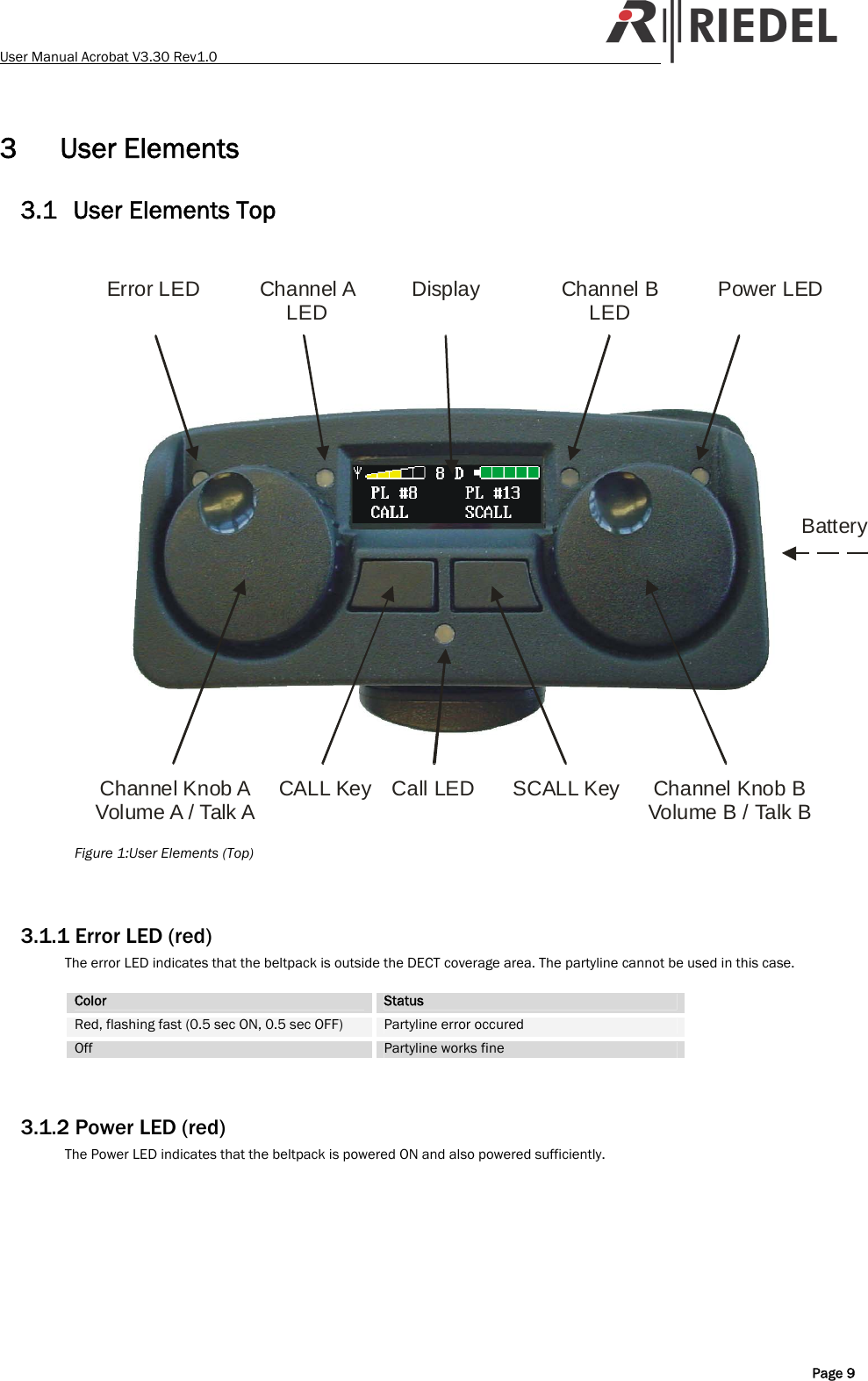
User Manual Acrobat V3.30 Rev1.0   3 User Elements 3.1 User Elements Top  DisplayChannel A LED Channel BLEDChannel Knob AVolume A / Talk A CALL Key Call LED SCALL Key Channel Knob BVolume B / Talk BError LED Power LEDBattery Figure 1:User Elements (Top)   3.1.1 Error LED (red) The error LED indicates that the beltpack is outside the DECT coverage area. The partyline cannot be used in this case.  Color  Status Red, flashing fast (0.5 sec ON, 0.5 sec OFF)  Partyline error occured Off  Partyline works fine   3.1.2 Power LED (red) The Power LED indicates that the beltpack is powered ON and also powered sufficiently.   Page 9
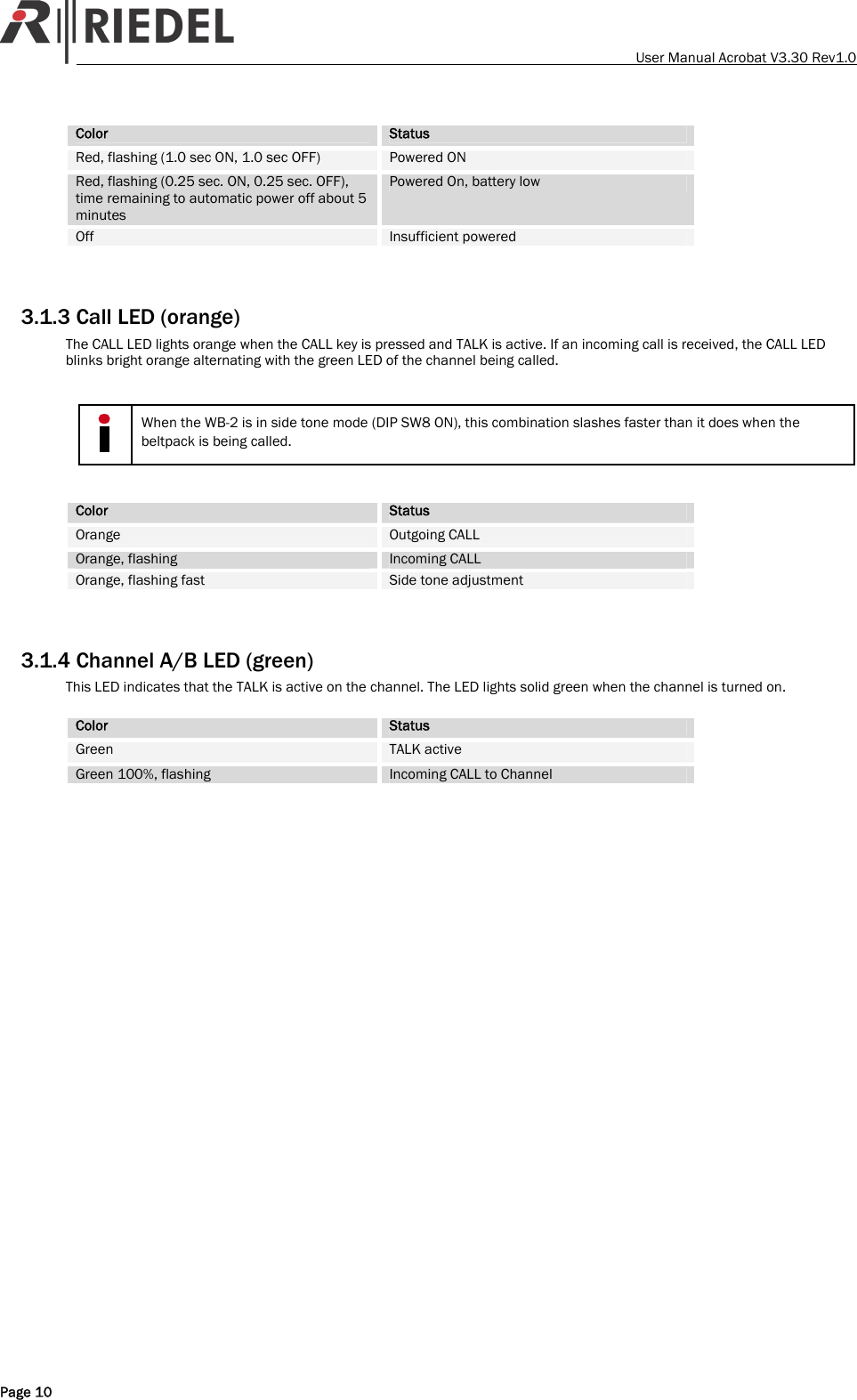
   User Manual Acrobat V3.30 Rev1.0 Color  Status Red, flashing (1.0 sec ON, 1.0 sec OFF)  Powered ON Red, flashing (0.25 sec. ON, 0.25 sec. OFF), time remaining to automatic power off about 5 minutes Powered On, battery low  Off  Insufficient powered   3.1.3 Call LED (orange) The CALL LED lights orange when the CALL key is pressed and TALK is active. If an incoming call is received, the CALL LED blinks bright orange alternating with the green LED of the channel being called.    When the WB-2 is in side tone mode (DIP SW8 ON), this combination slashes faster than it does when the beltpack is being called.   Color  Status Orange  Outgoing CALL Orange, flashing  Incoming CALL Orange, flashing fast  Side tone adjustment   3.1.4 Channel A/B LED (green) This LED indicates that the TALK is active on the channel. The LED lights solid green when the channel is turned on.  Color  Status Green  TALK active Green 100%, flashing  Incoming CALL to Channel  Page 10
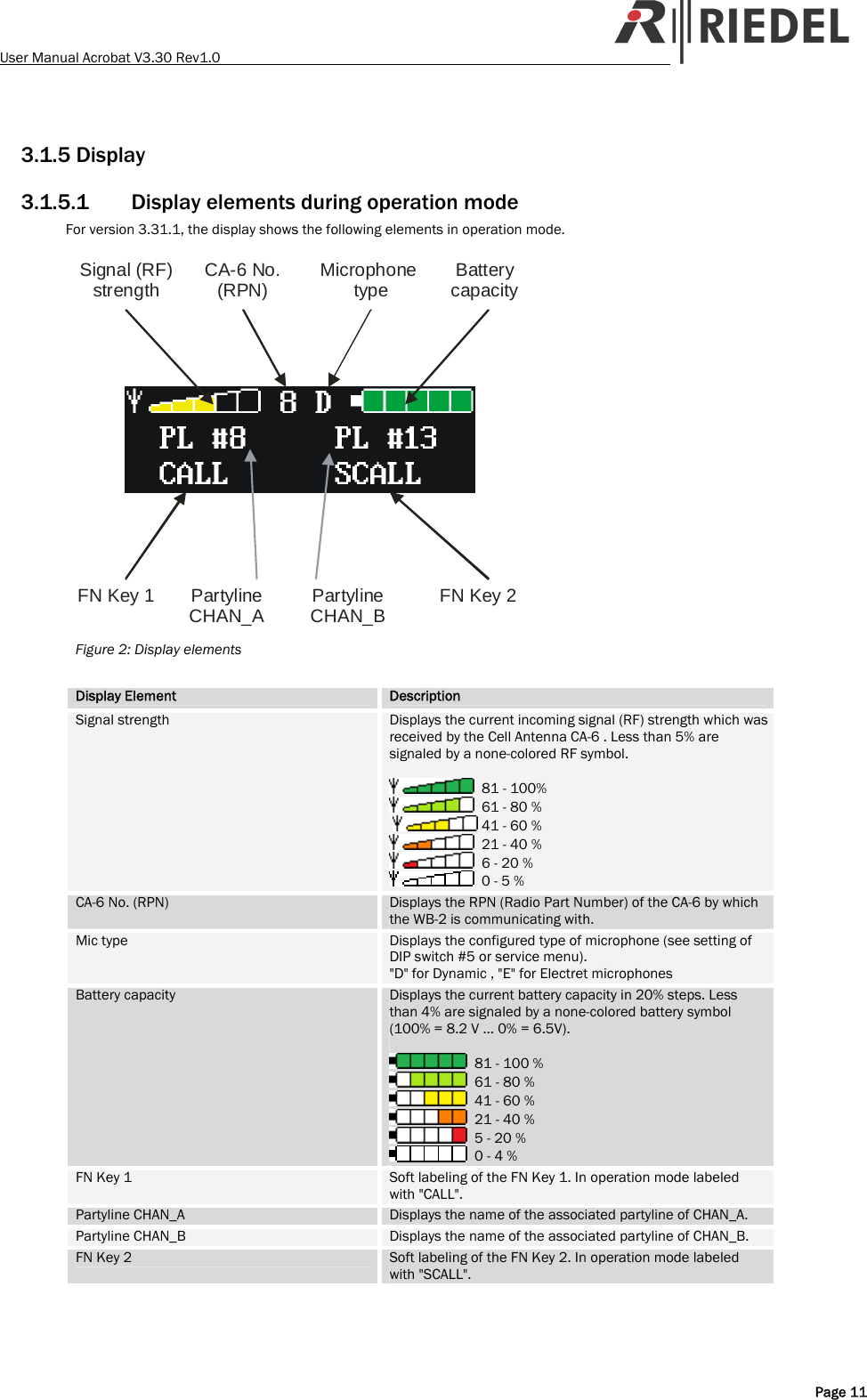
User Manual Acrobat V3.30 Rev1.0   3.1.5 Display 3.1.5.1 Display elements during operation mode For version 3.31.1, the display shows the following elements in operation mode.  Signal (RF) strengthFN Key 1 FN Key 2PartylineCHAN_A PartylineCHAN_BBattery capacityMicrophone typeCA-6 No. (RPN) Figure 2: Display elements  Display Element  Description Signal strength  Displays the current incoming signal (RF) strength which was received by the Cell Antenna CA-6 . Less than 5% are signaled by a none-colored RF symbol.    81 - 100%   61 - 80 %    41 - 60 %   21 - 40 %   6 - 20 %   0 - 5 % CA-6 No. (RPN)  Displays the RPN (Radio Part Number) of the CA-6 by which the WB-2 is communicating with. Mic type  Displays the configured type of microphone (see setting of DIP switch #5 or service menu). "D" for Dynamic , "E" for Electret microphones Battery capacity  Displays the current battery capacity in 20% steps. Less than 4% are signaled by a none-colored battery symbol (100% = 8.2 V … 0% = 6.5V).    81 - 100 %   61 - 80 %   41 - 60 %   21 - 40 %   5 - 20 %   0 - 4 % FN Key 1  Soft labeling of the FN Key 1. In operation mode labeled with "CALL". Partyline CHAN_A  Displays the name of the associated partyline of CHAN_A. Partyline CHAN_B  Displays the name of the associated partyline of CHAN_B. FN Key 2  Soft labeling of the FN Key 2. In operation mode labeled with "SCALL".   Page 11
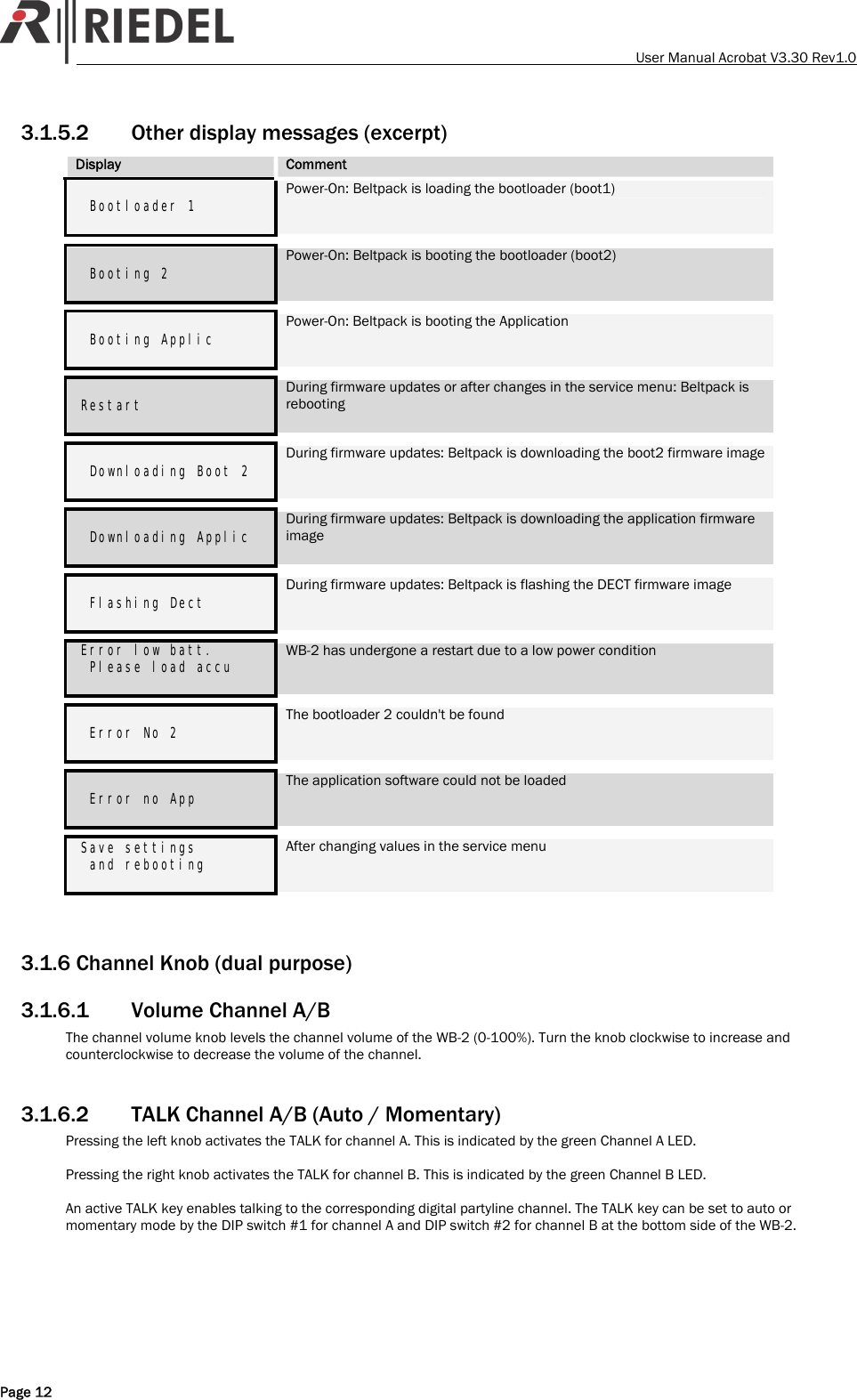
   User Manual Acrobat V3.30 Rev1.0 3.1.5.2 Other display messages (excerpt) Display  Comment                     Bootloader 1  Power-On: Beltpack is loading the bootloader (boot1)                       Booting 2  Power-On: Beltpack is booting the bootloader (boot2)                       Booting Applic  Power-On: Beltpack is booting the Application                      Restart  During firmware updates or after changes in the service menu: Beltpack is rebooting                       Downloading Boot 2  During firmware updates: Beltpack is downloading the boot2 firmware image                       Downloading Applic  During firmware updates: Beltpack is downloading the application firmware image                       Flashing Dect  During firmware updates: Beltpack is flashing the DECT firmware image   Error low batt.  Please load accu  WB-2 has undergone a restart due to a low power condition                       Error No 2  The bootloader 2 couldn't be found                       Error no App  The application software could not be loaded   Save settings   and rebooting   After changing values in the service menu   3.1.6 Channel Knob (dual purpose) 3.1.6.1 Volume Channel A/B The channel volume knob levels the channel volume of the WB-2 (0-100%). Turn the knob clockwise to increase and counterclockwise to decrease the volume of the channel.  3.1.6.2 TALK Channel A/B (Auto / Momentary) Pressing the left knob activates the TALK for channel A. This is indicated by the green Channel A LED.  Pressing the right knob activates the TALK for channel B. This is indicated by the green Channel B LED.  An active TALK key enables talking to the corresponding digital partyline channel. The TALK key can be set to auto or momentary mode by the DIP switch #1 for channel A and DIP switch #2 for channel B at the bottom side of the WB-2.  Page 12
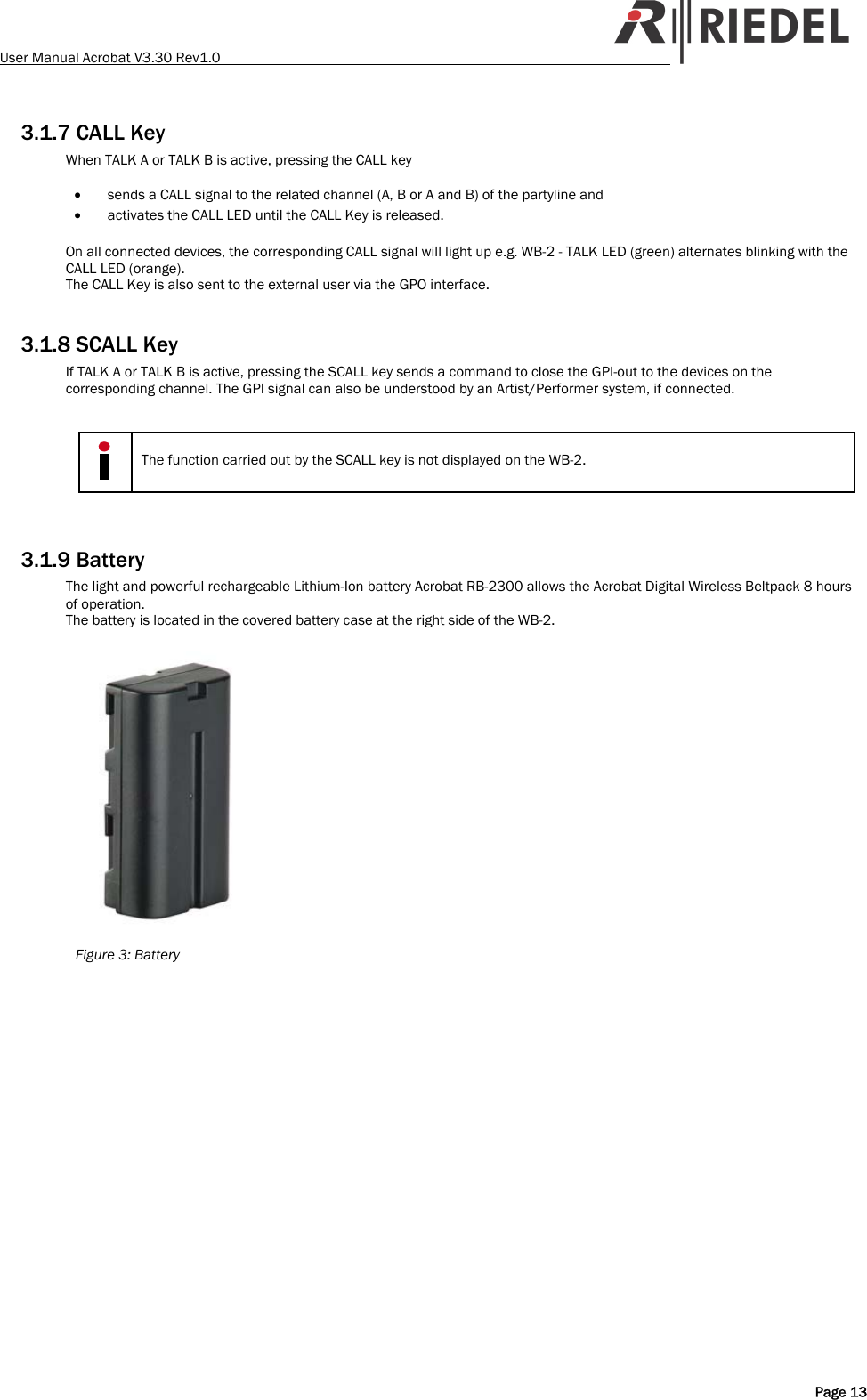
User Manual Acrobat V3.30 Rev1.0   3.1.7 CALL Key When TALK A or TALK B is active, pressing the CALL key   • sends a CALL signal to the related channel (A, B or A and B) of the partyline and • activates the CALL LED until the CALL Key is released.  On all connected devices, the corresponding CALL signal will light up e.g. WB-2 - TALK LED (green) alternates blinking with the CALL LED (orange).  The CALL Key is also sent to the external user via the GPO interface.  3.1.8 SCALL Key If TALK A or TALK B is active, pressing the SCALL key sends a command to close the GPI-out to the devices on the corresponding channel. The GPI signal can also be understood by an Artist/Performer system, if connected.    The function carried out by the SCALL key is not displayed on the WB-2.   3.1.9 Battery The light and powerful rechargeable Lithium-Ion battery Acrobat RB-2300 allows the Acrobat Digital Wireless Beltpack 8 hours of operation. The battery is located in the covered battery case at the right side of the WB-2.   Figure 3: Battery   Page 13
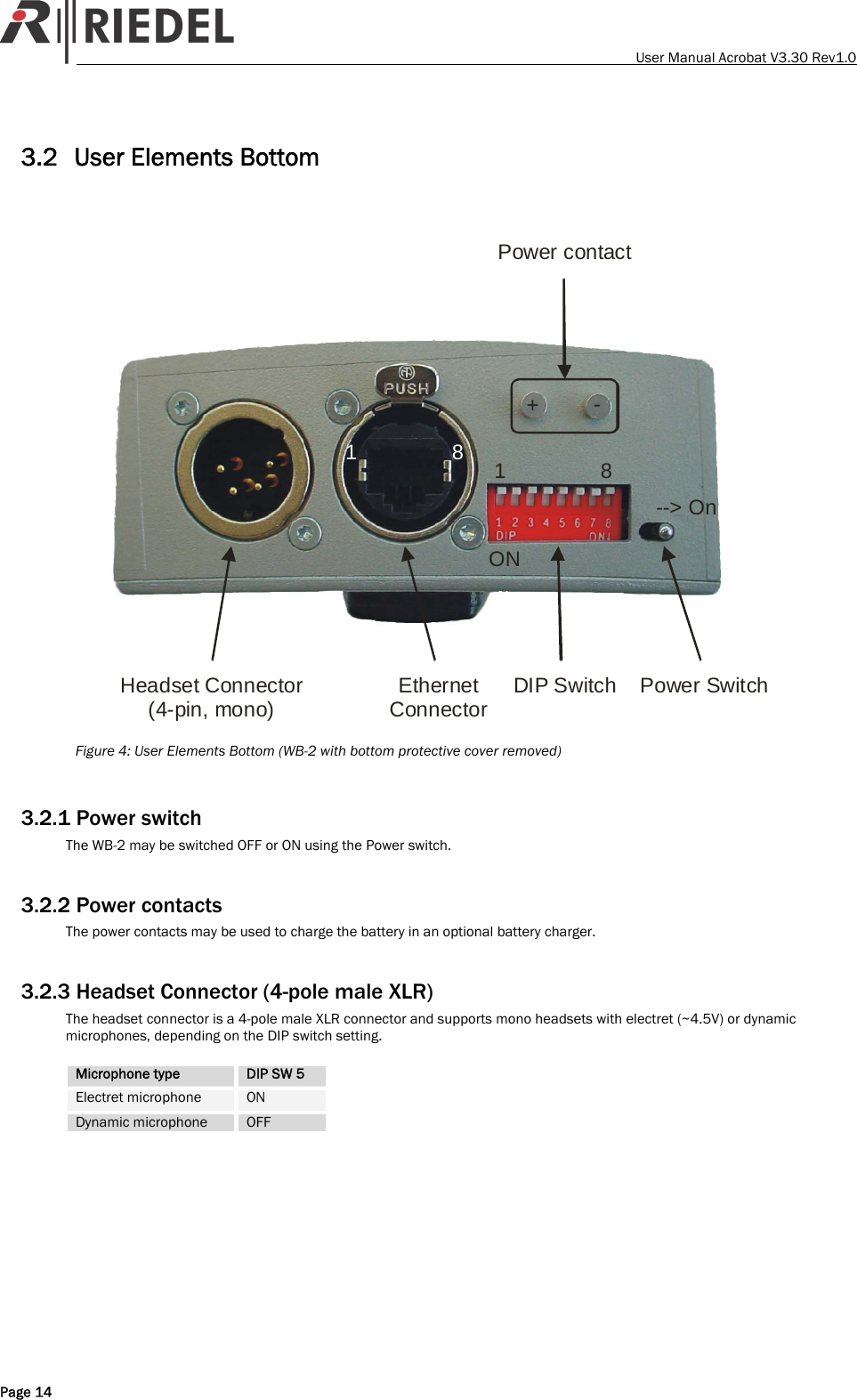
   User Manual Acrobat V3.30 Rev1.0 3.2 User Elements Bottom  1818+-Power contact--> OnONHeadset Connector(4-pin, mono) Ethernet Connector DIP Switch Power Switch Figure 4: User Elements Bottom (WB-2 with bottom protective cover removed)  3.2.1 Power switch The WB-2 may be switched OFF or ON using the Power switch.  3.2.2 Power contacts The power contacts may be used to charge the battery in an optional battery charger.  3.2.3 Headset Connector (4-pole male XLR) The headset connector is a 4-pole male XLR connector and supports mono headsets with electret (~4.5V) or dynamic microphones, depending on the DIP switch setting.  Microphone type  DIP SW 5 Electret microphone  ON Dynamic microphone  OFF  Page 14
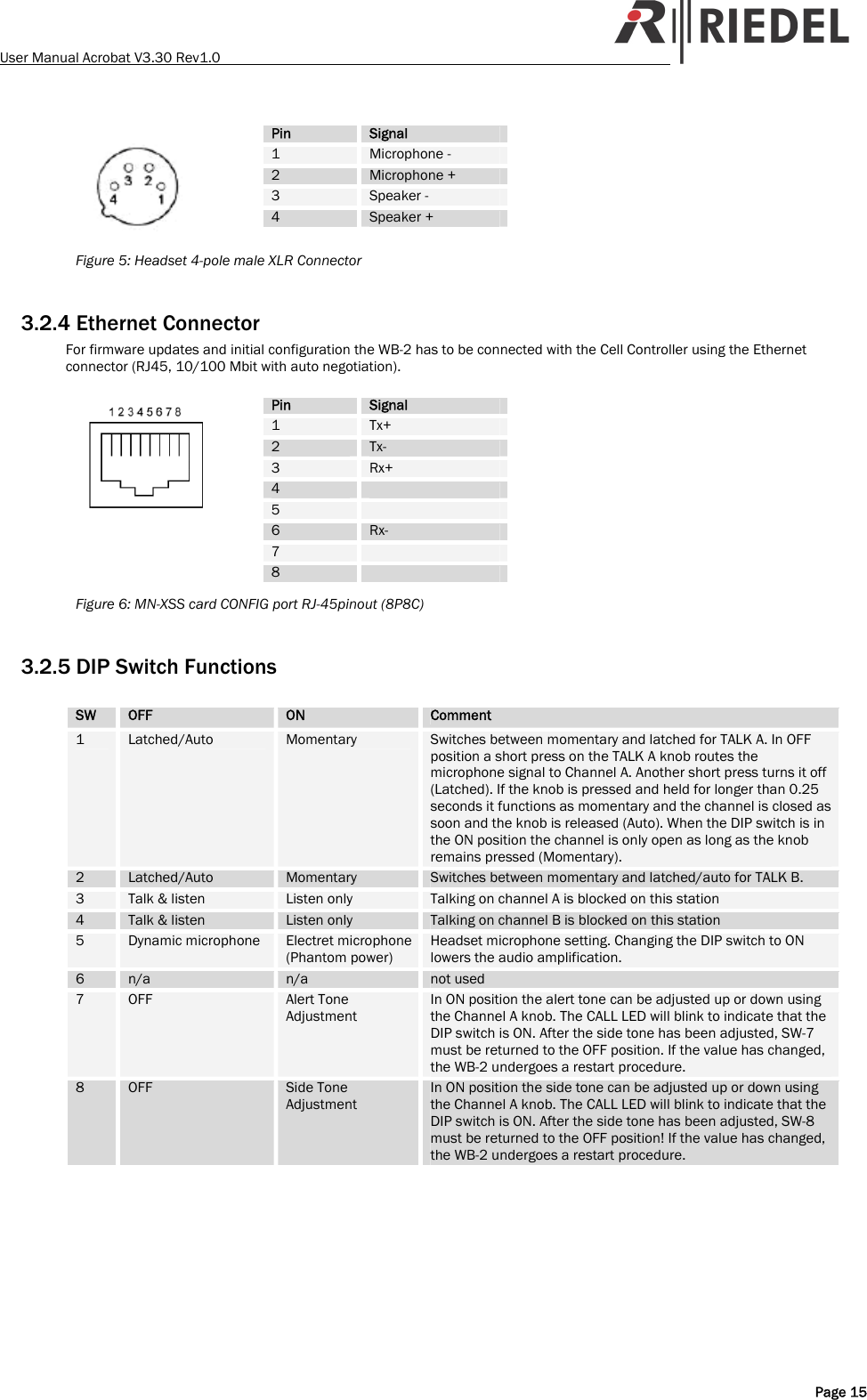
User Manual Acrobat V3.30 Rev1.0     Pin  Signal 1  Microphone - 2  Microphone + 3  Speaker - 4  Speaker + Figure 5: Headset 4-pole male XLR Connector  3.2.4 Ethernet Connector For firmware updates and initial configuration the WB-2 has to be connected with the Cell Controller using the Ethernet connector (RJ45, 10/100 Mbit with auto negotiation).     Pin  Signal 1  Tx+ 2  Tx- 3  Rx+ 4   5   6  Rx- 7   8   Figure 6: MN-XSS card CONFIG port RJ-45pinout (8P8C)  3.2.5 DIP Switch Functions  SW  OFF  ON  Comment 1  Latched/Auto  Momentary  Switches between momentary and latched for TALK A. In OFF position a short press on the TALK A knob routes the microphone signal to Channel A. Another short press turns it off (Latched). If the knob is pressed and held for longer than 0.25 seconds it functions as momentary and the channel is closed as soon and the knob is released (Auto). When the DIP switch is in the ON position the channel is only open as long as the knob remains pressed (Momentary). 2  Latched/Auto  Momentary  Switches between momentary and latched/auto for TALK B. 3  Talk & listen  Listen only  Talking on channel A is blocked on this station 4  Talk & listen  Listen only  Talking on channel B is blocked on this station 5  Dynamic microphone  Electret microphone (Phantom power) Headset microphone setting. Changing the DIP switch to ON lowers the audio amplification. 6  n/a  n/a  not used 7  OFF  Alert Tone Adjustment In ON position the alert tone can be adjusted up or down using the Channel A knob. The CALL LED will blink to indicate that the DIP switch is ON. After the side tone has been adjusted, SW-7 must be returned to the OFF position. If the value has changed, the WB-2 undergoes a restart procedure. 8  OFF  Side Tone Adjustment In ON position the side tone can be adjusted up or down using the Channel A knob. The CALL LED will blink to indicate that the DIP switch is ON. After the side tone has been adjusted, SW-8 must be returned to the OFF position! If the value has changed, the WB-2 undergoes a restart procedure.   Page 15
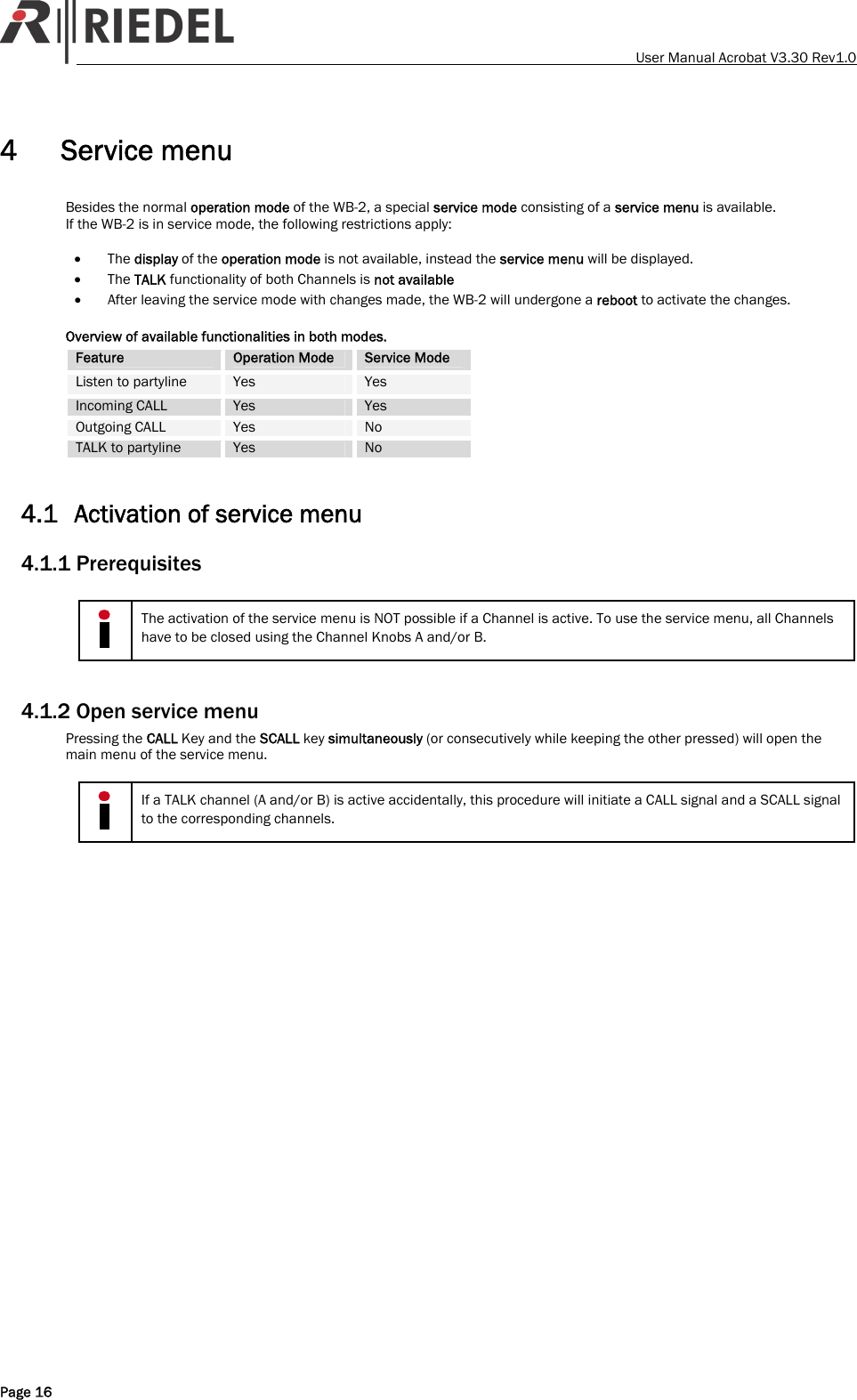
   User Manual Acrobat V3.30 Rev1.0 4 Service menu Besides the normal operation mode of the WB-2, a special service mode consisting of a service menu is available. If the WB-2 is in service mode, the following restrictions apply:  • The display of the operation mode is not available, instead the service menu will be displayed. • The TALK functionality of both Channels is not available • After leaving the service mode with changes made, the WB-2 will undergone a reboot to activate the changes.  Overview of available functionalities in both modes. Feature  Operation Mode  Service Mode Listen to partyline  Yes  Yes Incoming CALL  Yes  Yes Outgoing CALL  Yes  No TALK to partyline  Yes  No  4.1 Activation of service menu 4.1.1 Prerequisites   The activation of the service menu is NOT possible if a Channel is active. To use the service menu, all Channels have to be closed using the Channel Knobs A and/or B.  4.1.2 Open service menu Pressing the CALL Key and the SCALL key simultaneously (or consecutively while keeping the other pressed) will open the main menu of the service menu.   If a TALK channel (A and/or B) is active accidentally, this procedure will initiate a CALL signal and a SCALL signal to the corresponding channels.  Page 16
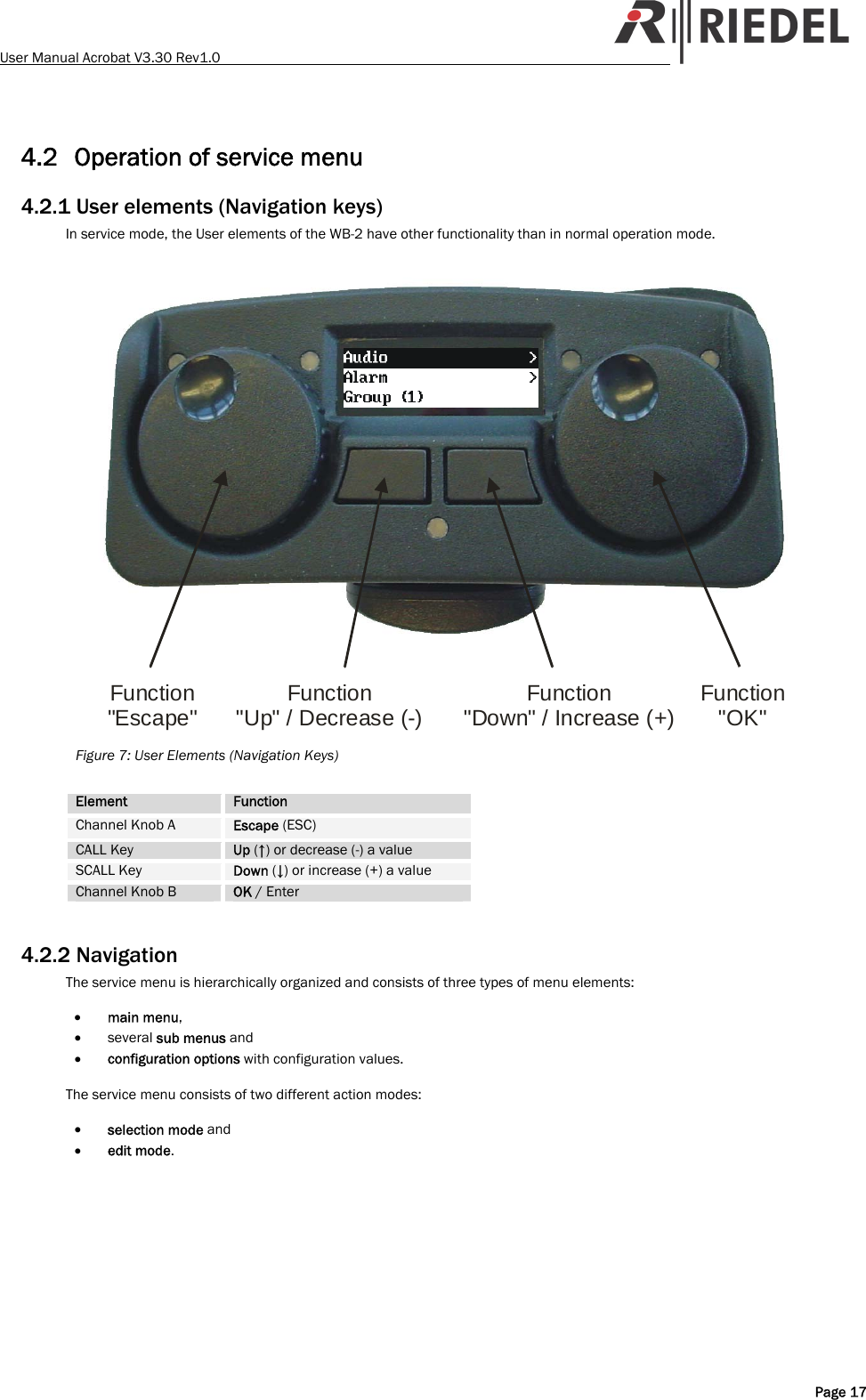
User Manual Acrobat V3.30 Rev1.0   4.2 Operation of service menu 4.2.1 User elements (Navigation keys) In service mode, the User elements of the WB-2 have other functionality than in normal operation mode.  Function"Escape" Function"Up" / Decrease (-) Function"Down" / Increase (+) Function"OK" Figure 7: User Elements (Navigation Keys)  Element  Function Channel Knob A  Escape (ESC) CALL Key  Up (↑) or decrease (-) a value SCALL Key  Down (↓) or increase (+) a value Channel Knob B  OK / Enter  4.2.2 Navigation The service menu is hierarchically organized and consists of three types of menu elements:   • main menu, • several sub menus and  • configuration options with configuration values.  The service menu consists of two different action modes:  • selection mode and  • edit mode.   Page 17
   User Manual Acrobat V3.30 Rev1.0 4.2.2.1 Initial screen After stepping into the service menu, selection mode is active and the first entry in the main menu is selected (and therefore marked inverse).  Display  Comment Wireless            Audio             > Alarm             > Menu display after invoking menu. The ">" at the right side indicates, that the actual (inverse) marked menu element is a sub menu. 4.2.2.2 Navigating Use the buttons [Up] (CALL) and [Down] (SCALL) to navigate through the service menu.  Wireless            Audio             > Alarm             > Menu display after pressing the button [Down].  The ">" at the right side indicates, that the actual (inverse) marked menu element is a sub menu. 4.2.2.3 Stepping inside a sub menu If a sub menu is selected (indicated by a ">" sign at the right side of the selected entry), use the button [Ok] to step inside this sub menu. This example shows the configuration options of the Audio menu.  Sideton (on) Sidetonevol. 50% Warntonevol. 10% Menu display after pressing the button [Ok] 4.2.2.4 Changing values of configuration options Sideton (on) Sidetonevol. 50% Warntonevol. 10% Menu display after pressing the button [Down].   To activate the modification of a configuration option you have to switch from selection mode to edit mode. This is accomplished by pressing the [Ok] button for a selected configuration option.  Sideton (on) Sidetonevol. 50%  * Warntonevol. 10% Menu display after pressing the button [Ok]. The "*" at the right side indicates, that the actual mode is edit mode.   To change the value of a configuration option in edit mode, change the values using the [Up] and [Down] buttons once or consecutively. (Hint: Percentage values are changed in 5% steps)  Sideton (on) Sidetonevol. 60%  * Warntonevol. 10% Menu display after pressing the button [Down] several times.  To save the changed value of a configuration option, press the button [OK]. To discard the changes of a changed configuration option, press the button [Escape].  4.2.2.5 Exiting service menu To exit the edit mode or exit the menu to the upper menu level - or if already in the main menu level - exit the service menu completely - use the [Escape] button once or consecutively.  Page 18
User Manual Acrobat V3.30 Rev1.0   Display  Comment   Save changes?     No       Yes Menu display after pressing the button [Escape].  Pressing the left button (labeled "No") will discard all changed value. Pressing the right button (labeled "Yes") will save all changed value.  4.2.3 Menu structure (Overview)  Menu element  Possible values  ╠══ Wireless ║ ╠═══ Name: BP-041_G2  Displays Beltpackname (WB2) ║ ╠═══ Timeslots (even)  Displays timeslot parity (even) ║ ╚═══ ARI. 10-1b-2f-f7-00  Displays ARI ║ ╠══ Audio ║ ║ ║ ╠═══ Sidetone (on)  on|off ║ ╠═══ Sidetonevol. 50%  Percent (50%) ║ ╠═══ Warntonevol. 10%  Percent (10%) ║ ╠═══ Channel A ║ ║    ╠═══ Local talk (on)  on|off|dip ║ ║    ╚═══ Btn A (latched)  latched|momentary|dip ║ ╠═══ Channel B ║ ║    ╠═══ Local talk (on)  on|off|dip ║ ║    ╚═══ Btn B (latched)  latched|momentary|dip ║ ╚═══ MicType (dyn)  dyn.|elect.|dip ║ ╠══ Alarm ║ ╠═══ low batt (off)  on|off ║ ╠═══ low RF (on)  on|off ║ ╚═══ out of sync (on)  on|off ║ ╠══ Partyline selection ║ ╠═══ ChanA PL # 1  (1, 2, … 18) ║ ╚═══ ChanB PL # 2  (1, 2, … 18) ║ ╠══ Firmware ║ ╠═══ 1 V3.27.2 Jun 17 2009  Version Bootloader 1 ║ ╠═══ 2 V3.28.2 Jul 6 2009  Version Bootloader 2 ║ ╚═══ A V3.28.2 Jul 6 2009  Version Application ║ ╠══ Hardware ║ ╠═══ HW-Rev: 1.0.0  Hardware-Revision ║ ╠═══ IP: 192.168.5.62  IP-Address ║ ╚═══ 00-50-C2-8B-9F-08  MAC-Address ║ ╚══ Default settings    The Default settings are marked blue/bold.    Page 19
   User Manual Acrobat V3.30 Rev1.0 5 Tones and events 5.1 Tones To signal the user special events, some signal tones are generated at the WB-2.  Tone name  Tone type (*)  Description Low battery  0.1 / 60.0 / 400  Low battery tone - the battery of the WB-2 is near its end (only some minutes left). Low RF  0.2 / 60.0 / 800  Low RF tone - WB-2 is outside DECT coverage and/or Cell Controller not functional Out of sync  0.1 / 3.0 / 800  Out of sync tone - the WB-2 is outside the coverage area of the CA-6  Alone in partyline  1 / 4 / 400  Alone in partyline tone - if inside a partyline only one Beltpack is assigned to that partyline (*) = Pulse time in seconds / Pause time in seconds / Frequency in Hz  5.2 Events Coming soon.  5.3 Troubleshooting  Symptom  Reason The POWER LED is flashing fast (0.25sec / 0.25 sec.) and the display is switched off. The battery is near its end (only some minutes left). Replace the battery with a charged one.  Page 20
User Manual Acrobat V3.30 Rev1.0   6 Service If you have any further questions, we offer comprehensive customer service options for this product including:   • Telephone service • E-mail service • Skype Service • Fax service • Configuration support • Trainings • Repairs    Your primary point of contact for any service issues is your local dealer.  In addition, Riedel Customer Service in Wuppertal, Germany is also available to assist you.    Telephone: +49 (0) 202 292 9400 (Monday - Friday, 8am – 5pm, Central European Time)  Fax: +49 (0) 202 292 9419  Skype: riedel.communications.service  Or use the contact form on our webpage: www.riedel.net    For repairs, please contact your local dealer. Your dealer will be able to help process your repair as fast as possible and/or arrange for the delivery of spare parts.   The address for repairs sent directly to Riedel Communications GmbH is:    Riedel Communications GmbH - Repairs - Uellendahler Str. 353 D-42109 Wuppertal Germany    Please add a completed repair form to all your repairs. The form can be found at the Riedel website Æ download Æ forms   Page 21
   User Manual Acrobat V3.30 Rev1.0 Page 22 7 NOTES
                                            Riedel Communications GmbH & Co KG• Uellendahler Str. 353 • 42109 Wuppertal • Germany Phone: +49 (0) 202 292-90 • Fax: +49 (0) 202 292-99 99  Riedel Communications GmbH & Co KG• Ernst-Augustin-Str. 12 • 12489 Berlin • Germany Phone: +49 (0) 30 67 82 61-0 • Fax: +49 (0) 30 67 82 61-59  Riedel Austria Communications GmbH • Dörfelstraße 6-8 • 1120 Wien • Austria Phone: +43 1 523 66 85-0 • Fax: +43 1 523 66 85-50  Riedel Communications • 51 Bukit Batok Crescent • #06-07 Unity Centre • Singapore 658077 Phone: +65 6260 2913 • Fax: +65 6234 4819  Riedel Communications Inc. • 1721 Victory Blvd • Glendale, CA 91201 • USA East Coast Phone +1 (914) 819-0495 •Fax +1 (914) 816-4033 West Coast Phone + 1 (818) 241 4696 •Fax + 1 (818) 241 5927  Riedel Communications • Rm 1109 • Blok A, Huibin Office Building, 8 Beichendong Rd Chao Yang District • Beijing 100101 • P.R. China Phone: +86 10 8498 1197• Fax: +86 10 8497  Riedel Communications Australia Pty. Ltd. • South Sydney Technology Park • 68/45-51 Huntley Street • Alexandria 2015, Australia Phone: +61 (0) 2 9550 4537  www.riedel.net

Navigation menu