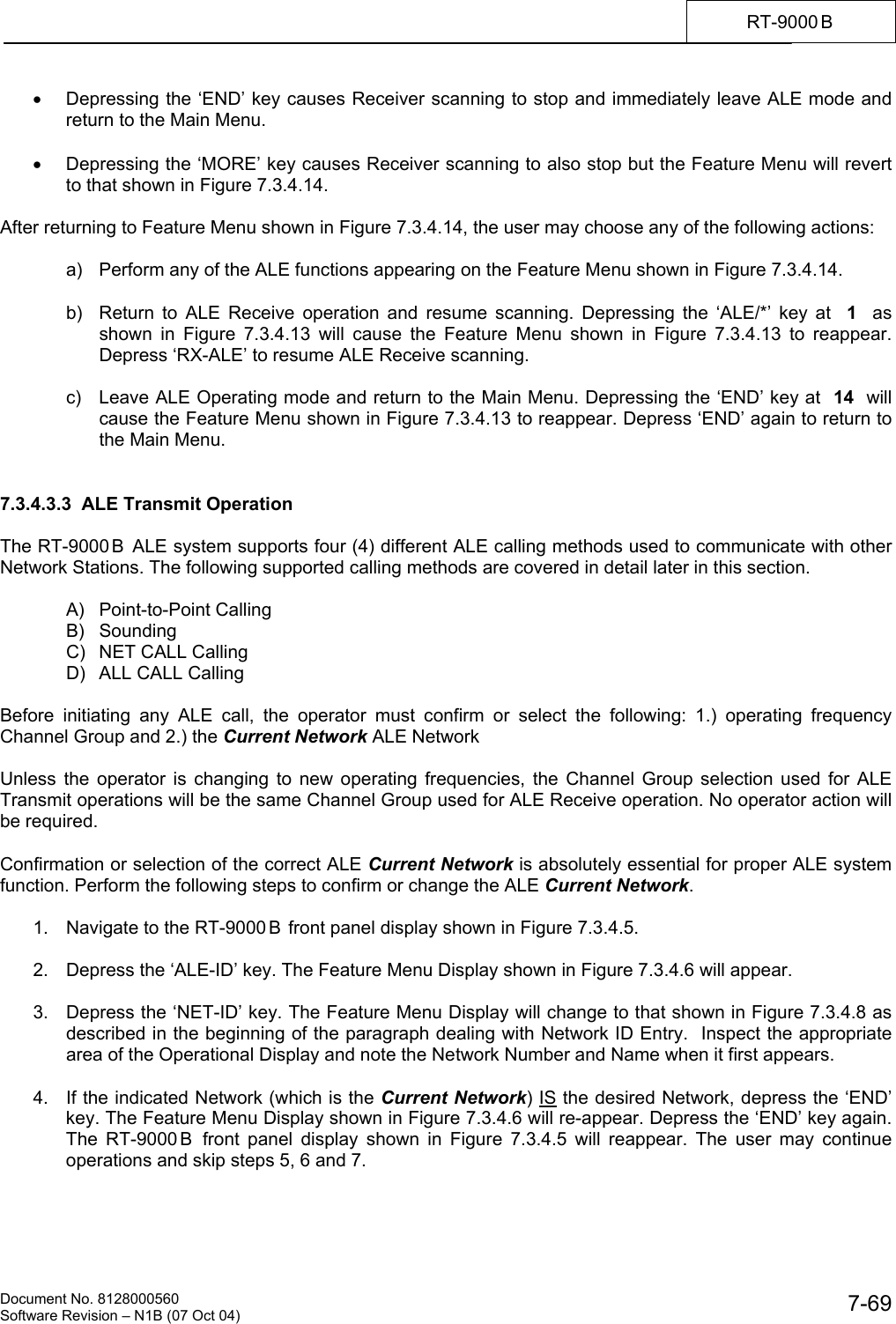
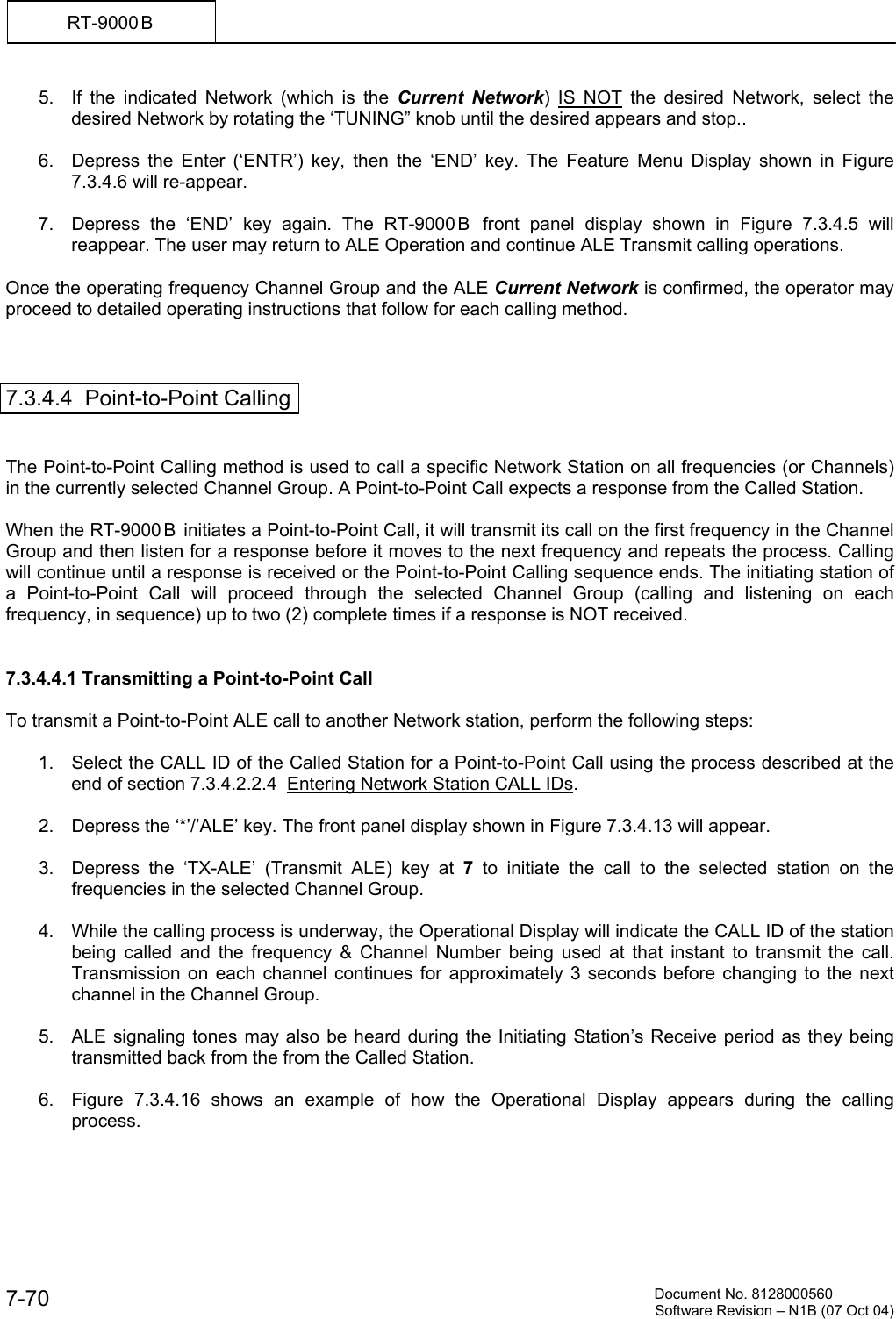
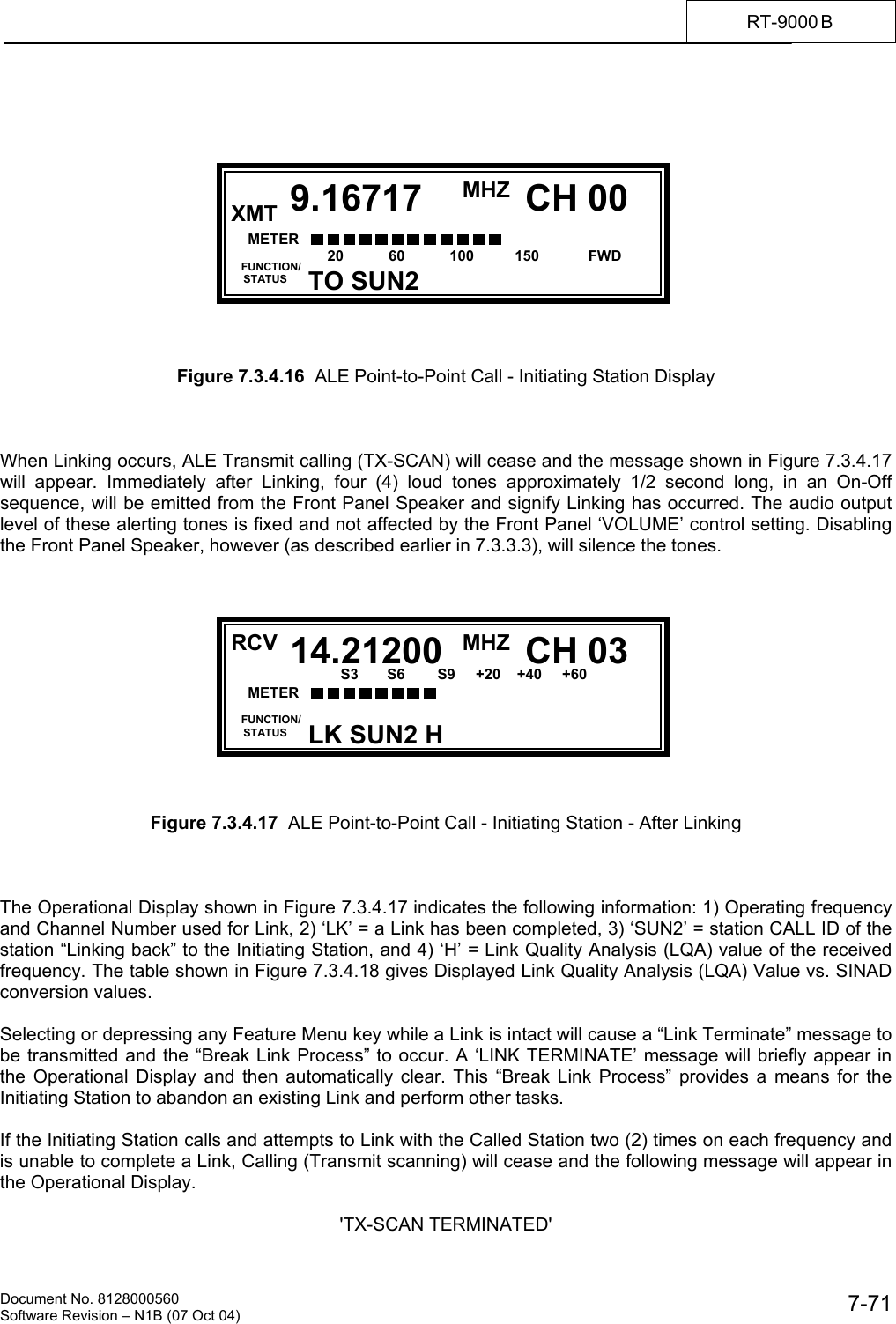
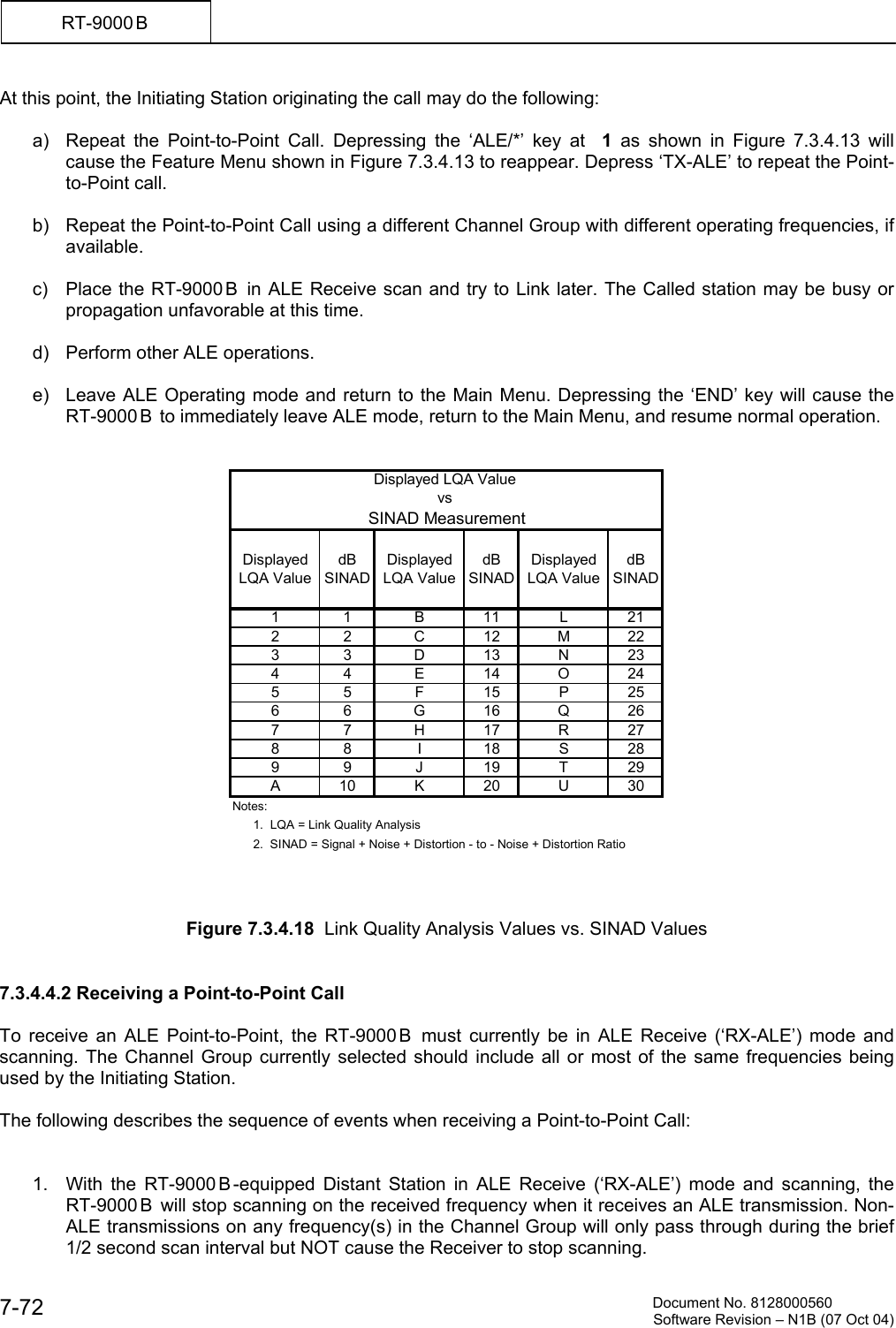
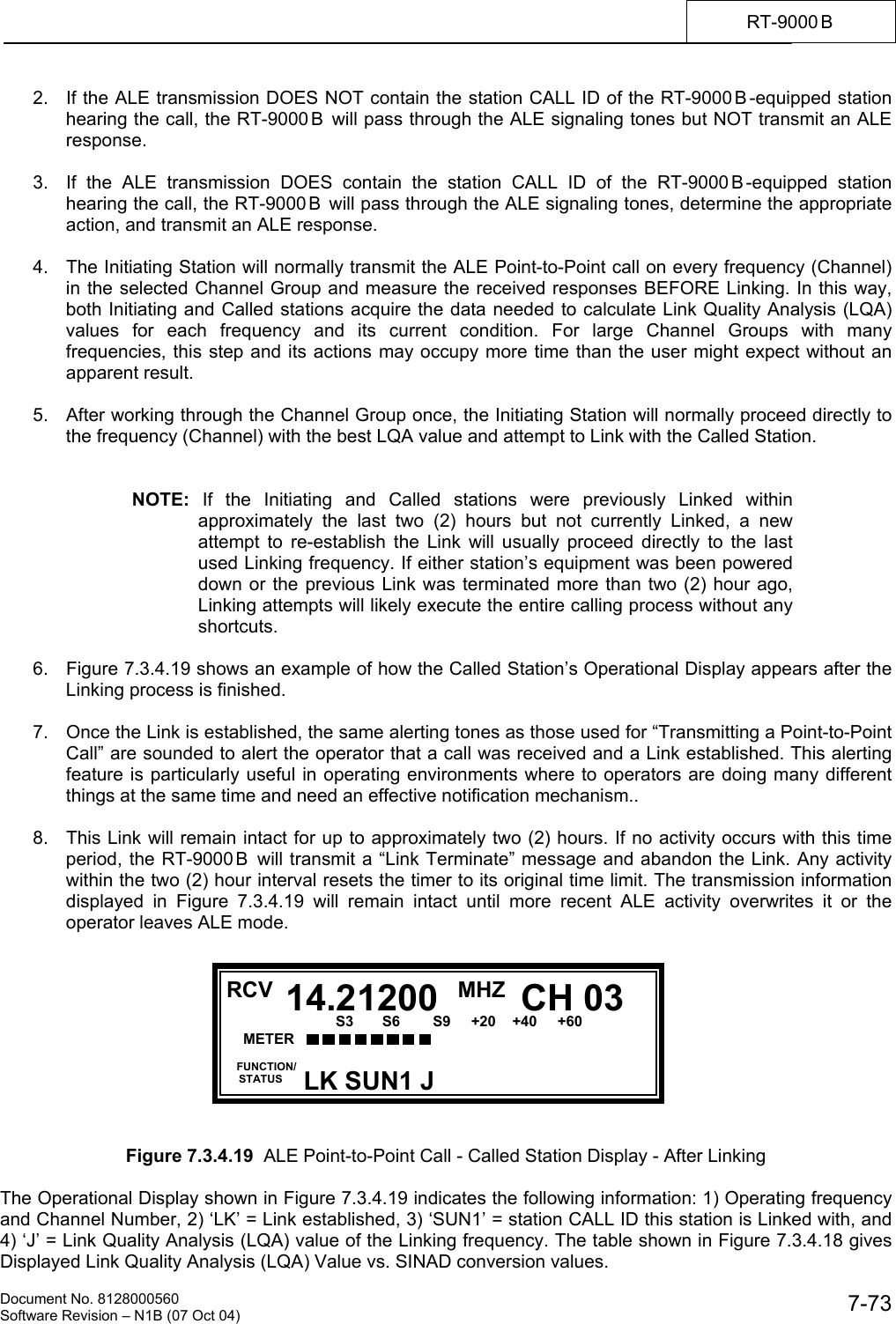
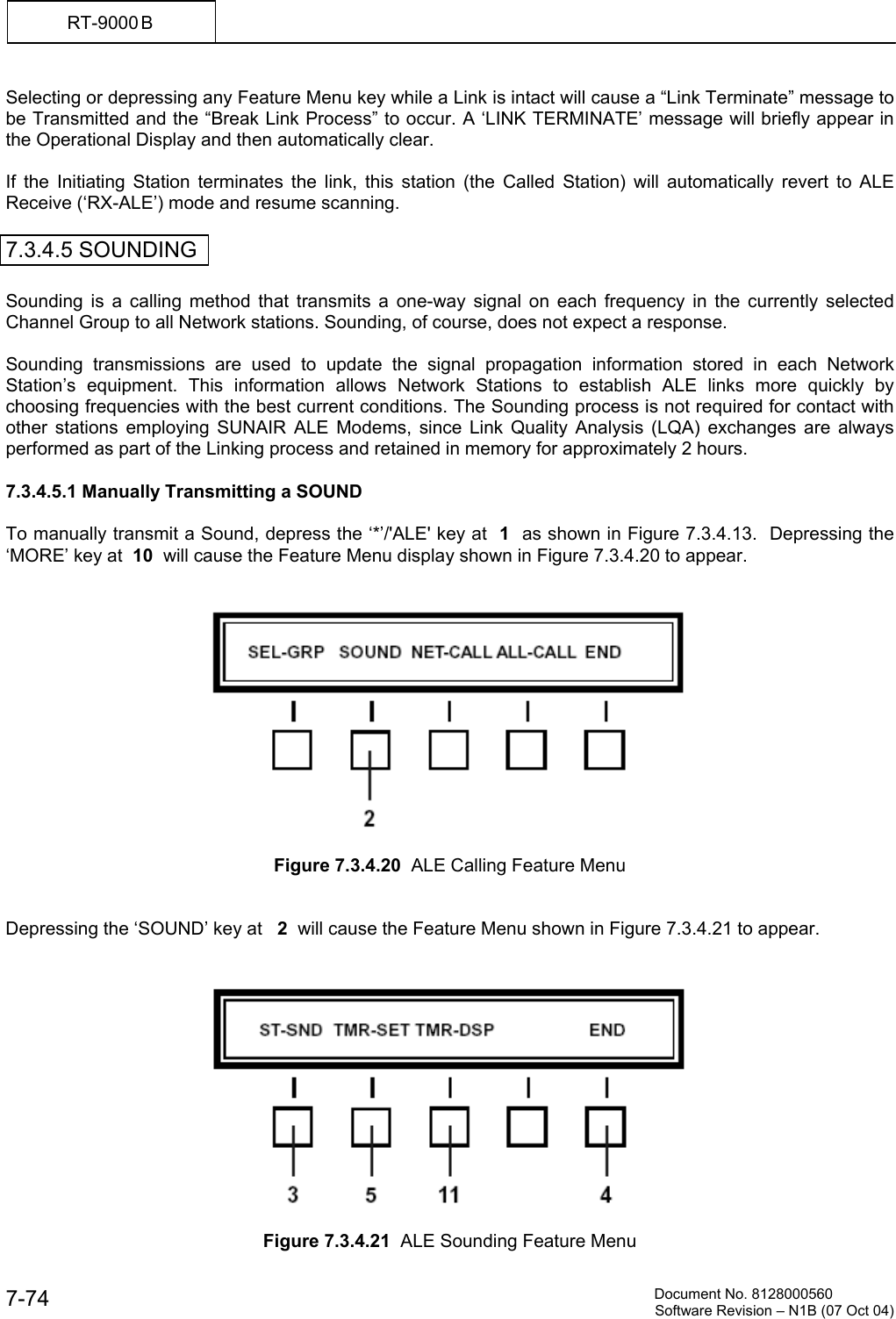
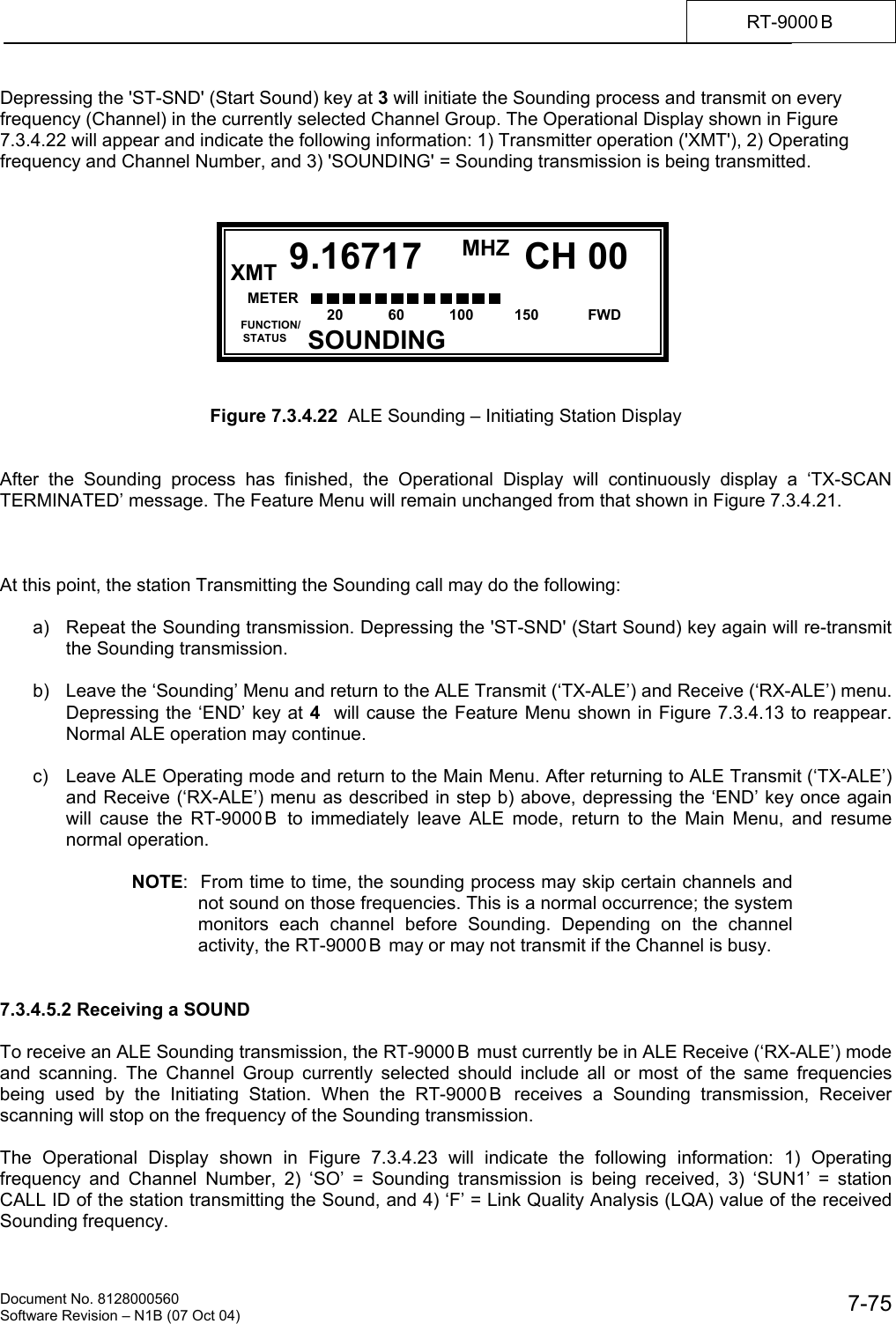
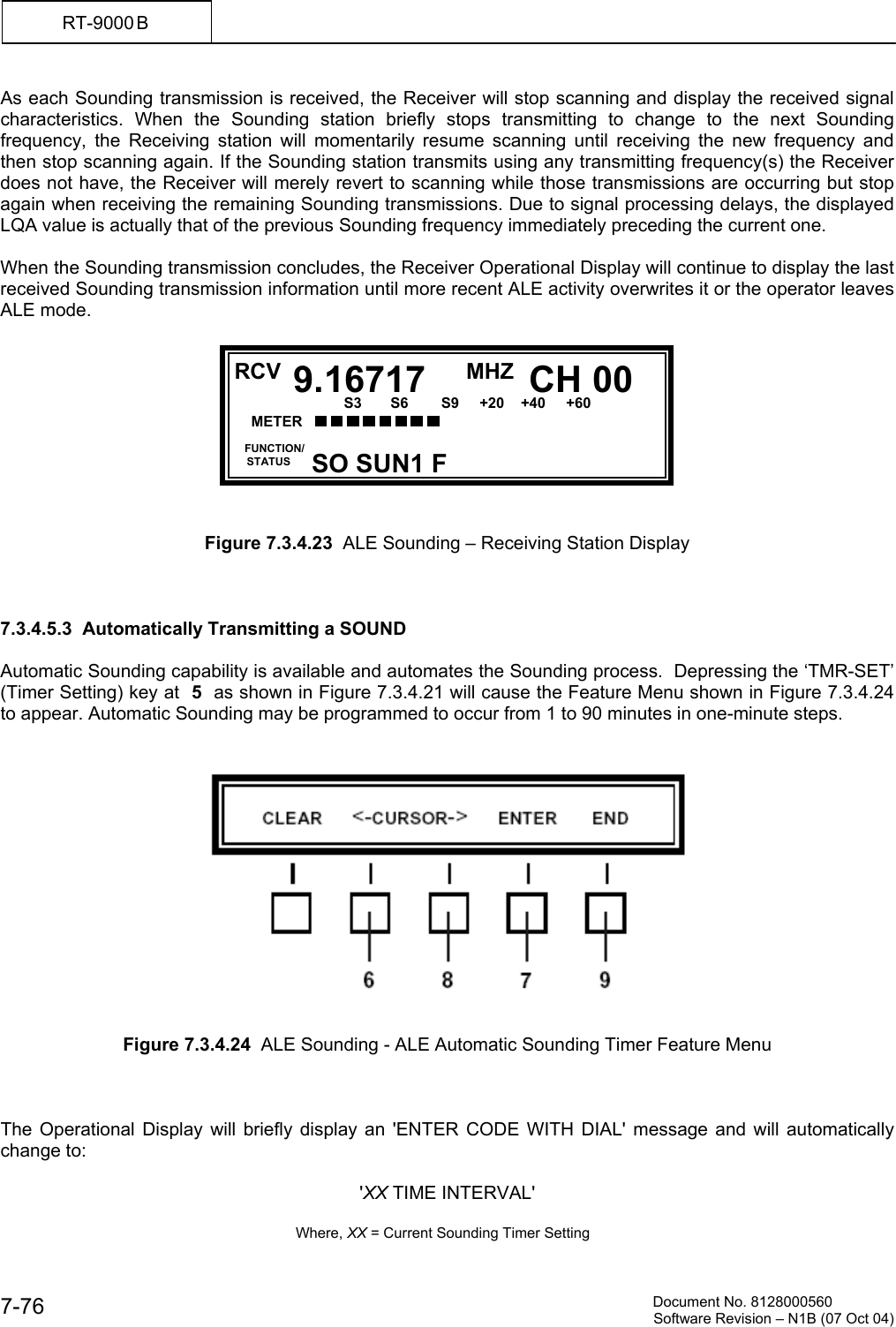
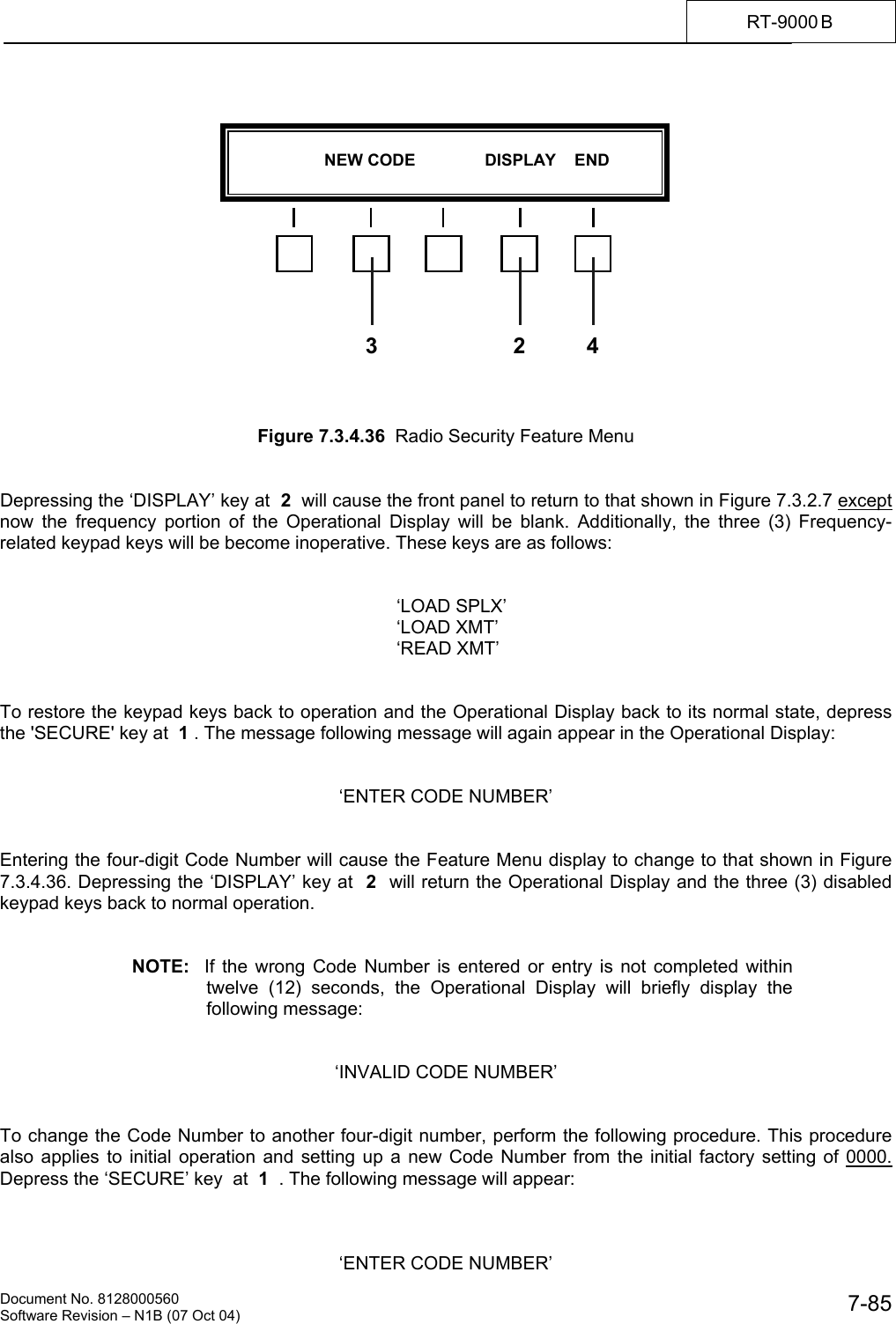
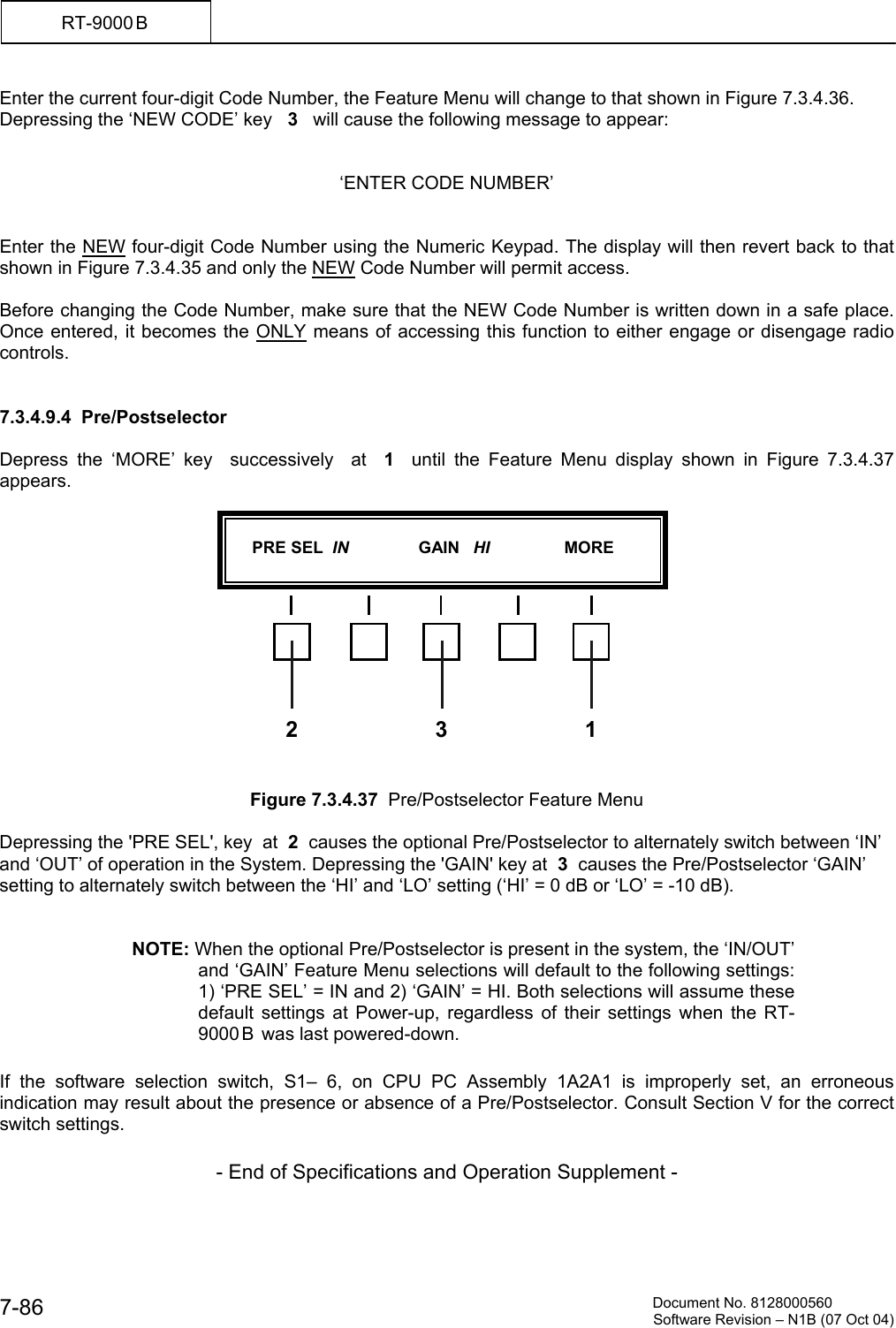
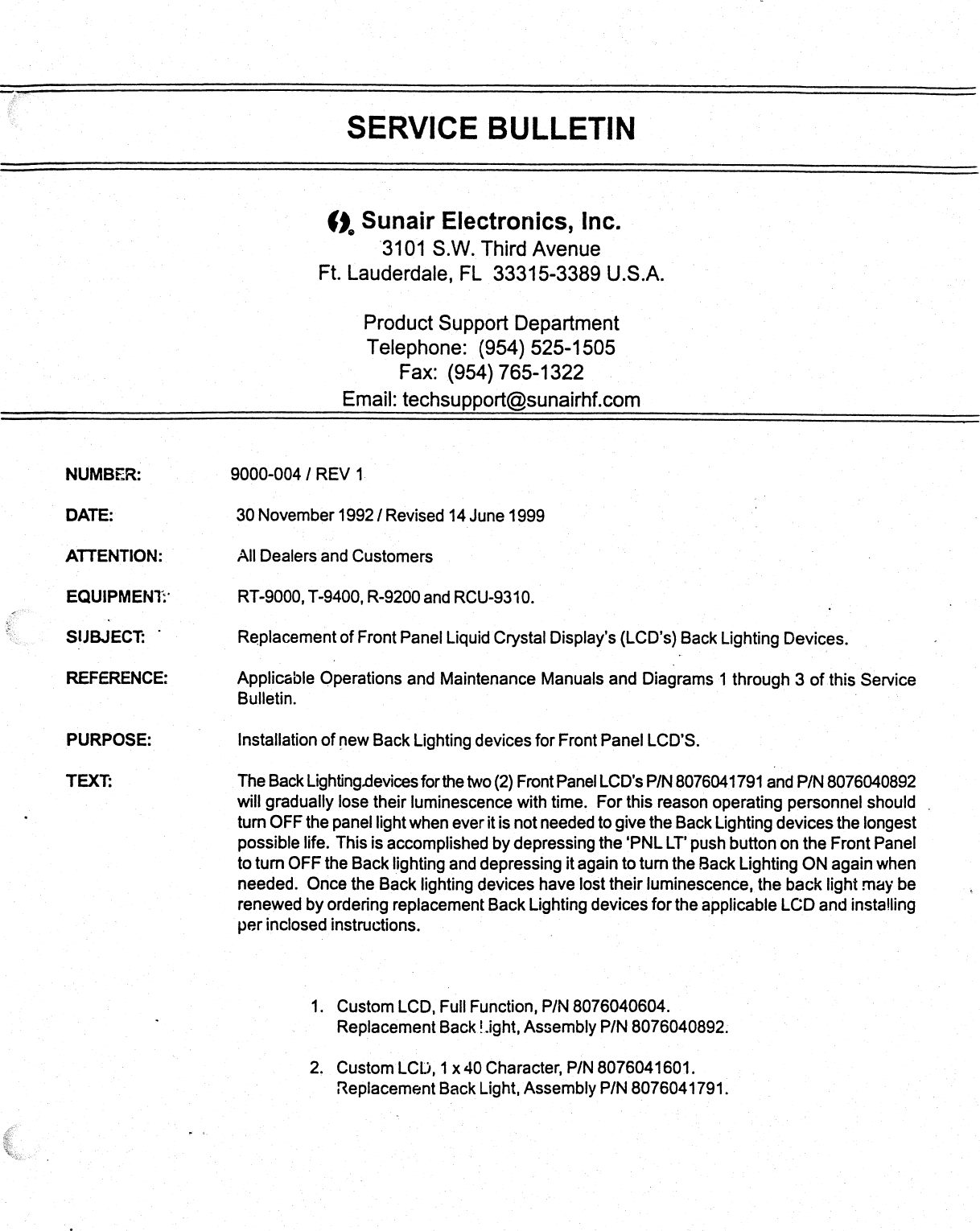
Riimic Sunair Electronics RT-9000 HF TRANSCEIVER User Manual

Riimic, LLC dba Sunair Electronics HF TRANSCEIVER Users Manual

Users Manual

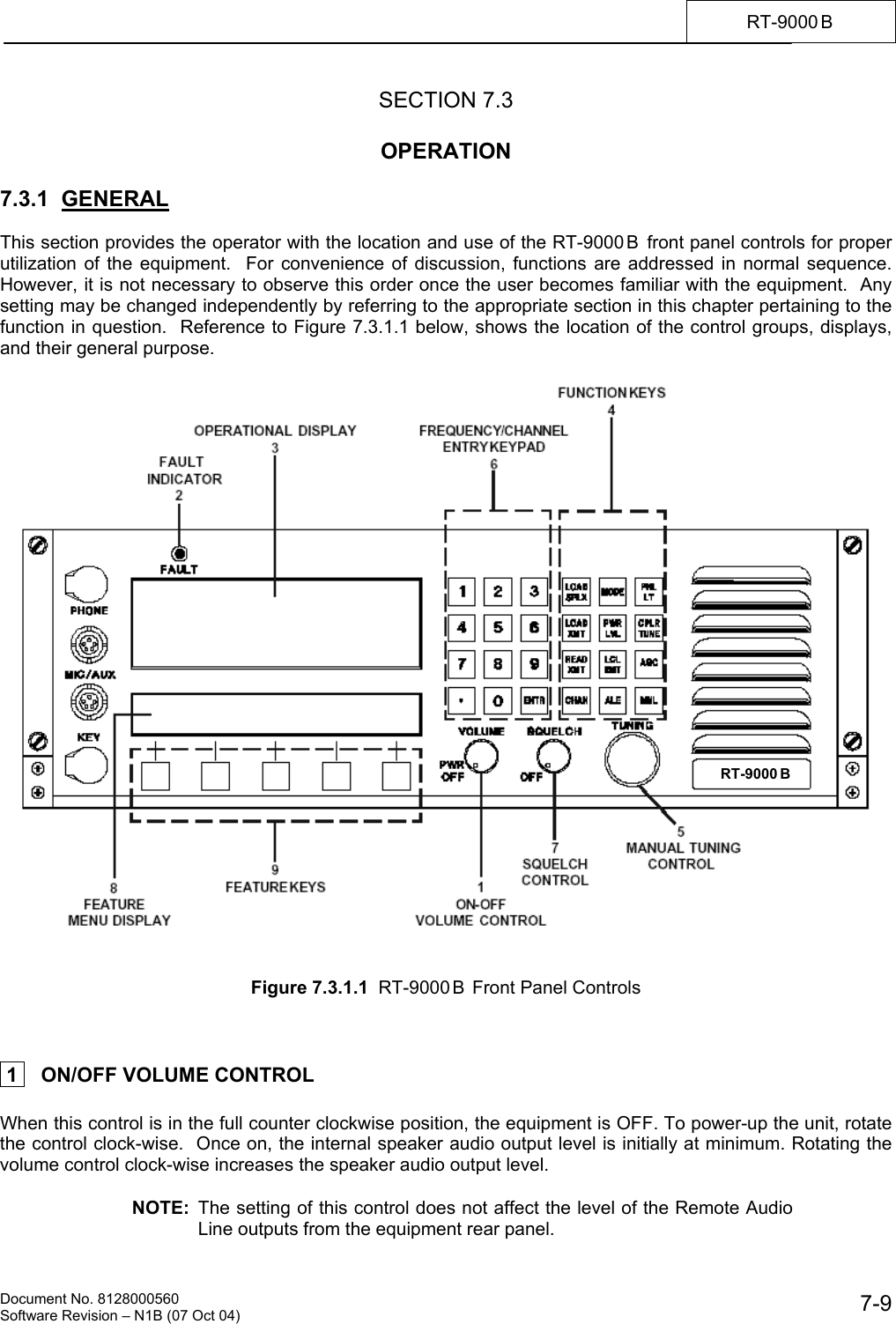
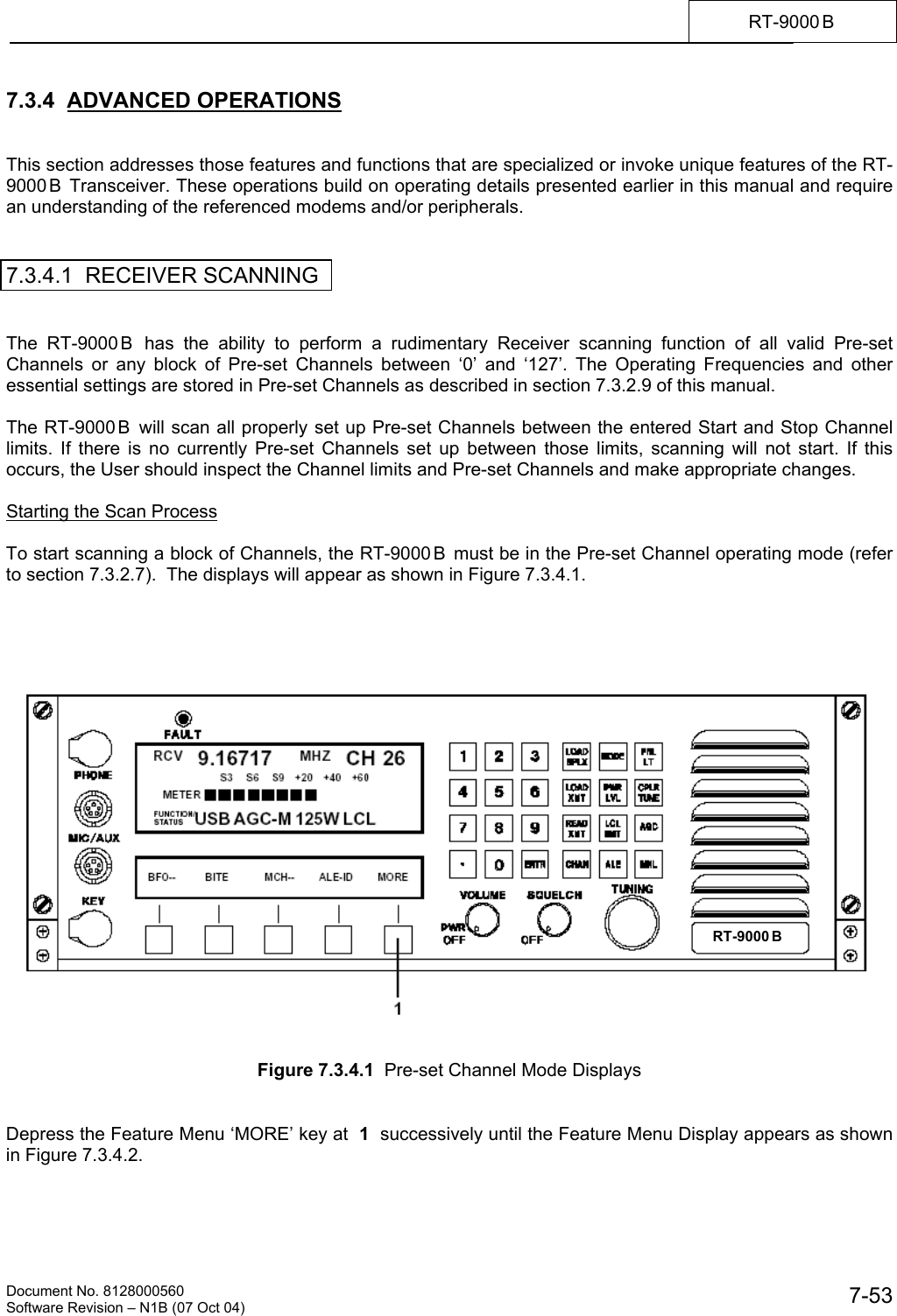
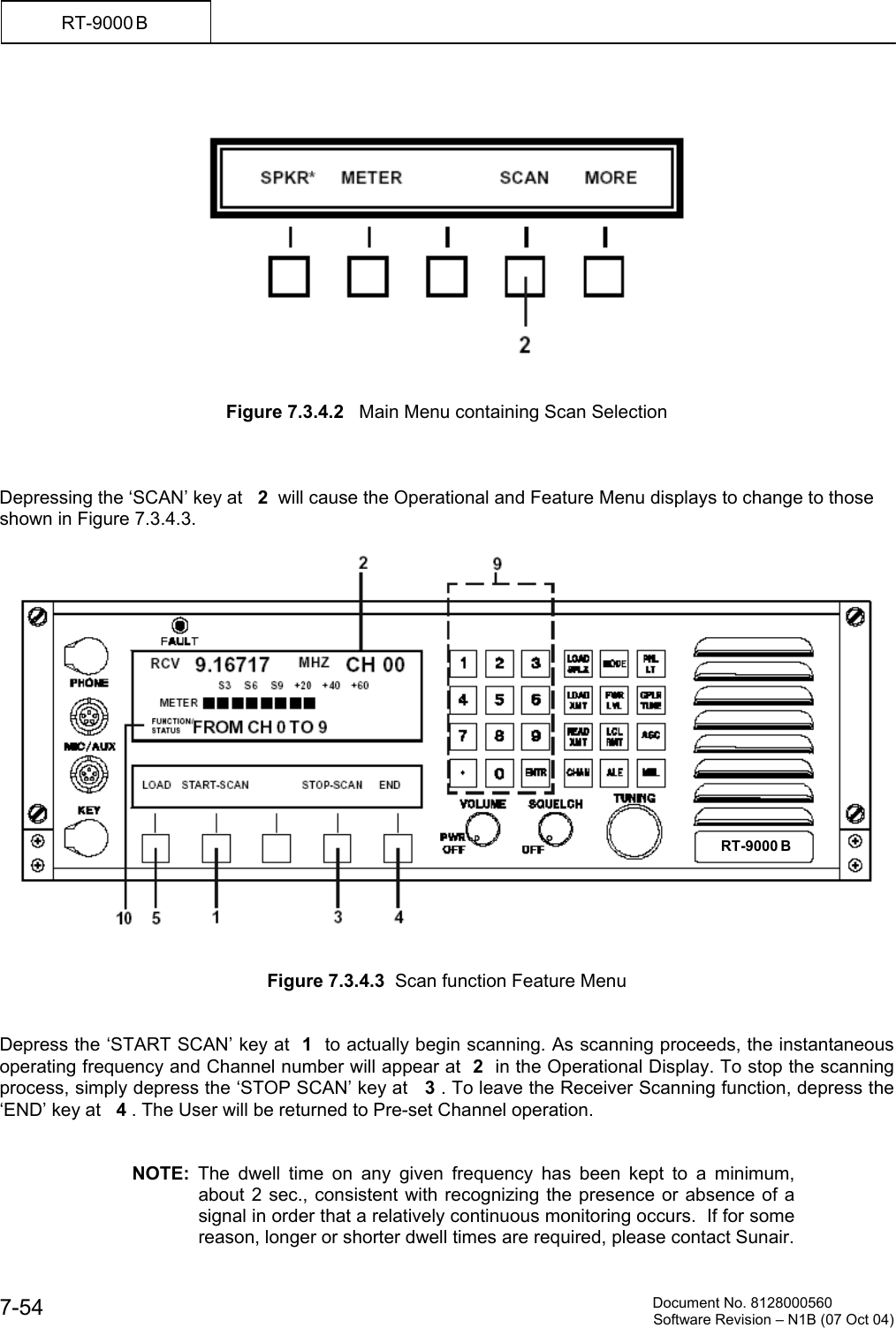
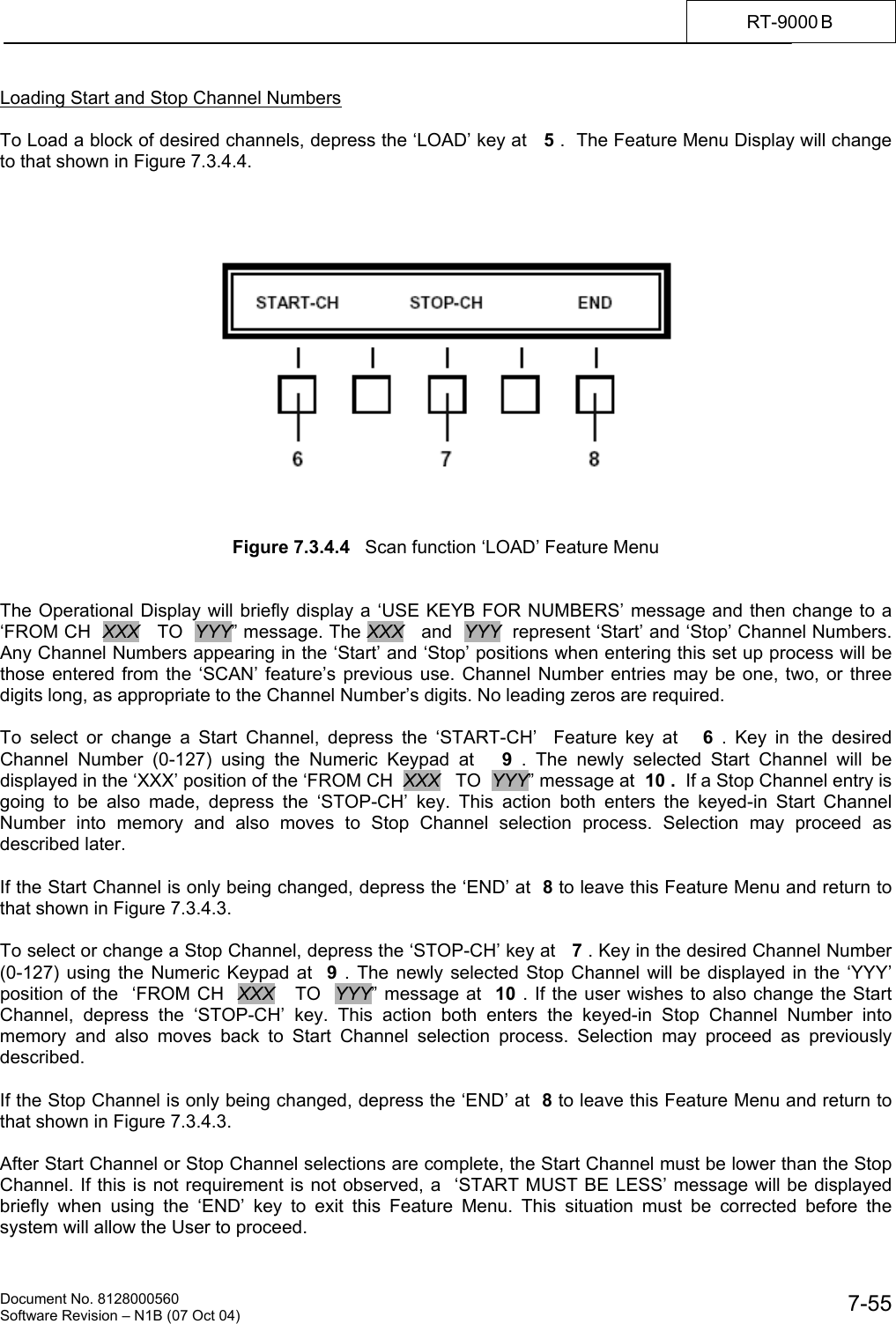
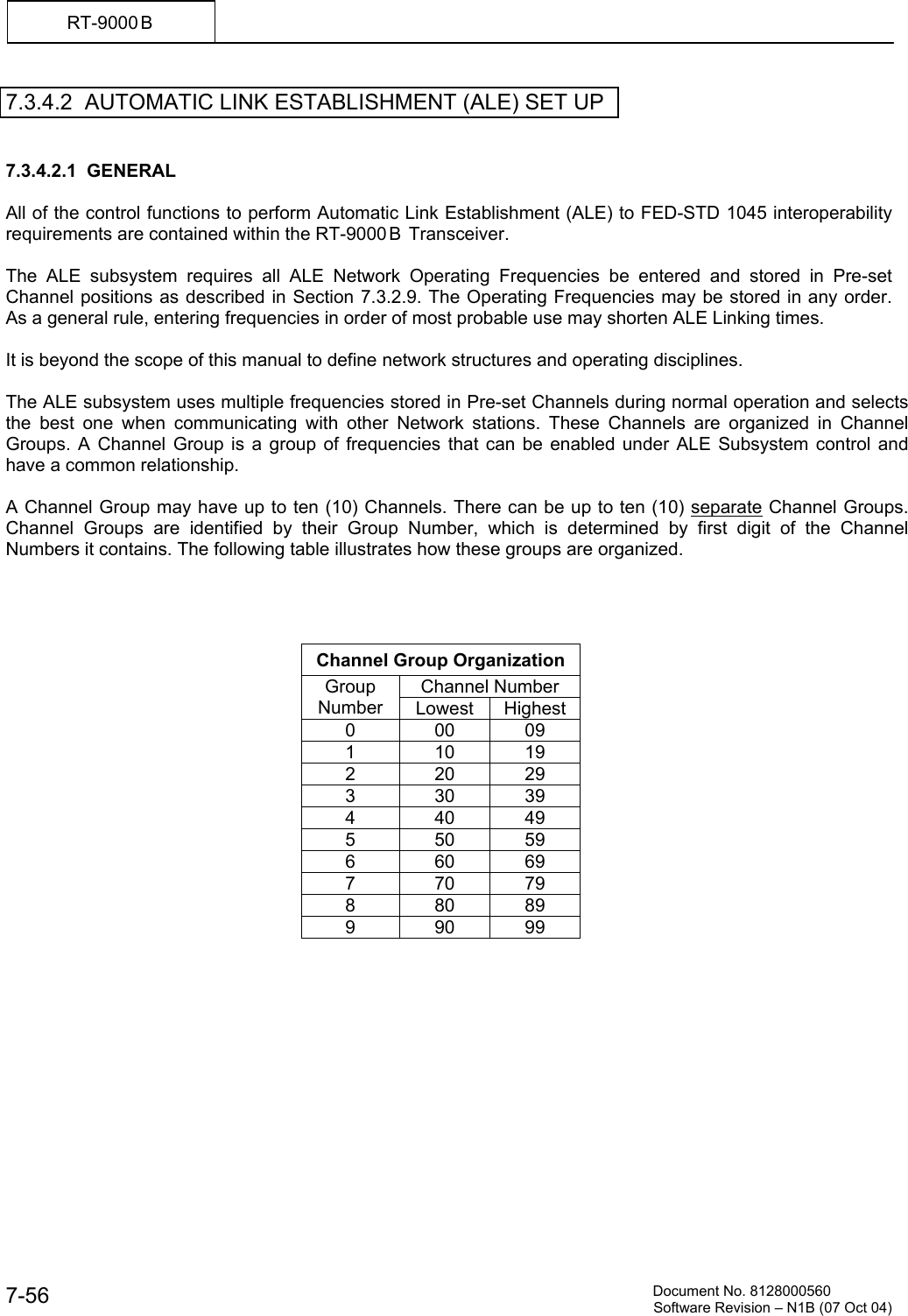
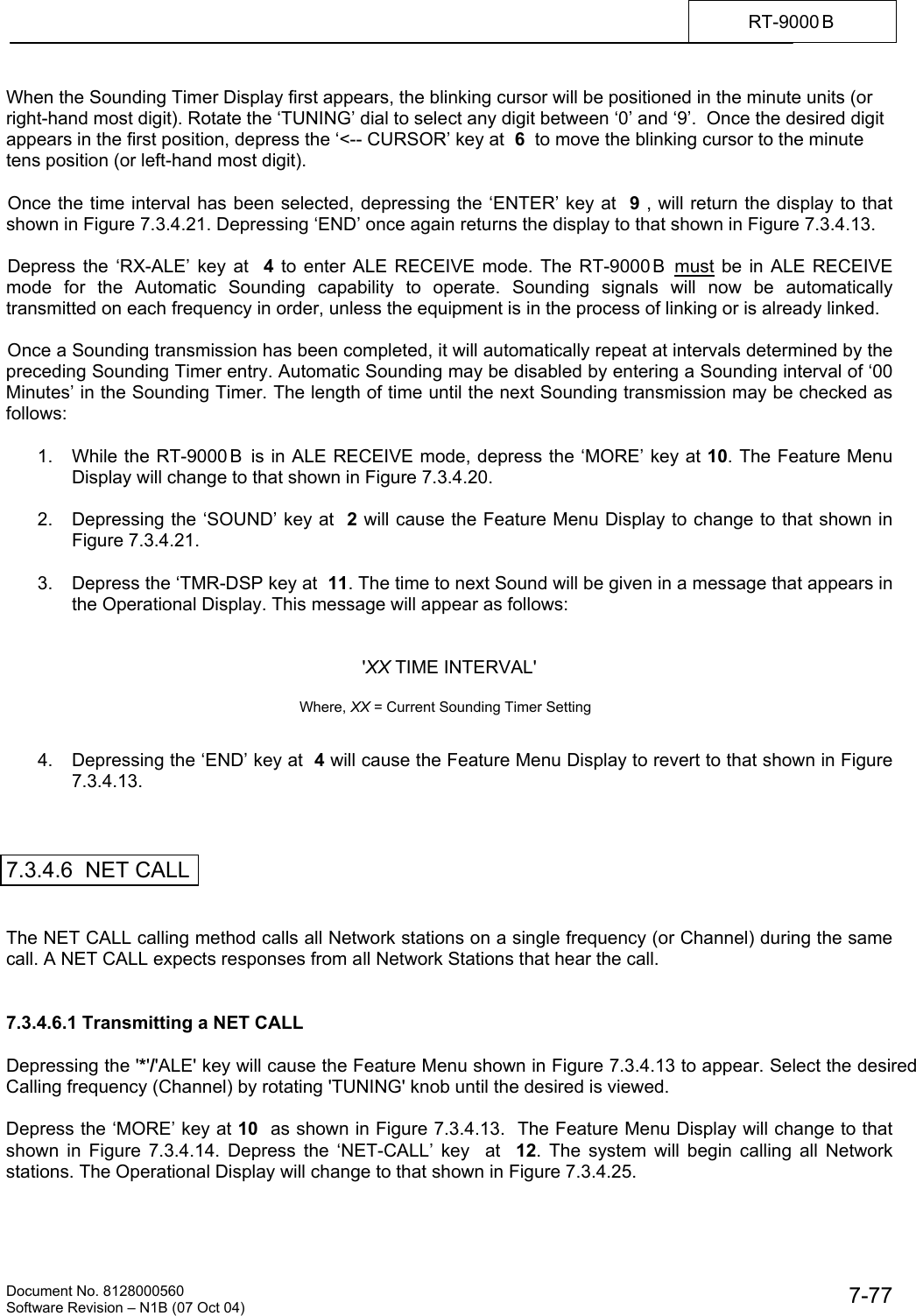
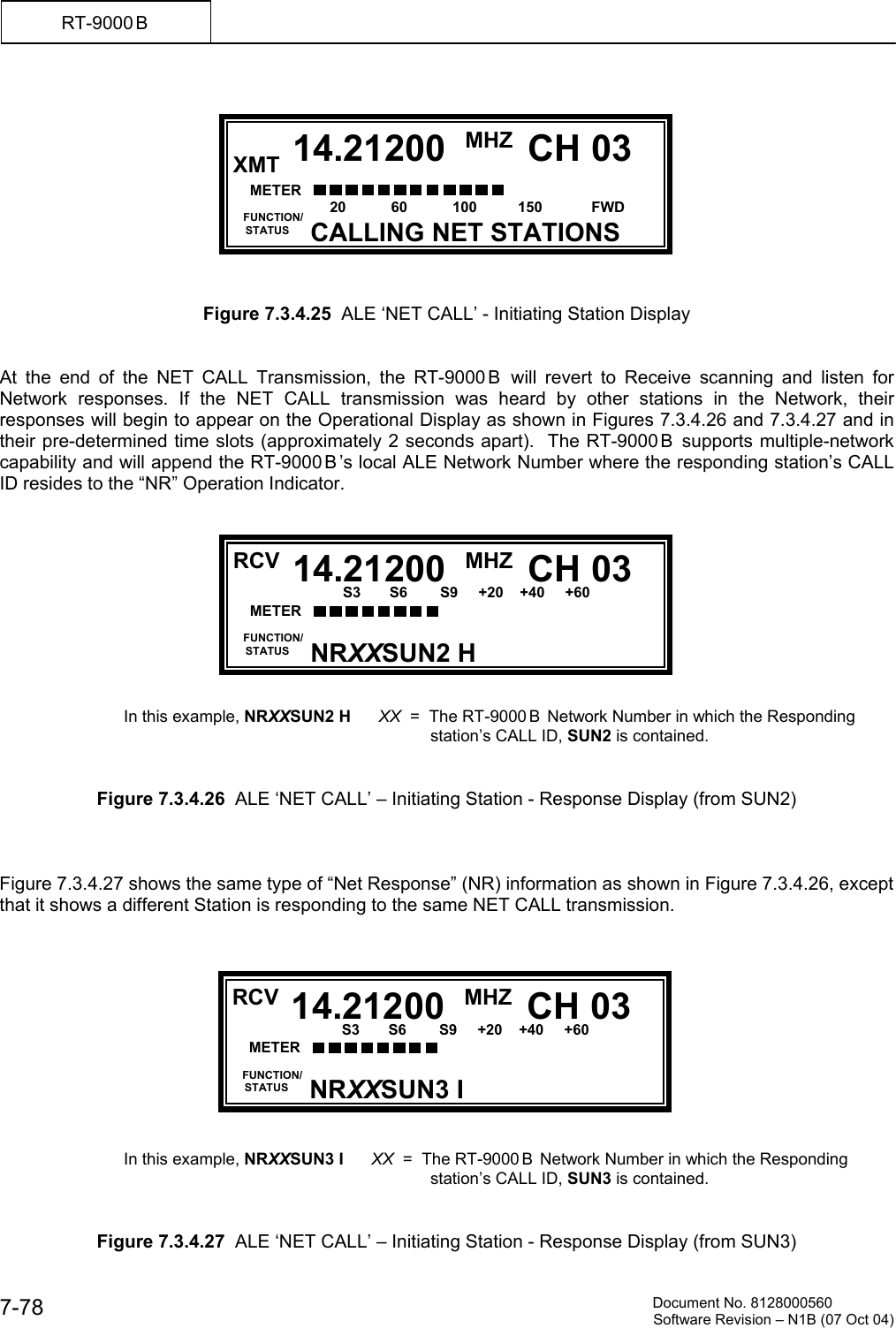
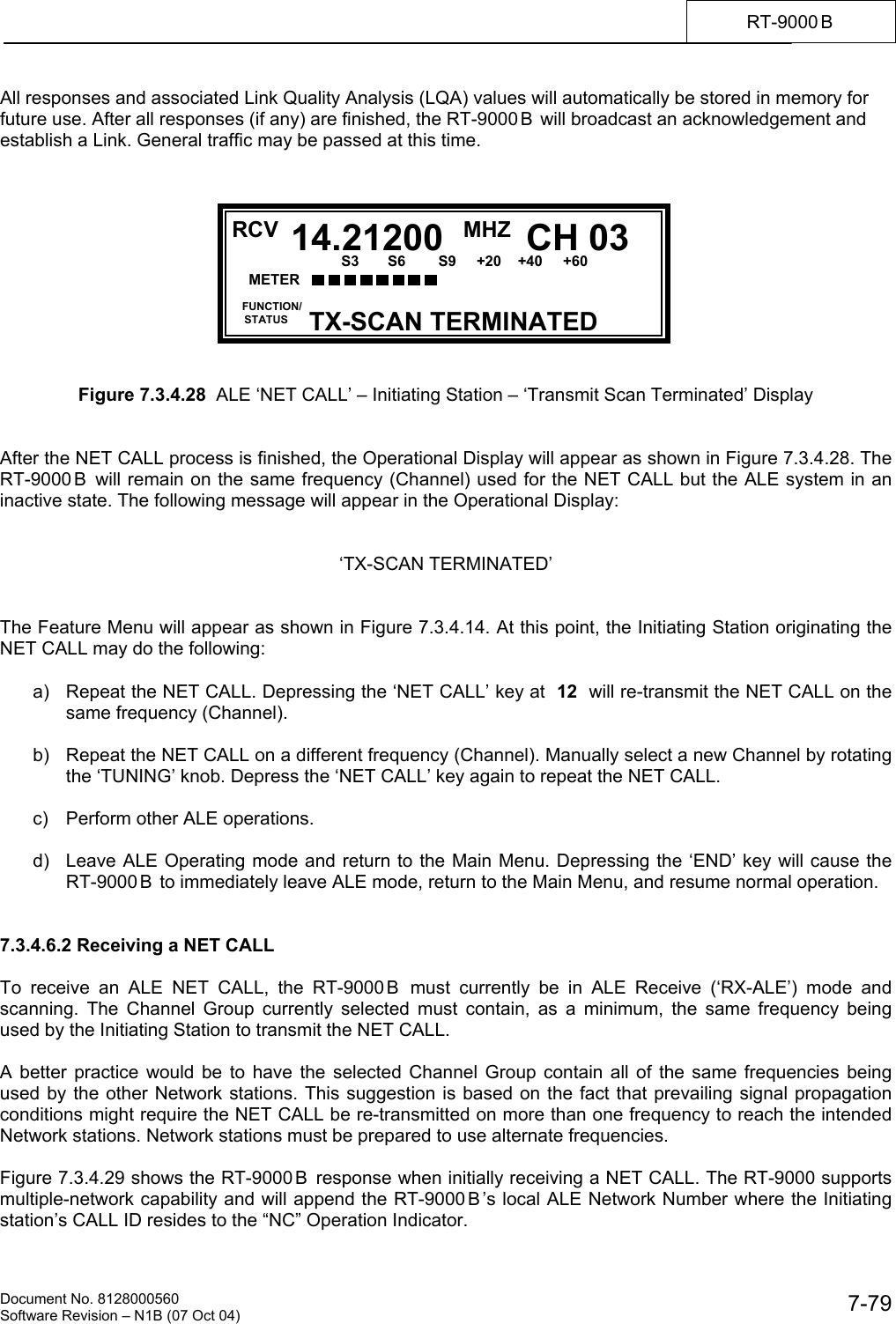
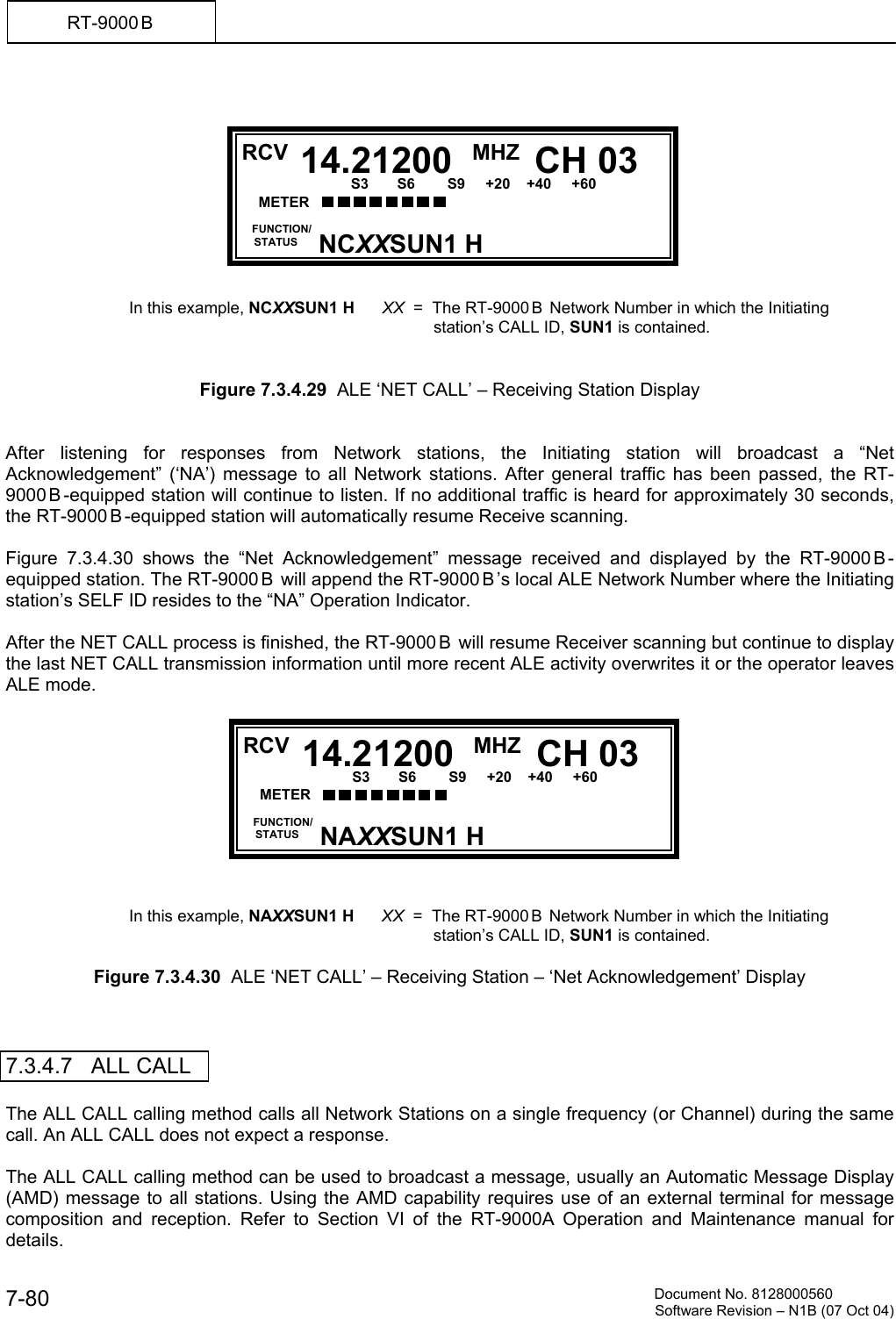
   Document No. 8128000560    Software Revision – N1B (07 Oct 04)  7-9RT-9000 B  SECTION 7.3    OPERATION  7.3.1  GENERAL  This section provides the operator with the location and use of the RT-9000 B  front panel controls for proper utilization of the equipment.  For convenience of discussion, functions are addressed in normal sequence.  However, it is not necessary to observe this order once the user becomes familiar with the equipment.  Any setting may be changed independently by referring to the appropriate section in this chapter pertaining to the function in question.  Reference to Figure 7.3.1.1 below, shows the location of the control groups, displays, and their general purpose.     Figure 7.3.1.1  RT-9000 B  Front Panel Controls     1    ON/OFF VOLUME CONTROL  When this control is in the full counter clockwise position, the equipment is OFF. To power-up the unit, rotate the control clock-wise.  Once on, the internal speaker audio output level is initially at minimum. Rotating the volume control clock-wise increases the speaker audio output level.    NOTE:  The setting of this control does not affect the level of the Remote Audio Line outputs from the equipment rear panel. RT-9000 B
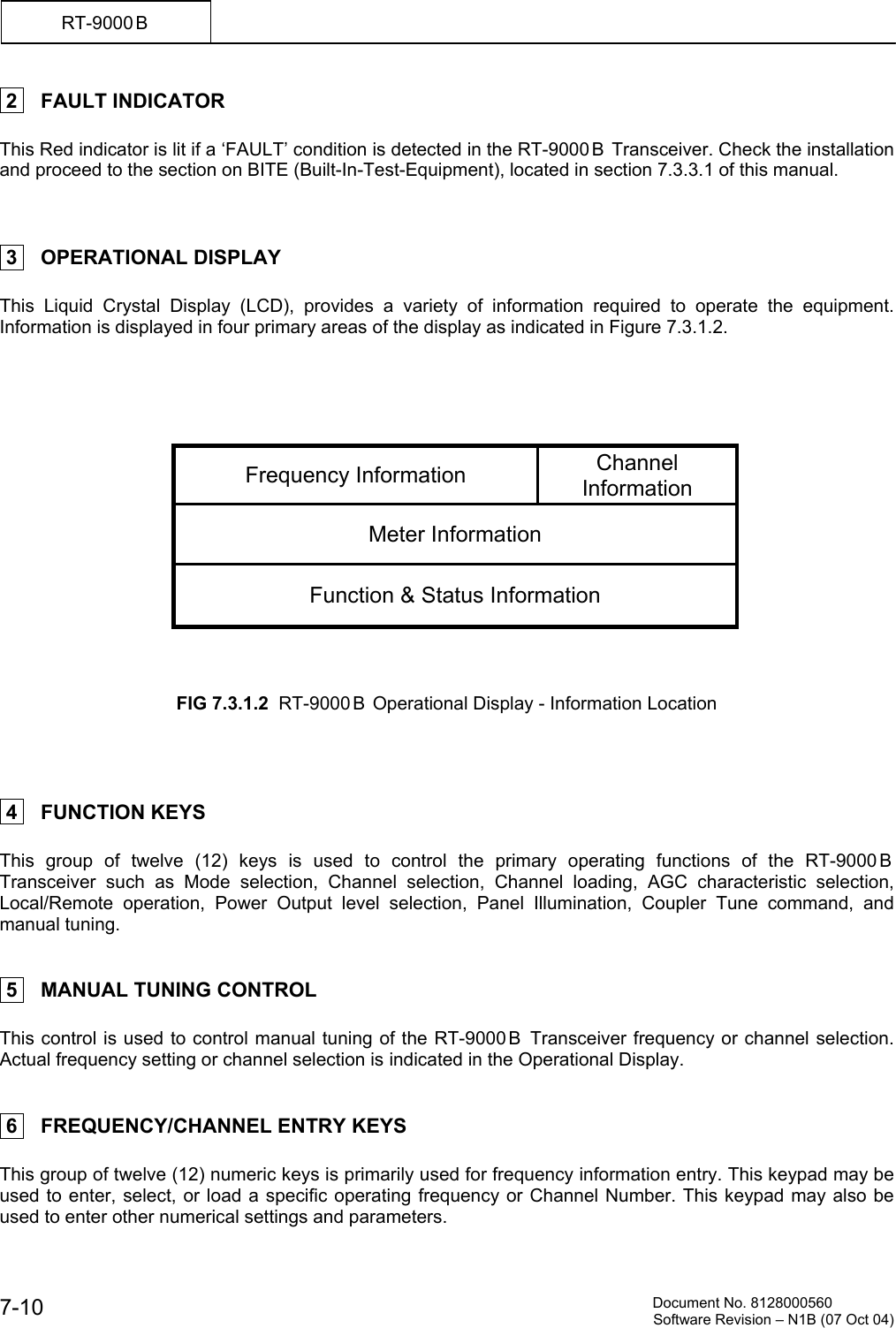
         Document No. 8128000560  Software Revision – N1B (07 Oct 04) 7-10 RT-9000 B   2    FAULT INDICATOR  This Red indicator is lit if a ‘FAULT’ condition is detected in the RT-9000 B  Transceiver. Check the installation and proceed to the section on BITE (Built-In-Test-Equipment), located in section 7.3.3.1 of this manual.     3    OPERATIONAL DISPLAY  This Liquid Crystal Display (LCD), provides a variety of information required to operate the equipment.  Information is displayed in four primary areas of the display as indicated in Figure 7.3.1.2.      Frequency Information  Channel Information Meter Information Function & Status Information    FIG 7.3.1.2  RT-9000 B  Operational Display - Information Location      4    FUNCTION KEYS  This group of twelve (12) keys is used to control the primary operating functions of the RT-9000B Transceiver such as Mode selection, Channel selection, Channel loading, AGC characteristic selection, Local/Remote operation, Power Output level selection, Panel Illumination, Coupler Tune command, and manual tuning.    5    MANUAL TUNING CONTROL  This control is used to control manual tuning of the RT-9000 B  Transceiver frequency or channel selection. Actual frequency setting or channel selection is indicated in the Operational Display.    6    FREQUENCY/CHANNEL ENTRY KEYS  This group of twelve (12) numeric keys is primarily used for frequency information entry. This keypad may be used to enter, select, or load a specific operating frequency or Channel Number. This keypad may also be used to enter other numerical settings and parameters.
   Document No. 8128000560    Software Revision – N1B (07 Oct 04)  7-11RT-9000 B   7    SQUELCH CONTROL  This control is used to set the silencing threshold for the squelch circuit. When this control is set to the full counter-clockwise position, the squelch circuit is disabled and the equipment is unsquelched (fully unsilenced).   Rotating the control clock-wise enables the squelch circuit and sets its silencing threshold. When the control is initially moved, a click will be felt indicting the Squelch switch has been actuated. Clock-wise control rotation is continued until the RT-9000 B’s Receiver noise just silences (or is “Squelched”).  When set as described above, the squelch circuit is active but maximum Receiver sensitivity has been maintained. Further clock-wise Squelch control rotation increases the signal strength required to “open” the squelch and allow an incoming signal to be heard. This action also effectively decreases Receiver sensitivity.    8    FEATURE KEY MENU DISPLAY  This display provides names of functions or selections for the five (5) keys located directly below the display.  In most cases, this display automatically indicates the appropriate selections based upon the condition of other equipment settings.  The menu may be changed by depressing the fifth key under ‘MORE’.    9    FEATURE KEYS  This group of five (5) “Soft” keys enables various functions as indicated in the display located directly above these keys.   NOTE:  An asterisk (*) appearing at the right-hand side of a function in the display indicates that the feature preceding it is enabled, selected, or ‘ON’.   The RT-9000 B  Transceiver controls can be divided into three categories:  A.  Primary Operations (Section 7.3.2)  B.  Equipment Set-Up (Section 7.3.3)  C.  Advanced Operations (Section 7.3.4)
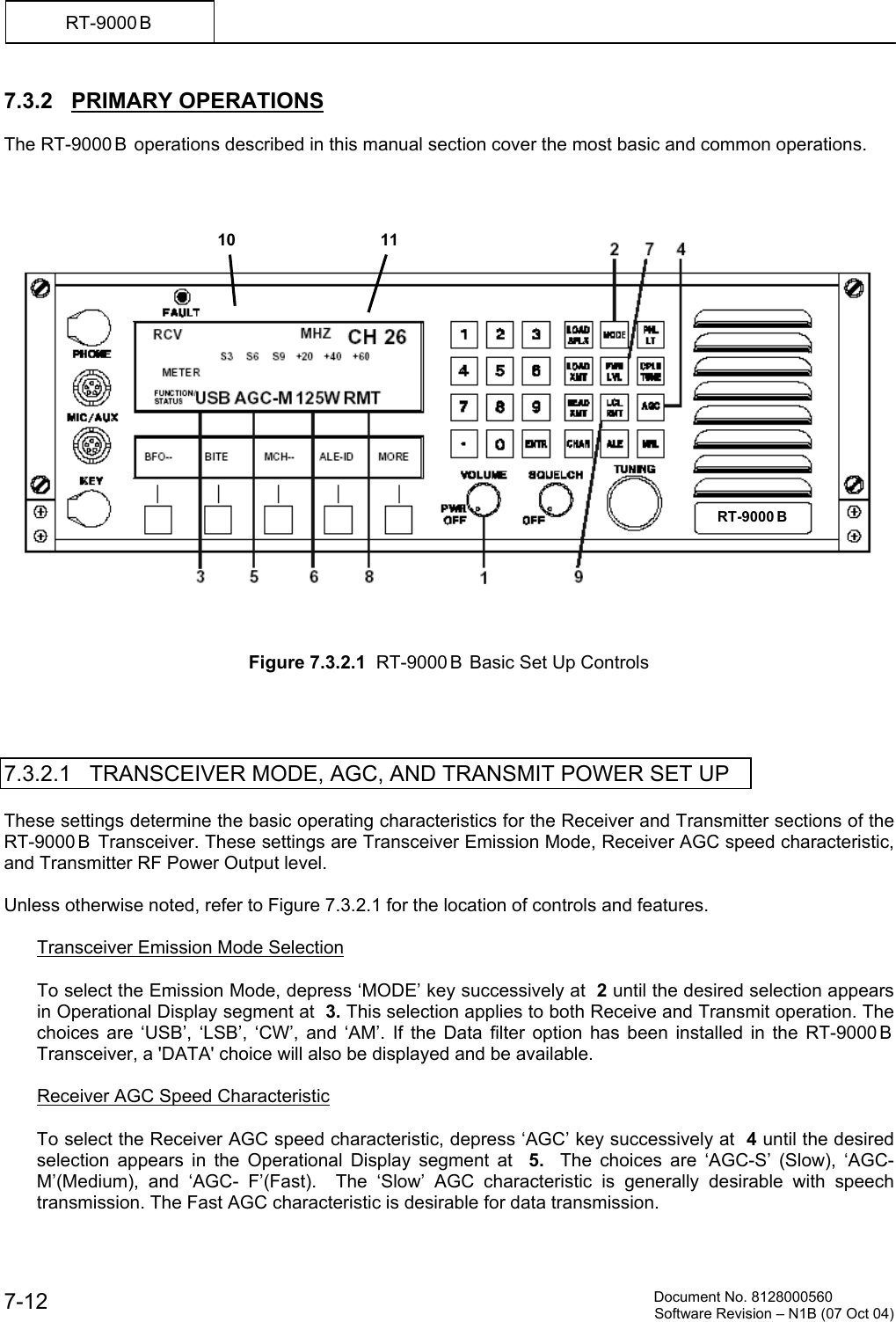
         Document No. 8128000560  Software Revision – N1B (07 Oct 04) 7-12 RT-9000 B  7.3.2   PRIMARY OPERATIONS  The RT-9000 B  operations described in this manual section cover the most basic and common operations.         Figure 7.3.2.1  RT-9000 B  Basic Set Up Controls     7.3.2.1   TRANSCEIVER MODE, AGC, AND TRANSMIT POWER SET UP  These settings determine the basic operating characteristics for the Receiver and Transmitter sections of the RT-9000 B  Transceiver. These settings are Transceiver Emission Mode, Receiver AGC speed characteristic, and Transmitter RF Power Output level.  Unless otherwise noted, refer to Figure 7.3.2.1 for the location of controls and features.    Transceiver Emission Mode Selection  To select the Emission Mode, depress ‘MODE’ key successively at  2 until the desired selection appears in Operational Display segment at  3. This selection applies to both Receive and Transmit operation. The choices are ‘USB’, ‘LSB’, ‘CW’, and ‘AM’. If the Data filter option has been installed in the RT-9000 B  Transceiver, a 'DATA' choice will also be displayed and be available.    Receiver AGC Speed Characteristic  To select the Receiver AGC speed characteristic, depress ‘AGC’ key successively at  4 until the desired selection appears in the Operational Display segment at  5.   The choices are ‘AGC-S’ (Slow), ‘AGC-M’(Medium), and ‘AGC- F’(Fast).  The ‘Slow’ AGC characteristic is generally desirable with speech transmission. The Fast AGC characteristic is desirable for data transmission. RT-9000 B  1110
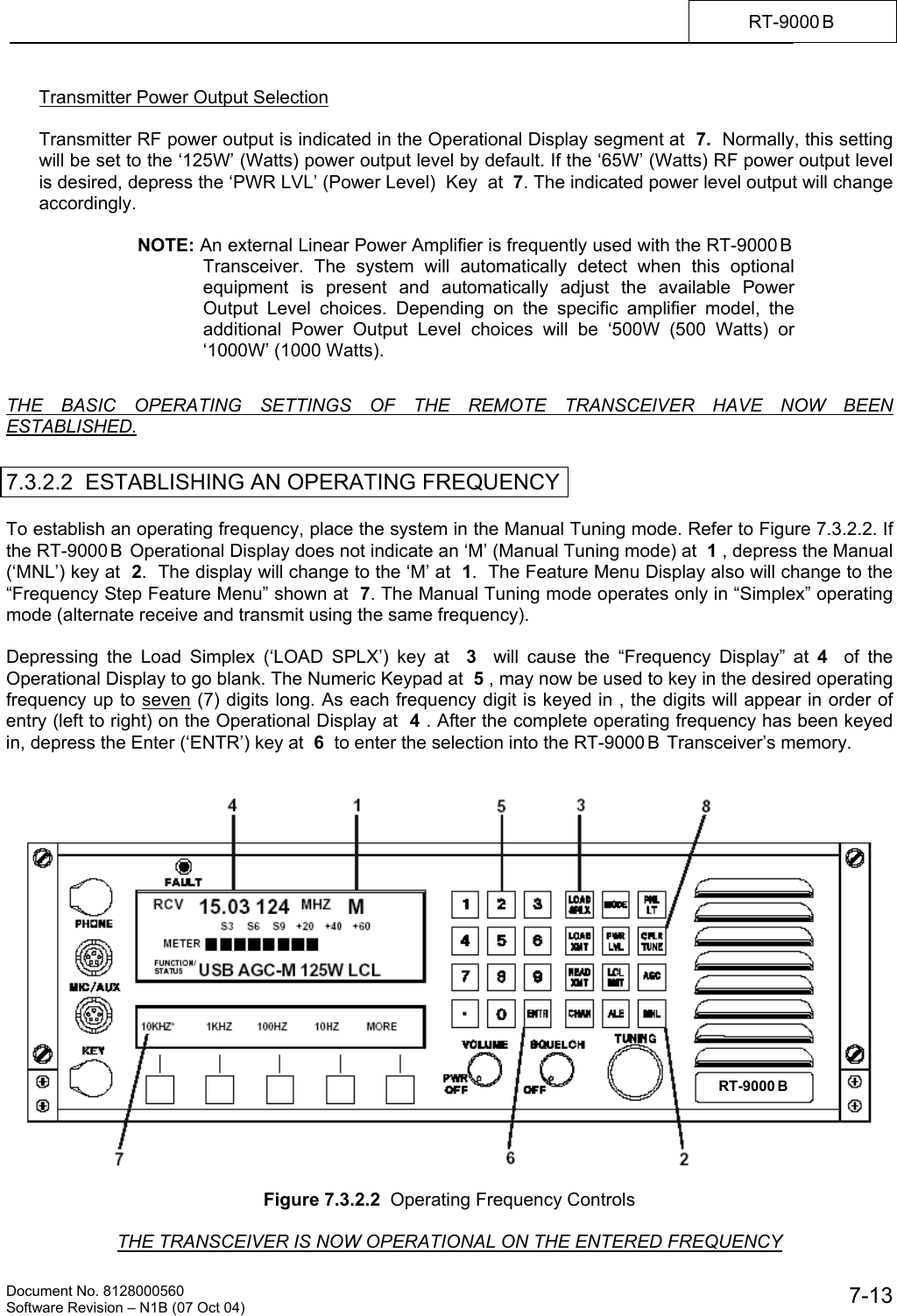
   Document No. 8128000560    Software Revision – N1B (07 Oct 04)  7-13RT-9000 B  Transmitter Power Output Selection  Transmitter RF power output is indicated in the Operational Display segment at  7.  Normally, this setting will be set to the ‘125W’ (Watts) power output level by default. If the ‘65W’ (Watts) RF power output level is desired, depress the ‘PWR LVL’ (Power Level)  Key  at  7. The indicated power level output will change accordingly.  NOTE: An external Linear Power Amplifier is frequently used with the RT-9000 B  Transceiver. The system will automatically detect when this optional equipment is present and automatically adjust the available Power Output Level choices. Depending on the specific amplifier model, the additional Power Output Level choices will be ‘500W (500 Watts) or ‘1000W’ (1000 Watts).   THE BASIC OPERATING SETTINGS OF THE REMOTE TRANSCEIVER HAVE NOW BEEN ESTABLISHED.   7.3.2.2  ESTABLISHING AN OPERATING FREQUENCY  To establish an operating frequency, place the system in the Manual Tuning mode. Refer to Figure 7.3.2.2. If the RT-9000 B  Operational Display does not indicate an ‘M’ (Manual Tuning mode) at  1 , depress the Manual (‘MNL’) key at  2.  The display will change to the ‘M’ at  1.  The Feature Menu Display also will change to the “Frequency Step Feature Menu” shown at  7. The Manual Tuning mode operates only in “Simplex” operating mode (alternate receive and transmit using the same frequency).  Depressing the Load Simplex (‘LOAD SPLX’) key at  3  will cause the “Frequency Display” at 4   of the Operational Display to go blank. The Numeric Keypad at  5 , may now be used to key in the desired operating frequency up to seven (7) digits long. As each frequency digit is keyed in , the digits will appear in order of entry (left to right) on the Operational Display at  4 . After the complete operating frequency has been keyed in, depress the Enter (‘ENTR’) key at  6  to enter the selection into the RT-9000 B  Transceiver’s memory.     Figure 7.3.2.2  Operating Frequency Controls  THE TRANSCEIVER IS NOW OPERATIONAL ON THE ENTERED FREQUENCY RT-9000 B
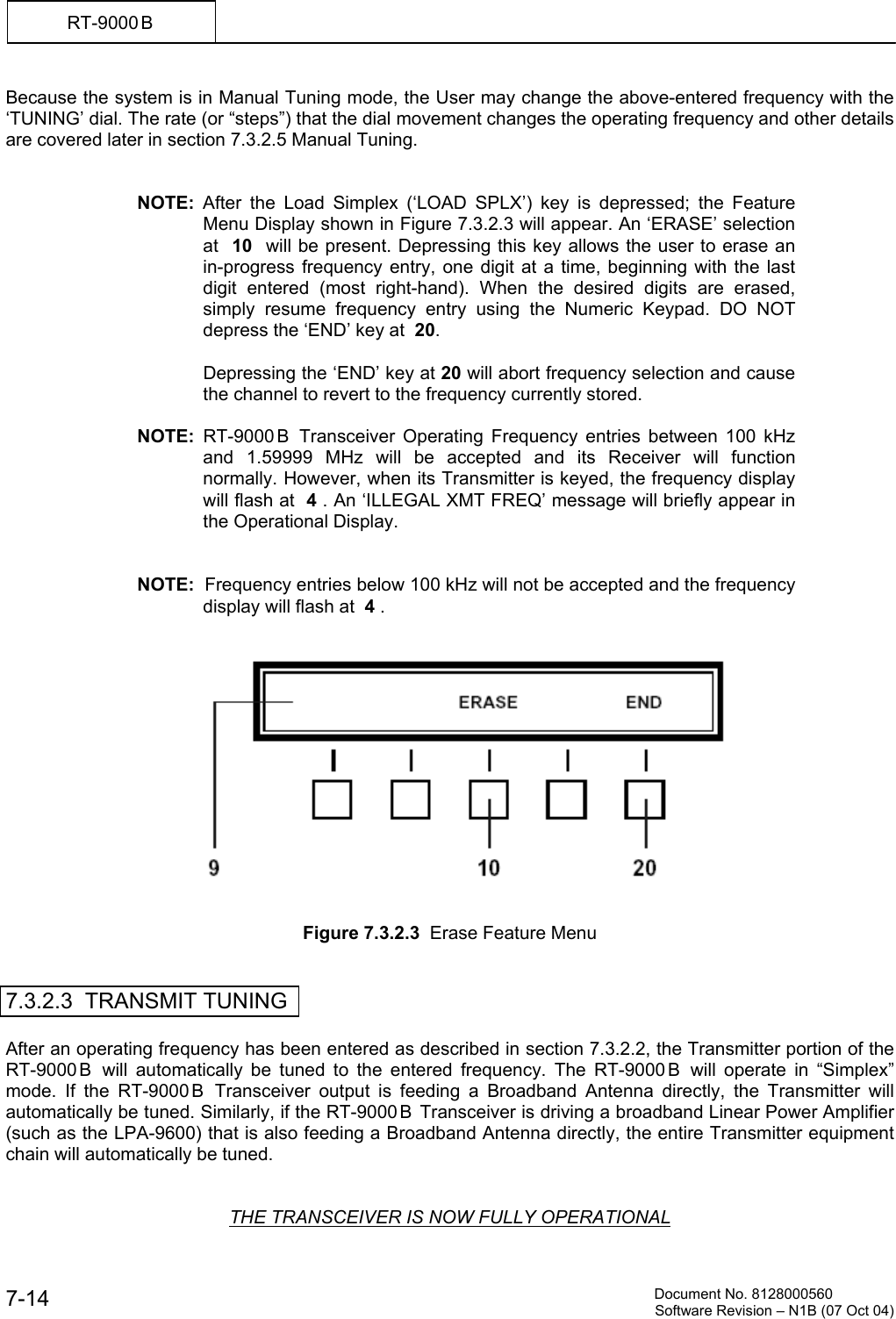
         Document No. 8128000560  Software Revision – N1B (07 Oct 04) 7-14 RT-9000 B  Because the system is in Manual Tuning mode, the User may change the above-entered frequency with the ‘TUNING’ dial. The rate (or “steps”) that the dial movement changes the operating frequency and other details are covered later in section 7.3.2.5 Manual Tuning.   NOTE: After the Load Simplex (‘LOAD SPLX’) key is depressed; the Feature Menu Display shown in Figure 7.3.2.3 will appear. An ‘ERASE’ selection at  10  will be present. Depressing this key allows the user to erase an in-progress frequency entry, one digit at a time, beginning with the last digit entered (most right-hand). When the desired digits are erased, simply resume frequency entry using the Numeric Keypad. DO NOT depress the ‘END’ key at  20.    Depressing the ‘END’ key at 20 will abort frequency selection and cause the channel to revert to the frequency currently stored.  NOTE:  RT-9000 B  Transceiver Operating Frequency entries between 100 kHz and 1.59999 MHz will be accepted and its Receiver will function normally. However, when its Transmitter is keyed, the frequency display will flash at  4 . An ‘ILLEGAL XMT FREQ’ message will briefly appear in the Operational Display.   NOTE:  Frequency entries below 100 kHz will not be accepted and the frequency display will flash at  4 .      Figure 7.3.2.3  Erase Feature Menu   7.3.2.3  TRANSMIT TUNING  After an operating frequency has been entered as described in section 7.3.2.2, the Transmitter portion of the RT-9000 B  will automatically be tuned to the entered frequency. The RT-9000 B  will operate in “Simplex” mode. If the RT-9000 B  Transceiver output is feeding a Broadband Antenna directly, the Transmitter will automatically be tuned. Similarly, if the RT-9000 B  Transceiver is driving a broadband Linear Power Amplifier (such as the LPA-9600) that is also feeding a Broadband Antenna directly, the entire Transmitter equipment chain will automatically be tuned.   THE TRANSCEIVER IS NOW FULLY OPERATIONAL
   Document No. 8128000560    Software Revision – N1B (07 Oct 04)  7-15RT-9000 B  7.3.2.4  ANTENNA COUPLER TUNING  When the RT-9000 B  is using a Non-resonant Antenna, an Antenna Coupler must be installed between the RT-9000 B  and Antenna. When the RT-9000 B  is driving an external Linear Power Amplifier (such as the LPA-9600) that uses a Non-resonant Antenna; an Antenna Coupler must be installed between the LPA-9600 and Antenna. In both cases, the Antenna Coupler becomes the feed point for the Antenna. Transmitter RF Output Power capability is a primary factor in determining which Antenna Coupler model must be used. Typically, the RT-9000 B  Transceiver and the LPA-9600 Linear Power Amplifier will use models CU-9125 and CU-9150 Antenna Couplers, respectively.  Refer to Figure 7.3.2.2. When an Antenna Coupler is present in the system, depressing the Coupler Tune (‘CPLR TUNE’) key at  8 , will initiate an Antenna Coupler “Tune Cycle”. During the Tune Cycle, the RT-9000 B  Operational Display will display the following message:  ‘COUPLER TUNING’    After the Antenna Coupler Tune Cycle finishes and successfully tunes the Antenna, a message will appear in the RT-9000 B  Operational Display and tell the operator the system is ready for use. This message will appear for about three (3) seconds and then automatically return to the normal channel information display. This message is as follows:  ‘SYSTEM READY’    If the Antenna Coupler is not able to tune the Antenna within 20 seconds, a message will be displayed informing the operator of that result. This message will appear for about three (3) seconds and then automatically return to the normal channel information display. If this result occurs, the Antenna Coupler and Antenna should be checked for any obvious problem. If all appears to be in order, consult the troubleshooting section of the Antenna Coupler manual.  ‘SYSTEM FAULT’    If the Antenna Coupler develops a Fault or the remote RT-9000 B  does not receive the expected handshake signals from the Antenna Coupler, the following message will be displayed. This message will appear for about three (3) seconds and then automatically return to the normal channel information display. If this result occurs, consult the troubleshoot section of the Antenna Coupler manual. This message is as follows:  ‘COUPLER FAULT’    7.3.2.5  MANUAL TUNING  The manual tuning function permits the RT-9000B Transceiver’s operating frequency to be changed by rotating the ‘TUNING’ control. After an operating frequency has been established as described in section 7.3.2.2, rotating the ‘TUNING’ control clockwise increases frequency; counter-clockwise rotation decreases it. The rate of operating frequency change for a given amount of ‘TUNING’ control rotation is selectable. Four (4) different Tuning Rates (or “steps”) are available.
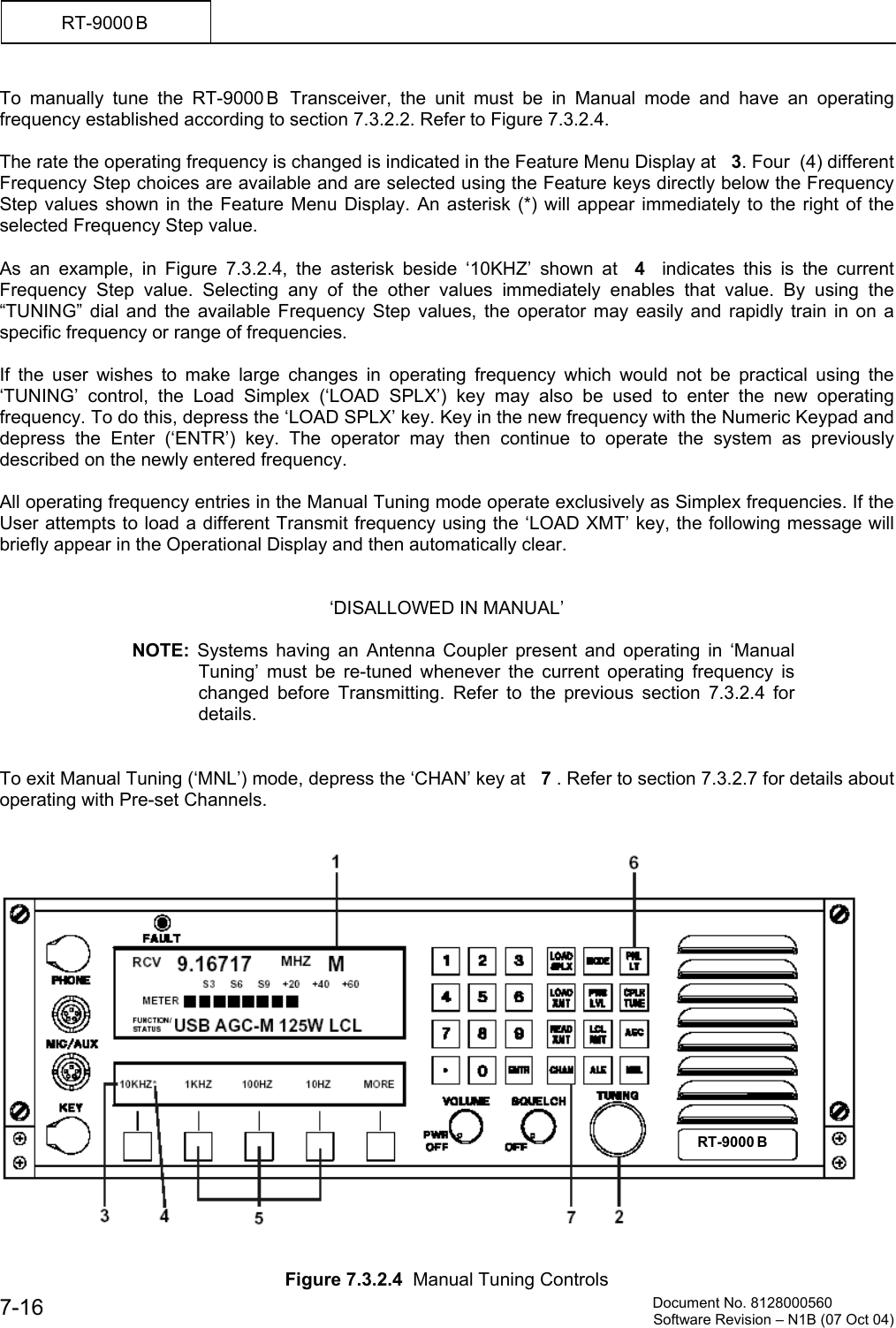
         Document No. 8128000560  Software Revision – N1B (07 Oct 04) 7-16 RT-9000 B  To manually tune the RT-9000 B  Transceiver, the unit must be in Manual mode and have an operating frequency established according to section 7.3.2.2. Refer to Figure 7.3.2.4.   The rate the operating frequency is changed is indicated in the Feature Menu Display at   3. Four  (4) different Frequency Step choices are available and are selected using the Feature keys directly below the Frequency Step values shown in the Feature Menu Display. An asterisk (*) will appear immediately to the right of the selected Frequency Step value.  As an example, in Figure 7.3.2.4, the asterisk beside ‘10KHZ’ shown at  4   indicates this is the current Frequency Step value. Selecting any of the other values immediately enables that value. By using the “TUNING” dial and the available Frequency Step values, the operator may easily and rapidly train in on a specific frequency or range of frequencies.  If the user wishes to make large changes in operating frequency which would not be practical using the ‘TUNING’ control, the Load Simplex (‘LOAD SPLX’) key may also be used to enter the new operating frequency. To do this, depress the ‘LOAD SPLX’ key. Key in the new frequency with the Numeric Keypad and depress the Enter (‘ENTR’) key. The operator may then continue to operate the system as previously described on the newly entered frequency.  All operating frequency entries in the Manual Tuning mode operate exclusively as Simplex frequencies. If the User attempts to load a different Transmit frequency using the ‘LOAD XMT’ key, the following message will briefly appear in the Operational Display and then automatically clear.   ‘DISALLOWED IN MANUAL’  NOTE: Systems having an Antenna Coupler present and operating in ‘Manual Tuning’ must be re-tuned whenever the current operating frequency is changed before Transmitting. Refer to the previous section 7.3.2.4 for details.   To exit Manual Tuning (‘MNL’) mode, depress the ‘CHAN’ key at   7 . Refer to section 7.3.2.7 for details about operating with Pre-set Channels.      Figure 7.3.2.4  Manual Tuning Controls RT-9000 B
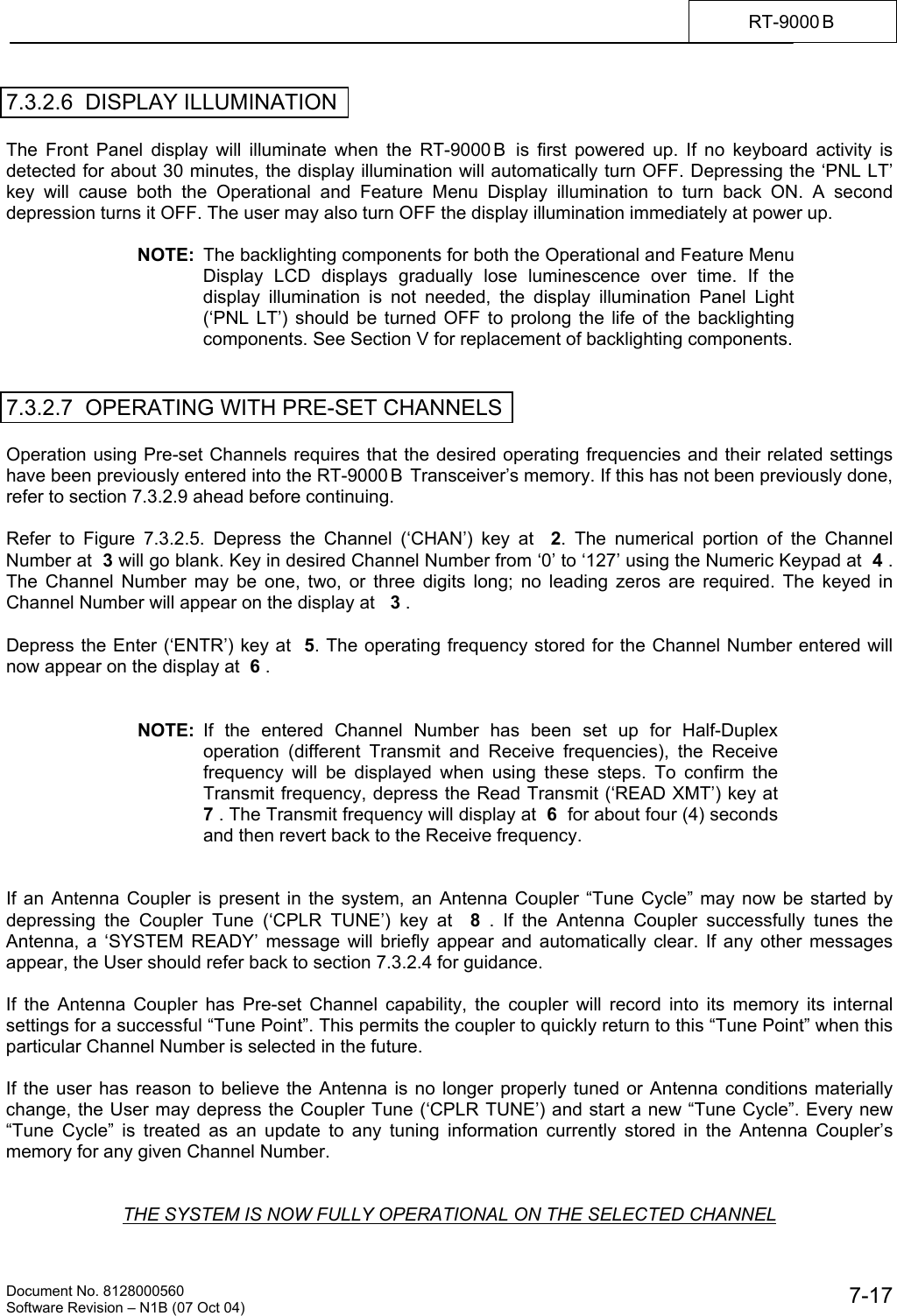
   Document No. 8128000560    Software Revision – N1B (07 Oct 04)  7-17RT-9000 B  7.3.2.6  DISPLAY ILLUMINATION  The Front Panel display will illuminate when the RT-9000 B  is first powered up. If no keyboard activity is detected for about 30 minutes, the display illumination will automatically turn OFF. Depressing the ‘PNL LT’ key will cause both the Operational and Feature Menu Display illumination to turn back ON. A second depression turns it OFF. The user may also turn OFF the display illumination immediately at power up.  NOTE:  The backlighting components for both the Operational and Feature Menu Display LCD displays gradually lose luminescence over time. If the display illumination is not needed, the display illumination Panel Light (‘PNL LT’) should be turned OFF to prolong the life of the backlighting components. See Section V for replacement of backlighting components.   7.3.2.7  OPERATING WITH PRE-SET CHANNELS  Operation using Pre-set Channels requires that the desired operating frequencies and their related settings have been previously entered into the RT-9000 B  Transceiver’s memory. If this has not been previously done, refer to section 7.3.2.9 ahead before continuing.  Refer to Figure 7.3.2.5. Depress the Channel (‘CHAN’) key at  2. The numerical portion of the Channel Number at  3 will go blank. Key in desired Channel Number from ‘0’ to ‘127’ using the Numeric Keypad at  4 . The Channel Number may be one, two, or three digits long; no leading zeros are required. The keyed in Channel Number will appear on the display at   3 .  Depress the Enter (‘ENTR’) key at  5. The operating frequency stored for the Channel Number entered will now appear on the display at  6 .   NOTE:  If the entered Channel Number has been set up for Half-Duplex operation (different Transmit and Receive frequencies), the Receive frequency will be displayed when using these steps. To confirm the Transmit frequency, depress the Read Transmit (‘READ XMT’) key at  7 . The Transmit frequency will display at  6  for about four (4) seconds and then revert back to the Receive frequency.   If an Antenna Coupler is present in the system, an Antenna Coupler “Tune Cycle” may now be started by depressing the Coupler Tune (‘CPLR TUNE’) key at  8  . If the Antenna Coupler successfully tunes the Antenna, a ‘SYSTEM READY’ message will briefly appear and automatically clear. If any other messages appear, the User should refer back to section 7.3.2.4 for guidance.  If the Antenna Coupler has Pre-set Channel capability, the coupler will record into its memory its internal settings for a successful “Tune Point”. This permits the coupler to quickly return to this “Tune Point” when this particular Channel Number is selected in the future.  If the user has reason to believe the Antenna is no longer properly tuned or Antenna conditions materially change, the User may depress the Coupler Tune (‘CPLR TUNE’) and start a new “Tune Cycle”. Every new “Tune Cycle” is treated as an update to any tuning information currently stored in the Antenna Coupler’s memory for any given Channel Number.    THE SYSTEM IS NOW FULLY OPERATIONAL ON THE SELECTED CHANNEL
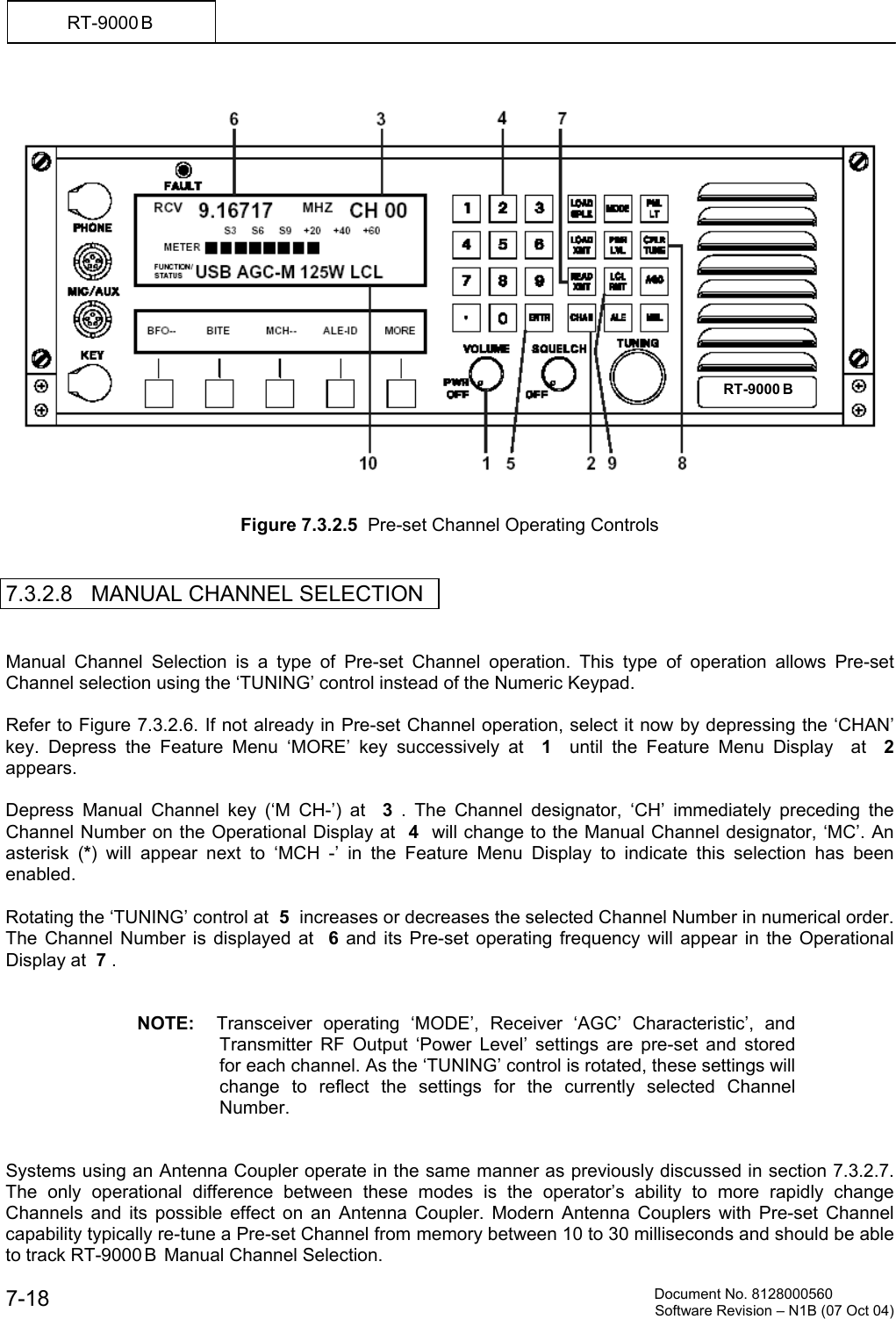
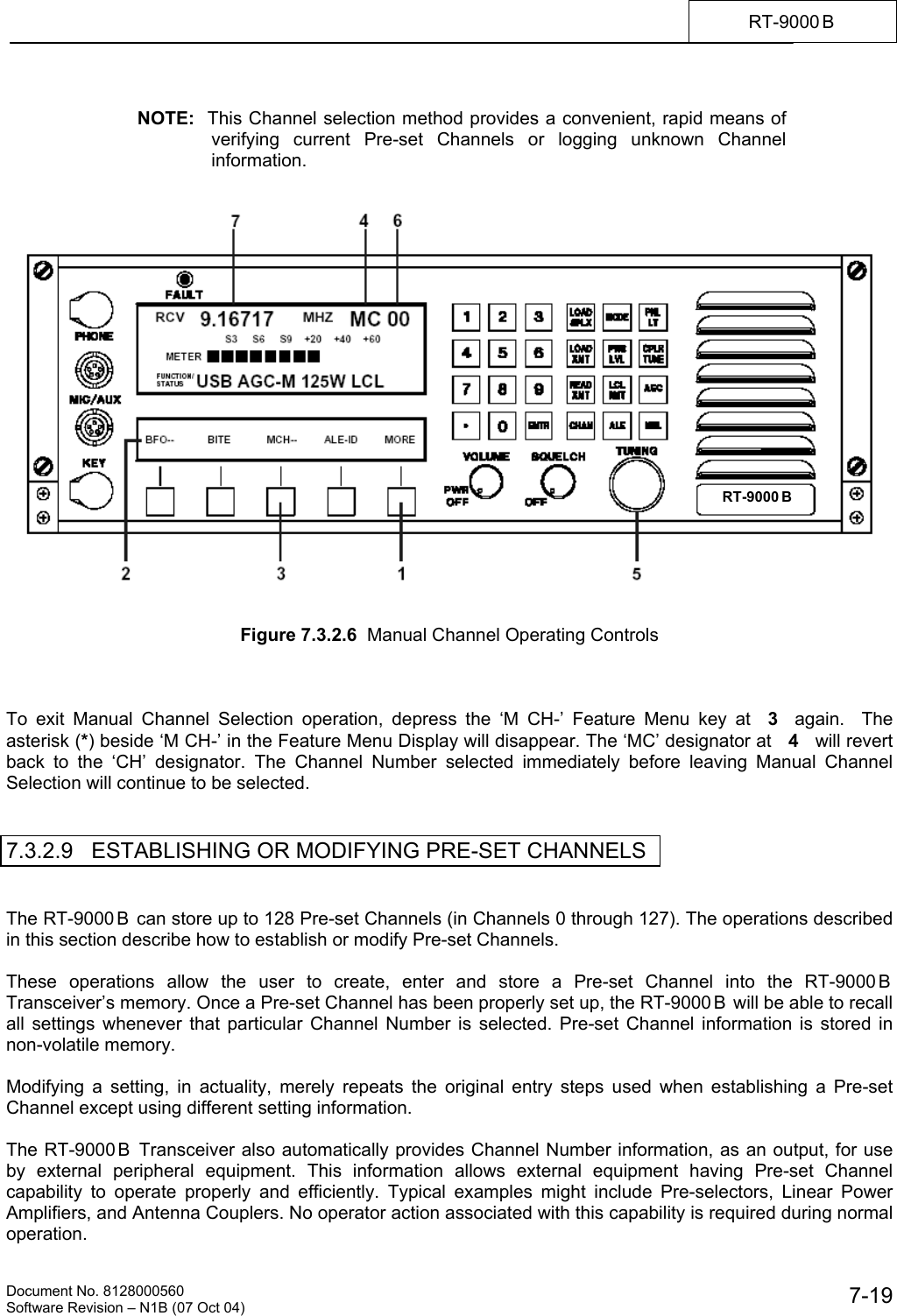
         Document No. 8128000560  Software Revision – N1B (07 Oct 04) 7-18 RT-9000 B      Figure 7.3.2.5  Pre-set Channel Operating Controls   7.3.2.8   MANUAL CHANNEL SELECTION   Manual Channel Selection is a type of Pre-set Channel operation. This type of operation allows Pre-set Channel selection using the ‘TUNING’ control instead of the Numeric Keypad.  Refer to Figure 7.3.2.6. If not already in Pre-set Channel operation, select it now by depressing the ‘CHAN’ key. Depress the Feature Menu ‘MORE’ key successively at  1  until the Feature Menu Display  at  2  appears.  Depress Manual Channel key (‘M CH-’) at  3  . The Channel designator, ‘CH’ immediately preceding the Channel Number on the Operational Display at  4  will change to the Manual Channel designator, ‘MC’. An asterisk (*) will appear next to ‘MCH -’ in the Feature Menu Display to indicate this selection has been enabled.  Rotating the ‘TUNING’ control at  5  increases or decreases the selected Channel Number in numerical order. The Channel Number is displayed at  6  and its Pre-set operating frequency will appear in the Operational Display at  7 .   NOTE:  Transceiver operating ‘MODE’, Receiver ‘AGC’ Characteristic’, and Transmitter RF Output ‘Power Level’ settings are pre-set and stored for each channel. As the ‘TUNING’ control is rotated, these settings will change to reflect the settings for the currently selected Channel Number.   Systems using an Antenna Coupler operate in the same manner as previously discussed in section 7.3.2.7. The only operational difference between these modes is the operator’s ability to more rapidly change Channels and its possible effect on an Antenna Coupler. Modern Antenna Couplers with Pre-set Channel capability typically re-tune a Pre-set Channel from memory between 10 to 30 milliseconds and should be able to track RT-9000 B  Manual Channel Selection.  RT-9000 B
   Document No. 8128000560    Software Revision – N1B (07 Oct 04)  7-19RT-9000 B   NOTE:  This Channel selection method provides a convenient, rapid means of verifying current Pre-set Channels or logging unknown Channel information.      Figure 7.3.2.6  Manual Channel Operating Controls    To exit Manual Channel Selection operation, depress the ‘M CH-’ Feature Menu key at  3  again.  The asterisk (*) beside ‘M CH-’ in the Feature Menu Display will disappear. The ‘MC’ designator at   4   will revert back to the ‘CH’ designator. The Channel Number selected immediately before leaving Manual Channel Selection will continue to be selected.   7.3.2.9   ESTABLISHING OR MODIFYING PRE-SET CHANNELS   The RT-9000 B  can store up to 128 Pre-set Channels (in Channels 0 through 127). The operations described in this section describe how to establish or modify Pre-set Channels.  These operations allow the user to create, enter and store a Pre-set Channel into the RT-9000 B  Transceiver’s memory. Once a Pre-set Channel has been properly set up, the RT-9000 B  will be able to recall all settings whenever that particular Channel Number is selected. Pre-set Channel information is stored in non-volatile memory.  Modifying a setting, in actuality, merely repeats the original entry steps used when establishing a Pre-set Channel except using different setting information.  The RT-9000 B  Transceiver also automatically provides Channel Number information, as an output, for use by external peripheral equipment. This information allows external equipment having Pre-set Channel capability to operate properly and efficiently. Typical examples might include Pre-selectors, Linear Power Amplifiers, and Antenna Couplers. No operator action associated with this capability is required during normal operation. RT-9000 B
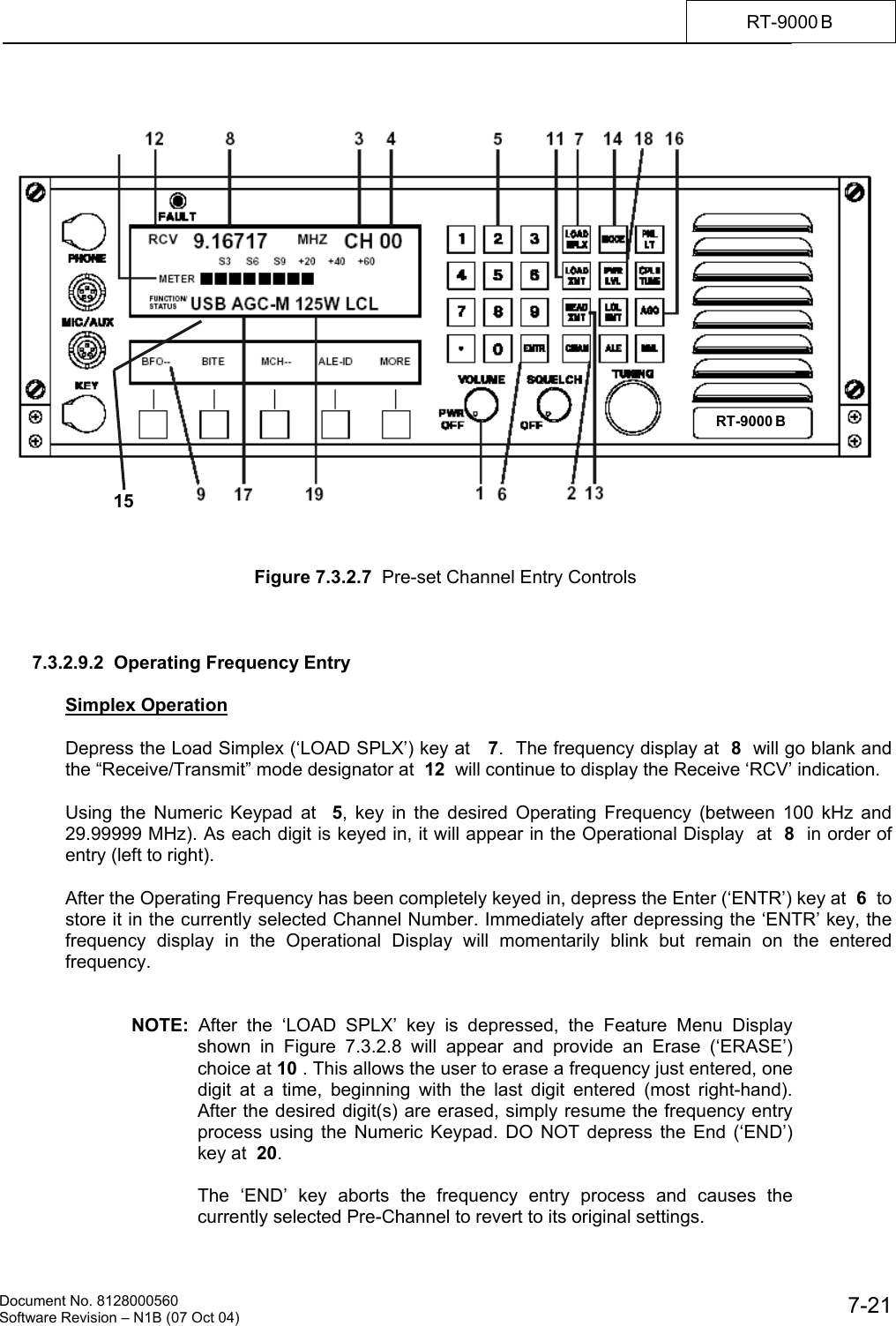
         Document No. 8128000560  Software Revision – N1B (07 Oct 04) 7-20 RT-9000 B  The following headings listed below appear later in this section and describe how to enter settings for new or existing Pre-set Channels. Unless otherwise noted, refer to Figure 7.3.2.7 for the location of controls and displays.     •  Operating Frequency   Simplex Operation  Alternate Receive & Transmit using same frequency Half-Duplex Operation  Alternate Receive & Transmit using different frequencies  •  Transceiver Emission Mode  •  Receiver AGC Speed Characteristic  •  Transmitter Power Output Level  •  External Equipment Set up and Initialization    7.3.2.9.1  Channel Number Selection     The steps in this section form a selection process, which must be performed for either new or existing Channels. This process establishes the Pre-set Channel Number where later setting choices will be stored. User actions after this step will depend on whether an existing Channel is being selected for modification or a new Channel is being established.  If the user is modifying an existing Pre-set Channel setting, proceed as follows: Complete the selection process described in this heading. Proceed directly to the heading that covers the setting to be modified.  If the user is establishing a new Pre-set Channel, complete the selection process described in this heading. Complete ALL remaining headings in this section.   Channel Selection Process  Depress the Channel key (‘CHAN’) at   2. The Operational Display will display ‘CH’ at  3  and Channel Digits at   4  will go blank.  Using the Numeric Keypad at  5, key in the desired Channel Number to be selected. The keyed in Channel Number now will appear at  4. Depress the Enter (‘ENTR’) key at  6 to select the keyed in Channel Number. All later settings entry and storage steps will be associated with this Channel Number.  Proceed to the next step as previously described.
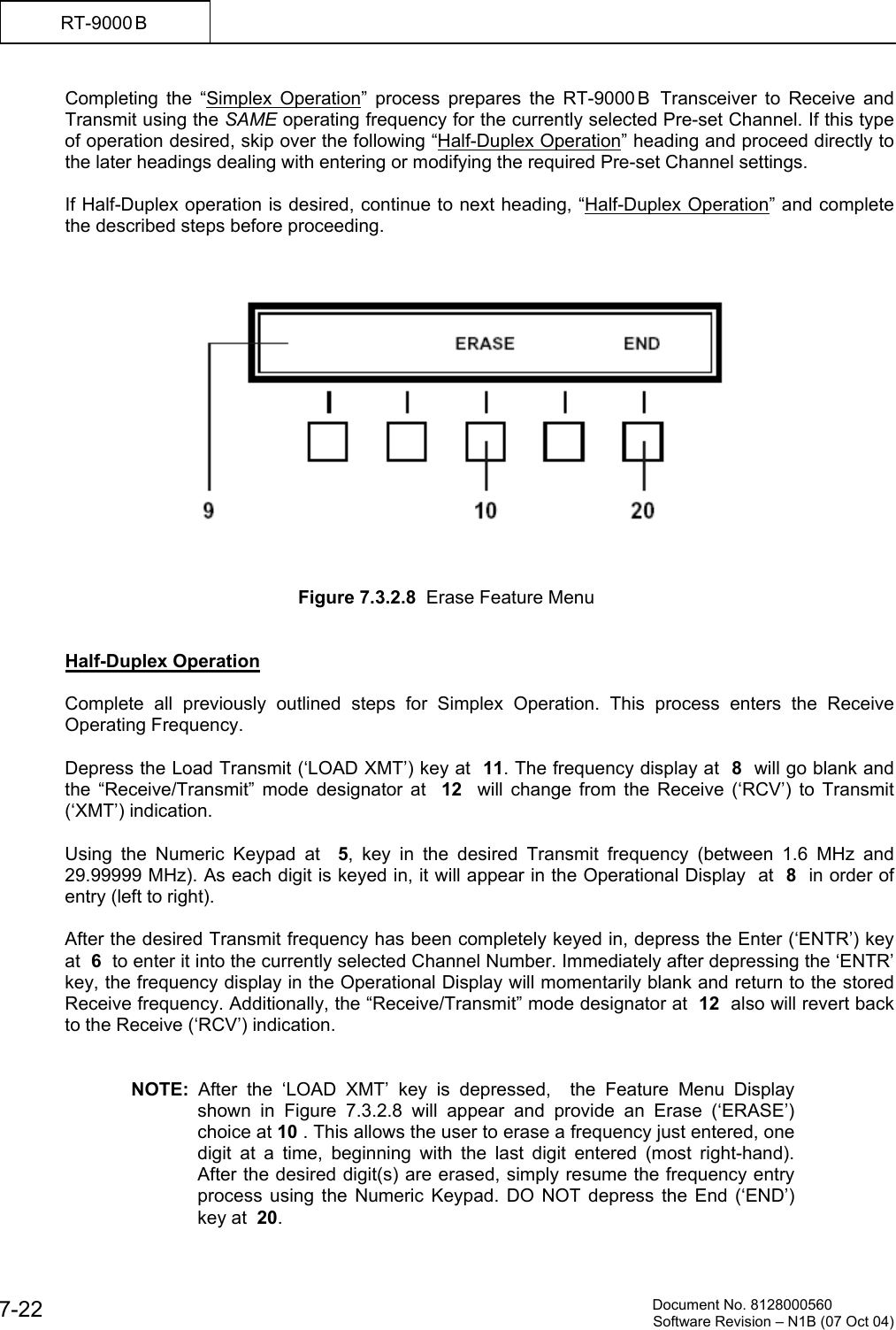
   Document No. 8128000560    Software Revision – N1B (07 Oct 04)  7-21RT-9000 B        Figure 7.3.2.7  Pre-set Channel Entry Controls    7.3.2.9.2  Operating Frequency Entry   Simplex Operation  Depress the Load Simplex (‘LOAD SPLX’) key at   7.  The frequency display at  8  will go blank and the “Receive/Transmit” mode designator at  12  will continue to display the Receive ‘RCV’ indication.  Using the Numeric Keypad at  5, key in the desired Operating Frequency (between 100 kHz and 29.99999 MHz). As each digit is keyed in, it will appear in the Operational Display  at  8  in order of entry (left to right).  After the Operating Frequency has been completely keyed in, depress the Enter (‘ENTR’) key at  6  to store it in the currently selected Channel Number. Immediately after depressing the ‘ENTR’ key, the frequency display in the Operational Display will momentarily blink but remain on the entered frequency.   NOTE:  After the ‘LOAD SPLX’ key is depressed, the Feature Menu Display shown in Figure 7.3.2.8 will appear and provide an Erase (‘ERASE’) choice at 10 . This allows the user to erase a frequency just entered, one digit at a time, beginning with the last digit entered (most right-hand). After the desired digit(s) are erased, simply resume the frequency entry process using the Numeric Keypad. DO NOT depress the End (‘END’) key at  20.  The ‘END’ key aborts the frequency entry process and causes the currently selected Pre-Channel to revert to its original settings. RT-9000 B   15
         Document No. 8128000560  Software Revision – N1B (07 Oct 04) 7-22 RT-9000 B  Completing the “Simplex Operation” process prepares the RT-9000 B  Transceiver to Receive and Transmit using the SAME operating frequency for the currently selected Pre-set Channel. If this type of operation desired, skip over the following “Half-Duplex Operation” heading and proceed directly to the later headings dealing with entering or modifying the required Pre-set Channel settings.  If Half-Duplex operation is desired, continue to next heading, “Half-Duplex Operation” and complete the described steps before proceeding.        Figure 7.3.2.8  Erase Feature Menu   Half-Duplex Operation  Complete all previously outlined steps for Simplex Operation. This process enters the Receive Operating Frequency.  Depress the Load Transmit (‘LOAD XMT’) key at  11. The frequency display at  8  will go blank and the “Receive/Transmit” mode designator at  12   will change from the Receive (‘RCV’) to Transmit (‘XMT’) indication.  Using the Numeric Keypad at  5, key in the desired Transmit frequency (between 1.6 MHz and 29.99999 MHz). As each digit is keyed in, it will appear in the Operational Display  at  8  in order of entry (left to right).  After the desired Transmit frequency has been completely keyed in, depress the Enter (‘ENTR’) key at  6  to enter it into the currently selected Channel Number. Immediately after depressing the ‘ENTR’ key, the frequency display in the Operational Display will momentarily blank and return to the stored Receive frequency. Additionally, the “Receive/Transmit” mode designator at  12  also will revert back to the Receive (‘RCV’) indication.   NOTE:  After the ‘LOAD XMT’ key is depressed,  the Feature Menu Display shown in Figure 7.3.2.8 will appear and provide an Erase (‘ERASE’) choice at 10 . This allows the user to erase a frequency just entered, one digit at a time, beginning with the last digit entered (most right-hand). After the desired digit(s) are erased, simply resume the frequency entry process using the Numeric Keypad. DO NOT depress the End (‘END’) key at  20.
   Document No. 8128000560    Software Revision – N1B (07 Oct 04)  7-23RT-9000 B  Completing the “Half-Duplex Operation” process prepares the RT-9000 B  Transceiver to Transmit and Receive using DIFFERENT Operating Frequencies (but not simultaneously) for the currently selected Pre-set Channel.   NOTE: The Transmit frequency for currently selected Pre-set Channel may be viewed by depressing the Read Transmit (‘READ XMT’) key at  13. The stored Transmit frequency will be displayed for about three (3) seconds before reverting back displaying the stored Receive frequency.   If this type of operation is desired and the required Operating Frequencies have been entered for the currently selected Pre-set Channel, proceed now to the next Heading.  Continue entering or modifying the required Pre-set Channel settings.    7.3.2.9.3  Transceiver Emission Mode Entry    Depress the ‘MODE’ key at  14  successively until the desired Emission Mode appears on the Operational Display at  15 . The displayed Mode indicates the current RT-9000 B  Emission Mode selection. Four (4) choices are available: ‘USB’, ‘LSB’, ‘CW’, or ‘AM’. Depress the Enter (‘ENTR’) key at  6 to store this selection into the currently selected Pre-set Channel .   NOTE:  A fifth Mode choice, 'DATA', will be displayed only if the optional Data filter is installed in the RT-9000 B  Transceiver. The RT-9000 B Transceiver CPU Software DIP switch settings must also be properly set for this option. (Refer to Section V of this Operation and Maintenance Manual).   NOTE:  When Continuous Wave (‘CW’) Emission Mode is selected, CW Key Release Time and Filter settings automatically default to ‘Medium’ and ‘Normal’ settings, respectively. Other choices are available and are covered later in section 7.3.3.10 of this manual.   After the desired Emission Mode setting has been entered for the currently selected Pre-set Channel, proceed to the next Heading.  Continue entering or modifying the required Pre-set Channel settings.   7.3.2.9.4  Receiver AGC Speed Characteristic Entry  Depress the ‘AGC’ key at  16  successively until the desired Receiver AGC Speed Characteristic appears on the Operational Display at   17 . The displayed AGC Speed indicates the current Receiver AGC Speed selection. Three (3) choices are available: Slow (‘AGC-S’), Medium (‘AGC-M’), or Fast (‘AGC-F’). Depress the Enter (‘ENTR’) key at  6 to store this selection into the currently selected Pre-set Channel.  After the desired AGC Speed Characteristic setting has been entered for the currently selected Pre-set Channel, proceed to the next Heading. Continue entering or modifying the required Pre-set Channel settings.
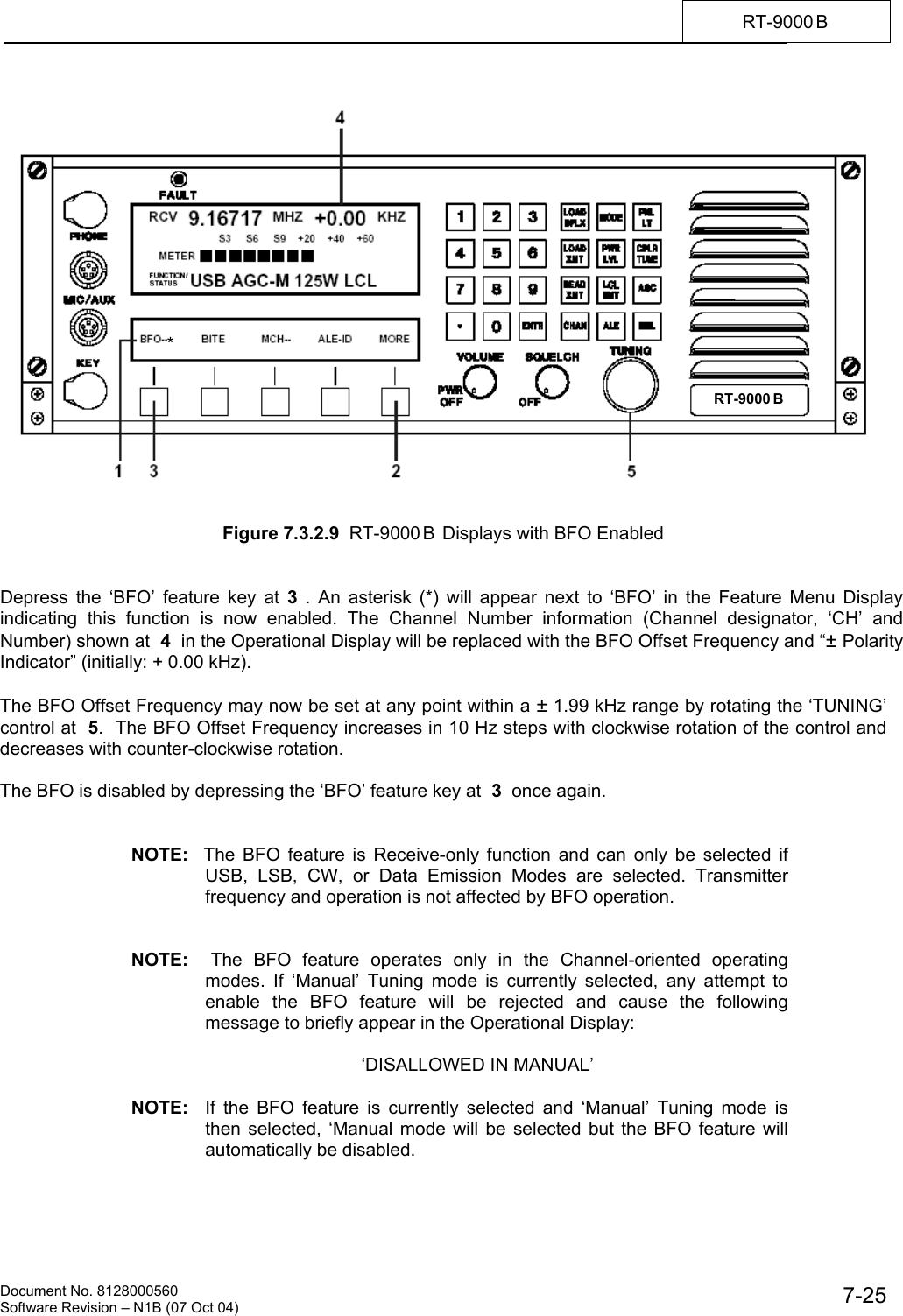
         Document No. 8128000560  Software Revision – N1B (07 Oct 04) 7-24 RT-9000 B  7.3.2.9.5  Transmitter Power Output Level Entry  Depress the Power Level (‘PWR LVL’) key at 18 successively until desired Power Level appears on the Operational Display at  19. The available choices depend on whether an external Linear Power Amplifier is present in the system and its power output capability. The available choices are: ‘65W’ or ‘125W’ when an external amplifier IS NOT present.  When an external amplifier IS present, the additional choices will be: ‘500W’ for the LPA-9500 Amplifier or ‘500W’ and ‘1000W’ for the LPA-9600 Amplifier. Depress the Enter key (‘ENTR’) at  6  to permanently store a new Power Level selection into the currently selected Pre-set Channel.  After the desired Power Level setting has been entered for the currently selected Pre-set Channel, proceed to the next heading if other equipment is being used in conjunction with the RT-9000 B Transceiver. If no other equipment is being used, skip the next heading and go directly to the end of this section.   7.3.2.9.6  External Equipment Set up and initialization  If the RT-9000 B  Transceiver is part of a system with external equipment having Pre-set Channel capability, this equipment should now be set up and initialized as described in the appropriate equipment manuals.  The most common type of external equipment will be an Antenna Coupler. The User should refer to section 7.3.2.4 for guidance.  After completing entry of all settings in this section, the RT-9000 B  Transceiver is now ready for control on this Pre-set Channel. Additional Pre-set Channels may be set up by repeating the preceding steps 7.3.2.9.1 through 7.3.2.9.5 for each new Channel Number.    7.3.2.10  BFO OPERATION  A Beat Frequency Oscillator (BFO) originally was required to receive Continuous Wave (CW) and later, various suppressed-carrier mode signals such as Single Sideband (SSB). Modern Receiving equipment, like the RT-9000 B , instead uses a Product Detector circuit to perform the detection (or demodulation) for these signal types.  Even though the BFO function is no longer used for its original purpose, it still performs a useful function in today’s equipment. The BFO function is a receive-only feature that provides fine frequency adjustment or compensation for incoming signals. This permits the RT-9000 B  to faithfully receive off-frequency signals without affecting the RT-9000 B ’s transmitting frequency. Up to a ± 1.99 kHz frequency deviation from the indicated or nominal receive frequency can be handled.  A common use of the BFO is to use it in voice modes as a “Clarifier” to correct unpleasant speech output caused by a frequency offset. Other possible uses might include improving the operation of external tone operated devices or modems.  To use the BFO function, depress the ‘MORE’ key from the main menu successively until the Feature Menu Display shown in Figure 7.3.2.9 appears.
   Document No. 8128000560    Software Revision – N1B (07 Oct 04)  7-25RT-9000 B      Figure 7.3.2.9  RT-9000 B  Displays with BFO Enabled   Depress the ‘BFO’ feature key at 3 . An asterisk (*) will appear next to ‘BFO’ in the Feature Menu Display indicating this function is now enabled. The Channel Number information (Channel designator, ‘CH’ and Number) shown at  4  in the Operational Display will be replaced with the BFO Offset Frequency and “± Polarity Indicator” (initially: + 0.00 kHz).  The BFO Offset Frequency may now be set at any point within a ± 1.99 kHz range by rotating the ‘TUNING’ control at  5.  The BFO Offset Frequency increases in 10 Hz steps with clockwise rotation of the control and decreases with counter-clockwise rotation.  The BFO is disabled by depressing the ‘BFO’ feature key at  3  once again.   NOTE:  The BFO feature is Receive-only function and can only be selected if USB, LSB, CW, or Data Emission Modes are selected. Transmitter frequency and operation is not affected by BFO operation.   NOTE:  The BFO feature operates only in the Channel-oriented operating modes. If ‘Manual’ Tuning mode is currently selected, any attempt to enable the BFO feature will be rejected and cause the following message to briefly appear in the Operational Display:    ‘DISALLOWED IN MANUAL’  NOTE:  If the BFO feature is currently selected and ‘Manual’ Tuning mode is then selected, ‘Manual mode will be selected but the BFO feature will automatically be disabled. *RT-9000 B
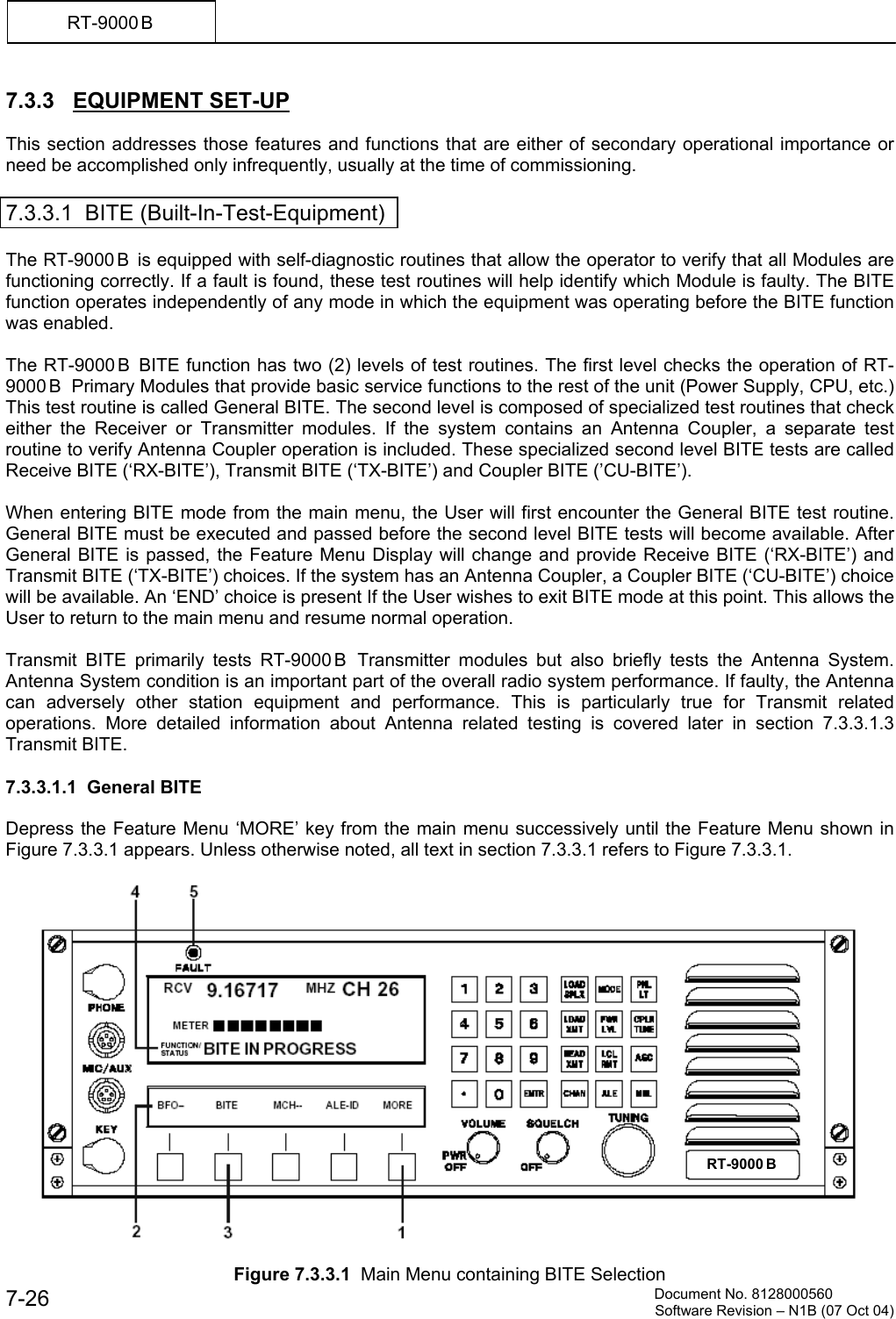
         Document No. 8128000560  Software Revision – N1B (07 Oct 04) 7-26 RT-9000 B  7.3.3   EQUIPMENT SET-UP  This section addresses those features and functions that are either of secondary operational importance or need be accomplished only infrequently, usually at the time of commissioning.  7.3.3.1  BITE (Built-In-Test-Equipment)  The RT-9000 B  is equipped with self-diagnostic routines that allow the operator to verify that all Modules are functioning correctly. If a fault is found, these test routines will help identify which Module is faulty. The BITE function operates independently of any mode in which the equipment was operating before the BITE function was enabled.  The RT-9000 B  BITE function has two (2) levels of test routines. The first level checks the operation of RT-9000 B   Primary Modules that provide basic service functions to the rest of the unit (Power Supply, CPU, etc.) This test routine is called General BITE. The second level is composed of specialized test routines that check either the Receiver or Transmitter modules. If the system contains an Antenna Coupler, a separate test routine to verify Antenna Coupler operation is included. These specialized second level BITE tests are called Receive BITE (‘RX-BITE’), Transmit BITE (‘TX-BITE’) and Coupler BITE (’CU-BITE’).  When entering BITE mode from the main menu, the User will first encounter the General BITE test routine. General BITE must be executed and passed before the second level BITE tests will become available. After General BITE is passed, the Feature Menu Display will change and provide Receive BITE (‘RX-BITE’) and Transmit BITE (‘TX-BITE’) choices. If the system has an Antenna Coupler, a Coupler BITE (‘CU-BITE’) choice will be available. An ‘END’ choice is present If the User wishes to exit BITE mode at this point. This allows the User to return to the main menu and resume normal operation.  Transmit BITE primarily tests RT-9000 B  Transmitter modules but also briefly tests the Antenna System. Antenna System condition is an important part of the overall radio system performance. If faulty, the Antenna can adversely other station equipment and performance. This is particularly true for Transmit related operations. More detailed information about Antenna related testing is covered later in section 7.3.3.1.3 Transmit BITE.   7.3.3.1.1  General BITE  Depress the Feature Menu ‘MORE’ key from the main menu successively until the Feature Menu shown in Figure 7.3.3.1 appears. Unless otherwise noted, all text in section 7.3.3.1 refers to Figure 7.3.3.1.    Figure 7.3.3.1  Main Menu containing BITE Selection RT-9000 B
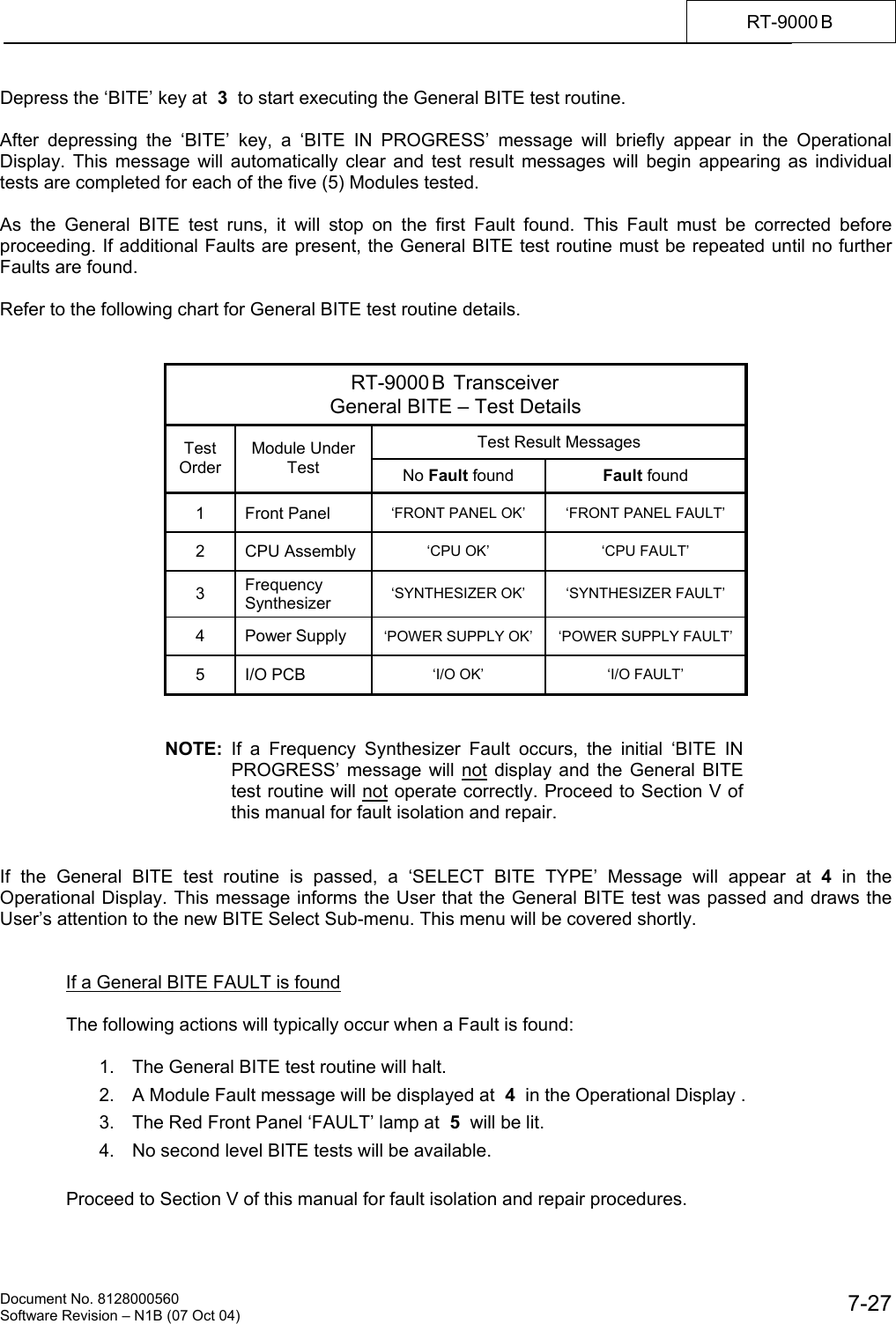
   Document No. 8128000560    Software Revision – N1B (07 Oct 04)  7-27RT-9000 B  Depress the ‘BITE’ key at  3  to start executing the General BITE test routine.  After depressing the ‘BITE’ key, a ‘BITE IN PROGRESS’ message will briefly appear in the Operational Display. This message will automatically clear and test result messages will begin appearing as individual tests are completed for each of the five (5) Modules tested.  As the General BITE test runs, it will stop on the first Fault found. This Fault must be corrected before proceeding. If additional Faults are present, the General BITE test routine must be repeated until no further Faults are found.  Refer to the following chart for General BITE test routine details.   RT-9000 B  Transceiver General BITE – Test Details Test Result Messages Test Order Module Under Test  No Fault found  Fault found 1 Front Panel  ‘FRONT PANEL OK’  ‘FRONT PANEL FAULT’ 2 CPU Assembly  ‘CPU OK’  ‘CPU FAULT’ 3  Frequency Synthesizer  ‘SYNTHESIZER OK’  ‘SYNTHESIZER FAULT’ 4 Power Supply ‘POWER SUPPLY OK’  ‘POWER SUPPLY FAULT’ 5 I/O PCB  ‘I/O OK’  ‘I/O FAULT’   NOTE:  If a Frequency Synthesizer Fault occurs, the initial ‘BITE IN PROGRESS’ message will not display and the General BITE test routine will not operate correctly. Proceed to Section V of this manual for fault isolation and repair.   If the General BITE test routine is passed, a ‘SELECT BITE TYPE’ Message will appear at 4  in the Operational Display. This message informs the User that the General BITE test was passed and draws the User’s attention to the new BITE Select Sub-menu. This menu will be covered shortly.   If a General BITE FAULT is found  The following actions will typically occur when a Fault is found:  1.  The General BITE test routine will halt. 2.  A Module Fault message will be displayed at  4  in the Operational Display . 3.  The Red Front Panel ‘FAULT’ lamp at  5  will be lit. 4.  No second level BITE tests will be available.  Proceed to Section V of this manual for fault isolation and repair procedures.
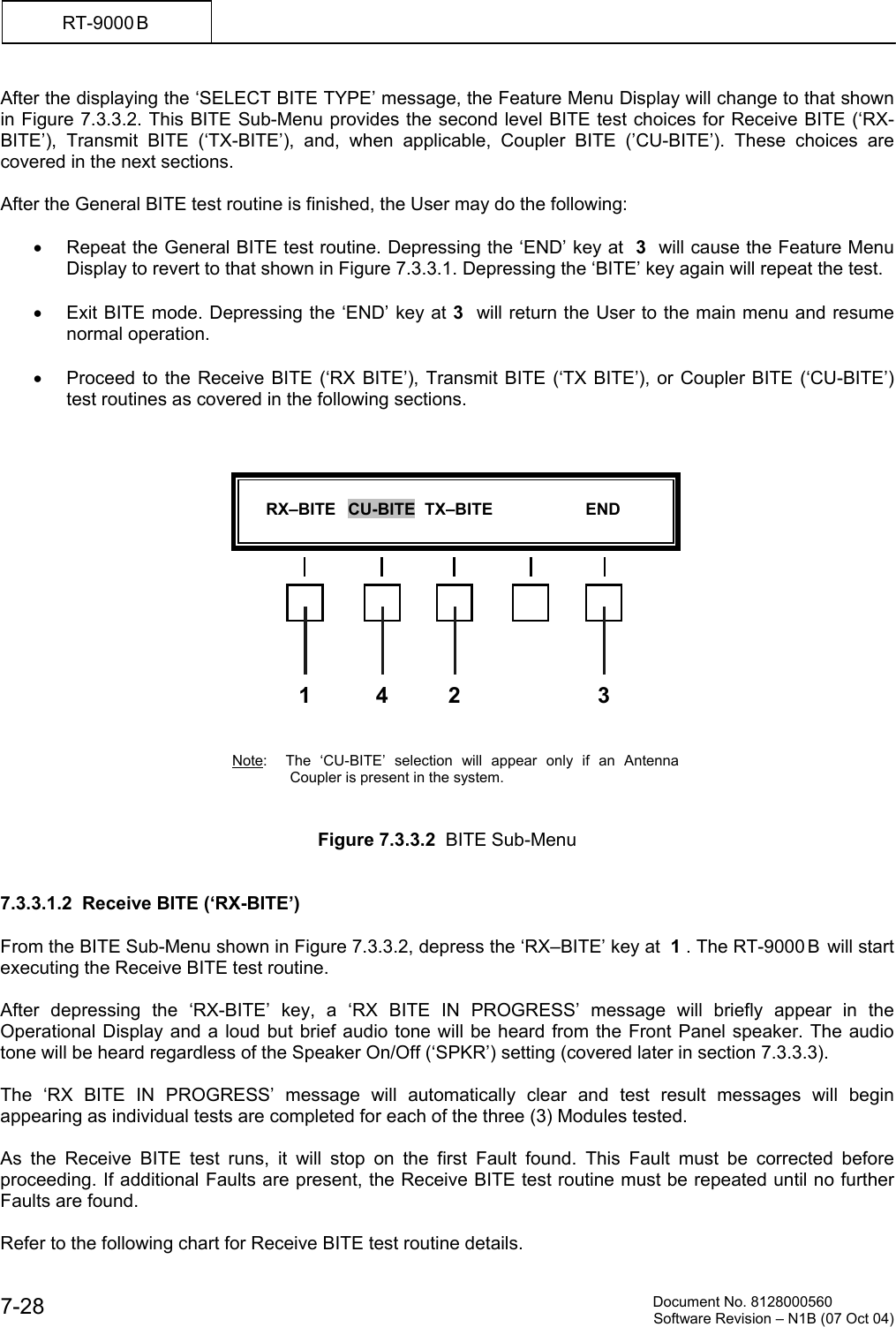
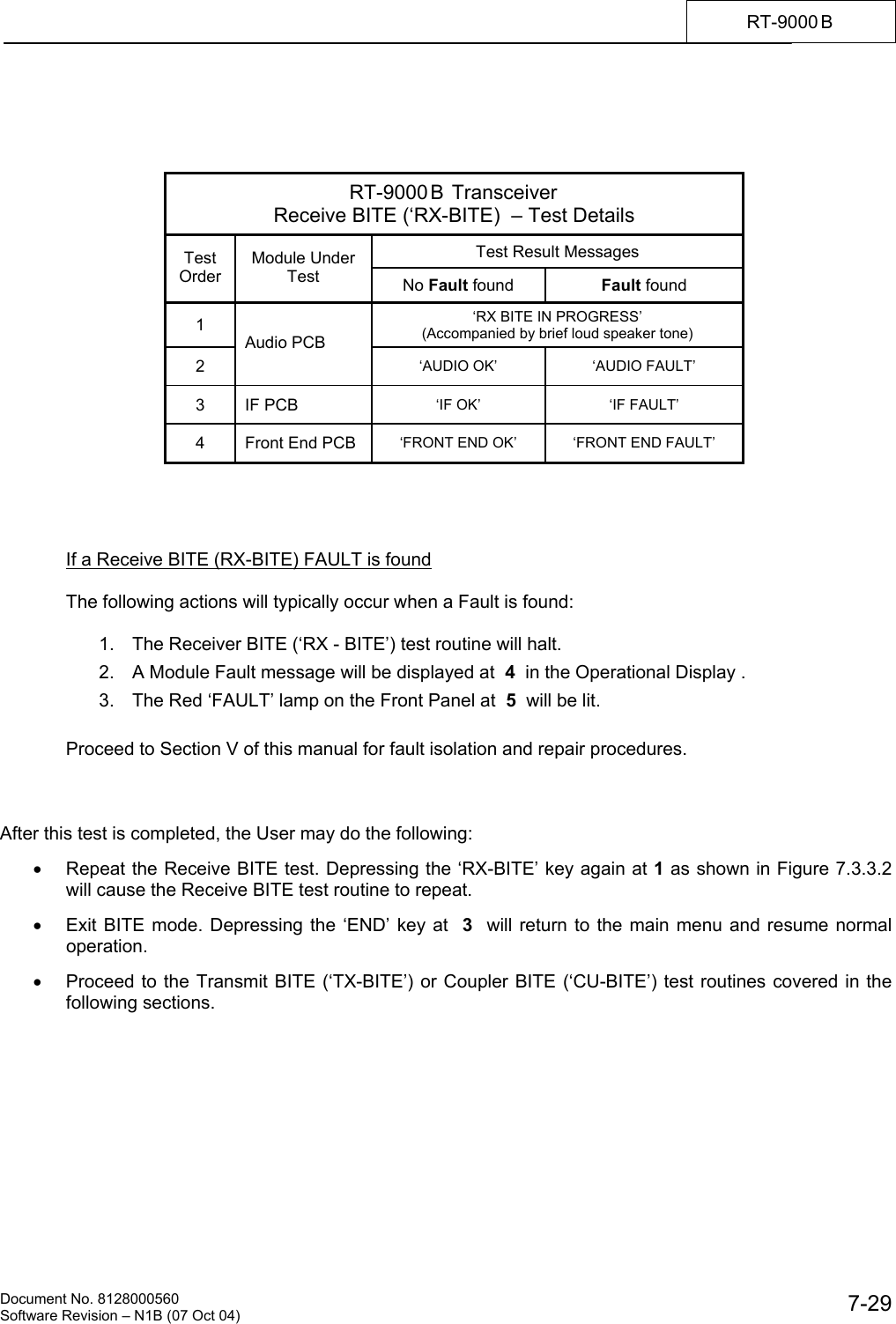
         Document No. 8128000560  Software Revision – N1B (07 Oct 04) 7-28 RT-9000 B  After the displaying the ‘SELECT BITE TYPE’ message, the Feature Menu Display will change to that shown in Figure 7.3.3.2. This BITE Sub-Menu provides the second level BITE test choices for Receive BITE (‘RX-BITE’), Transmit BITE (‘TX-BITE’), and, when applicable, Coupler BITE (’CU-BITE’). These choices are covered in the next sections.  After the General BITE test routine is finished, the User may do the following:  •  Repeat the General BITE test routine. Depressing the ‘END’ key at  3  will cause the Feature Menu Display to revert to that shown in Figure 7.3.3.1. Depressing the ‘BITE’ key again will repeat the test.  •  Exit BITE mode. Depressing the ‘END’ key at 3  will return the User to the main menu and resume normal operation.  •  Proceed to the Receive BITE (‘RX BITE’), Transmit BITE (‘TX BITE’), or Coupler BITE (‘CU-BITE’) test routines as covered in the following sections.                 Note:  The ‘CU-BITE’ selection will appear only if an Antenna Coupler is present in the system.    Figure 7.3.3.2  BITE Sub-Menu   7.3.3.1.2  Receive BITE (‘RX-BITE’)  From the BITE Sub-Menu shown in Figure 7.3.3.2, depress the ‘RX–BITE’ key at  1 . The RT-9000 B  will start executing the Receive BITE test routine.  After depressing the ‘RX-BITE’ key, a ‘RX BITE IN PROGRESS’ message will briefly appear in the Operational Display and a loud but brief audio tone will be heard from the Front Panel speaker. The audio tone will be heard regardless of the Speaker On/Off (‘SPKR’) setting (covered later in section 7.3.3.3).  The ‘RX BITE IN PROGRESS’ message will automatically clear and test result messages will begin appearing as individual tests are completed for each of the three (3) Modules tested.  As the Receive BITE test runs, it will stop on the first Fault found. This Fault must be corrected before proceeding. If additional Faults are present, the Receive BITE test routine must be repeated until no further Faults are found.  Refer to the following chart for Receive BITE test routine details.        RX–BITE   CU-BITE  TX–BITE                    END  31  24
   Document No. 8128000560    Software Revision – N1B (07 Oct 04)  7-29RT-9000 B      RT-9000 B  Transceiver Receive BITE (‘RX-BITE)  – Test Details Test Result Messages Test Order Module Under Test  No Fault found  Fault found 1  ‘RX BITE IN PROGRESS’ (Accompanied by brief loud speaker tone) 2 Audio PCB ‘AUDIO OK’  ‘AUDIO FAULT’ 3 IF PCB  ‘IF OK’  ‘IF FAULT’ 4  Front End PCB  ‘FRONT END OK’  ‘FRONT END FAULT’     If a Receive BITE (RX-BITE) FAULT is found  The following actions will typically occur when a Fault is found:  1.  The Receiver BITE (‘RX - BITE’) test routine will halt. 2.  A Module Fault message will be displayed at  4  in the Operational Display . 3.  The Red ‘FAULT’ lamp on the Front Panel at  5  will be lit.  Proceed to Section V of this manual for fault isolation and repair procedures.    After this test is completed, the User may do the following:  •  Repeat the Receive BITE test. Depressing the ‘RX-BITE’ key again at 1 as shown in Figure 7.3.3.2 will cause the Receive BITE test routine to repeat.  •  Exit BITE mode. Depressing the ‘END’ key at  3  will return to the main menu and resume normal operation.  •  Proceed to the Transmit BITE (‘TX-BITE’) or Coupler BITE (‘CU-BITE’) test routines covered in the following sections.
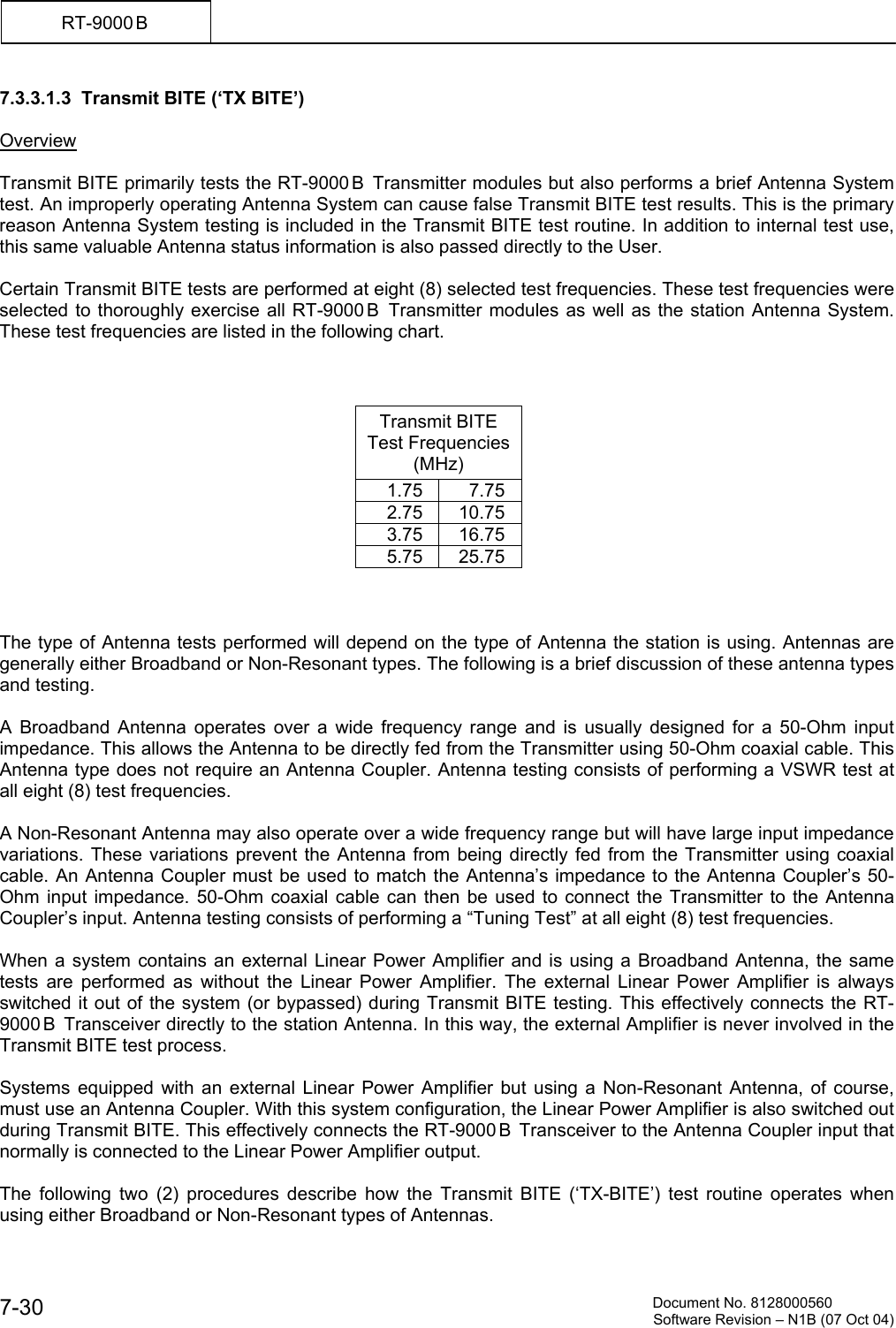
         Document No. 8128000560  Software Revision – N1B (07 Oct 04) 7-30 RT-9000 B  7.3.3.1.3  Transmit BITE (‘TX BITE’)  Overview  Transmit BITE primarily tests the RT-9000 B  Transmitter modules but also performs a brief Antenna System test. An improperly operating Antenna System can cause false Transmit BITE test results. This is the primary reason Antenna System testing is included in the Transmit BITE test routine. In addition to internal test use, this same valuable Antenna status information is also passed directly to the User.  Certain Transmit BITE tests are performed at eight (8) selected test frequencies. These test frequencies were selected to thoroughly exercise all RT-9000 B  Transmitter modules as well as the station Antenna System. These test frequencies are listed in the following chart.    Transmit BITE  Test Frequencies (MHz) 1.75 7.75 2.75 10.75 3.75 16.75 5.75 25.75    The type of Antenna tests performed will depend on the type of Antenna the station is using. Antennas are generally either Broadband or Non-Resonant types. The following is a brief discussion of these antenna types and testing.  A Broadband Antenna operates over a wide frequency range and is usually designed for a 50-Ohm input impedance. This allows the Antenna to be directly fed from the Transmitter using 50-Ohm coaxial cable. This Antenna type does not require an Antenna Coupler. Antenna testing consists of performing a VSWR test at all eight (8) test frequencies.  A Non-Resonant Antenna may also operate over a wide frequency range but will have large input impedance variations. These variations prevent the Antenna from being directly fed from the Transmitter using coaxial cable. An Antenna Coupler must be used to match the Antenna’s impedance to the Antenna Coupler’s 50-Ohm input impedance. 50-Ohm coaxial cable can then be used to connect the Transmitter to the Antenna Coupler’s input. Antenna testing consists of performing a “Tuning Test” at all eight (8) test frequencies.  When a system contains an external Linear Power Amplifier and is using a Broadband Antenna, the same tests are performed as without the Linear Power Amplifier. The external Linear Power Amplifier is always switched it out of the system (or bypassed) during Transmit BITE testing. This effectively connects the RT-9000 B  Transceiver directly to the station Antenna. In this way, the external Amplifier is never involved in the Transmit BITE test process.   Systems equipped with an external Linear Power Amplifier but using a Non-Resonant Antenna, of course, must use an Antenna Coupler. With this system configuration, the Linear Power Amplifier is also switched out during Transmit BITE. This effectively connects the RT-9000 B  Transceiver to the Antenna Coupler input that normally is connected to the Linear Power Amplifier output.  The following two (2) procedures describe how the Transmit BITE (‘TX-BITE’) test routine operates when using either Broadband or Non-Resonant types of Antennas.
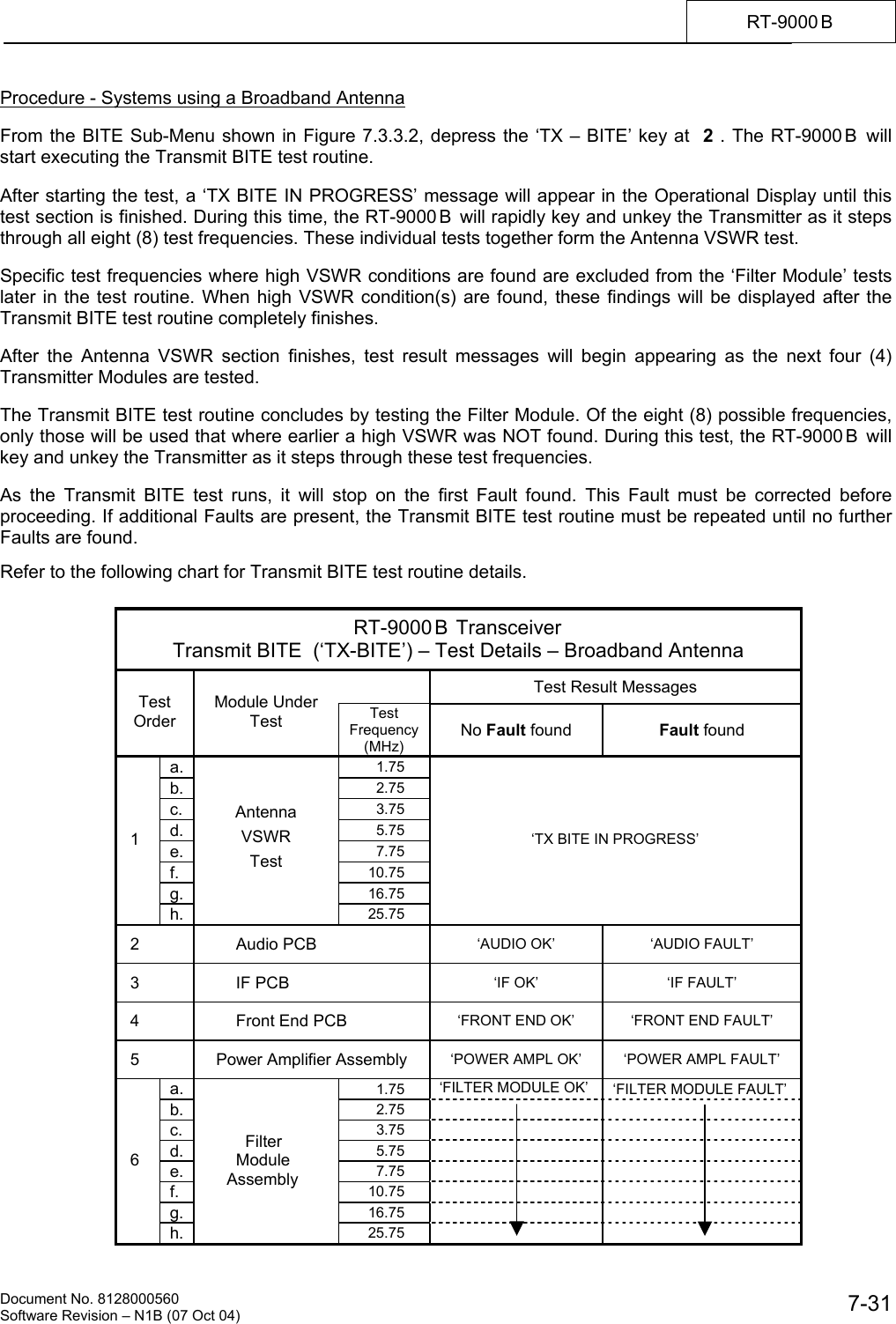
   Document No. 8128000560    Software Revision – N1B (07 Oct 04)  7-31RT-9000 B  Procedure - Systems using a Broadband Antenna  From the BITE Sub-Menu shown in Figure 7.3.3.2, depress the ‘TX – BITE’ key at  2 . The RT-9000 B  will start executing the Transmit BITE test routine.  After starting the test, a ‘TX BITE IN PROGRESS’ message will appear in the Operational Display until this test section is finished. During this time, the RT-9000B  will rapidly key and unkey the Transmitter as it steps through all eight (8) test frequencies. These individual tests together form the Antenna VSWR test.  Specific test frequencies where high VSWR conditions are found are excluded from the ‘Filter Module’ tests later in the test routine. When high VSWR condition(s) are found, these findings will be displayed after the Transmit BITE test routine completely finishes.  After the Antenna VSWR section finishes, test result messages will begin appearing as the next four (4) Transmitter Modules are tested.  The Transmit BITE test routine concludes by testing the Filter Module. Of the eight (8) possible frequencies, only those will be used that where earlier a high VSWR was NOT found. During this test, the RT-9000 B  will key and unkey the Transmitter as it steps through these test frequencies.  As the Transmit BITE test runs, it will stop on the first Fault found. This Fault must be corrected before proceeding. If additional Faults are present, the Transmit BITE test routine must be repeated until no further Faults are found.  Refer to the following chart for Transmit BITE test routine details.  RT-9000 B  Transceiver Transmit BITE  (‘TX-BITE’) – Test Details – Broadband Antenna   Test Result Messages Test Order Module Under Test  Test Frequency (MHz) No Fault found  Fault found a.  1.75  b.  2.75 c.  3.75 d.  5.75 e.  7.75 f.  10.75 g.  16.75  1 h. Antenna VSWR Test 25.75 ‘TX BITE IN PROGRESS’  2         Audio PCB ‘AUDIO OK’  ‘AUDIO FAULT’  3         IF PCB  ‘IF OK’  ‘IF FAULT’  4         Front End PCB ‘FRONT END OK’  ‘FRONT END FAULT’  5  Power Amplifier Assembly ‘POWER AMPL OK’  ‘POWER AMPL FAULT’ a.  1.75    ‘FILTER MODULE OK’  ‘FILTER MODULE FAULT’ b.  2.75    c.  3.75    d.  5.75    e.  7.75    f.  10.75    g.  16.75     6 h.          Filter        Module      Assembly 25.75
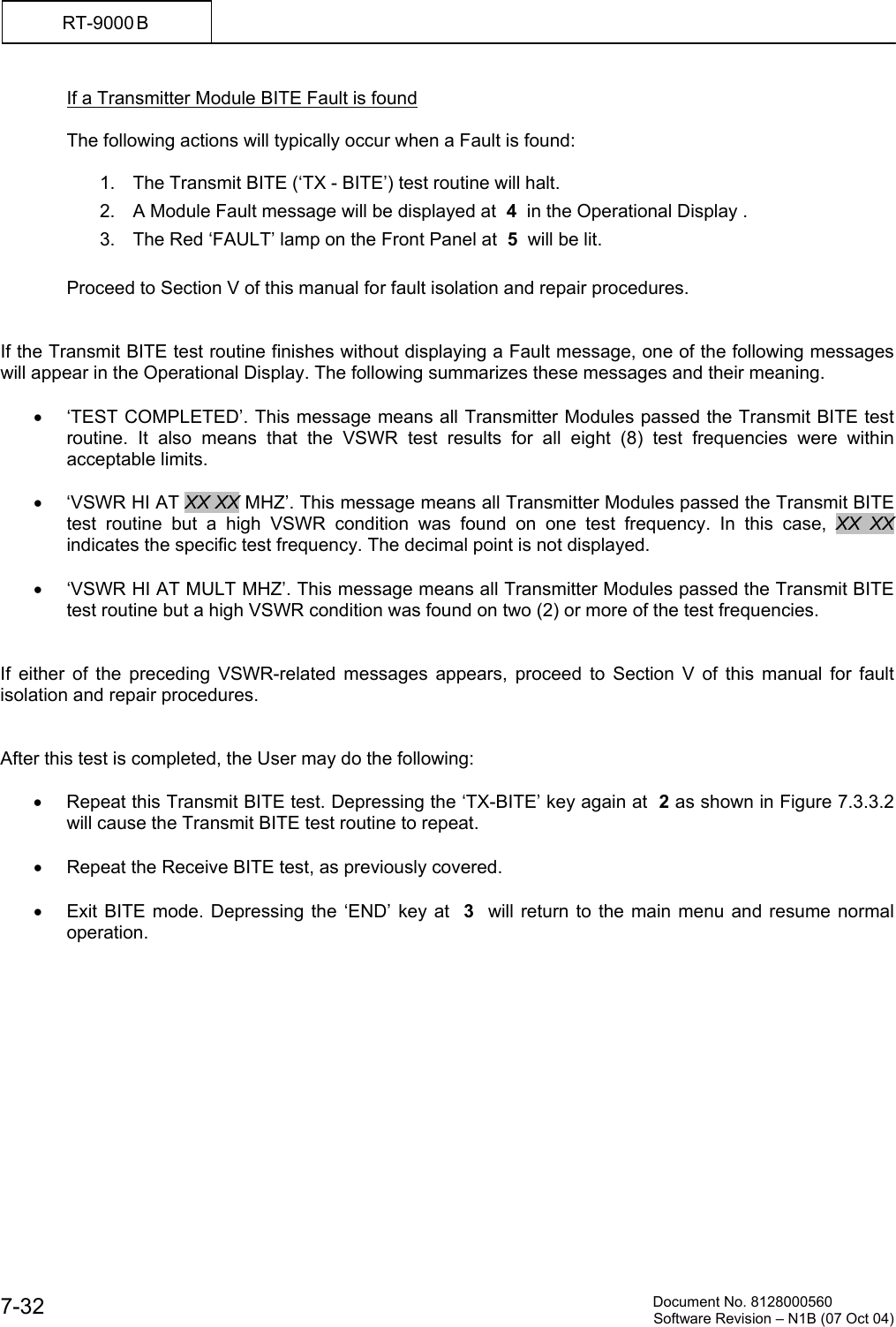
         Document No. 8128000560  Software Revision – N1B (07 Oct 04) 7-32 RT-9000 B  If a Transmitter Module BITE Fault is found  The following actions will typically occur when a Fault is found:  1.  The Transmit BITE (‘TX - BITE’) test routine will halt. 2.  A Module Fault message will be displayed at  4  in the Operational Display . 3.  The Red ‘FAULT’ lamp on the Front Panel at  5  will be lit.  Proceed to Section V of this manual for fault isolation and repair procedures.   If the Transmit BITE test routine finishes without displaying a Fault message, one of the following messages will appear in the Operational Display. The following summarizes these messages and their meaning.  •  ‘TEST COMPLETED’. This message means all Transmitter Modules passed the Transmit BITE test routine. It also means that the VSWR test results for all eight (8) test frequencies were within acceptable limits.  •  ‘VSWR HI AT XX XX MHZ’. This message means all Transmitter Modules passed the Transmit BITE test routine but a high VSWR condition was found on one test frequency. In this case, XX XX  indicates the specific test frequency. The decimal point is not displayed.  •  ‘VSWR HI AT MULT MHZ’. This message means all Transmitter Modules passed the Transmit BITE test routine but a high VSWR condition was found on two (2) or more of the test frequencies.   If either of the preceding VSWR-related messages appears, proceed to Section V of this manual for fault isolation and repair procedures.    After this test is completed, the User may do the following:  •  Repeat this Transmit BITE test. Depressing the ‘TX-BITE’ key again at  2 as shown in Figure 7.3.3.2 will cause the Transmit BITE test routine to repeat.  •  Repeat the Receive BITE test, as previously covered.  •  Exit BITE mode. Depressing the ‘END’ key at  3  will return to the main menu and resume normal operation.
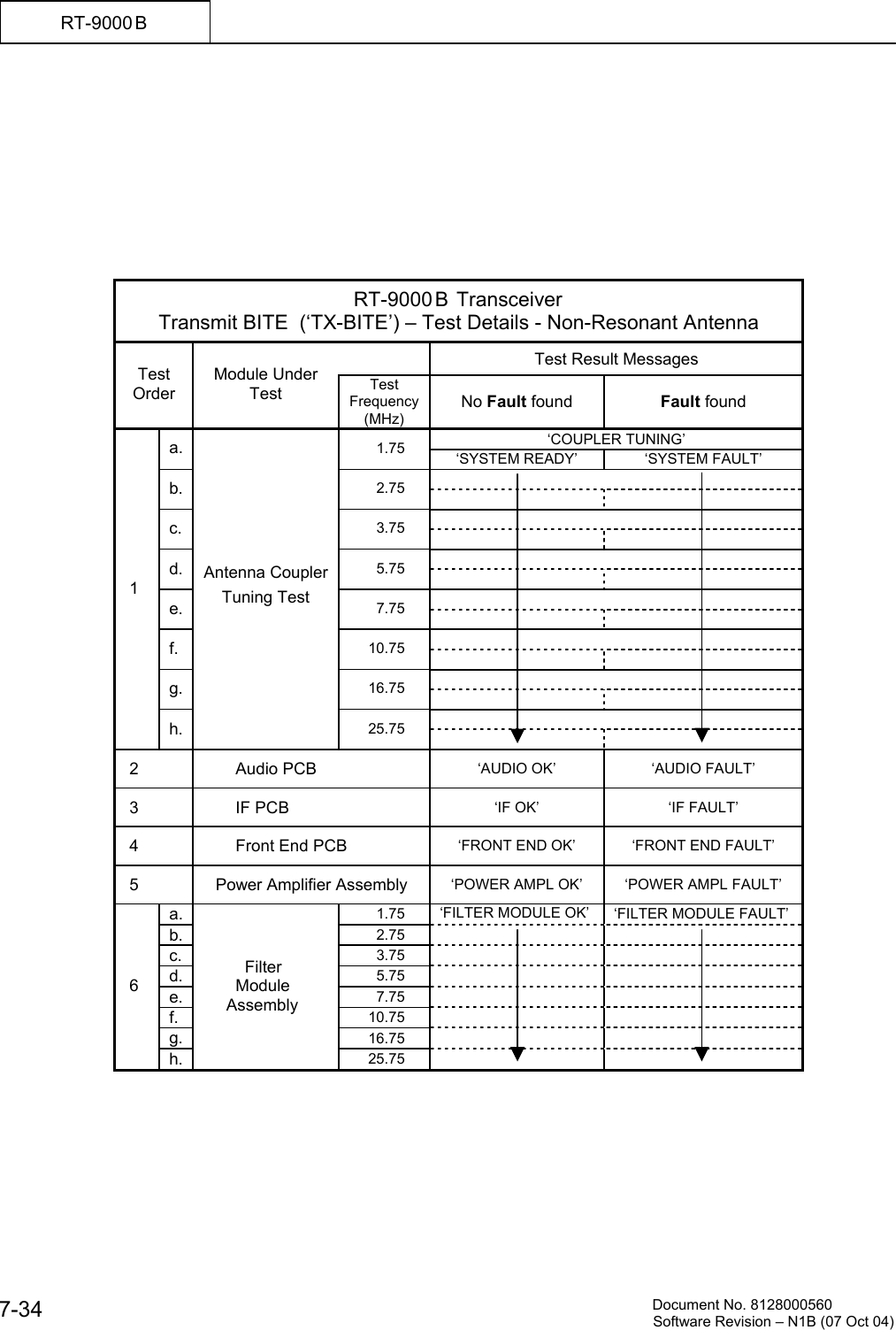
   Document No. 8128000560    Software Revision – N1B (07 Oct 04)  7-33RT-9000 B  Procedure - Systems using a Non-Resonant Antenna  From the BITE Sub-Menu shown in Figure 7.3.3.2, depress the ‘TX – BITE’ key at  2 . The RT-9000 B  will start executing the Transmit BITE test routine.  The Antenna Coupler will begin a “Tuning Cycle” using the first test frequency. While the Antenna Coupler tuning cycle is in progress, a ‘COUPLER TUNING’ message will appear in the Operational Display. After the Antenna Coupler finishes tuning (or the maximum allotted tuning time expires), a test result message will be displayed. A ‘SYSTEM READY’ or ‘SYSTEM FAULT’ message will be displayed. If the Antenna Coupler is totally inoperative, a ‘COUPLER FAULT’ message will instead be displayed. In both above cases, the Transmit BITE test routine will not stop if either of these Faults is found.  After the first test frequency tuning cycle is finished, the test routine will then step to the second test frequency and repeat this process. This sequence will repeat until all eight (8) test frequencies have been tuned by the Antenna Coupler. These individual tests together form the Antenna Coupler tuning test section.  Test frequencies that result in ‘SYSTEM FAULT’ test outcome will be excluded from the ‘Filter Module’ tests later in the Transmit BITE test routine. When these “No Tune” condition(s) are found, the findings will be displayed after the Transmit BITE test routine completely finishes.  After the Antenna Coupler tuning tests are completed, test result messages will begin appearing as the next four (4) Transmitter Modules are tested.  The Transmit BITE test routine concludes by testing the Filter Module. Of the eight (8) possible frequencies, only those that successfully tuned and resulted in ‘SYSTEM READY’ message will be used. During this test, the RT-9000 B  will key and unkey the Transmitter as it steps through these test frequencies.  As the Transmit BITE test runs, it will stop on the first Transmitter Module Fault found. This Fault must be corrected before proceeding. If additional Faults are present, the Transmit BITE test routine must be repeated until no further Faults are found.  Refer to the following chart for Transmit BITE test routine details.
         Document No. 8128000560  Software Revision – N1B (07 Oct 04) 7-34 RT-9000 B           RT-9000 B  Transceiver Transmit BITE  (‘TX-BITE’) – Test Details - Non-Resonant Antenna   Test Result Messages Test Order Module Under Test  Test Frequency (MHz) No Fault found  Fault found ‘COUPLER TUNING’ a.  1.75   ‘SYSTEM READY’  ‘SYSTEM FAULT’  b.  2.75     c.  3.75     d.  5.75     e.  7.75     f.  10.75     g.  16.75      1 h. Antenna Coupler Tuning Test 25.75     2         Audio PCB ‘AUDIO OK’  ‘AUDIO FAULT’  3         IF PCB  ‘IF OK’  ‘IF FAULT’  4         Front End PCB ‘FRONT END OK’  ‘FRONT END FAULT’  5  Power Amplifier Assembly ‘POWER AMPL OK’  ‘POWER AMPL FAULT’ a.  1.75    ‘FILTER MODULE OK’  ‘FILTER MODULE FAULT’ b.  2.75    c.  3.75    d.  5.75    e.  7.75    f.  10.75    g.  16.75     6 h.          Filter        Module      Assembly 25.75
   Document No. 8128000560    Software Revision – N1B (07 Oct 04)  7-35RT-9000 B  If a Transmitter Module BITE Fault is found  The following actions will typically occur when a Fault is found:  1.  The Transmit BITE (‘TX - BITE’) test routine will halt. 2.  A Module Fault message will be displayed at  4  in the Operational Display . 3.  The Red ‘FAULT’ lamp on the Front Panel at  5  will be lit.  Proceed to Section V of this manual for fault isolation and repair procedures.   If the Transmit BITE test routine finishes without displaying a Fault message, one of the following messages will appear in the Operational Display. The following summarizes these messages and their meaning.  •  ‘TEST COMPLETED’. This message means all Transmitter Modules passed the Transmit BITE test routine. It also means that the Antenna Coupler successfully tuned all eight (8) test frequencies.  •  ‘NO TUNE AT XX XX MHZ’. This message means all Transmitter Modules passed the Transmit BITE test routine but a “No Tune” condition was found on one test frequency. In this case, XX XX  indicates the specific test frequency. The decimal point is not displayed.  •  ‘NO TUNE AT MULT MHZ’. This message means all Transmitter Modules passed the Transmit BITE test routine but a “No Tune” condition was found on two (2) or more of the test frequencies  If either of the “No Tune”-related messages appears, proceed to Section V of this manual AND the Antenna Coupler manual for fault isolation and repair procedures.   After this test is completed, the User may do the following:  •  Repeat this Transmit BITE test. Depressing the ‘TX-BITE’ key again at 2 as shown in Figure 7.3.3.2 will cause the Transmit BITE test routine to repeat.  •  Repeat the Receive BITE test, as previously covered.  •  Exit BITE mode. Depressing the ‘END’ key at  3  will return to the main menu and resume normal operation.  •  Proceed to the Coupler BITE (‘CU-BITE’) test routine covered in the following section.
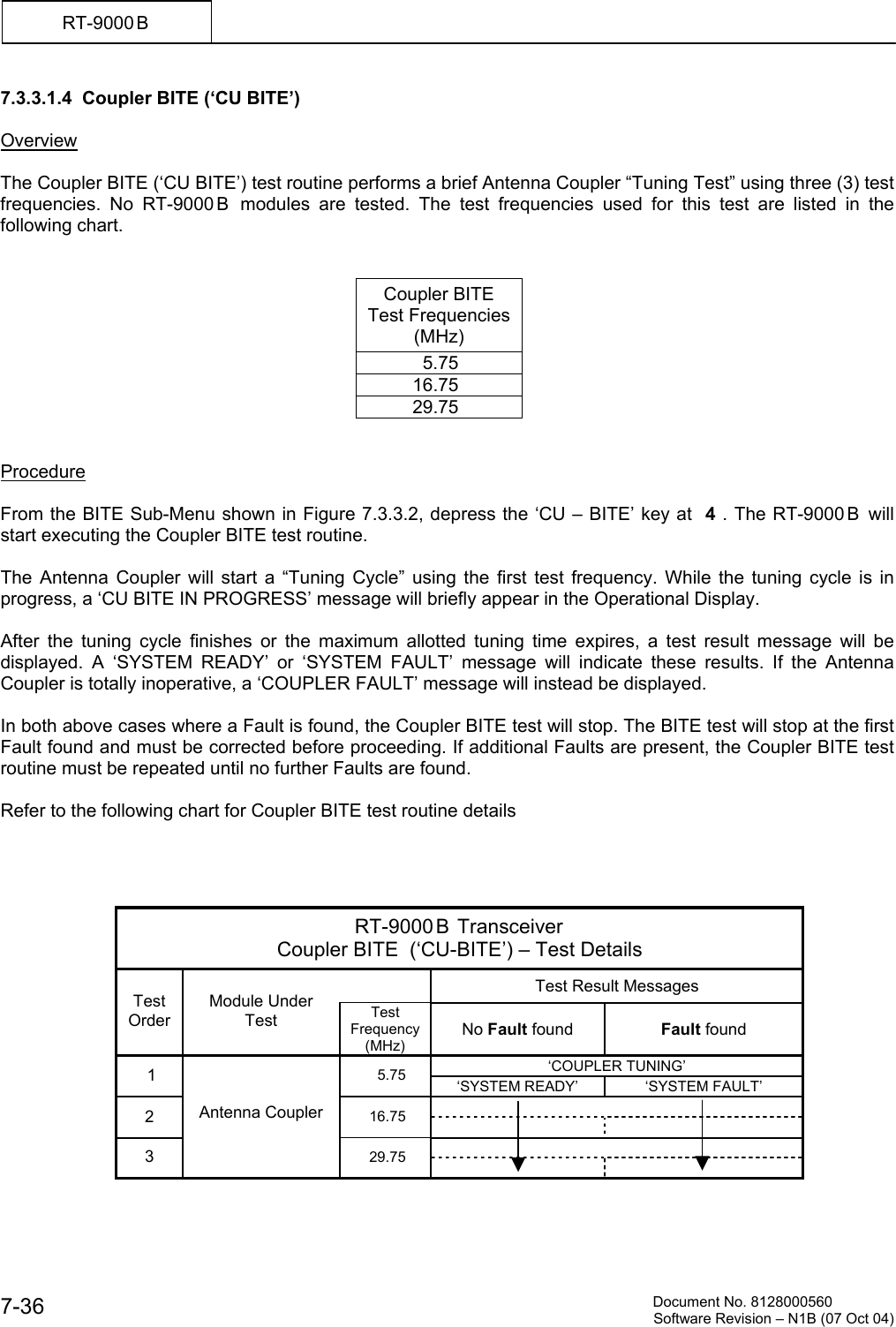
         Document No. 8128000560  Software Revision – N1B (07 Oct 04) 7-36 RT-9000 B  7.3.3.1.4  Coupler BITE (‘CU BITE’)  Overview  The Coupler BITE (‘CU BITE’) test routine performs a brief Antenna Coupler “Tuning Test” using three (3) test frequencies. No RT-9000 B  modules are tested. The test frequencies used for this test are listed in the following chart.   Coupler BITE  Test Frequencies (MHz)            5.75          16.75          29.75   Procedure  From the BITE Sub-Menu shown in Figure 7.3.3.2, depress the ‘CU – BITE’ key at  4 . The RT-9000 B  will start executing the Coupler BITE test routine.  The Antenna Coupler will start a “Tuning Cycle” using the first test frequency. While the tuning cycle is in progress, a ‘CU BITE IN PROGRESS’ message will briefly appear in the Operational Display.  After the tuning cycle finishes or the maximum allotted tuning time expires, a test result message will be displayed. A ‘SYSTEM READY’ or ‘SYSTEM FAULT’ message will indicate these results. If the Antenna Coupler is totally inoperative, a ‘COUPLER FAULT’ message will instead be displayed.  In both above cases where a Fault is found, the Coupler BITE test will stop. The BITE test will stop at the first Fault found and must be corrected before proceeding. If additional Faults are present, the Coupler BITE test routine must be repeated until no further Faults are found.  Refer to the following chart for Coupler BITE test routine details     RT-9000 B  Transceiver Coupler BITE  (‘CU-BITE’) – Test Details   Test Result Messages Test Order Module Under Test  Test Frequency (MHz) No Fault found  Fault found ‘COUPLER TUNING’  1  5.75   ‘SYSTEM READY’  ‘SYSTEM FAULT’  2  16.75     3 Antenna Coupler 29.75
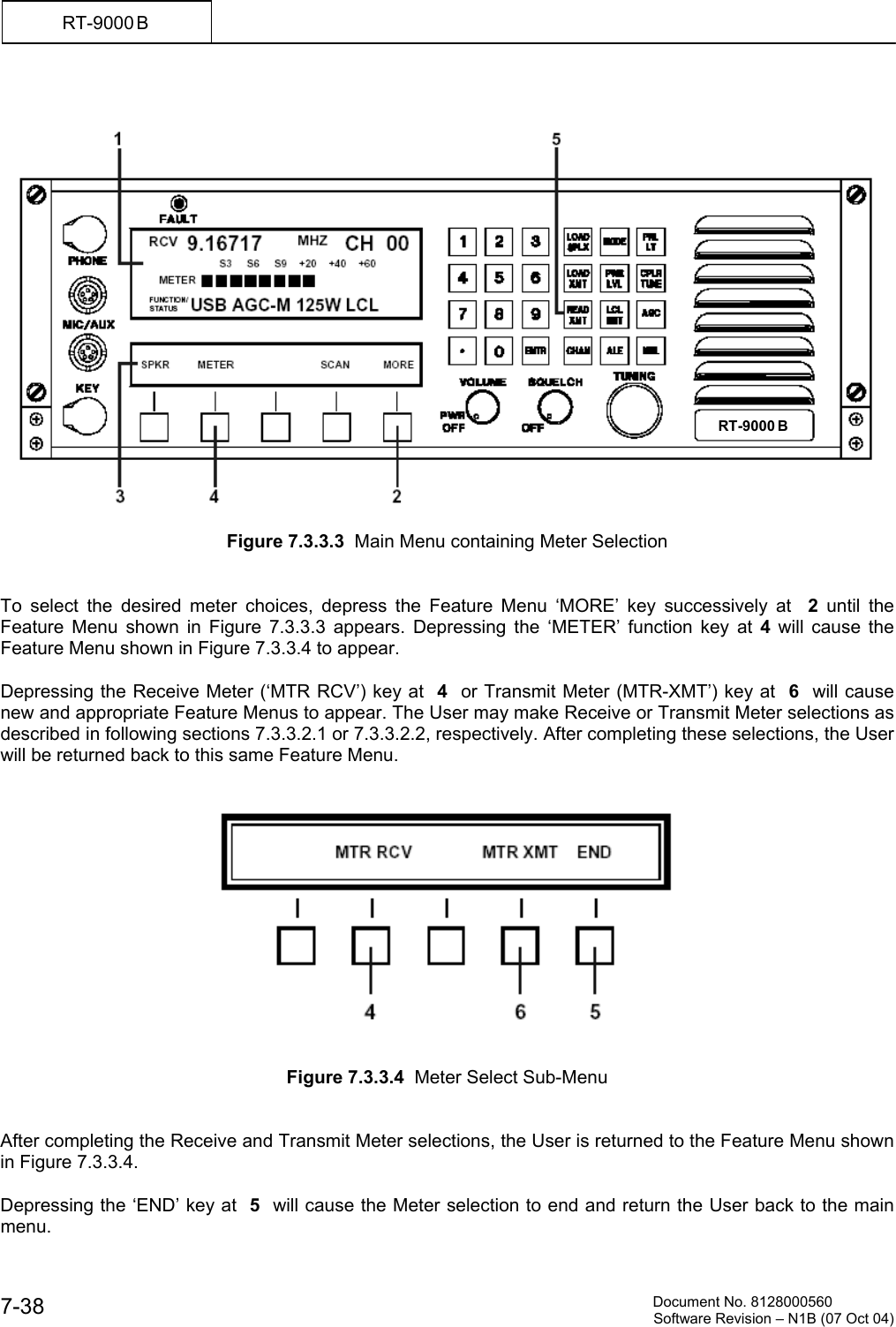
   Document No. 8128000560    Software Revision – N1B (07 Oct 04)  7-37RT-9000 B  When the Coupler BITE test routine finishes, one of the following messages will appear in the Operational Display. The following summarizes these messages and their meaning.  •  ‘SELECT BITE TYPE’. This message means the Antenna Coupler successfully tuned all three (3) test frequencies.  •  ‘NO TUNE AT XX XX MHZ’. This message means the Antenna Coupler tuned all test frequencies successfully prior to the one currently indicated as “No Tune”. In this case, XX XX  indicates the specific test frequency. The decimal point is not displayed.  If a “No Tune” message appears, proceed to Section V of this manual AND the Antenna Coupler manual for fault isolation and repair procedures.   After this test is completed, the User may do the following:  •  Repeat the Coupler BITE test. Depressing the ‘CU-BITE’ key again at 4 as shown in Figure 7.3.3.2 will cause the Coupler BITE test routine to repeat.  •  Repeat the Transmit BITE or Receive BITE tests, as previously covered.  •  Exit BITE mode. Depressing the ‘END’ key at  3  will return to the main menu and resume normal operation.       7.3.3.2  METER FUNCTIONS   Several metering functions are available for both Receive-state and Transmit-state conditions. These Meter choices appear in the Operational Display at  1  as shown in Figure 7.3.3.3.  The available Meter functions are as follows:   RECEIVE:  •  ‘LINE’    - 600-Ohm Line Audio Output •  ‘S MTR’ - Signal Strength Meter (shown in Figure 7.3.3.3)    TRANSMIT:  •  ‘LINE’  - 600 Ohm Line Audio Input •  ‘ALC’   - Automatic Level Control voltage •  ‘FWD’  - Forward RF Power Output •  ‘RFLD’ - Reflected RF Power
         Document No. 8128000560  Software Revision – N1B (07 Oct 04) 7-38 RT-9000 B      Figure 7.3.3.3  Main Menu containing Meter Selection   To select the desired meter choices, depress the Feature Menu ‘MORE’ key successively at  2 until the Feature Menu shown in Figure 7.3.3.3 appears. Depressing the ‘METER’ function key at 4 will cause the Feature Menu shown in Figure 7.3.3.4 to appear.   Depressing the Receive Meter (‘MTR RCV’) key at  4  or Transmit Meter (MTR-XMT’) key at  6  will cause new and appropriate Feature Menus to appear. The User may make Receive or Transmit Meter selections as described in following sections 7.3.3.2.1 or 7.3.3.2.2, respectively. After completing these selections, the User will be returned back to this same Feature Menu.      Figure 7.3.3.4  Meter Select Sub-Menu   After completing the Receive and Transmit Meter selections, the User is returned to the Feature Menu shown in Figure 7.3.3.4.   Depressing the ‘END’ key at  5  will cause the Meter selection to end and return the User back to the main menu. RT-9000 B
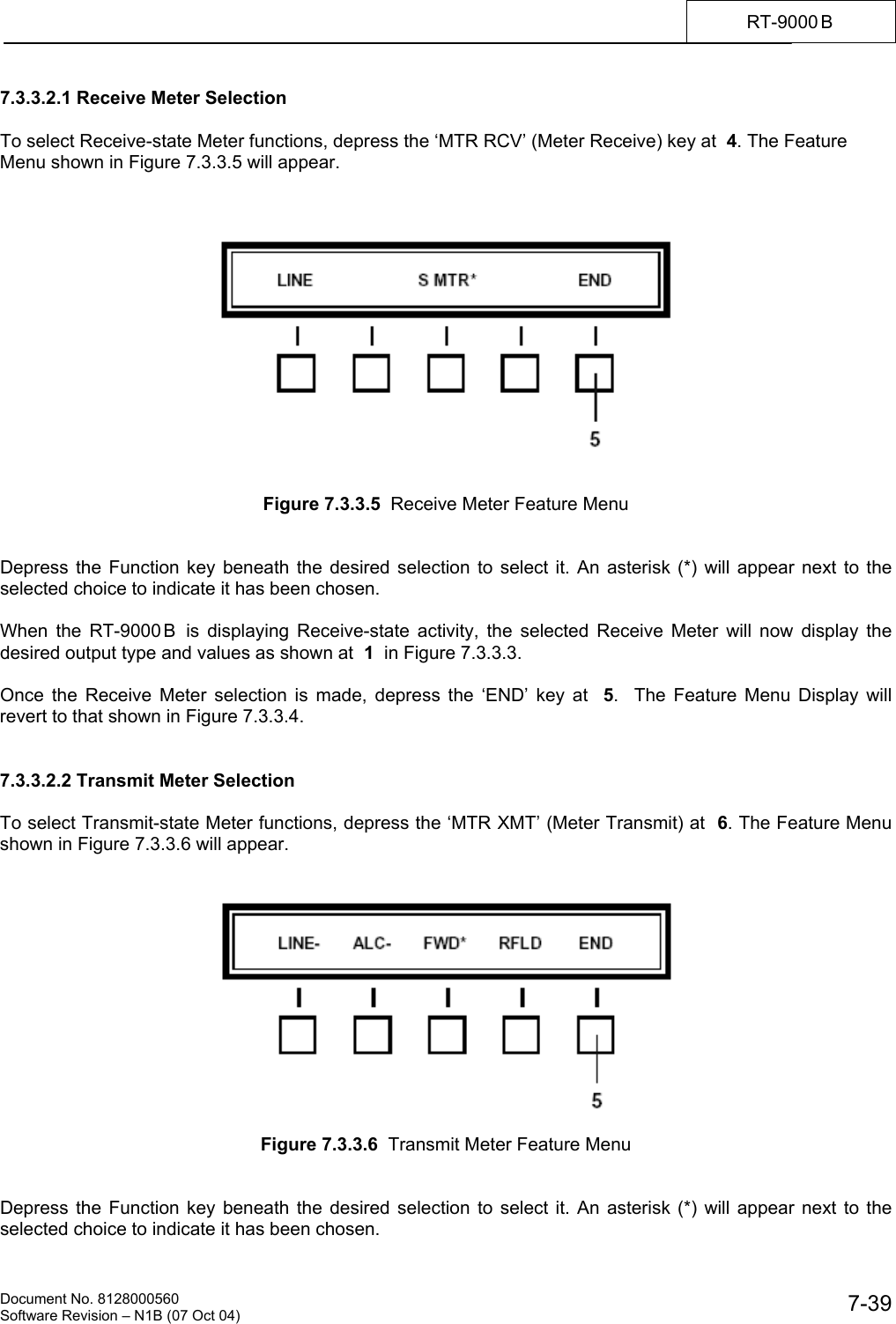
   Document No. 8128000560    Software Revision – N1B (07 Oct 04)  7-39RT-9000 B  7.3.3.2.1 Receive Meter Selection  To select Receive-state Meter functions, depress the ‘MTR RCV’ (Meter Receive) key at  4. The Feature Menu shown in Figure 7.3.3.5 will appear.       Figure 7.3.3.5  Receive Meter Feature Menu   Depress the Function key beneath the desired selection to select it. An asterisk (*) will appear next to the selected choice to indicate it has been chosen.  When the RT-9000 B  is displaying Receive-state activity, the selected Receive Meter will now display the desired output type and values as shown at  1  in Figure 7.3.3.3.  Once the Receive Meter selection is made, depress the ‘END’ key at  5.  The Feature Menu Display will revert to that shown in Figure 7.3.3.4.   7.3.3.2.2 Transmit Meter Selection  To select Transmit-state Meter functions, depress the ‘MTR XMT’ (Meter Transmit) at  6. The Feature Menu shown in Figure 7.3.3.6 will appear.     Figure 7.3.3.6  Transmit Meter Feature Menu   Depress the Function key beneath the desired selection to select it. An asterisk (*) will appear next to the selected choice to indicate it has been chosen.
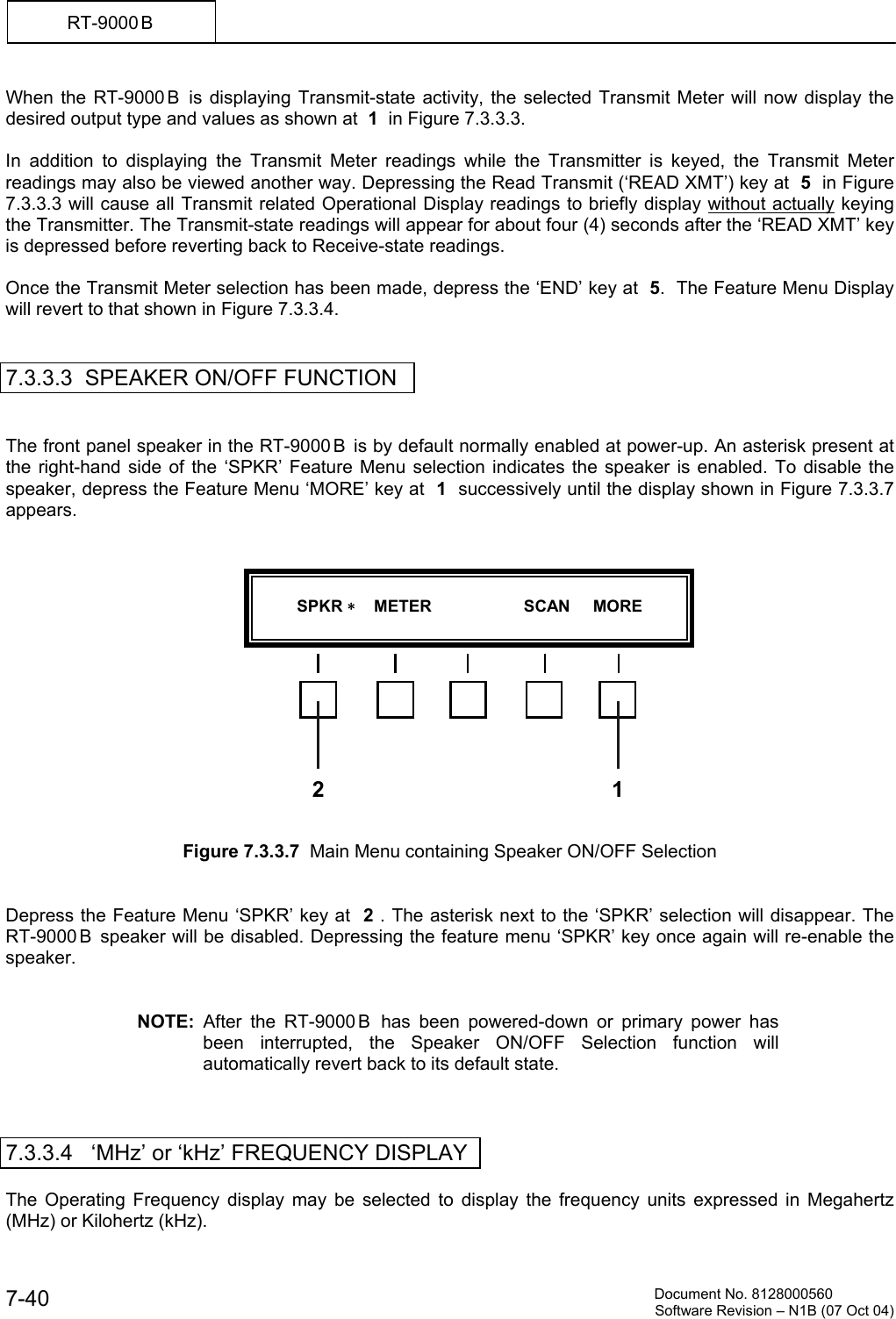
         Document No. 8128000560  Software Revision – N1B (07 Oct 04) 7-40 RT-9000 B  When the RT-9000 B  is displaying Transmit-state activity, the selected Transmit Meter will now display the desired output type and values as shown at  1  in Figure 7.3.3.3.  In addition to displaying the Transmit Meter readings while the Transmitter is keyed, the Transmit Meter readings may also be viewed another way. Depressing the Read Transmit (‘READ XMT’) key at  5  in Figure 7.3.3.3 will cause all Transmit related Operational Display readings to briefly display without actually keying the Transmitter. The Transmit-state readings will appear for about four (4) seconds after the ‘READ XMT’ key is depressed before reverting back to Receive-state readings.  Once the Transmit Meter selection has been made, depress the ‘END’ key at  5.  The Feature Menu Display will revert to that shown in Figure 7.3.3.4.    7.3.3.3  SPEAKER ON/OFF FUNCTION   The front panel speaker in the RT-9000 B  is by default normally enabled at power-up. An asterisk present at the right-hand side of the ‘SPKR’ Feature Menu selection indicates the speaker is enabled. To disable the speaker, depress the Feature Menu ‘MORE’ key at  1  successively until the display shown in Figure 7.3.3.7 appears.                Figure 7.3.3.7  Main Menu containing Speaker ON/OFF Selection   Depress the Feature Menu ‘SPKR’ key at  2 . The asterisk next to the ‘SPKR’ selection will disappear. The RT-9000 B  speaker will be disabled. Depressing the feature menu ‘SPKR’ key once again will re-enable the speaker.   NOTE: After the RT-9000 B  has been powered-down or primary power has been interrupted, the Speaker ON/OFF Selection function will automatically revert back to its default state.    7.3.3.4   ‘MHz’ or ‘kHz’ FREQUENCY DISPLAY  The Operating Frequency display may be selected to display the frequency units expressed in Megahertz (MHz) or Kilohertz (kHz).           SPKR     METER                    SCAN     MORE  2 1
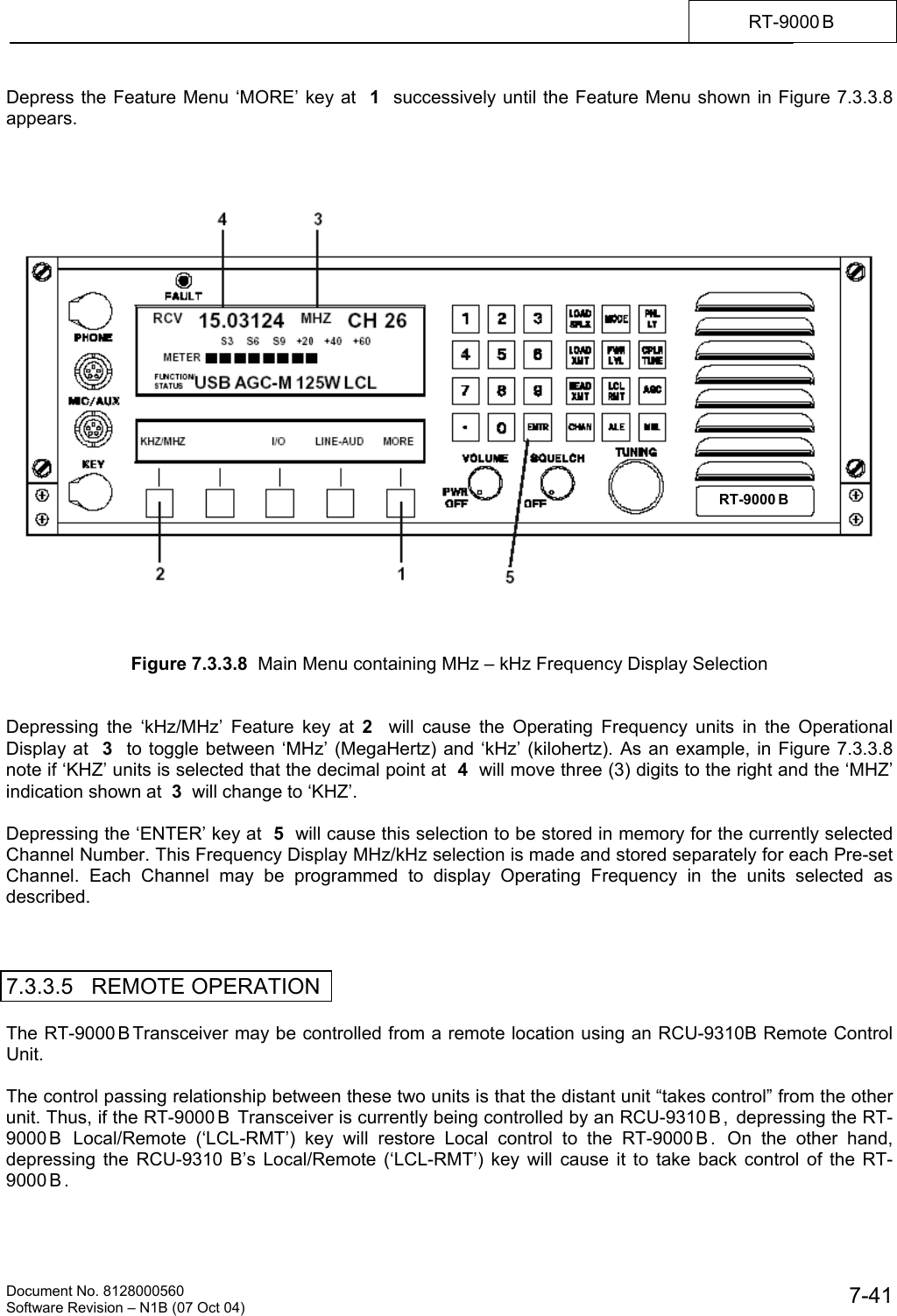
   Document No. 8128000560    Software Revision – N1B (07 Oct 04)  7-41RT-9000 B  Depress the Feature Menu ‘MORE’ key at  1  successively until the Feature Menu shown in Figure 7.3.3.8 appears.         Figure 7.3.3.8  Main Menu containing MHz – kHz Frequency Display Selection   Depressing the ‘kHz/MHz’ Feature key at 2  will cause the Operating Frequency units in the Operational Display at  3  to toggle between ‘MHz’ (MegaHertz) and ‘kHz’ (kilohertz). As an example, in Figure 7.3.3.8 note if ‘KHZ’ units is selected that the decimal point at  4  will move three (3) digits to the right and the ‘MHZ’ indication shown at  3  will change to ‘KHZ’.   Depressing the ‘ENTER’ key at  5  will cause this selection to be stored in memory for the currently selected Channel Number. This Frequency Display MHz/kHz selection is made and stored separately for each Pre-set Channel. Each Channel may be programmed to display Operating Frequency in the units selected as described.    7.3.3.5   REMOTE OPERATION  The RT-9000 B Transceiver may be controlled from a remote location using an RCU-9310B Remote Control Unit.  The control passing relationship between these two units is that the distant unit “takes control” from the other unit. Thus, if the RT-9000 B  Transceiver is currently being controlled by an RCU-9310 B ,  depressing the RT-9000 B  Local/Remote (‘LCL-RMT’) key will restore Local control to the RT-9000 B .  On the other hand, depressing the RCU-9310 B’s Local/Remote (‘LCL-RMT’) key will cause it to take back control of the RT-9000 B .  RT-9000 B
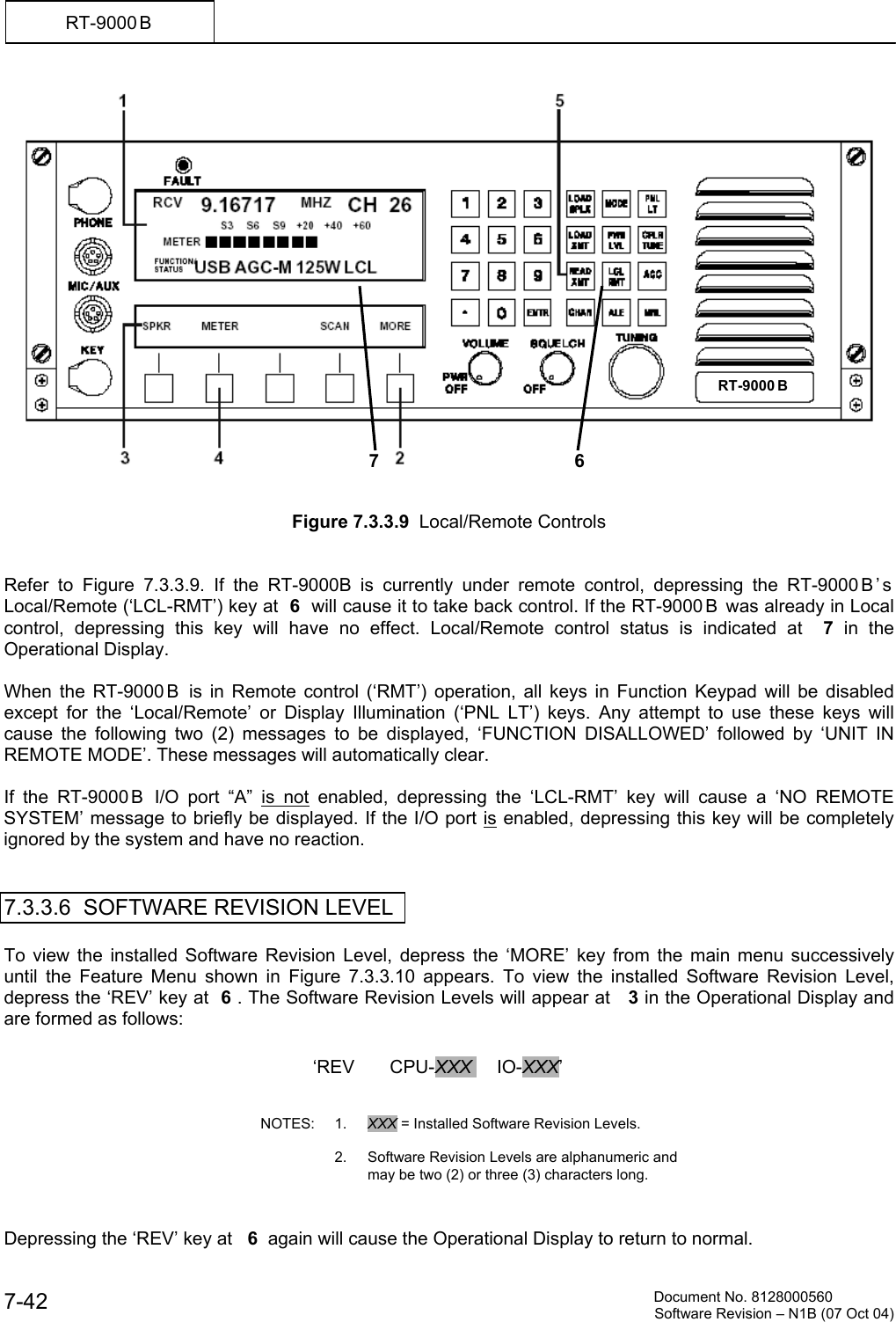
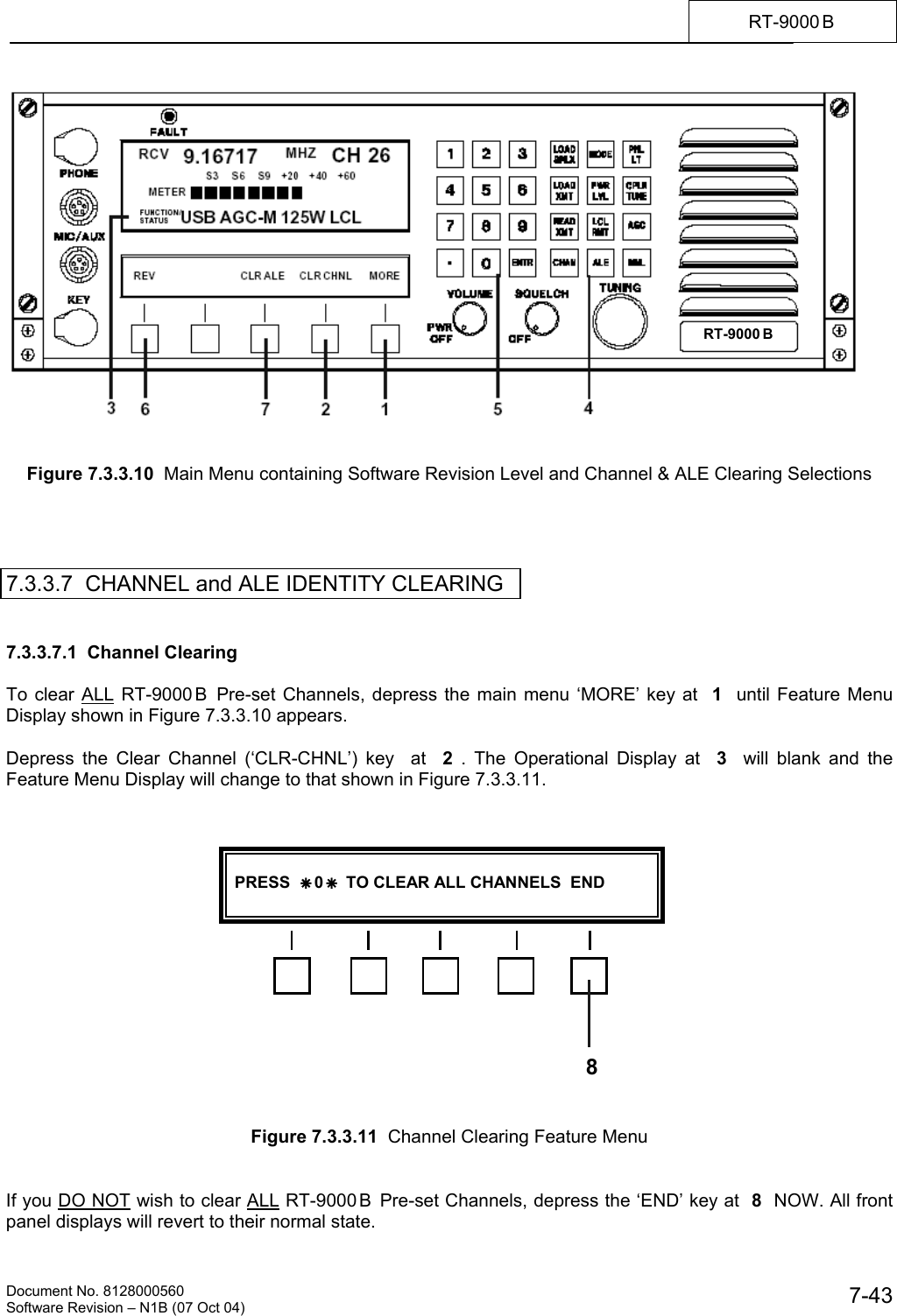
         Document No. 8128000560  Software Revision – N1B (07 Oct 04) 7-42 RT-9000 B     Figure 7.3.3.9  Local/Remote Controls   Refer to Figure 7.3.3.9. If the RT-9000B is currently under remote control, depressing the RT-9000 B ’ s  Local/Remote (‘LCL-RMT’) key at  6  will cause it to take back control. If the RT-9000 B  was already in Local control, depressing this key will have no effect. Local/Remote control status is indicated at  7  in the Operational Display.  When the RT-9000 B  is in Remote control (‘RMT’) operation, all keys in Function Keypad will be disabled except for the ‘Local/Remote’ or Display Illumination (‘PNL LT’) keys. Any attempt to use these keys will cause the following two (2) messages to be displayed, ‘FUNCTION DISALLOWED’ followed by ‘UNIT IN REMOTE MODE’. These messages will automatically clear.  If the RT-9000 B  I/O port “A” is not enabled, depressing the ‘LCL-RMT’ key will cause a ‘NO REMOTE SYSTEM’ message to briefly be displayed. If the I/O port is enabled, depressing this key will be completely ignored by the system and have no reaction.   7.3.3.6  SOFTWARE REVISION LEVEL  To view the installed Software Revision Level, depress the ‘MORE’ key from the main menu successively until the Feature Menu shown in Figure 7.3.3.10 appears. To view the installed Software Revision Level, depress the ‘REV’ key at  6 . The Software Revision Levels will appear at   3 in the Operational Display and are formed as follows:                 Depressing the ‘REV’ key at   6  again will cause the Operational Display to return to normal.  6RT-9000 B  ‘REV       CPU-XXX     IO-XXX’    NOTES: 1. XXX = Installed Software Revision Levels.        2.  Software Revision Levels are alphanumeric and may be two (2) or three (3) characters long. 7
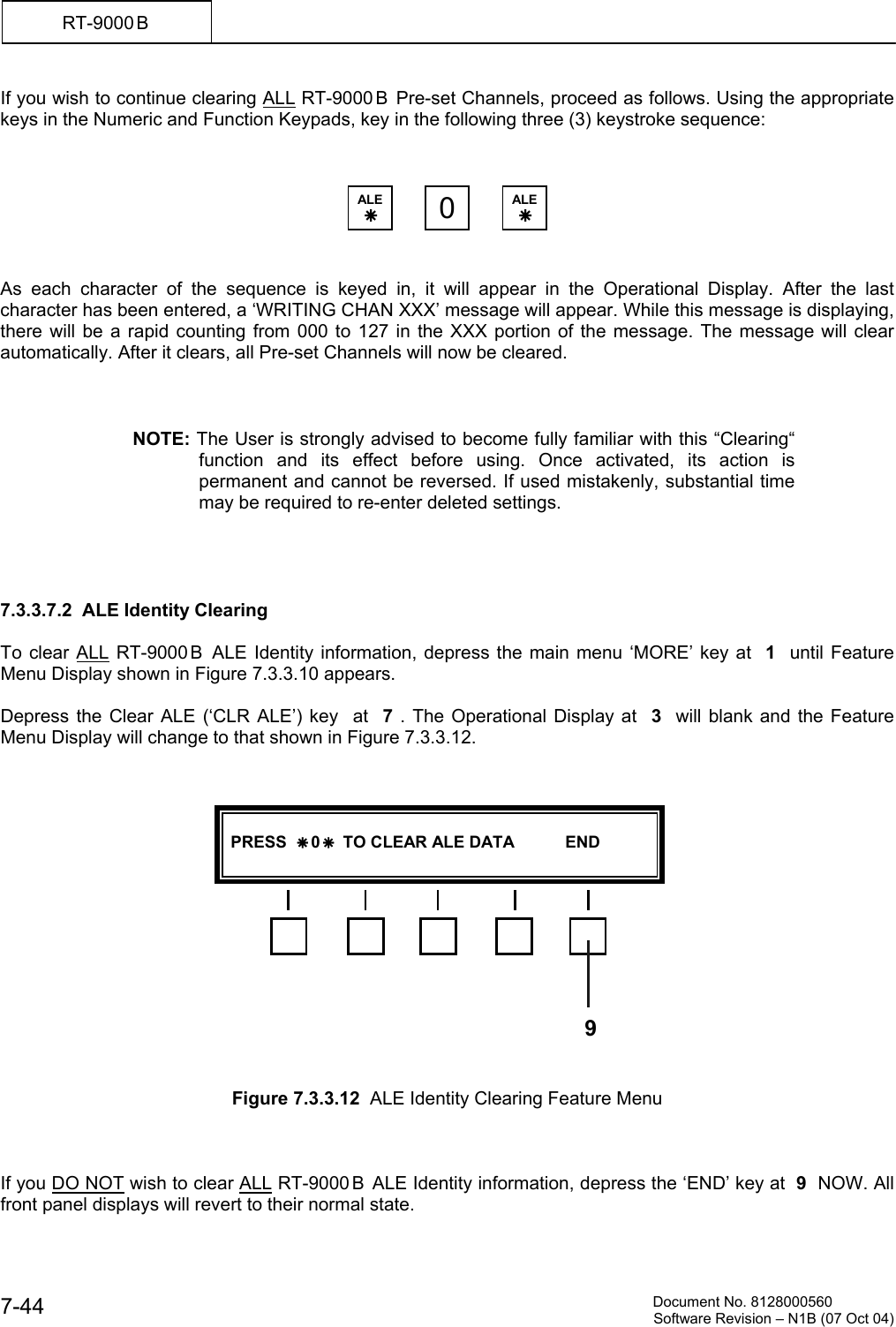
   Document No. 8128000560    Software Revision – N1B (07 Oct 04)  7-43RT-9000 B     Figure 7.3.3.10  Main Menu containing Software Revision Level and Channel & ALE Clearing Selections     7.3.3.7  CHANNEL and ALE IDENTITY CLEARING   7.3.3.7.1  Channel Clearing  To clear ALL RT-9000 B  Pre-set Channels, depress the main menu ‘MORE’ key at  1  until Feature Menu Display shown in Figure 7.3.3.10 appears.  Depress the Clear Channel (‘CLR-CHNL’) key  at  2 . The Operational Display at  3  will blank and the Feature Menu Display will change to that shown in Figure 7.3.3.11.                  Figure 7.3.3.11  Channel Clearing Feature Menu   If you DO NOT wish to clear ALL RT-9000B  Pre-set Channels, depress the ‘END’ key at  8  NOW. All front panel displays will revert to their normal state. RT-9000 B    PRESS  Ä 0 Ä  TO CLEAR ALL CHANNELS  END   8
         Document No. 8128000560  Software Revision – N1B (07 Oct 04) 7-44 RT-9000 B  If you wish to continue clearing ALL RT-9000 B  Pre-set Channels, proceed as follows. Using the appropriate keys in the Numeric and Function Keypads, key in the following three (3) keystroke sequence:        As each character of the sequence is keyed in, it will appear in the Operational Display. After the last character has been entered, a ‘WRITING CHAN XXX’ message will appear. While this message is displaying, there will be a rapid counting from 000 to 127 in the XXX portion of the message. The message will clear automatically. After it clears, all Pre-set Channels will now be cleared.    NOTE: The User is strongly advised to become fully familiar with this “Clearing“ function and its effect before using. Once activated, its action is permanent and cannot be reversed. If used mistakenly, substantial time may be required to re-enter deleted settings.     7.3.3.7.2  ALE Identity Clearing  To clear ALL RT-9000 B  ALE Identity information, depress the main menu ‘MORE’ key at  1  until Feature Menu Display shown in Figure 7.3.3.10 appears.  Depress the Clear ALE (‘CLR ALE’) key  at  7 . The Operational Display at  3  will blank and the Feature Menu Display will change to that shown in Figure 7.3.3.12.                  Figure 7.3.3.12  ALE Identity Clearing Feature Menu    If you DO NOT wish to clear ALL RT-9000 B  ALE Identity information, depress the ‘END’ key at  9  NOW. All front panel displays will revert to their normal state. ALE Ä 0ALE Ä   PRESS  Ä 0 Ä  TO CLEAR ALE DATA           END   9
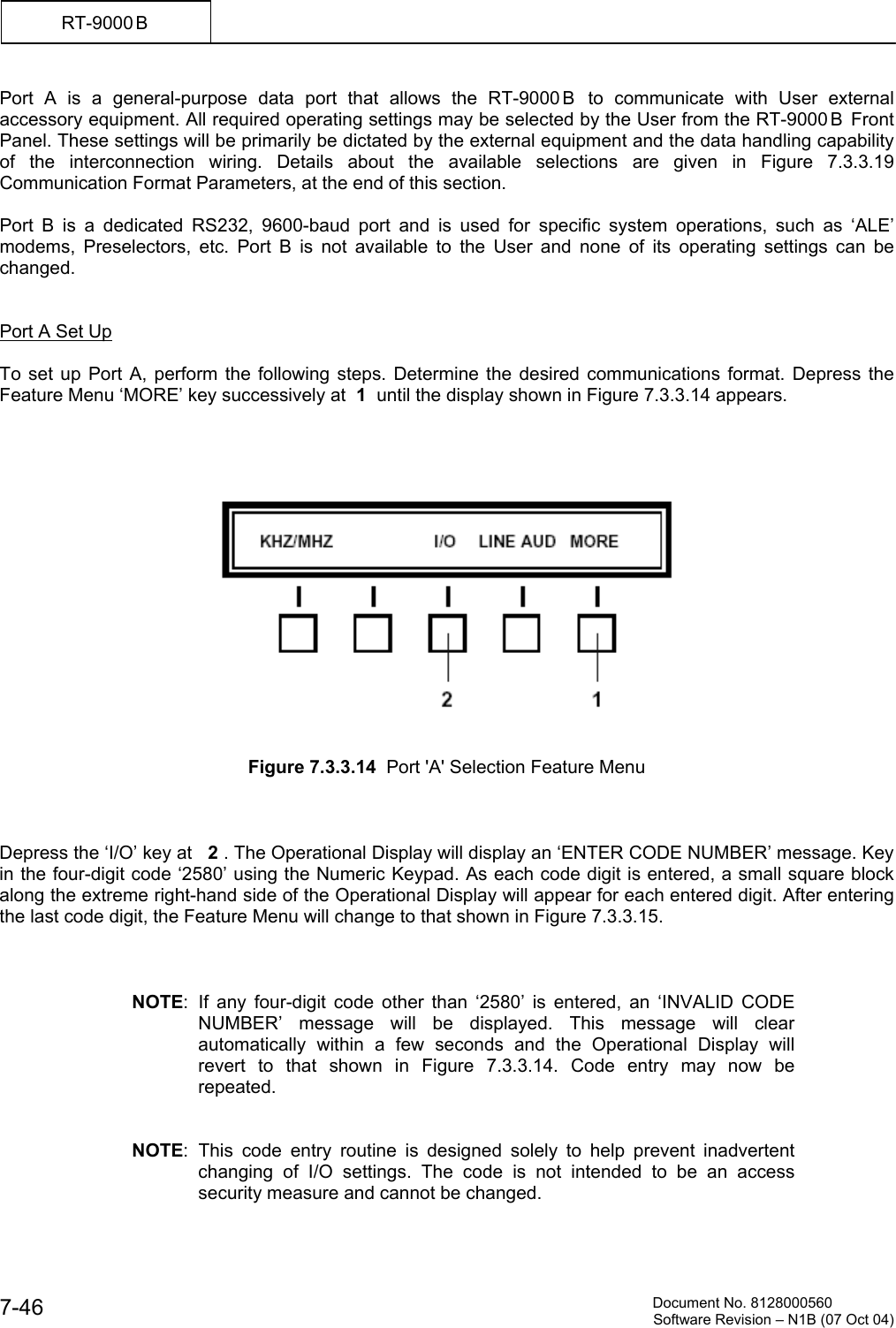
   Document No. 8128000560    Software Revision – N1B (07 Oct 04)  7-45RT-9000 B  If you wish to continue clearing ALL RT-9000 B  ALE Identity information, proceed as follows. Using the appropriate keys in the Numeric and Function Keypads, key in the following three (3) keystroke sequence:        As each character of the sequence is keyed in, it will appear in the Operational Display. After the last  character has been entered, a ‘CLEARING ALE DATA’ message will appear. After this message clears, all ALE Identity information will now be cleared.   NOTE: The User is strongly advised to become fully familiar with this “Clearing“ function and its effect before using. Once activated, its action is permanent and cannot be reversed. If used mistakenly, substantial time may be required to re-enter deleted settings.    7.3.3.8   ‘I/O’ PORT SET-UP  This section describes how to set up the RT-9000 B to automatically communicate with external modems and remote lines. The RT-9000 B  Transceiver has two (2) data ports. These data ports are designated “Port” A and “Port” B and may be used simultaneously. Both ports physically terminate in the same DB-15 male connector mounted on the rear panel. This connector is designated as ‘REMOTE’ and is shown in Figure 7.3.3.13.  While unrelated to this I/O Port function, a third port also terminates in this connector. This port is a dedicated port for the AMD “Auxillary Terminal” and is part of the ALE function. Refer to section VI of this manual for details.         Figure 7.3.3.13  RT-9000 B  Rear Panel Connectors ALE Ä 0ALE Ä
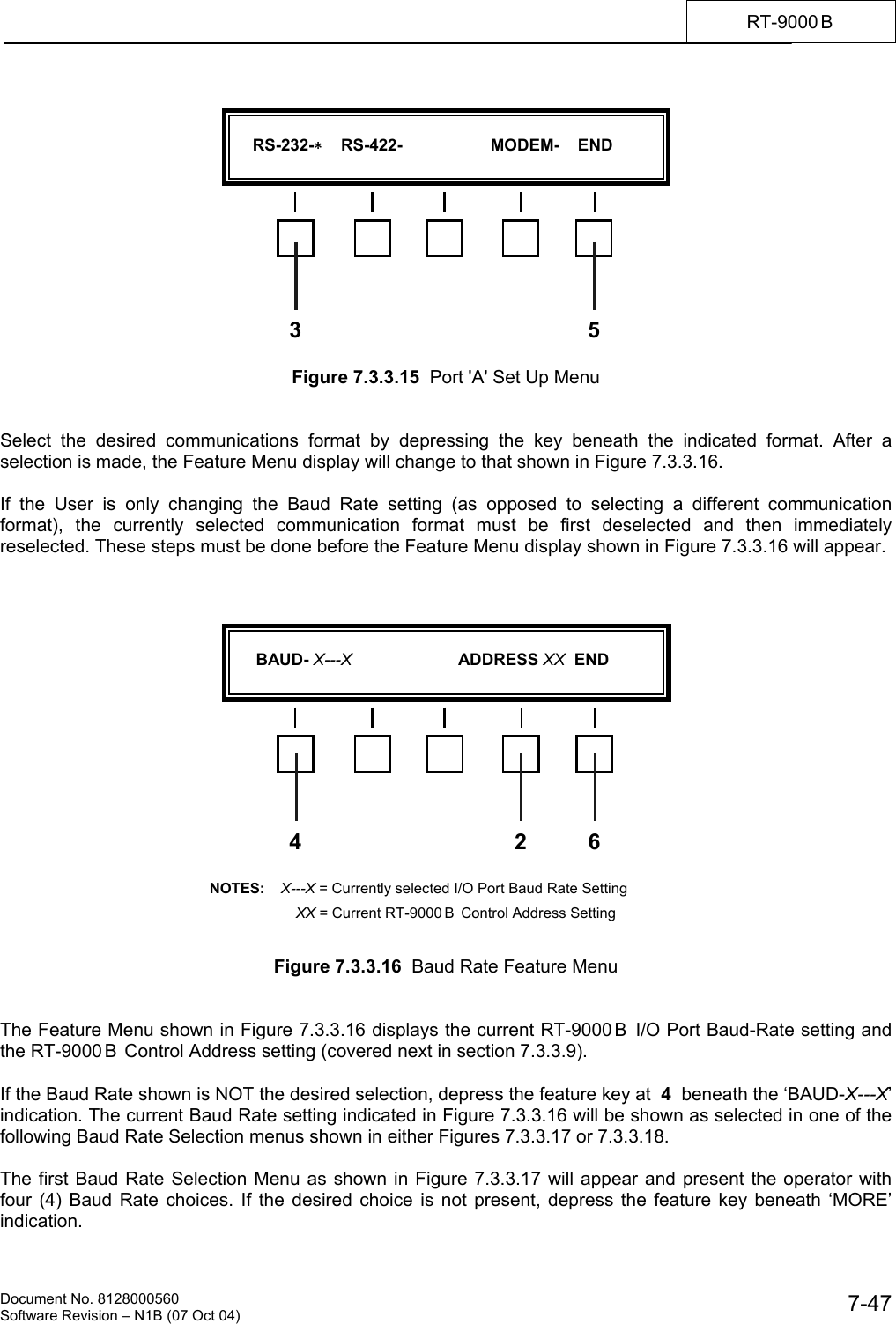
         Document No. 8128000560  Software Revision – N1B (07 Oct 04) 7-46 RT-9000 B  Port A is a general-purpose data port that allows the RT-9000 B  to communicate with User external accessory equipment. All required operating settings may be selected by the User from the RT-9000 B  Front Panel. These settings will be primarily be dictated by the external equipment and the data handling capability of the interconnection wiring. Details about the available selections are given in Figure 7.3.3.19 Communication Format Parameters, at the end of this section.   Port B is a dedicated RS232, 9600-baud port and is used for specific system operations, such as ‘ALE’ modems, Preselectors, etc. Port B is not available to the User and none of its operating settings can be changed.   Port A Set Up   To set up Port A, perform the following steps. Determine the desired communications format. Depress the Feature Menu ‘MORE’ key successively at  1  until the display shown in Figure 7.3.3.14 appears.        Figure 7.3.3.14  Port 'A' Selection Feature Menu        Depress the ‘I/O’ key at   2 . The Operational Display will display an ‘ENTER CODE NUMBER’ message. Key in the four-digit code ‘2580’ using the Numeric Keypad. As each code digit is entered, a small square block along the extreme right-hand side of the Operational Display will appear for each entered digit. After entering the last code digit, the Feature Menu will change to that shown in Figure 7.3.3.15.    NOTE: If any four-digit code other than ‘2580’ is entered, an ‘INVALID CODE NUMBER’ message will be displayed. This message will clear automatically within a few seconds and the Operational Display will revert to that shown in Figure 7.3.3.14. Code entry may now be repeated.   NOTE: This code entry routine is designed solely to help prevent inadvertent changing of I/O settings. The code is not intended to be an access security measure and cannot be changed.
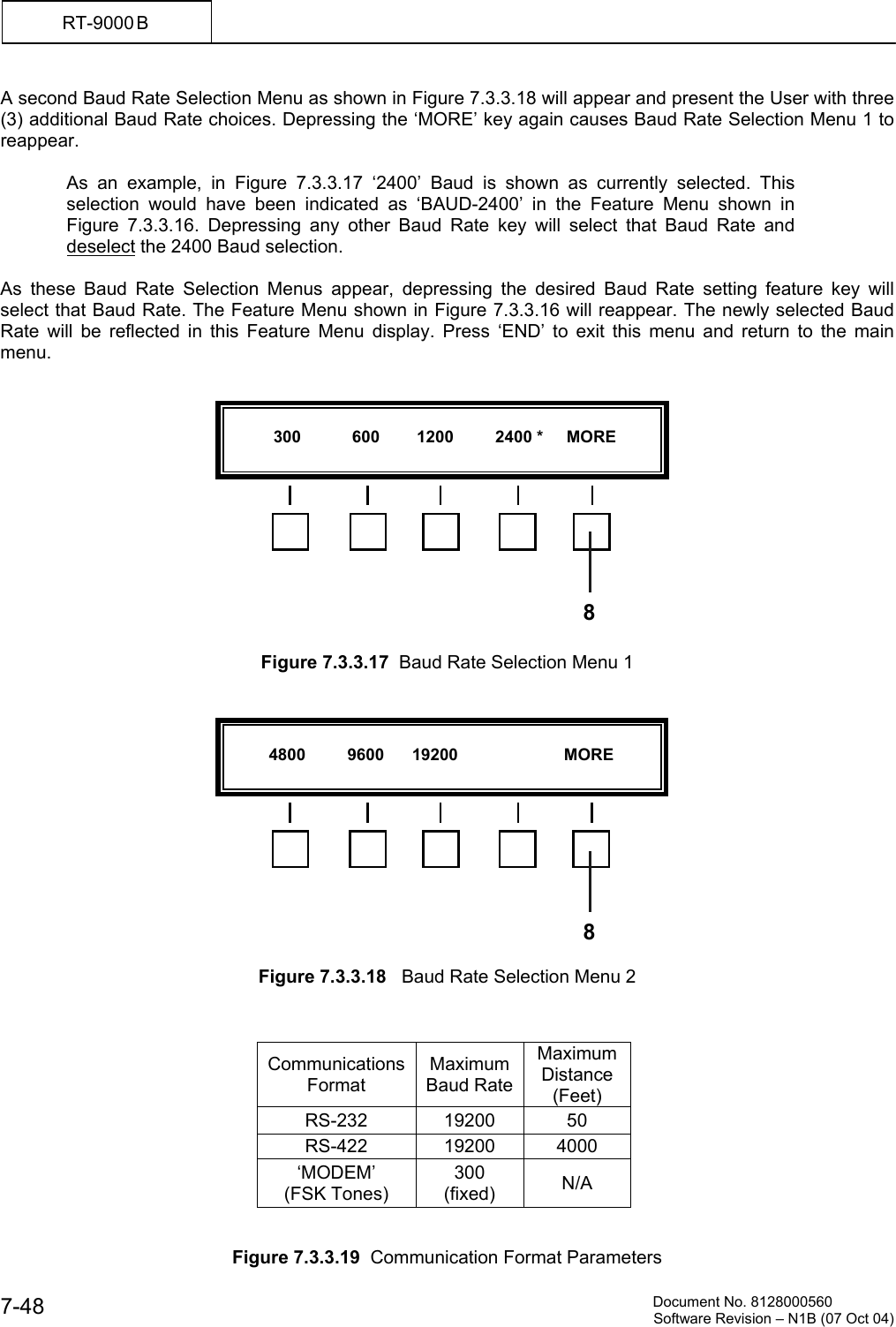
   Document No. 8128000560    Software Revision – N1B (07 Oct 04)  7-47RT-9000 B               Figure 7.3.3.15  Port 'A' Set Up Menu   Select the desired communications format by depressing the key beneath the indicated format. After a selection is made, the Feature Menu display will change to that shown in Figure 7.3.3.16.   If the User is only changing the Baud Rate setting (as opposed to selecting a different communication format), the currently selected communication format must be first deselected and then immediately reselected. These steps must be done before the Feature Menu display shown in Figure 7.3.3.16 will appear.                     Figure 7.3.3.16  Baud Rate Feature Menu   The Feature Menu shown in Figure 7.3.3.16 displays the current RT-9000 B  I/O Port Baud-Rate setting and the RT-9000 B  Control Address setting (covered next in section 7.3.3.9).  If the Baud Rate shown is NOT the desired selection, depress the feature key at  4  beneath the ‘BAUD-X---X’ indication. The current Baud Rate setting indicated in Figure 7.3.3.16 will be shown as selected in one of the following Baud Rate Selection menus shown in either Figures 7.3.3.17 or 7.3.3.18.  The first Baud Rate Selection Menu as shown in Figure 7.3.3.17 will appear and present the operator with four (4) Baud Rate choices. If the desired choice is not present, depress the feature key beneath ‘MORE’ indication.       RS-232-    RS-422-                   MODEM-    END  53       BAUD- X---X                       ADDRESS XX  END  4 6NOTES:    X---X = Currently selected I/O Port Baud Rate Setting        XX = Current RT-9000 B  Control Address Setting 2
         Document No. 8128000560  Software Revision – N1B (07 Oct 04) 7-48 RT-9000 B  A second Baud Rate Selection Menu as shown in Figure 7.3.3.18 will appear and present the User with three (3) additional Baud Rate choices. Depressing the ‘MORE’ key again causes Baud Rate Selection Menu 1 to reappear.  As an example, in Figure 7.3.3.17 ‘2400’ Baud is shown as currently selected. This selection would have been indicated as ‘BAUD-2400’ in the Feature Menu shown in Figure 7.3.3.16. Depressing any other Baud Rate key will select that Baud Rate and deselect the 2400 Baud selection.  As these Baud Rate Selection Menus appear, depressing the desired Baud Rate setting feature key will select that Baud Rate. The Feature Menu shown in Figure 7.3.3.16 will reappear. The newly selected Baud Rate will be reflected in this Feature Menu display. Press ‘END’ to exit this menu and return to the main menu.               Figure 7.3.3.17  Baud Rate Selection Menu 1               Figure 7.3.3.18   Baud Rate Selection Menu 2    Communications Format Maximum Baud RateMaximum Distance (Feet) RS-232 19200 50 RS-422 19200 4000 ‘MODEM’ (FSK Tones) 300 (fixed)   N/A   Figure 7.3.3.19  Communication Format Parameters            300           600        1200         2400 *     MORE  8          4800         9600      19200                       MORE  8
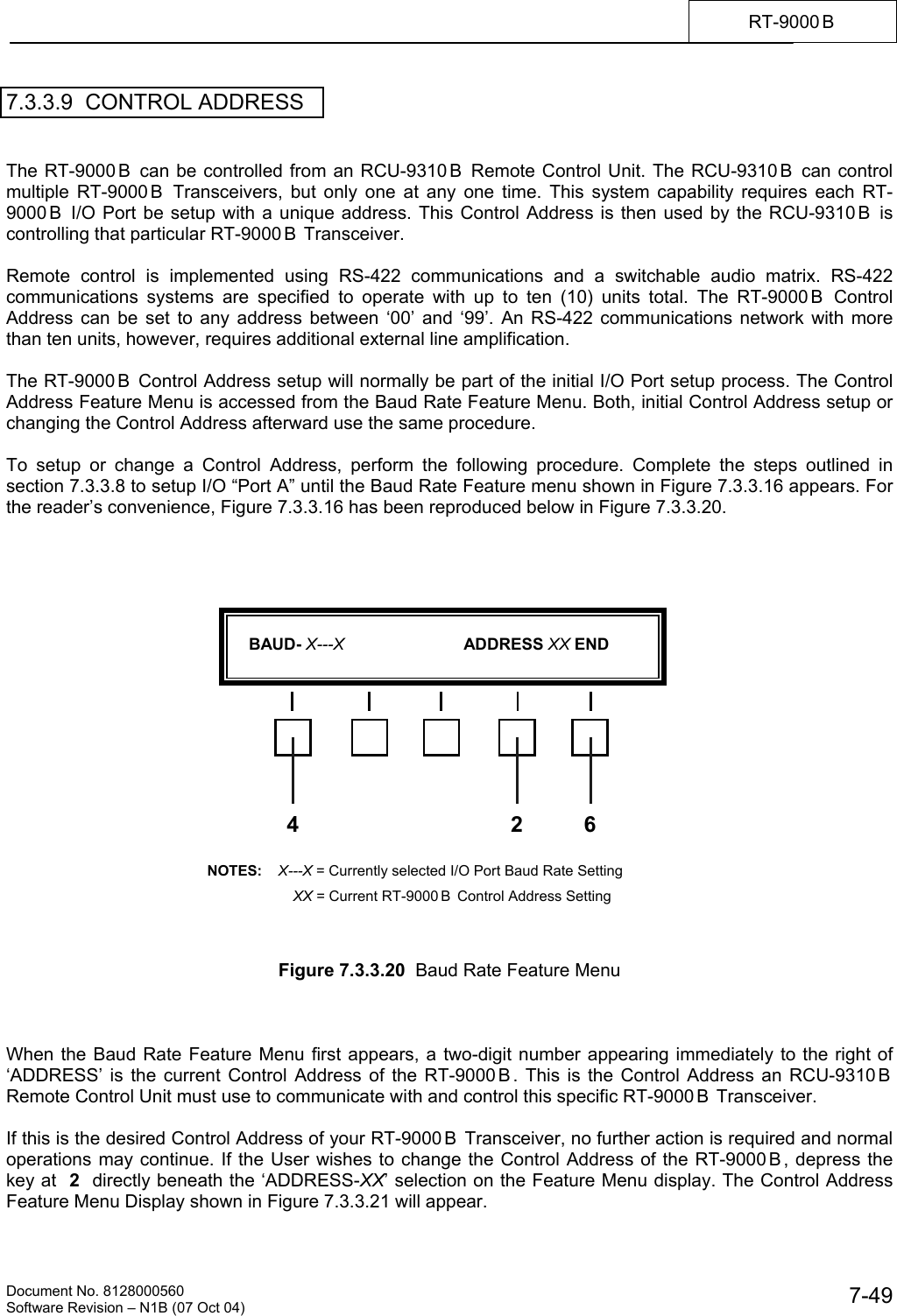
   Document No. 8128000560    Software Revision – N1B (07 Oct 04)  7-49RT-9000 B  7.3.3.9  CONTROL ADDRESS   The RT-9000 B  can be controlled from an RCU-9310 B  Remote Control Unit. The RCU-9310 B  can control multiple RT-9000 B  Transceivers, but only one at any one time. This system capability requires each RT-9000 B  I/O Port be setup with a unique address. This Control Address is then used by the RCU-9310 B  is controlling that particular RT-9000 B  Transceiver.  Remote control is implemented using RS-422 communications and a switchable audio matrix. RS-422 communications systems are specified to operate with up to ten (10) units total. The RT-9000 B  Control Address can be set to any address between ‘00’ and ‘99’. An RS-422 communications network with more than ten units, however, requires additional external line amplification.  The RT-9000 B  Control Address setup will normally be part of the initial I/O Port setup process. The Control Address Feature Menu is accessed from the Baud Rate Feature Menu. Both, initial Control Address setup or changing the Control Address afterward use the same procedure.  To setup or change a Control Address, perform the following procedure. Complete the steps outlined in section 7.3.3.8 to setup I/O “Port A” until the Baud Rate Feature menu shown in Figure 7.3.3.16 appears. For the reader’s convenience, Figure 7.3.3.16 has been reproduced below in Figure 7.3.3.20.                      Figure 7.3.3.20  Baud Rate Feature Menu    When the Baud Rate Feature Menu first appears, a two-digit number appearing immediately to the right of ‘ADDRESS’ is the current Control Address of the RT-9000 B . This is the Control Address an RCU-9310 B  Remote Control Unit must use to communicate with and control this specific RT-9000 B  Transceiver.  If this is the desired Control Address of your RT-9000 B  Transceiver, no further action is required and normal operations may continue. If the User wishes to change the Control Address of the RT-9000 B , depress the key at  2  directly beneath the ‘ADDRESS-XX’ selection on the Feature Menu display. The Control Address Feature Menu Display shown in Figure 7.3.3.21 will appear.      BAUD- X---X                          ADDRESS XX END  4 6NOTES:    X---X = Currently selected I/O Port Baud Rate Setting        XX = Current RT-9000 B  Control Address Setting 2
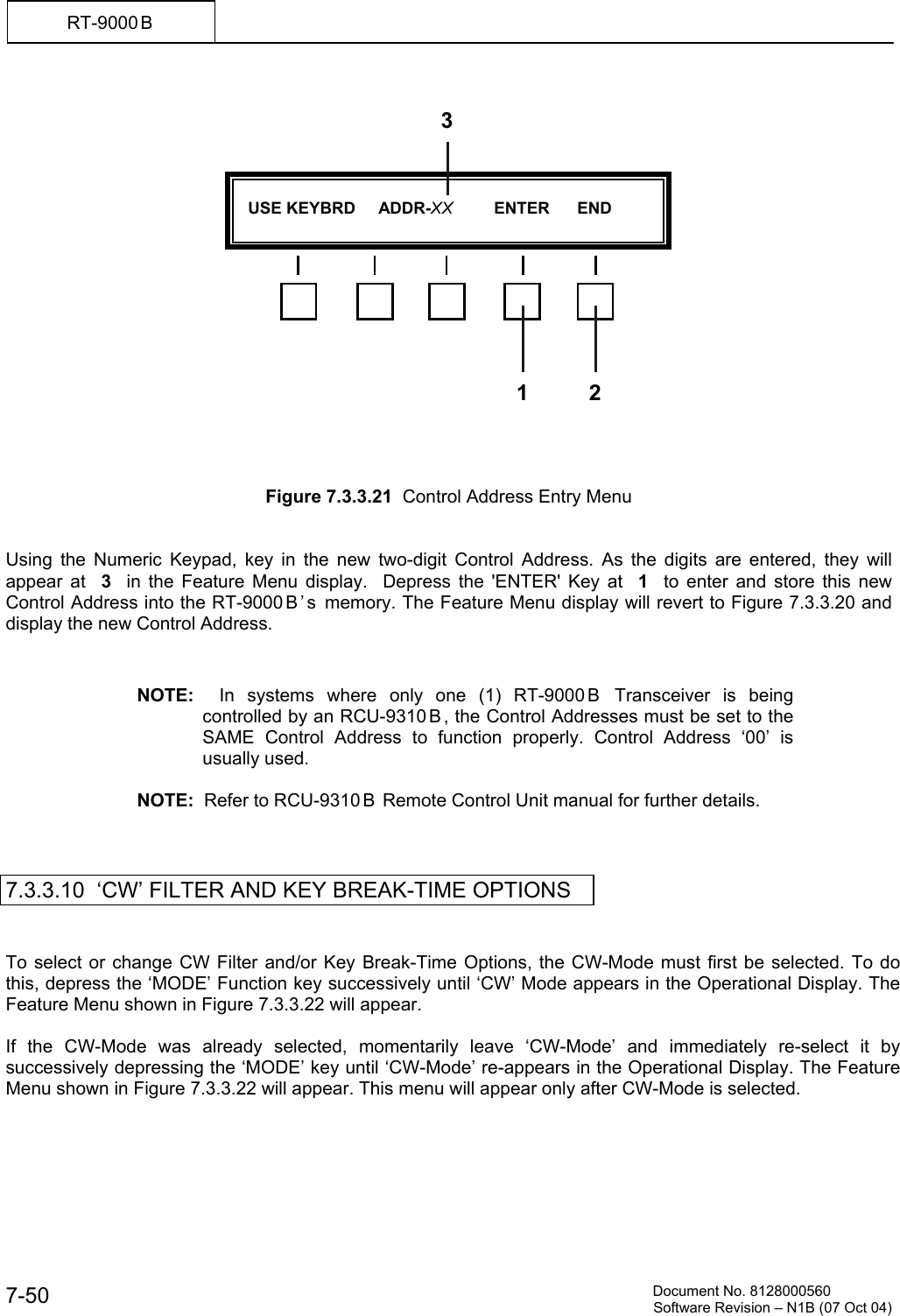
         Document No. 8128000560  Software Revision – N1B (07 Oct 04) 7-50 RT-9000 B                     Figure 7.3.3.21  Control Address Entry Menu   Using the Numeric Keypad, key in the new two-digit Control Address. As the digits are entered, they will appear at  3  in the Feature Menu display.  Depress the 'ENTER' Key at  1  to enter and store this new Control Address into the RT-9000 B ’ s  memory. The Feature Menu display will revert to Figure 7.3.3.20 and display the new Control Address.   NOTE:  In systems where only one (1) RT-9000 B  Transceiver is being controlled by an RCU-9310 B , the Control Addresses must be set to the SAME Control Address to function properly. Control Address ‘00’ is usually used.    NOTE:  Refer to RCU-9310 B  Remote Control Unit manual for further details.    7.3.3.10  ‘CW’ FILTER AND KEY BREAK-TIME OPTIONS   To select or change CW Filter and/or Key Break-Time Options, the CW-Mode must first be selected. To do this, depress the ‘MODE’ Function key successively until ‘CW’ Mode appears in the Operational Display. The Feature Menu shown in Figure 7.3.3.22 will appear.  If the CW-Mode was already selected, momentarily leave ‘CW-Mode’ and immediately re-select it by successively depressing the ‘MODE’ key until ‘CW-Mode’ re-appears in the Operational Display. The Feature Menu shown in Figure 7.3.3.22 will appear. This menu will appear only after CW-Mode is selected.      USE KEYBRD     ADDR-XX         ENTER      END  1 23
   Document No. 8128000560    Software Revision – N1B (07 Oct 04)  7-51RT-9000 B       Figure 7.3.3.22  CW-Mode Filter Selection Feature Menu    The RT-9000 B  is equipped with a Narrow-Band Audio CW filter.  If this filtering function is desired, depress the key beneath ‘CW-NAR’ on Feature Menu to switch in this filter. An asterisk (*) will appear next to the Feature Menu ‘CW-NAR’ choice indicating it has been enabled.  CW Key Break-Time is a system setting that controls the amount of time the RT-9000B  Transceiver remains in Transmit mode after an operator stops sending Morse code. Three (3) CW Key Break-Time choices are available to the operator and are described in the following chart.    CW Key Break-Time Settings RT-9000 B  Feature Menu Choice Description Operator Sending Speed (wpm)     ‘CW-SLO’  CW-Slow  Less than 10     ‘CW-MED’  CW-Medium  Between 10 and 20     ‘CW-FAST’  CW-Fast  Greater than 20       Note: wpm = words per minute    The CW Key Break-Time setting is normally set to “CW-Medium” when the equipment is shipped from the factory.  This setting will normally meet most operator sending speeds. If the operator wishes to change this setting, perform the following steps.  Select CW-Mode as previously described for CW Filter. The Feature Menu described in Figure 7.3.3.22 will appear. Depress the key beneath desired Feature Menu choices as described in the above table.  An asterisk (*) will appear next to the Feature Menu choice indicating it has been enabled.  Depress the ‘MORE’ key to leave the CW-Mode Options menu and return to the main menu.  To change CW Filter and/or Key Break-Time settings if currently in CW mode, depress the ‘MODE’ key successively until ‘CW’ Mode reappears in the Operational Display. This action will cause the Feature Menu shown in Figure 7.3.3.22 to reappear and allow the operator a new choice as previously described.
         Document No. 8128000560  Software Revision – N1B (07 Oct 04) 7-52 RT-9000 B  7.3.3.11 LINE AUDIO SELECTION  The rear panel ‘AUDIO’ connector provides two sets of 600-Ohm input and output lines and connects one of two external audio devices to the RT-9000 B . A typical use of this capability might be to allow convenient switching in or out specialized terminal equipment such as audio processors, encryption equipment, etc.  To select either External Audio Line, depress the Feature Menu ‘MORE’ key successively until the display shown in Figure 7.3.3.23 appears.      Figure 7.3.3.23  Line Audio Selection Feature Menu   Depress the ‘LINE-AUD’ key at  1 , the Line Audio Selection Sub-Menu shown in Figure 7.3.3.24 will appear.      Figure 7.3.3.24  Line Audio Selection Sub-Menu  Depress the ‘AUDIO-A’ Feature key at 3  to connect the external device on Line A to the RT-9000 B .  Similarly, depressing ‘AUDIO-B’ Feature key at  4  connects the device on line B to the RT-9000B .  Connection occurs as soon as the selection key is depressed. An asterisk (*) will appear next to the selected Line Feature Menu choice indicating it has been enabled.   NOTE:  Only one external device may be selected at any one time.  If only ONE (1) device is used, it should be connected to Line ‘A’.   Depress the ‘END’ key at  5   to leave the Line Audio selection menu and return to the main menu shown in Figure 7.3.3.23.
   Document No. 8128000560    Software Revision – N1B (07 Oct 04)  7-53RT-9000 B  7.3.4  ADVANCED OPERATIONS   This section addresses those features and functions that are specialized or invoke unique features of the RT-9000 B  Transceiver. These operations build on operating details presented earlier in this manual and require an understanding of the referenced modems and/or peripherals.   7.3.4.1  RECEIVER SCANNING   The RT-9000 B  has the ability to perform a rudimentary Receiver scanning function of all valid Pre-set Channels or any block of Pre-set Channels between ‘0’ and ‘127’. The Operating Frequencies and other essential settings are stored in Pre-set Channels as described in section 7.3.2.9 of this manual.  The RT-9000 B  will scan all properly set up Pre-set Channels between the entered Start and Stop Channel limits. If there is no currently Pre-set Channels set up between those limits, scanning will not start. If this occurs, the User should inspect the Channel limits and Pre-set Channels and make appropriate changes.  Starting the Scan Process  To start scanning a block of Channels, the RT-9000 B  must be in the Pre-set Channel operating mode (refer to section 7.3.2.7).  The displays will appear as shown in Figure 7.3.4.1.         Figure 7.3.4.1  Pre-set Channel Mode Displays   Depress the Feature Menu ‘MORE’ key at  1  successively until the Feature Menu Display appears as shown in Figure 7.3.4.2. RT-9000 B
         Document No. 8128000560  Software Revision – N1B (07 Oct 04) 7-54 RT-9000 B       Figure 7.3.4.2   Main Menu containing Scan Selection    Depressing the ‘SCAN’ key at   2  will cause the Operational and Feature Menu displays to change to those shown in Figure 7.3.4.3.     Figure 7.3.4.3  Scan function Feature Menu   Depress the ‘START SCAN’ key at  1  to actually begin scanning. As scanning proceeds, the instantaneous operating frequency and Channel number will appear at  2  in the Operational Display. To stop the scanning process, simply depress the ‘STOP SCAN’ key at   3 . To leave the Receiver Scanning function, depress the ‘END’ key at   4 . The User will be returned to Pre-set Channel operation.   NOTE: The dwell time on any given frequency has been kept to a minimum, about 2 sec., consistent with recognizing the presence or absence of a signal in order that a relatively continuous monitoring occurs.  If for some reason, longer or shorter dwell times are required, please contact Sunair.  RT-9000 B
   Document No. 8128000560    Software Revision – N1B (07 Oct 04)  7-55RT-9000 B  Loading Start and Stop Channel Numbers  To Load a block of desired channels, depress the ‘LOAD’ key at   5 .  The Feature Menu Display will change to that shown in Figure 7.3.4.4.         Figure 7.3.4.4   Scan function ‘LOAD’ Feature Menu   The Operational Display will briefly display a ‘USE KEYB FOR NUMBERS’ message and then change to a ‘FROM CH  XXX   TO  YYY” message. The XXX   and  YYY  represent ‘Start’ and ‘Stop’ Channel Numbers. Any Channel Numbers appearing in the ‘Start’ and ‘Stop’ positions when entering this set up process will be those entered from the ‘SCAN’ feature’s previous use. Channel Number entries may be one, two, or three digits long, as appropriate to the Channel Number’s digits. No leading zeros are required.  To select or change a Start Channel, depress the ‘START-CH’  Feature key at   6 . Key in the desired Channel Number (0-127) using the Numeric Keypad at   9  . The newly selected Start Channel will be displayed in the ‘XXX’ position of the ‘FROM CH  XXX   TO  YYY” message at  10 .  If a Stop Channel entry is going to be also made, depress the ‘STOP-CH’ key. This action both enters the keyed-in Start Channel Number into memory and also moves to Stop Channel selection process. Selection may proceed as described later.  If the Start Channel is only being changed, depress the ‘END’ at  8 to leave this Feature Menu and return to that shown in Figure 7.3.4.3.  To select or change a Stop Channel, depress the ‘STOP-CH’ key at   7 . Key in the desired Channel Number (0-127) using the Numeric Keypad at  9 . The newly selected Stop Channel will be displayed in the ‘YYY’ position of the  ‘FROM CH  XXX   TO  YYY” message at  10 . If the user wishes to also change the Start Channel, depress the ‘STOP-CH’ key. This action both enters the keyed-in Stop Channel Number into memory and also moves back to Start Channel selection process. Selection may proceed as previously described.  If the Stop Channel is only being changed, depress the ‘END’ at  8 to leave this Feature Menu and return to that shown in Figure 7.3.4.3.  After Start Channel or Stop Channel selections are complete, the Start Channel must be lower than the Stop Channel. If this is not requirement is not observed, a  ‘START MUST BE LESS’ message will be displayed briefly when using the ‘END’ key to exit this Feature Menu. This situation must be corrected before the system will allow the User to proceed.
         Document No. 8128000560  Software Revision – N1B (07 Oct 04) 7-56 RT-9000 B  7.3.4.2  AUTOMATIC LINK ESTABLISHMENT (ALE) SET UP   7.3.4.2.1  GENERAL  All of the control functions to perform Automatic Link Establishment (ALE) to FED-STD 1045 interoperability requirements are contained within the RT-9000 B  Transceiver.  The ALE subsystem requires all ALE Network Operating Frequencies be entered and stored in Pre-set Channel positions as described in Section 7.3.2.9. The Operating Frequencies may be stored in any order. As a general rule, entering frequencies in order of most probable use may shorten ALE Linking times.  It is beyond the scope of this manual to define network structures and operating disciplines.  The ALE subsystem uses multiple frequencies stored in Pre-set Channels during normal operation and selects the best one when communicating with other Network stations. These Channels are organized in Channel Groups. A Channel Group is a group of frequencies that can be enabled under ALE Subsystem control and have a common relationship.   A Channel Group may have up to ten (10) Channels. There can be up to ten (10) separate Channel Groups. Channel Groups are identified by their Group Number, which is determined by first digit of the Channel Numbers it contains. The following table illustrates how these groups are organized.     Channel Group Organization Channel Number Group Number  Lowest Highest 0 00 09 1 10 19 2 20 29 3 30 39 4 40 49 5 50 59 6 60 69 7 70 79 8 80 89 9 90 99
   Document No. 8128000560    Software Revision – N1B (07 Oct 04)  7-57RT-9000 B  Channel Groups are formed simply by setting up the appropriate Pre-set Channel frequencies into the RT-9000 B ’s memory using the procedures described in section 7.3.2.9. However, the Channel numbering in these groups must comply with organization described in this section. ALE systems require at least two (2) or more frequencies for effective operation.   If ten (10) or fewer frequencies are available, they would normally all be set up in the same Channel Group (usually Group 0).  If more than ten (10) frequencies are available, they could be arranged in groups with some meaningful order and grouping. For example, ‘Daytime’ frequencies could be stored in Group 0 and ‘Nighttime’ frequencies in Group 1.    NOTE:  Remember, ALE operation and scanning can use only one (1) Channel Group at a time.   7.3.4.2.2   ESTABLISHING ALE-IDs  The RT-9000 B  ALE Subsystem is capable of operating with multiple ALE Networks. The ALE system can support a Network structure of up to twenty (20) separate ALE Networks. Each Network may contain a station SELF ID for the RT-9000 B  Transceiver plus station “CALL IDs” for up to nine (9) other Network stations. When entering ALE IDs into the RT-9000 B , the user must follow a prescribed order to avoid confusion and ensure correct entry.  Section 7.3.4.2.2 is divided into four (4) parts and describes entry of four (4) different types of ALE ID information into the RT-9000 B ’s memory. When establishing a new ALE Network, the order of entry of this ALE ID information will be as follows:     1.  Establish and Enter Network ID (NET ID) Name    2.  Select and Enter (SELF ID) Time Slot Position    3.  Enter SELF ID Name    4.  Enter Network Station CALL IDs (Time Slot Position and Name)     Additionally, this same sequence of operations must be repeated for EACH separate ALE Network (including SELF & CALL ID entries). If the User will be using more than one Network, all entry steps should be completed for the Network-at-hand before proceeding to and setting up the next Network.  While the steps in this section are primarily used to establish ALE Networks and enter ALE ID information, the Network ID (NET ID) and CALL ID entry steps are also used as Selection steps for certain ALE operating functions described later. The procedures used for both entry and Selection and are flagged when they occur during the appropriate ALE operations.   NOTE: In the remainder of the ALE sections of this manual, ‘TUNING’ knob, TUNING’ control and DIAL, all refer to the RT-9000 B  front panel “TUNING” knob.
         Document No. 8128000560  Software Revision – N1B (07 Oct 04) 7-58 RT-9000 B  To establish a new ALE Network and enter all required ALE IDs, complete the following steps and sections 7.3.4.2.2.1 through 7.3.4.2.2.4.  Depress the Feature Menu select key ‘MORE’ at 1  successively until the Feature Menu Display at  2   appears as shown in Figure 7.3.4.5.  Depressing the ‘ALE-ID’ select key at  3   will cause the Feature Menu shown in Figure 7.3.4.6 to appear.           Figure 7.3.4.5  Main Menu containing ALE-ID Selection           Figure 7.3.4.6  ‘ALE-ID’ Select Feature Menu RT-9000 B
   Document No. 8128000560    Software Revision – N1B (07 Oct 04)  7-59RT-9000 B  7.3.4.2.2.1  Establishing and Entering Network ID (NET ID) Name  Referring to Figure 7.3.4.6, depress the ‘NET ID’ key at  21 . The Feature Menu and Operational Display will change to that shown in Figure 7.3.4.8 and briefly display an ‘ENTER CODE WITH DIAL’ message at  9  . This message will automatically clear and be replaced with the following display.  'N XX  -- -- -- -- -- -- -- -- -- -- -- -- -- -- --'   A sequence of fifteen dashes (-- --) or alphanumeric characters, representing the “Network Name” will appear following 'N XX'.  Any combination of up to fifteen alphanumeric characters may be used.                    Figure 7.3.4.7  Network ID Display Detail   In this display the “N” indicates “Network”, “XX” indicates the “Network Number”, and the sequence of fifteen (15) dashes serves as placeholders for the corresponding “Network Name”.    Figure 7.3.4.8  Network ID Selection Displays N  XX  -- -- -- -- -- -- -- -- -- -- -- -- -- -- -- “Network” NetworkNumberNetworkName space spaceN XX   -- -- -- -- -- -- -- -- -- -- -- -- -- -- --  For new, unestablished ALE Networks   XX =  01                             For a presently used ALE Network         XX =  Network Number of Current Network RT-9000 B
         Document No. 8128000560  Software Revision – N1B (07 Oct 04) 7-60 RT-9000 B   NOTE: The Network Number associated with the ALE Network setup procedures in this section is strictly a local RT-9000 B  reference number. This “Network Number” has no meaning in the ALE Network environment or to other ALE Network Stations.   When the above information initially appears in the Operational Display, the blinking cursor will be positioned in “Network Number” portion of the above displayed information. The User should now rotate the ‘TUNING’ knob until the desired “Network Number” appears. Using the cursor right arrow  (→), the user now should move the cursor to the first character position of the “Network Name” portion of the above displayed information.  If there is information other than dashes  (-- --) in the Network Name positions or the user is changing an established Network Name, depress the 'CLEAR' feature select key at  10  to clear the positions and ease new name entry.  The first character position, or dash (--) will flash to indicate the specific position where a user selected character is to be entered. If the first character is satisfactory as is, depressing the right arrow (—>) key at 11 will move the flashing cursor one position to the right. Alternately, depressing the left arrow (<—) key at 12 will move the cursor one position to the left.  As each character position is selected, characters '0' through '9' and 'A' through 'Z' may be selected by rotating the 'TUNING' knob at  6 either clockwise or counter-clockwise. Once the desired character appears in view, depress the right arrow key (—>) at  11 . The flashing cursor will move to the next character position. This character selection process is repeated until the desired NET ID “Network Name” has been formed.  Once all characters for the “Network Name” have been selected, depress the Enter (‘ENTR’) key at 13   to enter the selected ‘NET ID’ information (“Network Number” and “Network Name”) into the RT-9000 B ’s memory. Depress the ‘END’ key at 14  to exit the Network ID entry process and return to the Feature Menu shown in Figure 7.3.4.6.   Depressing the ‘END’ key at 14    without first depressing the Enter (‘ENTR’) key at 13  will also cause the Feature Menu to revert to that shown in Figure 7.3.4.6 except any changes made during this process will NOT be entered into the RT-9000 B ’s memory.  The Network selected and entered using the Enter (‘ENTR’) key at 13   becomes the active ALE Network for all RT-9000 B  ALE operations that requiring Network selection. This Network is referred to as the Current Network and is primarily associated with ALE Transmit functions. This selection remains in force until changed and will be retained both, after leaving ALE modes and, during power-off periods. The User may now proceed to paragraph 7.3.4.2.2.2 Entering (SELF ID) Time Slot Position.  If the user is only changing the Current Network to a different Network for use in ALE operating mode, perform following actions. Navigate to the ‘ALE-ID’ Select Feature Menu and depress the ‘NET ID’ key as described earlier in this section. Rotate the ‘TUNING’ knob and stop when the desired Network Name and Number appears in the Operational Display. Depress the Enter (‘ENTR’) key at 13 , then the ‘END’ key at 14 . The newly selected Network is now the Current Network and will remain so, as previously described. These steps will cause the Feature Menu to revert to the display shown in Figure 7.3.4.6.  Depress the ‘END’ key at 22  to return to the display shown in Figure 7.3.4.5. The user may now enter ALE operating mode using the new Current Network.
   Document No. 8128000560    Software Revision – N1B (07 Oct 04)  7-61RT-9000 B  7.3.4.2.2.2  Selecting and Entering (SELF ID Time) Slot Position   Referring to Figure 7.3.4.6, depress the 'SLOT-PS' Key at  4 . The Feature Menu and Operational Display shown in Figure 7.3.4.9 will appear and briefly display an 'ENTER CODE WITH DIAL' message. This message will automatically clear and be replaced with the following indication:   ‘XX SLOT POSITION’              Figure 7.3.4.9  Slot Position Selection Displays   Rotate the ‘TUNING’ knob at  6   until the required (SELF ID Time) SLOT POSITION appears. Only numbers ‘01’ through ‘10’ are valid selections.  NOTE: Under certain conditions, it is possible to display numbers from ‘11’ through ‘19’. These numbers are NOT VALID selections and should not be used.  Depress the Enter (‘ENTR’) key at  7  to enter this selection into the RT-9000 B ’s memory. The Feature Menu Display will revert to that shown in Figure 7.3.4.6. The user may now proceed to paragraph 7.3.4.2.2.3  Entering a SELF ID Name.  Depressing the ‘END’ key at  5  without first depressing the Enter (‘ENTR’) will also cause the Feature Menu Display will revert to that shown in Figure 7.3.4.6 except any changes made during this process will NOT be entered into the RT-9000 B ’s memory. For new, unestablished ALE Networks    XX = 01                             For a presently used ALE Network          XX = Present (SELF ID Time) Slot Position setting RT-9000 B  XX  SLOT POSITION
         Document No. 8128000560  Software Revision – N1B (07 Oct 04) 7-62 RT-9000 B  7.3.4.2.2.3  Entering SELF ID Name    Referring to Figure 7.3.4.6, depress the ‘SELF ID’ key at  8 . The Feature Menu and Operational Display shown in Figure 7.3.4.10 will appear and briefly display an ‘ENTER CODE WITH DIAL’ message at  9 . This message will automatically clear and be replaced with the following display.  'S ID  -- -- -- -- -- -- -- -- -- -- -- -- -- -- --'  A sequence of fifteen dashes (-- --) or alphanumeric characters, representing the SELF ID ('S ID') Name will appear following 'S ID'.  Any combination of up to fifteen alphanumeric characters may be used.  If there is information other than dashes  (--) in SELF ID Name positions or the user is changing a current SELF ID Name, depress the 'CLEAR' feature select key at  10   to clear the positions and ease new name entry.    Figure 7.3.4.10  SELF ID Selection Displays   The first character position, or dash (--), will flash to indicate the specific position where a user selected character is to be entered. If the first character is satisfactory as is, depressing the right arrow (—>) key at 11 will move the flashing cursor one position to the right.  Alternately, depressing the left arrow (<—) key at 12  will move the cursor one position to the left.   As each character position is selected , characters ‘0’ through ‘9’ and ‘A’ through ‘Z’ may be selected by rotating the ‘TUNING’ knob at  6  either clockwise or counter-clockwise.  Once the desired character appears in view, depress the right arrow key (—>) at  11 . The flashing cursor will move to the next character position. This character selection process is repeated until the desired SELF ID ('S ID') “Name” has been formed.  Once all characters for the SELF ID (‘SID’) “Name” have been selected, depress the Enter (‘ENTR’) key at 13  to enter the SELF ID (‘S ID’) “Name” into the RT-9000 B ’s memory. Depress the ‘END’ key at  14   to exit the SELF ID (‘S ID’) Name entry process and return to the Feature Menu shown in Figure 7.3.4.6. The user may now proceed to paragraph 7.3.4.2.2.4 Entering Network Station CALL IDs (Time Slot Position and Name) RT-9000 BS ID   -- -- -- -- -- -- -- -- -- -- -- -- -- -- --
   Document No. 8128000560    Software Revision – N1B (07 Oct 04)  7-63RT-9000 B  Depressing the ‘END’ key at  14   without first depressing the Enter (‘ENTR’) key at 13  will also cause the Feature Menu to revert to that shown in Figure 7.3.4.6 except any changes made during this process will NOT be entered into the RT-9000 B ’s memory   7.3.4.2.2.4  Entering Network Station CALL IDs (Time Slot Position and Name)   Referring to Figure 7.3.4.6, depress the ‘CALL ID’ key at  15 . The Feature Menu and Operational Display will change to that shown in Figure 7.3.4.12 and briefly display an ‘ENTER CODE WITH DIAL’ message at 18. This message will automatically clear and be replaced with the following display.   'C XX  -- -- -- -- -- -- -- -- -- -- -- -- -- -- --'         A sequence of fifteen dashes (-- --) or alphanumeric characters, representing a Network Station CALL ID Name will appear following 'C XX'.  Any combination of up to fifteen alphanumeric characters may be used.                  Figure 7.3.4.11  CALL ID Display Detail    Figure 7.3.4.11 indicates In this display the “C” indicates “CALL ID”, “XX” indicates a “CALL ID (Time Slot Position) Number”, and the sequence of fifteen (15) dashes serves as placeholders for the corresponding station CALL ID Name. For new, unestablished ALE Networks   XX =  01                             For a presently set up ALE Network       XX =  Currently Selected CALL ID (Time Slot Postion) Number CALL ID (Time Slot Position)Number CALL ID NameC  XX  -- -- -- -- -- -- -- -- -- -- -- -- -- -- -- “CALL ID”space space
         Document No. 8128000560  Software Revision – N1B (07 Oct 04) 7-64 RT-9000 B      Figure 7.3.4.12  CALL ID Selection Displays   When the above information initially appears in the Operational Display, the blinking cursor will be positioned in “CALL ID (Time Slot Position) Number” portion of the above displayed information. The user should now rotate the ‘TUNING’ knob at 6   until the desired “CALL ID (Time Slot Position) Number” appears. Using the cursor right arrow  (→) at 17 , the user now should move the cursor to the first character position of the CALL ID “Name” portion of the above displayed information. Only the numbers ’01’ through ‘10’ are valid selections.   NOTE: Under certain conditions, it is possible to display numbers from “11” to “19”. These numbers are not valid selections and should not be used.   NOTE: When setting up an ALE Network, the Network Time Slot Position assignments should first use Time Slot One, then Time Slot Two next and so on until all Time Slot Assignments have been completed. There should be no unused Time Slots between the SELF ID and any of the CALL IDs. Failure to observe this precaution may result in incorrect operation.   If there is information other than dashes  (-- --) in the CALL ID Name positions or the user is changing the current CALL ID Name, depress the 'CLEAR' feature select key to clear the positions and ease new name entry.    The first position, or dash (--) will flash to indicate the specific position where a user selected character is to be entered. If the first character is satisfactory as is, depressing the right arrow (—>) key at 17 will move the flashing cursor one position to the right. Alternately, depressing the left arrow (<—) key at 17 will move the cursor one position to the left.  As each character position is selected, characters '0' through '9' and 'A' through 'Z' may be selected by rotating the 'TUNING' knob at  6 either clockwise or counter-clockwise. Once the desired character appears in view, depress the right arrow key (—>) at  17 . The flashing cursor will move to the next character position. The character selection process is repeated until the desired Network Station CALL ID Name has been formed.  C XX   -- -- -- -- -- -- -- -- -- -- -- -- -- -- --
   Document No. 8128000560    Software Revision – N1B (07 Oct 04)  7-65RT-9000 B  Once all characters for the CALL ID Name have been selected, depress the Enter (‘ENTR’) key at 19   to enter the CALL ID information (Time Slot Position Number and Name) into the RT-9000 B ’s memory. Depress the ‘END’ key to exit the CALL ID entry process and return to the Feature Menu shown in Figure 7.3.4.6.  If additional Network Station CALL IDs will be entered, depress the CALL ID key at 15 again and repeat the above steps to enter the additional CALL ID information. Repeat the process as required to enter all CALL IDs for the Current Network. Up to nine (9) CALL IDs, in addition to the Station’s SELF ID, may be entered in each of the 20 separate ALE Networks.   When selecting CALL ID (Time Slot Position) Numbers with the ‘TUNING’ knob and the previously selected SELF ID (Time) Slot Position Number is reached, a ‘THIS IS OUR SELF ID’ message will appear in the Operational Display. This alerts the user that this is the SELF ID Time Slot Position for the Current Network.  Depressing the ‘END’ key without first depressing the Enter (‘ENTR’) key will also cause the Feature Menu to revert to that shown in Figure 7.3.4.6 except any entries or changes made during this process will NOT be entered into the RT-9000 B ’s memory.  If the user is only selecting a Network Station ‘CALL ID’ for use later in a Point-to-Point ALE call, rotate the ‘TUNING’ knob until the desired station ‘CALL ID’ (Time) Slot Number and Name appears in the Operational Display. Depress the Enter (‘ENTR’) key, and then depress the ‘END’ key. This procedure selects a ‘CALL ID” and causes the Feature Menu to revert to the display shown in Figure 7.3.4.6. Depress the ‘END’ Key once again to return to the display shown in Figure 7.3.4.5. The user may now enter ALE Operating mode and transmit a Point-to-Point ALE Call using the newly selected ‘CALL ID’.
         Document No. 8128000560  Software Revision – N1B (07 Oct 04) 7-66 RT-9000 B  7.3.4.3  AUTOMATIC LINK ESTABLISHMENT (ALE) OPERATION    After all required ALE Network and identity information has been entered as described in previous section 7.3.4.2, the system is ready for operation. Operation is not difficult. The operator need only confirm (or select) the correct operating frequency Channel Group (used for both ALE Receive and Transmit operations) and confirm (or select) the correct ALE Network (used for ALE Transmit operations).  The RT-9000 B  ALE system supports four (4) different ALE calling methods used to communicate with other Network Stations. Each method has a specific purpose, station calling selectivity, and response requirements. These ALE calling methods are:      1.) Point-to-Point Calling    2.) Sounding    3.) NET CALL Calling    4.) ALL CALL Calling   The RT-9000 B  Transceiver and internal ALE modem combination both Receives (and initiates an appropriate Answer, if required) and Originates (Transmits) ALE calls for the above calling methods. Specific procedures, requirements, and indications are covered in detail later in this section when each type of calling method is used to Transmit or Receive a call.   7.3.4.3.1 Channel Group Selection  When initially entering ALE mode, the operator must confirm or select the correct operating frequency Channel Group that ALE system will use to communicate with other Network stations. This is essential for proper ALE system operation. Channel Group selection is solely an operator responsibility. Perform the following steps to confirm or change Channel Groups:     1.  Depress the ‘*’/’ALE’ key at  1  as shown in Figure 7.3.4.13. The Feature Menu shown in this figure will appear.  2.  Observe the Operational Display shown at  3 and note the first digit following ‘MC’. This is the currently selected Channel Group.  3.  If the currently selected Channel Group IS the desired one, no action is required. The user may continue operations and skip steps 4, 5 and 6.     4.  If the currently selected Channel Group IS NOT the desired one, depress the ‘MORE’ key at 10 . The Feature Menu Display shown in Figure 7.3.4.14 will appear.
   Document No. 8128000560    Software Revision – N1B (07 Oct 04)  7-67RT-9000 B  5.  Depress the Select Group (‘SEL-GRP’) key. The Feature Menu Display shown in Figure 7.3.4.15 will appear and display the message ‘SELECT GROUP 0-9’. (Depressing the ‘END’ key aborts the Channel Group selection process and causes the Feature Menu Display to revert to that shown in Figure 7.3.4.14).  6.  Enter the desired Channel Group number using the Numeric Keypad shown at  8  in Figure 7.3.4.13. The newly entered Channel Group will appear as described in step 2 . The Feature Menu Display will revert to that shown in Figure 7.3.4.13.  NOTE:  If the Channel Group Number entered does NOT have at least one (1) valid Channel entered into the RT-9000 B ’s memory, a ‘THIS GROUP NOT SETUP’ message will appear in the Operational Display.  7.  The user may continue with all other ALE operations.      Figure 7.3.4.13  ALE Operation Feature Menu                  Figure 7.3.4.14  ALE Calling Feature Menu ALE*      SEL GRP   SOUND   NET CALL ALL CALL END  11 12 13 14RT-9000 B
         Document No. 8128000560  Software Revision – N1B (07 Oct 04) 7-68 RT-9000 B                Figure 7.3.4.15  ALE Channel Group ‘Select Group’ Feature Menu    7.3.4.3.2 ALE Receive Operation  ALE Receive operation places the RT-9000 B ’s Receiver and ALE system in a mode that permits the RT-9000 B  to monitor and automatically respond to ALE calls from other Network Stations. The RT-9000 B  MUST BE set in Receive scan (‘RX-ALE’) mode for these capabilities to function. Perform the following steps to enable ALE Receive scanning and operation:  1.  Depress the '*'/‘ALE’ key  at  1  as shown in Figure 7.3.4.13. The Feature Menu shown in this same figure will appear after the key is depressed.  2.  Confirm or select the correct Channel Group as described in the previous section (7.3.4.3.1).  3.  Depress the ‘RX –ALE’ key at  4  to start the ALE Receive scanning process. The Operational Display may initially display a ‘PLEASE WAIT’ message for approximately 7-10 seconds immediately following ‘RX-ALE’ key depression. This message will automatically clear and change to ‘ALE RECEIVE’ with all other normal Receive information disappearing. After Receiver scanning begins, the ‘TX-ALE’ and ‘RX-ALE’ selections in the Feature Menu Display will also disappear.  4.  After the ‘ALE RECEIVE’ message appears in the Operational Display, the Receiver will begin scanning. The operating frequency and Channel information sections of the Operational Display will begin changing approximately every 1/2 second to indicate the instantaneous Receiver settings during Receiver scanning.  RT-9000 B  ALE Receive operation is designed to receive and to appropriately react to ALE calls from other Network stations. The RT-9000 B  will respond to the four (4) supported calling methods previously specified.  The ALE system automatically monitors all incoming ALE calls that are addressed, or apply, to any of your station SELF IDs for each established ALE Network. This capability DOES NOT require any ALE Network selection nor operation action for proper operation.  RT-9000 B  responses to received ALE calls are covered in detail for each supported calling method later in this section.   To cause Receiver scanning to stop, depress either the ‘END’ key or the ‘MORE’ key on the Feature Menu. No other choices appear on the Feature Menu Display.                      SELECT GROUP  0  -   9               END
   Document No. 8128000560    Software Revision – N1B (07 Oct 04)  7-69RT-9000 B  •  Depressing the ‘END’ key causes Receiver scanning to stop and immediately leave ALE mode and return to the Main Menu.  •  Depressing the ‘MORE’ key causes Receiver scanning to also stop but the Feature Menu will revert to that shown in Figure 7.3.4.14.  After returning to Feature Menu shown in Figure 7.3.4.14, the user may choose any of the following actions:    a)  Perform any of the ALE functions appearing on the Feature Menu shown in Figure 7.3.4.14.    b)  Return to ALE Receive operation and resume scanning. Depressing the ‘ALE/*’ key at  1   as shown in Figure 7.3.4.13 will cause the Feature Menu shown in Figure 7.3.4.13 to reappear. Depress ‘RX-ALE’ to resume ALE Receive scanning.    c)  Leave ALE Operating mode and return to the Main Menu. Depressing the ‘END’ key at  14  will cause the Feature Menu shown in Figure 7.3.4.13 to reappear. Depress ‘END’ again to return to the Main Menu.   7.3.4.3.3  ALE Transmit Operation  The RT-9000 B  ALE system supports four (4) different ALE calling methods used to communicate with other Network Stations. The following supported calling methods are covered in detail later in this section.   A) Point-to-Point Calling  B) Sounding   C)  NET CALL Calling   D)  ALL CALL Calling  Before initiating any ALE call, the operator must confirm or select the following: 1.) operating frequency Channel Group and 2.) the Current Network ALE Network  Unless the operator is changing to new operating frequencies, the Channel Group selection used for ALE Transmit operations will be the same Channel Group used for ALE Receive operation. No operator action will be required.  Confirmation or selection of the correct ALE Current Network is absolutely essential for proper ALE system function. Perform the following steps to confirm or change the ALE Current Network.  1.  Navigate to the RT-9000 B  front panel display shown in Figure 7.3.4.5.   2.  Depress the ‘ALE-ID’ key. The Feature Menu Display shown in Figure 7.3.4.6 will appear.  3.  Depress the ‘NET-ID’ key. The Feature Menu Display will change to that shown in Figure 7.3.4.8 as described in the beginning of the paragraph dealing with Network ID Entry.  Inspect the appropriate area of the Operational Display and note the Network Number and Name when it first appears.  4.  If the indicated Network (which is the Current Network) IS the desired Network, depress the ‘END’ key. The Feature Menu Display shown in Figure 7.3.4.6 will re-appear. Depress the ‘END’ key again. The RT-9000 B  front panel display shown in Figure 7.3.4.5 will reappear. The user may continue operations and skip steps 5, 6 and 7.
         Document No. 8128000560  Software Revision – N1B (07 Oct 04) 7-70 RT-9000 B  5.  If the indicated Network (which is the Current Network) IS NOT the desired Network, select the desired Network by rotating the ‘TUNING” knob until the desired appears and stop..  6.  Depress the Enter (‘ENTR’) key, then the ‘END’ key. The Feature Menu Display shown in Figure 7.3.4.6 will re-appear.  7.  Depress the ‘END’ key again. The RT-9000 B  front panel display shown in Figure 7.3.4.5 will reappear. The user may return to ALE Operation and continue ALE Transmit calling operations.  Once the operating frequency Channel Group and the ALE Current Network is confirmed, the operator may proceed to detailed operating instructions that follow for each calling method.     7.3.4.4  Point-to-Point Calling   The Point-to-Point Calling method is used to call a specific Network Station on all frequencies (or Channels) in the currently selected Channel Group. A Point-to-Point Call expects a response from the Called Station.  When the RT-9000 B  initiates a Point-to-Point Call, it will transmit its call on the first frequency in the Channel Group and then listen for a response before it moves to the next frequency and repeats the process. Calling will continue until a response is received or the Point-to-Point Calling sequence ends. The initiating station of a Point-to-Point Call will proceed through the selected Channel Group (calling and listening on each frequency, in sequence) up to two (2) complete times if a response is NOT received.   7.3.4.4.1 Transmitting a Point-to-Point Call  To transmit a Point-to-Point ALE call to another Network station, perform the following steps:    1.  Select the CALL ID of the Called Station for a Point-to-Point Call using the process described at the end of section 7.3.4.2.2.4  Entering Network Station CALL IDs.   2.  Depress the ‘*’/’ALE’ key. The front panel display shown in Figure 7.3.4.13 will appear.  3.  Depress the ‘TX-ALE’ (Transmit ALE) key at 7 to initiate the call to the selected station on the frequencies in the selected Channel Group.  4.  While the calling process is underway, the Operational Display will indicate the CALL ID of the station being called and the frequency & Channel Number being used at that instant to transmit the call. Transmission on each channel continues for approximately 3 seconds before changing to the next channel in the Channel Group.   5.  ALE signaling tones may also be heard during the Initiating Station’s Receive period as they being transmitted back from the from the Called Station.  6.  Figure 7.3.4.16 shows an example of how the Operational Display appears during the calling process.
   Document No. 8128000560    Software Revision – N1B (07 Oct 04)  7-71RT-9000 B                Figure 7.3.4.16  ALE Point-to-Point Call - Initiating Station Display    When Linking occurs, ALE Transmit calling (TX-SCAN) will cease and the message shown in Figure 7.3.4.17 will appear. Immediately after Linking, four (4) loud tones approximately 1/2 second long, in an On-Off sequence, will be emitted from the Front Panel Speaker and signify Linking has occurred. The audio output level of these alerting tones is fixed and not affected by the Front Panel ‘VOLUME’ control setting. Disabling the Front Panel Speaker, however (as described earlier in 7.3.3.3), will silence the tones.             Figure 7.3.4.17  ALE Point-to-Point Call - Initiating Station - After Linking    The Operational Display shown in Figure 7.3.4.17 indicates the following information: 1) Operating frequency and Channel Number used for Link, 2) ‘LK’ = a Link has been completed, 3) ‘SUN2’ = station CALL ID of the station “Linking back” to the Initiating Station, and 4) ‘H’ = Link Quality Analysis (LQA) value of the received frequency. The table shown in Figure 7.3.4.18 gives Displayed Link Quality Analysis (LQA) Value vs. SINAD conversion values.  Selecting or depressing any Feature Menu key while a Link is intact will cause a “Link Terminate” message to be transmitted and the “Break Link Process” to occur. A ‘LINK TERMINATE’ message will briefly appear in the Operational Display and then automatically clear. This “Break Link Process” provides a means for the Initiating Station to abandon an existing Link and perform other tasks.  If the Initiating Station calls and attempts to Link with the Called Station two (2) times on each frequency and is unable to complete a Link, Calling (Transmit scanning) will cease and the following message will appear in the Operational Display.   'TX-SCAN TERMINATED'  RCV MHZ  FUNCTION/     STATUS CH 009.16717TO SUN2XMT METER      S3       S6        S9     +20    +40     +60 20           60           100          150            FWD  RCV MHZ  FUNCTION/     STATUS CH 0314.21200LK SUN2 H METER      S3       S6        S9     +20    +40     +60  20         60           100           150            FWD
         Document No. 8128000560  Software Revision – N1B (07 Oct 04) 7-72 RT-9000 B  At this point, the Initiating Station originating the call may do the following:  a)  Repeat the Point-to-Point Call. Depressing the ‘ALE/*’ key at  1  as shown in Figure 7.3.4.13 will cause the Feature Menu shown in Figure 7.3.4.13 to reappear. Depress ‘TX-ALE’ to repeat the Point-to-Point call.  b)  Repeat the Point-to-Point Call using a different Channel Group with different operating frequencies, if available.   c)  Place the RT-9000 B  in ALE Receive scan and try to Link later. The Called station may be busy or propagation unfavorable at this time.  d)  Perform other ALE operations.  e)  Leave ALE Operating mode and return to the Main Menu. Depressing the ‘END’ key will cause the RT-9000 B  to immediately leave ALE mode, return to the Main Menu, and resume normal operation.     Figure 7.3.4.18  Link Quality Analysis Values vs. SINAD Values   7.3.4.4.2 Receiving a Point-to-Point Call  To receive an ALE Point-to-Point, the RT-9000 B  must currently be in ALE Receive (‘RX-ALE’) mode and scanning. The Channel Group currently selected should include all or most of the same frequencies being used by the Initiating Station.  The following describes the sequence of events when receiving a Point-to-Point Call:   1.  With the RT-9000 B -equipped Distant Station in ALE Receive (‘RX-ALE’) mode and scanning, the RT-9000 B  will stop scanning on the received frequency when it receives an ALE transmission. Non-ALE transmissions on any frequency(s) in the Channel Group will only pass through during the brief 1/2 second scan interval but NOT cause the Receiver to stop scanning. Displayed LQA Value  vs  SINAD MeasurementDisplayed LQA ValuedB SINADDisplayed LQA ValuedB SINADDisplayed LQA ValuedB SINAD11B11L2122C12M2233D13N2344E14O2455F15P2566G16Q2677H17R2788 I18S2899J19T29A10 K 20 U 30Notes:       1.  LQA = Link Quality Analysis      2.  SINAD = Signal + Noise + Distortion - to - Noise + Distortion Ratio
   Document No. 8128000560    Software Revision – N1B (07 Oct 04)  7-73RT-9000 B  2.  If the ALE transmission DOES NOT contain the station CALL ID of the RT-9000 B -equipped station hearing the call, the RT-9000 B  will pass through the ALE signaling tones but NOT transmit an ALE response.  3.  If the ALE transmission DOES contain the station CALL ID of the RT-9000 B -equipped station hearing the call, the RT-9000 B  will pass through the ALE signaling tones, determine the appropriate action, and transmit an ALE response.  4.  The Initiating Station will normally transmit the ALE Point-to-Point call on every frequency (Channel) in the selected Channel Group and measure the received responses BEFORE Linking. In this way, both Initiating and Called stations acquire the data needed to calculate Link Quality Analysis (LQA) values for each frequency and its current condition. For large Channel Groups with many frequencies, this step and its actions may occupy more time than the user might expect without an apparent result.  5.  After working through the Channel Group once, the Initiating Station will normally proceed directly to the frequency (Channel) with the best LQA value and attempt to Link with the Called Station.   NOTE: If the Initiating and Called stations were previously Linked within approximately the last two (2) hours but not currently Linked, a new  attempt to re-establish the Link will usually proceed directly to the last used Linking frequency. If either station’s equipment was been powered down or the previous Link was terminated more than two (2) hour ago, Linking attempts will likely execute the entire calling process without any shortcuts.  6.   Figure 7.3.4.19 shows an example of how the Called Station’s Operational Display appears after the Linking process is finished.  7.  Once the Link is established, the same alerting tones as those used for “Transmitting a Point-to-Point Call” are sounded to alert the operator that a call was received and a Link established. This alerting feature is particularly useful in operating environments where to operators are doing many different things at the same time and need an effective notification mechanism..  8.  This Link will remain intact for up to approximately two (2) hours. If no activity occurs with this time period, the RT-9000 B  will transmit a “Link Terminate” message and abandon the Link. Any activity within the two (2) hour interval resets the timer to its original time limit. The transmission information displayed in Figure 7.3.4.19 will remain intact until more recent ALE activity overwrites it or the operator leaves ALE mode.           Figure 7.3.4.19  ALE Point-to-Point Call - Called Station Display - After Linking  The Operational Display shown in Figure 7.3.4.19 indicates the following information: 1) Operating frequency and Channel Number, 2) ‘LK’ = Link established, 3) ‘SUN1’ = station CALL ID this station is Linked with, and 4) ‘J’ = Link Quality Analysis (LQA) value of the Linking frequency. The table shown in Figure 7.3.4.18 gives Displayed Link Quality Analysis (LQA) Value vs. SINAD conversion values.  RCV MHZ  FUNCTION/     STATUS CH 0314.21200LK SUN1 J METER      S3       S6        S9     +20    +40     +60  20         60           100           150            FWD
         Document No. 8128000560  Software Revision – N1B (07 Oct 04) 7-74 RT-9000 B  Selecting or depressing any Feature Menu key while a Link is intact will cause a “Link Terminate” message to be Transmitted and the “Break Link Process” to occur. A ‘LINK TERMINATE’ message will briefly appear in the Operational Display and then automatically clear.  If the Initiating Station terminates the link, this station (the Called Station) will automatically revert to ALE Receive (‘RX-ALE’) mode and resume scanning.  7.3.4.5 SOUNDING  Sounding is a calling method that transmits a one-way signal on each frequency in the currently selected Channel Group to all Network stations. Sounding, of course, does not expect a response.  Sounding transmissions are used to update the signal propagation information stored in each Network Station’s equipment. This information allows Network Stations to establish ALE links more quickly by choosing frequencies with the best current conditions. The Sounding process is not required for contact with other stations employing SUNAIR ALE Modems, since Link Quality Analysis (LQA) exchanges are always performed as part of the Linking process and retained in memory for approximately 2 hours.  7.3.4.5.1 Manually Transmitting a SOUND  To manually transmit a Sound, depress the ‘*’/'ALE' key at  1  as shown in Figure 7.3.4.13.  Depressing the ‘MORE’ key at  10  will cause the Feature Menu display shown in Figure 7.3.4.20 to appear.     Figure 7.3.4.20  ALE Calling Feature Menu   Depressing the ‘SOUND’ key at   2  will cause the Feature Menu shown in Figure 7.3.4.21 to appear.     Figure 7.3.4.21  ALE Sounding Feature Menu
   Document No. 8128000560    Software Revision – N1B (07 Oct 04)  7-75RT-9000 B  Depressing the 'ST-SND' (Start Sound) key at 3 will initiate the Sounding process and transmit on every frequency (Channel) in the currently selected Channel Group. The Operational Display shown in Figure 7.3.4.22 will appear and indicate the following information: 1) Transmitter operation ('XMT'), 2) Operating frequency and Channel Number, and 3) 'SOUNDING' = Sounding transmission is being transmitted.             Figure 7.3.4.22  ALE Sounding – Initiating Station Display   After the Sounding process has finished, the Operational Display will continuously display a ‘TX-SCAN TERMINATED’ message. The Feature Menu will remain unchanged from that shown in Figure 7.3.4.21.    At this point, the station Transmitting the Sounding call may do the following:  a)  Repeat the Sounding transmission. Depressing the 'ST-SND' (Start Sound) key again will re-transmit the Sounding transmission.  b)  Leave the ‘Sounding’ Menu and return to the ALE Transmit (‘TX-ALE’) and Receive (‘RX-ALE’) menu. Depressing the ‘END’ key at 4  will cause the Feature Menu shown in Figure 7.3.4.13 to reappear. Normal ALE operation may continue.  c)  Leave ALE Operating mode and return to the Main Menu. After returning to ALE Transmit (‘TX-ALE’) and Receive (‘RX-ALE’) menu as described in step b) above, depressing the ‘END’ key once again will cause the RT-9000 B  to immediately leave ALE mode, return to the Main Menu, and resume normal operation.  NOTE:  From time to time, the sounding process may skip certain channels and not sound on those frequencies. This is a normal occurrence; the system monitors each channel before Sounding. Depending on the channel activity, the RT-9000 B  may or may not transmit if the Channel is busy.   7.3.4.5.2 Receiving a SOUND  To receive an ALE Sounding transmission, the RT-9000 B  must currently be in ALE Receive (‘RX-ALE’) mode and scanning. The Channel Group currently selected should include all or most of the same frequencies being used by the Initiating Station. When the RT-9000 B  receives a Sounding transmission, Receiver scanning will stop on the frequency of the Sounding transmission.  The Operational Display shown in Figure 7.3.4.23 will indicate the following information: 1) Operating frequency and Channel Number, 2) ‘SO’ = Sounding transmission is being received, 3) ‘SUN1’ = station CALL ID of the station transmitting the Sound, and 4) ‘F’ = Link Quality Analysis (LQA) value of the received Sounding frequency.  RCV MHZ  FUNCTION/     STATUS CH 009.16717SOUNDINGXMT METER      S3       S6        S9     +20    +40     +60 20           60           100          150            FWD
         Document No. 8128000560  Software Revision – N1B (07 Oct 04) 7-76 RT-9000 B  As each Sounding transmission is received, the Receiver will stop scanning and display the received signal characteristics. When the Sounding station briefly stops transmitting to change to the next Sounding frequency, the Receiving station will momentarily resume scanning until receiving the new frequency and then stop scanning again. If the Sounding station transmits using any transmitting frequency(s) the Receiver does not have, the Receiver will merely revert to scanning while those transmissions are occurring but stop again when receiving the remaining Sounding transmissions. Due to signal processing delays, the displayed LQA value is actually that of the previous Sounding frequency immediately preceding the current one.  When the Sounding transmission concludes, the Receiver Operational Display will continue to display the last received Sounding transmission information until more recent ALE activity overwrites it or the operator leaves ALE mode.           Figure 7.3.4.23  ALE Sounding – Receiving Station Display    7.3.4.5.3  Automatically Transmitting a SOUND  Automatic Sounding capability is available and automates the Sounding process.  Depressing the ‘TMR-SET’ (Timer Setting) key at  5  as shown in Figure 7.3.4.21 will cause the Feature Menu shown in Figure 7.3.4.24 to appear. Automatic Sounding may be programmed to occur from 1 to 90 minutes in one-minute steps.      Figure 7.3.4.24  ALE Sounding - ALE Automatic Sounding Timer Feature Menu    The Operational Display will briefly display an 'ENTER CODE WITH DIAL' message and will automatically change to:   'XX TIME INTERVAL'        Where, XX = Current Sounding Timer Setting  RCV MHZ  FUNCTION/     STATUS CH 009.16717SO SUN1 F METER      S3       S6        S9     +20    +40     +60  20         60           100           150            FWD
   Document No. 8128000560    Software Revision – N1B (07 Oct 04)  7-77RT-9000 B  When the Sounding Timer Display first appears, the blinking cursor will be positioned in the minute units (or right-hand most digit). Rotate the ‘TUNING’ dial to select any digit between ‘0’ and ‘9’.  Once the desired digit appears in the first position, depress the ‘<-- CURSOR’ key at  6  to move the blinking cursor to the minute tens position (or left-hand most digit).  Once the time interval has been selected, depressing the ‘ENTER’ key at  9 , will return the display to that shown in Figure 7.3.4.21. Depressing ‘END’ once again returns the display to that shown in Figure 7.3.4.13.  Depress the ‘RX-ALE’ key at  4 to enter ALE RECEIVE mode. The RT-9000 B  must be in ALE RECEIVE mode for the Automatic Sounding capability to operate. Sounding signals will now be automatically transmitted on each frequency in order, unless the equipment is in the process of linking or is already linked.  Once a Sounding transmission has been completed, it will automatically repeat at intervals determined by the preceding Sounding Timer entry. Automatic Sounding may be disabled by entering a Sounding interval of ‘00 Minutes’ in the Sounding Timer. The length of time until the next Sounding transmission may be checked as follows:  1.  While the RT-9000 B  is in ALE RECEIVE mode, depress the ‘MORE’ key at 10. The Feature Menu Display will change to that shown in Figure 7.3.4.20.  2.  Depressing the ‘SOUND’ key at  2 will cause the Feature Menu Display to change to that shown in Figure 7.3.4.21.  3.  Depress the ‘TMR-DSP key at  11. The time to next Sound will be given in a message that appears in the Operational Display. This message will appear as follows:   'XX TIME INTERVAL'                                                      Where, XX = Current Sounding Timer Setting   4.  Depressing the ‘END’ key at  4 will cause the Feature Menu Display to revert to that shown in Figure 7.3.4.13.    7.3.4.6  NET CALL   The NET CALL calling method calls all Network stations on a single frequency (or Channel) during the same call. A NET CALL expects responses from all Network Stations that hear the call.    7.3.4.6.1 Transmitting a NET CALL  Depressing the '*'/'ALE' key will cause the Feature Menu shown in Figure 7.3.4.13 to appear. Select the desired Calling frequency (Channel) by rotating 'TUNING' knob until the desired is viewed.  Depress the ‘MORE’ key at 10  as shown in Figure 7.3.4.13.  The Feature Menu Display will change to that shown in Figure 7.3.4.14. Depress the ‘NET-CALL’ key  at  12. The system will begin calling all Network stations. The Operational Display will change to that shown in Figure 7.3.4.25.
         Document No. 8128000560  Software Revision – N1B (07 Oct 04) 7-78 RT-9000 B            Figure 7.3.4.25  ALE ‘NET CALL’ - Initiating Station Display   At the end of the NET CALL Transmission, the RT-9000 B  will revert to Receive scanning and listen for Network responses. If the NET CALL transmission was heard by other stations in the Network, their responses will begin to appear on the Operational Display as shown in Figures 7.3.4.26 and 7.3.4.27 and in their pre-determined time slots (approximately 2 seconds apart).  The RT-9000 B  supports multiple-network capability and will append the RT-9000 B ’s local ALE Network Number where the responding station’s CALL ID resides to the “NR” Operation Indicator.           In this example, NRXXSUN2 H      XX  =  The RT-9000 B  Network Number in which the Responding   station’s CALL ID, SUN2 is contained.   Figure 7.3.4.26  ALE ‘NET CALL’ – Initiating Station - Response Display (from SUN2)    Figure 7.3.4.27 shows the same type of “Net Response” (NR) information as shown in Figure 7.3.4.26, except that it shows a different Station is responding to the same NET CALL transmission.            In this example, NRXXSUN3 I      XX  =  The RT-9000 B  Network Number in which the Responding   station’s CALL ID, SUN3 is contained.   Figure 7.3.4.27  ALE ‘NET CALL’ – Initiating Station - Response Display (from SUN3)  RCV MHZ  FUNCTION/     STATUS CH 0314.21200NRXXSUN2 H METER      S3       S6        S9     +20    +40     +60   RCV MHZ  FUNCTION/     STATUS CH 0314.21200NRXXSUN3 I METER      S3       S6        S9     +20    +40     +60  20         60           100           150            FWD         RCV MHZ  FUNCTION/     STATUS CH 0314.21200CALLING NET STATIONSXMT METER      S3       S6        S9     +20    +40     +60 20           60           100          150            FWD
   Document No. 8128000560    Software Revision – N1B (07 Oct 04)  7-79RT-9000 B  All responses and associated Link Quality Analysis (LQA) values will automatically be stored in memory for future use. After all responses (if any) are finished, the RT-9000 B  will broadcast an acknowledgement and establish a Link. General traffic may be passed at this time.            Figure 7.3.4.28  ALE ‘NET CALL’ – Initiating Station – ‘Transmit Scan Terminated’ Display   After the NET CALL process is finished, the Operational Display will appear as shown in Figure 7.3.4.28. The RT-9000 B  will remain on the same frequency (Channel) used for the NET CALL but the ALE system in an inactive state. The following message will appear in the Operational Display:   ‘TX-SCAN TERMINATED’   The Feature Menu will appear as shown in Figure 7.3.4.14. At this point, the Initiating Station originating the NET CALL may do the following:  a)  Repeat the NET CALL. Depressing the ‘NET CALL’ key at  12  will re-transmit the NET CALL on the same frequency (Channel).  b)  Repeat the NET CALL on a different frequency (Channel). Manually select a new Channel by rotating the ‘TUNING’ knob. Depress the ‘NET CALL’ key again to repeat the NET CALL.  c)  Perform other ALE operations.  d)  Leave ALE Operating mode and return to the Main Menu. Depressing the ‘END’ key will cause the RT-9000 B  to immediately leave ALE mode, return to the Main Menu, and resume normal operation.   7.3.4.6.2 Receiving a NET CALL  To receive an ALE NET CALL, the RT-9000 B  must currently be in ALE Receive (‘RX-ALE’) mode and scanning. The Channel Group currently selected must contain, as a minimum, the same frequency being used by the Initiating Station to transmit the NET CALL.  A better practice would be to have the selected Channel Group contain all of the same frequencies being used by the other Network stations. This suggestion is based on the fact that prevailing signal propagation conditions might require the NET CALL be re-transmitted on more than one frequency to reach the intended Network stations. Network stations must be prepared to use alternate frequencies.  Figure 7.3.4.29 shows the RT-9000 B  response when initially receiving a NET CALL. The RT-9000 supports multiple-network capability and will append the RT-9000 B ’s local ALE Network Number where the Initiating station’s CALL ID resides to the “NC” Operation Indicator.  RCV MHZ  FUNCTION/     STATUS CH 0314.21200TX-SCAN TERMINATED METER      S3       S6        S9     +20    +40     +60  20         60           100           150            FWD
         Document No. 8128000560  Software Revision – N1B (07 Oct 04) 7-80 RT-9000 B             In this example, NCXXSUN1 H      XX  =  The RT-9000 B  Network Number in which the Initiating  station’s CALL ID, SUN1 is contained.   Figure 7.3.4.29  ALE ‘NET CALL’ – Receiving Station Display   After listening for responses from Network stations, the Initiating station will broadcast a “Net Acknowledgement” (‘NA’) message to all Network stations. After general traffic has been passed, the RT-9000 B -equipped station will continue to listen. If no additional traffic is heard for approximately 30 seconds, the RT-9000 B -equipped station will automatically resume Receive scanning.  Figure 7.3.4.30 shows the “Net Acknowledgement” message received and displayed by the RT-9000 B -equipped station. The RT-9000 B  will append the RT-9000 B ’s local ALE Network Number where the Initiating station’s SELF ID resides to the “NA” Operation Indicator.  After the NET CALL process is finished, the RT-9000 B  will resume Receiver scanning but continue to display the last NET CALL transmission information until more recent ALE activity overwrites it or the operator leaves ALE mode.            In this example, NAXXSUN1 H      XX  =  The RT-9000 B  Network Number in which the Initiating  station’s CALL ID, SUN1 is contained.  Figure 7.3.4.30  ALE ‘NET CALL’ – Receiving Station – ‘Net Acknowledgement’ Display    7.3.4.7   ALL CALL  The ALL CALL calling method calls all Network Stations on a single frequency (or Channel) during the same call. An ALL CALL does not expect a response.  The ALL CALL calling method can be used to broadcast a message, usually an Automatic Message Display (AMD) message to all stations. Using the AMD capability requires use of an external terminal for message composition and reception. Refer to Section VI of the RT-9000A Operation and Maintenance manual for details.  RCV MHZ FUNCTION/     STATUS CH 0314.21200NAXXSUN1 H METER      S3       S6        S9     +20    +40     +60  20         60           100           150            FWD         RCV MHZ FUNCTION/     STATUS CH 0314.21200NCXXSUN1 H METER      S3       S6        S9     +20    +40     +60  20         60           100           150            FWD
   Document No. 8128000560    Software Revision – N1B (07 Oct 04)  7-81RT-9000 B  7.3.4.7.1 Transmitting an ALL CALL  Depressing the '*'/'ALE' key will cause the Feature Menu shown in Figure 7.3.4.13 to appear. Select the desired Calling frequency (Channel) by rotating 'TUNING' knob until the desired is viewed.  Depress the ‘MORE’ key at  10  as shown in Figure 7.3.4.13. The Feature Menu Display will change to that shown in Figure 7.3.4.14. Depress the ‘ALL-CALL’ key at 13. The system will begin calling all Network stations and the Operational Display will change to that shown in Figure 7.3.4.31.            Figure 7.3.4.31  ALE ‘ALL CALL’ - Initiating Station Display             Figure 7.3.4.32  ALE ‘ALL CALL’ – Initiating Station – ‘Transmit Scan Terminated’ Display   After the ALL CALL process is finished, the Operational Display will appear as shown in Figure 7.3.4.32. The RT-9000 B  will remain on the same frequency (Channel) used for the ALL CALL but the ALE system will be inactive and displaying a ‘TX-SCAN TERMINATED’ message. The Feature Menu Display will appear as shown in Figure 7.3.4.14. At this point, the Initiating Station may do the following:  a)  Repeat the ALL CALL. Depressing the ‘ALL CALL’ key at  13  will re-transmit the ALL CALL on the original frequency (Channel).  b)  Repeat the ALL CALL on a different frequency (Channel). Manually select a new Channel by rotating the ‘TUNING’ knob. Depress the ‘ALL CALL’ key again to re-transmit the ALL CALL on the new Channel.  c)  Perform other ALE operations.  d)  Leave ALE Operating mode and return to the Main Menu. Depressing the ‘END’ key will cause the RT-9000 B  to immediately leave ALE mode, return to the Main Menu, and resume normal operation.  RCV MHZ  FUNCTION/     STATUS CH 009.16717CALLING ALL STATIONSXMT METER      S3       S6        S9     +20    +40     +60 20           60           100          150            FWD  RCV MHZ  FUNCTION/     STATUS CH 009.16717TX-SCAN TERMINATED METER      S3       S6        S9     +20    +40     +60  20         60           100           150            FWD
         Document No. 8128000560  Software Revision – N1B (07 Oct 04) 7-82 RT-9000 B  7.3.4.7.2 Receiving an ALL CALL  To receive an ALE ALL CALL, the RT-9000 B  must currently be in ALE Receive (‘RX-ALE’) mode and scanning. The Channel Group currently selected must contain, as a minimum, the same frequency being used by the Initiating Station to transmit the ALL CALL.  A better practice would be to have the selected Channel Group contain all of the same frequencies being used by the other Network stations. This suggestion is based on the fact that prevailing signal propagation conditions might require the ALL CALL be re-transmitted on more than one frequency to reach all intended Network stations. Network stations must be prepared to use alternate frequencies.  The Operational Display shown in Figure 7.3.4.33 indicates the following information: 1) Operating frequency and Channel Number, 2) ‘AC’ = an ALL CALL is being received, 3) ‘SUN1’ = station CALL ID of station transmitting the ALL CALL, and 4) ‘E’ = Link Quality Analysis (LQA) value of the received frequency. The table shown in Figure 7.3.4.18 gives Displayed Link Quality Analysis (LQA) Value vs. SINAD conversion values.           Figure 7.3.4.33  ALE ‘ALL CALL’ – Receiving Station Display   At the conclusion of the ALL CALL broadcast, the RT-9000 B  will remain on the frequency (Channel) and allow the Initiating Station to send further messages. If no message is received within 30 seconds, the RT-9000 B  will resume Receiver scanning. The Operational Display will continue to indicate the last ALL CALL transmission information until more recent ALE activity overwrites it or the operator leaves ALE mode.   7.3.4.8   BREAK LINK PROCESS  From time to time it may be necessary to break a Link with another station, particularly if it is unmanned. This allows both stations to abandon the current Link and resume other operations. Either linked station may initiate the Break Link action.  Depressing any key selection on the Feature Menu Display shown in Figure 7.3.4.34 will cause the RT-9000 B  to transmit a “Link Terminate” message and achieve this result.  If an RT-9000 B -equipped station receives a “Link Terminate” message, it will take the appropriate action and resume Receiver scanning.           Figure 7.3.4.34  ALE Break Link Keys                          TX-ALE   RX-ALE    MORE      END   RCV MHZ  FUNCTION/     STATUS CH 009.16717AC SUN1 E METER      S3       S6        S9     +20    +40     +60  20         60           100           150            FWD
   Document No. 8128000560    Software Revision – N1B (07 Oct 04)  7-83RT-9000 B  7.3.4.9  OPTIONS   7.3.4.9.1   High-Stability Reference Oscillator & Oven   If the High-Stability Reference Oscillator option is installed, additional warm-up time will be required for both initial operation and full-specification accuracy. This option uses an Ovenized Frequency Standard. The Frequency Standard must reach a specific internal temperature to achieve its frequency accuracy and stability specifications. Warm-up time requirements will be influenced by both storage conditions and recent operating history. Units stored near the low temperature specification limit or shutdown for prolonged time periods will require considerably more warm-up time.   The operator must consider these requirements and their effect on initial performance when using this equipment. This condition can be avoided by keeping the RT-9000 B  continuously powered-up. This practice is considered normal for equipment with High-Stability Frequency Standards. The benefits offered by this option are available and convenient only if the unit is kept continuously powered-up.   Besides frequency accuracy and stability considerations, there are a few temporary effects that are uniquely related to RT-9000 B  Transceiver and its operation during the warm-up period. The following statements summarize this behavior.  1.  Units stored at low temperatures or powered-down for prolonged periods of time may intermittently display ‘OVEN WARM UP’ messages for up to sixty (60) minutes after initial power-up.  2.  During initial power-up, RT-9000 B  operation will be inhibited and its I/O capability locked out between two (2) and thirty (30) minutes, depending on the unit’s last use and storage conditions.  3.  Inhibited and Normal operation indications will depend on the whether the optional F-9800 Preselector is present in the system and the RT-9000 B  has been properly configured for its use. The following describes these indications:   a)  F-9800 Preselector Present   Immediately after power-up, and for at least two (2) minutes, all RT-9000 B  operations will be inhibited. During this period, no Front Panel control keys should be depressed or any use attempted. After this period elapses, the Feature Menu will automatically change to the Pre-selector Selection Menu shown in Figure 7.3.4.37. Operation at reduced accuracy will now be possible until the Oven stabilization period elapses.  If the Front Panel ‘FAULT’ lamp is lit or warning messages are still appearing, more time warm-up time is required. This period should not exceed 30 minutes.   b)  F-9800 Preselector NOT Present  Immediately after power-up, and for at least two (2) minutes, all RT-9000 B  operations will be inhibited. During this period, no Front Panel control keys should be depressed or any use attempted.  After this period, operation will be possible even if the ‘FAULT’ lamp is lit or warning messages are still appearing. Operation will be possible at reduced accuracy until the specified Oven stabilization period elapses.
         Document No. 8128000560  Software Revision – N1B (07 Oct 04) 7-84 RT-9000 B  4.  During the first 60 minutes of operation while the Frequency Standard Oven is stabilizing, using the Built-In-Test-Equipment (BITE) function may produce erroneous failures. After this time, all BITE test failures should be considered genuine and appropriately addressed.  5.  Any Power interruption will cause of the normal start-up I/O lockout period previously described to occur. An AC Power Mains failure or using the Front Panel switch will have the same effect.  7.3.4.9.2   DATA Filter  Depress ‘MODE’ key and mode selected will be displayed on Operational Display.  Choices are ‘USB’, ‘LSB’, ‘CW’, ‘AM’, and ‘DATA’ (see section 7.3.2.1).    If the software selection switch S1-section V on CPU PC Assembly 1A2A1 is improperly set, an erroneous indication may result and indicate that data filters are present. Consult Section V for the correct switch settings.  7.3.4.9.3   Radio Security  The RT-9000 B  Remote Control Unit may be equipped with a selectable security feature that prevents unauthorized personnel from 1.) viewing the remote RT-9000 B  Transceiver’s frequency settings from the RT-9000 B ’s Operational Display or 2.) changing the remote RT-9000 B  Transceiver’s frequency settings. This feature is particularity useful if the RT-9000 B  Remote Control Unit is to be left unattended but operational.  To enable the security feature and set access Code Number, navigate to the main menu Feature Menu Display shown in Figure 7.3.4.35. If the optional Radio Security feature has been installed, ‘SECURE’ will appear on the Main Menu Feature Menu Display between the ‘REV’ and ‘SELCAL’ selections.                Figure 7.3.4.35  Main Menu containing Radio Security Selection   Depress the ‘SECURE’ key at  5 . The following message will appear in the Operational Display:  ‘ENTER CODE NUMBER’  A four-digit Code Number is then entered using the Numeric Keypad. The starting Code Number, as shipped from the factory, is 0000. As each Code Number digit is entered, a black square will appear on the right hand side of the Function/Status screen for each digit entered. After the last digit of the Code Number is entered, the Feature Menu will change to that indicated in Figure 7.3.4.36. If the Code Number entry is not completed within sixteen (16) seconds or an incorrect Code Number is entered, the following message will appear in the operational display:  ‘INVALID CODE NUMBER’             REV    SECURE   SELCAL  ADDR- XX  MORE   5
   Document No. 8128000560    Software Revision – N1B (07 Oct 04)  7-85RT-9000 B                  Figure 7.3.4.36  Radio Security Feature Menu   Depressing the ‘DISPLAY’ key at  2  will cause the front panel to return to that shown in Figure 7.3.2.7 except now the frequency portion of the Operational Display will be blank. Additionally, the three (3) Frequency-related keypad keys will be become inoperative. These keys are as follows:         ‘LOAD SPLX’       ‘LOAD XMT’       ‘READ XMT’   To restore the keypad keys back to operation and the Operational Display back to its normal state, depress the 'SECURE' key at  1 . The message following message will again appear in the Operational Display:   ‘ENTER CODE NUMBER’   Entering the four-digit Code Number will cause the Feature Menu display to change to that shown in Figure 7.3.4.36. Depressing the ‘DISPLAY’ key at  2  will return the Operational Display and the three (3) disabled keypad keys back to normal operation.   NOTE:  If the wrong Code Number is entered or entry is not completed within twelve (12) seconds, the Operational Display will briefly display the following message:   ‘INVALID CODE NUMBER’   To change the Code Number to another four-digit number, perform the following procedure. This procedure also applies to initial operation and setting up a new Code Number from the initial factory setting of 0000. Depress the ‘SECURE’ key  at  1  . The following message will appear:    ‘ENTER CODE NUMBER’                      NEW CODE               DISPLAY    END  43 2
         Document No. 8128000560  Software Revision – N1B (07 Oct 04) 7-86 RT-9000 B  Enter the current four-digit Code Number, the Feature Menu will change to that shown in Figure 7.3.4.36. Depressing the ‘NEW CODE’ key   3   will cause the following message to appear:   ‘ENTER CODE NUMBER’   Enter the NEW four-digit Code Number using the Numeric Keypad. The display will then revert back to that shown in Figure 7.3.4.35 and only the NEW Code Number will permit access.  Before changing the Code Number, make sure that the NEW Code Number is written down in a safe place.  Once entered, it becomes the ONLY means of accessing this function to either engage or disengage radio controls.   7.3.4.9.4  Pre/Postselector  Depress the ‘MORE’ key  successively  at  1  until the Feature Menu display shown in Figure 7.3.4.37 appears.               Figure 7.3.4.37  Pre/Postselector Feature Menu  Depressing the 'PRE SEL', key  at  2  causes the optional Pre/Postselector to alternately switch between ‘IN’ and ‘OUT’ of operation in the System. Depressing the 'GAIN' key at  3  causes the Pre/Postselector ‘GAIN’ setting to alternately switch between the ‘HI’ and ‘LO’ setting (‘HI’ = 0 dB or ‘LO’ = -10 dB).   NOTE: When the optional Pre/Postselector is present in the system, the ‘IN/OUT’ and ‘GAIN’ Feature Menu selections will default to the following settings: 1) ‘PRE SEL’ = IN and 2) ‘GAIN’ = HI. Both selections will assume these default settings at Power-up, regardless of their settings when the RT-9000 B  was last powered-down.  If the software selection switch, S1– 6, on CPU PC Assembly 1A2A1 is improperly set, an erroneous indication may result about the presence or absence of a Pre/Postselector. Consult Section V for the correct switch settings.  - End of Specifications and Operation Supplement -       PRE SEL  IN               GAIN   HI                MORE  12 3

Navigation menu