Roland Ep 90 70 Users Manual 90/70_e
Roland Corporation EP-90 Owner's Manual ep-90_70_om Roland Corporation - EP-90 - Owner's Manual
Roland Corporation EP-70 Owner's Manual ep-90_70_om Roland Corporation - EP-70 - Owner's Manual
ep-90/70 EP-90_70_OM
ep-9070 to the manual 16cbf8c2-5010-1564-91ca-9edcde10e8c1
Roland Corporation EP-90 Owner's Manual ep-90_70_om Roland Corporation - EP-90 - Owner's Manual
2015-02-02
: Roland Roland-Ep-90-70-Users-Manual-443921 roland-ep-90-70-users-manual-443921 roland pdf
Open the PDF directly: View PDF  .
.
Page Count: 36
- Owner’s Manual
- USING THE UNIT SAFELY
- IMPORTANT NOTES
- Main Features of the ep-90/70
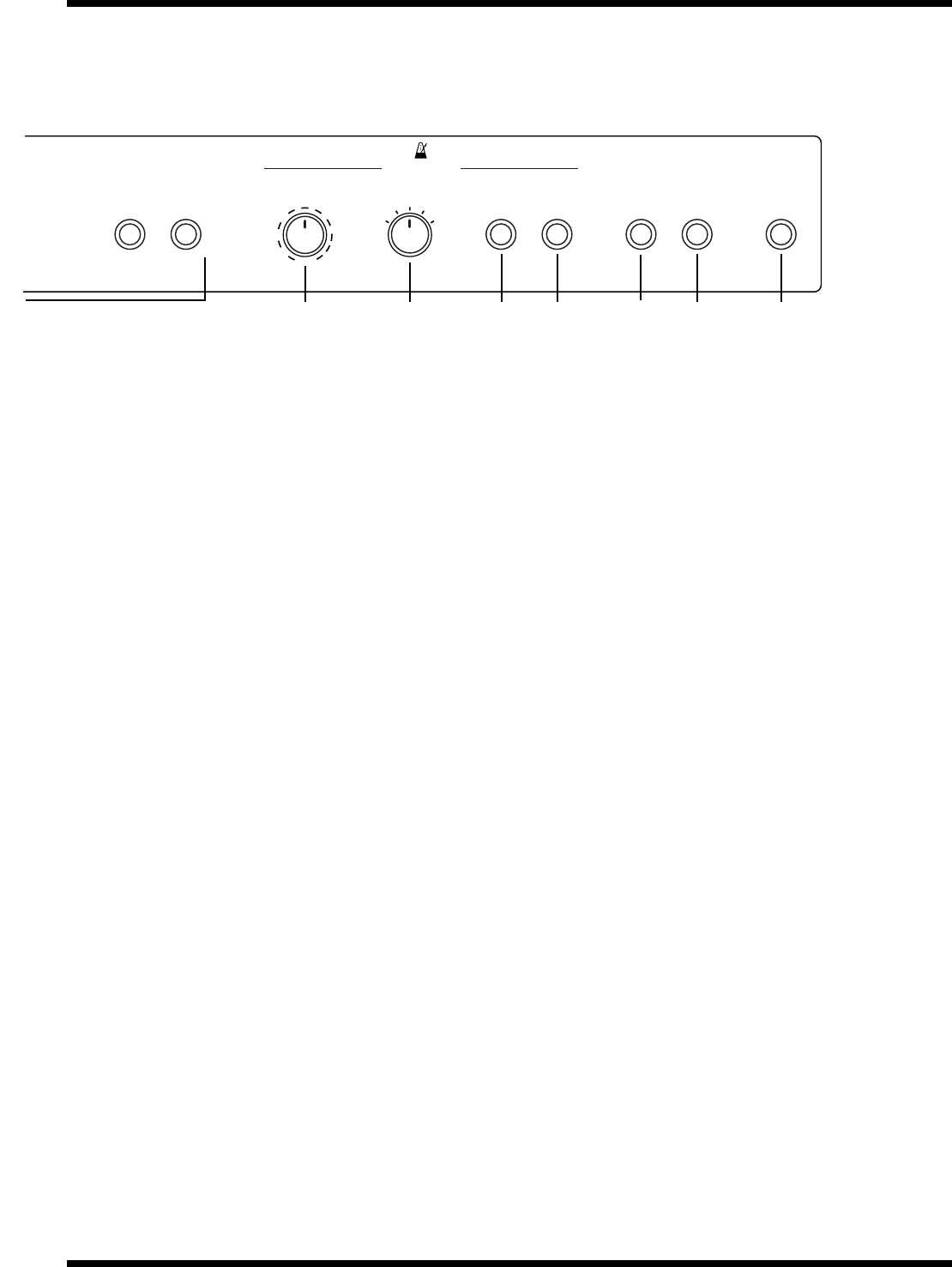
- Button Descriptions
- Getting Ready
- Listening to the Demo Songs
- Playing the Keyboard
- Try Recording Your Performance
- Convenient Functions
- Connecting to Audio Equipment
- Connecting to MIDI Devices
- Troubleshooting
- Functions Assigned to the Keyboard
- Specifications
- Index
USING THE UNIT SAFELY ...................................................................... 2
IMPORTANT NOTES ............................................................................. 4
Main Features of the ep-90/70 ................................................. 5
Button Descriptions................................................................... 6
Getting Ready .......................................................................... 8
1. Connecting the Power Cord .................................................................................8
2. Securing the Cord ...................................................................................................8
3. Connecting the Pedal .............................................................................................9
4. Turning the Power On and Off ............................................................................9
5. Adjusting the Volume .........................................................................................10
6. Setting the Music Stand .......................................................................................10
7. Connecting Headphones (Sold Separately) ...................................................... 10
Listening to the Demo Songs ................................................... 11
Playing/Stopping the Demo Songs........................................................................11
Selecting a Song for Playback..................................................................................12
About the Demo Songs.............................................................................................13
Playing the Keyboard............................................................. 14
Selecting the Instrumental Sound You Wish to Play ...........................................14
Layering Two Instrument Sounds—Dual Play ....................................................14
Adding Reverberation to the Sound—Reverb Effect...........................................15
Adding Breadth to the Sound—Chorus Effect .....................................................16
Sounding the Metronome ........................................................................................ 17
Try Recording Your Performance ............................................ 19
Recording ...................................................................................................................19
Listening to the Recorded Performance................................................................. 21
Deleting Recorded Songs .........................................................................................21
Convenient Functions......................................................................... 22
Disabling Buttons—Panel Lock .............................................................................22
Transposing without Changing Your Fingering—Key Transpose ................... 22
Adjusting the Pitch of the Sound—Master Tuning .............................................23
Connecting to Audio Equipment ......................................................... 24
About the Jacks ......................................................................................................... 24
Making the Connections ......................................................................................... 24
Connecting to MIDI Devices................................................................ 25
About the MIDI Connectors ...................................................................................25
Making the Connections ......................................................................................... 25
Cautions when Connecting an External MIDI Device
(Local On/Off and Omni On/Off) ........................................................................26
Set the MIDI Channel ..............................................................................................27
Transmitting/Receiving Sound Selection Data—Program Change ................. 28
Turning Transmission and Reception of Control Changes On/Off .................29
Transmitting Performance Data from MIDI Out .................................................29
Troubleshooting ................................................................................ 30
Functions Assigned to the Keyboard .................................................. 31
MIDI Implementation Chart................................................................ 32
Specifications .................................................................................... 33
Index ............................................................................................... 34
DIGITAL PIANO
Copyright © 1999 ROLAND CORPORATION
All rights reserved. No part of this publication may be reproduced in any form
without the written permission of ROLAND CORPORATION.
Before using this unit, carefully read the sections entitled: “USING THE UNIT SAFELY” (p. 2)
and “IMPORTANT NOTES” (p. 4). These sections provide important information concerning
the proper operation of the unit. Additionally, in order to feel assured that you have gained a
good grasp of every feature provided by your new unit, Owner’s manual should be read in its
entirety. The manual should be saved and kept on hand as a convenient reference.
Owner’s Manual
2
USING THE UNIT SAFELY
001
• Before using this unit, make sure to read the
instructions below, and the Owner’s Manual.
..........................................................................................................
002c
•Do not open (or modify in any way) the unit or its
AC adaptor.
..........................................................................................................
003
• Do not attempt to repair the unit, or replace parts
within it (except when this manual provides
specific instructions directing you to do so). Refer
all servicing to your retailer, the nearest Roland
Service Center, or an authorized Roland
distributor, as listed on the “Information” page.
..........................................................................................................
004
• Never use or store the unit in places that are:
• Subject to temperature extremes (e.g., direct
sunlight in an enclosed vehicle, near a heating
duct, on top of heat-generating equipment); or
are
• Damp (e.g., baths, washrooms, on wet floors);
or are
• Humid; or are
• Exposed to rain; or are
• Dusty; or are
• Subject to high levels of vibration.
..........................................................................................................
007
•Make sure you always have the unit placed so it is
level and sure to remain stable. Never place it on
stands that could wobble, or on inclined surfaces.
..........................................................................................................
008c
• Be sure to use only the AC adaptor supplied with
the unit. Also, make sure the line voltage at the
installation matches the input voltage specified on
the AC adaptor’s body. Other AC adaptors may
use a different polarity, or be designed for a
different voltage, so their use could result in
damage, malfunction, or electric shock.
..........................................................................................................
008e
• Use only the attached power-supply cord.
..........................................................................................................
009
• Do not excessively twist or bend the power cord,
nor place heavy objects on it. Doing so can
damage the cord, producing severed elements and
short circuits. Damaged cords are fire and shock
hazards!
..........................................................................................................
010
• This unit, either alone or in combination with an
amplifier and headphones or speakers, may be
capable of producing sound levels that could
cause permanent hearing loss. Do not operate for
a long period of time at a high volume level, or at
a level that is uncomfortable. If you experience
any hearing loss or ringing in the ears, you should
immediately stop using the unit, and consult an
audiologist.
..........................................................................................................
011
•Do not allow any objects (e.g., flammable material,
coins, pins); or liquids of any kind (water, soft
drinks, etc.) to penetrate the unit.
..........................................................................................................
012b
• Immediately turn the power off, remove the AC
adaptor from the outlet, and request servicing by
your retailer, the nearest Roland Service Center, or
an authorized Roland distributor, as listed on the
“Information” page when:
• The AC adaptor, the power-supply cord, or the
plug has been damaged; or
• If smoke or unusual odor occurs
• Objects have fallen into, or liquid has been
spilled onto the unit; or
• The unit has been exposed to rain (or otherwise
has become wet); or
•The unit does not appear to operate normally or
exhibits a marked change in performance.
..........................................................................................................
Used for instructions intended to alert
the user to the risk of injury or material
damage should the unit be used
improperly.
* Material damage refers to damage or
other adverse effects caused with
respect to the home and all its
furnishings, as well to domestic
animals or pets.
Used for instructions intended to alert
the user to the risk of death or severe
injury should the unit be used
improperly.
The ● symbol alerts the user to things that must be
carried out. The specific thing that must be done is
indicated by the design contained within the circle. In
the case of the symbol at left, it means that the power-
cord plug must be unplugged from the outlet.
The symbol alerts the user to important instructions
or warnings.The specific meaning of the symbol is
determined by the design contained within the
triangle. In the case of the symbol at left, it is used for
general cautions, warnings, or alerts to danger.
The symbol alerts the user to items that must never
be carried out (are forbidden). The specific thing that
must not be done is indicated by the design contained
within the circle. In the case of the symbol at left, it
means that the unit must never be disassembled.
3
013
• In households with small children, an adult
should provide supervision until the child is
capable of following all the rules essential for the
safe operation of the unit.
..........................................................................................................
014
• Protect the unit from strong impact.
(Do not drop it!)
..........................................................................................................
015
•Do not force the unit’s power-supply cord to share
an outlet with an unreasonable number of other
devices. Be especially careful when using
extension cords—the total power used by all
devices you have connected to the extension
cord’s outlet must never exceed the power rating
(watts/amperes) for the extension cord. Excessive
loads can cause the insulation on the cord to heat
up and eventually melt through.
..........................................................................................................
016
• Before using the unit in a foreign country, consult
with your retailer, the nearest Roland Service
Center, or an authorized Roland distributor, as
listed on the “Information” page.
101b
• The unit and the AC adaptor should be located so
their location or position does not interfere with
their proper ventilation.
..........................................................................................................
102c
• Always grasp only the plug on the AC adaptor
cord when plugging into, or unplugging from, an
outlet or this unit.
..........................................................................................................
103b
• At regular intervals, you should unplug the AC
adaptor and clean it by using a dry cloth to wipe
all dust and other accumulations away from its
prongs. Also, disconnect the power plug from the
power outlet whenever the unit is to remain
unused for an extended period of time. Any
accumulation of dust between the power plug and
the power outlet can result in poor insulation and
lead to fire.
..........................................................................................................
104
• Try to prevent cords and cables from becoming
entangled. Also, all cords and cables should be
placed so they are out of the reach of children.
..........................................................................................................
106
• Never climb on top of, nor place heavy objects on
the unit.
..........................................................................................................
107c
• Never handle the AC adaptor or its plugs with
wet hands when plugging into, or unplugging
from, an outlet or this unit.
..........................................................................................................
108d: Selection
• If you need to move the instrument, take note of
the precautions listed below. At least two persons
are required to safely lift and move the unit. It
should be handled carefully, all the while keeping
it level. Make sure to have a firm grip, to protect
yourself from injury and the instrument from
damage.
1
• Check to make sure the knob bolt securing the
unit to the stand have not become loose. Fasten
them again securely whenever you notice any
loosening.
• Disconnect the power cord.
• Disconnect all cords coming from external
devices.
• Remove the music stand.
..........................................................................................................
109b
• Before cleaning the unit, turn off the power and
unplug the AC adaptor from the outlet (p. 8).
..........................................................................................................
110b
• Whenever you suspect the possibility of lightning
in your area, disconnect the AC adaptor from the
outlet.
..........................................................................................................

4
IMPORTANT NOTES
291a
In addition to the items listed under “USING THE UNIT SAFELY” on page 2 and 3, please read and observe the following:
Power Supply
301
• Do not use this unit on the same power circuit with any
device that will generate line noise (such as an electric
motor or variable lighting system).
302
• The AC adaptor will begin to generate heat after long
hours of consecutive use. This is normal, and is not a
cause for concern.
307
• Before connecting this unit to other devices, turn off the
power to all units. This will help prevent malfunctions
and/or damage to speakers or other devices.
Placement
351
• Using the unit near power amplifiers (or other equipment
containing large power transformers) may induce hum.
To alleviate the problem, change the orientation of this
unit; or move it farther away from the source of inter-
ference.
352a
• This device may interfere with radio and television
reception. Do not use this device in the vicinity of such
receivers.
352b
• Noise may be produced if wireless communications
devices, such as cell phones, are operated in the vicinity of
this unit. Such noise could occur when receiving or initi-
ating a call, or while conversing. Should you experience
such problems, you should relocate such wireless devices
so they are at a greater distance from this unit, or switch
them off.
354a
• Do not expose the unit to direct sunlight, place it near
devices that radiate heat, leave it inside an enclosed
vehicle, or otherwise subject it to temperature extremes.
Excessive heat can deform or discolor the unit.
355b
• When moved from one location to another where the
temperature and/or humidity is very different, water
droplets (condensation) may form inside the unit. Damage
or malfunction may result if you attempt to use the unit in
this condition. Therefore, before using the unit, you must
allow it to stand for several hours, until the condensation
has completely evaporated.
358
• Do not allow objects to remain on top of the keyboard.
This can be the cause of malfunction, such as keys ceasing
to produce sound.
Maintenance
401a
• For everyday cleaning wipe the unit with a soft, dry cloth
or one that has been slightly dampened with water. To
remove stubborn dirt, use a cloth impregnated with a
mild, non-abrasive detergent. Afterwards, be sure to wipe
the unit thoroughly with a soft, dry cloth.
402
• Never use benzine, thinners, alcohol or solvents of any
kind, to avoid the possibility of discoloration and/or
deformation.
Additional Precautions
553
• Use a reasonable amount of care when using the unit’s
buttons, sliders, or other controls; and when using its jacks
and connectors. Rough handling can lead to malfunctions.
556
• When connecting / disconnecting all cables, grasp the
connector itself—never pull on the cable. This way you
will avoid causing shorts, or damage to the cable’s
internal elements.
558a
• To avoid disturbing your neighbors, try to keep the unit’s
volume at reasonable levels. You may prefer to use
headphones, so you do not need to be concerned about
those around you (especially when it is late at night).
559a
• When you need to transport the unit, package it in the box
(including padding) that it came in, if possible. Otherwise,
you will need to use equivalent packaging materials.
560
• Do not apply undue force to the music stand while it is in
use.
562
• Use a cable from Roland to make the connection. If using
some other make of connection cable, please note the
following precautions.
• Some connection cables contain resistors. Do not use
cables that incorporate resistors for connecting to this
unit. The use of such cables can cause the sound level
to be extremely low, or impossible to hear. For infor-
mation on cable specifications, contact the manufac-
turer of the cable.
220
* All product names mentioned in this document are trademarks
or registered trademarks of their respective owners.

5
Main Features of the ep-90/70
Authentic piano performances
High-quality concert grand piano sounds, and a keyboard that’s a true pleasure to play
assure an even more realistic piano-playing experience.
•
Captures the brilliant resonance
The sound of a grand piano has a more brilliant timbre than that of an upright piano.
This is because the sound of a grand piano contains a greater amount of high-frequency
components. The piano sounds of the ep-90/70 reproduce this characteristic of the grand
piano.
•
Reproduces the extended high-frequency response
One of the features of the acoustic piano is that for the approximately one and a half
octaves at the top of the range, there is no damper to restrict the vibration of the strings.
This allows the vibration of the string to continue whether or not the damper pedal is
pressed. Since this also allows these strings to vibrate sympathetically with other strings,
they can sometimes be heard sounding independently from the low and middle-register
strings.
The ep-90/70 faithfully simulates these characteristics of the acoustic piano.
Eight Tones for use in a wide variety of musical genres
The ep-90/70 features not only piano tones, but eight different internal tones that you
can use in a variety of musical genres.
Three Metronome sounds
The ep-90/70 provides a metronome that lets you use three different sounds. You can
easily adjust the tempo and time.
Record your own performances
The ep-90/70 makes it easy to record your own performances.
6
Button Descriptions
Button, switch and knob names are enclosed in square brackets ( [ ] ).
fig.2-01-L
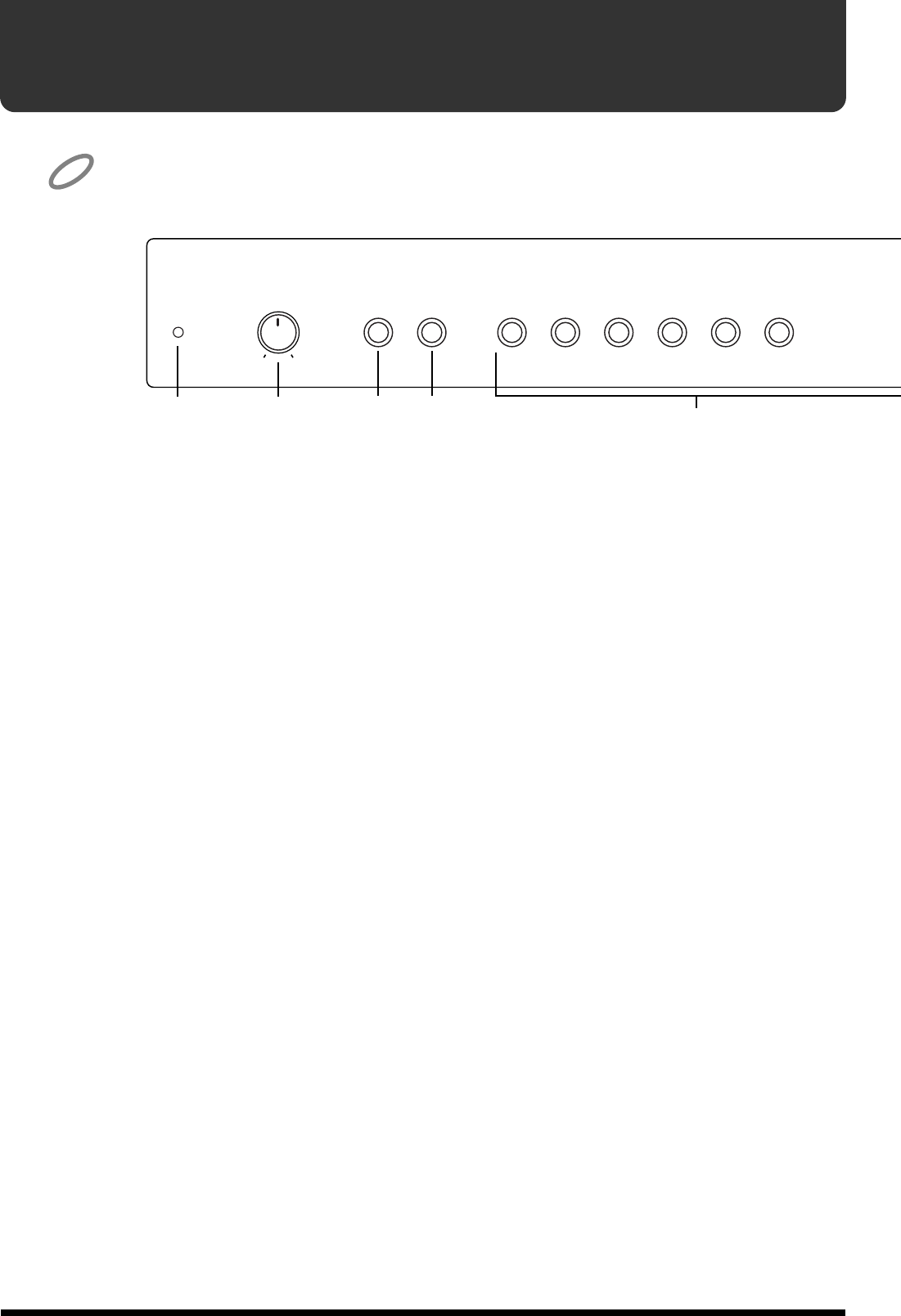
1
Power Indicator
When the power is turned on, this will light in red (p. 9).
2
[Volume] Knob
This knob controls the master volume level (p. 10).
3
[Reverb] Button
Press this button to add reverberation to the sound (p. 15).
4
[Chorus] Button
Press this button to add the Chorus Effect to the sound (p. 16).
5
Tone Buttons
The following eight buttons are collectively referred to as the Tone buttons.
Use these buttons to select the tone to be played on the keyboard (p. 14).
[Piano 1] Button
[Piano 2] Button
[E. Piano] Button
[Vibraphone] Button
[Harpsichord] Button
[Organ] Button
[Strings] Button
[Choir] Button
By holding down three of these buttons while you then press a specific key, you can
make various settings on the ep-90/70 (p. 26–p. 29).
→
“Functions Assigned to the Keyboard” (p. 31)
NOTE
5
1234
ChorusReverb
Power Organ
E.PianoPiano 2Piano 1 Vibra-
phone Harpsi-
chord
MaxMin
Volume
7
Button Descriptions
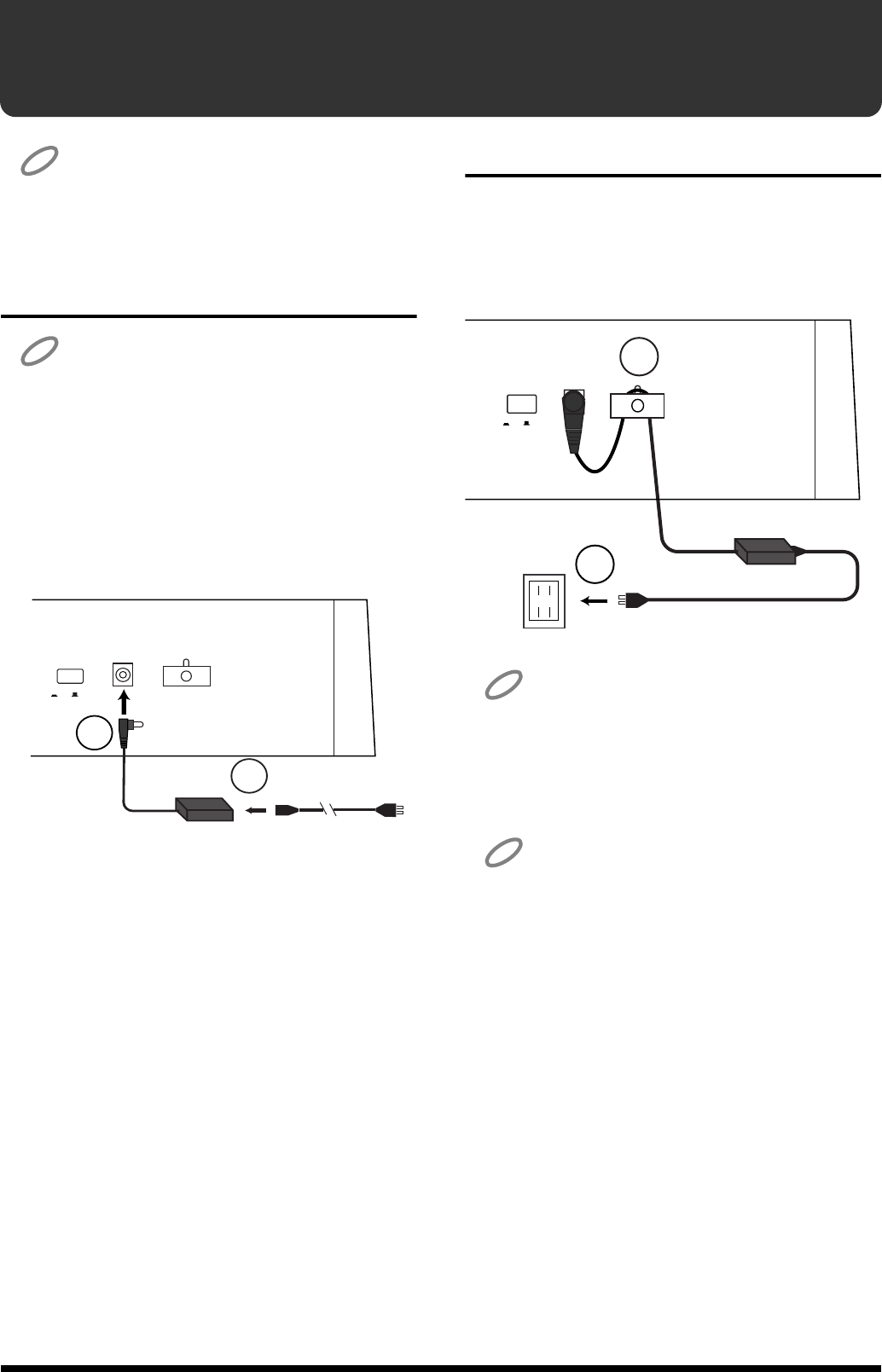
fig.2-01-R
6
[Tempo] Knob
Use this knob to adjust the tempo of the metronome (p. 18).
7
[Beat] Knob
Use this knob to select the time of the metronome (p. 18).
8
[Sound] Button
Press this button to change the metronome sound (p. 18).
9
[On/Off] Button
Press this button to switch on or off the metronome (p. 17).
10
[Play] Button
Press this button to play or stop the demo songs, or a recorded performance (p. 11, p. 21).
It also is used to start/stop recording (p. 19).
11
[Rec] Button
Press this button to put the instrument in recording standby (p. 19).
12
[Demo] Button
Press this button to access the demo songs (p. 11).
By holding down this button while you then press a specific key, you can make various
settings on the ep-90/70 (p. 22, p. 23).
→
“Functions Assigned to the Keyboard” (p. 31)
Play
678910 11 12
DemoChoirStrings RecOn/ OffSound
6
Metronome
42 3
06
BeatTempo
120
144
60
80
96 108
40
168
192
208
42 3
06
8
Getting Ready
NOTE
To prevent malfunction and/or damage to speakers or other devices,
always turn down the volume, and turn off the power on all devices
before making any connections.
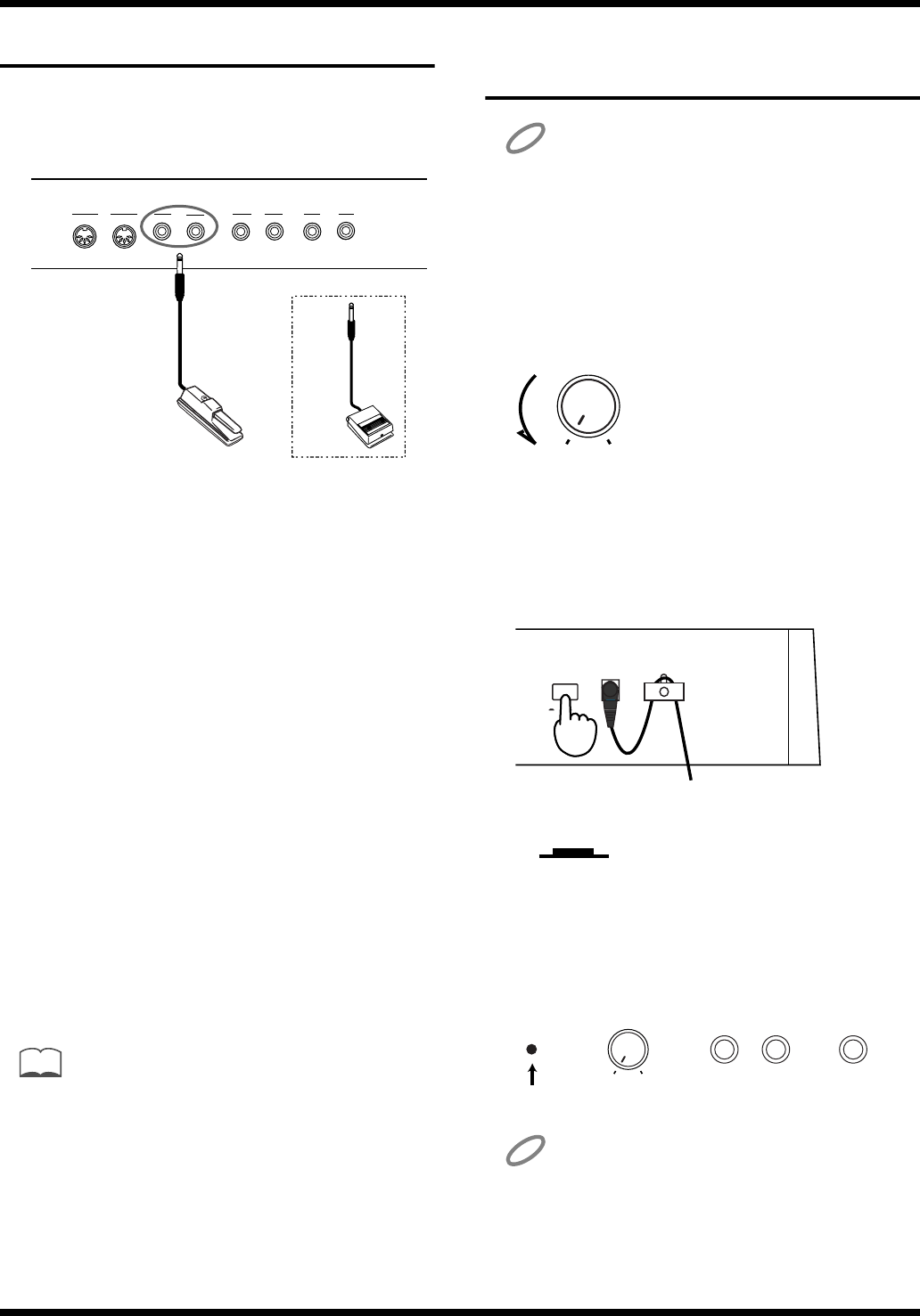
1. Connecting the Power Cord
NOTE
If the supplied AC adaptor is the ACB or ACK type, step 1 of the
procedure is not necessary.
1.
Connect the supplied AC adaptor and AC
cord.
2.
Connect the AC adaptor to the DC In jack
on the rear panel of the ep-90/70.
fig.3-01
2. Securing the Cord
1.
As shown in the diagram, loop the AC cord
around the cord stay to fasten it in place.
2.
Connect the AC cord to an AC outlet.
fig.3-02
NOTE
To prevent the inadvertent disruption of power to your unit
(should the plug be pulled out accidentally), and to avoid applying
undue stress to the DC In jack, anchor the power cord using the
cord hook, as shown in the illustration.
NOTE
Even if the cord is fastened, strong tension applied to the cord may
cause it to be damaged or broken. Be careful not to pull the cord
accidentally, or to apply strong pressure to it.
2
1
DC In 9V
1200 mA
PowerPower
On Off
2
1
Power DC In 9V
1200 mA
Power
On Off
9
Getting Ready
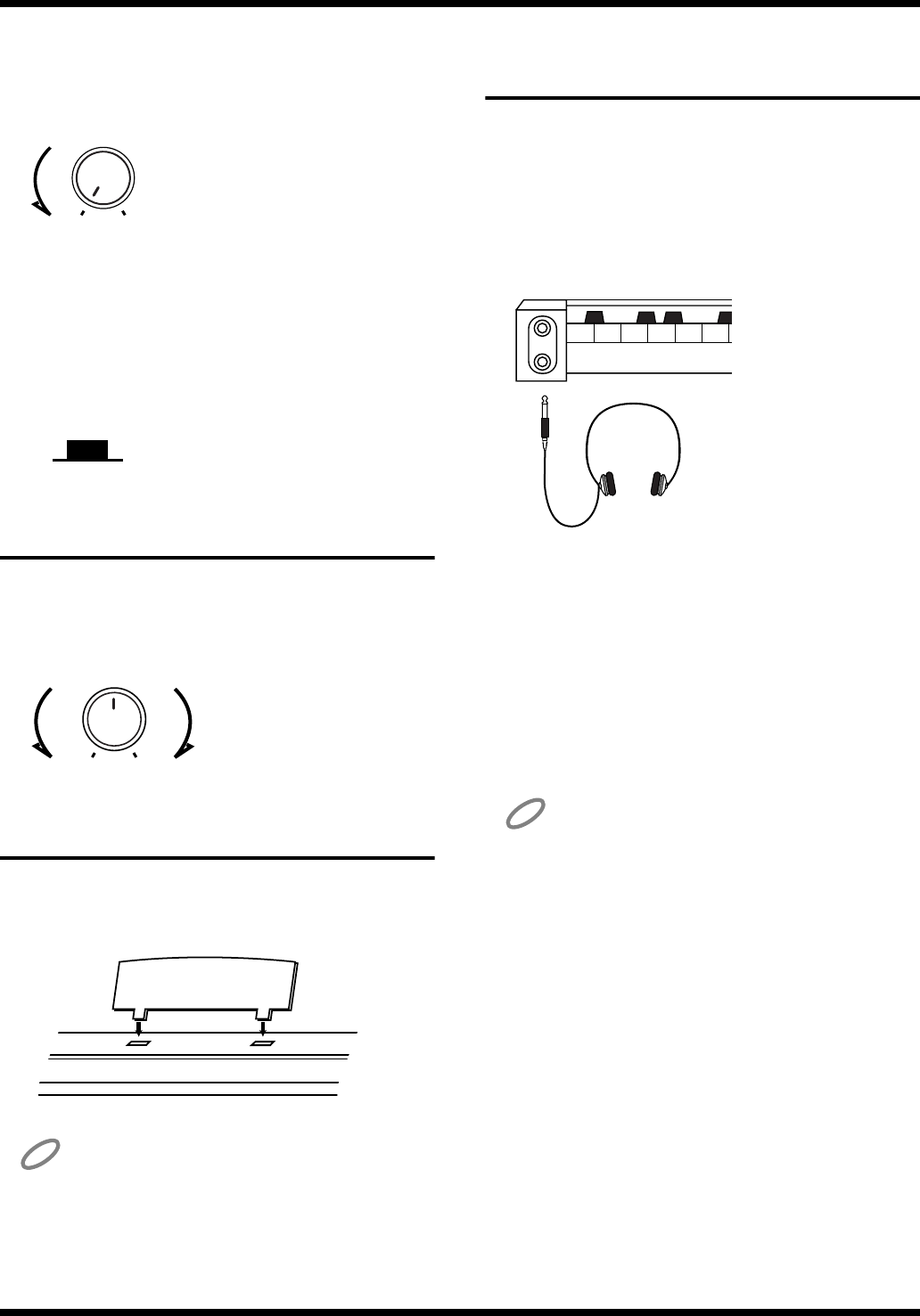
3. Connecting the Pedal
Connect the supplied pedal to one of the
pedal jacks.
fig.3-03
If the pedal is connected to the Damper
pedal jack, it can be used as a damper
pedal.
If the pedal is connected to the Soft pedal
jack, it can be used as a soft pedal.
Damper Pedal
Use this pedal when you want the sound to linger on.
While the damper pedal is depressed, the sound from
the keyboard continues to linger for an extended period,
even when you remove your fingers from the keys.
This is the same function as the right-most pedal on an
acoustic piano.
Soft Pedal
This pedal softens the sound.
Playing with the soft pedal depressed produces a sound
that is not as strong as when otherwise played with the
equivalent strength.
This is the same function as the left-most pedal on an
acoustic piano.
MEMO
By connecting an additional pedal, you can use both a damper
pedal and a soft pedal simultaneously.
To purchase an additional pedal (DP-2/DP-6), please contact the
dealer where you purchased the ep-90/70.
4. Turning the Power On and
Off
NOTE
Once the connections have been completed, turn on power to your
various devices in the order specified. By turning on devices in the
wrong order, you risk causing malfunction and/or damage to
speakers and other devices.
1. Turn the volume all the way down.
fig.3-04
2. Press the [Power] switch, to turn on the
power.
The power switch is located at the right side of the back
panel.
fig.3-05
fig.3-06.e
The power indicator lights in red.
After a few seconds, the keyboard will produce sound
when played.
fig.3-07.e
NOTE
This unit is equipped with a protection circuit. A brief interval (a
few seconds) after power up is required before the unit will operate
normally.
or
MIDI
Out In Output
InputPedal
Damper
RR
Soft
L (Mono)L (Mono)
MaxMin
Volume
Power DC In 9V
1200 mA
Power
On Off
ON
Lower position
ChorusReverb
Power Piano 1
MaxMin
Volume
Lit
10
Getting Ready
■Turning Off the Power
1. Turn the volume all the way down.
fig.3-04
2. Press the [Power] switch to turn off the
power.
The power switch is located at the right side of the back
panel.
The Power indicator goes out.
fig.3-08.e
5. Adjusting the Volume
Use the [Volume] knob to adjust the
volume.
fig.3-09.e
6. Setting the Music Stand
Assemble the music stand as shown in the
diagram.
fig.2-02
NOTE
Before moving the ep-90/70, be sure to remove the music stand as a
safety precaution.
7. Connecting Headphones
(Sold Separately)
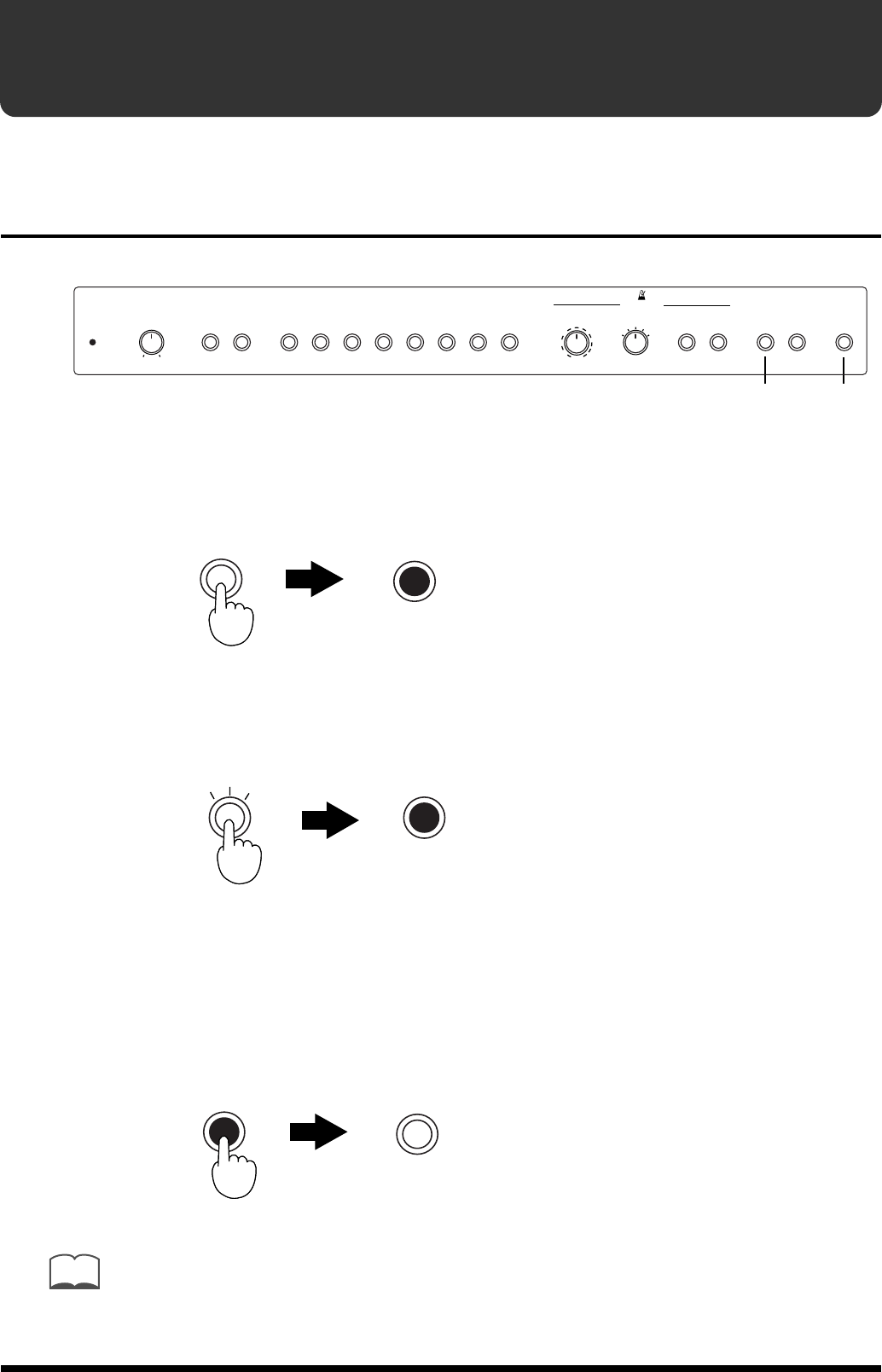
The ep-90/70 features two headphone jacks. This allows two
people to listen through headphones simultaneously, making
it very useful for lessons and when performing piano pieces
for four hands. Additionally, this allows you to play without
having to worry about bothering others around you, even at
night.
fig.2-03
1. Turn the volume all the way down.
2. Connect the headphones to either of the
headphone jacks.
3. Adjust the volume.
Sound will no longer be heard from the ep-90/70’s
speakers. Sound will be heard only through the
headphones.
NOTE
Please use stereo headphones.
MaxMin
Volume
OFF
Upper position
MaxMin
Volume
1
2
PHONES
11
Listening to the Demo Songs
The ep-90/70 features eight internal piano songs.
Playing/Stopping the Demo Songs
fig.4-01
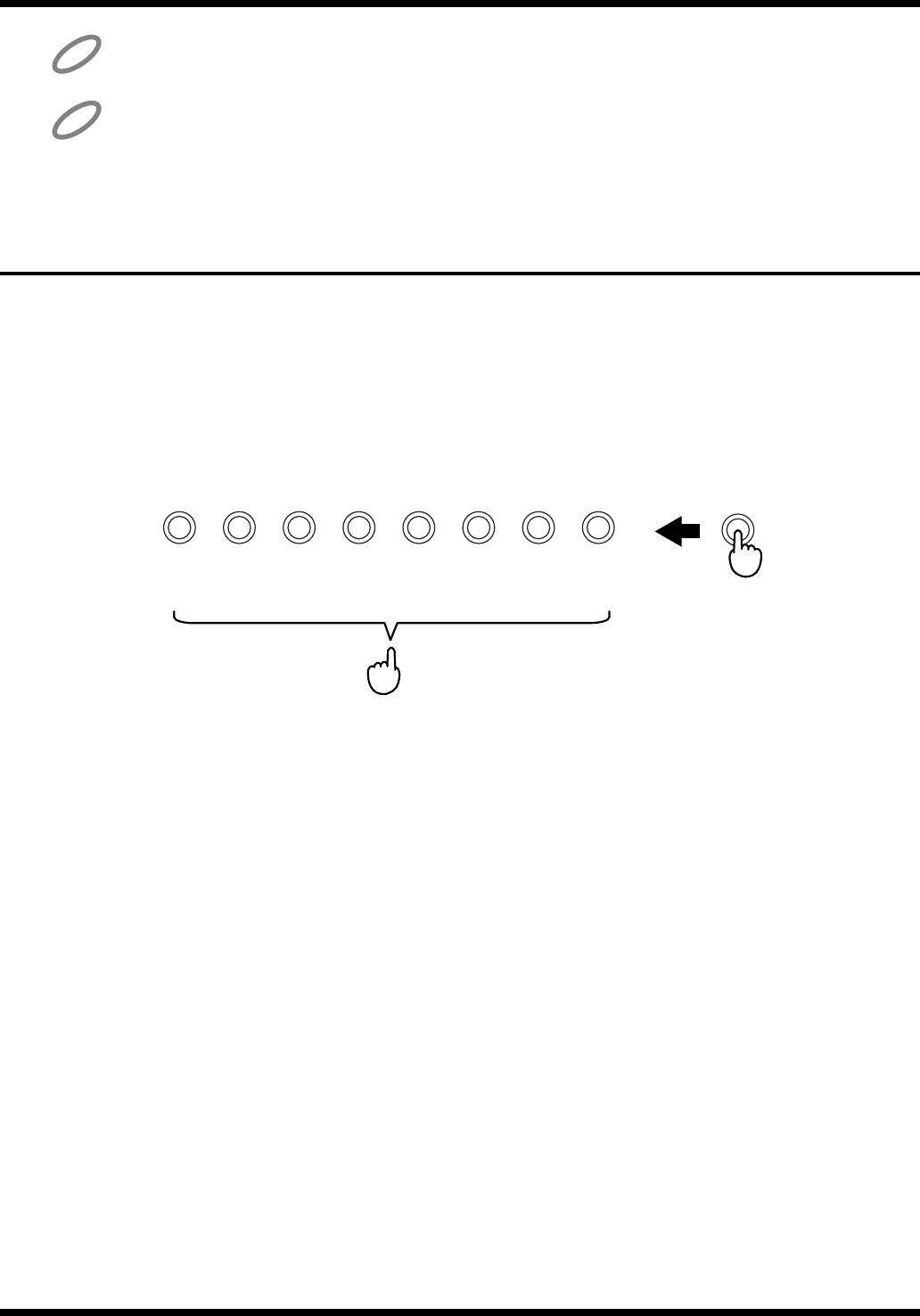
1. Press the [Demo] button, and confirm that the indicator has lit.
The [Play] button’s indicator starts blinking.
fig.4-02.e
2. Press the [Play] button, and the indicator will change from blinking
to lit.
fig.4-03.e
The demo songs will play back in succession, starting with the first song. When the last
song has been played, playback will return to the first song and begin again.
3. To stop the demo song playback, press the [Demo] button to make
the indicator go out.
The demo song playback will stop.
fig.4-04.e
You can also stop demo song playback by pressing the [Play] button or [Rec] button. In this
case, the [Demo] button indicator will not be extinguished. When you press the [Play] button
next the demo song will resume playing from the beginning of the song where playback was
halted.
1, 3
2
DemoChorusReverb
Power ChoirStringsOrgan
E.PianoPiano 2Piano 1 PlayOn/ OffSound Rec
Vibra-
phone Harpsi-
chord
Metronome
MaxMin
Volume 42 3
06
BeatTempo
120
144
60
80
96 108
40
168
192
208
42 3
06
Demo Demo
Press Lit
Play Play
Press Lit
Demo Demo
Press Dark
MEMO
12
Listening to the Demo Songs
It is not possible to change the tempo of a demo song.
If you press the [Demo] button while the metronome is sounding (p. 17), the metronome will
stop sounding. It is not possible to sound the metronome while a demo song is playing.
Selecting a Song for Playback
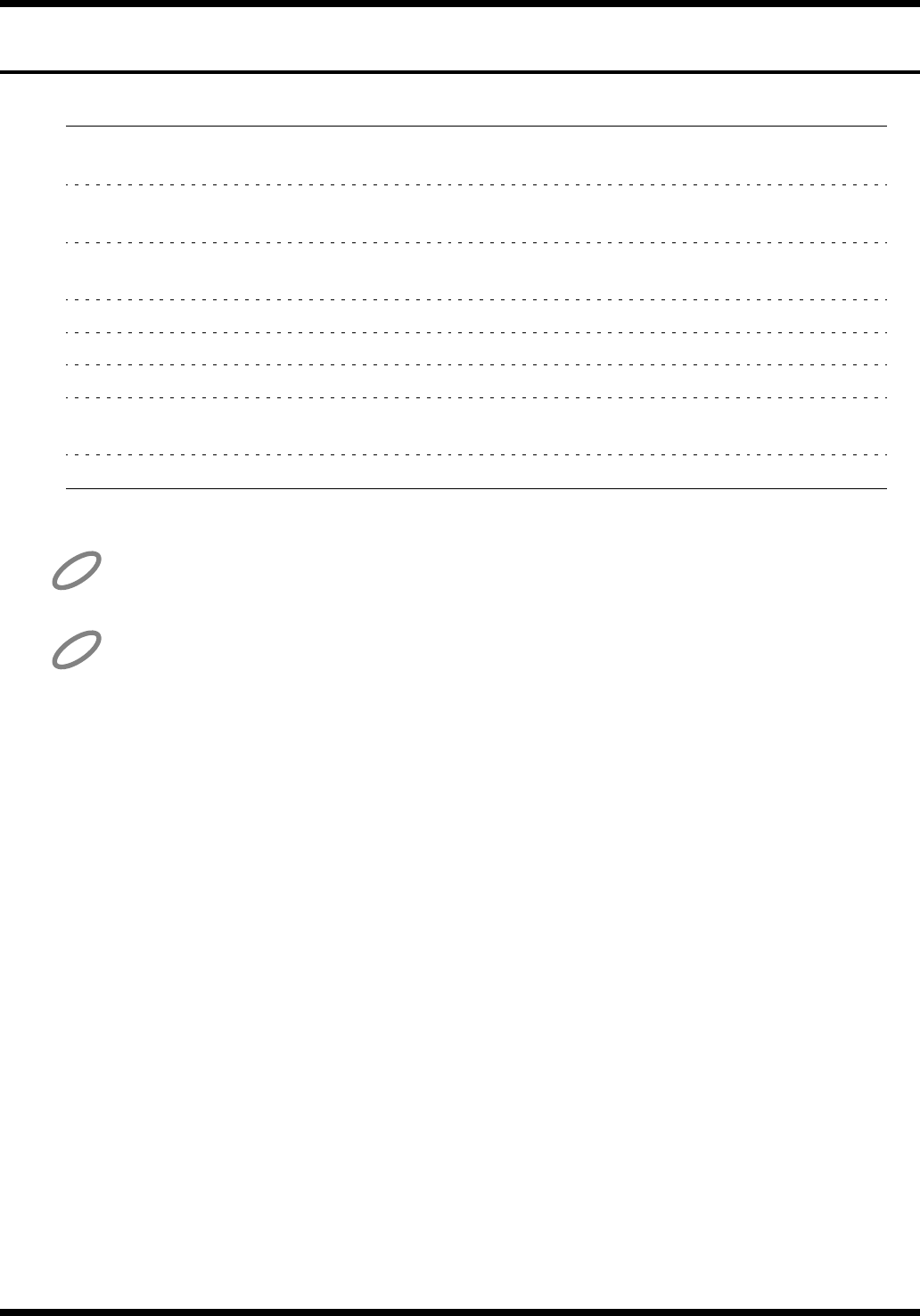
Here’s how you can select and play a desired demo song.
While holding down the [Demo] button, and press the Tone button
that corresponds to the demo song you wish to hear.
The indicators of the [Demo] button and the [Play] button will light.
fig.4-05.e(Press the button corresponding to the song number)
The demo songs will play back consecutively, starting with the song you selected. When
the last song has been played, playback will return to the first song and resume.
Subsequent demo songs are automatically played one after another until you stop them
playing.
NOTE
NOTE
12345678
Demo
ChoirStringsOrgan
E.PianoPiano 2Piano 1 Vibra-
phone Harpsi-
chord
While holding down...
Press the button corresponding to the song number
13
Listening to the Demo Songs
About the Demo Songs
No. Title Composer Copyright
1Little White Room Scott Wilkie ©1998 Scott Wilkie Media
(ASCAP)
2Valse No. 1 in E-flat Major, Op. 18 “Grand Valse Brillante”
Frederic Chopin ©1998 Roland Corporation
3“From Foreign Lands And People” from “Scenes From Childhood” Op. 15
Robert Schumann ©1998 Roland Corporation
4Nocturne No. 2 in E-flat Major, Op. 9-2 Frederic Chopin ©1998 Roland Corporation
5Rhapsody No. 2, Op. 79 J. Brahms ©1998 Roland Corporation
6Slavonic Dance No. 10, Op. 72-2 A. Dvoˇrák ©1998 Roland Corporation
7Etude Op. 25-1 in A-flat Major “The Shepherd Boy”
Frederic Chopin ©1998 Roland Corporation
8Fly Free John Maul ©1998 Roland Corporation
All rights reserved. Unauthorized use of this material for purposes other than private, personal
enjoyment is a violation of applicable laws.
No data for the music that is played will be output from MIDI Out.
■Profiles of Composers
Scott Wilkie
Scott Wilkie is a contemporary jazz recording artist, based in southern California. He
tours frequently with his own band, and also appears as an artist for Roland in the U.S.,
Japan, Europe and South America. His debut solo album, Boundless, was released
worldwide in 1999 on Narada/Virgin Records. You can find him on-line at
www.scottwilkie.com.
John Maul
John Maul is a musician, composer and arranger having graduated from the Royal
Academy of Music in London. John’s work encompasses studio recordings and live
performances, including work with top UK Jazz artists.
His writing credits include commercial music for BBC radio and television, as well as
scoring jazz and classical works. Having been a product specialist for Roland U.K., John
is now actively involved in music software composing/programming for both Roland
Japan and various music publishers. Quite recently his “Musical Picture Book,” a
volume of original piano music encompassing all standards of musical ability, which
included the piano and orchestral accompaniment data in SMF format, was published
and printed.
NOTE
NOTE
14
Playing the Keyboard
Selecting the Instrumental Sound You Wish to
Play
The ep-90/70 allows you to play using eight different sounds including piano.
The ep-90/70’s sounds are called “Tones.”
Use the eight Tone buttons to select tones.
When the ep-90/70 is turned on, the tone is reset to “Piano 1”.
fig.5-01.e
Press any Tone button.
When you play the keyboard, the selected tone is played.
Tone Name Description
Piano 1 bright piano sound
Piano 2 mellow piano sound
E. (Electric) Piano electric piano sound
Vibraphone vibraphone sound
Harpsichord harpsichord sound
Organ pipe organ sound
Strings the sound of a string instrument ensemble
Choir the sound of a vocal ensemble
Layering Two Instrument Sounds—Dual Play
Playing with two different tones on the keyboard simultaneously is called “Dual Play.”
fig.5-02.e
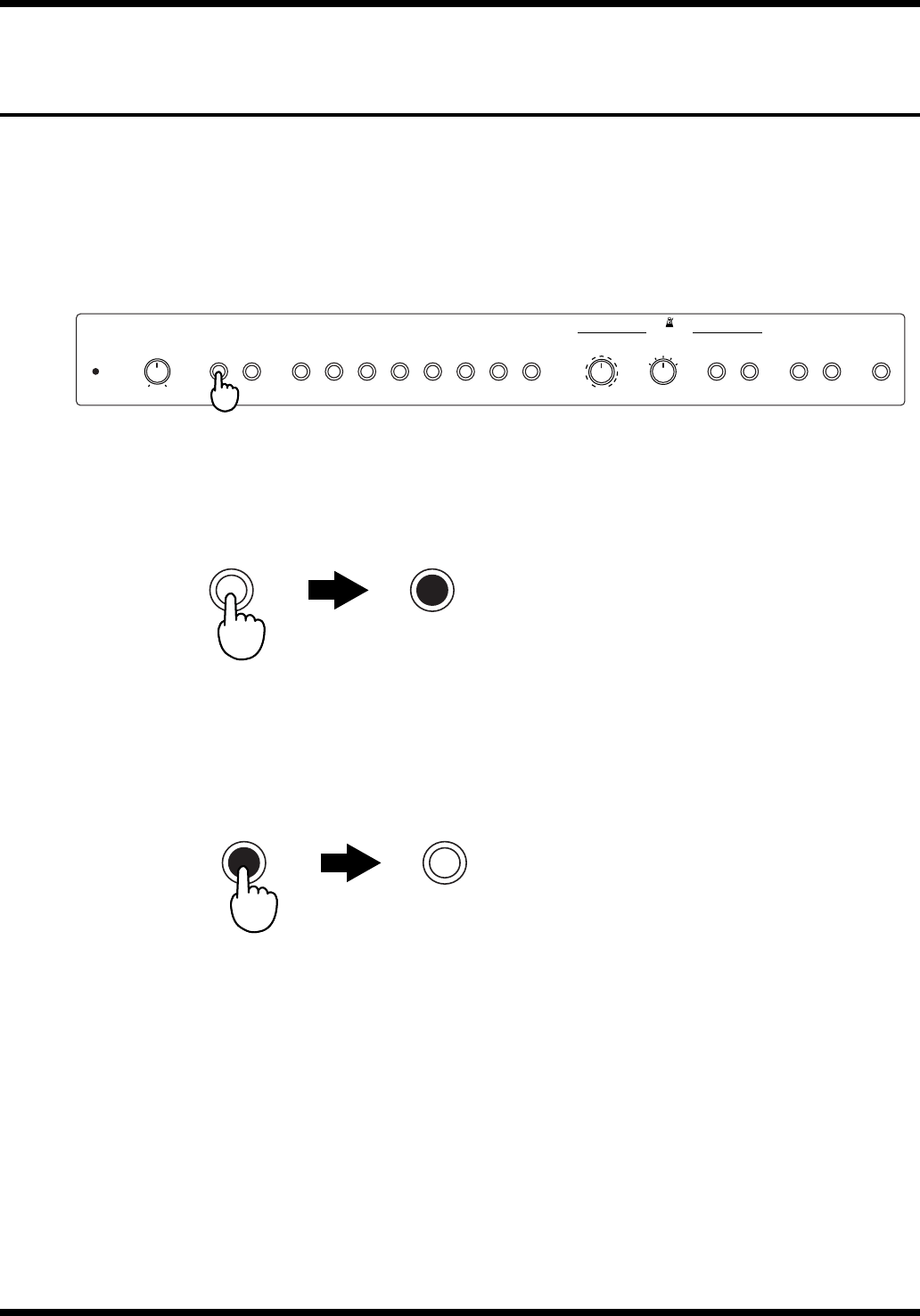
1. While holding down the [Piano 1] button, press the [Strings] button.
When you play the keyboard, both the Piano 1 and Strings tones are layered.
In this way, you can hold down one Tone button and press another Tone button to layer
two sounds for playing together.
2. To cancel the Dual Play, press any Tone button.
When you play the keyboard, only the sound of the button you pressed will be heard.
Tone Buttons
DemoChorusReverb
Power ChoirStringsOrgan
E.PianoPiano 2Piano 1 PlayOn/ OffSound Rec
Vibra-
phone Harpsi-
chord
Metronome
MaxMin
Volume 42 3
06
BeatTempo
120
144
60
80
96 108
40
168
192
208
42 3
06
ChoirStringsOrgan
E.PianoPiano 2Piano 1 Vibra-
phone Harpsi-
chord
While holding down Press
15
Playing the Keyboard
Adding Reverberation to the Sound—Reverb
Effect
The ep-90/70 allows you to add reverberation to what you play on the keyboard.
With the Reverb Effect, you can get a pleasant reverberation, making it sound as if you
were performing in a concert hall or similar space.
The settings of the Reverb Effect cannot be memorized independently for each sound.
When the power is turned on, the Reverb Effect will be cancelled.
fig.5-03
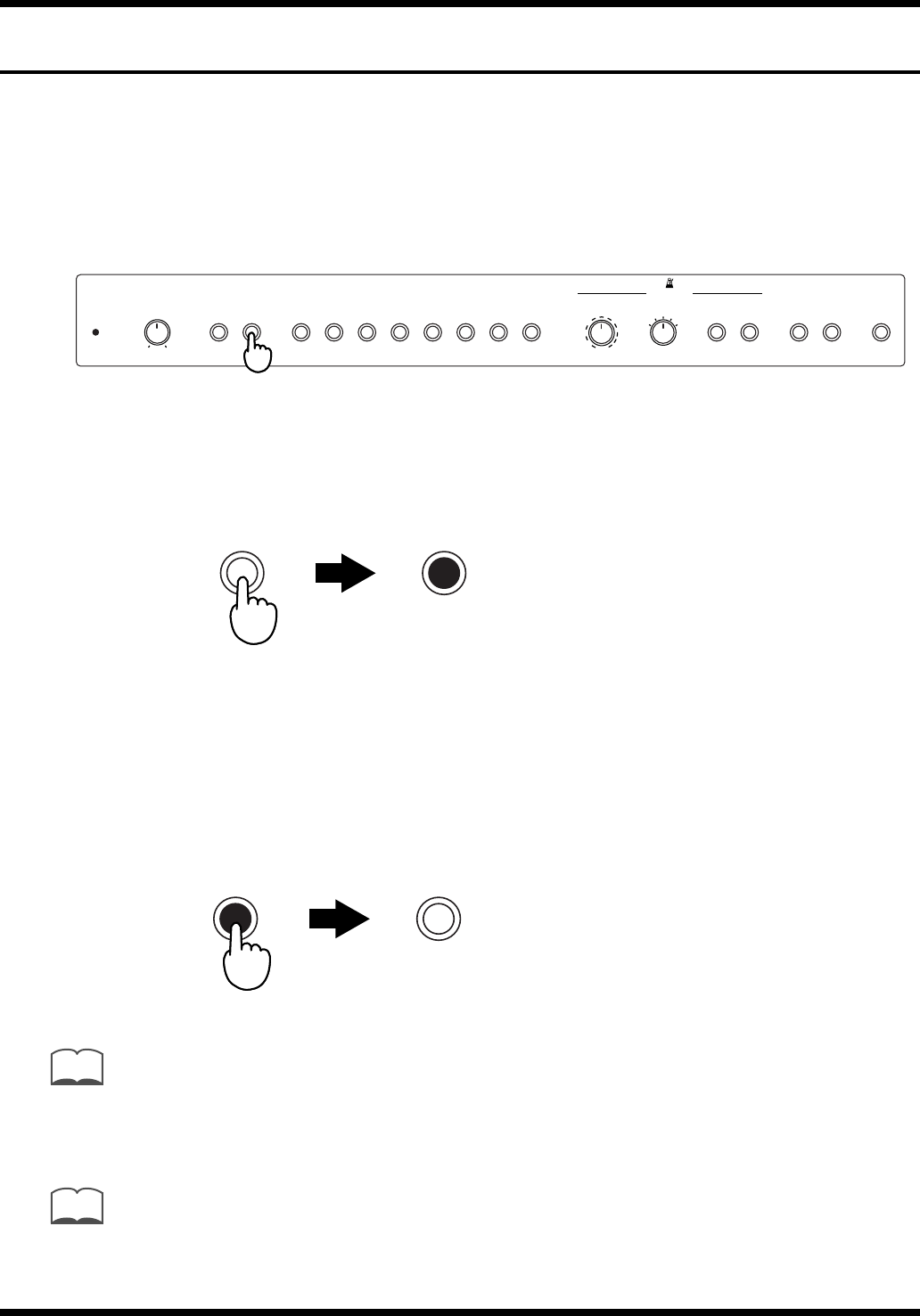
1. Press the [Reverb] button to turn on the indicator.
The Reverb Effect will be applied to the entire sound.
fig.5-05.e
2. To cancel the Reverb Effect, press the [Reverb] button once again
to make the indicator go dark.
fig.5-04.e
DemoChorusReverb
Power ChoirStringsOrgan
E.PianoPiano 2Piano 1 PlayOn/ OffSound Rec
Vibra-
phone Harpsi-
chord
Metronome
MaxMin
Volume 42 3
06
BeatTempo
120
144
60
80
96 108
40
168
192
208
42 3
06
ReverbReverb
Press Lit
ReverbReverb
Press Dark
16
Playing the Keyboard
Adding Breadth to the Sound—Chorus Effect
The ep-90/70 allows you to add chorus to what you play on the keyboard.
By adding the Chorus Effect, you can give the sound greater dimension, with more
fatness and breadth. The settings of the Chorus Effect are memorized independently for
each sound.
When the power is turned on, the Chorus Effect will be applied to the “E.Piano” and
“Vibraphone” sounds. The Chorus Effect will be turned off for the other sounds.
fig.5-06
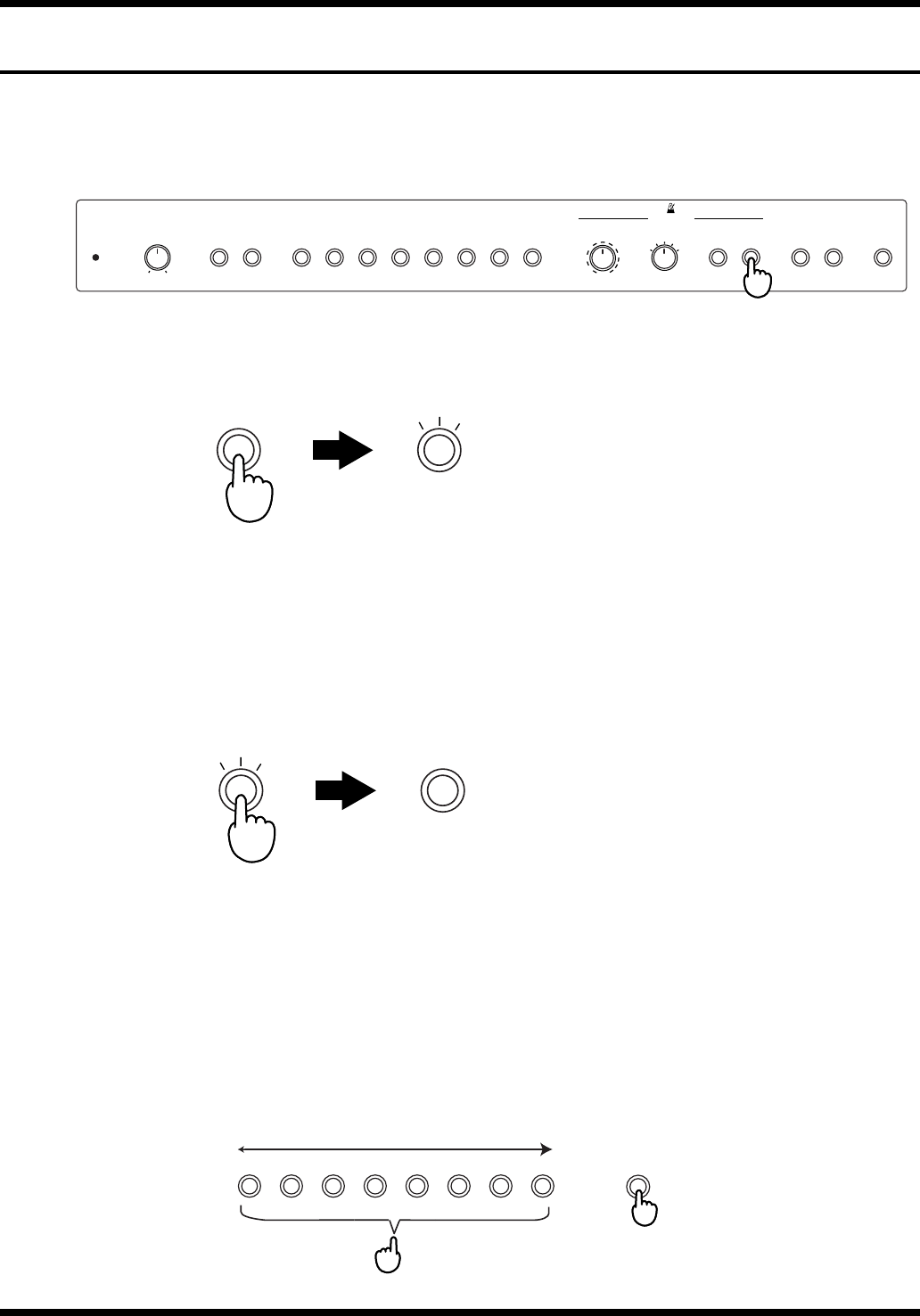
1. Press the [Chorus] button to turn on the indicator.
The Chorus Effect will be applied to the currently selected sound.
fig.5-07.e
When you select a sound for which the Chorus Effect has not been turned on, the
[Chorus] button indicator will go dark.
2. To cancel the Chorus Effect, press the [Chorus] button once again
to make the indicator go dark.
fig.5-08.e
When playing in Dual Play mode (p. 14), turning the [Chorus] button indicator on/off will
switch the Chorus Effect on/off for both sounds. When you cancel Dual Play mode, you will
return to the Chorus Effect setting that was stored for each sound.
When playing in Dual Play mode, the on/off status of the [Chorus] button is not stored in
memory.
Switching [Chorus] on/off will affect only the music you play on the ep-90/70’s keyboard. If you
press the [Chorus] button during playback of a demo song or a recorded performance, it has no
effect.
DemoChorusReverb
Power ChoirStringsOrgan
E.PianoPiano 2Piano 1 PlayOn/ OffSound Rec
Vibra-
phone Harpsi-
chord
Metronome
MaxMin
Volume 42 3
06
BeatTempo
120
144
60
80
96 108
40
168
192
208
42 3
06
Chorus Chorus
Press Lit
Chorus Chorus
Press Dark
MEMO
MEMO
17
Playing the Keyboard
Sounding the Metronome
You can start or stop the metronome with a single button.
In addition to adjusting the tempo and time, you can also change the sound and volume
of the metronome.
fig.5-09
1. Press the [On/Off] button, and the metronome will begin sounding.
fig.5-10.e
The [On/Off] button indicator will blink in red and green in time with the currently
selected time. It will blink in red on the downbeats, and in green on the upbeats. If the
[Beat] knob is in the “0” position, the indicator will blink in green.
2. When you press the [On/Off] button once again to make the
indicator go dark, the metronome will stop sounding.
fig.5-11.e
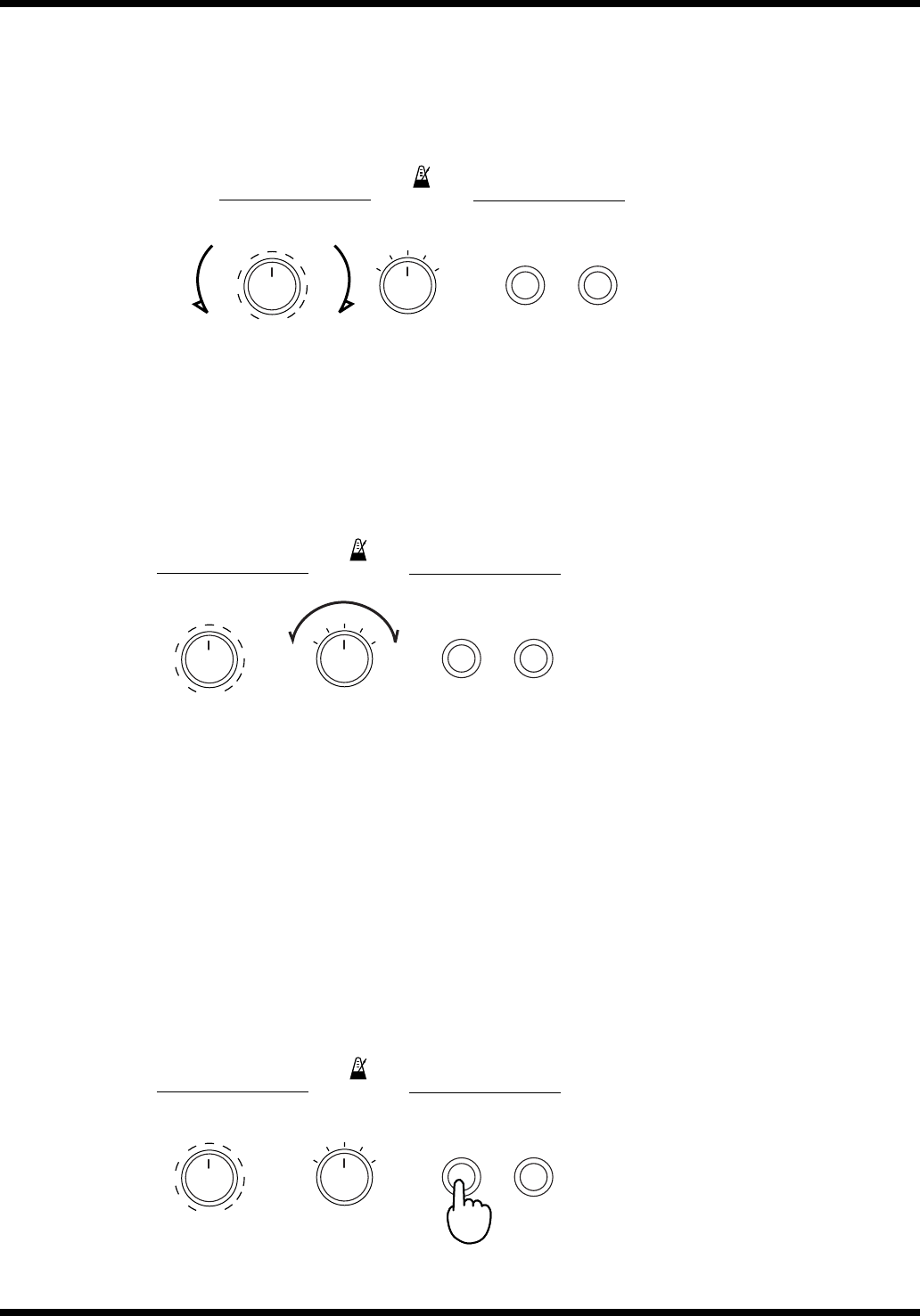
■Adjusting the Metronome Volume
The metronome volume can be adjusted in 8 levels.
The metronome volume is set to “4” when the keyboard is turned on.
While holding down the [On/Off] button, also press any Tone
button.
fig.5-12.e
DemoChorusReverb
Power ChoirStringsOrgan
E.PianoPiano 2Piano 1 PlayOn/ OffSound Rec
Vibra-
phone Harpsi-
chord
Metronome
MaxMin
Volume
42 3
06
BeatTempo
120
144
60
80
96 108
40
168
192
208
42 3
06
On/Off On/Off
Press Blinks alternately
in red and green
On/Off On/Off
Press Dark
ChoirStringsOrgan
E.PianoPiano 2Piano 1 Vibra-
phone Harpsi-
chord On/Off
Press
While holding down...
Increase the volumeDecrease the volume
12345678
18
Playing the Keyboard
■Changing the Metronome Tempo
The metronome tempo is adjusted by the [Tempo] knob.
You can select a tempo in the range of 40–208.
fig.5-13.e (Tempo becomes slower/Tempo becomes faster)
■Changing the Time of the Metronome
Use the [Beat] knob to select the time of the metronome.
You can select from the following five types: 0 (only upbeat sounds), 2 (2-beat), 3 (3-
beat), 4 (4-beat), 6 (6-beat).
fig.5-14
■Changing the Metronome Sound
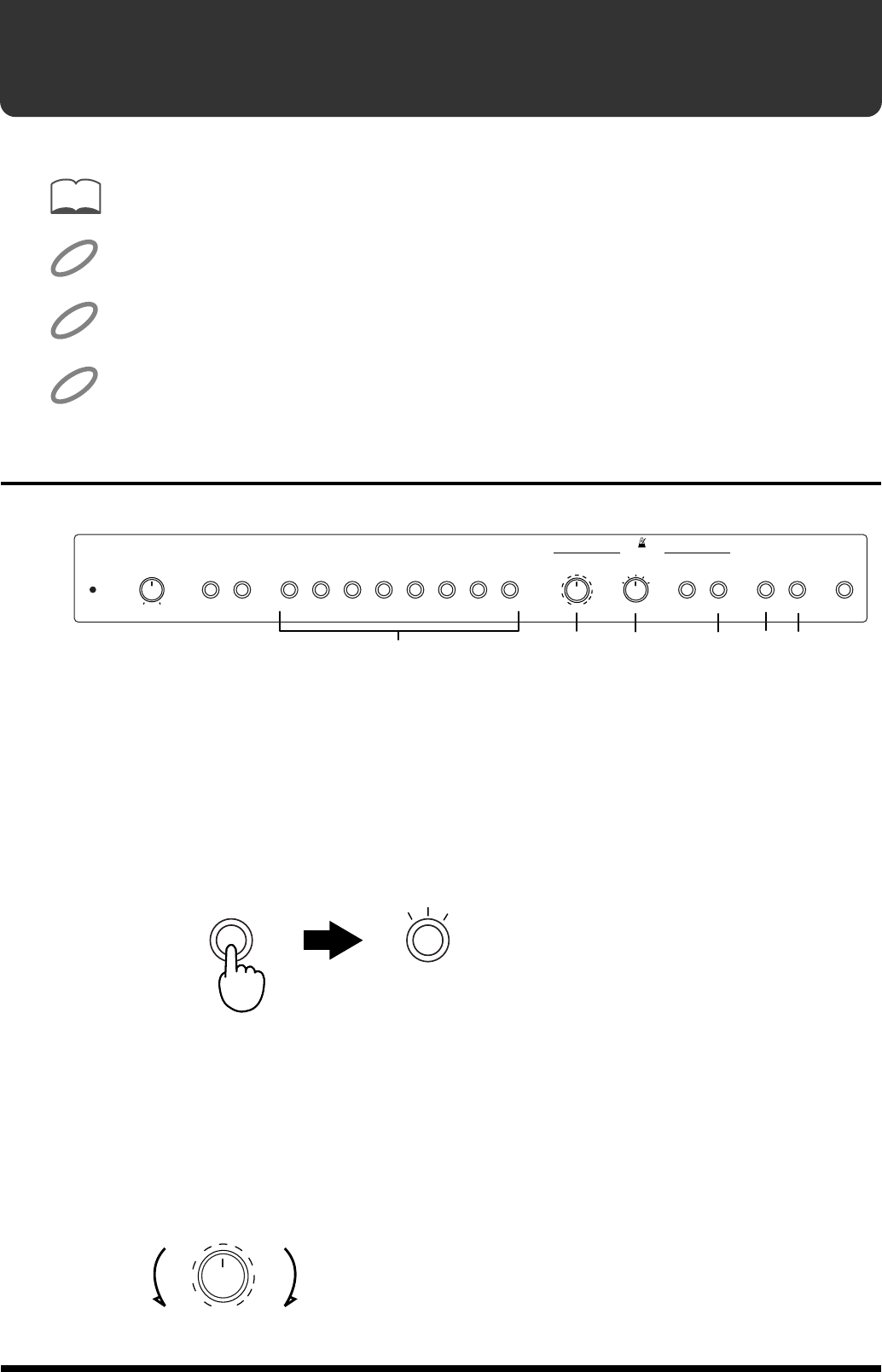
You can select from three types of metronome sound: “conventional metronome sound,”
“electronic metronome sound,” and “dog and cat sounds.”
“Conventional metronome sound” is the power-on default for the metronome sound.
1. Press the [On/Off] button to sound the Metronome.
2. Press the [Sound] button.
Each time you press the button, the metronome sound will change to the next choice
available, either “conventional metronome sound,” “electronic metronome sound,” or
“dog and cat sounds.”
fig.5-15
On/OffSound
Metronome
42 3
06
BeatTempo
120
144
60
80
96 108
40
168
192
208
42 3
06
On/OffSound
Metronome
42 3
06
BeatTempo
120
144
60
80
96 108
40
168
192
208
42 3
06
On/OffSound
Metronome
42 3
06
BeatTempo
120
144
60
80
96 108
40
168
192
208
42 3
06
19
Try Recording Your Performance
You can record what you play on your piano.
When you record, pay attention to the setting of the [Tempo] knob. Be sure to set it to the tempo
at which you wish to record.
Only one song can be recorded on the ep-90/70. If a previously recorded performance exists, it
will be erased the moment you begin recording another performance.
The performance data that you recorded will disappear when the power of the ep-90/70 is turned
off.
After approximately 5,000 notes have been recorded, the [Play] button’s and [Rec] button’s
indicators will go out, and recording will end automatically.
Recording
fig.6-01
1. Use the Tone buttons to select the sound with which you wish to
perform (p. 14).
You can changes the tones during the recording of the song.
2. Press the [On/Off] button to turn on the indicator.
The metronome will sound.
fig.5-10.e
While listening to the metronome, select the tempo and time of the song that you wish
to record.
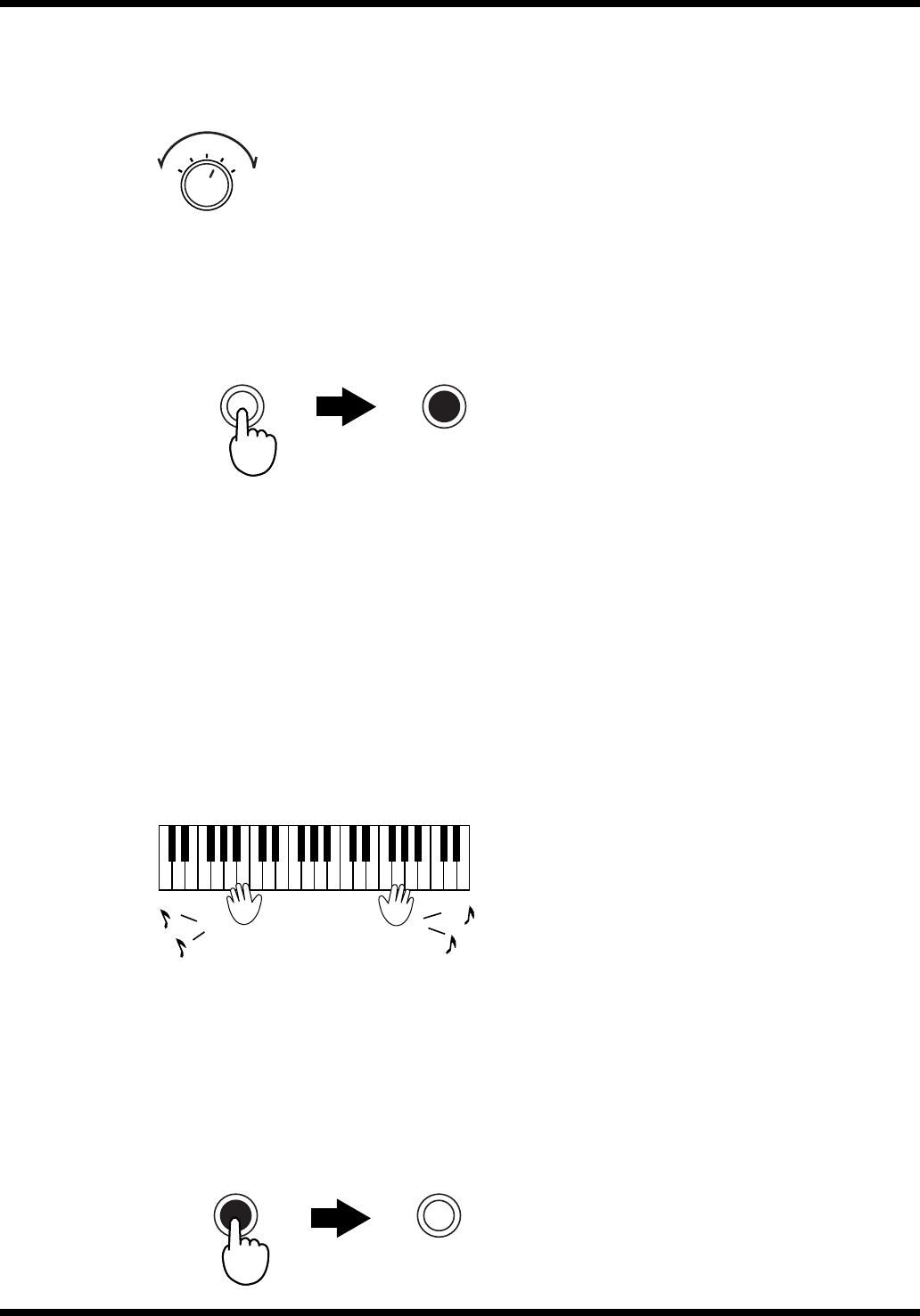
3. Use the [Tempo] knob to select the basic tempo for the song.
Moving the [Tempo] knob after recording has begun will not change the tempo.
fig.6-03
MEMO
NOTE
NOTE
NOTE
12
3475
DemoChorusReverb
Power ChoirStringsOrgan
E.PianoPiano 2Piano 1 PlayOn/ OffSound Rec
Vibra-
phone Harpsi-
chord
Metronome
MaxMin
Volume 42 3
06
BeatTempo
120
144
60
80
96 108
40
168
192
208
42 3
06
On/Off On/Off
Press Blinks alternately
in red and green
Tempo
120
144
60
80
96 108
40
168
192
208
20
Try Recording Your Performance
4. Use the [Beat] knob to select the time for the song.
The time of the song cannot be changed during or after recording.
fig.6-04
5. Press the [Rec] button to turn on the indicator.
The keyboard is put in record standby mode.
The [Play] button’s indicator flashes.
fig.6-05.e
If you want to cancel the recording, then press the [Rec] button once more to make the
indicator dark.
If you wish to stop the metronome, press the [On/Off] button to make the indicator go
dark.
In the beginning it is probably a good idea to listen to the metronome as you record.
The sound of the metronome is not recorded.
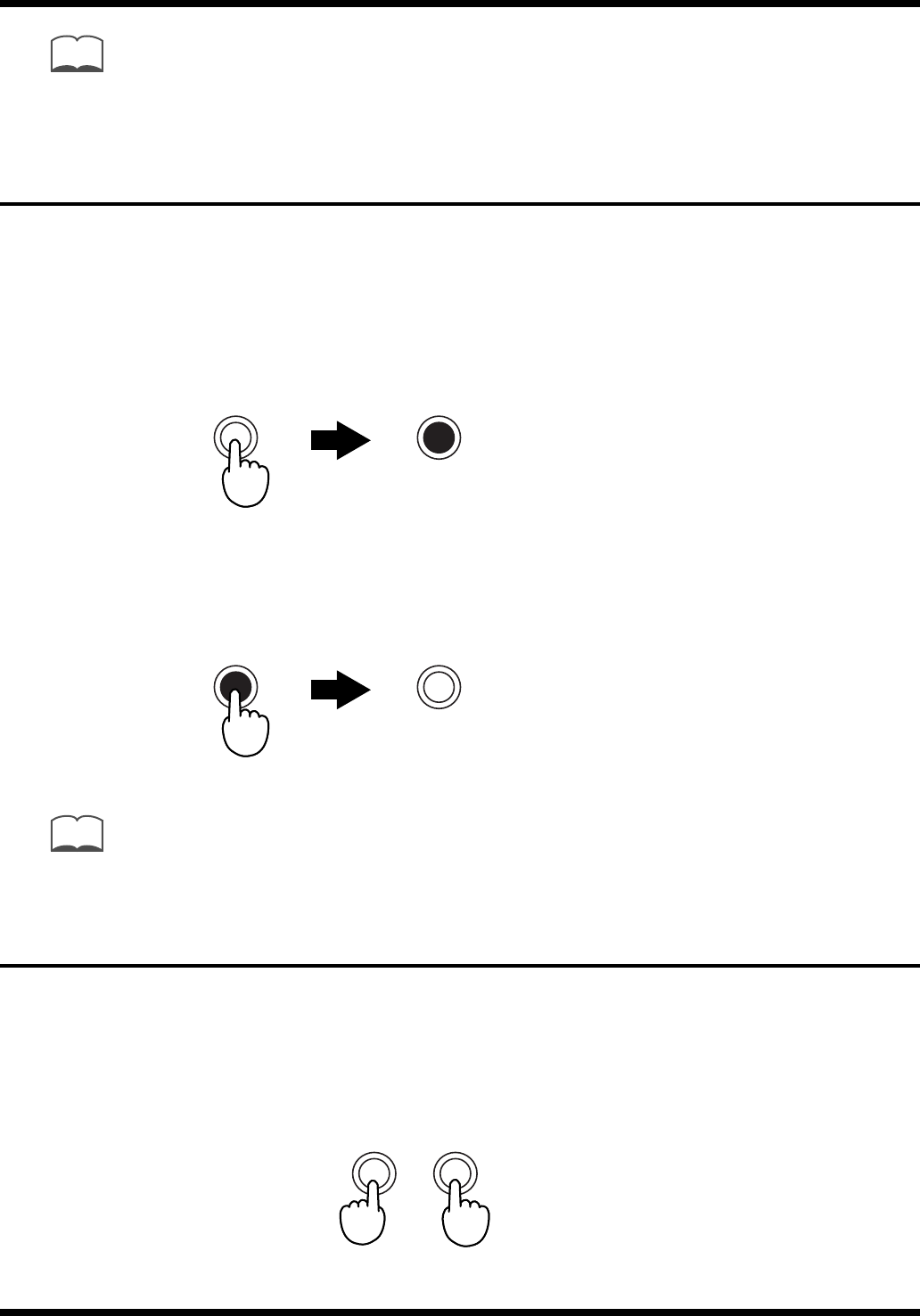
6. Recording will begin when you play a note on the keyboard.
The [Play] button indicator will change from blinking to lit.
Listen to the metronome, and play along with the tempo.
fig.6-06
Instead of playing the keyboard, you can also begin recording by pressing the [Play]
button to make the indicator light. In this case, you will hear a two-measure count before
recording begins.
7. When you are finished recording, press the [Play] button to make
the indicator go dark.
fig.6-07.e
42 3
06
Beat
42 3
06
RecRec
Press Lit
PlayPlay
Press Dark
21
Try Recording Your Performance
You can use the following methods to save the recorded performance on the external devices.
- Connect an audio device to the ep-90/70, and record your performance on a cassette tape or
other media (p. 24).
- Connect a MIDI sequencer, and record the performance on the sequencer (p. 25).
Listening to the Recorded Performance
Listen to the performance you recorded.
1. Press the [Play] button to make the indicator light.
The performance you recorded will play back. When the recorded performance ends, the
[Play] button indicator will go dark, and playback will stop.
fig.6-08.e
2. If you wish to stop playback during the performance, press the
[Play] button to make the indicator go dark.
fig.6-07.e
If the metronome is sounding while the performance plays back, the playback will begin after a
two-measure count.
Deleting Recorded Songs
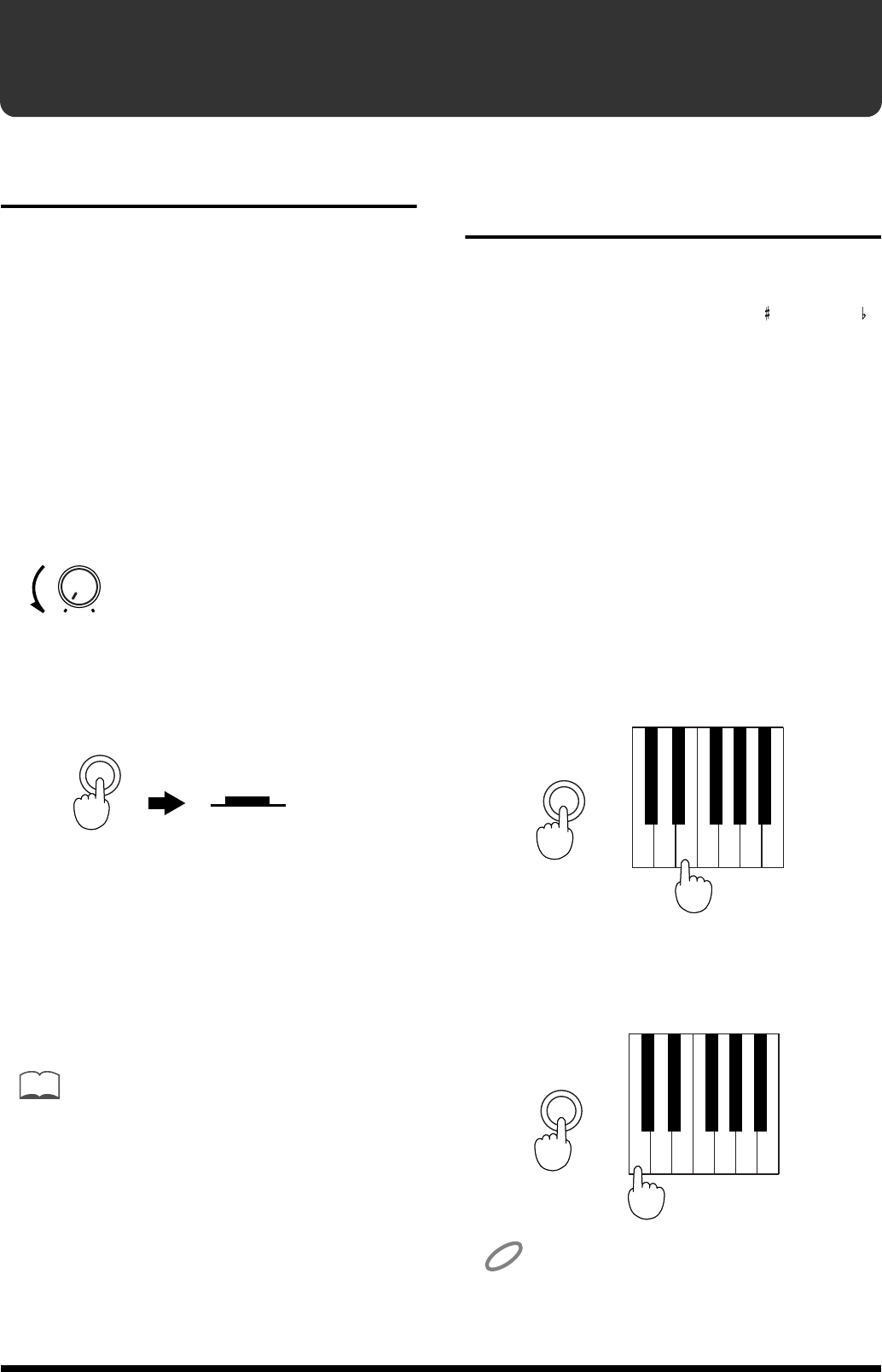
You can delete recorded songs in their entirety.
1. While pressing the [Play] button, also press the [Rec] button.
This deletes the recorded song.
fig.6-10.e
MEMO
PlayPlay
Press Lit
PlayPlay
Press Dark
MEMO
Play Rec
While holding down... Press
22
Convenient Functions
Disabling Buttons—Panel
Lock
By using the Panel Lock function, you can disable the buttons
with the exception of certain operations. This is a convenient
way to prevent buttons from being pressed inadvertently,
changing the settings.
When the panel is locked, the following operations can be
performed.
- Play using the piano sound
- Key Transpose
- Master Tuning (p. 23)
1. Before switching the power on, turn the
volume all the way down.
fig.7-01
2. While holding down the [Piano 1] button,
press the [Power] switch.
fig.7-02.e
3. Adjust the volume.
Playing the keyboard now produces a Piano 1 sound.
It will not be possible to switch to another sound.
4. Switching the power off and back on again
releases the panel lock and returns the ep-
90/70 to its usual state.
MEMO
If you turn on the power while holding down the Metronome [On/
Off] button, it will also be possible to sound the metronome. You
will also be able to adjust the metronome tempo, time, volume, and
sound.
Transposing without
Changing Your Fingering
—Key Transpose
You can play in a different key—without changing the keys
you are playing.
When playing in a difficult key with many (sharps) or
(flats), you can transpose the keyboard to play in an easier
key.
Key transpositions remain in effect until the keyboard’s
power is turned off.
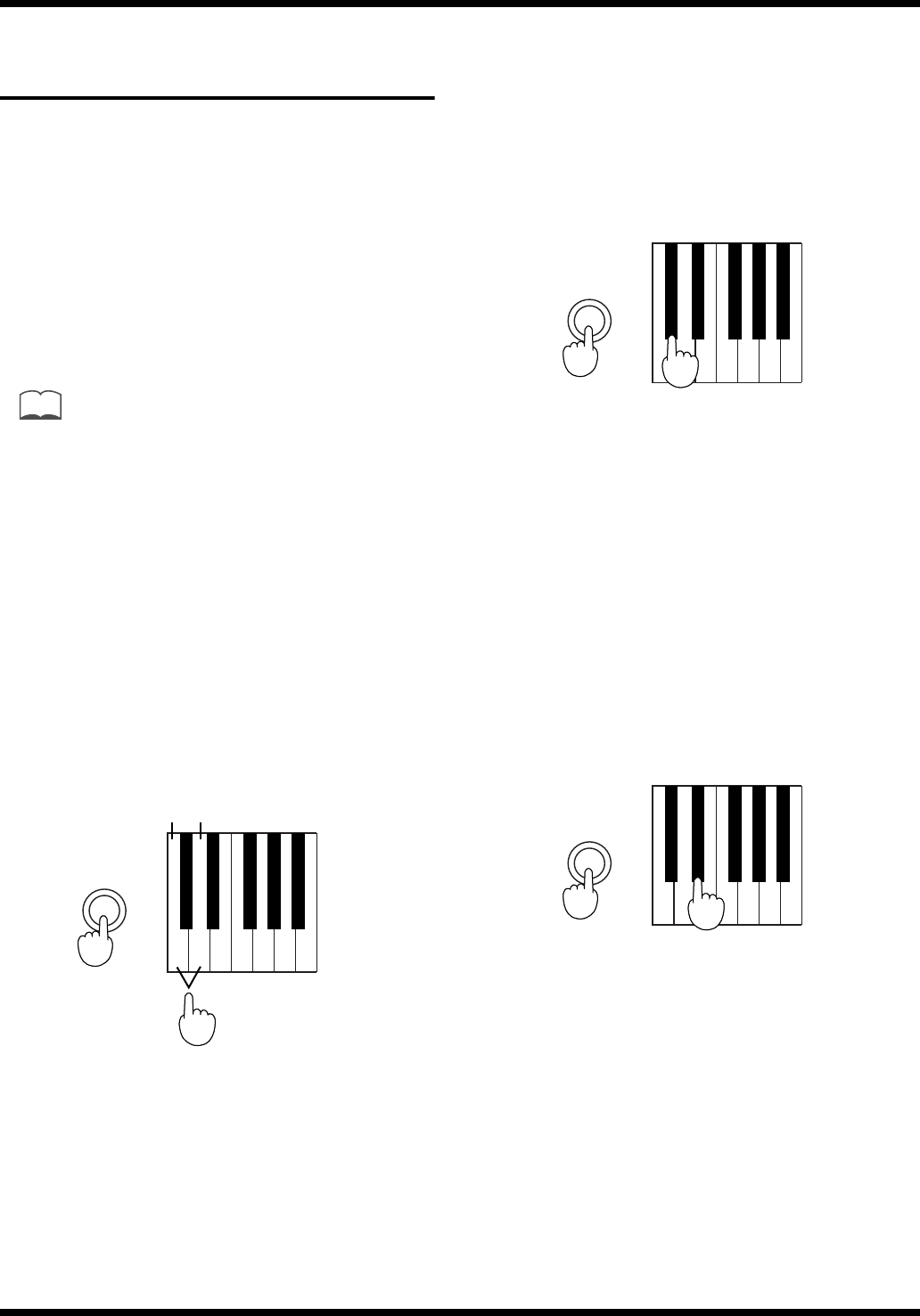
■<Ex.>Using the C Major Keys to
Play a Song in E Major
1. While holding down the [Demo] button,
press the tonic (root) of the key to which
you want to transpose.
Use the C2–B2 notes to select the key.
→For the notes that correspond to each setting, refer to
“Functions Assigned to the Keyboard” (p. 31).
Here, press the E2 key.
fig.7-03.e
2. To return to the previous condition, while
holding down the [Demo] button, press the
C2 key.
fig.7-04.e
NOTE
The transposition setting is effective only on sounds performed on
the ep-90/70’s keyboard. This setting is not effective on tones from
external MIDI messages played on the ep-90/70.
MaxMin
Volume
Power
Piano 1
While holding down ON
E2
C2 B2
Demo
While holding down Press
C2
Demo
While holding down Press
23
Convenient Functions
Adjusting the Pitch of the
Sound—Master Tuning
In situations such as when playing in ensemble with other
instruments, you can adjust the ep-90/70’s reference pitch to
that of another instrument.
Middle A is generally used as the standard reference pitch
for tuning instruments.
When playing in ensemble with other instruments, set each
instrument to the same reference pitch to ensure that you
will be in tune with each other. This tuning of all the
instruments to a reference pitch is called “Master Tuning.”
“440.0 Hz” is the power-on default for the reference pitch.
MEMO
By holding down the [Demo] and [Sound] buttons, and pressing
the corresponding note, you can hear a reference tone (Middle A) as
you adjust the pitch.
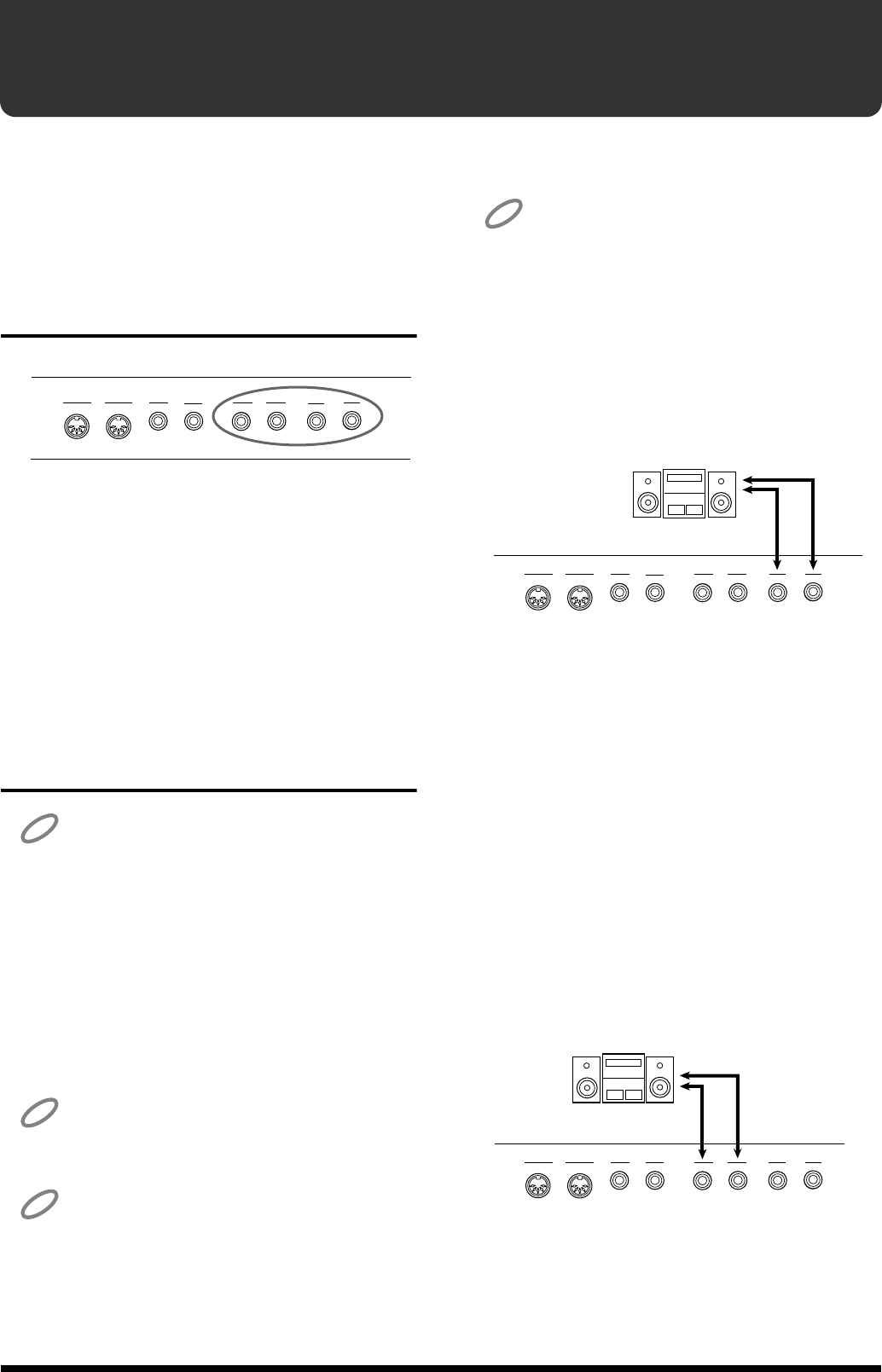
■Lowering/ raising the Reference
Pitch
While holding down the [Demo] button,
press the “C4” note to lower the reference
pitch, or the “D4” note to raise it.
→For the notes that correspond to each setting, refer to
“Functions Assigned to the Keyboard” (p. 31).
fig.7-05.e
Each time you press the “C4” key, the pitch will fall by
0.1 Hz. If you continue holding the key, the pitch will
continue falling.
Each time you press the “D4” key, the pitch will rise by
0.1 Hz. If you continue holding the key, the pitch will
continue rising.
■Setting the Reference Pitch to
440.0 Hz
While holding down the [Demo] button,
press the “C#4” key on the keyboard.
→For the notes that correspond to each setting, refer to
“Functions Assigned to the Keyboard” (p. 31).
fig.7-05.e
The reference pitch will be set to 440.0 Hz. This is the
most commonly used setting. The A4 (Middle A) key
will sound at 440.0 Hz.
■Setting the Reference Pitch to
442.0 Hz
While holding down the [Demo] button,
press the “D#4” key on the keyboard.
→For the notes that correspond to each setting, refer to
“Functions Assigned to the Keyboard” (p. 31).
fig.7-05.e
The standard pitch will be set to 442.0 Hz. This setting is
often used for concert pianos. The A4 (Middle A) key
will sound at 442.0 Hz.
C4 D4
Demo
While holding down
Press
Lower
the pitch
Raise
the pitch
C#4
Demo
While holding down Press
D#4
Demo
While holding down Press
24
Connecting to Audio Equipment
Read this chapter if you wish to connect the ep-90/70 to an
audio device.
By connecting the ep-90/70 with an audio device, you can
listen to the sound of the ep-90/70 through the speakers of
the audio device, or record your performance onto a cassette
tape or other recording media.
About the Jacks
fig.8-01
Output Jacks
Use audio cables (sold separately) to connect the ep-90/70 to
an audio device so that the sound of the ep-90/70 can be hear
from the speakers of the audio device, or so that your
performance can be recorded on a cassette tape or other
recording media.
Input Jacks
You can use audio cables (sold separately) to connect another
audio producing device to the ep-90/70, and hear its sound
through the speakers of the ep-90/70.
Making the Connections
NOTE
To prevent malfunction and/or damage to speakers or other devices,
always turn down the volume, and turn off the power on all devices
before making any connections.
1. Turn the volume down completely on all
equipment.
2. Turn off the ep-90/70 and any other devices
to be connected.
3. Use audio cables (sold separately) to
connect the other device to the ep-90/70.
NOTE
If the device you are connecting is monaural, connect it to the L
(Mono) jack. In this case, do not connect the R jack of the ep-90/70.
NOTE
Use a cable from Roland to make the connection. If using some
other make of connection cable, please note the following
precautions.
Some connection cables contain resistors. Do not use cables that
incorporate resistors for connecting to this unit. The use of such
cables can cause the sound level to be extremely low, or impossible
to hear. For information on cable specifications, contact the
manufacturer of the cable.
NOTE
Once the connections have been completed, turn on power to your
various devices in the order specified. By turning on devices in the
wrong order, you risk causing malfunction and/or damage to
speakers and other devices.
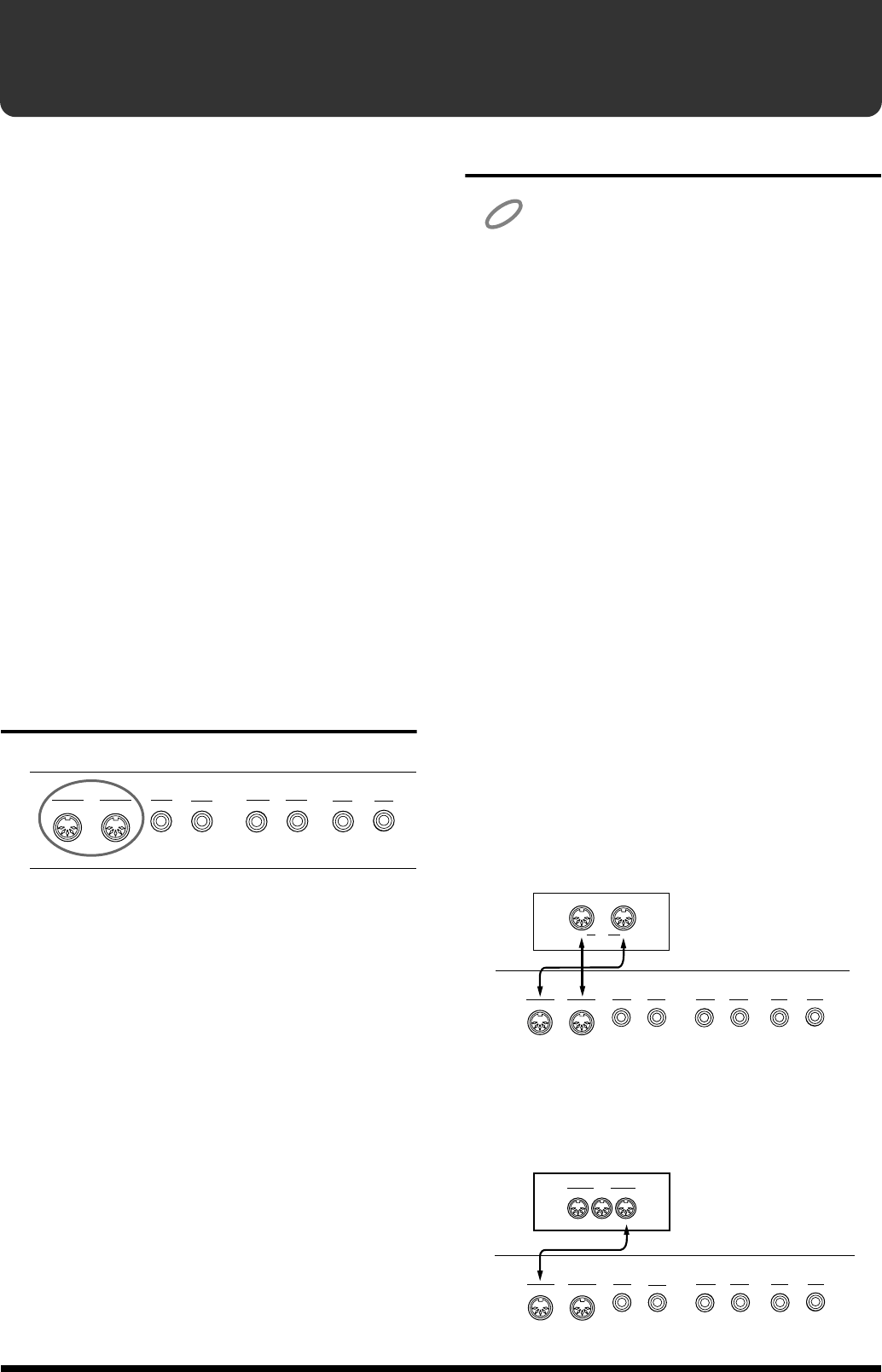
■Listening to the ep-90/70 through the
speakers of an audio device, or
recording a performance onto a
cassette tape or other media
fig.8-02
1. Turn on the power to the ep-90/70.
2. Turn on the power to the connected
equipment.
3. Adjust the volume.
Recording procedure
1. Connect the ep-90/70 and the audio device.
2. Start recording on the connected audio
device.
3. Begin playing on the ep-90/70.
4. When you finish playing, stop recording.
■Listening to the sound of an audio
device through the speakers of the ep-
90/70
fig.8-03
1. Turn on the power to the connected
equipment.
2. Turn on the power to the ep-90/70.
3. Adjust the volume.
MIDI
Out In Output
InputPedal
Damper
RR
Soft
L (Mono)L (Mono)
ep-90/70
Input R/L
(Line In, Aux In)
MIDI
Out In Output
InputPedal
Damper
RR
Soft
L (Mono)L (Mono)
ep-90/70
Output R/L
(Line Out)
MIDI
Out In Output
InputPedal
Damper
RR
Soft
L (Mono)L (Mono)
25
Connecting to MIDI Devices
Read this chapter if you wish to connect the ep-90/70 to an
external MIDI devices.
If the ep-90/70 is connected to a MIDI sequencer, such as one
from the MT series, a performance recorded on the ep-90/70
can be transmitted to the MIDI sequencer. It is also possible
to record the performance directly on the MIDI sequencer.
The recorded performance can be saved on the MIDI
sequencer.
When the ep-90/70 is connected to an MT series sequencer,
the rich variety of sounds built into the MT series sequencer
can be played from the keyboard of the ep-90/70.
●●●●●●●●●●●●●●●●●●●●●●●●●●●●●●●●●●●●●●●●●●●●●●●●●●●●●●●●●●●●●●●●●●●●●●●●●●●●●●●●●●●●●●●●●●●●●●●●●●●●
About MIDI
MIDI, short for “Musical Instrument Digital Interface,” was
developed as a standard for the exchange of performance
data between electronic instruments and computers.
The ep-90/70 is equipped with MIDI connectors to allow
such exchange of performance data with external equipment
and devices. Connecting the keyboard to other devices with
these jacks provides you with an even greater variety of
ways to use your keyboard.
●●●●●●●●●●●●●●●●●●●●●●●●●●●●●●●●●●●●●●●●●●●●●●●●●●●●●●●●●●●●●●●●●●●●●●●●●●●●●●●●●●●●●●●●●●●●●●●●●●●●
About the MIDI Connectors
fig.9-01
MIDI In Connector
Use a MIDI cable (sold separately) to connect from here
to the MIDI Out connector on the external MIDI device.
MIDI messages sent from connected external equipment
will be received here. As a result, the ep-90/70 will
produce sound, change tones, or perform other
operations.
MIDI Out Connector
Use a MIDI cable (sold separately) to connect from here
to the MIDI In connector on the external MIDI device.
Performance data detailing what has been played on the
keyboard, and other data, such as that generated when a
pedal is depressed, is sent out from here to external
MIDI devices.
Making the Connections
NOTE
To prevent malfunction and/or damage to speakers or other devices,
always turn down the volume, and turn off the power on all devices
before making any connections.
1. Turn the volume down completely on all
equipment.
2. Turn off the ep-90/70 and any other devices
to be connected.
3. Use MIDI cable (sold separately) to connect
the MIDI connector on the external MIDI
device to the MIDI connector on the ep-90/
70.
Take a look at the connection examples.
4. As necessary, use audio cables to connect
the other devices to the ep-90/70 (p. 24).
5. Turn on the power to all equipment.
6. Adjust the volume.
7. You should also make the following
settings as needed.
For details on making MIDI-related settings for the ep-
90/70, refer to p. 26 through p. 29.
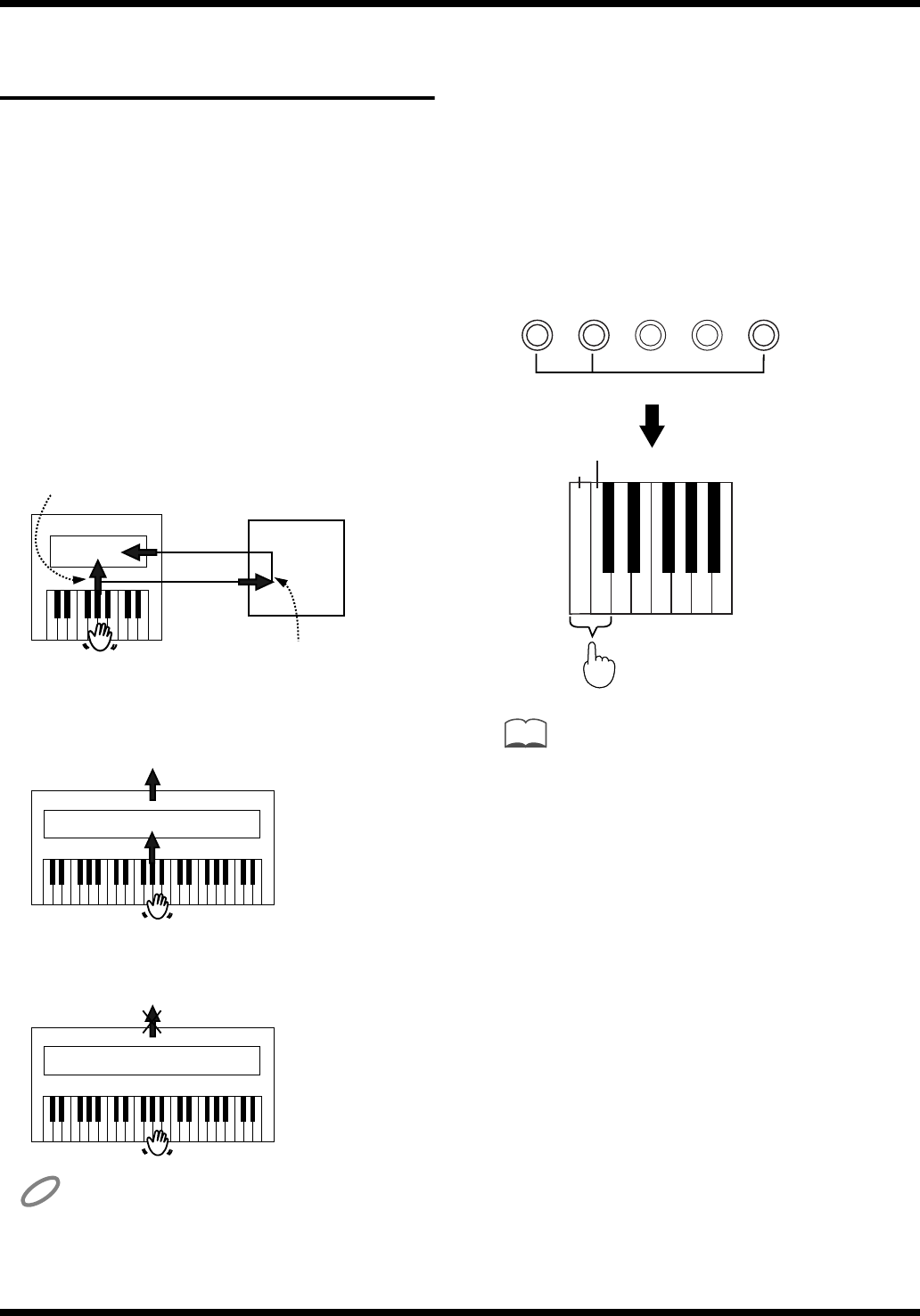
Connection Examples: Connecting to a
sequencer (The Roland MT Series)
fig.9-02.e
* The MT-80s has no MIDI Out connector.
Connection Examples: Connecting to a
MIDI sound module
fig.9-03.e
MIDI
Out In Output
InputPedal
Damper
RR
Soft
L (Mono)L (Mono)
In
Out MIDI
ep-90/70
MT Series
MIDI
Out In Output
InputPedal
Damper
RR
Soft
L (Mono)L (Mono)
ep-90/70
OUTTHRU IN
MIDI
Sound Module
MIDI
Out In Output
InputPedal
Damper
RR
Soft
L (Mono)L (Mono)
26
Connecting to MIDI Devices
Cautions when Connecting
an External MIDI Device
Here we will explain the “Local On/Off” and “Omni On/
Off” settings that you need to be aware of when connecting
the ep-90/70 to an external MIDI device.
■Disconnecting the ep-90/70’s
keyboard and internal sound
generator—Local On/Off
When the ep-90/70 is connected to a MIDI sequencer or the
like, set it to Local Off.
As shown in the diagram, the data that is produced when
you play the keyboard will reach the sound generator by two
routes, (1) and (2), causing each note to be played in
duplicate. To prevent this, select the Local Off setting to cut
route (1).
fig.9-04.e
This sets it to Local On:
fig.9-05.e
This sets it to Local Off:
fig.9-06.e
NOTE
Be aware that if you set your instrument to Local Off when no
external MIDI device is connected, there will be no sound.
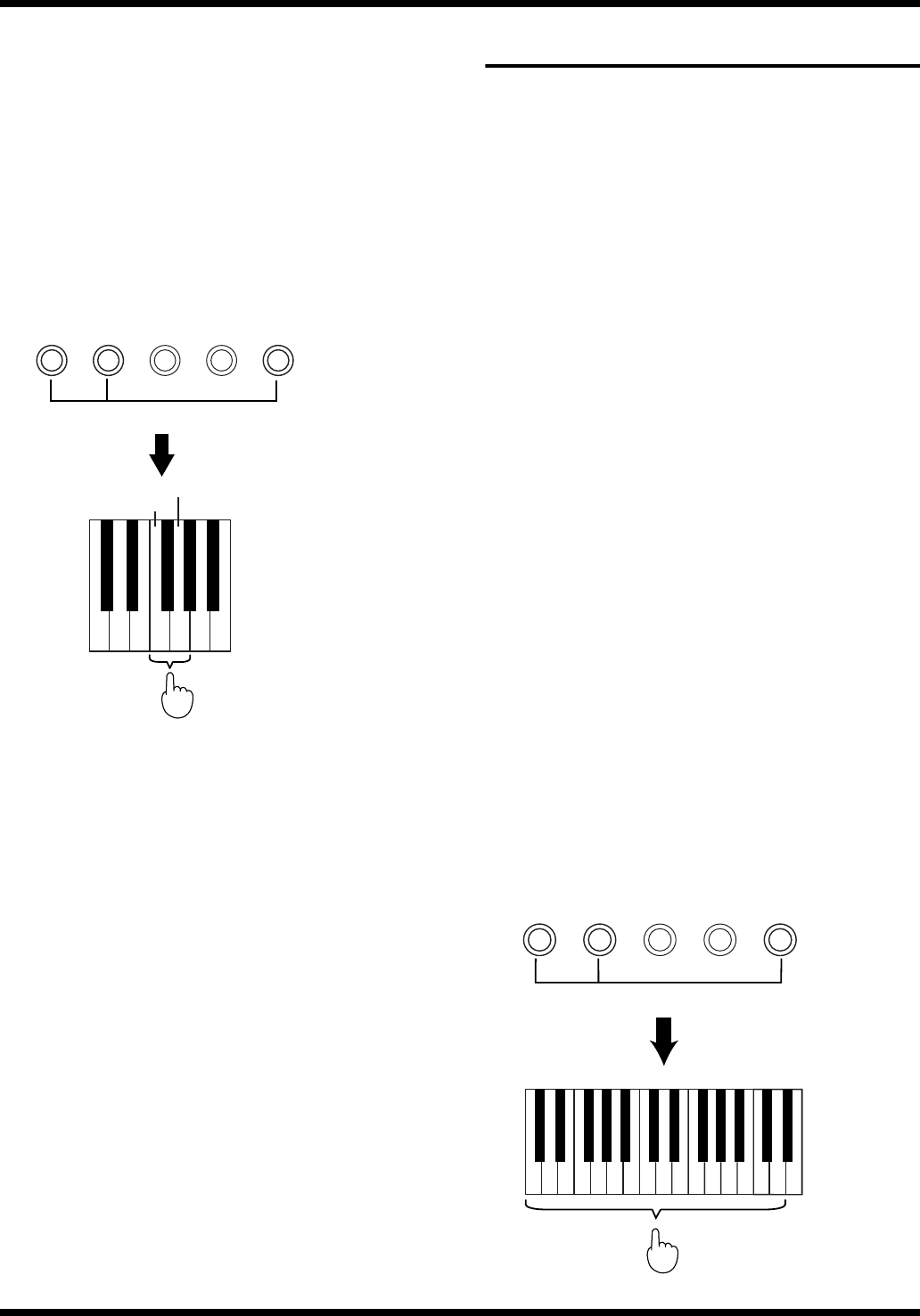
■Switching Local On/Off
Local On is set when the power is switched on.
While holding down the [Piano 1] button,
[Piano 2] button, and [Harpsichord] button,
the “B4” note to turn the setting On, or
press the “C5” note to turn the setting Off.
→For the notes that correspond to each setting, refer to
“Functions Assigned to the Keyboard” (p. 31).
fig.9-07.e (While holding down three buttons)
MEMO
If the ep-90/70 is connected to a Roland MT series (except
MT-80s), it is not necessary to make the Local Off setting.
When the power is turned on, the MT series will transmit a
Local Off message. If you turn the power on in the order of
first the ep-90/70 and then the MT series, the ep-90/70 will
automatically be set to Local Off.
■Receiving on all MIDI channels—Omni
On/Off
MIDI features sixteen MIDI channels, numbered 1–16.
The connected devices must be set to use the same MIDI
channels, otherwise no sound will be produced.
When set to Omni On, the ep-90/70 plays regardless of the
MIDI channel on which the MIDI messages are received.
It is useful to turn Omni On when, for example, the MIDI In
connector of the ep-90/70 is receiving music data in which
the right-hand and left-hand parts are recorded on different
MIDI channels.
(1)
MIDI
MIDI
MIDI
MIDI
(2)
IN
IN OUT
OUT
Sequencer
Memory
Sound
Source
Each note played
is sounded twice
Thru function On
Local On
Local On
Sound is emitted
Sound Source
Local Off
No sound produced
Sound Source
B4 C5
E.PianoPiano 2Piano 1 Vibra-
phone Harpsi-
chord
While holding down three buttons
Press
Local On
Local Off
27
Connecting to MIDI Devices
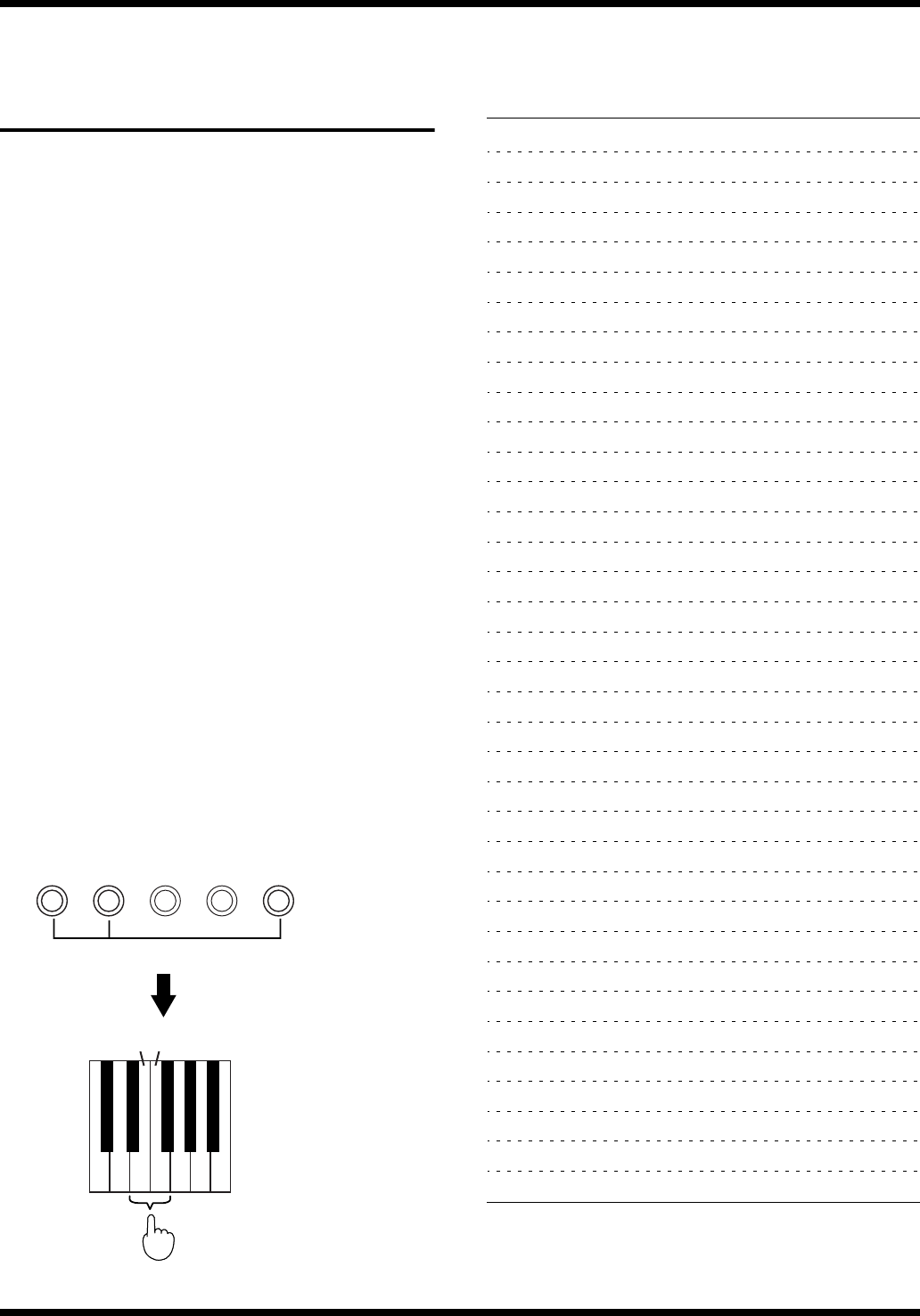
■Switching Omni On/Off
Omni Off is automatically set when the power is switched
on.
Hold down the [Piano 1] button, the [Piano
2] button, and the [Harpsichord] button,
and press the “F4” note to turn the setting
On, or the “G4” note to turn the setting Off.
→For the notes that correspond to each setting, refer to
“Functions Assigned to the Keyboard” (p. 31).
fig.9-08.e
Set the MIDI Channel
MIDI features sixteen MIDI channels, numbered 1–16.
The connected devices must be set to use the same MIDI
channels, otherwise no sound will be produced.
- In a setup where you wish to play the ep-90/70 and also
have another MIDI-equipped instrument or sound
module play the same notes, you should first set the
channel used for reception on your external device to the
same channel that you have the ep-90/70 set to use for
transmission.
- If using another MIDI keyboard as a master instrument,
and you wish to have the ep-90/70 played by it, you
would need to set the channel used for reception on the
ep-90/70 to the same channel that the master keyboard
will be transmitting on.
-When wishing to have a sequencer play the ep-90/70, you
need to set the channel used or reception on the ep-90/70
to the same channel that the recorded MIDI data is set to
use.
When the ep-90/70 is turned on, Channel “1” is selected.
While holding down the [Piano 1], [Piano 2],
and [Harpsichord] buttons, press the
appropriate key on the keyboard.
The MIDI transmit channel and receive channel will
switch to the number that corresponds to the note you
pressed.
→For the notes that correspond to each setting, refer to
“Functions Assigned to the Keyboard” (p. 31).
fig.9-09.e
F4 G4
E.PianoPiano 2Piano 1 Vibra-
phone Harpsi-
chord
While holding down three buttons
Press
Omni On
Omni Off
C2 D4
C3 C4
123456789
10 11 12 13 14 15 16
E.PianoPiano 2Piano 1 Vibra-
phone Harpsi-
chord
While holding down three buttons
Press
28
Connecting to MIDI Devices
Transmitting/Receiving
Sound Selection Data—
Program Change
Program Changes are messages that tell an instrument to
“switch to sound number x.”
When the other device receives this message, it will switch to
whichever of its sounds corresponds to the number
contained in the message.
When you press the ep-90/70’s Tone button to change tones,
a Program Change message with the corresponding Program
Number is sent via the MIDI Out connector. Furthermore, a
Program Change message received via the MIDI In connector
changes the tone to the one with the corresponding Program
Number.
Each time the power is turned on, the instrument will always
be set to “On” (it will transmit/receive Program Change
messages).
If you set it to “Off,” the ep-90/70 will no longer send out
Program Change message when you change the tone being
used. Also, the ep-90/70 will then ignore any Program
Change messages when that are sent to it by an external unit,
and will not change the tone it is playing.
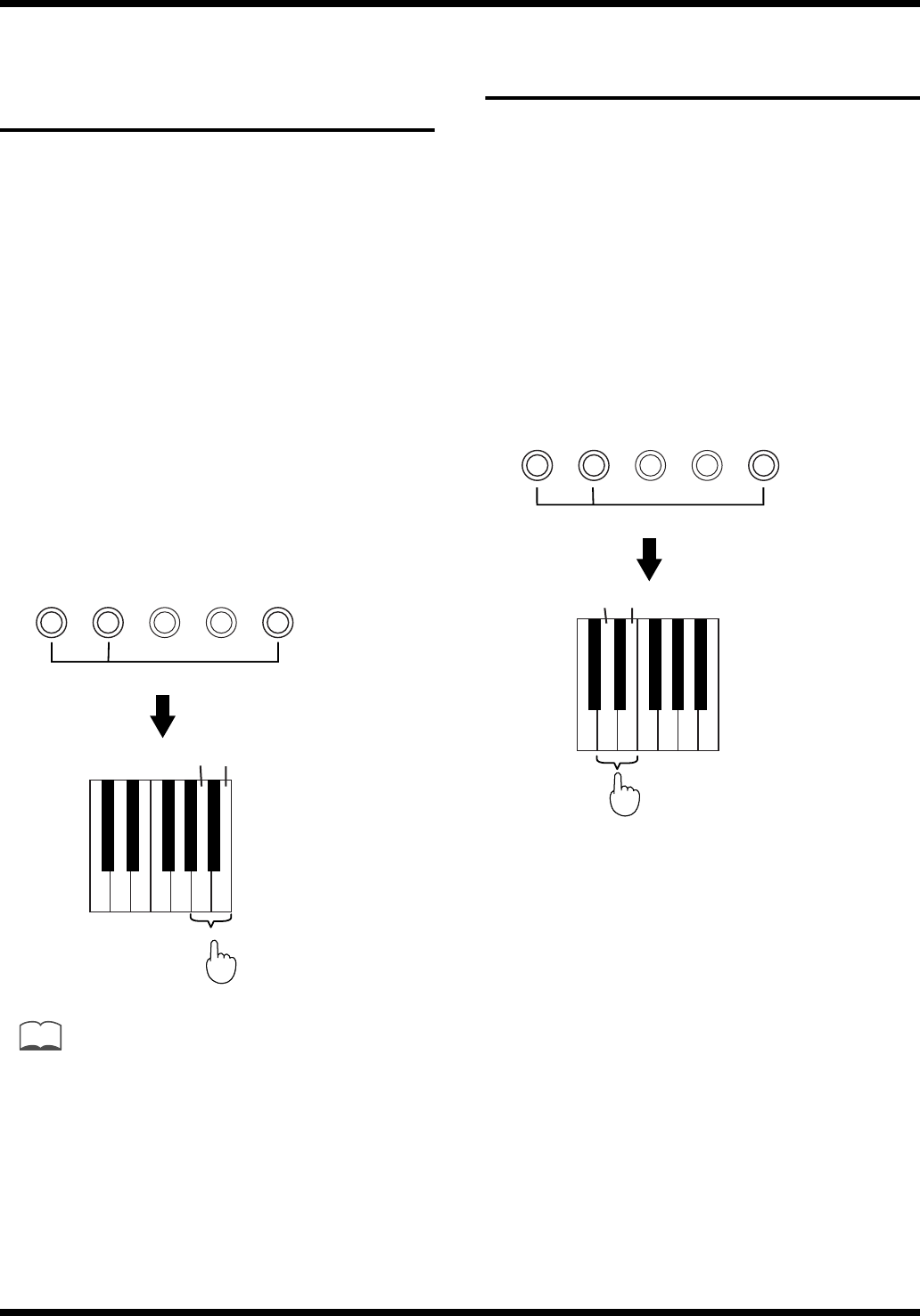
While holding down the [Piano 1] button,
[Piano 2] button, and [Harpsichord] button,
press the “E5” note to turn the setting On,
or the “F5” note to turn the setting Off.
→For the notes that correspond to each setting, refer to
“Functions Assigned to the Keyboard” (p. 31).
fig.9-11.e
The tones and their corresponding Program Number appear
below:
Program Number Tone
01 Piano 1
02 Piano 2
03 E.Piano
04 Vibraphone
05 Harpsichord
06 Organ
07 Strings
08 Choir
09 Piano 1 + Piano 2
10 Piano 1 + E.Piano
11 Piano 1 + Vibraphone
12 Piano 1 + Harpsichord
13 Piano 1 + Organ
14 Piano 1 + Strings
15 Piano 1 + Choir
16 Piano 2 + E.Piano
17 Piano 2 + Vibraphone
18 Piano 2 + Harpsichord
19 Piano 2 + Organ
20 Piano 2 + Strings
21 Piano 2 + Choir
22 E.Piano + Vibraphone
23 E.Piano + Harpsichord
24 E.Piano + Organ
25 E.Piano + Strings
26 E.Piano + Choir
27 Vibraphone + Harpsichord
28 Vibraphone + Organ
29 Vibraphone + Strings
30 Vibraphone + Choir
31 Harpsichord + Organ
32 Harpsichord + Strings
33 Harpsichord + Choir
34 Organ + Strings
35 Organ + Choir
36 Strings + Choir
F5
E5
E.PianoPiano 2Piano 1 Vibra-
phone Harpsi-
chord
While holding down three buttons
Press
On Off
29
Connecting to MIDI Devices
Turning Transmission and
Reception of Control
Changes On/Off
Messages known as “Control Changes” are used to convey to
another device information about the instances where you
have pressed a pedal, or have turned On/Off the Chorus or
Reverb effects.
Each time the power is turned on, the instrument will always
be set to “On” (it will transmit/receive all Control Change
messages).
If you set it to “Off” the ep-90/70 will no longer send or
receive any Control Change messages.
While holding down the [Piano 1] button,
[Piano 2] button, and [Harpsichord] button,
press the “A5” note to turn the setting On,
or the “B5” note to turn the setting Off.
→For the notes that correspond to each setting, refer to
“Functions Assigned to the Keyboard” (p. 31).
fig.9-12.e
MEMO
If you want to know more about Control Change Number,
please refer to “MIDI Implementation Chart” (p. 32).
Transmitting Performance
Data from MIDI Out
If this setting is left “On,” performance data recorded on the
ep-90/70 can be transmitted from the MIDI Out connector.
Each time the power is turned on, this setting will always be
at “Off.”
Hold down the [Piano 1] button, the [Piano
2] button, and the [Harpsichord] button,
and press the “D6” note to turn the setting
On, or the “E6” note to turn the setting Off.
→For the notes that correspond to each setting, refer to
“Functions Assigned to the Keyboard” (p. 31).
fig.9-13.e
The performance data that you recorded will disappear
when the power of the ep-90/70 is turned off.
If you wish to save the performance, use the following
procedure.
1. Connect a MIDI sequencer such as the MT
series (p. 25).
2. Record the performance on the ep-90/70.
3. Set this setting to “On.”
4. Start recording with the connected MIDI
device.
5. Start playback of the recorded song on the
ep-90/70.
6. When playback ends, stop recording.
7. Use a connected MIDI sequencer to save
the data on a floppy disk or other media.
A5 B5
E.PianoPiano 2Piano 1 Vibra-
phone Harpsi-
chord
While holding down three buttons
Press
On Off
D6 E6
E.PianoPiano 2Piano 1 Vibra-
phone Harpsi-
chord
While holding down three buttons
Press
On Off

30
Troubleshooting
If you are encountering problems with the unit, please read
the section below before assuming that there is a
malfunction.
The piano cannot be switched on
❍Is the power cord properly connected? (p. 8)
No sound is produced
❍Is the [Volume] knob set to the minimum position?
(p. 10)
❍Are headphones connected? (p. 10)
❍Is Local On/Off set to “Off”? (p. 26)
Demo songs do not play
❍Is Panel Lock on? (p. 22)
Metronome does not sound
❍Is Panel Lock on? (p. 22)
Buttons do not function
❍Is Panel Lock on? (p. 22)
Keyboard sound does not change
❍Is Panel Lock on? (p. 22)
Two sounds are produced when the keyboard
is played
❍Is the keyboard in Dual Play mode? (p. 14)
The pitch of the keyboard sounds incorrect
❍Is the Master Tuning setting correct? (p. 23)
❍Is the Transpose setting correct? (p. 22)
The pedals are not functioning, or function
intermittently
❍Are the pedals connected properly? (p. 9)
Can’t Record
❍Is Panel Lock on? (p. 22)
❍Is the [Demo] button’s indicator lit?
Press the [Demo] button; the button’s indicator goes out
(p. 11).
❍The metronome sound or count sound is not recorded.
The recorded performance has been deleted
❍The performance data that you recorded will disappear
when the power of the ep-90/70 is turned off (p. 19).
❍If you record again after recording, the first-recorded
performance will be erased (p. 19).
Bass notes sound wrong/buzzing or vibration
occurs
❍If you can’t hear the problem in the headphones:
When playing at high volumes, resonance may occur in
the piano itself or in objects near the piano. At times,
other objects in the room, such as fluorescent lights or
glass doors, could start vibrating. Such phenomenon
becomes more prevalent when sounding the lower
frequencies at high volume. To minimize such unwanted
resonance, please observe the following:
- Locate the instrument so it is 10–15 cm away from
walls.
- Reduce the volume.
- Increase the distance from the object that is
resonating.
❍If you can hear the problem in the headphones:
The problem may be for a different reason. Please
contact your dealer.
In the upper range, the sound changes
abruptly beyond a certain key
❍On an acoustic piano, notes in the upper one and a half
octaves of the keyboard continue to sound until they
decay naturally, regardless of the damper pedal. There is
a difference in the timbre as well. Roland pianos
faithfully simulate such characteristics of the acoustic
piano. On the ep-70/90, the range that is unaffected by
the damper pedal will change depending on the Key
Transpose setting.
<When the ep-90/70 is connected to
an external device>
No sound is produced
❍Is the power to all equipment turned on?
❍Are the connections between ep-90/70 and the MIDI
sequencer or the other external devices correct?
(p. 24, p. 25)
❍Is the MIDI channel setting correct? (p. 27)
❍Is the Omni On/Off setting correct? (p. 27)
Strange sounds (or two sounds) are produced
when the ep-90/70 is played
❍With the sequencer’s “Thru” function on, the same notes
may be sounded twice. Set the ep-90/70 to Local off
(p. 26).
The volume level of the instrument connected
to Input jacks is too low
❍ Could you be using a connection cable that contains a
resistor?
Use a connection cable that does not contain a resistor.
31
Functions Assigned to the Keyboard
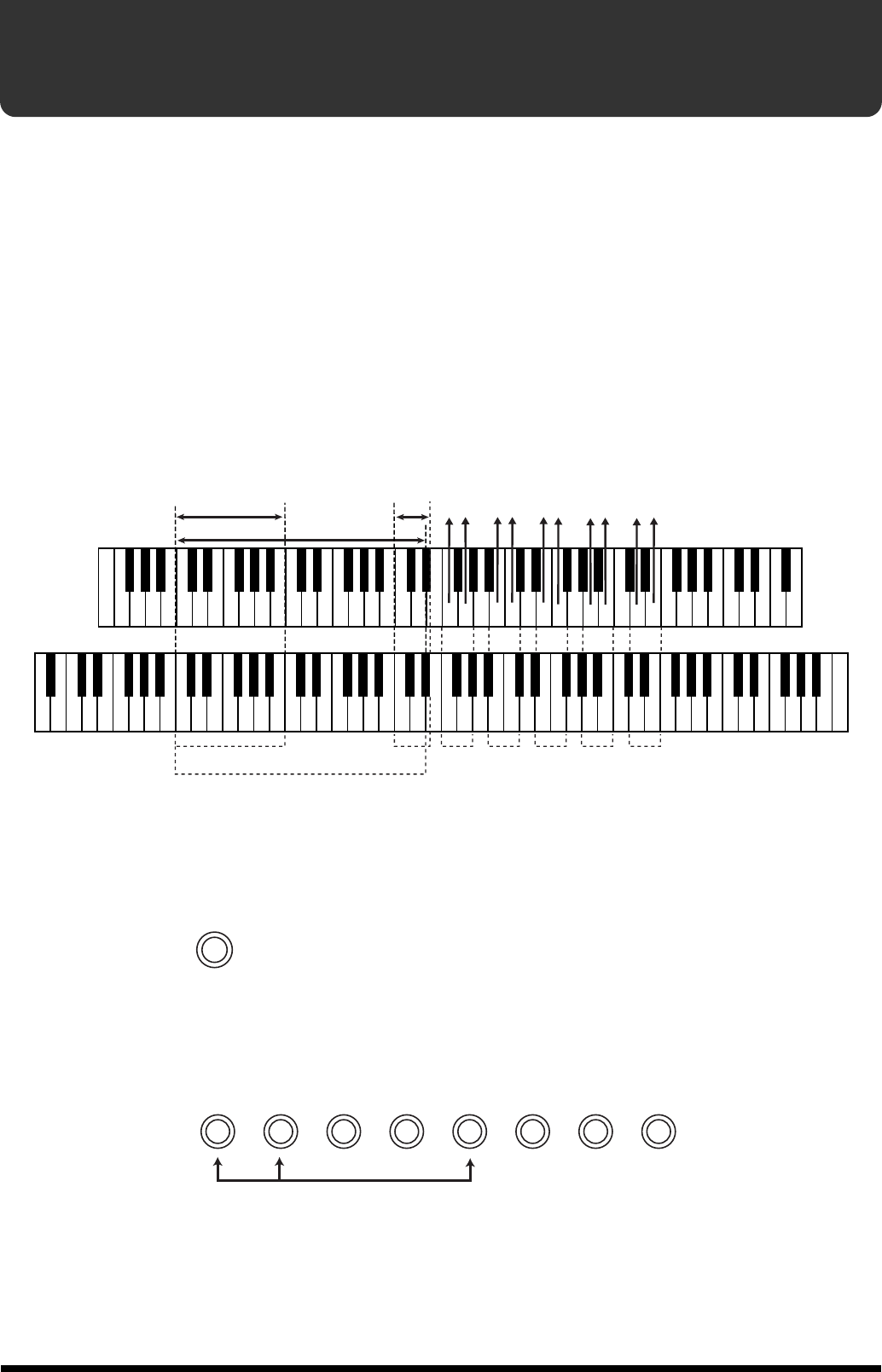
■Function assignments to the keyboard
fig.11-00.e
1, 2: While holding down the [Demo] button, press the appropriate
key on the keyboard.
fig.11-01
3–8: While holding down the [Piano 1], [Piano 2], and [Harpsichord]
buttons, press the appropriate key on the keyboard.
fig.11-02
ep-70
Setting the MIDI Channel (p.27)
Omni On (p.27)
Key Transpose (p. 22)
Master Tuning (p.23)
Local On (p.26)
Program Changes On (p.28)
Control Changes On (p.29)
Transmission of playback data On (p.29)
Omni Off (p.27)
Local Off (p.26)
Program Changes Off (p.28)
Control Changes Off (p.29)
Transmission of playback data Off (p.29)
C1 C2 C3 C4 C5 C6 C8C7
ep-90
C2 C3 C4 C5 C6 C7
12
3
45678
Demo
ChoirStringsOrgan
E.PianoPiano 2Piano 1 Vibra-
phone Harpsi-
chord
32
*A separate publication titled “MIDI Implementation” is also available. It provides complete details concerning the way
MIDI has been implemented on this unit. If you should require this publication (such as when you intend to carry out
byte-level programming), please contact the nearest Roland Service Center or authorized Roland distributor.
Function...
Basic
Channel
Mode
Note
Number :
Velocity
After
Touch
Pitch Bend
Control
Change
Prog
Change
System Exclusive
System
Common
System
Real Time
Aux
Message
Notes
Transmitted Recognized Remarks
Default
Changed
Default
Messages
Altered
True Voice
Note ON
Note OFF
Key's
Ch's
6, 38
7
11
64
66
67
91
93
100, 101
: True #
: Song Pos
: Song Sel
: Tune
: Clock
: Commands
: All sound off
:
Reset all controllers
: Local Control
: All Notes OFF
: Active Sense
: Reset
1
1–16
Mode 3
x
O
x 8n v=64
15–113 *1
22–108 *2
x
x
x
x
x
O *3
x
x
O *3
x
O *3
O *3
O *3
O *3
O *3
O *3 *4
O *3 *4
O *3 *4
O *3 *4
O *3 *4
O *3
O *3
O *3
O (0–35) *3
**************
O
x
x
x
x
x
x
x
x
x
O
x
1
1–16
Mode 3
OMNI ON/OFF
O
x
0–127
15–113
x
O (0–127) *3
0–35
O
x
x
x
x
x
x
O
O
O (123–127)
O
x
Data entry
Volume
Expression
Hold 1
Sostenuto
Soft
Effect1 depth (Reverb)
Effect3 depth (Chorus)
RPN LSB, MSB
*3 O x is selectable.
*4 These message can affect only MIDI notes.
DIGITAL PIANO
Model ep-70/90
Date : May. 1, 1999
Version : 1.00
MIDI Implementation Chart
**************
**************
Mode 1 : OMNI ON, POLY
Mode 3 : OMNI OFF, POLY
Mode 2 : OMNI ON, MONO
Mode 4 : OMNI OFF, MONO
O : Yes
X : No
*1 ep-90
*2 ep-70

33
Specifications
ep-90/70 : Roland Digital Piano
<Keyboard>
●Keyboard
ep-70: 76 weighted keys with touch-sensitivity
ep-90: 88 weighted keys with touch-sensitivity
●Keyboard Mode
Whole
Dual
< Sound Generator>
●Maximum Polyphony
64 voices
●Tones
8 (Piano 1, Piano 2, Electric Piano, Vibraphone,
Harpsichord, Organ, Strings, Choir)
●Master Tuning
415.3 Hz to 466.2 Hz (0.1 Hz Steps)
●Effects
Chorus (On/Off), Reverb (On/Off)
●Key Transposition
-6 to +5 (Semitone steps)
<Composer>
●Metronome
Beat: 0, 2, 3, 4, 6
Volume: 8 levels
Sounds: 3 types
●Track
1 track
●Songs
1 song
●Note Storage
Approx. 5,000 notes
●Tempo
Quarter note = 40 to 208
●Resolution
96 ticks per quarter note
●Control
Play/Stop, Rec, Tempo
<Others>
●Rated Power Output
5 W x 2
●Speakers
12 cm x 2
●Connectors
Output Jacks (L/Mono, R)
Input Jacks (L/Mono, R)
Headphones Jack (stereo) x 2
Pedal Connectors (Damper, Soft)
MIDI Connectors (In, Out)
●Power Supply
DC 9 V (AC Adaptor)
●Power Consumption
1,200 mA
●Dimensions (without music stand)
ep-90: 1302 (W) x 339 (D) x 108 (H) mm
51-5/16 (W) x 13-3/8 (D) x 4-1/4 (H) inches
When the stand (KS-90*) is used:
1308 (W) x370 (D) x 767 (H) mm
51-1/2 (W) x 14-5/8 (D) x 30-1/4 (H) inches
* KS-90: stand for ep-90
ep-70: 1138 (W) x 339 (D) x 108 (H) mm
44-13/16 (W) x 13-3/8 (D) x 4-1/4 (H) inches
When the stand (KS-70*) is used:
1144 (W) x370(D) x 767(H) mm
45-1/16 (W) x 14-5/8 (D) x 30-1/4 (H) inches
* KS-70: stand for ep-70
●Weight (without music stand)
ep-90: 12.5 kg / 27 lbs 9 oz
Including Stand (KS-90*): 21.2 kg / 46 lbs 12 oz
* KS-90: stand for ep-90
ep-70: 11 kg / 24 lbs 5 oz
Including Stand (KS-70*): 19.4 kg / 42 lbs 13 oz
* KS-70: stand for ep-70
●Accessories
AC Adaptor (PSB, ACK, or ACB type)
AC Cord (Not supplied with ACK or ACB type
adaptors.)
Music Stand
Owner’s Manual
Pedal Switch
*In the interest of product improvement, the specifications and/or
appearance of this unit are subject to change without prior
notice.

34
Index
B
Beat....................................................................................18
C
Chorus...............................................................................16
Control Change ...............................................................29
D
Delete ................................................................................21
Damper Pedal ....................................................................9
Demo Song .................................................................11–13
Dual Play ..........................................................................14
H
Headphones .....................................................................10
I
Input R/L Connector......................................................24
K
Key Transpose .................................................................22
L
Local On/Off ...................................................................26
M
Master Tuning .................................................................23
Metronome.......................................................................17
Sound ..........................................................................18
Tempo .........................................................................18
Time.............................................................................18
Volume........................................................................17
MIDI Channel ..................................................................27
MIDI Connector...............................................................25
Music Stand......................................................................10
O
Omni On/Off...................................................................26
Output R/L Connector...................................................24
P
Panel Lock ........................................................................22
Pedal....................................................................................9
Playing
Demo Song..................................................................11
Performance Song......................................................21
Program Change..............................................................28
R
Recording .........................................................................19
Reference Pitch ................................................................23
Reverb ...............................................................................15
S
Soft Pedal............................................................................9
Song Delete.......................................................................21
T
Tempo ...............................................................................18
Time...................................................................................18
Tone
Keyboard.....................................................................14
Metronome .................................................................18
V
Volume
Keyboard.....................................................................10
Metronome .................................................................17
Information
When you need repair service, call your nearest Roland Service Center or authorized Roland distributor in your country as
shown below.
As of April 1, 2003 (Roland)
ARGENTINA
Instrumentos Musicales S.A.
Av.Santa Fe 2055
(1123) Buenos Aires
ARGENTINA
TEL: (011) 4508-2700
BRAZIL
Roland Brasil Ltda
Rua San Jose, 780 Sala B
Parque Industrial San Jose
Cotia - Sao Paulo - SP, BRAZIL
TEL: (011) 4615 5666
MEXICO
Casa Veerkamp, s.a. de c.v.
Av. Toluca No. 323, Col. Olivar
de los Padres 01780 Mexico D.F.
MEXICO
TEL: (55) 5668-6699
PANAMA
SUPRO MUNDIAL, S.A.
Boulevard Andrews, Albrook,
Panama City, REP. DE PANAMA
TEL: 315-0101
U. S. A.
Roland Corporation U.S.
5100 S. Eastern Avenue
Los Angeles, CA 90040-2938,
U. S. A.
TEL: (323) 890 3700
VENEZUELA
Musicland Digital C.A.
Av. Francisco de Miranda,
Centro Parque de Cristal, Nivel
C2 Local 20 Caracas
VENEZUELA
TEL: (212) 285-8586
AUSTRALIA
Roland Corporation
Australia Pty., Ltd.
38 Campbell Avenue
Dee Why West. NSW 2099
AUSTRALIA
TEL: (02) 9982 8266
NEW ZEALAND
Roland Corporation Ltd.
32 Shaddock Street, Mount Eden,
Auckland, NEW ZEALAND
TEL: (09) 3098 715
HONG KONG
Tom Lee Music Co., Ltd.
Service Division
22-32 Pun Shan Street, Tsuen
Wan, New Territories,
HONG KONG
TEL: 2415 0911
INDIA
Rivera Digitec (India) Pvt. Ltd.
409, Nirman Kendra Mahalaxmi
Flats Compound Off. Dr. Edwin
Moses Road, Mumbai-400011,
INDIA
TEL: (022) 2493 9051
INDONESIA
PT Citra IntiRama
J1. Cideng Timur No. 15J-150
Jakarta Pusat
INDONESIA
TEL: (021) 6324170
MALAYSIA
BENTLEY MUSIC SDN BHD
140 & 142, Jalan Bukit Bintang
55100 Kuala Lumpur,MALAYSIA
TEL: (03) 2144-3333
PHILIPPINES
G.A. Yupangco & Co. Inc.
339 Gil J. Puyat Avenue
Makati, Metro Manila 1200,
PHILIPPINES
TEL: (02) 899 9801
SINGAPORE
Swee Lee Company
150 Sims Drive,
SINGAPORE 387381
TEL: 6846-3676
TAIWAN
ROLAND TAIWAN
ENTERPRISE CO., LTD.
Room 5, 9fl. No. 112 Chung Shan
N.Road Sec.2, Taipei, TAIWAN,
R.O.C.
TEL: (02) 2561 3339
THAILAND
Theera Music Co. , Ltd.
330 Verng NakornKasem, Soi 2,
Bangkok 10100, THAILAND
TEL: (02) 2248821
BAHRAIN
Moon Stores
No.16, Bab Al Bahrain Avenue,
P.O.Box 247, Manama 304,
State of BAHRAIN
TEL: 211 005
VIETNAM
Saigon Music
138 Tran Quang Khai St.,
District 1
Ho Chi Minh City
VIETNAM
TEL: (08) 844-4068
JORDAN
AMMAN Trading Agency
245 Prince Mohammad St.,
Amman 1118, JORDAN
TEL: (06) 464-1200
KUWAIT
Easa Husain Al Yousifi Est.
Abdullah Salem Street,
Safat, KUWAIT
TEL: 243-6399
LEBANON
Chahine S.A.L.
Gerge Zeidan St., Chahine Bldg.,
Achrafieh, P.O.Box: 16-5857
Beirut, LEBANON
TEL: (01) 20-1441
QATAR
Al Emadi Co. (Badie Studio
& Stores)
P.O. Box 62,
Doha, QATAR
TEL: 4423-554
SAUDI ARABIA
aDawliah Universal
Electronics APL
Corniche Road, Aldossary Bldg.,
1st Floor, Alkhobar,
SAUDI ARABIA
P.O.Box 2154, Alkhobar 31952
SAUDI ARABIA
TEL: (03) 898 2081
TURKEY
Barkat muzik aletleri ithalat
ve ihracat Ltd Sti
Siraselviler Caddesi Siraselviler
Pasaji No:74/20
Taksim - Istanbul, TURKEY
TEL: (0212) 2499324
U.A.E.
Zak Electronics & Musical
Instruments Co. L.L.C.
Zabeel Road, Al Sherooq Bldg.,
No. 14, Grand Floor, Dubai, U.A.E.
TEL: (04) 3360715
EGYPT
Al Fanny Trading Office
9, EBN Hagar A1 Askalany Street,
ARD E1 Golf, Heliopolis,
Cairo 11341, EGYPT
TEL: 20-2-417-1828
REUNION
Maison FO - YAM Marcel
25 Rue Jules Hermann,
Chaudron - BP79 97 491
Ste Clotilde Cedex,
REUNION ISLAND
TEL: (0262) 218-429
SOUTH AFRICA
That Other Music Shop
(PTY) Ltd.
11 Melle St., Braamfontein,
Johannesbourg, SOUTH AFRICA
P.O.Box 32918, Braamfontein 2017
Johannesbourg, SOUTH AFRICA
TEL: (011) 403 4105
Paul Bothner (PTY) Ltd.
17 Werdmuller Centre,
Main Road, Claremont 7708
SOUTH AFRICA
P.O.BOX 23032, Claremont 7735,
SOUTH AFRICA
TEL: (021) 674 4030
CYPRUS
Radex Sound Equipment Ltd.
17, Diagorou Street, Nicosia,
CYPRUS
TEL: (022) 66-9426
DENMARK
Roland Scandinavia A/S
Nordhavnsvej 7, Postbox 880,
DK-2100 Copenhagen
DENMARK
TEL: 3916 6200
FRANCE
Roland France SA
4, Rue Paul Henri SPAAK,
Parc de l'Esplanade, F 77 462 St.
Thibault, Lagny Cedex FRANCE
TEL: 01 600 73 500
FINLAND
Roland Scandinavia As,
Filial Finland
Elannontie 5
FIN-01510 Vantaa, FINLAND
TEL: (0)9 68 24 020
GERMANY
Roland Elektronische
Musikinstrumente HmbH.
Oststrasse 96, 22844 Norderstedt,
GERMANY
TEL: (040) 52 60090
GREECE
STOLLAS S.A.
Music Sound Light
155, New National Road
Patras 26442, GREECE
TEL: 2610 435400
HUNGARY
Roland East Europe Ltd.
Warehouse Area ‘DEPO’ Pf.83
H-2046 Torokbalint, HUNGARY
TEL: (23) 511011
IRELAND
Roland Ireland
Audio House, Belmont Court,
Donnybrook, Dublin 4.
Republic of IRELAND
TEL: (01) 2603501
ITALY
Roland Italy S. p. A.
Viale delle Industrie 8,
20020 Arese, Milano, ITALY
TEL: (02) 937-78300
NORWAY
Roland Scandinavia Avd.
Kontor Norge
Lilleakerveien 2 Postboks 95
Lilleaker N-0216 Oslo
NORWAY
TEL: 2273 0074
POLAND
P. P. H. Brzostowicz
UL. Gibraltarska 4.
PL-03664 Warszawa POLAND
TEL: (022) 679 44 19
PORTUGAL
Tecnologias Musica e Audio,
Roland Portugal, S.A.
Cais Das Pedras, 8/9-1 Dto
4050-465 PORTO
PORTUGAL
TEL: (022) 608 00 60
RUSSIA
MuTek
3-Bogatyrskaya Str. 1.k.l
107 564 Moscow, RUSSIA
TEL: (095) 169 5043
SPAIN
Roland Electronics
de España, S. A.
Calle Bolivia 239, 08020
Barcelona, SPAIN
TEL: (93) 308 1000
SWITZERLAND
Roland (Switzerland) AG
Landstrasse 5, Postfach,
CH-4452 Itingen,
SWITZERLAND
TEL: (061) 927-8383
SWEDEN
Roland Scandinavia A/S
SWEDISH SALES OFFICE
Danvik Center 28, 2 tr.
S-131 30 Nacka SWEDEN
TEL: (0)8 702 00 20
UKRAINE
TIC-TAC
Mira Str. 19/108
P.O. Box 180
295400 Munkachevo, UKRAINE
TEL: (03131) 414-40
UNITED KINGDOM
Roland (U.K.) Ltd.
Atlantic Close, Swansea
Enterprise Park, SWANSEA
SA7 9FJ,
UNITED KINGDOM
TEL: (01792) 702701
KOREA
Cosmos Corporation
1461-9, Seocho-Dong,
Seocho Ku, Seoul, KOREA
TEL: (02) 3486-8855
AUSTRIA
Roland Austria GES.M.B.H.
Siemensstrasse 4, P.O. Box 74,
A-6063 RUM, AUSTRIA
TEL: (0512) 26 44 260
BELGIUM/HOLLAND/
LUXEMBOURG
Roland Benelux N. V.
Houtstraat 3, B-2260, Oevel
(Westerlo) BELGIUM
TEL: (014) 575811
AFRICA
CHILE
Comercial Fancy S.A.
Rut.: 96.919.420-1
Nataniel Cox #739, 4th Floor
Santiago - Centro, CHILE
TEL: (02) 688-9540
URUGUAY
Todo Musica S.A.
Francisco Acuna de Figueroa 1771
C.P.: 11.800
Montevideo, URUGUAY
TEL: (02) 924-2335
EUROPE
AUSTRALIA/
NEW ZEALAND
ASIA
CENTRAL/LATIN
AMERICA
NORTH AMERICA
MIDDLE EAST
AFRICA
EL SALVADOR
OMNI MUSIC
75 Avenida Norte y Final
Alameda Juan Pablo ,
Edificio No.4010 San Salvador,
EL SALVADOR
TEL: 262-0788
ROMANIA
FBS LINES
Piata Libertatii 1,
RO-4200 Gheorghehi
TEL: (095) 169-5043
PARAGUAY
Distribuidora De
Instrumentos Musicales
J.E. Olear y ESQ. Manduvira
Asuncion PARAGUAY
TEL: (021) 492-124
COSTA RICA
JUAN Bansbach
Instrumentos Musicales
Ave.1. Calle 11, Apartado 10237,
San Jose, COSTA RICA
TEL: 258-0211
CRISTOFORI MUSIC PTE
LTD
Blk 3014, Bedok Industrial Park E,
#02-2148, SINGAPORE 489980
TEL: 6243-9555
IRAN
MOCO, INC.
No.41 Nike St., Dr.Shariyati Ave.,
Roberoye Cerahe Mirdamad
Tehran, IRAN
TEL: (021) 285-4169
ISRAEL
Halilit P. Greenspoon &
Sons Ltd.
8 Retzif Ha'aliya Hashnya St.
Tel-Aviv-Yafo ISRAEL
TEL: (03) 6823666
SYRIA
Technical Light & Sound
Center
Khaled Ebn Al Walid St.
Bldg. No. 47, P.O.BOX 13520,
Damascus, SYRIA
TEL: (011) 223-5384
CANADA
Roland Canada Music Ltd.
(Head Office)
5480 Parkwood Way Richmond
B. C., V6V 2M4 CANADA
TEL: (604) 270 6626
Roland Canada Music Ltd.
(Toronto Office)
170 Admiral Boulevard
Mississauga On L5T 2N6
CANADA
TEL: (905) 362 9707
CHINA
Roland Shanghai Electronics
Co.,Ltd.
5F. No.1500 Pingliang Road
Shanghai, CHINA
TEL: (021) 5580-0800
Roland Shanghai Electronics
Co.,Ltd.
(BEIJING OFFICE)
10F. No.18 Anhuaxili
Chaoyang District, Beijing,
CHINA
TEL: (010) 6426-5050
01898523 ’03-4-5TP
For the USA
FEDERAL COMMUNICATIONS COMMISSION
RADIO FREQUENCY INTERFERENCE STATEMENT
This equipment has been tested and found to comply with the limits for a Class B digital device, pursuant to Part 15 of the
FCC Rules. These limits are designed to provide reasonable protection against harmful interference in a residential
installation. This equipment generates, uses, and can radiate radio frequency energy and, if not installed and used in
accordance with the instructions, may cause harmful interference to radio communications. However, there is no guarantee
that interference will not occur in a particular installation. If this equipment does cause harmful interference to radio or
television reception, which can be determined by turning the equipment off and on, the user is encouraged to try to correct the
interference by one or more of the following measures:
– Reorient or relocate the receiving antenna.
– Increase the separation between the equipment and receiver.
– Connect the equipment into an outlet on a circuit different from that to which the receiver is connected.
– Consult the dealer or an experienced radio/TV technician for help.
Unauthorized changes or modification to this system can void the users authority to operate this equipment.
This equipment requires shielded interface cables in order to meet FCC class B Limit.
IMPORTANT: THE WIRES IN THIS MAINS LEAD ARE COLOURED IN ACCORDANCE WITH THE FOLLOWING CODE.
BLUE:
BROWN:
As the colours of the wires in the mains lead of this apparatus may not correspond with the coloured markings identifying
the terminals in your plug, proceed as follows:
The wire which is coloured BLUE must be connected to the terminal which is marked with the letter N or coloured BLACK.
The wire which is coloured BROWN must be connected to the terminal which is marked with the letter L or coloured RED.
Under no circumstances must either of the above wires be connected to the earth terminal of a three pin plug.
NEUTRAL
LIVE
For the U.K.
This product complies with the requirements of European Directive 89/336/EEC.
For EU Countries
For Canada
This Class B digital apparatus meets all requirements of the Canadian Interference-Causing Equipment Regulations.
Cet appareil numérique de la classe B respecte toutes les exigences du Règlement sur le matériel brouilleur du Canada.
NOTICE
AVIS
