Royqueen Audio Technology T900 Bluetooth speaker User Manual T900

Shenzhen Royqueen Audio Technology Co., Ltd. Bluetooth speaker T900

T900_UserMan

  T900 User Manual FCC ID:2ADORT900 Dear customer,     Thank you for purchasing the LED Light Bluetooth speaker T900. To ensure correct operation, please read this user manual carefully before operation.    Important Safety Instructions   ◆ If you do not operate the speaker for a long time, please charge battery once a month, in order to prevent the lithium battery from being damaged.   ◆  Do not use the speaker in special cold, hot, dusty or humid environments. ◆Please avoid the speaker dropping or hitting with a hard object, it may cause damage to the inside battery or other hardware damage. ◆  When low battery, the indicator light will flash and voice guide the low battery, please charge battery in time. ◆ Keep speaker away from any source of heat/fire.      Features  1.  Five Multi-colored LED Themes   Full spectrum light themes matching with your music 2. Bluetooth Music and Mobile Hands-free Function Bluetooth 4.0 stereo music playing, support mobile hands-free function. 3. NFC (Near Field Communication) One touch easy pairing with your NFC Smartphone 4. Micro SD Card Music Playing Support the entire MP3/WMA/WAV/APE/FLAC coding rate 5. Aux In Work as the external speaker by connecting to the audio source of computer, mobile, PSP/MP3/MP4 etc.   Technical Data Voltage: DC 5V Impedance: 4Ω Output: 3.5W*2 Aux in Jack: 3.5mm Net Weight: 445g Size: 184.5* 73.5* 81.5(mm)    Package Contents
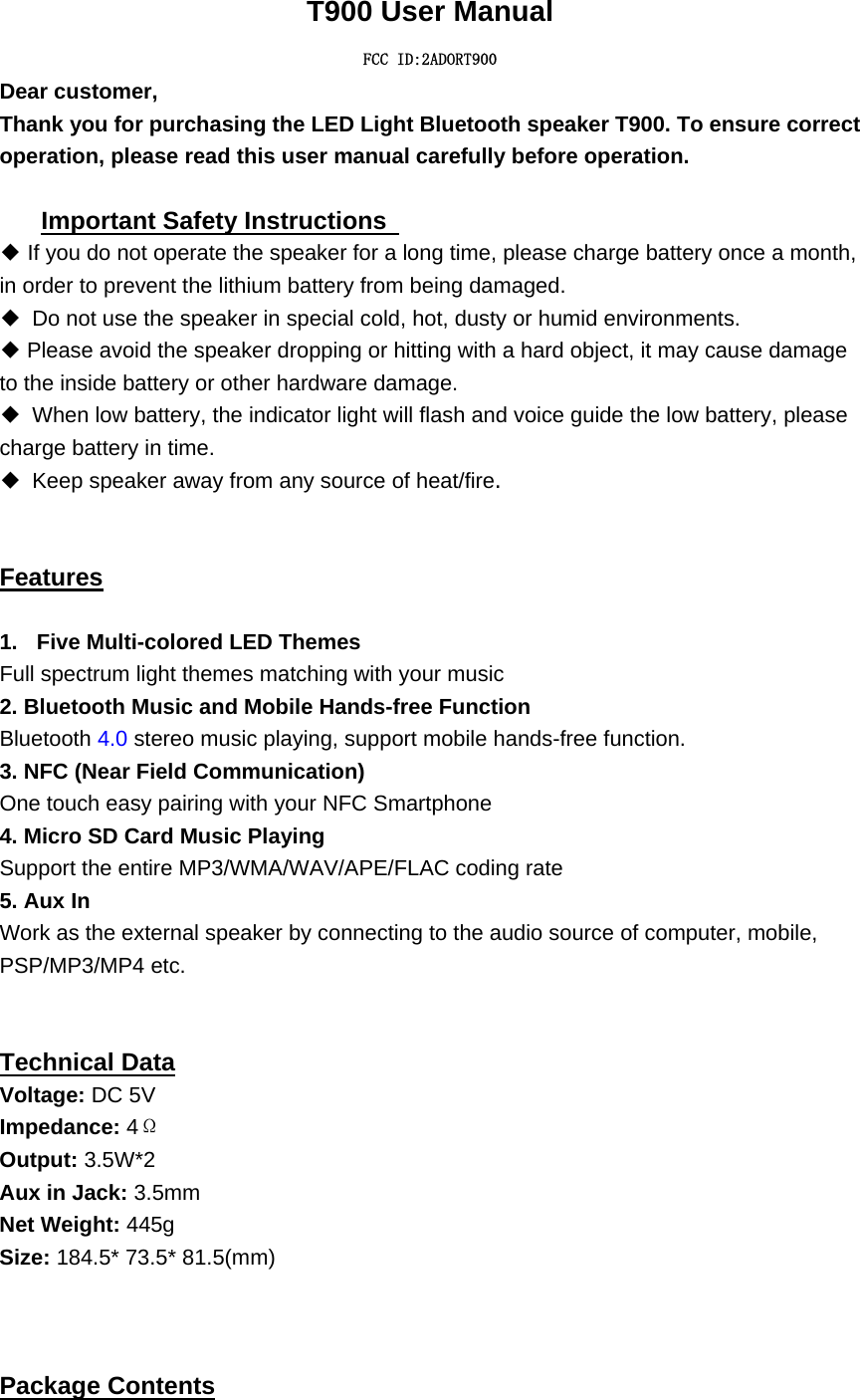
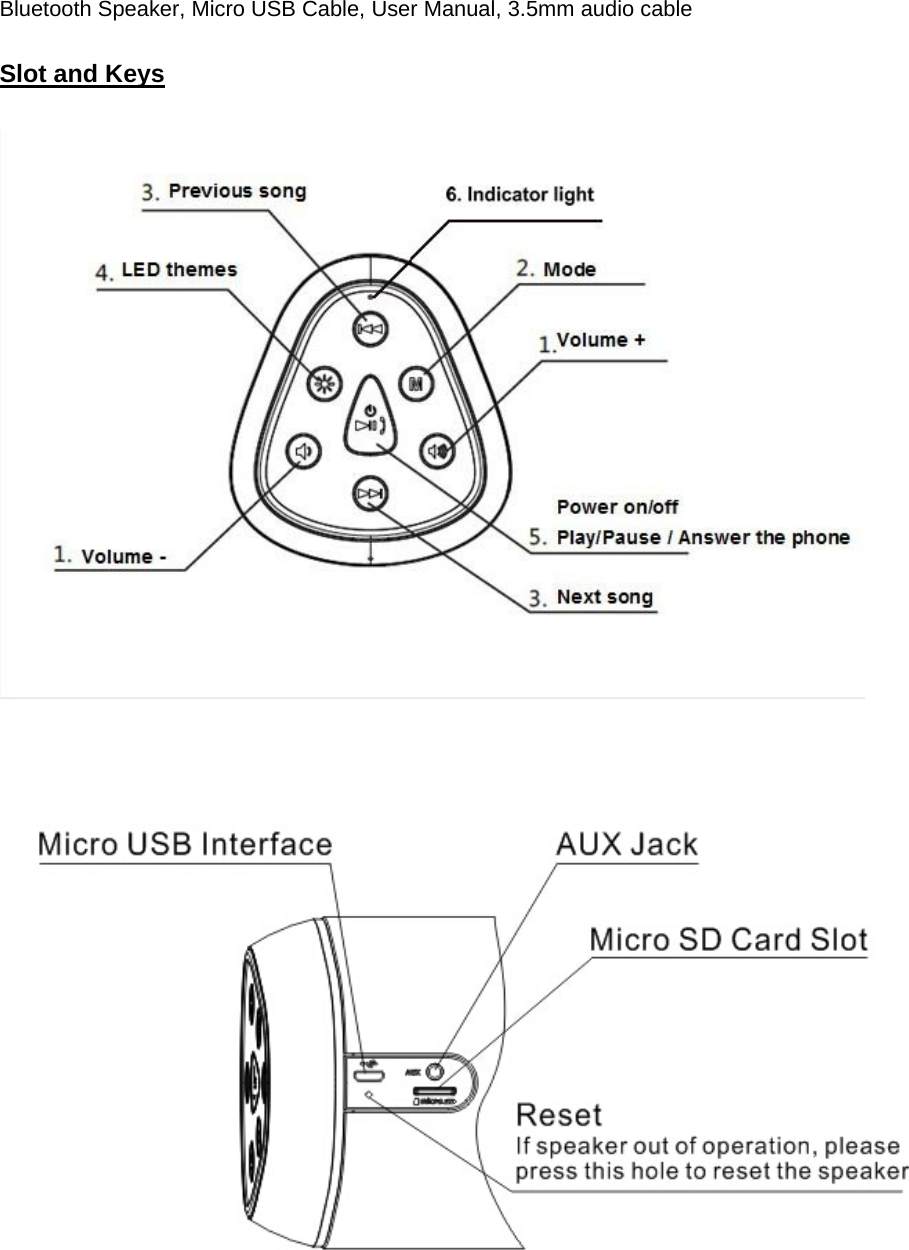
  Bluetooth Speaker, Micro USB Cable, User Manual, 3.5mm audio cable                                 Slot and Keys
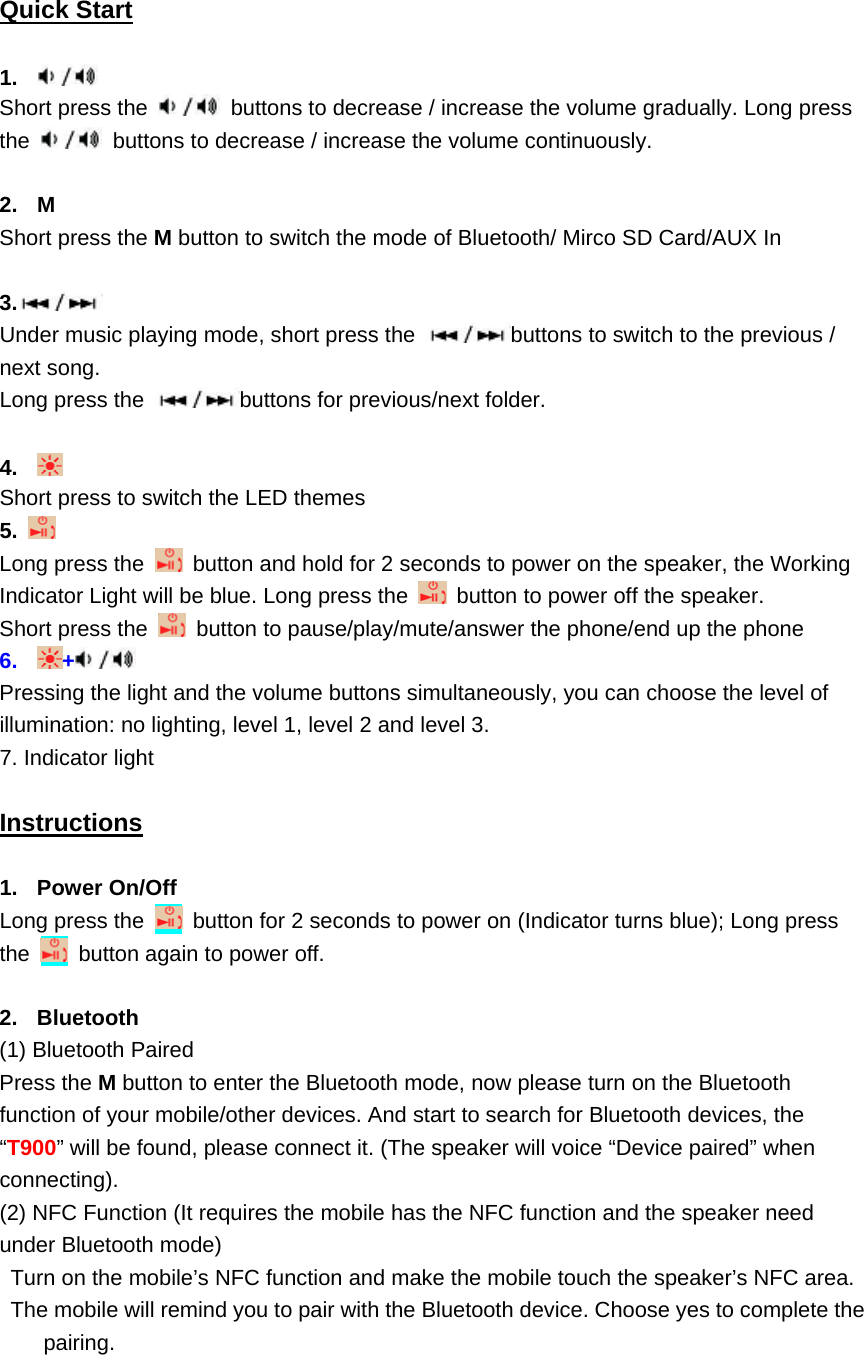
   Quick Start  1.   Short press the    buttons to decrease / increase the volume gradually. Long press the    buttons to decrease / increase the volume continuously.    2. M Short press the M button to switch the mode of Bluetooth/ Mirco SD Card/AUX In  3.  Under music playing mode, short press the  buttons to switch to the previous / next song.   Long press the  buttons for previous/next folder.  4.   Short press to switch the LED themes 5.   Long press the    button and hold for 2 seconds to power on the speaker, the Working Indicator Light will be blue. Long press the    button to power off the speaker.   Short press the    button to pause/play/mute/answer the phone/end up the phone 6.  +  Pressing the light and the volume buttons simultaneously, you can choose the level of illumination: no lighting, level 1, level 2 and level 3. 7. Indicator light  Instructions  1. Power On/Off Long press the    button for 2 seconds to power on (Indicator turns blue); Long press the    button again to power off.  2. Bluetooth (1) Bluetooth Paired Press the M button to enter the Bluetooth mode, now please turn on the Bluetooth function of your mobile/other devices. And start to search for Bluetooth devices, the “T900” will be found, please connect it. (The speaker will voice “Device paired” when connecting). (2) NFC Function (It requires the mobile has the NFC function and the speaker need under Bluetooth mode) Turn on the mobile’s NFC function and make the mobile touch the speaker’s NFC area.   The mobile will remind you to pair with the Bluetooth device. Choose yes to complete the pairing.
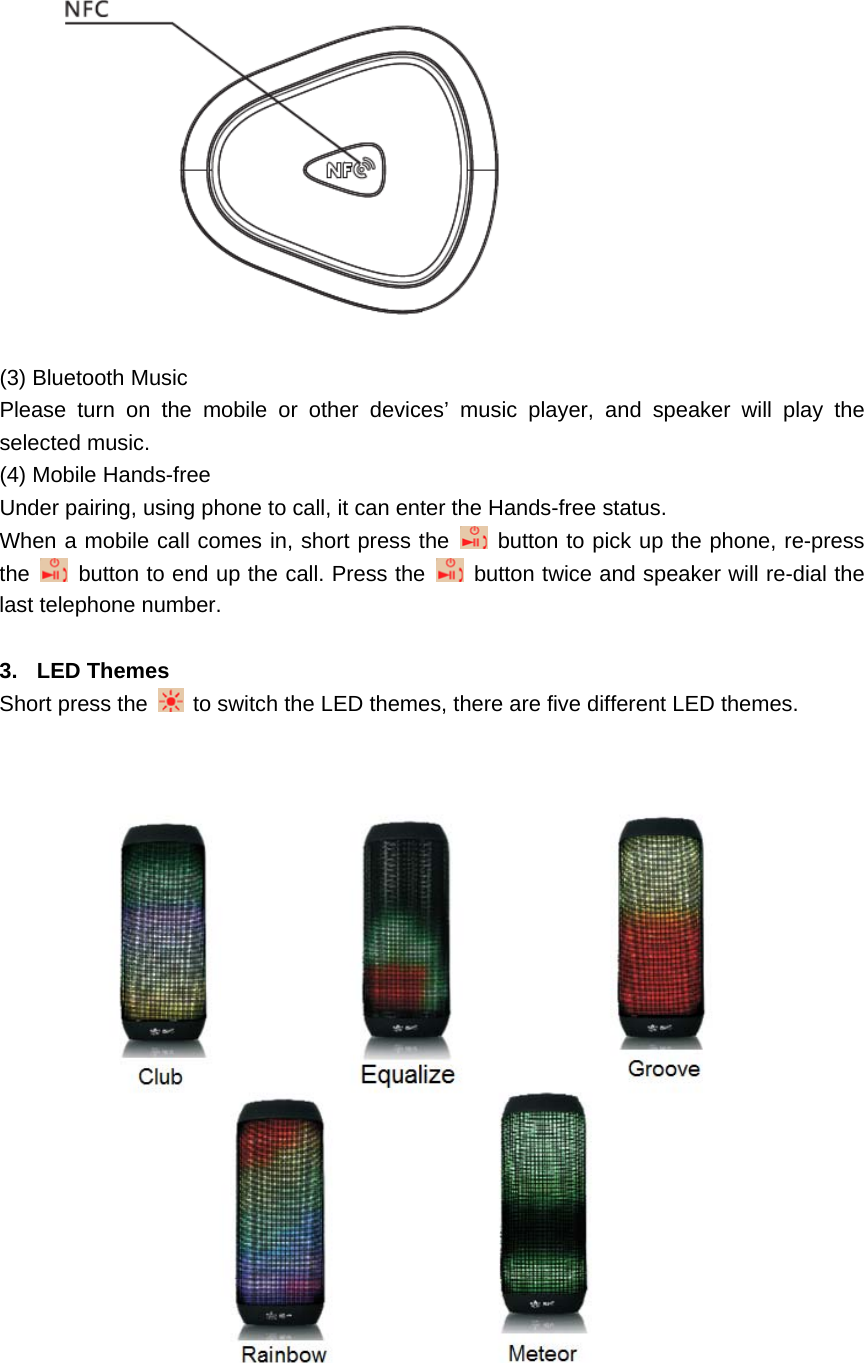
   (3) Bluetooth Music   Please turn on the mobile or other devices’ music player, and speaker will play the selected music. (4) Mobile Hands-free   Under pairing, using phone to call, it can enter the Hands-free status. When a mobile call comes in, short press the   button to pick up the phone, re-press the   button to end up the call. Press the    button twice and speaker will re-dial the last telephone number.  3. LED Themes Short press the   to switch the LED themes, there are five different LED themes.
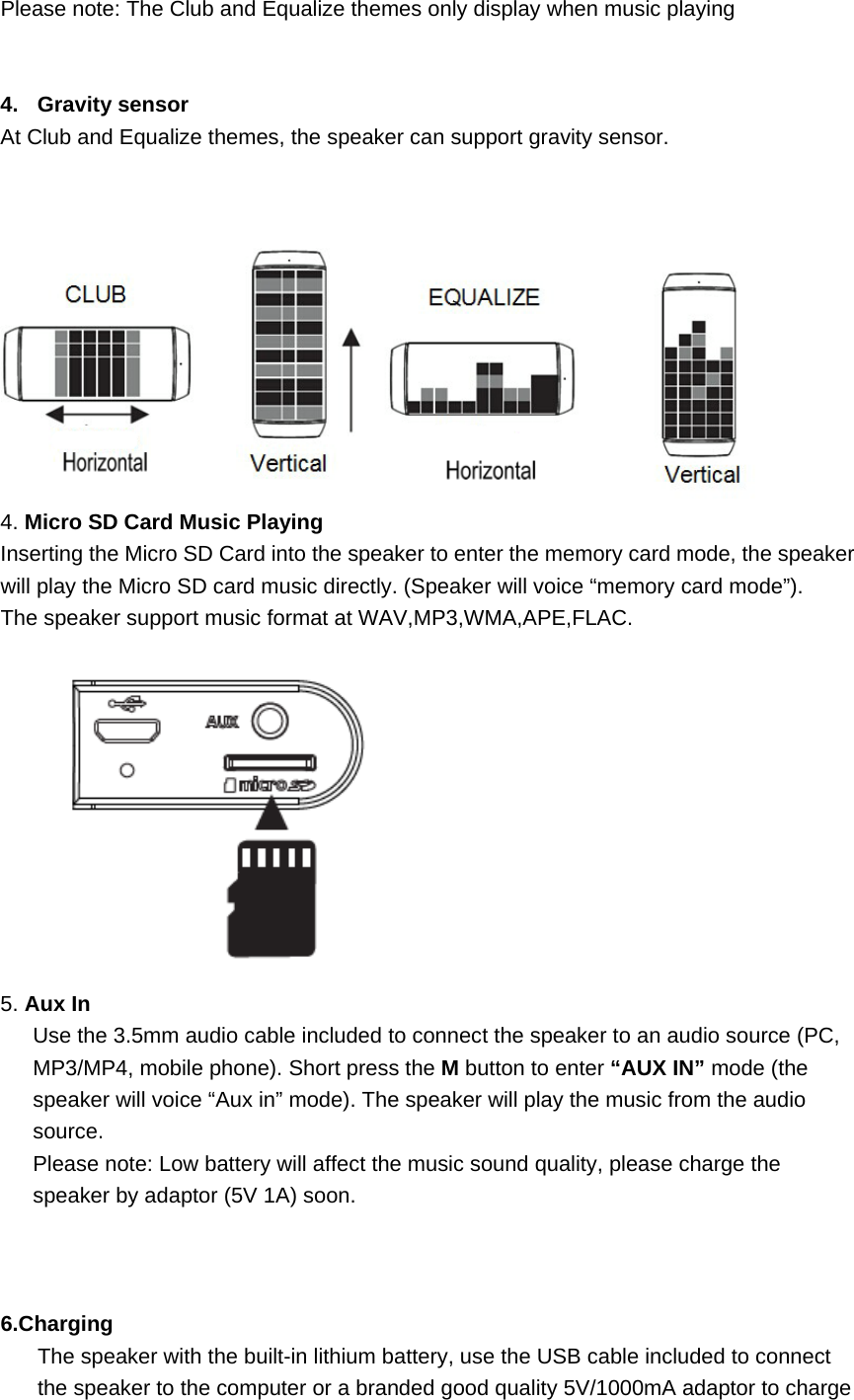
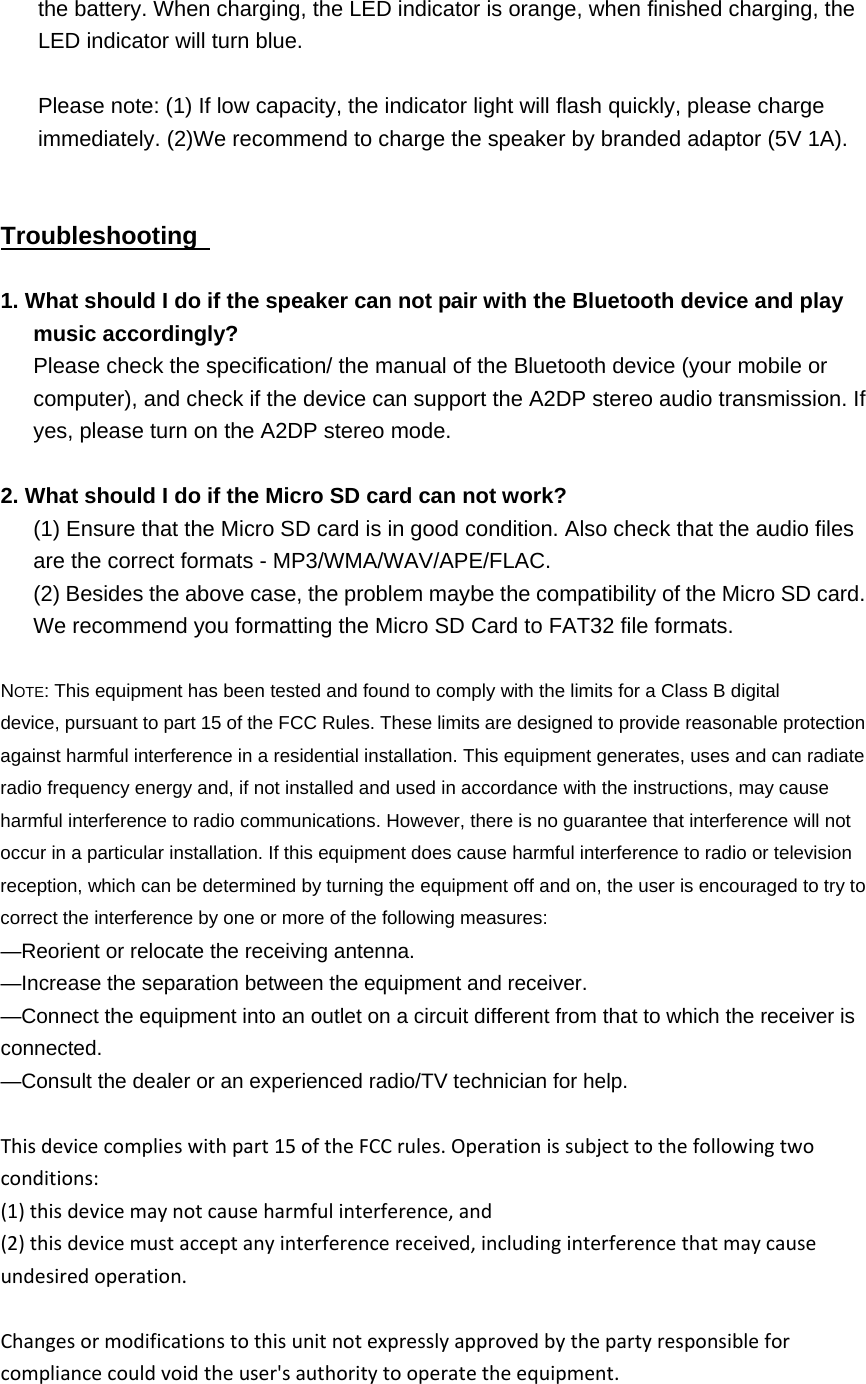
  Please note: The Club and Equalize themes only display when music playing   4. Gravity sensor At Club and Equalize themes, the speaker can support gravity sensor.    4. Micro SD Card Music Playing Inserting the Micro SD Card into the speaker to enter the memory card mode, the speaker will play the Micro SD card music directly. (Speaker will voice “memory card mode”).   The speaker support music format at WAV,MP3,WMA,APE,FLAC.    5. Aux In   Use the 3.5mm audio cable included to connect the speaker to an audio source (PC, MP3/MP4, mobile phone). Short press the M button to enter “AUX IN” mode (the speaker will voice “Aux in” mode). The speaker will play the music from the audio source.  Please note: Low battery will affect the music sound quality, please charge the speaker by adaptor (5V 1A) soon.      6.Charging The speaker with the built-in lithium battery, use the USB cable included to connect the speaker to the computer or a branded good quality 5V/1000mA adaptor to charge
  the battery. When charging, the LED indicator is orange, when finished charging, the LED indicator will turn blue.  Please note: (1) If low capacity, the indicator light will flash quickly, please charge immediately. (2)We recommend to charge the speaker by branded adaptor (5V 1A).   Troubleshooting    1. What should I do if the speaker can not pair with the Bluetooth device and play music accordingly? Please check the specification/ the manual of the Bluetooth device (your mobile or computer), and check if the device can support the A2DP stereo audio transmission. If yes, please turn on the A2DP stereo mode.  2. What should I do if the Micro SD card can not work?   (1) Ensure that the Micro SD card is in good condition. Also check that the audio files are the correct formats - MP3/WMA/WAV/APE/FLAC. (2) Besides the above case, the problem maybe the compatibility of the Micro SD card.       We recommend you formatting the Micro SD Card to FAT32 file formats.  NOTE: This equipment has been tested and found to comply with the limits for a Class B digital device, pursuant to part 15 of the FCC Rules. These limits are designed to provide reasonable protection against harmful interference in a residential installation. This equipment generates, uses and can radiate radio frequency energy and, if not installed and used in accordance with the instructions, may cause harmful interference to radio communications. However, there is no guarantee that interference will not occur in a particular installation. If this equipment does cause harmful interference to radio or television reception, which can be determined by turning the equipment off and on, the user is encouraged to try to correct the interference by one or more of the following measures: —Reorient or relocate the receiving antenna. —Increase the separation between the equipment and receiver. —Connect the equipment into an outlet on a circuit different from that to which the receiver is connected. —Consult the dealer or an experienced radio/TV technician for help. Thisdevicecomplieswithpart15oftheFCCrules.Operationissubjecttothefollowingtwoconditions:(1)thisdevicemaynotcauseharmfulinterference,and(2)thisdevicemustacceptanyinterferencereceived,includinginterferencethatmaycauseundesiredoperation.Changesormodificationstothisunitnotexpresslyapprovedbythepartyresponsibleforcompliancecouldvoidtheuser'sauthoritytooperatetheequipment.

Navigation menu