Rubetek RV-3404 Smart home wifi camera User Manual

Rubetek Smart home wifi camera Users Manual

user manual

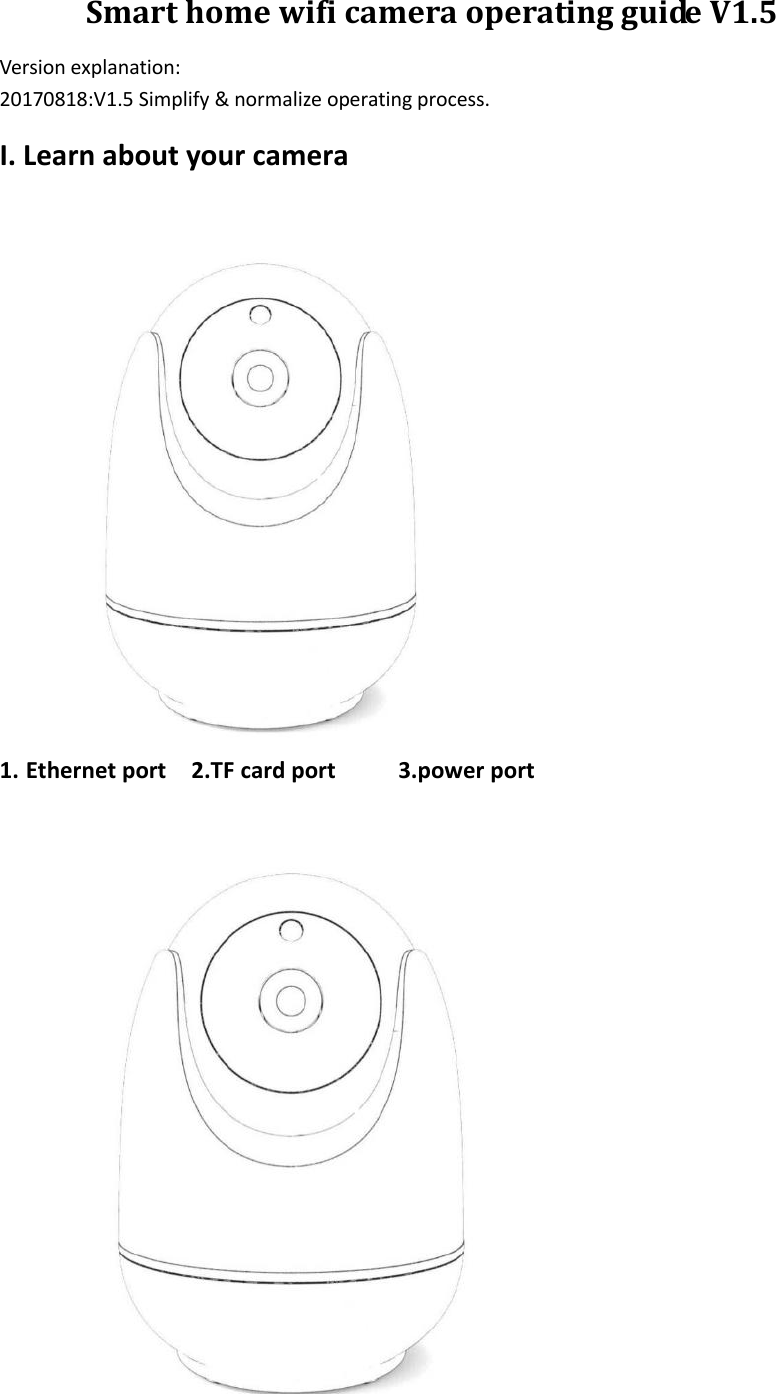
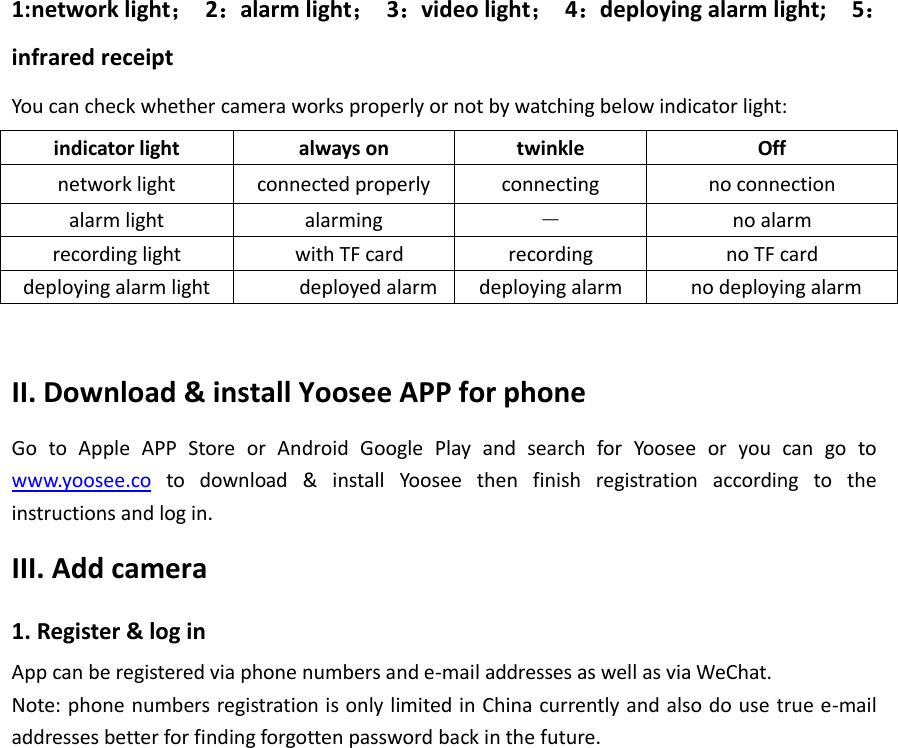
 Smart home wifi camera operating guide V1.5 Version explanation: 20170818:V1.5 Simplify & normalize operating process. I. Learn about your camera  1. Ethernet port    2.TF card port          3.power port
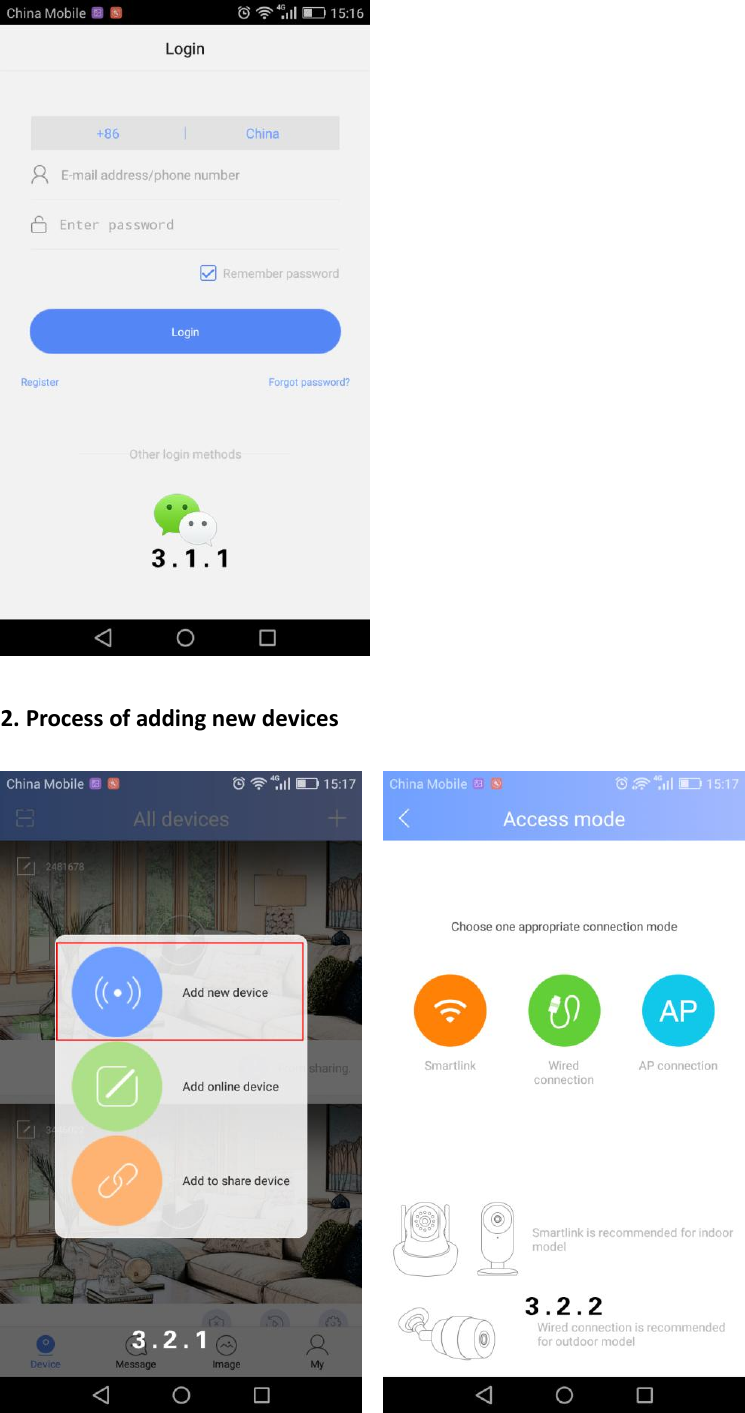
  1:network light;  2:alarm light;  3:video light;  4:deploying alarm light;    5:infrared receipt You can check whether camera works properly or not by watching below indicator light: indicator light always on twinkle Off   network light connected properly   connecting no connection alarm light alarming - no alarm recording light   with TF card recording no TF card deploying alarm light      deployed alarm   deploying alarm    no deploying alarm  II. Download & install Yoosee APP for phone Go  to  Apple  APP  Store  or  Android  Google  Play  and  search  for  Yoosee  or  you  can  go  to www.yoosee.co  to  download  &  install  Yoosee  then  finish  registration  according  to  the instructions and log in. III. Add camera 1. Register & log in App can be registered via phone numbers and e-mail addresses as well as via WeChat. Note: phone numbers registration is only limited in China currently and also do use true e-mail addresses better for finding forgotten password back in the future.
   2. Process of adding new devices
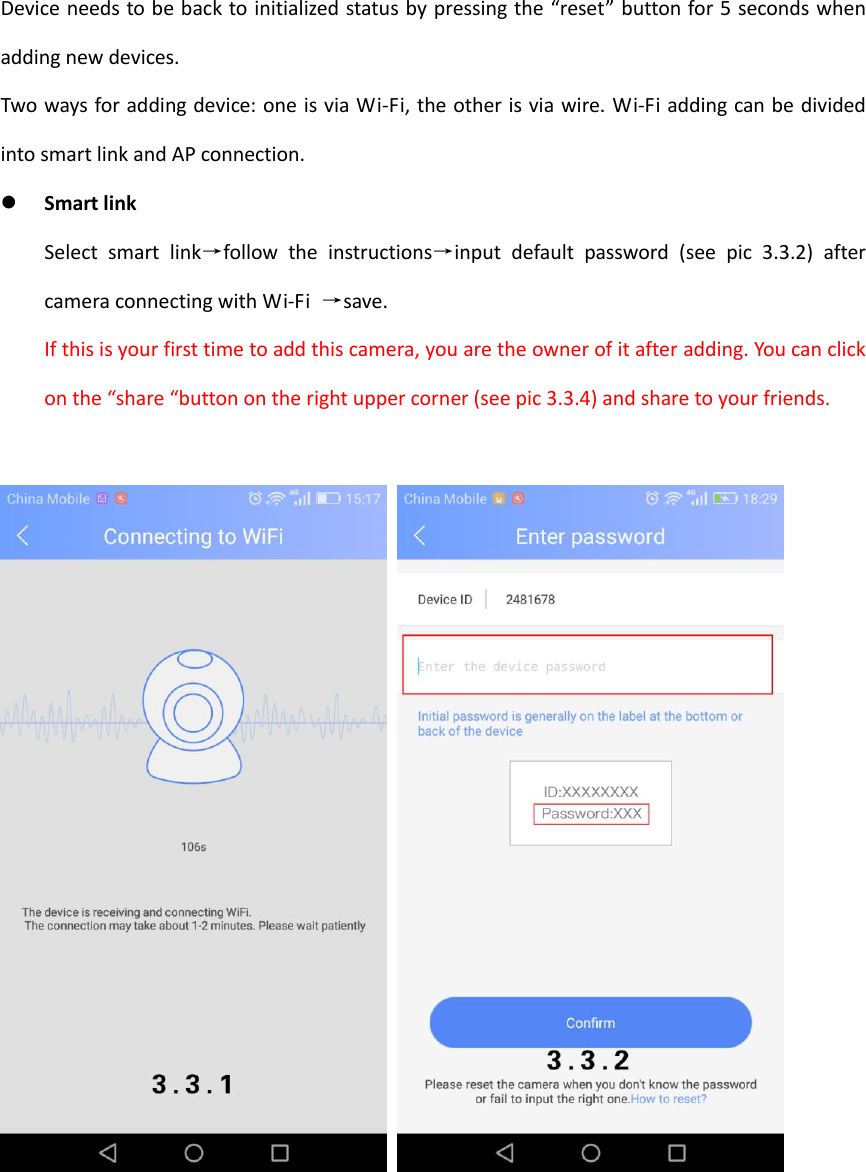
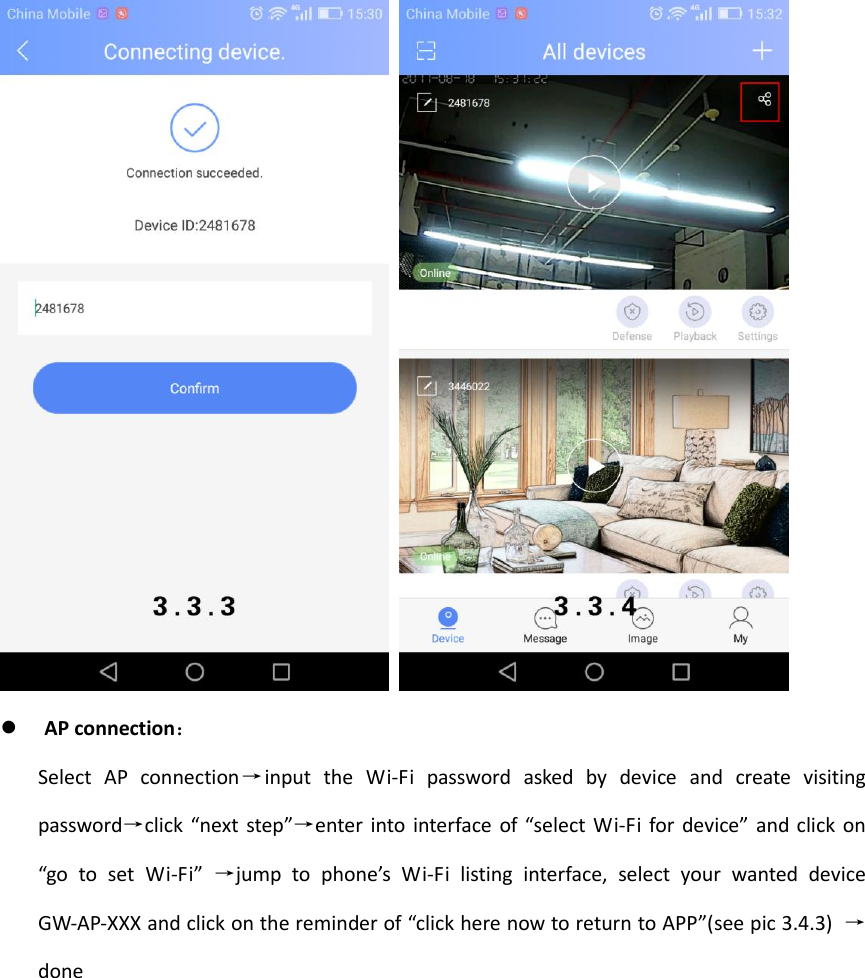
  Device needs to be back to initialized status by pressing the “reset” button for 5 seconds when adding new devices. Two ways for adding device: one is via Wi-Fi, the other is via wire. Wi-Fi adding can be divided into smart link and AP connection.    Smart link Select  smart  link→follow  the  instructions→input  default  password  (see  pic  3.3.2)  after camera connecting with Wi-Fi  →save. If this is your first time to add this camera, you are the owner of it after adding. You can click on the “share “button on the right upper corner (see pic 3.3.4) and share to your friends.
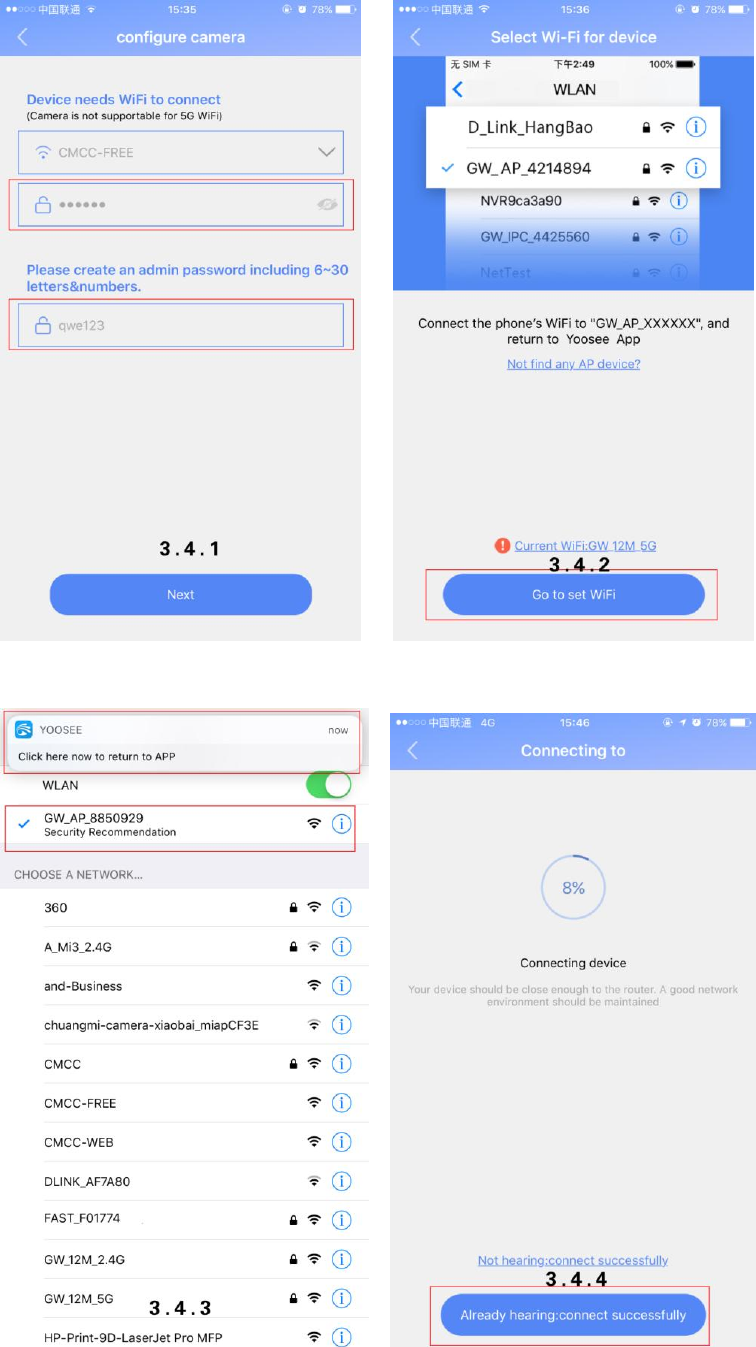
     AP connection: Select  AP  connection→input  the  Wi-Fi  password  asked  by  device  and  create  visiting password→click  “next step”→enter into interface of “select Wi-Fi for device” and click on “go  to  set  Wi-Fi” →jump  to  phone’s  Wi-Fi  listing  interface,  select  your  wanted  device GW-AP-XXX and click on the reminder of “click here now to return to APP”(see pic 3.4.3) →done
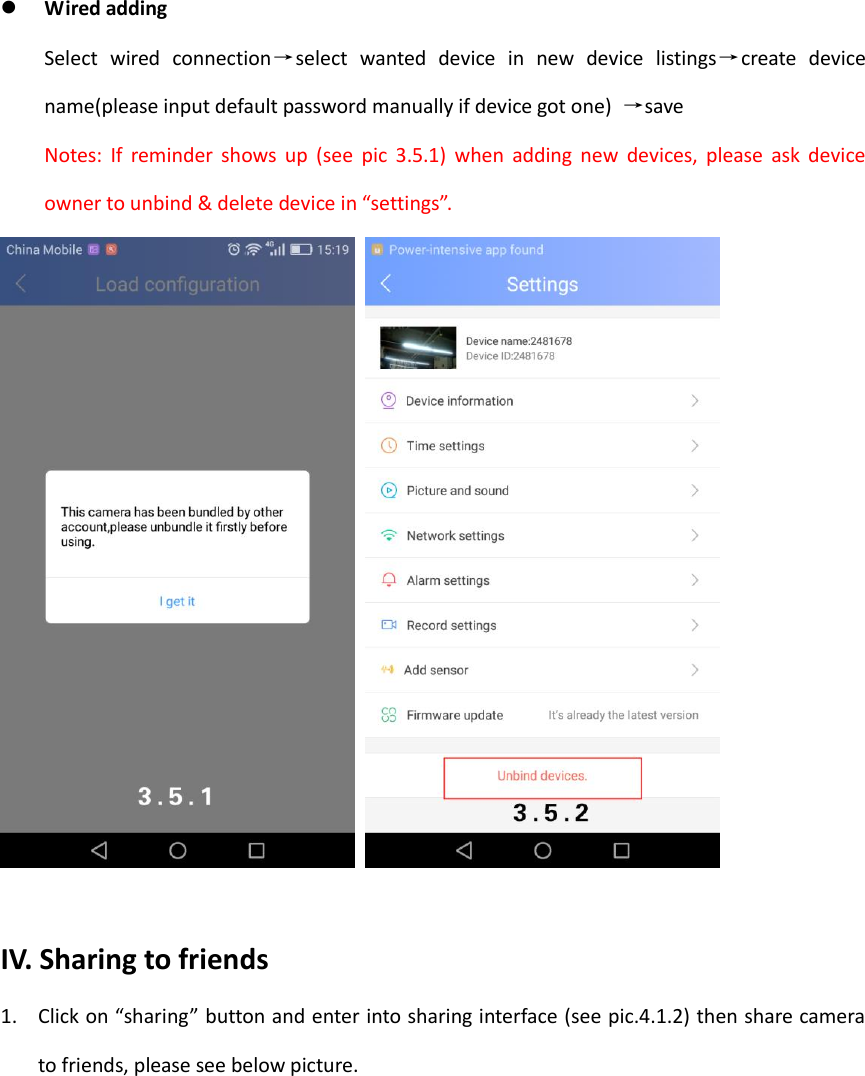
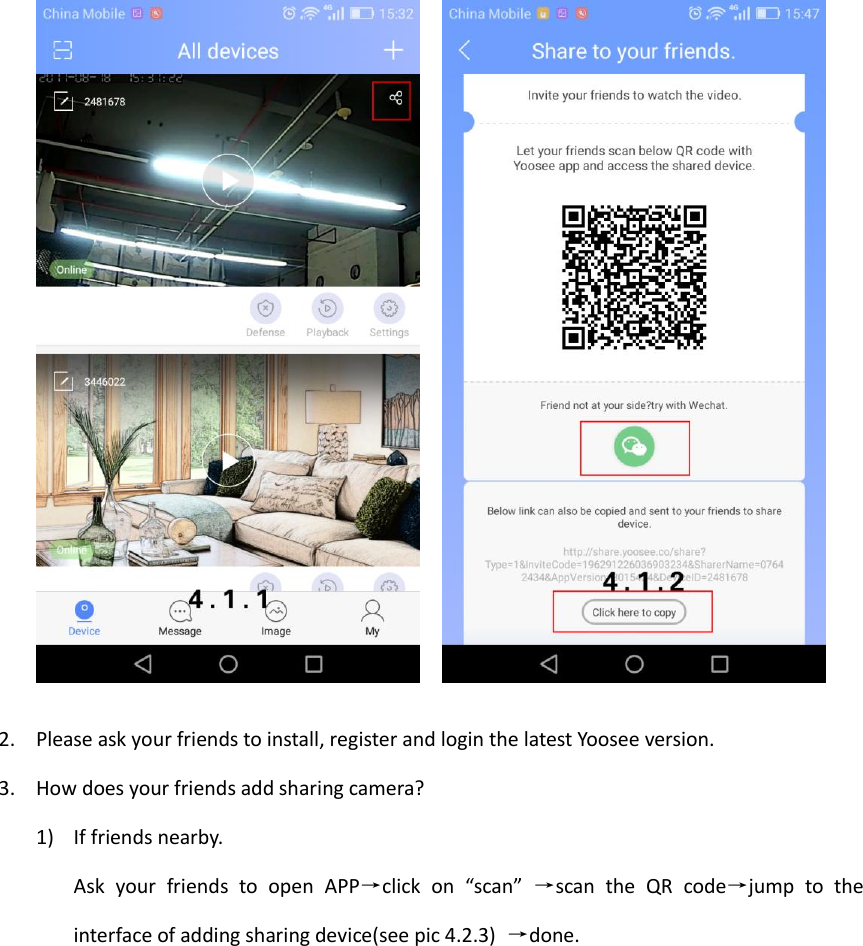
  Wired adding Select  wired  connection→select  wanted  device  in  new  device  listings→create  device name(please input default password manually if device got one)  →save Notes:  If  reminder  shows  up  (see  pic  3.5.1)  when  adding  new  devices,  please  ask  device owner to unbind & delete device in “settings”.     IV. Sharing to friends 1. Click on “sharing” button and enter into sharing interface (see pic.4.1.2) then share camera to friends, please see below picture.
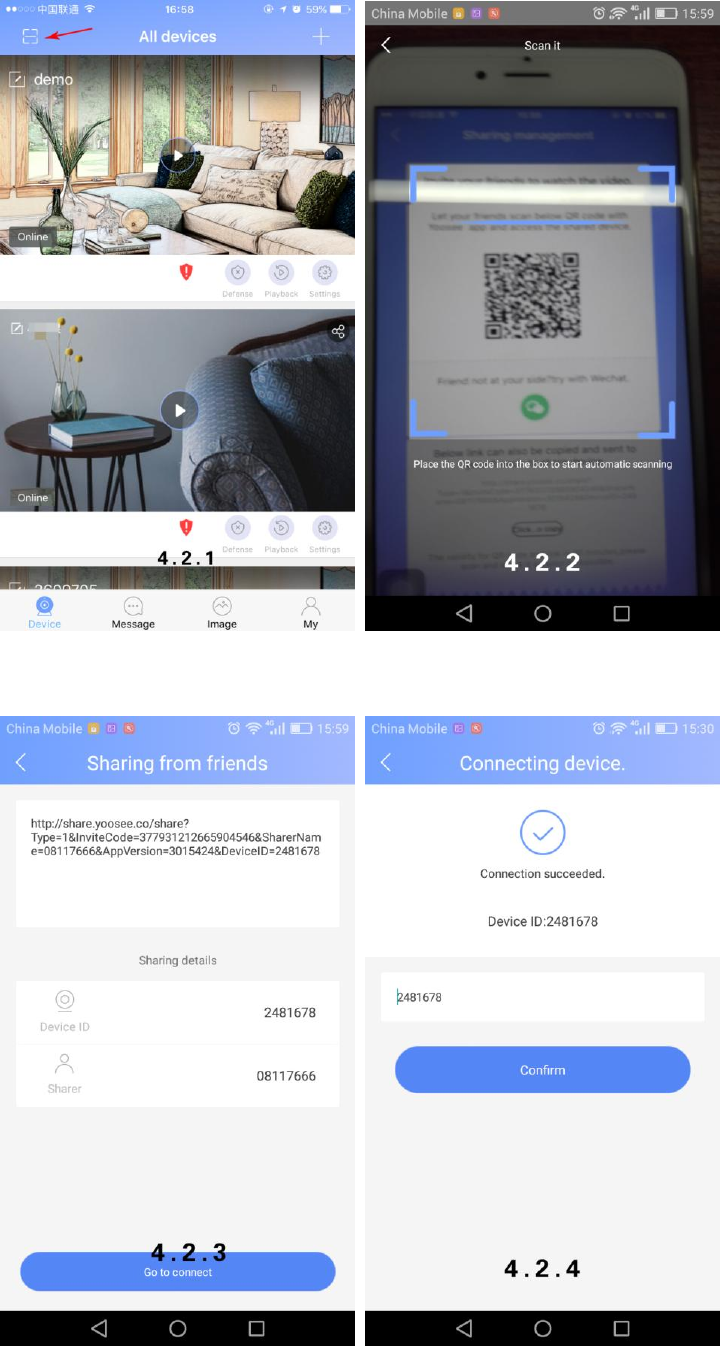
      2. Please ask your friends to install, register and login the latest Yoosee version. 3. How does your friends add sharing camera? 1) If friends nearby. Ask  your  friends  to  open  APP→click  on  “scan” →scan  the  QR  code→jump  to  the interface of adding sharing device(see pic 4.2.3)  →done.
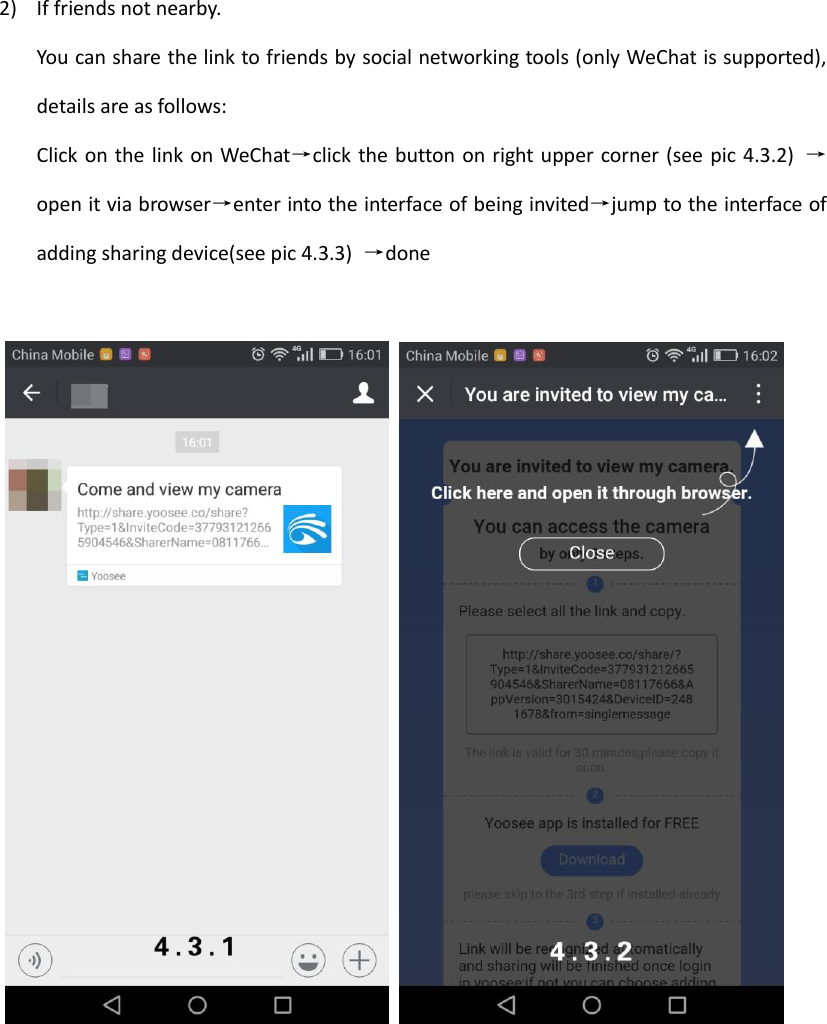
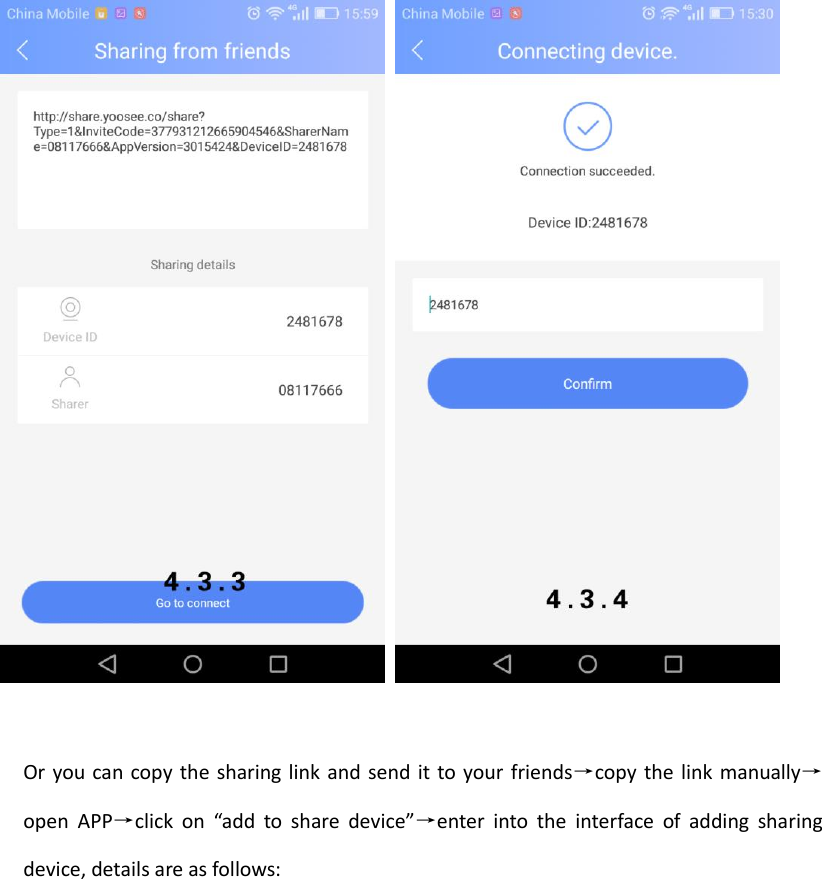
 2) If friends not nearby. You can share the link to friends by social networking tools (only WeChat is supported), details are as follows: Click on the  link on WeChat→click the button on right upper corner (see  pic 4.3.2)  →open it via browser→enter into the interface of being invited→jump to the interface of adding sharing device(see pic 4.3.3)  →done
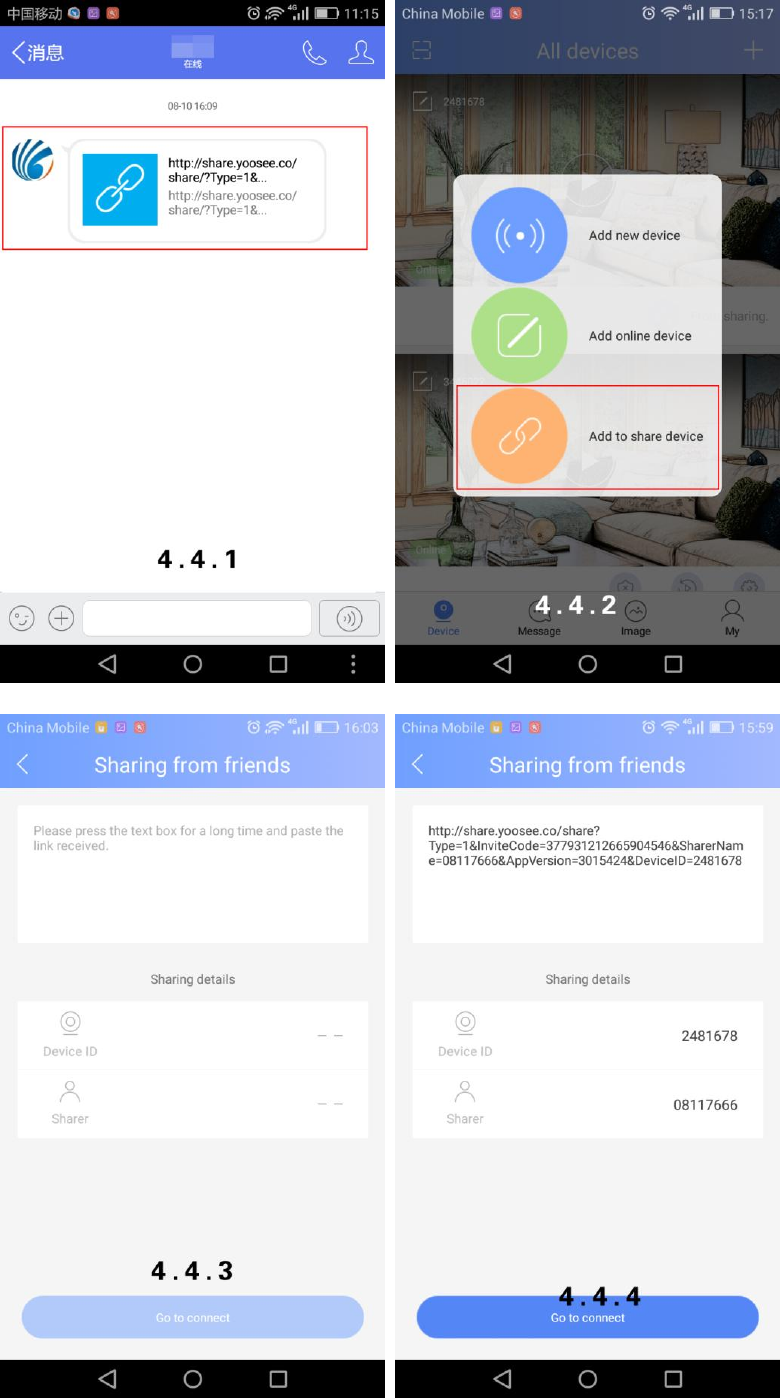
     Or you can copy the  sharing link and send  it to your friends→copy the  link manually→open  APP→click  on  “add  to  share  device”→enter  into  the  interface  of  adding  sharing device, details are as follows:
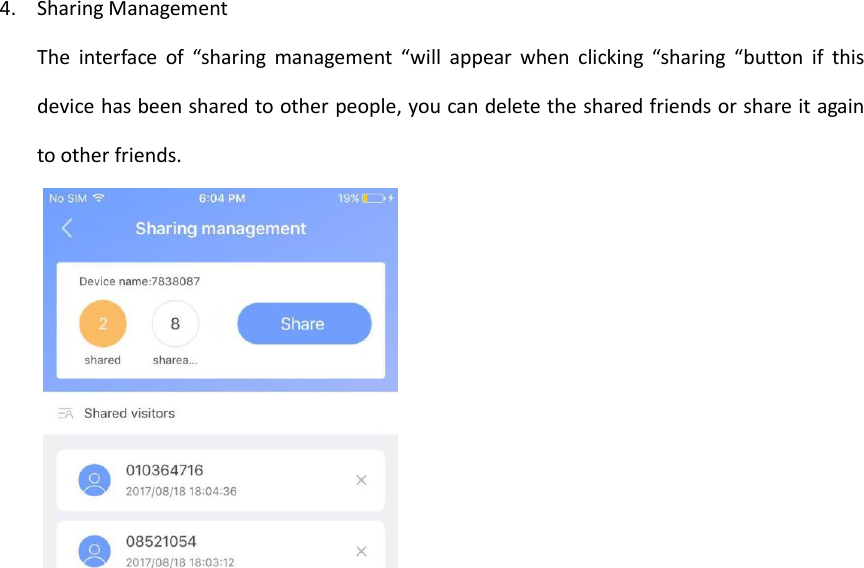
 4. Sharing Management The  interface  of  “sharing management  “will  appear  when  clicking “sharing  “button  if  this device has been shared to other people, you can delete the shared friends or share it again to other friends.
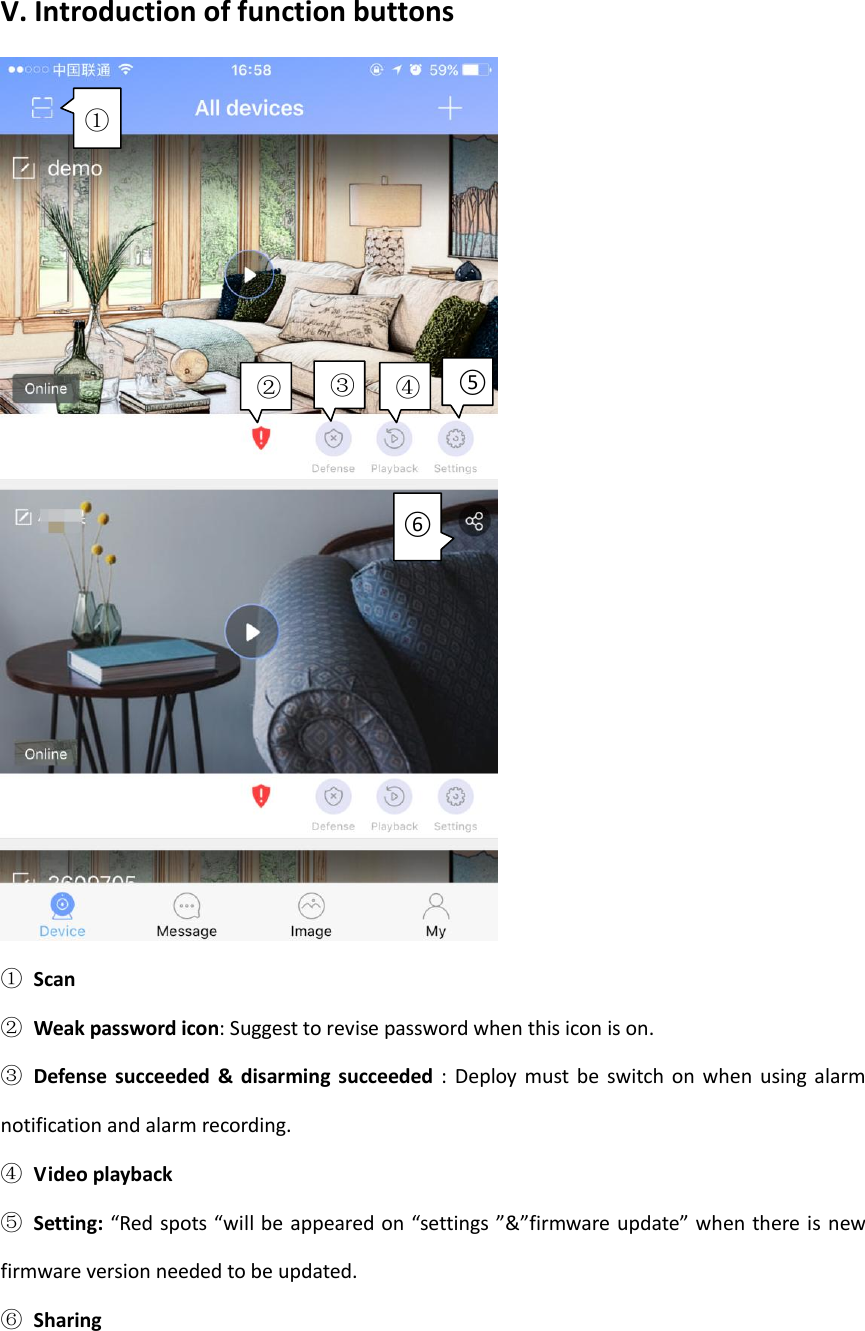
 V. Introduction of function buttons  ① Scan   ②  Weak password icon: Suggest to revise password when this icon is on. ③  Defense  succeeded  &  disarming  succeeded  :  Deploy must  be  switch  on  when  using alarm notification and alarm recording. ④ Video playback ⑤ Setting:  “Red spots “will be appeared on “settings ”&”firmware update” when there is new firmware version needed to be updated. ⑥  Sharing  ②  ④  ③  ⑤ ① ⑥
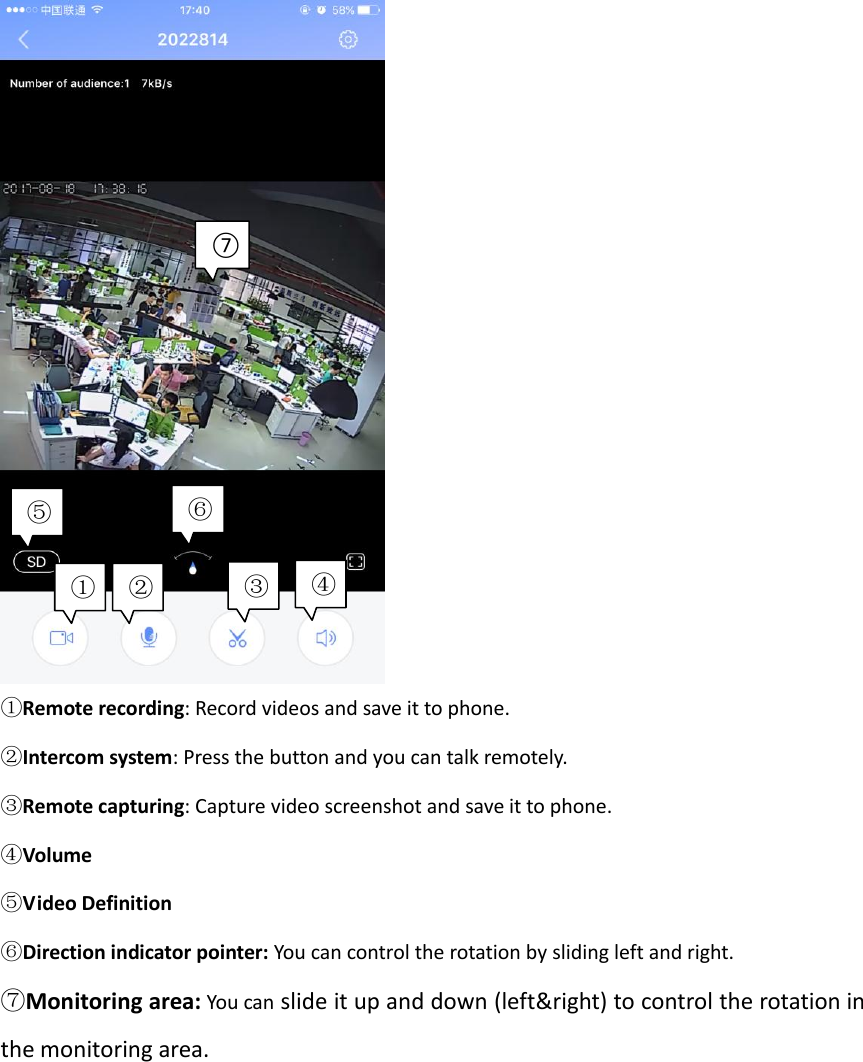
    ①Remote recording: Record videos and save it to phone. ②Intercom system: Press the button and you can talk remotely. ③Remote capturing: Capture video screenshot and save it to phone. ④Volume ⑤Video Definition ⑥Direction indicator pointer: You can control the rotation by sliding left and right. ⑦Monitoring area: You can slide it up and down (left&right) to control the rotation in the monitoring area.  ① ② ③ ④ ⑤ ⑥ ⑦
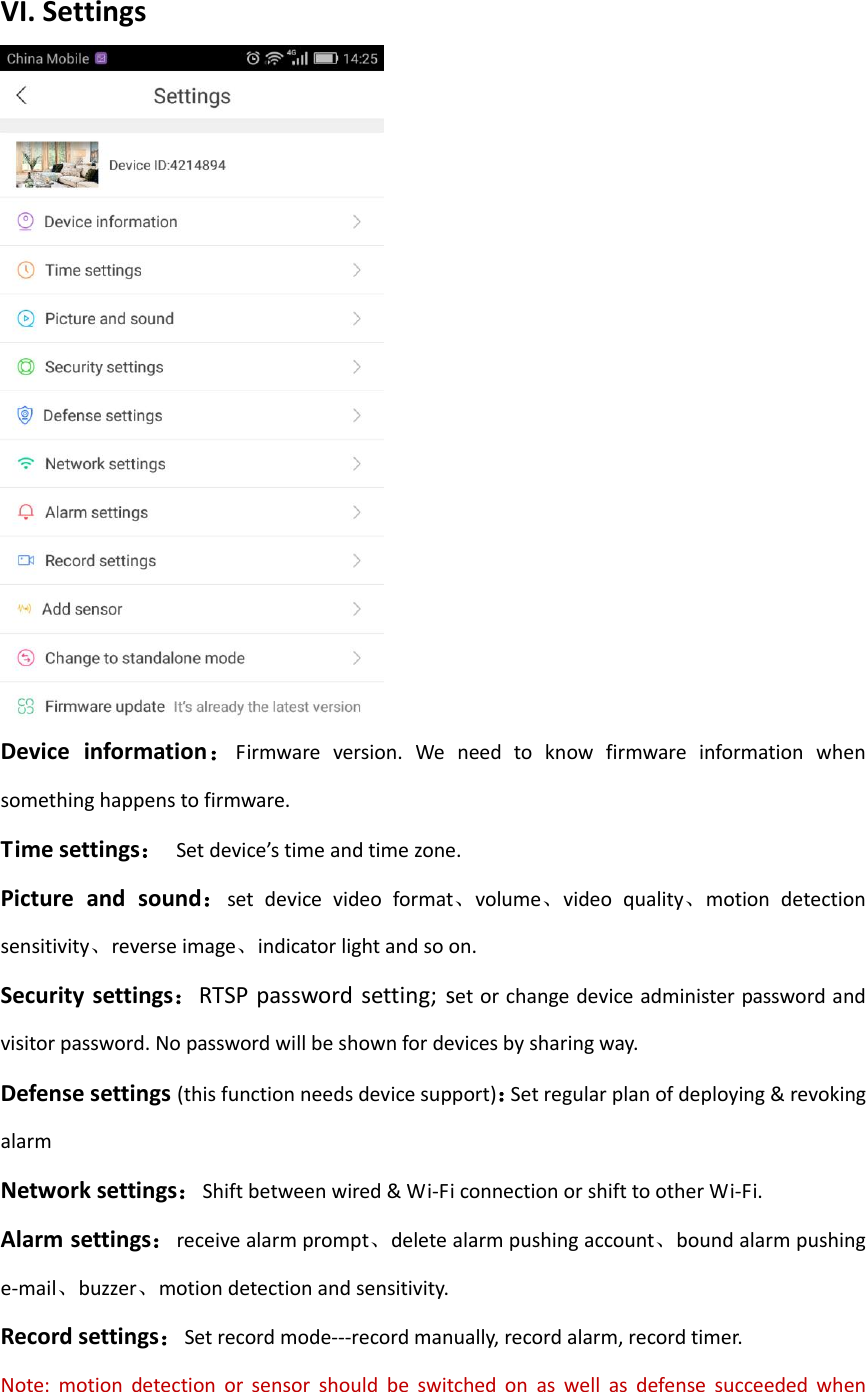
 VI. Settings  Device  information:Firmware  version.  We  need  to  know  firmware  information  when something happens to firmware. Time settings:  Set device’s time and time zone. Picture  and  sound:set  device  video  format、volume、video  quality、motion  detection sensitivity、reverse image、indicator light and so on. Security settings:RTSP password  setting;  set or change device administer password and visitor password. No password will be shown for devices by sharing way. Defense settings (this function needs device support):Set regular plan of deploying & revoking alarm Network settings:Shift between wired & Wi-Fi connection or shift to other Wi-Fi. Alarm settings:receive alarm prompt、delete alarm pushing account、bound alarm pushing e-mail、buzzer、motion detection and sensitivity. Record settings:Set record mode---record manually, record alarm, record timer. Note:  motion  detection  or  sensor  should  be  switched  on  as  well  as  defense  succeeded  when
 using alarm notification and alarm recording. Add  sensor  (this function needs device support):It’s available to add ordinary sensor (door magnetic, PIR), remoter, special sensor (smoke detector, special gas detector).   Adding methods :click”+” in add sensor interface→confirm→trigger sensor→add successfully. Using case: switch on “receive alarm prompt” in alarm settings after add sensor successfully. And at  the  same  time  deploying  alarm  should  be  done.  Once  door  magnetic  is  triggered  after deploying alarm successfully, device will send alarm notifications to phone APP. Firmware update:Update & optimize device firmware. Change  to  standalone  mode  (this  function needs  device support):It  applies to  the  users without using router. You can get through via AP hot WiFi under this mode.  Users without router can access through device’s hotspot, details are as follows: Let  device  back  to  the  initialized  status→connect  device’s  hotspot:  GW-AP-XXX→back  to  APP interface of “configuring camera” and click “skip, shift to AP mode” →confirm→find the device
 VII. FAQ  ①  Q: Notice wrong password when checking real time videos.    A: Device visiting password probably  has been  changed  by  other people  but you can  enter correct  remote  visiting  password  in  the  popup.  If  you  forgot  the  password,  you  can  press  the “reset” button for a long time and restart.  ②  Q: It shows device is offline in device listing.          A: Please check whether camera is connected with network properly and network indicator light is always on or not.      Please check whether the router’s network is fine or not.  ③ Q: What shall we do if phone APP can’t get any notifications?    A:  Check whether  alarm  items  &  alarm  notifications  in  alarm  settings are  switched  on  and make sure you have deployed alarm successfully. Also whether android backgrounder have been prohibited or not by SafeMgr.     ④  Q: What shall we do if motion detection gives misinformation?    A: Update device firmware (above 14.0.07.76) and APP (above 00.46.00.13) so that you can adjust motion detection sensitivity in APP settings or revise configuration files md_ level = 3(1~6, the smaller, the more sensitive)     ⑤  Q: Recorded videos files can’t be searched out on playback.      A: Please check whether SD card is damaged or not.      Please check the search time of recorded files and system time of camera.  ⑥  Q: Camera can’t connect with Wi-Fi.    A: Confirm the input password is correct.
      Camera is not supported for 5G Wi-Fi, please connect with 2.4G Wi-Fi.      Some items restricted on Wi-Fi access such as AP isolation, Wi-Fi Zone and etc. should be closed.    ⑦ Q: AP devices can’t be found on Phone Wi-Fi list.    A: Firmware is not supported for this function.      The distance is too far from phone to device.        VIII. Acquire more information  This fast guidance will guide you to use your network camera in a very fast way. If you want  to acquire more information, please download detailed user guidance or ask technical support from manufacturer. FCC Statement: This device complies with part 15 of the FCC rules. Operation is subject to the following two conditions: (1) this device may not cause harmful interference, and (2) this device must accept any interference   received,   including   interference   that   may   cause undesired operation.   Changes or modifications not expressly approved by the party responsible for compliance could  void the user’s authority to operate the equipment.   NOTE: This equipment has been tested and found to comply with the limits for a Class B digital device, pursuant to part 15 of the FCC Rules. These limits are designed to provide reasonable protection against harmful interference in a residential installation. This equipment generates uses and can radiate radio frequency energy and, if not installed and used in accordance with the instructions, may cause harmful interference to radio communications. However, there is no guarantee that interference will not occur in a particular installation. If this equipment does cause harmful interference to radio or television reception, which can be determined by turning the equipment off and on, the user is encouraged to try to correct the interference by one or more of the following measures:  ‐ Reorient or relocate the receiving antenna.  ‐ Reorient or relocate the receiving antenna.  ‐ Reorient or relocate the receiving antenna.  ‐Consult the dealer or an experienced radio/TV technician for help important announcement
 Important Note: Radiation Exposure Statement This  equipment  complies  with  FCC  radiation  exposure  limits  set  forth  for  an  uncontrolled environment.  This  equipment  should  be  installed  and  operated  with  minimum  distance  20cm between the radiator and your body.

Navigation menu