Ruckus R720 Access Point Quick Setup Guide Wireless QSG 800 70874 001 Rev C 20170419
Ruckus Wireless R720 Quick Setup Guide R720-QSG-800-70874-001-RevC-20170419
2017-06-09
User Manual: Ruckus Ruckus Wireless R720 Quick Setup Guide
Open the PDF directly: View PDF  .
.
Page Count: 4
Copyright © 2017 Ruckus Wireless, Inc. Page 1 of 4
Published April 2017, Part Number 800-70874-001 Rev C
R720 Access Point
Quick Setup Guide
This Quick Setup Guide provides step-by-step instructions on how to set up your Ruckus
Wireless R720 Dual Band 802.11ac Multimedia Wi-Fi Access Point (AP). After completing
the steps described in this Guide, you will be able to place the R720 at your site and
provide wireless network access to users. The rest of this document refers to the R720 as
an AP.
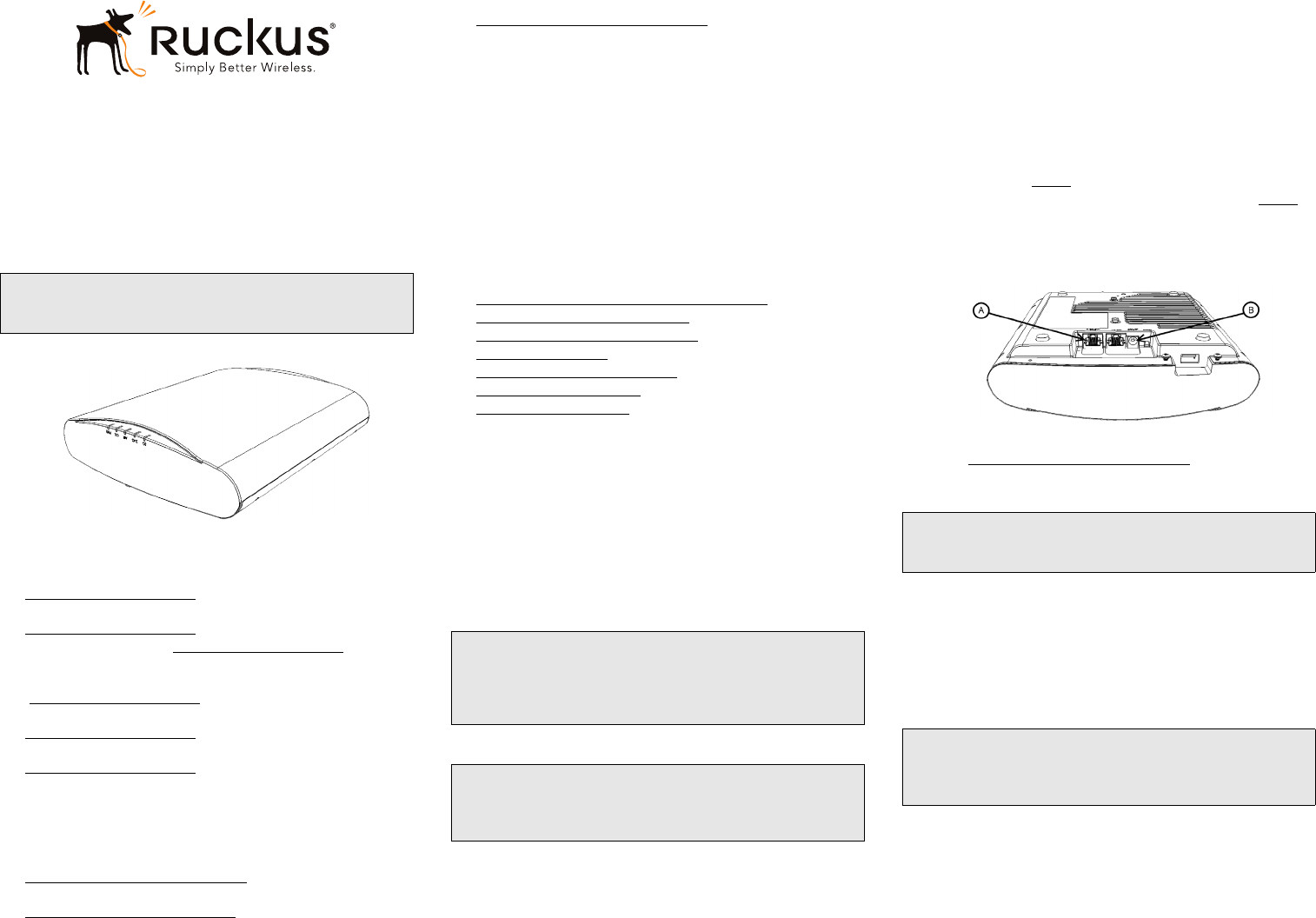
Figure 1. R720 AP
THIS GUIDE IN OTHER LANGUAGES
•请从以下网站获得该指南的简体中文版
https://support.ruckuswireless.com
• Vous trouverez la version française de ce guide à l'adresse suivante
https://support.ruckuswireless.com
•こ の ガ イ ド の⽇本語版は https://support.ruckuswireless.com
でご覧く ださい
•이 가이드의 한국어 버전은 웹 사이트
(https://support.ruckuswireless.com)에서 확인하시기 바랍니다
• Veja a versão em português (Brasil) deste guia em
https://support.ruckuswireless.com
• Puede ver la versión en español (América Latina) de esta guía en
https://support.ruckuswireless.com
BEFORE YOU BEGIN
Before deploying your Ruckus Wireless device, please check the Ruckus Wireless Web
site for the latest software and release documentation.
• Release Notes and User Guides are available at
http://support.ruckuswireless.com/documents
• Software Upgrades are available at
http://support.ruckuswireless.com/software
• Open Source information is available at
http://support.ruckuswireless.com/open_source
PACKAGE CONTENTS
• R720 Access Point
• One T-bar mounting assembly kit, including:
• One T-bar bracket (2 separate plastic parts)
• Two each 1.0" L x No. 8 steel Phillips panhead mounting screws and plastic
wall anchors
• Regulatory flyer
• Product warranty statement
• Declaration of Conformity, if required
•This Quick Setup Guide
CONFIGURING THE AP
Continue with the following steps:
•Step 1: Collecting Setup Requirements, Hardware, and Tools
•Step 2: Connecting Your Computer to the AP
•Step 3: Preparing Your Computer for AP Setup
•Step 4: Logging Into the AP
•Step 5: Customizing the Wireless Settings
•Step 6: Placing the AP in Your Site
•Step 7: Verifying the Installation
Step 1: Collecting Setup Requirements, Hardware,
and Tools
• A computer running Windows 7 (procedures for common operating systems are
similar).
• One Cat 5e (or better) Ethernet cable.
• A Ruckus Wireless 48VDC power adapter (sold separately).
--OR--
An 802.3at-compliant Power over Ethernet (PoE) switch or PoE injector.
• --OR--
An 802.3af-compliant Power over Ethernet (PoE) switch or PoE injector
.
Optional hardware and tools:
• Customer-supplied small padlock with a 3.5mm (0.14”) or smaller shackle diameter,
used to fasten the AP to the secure mounting bracket or the T-bar bracket.
• Customer-ordered Ruckus Wireless 902-0120-0000 secure mounting bracket kit:
• If you are mounting the AP on a flat surface using the secure mounting bracket
kit, then you need an electric drill with 4.75mm (3/16”) drill bits.
• If you are mounting the AP on a pipe or pole using the secure mounting bracket
kit, then you will also need a 38.1mm to 63.5mm (1.5" to 2.5") pipe or pole,
two included stainless steel clamps, and hand tools to tighten the clamps.
Step 2: Connecting Your Computer to the AP
AAfter removing your AP from its package, place it next to your computer.
BUsing an Ethernet cable, connect your computer’s network port to the 2.5G Eth PoE
In port on the AP (A in Figure 2).
CUsing an AC adapter (sold separately), connect the AP 48VDC port (B in Figure 2) to
a convenient (and protected) power source.
Alternatively, connect the 2.5G Eth PoE In port to a PoE injector or switch for both
power and network connectivity.
Figure 2. AP ports
DVerify that the PWR LED on the AP is a steady green.
Continue with Step 3: Preparing Your Computer for AP Setup.
Step 3: Preparing Your Computer for AP Setup
AOn your Windows 7 computer, configure your network adapter from the Local Area
Connection settings as follows:
Start > Control Panel > Network and Sharing Center > Change
Adapter Settings
BEdit the TCP/IPv4 address settings as follows:
Local Area Connection > Properties > Internet Protocol Version 4
(TCP/IPv4) > Properties
The Internet Protocol Version 4 (TCP/IPv4) Properties dialog box appears.
CSelect Use the following IP address (if it is not already selected) and then make the
following entries:
•IP address: 192.168.0.22 (or any available address in the 192.168.0.x
network, except 192.168.0.1)
•Subnet mask: 255.255.255.0
•Default gateway: 192.168.0.1
Leave the DNS server fields empty.
Note: The minimum software revision for the R720 is standalone
AP base image 106.0 or later, or SmartZone 3.5 or later, or
ZoneDirector 10.0 or later.
Note: If powered by 802.3af PoE, note that the feature set is
reduced, as follows:
- 1 x 4 radio chain operation mode
- Second Ethernet port disabled
- USB port disabled
Note: The PoE switch port must run link layer discovery protocol
(LLDP) power over Ethernet/MDI (PoE+) in order for the R720 to
operate in full-power mode. This may require enabling both LLDP
and Power via MDI (dot3) on the switch, if available.
Note: The following procedures assume Windows 7 as the
operating system. Procedures for other operating systems are
similar.
IMPORTANT!
Write down all of the currently active settings so you can restore
your computer to its current configuration later (when this process
is complete).
Copyright © 2017 Ruckus Wireless, Inc. Page 2 of 4
Published April 2017, Part Number 800-70874-001 Rev C
DClick OK to save your changes. Your changes are put into effect immediately.
Continue with Step 4: Logging Into the AP.
Step 4: Logging Into the AP
As specified in Step 3: Preparing Your Computer for AP Setup, the computer should be
directly connected to your AP through one of the Ethernet ports and powered on, ready for
setup.
AOn your computer, open a Web browser window.
BIn the browser, type this URL to connect to the AP:
https://192.168.0.1
CPress <Enter> to initiate the connection. When a security alert dialog box appears,
click OK/Yes to proceed.
DWhen the Ruckus Wireless Admin login page appears, enter the following:
•Username: super
•Password: sp-admin
EClick Login.
Continue with Step 5: Customizing the Wireless Settings.
Step 5: Customizing the Wireless Settings
AOn the Web interface menu, click Configuration > Radio 2.4G or
Configuration > Radio 5G. The Configure > Wireless > Common page
appears.
BVerify that the following options are active:
Channel: SmartSelect
Country Code: If you are not located in the United States of America, select your
current country.
CC lick Update Settings if you made any changes.
DClick any of the Wireless # (Wireless LAN Number) tabs at the top of the page.
EIn Wireless Availability, click Enabled.
FDelete the text in the SSID field, then type a name for your network that will help your
users identify this AP in their wireless network application.
GClick Update Settings to save your changes.
HRepeat Step D through Step G for each Wireless # (Wireless LAN Number) interface
that you want to enable.
EClick Logout to exit the Web interface.
FWhen the Ruckus Wireless Admin login page reappears, you can exit your browser.
GDisconnect the AP from the computer and from the power source, and then restore
your computer to its original network connection configuration.
Continue with Step 6: Placing the AP in Your Site.
Step 6: Placing the AP in Your Site
AMove the AP to its permanent location (accessible to both power and network
connections). Refer to Mounting Instructions for physical installation.
BUse an Ethernet cable to connect the 2.5G Eth PoE port to an appropriate device:
The ISP’s or carrier’s network device
--OR--
the Ethernet switch that is connected to the ISP’s or carrier’s network device.
CConnect the AP power adapter (or PoE power supply) to the AP, and then to a
convenient power source.
DVerify that the 2.5G Eth PoE port LED is lit.
After a short pause to re-establish the Internet connection, you can test the AP. Continue
with Step 7: Verifying the Installation.
Step 7: Verifying the Installation
AUsing any wireless-enabled computer or mobile device, search for and select the
wireless network you previously configured.
BWhen you can connect, open a browser and link to any public Web site.
Congratulations! Your wireless network is active and ready for use.
MOUNTING INSTRUCTIONS
The AP can be mounted to a drop-ceiling T-bar, flat surface, or a pole using Ruckus
Wireless AP mounting kits. Refer to the following sections:
•Mounting on a Drop-Ceiling T-Bar
•Mounting on a Flat Surface
•Mounting on a Flat Surface or Pole Using the Optional Secure Mounting Bracket
Mounting on a Drop-Ceiling T-Bar
The factory-supplied T-bar mounting assembly kit allows you to attach the AP to recessed
and flush drop-ceiling T-bars.
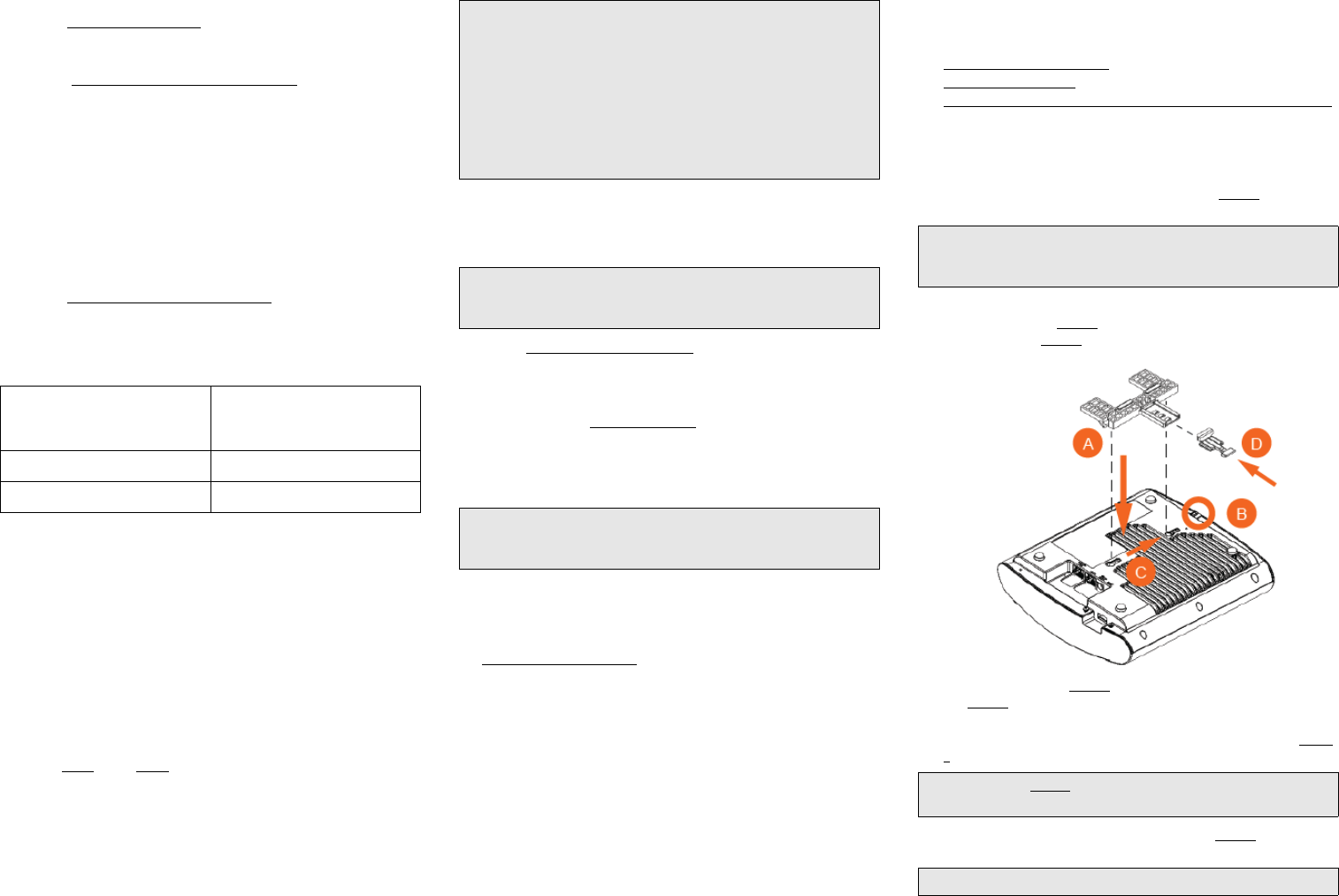
APosition the studs on the bottom of the T-bar bracket (A in Figure 3) in the keyholes
on the AP enclosure.
BSlide the T-bar bracket away from the Ethernet ports on the bottom of the AP until
the AP retainer tab (B in Figure 3) snaps into place, trapping the T-bar bracket studs
in the keyholes (C in Figure 3).
Figure 3. Attaching the T-bar bracket to the AP
CInsert the locking tab (D in Figure 3) so it is in the first position on the T-bar bracket
(A in Figure 3).
DGently push the ceiling tiles, if present, up and out of the way.
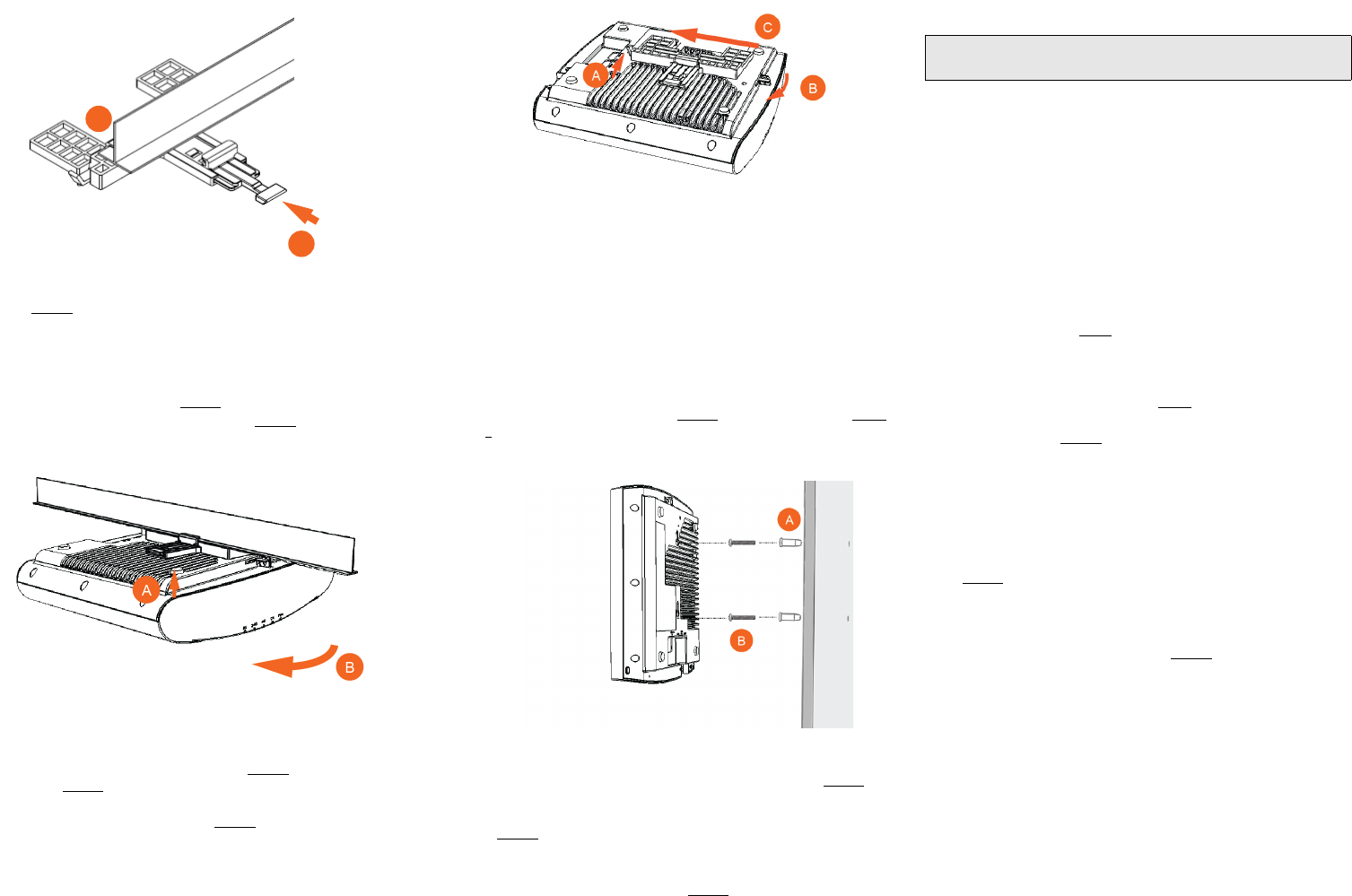
EPosition the T-bar bracket so its two clasps grip one edge of the T-bar (A in Figure
4). Make sure that both clasps are gripping the T-bar.
FHold the AP in place and gently push the locking tab (B in Figure 4) until its clasp
grips the other edge of the T-bar.
Table 1. Default AP Settings (for your reference)
Network Names (SSIDs) Wireless1—Wireless8 (2.4GHz
radio)
Wireless9—Wireless16 (5GHz radio)
Security (Encryption method) Disabled for each wireless interface
Default Management IP Address 192.168.0.1
Optional: In a default R720 AP configuration, the AP uses a DHCP-
assigned IP address.
If you anticipate logging into the AP regularly to perform
monitoring or maintenance once it is in place, then you may want
to consider switching from DHCP and instead assigning a static IP
address to the AP.
aOn the menu, click Configuration > Internet.
bClick the Static IP option.
cFill in the IP Address and Mask fields.
dClick Update Settings to save your changes.
Note: You can use a Ruckus Wireless controller for bulk AP
provisioning and performing other commands. Refer to the
controller documents for instructions.
Note: If you will be using PoE, then you will need a Cat 5e (or
better) Ethernet cable to connect the AP to the PoE injector or PoE
switch.
Note: There is a second set of keyholes that are for optional
sideways mounting on a drop-ceiling T-bar. Physical security is
not supported when mounting the AP with this set of keyholes.
Note: For clarity, Figure 4 only shows the T-bar bracket and the T-
bar, and does not show the AP.
Note: Make sure that all three clasps are gripping the T-bar!
Copyright © 2017 Ruckus Wireless, Inc. Page 3 of 4
Published April 2017, Part Number 800-70874-001 Rev C
Figure 4. Attaching the T-bar bracket to the T-bar
G(Optional) Attach a customer-supplied padlock through the bracket AP retainer tab (B
in Figure 3) to lock the AP to the T-bar bracket studs.
When you are done, the AP is mounted.
Removing the AP from the T-bar:
AMove the ceiling tiles out of the way, if present.
BGently lift up the locking tab (A in Figure 5) by sliding your finger under the tab.
CRotate the AP- and-T-bar bracket assembly (B in Figure 5). The AP- and-T-bar
bracket assembly comes away from the T-bar.
Figure 5. Removing the AP and T-bar bracket from the T-bar
Removing the T-bar bracket from the AP:
AIf the AP is locked to the T-bar bracket, then remove the lock.
BGently lift up the T-bar bracket locking tab (A in Figure 6) and push the AP retainer
tab (B in Figure 6) to the side at the same time.
CWhile lifting up the T-bar bracket locking tab and pushing the AP retainer tab to the
side, gently push the T-bar bracket (C in Figure 6) toward the Ethernet ports on the
bottom of the AP until the bracket detaches from the AP.
Figure 6. Removing the T-bar bracket from the AP
Mounting on a Flat Surface
The factory-supplied mounting screws and plastic wall anchors allow you to attach the AP
to a wall or ceiling.
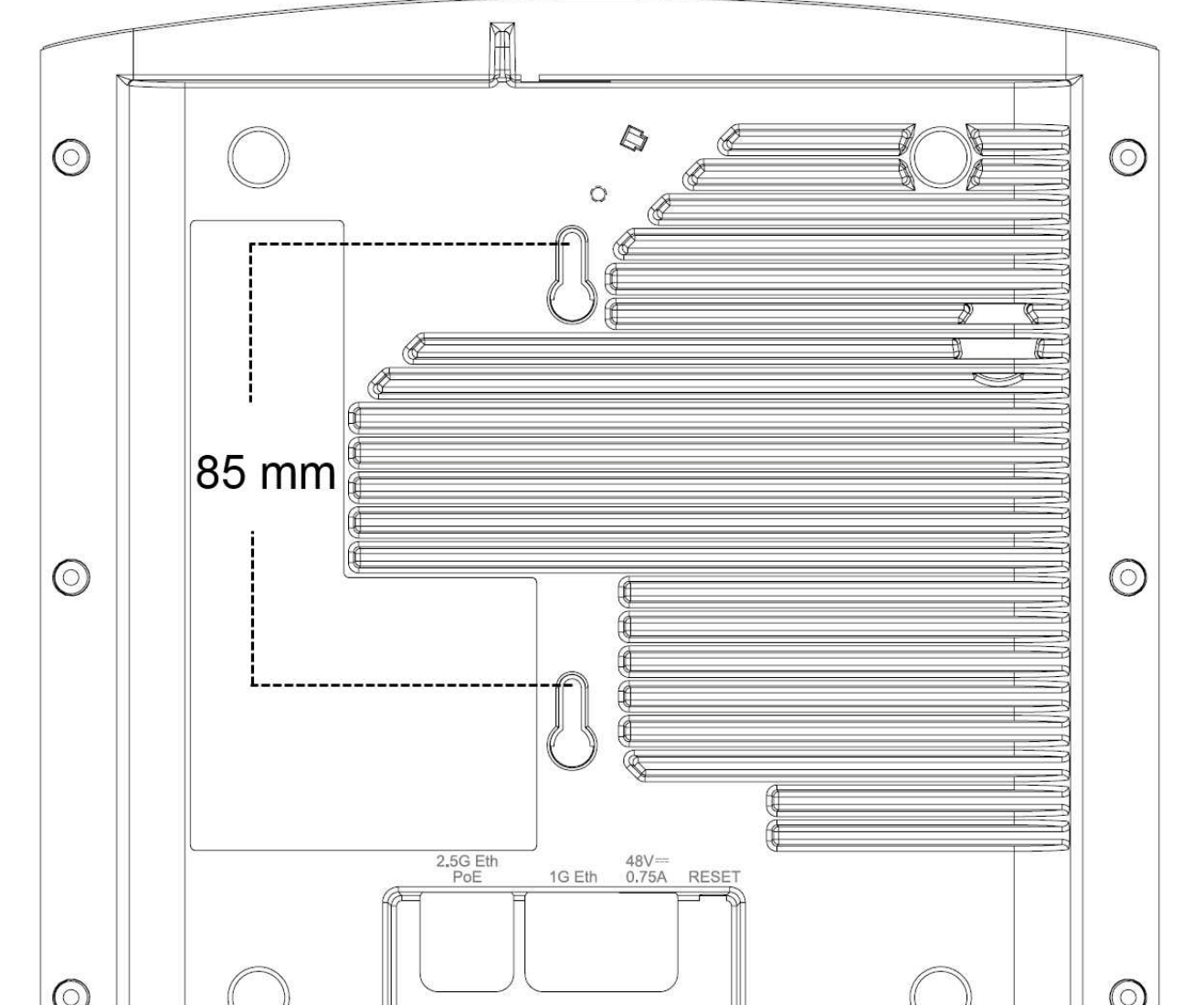
AUse the Mounting Template on the last page of this Quick Setup Guide to mark the
locations for two drill holes on the mounting surface.
Note: There is a second set of keyholes that are for optional sideways mounting on
a flat surface. Physical security is not supported when mounting the AP with this set
of keyholes.
BUse a 4.75mm (3/16”) drill bit to drill holes approximately 25mm (1”) deep into the
mounting surface.
CInsert the factory-supplied anchors (A in Figure 7) and mounting screws (B in Figure
7) into the mounting surface, leaving approximately 6 mm (1/4”) of the screw heads
protruding for the AP enclosure.
Figure 7. Flat surface mounting
DPlace the AP onto the mounting screws so the screw heads enter the keyholes on
the AP enclosure, and push the AP down until the AP retainer tab (B in Figure 6)
snaps into place.
E(Optional) Attach a customer-supplied padlock through the integral AP retainer tab (B
in Figure 6) to lock the AP to the mounting screw heads.
Removing the AP from the factory-supplied mounting screws:
• Push sideways on the AP retainer tab (B in Figure 6), to unlock, then push the AP up
to release the AP enclosure from the mounting screws.
Mounting on a Flat Surface or Pole Using the
Optional Secure Mounting Bracket
The customer-ordered Ruckus Wireless secure mounting bracket kit (ordering part
number 902-0120-0000) includes a metal mounting bracket and provides greater
security when attaching the AP to flat surfaces (walls and ceilings) and to poles.
• If you are mounting the AP on a flat surface, then you will also need an electric drill
with a 4.75mm (3/16”) drill bit, and the four No. 6 zinc plated screws and plastic wall
anchors included with the kit.
• If you are mounting the AP on a truss or pole, then you will also need the two pipe
clamps included with the kit.
Continue with the following:
AIf you are mounting the AP on a flat surface, then use the secure mounting bracket
as a template to mark the locations for four drill holes on the mounting surface.
There are four screw holes available on the secure mounting bracket.
Fasten the bracket to the flat surface using four mounting screws and plastic wall
anchors and continue with Step C.
BIf you are mounting the AP on a pipe or pole, then feed the two stainless steel
clamps included with the kit through the slots on the secure mounting bracket. Use
common hand tools to tighten the clamps around the pipe or pole.
After the bracket is attached, continue with Step C.
CInsert the two studs on the secure mounting bracket into the keyholes on the bottom
of the AP, as shown in Figure 3.
Note: There is a second set of keyholes that are for optional sideways mounting on
a flat surface. Physical security is not supported when mounting the AP with this set
of keyholes.
DSlide the AP toward the Ethernet ports on the AP. The AP has a built-in lock for the
secure mounting bracket studs, and snaps into the locked position when the studs
are fully in the keyholes.
E(Optional) Attach a customer-supplied padlock through the integral AP retainer tab (B
in Figure 6) to fasten the AP to the secure mounting bracket studs.
Removing the AP from the secure mounting bracket:
AIf the AP is locked to the secure mounting bracket, then remove the lock.
BGently push and hold the AP retainer tab (B in Figure 6) to the side to release the
secure mounting bracket.
CWhile holding the AP retainer tab to the side, slide the AP away from the Ethernet
ports on the bottom of the AP.
FOR MORE INFORMATION
You can now use the wireless network to log into the AP’s Web interface. For information
on how to configure the AP, refer to the R720 Access Point User Guide, or refer to the
appropriate Ruckus Wireless AP controller or AP manager user documents.
A
B
Note: For more complete instructions, refer to the Mounting Guide
that comes with the secure mounting bracket.
Copyright © 2017 Ruckus Wireless, Inc. Page 4 of 4
Published April 2017, Part Number 800-70874-001 Rev C
