Ruckus Virtual SmartZone Getting Started Guide For 3.4 Smart Zone (GA) GSG (v SCG/v SZ) Vsz 34 Rev C 20171213
SmartZone 3.4 (GA) Getting Started Guide - GSG (vSZ-H/vSZ-E) Vsz-34-GettingStartedGuide-RevC-20171213
2017-12-14
User Manual: Ruckus SmartZone 3.4 (GA) Getting Started Guide - GSG (vSCG/vSZ)
Open the PDF directly: View PDF  .
.
Page Count: 199 [warning: Documents this large are best viewed by clicking the View PDF Link!]
- Contents
- Copyright Notice and Proprietary Information
- Document Conventions
- Documentation Feedback
- Online Training Resources
- About This Guide
- Preparing to Install the vSZ
- Installing the vSZ on a Hypervisor
- Installing the vSZ on Microsoft Azure
- Logging into Microsoft Azure
- Creating a Storage Account and Container
- Uploading the vSZ Image to Microsoft Azure
- Creating a vSZ Image on Microsoft Azure
- Creating a Network
- Creating a vSZ Virtual Machine
- Configuring Port Numbers for Virtual Machines
- Assigning a Static Public IP Address to a VM
- Assigning a Static Internal IP Address to a Virtual Machine
- Installing vSZ on the Google Computing Engine
- Installing vSZ on Amazon Web Services
- Configuring the Virtual Machine Interfaces
- Using the Setup Wizard to Install vSZ
- Before You Begin
- Step 1: Start the Setup Wizard and Set the Language
- Step 2: Select the Profile Configuration That Corresponds to Your vSZ License
- Step 3: Configure the Management IP Address Settings
- Step 4: Configure Dual Mode IP Address Settings Using CLI
- Step 5: Configure the Cluster Settings
- Step 6: Set the Administrator Password
- Step 7: Changing the Administrator Password
- Step 8: Verify the Settings
- Logging On to the Web Interface
- Configuring the vSZ High Scale for the First Time
- Ensuring That APs Can Discover the Controller on the Network
- Is LWAPP2SCG Enabled on the Controller
- Method 1: Perform Auto Discovery of the Controller Using the SmartLicense Server
- Method 2: Perform Auto Discovery on Same Subnet then Transfer the AP to Intended Subnet
- Method 3: Register the Controller with the DNS Server
- Method 4: Configure DHCP Option 43 on the DHCP Server
- Method 5: Manually Configure the Controller Address on the AP’s Web Interface
- What to Do Next
- Bandwidth Consumption During AP Upgrade on vSZ
- Upgrading the Controller for Microsoft Azure, AWS, and GCE Platforms
- AP-SCG/SZ/vSZ/vSZ-D Communication

Ruckus Wireless™ Virtual SmartZone™
Getting Started Guide for SmartZone 3.4
Part Number: 800-71296-001 Rev C
Published: 13 December 2017
www.ruckuswireless.com
Contents
Copyright Notice and Proprietary Information
Document Conventions
Documentation Feedback
Online Training Resources
1 About This Guide
2 Preparing to Install the vSZ
Obtaining the vSZ Distribution.....................................................................................13
Preparing the vSZ Interface Settings to Use................................................................13
Determining the System Resources That Virtual Machine Requires..............................14
3 Installing the vSZ on a Hypervisor
Preparing a Hypervisor................................................................................................16
Installing the vSZ on VMWare vSphere Hypervisor.......................................................16
Before You Begin..............................................................................................16
Creating a vSZ Instance from the OVA File........................................................16
Allocating Resources and Assigning Network Interfaces....................................27
Powering on the vSZ virtual machine.................................................................29
Installing the vSZ on Windows Server Hyper V.............................................................29
Installing the vSZ on a Kernel based Virtual Machine Hypervisor..................................39
Extracting the vSZ Image...................................................................................39
Setting Up the vSZ............................................................................................42
4 Installing the vSZ on Microsoft Azure
Logging into Microsoft Azure.......................................................................................51
Creating a Storage Account and Container.................................................................55
Uploading the vSZ Image to Microsoft Azure...............................................................57
Creating a vSZ Image on Microsoft Azure....................................................................59
Creating a Network.....................................................................................................61
Creating a vSZ Virtual Machine....................................................................................63
Configuring Port Numbers for Virtual Machines...........................................................69
Assigning a Static Public IP Address to a VM..............................................................73
Ruckus Wireless™ Virtual SmartZone™ Getting Started Guide for SmartZone 3.4
2
Assigning a Static Internal IP Address to a Virtual Machine..........................................77
5 Installing vSZ on the Google Computing Engine
Logging into GCE and Selecting a Project...................................................................83
Creating a Storage Bucket..........................................................................................86
Uploading the vSZ image to a Storage........................................................................90
Creating a vSZ Image for Virtual Machines..................................................................91
Creating Networks and Configuring Firewall Rules.......................................................95
Creating Virtual Machine (VM) Instances......................................................................98
6 Installing vSZ on Amazon Web Services
Installing AWS CLI.....................................................................................................104
Creating a VM Import Service Role............................................................................105
Installing vSZ on AWS...............................................................................................106
Logging into AWS............................................................................................106
Creating a Storage Bucket..............................................................................107
Uploading vSZ Image to a Storage..................................................................109
AWS Service Policy.........................................................................................110
Importing vSZ Image.......................................................................................111
Creating vSZ Instance...............................................................................................113
Configuring AWS for a vSZ Instance..........................................................................120
Attach a New Disk Volume..............................................................................120
Allocate a Public IP Address............................................................................121
Change Security Group...................................................................................123
Deleting a vSZ Instance.............................................................................................124
7 Configuring the Virtual Machine Interfaces
Setting Up the vSZ with One Interface.......................................................................126
Setting Up the vSZ with Three Interfaces...................................................................130
Important Notes About Selecting the System Default Gateway..................................133
8 Using the Setup Wizard to Install vSZ
Before You Begin......................................................................................................134
Step 1: Start the Setup Wizard and Set the Language...............................................134
Step 2: Select the Profile Configuration That Corresponds to Your vSZ License........135
Step 3: Configure the Management IP Address Settings...........................................136
Important Notes About Selecting the System Default Gateway........................142
Ruckus Wireless™ Virtual SmartZone™ Getting Started Guide for SmartZone 3.4
3
Step 4: Configure Dual Mode IP Address Settings Using CLI.....................................142
Step 5: Configure the Cluster Settings.......................................................................150
If This vSZ Is Forming a New Cluster...............................................................151
If This vSZ Is Joining an Existing Cluster..........................................................152
Step 6: Set the Administrator Password....................................................................153
Step 7: Changing the Administrator Password..........................................................154
To change the password using CLI mode: .....................................................154
Step 8: Verify the Settings.........................................................................................154
Logging On to the Web Interface...............................................................................156
9 Configuring the vSZ High Scale for the First Time
Creating an AP Zone.................................................................................................158
Configuring AAA Servers and Hotspot Settings.........................................................161
Adding an AAA Server.....................................................................................161
Creating a Hotspot Service..............................................................................163
Creating a Registration Rule......................................................................................165
Configuring the Rule Priority............................................................................166
Defining the WLAN Settings of an AP Zone...............................................................167
General Options..............................................................................................169
WLAN Usage...................................................................................................169
Authentication Options....................................................................................170
Encryption Options..........................................................................................170
Authentication and Accounting Service............................................................171
Options...........................................................................................................171
RADIUS Options..............................................................................................171
Advanced Options...........................................................................................172
Configuring DHCP Option 43....................................................................................173
Verifying That Wireless Clients Can Associate with a Managed AP............................174
What to Do Next.......................................................................................................175
10 Ensuring That APs Can Discover the Controller on the Network
Is LWAPP2SCG Enabled on the Controller................................................................176
Obtaining the LWAPP2SCG Application..........................................................177
Enabling LWAPP2SCG....................................................................................177
Method 1: Perform Auto Discovery of the Controller Using the SmartLicense
Server...................................................................................................................177
Method 2: Perform Auto Discovery on Same Subnet then Transfer the AP to Intended
Subnet..................................................................................................................178
Ruckus Wireless™ Virtual SmartZone™ Getting Started Guide for SmartZone 3.4
4
Method 3: Register the Controller with the DNS Server.............................................178
Method 4: Configure DHCP Option 43 on the DHCP Server......................................180
Method 5: Manually Configure the Controller Address on the AP’s Web Interface.....183
What to Do Next.......................................................................................................184
Bandwidth Consumption During AP Upgrade on vSZ................................................185
11 Upgrading the Controller for Microsoft Azure, AWS, and GCE
Platforms
Performing the Upgrade............................................................................................186
Verifying the Upgrade................................................................................................189
Rolling Back to a Previous Software Version..............................................................189
Backing Up and Restoring Clusters.................................................................190
AP-SCG/SZ/vSZ/vSZ-D Communication
Ruckus Wireless™ Virtual SmartZone™ Getting Started Guide for SmartZone 3.4
5
Copyright Notice and Proprietary Information
Copyright 2016. Ruckus Wireless, Inc. All rights reserved.
No part of this documentation may be used, reproduced, transmitted, or translated, in any form
or by any means, electronic, mechanical, manual, optical, or otherwise, without prior written
permission of Ruckus Wireless, Inc. (“Ruckus”), or as expressly provided by under license from
Ruckus.
Destination Control Statement
Technical data contained in this publication may be subject to the export control laws of the
United States of America. Disclosure to nationals of other countries contrary to United States
law is prohibited. It is the reader’s responsibility to determine the applicable regulations and to
comply with them.
Disclaimer
THIS DOCUMENTATION AND ALL INFORMATION CONTAINED HEREIN (“MATERIAL”) IS
PROVIDED FOR GENERAL INFORMATION PURPOSES ONLY. RUCKUS AND ITS LICENSORS
MAKE NO WARRANTY OF ANY KIND, EXPRESS OR IMPLIED, WITH REGARD TO THE
MATERIAL, INCLUDING, BUT NOT LIMITED TO, THE IMPLIED WARRANTIES OF
MERCHANTABILITY, NON-INFRINGEMENT AND FITNESS FOR A PARTICULAR PURPOSE,
OR THAT THE MATERIAL IS ERROR-FREE, ACCURATE OR RELIABLE. RUCKUS RESERVES
THE RIGHT TO MAKE CHANGES OR UPDATES TO THE MATERIAL AT ANY TIME.
Limitation of Liability
IN NO EVENT SHALL RUCKUS BE LIABLE FOR ANY DIRECT, INDIRECT, INCIDENTAL, SPECIAL
OR CONSEQUENTIAL DAMAGES, OR DAMAGES FOR LOSS OF PROFITS, REVENUE, DATA
OR USE, INCURRED BY YOU OR ANY THIRD PARTY, WHETHER IN AN ACTION IN CONTRACT
OR TORT, ARISING FROM YOUR ACCESS TO, OR USE OF, THE MATERIAL.
Trademarks
Ruckus Wireless, Ruckus, the bark logo, BeamFlex, ChannelFly, Dynamic PSK, FlexMaster,
Simply Better Wireless, SmartCell, SmartMesh, SmartZone, Unleashed, ZoneDirector and
ZoneFlex are trademarks of Ruckus Wireless, Inc. in the United States and other countries. All
other product or company names may be trademarks of their respective owners.
Ruckus Wireless™ Virtual SmartZone™ Getting Started Guide for SmartZone 3.4
6
Copyright Notice and Proprietary Information
Document Conventions
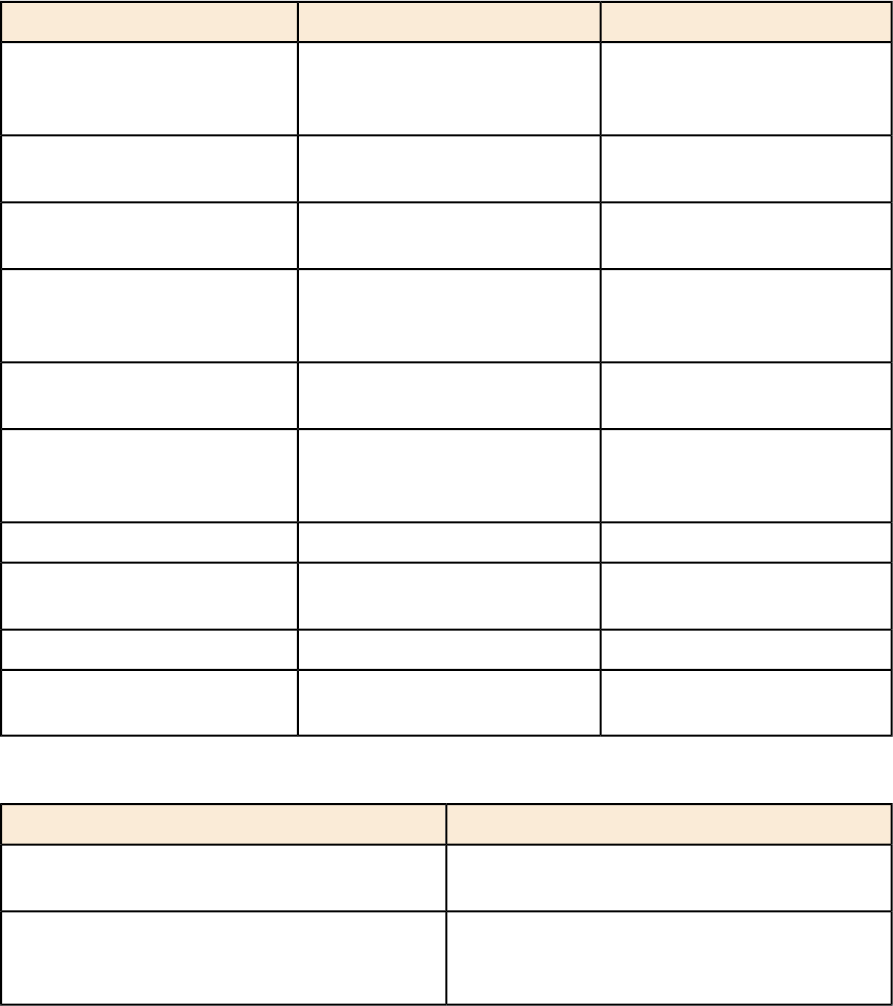
Table 1: Text conventions on page 7 and Table 2: Notice conventions on page 7 list the text
and notice conventions that are used throughout this guide.
Table 1: Text conventions
ExampleDescriptionConvention
[Device Name] >Represents messages
displayed in response to a
command or a status
message phrase
[Device Name] > set
ipaddr 10.0.0.12
Represents information that you
enter
user input
Click Create NewKeyboard keys, software
buttons, and field names
user interface controls
Select Start > All ProgramsRepresents a series of
commands, or menus and
submenus
Start > All Programs
Press ctrl+V to paste the text
from the clipboard.
Represents keyboard keys
pressed in combination
ctrl+V
Click Advanced Settings. The
Advanced Settings page
appears.
screen or page names
Represents CLI commandscommand name
Represents a parameter in a
CLI command or UI feature
parameter name
{ZoneDirectorID}Represents variable datavariable name
http://ruckuswireless.comRepresents file names or URI
strings
filepath
Table 2: Notice conventions
DescriptionNotice type
Information that describes important features
or instructions
NOTE:
Information that alerts you to potential loss of
data or potential damage to an application,
system, or device
CAUTION:
Ruckus Wireless™ Virtual SmartZone™ Getting Started Guide for SmartZone 3.4
7
7

DescriptionNotice type
Information that alerts you to potential personal
injury
WARNING:
Ruckus Wireless™ Virtual SmartZone™ Getting Started Guide for SmartZone 3.4
8
Document Conventions
Documentation Feedback
Ruckus Wireless is interested in improving its documentation and welcomes your comments
and suggestions.
You can email your comments to Ruckus Wireless at: docs@ruckuswireless.com
When contacting us, please include the following information:
•Document title
•Document part number (on the cover page)
•Page number (if appropriate)
Ruckus Wireless™ Virtual SmartZone™ Getting Started Guide for SmartZone 3.4
9
9
Online Training Resources
To access a variety of online Ruckus Wireless training modules, including free introductory
courses to wireless networking essentials, site surveys, and Ruckus Wireless products, visit the
Ruckus Wireless Training Portal at:
https://training.ruckuswireless.com.
Ruckus Wireless™ Virtual SmartZone™ Getting Started Guide for SmartZone 3.4
10
Online Training Resources
1
About This Guide
This Virtual SmartZone™ (vSZ) Getting Started Guide provides information on how to set up the vSZ
virtual appliance on the network. You can install the vSZ on any of the supported hypervisors.
Topics covered in this guide include preparing your chosen hypervisor. installing the vSZ image on
to the hypervisor, and completing the vSZ Setup Wizard.
This guide is intended for use by those responsible for installing and setting up network equipment.
Consequently, it assumes a basic working knowledge of local area networking, wireless networking,
and wireless devices.
NOTE: If release notes are shipped with your product and the information there differs from the
information in this guide, follow the instructions in the release notes.
Most user guides and release notes are available in Adobe Acrobat Reader Portable Document Format
(PDF) or HTML on the Ruckus Wireless Support website at
https://support.ruckuswireless.com/documents.
Document Conventions
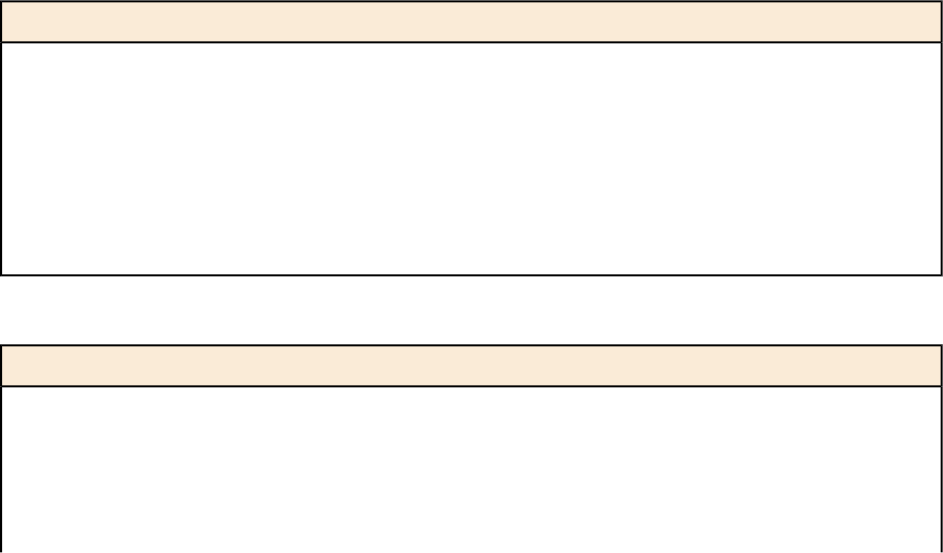
Table 1 and Table 2 list the text and notice conventions that are used throughout this guide.
Table 3: Text Conventions
ExampleDescriptionConvention
[Device name]>Represents information as it
appears on screen
monospace
[Device name]> set ipaddr
10.0.0.12
Represents information that you
enter
monospace bold
Click Advanced Settings. The
Advanced Settings page
appears.
Screen or page namesitalics
Table 4: Notice Conventions
DescriptionNotice Type
Information that describes important features or
instructions
NOTE
Information that alerts you to potential loss of data
or potential damage to an application, system, or
device
CAUTION!
Ruckus Wireless™ Virtual SmartZone™ Getting Started Guide for SmartZone 3.4
11
11
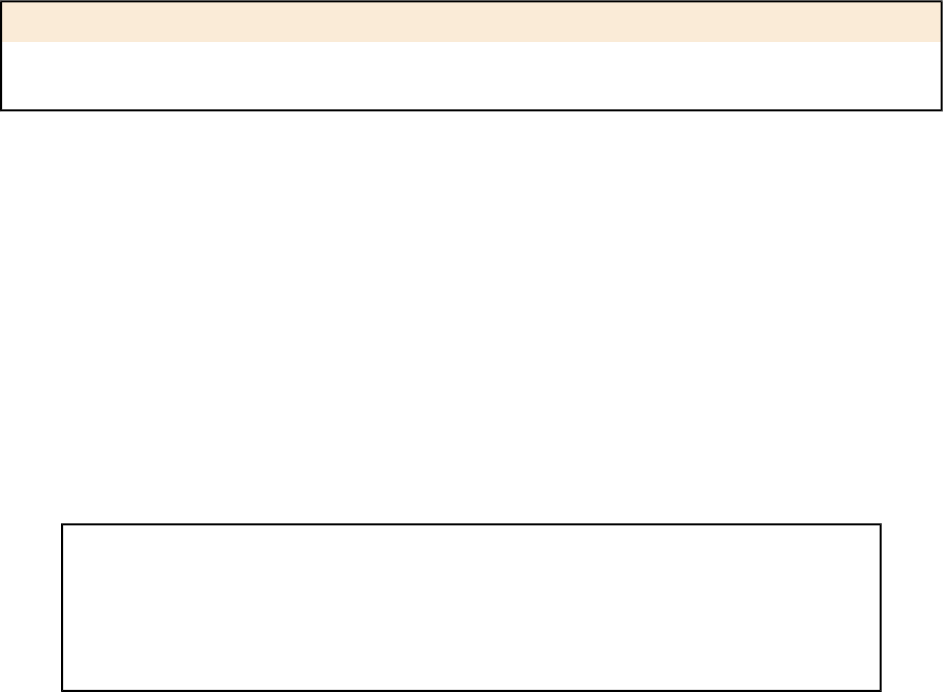
DescriptionNotice Type
Information that alerts you to potential personal
injury
WARNING!
Related Documentation
For a complete list of documents that accompany this release, refer to the Release Notes.
Documentation Feedback
Ruckus Wireless is interested in improving its documentation and welcomes your comments and
suggestions. You can email your comments to Ruckus Wireless at:
https://support.ruckuswireless.com/documents.
When contacting us, please include the following information:
•Document title
•Document part number (on the cover page)
•Page number (if appropriate)
For example:
•Virtual SmartZone (vSZ) Getting Started Guide
•Part number: 800-71029-001
•Page 88
Ruckus Wireless™ Virtual SmartZone™ Getting Started Guide for SmartZone 3.4
12
About This Guide
2
Preparing to Install the vSZ
In this chapter:
•Obtaining the vSZ Distribution
•Preparing the vSZ Interface Settings to Use
•Determining the System Resources That Virtual Machine Requires
Obtaining the vSZ Distribution
You have to download the .OVA file and documentation for the controller from the vSZ download
page on the Ruckus Wireless support website. The vSZ distribution package, which is based
on the Open Virtualization Format (OVF) framework, consists of a virtual appliance.
Preparing the vSZ Interface Settings to Use
vSZ comes with the option to operate with either one (1) network interface or three (3) network
interfaces. Once the network interface configuration has been made and setup executed, the
number of network interfaces can no longer be modified.
CAUTION: If you choose to operate the vSZ with three network interfaces, you must configure
the three vSZ interfaces to be on three different subnets when you run the Setup Wizard. Failure
to do so may result in loss of access to the web interface or failure of system functions and
services.
•IP address
•Netmask
•Gateway
•Primary DNS server
•Secondary DNS server
Table 5: vSZ interfaces
DescriptionInterface
Used for AP configuration and client trafficAP
Used for cluster trafficCluster
Used for management traffic. The IP address
that you assign to this interface will be the IP
Management (Web)
address at which you can access the vSZ web
interface.
Ruckus Wireless™ Virtual SmartZone™ Getting Started Guide for SmartZone 3.4
13
13
Determining the System Resources That Virtual Machine
Requires
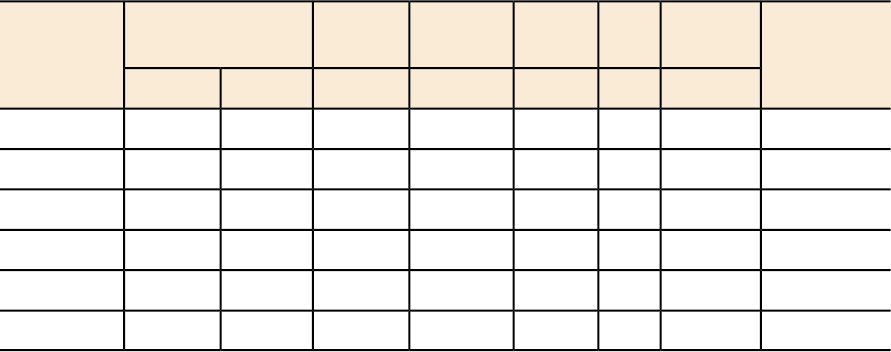
The number of APs and clients that vSZ can support depends on the system resources (CPU
and memory) that the virtual machine running vSZ has.
vSZ is capable of automatically scaling to and supporting a higher number of APs and clients if
it determines, at system bootup, that there is sufficient CPU and memory on the virtual machine
to support more APs and clients. Table 6: High Scale profile configuration: Recommended
system resources on page 14 and Table 7: Essentials profile configuration: Recommended
system resources on page 15 list the maximum recommended number of APs and clients that
the vSZ can support based on the available vCPU and memory available on the virtual machine.
The first row in Table 6: High Scale profile configuration: Recommended system resources on
page 14, for example, shows that to support up to 100 APs, the vSZ must have at least 2-core
CPU and 13GB of RAM. Whenever the CPU or memory settings are changed, the virtual controller
instance must be rebooted for the updated settings to be applied to it.
CAUTION: When either the AP count or the wireless client count reaches the maximum limit
specified in the tables, you must allocate additional system resources to the VM. For example,
if a VM is allocated with Level 1 resources to handle 100 APs and the AP count increases to
101, you must update the VM to Level 2 resources to prevent performance-related issues.
All resource levels in the following tables are provided based on Intel Xeon CPU E5- 2630v2
@2.60 GHz. If the server on which you are hosting the controller software is using a different
CPU generation and/or model, it may perform differently. In this case, CPU adjustments can be
made to generate the same level of performance.
CAUTION: The minimum memory and CPU requirements have changed in this release. You
may need to upgrade your infrastructure before upgrading. Please read carefully. This is the
minimum requirement recommended.
Table 6: High Scale profile configuration: Recommended system resources
Resource
Level
Preserved
Events
RAMvCPUDisk SizeClient
Count
AP Count per
Cluster
Nodes per
Cluster
ToGBCoreGBToToFrom
83M4824600300,00030,00010,0013-4
73M4824600100,00010,0002,5011-2
61.5M19630050,0002,5001,0011-2
5600k15410020,0001,0005011-2
4300k14410010,0005001011-2
360k1321002,00010011-2
Ruckus Wireless™ Virtual SmartZone™ Getting Started Guide for SmartZone 3.4
14
Preparing to Install the vSZ
Determining the System Resources That Virtual Machine Requires
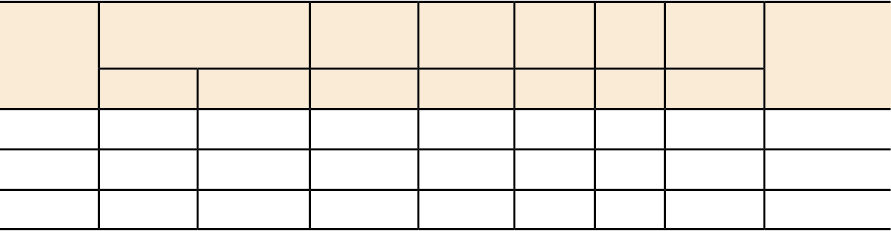
Table 7: Essentials profile configuration: Recommended system resources
Resource
Level
Preserved
Events
RAMvCPUDisk
Size
Client
Count
AP Count per
Cluster
Nodes
per
Cluster ToGBCoreGBToToFrom
310k23825060,0003,0001,0253-4
210k23825025,0001,0241011-2
11k1521002,00010011-2
Clustering Limitations for vSZ-H
•vSZ-H supports up to 10,000 APs per node or 30,000 APs per cluster, assuming proper
system resources are made available. It supports clustering of up to 4 nodes when using
Resource Level 7.
•At 4 nodes, the maximum number of APs and clients that can be supported are 30,000 and
300,000 respectively.
Clustering Limitations for vSZ-E
•vSZ-E supports up to 1024 APs per node or 3000 APs per cluster, assuming proper system
resources are available. It supports clustering of up to 4 nodes when using Resource Level
2.
•Above 2 nodes in a cluster at Resource Level 2, additional 2 CPU cores need to be added
to each node to support the added search capabilities and replication.
•At 4 nodes, the maximum number of APs and clients that can be supported are 3,000 and
60,000 respectively.
•NAT operation for vSZ cluster – Currently, each node requires its own public IP address for
its NAT'ed interface. As such, a 1:1 NAT is recommended for setting up a cluster behind a
NAT environment.
Ruckus Wireless™ Virtual SmartZone™ Getting Started Guide for SmartZone 3.4
15
Preparing to Install the vSZ
Determining the System Resources That Virtual Machine Requires
3
Installing the vSZ on a Hypervisor
In this chapter:
•Preparing a Hypervisor
•Installing the vSZ on VMWare vSphere Hypervisor
•Installing the vSZ on Windows Server Hyper V
•Installing the vSZ on a Kernel based Virtual Machine Hypervisor
Preparing a Hypervisor
This section lists the hypervisors (and their release versions) on which you can install the vSZ.
Table 8: Hypervisors that the vSZ supports
VersionHypervisorVendor
5.5 and laterESXiVMWare
Windows Server Hyper-V (2012
R2)
Windows Server Hyper-VWindows
7.0 (64bit)CentOSKVM
Installing the vSZ on VMWare vSphere Hypervisor
You have to install the vSZ on a VMWare vSphere hypervisor.
Before You Begin
You have to complete the prerequisites before installing the vSZ on VMWare vSphere.
Verify that you have the prerequisites before installing the vSZ on VMWare vSphere.
•Verify that vSphere client is installed.
•You can deploy the vSZ only on hosts that are running ESXi version 5.5 and later.
•The vSZ appliance requires at least 100GB of disk space and is limited to a maximum size
of 600GB. The vSZ appliance can be deployed with thinprovisioned virtual disks that can
grow to the maximum size of 600GB.
Creating a vSZ Instance from the OVA File
You can create a vSZ instance using the vSphere Web Client.
Before continuing, ensure you have already downloaded the vSZ distribution package from the
Ruckus Wireless. See Obtaining the vSZ Distribution for more information.
Follow these steps to create a vSZ instance from the OVA file.
Ruckus Wireless™ Virtual SmartZone™ Getting Started Guide for SmartZone 3.4
16
Installing the vSZ on a Hypervisor
Preparing a Hypervisor
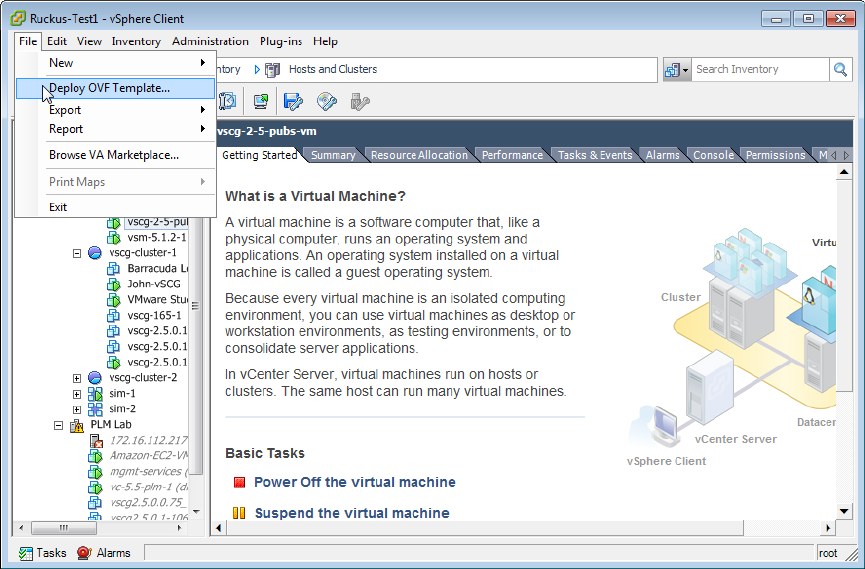
1. Use the VMWare vSphere client to log on to the ESXi management interface.
2. Click File> Deploy OVF Template. The Source screen of the Deploy OVF Template wizard
appears.
Figure 1: Click Deploy OVF Template
3. Click Browse to locate the .ova file that you downloaded earlier. Select the template.
Ruckus Wireless™ Virtual SmartZone™ Getting Started Guide for SmartZone 3.4
17
Installing the vSZ on a Hypervisor
Installing the vSZ on VMWare vSphere Hypervisor
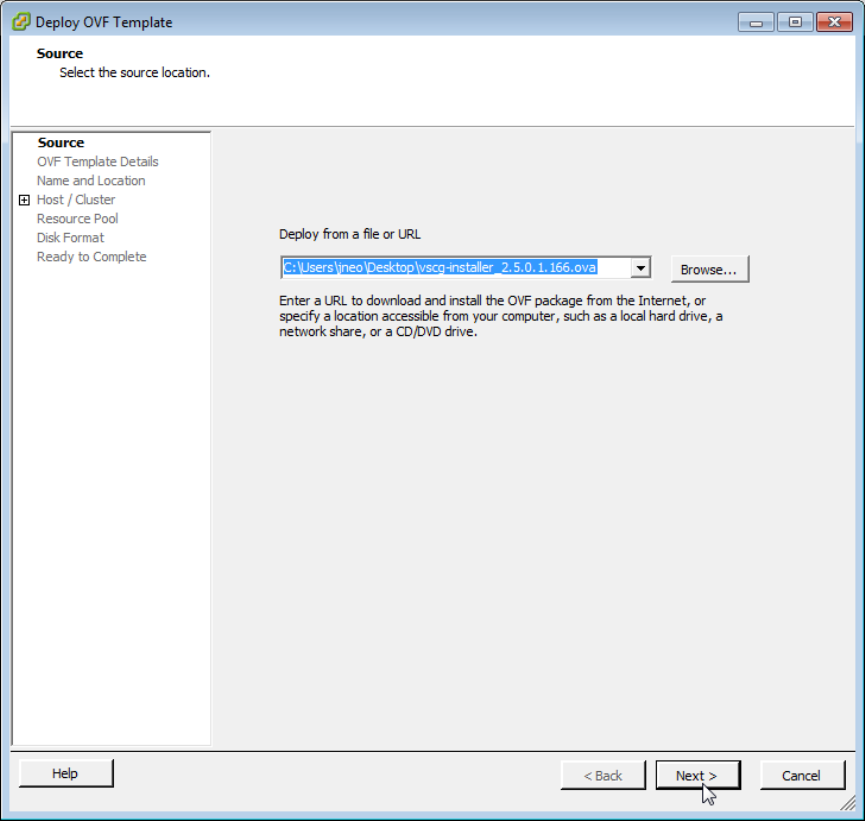
Figure 2: Click Browse, and then locate and select .ova file
4. Click Next. The OVF Template Details screen appears.
Ruckus Wireless™ Virtual SmartZone™ Getting Started Guide for SmartZone 3.4
18
Installing the vSZ on a Hypervisor
Installing the vSZ on VMWare vSphere Hypervisor
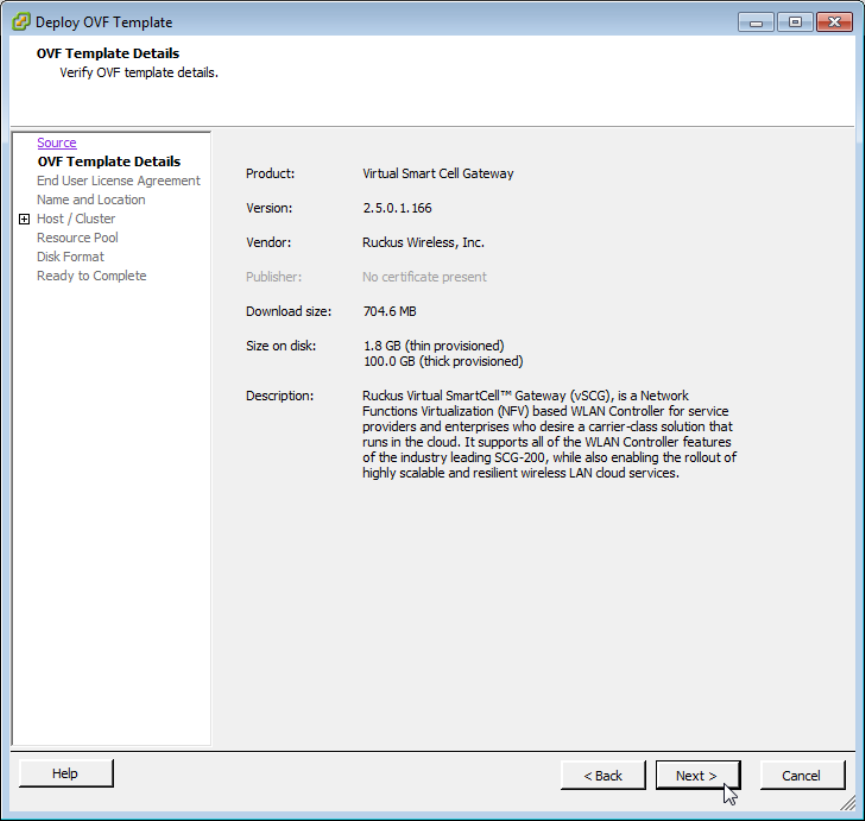
Figure 3: The OVF Template Details screen
5. Review the OVA virtual appliance details, and then click Next. The End User License
Agreement (EULA) screen appears.
6. Click Accept to agree to the EULA terms, and then click Next. The Host/Cluster screen
appears.
Ruckus Wireless™ Virtual SmartZone™ Getting Started Guide for SmartZone 3.4
19
Installing the vSZ on a Hypervisor
Installing the vSZ on VMWare vSphere Hypervisor
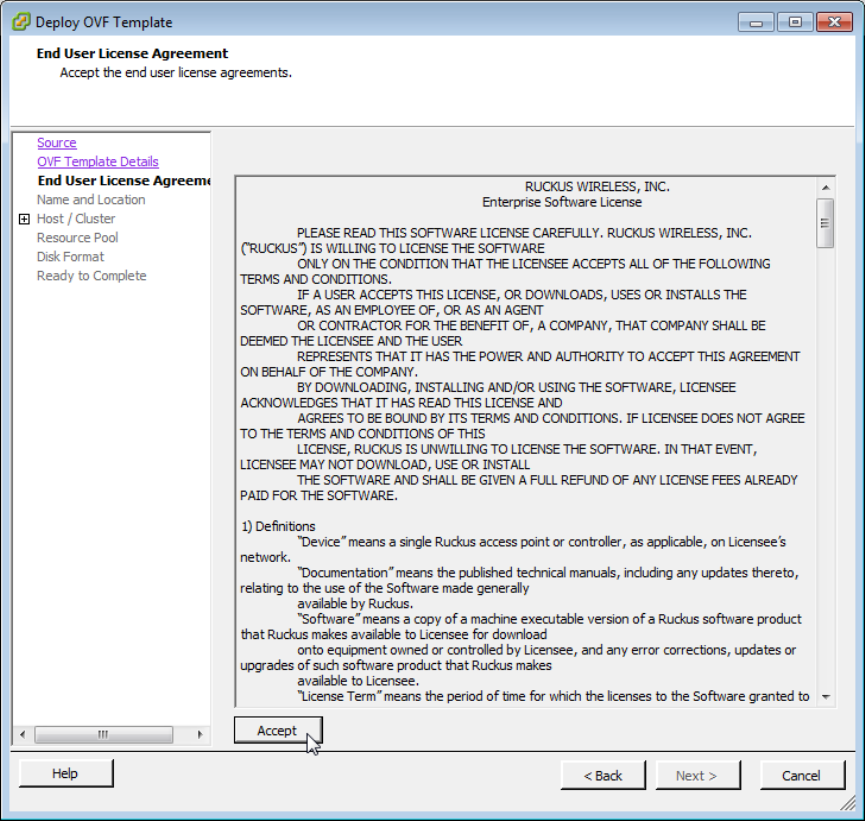
Figure 4: Accept the EULA for the vSZ OVA
7. Select the host or cluster on which you want to run the deployed template, and then click
Next. The Resource Pool screen appears.
Ruckus Wireless™ Virtual SmartZone™ Getting Started Guide for SmartZone 3.4
20
Installing the vSZ on a Hypervisor
Installing the vSZ on VMWare vSphere Hypervisor
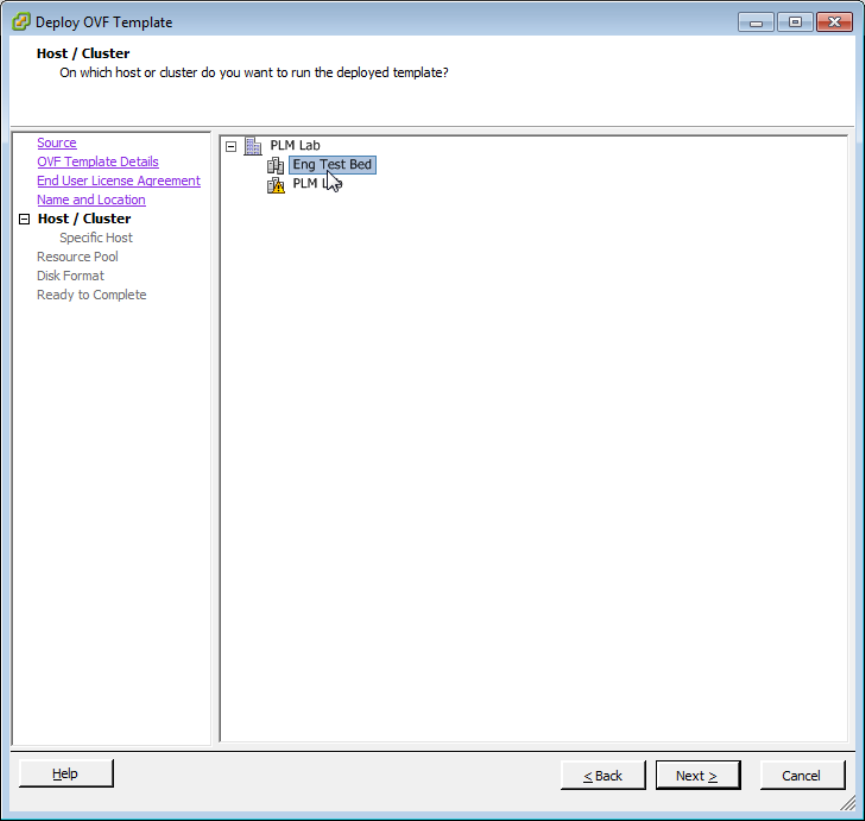
Figure 5: Select the destination host or cluster
8. Select the resource pool within which you want to deploy the template, and then click Next.
The storage screen appears.
Ruckus Wireless™ Virtual SmartZone™ Getting Started Guide for SmartZone 3.4
21
Installing the vSZ on a Hypervisor
Installing the vSZ on VMWare vSphere Hypervisor
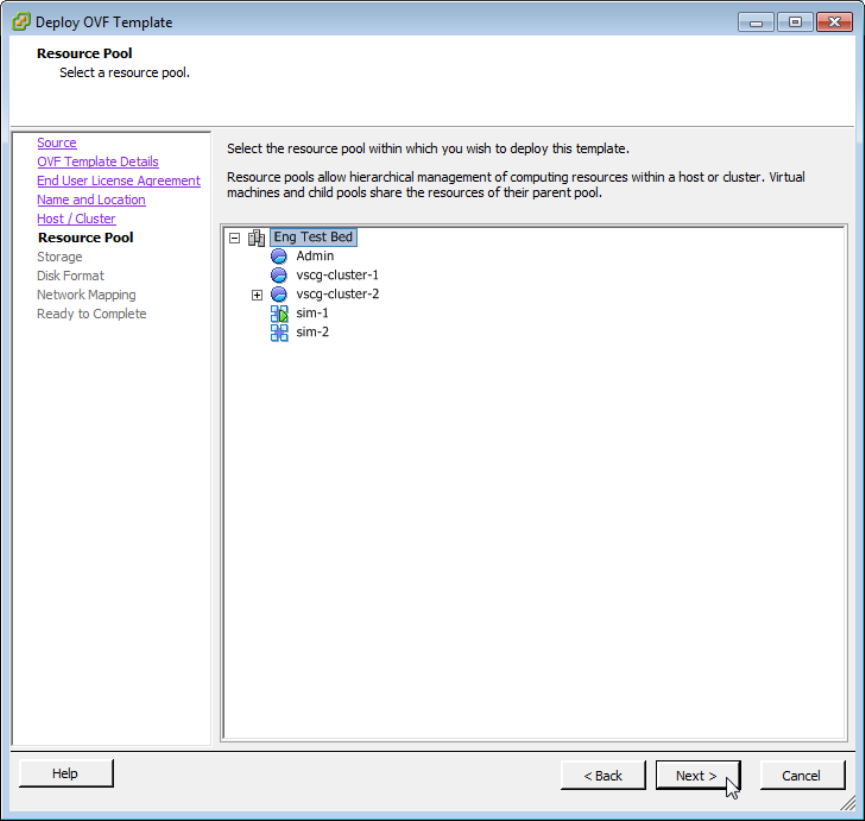
Figure 6: Select the resource pool for the OVA template
9. Select the destination storage (data store) for virtual machine files, and then click Next. The
Disk Format screen appears.
Ruckus Wireless™ Virtual SmartZone™ Getting Started Guide for SmartZone 3.4
22
Installing the vSZ on a Hypervisor
Installing the vSZ on VMWare vSphere Hypervisor
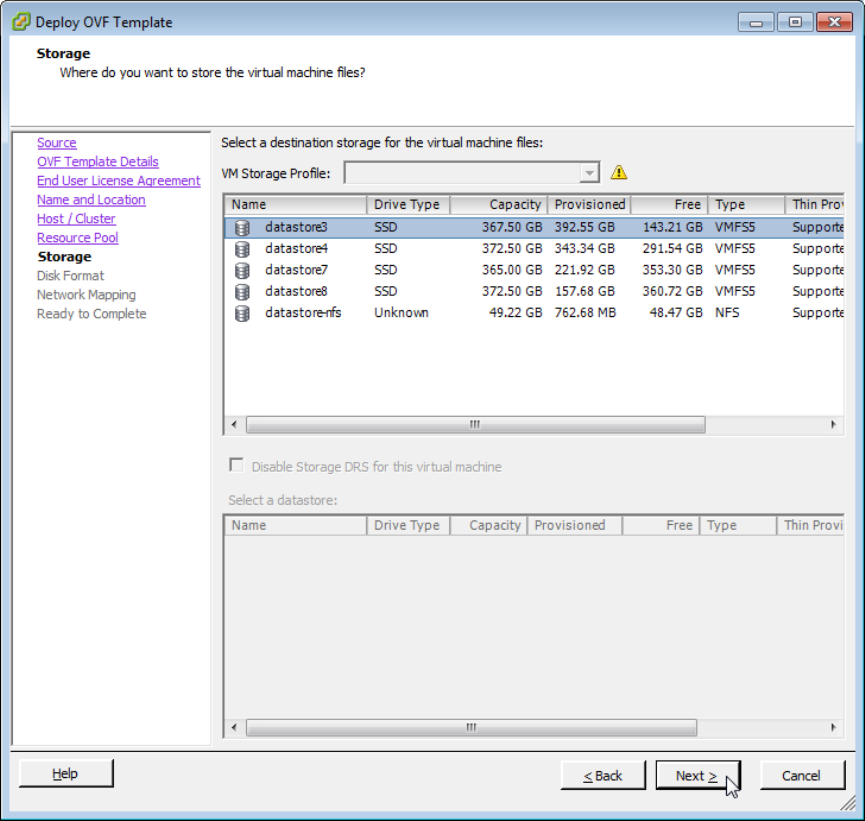
Figure 7: Select the data store for the virtual machine files
10. Select the disk format that is appropriate for your deployment scenario. Options include:
•Thick Provision Lazy Zeroed
•Thick Provision Eager Zeroed
•Thin Provision
Ruckus Wireless™ Virtual SmartZone™ Getting Started Guide for SmartZone 3.4
23
Installing the vSZ on a Hypervisor
Installing the vSZ on VMWare vSphere Hypervisor
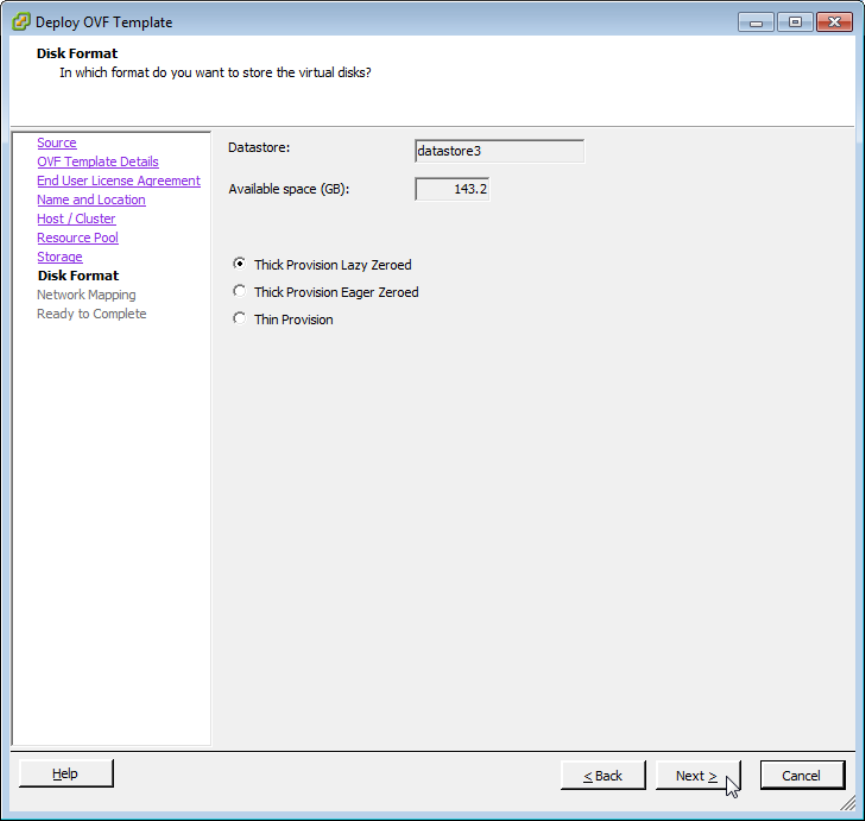
Figure 8: Select the disk format for your deployment scenario
11. Click Next. The Network Mapping screen appears.
12. Select the ESXi virtual network interface that you want to use for the control interface, and
then click Next. The Ready to Complete screen appears.
The installation screen only allows you to select the virtual network interface for the control
interface. After you complete the installation (and before you power on and set up the vSZ),
you will need to adjust the cluster and management interfaces as appropriate.
Ruckus Wireless™ Virtual SmartZone™ Getting Started Guide for SmartZone 3.4
24
Installing the vSZ on a Hypervisor
Installing the vSZ on VMWare vSphere Hypervisor

Figure 9: Select the virtual network interface that the template will use
13. Review the settings that you have configured on the previous screens. If you find a setting
that you want to change, click Back until you reach the screen where you can edit the setting.
Update the setting, and then click Next until you reach the Ready to Complete screen again.
Ruckus Wireless™ Virtual SmartZone™ Getting Started Guide for SmartZone 3.4
25
Installing the vSZ on a Hypervisor
Installing the vSZ on VMWare vSphere Hypervisor
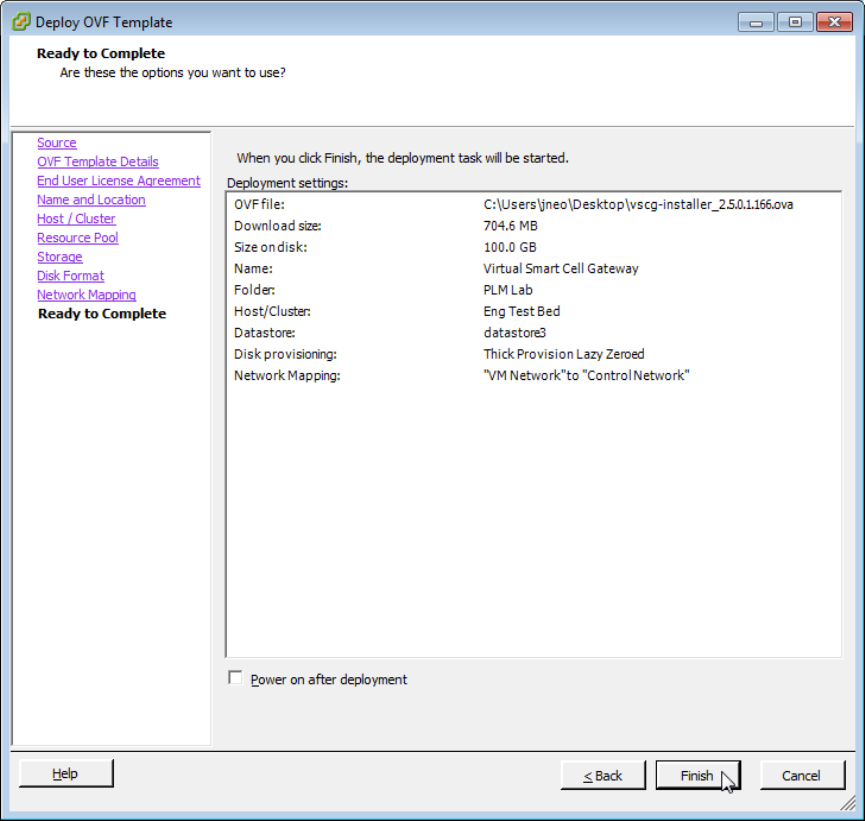
Figure 10: Review the settings that you have configured
14. Make sure that the Power on after deployment check box is clear so you can adjust the
network settings before the vSZ setup.Caution: If you power on the vSZ after installation,
you will no longer be able to adjust the network settings.
15. Click Finish.
ESXi deploys the new vSZ instance. When ESXi completes the deployment, the new vSZ instance
appears on the list of installed virtual machines on the target host.
Ruckus Wireless™ Virtual SmartZone™ Getting Started Guide for SmartZone 3.4
26
Installing the vSZ on a Hypervisor
Installing the vSZ on VMWare vSphere Hypervisor
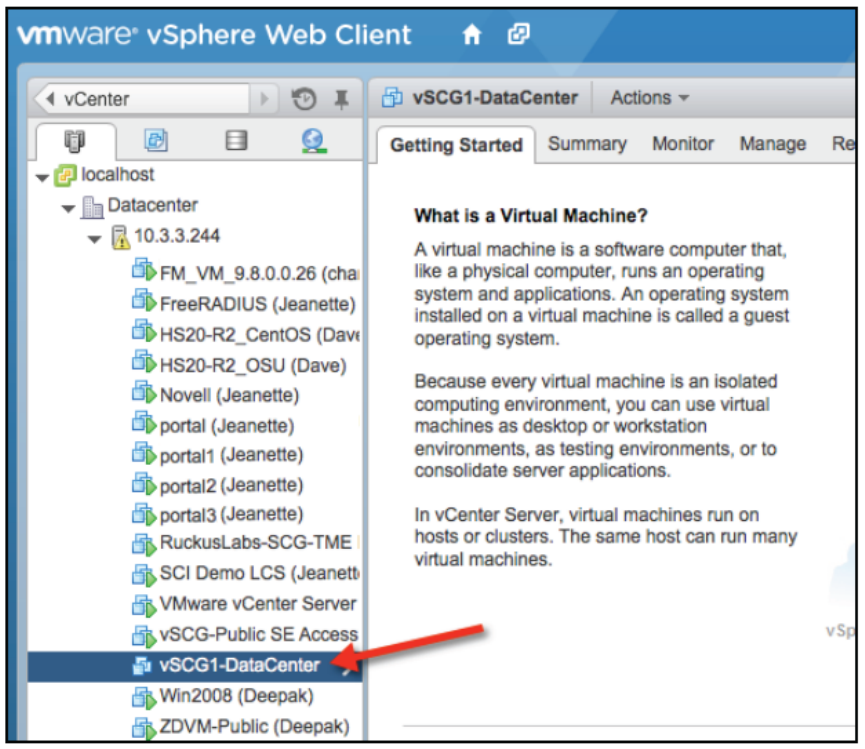
Figure 11: The vSZ instance appears on the list of installed VMs
You have completed creating a vSZ instance from the OVA file.
Allocating Resources and Assigning Network Interfaces
Before starting the vSZ instance for the first time, edit the virtual machine settings to allocate
CPU and memory resources to the vSZ and to assign the ESXi network interfaces to the remaining
vSZ interfaces (cluster and management).
Ensure that you read steps 1-7 before starting the application.
Follow these steps to allocate resources and assign network interfaces to the vSZ.
1. On the list of virtual machines, click the new vSZ instance.
2. Click Actions to display the additional options, and then click Edit Settings.
3. Set the number of CPUs and the amount of RAM to allocate to the vSZ instance. By default,
the OVA template is set to 4 CPUs and 8GB of RAM.
Ruckus Wireless™ Virtual SmartZone™ Getting Started Guide for SmartZone 3.4
27
Installing the vSZ on a Hypervisor
Installing the vSZ on VMWare vSphere Hypervisor
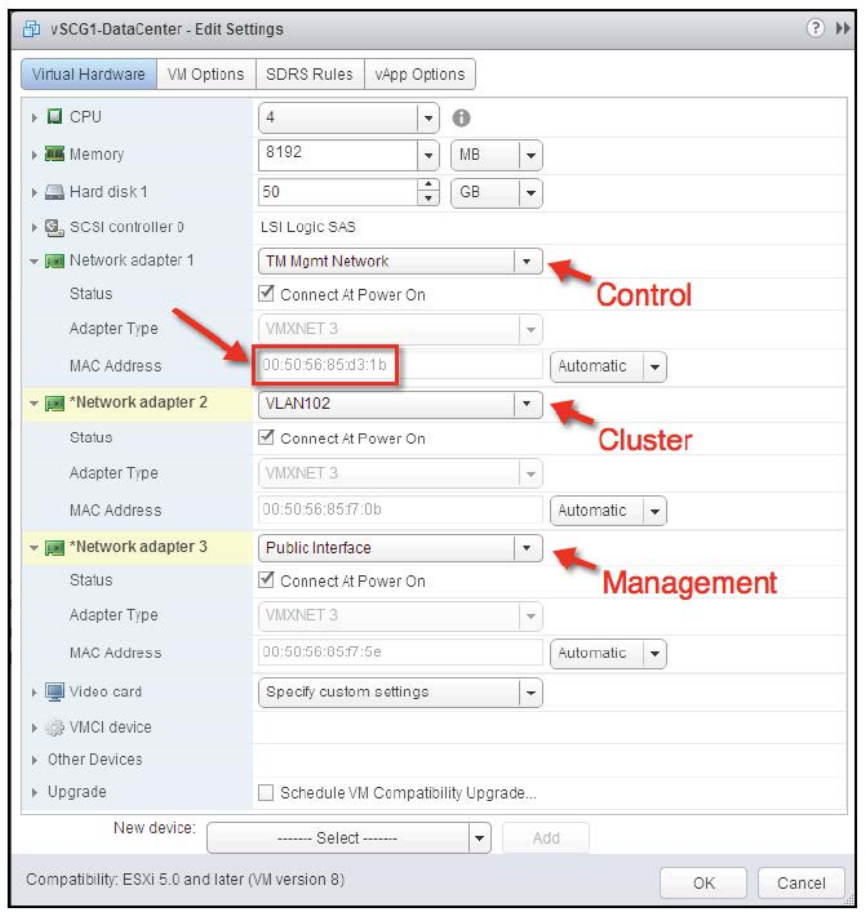
4. Under Network adapter 1, verify that it is the same ESXi network interface that you selected
for the control interface during the OVA import process. Ensure that the Connect at Power
On check box is selected.
5. Under Network adapter 2, select the ESXi network interface for the cluster interface from
the drop-down list. Ensure that the Connect at Power On option is selected.
6. Under Network adapter 3, select the ESXi network interface for the management interface
from the drop-down list. Ensure that the Connect at Power On option is selected.
Figure 12: Select the interfaces to use
7. Click OK. You have completed allocating resources and assigning network interfaces to the
vSZ.
Ruckus Wireless™ Virtual SmartZone™ Getting Started Guide for SmartZone 3.4
28
Installing the vSZ on a Hypervisor
Installing the vSZ on VMWare vSphere Hypervisor
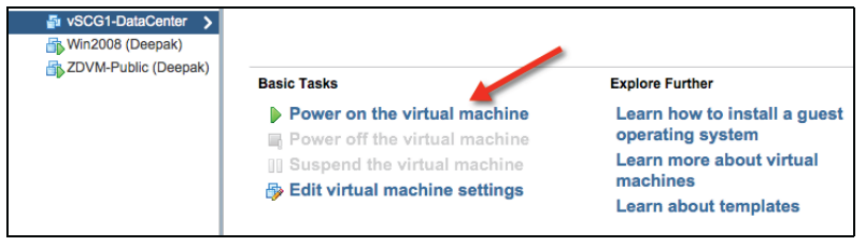
Powering on the vSZ virtual machine
The next step is to power on the vSZ virtual appliance.
1. From the list of virtual machines on the host, click the vSZ instance.
2. Under Basic Tasks, click Power on the virtual machine.
Figure 13: Click Power on the virtual machine
3. Open a console window to monitor the startup process. To do this, click the Action menu,
and then click Open Console.
After the vSZ completes its startup process, you are ready to perform the initial IP address
setup of the vSZ. You will use the console connection to perform this task.
Installing the vSZ on Windows Server Hyper V
Before you begin, verify that Hyper-V is enabled on Windows Server. Follow these steps to install
the vSZ on Windows Server Hyper-V.
1. Obtain a copy of the vSZ image in VHD format.
2. Extract the vSZ image to the .vhd disk file.
3. Copy the image to the Windows Server on which you are running Hyper-V.
4. On the Windows Server, click Start > Administrative Tools, and then double-click Hyper-V
Manager.
5. In the Hyper-V Manager, select the Hyper-V core for which you want to create a virtual machine
and click Virtual Machine > Action > New > New Virtual Machine Wizard. The appears
and displays the Before You Begin screen.
Ruckus Wireless™ Virtual SmartZone™ Getting Started Guide for SmartZone 3.4
29
Installing the vSZ on a Hypervisor
Installing the vSZ on Windows Server Hyper V
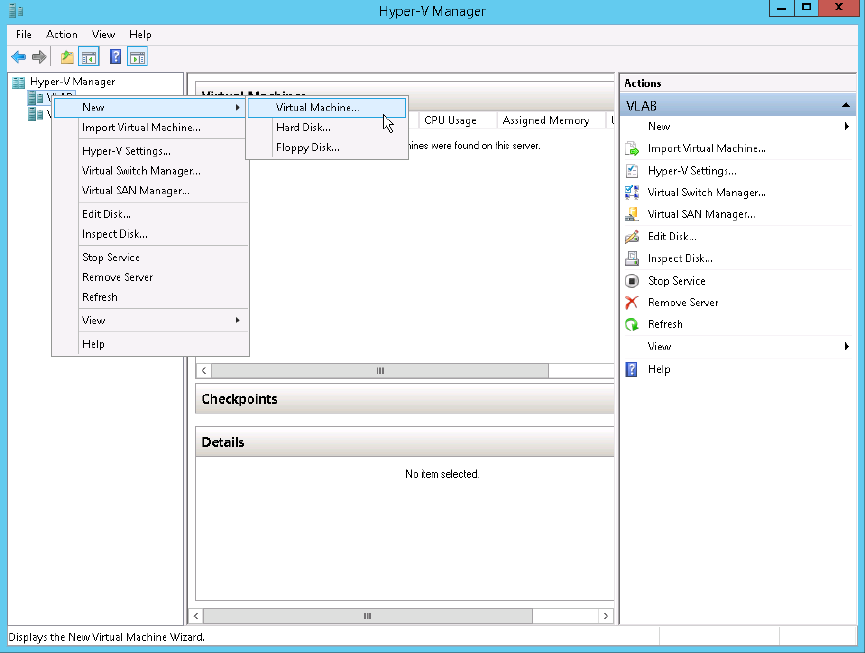
Figure 14: Click Action > New > Virtual Machine
6. Click Next. The Specify Name and Location screen appears.
Ruckus Wireless™ Virtual SmartZone™ Getting Started Guide for SmartZone 3.4
30
Installing the vSZ on a Hypervisor
Installing the vSZ on Windows Server Hyper V
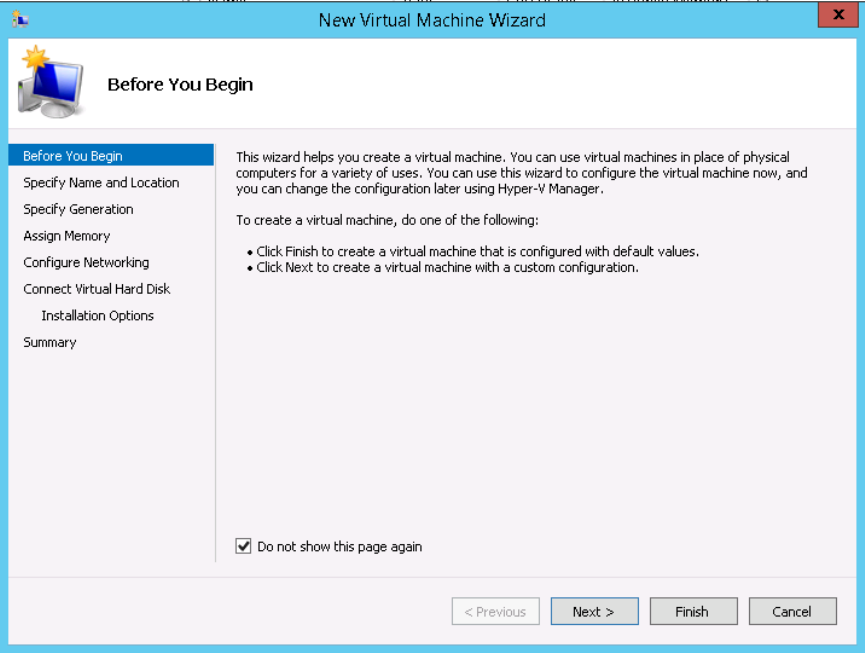
Figure 15: The New Virtual Machine Wizard screen
7. In Name, type a name for the virtual machine that you are installing (for example, Virtual
SmartZone).
Ruckus Wireless™ Virtual SmartZone™ Getting Started Guide for SmartZone 3.4
31
Installing the vSZ on a Hypervisor
Installing the vSZ on Windows Server Hyper V
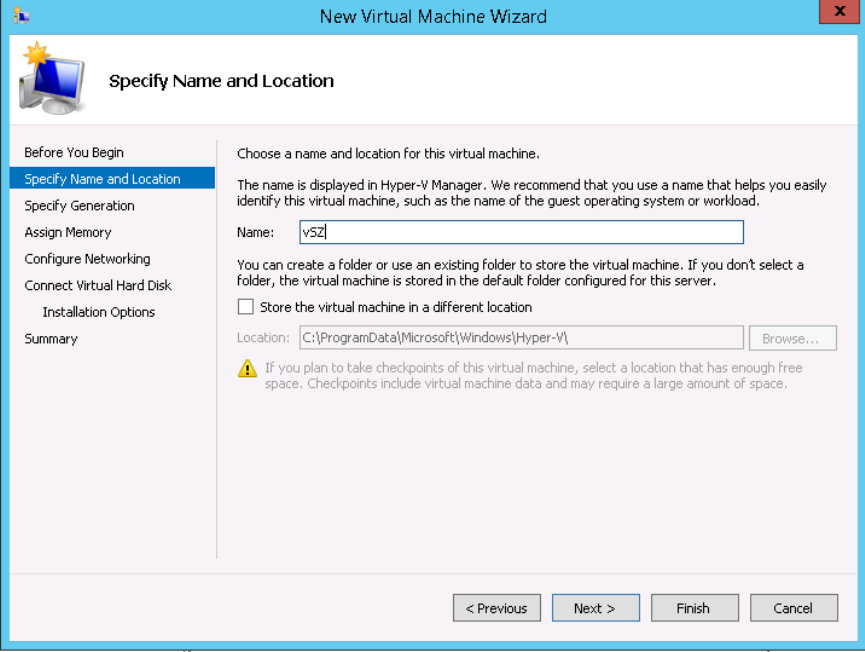
Figure 16: Specify Name and Location
8. Specify the folder on the server where you want to install the virtual machine.
a) To install the virtual machine in the default location, make sure that the Store the virtual
machine in a different location check box is clear.
b) To install the virtual machine in a location other than the default, select and Store the virtual
machine in a different location check box, and then browse to or type the new location.
9. Click Next. The Specify Generation screen appears.
Ruckus Wireless™ Virtual SmartZone™ Getting Started Guide for SmartZone 3.4
32
Installing the vSZ on a Hypervisor
Installing the vSZ on Windows Server Hyper V
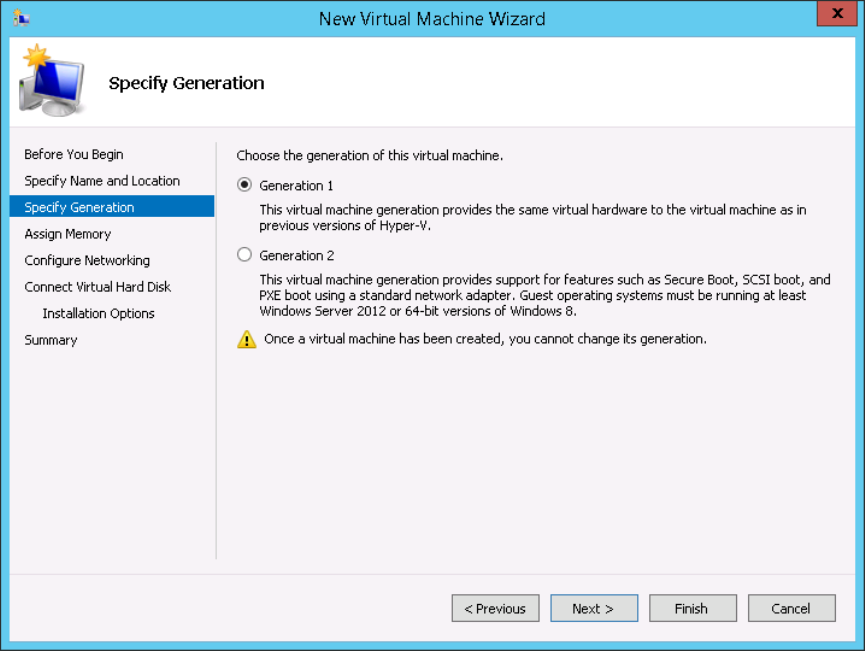
Figure 17: Specify Generation
10. Select Generation 1 for the virtual machine that you are installing. Hyper-V offers Generation
1 and Generation 2. See the Hyper-V documentation for more information about these two
generations.
11. Click Next. The Assign Memory screen appears.
Ruckus Wireless™ Virtual SmartZone™ Getting Started Guide for SmartZone 3.4
33
Installing the vSZ on a Hypervisor
Installing the vSZ on Windows Server Hyper V
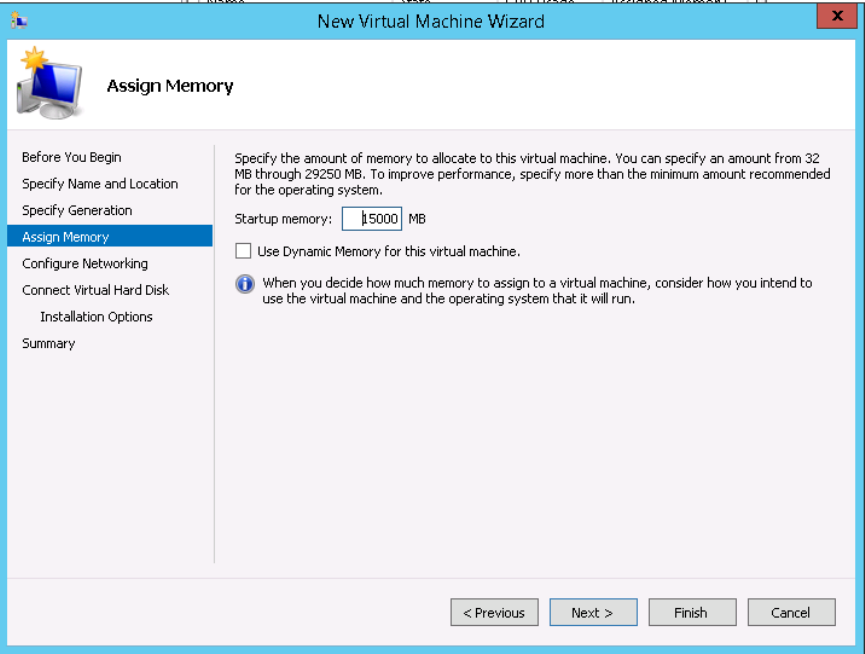
Figure 18: Assign Memory
12. In Startup memory, type 13GB for vSZ High Scale or 15GB for vSZ Essentials (as relevant),
which are the minimum memory that Ruckus Wireless recommends for deploying vSZ. You
can type a higher value if more memory is available on the server. For more information, see
Table 4 and Table 5.
13. Click Next. The Configure Networking
Ruckus Wireless™ Virtual SmartZone™ Getting Started Guide for SmartZone 3.4
34
Installing the vSZ on a Hypervisor
Installing the vSZ on Windows Server Hyper V
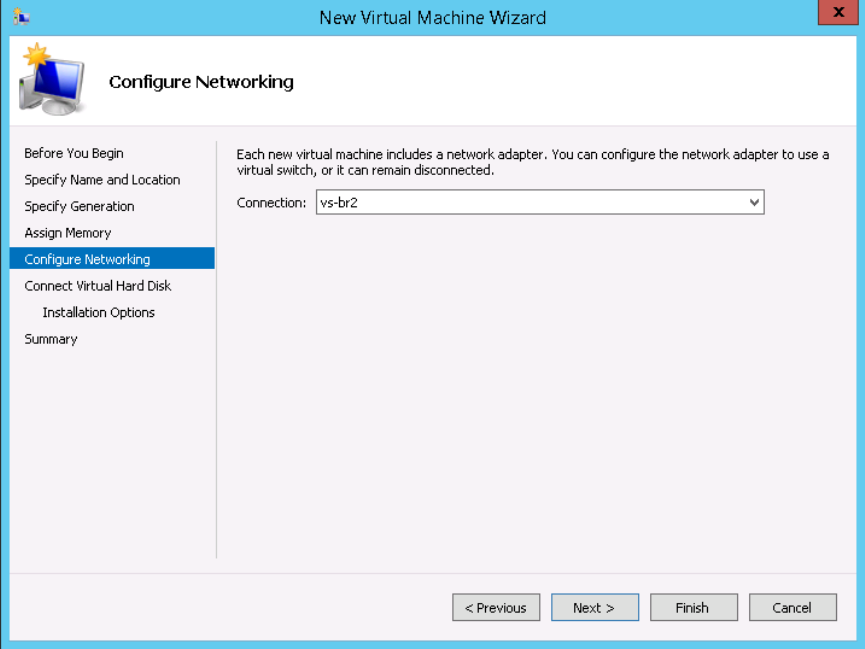
Figure 19: Configuring Network
14. In Connection, select the network adapter that you want the virtual machine to use.
15. Click Next. The Connect Virtual Hard Disk screen appears.
Ruckus Wireless™ Virtual SmartZone™ Getting Started Guide for SmartZone 3.4
35
Installing the vSZ on a Hypervisor
Installing the vSZ on Windows Server Hyper V
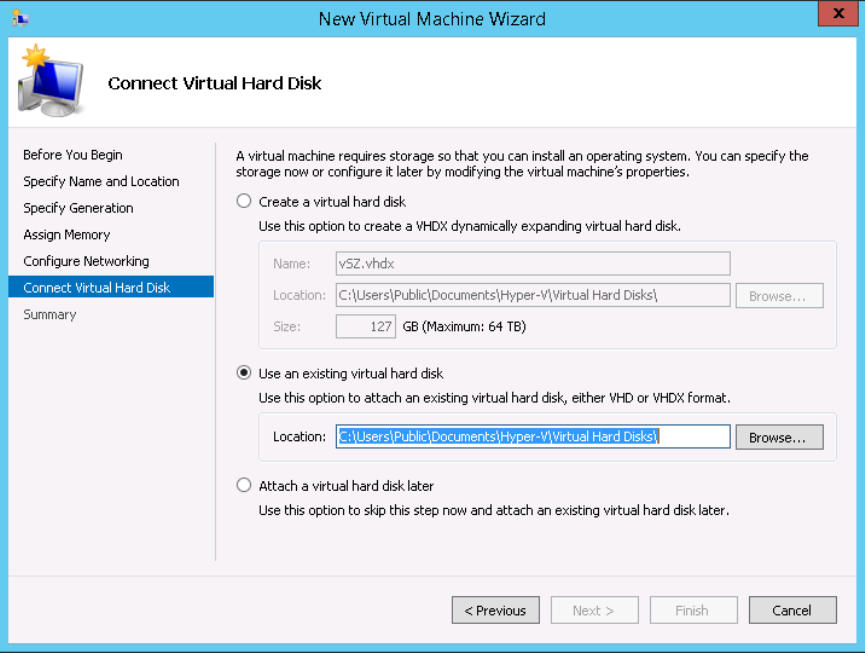
Figure 20: Connect Virtual Hard Disk
16. Select Use an existing virtual hard disk.
17. Click Browse to specify the location of the existing virtual hard disk for the virtual machine
to use.
Ruckus Wireless™ Virtual SmartZone™ Getting Started Guide for SmartZone 3.4
36
Installing the vSZ on a Hypervisor
Installing the vSZ on Windows Server Hyper V
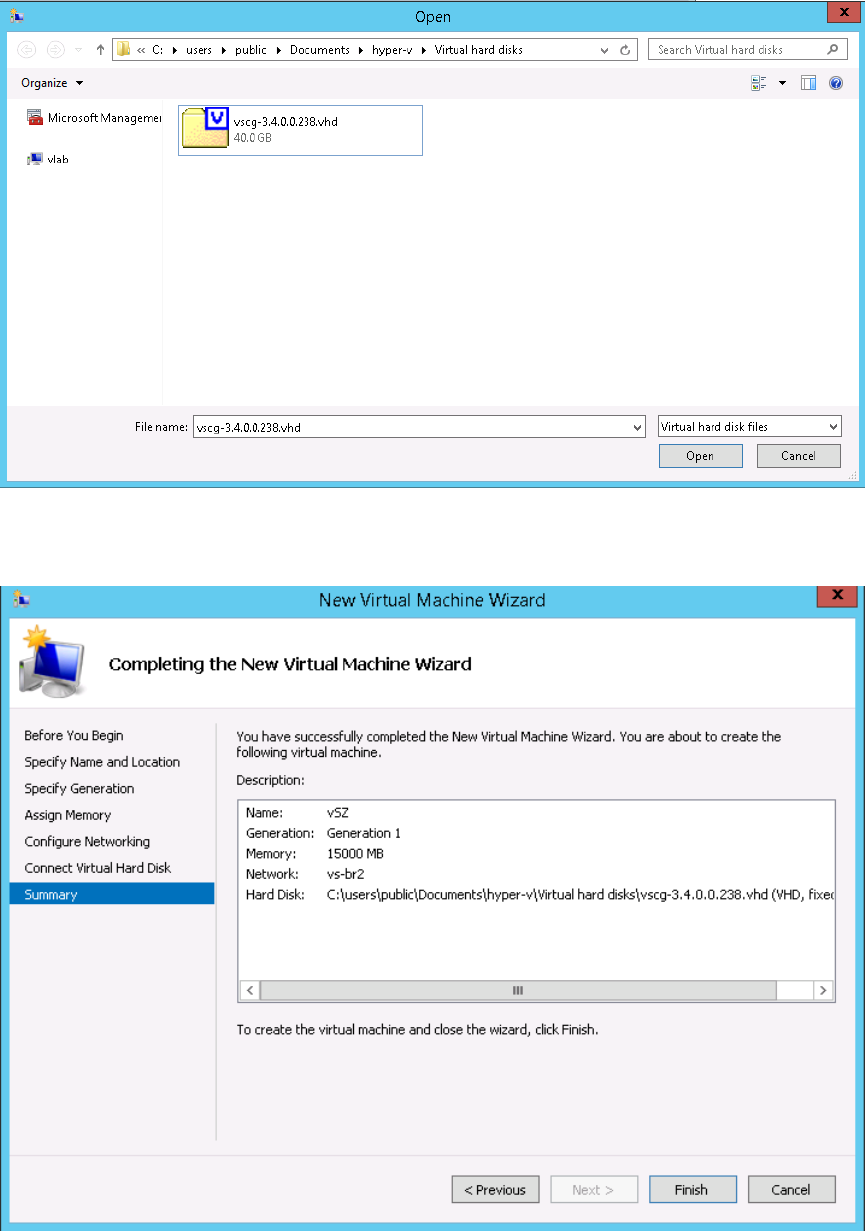
Figure 21: Selecting Virtual Hard Disk
18. Click Next. The Completing New Virtual Machine Wizard screen appears.
Figure 22: Completing New Virtual Machine Wizard
Ruckus Wireless™ Virtual SmartZone™ Getting Started Guide for SmartZone 3.4
37
Installing the vSZ on a Hypervisor
Installing the vSZ on Windows Server Hyper V
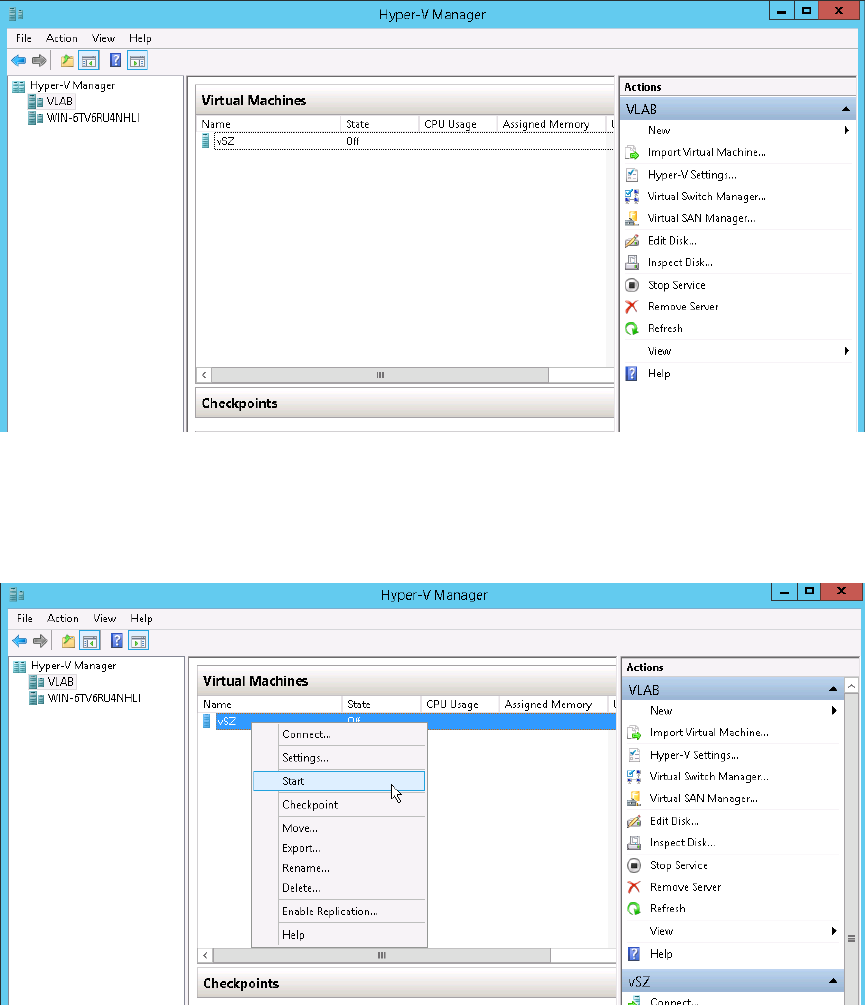
19. Review the settings that you can configure for the virtual machine. If you find any setting that
need to be changed, click Previous until you reach the screen where you can update the
setting. Update the setting, and then click Next until the Completing New Virtual Machine
Wizard screen appears again.
20. Click Finish to install the virtual machine. When Windows Server completes installing the
virtual machine, the New Virtual Machine Wizard disappears and the virtual machine you
installed appears on the list of virtual machines on Hyper-V Manager.
Figure 23: The virtual machine you installed appears on the list of virtual machines on
Hyper- V Manager
21. Right-click the virtual machine you installed, and then click Start to power on the virtual
machine.
Figure 24: Right-click the virtual machine, and then click Start
The Virtual Machine Connection screen appears.
Ruckus Wireless™ Virtual SmartZone™ Getting Started Guide for SmartZone 3.4
38
Installing the vSZ on a Hypervisor
Installing the vSZ on Windows Server Hyper V
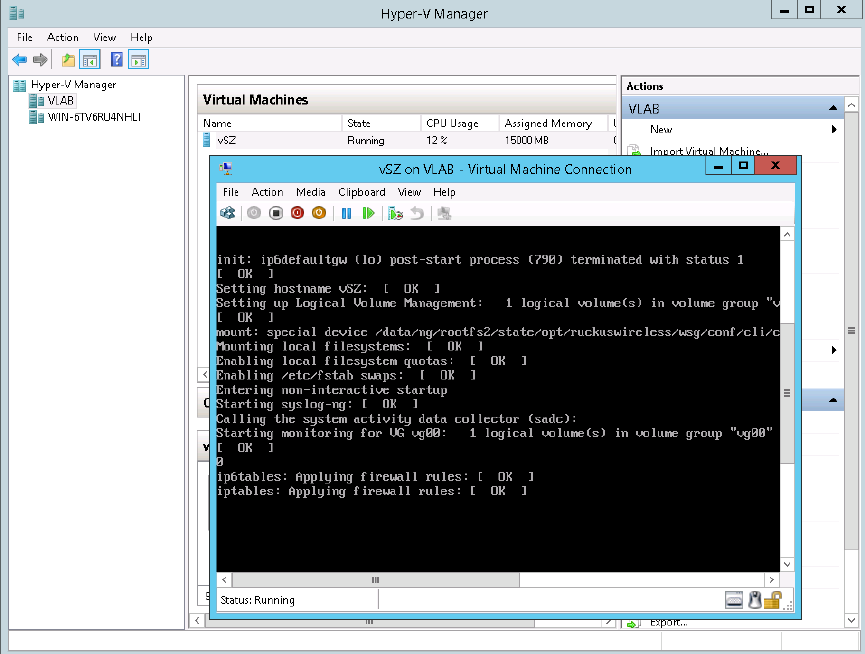
Figure 25: Virtual Machine Connection
22. Login to the virtual machine with your credentials.
You have now completed installing the vSZ on Windows Server Hyper-V.
Installing the vSZ on a Kernel based Virtual Machine
Hypervisor
This section describes how to install the vSZ on a KVM hypervisor.
Extracting the vSZ Image
The vSZ image for a kernel-based virtual machine (KVM) is distributed in QCOW2 format.
1. Obtain the vSZ image in QCOW2 format.
2. Copy the image to the KVM.
3. Open the terminal window.
4. Make the image bin file executable by entering the following command: chmod +x {file
name of the controller QCOW bin} See Figure for an example.
Ruckus Wireless™ Virtual SmartZone™ Getting Started Guide for SmartZone 3.4
39
Installing the vSZ on a Hypervisor
Installing the vSZ on a Kernel based Virtual Machine Hypervisor
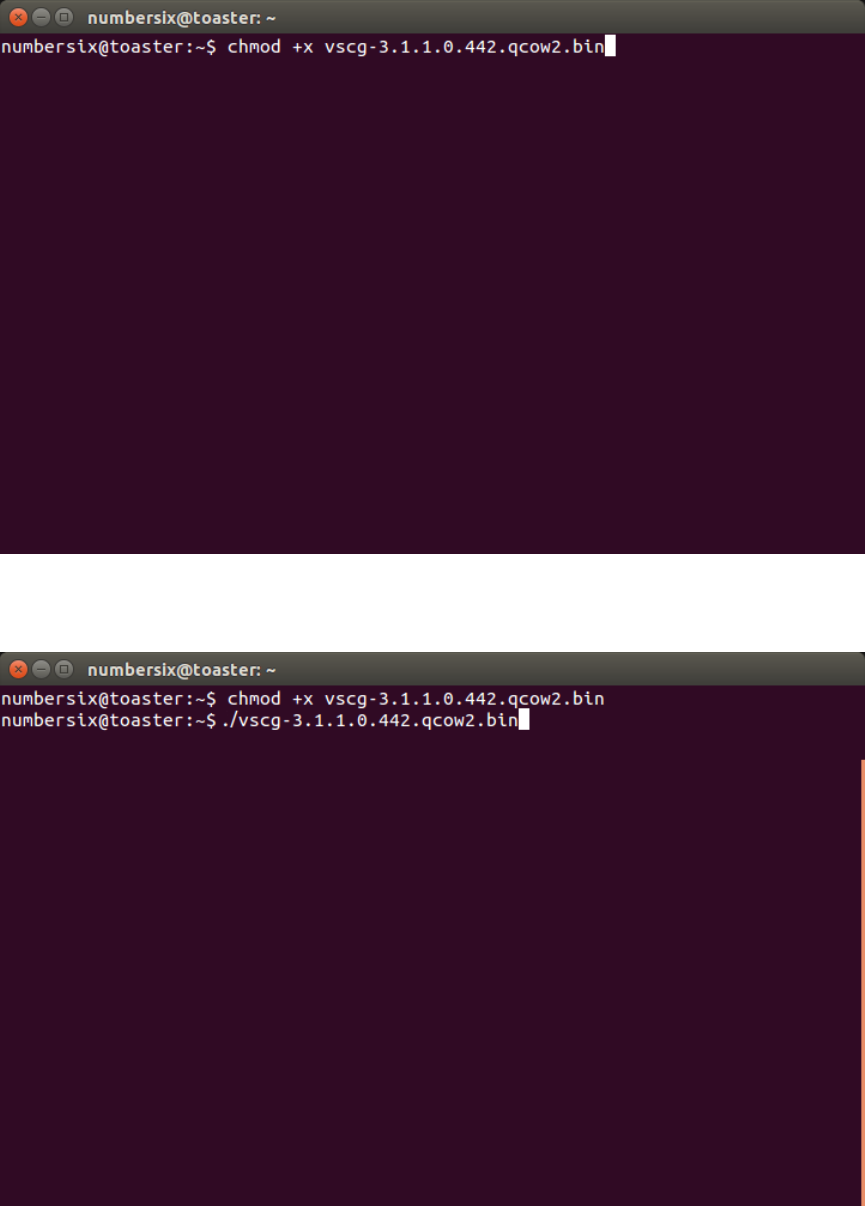
Figure 26: Make the bin file executable
5. Extract the contents of the QCOW2 bin file.
Figure 27: Extract the contents of the QCOW2 image
Ruckus Wireless™ Virtual SmartZone™ Getting Started Guide for SmartZone 3.4
40
Installing the vSZ on a Hypervisor
Installing the vSZ on a Kernel based Virtual Machine Hypervisor
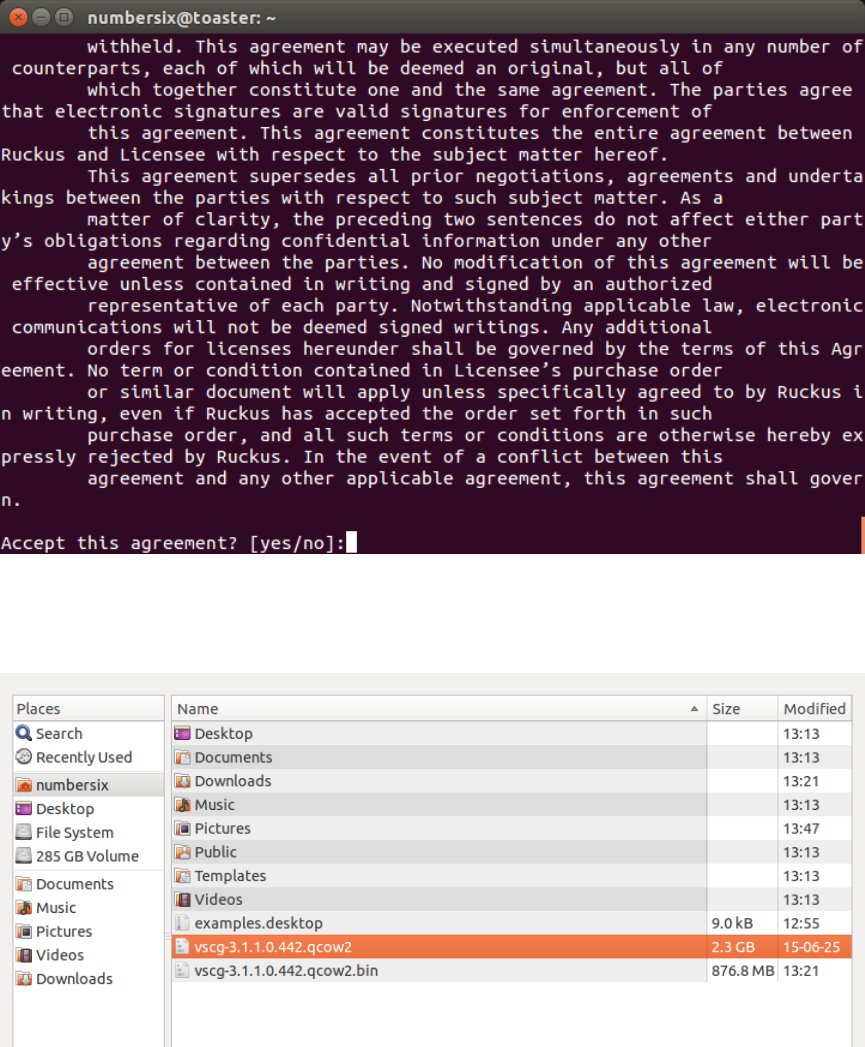
The end user license agreement appears on screen.
6. At the Accept this agreement? [yes/no] prompt, enter yes.
Figure 28: Accept the EULA terms
The KVM continues to extract the contents of the image. When the extraction process is
complete, the QCOW2 file appears in the same directory as the .bin file.
NOTE: If the “uudecode: command not found” error appears during the extraction process,
install the “sharutils” package on the KVM, and then try extracting the image again.
Figure 29: The QCOW2 file appears in the same directory as the .bin file
Ruckus Wireless™ Virtual SmartZone™ Getting Started Guide for SmartZone 3.4
41
Installing the vSZ on a Hypervisor
Installing the vSZ on a Kernel based Virtual Machine Hypervisor
7. Resize the vSZ disk image, if necessary. By default, the vSZ disk size is 50GB. If you want
to allocate more disk space to the vSZ, run the qemu-img command. The complete syntax
is as follows: qemu-img resize {file name of the controller QCOW bin}
+size
Setting Up the vSZ
You can set up the vSZ using the Red Hat Virtual Machine Manager (also known as
“virt-manager”). If you are installing the vSZ on a different hypervisor or virtual machine monitor,
the procedure may be slightly different. Refer to the hypervisor documentation for more
information.
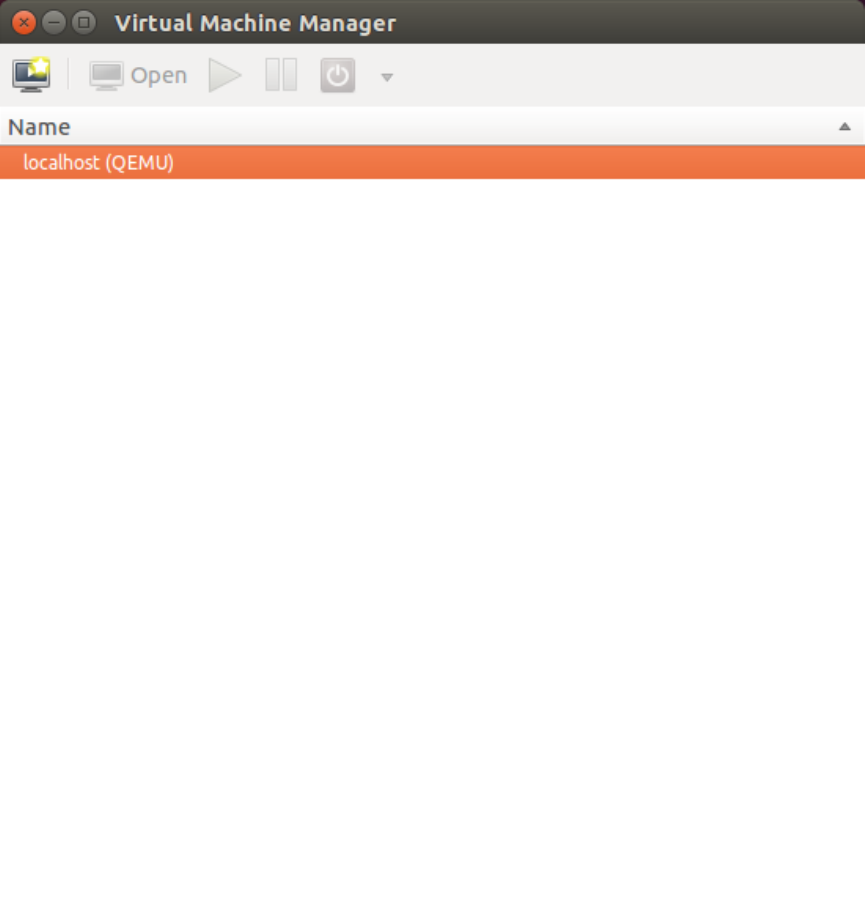
1. Start the Virtual Machine Manager by clicking Applications > System Tools > Virtual Machine
Manager. Or double-click the Virtual Machine Manager icon if it appears on the desktop. The
Virtual Machine Manager interface appears.
Figure 30: The Virtual Machine Manager interface
Ruckus Wireless™ Virtual SmartZone™ Getting Started Guide for SmartZone 3.4
42
Installing the vSZ on a Hypervisor
Installing the vSZ on a Kernel based Virtual Machine Hypervisor
2. In File, click Create New VM. Or click the New VM icon. The New VM screen appears
Ruckus Wireless™ Virtual SmartZone™ Getting Started Guide for SmartZone 3.4
43
Installing the vSZ on a Hypervisor
Installing the vSZ on a Kernel based Virtual Machine Hypervisor
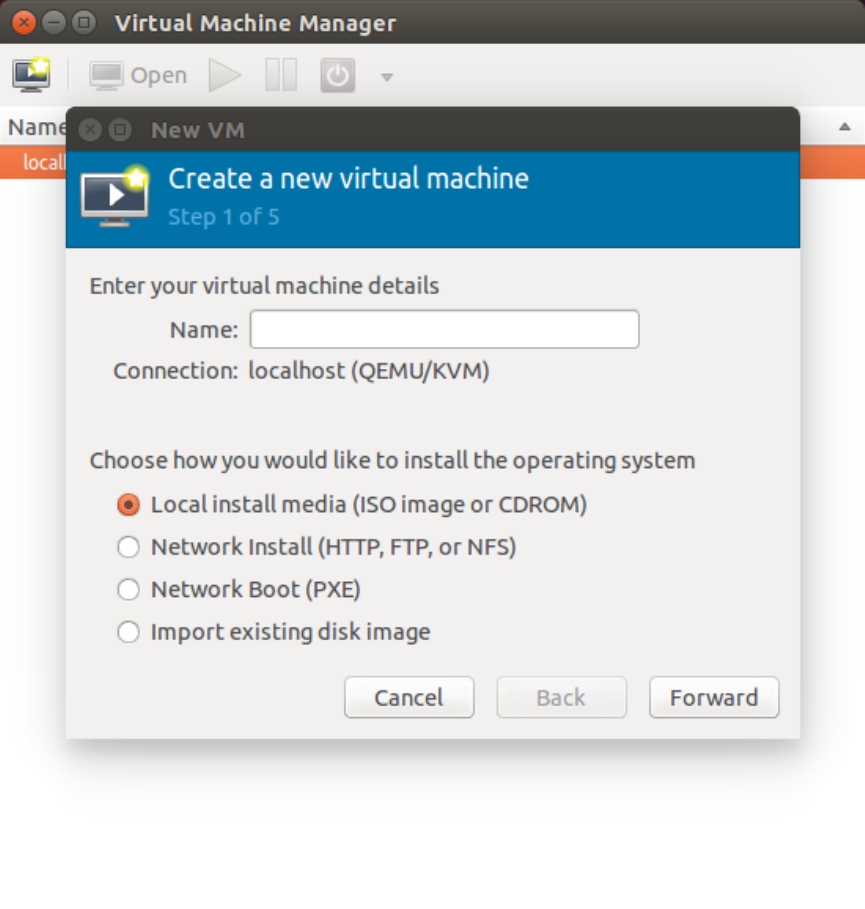
Figure 31: The New VM
3. Configure the options on the New VM (Step 1 of 4) screen.
a) In Name, type a name that you want to assign to the virtual machine.
b) In Choose how you would like to install the operating system, click Import existing
disk image.
Ruckus Wireless™ Virtual SmartZone™ Getting Started Guide for SmartZone 3.4
44
Installing the vSZ on a Hypervisor
Installing the vSZ on a Kernel based Virtual Machine Hypervisor
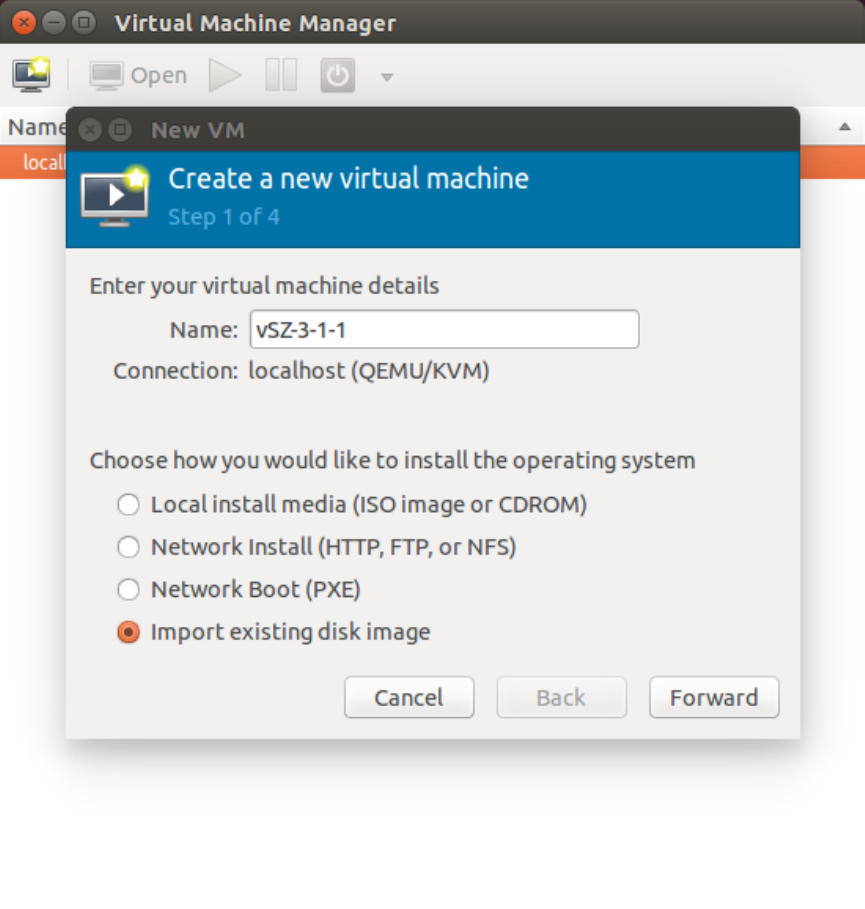
Figure 32: Type a name and select how you want to install the operating system
4. Click Forward. The Locate Existing Storage dialog box appears.
5. Browse to the location of the vSZ QCOW2 image, select the image file, and then click Open.
The New VM (Step 2 of 4) screen reappears and displays the storage path to the QCOW2
image file that you selected.
Ruckus Wireless™ Virtual SmartZone™ Getting Started Guide for SmartZone 3.4
45
Installing the vSZ on a Hypervisor
Installing the vSZ on a Kernel based Virtual Machine Hypervisor
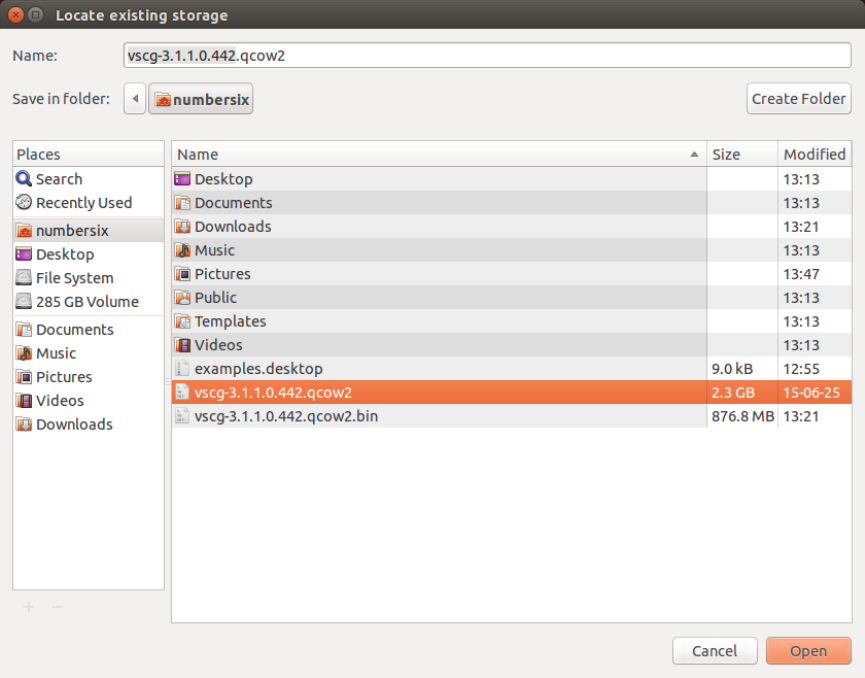
Figure 33: Browse to the vSZ QCOW2 image
6. In the lower portion of the New VM (Step 2 of 4) screen, select the operating system type
and version.
a) In OS type, select Linux.
b) In Version, select Generic 2.6.x kernel.
Ruckus Wireless™ Virtual SmartZone™ Getting Started Guide for SmartZone 3.4
46
Installing the vSZ on a Hypervisor
Installing the vSZ on a Kernel based Virtual Machine Hypervisor
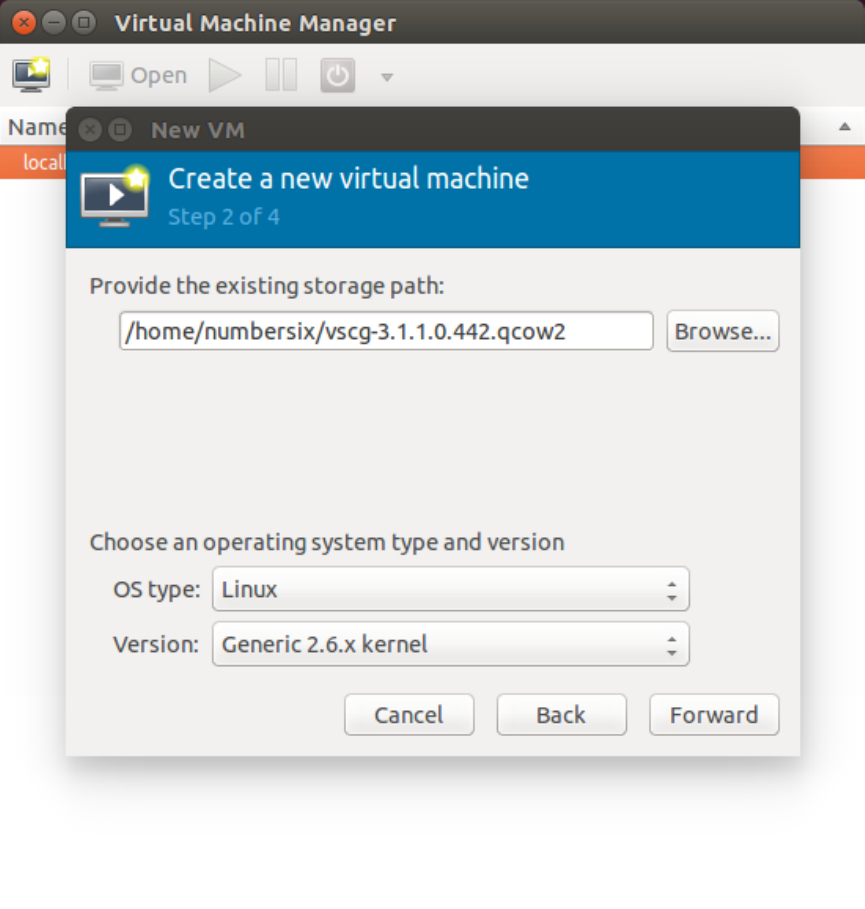
Figure 34: Select the operating system and version
7. Click Forward. The New VM (Step 3 of 4) screen appears.
8. Configure the memory and CPU settings of the virtual machine.
a) In Memory (RAM), set to memory (in MB) that you want to allocate to the vSZ.
b) In CPU, set the number of CPUs that you want to allocate to the vSZ.
Ruckus Wireless™ Virtual SmartZone™ Getting Started Guide for SmartZone 3.4
47
Installing the vSZ on a Hypervisor
Installing the vSZ on a Kernel based Virtual Machine Hypervisor
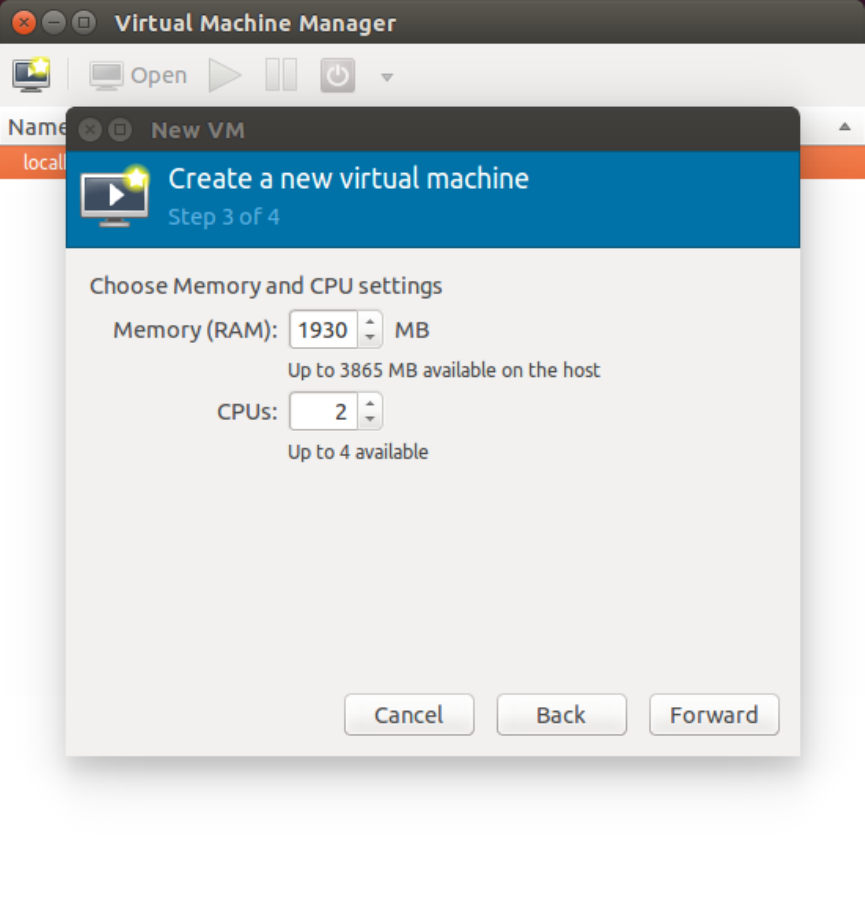
Figure 35: Configure the memory and CPU settings
9. Click Forward. The New VM (Step 4 of 4) screen appears and displays a summary of the
settings you configured.
Ruckus Wireless™ Virtual SmartZone™ Getting Started Guide for SmartZone 3.4
48
Installing the vSZ on a Hypervisor
Installing the vSZ on a Kernel based Virtual Machine Hypervisor
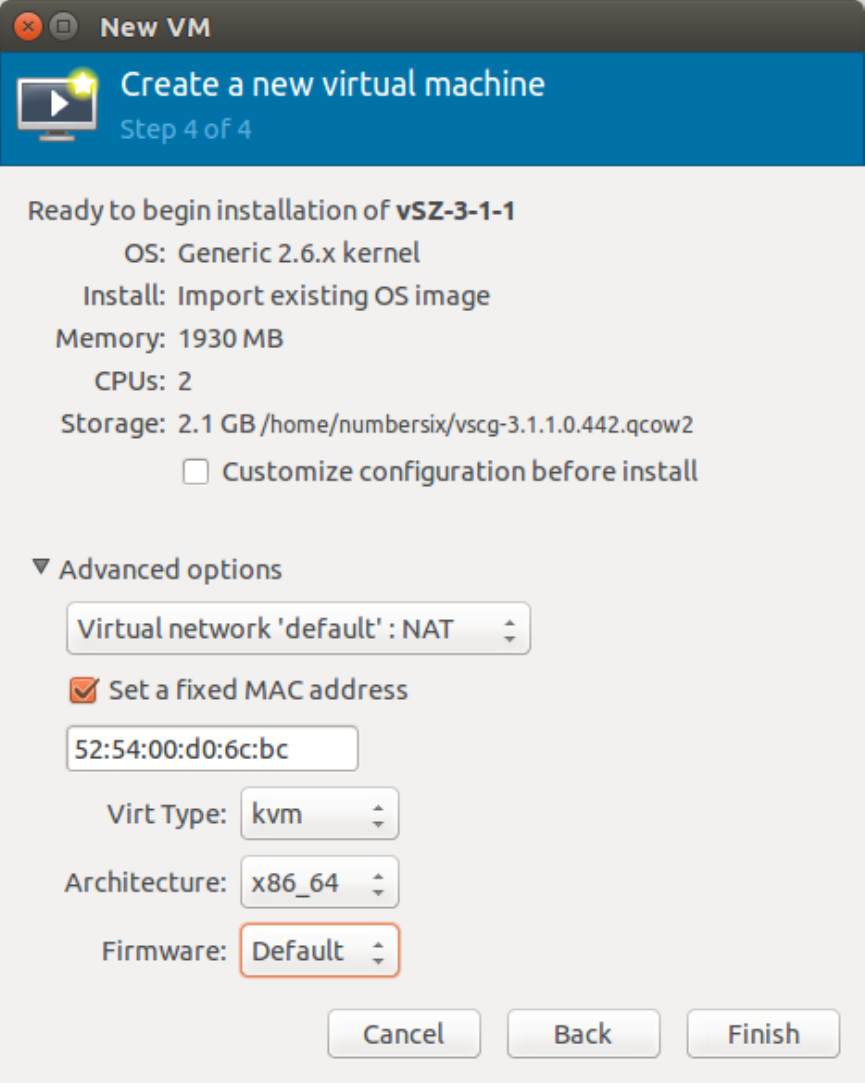
Figure 36: A summary of the settings you configured appears
10. Verify that the settings you configured on the previous screens are correct. If you need to
make changes to any of the settings, click Back until you reach the screen on which the
setting appears, make the change, and then click Forward until you reach the New VM (Step
4 of 4) screen again.
Ruckus Wireless™ Virtual SmartZone™ Getting Started Guide for SmartZone 3.4
49
Installing the vSZ on a Hypervisor
Installing the vSZ on a Kernel based Virtual Machine Hypervisor
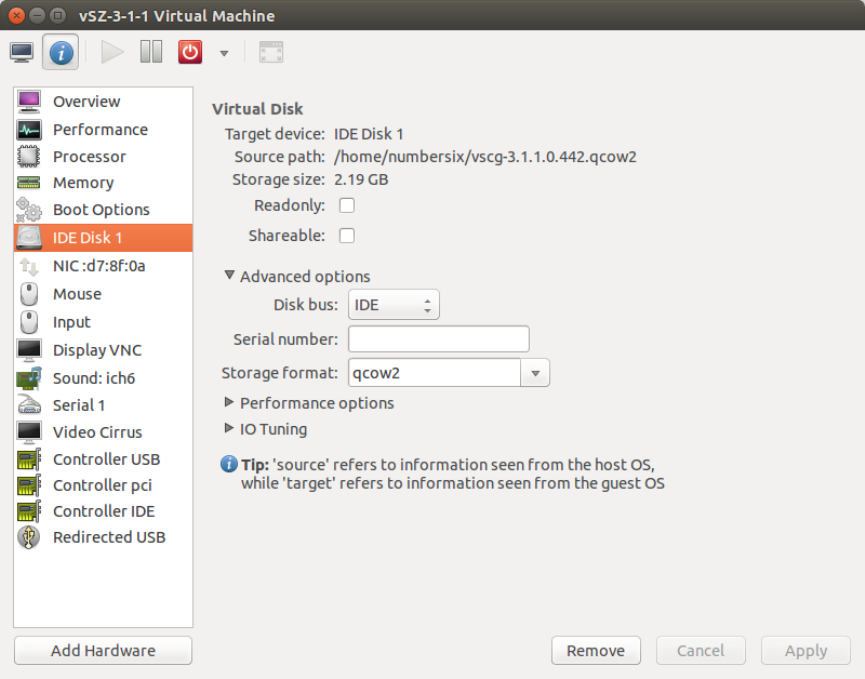
11. Click Finish to install the vSZ on the virtual machine.
12. After you complete installing the vSZ on the virtual machine, decide how many interfaces you
want the vSZ to use. The vSZ supports either a single interface or three interfaces. By default,
a single interface exists after installation.
•If you want the vSZ to use a single interface, you do not need to take action in this step.
Continue to the next step.
•If you want the vSZ to use three interfaces, you must create the two additional interfaces
before the initial bootup of the vSZ. Once the vSZ has completed its initial bootup, you
will no longer be able to change the number of interfaces.
If you want to add interfaces, you must do so before the initial bootup of the vSZ. After the
initial bootup, you will no longer be able to change the number of interfaces.
Figure 37: By default, a single interface exists
13. Power on the virtual machine. The vSZ performs its initial bootup.
14. When the vSZ login prompt appears, enter admin.
You have completed setting up the vSZ on a KVM hypervisor. You are now ready to start the
vSZ Setup Wizard. See Using the Setup Wizard to Install vSZ for more information.
Ruckus Wireless™ Virtual SmartZone™ Getting Started Guide for SmartZone 3.4
50
Installing the vSZ on a Hypervisor
Installing the vSZ on a Kernel based Virtual Machine Hypervisor
4
Installing the vSZ on Microsoft Azure
In this chapter:
•Logging into Microsoft Azure
•Creating a Storage Account and Container
•Uploading the vSZ Image to Microsoft Azure
•Creating a vSZ Image on Microsoft Azure
•Creating a Network
•Creating a vSZ Virtual Machine
•Configuring Port Numbers for Virtual Machines
•Assigning a Static Public IP Address to a VM
•Assigning a Static Internal IP Address to a Virtual Machine
You can install vSZ on Microsoft Azure using the procedure outlined.
NOTE: The minimum memory and CPU requirements have changed in this release. You may need
to upgrade your infrastructure before upgrading. Please read carefully. This is the minimum requirement
recommended. Refer to Table 5 and Table 6 in the chapter Preparing to Install the vSZ.
Logging into Microsoft Azure
As the first step of installing vSZ on Microsoft Azure, you have to log into Microsoft Azure.
1. Click http://azure.microsoft.com/en-us/ to access the Microsoft Azure site.
2. Click the Portal tab as shown in the figure.
Ruckus Wireless™ Virtual SmartZone™ Getting Started Guide for SmartZone 3.4
51
51
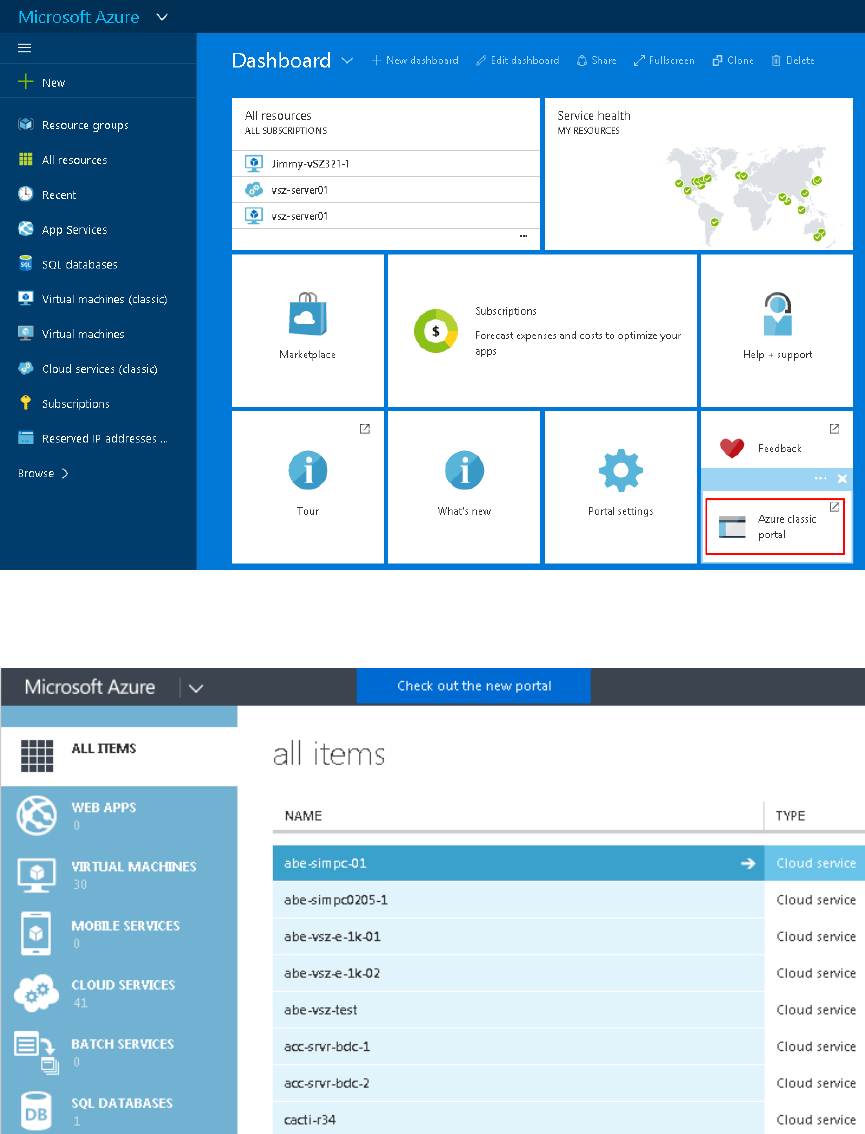
Figure 38: Portal Tab
3. Click Azure Classic Portal.
Figure 39: Azure Classic Portal
4. The Microsoft Azure login page appears and redirects you to the Ruckus Wireless login
page as shown in the figure.
Ruckus Wireless™ Virtual SmartZone™ Getting Started Guide for SmartZone 3.4
52
Installing the vSZ on Microsoft Azure
Logging into Microsoft Azure
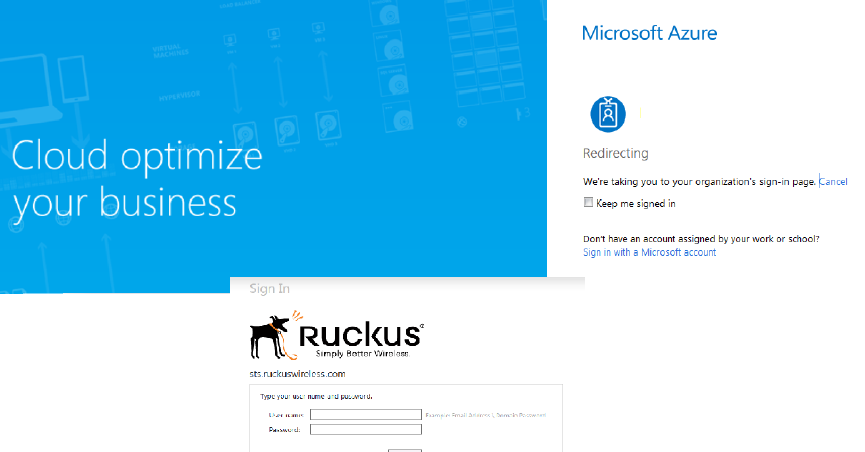
Figure 40: Microsoft Azure login page
If the page does not redirected to the Ruckus Wireless login page and asks to you choose
a user account, select the Work or school account as shown in the figure.
Ruckus Wireless™ Virtual SmartZone™ Getting Started Guide for SmartZone 3.4
53
Installing the vSZ on Microsoft Azure
Logging into Microsoft Azure
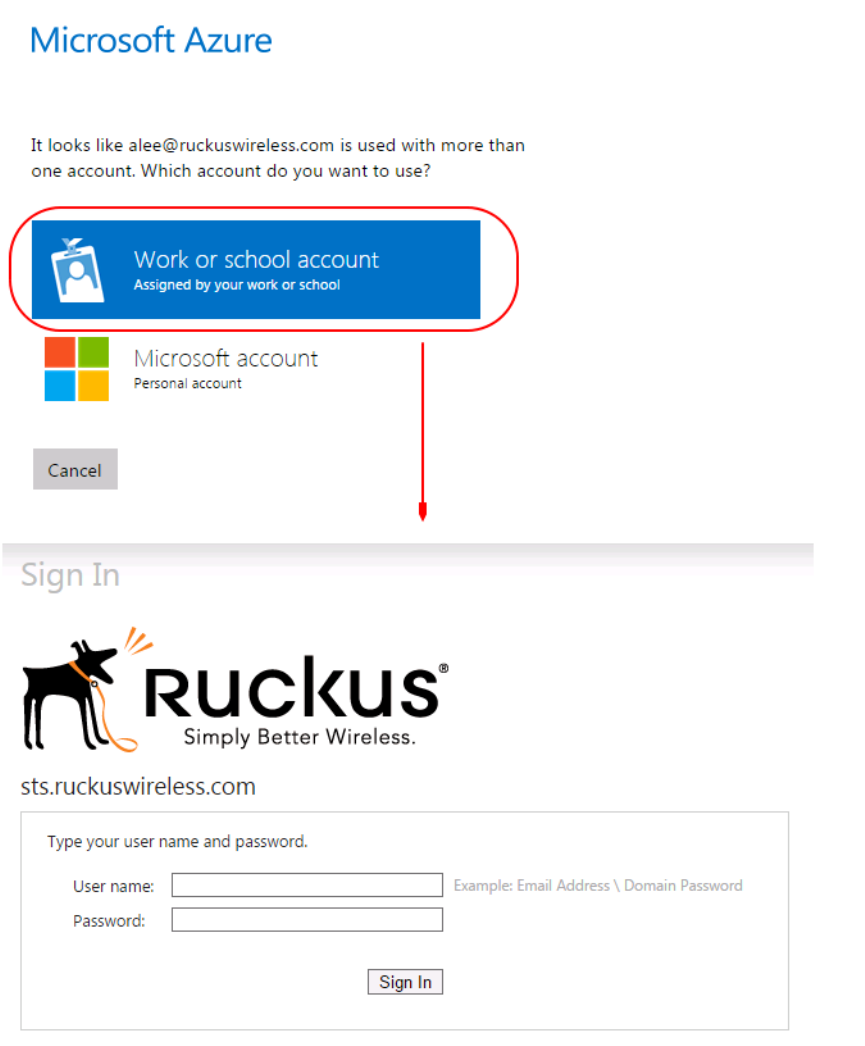
Figure 41: Microsoft Azure Account
The Ruckus Wireless login page appears.
5. Enter your User name and Password to login.
Ruckus Wireless™ Virtual SmartZone™ Getting Started Guide for SmartZone 3.4
54
Installing the vSZ on Microsoft Azure
Logging into Microsoft Azure
Creating a Storage Account and Container
To create a Microsoft Azure storage account, perform the steps outlined in this section.
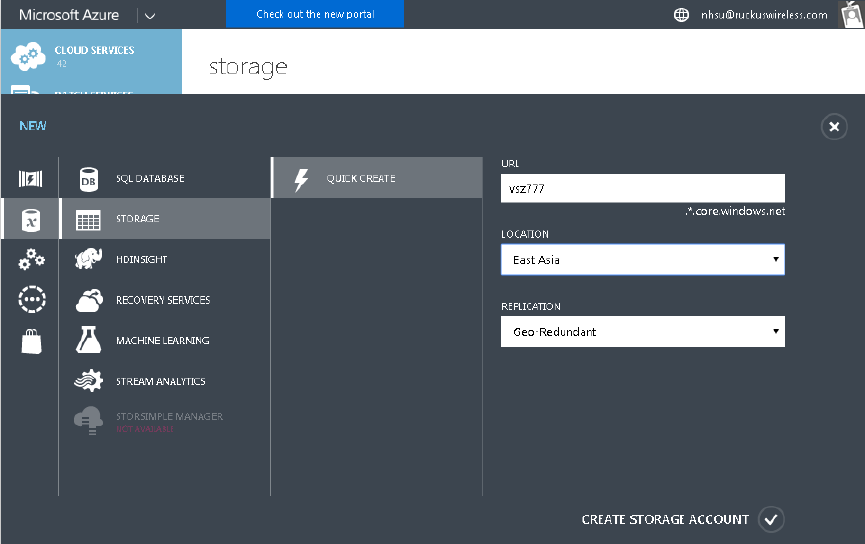
1. From the Microsoft Azure page, click Create a storage account. The Create a storage
screen appears.
Figure 42: Creating a storage account
2. In URL, type the URL.
3. In Location/Affinity Group, type the location of the storage.
4. In Replication, select an option from the drop-down list.
5. Click Create Storage Account. The Storage screen appears listing the new storage account.
Ruckus Wireless™ Virtual SmartZone™ Getting Started Guide for SmartZone 3.4
55
Installing the vSZ on Microsoft Azure
Creating a Storage Account and Container
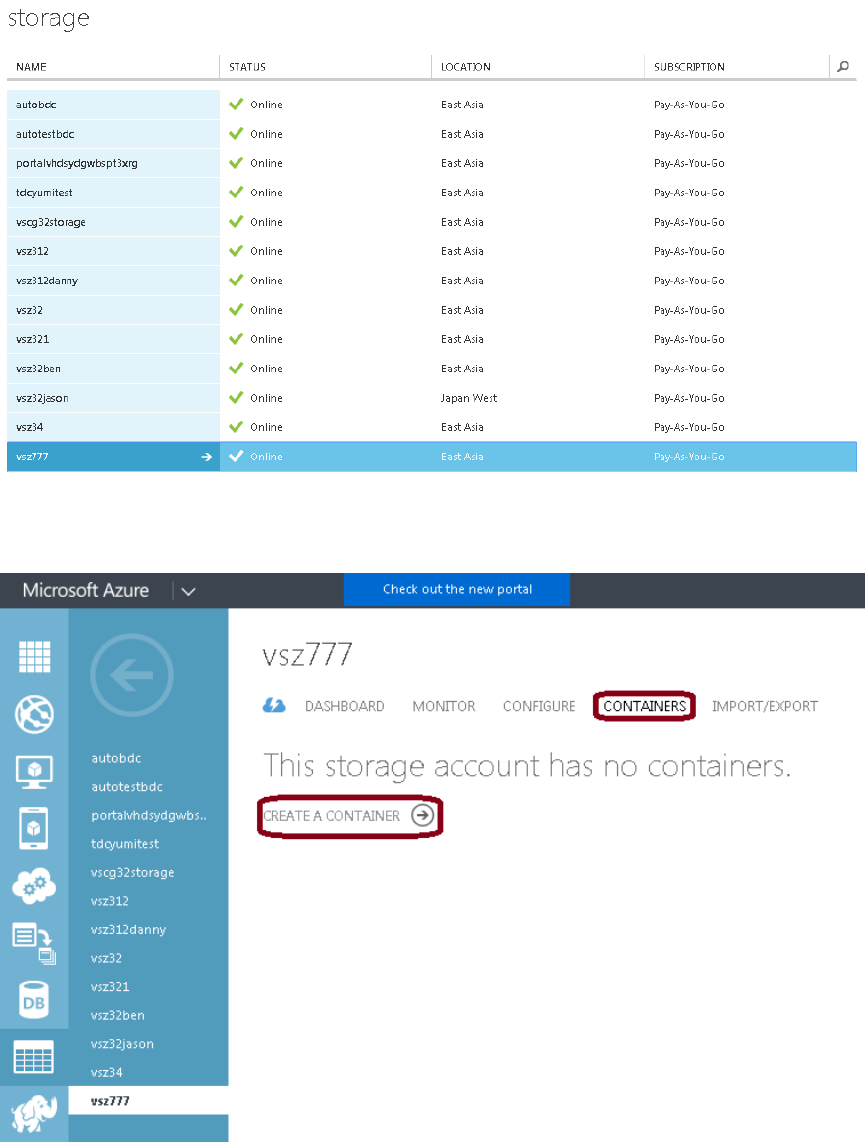
Figure 43: New storage account listed
6. Select the storage account and click Containers > Create a Container.
Figure 44: Creating a storage container
The New Container screen appears.
Ruckus Wireless™ Virtual SmartZone™ Getting Started Guide for SmartZone 3.4
56
Installing the vSZ on Microsoft Azure
Creating a Storage Account and Container
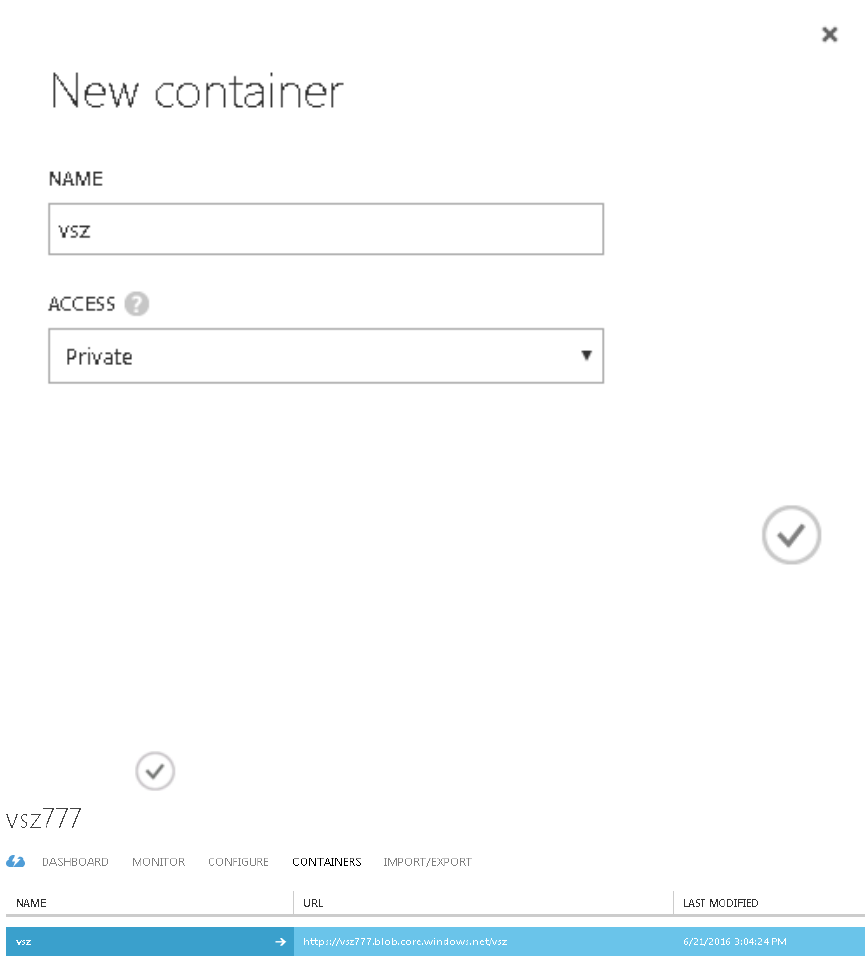
Figure 45: The New Container screen
7. In Name, type the name of the storage container.
8. In Access, select an option from the drop-down list.
9.
Click the icon . The new container is listed in the Containers tab.
Figure 46: Containers
Uploading the vSZ Image to Microsoft Azure
You have to upload the vSZ image to Microsoft Azure. Follow these steps outlined in this section
to upload the vSZ image to Microsoft Azure.
Ensure that you have installed Windows Azure Power Shell (web platform installer) from
http://go.microsoft.com/fwlink/p/?linkid=320376&clcid=0x409.
Ruckus Wireless™ Virtual SmartZone™ Getting Started Guide for SmartZone 3.4
57
Installing the vSZ on Microsoft Azure
Uploading the vSZ Image to Microsoft Azure
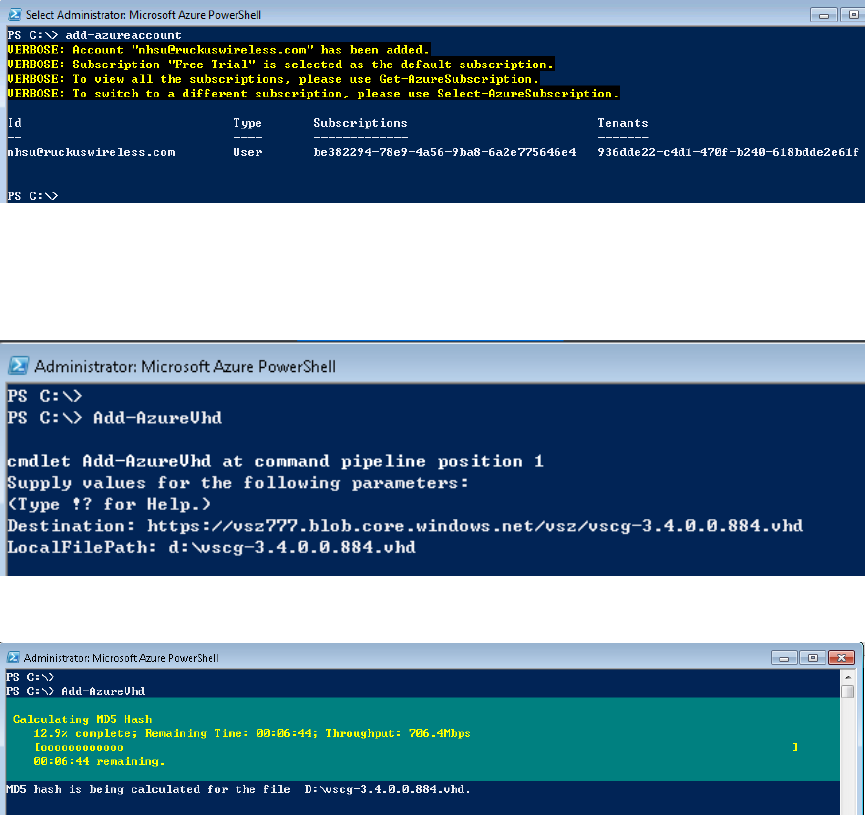
1. Open Microsoft Azure PowerShell and type the add-azureaccount command. The
Microsoft Azure Login screen appears.
2. Type the User name and Password.
3. Click Sign in. A success message appears confirming your Microsoft Azure account is added.
Figure 47: Account creation success message
4. Type command add-azurevhd to initiate uploading the image.
Ensure that the URL in Destination and Microsoft Azure storage are the same.
Figure 48: Verifying URLs match
Figure 49: Uploading the vSZ image
After the vSZ image is uploaded, a confirmation message appears.
Ruckus Wireless™ Virtual SmartZone™ Getting Started Guide for SmartZone 3.4
58
Installing the vSZ on Microsoft Azure
Uploading the vSZ Image to Microsoft Azure
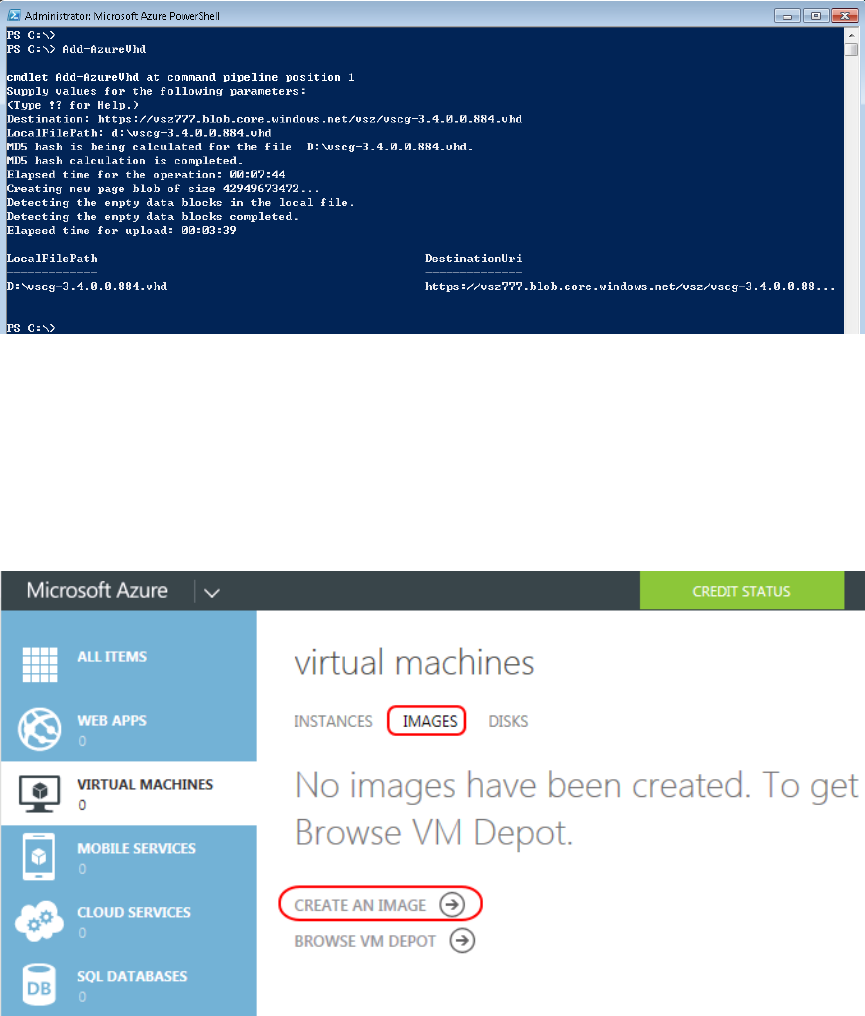
Figure 50: vSZ message indicating image upload is complete
Creating a vSZ Image on Microsoft Azure
ollow these steps to create a vSZ image on Microsoft Azure:
1. From the Microsoft Azure page, click Virtual Machines > Images.
Figure 51: Creating an image
2. Click Create an Image. The Create an Image from VHD screen appears.
Ruckus Wireless™ Virtual SmartZone™ Getting Started Guide for SmartZone 3.4
59
Installing the vSZ on Microsoft Azure
Creating a vSZ Image on Microsoft Azure
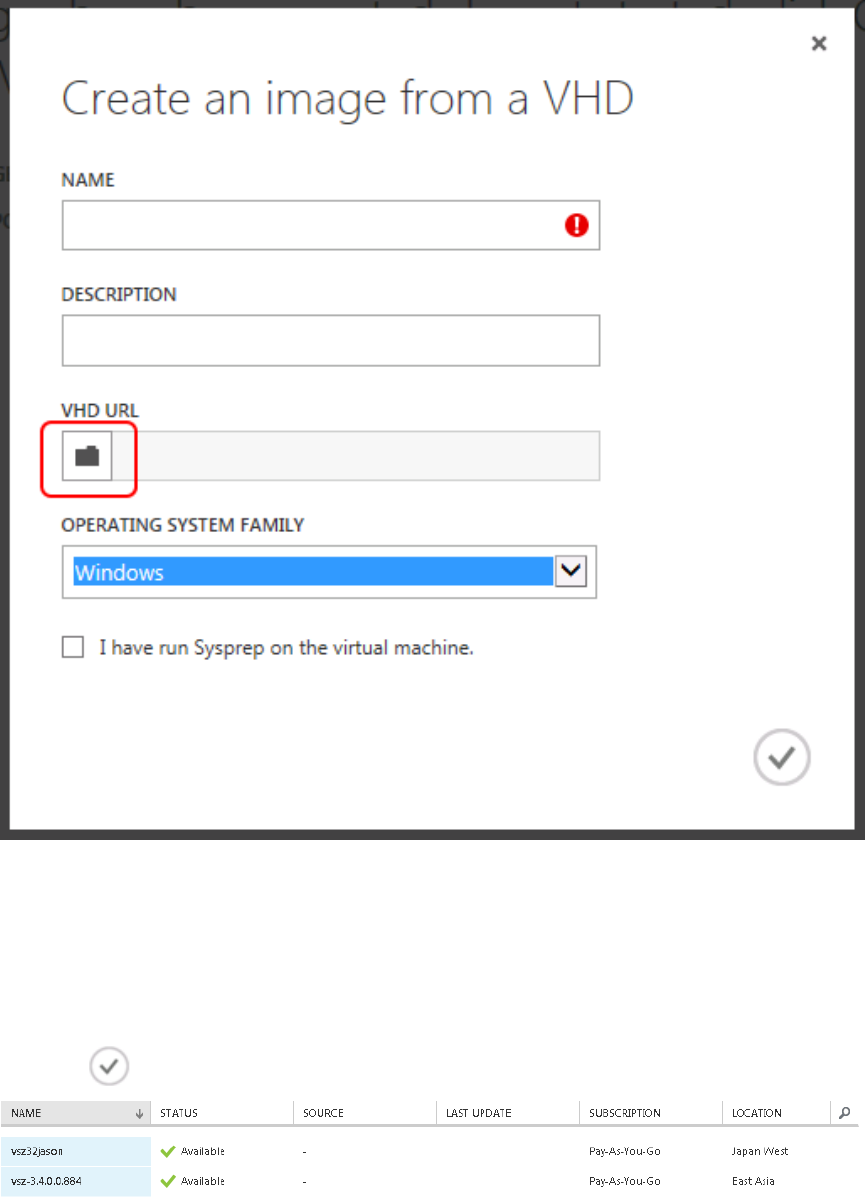
Figure 52: Create an Image from VHD
3. In Name, type the name of the image.
4. In Description, provide a brief description about the image.
5. Click VHD URL and browse to the cloud storage to select the VHD file.
6. In Operating System Family, select an option from the drop-down list.
7.
Click the icon. The new image is listed in the Images tab.
Figure 53: A new vSZ image is created
Ruckus Wireless™ Virtual SmartZone™ Getting Started Guide for SmartZone 3.4
60
Installing the vSZ on Microsoft Azure
Creating a vSZ Image on Microsoft Azure
Creating a Network
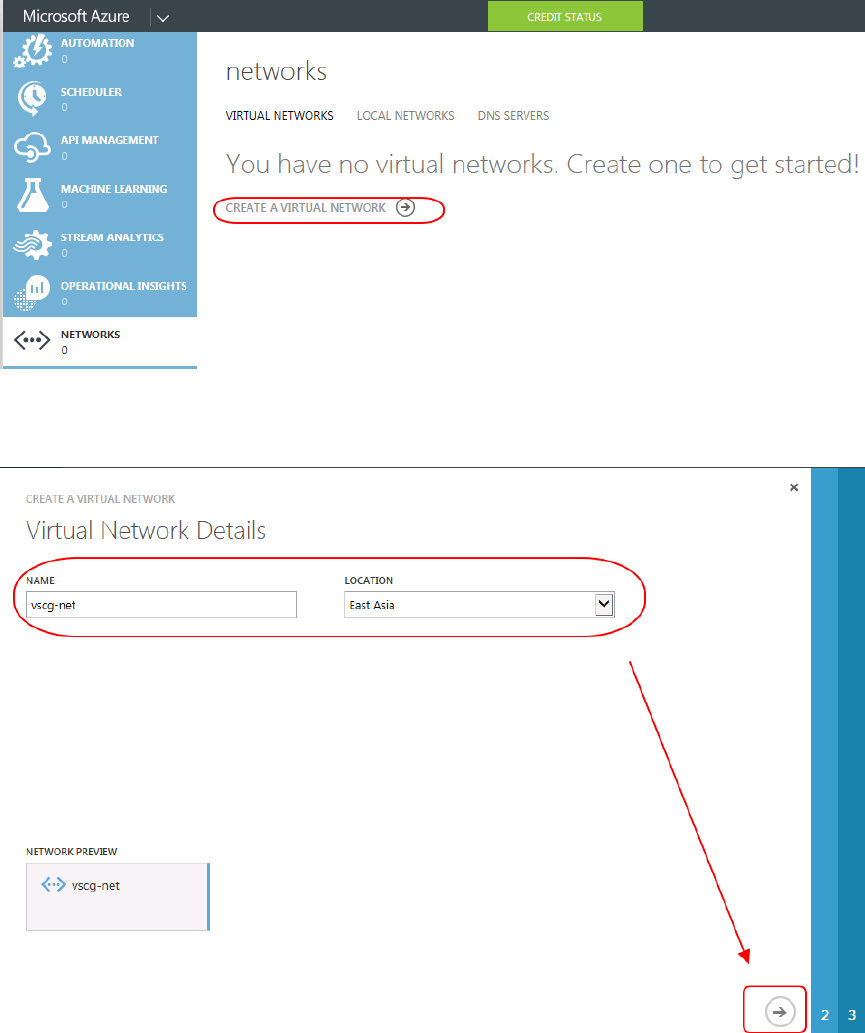
Follow these steps to create a virtual network.
1. From the Microsoft Azure page, click Networks > Virtual Networks.
Figure 54: Creating a virtual network
2. Click Create a Virtual Network. The Virtual Network Details screen appears.
Figure 55: Virtual Network Details screen
3. In Name, type the name of the virtual network.
Ruckus Wireless™ Virtual SmartZone™ Getting Started Guide for SmartZone 3.4
61
Installing the vSZ on Microsoft Azure
Creating a Network
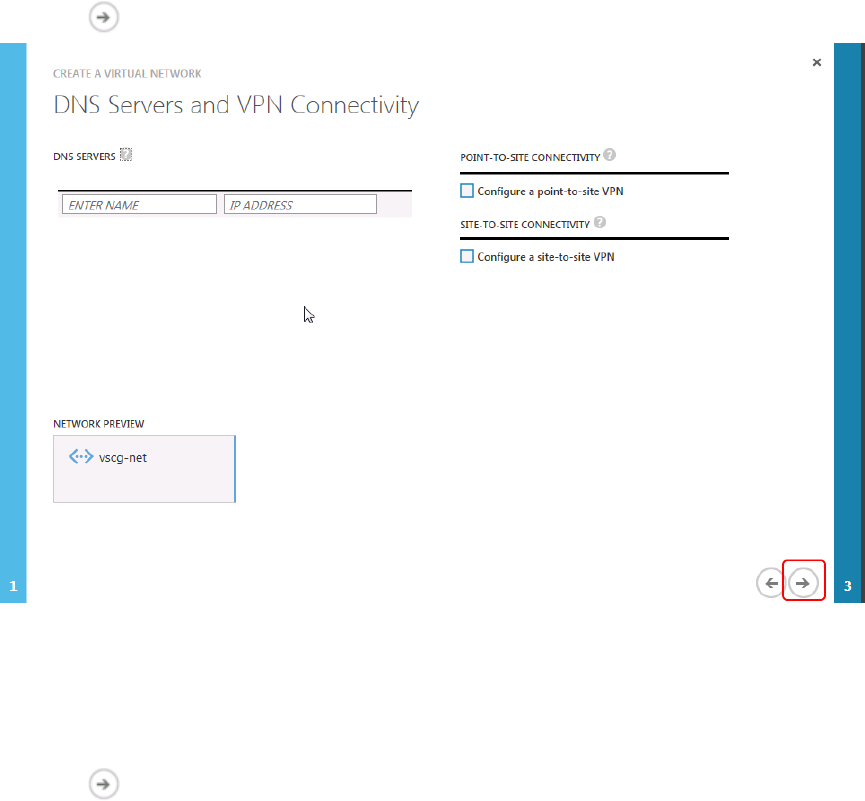
4. In Location, select a location from the drop-down list.
5. Click the icon. The DNS Servers and VPN Connectivity screen appears.
Figure 56: DNS Servers and VPN Connectivity screen
6. In DNS Server, type the name of the server and IP address.
7. Configure the VPN connectivity. You can choose between a point-to-site or site-to-site
connectivity.
8. Click the icon. The Virtual Network Address Spaces screen appears.
Ruckus Wireless™ Virtual SmartZone™ Getting Started Guide for SmartZone 3.4
62
Installing the vSZ on Microsoft Azure
Creating a Network
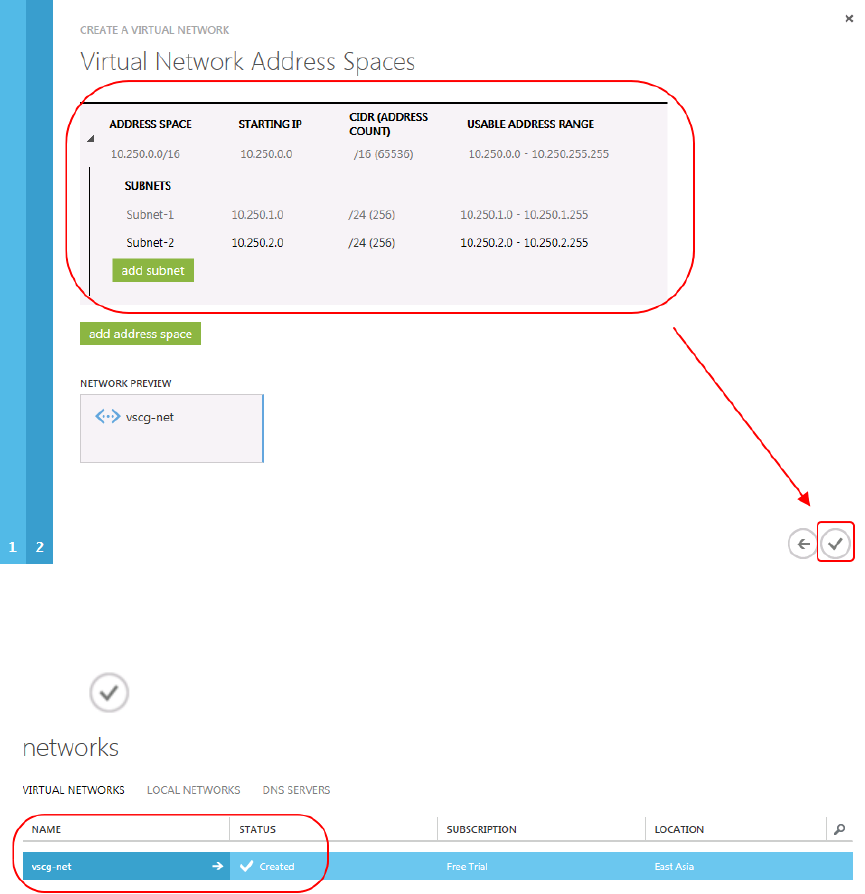
Figure 57: Virtual Network Address Spaces screen
9. Type the address space and subnet information as appropriate.
10.
Click the icon. The virtual network is created and listed in the networks page.
Figure 58: The new virtual network is added and listed in the Networks page
Creating a vSZ Virtual Machine
Follow these steps to create a vSZ virtual machine.
1. From the Microsoft Azure page, click Virtual Machines > Instances. The New screen
appears.
Ruckus Wireless™ Virtual SmartZone™ Getting Started Guide for SmartZone 3.4
63
Installing the vSZ on Microsoft Azure
Creating a vSZ Virtual Machine
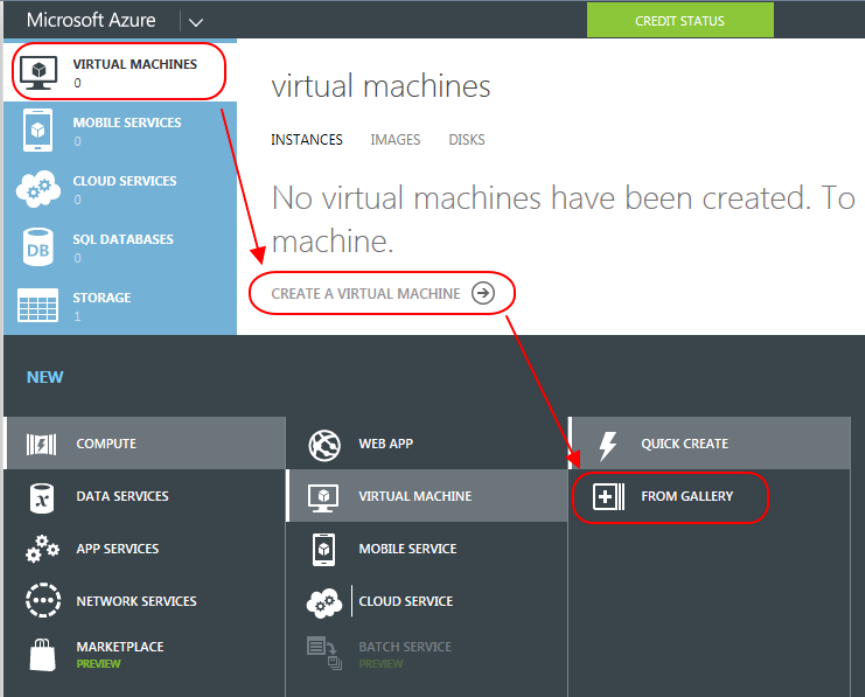
Figure 59: New screen
2. Click Compute > Virtual Machine > Quick Create > From Gallery. The Choose an Image
screen appears.
Ruckus Wireless™ Virtual SmartZone™ Getting Started Guide for SmartZone 3.4
64
Installing the vSZ on Microsoft Azure
Creating a vSZ Virtual Machine
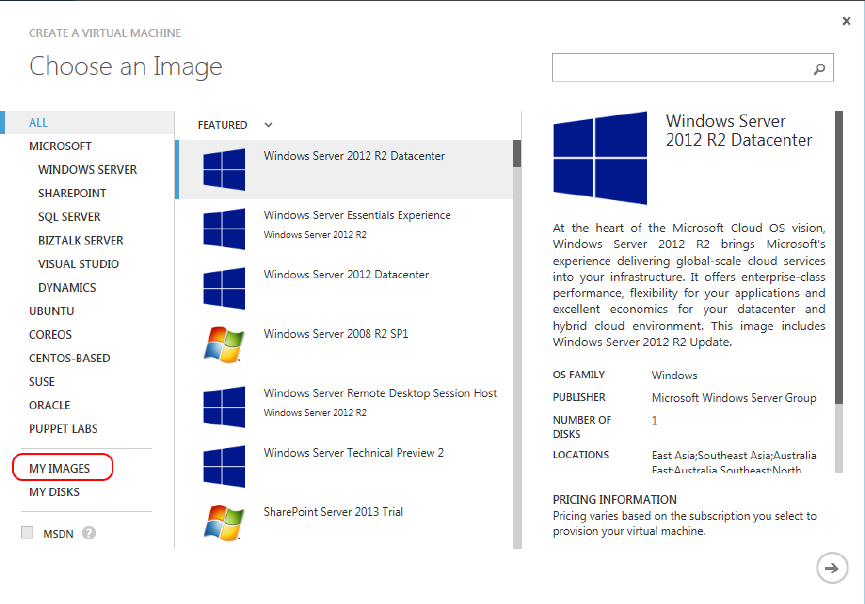
Figure 60: Choosing an image
3. Click My Images. A list of images you created appears.
Ruckus Wireless™ Virtual SmartZone™ Getting Started Guide for SmartZone 3.4
65
Installing the vSZ on Microsoft Azure
Creating a vSZ Virtual Machine
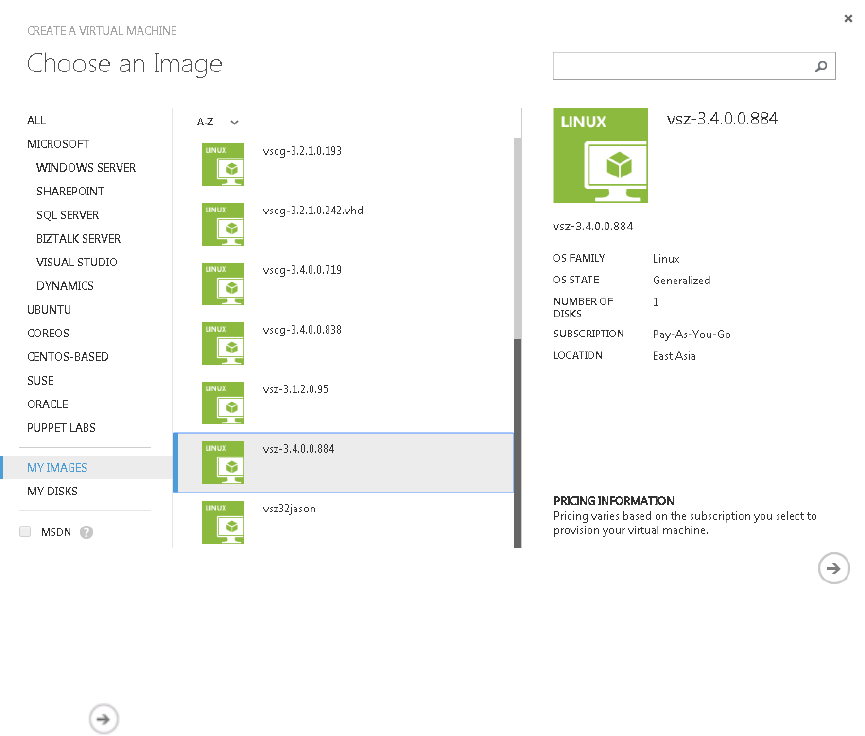
Figure 61: A list of images
4. Select an image.
5. Click the icon. The Virtual Machine Configuration screen appears.
Ruckus Wireless™ Virtual SmartZone™ Getting Started Guide for SmartZone 3.4
66
Installing the vSZ on Microsoft Azure
Creating a vSZ Virtual Machine
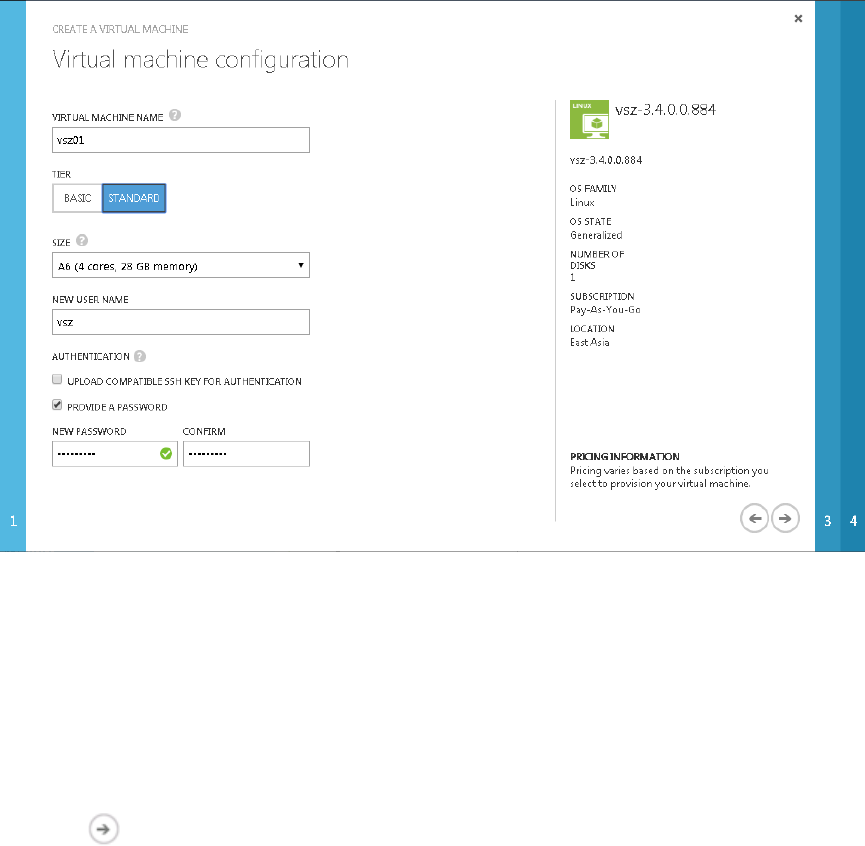
Figure 62: Virtual machine configuration - screen 1
6. In Virtual Machine Name, type the name of the VM.
7. In Tier, select Standard.
8. In Size, select an option from the drop-down list.
9. In New User Name, type the user name.
10. In Authentication, select the Provide a Password option. Type the new password and
confirm.
11. Click the icon. The next configuration screen appears
Ruckus Wireless™ Virtual SmartZone™ Getting Started Guide for SmartZone 3.4
67
Installing the vSZ on Microsoft Azure
Creating a vSZ Virtual Machine
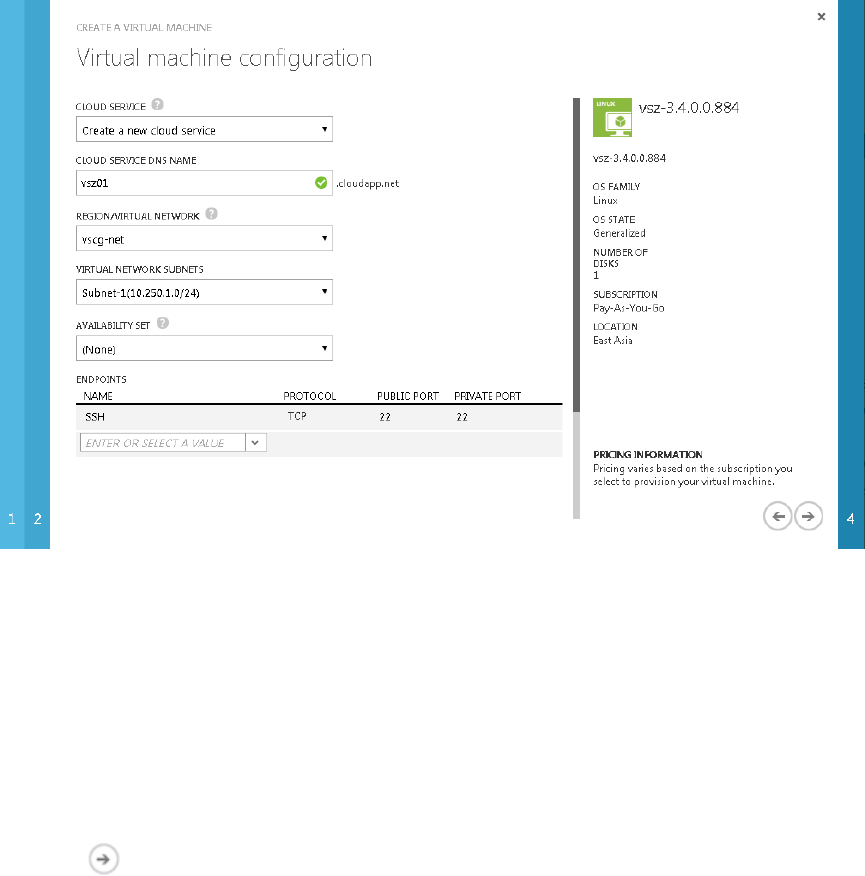
Figure 63: Virtual machine configuration - screen 2
12. In Cloud Service, select a service from the drop-down list.
13. In Cloud Service DNS Name, type the DNS name.
14. In Region/Affinity Group/Virtual Network, select an option from the drop-down list.
15. In Virtual Network Subnets, select an option from the drop-down list.
16. In Availability Set, select an option from the drop-down list.
17. In End Points, type the values as appropriate. Refer to step 4 of Creating vSZ Instance on
page 113
18. Click the icon. The next configuration screen appears.
Ruckus Wireless™ Virtual SmartZone™ Getting Started Guide for SmartZone 3.4
68
Installing the vSZ on Microsoft Azure
Creating a vSZ Virtual Machine
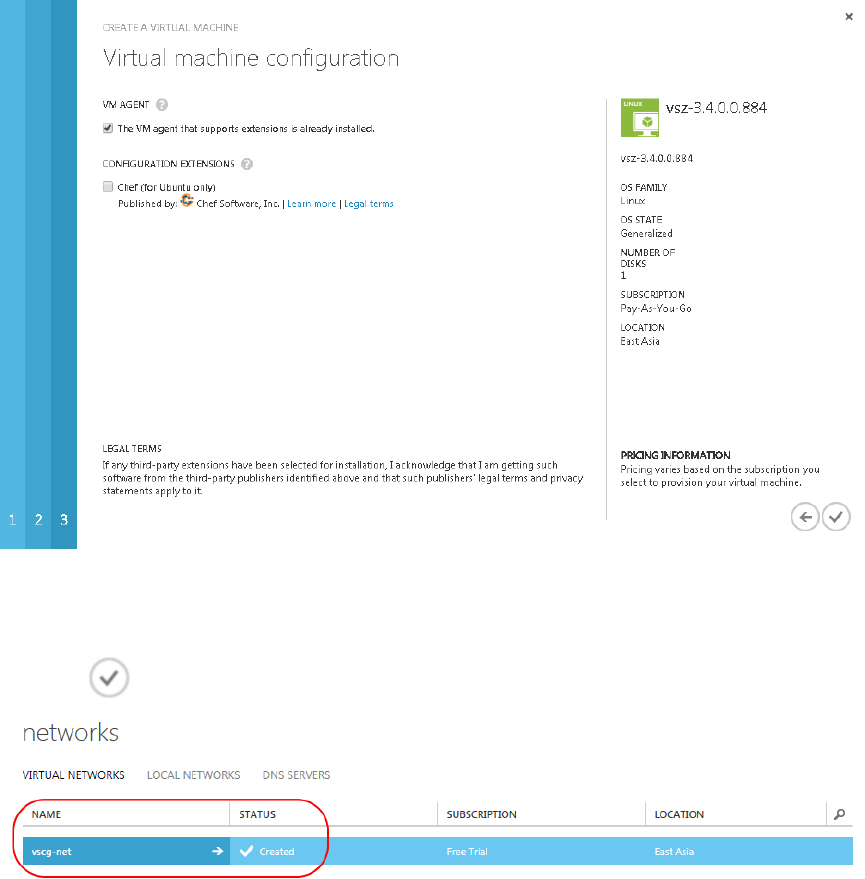
Figure 64: Virtual machine configuration - screen 3
19. In VM Agent, select the check-box to enable VM agent.
20.
Click the icon. The new VM is listed in the Virtual Machines page.
Figure 65: The new VM is created and listed
Configuring Port Numbers for Virtual Machines
Follow these steps to configure port numbers for your VM using Microsoft Azure.
1. From the Microsoft Azure page, click Virtual Machines > Instances.
Ruckus Wireless™ Virtual SmartZone™ Getting Started Guide for SmartZone 3.4
69
Installing the vSZ on Microsoft Azure
Configuring Port Numbers for Virtual Machines
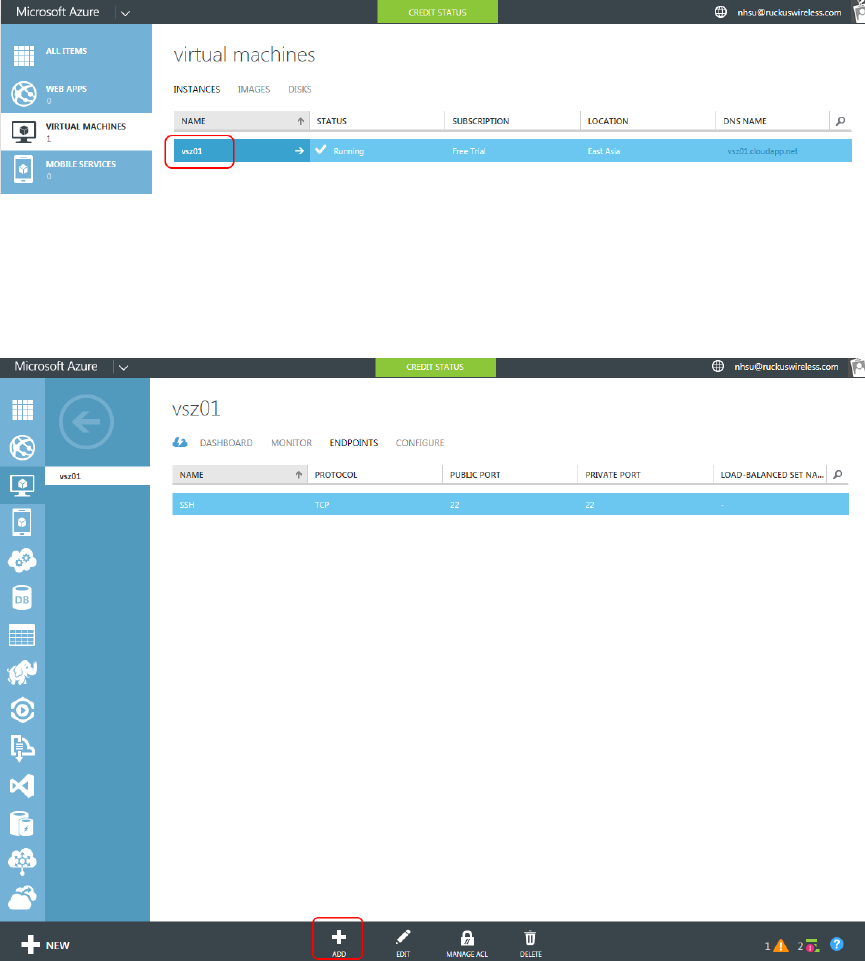
Figure 66: Selecting a VM
2. Select the virtual machine to configure the ports.
3. Click Endpoints.
4. Select Add Endpoint..
Figure 67: Adding endpoints
The Add Endpoint screen appears.
Ruckus Wireless™ Virtual SmartZone™ Getting Started Guide for SmartZone 3.4
70
Installing the vSZ on Microsoft Azure
Configuring Port Numbers for Virtual Machines
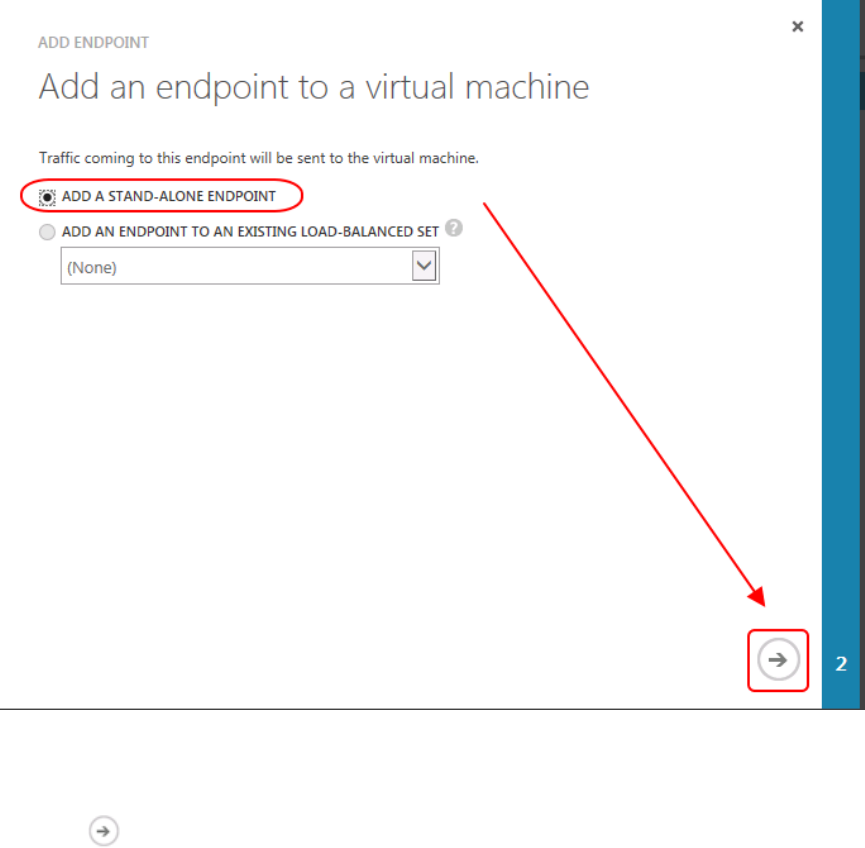
Figure 68: Add Endpoint - screen
5. Select Add a stand-alone end point.
6. Click the icon. The next configuration screen appears.
Ruckus Wireless™ Virtual SmartZone™ Getting Started Guide for SmartZone 3.4
71
Installing the vSZ on Microsoft Azure
Configuring Port Numbers for Virtual Machines
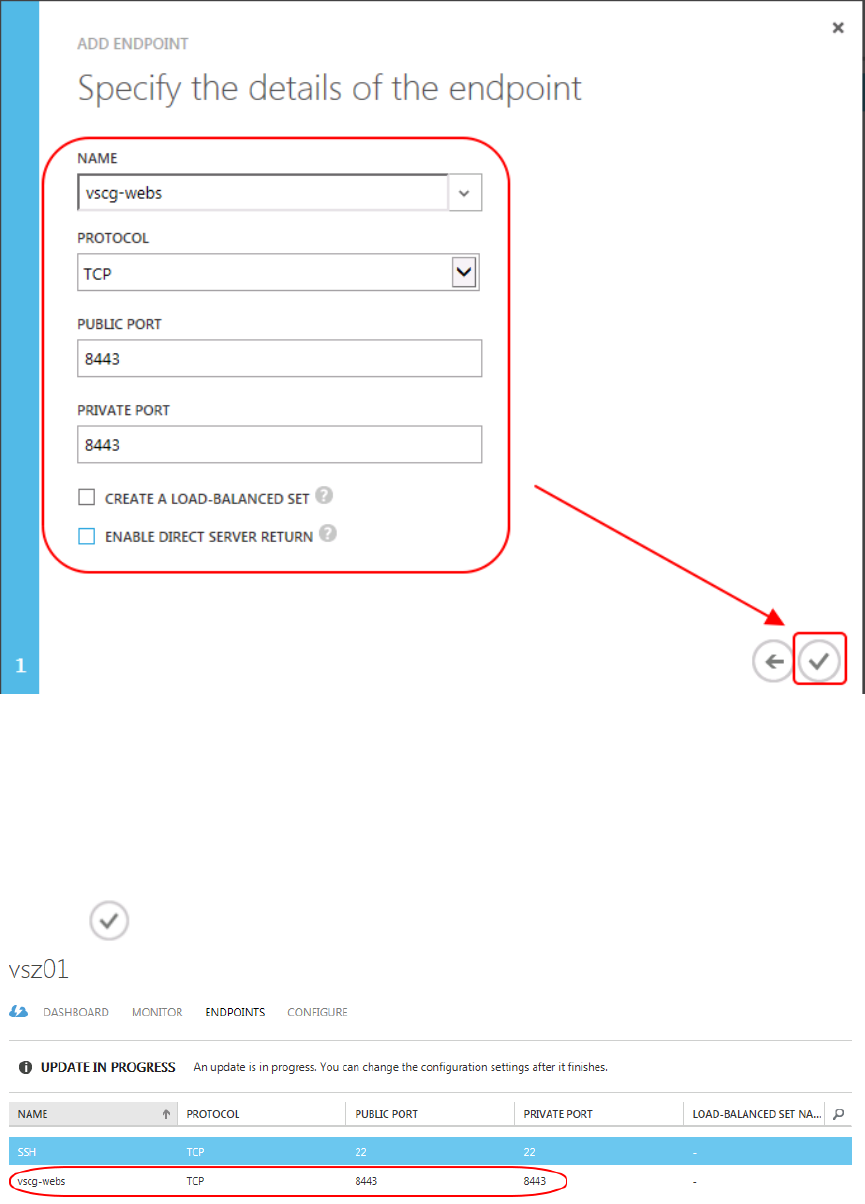
Figure 69: Adding Endpoint - screen 2
7. In Name, type the name of the endpoint.
8. In Protocol, select the protocol from the drop-down list.
9. In Public Report, type 8443.
10. In Private Report, type 8443.
11.
Click the icon. The endpoint is created and listed in the Endpoints tab for the VM.
Figure 70: A new endpoint for the VM is created and listed
Ruckus Wireless™ Virtual SmartZone™ Getting Started Guide for SmartZone 3.4
72
Installing the vSZ on Microsoft Azure
Configuring Port Numbers for Virtual Machines
Assigning a Static Public IP Address to a VM
Microsoft Azure assigns a dynamic IP address to a VM when it is created. In addition, a static
public IP address must be assigned to a VM as DNS names cannot be configured in a vSZ;
resulting in changes to the public IP address. Follow these steps to assign a static public IP
address to a VM:
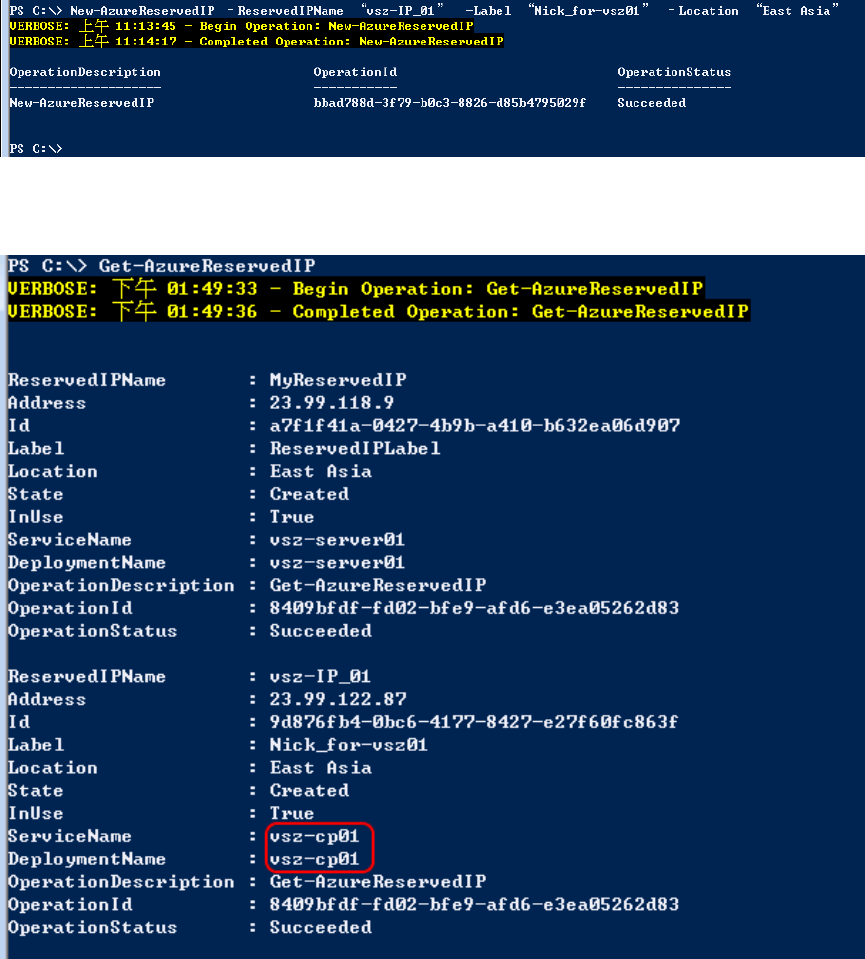
1. Open the command prompt and create a static IP by typing the
New-AzureReservedIP-ReservedIPName <name>-Label <label
name>-Location <location name> command.
Figure 71: Creating a static IP address
2. Verify that the static IP address is created by typing the Get-AzureReservedIP command.
Figure 72: Verifying static IP address is created
Ruckus Wireless™ Virtual SmartZone™ Getting Started Guide for SmartZone 3.4
73
Installing the vSZ on Microsoft Azure
Assigning a Static Public IP Address to a VM
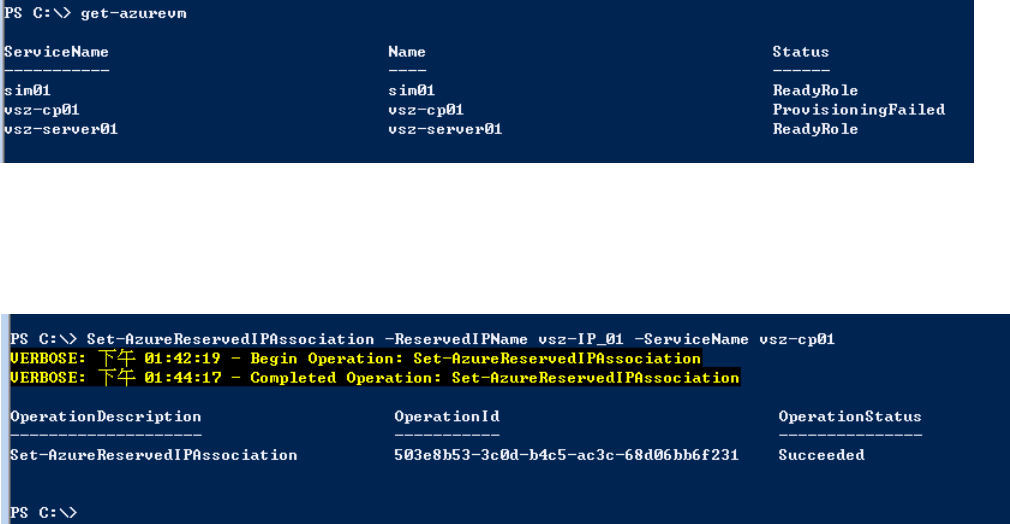
3. Select a VM to assign the static public IP by typing the get-azurevm command.
Figure 73: Selecting the VM to assign a static IP address
4. Set the IP address to the VM by typing the
Set-AzureReservedIPAssociation-ReservedIPName <name>-ServiceName
<name> command.
Figure 74: Setting the IP address
5. Verify that the static public IP address to assigned to the VM by typing the
Get-AzureReservedIP command.
Ruckus Wireless™ Virtual SmartZone™ Getting Started Guide for SmartZone 3.4
74
Installing the vSZ on Microsoft Azure
Assigning a Static Public IP Address to a VM
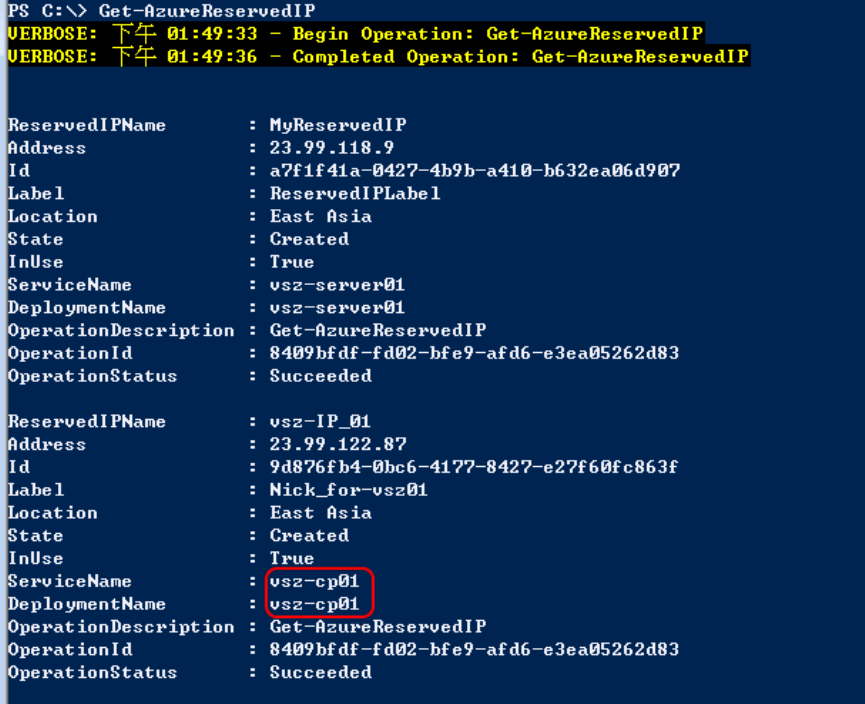
Figure 75: Verifying that the IP address is assigned
6. From the Microsoft Azure page, click Virtual Machines > Instances and verify that DNS
Name.
7. Select the VM.
8. Click the Dashboard tab. Verify that you are able to see the updated Public IP address.
Ruckus Wireless™ Virtual SmartZone™ Getting Started Guide for SmartZone 3.4
75
Installing the vSZ on Microsoft Azure
Assigning a Static Public IP Address to a VM
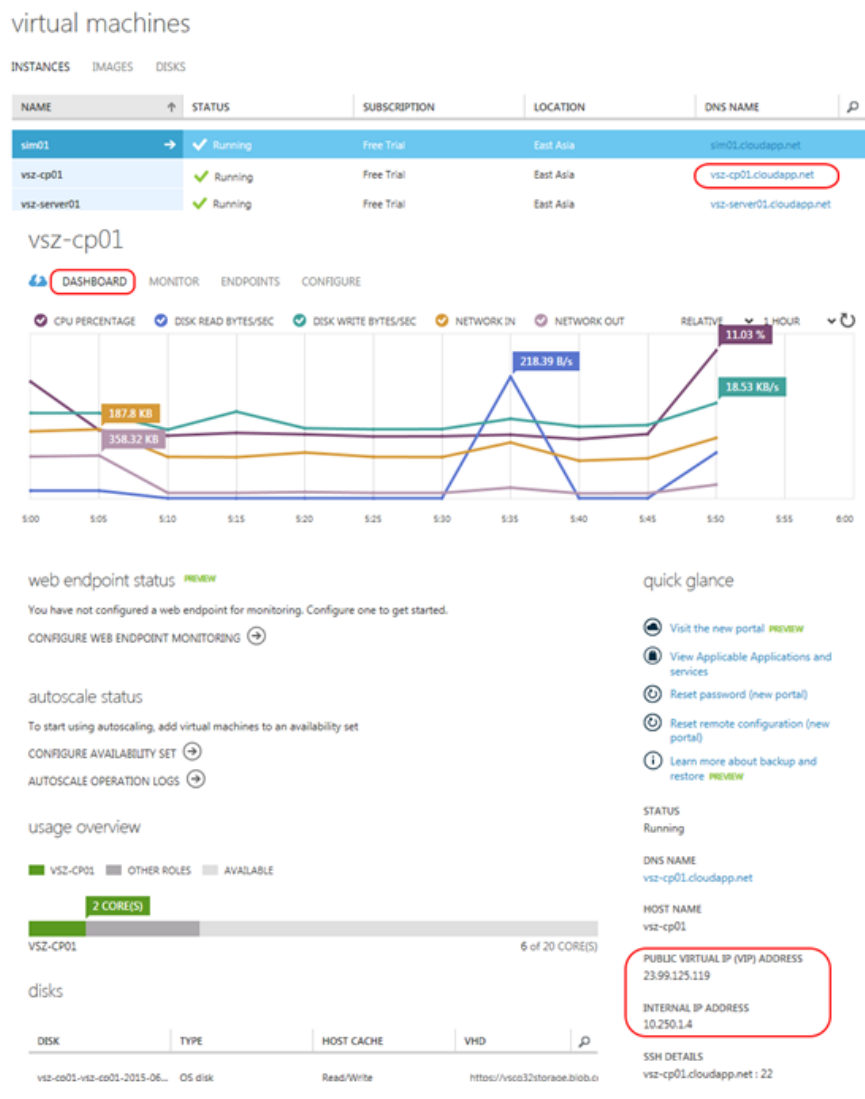
Figure 76: Verifying the DNS name and static public IP address changes
Ruckus Wireless™ Virtual SmartZone™ Getting Started Guide for SmartZone 3.4
76
Installing the vSZ on Microsoft Azure
Assigning a Static Public IP Address to a VM
Assigning a Static Internal IP Address to a Virtual Machine
A Virtual machine in a network is assigned an internal IP address. These addresses change when
the VM is restarted. Some scenarios such as the following might require VMs to have a static
internal IP address that does not change: If the VM is an internal DNS server, If the VM is a node
within a cluster, and If the VM is part of a site-to-site VPN connection..
Before You Begin:
•Ensure that a vSZ virtual machine is created using Microsoft Azure.
•Ensure that you assign an internal IP for the VM before configuring the virtual network.
Follow these steps to assign an static internal IP to a VM:
1. From the Microsoft Azure page, click Virtual Machines > Instances.
2. From the Virtual Machines page, select the VM.
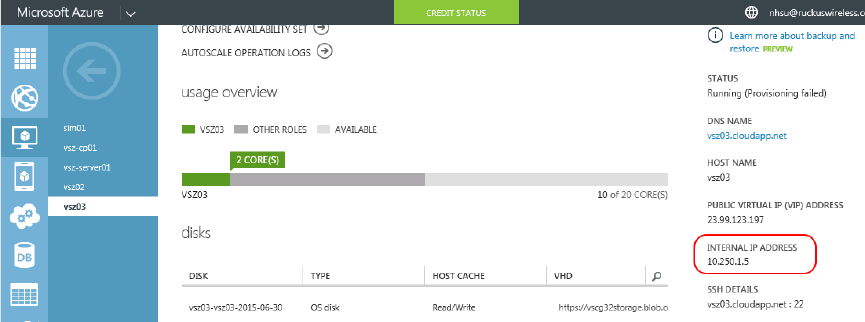
An internal IP is assigned to the VM by default when it is created.
Figure 77: Default IP assigned to the VM
3. Click Shutdown.
Ruckus Wireless™ Virtual SmartZone™ Getting Started Guide for SmartZone 3.4
77
Installing the vSZ on Microsoft Azure
Assigning a Static Internal IP Address to a Virtual Machine
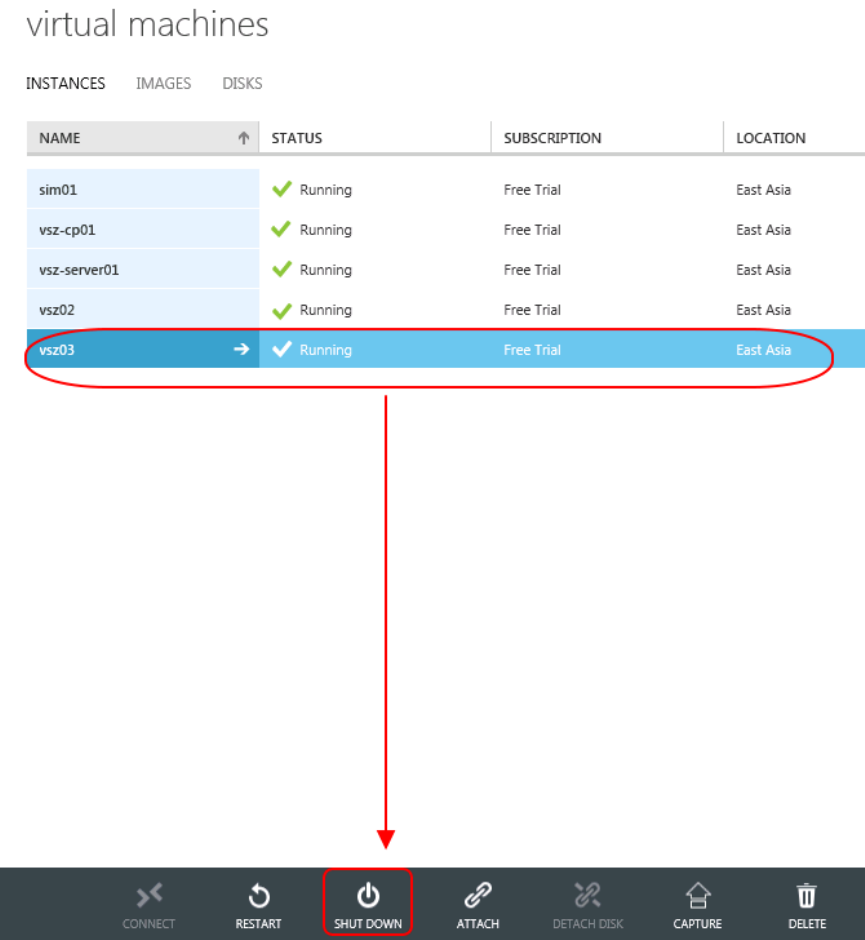
Figure 78: Shutting down the VM
4. Verify that the VM has stopped running.
Ruckus Wireless™ Virtual SmartZone™ Getting Started Guide for SmartZone 3.4
78
Installing the vSZ on Microsoft Azure
Assigning a Static Internal IP Address to a Virtual Machine
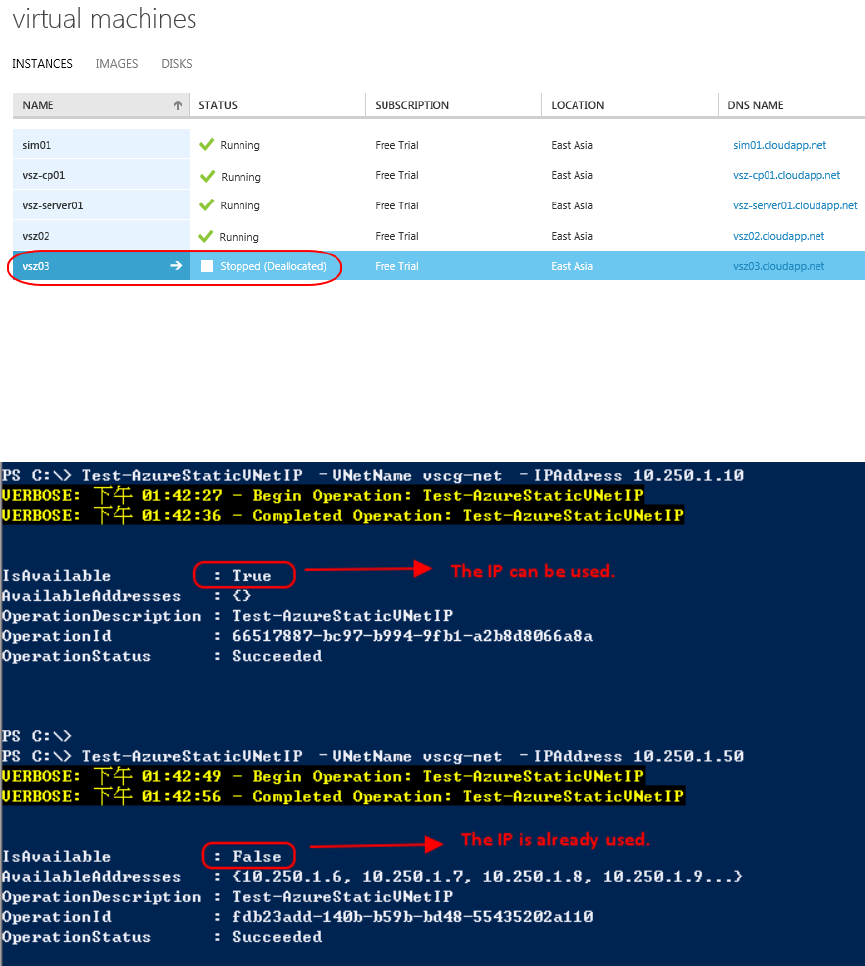
Figure 79: Verifying VM has stopped running
5. Open command prompt.
6. Enter the Test-AzureStaticVnetIP -VnetName <name> -IPAddress <test IP
address> command to verify that the IP address is available to assign to the VM.
Figure 80: Verifying IP address availability
7. Assign the available IP (10.250.1.10 in this example) to the VM using the Get-AzureVM
-ServiceName vsz03 -Name vsz03 `| Set-AzureStaticVNetIP -IPAddress
10.250.1.10 `| Update-AzureVM commands.
Ruckus Wireless™ Virtual SmartZone™ Getting Started Guide for SmartZone 3.4
79
Installing the vSZ on Microsoft Azure
Assigning a Static Internal IP Address to a Virtual Machine
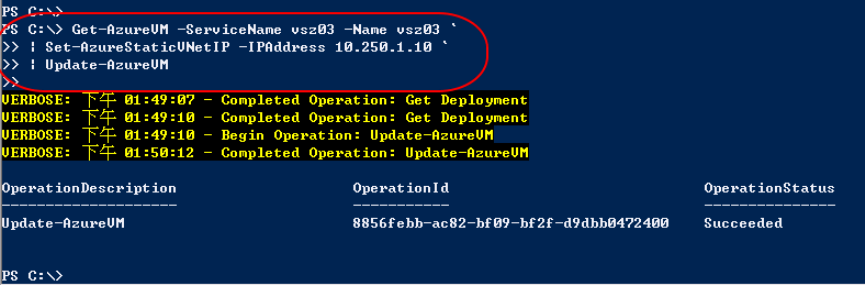
Figure 81: Assigning the static IP to the VM
8. From the Virtual Machines page, select the VM.
9. Click Start.
Ruckus Wireless™ Virtual SmartZone™ Getting Started Guide for SmartZone 3.4
80
Installing the vSZ on Microsoft Azure
Assigning a Static Internal IP Address to a Virtual Machine
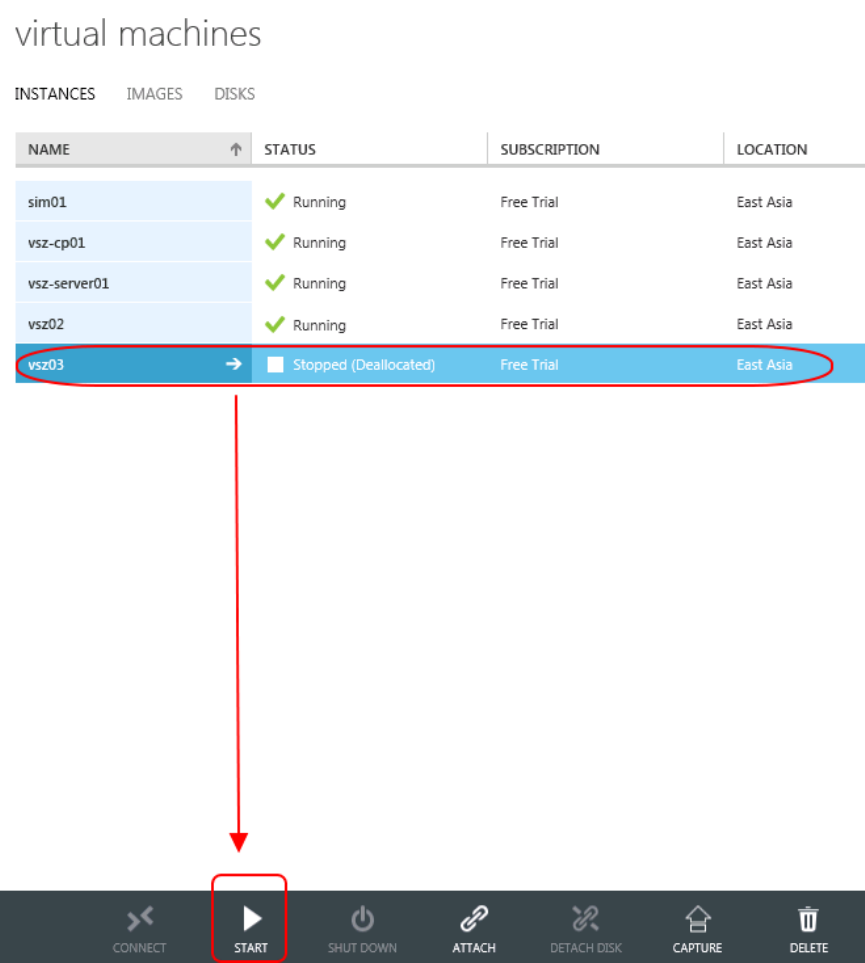
Figure 82: Starting the VM
10. Click the VM properties and verify that the IP address has changed.
Ruckus Wireless™ Virtual SmartZone™ Getting Started Guide for SmartZone 3.4
81
Installing the vSZ on Microsoft Azure
Assigning a Static Internal IP Address to a Virtual Machine
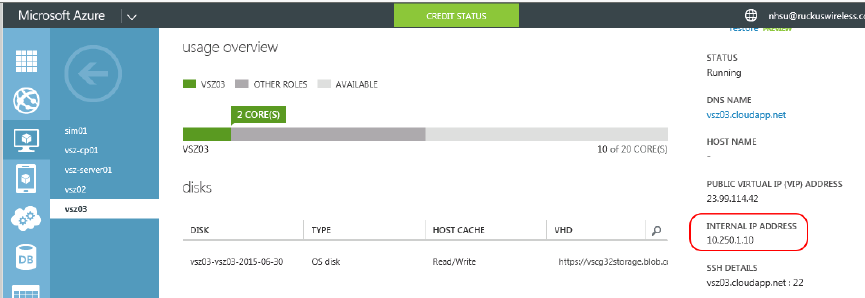
Figure 83: Verifying static IP address is assigned to the VM
Ruckus Wireless™ Virtual SmartZone™ Getting Started Guide for SmartZone 3.4
82
Installing the vSZ on Microsoft Azure
Assigning a Static Internal IP Address to a Virtual Machine
5
Installing vSZ on the Google Computing
Engine
In this chapter:
•Logging into GCE and Selecting a Project
•Creating a Storage Bucket
•Uploading the vSZ image to a Storage
•Creating a vSZ Image for Virtual Machines
•Creating Networks and Configuring Firewall Rules
•Creating Virtual Machine (VM) Instances
You can install vSZ on the Google Computing Engine using the steps mentioned in this section.
NOTE: The minimum memory and CPU requirements have changed in this release. You may need
to upgrade your infrastructure before upgrading. Please read carefully. This is the minimum requirement
recommended. Refer to Table 5 and Table 6 in the chapter Preparing to Install the vSZ.
Logging into GCE and Selecting a Project
This section describes how to log into the GCE and select a project.
Ensure that you have created an account with GCE and have the login details for the same.
1. Click http://cloud.google.com to access the Google Cloud Platform website.
2. Login with your user credentials of user name and password.
Ruckus Wireless™ Virtual SmartZone™ Getting Started Guide for SmartZone 3.4
83
83
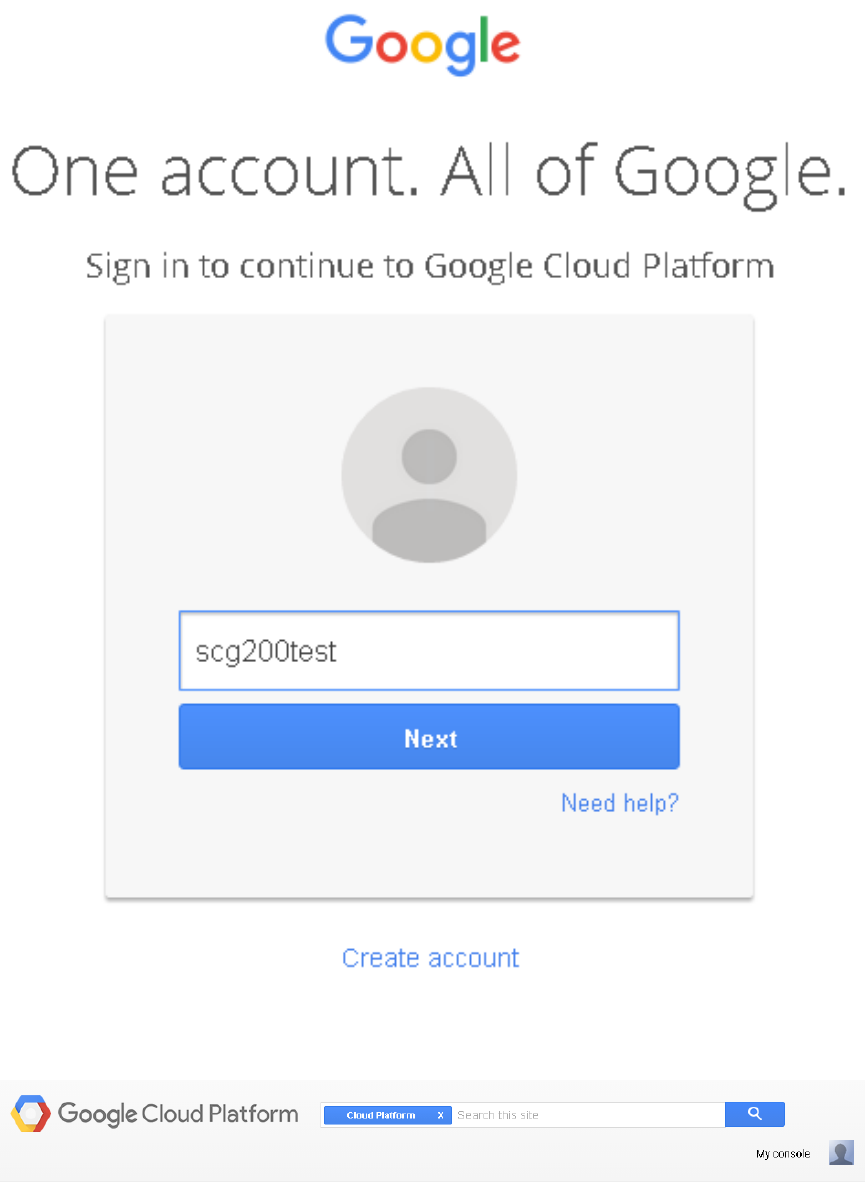
Figure 84: Login with user credentials
3. Select My console as shown.
Figure 85: GCE Page - My console
4. A list of projects you created is displayed. Click to choose a project.
Ruckus Wireless™ Virtual SmartZone™ Getting Started Guide for SmartZone 3.4
84
Installing vSZ on the Google Computing Engine
Logging into GCE and Selecting a Project
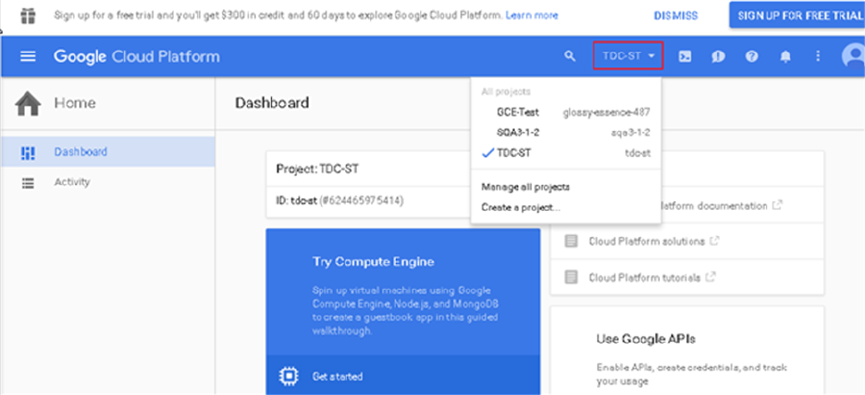
Figure 86: Choose the project
NOTE: You can create projects by clicking Create a project in the drop-down.
5. Click Product and Services icon to view the list of GCE services.
Ruckus Wireless™ Virtual SmartZone™ Getting Started Guide for SmartZone 3.4
85
Installing vSZ on the Google Computing Engine
Logging into GCE and Selecting a Project

Figure 87: Selecting a Project
Creating a Storage Bucket
You can create storage for the objects you create. Follow these steps to create storage.
1. From Google Developers Console, click Product and Services icon > Storage. The Cloud
Storage Buckets screen appears.
Ruckus Wireless™ Virtual SmartZone™ Getting Started Guide for SmartZone 3.4
86
Installing vSZ on the Google Computing Engine
Creating a Storage Bucket
Figure 88: Storage Bucket Browser
2. Click Create Bucket. The New bucket screen appears.
Ruckus Wireless™ Virtual SmartZone™ Getting Started Guide for SmartZone 3.4
87
Installing vSZ on the Google Computing Engine
Creating a Storage Bucket
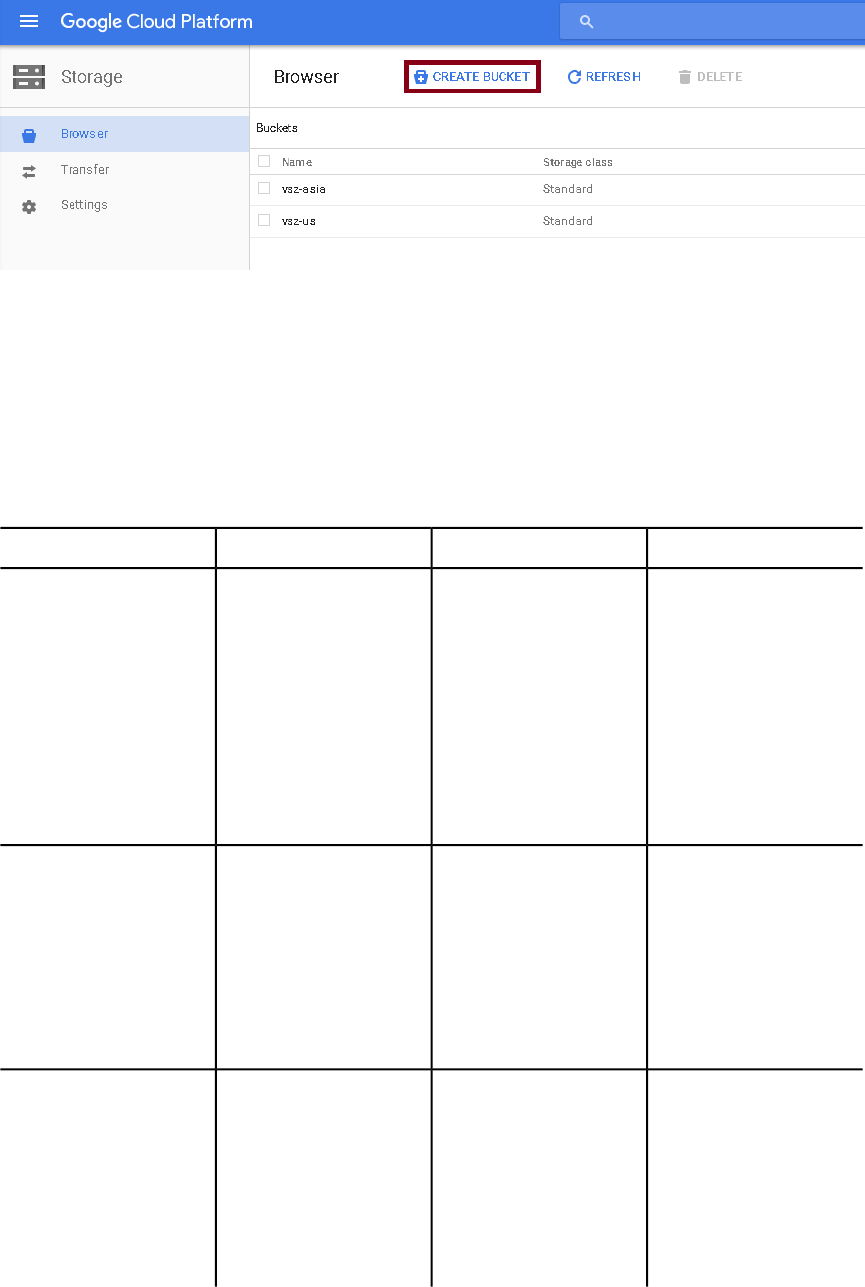
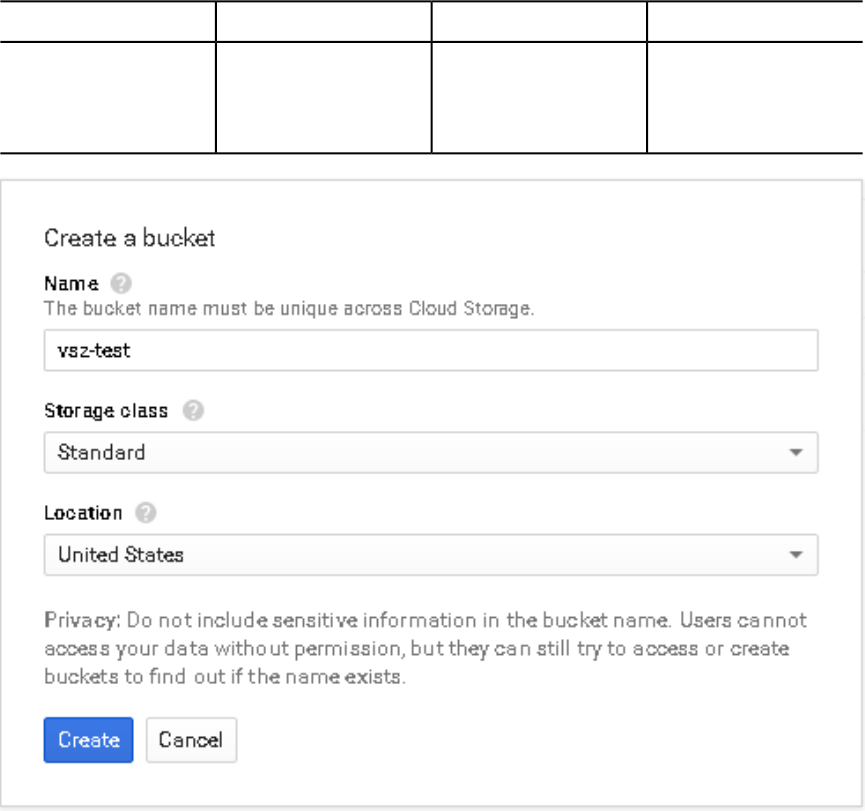
Figure 89: Creating a Storage Bucket
3. Complete the following fields,
a) In Name, type the name of the storage bucket
b) In Storage class, select the storage class you want. You can choose from Standard,
Durable Reduced Availability (DRA) or Cloud Storage Nearline in the drop-down list.
Use the below table to compare the storage classes.
c) In Location, select the location from the drop-down list.
Bucket LocationUse CasesCharacteristicsStorage Class
Continental locationsStoring data that
requires low latency
High availability, low
latency (time to first
Standard Storage
access or data that isbyte is typically tens
of milliseconds). frequently accessed
("hot" objects), such
as serving website
content, interactive
workloads, or gaming
and mobile
applications
Continental and
regional locations
Applications that are
particularly
cost-sensitive, or for
Lower availability than
Standard Storage and
lower cost per GB
stored.
Durable Reduced
Availability (DRA)
which some
unavailability is
acceptable such as
batch jobs and some
types of data backup.
Continental locationsData you do not
expect to access
Slightly lower
availability and slightly
Cloud Storage
Nearline
frequently (i.e., nohigher latency (time to
more than once perfirst byte is typically 2
month). Typically this- 5 seconds) than
is backup data forStandard Storage but
with a lower cost. disaster recovery, or
so called "cold"
Ruckus Wireless™ Virtual SmartZone™ Getting Started Guide for SmartZone 3.4
88
Installing vSZ on the Google Computing Engine
Creating a Storage Bucket
Bucket LocationUse CasesCharacteristicsStorage Class
storage that is
archived and may or
may not be needed at
some future time.
Figure 90: New Bucket Information
4. Click Create. The storage bucket you created is listed in the browser.
5. To create another storage, click Create bucket as shown.
Ruckus Wireless™ Virtual SmartZone™ Getting Started Guide for SmartZone 3.4
89
Installing vSZ on the Google Computing Engine
Creating a Storage Bucket
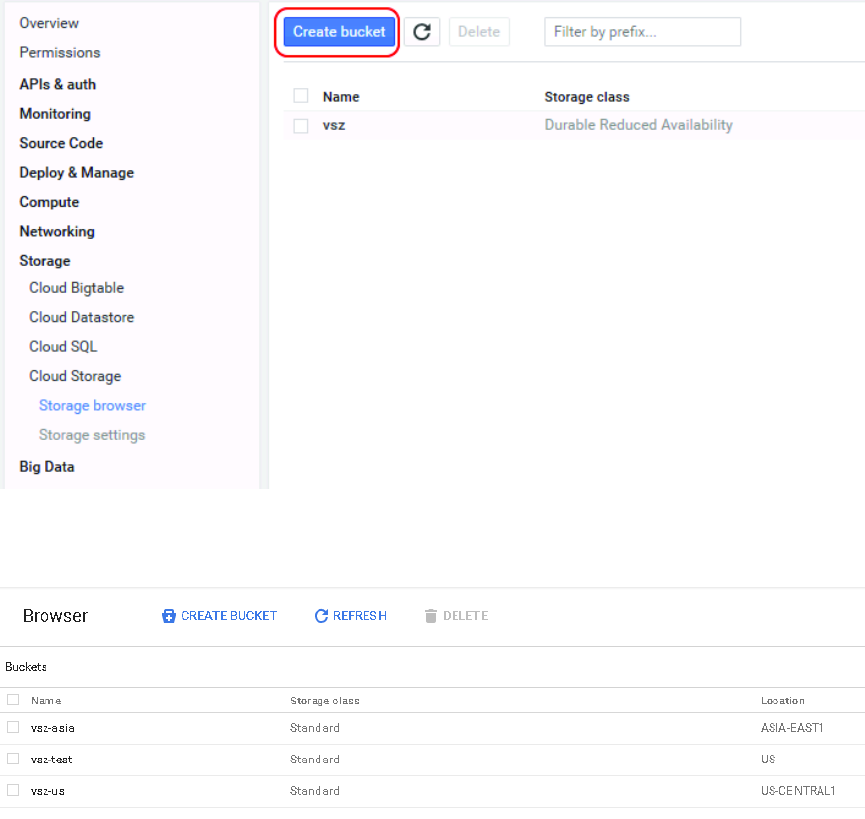
Figure 91: Creating Another Storage Bucket
6. Check the storage bucket has been created.
Figure 92: Selecting the Storage Bucket
Uploading the vSZ image to a Storage
Follow these steps to upload a vSZ image to the storage bucket you created.
1. Select the storage bucket to upload the vSZ image as shown.
Ruckus Wireless™ Virtual SmartZone™ Getting Started Guide for SmartZone 3.4
90
Installing vSZ on the Google Computing Engine
Uploading the vSZ image to a Storage
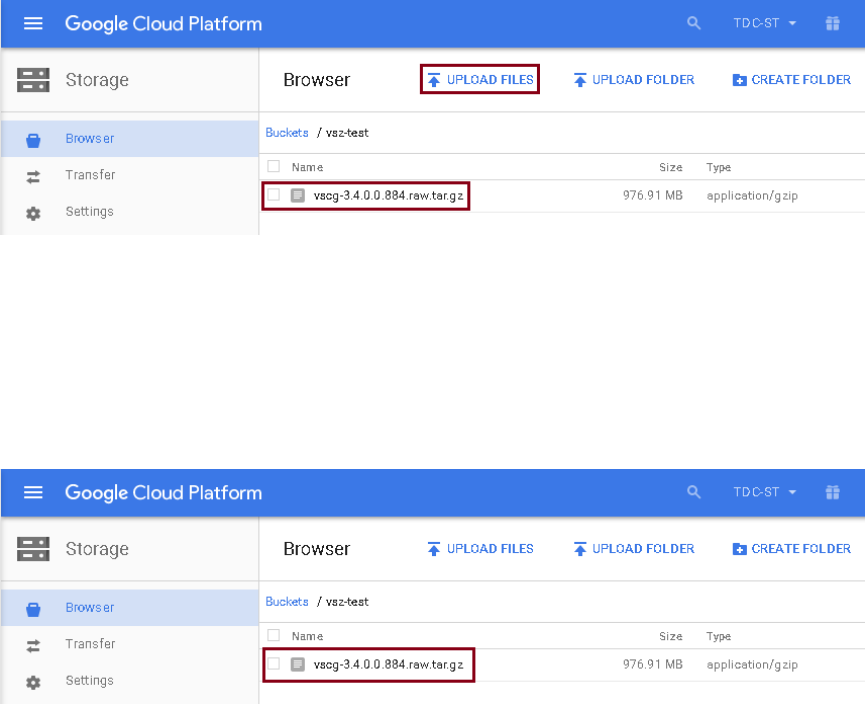
Figure 93: Selecting the Storage
2. Click Upload files.
3. Browse to the location of the vSZ image and select vSZ image file.
Only images with file-type *.raw.tar.gz can be selected.
4. Click Open to upload the file. The upload process is displayed.
5. The image is listed in the storage bucket after the image is uploaded.
Figure 94: vSZ Image Uploaded to Storage Bucket
Creating a vSZ Image for Virtual Machines
Follow these steps to create a vSZ image for virtual machines.
1. From Google Developers Console, click Compute > Compute Engine.
Ruckus Wireless™ Virtual SmartZone™ Getting Started Guide for SmartZone 3.4
91
Installing vSZ on the Google Computing Engine
Creating a vSZ Image for Virtual Machines
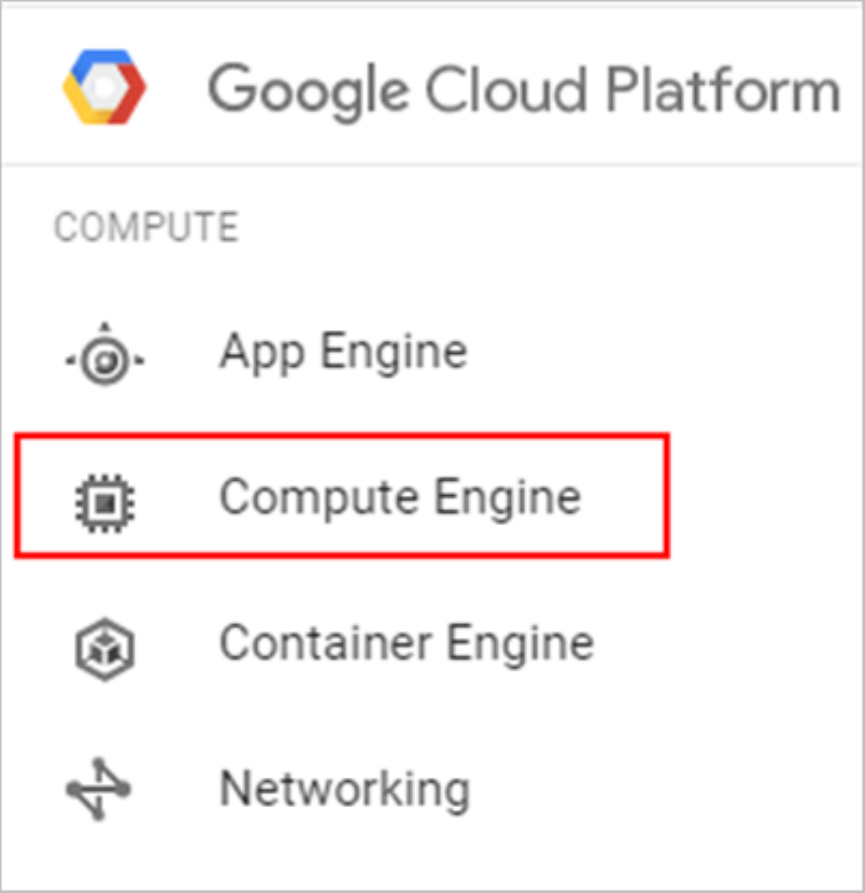
Figure 95: Select Compute Engine
2. Click Images to view a page displaying a list of images. Click Create Image as shown.
Ruckus Wireless™ Virtual SmartZone™ Getting Started Guide for SmartZone 3.4
92
Installing vSZ on the Google Computing Engine
Creating a vSZ Image for Virtual Machines
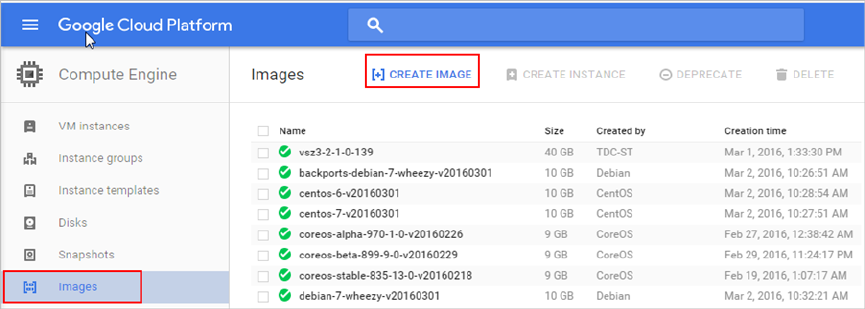
Figure 96: Create Image
3. The Create a new image screen appears.
a) In Name, type the name of the image.
b) In Description, provide a brief description about the image.
c) In Encryption, select an option from the drop-down list containing Automatic
(recommended) and Customer supplied.
d) In Source, select Cloud storage file.
e) In Cloud Storage file, click Browse to select the file.
Ruckus Wireless™ Virtual SmartZone™ Getting Started Guide for SmartZone 3.4
93
Installing vSZ on the Google Computing Engine
Creating a vSZ Image for Virtual Machines
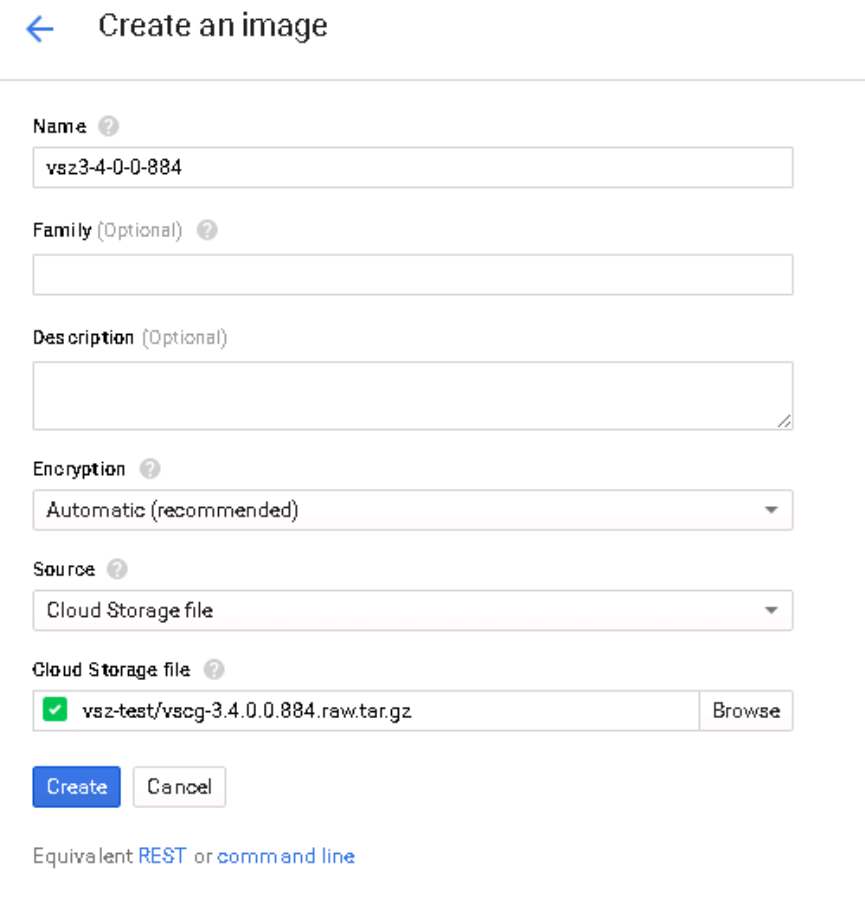
Figure 97: Create a New Image Screen
4. Click Create. The new image is listed.
Ruckus Wireless™ Virtual SmartZone™ Getting Started Guide for SmartZone 3.4
94
Installing vSZ on the Google Computing Engine
Creating a vSZ Image for Virtual Machines
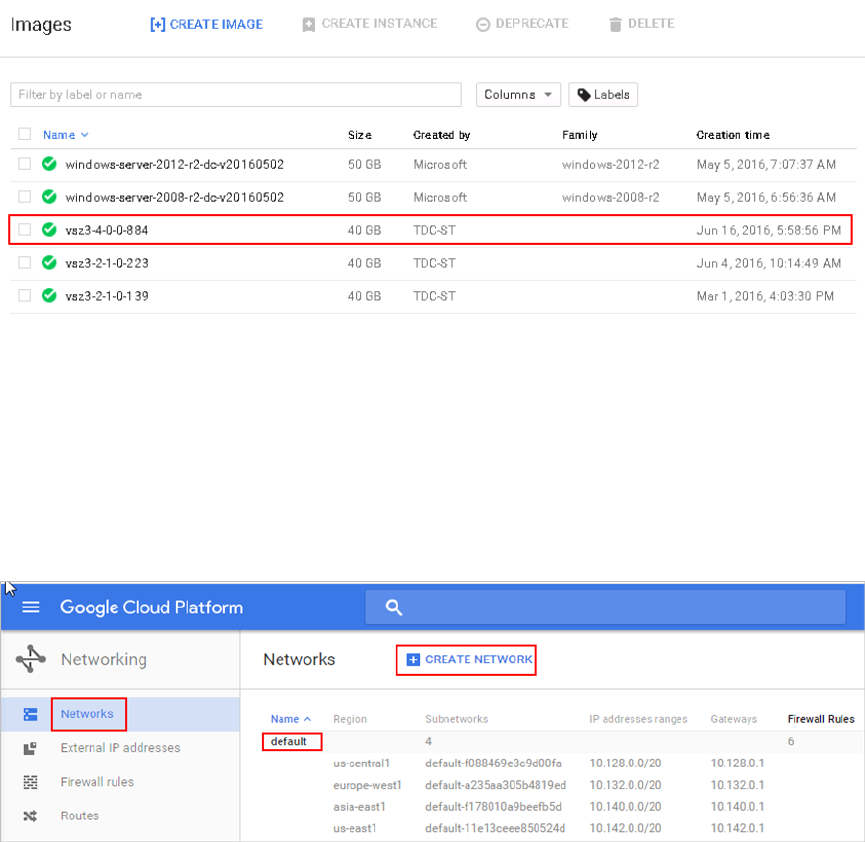
Figure 98: The New Image is Listed
Creating Networks and Configuring Firewall Rules
Follow these steps to create a network and configure firewall rules for your network.
1. From Google Developers Console, click Networking > Networks. A page displaying a list
of networks appears. Select the default network.
Figure 99: List of Networks
2. To create a firewall rule, click Add a firewall rule.
Ruckus Wireless™ Virtual SmartZone™ Getting Started Guide for SmartZone 3.4
95
Installing vSZ on the Google Computing Engine
Creating Networks and Configuring Firewall Rules
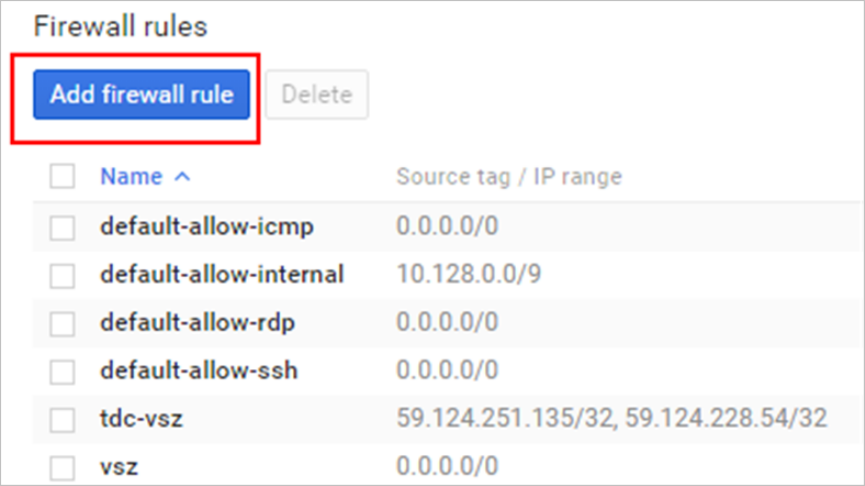
Figure 100: Add a Firewall Rule
3. The Create a firewall rule screen appears.
a) In Name, type the name of the rule
b) In Description, provide a brief description about the rule.
c) In Network, type the network address.
d) In Source filter, select Allow from any source.
e) In Source IP ranges, type the range.
f) In Allowed protocols and ports, type the protocols and ports that will be allowed
g) In Target tags, specify a tag name. It is recommended that you provide a tag as all network
instances with this tag will adhere to the firewall rule.
Ruckus Wireless™ Virtual SmartZone™ Getting Started Guide for SmartZone 3.4
96
Installing vSZ on the Google Computing Engine
Creating Networks and Configuring Firewall Rules
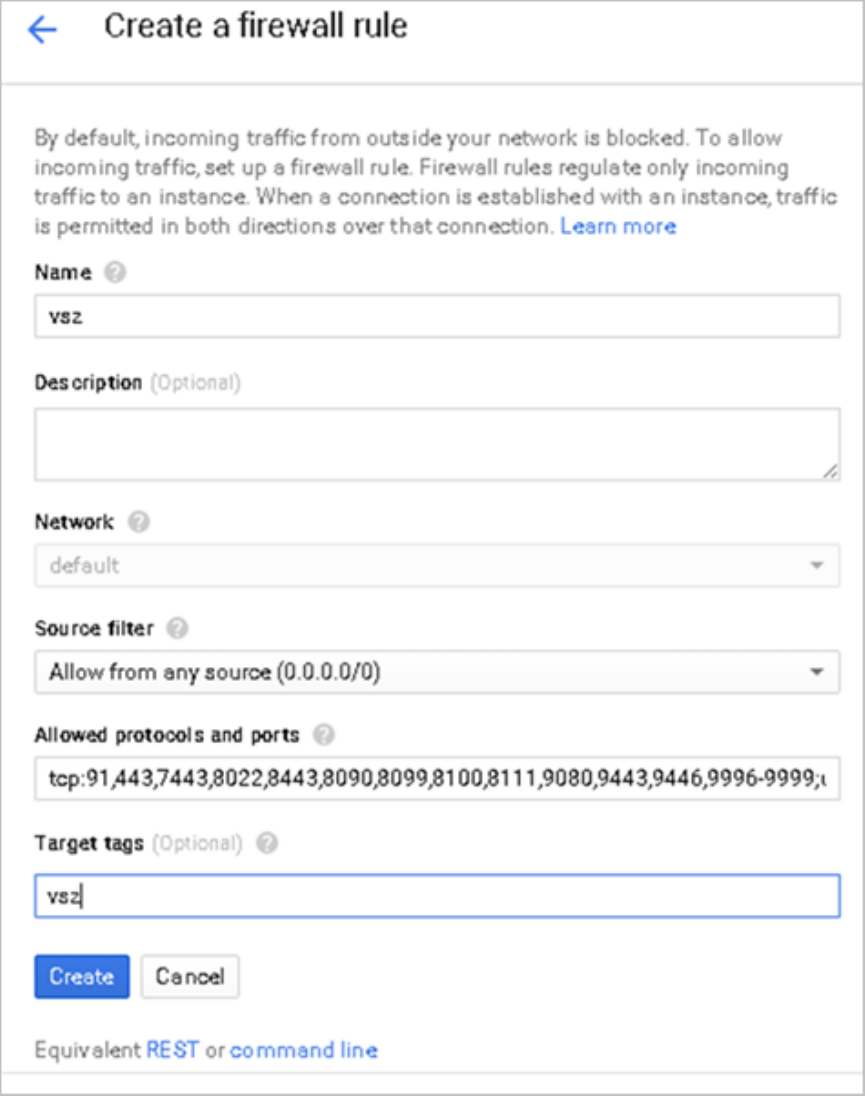
Figure 101: Creating a Firewall Rule
4. Click Create. A page displaying the new firewall rule appears.
Ruckus Wireless™ Virtual SmartZone™ Getting Started Guide for SmartZone 3.4
97
Installing vSZ on the Google Computing Engine
Creating Networks and Configuring Firewall Rules
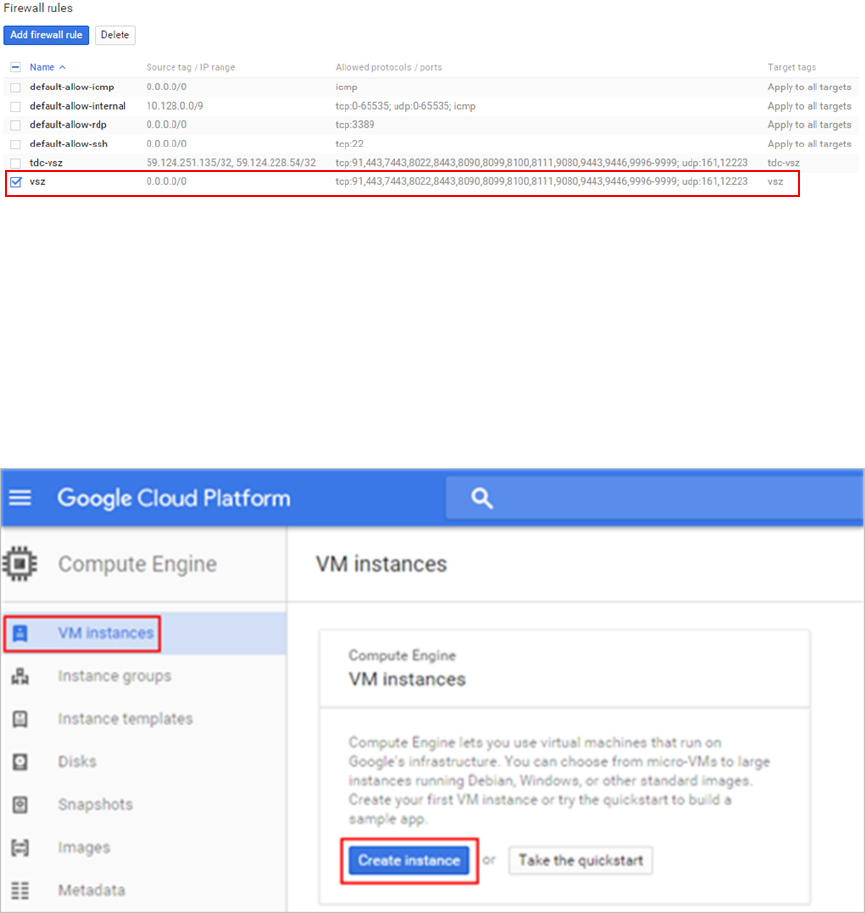
Figure 102: Adding Firewall Rules
Creating Virtual Machine (VM) Instances
Follow these steps to create new VM instances.
1. From Google Developers Console, click Compute > Compute Engine > VM instances.
The Compute Engine VM instances screen appears. Click Create instance.
Figure 103: Select Create Instance
2. The Create a new instance screen appears.
a) In Name, type the name of the VM instance.
b) In Zone, select a zone from the drop-down list.
c) In Machine type, CPU, and Memory are selected by default.
d) To modify Boot disk, click Change. The Boot disk screen appears.
e) In Boot disk, a standard image is selected by default. To modify, click Change. The Boot
disk screen appears. From Your image, select the vSZ image.
f) Click Select.
g) In Firewall, select the options as appropriate.
h) In Project access, allow API access as appropriate.
Ruckus Wireless™ Virtual SmartZone™ Getting Started Guide for SmartZone 3.4
98
Installing vSZ on the Google Computing Engine
Creating Virtual Machine (VM) Instances
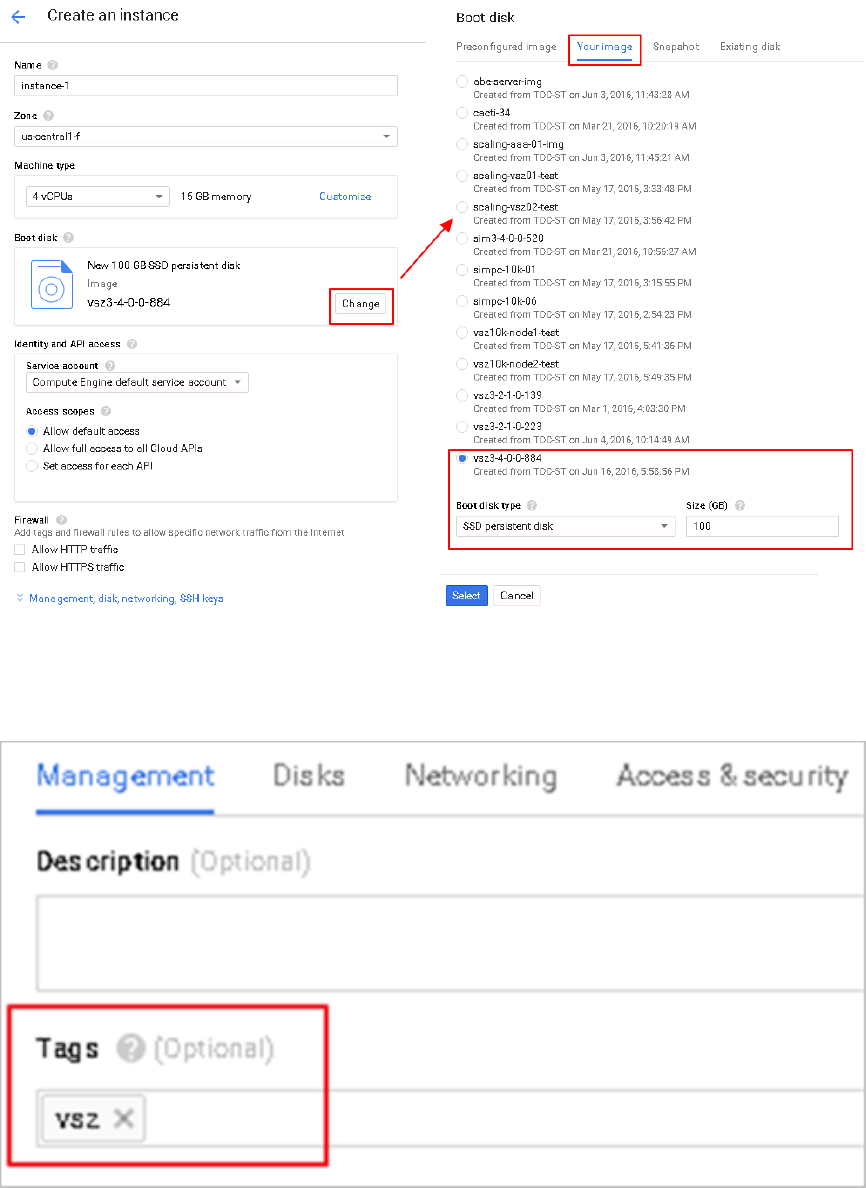
Figure 104: Create a New Instance
i) In Management, ensure that the tag provided is the same as the one provided while
creating a firewall rule. This ensures port mapping happens correctly.
Figure 105: Management Tab
j) In Disk, select the options as appropriate.
Ruckus Wireless™ Virtual SmartZone™ Getting Started Guide for SmartZone 3.4
99
Installing vSZ on the Google Computing Engine
Creating Virtual Machine (VM) Instances
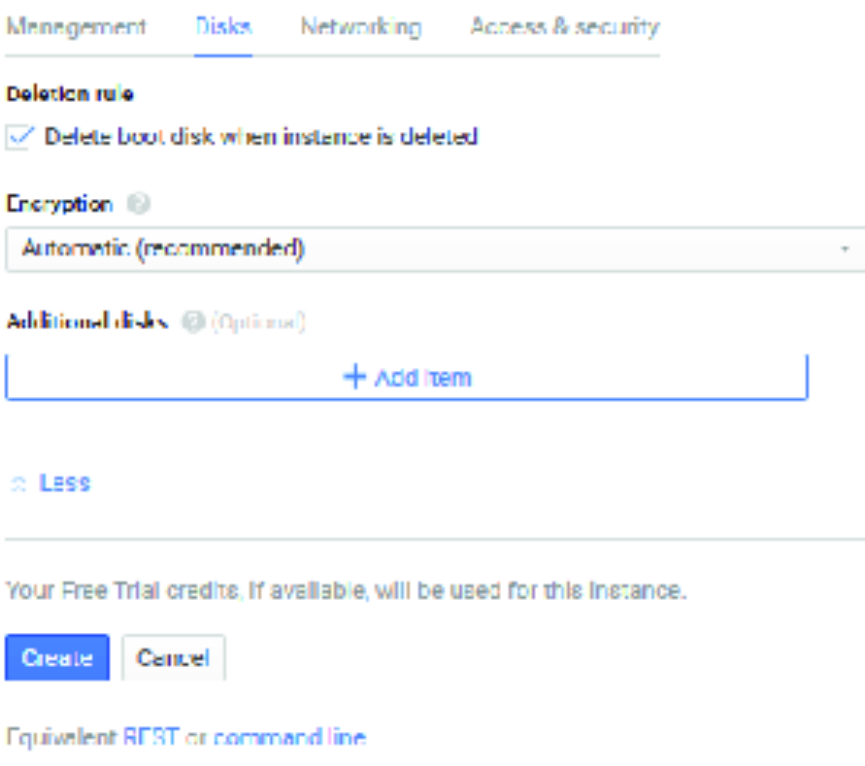
Figure 106: VM Disk Configuration
k) In Networking, select the external options as per the following table.
Ruckus Wireless™ Virtual SmartZone™ Getting Started Guide for SmartZone 3.4
100
Installing vSZ on the Google Computing Engine
Creating Virtual Machine (VM) Instances
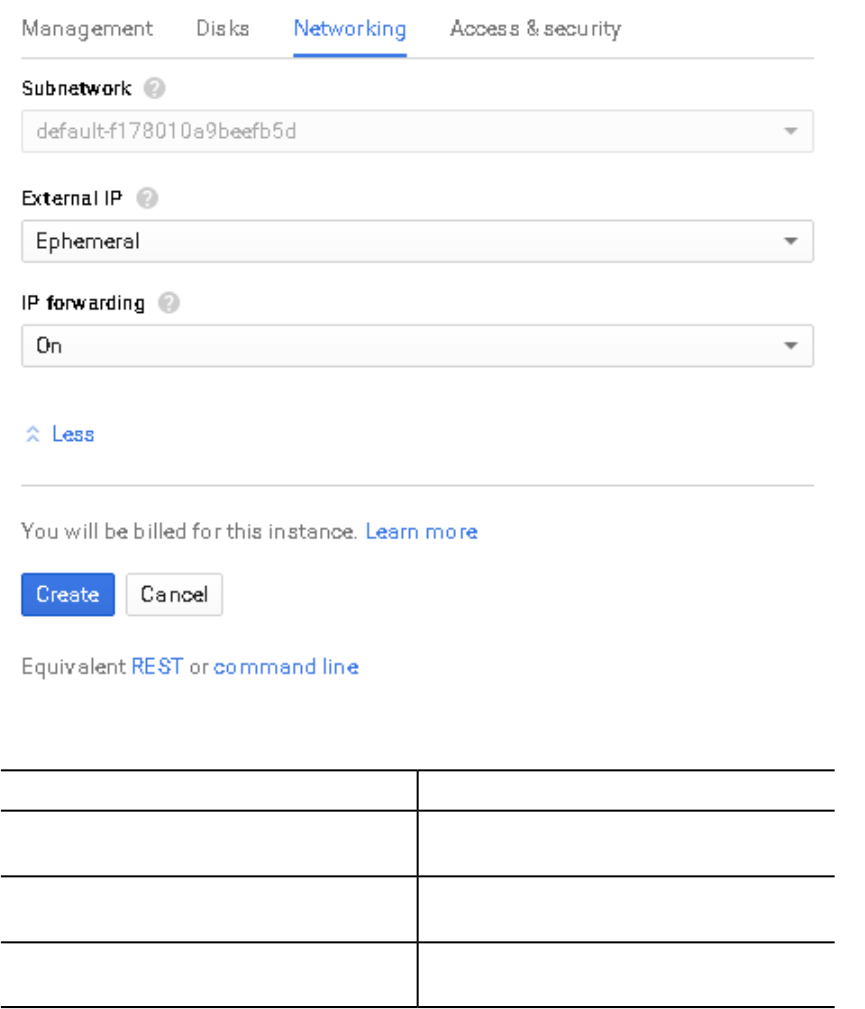
Figure 107: Networking
DescriptionExternal IP Options
The VM is assigned a dynamic public IP
address
Ephemeral
The VM instance is not assigned an external
IP address
None
The VM is assigned a static public IP
address
New static IP address
l) In Access and security, select the options as appropriate.
Ruckus Wireless™ Virtual SmartZone™ Getting Started Guide for SmartZone 3.4
101
Installing vSZ on the Google Computing Engine
Creating Virtual Machine (VM) Instances
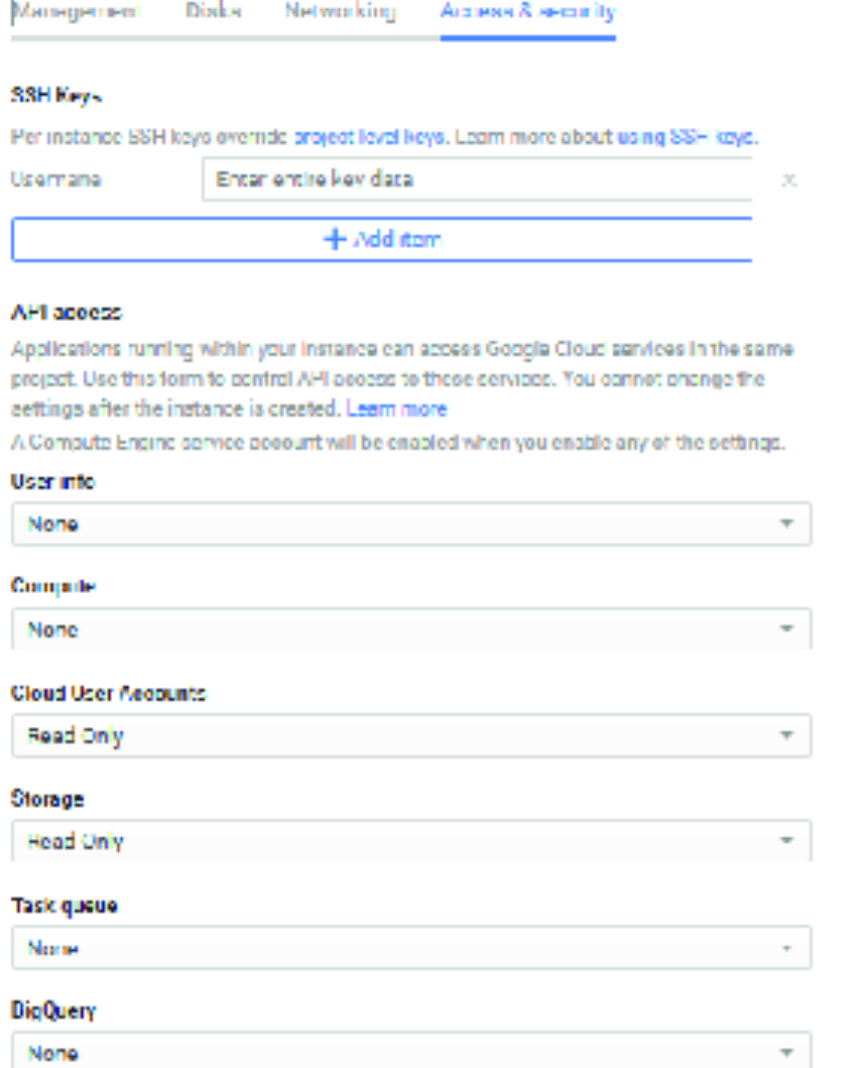
Figure 108: Access and security
m) Click Create. The VM instances page appears listing the new VM that is created.
Ruckus Wireless™ Virtual SmartZone™ Getting Started Guide for SmartZone 3.4
102
Installing vSZ on the Google Computing Engine
Creating Virtual Machine (VM) Instances
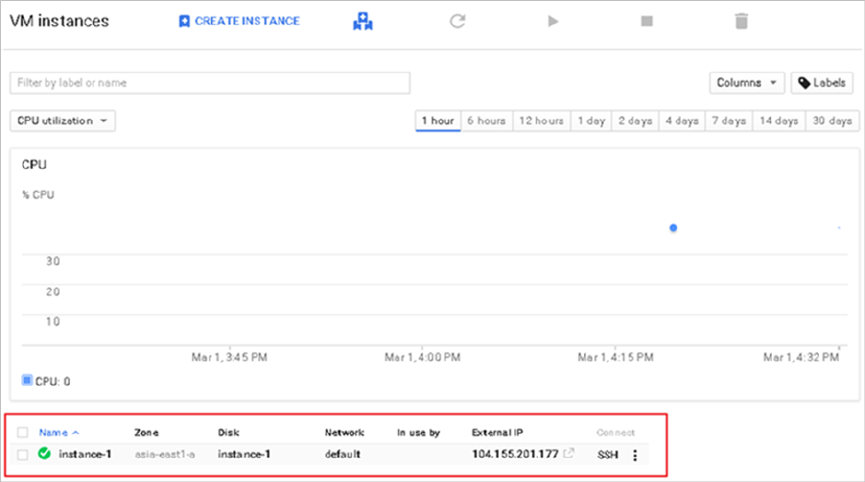
Figure 109: New VM is Created
Ruckus Wireless™ Virtual SmartZone™ Getting Started Guide for SmartZone 3.4
103
Installing vSZ on the Google Computing Engine
Creating Virtual Machine (VM) Instances
6
Installing vSZ on Amazon Web Services
In this chapter:
•Installing AWS CLI
•Creating a VM Import Service Role
•Installing vSZ on AWS
•Creating vSZ Instance
•Configuring AWS for a vSZ Instance
•Deleting a vSZ Instance
Installing AWS CLI
Ensure that you have created an account with AWS and have the login details for the same.
1. Install pip by running the command
# curl-O https://bootstrap.pypa.io/get-pip.py
# sudo python27 get-pip.py
2. Install AWS CLI using pip:# pip install
3. Test the installation by using the command: # aws help
4. To set up AWS CLI you need to get your access and secret key identifier. Follow the
instructions and find your identifier keys.
5. Use the following command to configure CLI:
# aws configure
AWS Access Key ID [None]: xxx
AWS Secret Access Key [None]: xxx
Default region name [None]: us-west-2
Default output format [None]: json
6. The default region should be the same as the bucket region. Refer to Table for the mapping
details. In addition refer to you can also refer to latest version.
RegionRegion Name
US East (N. Virginia)us-east-1
US West (Oregon)us-west-2
US West (N. California)us-west-1
EU (Ireland)eu-west-1
EU (Frankfurt)eu-central-1
Asia Pacific (Singapore)ap-southeast-1
Asia Pacific (Tokyo)ap-northeast-1
Ruckus Wireless™ Virtual SmartZone™ Getting Started Guide for SmartZone 3.4
104
Installing vSZ on Amazon Web Services
Installing AWS CLI
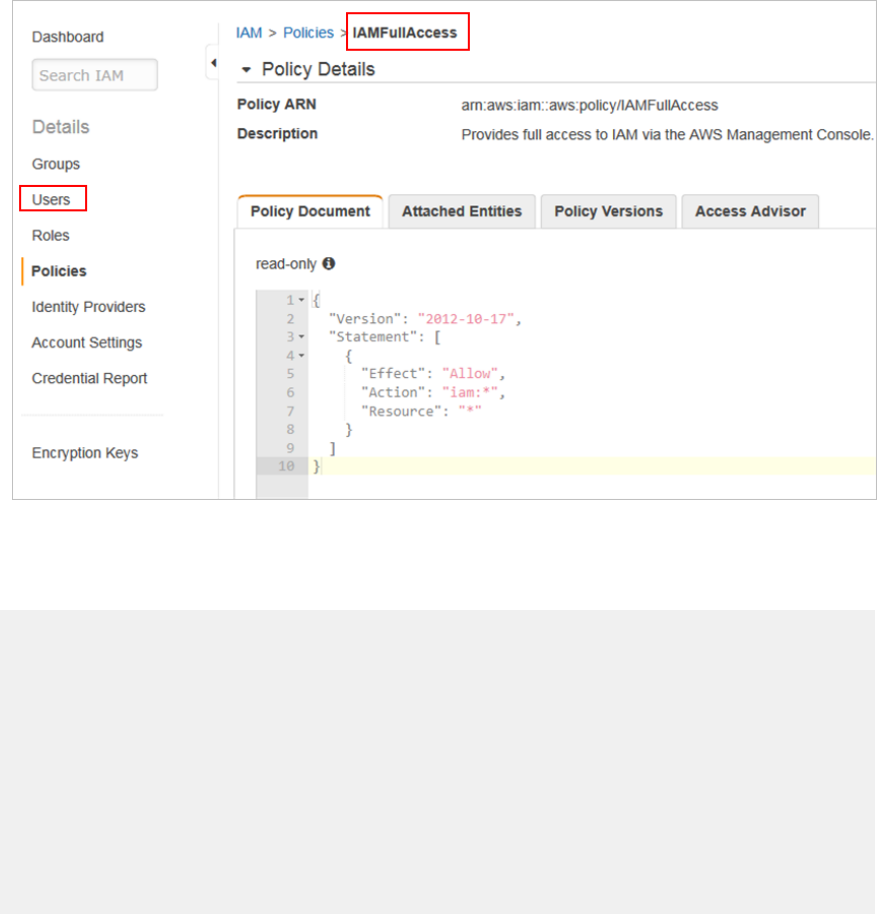
RegionRegion Name
Asia Pacific (Sydney)ap-southeast-2
Asia Pacific (Seoul)ap-northeast-2
South America (Sao Paulo)sa-east-1
Creating a VM Import Service Role
1. In the AWS web interface navigate to AWS dashboard > Identity & Access Management.
2. Check your account permission by navigating to Users > select your Username >
Permissions. Your account should have the permission - IAMFullAccess.
Figure 110: Account Permission
3. Create a JSON file called trust-policy.json using the following commands:
{ "Version":"2012-10-17",
"Statement":[
{
"Sid":"",
"Effect":"Allow",
"Principal":{ "Service":"vmie.amazonaws.com"
},
"Action":"sts:AssumeRole",
"Condition":{
"StringEquals":{
"sts:ExternalId":"vmimport"
}
Ruckus Wireless™ Virtual SmartZone™ Getting Started Guide for SmartZone 3.4
105
Installing vSZ on Amazon Web Services
Creating a VM Import Service Role
}
}
]
}
4. Use the following command to create a role. Specify the name as vmimport and give the
option VM Import/Export access.
# aws iam create-role --role-name vmimport
--assume-role-policy-document file://trust-policy.json
5. Create a policy for the service role by creating a JSON file called role-policy.json using the
following commands. Replace the bucket name with the storage bucket name that you
created.
{
"Version":"2012-10-17",
"Statement":[
{
"Effect":"Allow",
"Action":[
"s3:ListBucket",
"s3:GetBucketLocation"
],
"Resource":[
"arn:aws:s3:::<bucket-name>"
]
},
{
"Effect":"Allow",
"Action":[
"s3:GetObject"
],
"Resource":[
"arn:aws:s3:::<bucket-name>/*"
]
}
6. Run the following command to attach the policy to the service role created. # aws iam
put-role-policy --role-name vmimport --policy-name vmimport
--policy-document file://role-policy.json
Installing vSZ on AWS
Follow the steps to install vSZ using the AWS web user interface.
Logging into AWS
Follow these steps to login to the AWS site.
1. Click https://aws.amazon.com, to access the Amazon Web Services website.
Ruckus Wireless™ Virtual SmartZone™ Getting Started Guide for SmartZone 3.4
106
Installing vSZ on Amazon Web Services
Installing vSZ on AWS
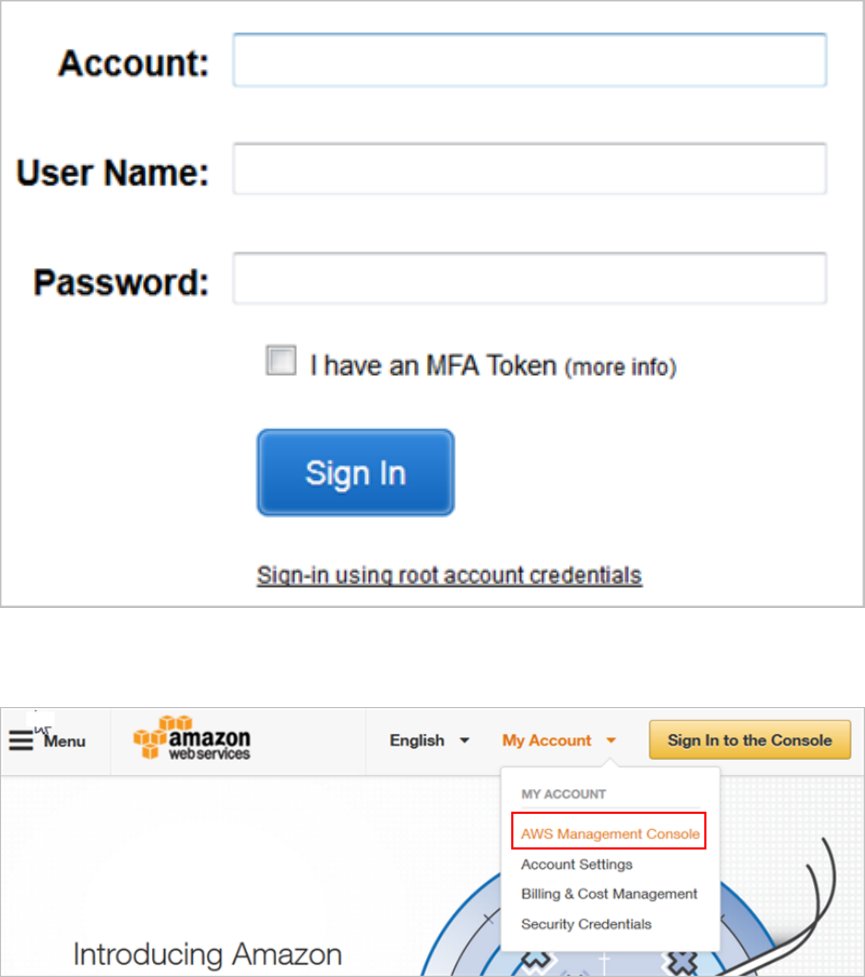
2. Login with your user credentials of user name and password.
Figure 111: Login with user credentials
3. Select My Account > AWS Management Console as shown.
Figure 112: AWS management console
Creating a Storage Bucket
Create storage for the objects you create. Follow these steps to create storage.
1. Navigate to Amazon Web Services > Storage and Content Delivery > S3, click Create
Bucket as shown.
Ruckus Wireless™ Virtual SmartZone™ Getting Started Guide for SmartZone 3.4
107
Installing vSZ on Amazon Web Services
Installing vSZ on AWS
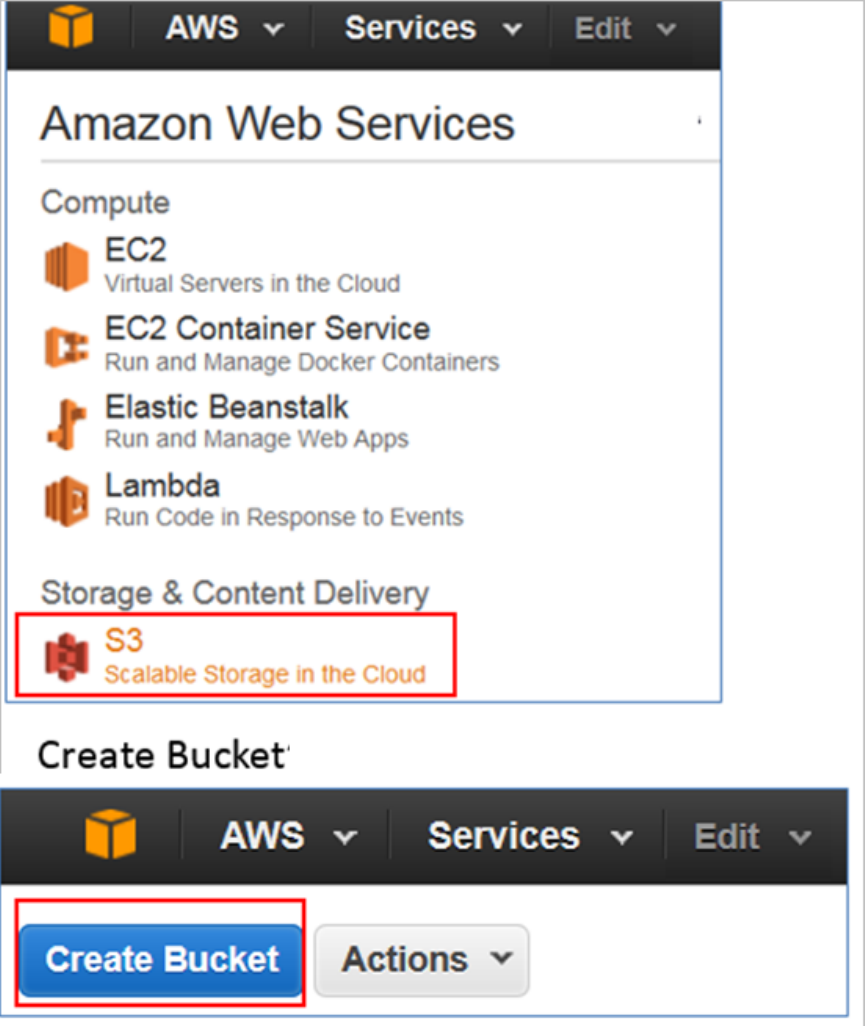
Figure 113: Create Bucket
2. Type the name of the storage bucket and select a suitable regional endpoint to reduce data
latency.
Ruckus Wireless™ Virtual SmartZone™ Getting Started Guide for SmartZone 3.4
108
Installing vSZ on Amazon Web Services
Installing vSZ on AWS
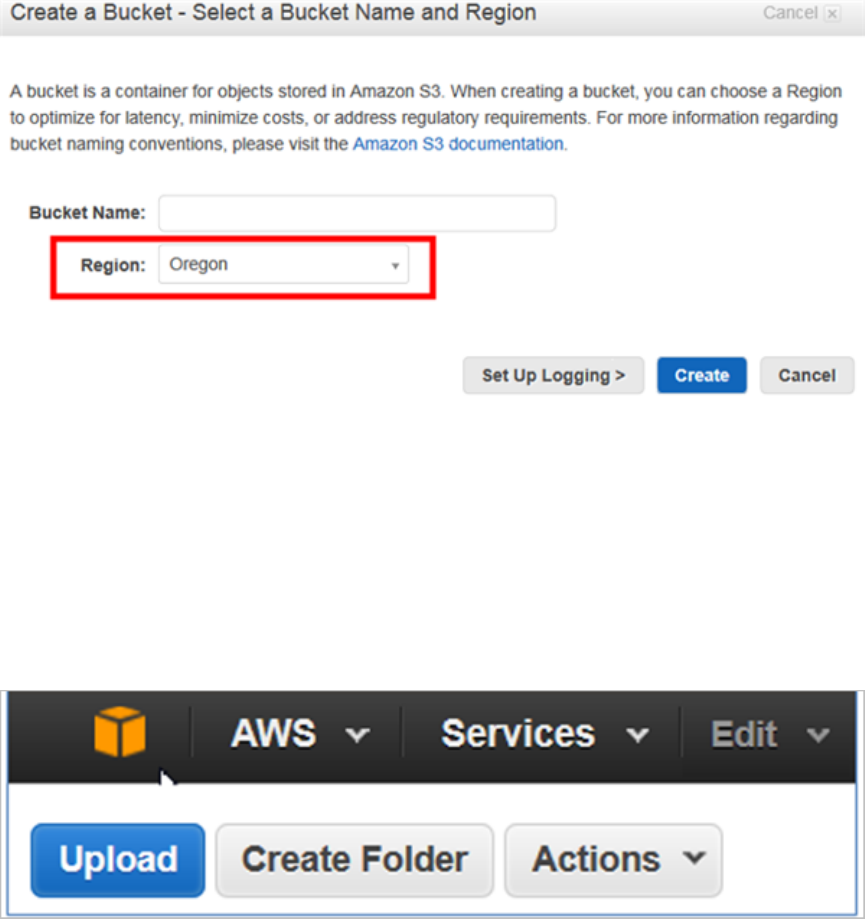
Figure 114: Selecting regional endpoint
3. Click Create. The storage bucket you created is listed in the browser.
4. Check the storage bucket has been created.
Uploading vSZ Image to a Storage
Follow these steps to upload a vSZ image to the storage bucket you created.
1. Select the storage bucket to upload the vSZ image.
2. Click Upload as shown.
Figure 115: Selecting the Storage
3. Browse to the location of the vSZ image and select vSZ image file.
Only images with file-type *.raw or .ova or vmdk can be selected.
4. Click Start Upload to upload the file. The upload process is displayed.
5. The image is listed in the storage bucket after the image is uploaded.
Ruckus Wireless™ Virtual SmartZone™ Getting Started Guide for SmartZone 3.4
109
Installing vSZ on Amazon Web Services
Installing vSZ on AWS
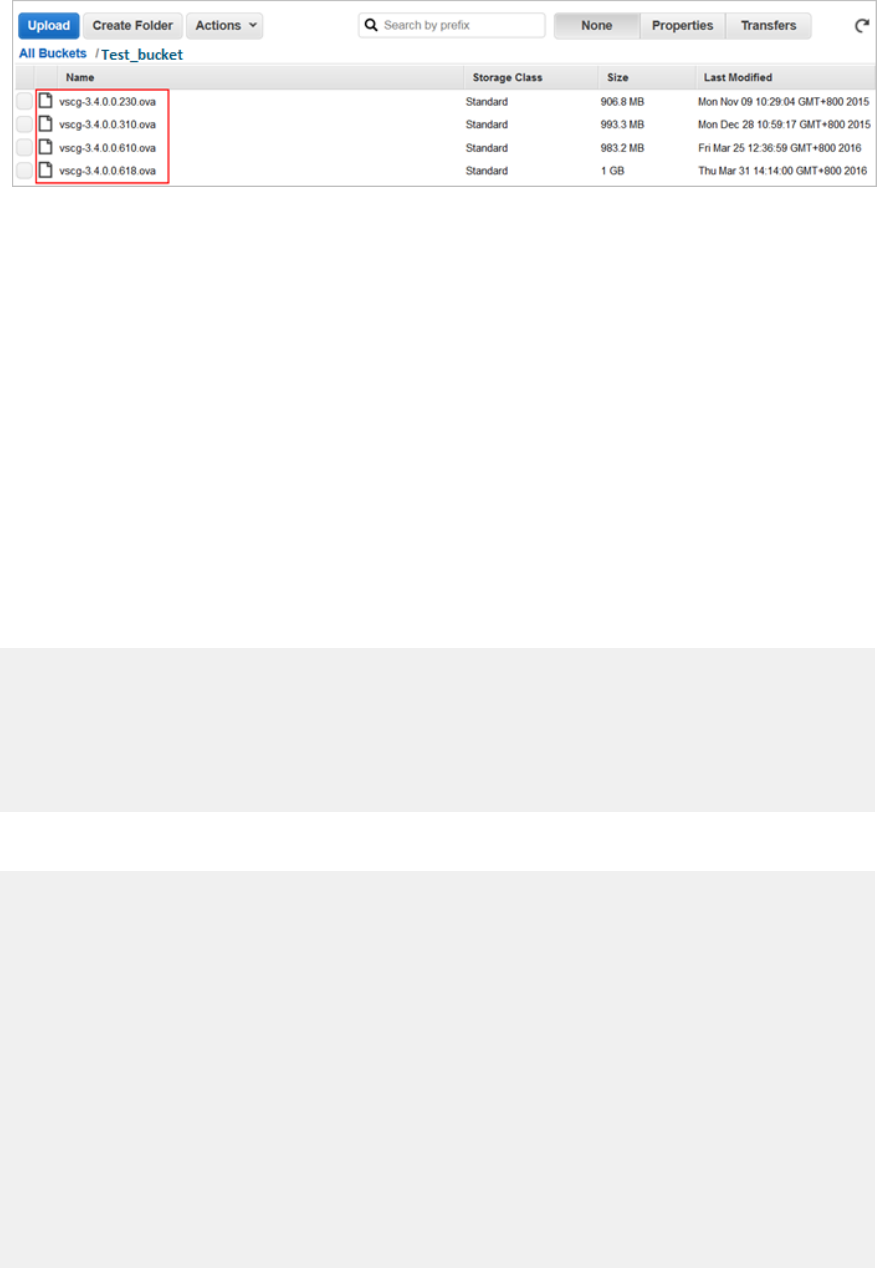
Figure 116: vSZ Image Uploaded to Storage Bucket
NOTE: The vSZ image should be in the Bucket, which has Region information. Example:
Test_bucket
AWS Service Policy
VM Import uses a role in your AWS account to perform certain operations (e.g: downloading
disk images from an Amazon S3 bucket). You must create a role with the name vmimport with
the following policy and trusted entities.
1. Install AWS CLI using http://docs.aws.amazon.com/cli/latest/userguide/installing.html
2. Enter the following command in the AWL CLI #sudo pip install awscli
3. Get the access key for AWS CLI from using AWS web follow the steps outlined:
http://docs.aws.amazon.com/AWSSimpleQueueService/latest/SQSGettingStartedGuide/AWSCredentials.html
4. Add the access key details to the AWL CLI using the following commands
# aws
configureAWS Access Key ID [None]:
AWS Secret Access Key
[None]: Default region name [None]:
us-west-2Default output format
[None]: json
5. Create a file named role-policy.json with the following policy:
{
"Version":"2012-10-17",
"Statement":[
{
"Effect":"Allow",
"Action":[
"s3:ListBucket",
"s3:GetBucketLocation"
],
"Resource":[
"arn:aws:s3:::<disk-image-file-bucket>"
]
},
{
"Effect":"Allow",
"Action":[
Ruckus Wireless™ Virtual SmartZone™ Getting Started Guide for SmartZone 3.4
110
Installing vSZ on Amazon Web Services
Installing vSZ on AWS
"s3:GetObject"
],
"Resource":[
"arn:aws:s3:::<disk-image-file-bucket>/*"
]
},
{
"Effect":"Allow",
"Action":[
"ec2:ModifySnapshotAttribute",
"ec2:CopySnapshot",
"ec2:RegisterImage",
"ec2:Describe*"
],
"Resource":"*"
}
]
}
6. Replace <disk-image-file-bucket> with the appropriate Amazon S3 bucket where the disk
files are stored. Run the following command to attach the policy to the role created above:
7. Replace <disk-image-file-bucket> with the appropriate Amazon S3 bucket where the disk
files are stored. Run the following command to attach the policy to the role created above
aws iam put-role-policy --role-name vmimport --policy-name
vsz34-policy --policy-document file://role-policy.json
Importing vSZ Image
Follow these steps to import vSZ image into AWS shared AMI.
1. Create a JSON file called import.json using the following commands. Replace the bucket
name with the storage bucket name that you created. In this example the vSZ image file name
is seen as vscg-3.4.0.0.750.ova.
{
"Description": "Import vSZ",
"DiskContainers": [
{
"Description": "vSZ 3.4.0.0.969",
"UserBucket":{
"S3Bucket": "<bucket-name>",
"S3Key": "vscg-3.4.0.0.96950.ova"
}
}
]
}
2. Run the following command to attach the policy to the role created. # aws ec2
import-image --cli-input-json file://import.json
Ruckus Wireless™ Virtual SmartZone™ Getting Started Guide for SmartZone 3.4
111
Installing vSZ on Amazon Web Services
Installing vSZ on AWS
3. The system displays the below response.
{
"Status": "active",
"Description": "Import vSZ",
"Progress": "2",
"SnapshotDetails": [
{
"UserBucket": {
"S3Bucket": "<bucket-name>",
"S3Key": "vscg-3.4.0.0.750.ova"
},
"DiskImageSize": 0.0
}
],
"StatusMessage": "pending",
"ImportTaskId": "import-ami-ffgof9w1"
}
4. Check the status of the import vSZ image by running the following command. Ensure to enter
the correct import task identifier.# aws ec2 describe-import-image-tasks
--import-task-ids "import-ami-ffgof9w1"
5. You will see the following converting status response. Check the status until the converting
is complete. The estimated time for conversion is 30 minutes.
{
"ImportImageTasks": [
{
"Status": "active",
"Description": "vSZ test",
"Progress": "28",
"SnapshotDetails": [
{
"UserBucket": {
"S3Bucket": "<bucket-name>",
"S3Key": "vscg-3.4.0.0.750.ova"
},
"DiskImageSize": 964430848.0,
"Format": "VMDK"
}
],
"StatusMessage": "converting",
"ImportTaskId": "import-ami-ffgof9w1"
}
]
}
Ruckus Wireless™ Virtual SmartZone™ Getting Started Guide for SmartZone 3.4
112
Installing vSZ on Amazon Web Services
Installing vSZ on AWS
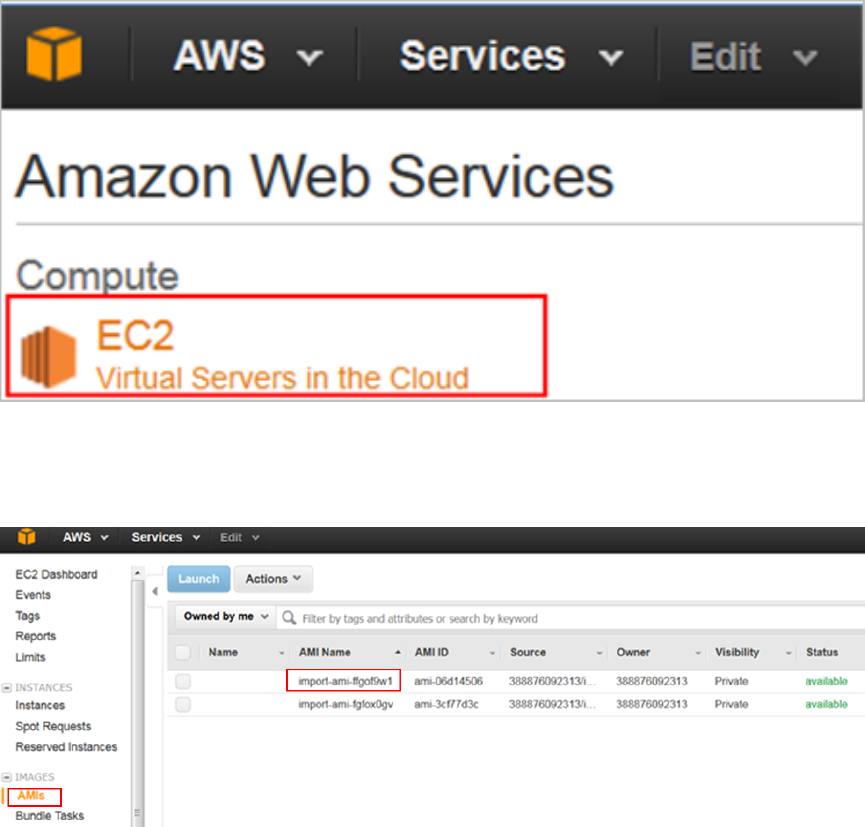
Creating vSZ Instance
Follow these steps to create a vSZ instance on AWS.
1. From Amazon Web Service, click Compute > EC2.
Figure 117: Select EC2
2. Navigate to Images > AMIs to ensure that the imported Amazon Machine Image (AMI)
exists. In this example the AMI file is import-ami-ffgof9w1.
Figure 118: Select AMI
3. Navigate to Network & Security > Security Groups > Create Security Group. Security
group acts as a virtual firewall that controls the traffic for one or more instances.
Ruckus Wireless™ Virtual SmartZone™ Getting Started Guide for SmartZone 3.4
113
Installing vSZ on Amazon Web Services
Creating vSZ Instance
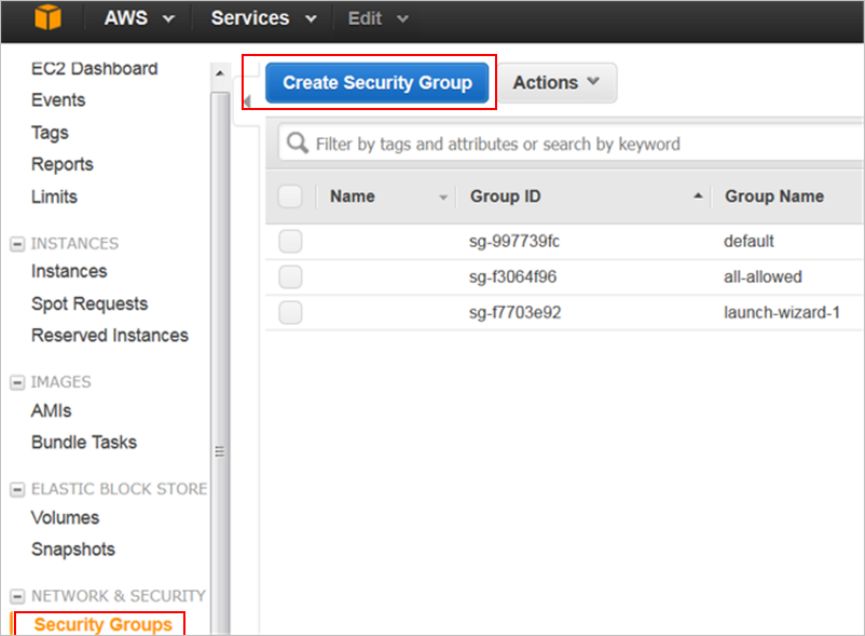
Figure 119: Create Security Group
4. Define the setup group name, description, ports and the firewall rule. The table lists the
common service ports. For more information, see Ports to open for AP-vSZ communication.
DescriptionOption
DetailPort Number
UDP
SNMP161
ZD AP forward update using FTP (control connection)12223
TCP
ZD AP forward update using FTP (control connection)21
AP SSH22
SCG AP forward update using HTTP91
Allows SCG AP get SSH private key and do AP FW udpate via
HTTPs
443
Public API7443
SSH for management (mgmt-acl is enabled on 1 nic vSZ)8022
Ruckus Wireless™ Virtual SmartZone™ Getting Started Guide for SmartZone 3.4
114
Installing vSZ on Amazon Web Services
Creating vSZ Instance
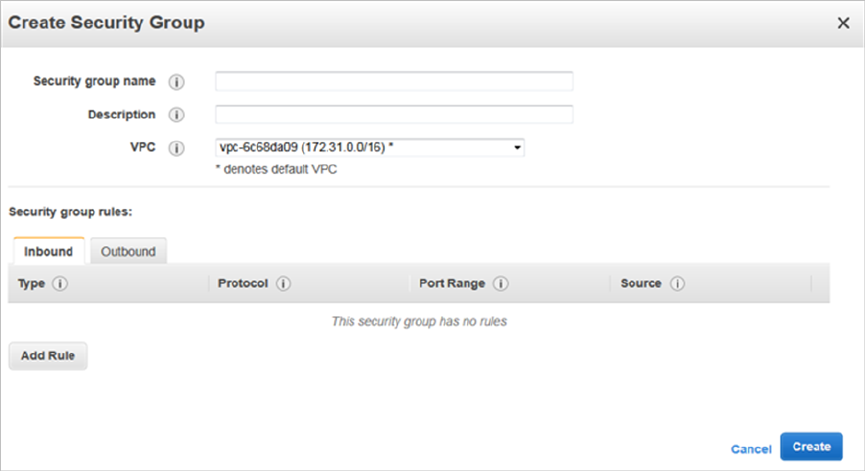
DescriptionOption
vSZ setup wizard using the web user interface (User will be
redirected to the port 8443)
8080
vSZ web user interface8443
WISPr for non-web-proxy user equipment8090, 8099
WISPr for web-proxy user equipment8100
Tomcat for WISPr (internal WISPr portal uses the port 9998)9998
Northbound API (NBI)9080, 9443
ZD AP forward update using FTP (data connection)16384-65000
Figure 120: Define Security Group
5. Navigate to Instances and click on Launch Instances. Follow these steps.
a) Launch Instance
Ruckus Wireless™ Virtual SmartZone™ Getting Started Guide for SmartZone 3.4
115
Installing vSZ on Amazon Web Services
Creating vSZ Instance
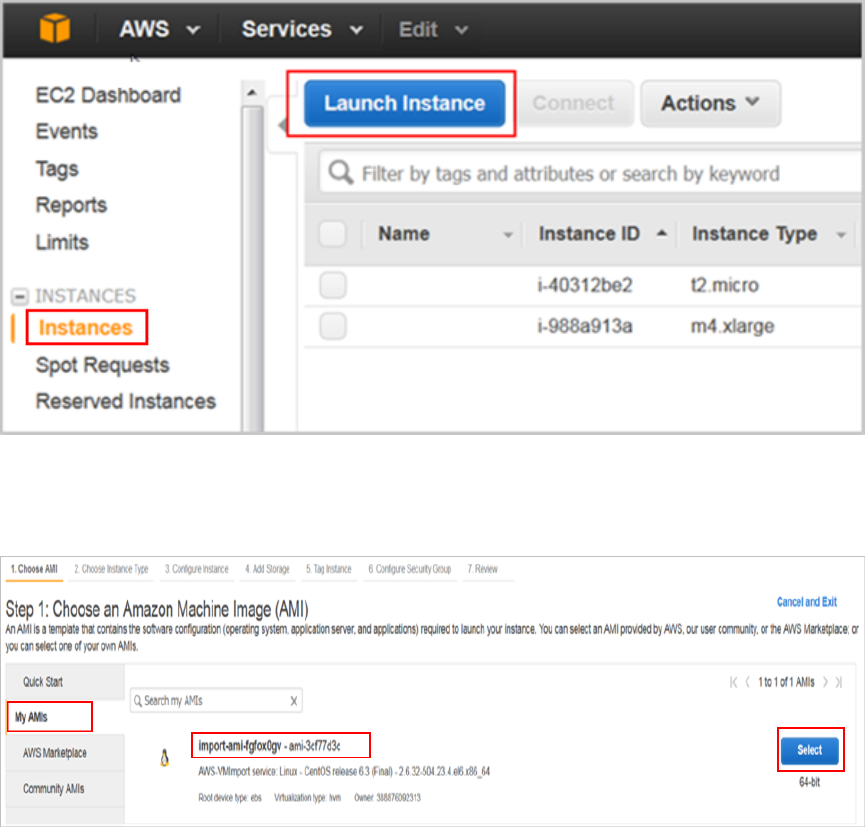
Figure 121: Launch instances
b) Navigate to My AMIs and choose the Amazon Machine Image (AMI) that you imported
previously.
Figure 122: Choose the imported AMI
c) Click Next.
d) Choose a suitable instance type. In this example the instance type is m4.xlarge. Based
on the number of APs and client counts, select the instance type to fit the recommended
system resources.
The minimum memory and CPU requirements have changed in this release. You may
need to upgrade your infrastructure before upgrading. Please read carefully. This is the
minimum requirement recommended. Refer to Table 5 and Table 6 in the chapter Preparing
to Install the vSZ.
Ruckus Wireless™ Virtual SmartZone™ Getting Started Guide for SmartZone 3.4
116
Installing vSZ on Amazon Web Services
Creating vSZ Instance
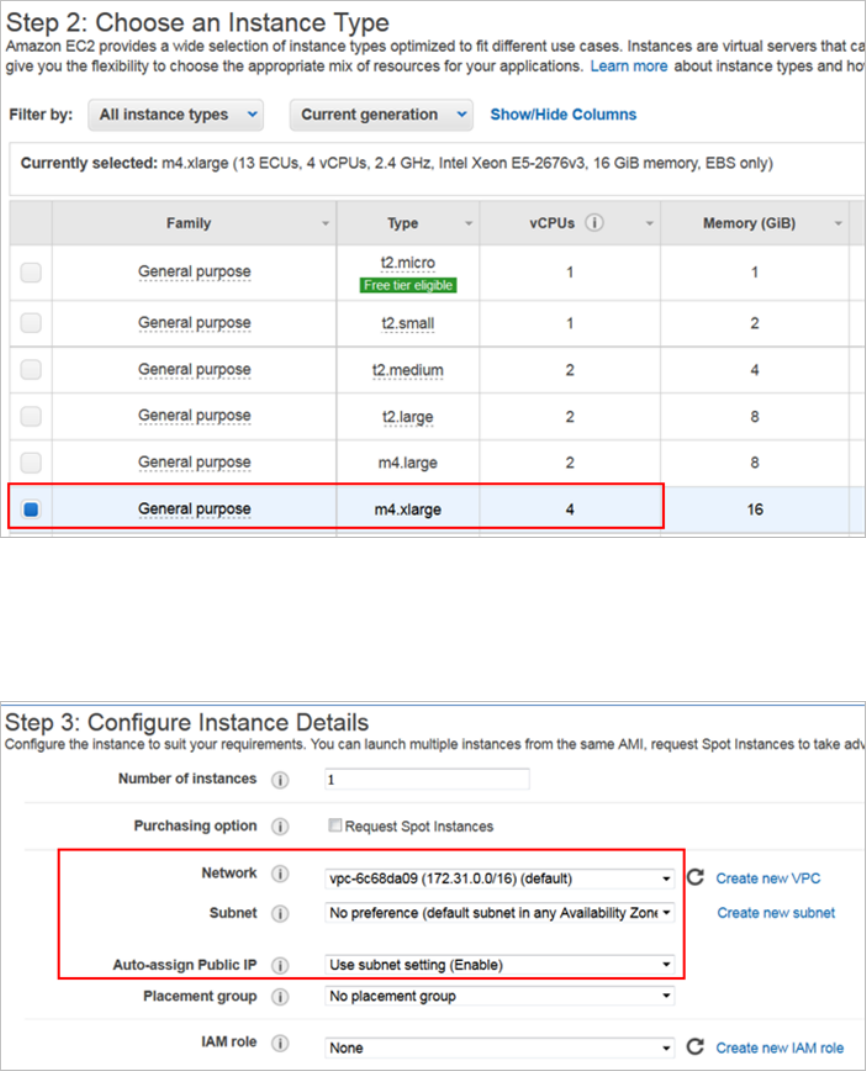
Figure 123: Choose the instance type
e) Click Next.
f) Select the required network, subnet, and private IP address.
The private IP address cannot be changed once the vSZ image is launched.
Figure 124: Configure the instance
g) Click Next.
h) Change the size of storage as required.
Ruckus Wireless™ Virtual SmartZone™ Getting Started Guide for SmartZone 3.4
117
Installing vSZ on Amazon Web Services
Creating vSZ Instance
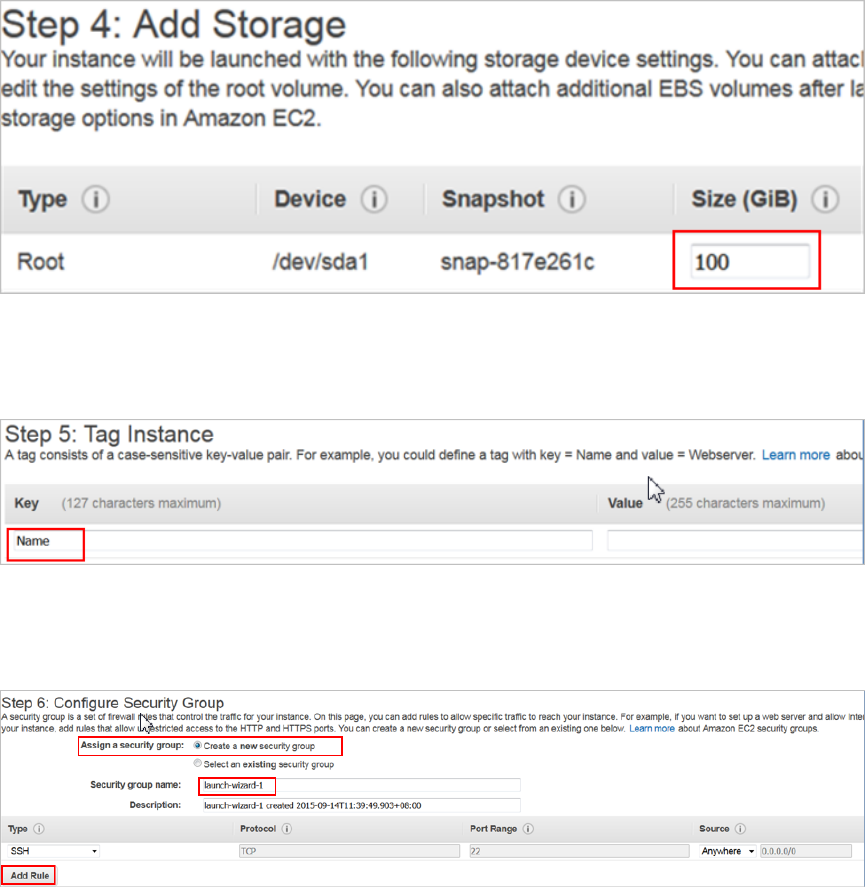
Figure 125: Change the storage size
i) Click Next.
j) Specify the vSZ instance by giving it a name.
Figure 126: Specify the vSZ instance
k) Click Next.
l) Create a new security group or select an existing group. Configure the rules if required.
Figure 127: Specify the security group
m) Click Next.
n) Review the configuration settings.
Ruckus Wireless™ Virtual SmartZone™ Getting Started Guide for SmartZone 3.4
118
Installing vSZ on Amazon Web Services
Creating vSZ Instance
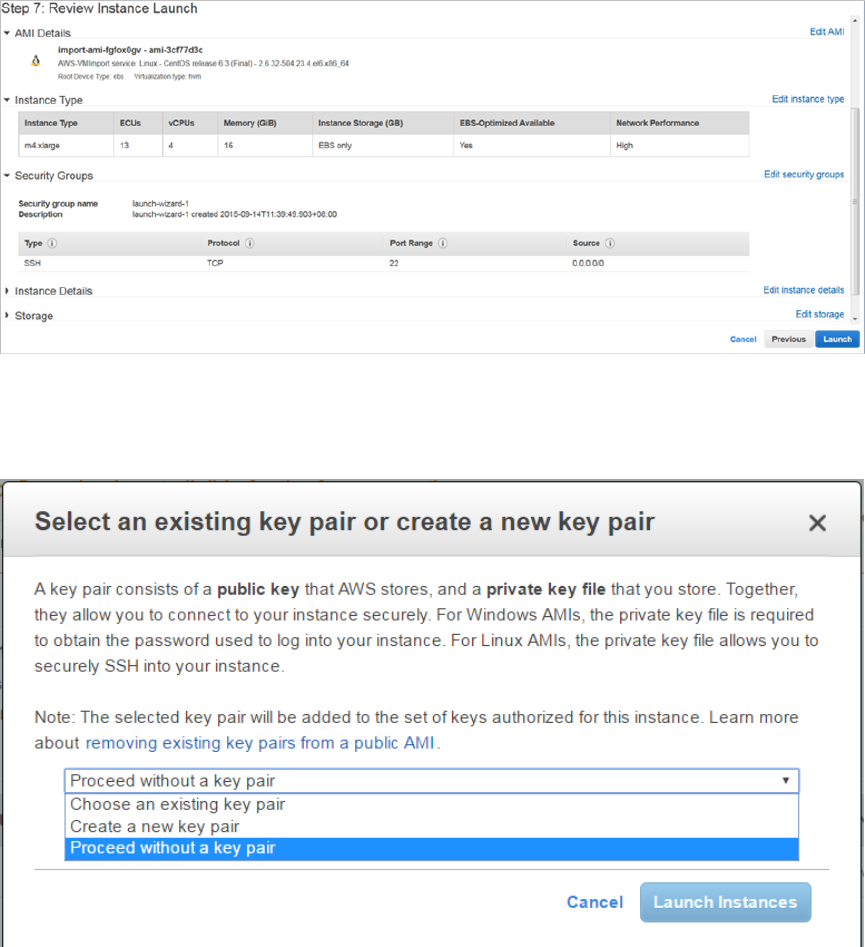
Figure 128: Review the configuration settings
o) Click Launch
p) Select the Proceed without a key pair for vSZ instance.
Figure 129: Select existing key pair
q) Verify that the vSZ instance is running. Connect the vSZ instance with the selected key
pair using the SSH interface.
Ruckus Wireless™ Virtual SmartZone™ Getting Started Guide for SmartZone 3.4
119
Installing vSZ on Amazon Web Services
Creating vSZ Instance
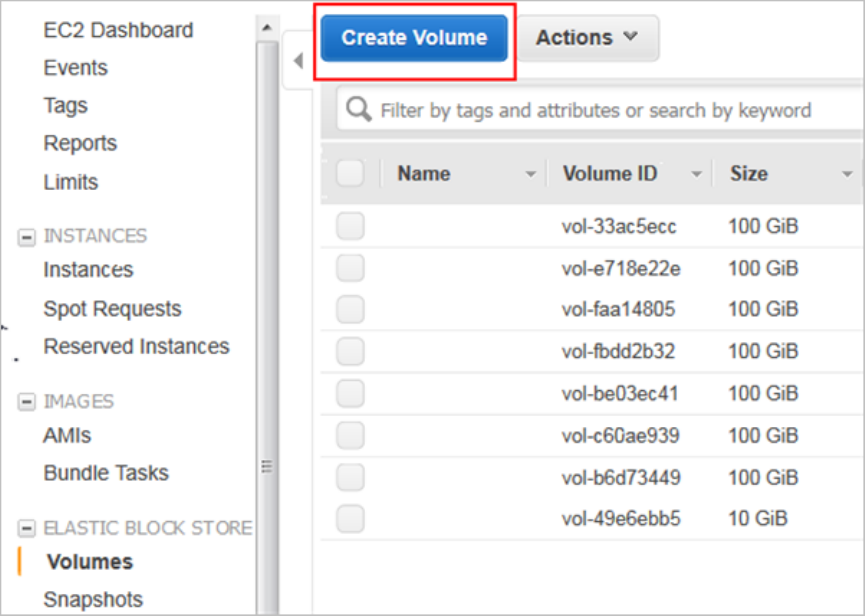
Configuring AWS for a vSZ Instance
Follow these steps to configure AWS for creating and launching a vSZ instance.
Attach a New Disk Volume
Follow these steps to add a new disk volume.
1. Navigate to EC2 Dashboard > Elastic Block Store > Volumes and click Create Volume
as shown.
Figure 130: Create Volume
2. Enter the required disk type, size and availability zone.
Ruckus Wireless™ Virtual SmartZone™ Getting Started Guide for SmartZone 3.4
120
Installing vSZ on Amazon Web Services
Configuring AWS for a vSZ Instance
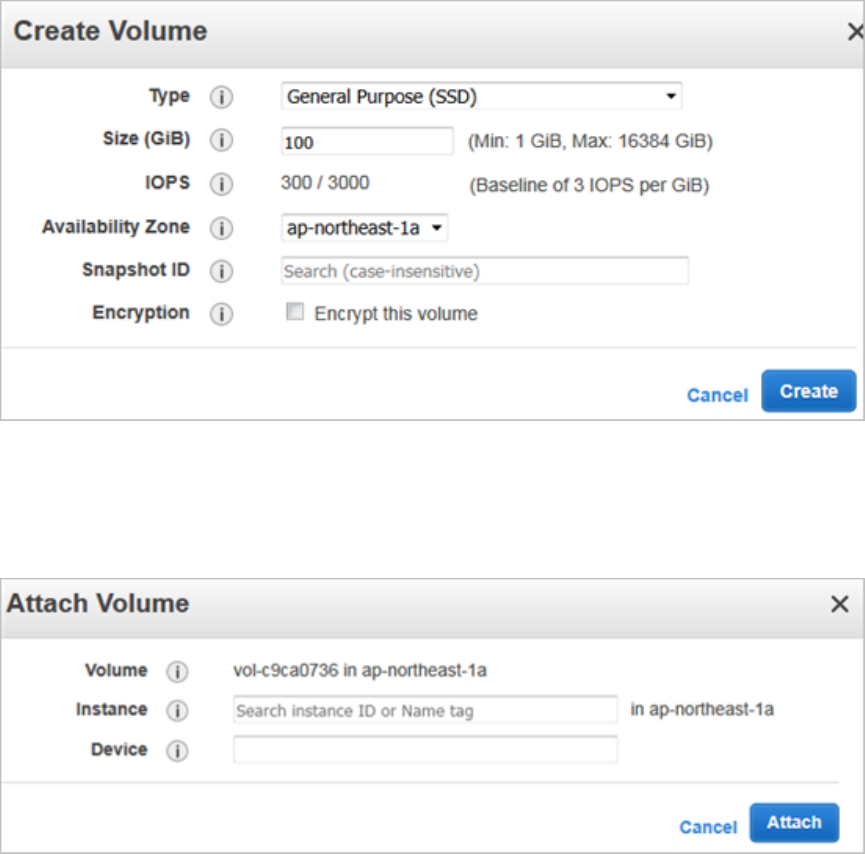
Figure 131: Create Volume
3. Click Create.
4. Right click on the newly created disk and select Attach Volume. Enter the instance identifier
and the desired device name.
Figure 132: Attach Volume
5. Click Attach.
Allocate a Public IP Address
Follow these steps to allocate a public IP address.
1. Navigate to EC2 Dashboard > Network & Security > Elastic IPs. Click Allocate New
Address as shown.
Ruckus Wireless™ Virtual SmartZone™ Getting Started Guide for SmartZone 3.4
121
Installing vSZ on Amazon Web Services
Configuring AWS for a vSZ Instance
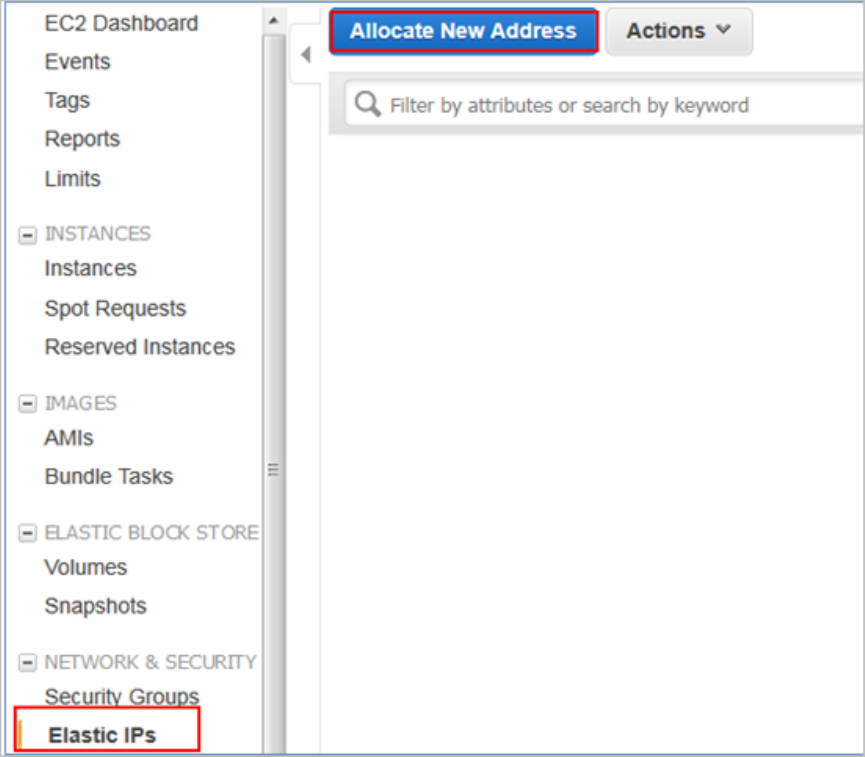
Figure 133: Allocate New IP Address
2. Click Create.
3. Right click on the newly created IP address and select Associate Address. Enter the instance
identifier or network interface and the desired device name.
Ruckus Wireless™ Virtual SmartZone™ Getting Started Guide for SmartZone 3.4
122
Installing vSZ on Amazon Web Services
Configuring AWS for a vSZ Instance
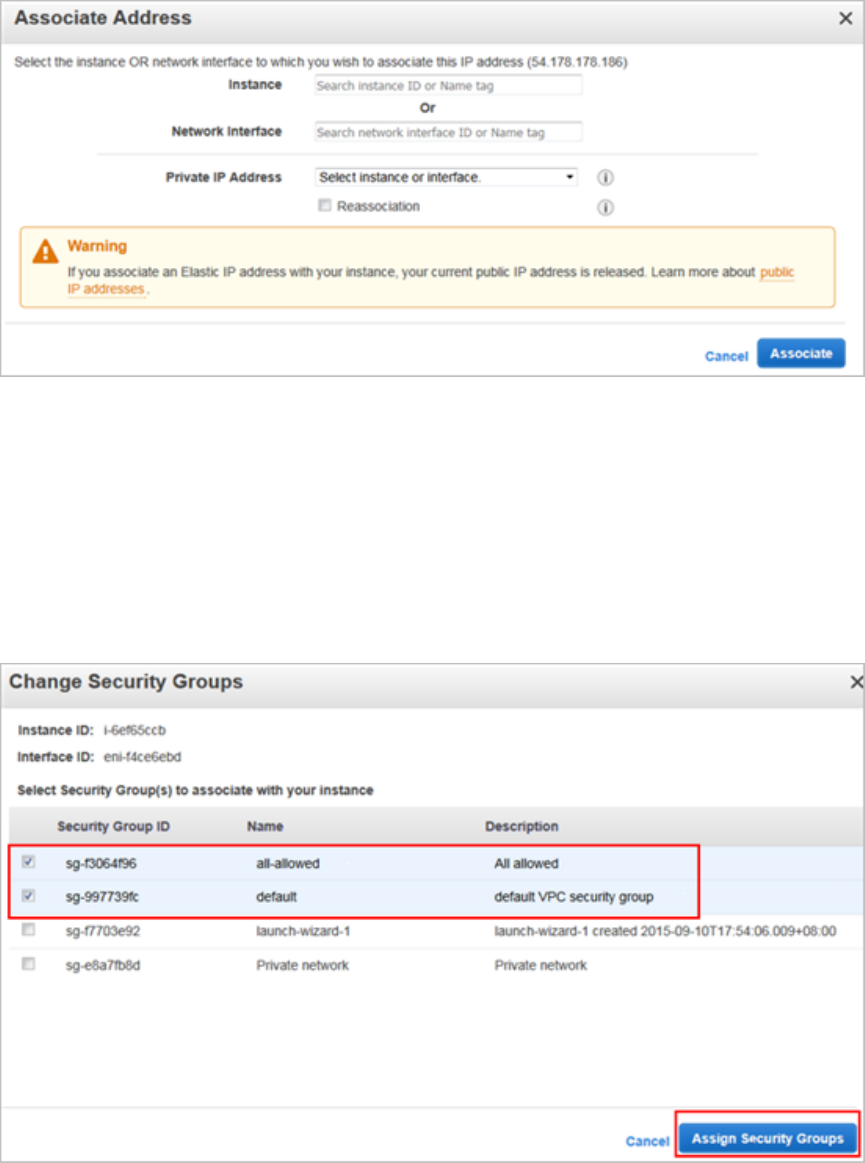
Figure 134: Associate Address
4. Click Associate.
Change Security Group
Follow these steps to change the security group.
1. Navigate to Instances and right click the target instance.
2. Select Network > Change Security Group.
3. Select the security groups.
Figure 135: Allocate New IP Address
4. Click Assign Security Groups.
Ruckus Wireless™ Virtual SmartZone™ Getting Started Guide for SmartZone 3.4
123
Installing vSZ on Amazon Web Services
Configuring AWS for a vSZ Instance
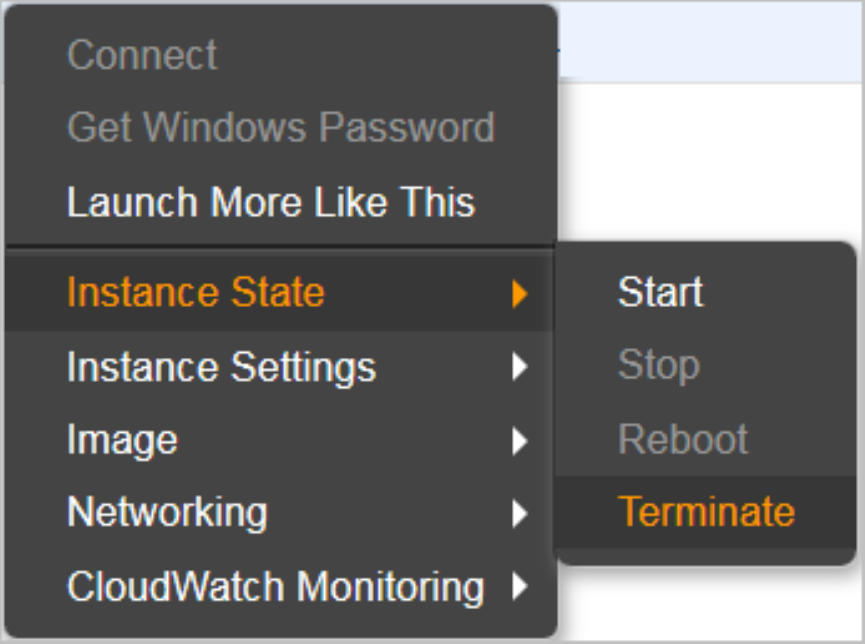
Deleting a vSZ Instance
Follow these steps to delete a vSZ instance on AWS.
1. Navigate to Instances and right click to select the vSZ instance that you want to delete.
2. Select Instance State > Terminate.
Figure 136: Select terminate
3. Confirm deletion of the vSZ instance by clicking on Yes, Terminate. The vSZ instance is
deleted from AWS.
Ruckus Wireless™ Virtual SmartZone™ Getting Started Guide for SmartZone 3.4
124
Installing vSZ on Amazon Web Services
Deleting a vSZ Instance
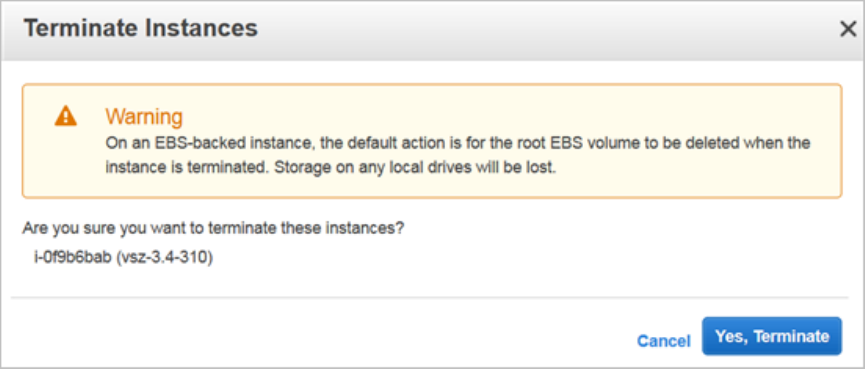
Figure 137: Confirm termination of vSZ instance
Ruckus Wireless™ Virtual SmartZone™ Getting Started Guide for SmartZone 3.4
125
Installing vSZ on Amazon Web Services
Deleting a vSZ Instance
7
Configuring the Virtual Machine Interfaces
In this chapter:
•Setting Up the vSZ with One Interface
•Setting Up the vSZ with Three Interfaces
•Important Notes About Selecting the System Default Gateway
The vSZ comes with the option to operate with either one (1) network interface or three (3) network
interfaces. Therefore the procedure for setting up the vSZ interface depends on the number of interfaces
that it has.
Follow the procedure below that corresponds to the number of interfaces that the vSZ you are installing
has:
•Setting Up the vSZ with One Interface
•Setting Up the vSZ with Three Interfaces
NOTE: By default, the VMWare ESXi package comes with three network interfaces. If you want to
deploy the vSZ with only one interface, you can edit the virtual machine settings to remove the extra
interfaces. The KVM package, on the other hand, comes with a single interface. If you want to deploy
the vSZ with three interfaces, edit the virtual machine settings to create two additional interfaces.
Setting Up the vSZ with One Interface
Follow these steps to set up the vSZ with a single network interface
1. Log on to the console using; User name: admin Password: admin
2. At the vSZ> prompt, enter en to enable privileged mode.
3. At the Password prompt, enter admin. The vSZ# prompt appears.
4. Enter setup. The console displays the current network settings (if any), and then displays
the following prompt: Do you want to setup network? [YES/no]
Ruckus Wireless™ Virtual SmartZone™ Getting Started Guide for SmartZone 3.4
126
Configuring the Virtual Machine Interfaces
Setting Up the vSZ with One Interface
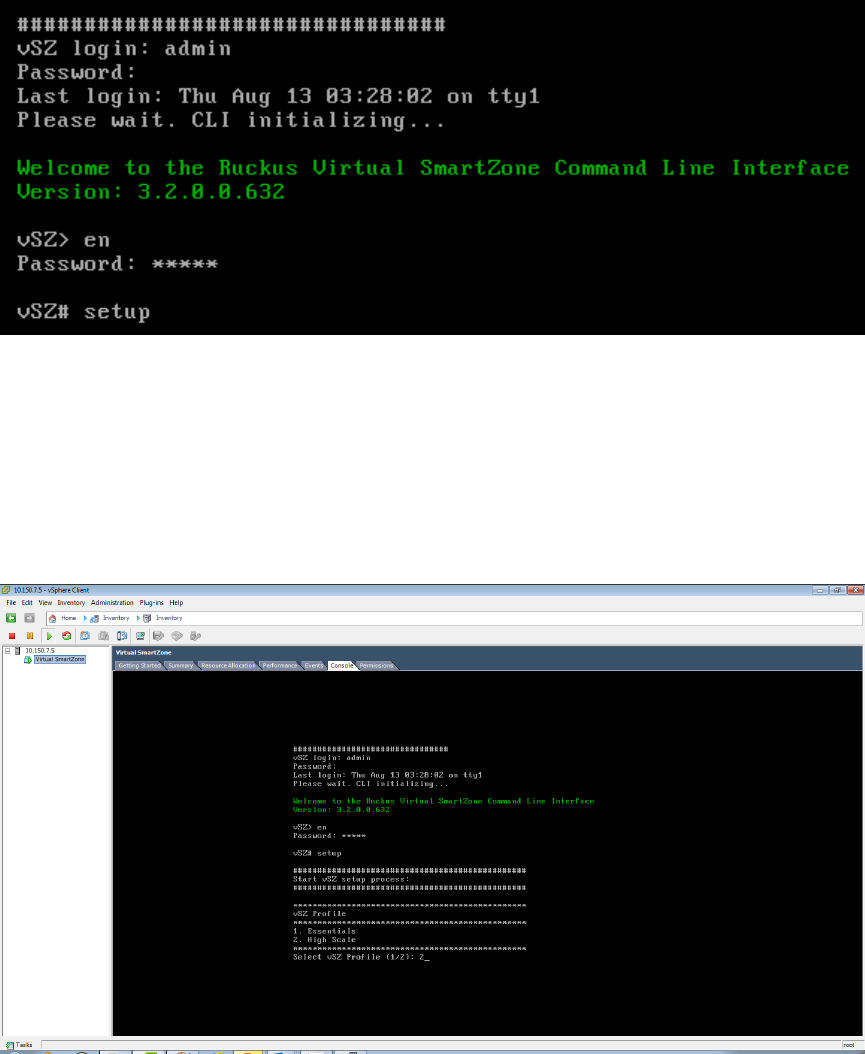
Figure 138: At the vSZ> prompt, enter setup
5. Enter YES. The next screen prompts you to select the profile configuration that you want to
use for this instance of vSZ. The options include: (1) High-Scale (2) Essentials
6. Enter the number that corresponds to the profile configuration that you want to deploy.
If you selected Essentials and the virtual machine has insufficient memory resources available
(for example, the VM has only 8GB of RAM when the minimum RAM requirement is 12GB),
you will be unable to continue with the setup process.
Figure 139: Enter the number that corresponds to the profile that you want to deploy
7. At the Select IP Version Support prompt, enter one of the following options: 1: IPv4 Only
2: IPv4 and IPv6
8. At the Select IP configuration prompt, enter 1 to set up the single vSZ interface (for Control
[AP], Cluster, and Management [Web]) manually.
Ruckus Wireless™ Virtual SmartZone™ Getting Started Guide for SmartZone 3.4
127
Configuring the Virtual Machine Interfaces
Setting Up the vSZ with One Interface
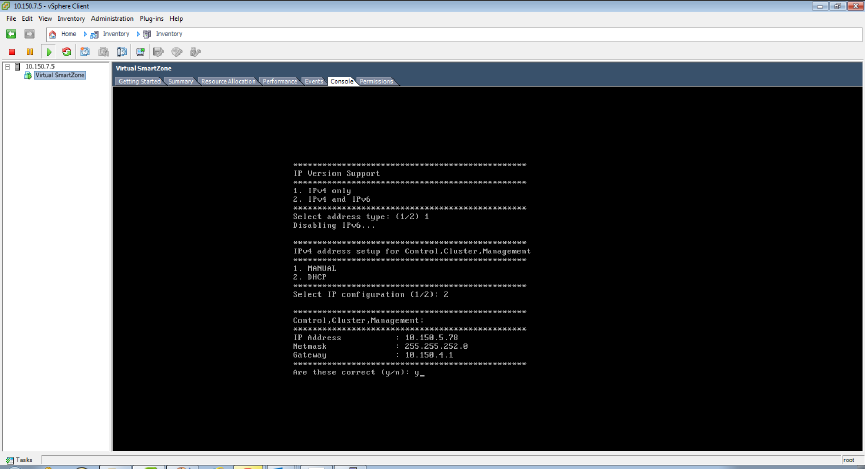
9. Configure the IP address, netmask, and gateway of the control interface, and then press
<Enter>. The IP address configuration that you entered appears.
10. When the prompt Are these correct? (y/n) appears, enter y to confirm the IP address
configuration.
Figure 140: Configure the IP address settings of the single interface
11. When the prompt Select system default gateway (Control, Cluster, Management)?
appears, enter Control.
This entry is case-sensitive. Make sure you enter the system default gateway exactly as shown
at the prompt.
Ruckus Wireless™ Virtual SmartZone™ Getting Started Guide for SmartZone 3.4
128
Configuring the Virtual Machine Interfaces
Setting Up the vSZ with One Interface
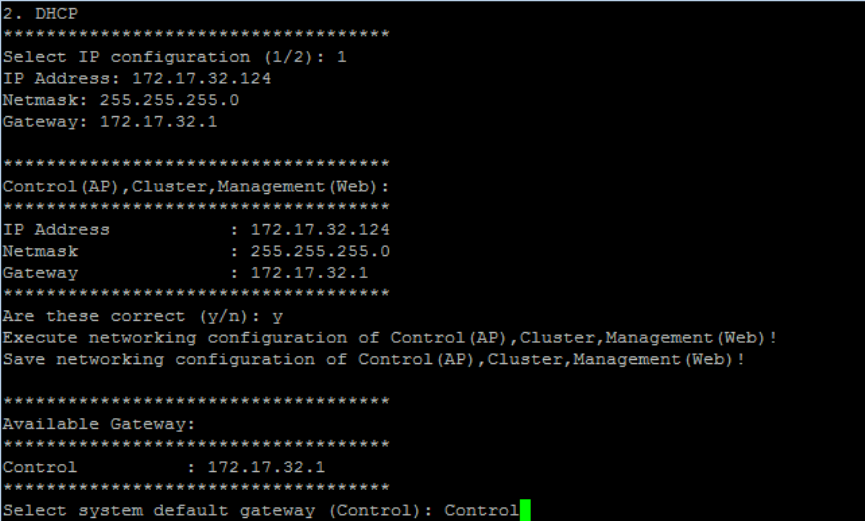
Figure 141: When prompted for the system default gateway, enter Control
12. At the Primary DNS Server prompt, enter the primary DNS server on the network.
13. At the Secondary DNS Server prompt, enter the secondary DNS server (if any) on the
network.
14. At the Control NAT IP prompt, enter the public IP address of the NAT server on the network.
If you are not deploying the vSZ behind a NAT server, press <Enter> without typing an IP
address.
Ensure that each vSZ is associated with a dedicated NAT device.
Ruckus Wireless™ Virtual SmartZone™ Getting Started Guide for SmartZone 3.4
129
Configuring the Virtual Machine Interfaces
Setting Up the vSZ with One Interface
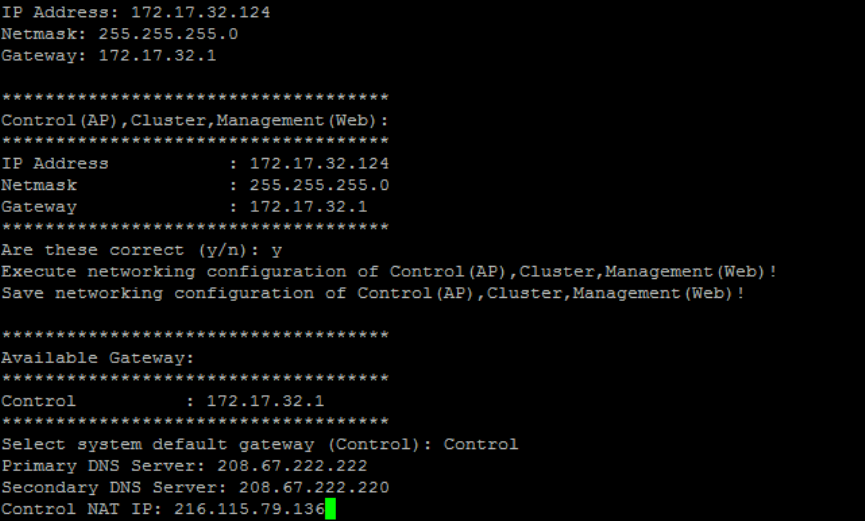
Figure 142: Enter the public IP address of the NAT server (if any)
15. Enter restart network.
You have completed configuring the vSZ interfaces. You are now ready to run the vSZ Setup
Wizard. See Using the Setup Wizard to Install vSZ.
Setting Up the vSZ with Three Interfaces
1. Log on to the console using the following credentials: User name: admin Password: admin
2. At the vSZ> prompt, enter en to enable privileged mode.
3. At the Password prompt, enter admin. The vSZ# prompt appears.
4. Enter setup. The console displays the current network settings (if any), and then displays
the prompt: Do you want to setup network? [YES/no]
Ruckus Wireless™ Virtual SmartZone™ Getting Started Guide for SmartZone 3.4
130
Configuring the Virtual Machine Interfaces
Setting Up the vSZ with Three Interfaces
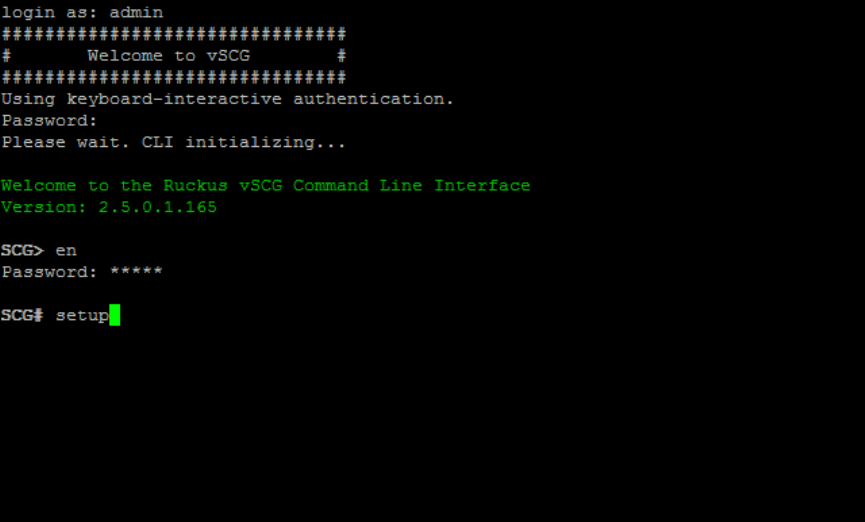
Figure 143: At the vSZ> prompt, enter setup
5. At the Select IP configuration prompt, enter 1 to set up the control interface manually.
a) Configure the IP address, netmask, and gateway of the control interface, and the press
<Enter>. The IP address configuration that you entered appears.
a) When the message Are these correct? appears, enter y to confirm the IP address
configuration.
Ruckus Wireless™ Virtual SmartZone™ Getting Started Guide for SmartZone 3.4
131
Configuring the Virtual Machine Interfaces
Setting Up the vSZ with Three Interfaces
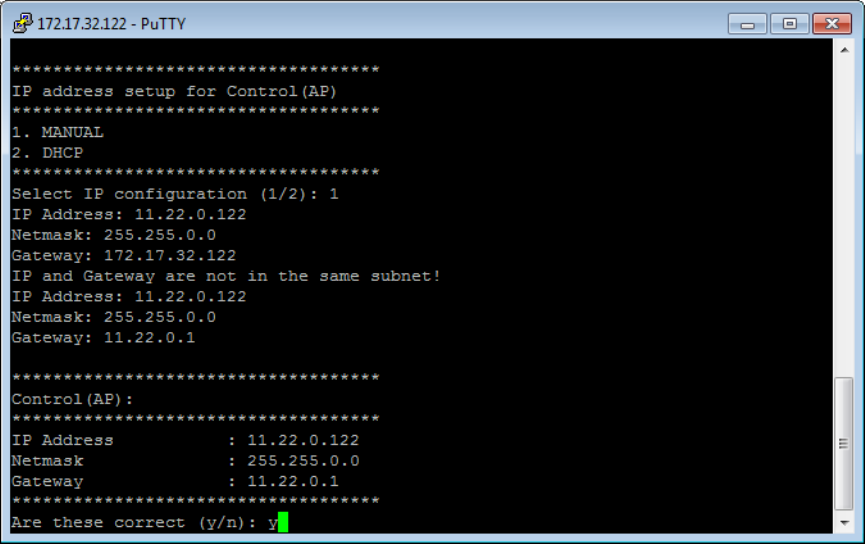
Figure 144: Configure the IP address settings of the control interface
6. At the Select IP configuration prompt, enter 1 to set up the cluster interface manually.
a) Configure the IP address, netmask, and gateway of the cluster interface, and then press
<Enter>. The IP address configuration that you entered appears.
b) When the message Are these correct? appears, enter y to confirm the IP address
configuration.
7. At the Select IP configuration prompt, enter 1 to set up the management interface manually.
a) Configure the IP address, netmask, and gateway of the management interface, and the
press <Enter>. The IP address configuration that you entered appears.
Take note of the IP address that you assign to the management interface – you will use
this IP address to log on to the vSZ web interface.
b) When the message Are these correct? appears, enter y to confirm the IP address
configuration.
8. When the message Select system default gateway (Control, Cluster, Management)?,
enter Control or Management, depending on your network topology (see Important Notes
About Selecting the System Default Gateway).
This entry is case-sensitive. Make sure you enter the system default gateway exactly as shown
at the prompt.
Ruckus Wireless™ Virtual SmartZone™ Getting Started Guide for SmartZone 3.4
132
Configuring the Virtual Machine Interfaces
Setting Up the vSZ with Three Interfaces
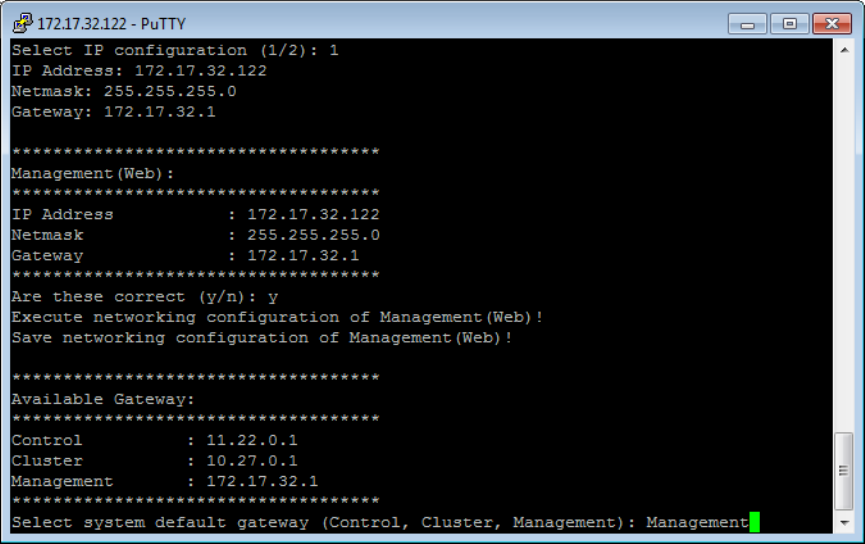
Figure 145: When prompted for the system default gateway, enter either Management
or Control (depending on your network design)
9. When prompted, enter the primary and secondary DNS server IP addresses.
10. Enter restart network.
You have completed configuring the vSZ interfaces. You are now ready to run the vSZ Setup
Wizard. See Using the Setup Wizard to Install vSZ.
Important Notes About Selecting the System Default Gateway
Depending on your network topology, you may select either the Management or Control interface
as the system default gateway.
•If all of the managed APs are located in different locations on the Internet, the vSZ may not
know all of the IP subnets of these APs. In this case, the control interface should be set as
the default gateway for the vSZ and you will need to add a static route to reach the
management network.
•If all of the managed APs belong to a single subnet or to multiple subnets on which you can
set the route statically, then you can set the management interface as the default gateway
users can set default gateway for the vSZ and set static routes for the vSZ to reach all of its
managed APs.
Ruckus Wireless™ Virtual SmartZone™ Getting Started Guide for SmartZone 3.4
133
Configuring the Virtual Machine Interfaces
Important Notes About Selecting the System Default Gateway
8
Using the Setup Wizard to Install vSZ
In this chapter:
•Before You Begin
•Step 1: Start the Setup Wizard and Set the Language
•Step 2: Select the Profile Configuration That Corresponds to Your vSZ License
•Step 3: Configure the Management IP Address Settings
•Step 4: Configure Dual Mode IP Address Settings Using CLI
•Step 5: Configure the Cluster Settings
•Step 6: Set the Administrator Password
•Step 7: Changing the Administrator Password
•Step 8: Verify the Settings
•Logging On to the Web Interface
Before You Begin
The Setup Wizard helps you perform the initial configuration of the vSZ by presenting the vSZ
configuration options in a set of easy-to-complete screens. The Setup Wizard will prompt you
to select one of the two available profile configurations (High-Scale profile and Essentials profile).
You must select the profile configuration that corresponds to the vSZ license that you purchased.
Before you start the Setup Wizard, make sure you know the profile configuration that you need
to select. If you are unsure which profile configuration you need to select, contact Ruckus Wireless
Support.
Follow these steps to run and complete the vSZ Setup Wizard:
•Start the Setup Wizard and Set the Language
•Select the Profile Configuration That Corresponds to Your vSZ License
•Configure the Management IP Address Settings
•Configure Dual Mode IP Address Settings Using CLI
•Configure the Cluster Settings
•Set the Administrator Password
•Verify the Settings
NOTE: This guide describes the Setup Wizard screens that appear when you select the
High-Scale profile configuration. If you select the Essentials profile configuration, the screens
that appear may be slightly different.
Step 1: Start the Setup Wizard and Set the Language
1. Start your web browser, and then enter the following in the address bar:
https://{management-IP-address}:8443 Where management-IP-address is the
Ruckus Wireless™ Virtual SmartZone™ Getting Started Guide for SmartZone 3.4
134
Using the Setup Wizard to Install vSZ
Before You Begin
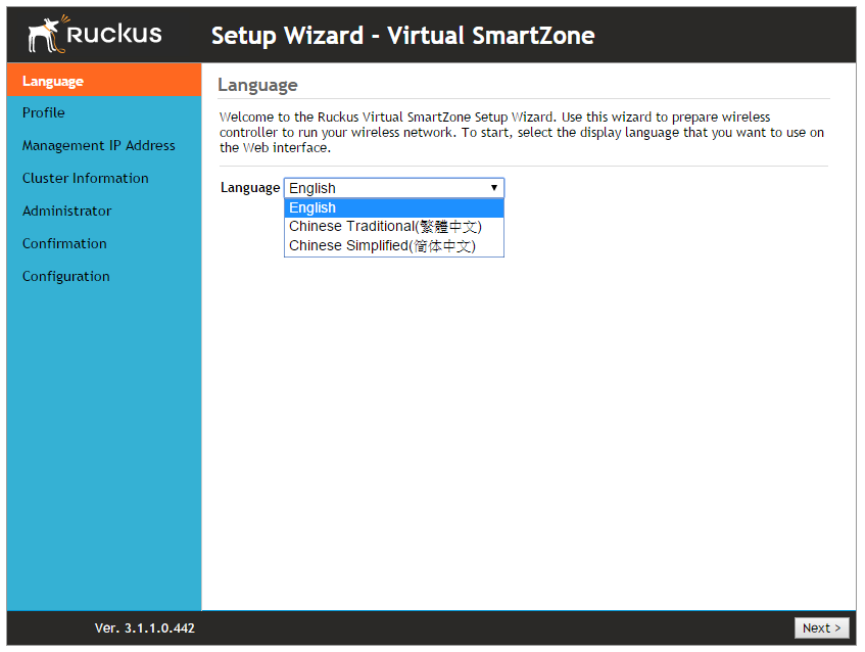
address you assigned to the management interface. The vSZ Setup Wizard appears, displaying
the Language page.
Figure 146: The Language page
2. Select your preferred language for the vSZ web interface. Available options include:
a) English
b) Traditional Chinese
c) Simplified Chinese
3. Click Next. The Profile page appears.
Step 2: Select the Profile Configuration That Corresponds to
Your vSZ License
1. Select the profile configuration that corresponds to the vSZ license that you purchased.
Available profile configurations include:
a) High Scale
b) Essentials
2. Click Apply. The message Applying profile appears, and then the Management IP page
appears.
Ruckus Wireless™ Virtual SmartZone™ Getting Started Guide for SmartZone 3.4
135
Using the Setup Wizard to Install vSZ
Step 2: Select the Profile Configuration That Corresponds to Your vSZ License
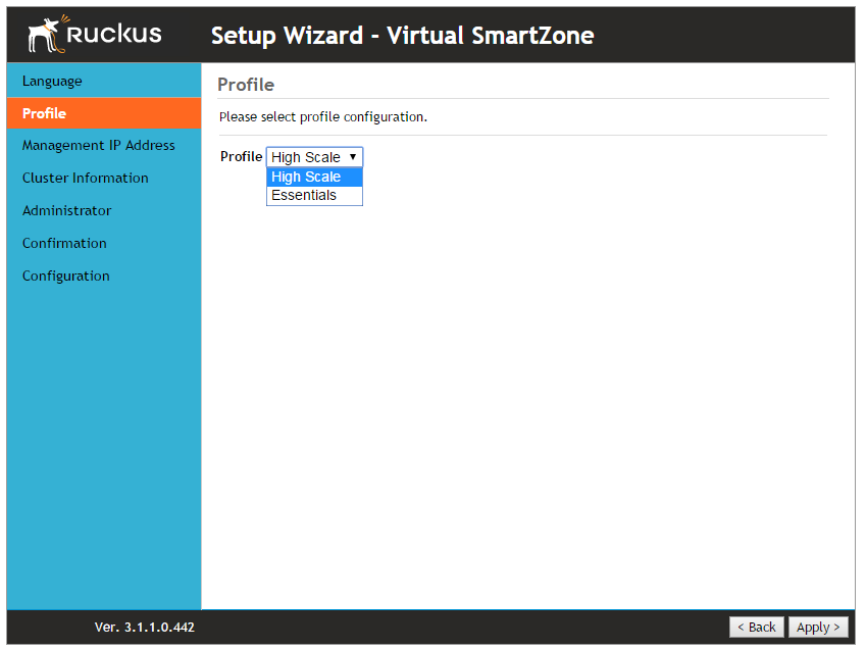
Figure 147: The Profile page
Step 3: Configure the Management IP Address Settings
The vSZ comes in either a single network interface or three network interfaces (one interface
each for Control (AP), Cluster, and Management (Web) traffic). The following procedure assumes
that the vSZ you are installing uses a single network interface.
If the vSZ that you are installing comes with three network interfaces, you must configure each
of the three interfaces to be on three different subnets. Failure to do so may result in loss of
access to the web interface or failure of system functions and services.
1. In IP Version Support, select one of the following options:
IPv4 Only: Click this option if you want the controller to obtain an IPv4 address from a DHCP
server on the network.
IPv4 and IPv6: Click this option if you want the controller to obtain both IPv4 and IPv6
addresses from DHCP and DHCPv6 servers on the network. Refer to Step 4: Configure Dual
Mode IP Address Settings Using CLI for configuring dual setup using CLI. This is an alternative
method for configuring IPv4 and IPv6 manually if the DHCP server is not available on the
network.
Ruckus Wireless™ Virtual SmartZone™ Getting Started Guide for SmartZone 3.4
136
Using the Setup Wizard to Install vSZ
Step 3: Configure the Management IP Address Settings
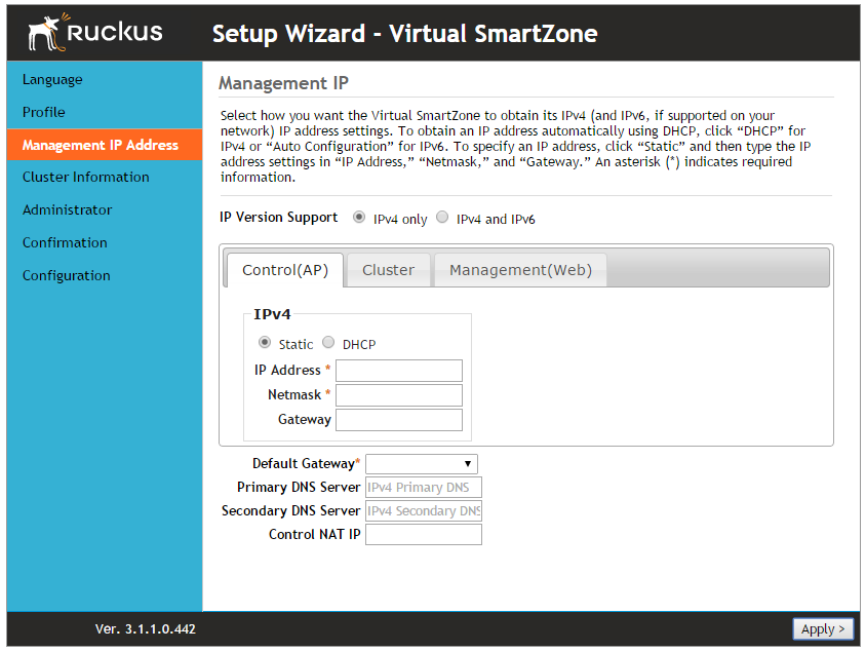
Figure 148: Select the IP version support
2. Configure the IP address settings of the Control (AP/DataPlane) interface.
a) Under the IPv4 section, click Static, and then enter the network settings that you want
to assign to the AP/DataPlane interface, through which client traffic and configuration data
are sent and received.
Although it is possible to use DHCP to assign IP address settings to the Control interface
automatically, Ruckus Wireless strongly recommends assigning a static IP address to this
interface.The following network settings are required (others are optional):
•IP address
•Netmask
•Default gateway
a) If you clicked IPv4 and IPv6 at the beginning of this procedure, under the IPv6 section,
click Auto Configuration if you want the controller to obtain its IP address from Router
Advertisements (RAs) or from a DHCPv6 server on the network. If you want to manually
assign the IPv6 network address, click Static, and then set the values for the following:
IP address (IPv6): Enter an IPv6 address (global only) with a prefix length (for example,
1234::5678:0:C12/123). Link-local addresses are unsupported.Gateway: Enter an
IPv6 address (global or link-local) without a prefix length. Here are examples:
Global address without a prefix length: 1234::5678:0:C12
Link-local address without a prefix length: fe80::5678:0:C12
Ruckus Wireless™ Virtual SmartZone™ Getting Started Guide for SmartZone 3.4
137
Using the Setup Wizard to Install vSZ
Step 3: Configure the Management IP Address Settings
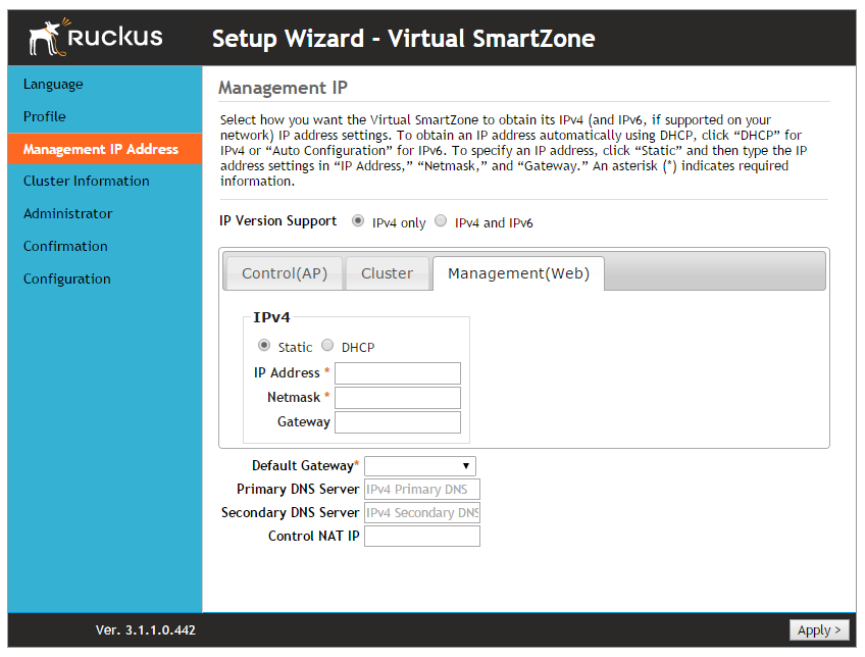
a) Click the Cluster tab when done.
3. On the Cluster tab, click Static under the IPv4 section, and then enter the network settings
that you want to assign to the cluster interface, through which cluster data will be sent and
received.
Although it is possible to use DHCP to assign IP address settings to the Cluster interface
automatically, Ruckus Wireless strongly recommends assigning a static IP address to this
interface. The following network settings are required (others are optional):
•IP address
•Netmask
•Default gateway
4. Click the Management (Web) tab when done
Figure 149: The Management (Web) tab
5. On the Management (Web) tab, configure the IP address settings of the management
interface.
a) Under the IPv4 section, click Static, and then enter the network settings that you want
to assign to the AP/DataPlane interface, through which client traffic and configuration data
are sent and received.
Ruckus Wireless™ Virtual SmartZone™ Getting Started Guide for SmartZone 3.4
138
Using the Setup Wizard to Install vSZ
Step 3: Configure the Management IP Address Settings
Although it is possible to use DHCP to assign IP address settings to the Control interface
automatically, Ruckus Wireless strongly recommends assigning a static IP address to this
interface. The following network settings are required (others are optional):
•IP address
•Netmask
•Default gateway
b) If you clicked IPv4 and IPv6 at the beginning of this procedure, under the IPv6 section,
click Auto Configuration if you want the management (web) interface to obtain its IP
address from Router Advertisements (RAs) or from a DHCPv6 server on the network. If
you want to manually assign the IPv6 network address, click Static, and then set the
values for the following: IP address (IPv6): Enter an IPv6 address (global only) with a prefix
length (for example, 1234::5678:0:C12/123). Link-local addresses are
unsupported.Gateway: Enter an IPv6 address (global or link-local) without a prefix length.
Here are examples:
Global address without a prefix length: 1234::5678:0:C12
Link-local address without a prefix length: fe80::5678:0:C12
6. At the bottom of the screen, select the interface that you want to set as the default system
gateways for IPv4 and IPv6 (if enabled), and then type the primary and secondary DNS server
addresses.
The appropriate interface to use as the default system gateway depends on the topology of
your network. See Important Notes About Selecting the Gateway for more information.
Ruckus Wireless™ Virtual SmartZone™ Getting Started Guide for SmartZone 3.4
139
Using the Setup Wizard to Install vSZ
Step 3: Configure the Management IP Address Settings
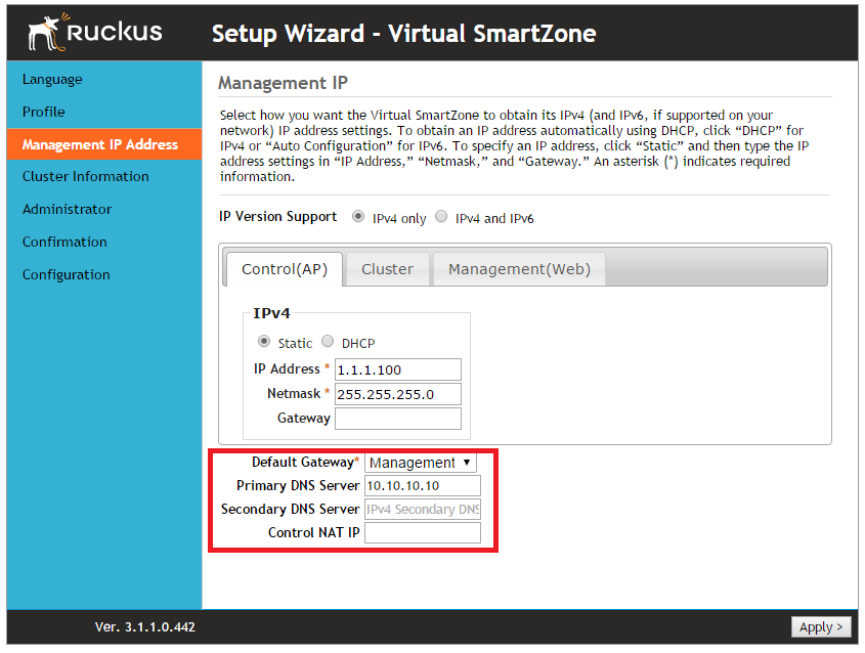
Figure 150: Select the IPv4 and IPv6 (if enabled) default system gateways
7. Check the network settings that you have configured on the Control, Cluster, and
Management tabs and the default gateway that you have selected. Verify that they are all
correct.
8. Click the Apply to continue. The controller validates and applies the network settings that
you have configured.
Ruckus Wireless™ Virtual SmartZone™ Getting Started Guide for SmartZone 3.4
140
Using the Setup Wizard to Install vSZ
Step 3: Configure the Management IP Address Settings
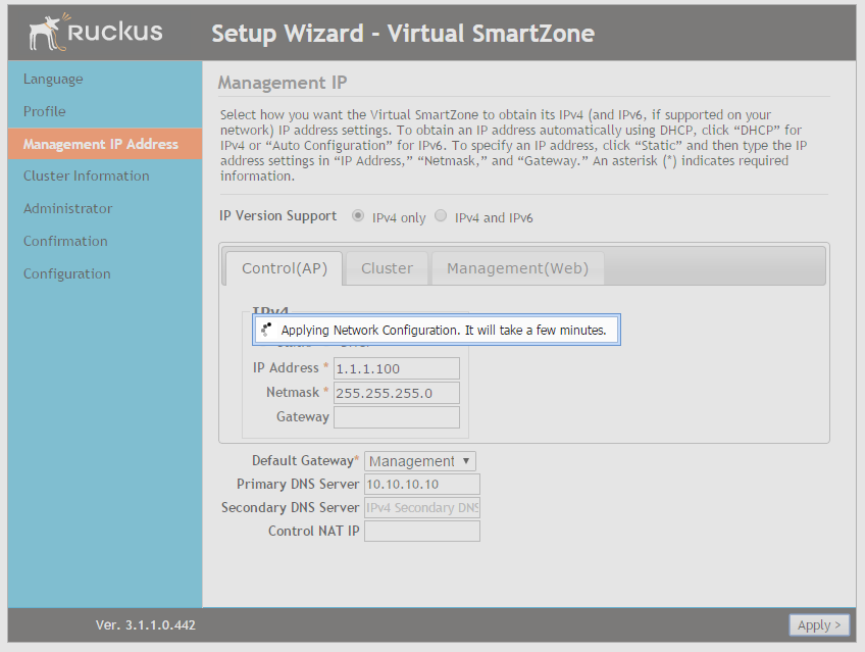
Figure 151: The controller validates and applies the network settings you have
configured
NOTE:
•It may take the controller up to 15 minutes to activate its interfaces. An error message
may appear after you apply the network interface settings.
•Wait at least for 15 minutes, and then try again.
NOTE: If the controller is unable to validate the network settings that you configured, an error
message appears. If this happens, check the network settings that you configured and verify
that you are able to connect to the IP address that you assigned to the Management (Web)
interface.
9. Update the IP address settings of the administrative computer with the same subnet settings
that you assigned to the Management (Web) interface (see Step 4). Continue to step 5:
Configure the Cluster Settings.
Ruckus Wireless™ Virtual SmartZone™ Getting Started Guide for SmartZone 3.4
141
Using the Setup Wizard to Install vSZ
Step 3: Configure the Management IP Address Settings
Important Notes About Selecting the System Default Gateway
Depending on your network topology, you may select either the Management or Control interface
as the system default gateway.
•If all of the managed APs are located in different locations on the Internet, the vSZ may not
know all of the IP subnets of these APs. In this case, the control interface should be set as
the default gateway for the vSZ and you will need to add a static route to reach the
management network.
•If all of the managed APs belong to a single subnet or to multiple subnets on which you can
set the route statically, then you can set the management interface as the default gateway
users can set default gateway for the vSZ and set static routes for the vSZ to reach all of its
managed APs.
Step 4: Configure Dual Mode IP Address Settings Using CLI
The following are the steps to configure the dual setup using CLI. This is an alternative method
of configuring IPv4 and IPv6 manually if the DHCP server is not available on the network.
1. Using CLI execute the setup command: vSZ# setup
2. In the vSZ Profile choose option 1 - Essentials.
Ruckus Wireless™ Virtual SmartZone™ Getting Started Guide for SmartZone 3.4
142
Using the Setup Wizard to Install vSZ
Step 4: Configure Dual Mode IP Address Settings Using CLI

3. In the IP version support choose option 2 - IPv4 and IPv6
Figure 152: Select dual mode IP
setting
4. Configure the IPv4 address settings that you want to assign to the AP/DataPlane interface,
through which client traffic and configuration data are sent and received.
a) Enter the setup for Control (see Figure 117) as either:
1. Manual
2. DHCP
b) Enter the IP configuration as 2 (DHCP).
c) Enter following network settings as required: IP address Netmask Default gateway
Ruckus Wireless™ Virtual SmartZone™ Getting Started Guide for SmartZone 3.4
143
Using the Setup Wizard to Install vSZ
Step 4: Configure Dual Mode IP Address Settings Using CLI
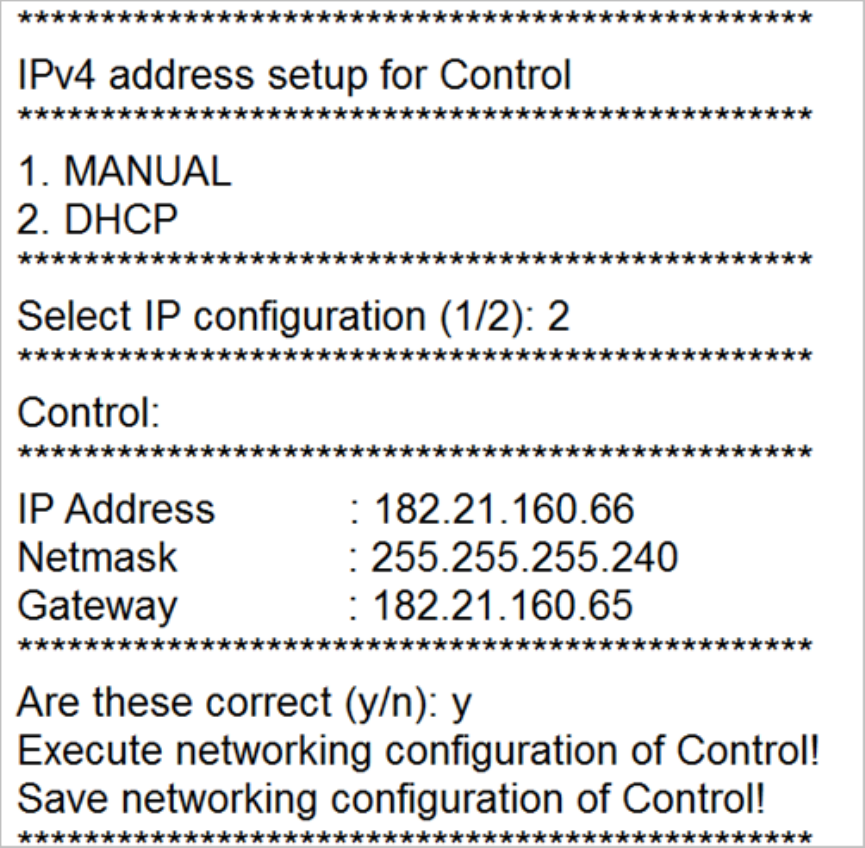
d) Save the networking configuration of Control settings.
Figure 153: IPv4 Control
Settings
e) Enter the setup for Cluster as either: 1. Manual 2. DHCP
f) Enter the IP configuration as 1 (Manual)
g) Enter following network settings as required: IP address, Netmask, and Default gateway
h) Save the networking configuration of Cluster settings.
Ruckus Wireless™ Virtual SmartZone™ Getting Started Guide for SmartZone 3.4
144
Using the Setup Wizard to Install vSZ
Step 4: Configure Dual Mode IP Address Settings Using CLI

Figure 154: IPv4 Cluster Settings
i) Enter the setup for Management as either: 1. Manual 2. DHCP
j) Enter the IP configuration as 2 (DHCP)
k) Enter following network settings as required: IP address, Netmask, and Default gateway
l) Save the networking configuration of Management settings
Ruckus Wireless™ Virtual SmartZone™ Getting Started Guide for SmartZone 3.4
145
Using the Setup Wizard to Install vSZ
Step 4: Configure Dual Mode IP Address Settings Using CLI
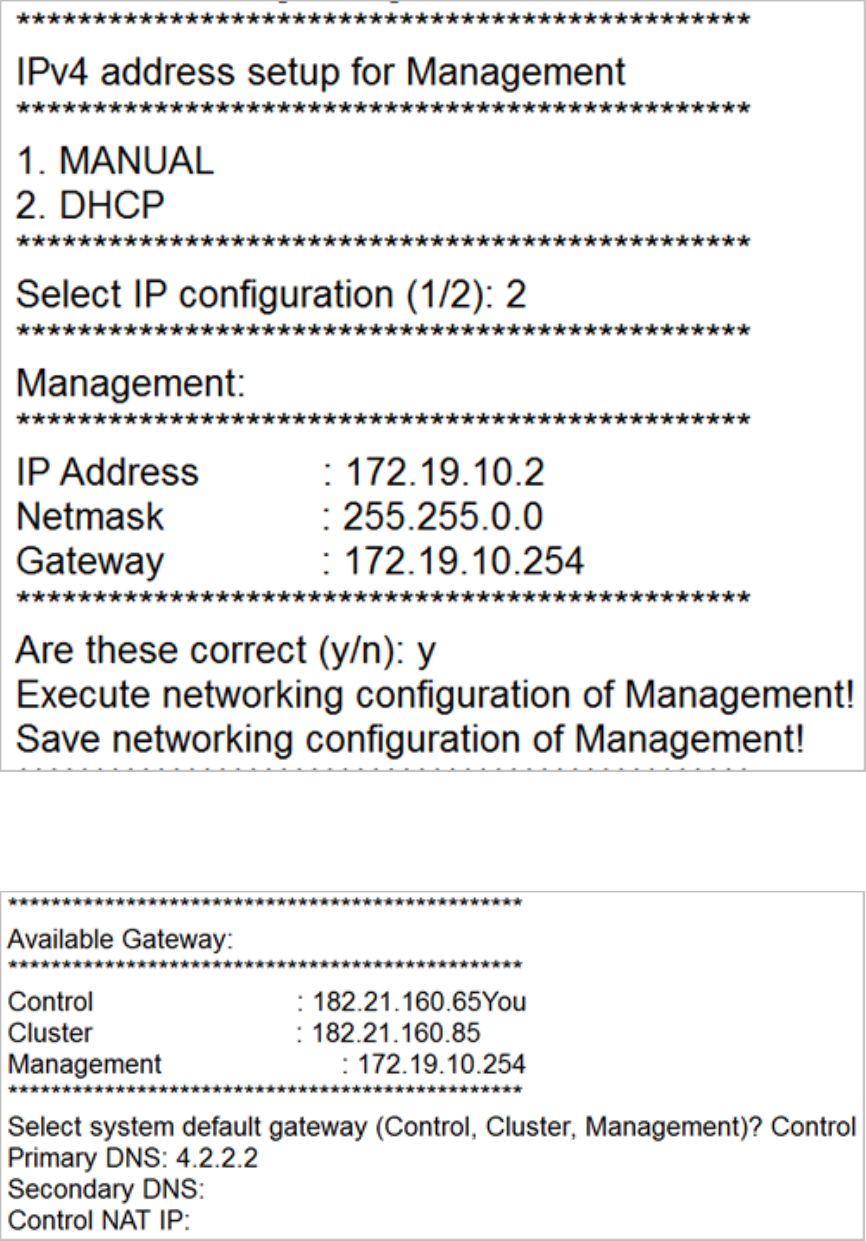
Figure 155: IPv4 Management Settings
The available gateway for Control, Cluster and Management will be displayed. You can
select the system default gateway (see Figure 120).
Figure 156: Default Gateway Settings
Ruckus Wireless™ Virtual SmartZone™ Getting Started Guide for SmartZone 3.4
146
Using the Setup Wizard to Install vSZ
Step 4: Configure Dual Mode IP Address Settings Using CLI

5. Add control NAT server IP address if the controller vSZ is behind the NAT server (see Figure
121)
Figure 157: NAT server IP address
6. Configure the IPv6 address settings that you want to assign to the AP/Data Plane interface,
through which client traffic and configuration data are sent and received.
IPv6 does not support cluster interface setting.
a) Enter the setup for Control as either: 1. Manual 2. Auto Configuration
b) Enter the IP configuration as 1 (Manual).
c) Enter following network settings as required: IP address Default gateway
d) Save the networking configuration of Control settings.
Ruckus Wireless™ Virtual SmartZone™ Getting Started Guide for SmartZone 3.4
147
Using the Setup Wizard to Install vSZ
Step 4: Configure Dual Mode IP Address Settings Using CLI
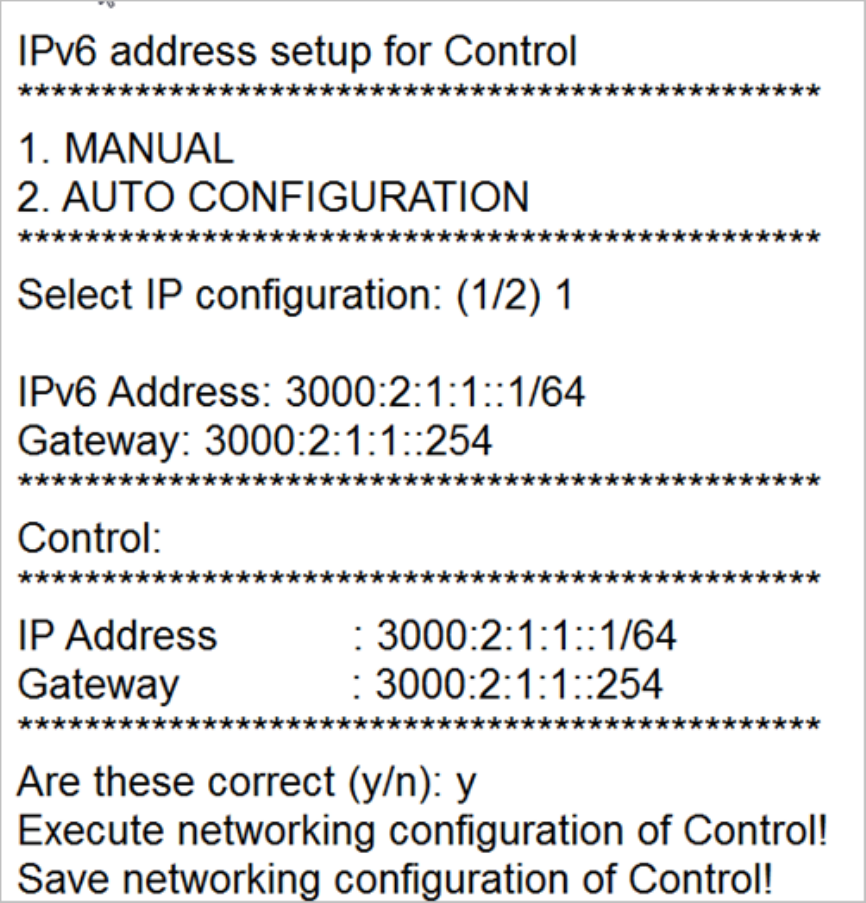
Figure 158: IPv6 Control Settings
e) Enter the setup for Management (see Figure 123) as either: 1. Manual2. Auto Configuration
f) Enter the IP configuration as 1 (Manual)
g) Enter following network settings as required: IP addressDefault gateway
h) Save the networking configuration of Management settings.
Ruckus Wireless™ Virtual SmartZone™ Getting Started Guide for SmartZone 3.4
148
Using the Setup Wizard to Install vSZ
Step 4: Configure Dual Mode IP Address Settings Using CLI
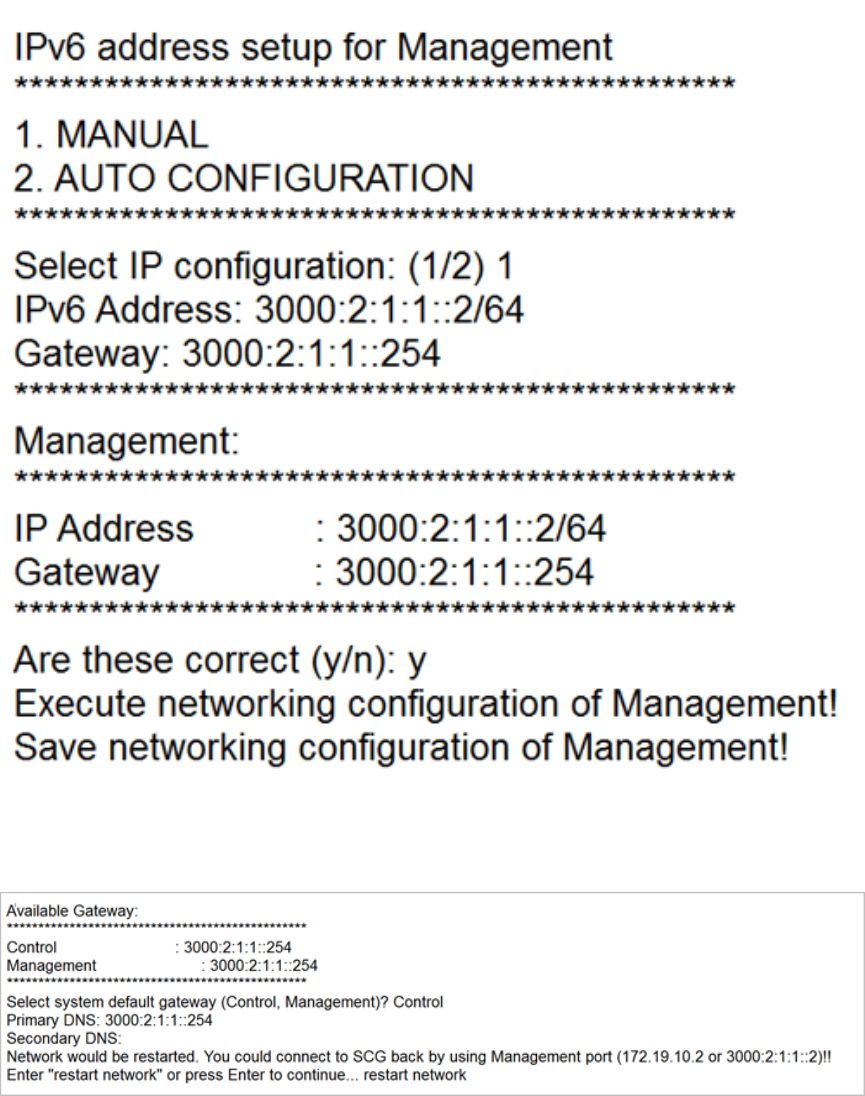
Figure 159: IPv6 Management Settings
The available gateway for Control and Management will be displayed. You can select the
system default gateway.
Figure 160: Default Gateway Settings
7. Restart the network.
8. On navigating back to the controller web interface, Control Plane network settings displays
the IPv4 and IPv6 settings.
Ruckus Wireless™ Virtual SmartZone™ Getting Started Guide for SmartZone 3.4
149
Using the Setup Wizard to Install vSZ
Step 4: Configure Dual Mode IP Address Settings Using CLI
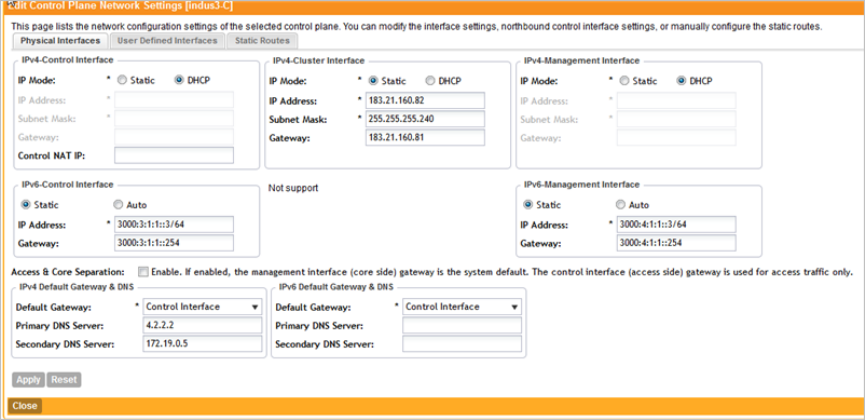
Figure 161: Control Plane Network Settings
9. Continue to Step 5: Configure the Cluster Settings
Step 5: Configure the Cluster Settings
The next step is to configure the vSZ cluster settings. The actions that you need to perform in
this step depend on whether you are creating a new cluster (with this vSZ as the first node) or
you are setting up this vSZ to join an existing cluster.
•If This vSZ Is Forming a New Cluster
•If This vSZ Is Joining an Existing Cluster
Ruckus Wireless™ Virtual SmartZone™ Getting Started Guide for SmartZone 3.4
150
Using the Setup Wizard to Install vSZ
Step 5: Configure the Cluster Settings
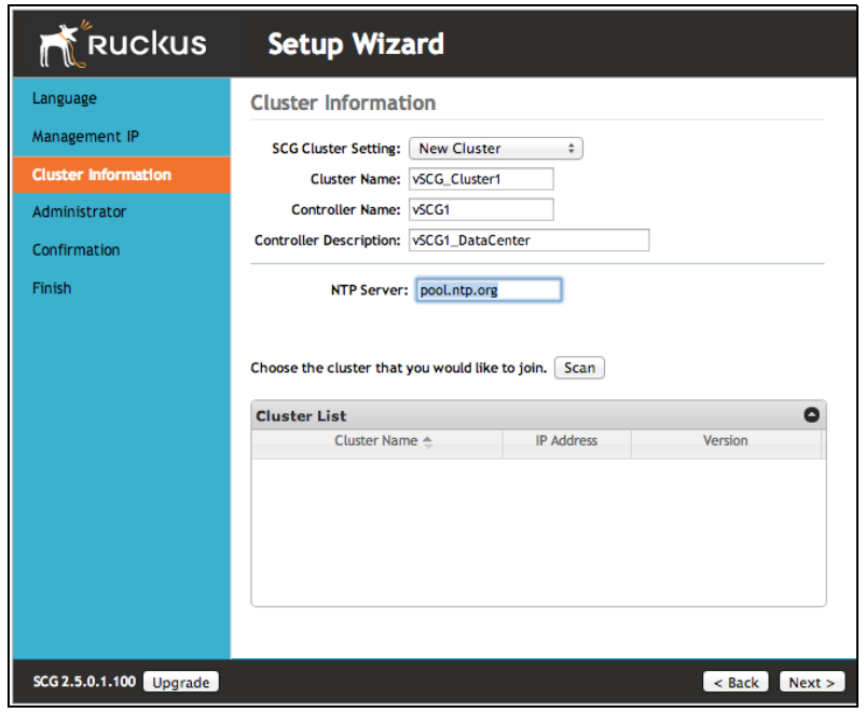
Figure 162: The Cluster Information page, showing the New Cluster option
If This vSZ Is Forming a New Cluster
Follow these steps if you want to use this vSZ to create a new cluster.
1. On the Cluster Information page, configure the following settings:a)
b) In vSZ Cluster Setting, select New Cluster.
The Cluster Name and Controller Name boxes only accept alphanumeric characters,
hyphens (-), and underscores (_). They do not accept the space character or other special
characters (for example, $, *, #, !)
c) In Controller Name, type a name for the vSZ controller in this new cluster.
d) In Controller Description, type a description for the vSZ controller.
e) In NTP Server, type the address of the NTP server from which members of the cluster
will obtain and synchronize time. The default NTP server is pool.ntp.org
2. Click Next to continue to the Administrator page (see Step 6: Set the Administrator
Password).
Ruckus Wireless™ Virtual SmartZone™ Getting Started Guide for SmartZone 3.4
151
Using the Setup Wizard to Install vSZ
Step 5: Configure the Cluster Settings
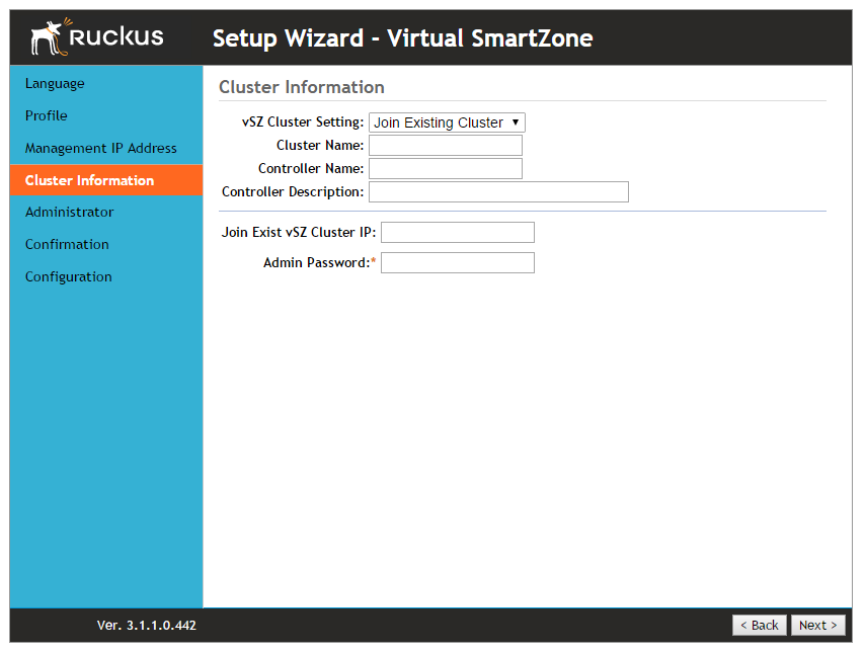
If This vSZ Is Joining an Existing Cluster
If this is not the first vSZ cluster on the network, you can set up this vSZ virtual appliance to join
an existing cluster. Follow these steps to configure this to join an existing cluster.
A vSZ cluster supports a maximum of four nodes. If you are building a vSZ-E cluster with more
than two nodes, two (2) additional cores must be added to each node to support the added
search and replication capabilities.
1. In vSZ Cluster Setting, select Join Existing Cluster.
2. In Cluster Name, type the name of the cluster that this vSZ is joining.
The Cluster Name and Controller Name boxes only accept alphanumeric characters,
hyphens (-), and underscores (_). They do not accept the space character or other special
characters (for example, $, *, #, !).
3. In Controller Name (optional), type a name that you want to assign to this new controller.
4. In Controller Description, type a description for this new controller.
5. In Join Exist vSZ Cluster IP, type the IP address of the leader in the existing cluster.
6. In Admin Password, type the administrator password to the web interface of the leader
node.
7. Click Next to continue to the Administrator page. See Step 6: Set the Administrator Password.
Figure 163: The Cluster Information page, showing the Join Existing Cluster
option
Ruckus Wireless™ Virtual SmartZone™ Getting Started Guide for SmartZone 3.4
152
Using the Setup Wizard to Install vSZ
Step 5: Configure the Cluster Settings
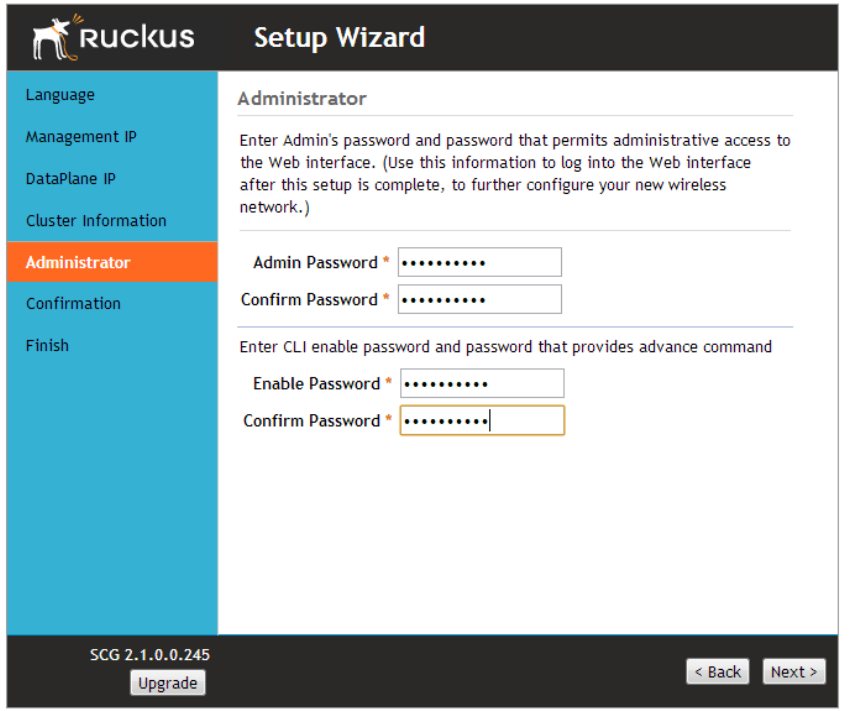
If the firmware version on this vSZ (shown in the lower left area of the Cluster Information page)
does not match the firmware version of the cluster, a message appears and prompts you to
upgrade the vSZ firmware. Click Upgrade, and then follow the prompts to perform the upgrade.
Step 6: Set the Administrator Password
1. On the Administrator page, configure the web interface and CLI passwords. All fields are
required. Admin Password Type a password that you want to use to access the web
interface. Confirm Password Retype the password above to confirm. Enable Password
Type a password that you want to use to enable CLI access to the vSZ. Confirmation
Password Retype the password above to confirm.
The web interface and CLI passwords must be at least eight (8) characters and must include
one number, one letter, and one special character (for example, $, *, #, !).
2. Click Next to continue. The Confirmation page appears and displays all the vSZ settings
that you have configured using the Setup Wizard.
Figure 164: Set the web interface and CLI passwords
Ruckus Wireless™ Virtual SmartZone™ Getting Started Guide for SmartZone 3.4
153
Using the Setup Wizard to Install vSZ
Step 6: Set the Administrator Password
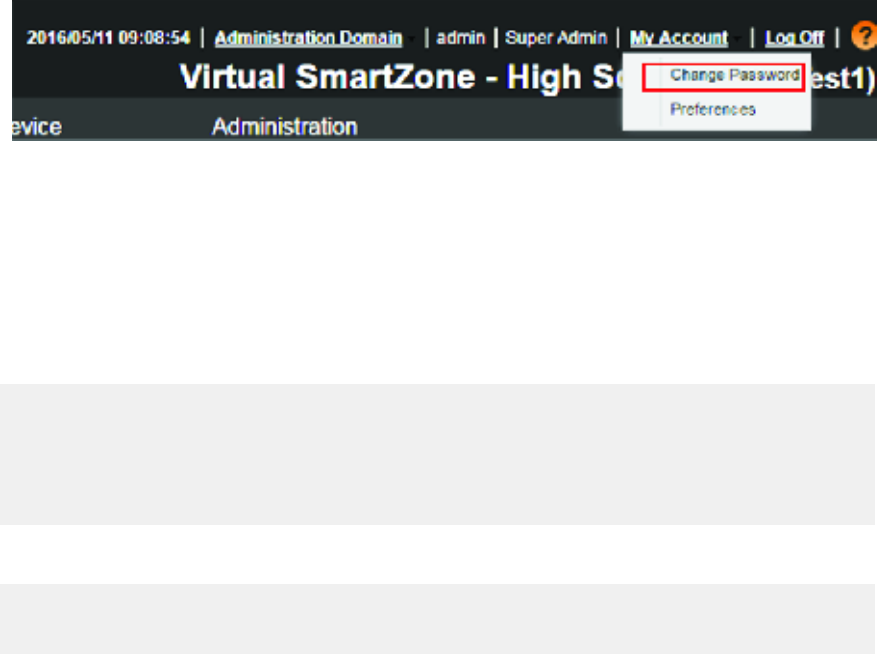
Step 7: Changing the Administrator Password
You can change the administrator password either using the web interface or using the CLI
mode.
To change the password using the web interface follow the below steps:
1. Login as the administrator.
2. Navigate to My Account.
3. Click on Change Password to change the password.
4. Save the changes.
Figure 165: Changing the password using the web interface
To change the password using CLI mode:
Follow the below steps:
1. Login to CLI and change the prompt to enable mode.
2. Execute the following commands to change the password.
config
lab-controller# enable
Old Password: *********
New Password: ********
Retype: ********
3. Execute the following command to change the web interface password.
config
lab-controller# changepassword
Step 8: Verify the Settings
1. Verify that all the settings displayed on the Confirmation page are correct.
2. If they are all correct, click Finish to apply the settings and activate the vSZ on the network.
Ruckus Wireless™ Virtual SmartZone™ Getting Started Guide for SmartZone 3.4
154
Using the Setup Wizard to Install vSZ
Step 7: Changing the Administrator Password
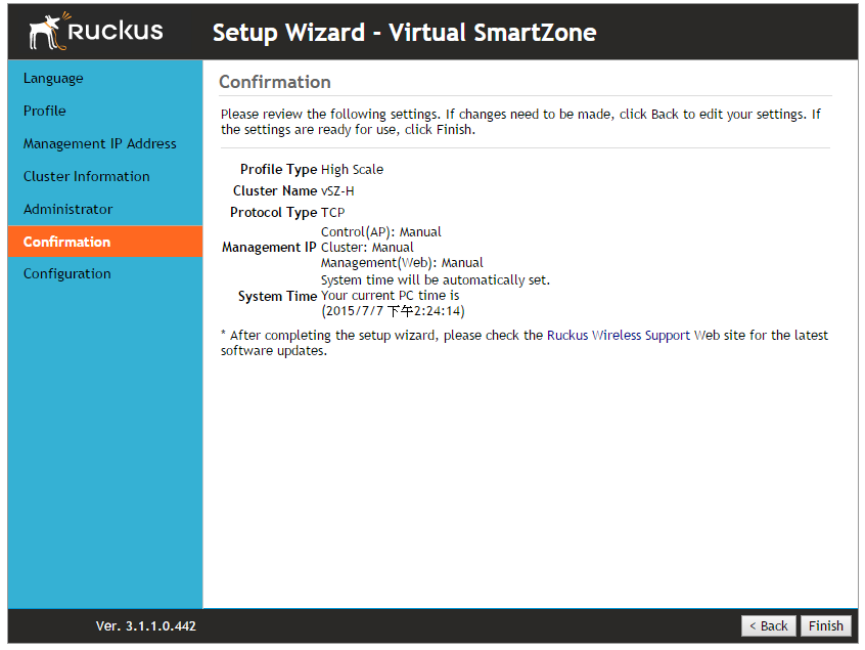
NOTE: If you find an incorrect setting, click the Back button until you reach the related page,
and then edit the settings. When you finish editing the settings, click the Next button until you
reach the Confirmation page again.
Figure 166: The Confirmation page
A progress bar appears and displays the progress of applying the settings, starting the vSZ
services, and activating the vSZ on the network.
When the process is complete, the progress bar shows the message 100% Done. The page
also shows the IP address through which you can access the vSZ web interface to manage
the appliance.
Ruckus Wireless™ Virtual SmartZone™ Getting Started Guide for SmartZone 3.4
155
Using the Setup Wizard to Install vSZ
Step 8: Verify the Settings
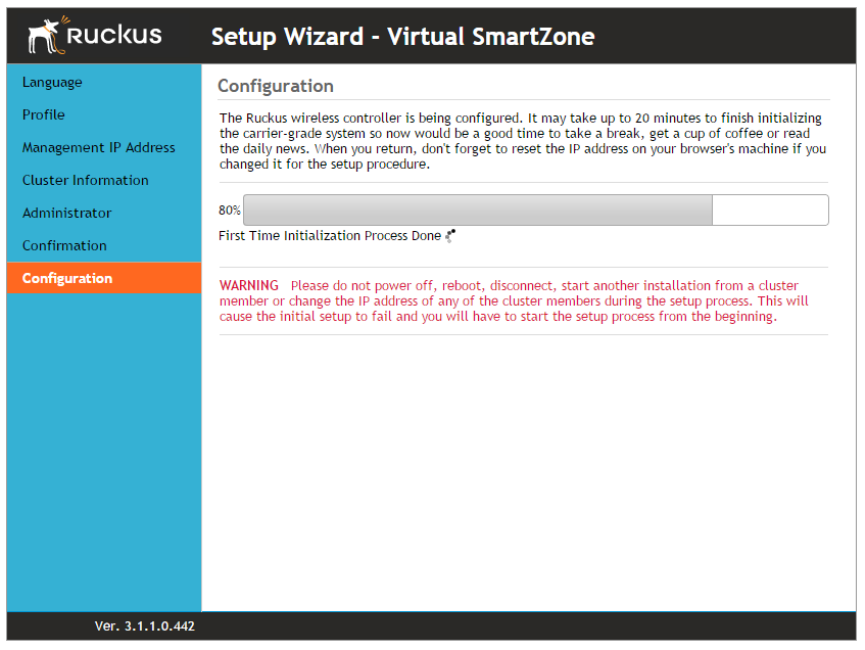
Figure 167: Setup is complete when the progress bar shows “100% Done”
Congratulations! You have completed the Setup Wizard. You are now ready to log on to the
web interface. Go to https://{management-IP-adddress}:8443, and then log on with
the user name and password that you assigned to the web interface.
Logging On to the Web Interface
You can access the web interface from any computer that is on the same subnet as the
management (web) interface. Follow these steps to log on to the vSZ web interface.
1. On a computer that is on the same subnet as the Management (Web) interface, start a web
browser.
2. In the address bar, enter the IP address that you assigned to the Management (Web) interface
and append a colon and 8443 (vSZ management port number) at the end of the address.
The vSZ web interface logon page appears.
If the IP address that you assigned to the Management (Web) interface is 10.10.101.1, then
you should enter: https://10.10.101.1:8443.
Ruckus Wireless™ Virtual SmartZone™ Getting Started Guide for SmartZone 3.4
156
Using the Setup Wizard to Install vSZ
Logging On to the Web Interface
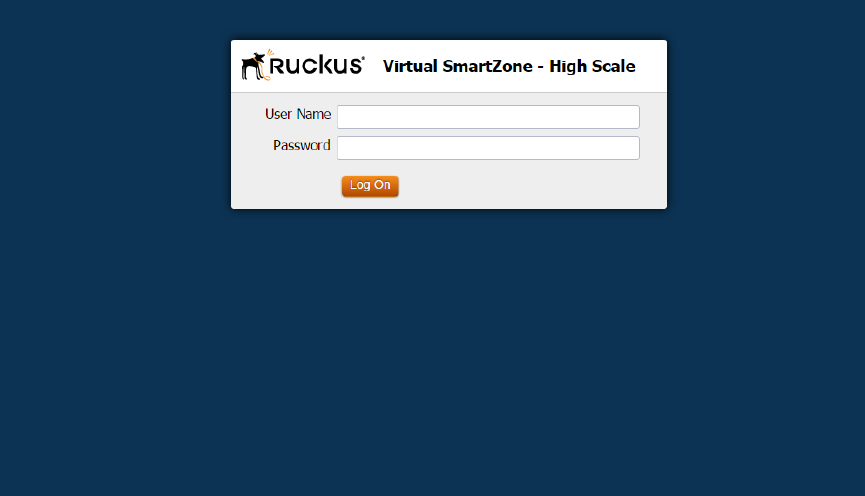
Figure 168: vSZ web interface logon page
3. Log on to the vSZ web interface using the following logon details: admin Password: {the
password that you set when you ran the vSZ Setup Wizard}
4. Click Log On. The web interface refreshes, and then displays the vSZ dashboard page, which
indicates that you have logged on successfully.
You are now ready to configure the vSZ.
Ruckus Wireless™ Virtual SmartZone™ Getting Started Guide for SmartZone 3.4
157
Using the Setup Wizard to Install vSZ
Logging On to the Web Interface
9
Configuring the vSZ High Scale for the First
Time
In this chapter:
•Creating an AP Zone
•Configuring AAA Servers and Hotspot Settings
•Creating a Registration Rule
•Defining the WLAN Settings of an AP Zone
•Configuring DHCP Option 43
•Verifying That Wireless Clients Can Associate with a Managed AP
•What to Do Next
This chapter describes the initial configuration tasks that Ruckus Wireless recommends you perform
for the vSZ High-Scale. The initial configuration of the vSZ Essentials is more straightforward and,
therefore, is not described here. For information on configuring the vSZ Essentials, refer to the vSZ
Essentials Administrator Guide.
Creating an AP Zone
The first step in configuring the vSZs to create an AP zone. An AP zone functions as a way of
grouping APs and applying a particular set of settings (including WLANs and their settings) to
these groups of APs. Each AP zone can include up to six WLAN services.
NOTE: Any AP that registers with the vSZ that is not assigned a specific zone is automatically
assigned to the Staging Zone. A zone called Staging Zone exists by default.
Follow these steps to create a new AP zone:
1. Click Configuration > AP Zones.
2. Click Create New.
Ruckus Wireless™ Virtual SmartZone™ Getting Started Guide for SmartZone 3.4
158
Configuring the vSZ High Scale for the First Time
Creating an AP Zone
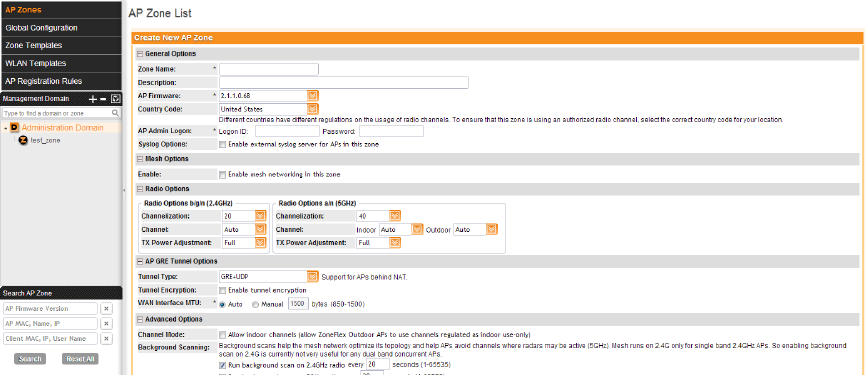
Figure 169: Creating a new AP zone
3. Configure the options listed in the Table.
DescriptionOption
DescriptionOption
Type a name that you want to assign to this new zone.Zone Name
Type a description for this new zone.Description
Displays the latest AP firmware available on the vSZ. If you want this
zone to use a different firmware, click Change, and then select a
firmware from the list.
AP Firmware
Different countries and regions maintain different rules that govern which
channels can be used for wireless communications. Set the country
Country Code
code to the proper regulatory region ensures that your vSZ network
does not violate local and national regulatory restrictions.
Specify the user name and password that administrators can use to log
on directly to the managed access point’s native web interface. The
AP Admin Logon
following boxes are provided: Logon ID: Type the admin user name.
Password: Type the admin password.
If you have a syslog server on the network and you want the vSZ to
send syslog data to it, select the Enable external syslog server for APs
Syslog Options
in this zone check box. The following boxes are provided: IP Address:
Type the IP address of the syslog server. Port: Type the port number
that has been opened on the server for syslog data. The default port
number is 514.
Mesh Options
Select the Enable mesh networking in this zone check box if you want
managed devices that belong to this zone to be able to form a mesh
network automatically.
Enable
Radio Options
Ruckus Wireless™ Virtual SmartZone™ Getting Started Guide for SmartZone 3.4
159
Configuring the vSZ High Scale for the First Time
Creating an AP Zone
DescriptionOption
Configure the following 2.4GHz radio options: ChannelizationSelect
either 20MHz or 40MHz channel width. Channel Select Auto or manually
Radio Options
b/g/n (2.4GHz)
assign a channel for the 2.4GHz radio. TX Power Adjustment: Manually
set the transmit power on all 2.4GHz radios (default is Full).
Configure the following 5GHZ radio options: ChannelizationSelect either
20MHz or 40MHz channel width. Channel (Indoor and Outdoor) Select
Radio Options a/n
(5GHz)
Auto or manually assign channels to the indoor and outdoor 5GHz
radios. TX Power Adjustment Manually set the transmit power on all
5GHz radios (default is Full).
AP GRE Tunnel
Options
Select a protocol to use for tunneling WLAN traffic back to the vSZ.
Options include Ruckus GRE and SoftGRE.
Tunnel Type
Select the tunnel profile that you want to use. If you want to use Ruckus
GRE tunneling for this AP zone, you can use the default tunnel profile
Tunnel Profile
or you can select a profile that you created. If you want to use Soft GRE
tunneling, you must first create a Soft GRE tunnel profile. NOTE:
Instructions for creating Ruckus GRE and Soft GRE tunnel profiles are
provided in the Administrator Guide for this release.
Advanced
Options
If you want to allow outdoor APs that belong to this zone to use wireless
channels that are regulated as indoor use only, select the Allow indoor
channels check box.
Channel Mode
If you want APs to automatically evaluate radio channel usage, enable
and configure the background scanning settings on both the 2.4GHz
Background
Scanning
and 5GHz radios. By default, background scanning is enabled on both
radios and set to run every 20 seconds.
Improve WLAN performance by enabling load balancing. Load balancing
spreads the wireless client load between nearby access points, so that
Client Load
Balancing
one AP does not get overloaded while another site idles. Load balancing
must be enabled on a per-radio basis. To enable load balancing, select
the Enable load balancing on [2.4GHz or 5GHz] check box, and then
set or accept the default Adjacent Radio Threshold (50dB for the 2.4GHz
radio and 43dB for the 5GHz radio).
To disable the WLANs of an AP (that belongs to this zone) whenever
the AP uplink or Internet connection becomes unavailable, select the
Smart Monitor
Enable check box. And then, configure the following options: Health
Check Interval Set the interval (between 5 and 60 seconds) at which
the vSZ will check the AP’s uplink connection. The default value is 10
seconds. Health Check Retry Threshold Set the number of times
(between 1 and 10 times) that the vSZ will check the AP’s uplink
connection. If the vSZ is unable to detect the uplink after the configured
Ruckus Wireless™ Virtual SmartZone™ Getting Started Guide for SmartZone 3.4
160
Configuring the vSZ High Scale for the First Time
Creating an AP Zone
DescriptionOption
number of retries, the vSZ will disable the AP’s WLANs. The default
value is 3 retries.
NOTE: When the vSZ disables the AP’s WLANs, the AP creates a log
for the event. When the AP’s uplink is restored, the AP sends the event
log (which contains the timestamp when the WLANs were disabled,
and then enabled) to the vSZ.
4. Click Create New to finish creating your first AP Zone. When the vSZ completes creating the
AP zone, the following confirmation message appears: AP zone created successfully.
Do you want to view the zone information?
5. Click Yes to view the zone details, or click No to close the confirmation message and return
to the zone list.
You have completed creating your first AP zone. You can create additional AP zones, if needed.
Configuring AAA Servers and Hotspot Settings
If you have an existing RADIUS (AAA) server on the network, you can set up hotspot services
across the network using the Ruckus Wireless access points that the vSZ is managing. To
provide hotspot services, you need to add at least one AAA server to the vSZ and create a
hotspot service. AAA servers and hotspot settings must be configured on a per-AP zone basis.
If you do not have an AAA server on the network, skip this step.
Adding an AAA Server
Follow these steps to add an AAA server to an AP zone.
1. Go to Configuration > AP Zones.
2. Click the AP zone for which you want to add an AAA server. Alternatively, click the AP zone
from the Management Domains tree.
3. Under the AP Zones menu on the sidebar, click AAA.
4. Click Create New. The Create New RADIUS Server form appears.
5. In the General Options section, configure the following settings: Name Type a name for the
AAA server that you are adding. Description Type a description for the AAA server that you
are adding. Type Click either RADIUS or RADIUS AccountingRADIUS server that you are
using. Backup RADIUS If a backup RADIUS server exists on the network, you may enable
RADIUS backup support by selecting the Enable backup RADIUS support check box.
6. Configure the options in the Health Check Policy section. These options define the health
monitoring settings of the primary RADIUS server by the secondary RADIUS server. The
secondary RADIUS is responsible for monitoring the health of the primary RADIUS and for
periodically synchronizing its settings to match those of the primary RADIUS.
•Response Window Set the time (in seconds) during which the secondary RADIUS must
wait for a response from the primary RADIUS. If the secondary RADIUS does not receive
Ruckus Wireless™ Virtual SmartZone™ Getting Started Guide for SmartZone 3.4
161
Configuring the vSZ High Scale for the First Time
Configuring AAA Servers and Hotspot Settings
a response during the defined Response Window, the Zombie Period (see below) is started
for the primary RADIUS. The default Response Window is 20 seconds.
•Zombie Period Set the time (in seconds) during which the secondary RADIUS must wait
for a response from the primary RADIUS before marking it as “down”. If the secondary
RADIUS does not receive a response during the defined Zombie Period, the Revive Interval
(see below) is started for the primary server. The default Zombie Period is 40 seconds. If
the primary RADIUS still does not respond when the Zombie Period expires, it will be
marked as down and the secondary RADIUS will start receiving new requests from the
Network Access Server (NAS).
•Revive Interval Set the time (in seconds) during which the secondary RADIUS must wait
for the primary RADIUS to start responding to requests again. If the primary RADIUS starts
responding before the Revive Interval expires, new requests will be forwarded to the primary
RADIUS again. The default Revive Interval is 120 seconds.
•No Response Fail
•Click Yes to respond with a reject message to the NAS if no response is received from
the RADIUS server.
•Click No to skip sending a response.
7. In the Primary Server section, configure the following settings: IP Address Type the IP address
of the AAA server. Port Type the AAA port number. The default AAA port number is 1812.
Shared Secret Type the AAA shared secret Confirm Secret Retype the AAA shared secret
that you typed above.
8. If you selected the Enable backup RADIUS support check box, the Secondary Server
section is visible. Configure the following Secondary Server settings:
•IP Address Type the IP address of the secondary AAA server
•Port Type the AAA port number. The default AAA port number is 1812
•Shared Secret Type the AAA shared secret
•Confirm Secret Retype the AAA shared secret that you typed above
9. Click Create New. The following message appears to confirm that you have successfully
added the AAA server to the vSZ: Authentication server created successfully.
The page refreshes, and then the AAA server that you created appears under the AAA Servers
Configuration section.
Ruckus Wireless™ Virtual SmartZone™ Getting Started Guide for SmartZone 3.4
162
Configuring the vSZ High Scale for the First Time
Configuring AAA Servers and Hotspot Settings
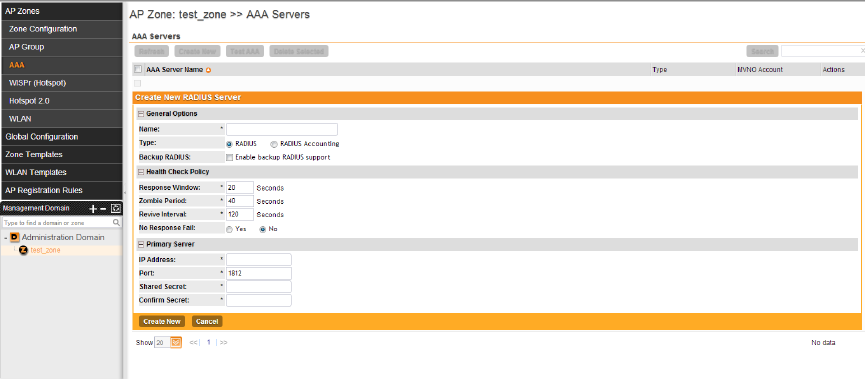
Figure 170: The Create New RADIUS Server form
Creating a Hotspot Service
A hotspot service requires an AAA server. Before creating a hotspot service, make sure you
have already added an AAA server to the vSZ. For more information, refer to Adding an AAA
Server.
Before creating a hotspot, you need to create a user defined interface. For Administrator Guide
for release 2.5. If you do not want to provide a hotspot service to users, skip this step. Follow
these steps to create a hotspot service for an AP zone.
1. Go to Configuration > AP Zones .
2. Click the AP zone for which you want to create a hotspot service. Alternatively, click the AP
zone from the Management Domains tree.
3. Under the AP Zones menu on the sidebar, click WISPr (Hotspot).
4. Click Create New. The Create New Hotspot Service form appears.
5. Configure the hotspot service settings listed in the Table.
DescriptionSetting
General Options
Type a name for this new hotspot service that you are
creating.
Name
Type a description for this new hotspot service.
Example: Main Office Lobby.
Description
Click Registered Users if you want only users with
existing profiles on the vSZ to be able to connect to this
Type
hotspot. Click Guest-Access if you want guest users to
be able to connect to this hotspot.
Redirection
Smart Client Support •None: Click to disable Smart Client support.
Ruckus Wireless™ Virtual SmartZone™ Getting Started Guide for SmartZone 3.4
163
Configuring the vSZ High Scale for the First Time
Configuring AAA Servers and Hotspot Settings
DescriptionSetting
•Enable: Click to enable Smart Client support.
•Only Smart Client allowed: Click to allow only Smart
Clients to access this hotspot service.
Type the URL of the subscriber portal (the page where
hotspot users can log in to access the service). For more
Logon URL
information, see the section “Configuring the Logon
URL” in the Administrator Guide for release 2.5.
Set where users will be redirected after logging in
successfully. You could redirect them to the page that
Start Page
they want to visit, or you could set a different page
where users will be redirected (for example, your
company website).
User Session
Set a time limit after which users will be disconnected
from the hotspot service and required to log on again.
Session Timeout
Allowed session timeout range is between 2 and 14400
minutes. The default value is 1440 minutes.
Allow disconnected users a grace period after
disconnection, during which clients will not need to
Grace Period
re-authenticate. Allowed grace period range is between
1 and 14399 minutes. The default value is 60 minutes.
Location Information
Type a location ID for the hotspot, for example:Location ID
isocc=us,cc=1,ac=408,network=ACMEWISP_NewarkAirport
Type a location name for the hotspot, for example:Location Name
ACMEWISP,Gate_14_Terminal_C_of_Newark_Airport
Click Create New to add a walled garden, which is a
limited environment to which an unauthenticated user
Walled Garden
is given access for the purpose of setting up an account.
In the box provided, type a URL or IP address to which
you want to grant unauthenticated user access. You
can add up to 128 network destinations to the walled
garden. Network destinations can be any of the
following:
•IP address (for example, 10.11.12.13)
•Exact website address (for example,
http://www.ruckuswireless.com)
•Website address with regular expression (for
example, *.ruckuswireless.com, *.com,
*)
Ruckus Wireless™ Virtual SmartZone™ Getting Started Guide for SmartZone 3.4
164
Configuring the vSZ High Scale for the First Time
Configuring AAA Servers and Hotspot Settings
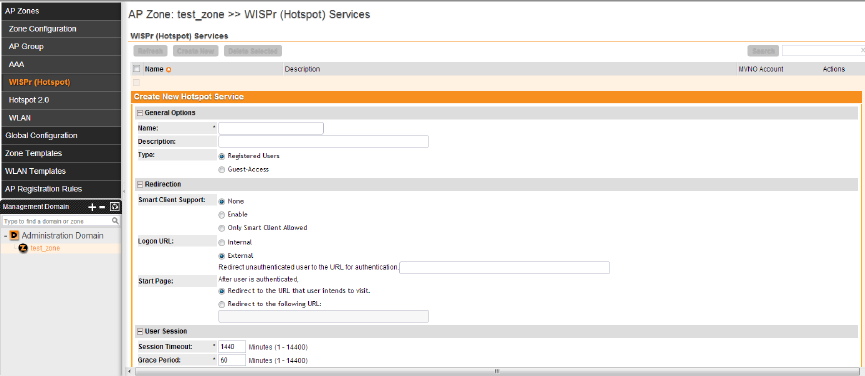
DescriptionSetting
After the account is established, the user is allowed out
of the walled garden. URLs will be resolved to IP
addresses. Users will not be able to click through to
other URLs that may be presented on a page if that
page is hosted on a server with a different IP address.
Avoid using common URLs that are translated into many
IP addresses (such as http://www.yahoo.com), as users
may be redirected to re-authenticate when they navigate
through the page.
6. Click Create New. The page refreshes, and then the hotspot that you created appears under
the WISPr (Hotspot) Configuration section.
Figure 171: The Create New Hotspot Service form
Creating a Registration Rule
Registration rules enable the vSZ to assign an AP to an AP zone automatically based on the rule
that the AP matches.
Follow these steps to create a registration rule.
1. Go to Configuration > AP Zones
2. On the sidebar on the left, click AP Registration Rules. The AP Registration Rules page
appears.
3. Click Create New. A form appears.
4. In Rule Description, type a name that you want to assign to this rule.
5. In Rule Type, click the basis upon which you want to create the rule. Options include:
•IP Address If you select this option, type the From (starting) and To (ending) IP address
that you want to use.
Ruckus Wireless™ Virtual SmartZone™ Getting Started Guide for SmartZone 3.4
165
Configuring the vSZ High Scale for the First Time
Creating a Registration Rule
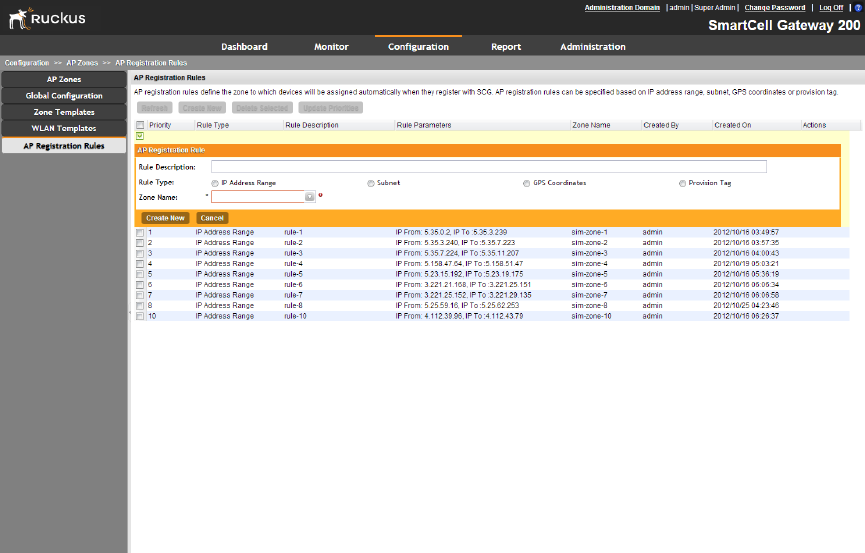
•Subnet Mask If you select this option, type the IP address and subnet mask pair to use
for matching
•GPS Coordinates If you select this option, type the GPS coordinates to use for matching.
Access points that have been assigned the same GPS coordinates will be automatically
assigned to the AP zone that you will choose in the next step.
•Provision Tag If the access points that are joining the vSZ have been configured with
provision tags, click the Provision Tag option, and then type a tag name in the Provision
Tag box. Access points with matching tags will be automatically assigned to the AP zone
that you will choose in the next step.
Provision tags can be configured on a per-AP basis from the access point’s command line
interface.
6. In Zone Name, click the drop-down list to display available AP zones, and then click an AP
zone to which APs that match this rule will be assigned
7. Click OK
Figure 172: Creating an AP registration rule
You have completed creating an AP registration rule.
To create another registration rule, repeat the preceding steps. You can create as many
registration rules as you need to manage access points on the network.
Configuring the Rule Priority
The vSZ applies registration rules in the same order as they appear in the AP Registration Rules
table (highest to lowest priority). If you want a particular registration rule to have higher priority,
Ruckus Wireless™ Virtual SmartZone™ Getting Started Guide for SmartZone 3.4
166
Configuring the vSZ High Scale for the First Time
Creating a Registration Rule
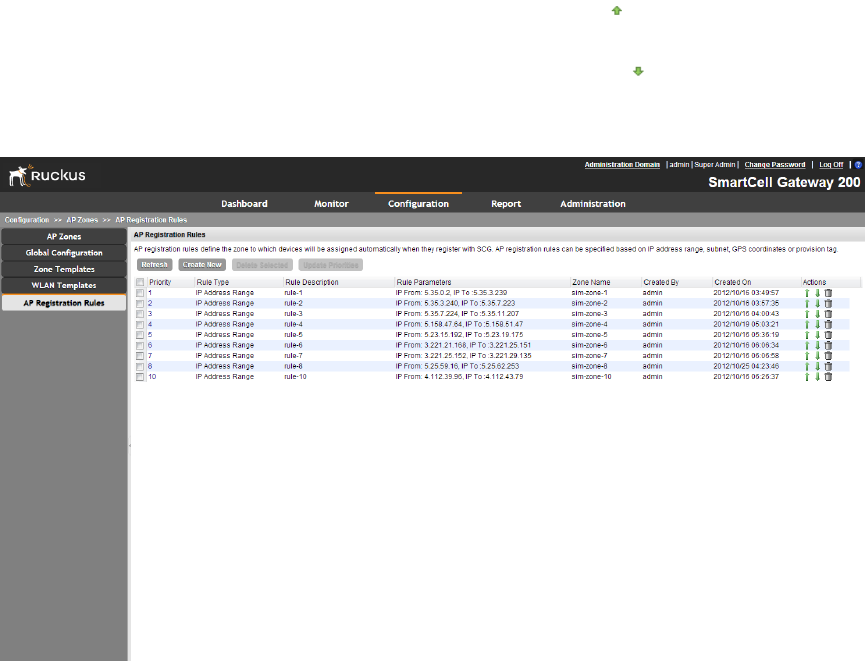
you must move it up the table. Once an AP matches a registration rule, the vSZ assigns the AP
to the zone specified in the rule and stops processing the remaining rules.
Follow these steps to configure the rule priority.
1. Go to Configuration > AP Zones
2. On the sidebar on the left, click AP Registration Rules. The AP Registration Rules page
appears and displays the rules that you have created.
3. Change the priority of each registration rule as required.
To give a rule higher priority, move it up the table by clicking the (up-arrow) icon that is in
the same row as the rule name
To give a rule lower priority, move it down the table by clicking the (down-arrow) icon that
is in the same row as the rule name.
4. When you finish configuring the rule priority, click Update Priorities to save your changes.
Figure 173: Change the rule priority by clicking the up-arrow or down-arrow
Defining the WLAN Settings of an AP Zone
Follow these steps to configure the WLAN settings of an AP zone.
1. Go to Configuration > AP Zones.
2. Click the AP zone for which you want to add the WLAN settings. Alternatively, click the AP
zone from the Management Domains tree
3. Under the AP Zones menu on the sidebar, click WLAN.
4. Click CrCreate New. The Create New WLAN Configuration form appears.
Ruckus Wireless™ Virtual SmartZone™ Getting Started Guide for SmartZone 3.4
167
Configuring the vSZ High Scale for the First Time
Defining the WLAN Settings of an AP Zone
5. Configure the WLAN settings listed in the Table. You can find a detailed description of each
setting in the succeeding sections.
DescriptionWLAN Setting
Enter the WLAN name and description. See
General Options.
General Options
Select the usage type (standard WLAN or
hotspot). See WLAN Usage.
WLAN Usage
Select an authentication method for this
WLAN (open or 802.1X EAP). See
Authentication Options.
Authentication Options
Select an encryption method (WPA, WPA2,
WPA Mixed, and WEP), encryption algorithm
Encryption Options
(AES or TKIP) and enter a WPA
passphrase/WEP key. See Encryption Options
This section only appears when certain
authentication options are selected. See
Authentication & Accounting Service.
Authentication & Accounting Service
Select whether web-based authentication
(captive portal) will be used, and which type
Options
of authentication server will be used to host
credentials (local database, Active Directory,
RADIUS, LDAP). Also, enable or disable
Wireless Client Isolation, Zero-IT Activation,
Dynamic PSK and Priority for this WLAN. See
Options.
Select an accounting server and configure
ACLs, rate limiting, VLAN/dynamic VLAN
Advanced Options
settings, tunneling, background scanning,
maximum client threshold, and service
schedule. See Advanced Options.
6. Click OK to finish creating the WLAN service.
Ruckus Wireless™ Virtual SmartZone™ Getting Started Guide for SmartZone 3.4
168
Configuring the vSZ High Scale for the First Time
Defining the WLAN Settings of an AP Zone
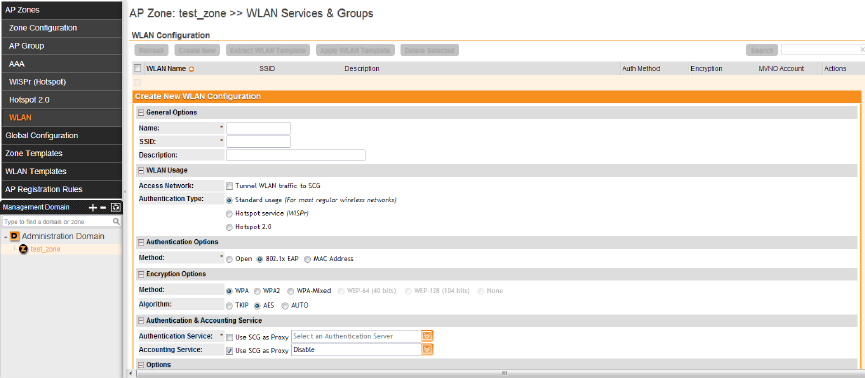
Figure 174: Configuring the WLAN settings of an AP zone
You have completed creating your first WLAN. To create another WLAN, repeat Step 4 to Step
6. You can create up to six WLANs per AP zone.
General Options
•Name/ESSID: Type a short name (2-31 characters) for this WLAN. In general, the WLAN
name is the same as the advertised SSID (the name of the wireless network as displayed in
the client’s wireless configuration program). However, you can also first field, and a broadcast
SSID in the second field. In this way, you can advertise the same SSID in multiple locations
(controlled by the same vSZ) while still being able to manage the different WLANs
independently. Each WLAN “name” must be unique within the vSZ, while the broadcast SSID
can be the same for multiple WLANs.
•Description: Enter a brief description of the qualifications or purpose of this WLAN (for
example, Engineering or Voice).
WLAN Usage
•In Access Network, select the Tunnel WLAN traffic to vSZ check box if you want to tunnel
the traffic from this WLAN back to the vSZ. Tunnel mode enables wireless clients to roam
across different APs on different subnets. If the WLAN has clients that require uninterrupted
wireless connection (for example, VoIP devices), Ruckus Wireless recommends enabling
tunnel mode. When you enable this option, you need to select core network for tunneling
WLAN traffic back to the vSZ.
•In Authentication Type, click one of the following options:
•Standard usage (For most regular wireless networks): This is a regular WLAN suitable
for most wireless networks.
•Hotspot service (WISPr): Click this option if want to use a hotspot (WISPr) service that
you previously created.
•Hotspot 2.0: Click this option if you want to use a Hotspot 2.0 profile that you want to
use a Hotspot 2.0 profile that you previously created.
•Guest Access: Click this option if you want to use this WLAN for guest access.
Ruckus Wireless™ Virtual SmartZone™ Getting Started Guide for SmartZone 3.4
169
Configuring the vSZ High Scale for the First Time
Defining the WLAN Settings of an AP Zone
Authentication Options
Authentication defines the method by which users are authenticated prior to gaining access to
the WLAN. The level of security should be determined by the purpose of the WLAN you are
creating.
•Open [Default]: No authentication mechanism is applied to connections. If WPA or WPA2
encryption is used, this implies WPA-PSK authentication.
•802.1X/EAP: Uses 802.1X authentication against a user database.
•MAC Address: Uses the MAC address of a client for authentication. MAC address
authentication requires a RADIUS server and uses the MAC address as the user logon name
and password. You have two options for the MAC address format to use for authenticating
clients:
•Use user defined text as authentication password (default is device MAC address)
•Set device MAC address in 802.1x format 00-10-A4-23-19-C0. The default is
0010a42319c0.
Encryption Options
Encryption choices include WPA, WPA2, WPA-Mixed, WEP and none. WPA and WPA2 are both
encryption methods certified by the Wi-Fi Alliance and are the recommended encryption methods.
The Wi-Fi Alliance will be mandating the removal of WEP due to its security vulnerabilities, and
Ruckus Wireless recommends against using WEP if possible.
Method
•WPA: Standard Wi-Fi Protected Access with either TKIP or AES encryption.
•WPA2: Enhanced WPA encryption using the stronger AES encryption algorithm.
•WPA-Mixed: Allows mixed networks of WPA and WPA2 compliant devices. Use this setting
if your network has a mixture of older clients that only support WPA and TKIP, and newer
client devices that support WPA2 and AES.
•WEP-64: Provides a lower level of encryption, and is less secure, using 40-bit WEP encryption.
•WEP-128: Provides a higher level of encryption than WEP-64, using a 104-bit key for WEP
encryption. However, WEP is inherently less secure than WPA.
•None: No encryption; communications are sent in clear text.
Algorithm (For WPA or WPA2 Encryption Only)
•TKIP: This algorithm provides greater compatibility with older client devices, but retains many
of the security weaknesses of WEP. Therefore, if you select TKIP Alliance will be mandating
the removal of TKIP, so it should not be used.
•AES: This algorithm provides enhanced security over TKIP, and is the only encryption algorithm
supported by the 802.11i standard. Choose AES encryption if you are confident that all of
your clients will be using 802.11i-compliant NICs.
•Auto: Automatically selects TKIP or AES encryption based on the client’s capabilities. Note
that since it is possible to have clients using both TKIP and AES on the same WLAN, only
unicast traffic is affected (broadcast traffic must fall back to TKIP; therefore, transmit rates of
broadcast packets from 11n APs will be at lower 11g rates).
Ruckus Wireless™ Virtual SmartZone™ Getting Started Guide for SmartZone 3.4
170
Configuring the vSZ High Scale for the First Time
Defining the WLAN Settings of an AP Zone
NOTE: If you set the encryption algorithm to TKIP and you are using an 802.11n AP for the
WLAN, the AP will operate in 802.11g mode.
NOTE: If you set the encryption algorithm to TKIP, the AP will only be able to support up to 26
clients. When this limit is reached, additional clients will be unable to associate with the AP. On
the other hand, if you select AES or none, the AP will be able to support up to 256 clients (less
if wireless mesh is also enabled on the same radio).
WEP Key or Passphrase
•WEP Key: WEP methods only. Click the Hex field, and then type the required key combination
of 0-9, A-F). If it is for WEP 128 encryption, enter 26 hexadecimal characters (any combination
of 0-9, A-F).
•Passphrase: WPA-PSK methods only. Click in this field and type the text of the 63 characters
(or 64 hexadecimal characters).
Authentication and Accounting Service
•Authentication Service: This option appears only when 802.1x EAP is selected as the
authentication method. Select the authentication server that you want to use for this WLAN.
Only AAA servers that you previously added appear here.
•Accounting Service: This option appears only when 802.1x EAP is selected in Authentication
method. Additionally, you must have added a RADIUS Accounting server previously. Select
the RADIUS Accounting server from the drop-down list, as a proxy for vSZ.
Options
•Wireless Client Isolation: This option appears only when Standard Usage is selected as the
WLAN usage type. Wireless client isolation enables subnet restrictions for connected clients.
Click Enable if you want to prevent wireless clients associated with the same AP from
communicating with each other locally. The default value is Disable.
•Priority: Set the priority of this WLAN to Low if you would prefer that other WLAN traffic takes
priority. For example, if you want to prioritize internal traffic over guest WLAN traffic, you can
set the priority in the guest WLAN configuration settings to “Low.” By default, all WLANs are
set to high priority.
RADIUS Options
The RADIUS Options section only appears when Authentication TypeWLAN Usage) is set to
Standard usage (For most regular wireless networks).
•RADIUS NAS ID:; Select how the RADIUS server will identify the AP:
•WLAN BSSID
•AP MAC
•User-defined
•RADIUS NAS Request Timeout: Type the timeout period (in seconds) after, which an
expected RADIUS response message is considered to have failed.
•RADIUS NAS Max Number of Retries: Type the number of failed connection attempts after
which the vSZ will fail over to the backup RADIUS server.
Ruckus Wireless™ Virtual SmartZone™ Getting Started Guide for SmartZone 3.4
171
Configuring the vSZ High Scale for the First Time
Defining the WLAN Settings of an AP Zone
•RADIUS NAS Reconnect Primary: If the vSZ fails over to the backup RADIUS server, this
is the interval (in minutes) at which the vSZ will recheck the primary RADIUS server if it is
available. The default interval is 5 minutes.
•Call STA ID: Use either WLAN BSSID or AP MAC as the station calling ID. Select one.
Advanced Options
•Rate Limiting: Rate limiting controls fair access to the network. When enabled, the network
traffic throughput of each network device (client) is limited to the rate specified in the traffic
policy, and that policy can be applied on either the uplink or downlink. Toggle the Uplink
and/or Downlink drop-down lists to limit the rate at which WLAN clients upload/download
data. The “Disabled” state means rate limiting is disabled; thus, traffic flows without prescribed
limits.
•Access VLAN: By default, all wireless clients associated with APs that the vSZ is managing
are segmented into a single VLAN (with VLAN ID 1). If you want to tag this WLAN traffic with
a different VLAN ID, enter a valid VLAN ID (2-4094) in the box. Select the Enable Dynamic
VLAN check box to allow the vSZ to assign VLAN IDs on a per-user basis. Before enabling
dynamic VLAN, you need to define on the RADIUS server the VLAN IDs that you want to
assign to users.
•Hide SSID:Click this option if you do not want the ID of this WLAN advertised at any time.
This will not affect performance or force the WLAN user to perform any unnecessary tasks.
•Proxy ARP: When enabled on a WLAN, the AP provides proxy service for stations when
receiving neighbor discovery packets (for example, ARP requests and ICMPv6. When the AP
receives a broadcast ARP/Neighbor Solicit request for a known host, the AP replies on behalf
of the host. If the AP receives a request for an unknown host, it forwards the request at the
rate limit specified.
•Max Clients: Limit the number of clients that can associate with this WLAN per AP (default
is 100). You can also limit the total number of clients that a specific AP (or radio, on dual radio
APs) will manage.
•802.11d: The 802.11d standard provides specifications for compliance with additional
regulatory domains (countries or regions) that were not defined in the original 802.11 standard.
Enable this option if you are operating in one of these additional regulatory domains.
•DHCP Option 82: When this option is enabled and an AP receives a DHCP request from a
wireless client, the AP will encapsulate additional information (such as VLAN ID, AP name,
SSID and MAC address) into the DHCP request packets before forwarding them to the DHCP
server. The DHCP server can then use this information to allocate an IP address to the client
from a particular DHCP pool based on these parameters.
•Client TX/RX Statistics': Select the Ignore statistics from unauthorized clients check box if
you do not want the vSZ to monitor traffic statistics for unauthorized clients.
•Inactivity Timeout: Select the check box and enter a value in minutes (6 to 600 minutes)
after which idle clients will be disconnected.
•Client Fingerprinting: If you select this check box, the vSZ wclient devices by their operating
system, device type, and host name, if available. This makes identifying client devices easier
on the Dashboard, Monitor and Client Details pages.
•Disable WLAN: Select this option to disable this WLAN service.
Ruckus Wireless™ Virtual SmartZone™ Getting Started Guide for SmartZone 3.4
172
Configuring the vSZ High Scale for the First Time
Defining the WLAN Settings of an AP Zone
Configuring DHCP Option 43
To enable the vSZ to manage an AP, the AP must be able to locate the vSZ on the network
successfully and register with it. The easiest way to ensure that APs can successfully locate the
vSZ on the network is by configuring DHCP Option 43 on your DHCP server.
DHCP Option 43 enables the DHCP server on your network to provide the vSZ server address
– either IP address or FQDN– (specifically, the IP address assigned to the vSZ’s control plane
or cluster plane interface) to DHCP clients, including APs that are connected to the network.
The procedure for configuring DHCP option 43 varies, depending on the DHCP server that you
are using. Refer to the documentation provided with your DHCP server software for information
on how to configure DHCP option 43. Follow these steps to configure DHCP option 43 on a
Linux server.
NOTE: The following procedure describes how to configure DHCP option 43 on a Linux server
(Fedora). If your DHCP server is running on a different platform, refer to the DHCP server
documentation for the relevant instructions.
1. Log on to your DHCP server via a console terminal (for example, PuTTY).
2. Go to /etc directory.
3. Run vi dhcpd.conf. This command opens the DHCP configuration file for editing.
4. At the beginning of the DHCP configuration file, insert the following lines:option space
VendorInfo; option VendorInfo.WSG code 6 = text; OR option space
VendorInfo; option VendorInfo.SCG code 6 = text;
Make sure that space characters exist in “6 = text”. Omitting these space characters could
result in AP connectivity issues.
5. Under the subnet section, insert the following lines:Vendor-option-space VendorInfo;
option VendorInfo.WSG "{control-ip-address-or-fqdn}" OR
Vendor-option-space VendorInfo; option VendorInfo.SCG
"{control-ip-address-or-fqdn}"
{control-ip-address-or-fqdn} must be the IP address or FQDN of the control plane
(br0).
Remember to remove the curly brackets ({ }) that enclose the IP addresses or FQDNs. If the
control plane IP addresses are mapped to proper names on the DNS server, you could also
use FQDN host names instead of IP addresses. The vSZ supports two formats for vendor
information:
•Plain IP address or FQDN (for example, 10.2.0.87 or server.company.com)
•URL-based IP address or FQDN (for example, https://10.2.0.87/wsg/ap or
https://server.company.com/wsg/ap) where 10.2.0.87 or
server.company.com is the IP address or FQDN of the control plane interface,
respectively.
Inserting Multiple IP Addresses or URLs If you want to insert multiple IP addresses or
URLs, use any of the following formats:
Ruckus Wireless™ Virtual SmartZone™ Getting Started Guide for SmartZone 3.4
173
Configuring the vSZ High Scale for the First Time
Configuring DHCP Option 43
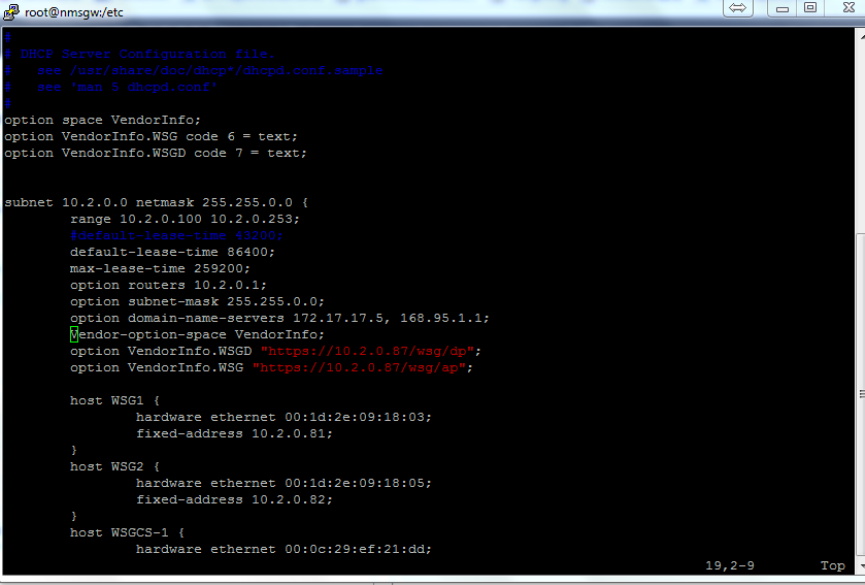
•URL format option VendorInfo.WSG
"https://10.2.0.87/wsg/ap,https://10.2.0.88/wsg/ap", OR option
VendorInfo.SCG "https://10.2.0.87/wsg/ap,https://10.2.0.88/wsg/ap"
•P address format option VendorInfo.WSG "10.2.0.87,10.2.0.88", OR
option VendorInfo.SCG "10.2.0.87,10.2.0.88"
NOTE: Take care not to insert any space characters before or after the comma (,) character
that separates the multiple IP addresses or URLs
6. Save the changes.
7. Restart the DHCP server to apply the new settings.
Figure 175: Editing dhcpd.conf
You have completed configuring DHCP option 43 on a Linux server.
Verifying That Wireless Clients Can Associate with a Managed
AP
The last step in the setup process is to verify that APs can register with the vSZ and that wireless
clients can associate with the APs successfully.
Follow these steps to verify that wireless clients can connect to the network.
1. Verify that the vSZ is connected to the backbone network.
Ruckus Wireless™ Virtual SmartZone™ Getting Started Guide for SmartZone 3.4
174
Configuring the vSZ High Scale for the First Time
Verifying That Wireless Clients Can Associate with a Managed AP
2. Physically connect an AP to the same network as the vSZ. If DHCP option 43 was configured
correctly, this AP should be able to locate the vSZ on the network and to register with it
successfully.
3. Check the vSZ Dashboard. The AP zone that you created earlier should have at least one
member AP (the AP that you connected to the network in Step 2). The AP count appears
green, which indicates that it is online.
4. Associate a wireless client with the AP. The following describes the procedure if you are using
a Windows-based wireless client.
a) In the system tray, right-click the (Wireless Network Connection) icon, and then click
View Available Wireless Networks.
b) In the list of available wireless network, click the wireless network name (SSID) that you
configured on the AP.
c) Click Connect.Your wireless client connects to the wireless network. After the wireless
client connects to the wireless network successfully, the wireless client icon in the system
tray changes to .
5. Start your web browser, and then enter http://www.ruckuswireless.com in the address bar.
If you are able to connect to the Ruckus Wireless website, you have completed setting up vSZ
on the network. Congratulations!
What to Do Next
For more information on configuring and managing the vSZ, refer to the Administrator Guide for
your vSZ platform, which is available for download on the Ruckus Wireless Support website at:
https://support.ruckuswireless.com/documents
NOTE: For a complete list of documentation that is available for your vSZ profile configuration,
refer to the Release Notes.
Ruckus Wireless™ Virtual SmartZone™ Getting Started Guide for SmartZone 3.4
175
Configuring the vSZ High Scale for the First Time
What to Do Next
10
Ensuring That APs Can Discover the
Controller on the Network
In this chapter:
•Is LWAPP2SCG Enabled on the Controller
•Method 1: Perform Auto Discovery of the Controller Using the SmartLicense Server
•Method 2: Perform Auto Discovery on Same Subnet then Transfer the AP to Intended Subnet
•Method 3: Register the Controller with the DNS Server
•Method 4: Configure DHCP Option 43 on the DHCP Server
•Method 5: Manually Configure the Controller Address on the AP’s Web Interface
•What to Do Next
•Bandwidth Consumption During AP Upgrade on vSZ
Before the controller can start managing an AP, the AP must first be able to discover the controller
on the network when it boots up. This chapter describes procedures that you can perform to ensure
that APs can discover and register with the controller on the network.
Is LWAPP2SCG Enabled on the Controller
All of the controller discovery methods described in this chapter require LWAPP2SCG (the
application that enables APs to discover and be managed by a controller) to be installed and
enabled on the controller. See Table 15 to check if your controller release includes the
LWAPP2SCG application and whether it is enabled or disabled by default.
AP CompatibilityDefault SettingLWAPP DiscoveryController Release
DisabledApplication installed by
administrator. See
SCG 1.1.2, 2.1.2 •ZF-AP Release
9.6.x – 9.8.x
Obtaining the
LWAPP2SCG
Application
DisabledEnabled by
administrator. See,
Enabling LWAPP2SCG
SCG 2.5.x •AP Release 100.0.x
and later
DisabledEnabled by
administrator. See
Enabling LWAPP2SCG
SCG 2.6.x •ZF-AP Release
9.7.x – 9.8.x
EnabledEnabled by default
Release 3.0.x and later •AP Release 100.0.x
and later
Ruckus Wireless™ Virtual SmartZone™ Getting Started Guide for SmartZone 3.4
176
Ensuring That APs Can Discover the Controller on the Network
Is LWAPP2SCG Enabled on the Controller
Obtaining the LWAPP2SCG Application
If your controller release does not have the LWAPP2SCG application pre-installed, contact
Ruckus Wireless Support to obtain a copy of the LWAPP2SCG application files and installation
instructions.
Enabling LWAPP2SCG
If the LWAPP2SCG application is pre-installed but disabled in your controller release, do the
following to enable it.
1. Log on to the controller’s console.
2. Enter en to enable privileged mode.
3. Enter config.
4. Enter lwapp2scg.
5. Enter policy accept-all.
You have completed enabling the LWAPP2SCG application on the controller.
Method 1: Perform Auto Discovery of the Controller Using the
SmartLicense Server
This guide assumes that you have already activated the controller’s licenses on the SmartLicense
server. If you have not activated the controller’s licenses, see the Virtual SmartZone Quick Setup
Guide for this release for more information.
The Ruckus Wireless SmartLicense registration server is a cloud-based, HTTPS-enabled web
server that allows an access point to query information about its parent controller by sending its
serial number and base MAC address.
After you ensure that the controller’s licenses have been activated on the SmartLicense
connectivity, and then reboot the AP. Upon reboot, the AP will automatically attempt to discover
its parent controller by sending the following HTTPS query to ap-registrar.ruckuswireless.com
(the SmartLicense server URL):
https://ap-registrar.ruckuswireless.com/controller?ap_mac=APMAC&ap_serial=APSERIAL
Where APMAC is the AP’s MAC address (for example, APMAC: 74:91:1A:20:59:90) and
APSERIAL (for example, APSERIAL: 311003001685) is the AP’s serial number, both of which
are printed on the AP’s product label.
If the AP is unable to discover its parent controller after the first attempt, it will continue to do
so:
•Once every 5 minutes for up to 60 minutes (12 queries)
•Once every hour for the remaining day (23 queries)
•Once every 24-hour for the remaining two weeks (12 queries)
If the AP is still unable to discover its parent controller after two weeks of uptime, this cloud-based
controller discovery method will be disabled permanently. You will need to reset the AP to factory
default settings to re-enable this controller discovery method.
Ruckus Wireless™ Virtual SmartZone™ Getting Started Guide for SmartZone 3.4
177
Ensuring That APs Can Discover the Controller on the Network
Method 1: Perform Auto Discovery of the Controller Using the SmartLicense Server
Method 2: Perform Auto Discovery on Same Subnet then
Transfer the AP to Intended Subnet
If you are deploying the AP and the controller on different subnets, let the AP perform auto
discovery on the same subnet as the controller before moving the AP to another subnet. To do
this, connect the AP to the same network as the controller. When the AP starts up, it will discover
and attempt to register with the controller.
Approve the registration request if auto approval is disabled. After the AP registers with the
controller successfully, transfer it to its intended subnet. It will be able to find and communicate
with the controller once you reconnect it to the other subnet.
NOTE: If you use this method, make sure that you do not change the IP address of the controller
after the AP discovers and registers with it. If you change the controller’s IP address, the AP will
no longer be able to communicate with it and will be unable to rediscover it.
Method 3: Register the Controller with the DNS Server
If you register the controller with your DNS server, supported APs that request IP addresses
from your DHCP server will also obtain DNS related information that will enable them to discover
controllers on the network. Using the DNS information they obtained during the DHCP request,
APs will attempt to resolve the controller IP address using RuckusController.{DNS domain name}
and zonedirector.{DNS domain name}.
To register the controller with the DNS server, do the following.
1. Open the DNS zone file, and then add two records with the following information.
•Record Key#1: RuckusController
•Type: A (IPv4 Domain Name Translation)
•Value: (IP address of the controller)
•Record Key#2: zonedirector
•Type: A (IPv4 Domain Name Translation)
•Value: (IP address of the controller)
Ruckus Wireless™ Virtual SmartZone™ Getting Started Guide for SmartZone 3.4
178
Ensuring That APs Can Discover the Controller on the Network
Method 2: Perform Auto Discovery on Same Subnet then Transfer the AP to Intended Subnet
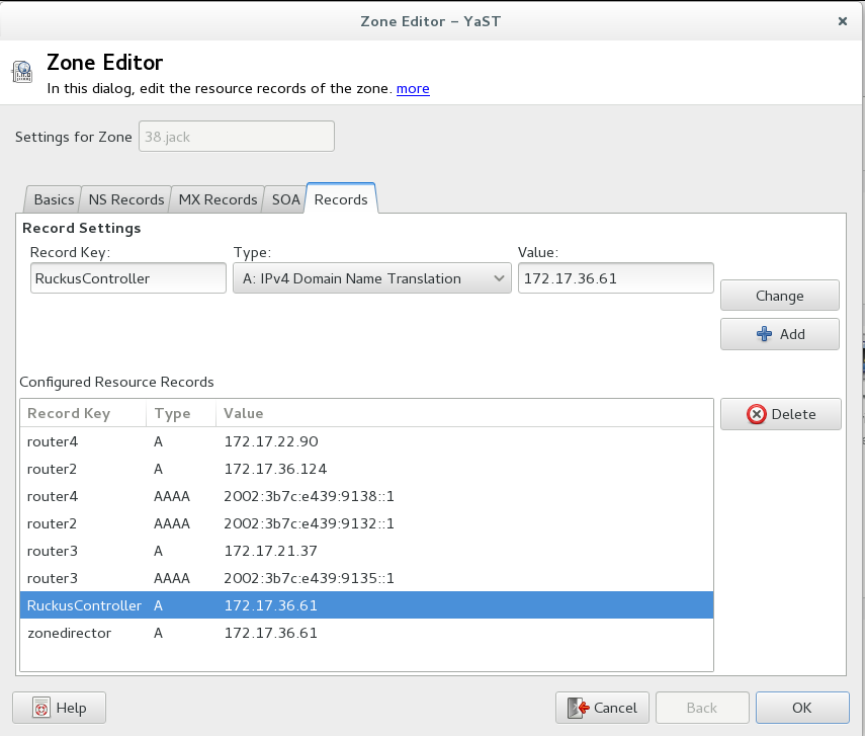
Figure 176: Add records for “RuckusController” and “zonedirector” to the DNS
2. Save the zone file.
3. Open the DHCP configuration file, and then insert the DNS domain name in the DHCP
configuration file. For example, if the DNS domain name is “38.jack”, insert the following line
into the DHCP configuration file: option domain-name “38.jack”
Ruckus Wireless™ Virtual SmartZone™ Getting Started Guide for SmartZone 3.4
179
Ensuring That APs Can Discover the Controller on the Network
Method 3: Register the Controller with the DNS Server
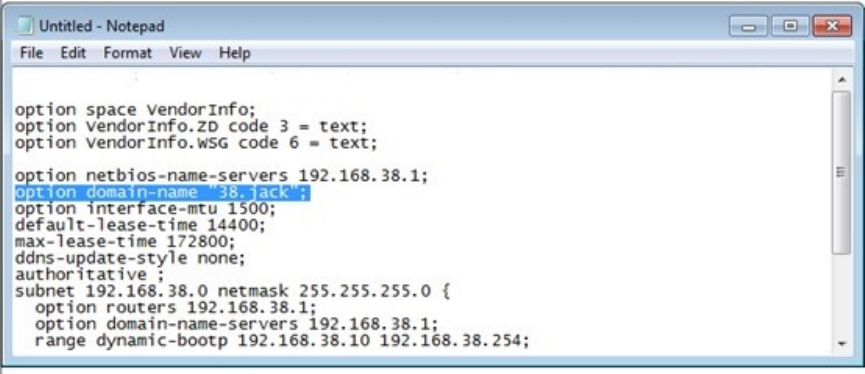
Figure 177: Insert option domain-name “38.jack
4. Save the DHCP configuration file. When the AP obtains the DNS domain name from the
DHCP server (using “Domain Name option 15” in the DHCP-offer packet), it will resolve
“RuckusController.{domain-name}” and “zonedirector.{domain-name}” through the DNS
server, and then it will obtain the controller’s IP address from the DNS server’s response.
If the AP uses a static IP address or it cannot obtain the DNS domain name from the DHCP
server, the AP will attempt to resolve “RuckusController” and “zonedirector” without a domain
name from the DNS server as the FQDN of controller's control interface.
You have completed registering the controller with the DNS server.
Method 4: Configure DHCP Option 43 on the DHCP Server
Another method for the AP to discover the controller on the network automatically is to configure
the DHCP server on the network. To do this, you will need to configure DHCP Option 43 (043
Vendor Specific Info) with the IP address of the controller on the network. When an AP requests
an IP address from the DHCP server, the DHCP server will send a list of controller IP addresses
to the AP. If there are multiple controller devices on the network, the AP will automatically select
a controller to register with from this list of IP addresses.
DHCP Option 43 enables the DHCP server on your network to provide the controller’s server
address – either IP address or FQDN– (specifically, the IP address assigned to the controller’s
control plane or cluster plane interface) to DHCP clients, including APs that are connected to
the network.
The procedure for configuring DHCP option 43 varies, depending on the DHCP server that you
are using. Refer to the documentation provided with your DHCP server software for information
on how to configure DHCP option 43.
NOTE: The following procedure describes how to configure DHCP option 43 on a Linux server
(Fedora). If your DHCP server is running on a different platform, refer to the DHCP server
documentation for the relevant instructions.
Ruckus Wireless™ Virtual SmartZone™ Getting Started Guide for SmartZone 3.4
180
Ensuring That APs Can Discover the Controller on the Network
Method 4: Configure DHCP Option 43 on the DHCP Server
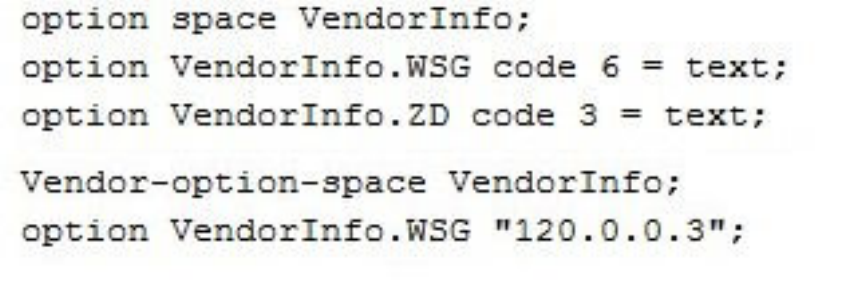
NOTE: If you have a ZoneDirector controller on the network and you do not want APs to be
managed by this ZoneDirector controller, you must disable auto approval on the ZoneDirector
web interface. Log on to the ZoneDirector web interface, and then go to Configure > Access
Points > Access Points Policies page, and then clear the Approval check box.
Follow these steps to configure DHCP option 43 on a Linux server.
1. Log on to your DHCP server via a console terminal (for example, PuTTY).
2. Go to /etc directory.
3. Run vi dhcpd.conf. This command opens the DHCP configuration file for editing.
4. At the beginning of the DHCP configuration file, insert the following lines:option
VendorInfo.WSG_sub6 code 6=text; option VendorInfo.WSG_sub3 code
3=text; option VendorInfo.WSG_sub6 "<Controller IP>"; option
VendorInfo.WSG_sub3 "<Controller IP>";
For example, if you only have one controller on the network and its IP address is 120.0.0.3,
then these lines in the DHCP configuration file should look like in Figure 141Sample DHCP
Option 43 configuration.
Figure 178: Sample DHCP Option 43 configuration
If you have a two-node controller cluster on the network, use a comma to separate the control
interface IP addresses in option VendorInfo.WSG, for example: option VendorInfo.WSG
“120.0.0.3,120.0.0.4” where 120.0.0.3 is the control interface IP address of the first controller
and 120.0.0.4 is the control interface IP address of the second controller
5. Save the DHCP configuration file.
6. Restart the DHCP server to apply the new settings.
7. Verify that the LWAPP2SCG application is enabled on the controller. To verify, log on to the
controller’s CLI, and then enter the following command: show running-config
lwapp2scg If LWAPP2SCG is enabled, the value for ACL Policy should show as Accept
all.
Ruckus Wireless™ Virtual SmartZone™ Getting Started Guide for SmartZone 3.4
181
Ensuring That APs Can Discover the Controller on the Network
Method 4: Configure DHCP Option 43 on the DHCP Server
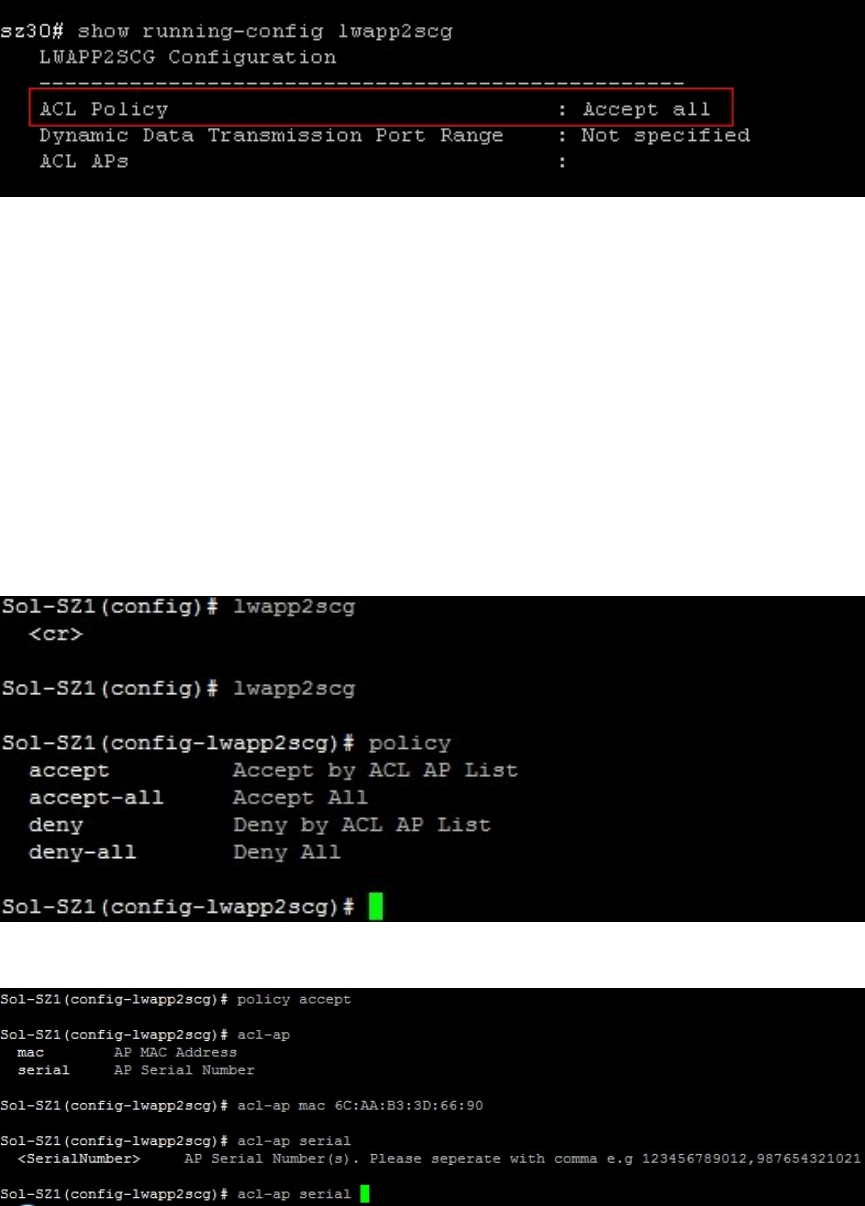
Figure 179: “Accept all” indicates that LWAPP2SCG is enabled
NOTE: If LWAPP2SCG is disabled, do the following to enable it.
1. Enter config
2. Enter lwapp2scg
3. Enter policy
4. Enter one of the following commands:
•Accept {MAC address} : Enter this command if you only want specific APs to be
managed by the controller.
•accept-all: Enter this command if you want all APs that discover the controller to
be managed by it.
Figure 180: Options that appear after you enter the “policy” command
Figure 181: Enter accept {MAC address} if you only want specific APs to be managed
by the controller
Ruckus Wireless™ Virtual SmartZone™ Getting Started Guide for SmartZone 3.4
182
Ensuring That APs Can Discover the Controller on the Network
Method 4: Configure DHCP Option 43 on the DHCP Server
8. Reset the AP to factory default settings, and then connect it to a network subnet where it
can communicate with the controller.
9. Reboot the AP.
After the AP reboots, it will obtain an IP address and the IP address of its parent controller from
the DHCP server. Once the AP registers with the controller, it will download and install the latest
SmartZone AP firmware. You have completed the task.
Method 5: Manually Configure the Controller Address on the
AP’s Web Interface
1. Log on to the AP’s web interface.
2. Go to the Administration > Management page
3. In Primary Controller Address, type the IP address of the controller that you want to manage
the AP.
4. In Secondary Controller Address, type the IP address of a backup controller that you want
to manage the AP if the primary controller is unavailable.
5. Click Apply.
You have completed manually configuring the controller’s IP address on the AP’s web interface.
Ruckus Wireless™ Virtual SmartZone™ Getting Started Guide for SmartZone 3.4
183
Ensuring That APs Can Discover the Controller on the Network
Method 5: Manually Configure the Controller Address on the AP’s Web Interface
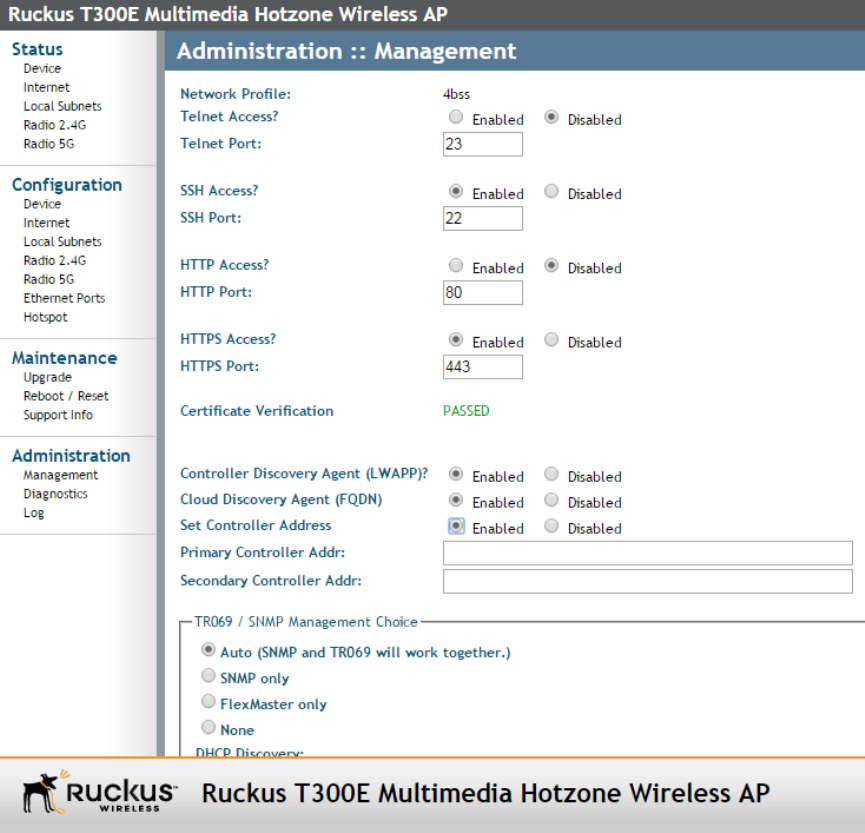
Figure 182: Set the IP addresses of the primary and secondary controllers that you want
to manage the AP
What to Do Next
For more information on configuring and managing the vSZ, refer to the Administrator Guide for
your vSZ platform, which is available for download on the Ruckus Wireless Support website at:
https://support.ruckuswireless.com/documents
NOTE: For a complete list of documentation that is available for your vSZ profile configuration,
refer to the Release Notes.
Ruckus Wireless™ Virtual SmartZone™ Getting Started Guide for SmartZone 3.4
184
Ensuring That APs Can Discover the Controller on the Network
What to Do Next
Bandwidth Consumption During AP Upgrade on vSZ
During a version upgrade all APs are upgraded at same time, and average AP image size is
10MB. This means that the bandwidth consumption will be multiplication of AP image size with
number of APs.
The vSZ-E (Essentials) acts more like the ZoneDirector or SZ100, meaning that when you upgrade
the controller all APs will also be upgraded with it. Even though eventually all APs lose connection
to the controller while it is being upgraded, the controller will not allow more than a certain number
of APs to upgrade their firmware in parallel. APs will be upgraded in batches of X number of
APs, say 20 at a time, then the next 20, and the next, where X=300.
The vSZ-H (High-Scale) acts more like the SCG-200, where APs are member of an AP Zone. In
this configuration the controller is upgraded, and the system administrator decides at a later
stage if/when/which AP Zone will be upgraded to a different firmware release. Same applies
here, APs will be instructed to upgrade firmware in batches of X, all depending on how much
parallel sessions the controller can handle (X=300).
Ruckus Wireless™ Virtual SmartZone™ Getting Started Guide for SmartZone 3.4
185
Ensuring That APs Can Discover the Controller on the Network
Bandwidth Consumption During AP Upgrade on vSZ
11
Upgrading the Controller for Microsoft
Azure, AWS, and GCE Platforms
In this chapter:
•Performing the Upgrade
•Verifying the Upgrade
•Rolling Back to a Previous Software Version
Ruckus Wireless may periodically release controller software updates that contain new features,
enhancements, and fixes for known issues.
These software updates may be made available on the Ruckus Wireless support website or released
through authorized channels.
CAUTION: Although the software upgrade process has been designed to preserve all controller
settings, Ruckus Wireless strongly recommends that you back up the controller cluster before
performing an upgrade. Having a cluster backup will ensure that you can easily restore the controller
system if the upgrade process fails for any reason.
CAUTION: Ruckus Wireless strongly recommends that you ensure that all interface cables are intact
during the upgrade procedure.
CAUTION: Ruckus Wireless strongly recommends that you ensure that the power supply is not
disrupted during the upgrade procedure.
NOTE: If you are managing a vSZ, you can also perform system configuration backup, restore, and
upgrade from the controller command line interface.
Performing the Upgrade
This section outlines the procedure to upgrade the controller software for Microsoft Azure,
Amazon Web Services, Google Computing Engine platforms.
Follow these steps to upgrade the controller software.
CAUTION: Ruckus Wireless® strongly recommends backing up the controller cluster before
performing the upgrade. If the upgrade process fails for any reason, you can use the latest
backup file to restore the controller cluster.
NOTE: Before starting this procedure, you should have already obtained a valid controller software
upgrade file from Ruckus Wireless® Support or an authorized reseller.
Ruckus Wireless™ Virtual SmartZone™ Getting Started Guide for SmartZone 3.4
186
Upgrading the Controller for Microsoft Azure, AWS, and GCE Platforms
Performing the Upgrade
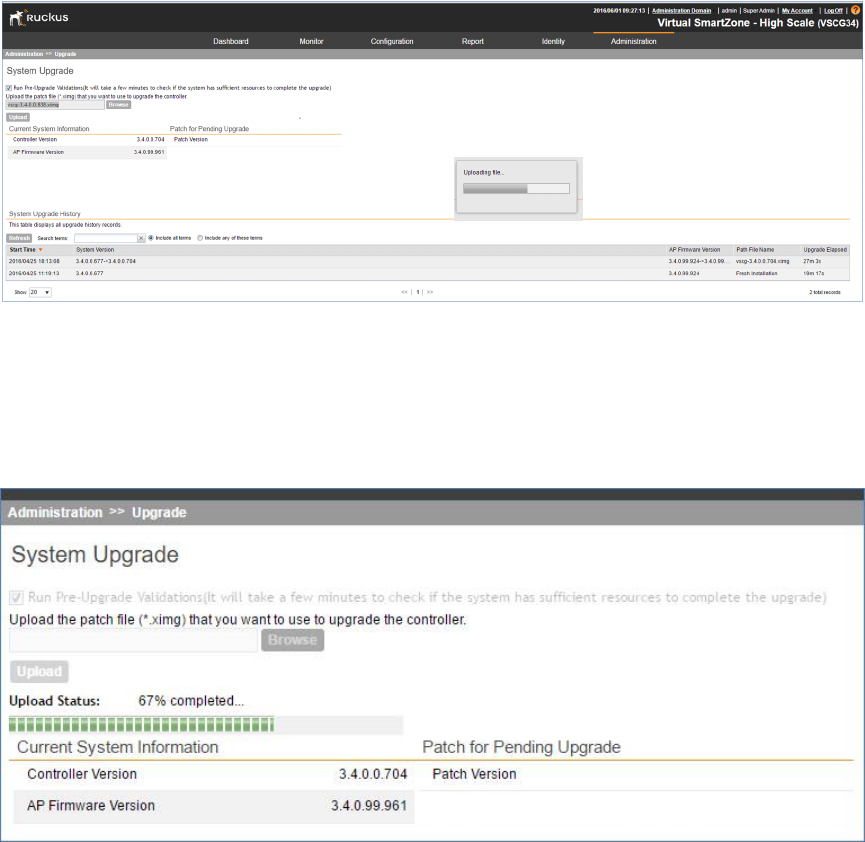
1. Copy the software upgrade file that you received from Ruckus Wireless® to the computer
where you are accessing the controller web interface or to any location on the network that
is accessible from the web interface.
2. Go to Administration > Upgrade.
3. In the Patch File Upload section, click the Browse button, and then browse to the location
of the software upgrade file.
Typically, the file name of the software upgrade file is scg-installer_{version}.ximg.
NOTE: Select the Run Pre-Upgrade Validations check box to verify if the data migration
was successful. This option allows you to verify data migration errors before performing the
upgrade. If data migration was unsuccessful, the following error is displayed: Exception
occurred during the validation of data migration. Please apply the
system configuration backup and contact system administrator.
Figure 183: Pre-upgrade validation
4. Select the software upgrade file, and then click Open.
5. Click Upload to upload the software upgrade file. The controller uploads the file to its database,
and then performs file verification. After the file is verified, the Upgrade Pending Patch
Information section is populated with information about the upgrade file.
Figure 184: Upload the software upgrade file
Ruckus Wireless™ Virtual SmartZone™ Getting Started Guide for SmartZone 3.4
187
Upgrading the Controller for Microsoft Azure, AWS, and GCE Platforms
Performing the Upgrade
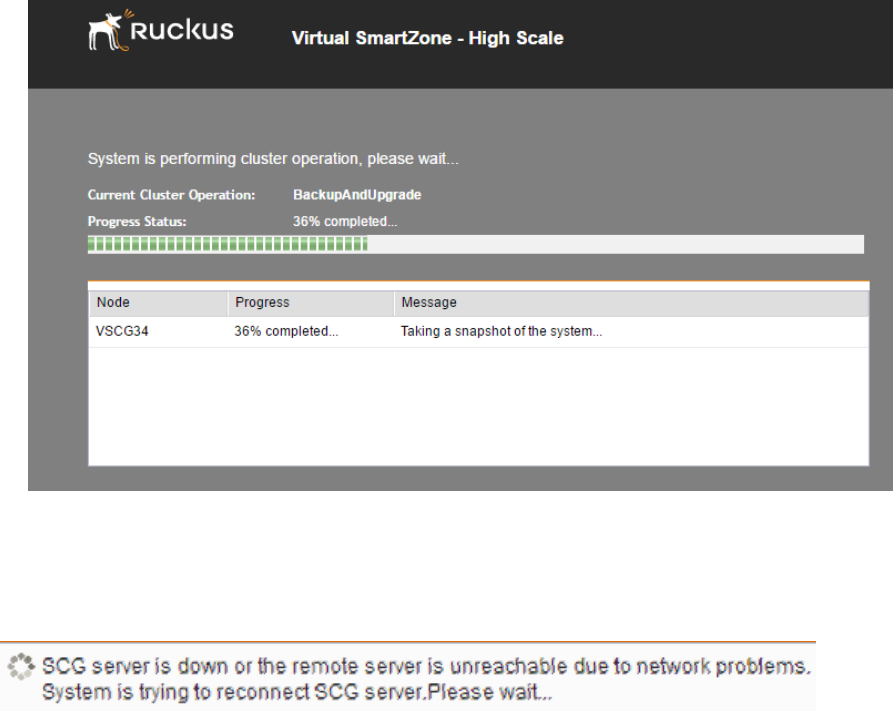
6. Start the upgrade process by clicking one of the following buttons:
•Upgrade: Click this button to start the upgrade process without backing up the current
controller cluster or its system configuration.
•Backup & Upgrade: Click this button to back up the controller cluster and system
configuration before performing the upgrade.
CAUTION: Ruckus Wireless® strongly recommends usage of backup and upgrade icon
while performing the upgrade. If the upgrade process fails for any reason, you can use
the latest backup file to restore the controller cluster.
A confirmation message appears.
7. Click Yes.
The controller starts the process that you selected. The screens that appear next will depend
on the process that you selected to upgrade immediately or to back up and then upgrade
the controller.
Figure 185: The System Upgrade page displays the status of the upgrade process
When the upgrade (or backup-and-upgrade) process is complete, the controller logs you off the
web interface automatically. Wait for a few minutes until the web interface log on page appears.
Figure 186: The controller web interface may display the following message as it completes
the upgrade process
Ruckus Wireless™ Virtual SmartZone™ Getting Started Guide for SmartZone 3.4
188
Upgrading the Controller for Microsoft Azure, AWS, and GCE Platforms
Performing the Upgrade
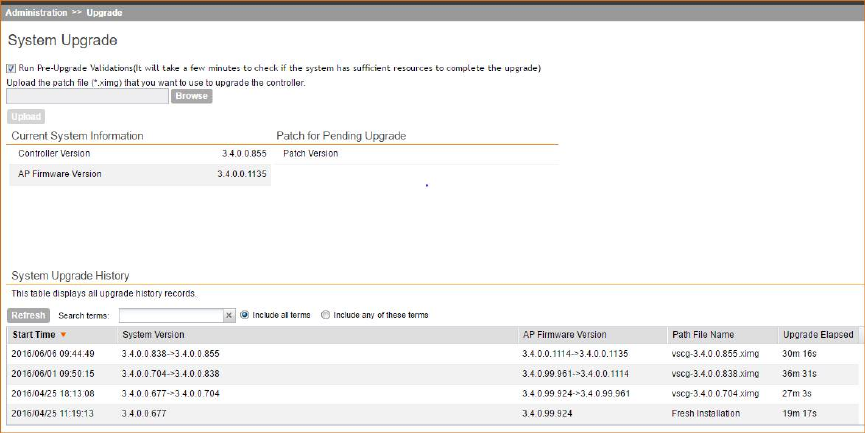
When the controller log on page appears again, you have completed upgrading the controller.
Continue to Verifying the Upgrade to check if the upgrade was completed successfully.
Verifying the Upgrade
Follow these steps to verify that the controller upgrade was completed successfully.
1. Log on to the controller web interface.
2. Go to Administration > Upgrade.
3. In the Current System Information section, check the value for Controller Version.
If the firmware version is newer than the firmware version that controller was using before
you started the upgrade process, then the upgrade process was completed successfully.
NOTE:
APs periodically send scheduled configuration requests to the controller, including the firmware
version. Therefore, when an AP joins a zone for the first time, the firmware version is verified
by the controller. If the firmware version is different from that which is configured for the zone,
the controller responds with a request to upgrade it, after which the AP initiates a request to
upgrade the firmware using HTTP.
Figure 187: Check the value for Controller Version
Rolling Back to a Previous Software Version
There are two scenarios in which you may want to roll back the controller software to a previous
version:
Ruckus Wireless™ Virtual SmartZone™ Getting Started Guide for SmartZone 3.4
189
Upgrading the Controller for Microsoft Azure, AWS, and GCE Platforms
Verifying the Upgrade
1. You encounter issues during the software upgrade process and the controller cannot be
upgraded successfully. In this scenario, you can only perform the software rollback from the
CLI using the restore local command. If you have a two-node controller cluster, run the restore
local command on each of the nodes to restore them to the previous software before
attempting to upgrade them again.
2. You prefer a previous software version to the newer version to which you have upgraded
successfully. For example, you feel that the controller does not operate normally after you
upgraded to the newer version and you want to restore the previous software version, which
was more stable. In this scenario, you can perform the software rollback either from the web
interface or the CLI. If you have a two-node controller cluster, you must have cluster backup
on both of the nodes.
To ensure that you will be able to roll back to a previous version, Ruckus Wireless® strongly
recommends the following before attempting to upgrade the controller software:
•Always back up the controller before attempting a software upgrade. If you are managing a
multi-node cluster, back up the entire cluster, and then verify that the backup process
completes successfully. See Creating a Cluster Backup on page 190 for more information.
•If you have an FTP server, back up the entire cluster and upload the backup files from all the
nodes in a cluster to a remote FTP server.
Backing Up and Restoring Clusters
Back up the controller cluster periodically to ensure that you can restore the control plane, data
plane, and AP firmware versions as well as the system configuration in the cluster if is a system
failure occurs.
This section covers the following topics:
NOTE: You can also perform these procedures from the vSZ command line interface. Note,
however, that you will need to execute the commands on each node.
Creating a Cluster Backup
Follow these steps to back up an entire controller cluster.
1. Take note of the current system time.
You can view the General System Settings page under Configuration > System.
2. Go to Administration > Cluster Backup and Restore.
3. Click Back Up Entire Cluster.
The following confirmation message appears: Are you sure you want to back up
the cluster?
4. Click Yes.
The following message appears: The cluster is in maintenance mode. Please
wait a few minutes.
When the cluster backup process is complete, a new entry appears in the Cluster Backups
section with a Created On value that is approximate to the time when you started the cluster
backup process.
Ruckus Wireless™ Virtual SmartZone™ Getting Started Guide for SmartZone 3.4
190
Upgrading the Controller for Microsoft Azure, AWS, and GCE Platforms
Rolling Back to a Previous Software Version
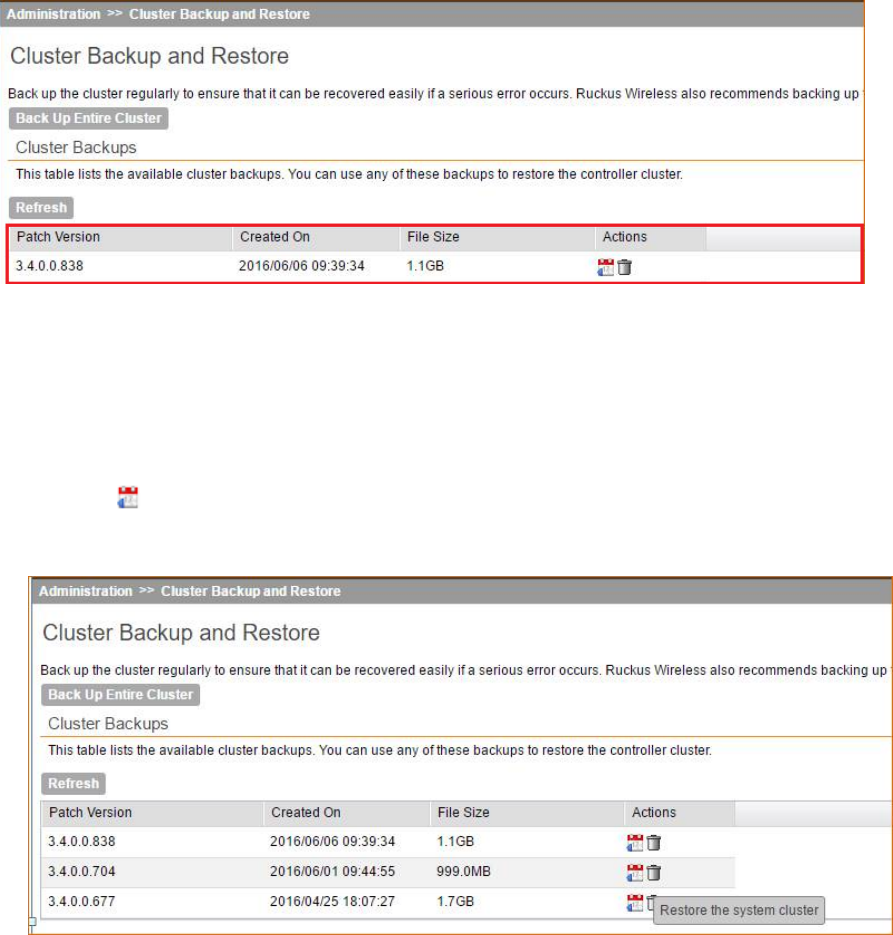
NOTE: If you have an FTP server, back up the entire cluster and upload the backup files from
all the nodes in a cluster to a remote FTP server.
You have completed backing up the controller cluster.
Figure 188: A new entry appears in the Cluster Backups section
Restoring a Cluster Backup
Follow these steps to restore a cluster backup.
1. Go to Administration > Cluster Backup and Restore.
2. In the Cluster Backups section, locate the cluster backup that you want to restore.
3. Click the icon that is in the same row as the cluster backup.
Figure 189: Under Actions, click the calendar icon to start the cluster restore process
4. The following confirmation message appears: Are you sure you want to restore
the cluster?. Click Yes.
Figure 190: Confirm Restore
Ruckus Wireless™ Virtual SmartZone™ Getting Started Guide for SmartZone 3.4
191
Upgrading the Controller for Microsoft Azure, AWS, and GCE Platforms
Rolling Back to a Previous Software Version
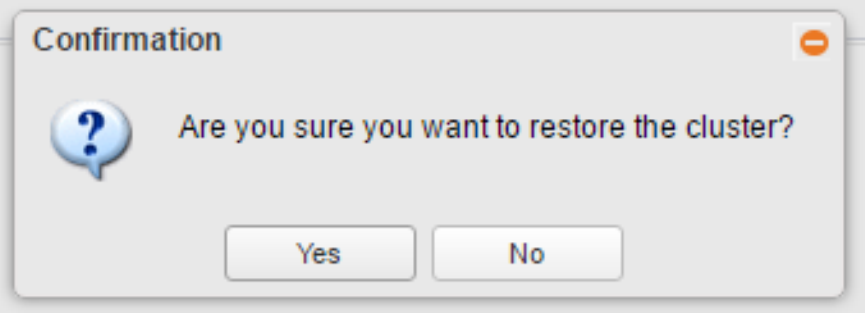
The page refreshes, and then the following message appears: System is restoring!
Please wait...
NOTE: The cluster restore process may take several minutes to complete.
When the restore process is complete, the controller logs you off the web interface
automatically.
Do not refresh the controller web interface while the restore process is in progress. Wait for
the restore process to complete successfully.
5. Log back on to the controller web interface.
NOTE: If the web interface displays the message Cluster is out of service.
Please try again in a few minutes. appears after you log on to the controller
web interface, wait for about three minutes. The dashboard will appear shortly. The message
appears because the controller is still initializing its processes.
6. Go to Administration > Upgrade, and then check the Current System Information section
and verify that all nodes in the cluster have been restored to the previous version and are all
in service.
7. Go to Administration > Diagnostics, and then click Application Logs & Status on the
sidebar.
8. Check the Health Status column and verify that all of the controller processes are online.
(See #unique_110/unique_110_Connect_42_ID-2649-00000068 on page 193).
You have completed restoring the cluster backup. After the upgrade is complete, go to the
Application Logs & Status page and verify that all of the controller processes are online
Ruckus Wireless™ Virtual SmartZone™ Getting Started Guide for SmartZone 3.4
192
Upgrading the Controller for Microsoft Azure, AWS, and GCE Platforms
Rolling Back to a Previous Software Version
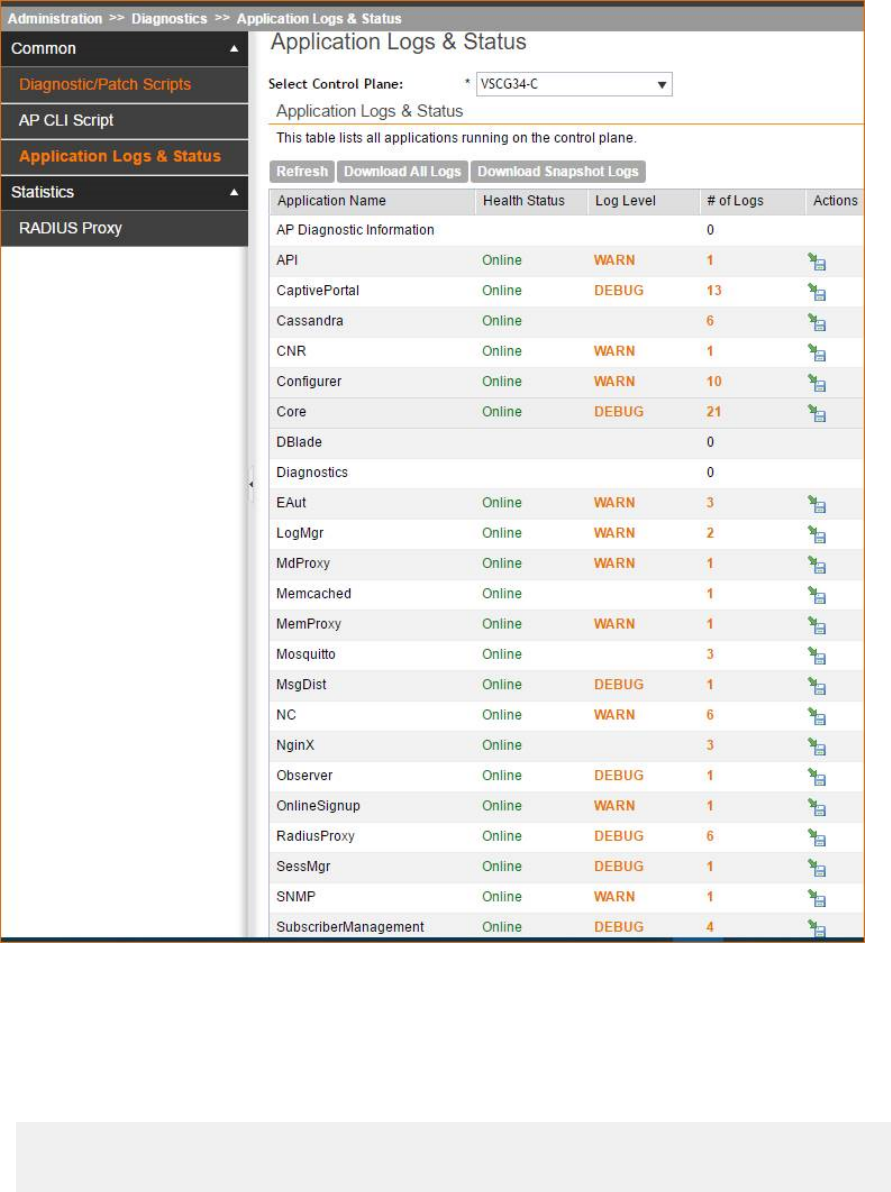
Figure 191: Application Logs & Status
To Restore a Cluster Backup Using CLI
1. Enter the Ruckus Virtual SmartZone: High Scale Command Line Interface.
2. Enter the following command and enter the password to log into the CLI.
VSCG34> en
Password:
Ruckus Wireless™ Virtual SmartZone™ Getting Started Guide for SmartZone 3.4
193
Upgrading the Controller for Microsoft Azure, AWS, and GCE Platforms
Rolling Back to a Previous Software Version
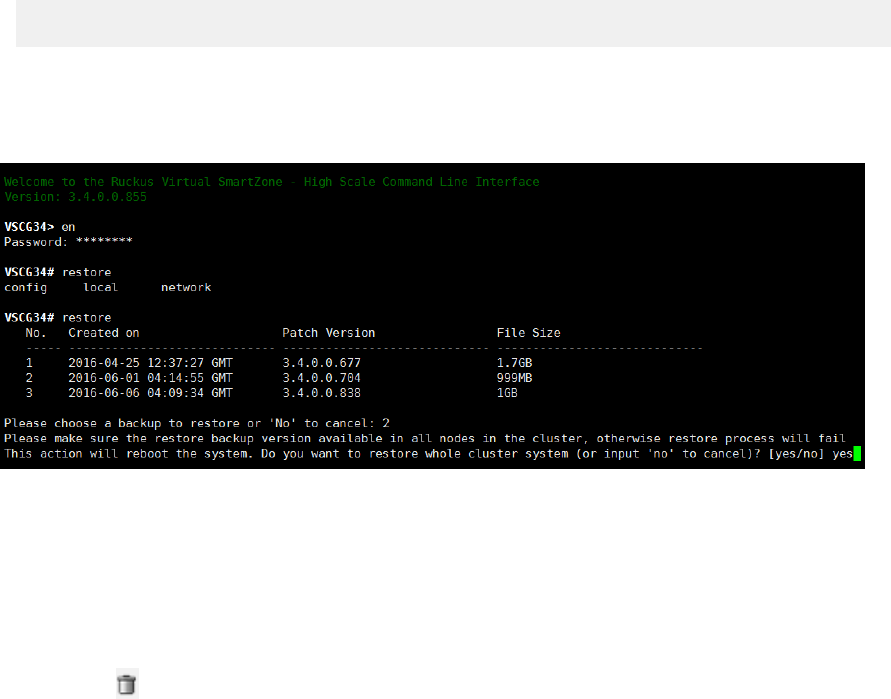
3. Enter the following command to restore a cluster backup:
VSCG34> restore
All the cluster backups are listed in an order of the cluster backup created date.
4. Specify the number mentioned against the cluster backup that you wish to restore.
You have restored the cluster backup.
Figure 192: Cluster Backup Restore Using CLI
Deleting a Cluster Backup
Follow these steps to delete a cluster backup.
1. Go to Administration > Cluster Backup and Restore.
2. In the Cluster Backups section, locate the cluster backup that you want to delete.
3. Click the icon that is in the same row as the cluster backup.
The following confirmation message appears: Are you sure you want to delete
the selected resource?
4. Click Yes.
The page refreshes and the row is deleted from the Cluster Backups list.
Ruckus Wireless™ Virtual SmartZone™ Getting Started Guide for SmartZone 3.4
194
Upgrading the Controller for Microsoft Azure, AWS, and GCE Platforms
Rolling Back to a Previous Software Version
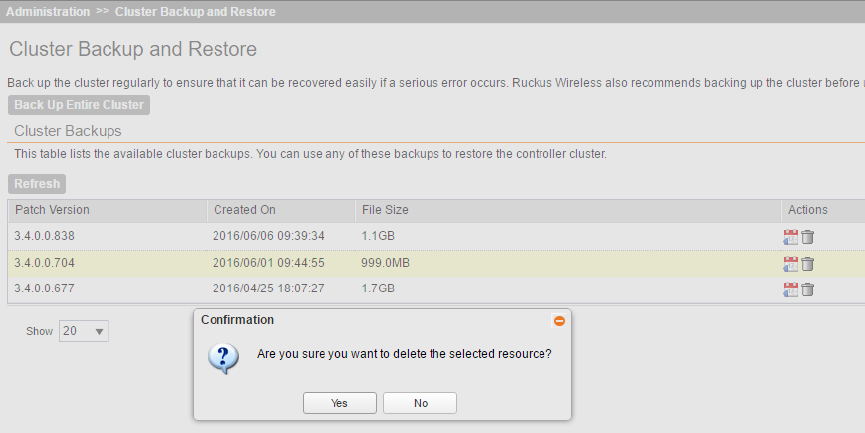
Figure 193: A confirmation message appears after you click the trash bin icon
Ruckus Wireless™ Virtual SmartZone™ Getting Started Guide for SmartZone 3.4
195
Upgrading the Controller for Microsoft Azure, AWS, and GCE Platforms
Rolling Back to a Previous Software Version

AP-SCG/SZ/vSZ/vSZ-D Communication
The table below lists the ports that must be opened in the network firewall to ensure that the
SCG/vSZ-D/SZ/vSZ (controller), managed APs, and RADIUS servers can communicate with
each other successfully.
Table 9: Ports to open for AP-SCG/SZ/vSZ/vSZ-D communication
PurposeConfigurable
from Web
Interface?
To
(Listener)
From
(Sender)
Layer 4
Protocol
Port
Number
FTP upload of reports,
statistics, and
configuration backups
YesvSZ control
plane
APTCP21
SSH tunnelNovSZ control
plane
TCP22 •AP
•vSZ-D
TACACS+ based
authentication of controller
administrators
YesvSZ control
plane
TACACS+
server
TCP49
AP firmware upgrade
NOTE: Starting in release
3.2, the controller uses an
NovSZ control
plane
APTCPPort 91 (AP
firmware
version 2.0
to 3.1.x) and
HTTPS connection and an
11443 (AP
encrypted path for the
firmware
firmware download. The
version 3.2
and later) port used for AP firmware
downloads has also been
changed from port 91 to
11443 to distinguish
between the two methods.
To ensure that all APs can
be upgraded successfully
to the new firmware, open
both ports 11443 and 91
in the network firewall.
NTP sync up
Not required in 2.1.2,
2.1.3, 2.5.1, 2.6, 3.0
NovSZ control
plane
APUDP123
Ruckus Wireless™ Virtual SmartZone™ Getting Started Guide for SmartZone 3.4
196
AP-SCG/SZ/vSZ/vSZ-D Communication

PurposeConfigurable
from Web
Interface?
To
(Listener)
From
(Sender)
Layer 4
Protocol
Port
Number
Required in1.x, 2.1, 2.1.1,
2.5
Access to the
SCG/vSZ/SZ control plane
over secure HTTPS
NovSZ control
plane
TCP443 •AP
•vSZ-D
Internal communication
port
NovSZvSZ-DTCP6868
Access to the
SCG/vSZ/SZ web
interface via HTTPS
NovSZ
management
plane
AnyTCP8443
GRE tunnel
NOTE: Only applicable to
SCG.
NoSCG (data
plane)
APTCP23232
GRE tunnel (required only
when tunnel mode is GRE
over UDP)
NOTE: On the vSZ-D, this
port is used for both data
YesData planeAPUDP and
TCP
23233
and control in both UDP
and TCP.
LWAPP discovery
NOTE:
If your AP is within the
same subnet as the
NovSZ control
plane
APUDP12222/12223
controller, disable
nat-ip-translation to
establish a connection
between the AP and the
controller so that AP
firmware upgrade
progresses.
If your AP is on the side of
the NAT server and if the
NAT server does not
Ruckus Wireless™ Virtual SmartZone™ Getting Started Guide for SmartZone 3.4
197
AP-SCG/SZ/vSZ/vSZ-D Communication
PurposeConfigurable
from Web
Interface?
To
(Listener)
From
(Sender)
Layer 4
Protocol
Port
Number
support PASV-Mode FTP,
enable nat-ip-translation.
If the NAT server supports
PASV-Mode FTP, then
disable nat-ip-translation
for AP firmware upgrade
to progress
AAA authentication and
accounting
YesRadius
servers (s)
APUDP1812/1813
CLI (Command Line
Interface) access to the
vSZ
YesManagement
interface
AnyNo (SSH)8022
Allows unauthorized UEs
to browse to an HTTP
website
NovSZ control
plane
AnyTCP8090
Allows unauthorized UEs
to browse to an HTTPS
website
NovSZ control
plane
AnyTCP8099
Allows unauthorized UEs
to browse using a proxy
UE
NovSZ control
plane
AnyTCP8100
Allows authorized UEs to
browse using a proxy UE
NovSZ control
plane
AnyTCP8111
Northbound Portal
Interface for hotspots
NovSZ control
plane
AnyHTTP9080
Northbound Portal
Interface for hotspots
NovSZ control
plane
AnyHTTPS9443
Hotspot WISPr subscriber
portal login/logout over
HTTPSl
NovSZ control
plane
AnyTCP9998
Local license serverNoLicense
server
ControllerTCP3333
Cloud license serverNoLicense
server
ControllerHTTPS443
Ruckus Wireless™ Virtual SmartZone™ Getting Started Guide for SmartZone 3.4
198
AP-SCG/SZ/vSZ/vSZ-D Communication
PurposeConfigurable
from Web
Interface?
To
(Listener)
From
(Sender)
Layer 4
Protocol
Port
Number
HotSpot 2.0 portal for
onboarding and
remediation
NoController
interface
ClientTCP9996
HotSpot 2.0 trust CA
verification
NoController
interface
ClientTCP9999
HotSpot 2.0 Oauth in
HTTP
NoController
interface
ClientTCP8200
HotSpot 2.0 Oauth in
HTTPS
NoController
interface
ClientTCP8222
NOTE: The destination interfaces are meant for three interface deployments. In a single interface
deployment, all the destination ports must be forwarded to the combined management/control
interface IP address.
NOTE: Communication between APs is not possible across NAT servers.
Ruckus Wireless™ Virtual SmartZone™ Getting Started Guide for SmartZone 3.4
199
AP-SCG/SZ/vSZ/vSZ-D Communication
