Ruckus Brocade Network Advisor Installation And Migration Guide, 14.2.1 (BNA) (GA) Guide Networkadvisor 1421 Installguide
Brocade Network Advisor (BNA) 14.2.10 (GA) Installation and Migration Guide networkadvisor-1421-installguide
2017-07-24
User Manual: Ruckus Brocade Network Advisor (BNA) 14.2.1 (GA) Installation and Migration Guide
Open the PDF directly: View PDF  .
.
Page Count: 92
- Brocade Network Advisor Installation and Migration Guide, 14.2.1
- Preface
- About This Document
- Installation
- Network Advisor Configuration
- Data Migration
- Uninstallation
- References

Supporting Brocade Network Advisor 14.2.1
SOFTWARE INSTALLATION GUIDE
Brocade Network Advisor Installation and
Migration Guide, 14.2.1
53-1004882-02
05 May 2017
© 2017, Brocade Communications Systems, Inc. All Rights Reserved.
Brocade, the B-wing symbol, and MyBrocade are registered trademarks of Brocade Communications Systems, Inc., in the United States and in other
countries. Other brands, product names, or service names mentioned of Brocade Communications Systems, Inc. are listed at www.brocade.com/en/legal/
brocade-Legal-intellectual-property/brocade-legal-trademarks.html. Other marks may belong to third parties.
Notice: This document is for informational purposes only and does not set forth any warranty, expressed or implied, concerning any equipment,
equipment feature, or service oered or to be oered by Brocade. Brocade reserves the right to make changes to this document at any time, without
notice, and assumes no responsibility for its use. This informational document describes features that may not be currently available. Contact a Brocade
sales oce for information on feature and product availability. Export of technical data contained in this document may require an export license from the
United States government.
The authors and Brocade Communications Systems, Inc. assume no liability or responsibility to any person or entity with respect to the accuracy of this
document or any loss, cost, liability, or damages arising from the information contained herein or the computer programs that accompany it.
The product described by this document may contain open source software covered by the GNU General Public License or other open source license
agreements. To nd out which open source software is included in Brocade products, view the licensing terms applicable to the open source software, and
obtain a copy of the programming source code, please visit http://www.brocade.com/support/oscd.
Brocade Network Advisor Installation and Migration Guide, 14.2.1
2 53-1004882-02

Contents
Preface...................................................................................................................................................................................................................................7
Document conventions............................................................................................................................................................................................................................7
Notes, cautions, and warnings.....................................................................................................................................................................................................7
Text formatting conventions.........................................................................................................................................................................................................7
Command syntax conventions....................................................................................................................................................................................................8
Brocade resources.....................................................................................................................................................................................................................................8
Document feedback..................................................................................................................................................................................................................................8
Contacting Brocade Technical Support............................................................................................................................................................................................ 9
Brocade customers..........................................................................................................................................................................................................................9
Brocade OEM customers............................................................................................................................................................................................................. 9
About This Document..................................................................................................................................................................................................... 11
Supported hardware and software...................................................................................................................................................................................................11
Fabric OS hardware and software support..........................................................................................................................................................................11
IronWare OS hardware and software support.................................................................................................................................................................... 14
Network OS hardware and software support.....................................................................................................................................................................19
HBA hardware and software support.................................................................................................................................................................................... 20
What's new in this document............................................................................................................................................................................................................. 20
Installation..........................................................................................................................................................................................................................21
System requirements.............................................................................................................................................................................................................................21
Server and client operating system requirements............................................................................................................................................................21
Memory, host, and disk space requirements..................................................................................................................................................................... 23
Operating system cache requirements.................................................................................................................................................................................24
Browser requirements..................................................................................................................................................................................................................24
Client and server system requirements................................................................................................................................................................................ 25
Downloading the software ..................................................................................................................................................................................................................25
Pre-installation requirements............................................................................................................................................................................................................. 26
Additional pre-installation requirements for UNIX systems.........................................................................................................................................26
Troubleshooting in Linux SUSE 11.3...................................................................................................................................................................................27
Prerequisites for starting SLP services in Linux servers ..............................................................................................................................................27
Installing the application....................................................................................................................................................................................................................... 28
Mapping the loopback address to the local host..............................................................................................................................................................29
Headless installation .............................................................................................................................................................................................................................30
Additional pre-installation requirements for UNIX systems (headless installation)............................................................................................30
Performing a headless installation on Windows and UNIX systems....................................................................................................................... 30
Troubleshooting the Linux headless installation ..............................................................................................................................................................31
Collecting supportSave information on Windows and Linux...................................................................................................................................... 31
Client-only installation...........................................................................................................................................................................................................................31
Installing the client-only application.......................................................................................................................................................................................31
Network Advisor Conguration..................................................................................................................................................................................... 33
Conguring Network Advisor.............................................................................................................................................................................................................33
Accessing the Network Advisor interfaces...................................................................................................................................................................................39
Logging in to a server.................................................................................................................................................................................................................. 39
Launching a remote client..........................................................................................................................................................................................................40
Clearing previous versions of the remote client................................................................................................................................................................41
Launching the SMC on Windows...........................................................................................................................................................................................41
Brocade Network Advisor Installation and Migration Guide, 14.2.1
53-1004882-02 3
Launching the SMC on Linux...................................................................................................................................................................................................41
Launching the SMIA Conguration Tool..............................................................................................................................................................................42
Launching the SMIA Conguration Tool remote client..................................................................................................................................................42
Performance collection for SMI-A only.........................................................................................................................................................................................43
Enabling or disabling performance statistics collection.................................................................................................................................................43
Updating system threshold data..............................................................................................................................................................................................43
Exporting conguration data.....................................................................................................................................................................................................43
Clearing performance data........................................................................................................................................................................................................ 44
Syslog troubleshooting.........................................................................................................................................................................................................................44
Finding the process...................................................................................................................................................................................................................... 44
Stopping the process................................................................................................................................................................................................................... 44
Installing the ODBC driver.................................................................................................................................................................................................................. 45
Installing the ODBC driver on Windows systems............................................................................................................................................................45
Installing the ODBC driver on Linux systems....................................................................................................................................................................46
Smart card driver installation..............................................................................................................................................................................................................48
Installing the smart card driver on the local client............................................................................................................................................................ 48
Installing the smart card driver on the remote client.......................................................................................................................................................49
Detecting and correcting a default Linux smart card driver......................................................................................................................................... 50
Conguring an explicit server IP address......................................................................................................................................................................................51
Product Improvement .......................................................................................................................................................................................................................... 52
Enabling product improvement data transfer.....................................................................................................................................................................53
Disabling product improvement data transfer................................................................................................................................................................... 53
Data transfer ................................................................................................................................................................................................................................... 54
Conguring remote client access to the database.................................................................................................................................................................... 54
Data Migration...................................................................................................................................................................................................................57
Upgrading the license .......................................................................................................................................................................................................................... 57
Supported migration paths................................................................................................................................................................................................................. 58
DCFM migration paths................................................................................................................................................................................................................61
INM migration paths.....................................................................................................................................................................................................................61
EFCM and Fabric Manager migration paths......................................................................................................................................................................61
Pre-migration requirements............................................................................................................................................................................................................... 61
Pre-migration requirements when migrating from one server to another.............................................................................................................62
Additional pre-migration requirements on UNIX systems........................................................................................................................................... 65
Additional trial requirements......................................................................................................................................................................................................66
Data migration for Brocade Network Advisor.............................................................................................................................................................................66
Management server or client issues...................................................................................................................................................................................... 66
Migrating data...........................................................................................................................................................................................................................................67
Cross avor migration..................................................................................................................................................................................................................72
Migration rollback....................................................................................................................................................................................................................................72
Migration rollback due to insucient space........................................................................................................................................................................72
Migration rollback in conguration wizard........................................................................................................................................................................... 73
Uninstallation.....................................................................................................................................................................................................................75
Uninstalling from Windows systems...............................................................................................................................................................................................75
Uninstalling from Windows systems (headless uninstall).......................................................................................................................................................75
Uninstalling from UNIX systems...................................................................................................................................................................................................... 76
Uninstalling from UNIX systems (headless uninstall)...............................................................................................................................................................76
References......................................................................................................................................................................................................................... 77
Network Advisor packages................................................................................................................................................................................................................. 77
Scalability limits........................................................................................................................................................................................................................................77
Brocade Network Advisor Installation and Migration Guide, 14.2.1
4 53-1004882-02
Management server and client ports.............................................................................................................................................................................................. 78
Edition feature support......................................................................................................................................................................................................................... 83
Brocade Network Advisor Installation and Migration Guide, 14.2.1
53-1004882-02 5
Brocade Network Advisor Installation and Migration Guide, 14.2.1
6 53-1004882-02

Preface
• Document conventions......................................................................................................................................................................................7
• Brocade resources............................................................................................................................................................................................... 8
• Document feedback............................................................................................................................................................................................8
• Contacting Brocade Technical Support.......................................................................................................................................................9
Document conventions
The document conventions describe text formatting conventions, command syntax conventions, and important notice formats used in
Brocade technical documentation.
Notes, cautions, and warnings
Notes, cautions, and warning statements may be used in this document. They are listed in the order of increasing severity of potential
hazards.
NOTE
A Note provides a tip, guidance, or advice, emphasizes important information, or provides a reference to related information.
ATTENTION
An Attention statement indicates a stronger note, for example, to alert you when trac might be interrupted or the device might
reboot.
CAUTION
A Caution statement alerts you to situations that can be potentially hazardous to you or cause damage to hardware,
rmware, software, or data.
DANGER
A Danger statement indicates conditions or situations that can be potentially lethal or extremely hazardous to you. Safety
labels are also attached directly to products to warn of these conditions or situations.
Text formatting conventions
Text formatting conventions such as boldface, italic, or Courier font may be used to highlight specic words or phrases.
Format Description
bold text Identies command names.
Identies keywords and operands.
Identies the names of GUI elements.
Identies text to enter in the GUI.
italic text Identies emphasis.
Identies variables.
Identies document titles.
Courier font Identies CLI output.
Brocade Network Advisor Installation and Migration Guide, 14.2.1
53-1004882-02 7
Format Description
Identies command syntax examples.
Command syntax conventions
Bold and italic text identify command syntax components. Delimiters and operators dene groupings of parameters and their logical
relationships.
Convention Description
bold text Identies command names, keywords, and command options.
italic text Identies a variable.
value In Fibre Channel products, a xed value provided as input to a command option is printed in plain text, for
example, --show WWN.
[ ] Syntax components displayed within square brackets are optional.
Default responses to system prompts are enclosed in square brackets.
{ x | y | z } A choice of required parameters is enclosed in curly brackets separated by vertical bars. You must select
one of the options.
In Fibre Channel products, square brackets may be used instead for this purpose.
x | yA vertical bar separates mutually exclusive elements.
< > Nonprinting characters, for example, passwords, are enclosed in angle brackets.
... Repeat the previous element, for example, member[member...].
\ Indicates a “soft” line break in command examples. If a backslash separates two lines of a command
input, enter the entire command at the prompt without the backslash.
Brocade resources
Visit the Brocade website to locate related documentation for your product and additional Brocade resources.
White papers, data sheets, and the most recent versions of Brocade software and hardware manuals are available at www.brocade.com.
Product documentation for all supported releases is available to registered users at MyBrocade.
Click the Support tab and select Document Library to access product documentation on MyBrocade or www.brocade.com. You can
locate documentation by product or by operating system.
Release notes are bundled with software downloads on MyBrocade. Links to software downloads are available on the MyBrocade landing
page and in the Document Library.
Document feedback
Quality is our rst concern at Brocade, and we have made every eort to ensure the accuracy and completeness of this document.
However, if you nd an error or an omission, or you think that a topic needs further development, we want to hear from you. You can
provide feedback in two ways:
• Through the online feedback form in the HTML documents posted on www.brocade.com
• By sending your feedback to documentation@brocade.com
Provide the publication title, part number, and as much detail as possible, including the topic heading and page number if applicable, as
well as your suggestions for improvement.
Brocade resources
Brocade Network Advisor Installation and Migration Guide, 14.2.1
8 53-1004882-02

Contacting Brocade Technical Support
As a Brocade customer, you can contact Brocade Technical Support 24x7 online or by telephone. Brocade OEM customers should
contact their OEM/solution provider.
Brocade customers
For product support information and the latest information on contacting the Technical Assistance Center, go to www.brocade.com and
select Support.
If you have purchased Brocade product support directly from Brocade, use one of the following methods to contact the Brocade
Technical Assistance Center 24x7.
Online Telephone
Preferred method of contact for non-urgent issues:
• Case management through the MyBrocade portal.
• Quick Access links to Knowledge Base, Community, Document
Library, Software Downloads and Licensing tools
Required for Sev 1-Critical and Sev 2-High issues:
• Continental US: 1-800-752-8061
• Europe, Middle East, Africa, and Asia Pacic: +800-AT FIBREE
(+800 28 34 27 33)
•Toll-free numbers are available in many countries.
• For areas unable to access a toll-free number:
+1-408-333-6061
Brocade OEM customers
If you have purchased Brocade product support from a Brocade OEM/solution provider, contact your OEM/solution provider for all of
your product support needs.
• OEM/solution providers are trained and certied by Brocade to support Brocade® products.
• Brocade provides backline support for issues that cannot be resolved by the OEM/solution provider.
• Brocade Supplemental Support augments your existing OEM support contract, providing direct access to Brocade expertise.
For more information, contact Brocade or your OEM.
• For questions regarding service levels and response times, contact your OEM/solution provider.
Contacting Brocade Technical Support
Brocade Network Advisor Installation and Migration Guide, 14.2.1
53-1004882-02 9
Brocade Network Advisor Installation and Migration Guide, 14.2.1
10 53-1004882-02

About This Document
• Supported hardware and software..............................................................................................................................................................11
• What's new in this document........................................................................................................................................................................20
Supported hardware and software
In those instances in which procedures or parts of procedures documented here apply to some devices but not to others, this guide
identies exactly which devices are supported and which are not.
Although many dierent software and hardware congurations are tested and supported by Brocade Communications Systems, Inc. for
Network Advisor 14.2.1, documenting all possible congurations and scenarios is beyond the scope of this document.
Fabric OS hardware and software support
The following rmware platforms are supported by this release of Network Advisor 14.2.1:
• Fabric OS 5.0 or later in a pure Fabric OS fabric
• Fabric OS 6.0 or later in a mixed fabric
• Fabric OS 7.0 or later
• Fabric OS 8.0 or later
• Fabric OS 8.1 or later
NOTE
Discovery of a secure Fabric OS fabric in strict mode is not supported.
The hardware platforms in the following table are supported by this release of Network Advisor 14.2.1.
TABLE 1 Fabric OS-supported hardware
Device name Terminology used in documentation Firmware level required
Brocade 200E switch 16-port, 4 Gbps FC Switch
Brocade 300 switch 24-port, 8 Gbps FC Switch Fabric OS v6.1.0 or later
Brocade 4012 switch Embedded 12-port, 4 Gbps FC Switch
Brocade 4016 switch Embedded 16-port, 4 Gbps FC Switch
Brocade 4018 switch Embedded 18-port, 4 Gbps FC Switch
Brocade 4020 switch Embedded 20-port, 4 Gbps FC Switch
Brocade 4024 switch Embedded 24-port, 4 Gbps FC Switch Fabric OS v5.3.1 or later
Brocade 4100 switch 32-port, 4 Gbps FC Switch
Brocade 4900 switch 64-port, 4 Gbps FC Switch Fabric OS v5.2.0 or later
Brocade 5000 switch 32-port, 4 Gbps FC Interop Switch Fabric OS v5.2.1 or later
Brocade 5100 switch 40-port, 8 Gbps FC Switch Fabric OS v6.1.0 or later
Brocade 5300 switch 80-port, 8 Gbps FC Switch Fabric OS v6.1.0 or later
Brocade 5410 embedded switch Embedded 12-port, 8 Gbps Switch Fabric OS v6.1.0 or later
Brocade 5424 embedded switch Embedded 24-port, 8 Gbps Switch Fabric OS v6.1.0 or later
Brocade 5431 embedded switch Embedded 16-port, 8 Gbps Stackable Switch Fabric OS v7.2.0 or later
Brocade Network Advisor Installation and Migration Guide, 14.2.1
53-1004882-02 11

TABLE 1 Fabric OS-supported hardware (continued)
Device name Terminology used in documentation Firmware level required
Brocade 5450 embedded switch Embedded 16-port, 8 Gbps Switch Fabric OS v6.2.0 or later
Brocade 5460 embedded switch Embedded 24-port, 8 Gbps Switch Fabric OS v6.1.0_emb or later
Brocade 5470 embedded switch Embedded 24-port, 8 Gbps Switch Fabric OS v6.1.0 or later
Brocade 5480 embedded switch Embedded 24-port, 8 Gbps Switch Fabric OS v6.1.0 or later
Brocade 6505 switch 24-port, 16 Gbps Edge switch Fabric OS v7.0.1 or later
Brocade M6505 embedded switch 24-port, 16 Gbps embedded switch Fabric OS v7.2.0 or later
Brocade 6510 switch 48-port, 16 Gbps switch Fabric OS v7.0.0 or later
Brocade 6520 switch 96-port, 16 Gbps switch Fabric OS v7.1.0 or later
Brocade 6542 switch 48-port, 16 Gbps switch Fabric OS v7.4.0 or later
Brocade 6543 switch 24-port, 16 Gbps switch Fabric OS v7.3.0 or later
Brocade 6547 embedded switch 48-port, 16 Gbps embedded switch Fabric OS v7.2.0 or later
Brocade 7500 Extension switch 4 Gbps Router, Extension Switch Fabric OS v5.1.0 or later
Brocade 7500E Extension switch 4 Gbps Extension Switch Fabric OS v5.1.0 or later
Brocade AP7600 switch 4 Gbps 32-port Switch Fabric OS v6.1.0 or later
Brocade 7800 switch 8 Gbps Extension Switch Fabric OS v6.3.0 or later
Brocade 7840 switch 16 Gbps 24-FC port, 18 GbE port Switch Fabric OS v7.3.0 or later
Brocade 8000 switch 8 Gbps 8-FC port, 10 GbE 24-DCB port
Switch
Fabric OS v6.1.2_CEE
Brocade 8470 FCoE embedded switch FCoE Embedded Switch Fabric OS v6.3.1_CEE
Brocade VA-40FC switch 8 Gbps 40-port Switch
Brocade Encryption Switch 8 Gbps Encryption Switch Fabric OS v6.1.1_enc or later
Brocade 48000 director Director Chassis
Brocade 48000 director with FC4-16,
FC4-32, and FC4-48 Blades
Director Chassis with 4 Gbps 16-FC port, 4
Gbps 32-FC port, and 4 Gbps 48-FC port
Fabric OS v5.2.0 or later (FC4-48)
Brocade 48000 director with FR4-18i Blades Director Chassis with 4 Gbps router, extension
blades
Fabric OS v5.1.0 or later (FR4-18i)
Brocade 48000 director with FC4-16IP Blades Director Chassis with 4 Gbps 8-FC port and 8
GbE iSCSI blades
Fabric OS v5.2.0 or later (FC4-16IP)
Brocade 48000 director with FC10-6 Blades Director Chassis with 10 Gbps 6-port ISL
blades
Fabric OS v5.3.0 or later (FC10-6)
Brocade DCX1,28-slot Backbone Chassis Fabric OS v6.0.0 or later
Brocade DCX with FC8-16, FC8-32, and
FC8-48 Blades1,2
8-slot Backbone Chassis with 8 Gbps 16-FC
port, 8 Gbps 32-FC port, and 8 Gbps 48-FC
port blades
Fabric OS v6.0.0 or later
Brocade DCX with FC8-64 Blades1,28-slot Backbone Chassis with 8 Gbps 64-FC
port blades
Fabric OS v6.4.0
Brocade DCX with FR4-18i Blades1,28-slot Backbone Chassis with 4 Gbps Router,
Extension blade
Fabric OS v6.0.0 or later
Brocade DCX with FC10-6 Blades1,28-slot Backbone Chassis with FC 10 - 6 ISL
Blade
Fabric OS v6.2.0
1Professional can discover, but not manage, this device. This device cannot be used as a Seed switch.
2Professional Plus Trial and Licensed version can discover, but not manage this device. This device cannot be used as a Seed switch.
Supported hardware and software
Brocade Network Advisor Installation and Migration Guide, 14.2.1
12 53-1004882-02

TABLE 1 Fabric OS-supported hardware (continued)
Device name Terminology used in documentation Firmware level required
Brocade DCX with FS8-18 Blades1,28-slot Backbone Chassis with Encryption Blade Fabric OS v6.1.1_enc or later
Brocade DCX with FX8-24 Blades1,28-slot Backbone Chassis with 8 Gbps 12-FC
port, 10 GbE ports, 2-10 GbE ports blade
Fabric OS v6.3.1_CEE
Brocade DCX with FCoE10-24 Blades1,28-slot Backbone Chassis with 10 Gbps 24-port
FCoE blade
Fabric OS v6.3.1_CEE
Brocade DCX-4S 4-slot Backbone Chassis Fabric OS v6.0.0 or later
Brocade DCX-4S with FC8-16, FC8-32, and
FC8-48 Blades
4-slot Backbone Chassis with 8 Gbps 16-FC
port, 8 Gbps 32-FC port, and 8 Gbps 48-FC
port blades
Fabric OS v6.2.0
Brocade DCX-4S with FC8-64 Blades 4-slot Backbone Chassis with 8 Gbps 64-FC
port blades
Fabric OS v6.4.0
Brocade DCX-4S with FR4-18i Blades 4-slot Backbone Chassis with 4 Gbps Router,
Extension blade
Fabric OS v6.2.0
Brocade DCX-4S with FC10-6 Blades 4-slot Backbone Chassis with FC 10 - 6 ISL
Blade
Fabric OS v6.2.0
Brocade DCX-4S with FS8-18 Blades 4-slot Backbone Chassis with Encryption Blade Fabric OS v6.1.1_enc or later
Brocade DCX-4S with FX8-24 Blades1,24-slot Backbone Chassis with 8 Gbps 12-FC
port, 10 GbE ports, 2-10 GbE ports blade
Fabric OS v6.3.1_CEE
Brocade DCX-4S with FCoE10-24 Blades 4-slot Backbone Chassis with 10 Gbps 24-port
FCoE blade
Fabric OS v6.3.0 or later
Brocade DCX 8510-4 16 Gbps 4-slot Backbone Chassis Fabric OS v7.0.0 or later
Brocade DCX 8510-4 with FS8-18 Encryption
Blades
16 Gbps 4-slot Backbone Chassis with
Encryption blades
Fabric OS v6.1.1_enc or later
Brocade DCX 8510-4 with FC8-64 and
FX8-24 Blades
16 Gbps 4-slot Backbone Chassis with 8 Gbps
64-port and 8 Gbps Router Extension blades
Fabric OS v7.0.0 or later
Brocade DCX 8510-4 with FC16-32 and
FC16-48 Blades
16 Gbps 4-slot Backbone Chassis with 16
Gbps 32-port and 16 Gbps 48-port blades
Fabric OS v7.0.0 or later
Brocade DCX 8510-4 with FC8-32E and
FC8-48E Blades
16 Gbps 4-slot Backbone Chassis with 8 Gbps
32-port and 8 Gbps 48-port blades
Fabric OS v7.0.1 or later
Brocade DCX 8510-4 with FC16-64 Blades 16 Gbps 4-slot Backbone Chassis with 16
Gbps 64-port blades
Fabric OS v7.3.0 or later
Brocade DCX 8510-81,216 Gbps 8-slot Backbone Chassis Fabric OS v7.0.0 or later
Brocade DCX 8510-8 with FS8-18 Encryption
Blades1,2
16 Gbps 8-slot Backbone Chassis with
Encryption blades
Fabric OS v6.1.1_enc or later
Brocade DCX 8510-8 with FC8-64 and
FX8-24 Blades1,2
16 Gbps 8-slot Backbone Chassis with 8 Gbps
64-port and 8 Gbps Router Extension blades
Fabric OS v6.4.0 or later
Brocade DCX 8510-8 with FC16-32 and
FC16-48 Blades1,2
16 Gbps 8-slot Backbone Chassis with 16
Gbps 32-port and 16 Gbps 48-port blades
Fabric OS v7.0.0 or later
Brocade DCX-8510-8 with FCoE10-24
Blades1,2
16 Gbps 8-slot Backbone Chassis with 10
Gbps 24-port FCoE blade
Fabric OS v7.0.0 or later
Brocade DCX 8510-81,216 Gbps 8-slot Backbone Chassis with 16
Gbps 64-port blades
Fabric OS v7.3.0 or later
1Professional can discover, but not manage, this device. This device cannot be used as a Seed switch.
2Professional Plus Trial and Licensed version can discover, but not manage this device. This device cannot be used as a Seed switch.
Supported hardware and software
Brocade Network Advisor Installation and Migration Guide, 14.2.1
53-1004882-02 13

TABLE 1 Fabric OS-supported hardware (continued)
Device name Terminology used in documentation Firmware level required
Brocade Gen 6 platform (32-Gbps) xed-port
switch (Brocade G620)
64-port, 32 Gbps switch Fabric OS v8.0.0 or later
Brocade Gen 6 platform (32-Gbps) xed-port
switch (Brocade G610)
24-port, 32 Gbps switch Fabric OS v8.1.0 or later
Brocade X6-4 Director 32 Gbps, 4-slot Backbone Chassis Fabric OS v8.0.1 or later
Brocade X6-8 Director1,232 Gbps, 8-slot Backbone Chassis Fabric OS v8.0.1 or later
FA4-18 Application Platform Blade Application Platform Blade
FC8-16 Blade FC 8 GB 16-port Blade Fabric OS v6.2.0 or later
FC8-32 Blade FC 8 GB 32-port Blade Fabric OS v6.2.0 or later
FC8-32E Blade 3FC 8 GB 32-port Blade Fabric OS v7.0.1 or later
FC8-48 Blade3FC 8 GB 48-port Blade Fabric OS v6.2.0 or later
FC8-48E Blade FC 8 GB 48-port Blade Fabric OS v7.0.1 or later
FC8-64 Blade FC 8 GB 64-port Blade Fabric OS v6.4.0 or later
FC10-6 Blade FC 10 - 6 ISL Blade Fabric OS v6.2.0 or later
FC16-32 Blade 16 Gbps 32-port blade Fabric OS v7.0.0 or later
FC16-48 Blade 16 Gbps 48-port blade Fabric OS v7.0.0 or later
FC16-64 Blade 16 Gbps 64-port blade Fabric OS v7.3.0 or later
FCoE10-24 Blade 410 Gbps FCoE Port Router Blade
FR4-18i Blade 4 Gbps Router Extension blade Fabric OS v5.1.0 or later
FS8-18 Encryption Blade Encryption Blade Fabric OS v6.1.1_enc or later
FX8-24 Blade1,28 Gbps Extension Blade
Brocade CPX6 Control Processor Blade5Control Processor Blade Fabric OS v8.0.1 or later
Brocade CR32-4 Core Blade 32 Gbps 8-port blade Fabric OS v8.0.1 or later
Brocade CR32-8 Core Blade 32 Gbps 16-port blade Fabric OS v8.0.1 or later
Brocade FC32-48 Port Blade 32 Gbps 48-port blade Fabric OS v8.0.1 or later
Brocade SX6 Extension Blade 32 Gbps, Router Extension blade Fabric OS v8.0.1 or later
IronWare OS hardware and software support
The following rmware platforms are supported by this release of Network Advisor 14.2.1:
• BigIron 2.7.02e (sustaining mode) or later
• FastIron 7.2.0 or later
• NetIron 5.1.0 or later
• ServerIron (JetCore) 11.0 or later
• ServerIron ADX 12.2.0 or later
1Professional can discover, but not manage, this device. This device cannot be used as a Seed switch.
2Professional Plus Trial and Licensed version can discover, but not manage this device. This device cannot be used as a Seed switch.
3Only supported on the DCX 8510-4 and DCX 8510-8 chassis.
4Only supported on the DCX, DCX-4S, and DCX 8510-8 chassis.
516 Gbps devices do not support Fabric OS 8.0.0 and must directly upgrade to Fabric OS 8.0.1 from Fabric OS 7.4.X .
Supported hardware and software
Brocade Network Advisor Installation and Migration Guide, 14.2.1
14 53-1004882-02

• TurboIron 4.2.0 or later
For platform-specic rmware requirements, refer to Table 2.
The following table lists the hardware platforms supported by this release of Network Advisor 14.2.1, the terminology used in the
documentation, as well as any specic rmware requirements.
TABLE 2 IronWare OS-supported hardware
Device name Terminology used in documentation Firmware level required
BigIron family Ethernet Chassis BigIron 2.7.02e or 2.7.01b
BigIron RX-4 (BI-RX-4-AC) Ethernet Chassis, 4 interface slots BigIron 2.7.02e or 2.7.01b
BigIron RX-8 (BI-RX-8-AC) Ethernet Chassis, 8 interface slots BigIron 2.7.02e or 2.7.01b
BigIron RX-16 (BI-RX-16-AC-A) Ethernet Chassis, 16 interface slots BigIron 2.7.02e or 2.7.01b
Brocade 6910 Ethernet Access Switch Ethernet Access Switch release 2.0.2.7, loader version 1.0.1.3
FastIron family Ethernet switch See individual device.
FastIron CX 624S (FCX624S) Ethernet L2/L3 Edge switch, 24 1-GbE RJ-45
ports
FastIron 06.0.00 and later
FastIron CX 648S (FCX648S) Ethernet L2/L3 Edge switch, 48 1-GbE RJ-45
ports
FastIron 06.0.00 and later
FastIron CX 624S-HPOE (FCX624S-HPOE) Ethernet L2/L3 Edge switch, 24 1-GbE RJ-45
ports, 24 POE+ ports
FastIron 06.0.00 and later
FastIron CX 648S-HPOE (FCX648S-HPOE) Ethernet L2/L3 Edge switch, 48 1-GbE RJ-45
ports, 48 POE+ ports
FastIron 06.0.00 and later
FastIron CX 624S-F (FCX624S-F) Ethernet L2/L3 Edge switch, 20 SFP ports FastIron 06.0.00 and later
FastIron CX 624-E (FCX624-E) Ethernet L2/L3 Edge switch, 24 1-GbE RJ-45
ports
FastIron 06.0.00 and later
FastIron CX 624-I (FCX624-I) Ethernet L2/L3 Edge switch, 24 1-GbE RJ-45
ports
FastIron 06.0.00 and later
FastIron CX 648-E (FCX648-E) Ethernet L2/L3 Edge switch, 48 1-GbE RJ-45
ports
FastIron 06.0.00 and later
FastIron CX 648-I (FCX648-I) Ethernet L2/L3 Edge switch, 48 1-GbE RJ-45
ports
FastIron 06.0.00 and later
ICX 6610 Stackable switch family Campus LAN Edge stackable switch FastIron 07.0.3 and later
Hyper Edge stacking requires FastIron 08.0.00
or later
ICX 6610-24 Stackable switch 24 RJ-45 ports Campus LAN Edge stackable
switch
FastIron 07.0.3 and later
Hyper Edge stacking requires FastIron 08.0.00
or later
ICX 6610-48 Stackable switch 48 RJ-45 ports Campus LAN Edge stackable
switch
FastIron 07.0.3 and later
Hyper Edge stacking requires FastIron 08.0.00
or later
ICX 6610-24F Stackable switch 24 SFP ports Campus LAN Edge stackable
switch
FastIron 07.0.3 and later
Hyper Edge stacking requires FastIron 08.0.00
or later
ICX 6610-24P Stackable switch 24 PoE ports Campus LAN Edge stackable
switch
FastIron 07.0.3 and later
Hyper Edge stacking requires FastIron 08.0.00
or later
ICX 6610-48P Stackable switch 48 PoE ports Campus LAN Edge stackable
switch
FastIron 07.0.3 and later
Supported hardware and software
Brocade Network Advisor Installation and Migration Guide, 14.2.1
53-1004882-02 15

TABLE 2 IronWare OS-supported hardware (continued)
Device name Terminology used in documentation Firmware level required
Hyper Edge stacking requires FastIron 08.0.00
or later
ICX 6430-24 switch 24-port Campus LAN switch FastIron 07.4.00 and later
ICX 6430-24-HPOE switch 24-port Campus LAN HPOE switch FastIron 07.4.00 and later
ICX 6430-48 switch 48-port Campus LAN switch FastIron 07.4.00 and later
ICX 6430-48-HPOE switch 48-port Campus LAN HPOE switch FastIron 07.4.00 and later
ICX 6450 stacking switch Campus LAN stacking switch FastIron 08.0.00 or later
ICX 6450-24 switch 24-port Campus LAN switch FastIron 07.4.00 and later
ICX 6450-24 Base L3 router 24-port Campus LAN Base L3 router FastIron 07.4.00 and later
ICX 6450-24 Base router 24-port Campus LAN Base router FastIron 07.4.00 and later
ICX 6450-24 Premium router 24-port Campus LAN Premium router FastIron 07.4.00 and later
ICX 6450-24-HPOE switch 24-port Campus LAN HPOE switch FastIron 07.4.00 and later
ICX 6450-24-HPOE Base L3 router 24-port Campus LAN HPOE Base L3 router FastIron 07.4.00 and later
ICX 6450-24-HPOE Base router 24-port Campus LAN HPOE Base router FastIron 07.4.00 and later
ICX 6450-24-HPOE Premium router 24-port Campus LAN HPOE Premium router FastIron 07.4.00 and later
ICX 6450-48 switch 48-port Campus LAN switch FastIron 07.4.00 and later
ICX 6450-48 Base L3 router 48-port Campus LAN Base L3 router FastIron 07.4.00 and later
ICX 6450-48 Base router 48-port Campus LAN Base router FastIron 07.4.00 and later
ICX 6450-48 Premium router 48-port Campus LAN Premium router FastIron 07.4.00 and later
ICX 6450-48-HPOE switch 48-port Campus LAN HPOE switch FastIron 07.4.00 and later
ICX 6450-48-HPOE Base L3 router 48-port Campus LAN HPOE Base L3 router FastIron 07.4.00 and later
ICX 6450-48-HPOE Base router 48-port Campus LAN HPOE Base router FastIron 07.4.00 and later
ICX 6450-48-HPOE Premium router 48-port Campus LAN HPOE Premium router FastIron 07.4.00 and later
ICX 6450 IronStack switch 48-port Campus LAN switch FastIron 07.4.00 and later
Hyper Edge stacking requires FastIron 08.0.00
or later
ICX 6430 IronStack switch 24-port Campus LAN switch FastIron 07.4.00 and later
ICX 6430 IronStack Base L3 router Campus LAN Base L3 router FastIron 07.4.00 and later
ICX 6430 IronStack Base router Campus LAN Base router FastIron 07.4.00 and later
ICX 6430 IronStack Premium router Campus LAN Premium router FastIron 07.4.00 and later
ICX 7250-24 switch 24-port Campus LAN switch FastIron 08.0.30 and later
ICX 7250-24 Base L3 router 24-port Campus LAN Base L3 router FastIron 08.0.30 and later
ICX 7250-24 router 24-port Campus LAN router FastIron 08.0.30 and later
ICX 7250-24-HPOE switch 24-port Campus LAN HPOE switch FastIron 08.0.30 and later
ICX 7250-24-HPOE Base L3 router 24-port Campus LAN HPOE Base L3 router FastIron 08.0.30 and later
ICX 7250-24-HPOE Base router 24-port Campus LAN HPOE Base router FastIron 08.0.30 and later
ICX 7250-48 switch 48-port Campus LAN switch FastIron 08.0.30 and later
ICX 7250-48 Base L3 router 48-port Campus LAN Base L3 router FastIron 08.0.30 and later
ICX 7250-48 router 48-port Campus LAN router FastIron 08.0.30 and later
ICX 7250-48-HPOE switch 48-port Campus LAN HPOE switch FastIron 08.0.30 and later
ICX 7250-48-HPOE Base L3 router 48-port Campus LAN HPOE Base L3 router FastIron 08.0.30 and later
Supported hardware and software
Brocade Network Advisor Installation and Migration Guide, 14.2.1
16 53-1004882-02

TABLE 2 IronWare OS-supported hardware (continued)
Device name Terminology used in documentation Firmware level required
ICX 7250-48-HPOE Base router 48-port Campus LAN HPOE Base router FastIron 08.0.30 and later
ICX 7250-24G switch 24-port 1-GbE Campus LAN switch FastIron 08.0.30 and later
ICX 7250-24G Base L3 router 24-port 1-GbE Campus LAN Base L3 router FastIron 08.0.30 and later
ICX 7250-24G router 24-port 1-GbE Campus LAN router FastIron 08.0.30 and later
ICX 7450-24 switch 24-port Campus LAN switch FastIron 08.0.20 and later
ICX 7450-24 Base L3 router 24-port Campus LAN Base L3 router FastIron 08.0.20 and later
ICX 7450-24 router 24-port Campus LAN router FastIron 08.0.20 and later
ICX 7450-24-HPOE switch 24-port Campus LAN HPOE switch FastIron 08.0.20 and later
ICX 7450-24-HPOE Base L3 router 24-port Campus LAN HPOE Base L3 router FastIron 08.0.20 and later
ICX 7450-24-HPOE Base router 24-port Campus LAN HPOE Base router FastIron 08.0.20 and later
ICX 7450-32ZP 24-port 1-GbE or 8-port 2.5-GbE FastIron 08.0.40 and later
ICX 7450-32ZP switch 24-port 1-GbE or 8-port 2.5-GbE switch FastIron 08.0.40 and later
ICX 7450-32ZP Base router 24-port 1-GbE or 8-port 2.5-GbE Base router FastIron 08.0.40 and later
ICX 7450-32ZP router 24-port 1-GbE or 8-port 2.5-GbE router FastIron 08.0.40 and later
ICX 7450-48 switch 48-port Campus LAN switch FastIron 08.0.20 and later
ICX 7450-48 Base L3 router 48-port Campus LAN Base L3 router FastIron 08.0.20 and later
ICX 7450-48 router 48-port Campus LAN router FastIron 08.0.20 and later
ICX 7450-48-HPOE switch 48-port Campus LAN HPOE switch FastIron 08.0.20 and later
ICX 7450-48-HPOE Base L3 router 48-port Campus LAN HPOE Base L3 router FastIron 08.0.20 and later
ICX 7450-48-HPOE Base router 48-port Campus LAN HPOE Base router FastIron 08.0.20 and later
ICX 7450-48F switch 48 SFP ports Campus LAN switch FastIron 08.0.20 and later
ICX 7450-48F Base L3 router 48 SFP ports Campus LAN Base L3 router FastIron 08.0.20 and later
ICX 7450-48F router 48 SFP ports Campus LAN router FastIron 08.0.20 and later
ICX 7750-26Q switch 26 10/40 GbE QSFP+ ports FastIron 08.0.10 and later
ICX 7750-48F switch 48 1/10 GbE SFP+ ports and six 10/40 GbE
QSFP+ ports
FastIron 08.0.10 and later
ICX 7750-48C switch 48 1/10 GbE RJ-45 ports and six 10/40 GbE
QSFP+ ports
FastIron 08.0.10 and later
ICX 7750 and ICX 7450 Campus Fabric FastIron 08.0.40 and later
FastIron GS Ethernet L2/L3 Access switch
FastIron GS-STK Ethernet L2/L3 Access switch, stackable
FastIron LS Enterprise LAN switch
FastIron LS-STK Enterprise LAN switch, stackable
FastIron SuperX/SX Enterprise LAN chassis FSX 02.4.00 and later
FastIron SX 800 and FastIron SX 1600
FastIron 8-port 10 GbE SFP Blade 8-port 10 GbE SFP Blade
FastIron 24-port Fiber SFP GbE Blade 24-port Fiber SFP GbE Blade
FastIron 24-port GbE Cu Blade 24-port GbE Cu Blade
FastIron 2-port 10GbE SFP+ Blade 2-port 10GbE SFP+ Blade
FastIron Edge Switch X-Series Enterprise LAN Edge switch
FastIron Edge X 424 Enterprise LAN Edge switch, 24 10/100/1000
Mbps ports
Supported hardware and software
Brocade Network Advisor Installation and Migration Guide, 14.2.1
53-1004882-02 17

TABLE 2 IronWare OS-supported hardware (continued)
Device name Terminology used in documentation Firmware level required
FastIron Edge X 624 Enterprise LAN Edge switch, 24 10/100/1000
Mbps ports
FastIron Edge X 448 Enterprise LAN Edge switch, 48 10/100/1000
Mbps ports
FastIron Edge X 648 Enterprise LAN Edge switch, 48 10/100/1000
Mbps ports
FastIron Edge X 424HF Enterprise LAN Edge switch, 20 100/1000
Mbps SFP ports
FastIron Edge X 624HF Enterprise LAN Edge switch, 20 100/1000
Mbps SFP ports
FastIron WS devices Enterprise Campus switch
Motorola Controllers RFS4000 series Wireless controller Mobility 5.1
Motorola Controllers RFS6000 series Wireless controller Mobility 5.1
Motorola Controllers RFS7000 series Wireless controller Mobility 5.1
Motorola Access Point 7131 Wireless access point Mobility 4.1.1 (standalone mode)
Mobility 5.16 (adaptive mode)
Motorola Access Point 7131N Wireless access point Mobility 4.1.16 (standalone mode)
Mobility 5.1 6 (adaptive mode)
Motorola Access Point 5181 Wireless access point Mobility 2.5.X (standalone mode)
Mobility 5.1 6 (adaptive mode)
Motorola Access Point 6511 Wireless access point Mobility 5.1 6 (adaptive mode)
Ruckus SmartZone 100 Wireless controller 3.1.1.0.442
Ruckus R500 Wireless access point 3.1.1.0.442
Ruckus R700 Wireless access point 3.1.1.0.442
NetIron family Ethernet routers NetIron 5.0.0 or 5.0.1
NetIron MLX
(Supported regardless of license conguration)
Ethernet router NetIron 5.0.0 or 5.0.1
NetIron MLXe
(Supported regardless of license conguration)
Ethernet Core router NetIron 5.0.0 or 5.0.1
NetIron XMR
(Supported regardless of license conguration)
Ethernet Backbone router NetIron 5.0.0 or 5.0.1
NetIron CES 2048CX (NI-CES-2048CX-AC)
(Supported regardless of license conguration)
Ethernet Carrier router NetIron 5.0.0 or 5.0.1
NetIron CER
(Supported regardless of license conguration)
Ethernet Edge router NetIron 5.0.0 or 5.0.1
NetIron XMR/MLX 2-Port 100GbE Module 2-Port 100-GbE Module NetIron 5.7.0
NetIron XMR/MLX 20-port 10GbE Module 20-port 10-GbE Module NetIron 5.7.0
NetIron MLX 4-Port 10GbE Module 4-port 10-GbE Module NetIron 5.8.0
6The Management application cannot discover or manage wireless access points running Mobility 5.1.
Supported hardware and software
Brocade Network Advisor Installation and Migration Guide, 14.2.1
18 53-1004882-02

TABLE 2 IronWare OS-supported hardware (continued)
Device name Terminology used in documentation Firmware level required
NetIron MLX MR2 Module Management Module NetIron 5.8.0
NetIron MLX 4-port 10 GbE IPSEC-M 4-port 10-GbE IPSEC-M Blade NetIron 5.8.0
NetIron MLX 2-Port 100-GbE (X2) CFP2 2-port 100-GbE (X2) CFP2 Blade NetIron 5.8.0
NetIron MLX 20-Port 10-GbE/1GBE (X2) 20-port 10-GbE (X2) Blade NetIron 5.8.0
ServerIron family Application product
ServerIron ADX 1000 Application switch
ServerIron ADX 1000F Application Fiber switch ADX 12.3.03 or later
ServerIron ADX 4000 4U Application Delivery chassis ADX 12.1.00 or later
ServerIron ADX 10000 10U Application Delivery chassis ADX 12.1.00 or later
TurboIron family Data Center switch 4.1.00d or 4.2.00 or later
TurboIron 24X (T1-24X-AC) Data Center switch 4.1.00d or 4.2.00 or later
Brocade 6650 Switch Data Center switch FastIron 7.5 and later
Brocade 6650 Base L3 Router Data Center base L3 router FastIron 7.5 and later
Brocade 6650 Router Data Center router FastIron 7.5 and later
Network OS hardware and software support
Network Advisor 14.2.1 supports the Network OS 4.1.0 or later rmware platform. For platform-specic rmware requirements, if any,
refer to the Table 3.
Table 3 lists the hardware platforms supported by this release of Network Advisor 14.2.1, the terminology used in the documentation, as
well as any specic rmware requirements.
TABLE 3 Network OS-supported hardware
Device name Terminology used in documentation Firmware level required
Brocade VDX 2730 10 Gbps connection blade VDX 2730 10 Gbps connection blade 2.1.1_fuj
Brocade VDX 2740 switch VDX 2740 switch 4.0.0_bbd
Brocade VDX 2746 switch VDX 2746 switch 6.0 or later
Brocade VDX 6710 switch VDX 6710 switch 2.1 or later
Brocade VDX 6720-24 switch VDX 6720-24 switch 2.1 or later
Brocade VDX 6720-60 switch VDX 6720-60 switch 2.1 or later
Brocade VDX 6730-32 switch VDX 6730-32 switch 2.1 or later
Brocade VDX 6730-76 switch VDX 6730-76 switch 2.1 or later
Brocade VDX 6740 switch VDX 6740 switch 4.0 or later
Brocade VDX 6740T switch VDX 6740T switch 4.0 or later
Brocade VDX 6740T-1G switch VDX 6740T-1G switch 4.1 or later
Brocade VDX 6940-144S switch VDX 6940-144S switch 6.0.1 or later
Brocade VDX 6940-36Q switch VDX 6940-36 switch 6.0 or later
Brocade VDX 8770-4 switch VDX 8770-4 switch 3.0 or later
Brocade VDX 8770-8 switch VDX 8770-8 switch 3.0 or later
Brocade VDX 8770 with 40G/10G Base-T/
100G by line card
VDX 8770 switch with 40G/10G Base-T/
100G by line card
4.1 or later
Supported hardware and software
Brocade Network Advisor Installation and Migration Guide, 14.2.1
53-1004882-02 19

HBA hardware and software support
The Adapter Software 3.0.0.0 or later is supported by this release of Network Advisor 14.2.1.
The following table lists the hardware platforms supported by this release of Network Advisor 14.2.1.
TABLE 4 HBA-supported hardware
Device name Terminology used in documentation Firmware level required
Brocade 415 Host Bus Adapter 4 Gbps 1-port HBA
Brocade 425 Host Bus Adapter 4 Gbps 2-port HBA
Brocade 815 Host Bus Adapter 4 Gbps 1-port HBA
Brocade 825 Host Bus Adapter 8 Gbps 2-port HBA
Brocade 1860 Fabric Adapter 16 Gbps FC HBA mode
10 Gbps CNA mode
10 Gbps NIC mode
Adapter Software 3.0.0.0 or later
Brocade 1867 HBA 16 Gbps Mezzanine HBA Adapter Software 3.0.3.0 or later
Emulex LPe12002-M8 8 Gbps 2-port HBA
Emulex LPe16002B 16 Gbps 2-port HBA
QLogic QLE2562-CK 8 Gbps 2-port FC HBA x4 PCIe
QLogic QLE2672-CK PCI Express 3.0 x4 / PCI Express 2.0 x8
low prole 16 Gbps Fibre Channel x 2
What's new in this document
The following changes have been made since this document was last released:
• Information that was added:
– None.
• Information that was changed:
– Updated release version wherever applicable.
• Information that was deleted:
– None.
For further information about new features and documentation updates for this release, refer to the release notes.
What's new in this document
Brocade Network Advisor Installation and Migration Guide, 14.2.1
20 53-1004882-02

Installation
• System requirements.......................................................................................................................................................................................21
• Downloading the software ............................................................................................................................................................................ 25
• Pre-installation requirements........................................................................................................................................................................26
• Installing the application..................................................................................................................................................................................28
• Headless installation ........................................................................................................................................................................................30
• Client-only installation......................................................................................................................................................................................31
System requirements
Use the following sections to determine if you have met the requirements for this application.
•Server and client operating system requirements on page 21
•Operating system cache requirements on page 24
•Browser requirements on page 24
•Client and server system requirements on page 25
Server and client operating system requirements
Table 5 summarizes the required operating systems (OS) for servers and the packages supported by each OS version.
NOTE
It is recommended that you run Network Advisor on a dedicated machine to avoid conicts with other applications that use the
same resources and ports (such as SNMP, web server, and so on).
NOTE
Beginning with Brocade Network Advisor 14.0.0, the 32-bit installer is not supported.
NOTE
If the required operating system is not available, a warning message displays during installation.
TABLE 5 Server operating system requirements
Operating system Version Guest OS version Supported packages
Windows ®• 2008 R2 SP1 Data
Center Edition (x86 64-
bit)
• 2008 R2 SP1 Standard
Edition (x86 64-bit)
• 2008 R2 SP1 Enterprise
Edition (x86 64-bit)
• 2012 R2 Data Center
Edition (x86 64-bit)
• 2012 Standard Edition
(x86 64-bit)
• 10 Enterprise (x86 64-
bit)
SAN with SMI Agent
IP only
SMI Agent only
SAN with SMI Agent + IP
Linux ®• RedHat Enterprise 6.8
Advanced (x86 64-bit)
SAN with SMI Agent
Brocade Network Advisor Installation and Migration Guide, 14.2.1
53-1004882-02 21

TABLE 5 Server operating system requirements (continued)
Operating system Version Guest OS version Supported packages
• RedHat Enterprise 7.0
Advanced (x86 64-bit)
• RedHat Enterprise 7.1
Advanced (x86 64-bit)
• RedHat Enterprise 7.2
Advanced (x86 64-bit)
• SuSE Enterprise Server
11.3 (x86 64-bit)
• SuSE Enterprise Server
12 (x86 64-bit)
• Oracle Enterprise 7.0
(x86 64-bit)
• Oracle Enterprise 7.1
(x86 64-bit)
• Oracle Enterprise 7.2
(x86 64-bit)
IP only
SMI Agent only
SAN with SMI Agent + IP
Guest VMs • VMware® ESXi 5.5
• VMware® ESXi 6.0
• Microsoft Hyper-V
(Hyper-V Server 2008
R2, Windows Server
2012, Windows Server
2012 R2 Data Center)
• KVM RH 6.8
• KVM RH 7.0
• KVM RH 7.1
• KVM RH 7.2
Supports all server OS versions
available for Windows and Linux.
Supports all packages available for
Windows and Linux.
Table 6 summarizes the required OS for clients. Network Advisor clients are supported on 64-bit Windows and Linux systems.
TABLE 6 Client operating system requirements
Operating system Version Guest OS version
Windows ®• 2008 R2 SP1 Data Center Edition
(x86 64-bit)
• 2008 R2 SP1 Standard Edition (x86
64-bit)
• 2008 R2 SP1 Enterprise Edition (x86
64-bit)
• 2012 R2 Data Center Edition (x86
64-bit)
• 2012 R2 Standard Edition (x86 64-
bit)
• 7 Enterprise (x86 64-bit)
• 8.1 Enterprise (x86 64-bit)
• 10 Enterprise (x86 64-bit)
Linux ®• RedHat Enterprise 6.8 Advanced (x86
64-bit)
• RedHat Enterprise 7.0 Advanced (x86
64-bit)
System requirements
Brocade Network Advisor Installation and Migration Guide, 14.2.1
22 53-1004882-02

TABLE 6 Client operating system requirements (continued)
Operating system Version Guest OS version
• RedHat Enterprise 7.1 Advanced (x86
64-bit)
• RedHat Enterprise 7.2 Advanced (x86
64-bit)
• SuSE Enterprise Server 11.3 (x86
64-bit)
• SuSE Enterprise Server 12 (x86 64-
bit)
• Oracle Enterprise 7.0 (x86 64-bit)
• Oracle Enterprise 7.1 (x86 64-bit)
• Oracle Enterprise 7.2 (x86 64-bit)
Guest VMs • VMware® ESXi 5.5
• VMware® ESXi 6.0
• Microsoft Hyper-V (Hyper-V Server
2008 R2, Windows Server 2012,
Windows Server 2012 R2 Data
Center)
• KVM RH 6.8
• KVM RH 7.0
• KVM RH 7.1
• KVM RH 7.2
Supports all client OS versions available for
Windows and Linux.
Memory, host, and disk space requirements
Memory requirements are only applicable when there are no other applications running on the Network Advisor server. Paging space
should be equal to or exceed the physical memory size.
NOTE
You must allocate 2 GB client memory and 6 GB server memory, to eciently manage more than 9,000 SAN ports or 200 IP
devices. It is not recommended to allocate more than 6 GB of server memory.
NOTE
If you use sFlow, it is recommended that you add an additional 100 GB of disk space.
NOTE
It is recommended that you add an additional 40 GB of disk space for the default temporary directory.
NOTE
If you enable periodic supportSave or congure the Network Advisor server as the Upload Failure Data Capture location for
monitored switches, you must add additional disk space. Each switch supportSave le is approximately 5 MB and each Upload
Failure Data Capture le is approximately 500 KB. To determine the disk space requirements, multiply the frequency of
scheduled supportSave les by 5 MB and the expected Upload Failure Data Capture les by 500 KB before the planned
periodic purge activity.
The following table summarizes the memory, host, and disk space requirements for a remote client.
TABLE 7 Memory, host, and disk space requirements for remote client
Resources Small Medium Large
Installed Memory 4 GB 4 GB 8 GB
System requirements
Brocade Network Advisor Installation and Migration Guide, 14.2.1
53-1004882-02 23

TABLE 7 Memory, host, and disk space requirements for remote client (continued)
Resources Small Medium Large
Processor Core Count (including
physical and logical cores)
2 (1 physical, 2 virtual) 4 (2 physical, 4 virtual) 8 (4 physical, 8 virtual)
Disk Space 1 GB 1 GB 1 GB
The following table summarizes the minimum system requirements for server (plus 1 client) installation.
TABLE 8 Minimum system requirements for server (plus 1 client) installation
Resources Professional Edition Professional Plus or Enterprise Edition
Installed Memory 6 GB 6 GB
Processor Core Count (including physical and
logical cores)
2 2
Disk Space 10 GB 20GB
The following table summarizes the recommended system requirements for server (plus 1 client) installation.
TABLE 9 Recommended system requirements for server (plus 1 client) installation
Resources Small Medium Large
Installed Memory 16 GB 16 GB 16 GB
Processor Core Count (including
physical and logical cores)
2 (1 physical, 2 virtual) 4 (2 physical, 4 virtual) 8 (4 physical, 8 virtual)
Disk Space 20 GB 80 GB 100 GB
Operating system cache requirements
It is recommended that you use the system managed size (the OS allocates the required cache); however, if you choose to use a custom
size, make sure you use the following memory settings for your operating system.
The virtual memory requirements for Windows systems is 1 GB for minimum paging le size and 4 GB for maximum paging le size.
NOTE
For networks with more than 9,000 ports, the recommended memory allocation is 6 GB.
TABLE 10 Linux swap space requirements
Installed physical memory (RAM) size Recommended swap size
Greater than 4 GB and less than 8 GB Equal to the amount of RAM
Greater than or equal to 8 GB and less than 64 GB 5 times the amount of RAM
Browser requirements
The launch of Network Advisor remote client, and the launch of the Server Management Console, Launch in Context (LIC), and the
Element Manager (Web Tools) from the application are supported from the following browsers with a Java plug-in:
• Browsers
– Windows Internet Explorer 11.0.9 on Windows (except Windows 8 and 2012)
– Firefox 24 or later on Linux
– Google Chrome 33 on Windows
System requirements
Brocade Network Advisor Installation and Migration Guide, 14.2.1
24 53-1004882-02
– Edge 13 on Windows 10
• Java Plug-ins: For the current supported JRE version for Network Advisor remote client, and the launch of the Server
Management Console, Launch in Context (LIC), and Web Tools, refer to the Release Notes.
NOTE
For higher performance, use a 64-bit JRE.
NOTE
If the minimum system requirement is not met, you will be blocked from the conguration and an error message will be
displayed.
For the website listing patch information, go to http://www.oracle.com/technetwork/java/javase/downloads/index.html.
Launching Network Advisor in IE and Edge browsers
You can launch the Network Advisor in Internet Explorer 10 or later and in Edge browsers using literal IPv6 address.
We recommend xxxx-xxxx-xxxx-xxxx-xxxx-xxxx-xxxx-xxxx.ipv6-literal.net literal IPv6 address format instead using the standard
[xxxx:xxxx:xxxx:xxxx:xxxx:xxxx:xxxx:xxxx] IPv6 format.
Client and server system requirements
NOTE
Network Advisor is not supported in a Network Address Translation (NAT) environment where the server and client are on
dierent sides of the NAT Server.
Network Advisor has the following client and server system requirements:
• In the Professional edition, a single server supports a single client, which must be a local client only.
• In Professional Plus and Enterprise editions, a single server supports a maximum of 25 clients, which can be local or remote on
64-bit servers. To support more than 8 clients, you must make the following changes to your conguration:
– Increase the server memory size. You can congure the server memory size from the Options dialog box, Memory
Allocations pane. For instructions, refer to the Brocade Network Advisor User Manual or online help.
– Increase the PostgreSQL database shared buers memory allocation to 1024 MB by editing the Install_Home\data
\databases\postgresql.conf le.
Downloading the software
You can download the software and documentation from the MyBrocade website.
1. Go to the MyBrocade website.
http://my.brocade.com/
2. Enter your user ID and password.
If you do not already have a MyBrocade account, you can create one.
3. Select MyBrocade from the Take me to list, if necessary.
4. Click LOG IN.
5. Click downloads on the main page.
6. Select Management Software from the Download by list.
Downloading the software
Brocade Network Advisor Installation and Migration Guide, 14.2.1
53-1004882-02 25
7. Click Brocade Network Advisor in the Product Name list.
8. Select the highest version number for the latest GA code.
For example, click Brocade Network Advisor 14.2.1, then click Brocade Network Advisor 14.2.1 Brocade GA.
To download the documentation, click Brocade Network Advisor 14.2.1 Manuals and then select the manual you want to
download.
9. Select one of the following links to download the software:
• Network Advisor 14.2.1 GA for Windows
• Network Advisor 14.2.1 GA for Linux
You can also access the release notes and md5 Checksum from this location.
10. Read the Export Compliance, select the certication check box, and click Submit.
11. Read the Brocade End User License Agreement and click I Accept.
12. Click Save on the File Download dialog box.
13. Browse to the location where you want to save the software and click Save.
Pre-installation requirements
Before you install Network Advisor, make sure you meet the following requirements.
• Make sure all system requirements have been met prior to installation. For specic system requirements, refer to System
requirements on page 21.
• To avoid errors, close all instances of the application before beginning the installation or uninstallation procedures.
For a UNIX system, if you still receive error messages after closing the application, enter the following commands:
•#ps -ef | grep -i "" to list the process IDs
•#kill -9 " Process_ID " where Process_ID is any Management application process
Additional pre-installation requirements for UNIX systems
• Make sure that an X Server is available for display and is congured to permit X Client applications to display from the host on
which they are installing the Network Advisor server (typically, this simply requires that the systems console be present and
running with a logged-in user on the X Server-based desktop session, such as KDE, GNOME, and so on).
If this is a headless unit with no console, refer to Additional pre-installation requirements for UNIX systems (headless installation)
on page 30.
• Make sure that the DISPLAY environment variable is correctly dened in the shell with a valid value (for example, to display to
the local console, export DISPLAY=:0.0 , or to display to a remote system that has an X Server running, export
DISPLAY=Remote_IP_address:0.0 ).
You may also need to consider a rewall that might block the display to the X Server, which listens by default on TCP port 6000
on the remote host.
To display to a remote system, you need to permit the remote display of the X Server by running the xhost +IP command,
where IP is the IP address of the Network Advisor server host from the X-based desktop of the remote system.
• Make sure you test the DISPLAY denition by running the xterm command, from the same shell from which you run install.bin.
A new X terminal window to the destination X Server display should open.
Pre-installation requirements
Brocade Network Advisor Installation and Migration Guide, 14.2.1
26 53-1004882-02
• For Linux OS with the SELinux security policy enabled, make sure you complete the following steps.:
1. Disable the SELinux security policy using the setenforce 0 command.
2. Install the application (refer to Installing the application on page 28).
3. Enable the SELinux security policy using the setenforce 1 command.
Troubleshooting in Linux SUSE 11.3
1. CASE 1: Follow the steps to troubleshoot when the installation fails with error saying “error while loading shared libraries:
libreadline.so.6: cannot open shared object le: No such le or directory”.
• Install libreadline.so.6.
• Launch terminal
• Enter wget. http://download.opensuse.org/distribution/11.3/repo/oss/suse/x86_64/libreadline6-6.1-8.1.x86_64.rpm
• rpm -Uvh libreadline6-6.1-8.1.x86_64.rpm --replacepkgs
libreadline.so.6, libreadline.so.6.1 will be created in /lib64 folder
• Install the application (Refer to Installing the application on page 28).
2. CASE 2: Follow the steps to troubleshoot when the installation fails with error saying “mysql: symbol lookup error: /usr/local/lib/
libreadline.so.6: undened symbol: UP”.
• Copy libreadline.so.6.1 and libreadline.so.6 from /lib64 to /usr/local/lib
• cp /lib64/libreadline.so.* /usr/local/lib
• Go to folder path cd /usr/local/lib
• Enter #ldcong
• Enter #apt-get update
• Install the application (Refer to Installing the application on page 28).
Prerequisites for starting SLP services in Linux servers
To start SLP services in Linux servers, Linux servers needs to be installed with the following libraries:
• Linux-vdso.so.1
• Libcrypto.so.1.0.0
• Libpthread.so.0
• Libm.so.6,Libc.so.6
• Libdl.so.2
• Libz.so.1
• Ld-linux-x86-64.so.2
Follow the steps to install libraries:
1. Install glibc, to install libc.so.6, libdl.so.2, libpthread.so.0, linux-vdso.so.1, libm.so.6, and ld-linux.so.2 use yum install glibc
command.
2. Install zlib, to install libz.so.1 use yum install zlib command.
3. Install Openssl, to install ibcrypto.so.6 use yum provides libcrypto.so.6 command. This command lists the compatible
packages and you can install anyone of the package using yum install <package> command. For example, yum install
openssl098e-0.9.8e-29.el7_2.3*.
Pre-installation requirements
Brocade Network Advisor Installation and Migration Guide, 14.2.1
53-1004882-02 27
NOTE
The above libraries are compatible for both 32-bit and 64 bit, as the SLP service is 32-bit.
Installing the application
Before you install the application, make sure your system meets the minimum pre-installation requirements (refer to Pre-installation
requirements on page 26). If you are migrating data, refer to Installation on page 21.
NOTE
On Windows systems, you must be an Administrator with Read and Write privileges to install Network Advisor.
NOTE
On UNIX systems, you must be the root user to install Network Advisor.
To install the new application version, complete the following steps.
1. Choose one of the following options:
• For Windows systems, navigate to the Download_Location \Application_Name \windows\install.exe le and select Run as
administrator.
• For UNIX systems, complete the following steps:
1. On the Management application server, navigate to the following directory: Download_Location /Application_Name /
UNIX_Platform /bin
2. Type the following at the command line:ulimit -n 2000
3. Type the following at the command line:./install.bin or sh install.bin
NOTE
On Linux systems, if you double-click the install.bin le, select Run. Do not select Run in
Terminal.
2. Click Next on the Introduction screen.
3. Read the agreement on the License Agreement screen, select I accept the terms of the License Agreement, and click Next.
4. Select the usual location for your system application les (for example, D:\Program Files\Application_Name or opt/
Application_Name ) on the Select Install Folder screen and click Next.
NOTE
Do not install to the root directory C:\ (Windows) or /root (UNIX).
5. Review the displayed installation summary on the Pre-Installation Summary screen and click Install.
Installing the application
Brocade Network Advisor Installation and Migration Guide, 14.2.1
28 53-1004882-02
6. Make sure the Launch Conguration check box is selected (default) on the Installation Complete screen, and click Done.
NOTE
If a minimum of 10 GB space is not available on your server during installation, a warning message displays and the
installation fails.
If the local host is not mapped to the loopback address, an error message displays. You must map the loopback address to the
local host (refer to Mapping the loopback address to the local host on page 29) before you congure the application.
If the local host is mapped to the loopback address, the conguration wizard displays. To congure the application, refer to one
of the following sections:
• If this is a fresh installation, refer to Installation on page 21.
• If you are upgrading from a previous version and need to migrate data, refer to Installation on page 21.
For Linux systems, the following lists the folder permissions congured during installation:
• Install_Home: 775
• conf: 775
• conf/schema folder (including sub-folders): 775
• data/database:700
• db (including sub -folders): 775
• temp: 775
• support: 777
• All other folders: 774
Mapping the loopback address to the local host
To map the loopback address to the local host, complete the following steps.
1. Open the hosts le.
For Windows, the hosts le is located in the WINDOWS\system32\drivers\etc directory.
For Linux, the hosts le is located in the /etc directory.
2. Add the following entries:
# For IPV4 machine
127.0.0.1 localhost
# For IPV6 enabled machine
127.0.0.1 localhost
::1 localhost
3. Save and close the le.
To congure the application, refer to one of the following sections:
• If this is a fresh installation, refer to Installation on page 21.
• If you are upgrading from a previous version and need to migrate data, refer to Installation on page 21.
Installing the application
Brocade Network Advisor Installation and Migration Guide, 14.2.1
53-1004882-02 29
Headless installation
Headless installation, also known as silent mode installation , is fully supported on all platforms. Once initiated, the headless installation
requires minimal user interaction and runs based on the default values provided. Headless installation performs the actual installation;
however, you must use the conguration wizard in graphical user interface mode to copy data and settings, congure the FTP or SCP
server, congure IP, and congure server ports.
Make sure all system requirements have been met prior to installation. For specic system requirements, refer to System requirements
on page 21.
Additional pre-installation requirements for UNIX systems (headless
installation)
An X Server display is required, even when performing a headless installation, to run the initial conguration. Before you install Network
Advisor, complete the following:
• Make sure that an X Server is available for display and is congured to permit X Client applications to display from the host on
which they are installing the Network Advisor server (typically, this simply requires that the system console be present and
running with a logged-in user on the X Server-based desktop session, such as KDE, GNOME, and so on).
– The DISPLAY can be any host X Server (for example, DISPLAY can be set to display the conguration to another UNIX
system that has an X-based desktop).
• Make sure that the DISPLAY environment variable is correctly dened in the shell with a valid value (for example, to display to
the local console, export DISPLAY=:0.0 , or to display to a remote system that has an X Server running, export
DISPLAY=Remote_IP_Address:0.0 ).
– To display to a remote system, you need to permit the remote display of the X Server by running the xhost +IP command,
where IP is the IP address of the Network Advisor server host, on a local terminal window of the X-based desktop of the
remote system.
– You may also need to consider a rewall that may block the display to the X Server, which listens by default on TCP port
6000 on the remote host.
• Make sure you test the DISPLAY denition by running the xterm command from the same shell from which you run install.bin.
A new X terminal window to the destination X Server display will open.
Performing a headless installation on Windows and UNIX systems
To perform a headless installation through the CLI, download the software (refer to Downloading the software on page 25).
• For Windows systems, complete the following steps:
1. Select Start > Programs > Accessories, right-click Command Prompt and select Run as administrator.
2. Execute this command:
install.exe -i silent -DHEADLESS_CONFIG_MODE="false”
• For UNIX systems, open a UNIX shell and execute this command: sh install.bin -i silent -
HEADLESS_CONFIG_MODE="false"
The application installs in silent mode using default settings.
To congure the application, refer to one of the following sections:
• If this is a fresh installation, refer to Installation on page 21.
• If you are upgrading from a previous version and need to migrate data, refer to Installation on page 21.
Headless installation
Brocade Network Advisor Installation and Migration Guide, 14.2.1
30 53-1004882-02
Troubleshooting the Linux headless installation
If you have completed all of the pre-Installation requirements and you are still unable to install the application, run the following
commands on the host.
1. Go to Install_Home / (the directory containing install.bin).
2. Execute strace -f -F -v -s 1024 -o NetworkAdvisorinstall.txt ./install.bin .
3. Execute rpm -qa >> system.txt .
4. Execute ps -elf >> system.txt.
5. Execute md5sum install.bin >> system.txt .
6. Execute df -k >> system.txt .
7. Execute sh -c "xterm -e echo nothing >> system.txt 2>&1".
8. Execute env >> system.txt .
9. Execute sh -c "DISPLAY=:0.0 xterm -e echo nothing >> system.txt 2>&1".
10. Execute zip support1.zip NetworkAdvisorinstall.txt system.txt .
Send the support1.zip le output (containing install.txt and system.txt) to Technical Support. This le will help Technical Support
isolate the issue.
Collecting supportSave information on Windows and Linux
To collect server supportSave information, run the script le located at <BNA_HOME>\bin\commandsupportsave. Once the script le
is triggered, the server supportsave information is collected at <BNA_HOME>\support.
Client-only installation
You can install a client-only application on a machine other than the server (without using a web browser) by creating a client bundle on
the server, and then copying and installing that client on another machine.
Installing the client-only application
The client bundle is supported on a 64-bit OS only. The download client is bundled with the Network Advisor server Java runtime
environment package. To download the client bundle, the browser operating system and the server operating system must be the same.
1. Click the client bundle and download the le.
2. Extract the client bundle.
Client-only installation
Brocade Network Advisor Installation and Migration Guide, 14.2.1
53-1004882-02 31
3. Navigate to the extract_location\bin directory and run the appropriate .bat le.
• For Windows, navigate to C:\Users\user_name\desktop\windows-clientbundle\bin) and run dcmclient.bat.
• For Linux, navigate to opt/linux-clientbundle/bin and run dcmclient.
If you modify the data in the Options dialog box, the client bundle must be triggered manually.
• For Windows, navigate to Install_Home\bin) and run create-client-bundle.bat.
• For Linux, navigate to Install_Home\bin) and run create-client-bundle.
The Network Advisor Log In dialog box displays.
NOTE
If the default starting port number is changed to some other port number, you must restart the server, regenerate the
client bundle, and then download the client bundle to launch the client.
4. Enter the IP address of the Network Advisor server in the Network Address list.
NOTE
The server must be the exact same version, edition, starting port number, and network size as the client.
NOTE
You can remove a server from the Network Address list by selecting the IP address and clicking Delete.
5. Enter your user name and password.
The defaults are Administrator and password, respectively.
NOTE
Do not enter Domain\User_Name in the User ID eld for LDAP server
authentication.
6. Select or clear the Save password check box to choose whether you want the application to remember your password the next
time you log in.
7. Click Login.
8. Click OK on the Login Banner dialog box.
The Network Advisor application displays.
Client-only installation
Brocade Network Advisor Installation and Migration Guide, 14.2.1
32 53-1004882-02

Network Advisor Conguration
•Conguring Network Advisor....................................................................................................................................................................... 33
• Accessing the Network Advisor interfaces..............................................................................................................................................39
• Performance collection for SMI-A only....................................................................................................................................................43
• Syslog troubleshooting....................................................................................................................................................................................44
• Installing the ODBC driver.............................................................................................................................................................................45
• Smart card driver installation.........................................................................................................................................................................48
•Conguring an explicit server IP address.................................................................................................................................................51
• Product Improvement .....................................................................................................................................................................................52
•Conguring remote client access to the database...............................................................................................................................54
Conguring Network Advisor
If you have not installed the application, refer to Installation on page 21. If you are migrating data, refer to Data Migration on page 57.
To congure Network Advisor, complete the following steps.
1. Click Next on the Welcome screen.
2. Click No, don’t copy any data and settings (default) on the Copy Data and Settings (Migration) screen and click Next.
NOTE
You cannot migrate data from an earlier release of Network Advisor to 14.2.1 after you complete the 14.2.1
conguration.
To migrate data from a previous management application version, refer to Data Migration on page 57 .
3. Select one of the following options on the Package screen and click Next.
•SAN with SMI Agent
•IP
•SAN with SMI Agent + IP (default)
•SMI Agent Only (Go to Conguring Network Advisor.)
NOTE
SMI Agent is not supported in a Professional edition
conguration.
NOTE
If you choose to install only the SMI Agent, the conguration defaults to the SAN Enterprise package. When you open
the Network Advisor client, a License dialog box displays, where you must enter a SAN Enterprise license key to use
the client. If you enter a SAN Professional Plus license key, you must downgrade your license and restart all services
for the changes to take eect. For instructions, refer to the user manual or online help.
Brocade Network Advisor Installation and Migration Guide, 14.2.1
53-1004882-02 33
4. Select one of the following options on the Installation Type screen and click Next.
NOTE
The DCX and DCX 8510-8 Backbone chassis require the Enterprise edition.
• Network Advisor - Licensed version (default)
Continue with Conguring Network Advisor. Requires you to enter a license key during conguration to enable features and
conguration.
• Network Advisor - 120 days Trial
Go to Conguring Network Advisor. Enables you to manage IP, SAN, or SAN and IP networks from a single interface for
120 days.
ATTENTION
If you choose to install Trial option, once the trial period ends (120 days), you must upgrade to Licensed software.
• Network Advisor - Professional
Go to Conguring Network Advisor. Bundled with Fabric OS and IronWare OS devices to manage small IP, SAN, or SAN
and IP networks from a single interface. SMI Agent is not available with the Professional edition.
5. (Licensed software only) If you are installing licensed software, browse to the license le (.xml) and click Next on the Server
License screen.
You can also copy (Ctrl+C) and paste (Ctrl+V) the license key into the License Key eld. The License Key eld is not case-
sensitive.
NOTE
If you use the SAN with SMI Agent +IP Enterprise license key, Event-based collection for IP discovery will be turned
o.
If you use the SAN with SMI Agent +IP Enterprise license key, a message displays. Click No on the message to remain on the
Server License screen and edit the license key. Click Yes to close the message and continue with Conguring Network Advisor.
Conguring Network Advisor
Brocade Network Advisor Installation and Migration Guide, 14.2.1
34 53-1004882-02
6. Complete the following steps on the FTP/SCP/SFTP Server screen.
a) Choose one of the following options:
• Select Built-in FTP/SCP/SFTP Server (default) to congure an internal FTP,SCP, or SFTP server and select one of
the following options:
– Select Built-in FTP Server to congure an internal FTP server This is the default option. The internal FTP server
uses a default account and port 21. You can congure your own account from the Options dialog box. For
instructions, refer to the Brocade Network Advisor User Manual or online help.
– Select Built-in SCP/SFTP Server to congure an internal SCP or SFTP server The internal SCP or SFTP server
uses a default account and port 22. You can congure your own account from the Options dialog box. For
instructions, refer to the Brocade Network Advisor User Manual or online help.
• Select External FTP/SCP/SFTP Server to congure an external FTP server. You can congure the external FTP
server settings from the Options dialog box. For instructions, refer to the Brocade Network Advisor User Manual or
online help.
b) Click Next.
If port 21 or 22 is busy, a message displays. Click OK to close the message and continue. Once the Management
application is congured make sure port 21 or 22 is free and restart the server to start the FTP/SCP/SFTP service.
NOTE
If you use an FTP, SCP, or SFTP server that is not congured on the same machine as the Management
application, the Firmware Repository feature will not be available.
7. Congure the database password on the Database Administrator Password (dcmadmin) screen by completing the following
steps.
a) Choose one of the following options:
• To use the default password, select Default password. This is the default option. The default is password.
• To congure a new password, select New password and enter a new password in the Password and Conrm
Password elds. The password must be between 8 and 15 alphanumeric characters. Special characters except the
single quote (‘) are allowed.
b) Click Next.
You can congure the external FTP server settings from the Options dialog box.
Conguring Network Advisor
Brocade Network Advisor Installation and Migration Guide, 14.2.1
53-1004882-02 35
8. Complete the following steps on the Server IP Conguration screen.
NOTE
If the Management server or client has multiple Network Interface Cards and if any of these interfaces are not plugged
in, you must disable them; otherwise, the following features do not work properly:
Server impact
•Conguration wizard (does not display all IP addresses)
• Trap and syslog auto-registration
• Report content (Ipconguration element does not display all server IP addresses)
• Network OS conguration backup through FTP
• Trace dump through FTP
Client impact
•Options dialog box (does not display all IP addresses)
•Firmware import and download dialog box
• Firmware import for Fabric OS and Network OS products
•FTP button in the Technical Support Repository dialog box
• Technical supportSave of Fabric OS, Network OS, and host products through FTP
a) Select an address from the Server IP Conguration list.
NOTE
For Professional software, the Server IP Conguration address is set to "localhost" by default. You cannot change
this address.
NOTE
For SMI Agent, if the Server IP Conguration list contains a duplicate IP address or is empty, an error message
displays and the conguration wizard closes.
NOTE
If the “host name” contains invalid characters, the host name does not display in the list. Valid characters include
alphanumeric and dash (-) characters. The IP address is selected by default.
If Domain Name System (DNS) is not congured for your network, do not select the “hostname” option from the Server IP
Conguration list. Selecting the “hostname” option prevents clients and devices from communicating with the server.
b) Select an address from the Switch - Server IP Conguration Preferred Address list.
Select Any from the Switch - Server IP Conguration Preferred Address list to enable switch and server communication
with one of the reachable IP addresses present in the server. By default, Any option is selected.
or
Select an IP address from the Switch - Server IP Conguration Preferred Address list. The preferred IP address is used
for switch and server communication. If the selected IP addresses changes, you will be unable to connect to the server. To
change the IP address after conguration, refer to Conguring an explicit server IP address on page 51.
c) Click Next.
Conguring Network Advisor
Brocade Network Advisor Installation and Migration Guide, 14.2.1
36 53-1004882-02
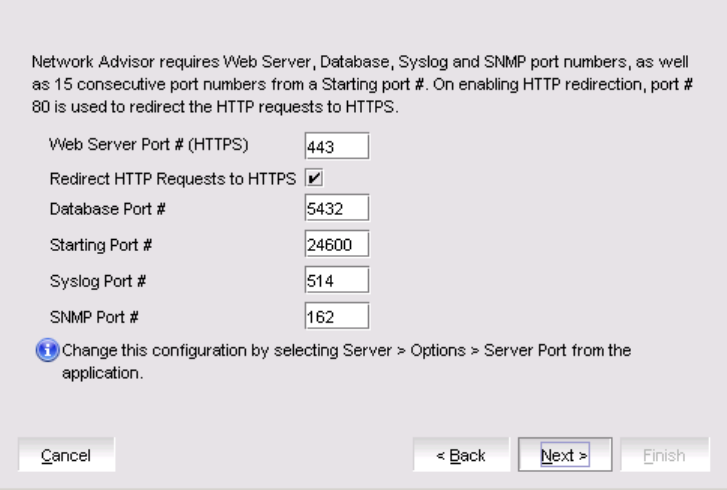
9. Complete the following steps on the Server Conguration screen.
FIGURE 1 Server Conguration screen
a) Enter a port number in the Web Server Port # (HTTPS) eld (default is 443).
b) Enable HTTP redirection to HTTPS by selecting the Redirect HTTP Requests to HTTPS check box.
When you enable HTTP redirection, the server uses port 80 to redirect HTTP requests to HTTPS. You can congure the
server port settings from the Options dialog box (Server Port pane). For instructions, refer to the Brocade Network Advisor
User Manual or online help.
c) Enter a port number in the Database Port # eld (default is 5432).
NOTE
Do not use a port number below 1024.
d) Enter a port number in the Starting Port Number eld (the default is 24600). If the default port is changed to some other
port number, restart the server, then regenerate the client bundle running <BNA-Install-Location>\bin\create-
client-bundle.bat le, and download the client-bundle to launch the client.
NOTE
For Professional software, the server requires 11 consecutive free ports beginning with the starting port number.
NOTE
For Trial and Licensed software, the server requires 11 consecutive free ports beginning with the starting port
number.
e) Enter a port number in the Syslog Port Number eld (default is 514).
NOTE
If the default syslog port number is already in use, you will not receive any syslog messages from the device. To
nd and stop the process currently running on the default Syslog port number, refer to Syslog troubleshooting on
page 44.
Conguring Network Advisor
Brocade Network Advisor Installation and Migration Guide, 14.2.1
53-1004882-02 37
f) Enter a port number in the SNMP Port Number eld (default is 162).
g) Enter a port number in the TFTP Port Number eld (default is 69).
h) Click Next .
If you enter a syslog port number already in use, a message displays. Click No on the message to remain on the Server
Conguration screen and edit the syslog port number. Click Yes to close the message.
If you enter a port number already in use, a Warning displays next to the associated port number eld. Edit that port
number and click Next .
If you are conguring Professional software, go to Conguring Network Advisor.
If you are conguring IP Enterprise, go to Conguring Network Advisor.
10. (SAN with SMI Agent + IP or SAN with SMI Agent) Complete the following steps on the SMI Agent Conguration screen.
a) Enable the SMI Agent by selecting the Enable SMI Agent check box.
b) Enable the SLP by selecting the Enable SLP check box, if necessary.
Only enabled after you select the Enable SMI Agent check box.
c) Enable the SSL by selecting the Enable SSL check box, if necessary.
Only enabled after you select the Enable SMI Agent check box.
d) Enter the SMI Agent port number in the SMI Agent Port # eld (default is 5989 if SSL Enabled is selected; otherwise, the
default is 5988).
e) Click Next.
11. (SAN Enterprise or SMI Agent) Select one of the following options on the SAN Network Size screen and click Next:
NOTE
Port count is equal to the total number of switch ports across all fabrics.
•Small (managing up to 2000 switch ports, 1-20 domains)
•Medium (managing up to 5000 switch ports, 21-60 domains)
•Large (managing up to 15000 switch ports, 61-120 domains)
If you are conguring IP Enterprise, continue with Conguring Network Advisor; otherwise, go toConguring Network
AdvisorConguring Network Advisor.
12. (IP Enterprise) Select one of the following options on the IP Network Size screen and click Next:
NOTE
Port count is equal to the total number of all managed product ports.
•Small (managing up to 1-20 products)
•Medium (managing up to 21-200 products)
•Large (managing up to 201-5050 products)
13. Enable feature usage data transfer from the application by selecting the Yes, I want to participate option.
If you do not want to participate in feature usage data transfer, make sure the No, Thank You option is selected. You can stop
participating at any time. To view an example of the usage data, click View Example Data .
To stop participating in feature usage data transfer after conguration, refer to Product Improvement on page 52.
14. Verify your conguration information on the Server Conguration Summary screen and click Next.
Conguring Network Advisor
Brocade Network Advisor Installation and Migration Guide, 14.2.1
38 53-1004882-02
15. Complete the following steps on the Start Server screen.
a) (Trial and Licensed only) Select the Start SMI Agent check box, if necessary.
Only enabled if you enabled the SMI Agent on the SMI Agent Conguration screen.
b) (Trial and Licensed only) Select the Start SLP check box, if necessary.
Only enabled if you enabled SLP on the SMI Agent Conguration screen.
c) Select the Start Client check box, if necessary.
Only displays if you selected SAN with SMI Agent + IP or SAN with SMI Agent on the Package screen.
d) Click Finish.
After all of the services are started, the Log In dialog box displays.
To make changes to the conguration, you can relaunch the conguration wizard (refer to Conguring an explicit server IP
address on page 51).
16. Enter your user name and password.
The defaults are Administrator and password, respectively.
NOTE
Do not enter Domain\User_Name in the User ID eld for LDAP server
authentication.
17. Click Login.
18. Click OK on the Network Advisor Login Banner.
Accessing the Network Advisor interfaces
Use the following procedures to access Network Advisor from the server and client as well as to access the Server Management Console
and the SMI Agent Conguration Tool.
Logging in to a server
You must log in to a server to monitor your network.
NOTE
You must have an established user account on the server to log in.
1. Double-click the desktop icon or open the application from the Start menu.
The Log In dialog box displays.
2. Log in to another server by entering the IP address to the other server in the Network Address eld.
NOTE
The server must be the exact same version, edition, starting port number, and network size as the client.
NOTE
Remove a server from the Network Address list by selecting the IP address and clicking Delete.
Accessing the Network Advisor interfaces
Brocade Network Advisor Installation and Migration Guide, 14.2.1
53-1004882-02 39
3. Enter your user name and password.
The defaults are Administrator and password, respectively.
NOTE
Do not enter Domain\User_Name in the User ID eld for LDAP server
authentication.
4. Select or clear the Save password check box to choose whether you want the application to remember your password the next
time you log in.
5. Click Login.
6. Click OK on the Login Banner dialog box.
The Network Advisor application displays.
Launching a remote client
The remote client link in the Start menu does not automatically upgrade when you upgrade the Management application. You must clear
the previous version from the Java cache. To clear the previous version, refer to Clearing previous versions of the remote client on page
41.
The remote client requires Oracle JRE. For the currently supported JRE version for Network Advisor, refer to the Release Notes. For the
website listing patch information, go to http://www.oracle.com/technetwork/java/javase/downloads/index.html.
NOTE
For higher performance, use a 64-bit JRE.
1. Choose one of the following options:
• Open a web browser and enter the IP address of the Network Advisor server in the Address bar.
• If the web server port number does not use the default (443 if is SSL enable; otherwise, the default is 80), you must enter
the web server port number in addition to the IP address; for example, IP_Address:Port_Number.
• If this is the rst time you are accessing this version of Network Advisor, a Start menu shortcut is automatically created in
the Network Advisor program directory.
For Linux systems, remote client shortcuts are not created.
• Select Network Advisor (Server_IP_Address) in the Network Advisor directory from the Start menu.
The Network Advisor web client login page displays.
2. Click Desktop Client.
The Network Advisor web start page displays.
3. Click the Network Advisor web start link.
The Log In dialog box displays.
4. Log in to another server by entering the IP address to the other server in the Network Address eld.
NOTE
The server must be the exact same version, edition, starting port number, and network size as the client.
NOTE
You can remove a server from the Network Address list by selecting the IP address and clicking Delete.
Accessing the Network Advisor interfaces
Brocade Network Advisor Installation and Migration Guide, 14.2.1
40 53-1004882-02
5. Enter your user name and password.
The defaults are Administrator and password, respectively.
NOTE
Do not enter Domain\User_Name in the User ID eld for LDAP server
authentication.
6. Select or clear the Save password check box to choose whether you want the application to remember your password the next
time you log in.
7. Click Login.
8. Click OK on the Login Banner dialog box.
The Network Advisor application displays.
Clearing previous versions of the remote client
The remote client link in the Start menu does not automatically upgrade when you upgrade the Management application. You must clear
the previous version from the Java cache.
To clear the Java cache, complete the following steps.
1. Select Start > Settings > Control Panel > Java.
The Java Control Panel dialog box displays.
2. Click View on the General tab.
The Java Cache Viewer dialog box displays.
3. Right-click the application and select Delete.
4. Click Close on the Java Cache Viewer dialog box.
5. Click OK on the Java Control Panel dialog box.
To create a remote client link in theStart menu, refer to Launching a remote client on page 40.
Launching the SMC on Windows
Open the Server Management Console from the Start menu on the Network Advisor server.
You can also drag the SMC icon onto your desktop as a shortcut.
Launching the SMC on Linux
NOTE
The Server Management Console is a graphical user interface and should be launched from the XConsole on Linux systems.
Double-click the SMC icon on your desktop.
Or
1. On the Network Advisor server, go to the following directory:
Install_Directory /bin
Accessing the Network Advisor interfaces
Brocade Network Advisor Installation and Migration Guide, 14.2.1
53-1004882-02 41
2. Type the following at the command line:
./smc
Or
sh smc
Launching the SMIA Conguration Tool
1. Launch the Server Management Console from the Start menu.
2. Click Congure SMI Agent.
The SMIA Conguration Tool Log In dialog box displays.
3. Enter your user name and password.
The defaults are Administrator and password, respectively.
4. Click Login.
Launching the SMIA Conguration Tool remote client
The remote client link in the Start menu does not automatically upgrade when you upgrade the Management application. You must clear
the previous version from the Java cache. To clear the previous version, refer to Clearing previous versions of the remote client on page
41.
The remote client requires Oracle JRE. For the currently supported JRE version for Network Advisor, refer to the Release Notes. For the
website listing patch information, go to http://www.oracle.com/technetwork/java/javase/downloads/index.html.
1. Choose one of the following options:
• Open a web browser and enter the IP address of the Network Advisor server in the Address bar.
• If the web server port number does not use the default (443 if SSL is enabled; otherwise, the default is 80), you must enter
the web server port number in addition to the IP address; for example, IP_Address:Port_Number
• If this is the rst time you are accessing this version of Network Advisor, a Start menu shortcut is automatically created in
the Network Advisor program directory.
For Linux systems, remote client shortcuts are not created.
• Select Network Advisor (Server_IP_Address) in the Network Advisor directory from the Start menu.
The Network Advisor web client login page displays.
2. Click Desktop Client.
The Network Advisor web start page displays.
3. Click the SMIA Conguration Tool web start link.
The SMIA Conguration Tool Log In dialog box displays.
4. Enter your user name and password.
The defaults are Administrator and password, respectively.
5. Select or clear the Save password check box to choose whether you want the application to remember your password the next
time you log in.
6. Click Login.
The SMIA Conguration Tool displays.
Accessing the Network Advisor interfaces
Brocade Network Advisor Installation and Migration Guide, 14.2.1
42 53-1004882-02
Performance collection for SMI-A only
For SMI-A only installations, you can use the following procedures to congure performance collection using scripts.
Enabling or disabling performance statistics collection
To enable or disable performance statistics collection, complete the following steps.
1. On Windows systems, complete the following steps.
a) Open a command prompt and navigate to the Install_Home\utilities directory.
b) Enable performance statistics collection by typing sanperformancestatsenable.bat dbusername dbpassword enable and
pressing Enter. For example, sanperformancestatsenable.bat dcmadmin passw0rd enable.
Disable performance statistics collection by typing sanperformancestatsenable.bat dbusername dbpassword disable and
pressing Enter.
2. On UNIX systems, complete the following steps.
a) Open a terminal and navigate to the Install_Home\utilities directory.
b) Enable performance statistics collection by typing sanperformancestatsenable dbusername dbpassword enable|disable
and pressing Enter. For example, ssanperformancestatsenable dcmadmin passw0rd enable..
Disable performance statistics collection by typing sanperformancestatsenable dbusername dbpassword disable and pressing
Enter.
Updating system threshold data
To congure the SMI-A only installation to update the le system threshold data in the system property table, complete the following
steps:
1. On Windows systems, complete the following steps:
a) Open a command prompt and navigate to the Install_Home\utilities directory.
b) Update le system threshold data by typing updatethresholddata.bat dbusername dbpassword THRESHOLD_WARN
THRESHOLD_RISK THRESHOLD and pressing Enter. For example, updatethresholddata.bat dcmadmin
passw0rd 80 90 95..
2. On UNIX systems, complete the following steps:
a) Open a terminal and navigate to the Install_Home\utilities directory.
b) Update le system threshold data by typing updatethresholddata dbusername dbpassword THRESHOLD_WARN
THRESHOLD_RISK THRESHOLD and pressing Enter.
Exporting conguration data
To export conguration data from the CFG_backup_archive table, complete the following steps:
1. On Windows systems, complete the following steps:
a) Open a command prompt and navigate to the Install_Home\utilities directory.
b) Export conguration data by typing exportcongdata.bat dbusername dbpassword and pressing Enter. For example,
exportconfigdata.bat dcmadmin passw0rd.
Performance collection for SMI-A only
Brocade Network Advisor Installation and Migration Guide, 14.2.1
53-1004882-02 43
2. On UNIX systems, complete the following steps:
a) Open a terminal and navigate to the Install_Home\utilities directory.
b) Export conguration data by typing exportcongdata dbusername dbpassword and pressing Enter. For example,
exportconfigdata dcmadmin passw0rd.
Clearing performance data
To clear performance data (all time series child table data), complete the following steps:
1. On Windows systems, complete the following steps:
a) Open a command prompt and navigate to the Install_Home\utilities directory.
b) Clear performance data by typing clear-performance-data.bat dbusername dbpassword and pressing Enter. For example,
clear-performance-data.bat dcmadmin passw0rd.
2. On UNIX systems, complete the following steps:
a) Open a terminal and navigate to the Install_Home\utilities directory.
b) Clear performance data by typing clear-performance-data dbusername dbpassword and pressing Enter. For example,
clear-performance-data dcmadmin passw0rd.
Syslog troubleshooting
If the default syslog port number is already in use, you will not receive any syslog messages from the device. Use one of the following
procedures (depending on your operating system), to determine which process is running on the syslog port and to stop the process.
Finding the process
1. Open a command window.
2. Choose one of the following options:
• On Linux systems, type netstat -nap | grep 514 and press Enter.
The process running on port 514 displays.
Example output: UDP 0 0 :::127:0:0:1:514 :::* 27397.
•On Windows systems, type netstat -anb | nd /i "514" and press Enter.
The process running on port 514 displays.
Example output: UDP 127:0:0:1:514 *:* 3328.
Stopping the process
Choose one of the following options:
• On Linux systems, type kill -9 "ProcessID", where ProcessID is the ID of the process you want to stop, and press Enter .
For example, kill -9 "27397".
• On Windows systems, type taskkill /F /PID "ProcessID" , where ProcessID is the ID of the process you want to stop,
and press Enter.
For example, taskkill /F /PID "3328".
Syslog troubleshooting
Brocade Network Advisor Installation and Migration Guide, 14.2.1
44 53-1004882-02
Or
1. Select Ctrl + Shift + Esc to open Windows Task Manager.
2. Click the Processes tab.
3. Click the PID column header to sort the processes by PID.
4. Select the process you want to stop and click End Process.
Installing the ODBC driver
You must have the Open Database Connectivity (ODBC) driver to allow remote clients to export data and generate reports. The ODBC
driver enables you to congure the data source name (DSN) for the Network Advisor database.
Installing the ODBC driver on Windows systems
You must have the Open Database Connectivity (ODBC) driver to allow remote clients to export data and generate reports. The ODBC
driver enables you to congure the data source name (DSN) for the Network Advisor database.
To install the ODBC driver, complete the following steps.
1. Double-click edb_psqlodbc.exe located on the DVD (DVD_Drive/Network Advisor/odbc/Windows).
2. Install the le to the usual location for your system’s application les (for example, C:\Program Files\Network Advisor ODBC
Driver) on the Select Install Folder screen and click Next.
NOTE
If you select an invalid location, the ODBC driver is installed in a dierent location than where the ODBC executable
drivers are located.
3. On the Ready to Install screen, click Next.
4. Click Finish to complete the installation.
Adding the data source on Windows systems
To add the data source, complete the following steps.
1. Select Start > Settings > Control Panel > Administrative Tools .
2. Right-click Data Sources (ODBC) and select Run as administrator.
The ODBC Data Source Administrator dialog box displays. If the ODBC Data Source Administrator dialog box does not
display, select Start > Run, type %windir%\SysWOW64\odbcad32.exe, and press Enter.
3. Click the System DSN tab.
4. Click Add.
The Create a New Data Source dialog box displays.
5. Select PostgreSQL Unicode.
6. Click Finish.
The PostgreSQL Unicode ODBC Driver (psqlODBC) Setup dialog box displays.
7. Enter a name for the data source in the Datasource eld.
8. Enter the description of the Network Advisor database in the Description eld.
Installing the ODBC driver
Brocade Network Advisor Installation and Migration Guide, 14.2.1
53-1004882-02 45
9. Enter the name of the Network Advisor database in the Database eld.
10. Select enable or disable from the SSL Mode list to specify whether to use SSL when connecting to the database.
11. Enter the IP address or host name of the Network Advisor server in the Server eld.
12. Enter the database server port number in the Port Number eld.
13. Enter the database user name in the User Name eld.
14. Enter the password in the Password eld.
15. Click Test to test the connection.
NOTE
You can also use the Windows ODBC Driver Manager to add the DSN for the Linux database server.
16. Click OK on the Connection Test dialog box.
17. Click Save.
18. Click OK on the ODBC Data Source Administrator dialog box.
Installing the ODBC driver on Linux systems
You must have the Open Database Connectivity (ODBC) driver to allow remote clients to export data and generate reports. The ODBC
driver enables you to congure the data source name (DSN) for the Network Advisor database.
To install the ODBC driver, complete the following steps.
1. Execute the following command in the terminal:
> su
>chmod 777 edb_psqlodbc.bin
> ./edb_psqlodbc.bin
For 64-bit Linux systems, the installer le is located in DVD/BROCADE/Network Advisor/odbc/Linux_64/psqlodbc.bin.
2. On the Setup psqlODBC screen, click Next.
3. Install the le to the usual location for your system’s application les (for example, /opt/PostgreSQL/psqlODBC) on the
Installation Directory screen and click Next.
NOTE
If you select an invalid location, the ODBC driver is installed in a dierent location than where the ODBC executable
drivers are located.
4. On the Ready to Install screen, click Next.
5. On the Completing the psqlODBC Setup Wizard screen, click Finish to complete the installation.
Adding the datasource on Linux systems
Before you edit the INI les, install Network Advisor (refer to Installation on page 21) and make sure the PostgreSQL database is up and
running.
Installing the ODBC driver
Brocade Network Advisor Installation and Migration Guide, 14.2.1
46 53-1004882-02
NOTE
For RedHat and Oracle Enterprise systems, the odbc.ini and odbcinst.ini les are located in /etc. For SUSE systems, the
odbc.ini and odbcinst.ini les are located in /etc/unixODBC.
1. Open the odbc.ini le in an editor and enter the following datasource information:
[TestDB]
Description = PostgreSQL 9.5.1
Driver = /opt/PostgreSQL/psqlODBC/lib/psqlodbcw.so
Database = dcmdb
Servername = 172.26.1.54
UserName = dcmadmin
Password = passw0rd
Port = 5432
2. Save and close the odbc.ini le.
3. Open the odbcinst.ini le in a text editor and make sure that the driver path information is correct.
After you install the PostgreSQL ODBC driver, the odbcinst.ini le should automatically update the driver path. If the driver path
is not updated, enter the following information:
[psqlODBC]
Description=PostgreSQL ODBC driver
Driver=/opt/PostgreSQL/psqlODBC/lib/psqlodbcw.so
4. Save and close the odbcinst.ini le.
Testing the connection on Linux systems
To test the connection, complete the following steps.
1. Download and install Open Oce.
2. Select File > New > Database.
The Database Wizard displays.
3. On the Select database screen, complete the following steps.
a) Select the Connect to an existing database option.
b) Select ODBC from the list.
c) Click Next.
4. On the Set up ODBC connection screen, complete the following steps.
a) Click Browse.
The datasource saved in the odbc.ini le is populated in the Datasource dialog box.
b) Select the datasource and click OK on the Datasource dialog box.
c) Click Next.
Installing the ODBC driver
Brocade Network Advisor Installation and Migration Guide, 14.2.1
53-1004882-02 47
5. On the Set up user authentication screen, complete the following steps.
a) Enter the database user name in the User name eld.
b) Select the Password required check box.
c) Click Test Connection to test the connection.
The Authentication Password dialog box displays.
d) Enter the database password in the Password eld and click OK.
e) Click OK on the Connection Test dialog box.
For 64-bit Linux systems, if an error message (cannot open library) displays, complete the following steps.
1. Execute the following command: export LD_LIBRARY_PATH=/opt/PostgreSQL/8.4/lib/:/usr/lib64/:/
opt/ PostgreSQL/psqlODBC/lib/:$LD_LIBRARY_PATH
2. Navigate to the Postgres ODBC library (default location is opt/PostgreSQL/psqlODBC/lib/).
3. Create a list of missing libraries by executing the following command:ldd psqlodbcw.so Missing les display as:
libodbc.so.1=> not found
4. Find shared libraries with the same name as the missing library by executing the following command: find -name
libodbc.so*
5. Create a soft link for libodbc.so.1 pointing to libodbc.so.2.0.0 by executing the following command:ln -s
libodbc.so.1 libodbc.so.2.0.0
f) Click Next.
6. On the Save and proceed screen, click Finish.
Smart card driver installation
Windows operating systems do not require smart card drivers to be installed separately; the driver is bundled with the operating system.
However, you must install a smart card driver for the Linux operating systems. You must install both the special USB Chip/Smart Card
Interface Device (USB CCID) and the PC/SC IFD driver. You can download the source code and compile it from one of the following
websites:
• USB CCID (ccid-1.3.7.tar.bz2)
• Open Source URL: http://pcsclite.alioth.debian.org/ccid.html.
• Muscle PC/SC IFD Driver (pcsc-lite-1.4.101.tar.gz)
• Open Source URL: https://alioth.debian.org/frs/?group id=30105.
The Encryption Manager Client within Network Advisor provides the binary code on both platforms for installation. You must uncompress
or untar the le depending on the platform. The thirdparty/pscs-lite-1.4.101-linux-x86.tar.gz le can be found on the Network Advisor
DVD.
Installing the smart card driver on the local client
1. Verify that the /opt directory exists.
If the /opt directory does not exist, create an /opt directory. If you want to install the driver in a dierent directory, create that
directory. Otherwise, skip this step.
> su
> mkdir /opt
Smart card driver installation
Brocade Network Advisor Installation and Migration Guide, 14.2.1
48 53-1004882-02
2. Copy the appropriate pscs le for your platform (Linux) from the DVD and rename the le as the pcsc-lite-1.4.101-linux-
x86.tar.gz le.
3. Log in as the superuser to untar the pcsc-lite-1.4.101-linux-x86.tar.gz le.
> su
> cd /opt
> gunzip pcsc-lite-1.4.101-linux-x86.tar.gz
> tar -xvf pcsc-lite-1.4.101-linux-x86.tar
After the pcsc-lite-1.4.101.tar le is extracted, the necessary binary, library, and smart card drivers are stored in the /opt/pcsc
directory.
4. If you installed a pcsc directory into a location other than /opt, modify the pcscctl script to change "/opt" to the directory you
specied in Installing the smart card driver on the local client.
> cd <new_dir>
> vi pcscctl
Search for "/opt" and change it to the name of the new directory.
5. Create a soft link into the system directory to support the automatic restart of the pcscd daemon upon system restart.
If you installed the pcsc directory into the /opt directory, just create the soft link. Otherwise, use the name of the new directory in
place of /opt.
S.u.s.e> ln -s /opt/pcsc/pcscctl /etc/init.d/pcscd
S.u.s.e> chkconfig --add pcscd
or
redhat> ln -s /opt/pcsc/pcscctl /etc/init.d/pcscd
redhat> chkconfig --add pcscd
NOTE
Before you enter chkcong --add pcscd , you can enter chkcong -list | grep pcscd to verify that the pcscd le is
already on the list. If it already exists, you do not need to enter chkcong -add pcscd . After you reboot the system,
you should expect the following links under /etc/rc2.d, /etc/rc3.d, /etc/rc3.d, /etc/rc4.d, and /etc/rc5.d.
lrwxrwxrwx 1 root root 15 Jul 28 01:50 S94pcscd -> ../init.d/pcscd
NOTE
For some Linux vendors, the smart card driver may come with the operating system. In this case, extra system
conguration may be needed. For more information, refer to Detecting and correcting a default Linux smart card driver
on page 50.
6. Start the pcscd daemon or stop the pcscd daemon.
To start pcscd, type:
> /opt/pcsc/pcscctl start
To stop pcscd, type:
> /opt/pcsc/pcscctl stop
Installing the smart card driver on the remote client
1. Complete steps 1 through 4 in Installing the smart card driver on the local client on page 48.
Smart card driver installation
Brocade Network Advisor Installation and Migration Guide, 14.2.1
53-1004882-02 49
2. Run the following commands to support remote clients (Web Start).
> cd /usr/lib
> ln -s /opt/pcsc/lib/libpcsclite.so .
NOTE
If a soft link exists on libpcsclite.so, make sure that the nal le is linked to /opt/pcsc/lib/libpcsclite.so.xxx. It is
recommended that you back up the original.
> ls -l libpcsc*
lrwxrwxrwx 1 root root 20 Aug 4 16:16 libpcsclite.so ->
libpcsclite.so.1.0.0
lrwxrwxrwx 1 root root 20 Jun 4 12:30 libpcsclite.so.1 ->
libpcsclite.so.1.0.0
lrwxrwxrwx 1 root root 34 Aug 5 14:36 libpcsclite.so.1.0.0
> mv libpcsclite.so.1.0.0 libpcsclite.so.1.0.0.org
> ln -s /opt/pcsc/lib/libpcsclite.so.1.0.0 libpcsclite.so.1.0.0
> ls -l libpcsc*
lrwxrwxrwx 1 root root 20 Aug 4 16:16 libpcsclite.so ->
libpcsclite.so.1.0.0
lrwxrwxrwx 1 root root 20 Jun 4 12:30 libpcsclite.so.1 ->
libpcsclite.so.1.0.0
lrwxrwxrwx 1 root root 34 Aug 5 14:36 libpcsclite.so.1.0.0 ->
/opt/pcsc/lib/libpcsclite.so.1.0.0
-rwxr-xr-x 1 root root 35428 Aug 4 16:17 libpcsclite.so.1.0.0.org
Detecting and correcting a default Linux smart card driver
NOTE
The steps to detect and correct a default Linux smart card driver apply to the Linux system only. Some Linux systems may
provide a default smart card driver and have their own setup to activate it. In this case, you must use the driver provided with
Network Advisor. Otherwise, there could be an incompatibility issue between the driver and the native library that could cause a
driver detection failure. Complete the following steps to discover whether a default driver already exists and how to recongure
the driver environment.
1. Detect a dierent smart card driver by running the following commands.
> cd /
> find . -name pcscd -print
If the results contain "pcscd", and it is not located under /opt/pcsc or /etc/init.d/pcscd, a dierent driver exists on the system.
2. Make sure the pcscd le on the /etc/init.d directory is linked to /opt/pcsc/pcscctl by running the following commands.
> cd /etc/init.d
> ls -l pcscd
lrwxrwxrwx 1 root root 17 Jul 28 01:29 pcscd -> /opt/pcsc/pcscctl
3. If there is an existing pcscd script in this directory, you can move and rename this le before you overwrite it.
> mv /etc/init.d/pcscd /etc/init.d/pcscd.org
Smart card driver installation
Brocade Network Advisor Installation and Migration Guide, 14.2.1
50 53-1004882-02
4. Create a soft link using the following command.
> ln -s /opt/pcsc/pcscctl /etc/init.d/pcscd
The existing pcscd.org script in this directory implies that a dierent driver version exists. You can compare the existing one with
the one under /opt/pcsc/pcscd/sbin. If the size is dierent and the existing pcscd script contains the following information, you
must clean up the driver conguration. The following example below shows a dierent pscsd.org script and how to do the
conguration cleanup. The conguration level is 2345, the start priority is 25, and the stop priority is 88.
> more /etc/init.d/pcscd
#!/bin/sh
#
# pcscd Starts the pcscd Daemon
#
# chkconfig: 2345 25 88
5. Remove the existing pcscd start priority le by deleting the le as SNNpcscd, where NN is the start priority. For example, from
the preceding step, the le name is S25pcscd.
> find /etc/. -name "S25pcscd" -exec rm {} \; -print
> sync;sync;sync
> reboot
After the reboot, the new conguration from the /opt/pcsc/pcscctl le should be under the /etc/rc2.d, /etc/rc3.d, /etc/rc4.d,
and /etc/rc5.d directories.
lrwxrwxrwx 1 root root 15 Jul 28 01:50 S94pcscd -> ../init.d/pcscd
6. For the remote client, ensure that the smart card native library is linked to the one under /opt/pcsc/lib.
> cd /
> find . -name libpcsclite.so* -print
If the library libpcsclite.so* exists in multiple locations, you must ensure that there is only one library under /lib or /usr/lib, and
that it is linked to the library on /opt/pcsc/lib correctly. For example, to nd a copy of the library on /lib, use the following
commands.
> cd /lib
> ls -al libpcsclite.so
If a copy of the library exists, either remove it or save it as a backup.
To nd a copy of the library on /usr/lib, use the following commands.
> cd /usr/lib
> ls -al libpcsclite.so
Use this copy for the soft link.
> ln -s /opt/pcsc/lib/libpcsclite.so /usr/lib/.
Conguring an explicit server IP address
If you selected a specic IP address from the Server IP Conguration screen during installation and the selected IP address changes,
you will not be able to connect to the server. To connect to the new IP address, you must manually update the IP address information.
Conguring an explicit server IP address
Brocade Network Advisor Installation and Migration Guide, 14.2.1
53-1004882-02 51
To change the IP address, complete the following steps.
1. Choose one of the following options:
• On Windows systems, select Start > Programs > Network Advisor 14.2.1 > Network Advisor Conguration .
• On UNIX systems, use the sh Install_Home/bin/congwizard command from the terminal.
2. Click Next on the Welcome screen.
3. Click Yes on the conrmation message.
4. Click Next on the FTP Server screen.
5. Complete the following steps on the Server IP Conguration screen.
a) Select an address from the Server IP Conguration list.
NOTE
The host name does not display in the list if it contains invalid characters. Valid characters include alphanumeric
and dash (-) characters. The IP address is selected by default.
If DNS is not congured for your network, do not select the "hostname" option from either the Server IP Conguration or
Switch - Server IP Conguration Preferred Address list. Selecting the "hostname" option prevents clients and devices
from communicating with the server.
b) Select an address from the Switch - Server IP Conguration Preferred Address list. The preferred IP address is used for
switch and server communication.
or
Select Any from the Switch - Server IP Conguration Preferred Address list to enable switch and server communication
with one of the reachable IP addresses present in the server. By default, Any option is selected.
c) Click Next.
6. Click Next on the Server Conguration screen.
7. (SAN with SMI Agent) Click Next on the SMI Agent Conguration screen.
8. (SAN with SMI Agent or SAN with SMI Agent + IP packages) Click Next on the SMI Agent Conguration screen.
9. Verify your Server Name on the Server Conguration Summary screen and click Next.
10. Click Finish on the Start Server screen.
11. Click Yes on the restart server conrmation message.
12. Enter your user name and password and click Login.
The defaults are Administrator and password, respectively.
NOTE
Do not enter Domain\User_Name in the User ID eld for LDAP server
authentication.
13. Click OK on the Login Banner.
Product Improvement
To improve its products, Brocade is collecting usage statistics from the eld. If you agree to participate in the program, the Network
Advisor server will transmit data back to the secure Brocade web server (HTTPS). The Brocade web server is hosted in a Brocade
network.
Product Improvement
Brocade Network Advisor Installation and Migration Guide, 14.2.1
52 53-1004882-02
Brocade collects the following usage data:
• Installation Details
– The version information (such as, Major, Minor, Revision, and Patch)
– The Edition (such as, Enterprise, Professional Plus, or Professional)
– The Package (such as, SAN, IP, or SAN + IP)
– Whether SSL is enabled or not
– Generates a unique identier based on the MAC address
– The operating system (such as, Windows or Linux)
• User Actions
– Top level menu actions
– Tool bar actions
– Right-click menu actions
• Feature Details
– Feature name
– Button identier (such as, OK , Help , or Cancel and so on)
Enabling product improvement data transfer
You can enable feature usage data transfer during installation or migration. For more information, refer to the Installation on page 21. You
can also enable data transfer from the Options dialog box once your system is up and running.
To enable feature usage data transfer from the application, complete the following steps.
1. Select Server > Options .
The Options dialog box displays.
2. Select Product Improvement in the Category list.
3. Select the Yes, I want to participate option.
To view an example of the usage data, click View Example Data .
4. Click OK to save your selection and close the Options dialog box.
Disabling product improvement data transfer
You can disable feature usage data transfer from the Options dialog box once your system is up and running.
To disable feature usage data transfer from the application, complete the following steps.
1. Select Server > Options .
The Options dialog box displays.
2. Select Product Improvement in the Category list.
3. Select the No, thank you option.
4. Click OK to save your selection and close the Options dialog box.
Product Improvement
Brocade Network Advisor Installation and Migration Guide, 14.2.1
53-1004882-02 53
Data transfer
If you agree to participate in the program, these are the actions that occur on the client and server.
1. You log into the Network Advisor client.
The main window displays.
2. The application automatically schedules a timer.
The timer is congured with an initial delay of 5 minutes and an interval of 24 hours.
3. Once scheduled, the client triggers the scheduled data transfer.
4. The client checks the reachability of the Brocade web server for the data transfer to make sure that the client workstation has
HTTP connectivity.
If the Brocade web server is reachable, the client schedules the timer.
5. The client triggers the schedule to run in 5 minutes and then every 24 hours thereafter.
6. When the scheduled timer runs, the client requests the server to transfer the usage data.
7. The server determines the availability of the data based on the following details:
• – Last transfer timestamp must be greater than 24 hours to avoid frequent data uploads.
– Data must be available for transfer. Data availability is determined by the delta between the last data transfer and the
current data.
8. The client requests a data transfer.
If data is available, the server nominates the client to transfer data. Once nominated, any further upload requests are denied.
NOTE
If the nominated client’s session is ended or stuck, the session is invalidated and the state is cleared.
9. The nominated client requests the server to prepare the data.
10. The server compiles the usage data text le into a zip le using the following naming convention:
UUID_usagedata_le_creataion_timestamp where UUID is the unique identication of the server based on the MAC address.
11. When the le is successfully created, the client changes the state of the data transfer to "Uploading" and transmits the data.
The client transmits the data securely to the Brocade web server using the Apache HTTP Components third-party library. The
client communicates with the Brocade web server using an authorization token.
12. When the transfer is complete, the client updates the Brocade web server database with the transfer status (success or failure).
The client also triggers an application event with the following details: success or failure, source client IP address, and source
user name.
Conguring remote client access to the database
1. Open the pg_hba.conf le (in the Install_Home\data\databases\ directory).
2. To allow all IPv4 remote connections for all users, search for the following text and uncomment the second line:
# IPv4 remote connections (Uncomment below line to allow all IPv4 remote users):
#host all all 0.0.0.0/0 md5
3. To allow all IPv6 remote connections for all users, search for the following text and uncomment the second line:
# IPv6 remote connections (Uncomment below line to allow all IPv6 remote users):
#host all all ::0/0 md5
Conguring remote client access to the database
Brocade Network Advisor Installation and Migration Guide, 14.2.1
54 53-1004882-02
4. To allow access to a specic IPv4 address, search for the following text and uncomment the second line:
# Uncomment below line and provide IPV4 address to allow specific IPv4 remote user
#host all all <IPV4 address>/32 md5
5. To allow access to a specic IPv6 address, search for the following text and uncomment the second line:
# Uncomment below line and provide IPV6 address to allow specific IPv6 remote user
#host all all <IPV6 address>/128 md5
6. Save and close the le.
Conguring remote client access to the database
Brocade Network Advisor Installation and Migration Guide, 14.2.1
53-1004882-02 55
Brocade Network Advisor Installation and Migration Guide, 14.2.1
56 53-1004882-02

Data Migration
• Upgrading the license .....................................................................................................................................................................................57
• Supported migration paths............................................................................................................................................................................58
• Pre-migration requirements..........................................................................................................................................................................61
• Data migration for Brocade Network Advisor........................................................................................................................................66
• Migrating data..................................................................................................................................................................................................... 67
• Migration rollback.............................................................................................................................................................................................. 72
Upgrading the license
The quickest and simplest method of moving from one package to another is to enter the new license information on the Network
Advisor License dialog box. The following tables list the available upgrade paths.
TABLE 11 SAN upgrade paths
Current software release To software release
SAN Professional SAN Professional Plus or Licensed version
SAN Enterprise Trial or Licensed version
SAN + IP Professional Plus Licensed version
SAN + IP Enterprise Licensed version
SAN Professional Plus Licensed version SAN Enterprise Licensed version
SAN + IP Enterprise Licensed version
SAN + IP Professional Plus Licensed version
SAN Enterprise Trial SAN Enterprise Licensed version
SAN + IP Enterprise Licensed version
TABLE 12 IP upgrade paths
Current software release To software release
IP Professional IP Base Trial or Licensed version
SAN + IP Professional Plus Licensed version
SAN + IP Enterprise Licensed version
IP Base Trial IP Base Licensed version
SAN + IP Enterprise Licensed version
SAN + IP Professional Plus Licensed version
IP Base Licensed version (lower count) IP Base Licensed version (higher count)
SAN + IP Enterprise Licensed version
TABLE 13 SAN + IP upgrade paths
Current software release To software release
SAN + IP Professional SAN + IP Professional Plus Licensed version
SAN + IP Enterprise Trial or Licensed version
Brocade Network Advisor Installation and Migration Guide, 14.2.1
53-1004882-02 57

TABLE 13 SAN + IP upgrade paths (continued)
Current software release To software release
SAN + IP Professional Plus Licensed version SAN + IP Enterprise Licensed version
SAN + IP Enterprise Trial SAN + IP Enterprise Licensed version
1. Select Help > License.
The Network Advisor License dialog box displays.
2. Browse to the license le (.xml) and click Update.
3. Click OK on the Network Advisor License dialog box.
4. Click OK on the message.
The client closes after updating the license successfully. Restart the server from the Server Management Console for the
changes to take eect.
5. Open the application (double-click the desktop icon or open from the Start menu).
The Log In dialog box displays.
6. Enter your user name and password.
The defaults are Administrator and password, respectively. If you migrated from a previous release, your user name and
password do not change.
NOTE
Do not enter Domain\User_Name in the User ID eld for LDAP server
authentication.
7. Select or clear the Save password check box to choose whether you want the application to remember your password the next
time you log in.
8. Click Login.
9. Click OK on the Network Advisor Login Banner.
Supported migration paths
NOTE
To migrate Enterprise and Professional Plus editions to a 64-bit server, refer to Pre-migration requirements when migrating
from one server to another on page 62.
NOTE
Network Advisor 14.0.x includes 14.0.0, 14.0.1, 14.0.2, and 14.0.3.
NOTE
Network Advisor 14.1.x includes 14.1.0, and 14.1.1.
NOTE
Network Advisor 14.2.x includes 14.2.0 and 14.2.1.
Supported migration paths
Brocade Network Advisor Installation and Migration Guide, 14.2.1
58 53-1004882-02

Direct migration is not supported on pre-12.3.X releases. The following table shows the migration paths from DCFM and INM.
TABLE 14 DCFM and INM release migration path
Network Advisor 14.2.1
DCFM 10.4.X DCFM 10.4.X >
Network Advisor 11.1.X >
Network Advisor 12.0.X >
Network Advisor 12.3.X
Network Advisor 12.4.X
Network Advisor 14.0.X
INM 3.3 INM 3.3.X >
Network Advisor 11.0.X >
Network Advisor 11.1.X >
Network Advisor 12.0.X >
Network Advisor 12.3.X
Network Advisor 12.4.X
Network Advisor 14.0.X
The following table shows the migration paths from Network Advisor 12.1.X or earlier releases.
TABLE 15 Pre-12.1.X release migration path
Network Advisor 14.2.1
Network Advisor 11.0.X Network Advisor 11.0.X >
Network Advisor 11.1.X >
Network Advisor 12.0.X >
Network Advisor 12.3.X
Network Advisor 12.4.X
Network Advisor 14.0.X
Network Advisor 11.1.X Network Advisor 11.1.X >
Network Advisor 12.0.X >
Network Advisor 12.3.X
Network Advisor 12.4.X
Network Advisor 14.0.X
Network Advisor 11.2.X Network Advisor 11.2.X >
Network Advisor 12.0.X >
Network Advisor 12.3.X
Network Advisor 12.4.X
Network Advisor 14.0.X
Network Advisor 11.3.x Network Advisor 11.3.X >
Network Advisor 12.0.X >
network Advisor 12.1.X >
Supported migration paths
Brocade Network Advisor Installation and Migration Guide, 14.2.1
53-1004882-02 59

TABLE 15 Pre-12.1.X release migration path (continued)
Network Advisor 14.2.1
Network Advisor 12.3.X
Network Advisor 12.4.X
Network Advisor 14.0.X
Network Advisor 12.0.x Network Advisor 12.0.X >
Network Advisor 12.1.x >
Network Advisor 12.3.X
Network Advisor 12.4.X
Network Advisor 14.0.X
Network Advisor 12.1.x Network Advisor 12.1.x >
Network Advisor 12.3.X
Network Advisor 12.4.X
Network Advisor 14.0.X
Supported migration paths shows the direct migration paths from the Network Advisor 12.2.0 or later Professional, Trial, and Licensed
versions. For the step-by-step migration procedure, refer to Migrating data on page 67.
NOTE
Data migration is not supported from 12.4.4 to 14.0.0.
TABLE 16 Network Advisor version migration paths
Current version Professional
version
Trial version Licensed Version
Enterprise Professional Plus Enterprise
Network Advisor 14.0.X Professional 7Yes Yes Yes Yes
Network Advisor 14.0.X Professional Plus
Licensed7
No No Yes Yes
Network Advisor 14.0.X Enterprise trial7No Yes No Yes
Network Advisor 14.0.X Enterprise Licensed7No Yes No Yes
Network Advisor 14.1.X Professional Yes Yes Yes Yes
Network Advisor 14.1.X Professional Plus
Licensed
No No Yes Yes
Network Advisor 14.1.X Enterprise trial No Yes No Yes
Network Advisor 14.1.X Enterprise Licensed No Yes No Yes
Network Advisor 14.2.X Professional Yes Yes Yes Yes
Network Advisor 14.2.X Professional Plus
Licensed
No No Yes Yes
Network Advisor 14.2.X Enterprise trial No Yes No Yes
Network Advisor 14.2.X Enterprise Licensed No Yes No Yes
7Network path migration and migration from partially uninstalled data are not supported due to the upgrade of major postgress version from 9.2.9 to
9.4.4.
Supported migration paths
Brocade Network Advisor Installation and Migration Guide, 14.2.1
60 53-1004882-02

Table 17 shows the migration paths from SMI Agent only. For the step-by-step migration procedures, refer to Migrating data on page
67.
TABLE 17 SMI Agent only migration paths
Current version Professional
version
Enterprise Trial version Licensed Version SMI Agent only
Professional Plus Enterprise
Network Advisor
14.2.1 SMI Agent
only
No No No No Yes
DCFM migration paths
NOTE
Before you migrate from DCFM to Network Advisor 11.0.X, 11.1.0, 11.1.1, or 11.1.2, you must reset your DCFM password
back to the default (password).
You cannot migrate directly from DCFM 10.0.X, DCFM 10.1.X or DCFM 10.3.X to Network Advisor 14.2.X. You must rst migrate to
DCFM 10.4.X, then migrate to Network Advisor 11.1.X, then migrate to Network Advisor 12.0.X, then migrate to Network Advisor
12.2.X, then migrate to Network Advisor 12.3.X, then migrate to Network Advisor 12.4.X, then migrate to Network Advisor 14.0.X, and
then migrate to Network Advisor 14.2.X.
To migrate from DCFM 10.0.X, DCFM 10.1.X or DCFM 10.3.X to DCFM 10.4.X, contact your customer representative. To migrate
from DCFM 10.4.X to Network Advisor 11.1.X, refer to Network Advisor Migration Guide for Network Advisor 11.1.X.
INM migration paths
You cannot migrate directly from INM to Network Advisor 14.2.1. You must rst migrate to Network Advisor 11.0.X, then migrate to
Network Advisor 11.1.X, then migrate to Network Advisor 12.0.X, then migrate to Network Advisor 12.2.X, then migrate to Network
Advisor 12.3.X, then migrate Network Advisor to 12.4.X, then migrate to Network Advisor 14.0.X, and then migrate to Network Advisor
14.2.X. To migrate from INM to Network Advisor 11.1.X, contact your customer representative.
EFCM and Fabric Manager migration paths
You cannot migrate directly from EFCM or Fabric Manager to Network Advisor 14.2.1. To migrate from EFCM or Fabric Manager, you
must rst migrate to Network Advisor 11.0.X, then migrate to Network Advisor 11.1.X, then migrate to Network Advisor 12.0.X, then
migrate to Network Advisor 12.2.X , then migrate to Network Advisor 12.3.X, then migrate to Network Advisor 12.4.X, then migrate to
Network Advisor 14.0.X, and then migrate to Network Advisor 14.2.X.
Pre-migration requirements
Before you install Network Advisor, make sure you meet the following pre-migration requirements.
• Make sure all system requirements have been met prior to installation. For specic system requirements, refer to Pre-migration
requirements.
• Check for and install the latest Java patches for your operating system. For the current supported JRE version for Network
Advisor and Web Tools, refer to the Release Notes. For the website listing patch information, go to http://www.oracle.com/
technetwork/java/javase/downloads/index.html.
Pre-migration requirements
Brocade Network Advisor Installation and Migration Guide, 14.2.1
53-1004882-02 61
• Make sure that you fully back up your current Management application data on your management server.
• Make sure you close all instances of the application before migrating.
• Make sure to install Network Advisor on the same system as your current Management application.
• Make sure minimum of free space is 1.5 times the size of the Management Application data folder (<Install_Home>\data)
available for performing migration for the servers with large amount of Performance, Events, and Flow Vision data in the
database.
• If you are migrating within the same release or you are migrating from Professional to Licensed software, make sure to partially
uninstall (refer to Data Migration on page 57) the application.
• Partial data migration is not supported from pre-12.0.0 releases. If you are migrating data from a partially uninstalled source,
complete the following steps:
1. Re-install your current Network Advisor version on the same machine and migrate the partially uninstalled data. If your
current release is pre-11.3.X, you must migrate to Network Advisor 11.3.0 or later. Refer to Pre-migration requirements for
the release migration path.
2. Install Network Advisor 12.1 (refer to Data Migration on page 57) on the same machine and migrate your data (refer to
Migrating data on page 67).
• Make sure minimum of free space is 1.5 times the size of the BNA data folder (<Install_Home>\data) available for performing
migration for the servers with large amount of Performance, Events, and Flow Vision data in the database.
Pre-migration requirements when migrating from one server to another
If you are migrating from Network Advisor 14.1.X on a 64-bit Windows server1 to Network Advisor 14.2.1 on a 64-bit Windows
server2, complete the following steps.
1. Take server backup for 14.1.X using Options > Server Backup on the 64-bit Windows server1.
2. Install Network Advisor 14.2.1 on the 64-bit Windows server2.
3. Select SMC > Restore tab to restore the backup taken on the 64-bit Windows server1.
4. Install Network Advisor 14.2.1 on the 64-bit Windows server2.
Perform seamless migration to Network Advisor 14.2.1 (refer to Data Migration on page 57).
If you are migrating from a pre-12.3.X release on a 64-bit Windows server1 to Network Advisor 14.2.1 on a 64-bit Windows server2,
complete the following steps.
1. Install and migrate to Network Advisor 14.2.1 in the same machine (refer to Supported migration paths on page 58).
2. Take server backup using Options > Server Backup on the 64-bit Windows server.
3. Install the same version (14.2.1) on the 64-bit Windows server1.
4. Select SMC > Restore tab to restore the backup taken on the 64-bit Windows server.
5. Install Network Advisor 14.2.1 on the 64-bit Windows server2.
Perform seamless migration to Network Advisor 14.2.1 (refer to Data Migration on page 57).
If you are migrating from Network Advisor 14.2.1 on a 64-bit Linux server1 to Network Advisor 14.2.1 on a 64-bit pure Linux server2,
complete the following steps.
1. Take server backup for 14.1.X using Options > Server Backup on the 64-bit Linux server1.
Pre-migration requirements
Brocade Network Advisor Installation and Migration Guide, 14.2.1
62 53-1004882-02
2. Install the same version (14.2.1) on the 64-bit pure Linux server2.
3. Select SMC > Restore tab to restore the backup taken on the 64-bit Linux server1.
4. Install Network Advisor 14.2.1 on the 64-bit pure Linux server2.
Perform seamless migration to Network Advisor 14.2.1 (refer to Data Migration on page 57).
If you are migrating from a pre-12.3.X release on a 64-bit Linux server1 to Network Advisor 14.2.1 on a 64-bit pure Linux server2,
complete the following steps.
1. Install and migrate to Network Advisor 14.2.1 in the 64-bit Linux server1 (refer to Supported migration paths on page 58).
2. Take server backup using Options > Server Backup on the 64-bit Linux server1.
3. Install the same version (14.2.1) on the 64-bit pure Linux server2.
4. Select SMC > Restore tab to restore the backup taken on the 64-bit Linux server1.
5. Install Network Advisor 14.2.1 on the 64-bit pure Linux server2.
Perform seamless migration to Network Advisor 14.2.1 (refer to Data Migration on page 57).
If you are migrating from Network Advisor 12.3.X or 12.4.X on a 64-bit Linux server1 to Network Advisor 14.2.1 on a 64-bit Linux
server2, complete the following steps.
1. Take server backup for 14.1.X using Options > Server Backup on the 64-bit Linux server1.
2. Install Network Advisor 14.2.1 on the 64-bit Linux server2.
3. Select SMC > Restore tab to restore the backup on the 64-bit Linux server1.
4. Install Network Advisor 14.2.1 on the 64-bit Linux server2.
Perform seamless migration to Network Advisor 14.2.1 (refer to Data Migration on page 57).
If you are migrating from a pre-12.3.X release on a 64-bit Linux server1 to Network Advisor 14.2.1 on a 64-bit Linux server2,
complete the following steps.
1. Install and migrate to Network Advisor 14.2.1 on the 64-bit Linux server1 (refer to Supported migration paths on page 58).
2. Take server backup using Options > Server Backup on the 64-bit Linux server1.
3. Install Network Advisor 14.2.1 on the 64-bit Linux server2.
4. Select SMC > Restore tab to restore the backup taken on the 64-bit Linux server1.
5. Install Network Advisor 14.2.1 on the 64-bit Linux server2.
Perform seamless migration to Network Advisor 14.2.1 (refer to Data Migration on page 57).
If you are migrating from a pre-12.0.0 release on one server to another server, complete the following steps. Migrating using this
procedure requires that the server versions are the same (64-bit to 64-bit).
Pre-migration requirements
Brocade Network Advisor Installation and Migration Guide, 14.2.1
53-1004882-02 63
NOTE
If you are migrating from a pre-11.3.0 release, you must rst migrate to Network Advisor 12.0.X on the current server for the
release migration path.
1. Install Network Advisor 14.1.X on your new machine (refer to Installation on page 21) and migrate your data (Migrating data on
page 67) using the network path.
2. Install Network Advisor 14.2.1 on your new machine (refer to Data Migration on page 57) and migrate your data (Migrating data
on page 67).
If you are migrating from a Network Advisor 12.4.X release on a 64-bit server1 to Network Advisor 14.2.1 on a 64-bit server2,
complete the following steps.
1. Back up the Network Advisor 14.1.X server data on your current 64-bit machine. For instructions, refer to “Conguring backup”
in the Brocade Network Advisor User Manual or online help.
2. Install Network Advisor 14.2.1 on your new 64-bit machine (refer to Installation on page 21)
3. Restore the server backup from your original 64-bit machine. For instructions, refer to “Restoring data” in the Brocade Network
Advisor User Manual or online help.
4. Install Network Advisor 14.2.1 on the 64-bit Windows server (refer to Data Migration on page 57) and migrate your data
(Migrating data on page 67).
If you are migrating from Windows server that is no longer supported to a supported Windows server, complete the following steps. For a
list of supported operating system servers, refer to "Server operating system requirements" table.
NOTE
If you are migrating from a pre-12.0.X release, you must rst migrate to Network Advisor 12.0.X on your current server for the
release migration path.
1. Install Network Advisor 14.1.X on your current machine (refer to Installation on page 21) and migrate your data (Migrating data
on page 67).
2. Install Network Advisor 14.2.1 on your new machine (refer to Data Migration on page 57) and migrate your data (Migrating data
on page 67).
If you are migrating from Linux server that is no longer supported to a supported Linux server, complete the following steps. For a list of
supported operating system servers, refer to "Server operating system requirements" table.
NOTE
If you are migrating from a pre-12.0.X release, you must rst migrate to Network Advisor 12.0.X on your current server for the
release migration path.
1. Install Network Advisor 14.1.X on your current machine (refer to Installation on page 21) and migrate your data (Migrating data
on page 67).
2. Back up the server data on your current machine. For instructions, refer to “Conguring backup” in the Brocade Network
Advisor User Manual or online help.
Pre-migration requirements
Brocade Network Advisor Installation and Migration Guide, 14.2.1
64 53-1004882-02
3. Install Network Advisor 14.1.X on the supported server (refer to Data Migration on page 57).
4. Restore the server back up from your original server. For instructions, refer to “Restoring data” in the Brocade Network Advisor
User Manual or online help.
5. Install Network Advisor 14.2.1 on your new machine (refer to Data Migration on page 57) and migrate your data (Migrating data
on page 67).
Cross OS migration is not supported; however, you can restore a Windows OS backup to a Linux OS and vice versa. If you are migrating
from one OS to another, complete the following steps:
NOTE
If you are migrating from a pre-11.3.0 release, you must rst migrate to Network Advisor 12.2.X on your current
server.
1. Install Network Advisor 14.1.X (refer to Installation on page 21) on the current machine and migrate your data (refer to Migrating
data on page 67).
2. Back up the server data on your current machine. For instructions, refer to “Conguring backup” in the Brocade Network
Advisor User Manual or online help.
3. Install Network Advisor 14.2.1 (refer to Installation on page 21) on the new machine.
4. Restore the server back up from your original machine. For instructions, refer to “Restoring data” in the Brocade Network
Advisor User Manual or online help.
Additional pre-migration requirements on UNIX systems
• Make sure that the current application services are running.
1. Go to Install_Home/bin.
2. Execute ./smc or sh smc.
3. Click the Services tab. The tab lists the DCFM services.
4. Click Start, if necessary.
• Make sure that an X Server is available for display and is congured to permit X Client applications to display from the host on
which they are installing the Network Advisor server (typically, this simply requires that the systems console be present and
running with a logged-in user on the X Server-based desktop session, such as KDE, GNOME, and so on).
• Make sure that the DISPLAY environment variable is correctly dened in the shell with a valid value (for example, to display to
the local console, export DISPLAY=:0.0, or to display to a remote system that has an X Server running, export
DISPLAY=Remote_IP_Address:0.0).
NOTE
You may also need to consider a rewall that may block the display to the X Server which listens by default on TCP
port 6000 on the remote host. To display to a remote system, you must permit the remote display of the X Server by
running the xhost +IP command, where IP is the IP address of the Network Advisor server host from the X-based
desktop of the remote system.
• Make sure you test the DISPLAY denition by running the xterm command from the same shell from which you run
install.bin. A new X terminal window to the destination X Server display opens.
Pre-migration requirements
Brocade Network Advisor Installation and Migration Guide, 14.2.1
53-1004882-02 65
Additional trial requirements
• Two versions of the Management application (DCFM, Network Advisor, or INM) cannot reside on the same host unless there
are two guest operating systems on the same host.
• Data collected during the Trial cannot be migrated back to the Professional software.
• Once the Enterprise trial period expires, you must upgrade to Licensed software.
Data migration for Brocade Network Advisor
While performing a data migration, you must understand the following information.
Some upgrade options are not supported:
• Trial to Professional software migration is not supported.
• Licensed software to Trial software migration is not supported.
• Enterprise software to Professional Plus software migration is not supported.
During data migration, Network Advisor and SMIA certicates will migrate from the source to the destination according to the following
requirements. If none of the requirements is followed, a new certicate will be generated using the SHA-256 signature algorithm.
•Certicates must be generated by customers.
•Certicates must have SHA-2 signature algorithm.
• The source certicate must be self-signed and have a validity of more than six months or generated using the SHA-256
signature algorithm.
Ensure that you have congured the Brocade E-mail Call Home center. For details, refer to the Brocade Network Advisor User Manual
or online help.
NOTE
You must be running the Enterprise edition for the following devices:
• DCX or DCX 8510-8 Backbone chassis
• Brocade X6-4 Director
• Brocade X6-8 Director
Management server or client issues
If the Management server has multiple Network Interface Cards and if any of these interfaces are not plugged in, you must disable them;
otherwise, the following features do not work properly:
•Conguration wizard (does not display all IP addresses)
• Trap and Syslog auto registration
• Report content (Ipconguration element does not display all server IP addresses)
• Network OS conguration backup through FTP
• Trace dump through FTP
If the Management client has multiple Network Interface Cards and if any of these interfaces are not plugged in, you must disable them;
otherwise, the following features do not work properly:
• Options dialog box (does not display all IP addresses)
• Firmware import and download dialog box
Data migration for Brocade Network Advisor
Brocade Network Advisor Installation and Migration Guide, 14.2.1
66 53-1004882-02
• Firmware import for Fabric OS and Network OS products
• FTP button in Technical Support Repository dialog box
• Technical supportSave of Fabric OS, Network OS, and Host products through FTP
Migrating data
While upgrading from one version of Brocade Network Advisor to another version, the data must be migrated.
You must enter the new license information before migrating the data. Refer to Upgrading the license on page 57.
NOTE
If an error occurs while migrating from Network Advisor 14.1.X or earlier to Network Advisor 14.2.X, it rolls back to the earlier
version. Migration rollback is not supported if you are performing headless migration.
NOTE
When you migrate from Pre-14.1.X release to Network Advisor 14.2.X will remove the ows and statistics retrieved from the
Brocade Analytics Monitoring Platform pre-14.1.X release and the AMP-specic dashboards SAN Analytics Monitoring-Top
Flows and SAN Analytics Monitoring-Summary post the migration.
When migrating data from a previous version, the data migration may take several minutes after you click Start on the Data Migration
screen.
1. Click Next on the Welcome screen.
2. Choose one of the following options:
• If data is detected on your system, the Copy Data and Settings from previous releases screen displays. To migrate data
from the previous version installed (automatically detected), select Yes, from the following location. Continue to step 4.
• If data is not detected, the Copy Data and Settings from previous releases screen displays. Continue to step 3.
3. Choose one of the following options:
a) Select Yes, from this machine or on network and click Browse to browse to the installation directory.
b) Click Next on the Copy Data and Settings from previous releases screen. Continue with step 3 .
If you are migrating to the same installation location (as the previous version), you will need to browse to the renamed directory
on the Copy Data and Settings from previous releases screen.
4. Click Start on the Data Migration screen.
Data migration may take several minutes. When data migration is complete, the previous version is partially uninstalled.
5. Click Next on the Data Migration screen.
If you have products associated with the Brocade North America or Brocade International Call Home centers, a message
displays. To map these Call Home centers to the Brocade E-mail Call Home center after migration, click Yes. To not map these
Call Home centers, click No.
If you are migrating from Professional or Trial software, continue with Migrating data.
If you are migrating from Licensed software, go to Migrating data.
Migrating data
Brocade Network Advisor Installation and Migration Guide, 14.2.1
53-1004882-02 67
6. Select one of the following options on the Installation Type screen and click Next:
• Network Advisor - Licensed version: If you choose the Licensed version, you must enter a license key during conguration
to enable features and conguration. Continue with Migrating data.
• Network Advisor - 120 days Trial: If you choose the Trial version, once the trial period ends (120 days), you must upgrade
to Licensed software. The trial version enables you to manage IP, SAN, or SAN and IP networks from a single interface for
120 days. Go to Migrating data.
• Network Advisor - Professional: The Professional version is bundled with Fabric OS and IronWare OS devices to manage
small IP or SAN networks from a single interface. Go to Migrating data.
7. Choose one of the following options on the Server License screen:
• If you are migrating from a licensed source, the source license information displays. Click Next.
• If you are migrating from Professional or Trial software to Licensed software, browse to the license le (.xml) and click Next.
The License Key eld is not case-sensitive. Downgrading the license from the current conguration during migration is not
supported.
8. Complete the following steps on the FTP/SCP/SFTP Server screen. The default selection reects the previous edition
conguration.
a) Choose one of the following options:
• Select Built-in FTP/SCP/SFTP Server to congure an internal FTP, SCP, or SFTP server and select one of the
following options:
– Select Built-in FTP Server to congure an internal FTP server. The internal FTP server uses a default account
and port 21. You can congure your own account from the Options dialog box. For instructions, refer to the
Brocade Network Advisor User Manual or online help.
– Select Built-in SCP or SFTP Server to congure an internal SCP or SFTP server The internal SCP or SFTP
server uses a default account and port 22. You can congure your own account from the Options dialog box. For
instructions, refer to the Brocade Network Advisor User Manual or online help.
• Select External FTP, SCP, or SFTP Server to congure an external FTP server. You can congure the external FTP
server settings from the Options dialog box. For instructions, refer to the Brocade Network Advisor User Manual or
online help.
b) Click Next.
If port 21 or 22 is busy, a message displays. Click OK to close the message and continue. Once the Management
application is congured make sure port 21 or 22 is free and restart the server to start the FTP, SCP, or SFTP service.
NOTE
If you use an FTP/SCP/SFTP Server which is not congured on the same machine as the Management
application, the Firmware Repository feature will not be available.
Migrating data
Brocade Network Advisor Installation and Migration Guide, 14.2.1
68 53-1004882-02
9. Complete the following steps on the Server IP Conguration screen.
a) Select an address from the Server IP Conguration list.
NOTE
For Professional software, the Server IP Conguration address is set to "localhost" by default. You cannot change
this address.
NOTE
For SMI Agent, if the Server IP Conguration list contains a duplicate IP address or is empty, an error message
displays and the conguration wizard closes.
b) Select an address from the Switch - Server IP Conguration Preferred Address list.
NOTE
If the "hostname" contains invalid characters, the host name does not display in the list. Valid characters include
alphanumeric and dash (-) characters. The IP address is selected by default.
If DNS is not congured for your network, do not select the ‘hostname’ option from either the Server IP Conguration or
Switch - Server IP Conguration Preferred Address list. Selecting the ‘hostname’ option prevents clients and devices from
communicating with the server.
If you select a specic IP address from the Server IP Conguration screen and the selected IP address changes, you will
not be able to connect to the server. To change the IP address, refer to Conguring an explicit server IP address on page
51.
c) Click Next .
Migrating data
Brocade Network Advisor Installation and Migration Guide, 14.2.1
53-1004882-02 69
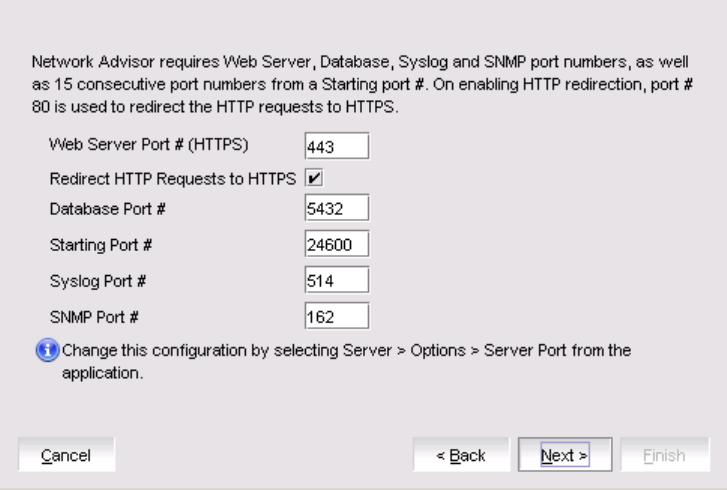
10. Complete the following steps on the Server Conguration screen.
FIGURE 2 Server Conguration screen
a) Enter a port number in the Web Server Port # (HTTPS) eld (default is 443).
b) Enable HTTP redirection to HTTPS by selecting the Redirect HTTP Requests to HTTPS check box.
When you enable HTTP redirection, the server uses port 80 to redirect HTTP requests to HTTPS. You can congure the
server port settings from the Options dialog box (Server Port pane). For instructions, refer to the Brocade Network Advisor
User Manual or online help.
c) Enter a port number in the Database Port # eld (default is 5432).
NOTE
Do not use a port number below 1024.
d) Enter a port number in the Starting Port # eld (default is 24600).
NOTE
The server requires 11 consecutive free ports beginning with the starting port number.
e) Enter a port number in the Syslog Port # eld (default is 514).
NOTE
If the default syslog port number is already in use, you will not receive any syslog messages from the device. To
nd and stop the process currently running on the default syslog port number, refer to Migrating data.
f) Enter a port number in the SNMP Port # eld (default is 162).
g) Enter a port number in the TFTP Port # eld (default is 69).
h) Click Next.
If you enter a syslog port number already in use, a message displays. Click No on the message to remain on the Server
Conguration screen and edit the syslog port number. Click Yes to close the message and continue with Migrating data.
Migrating data
Brocade Network Advisor Installation and Migration Guide, 14.2.1
70 53-1004882-02
If you enter a port number already in use, a warning displays next to the associated port number eld. Edit that port number
and click Next .
If you are conguring Professional software, go to Migrating data.
11. (SAN with SMI Agent + IP or SAN with SMI Agent) Complete the following steps on the SMI Agent Conguration screen.
a) Enable the SMI Agent by selecting the Enable SMI Agent check box.
b) Enable the SLP by selecting the Enable SLP check box, if necessary.
Only enabled after you select the Enable SMI Agent check box.
c) Enable the SSL by selecting the Enable SSL check box, if necessary.
Only enabled after you select the Enable SMI Agent check box.
d) Enter the SMI Agent port number in the SMI Agent Port # eld (default is 5989 if SSL Enabled is selected; otherwise, the
default is 5988).
e) Click Next.
12. (SAN Enterprise or SMI Agent) Select one of the following options on the SAN Network Size screen and click Next:
•Small (managing up to 2000 switch ports, 1-20 domains)
•Medium (managing up to 5000 switch ports, 21-60 domains)
•Large (managing up to 15000 switch ports, 61-120 domains)
Port count is equal to the total number of switch ports across all fabrics. If you are conguring IP Enterprise, continue with
Migrating data; otherwise, go to step 14.
13. (IP Enterprise) Select one of the following options on the IP Network Size screen and click Next :
•Small (managing up to 1-20 products)
•Medium (managing up to 21-200 products)
•Large (managing up to 201-5050 products)
Port count is equal to the total number of all managed product ports.
14. Enable feature usage data transfer from the application by selecting the Yes, I want to participate option.
You can stop participating at any time. To view an example of the usage data, click View Example Data . To stop participating in
feature usage data transfer after conguration, refer to Migrating data.
15. Verify your conguration information on the Server Conguration Summary screen and click Next.
16. Complete the following steps on the Start Server screen:
a) (Trial and Licensed only) Select the Start SMI Agent check box, if necessary.
b) (Trial and Licensed only) Select the Start SLP check box, if necessary.
c) Select the Start Client check box, if necessary.
d) Click Finish .
After all of the services are started, the Log In dialog box displays.
To make changes to the conguration, you can re-launch the conguration wizard (refer to Migrating data).
17. Enter your user name and password.
The defaults are Administrator and password, respectively. If you migrated from a previous release, your user name and
password do not change.
NOTE
Do not enter Domain\User_Name in the User ID eld for LDAP server
authentication.
Migrating data
Brocade Network Advisor Installation and Migration Guide, 14.2.1
53-1004882-02 71
18. Click Login.
19. Click OK on the Network Advisor Login Banner.
Cross avor migration
To migrate from Brocade Network Advisor 14.0.X/14.1.X to a Non-Brocade Network Advisor 14.2.X, complete the following steps:
1. Install Brocade Network Advisor 14.0.x/14.1.x/14.2.0 (refer to Installing the application on page 28).
2. Install Non-Brocade Network Advisor 14.2.1 (refer to Installing the application on page 28).
3. Migrate the supported (partial or full) data from Brocade Network Advisor 14.2.1 (refer to Migrating data on page 67) to the
Non-Brocade Network Advisor 14.2.1 by browsing to the Brocade Network Advisor 14.2.1 location on the Copy Data and
Setting screen.
NOTE
If the Non-Brocade Network Advisor is not supporting SAN + IP, it is recommended to install SAN only Brocade
Network Advisor and then migrate to Non-Brocade Network Advisor.
Migration rollback
Migration rollback is triggered when a failure occurs while migrating to a dierent version of Brocade Network Advisor. After successful
rollback, the previous version will be running and the destination version will be uninstalled. The destination version failure logs and the
source version supportSave will be zipped and stored at the source BNA_HOME\support folder in the following format. Zip le format:
Zip file format, Migration_Failure_SupportSave_<Time stamp>.zip
Migration rollback due to insucient space
When migration rollback fails due to insucient space, you can either increase the disk space and try rollback or cancel the migration
rollback. The destination version is uninstalled manually if you cancel the migration rollback. Use the following commands, to retrieve the
source version.
• For Windows
Install_Home >bin>dbsvc install
Install_Home >bin>dbsvc start
Install_Home >bin>service.bat dcmsvc install
Install_Home >bin>service.bat dcmsvc start
• For Windows, if SLP is enabled
Install_Home >cimom>bin>slpd.bat -install
Install_Home >cimom>bin>slpd.bat -start
• For Windows, if CIMOM is enabled
Install_Home >bin>service.bat cimomsvc install
Install_Home >bin>service.bat cimom svc start
• For Linux
Install_Home >bin>sh dbsvc start
Migration rollback
Brocade Network Advisor Installation and Migration Guide, 14.2.1
72 53-1004882-02
Install_Home >bin>sh service dcmsvc start
• For Linux, if SLP is enabled
Install_Home >bin>sh slpsvc start
• For Linux, if CIMOM is enabled
Install_Home >bin>sh service cimomsvc start
Migration rollback in conguration wizard
You can roll back to the earlier version of Network Advisor during migration by canceling the conguration using the Cancel button.
You cannot cancel the migration while you are in the Welcome or Copy and Data Setting pages of the conguration wizard.
If you try to cancel the migration before the migration starts, the warning message “Are you sure you want to cancel the conguration of
Network Advisor 14.2.1?” displays.
If you try to cancel the migration after the migration succeeds, the warning message “Canceling the migration will initiate rollback of the
changes made and will uninstall Network Advisor 14.2.1. Are you sure you want to continue?” displays.
NOTE
The supportSave will not be triggered, if you manually cancel the installation and initiate the rollback.
Click Yes, to quit and close the conguration wizard.
Click No, to stay on the same page.
Migration rollback
Brocade Network Advisor Installation and Migration Guide, 14.2.1
53-1004882-02 73
Brocade Network Advisor Installation and Migration Guide, 14.2.1
74 53-1004882-02

Uninstallation
• Uninstalling from Windows systems......................................................................................................................................................... 75
• Uninstalling from Windows systems (headless uninstall)..................................................................................................................75
• Uninstalling from UNIX systems.................................................................................................................................................................76
• Uninstalling from UNIX systems (headless uninstall)......................................................................................................................... 76
Details uninstallation of the Network Advisor and SMI Agent from both Windows and UNIX systems.
NOTE
Network Advisor is installed on a separate directory from your previous version; therefore, you do not need to uninstall the
previous version immediately. However, you cannot run both versions simultaneously.
Uninstalling from Windows systems
Complete the following steps to uninstall the Network Advisor and SMI Agent from your Windows system.
1. Select Start > Programs > Network Advisor 14.2.1 > Uninstall Network Advisor.
2. Select one of the following options on the Uninstall Option screen:
•Partial Uninstall: Conguration and performance data is retained to be re-used by the new installation. This is the default
option.
•Full Uninstall : All data is removed.
3. Click Uninstall.
4. Click Done on the Uninstall Complete screen.
Uninstalling from Windows systems (headless
uninstall)
If the application was installed using the headless installation, complete the following steps to uninstall Network Advisor and SMI Agent
from your Windows server.
1. Open a command prompt.
2. Choose one of the following options:
• To partially uninstall Network Advisor (conguration and performance data is retained to be re-used by the new installation),
execute Install_Home\Uninstall_Network Advisor 14.2.1\Uninstall_Network Advisor 14.2.1.exe -f <absolute path of
partial uninstall property le>.
• To fully uninstall Network Advisor (all data is removed), execute Install_Home\Uninstall_Network Advisor
14.2.1\Uninstall_Network Advisor 14.2.1.exe -f <absolute path of full uninstall property le>.
When uninstallation is complete, an "Uninstallation complete" message displays. You must manually delete the Install_Home/
silent folder.
Brocade Network Advisor Installation and Migration Guide, 14.2.1
53-1004882-02 75
Uninstalling from UNIX systems
Complete the following steps to uninstall Network Advisor and SMI Agent from your UNIX system.
NOTE
The Uninstall folder is retained.
1. Go to Install_Home/Uninstall_Network_Advisor14_2_1.
2. Execute ./Uninstall_Network_Advisor14_2_1.
3. Select one of the following options on the Uninstall Option screen:
•Partial Uninstall : Conguration and performance data is retained to be re-used by the new installation. This is the default
option.
•Full Uninstall : All data is removed.
4. Click Uninstall.
5. Click Done on the Uninstall Complete screen.
Uninstalling from UNIX systems (headless uninstall)
If the application was installed using the headless installation, complete the following steps to uninstall Network Advisor and SMI Agent
from your UNIX server.
1. Go to Install_Home/Uninstall_Network_Advisor14_2_1.
2. Choose one of the following options:
• To partially uninstall Network Advisor (conguration and performance data is retained to be re-used by the new installation),
execute Uninstall_Network_Advisor 14_2_1 -f<absolute path of partial uninstall property le>.
• To fully uninstall Network Advisor (all data is removed), execute \Uninstall_Network_Advisor 14_2_1 -f <absolute path of
full uninstall property le>.
When uninstallation is complete, an "Uninstallation complete" message displays. You must manually delete the Install_Home/
silent folder.
Uninstalling from UNIX systems
Brocade Network Advisor Installation and Migration Guide, 14.2.1
76 53-1004882-02

References
• Network Advisor packages............................................................................................................................................................................77
• Scalability limits.................................................................................................................................................................................................. 77
• Management server and client ports.........................................................................................................................................................78
• Edition feature support....................................................................................................................................................................................83
Network Advisor packages
The following table summarizes the packages and available editions for each package.
TABLE 18 Network Advisor packages and versions
Package Versions
SAN with SMI Agent +IP • Enterprise (trial and licensed)
• Professional Plus (licensed)
• Professional
SAN with SMI Agent • Enterprise (trial and licensed)
• Professional Plus (licensed)
• Professional
IP • Enterprise (trial and licensed)
• Professional
SMI Agent NOTE
Network Advisor clients are not available in the SMI Agent only
package.
Clients are not required when other management tools are
used in the SMI Agent.
For a list of the supported scalability limits for Network Advisor by edition, refer to Scalability limits on page 77.
Scalability limits
The following table summarizes the scalability limits supported for Network Advisor by edition.
TABLE 19 Supported scalability limits by Network Advisor edition
Enterprise edition SAN Professional Plus
+ IP Base edition
Professional edition
Small Medium Large
SAN Switch Ports 2000 5000 15000 2560 300
SAN Switches and
Access Gateways
40 100 400 40 15
SAN Devices 5000 15000 40000 5000 1000
SAN Fabrics 25 50 100 36 2
IP Switches 950 200 1550 (supported) 50 50
Brocade Network Advisor Installation and Migration Guide, 14.2.1
53-1004882-02 77

TABLE 19 Supported scalability limits by Network Advisor edition (continued)
Enterprise edition SAN Professional Plus
+ IP Base edition
Professional edition
Small Medium Large
1200 (recommended)
(with performance
monitoring on up to
20000 ports)
MPLS Switches 1 10 100 1 Not supported.
VDX Switches 50 100 400 50 50
Managed Hosts 20 100 400 100 20
vCenters 1 5 10 5 1
VMs (inlcudes
powered-down VMs)
1000 5000 10000 5000 10000
ESX Hosts 200 1000 2000 1000 200
NOTE
Virtual Fabrics are counted as fabrics when calculating the managed count limits.
NOTE
SMI Agent is not supported on the Professional edition.
NOTE
The Network Advisor SAN+IP package is supported in Professional Plus Edition; whereas IP package is not supported on
Professional Plus Edition. The IP package is either supported on Enterprise Edition or Trail or Professional Edition. Refer to
Brocade Network Advisor Software Licensing Guide, for more information.
NOTE
Supported network latency between the Network Advisor server and client or server and devices is 100 milliseconds.
Management server and client ports
The Management application has two parts: the server and the client. The server is installed on one machine and stores device-related
information; it does not have a user interface. To view information through a user interface, you must log in to the server through a client.
The server and clients may reside on the same machine, or on separate machines. If you are running Professional, the server and the
client must be on the same machine.
In some cases, a network may utilize virtual private network (VPN) or rewall technology, which can prohibit communication between
products and the servers or clients. In other words, a server or client can nd a product, appear to log in, but is immediately logged out
because the product cannot reach the server or client. To resolve this issue, check to determine if the ports in the following table below
need to be opened up in the rewall.
NOTE
Professional edition does not support remote clients.
9The IP switch count includes MPLS and VDX switches.
Management server and client ports
Brocade Network Advisor Installation and Migration Guide, 14.2.1
78 53-1004882-02

The following table lists the default port numbers and whether the port needs to be opened up in the rewall and includes the following
information:
•Port Number : The port at the destination end of the communication path.
•Ports:The name of the port.
•Transport: The transport type (TCP or UDP).
•Description: A brief description of the port.
•Communication Path:The "source" to "destination" values. Client and server refer to the Management application client and
server unless stated otherwise. Product refers to the Fabric OS, Network OS, or IronWare OS devices.
•Open in Firewall: Whether the port needs to be open in the rewall.
NOTE
For bidirectional protocols, you must open the rewall port bi-
directionally.
TABLE 20 Port usage and rewall requirements
Port Number Ports Transport Description Communication Path Open in Firewall
20 10 FTP Port (Control) TCP FTP Control port for
internal FTP server
Client-Server
Product-Server
Yes
21 10 FTP Port (Data) TCP FTP Data port for
internal FTP server
Client-Server
Product-Server
Yes
22 11 SSH or SCP or SFTP TCP Secure Telnet and
secure upload and
download to product
Server-Product
Client-Product
Product-Server
Yes
23 Telnet TCP Telnet port from server
or client to product
Server-Product
Client-Product
Yes
25 11 SMTP Server port TCP SMTP Server port for
e-mail communication
if you use e-mail
notications without
SSL
Server-SMTP Server Yes
49 11 TACACS+
Authentication port
TCP TACACS+ server port
for authentication if
you use TACACS+ as
an external
authentication
Server-TACACS+
Server
Yes
69 TFTP UDP File upload/download
to product
Product-Server Yes
8011 Management
application HTTP
server
TCP Non-SSL HTTP/1.1
connector port if you
use secure client-
server communication.
You need this port for
HTTP redirection
Client-Server Yes
10 Port does not need to be open in the rewall for Professional edition.
11 The default port number. You must use the same port number for all products or hosts managed by the Management server. This port is
congurable in the Management server; however, some products and rmware versions do not allow you to congure a port.
Management server and client ports
Brocade Network Advisor Installation and Migration Guide, 14.2.1
53-1004882-02 79

TABLE 20 Port usage and rewall requirements (continued)
Port Number Ports Transport Description Communication Path Open in Firewall
80 10 Product HTTP server TCP Product non-SSL
HTTP port for HTTP
and CAL
communication if you
do not use secure
communication to the
product
Server-Product Yes
Product non-SSL http
port for HTTP and
CAL communication if
you do not use secure
communication to the
product and you do
not use the
Management
application server
proxy.
Client-Product Yes
16111 SNMP port UDP Default SNMP port Server-Product Yes
162 11 SNMP Trap port UDP Default SNMP trap
port
Product-Server Yes
389 LDAP Authentication
Server Port
UDP
TCP
LDAP server port for
authentication if you
use LDAP as an
external authentication
Server-LDAP Server Yes
443 10, 11 HTTPS server TCP HTTPS (HTTP over
SSL) server port if you
use secure client-
server communication
Client-Server Yes
443 11 HTTPS (HTTP over
SSL) server port if you
use secure
communication to the
product
Server-Product Yes
443 HTTPS (HTTP over
SSL) server port if you
use secure
communication to the
product and you do
not use the
Management
application server
proxy
Client-Product Yes
44311 HTTPS (HTTP over
SSL) server port if you
use vCenter discovery
Server-vCenter Server Yes
465 11 SMTP Server port for
SSL
TCP SMTP Server port for
e-mail communication
Server-SMTP Server Yes
10 Port does not need to be open in the rewall for Professional edition.
11 The default port number. You must use the same port number for all products or hosts managed by the Management server. This port is
congurable in the Management server; however, some products and rmware versions do not allow you to congure a port.
Management server and client ports
Brocade Network Advisor Installation and Migration Guide, 14.2.1
80 53-1004882-02

TABLE 20 Port usage and rewall requirements (continued)
Port Number Ports Transport Description Communication Path Open in Firewall
if you use e-mail
notications with SSL
514 11 Syslog Port UDP Default Syslog Port Product-Server
Managed Host-Server
Yes
636 11 LDAP Authentication
SSL port
TCP LDAP server port for
authentication if you
use LDAP as an
external authentication
and SSL is enabled
Server-LDAP Server Yes
1812 11 RADIUS
Authentication Server
Port
UDP RADIUS server port
for authentication if
you use RADIUS as an
external authentication
Server-RADIUS Server Yes
1813 11 RADIUS Accounting
Server Port
UDP RADIUS server port
for accounting if you
use RADIUS as an
external authentication
Server-RADIUS Server Yes
5432 Database port TCP Port used by database
if you access the
database remotely
from a third-party
application
Remote ODBC-
Database
Yes
5988 SMI Server port TCP SMI server port on the
Management
application and the
CIM/SMI port on
HBAs if you use SMI
Agent without SSL
SMI Client- Server Yes
Server-Managed Host Yes
5989 10, 11 SMI Server port with
SSL enabled
TCP SMI Agent port on the
Management
application and the
CIM/SMI port on
HBAs if you use SMI
Agent with SSL
SMI Agent Server-
Client
Yes
Server-Managed Host Yes
634311 sFlow UDP Receives sFlow data
from products if you
are monitoring with
sFlow
Product-Server Yes
24600 10, 11 JBoss remoting
connector port
TCP Use for service
location. Uses SSL for
privacy.
Client-Server Yes
24601 10, 11 JBoss Transaction
Services Recovery
Manager port.
TCP Not used remotely Server Yes
24602 10, 11 JBoss Transaction
Status Manager port
TCP Not used remotely Server Yes
11 The default port number. You must use the same port number for all products or hosts managed by the Management server. This port is
congurable in the Management server; however, some products and rmware versions do not allow you to congure a port.
10 Port does not need to be open in the rewall for Professional edition.
Management server and client ports
Brocade Network Advisor Installation and Migration Guide, 14.2.1
53-1004882-02 81

TABLE 20 Port usage and rewall requirements (continued)
Port Number Ports Transport Description Communication Path Open in Firewall
24603 10, 11 HornetQ Netty port TCP Use for JMS (Java
Message Service),
async messages from
server to client
Uses SSL for privacy
Client-Server Yes
24604 10, 11 JMX remoting
connector port
TCP Management console
port for native
connector (JMX)
Client-Server Yes
2460510, 11 JBoss HTTPS
management port
TCP Management console
port for HTTPS-based
management
Client-Server Yes
24606 10, 11 Fault Management
CIM Indication
Listener Port
TCP Used for HBA
management
Managed Host-Server Yes
2460710, 11 HCM Proxy CIM
Indication Listener port
TCP Used for HBA
management
Managed Host-Server Yes
24608 11 Reserved for future
use
TCP Not used Client-Server No
24609 11 Reserved for future
use
TCP Not used Client-Server No
24610 11 Reserved for future
use
TCP Not used Client-Server No
34568 HCM Agent discovery
port
TCP Used for HBA
management via
JSON
Server-Managed Host Yes
55556 10 Launch in Context
(LIC) client hand
shaking port
TCP Client port used to
check if a
Management
application client
opened using LIC is
running on the same
host
NOTE
If this port
is in use,
the
application
uses the
next
available
port.
Client No
10 Port does not need to be open in the rewall for Professional edition.
11 The default port number. You must use the same port number for all products or hosts managed by the Management server. This port is
congurable in the Management server; however, some products and rmware versions do not allow you to congure a port.
Management server and client ports
Brocade Network Advisor Installation and Migration Guide, 14.2.1
82 53-1004882-02

Edition feature support
The following table details whether the features are supported in the Professional, Professional Plus, or Enterprise versions, or only
through the Element Manager of the device.
TABLE 21 SAN features supported
Feature Professional Professional Plus Enterprise
AAA (Authentication,
Authorization, and Accounting)
Authentication and authorization
conguration
No Yes Yes
Access Gateway (AG)
management
AG display Yes Yes Yes
Support for rmware download,
supportSave, performance
statistics, and conguration le
management
Yes Yes Yes
Active session management Yes Yes Yes
Bottleneck detection
Conguration No Yes Yes
Statistics No Yes Yes
Badge on topology and product
tree
Yes Yes Yes
Show aected host No Yes Yes
Call Home support
Support for all call home centers No Yes Yes
SupportSave for Fabric OS
switches
No Yes Yes
Support for appending the last 30
events in a call home event for e-
mail-based call home centers
No Yes Yes
Certicate management No Yes Yes
COMPASS No Yes Yes
Conguration management
Conguration repository
management
No Yes Yes
Firmware download Yes Yes Yes
Manual backup
NOTE
Professional only
supports one switch at a
time.
Yes Yes Yes
Save conguration
NOTE
Professional only
supports one switch at a
time.
Yes Yes Yes
Edition feature support
Brocade Network Advisor Installation and Migration Guide, 14.2.1
53-1004882-02 83

TABLE 21 SAN features supported (continued)
Feature Professional Professional Plus Enterprise
Periodic conguration backup and
persistence
No Yes Yes
Replicate switch conguration No Yes Yes
Dashboard Yes Yes Yes
DCB conguration management Yes Yes Yes
DCX backbone chassis discovery
and management
No No Yes
Diagnostic port test No Yes Yes
Digital diagnostic Yes Yes Yes
Encryption
Layer 2 FC support Yes Yes Yes
Encryption conguration and
monitoring
Yes Yes Yes
Access Gateway - Cisco interop
support
Yes Yes Yes
Device decommissioning Yes Yes Yes
End device connectivity
Collection
Views
Yes Yes Yes
Fabric binding No Yes Yes
Fabric Watch
Hardware Element Manager Element Manager Element Manager
Ports Element Manager Element Manager Element Manager
Admin Element Manager Element Manager Element Manager
Router Admin Element Manager Element Manager Element Manager
Name Server Element Manager Element Manager Element Manager
Fault management Element Manager Element Manager Element Manager
Show switch events Yes Yes Yes
Show fabric events Yes Yes Yes
Syslog registration and forwarding Yes Yes Yes
SNMP trap registration and
forwarding
Yes Yes Yes
Trap conguration, credentials, and
customization
Yes Yes Yes
Event forwarding No Yes Yes
Event custom report No Yes Yes
Event processing (event policies
and pseudo events)
No Yes Yes
Common SNMP/Trap registration Yes Yes Yes
FCIP management
FCIP conguration wizard Yes Yes Yes
Iperf and IP trace route Yes Yes Yes
FCoE management
Edition feature support
Brocade Network Advisor Installation and Migration Guide, 14.2.1
84 53-1004882-02

TABLE 21 SAN features supported (continued)
Feature Professional Professional Plus Enterprise
FCoE conguration Yes Yes Yes
Migration from DCFM Yes Yes Yes
FICON/CUP
Cascaded FICON conguration
wizard
No No Yes
Cascaded FICON Fabric merge
wizard
No No Yes
PDCM Matrix Element Manager Element Manager Yes
Firmware management and
supportSave
Firmware download Yes Yes Yes
Capture SupportSave Yes Yes Yes
Flow Vision No Yes Yes
Frame monitor No Yes Yes
HBA management
HBA management Yes Yes Yes
VM management Yes Yes Yes
Driver/DIOS management No Yes Yes
Fabric assigned WWN No Yes Yes
HBA Server and Storage port
mapping
No Yes Yes
High Integrity Fabric No Yes Yes
IPv6 -- Server - Switch support Yes Yes Yes
iSCSI discovery Yes Yes Yes
Layer 2 trace route No Yes Yes
License No Yes Yes
MAPS management No Yes Yes
Meta-SAN
Routing conguration
Domain ID conguration
No Yes Yes
Name Server Yes Yes Yes
Open Trunking Support
Display trunks on the topology Yes Yes Yes
Display trunks properties Yes Yes Yes
Display marching ants Yes Yes Yes
Display connections properties Yes Yes Yes
Performance management -
SNMP monitoring
Real Time Performance collection,
display, and reports
Yes Yes Yes
Historical Performance collection,
display, and reports
No Yes Yes
Thresholds No Yes Yes
Edition feature support
Brocade Network Advisor Installation and Migration Guide, 14.2.1
53-1004882-02 85

TABLE 21 SAN features supported (continued)
Feature Professional Professional Plus Enterprise
Top talkers - Supported on SAN
switches and Access Gateway
No Yes Yes
Marching ants No Yes Yes
Data aging No Yes Yes
End-to-End monitors No Yes Yes
Policy Monitor Yes Yes Yes
Port Administration Element Manager Element Manager Element Manager
Port Fencing No Yes Yes
Port group conguration No No Yes
Reports Yes Yes Yes
Generate reports Yes Yes Yes
View reports Yes Yes Yes
Performance reports Yes Yes Yes
FCR reports Yes Yes Yes
SCOM plug-in support No Yes Yes
Security management
Replicate switch policy
conguration
No Yes Yes
SNMP conguration Yes Yes Yes
L2 ACL conguration
NOTE
Only supported on DCB
devices.
Yes Yes Yes
SMI Agent
Server Prole
Fabric Prole
Indication Sub Prole
Zone Control Sub Prole
Enhanced Zoning and Enhanced
Zoning Control Sub Prole
FDMI (Fabric Device Management
Interface) Sub Prole
Fabrics Virtual Fabrics Sub Prole
Topology View Sub Prole
FC HBA (Fibre Channel Host Bus
Adapter) Prole Fan, Power Supply,
and Sensor Proles Inter Fabric
Routing (FCR) Prole
Trunking
CP Blade Sub Prole
CEE (Converged Enhanced
Ethernet)
No Yes Yes
Edition feature support
Brocade Network Advisor Installation and Migration Guide, 14.2.1
86 53-1004882-02

TABLE 21 SAN features supported (continued)
Feature Professional Professional Plus Enterprise
Launch In Context Prole
Switch Prole
Role Based Authorization (CEE
ACL) Prole
N port Virtualizer (AG NPIV) Prole
Prole Registration Sub Prole
Object Manager Adapter Sub
Prole
Fabric Views Sub Prole
Physical Package Sub Prole
Software Sub Prole
Access Points Sub Prole
Location Sub Prole
Fabric Switch Partitioning Sub
Prole
FC Initiator Ports Sub Prole
Fabric and Host discovery
SAN Zoning
Switch conguration management
Basic congurations through the
Element Manager
Yes Yes Yes
Switch port enable/disable
through right-click menu
Yes Yes Yes
Technical SupportSave Yes Yes Yes
Telnet
NOTE
Telnet through the
server is only supported
on Windows systems.
Yes Yes Yes
Tools launcher (Setup Tools) No Yes Yes
Troubleshooting and Diagnostics
Device connectivity troubleshooting
wizard
Yes Yes Yes
Trace route and Ping Yes Yes Yes
Fabric device sharing No Yes Yes
User management No Yes Yes
View management No Yes Yes
Virtual fabric support
Discovery Yes Yes Yes
Conguration No Yes Yes
VLAN management Yes Yes Yes
VM Plugin Support No Yes Yes
Edition feature support
Brocade Network Advisor Installation and Migration Guide, 14.2.1
53-1004882-02 87

TABLE 21 SAN features supported (continued)
Feature Professional Professional Plus Enterprise
Web Element Manager Yes Yes Yes
Zoning
Member selection Yes Yes Yes
Zone editing Yes Yes Yes
Live fabric library scope Yes Yes Yes
QoS support Yes Yes Yes
Zone alias support Yes Yes Yes
Delete Zone database No Yes Yes
Impact analysis Yes Yes Yes
Remove oine devices No Yes Yes
TI Zones Yes Yes Yes
Device to Zone / zoneset
participation analysis
Yes Yes Yes
LSAN Zones No Yes Yes
Rolling back to an activated zone
database
No Yes Yes
Import or export a zone database No Yes Yes
The following table details whether the IP features are fully or partially supported in the Professional or Licensed versions.
TABLE 22 IP features supported
Feature Professional Base Licensed version Base with Licensed
Ethernet Fabrics
Base with Unlicensed
Ethernet Fabrics
802.1ag support (MPLS
and VLAN management)
No Yes Yes Yes
AAA (Authentication,
Authorization, and
Accounting)
Authentication and
authorization conguration
No Yes Yes Yes
Address Finder No Yes Yes Yes
ADP management No Yes Yes Yes
AMPP (port prole) No Yes Yes No
Call Home support
Support for all call home
centers
No Yes Yes Yes
Support for appending the
last 30 events in a call
home event for e-mail-
based call home centers
No Yes Yes Yes
Change management Partial support Yes Yes Yes
CLI conguration
management
No Yes Yes Yes
CLI Element Manager Yes Yes Yes Yes
Edition feature support
Brocade Network Advisor Installation and Migration Guide, 14.2.1
88 53-1004882-02

TABLE 22 IP features supported (continued)
Feature Professional Base Licensed version Base with Licensed
Ethernet Fabrics
Base with Unlicensed
Ethernet Fabrics
Conguration
management
Conguration snapshot No Yes Yes Yes
Conguration repository
management
Yes Yes Yes Yes
Manual backup
NOTE
Professional
only supports
one product at a
time.
Yes Yes Yes Yes
Save conguration
NOTE
Professional
only supports
one switch at a
time.
Yes Yes Yes Yes
Save conguration for VCS-
enabled switches
No Yes Yes Yes
Periodic conguration
backup and persistence
No Yes Yes Yes
Replicate switch
conguration
No Yes Yes Yes
Product conguration
• Setting baselines
• Search
No Yes Yes Yes
Change tracking No Yes Yes Yes
Conguration wizard
Product conguration -
create, edit, and deploy
Yes Yes Yes Yes
Interface payload - sFlow
conguration
NOTE
Professional
only supports
one product at a
time.
Yes Yes Yes Yes
Product Payloads:
• CLI conguration
• CLI product
monitoring
No Yes Yes Yes
Dashboard Yes Yes Yes Yes
DCB conguration
management
Yes Yes Yes Yes
Deployment management Yes Yes Yes Yes
Discovery
Edition feature support
Brocade Network Advisor Installation and Migration Guide, 14.2.1
53-1004882-02 89

TABLE 22 IP features supported (continued)
Feature Professional Base Licensed version Base with Licensed
Ethernet Fabrics
Base with Unlicensed
Ethernet Fabrics
IP discovery Yes Yes Yes Yes
VCS discovery
NOTE
Professional
supports one
cluster member.
Yes Yes Yes Yes
Fabric Watch
NOTE
Only supported
on DCB
switches.
Hardware Element Manager Element Manager Element Manager Element Manager
Ports Element Manager Element Manager Element Manager Element Manager
Admin Element Manager Element Manager Element Manager Element Manager
Router Admin Element Manager Element Manager Element Manager Element Manager
Name Server Element Manager Element Manager Element Manager Element Manager
Fault Management
Show switch events Yes Yes Yes Yes
Syslog registration and
forwarding
Yes Yes Yes Yes
SNMP trap registration and
forwarding
Yes Yes Yes Yes
Trap conguration,
credentials, and
customization
Yes Yes Yes Yes
Event forwarding No Yes Yes Yes
Event custom report No Yes Yes Yes
Event processing (event
policies and pseudo events)
No Yes Yes Yes
Common SNMP/Trap
registration
Yes Yes Yes Yes
FCoE conguration
management
Yes Yes Yes Yes
Firmware Management
and SupportSave
Firmware download Yes Yes Yes Yes
Capture SupportSave Yes Yes Yes Yes
GSLB management No Yes Yes Yes
HBA management
HBA management Yes Yes Yes Yes
VM management No Yes Yes Yes
Driver/DIOS management No No No No
Fabric assigned WWN No No No No
Edition feature support
Brocade Network Advisor Installation and Migration Guide, 14.2.1
90 53-1004882-02

TABLE 22 IP features supported (continued)
Feature Professional Base Licensed version Base with Licensed
Ethernet Fabrics
Base with Unlicensed
Ethernet Fabrics
IPv6 Server - Product
support
NOTE
Only supported
in the application
when IPv6 is
supported on
the product.
Yes Yes Yes Yes
Layer 2 trace route No Yes Yes No
License No Yes Yes Yes
MLX/XMR management No Yes Yes Yes
MPLS management No Yes Yes Yes
LSP No Yes Yes Yes
VCID pool No Yes Yes Yes
VLL manager No Yes Yes Yes
VLL monitor No Yes Yes Yes
VPLS manager No Yes Yes Yes
VPLS monitor No Yes Yes Yes
Performance management
- SNMP monitoring
Real Time Performance
collection, display, and
reports
Yes Yes Yes Yes
Historical Performance
collection, display, and
reports
No Yes Yes Yes
Thresholds No Yes Yes Yes
Data aging No Yes Yes Yes
Performance management
- Trac Analysis (sFlow)
sFlow conguration payload
(conguration wizard)
No Yes Yes Yes
Monitoring reports No Yes Yes No
Accounting reports No Yes Yes Yes
Custom reports No Yes Yes Yes
Policy Monitor Yes Yes Yes Yes
Power Center Yes Yes Yes Yes
Reports
IP product inventory report Yes Yes Yes Yes
SSL Certicate
management
No Yes Yes Yes
Third Party Device support No Yes Yes Yes
Security management
MAC lter conguration Yes Yes Yes Yes
Edition feature support
Brocade Network Advisor Installation and Migration Guide, 14.2.1
53-1004882-02 91

TABLE 22 IP features supported (continued)
Feature Professional Base Licensed version Base with Licensed
Ethernet Fabrics
Base with Unlicensed
Ethernet Fabrics
L2 ACL conguration Yes Yes Yes Yes
L3 ACL conguration Yes Yes Yes Yes
Services Yes Yes Yes Yes
Networks Yes Yes Yes Yes
Switch conguration
management
Basic congurations
through the Element
Manager
Yes Yes Yes Yes
Telnet Yes Yes Yes Yes
Tools launcher (Setup
Tools)
No Yes Yes Yes
Topology management Yes Yes Yes Yes
User Management No Yes Yes Yes
VCS Trace Route
Trace route Yes Yes Yes Yes
Historical Graphs/Tables No Yes Yes Yes
VIP Server management No Yes Yes Yes
VLAN management Yes Yes Yes Yes
VM Plugin Support No Yes Yes Yes
Web Element Manager Yes Yes Yes Yes
Web Tools/Fabric Watch Yes Yes Yes Yes
Zoning
Member selection Yes Yes Yes Yes
Zone editing Yes Yes Yes Yes
Live fabric library scope Yes Yes Yes Yes
Zone alias support Yes Yes Yes Yes
Delete Zone database No Yes Yes Yes
Impact analysis Yes Yes Yes Yes
Remove oine devices No Yes Yes Yes
Device to Zone / zoneset
participation analysis
Yes Yes Yes Yes
LSAN Zones No Yes Yes Yes
Rolling back to an activated
zone database
No Yes Yes Yes
Import or export a zone
database
No Yes Yes Yes
Edition feature support
Brocade Network Advisor Installation and Migration Guide, 14.2.1
92 53-1004882-02
