Ruijiahua Technology BT-56 GuruGear 2 in 1 Wireless Headphone With BT Speaker User Manual B16

Shenzhen Ruijiahua Technology CO.,LTD GuruGear 2 in 1 Wireless Headphone With BT Speaker B16

Users manual

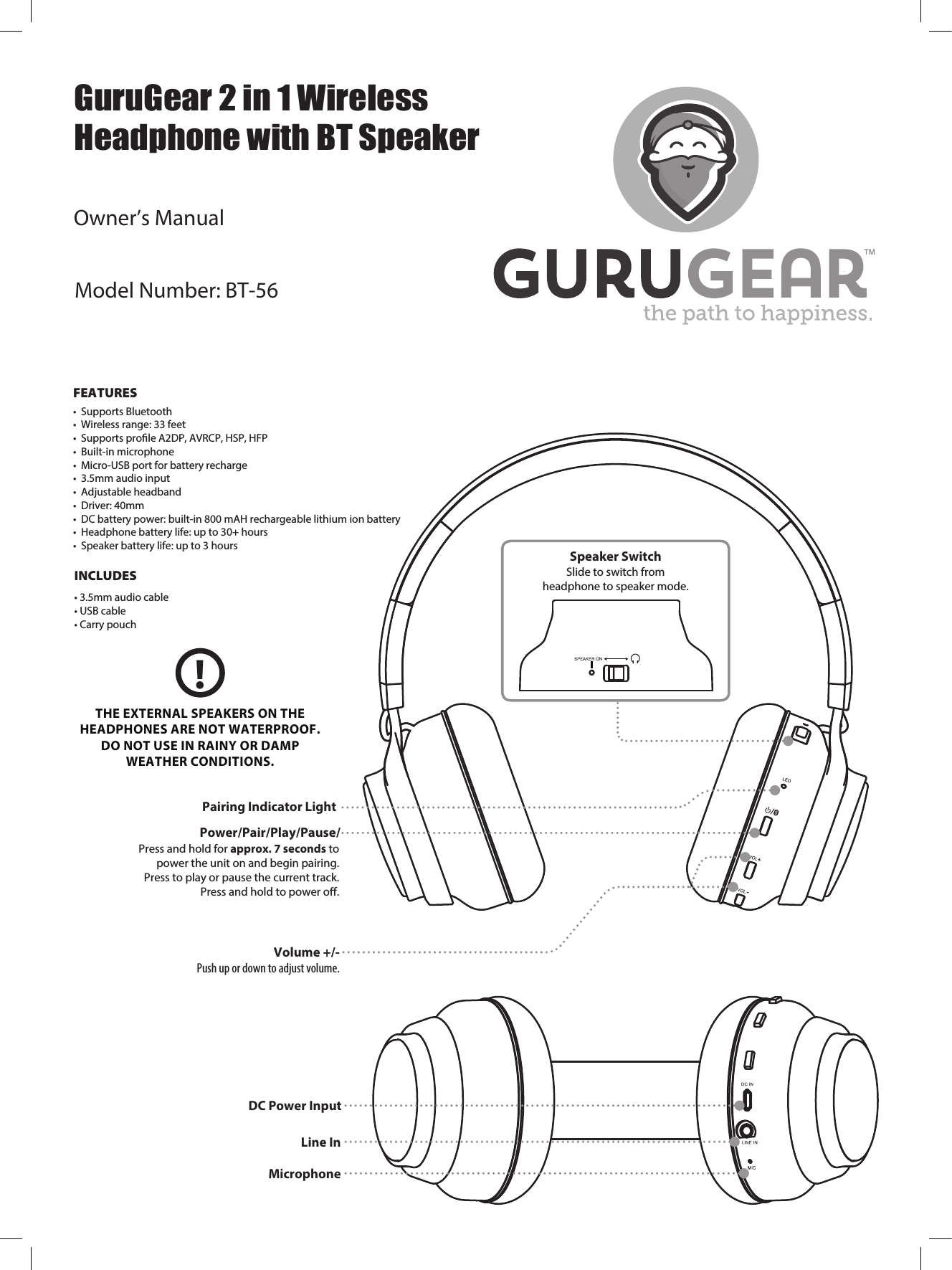
 FEATURES•Supports Bluetooth• Wireless range: 33 feet• Supports prole A2DP, AVRCP, HSP, HFP• Built-in microphone• Micro-USB port for battery recharge• 3.5mm audio input• Adjustable headband• Driver: 40mm• DC battery power: built-in 800 mAH rechargeable lithium ion battery• Headphone battery life: up to 30+ hours• Speaker battery life: up to 3 hoursINCLUDES• 3.5mm audio cable• USB cable• Carry pouchPower/Pair/Play/Pause/Press and hold for approx. 7 seconds topower the unit on and begin pairing.Press to play or pause the current track.Press and hold to power off.Volume +/-Push up or down to adjust volume.Pairing Indicator LightSpeaker SwitchSlide to switch fromheadphone to speaker mode.THE EXTERNAL SPEAKERS ON THEHEADPHONES ARE NOT WATERPROOF.DO NOT USE IN RAINY OR DAMPWEATHER CONDITIONS.!MicrophoneLine In DC Power InputGuruGear 2 in 1 WirelessHeadphone with BT SpeakerModel Number: BT-56Owner’s Manual
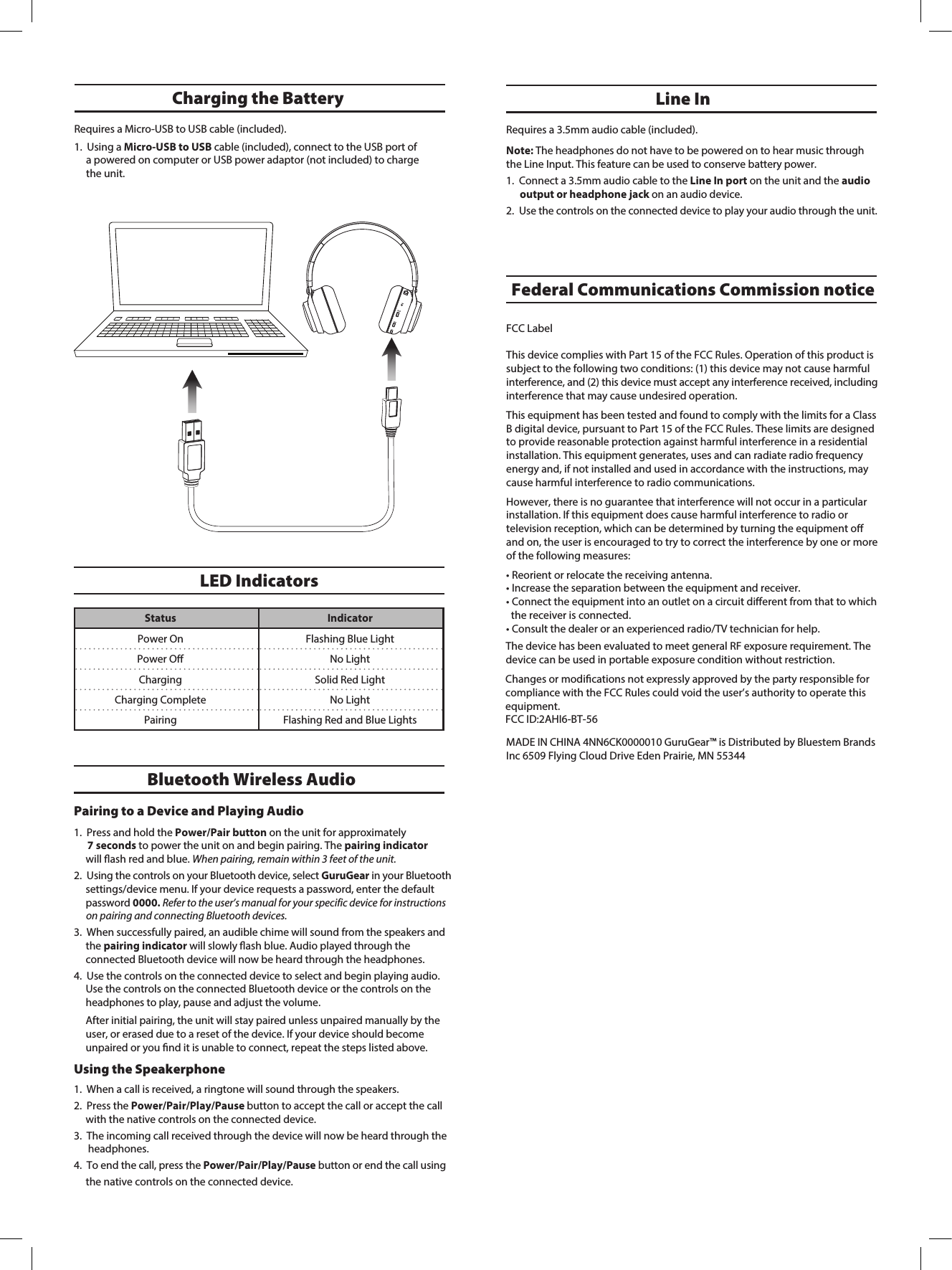
Requires a 3.5mm audio cable (included).Note: The headphones do not have to be powered on to hear music through the Line Input. This feature can be used to conserve battery power. 1. Connect a 3.5mm audio cable to the Line In port on the unit and the audio output or headphone jack on an audio device. 2. Use the controls on the connected device to play your audio through the unit.Line InLED IndicatorsStatus IndicatorPower OnPower OffFlashing Blue LightNo LightCharging Solid Red LightCharging Complete No LightPairing Flashing Red and Blue LightsCharging the Battery Bluetooth Wireless AudioPairing to a Device and Playing Audio1. Press and hold the Power/Pair button on the unit for approximately7 seconds to power the unit on and begin pairing. The pairing indicatorwill ash red and blue. When pairing, remain within 3 feet of the unit.2. Using the controls on your Bluetooth device, select GuruGear in your Bluetooth settings/device menu. If your device requests a password, enter the default password 0000. Refer to the user’s manual for your specific device for instructions  on pairing and connecting Bluetooth devices.3. When successfully paired, an audible chime will sound from the speakers and the pairing indicator will slowly ash blue. Audio played through the connected Bluetooth device will now be heard through the headphones.4. Use the controls on the connected device to select and begin playing audio.Use the controls on the connected Bluetooth device or the controls on theheadphones to play, pause and adjust the volume.After initial pairing, the unit will stay paired unless unpaired manually by the user, or erased due to a reset of the device. If your device should become unpaired or you nd it is unable to connect, repeat the steps listed above. Using the Speakerphone1. When a call is received, a ringtone will sound through the speakers.2. Press the Power/Pair/Play/Pause button to accept the call or accept the call with the native controls on the connected device.3. The incoming call received through the device will now be heard through the headphones.4. To end the call, press the Power/Pair/Play/Pause button or end the call using the native controls on the connected device.Requires a Micro-USB to USB cable (included).1. Using a Micro-USB to USB cable (included), connect to the USB port ofa powered on computer or USB power adaptor (not included) to chargethe unit.Federal Communications Commission noticeFCC LabelThis device complies with Part 15 of the FCC Rules. Operation of this product is subject to the following two conditions: (1) this device may not cause harmful interference, and (2) this device must accept any interference received, including interference that may cause undesired operation.This equipment has been tested and found to comply with the limits for a Class B digital device, pursuant to Part 15 of the FCC Rules. These limits are designed to provide reasonable protection against harmful interference in a residential installation. This equipment generates, uses and can radiate radio frequency energy and, if not installed and used in accordance with the instructions, may cause harmful interference to radio communications.However, there is no guarantee that interference will not occur in a particular installation. If this equipment does cause harmful interference to radio ortelevision reception, which can be determined by turning the equipment off and on, the user is encouraged to try to correct the interference by one or more of the following measures:• Reorient or relocate the receiving antenna.• Increase the separation between the equipment and receiver.• Connect the equipment into an outlet on a circuit different from that to which   the receiver is connected.• Consult the dealer or an experienced radio/TV technician for help.Changes or modications not expressly approved by the party responsible for compliance with the FCC Rules could void the user’s authority to operate this equipment.FCC ID:2AHI6-BT-56MADE IN CHINA 4NN6CK0000010 GuruGear™ is Distributed by Bluestem Brands Inc 6509 Flying Cloud Drive Eden Prairie, MN 55344The device has been evaluated to meet general RF exposure requirement. The device can be used in portable exposure condition without restriction.

Navigation menu