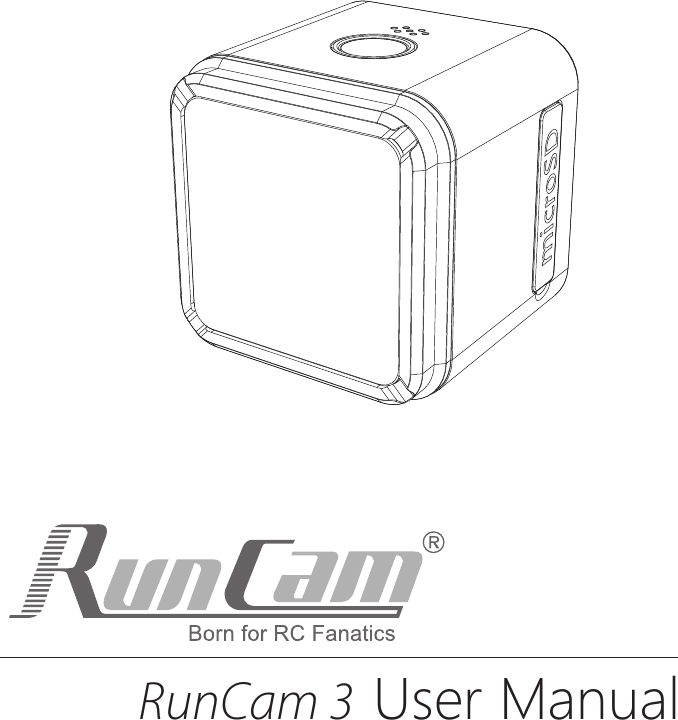
RunCam Technology RUNCAM3 Camera User Manual

RunCam Technology (Shenzhen) Co., Ltd. Camera

User Manual

RunCam 3  User Manual
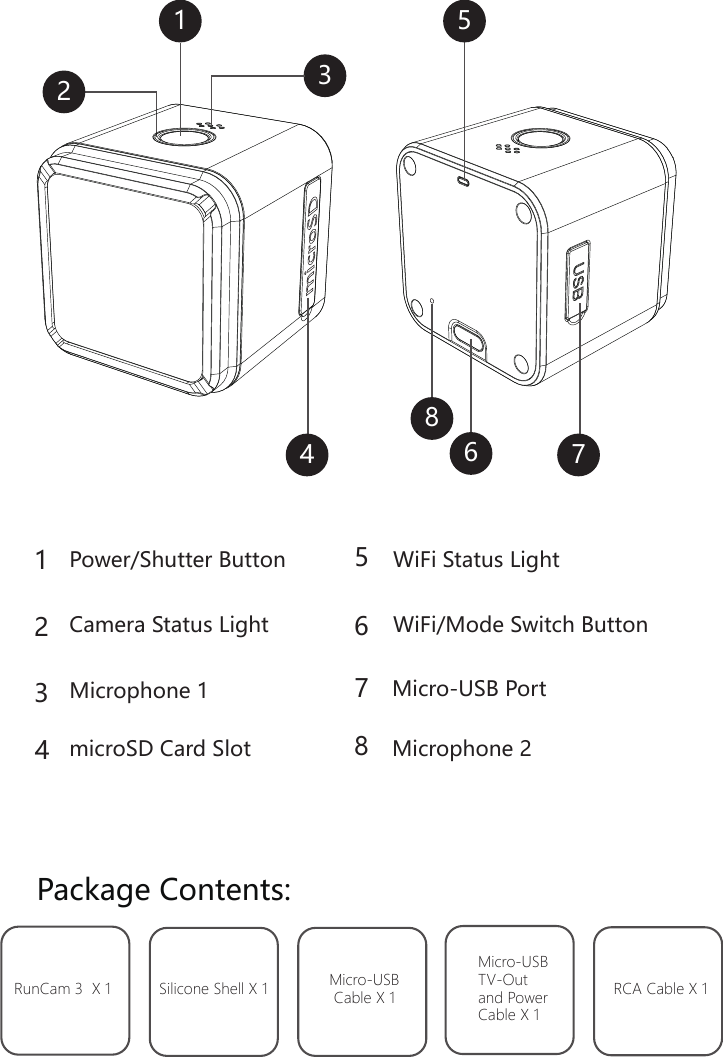
Package Contents:RunCam 3  X 1 Silicone Shell X 1 Micro-USBCable X 1Micro-USB TV-Out and Power Cable X 1RCA Cable X 1Power/Shutter ButtonWiFi/Mode Switch ButtonWiFi Status Light microSD Card Slot11223344667755Microphone 1 Micro-USB PortCamera Status Light88Microphone 2
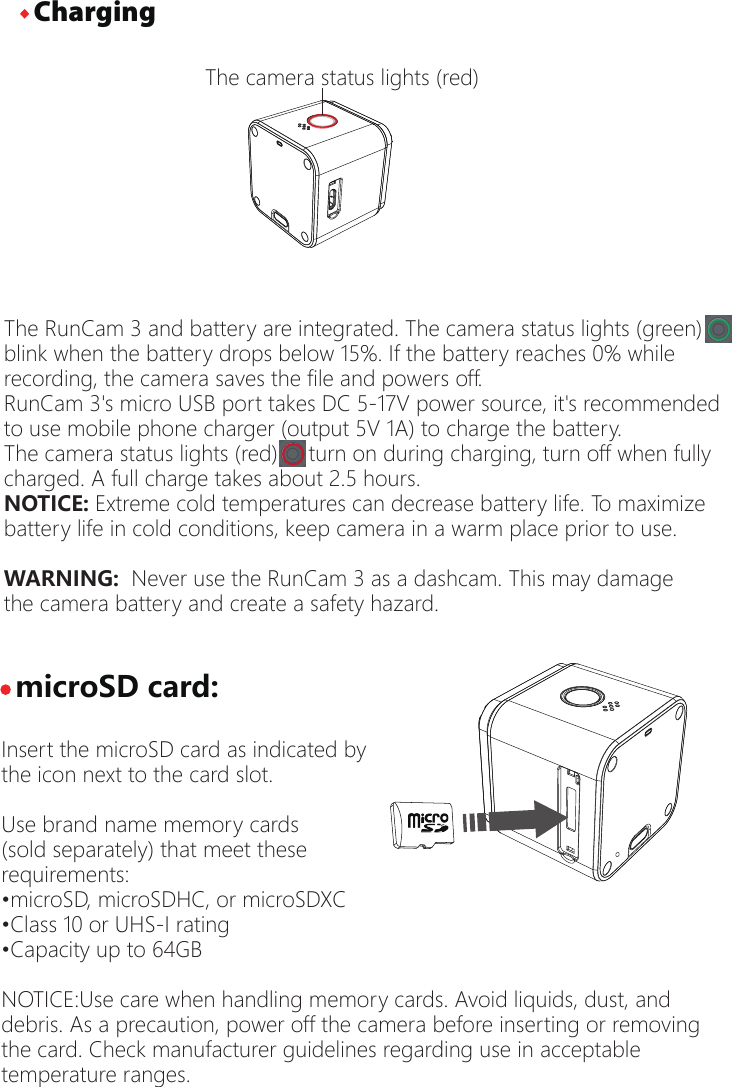
The RunCam 3 and battery are integrated. The camera status lights (green) blink when the battery drops below 15%. If the battery reaches 0% whilerecording, the camera saves the file and powers off.RunCam 3's micro USB port takes DC 5-17V power source, it's recommended to use mobile phone charger (output 5V 1A) to charge the battery.The camera status lights (red)     turn on during charging, turn off when fully charged. A full charge takes about 2.5 hours. NOTICE: Extreme cold temperatures can decrease battery life. To maximize battery life in cold conditions, keep camera in a warm place prior to use.WARNING:  Never use the RunCam 3 as a dashcam. This may damage the camera battery and create a safety hazard.·microSD card:Insert the microSD card as indicated by the icon next to the card slot.Use brand name memory cards (sold separately) that meet theserequirements:•microSD, microSDHC, or microSDXC•Class 10 or UHS-I rating•Capacity up to 64GBNOTICE:Use care when handling memory cards. Avoid liquids, dust, and debris. As a precaution, power off the camera before inserting or removingthe card. Check manufacturer guidelines regarding use in acceptable temperature ranges. The camera status lights (red)·Charging
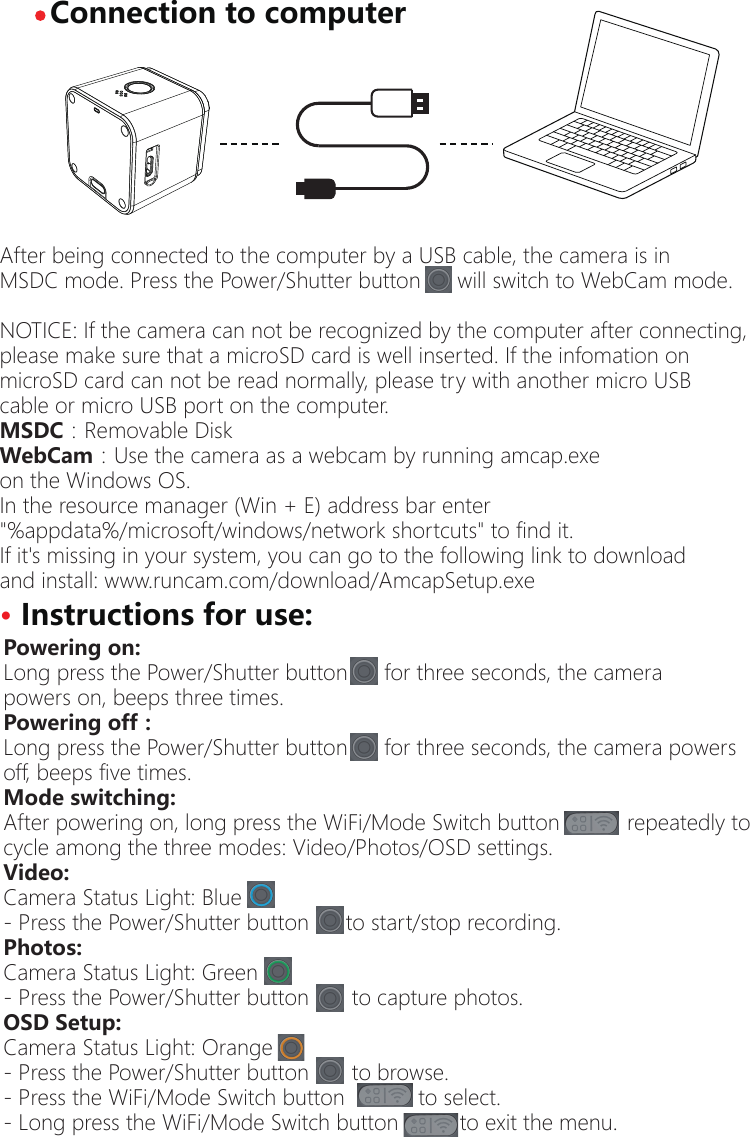
· Connection to computerAfter being connected to the computer by a USB cable, the camera is inMSDC mode. Press the Power/Shutter button      will switch to WebCam mode.NOTICE: If the camera can not be recognized by the computer after connecting,please make sure that a microSD card is well inserted. If the infomation on microSD card can not be read normally, please try with another micro USB cable or micro USB port on the computer.MSDC:Removable Disk WebCam:Use the camera as a webcam by running amcap.exe on the Windows OS.                                                                                      In the resource manager (Win + E) address bar enter "%appdata%/microsoft/windows/network shortcuts" to find it.If it's missing in your system, you can go to the following link to downloadand install: www.runcam.com/download/AmcapSetup.exePowering on:Long press the Power/Shutter button      for three seconds, the camera powers on, beeps three times.Powering off:Long press the Power/Shutter button      for three seconds, the camera powersoff, beeps five times.Mode switching:After powering on, long press the WiFi/Mode Switch button           repeatedly to cycle among the three modes: Video/Photos/OSD settings.Video:Camera Status Light: Blue   - Press the Power/Shutter button      to start/stop recording.Photos:Camera Status Light: Green       - Press the Power/Shutter button       to capture photos.OSD Setup:Camera Status Light: Orange   - Press the Power/Shutter button       to browse.- Press the WiFi/Mode Switch button            to select.   - Long press the WiFi/Mode Switch button          to exit the menu.· Instructions for use:
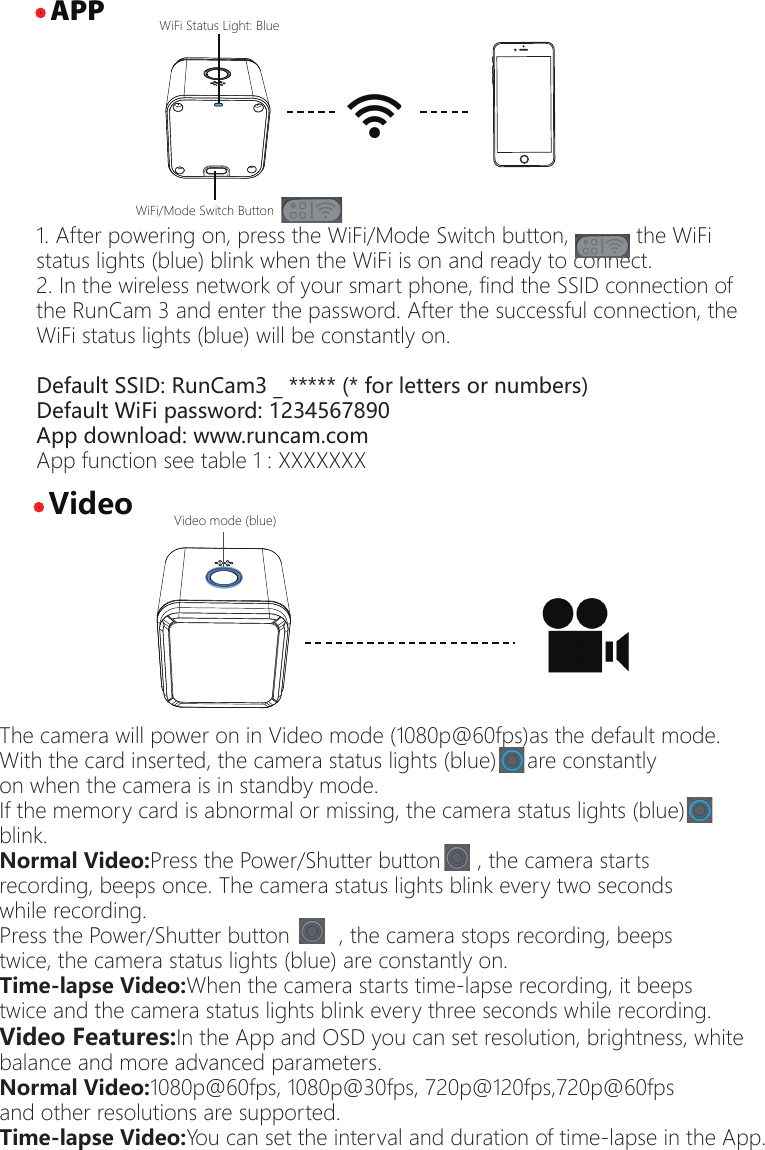
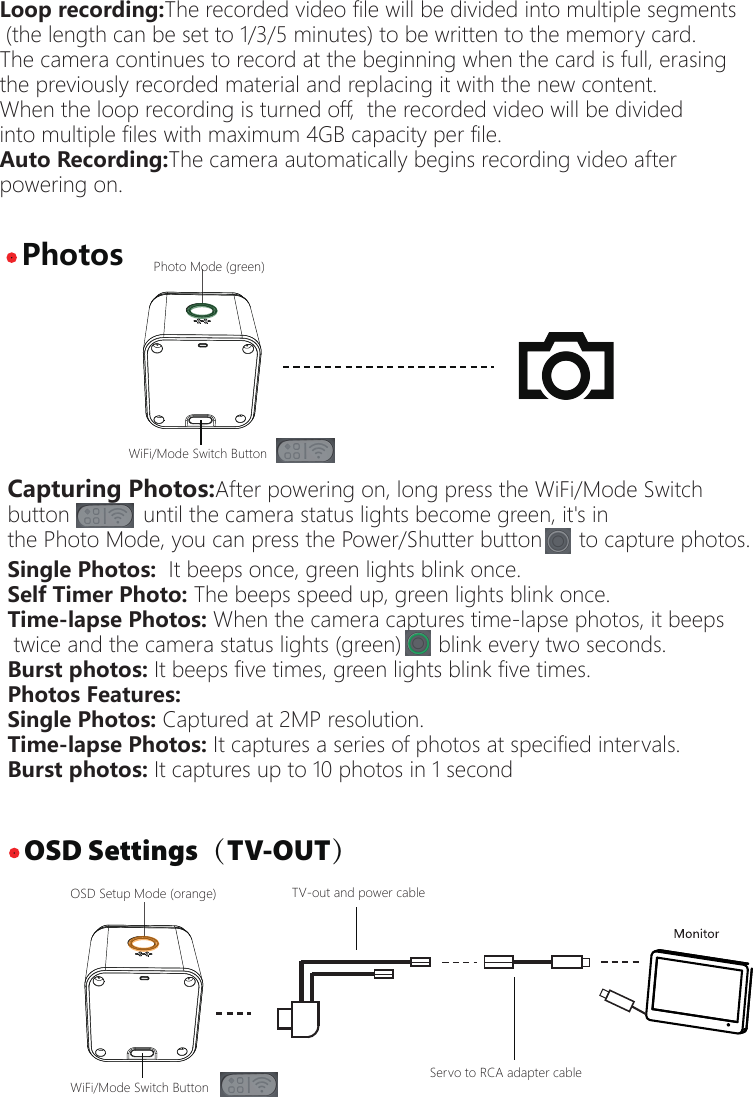
1. After powering on, press the WiFi/Mode Switch button,           the WiFi status lights (blue) blink when the WiFi is on and ready to connect.2. In the wireless network of your smart phone, find the SSID connection of the RunCam 3 and enter the password. After the successful connection, the WiFi status lights (blue) will be constantly on.Default SSID: RunCam3 _ ***** (* for letters or numbers)Default WiFi password: 1234567890App download: www.runcam.comApp function see table 1 : XXXXXXX· APP· VideoWiFi/Mode Switch ButtonWiFi Status Light: Blue  The camera will power on in Video mode (1080p@60fps)as the default mode.With the card inserted, the camera status lights (blue)     are constantly on when the camera is in standby mode.If the memory card is abnormal or missing, the camera status lights (blue) blink.Normal Video:Press the Power/Shutter button      , the camera starts recording, beeps once. The camera status lights blink every two seconds while recording.Press the Power/Shutter button        , the camera stops recording, beeps twice, the camera status lights (blue) are constantly on. Time-lapse Video:When the camera starts time-lapse recording, it beeps twice and the camera status lights blink every three seconds while recording.  Video Features:In the App and OSD you can set resolution, brightness, white balance and more advanced parameters.Normal Video:1080p@60fps, 1080p@30fps, 720p@120fps,720p@60fps and other resolutions are supported.Time-lapse Video:You can set the interval and duration of time-lapse in the App.Video mode (blue)
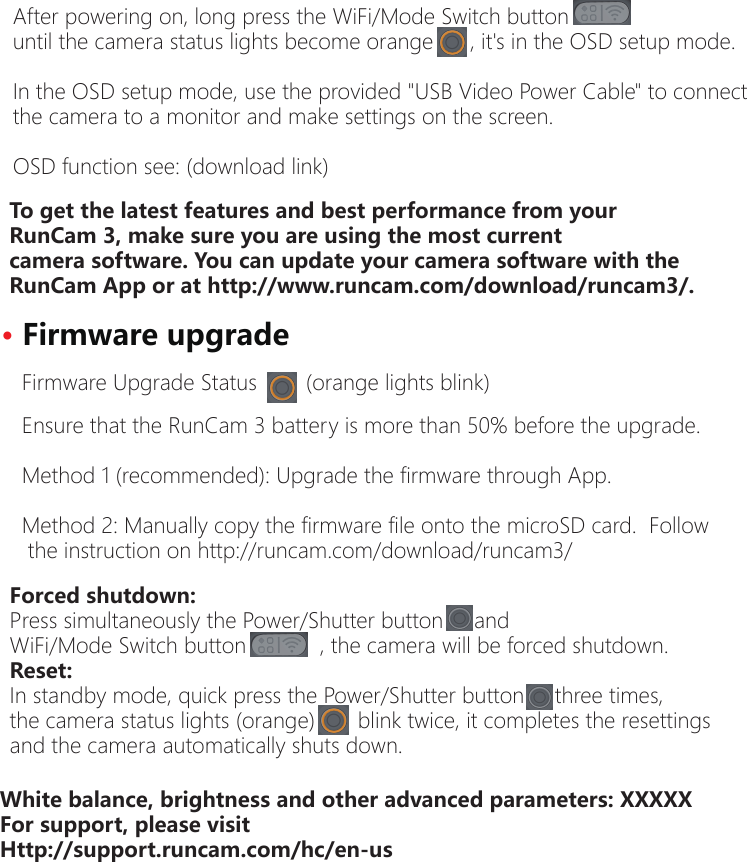
Capturing Photos:After powering on, long press the WiFi/Mode Switch button            until the camera status lights become green, it's in the Photo Mode, you can press the Power/Shutter button      to capture photos. · OSD Settings(TV-OUT)· PhotosPhoto Mode (green)WiFi/Mode Switch ButtonOSD Setup Mode (orange)WiFi/Mode Switch ButtonSingle Photos:  It beeps once, green lights blink once.Self Timer Photo: The beeps speed up, green lights blink once.Time-lapse Photos: When the camera captures time-lapse photos, it beeps twice and the camera status lights (green)      blink every two seconds.  Burst photos: It beeps five times, green lights blink five times.Photos Features:Single Photos: Captured at 2MP resolution.Time-lapse Photos: It captures a series of photos at specified intervals.Burst photos: It captures up to 10 photos in 1 secondLoop recording:The recorded video file will be divided into multiple segments (the length can be set to 1/3/5 minutes) to be written to the memory card. The camera continues to record at the beginning when the card is full, erasing the previously recorded material and replacing it with the new content.When the loop recording is turned off,  the recorded video will be divided into multiple files with maximum 4GB capacity per file.Auto Recording:The camera automatically begins recording video after powering on.TV-out and power cableServo to RCA adapter cable
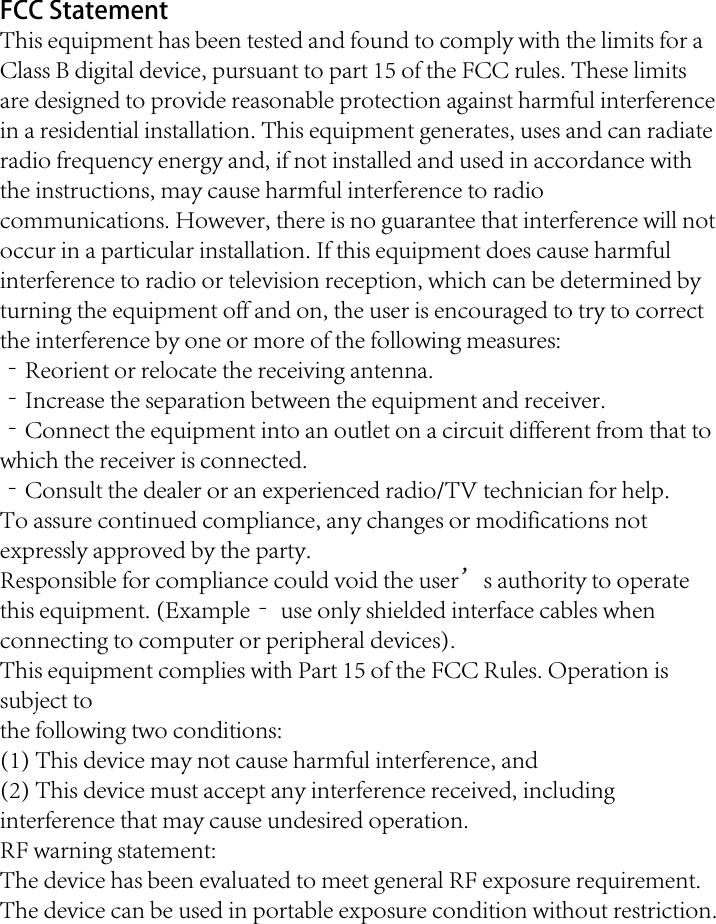
Forced shutdown:Press simultaneously the Power/Shutter button     and WiFi/Mode Switch button            , the camera will be forced shutdown.Reset:In standby mode, quick press the Power/Shutter button     three times, the camera status lights (orange)       blink twice, it completes the resettings and the camera automatically shuts down. After powering on, long press the WiFi/Mode Switch button until the camera status lights become orange      , it's in the OSD setup mode.In the OSD setup mode, use the provided "USB Video Power Cable" to connect the camera to a monitor and make settings on the screen.OSD function see: (download link)To get the latest features and best performance from yourRunCam 3, make sure you are using the most currentcamera software. You can update your camera software with theRunCam App or at http://www.runcam.com/download/runcam3/.·Firmware upgradeEnsure that the RunCam 3 battery is more than 50% before the upgrade.Method 1 (recommended): Upgrade the firmware through App.Method 2: Manually copy the firmware file onto the microSD card.  Followthe instruction on http://runcam.com/download/runcam3/Firmware Upgrade Status        (orange lights blink)White balance, brightness and other advanced parameters: XXXXXFor support, please visitHttp://support.runcam.com/hc/en-us
FCC Statement This equipment has been tested and found to comply with the limits for a Class B digital device, pursuant to part 15 of the FCC rules. These limits are designed to provide reasonable protection against harmful interference in a residential installation. This equipment generates, uses and can radiate radio frequency energy and, if not installed and used in accordance with the instructions, may cause harmful interference to radio communications. However, there is no guarantee that interference will not occur in a particular installation. If this equipment does cause harmful interference to radio or television reception, which can be determined by turning the equipment off and on, the user is encouraged to try to correct the interference by one or more of the following measures: ‐Reorient or relocate the receiving antenna. ‐Increase the separation between the equipment and receiver. ‐Connect the equipment into an outlet on a circuit different from that to which the receiver is connected. ‐Consult the dealer or an experienced radio/TV technician for help. To assure continued compliance, any changes or modifications not expressly approved by the party. Responsible for compliance could void the user’s authority to operate this equipment. (Example‐ use only shielded interface cables when connecting to computer or peripheral devices). This equipment complies with Part 15 of the FCC Rules. Operation is subject to the following two conditions: (1) This device may not cause harmful interference, and (2) This device must accept any interference received, including interference that may cause undesired operation. RF warning statement: The device has been evaluated to meet general RF exposure requirement. The device can be used in portable exposure condition without restriction.

Navigation menu