SALUS North America AKL08RF ZigBee Zone Wiring Center User Manual part 2

SALUS North America, Inc. ZigBee Zone Wiring Center part 2

Contents

User manual part 2

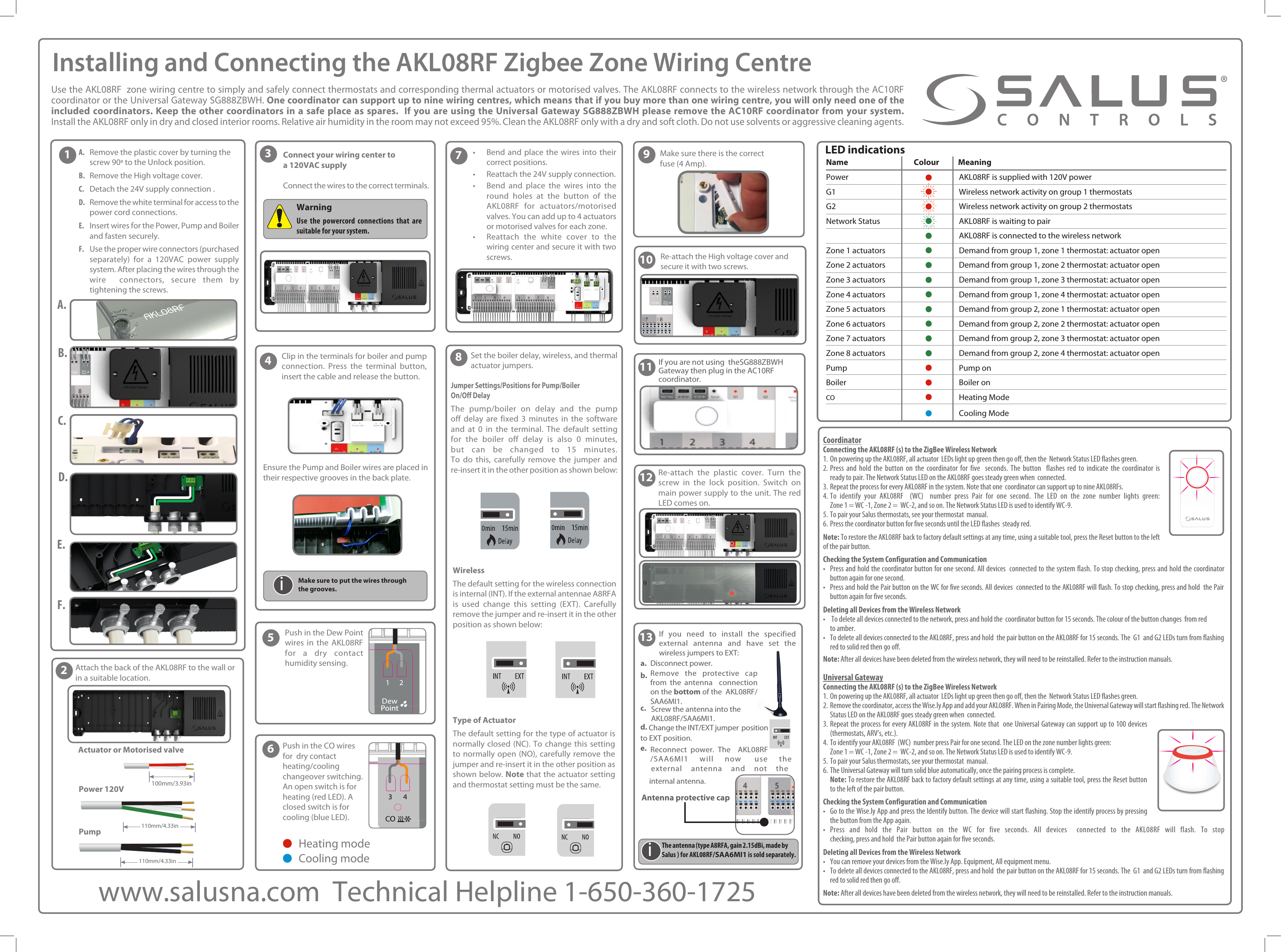
Installing and Connecting the AKL08RF Zigbee Zone Wiring CentreUse the AKL08RF  zone wiring centre to simply and safely connect thermostats and corresponding thermal actuators or motorised valves. The AKL08RF connects to the wireless network through the AC10RF coordinator or the Universal Gateway SG888ZBWH. One coordinator can support up to nine wiring centres, which means that if you buy more than one wiring centre, you will only need one of the included coordinators. Keep the other coordinators in a safe place as spares.  If you are using the Universal Gateway SG888ZBWH please remove the AC10RF coordinator from your system. Install the AKL08RF only in dry and closed interior rooms. Relative air humidity in the room may not exceed 95%. Clean the AKL08RF only with a dry and soft cloth. Do not use solvents or aggressive cleaning agents.If you are not using  theSG888ZBWH Gateway then plug in the AC10RF coordinator.LED indicationsName Colour               MeaningPower AKL08RF is supplied with 120V powerG1 • Wireless network activity on group 1 thermostatsG2 • Wireless network activity on group 2 thermostatsNetwork Status • AKL08RF is waiting to pair • AKL08RF is connected to the wireless network Zone 1 actuators • Demand from group 1, zone 1 thermostat: actuator openZone 2 actuators • Demand from group 1, zone 2 thermostat: actuator openZone 3 actuators • Demand from group 1, zone 3 thermostat: actuator openZone 4 actuators • Demand from group 1, zone 4 thermostat: actuator openZone 5 actuators • Demand from group 2, zone 1 thermostat: actuator openZone 6 actuators • Demand from group 2, zone 2 thermostat: actuator openZone 7 actuators • Demand from group 2, zone 3 thermostat: actuator openZone 8 actuators • Demand from group 2, zone 4 thermostat: actuator openPump • Pump onBoiler • Boiler on CO  • Heating Mode • Cooling ModeSet the boiler delay, wireless, and thermal actuator jumpers.Jumper Settings/Positions for Pump/BoilerOn/Off DelayThe pump/boiler on delay and the pump off delay are fixed 3 minutes in the software and at 0 in the terminal. The default setting for the boiler off delay is also 0 minutes, but can be changed to 15 minutes. To do this, carefully remove the jumper and re-insert it in the other position as shown below:WirelessThe default setting for the wireless connection is internal (INT). If the external antennae A8RFA is used change this setting (EXT). Carefully remove the jumper and re-insert it in the other position as shown below:Type of ActuatorThe default setting for the type of actuator is normally closed (NC). To change this setting to normally open (NO), carefully remove the jumper and re-insert it in the other position as shown below. Note that the actuator setting and thermostat setting must be the same.Push in the Dew Point wires in the AKL08RF for a dry contact humidity sensing.•Bend and place the wires into theircorrect positions.• Reattach the 24V supply connection.•Bend and place the wires into theround holes at the button of theAKL08RF for actuators/motorisedvalves. You can add up to 4 actuatorsor motorised valves for each zone.•Reattach the white cover to thewiring center and secure it with twoscrews.Make sure there is the correctfuse (4 Amp).Re-attach the plastic cover. Turn the screw in the lock position. Switch on main power supply to the unit. The red LED comes on.Re-attach the High voltage cover and secure it with two screws.CoordinatorConnecting the AKL08RF (s) to the ZigBee Wireless Network1. On powering up the AKL08RF, all actuator  LEDs light up green then go off, then the  Network Status LED flashes green.2. Press and hold the button on the coordinator for five  seconds. The button  flashes red to indicate the coordinator isready to pair. The Network Status LED on the AKL08RF goes steady green when  connected.3. Repeat the process for every AKL08RF in the system. Note that one  coordinator can support up to nine AKL08RFs.4. To identify your AKL08RF  (WC)  number press Pair for one second. The LED on the zone number lights green:Zone 1 = WC -1, Zone 2 =  WC-2, and so on. The Network Status LED is used to identify WC-9.5. To pair your Salus thermostats, see your thermostat  manual.6. Press the coordinator button for five seconds until the LED flashes  steady red.Note: To restore the AKL08RF back to factory default settings at any time, using a suitable tool, press the Reset button to the left of the pair button.Checking the System Configuration and Communication• Press and hold the coordinator button for one second. All devices  connected to the system flash. To stop checking, press and hold the coordinator button again for one second.• Press and hold the Pair button on the WC for five seconds. All devices  connected to the AKL08RF will flash. To stop checking, press and hold  the Pairbutton again for five seconds.Deleting all Devices from the Wireless Network•   To delete all devices connected to the network, press and hold the  coordinator button for 15 seconds. The colour of the button changes  from redto amber.•  To delete all devices connected to the AKL08RF, press and hold  the pair button on the AKL08RF for 15 seconds. The  G1  and G2 LEDs turn from flashing red to solid red then go off.Note: After all devices have been deleted from the wireless network, they will need to be reinstalled. Refer to the instruction manuals.Universal GatewayConnecting the AKL08RF (s) to the ZigBee Wireless Network1. On powering up the AKL08RF, all actuator  LEDs light up green then go off, then the  Network Status LED flashes green.2. Remove the coordinator, access the Wise.ly App and add your AKL08RF. When in Pairing Mode, the Universal Gateway will start flashing red. The Network  Status LED on the AKL08RF goes steady green when  connected.3. Repeat the process for every AKL08RF in the system. Note that  one Universal Gateway can support up to 100 devices(thermostats, ARV’s, etc.).4. To identify your AKL08RF  (WC)  number press Pair for one second. The LED on the zone number lights green:Zone 1 = WC -1, Zone 2 =  WC-2, and so on. The Network Status LED is used to identify WC-9.5. To pair your Salus thermostats, see your thermostat  manual.6.  The Universal Gateway will turn solid blue automatically, once the pairing process is complete.Note: To restore the AKL08RF back to factory default settings at any time, using a suitable tool, press the Reset buttonto the left of the pair button.Checking the System Configuration and Communication• Go to the Wise.ly App and press the Identify button. The device will start flashing. Stop the identify process by pressingthe button from the App again.• Press and hold the Pair button on the WC for five seconds. All devices  connected to the AKL08RF will flash. To stop checking, press and hold  the Pair button again for five seconds.Deleting all Devices from the Wireless Network•  You can remove your devices from the Wise.ly App. Equipment, All equipment menu.•  To delete all devices connected to the AKL08RF, press and hold  the pair button on the AKL08RF for 15 seconds. The  G1  and G2 LEDs turn from flashing red to solid red then go off.Note: After all devices have been deleted from the wireless network, they will need to be reinstalled. Refer to the instruction manuals. Antenna protective cap Connect your wiring center toa 120VAC supplyConnect the wires to the correct terminals.3Warning Use the powercord connections that are suitable for your system.578910111213Clip in the terminals for boiler and pump connection. Press the terminal button, insert the cable and release the button.Ensure the Pump and Boiler wires are placed in their respective grooves in the back plate.4iMake sure to put the wires throughthe grooves.24VAC624VACPush in the CO wires for  dry contact heating/cooling changeover switching. An open switch is for heating (red LED). A closed switch is for cooling (blue LED).•Heating mode•Cooling modeA.  Remove the plastic cover by turning thescrew 90 to the Unlock position. B.  Remove the High voltage cover.C.  Detach the 24V supply connection .D.  Remove the white terminal for access to the  power cord connections.E.   Insert wires for the Power, Pump and Boiler  and fasten securely.F.  Use the proper wire connectors (purchased  separately) for a 120VAC power supply  system. After placing the wires through the  wire  connectors, secure them by  tightening the screws.A.B.D.E.C.1F.2Attach the back of the AKL08RF to the wall orin a suitable location.110mm/4.33inPump100mm/3.93inActuator or Motorised valvePower 120V www.salusna.com  Technical Helpline 1-650-360-1725•If you need to install the specified external antenna and have set the  wireless jumpers to EXT:a. Disconnect power.b. Remove the protective cap from the antenna  connection on the bottom of the  AKL08RF/SAA6MI1.c. Screw the antenna into the AKL08RF/SAA6MI1.d. Change the INT/EXT jumper  positionto EXT position.e. Reconnect power. The  AKL08RF/SAA6MI1 will now  use theexternal antenna and not the internal antenna.iThe antenna (type A8RFA, gain 2.15dBi, made by Salus ) for AKL08RF/SAA6MI1 is sold separately.110mm/4.33in

Navigation menu