SALUS North America SAU2AG1 Gateway User Manual

Salus Controls Inc. Gateway

User manual

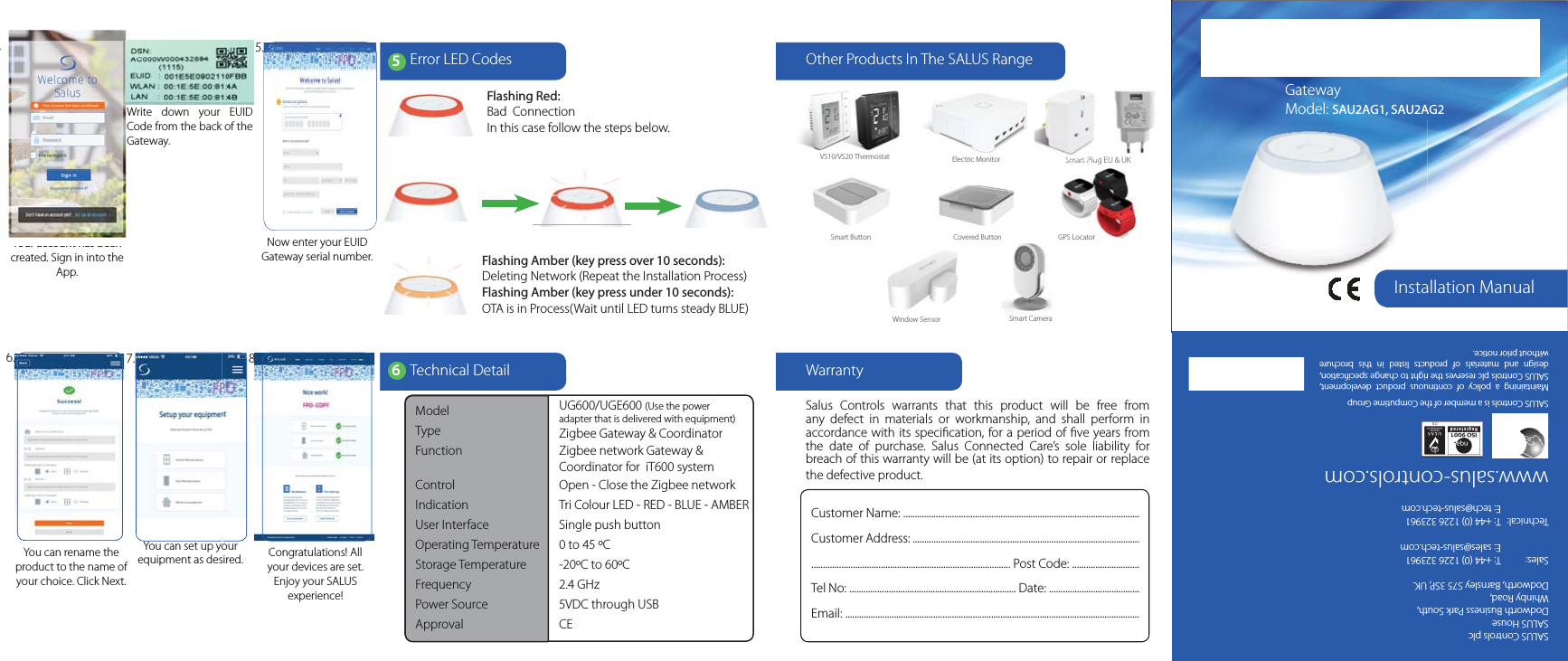
Installation ManualGateway Model: SAU2AG1, SAU2AG2SALUS Controls plcSALUS HouseDodworth Business Park South,Whinby Road,Dodworth, Barnsley S75 3SP, UK.Sales: T: +44 (0) 1226 323961E: sales@salus-tech.comTechnical: T: +44 (0) 1226 323961E: tech@salus-tech.comwww.salus-controls.comSALUS Controls is a member of the Computime GroupMaintaining a policy of continuous product development,SALUS Controls plc reserves the right to change specification,design and materials of products listed in this brochurewithout prior notice.WarrantyTechnical DetailSalus Controls warrants that this product will be free fromany defect in materials or workmanship, and shall perform inaccordance with its specification, for a period of five years fromthe date of purchase. Salus Connected Care’s sole liability forbreach of this warranty will be (at its option) to repair or replacethe defective product.Customer Name: ......................................................................................................Customer Address: ........................................................................................................................................................................................ Post Code: .............................Tel No: ........................................................................ Date: .......................................Email: ...............................................................................................................................6You can rename the product to the name of your choice. Click Next.Congratulations! All your devices are set. Enjoy your SALUSexperience!7. 8.Now enter your EUID Gateway serial number.Your account has been created. Sign in into the App.5.6.4.Model UG600/UGE600 (Use the poweradapter that is delivered with equipment)Type Zigbee Gateway & CoordinatorFunction Zigbee network Gateway &iT600 systemControl Open - Close the Zigbee networkIndication Tri Colour LED - RED - BLUE - AMBERUser Interface Single push buttonOperating Temperature 0 to 45 ºCStorage Temperature -20ºC to 60ºCFrequency 2.4 GHzPower Source 5VDC through USBApproval CEOther Products In The SALUS RangeSmart Plug EU & UKVS10/VS20 Thermostat Electric MonitorWindow Sensor Smart CameraSmart Button Covered Button GPS LocatorYour account has beenYY4.Write down your EUIDCode from the back of theGateway.67.6.You can set up yourequipment as desired.68.Error LED Codes5Flashing Red:Bad ConnectionIn this case follow the steps below.Flashing Amber (key press over 10 seconds):Deleting Network (Repeat the Installation Process)Flashing Amber (key press under 10 seconds):OTA is in Process(Wait until LED turns steady BLUE)Coordinator for
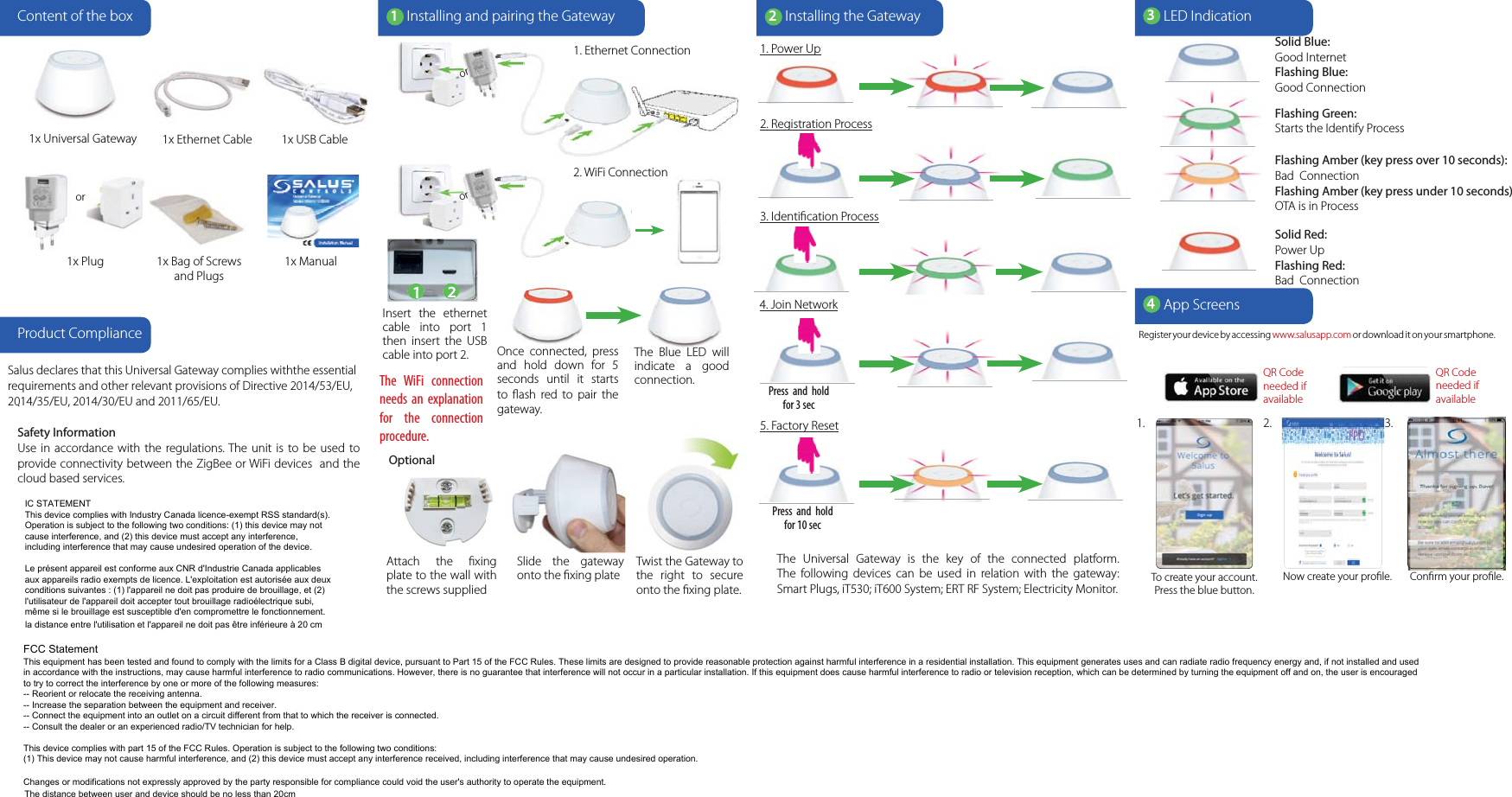
Content of the box Installing and pairing the GatewayProduct Compliance1x Universal Gateway 1x USB Cable1x Ethernet CableSalus declares that this Universal Gateway complies withthe essentialrequirements and other relevant provisions of Directive 2014/53/EU, 2014/35/EU, 2014/30/EU and 2011/65/EU..Safety InformationUse in accordance with the regulations. The unit is to be used toprovide connectivity between the ZigBee or WiFi devices  and thecloud based services.1LED Indication3The Universal Gateway is the key of the connected platform.The following devices can be used in relation with the gateway:Smart Plugs, iT530; iT600 System; ERT RF System; Electricity Monitor.Solid Red:Power UpFlashing Red:Bad ConnectionSolid Blue:Good InternetFlashing Blue:Good ConnectionFlashing Amber (key press over 10 seconds):Bad ConnectionFlashing Amber (key press under 10 seconds)OTA is in ProcessFlashing Green:Starts the Identify ProcessInstalling the Gateway2App ScreensTo create your account. Press the blue button.Now create your profile.41. 2.Once connected, pressand hold down for 5seconds until it startsto flash red to pair thegateway.Insert the ethernetcable into port 1then insert the USBcable into port 2.12Attach the fixingplate to the wall withthe screws suppliedSlide the gatewayonto the fixing plateTwist the Gateway tothe right to secureonto the fixing plate.OptionalThe Blue LED willindicate a goodconnection.1. Power Up2. Registration Process3. Identification Process4. Join NetworkPress and holdfor 3 sec5. Factory ResetPress and holdfor 10 secRegister your device by accessing www.salusapp.com or download it on your smartphone.QR Codeneeded if availableQR Codeneeded if available3.Confirm your profile.The WiFi connectionneeds an explanationfor the connectionprocedure.1. Ethernet Connection2. WiFi Connectionoror1x Bag of Screwsand Plugs1x Plug 1x ManualorFCC StatementThis equipment has been tested and found to comply with the limits for a Class B digital device, pursuant to Part 15 of the FCC Rules. These limits are designed to provide reasonable protection against harmful interference in a residential installation. This equipment generates uses and can radiate radio frequency energy and, if not installed and used in accordance with the instructions, may cause harmful interference to radio communications. However, there is no guarantee that interference will not occur in a particular installation. If this equipment does cause harmful interference to radio or television reception, which can be determined by turning the equipment off and on, the user is encouraged to try to correct the interference by one or more of the following measures:-- Reorient or relocate the receiving antenna.  -- Increase the separation between the equipment and receiver.   -- Connect the equipment into an outlet on a circuit different from that to which the receiver is connected.  -- Consult the dealer or an experienced radio/TV technician for help.This device complies with part 15 of the FCC Rules. Operation is subject to the following two conditions:(1) This device may not cause harmful interference, and (2) this device must accept any interference received, including interference that may cause undesired operation. Changes or modifications not expressly approved by the party responsible for compliance could void the user's authority to operate the equipment.IC STATEMENTThis device complies with Industry Canada licence-exempt RSS standard(s). Operation is subject to the following two conditions: (1) this device may not cause interference, and (2) this device must accept any interference, including interference that may cause undesired operation of the device.Le présent appareil est conforme aux CNR d'Industrie Canada applicables aux appareils radio exempts de licence. L'exploitation est autorisée aux deux conditions suivantes : (1) l'appareil ne doit pas produire de brouillage, et (2) l'utilisateur de l'appareil doit accepter tout brouillage radioélectrique subi, même si le brouillage est susceptible d'en compromettre le fonctionnement.la distance entre l'utilisation et l'appareil ne doit pas être inférieure à 20 cmThe distance between use and device should be no less than 20cmThe distance between user and device should be no less than 20cm

Navigation menu