SEMISOLUTION CHANUN2-WIFI Car BlackBox User Manual
SEMISOLUTION Inc. Car BlackBox
User Manual
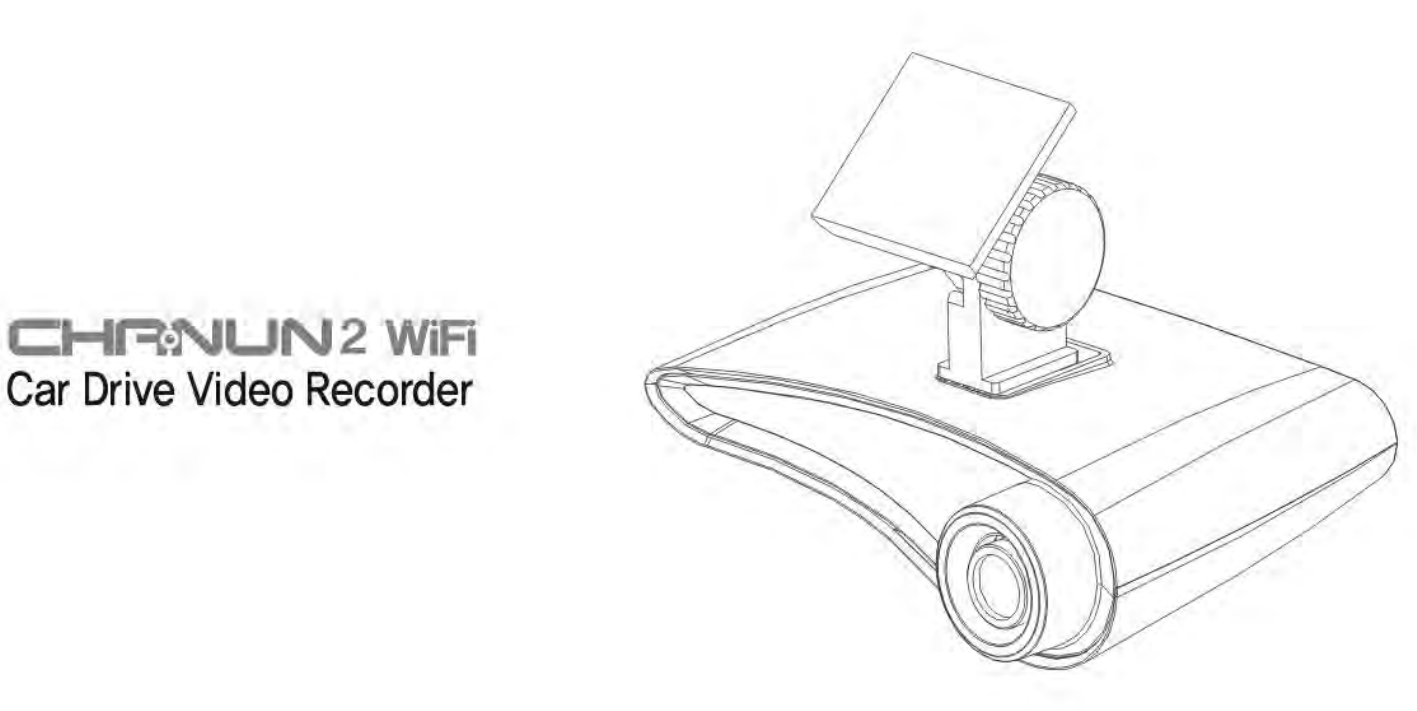
User Manual
SEMISOLUTION Inc.
Semisolution Inc
.
Suite 2005 Heungdeok U-Tower, 1029 Yeongdeo-dong, Giheung-gu, Yongin-si, Gyeonggi-do, KOREA TEL +82-31-627-5300, FAX +82-31-627-5303
CHANUN User Manual (REV:2014/04/30/V1.0)
2 / 30
<Guarantee of video recording and range of responsibility>
1. This product is a ancillary product for safe driving made to arouse driver's attention to safe driving, prevent accident and to be used as an important
reference to the moment of the accident.
2. This product does not guarantee recording of every accident, please be aware that if the impact was so minor that the impact sensor cannot detect it
may not be saved as event record.
3. "SEMISOLUTION" is not responsible for loss of video record or driving information as a result of product breakdown from accident or any other
causes.
CHANUN User Manual (REV:2014/04/30/V1.0)
3 / 30
Safety warning
This "Safety warning" is to keep you safe from accident and prevent you from property damage. Please read carefully and keep this manual where you can
find anytime.
1. Usage of constant power cable for record during parking
Our car DVR, “CHANUN” series were developed for DC12V and DC24V power supplies.
In case of Using constant power cable for record during parking, below problems are expected. If below problems
are occurred, user can’t get free warranty service and especially that the damages occurred on the vehicle, we have
no liabilities for such damages and user should bear all such liabilities. So, users should pay attention to use
constant power cable.
[expected problems to use constant power cable]
1. Car-DVR system life-shortening or serious damages
2. Product deforming under the High temperature at summer season or vehicle fire
3. Vehicle battery performance degradation
4. vehicle electric system damages due to the battery performance degradation
5. Vehicle generator over operation and life-shortening due to the battery output voltage decreasing.
6. Vehicle gas mileage degradation
2. Do not manipulate or stare at the product while driving.
Do not manipulate or stare at the product while driving. It may cause accident. When you need to manipulate the
product please park your car.
CHANUN User Manual (REV:2014/04/30/V1.0)
4 / 30
Safety warning (Continued)
This "Safety warning" is to keep you safe from accident and prevent you from property damage. Please read carefully and keep this manual where you can
find anytime.
3. Do not disassemble or repair the product.
It may cause electric shock, product failure or malfunction.
4. If the product is wet, Do not try to dry it with heat. (Do not use heater, hair dryer, micro wave)
It may explode or cause malfunction. Please contact "SEMISOLUTION" customer service center.
Do not use liquid or
volatile substances.
5. Please only use components provided with the product.
If not it may cause malfunction or accident.
"SEMISOLUTION" does not guarantee compatibility regarding
any devices or accessories which are not provided by the company. "SEMISOLUTION" is not
responsible for any product failure caused by the use of the components or accessory made by
other than "SEMISOLUTION".
6. If you do not use for long time with constant power supply.
Do not operate the product if engine is not running. The engine start may fail if battery is
discharged. Also when you are installing constant power supply please have it installed
by expert, otherwise it may cause malfunction.
CHANUN User Manual (REV:2014/04/30/V1.0)
5 / 30
Safety warning (Continued)
This "Safety warning" is to keep you safe from accident and prevent you from property damage. Please read carefully and keep this manual where you can
find anytime.
7. Do not use other than the rated voltage.
Do not separate the power cable during the operation. It may cause damage to the product.
Do not use other than the rated voltage(12~24V). It may cause damage to the product or fire.
Please comply with the instructions on this manual when installing the product.
8. Please keep black box separate from your car when you are not using it in the mid of summer and
winter.
Do not leave the product under high or low temperature for long time. If the product is exposed
to the sun light for long time in summer or left in cold in the winter it may cause
malfunctioning of the product. Please keep the black box separately if you are not using it or
parking your car for a long time.
CHANUN User Manual (REV:2014/04/30/V1.0)
6 / 30
Caution for your safety
This ""Caution for your safety" and is to keep you safe from accident and prevent you from property damage. Please read carefully and keep this manual
where you can find anytime.
1. Do not install black box where windshields is tinted or area where other foreign substance(sticker etc.)
might interfere recording.
In a car with excessively tinted wind shield, the video image of the product may be recorded in
dim or distorted quality. I
nstall it in a place of clear view.
2. Keep camera lens clean.
If camera lens is dirty it may degrade quality of image recorded. Please keep it clean with dry and soft cloth.
Since the product is not water proof, do not use liquid.
3. If the product is destroyed by huge accident or power supply is disconnected, check to see if the product
is working before use it.
If used without checking the product may not work properly and the video may not be recorded.
4.
Check the product's location and the camera angle.
Please check the product's location and the camera angle frequently in a rough driving
environment like bumpy road condition.
CHANUN User Manual (REV:2014/04/30/V1.0)
7 / 30
Caution for your safety (Continued)
This ""Caution for your safety" and is to keep you safe from accident and prevent you from property damage. Please read carefully and keep this manual
where you can find anytime.
5. Quality of recording may differ depending on condition of light.
Please be aware that the recorded video quality may degraded in extreme light conditions
including the rapid surrounding light change such as in entering a tunnel, excessive strong
backlight or the night without any light source.
6. If the impact of the accident was minor, it may not be recognized and may not be automatically saved
as event record.
For an accident with the impact lower than certain degree, please be aware that the event data
may not be recorded in the product. In this case you may mildly impact the product.
7. Please check the recorded video regularly.
Please check the recorded video regularly to be sure that SD card and the product is working properly. If any
abnormal operation is found please contact "SEMISOLUTION" customer service center.

CHANUN User Manual (REV:2014/04/30/V1.0)
8 / 30
Caution - SD Card
1. SD card is a consumable product. Please check it regularly, and if it is not working replace it.
When you are recording SD card is wearing out. therefore please check it regularly, and if it is not writing or reading you have to replace it.
But if you format it regularly you can extend its life cycle. (once in 2 weeks recommended. if you use it 24 hours a day, once a week)
2. Using SD card provided by “"SEMISOLUTION"” is recommended.
When replacing SD card we recommend you to buy from us. If not there can be trouble with compatibility with the product and recorded video can be
damaged.
3. When taking out SD card from the product, please turn the product off first.
If SD card is took out while power is on, recordings in the card can be damaged and it can be the cause of malfunctioning of the product.
4. Do not disassemble or repair SD card.
SD card can be damaged and it can cause malfunctioning of the product.
5. When keeping SD card separately, keep it away from humidity, dust and heat.
If exposed to the humid, dust and heat SD card can be damaged.
6. For important data please back up the data else where.
If you want to keep the data for long time please save it in other device such as hard disk or CD.

CHANUN User Manual (REV:2014/04/30/V1.0)
9 / 30
Caution - GPS
(GPS model only)
What is GPS?
The Global Positioning System (GPS) is a space-based satellite navigation system that provides location and time information in all weather, anywhere on or
near the Earth, where there is an unobstructed line of sight to 3 or more GPS satellites. Using GPS technology the product saves location, speed and other circumstances of
the moment you drive and your car's trajectory.
1. GPS is affected by whether, status of satellite, and surrounding geographical features.
A GPS receiver calculates its position by precisely timing the signals sent by GPS satellites high above the Earth. Each satellite continually transmits messages including
the
time the message was transmitted and satellite position at time of message transmission. Depending on the weather or other environment, it
may take a long time to receive GPS signals right after the power is turned on. In case of the influence from buildings, underground,
tunnels, street trees, the error range of receiving GPS is expanded. And in certain circumstances it may not be possible to receive GPS signal.
2. The product's function is not affected whether GPS is received or not.
Even if receipt of GPS is stopped, products' video recording function is working. But location, position indicator and speed of driving will not be recorded.
3. After purchasing the product, when you use it for the first time or did not use it for long period of time, GPS connection may take long time.
It may take from 5 to 30 minutes. It is time taken to verify location of satellite and receiving signals.
4. Optimal temperature for GPS operation is 0~50℃(32℉~122℉).
GPS receipt might take long time in the middle of summer or winter. Please keep the internal temperature at the optimal level.
5. If windshield is tinted or coated with metal components, GPS receipt can be disturbed and fail.
Please avoid installing the product around those area.
6. If there's any device that produces electromagnetic waves, GPS receipt can be disturbed and fail.
Some of wireless car start alarm, MP3 player, CD player, safety alarm using GPS or other kind of devices that receives GPS can cause electronic jamming
signals and fail GPS receipt
CHANUN User Manual (REV:2014/04/30/V1.0)
10 / 30
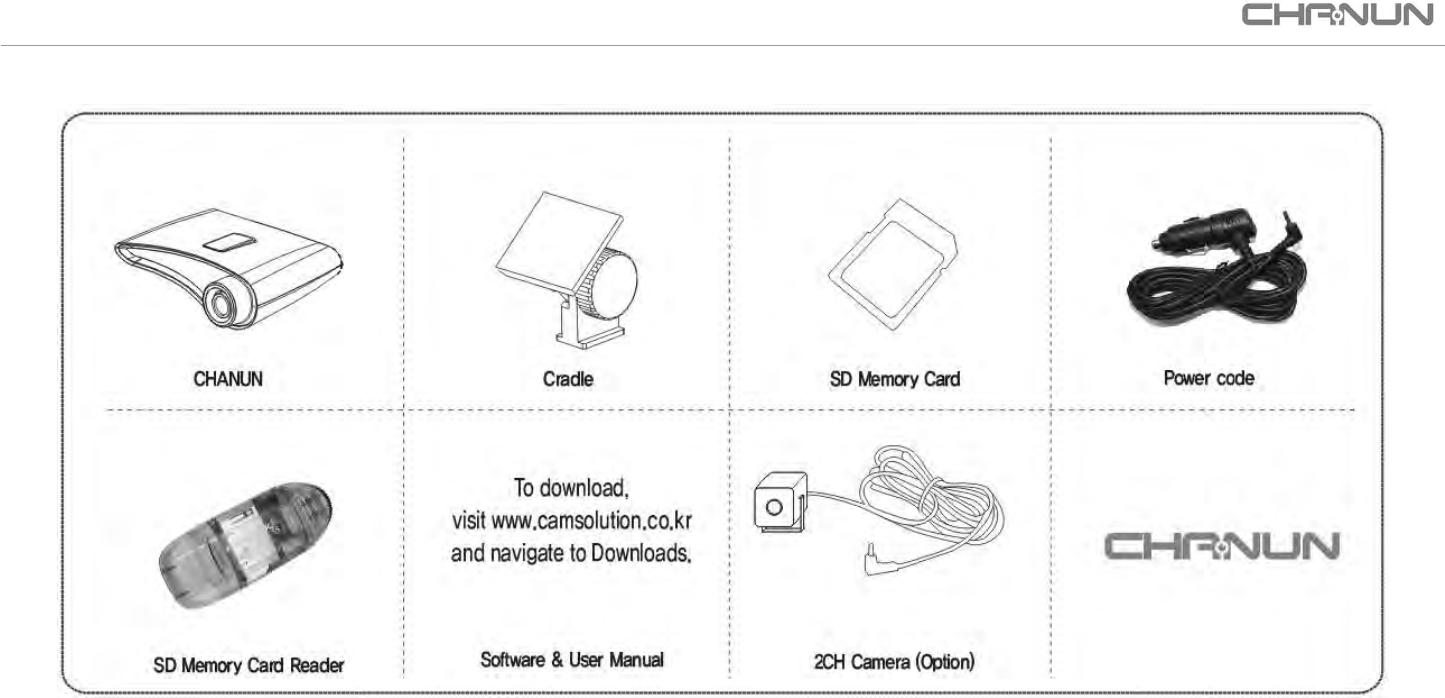
Unpacking
※ This product composition can change without prior notice to improve the function of product. You can purchase each items in addition to the product composition.
CHANUN User Manual (REV:2014/04/30/V1.0)
11 / 30
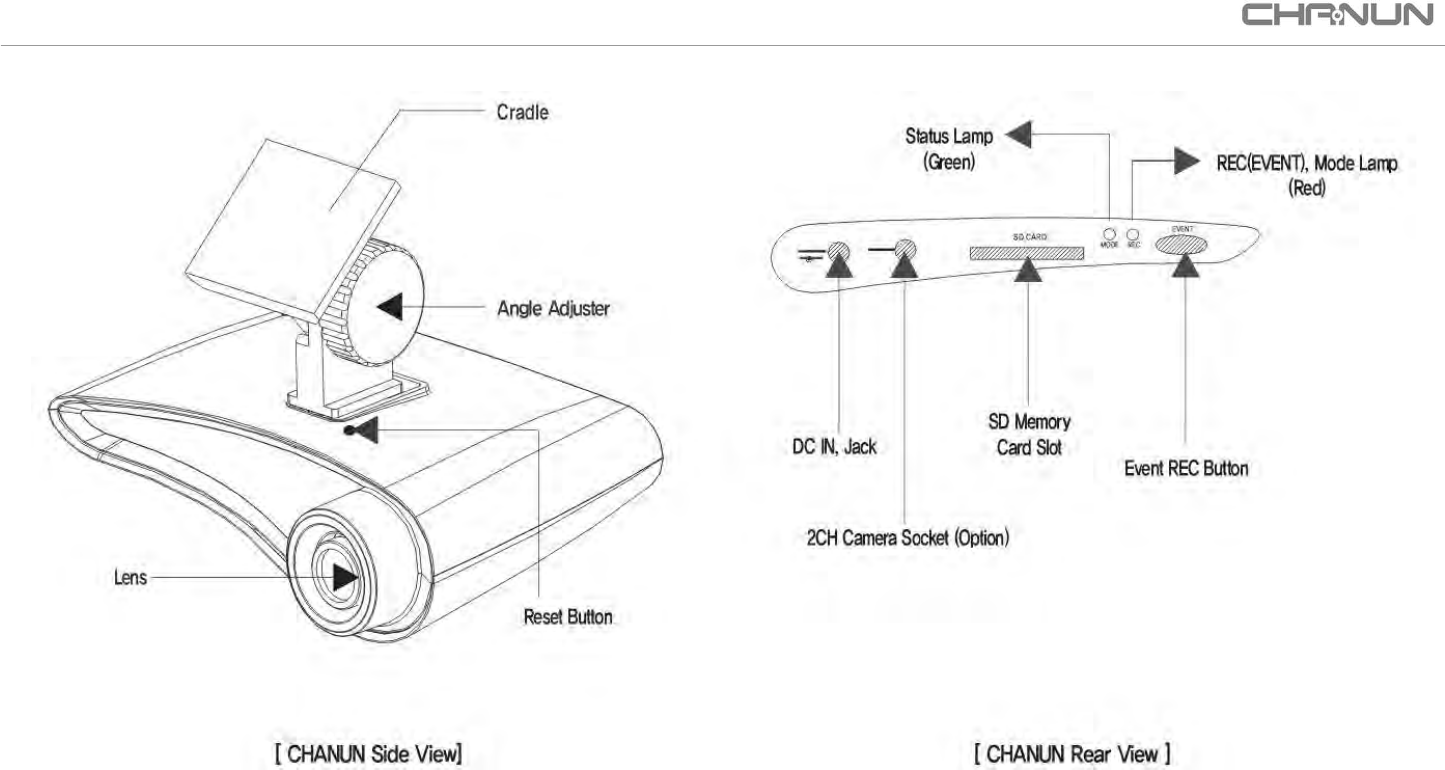
CHANUN Layout
CHANUN User Manual (REV:2014/04/30/V1.0)
12 / 30
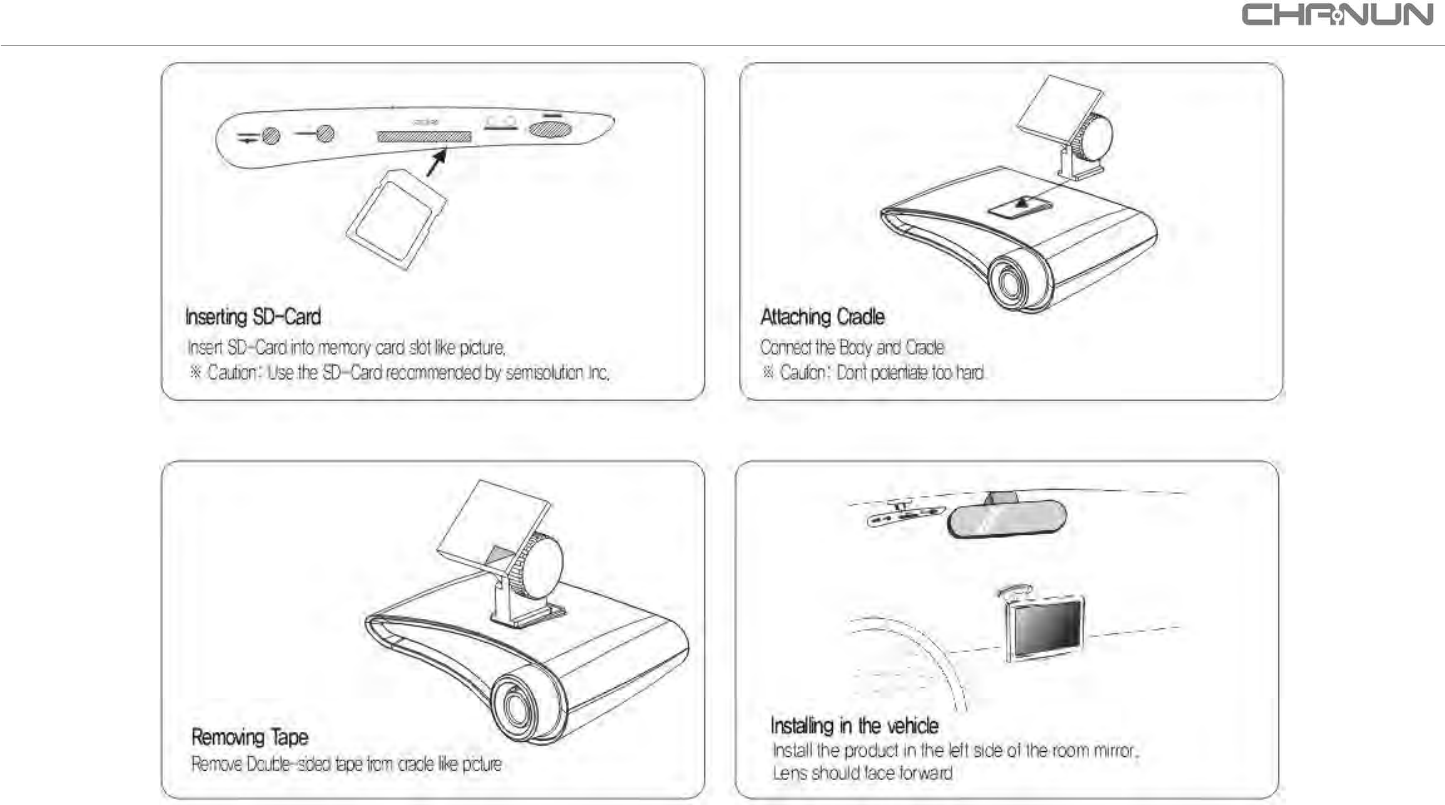
Product Installation
CHANUN User Manual (REV:2014/04/30/V1.0)
13 / 30
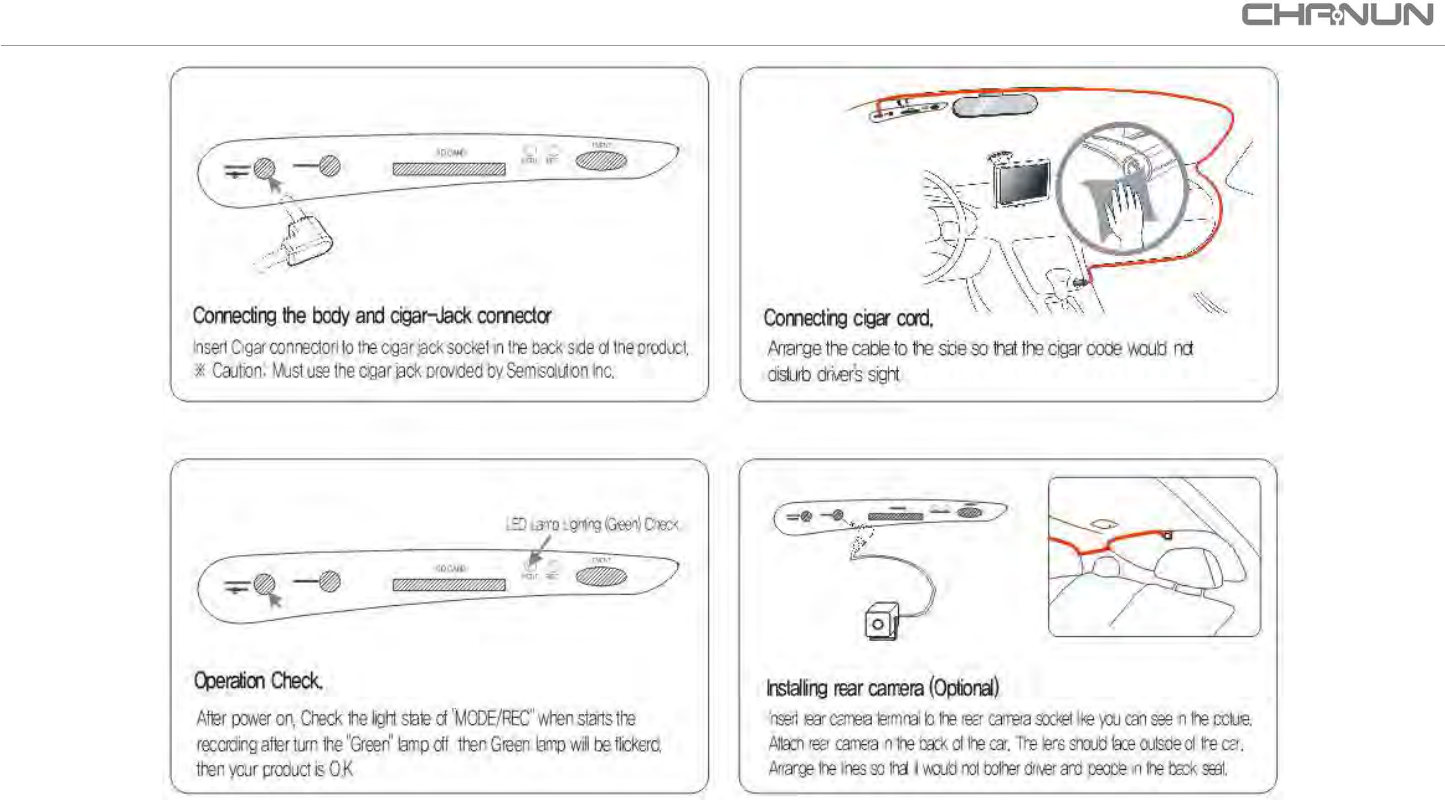
Product Installation (Continued)
CHANUN User Manual (REV:2014/04/30/V1.0)
14 / 30
PC exclusive player Setup
This product saves recorded video in AVI file and it can be played in general video player. But with the CHANUN PC player set up, besides from playing video
you can also enjoy various additional functionalities, manage files and set configuration.
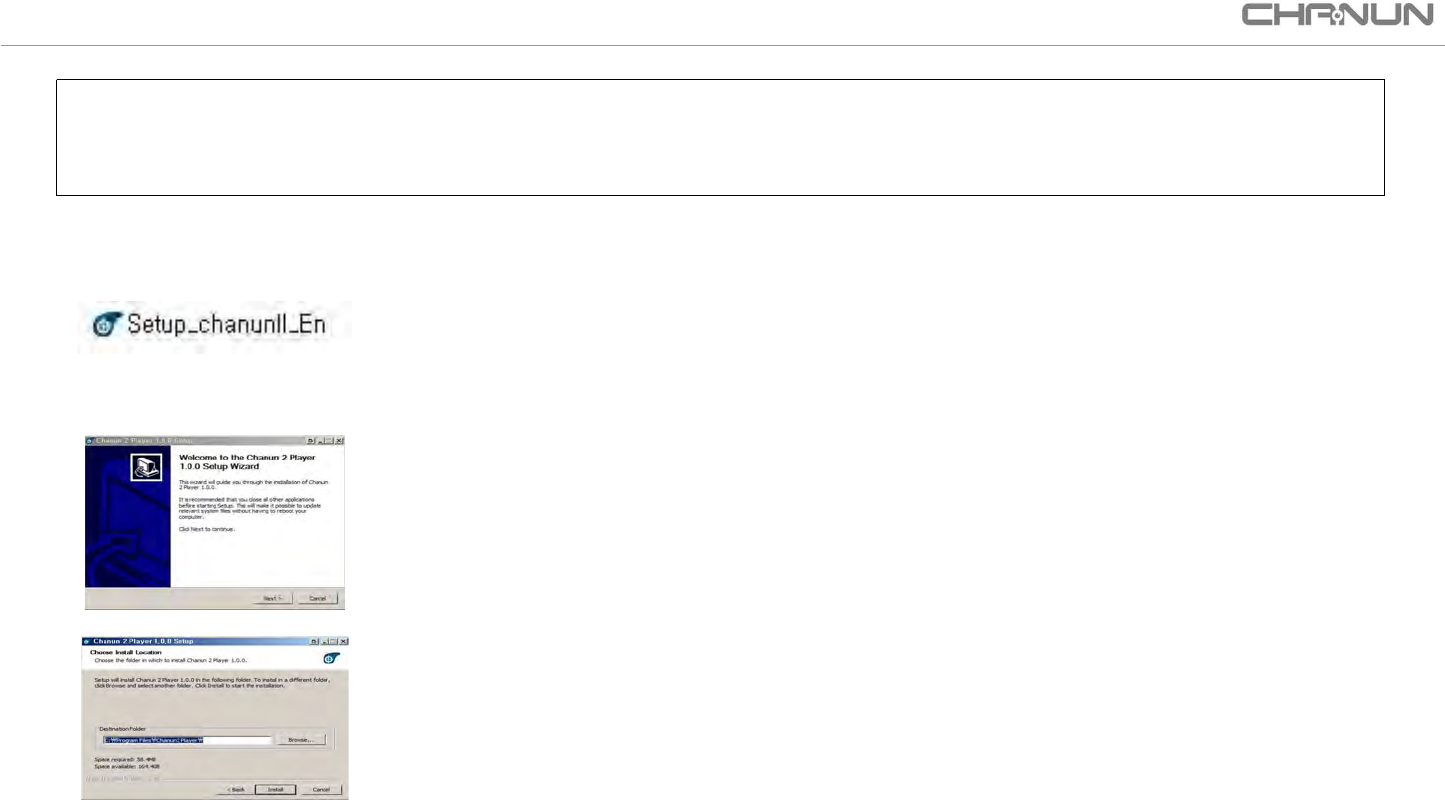
1. Start Setup
Insert provided CD into CD-ROM drive and double click Setup_SimpleCam.exe(Setup_SimpleCam_wireless.exe)
※ You can also download it from (www.camsloution.co.kr).
2. Setup
Start Setup by clicking “Next” button.
3. Assign Setup folder
Assign “Setup folder” and click “Next” button to continue setup process.
CHANUN User Manual (REV:2014/04/30/V1.0)
15 / 30
PC exclusive player Setup (Continued)
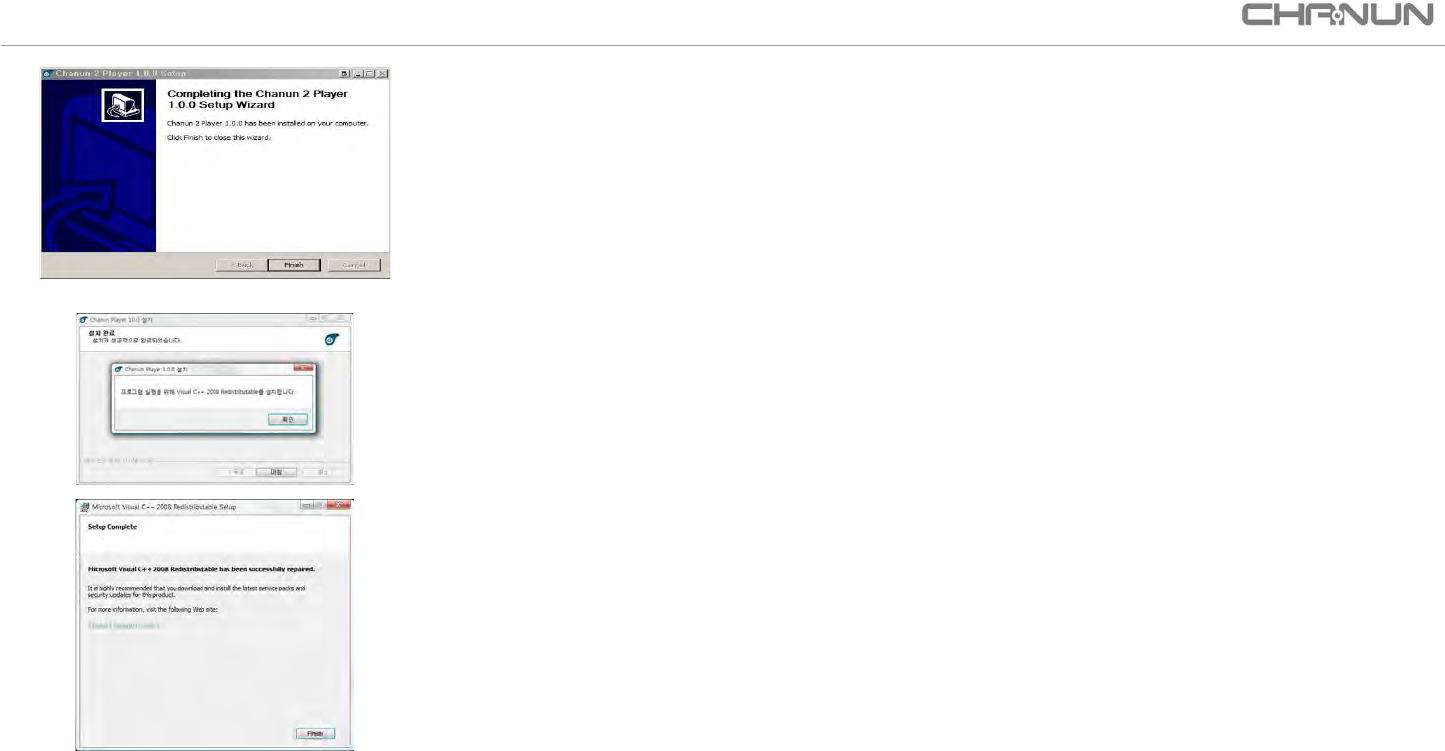
4. Setup completed
If setup is completed, click "Finish" button and the setup is completed.
※ Microsoft Visual C++ 2008 Redistributable setup
1. After completing SimpleCam setup, automatically Microsoft Visual C++ 2008 Redistributable will be installed.
Click “Next” button and start the process.
2. Click "Finish" to complete Microsoft Visual C++ 2008 Redistributable setup.
CHANUN User Manual (REV:2014/04/30/V1.0)
16 / 30
Using PC exclusive player
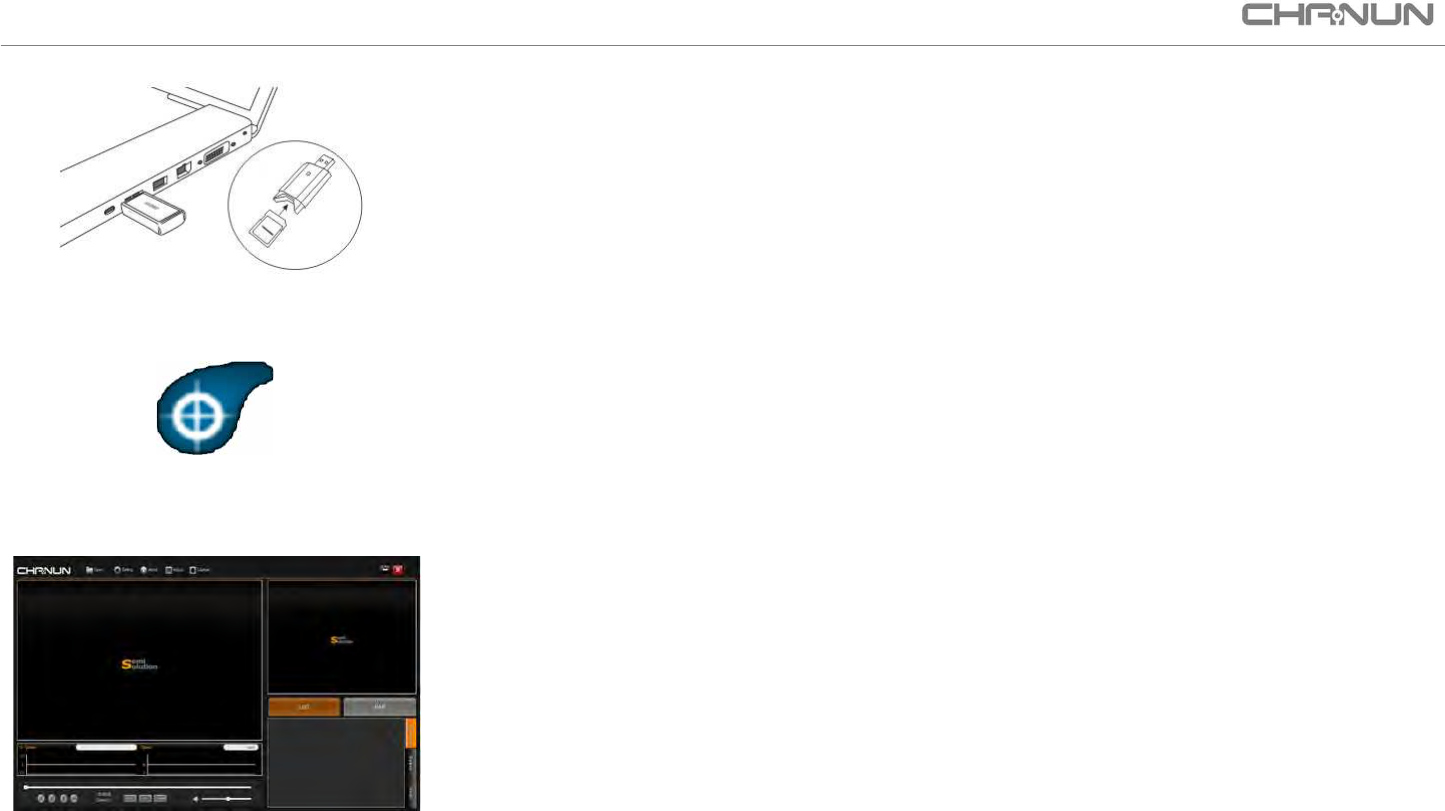
1. Connect to PC
Separate SD card from the product, insert SD card into the reader like shown in the picture.
※ Please check front and back side of the SD card and make sure you insert SD card in the direction that the arrow is
pointing at.
CHANUN PLAYER
2. Click the icon
Double click CHANUN Player icon to start player.
3. Start the player
You will see the player.
※ This plays high resolution video. Therefore if you play it in a PC with low specification it may fail to play it
properly. If the viewer is not working please try it from other PC or upgrade your PC.
CHANUN User Manual (REV:2014/04/30/V1.0)
17 / 30
CHANUN Player Menu
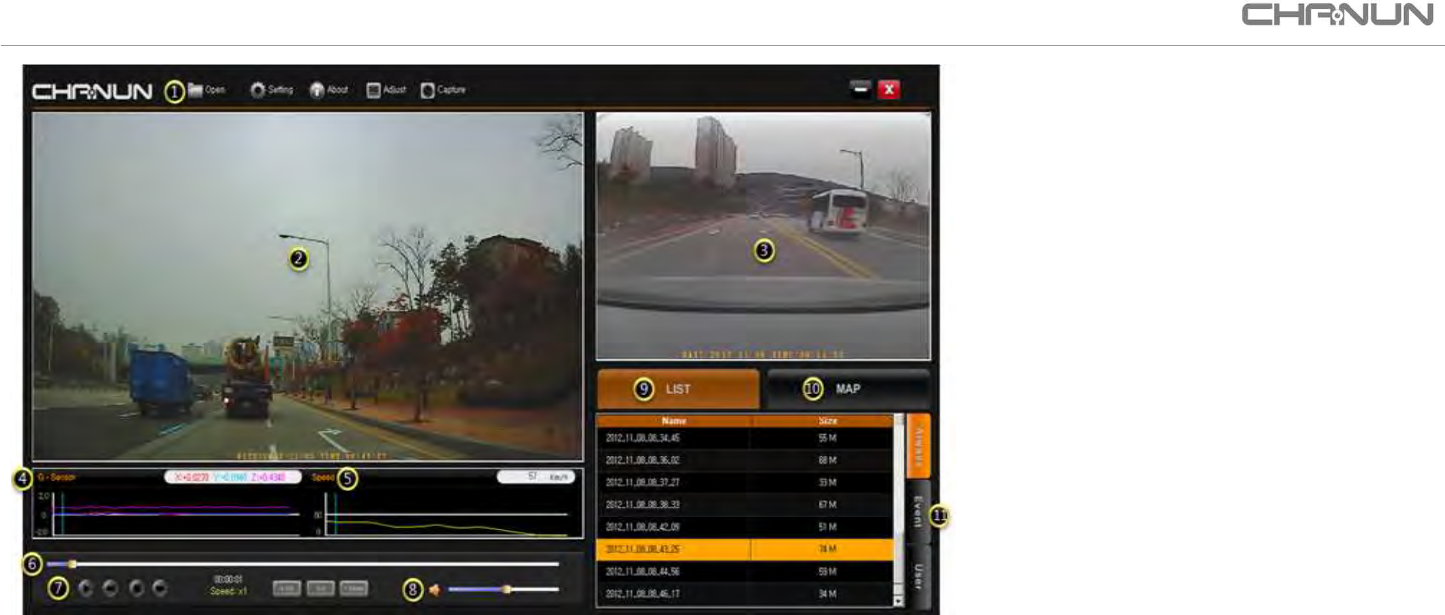
5. Speed graph
: Speed value display
6. Video play
: Shows time of the recording
7. Video control buttons
: Play, Forward, Stop, Next
8. Volume
: Adjusts volume of the sound being played
9. Video list
: Shows files recorded in the SD card.
10. Map
: Shows car's location using GPS.
11. Recorded file arrange
: Arrange file based on file's status, Always, Event
and User recording.
1. Program menu
: Bring file, setup, help, Adjust, Capture
2. Image Window
: Replayed image display window
3. Rear Camera image window
: Plays video from rear camera recordings
4. G-sensor graph
: G-sensor variation value display
CHANUN User Manual (REV:2014/04/30/V1.0)
18 / 30
Using PC exclusive player (Continued)
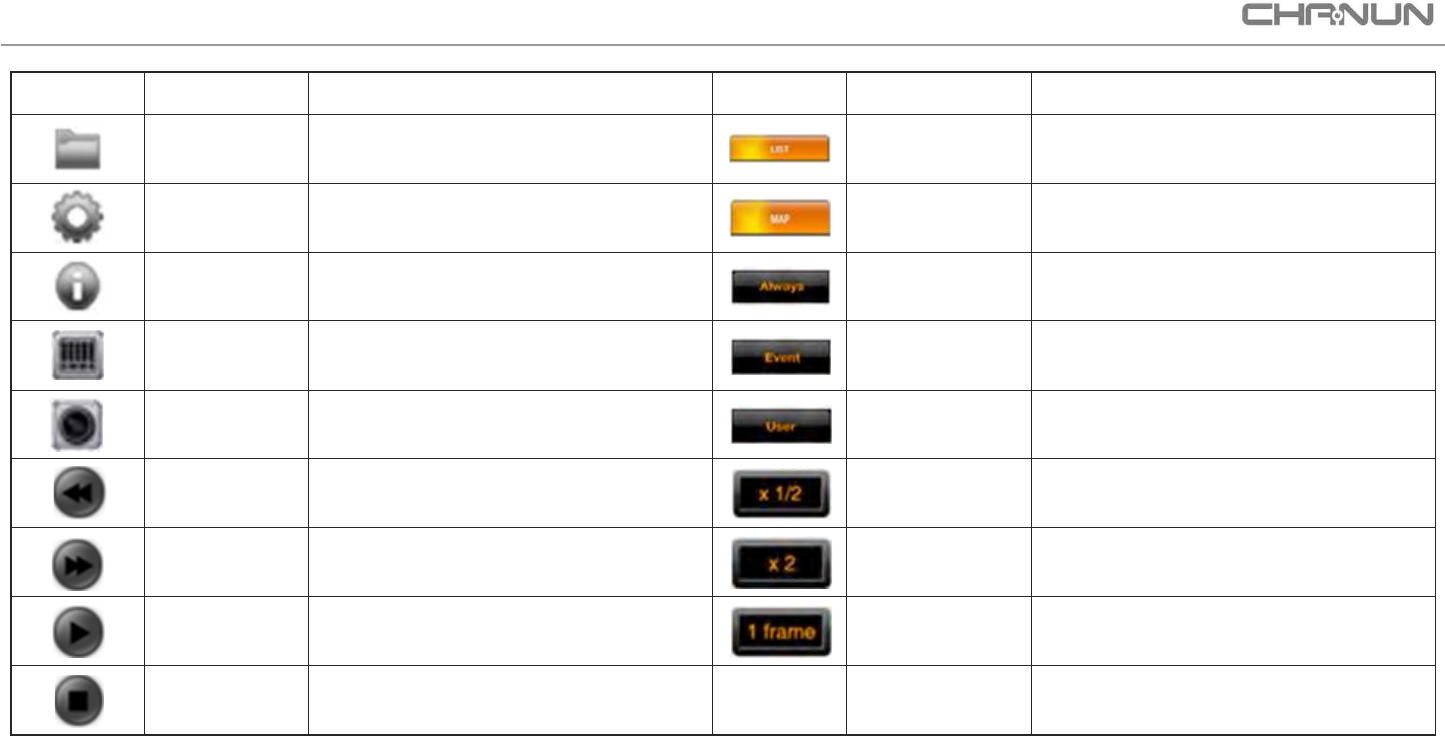
Icon
Name
Function
Icon
Name
Function
Load
Load a storage file from the SD card
List
Records list
Setting
Set the product’s use environment
Map
Map windows display
Help
Player and company information
Always
Always records list
Image Adjust
Screen Adjust
Event
Event (In case of impact) records list
Image Capture
Screen Capture
User
user records file list
Forward
Rewind play
0.5x speed
0.5x speed play
Play next
video
Play next video
2x speed
2x speed play
Play
Start playing
Play 1 frame
Forward a replayed
image at a 1 sec interval
Stop
Stop playing
CHANUN User Manual (REV:2014/04/30/V1.0)
19 / 30
Using PC exclusive player (Continued)
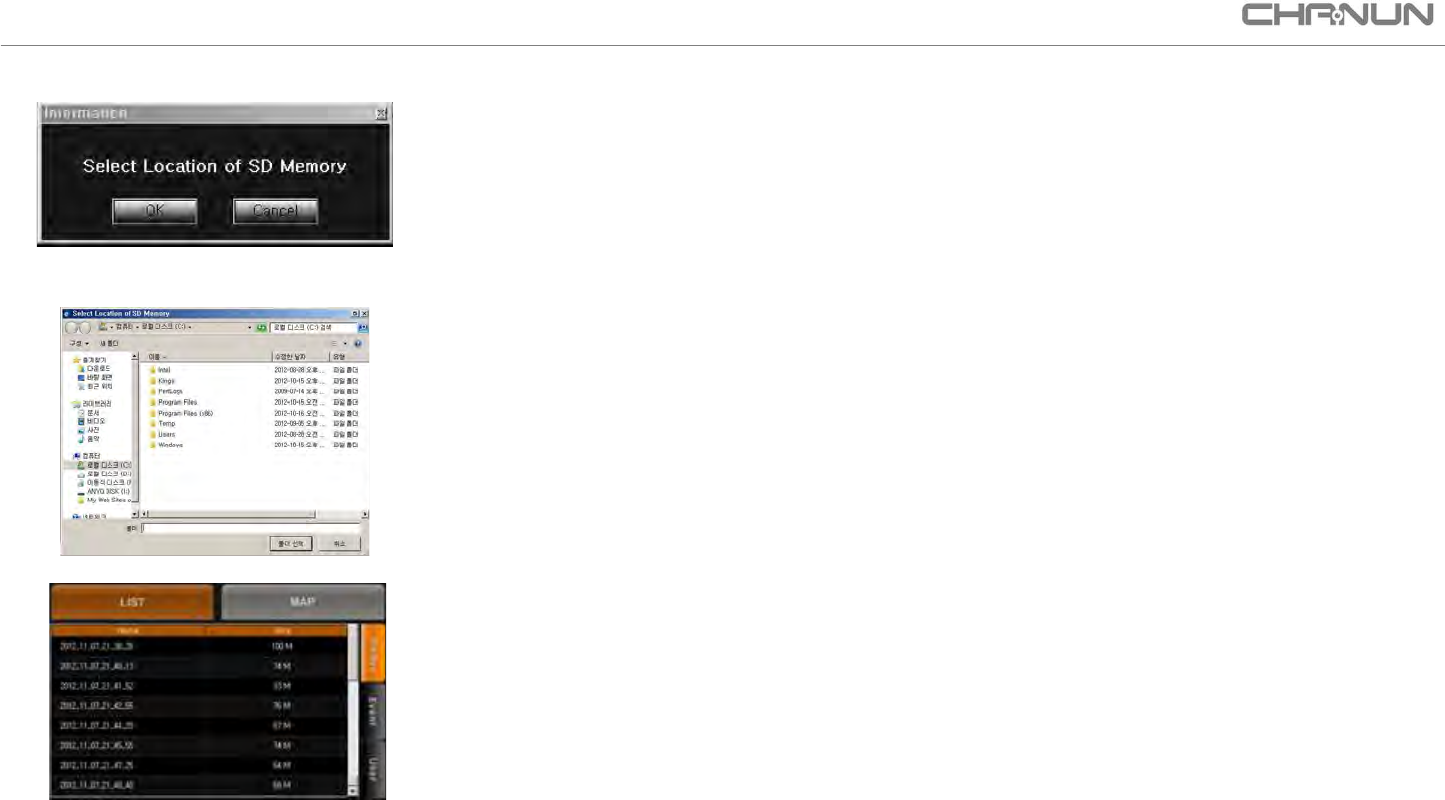
4. Select location of SD card drive
Check if SD card is inserted into PC and click "OK" button.
※ If you clicked "Cancel" you can bring video files by clicking "File" .
(Order : File -> assign SD card drive -> click recodring folder)
5. Select SD Card drive
Select SD card drive and click “Select folder”
6. File list check
Double click the file you want to play.
※ If you double click another file, it will be played.
CHANUN User Manual (REV:2014/04/30/V1.0)
20 / 30
Using PC exclusive player (Continued)
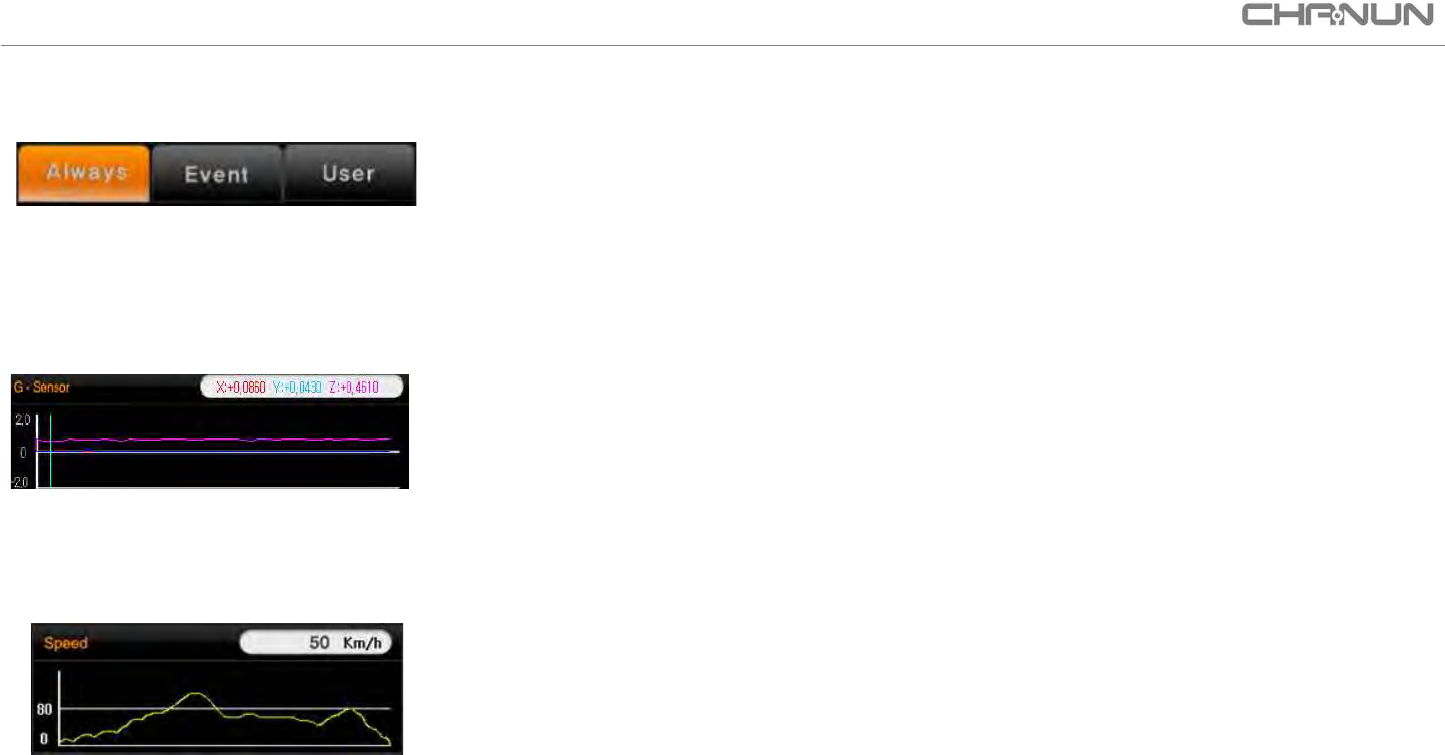
※ You can organize your recording files if you click on the menu in the picture, and in the
viewer you will see it in the right side of the list.
- Based on recording status arranged in to 3 categories.
(Status : Always, Event(Shock), User)
- Ascending order based on date and time.
7. 3 axis G-sensor guide graph
Graph shows sensitivity measured from impact on front/back, upper/lower and right/left side of the event happened.
※ 3axis G-sensor is used to detect impact, small vibration or small impact may not be detected and may not be able
to be used to understand the moment of accident.
8. Speed (GPS model only)
Shows speed of driving recorded by GPS and graph that shows change of speed.
※ A model not containing GPS cannot support a speed.
CHANUN User Manual (REV:2014/04/30/V1.0)
21 / 30
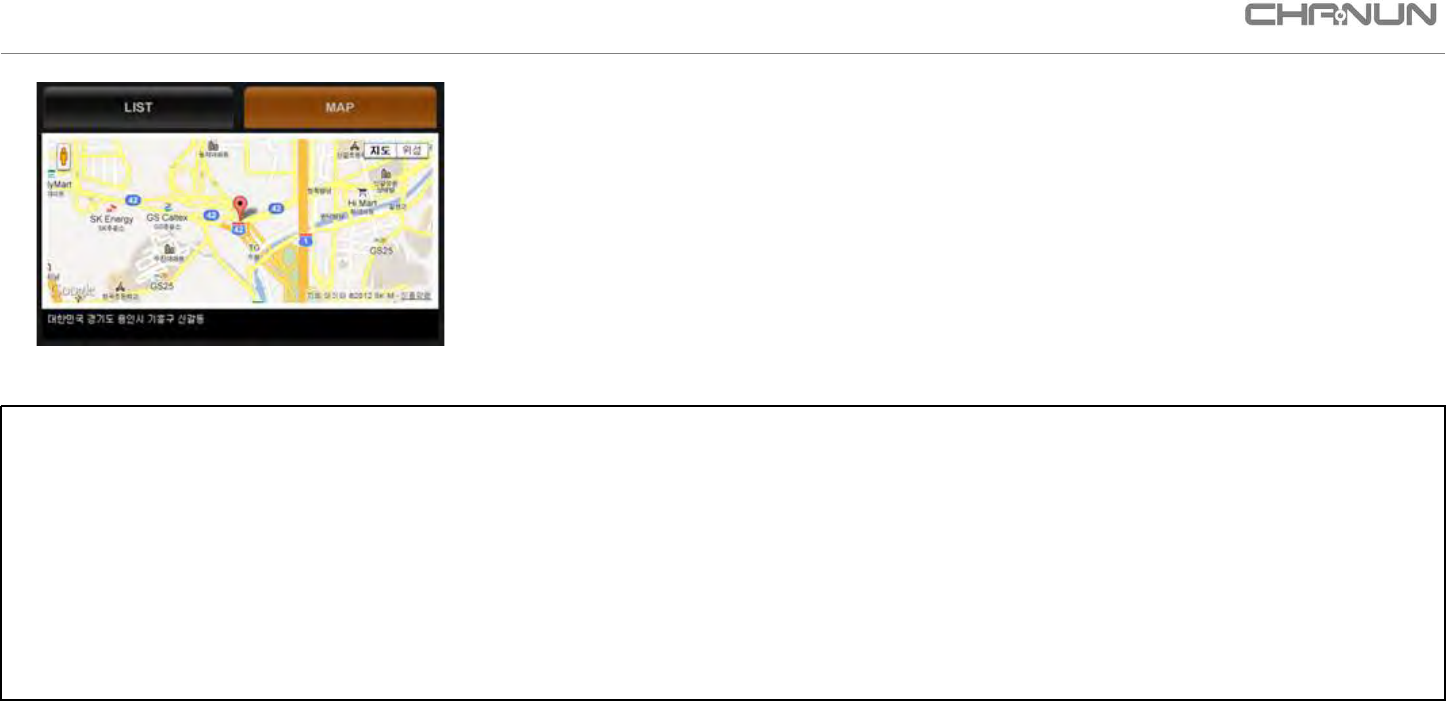
9. Map view (GPS model only)
- You can check real-time live record of location of your car from google map.
Provided that GPS is being received and internet is connected to the PC that is playing the exclusive viewer.
(GPS receiving might be difficult in tunnel or big city with many buildings.)
※ If you click LIST the map will be closed.
A model not containing GPS cannot support a map view.
Meaning of the Buzzer
1. Beep (Once) :
Booting is completed and recording start (Product is ready to record)
2. Beep Beep (Twice) :
GPS Start (If power is supplied to the product and it is started : GPS model only)
3. Beep Beep (Twice) :
EVENT Recording is started (While the product is operating: If impact is done or
you push Event recording button.)
4. Beep Beep Beep (Third times) :
SD card failure (Please replace SD card.)
5. Beep Beep Beep (Third times) Repeated 4 times :
If
SD card is not inserted or SD card is damaged
(Please check if SD card is inserted)
5. Beep~~~~Beep~~~~(Twice) :
Power turned OFF or restarted after upgrading.
Using PC exclusive player (Continued)
CHANUN User Manual (REV:2014/04/30/V1.0)
22 / 30
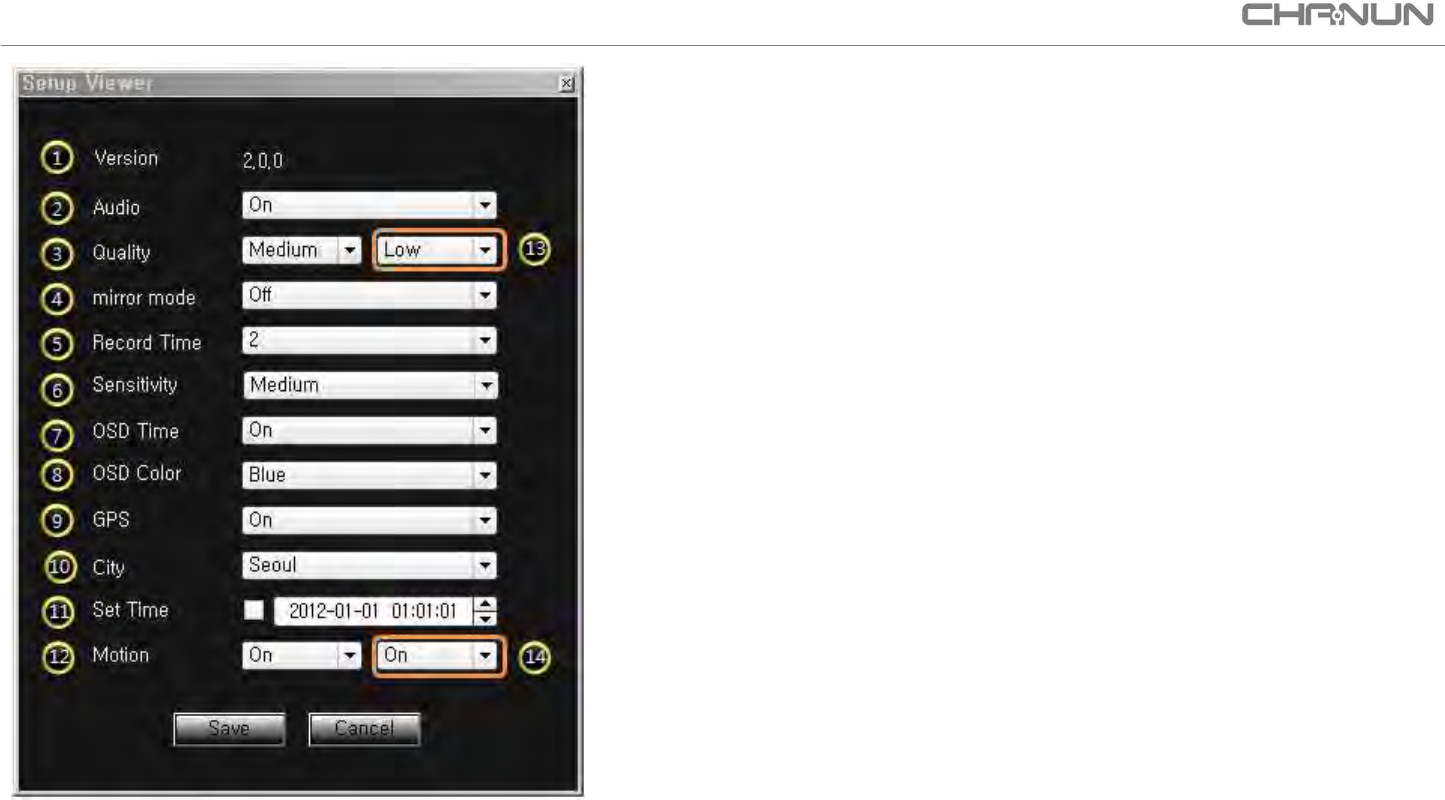
PC exclusive player Setup
1. Version
:
Shows version of CHANUN player.
2. Audio
: If you want to save sound (ON / OFF)
3. Quality
: Set quality of video recording (High / Medium / Low)
4. mirror mode
:
Vertically flips over the video image against the horizontal axis.
5. Record Time
: Set storage time per file(minute) (1 minute / 2 minute)
6. Sensitivity
: G-Sensor sensitivity Setting (High / Medium / Low)
7. OSD Time
: If you want to save time of the recording. (On/Off)
8. OSD Color
: Set information of color saved in the video.
9. GPS
:
Saves recording of location, speed and video.
(On/Off)
(Please refer to page 8)
10. City
: Select city to set time. (Must set if you have GPS model)
11. Set Time
: Set present time “Year / Month / Date / Time”
(If it is GPS model it will be automatically applied and you don't have to enter.)
※ When setting time please consider time you insert SD card.
12. Motion
: Set Motion sensor function
(In Parking mode, records only when there's a movement. Effective use of memory saving.)
※ This function is available only if constant power supply cable is connected.
13. 2CH Camera's image quality, Frame Rate setting.
(
High / Medium / Low
)
14. Set up Motion sensor detect function for 2CH camera.
(
On/Off)
CHANUN User Manual (REV:2014/04/30/V1.0)
23 / 30
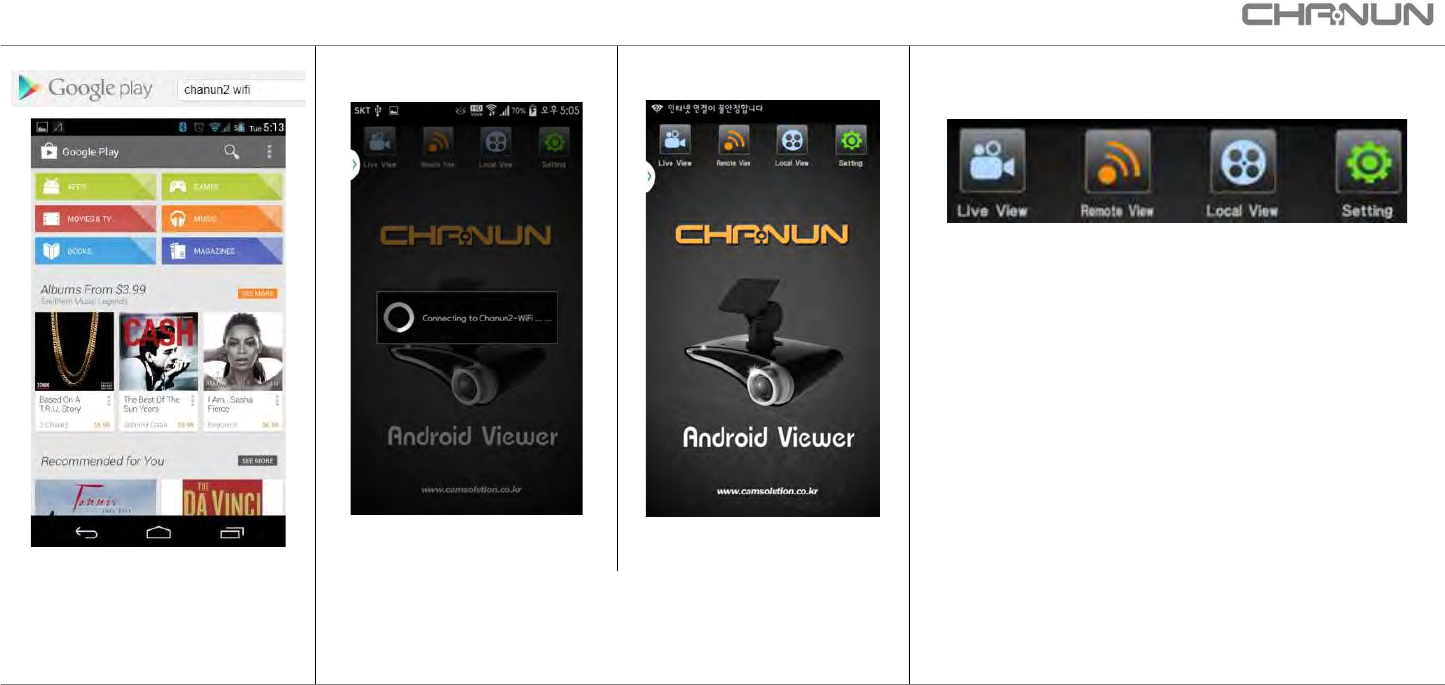
How to use Android APP (1)
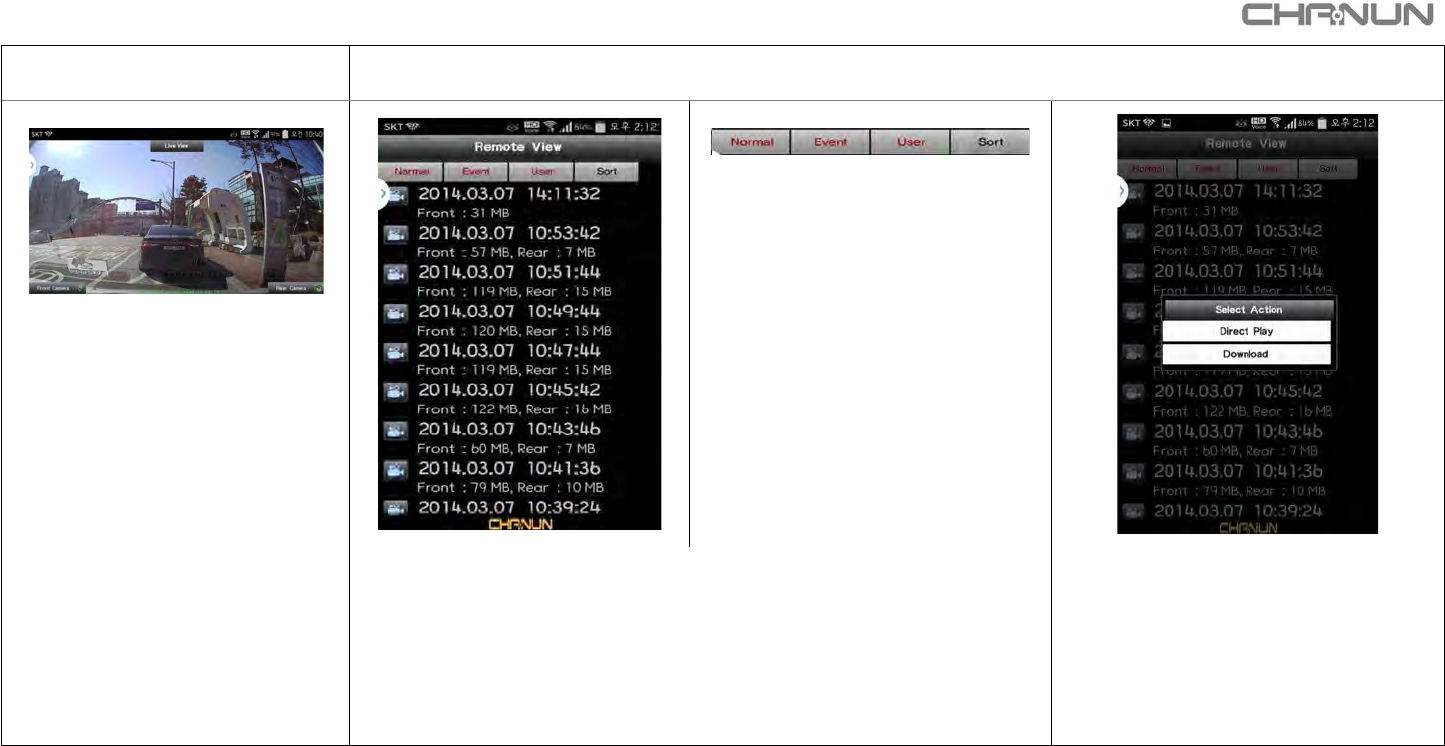
① Live View : Play video in a real time.
② Remote View : Play the vide record in
Car DVR and download to Smart phone.
③ Local View : Play and Erase the video
downloaded to Smart Phone.
④ Setting : Change settings.
1. Search Chanun2 WiFi in
google play store then
download APP.
2. Execute App
Automatically connect to Car DVR
3. Explanation of the functions on App
CHANUN User Manual (REV:2014/04/30/V1.0)
24 / 30
How to use Android APP (2)
[LIVE VIEW]
[Remote VIEW]
Live view means Smart phone
show the video in a real time.
① Normal : Video list recorded as
driving mode.
② Event : Video list recorded as
event mode.
③ User : Video list recorded as
pushing button by User.
④ Sort : Array video list as
ascending or descending power.
■ Front Camera : Play video in a
real time.
■ Rear Camera : Play video in a
real time.
■ Video you want to watch or download as click "direct play" or
"download"
■ Direct Play : Watch Video recorded
in Car DVR without download.
■ Download : Download Video
recorded in Car DVR to smart
phone.
CHANUN User Manual (REV:2014/04/30/V1.0)
25 / 30
How to use Android APP (3)
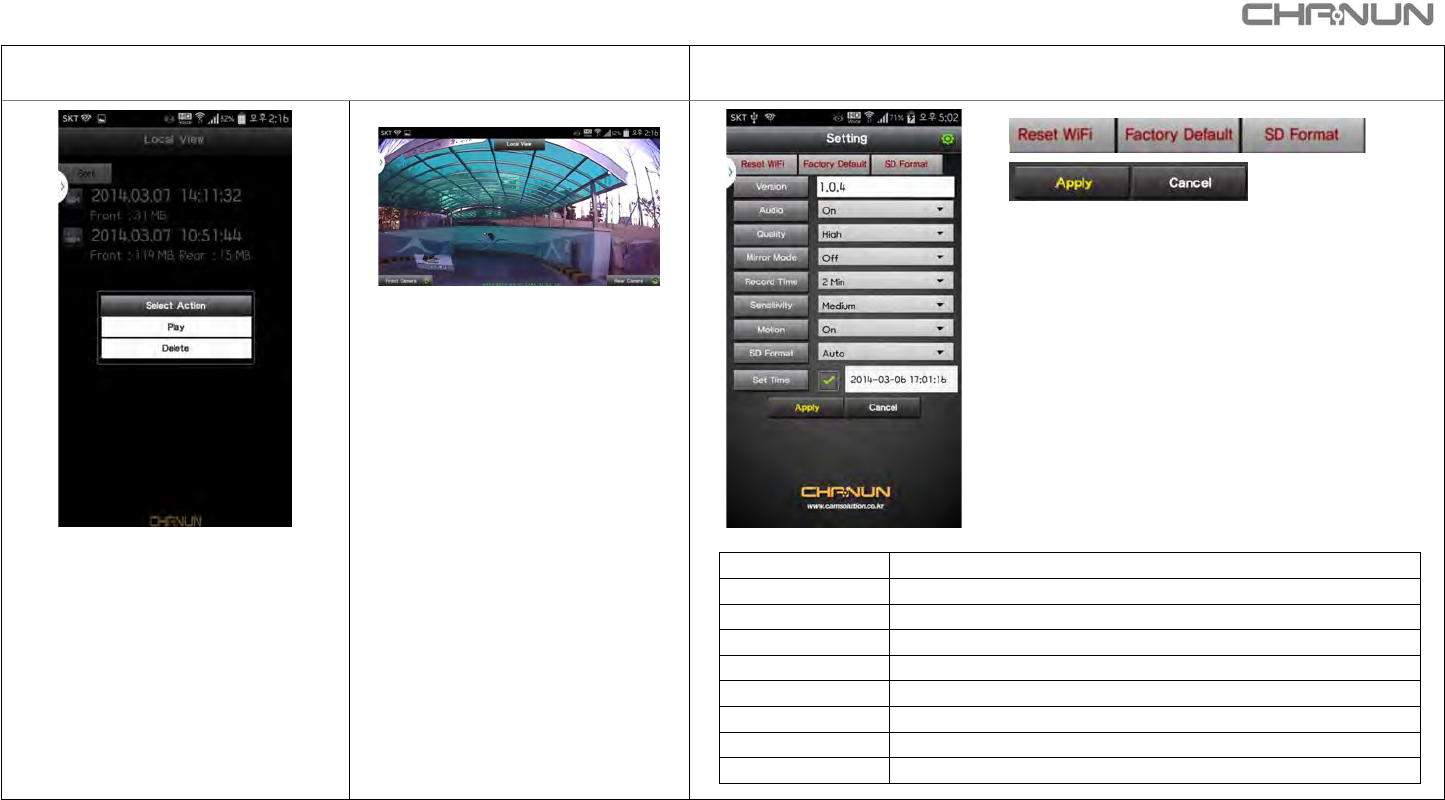
[Local View]
[ Setting ]
■ Reset WiFi : Delete WiFi informaion
set up previously.
■ Factory Default : Initialize setting
information on Car DVR.
■ SD Format : Format SD card.
■ Apply : Apply setting information you
want to change.
■ Cancel : Cancel setting information you
want to change
Play or delete video downloaded.
■ Play : Play the video chosen.
■ Delete
: Erase the video chosen
■ Front Camera : Play video.
■ Rear Camera : Play video.
Version
Version information
Audio
Record voice or not.
Quality
Video resolution.
Mirror Mode
Video shown upside down.
Record Time
Recording time.
Sensitivity
Sensitivity of shocking sensor
Motion
Motion detection or not
SD Format
Format the cycle of SD card
Date & Time
Fill in date & time based on local
CHANUN User Manual (REV:2014/04/30/V1.0)
26 / 30
Please Check before you ask for After sales service
Product is not working at all.
1. Check if the power adaptor is connected.
2. Make sure to use the cable provided with the product. If used with unidentified cable,
it may damage the product.
Quality of recorded video is bad
1. Check if the lens is dirty.
2.
The video from the camera will be affected by the environment (tinted
windshield and etc.) of the installation site of the camera.
3. Quality of the video may differ depending on the environment of the time the video is recorded.
There is no video recorded on SD card.
1.. remove the SD card being used, and reinsert it.
2.. Check if SD card is LOCKED.
3. Format the SD card being used and try it again.
4. If you used SD card for too long replace it with new SD card.
There is time difference between actual time of the
recording and the time marked on the recorded video.
1.. Please check the time setting from CHANUN PC exclusive player.
GPS is not received
(GPS model only.)
1..
Tinted or metal coated windshields in the car may influence GPS reception.
2.. If you did not use this product for long time or if it is first time to receive GPS it may take
about 5~30 minutes.
3. D
epending on the weather or other environment, it may take a long time
receive GPS.
CHANUN User Manual (REV:2014/04/30/V1.0)
27 / 30
FAQ
Where can I download CHANUN exclusive Player?
You can find CD-ROM in the package.
Also you can always download it from CAMSOLUTION homepage (
www.camsolution.co.kr)
Can I play it from other general player?
This product saves recorded video in AVI file and it can be played in general video player.
What happens when SD card capacity is full?
Recording is possible even if SD card capacity is exceeded. The oldest recordings will be first to be
removed and new video will be recorded.
Can I use any SD card?
Using authorized SD card is recommended. If not available, use SDHC product above Class10.
LED light from recorded video is blinking when I play it.
In the eye of the human LED light seems like it is on continuously but it keeps blinking thousands
times a second. Therefore if recorded in certain frame, it may appear to be blinking.
CHANUN User Manual (REV:2014/04/30/V1.0)
28 / 30
Product Specification
Product
CHANUN2 WIFI
Video Codec
H.264
Audio Codec
RAW WAVE
Image storage Hours
Max 16H(16G Base )~32G
Image Sensor
Front HD CMOS Sensor , Rear VGA CMOS Sensor
Max. Illumination
1.8V/Lux.sec
Lens Angle
121°
Max. Pixels
Front : 1Mega, Rear : 0.3 Mega
Data Storage
Max 32G(SDHC)
Resolution
Front (1280 X 720), Rear (720 X 480)
Frame
30 Fps
G-Sensor
BOSCH G-Sensor
GPS
Optional
Display
3LED
operating temp
-10 ℃ ~ 60 ℃
Power/Consumption
12V~24V/2W
Battery
Lithium Polymer Type
Size
119X86X39mm
Weight
119.8g (Full Package : 372.82g)
CHANUN User Manual (REV:2014/04/30/V1.0)
29 / 30
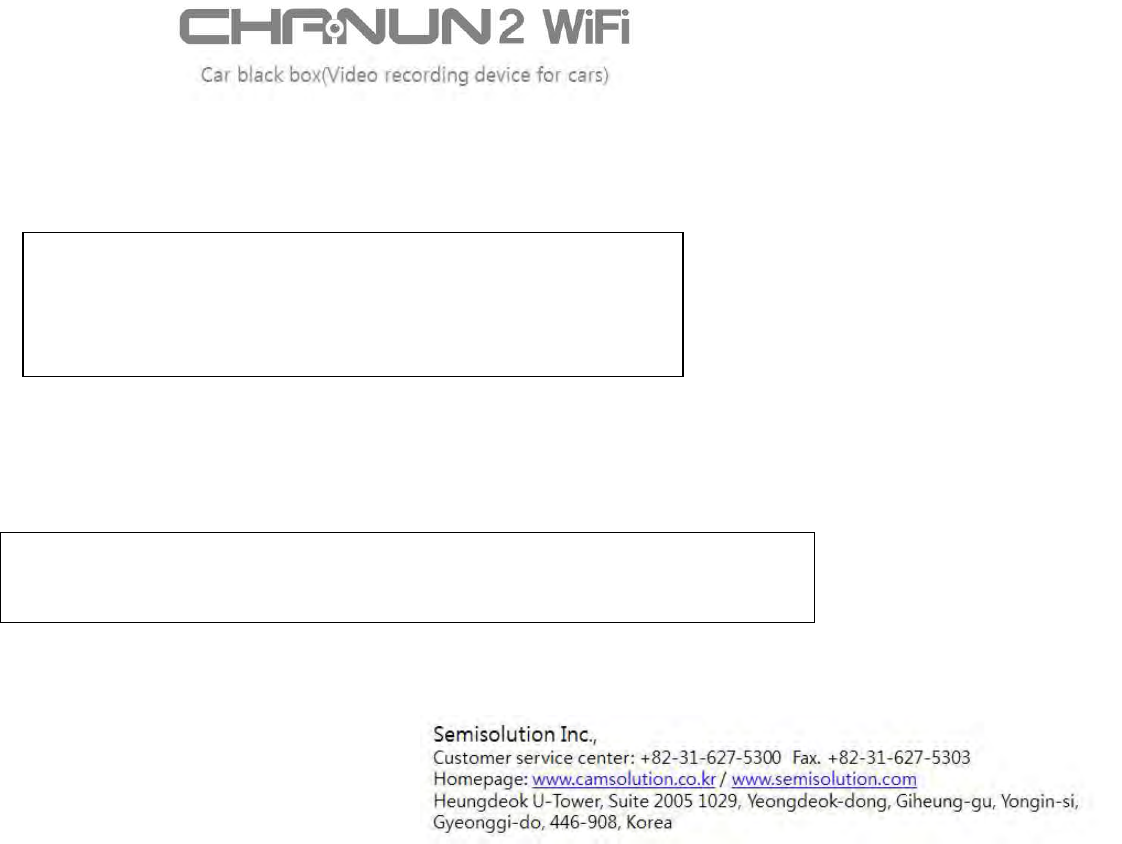
Limited Warranty
CHANUN User Manual (REV:2014/04/30/V1.0)
30 / 30
This device complies with part 15 of the FCC Rules.
Operation is subject to the following two conditions:
(1) This device may not cause harmful interference, and
(2) This device must accept any interference received,
including interference that may cause undesired operation.
Caution: Any changes or modifications to the equipment not expressly approved by the party
responsible for compliance could void user’s authority to operate the equipment.
This appliance and its antenna must not be co-located or operation in conjunction with any other
antenna or transmitter. A minimum separation distance of 20 ㎝ must be maintained between the
antenna and the person for this appliance to satisfy the RF exposure requirements