SEMISOLUTION SIMPLECAM2 Wireless Security Camera User Manual

SEMISOLUTION Inc. Wireless Security Camera Users Manual

User Manual

 http://www.emc2000.co.kr FCC TEST REPORT Report No.: EMC-FCC-R0158     EMC compliance Ltd. 65, Sinwon-ro, Yeongtong-gu, Suwon-si, Gyeonggi-do, 443-390, Korea 82-31-336-9919 (Main) 82-505-299-8311 (Fax) This test report shall not be reproduced, except in full, Without the written approval.            User Manual
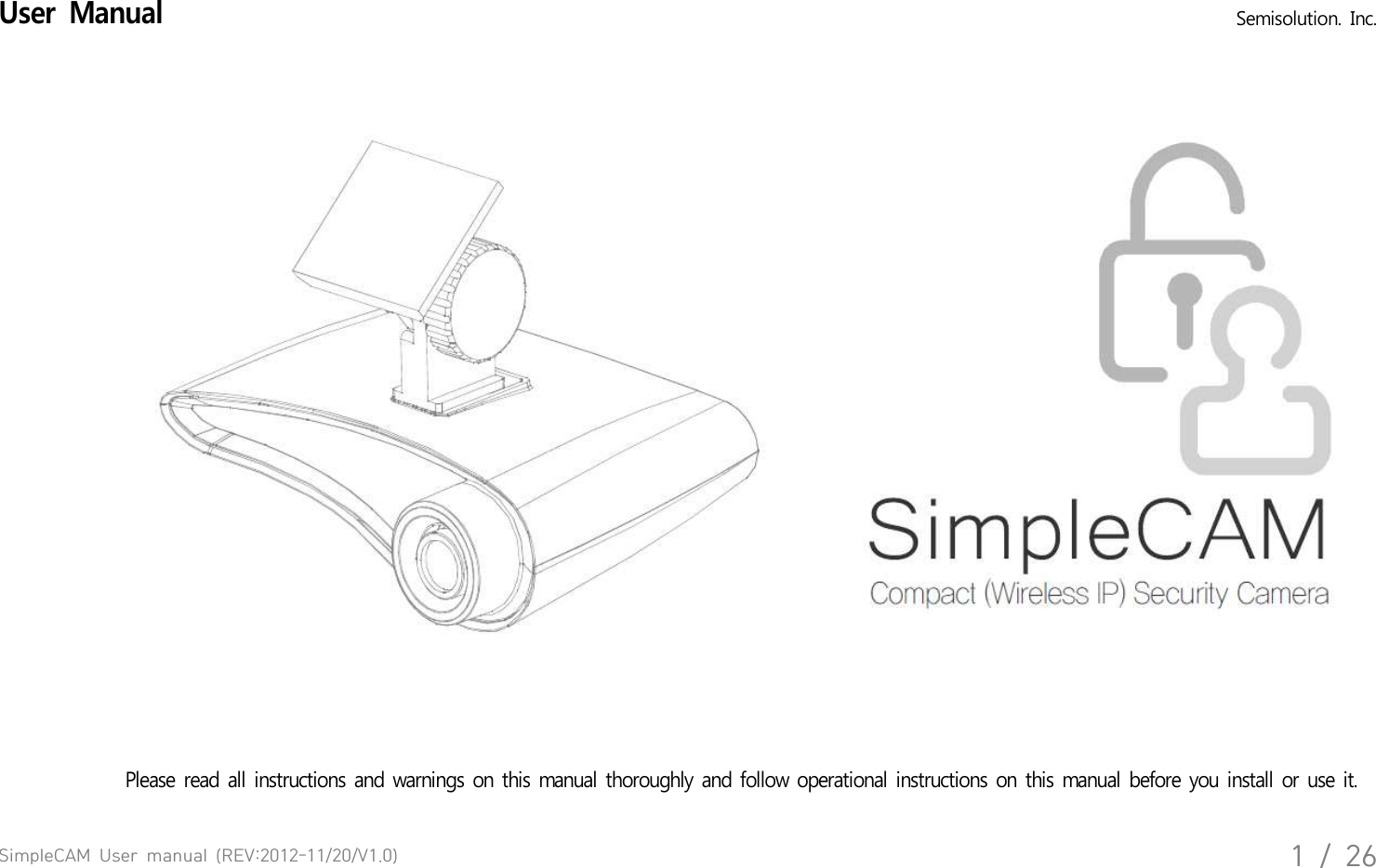
SimpleCAM  User  manual  (REV:2012-11/20/V1.0)1  /  26User  Manual   Semisolution.  Inc.Please  read  all  instructions  and  warnings  on  this  manual  thoroughly  and  follow  operational  instructions  on  this  manual  before  you  install  or  use  it.
SimpleCAM  User  manual  (REV:2012-11/20/V1.0)2  /  26PrecautionsPlease  read  below  to  make  sure  you  use  the  product  properly  and  safely,  so  there  would  be  no  damage  done  before  or while  using  it.   Warning•  Keep  the  product  away  from  humidity,  water  or  any  other  liquid,  metal  and  other  conductible  materials.  - liquid  and  metal  can  cause  fire  or  electric  shock. •  Use  dry  cloth  when  removing  dust  stain  or  other  alien  substances.  If  severely  contaminated  use  cloth  slightly  moistened  with  neutral   detergent. Do  not  use  volatile  substances  such  as  paint  thinner,  alcohol,  benzene  or  insecticide.  - It may  cause  damage  to  the  appearance  and  operation  of  the  product. •  Always  use  dry  cloth  when  cleaning  the  product,  Do  not  use  water,  chemical  substances  or  soap.   - It may  cause  electric  shock  or  malfunction.•  Do  not  disassemble,  remodel  or  repair  the  product. The  product's  servicing  is  allowed  only  to  authorized  Semisolution   service  personnel.  - It  may  cause  electric  shock  or  malfunction.•  Do  not  place  anything  heavy  on  the  product.
SimpleCAM  User  manual  (REV:2012-11/20/V1.0)3  /  26Installation  and  OperationPlease  read  below  and  follow  instruction. • Disconnect  power  cord  during  the  installation. • Make  sure  you  have  enough  space  for  connection  when  installing.• Keep  it  away  from  water,  humidifier,  heater  or  burn. • Keep  it  away  from  the  direct  sunlight,  strong  light  or  dust;  install  it in a place  of  clear  view.• Do  not  install  near  to magnetic  material  or if  there's  risk  of  electric  shock.• Install  the  product  with  proper  temperature  and  humidity.  (from  0°C  (32℉) to  40°C  (104℉) is  recommended) • Make  sure  to keep  ventilated  while  using  the  product.  Avoid  pillar  or furniture  that  may  block  ventilation,  when  installing  the   product.   • Do  not  install  it  in  a place  with  strong electromagnetic  waves.• Make  sure  that  you  do  not  install  it  around  possible  risk.  (Water,  electric  damage,  insecure  installation  etc.)  This  product  is  for  indoor  use  and  EMC(Electromagnetic  compatibility)  product.  It  can  be  used  in  all  region.  There  is  possibilityof  interference  while  receiving  the  video  signal  or  wifi.  The  product  is  not  design  to  replace  human  supervision  on  safety  of  lives.
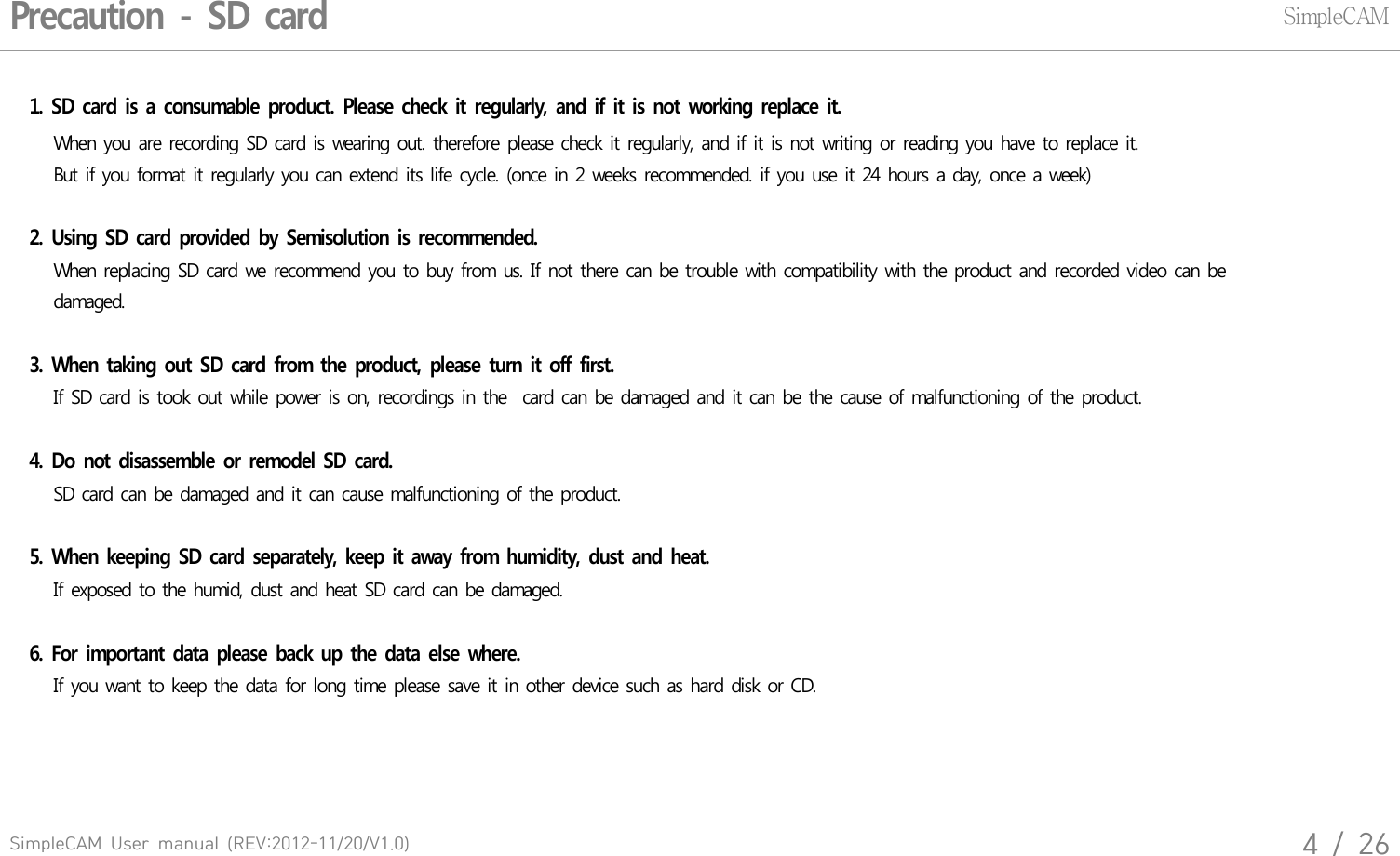
SimpleCAM  User  manual  (REV:2012-11/20/V1.0)4  /  26Precaution  -  SD  cardSimpleCAM1.  SD  card  is  a  consumable  product.  Please  check  it  regularly,  and  if  it  is  not  working  replace  it.   When  you  are  recording  SD card  is  wearing  out.  therefore  please  check  it regularly,  and  if it is not  writing  or  reading  you  have  to replace  it.    But if you  format  it regularly  you can  extend  its life cycle.  (once  in 2  weeks  recommended.  if you  use  it 24 hours  a  day, once  a week)   2.  Using  SD  card  provided  by  Semisolution  is  recommended.   When  replacing  SD  card  we  recommend  you  to buy  from  us. If not there  can  be trouble  with  compatibility  with  the product  and  recorded  video  can  be    damaged. 3.  When  taking  out  SD  card  from  the  product,  please  turn  it  off  first.    If SD card  is took  out  while  power  is on,  recordings  in the   card  can  be damaged  and  it can be the cause  of malfunctioning  of the  product.     4.  Do  not  disassemble  or  remodel  SD  card.   SD card  can  be damaged  and  it  can  cause  malfunctioning  of the  product. 5.  When  keeping  SD  card  separately,  keep  it  away  from  humidity,  dust  and  heat.   If exposed  to  the  humid,  dust  and  heat  SD card  can be  damaged.6.  For  important  data  please  back  up  the  data  else  where.   If you want  to keep  the  data  for long  time  please  save  it in  other  device  such  as hard  disk  or CD.
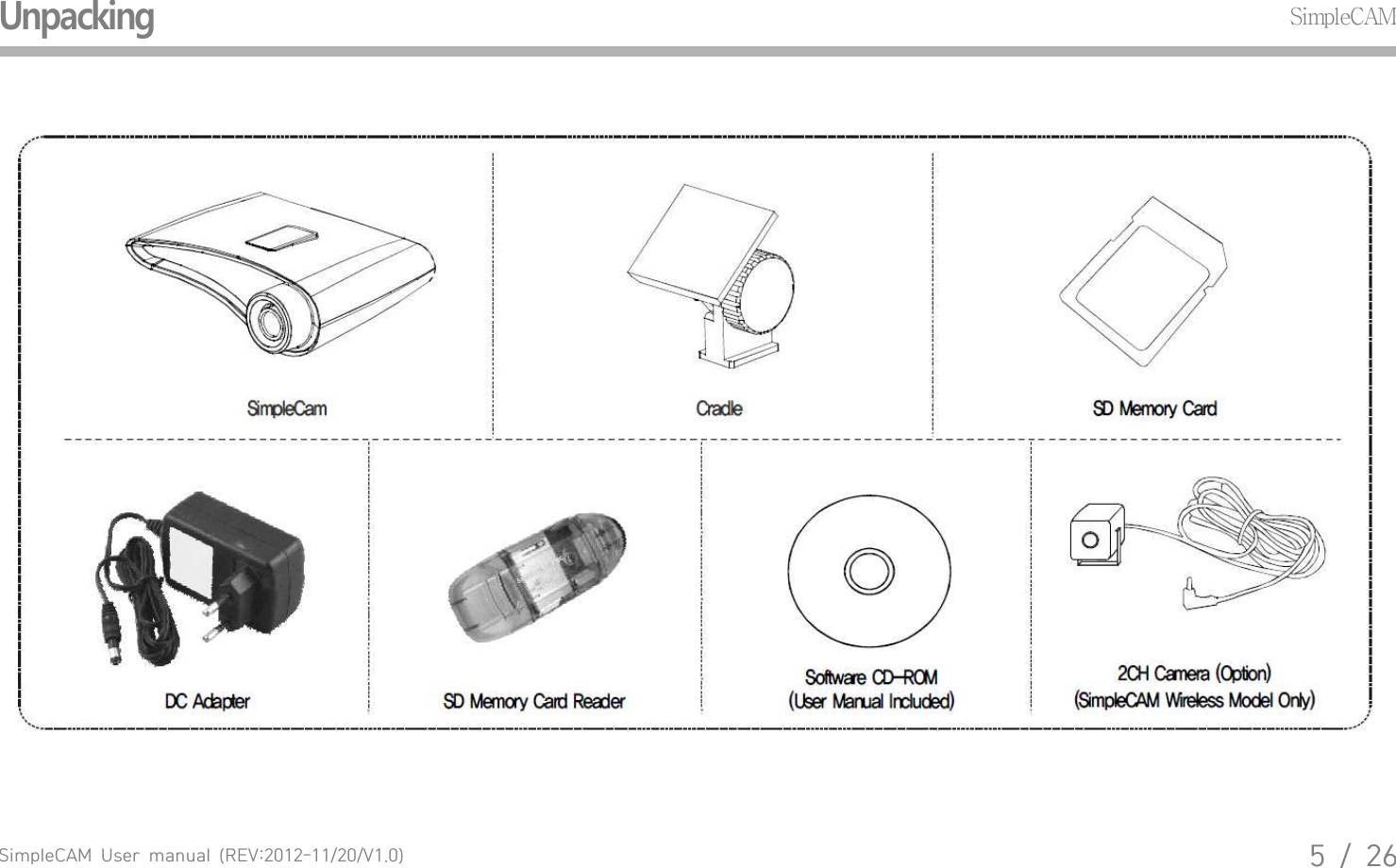
SimpleCAM  User  manual  (REV:2012-11/20/V1.0)5  /  26UnpackingSimpleCAM
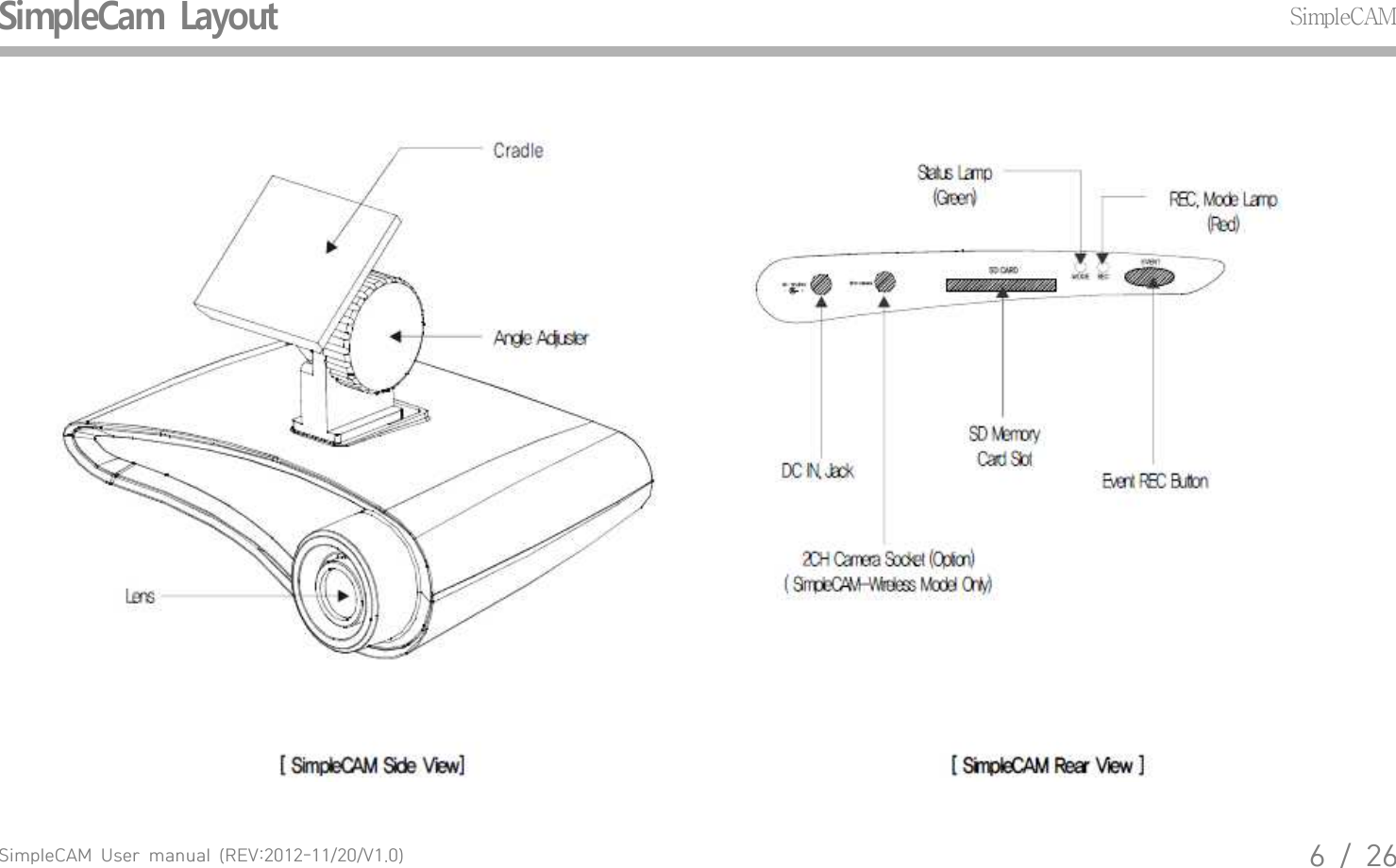
SimpleCAM  User  manual  (REV:2012-11/20/V1.0)6  /  26SimpleCam  LayoutSimpleCAM
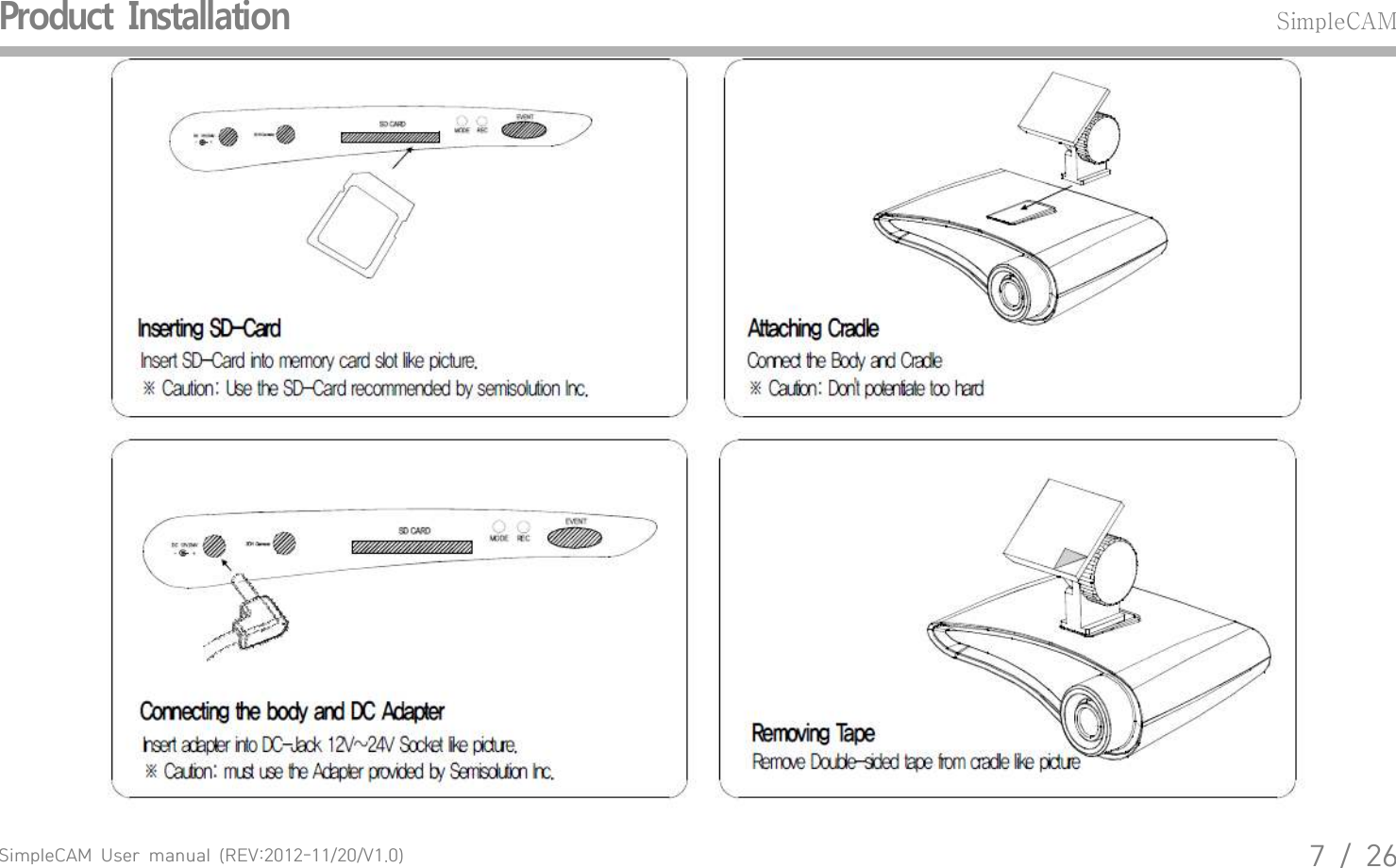
SimpleCAM  User  manual  (REV:2012-11/20/V1.0)7  /  26Product  InstallationSimpleCAM
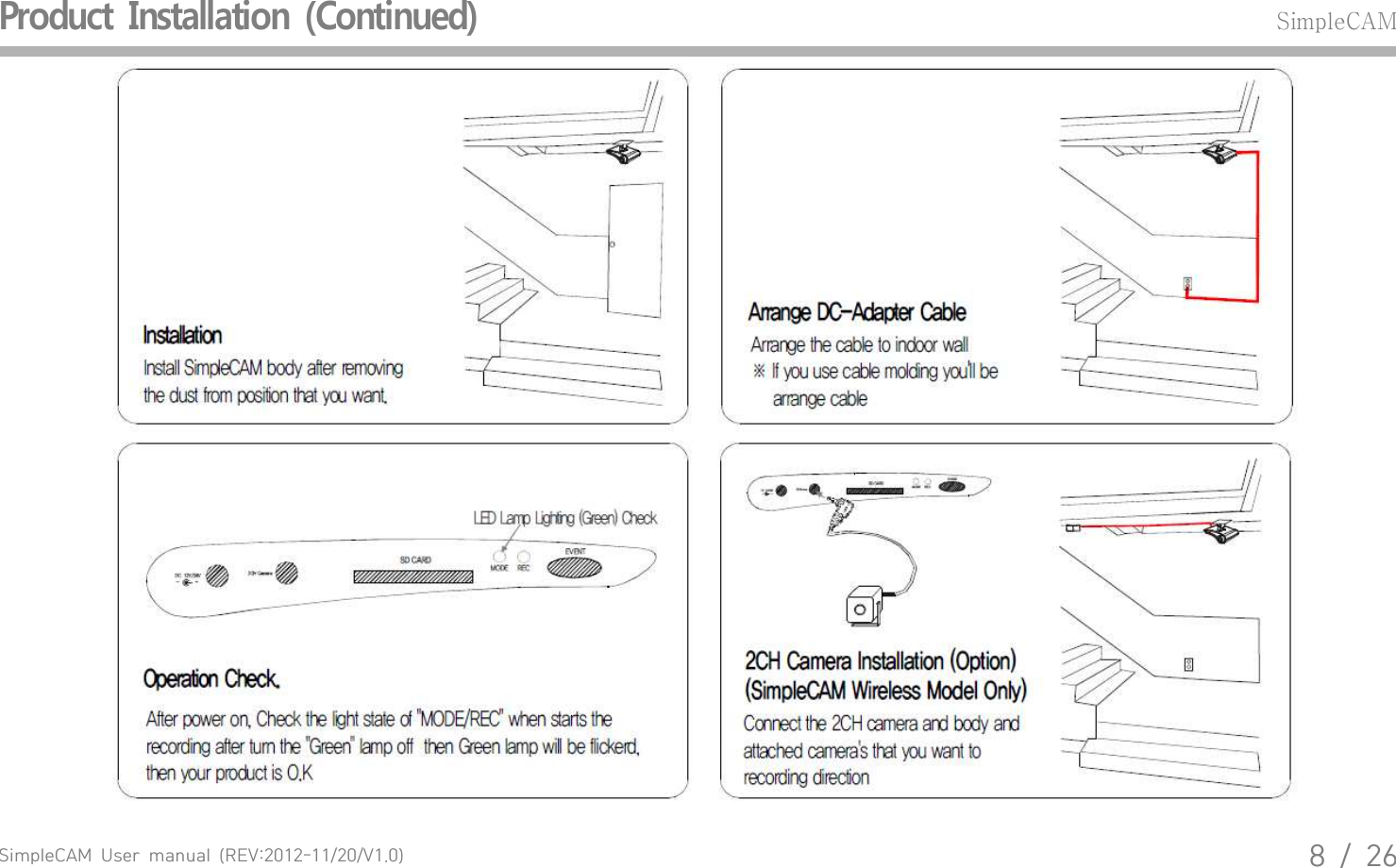
SimpleCAM  User  manual  (REV:2012-11/20/V1.0)8  /  26Product  Installation  (Continued)SimpleCAM
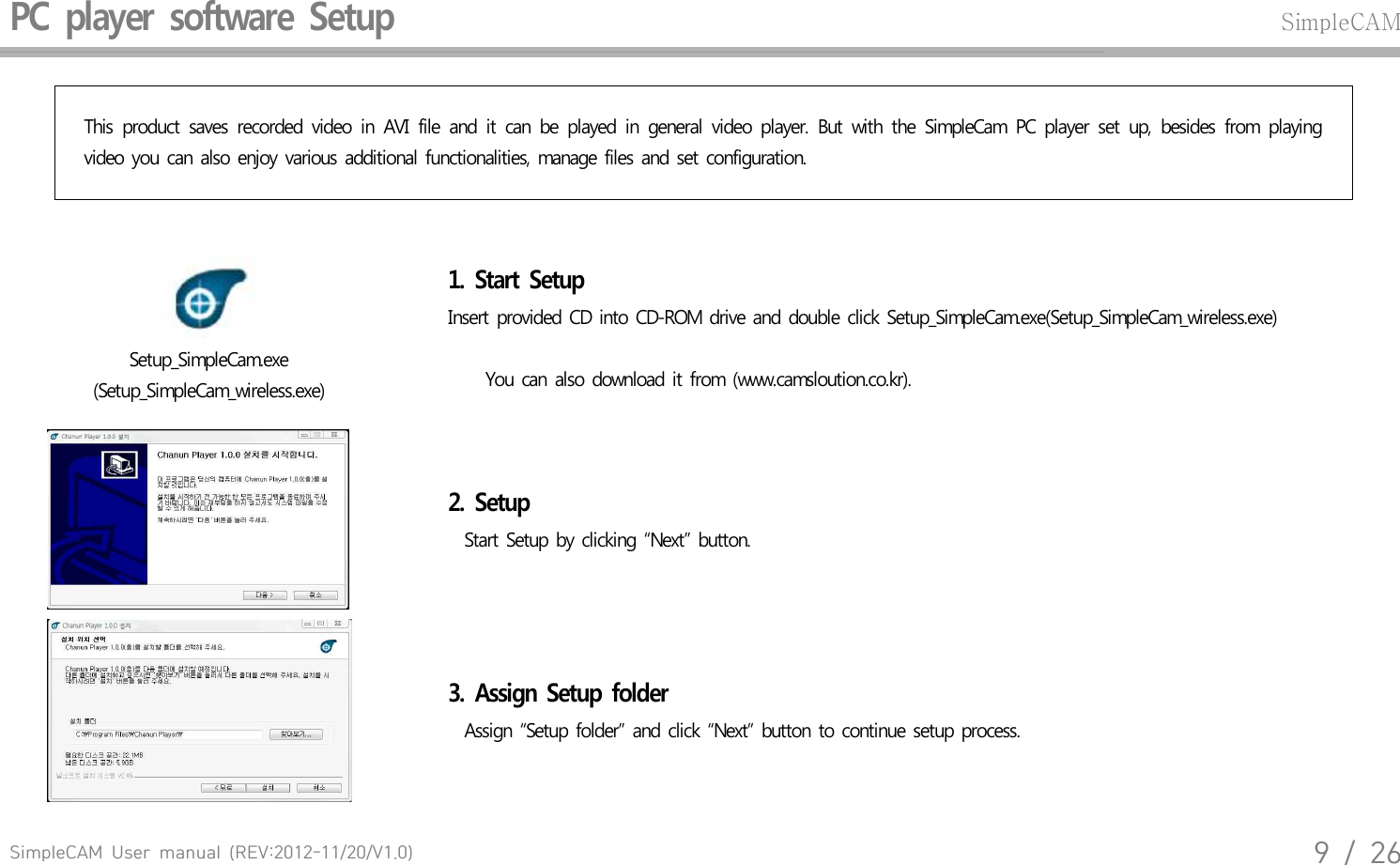
SimpleCAM  User  manual  (REV:2012-11/20/V1.0)9  /  26PC  player  software  Setup SimpleCAMThis  product  saves  recorded  video  in  AVI  file  and  it  can  be  played  in  general  video  player.  But  with  the  SimpleCam  PC  player  set  up,  besides  from  playing video  you  can  also  enjoy  various  additional  functionalities,  manage  files  and  set  configuration.Setup_SimpleCam.exe(Setup_SimpleCam_wireless.exe)1.  Start  Setup Insert  provided  CD into  CD-ROM  drive  and  double  click  Setup_SimpleCam.exe(Setup_SimpleCam_wireless.exe)    You  can  also  download  it from  (www.camsloution.co.kr).2.  Setup  Start  Setup  by  clicking  “Next”  button.3.  Assign  Setup  folder   Assign  “Setup  folder”  and  click  “Next”  button  to continue  setup  process.
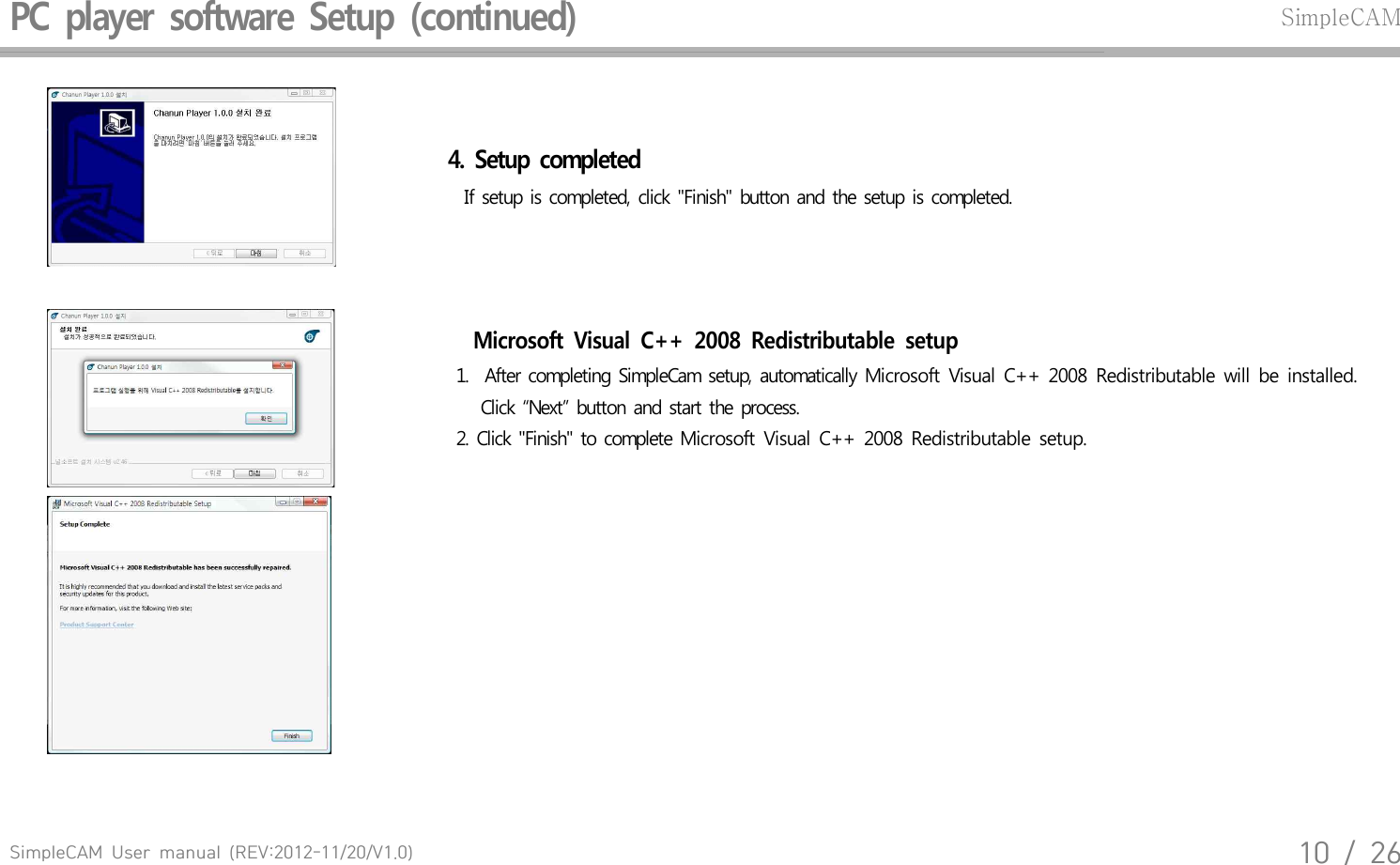
SimpleCAM  User  manual  (REV:2012-11/20/V1.0)10  /  26PC  player  software  Setup  (continued)SimpleCAM4.  Setup  completed  If setup  is completed,  click  "Finish"  button  and  the setup  is completed.Microsoft  Visual  C++  2008  Redistributable  setup 1.   After  completing  SimpleCam  setup,  automatically  Microsoft  Visual  C++  2008  Redistributable  will  be  installed.      Click  “Next”  button  and  start the  process. 2.  Click  "Finish"  to complete  Microsoft  Visual  C++  2008  Redistributable  setup.
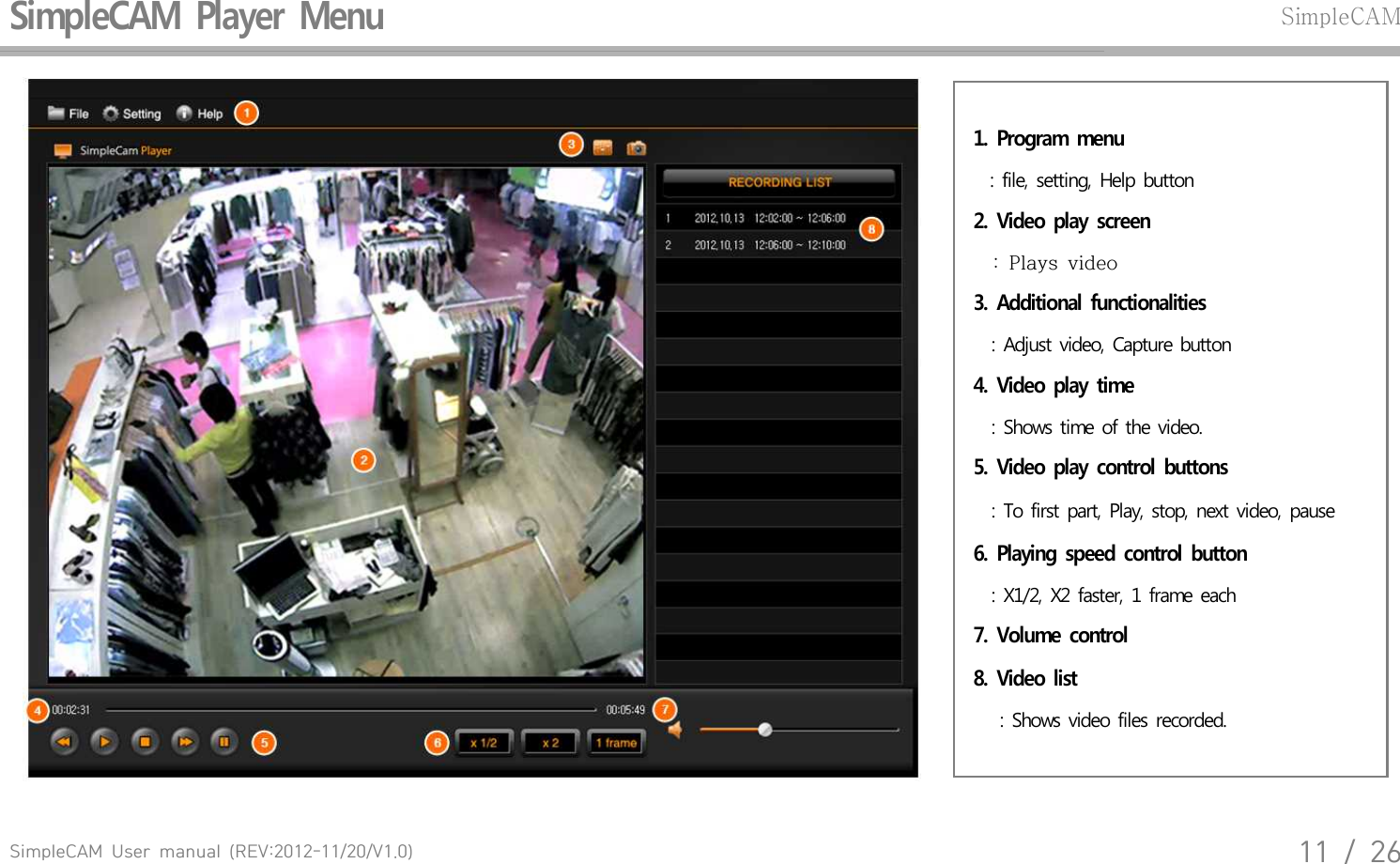
SimpleCAM  User  manual  (REV:2012-11/20/V1.0)11  /  26SimpleCAM  Player  Menu SimpleCAM1.  Program  menu  : file, setting, Help button2.  Video  play  screen    :  Plays  video3.  Additional  functionalities : Adjust video, Capture button4.  Video  play  time  : Shows time of the video.5.  Video  play  control  buttons : To first part, Play, stop, next video, pause 6.  Playing  speed  control  button : X1/2, X2 faster, 1 frame each7.  Volume  control8.  Video  list  : Shows video files recorded.
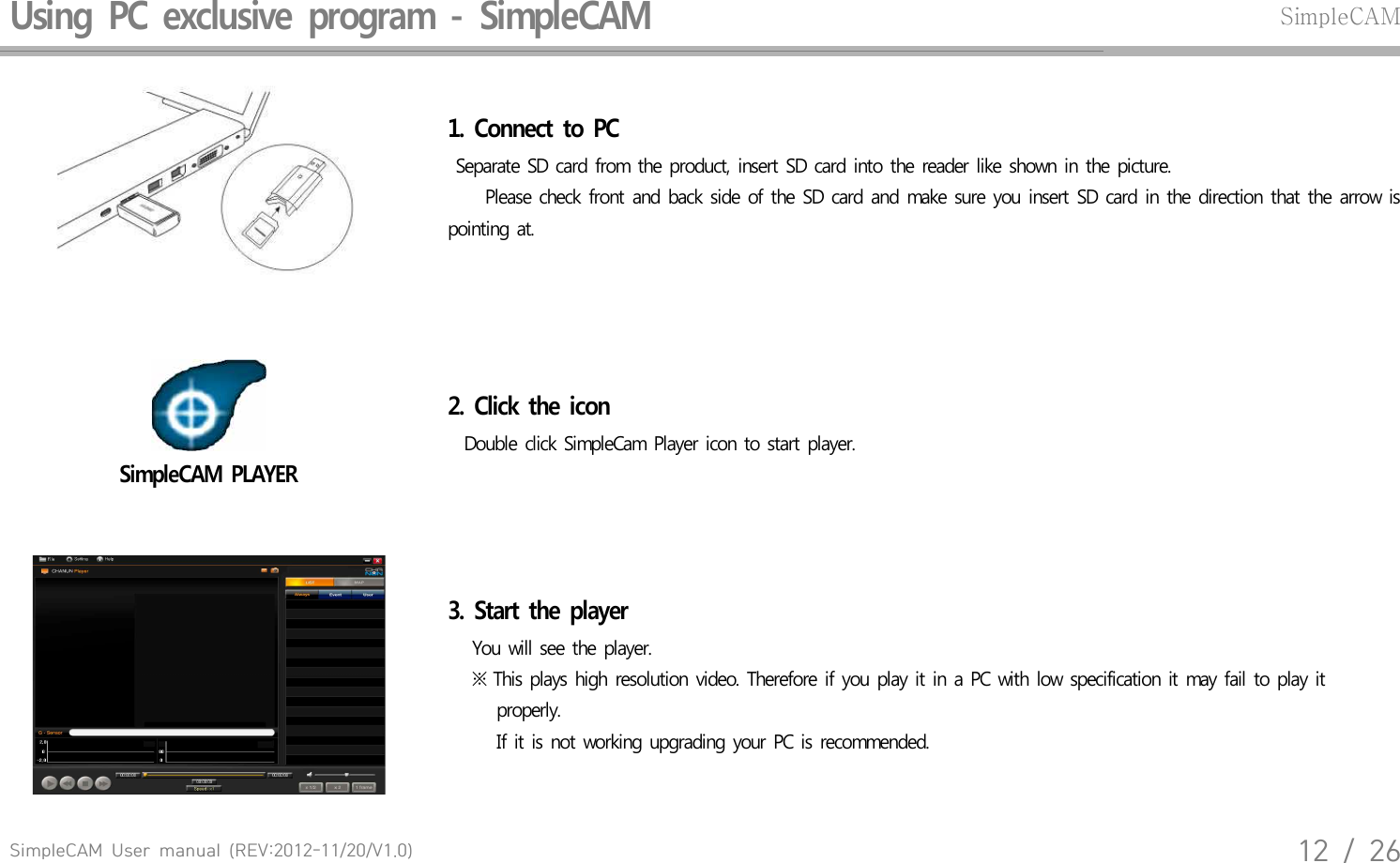
SimpleCAM  User  manual  (REV:2012-11/20/V1.0)12  /  26Using  PC  exclusive  program  -  SimpleCAM SimpleCAM1.  Connect  to  PC Separate  SD card  from  the  product,  insert  SD  card  into  the reader  like  shown  in  the  picture.    Please  check  front  and  back  side  of  the  SD card  and  make  sure  you  insert  SD card  in  the  direction  that  the  arrow  is pointing  at.SimpleCAM  PLAYER2.  Click  the  icon  Double  click  SimpleCam  Player  icon  to start  player.3.  Start  the  player    You  will see  the  player.    ※ This  plays  high  resolution  video.  Therefore  if  you  play  it in a PC  with  low specification  it may  fail  to play  it          properly.       If it is not  working  upgrading  your PC is  recommended.
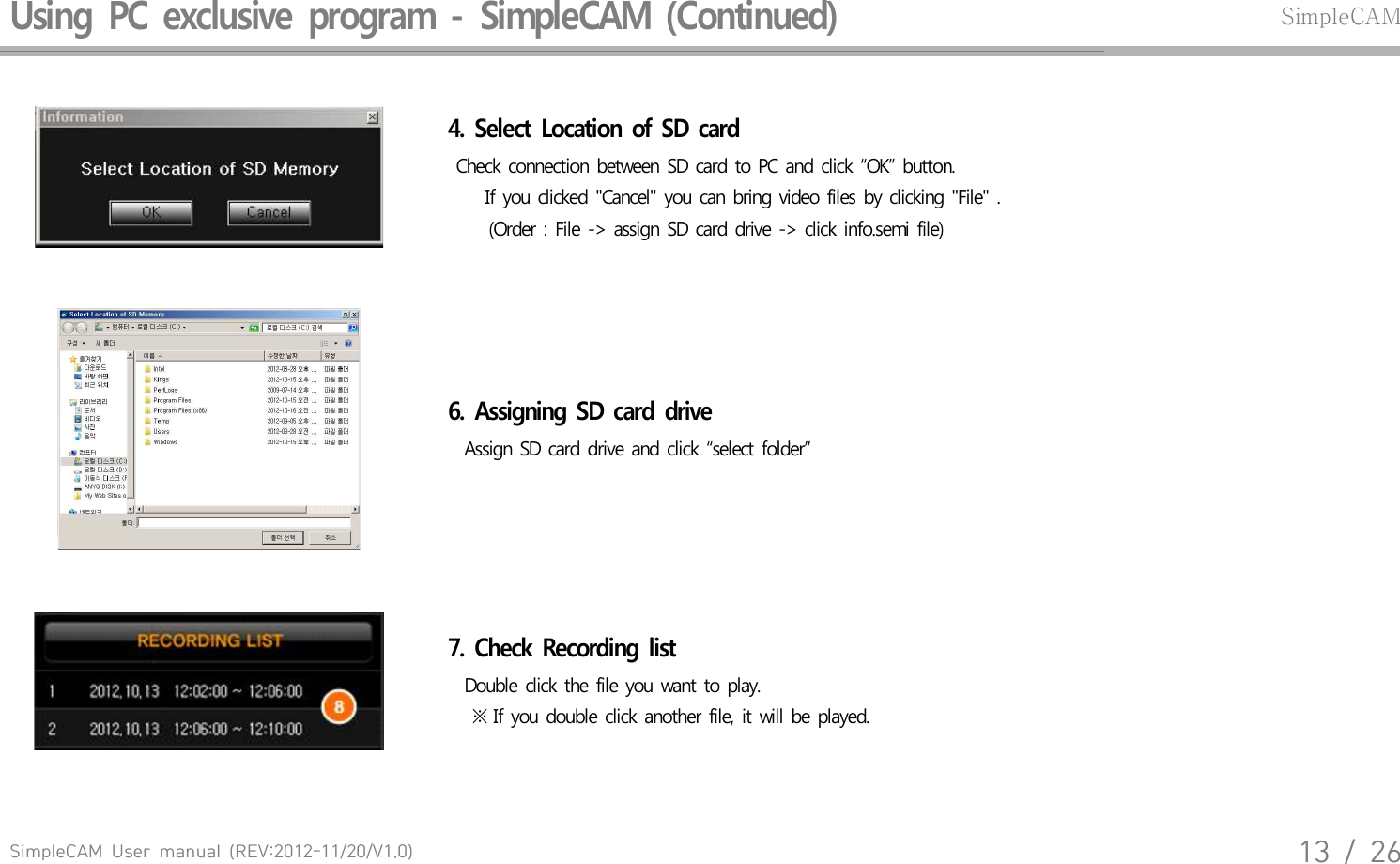
SimpleCAM  User  manual  (REV:2012-11/20/V1.0)13  /  26Using  PC  exclusive  program  -  SimpleCAM  (Continued)SimpleCAM4.  Select  Location  of  SD  card    Check  connection  between  SD card  to PC and  click  “OK”  button.   If you  clicked  "Cancel"  you  can bring  video  files  by  clicking  "File"  .      (Order  : File  ->  assign  SD card  drive  -> click info.semi  file)6.  Assigning  SD  card  drive   Assign  SD card  drive  and  click  “select  folder”7.  Check  Recording  list  Double  click  the  file you  want  to play.       ※ If  you  double  click  another  file,  it will  be  played.
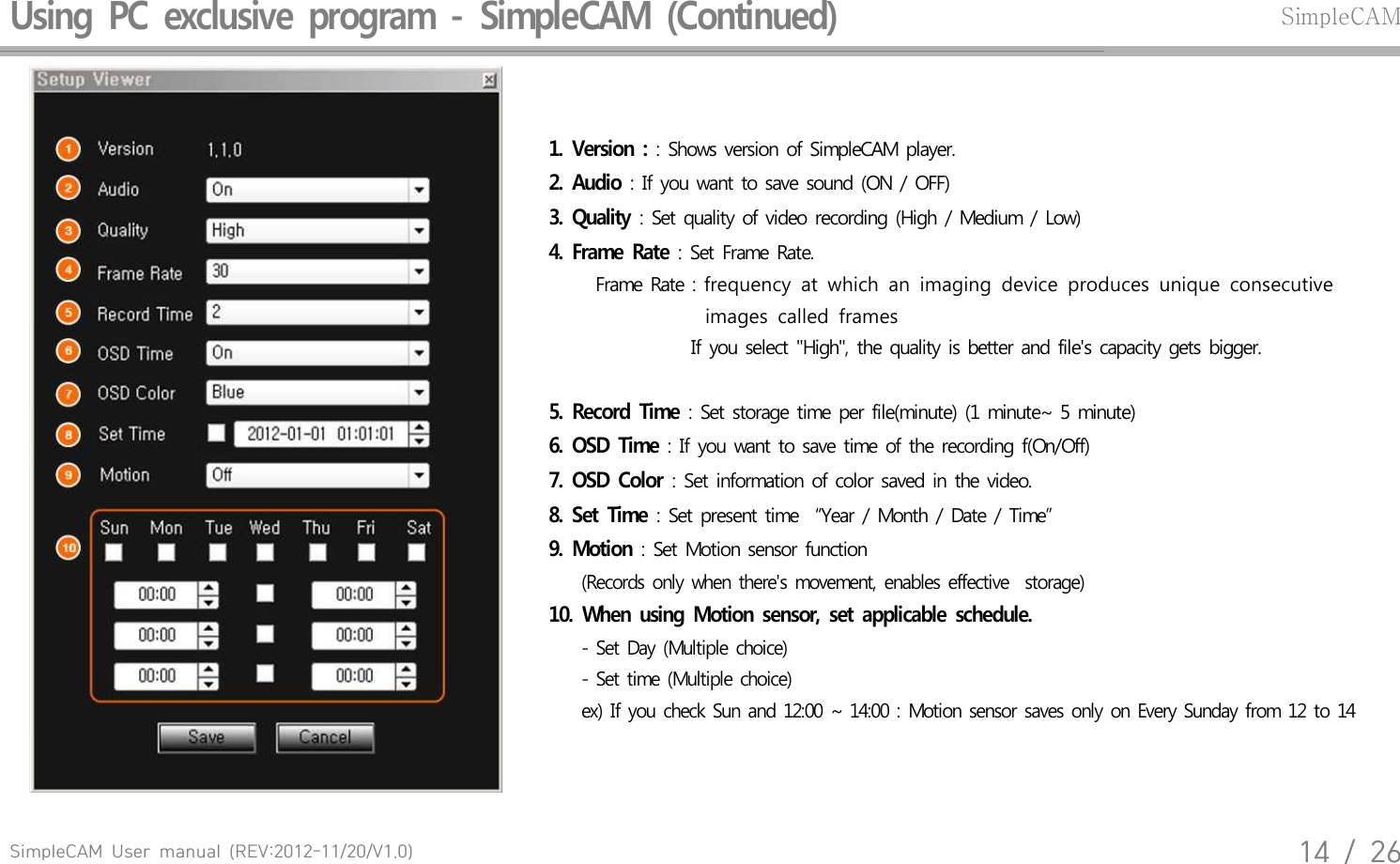
SimpleCAM  User  manual  (REV:2012-11/20/V1.0)14  /  26Using  PC  exclusive  program  -  SimpleCAM  (Continued)SimpleCAM1.  Version  : : Shows version of SimpleCAM player. 2.  Audio : If you want to save sound (ON / OFF)3.  Quality : Set quality of video recording (High / Medium / Low)4.  Frame  Rate : Set Frame Rate.    Frame Rate : frequency  at  which  an  imaging  device  produces  unique  consecutive                                     images  called  frames                  If you select "High", the quality is better and file's capacity gets bigger.5.  Record  Time : Set storage time per file(minute) (1 minute~ 5 minute)6.  OSD  Time : If you want to save time of the recording f(On/Off)7.  OSD  Color : Set information of color saved in the video. 8.  Set  Time : Set present time  “Year / Month / Date / Time”   9.  Motion : Set Motion sensor function        (Records  only  when  there's  movement,  enables  effective   storage)10.  When  using  Motion  sensor,  set  applicable  schedule.      - Set Day  (Multiple  choice)     - Set time  (Multiple  choice)     ex)  If you  check  Sun  and  12:00  ~ 14:00  : Motion  sensor  saves  only  on Every  Sunday  from 12 to 14
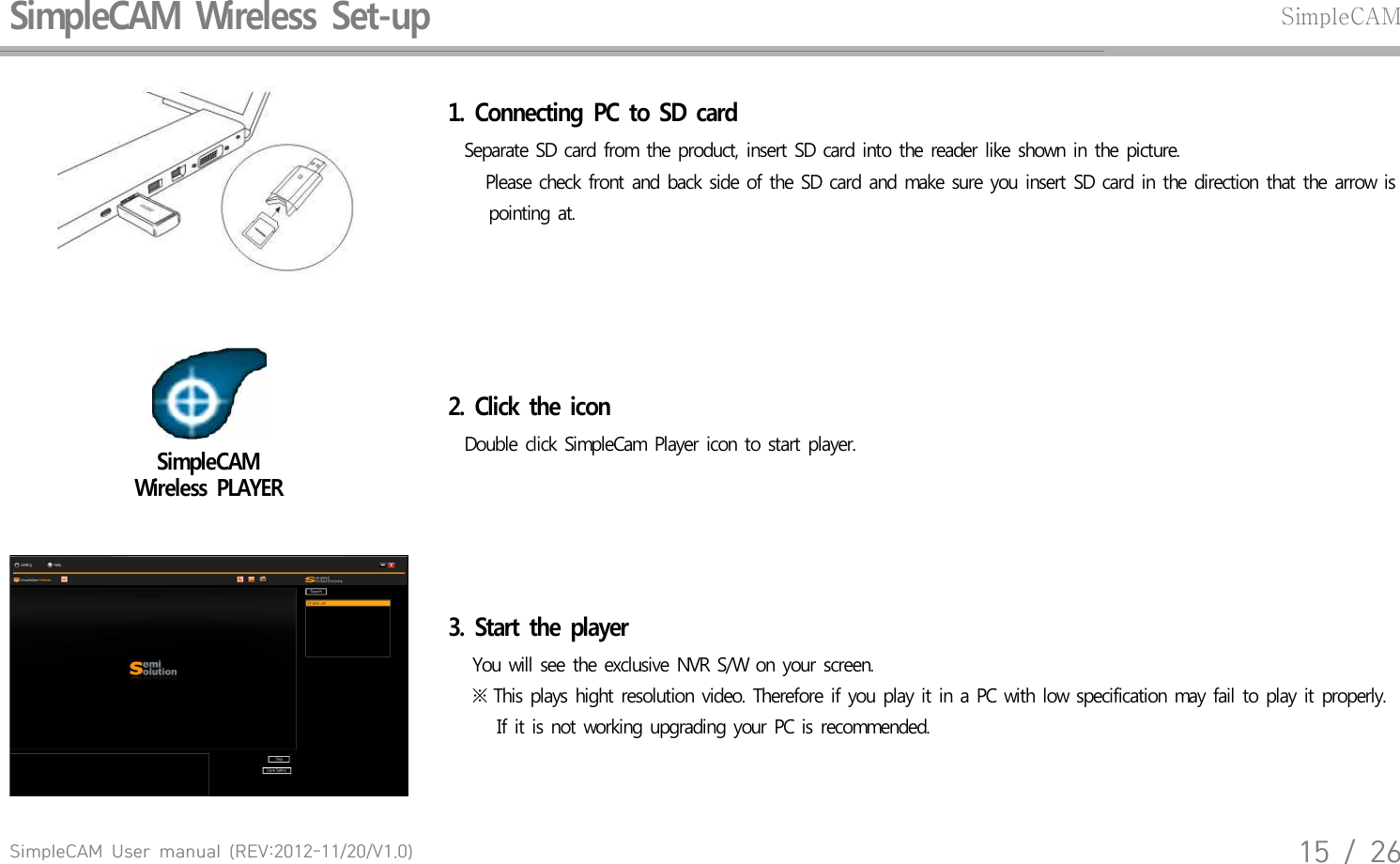
SimpleCAM  User  manual  (REV:2012-11/20/V1.0)15  /  26SimpleCAM  Wireless  Set-upSimpleCAM1.  Connecting  PC  to  SD  card  Separate  SD card  from  the  product,  insert  SD card  into  the  reader  like  shown  in the  picture.    Please  check  front and  back  side  of the SD card  and  make  sure  you  insert  SD card  in  the  direction  that  the arrow  is      pointing  at.SimpleCAM Wireless  PLAYER2.  Click  the  icon  Double  click  SimpleCam  Player  icon  to  start  player.3.  Start  the  player    You will  see  the exclusive  NVR  S/W  on your  screen.    ※ This  plays  hight  resolution  video.  Therefore  if you  play  it in  a PC with  low  specification  may  fail  to  play  it properly.       If it is not  working  upgrading  your  PC is recommended.
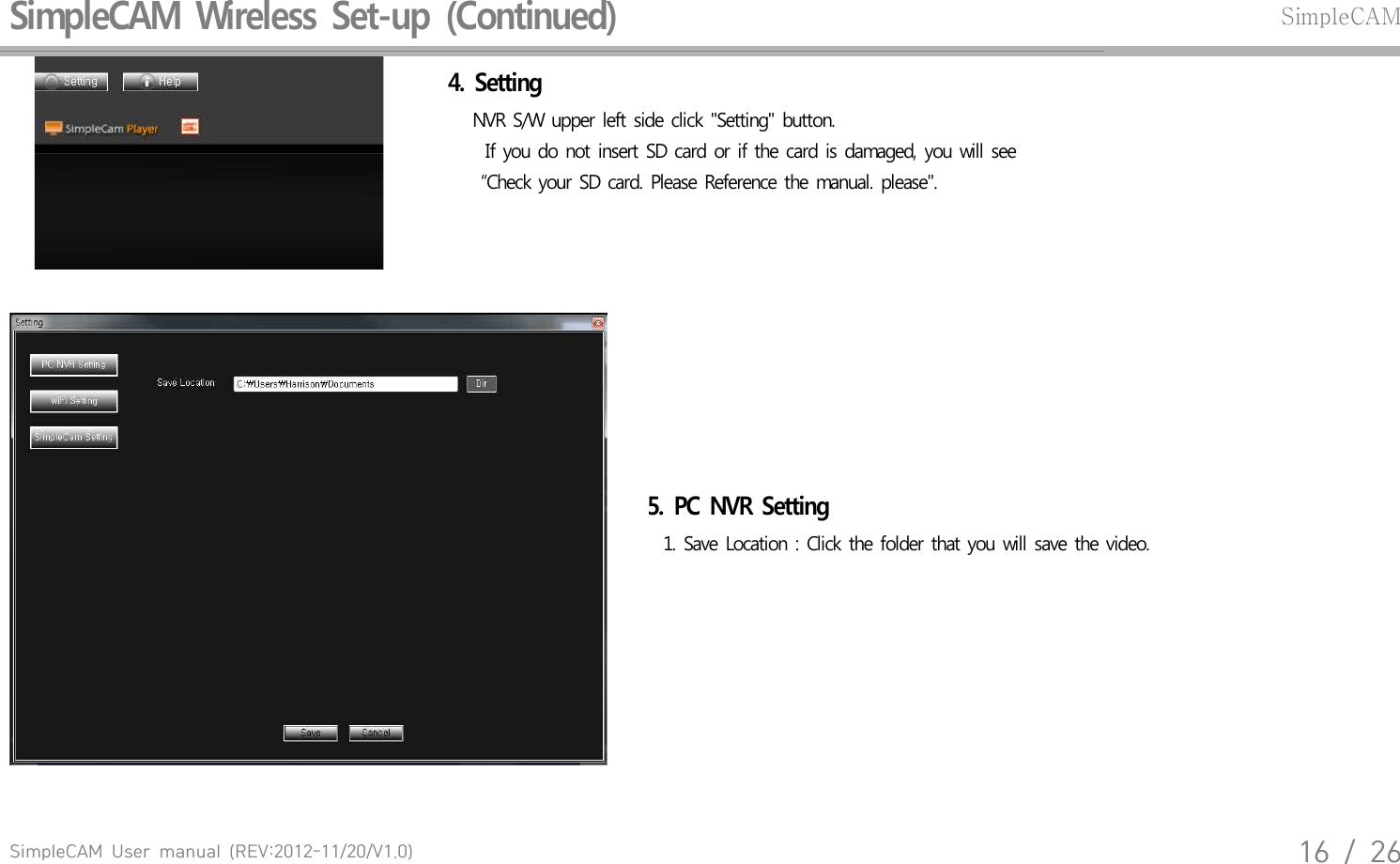
SimpleCAM  User  manual  (REV:2012-11/20/V1.0)16  /  26SimpleCAM  Wireless  Set-up  (Continued)SimpleCAM4.  Setting    NVR  S/W  upper  left  side  click  "Setting"  button.   If  you do not  insert  SD card  or  if the card  is damaged,  you  will see     “Check  your  SD card.  Please  Reference  the  manual.  please".5.  PC  NVR  Setting      1. Save  Location  : Click  the folder  that  you  will save  the  video.
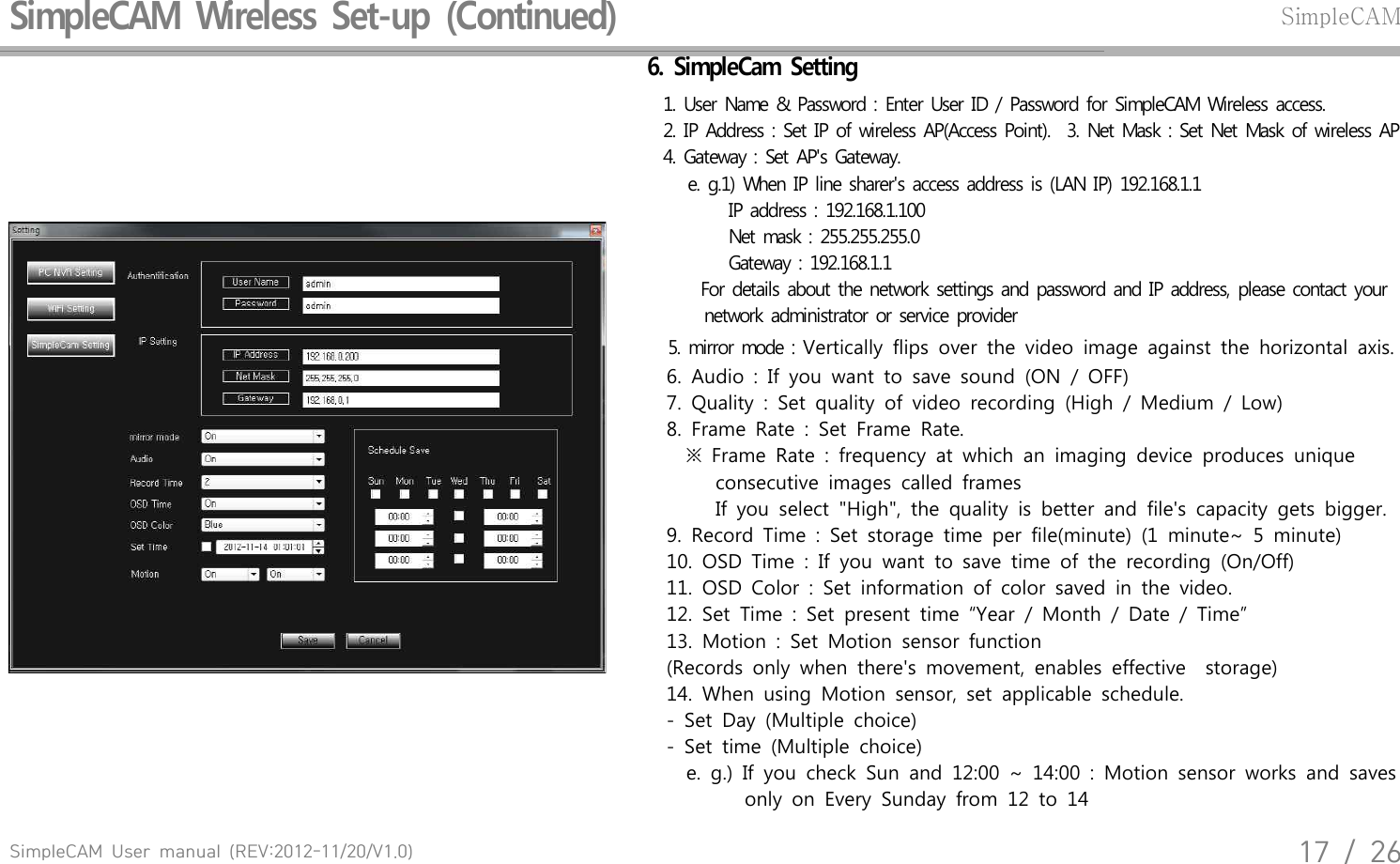
SimpleCAM  User  manual  (REV:2012-11/20/V1.0)17  /  26SimpleCAM  Wireless  Set-up  (Continued)SimpleCAM6.  SimpleCam  Setting  1. User  Name  &  Password  : Enter  User  ID / Password  for  SimpleCAM  Wireless  access.  2. IP Address  : Set  IP of wireless  AP(Access  Point).   3. Net  Mask  : Set Net  Mask  of  wireless  AP  4. Gateway  : Set  AP's  Gateway.      e. g.1) When  IP  line  sharer's  access  address  is (LAN  IP) 192.168.1.1            IP  address  : 192.168.1.100                 Net  mask  : 255.255.255.0                    Gateway  : 192.168.1.1     For details  about  the  network  settings  and  password  and  IP  address,  please  contact  your        network  administrator  or  service  provider  5. mirror  mode  : Vertically  flips  over  the  video  image  against  the  horizontal  axis.         6.  Audio  :  If  you  want  to  save  sound  (ON  /  OFF)        7.  Quality  :  Set  quality  of  video  recording  (High  /  Medium  /  Low)        8.  Frame  Rate  :  Set  Frame  Rate.            ※  Frame  Rate  :  frequency  at  which  an  imaging  device  produces  unique                           consecutive  images  called  frames                   If  you  select  "High",  the  quality  is  better  and  file's  capacity  gets  bigger.        9.  Record  Time  :  Set  storage  time  per  file(minute)  (1  minute~  5  minute)        10.  OSD  Time  :  If  you  want  to  save  time  of  the  recording  (On/Off)        11.  OSD  Color  :  Set  information  of  color  saved  in  the  video.         12.  Set  Time  :  Set  present  time  “Year  /  Month  /  Date  /  Time”         13.  Motion  :  Set  Motion  sensor  function         (Records  only  when  there's  movement,  enables  effective    storage)        14.  When  using  Motion  sensor,  set  applicable  schedule.         -  Set  Day  (Multiple  choice)        -  Set  time  (Multiple  choice)            e.  g.)  If  you  check  Sun  and  12:00  ~  14:00  :  Motion  sensor  works  and  saves                        only  on  Every  Sunday  from  12  to  14
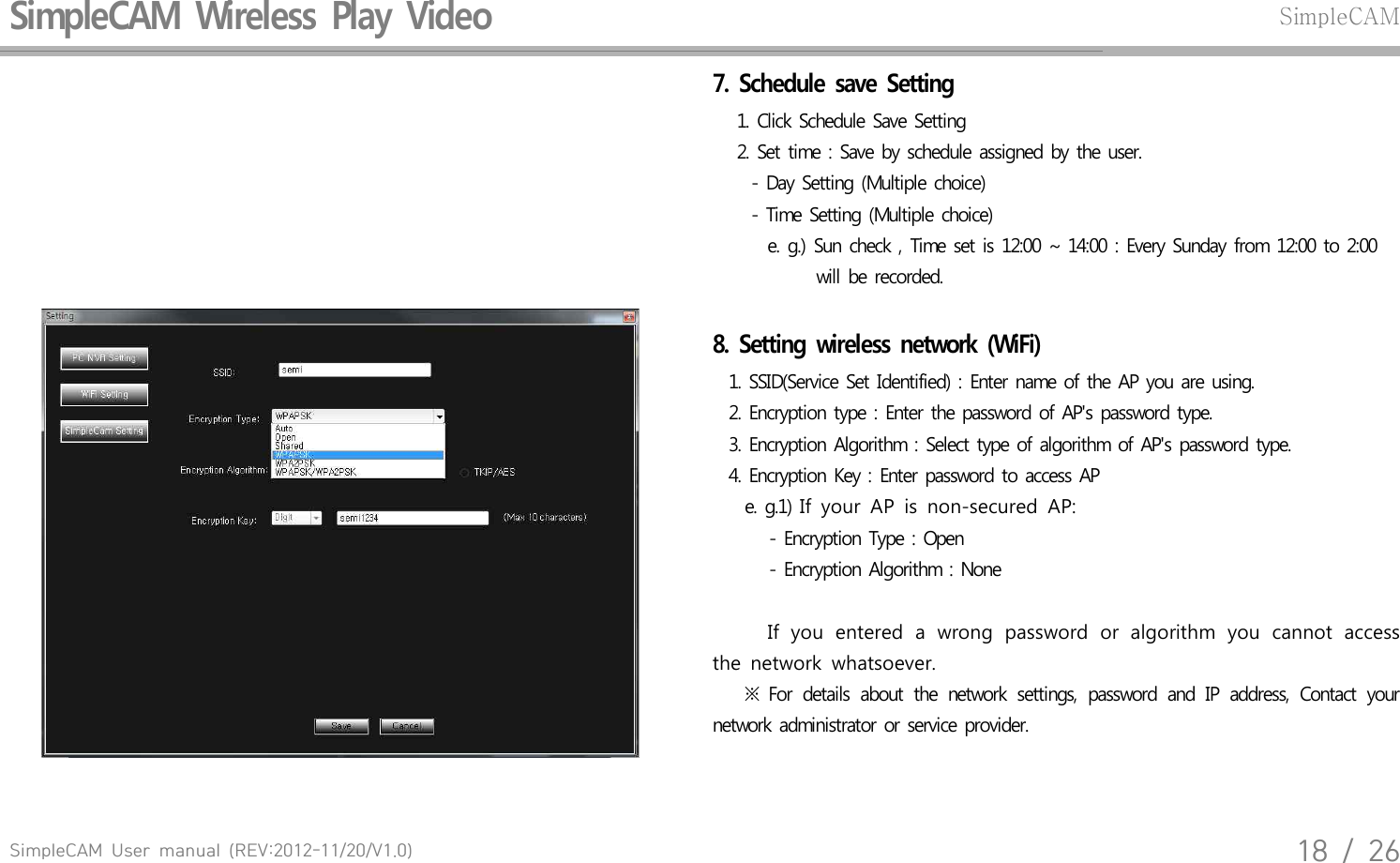
SimpleCAM  User  manual  (REV:2012-11/20/V1.0)18  /  26SimpleCAM  Wireless  Play  Video SimpleCAM7.  Schedule  save  Setting    1. Click  Schedule  Save  Setting     2. Set  time  : Save  by schedule  assigned  by  the user.       - Day Setting  (Multiple  choice)       - Time  Setting  (Multiple  choice)         e. g.)  Sun  check  , Time  set is 12:00  ~  14:00  : Every  Sunday  from  12:00  to 2:00               will  be recorded.8.  Setting  wireless  network  (WiFi)   1.  SSID(Service  Set  Identified)  : Enter  name  of  the AP you  are  using.  2.  Encryption  type  : Enter  the password  of  AP's  password  type.  3.  Encryption  Algorithm  : Select  type  of  algorithm  of AP's  password  type.   4.  Encryption  Key  : Enter  password  to access  AP     e. g.1) If  your  AP  is  non-secured  AP:        - Encryption  Type  : Open        - Encryption  Algorithm  : None     If  you  entered  a  wrong  password  or  algorithm  you  cannot  access the  network  whatsoever.      ※  For  details  about  the  network  settings,  password  and  IP  address,  Contact  your network  administrator  or service  provider.
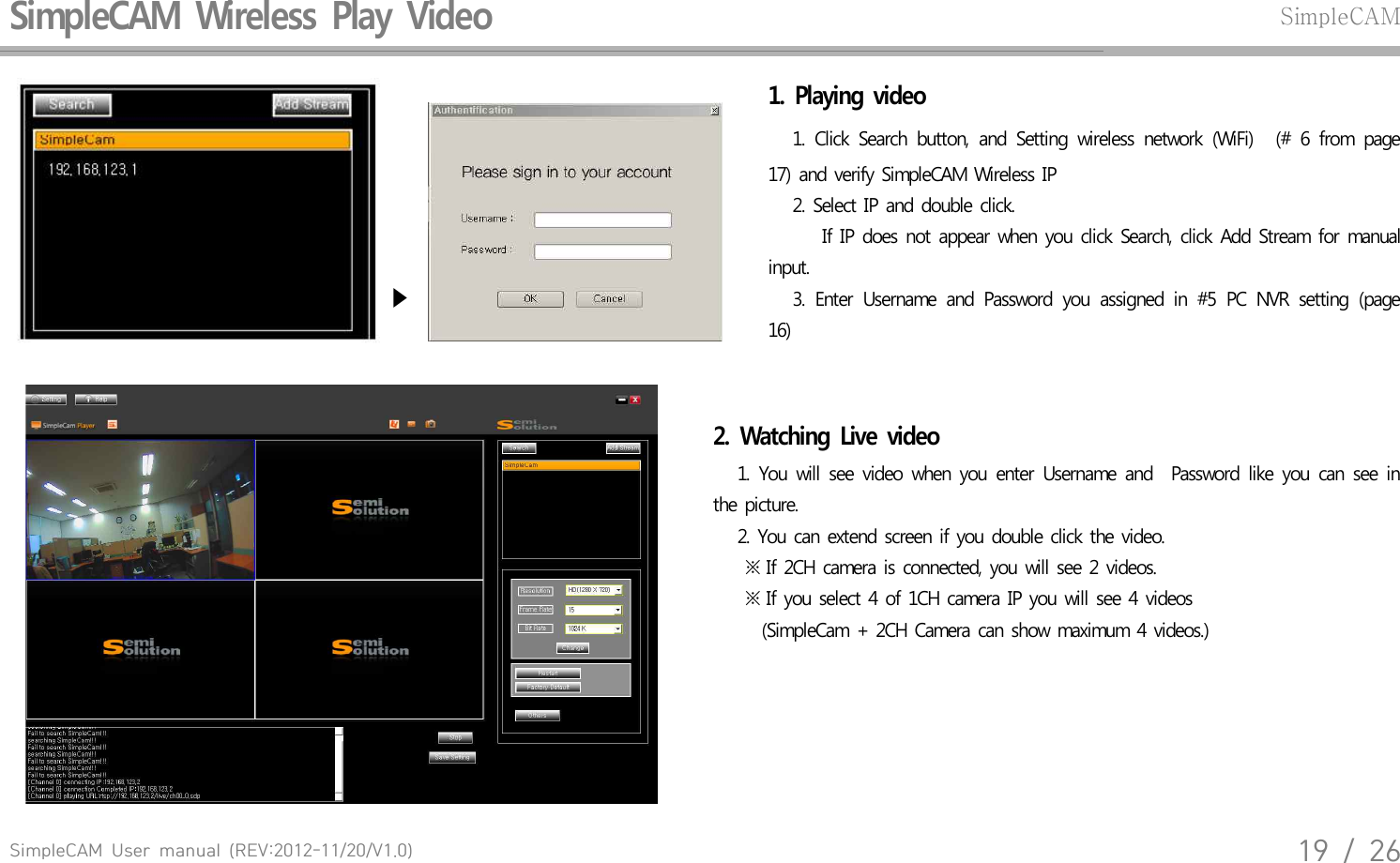
SimpleCAM  User  manual  (REV:2012-11/20/V1.0)19  /  26SimpleCAM  Wireless  Play  Video SimpleCAM  ▶  1.  Playing  video     1.  Click  Search  button,  and  Setting  wireless  network  (WiFi)   (#  6  from  page 17)  and  verify  SimpleCAM  Wireless  IP    2. Select  IP  and  double  click.     If  IP  does  not  appear  when  you  click  Search,  click  Add  Stream  for  manual input.       3.  Enter  Username  and  Password  you  assigned  in  #5  PC  NVR  setting  (page 16) 2.  Watching  Live  video    1.  You  will  see  video  when  you  enter  Username  and    Password  like  you  can  see  in the  picture.    2. You  can  extend  screen  if  you  double  click  the  video.     ※ If 2CH  camera  is connected,  you  will see 2 videos.     ※ If you  select  4 of 1CH  camera  IP you  will see  4 videos       (SimpleCam  + 2CH Camera  can show  maximum  4 videos.)
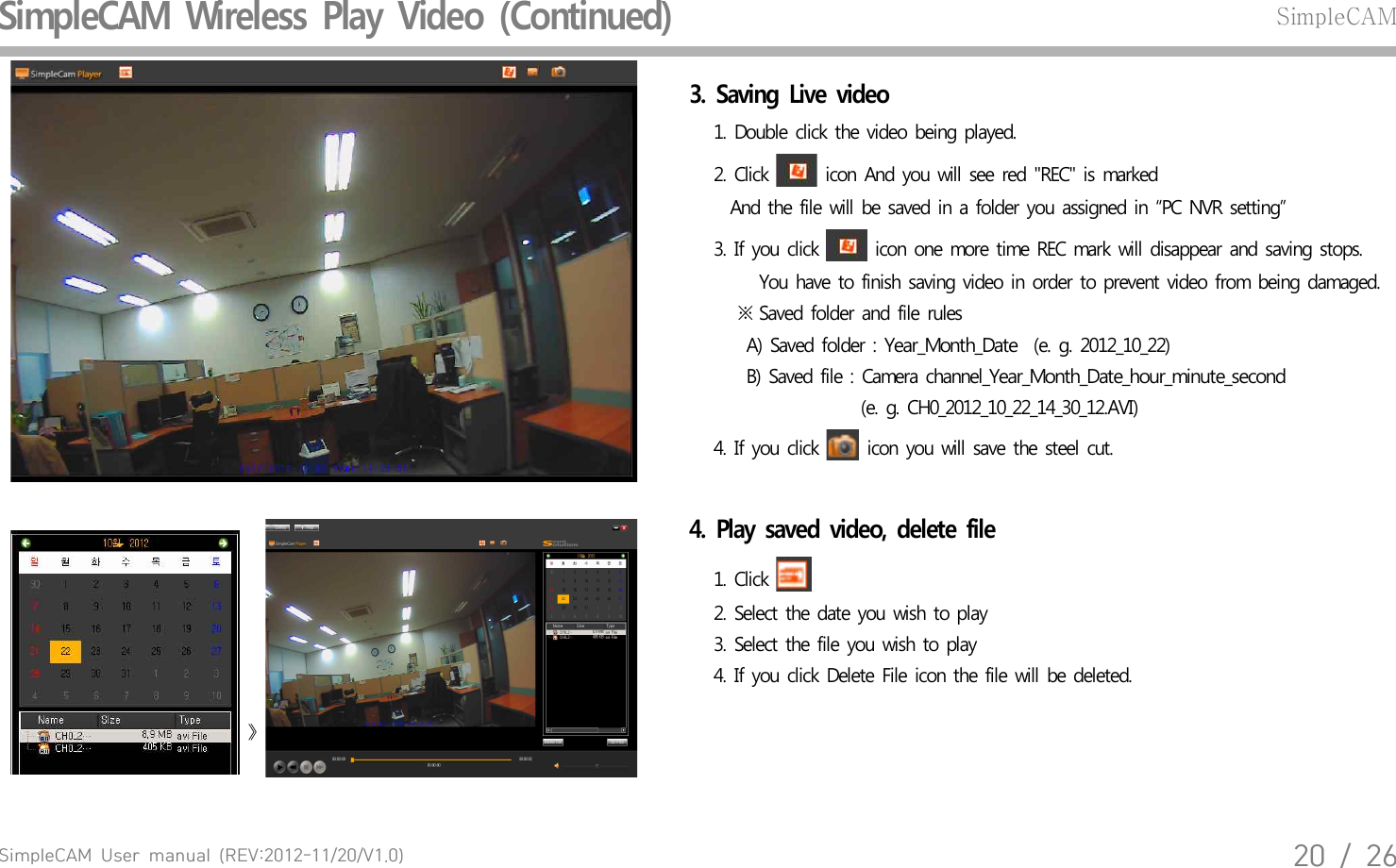
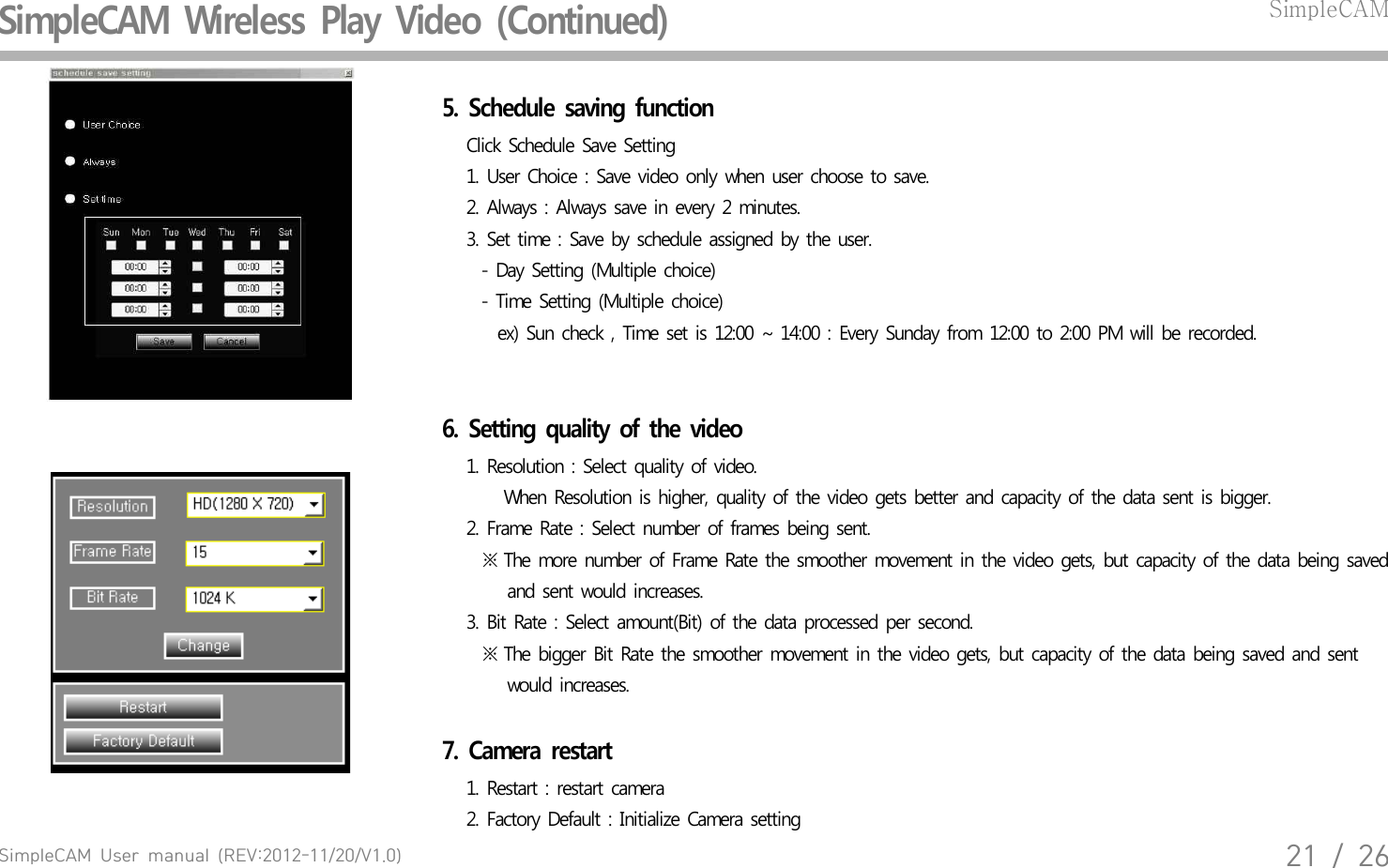
SimpleCAM  User  manual  (REV:2012-11/20/V1.0)20  /  26SimpleCAM  Wireless  Play  Video  (Continued)SimpleCAM3.  Saving  Live  video    1. Double  click the  video  being  played.    2. Click   icon  And  you  will  see  red  "REC"  is marked      And  the file will be saved  in a  folder  you  assigned  in “PC  NVR  setting”    3. If you  click   icon  one more  time  REC  mark  will  disappear  and  saving  stops.       You  have  to finish  saving  video  in order  to prevent  video  from  being  damaged.       ※ Saved  folder  and  file  rules        A) Saved  folder  : Year_Month_Date  (e. g.  2012_10_22)        B) Saved  file : Camera  channel_Year_Month_Date_hour_minute_second                      (e.  g. CH0_2012_10_22_14_30_12.AVI)    4. If you  click   icon  you will  save  the  steel  cut.  》 4.  Play  saved  video,  delete  file     1. Click       2. Select  the  date  you  wish  to play    3. Select  the  file  you wish  to  play    4. If you  click Delete  File  icon the  file will  be deleted.
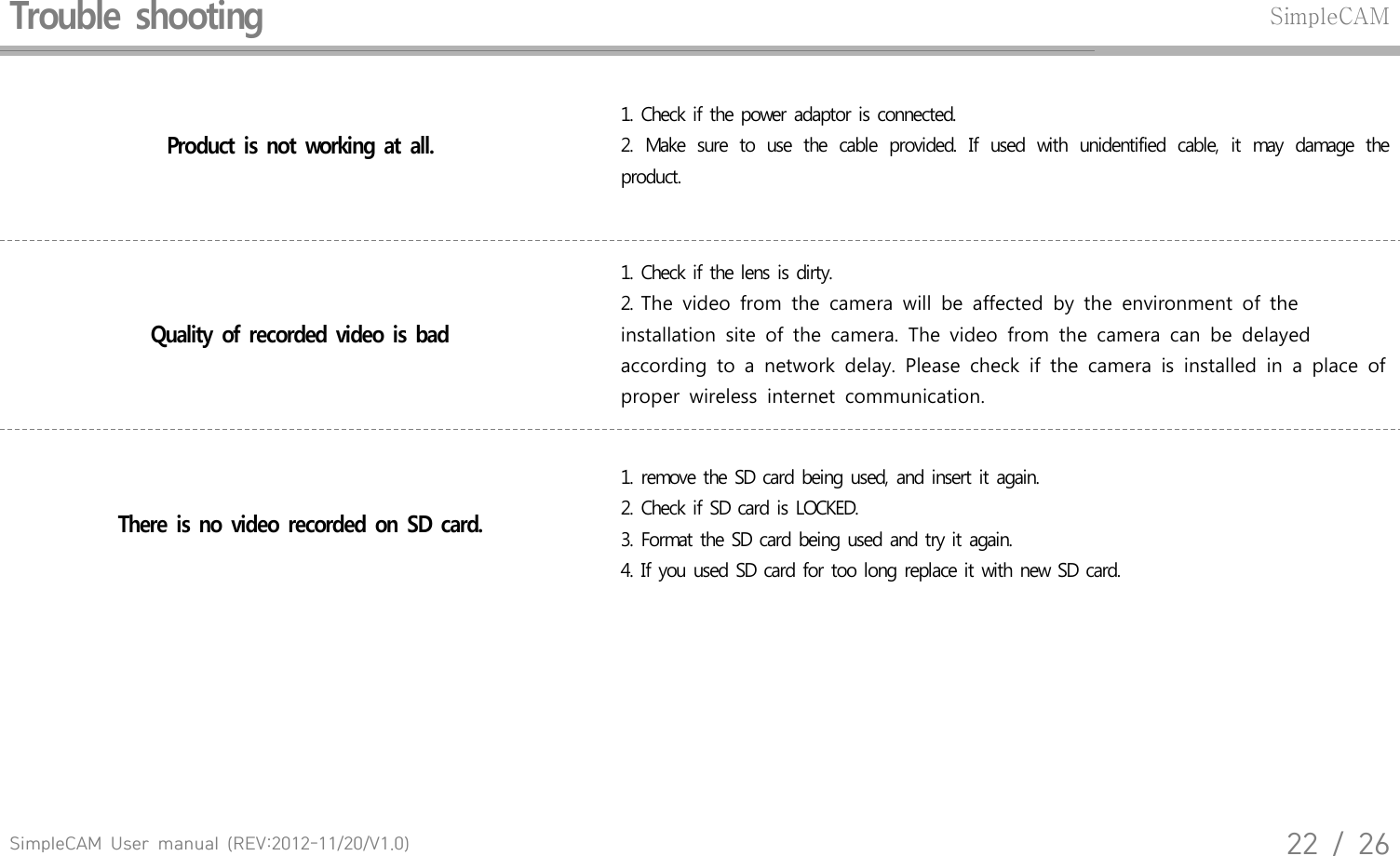
SimpleCAM  User  manual  (REV:2012-11/20/V1.0)21  /  26SimpleCAM  Wireless  Play  Video  (Continued)SimpleCAM5.  Schedule  saving  function   Click  Schedule  Save  Setting    1. User  Choice  : Save  video  only  when  user  choose  to save.   2. Always  : Always  save  in every  2 minutes.   3. Set time  : Save  by  schedule  assigned  by the user.       - Day  Setting  (Multiple  choice)       - Time  Setting  (Multiple  choice)         ex)  Sun  check  , Time  set is 12:00  ~ 14:00  : Every  Sunday  from  12:00  to  2:00  PM will  be  recorded.6.  Setting  quality  of  the  video   1. Resolution  : Select  quality  of  video.      When  Resolution  is higher,  quality  of the video  gets  better  and  capacity  of the data  sent  is bigger.   2. Frame  Rate : Select number  of  frames  being  sent.      ※ The  more  number  of Frame  Rate  the  smoother  movement  in the  video  gets,  but  capacity  of  the data  being  saved         and  sent  would  increases.   3. Bit Rate  : Select  amount(Bit)  of the  data  processed  per  second.       ※ The  bigger  Bit Rate the  smoother  movement  in the  video  gets, but  capacity  of the  data  being  saved  and  sent         would  increases.   7.  Camera  restart   1. Restart  : restart  camera   2. Factory  Default  : Initialize  Camera  setting
SimpleCAM  User  manual  (REV:2012-11/20/V1.0)22  /  26Trouble  shootingSimpleCAMProduct  is  not  working  at  all.1. Check  if the power  adaptor  is connected.2.  Make  sure  to  use  the  cable  provided.  If  used  with  unidentified  cable,  it  may  damage  the product.Quality  of  recorded  video  is  bad1. Check  if the lens  is dirty.2. The  video  from  the  camera  will  be  affected  by  the  environment  of  the installation  site  of  the  camera.  The  video  from  the  camera  can  be  delayed according  to  a  network  delay.  Please  check  if  the  camera  is  installed  in  a  place  of proper  wireless  internet  communication. There  is  no  video  recorded  on  SD  card.1. remove  the  SD  card  being  used,  and  insert  it  again.2. Check  if SD card  is LOCKED.3. Format  the SD  card  being  used  and  try it again. 4. If  you  used  SD  card  for  too long  replace  it with new  SD  card.
SimpleCAM  User  manual  (REV:2012-11/20/V1.0)23  /  26FAQSimpleCAMWhere  can  I  download  SimpleCam  exclusive  Player?You  can  find  CD-ROM  in  the  package.  Also  you  can  always  download  it  from www.camsolution.co.kr.Can  I  play  it  from  other  general  player?This  product  saves  recorded  video  in AVI  file and  it can  be  played  in general  video  player. What  happens  when  SD  card  capacity  is  full?Recording  is  possible  even  if  SD  card  capacity  is  exceeded.  The  oldest  recordings  will  be  first  to  be removed  and  new  video  will  be recorded.Can  I  use  any  SD  card?Using  authorized  SD card  is  recommended.  If not available,  use SDHC  product  above  Class6.LED  light  from  recorded  video  is  blinking  when  I  play  it.In  the  eye  of  the  human  LED  light  seems  like  it  is on  continuously  but  it  keeps  blinking  thousands times  a second.  Therefore  if recorded  in certain  frame,  it may  appear  to  be blinking.
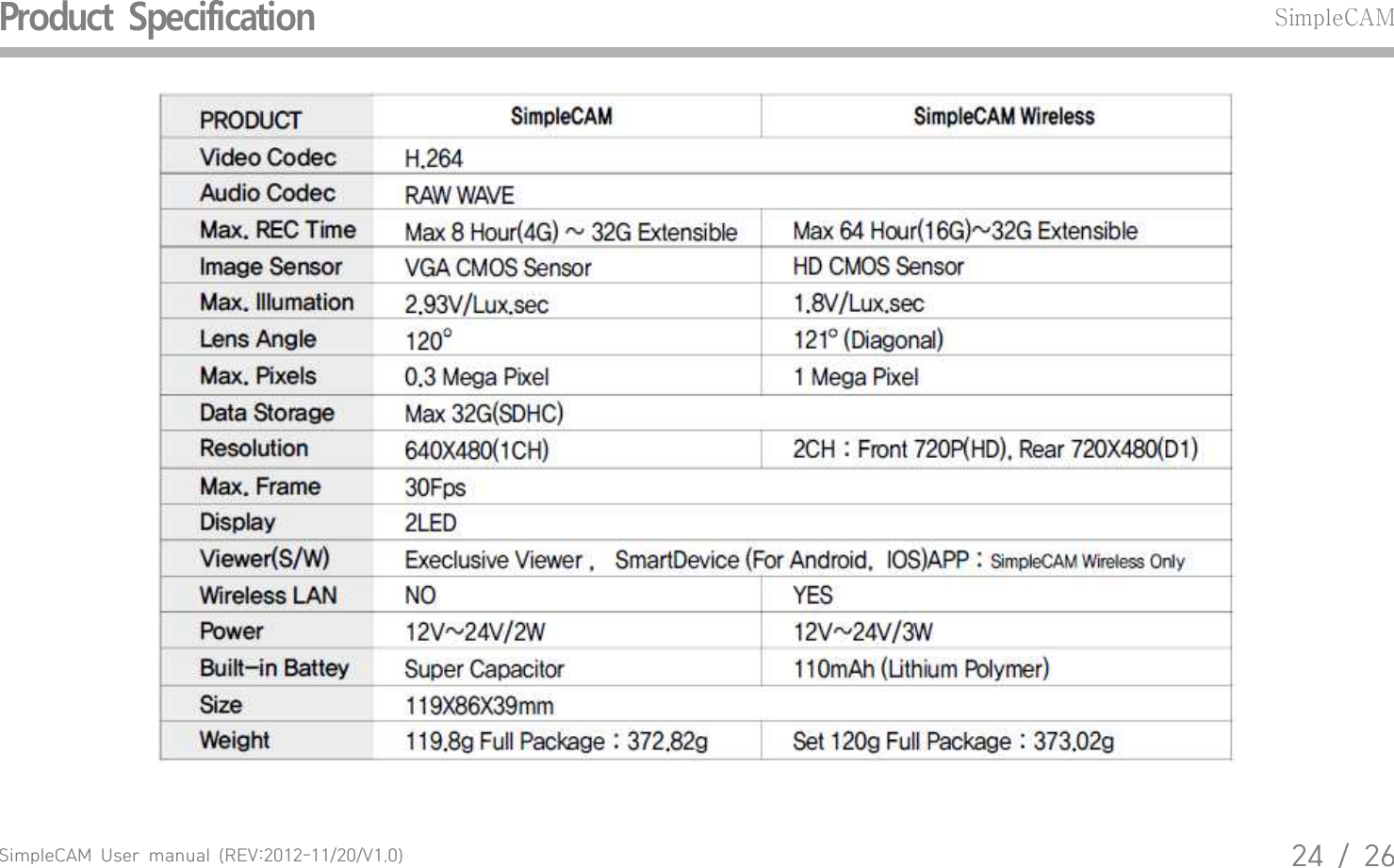
SimpleCAM  User  manual  (REV:2012-11/20/V1.0)24  /  26Product  SpecificationSimpleCAM
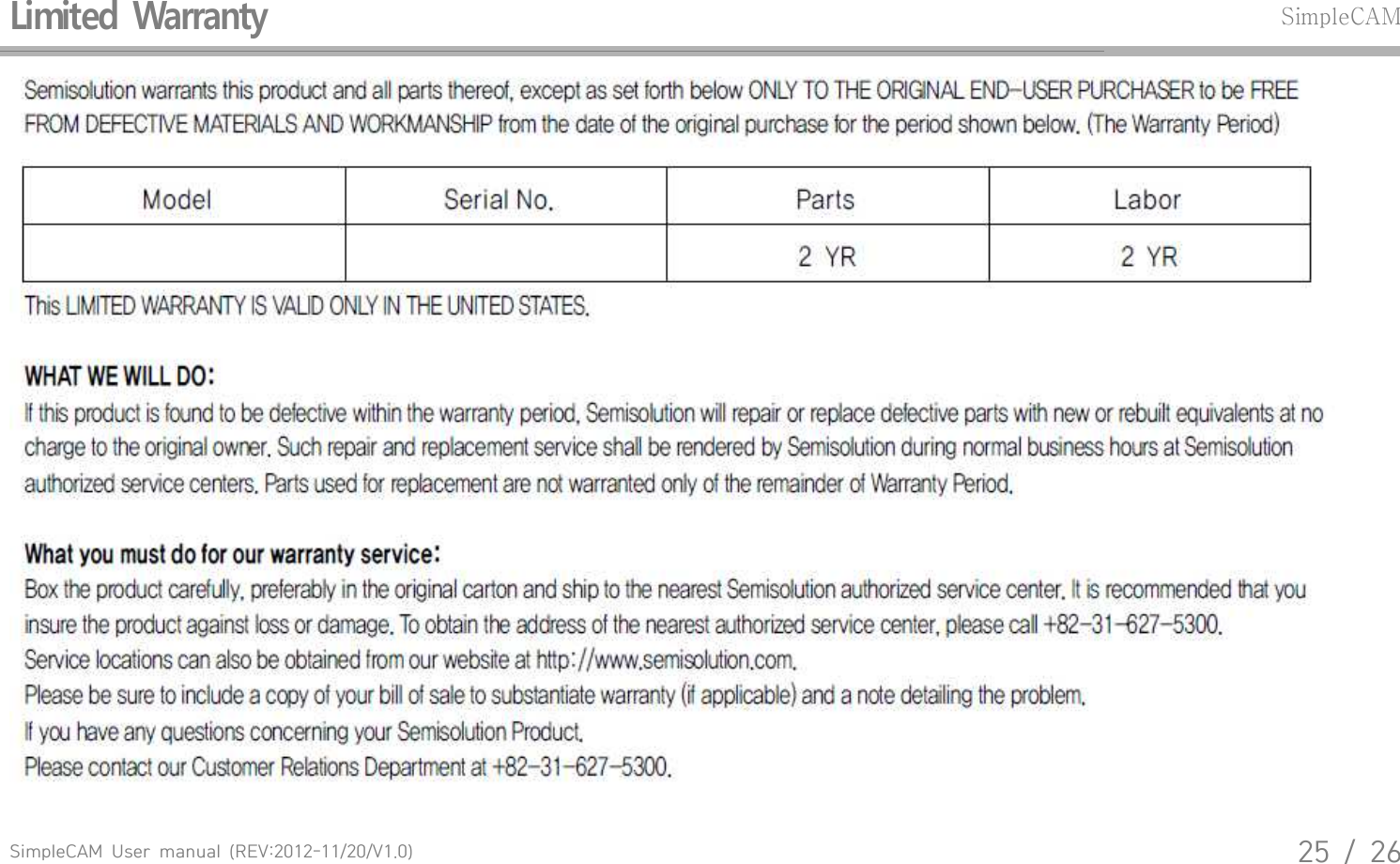
SimpleCAM  User  manual  (REV:2012-11/20/V1.0)25  /  26Limited  WarrantySimpleCAM
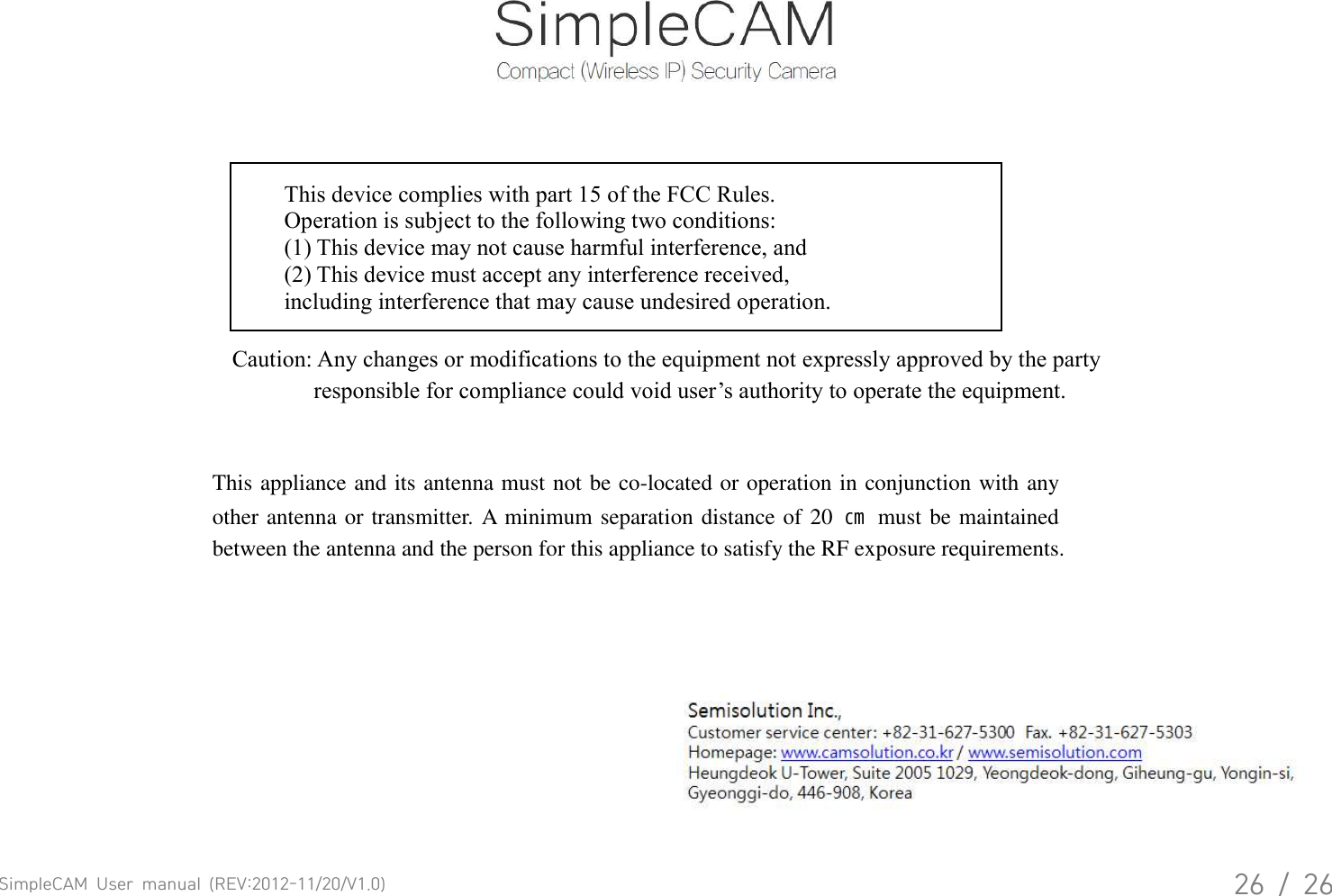
SimpleCAM  User  manual  (REV:2012-11/20/V1.0)26  /  26This device complies with part 15 of the FCC Rules. Operation is subject to the following two conditions: (1) This device may not cause harmful interference, and (2) This device must accept any interference received, including interference that may cause undesired operation. Caution: Any changes or modifications to the equipment not expressly approved by the party responsible for compliance could void user’s authority to operate the equipment. This appliance and its antenna must not be co-located or operation in conjunction with any other antenna or transmitter. A minimum separation distance of 20  ㎝  must be maintained between the antenna and the person for this appliance to satisfy the RF exposure requirements.

Navigation menu