SHINING 3D Tech EINSTART-C 3D Printer User Manual

Hangzhou Shining 3D Tech Co., Ltd 3D Printer

User Manual

                                                                 Einstart®-C User Manual Add: NO.1398 XIANGBIN RD. WENYAN XIAOSHAN, HANGZHOU, 311258, CHINA                     Website:www.shining3d.com                                                                                                 www.3dker.cn    Einstart®-C USER  MANUAL       HANGZHOU SHINING3D TECH CO., LTD. STOCK CODE:830978
                                                                 Einstart®-C User Manual  CATALOG 1 Summary ................................................................................................................................................. 1 1.1 How to use the User Manual ......................................................................................................... 1 1.2 Attention ........................................................................................................................................ 1 1.3 Product Model ............................................................................................................................... 1 2 Product Introduction ................................................................................................................................ 2 2.1 Product Appearance ..................................................................................................................... 2 2.2 Device parameters and accessories ............................................................................................. 2 2.3 Sound illustration .......................................................................................................................... 2 3 Preparation .............................................................................................................................................. 3 3.1 Hardware Installation .................................................................................................................... 3 3.2 Software Installation and Serial Number Registration ................................................................... 3 4 Using the Printer ..................................................................................................................................... 6 4.1 Slicing ........................................................................................................................................... 6 4.2 Print .............................................................................................................................................. 8 5 Software .................................................................................................................................................. 9 5.1 A detailed look at the software interface ........................................................................................ 9 5.2 Software functions ...................................................................................................................... 10 5.3 Advanced Parameters ................................................................................................................ 12 5.4 Introduction of LED Screen Button and Its Logic ........................................................................ 13 6 3Dker Platform(Website address:http://www.3dker.com/) .............................................................. 22 6.1 Model Downloading .................................................................................................................... 22 6.2 Software and Firmware Down loading. ....................................................................................... 22 7 Maintenance ......................................................................................................................................... 23 7.1 Printer Working Environment ...................................................................................................... 23 7.2 Clean Up the Printing Environment ............................................................................................. 23 7.3 Changing the Filament ................................................................................................................ 23 7.4 Loading Filament ........................................................................................................................ 23 7.5 STL File ....................................................................................................................................... 23
                                                                 Einstart®-C User Manual  7.6 Set the Print Bed ......................................................................................................................... 23 7.7 Sliding Rail .................................................................................................................................. 23 7.8 Consumable Parts List ................................................................................................................ 23 8 FAQ ....................................................................................................................................................... 24 8.1. The filament is blocked .............................................................................................................. 24 8.2. Extruder height adjustment ........................................................................................................ 24 8.3. Model won’t stick to the platform. ............................................................................................... 24 8.4. Nozzle is surrounded by filament ............................................................................................... 24 8.5. 3dStar software cannot connect to the 3D printer. ..................................................................... 25 8.6. Cannot read files on USB drive .................................................................................................. 25 8.7. The extruder is blocked, forming thin strands during printing or the model is dislocated. .......... 25 8.8. Limit switch malfunction ............................................................................................................. 25 8.9 USB drive cannot be detected。 ................................................................................................. 25 Appendix: .............................................................................................................................................. 26
                                                                 Einstart®-C User Manual  1 Einstart®-C User Manual 1 Summary 1.1 How to use the User Manual This User Manual is set out to explain the following; Product Introduction, Preparation, How to Use the Printer, Software Operation & Help, 3Dker Platform, Maintenance and FAQ. Please read the manual carefully before use and follow instructions when using the Einstart-C. 1.2 Attention Please consider the following information before using the printer. 1.2.1 Safety The printer is only compatible with the power supply offered by Hangzhou Shining 3D Tech Co., Ltd.   Using an alternative power supply may lead to safety risks and/or damage to the printer The print head reaches temperatures  of  over  200°C.  To minimize potential risk,  keep  the  printer  door closed during operation of the printer. It is also advisable to keep the printer door closed to reduce any outside airflow, which can affect print quality. DO NOT touch the model, print nozzle, print bed and any other part inside the printer until fully cooled to room temperature. Care must be taken during the removal of 3D printed parts.   Although considered safe, the printer sends out small concentrations of vapor during printing therefore good ventilation is recommended.   1.2.2 Protection Keep the printer away from water as this may damage the printer. DO NOT cut off power supply or unplug the USB cable during printing as it may cause print failure. The  printer  operates  at  a  room  temperature  of  5℃  to  30  ℃.  Print  quality  may  be  affected  if  the temperature is not in this range. Shining 3D has no responsibility for any damage caused to the printer through using print material or a power supply not offered by Shining 3D. 1.3 Product Model Einstart®-C        Wifi International Einstart®-C2    Wifi Domestic   Within this Manual, the model is noted as the Einstart®-C when describing common functions. Any notes applying to the Einstart®-C2 will be made apparent.
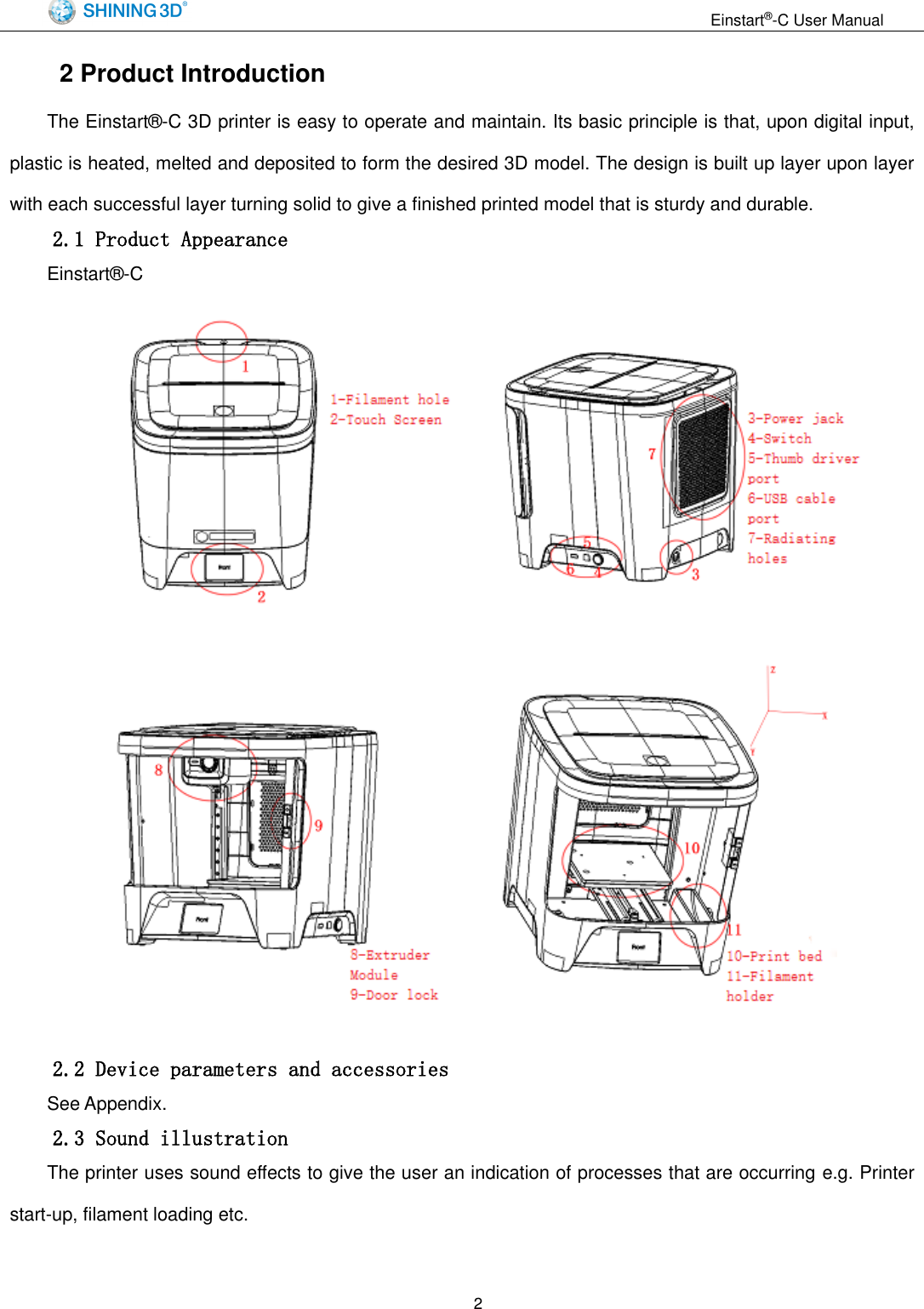
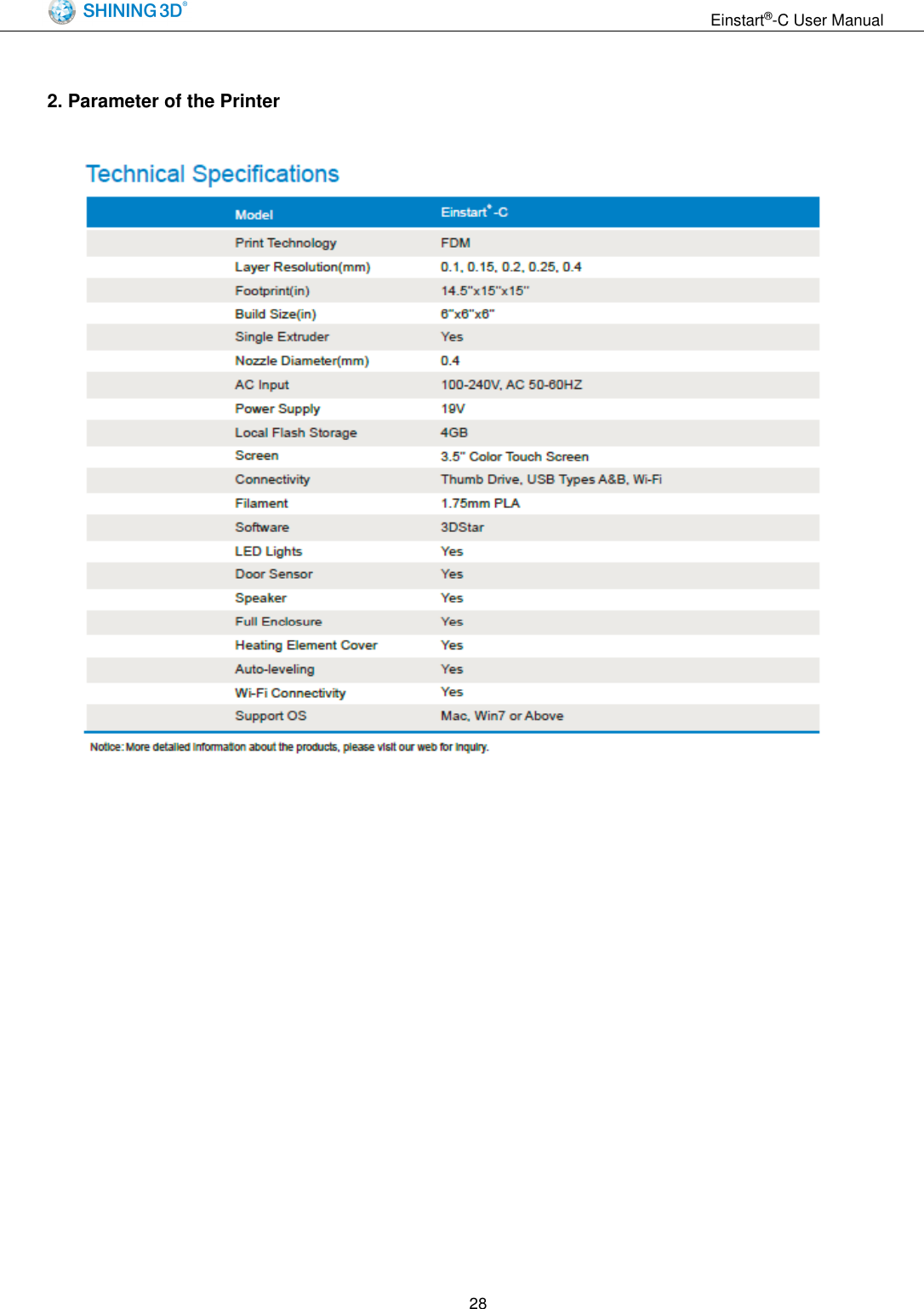
                                                                 Einstart®-C User Manual  2 2 Product Introduction The Einstart®-C 3D printer is easy to operate and maintain. Its basic principle is that, upon digital input, plastic is heated, melted and deposited to form the desired 3D model. The design is built up layer upon layer with each successful layer turning solid to give a finished printed model that is sturdy and durable. 2.1 Product Appearance Einstart®-C        2.2 Device parameters and accessories See Appendix. 2.3 Sound illustration The printer uses sound effects to give the user an indication of processes that are occurring e.g. Printer start-up, filament loading etc.
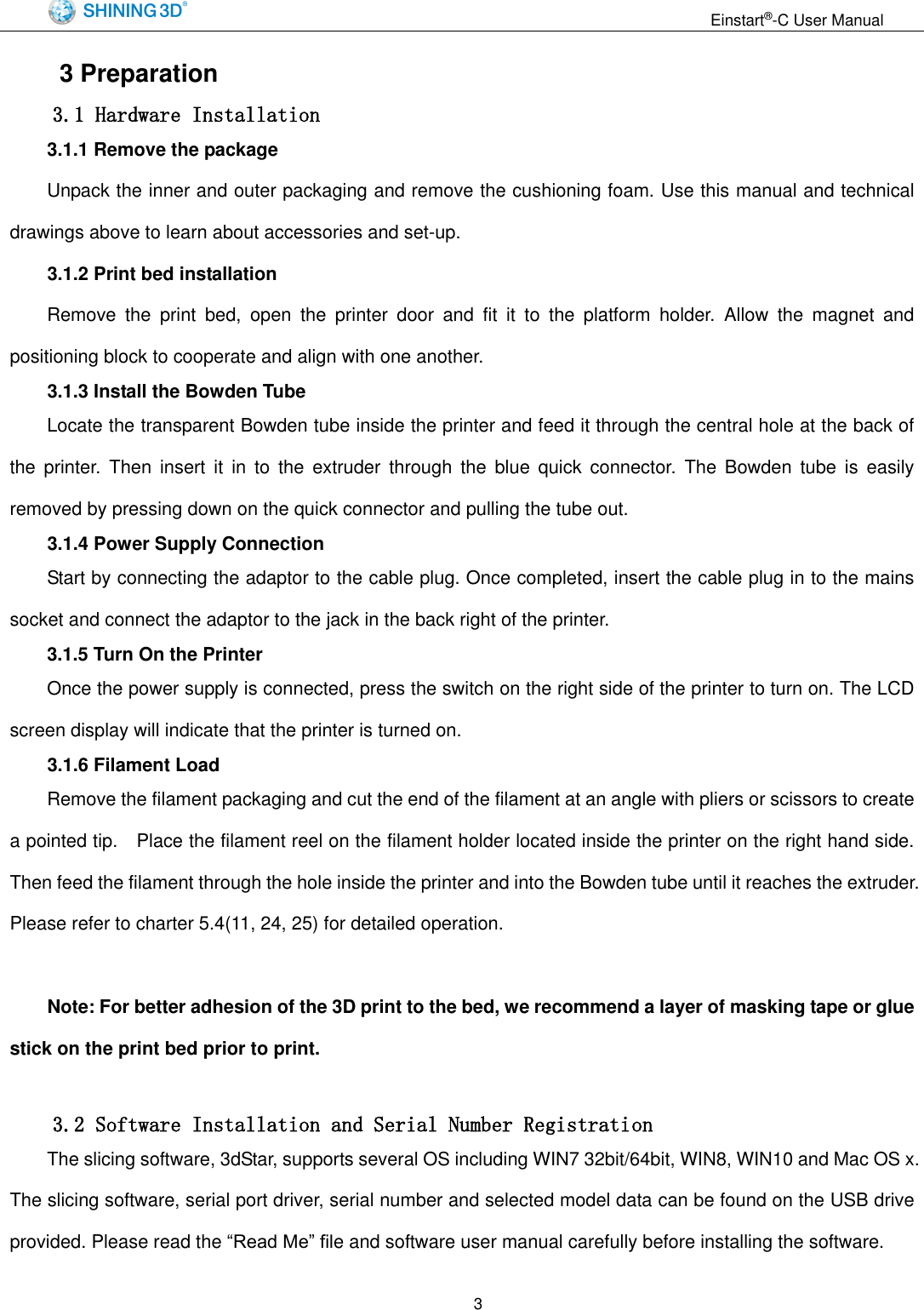
                                                                 Einstart®-C User Manual  3 3 Preparation 3.1 Hardware Installation      3.1.1 Remove the package Unpack the inner and outer packaging and remove the cushioning foam. Use this manual and technical drawings above to learn about accessories and set-up.     3.1.2 Print bed installation Remove  the  print  bed,  open  the  printer  door  and  fit  it  to  the  platform  holder.  Allow  the  magnet  and positioning block to cooperate and align with one another. 3.1.3 Install the Bowden Tube Locate the transparent Bowden tube inside the printer and feed it through the central hole at the back of the  printer.  Then  insert  it  in  to  the  extruder  through  the  blue  quick  connector.  The  Bowden  tube  is  easily removed by pressing down on the quick connector and pulling the tube out. 3.1.4 Power Supply Connection Start by connecting the adaptor to the cable plug. Once completed, insert the cable plug in to the mains socket and connect the adaptor to the jack in the back right of the printer. 3.1.5 Turn On the Printer Once the power supply is connected, press the switch on the right side of the printer to turn on. The LCD screen display will indicate that the printer is turned on. 3.1.6 Filament Load Remove the filament packaging and cut the end of the filament at an angle with pliers or scissors to create a pointed tip.    Place the filament reel on the filament holder located inside the printer on the right hand side. Then feed the filament through the hole inside the printer and into the Bowden tube until it reaches the extruder. Please refer to charter 5.4(11, 24, 25) for detailed operation.  Note: For better adhesion of the 3D print to the bed, we recommend a layer of masking tape or glue stick on the print bed prior to print.      3.2 Software Installation and Serial Number Registration The slicing software, 3dStar, supports several OS including WIN7 32bit/64bit, WIN8, WIN10 and Mac OS x. The slicing software, serial port driver, serial number and selected model data can be found on the USB drive provided. Please read the “Read Me” file and software user manual carefully before installing the software.
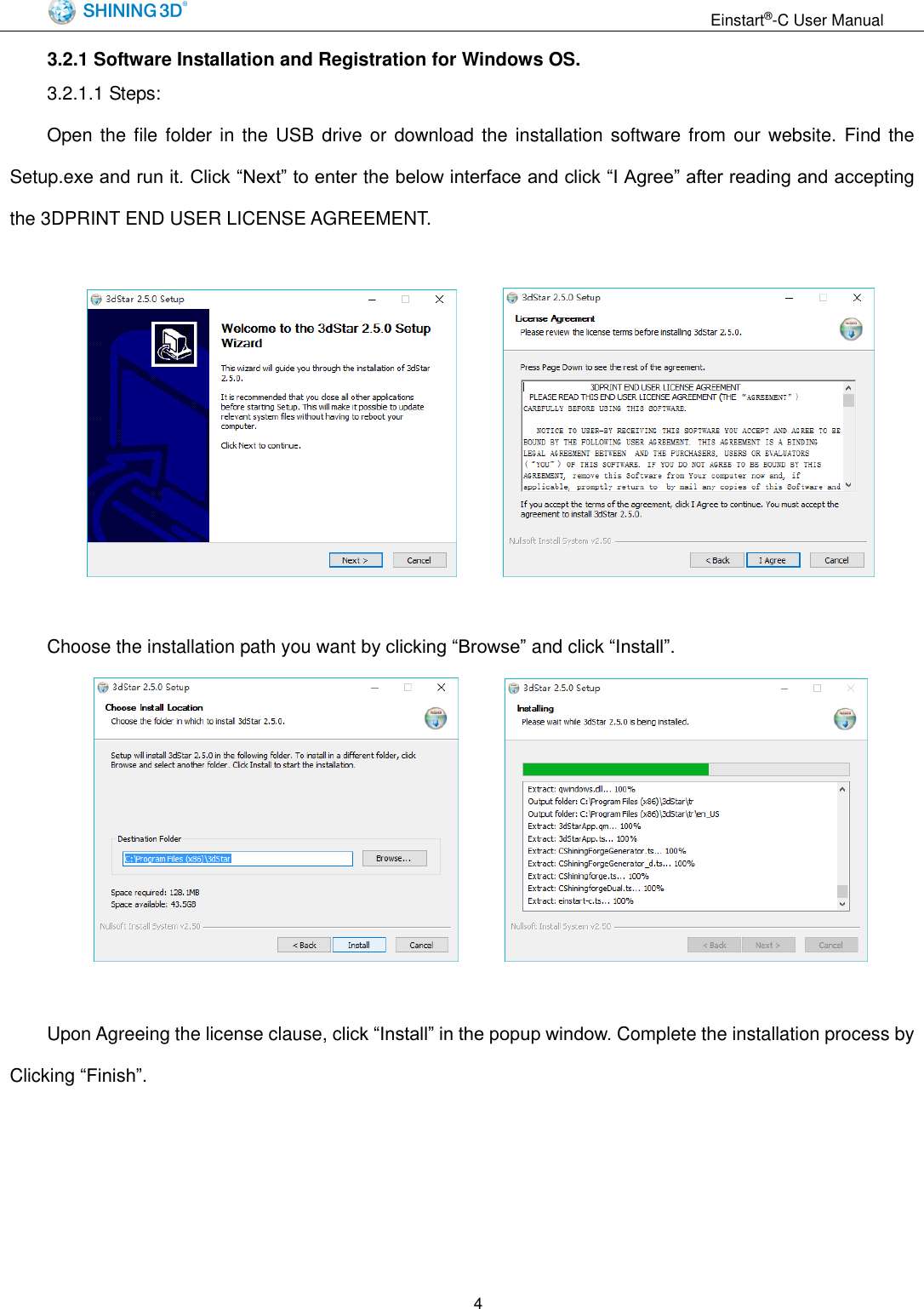
                                                                 Einstart®-C User Manual  4 3.2.1 Software Installation and Registration for Windows OS. 3.2.1.1 Steps:   Open the  file folder in  the  USB  drive or download  the  installation software from  our website.  Find the Setup.exe and run it. Click “Next” to enter the below interface and click “I Agree” after reading and accepting the 3DPRINT END USER LICENSE AGREEMENT.          Choose the installation path you want by clicking “Browse” and click “Install”.         Upon Agreeing the license clause, click “Install” in the popup window. Complete the installation process by Clicking “Finish”.
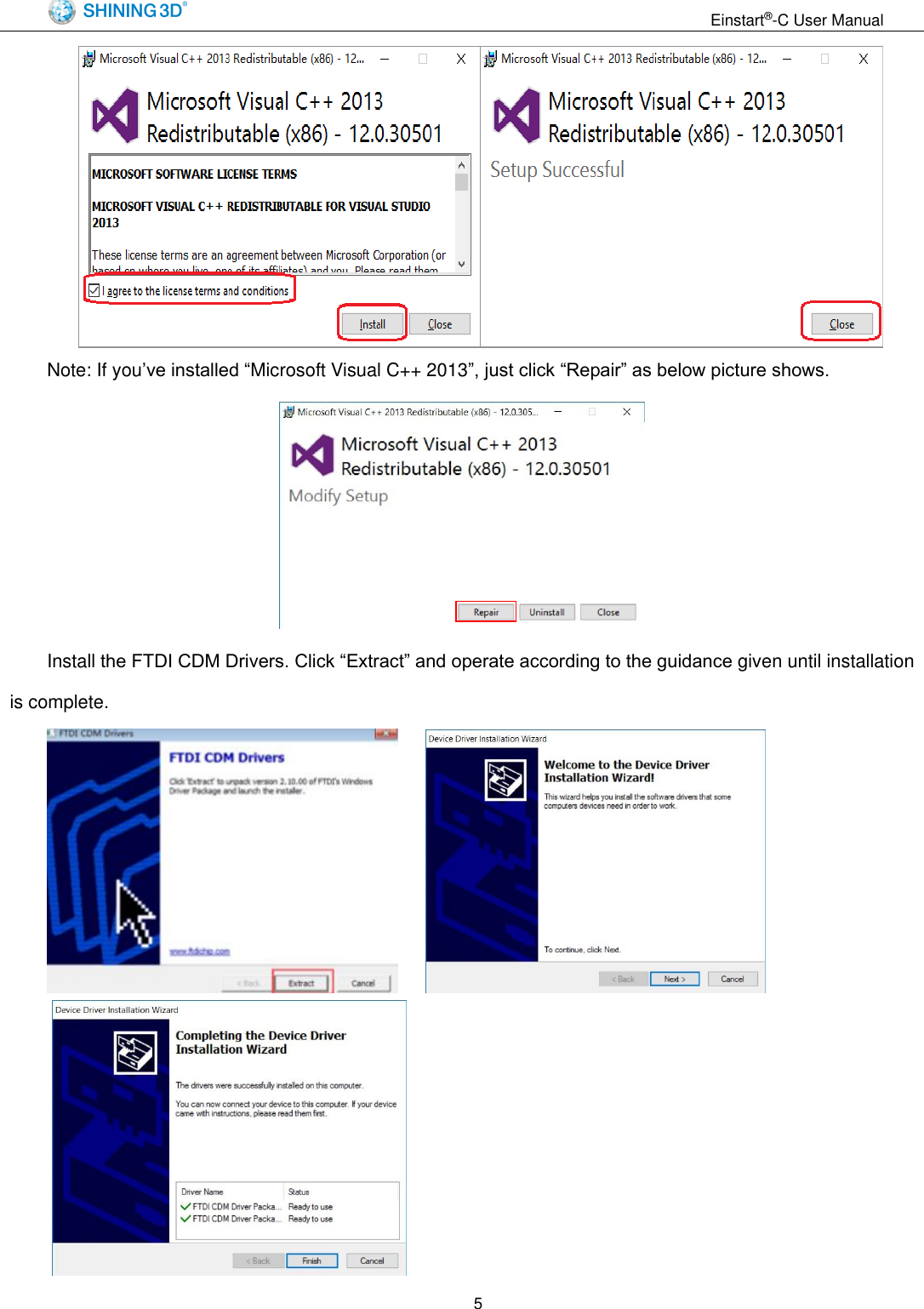
                                                                 Einstart®-C User Manual  5  Note: If you’ve installed “Microsoft Visual C++ 2013”, just click “Repair” as below picture shows.  Install the FTDI CDM Drivers. Click “Extract” and operate according to the guidance given until installation is complete.
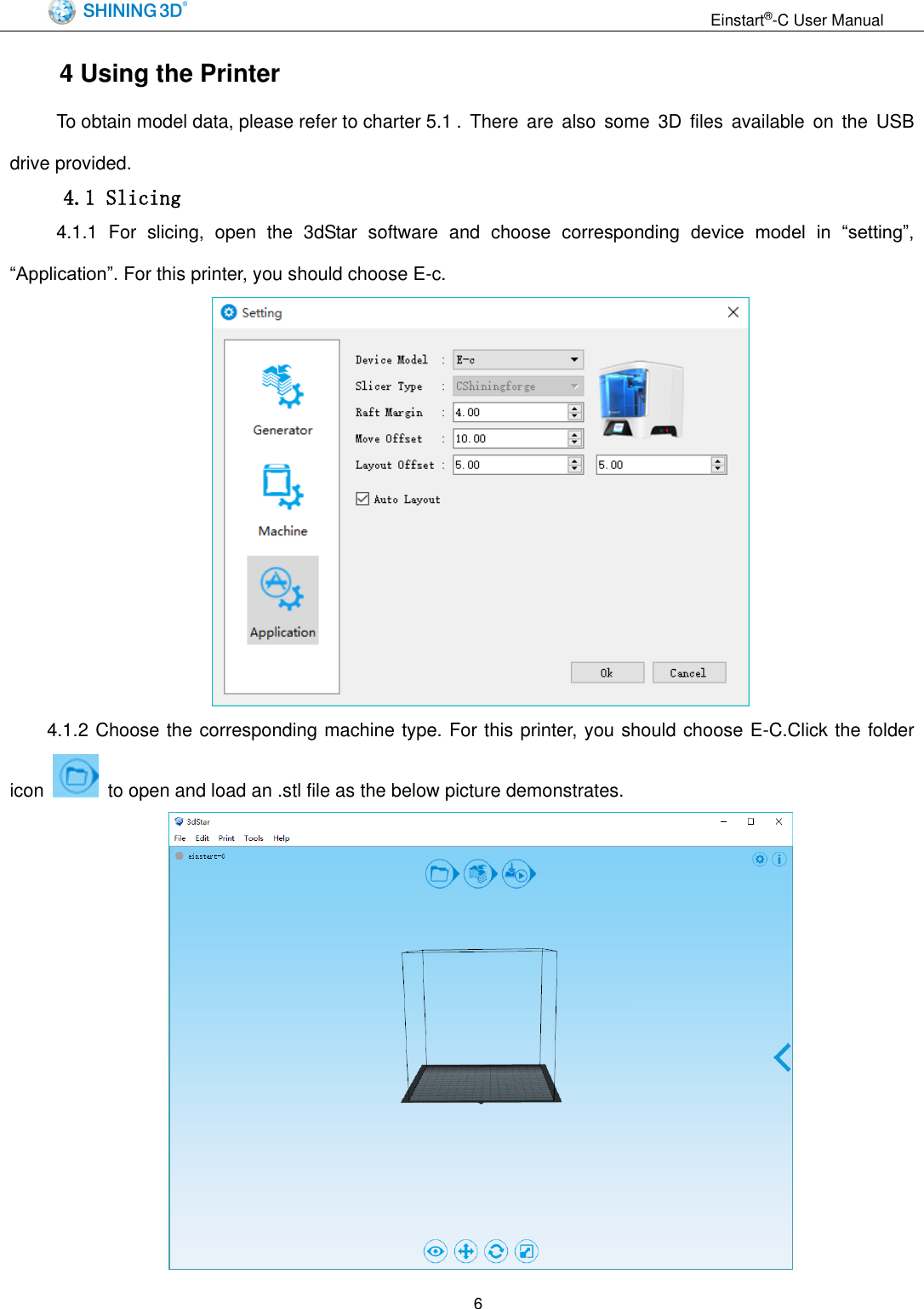
                                                                 Einstart®-C User Manual  6 4 Using the Printer   To obtain model data, please refer to charter 5.1 .  There  are  also  some  3D  files  available on  the  USB drive provided.  4.1 Slicing   4.1.1  For  slicing,  open  the  3dStar  software  and  choose  corresponding  device  model  in  “setting”, “Application”. For this printer, you should choose E-c.  4.1.2 Choose the corresponding machine type. For this printer, you should choose E-C.Click the folder icon    to open and load an .stl file as the below picture demonstrates.
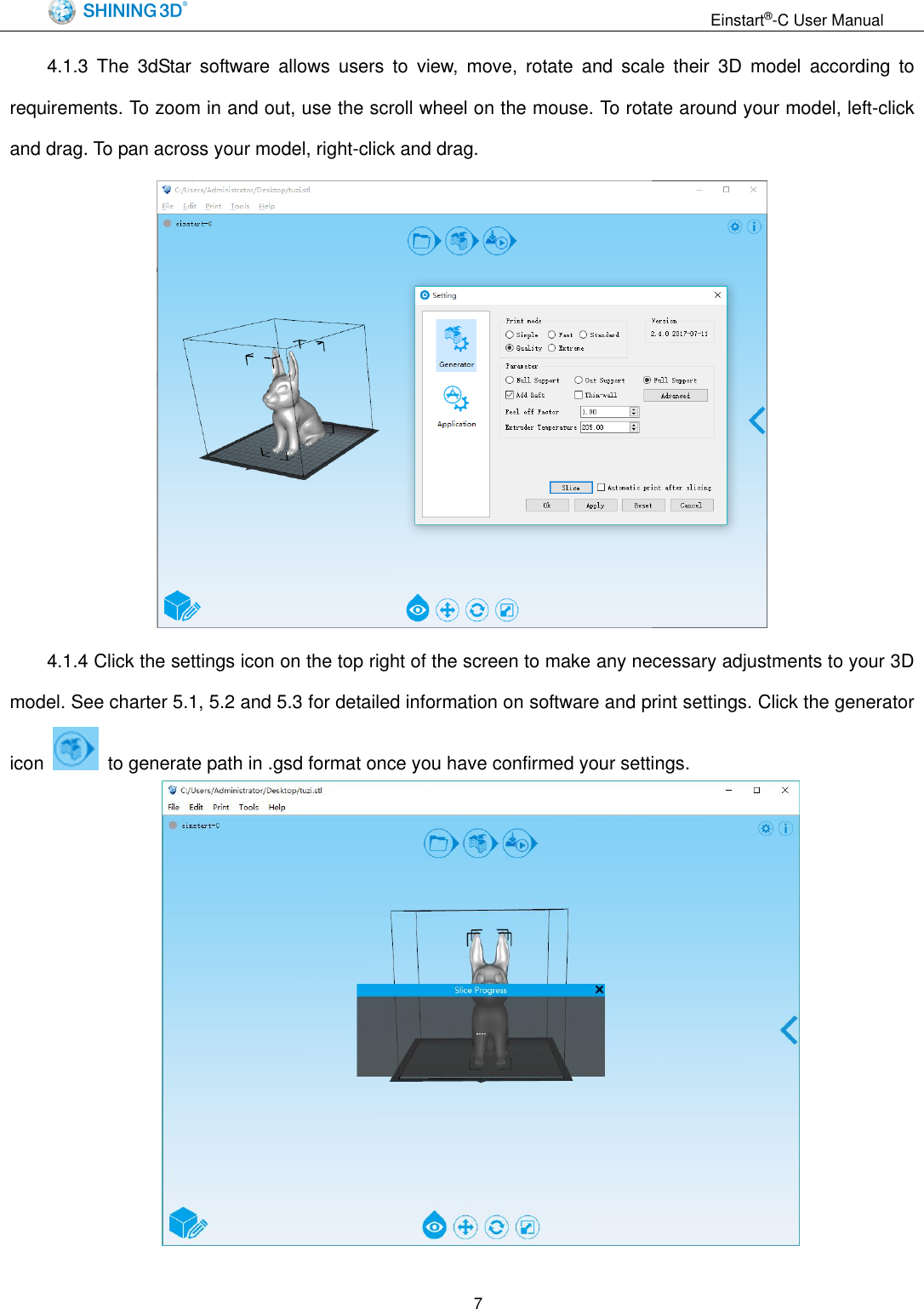
                                                                 Einstart®-C User Manual  7 4.1.3  The  3dStar  software  allows  users  to  view,  move,  rotate  and  scale  their  3D  model  according  to requirements. To zoom in and out, use the scroll wheel on the mouse. To rotate around your model, left-click and drag. To pan across your model, right-click and drag.  4.1.4 Click the settings icon on the top right of the screen to make any necessary adjustments to your 3D model. See charter 5.1, 5.2 and 5.3 for detailed information on software and print settings. Click the generator icon    to generate path in .gsd format once you have confirmed your settings.
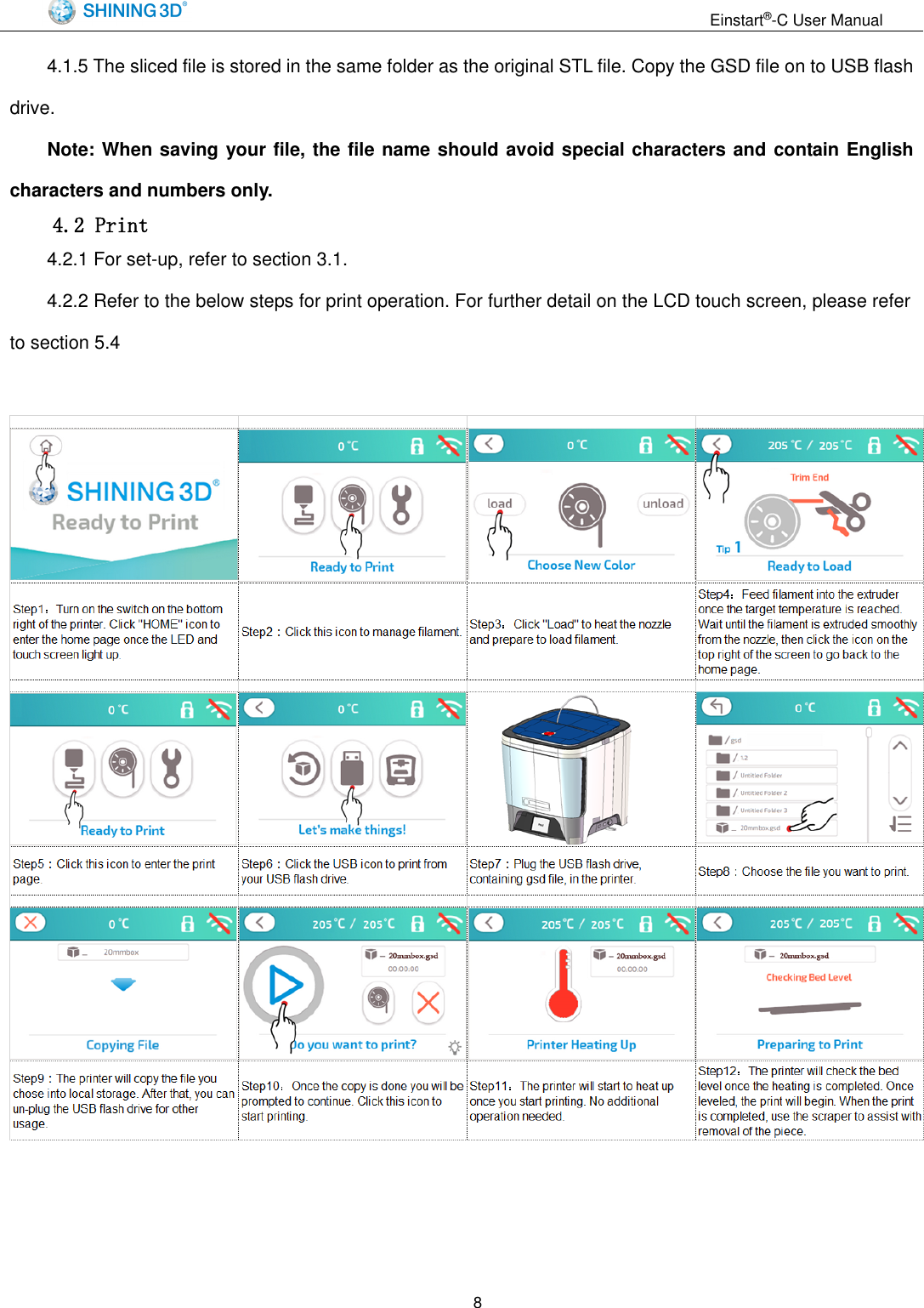
                                                                 Einstart®-C User Manual  8 4.1.5 The sliced file is stored in the same folder as the original STL file. Copy the GSD file on to USB flash drive. Note: When saving your file, the file name should avoid special characters and contain English characters and numbers only.   4.2 Print 4.2.1 For set-up, refer to section 3.1. 4.2.2 Refer to the below steps for print operation. For further detail on the LCD touch screen, please refer to section 5.4
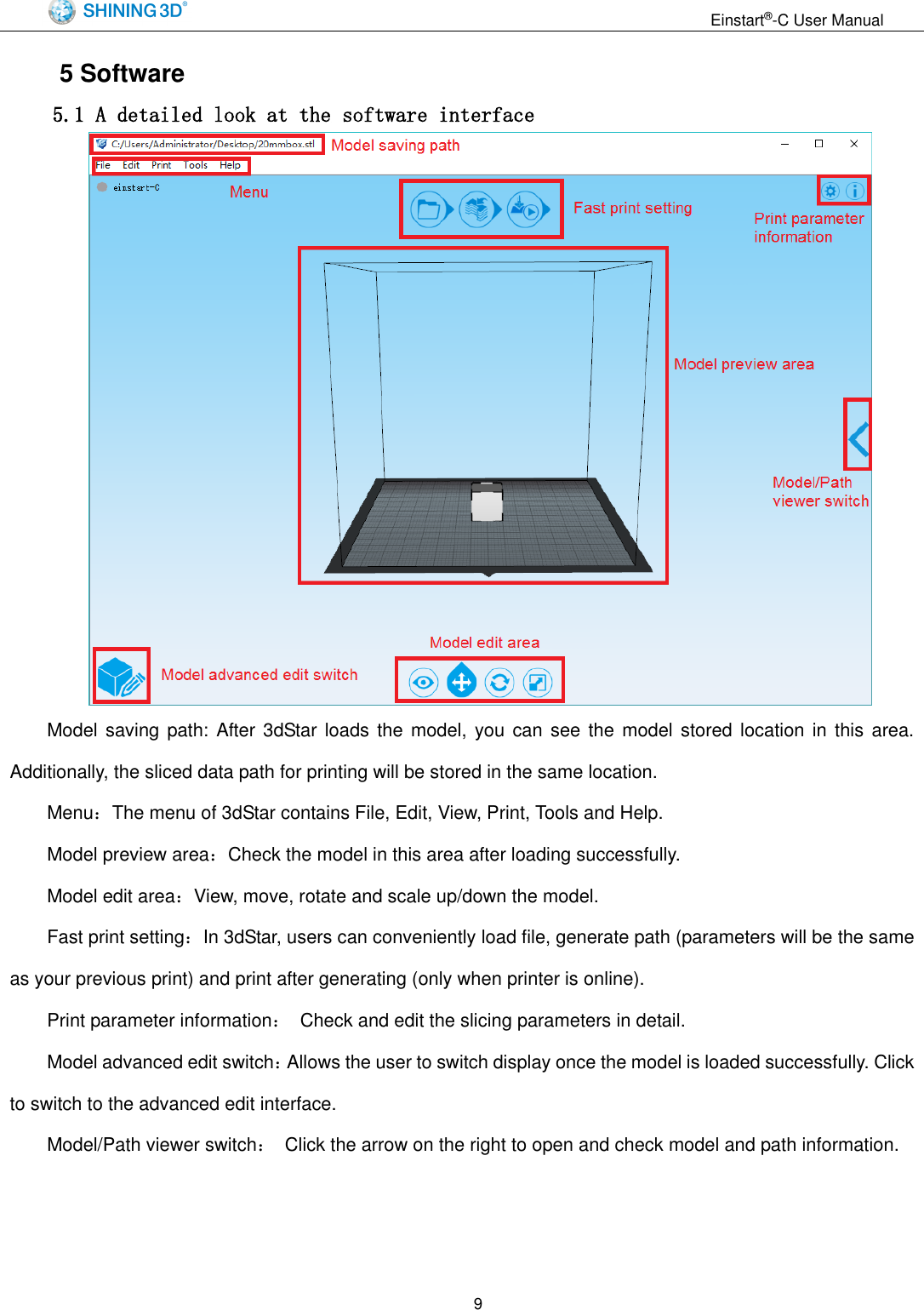
                                                                 Einstart®-C User Manual  9 5 Software 5.1 A detailed look at the software interface    Model saving path: After 3dStar loads  the  model,  you can  see the model stored location in this area. Additionally, the sliced data path for printing will be stored in the same location. Menu:The menu of 3dStar contains File, Edit, View, Print, Tools and Help. Model preview area:Check the model in this area after loading successfully. Model edit area:View, move, rotate and scale up/down the model. Fast print setting:In 3dStar, users can conveniently load file, generate path (parameters will be the same as your previous print) and print after generating (only when printer is online). Print parameter information:  Check and edit the slicing parameters in detail. Model advanced edit switch:Allows the user to switch display once the model is loaded successfully. Click to switch to the advanced edit interface. Model/Path viewer switch:  Click the arrow on the right to open and check model and path information.
                                                                 Einstart®-C User Manual  10 5.2 Software functions  No. Position  in Software Legend Submenu Description 1 Menu- File  New Clear current model Open… Open local STL file Add… Add  new  model  to  current model Recent Files Link to recently opened files Save Save current model Save As Save  current  model as  other position Exit Exit 3dStar 2 Menu- Edit   Select All Select all models Copy Copy selected model Paste Paste copied model Delete Delete selected model Layout Optimal  layout  for  current model View View  model  from  different views Move Move  model  from  X,Y,  or  Z direction Rotate Rotate  model  around  X,Y,  or Z axis Scale Up/Down Scale up or down the model   3 Menu- Print   Start/Stop Print Start/Stop  print.  Print  cannot resume if stop Pause/Resume Print Pause or resume printing
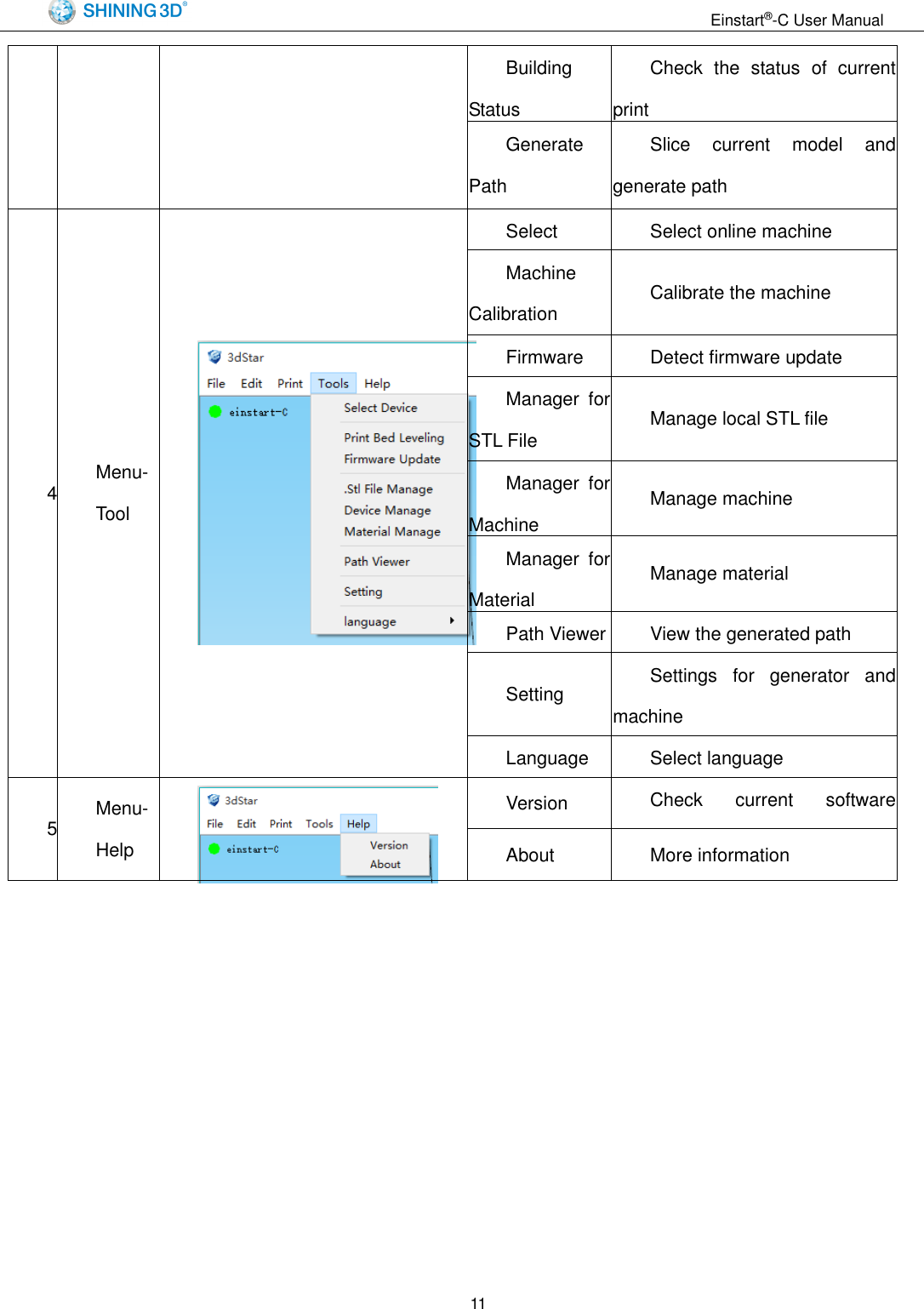
                                                                 Einstart®-C User Manual  11 Building Status Check  the  status  of  current print Generate Path Slice  current  model  and generate path 4 Menu- Tool  Select Machine Select online machine Machine Calibration Calibrate the machine Firmware Update Detect firmware update Manager  for STL File Manage local STL file Manager  for Machine Manage machine Manager  for Material Manage material Path Viewer View the generated path Setting Settings  for  generator  and machine Language Select language 5 Menu- Help  Version Check  current  software version About More information
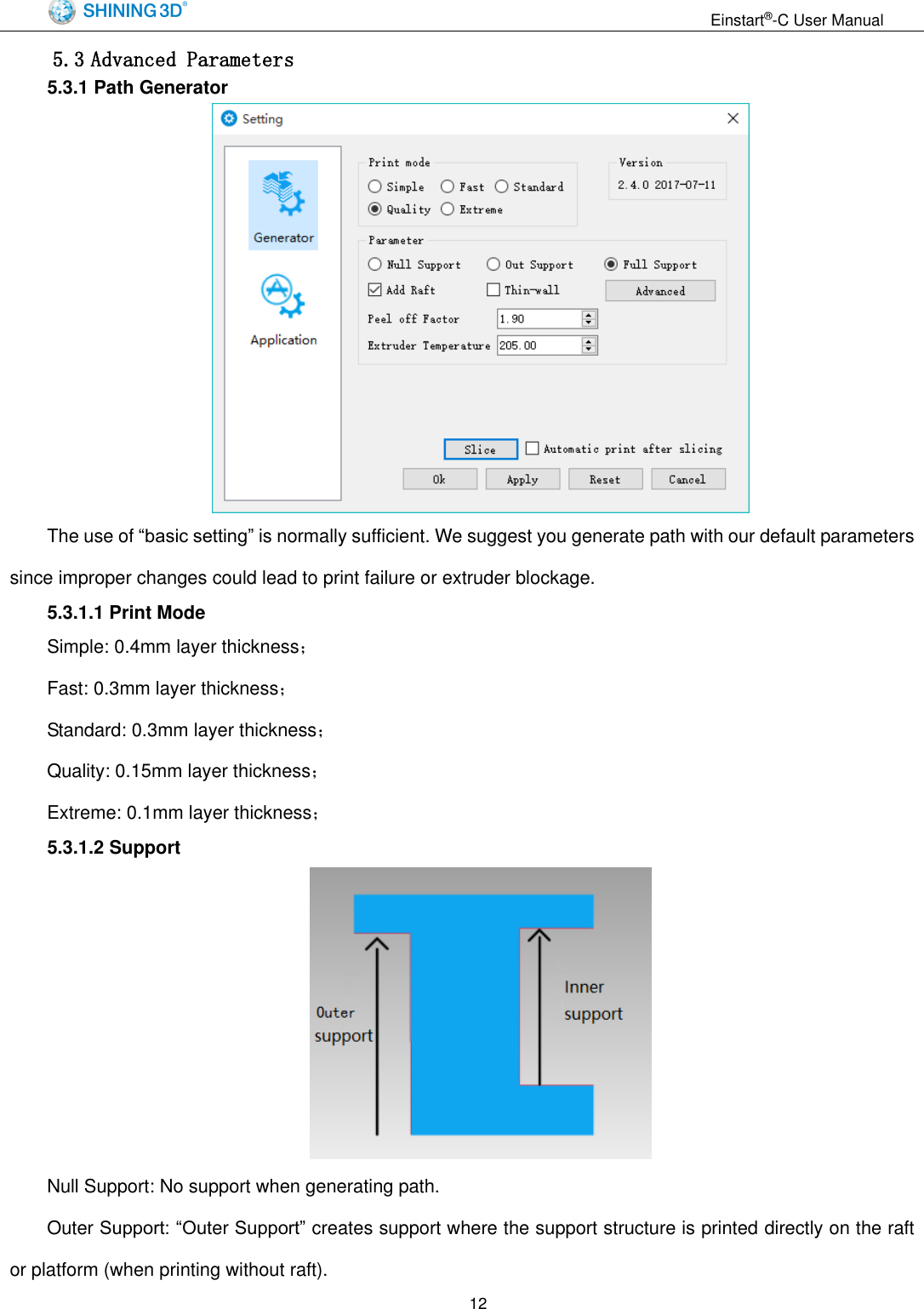
                                                                 Einstart®-C User Manual  12 5.3 Advanced Parameters 5.3.1 Path Generator  The use of “basic setting” is normally sufficient. We suggest you generate path with our default parameters since improper changes could lead to print failure or extruder blockage. 5.3.1.1 Print Mode Simple: 0.4mm layer thickness; Fast: 0.3mm layer thickness; Standard: 0.3mm layer thickness; Quality: 0.15mm layer thickness; Extreme: 0.1mm layer thickness; 5.3.1.2 Support  Null Support: No support when generating path. Outer Support: “Outer Support” creates support where the support structure is printed directly on the raft or platform (when printing without raft).
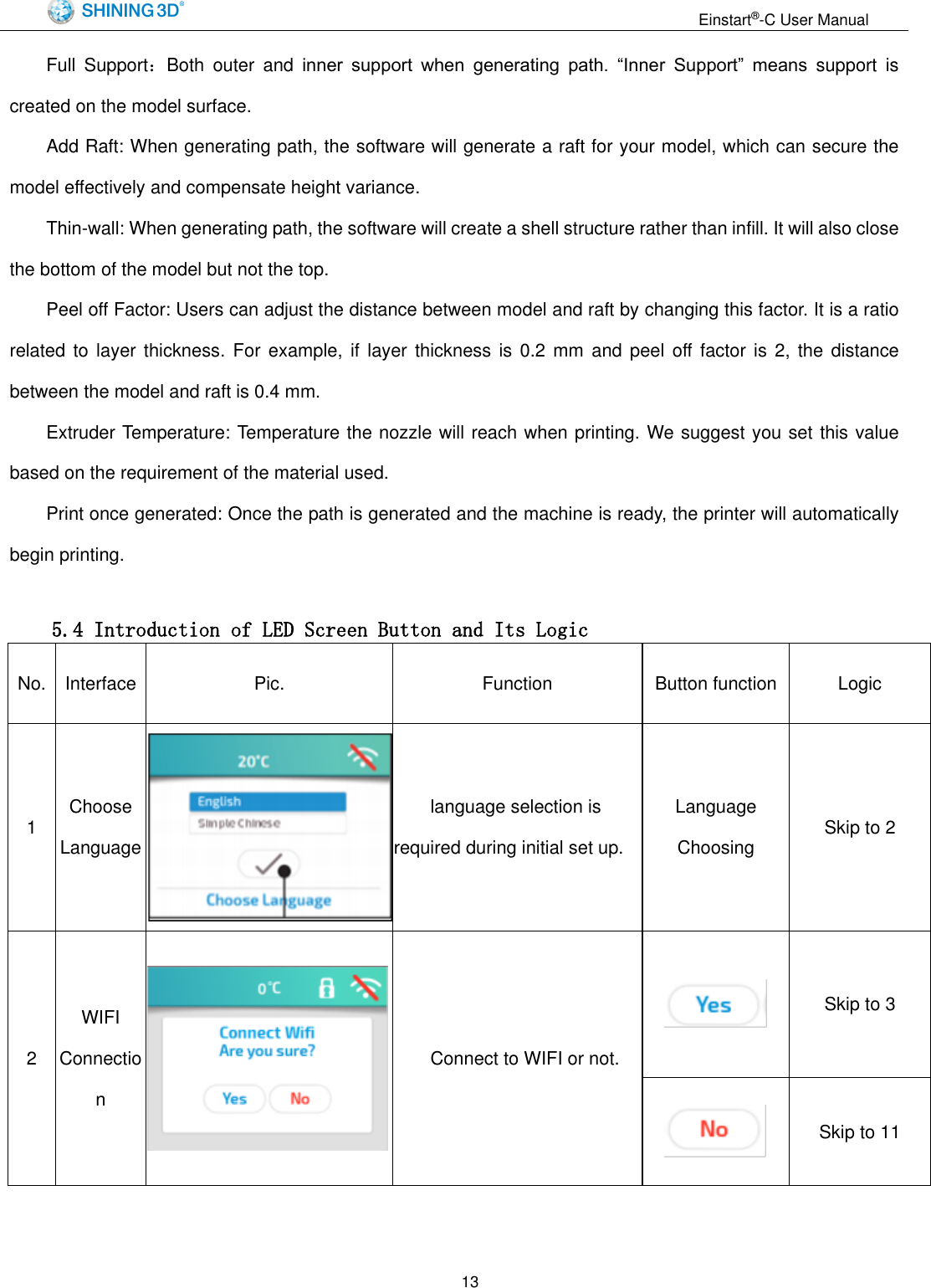
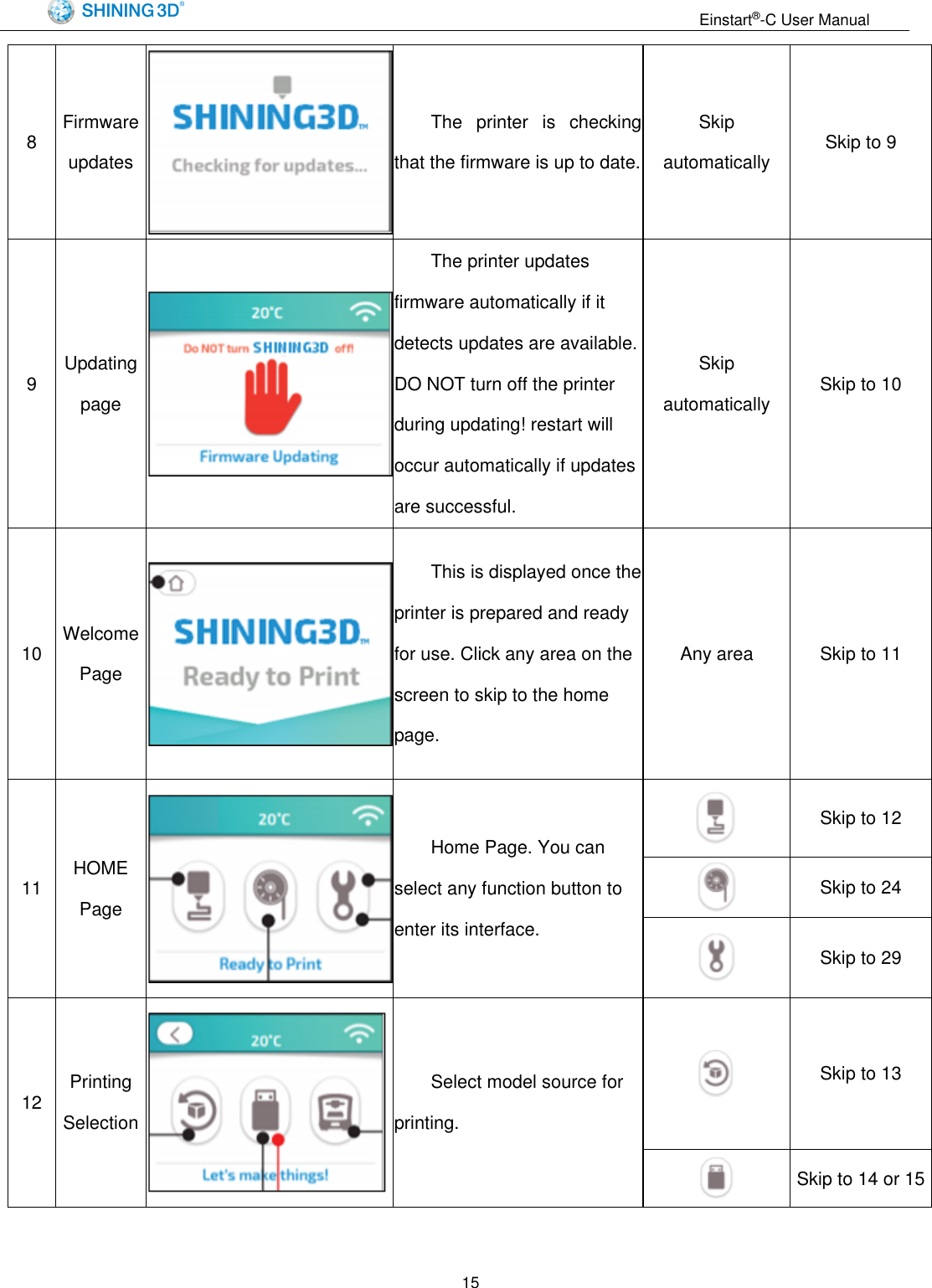
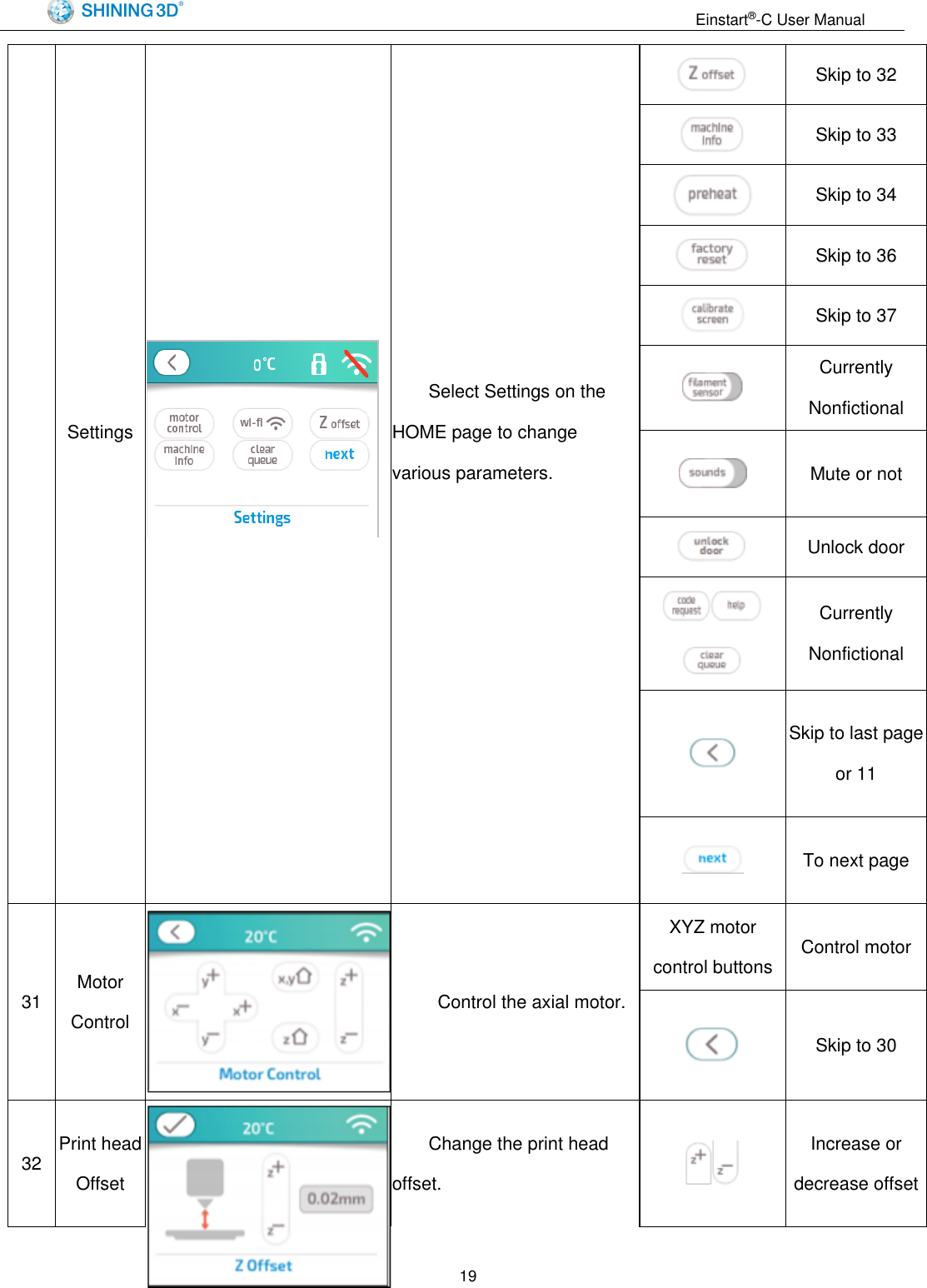
                                                                 Einstart®-C User Manual  13 Full  Support:Both  outer  and  inner  support  when  generating  path.  “Inner  Support”  means  support  is created on the model surface.   Add Raft: When generating path, the software will generate a raft for your model, which can secure the model effectively and compensate height variance. Thin-wall: When generating path, the software will create a shell structure rather than infill. It will also close the bottom of the model but not the top.   Peel off Factor: Users can adjust the distance between model and raft by changing this factor. It is a ratio related to  layer thickness.  For example,  if  layer thickness  is  0.2  mm  and peel off  factor  is  2,  the  distance between the model and raft is 0.4 mm.   Extruder Temperature: Temperature the nozzle will reach when printing. We suggest you set this value based on the requirement of the material used. Print once generated: Once the path is generated and the machine is ready, the printer will automatically begin printing.  5.4 Introduction of LED Screen Button and Its Logic No. Interface Pic. Function Button function Logic 1 Choose Language  language selection is required during initial set up. Language Choosing Skip to 2 2 WIFI Connection  Connect to WIFI or not.  Skip to 3  Skip to 11
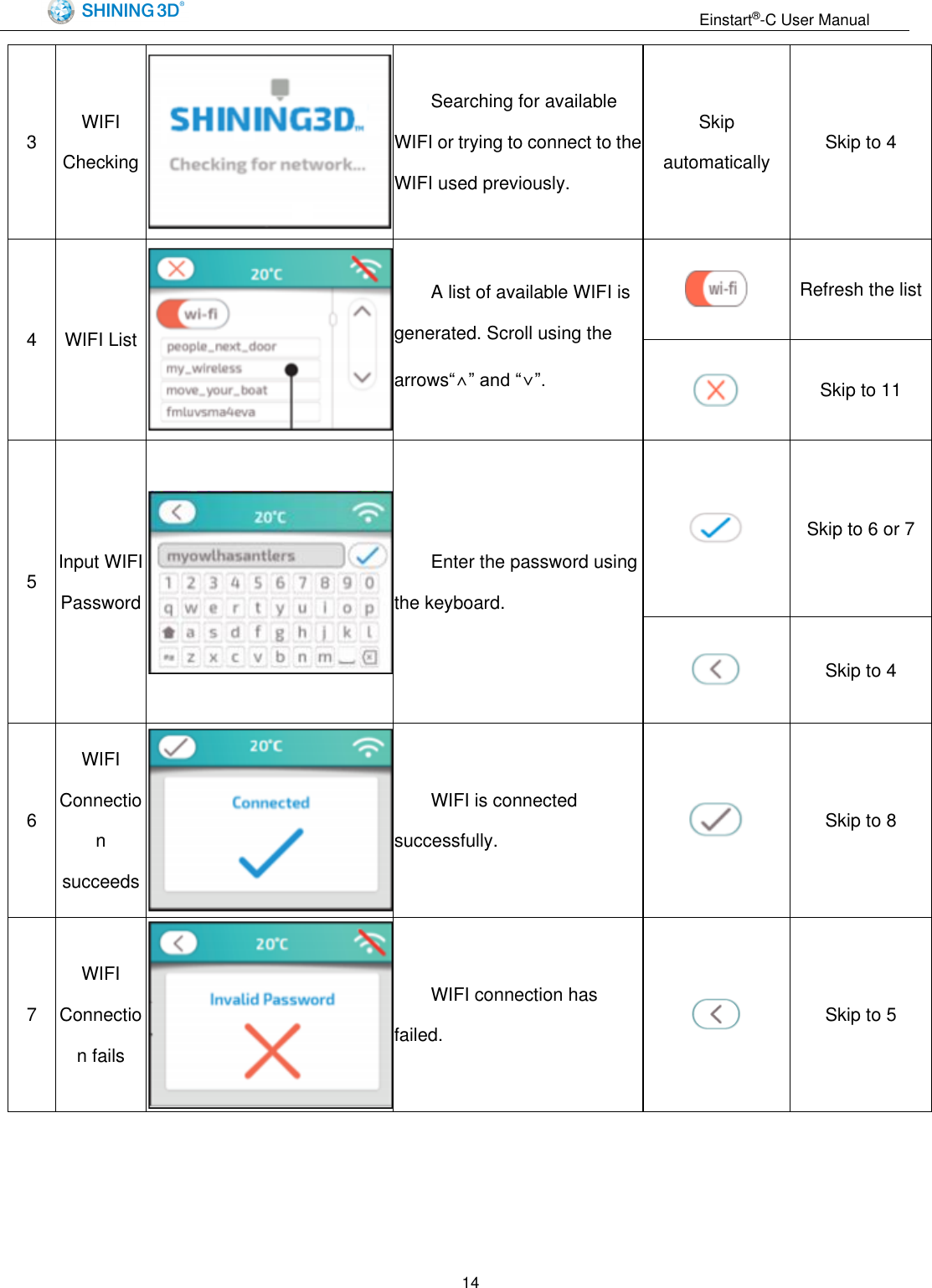
                                                                 Einstart®-C User Manual  14 3 WIFI Checking  Searching for available WIFI or trying to connect to the WIFI used previously. Skip automatically Skip to 4 4 WIFI List  A list of available WIFI is generated. Scroll using the arrows“∧” and “∨”.  Refresh the list  Skip to 11 5 Input WIFI Password  Enter the password using the keyboard.  Skip to 6 or 7  Skip to 4 6 WIFI Connection succeeds  WIFI is connected successfully.  Skip to 8 7 WIFI Connection fails  WIFI connection has failed.  Skip to 5
                                                                 Einstart®-C User Manual  15 8 Firmware updates  The  printer  is  checking that the firmware is up to date. Skip automatically Skip to 9 9 Updating page  The printer updates firmware automatically if it detects updates are available. DO NOT turn off the printer during updating! restart will occur automatically if updates are successful. Skip automatically Skip to 10 10 Welcome Page  This is displayed once the printer is prepared and ready for use. Click any area on the screen to skip to the home page. Any area Skip to 11 11 HOME Page  Home Page. You can select any function button to enter its interface.  Skip to 12  Skip to 24  Skip to 29 12 Printing Selection  Select model source for printing.  Skip to 13  Skip to 14 or 15
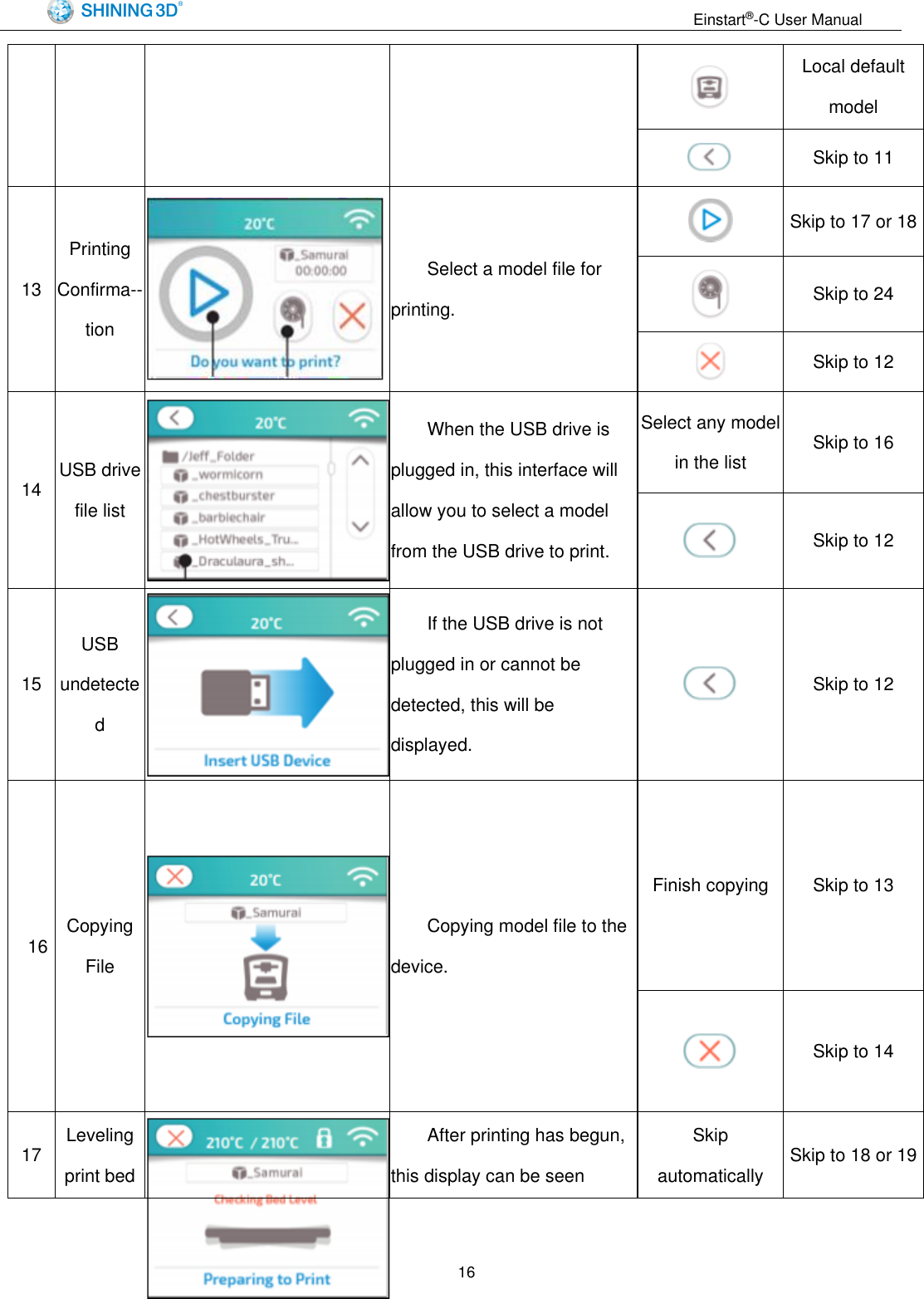
                                                                 Einstart®-C User Manual  16  Local default model  Skip to 11 13 Printing Confirma--tion  Select a model file for printing.  Skip to 17 or 18  Skip to 24  Skip to 12 14 USB drive file list  When the USB drive is plugged in, this interface will allow you to select a model from the USB drive to print. Select any model in the list Skip to 16  Skip to 12 15 USB undetected  If the USB drive is not plugged in or cannot be detected, this will be displayed.  Skip to 12 16 Copying File  Copying model file to the device. Finish copying Skip to 13  Skip to 14 17 Leveling print bed  After printing has begun, this display can be seen Skip automatically Skip to 18 or 19
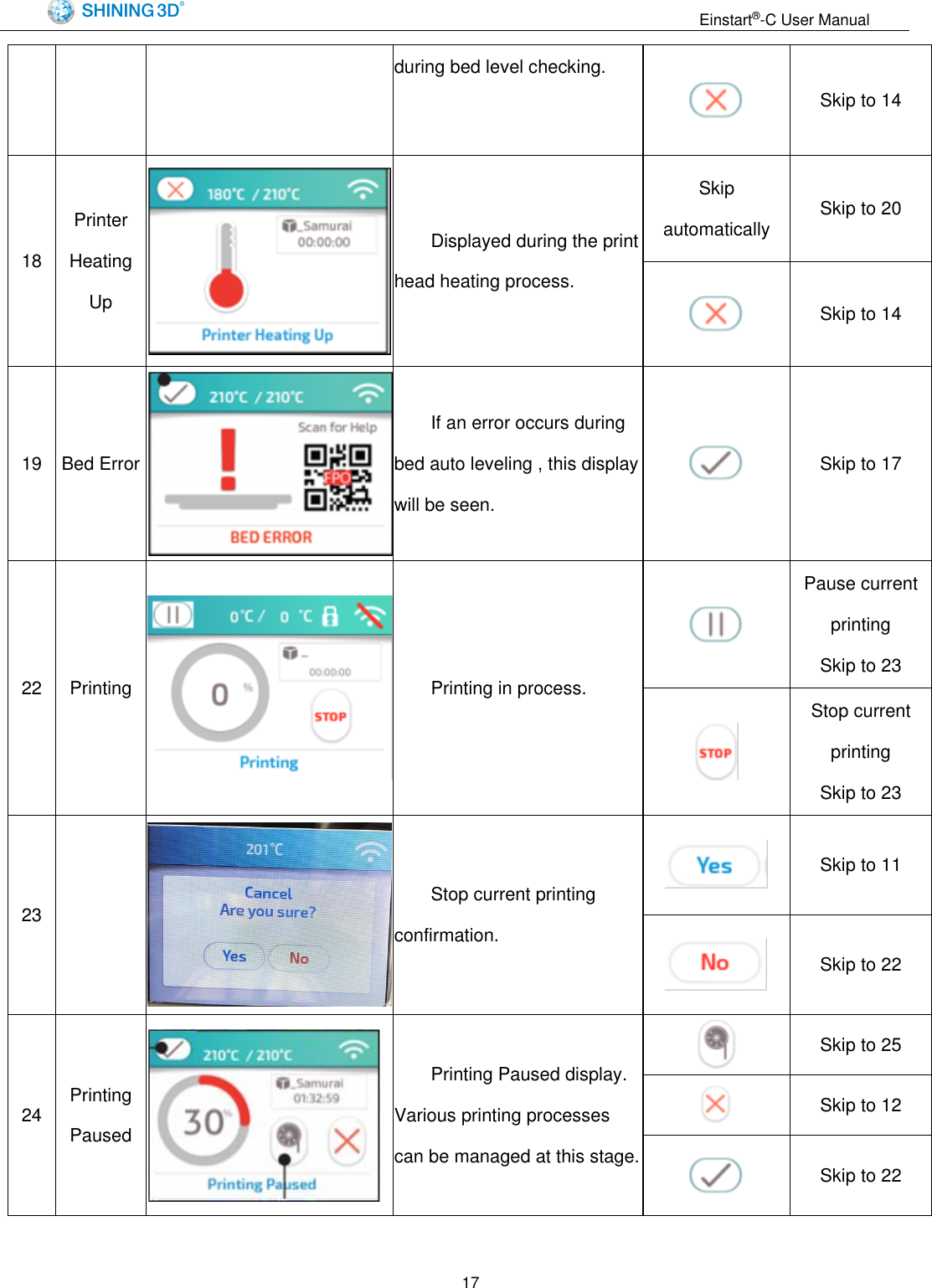
                                                                 Einstart®-C User Manual  17 during bed level checking.  Skip to 14 18 Printer Heating Up  Displayed during the print head heating process. Skip automatically Skip to 20  Skip to 14 19 Bed Error  If an error occurs during bed auto leveling , this display will be seen.  Skip to 17 22 Printing  Printing in process.  Pause current printing Skip to 23  Stop current printing Skip to 23 23   Stop current printing confirmation.  Skip to 11  Skip to 22 24 Printing Paused  Printing Paused display. Various printing processes can be managed at this stage.  Skip to 25  Skip to 12  Skip to 22
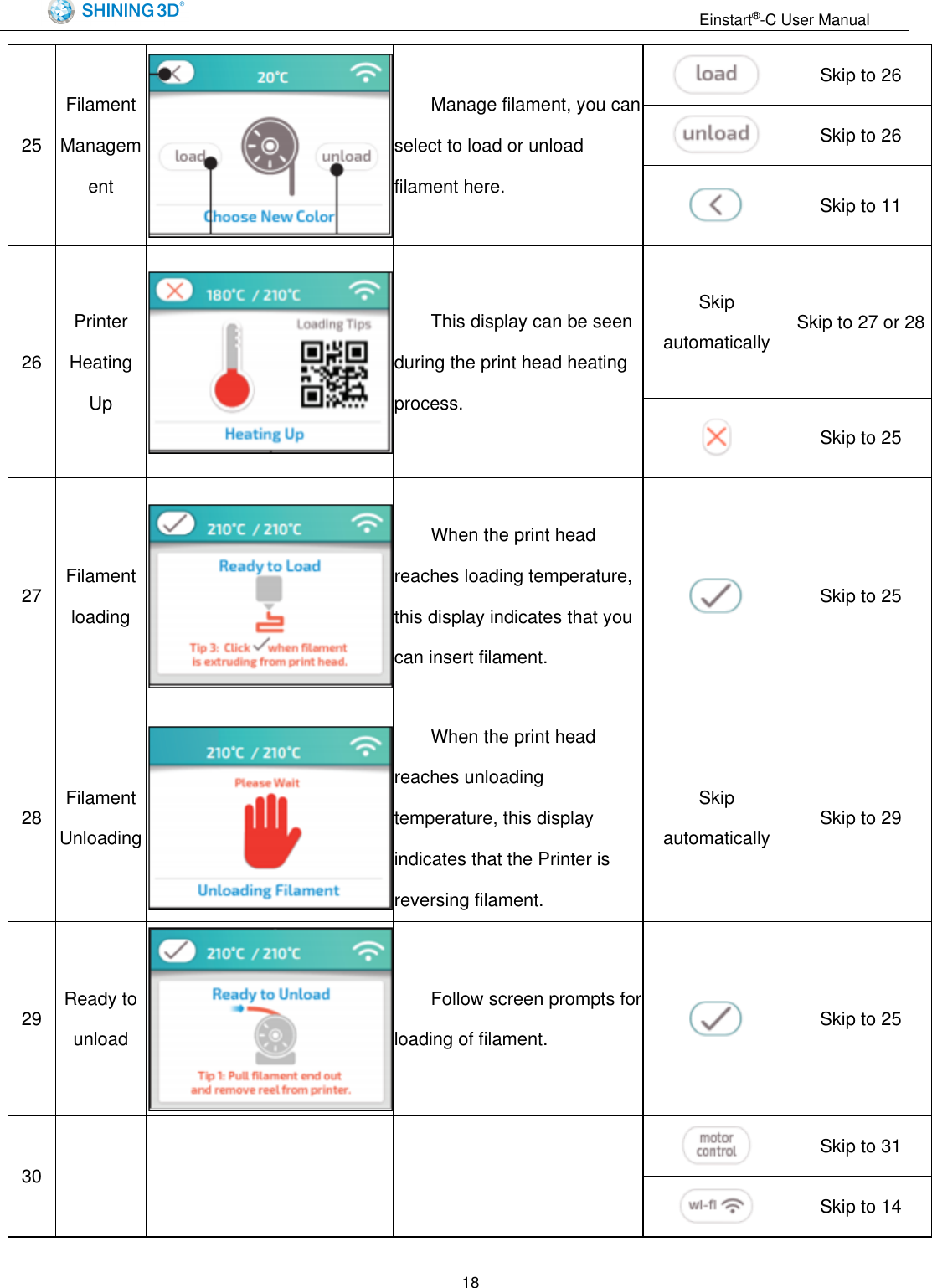
                                                                 Einstart®-C User Manual  18 25 Filament Management  Manage filament, you can select to load or unload filament here.  Skip to 26  Skip to 26  Skip to 11 26 Printer Heating Up  This display can be seen during the print head heating process. Skip automatically Skip to 27 or 28  Skip to 25 27 Filament loading  When the print head reaches loading temperature, this display indicates that you can insert filament.  Skip to 25 28 Filament Unloading  When the print head reaches unloading temperature, this display indicates that the Printer is reversing filament. Skip automatically Skip to 29 29 Ready to unload  Follow screen prompts for loading of filament.  Skip to 25 30                Skip to 31  Skip to 14
                                                                 Einstart®-C User Manual  19          Settings                 Select Settings on the HOME page to change various parameters.  Skip to 32  Skip to 33  Skip to 34  Skip to 36  Skip to 37  Currently Nonfictional  Mute or not  Unlock door  Currently Nonfictional  Skip to last page or 11  To next page 31 Motor Control    Control the axial motor. XYZ motor control buttons Control motor  Skip to 30 32 Print head Offset  Change the print head offset.  Increase or decrease offset
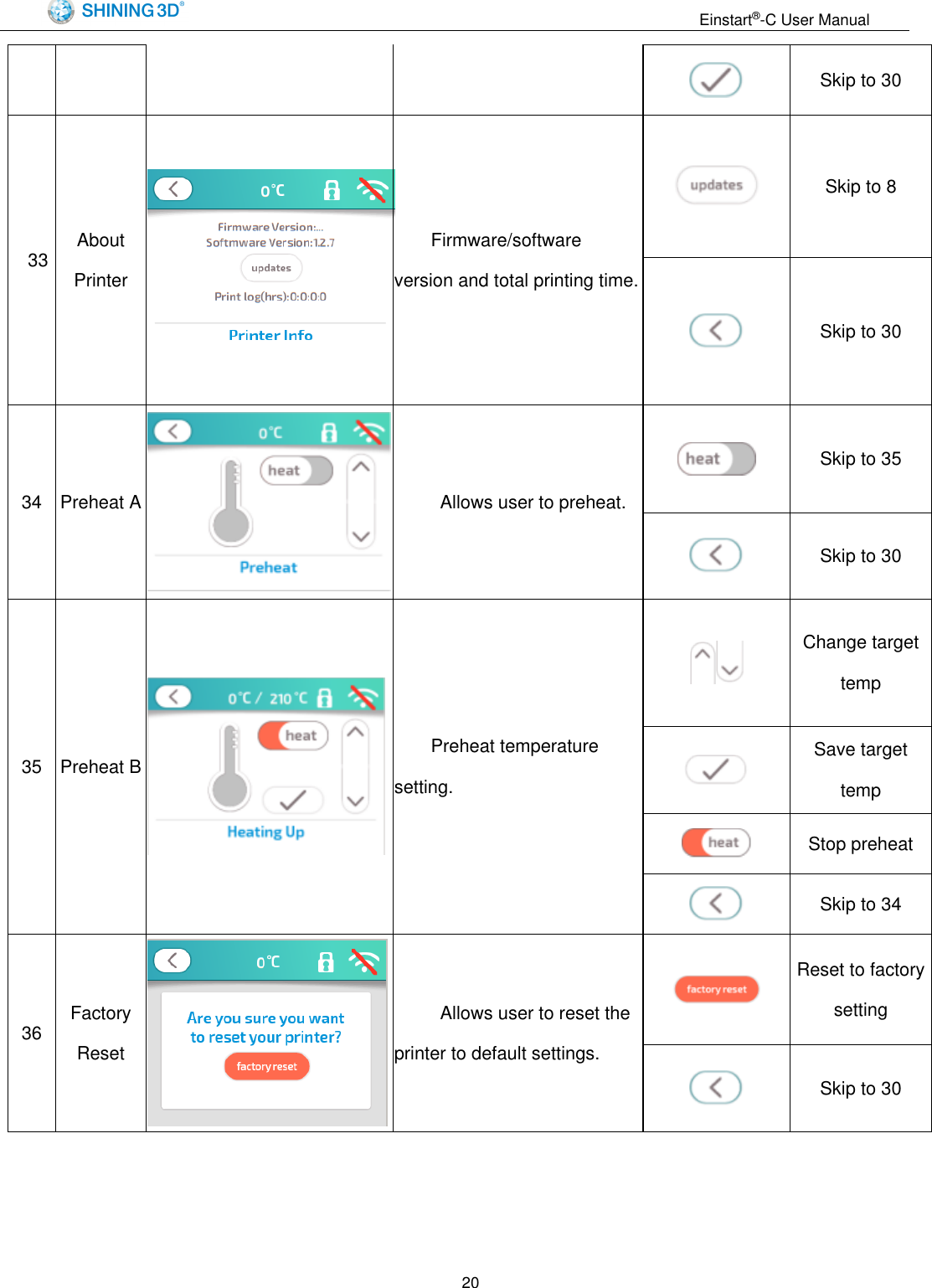
                                                                 Einstart®-C User Manual  20  Skip to 30 33   About Printer            Firmware/software version and total printing time.  Skip to 8  Skip to 30 34 Preheat A    Allows user to preheat.  Skip to 35  Skip to 30 35 Preheat B  Preheat temperature setting.  Change target temp  Save target temp  Stop preheat  Skip to 34 36 Factory Reset    Allows user to reset the printer to default settings.  Reset to factory setting  Skip to 30
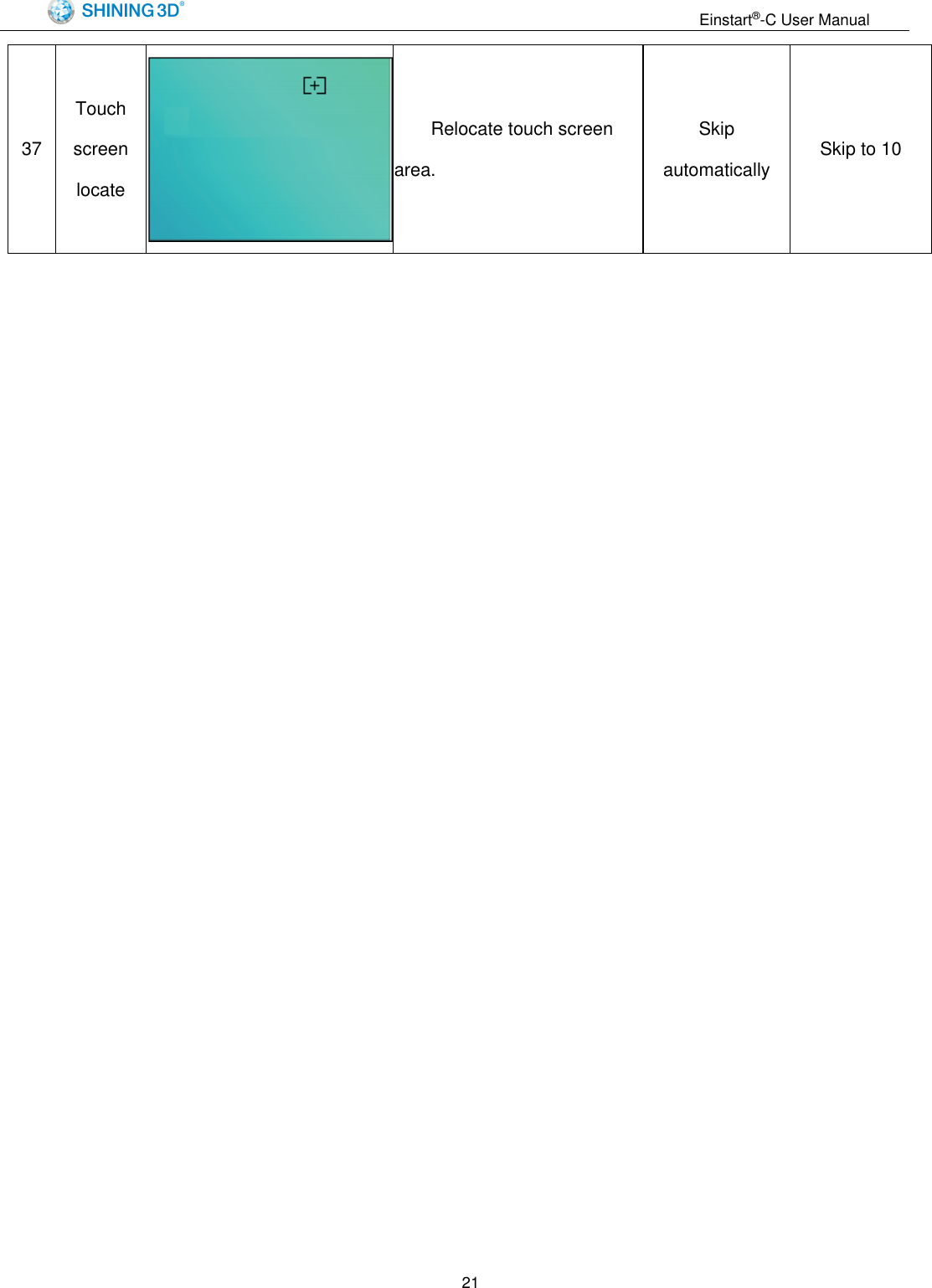
                                                                 Einstart®-C User Manual  21 37 Touch screen locate  Relocate touch screen area. Skip automatically Skip to 10
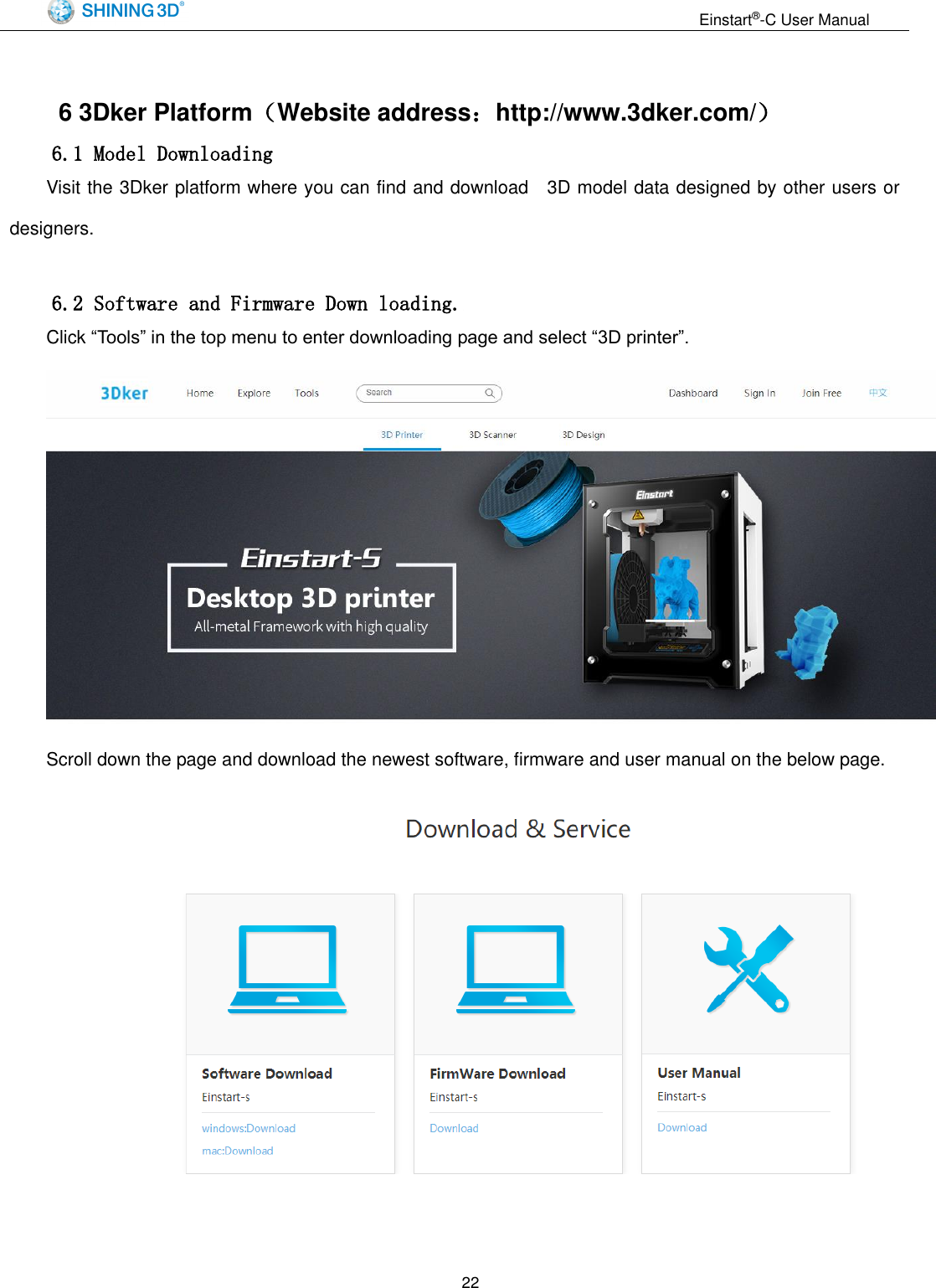
                                                                 Einstart®-C User Manual  22  6 3Dker Platform(Website address:http://www.3dker.com/) 6.1 Model Downloading Visit the 3Dker platform where you can find and download    3D model data designed by other users or designers.  6.2 Software and Firmware Down loading. Click “Tools” in the top menu to enter downloading page and select “3D printer”.  Scroll down the page and download the newest software, firmware and user manual on the below page.
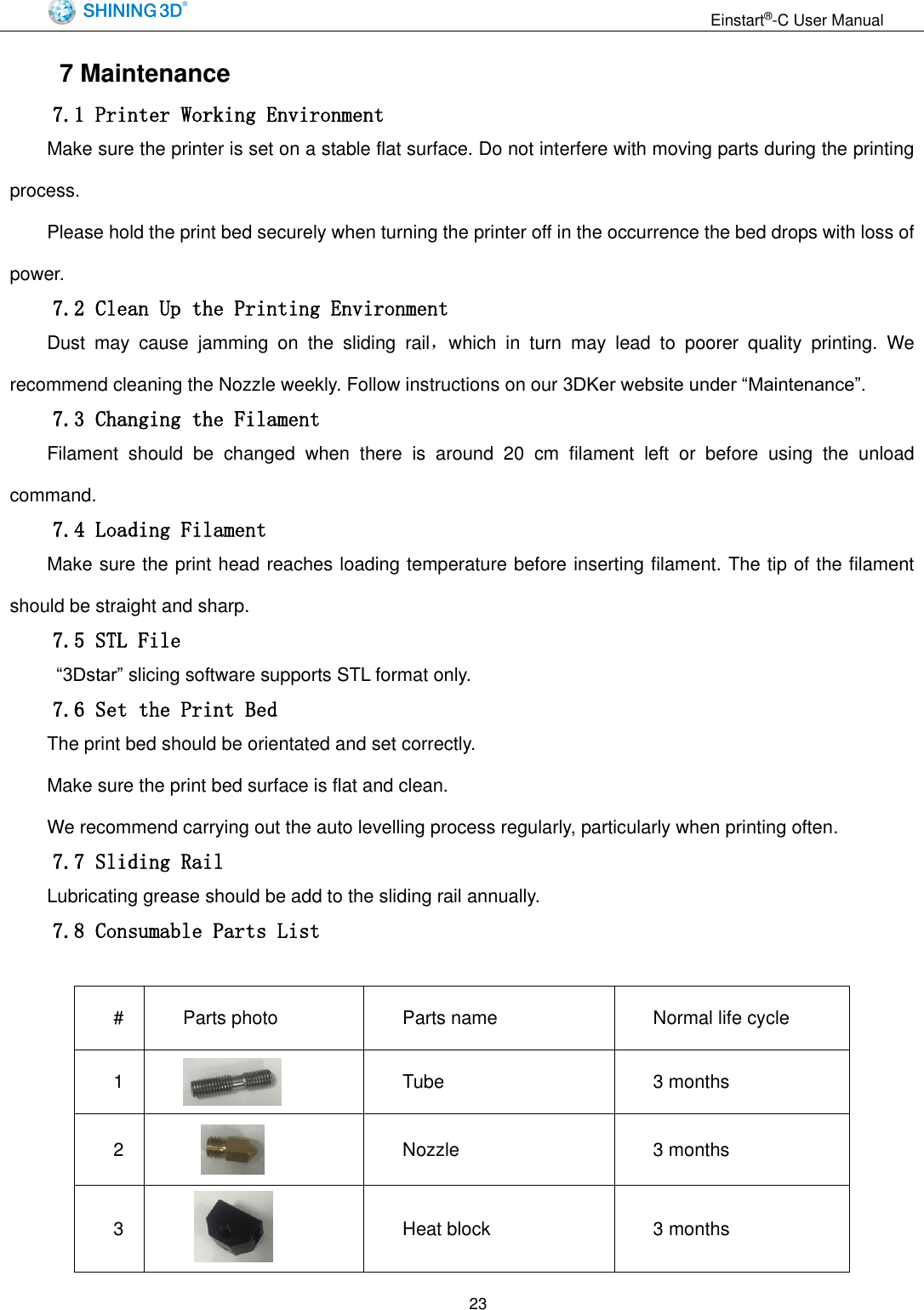
                                                                 Einstart®-C User Manual  23     7 Maintenance 7.1 Printer Working Environment Make sure the printer is set on a stable flat surface. Do not interfere with moving parts during the printing process. Please hold the print bed securely when turning the printer off in the occurrence the bed drops with loss of power. 7.2 Clean Up the Printing Environment Dust  may  cause  jamming  on  the  sliding  rail,which  in  turn  may  lead  to  poorer  quality  printing.  We recommend cleaning the Nozzle weekly. Follow instructions on our 3DKer website under “Maintenance”. 7.3 Changing the Filament Filament  should  be  changed  when  there  is  around  20  cm  filament  left  or  before  using  the  unload command. 7.4 Loading Filament Make sure the print head reaches loading temperature before inserting filament. The tip of the filament should be straight and sharp. 7.5 STL File  “3Dstar” slicing software supports STL format only.   7.6 Set the Print Bed The print bed should be orientated and set correctly. Make sure the print bed surface is flat and clean.   We recommend carrying out the auto levelling process regularly, particularly when printing often. 7.7 Sliding Rail Lubricating grease should be add to the sliding rail annually. 7.8 Consumable Parts List  # Parts photo Parts name Normal life cycle 1  Tube 3 months 2  Nozzle 3 months 3   Heat block 3 months
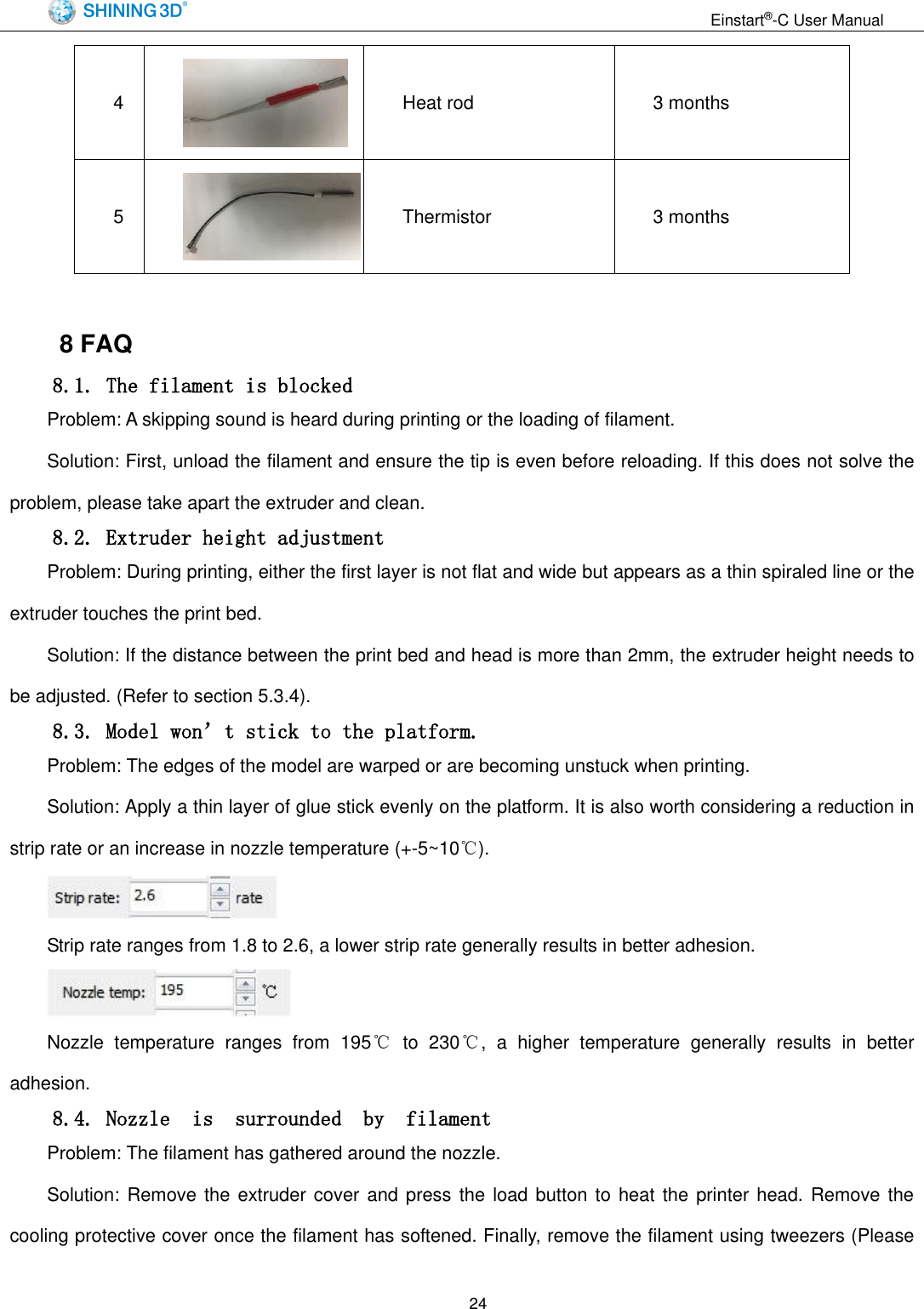
                                                                 Einstart®-C User Manual  24 4  Heat rod 3 months 5  Thermistor 3 months  8 FAQ 8.1. The filament is blocked Problem: A skipping sound is heard during printing or the loading of filament. Solution: First, unload the filament and ensure the tip is even before reloading. If this does not solve the problem, please take apart the extruder and clean. 8.2. Extruder height adjustment Problem: During printing, either the first layer is not flat and wide but appears as a thin spiraled line or the extruder touches the print bed. Solution: If the distance between the print bed and head is more than 2mm, the extruder height needs to be adjusted. (Refer to section 5.3.4). 8.3. Model won’t stick to the platform. Problem: The edges of the model are warped or are becoming unstuck when printing. Solution: Apply a thin layer of glue stick evenly on the platform. It is also worth considering a reduction in strip rate or an increase in nozzle temperature (+-5~10℃).  Strip rate ranges from 1.8 to 2.6, a lower strip rate generally results in better adhesion.  Nozzle  temperature  ranges  from  195℃  to  230℃,  a  higher  temperature  generally  results  in  better adhesion. 8.4. Nozzle  is  surrounded  by  filament Problem: The filament has gathered around the nozzle. Solution: Remove  the extruder cover  and press the  load button to  heat the printer head. Remove  the cooling protective cover once the filament has softened. Finally, remove the filament using tweezers (Please
                                                                 Einstart®-C User Manual  25 refer to the video or document instruction named “Clean nozzle”.). Reason: The filament has failed to stick to the model or platform and as such has gathered round the nozzle. 8.5. 3dStar software cannot connect to the 3D printer. Problem: Error message indicating lack of connection to the printer or printer not registered. Solution: Refer to section 6.1.2 and if the problem still exists, please contact support. 8.6. Cannot read files on USB drive Problem: error message indicating no file in drive or no USB drive found. Solution: The Einstart®-C is capable of reading .gsd files only,Make sure you have the right file format. 8.7. The extruder is blocked, forming thin strands during printing or the model is dislocated. Solution:   (1) Clean the filament and check whether the nozzle is blocked. (2) Load filament again. (3) Shut down the printer and check whether the X axis and Y axis move normally. (4) Attempt to print the model again to determine if there are further problems. Reason: (1) Poor quality filament may cause the extruder to become blocked. (2)The nozzle is knocking in to the model causing dislocation (3)The nozzle is blocked. (4) The temperature sensor is broken. (5)The cooling fan is not working. 8.8.  Limit  switch  malfunction Problem: A loud knocking noise may indicate the limit switch is broken. Solution: Change limit switch (Refer to the video and document). Reason: The limit switch may have been broken when cleaning residual filament or during transportation of the printer 8.9 USB drive cannot be detected。 Problem: USB drive is not detected once plugged in to the printer Solution: Restart the device or re-insert the USB drive. Make sure you are using a USB drive instead of USB reader + SD card.
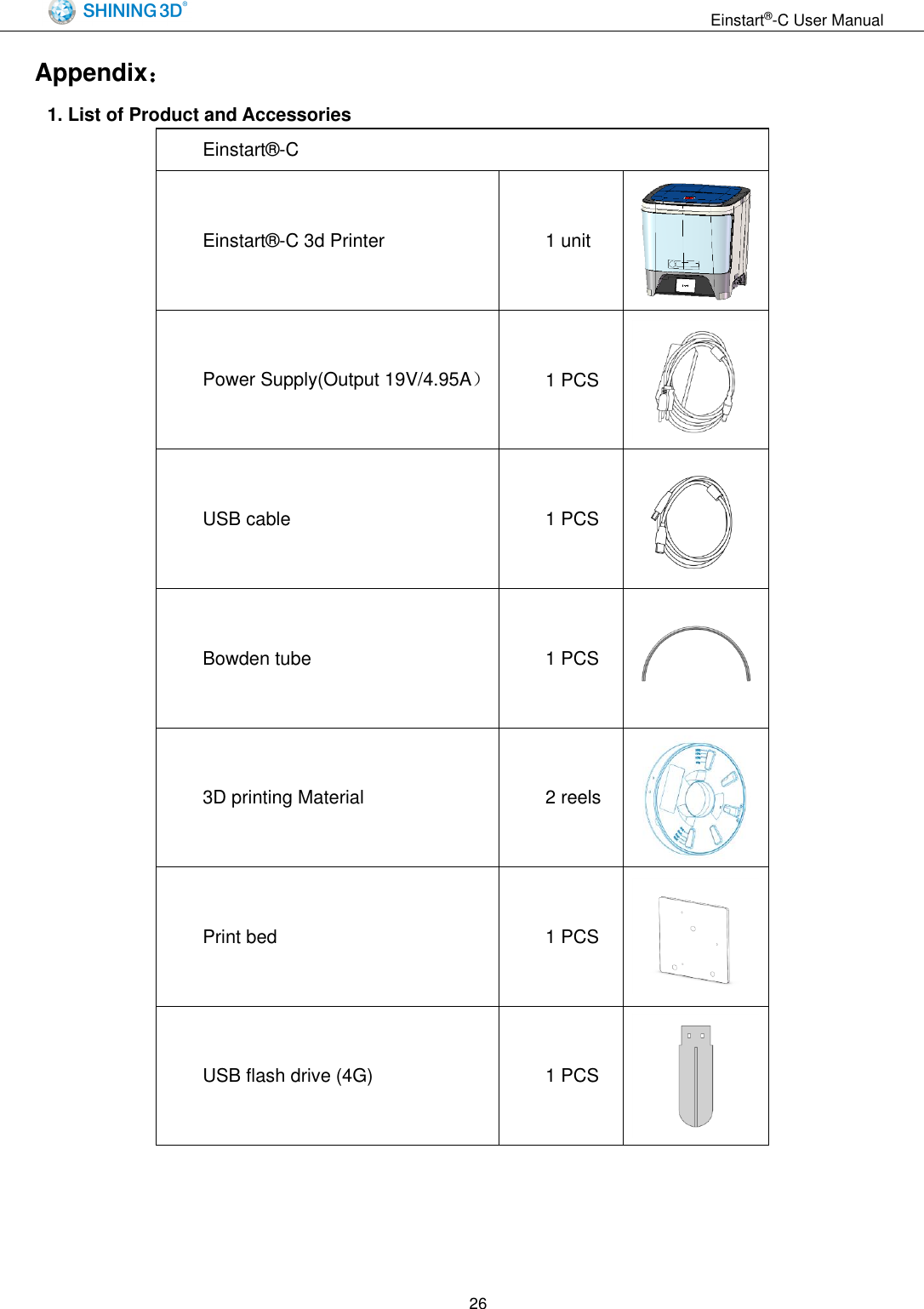
                                                                 Einstart®-C User Manual  26 Appendix: 1. List of Product and Accessories Einstart®-C Einstart®-C 3d Printer 1 unit  Power Supply(Output 19V/4.95A) 1 PCS  USB cable 1 PCS  Bowden tube 1 PCS  3D printing Material 2 reels  Print bed 1 PCS  USB flash drive (4G) 1 PCS
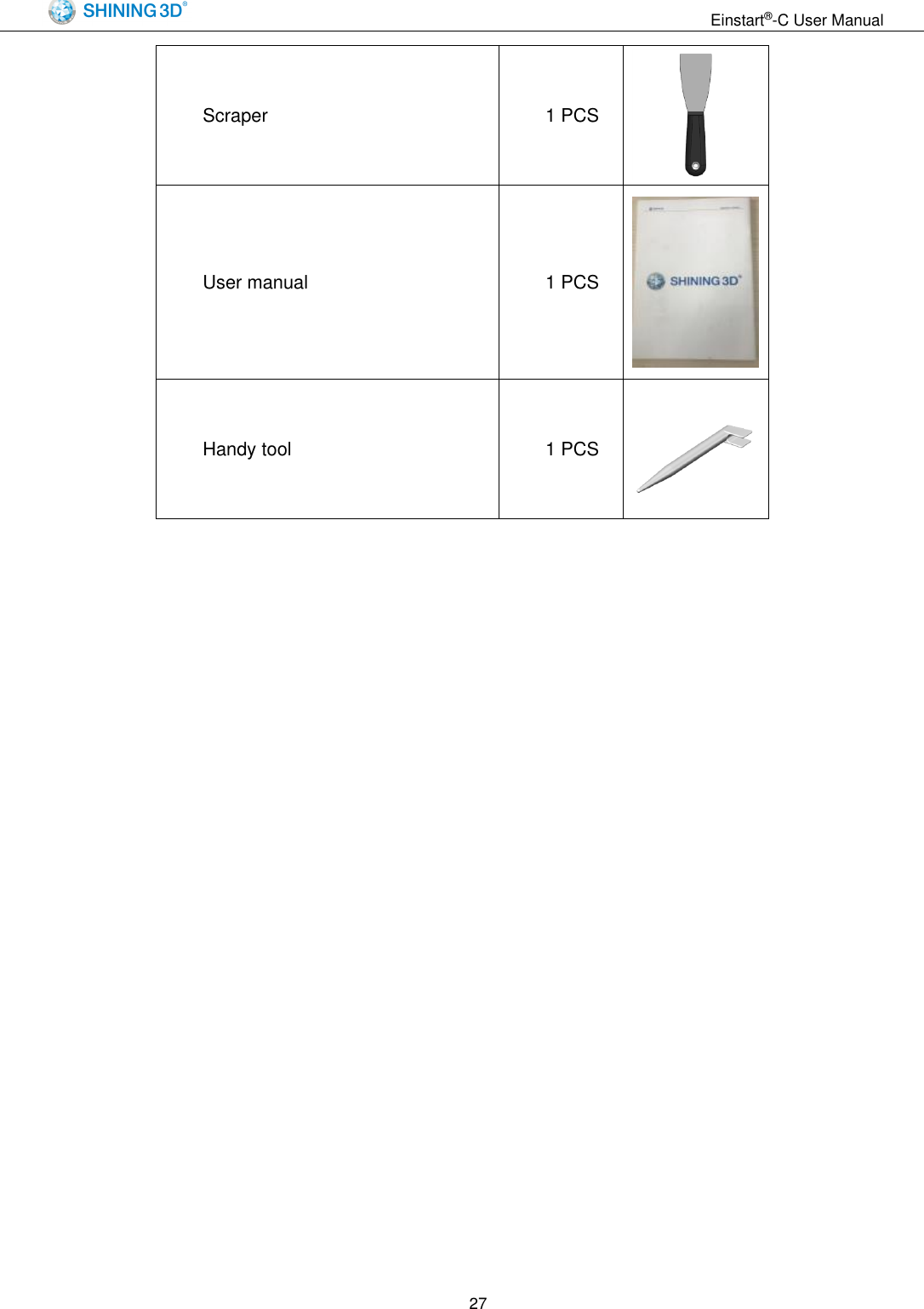
                                                                 Einstart®-C User Manual  27 Scraper 1 PCS  User manual 1 PCS  Handy tool 1 PCS
                                                                 Einstart®-C User Manual  28  2. Parameter of the Printer
                                                                 Einstart®-C User Manual  29 FCC Statement This equipment has been tested and found to comply with the limits for a Class B digital device, pursuant to part 15 of the FCC Rules. These limits are designed to provide reasonable protection against harmful interference in a residential installation. This equipment generates, uses and can radiate radio frequency energy and, if not installed and used in accordance with the instructions, may cause harmful interference to radio communications. However, there is no guarantee that interference will not occur in a particular installation. If this equipment does cause harmful interference to radio or television reception, which can be determined by turning the equipment off and on, the user is encouraged to try to correct the interference by one or more of the following measures:  Reorient or relocate the receiving antenna.  Increase the separation between the equipment and receiver.  Connect the equipment into an outlet on a circuit different from that to which the receiver is connected.  Consult the dealer or an experienced radio/TV technician for help.  This device complies with Part 15 of the FCC Rules. Operation is subject to the following two conditions: (1) this device may not cause harmful interference, and (2) this device must accept any interference received, including interference that may cause undesired operation.  Any changes or modifications not expressly approved by the party responsible for compliance could void the user's authority to operate the equipment.  FCC Radiation Exposure Statement   This equipment complies with FCC RF radiation exposure limits set forth for an uncontrolled environment. This equipment should be installed and operated with a minimum distance of 20 centimeters between the radiator and your body.
                                                                 Einstart®-C User Manual  30  More information please join our WeChat by scanning below QR code           Company                  Desktop 3D printer department              3Dker   Hangzhou Shining3D Tech Co., Ltd. Add: NO.1398 XIANGBIN RD. WENYAN XIAOSHAN, HANGZHOU , 311258, P.R. CHINA Zip code:  311258 Working time:8:30-17:30 Tel:0571-83821911 Tax:0571-82999510 Technical support: QQ:1984522360 Skype: shining_support e-mail:aftersales@shining3d.com Website:http://www.shining3d.com
                                                                 Einstart®-C User Manual  31  Copyright This  document  is  copyrighted  and  contains  proprietary  information  that  is  the  property  of  Hangzhou Shining 3D Tech Co., Ltd. The user does not have the right to copy, reproduce, or translate this document in any way or to any media without the prior written consent of Hangzhou Shining 3D Tech Co., Ltd. Disclaimer This user manual is an instruction for installation, operation, and maintenance, but not product warranty. All  efforts  have  been  made  to  ensure  the  accuracy  and  completeness  of  the  information  in  this  manual. However,  Shining  3D  Tech  Co.,  Ltd  accepts no  responsibility  for  any  errors or omissions  contained in  the documentation  and  reserves  the  right  to  explain  and  revise  the  publishing  and  fault  of  this  manual.  The information in this manual is subject to change without notice.

Navigation menu