SIRIUS Mysiriusstudiomanual Sl100 MySiriusStudioManual_v11 User Manual
Mysiriusstudiomanual Sl100 mysiriusstudiomanual_sl100 mysiriusstudiomanual_sl100 cms images sxm-java-dev
2016-03-10
User Manual: SIRIUS Mysiriusstudiomanual Sl100
Open the PDF directly: View PDF  .
.
Page Count: 42
1
My Sirius Studio™
Software Application
User Manual
Version 1.1
Sirius Stiletto 100 Personal Satellite Radio
2
Table of Contents
END USER LICENSE AGREEMENT......................................................................................... 3
Preface .....................................................................................................................................15
Copyrighted Broadcast Material ............................................................................................15
Copyrights & Trademarks......................................................................................................15
Overview...................................................................................................................................16
Installing My Sirius Studio.........................................................................................................16
PC System Requirements.....................................................................................................16
Software Requirements.........................................................................................................16
Hardware Requirements .......................................................................................................16
Installation Procedure ...........................................................................................................17
Running the Software................................................................................................................22
Attaching the Sirius Stiletto 100 to the PC.................................................................................24
Using the File -> PC Settings Menu ..........................................................................................25
Creating a New Sirius Account..............................................................................................26
Recovering Your Password...................................................................................................27
Logging on With an Existing Account ....................................................................................28
Checking for Sirius Studio PC Software Updates..................................................................29
Using the File -> Device Settings Menu ....................................................................................30
Checking for Software Updates.............................................................................................30
Overview...............................................................................................................................32
Importing Song Tracks and Song Directories ........................................................................33
Using Playlists to Organize Songs ........................................................................................36
Creating Playlists...............................................................................................................36
Adding or Deleting Songs on Playlists...............................................................................37
Playing Songs.......................................................................................................................38
Renaming or Deleting Songs and Playlists............................................................................38
Using SIRIUS Channels............................................................................................................39
Logging In.............................................................................................................................39
Using the Channel Selector...................................................................................................40
Using the Controls.................................................................................................................40
Using SIRIUS Favorites ............................................................................................................41
SIRIUS Favorites Playlist ......................................................................................................41
SIRIUS Favorites in Yahoo Music Engine .............................................................................42
3
END USER LICENSE AGREEMENT
This End User License Agreement (this "EULA") sets forth the agreement between you and
Sirius Satellite Radio Inc. (“Sirius”) for the use of the software in Stiletto Sirius satellite radio
receivers (the “Receiver Software”), the My Sirius Studio computer software (the "Computer
Software" and, together with the Receiver Software, the “Software”) and their use with Stiletto
Series Sirius satellite radio receiver and accessories (the “Receiver”) and Sirius’ satellite radio
service (the "Sirius Service").
In addition, for your use of the Sirius Service, you agree to be bound by the “Terms &
Conditions of Service” set forth at: http://www.sirius.com/serviceterms (the “Terms and
Conditions”).
YOU ACKNOWLEDGE AND AGREE THAT YOU HAVE READ AND UNDERSTAND THIS
EULA. By USING THE RECEIVER ANDTHE RECEIVER SOFTWARE, clicking on the "Accept"
button TO INSTALL THE COMPUTER SOFTWARE, AND/OR installing, copying or otherwise
using the COMPUTER Software, you agree to be bound by the terms of this EULA. IF YOU DO
NOT AGREE TO THE TERMS OF THIS EULA, CLICK ON THE "CANCEL" BUTTON IF YOU
ARE INSTALLING THE COMPUTER SOFTWARE SO THAT IT IS NOT INSTALLED, AND DO
NOT USE THE RECEEIVER.
1. GRANT OF LICENSE. Sirius hereby grants to you a non-exclusive, limited, license to use the
Software and any related documentation (the "Documentation"). You may: (a) use the Receiver
Software in object code form only as fully integrated into the Receiver in order to operate the
Receiver for its usual purpose, (b) use the Computer Software simultaneously on up to three
computers and (c) copy the Computer Software for back-up and archival purposes; provided
that any copy must contain all of the original Software's proprietary notices. Sirius, its partners
and suppliers, including without limitation, Microsoft Corporation (“Microsoft”), ZING Systems,
Inc. (“ZING”), and their respective partners and suppliers, retain all rights not expressly granted
herein, including without limitation, all world-wide patent, copyright, trademark, trade secret and
other proprietary rights associated with the Software. You agree that Sirius’ partners and
suppliers (including Microsoft and ZING) are third party beneficiaries of this EULA and may
enforce your performance of its terms. This product is protected by certain intellectual property
rights of Microsoft. Use or distribution of such technology outside of this product is prohibited
without a license from Microsoft.
2. LICENSE RESTRICTIONS. (a) You must be at least 18 years old to assume the obligations
set forth in this EULA. Minors may use the Software and the Documentation only if a parent or
legal guardian assumes the obligations set forth in this EULA and thereby assumes full
responsibility for the minor’s use of the Software and the Documentation.
(b) You may not: (i) permit other individuals to use the Computer Software; (ii) modify, translate,
reverse engineer, decompile, extract source code from, disassemble (except to the extent that
this restriction is expressly prohibited by law), reproduce, or create derivative works based
upon the Software or the Documentation; (iii) copy the Software or the Documentation (except
as permitted by Section 1(c)); (iv) rent, lease, publicly display, transfer, or otherwise transfer
rights to the Software or the Documentation and/or (v) remove any proprietary notices or labels
on the Software or the Documentation. Any violations of this Section 2(b) will immediately
terminate your license to the Software and the Documentation.
(c) You may use the Software and the Documentation only in a manner that complies with all
applicable laws in the jurisdictions in which you use the Software and the Documentation,
4
including without limitation, applicable restrictions concerning copyright and other intellectual
property rights.
(d) You may use the Software only for your private, non-commercial use. You may not use the
Software in any way to provide, or as part of, any commercial service or application. Copies of
content files, including without limitation songs and other audio recordings, which are stored
and/or transferred using the Software, and which are protected by the copyright laws or related
laws of any jurisdiction, are for your own personal use only and you may not publicly perform
them or distribute them to third parties.
(e) By storing content on the Receiver, you are making a digital copy. You may not use the
Receiver or the Software in an attempt to, or in conjunction with, any device, program or service
designed to circumvent technological measures employed to control access to, or the rights in,
a content file or other work protected by the copyright laws of any jurisdiction.
(f) The Software embodies a serial copying management system required by the laws of the
United States. You may not circumvent or attempt to circumvent this system by any means.
(g) You shall not export or re-export the Software or the Receiver without the appropriate U.S.
or foreign government licenses.
(h) MPEG Layer-3 audio coding technology licensed from Fraunhofer IIS and Thomson. Supply
of the Receiver and the Software does not convey a license nor imply any right to distribute
content created with this product in revenue-generating broadcast systems (terrestrial, satellite,
cable and/or other distribution channels), streaming applications (via Internet, intranets and/or
other networks), other content distribution systems (pay-audio or audio-on-demand applications
and the like) or on physical media (compact discs, digital versatile discs, semiconductor chips,
hard drives, memory cards and the like). An independent license for such use is required. For
details, please visit http://mp3licensing.com.”
3. COMMUNICATIONS FEATURES; USE OF INFORMATION. (a) The Software includes
functionality that may automatically communicate information to Sirius, its partners and
suppliers over the Internet as part of its normal operation. The Software may also contain user-
visible features that interact and communicate with internet services operated by Sirius, its
partners and suppliers. An initial list of the communications features is listed below. The
communications features may be changed by any updates of the Software that you install. By
installing and/or using the Software and any related updates, you agree to permit the installation
and use of the communications features. You are responsible for any telecommunications or
other connectivity charges incurred through use of the Software.
(b) Once you install the Software and/or connect the Receiver (wired or wirelessly), the
Software may provide Sirius with information regarding the Receiver, including electronic
identification number of the Receiver (the “ESN”). The Software may also provide Sirius with
the following non-personally identifying usage information, including, but not limited to: Receiver
hardware actions (e.g., keys pressed, reboots, crashes, upgrades, resets), the hardware and
software revision numbers on the Receiver, the channels/streams of the Sirius Service that you
set/delete as presets/favorites on the Receiver, use of parental controls, battery level, available
space on the Receiver, connection method and signal strength. Sirius will not combine this
utilization information with any personally identifiable information. Instead, this information will
be collected and analyzed to evaluate overall performance of the software and the related
products, for quality control and product enhancement purposes and to keep statistics on the
aggregated anonymous use of the Software and/or the Sirius Service. Your personally
identifiable information will not be collected in any way through this software, nor will your
5
personally identifiable information held by Sirius for other purposes (such as your subscription
information) be combined with this utilization data in any way.
4. DIGITAL RIGHTS MANAGEMENT. (a) The Software and the Device use the Microsoft digital
rights management technology for Windows Media (“WM-DRM”) to protect the integrity of Sirius
and third party content (“Secure Content”) so that the intellectual property, including without
limitation, the copyright, in such content is not misappropriated. Portions of the WM DRM
software (the “WM-DRM Software”) use WM-DRM to transfer or play Secure Content. If the
WM-DRM Software’s security has been compromised, owners of Secure Content (“Secure
Content Owners”) may request that Microsoft revoke the WM-DRM Software’s right to copy,
display, transfer, and/or play Secure Content. Revocation does not alter the WM-DRM
Software’s ability to play unprotected content. A list of revoked WM-DRM Software is sent to
your computer whenever you download a license for Secure Content from the Internet.
Microsoft may, in conjunction with such license, also download revocation lists onto your
computer on behalf of Secure Content Owners. Secure Content Owners may also require you
to upgrade some of the WM-DRM components distributed with the WM-DRM software (“WM-
DRM Upgrades”) before accessing their content. When you attempt to play such content, WM-
DRM Software built by Microsoft may notify you that a WM-DRM Upgrade is required and then
ask for your consent before the WM-DRM Upgrade is downloaded. WM-DRM Software used by
third parties may do the same. You agree that Microsoft and other third parties may upgrade
the WM-DRM Software without notice to you. If you decline an upgrade, you will not be able to
access content that requires the WM-DRM Upgrade; provided that, you will still be able to
access unprotected content and Secure Content that does not require the upgrade.
(b) You may not take any action to circumvent or defeat the security or content usage rules
provided or enforced by the WM-DRM Software. Sirius is not responsible for the operation of
the WM-DRM Software in any way, including without limitation, revocation of the WM-DRM
Software’s right to copy, display, transfer, and/or play Secure Content. Sirius is not responsible
for any communications to or from any Secure Content Owner, or for the collection or use of
information by any Secure Content Owner.
5. OWNERSHIP. All title, ownership, rights, and intellectual property rights in and to the
Software and the Documentation shall remain in the property of Sirius and its licensors. The
Software includes Microsoft Windows Media Technology. The Software is protected by the
copyright laws of the United States and international copyright treaties.
6. WARRANTIES. (a) Sirius warrants that for a period of 90 days from the date of your
acquisition the Software if operated as directed, will substantially achieve the functionality
described in the Documentation and will be free from defects in material and workmanship.
This warranty shall immediately terminate if the Software is used on or in conjunction with
hardware or software other than the unmodified version of Receiver which the Software was
designed to be used as described in the Documentation, any modifications are made to the
Software during the warranty period, if the media is subjected to accident abuse or improper
use, and/or the terms of this EULA are breached. Sirius does not warrant that use of the
Software will be uninterrupted or that the operation of the Software will be error-free or secure.
Depending on manufacturer and model of your Receiver, you may or may not be entitled to
upgrades of the Receiver Software. Please check your Receiver owner’s manual for further
information.
(b) SIRIUS LICENSES THE SOFTWARE TO YOU “AS IS”, AND TO THE MAXIMUM EXTENT
PERMITTED BY APPLICABLE LAW SIRIUS, ITS PARTNERS AND SUPPLIERS (INCLUDING
MICROSOFT AND ZING) HEREBY DISCLAIM ALL OTHER WARRANTIES EITHER EXPRESS
OR IMPLIED, INCLUDING WITHOUT LIMITATION IMPLIED WARRANTIES OF
6
MERCHANTABILITY AND FITNESS FOR A PARTICULAR PURPOSE WITH REGARD TO
THE SOFTWARE AND THE DOCUMENTATION. THIS LIMITED WARRANTY GIVES YOU
SPECIFIC LEGAL RIGHTS; YOU MAY HAVE OTHER RIGHTS THAT VARY FROM
STATE/JURISDICTION TO STATE/JURISDICTION.
(c) Sirius’ sole liability for a breach of its warranties shall be in Sirius’ sole discretion: (i) to
replace your defective media, (ii) to advise you how to achieve substantially the same
functionality with the Software as described in the Documentation through a procedure different
from that set forth in the Documentation and/or (iii) if the above remedies are impracticable, to
refund the license fee, if any, you paid for the Software. Repaired, corrected or replaced copies
of the Software and the Documentation shall be covered by the same limited warranty for the
period remaining under the warranty that covered the original copy of the Software or if longer
for 30 days after the date Sirius either provided you with the repaired or replaced copy of the
Software or advised you as to how to operate the Software so as to achieve the functionality
described in the Documentation, whichever is applicable. Sirius will be obligated to honor its
obligations in this Section 6(c) only if you inform Sirius of the problem with the Software during
the applicable warranty period and provide evidence of the date you acquired the Software.
7. INDEMNIFICATION. (a) You shall defend, indemnify and harmless Sirius, its officers,
directors and employees, from and against any losses, damages, fines and expenses. including
without limitation, attorneys' fees and expenses, arising out of or relating to any claims that you
have: (i) viewed, downloaded, encoded, compressed, copied or transmitted any in connection
with the Software in violation of another party's rights or in violation of any law, or (ii) violated
any terms of this EULA and/or the Terms and Conditions.
(b) If you are importing the Software from the United States, you shall defend, indemnify and
hold harmless Sirius from and against any import and export duties or other claims arising from
such importation.
8. LIMITATION OF LIABILITY. NEITHER SIRIUS, ITS PARTNERS, NOR SUPPLIERS
(INCLUDING MICROSOFT AND ZING) IS RESPONSIBLE FOR ANY SPECIAL, INCIDENTAL,
OR CONSEQUENTIAL DAMAGES OR LOSSES RELATING TO THE USE AND/OR
PURCHASE OF THE SOFTWARE, THE DOCUMENTATION, THE RECEIVER AND/OR THE
SIRIUS SERVICE, INCLUDING WITHOUT LIMITATION, COMPUTER FAILURE AND/OR
MALFUNCTION, WHETHER BASED ON NEGLIGENCE OR OTHERWISE, AND WHETHER
OR NOT SIRIUS OR SUCH SUPPLIER (INCLUDING MICROSOFT AND ZING) HAS BEEN
ADVISED OF THE POSSIBILITY THEREOF. SIRIUS TOTAL LIABILITY TO YOU AND ANY
OTHER PERSONS USING THE RECEIVER, THE SOFTWARE AND/OR THE
DOCUMENATION, REGARDLESS OF THE CAUSE, WILL IN NO EVENT EXCEED THE
AMOUNTS THAT YOU HAVE PAID TO SIRIUS FOR THE RECEIVER, THE SOFTWARE AND
THE DOCUMENTATION. THIS ALLOCATION OF RISK AND THE DISCLAIMER OF
WARRANTIES IS REFLECTED IN SIRIUS’ PRICES AND IS A FUNDAMENTAL ELEMENT OF
SIRIUS AGREEMENT TO PROVIDE YOU WITH THE SOFTWARE AND THE
DOCUMENTATION. YOU MAY HAVE GREATER RIGHTS THAN DESCRIBED ABOVE
UNDER YOUR STATE’S LAWS.
9. TERMINATION. (a) This EULA will automatically terminate without notice if you fail to comply
with any of its terms
(b) This EULA may also terminate without notice to you in the event Sirius’ or any of its partners
or suppliers (including Microsoft and ZING) licenses for technology incorporated into the
Software terminates.
7
(c) You may terminate this EULA at any time by providing Sirius with written notice of
termination to: Sirius Satellite Radio Inc., 1221 Avenue of the Americas, 36
th
Floor, New York,
New York 10020, Attention: My Sirius Studio/Stiletto Software Termination.
(d) Upon any termination of this EULA, you shall immediately discontinue use of the Software
and shall within three days return to Sirius, or certify destruction of, all full or partial copies of the
Software, documentation and related materials provided by Sirius. Your obligation to pay
accrued charges and fees shall survive any termination of this License Agreement.
(e) Except for the license granted in paragraph 1, the terms of this EULA shall survive
termination under this paragraph 9.
10. RESOLVING DISPUTES. In order to expedite and control the cost of disputes, you agree
that any legal equitable claim (a “Claim”) relating to the Software, the Documentation and/or this
EULA, will be resolved as follows:
(a) Informal Resolution. You and Sirius will first try to resolve any Claim informally. Accordingly,
neither you nor Sirius may start a formal proceeding (except for Claims described in Section
10(d)) for at least 60 days after one of us notifies the other of a Claim in writing. To initiate a
Claim, you must send notice by U.S. mail to: Sirius Satellite Radio Inc., 1221 Avenue of the
Americas, 36
th
Floor, New York, New York 10020, Attention: General Counsel. If Sirius initiates
a Claim, notice will be sent to your address on file with Sirius.
(b) Formal Resolution. Except as provided in Section 10(d), if you and Sirius cannot resolve a
Claim informally, any Claim either of you or Sirius asserts will be resolved only by binding
arbitration. The arbitration will be conducted under the Commercial Arbitration Rules of the
American Arbitration Association (the “AAA Rules”) that are in effect at the time the arbitration is
initiated and under the rules set forth in this EULA. If there is a conflict between the AAA Rules
and this EULA, this EULA will govern. ARBITRATION MEANS THAT YOU WAIVE YOUR
RIGHT TO A JURY TRIAL. If you initiate an arbitration, you agree to pay a fee of $125 or, if less
and you notify Sirius in writing, the amount that you would pay to initiate a lawsuit against Sirius
in the appropriate court of your state. Sirius agrees to pay any additional fee or deposit required
by the American Arbitration Association in excess of your filing fee. Sirius also agrees to pay
the costs of the arbitration proceeding up to a maximum of one-half day (four hours) of hearings.
Other fees, such as attorney’s fees, expenses, travel to the arbitration and the costs of a
proceeding that goes beyond one-half day, will be paid in accordance with the AAA Rules. The
arbitration will be held at a location within 100 miles of your residence unless you and Sirius
both agree to another location. To start the arbitration, you or Sirius must do the following
things:
(i) Write a demand for arbitration. The demand must include a description of the Claim
and the amount of damages sought to be recovered;
(ii) Send three copies of the demand for arbitration plus the appropriate filing fee to:
American Arbitration Association, 601 Pennsylvania Avenue, N.W., Suite 700,
Washington, D.C. 20004; and
(iii) Send one copy of the demand for arbitration by U.S. mail to Sirius Satellite Radio
Inc., 1221 Avenue of the Americas, 36
th
Floor, New York, New York 10020, Attention:
General Counsel, or to your address on file with Sirius (if Sirius starts the arbitration).
(c) Binding Effect. In the arbitration proceeding, the arbitrator must follow applicable law, and
any award may be challenged if the arbitrator fails to do so. The arbitrators shall not have the
8
power, jurisdiction or authority to waive, amend and/or modify any of the terms or provisions of
this EULA. The arbitrators shall enforce this EULA in accordance with its terms and provisions.
Otherwise, the arbitrator’s decision is final and binding on all parties and may be enforced in any
federal or state court that has jurisdiction. A court may sever any portion of this Section 9 that it
finds to be unenforceable.
(d) Exceptions. Notwithstanding the foregoing, any: (i) dispute over the validity of intellectual
property rights or Sirius licenses to operate its business; (ii) Claim based on Section 2(a) above;
and (iii) dispute involving a violation of the Communications Act of 1934, 47 U.S.C. §605, or the
Electronic Communications Privacy Act, 18 U.S.C. §§2510-2521, may be decided only by a
court of competent jurisdiction.
11. MISCELLANEOUS. (a) Notice. Notices to you will be deemed given when deposited in the
mail or when sent by email. Notices may be included in statements or other communications to
you. Sirius may also provide notice to you by telephone, which will be deemed given when a
message is left with you, someone answering the telephone at your residence or on an
answering machine or voice mail system at your phone number on record with Sirius. Your
notices to Sirius will be deemed given when Sirius receives them 1221 Avenue of the Americas,
36
th
Floor, New York, New York 10020, Attention: General Counsel.
(b) Applicable Law. The interpretation and enforcement of this EULA shall be governed by the
internal laws of the State of New York. This EULA is subject to modification if required by such
laws. Notwithstanding the foregoing, Section 10 shall be governed by the Federal Arbitration
Act. You agree that the United Nations Convention on Contracts for the International Sale of
Goods is specifically excluded from application to this EULA.
(c) Assignment. Except as set forth in this paragraph 11(c), you may not assign your rights
and/or obligations under this EULA to any third party. If you sell or otherwise transfer the
Receiver as a whole, you may transfer the Receiver Software as fully integrated into the
Receiver; provided that you also supply this EULA to the purchaser or recipient of the Receiver,
at which time all of your rights under this EULA will immediately cease. Sirius may assign its
rights and/or obligations under this EULA to any third party without notice for any purpose,
including without limitation, in the event of an acquisition, corporate reorganization, merger or
sale of substantially all of Sirius’ assets to another entity. You hereby consent to such
assignment.
(d) No Waiver. No failure or delay on the part of Sirius, its partners or its suppliers (including
Microsoft and ZING) in exercising any right, power or privilege hereunder and no course of
dealing by Sirius, its partners or its suppliers (including Microsoft and ZING) shall operate as a
waiver of any right, power or privilege hereunder.
(e) Other. This EULA constitutes the entire agreement between you and Sirius relating to your
use of the Software and the Documentation. No salesperson or other representative is
authorized to change it for you. If any provision is declared by a competent authority to be
invalid, that provision will be deleted or modified to the extent necessary, and the rest of this
EULA will remain enforceable.
12. THIRD PARTY LICENSES. The Software contains software, libraries and other tools
provided by third parties, which are subject to the restrictions below.
(a) busybox. Copyright © 2006. Jef Poskanzer. busybox is distributed under the GNU General
Public License. A copy of the GNU General Public License may be found at
http://www.gnu.org/copyleft/gpl.html. Portions of the work were modified by Zing Systems, Inc.
9
2005-2006. The original and modified source code can be found at www.sirius.com/opensource.
THIS SOFTWARE IS PROVIDED BY THE AUTHOR(S) “AS IS” AND ANY EXPRESS OR
IMPLIED WARRANTIES, INCLUDING, BUT NOT LIMITED TO, THE IMPLIED WARRANTIES
OF MERCHANTABILITY AND FITNESS FOR A PARTICULAR PURPOSE ARE DISCLAIMED.
IN NO EVENT SHALL THE AUTHOR(S) BE LIABLE FOR ANY DIRECT, INDIRECT,
INCIDENTAL, SPECIAL, EXEMPLARY, OR CONSEQUENTIAL DAMAGES (INCLUDING, BUT
NOT LIMITED TO, PROCUREMENT OF SUBSTITUTE GOODS OR SERVICES; LOSS OF
USE, DATA, OR PROFITS; OR BUSINESS INTERRUPTION) HOWEVER CAUSED AND ON
ANY THEORY OF LIABILITY, WHETHER IN CONTRACT, STRICT LIABILITY, OR TORT
(INCLUDING NEGLIGENCE OR OTHERWISE) ARISING IN ANY WAY OUT OF THE USE OF
THIS SOFTWARE, EVEN IF ADVISED OF THE POSSIBILITY OF SUCH DAMAGE.
(b) bzip2. Copyright © 1996-2005 Julian Seward. All rights reserved. Redistribution and use in
source and binary forms, with or without modification, are permitted provided that the following
conditions are met: Redistributions of source code must retain the above copyright notice, this
list of conditions and the following disclaimer. The origin of this software must not be
misrepresented; you must not claim that you wrote the original software. If you use this
software in a product, an acknowledgment in the product documentation would be appreciated
but is not required. Altered source versions must be plainly marked as such, and must not be
misrepresented as being the original software. The name of the author may not be used to
endorse or promote products derived from this software without specific prior written permission.
THIS SOFTWARE IS PROVIDED BY THE AUTHOR "AS IS" AND ANY EXPRESS OR
IMPLIED WARRANTIES, INCLUDING, BUT NOT LIMITED TO, THE IMPLIED WARRANTIES
OF MERCHANTABILITY AND FITNESS FOR A PARTICULAR PURPOSE ARE DISCLAIMED.
IN NO EVENT SHALL THE AUTHOR BE LIABLE FOR ANY DIRECT, INDIRECT,
INCIDENTAL, SPECIAL, EXEMPLARY, OR CONSEQUENTIAL DAMAGES (INCLUDING, BUT
NOT LIMITED TO, PROCUREMENT OF SUBSTITUTE GOODS OR SERVICES; LOSS OF
USE, DATA, OR PROFITS; OR BUSINESS INTERRUPTION) HOWEVER CAUSED AND ON
ANY THEORY OF LIABILITY, WHETHER IN CONTRACT, STRICT LIABILITY, OR TORT
(INCLUDING NEGLIGENCE OR OTHERWISE) ARISING IN ANY WAY OUT OF THE USE OF
THIS SOFTWARE, EVEN IF ADVISED OF THE POSSIBILITY OF SUCH DAMAGE.
(c) Curl. Curl is Copyright (c) 1996 - 2006, Daniel Stenberg, <daniel@haxx.se>. All rights
reserved. Permission to use, copy, modify, and distribute this software for any purpose with or
without fee is hereby granted, provided that the above copyright notice and this permission
notice appear in all copies.
(d) Ezxml. Ezxml is Copyright 2004, 2005 Aaron Voisine. Permission is hereby granted, free of
charge, to any person obtaining a copy of this software and associated documentation files (the
"Software"), to deal in the Software without restriction, including without limitation the rights to
use, copy, modify, merge, publish, distribute, sublicense, and/or sell copies of the Software, and
to permit persons to whom the Software is furnished to do so, subject to the following
conditions: The above copyright notice and this permission notice shall be included in all copies
or substantial portions of the Software.
(e) FreeType. Portions of this software are copyright © 2006 The FreeType Project
(www.freetype.org). All rights reserved.
(f) gpg. Copyright (c) 1998-2005 Free Software Foundation, Inc. gpg is distributed under the
GNU General Public License. A copy of the GNU General Public License may be found at
http://www.gnu.org/copyleft/gpl.html. The source code can be found at
www.sirius.com/opensource. . THIS SOFTWARE IS PROVIDED BY THE AUTHOR(S) “AS IS”
AND ANY EXPRESS OR IMPLIED WARRANTIES, INCLUDING, BUT NOT LIMITED TO, THE
10
IMPLIED WARRANTIES OF MERCHANTABILITY AND FITNESS FOR A PARTICULAR
PURPOSE ARE DISCLAIMED. IN NO EVENT SHALL THE AUTHOR(S) BE LIABLE FOR ANY
DIRECT, INDIRECT, INCIDENTAL, SPECIAL, EXEMPLARY, OR CONSEQUENTIAL
DAMAGES (INCLUDING, BUT NOT LIMITED TO, PROCUREMENT OF SUBSTITUTE GOODS
OR SERVICES; LOSS OF USE, DATA, OR PROFITS; OR BUSINESS INTERRUPTION)
HOWEVER CAUSED AND ON ANY THEORY OF LIABILITY, WHETHER IN CONTRACT,
STRICT LIABILITY, OR TORT (INCLUDING NEGLIGENCE OR OTHERWISE) ARISING IN
ANY WAY OUT OF THE USE OF THIS SOFTWARE, EVEN IF ADVISED OF THE
POSSIBILITY OF SUCH DAMAGE.
(g) Linux. Linux is distributed under the GNU General Public License. A copy of the GNU
General Public License may be found at http://www.gnu.org/copyleft/gpl.html. Portions of the
work were modified by Zing Systems, Inc. 2005-2006. The original and modified source code
can be found at www.sirius.com/opensource. THIS SOFTWARE IS PROVIDED BY THE
AUTHOR(S) “AS IS” AND ANY EXPRESS OR IMPLIED WARRANTIES, INCLUDING, BUT
NOT LIMITED TO, THE IMPLIED WARRANTIES OF MERCHANTABILITY AND FITNESS FOR
A PARTICULAR PURPOSE ARE DISCLAIMED. IN NO EVENT SHALL THE AUTHOR(S) BE
LIABLE FOR ANY DIRECT, INDIRECT, INCIDENTAL, SPECIAL, EXEMPLARY, OR
CONSEQUENTIAL DAMAGES (INCLUDING, BUT NOT LIMITED TO, PROCUREMENT OF
SUBSTITUTE GOODS OR SERVICES; LOSS OF USE, DATA, OR PROFITS; OR BUSINESS
INTERRUPTION) HOWEVER CAUSED AND ON ANY THEORY OF LIABILITY, WHETHER IN
CONTRACT, STRICT LIABILITY, OR TORT (INCLUDING NEGLIGENCE OR OTHERWISE)
ARISING IN ANY WAY OUT OF THE USE OF THIS SOFTWARE, EVEN IF ADVISED OF THE
POSSIBILITY OF SUCH DAMAGE.
(h) lpng128. libpng versions 1.2.6, August 15, 2004, through 1.2.8, December 3, 2004, are
Copyright (c) 2004 Glenn Randers-Pehrson, and are distributed according to the same
disclaimer and license as libpng-1.2.5 with the following individual added to the list of
Contributing Authors: Cosmin Truta. libpng versions 1.0.7, July 1, 2000, through 1.2.5, October
3, 2002, are Copyright (c) 2000-2002 Glenn Randers-Pehrson, and are distributed according to
the same disclaimer and license as libpng-1.0.6 with the following individuals added to the list of
Contributing Authors: Simon-Pierre Cadieux, Eric S. Raymond, Gilles Vollant.libpng versions
0.97, January 1998, through 1.0.6, March 20, 2000, are Copyright (c) 1998, 1999, 2000 Glenn
Randers-Pehrson, and are distributed according to the same disclaimer and license as libpng-
0.96,with the following individuals added to the list of Contributing Authors: Tom Lane, Glenn
Randers-Pehrson, Willem van Schaik. libpng versions 0.89, June 1996, through 0.96, May
1997, are Copyright (c) 1996, 1997 Andreas Dilger Distributed according to the same disclaimer
and license as libpng-0.88, with the following individuals added to the list of Contributing
Authors: John Bowler, Kevin Bracey, Sam Bushell, Magnus Holmgren, Greg Roelofs, Tom
Tanner. libpng versions 0.5, May 1995, through 0.88, January 1996, are Copyright (c) 1995,
1996 Guy Eric Schalnat, Group 42, Inc. For the purposes of this copyright and license,
"Contributing Authors" is defined as the following set of individuals: Andreas Dilger, Dave
Martindale, Guy Eric Schalnat, Paul Schmidt, Tim Wegner. The PNG Reference Library is
supplied "AS IS". The Contributing Authors and Group 42, Inc. disclaim all warranties,
expressed or implied, including, without limitation, the warranties of merchantability and of
fitness for any purpose. The Contributing Authors and Group 42, Inc.assume no liability for
direct, indirect, incidental, special, exemplary, or consequential damages, which may result from
the use of the PNG Reference Library, even if advised of the possibility of such damage. There
is no warranty against interference with your enjoyment of the library or against infringement.
There is no warranty that our efforts or the library will fulfill any of your particular purposes or
needs. This library is provided with all faults, and the entire risk of satisfactory quality,
performance, accuracy, and effort is with the user.
11
(i) openssl. Copyright (c) 1998-2005 The OpenSSL Project. All rights reserved. Redistribution
and use in source and binary forms, with or without modification, are permitted provided that the
following conditions are met: 1. Redistributions of source code must retain the above copyright
notice, this list of conditions and the following disclaimer. 2. Redistributions in binary form must
reproduce the above copyright notice, this list of conditions and the following disclaimer in the
documentation and/or other materials provided with the distribution. 3. All advertising materials
mentioning features or use of this software must display the following acknowledgment: "This
product includes software developed by the OpenSSL Project for use in the OpenSSL Toolkit.
(http://www.openssl.org/)" 4. The names "OpenSSL Toolkit" and "OpenSSL Project" must not be
used to endorse or promote products derived from this software without prior written permission.
For written permission, please contact openssl-core@openssl.org. 5. Products derived from this
software may not be called "OpenSSL" nor may "OpenSSL" appear in their names without prior
written permission of the OpenSSL Project. 6. Redistributions of any form whatsoever must
retain the following acknowledgment: "This product includes software developed by the
OpenSSL Project for use in the OpenSSL Toolkit (http://www.openssl.org/)" THIS SOFTWARE
IS PROVIDED BY THE OpenSSL PROJECT ``AS IS'' AND ANY EXPRESSED OR IMPLIED
WARRANTIES, INCLUDING, BUT NOT LIMITED TO, THE IMPLIED WARRANTIES OF
MERCHANTABILITY AND FITNESS FOR A PARTICULAR PURPOSE ARE DISCLAIMED. IN
NO EVENT SHALL THE OpenSSL PROJECT OR ITS CONTRIBUTORS BE LIABLE FOR ANY
DIRECT, INDIRECT, INCIDENTAL, SPECIAL, EXEMPLARY, OR CONSEQUENTIAL
DAMAGES (INCLUDING, BUT NOT LIMITED TO, PROCUREMENT OF SUBSTITUTE GOODS
OR SERVICES; LOSS OF USE, DATA, OR PROFITS; OR BUSINESS INTERRUPTION)
HOWEVER CAUSED AND ON ANY THEORY OF LIABILITY, WHETHER IN CONTRACT,
STRICT LIABILITY, OR TORT (INCLUDING NEGLIGENCE OR OTHERWISE) ARISING IN
ANY WAY OUT OF THE USE OF THIS SOFTWARE, EVEN IF ADVISED OF THE
POSSIBILITY OF SUCH DAMAGE.
(j) SSLeay. Copyright (C) 1995-1998 Eric Young (eay@cryptsoft.com). All rights reserved. This
package is an SSL implementation written by Eric Young (eay@cryptsoft.com). The
implementation was written so as to conform with Netscapes SSL. This library is free for
commercial and non-commercial use as long as the following conditions are adheared to. The
following conditions apply to all code found in this distribution, be it the RC4, RSA, lhash, DES,
etc., code; not just the SSL code. The SSL documentation included with this distribution is
covered by the same copyright terms except that the holder is Tim Hudson (tjh@cryptsoft.com).
Copyright remains Eric Young’s, and as such any Copyright notices in the code are not to be
removed. If this package is used in a product, Eric Young should be given attribution as the
author of the parts of the library used. This can be in the form of a textual message at program
startup or in documentation (online or textual) provided with the package. Redistribution and use
in source and binary forms, with or without modification, are permitted provided that the
following conditions are met: 1. Redistributions of source code must retain the copyright notice,
this list of conditions and the following disclaimer. 2. Redistributions in binary form must
reproduce the above copyright notice, this list of conditions and the following disclaimer in the
documentation and/or other materials provided with the distribution. 3. All advertising materials
mentioning features or use of this software must display the following acknowledgement: “This
product includes cryptographic software written by Eric Young (eay@cryptsoft.com)” The word
‘cryptographic’ can be left out if the routines from the library being used are not cryptographic
related :-). 4. If you include any Windows specific code (or a derivative thereof) from the apps
directory (application code) you must include an acknowledgement: “This product includes
software written by Tim Hudson (tjh@cryptsoft.com)” THIS SOFTWARE IS PROVIDED BY
ERIC YOUNG “AS IS” AND ANY EXPRESS OR IMPLIED WARRANTIES, INCLUDING, BUT
NOT LIMITED TO, THE IMPLIED WARRANTIES OF MERCHANTABILITY AND FITNESS FOR
A PARTICULAR PURPOSE ARE DISCLAIMED. IN NO EVENT SHALL THE AUTHOR OR
CONTRIBUTORS BE LIABLE FOR ANY DIRECT, INDIRECT, INCIDENTAL, SPECIAL,
12
EXEMPLARY, OR CONSEQUENTIAL DAMAGES (INCLUDING, BUT NOT LIMITED TO,
PROCUREMENT OF SUBSTITUTE GOODS OR SERVICES; LOSS OF USE, DATA, OR
PROFITS; OR BUSINESS INTERRUPTION) HOWEVER CAUSED AND ON ANY THEORY OF
LIABILITY, WHETHER IN CONTRACT, STRICT LIABILITY, OR TORT (INCLUDING
NEGLIGENCE OR OTHERWISE) ARISING IN ANY WAY OUT OF THE USE OF THIS
SOFTWARE, EVEN IF ADVISED OF THE POSSIBILITY OF SUCH DAMAGE. The licence and
distribution terms for any publicly available version or derivative of this code cannot be changed.
i.e. this code cannot simply be copied and put under another distribution license including the
GNU Public License.
(k) pnet. Copyright (c) 2001-2005 Southern Storm Software, Pty Ltd. pnet is distributed under
the GNU Lesser General Public License. A copy of the GNU Lesser General Public License
may be found at http://www.gnu.org/licenses/lgpl.html. Portions of the work were modified by
Zing Systems, Inc. 2005-2006. The original and modified source code can be found at
www.sirius.com/opensource. THIS SOFTWARE IS PROVIDED BY THE AUTHOR(S) “AS IS”
AND ANY EXPRESS OR IMPLIED WARRANTIES, INCLUDING, BUT NOT LIMITED TO, THE
IMPLIED WARRANTIES OF MERCHANTABILITY AND FITNESS FOR A PARTICULAR
PURPOSE ARE DISCLAIMED. IN NO EVENT SHALL THE AUTHOR(S) BE LIABLE FOR ANY
DIRECT, INDIRECT, INCIDENTAL, SPECIAL, EXEMPLARY, OR CONSEQUENTIAL
DAMAGES (INCLUDING, BUT NOT LIMITED TO, PROCUREMENT OF SUBSTITUTE GOODS
OR SERVICES; LOSS OF USE, DATA, OR PROFITS; OR BUSINESS INTERRUPTION)
HOWEVER CAUSED AND ON ANY THEORY OF LIABILITY, WHETHER IN CONTRACT,
STRICT LIABILITY, OR TORT (INCLUDING NEGLIGENCE OR OTHERWISE) ARISING IN
ANY WAY OUT OF THE USE OF THIS SOFTWARE, EVEN IF ADVISED OF THE
POSSIBILITY OF SUCH DAMAGE.
(l) resample. Copyright 1994-2002 by Julius O. Smith III. Resample is distributed under the
GNU Lesser General Public License. A copy of the GNU Lesser General Public License may be
found at http://www.gnu.org/licenses/lgpl.html. Portions of the code (SNDLIB) are Copyright
2000 by Bill Schottstaedt. Portions of the work were modified by Zing Systems, Inc. 2005-2006.
The original and modified source code can be found at www.sirius.com/opensource. THIS
SOFTWARE IS PROVIDED BY THE AUTHOR(S) “AS IS” AND ANY EXPRESS OR IMPLIED
WARRANTIES, INCLUDING, BUT NOT LIMITED TO, THE IMPLIED WARRANTIES OF
MERCHANTABILITY AND FITNESS FOR A PARTICULAR PURPOSE ARE DISCLAIMED. IN
NO EVENT SHALL THE AUTHOR(S) BE LIABLE FOR ANY DIRECT, INDIRECT,
INCIDENTAL, SPECIAL, EXEMPLARY, OR CONSEQUENTIAL DAMAGES (INCLUDING, BUT
NOT LIMITED TO, PROCUREMENT OF SUBSTITUTE GOODS OR SERVICES; LOSS OF
USE, DATA, OR PROFITS; OR BUSINESS INTERRUPTION) HOWEVER CAUSED AND ON
ANY THEORY OF LIABILITY, WHETHER IN CONTRACT, STRICT LIABILITY, OR TORT
(INCLUDING NEGLIGENCE OR OTHERWISE) ARISING IN ANY WAY OUT OF THE USE OF
THIS SOFTWARE, EVEN IF ADVISED OF THE POSSIBILITY OF SUCH DAMAGE.
(m) uClibc. Copyright (C) 2000-2003 Erik Andersen. UClibc is distributed under the GNU
General Public License. A copy of the GNU General Public License may be found at
http://www.gnu.org/copyleft/gpl.html. Portions of the work were modified by Zing Systems, Inc.
2005-2006. The original and modified source code can be found at
www.sirius.com/opensource. THIS SOFTWARE IS PROVIDED BY THE AUTHOR(S) “AS IS”
AND ANY EXPRESS OR IMPLIED WARRANTIES, INCLUDING, BUT NOT LIMITED TO, THE
IMPLIED WARRANTIES OF MERCHANTABILITY AND FITNESS FOR A PARTICULAR
PURPOSE ARE DISCLAIMED. IN NO EVENT SHALL THE AUTHOR(S) BE LIABLE FOR ANY
DIRECT, INDIRECT, INCIDENTAL, SPECIAL, EXEMPLARY, OR CONSEQUENTIAL
DAMAGES (INCLUDING, BUT NOT LIMITED TO, PROCUREMENT OF SUBSTITUTE GOODS
OR SERVICES; LOSS OF USE, DATA, OR PROFITS; OR BUSINESS INTERRUPTION)
13
HOWEVER CAUSED AND ON ANY THEORY OF LIABILITY, WHETHER IN CONTRACT,
STRICT LIABILITY, OR TORT (INCLUDING NEGLIGENCE OR OTHERWISE) ARISING IN
ANY WAY OUT OF THE USE OF THIS SOFTWARE, EVEN IF ADVISED OF THE
POSSIBILITY OF SUCH DAMAGE.
(n) wpa_supplicant. Copyright (c) 2003-2006, Jouni Malinen <jkmaline@cc.hut.fi> and
contributors. THIS SOFTWARE IS PROVIDED BY THE COPYRIGHT HOLDERS AND
CONTRIBUTORS "AS IS" AND ANY EXPRESS OR IMPLIED WARRANTIES, INCLUDING,
BUT NOT LIMITED TO, THE IMPLIED WARRANTIES OF MERCHANTABILITY AND FITNESS
FOR A PARTICULAR PURPOSE ARE DISCLAIMED. IN NO EVENT SHALL THE COPYRIGHT
OWNER OR CONTRIBUTORS BE LIABLE FOR ANY DIRECT, INDIRECT, INCIDENTAL,
SPECIAL, EXEMPLARY, OR CONSEQUENTIAL DAMAGES (INCLUDING, BUT NOT LIMITED
TO, PROCUREMENT OF SUBSTITUTE GOODS OR SERVICES; LOSS OF USE, DATA, OR
PROFITS; OR BUSINESS INTERRUPTION) HOWEVER CAUSED AND ON ANY THEORY OF
LIABILITY, WHETHER IN CONTRACT, STRICT LIABILITY, OR TORT (INCLUDING
NEGLIGENCE OR OTHERWISE) ARISING IN ANY WAY OUT OF THE USE OF THIS
SOFTWARE, EVEN IF ADVISED OF THE POSSIBILITY OF SUCH DAMAGE.
(o) zlib. Zlib is copyright (C) 1995-2004 Jean-loup Gailly and Mark Adler.
(p) uisp. Copyright (C) 1999-2002 Uros Platise. uisp is distributed under the GNU General
Public License. A copy of the GNU General Public License may be found at
http://www.gnu.org/copyleft/gpl.html. Portions of the work were modified by Zing Systems, Inc.
2005-2006. The original and modified source code can be found at
www.sirius.com/opensource. THIS SOFTWARE IS PROVIDED BY THE AUTHOR(S) “AS IS”
AND ANY EXPRESS OR IMPLIED WARRANTIES, INCLUDING, BUT NOT LIMITED TO, THE
IMPLIED WARRANTIES OF MERCHANTABILITY AND FITNESS FOR A PARTICULAR
PURPOSE ARE DISCLAIMED. IN NO EVENT SHALL THE AUTHOR(S) BE LIABLE FOR ANY
DIRECT, INDIRECT, INCIDENTAL, SPECIAL, EXEMPLARY, OR CONSEQUENTIAL
DAMAGES (INCLUDING, BUT NOT LIMITED TO, PROCUREMENT OF SUBSTITUTE GOODS
OR SERVICES; LOSS OF USE, DATA, OR PROFITS; OR BUSINESS INTERRUPTION)
HOWEVER CAUSED AND ON ANY THEORY OF LIABILITY, WHETHER IN CONTRACT,
STRICT LIABILITY, OR TORT (INCLUDING NEGLIGENCE OR OTHERWISE) ARISING IN
ANY WAY OUT OF THE USE OF THIS SOFTWARE, EVEN IF ADVISED OF THE
POSSIBILITY OF SUCH DAMAGE.
(q) YAFFS. Copyright (C) 2002 Aleph One Ltd. . YAFFS is distributed under the GNU Lesser
General Public License. A copy of the GNU Lesser General Public License may be found at
http://www.gnu.org/licenses/lgpl.html. Portions of the work were modified by Zing Systems, Inc.
2005-2006. The original and modified source code can be found at
www.sirius.com/opensource. THIS SOFTWARE IS PROVIDED BY THE AUTHOR(S) “AS IS”
AND ANY EXPRESS OR IMPLIED WARRANTIES, INCLUDING, BUT NOT LIMITED TO, THE
IMPLIED WARRANTIES OF MERCHANTABILITY AND FITNESS FOR A PARTICULAR
PURPOSE ARE DISCLAIMED. IN NO EVENT SHALL THE AUTHOR(S) BE LIABLE FOR ANY
DIRECT, INDIRECT, INCIDENTAL, SPECIAL, EXEMPLARY, OR CONSEQUENTIAL
DAMAGES (INCLUDING, BUT NOT LIMITED TO, PROCUREMENT OF SUBSTITUTE GOODS
OR SERVICES; LOSS OF USE, DATA, OR PROFITS; OR BUSINESS INTERRUPTION)
HOWEVER CAUSED AND ON ANY THEORY OF LIABILITY, WHETHER IN CONTRACT,
STRICT LIABILITY, OR TORT (INCLUDING NEGLIGENCE OR OTHERWISE) ARISING IN
ANY WAY OUT OF THE USE OF THIS SOFTWARE, EVEN IF ADVISED OF THE
POSSIBILITY OF SUCH DAMAGE.
14
(r) rrload. Copyright (C) 2002 RidgeRun, Inc. rrload is distributed under the GNU General
Public License. A copy of the GNU General Public License may be found at
http://www.gnu.org/copyleft/gpl.html. Portions of the work were modified by Zing Systems, Inc.
2005-2006. The original and modified source code can be found at www.sirius.com/opensource.
THIS SOFTWARE IS PROVIDED BY THE AUTHOR(S) “AS IS” AND ANY EXPRESS OR
IMPLIED WARRANTIES, INCLUDING, BUT NOT LIMITED TO, THE IMPLIED WARRANTIES
OF MERCHANTABILITY AND FITNESS FOR A PARTICULAR PURPOSE ARE DISCLAIMED.
IN NO EVENT SHALL THE AUTHOR(S) BE LIABLE FOR ANY DIRECT, INDIRECT,
INCIDENTAL, SPECIAL, EXEMPLARY, OR CONSEQUENTIAL DAMAGES (INCLUDING, BUT
NOT LIMITED TO, PROCUREMENT OF SUBSTITUTE GOODS OR SERVICES; LOSS OF
USE, DATA, OR PROFITS; OR BUSINESS INTERRUPTION) HOWEVER CAUSED AND ON
ANY THEORY OF LIABILITY, WHETHER IN CONTRACT, STRICT LIABILITY, OR TORT
(INCLUDING NEGLIGENCE OR OTHERWISE) ARISING IN ANY WAY OUT OF THE USE OF
THIS SOFTWARE, EVEN IF ADVISED OF THE POSSIBILITY OF SUCH DAMAGE.
© 2006 SIRIUS Satellite Radio Inc. “SIRIUS”, My Sirius Studio, Stiletto and related marks are
trademarks of SIRIUS Satellite Radio Inc. Windows Media is a trademark of Microsoft
Corporation. All other trademarks are the property of their respective owners. All rights
reserved.
15
Preface
Copyrighted Broadcast Material
Several features of the Sirius Stiletto 100 enable you to record and store broadcast content for
playback. Broadcast content is subject to copyright laws, and distribution of copyrighted material
is prohibited by law without the express permission of the copyright holder To prevent unlawful
distribution of copyrighted material, the Sirius Stiletto 100 prevents you from electronically
copying stored (recorded) songs or shows to another device
Copyrights & Trademarks
My Sirius Studio™ Software with the Yahoo! Music Engine
© 2006 Sirius Satellite Radio Inc.
Includes Microsoft Windows Media Technology™
“SIRIUS” the SIRIUS dog logo, “My Sirius Studio,” channel names, category names, logos and
other related marks are trademarks of SIRIUS Satellite Radio Inc. Windows Media is a
trademark of Microsoft Corporation. Copyright © 2006 Yahoo! Inc. Yahoo!, Y! and the Yahoo!,
Y! And Y! Music logos are the trademarks and/or registered trademarks of Yahoo! Inc. All other
trademarks are the property of their respective owners. All rights reserved.
16
Overview
My Sirius Studio is the PC software application used in conjunction with the Stiletto 100
Personal Satellite Radio device. The My Sirius Studio software allows you to perform the
following operations:
1. Import songs in MP3/WMA format to the Stiletto 100.
2. Create playlists and download songs to the playlists.
3. Streaming of SIRIUS music channels over the internet (SIRIUS subscription required).
4. Check for updates to the device software and download them to Sirius Stiletto 100 and
re-install missing operating system files.
The following section describes how to install the My Sirius Studio software.
Installing My Sirius Studio
This section explains the system requirements and installation procedure for My Sirius Studio.
PC System Requirements
• Operating System: Windows XP, Service Pack 2
• Disk Space: approximately 100 MB
• Memory: 256 MB
Software Requirements
This My Sirius Studio CD contains the following files:
SiriusStudioSetup.exe
My Sirius Studio Software Application User Manual
The setup program file contains the following components:
• An auto-run file, so that the software installation begins automatically when you insert
the CD
• Microsoft .NET framework 1.1 or later
• Windows Media Player 10 (Windows XP or later)
• Yahoo! Music Engine
• Sirius Favorites plug-in for YME
• Drivers for the Stiletto 100 device.
Hardware Requirements
Stiletto 100 Personal Satellite Radio with accessory cables and adapters needed to connect the
Stiletto 100 to your PC.
17
Installation Procedure
Note: to install the software, you must be logged into your PC with system administrator
privileges.
Follow these steps to install the My Sirius Studio software:
1. Insert the My Sirius Studio Installation CD.
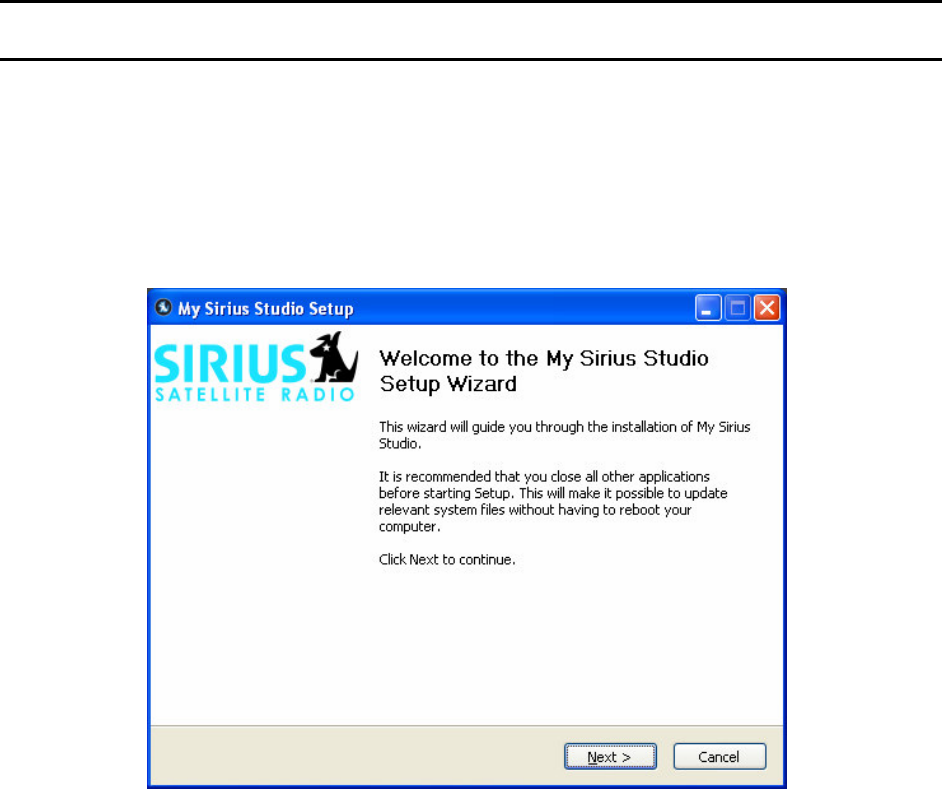
2. If the Welcome dialog box does not automatically appear when you insert the CD, open
the CD and double-click the SiriusStudioSetup.exe icon. The Welcome dialog box
appears:
18
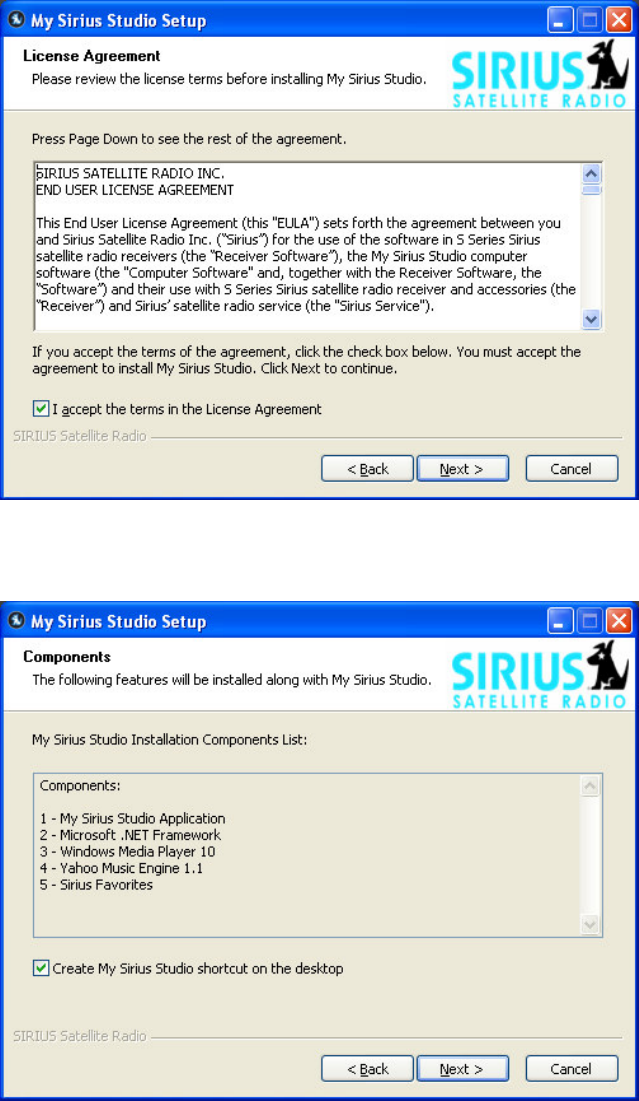
3. Click the Next button. The License Agreement dialog box appears:
4. After reading the End User License Agreement, click the License Agreement box and
then click Next. The Components dialog box appears:
19
5. Leave the checkbox selected if you would like to create a desktop shortcut and click
Next. The Choose Install Location dialog box appears:
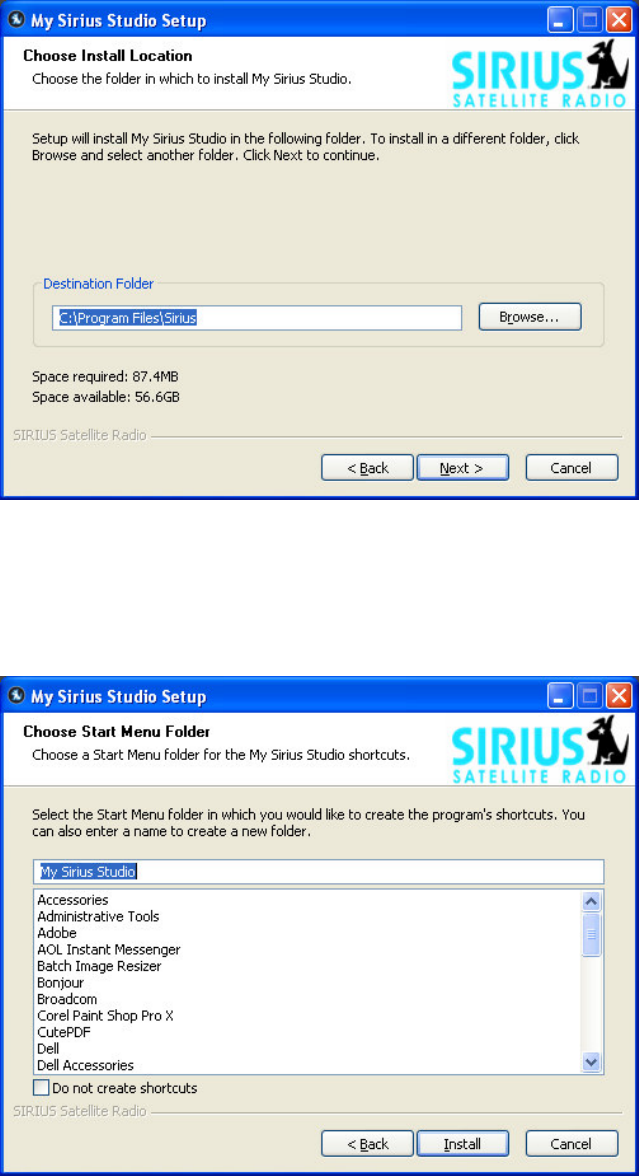
6. Change the Destination folder if desired. When the installation continues, the installer
program will create a new folder titled My Sirius Studio under the Destination Folder
specified.
7. Click Next. The Choose Start Menu Folder dialog box appears:
8. If desired, change the Start Menu folder, then click Install. The Installing window
appears and the progress bar indicates that installation is taking place :
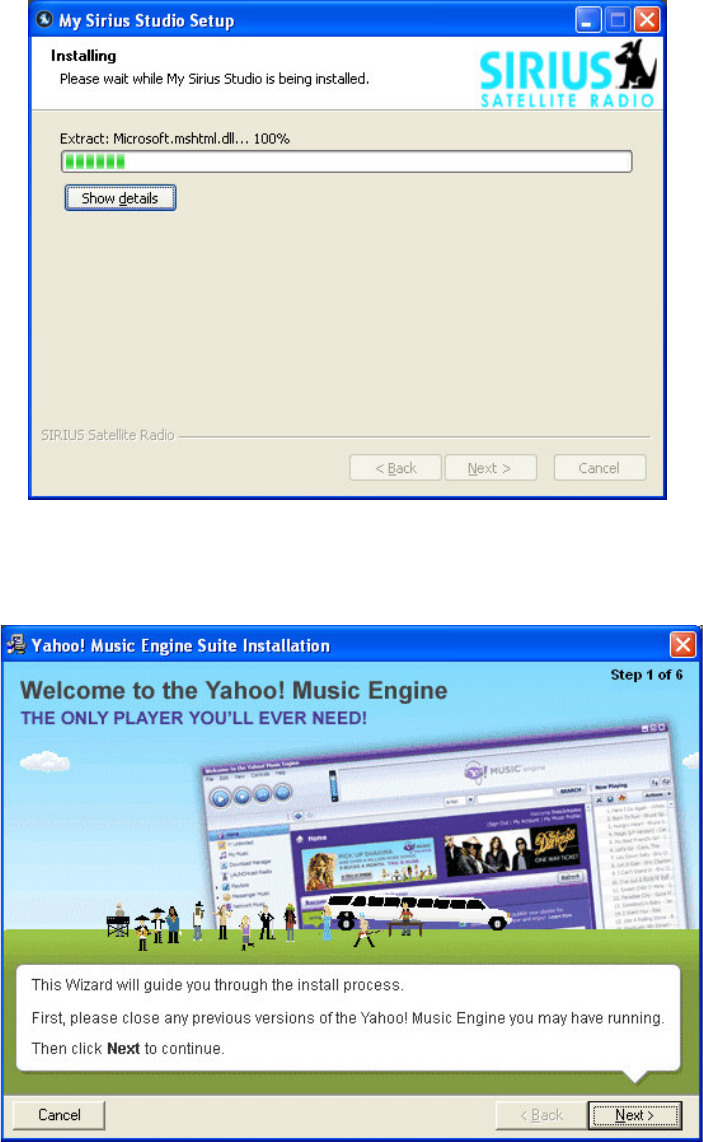
20
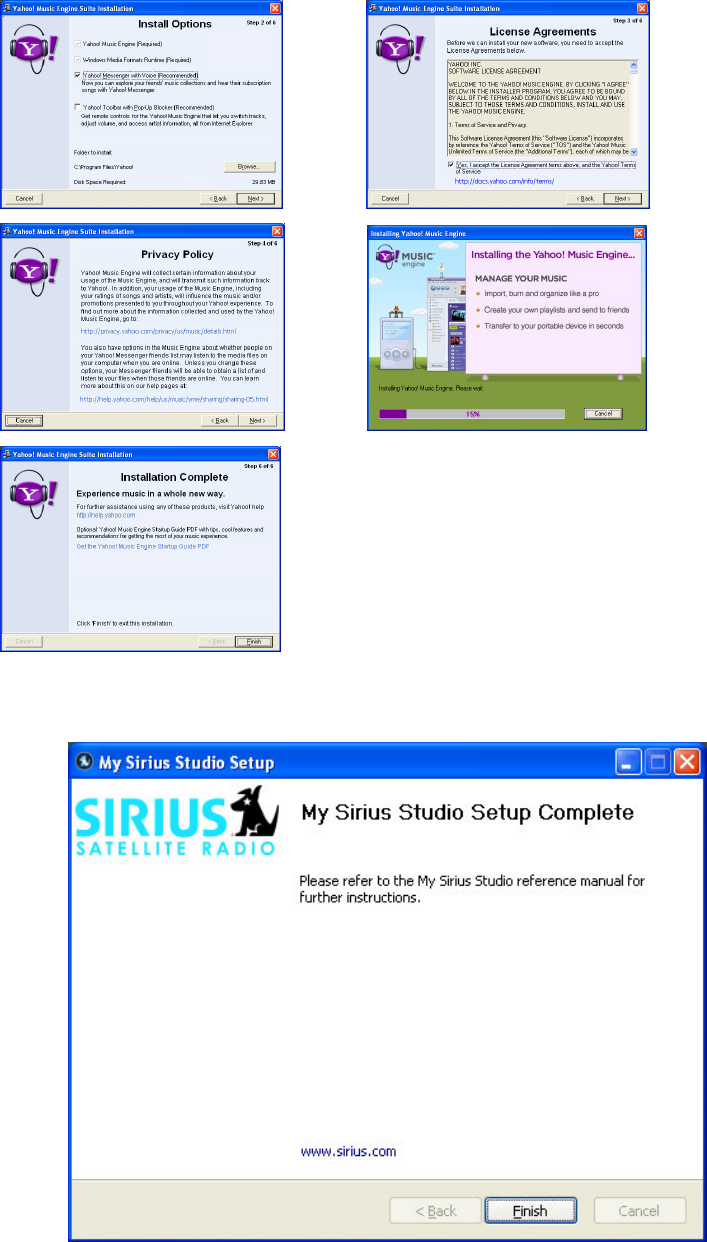
9. During the install process, the installer for Yahoo! Music Engine will run and guide you
through installation of the Yahoo! Music Engine application. Follow the instructions to
complete the installation of Yahoo! Music Engine.
21
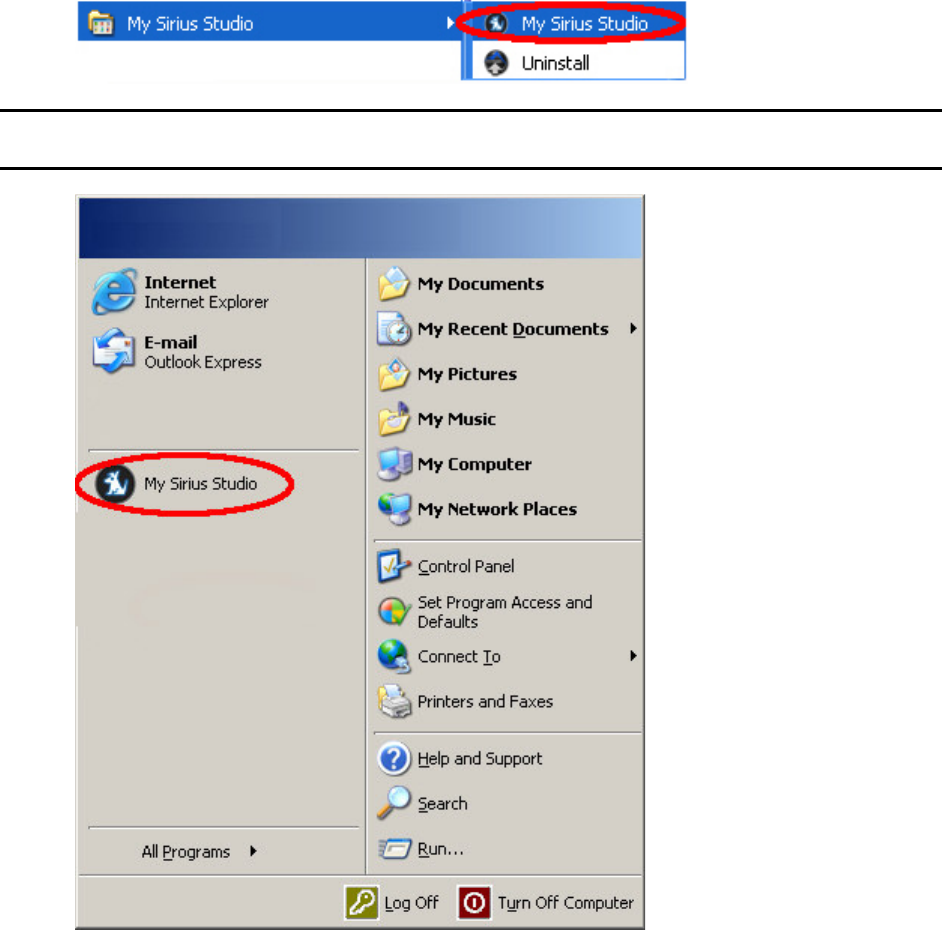
10. The Installing window closes and the Setup Complete dialog box appears:
11. The Installation is now complete. Click Finish. The Setup Complete dialog box closes.
22
Running the Software
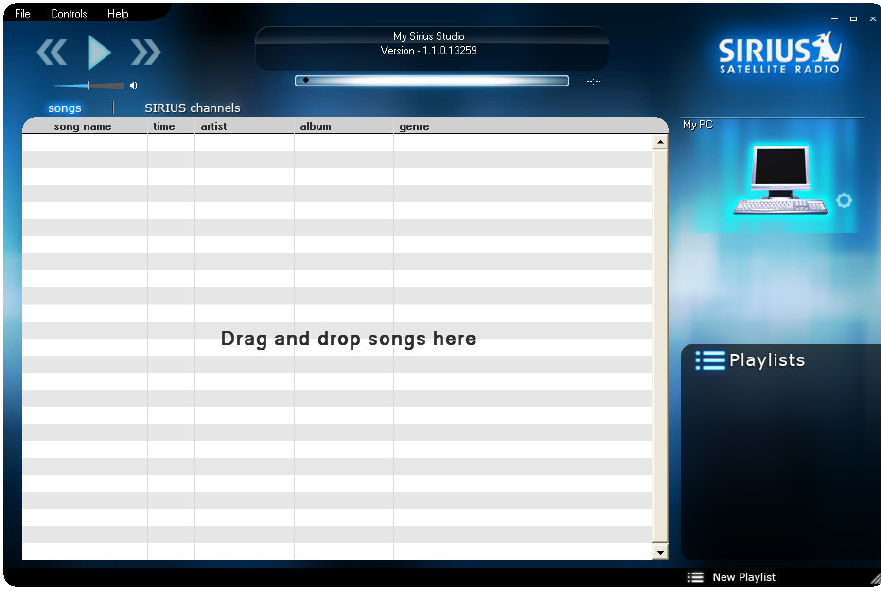
To run the program, go to the Start Menu and choose Start -> Programs -> My Sirius Studio -
> My Sirius Studio:
Note: a shortcut icon may also be available under the Start Menu. If so, you may also click it to
execute the program:
23
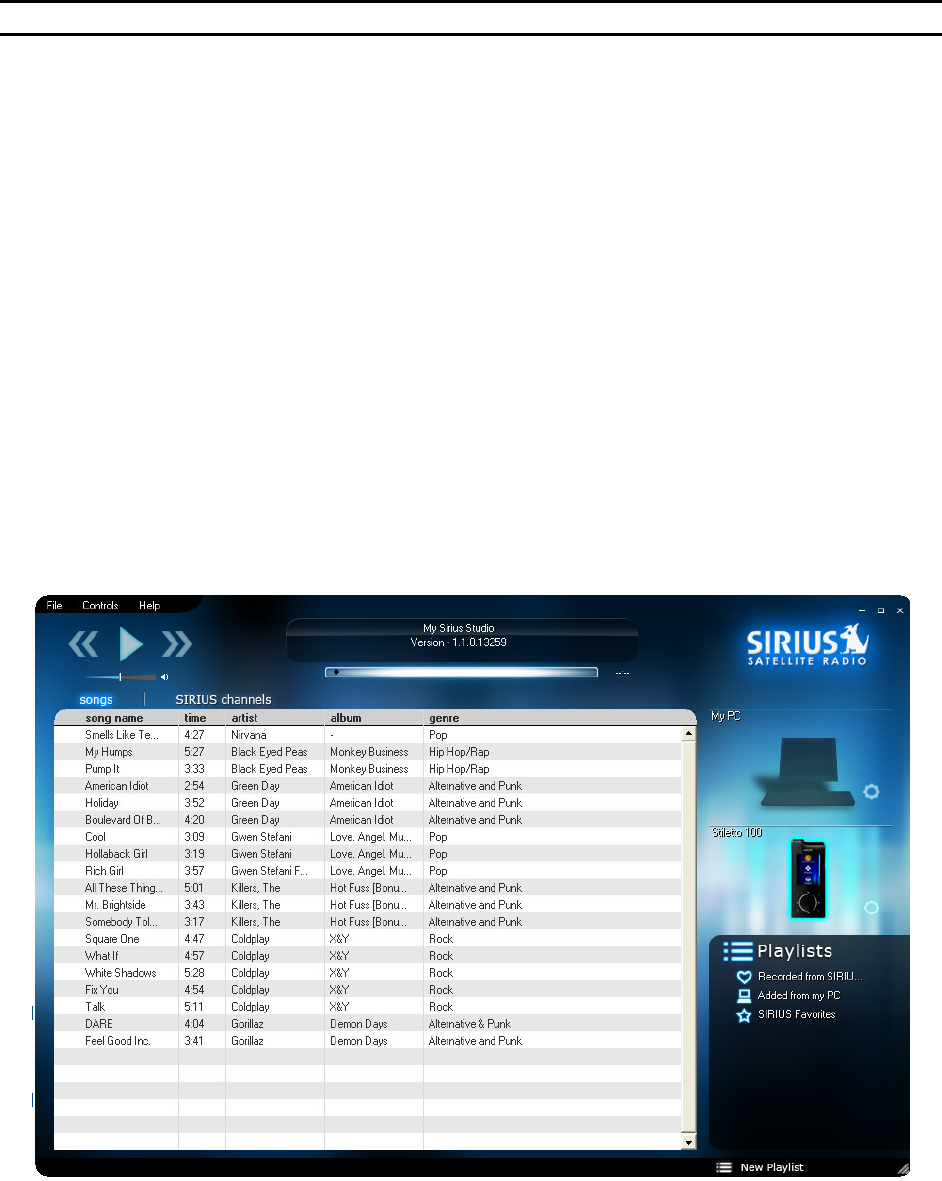
The main My Sirius Studio main screen appears:
Note that there are two navigation tabs:
• Songs
• SIRIUS channels
In addition, there are three drop-down menus at the top of the screen:
• File – allows you to create playlists, import tracks and directories, and change PC and
Stiletto 100 settings
• Controls – allows you to control how songs are played
• Help – provides online help and displays information about My Sirius Studio
24
Attaching the Sirius Stiletto 100 to the
PC
Note: the My Sirius Studio software must be installed before attaching the Stiletto 100
To attach the Sirius Stiletto 100 to your PC, follow this procedure:
1. Turn on the power to the Stiletto 100.
2. Connect the Stiletto 100 to your PC using the provided USB adapter cable.
3. When the PC recognizes that the Stiletto 100 has been attached, it displays a pop-up
indicating that new hardware has been detected.
4. If the Stiletto 100 is successfully attached and installed:
a) an icon for the Stiletto 100 appears on the main screen just below the icon of the
PC. This indicates you have successfully attached the Stiletto 100 to the PC and
can transfer files between the PC and the Stiletto 100.
b) the File -> Device Settings menu becomes active and allows you to check for
updates to the Stiletto 100 via the internet.
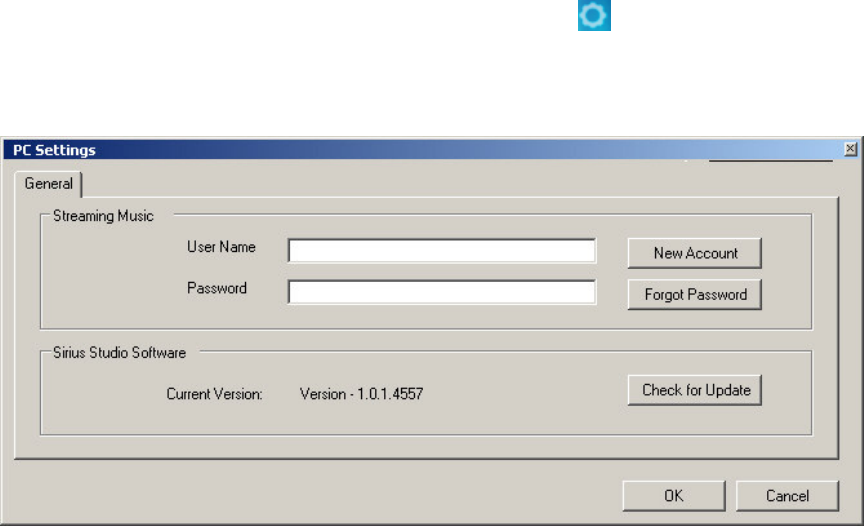
The following screen shows the Stiletto 100 icon, indicating it has been successfully attached to
the PC. In this case, the songs in the main screen represent all of the songs stored in the
Stiletto 100. With the Stiletto 100 selected (highlighted), you can click one of the song playlists
(Recorded from SIRIUS, for example), to display the songs available in that playlist. You can
also click the SIRIUS Favorites playlist, for example, to display the shows marked as Favorites
on the Stiletto 100. For more information on Favorites, see the section Using SIRIUS
Favorites later in this document.
25
Using the File -> PC Settings Menu
You use the File -> PC Settings menu or click the “gear” icon ( ) next to the PC icon to
create an account for accessing streaming music from Sirius Internet Radio, recover your
password, or to check for My Sirius Studio software updates. When you select the menu, the
PC Settings dialog box appears:

26
Creating a New Sirius Account
Follow these steps to create a new Sirius account:
Note: You must be logged on to the Internet to complete these steps.
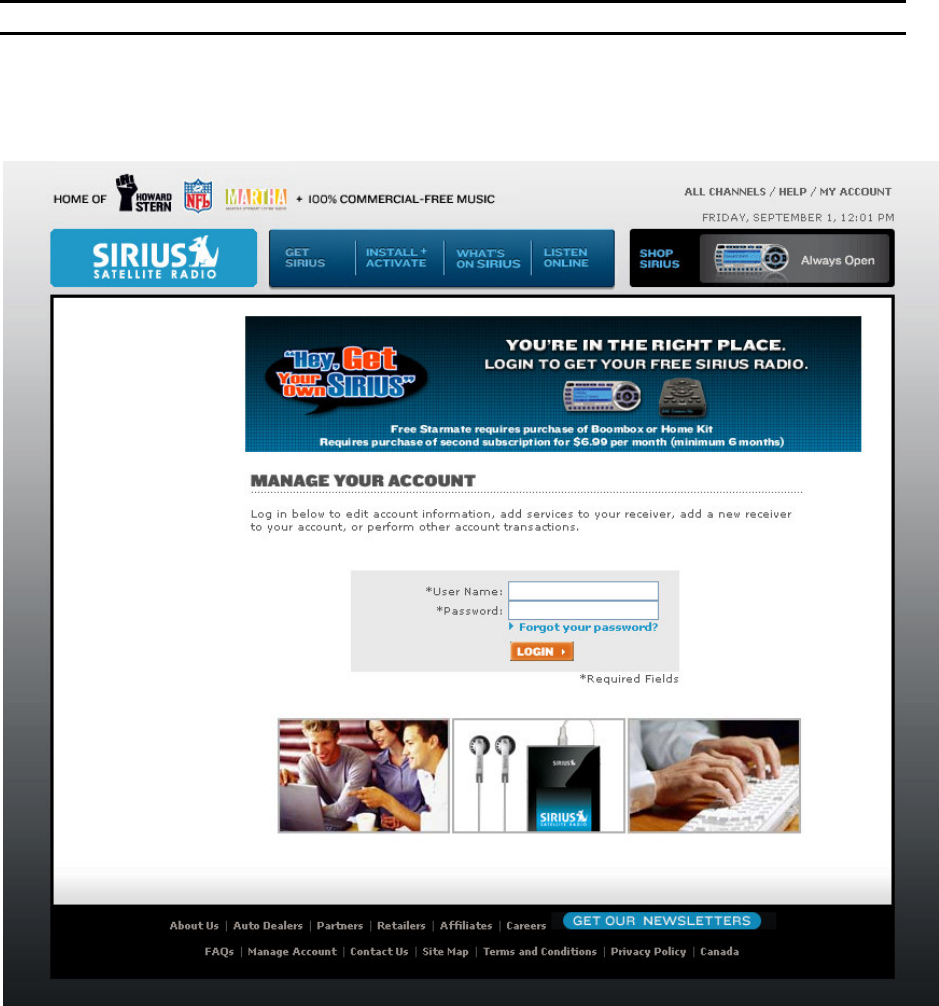
1. Click the New Account button.
You are directed to the Sirius Satellite Radio Install & Activate website, as shown.
2. Follow the directions shown on the website to register and activate your account.
27
Recovering Your Password
Follow these steps if you have forgotten your Sirius account password:
Note: You must be logged on to the Internet to complete these steps.
1. Click the Forgot Password button.
You are directed to the Sirius Satellite Radio Manage Your Account website, as shown.
3. Follow the directions shown on the website to recover your password.
28
Logging on With an Existing Account
If you already have an account, follow these steps:
1. Enter the required information (User Name and Password).
Note: You must be logged on to the Internet to complete these steps.
2. Click OK.
You only need to do this one time to gain access to SIRIUS streaming music under the
SIRIUS channels tab. My Sirius Studio remembers your User Name and Password.
The SIRIUS channels screen appears as shown.
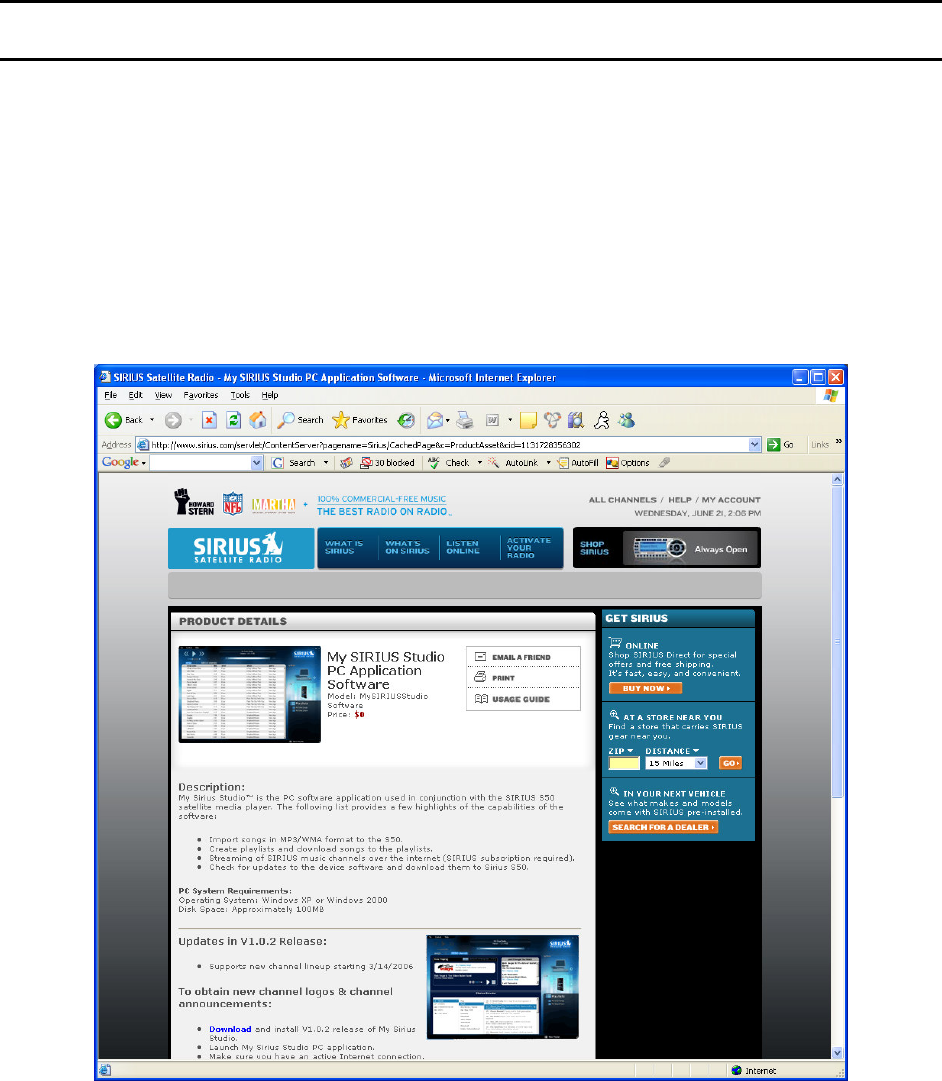
29
Checking for Sirius Studio PC Software
Updates
The procedure given here allows you to download the latest My Sirius Studio PC software.
Note: To check for available Sirius Studio PC software updates, you must be connected to the
Internet.
Follow these steps:
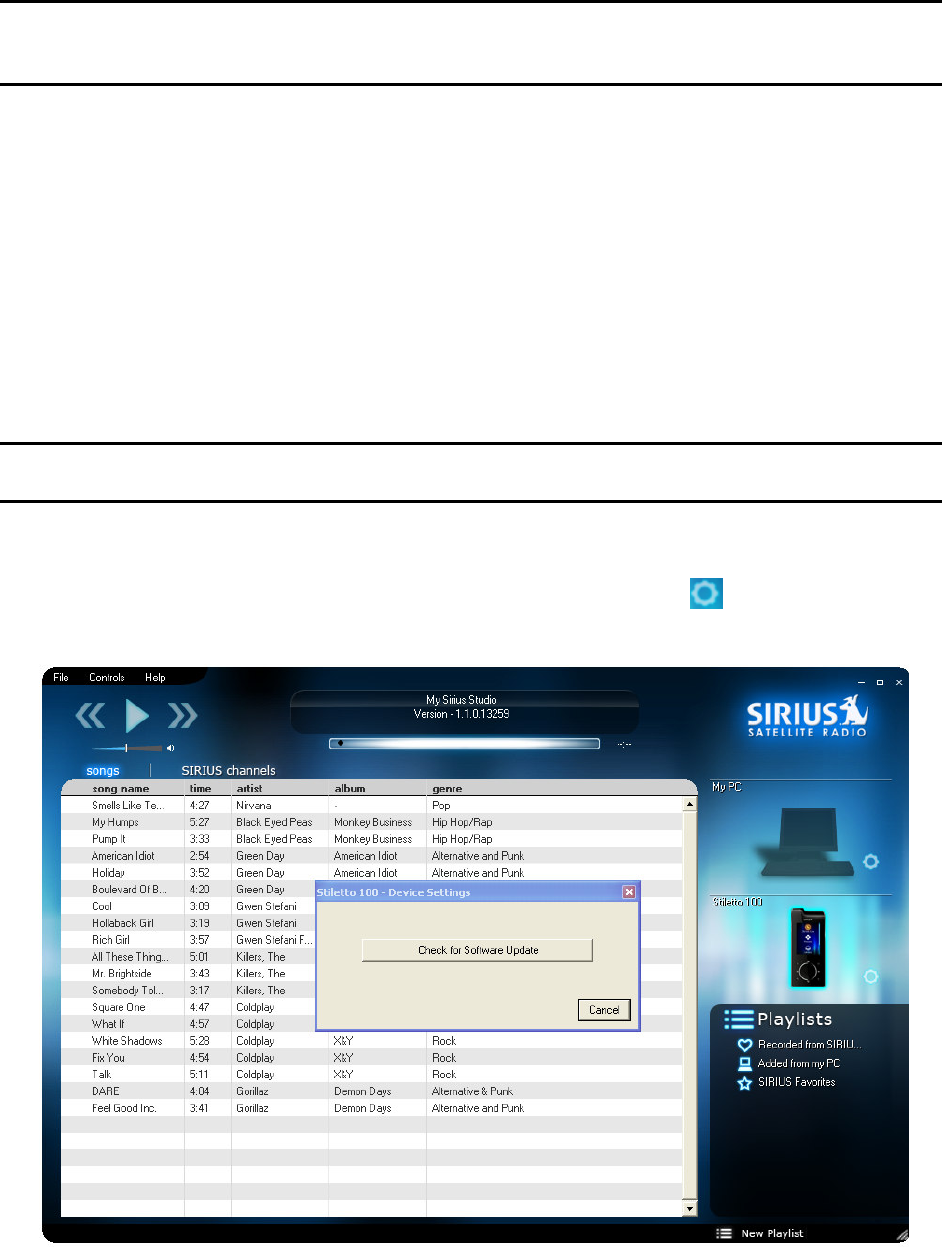
1. Make a note of the current version of the Sirius Studio software that appears on the PC
Settings dialog box (for example, version 1.1.0.13259).
2. Click the Check for Update button on the PC Settings dialog box.
A Sirius webpage appears that allows you to download the latest My Sirius Studio
complete CD version, or the latest Sirius Studio update version (partial webpage shown
here)
3. Click the appropriate link as desired to download My Sirius Studio software.
30
4. After the software is downloaded, see the Installation Procedure toward the beginning of
this manual.
Note: You may want to check the version of the downloaded software to see if it is later than the
version you currently have installed (see Step 1) before going through the installation
procedure.
Using the File -> Device Settings
Menu
The File -> Device Settings menu is used to check for and update the Stiletto 100 Personal
Satellite Radio software. This menu is not active unless the Stiletto 100 is attached to the PC.
Checking for Software Updates
Note: To check for available Stiletto 100 software updates, you must be connected to the
Internet.
Follow these steps:
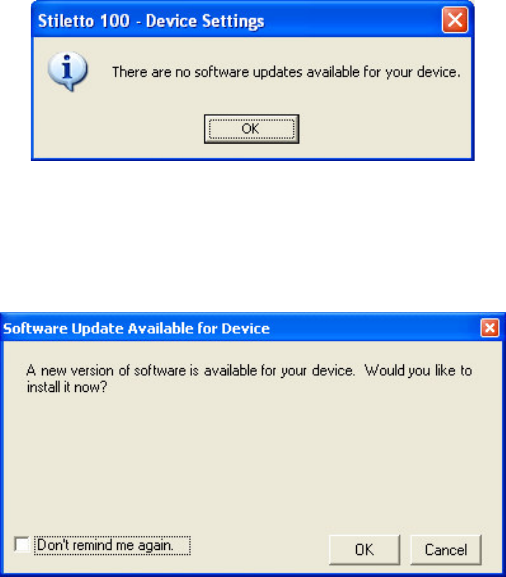
1. Select File > Device Settings or click the click the “gear” icon ( ) next to the Stiletto
100 icon. The Device Settings dialog box appears.
31
2. Click the Check for Software Update button to check for new software availability
(remember, you must be connected to the Internet for this step).
If the current Stiletto 100 software is the latest version, the Sirius Software Update dialog
box appears as shown.
3. Click OK to close the dialog box.
If the current Stiletto 100 software is not the latest version, the Sirius Software Update
confirmation dialog box appears as shown.
4. Click the OK button to upgrade the Stiletto 100 with the latest version of the Sirius
Stiletto 100 software.
5. The Stiletto 100 will begin the software update by downloading it from the software
update server. Download status will appear on the PC screen, and the device will alert
you when the update is complete.

32
Managing Songs and Playlists
This section explains how to manage, organize, and play your songs.
Overview
You can transfer songs into My Sirius Studio from directories on your PC as well as from My
Sirius Studio to the Stiletto 100. You can also create and store playlists in My Sirius Studio as
well as in the Stiletto 100. Playlists help organize your songs.
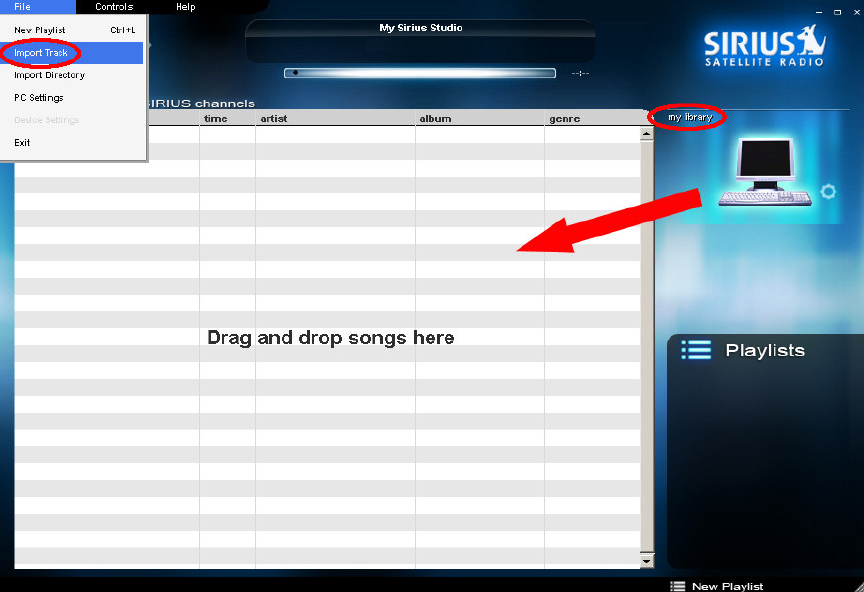
All songs imported into My Sirius Studio are copied into a location called “my library.” This is
true even if you create a playlist and drag songs directly to that playlist; the songs are still stored
in “my library.” Playlists are a convenient means of separating your songs into different
categories, whereas my library contains all of your songs in a single place.
Note: The Stiletto 100 is capable of playing MP3 (64 kbps, 96 kbps, 128 kbps, 384 kbps) and
WMA audio files as well as Sirius Satellite Radio content (proprietary format).
33
Importing Song Tracks and Song Directories
The first time you run My Sirius Studio and click the songs tab with the PC icon selected, you
see an empty songs list and no playlists. The songs list contains all of the songs (currently
none) in “my library,” whose icon is at the right side of the screen.
When you click the Stiletto 100 icon, you also see a songs list. It reflects the songs stored in the
Stiletto 100.
To have My Sirius Studio import songs into “my library,” you have the following options:
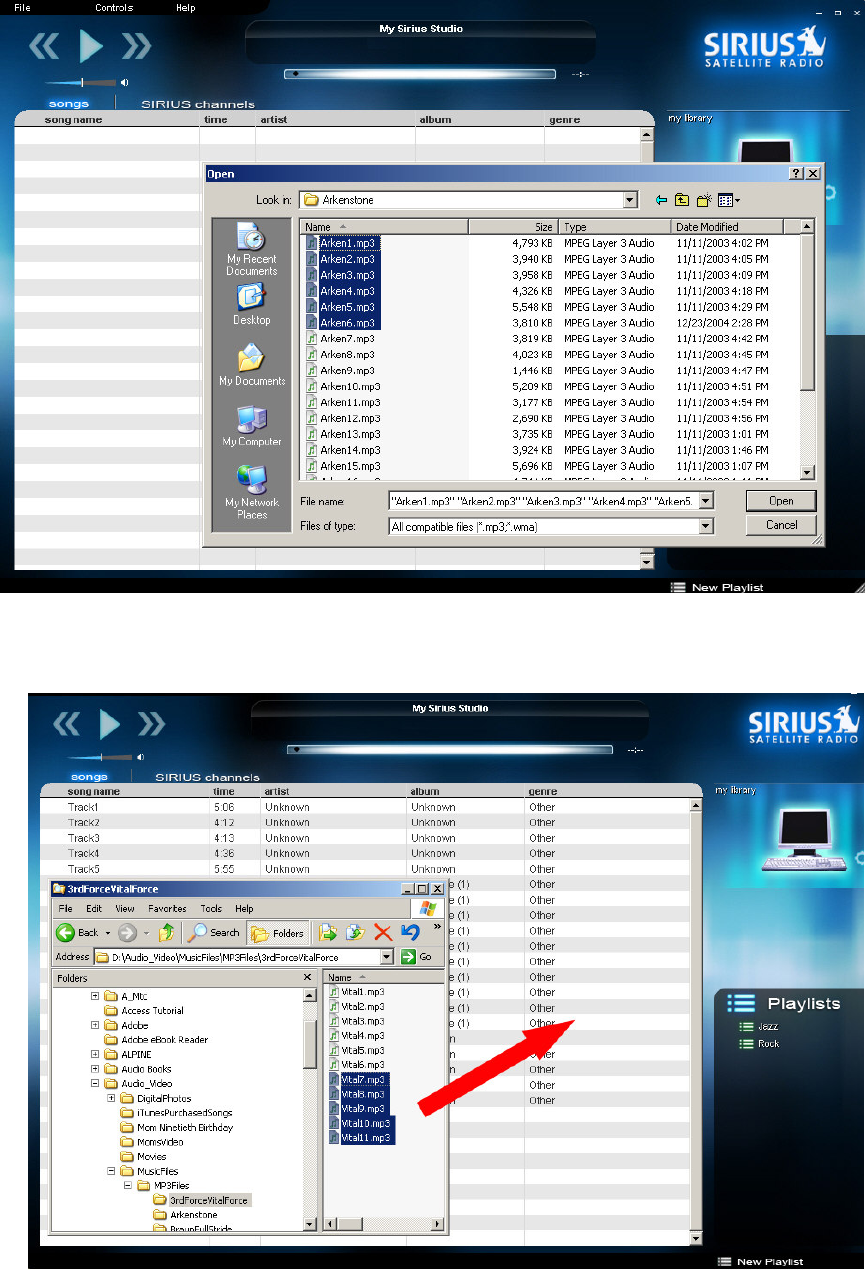
1. Click the PC icon and use Import Track under the File menu to import an individual
track or several tracks (see diagram). When you select File -> Import Track, you
navigate to the tracks desired, select them, then click the Open button to import the
songs.
2. Click the PC icon and use Import Directory under the File menu to Import an entire
directory of songs. When you select File -> Import Directory, you navigate to the folder
desired, select it, and click the Open button to import all of the songs in the folder.
34
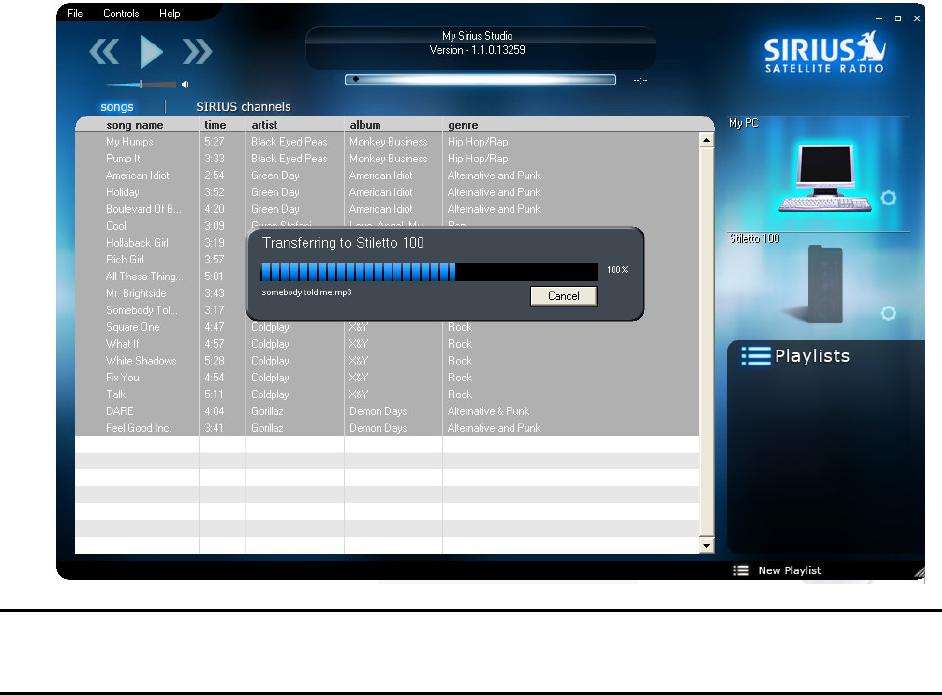
3. You can also use Windows Explorer to drag songs into “my library”, as shown in the
following diagram.
35
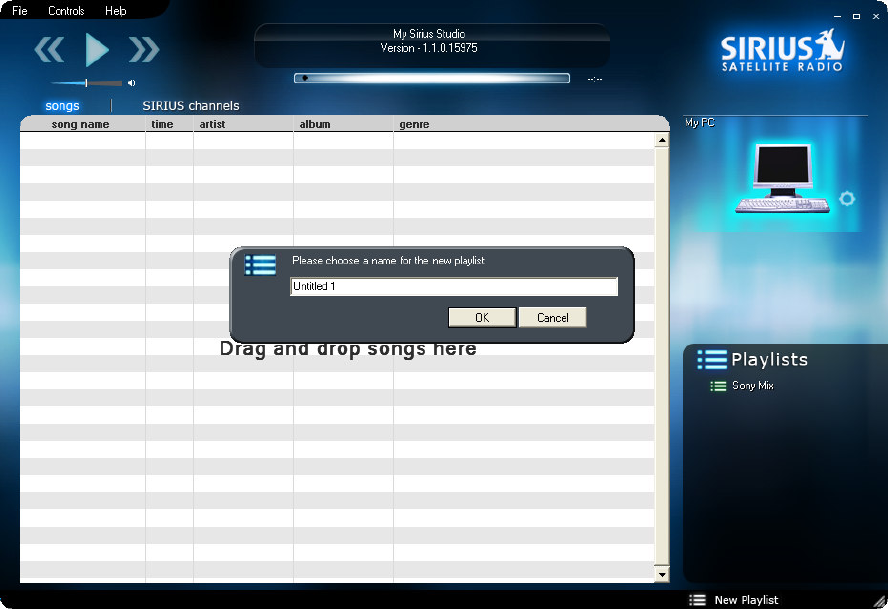
4. To import songs into the Stiletto 100, click the PC icon, select the desired songs in “my
library”, then drag them to the icon of the Stiletto 100. The following screen shows the
files being copied to the Stiletto 100.
Note: At this point, the songs have not been organized into playlists. You may want to import
songs into the Stiletto 100 after you have organized them into playlists in order to move them as
a set.
36
Using Playlists to Organize Songs
Creating Playlists
You can create playlists on the PC in My Sirius Studio or on the Stiletto 100.
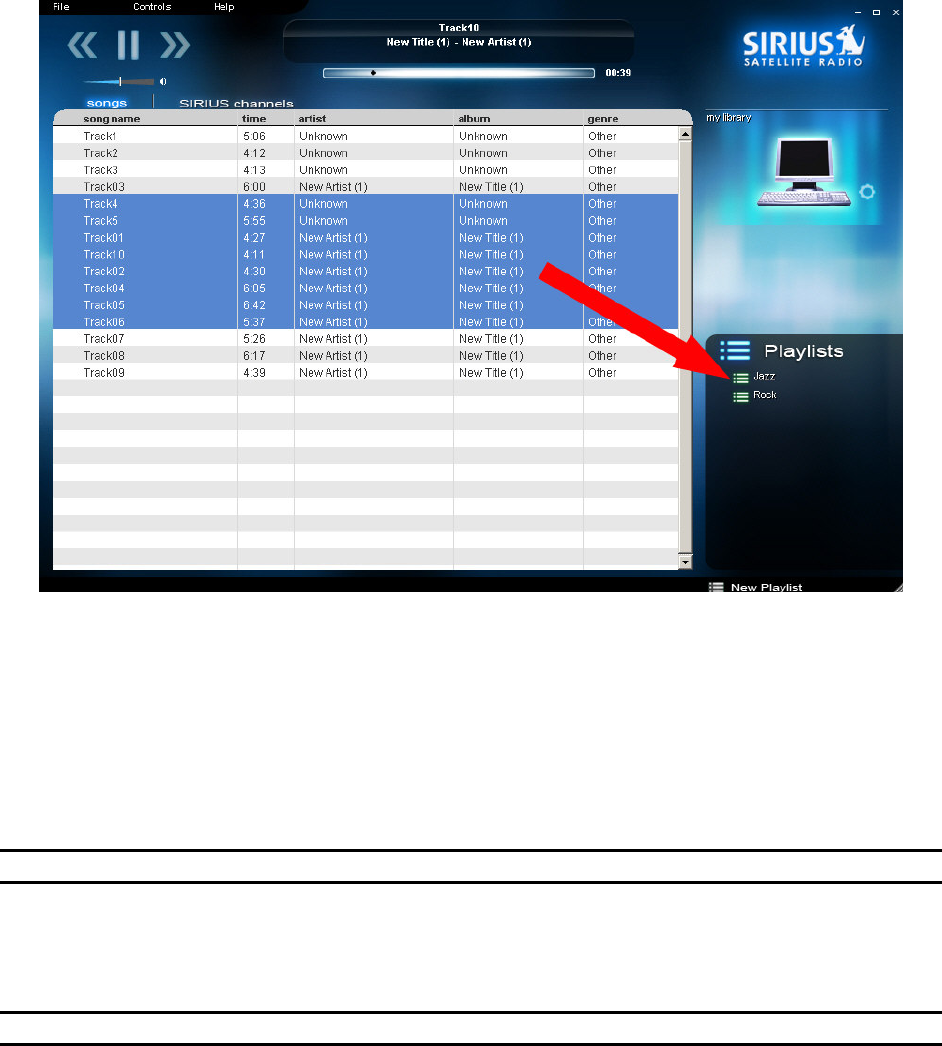
To create a playlist, click on the icon of the PC or the Stiletto 100 and use File -> New Playlist,
Ctrl + L, or click the New Playlist icon at the bottom right of the screen. A pop-up dialog box
prompts you for the name of the playlist, as shown.
Type the name of the playlist, click OK, and the new playlist is added to the list under Playlists
at the middle right of the screen. Click either the PC icon or the Stiletto 100 icon to see their
respective playlists.
37
Adding or Deleting Songs on Playlists
To add songs to a playlist, simply select the desired songs, then click and drag them to the
playlist, as shown:
Note that songs may be added to a playlist as follows:
• Click the PC icon and drag songs from the “My PC” songs window to a playlist on the
PC.
• Click the Stiletto 100 icon and drag songs from My Sirius Songs window to a playlist on
the Stiletto 100.
• Click either the PC or the Stiletto 100 icon and drag songs from one playlist to another
playlist.
Note: songs on an Stiletto 100 playlist cannot be moved to a PC playlist.
After a playlist has been created and contains songs, you can copy the playlist from the PC to
the Stiletto 100 by clicking the PC icon, then dragging the desired playlist icon to the Stiletto
100.
Note: all of the songs in the playlist are copied along with the playlist title.
38
Playing Songs
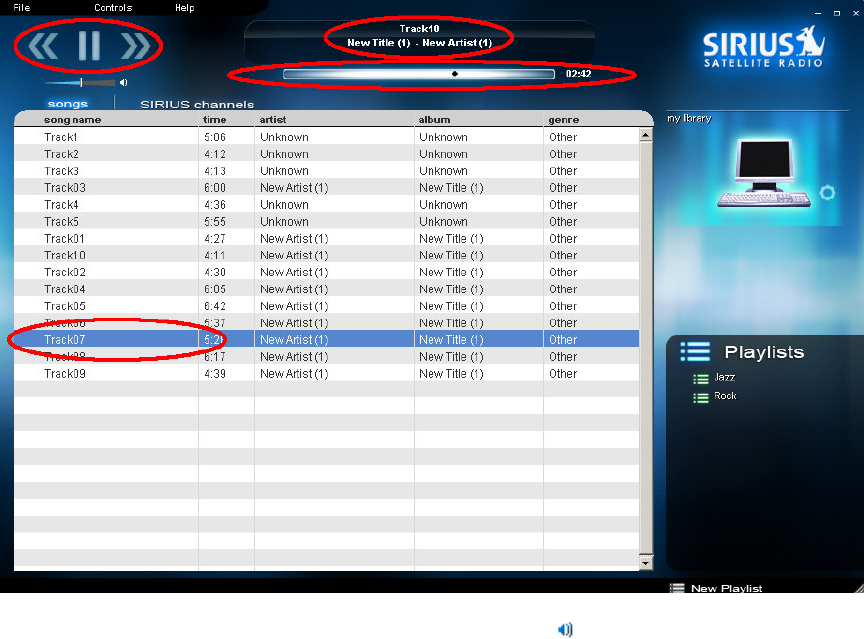
Only songs currently available in “My PC” on the PC can be played on the PC. To play a song,
double-click the name of the song in the song list, as shown:
The song currently being played has an active speaker icon ( ) to the left of the title in the
songs list window.
Songs can be controlled using the Controls menu as well as the Play/Pause, Previous, Next,
and Volume Slider control icons (upper left corner).
You can also sort songs in ascending or descending order by clicking on the various column
header titles. For example, to sort songs alphabetically by title, click the song name column
header.
The current song information and song playback progress slider is displayed above the song list
window.
Renaming or Deleting Songs and Playlists
To rename or delete a playlist, right click the playlist icon and choose Rename or Delete, then
take the appropriate action as prompted.
To delete a song, click on the song and press the Delete key on the keyboard. When the
conformation dialog appears, click OK to delete the song or Cancel if you do not choose to
delete it.
39
Using SIRIUS Channels
This section explains how to use the SIRIUS channels tab to enjoy the SIRIUS web streaming
service.
Note: You must be signed up for SIRIUS web streaming. If you are not, go to File -> PC
Settings and click the New Account Button.
Logging In
If you have created an account for SIRIUS web streaming and have obtained a User Name and
Password, the computer remembers this information so that you don’t have to enter it each time
you want to use the web streaming service.
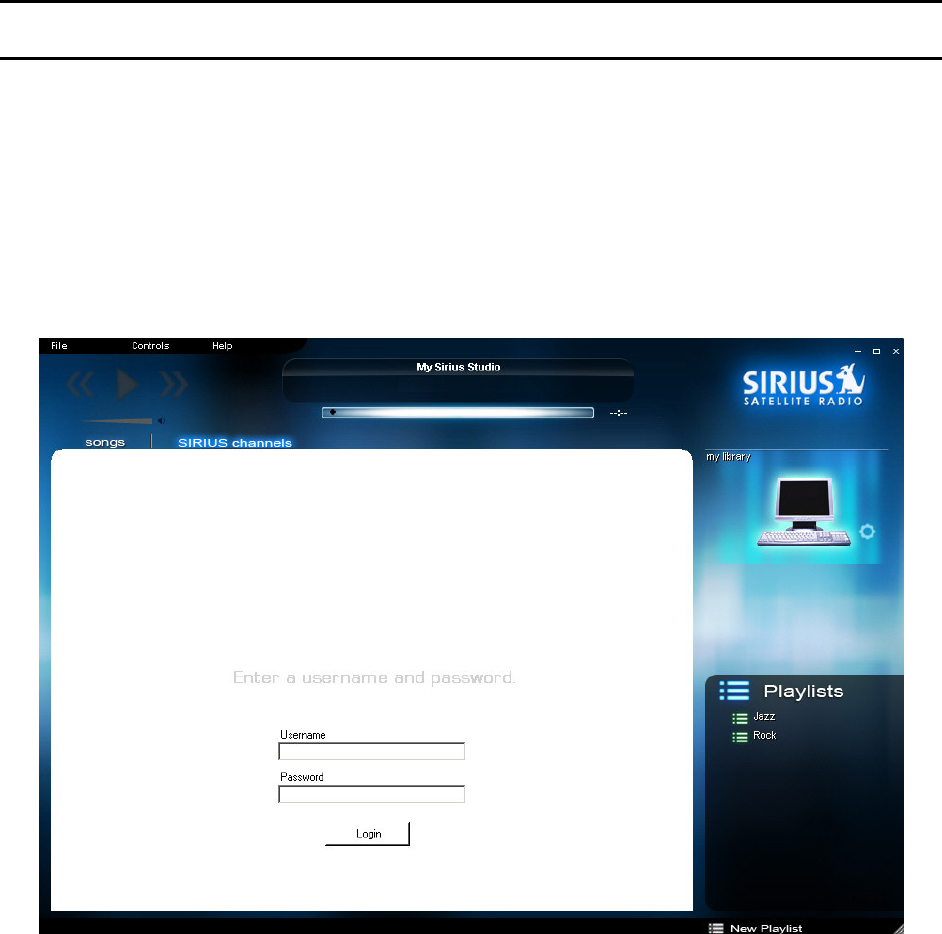
However, when you select the SIRIUS channels tab, if you are not logged in to the SIRIUS web
streaming service, you are presented with the following screen:
Enter your User Name and Password then click the Login button. The computer remembers
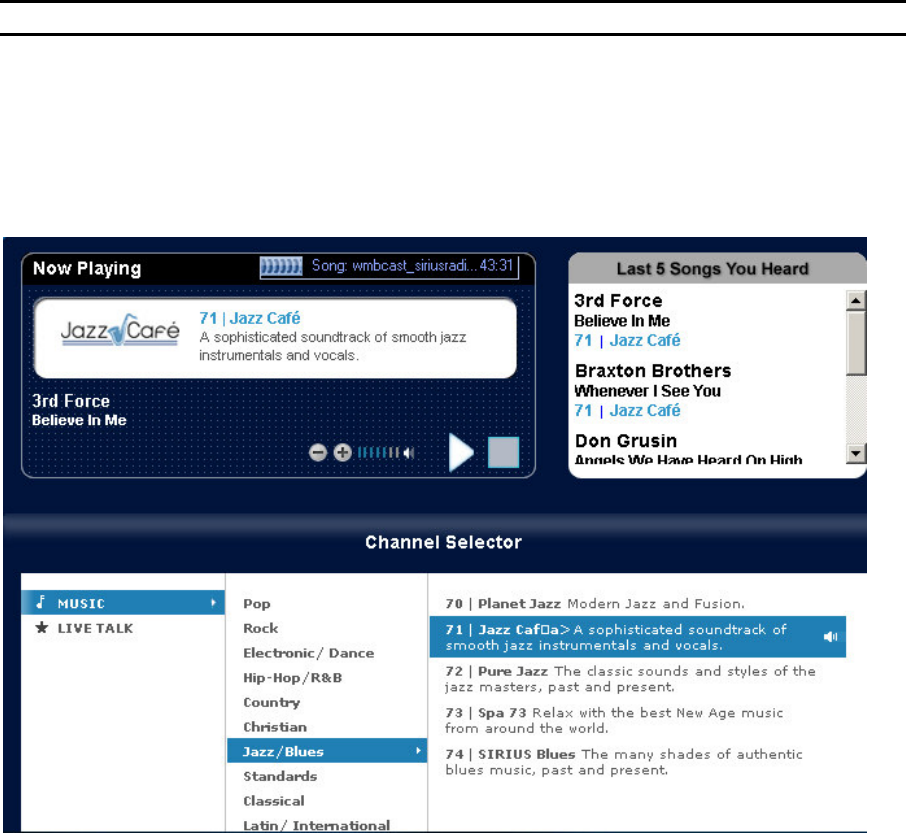
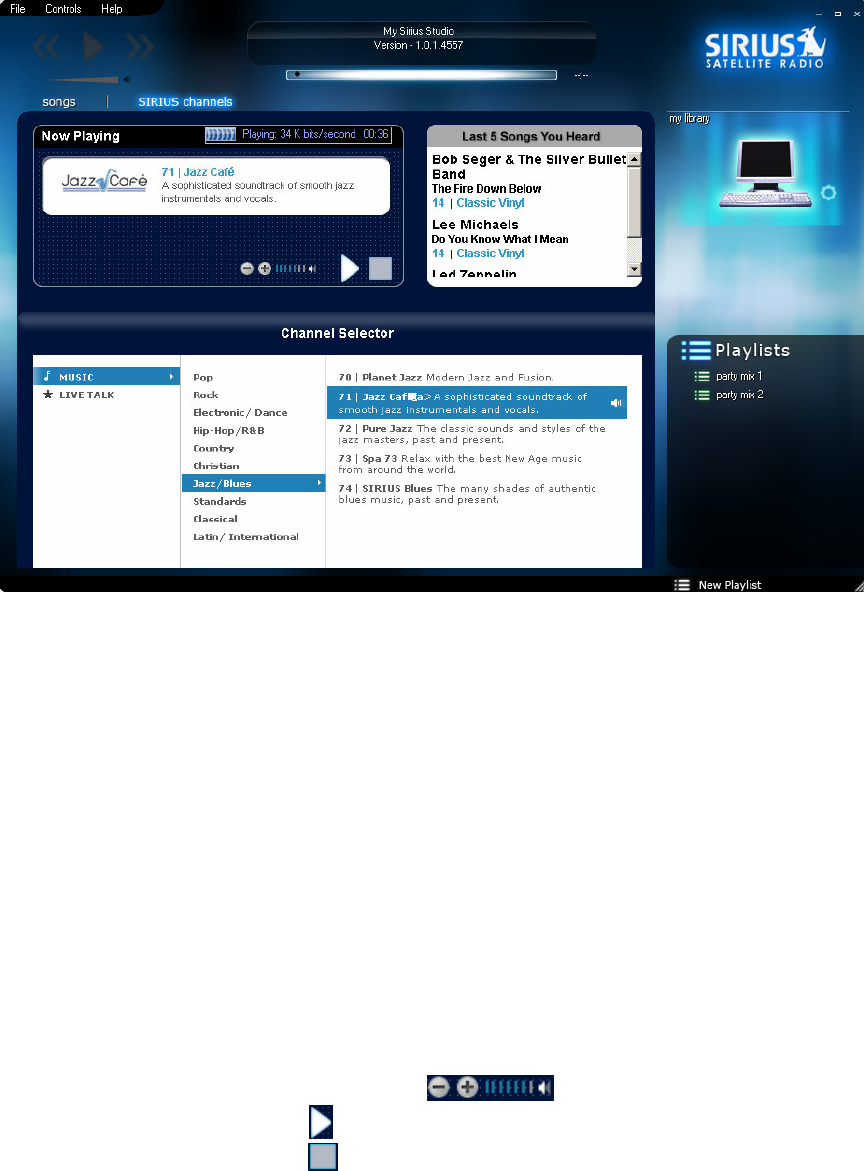
your login information, and the SIRIUS Satellite Radio user interface screen is presented:
40
At this point, use the CHANNEL SELECTOR to listen to a variety of programs within the
following channels:
• Music
• Live Talk (limited)
Using the Channel Selector
There are three panes in the CHANNEL SELECTOR. The leftmost pane shows the channels
that are available. When you click on a channel, the center pane displays the types of programs
available in that channel. When you click on a program type, the rightmost pane displays
specific programs for that program type. Click on a program in the rightmost pane to listen to it.
Using the Controls
There are three basic controls you can use when you experience web streaming:
• Volume – use the volume control slider
• Play – use the Play button
• Stop – use the Stop button
41
Using SIRIUS Favorites
Favorites are songs which you have Loved or marked for optional purchase on the Stiletto 100.
To purchase the song or the album, you need to install the Yahoo! Music Engine (YME) and
the SIRIUS Favorites Plug-in.
Note: For the latest information on using the SIRIUS Favorites with either My Sirius Studio or
Yahoo Music Engine, please visit: http://www.sirius.com/mssmusicstore
SIRIUS Favorites Playlist
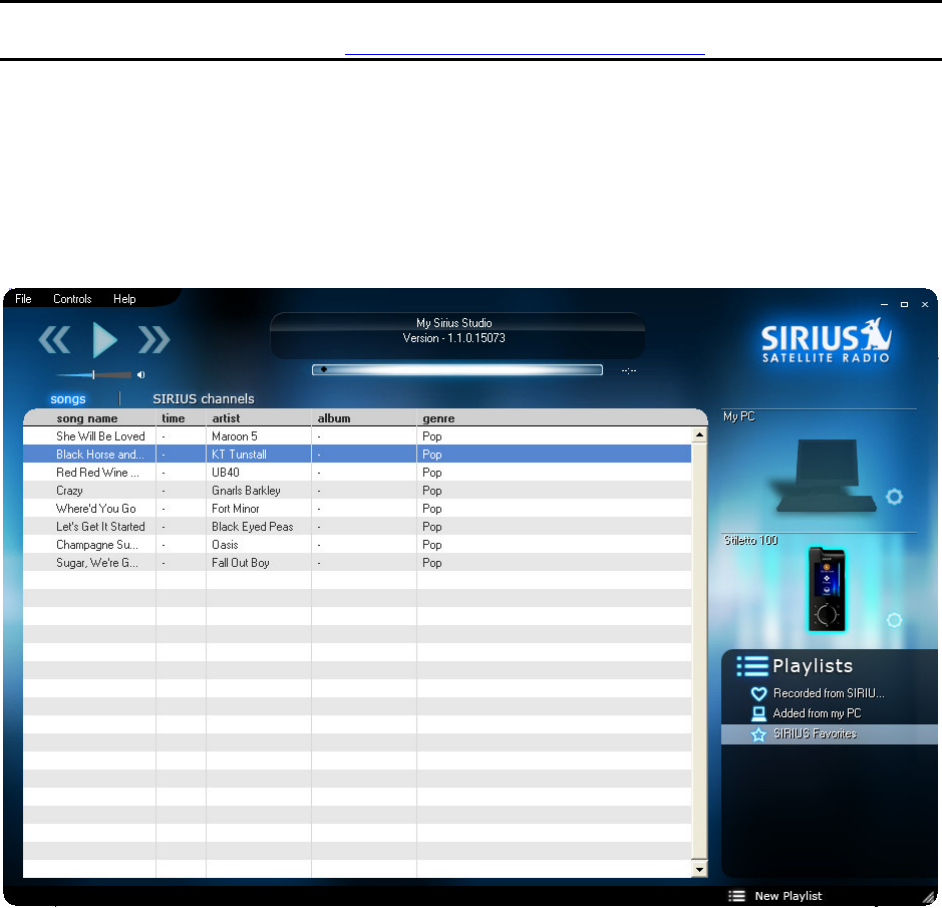
If you have marked songs as Favorites on your Stiletto 100, they will be displayed in the SIRIUS
Favorites playlist in My Sirius Studio. This list of songs is a display-only view of the songs that
have been marked as Favorites.
42
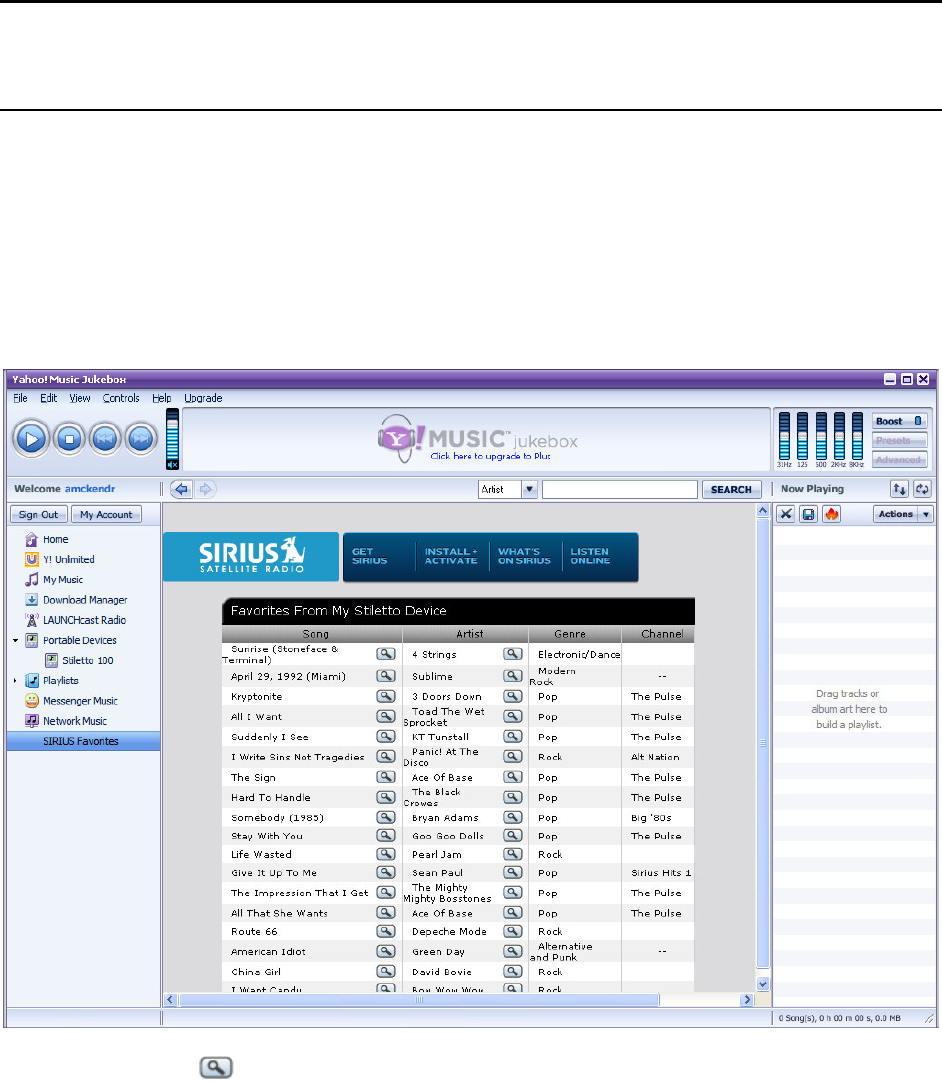
SIRIUS Favorites in Yahoo Music Engine
If you have installed Yahoo Music Engine from the My Sirius Studio CD, or had Yahoo Music
Engine installed on your PC before running the My Sirius Studio install CD, you will see a
SIRIUS Favorites item displayed in the Yahoo Music Engine window.
Note: If you have Yahoo Music Engine installed on your PC and you do not see the SIRIUS
Favorites item listed, insert My Sirius Studio with Yahoo! Music Engine Installation CD into your
CD-ROM drive and reinstall the software. The installation will automatically install the Sirius
Favorites plug-in.
If you have already installed Yahoo! Music Engine, you can browse and purchase Sirius
Favorites with three simple steps:
1. Launch YME and sign in to your free, Yahoo! Music Unlimited or Yahoo! Music Unlimited
To Go account. Note: Only Yahoo! Music Unlimited To Go account provides you the
capability to transfer subscription music to your Stiletto 100 portable player.
2. Click SIRIUS Favorites in the left column in YME and view the list of songs you have
Loved or marked as Favorites.
3. Click on the icon next to artist or song to search for matching Yahoo! Music tracks
for download.
