SIRIUS Siriusxm Ttr1 User Guide 120104A Manual XM
Siriusxm Ttr1 User Guide 120104A SiriusXM TTR1 User Guide 120104a SiriusXM TTR1 User Guide 120104a cms images sxm-java-dev
SIRIUS Tabletop Internet Radio TTR1 SiriusXM TTR1 User Guide 120104a
2016-03-10
User Manual: SIRIUS Siriusxm Ttr1 User Guide 120104A
Open the PDF directly: View PDF  .
.
Page Count: 88
User Guide


3
Table of Contents
Introduction....................5
Features ............................6
Safety and Care Information ...........7
What’s in the Box? ...................9
SiriusXM TTR1 Radio Functions........10
Remote Control .....................12
Display Screen......................13
Installation ...................15
Introduction ........................16
Step 1: Connect to a Network .........17
Step 2: Enter Your SiriusXM Account
Information ...................... 23
Using Your SiriusXM TTR1
Radio ...................... 25
Navigation Basics .................. 26
Direct Tune........................ 30
Favorite Channels ...................31
Alarm Clock ....................... 32
Snooze ........................... 34
Sleep Timer ....................... 35
Parental Control ................... 36
Audio Settings ..................... 42
Configuring Your SiriusXM TTR1
Radio ...................... 45
SiriusXM setup..................... 46
System Setup...................... 50
Appendix: Manual Network
Configuration ............... 65
Troubleshooting................75
Product Specifications ..........81
Patent Information ................. 83
Environmental Information .......... 83

4

5
Introduction

6
Features
Thank you for purchasing the SiriusXM TTR1 Radio!
Your new SiriusXM TTR1 Radio comes with everything you need to enjoy SiriusXM
Internet Radio in your home.
Use this manual to familiarize yourself with all of your SiriusXM TTR1 Radio
features and capabilities. For the latest information about your SiriusXM TTR1
Radio and other SiriusXM products and accessories, visit siriusxm.com.
Please read the entire User Guide before using your SiriusXM TTR1
Radio!
Introduction
7
Safety and Care Information
IMPORTANT! Always read and understand all the instructions to avoid
injury to yourself and/or damage to your device. Sirius XM Radio Inc.
disclaims all responsibility for damage from data loss due to breakdown,
repair, or other causes.
• Do not expose to extreme temperatures (above 140ûF or below -4ûF, or
above 60ûC or below -20ûC).
• Do not expose to moisture. Do not use device near or in water.
• Do not let any foreign matter spill into device.
• Do not store in dusty areas.
• Do not expose to chemicals such as benzene and thinners. Do not use
liquid or aerosol cleaners. Clean with a soft damp cloth only.
• Do not expose to direct sunlight for a prolonged period of time, and do
not expose to fire, flame, or other heat sources.
• Do not try to disassemble and/or repair device yourself.
• Do not drop your device or subject it to severe impact.
• Do not place heavy objects on device.
• Do not subject device to excessive pressure.
• If the screen is damaged, do not touch the liquid crystal fluid.
WARNING!
• Opening the case may result in electric shock.
• Make sure that you insert the plug all the way into the outlet.
• Do not touch the device with wet hands.
• Do not install near any heat sources such as radiators, heat registers,

8
stoves, or other apparatus (including amplifiers) that produce heat.
• Do not defeat the safety
purpose of the polarized
or grounding type plug. A
polarized plug has two blades
with one wider than the other.
A grounding type plug has two
blades and a third grounding
prong. The wide blade or the
third prong is provided for your
safety. When the provided plug
does not fit into your outlet,
consult an electrician for
replacement of the obsolete
outlet.
• Protect the power cord
from being walked on or
pinched particularly at plugs,
convenience receptacles, and
the point where they exit from
the apparatus.
• This product contains
chemicals known to the State
of California to cause cancer
and birth defects or other
reproductive harm.
Introduction
9
What’s in the Box?
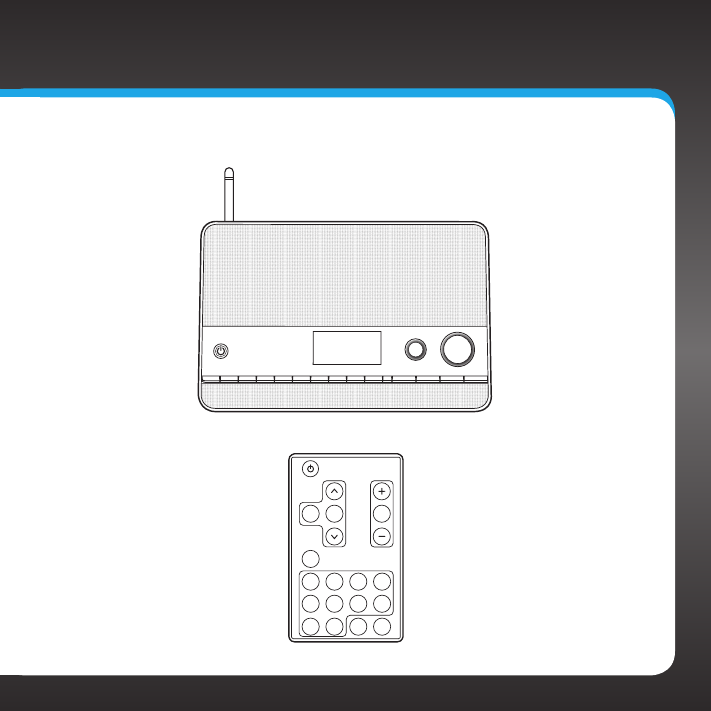
SiriusXM TTR1 Radio
123567890BACK MENU
TUNE VOL
ALARM 1ALARM 24
Remote Control
MENU
MUTEBACK OK
ALARM
1ALARM
2
2341
6785
09
10
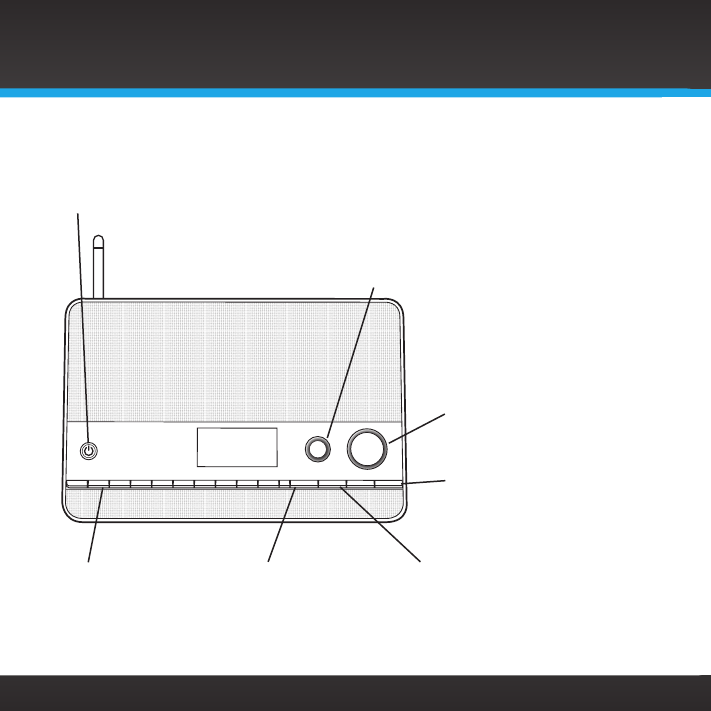
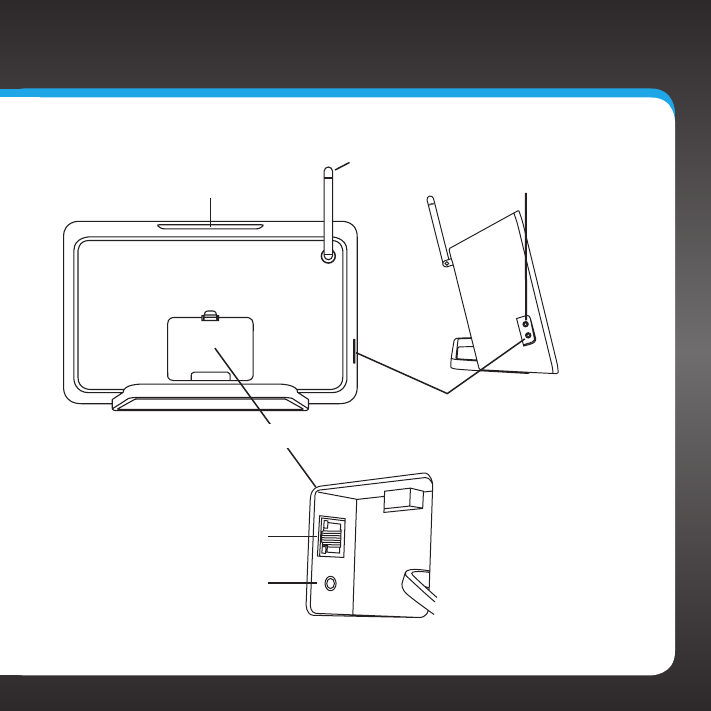
SiriusXM TTR1 Radio Functions
Introduction
123567890BACK MENU
TUNE VOL
ALARM 1ALARM 24
Power Button (page 26)
Turn Radio On and Off.
BACK Button (page 27)
Press to return to the
previous display
screen.
TUNE Knob (Multifunction) (page 26)
Turning the knob at the default display screen displays the
category tune screen; pressing the knob at the default display
screen displays the direct tune screen; turning the knob in a menu
or user input screen scrolls through menus and choices; pressing
the knob in a menu or user input screen selects a highlighted item;
pressing and holding displays the Parental control menu.
VOL (Volume) Knob (page 26)
Increases or decreases
volume; also mutes the audio.
0-9 Number Buttons
(page 26) Set and select
channel presets or
directly enter channel
numbers.
MENU Button (page 27)
Press to access or exit
category and channel
tuning, advanced features,
and configuration options.
ALARM 1 / ALARM 2 Buttons
(page 27) Turns the alarm
clocks On or Off; pressing and
holding displays the alarm
settings.
11
Snooze/Sleep Timer Button (page 27)
Mutes the alarm, or sets the
sleep timer, for 5, 10, 15, 30, 45,
or 60 minutes.
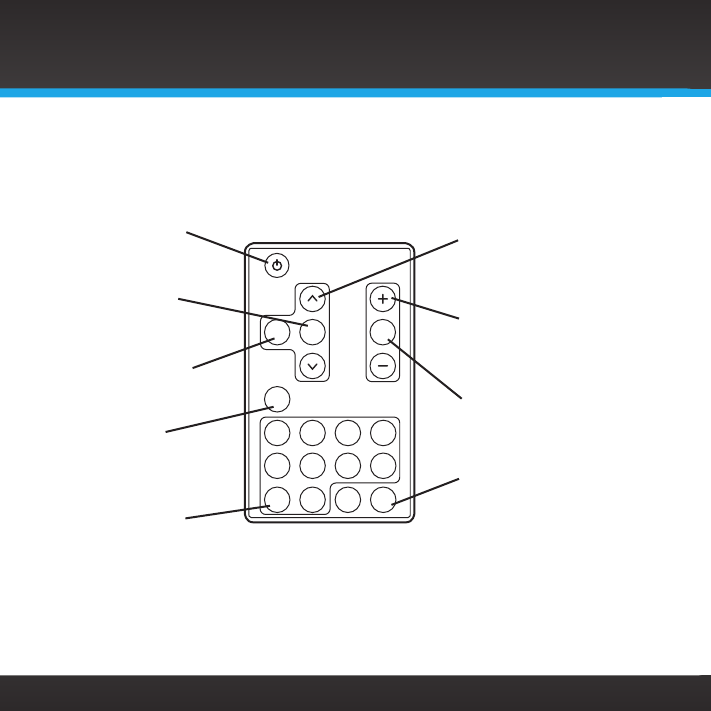
Rear Compartment
Wired Ethernet Connector
Line Out Connector
Aux In Connector
Headphone Connector
Wireless Antenna
12
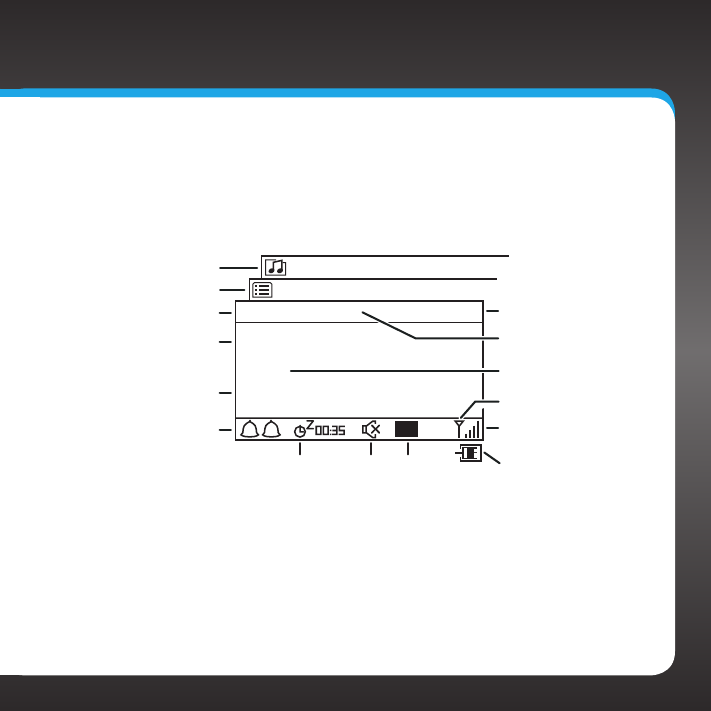
Remote Control
Introduction
MENU
MUTEBACK OK
ALARM
1ALARM
2
2341
6785
09
Power Button
Turn Radio On and Off.
OK Button
Press to select channel
list and menu items.
BACK Button
Press to return back to
the previous display
screen.
MENU Button
Press to access or exit
advanced features and
configuration options.
0-9 Number Buttons
Set and select channel
presets or directly enter
channel numbers.
Arrow Buttons
Press to scroll through lists;
also highlight menu options.
+/— Buttons
Press to increase or
decrease the audio volume.
MUTE
Press to silence the audio.
ALARM 1 / ALARM 2
Press to turn the respective
alarm clock On or Off;
pressing and holding
displays the alarm settings.
13
Display Screen
When using the SiriusXM TTR1 Radio, information about songs and artists, and
Radio functions are displayed.
Category or Channel
List Screen
Phish
First Tube
Jam_ON
SiriusXM 017 5:23PM
Main Display Screen
Menu Options Screen
Channel Name
Artist Name or
Talk Show Host
Song Title or
Talk Show Schedule
Alarm 1/2 On Indicator
Preset
Number
(Favorites)
Audio is
Muted
Alarm
Snooze
Countdown
Current Time
Channel Number
Network Connection
Type (wired)
Network Connection
Type (wireless)
Signal Strength
(wireless)
1 2
P
1

14

15
Installation
16
Introduction
The SiriusXM TTR1 Radio allows you to listen to all of the channels on your
SiriusXM Internet Radio subscription package using either a wireless Internet
connection (Wi-Fi), or using a wired Ethernet connection.
You must be subscribed to SiriusXM Internet Radio to use the SiriusXM TTR1
Radio. You can add this service to your existing Sirius or XM subscription, or
subscribe only to the SiriusXM Internet Radio service.
IMPORTANT! If you had previously subscribed to Premium XM Radio Online, you
will need to change your password before using the SiriusXM TTR1 Radio. To
change your password, go to https://care.siriusxm.com, select, Take me to:
Manage My Account, and click Log In. Then click the EDIT button to change your
password. Also, if your user name is less than 6 or greater than 20 characters,
you will need to change it to be between 6 and 20 characters.
To subscribe to SiriusXM Internet Radio, go to siriusxm.com/internetradio or call
866-635-2349 to subscribe. When subscribed, you will be provided with your
account user name and password.
Once you have subscribed, verify that you are subscribed to the service by
listening online:
• Go online to siriusxm.com/internetradio. Click on the Listen Online link,
enter your username and password, and click Log In & Listen Now. If you
can listen, then you are subscribed to SiriusXM Internet Radio.
Close the browser window to exit the player before continuing.
The SiriusXM TTR1 Radio supports a wireless Internet connection through any
standard 802.11b/g access point. This includes wireless networks which are WEP/
WPA/WPA2 protected and require a password, and wireless networks where the
network name (SSID) is hidden. Once you have connected to a wireless network,
the Radio will remember your network settings so you will not have to enter the
Installation

17
information again, unless you perform a reset of the Radio to the factory
defaults.
Step 1: Connect to a Network
The Network Wizard feature is the easiest way to connect to a wireless
network. It searches for available wireless networks and displays a list of
wireless networks found for you to select. However, if your wireless network
name (SSID) is hidden, or if your network is DHCP disabled, you’ll have to
manually enter the network settings rather than using the Network Wizard.
Decide whether you will be using a wireless network connection, or a wired
network connection, and whether you can use the Network Wizard or if you’ll
need to manually configure your network settings. Complete the instructions
in the appropriate section:
Connect to a WIRELESS network using the NETWORK WIZARD (page 18).
Connect to a WIRED network using the NETWORK WIZARD (page 21).
Connect to a WIRELESS network using MANUAL settings (page 66).
Connect to a WIRED network using MANUAL settings (page 71).
18
To connect to a wireless network using the Network Wizard
If the wireless network is secured, you’ll need to enter the key (password) for the
wireless network during the connection procedure. If you don’t know the password,
contact your network administrator of the person who setup the wireless network.
a. If you have just turned your SiriusXM TTR1 Radio on for the first time, the
SSID screen will already be displayed. Skip ahead to step e.
b. Press MENU and turn the TUNE knob to highlight System Setup. Press
the TUNE Knob.
c. Turn the TUNE knob to highlight Network. Press the TUNE Knob.
d. Press the TUNE Knob to select Network Wizard.
e. The Radio will scan for wireless networks and return with a list of
wireless networks which were found. (A
sample screen is shown here. Your actual
wireless network name will appear in
the list, if found.) Turn the TUNE knob
to highlight your wireless network and
press the TUNE knob. If you don’t know
the network name, contact your network
administrator of the person who set up the
wireless network.
f. If you choose an unsecured network, and
the Radio is able to connect to the wireless
network, the Connected screen will be
displayed and the Radio will connect to the
Installation
Connected
Connected
[Wired]
Your_Network_Name
Other_Network_Name
[Rescan]
[Manual config]
SSID
19
wireless network. Skip to step h.
If you choose a network that is secured, you will be prompted
to enter the key (password). If you don’t know the password,
contact your network administrator of the person who setup the
wireless network. Remember that the key is case sensitive. Turn
the TUNE knob to scroll through the
list of characters and highlight each
character. Press the TUNE knob to
select the highlighted character and
move to the next character. If you
make a mistake, press BACK, or turn
the TUNE knob to highlight BKSP and
press the TUNE knob to erase the
character.
g. When the key has been entered, turn the TUNE knob to scroll to
highlight OK and press the TUNE knob. If you have entered the
correct key, and the Radio is able to
connect to your wireless network, the
Connected screen will be displayed. If
you have entered the wrong key, the
Incorrect key screen is displayed, and
you will be prompted to enter the key
again.
h. If you are installing your SiriusXM TTR1 Radio for the first time,
continue with “Step 2: Enter Your SiriusXM Account Information”
on page 23.
Key:
BKSP
OK
CANCEL
0123456789., ab
cdefghijklmnopq
rstuvwxyzABCDEF
GHIJKLMNOPQRSTU
Incorrect
key
20
If you have previously entered your Sirius or XM user name and
password into the Radio, and had tuned to a channel, the screen will
show Connecting. When successfully connected, the Buffering... screen
will be displayed as the channel information is streamed to the Radio.
When complete, you are returned to the main display screen and you
should hear the audio playing. Otherwise, the Category Tune screen is
displayed.
Installation
Connecting.
/
SIRIUS XM Hits 1
SiriusXM 3:13PM
Buffering...
/
SIRIUS XM Hits 1
SiriusXM 001 3:14PM
21
To connect to a wired network using the Network Wizard:
a. At the rear of the Radio, remove the compartment cover and
connect an Ethernet cable to the Ethernet connector on the inside
left of the compartment. Refer to “Wired Ethernet Connector”
on page 11 for the location of the Ethernet connector. Replace the
compartment cover.
b. Connect the other end of the Ethernet cable to your home’s wired
network.
c. If you have turned your SiriusXM TTR1 Radio on for the first time, the
SSID screen will already be displayed. Skip ahead to step g.
d. Press MENU and turn the TUNE knob to highlight System Setup.
Press the TUNE Knob.
e. Turn the TUNE knob to highlight
Network. Press the TUNE Knob.
f. Press the TUNE Knob to select
Network Wizard.
g. The Radio will scan for networks.
When the scan is complete, turn the
TUNE knob to highlight [Wired] and
press the TUNE knob.
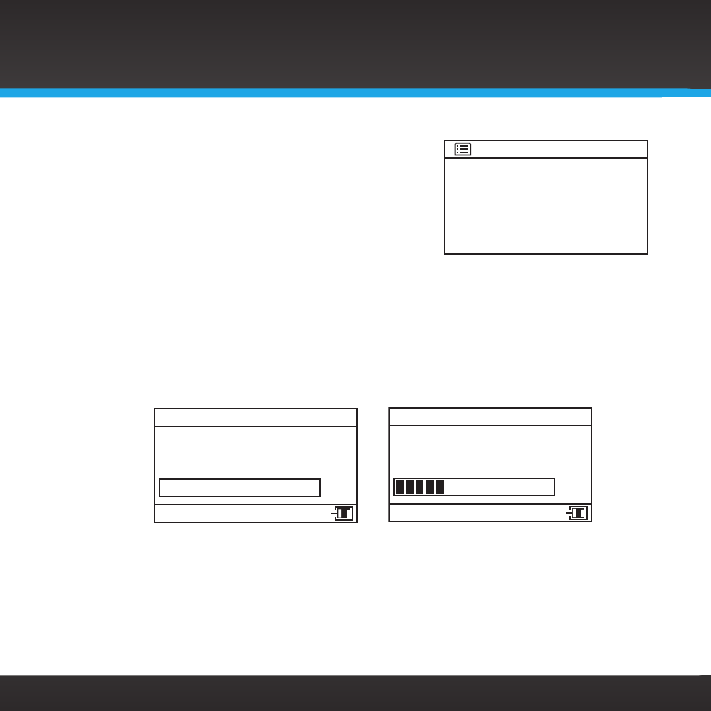
h. If the Radio is able to connect to your
network, the Connected screen will
be displayed. If Waiting for Ethernet
Connected
Connected
[Wired]
Some_Network_Name
Other_Network_Name
[Rescan]
[Manual config]
SSID
22
is displayed, check the Ethernet cable
connections.
i. If you are installing your SiriusXM TTR1
Radio for the first time, continue with
“Step 2: Enter Your SiriusXM Account
Information” on page 23.
If you have previously entered your Sirius or XM user name and
password into the Radio, and had tuned to a channel, the screen will
show Connecting. When successfully connected, the Buffering... screen
will be displayed as the channel information is streamed to the Radio.
When complete, you are returned to the main display screen and you
should hear the audio playing. Otherwise, the Category Tune screen is
displayed.
Installation
Waiting for
Ethernet
Network settings
Buffering...
/
SIRIUS XM Hits 1
SiriusXM 001 3:14PM
Connecting.
/
SIRIUS XM Hits 1
SiriusXM 3:13PM

23
Step 2: Enter Your SiriusXM Account Information
The SiriusXM TTR1 Radio needs your account user name and password to
connect to SiriusXM Internet Radio. If are not yet subscribed to the SiriusXM
Internet Radio, go to siriusxm.com/internetradio or call 866-635-2349 to
subscribe, and get your user name and password.
IMPORTANT! If you had previously subscribed to Premium XM Radio Online,
you will need to change your password before using the SiriusXM TTR1
Radio. To change your password, go to https://care.siriusxm.com, select,
Take me to: Manage My Account, and click Log In. Then click the EDIT
button to change your password. Also, if your user name is less than 6 or
greater than 20 characters, you will need to change it to be between 6 and
20 characters.
To enter your account information:
a. Turn on the Radio by pressing the
Power button.
b. Press MENU and turn the TUNE knob
to highlight SiriusXM Setup. Press
the TUNE knob.
c. Turn the TUNE knob to highlight User
name. Press the TUNE knob.
d. Turn the TUNE knob to scroll through
the list of characters and highlight
each character for your user name.
Press the TUNE knob to select the
highlighted character and move to the
User name
BKSP
OK
CANCEL
0123456789 abcd
efghijklmnopqrs
tuvwxyzABCDEFGH
IJKLMNOPQRSTUVW
Category Tune
SiriusXM Setup
Audio Settings
Parental control
System Setup
>
>
>
SiriusXM
24
next character. If you make a mistake, press BACK, or turn the TUNE
knob to highlight BKSP and press the TUNE knob to erase the character.
e. When you have entered your user name, turn the TUNE knob to scroll to
highlight OK and press the TUNE knob.
f. You will then be prompted to enter your password. Enter your password
in the same way as you entered your user name and then select OK.
Note that the password is case sensitive.
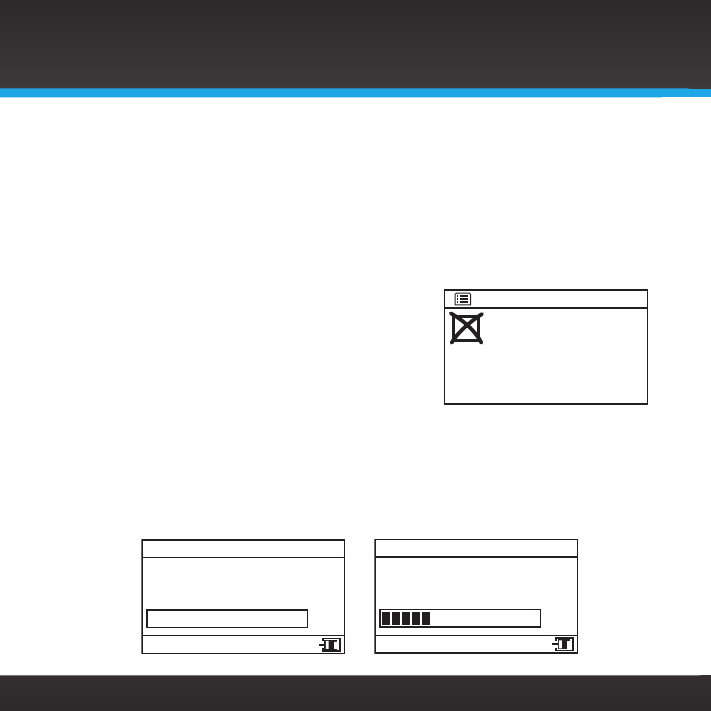
g. The Radio will attempt to connect to the
SiriusXM Internet Radio service. If the
user name and password you entered
is incorrect, the Login failed screen will
be displayed. You’ll have to re-enter the
correct user name and password.
If you have previously connected to a network, and had tuned to a
channel, the screen will show Connecting. When successfully connected,
the Buffering... screen will be displayed as the channel information is
streamed to the Radio. When complete, you are returned to the main
display screen and you should hear the audio playing. Otherwise, the
Category Tune screen is displayed.
Login failed
Go to SiriusXM setup
SiriusXM
Installation
Buffering...
/
SIRIUS XM Hits 1
SiriusXM 001 3:14PM
Connecting.
/
SIRIUS XM Hits 1
SiriusXM 3:13PM

25
Using Your SiriusXM TTR1 Radio
26
Using Your SiriusXM TTR1 Radio
Navigation Basics
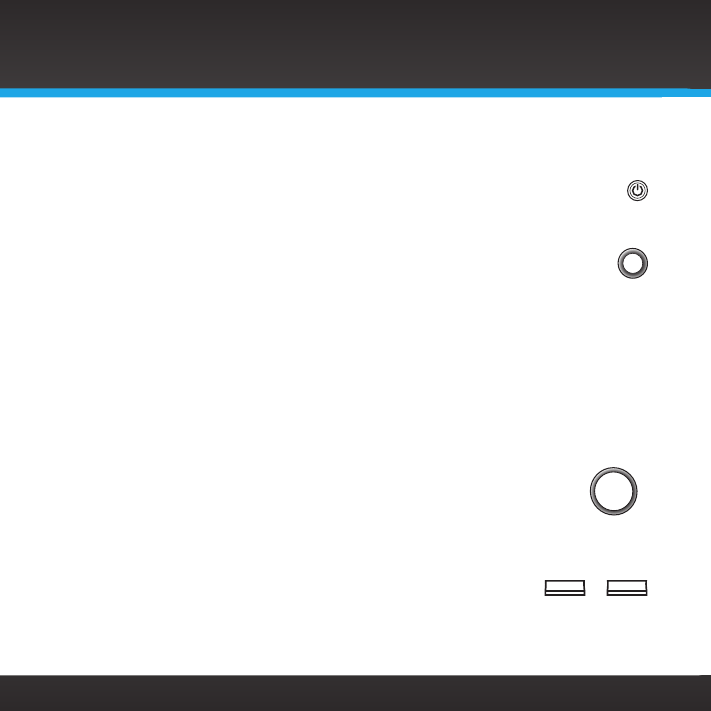
Power Button
The Power button turns the SiriusXM TTR1 Radio On or Off.
Tune Knob
The TUNE knob is multifunction— you can turn it clockwise or counter-
clockwise, and press it.
• Turn: Turning the TUNE knob when at the main display screen displays the
Category tune screen. When in menus or user input screens, turning the
TUNE knob scrolls up or down through menus and user choices.
• Press and Release: Pressing the TUNE knob at the default display screen
displays the Direct tune screen. When in menus or user input screens,
pressing the TUNE knob selects a highlighted item.
• Press and Hold: pressing and holding the TUNE knob displays the Parental
control menu options.
VOL Knob
Turning the VOL knob clockwise or counter-clockwise increases or
decreases the volume of the audio. When turned counter-clockwise it will mute the
audio when zero is reached.
Number Buttons 0-9
The number buttons are used to store favorite channels in a button location so you
can tune a channel just by pressing the button. They can also be used to enter the
channel number when at the Direct tune screen.
TUNE
VOL
10
...
27
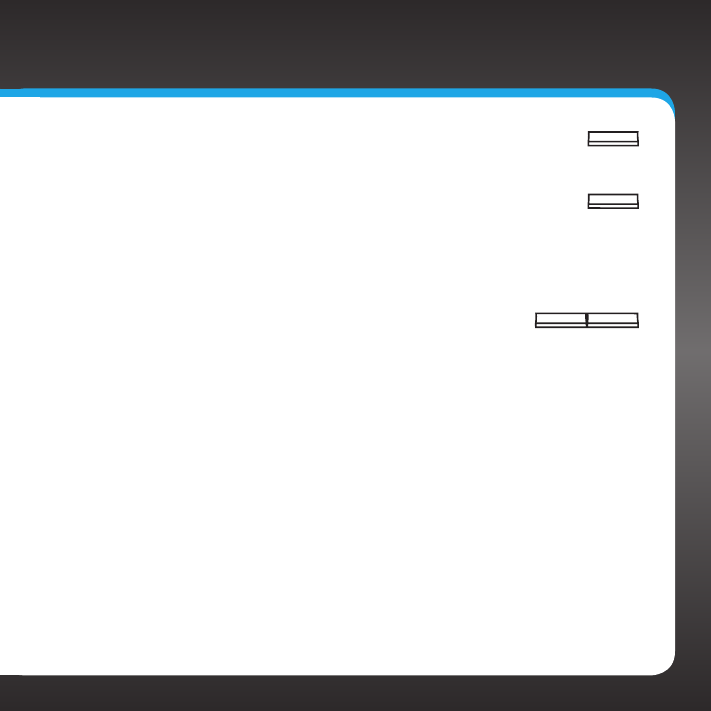
BACK Button
The BACK button returns back to the previously displayed screen.
MENU Button
Pressing the MENU button from the main display screen accesses the
advanced features and configuration options menu, where you can browse the
channel categories and channels, and change the Radio settings. Pressing it
when in the configuration options menu returns the Radio to the main display
screen.
ALARM 1 / ALARM 2 Buttons
Pressing the ALARM button turns the respective alarm clock function On or
Off. Pressing and holding the ALARM button displays the respective alarm
setup screen where you can configure the options for each alarm.
Snooze / Sleep Button
When the alarm clock is sounding, pressing the Snooze/Sleep button will silence
the alarm for 5 minutes. Each additional immediate press of the Snooze/
Sleep button increases the snooze time for 10, 15, 30, 45 or 60 minutes. While
snoozing, the snooze countdown time is displayed on the display screen.
While the Radio is playing, pressing the Snooze/Sleep button enters the sleep
mode. The first press displays Sleep OFF, and each immediate additional
press sets the sleep time for 5, 10, 15, 30, 45 or 60 minutes.
While in snooze or sleep mode, the countdown time is displayed on the display
screen. You can also check and change the remaining snooze/sleep time by
pressing the Snooze/Sleep button. To increase the sleep or snooze time,
repeatedly press the Snooze/Sleep button until the desired sleep/snooze time
is displayed.
ALARM 1ALARM 2
BACK
MENU
28
Listening to SiriusXM Internet Radio
Tune a Channel:
1. Press MENU.
2. Press the TUNE knob to select Category
Tune.
3. Press the TUNE knob to select All
Channels to browse through all the
channels, or turn the TUNE knob to highlight a category. Press the
TUNE knob to select the category.
4. Turn the TUNE knob browse through the channels, and highlight a
channel to tune. Press the TUNE knob to tune the channel. The Radio
will momentarily tune the channel.
TIP! Go to siriusxm.com/channellineup or for the latest SiriusXM Internet Radio
channel lineup.
View a Category:
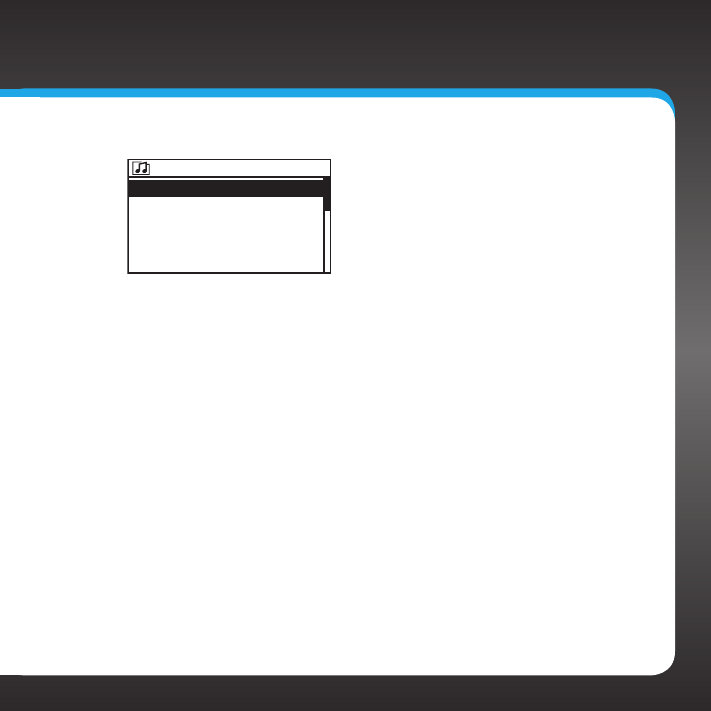
Channels are organized into categories to make it
easier for you to find the ones that suit your taste.
1. To view the categories press MENU.
2. Press the TUNE knob to select Category
001-SIRIUS XM Hits 1
002-The Blend
003-SIRIUS XM Love
004-40s on 4
005-50s on 5
All channels
All Channels
Pop
Rock
Dance/Electronic
Hip-Hop/R&B
>
>
>
>
>
Category Tune
Using Your SiriusXM TTR1 Radio
29
Tune.
3. Turn the TUNE knob
to browse through and highlight a
category.
4. Press the TUNE knob
to select the category and view the
channels in the category.
Returning to Main Display Screen
When in the advanced features and configuration options menu, pressing
MENU will return you to the main display screen.
001-SIRIUS XM Hits 1
002-The Blend
003-SIRIUS XM Love
004-40s on 4
005-50s on 5
Pop
30
Using Your SiriusXM TTR1 Radio
Direct Tune
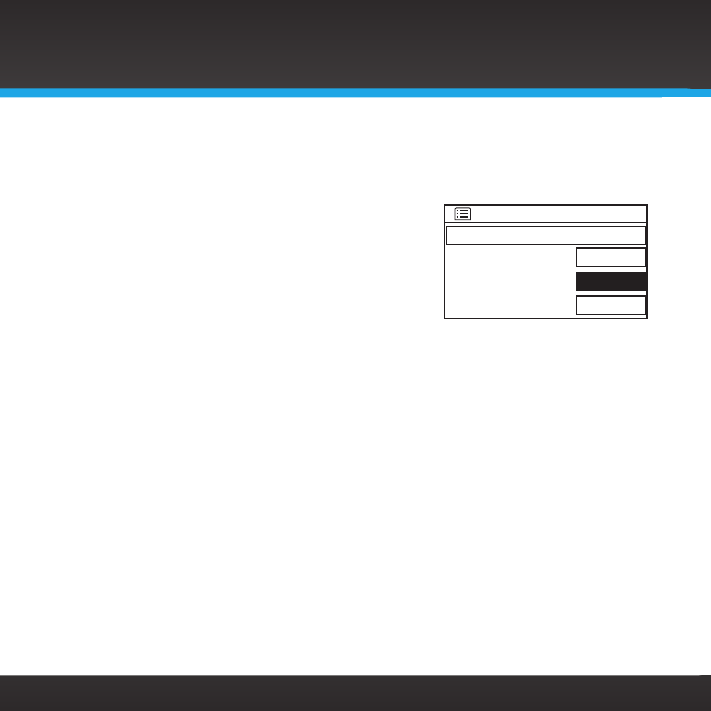
A channel can be tuned directly by entering the channel number.
1. From the main display screen, press the
TUNE button.
2. Use the 0-9 number buttons on the Radio
or Remote Control to enter the channel
number. If you make a mistake, press
BACK, or turn the TUNE knob to highlight
BKSP and press the TUNE knob erase the
character.
3. When the channel number is entered, turn the TUNE knob to highlight
OK. Press the TUNE knob to tune the channel.
Direct Tune
BKSP
OK
CANCEL
31
Favorite Channels
You can assign up to 10 of your favorite channels to a number button (0-9) so
you can easily tune them.
To assign a favorite channel to a number button:
1. Tune to the channel you want as a
favorite.
2. Press and hold a number button (0-9)
for one second to assign the channel as
a favorite (preset) to that button.
IMPORTANT! If the button you choose already has a favorite channel
assigned to it, it will be replaced with the new favorite channel.
To tune a favorite channel:
1. Press the number button 0-9 that is assigned to the favorite
channel. The channel will momentarily be tuned.
Preset stored
32
Alarm Clock
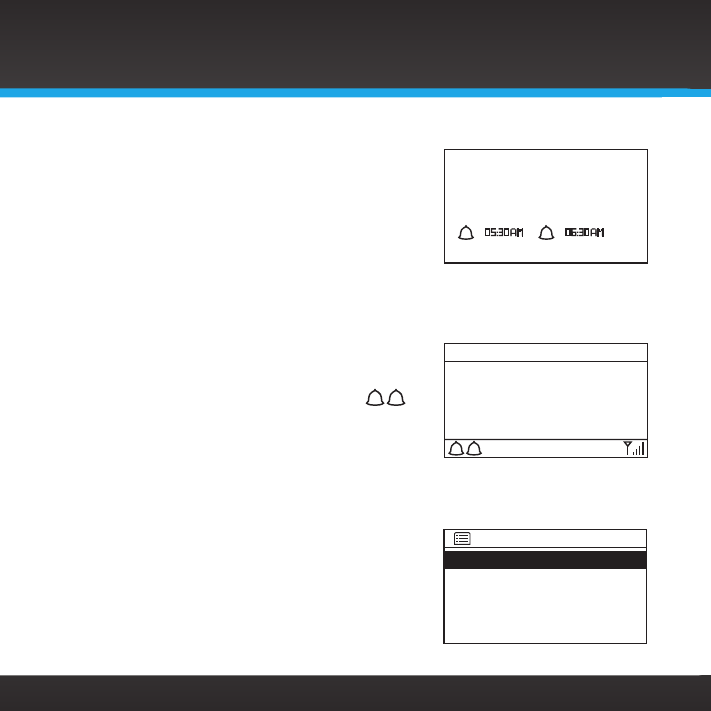
Your SiriusXM TTR1 Radio has two alarm clocks which
can be configured according to your liking. When the
Radio is off, and the alarm(s) are on, the times of each
alarm are displayed on the screen.
Before you configure the alarm clock, refer to “Clock
Setup” on page 53 and ensure that the Time Zone and
Daylight Savings Time are set correctly.
To turn the alarm clocks On or Off:
1. Press the ALARM 1 or ALARM 2 button
to toggle the alarms On or Off. If the
alarm(s) are On, the alarm icon(s) 1 2 will
be displayed in the lower left of the main
display screen.
To configure an alarm clock:
1. Press MENU. You can also press and hold the alarm button that you want
to configure to go directly to the alarm
configuration (go to step 4).
2. Turn the TUNE knob to scroll to and
highlight System Setup. Press the TUNE
knob.
3. Turn the TUNE knob to scroll to and
highlight Alarms. Press the TUNE knob.
Michael Bolton
That’s What Love Is All A
SIRIUS XM Love
SiriusXM 007 6:49PM
1 2
Alarm 1: On [6:30AM]
Alarm 2: Off [8:00AM]
Alarms
Using Your SiriusXM TTR1 Radio
AM
4:54
1 2

33
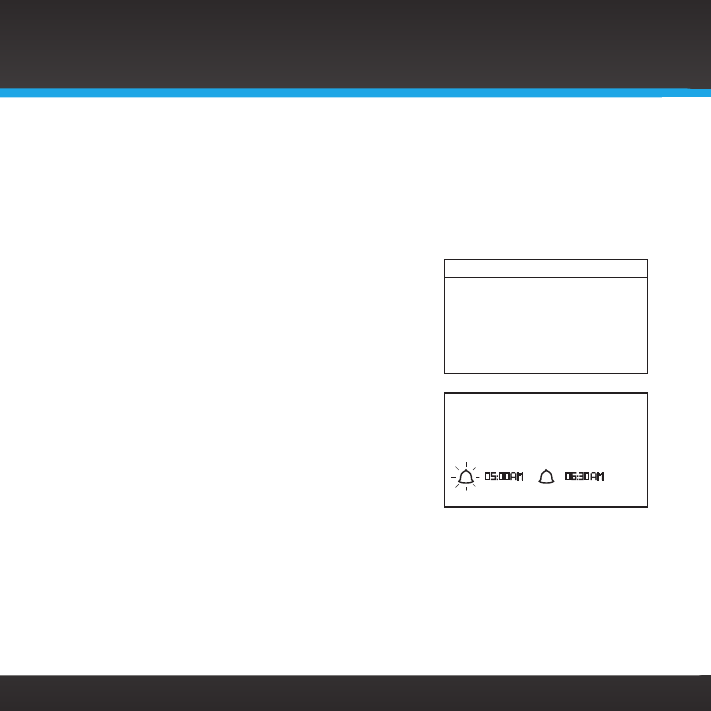
4. The Alarms screen summarizes each alarm clock setting. To
configure an alarm, turn the TUNE knob to scroll to and highlight
Alarm 1 or Alarm 2. Press the TUNE knob.
5. Each alarm has 5 configuration options which are summarized in
the following table at the beginning of this section. To change an
option, turn the TUNE knob to scroll to and highlight the option.
Press the TUNE knob to configure the option.
Enable Off
Daily
Once
Weekends
Weekdays
Time 12:00 AM - 11:59 PM
Wake to SiriusXM
Buzzer
Preset Last listened (last channel tuned)
Any favorite channel (1 - 10)
Volume 1 - 20
6. Turn the TUNE knob to scroll to and highlight a setting for each
option. Press the TUNE knob to select the setting. Continue until
you have configured all the options for
the alarm.
7. When you are done, press Alarm 1 or
Alarm 2, or any button, to save the
alarm setting.
Alarm
Saved
Enable: Daily
Time: 6:30AM
Wake to: SiriusXM
Preset: Last listened
Volume: 5
Alarm 1
34
Using Your SiriusXM TTR1 Radio
Snooze
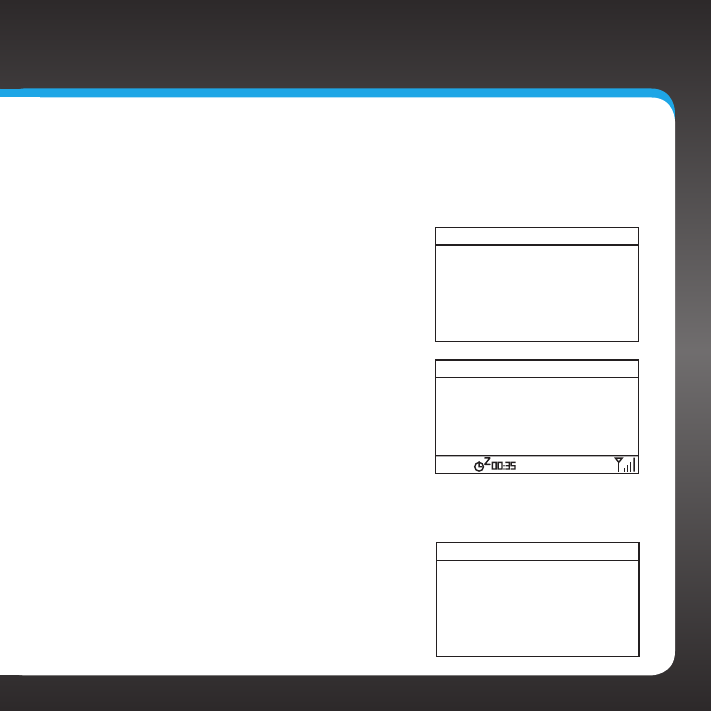
When the alarm sounds, pressing the Sleep/Snooze button will silence the alarm
for a period of time. After the snooze time elapses, the alarm will sound again.
To snooze:
1. Press the Snooze/Sleep button on the
top of the Radio. The Radio will display a
snooze time of 05 minutes.
2. Each immediate subsequent press of the
Snooze/Sleep button increases the snooze
time to 10, 15, 30, 45, or 60 minutes.
3. For the snoozing alarm, a countdown timer
is displayed showing how many minutes
are remaining before the alarm sounds
again. The alarm icon will also blink for the
snoozing alarm.
4. You can also check and change the
remaining snooze time by pressing the
Snooze/Sleep button. To increase the snooze time, repeatedly press the
Snooze/Sleep button until the desired snooze time is displayed.
05 minutes
Set snooze time
AM
5:30
21
35
Sleep Timer
The sleep timer turns the Radio off after a period of time as you fall asleep.
The time can be set to turn the Radio off after 5, 10, 15, 30, 45, or 60 minutes.
To turn the sleep timer On:
1. Press the Snooze/Sleep button on
the top of the Radio. The Radio will
display a sleep time of 05 minutes.
2. Each subsequent press of the Snooze/
Sleep button increases the sleep time
to 10, 15, 30, 45, or 60 minutes.
3. A countdown timer is displayed at the
bottom of the screen showing how
many minutes are remaining before
the Radio turns off.
4. You can also check and change the
remaining sleep time by pressing the Snooze/Sleep button. To
increase the sleep time, repeatedly press the Snooze/Sleep button
until the desired sleep time is displayed.
To turn the sleep timer Off:
1. Repeatedly press the Snooze/Sleep
button on the top of the Radio until
Off is displayed.
05 minutes
Set sleep time
Eric Clapton & B.B. King
Key to the Highway
Deep Tracks
SiriusXM 016 3:21PM
Sleep OFF
Set sleep time

36
Using Your SiriusXM TTR1 Radio
Parental Control
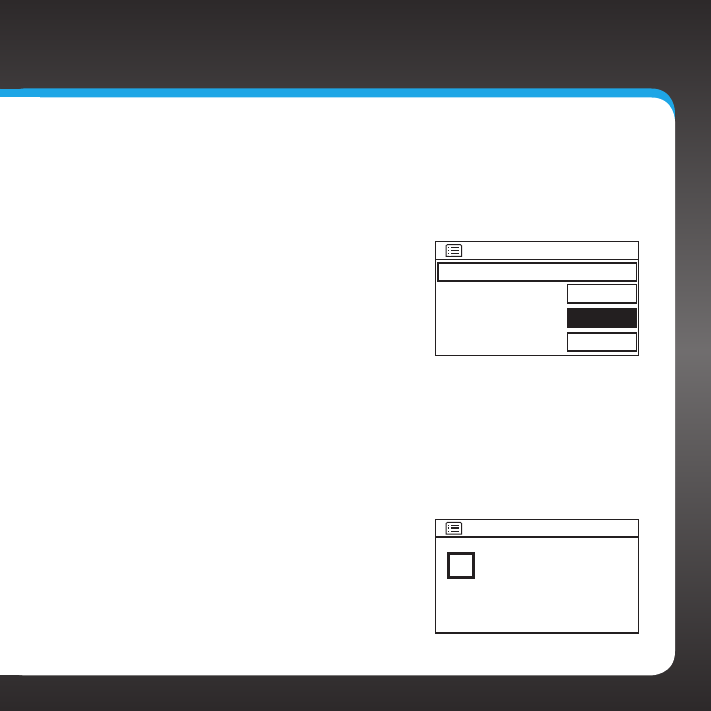
Your SiriusXM TTR1 Radio has a parental control feature which will allow you to
lock access to channels. A 4-digit code controls access to the locked channel or
locked category.
When you browse a category, the locked channel will
have an L displayed to the right of the channel name.
If you attempt to tune to a locked channel, either by
using direct tune or through the category list, you’ll be
prompted to enter your 4-digit code. When the correct
code is entered, you’ll be able to tune to the channel.
All locked channels become unlocked and will remain unlocked until you turn the
Radio Off, and back On.
If the Radio is turned off while listening to a locked
channel, the next time you turn the Radio on, you will
be prompted to enter your lock code. If you cancel, and
do not enter your lock code, the channel will display
Parental locked.
To change the parental lock code:
The SiriusXM TTR1 Radio has a default lock code of 1111. The first time you change
the lock code, you’ll need to enter this code during the procedure.
1. Press MENU. You can also press and hold the TUNE knob to go directly
to parental control (go to step 3).
2. Turn the TUNE knob to scroll to and highlight Parental control. Press
the TUNE knob.
100-Howard 100
101-Howard 101
102-SIRIUS XM Stars
103-Blue Collar Radio
104-Raw Dog Comedy
L
L
L
Lock channels
Parental locked
Howard 101
SiriusXM 101 11:14AM
1
37
3. Turn the TUNE knob to highlight Change lock code. Press the
TUNE knob.
4. You will be prompted to enter the original lock code. If this is the
first time you are changing the lock code, enter 1111, otherwise
enter your existing lock code. Use the 0-9 number buttons on the
Radio or Remote Control to enter the
lock code. If you make a mistake, turn
the TUNE knob to highlight BKSP and
press the TUNE knob to erase the
character. When you have selected all
4 digits of your code, turn the TUNE
knob to highlight OK and press the
TUNE knob.
5. You will be prompted to enter the new code. Enter the new code
you desire in the same way. When you have selected all 4 digits
of your code, turn the TUNE knob to highlight OK and press the
TUNE knob.
6. You will be prompted to enter the new code again. Enter the new
code again in the same way. When you have selected all 4 digits
of your code, turn the TUNE knob
to highlight OK and press the TUNE
knob.
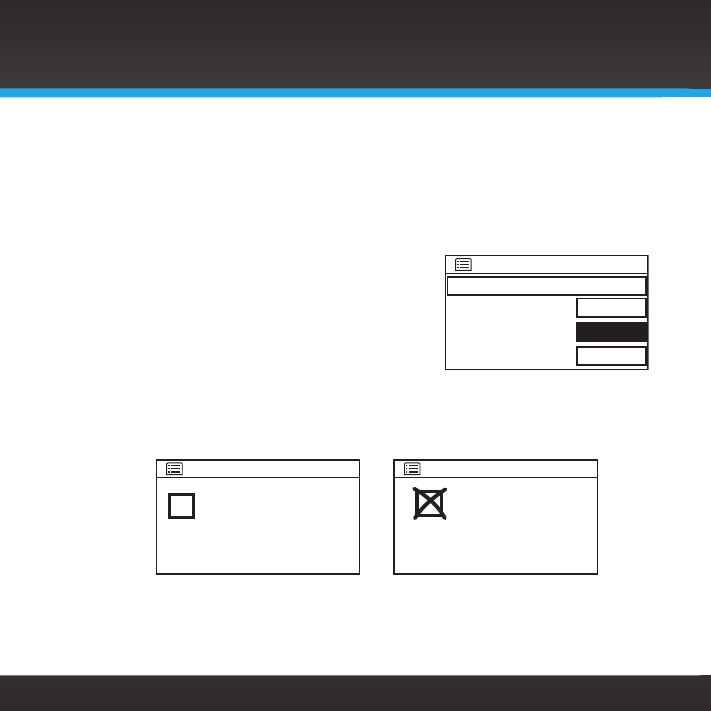
7. If you have entered your new code
correctly, New Code Saved will be
displayed.
8. Press MENU to exit.
Enter orginal code
BKSP
OK
CANCEL
New code saved
Category Tune
38
Using Your SiriusXM TTR1 Radio
To turn Parental control Off:
1. Press and hold the TUNE knob.
2. Lock/Unlock will be highlighted. Press the TUNE knob.
3. You will be prompted to enter your 4-digit lock code. Use the 0-9
number buttons on the Radio or Remote
Control to enter the lock code. If you make
a mistake, turn the TUNE knob to highlight
BKSP and press the TUNE knob to erase
the character. When you have selected all
4 digits of your code, turn the TUNE knob
to highlight OK and press the TUNE knob.
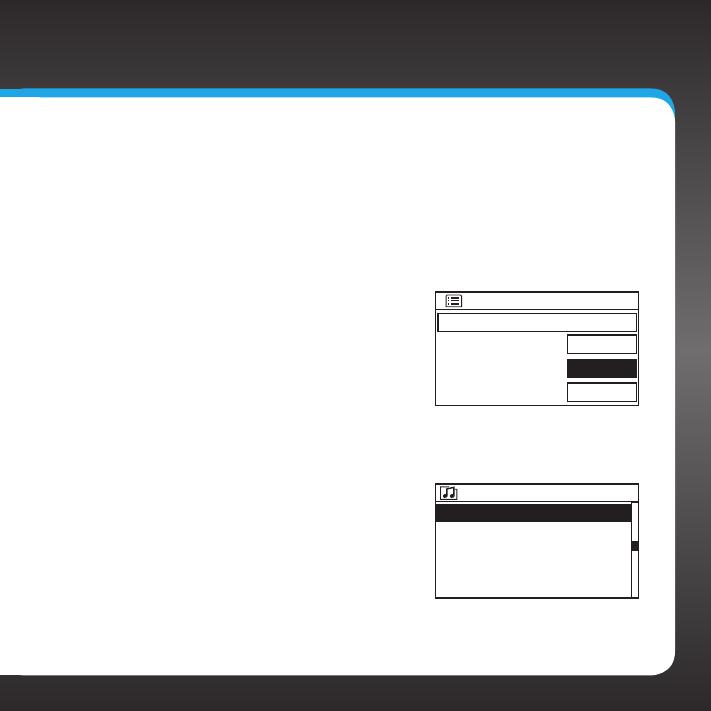
4. If you have entered the correct code, the parental lock is turned off. If
you entered an incorrect code, Parental lock code mismatch message
will be displayed, and the channels will remain locked.
Enter lock code
BKSP
OK
CANCEL
Parental lock is offParental lock code
mismatch
Category Tune
SiriusXM
39
To lock or unlock channels:
1. Press and hold the TUNE knob.
2. Turn the TUNE knob to scroll through the list and highlight Lock
channels. Press the TUNE knob.
3. If parental control is On (locked), you will be prompted to enter
your 4-digit code, otherwise skip to step 4. Use the 0-9 number
buttons on the Radio or Remote
Control to enter the lock code. If you
make a mistake, turn the TUNE knob
to highlight BKSP and press the
TUNE knob to erase the character.
When you have selected all 4 digits of
your code, turn the TUNE knob to
highlight OK and press the TUNE knob.
4. When you have successfully unlocked parental control, a list of all
the channels will be displayed. Turn
the TUNE knob to scroll through the
list and highlight a channel that you
wish to lock. Press the TUNE knob
to lock the channel. An L will be
displayed to the right of the channel
name indicating that the channel is
locked.
Enter lock code
BKSP
OK
CANCEL
100-Howard 100
101-Howard 101
102-SIRIUS XM Stars
103-Blue Collar Radio
104-Raw Dog Comedy
L
L
L
Lock channels
40
To unlock a channel, highlight a locked channel and press the TUNE
knob. The L lock indicator will be removed
indicating that the channel is unlocked.
5. Continue to lock or unlock channels until
you are done. When complete, press MENU.
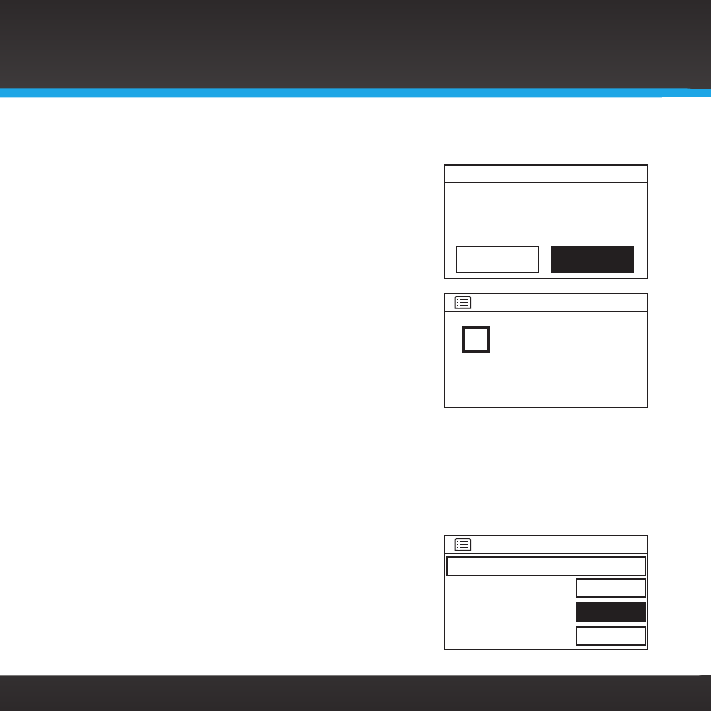
You will be prompted to save the parental
lock list. Turn the TUNE knob to highlight
YES and press the TUNE knob.
6. A confirmation screen will be displayed.
Press MENU to exit.
To listen to a locked channel:
When you tune to a locked channel, the channel will display Parental locked and no
audio will play until you have unlocked the channel.
1. Select the locked channel which will display Parental locked.
2. Press the TUNE knob.
3. Use the 0-9 number buttons on the Radio
or Remote Control to enter the lock code.
If you make a mistake, turn the TUNE knob
to highlight BKSP and press the TUNE
YES No*
Parental lock
Save parental
lock list?
Locked channels
saved
Category Tune
Enter lock code
BKSP
OK
CANCEL
Using Your SiriusXM TTR1 Radio
41
knob to erase the character. When you have selected all 4 digits of
your code, turn the TUNE knob to highlight OK and press the
TUNE knob.
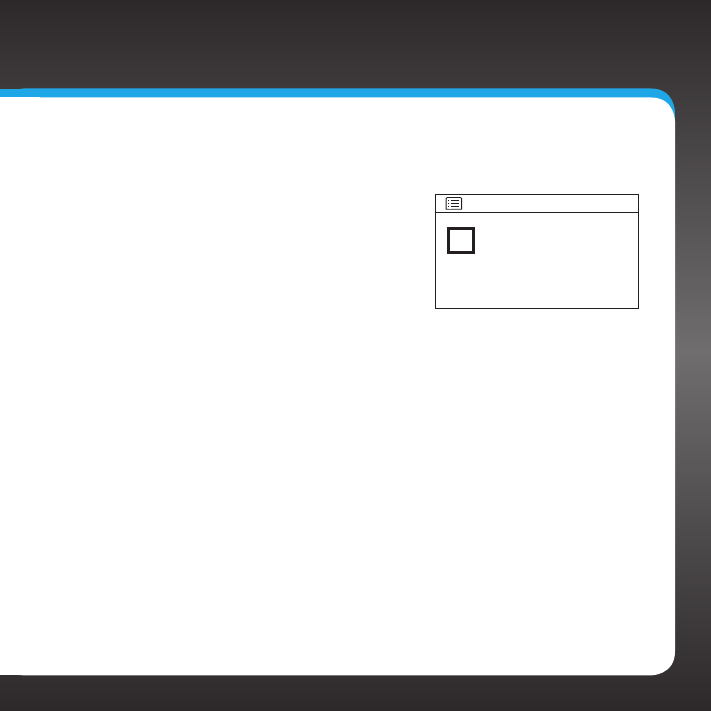
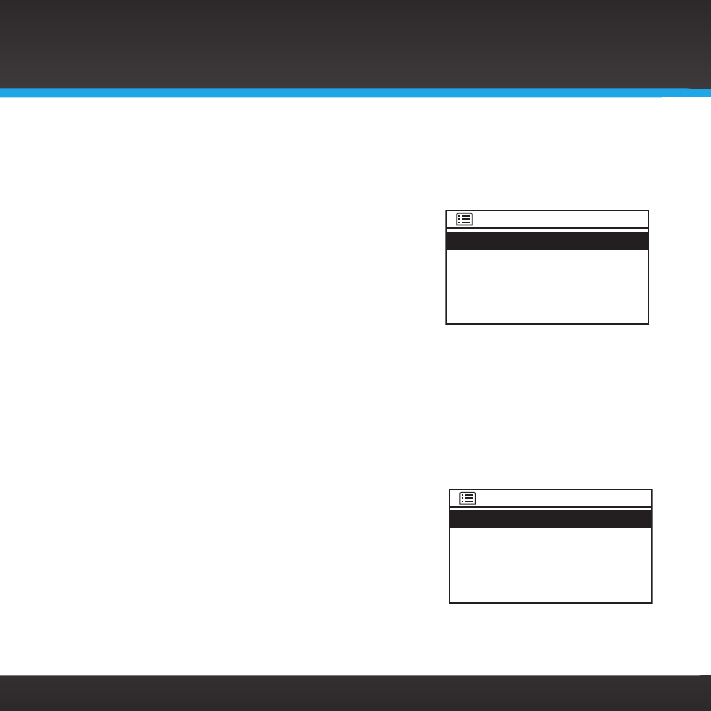
4. If you have entered the correct lock
code, the channel will begin playing.
Once you have unlocked one channel, all locked
channels become unlocked and will remain
unlocked until you turn the Radio Off. The next
time you turn the Radio On, all channels will be
locked.
Parental lock is off
Category Tune
42
Using Your SiriusXM TTR1 Radio
Audio Settings
In the Audio Settings menu option, you can adjust the equalization profile of the
Radio (EQ) to adjust for room acoustics and your listening pleasure. The profiles
for equalization are Flat, Loudness, Bass Boost,
Bright, and Vocal Boost.
Another audio settings adjustment option is
spatialization. Spatialization makes the Radio sound
like it is in a three-dimensional environment. By
default, spatialization is on, but can be turned off.
To change the equalization profile:
1. Press MENU.
2. Turn the TUNE knob to scroll to and highlight Audio Settings. Press the
TUNE knob.
3. Press the TUNE knob to select EQ Profiles.
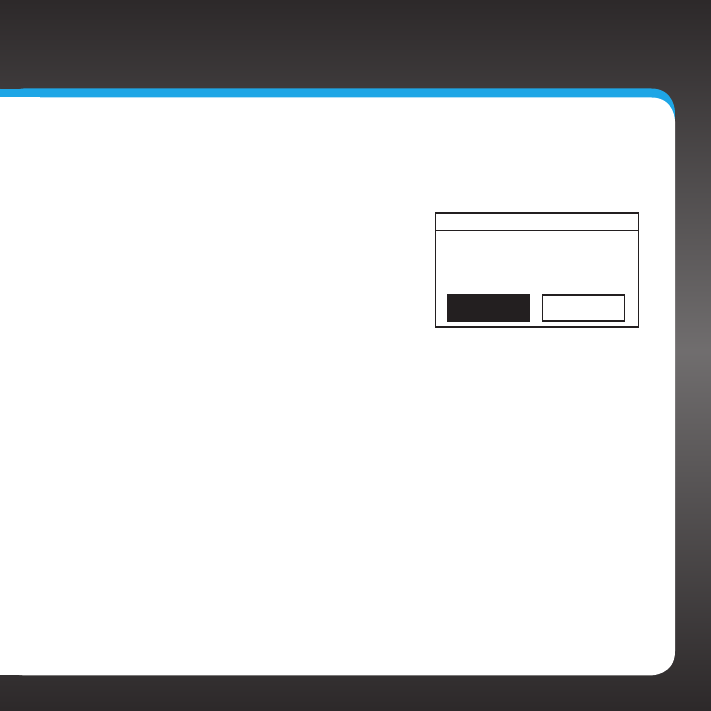
4. The currently selected profile will be
denoted with an asterisk. Turn the
TUNE knob to scroll to and highlight the
equalization profile desired, and press the
TUNE knob. The Radio will change to the
new equalization profile.
5. Press MENU to exit.
EQ Profiles
Spatialization
>
Audio Settings
Flat
Loudness
Bass Boost
Bright
Vocal Boost
*
Audio Settings
43
To turn spatialization on or off:
1. Press MENU.
2. Turn the TUNE knob to scroll to and
highlight Audio Settings. Press the
TUNE knob.
3. Turn the TUNE knob to scroll to and
highlight Spatialization. Press the
TUNE knob.
4. Turn the TUNE knob to highlight ON
or OFF and press the TUNE knob.
5. Press MENU to exit.
OFF
Spatialization
Spatialization
ON*

44

45
Configuring Your SiriusXM TTR1 Radio
46
SiriusXM setup
The SiriusXM Setup menu option allows you to configure your user name and
password for SiriusXM Internet Radio. You can also
check the status of your connection.
If are not yet subscribed to SiriusXM Internet Radio,
go to siriusxm.com/internetradio or call 866-635-
2349 to subscribe, and get your user name and
password.
IMPORTANT! If you had previously subscribed to Premium XM Radio Online, you
will need to change your password before using the SiriusXM TTR1 Radio. To
change your password, go to https://care.siriusxm.com, select, Take me to:
Manage My Account, and click Log In. Then click the EDIT button to change your
password. Also, if your user name is less than 6 or greater than 20 characters,
you will need to change it to be between 6 and 20 characters.
To verify that you are subscribed to the service, listen online:
• Go online to siriusxm.com/internetradio. Click on the Listen Online link,
enter your username and password, and click Log In & Listen Now. If you
can listen, then you are subscribed to SiriusXM Internet Radio.
Close the browser window to exit the player before continuing.
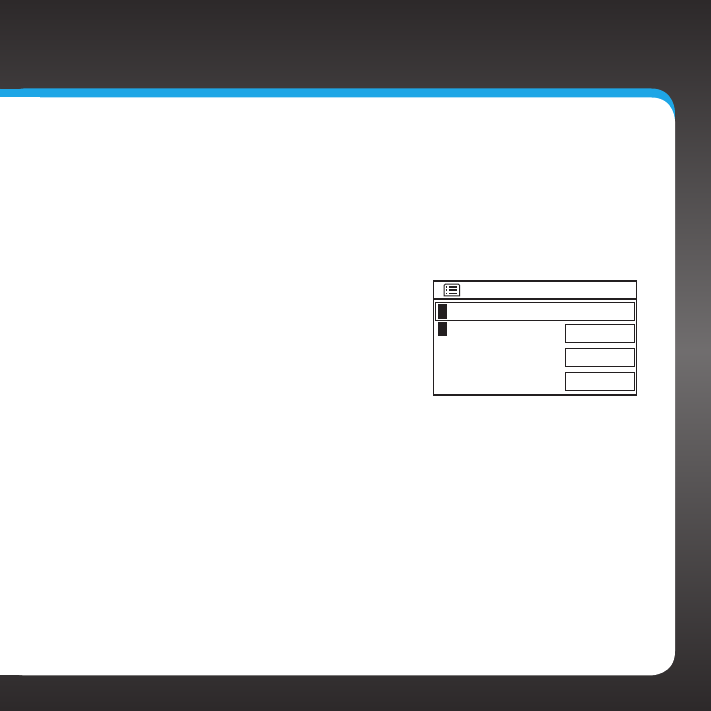
User name
Password
Status
SiriusXM Setup
Configuring Your SiriusXM TTR1 Radio
47
User name and Password
This option allows you to enter your user name and password for SiriusXM
Internet Radio. If for any reason your user name or password should change
after you had entered the information into the Radio, use these procedures to
re-enter your user name and password.
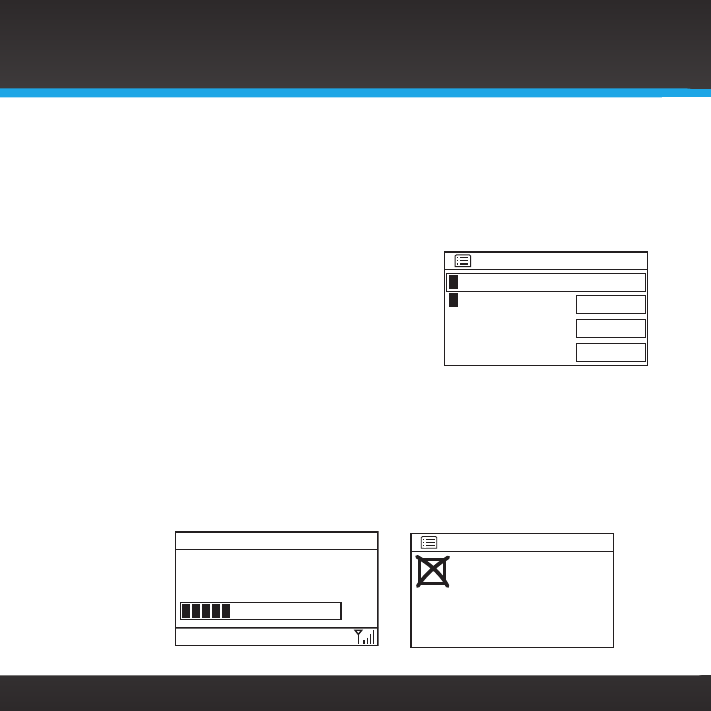
To enter your user name:
1. Press MENU.
2. Turn the TUNE knob to scroll to and
highlight SIRIUS setup. Press the
TUNE knob.
3. User name will be highlighted. Press
the TUNE knob.
4. Turn the TUNE knob to scroll through the list of characters and
highlight each character for your user name. Press the TUNE knob
to select the highlighted character and move to the next character.
If you make a mistake, turn the TUNE knob to highlight BKSP and
press the TUNE knob erase the character.
5. When you have entered your user name, turn the TUNE knob to
scroll to highlight OK and press the TUNE knob.
6. You’ll now be prompted to enter your password. Continue with the
step 4 in next section, and enter your password.
To enter your password:
1. Press MENU.
User name
BKSP
OK
CANCEL
0123456789 abcd
efghijklmnopqrs
tuvwxyzABCDEFGH
IJKLMNOPQRSTUVW
48
2. Turn the TUNE knob to scroll to and highlight SIRIUS setup. Press the
TUNE knob.
3. Turn the TUNE knob to scroll to and highlight Password. Press the
TUNE knob.
4. Turn the TUNE knob to scroll through the list of characters and
highlight each character for your password.
The password is case sensitive. Press
the TUNE knob to select the highlighted
character and move to the next character.
If you make a mistake, turn the TUNE knob
to highlight BKSP and press the TUNE
knob erase the character.
5. When you have entered your user name, turn the TUNE knob to scroll to
highlight OK and press the TUNE knob.
6. The Saved screen will be displayed. If you have correctly entered the
information, the Radio will display the Connecting... and then the
Buffering... screens. If your user name or password is incorrect, the
Login failed screen will be displayed.
Login failed
Go to SiriusXM setup
SiriusXM
Buffering...
/
SIRIUS XM Hits 1
SiriusXM 001 3:14PM
Configuring Your SiriusXM TTR1 Radio
Password
BKSP
OK
CANCEL
0123456789 abcd
efghijklmnopqrs
tuvwxyzABCDEFGH
IJKLMNOPQRSTUVW

49
Configuring Your SiriusXM TTR1 Radio
Status
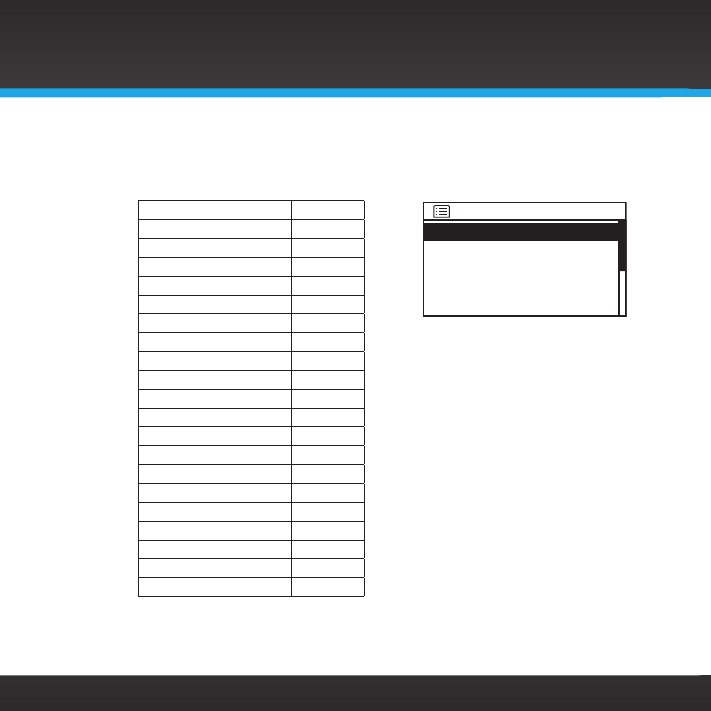
The Status screen shows the current status of your SiriusXM Internet Radio
service, the user name you are using, and the bit rate of your connection.
To display the status:
1. Press MENU.
2. Turn the TUNE knob to scroll to and
highlight SIRIUS setup. Press the
TUNE knob.
3. Turn the TUNE knob to scroll to and
highlight Status. Press the TUNE
knob.
4. The Status screen will be displayed. Press MENU to exit.
Active
User name:
your_user_name
Bit rate:
HIGH
Status
50
System Setup
The System Setup menu option offers the following menu items:
SiriusXM page 51
AUX in page 51
Alarms page 52
Alarm 1: page 52
Alarm 2: page 52
Brightness page 52
Clock Setup page 53
Set Time/Date page 53
Auto Update page 54
Time Zone page 54
Daylight savings page 55
Network page 56
Network wizard page 56
View settings page 57
Manual Settings page 58
Network profile page 58
Factory reset page 60
Software update page 61
Auto-check setting page 61
Check now page 62
Info page 64
Refer to the sections following for each menu option.
SiriusXM
AUX in
Alarms
Brightness
Clock Setup >
System Setup
Configuring Your SiriusXM TTR1 Radio

51
SiriusXM and AUX in
These two menu options select what the Radio will play. SiriusXM selects
SiriusXM Internet Radio to be played, and AUX in selects the auxiliary input
to be played. You can connect a CD or MP3 player to the AUX In connector,
and listen to it.
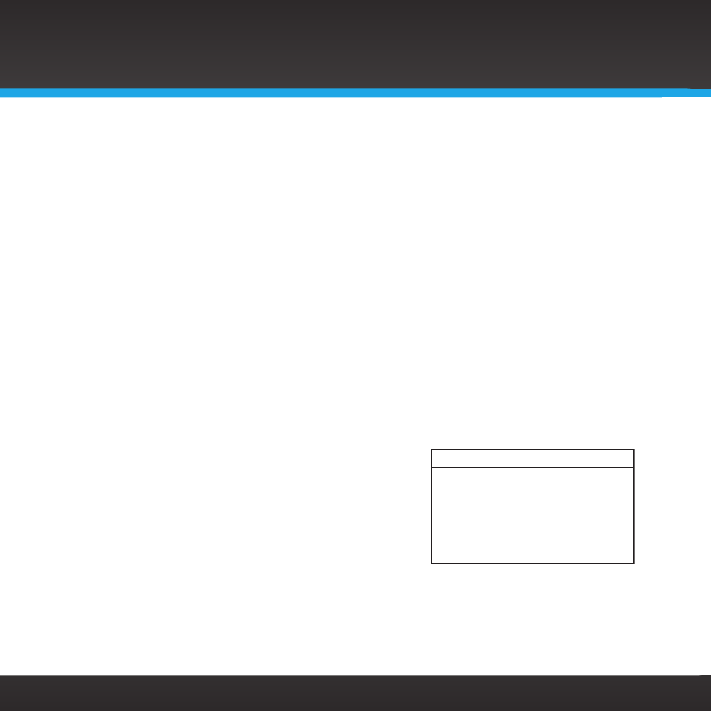
To select auxiliary in to be played:
1. Press MENU.
2. Turn the TUNE knob to scroll to and highlight System Setup. Press
the TUNE knob.
3. Turn the TUNE knob to scroll to and
highlight AUX in. Press the TUNE
knob.
4. The Auxiliary input screen will be
displayed, and the Radio will play the
input from the AUX In connector.
To switch from AUX in to SiriusXM:
1. Press MENU.
2. Turn the TUNE knob to scroll to and
highlight System Setup. Press the
TUNE knob.
3. SiriusXM will be highlighted. Press
the TUNE knob.
4. The Radio will switch back to SiriusXM
and connect to SiriusXM Internet Radio.
Audio In
Auxiliary input 7:14PM
Configuring Your SiriusXM TTR1 Radio
EQ Profiles
System Setup >
AUX in
52
Alarms
Before setting any alarms, refer to “Clock Setup” on page 53 and ensure
that the clock is set correctly, i.e., the Time Zone and Daylight Savings Time are
set correctly for your location. Then refer to “Alarm Clock” on page 32 for
information about the alarm clocks. Refer to “Snooze” on page 34 for more
information about the snooze function.
Brightness
Brightness has four settings to set the brightness of the display screen,
Automatic, High, Medium, and Low. The Automatic setting adjusts the brightness
of the display screen according to the background light in the room, automatically
dimming the display screen the darker the room.
To change the display screen brightness:
1. Press MENU.
2. Turn the TUNE knob to scroll to and
highlight System Setup. Press the TUNE
knob.
3. Turn the TUNE knob to scroll to and
highlight Brightness. Press the TUNE
knob.
4. Turn the TUNE knob to display your desired setting, Automatic, High,
Medium, or Low. Press the TUNE knob to select your setting.
Automatic
Brightness
Configuring Your SiriusXM TTR1 Radio

53
Configuring Your SiriusXM TTR1 Radio
Clock Setup
Clock Setup allows you to change the clock settings:
• Set Time/Date - Change the time and/or
date.
• Auto Update - Synchronize the clock via
the Internet Yes or No. Yes is the default
and preferred setting. The Radio will
automatically update the time, keeping it
accurate.
• Time Zone - Select the time zone you are in.
• Daylight savings - Turn daylight savings time On or Off.
To set the time and date:
1. Press MENU.
2. Turn the TUNE knob to scroll to and highlight System Setup. Press
the TUNE knob.
3. Turn the TUNE knob to scroll to and
highlight Clock Setup. Press the
TUNE knob.
4. Set Time/Date will be highlighted.
Press the TUNE knob.
5. Turn the TUNE knob to select the desired hour, and press the
TUNE knob to advance to the next field. Continue doing this until
you have finished.
Set Time/Date
Auto Update
Time Zone
Daylight savings
>
Clock Setup
07-20-2009
11:39 AM
Set Time/Date

54
To set Auto Update:
1. Press MENU.
2. Turn the TUNE knob to scroll to and highlight System Setup. Press the
TUNE knob.
3. Turn the TUNE knob to scroll to and highlight Clock Setup. Press the
TUNE knob.
4. Turn the TUNE knob to scroll to and
highlight Auto Update. Press the TUNE
knob.
5. Turn the TUNE knob to select either YES
or NO, and press the TUNE knob.
6. Press MENU to exit.
To set your time zone:
1. Press MENU.
2. Turn the TUNE knob to scroll to and highlight System Setup. Press the
TUNE knob.
3. Turn the TUNE knob to scroll to and highlight Clock Setup. Press the
TUNE knob.
4. Turn the TUNE knob to scroll to and highlight Time Zone. Press the
TUNE knob.
YES* NO
Auto Update
Sync. Time
Via Internet?
Configuring Your SiriusXM TTR1 Radio

55
Configuring Your SiriusXM TTR1 Radio
5. Turn the TUNE knob to scroll to and highlight the time zone you
are in. Press the TUNE knob.
6. Press MENU to exit.
To set daylight savings time:
1. Press MENU.
2. Turn the TUNE knob to scroll to and highlight System Setup. Press
the TUNE knob.
3. Turn the TUNE knob to scroll to and highlight Clock Setup. Press
the TUNE knob.
4. Turn the TUNE knob to scroll to and
highlight Daylight savings. Press the
TUNE knob.
5. Turn the TUNE knob to select either
ON or OFF, and press the TUNE knob.
6. Press MENU to exit.
Eastern
Central
Mountain
Pacific
Alaska
>
Time Zone
ON OFF*
Daylight savings
Daylight savings

56
Network
Network allows you to view and change the network settings:
• Network wizard - Helps you to easily connect
to a network
• View settings - Displays information about
your network connection
• Manual Settings - Allows you to manually
setup your connection to a network
• Network profile - Displays the wireless network connections saved in the
Radio
Each Network menu option is discussed in the sections which follow.
Network Wizard:
IMPORTANT! To connect to a wireless network which restricts access by MAC
address, the MAC address of the SiriusXM TTR1 Radio must be added to the
allowed list of MAC addresses in the access point before connecting. You can find
the MAC address of your Radio by pressing MENU, then turning and pressing the
TUNE knob to highlight and select: System Setup Network View settings.
The MAC address of the SiriusXM TTR1 Radio will be displayed.
Refer to one the following sections for detailed instructions on using the Network
Wizard to connect to a network:
Network wizard
View settings
Manual Settings
Network profile >
Network settings
Configuring Your SiriusXM TTR1 Radio

57
Configuring Your SiriusXM TTR1 Radio
• For connecting to a wireless network, refer to “To connect to a
wireless network using the Network Wizard” on page 18.
• For connecting to a wired network, refer to “To connect to a wired
network using the Network Wizard:” on page 21.
View settings:
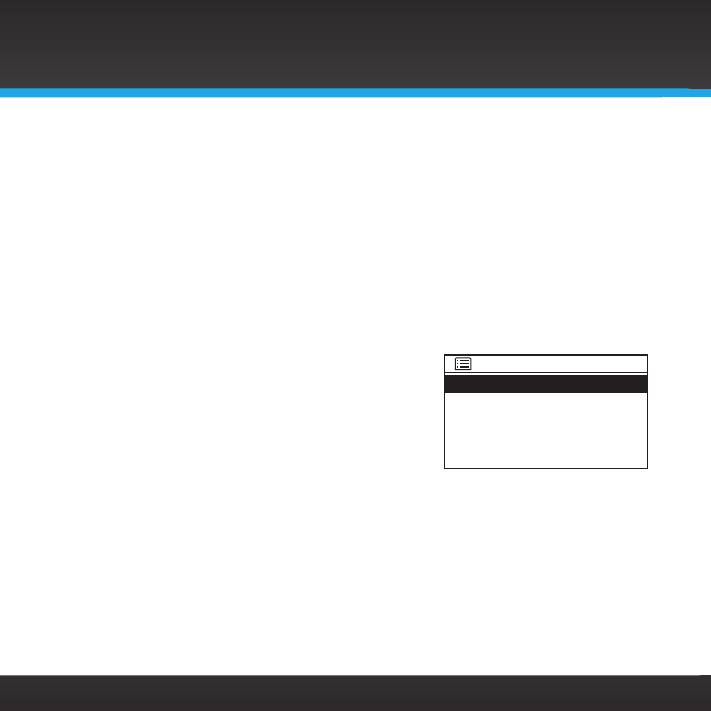
View settings displays information about your network connection, including
the type of connection, the status, the Radio’s MAC address, and other
network connection details such as IP addresses.
To view the network settings:
1. Press MENU.
2. Turn the TUNE knob to scroll to and
highlight System Setup. Press the
TUNE knob.
3. Turn the TUNE knob to scroll to and
highlight Network. Press the TUNE
knob.
4. Turn the TUNE knob to scroll to and highlight View settings. Press
the TUNE knob.
5. Turn the TUNE knob to scroll through the network settings.
6. Press MENU to exit.
Active connection:
WLAN is active
MAC address:
00:00:00:00:00:00
Wlan region:
View settings
58
Manual Settings:
Refer to one the following sections for detailed instructions on using the Manual
Settings to connect to a network:
• For connecting to a wireless network, refer to “Connect to a Wireless
Network Using Manual Settings” on page 66.
• For connecting to a wired network, refer to “Connect to a Wired Network
Using Manual Settings” on page 71.
Network profile:
Network profile displays the wireless network
connections which are stored in the Radio when you
connect to a wireless network. The currently active
profile is denoted with a “*“. You can delete the
profiles if desired.
To view and delete the network profiles:
Note that you cannot delete the active wireless network profile.
1. Press MENU.
2. Turn the TUNE knob to scroll to and highlight System Setup. Press the
TUNE knob.
Your_Network_Name
Some_Other_Network
*
Network profile
Configuring Your SiriusXM TTR1 Radio
59
3. Turn the TUNE knob to scroll to and highlight Network. Press the
TUNE knob.
4. Turn the TUNE knob to scroll to and highlight Network profile.
Press the TUNE knob.
5. The saved wireless network names will be displayed. If you wish to
delete a profile, turn the TUNE knob
to scroll to and highlight a profile
name. Press the TUNE knob.
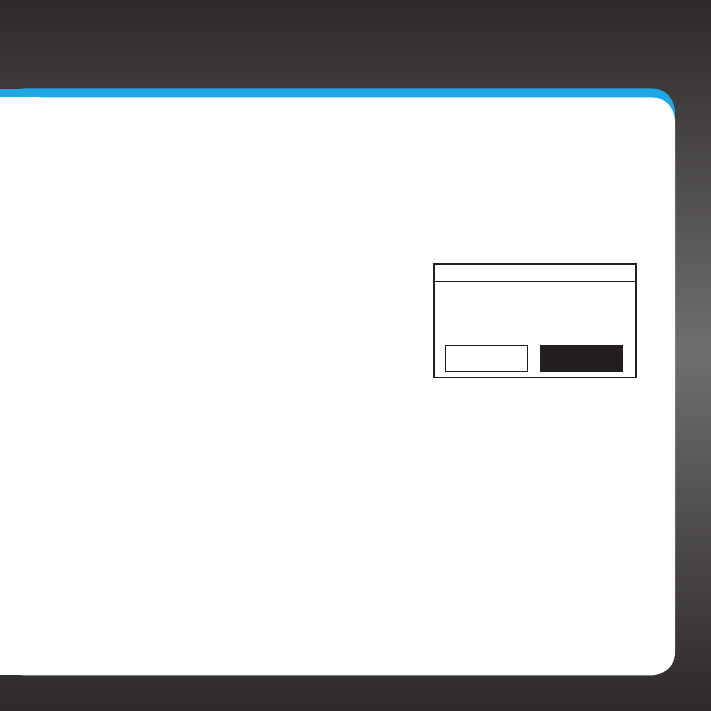
6. Confirm that you really want to delete
the profile. Turn the TUNE knob to
highlight YES or NO and press the
TUNE knob.
7. Press MENU to exit.
YES NO*
Confirm delete
Confirm delete
Configuring Your SiriusXM TTR1 Radio
60
Factory reset
Factory reset restores the SiriusXM TTR1 Radio to the factory settings. It will
erase all the stored network settings, account user name and password, favorite
channels, alarm clock settings, lock code, and set all other options back to the
factory settings.
To restore the Radio to the factory settings:
1. Press MENU.
2. Turn the TUNE knob to scroll to and highlight System Setup. Press the
TUNE knob.
3. Turn the TUNE knob to scroll to and highlight Factory reset. Press the
TUNE knob.
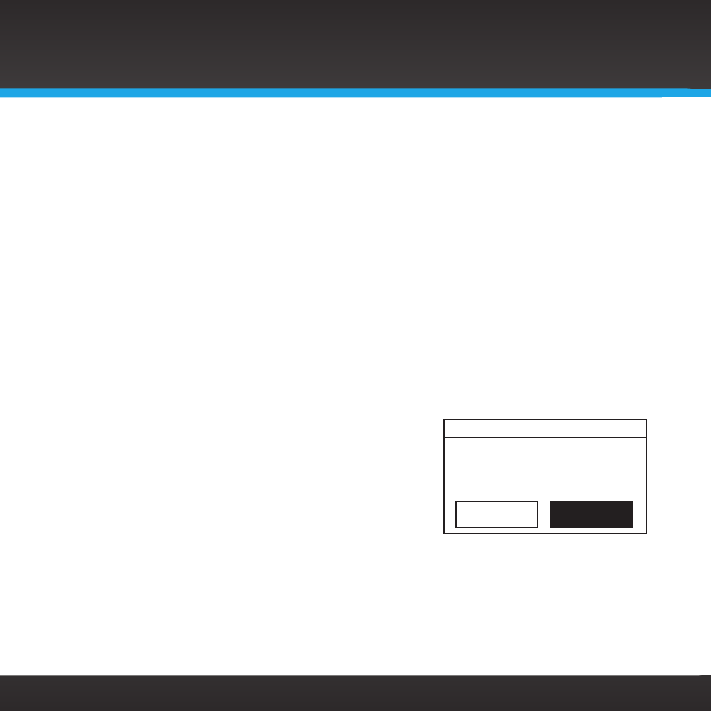
4. Confirm that you really want to proceed
with the factory reset. Turn the TUNE
knob to highlight YES or NO and press the
TUNE knob.
5. The screen will display Restarting and the
Radio turn off.
YES NO*
Factory reset
Proceed?
Configuring Your SiriusXM TTR1 Radio
61
Software update
Software update allows you to set the Radio to automatically check for any
available software updates, and also to manually
force the Radio to check if an update is available.
SiriusXM occasionally updates the software for
their Radios. Check siriusxm.com for any
updated documentation associated with a
software update.
By default, the SiriusXM TTR1 Radio is set
to automatically check for updates. If it finds a software update, you’ll be
prompted that a new software is available. You can change this setting so the
Radio will not automatically check for updates.
To change automatic software updates:
1. Press MENU.
2. Turn the TUNE knob to scroll to and highlight System Setup. Press
the TUNE knob.
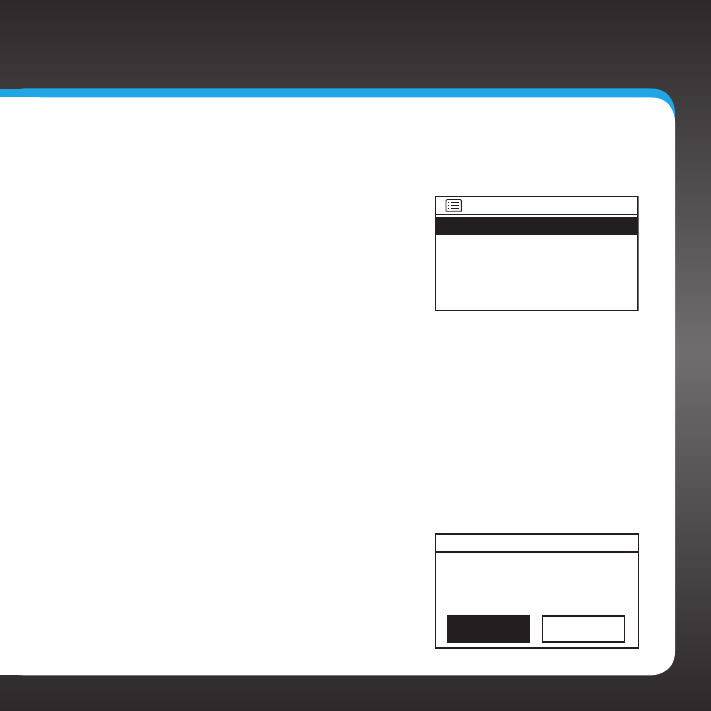
3. Turn the TUNE knob to scroll to and
highlight Software Update. Press the
TUNE knob.
4. Turn the TUNE knob to scroll to and
highlight Auto-check setting. Press
the TUNE knob.
Auto-check setting
Check now
Software update
Configuring Your SiriusXM TTR1 Radio
YES* NO
Software update
Check periodically for
new versions?
62
5. Select whether you periodically want the Radio to check for software
updates. Turn the TUNE knob to highlight YES or NO and press the
TUNE knob.
6. Press MENU to exit.
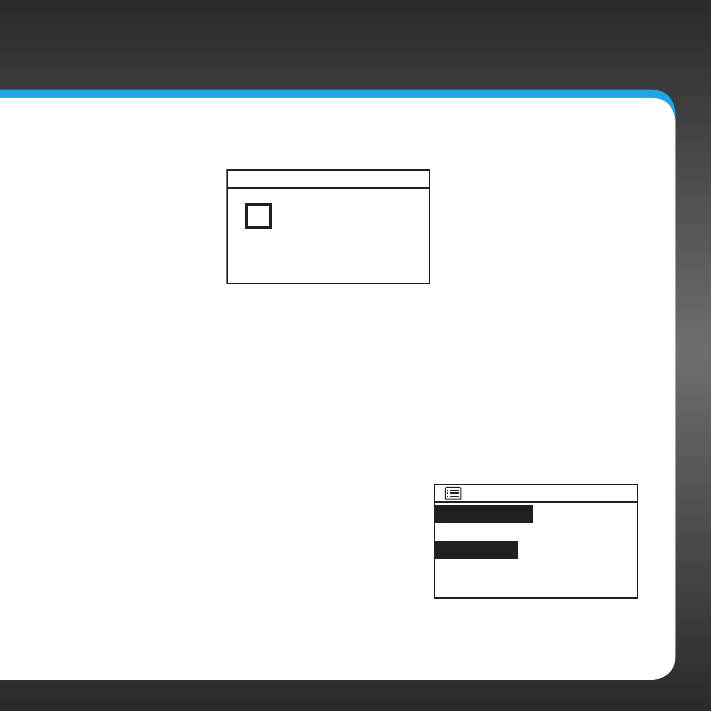
To force the Radio to check for a software update:
1. Press MENU.
2. Turn the TUNE knob to scroll to and highlight System Setup. Press the
TUNE knob.
3. Turn the TUNE knob to scroll to and
highlight Software Update. Press the
TUNE knob.
4. Turn the TUNE knob to scroll to and
highlight Check now. Press the TUNE
knob.
5. The Radio will check for a software update.
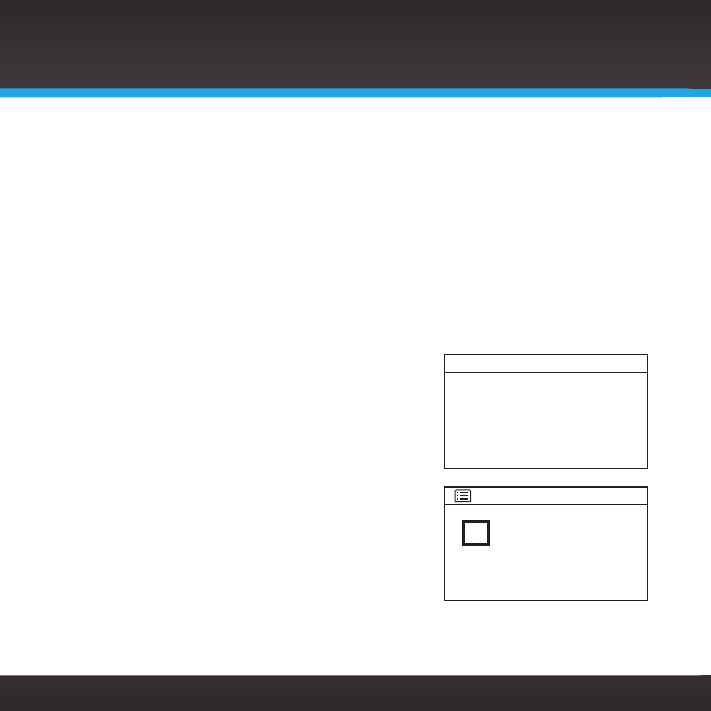
If an update is available, the Radio will
download and install the update. If no
update is available, Software up to date
will be displayed. If a software update is
available, Software update is displayed.
6. Press MENU to exit.
Software update
Checking for
new versions.../
Software up to
date
Software update
Configuring Your SiriusXM TTR1 Radio
63
Configuring Your SiriusXM TTR1 Radio
Updating the software:
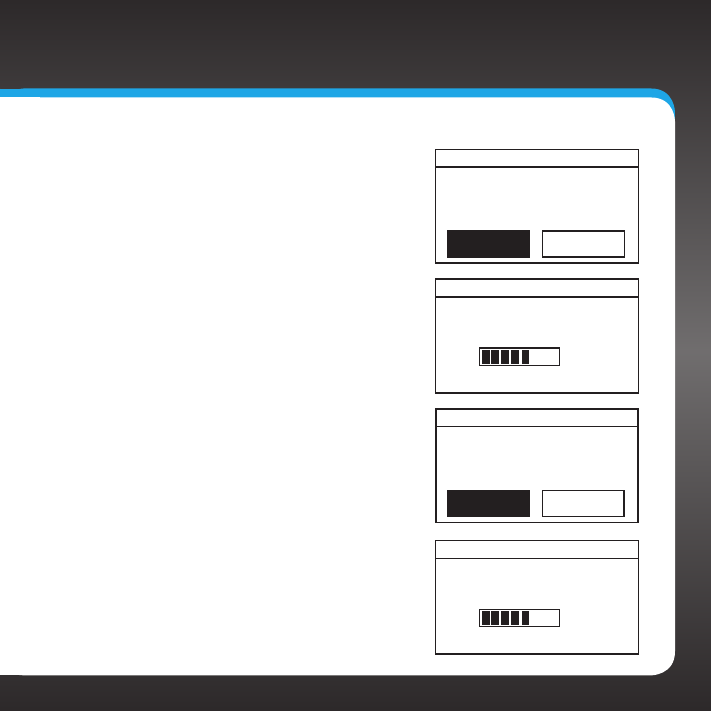
If you manually force the Radio to check for a
software update, or the Radio automatically
finds a software update, and you want to update
the software, follow these steps.
1. The Software update screen is
displayed. Turn the TUNE knob to
highlight YES and press the TUNE
knob.
2. The Radio will download the software
update. Allow the download to finish.
3. When the download is complete, you
will be prompted to proceed with the
installation of the software. The
default answer is YES. Press the
TUNE knob to proceed.
4. You will be warned not to power
off the Radio, and the Radio will be
updated with the new software.
5. When the update is complete, you’ll be
prompted to Press OK/Tune to start.
Press the TUNE knob.
Software update
New version available.
Update Software?
YES NO*
Software update
1.5.6.21635-1A17
Downloading
/
YES* NO*
Software update
Proceed?
Software update
1.5.6.21635-1A17
Updating...
/
64
6. The Radio will start with the new software.
Info
Info displays the software version number, and the Radio ID number.
To display the information:
1. Press MENU.
2. Turn the TUNE knob to scroll to and highlight System Setup. Press the
TUNE knob.
3. Turn the TUNE knob to scroll to and
highlight Info. Press the TUNE knob.
4. The software version number, and the
Radio ID number will be displayed.
5. Press MENU to exit.
Software update
Update
Completed
Press OK/Select
SW version:
v1.5.6.21635-1B2
Radio ID:
0013E09BD61E
Info
Configuring Your SiriusXM TTR1 Radio

65
Configuring Your SiriusXM TTR1 Radio
Appendix: Manual Network Configuration
66
Appendix: Manual Network Configuration
Connecting to a network using the Manual settings requires some knowledge of
your network. You’ll need to manually configure your network connection using the
Manual Settings or [Manual config] option if your wireless network name (SSID) is
hidden, or if your network is DHCP disabled.
Decide whether you will be using a wireless network connection (page 66), or a
wired Ethernet connection (page 71). Then follow the instructions in the appropriate
following section.
Connect to a Wireless Network Using Manual Settings
In order to connect to a wireless network, you will need to have the following
information to enter during the procedure:
Is DHCP enabled or disabled?
If disabled, the IP address to use for the Radio?
If disabled, the Subnet Mask?
If disabled, the Gateway IP address?
If disabled, the Primary DNS IP address?
If disabled, the Secondary IP address?
The name of your wireless network (SSID)?
Is the wireless network password protected?
If so, the type of authentication?
If Pre-Shared Key, whether WEP is enabled?
If WPA or WPA2, whether it’s TKIP or AES?
The wireless network key (password)?
67
Appendix: Manual Network Configuration
a. If you have just turned your SiriusXM TTR1 Radio on for the first
time, the SSID screen will already be displayed. Skip ahead to step d.
b. Press MENU and turn the TUNE knob to highlight System Setup.
Press the TUNE Knob.
c. Turn the TUNE knob to highlight Network. Press the TUNE Knob.
d. Turn the TUNE Knob to highlight Manual Settings or [Manual
config]. Press the TUNE Knob.
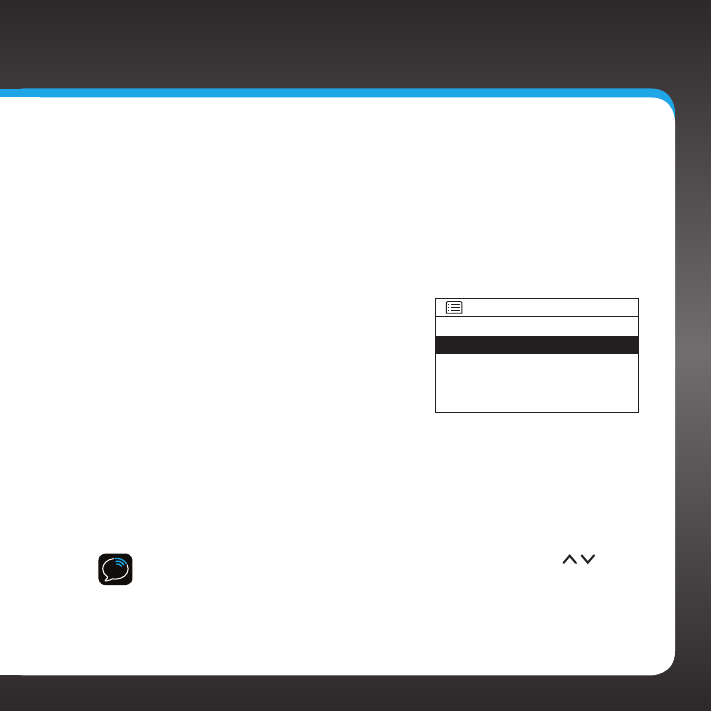
e. Turn the TUNE Knob to highlight
Wireless. Press the TUNE Knob.
f. Will you be using DHCP? Turn the
TUNE Knob to highlight DHCP enable
or DHCP disable and press the TUNE
Knob.
g. If you have selected DHCP disable, enter the following information.
Otherwise, continue with step h.
For each entry, Turn the TUNE knob to select the numbers, and
press the TUNE knob to confirm and move to the next number.
Press BACK if you entered an incorrect number.
TIP! You can use the Remote Control to increment the numbers ( ), and
move forward or backward through the number fields ( + and —).
i. Enter the IP address to use for the Radio.
ii. Enter the Subnet Mask for the network.
Wired
Wireless
>
>
Connection type

68
Appendix: Manual Network Configuration
iii. Enter the Gateway IP address for the
network.
iv. Enter the Primary DNS IP address for
the network.
v. Enter the Secondary DNS IP address
for the network, or leave blank if there
is none.
h. Enter your wireless network name (SSID). Note that the SSID is case
sensitive. Turn the TUNE knob to scroll through the list of characters
and highlight each character. Press the
TUNE knob to select the highlighted
character and move to the next character.
If you make a mistake, turn the TUNE knob
to highlight BKSP and press the TUNE
knob to erase the character. When done,
turn the TUNE knob to highlight OK and
press the TUNE knob.
i. Select the authentication type, Open (no
key (password)), Pre-Shared key, WPA, or
WPA2. Turn the TUNE Knob to highlight your
selection and press the TUNE knob. If you
have selected Open, skip ahead to step k.
j. Depending upon your selection, complete these additional steps:
•Pre-Shared Key:
i. Select whether the Pre-Shared Key has WEP encryption disabled or
SSID
BKSP
OK
CANCEL
0123456789., ab
cdefghijklmnopq
rstuvwxyzABCDEF
GHIJKLMNOPQRSTU
Open
Pre-Shared Key
WPA
WPA2
>
Authentication
IP settings
IP address
.0.0.0
Subnet mask
.
255 255 .255 .0
0

69
Appendix: Manual Network Configuration
disabled. Turn the TUNE Knob to highlight your selection and
press the TUNE knob.
ii. Enter your key (password). Turn the TUNE knob to scroll through
the list of characters and highlight
each character. Press the TUNE
knob to select the highlighted
character and move to the next
character. If you make a mistake,
turn the TUNE knob to highlight
BKSP and press the TUNE knob
erase the character.
•WPA or WPA2:
i. Select whether WPA or WPA2 has TKIP or AES encryption.
Turn the TUNE Knob to highlight your selection and press the
TUNE knob.
ii. Enter your key (password). Remember that the key is case
sensitive. Turn the TUNE knob to scroll through the list of
characters and highlight each character. Press the TUNE
knob to select the highlighted character and move to the
next character. If you make a mistake, turn the TUNE knob
to highlight BKSP and press the TUNE knob to erase the
character. When done, turn the TUNE knob to highlight OK and
press the TUNE knob.
k. If you have entered the correct information, and the Radio is able
to connect to your wireless network, the Connected screen will be
displayed. If not, the Failed to connect screen is displayed. This
Key:
BKSP
OK
CANCEL
0123456789., ab
cdefghijklmnopq
rstuvwxyzABCDEF
GHIJKLMNOPQRSTU

70
Appendix: Manual Network Configuration
means that one or more of the settings you entered is incorrect.
l. If you are installing your SiriusXM TTR1 Radio for the first time,
continue with “Step 2: Enter Your SiriusXM Account Information” on
page 23.
If you have previously entered your SiriusXM user name and password
into the Radio, and had tuned to a channel, the screen will show
Connecting. When successfully connected, the Buffering... screen
will be displayed as the channel information is streamed to the Radio.
When complete, you are returned to the main display screen and you
should hear the audio playing. Otherwise, the Category Tune screen is
displayed.
Connecting.
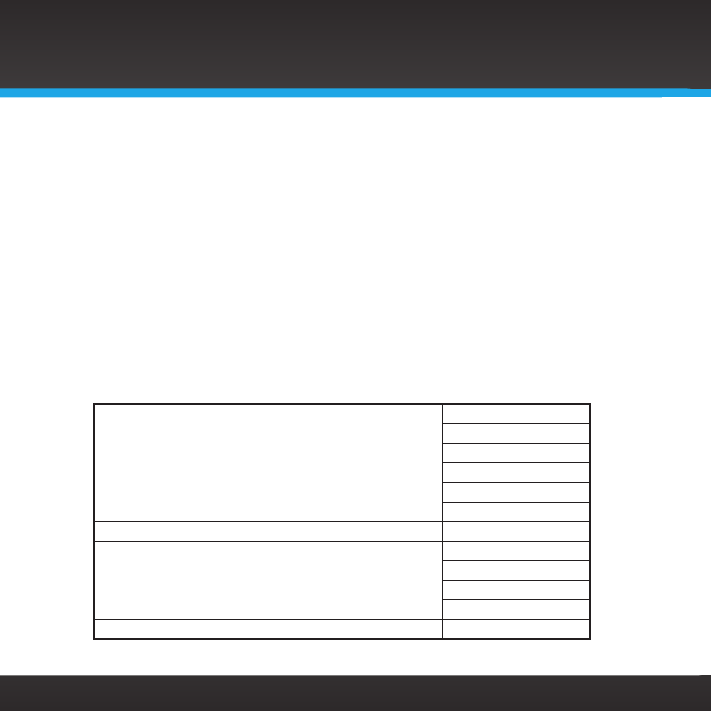
/
SIRIUS XM Hits 1
SiriusXM 3:13PM
Buffering...
/
SIRIUS XM Hits 1
SiriusXM 001 3:14PM
Connected
Connected
Failed
to connect
71
Appendix: Manual Network Configuration
Connect to a Wired Network Using Manual Settings
In order to connect to a wired network, you will need to have the following
information to enter during the procedure:
Is DHCP enabled or disabled?
If disabled, the IP address to use for the Radio?
If disabled, the Subnet Mask IP address?
If disabled, the Gateway IP address?
If disabled, the Primary DNS IP address?
If disabled, the Secondary DNS IP address?
a. At the rear of the Radio, remove the compartment cover and
connect an Ethernet cable to the Ethernet connector on the inside
left of the compartment. Refer to “Wired Ethernet Connector”
on page 11 for the location of the Ethernet connector. Replace the
compartment cover.
b. Connect the other end of the Ethernet cable to your home’s wired
network.
c. If you have just turned your SiriusXM TTR1 Radio on for the first
time, the SSID screen will already be displayed. Skip ahead to step f.
d. Press MENU and turn the TUNE knob to highlight System Setup.
Press the TUNE Knob.
e. Turn the TUNE knob to highlight Network. Press the TUNE Knob.
f. Turn the TUNE Knob to highlight Manual Settings [Manual config].
Press the TUNE Knob.

72
Appendix: Manual Network Configuration
g. Turn the TUNE Knob to highlight Wired.
Press the TUNE Knob.
h. Will you be using DHCP? Turn the TUNE
Knob to highlight DHCP enable or DHCP
disable and press the TUNE Knob.
i. If you have selected DHCP disable, enter
the following information. Otherwise, continue with step j.
For each entry, Turn the TUNE knob to select the numbers, and press
the TUNE knob to confirm and move to the next number. Press BACK if
you entered an incorrect number.
TIP! You can use the Remote Control to increment the numbers ( ), and move
forward or backward through the number fields ( + and —).
i. Enter the IP address to use for the Radio.
ii. Enter the Subnet Mask IP address for the network.
iii. Enter the Gateway IP address for the
network.
iv. Enter the Primary DNS IP address for
the network.
v. Enter the Secondary DNS IP address
for the network, or leave blank if there
is none.
j. If you have entered the correct information, and the Radio is able to
connect to your network, the Connected screen will be displayed. If
not, the Failed to connect screen is displayed. This means that one or
IP settings
IP address
.0.0.0
Subnet mask
.
255 255 .255 .0
0
Wired
Wireless
>
>
Connection type 1/9

73
Appendix: Manual Network Configuration
more of the settings you entered is
incorrect. If Waiting for Ethernet is
displayed, check the Ethernet cable
connections.
k. If you are installing your SiriusXM
TTR1 Radio for the first time, continue
with “Step 2: Enter Your SiriusXM
Account Information” on page 23.
If you have previously entered your
SiriusXM user name and password into
the Radio, and had tuned to a channel,
the screen will show Connecting.
When successfully connected, the
Buffering... screen will be displayed as
the channel information is streamed
to the Radio. When complete, you are
returned to the main display screen
and you should hear the audio playing.
Otherwise, the Category Tune screen
is displayed.
Waiting for
Ethernet
Network settings
Buffering...
/
SIRIUS XM Hits 1
SiriusXM 001 3:14PM
Connecting.
/
SIRIUS XM Hits 1
SiriusXM 3:13PM
Connected
Connected
Failed
to connect

74

75
Troubleshooting
76
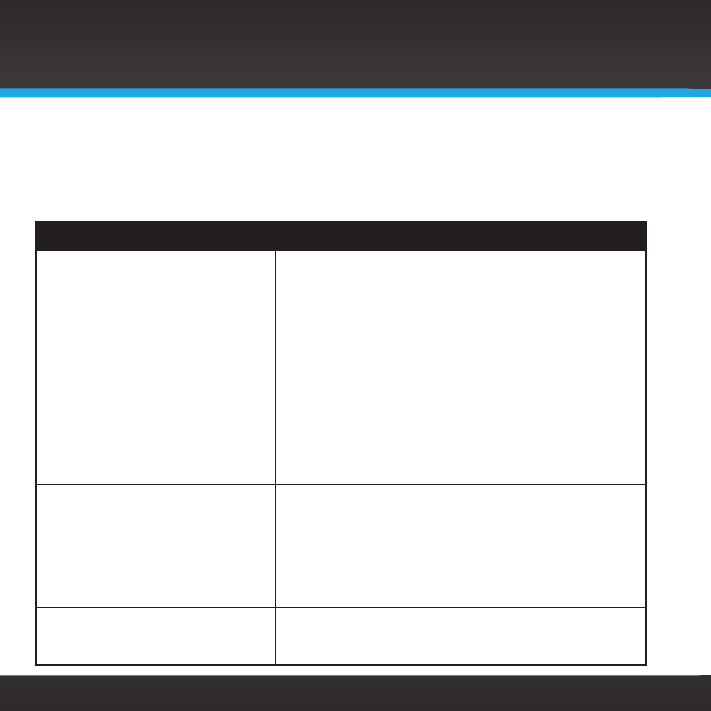
Your SiriusXM TTR1 Radio has been designed and built to be trouble-free but if
you experience a problem, here’s some troubleshooting hints.
You can also call SiriusXM Customer Care at 866-635-2349.
If you see this on the screen: Try this:
Connecting •The Radio is attempting to connect to SiriusXM
Internet Radio. If this message is displayed more
than one minute, make sure your network is
connected to the Internet.
To verify that you have an Internet connection,
refer to “To force the Radio to check for a software
update:” on page 62 and follow the procedure. If
you get the message Software up to date, or New
version available, then the Radio is connected to the
Internet. If you get the message, Login failed, then
you don’t have an Internet connection. Check with
your network administrator for Internet connectivity
on your network.
•Turn your Radio Off and On again.
Buffering •The Radio is loading the channel information. If this
message is displayed for more than one minute,
make sure your connection to the Internet has
not been interrupted. See Connecting (previous
troubleshooting item) and verify your Internet
connection.
•Turn your Radio Off and On again.
Updating •Your Radio is installing a software update. Do
not turn the Radio off. Allow the software update
complete.
Troubleshooting
77
Troubleshooting
If you see this on the screen: Try this:
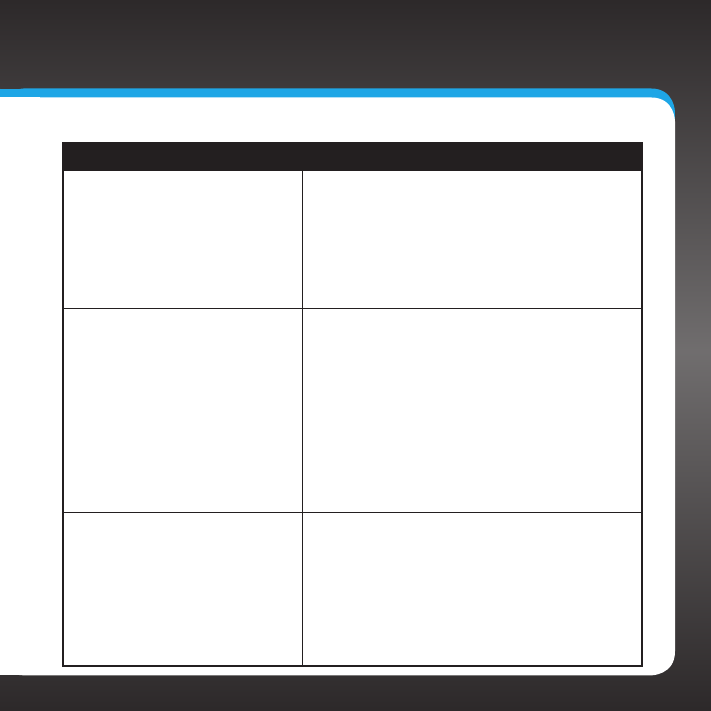
Waiting for Ethernet •The Radio is expecting a wired Ethernet
connection. Plug an Ethernet wire into your
home/office network, then plug the other
end into the Ethernet connection inside the
compartment at the rear of the Radio. (Refer to
page 11 for the location of the connector.)
•Change to a wireless network connection if a
wired Ethernet connection is not available.
Failed to connect •The network information you entered is
incorrect. Verify and re-enter the information.
(Refer to page 17 for a wireless network, or page 21
for a wired network.)
•You have entered an incorrect password for a
secure wireless network. Verify and re-enter the
information. (Refer to page 23.)
•If you have manually configured a network
connection, you have entered one or more
incorrect settings. Verify and re-enter the
information. (Refer to page 66 for a wireless
network, or page 71 for a wired network.)
Stream Closed •Your account user name and password has
been used at another location to connect to the
SiriusXM Internet Radio, and your Radio has
been disconnected from the service. Turn your
Radio Off and On again.
•The Radio may have timed out due to lack of
activity. Turn your Radio Off and On again.
To prevent a time-out, periodically adjust the
volume, change the channel, or enter a menu, etc.
78
If you see this on the screen: Try this:
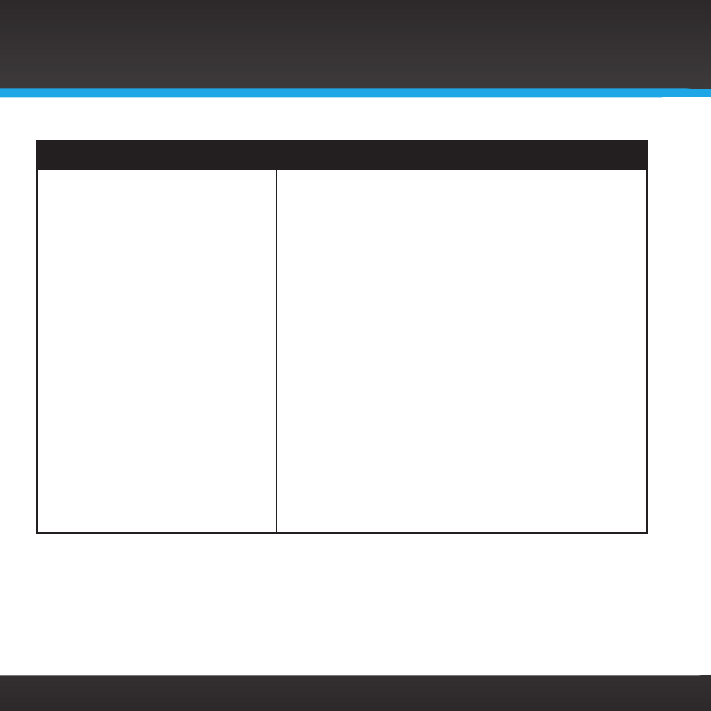
Login failed There are several possible reasons:
•Your Sirius or XM user name and/or password was
entered incorrectly.
•You don’t have a subscription to SiriusXM Internet
Radio.
•Your subscription is no longer valid.
•For XM only, you will need to update your password
to use the SiriusXM TTR1 Radio. See IMPORTANT
note on page 16.
To verify that you are subscribed to the service,
listen online:
• Go online to siriusxm.com/internetradio. Click on
the Listen Online link, enter your username and
password, and click Log In & Listen Now. If you can
listen, then you are subscribed to SiriusXM Internet
Radio.
Close the browser window to exit the player before
continuing.
If you don’t have a SiriusXM Internet Radio
subscription, go to siriusxm.com/internetradio or call
866-635-2349 to subscribe.
Troubleshooting
79
If this happens: Try this:
You do not receive the same
Sirius or XM channels you receive
on your Satellite Radio
•SiriusXM Internet Radio does not have all of
the same channels as the Sirius or XM satellite
service.
Check siriusxm.com/channellineup for the
latest SiriusXM Internet Radio channel lineup.
The Network Wizard fails before
the Radio connects to your
network
•Your network has DHCP disabled. You’ll have to
manually configure your network connection.
(Refer to page 66 for a wireless network, or page 71
for a wired network.)
The Network Wizard does not find
your wireless network
•Your wireless network has a hidden name (SSID).
If so, you will have to manually configure your
wireless network connection (page 66), or use a
wired network connection (page 21 or page 71).
•The wireless signal from your access point is too
low. Try moving the Radio closer to your access
point and see if the Network Wizard finds your
wireless network.
Troubleshooting

80

81
Product Specifications

82
Product Specifications
Dimensions
SiriusXM TTR1 Radio 283 mm (W) x 185 mm (H) x 95 mm (D)
11 in (W) X 7.25 in (H) X 3.75 in (D)
Remote 52 mm (W) x 85 mm (H) x 5 mm (D)
2 in (W) x 3.3 in (H) x .25 in (D)
Weight
SiriusXM TTR1 Radio 2.85 kg (6.3 lbs)
Audio Outputs
Headphone 3.5 mm diameter mini stereo jack
Line Out 3.5 mm diameter mini stereo jack
Audio Input
Aux In 3.5 mm diameter mini stereo jack

83
Patent and Environmental Information
Patent Information
It is prohibited to, and you agree that you will not, copy, decompile,
disassemble, reverse engineer, hack, manipulate, or otherwise access and/
or make available any technology incorporated in this product. Furthermore,
the AMBE® voice compression software included in this product is protected
by intellectual property rights including patent rights, copyrights, and trade
secrets of Digital Voice Systems, Inc. The software is licensed solely for use
within this product. The music, talk, news, entertainment, data, and other
content on the Services are protected by copyright and other intellectual
property laws and all ownership rights remain with the respective content
and data service providers. You are prohibited from any export of the content
and/or data (or derivative thereof ) except in compliance with applicable
export laws, rules and regulations. The user of this or any other software
contained in a SiriusXM Radio is explicitly prohibited from attempting to copy,
decompile, reverse engineer, hack, manipulate or disassemble the object
code, or in any other way convert the object code into human-readable form.
Environmental Information
Follow local guidelines for waste disposal when discarding packaging and
electronic appliances.
Your Radio is packaged with cardboard, polyethylene, etc., and does not
contain any unnecessary materials.

84
The user is cautioned that changes or modifications not expressly approved by Sirius XM Radio
Inc can void the user’s authority to operate this device.
This device complies with Part 15 of the FCC Rules:
1. This device may not cause harmful interference.
2. This device must accept any interference received, including interference that may
cause undesired operation.
NOTE: This equipment has been tested and found to comply with the limits for a Class B digital
device, pursuant to Part 15 of the FCC Rules. These limits are designed to provide reasonable
protection against harmful interference in a residential installation. This equipment generates,
uses and can radiate Radio frequency energy and, if not installed and used in accordance with
the instructions, may cause harmful interference to Radio communications. However, there
is no guarantee that interference will not occur in a particular installation. If this equipment
does cause harmful interference to Radio or television reception, which can be determined by
turning the equipment off and on, the user is encouraged to try to correct the interference by
one or more of the following measures:
• TocomplywithFCCRFexposurecompliancerequirements,aseparationdistanceofat
least 20 cm must be maintained between the antenna of this device and all persons.
• Thisdevicemustnotbeco-locatedoroperatinginconjunctionwithanyotherantenna
or transmitter.
FCC Statement

85
©2012 Sirius XM Radio Inc. “Sirius”, “XM” and all related marks and logos are
trademarks of Sirius XM Radio Inc. All other marks and logos are the property of their
respective owners. All rights reserved.
IMPORTANT NOTICE: REQUIRED SUBSCRIPTION
Hardware and subscription sold separately, and activation fee required. Other fees
and taxes apply. Service will automatically renew into the subscription package you
choose (which may differ from the package which arrived with the Radio), and will
automatically bill at the rates in effect at the time of renewal, until you call us at
1-866-635-2349 to cancel. See our Customer Agreement for complete terms at
www.siriusxm.com. All fees and programming are subject to change. Our satellite
service is available only to those at least 18 and older in the 48 contiguous USA and
DC. Our Sirius satellite service is also available in PR (with coverage limitations). Our
Internet radio service is available throughout our satellite service area and in AK and HI.
Certain channels are not available on our Internet radio service, including MLB® play-by-
play.
Important Legal Information

86

siriusxm.com
Sirius XM Radio Inc.
1221 Avenue of the Americas
New York, NY 10020
1.866.635.2349
© 2012 Sirius XM Radio Inc.
TTR1 UG 120104a
