SK Telecom 1111AI JETCAST JET-1111AI wi-fi display device User Manual 1
SK Telecom Co., Ltd. JETCAST JET-1111AI wi-fi display device 1
Users Manual
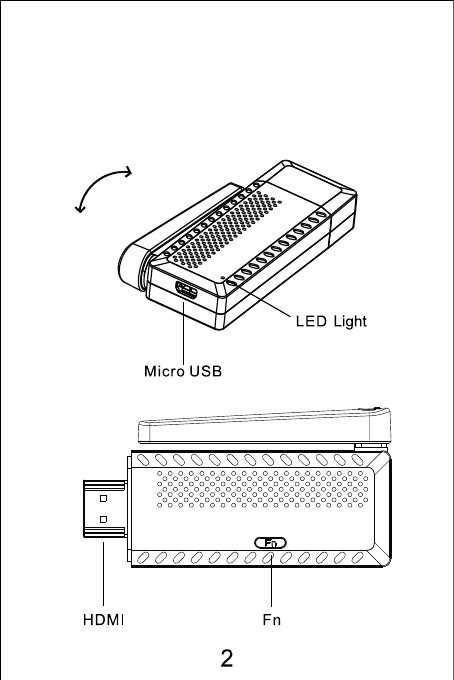
All the I/Os
180˚ Rotation Antenna
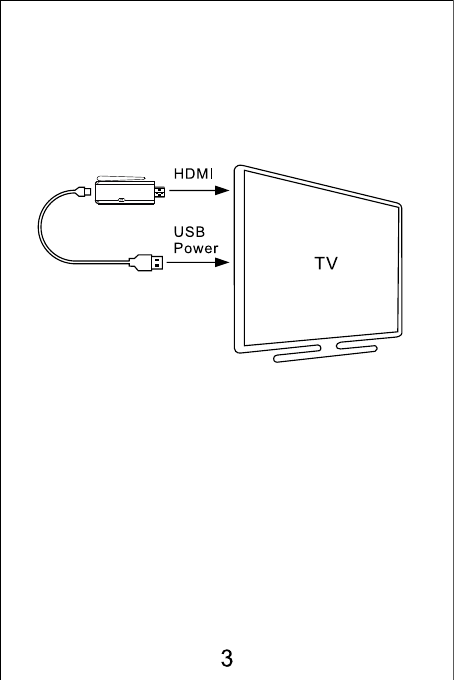
Connect the Power and start up
the dongle
1. Turn on the TV and change the video output to
be HDMI.
2. Plug the Airplay Dongle in the HDMI port of the
TV, if needed, please use a HDMI extension
cable.
3. Connect one end of USB cable to the Dongle,
and the other end to the USB port of TV.
4. Then the Dongle starts and the LED light on it
is on.
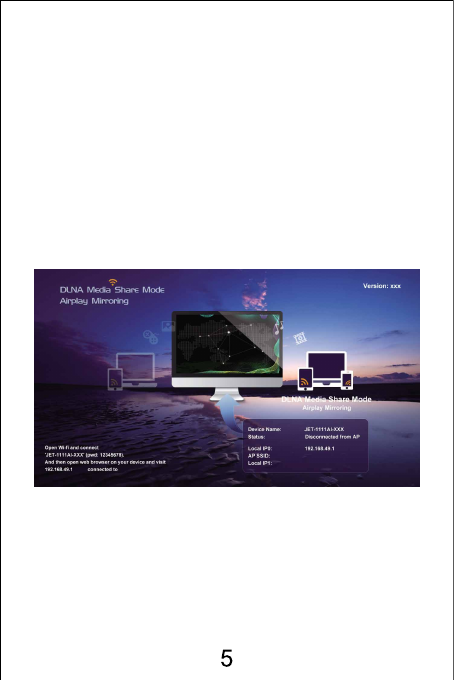
Press the “Fn” button on the Dongle to switch to
DLNA Media Share Mode, see below picture:
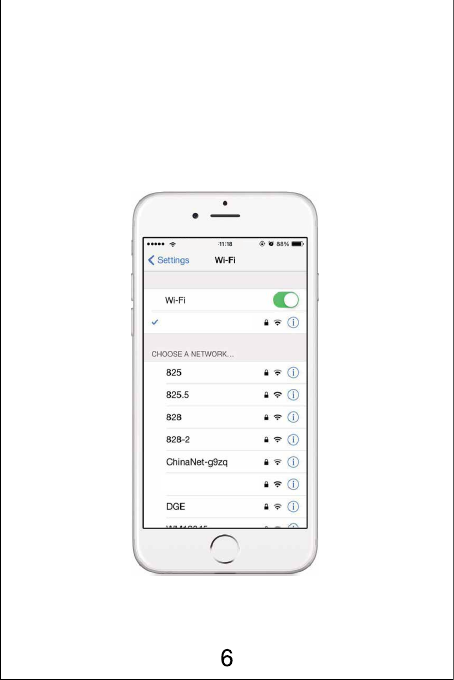
Enable WiFi on iPhone(or iPad), in the AP list we
can see the Dongle, for example “JET-1111AI-
******”, see below picture:
830
JET-1111AI-DEAE3E
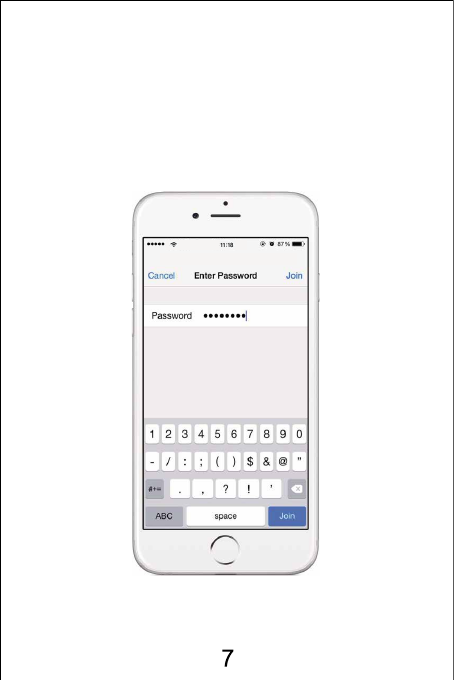
Touch “JET-1111AI-******”, and input password
“12345678”, then click “Join”, see below picture:
Enter the password for ‘JET-1111AI-DEAE3E’
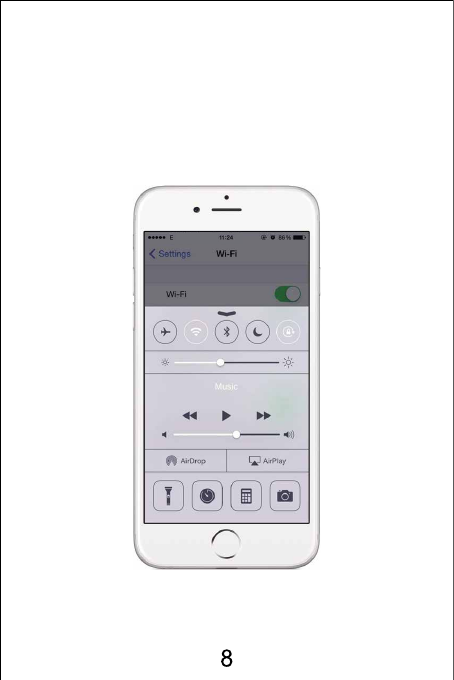
Now the iPhone is connected to the Dongle. Drag
out the below menu from the bottom of the screen,
we can see the Airplay icon, see below picture:
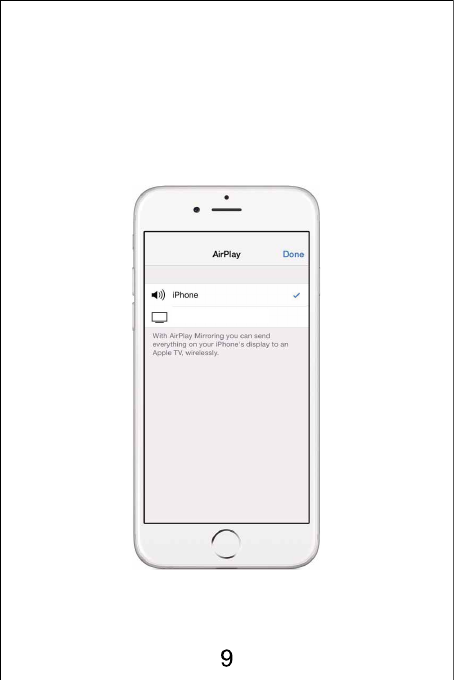
Touch the Airplay icon, we will see “ JET-1111AI-
****** ”, see below picture:
JET-1111AI-DEAE3E
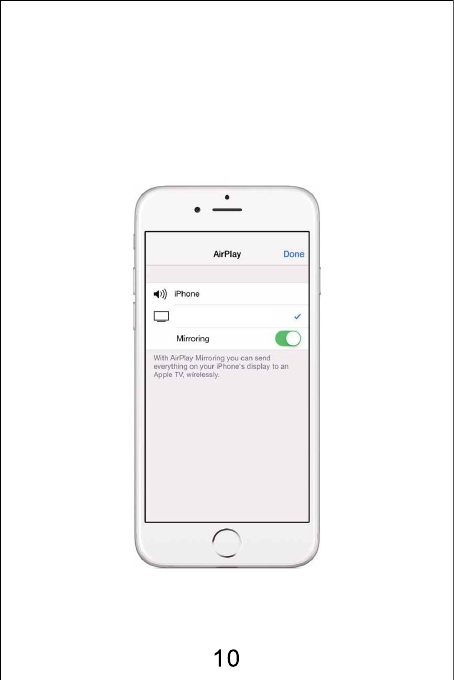
Touch “ JET-1111AI-****** ”, we can see the
Mirroring function, turn on it, see below picture:
JET-1111AI-DEAE3E
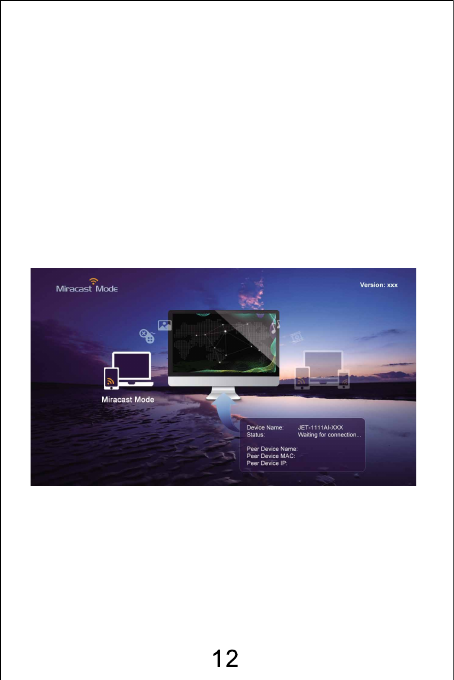
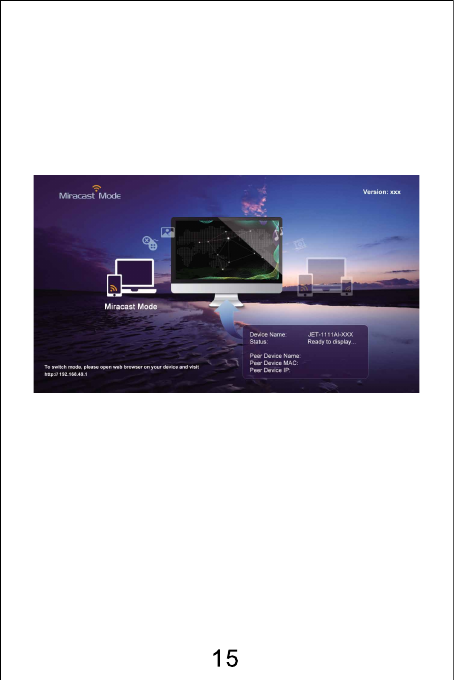
Press the “Fn” button on the Dongle to switch to
Miracast Mode, see below picture:
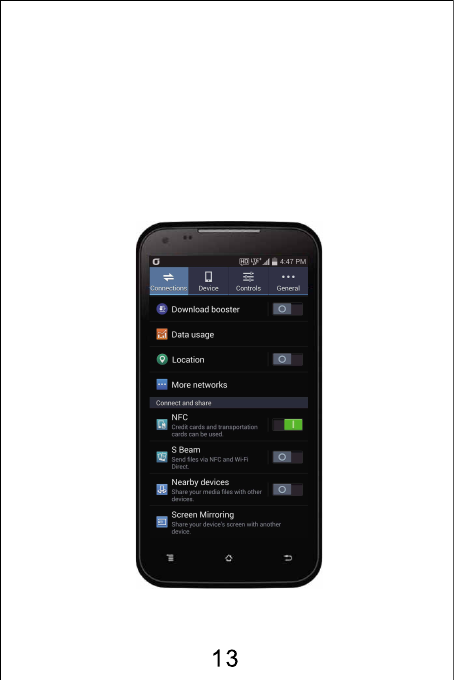
Enable WiFi on the smart phone(or tablet PC), go to
“settings”, then go to “Screen Mirroring”, see below
picture:
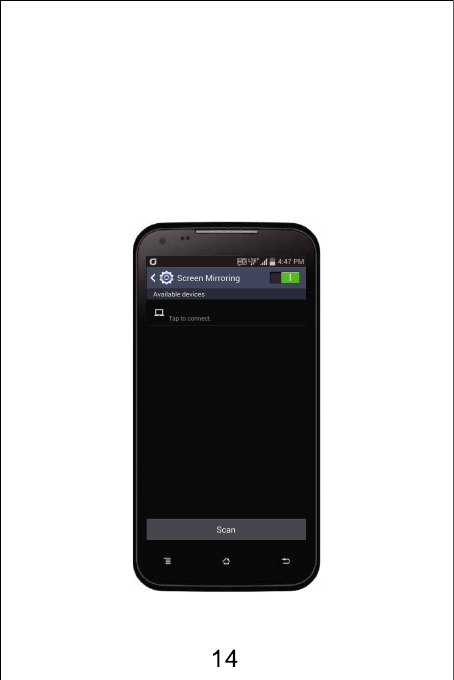
Then we can see the AirPlay Dongle name (for
example: JET-1111AI-****** ), see below picture:
JET-1111AI-DEAE3E
Touch “ JET-1111AI-****** ”, then it starts to
build connection between smart phone and the
Dongle.
Very quickly, it casts the smart phone screen to TV
screen.
Remark: the Operation System version of the
Android smart phone or tablet PC must be 4.2 or
above.
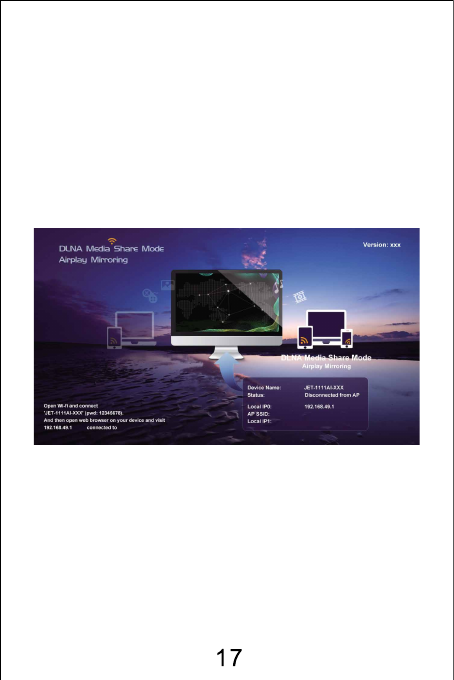
Press the“Fn”button on the Dongle to switch to
DLNA Media Share Mode, see below picture:
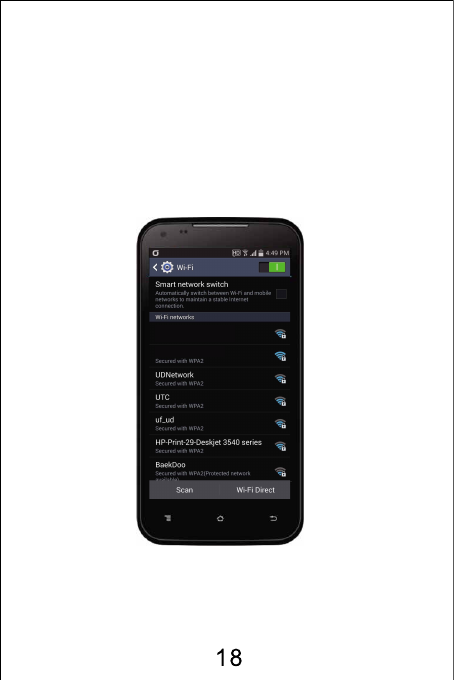
Enable WiFi on the smart phone, we can see the
name of the Dongle in AP list (for example:
JET-1111AI-****** ), see below picture:
JET-1111AI-DEAE3E
JET-1111AI-1D96D8
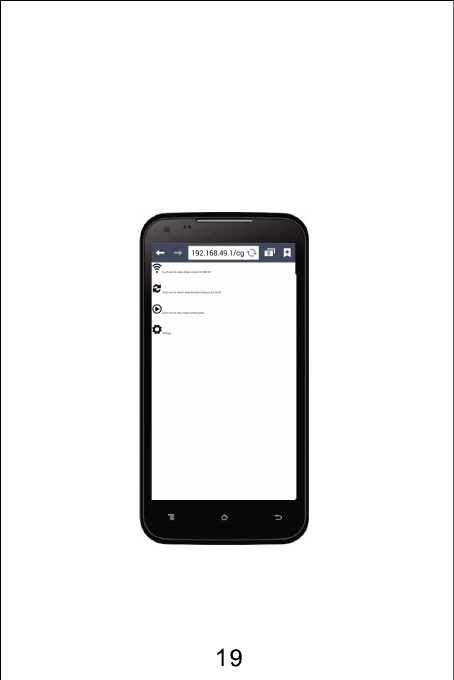
Touch it(JET-1111AI-******
), input password
“12345
678” to build connection between smart phone and
the Dongle. Open browser on smart phone and visit
http://192.168.49.1, we will see below picture:
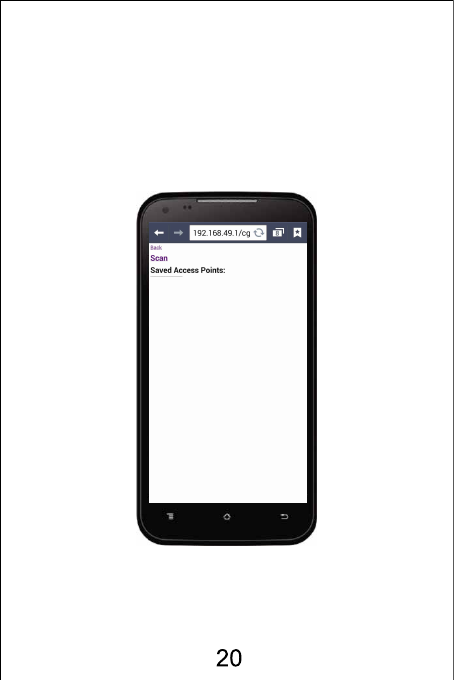
Touch the signal icon and go to next screen, see
below picture:
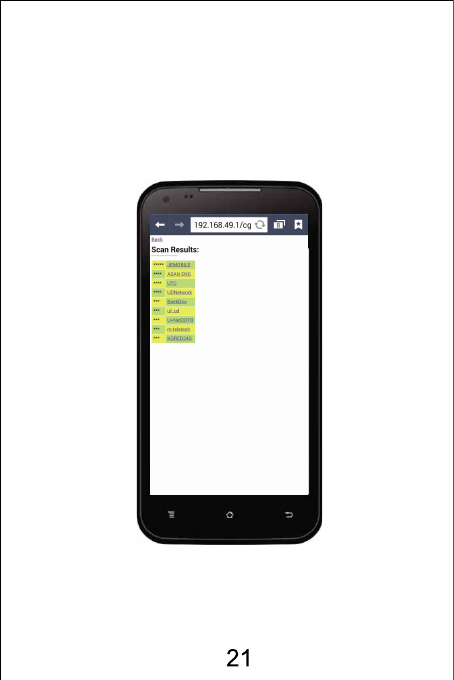
Touch “Scan” and we can see the AP list, see
below picture:
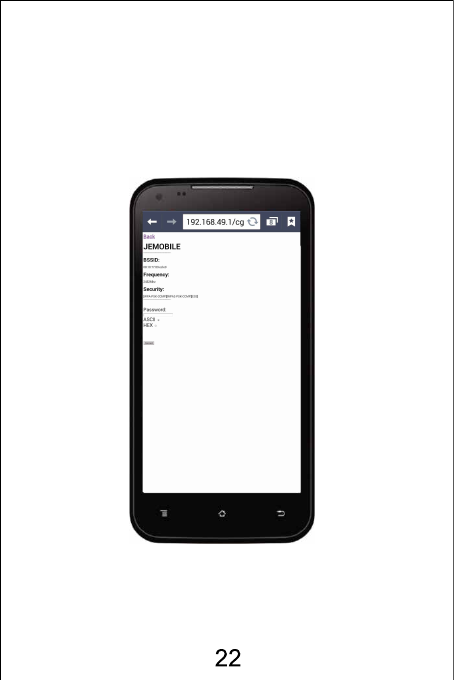
Touch one of the APs, for example “ JEMOBILE ”,
we can see below picture:
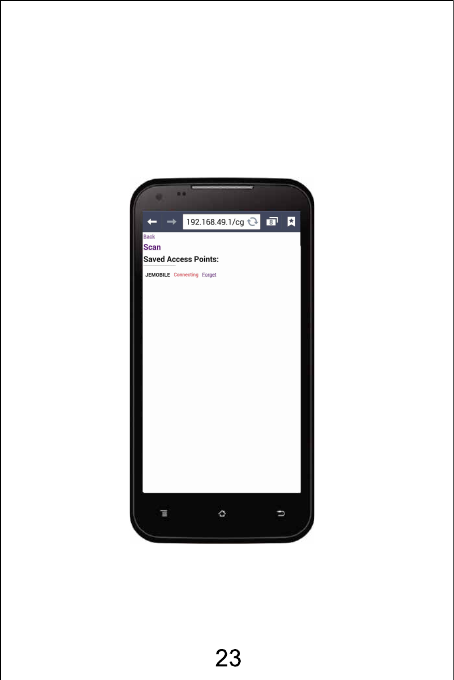
Input password of the AP “ JEMOBILE ”, we can
see below picture:
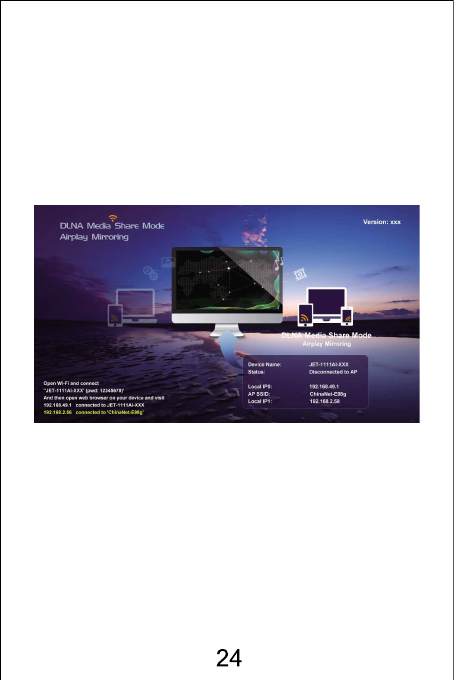
Now, the Dongle is able to access Internet through
the AP. AP’s SSID and Dongle’s IP address
dispatched from AP (“Local IP1”) will be shown
on the TV screen. See below picture:
Then we can use DLNA now.
Same operation on Apple iPhone/iPad to use the
DLNA function.
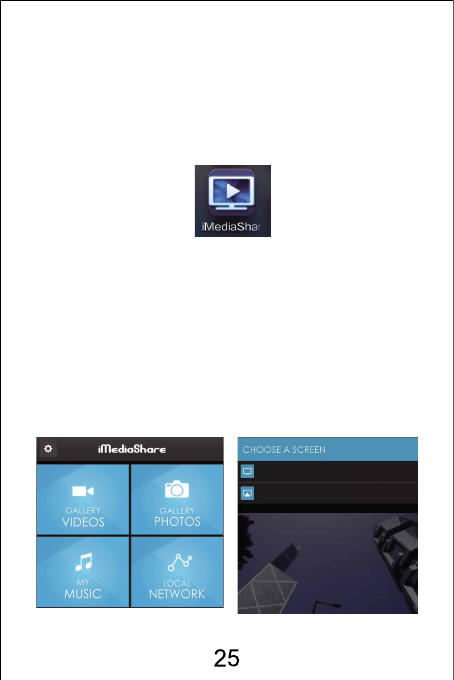
Download and install an application “iMediaShare”
on smart phone or tablet PC, see below icon of this
application:
Open this application, touch “Gallery Videos” to
stream local videos to TV, touch “Gallery Photos”
to stream local photos to TV, or touch “My music”
to stream local music to TV. See below pictures:
JET-1111AI-DEAE3E-DMR
JET-1111AI-DEAE3E-ITV

Note:
This equipment has been tested and found to comply
with the limits for a Class B digital device, pursuant to
Part 15 of the FCC Rules. These limits are designed
to provide reasonable protection against harmful
interference in a residential installation.
This equipment generates uses and can radiate radio
frequency energy and, if not installed and used in
accordance with the instructions, may cause harmful
interference to radio communications. However, there
is no guarantee that interference will not occur in
aparticular installation. If this equipment does cause
harmful interference to radio or television reception,
which can be determined by turning the equipment
off and on, the user is encouraged to try to correct the
interference by one or more of the following measures:
-- Reorient or relocate the receiving antenna.
--
Increase the separation between the equipment
and receiver.
--
Connect the equipment into an outlet on a circuit
different from that to which the receiver is connected.
--
Consult the dealer or an experienced radio/TV
technician for help.

This device complies with part 15 of the FCC Rules.
Operation is subject to the following two conditions:
(1)
This device may not cause harmful interference.
(2)
This device must
accept any interference received,
including interference that may cause undesired
operation.
Changes or modifications not expressly approved by
the party responsible for compliance could void the
user's authority to operate the equipment.
The antenna(s) used for this transmitter must be
installed to provide a separation distance of at least
20 cm from all persons and must not be co-located or
operating in conjunction with any other antenna or
transmitter.