SK Telecom AIRCUBE-BT BT Device User Manual
SK Telecom Co., Ltd. BT Device
UserManual.wiki
>
SK Telecom
>
AIRCUBE BT User Manual
User Manual
Navigation menu
Upload a User Manual
Namespaces
Wiki Guide
HTML
PDF
Info
Views
User Manual
Discussion / Help
Navigation
![2 3[What’s included]• Air Cube • Quick Guide• Micro USB Calbe](https://usermanual.wiki/SK-Telecom/AIRCUBE-BT/User-Guide-2615724-Page-2.png)
![2 3[Air Cube Overview] Power/Charging LEDWhen charging battery, red LED lights up. It will turn to green when the bat-tery has been completely charged.Power ButtonPressing the power button more than one second will turn on/off the power. When an alarm goes off, press the button to turn off the alarm. Fine Dust(PM) Density LEDThis LED shows Fine Dust measure-ments in five(5) different levels.Bluetooth LEDWhen connected with smartphone, the LED will turn to blue. CO2/ Discomfort Index LEDThis LED shows CO2 / Discomfort Index measurements in five(5) different levels.Charging SocketCharge the Air Cube with micro 5-pin smartphone charger or micro USB cable.](https://usermanual.wiki/SK-Telecom/AIRCUBE-BT/User-Guide-2615724-Page-3.png)
![4 5[Turn Power On/Off][On] Press the power button for more than one second. All the LED lights will blink three times simultaneously. Then the Bluetooth LED will blink turning into standby pairing mode. Once it’s paired up with a smartphone, whenever the power turns on, the Air Cube will automatically start to measure once every fif-teen(15) seconds. In addition, the device will measure once more if you shake the device.[Off] Press the power button for more than two seconds. All the LED lights will blink once and the device will turn off.](https://usermanual.wiki/SK-Telecom/AIRCUBE-BT/User-Guide-2615724-Page-4.png)
![4 5[LED Display Measurements]DangerousWarningAverageNormalVery Good Air Quality Discomfort Index (DI) CO2 (ppm) Fine dust µg/m3Very Good ~ 67 ~ 450 ~ 30Normal 68 ~ 74 451 ~ 700 31 ~ 80Average 75 ~ 79 701 ~ 1000 81 ~ 120Warning 80 ~ 84 1001 ~ 2000 121 ~ 200Dangerous 85 ~ 2001 ~ 201 ~](https://usermanual.wiki/SK-Telecom/AIRCUBE-BT/User-Guide-2615724-Page-5.png)
![6 7[Air Cube Application]Using the Air Cube app, you can check the air quality conditions measured by Air Cube in real time. In addi-tion, the Air Cube app provides action guide in accord-ance with each air quality level. You can easily download the mobile application from our Air Cube website (www.aircube.io).After installing the app, you can use it with the Air Cube device. Air Cube app offers convenient features such as setting country-specific air quality standards or alarm notifications depending on the user’s environment.](https://usermanual.wiki/SK-Telecom/AIRCUBE-BT/User-Guide-2615724-Page-6.png)
![6 7[Bluetooth Pairing (connection)]1. Press the power button more than one second.2. Bluetooth LED will turn to blue and blink, turning into standby pairing mode.3. When running the air check application, you can ac-tivate the smartphone’s Bluetooth simply by following the instructions. 4. In the application settings menu, choose the available pairing device. Then, press the ‘pair’ button. It is paired up when the message ‘connected with the Air cube’ is displayed.5. When it’s paired up, Bluetooth LED will turn to blue. When running the Air Cube application, you won’t need to pair up your Air Cube and the smartphone again if you have paired it up once before. (Bluetooth 4.0 or above / Coverage: maximum 11 meters)](https://usermanual.wiki/SK-Telecom/AIRCUBE-BT/User-Guide-2615724-Page-7.png)
![8 9[Charging]You can charge the device with a micro 5-pin smartphone charger or micro USB cable. The power LED will turn red while charging and it turns green when it is complete. If the battery LED flashes, it means that the battery has less than 10% power. Please charge the device immediately then.Smartphone ChargerMicro USB cable](https://usermanual.wiki/SK-Telecom/AIRCUBE-BT/User-Guide-2615724-Page-8.png)
![8 9[Safety Instructions]※ These safety precautions is to prevent any damage, malfunction or injuries. Failure to follow these instructions could result in fire, electric shock, injury or even death Do not place the Air Cube on an unstable surface. The product may be damaged if dropped. Do not disassemble, crush, puncture or shred the Air Cube. Please contact the service center when it needs to be repaired. (If you dis-assemble the product yourself, warranty will not apply.) Keep the Air Cube dry. Wipe the device with clean dry cloth. (Using oil washing detergent, paint thinner or wet wipes may cause exte-rior damages, electric shock, breakdown or even a fire.) Please ensure that no substances gets inside the product, such as drinks or water. Also, please avoid from flooding. (This may cause a breakdown or electric shock.) If the product is wet when charging, disconnect the product right away with caution. (This product is made for indoor use and is not water proof.) Do not use the Air Cube in a damp place. (This may cause a fire or electrical shock.)](https://usermanual.wiki/SK-Telecom/AIRCUBE-BT/User-Guide-2615724-Page-9.png)
![10 11[When Air Cube doesn’t work properly]Please refer to the following actions for different symptoms that may occur and also refer to the user manual enclosed before reporting a device failure.Symptoms ActionPower is not turned on Make sure to press the power button more than one second. Check whether the battery is charged.. If you are using USB port, it may not work because of power shortage. Please charge the device by connecting directly to the USB port.Not pairing up Check whether Android OS version is 4.3 or higher. Bluetooth LE (Bluetooth Low Energy) function is supported in Android 4.3 or above. Check whether the iPhone OS version is iOS 6 or higher.The particulate matter measurement too high / low Check if there is anything blocking the ventilation socket.CO2 level too high / low Check if the temperature/humidity is either too high or too low.Temperature measure-ments too high / low Check if the temperature is either too high or too low. Humidity measurement too high / low Check to see if there’s water or any forms of liquid which might have penetrated inside the Air Cube.](https://usermanual.wiki/SK-Telecom/AIRCUBE-BT/User-Guide-2615724-Page-11.png)
![12 13[Product Specification]System SpecificationBattery Capacity Rechargeable Li-Ion 3.7V, 600mAhOperating time 24 Hours (may vary depending on the operating environment)Charging time 3 HoursPower Micro USB AdapterInterface Bluetooth 4.0 Low Energy(BLE)Dimensions 52(W) x 52(L) x 52(H)Sensor SpecificationParticulate Matters 0 ~ 500µg/m3Temperature 0 ~ 45˚CHumidity 5 ~ 95%CO20 ~ 5000ppm (SN-100C Only)UI SpecificationsFine Dust & CO2 LED 10 Digits (Left, Right)Bluetooth LED 1 Digits (Up)Battery LED 3 Digits (Down)Button for Power On/Off & Micro USB Jack for Battery ChargingBasic CompositionAir Cube, Micro USB Cable, Quick Guide※ Each sensors are applied differently according to the model](https://usermanual.wiki/SK-Telecom/AIRCUBE-BT/User-Guide-2615724-Page-12.png)
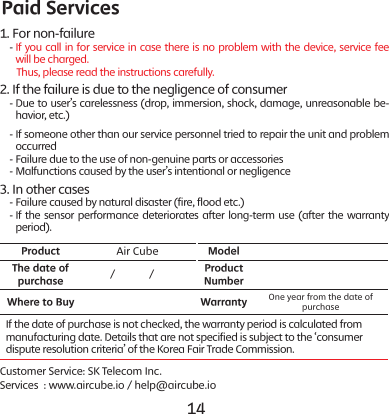
![12 13[Product warranty]Check if there are anything that’s not listed on a prescribed topic warranty Please suggest the warranty to your dealer or Customer Service when failure occurs (the warranty period is one year from the date of purchase, but the warranty of the battery is six months). Please be sure to fill in the details after purchase and keep it separately.Product service standardsWhen device failure occurs, you may receive customer service for free of charge.(For refunds, sales receipts must be provided) Consumer damage typeCompensation detailsWithin the warranty periodAfter the warranty periodWhen major repair is needed, within 10 days after purchase. Exchange or refundOnerous repairIf the product is in need of major repair within a month after purchase Exchange or warrantyWhen replacing is impossible RefundServiceableIn the event of same failure WarrantyIn the event of up to five different failures Exchange or warrantyRepair is impossibleIf service provider loses the customer’s device Exchange or refundRefund of 10% added to the amount of depreciationUnable to repair due to shortage in parts Exchange or warrantyRefund of 5% added to the amount of depreciation](https://usermanual.wiki/SK-Telecom/AIRCUBE-BT/User-Guide-2615724-Page-13.png)