SK Telecom UO-ALBERT Digital Transmission System User Manual
SK Telecom Co., Ltd. Digital Transmission System Users Manual
User manual
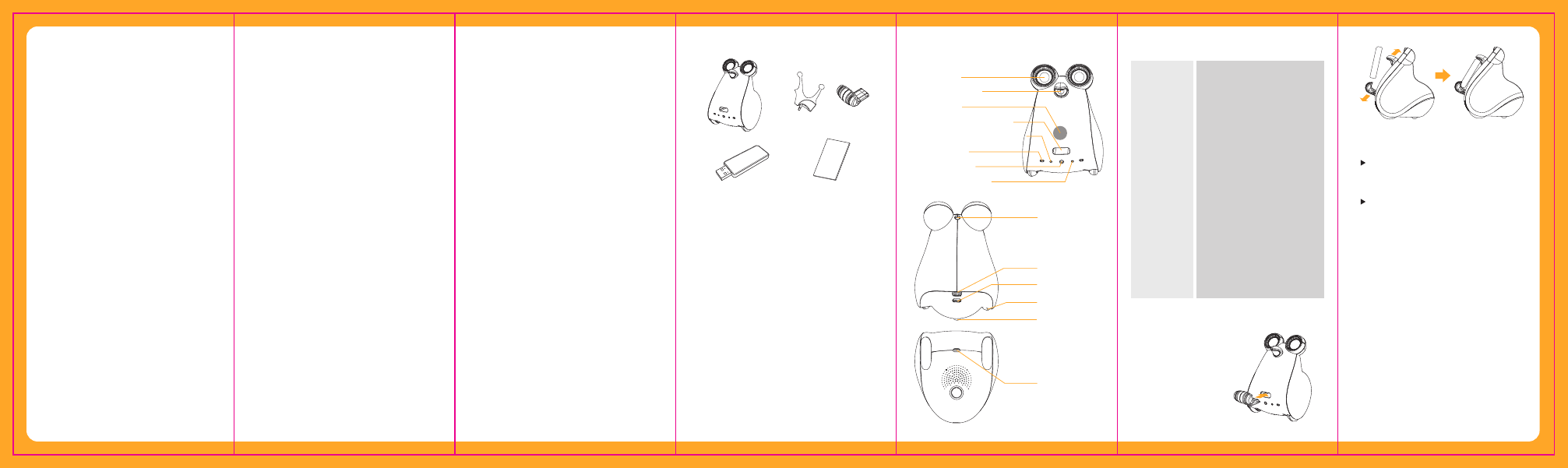
Albert dongle
Table of contents
7. Cradle Install Method
Mount the cradle on the Albert’s
stomach area as indicated in
the direction of the arrow
100 × 105 × 130 mm
330g
Full-color LED for eye × 2
Proximity sensor × 2
Optical ID sensor
Touch sensor
3-axes acceleration sensor
Light Sensor
Temperature sensor
Battery level sensor
Stepping Motor × 2
Speaker (1.5W)
Bluetooth 4.0 BLE
DC 5V / 3.7V (Battery Voltage)
4 hours on average
1.Summary
2.Service Support Guide
3.Precautions
• Handling precautions
• Installation precautions
4.Components of UO Albert
5.Name and Role of each part
6.Product Specification
7.Cradle Install Method
8.How to turn on/off power
9.How to charge product
10.Install Method
•Install Launcher(Android App)
•Install Contents App
11.How to connect device
12.Bluetooth signal lamp status
13.Connecting Albert to USB dongle
14.A/S guide
15.Exchange / Refund guide
WARRANTY
1.Summary
Smart Robot Albert is a personal service robot
with analog sense applied on digital technology
which helps children’s creativity and intelligence
improvement by generating direct physical
activity using the five senses.
2. Service Support Guide
• The Smart Robot is available on any Android
OS device irrelevant of telecom carrier.
• It is available in and outside of the country
when you install the App, and its availability
is irrelevant of membership status of telecom
carrier.
• It functions normally on Android OS devices
with Kitkat(Ver .4.4) or above.
• Please check the list of supported device
for the App in the Customer Service Center
before purchasing the product.
• The recommended device models are
continuously updated.
For further information please contact the
Customer Service Center.
4. Contents of UO Albert
• Smartphone and charger is not included
in the content. Please make sure to use
the standard charger for smartphones
(5V, Micro 5pin).
• You may additionally purchase smart pen,
smart dice, other accessories.
6.Product Specification5. Name of each parts
8. How to turn on/off power
Move the power button in the rear side to
turn the power on/off.
9. How to charge product
• Connect the smartphone charger
(5V, Micro 5Pin Standard charger) you possess
to the charging socket in the rear side of the
robot body.
• The battery is fully charged when the red charging
signal lamp in the front of the robot body turns off.
• Please make sure to use Albert after charging
when Albert’s battery warning light (red color)
flickers.
Size
Weight
Eye LED
Sensors
Driving gear
Speaker
Communication
Charge Voltage
Opetating time
Main body
Accessories and Cradle
Instruction manual
Power button
USB Charging socket
Wheel Drive
Ball Castor
Accessory mounting
• Do not leave the device in high temperature
or direct sun light.
• Do not let young children or pets to bite or
swallow the product.
• Do not apply physical impact on the product.
• The device may be unavailable for use or have
problems in operation when severe physical
impact is applied to the product. Also, severe shock
may cause the product to be separated or broken.
• Do not convert or separate the product arbitrarily.
• Please make sure to use the A/S center for repair.
Warranty is unavailable when the user arbitrarily
converts, separates, repairs the product.
• Do not use the product in places where smart phone
usage is prohibited. It may cause problems in
electromagnetic signals or result in hazardous
situations.
• Please make sure to turn the power off in
danger zones.
• Please make sure to abide the regulations,
instructions, signals within danger zone.
- Installation precautions
• Please proceed with the install after checking
the recommended device models.
• The App may not function if the device is not a
recommended model
Eye LED
Phone Cradle(Top)
Touch Sensor
Phone Bottom Cradle mounting
Charge/Battery remain indicator lamp
Proximity Sensor
Illuminance Sensor
Bluetooth indicator lamp
UO Albert
Widen the nose part and the bottom cradle mounting
and place the mobile phone in between as shown above.
Some mobile phone sizes are not
compatible,so please do not mount
the phone by force. (Handle with care)
It may fall forward when mounting phone
with heavy weight. Please be careful.
OID Sensor
3. Precautions
- Handling precautions
• Do not soak the device with water, and do not
touch the robot power plug with wet hands.
10. Install Method
Install Launcher (Android App)
Search and download
“Albert BLE Launcher” in Google Play.
Install Contents App
Select “Market” icon in the installed
Launcher and download the
Contents App.
11. How to connect device
When first using, you must register
the robot in the Smart device in
the following order.
Turn on the robot’s power.
Run Albert Launcher.
It will automatically search robot to
register.
Save the name for the connected robot.
In a Launcher where another robot is
already registered, proceed as the
following steps.
Robot menu >> Register New Robot >>
Start button
For precise robot register please
make sure to turn on only one robot.
14. A/S guide
If any malfunction occurs when using the
product, please contact the Customer
Service Center.
Please make sure to apply in the AS center
after having consulted with the
Customer Service Center.
15. Exchange/Refund guide
Exchange
If there exists any fault in the performance
or the function of the product, you may exchange
the product in the store you have purchased
it within 14 days after purchase.
For products that was found faulty after
15 days it will be sent to the manufacturer,
and the manufacturer will proceed with the
exchange or A/S after verifying the
symptom/status of product.
Refund
Refund is available if you have not used the
product within 14 days after its purchase.
If the product box seal is damaged, the product
will be considered to have been used and hence
refund will be unavailable.
Though the product box seal is not damaged,
products with damage on its box by customer’s
carelessness is unavailable for refund.
If the contents of the product are missing,
refund is unavailable.
13. Connecting Albert to USB Dongle
USB Dongle Install method
• Precaution: You must preinstall USB Dongle
driver before connecting the dongle to PC.
Bluetooth BLE USB Dongle Pairing method
• After connecting the dongle with PC, turn on
Albert and place the dongle near it.
(The distance between Albert and dongle should
be within approximately 20cm)
• It is functioning normally when there is a beep
sound from Albert and the Bluetooth signal lamp
of dongle is lit in blue continuously or
flickering rapidly.
• For more information, please refer to :
http://www.iotrobot.biz/
Smart Robot
UO Albert
Manual
UO Albert
12. Bluetooth signal lamp status
•The Bluetooth signal lamp is
continuously lit when it is on
Bluetooth link standby status.
•The Bluetooth signal lamp quickly
flickers when the Bluetooth link
is successful.
FCC
This equipment has been tested and found to
comply with the limits for a digital device,
pursuant to Part 15 of the FCC Rules. These
limits are designed to provide reasonable
protection against harmful interference in a
residential installation. This equipment
generates uses and can radiate radio
frequency energy and, if not installed and
used in accordance with the instructions,
may cause harmful interference to radio
communications. However, there is no
guarantee that interference will not occur in a
particular installation. If this equipment does
cause harmful interference or television
reception, which can be determined by
turning the equipment off and on, the user is
encouraged to try to correct the interference
by one or more of the following measures:
• Reorient or relocate the receiving antenna.
• Increase the separation between the equipment
and receiver.
• Connect the equipment into an outlet on a
circuit different from that to which the receiver is
connected.
• Consult the dealer or an experienced radio/TV
technician for help.
This device comply with part15 of FCC rules.
Operation is subject to the following two conditions:
• This device may not cause harmful interference.
• This device & its accessories must accept any
interference received, including interference that may
cause undesired operation.
Hereby, SK Telecom Co., Ltd. declares that this
UO-ALBERT is in compliance with the essential
requirements and other relevant provisions of
directive 1999/5/EC.)
WARRANTY
The following warranty warrants for the contents
of Albert you have purchased. If there exists any
defect during normal use of Albert main body we
will guarantee its exchange of free repair for a year
starting from the date of purchase. There will be no
exchange or free repair if it is of customer’s fault,
natural disaster, external effect such as abnormal
voltage, misuse/abuse of product, malfunction or
damage caused by various accidents even though
the product is within its term of warranty.
Please make sure to fill out the table below after
purchasing the product. Also, make sure to keep
the purchase receipt of the product. For further
detailed information on warranty regulations,
please contact the Customer Service Center.
Please refer to the label adhered to the back
of the manual for the serial number and the
date of manufacture.
Changes or modifications not expressly
approved by the manufacturer (or
party responsible) for compliance could void the
user’s authority to operate
the equipment
This device complies with RF exposure
requirement.