SKYPINE ELECTRONICS 7649051210 2DIN Car Radio and Navigation System with DVD Driver User Manual HMI Specs Bluetooth smart 2 8
SKYPINE ELECTRONICS (SHEN ZHEN) CO., LTD. 2DIN Car Radio and Navigation System with DVD Driver HMI Specs Bluetooth smart 2 8
User Manual
Project: 7 649 052 110 001
Version Status
2.8 valid
Page
1/23
Date
25/05/2010
Confidential Subject: Bluetooth HMI Specifications
____________________________________________________________________________________________________________________________________________________________________
0520
Datei: 25/05/2010 13:56:00 Druck: 25/05/2010 13:56:00
1 Introduction
This document describes the Human Machine Interface for Bluetooth component for NewYork-800 BT radio.
NewYork-800 BT is a two Din Touch screen radio.
2 Description
The Major Features provided by the component include Connection handling, Handsfree call handling,
phonebook download, Call History download and streaming functionality.
The document explains the Messages displayed to the user and fall back screens after message time out
2.1 Common Key operations
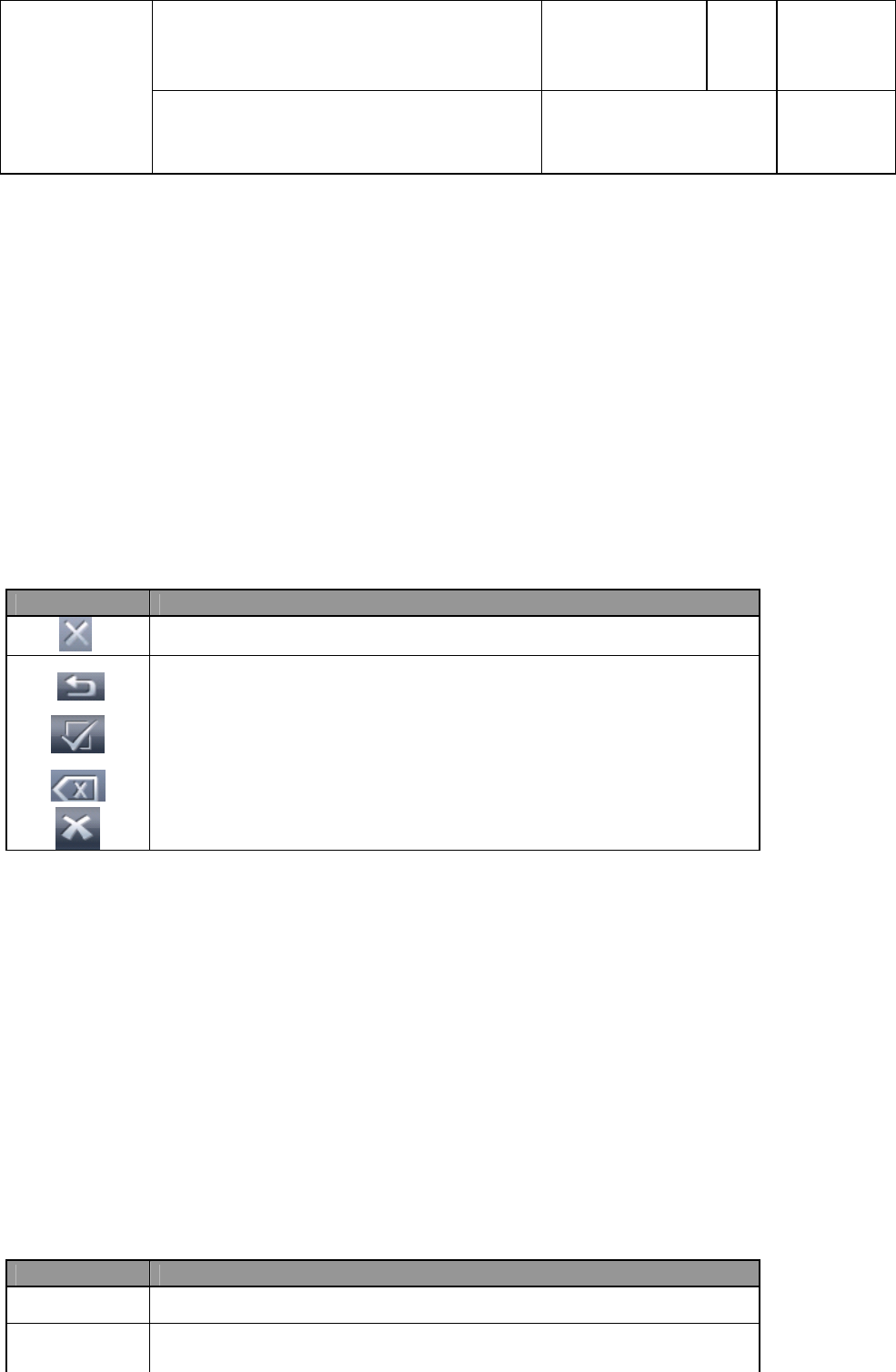
Button Functionality
Close: Close the currently running application
Back: Move the display/ Menu item one level back
OK : Ok key
Clear : Clears the characters in edit menu
Cancel Key : Cancels the ongoing operation
• Long Button Press Behaviour: Long press function is activated if the user presses the button for more
than 1 second.
• Short Button Press Behaviour: If the button key is released before 1 second, this will be treated as a
normal key press.
• In All Edit masks underscore will be displayed only when a character can be added. Else user has to
delete characters to edit
E.g The max pin length is 4.
If the previous pin is 1234, Underscore won’t be visible
That means max lenghth is reached and user has to delete to edit further
Edit Number: “+” on longpress of ‘0’ in Number Masks
2.2 BT Led Status
Led Status Meaning
BLINKING Phone Auto connection is in progress
ON Phone or Audio Streaming device is connected
Project: 7 649 052 110 001
Version Status
2.8 valid
Page
2/23
Date
25/05/2010
Confidential Subject: Bluetooth HMI Specifications
____________________________________________________________________________________________________________________________________________________________________
0520
Datei: 25/05/2010 13:56:00 Druck: 25/05/2010 13:56:00
OFF No phone nor Audio Streaming device is connected
3 Common Functionality
3.1 Call Operation
1. This section describes about incoming call, out going call and in call status
2. When Corresponding Name is available in Downloaded Mobile phonebook or radio phonebook then
Name will be shown in call info region in all call operations else only number will be shown
3. Priority will be given to Radio Phonebook
Button Functionality
Cancel: Ends the Call
OK: Accepts the call
3.1.1 Incoming call
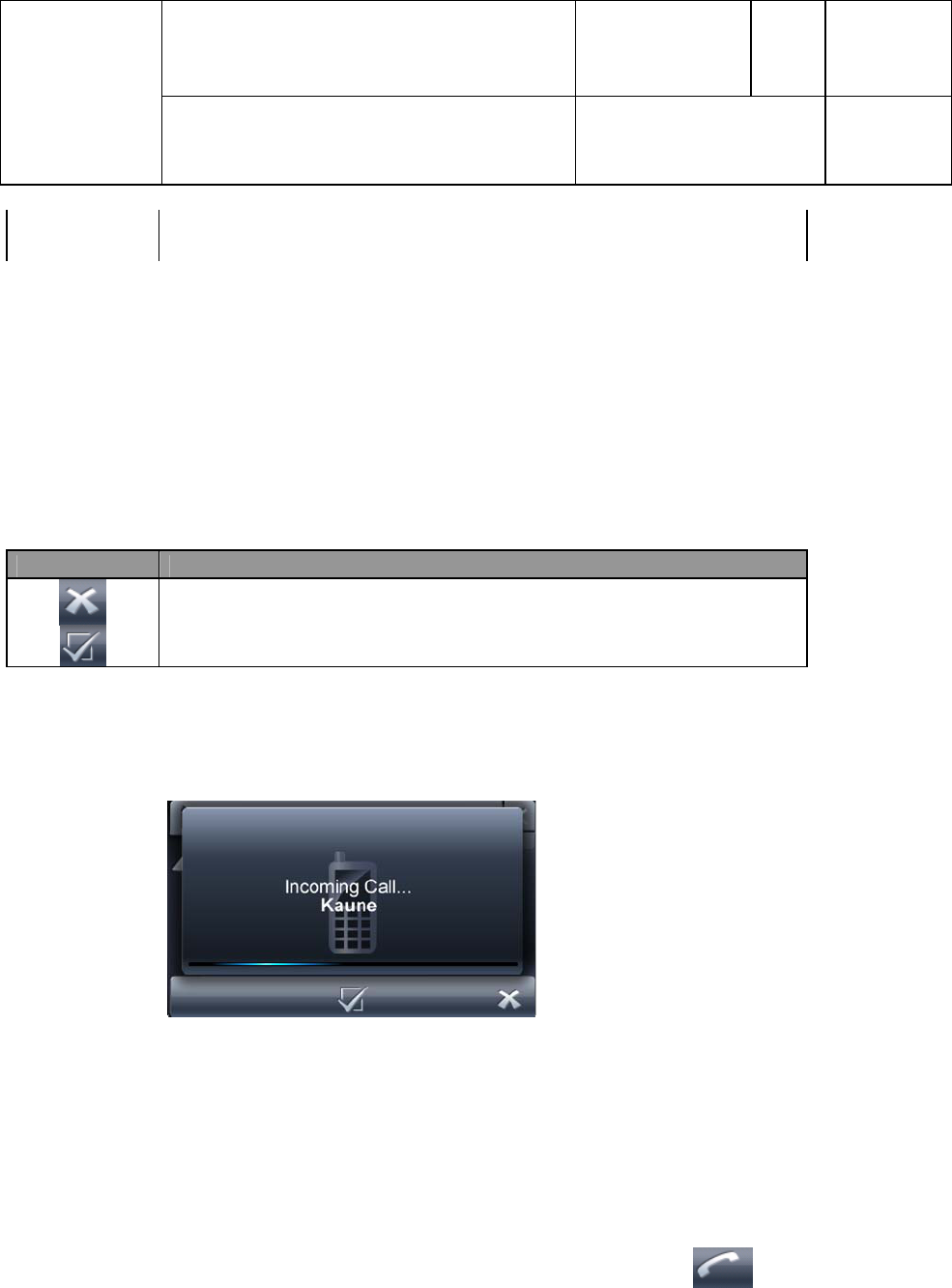
2. When Phone is connected to radio and radio is in any source, if there is an incoming call to the
connected mobile the same will be indicated to the user as below.
Please refer General HMI spec for priority handling.
Call has higher priority than Navi announcement.
During Navi announcement if call comes then audio will be taken over by BT call.
During call if Navi announcement comes then audio will be still with call. ODR symbol should be shown in call
mask if available.
Call is considered as external event and mute handling same as other external event.
3.1.2 Outgoing call
1. When phone is connected, User can initiate outgoing call by press of icon in Bluetooth menu
wherever it appears.
2. When No phone is connected and user tries to initiate a call “Device Not Connected” will be
displayed for 2 seconds and returns to the previous screen
3. During dialing if some error occurs then “Dial Error” will be displayed for 2 seconds and return to
previous screen
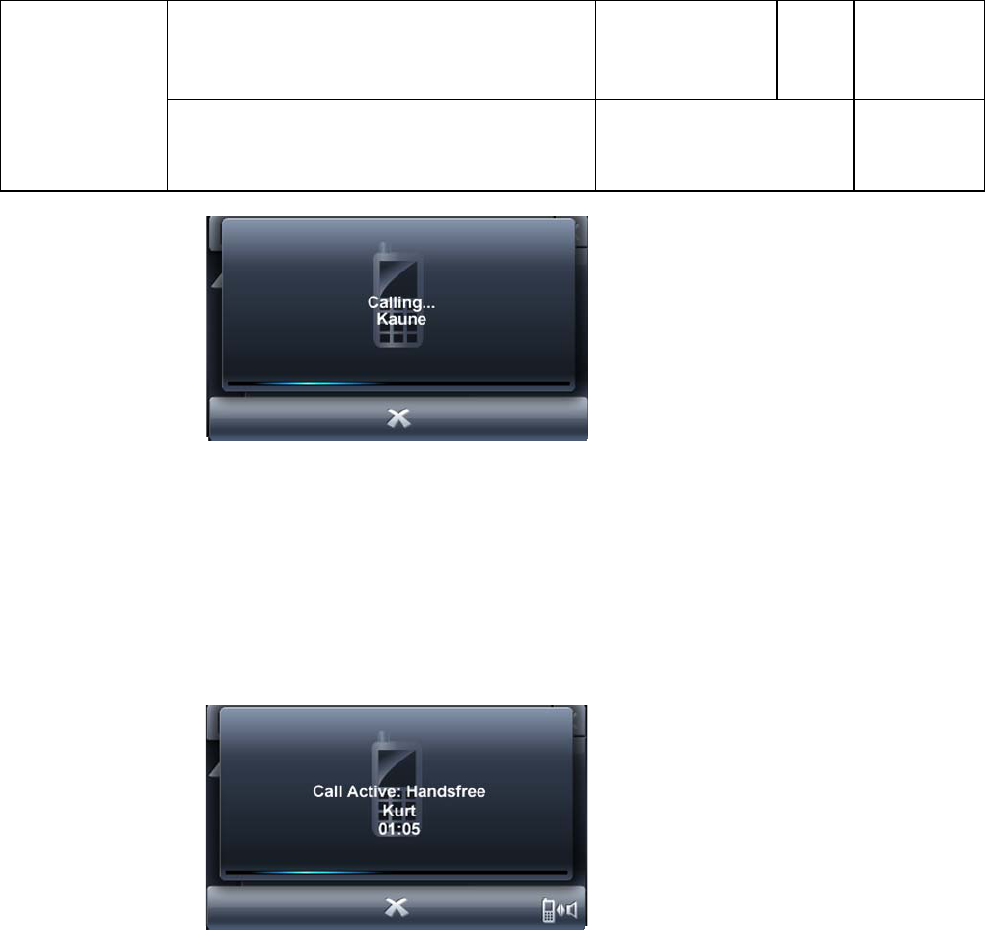
4. When outgoing call is successful below screen will be shown
Project: 7 649 052 110 001
Version Status
2.8 valid
Page
3/23
Date
25/05/2010
Confidential Subject: Bluetooth HMI Specifications
____________________________________________________________________________________________________________________________________________________________________
0520
Datei: 25/05/2010 13:56:00 Druck: 25/05/2010 13:56:00
5. Outgoing call can also be initiated directly using mobile phone. In such cases where we don’t get to
know the number “ Private Number “ will be shown in the call info region
3.1.3 In call
2. When Call is accepted from Radio or Mobile below screen will be shown.
2. When call is accepted the audio will be transferred to Speakers (in some mobiles audio will be
with Mobile)
3. Audio transfer from Radio speakers to mobile and vice versa is possible
4. If the audio status is known then “Call Active: Headset”/”Call Active: Handsfree” will be
displayed based on the status. If no status is known then “Call Active” will be shown
5. Call Duration will be displayed in HH:MM or MM:SS format and will start from the time it is
Active in radio
6. Name will be displayed if any name is available either in Radio phonebook or Downloaded
Mobile Phonebook for the corresponding number. Priority is for Radio Phonebook.
7. If mobile is connected during an ongoing call in mobile then after connection audio will be
available with Mobile during the call.
3.1.4 End Call
1. When call is ended from radio side or Mobile side “Call Ended” will be displayed for 2 seconds.
2. When User was last in Bluetooth menu, after call is ended it will return to Bluetooth Application
Menu.
Project: 7 649 052 110 001
Version Status
2.8 valid
Page
4/23
Date
25/05/2010
Confidential Subject: Bluetooth HMI Specifications
____________________________________________________________________________________________________________________________________________________________________
0520
Datei: 25/05/2010 13:56:00 Druck: 25/05/2010 13:56:00
3. In All other cases it will return to the last screen.
NOTE: a) if mobile supports Battery indication, then in case of Low battery (from point of Bluetooth
Operation) “Battery Low in Phone!” pop up will be displayed for 2 seconds
3.2 Radio Contact Save
1. Contact can be saved to Radio Phonebook from Call History and Mobile phonebook by press
Of icon
2. Maximum Contacts of radio phonebook is 20
3. If radio phonebook is full and user tries to save the contact “Radio Phonebook Full” will be
displayed for 2 seconds and go back to previous screen
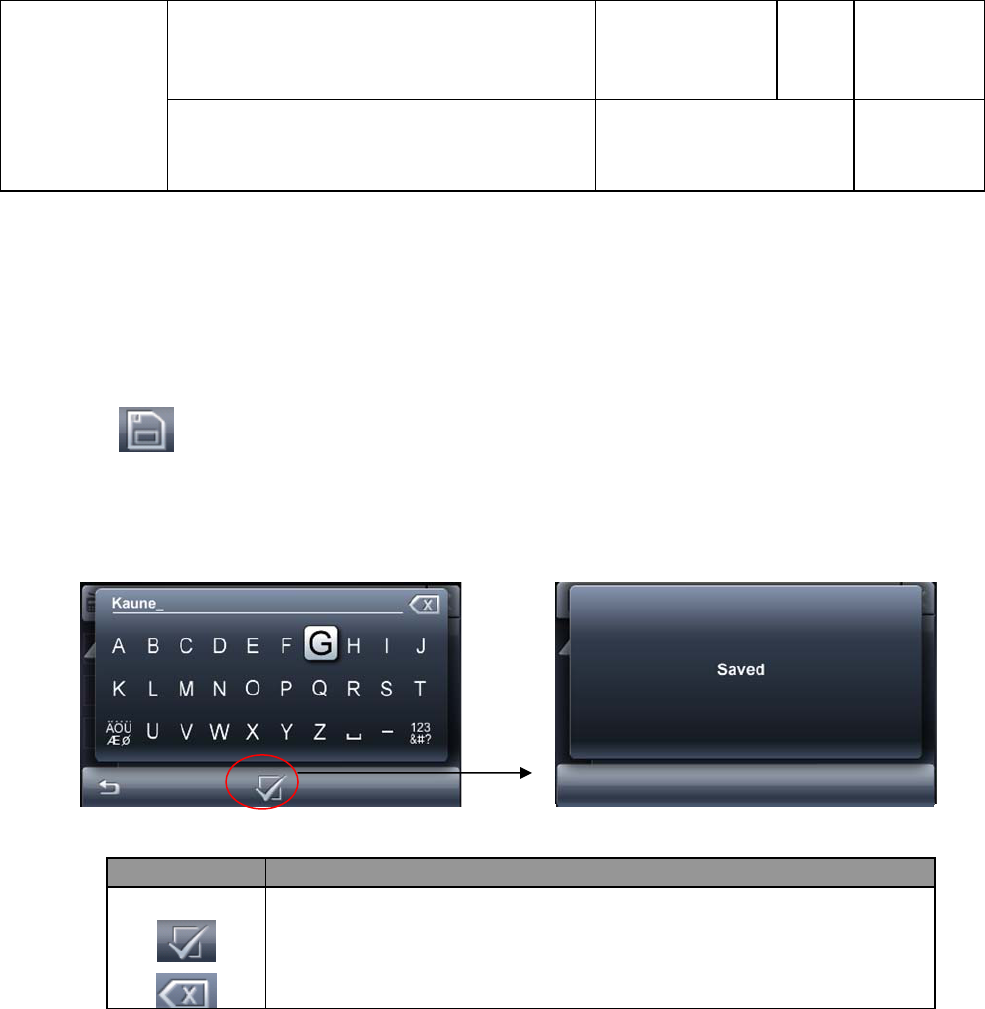
4. If Phonebook is not full then it will open name edit screen with the available name as below
Functionality
OK:1) Saves the contact to radio phonebook
2) Number edit will be opened when contact is saved from Call
history or phonebook
Clear: Short Press: Clears character by character
Long press : Clears all character
5. User can edit the Name using the Speller which appears on screen. Maximum length is 20 characters
Number edit also will be opened when contact is saved from Call history or phonebook.
6. When contact is saved “Saved” will be displayed for 2 seconds and return back to screen from where
save was initiated
7. When Empty Name is tried to save “Failed” will be displayed for 2 seconds and return to the
previous screen (edit screen). If same name is tried to save again “Name Already Exists!” will be
displayed
4 HMI Flow
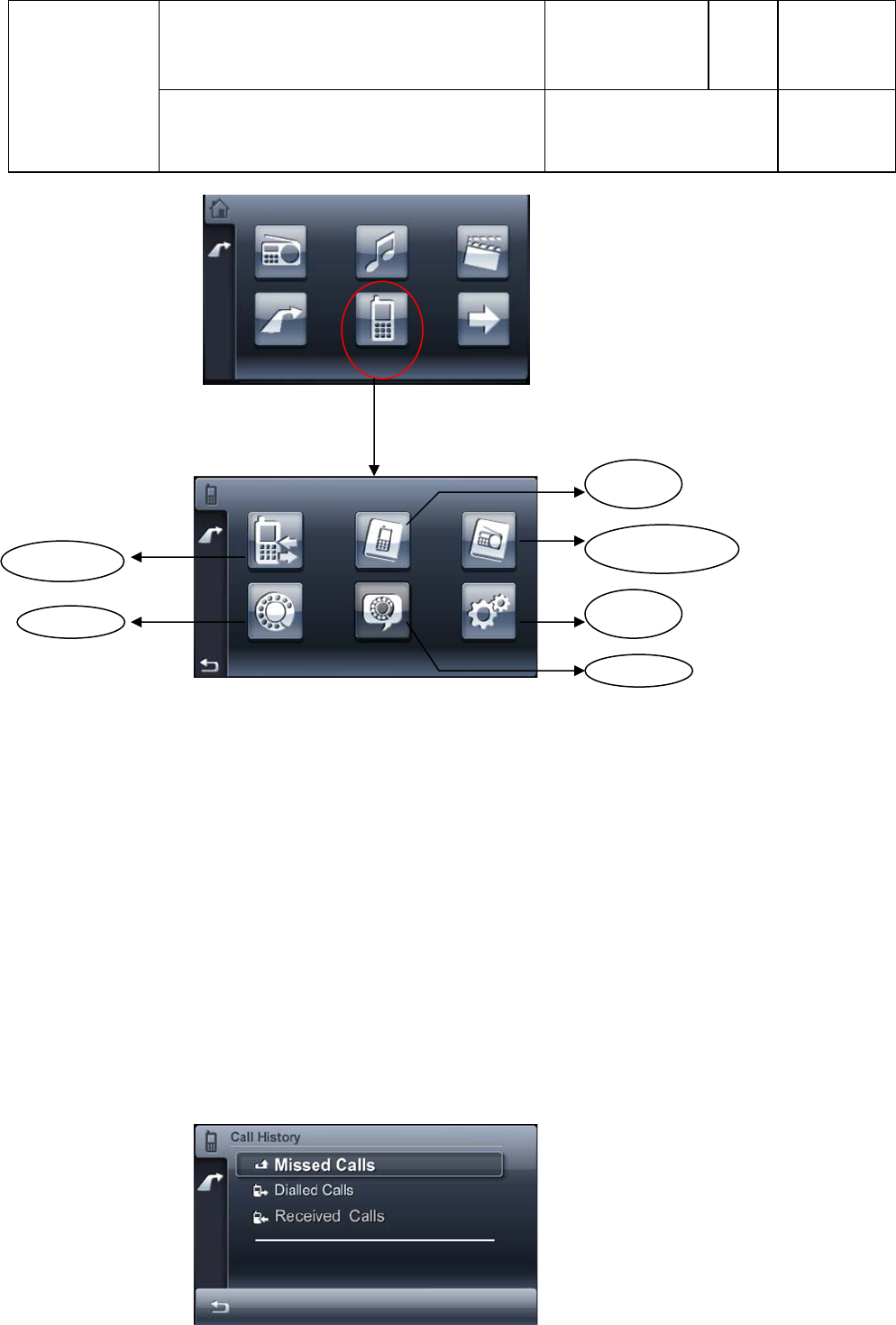
Bluetooth Menu Can be reached from HOME screen as shown below
Project: 7 649 052 110 001
Version Status
2.8 valid
Page
5/23
Date
25/05/2010
Confidential Subject: Bluetooth HMI Specifications
____________________________________________________________________________________________________________________________________________________________________
0520
Datei: 25/05/2010 13:56:00 Druck: 25/05/2010 13:56:00
Figure 1 HOME Screen
Figure 2 Bluetooth Menu Screen
4.1 Call History
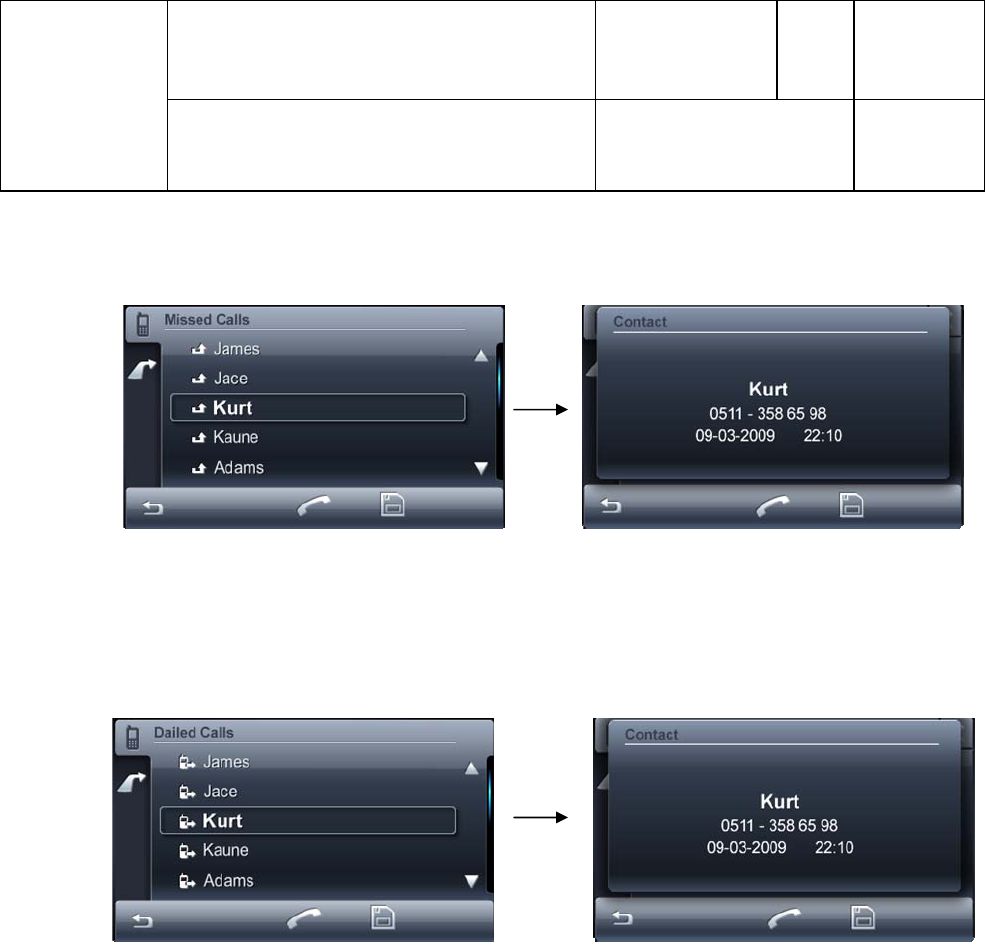
1. Three types Missed calls, Dialled calls and Received calls are supported.
2. The call history of currently connected mobile will be displayed
3. If no mobile is connected while selecting Call History then “Device not Connected” pop up will be
displayed for 2 seconds and go back to Previous Screen
4. If the Currently connected Phone does not support call history download or list is empty then “List Empty”
pop up message will be displayed for 2 seconds when particular list is selected and go back to previous screen
5. Call history download will happen automatically after Mobile phone connection and after every call.
6. During downloading of Call History if user tries to enter Call history menu then
“BT Link Busy: Call History Downloading“ will be displayed. User will also be able to cancel download
7. Each list will support maximum of 7 entries. The Order of listing will be as in mobile. The name or number
displayed will be as downloaded from mobile.
8. Time and date of the entry will be displayed if the Mobile supports date and time download.
Time format will be as in Mobile.
Mobile
Phoneboo
k
Radio phonebook
BT
Settings
Voice Dial
Call History
Dial New
Project: 7 649 052 110 001
Version Status
2.8 valid
Page
6/23
Date
25/05/2010
Confidential Subject: Bluetooth HMI Specifications
____________________________________________________________________________________________________________________________________________________________________
0520
Datei: 25/05/2010 13:56:00 Druck: 25/05/2010 13:56:00
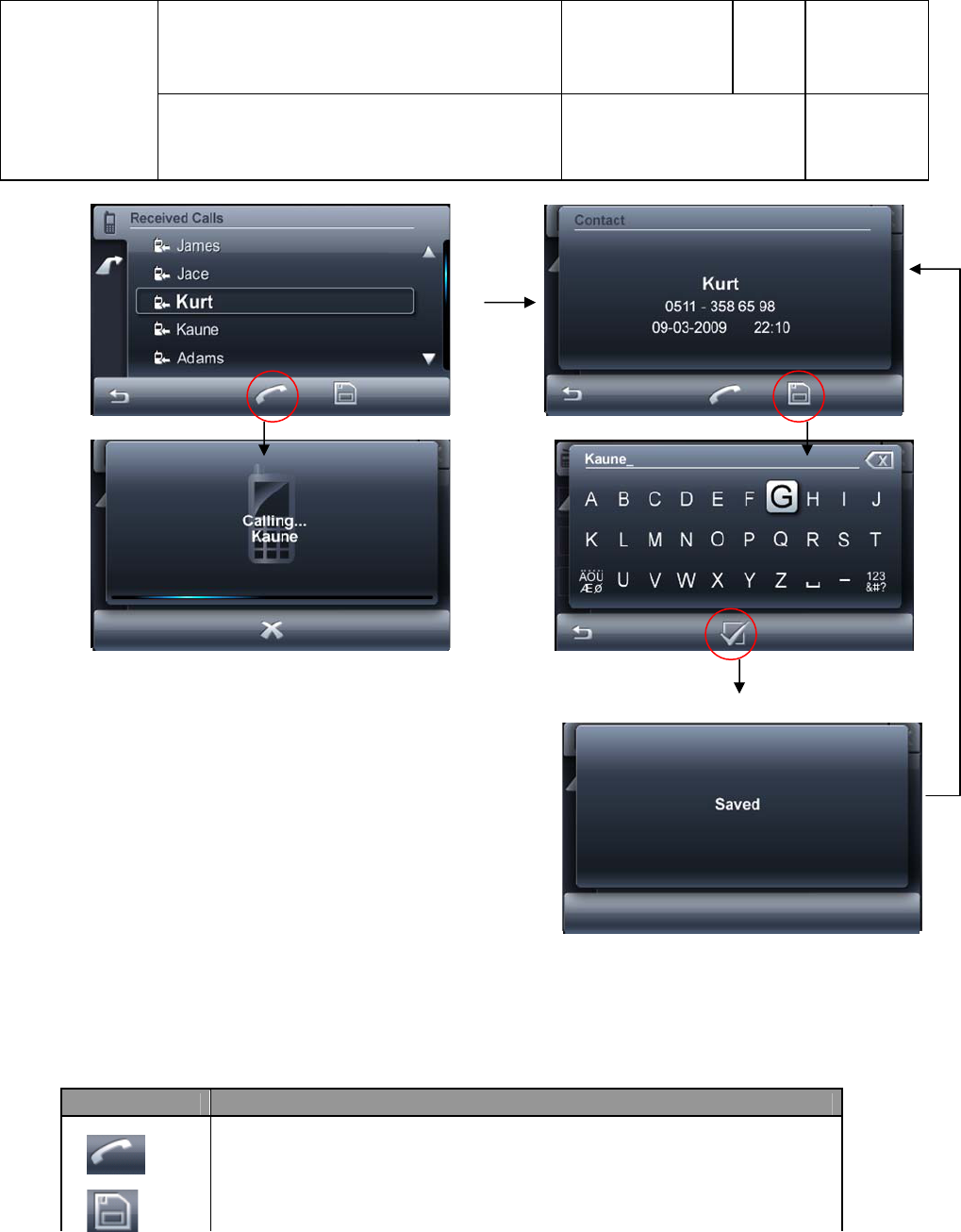
4.1.1 Missed Calls:
2. On selection of Missed Calls, list of missed calls will be displayed
4.1.2 Dialled Calls:
2. On selection of Dialled Calls, list of Dialled Numbers will be displayed
4.1.3 Received Calls:
2. On selection of Received Calls, list of Received calls will be displayed
Project: 7 649 052 110 001
Version Status
2.8 valid
Page
7/23
Date
25/05/2010
Confidential Subject: Bluetooth HMI Specifications
____________________________________________________________________________________________________________________________________________________________________
0520
Datei: 25/05/2010 13:56:00 Druck: 25/05/2010 13:56:00
4.1.4 Key Actions:
Button Functionality
Dial: Makes a call to the Highlighted Entry or the selected Contact as
explained in sec 3.1
Save: On press of Save button Name edit will be started with the
available name as explained in sec 3.2
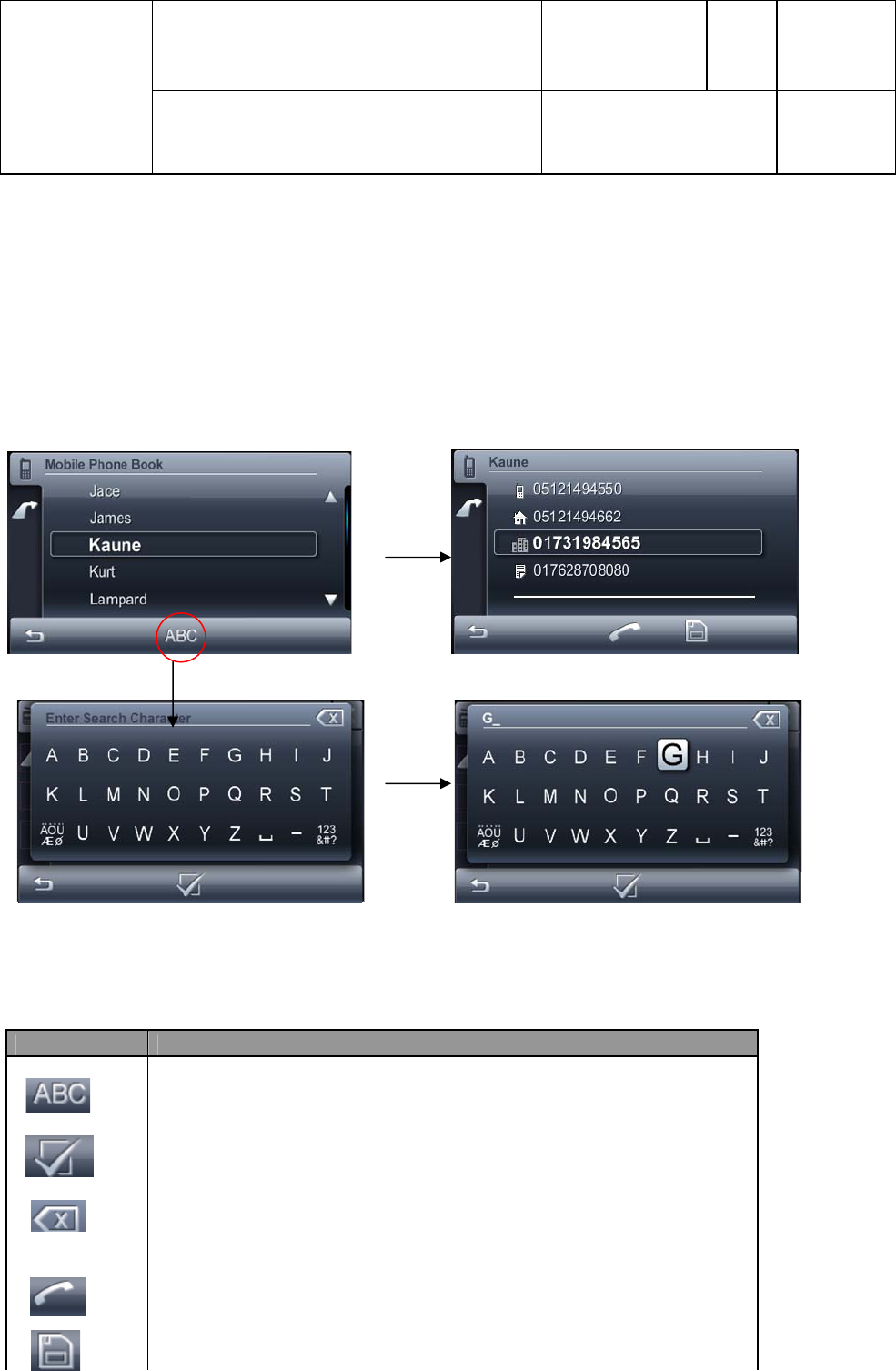
4.2 Mobile Phonebook
1. User can view the Downloaded Mobile Phonebook of the currently connected device using this menu option.
2. If no mobile is connected while selecting the Mobile phone book then “Device not Connected” pop up will
be displayed for 2 seconds and go back to previous screen
Project: 7 649 052 110 001
Version Status
2.8 valid
Page
8/23
Date
25/05/2010
Confidential Subject: Bluetooth HMI Specifications
____________________________________________________________________________________________________________________________________________________________________
0520
Datei: 25/05/2010 13:56:00 Druck: 25/05/2010 13:56:00
3. If there is no phonebook downloaded then, “List Empty” pop up message will be displayed for 2 seconds
and go back to previous screen
4. Maximum entries per phonebook will be 500 contacts. Wrap Around should be possible. List will be
alphabetically sorted (Unicode)
5. Per contact there can be maximum of 4 numbers of type Home, Cell, Work and Other (general)
6. Number will be sorted as per priority (Home, Cell, Work and other in order)
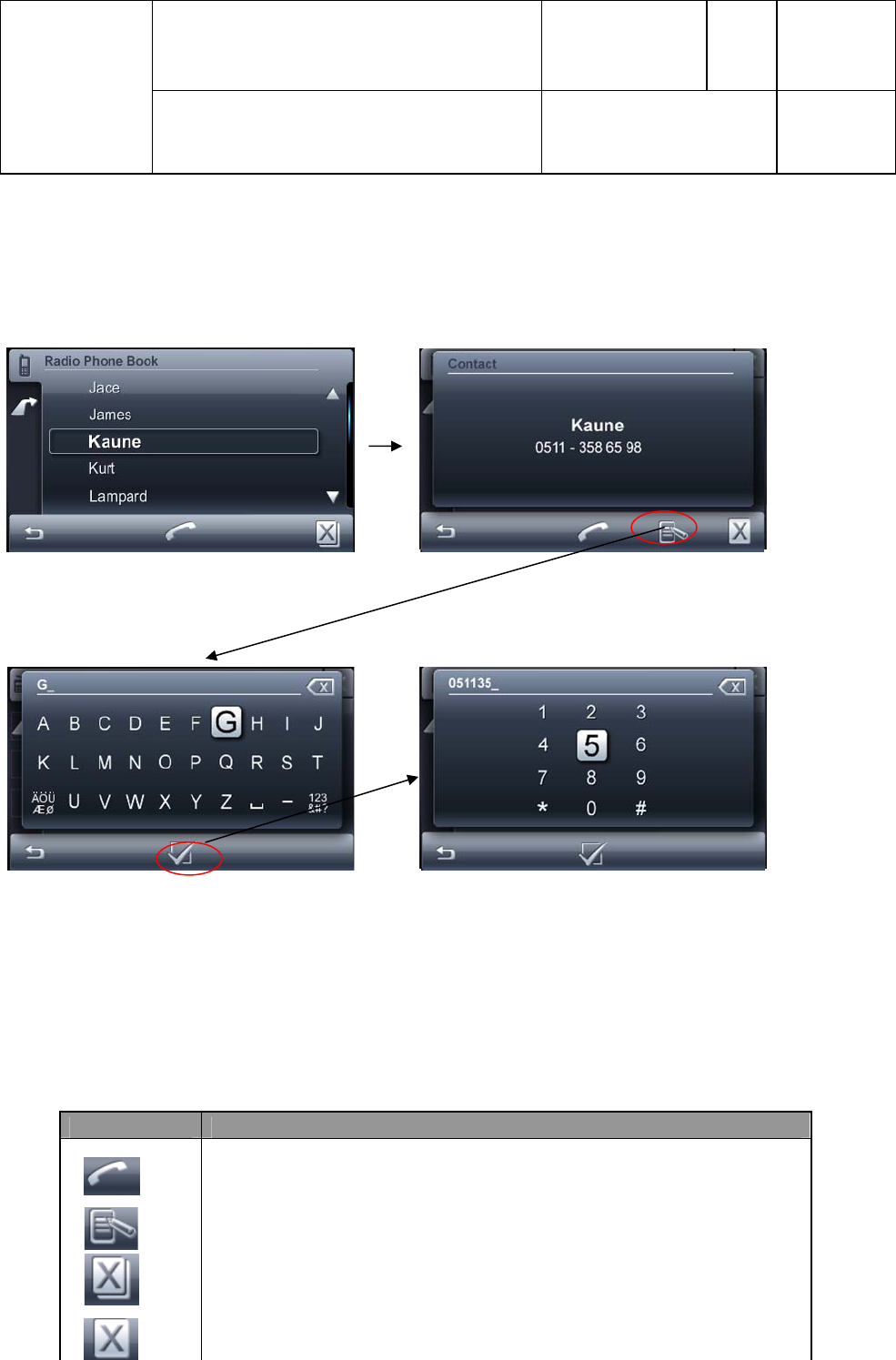
6. User can search through the phonebook, using the search button.
7. Multiple character search is supported. (Maximum search character is 3)
4.2.1 Key operations
Button Functionality
Opens the search Mask.
OK: Lists the contacts matching with the edited characters.
If No match is found then “Name does not Exist!” will be displayed for 2
seconds
Clear: Short Press: clears the character one by one
Long press: Clears all the characters
Dial: Makes a call to the Highlighted Entry as explained in sec 3.1
On pressing against the number the particular number will be
selected. Then the call and save operations can be performed for
that selected number. By default first number will be selected
Save: On press of Save button Name edit will be started with the
available name as explained in sec 3.2
Project: 7 649 052 110 001
Version Status
2.8 valid
Page
9/23
Date
25/05/2010
Confidential Subject: Bluetooth HMI Specifications
____________________________________________________________________________________________________________________________________________________________________
0520
Datei: 25/05/2010 13:56:00 Druck: 25/05/2010 13:56:00
4.3 Radio Phonebook
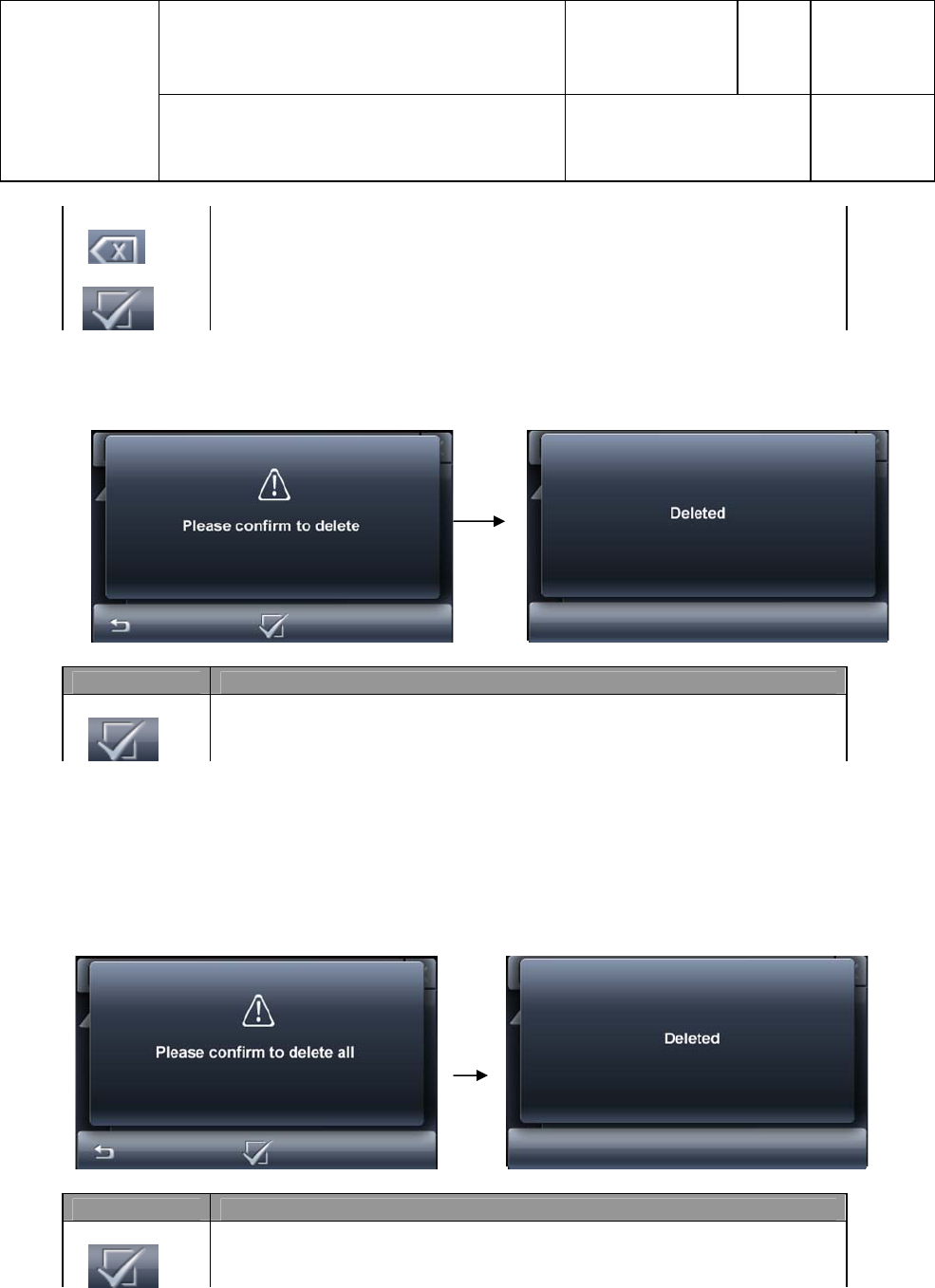
1. User can view, edit, delete or make a call to the entries in the Radio Phonebook.
2. Maximum of 20 entries will be available in the list
3. List remains same irrespective of mobile connected
4. Radio Phonebook will be retained after NORMSET also
1. When Empty number is tried to save “Failed” will be displayed for 2 seconds and go back to previous
screen
2. Maximum length of name and number is 20
3. List will appear as saved by user
4.3.1 Key Operations:
Button Functionality
Dial: Makes a call to the Highlighted Entry or contact as explained in sec
3.1
Edit: Starts edit for the selected entry
Delete All : Deletes all the contacts
Delete: Deletes the selected contact
Project: 7 649 052 110 001
Version Status
2.8 valid
Page
10/23
Date
25/05/2010
Confidential Subject: Bluetooth HMI Specifications
____________________________________________________________________________________________________________________________________________________________________
0520
Datei: 25/05/2010 13:56:00 Druck: 25/05/2010 13:56:00
Clear: Short Press: clears the character one by one
Long press: Clears all the characters
OK: Saves the edited contact to radio phonebook. “Saved” will be
displayed for 2 seconds and go back to List
4.3.1.1 Delete Contact:
Button Functionality
OK: Deletes the selected contact. “Deleted” will be displayed for 2
seconds and go back to List
4.3.1.2 Delete All:
Button Functionality
OK: Deletes all the contacts. “Deleted” will be displayed for 2 seconds
and go back to List
4.4 Dial New
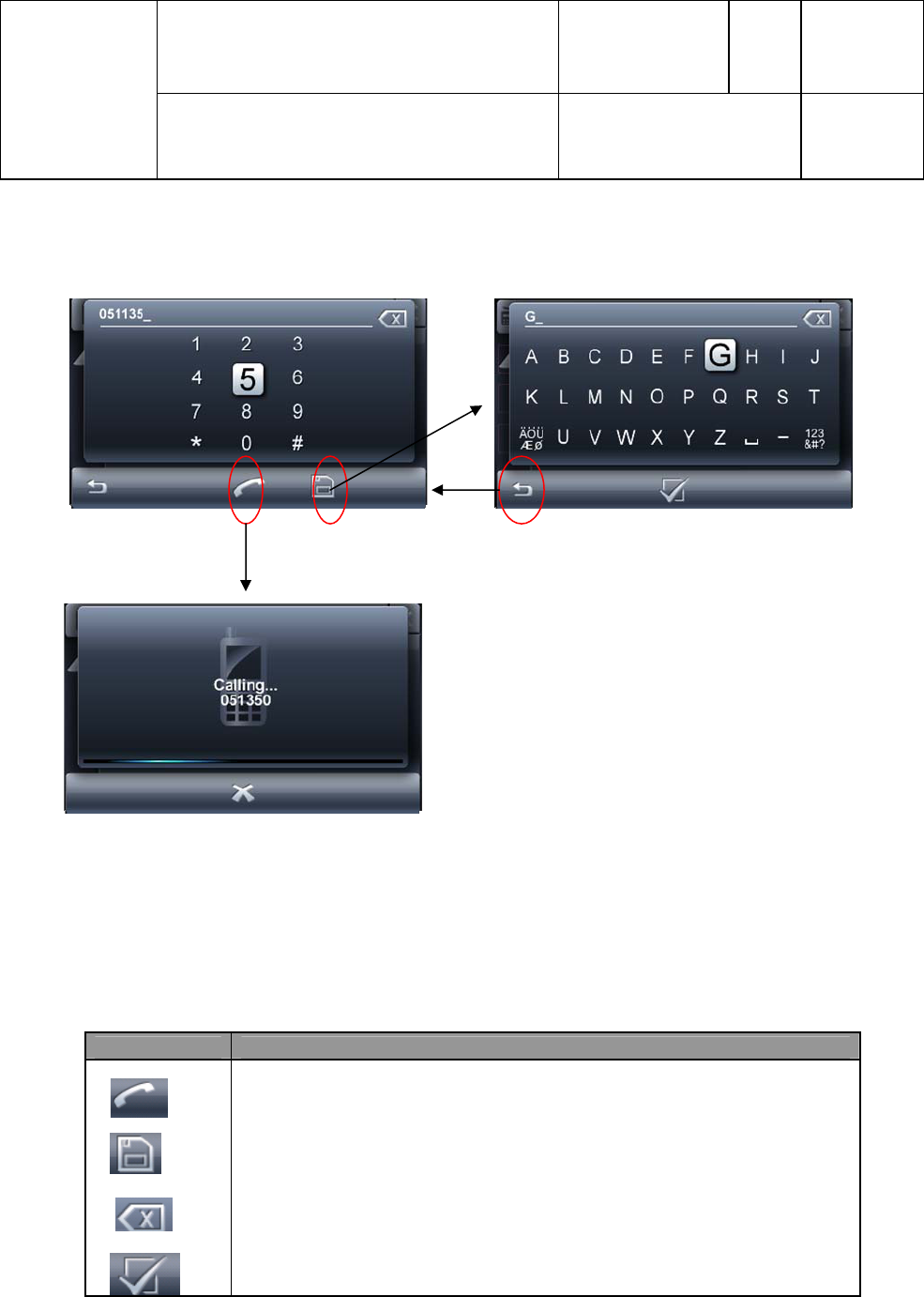
User can make an outgoing call by entering the number using this menu option.On menu selection following
screen will be displayed
Project: 7 649 052 110 001
Version Status
2.8 valid
Page
11/23
Date
25/05/2010
Confidential Subject: Bluetooth HMI Specifications
____________________________________________________________________________________________________________________________________________________________________
0520
Datei: 25/05/2010 13:56:00 Druck: 25/05/2010 13:56:00
1. Maximum digit that can be entered for dialing is 20.
2. Maximum character for name edit is 20
When Empty number is tried to save “Failed” will be displayed for 2 seconds and go back to previous screen
4.4.1 Key Operations:
4.5 Voice Dial
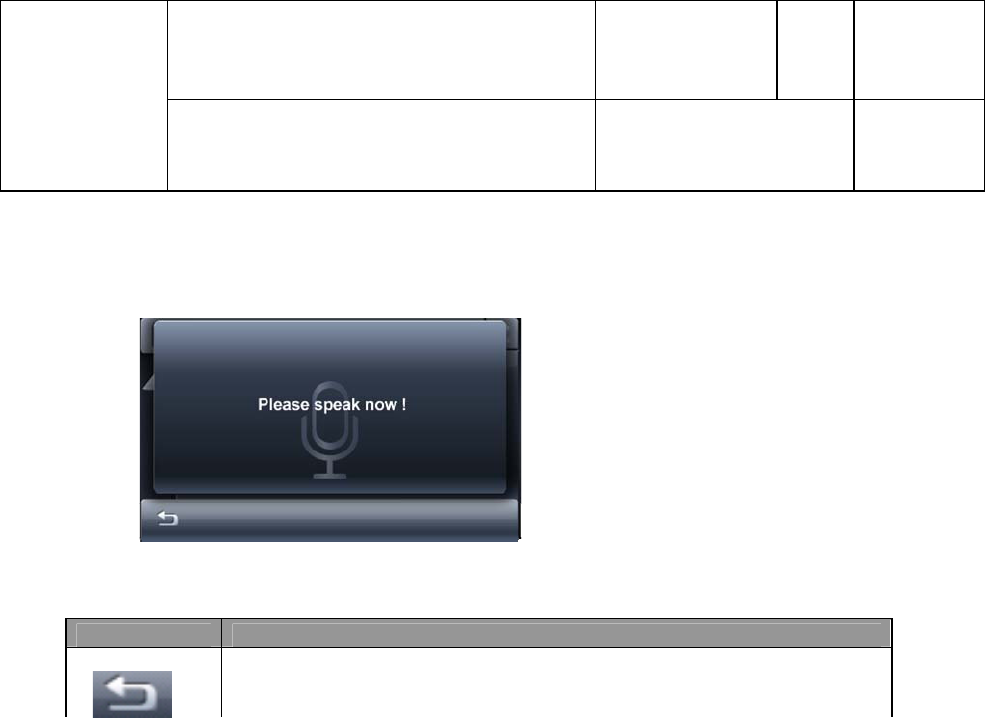
1. On selecting this, voice dial will be initiated and “Activating voice dial” will be displayed.
2. “Speak Now…” will be displayed if the Connected Mobile supports voice dial. Voice dial Link will be active
for a short while.
Button Functionality
Dial: Makes a call to the Highlighted Entry or contact as explained in sec
3.1
Save: On press of Save button Name edit will be started with the
available name as explained in sec 3.2
Clear: Short Press: clears the character one by one
Long press: Clears all the characters
OK: Saves the contact to radio Phonebook. “Saved” will be displayed
for 2 seconds and go back to BT main mask
Project: 7 649 052 110 001
Version Status
2.8 valid
Page
12/23
Date
25/05/2010
Confidential Subject: Bluetooth HMI Specifications
____________________________________________________________________________________________________________________________________________________________________
0520
Datei: 25/05/2010 13:56:00 Druck: 25/05/2010 13:56:00
2. If the connected mobile does not support voice dial then “Failed” will be displayed.
3. If no device is connected then “Device not Connected” will be displayed
4. When “Speak Now…” is displayed user can speak over microphone or cancel voice dial.
Button Functionality
Back: Cancels Voice dial and go back to Previous screen. No user
notification
5. Voice dial Link is only present for a short while (depending on mobile).
6. When Link is ended it will go back to previous screen without user notification as no information about
contact matching is available
5. The voice tag matching is done by the connected mobile and if any match is there, call is made to the
matched contact by mobile itself else no action is taken. It will be treated as outgoing call.
4.6 BT Settings
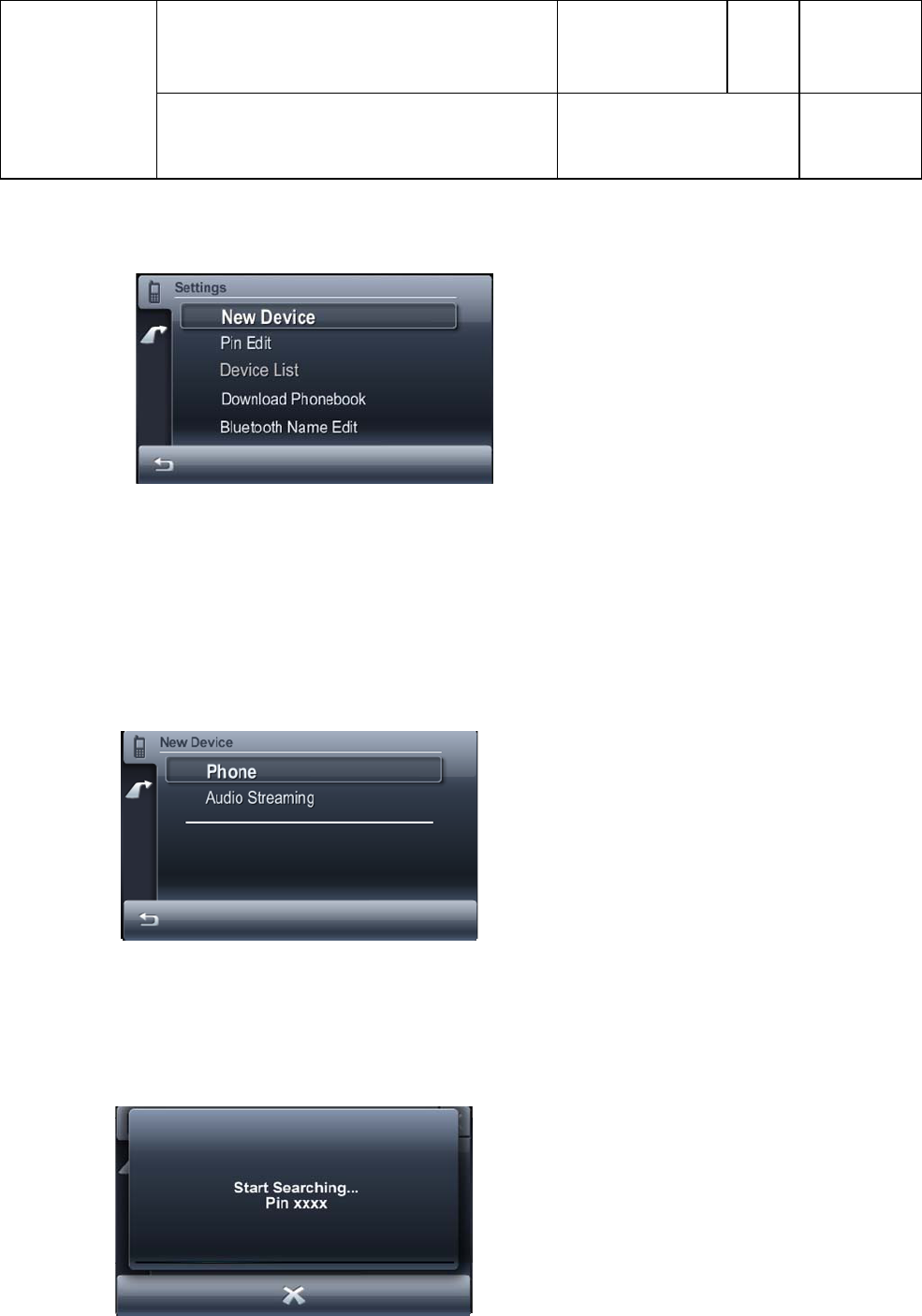
Bluetooth Settings will include the following menu options.
1. New Device
2. Pin Edit
Project: 7 649 052 110 001
Version Status
2.8 valid
Page
13/23
Date
25/05/2010
Confidential Subject: Bluetooth HMI Specifications
____________________________________________________________________________________________________________________________________________________________________
0520
Datei: 25/05/2010 13:56:00 Druck: 25/05/2010 13:56:00
3. Device List
4. Download Phonebook
5. Bluetooth Name Edit
Each menu item will explained below
4.6.1 New Device:
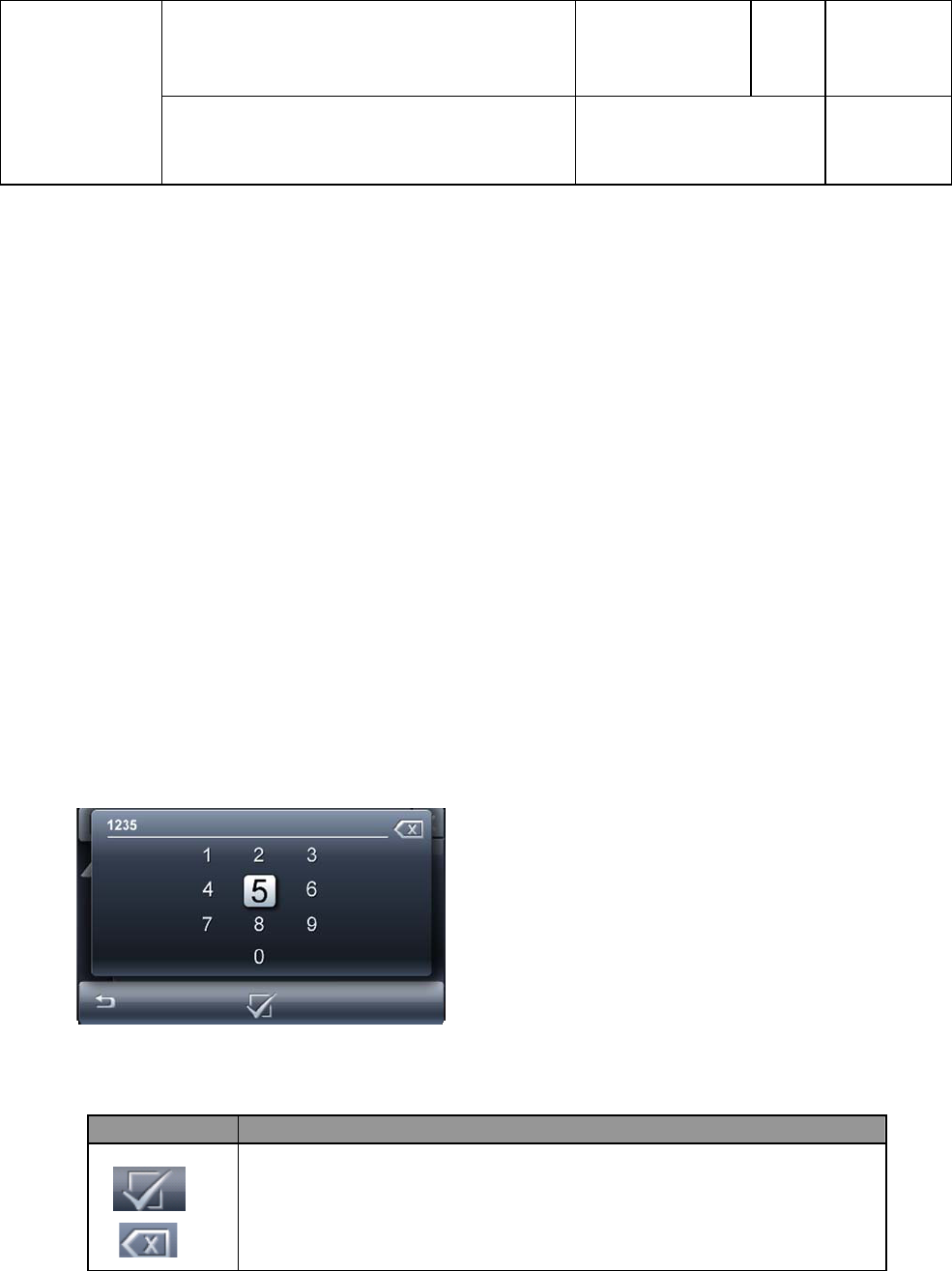
When user wants to use a new device he can use this option to pair and connect.
User can put the Radio in discoverable and Connectable mode using this menu option so that from other device
side, Radio can be searched and paired.
New Device menu will have sub menu of two items.
User can select Phone sub menu for pairing a phone device. For pairing a Streaming (music player) device user
should select Audio Streaming sub menu. For pairing a multiprofile device any sub menu can be chosen.
Once any of the two sub menu is chosen, Radio will be put in discoverable and connectable mode.
Below mask will be displayed
Note: “Start search from your Bluetooth Device” will be displayed instead of Start searching…
XXXX: Is the Current Pin of the Radio
Project: 7 649 052 110 001
Version Status
2.8 valid
Page
14/23
Date
25/05/2010
Confidential Subject: Bluetooth HMI Specifications
____________________________________________________________________________________________________________________________________________________________________
0520
Datei: 25/05/2010 13:56:00 Druck: 25/05/2010 13:56:00
1. Radio will be in discoverable mode for 5 Minutes. If no device has initiated pairing with radio within 5
minutes then pairing mode will be cancelled without any user notification.
2. Once device is paired “Bluetooth Device Paired” will be displayed for 2 seconds and go back to previous
screen (outside BT menu)
3. In BT menu “Connecting…” will be shown and once device is connected “Phone Connected: XXX”/
“Streaming Connected: XXX”/ Pop up will be shown for 2 seconds and go back to previous screen (XXX –
Connected device name)
4. Pairing can be cancelled by press of cancel Icon. No user information
5. If pairing operation fails then “Bluetooth Pairing Failed” will be displayed for 2 seconds and go back to
previous screen
More information about pairing can be found in section 4.7.3
4.6.2 Pin Edit:
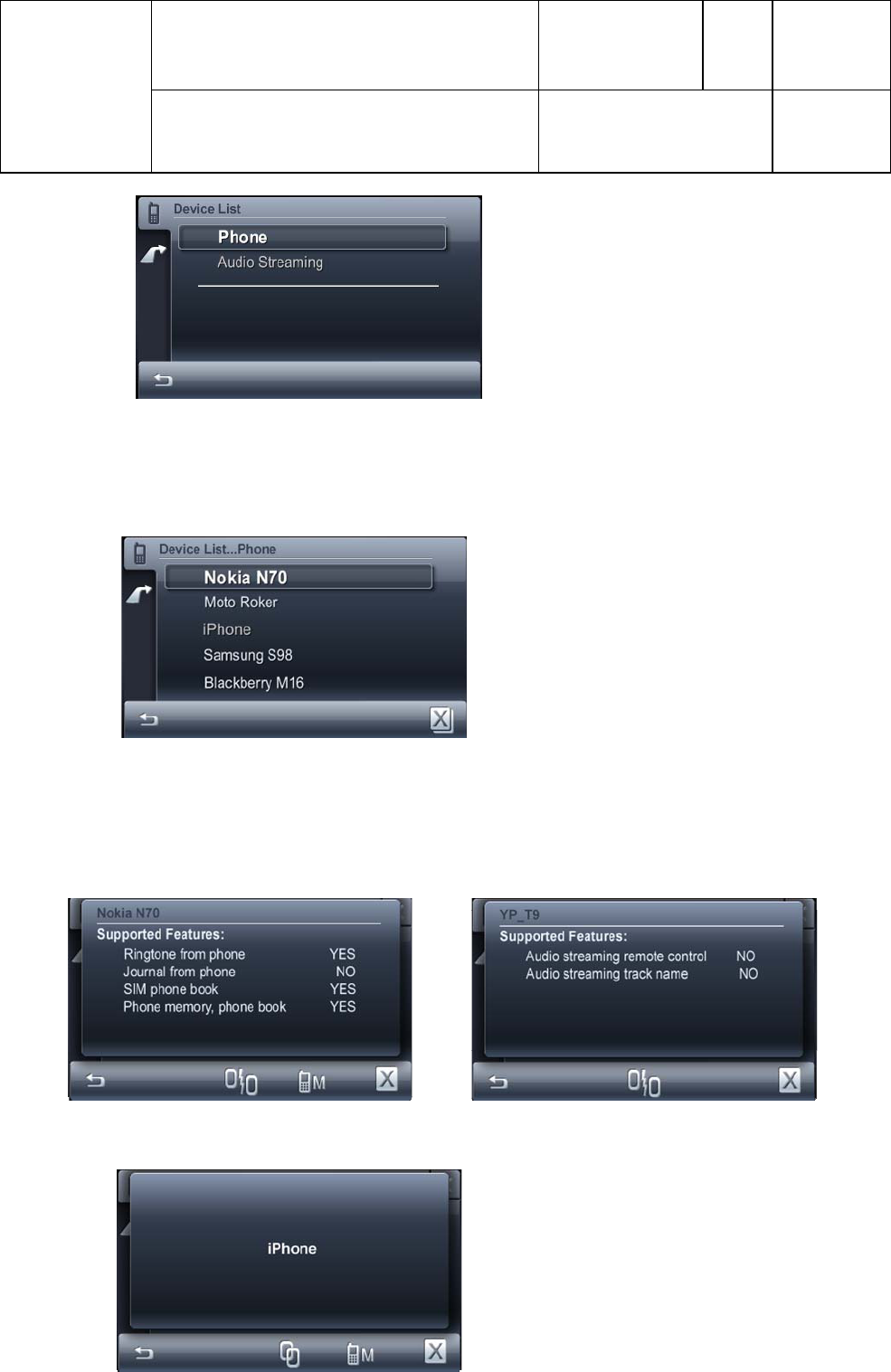
1. User can store the PIN that will be used during the respective type Pairing.
2. Maximum PIN length is 4. Default Pin is “1234”
3. Same pin will be used for both type of pairing
On selection of this menu Pin edit will be started
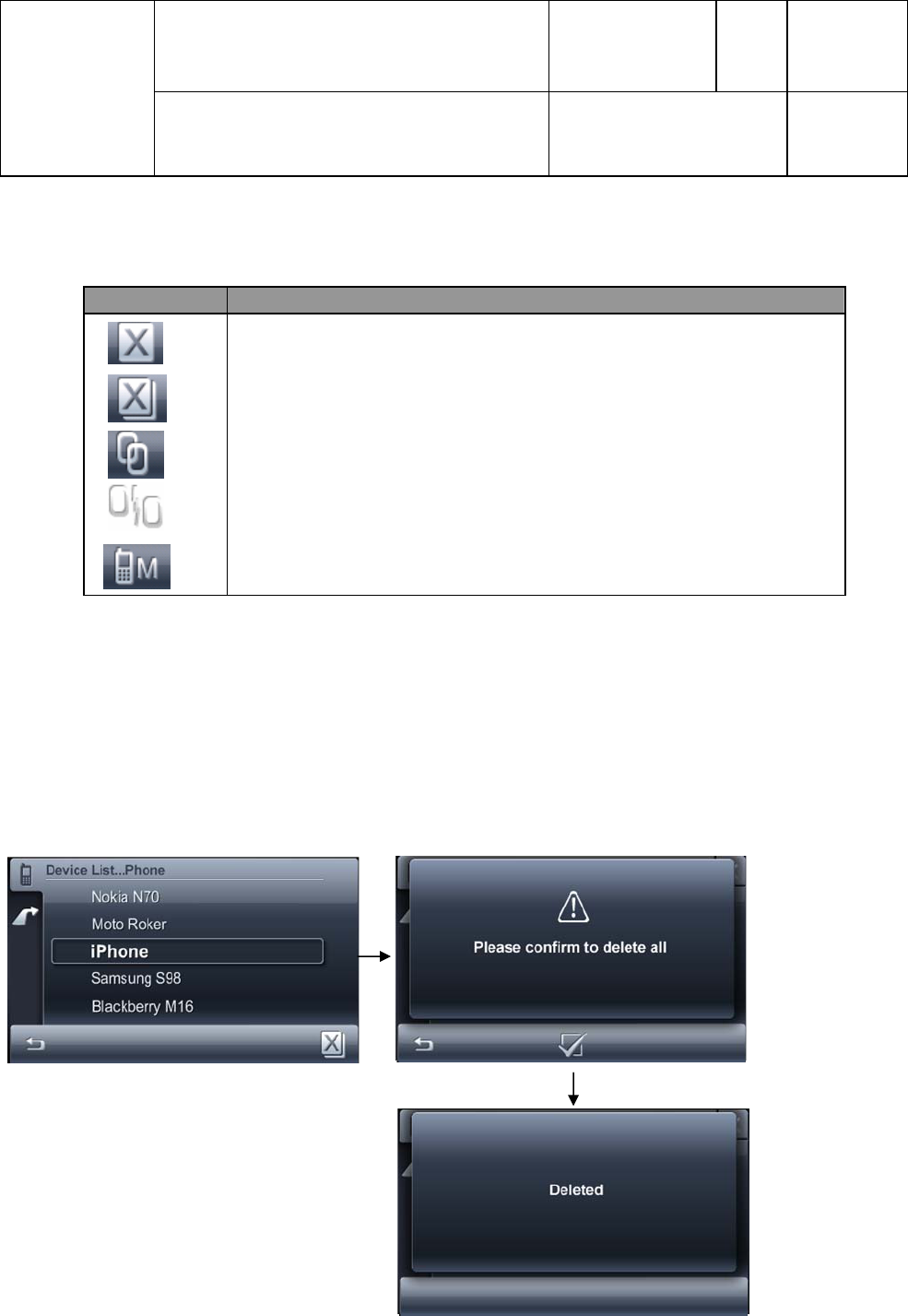
4.6.3 Device List:
This menu item has two sub menus:
Button Functionality
OK: Saves the Edited Pin. “Saved” will be displayed for 2 seconds and
go back to BT settings menu
Clear: Short Press: clears the character one by one
Long press: Clears all the characters
Project: 7 649 052 110 001
Version Status
2.8 valid
Page
15/23
Date
25/05/2010
Confidential Subject: Bluetooth HMI Specifications
____________________________________________________________________________________________________________________________________________________________________
0520
Datei: 25/05/2010 13:56:00 Druck: 25/05/2010 13:56:00
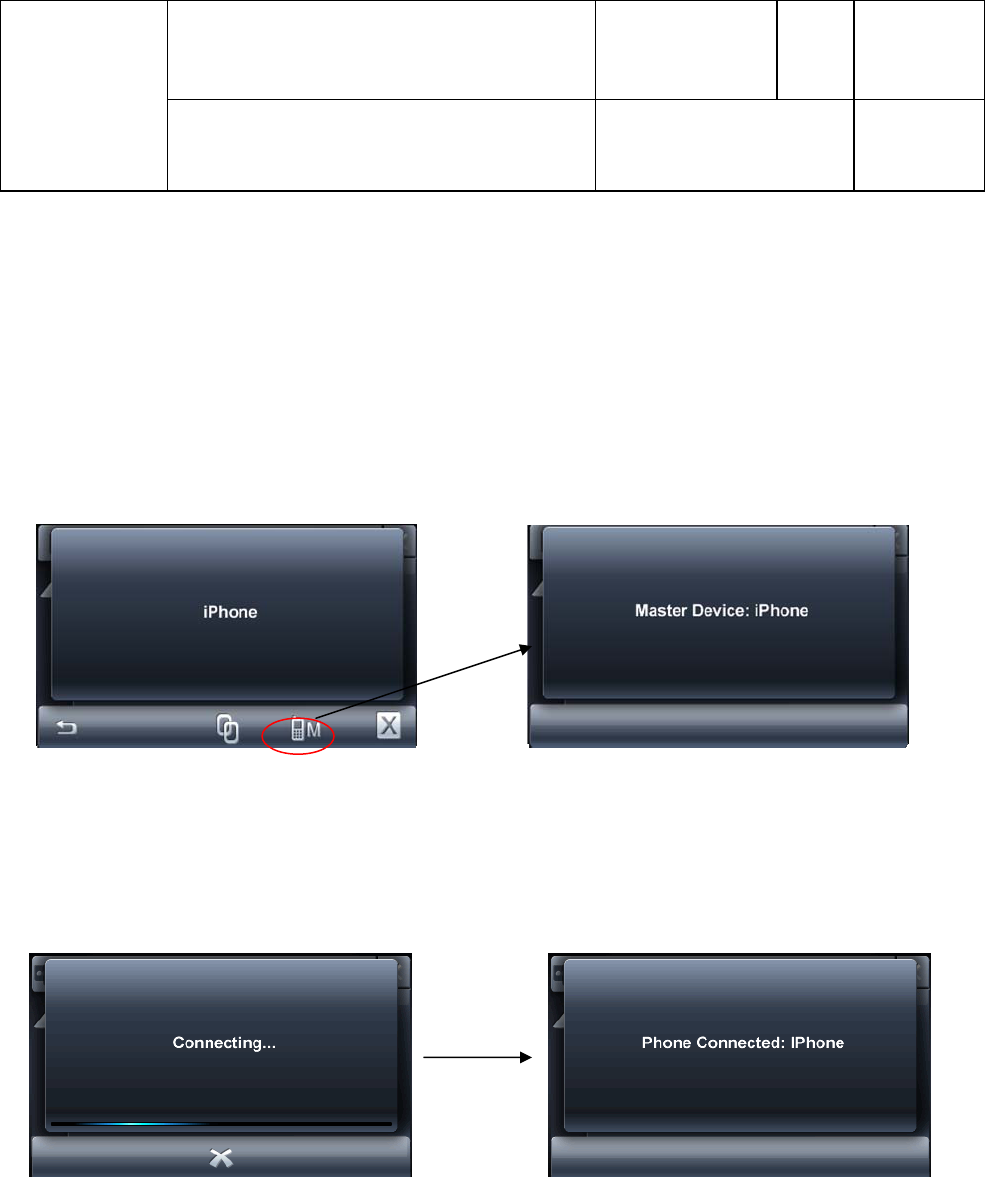
User can see the devices paired under each sub menu and can do connection, disconnection and delete operation.
Maximum of 5 devices will be in each list. For Phone devices a particular device can be set as Master also.
Advantages of Master status can be found in section 4.7.2 and 4.7.3
On selecting a particular device, based on the connection state of the selected device Connect/Disconnect option
will be available.
If device is connected then the profile information of the device will be displayed
(For streaming device profile info display)
Else only the device name will be displayed
Project: 7 649 052 110 001
Version Status
2.8 valid
Page
16/23
Date
25/05/2010
Confidential Subject: Bluetooth HMI Specifications
____________________________________________________________________________________________________________________________________________________________________
0520
Datei: 25/05/2010 13:56:00 Druck: 25/05/2010 13:56:00
If any operation fails “Failed” will be displayed for 2 seconds and go back to list.
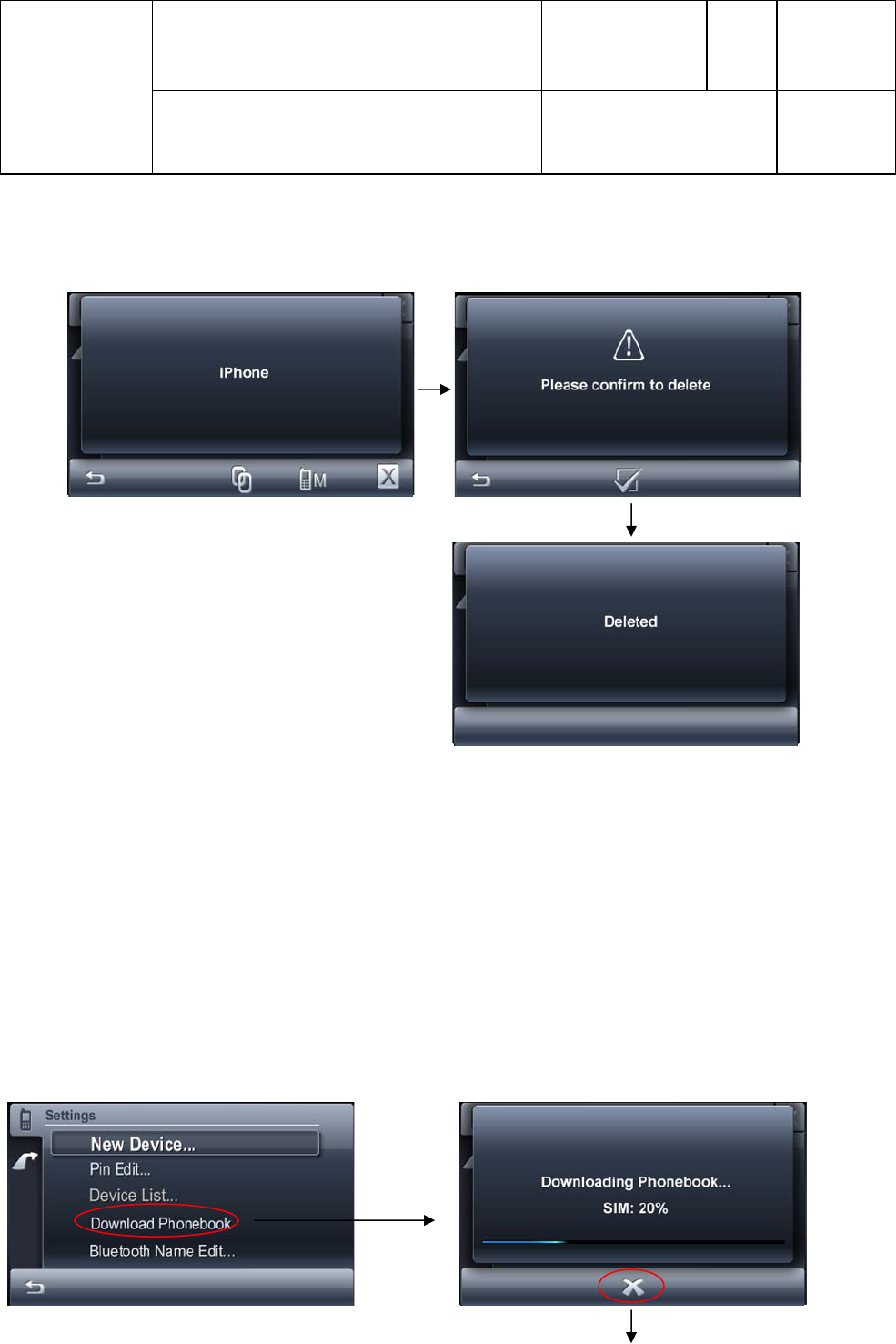
4.6.3.1 Delete All
All the devices under the Sub menu can be deleted using this option
“Deleted” will be displayed for 2 seconds and go back to List.
Button Functionality
Delete: Deletes the selected Device
Delete All: Deletes all the devices
Connect: Connects the selected device
Disconnect: Disconnects the selected device
Master: Sets the selected device as master
Disconnec
t
Project: 7 649 052 110 001
Version Status
2.8 valid
Page
17/23
Date
25/05/2010
Confidential Subject: Bluetooth HMI Specifications
____________________________________________________________________________________________________________________________________________________________________
0520
Datei: 25/05/2010 13:56:00 Druck: 25/05/2010 13:56:00
(In This case after fall back to list, since List will be empty, “List Empty” will be shown and fall back to
settings mask)
4.6.3.2 Master Select
1. Master selection is applicable only for Phone devices.
2. On press of Master Icon the selected device will be set as Master and below mask will be shown for 2
seconds and go back to previous screen
3. Advantages of Master status can be found in section 4.7.2 and 4.7.3
4.6.3.3 Connect/Disconnect
On Press of Connect/Disconnect option the device will be Connected/disconnected.
Connected or disconnected pop up will be there for 2 seconds and go back to list
Project: 7 649 052 110 001
Version Status
2.8 valid
Page
18/23
Date
25/05/2010
Confidential Subject: Bluetooth HMI Specifications
____________________________________________________________________________________________________________________________________________________________________
0520
Datei: 25/05/2010 13:56:00 Druck: 25/05/2010 13:56:00
4.6.3.4 Delete Device
Selected device will be deleted and after 2 seconds pop up it will go back to List
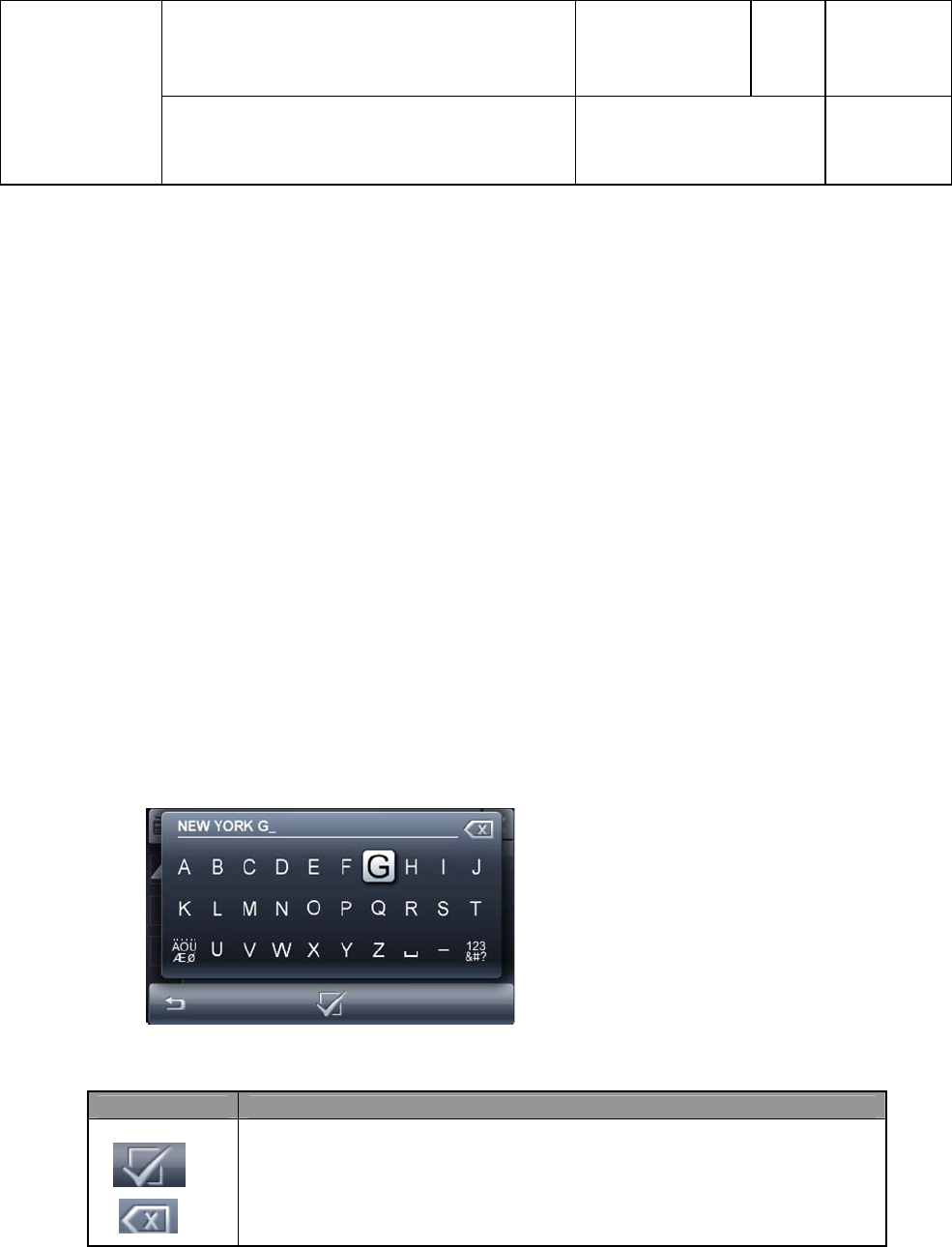
4.6.4 Download Phonebook
1. User can download the phonebook of the connected mobile using this option.
2. Maximum of 500 entries will be downloaded
“Phonebook Download Failed” will be displayed
Project: 7 649 052 110 001
Version Status
2.8 valid
Page
19/23
Date
25/05/2010
Confidential Subject: Bluetooth HMI Specifications
____________________________________________________________________________________________________________________________________________________________________
0520
Datei: 25/05/2010 13:56:00 Druck: 25/05/2010 13:56:00
3. Once phonebook is downloaded “Phonebook Downloaded” will be displayed for 2 seconds with the total
number of contacts downloaded. During sorting phase the duplicate contacts (same name, number) will be
removed.
Limitation: So the Number shown at the end of download may not be same as the total number available in
Contcat browse.
4. The time taken for downloading depends on number of contacts and the profile used by mobile for
downloading
5. When no device is connected “Device Not Connected” will be shown for 2 seconds and go back to previous
screen
6. When the connected Device does not support Phonebook download then “Phonebook Download Failed”
will be displayed for 2 seconds and go back to Bluetooth Home page.
7. The download order will be Phone memory and then SIM memory. The percentage of download will be
updated according to Memory type downloading and there downloaded percentage.
8. Other user operation may slow down download so it is better to leave the system uninterepted during
download.
4.6.5 Bluetooth Name Edit:
1. User can edit the Bluetooth Name of the radio.
2. This name will be displayed during pairing search in other devices.
3. Maximum length is 15 characters (considering 1 byte UTF8 characters)
4. Default name is “smart radio”
Button Functionality
OK: Saves the Edited Name. “Saved” will be displayed for 2 seconds
and go back to BT settings menu
Clear: Short Press: clears the character one by one
Long press: Clears all the selected characters

Project: 7 649 052 110 001
Version Status
2.8 valid
Page
20/23
Date
25/05/2010
Confidential Subject: Bluetooth HMI Specifications
____________________________________________________________________________________________________________________________________________________________________
0520
Datei: 25/05/2010 13:56:00 Druck: 25/05/2010 13:56:00
4.7 Miscellaneous behaviour
4.7.1 Menu Entry
¾ When user tries to enter Bluetooth menu during pairing, connection, autoconnection, call
history download and phonebook download then appropriate message will be displayed and
user cannot enter into menu till the operation is finished.
¾ User will be able to CANCEL pairing, autoconnection, connection and phonebook download to
enter into menu.
¾ During cancelling process of Auto connection “Please wait…“will be displayed to the user.
Below are the Pop up messages with Cancel option
“BT Link Busy: Pairing…“
“BT Link Busy: Connecting…“
“BT Link Busy: Auto Connecting…“
“Downloading Phonebook…“
“BT Link Busy: Call History Downloading…“
¾ On radio switch ON if we enter BT application menu before communication between UGZZ8
chip is established then “BT Link Busy” will be displayed
Once the Link is free, and Still user is in the busy message display then BT application menu will
be displayed.
4.7.2 Auto Connection:
¾ On radio switch on, if paired phone device list is not empty, then all the devices in the list will
be tried for connection in the list order. If any device is selected as master then it will be given
the first priority while auto connecting.
¾ The connection retry will be there for 5 minutes only(including phone device and Streaming
device retry) and BT Led will be Blinking
¾ If no device (phone or Streaming) is connected till end of 5 minutes then BT Led will be OFF.
No message indication
¾ When an abnormal disconnection( out of BT range etc.) occurs, the system shall try to
reconnect the disconnected device infinitely
¾ When an intentional disconnection (Unpair etc…) occurs, the system shall not try to reconnect
the disconnected device.

Project: 7 649 052 110 001
Version Status
2.8 valid
Page
21/23
Date
25/05/2010
Confidential Subject: Bluetooth HMI Specifications
____________________________________________________________________________________________________________________________________________________________________
0520
Datei: 25/05/2010 13:56:00 Druck: 25/05/2010 13:56:00
4.7.3 Pairing:
¾ When user selects Phone/streaming option under new device menu, Radio will be put in
discoverable and connectable mode and all connected devices will be disconnected
¾ Once Radio is put into discoverable and connectable mode, Pairing should be initiated from
Mobile phone or streaming device side
¾ When there are no paired devices(phone + streaming) in radio, then also Radio will be put
into Discoverable Mode (phone type) automatically (AUTO PAIR) on Radio switch ON
for 5 Minutes
¾ During pairing process, if the device request for PIN then the user stored PIN in Radio will
be displayed for 2 seconds.
¾ Once user enters the same PIN in the device pairing will be completed.
¾ If user enters wrong PIN in device side, “Wrong Pin!” will be displayed in radio for 2
seconds.
¾ If pairing is successful or failure the AUTO PAIR will be cancelled there on.
¾ During AUTO PAIR there is no user notification. User can start pairing from menu also at
this point.
¾ After connection is successful Bluetooth LED will be switched ON
¾ Maximum of 5 devices can be paired (phone + streaming). Multi profile device is
considered as a single device.
¾ On trying to pair the 6th device, the last Non master device in list will be automatically
deleted from radio side (based on the time and date parameter). Its corresponding
phonebook also will be deleted ( if downloaded)
4.7.4 Phonebook download:
¾ User can initiate Phonebook download manually.
¾ If in between user cancels the Phonebook download previous downloaded phonebook(if
any) will be retained
¾ Automatic download of phonebook will happen when user connects the Mobile device
for the first time.
¾ Maximum of 5 device’s Phonebook can be maintained. Only connected device
phonebook will be accessible
¾ If download is stopped due to call operation then again it will resume after end of call. In
any other case if download is stopped then it won’t be started automatically…
¾ The downloaded Phonebook will be deleted only when the paired device is removed from
list
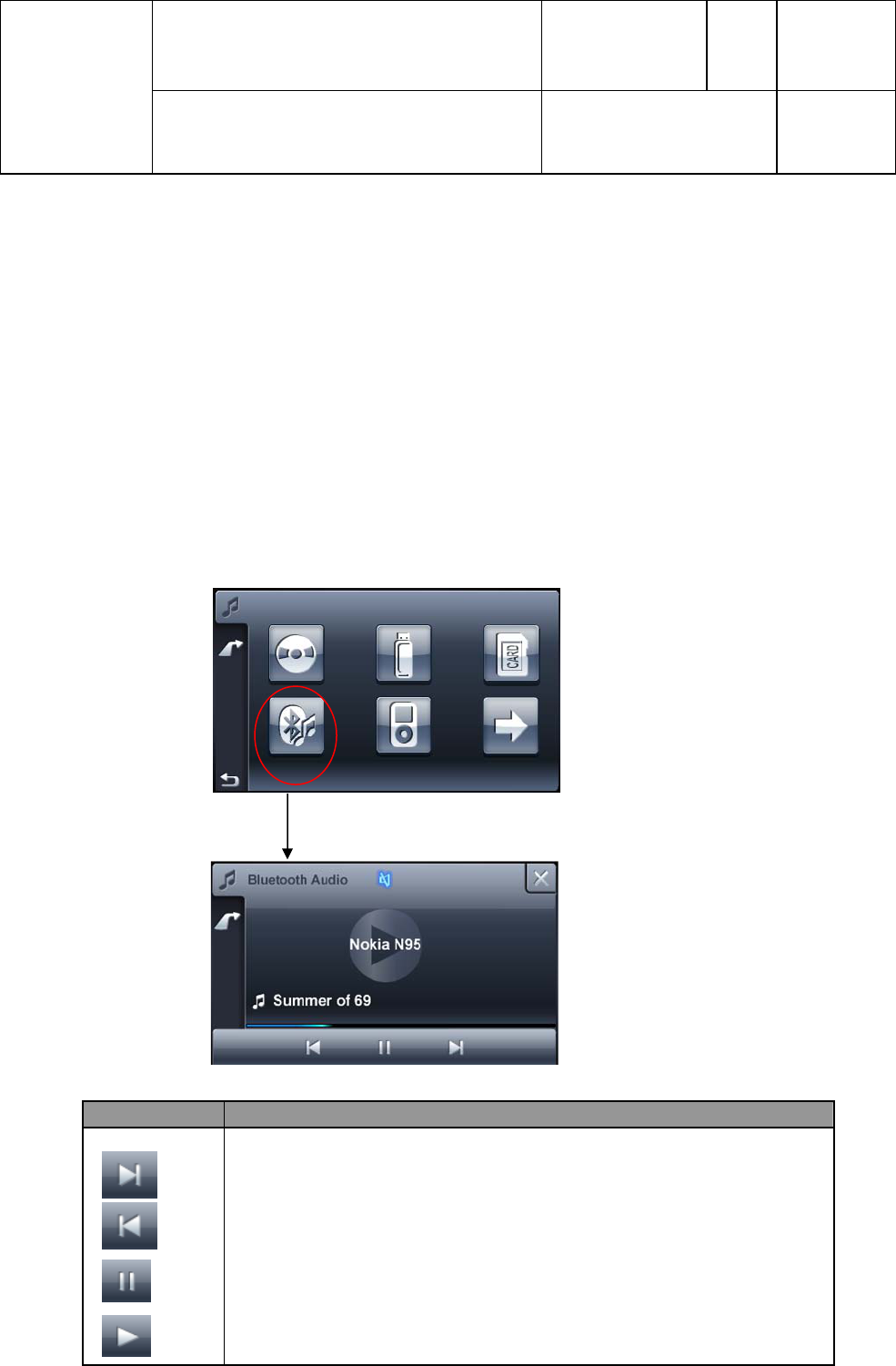
4.7.5 Streaming Connections:
¾ Depending upon the type of streaming connection established, the command execution will
be different
¾ If the connected device does not support AVRCP profile (Audio video Remote control
profile) then play, pause, stop, track up and track down command will not be accepted by
device and on doing so “Command Not Supported” will be displayed to user for 2
seconds and go back to play mask
¾ Sometimes Streaming connection fails because the device is already in music player menu
or in some other state. In these cases “Bluetooth Connection Failed” will be displayed to
user for 2 seconds
Project: 7 649 052 110 001
Version Status
2.8 valid
Page
22/23
Date
25/05/2010
Confidential Subject: Bluetooth HMI Specifications
____________________________________________________________________________________________________________________________________________________________________
0520
Datei: 25/05/2010 13:56:00 Druck: 25/05/2010 13:56:00
¾ If Streaming device connection loss happens while in streaming application “Connection
Lost: Press OK to Retry” will be shown. If user Presses OK key then Connection will be
retried. User can also go back to previous source by press of BACK icon if retry not needed.
¾ If no device is connected then “Device not connected” will be shown for 2 seconds and go
back to previous screen
¾ During phonebook downloading or any other Bluetooth Operation if user enters Streaming
source “Bluetooth Streaming Audio might be disturbed! Please cancel any other
Bluetooth operation in progress” warning message will be shown for 2 seconds. This is
done to avoid audio disturbance in streaming source
¾ While Streaming source is the current source, connection loss retry of phone device will be
cancelled to avoid streaming audio disturbance.
¾ After Changing source to streaming some devices may not play. In these cases Play should
be started from device side.
¾ When Streaming is the Last Source before switch off, then, after Switch on it will start with
previous application before Streaming application
Button Functionality
Go to next track
go to previous track
Pause the track
Play the track

Project: 7 649 052 110 001
Version Status
2.8 valid
Page
23/23
Date
25/05/2010
Confidential Subject: Bluetooth HMI Specifications
____________________________________________________________________________________________________________________________________________________________________
0520
Datei: 25/05/2010 13:56:00 Druck: 25/05/2010 13:56:00
Note:
a) If the Song name is Greater than the Fitting length then will be appended with …
b) Volume change will break pause
c) If play/pause action is performed from Device GUI the symbol update in HMI screen depends on the
mobile capability to inform change in status (Most of the time the change in status won’t be reflected)
FCC STATEMENTS:
Warning: Changes or modifications to this unit not expressly approved by the party responsible for
compliance could void the user’s authority to operate the equipment.
NOTE: This equipment has been tested and found to comply with the limits for a Class B digital
device, pursuant to Part 15 of the FCC Rules. These limits are designed to provide reasonable
protection against harmful interference in a residential installation. This equipment generates,
uses and can radiate radio frequency energy and, if not installed and used in accordance with the
instructions, may cause harmful interference to radio communications.
However, there is no guarantee that interference will not occur in a particular installation. If this
equipment does cause harmful interference to radio or television reception, which can be
determined by turning the equipment off and on, the user is encouraged to try to correct the
interference by one or more of the following measures:
Reorient or relocate the receiving antenna.
Increase the separation between the equipment and receiver.
Connect the equipment into an outlet on a circuit different from that to which the receiver
is connected.
Consult the dealer or an experienced radio/TV technician for help.
Shielded cables must be used with this unit to ensure compliance with the Class B FCC limits.