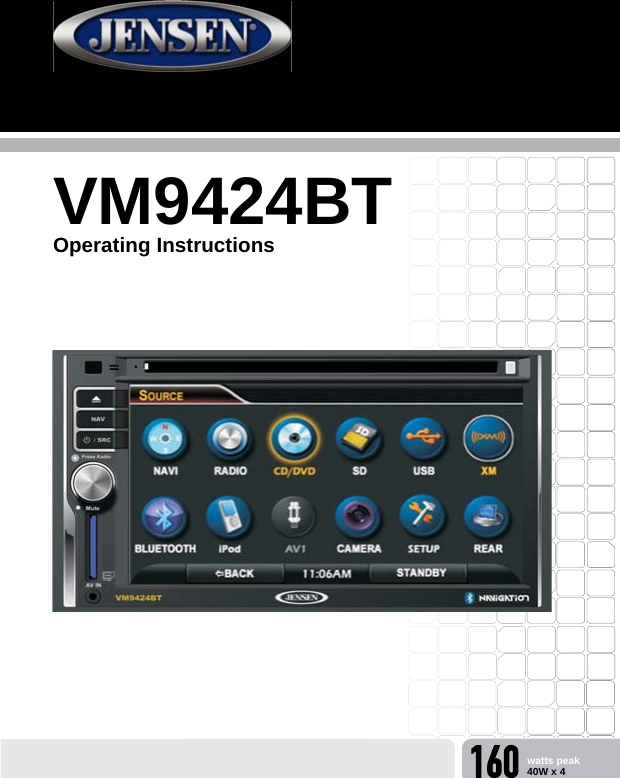
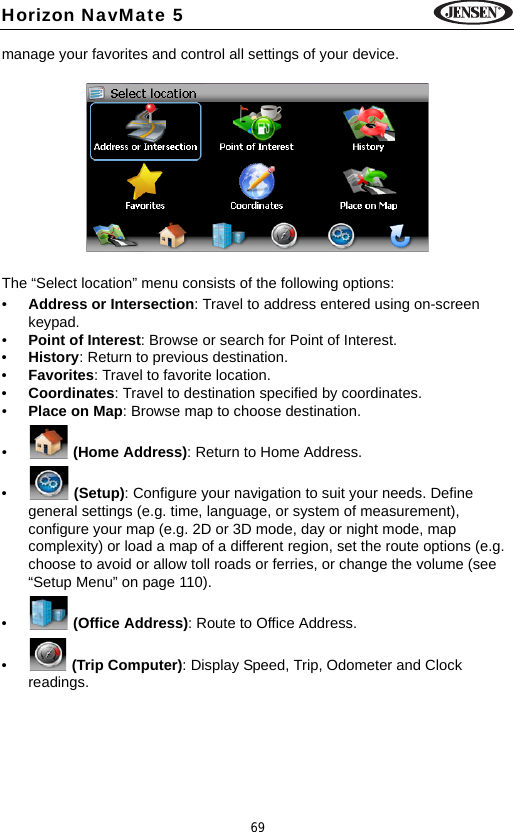
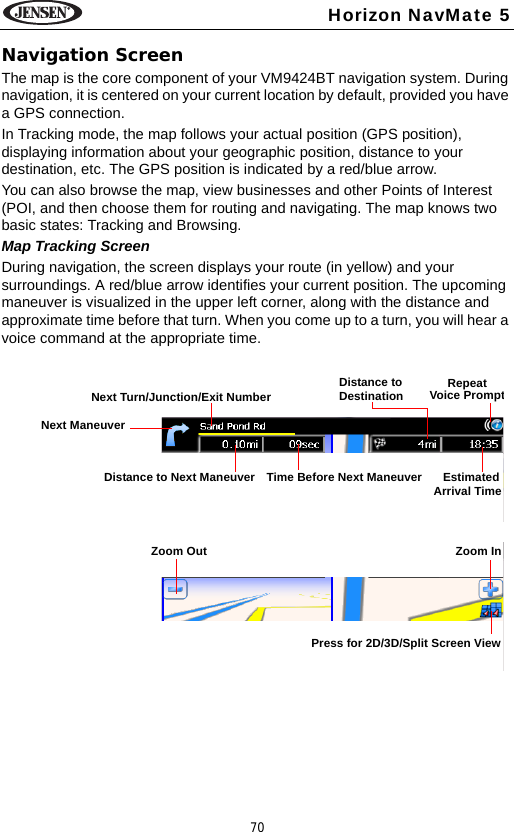
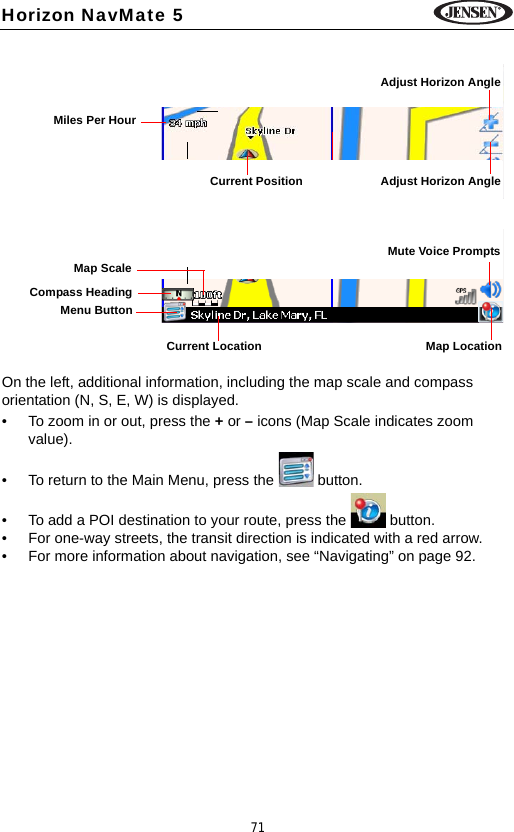
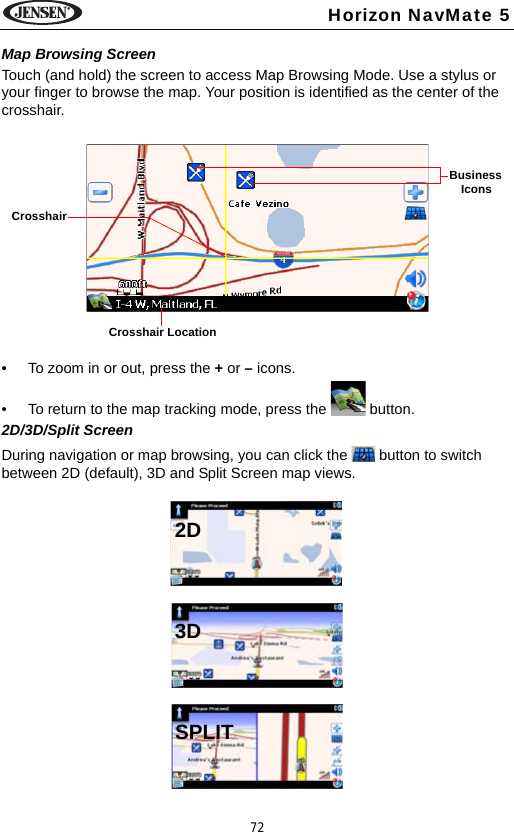
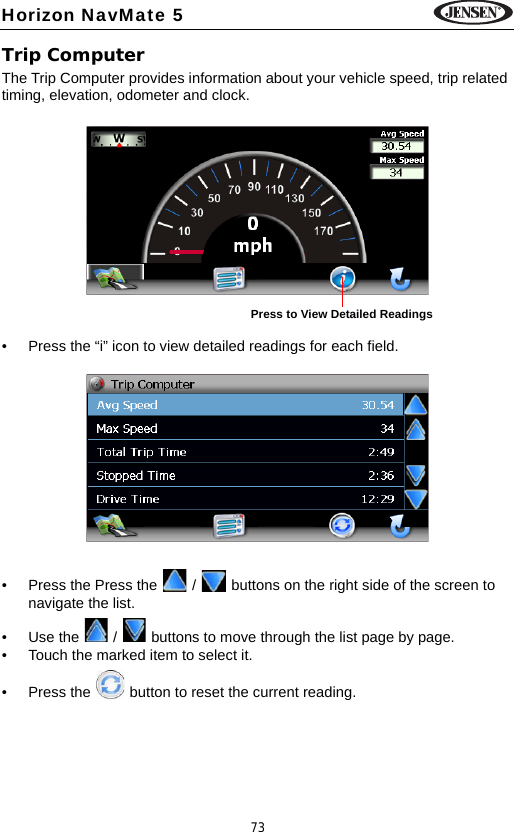
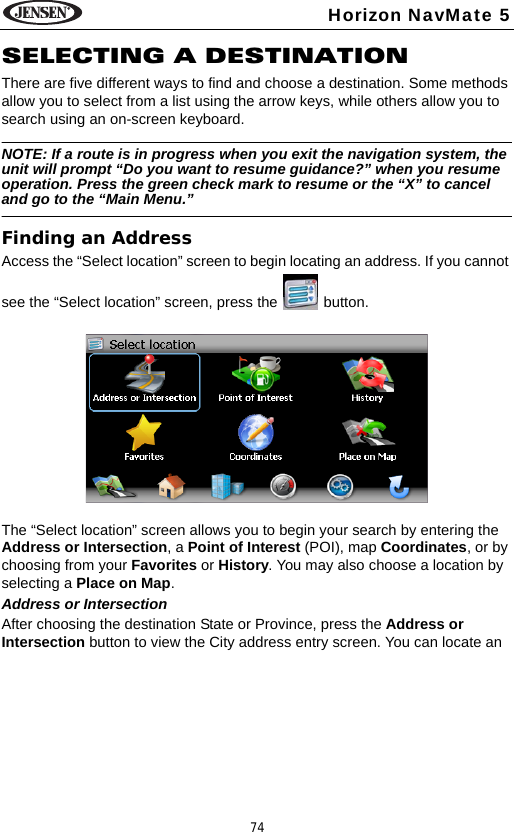
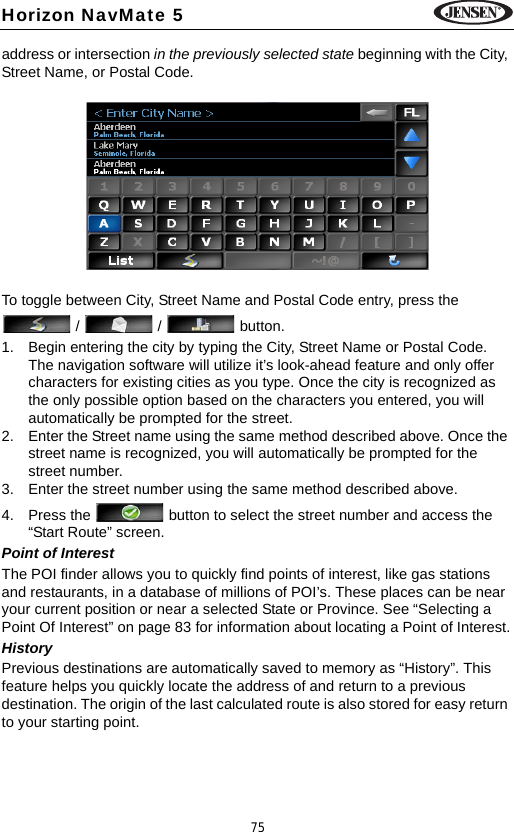
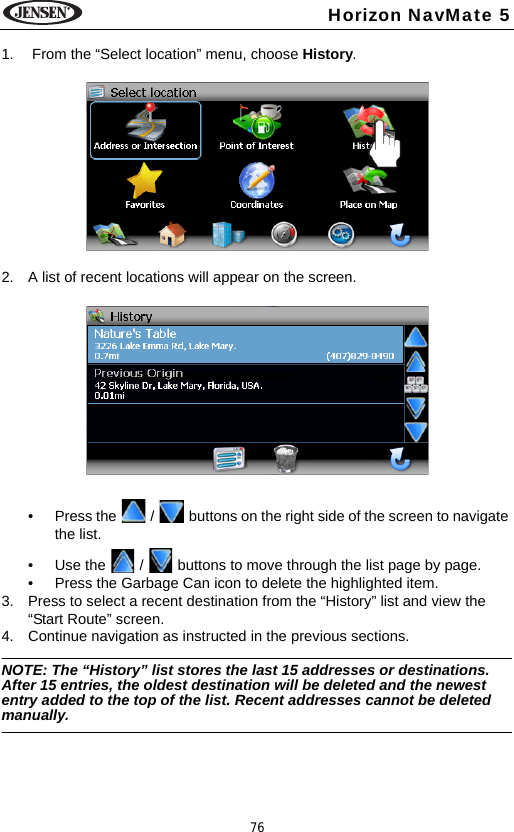
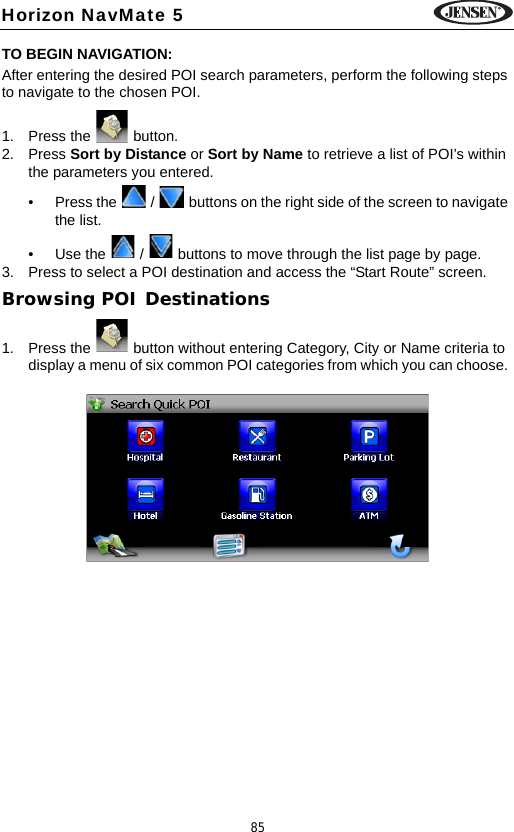
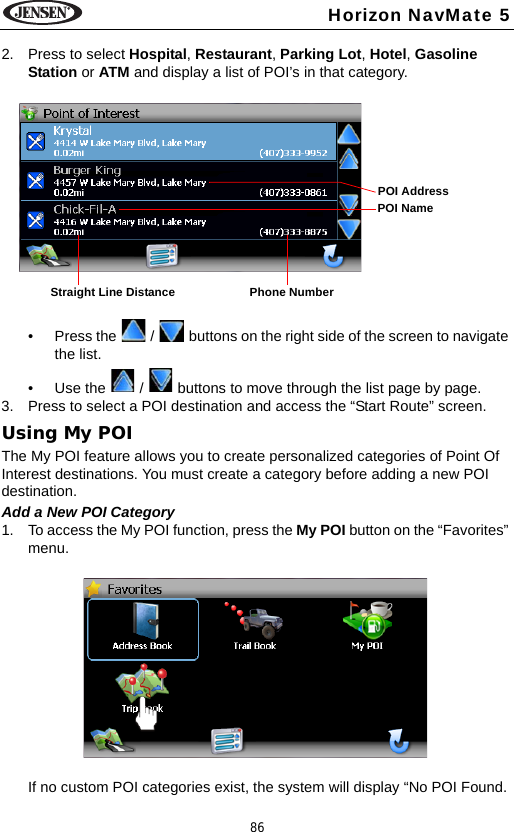
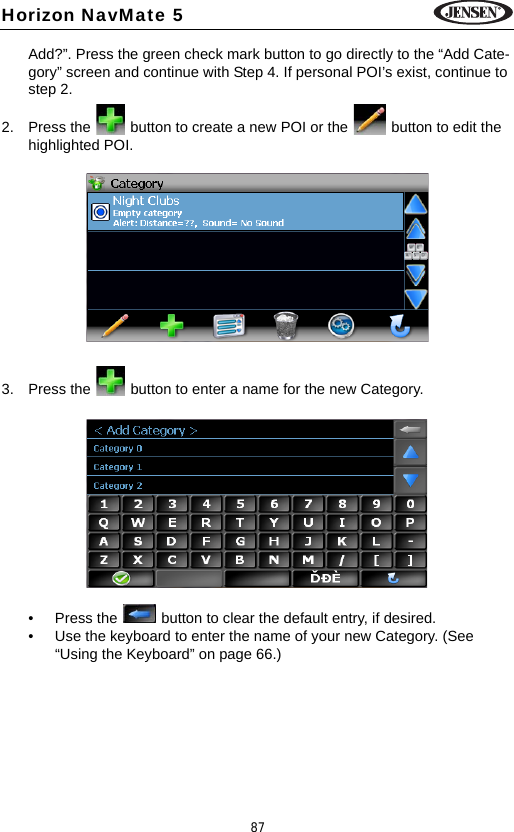
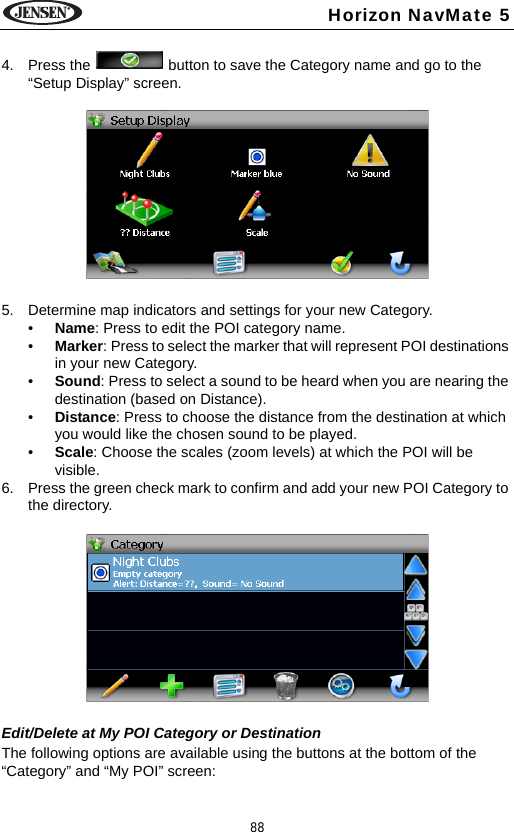
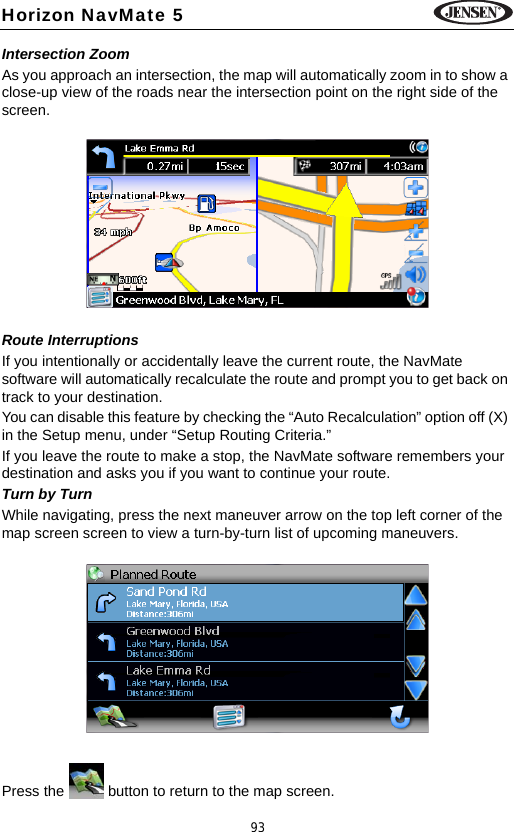
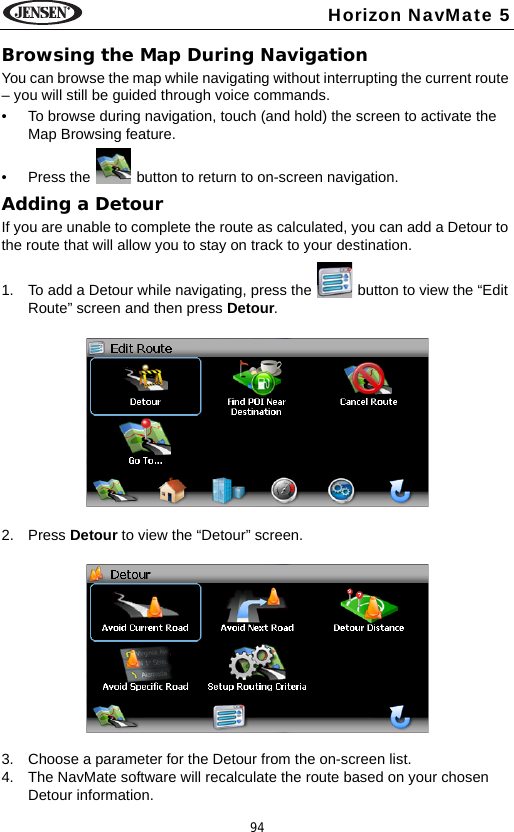
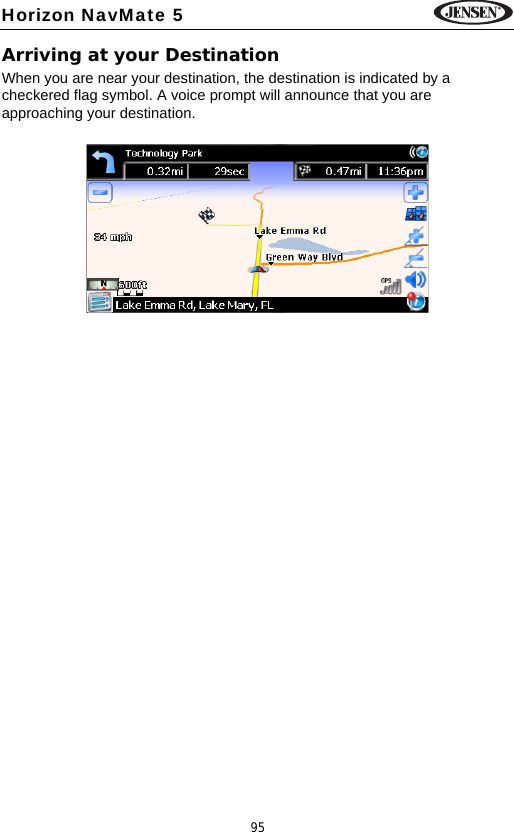
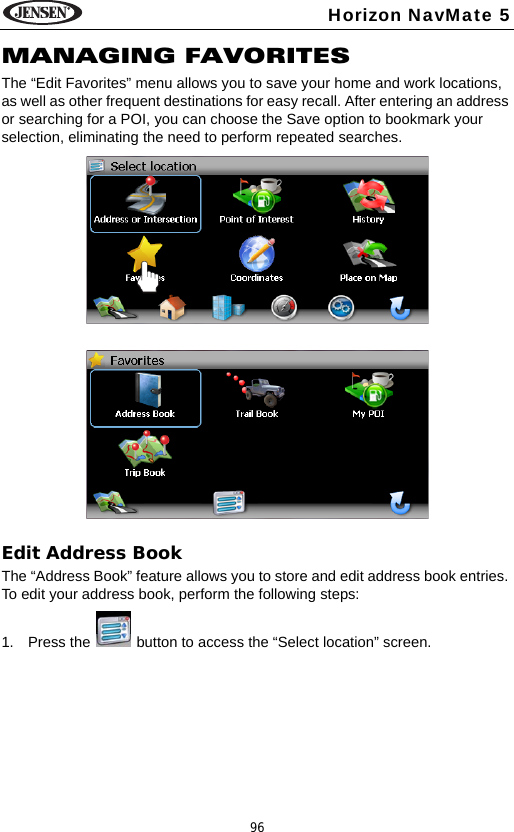
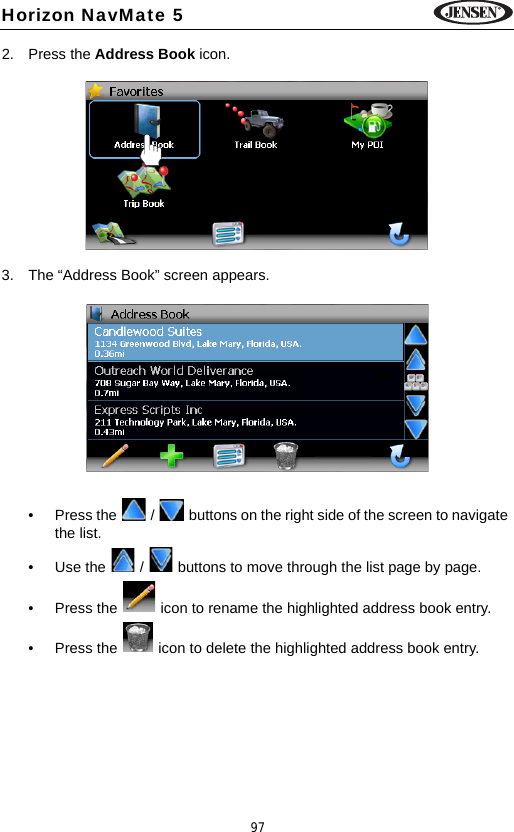
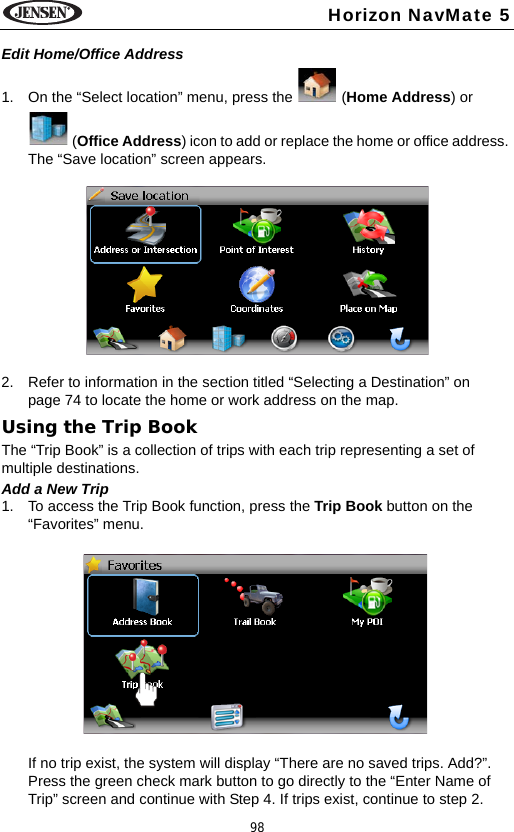
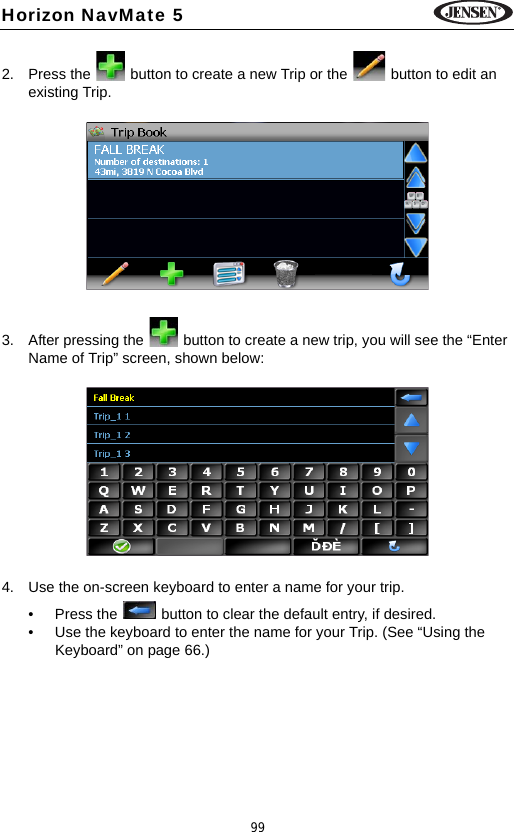
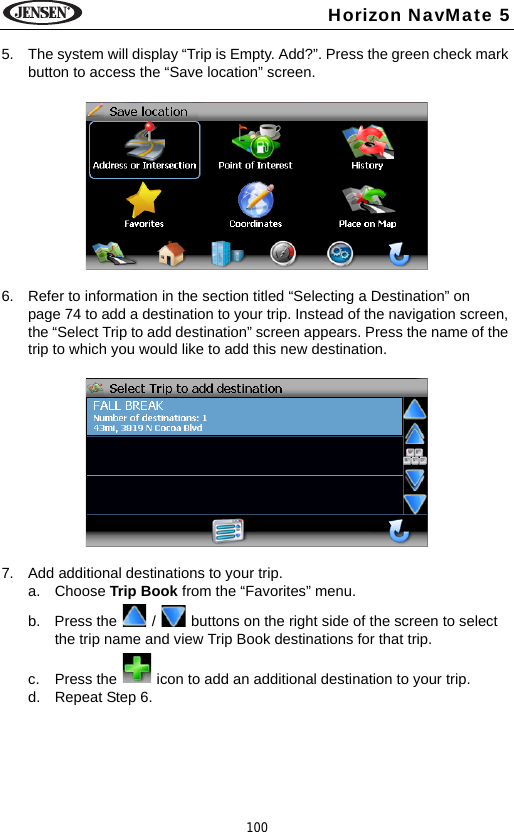
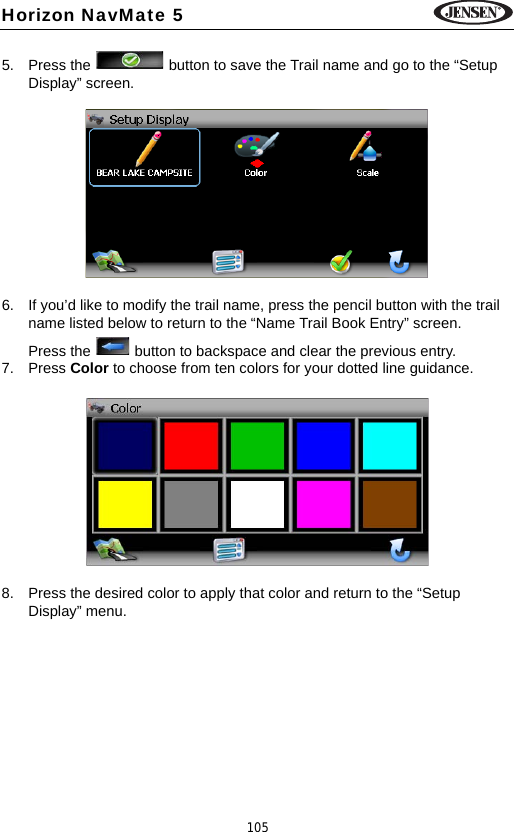
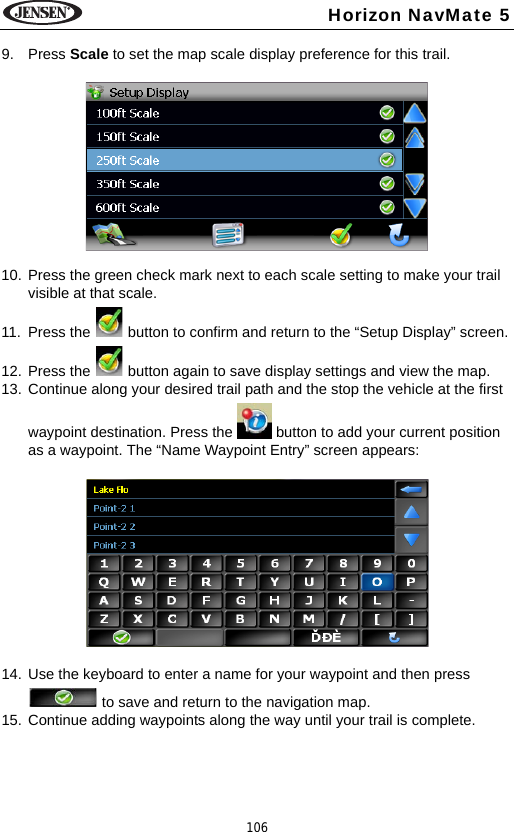
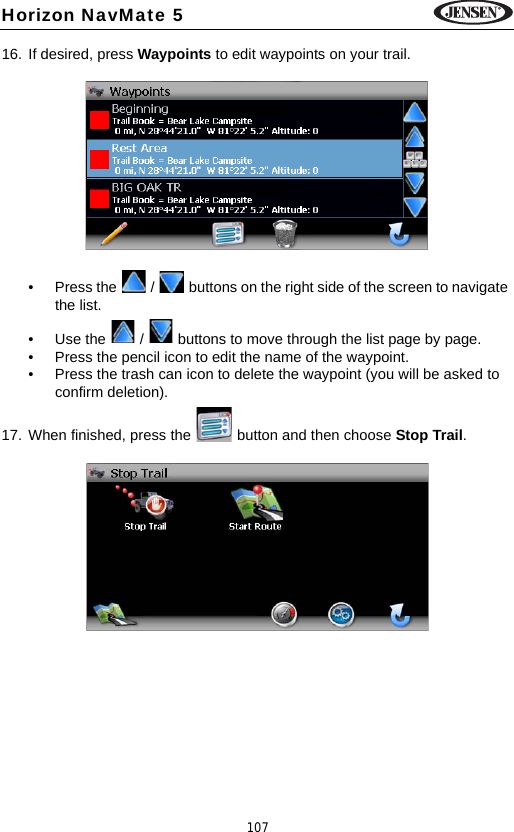
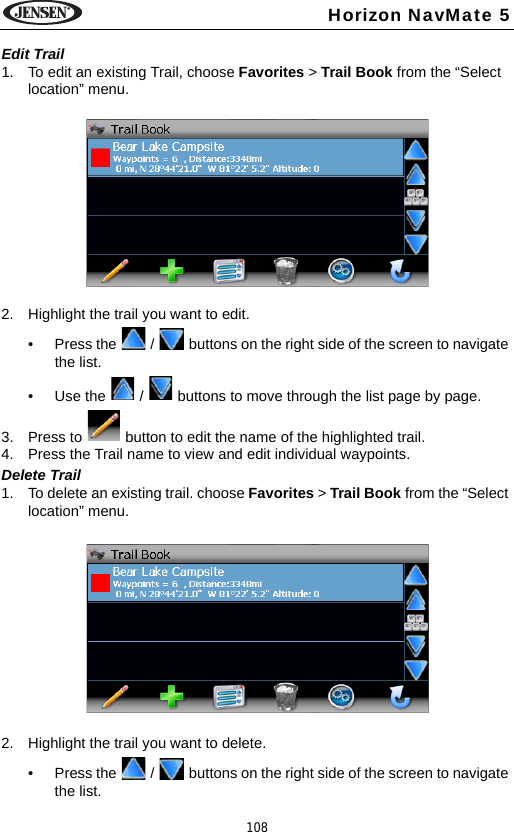
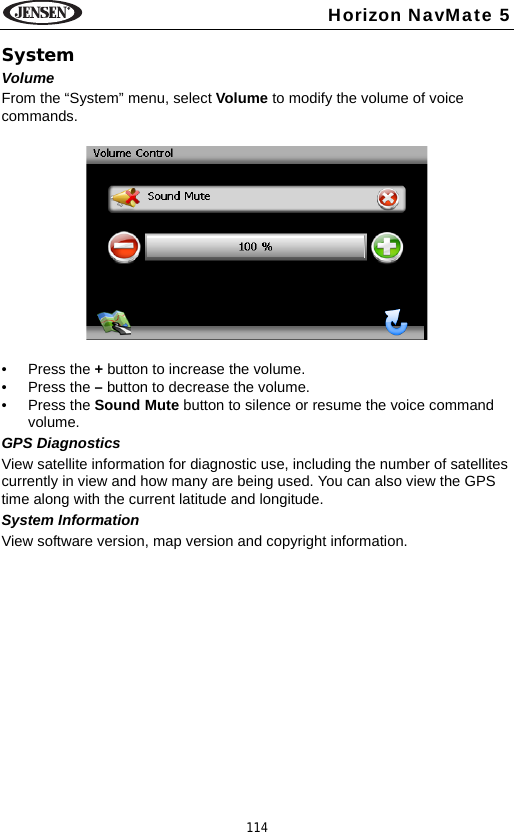
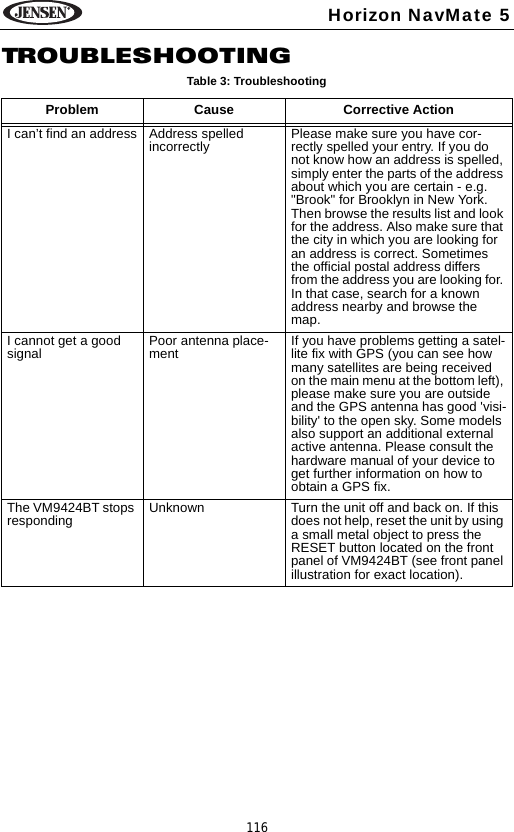
SKYPINE ELECTRONICS CNE8216EAVX Car Multimedia User Manual VM9424

SKYPINE ELECTRONICS (SHEN ZHEN) CO., LTD. Car Multimedia VM9424

Users Manual

VM9424BTOperating Instructions160 watts peak40W x 4
Warning:  Changes or modifications to this unit not expressly approved by the party responsible for compliance could void the user’s authority to operate the equipment. This equipment complies with FCC RF radiation exposure limits set forth for an uncontrolled environment. This equipment should be installed and operated with a minimum distance of 20 centimeters between the radiator and your body.
iiiVM9424BTCONTENTSThank you for choosing a Jensen product. We hope you will find the instructions in this owner’s manual clear and easy to follow. If you take a few minutes to look through it, you’ll learn how to use all the features of your new Jensen VM9424BT Mobile Multimedia Receiver for maximum enjoyment.NOTE: NavMate navigation software instructions are included at the end of this manual. A separate NavMate Table of Contents is listed after this Contents section.Features .................................................................................................  1Optional Equipment ..............................................................................  3Warnings................................................................................................  4Controls and Indicators........................................................................  5Remote Control .....................................................................................  7Using the TFT Monitor ..........................................................................  8Standby Mode...................................................................................  8Picture Adjustment............................................................................  8Parking Brake Inhibit.........................................................................  8Operating Instructions..........................................................................  9Power On / Off ..................................................................................  9Remote Control Functions ................................................................  9Audible Beep Confirmation...............................................................  9Mute/Line Mute .................................................................................  9Playing Source Selection..................................................................  9Volume Adjustment.........................................................................  11Audio Control Menu ........................................................................  11System Reset .................................................................................  12Steering Wheel Control (SWC).......................................................  12Setup Menu..........................................................................................  13Accessing Menu Items....................................................................  13Adjusting a Feature.........................................................................  14Exiting the System Setup Menu......................................................  19Tuner Operation ..................................................................................  20Accessing Radio Tuner Mode.........................................................  20Tuner TFT Display ..........................................................................  20Indicators/Controls..........................................................................  20Touch Buttons.................................................................................  20Selecting FM/AM Band...................................................................  21Using Preset Stations .....................................................................  22Auto Store/Preset Scan (AS/PS) ....................................................  22Local Radio Station Seeking (LOC)................................................  22DVD/VCD Video Operation .................................................................  23Inserting a Disc ...............................................................................  23Ejecting a Disc ................................................................................  23Resetting the Loading Mechanism..................................................  23Accessing DVD Mode.....................................................................  23DVD Playback On-Screen Controls................................................  24
ivVM9424BTAccessing the DVD Menu............................................................... 25Sectional Repeat Function (A-B) ....................................................  26Direct Search ..................................................................................  26VCD PBC - Play Back Control ........................................................  26Playback Information ......................................................................  27MPEG Playback On-Screen Controls.............................................  27General Disc Information ................................................................  27CD/DVD/MP3 Audio Operation........................................................... 29Accessing a USB Device ................................................................  29Accessing an SD Card....................................................................  30Accessing Disc Mode......................................................................  30Indicators/Controls..........................................................................  31Touch Screen Buttons ....................................................................  31Direct Track Entry ...........................................................................  33MP3/WMA File Requirements.........................................................  34XM® Radio Operation..........................................................................  36Accessing XM Radio Mode.............................................................  36Indicators/Controls..........................................................................  36Touch Screen Buttons ....................................................................  37Displaying the Identification (ID) Code............................................  37Direct Channel Entry.......................................................................  37iPod® Operation...................................................................................  38Accessing iPod Mode .....................................................................  38Indicators/Controls..........................................................................  38Touch Screen Buttons ....................................................................  39Using the iPod Menu.......................................................................  40Direct Track Entry ...........................................................................  41iPod Video Playback.......................................................................  41Bluetooth Operation............................................................................  42About Bluetooth ..............................................................................  42Accessing Bluetooth Mode ............................................................. 43Hands Free Profile (HFP) ............................................................... 43Pairing Your Mobile Phone and Head Unit .....................................  44Managing Incoming Calls................................................................  45Making an Outgoing Call.................................................................  46Touch Screen Buttons ....................................................................  46Call Transfer ...................................................................................  47Contacts..........................................................................................  47Call Logs......................................................................................... 48Bluetooth Streaming Music.............................................................  48Bluetooth Settings Menu (BT Menu)...............................................  50Viewing JPEG Photos......................................................................... 51Rear Monitor Video Display................................................................  53Troubleshooting.................................................................................. 54Error Messages...............................................................................  56Care and Maintenance....................................................................  56Specifications......................................................................................  58
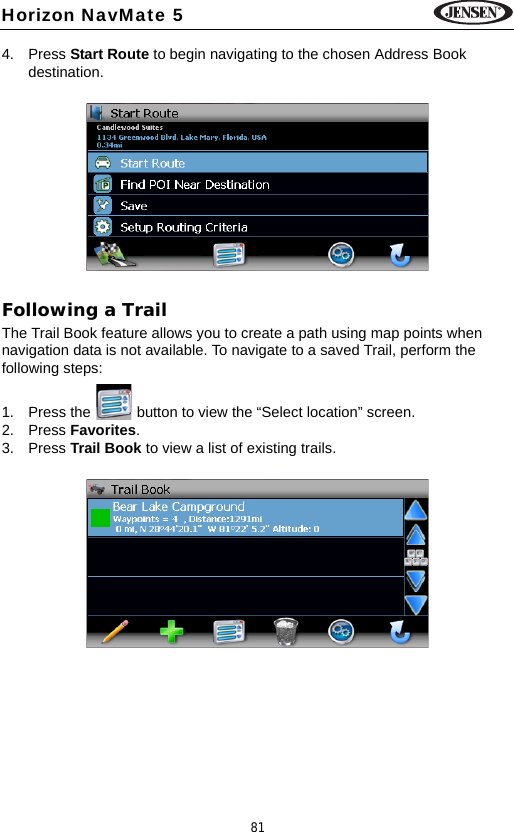
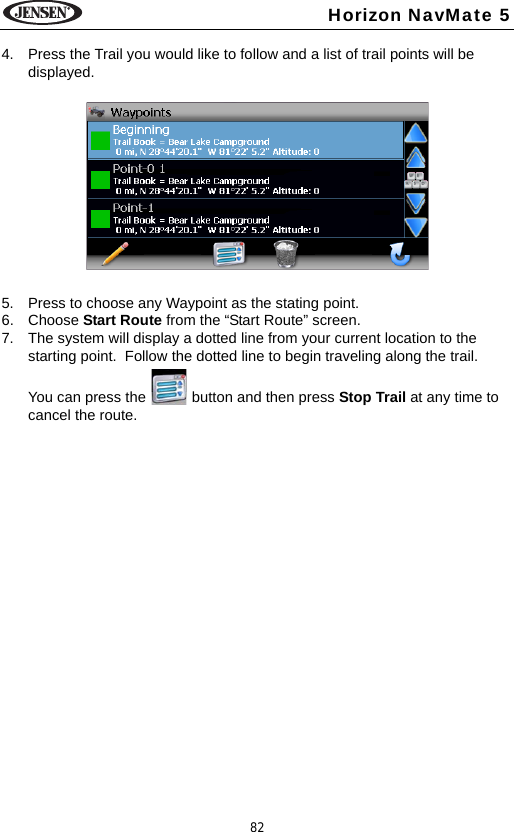
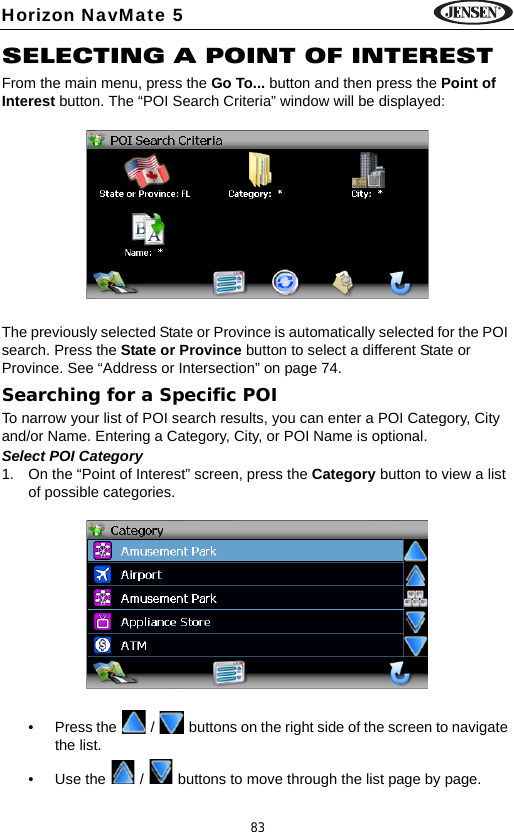
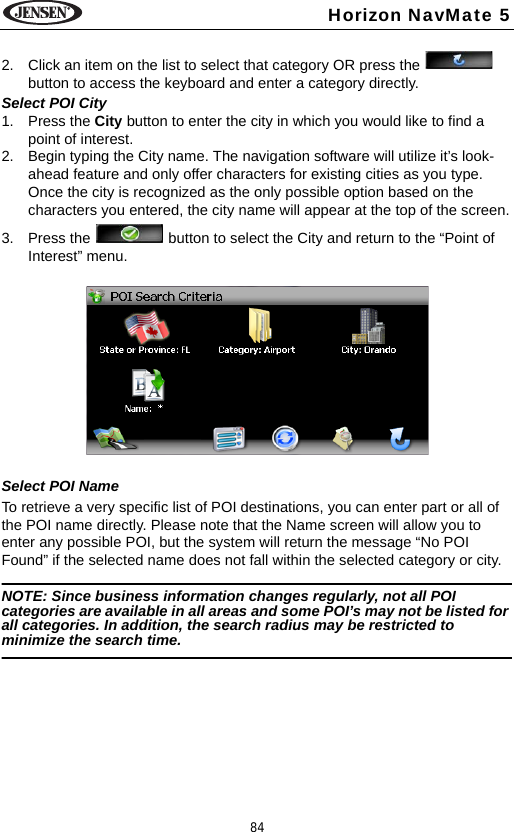
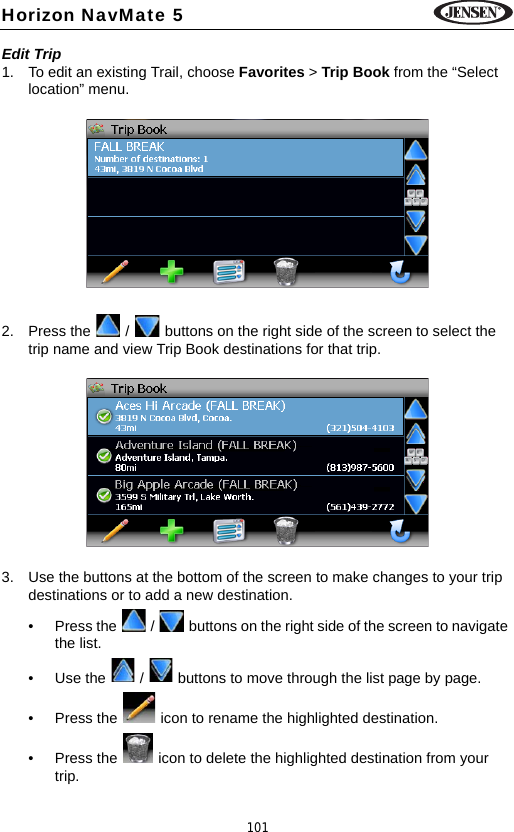
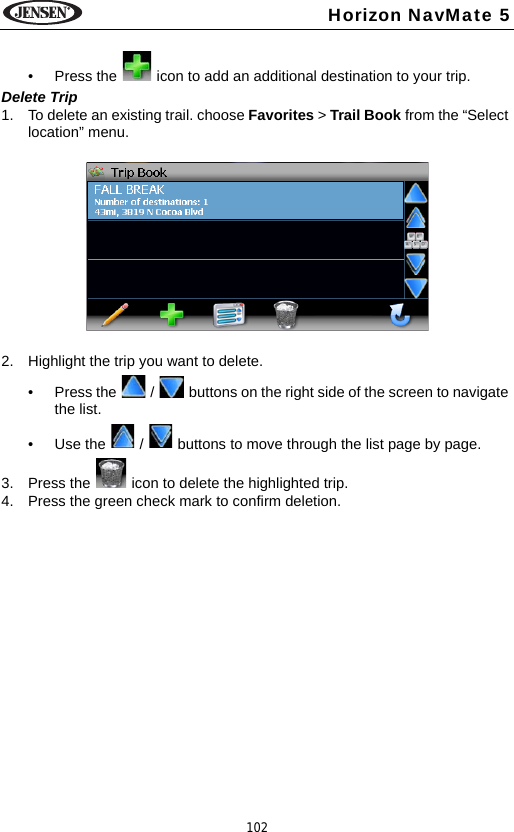
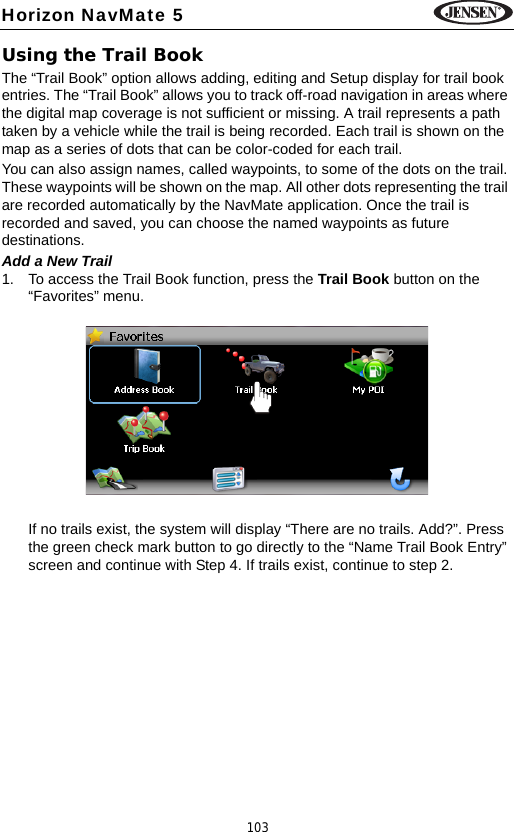
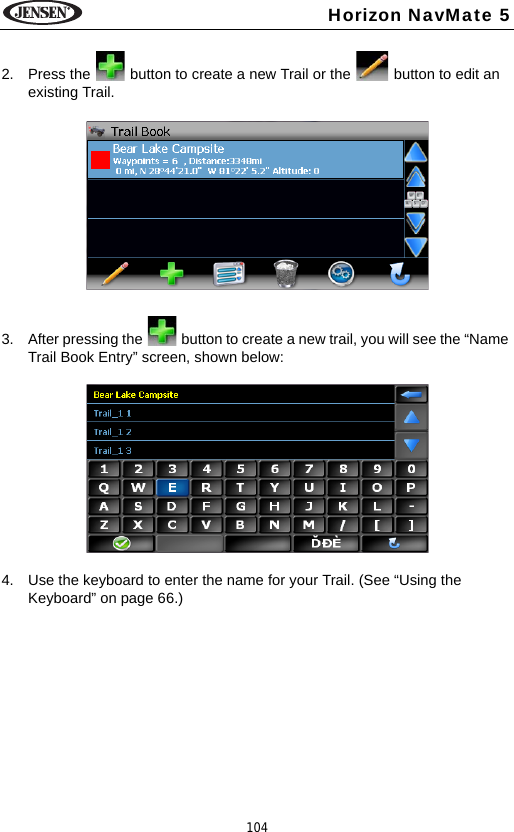
vVM9424BTNavMate Table of ContentsNavMate 5 Introduction.......................................................................  61Key Features ..................................................................................  61Specifications..................................................................................  61About GPS and GNSS....................................................................  61Horizon NavMate Navigation / Tele Atlas Map Data.......................  62Safety Information...............................................................................  63User Agreement..............................................................................  63Driver Safety Rules.........................................................................  63Basic Operation...................................................................................  65Head Unit Button Functions............................................................  65Acquiring a Satellite Signal .............................................................  65Using the Keyboard ........................................................................  66Selecting from Lists ........................................................................  67Function Buttons.............................................................................  68Main Menu ......................................................................................  68Navigation Screen ..........................................................................  70Trip Computer.................................................................................  73Selecting a Destination.......................................................................  74Finding an Address.........................................................................  74Navigating to your Home or Office Address....................................  79Choosing a Location from your Address Book................................  80Following a Trail..............................................................................  81Selecting a Point Of Interest ..............................................................  83Searching for a Specific POI...........................................................  83Browsing POI Destinations .............................................................  85Using My POI..................................................................................  86Navigating............................................................................................  92Route Calculation and Guidance ....................................................  92Browsing the Map During Navigation..............................................  94Adding a Detour..............................................................................  94Arriving at your Destination.............................................................  95Managing Favorites.............................................................................  96Edit Address Book ..........................................................................  96Using the Trip Book ........................................................................  98Using the Trail Book .....................................................................  103Using My POI................................................................................  109Setup Menu........................................................................................  110Setup Routing Criteria ..................................................................  110Display Options.............................................................................  111User Preferences..........................................................................  112Location Reset..............................................................................  113System..........................................................................................  114Troubleshooting................................................................................  116
viVM9424BT
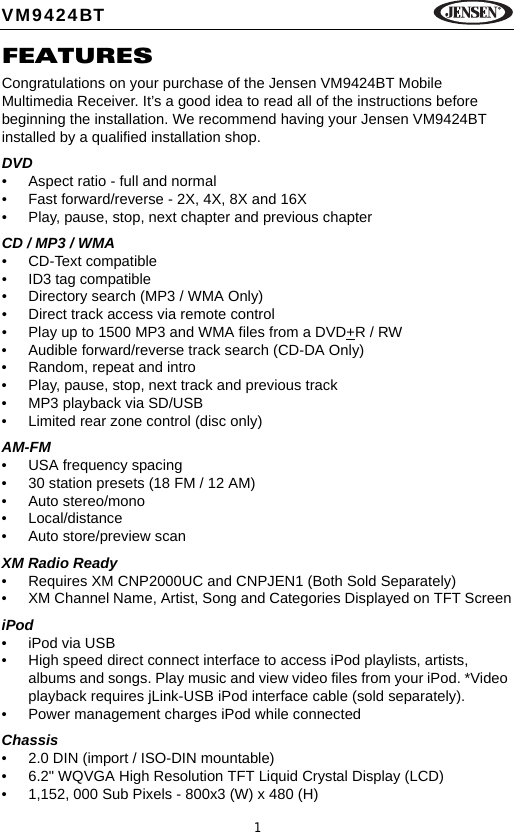
1VM9424BTFEATURESCongratulations on your purchase of the Jensen VM9424BT Mobile Multimedia Receiver. It’s a good idea to read all of the instructions before beginning the installation. We recommend having your Jensen VM9424BT installed by a qualified installation shop.DVD• Aspect ratio - full and normal• Fast forward/reverse - 2X, 4X, 8X and 16X• Play, pause, stop, next chapter and previous chapterCD / MP3 / WMA• CD-Text compatible• ID3 tag compatible• Directory search (MP3 / WMA Only)• Direct track access via remote control• Play up to 1500 MP3 and WMA files from a DVD+R / RW• Audible forward/reverse track search (CD-DA Only)• Random, repeat and intro• Play, pause, stop, next track and previous track• MP3 playback via SD/USB• Limited rear zone control (disc only)AM-FM • USA frequency spacing• 30 station presets (18 FM / 12 AM)• Auto stereo/mono• Local/distance• Auto store/preview scanXM Radio Ready• Requires XM CNP2000UC and CNPJEN1 (Both Sold Separately)• XM Channel Name, Artist, Song and Categories Displayed on TFT ScreeniPod• iPod via USB• High speed direct connect interface to access iPod playlists, artists, albums and songs. Play music and view video files from your iPod. *Video playback requires jLink-USB iPod interface cable (sold separately).• Power management charges iPod while connectedChassis• 2.0 DIN (import / ISO-DIN mountable)• 6.2" WQVGA High Resolution TFT Liquid Crystal Display (LCD)• 1,152, 000 Sub Pixels - 800x3 (W) x 480 (H)
2VM9424BT• Beep tone confirmation (ON-OFF option)• Heat management system with forced air cooling to keep the chip sets operating at nominal temperaturesGeneral• MediaLink USB - 3.5mm AV input and USB input • Built-In navigation (See “NavMate 5 Introduction” on page 61.)• Built-In Bluetooth provides hands-free profile for safety/convenience and A2DP profile for streaming music from a PDA/phone • 40-key infrared remote control• Two composite video output for additional screens• Front panel 3.5mm audio/video input• Rear USB input - connect to MediaLink USB for extended USB and 1/8” AV input• Three-band tone control (Bass, Mid and Treble) with 11 preset EQ curves • Treble, Mid selectable center frequency with quasi parametric bass EQ• Front panel A/V aux input for portable media devices • Front, rear and subwoofer line output• Programmable volume control• Rear camera input (normal and mirror image view)• Touch screen calibration mode• 2VRMS line output - all channels• Rotary encoder volume control• SWC interface – compatible with PAC adapter SWI-PS steering wheel control interface, sold separately
3VM9424BTOPTIONAL EQUIPMENT•Bluetooth PhoneSee “Bluetooth Operation” on page 42.•Rear CameraThe VM9424BT is "camera ready." Before accessing any camera features, you must purchase and install a rear video camera. Once the rear camera is connected and operating properly, the CAMERA source mode will become active.
4VM9424BTWARNINGSWARNING! Never install this unit where operation and viewing could interfere with safe driving conditions.WARNING! To reduce the risk of a traffic accident (except when using for rear view video camera) never use the video display function while driving the vehicle. This is a violation of federal law. WARNING! Never disassemble or adjust the unit.WARNING! To prevent injury from shock or fire, never expose this unit to moisture or water.WARNING! Never use irregular discs.
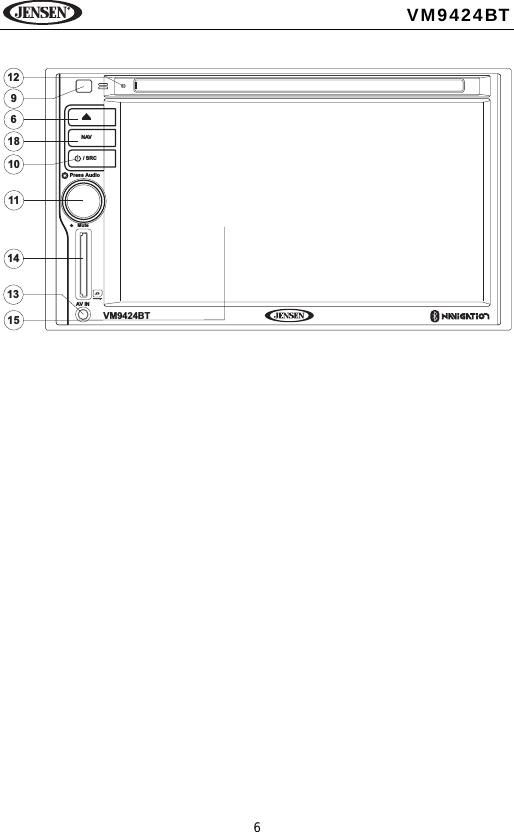
5VM9424BTCONTROLS AND INDICATORS1. Reset Press to reset system settings to factory default (except the password and parental lock setting).2. Touch Display3. Disc Slot4. NAVPress to access the navigation interface (see “NavMate 5 Introduction” on page 61).5. VOL Rotary Encoder• Rotate to adjust the volume from 0-40.•Press and hold to access the EQ menu to select a preset EQ level or adjust individual audio settings.• Press to activate the MUTE function and silence the receiver. Press again to resume previous audio level.• Rotate to adjust the brightness level when “Picture Menu” is visible.• During Navigation while the voice prompt is heard, the VOL rotary encoder will adjust the navigation voice volume. When voice prompts are completed, radio volume can be adjusted.• During a Bluetooth phone call, when the phone is connected to the caller, the VOL rotary encoder adjusts the Bluetooth call volume.6. EjectPress to eject a disc.Press and hold to reset core mechanism position.7. SD Card InputInsert an SD/MMC card (up to 8 GB) for playback of music/video files.8. 3.5mm A/V InputAttach a compatible A/V device.9. IR Remote Control Receiver10. SRC/   (power)Press to turn the unit on. Press and hold to turn the unit off.When on, press to select source or return to “Source” screen.
6VM9424BT/ SRCNAVPress AudioMuteAV INVM9424BT1018119614131215
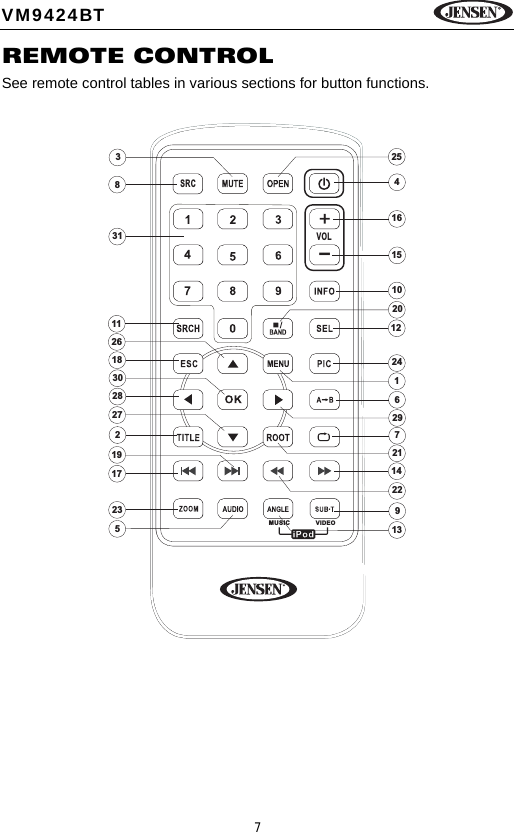
7VM9424BTREMOTE CONTROLSee remote control tables in various sections for button functions.SRCVOL+-MUSIC VIDEOPOWER34596726151623248110132511 121420172221293127192281830
8VM9424BTUSING THE TFT MONITORStandby ModeTouch the STANDBY button on the Source Menu and then screen becomes black. Touch the screen to resume normal video display.To access the Source menu, touch the top left corner of the screen or press the SRC button on the front panel (10) or remote control (8). Picture AdjustmentTo adjust monitor display settings, perform the following steps: 1. Press the PIC button (24) on the remote control to view the “Picture Menu”.2. Rotate the VOL button (5) on the front panel to adjust the brightness level from 0 (least bright) to 20 (most bright).3. Wait 5 seconds, or press the PIC button (24) on the remote control to exit the picture menu.Parking Brake InhibitWhen the pink "PARKING" wire is connected to the vehicle Parking Brake circuit, the front TFT monitor will display video when the Parking Brake is engaged. (When the pink wire is grounded via the Parking Brake circuit, video will be displayed.) Radio ST DX 2:04AMNAVIBLUETOOTHRADIOAV2CD/DVD USBAV1 SETUPSD XMCAMERA REARNSEWBACK 3:02AM STANDBY
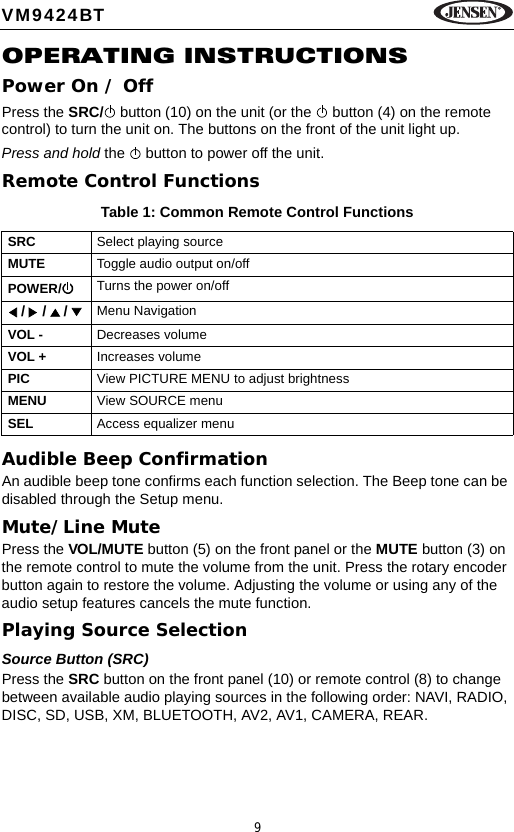
9VM9424BTOPERATING INSTRUCTIONSPower On / OffPress the SRC/  button (10) on the unit (or the   button (4) on the remote control) to turn the unit on. The buttons on the front of the unit light up. Press and hold the   button to power off the unit.Remote Control FunctionsAudible Beep ConfirmationAn audible beep tone confirms each function selection. The Beep tone can be disabled through the Setup menu. Mute/Line MutePress the VOL/MUTE button (5) on the front panel or the MUTE button (3) on the remote control to mute the volume from the unit. Press the rotary encoder button again to restore the volume. Adjusting the volume or using any of the audio setup features cancels the mute function.Playing Source SelectionSource Button (SRC)Press the SRC button on the front panel (10) or remote control (8) to change between available audio playing sources in the following order: NAVI, RADIO, DISC, SD, USB, XM, BLUETOOTH, AV2, AV1, CAMERA, REAR. Table 1: Common Remote Control FunctionsSRC Select playing sourceMUTE Toggle audio output on/offPOWER/ Turns the power on/off /   /   /    Menu NavigationVOL - Decreases volumeVOL + Increases volumePIC View PICTURE MENU to adjust brightnessMENU View SOURCE menuSEL Access equalizer menu
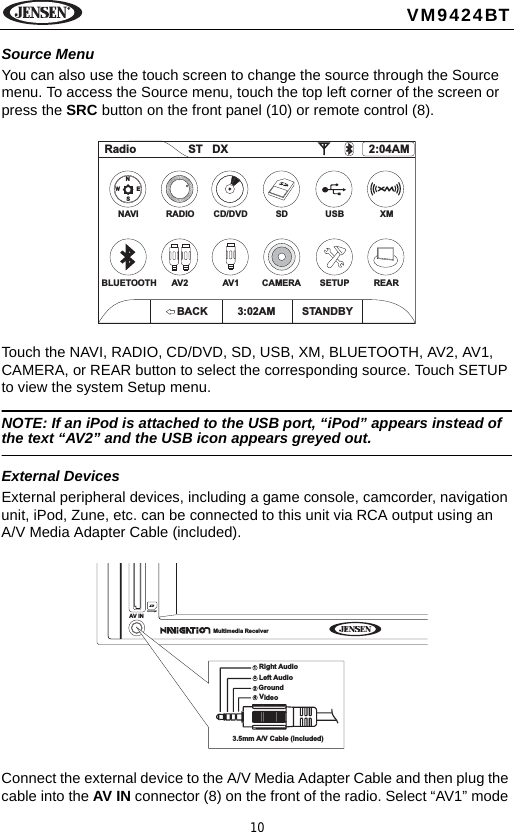
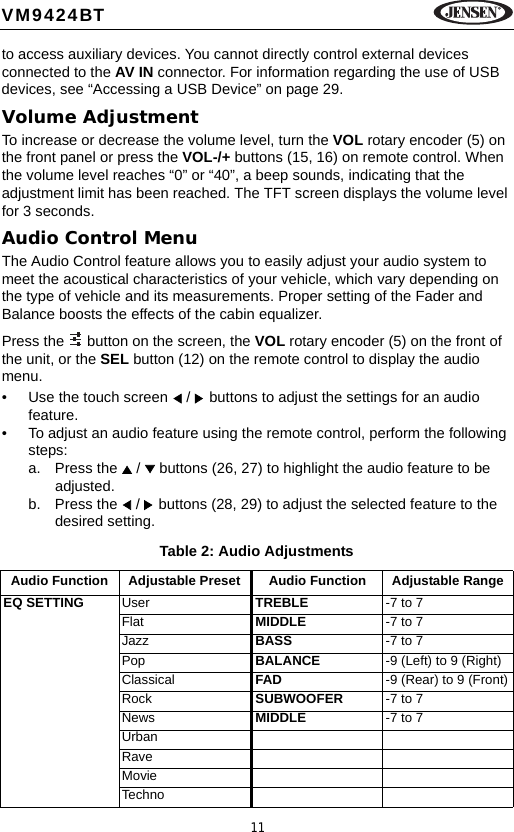
10VM9424BTSource MenuYou can also use the touch screen to change the source through the Source menu. To access the Source menu, touch the top left corner of the screen or press the SRC button on the front panel (10) or remote control (8). Touch the NAVI, RADIO, CD/DVD, SD, USB, XM, BLUETOOTH, AV2, AV1, CAMERA, or REAR button to select the corresponding source. Touch SETUP to view the system Setup menu.NOTE: If an iPod is attached to the USB port, “iPod” appears instead of the text “AV2” and the USB icon appears greyed out.External DevicesExternal peripheral devices, including a game console, camcorder, navigation unit, iPod, Zune, etc. can be connected to this unit via RCA output using an A/V Media Adapter Cable (included).Connect the external device to the A/V Media Adapter Cable and then plug the cable into the AV IN connector (8) on the front of the radio. Select “AV1” mode Radio ST DX 2:04AMNAVIBLUETOOTHRADIOAV2CD/DVD USBAV1 SETUPSD XMCAMERA REARNSEWBACK 3:02AM STANDBYAV INMultimedia ReceiverV12343.5mm A/V Cable (included)ideoLeft AudioRight AudioGround
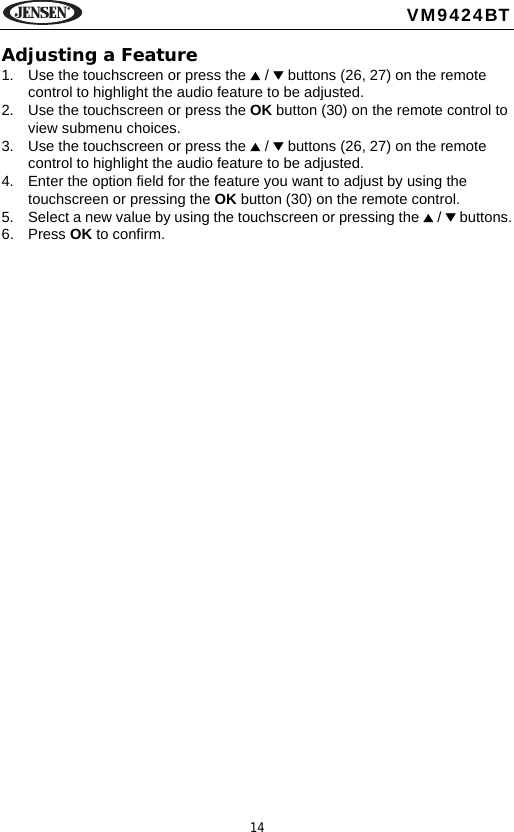
11VM9424BTto access auxiliary devices. You cannot directly control external devices connected to the AV IN connector. For information regarding the use of USB devices, see “Accessing a USB Device” on page 29.Volume AdjustmentTo increase or decrease the volume level, turn the VOL rotary encoder (5) on the front panel or press the VOL-/+ buttons (15, 16) on remote control. When the volume level reaches “0” or “40”, a beep sounds, indicating that the adjustment limit has been reached. The TFT screen displays the volume level for 3 seconds.Audio Control MenuThe Audio Control feature allows you to easily adjust your audio system to meet the acoustical characteristics of your vehicle, which vary depending on the type of vehicle and its measurements. Proper setting of the Fader and Balance boosts the effects of the cabin equalizer.Press the   button on the screen, the VOL rotary encoder (5) on the front of the unit, or the SEL button (12) on the remote control to display the audio menu. • Use the touch screen   /   buttons to adjust the settings for an audio feature. • To adjust an audio feature using the remote control, perform the following steps:a. Press the   /   buttons (26, 27) to highlight the audio feature to be adjusted. b. Press the   /   buttons (28, 29) to adjust the selected feature to the desired setting.Table 2: Audio AdjustmentsAudio Function Adjustable Preset Audio Function Adjustable RangeEQ SETTING User TREBLE -7 to 7Flat MIDDLE -7 to 7Jazz BASS -7 to 7Pop BALANCE -9 (Left) to 9 (Right)Classical FAD -9 (Rear) to 9 (Front)Rock SUBWOOFER -7 to 7News MIDDLE -7 to 7UrbanRaveMovieTechno
12VM9424BTNOTE: The EQ SETTING mode will automatically change to “USER” when individual audio functions are adjusted.The Audio menu will automatically exit after a few seconds of inactivity. To exit quickly, touch the top left corner of the screen or press the VOL rotary encoder (5).System ResetTo correct a system halt or other illegal operation, use the tip of a pen to press the reset button (1), located left of the disc slot. After a system reset, the unit restores all factory default settings.NOTE: If the unit is reset while a DVD is playing, the DVD resumes play once the reset is complete.Steering Wheel Control (SWC)The VM9424BT is compatible with the PAC (Pacific Accessory Corporation) steering wheel control adapter SWI-PS. A 3.5mm female connector (labeled “SWC Interface”) on the back of the head unit allows connectivity to the PAC adapter. Please refer to the instructions included with the PAC adapter for detailed installation information. SWC FunctionsThe following controls are available for most vehicles:1. Vol Down2. Vol Up3. Mute4. Seek Down / Previous Track / ** Preset Down5. Seek Up / Next Track / ** Preset Up6. SRC (Source)7. ** Select8. ** Select9. Band** If additional steering wheel control buttons are available on the vehicle, function 7 / 8 may be assigned the "Select" feature. This feature / function may not be available on some vehicles.Select OperationIf "Select" (function 7 or 8) is held down and function 4 is pressed momentarily, Preset Up will be selected. If "Select" (function 7 or 8) is held down and function 5 is pressed momentarily, Preset Down will be selected. [RESET] Button
13VM9424BTSETUP MENUTo access system settings, press the MENU button (1) on the remote control or touch the top left corner of the screen where the current source is indicated, and then touch the on-screen SETUP button. The “Setup” menu appears, with the current sub-menu highlighted in yellow.Accessing Menu ItemsTouch the sub-menu name, press the  ,  ,   or   direction buttons (28, 29, 26, 27) on the remote control to select a sub-menu (Language, Audio, RDS, etc.). The features available for adjustment under the highlighted sub-menu option will appear in the center of the screen.SetupGeneralVideoAudioNavigationMiscClock 1:25 AMAM/PM AMClock Mode 12HrBeep OnCamera Image NormalBluetooth OnAMPMDIRECTION BUTTONS
14VM9424BTAdjusting a Feature1. Use the touchscreen or press the   /   buttons (26, 27) on the remote control to highlight the audio feature to be adjusted.2. Use the touchscreen or press the OK button (30) on the remote control to view submenu choices.3. Use the touchscreen or press the   /   buttons (26, 27) on the remote control to highlight the audio feature to be adjusted.4. Enter the option field for the feature you want to adjust by using the touchscreen or pressing the OK button (30) on the remote control. 5. Select a new value by using the touchscreen or pressing the   /   buttons.6. Press OK to confirm.
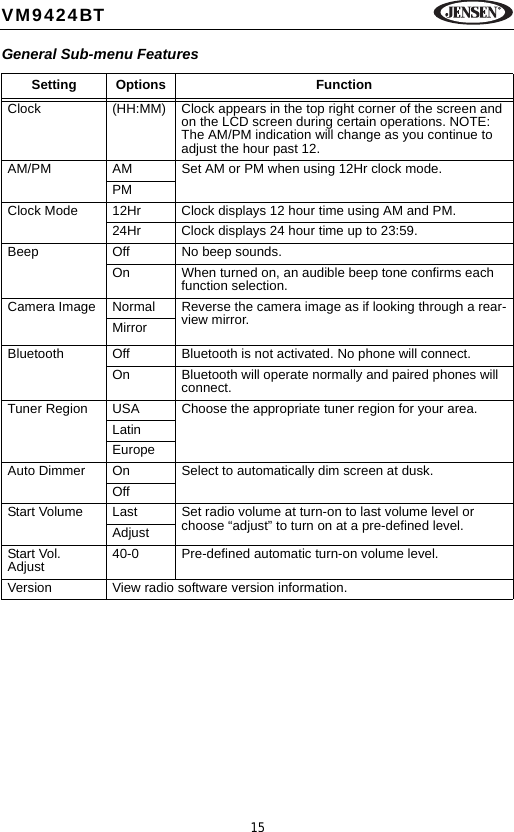
15VM9424BTGeneral Sub-menu FeaturesSetting Options FunctionClock (HH:MM) Clock appears in the top right corner of the screen and on the LCD screen during certain operations. NOTE: The AM/PM indication will change as you continue to adjust the hour past 12.AM/PM AM Set AM or PM when using 12Hr clock mode.PMClock Mode 12Hr Clock displays 12 hour time using AM and PM.24Hr Clock displays 24 hour time up to 23:59.Beep Off No beep sounds.On When turned on, an audible beep tone confirms each function selection.Camera Image Normal Reverse the camera image as if looking through a rear-view mirror.MirrorBluetooth Off Bluetooth is not activated. No phone will connect.On Bluetooth will operate normally and paired phones will connect.Tuner Region USA Choose the appropriate tuner region for your area.LatinEuropeAuto Dimmer On Select to automatically dim screen at dusk.OffStart Volume Last Set radio volume at turn-on to last volume level or choose “adjust” to turn on at a pre-defined level.AdjustStart Vol. Adjust 40-0 Pre-defined automatic turn-on volume level.Version View radio software version information.
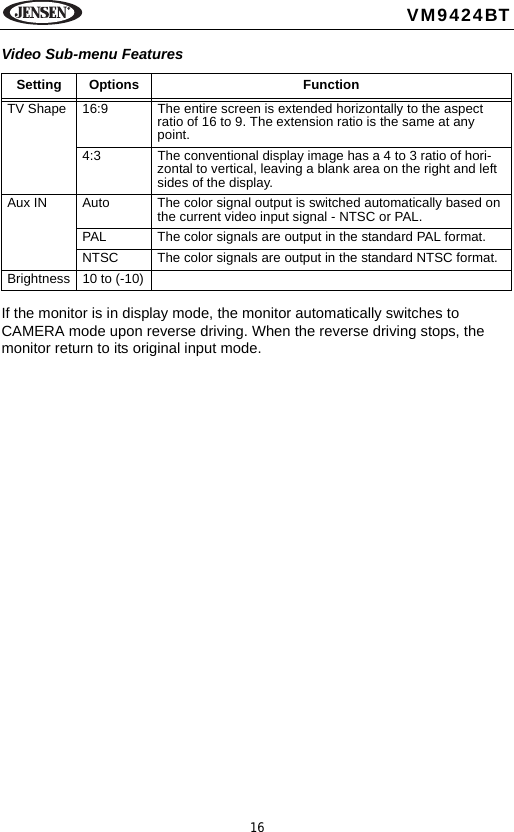
16VM9424BTVideo Sub-menu FeaturesIf the monitor is in display mode, the monitor automatically switches to CAMERA mode upon reverse driving. When the reverse driving stops, the monitor return to its original input mode.Setting Options FunctionTV Shape 16:9 The entire screen is extended horizontally to the aspect ratio of 16 to 9. The extension ratio is the same at any point.4:3 The conventional display image has a 4 to 3 ratio of hori-zontal to vertical, leaving a blank area on the right and left sides of the display.Aux IN Auto The color signal output is switched automatically based on the current video input signal - NTSC or PAL.PAL The color signals are output in the standard PAL format.NTSC The color signals are output in the standard NTSC format.Brightness 10 to (-10)
17VM9424BTAudio Sub-menu FeaturesSetting Options FunctionBass Freq 60Hz Adjust Bass boost/cut frequency. Range of adjustment is +/- 12 dB.80Hz100Hz120HzMiddle Freq 500Hz Adjust Middle boost/cut frequency. Range of adjustment is +/- 12 dB.1kHz1.5kHz2.5kHzTreble Freq 8kHz Adjust Treble boost/cut frequency. Range of adjustment is +/- 12 dB.10kHz12.5kHz15khzSubfilter 80Hz Select a crossover frequency to set a cut-off frequency for the subwoofer's LPF (low-pass filter).100Hz120Hz140Hz160HzBass Q-Factor Wide 1 Adjust the "Q" or width of the bass control of the Bass Freq selected.Wide 2Narrow 1Narrow 2iPod Gain -7 to 7 Increase or reduce the relative volume (Gain).Auxin Gain -7 to 7 Increase or reduce the relative volume (Gain).SAT Gain -7 to 7 Increase or reduce the relative volume (Gain).DISC/USB/SD Gain-7 to 7 Increase or reduce the relative volume (Gain).Tuner Gain -7 to 7 Increase or reduce the relative volume (Gain).
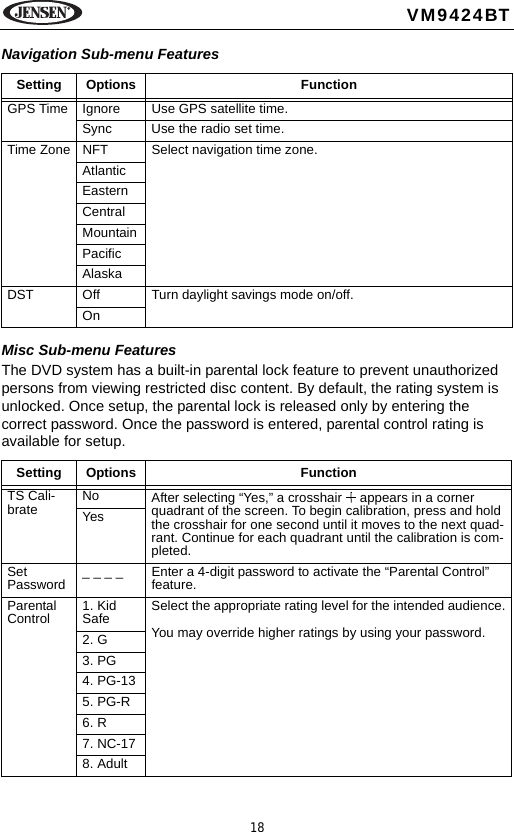
18VM9424BTNavigation Sub-menu FeaturesMisc Sub-menu FeaturesThe DVD system has a built-in parental lock feature to prevent unauthorized persons from viewing restricted disc content. By default, the rating system is unlocked. Once setup, the parental lock is released only by entering the correct password. Once the password is entered, parental control rating is available for setup.Setting Options FunctionGPS Time Ignore Use GPS satellite time.Sync Use the radio set time.Time Zone NFT Select navigation time zone.AtlanticEasternCentralMountainPacificAlaskaDST Off Turn daylight savings mode on/off.OnSetting Options FunctionTS Cali-brate No After selecting “Yes,” a crosshair   appears in a corner quadrant of the screen. To begin calibration, press and hold the crosshair for one second until it moves to the next quad-rant. Continue for each quadrant until the calibration is com-pleted.YesSet Password _ _ _ _ Enter a 4-digit password to activate the “Parental Control” feature.Parental Control 1. Kid Safe Select the appropriate rating level for the intended audience.You may override higher ratings by using your password.2. G3. PG4. PG-135. PG-R6. R7. NC-178. Adult
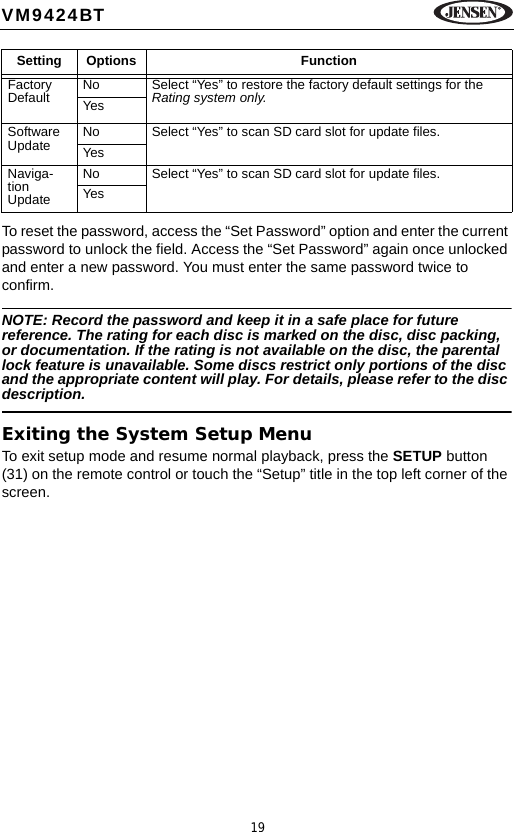
19VM9424BTTo reset the password, access the “Set Password” option and enter the current password to unlock the field. Access the “Set Password” again once unlocked and enter a new password. You must enter the same password twice to confirm.NOTE: Record the password and keep it in a safe place for future reference. The rating for each disc is marked on the disc, disc packing, or documentation. If the rating is not available on the disc, the parental lock feature is unavailable. Some discs restrict only portions of the disc and the appropriate content will play. For details, please refer to the disc description.Exiting the System Setup MenuTo exit setup mode and resume normal playback, press the SETUP button (31) on the remote control or touch the “Setup” title in the top left corner of the screen.Factory Default No Select “Yes” to restore the factory default settings for the Rating system only.YesSoftware Update No Select “Yes” to scan SD card slot for update files.YesNaviga-tion UpdateNo Select “Yes” to scan SD card slot for update files.YesSetting Options Function
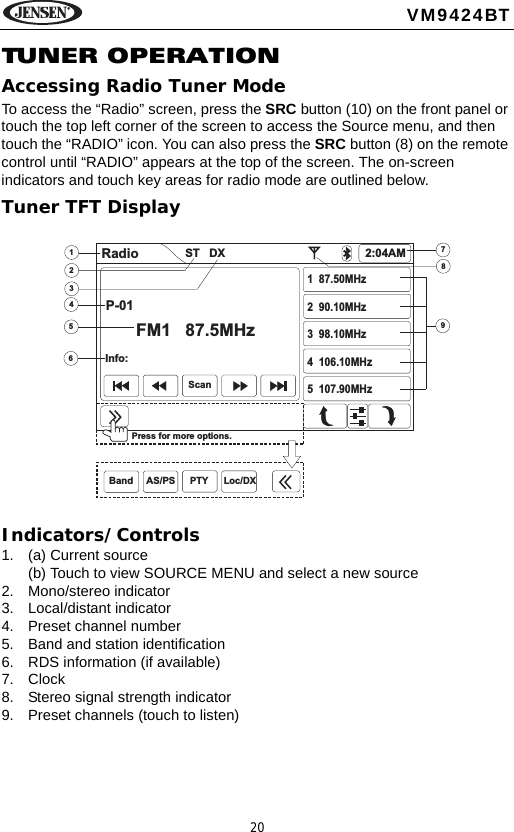
20VM9424BTTUNE R  OPE RA T IONAccessing Radio Tuner ModeTo access the “Radio” screen, press the SRC button (10) on the front panel or touch the top left corner of the screen to access the Source menu, and then touch the “RADIO” icon. You can also press the SRC button (8) on the remote control until “RADIO” appears at the top of the screen. The on-screen indicators and touch key areas for radio mode are outlined below.Tuner TFT DisplayIndicators/Controls1. (a) Current source(b) Touch to view SOURCE MENU and select a new source2. Mono/stereo indicator3. Local/distant indicator4. Preset channel number5. Band and station identification6. RDS information (if available)7. Clock8. Stereo signal strength indicator9. Preset channels (touch to listen)564789123Radio 2:04AMP-01FM1 87.5MHzInfo:1 87.50MHz2 90.10MHz3 98.10MHz4 106.10MHz5 107.90MHzPress for more options.ScanBand AS/PSST DXPTY Loc/DX
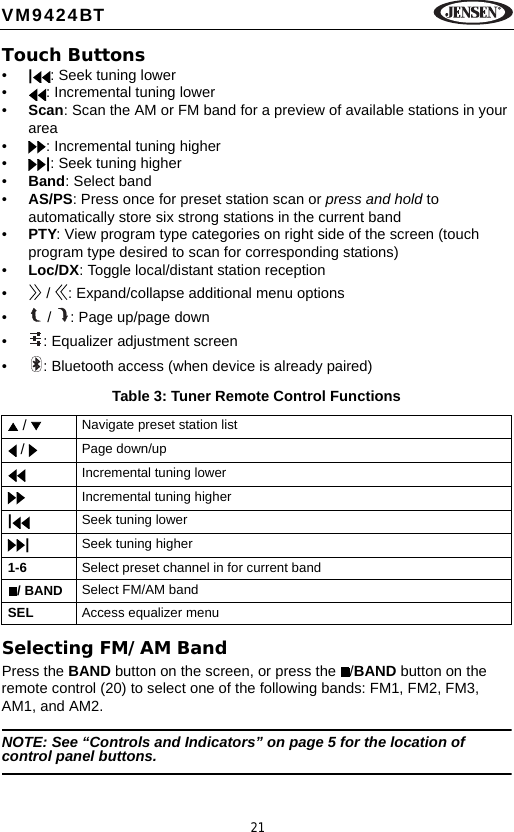
21VM9424BTTouch Buttons•|: Seek tuning lower• : Incremental tuning lower•Scan: Scan the AM or FM band for a preview of available stations in your area• : Incremental tuning higher•|: Seek tuning higher•Band: Select band•AS/PS: Press once for preset station scan or press and hold to automatically store six strong stations in the current band•PTY: View program type categories on right side of the screen (touch program type desired to scan for corresponding stations)•Loc/DX: Toggle local/distant station reception•  /  : Expand/collapse additional menu options•  /  : Page up/page down• : Equalizer adjustment screen• : Bluetooth access (when device is already paired)Selecting FM/AM BandPress the BAND button on the screen, or press the  /BAND button on the remote control (20) to select one of the following bands: FM1, FM2, FM3, AM1, and AM2.NOTE: See “Controls and Indicators” on page 5 for the location of control panel buttons.Table 3: Tuner Remote Control Functions /  Navigate preset station list /  Page down/upIncremental tuning lowerIncremental tuning higher|Seek tuning lower|Seek tuning higher1-6 Select preset channel in for current band/ BAND Select FM/AM bandSEL Access equalizer menu
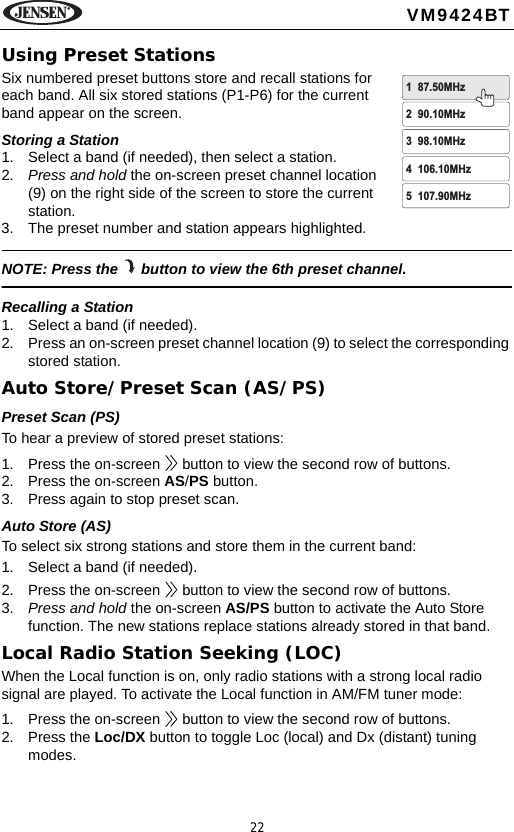
22VM9424BTUsing Preset StationsSix numbered preset buttons store and recall stations for each band. All six stored stations (P1-P6) for the current band appear on the screen.Storing a Station1. Select a band (if needed), then select a station.2. Press and hold the on-screen preset channel location (9) on the right side of the screen to store the current station.3. The preset number and station appears highlighted.NOTE: Press the   button to view the 6th preset channel.Recalling a Station1. Select a band (if needed).2. Press an on-screen preset channel location (9) to select the corresponding stored station.Auto Store/Preset Scan (AS/PS)Preset Scan (PS)To hear a preview of stored preset stations:1. Press the on-screen   button to view the second row of buttons.2. Press the on-screen AS/PS button. 3. Press again to stop preset scan.Auto Store (AS)To select six strong stations and store them in the current band:1. Select a band (if needed).2. Press the on-screen   button to view the second row of buttons.3. Press and hold the on-screen AS/PS button to activate the Auto Store function. The new stations replace stations already stored in that band.Local Radio Station Seeking (LOC)When the Local function is on, only radio stations with a strong local radio signal are played. To activate the Local function in AM/FM tuner mode:1. Press the on-screen   button to view the second row of buttons.2. Press the Loc/DX button to toggle Loc (local) and Dx (distant) tuning modes. 1 87.50MHz2 90.10MHz3 98.10MHz4 106.10MHz5 107.90MHz
23VM9424BTDVD/VCD VIDEO OPERATIONNOTE: When properly installed, DVD video cannot be displayed on the main TFT screen unless the parking brake is applied. If you attempt to play a DVD while the vehicle is moving, the TFT screen displays “PARKING” with a blue background. Rear zone video outputs and rear video screens, if applicable, will operate normally.Inserting a DiscUpon inserting a DVD disc, DVD mode is entered and disc play begins. NOTE: If Parental Lock (Rating) is activated and the disc inserted is not authorized, the 4-digit code must be entered and/or the disc must be authorized (see “To reset the password, access the “Set Password” option and enter the current password to unlock the field. Access the “Set Password” again once unlocked and enter a new password. You must enter the same password twice to confirm.” on page 19).You cannot insert a disc if there is already a disc in the unit or if the power is off. NOTE: DVD-R and DVD-RW will not play unless the recording session is finalized and the DVD is closed.Ejecting a Disc Press the   button (6) to eject the disc. The unit automatically reverts to Tuner mode. You may eject a disc with the unit powered off. The unit will remain off after the disc is ejected.Resetting the Loading MechanismIf the disc loads abnormally or an abnormal core mechanism operation occurs, press and hold the   button (6) to reset the loading mechanism. Normal operation resumes. Accessing DVD ModeTo switch to DVD mode when a disc is already inserted, press the SRC button (10) on the front panel or remote control (8).NOTE: See “Controls and Indicators” on page 5 for the location of control panel buttons.
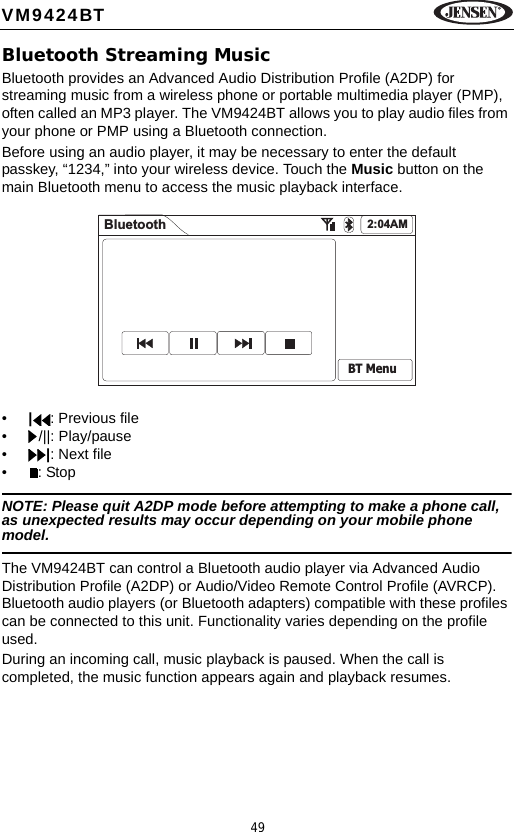
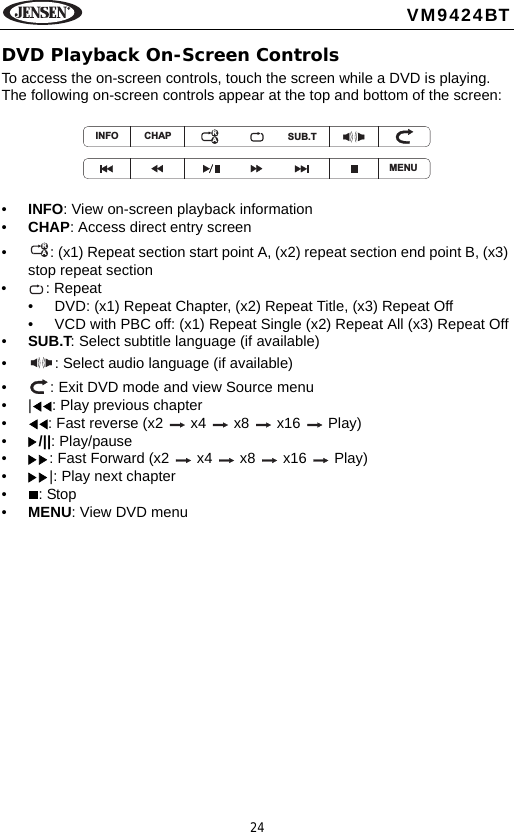
24VM9424BTDVD Playback On-Screen ControlsTo access the on-screen controls, touch the screen while a DVD is playing. The following on-screen controls appear at the top and bottom of the screen:•INFO: View on-screen playback information•CHAP: Access direct entry screen• : (x1) Repeat section start point A, (x2) repeat section end point B, (x3) stop repeat section• : Repeat• DVD: (x1) Repeat Chapter, (x2) Repeat Title, (x3) Repeat Off• VCD with PBC off: (x1) Repeat Single (x2) Repeat All (x3) Repeat Off•SUB.T: Select subtitle language (if available)• : Select audio language (if available)• : Exit DVD mode and view Source menu• | : Play previous chapter• : Fast reverse (x2   x4   x8   x16   Play)•/||: Play/pause• : Fast Forward (x2   x4   x8   x16   Play)• |: Play next chapter•: Stop•MENU: View DVD menuMENUINFO CHAP SUB.TRARA
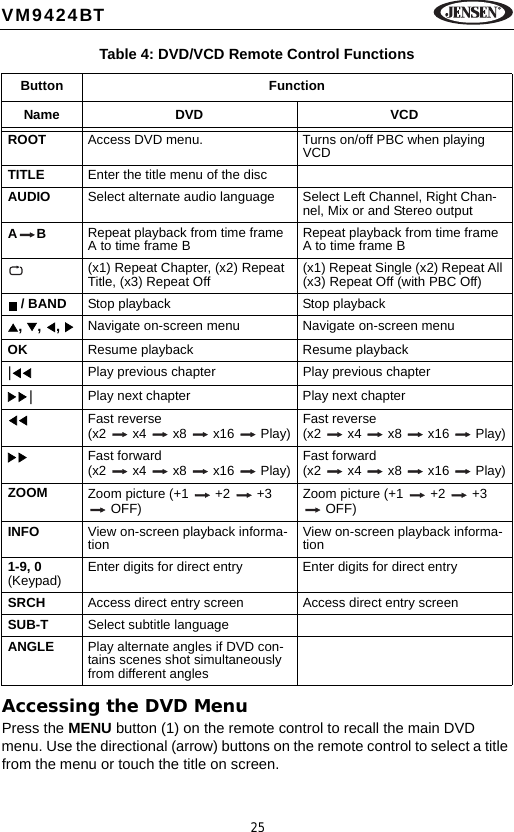
25VM9424BTAccessing the DVD MenuPress the MENU button (1) on the remote control to recall the main DVD menu. Use the directional (arrow) buttons on the remote control to select a title from the menu or touch the title on screen.Table 4: DVD/VCD Remote Control FunctionsButton FunctionName DVD VCDROOT Access DVD menu. Turns on/off PBC when playing VCDTITLE Enter the title menu of the discAUDIO Select alternate audio language Select Left Channel, Right Chan-nel, Mix or and Stereo outputAB Repeat playback from time frame A to time frame B Repeat playback from time frame A to time frame B(x1) Repeat Chapter, (x2) Repeat Title, (x3) Repeat Off (x1) Repeat Single (x2) Repeat All (x3) Repeat Off (with PBC Off) / BAND Stop playback Stop playback, , ,  Navigate on-screen menu Navigate on-screen menuOK Resume playback Resume playback|Play previous chapter Play previous chapter|Play next chapter Play next chapterFast reverse (x2   x4   x8   x16   Play) Fast reverse (x2   x4   x8   x16   Play)Fast forward (x2   x4   x8   x16   Play) Fast forward (x2   x4   x8   x16   Play)ZOOM Zoom picture (+1   +2   +3  OFF) Zoom picture (+1   +2   +3  OFF)INFO View on-screen playback informa-tion View on-screen playback informa-tion1-9, 0 (Keypad) Enter digits for direct entry Enter digits for direct entrySRCH Access direct entry screen Access direct entry screenSUB-T Select subtitle languageANGLE Play alternate angles if DVD con-tains scenes shot simultaneously from different angles
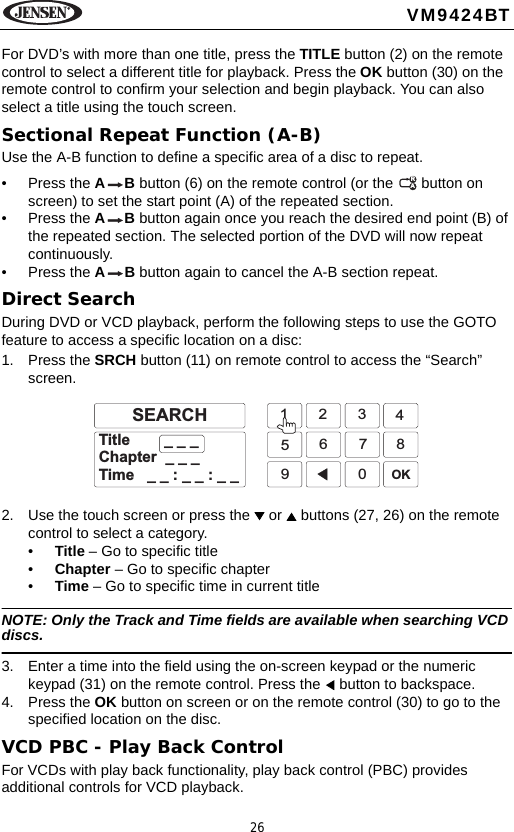
26VM9424BTFor DVD’s with more than one title, press the TITLE button (2) on the remote control to select a different title for playback. Press the OK button (30) on the remote control to confirm your selection and begin playback. You can also select a title using the touch screen.Sectional Repeat Function (A-B)Use the A-B function to define a specific area of a disc to repeat.• Press the AB button (6) on the remote control (or the   button on screen) to set the start point (A) of the repeated section. • Press the AB button again once you reach the desired end point (B) of the repeated section. The selected portion of the DVD will now repeat continuously. • Press the AB button again to cancel the A-B section repeat. Direct SearchDuring DVD or VCD playback, perform the following steps to use the GOTO feature to access a specific location on a disc: 1. Press the SRCH button (11) on remote control to access the “Search” screen.2. Use the touch screen or press the   or   buttons (27, 26) on the remote control to select a category.•Title – Go to specific title•Chapter – Go to specific chapter•Time – Go to specific time in current titleNOTE: Only the Track and Time fields are available when searching VCD discs.3. Enter a time into the field using the on-screen keypad or the numeric keypad (31) on the remote control. Press the   button to backspace.4. Press the OK button on screen or on the remote control (30) to go to the specified location on the disc.VCD PBC - Play Back ControlFor VCDs with play back functionality, play back control (PBC) provides additional controls for VCD playback.RA1234567890OKTitle _ _ _Chapter _ _ _Time __:__:__SEARCH
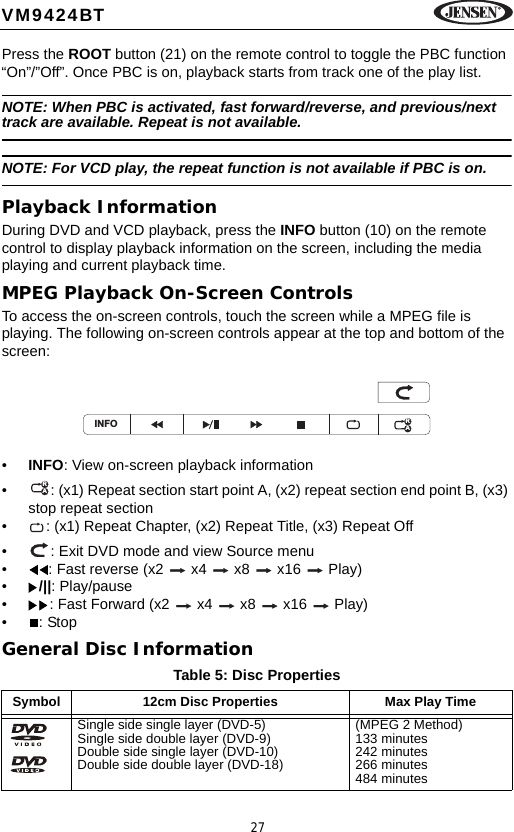
27VM9424BTPress the ROOT button (21) on the remote control to toggle the PBC function “On”/”Off”. Once PBC is on, playback starts from track one of the play list.NOTE: When PBC is activated, fast forward/reverse, and previous/next track are available. Repeat is not available.NOTE: For VCD play, the repeat function is not available if PBC is on.Playback InformationDuring DVD and VCD playback, press the INFO button (10) on the remote control to display playback information on the screen, including the media playing and current playback time. MPEG Playback On-Screen ControlsTo access the on-screen controls, touch the screen while a MPEG file is playing. The following on-screen controls appear at the top and bottom of the screen:•INFO: View on-screen playback information• : (x1) Repeat section start point A, (x2) repeat section end point B, (x3) stop repeat section• : (x1) Repeat Chapter, (x2) Repeat Title, (x3) Repeat Off• : Exit DVD mode and view Source menu• : Fast reverse (x2   x4   x8   x16   Play)•/||: Play/pause• : Fast Forward (x2   x4   x8   x16   Play)•: StopGeneral Disc InformationTable 5: Disc PropertiesSymbol 12cm Disc Properties Max Play TimeSingle side single layer (DVD-5)Single side double layer (DVD-9)Double side single layer (DVD-10)Double side double layer (DVD-18)(MPEG 2 Method)133 minutes242 minutes266 minutes484 minutesINFO RARA
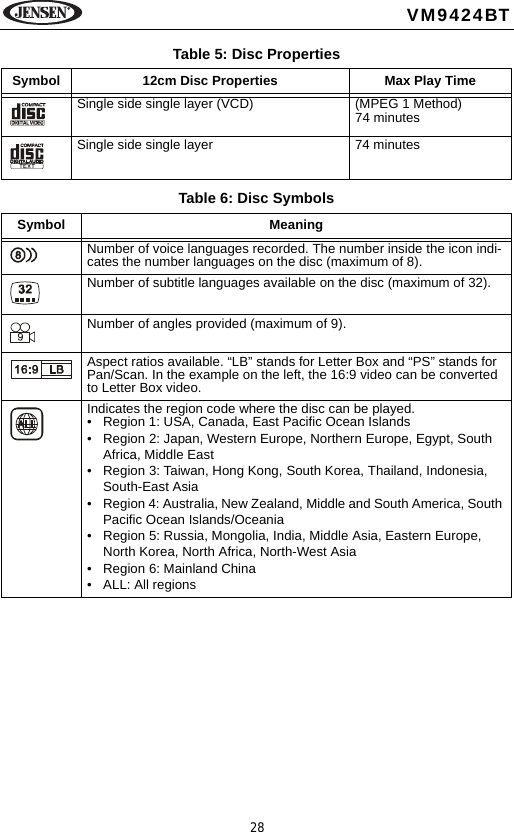
28VM9424BTSingle side single layer (VCD) (MPEG 1 Method)74 minutesSingle side single layer 74 minutesTable 6: Disc SymbolsSymbol MeaningNumber of voice languages recorded. The number inside the icon indi-cates the number languages on the disc (maximum of 8).Number of subtitle languages available on the disc (maximum of 32).Number of angles provided (maximum of 9).Aspect ratios available. “LB” stands for Letter Box and “PS” stands for Pan/Scan. In the example on the left, the 16:9 video can be converted to Letter Box video.Indicates the region code where the disc can be played.• Region 1: USA, Canada, East Pacific Ocean Islands• Region 2: Japan, Western Europe, Northern Europe, Egypt, South Africa, Middle East• Region 3: Taiwan, Hong Kong, South Korea, Thailand, Indonesia, South-East Asia• Region 4: Australia, New Zealand, Middle and South America, South Pacific Ocean Islands/Oceania• Region 5: Russia, Mongolia, India, Middle Asia, Eastern Europe, North Korea, North Africa, North-West Asia              • Region 6: Mainland China• ALL: All regionsTable 5: Disc PropertiesSymbol 12cm Disc Properties Max Play Time
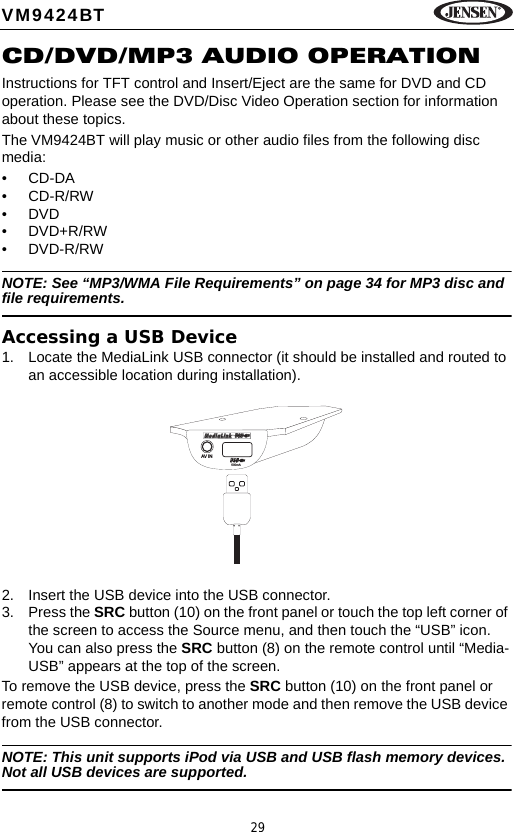
29VM9424BTCD/DVD/MP3 AUDIO OPERATIONInstructions for TFT control and Insert/Eject are the same for DVD and CD operation. Please see the DVD/Disc Video Operation section for information about these topics.The VM9424BT will play music or other audio files from the following disc media:•CD-DA•CD-R/RW•DVD•DVD+R/RW•DVD-R/RWNOTE: See “MP3/WMA File Requirements” on page 34 for MP3 disc and file requirements.Accessing a USB Device1. Locate the MediaLink USB connector (it should be installed and routed to an accessible location during installation). 2. Insert the USB device into the USB connector. 3. Press the SRC button (10) on the front panel or touch the top left corner of the screen to access the Source menu, and then touch the “USB” icon. You can also press the SRC button (8) on the remote control until “Media-USB” appears at the top of the screen. To remove the USB device, press the SRC button (10) on the front panel or remote control (8) to switch to another mode and then remove the USB device from the USB connector.NOTE: This unit supports iPod via USB and USB flash memory devices. Not all USB devices are supported.AV IN500mA
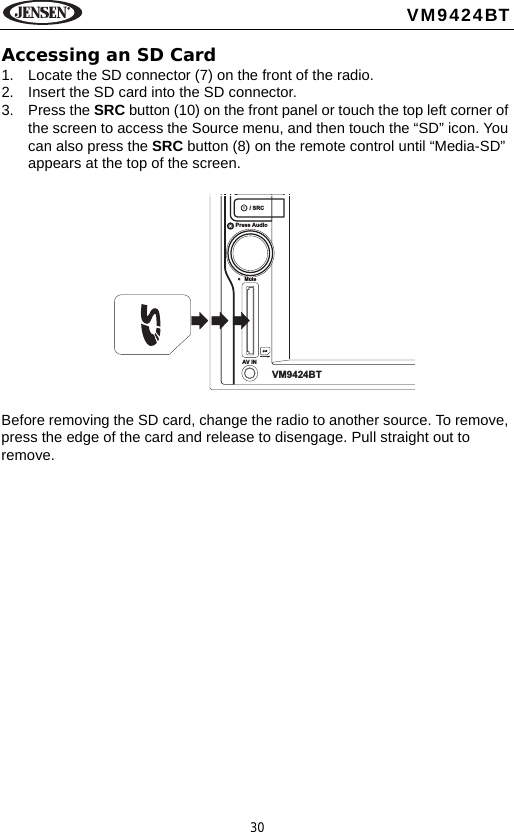
30VM9424BTAccessing an SD Card1. Locate the SD connector (7) on the front of the radio. 2. Insert the SD card into the SD connector. 3. Press the SRC button (10) on the front panel or touch the top left corner of the screen to access the Source menu, and then touch the “SD” icon. You can also press the SRC button (8) on the remote control until “Media-SD” appears at the top of the screen. Before removing the SD card, change the radio to another source. To remove, press the edge of the card and release to disengage. Pull straight out to remove./ SRCPress AudioMuteAV INVM9424BT
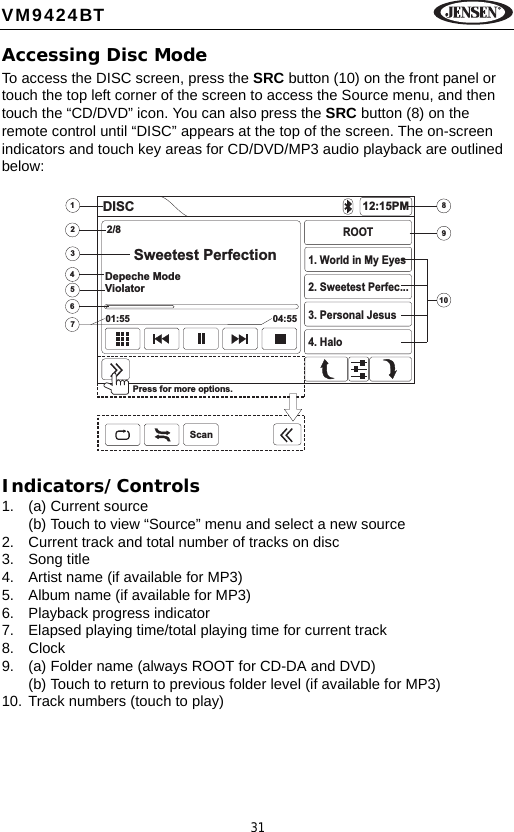
31VM9424BTAccessing Disc ModeTo access the DISC screen, press the SRC button (10) on the front panel or touch the top left corner of the screen to access the Source menu, and then touch the “CD/DVD” icon. You can also press the SRC button (8) on the remote control until “DISC” appears at the top of the screen. The on-screen indicators and touch key areas for CD/DVD/MP3 audio playback are outlined below:Indicators/Controls1. (a) Current source(b) Touch to view “Source” menu and select a new source2. Current track and total number of tracks on disc3. Song title4. Artist name (if available for MP3)5. Album name (if available for MP3)6. Playback progress indicator7. Elapsed playing time/total playing time for current track8. Clock9. (a) Folder name (always ROOT for CD-DA and DVD)(b) Touch to return to previous folder level (if available for MP3)10. Track numbers (touch to play)34567289101DISC 12:15PM2/8Sweetest PerfectionDepeche ModeViolator01:55 04:55ROOT1. World in My Eyes2. Sweetest Perfec...3. Personal Jesus4. HaloPress for more options.Scan
32VM9424BTTouch Screen Buttons• : Direct entry screen•|: Previous track•  / ||: Play/pause•|: Next track•: Stop• : Repeat• CD/DVD: (x1) Repeat song, (x2) repeat all• MP3: (x1) Repeat song, (x2) repeat folder, (x3) repeat all• : Random/shuffle all•Scan: Scan the first ten seconds of each song on the disc•  /  : Expand/collapse additional menu options•  /  : Page up/page down• : Equalizer adjustment screen• : Bluetooth access (when device is already paired)NOTE: CD-R and CD-RW will not play unless the disc recording session is finalized.
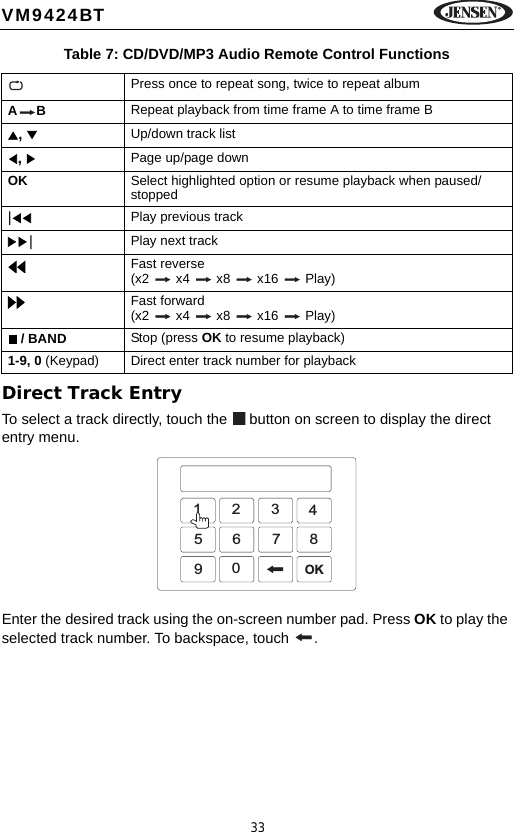
33VM9424BTDirect Track EntryTo select a track directly, touch the   button on screen to display the direct entry menu.Enter the desired track using the on-screen number pad. Press OK to play the selected track number. To backspace, touch  .Table 7: CD/DVD/MP3 Audio Remote Control FunctionsPress once to repeat song, twice to repeat albumAB Repeat playback from time frame A to time frame B,  Up/down track list,  Page up/page downOK Select highlighted option or resume playback when paused/stopped|Play previous track|Play next trackFast reverse (x2  x4  x8  x16  Play)Fast forward (x2  x4  x8  x16  Play) / BAND Stop (press OK to resume playback)1-9, 0 (Keypad) Direct enter track number for playback1234567890OK
34VM9424BTMP3/WMA File RequirementsThis player allows you to play back MP3 and WMA files recorded onto CD-R/RWs, DVD+R/RWs, and DVD-R/RWs. For CD-RW discs, please make sure it is formatted using the full method and not the quick method to prevent illegal disc operation.Up to 1500 songs/files can be burned onto a disc for a DVD music mix. Do not exceed this number of songs/files or disc readability problems may occur.MP3 Format CompatibilityThe file naming formats listed below are compatible with this unit:• ISO 9660 – file name: 12 characters, file extension: 3 characters• ISO 9660 – file name: 31 characters, file extension: 3 characters• Joliet – 64 charactersIf the file or folder name does not conform to ISO 9660 file system standards, it may not be displayed or played back correctly. Use the following settings when compressing audio data for your MP3 disc:• Transfer Bit Rate: 128kbps• Sampling Frequency: 48kHzWhen recording MP3 up to the maximum disc capacity, disable additional writing. For recording on an empty disc up to maximum disc capacity, use the "Disc at once" setting.NOTE: When burning MP3 / WMA files onto a DVD disc, use the 2X or 4X burning option, if available. This slower burning speed will help eliminate buffer errors and increase disc reading reliability. Also, use folders when burning large numbers of songs / files to a disc for easy music navigation. Select the "Disc at Once” option and close your disc.MP3 Playing OrderWhen selected for play, files and folders (Folder Search, File Search or Folder Select) are accessed in the order they were written by the CD writer. As a result, the order in which they are expected to be played may not match the order in which they are actually played. You may be able to set the order in which MP3/WMA files are to be played by writing them onto a medium such as a CD-R with their file names beginning with play sequence numbers such as "01" to "99".
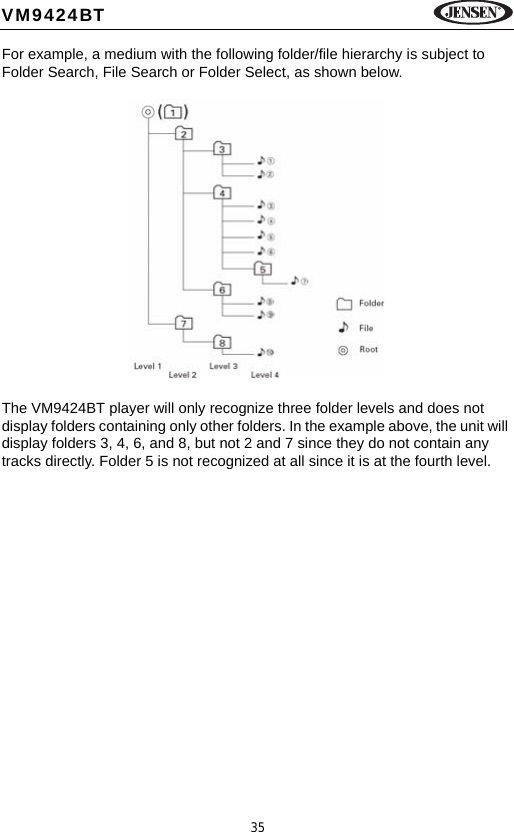
35VM9424BTFor example, a medium with the following folder/file hierarchy is subject to Folder Search, File Search or Folder Select, as shown below.The VM9424BT player will only recognize three folder levels and does not display folders containing only other folders. In the example above, the unit will display folders 3, 4, 6, and 8, but not 2 and 7 since they do not contain any tracks directly. Folder 5 is not recognized at all since it is at the fourth level.
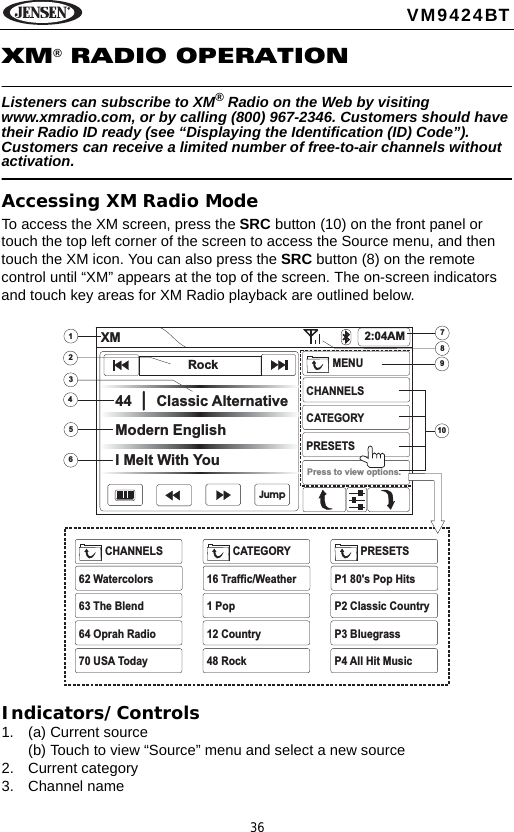
36VM9424BTXM® RADIO OPERATIONListeners can subscribe to XM® Radio on the Web by visiting www.xmradio.com, or by calling (800) 967-2346. Customers should have their Radio ID ready (see “Displaying the Identification (ID) Code”). Customers can receive a limited number of free-to-air channels without activation. Accessing XM Radio ModeTo access the XM screen, press the SRC button (10) on the front panel or touch the top left corner of the screen to access the Source menu, and then touch the XM icon. You can also press the SRC button (8) on the remote control until “XM” appears at the top of the screen. The on-screen indicators and touch key areas for XM Radio playback are outlined below.Indicators/Controls1. (a) Current source(b) Touch to view “Source” menu and select a new source2. Current category3. Channel name34562789101XM 2:04AM44 Classic AlternativeModern EnglishI Melt With YouMENUCHANNELSCATEGORYPRESETSCHANNELS62 Watercolors63 The Blend64 Oprah Radio70 USA TodayCATEGORY16 Traffic/Weather1 Pop12 Country48 RockPRESETSP1 80's Pop HitsP2 Classic CountryP3 BluegrassP4 All Hit MusicPress to view options.RockJump
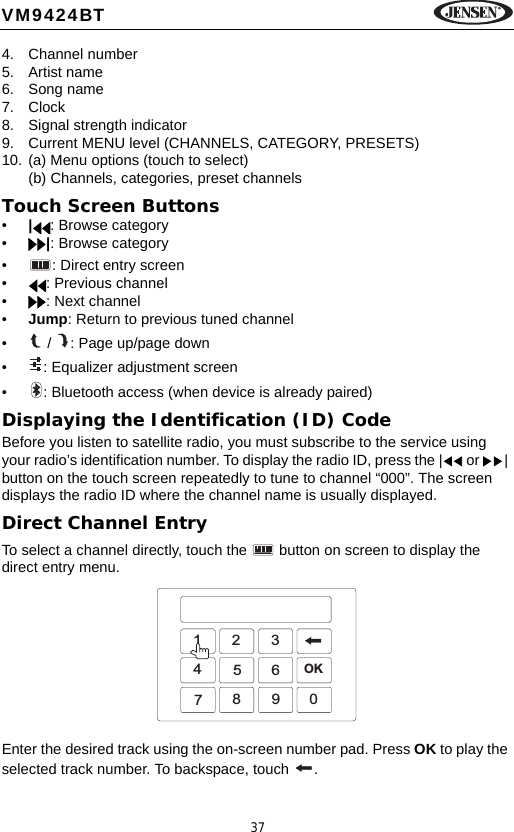
37VM9424BT4. Channel number5. Artist name6. Song name7. Clock8. Signal strength indicator9. Current MENU level (CHANNELS, CATEGORY, PRESETS)10. (a) Menu options (touch to select)(b) Channels, categories, preset channelsTouch Screen Buttons•|: Browse category•|: Browse category• : Direct entry screen• : Previous channel• : Next channel•Jump: Return to previous tuned channel•  /  : Page up/page down• : Equalizer adjustment screen• : Bluetooth access (when device is already paired)Displaying the Identification (ID) CodeBefore you listen to satellite radio, you must subscribe to the service using your radio’s identification number. To display the radio ID, press the | or  | button on the touch screen repeatedly to tune to channel “000”. The screen displays the radio ID where the channel name is usually displayed.Direct Channel EntryTo select a channel directly, touch the   button on screen to display the direct entry menu.Enter the desired track using the on-screen number pad. Press OK to play the selected track number. To backspace, touch  .1234567890OK
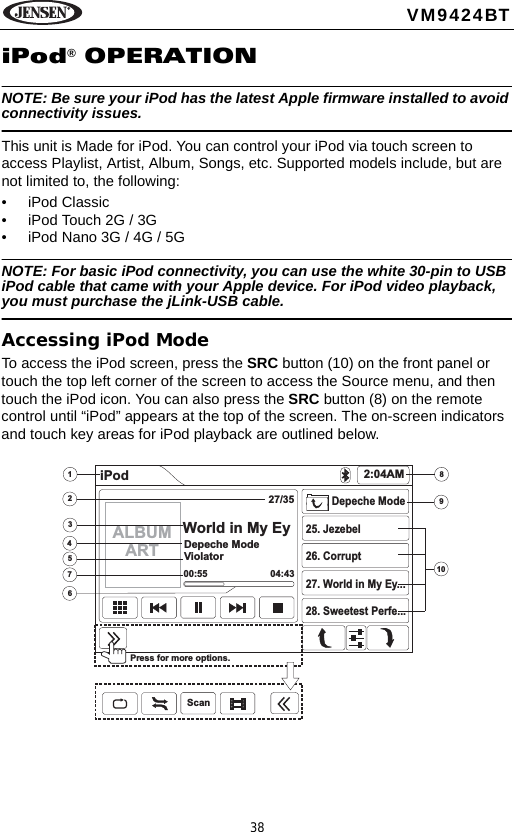
38VM9424BTiPod® OPERATIONNOTE: Be sure your iPod has the latest Apple firmware installed to avoid connectivity issues.This unit is Made for iPod. You can control your iPod via touch screen to access Playlist, Artist, Album, Songs, etc. Supported models include, but are not limited to, the following: • iPod Classic• iPod Touch 2G / 3G• iPod Nano 3G / 4G / 5GNOTE: For basic iPod connectivity, you can use the white 30-pin to USB iPod cable that came with your Apple device. For iPod video playback, you must purchase the jLink-USB cable.Accessing iPod ModeTo access the iPod screen, press the SRC button (10) on the front panel or touch the top left corner of the screen to access the Source menu, and then touch the iPod icon. You can also press the SRC button (8) on the remote control until “iPod” appears at the top of the screen. The on-screen indicators and touch key areas for iPod playback are outlined below.34576289101iPod 2:04AM27/35World in My EyDepeche ModeViolator00:55 04:43Depeche Mode25. Jezebel26. Corrupt27. World in My Ey...28. Sweetest Perfe...Press for more options.ScanALBUMART
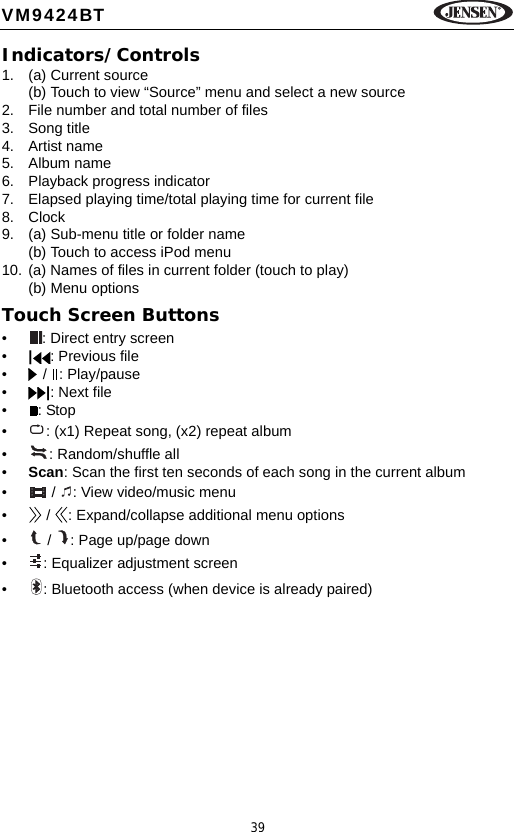
39VM9424BTIndicators/Controls1. (a) Current source(b) Touch to view “Source” menu and select a new source2. File number and total number of files3. Song title4. Artist name5. Album name6. Playback progress indicator7. Elapsed playing time/total playing time for current file8. Clock9. (a) Sub-menu title or folder name(b) Touch to access iPod menu10. (a) Names of files in current folder (touch to play)(b) Menu optionsTouch Screen Buttons• : Direct entry screen•|: Previous file•  /  : Play/pause•|: Next file•: Stop• : (x1) Repeat song, (x2) repeat album• : Random/shuffle all•Scan: Scan the first ten seconds of each song in the current album•  /  : View video/music menu•  /  : Expand/collapse additional menu options•  /  : Page up/page down• : Equalizer adjustment screen• : Bluetooth access (when device is already paired)
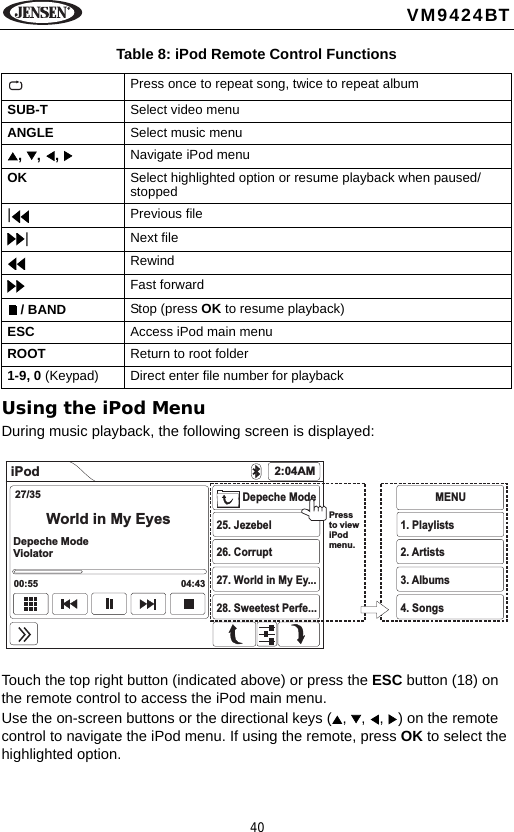
40VM9424BTUsing the iPod MenuDuring music playback, the following screen is displayed:Touch the top right button (indicated above) or press the ESC button (18) on the remote control to access the iPod main menu.Use the on-screen buttons or the directional keys ( ,  ,  ,  ) on the remote control to navigate the iPod menu. If using the remote, press OK to select the highlighted option.Table 8: iPod Remote Control FunctionsPress once to repeat song, twice to repeat albumSUB-T Select video menuANGLE Select music menu, , ,  Navigate iPod menuOK Select highlighted option or resume playback when paused/stopped|Previous file|Next fileRewindFast forward / BAND Stop (press OK to resume playback)ESC Access iPod main menuROOT Return to root folder1-9, 0 (Keypad) Direct enter file number for playbackiPod 2:04AM27/35World in My EyesDepeche ModeViolator00:55 04:43Depeche Mode25. Jezebel26. Corrupt27. World in My Ey...28. Sweetest Perfe...MENU1. Playlists2. Artists3. Albums4. SongsPressto viewiPodmenu.
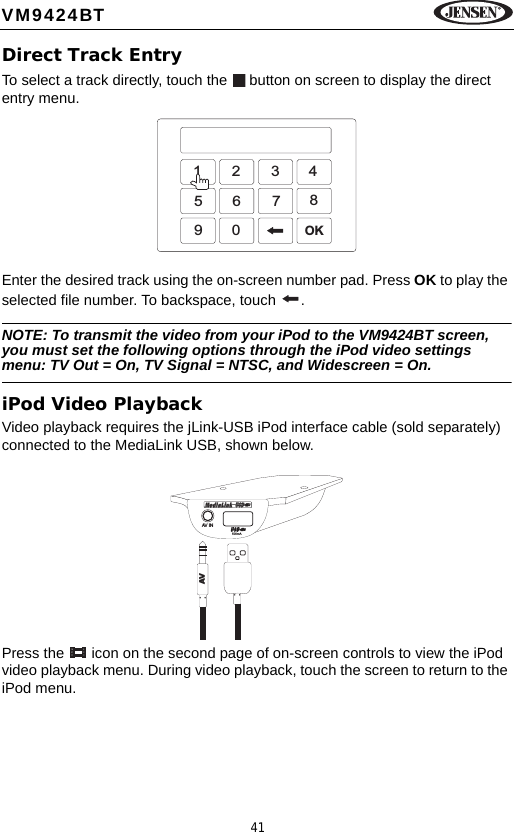
41VM9424BTDirect Track EntryTo select a track directly, touch the   button on screen to display the direct entry menu.Enter the desired track using the on-screen number pad. Press OK to play the selected file number. To backspace, touch  .NOTE: To transmit the video from your iPod to the VM9424BT screen, you must set the following options through the iPod video settings menu: TV Out = On, TV Signal = NTSC, and Widescreen = On.iPod Video PlaybackVideo playback requires the jLink-USB iPod interface cable (sold separately) connected to the MediaLink USB, shown below.Press the   icon on the second page of on-screen controls to view the iPod video playback menu. During video playback, touch the screen to return to the iPod menu.1234567890OKAV IN500mAAV
42VM9424BTBLUETOOTH OPERATIONAbout BluetoothBluetooth is a short-range wireless radio connectivity technology that is developed as a cable replacement for mobile phones, handheld PCs and other devices. Bluetooth operates in 2.4 GHz frequency range and transmits voice and data at speeds up to 1 megabit per second. Bluetooth was launched by a special interest group (SIG) comprised of Ericsson Inc., Intel Corp., Nokia Corp., Toshiba and IBM in 1998, and it is currently developed by nearly 2,000 companies worldwide. The Bluetooth word mark and logos are owned by the Bluetooth SIG, Inc. and any use of such marks by Audiovox Corporation is under license. Other trademarks and trade names are those of their respective owners.NOTE: The line-of-sight distance between this unit and your cellular phone must be 8 meters or less for sending and receiving voice and data via Bluetooth wireless technology. However, the transmission distance may become shorter than the estimated distance, depending on the environment in use. Please make sure your mobile phone supports Bluetooth functions (Headset or Handsfree profiles or both). Adhere to the following guidelines for successful operation.• Before using Bluetooth functions, you must pair your mobile phone to the VM9424BT head unit (see “Pairing Your Mobile Phone and Head Unit”). To ensure the best reception for pairing and re-connection, please make sure the phone battery is fully charged before you begin.• Try to perform pairing within a few minutes of the phone being turned on.• Once the unit has been paired with the phone, the unit’s model number, “VM9424BT”, will be displayed on the mobile phone.• To achieve the best performance, always keep the mobile phone within 3 meters of the head unit.• Always keep a clear path between the mobile phone and the head unit. Never place a metal object or any other obstacle between the mobile phone and the head unit.• Some mobile phones (like Sony Ericsson) may have a "Power Saving Mode" option. PLEASE DO NOT use the power saving mode with the VM9424BT.• Before accepting or making a call, make sure your mobile phone's Bluetooth function is turned on.• To ensure the best conversation quality/performance, stay within one meter of the unit when talking.
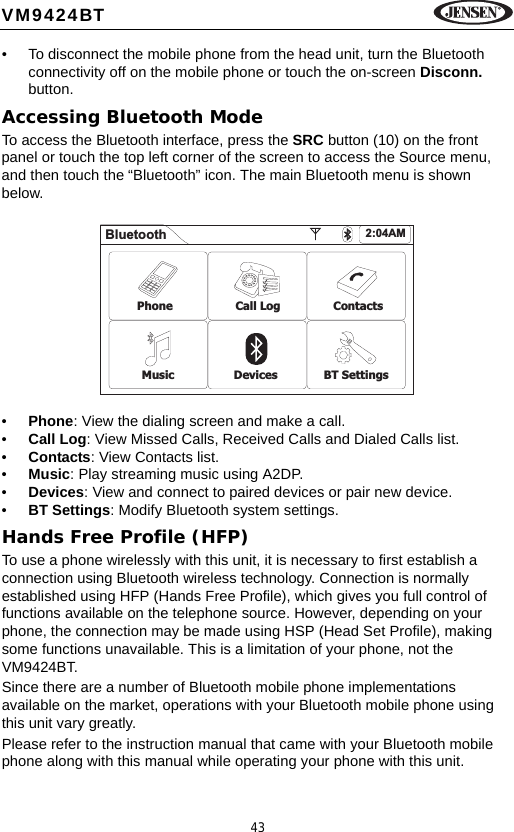
43VM9424BT• To disconnect the mobile phone from the head unit, turn the Bluetooth connectivity off on the mobile phone or touch the on-screen Disconn. button.Accessing Bluetooth ModeTo access the Bluetooth interface, press the SRC button (10) on the front panel or touch the top left corner of the screen to access the Source menu, and then touch the “Bluetooth” icon. The main Bluetooth menu is shown below.•Phone: View the dialing screen and make a call.•Call Log: View Missed Calls, Received Calls and Dialed Calls list.•Contacts: View Contacts list.•Music: Play streaming music using A2DP.•Devices: View and connect to paired devices or pair new device.•BT Settings: Modify Bluetooth system settings.Hands Free Profile (HFP)To use a phone wirelessly with this unit, it is necessary to first establish a connection using Bluetooth wireless technology. Connection is normally established using HFP (Hands Free Profile), which gives you full control of functions available on the telephone source. However, depending on your phone, the connection may be made using HSP (Head Set Profile), making some functions unavailable. This is a limitation of your phone, not the VM9424BT.Since there are a number of Bluetooth mobile phone implementations available on the market, operations with your Bluetooth mobile phone using this unit vary greatly.Please refer to the instruction manual that came with your Bluetooth mobile phone along with this manual while operating your phone with this unit.Bluetooth 2:04AMPhone Call Log ContactsMusic Devices BT Settings
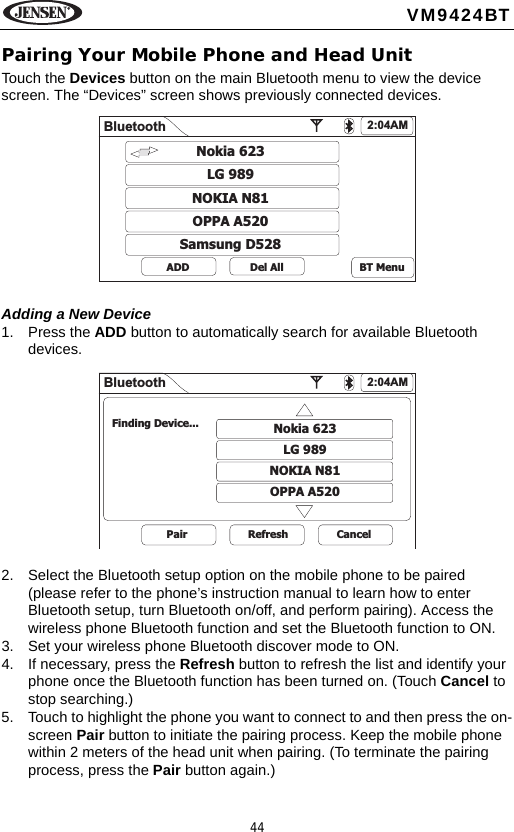
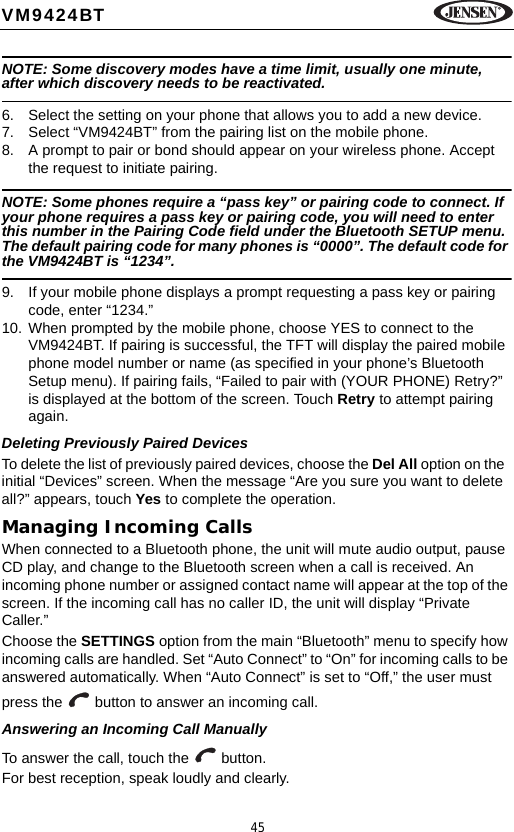
44VM9424BTPairing Your Mobile Phone and Head UnitTouch the Devices button on the main Bluetooth menu to view the device screen. The “Devices” screen shows previously connected devices. Adding a New Device1. Press the ADD button to automatically search for available Bluetooth devices.2. Select the Bluetooth setup option on the mobile phone to be paired (please refer to the phone’s instruction manual to learn how to enter Bluetooth setup, turn Bluetooth on/off, and perform pairing). Access the wireless phone Bluetooth function and set the Bluetooth function to ON. 3. Set your wireless phone Bluetooth discover mode to ON.4. If necessary, press the Refresh button to refresh the list and identify your phone once the Bluetooth function has been turned on. (Touch Cancel to stop searching.)5. Touch to highlight the phone you want to connect to and then press the on-screen Pair button to initiate the pairing process. Keep the mobile phone within 2 meters of the head unit when pairing. (To terminate the pairing process, press the Pair button again.)Bluetooth 2:04AMNokia 623LG 989NOKIA N81OPPA A520Samsung D528ADD Del All BT MenuBluetooth 2:04AMNokia 623LG 989NOKIA N81OPPA A520Pair Refresh CancelFinding Device...
45VM9424BTNOTE: Some discovery modes have a time limit, usually one minute, after which discovery needs to be reactivated.6. Select the setting on your phone that allows you to add a new device.7. Select “VM9424BT” from the pairing list on the mobile phone.8. A prompt to pair or bond should appear on your wireless phone. Accept the request to initiate pairing.NOTE: Some phones require a “pass key” or pairing code to connect. If your phone requires a pass key or pairing code, you will need to enter this number in the Pairing Code field under the Bluetooth SETUP menu. The default pairing code for many phones is “0000”. The default code for the VM9424BT is “1234”.9. If your mobile phone displays a prompt requesting a pass key or pairing code, enter “1234.”10. When prompted by the mobile phone, choose YES to connect to the VM9424BT. If pairing is successful, the TFT will display the paired mobile phone model number or name (as specified in your phone’s Bluetooth Setup menu). If pairing fails, “Failed to pair with (YOUR PHONE) Retry?” is displayed at the bottom of the screen. Touch Retry to attempt pairing again.Deleting Previously Paired DevicesTo delete the list of previously paired devices, choose the Del All option on the  initial “Devices” screen. When the message “Are you sure you want to delete all?” appears, touch Yes to complete the operation.Managing Incoming CallsWhen connected to a Bluetooth phone, the unit will mute audio output, pause CD play, and change to the Bluetooth screen when a call is received. An incoming phone number or assigned contact name will appear at the top of the screen. If the incoming call has no caller ID, the unit will display “Private Caller.”Choose the SETTINGS option from the main “Bluetooth” menu to specify how incoming calls are handled. Set “Auto Connect” to “On” for incoming calls to be answered automatically. When “Auto Connect” is set to “Off,” the user must press the   button to answer an incoming call. Answering an Incoming Call ManuallyTo answer the call, touch the   button.For best reception, speak loudly and clearly.
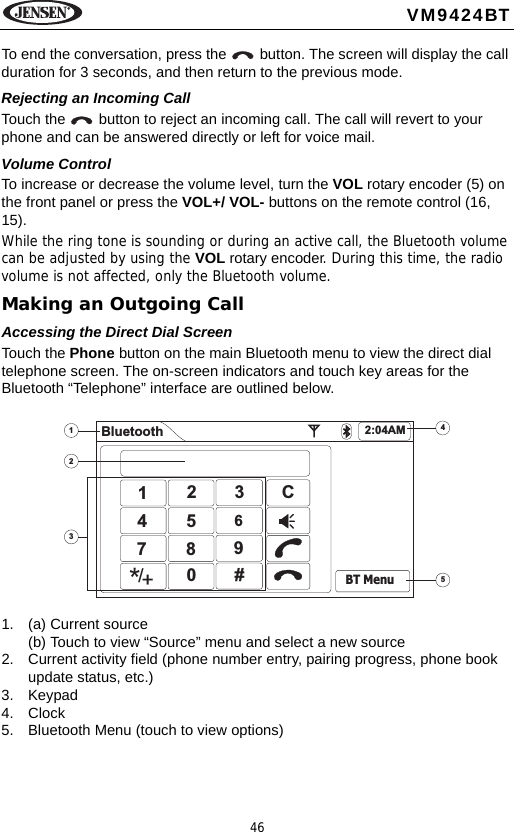
46VM9424BTTo end the conversation, press the   button. The screen will display the call duration for 3 seconds, and then return to the previous mode.Rejecting an Incoming CallTouch the   button to reject an incoming call. The call will revert to your phone and can be answered directly or left for voice mail.Volume ControlTo increase or decrease the volume level, turn the VOL rotary encoder (5) on the front panel or press the VOL+/ VOL- buttons on the remote control (16, 15). While the ring tone is sounding or during an active call, the Bluetooth volume can be adjusted by using the VOL rotary encoder. During this time, the radio volume is not affected, only the Bluetooth volume.Making an Outgoing CallAccessing the Direct Dial ScreenTouch the Phone button on the main Bluetooth menu to view the direct dial telephone screen. The on-screen indicators and touch key areas for the Bluetooth “Telephone” interface are outlined below.1. (a) Current source(b) Touch to view “Source” menu and select a new source2. Current activity field (phone number entry, pairing progress, phone book update status, etc.)3. Keypad4. Clock5. Bluetooth Menu (touch to view options)45123Bluetooth 2:04AMBT Menu123C4567890#/*+
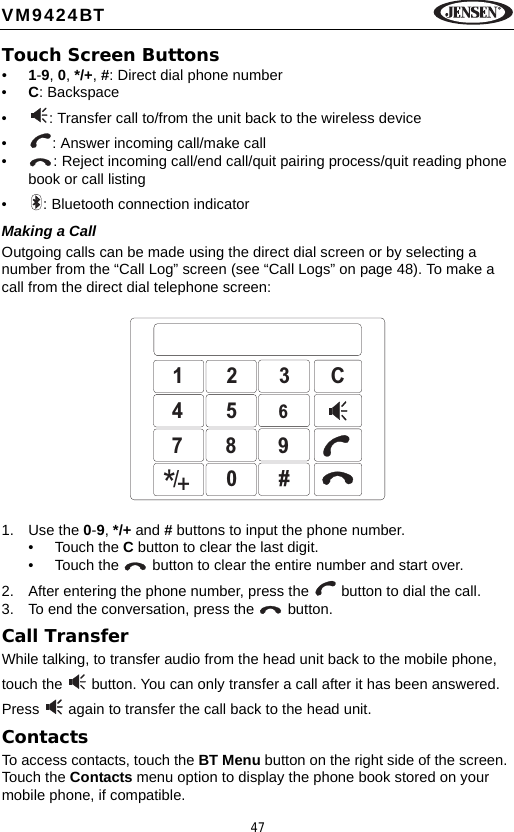
47VM9424BTTouch Screen Buttons•1-9, 0, */+, #: Direct dial phone number•C: Backspace• : Transfer call to/from the unit back to the wireless device• : Answer incoming call/make call• : Reject incoming call/end call/quit pairing process/quit reading phone book or call listing• : Bluetooth connection indicatorMaking a CallOutgoing calls can be made using the direct dial screen or by selecting a number from the “Call Log” screen (see “Call Logs” on page 48). To make a call from the direct dial telephone screen:1. Use the 0-9, */+ and # buttons to input the phone number. • Touch the C button to clear the last digit. • Touch the   button to clear the entire number and start over.2. After entering the phone number, press the   button to dial the call. 3. To end the conversation, press the   button. Call TransferWhile talking, to transfer audio from the head unit back to the mobile phone, touch the   button. You can only transfer a call after it has been answered. Press   again to transfer the call back to the head unit.ContactsTo access contacts, touch the BT Menu button on the right side of the screen. Touch the Contacts menu option to display the phone book stored on your mobile phone, if compatible. 123C4567890#/*+
48VM9424BT• The screen will display “Updated Phonebook ### records...” while the phone book is downloading. • Once the download is completed, you can use the arrow buttons at the bottom of the screen to navigate the list. • Use the lettered buttons to recall contacts by the corresponding letter (the double arrow button provides additional alphabet choices).• Touch a contact name and then press Call to dial the associated number.NOTE: Some mobile phones do not support Phone Book upload through Bluetooth. This is a limitation of the phone, not the VM9424BT.Call LogsTo access call logs, touch the BT Menu button on the right side of the screen. Touch Call Log to view stored call information. NOTE: Not all phones allow access to dialed, missed, or received calls and some will not allow uploading of your phone’s address book.Dialed NumbersThe Dialed Numbers list retrieves the list of dialed numbers from your phone. The last dialed number is the first number on the list. Touch the Dialed menu option to view the list. To make a call from the Dialed list, touch the contact name or number and press the Call button. The TFT will display “Select other record” when the feature is not available. When displayed, “Select other record” to return to the “Call Logs” menu.Missed CallsThe Missed Calls list retrieves the list of Missed numbers from your phone. The last missed number is the first number on the list. Touch the Missed menu option to view the list. To make a call from the Missed list, touch the contact name or number and press the Call button. The TFT will display “Select other record” when the feature is not available. When displayed, “Select other record” to return to the “Call Logs” menu.Received CallsUse the Received Calls list to view the last 10 received numbers stored on your phone. To access the Received list, touch the Received menu option. The last received number is the first number on the list. To make a call from the Received list, touch the contact name or number and press the Call button. The TFT will display “Select other record” when the feature is not available. When displayed, “Select other record” to return to the “Call Logs” menu.
49VM9424BTBluetooth Streaming MusicBluetooth provides an Advanced Audio Distribution Profile (A2DP) for streaming music from a wireless phone or portable multimedia player (PMP), often called an MP3 player. The VM9424BT allows you to play audio files from your phone or PMP using a Bluetooth connection.Before using an audio player, it may be necessary to enter the default passkey, “1234,” into your wireless device. Touch the Music button on the main Bluetooth menu to access the music playback interface.•|: Previous file• /||: Play/pause•|: Next file•: StopNOTE: Please quit A2DP mode before attempting to make a phone call, as unexpected results may occur depending on your mobile phone model.The VM9424BT can control a Bluetooth audio player via Advanced Audio Distribution Profile (A2DP) or Audio/Video Remote Control Profile (AVRCP). Bluetooth audio players (or Bluetooth adapters) compatible with these profiles can be connected to this unit. Functionality varies depending on the profile used.During an incoming call, music playback is paused. When the call is completed, the music function appears again and playback resumes.Bluetooth 2:04AMBT Menu
50VM9424BTBluetooth Settings Menu (BT Menu)To access the Bluetooth settings menu, touch the BT Menu button, located near the bottom right corner of Bluetooth screens.•Auto Connect: The Bluetooth auto connect option will allow the VM9424BT to automatically connect to your previously paired Bluetooth ddevice when it is in range. When the Bluetooth option is set to “Off”, you must press the Pair button to re-establish a connection with your phone. •Pin Code: Change the pin code required to connect to the VM9424BT.•Microphone Gain: Increase or reduce the relative volume (Gain) from 1 (default) to 6•Version: View current system software information.Bluetooth 2:04AMOff12342HW200-SW160Auto ConnectPin CodeMicrophone GainVersionBT Menu
51VM9424BTVIEWING JPEG PHOTOSJPEG images stored as individual images or stored in folders can be accessed using the DISC/SD/USB interface. When a disc/card is loaded and read by the unit, the root menu will display the contents of the disc. Press the folder image to view the contents of a folder. Individual images can be accessed using the touch screen or remote control directional arrows.When a disc or card containing JPEG images is loaded in the unit, the root menu appears automatically, displaying the contents of the disc. Touch the folder name or use the directional keys ( ,  ,  ,  ) on the remote control to navigate the JPEG menu. Touch the image name or Press the OK button on the remote control to select the image you want to view. The JPEG playback screen is shown below.While viewing photos, touch the screen to access the following on-screen controls:•MENU: View JPEG thumbnail menu (touch thumbnail to view)•INFO: View on-screen playback information• : Stop and return to JPEG folder menu• | : View previous image• |: View next image• : Rotate image counter-clockwise• : Rotate image clockwise• : Exit JPEG mode and view Source menuMENU INFO
52VM9424BTREAR CAMERA FUNCTIONThis unit is “camera ready.” Before accessing any camera features, you must install a rear video camera. When the camera is not installed and the function is accessed by gear selector being placed in reverse or by the unit’s menu, the message “VIDEO NOT DETECTED” will appear, indicating the function is not available.When the camera is installed, the rear view image of what’s behind the vehicle will appear when the vehicle’s is placed in reverse gear. When leaving reverse gear, the unit displays the previous screen. The rear camera image can be adjusted from Normal to Mirror using the “Setup” menu (“General Sub-menu Features” on page 15).
53VM9424BTREAR MONITOR VIDEO DISPLAYThis unit allows you to install one or two additional monitors (sold separately) for DVD/CD playback. You can play DVD video and another source simultaneously. For example, the unit’s screen can be set to Radio function while the rear passengers can watch a DVD/CD using an optional rear monitor. To access the rear display function, perform the following steps:1. Turn on the rear monitor(s). Refer the instruction manual that came with your monitor for instructions.2. Insert a DVD/CD into the unit.3. Access the “Source” menu and press the REAR icon.4. Use the on-screen controls to control rear zone playback.•|: Previous chapter• /||: Play/pause•|: Next chapter• : Stop disc playback• : Turn rear display function on/offRear Play4/35
54VM9424BTTROUBLESHOOTINGTable 9: TroubleshootingProblem Cause Corrective ActionGENERALUnit will not power on Radio Fuse blown Install new fuse with correct ratingCar battery fuse blown Install new fuse with correct ratingIllegal operation Press the RESET button located in the bottom right corner of the front panelRemote con-trol does not functionBattery depleted Replace battery with new oneBattery installed incor-rectly Remove battery and install correctlyNo/low audio output Improper audio output connection Check wiring and correctVolume set too low Increase volume levelImproper “MUTE” connec-tion Review wiring diagram and check “MUTE” connectionSpeakers damaged Replace speakersHeavily biased volume balance Adjust the channel balance to the cen-ter positionSpeaker wiring is in con-tact with metal part of car Insulate all speaker wiring connectionsPoor sound quality or dis-tortionPirated disc is in use Use original copySpeaker power rating not compatible with unit Connect proper speakersSpeaker is shorted Check speaker contactUnit resets itself when engine is offIncorrect connection between ACC and posi-tive battery wireCheck wiring and correctTFT MONITORNo image Incorrect connection to parking brake wire Check wiring and correctParking brake is not engaged Stop vehicle in safe place and apply parking brakeFlashing image or inter-ference appears on screenDVD is not compatible with current TV system settingsChange setup to accommodate discImproper video signal connections Check wiring and correct
55VM9424BTProlonged image or improper height/width ratio displayImproper aspect ratio setup Use correct aspect ratio settingTUNERWeak station searching Auto antenna is not fully extended Connect the auto antenna control cable properlyAuto antenna not properly connected Connect the auto antenna control cable properlyLOCAL function is acti-vated Turn LOCAL function offCannot insert disc Disc already inside unit Eject current disc and insert new oneImage blurred, distorted, or darkDisc is illegally copied Use original discDisc does not play back Disc is warped or scratched Use disc in good conditionDisc is dirty or wet Clean disc with soft clothLaser pickup is dirty Clean laser pickup with cleaning discIncompatible disc is used Use compatible discDisc rating exceeds Parental Lock rating limit Change Parental Lock settings to lower restrictionDisc region code is not compatible with unit Use disc with proper region codeDisc is inserted upside down Insert disc with label side upPBC cannot be used during VCD playbackPCB is not available on the discNo repeat or searching while playing VCDPCB is on Turn PCB offMP3Interruption occurred dur-ing playbackDisc is dirty or scratched Clean disc or replaceFile is damaged/bad recording Recreate disc with good filesIncorrect play-back message displayedMessage is longer than LCD can displayTable 9: TroubleshootingProblem Cause Corrective Action
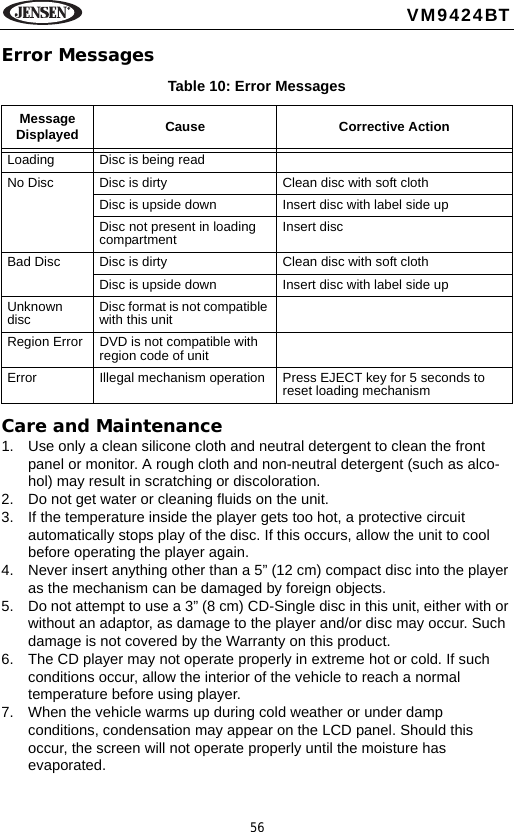
56VM9424BTError MessagesCare and Maintenance1. Use only a clean silicone cloth and neutral detergent to clean the front panel or monitor. A rough cloth and non-neutral detergent (such as alco-hol) may result in scratching or discoloration.2. Do not get water or cleaning fluids on the unit.3. If the temperature inside the player gets too hot, a protective circuit automatically stops play of the disc. If this occurs, allow the unit to cool before operating the player again.4. Never insert anything other than a 5” (12 cm) compact disc into the player as the mechanism can be damaged by foreign objects.5. Do not attempt to use a 3” (8 cm) CD-Single disc in this unit, either with or without an adaptor, as damage to the player and/or disc may occur. Such damage is not covered by the Warranty on this product.6. The CD player may not operate properly in extreme hot or cold. If such conditions occur, allow the interior of the vehicle to reach a normal temperature before using player.7. When the vehicle warms up during cold weather or under damp conditions, condensation may appear on the LCD panel. Should this occur, the screen will not operate properly until the moisture has evaporated.Table 10: Error MessagesMessage Displayed Cause Corrective ActionLoading Disc is being readNo Disc Disc is dirty Clean disc with soft clothDisc is upside down Insert disc with label side upDisc not present in loading compartment Insert discBad Disc Disc is dirty Clean disc with soft clothDisc is upside down Insert disc with label side upUnknown disc Disc format is not compatible with this unitRegion Error DVD is not compatible with region code of unitError Illegal mechanism operation Press EJECT key for 5 seconds to reset loading mechanism
57VM9424BT8. We suggest you use a cleaning disc in this unit more frequently than in the unit in your home due to the environmental conditions of the vehicle.
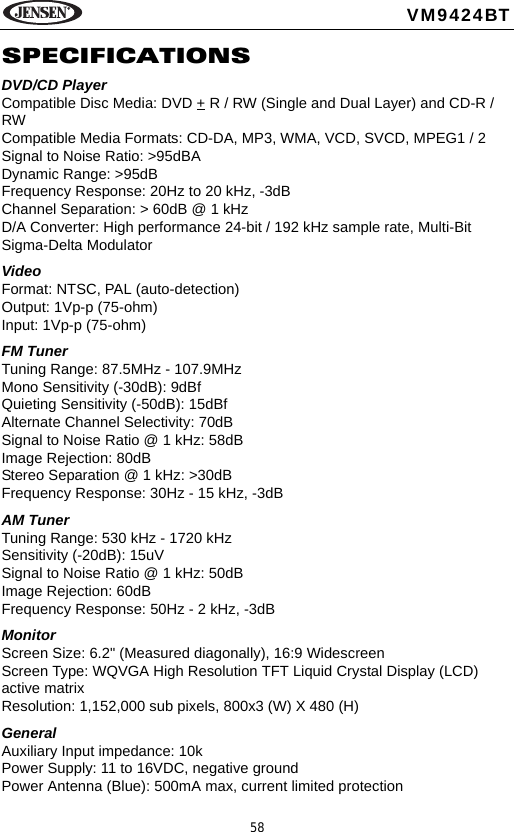
58VM9424BTSPECIFICATIONSDVD/CD PlayerCompatible Disc Media: DVD + R / RW (Single and Dual Layer) and CD-R / RWCompatible Media Formats: CD-DA, MP3, WMA, VCD, SVCD, MPEG1 / 2 Signal to Noise Ratio: >95dBADynamic Range: >95dBFrequency Response: 20Hz to 20 kHz, -3dBChannel Separation: > 60dB @ 1 kHzD/A Converter: High performance 24-bit / 192 kHz sample rate, Multi-Bit Sigma-Delta Modulator VideoFormat: NTSC, PAL (auto-detection)Output: 1Vp-p (75-ohm)Input: 1Vp-p (75-ohm)FM TunerTuning Range: 87.5MHz - 107.9MHzMono Sensitivity (-30dB): 9dBfQuieting Sensitivity (-50dB): 15dBfAlternate Channel Selectivity: 70dBSignal to Noise Ratio @ 1 kHz: 58dB Image Rejection: 80dBStereo Separation @ 1 kHz: >30dBFrequency Response: 30Hz - 15 kHz, -3dBAM TunerTuning Range: 530 kHz - 1720 kHzSensitivity (-20dB): 15uVSignal to Noise Ratio @ 1 kHz: 50dBImage Rejection: 60dBFrequency Response: 50Hz - 2 kHz, -3dBMonitorScreen Size: 6.2" (Measured diagonally), 16:9 WidescreenScreen Type: WQVGA High Resolution TFT Liquid Crystal Display (LCD) active matrixResolution: 1,152,000 sub pixels, 800x3 (W) X 480 (H)General Auxiliary Input impedance: 10k Power Supply: 11 to 16VDC, negative groundPower Antenna (Blue): 500mA max, current limited protection
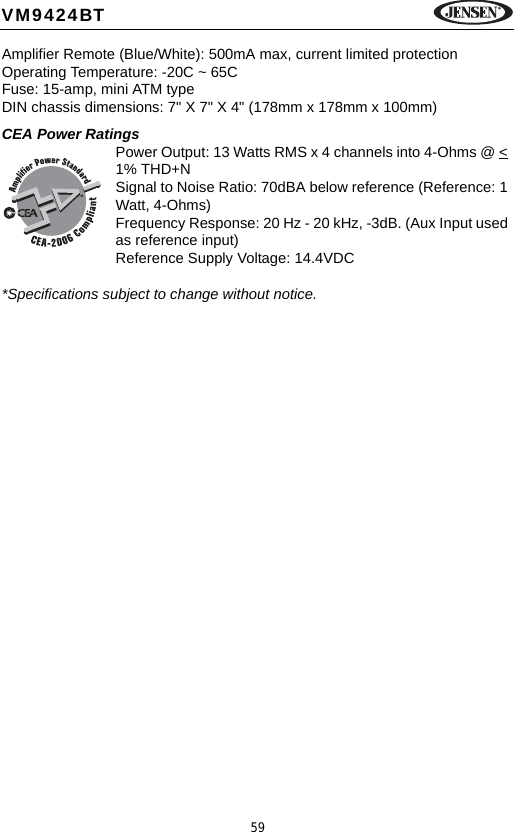
59VM9424BTAmplifier Remote (Blue/White): 500mA max, current limited protectionOperating Temperature: -20C ~ 65CFuse: 15-amp, mini ATM typeDIN chassis dimensions: 7" X 7" X 4" (178mm x 178mm x 100mm)CEA Power RatingsPower Output: 13 Watts RMS x 4 channels into 4-Ohms @ < 1% THD+N               Signal to Noise Ratio: 70dBA below reference (Reference: 1 Watt, 4-Ohms)Frequency Response: 20 Hz - 20 kHz, -3dB. (Aux Input used as reference input)Reference Supply Voltage: 14.4VDC*Specifications subject to change without notice.
60VM9424BT
61Horizon NavMate 5NAVMATE 5 INTRODUCTIONWe hope that you enjoy using your new VM9424BT navigation system. This manual is designed to help you get the most out of your system. This navigation system leads you straight to your destination. You can navigate and plan your route with an easy-to-use and intuitive interface, plan your trip to suit your personal preferences and interests, and find and save (bookmark) interesting destinations before you begin your trip. Key Features• Powered by Horizon NavMate 5• Tele Atlas Map Data • 11 million POI (Point Of Interest)• Speed Sensitive Zoom• 3D Landmarks• Female/Male TTS Voice Guidance• Female/Male Recorded Voice Guidance• Turn by Turn Voice GuidanceSpecifications• SIRF Prima 600 MHz processor•128 MB SDRAM• WIN CE 6.0• Storage Internal SD Card 4 GigabytesAbout GPS and GNSSThe VM9424BT uses a vehicle GPS (Global Positioning System)-based navigation device which utilizes digital map data to guide you from your selected location A to location B, using location information obtained from a Global Navigation Satellite System (GNSS).A GNSS consists of a set of satellites that transmit high-frequency radio signals containing time, direction, and distance data that can be picked up by a receiver, allowing users to pinpoint their precise locations anywhere around the globe. Navigation Satellite Receivers (GPS devices) use this transmitted information to calculate an exact location on the earth. Every point on Earth can be identified by latitude and longitude. The receiver uses the information sent by at least three satellites and determines the coordinates of the receiving device.By comparing the time the signals were transmitted from the satellites and the time they were recorded, the receiver calculates how far away each satellite is. The distance of the receiver from three or more satellites reflects its position on the surface of the planet. Using these distance measurements, the receiver might also be able to calculate speed, bearing, trip time, distance to
62Horizon NavMate 5destination, altitude, etc. The GPS position may be displayed as a point on a digital map (at least three satellites' signals must be received) and as the GPS device moves the corresponding trace is displayed as well. Please keep in mind that although the radio signals of navigation satellites will pass through clouds, glass, plastic, and other lightweight materials, satellite-navigation receivers will not work underground or in some enclosed spaces.Horizon NavMate Navigation / Tele Atlas Map DataThe VM9424BT is pre-loaded with Horizon NavMate 5 and Tele Atlas map data. The map data covers the continental US. The initial GPS location lock is best established when your vehicle is parked. If the device is in motion, the signal can take longer to initially connect. Once the initial coordinates are established, the software will follow you as you move and navigate.NOTE: It may take up to 5 minutes to establish the first connection. Subsequent connections will be faster (30 seconds to 1 minute), but if you have not used the unit for several days or are very far away from the last location you used it, it may take up to 5 minutes again to find a strong signal.
63Horizon NavMate 5SAFETY INFORMATIONUser AgreementWhen the navigation system is first access, you will see the following message, warning you to operate your navigation system appropriately:You must agree to the above notice before operating the VM9424BT navigation system. Touch the bar labeled “Press to accept.” to proceed to the Main Menu.Driver Safety RulesThe following safety rules must be followed to prevent accidents that can result in injury or death to yourself or others: • The driver should operate the device only when the vehicle is stopped. Only a vehicle passenger should operate the device while the vehicle is moving. When driving, the need to view the display is minimal. Voice prompts will guide you to your destinations. • It is your responsibility to comply with all traffic laws.• The VM9424BT is designed to assist you in the process of reaching your destination. It is not a substitute for attentiveness and good judgement. It is your responsibility to disregard any unsafe, hazardous, or illegal route suggestions.• The device does not include, analyze, process, consider, or reflect any of the following: a. Legal restrictions (such as vehicular type, weight, height, width, load and speed restrictions);b. Road slope or grade, bridge height, width, weight, or other limits;c. Population density;d. Neighborhood quality or safety;e. Availability or proximity of law enforcement, emergency rescue, medical, or other assistance;f. Construction work zones or hazards;
64Horizon NavMate 5g. Road or lane closures;h. Road, traffic, or traffic facilities' safety or condition;i. Weather conditions;j. Pavement characteristics or conditions;k. Special events;l. Traffic congestion.• While every attempt is made to ensure that the database is accurate, roadways, points of interest, and business and service locations may change over time. • Do not use the VM9424BT to navigate to a police station, hospital, etc. in an emergency. Call 911 for assistance.• Laws in some states prohibit wearing stereo headphones or may prohibit use or placement of a navigation device while operating a motor vehicle. Please contact your state's Department of Motor Vehicles for information.
65Horizon NavMate 5BASIC OPERATIONHead Unit Button FunctionsAccessing the Navigation SoftwarePress the SRC button and select the NAV icon to access navigation mode. Selecting / Listening to a Source while NavigatingWhile navigating, other sources may be selected and listened to such as AM-FM Tuner, CD, etc. To listen to another source while navigating, press the SRC button and then select a source from the Source Menu. Navigation voice prompts will be heard automatically, although the navigation map cannot be seen. To view the navigation screen, but continue to listen to the selected source, press the NAV button or choose the navigation source from the SOURCE menu.Acquiring a Satellite SignalDrive your vehicle to an open area where the GPS signal can be clearly received and park the vehicle. If the device is in motion, the signal can take longer to initially connect. With the ignition on, verify that the "GPS" indicator is green. It may take up to 5 minutes to establish the first connection. Subsequent connections will be faster (30 seconds to 1 minute), but if you have not used the unit for several days or are very far away from the last location you used it, it may take up to 5 minutes again to find a strong signal. If you cannot acquire the signal, drive to another location. If the signal is still unobtainable, check your antenna installation. Once a GPS signal has been established, verify that the information display clock time (time displayed on the radio) matches the navigation system clock. With an established GPS signal, the software will follow you as you move and navigate.The GPS symbol (   )may change colors indicating the strength of the signal. The GPS symbol colors mean:• Green - GPS signal is free from obstruction and is being received regularly - at least four satellites are being received.• Yellow - GPS signal is partially obstructed which means only three satellites are being received.• Red - GPS signal is unavailable, meaning two or fewer satellites are being received.
66Horizon NavMate 5Using the KeyboardKeyboard Command ButtonsLook Ahead FeatureYour navigation system offers a convenient interactive look-ahead search function to prevent misspelling. Only keys that lead to a search result can be pressed – all others are greyed out.After entering the second character, only letters that can be used to spell an existing destination will be available for selection of the third character, the fourth character, and so on.Table 1: Keyboard Command ButtonsPress to backspace.Press to switch to City Name entry.Press to switch to Street Name entry.Press to switch to Postal Code entry.Press to add a space when entering a multi-word location.When applicable, the specials characters button appears to the right of the space button, allowing to complete your entry of a business name. Press to view the special characters keyboard.Press to confirm current entry and begin navigation.Press to return to the previous screen.SPACE
67Horizon NavMate 5NOTE: On the keyboard screen, the “SPACE" button is located in the bottom center of the screen. Press the Space button to complete the search for entries with more than one word. For example, to locate Lake Mary, enter "Lake_" and then the "M" will become available for selection.Selecting from ListsYou will often find it necessary to select items from a list. When viewing a list, the marked item appears highlighted in blue. • Press the blue LINE ITEM UP / LINE ITEM DOWN arrow buttons on the right side of the screen to navigate the list.• Use the PAGE UP / PAGE DOWN buttons to move through the list page by page.• Touch the marked item to select it.NOTE: Some lists keep track of the five most recently used selections, which are placed at the top of the screen. This feature allows you to quickly select popular choices.LINE ITEM UPLINE ITEM DOWNPAGE UPPAGE DOWN
68Horizon NavMate 5Function ButtonsMain MenuThe main menu, titled “Select location” is your central point of access to all functions of your navigation system. It allows you to set your destination, Table 2: Common Command ButtonsPress the map icon to view your current location on the map or to return to map mode.Zoom in the map to show a smaller area.Zoom out the map to show a larger area.Press the return icon on any screen to return to the previous screen.Press the Menu icon to access the Main Menu.After panning map, press to view a list of locations near the selected posi-tion.Press to repeat voice prompt.Press to go up one line item while viewing a list.Press to go down one line item while viewing a list.Press to view the keyboard for direct entry.Press to go up one page while viewing a list.Press to go down one page while viewing a list.Press to mute voice commands.Press to begin search based on the selected parameters.
69Horizon NavMate 5manage your favorites and control all settings of your device.The “Select location” menu consists of the following options: •Address or Intersection: Travel to address entered using on-screen keypad.•Point of Interest: Browse or search for Point of Interest.•History: Return to previous destination.•Favorites: Travel to favorite location.•Coordinates: Travel to destination specified by coordinates.•Place on Map: Browse map to choose destination.• (Home Address): Return to Home Address.• (Setup): Configure your navigation to suit your needs. Define general settings (e.g. time, language, or system of measurement), configure your map (e.g. 2D or 3D mode, day or night mode, map complexity) or load a map of a different region, set the route options (e.g. choose to avoid or allow toll roads or ferries, or change the volume (see “Setup Menu” on page 110). • (Office Address): Route to Office Address.• (Trip Computer): Display Speed, Trip, Odometer and Clock readings.
70Horizon NavMate 5Navigation ScreenThe map is the core component of your VM9424BT navigation system. During navigation, it is centered on your current location by default, provided you have a GPS connection. In Tracking mode, the map follows your actual position (GPS position), displaying information about your geographic position, distance to your destination, etc. The GPS position is indicated by a red/blue arrow.You can also browse the map, view businesses and other Points of Interest (POI, and then choose them for routing and navigating. The map knows two basic states: Tracking and Browsing. Map Tracking ScreenDuring navigation, the screen displays your route (in yellow) and your surroundings. A red/blue arrow identifies your current position. The upcoming maneuver is visualized in the upper left corner, along with the distance and approximate time before that turn. When you come up to a turn, you will hear a voice command at the appropriate time.Next Maneuver  Next Turn/Junction/Exit Number       Distance to Destination    Distance to Next Maneuver    Time Before Next Maneuver     Estimated Arrival TimeRepeat Voice PromptZoom InZoom OutPress for 2D/3D/Split Screen View
71Horizon NavMate 5On the left, additional information, including the map scale and compass orientation (N, S, E, W) is displayed.• To zoom in or out, press the + or – icons (Map Scale indicates zoom value). • To return to the Main Menu, press the   button.• To add a POI destination to your route, press the   button.• For one-way streets, the transit direction is indicated with a red arrow.• For more information about navigation, see “Navigating” on page 92. Adjust Horizon AngleMiles Per HourCurrent Position Adjust Horizon Angle GPS Signal StrengthMenu ButtonCompass HeadingCurrent Location Map LocationMute Voice PromptsMap Scale
72Horizon NavMate 5Map Browsing ScreenTouch (and hold) the screen to access Map Browsing Mode. Use a stylus or your finger to browse the map. Your position is identified as the center of the crosshair. • To zoom in or out, press the + or – icons. • To return to the map tracking mode, press the   button.2D/3D/Split ScreenDuring navigation or map browsing, you can click the   button to switch between 2D (default), 3D and Split Screen map views.Crosshair LocationBusinessIconsCrosshair 2D3DSPLIT
73Horizon NavMate 5Trip ComputerThe Trip Computer provides information about your vehicle speed, trip related timing, elevation, odometer and clock.• Press the “i” icon to view detailed readings for each field.• Press the Press the   /   buttons on the right side of the screen to navigate the list.• Use the   /   buttons to move through the list page by page.• Touch the marked item to select it.• Press the   button to reset the current reading.Press to View Detailed Readings
74Horizon NavMate 5SELECTING A DESTINATIONThere are five different ways to find and choose a destination. Some methods allow you to select from a list using the arrow keys, while others allow you to search using an on-screen keyboard. NOTE: If a route is in progress when you exit the navigation system, the unit will prompt “Do you want to resume guidance?” when you resume operation. Press the green check mark to resume or the “X” to cancel and go to the “Main Menu.”Finding an AddressAccess the “Select location” screen to begin locating an address. If you cannot see the “Select location” screen, press the   button. The “Select location” screen allows you to begin your search by entering the Address or Intersection, a Point of Interest (POI), map Coordinates, or by choosing from your Favorites or History. You may also choose a location by selecting a Place on Map.Address or IntersectionAfter choosing the destination State or Province, press the Address or Intersection button to view the City address entry screen. You can locate an
75Horizon NavMate 5address or intersection in the previously selected state beginning with the City, Street Name, or Postal Code. To toggle between City, Street Name and Postal Code entry, press the  /  /  button.1. Begin entering the city by typing the City, Street Name or Postal Code. The navigation software will utilize it’s look-ahead feature and only offer characters for existing cities as you type. Once the city is recognized as the only possible option based on the characters you entered, you will automatically be prompted for the street.2. Enter the Street name using the same method described above. Once the street name is recognized, you will automatically be prompted for the street number.3. Enter the street number using the same method described above. 4. Press the   button to select the street number and access the “Start Route” screen.Point of InterestThe POI finder allows you to quickly find points of interest, like gas stations and restaurants, in a database of millions of POI’s. These places can be near your current position or near a selected State or Province. See “Selecting a Point Of Interest” on page 83 for information about locating a Point of Interest.HistoryPrevious destinations are automatically saved to memory as “History”. This feature helps you quickly locate the address of and return to a previous destination. The origin of the last calculated route is also stored for easy return to your starting point.
76Horizon NavMate 51.  From the “Select location” menu, choose History. 2. A list of recent locations will appear on the screen.• Press the   /   buttons on the right side of the screen to navigate the list.• Use the   /   buttons to move through the list page by page.• Press the Garbage Can icon to delete the highlighted item.3. Press to select a recent destination from the “History” list and view the “Start Route” screen. 4. Continue navigation as instructed in the previous sections.NOTE: The “History” list stores the last 15 addresses or destinations. After 15 entries, the oldest destination will be deleted and the newest entry added to the top of the list. Recent addresses cannot be deleted manually.
77Horizon NavMate 5FavoritesPress the Favorites button to route to a destination by choosing an address saved in your Address Book, Trail Book, My POI or Trip Book lists.CoordinatesPress the Coordinates button to route to a destination by directly entering latitude and longitude values.Place on Map1. Press the Place on Map button to location a destination by browsing the map. The map will be displayed, indicating your last location:
78Horizon NavMate 52. Touch any part of the map area to enter browsing (panning) mode and navigate the map. Use the +/– buttons to zoom in/out. 3. Press the   button to view and select the address nearest the crosshair, or press Quick POI to locate a POI in the visible map area.
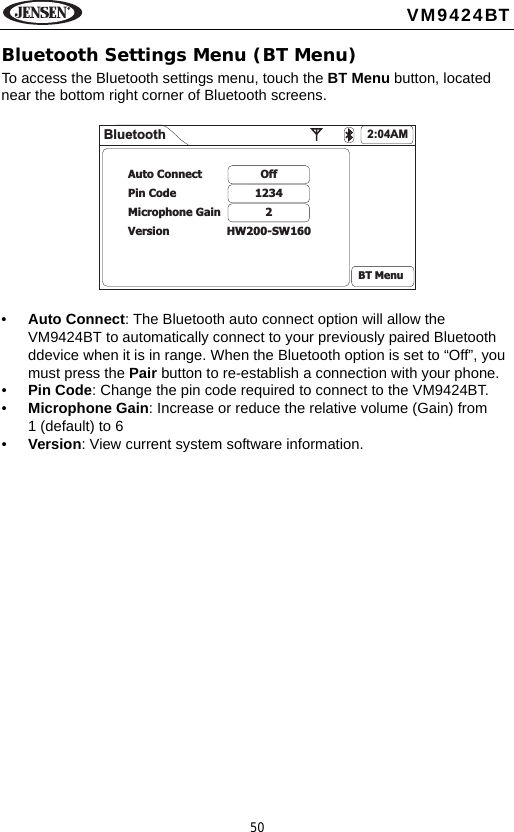
79Horizon NavMate 54. Select an address from the “Select” list to view the “Start Route” screen, where you can begin navigation, save the address for later, select a different POI or modify routing criteria.Navigating to your Home or Office AddressLocated on the “Select location” screen, the Home Address and Office Address buttons allow you to quickly navigate to your home or office address from your current location. • Touch the   (Home Address) icon to navigate to a saved home address.• Touch the   (Office Address) icon to navigate to a saved office address.
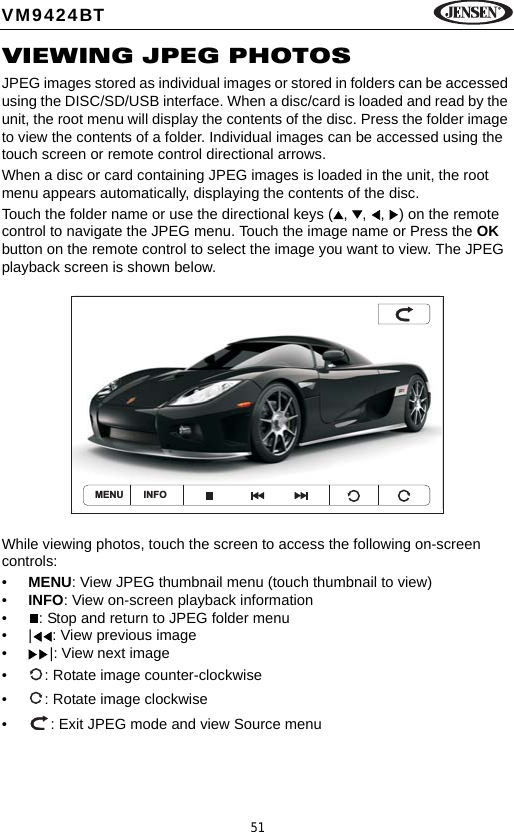
80Horizon NavMate 5If the home or office address is not already saved, a screen like the following will appear:Press the check mark to access the “Save location” screen. From here you can enter your preferred home or office address and save it for future use. Choosing a Location from your Address Book1. On the “Select location” menu, press Favorites. 2. Press Address Book to view a list of Address Book entries.3. Select an Address Book entry.• Press to highlight an Address Book entry.• Press the   /   buttons on the right side of the screen to navigate the list.• Use the   /   buttons to move through the list page by page.
81Horizon NavMate 54. Press Start Route to begin navigating to the chosen Address Book destination.Following a TrailThe Trail Book feature allows you to create a path using map points when navigation data is not available. To navigate to a saved Trail, perform the following steps:1. Press the   button to view the “Select location” screen.2. Press Favorites. 3. Press Trail Book to view a list of existing trails.
82Horizon NavMate 54. Press the Trail you would like to follow and a list of trail points will be displayed. 5. Press to choose any Waypoint as the stating point. 6. Choose Start Route from the “Start Route” screen.7. The system will display a dotted line from your current location to the starting point.  Follow the dotted line to begin traveling along the trail. You can press the   button and then press Stop Trail at any time to cancel the route.
83Horizon NavMate 5SELECTING A POINT OF INTERESTFrom the main menu, press the Go To... button and then press the Point of Interest button. The “POI Search Criteria” window will be displayed:The previously selected State or Province is automatically selected for the POI search. Press the State or Province button to select a different State or Province. See “Address or Intersection” on page 74.Searching for a Specific POITo narrow your list of POI search results, you can enter a POI Category, City and/or Name. Entering a Category, City, or POI Name is optional.Select POI Category1. On the “Point of Interest” screen, press the Category button to view a list of possible categories. • Press the   /   buttons on the right side of the screen to navigate the list.• Use the   /   buttons to move through the list page by page.
84Horizon NavMate 52. Click an item on the list to select that category OR press the   button to access the keyboard and enter a category directly.Select POI City1. Press the City button to enter the city in which you would like to find a point of interest. 2. Begin typing the City name. The navigation software will utilize it’s look-ahead feature and only offer characters for existing cities as you type. Once the city is recognized as the only possible option based on the characters you entered, the city name will appear at the top of the screen.3. Press the   button to select the City and return to the “Point of Interest” menu.Select POI NameTo retrieve a very specific list of POI destinations, you can enter part or all of the POI name directly. Please note that the Name screen will allow you to enter any possible POI, but the system will return the message “No POI Found” if the selected name does not fall within the selected category or city.NOTE: Since business information changes regularly, not all POI categories are available in all areas and some POI’s may not be listed for all categories. In addition, the search radius may be restricted to minimize the search time.
85Horizon NavMate 5TO BEGIN NAVIGATION:After entering the desired POI search parameters, perform the following steps to navigate to the chosen POI.1. Press the   button.2. Press Sort by Distance or Sort by Name to retrieve a list of POI’s within the parameters you entered. • Press the   /   buttons on the right side of the screen to navigate the list.• Use the   /   buttons to move through the list page by page.3. Press to select a POI destination and access the “Start Route” screen.Browsing POI Destinations1. Press the   button without entering Category, City or Name criteria to display a menu of six common POI categories from which you can choose.
86Horizon NavMate 52. Press to select Hospital, Restaurant, Parking Lot, Hotel, Gasoline Station or ATM and display a list of POI’s in that category.• Press the   /   buttons on the right side of the screen to navigate the list.• Use the   /   buttons to move through the list page by page.3. Press to select a POI destination and access the “Start Route” screen.Using My POIThe My POI feature allows you to create personalized categories of Point Of Interest destinations. You must create a category before adding a new POI destination.Add a New POI Category1. To access the My POI function, press the My POI button on the “Favorites” menu.If no custom POI categories exist, the system will display “No POI Found. Straight Line Distance Phone NumberPOI AddressPOI Name
87Horizon NavMate 5Add?”. Press the green check mark button to go directly to the “Add Cate-gory” screen and continue with Step 4. If personal POI’s exist, continue to step 2.2. Press the   button to create a new POI or the   button to edit the highlighted POI.3. Press the  button to enter a name for the new Category.• Press the   button to clear the default entry, if desired.• Use the keyboard to enter the name of your new Category. (See “Using the Keyboard” on page 66.)
88Horizon NavMate 54. Press the   button to save the Category name and go to the “Setup Display” screen.5. Determine map indicators and settings for your new Category.•Name: Press to edit the POI category name.•Marker: Press to select the marker that will represent POI destinations in your new Category. •Sound: Press to select a sound to be heard when you are nearing the destination (based on Distance).•Distance: Press to choose the distance from the destination at which you would like the chosen sound to be played.•Scale: Choose the scales (zoom levels) at which the POI will be visible.6. Press the green check mark to confirm and add your new POI Category to the directory.Edit/Delete at My POI Category or DestinationThe following options are available using the buttons at the bottom of the “Category” and “My POI” screen:
89Horizon NavMate 5• : Rename the highlighted POI category or destination.• : Add a new POI category or destination.• : Return to the “Select location” menu.• : Delete the highlighted POI category or destination.• : View the “Setup” menu.• : Return to the previous screen.Add a Destination to a My POI Category7. To add a destination to a My POI Category, press the following sequence of menu buttons: Favorites > My POI from the “Select location” menu.8. Press Category to view custom POI categories. 9. Highlight the category to which you would like to add a destination.
90Horizon NavMate 5• Press the   /   buttons on the right side of the screen to navigate the list.• Use the   /   buttons to move through the list page by page.10. Press the category name to view POI destinations stored for that category. If no POI destinations are stored for the chosen category, the system will display “No POI Found. Add?”. 11. Add a POI destination using the “Save location” screen• If you are adding the first POI destination for the selected category, press the green check mark button after the “No POI Found. Add?” message to view the “Save location” screen.• If at least one POI destination exists for the selected category, the “My POI” screen lists those destinations. Press the   button to view the “Save location” screen. 12. Refer to information in the section titled “Selecting a Destination” on page 74 to locate the home or work address on the map.
91Horizon NavMate 513. After locating the address, the “Select MyPOI parameters” screen appears. Use this screen to add additional information about your POI:• Press the name/address icon to edit the name of your POI.• Press the category box to select a custom category for your new POI.• Press the phone number icon to use the on-screen keypad to enter the phone number for the new POI.14. Press the   button to save the new POI destination and return to the main menu.
92Horizon NavMate 5NAVIGATINGThe powerful navigation capabilities of your VM9424BT will guide you along the shortest or quickest route from A to B – with voice commands and in 3D (optional). To begin navigation, select a location beginning with the “Select location” main menu (see “Selecting a Destination” on page 74).Route Calculation and GuidanceAfter choosing a destination, the system will determine a route based on your preferences in the “Setup” menu. (See “Setup Menu” on page 110.)The status bar at the top of the screen indicates the route calculation progress.Once route calculation is complete, you will be instructed to “Please proceed to the highlighted route” (if you are not already on the route). Once on the highlighted route, guidance information is delivered on-screen and via voice prompts. The guidance information is continuously undated to indicate your progress.
93Horizon NavMate 5Intersection ZoomAs you approach an intersection, the map will automatically zoom in to show a close-up view of the roads near the intersection point on the right side of the screen.Route InterruptionsIf you intentionally or accidentally leave the current route, the NavMate software will automatically recalculate the route and prompt you to get back on track to your destination.You can disable this feature by checking the “Auto Recalculation” option off (X) in the Setup menu, under “Setup Routing Criteria.”If you leave the route to make a stop, the NavMate software remembers your destination and asks you if you want to continue your route.Turn by TurnWhile navigating, press the next maneuver arrow on the top left corner of the map screen screen to view a turn-by-turn list of upcoming maneuvers. Press the   button to return to the map screen.
94Horizon NavMate 5Browsing the Map During NavigationYou can browse the map while navigating without interrupting the current route – you will still be guided through voice commands. • To browse during navigation, touch (and hold) the screen to activate the Map Browsing feature. • Press the   button to return to on-screen navigation.Adding a DetourIf you are unable to complete the route as calculated, you can add a Detour to the route that will allow you to stay on track to your destination.1. To add a Detour while navigating, press the   button to view the “Edit Route” screen and then press Detour.2. Press Detour to view the “Detour” screen.3. Choose a parameter for the Detour from the on-screen list.4. The NavMate software will recalculate the route based on your chosen Detour information.
95Horizon NavMate 5Arriving at your DestinationWhen you are near your destination, the destination is indicated by a checkered flag symbol. A voice prompt will announce that you are approaching your destination.
96Horizon NavMate 5MANAGING FAVORITESThe “Edit Favorites” menu allows you to save your home and work locations, as well as other frequent destinations for easy recall. After entering an address or searching for a POI, you can choose the Save option to bookmark your selection, eliminating the need to perform repeated searches.Edit Address BookThe “Address Book” feature allows you to store and edit address book entries. To edit your address book, perform the following steps:1. Press the   button to access the “Select location” screen.
97Horizon NavMate 52. Press the Address Book icon.3. The “Address Book” screen appears.• Press the   /   buttons on the right side of the screen to navigate the list.• Use the   /   buttons to move through the list page by page.• Press the   icon to rename the highlighted address book entry.• Press the   icon to delete the highlighted address book entry.
98Horizon NavMate 5Edit Home/Office Address1. On the “Select location” menu, press the   (Home Address) or  (Office Address) icon to add or replace the home or office address. The “Save location” screen appears. 2. Refer to information in the section titled “Selecting a Destination” on page 74 to locate the home or work address on the map.Using the Trip BookThe “Trip Book” is a collection of trips with each trip representing a set of multiple destinations. Add a New Trip1. To access the Trip Book function, press the Trip Book button on the “Favorites” menu.If no trip exist, the system will display “There are no saved trips. Add?”. Press the green check mark button to go directly to the “Enter Name of Trip” screen and continue with Step 4. If trips exist, continue to step 2.
99Horizon NavMate 52. Press the   button to create a new Trip or the   button to edit an existing Trip.3. After pressing the   button to create a new trip, you will see the “Enter Name of Trip” screen, shown below: 4. Use the on-screen keyboard to enter a name for your trip.• Press the   button to clear the default entry, if desired.• Use the keyboard to enter the name for your Trip. (See “Using the Keyboard” on page 66.)
100Horizon NavMate 55. The system will display “Trip is Empty. Add?”. Press the green check mark button to access the “Save location” screen.6. Refer to information in the section titled “Selecting a Destination” on page 74 to add a destination to your trip. Instead of the navigation screen, the “Select Trip to add destination” screen appears. Press the name of the trip to which you would like to add this new destination.7. Add additional destinations to your trip.a. Choose Trip Book from the “Favorites” menu. b. Press the   /   buttons on the right side of the screen to select the trip name and view Trip Book destinations for that trip. c. Press the   icon to add an additional destination to your trip.d. Repeat Step 6.
101Horizon NavMate 5Edit Trip1. To edit an existing Trail, choose Favorites > Trip Book from the “Select location” menu.2. Press the   /   buttons on the right side of the screen to select the trip name and view Trip Book destinations for that trip. 3. Use the buttons at the bottom of the screen to make changes to your trip destinations or to add a new destination.• Press the   /   buttons on the right side of the screen to navigate the list.• Use the   /   buttons to move through the list page by page.• Press the   icon to rename the highlighted destination.• Press the   icon to delete the highlighted destination from your trip.
102Horizon NavMate 5• Press the   icon to add an additional destination to your trip.Delete Trip1. To delete an existing trail. choose Favorites > Trail Book from the “Select location” menu. 2. Highlight the trip you want to delete.• Press the   /   buttons on the right side of the screen to navigate the list.• Use the   /   buttons to move through the list page by page.3. Press the   icon to delete the highlighted trip.4. Press the green check mark to confirm deletion.
103Horizon NavMate 5Using the Trail BookThe “Trail Book” option allows adding, editing and Setup display for trail book entries. The “Trail Book” allows you to track off-road navigation in areas where the digital map coverage is not sufficient or missing. A trail represents a path taken by a vehicle while the trail is being recorded. Each trail is shown on the map as a series of dots that can be color-coded for each trail.You can also assign names, called waypoints, to some of the dots on the trail. These waypoints will be shown on the map. All other dots representing the trail are recorded automatically by the NavMate application. Once the trail is recorded and saved, you can choose the named waypoints as future destinations. Add a New Trail1. To access the Trail Book function, press the Trail Book button on the “Favorites” menu.If no trails exist, the system will display “There are no trails. Add?”. Press the green check mark button to go directly to the “Name Trail Book Entry” screen and continue with Step 4. If trails exist, continue to step 2.
104Horizon NavMate 52. Press the   button to create a new Trail or the   button to edit an existing Trail.3. After pressing the   button to create a new trail, you will see the “Name Trail Book Entry” screen, shown below:4. Use the keyboard to enter the name for your Trail. (See “Using the Keyboard” on page 66.)
105Horizon NavMate 55. Press the   button to save the Trail name and go to the “Setup Display” screen.6. If you’d like to modify the trail name, press the pencil button with the trail name listed below to return to the “Name Trail Book Entry” screen. Press the   button to backspace and clear the previous entry. 7. Press Color to choose from ten colors for your dotted line guidance. 8. Press the desired color to apply that color and return to the “Setup Display” menu.
106Horizon NavMate 59. Press Scale to set the map scale display preference for this trail.10. Press the green check mark next to each scale setting to make your trail visible at that scale. 11. Press the   button to confirm and return to the “Setup Display” screen.12. Press the   button again to save display settings and view the map.13. Continue along your desired trail path and the stop the vehicle at the first waypoint destination. Press the   button to add your current position as a waypoint. The “Name Waypoint Entry” screen appears:14. Use the keyboard to enter a name for your waypoint and then press  to save and return to the navigation map. 15. Continue adding waypoints along the way until your trail is complete.
107Horizon NavMate 516. If desired, press Waypoints to edit waypoints on your trail.• Press the   /   buttons on the right side of the screen to navigate the list.• Use the   /   buttons to move through the list page by page.• Press the pencil icon to edit the name of the waypoint.• Press the trash can icon to delete the waypoint (you will be asked to confirm deletion). 17. When finished, press the   button and then choose Stop Trail.
108Horizon NavMate 5Edit Trail1. To edit an existing Trail, choose Favorites > Trail Book from the “Select location” menu. 2. Highlight the trail you want to edit.• Press the   /   buttons on the right side of the screen to navigate the list.• Use the   /   buttons to move through the list page by page.3. Press to   button to edit the name of the highlighted trail.4. Press the Trail name to view and edit individual waypoints.Delete Trail1. To delete an existing trail. choose Favorites > Trail Book from the “Select location” menu. 2. Highlight the trail you want to delete.• Press the   /   buttons on the right side of the screen to navigate the list.
109Horizon NavMate 5• Use the   /   buttons to move through the list page by page.3. Press the   icon to delete the highlighted trail.4. Press the green check mark to confirm deletion.Using My POIRefer to “Using My POI” on page 86.
110Horizon NavMate 5SETUP MENUWhen using the VM9424BT for the first time, it is recommended that you customize the system parameter settings. For example, regarding navigation, you can choose to avoid or allow toll roads or ferries or change your map orientation. You can also edit display settings, including the display of on-screen navigation icons.To get started, press the   button on the “Select location” menu.You can always press the   button to return to the previous screen.Setup Routing Criteria•Shortest Time: Calculate route based on the fastest time.•Avoid Freeway: Try not to use highways when calculating routes.•Avoid Tolls: Do not use toll roads when calculating routes.•Use Ferries: Use ferry travel when calculating routes.
111Horizon NavMate 5•Simulation: Enable simulation mode (perform simulated navigation when not traveling).•Auto Recalculation: Automatically recalculate the route if a wrong turn is made.•Voice Guidance: When on, the system will give voice prompts.•Announcement Tone: When on, the system will give a double tone to alert you of the next turn. •Screen Tap Sound: When on, the system will give a single tone when you activate on-screen controls. Display OptionsTo select which and how many icons are displayed on the map or to change the map orientation, press Display Options on the “Setup” menu.Heading Up/North Up•Heading Up: This mode will display the map with the vehicle direction always pointing up. The map will rotate and move accordingly during navigation while the green arrow representing the vehicle stays up and still. •North Up: This mode will display the map with North always pointing upward. The map will not rotate during navigation. The green arrow representing the vehicle will rotate and move according to the vehicle location on the map. On-Screen IconsPress to turn the display for any of the following icons or information on/off:•Display Clock •ETA •Display Status Bar •Display GPS Icon •Display Scale Icon •Display Compass Icon
112Horizon NavMate 5•Display Next Maneuver •Enlarged Intersection •Line to DestinationUser PreferencesLanguage SettingsPress to choose from a list of available languages for on-screen text. Once a new language is selected, you will return the initial screen and be required to review safety information in the chosen language.Voice GuidancePress to choose from the following available languages for voice guidance:•English USA (TTS) Callie•English USA (TTS) David•English USA Rebecca•Espanol Mexicana (TTS) Marta•Espanol Mexicana (TTS) Miguel•Espanol Mexicana Maria•Francais Canadien (TTS) Isabelle•Francais Candien (TTS) Jean-Pierre•Francais Canadien JosetteSet TimeThe “Set Time” screen allows you to choose between AM/PM or 24 hour (military time) clock display mode. Select AM/PM or 24 and then press the   button to save your time setting and return to the “User Preferences” menu.
113Horizon NavMate 5Distance Units SettingsPress to select one of the following units for distance measurements:•Miles• Kilometers/Meters• Miles/YardsDay/Night SettingsFrom the Day/Night Settings menu, press to select Day or Night mode, shown below. Press Auto. to allow the mode to be chosen automatically based on the time of day. Setup Quick POIChoose a category to be displayed in the “Quick POI” menu.Point of Interest Icon SetupThis option allows you to choose a specific POI icon scale for selected POI categories. 1. Choose from the following options:• Select Marker 100ft Scale• Select Marker 150ft Scale• Select Marker 250ft Scale• Select Marker 350ft Scale• Select Marker 600ft Scale2. Press to turn the setting on/off for various categories.Location ResetPress to reset the location of your vehicle. You will be returned to the “Select location” screen when completed.NIGHT MODE
114Horizon NavMate 5SystemVolumeFrom the “System” menu, select Volume to modify the volume of voice commands. • Press the + button to increase the volume.• Press the – button to decrease the volume.• Press the Sound Mute button to silence or resume the voice command volume.GPS DiagnosticsView satellite information for diagnostic use, including the number of satellites currently in view and how many are being used. You can also view the GPS time along with the current latitude and longitude.System InformationView software version, map version and copyright information.
115Horizon NavMate 5Master ResetSelect “Master Reset” to reset specific parameters to factory default settings and delete stored locations.1. Click the red circled “X” to select the parameters you want to reset. A green check mark will appear. 2. Click the   icon to perform the reset for chosen parameters.
116Horizon NavMate 5TROUBLESHOOTINGTable 3: TroubleshootingProblem Cause Corrective ActionI can’t find an address Address spelled incorrectly Please make sure you have cor-rectly spelled your entry. If you do not know how an address is spelled, simply enter the parts of the address about which you are certain - e.g. "Brook" for Brooklyn in New York. Then browse the results list and look for the address. Also make sure that the city in which you are looking for an address is correct. Sometimes the official postal address differs from the address you are looking for. In that case, search for a known address nearby and browse the map. I cannot get a good signal Poor antenna place-ment If you have problems getting a satel-lite fix with GPS (you can see how many satellites are being received on the main menu at the bottom left), please make sure you are outside and the GPS antenna has good 'visi-bility' to the open sky. Some models also support an additional external active antenna. Please consult the hardware manual of your device to get further information on how to obtain a GPS fix. The VM9424BT stops responding Unknown Turn the unit off and back on. If this does not help, reset the unit by using a small metal object to press the RESET button located on the front panel of VM9424BT (see front panel illustration for exact location).
Audiovox Electronics CorporationHauppauge, NY 11788Technical Assistance: 1-800-323-4815www.jensen.com © 2011 AudiovoxVer. 011611Printed in China

Navigation menu