SKYPINE ELECTRONICS CNE8415BSMART Smart High Line User Manual 1 of 2

SKYPINE ELECTRONICS (SHEN ZHEN) CO., LTD. Smart High Line Users Manual 1 of 2

Contents

Users Manual 1 of 2

>> smart high line radio.Supplement
Symbols* Optional equipment$Warning%Environmental note!Possible vehicle damage+TipXAction requiredY YContinuation symbol(Y page) Page reference
Index ............................................ 2smart high line radio ....................... 54515848382 É45158483825ËÍ Contents 1
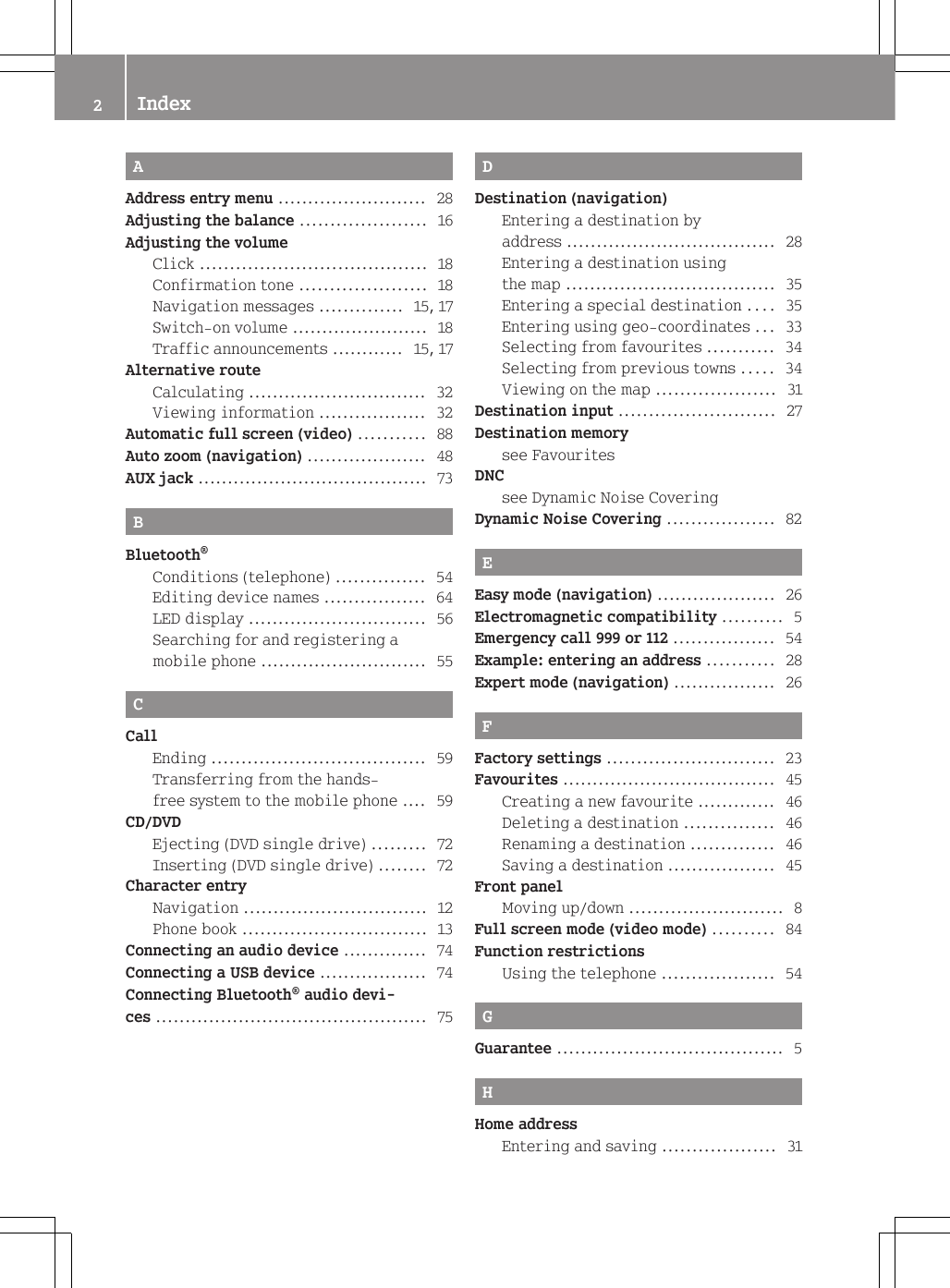
AAddress entry menu ......................... 28Adjusting the balance ..................... 16Adjusting the volumeClick ...................................... 18Confirmation tone ..................... 18Navigation messages .............. 15, 17Switch-on volume ....................... 18Traffic announcements ............ 15, 17Alternative routeCalculating .............................. 32Viewing information .................. 32Automatic full screen (video) ........... 88Auto zoom (navigation) .................... 48AUX jack ....................................... 73BBluetooth®Conditions (telephone) ............... 54Editing device names ................. 64LED display .............................. 56Searching for and registering amobile phone ............................ 55CCallEnding .................................... 59Transferring from the hands-free system to the mobile phone .... 59CD/DVDEjecting (DVD single drive) ......... 72Inserting (DVD single drive) ........ 72Character entryNavigation ............................... 12Phone book ............................... 13Connecting an audio device .............. 74Connecting a USB device .................. 74Connecting Bluetooth® audio devi-ces .............................................. 75DDestination (navigation)Entering a destination byaddress ................................... 28Entering a destination usingthe map ................................... 35Entering a special destination .... 35Entering using geo-coordinates ... 33Selecting from favourites ........... 34Selecting from previous towns ..... 34Viewing on the map .................... 31Destination input .......................... 27Destination memorysee Favourites                                        DNCsee Dynamic Noise Covering                  Dynamic Noise Covering .................. 82EEasy mode (navigation) .................... 26Electromagnetic compatibility .......... 5Emergency call 999 or 112 ................. 54Example: entering an address ........... 28Expert mode (navigation) ................. 26FFactory settings ............................ 23Favourites .................................... 45Creating a new favourite ............. 46Deleting a destination ............... 46Renaming a destination .............. 46Saving a destination .................. 45Front panelMoving up/down .......................... 8Full screen mode (video mode) .......... 84Function restrictionsUsing the telephone ................... 54GGuarantee ...................................... 5HHome addressEntering and saving ................... 312Index
IInterference ................................... 5iPod®Connecting ............................... 73JJunctionEntering .................................. 30MMain menu ...................................... 8Navigation ............................... 25Map (navigation)Adjusting the scale .................... 47Display ................................... 47Moving .................................... 47Map view ...................................... 48Master device (mobile phone)Determining ............................. 57MenuAll special destinations ............. 35Audio settings .......................... 81Bluetooth® settings .................... 63Detailed information ................. 30Editing a route ......................... 43Entering a new destination(navigation) ............................. 28Entering a street ....................... 29Programme settings (navigation) .. 49Screen settings ......................... 19Searching for a special desti-nation ..................................... 36Settings (radio) ........................ 68Settings (video) ........................ 86System settings ......................... 21Time entry ............................... 20Volume settings ......................... 17Mobile phoneConnecting (Bluetooth® inter-face) ....................................... 55De-authorising ......................... 57Registering (authorising) ........... 55Music main menu ............................ 75Music modeActivating ............................... 75Switching off ............................ 76NNavigationDeactivating ............................ 25Navigation announcementsSwitching off ........................... 40Switching on ............................ 40Navigation menuShowing ................................... 85Navigation modeSwitching on ............................ 24OOperating safety ............................. 5PPhone bookDownloading (from mobilephone) ..................................... 64Mobile phone ............................ 60smart high line radio ................. 61Picture viewerCalling up ............................... 90Displaying pictures ................... 91Rotating pictures ...................... 91Plotting the GPS track (Expert mode) .. 44Previous towns (navigation) ............. 45Product information ....................... 23Proper use ..................................... 5QQuick menu (navigation, Expertmode)Calling up ............................... 44Editing ................................... 45RRadio display ................................ 65Radio text ..................................... 71Index 3
RouteAlternative routes ..................... 32Calculating .............................. 31Route guidanceMap view ................................. 38Route information (Expert mode) ....... 41Trip info ................................. 42Route optionsChecking/changing .................... 31Setting .................................... 27SScreenDimming .................................. 19SD/MMC memory cardInserting ................................. 73Removing ................................. 73Security codeChanging ................................. 22Selecting a keyboard ...................... 22Selecting a station (radio)Using the waveband scan ............. 66Selecting stationsEntering the frequency manually ... 67Using station memory ................. 66Selecting traffic jam avoidance(Expert mode) ................................ 41Selecting video files ...................... 86Setting the standby time .................. 22Setting the volumeTelephone calls ......................... 17Setting treble and bass .................... 16Setting X-bass ............................... 16smart high line radioSwitching on/off ....................... 14smart high line radio operatingsystem ........................................... 6SoundSwitching on/off ....................... 15Sound settings ............................... 16Special destinationCategory .................................. 37Entry ...................................... 35Symbols on the map .................... 50Speed Limit Assist ......................... 50StationSetting the sensitivity ............... 71Station memory .............................. 66StationsSetting .................................... 66Station search ............................... 66Storing stationsManually .................................. 68Storing stations (radio)Automatically ........................... 68Switching radio mode on/off ............ 65TTelephoneIncoming call ........................... 58Rejecting/ending a call .............. 58Transferring a hands-free callto the mobile phone ................... 59Telephone menu ............................. 63Touch screenCalibrating ............................. 23Overview ................................... 9Traffic Announcement (TA)Interrupting ............................. 70Switching on/off ....................... 70TravelstoreStoring stations automatically ..... 68UUSB port ....................................... 73VVideo DVDPlaying conditions .................... 83Selecting a scene/chapter ........... 85Video main menu ............................ 84Video modeDeactivating ............................ 85Switching on ............................ 83Voice control systemSwitching off ........................... 52Switching on ............................. 51Voice dial (telephone) .................... 594Index
IntroductionGuaranteeThe smart sales organisation1 provides aguarantee for the period of 24 months with-out kilometre limit for this accessory orreplacement part.Operating safetyGRisk of accidentYour attention must always be focused onthe traffic conditions. Only operate theradio when the traffic situation permits.Operating the radio could distract you fromthe traffic conditions and cause you to losecontrol of your vehicle. This could resultin an accident.Bear in mind that, at a speed of only 50 km/h, your vehicle covers a distance of nearly14 m per second.GRisk of accidentAlways set the volume so that you remainable to hear the sounds of your environment(e.g. car horns, ambulances, police sirensetc.). You could otherwise cause an acci-dent.Correct useAlways observe the following when usingthe audio equipment:Rthe safety notes in this manualRNational road traffic regulationsGRisk of accidentIf work on electronic equipment or systems(e.g. the radio) and its software is carriedout incorrectly, this equipment could stopfunctioning. The electronic systems arelinked together by interfaces. Work onelectronic systems may also cause systemsthat have not been modified to malfunction.These malfunctions could affect the oper-ating safety of your vehicle and thereforealso have a considerable effect on yoursafety.Therefore, only have work on and changes toelectronic components carried out at aqualified specialist workshop which hasthe necessary specialist knowledge andtools to carry out the work required.Daimler recommends that you visit asmart Centre for this purpose.This radio receiver is suitable for opera-tion by all persons in accordance withvalid EU directives.The device conforms to currently applica-ble European or harmonised nationalstandards.Therefore, adherence to the relevant spec-ifications for electromagnetic compati-bility is guaranteed for this device.As a result, interference caused by yourequipment to other electrical/electronicequipment, as well as interference to yourequipment caused by other electrical/electronic equipment, is largely preven-ted.The equipment is approved by the vehiclemanufacturer in accordance with EuropeanAutomotive EMC Directive 95/54/EC. There-fore, operation according to its intendedpurpose is approved for your vehicle. Theequipment does not require certificationIt complies with device-specific EMCrequirements according to the followingEuropean standards:REN 55013REN 55020! Portable electronic devices in the carcan severely impair the radio reception.1The guarantor is the respective sales organisation in the country in which the accessory or replacementpart was bought (see list in the service booklet).>> smart high line radio. 5Z
At a glanceOperating systemOverviewFunction Page:t buttonPress briefly: calls up themain menu 8Press and hold: calls upthe "Audio settings" menu 8;LED 56Blue display: Bluetooth®device (mobile phone,audio equipment) is con-nectedFlashing blue display:Bluetooth® connection isbeing establishedNo display: no Bluetooth®device is connected=Touch screen 9Function Page?MicrophoneTelephone operation 59Voice commands in navi-gation 51Dynamic Noise Covering 82ABrightness sensor 19Bþ buttonMoves the front panel up/down 86>> smart high line radio.
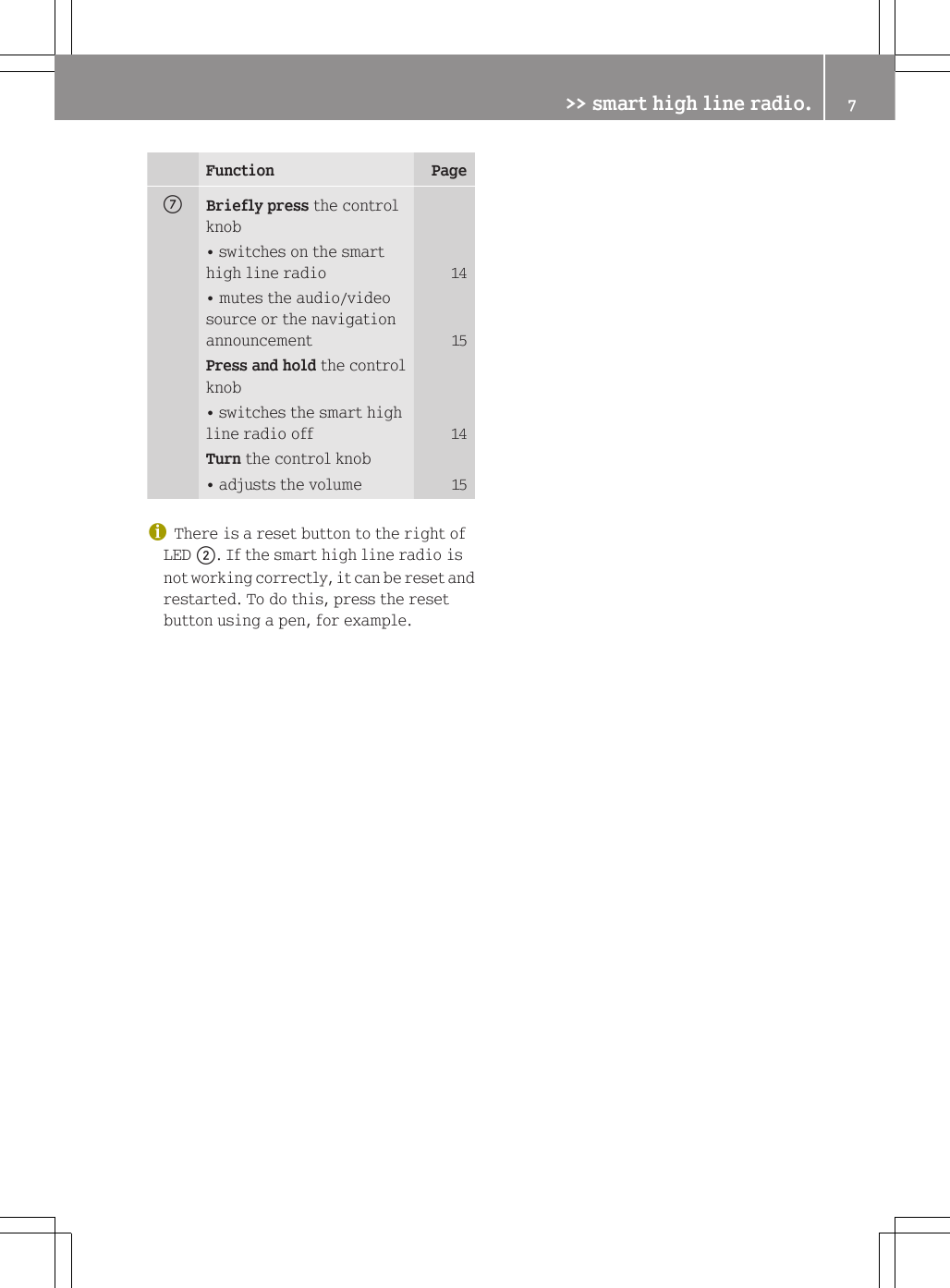
Function PageCBriefly press the controlknob• switches on the smarthigh line radio 14• mutes the audio/videosource or the navigationannouncement 15Press and hold the controlknob• switches the smart highline radio off 14Turn the control knob• adjusts the volume 15iThere is a reset button to the right ofLED ;. If the smart high line radio isnot working correctly, it can be reset andrestarted. To do this, press the resetbutton using a pen, for example.>> smart high line radio. 7Z
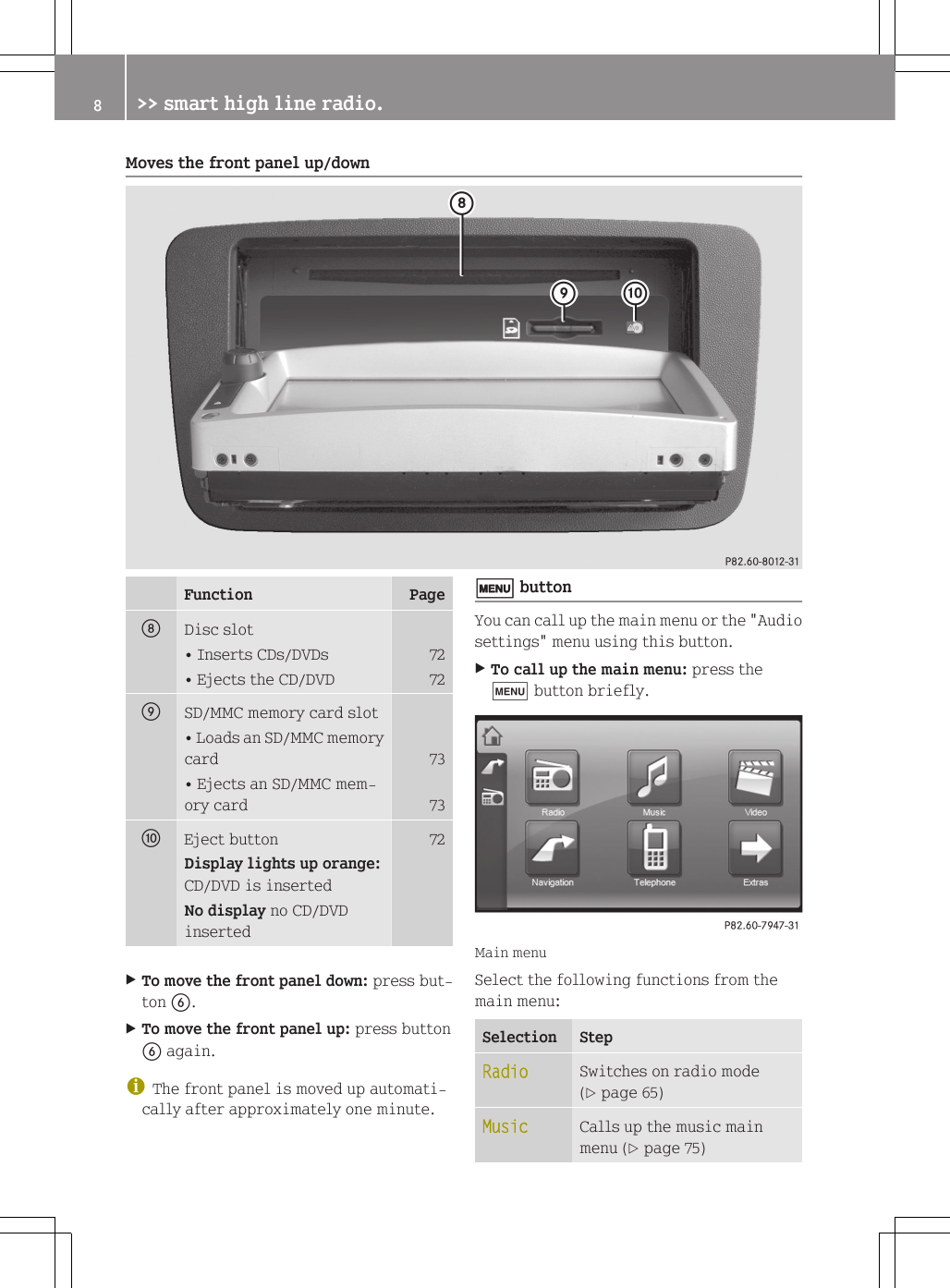
Moves the front panel up/downFunction PageDDisc slot• Inserts CDs/DVDs 72• Ejects the CD/DVD 72ESD/MMC memory card slot• Loads an SD/MMC memorycard 73• Ejects an SD/MMC mem-ory card 73FEject button 72Display lights up orange:CD/DVD is insertedNo display no CD/DVDinsertedXTo move the front panel down: press but-ton B.XTo move the front panel up: press buttonB again.iThe front panel is moved up automati-cally after approximately one minute.t buttonYou can call up the main menu or the "Audiosettings" menu using this button.XTo call up the main menu: press thet button briefly.Main menuSelect the following functions from themain menu:Selection StepRadio Switches on radio mode(Y page 65)Music Calls up the music mainmenu (Y page 75)8>> smart high line radio.
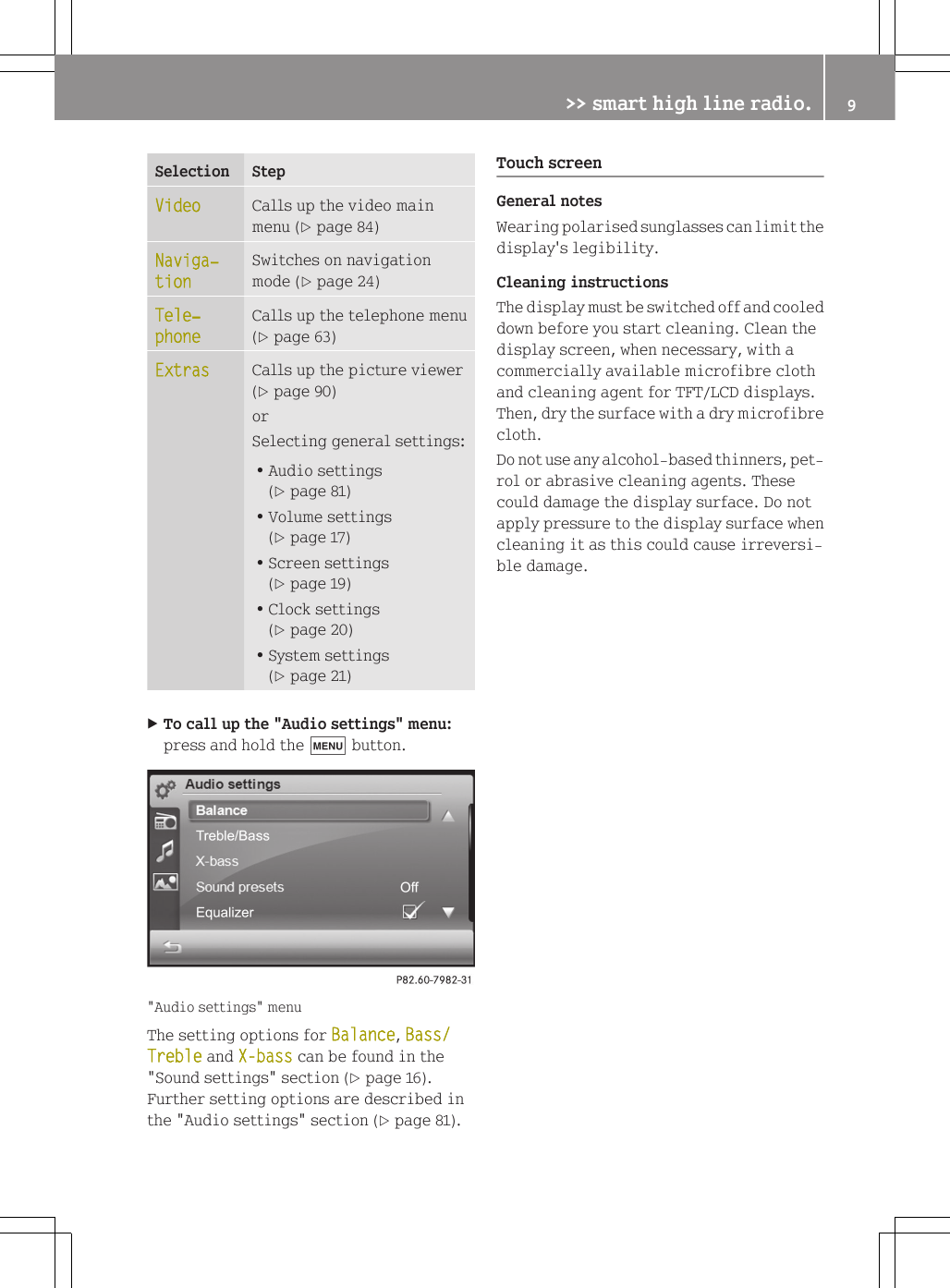
Selection StepVideo Calls up the video mainmenu (Y page 84)Naviga‐tionSwitches on navigationmode (Y page 24)Tele‐phoneCalls up the telephone menu(Y page 63)Extras Calls up the picture viewer(Y page 90)orSelecting general settings:RAudio settings(Y page 81)RVolume settings(Y page 17)RScreen settings(Y page 19)RClock settings(Y page 20)RSystem settings(Y page 21)XTo call up the "Audio settings" menu:press and hold the t button."Audio settings" menuThe setting options for Balance, Bass/Treble and X-bass can be found in the"Sound settings" section (Y page 16).Further setting options are described inthe "Audio settings" section (Y page 81).Touch screenGeneral notesWearing polarised sunglasses can limit thedisplay's legibility.Cleaning instructionsThe display must be switched off and cooleddown before you start cleaning. Clean thedisplay screen, when necessary, with acommercially available microfibre clothand cleaning agent for TFT/LCD displays.Then, dry the surface with a dry microfibrecloth.Do not use any alcohol-based thinners, pet-rol or abrasive cleaning agents. Thesecould damage the display surface. Do notapply pressure to the display surface whencleaning it as this could cause irreversi-ble damage.>> smart high line radio. 9Z
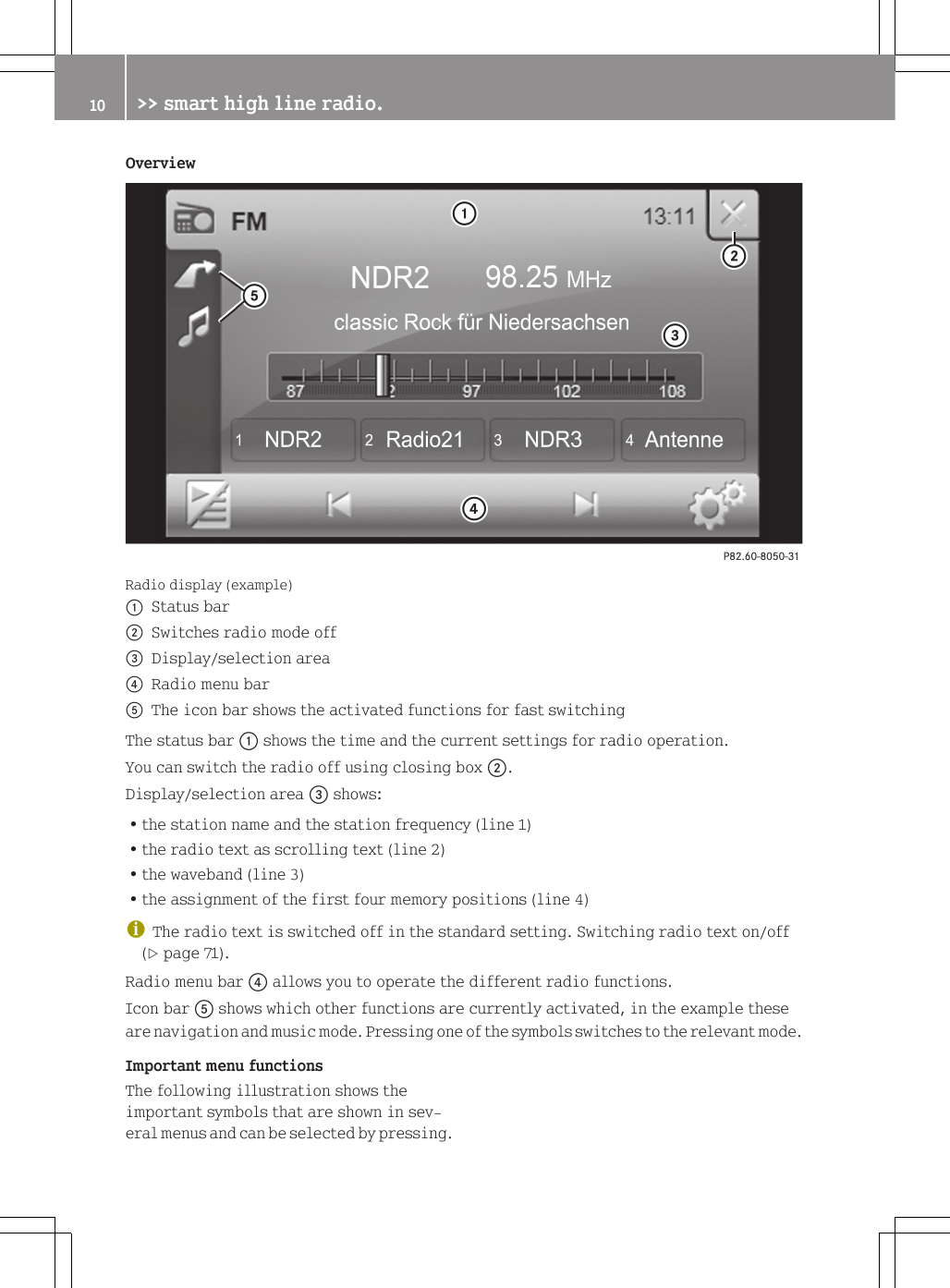
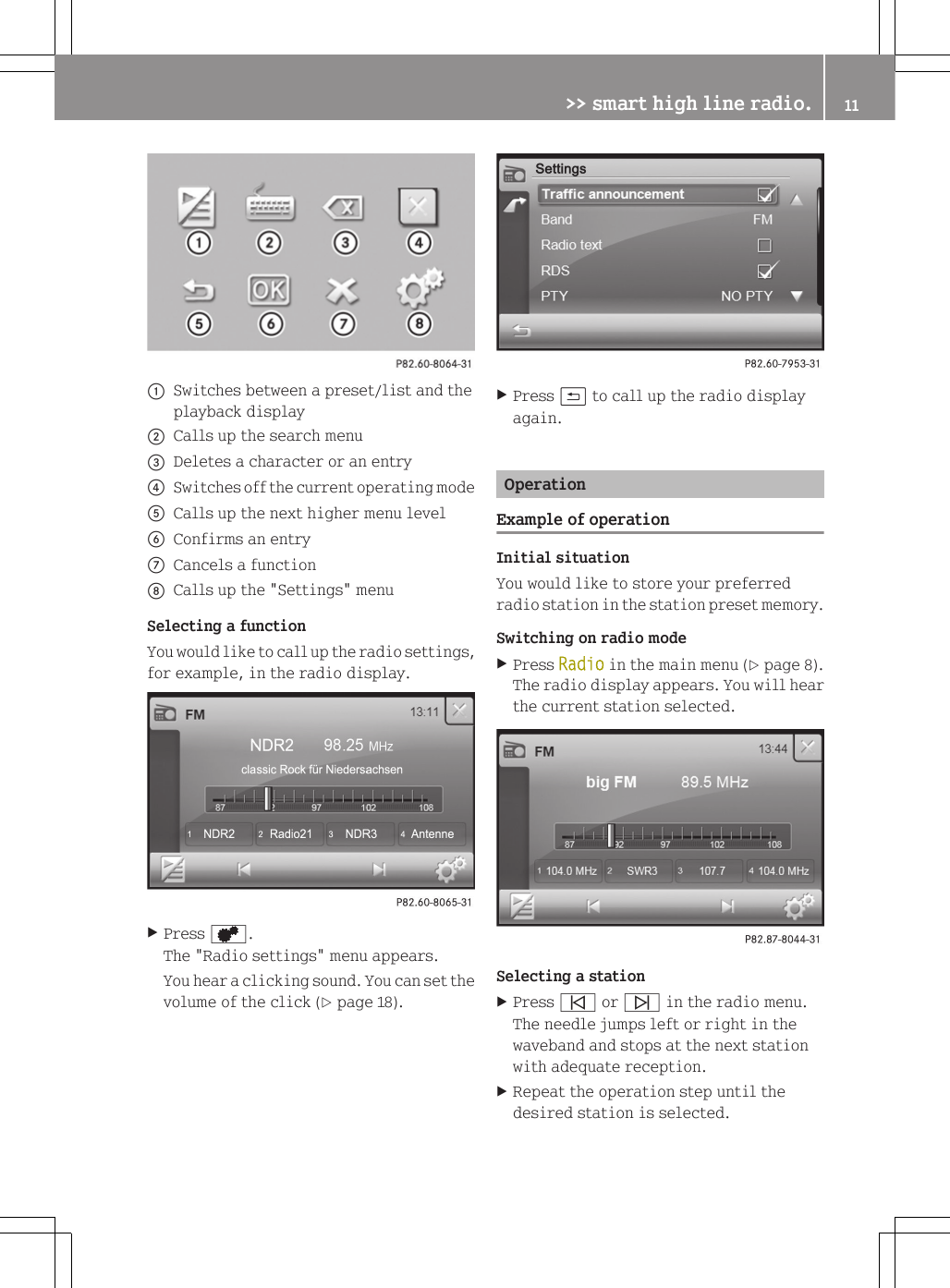
OverviewRadio display (example):Status bar;Switches radio mode off=Display/selection area?Radio menu barAThe icon bar shows the activated functions for fast switchingThe status bar : shows the time and the current settings for radio operation.You can switch the radio off using closing box ;.Display/selection area = shows:Rthe station name and the station frequency (line 1)Rthe radio text as scrolling text (line 2)Rthe waveband (line 3)Rthe assignment of the first four memory positions (line 4)iThe radio text is switched off in the standard setting. Switching radio text on/off(Y page 71).Radio menu bar ? allows you to operate the different radio functions.Icon bar A shows which other functions are currently activated, in the example theseare navigation and music mode. Pressing one of the symbols switches to the relevant mode.Important menu functionsThe following illustration shows theimportant symbols that are shown in sev-eral menus and can be selected by pressing.10 >> smart high line radio.
:Switches between a preset/list and theplayback display;Calls up the search menu=Deletes a character or an entry?Switches off the current operating modeACalls up the next higher menu levelBConfirms an entryCCancels a functionDCalls up the "Settings" menuSelecting a functionYou would like to call up the radio settings,for example, in the radio display.XPress d.The "Radio settings" menu appears.You hear a clicking sound. You can set thevolume of the click (Y page 18).XPress & to call up the radio displayagain.OperationExample of operationInitial situationYou would like to store your preferredradio station in the station preset memory.Switching on radio modeXPress Radio in the main menu (Y page 8).The radio display appears. You will hearthe current station selected.Selecting a stationXPress û or ü in the radio menu.The needle jumps left or right in thewaveband and stops at the next stationwith adequate reception.XRepeat the operation step until thedesired station is selected.>> smart high line radio. 11Z
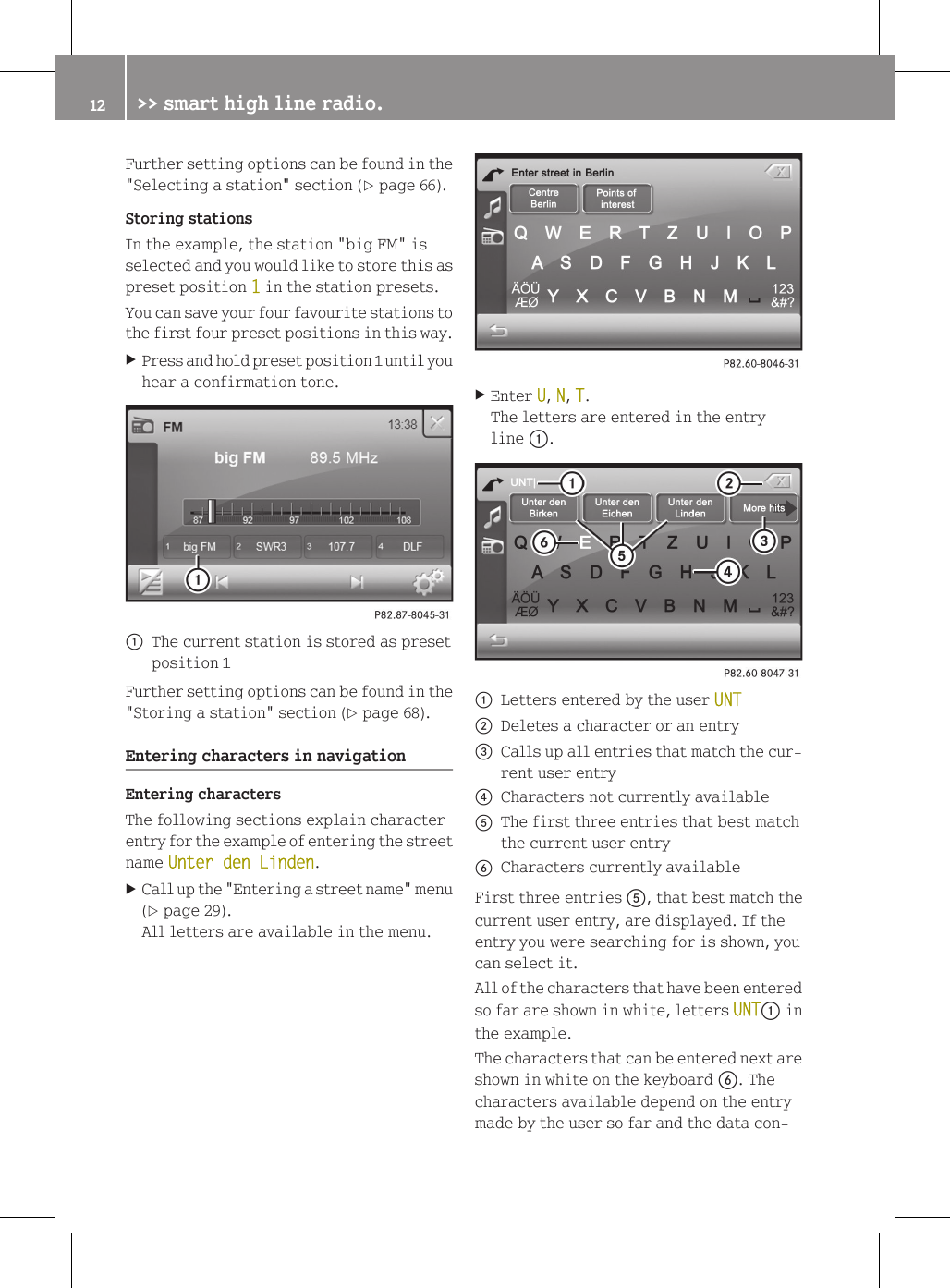
Further setting options can be found in the"Selecting a station" section (Y page 66).Storing stationsIn the example, the station "big FM" isselected and you would like to store this aspreset position 1 in the station presets.You can save your four favourite stations tothe first four preset positions in this way.XPress and hold preset position 1 until youhear a confirmation tone.:The current station is stored as presetposition 1Further setting options can be found in the"Storing a station" section (Y page 68).Entering characters in navigationEntering charactersThe following sections explain characterentry for the example of entering the streetname Unter den Linden.XCall up the "Entering a street name" menu(Y page 29).All letters are available in the menu.XEnter U, N, T.The letters are entered in the entryline :.:Letters entered by the user UNT;Deletes a character or an entry=Calls up all entries that match the cur-rent user entry?Characters not currently availableAThe first three entries that best matchthe current user entryBCharacters currently availableFirst three entries A, that best match thecurrent user entry, are displayed. If theentry you were searching for is shown, youcan select it.All of the characters that have been enteredso far are shown in white, letters UNT: inthe example.The characters that can be entered next areshown in white on the keyboard B. Thecharacters available depend on the entrymade by the user so far and the data con-12 >> smart high line radio.
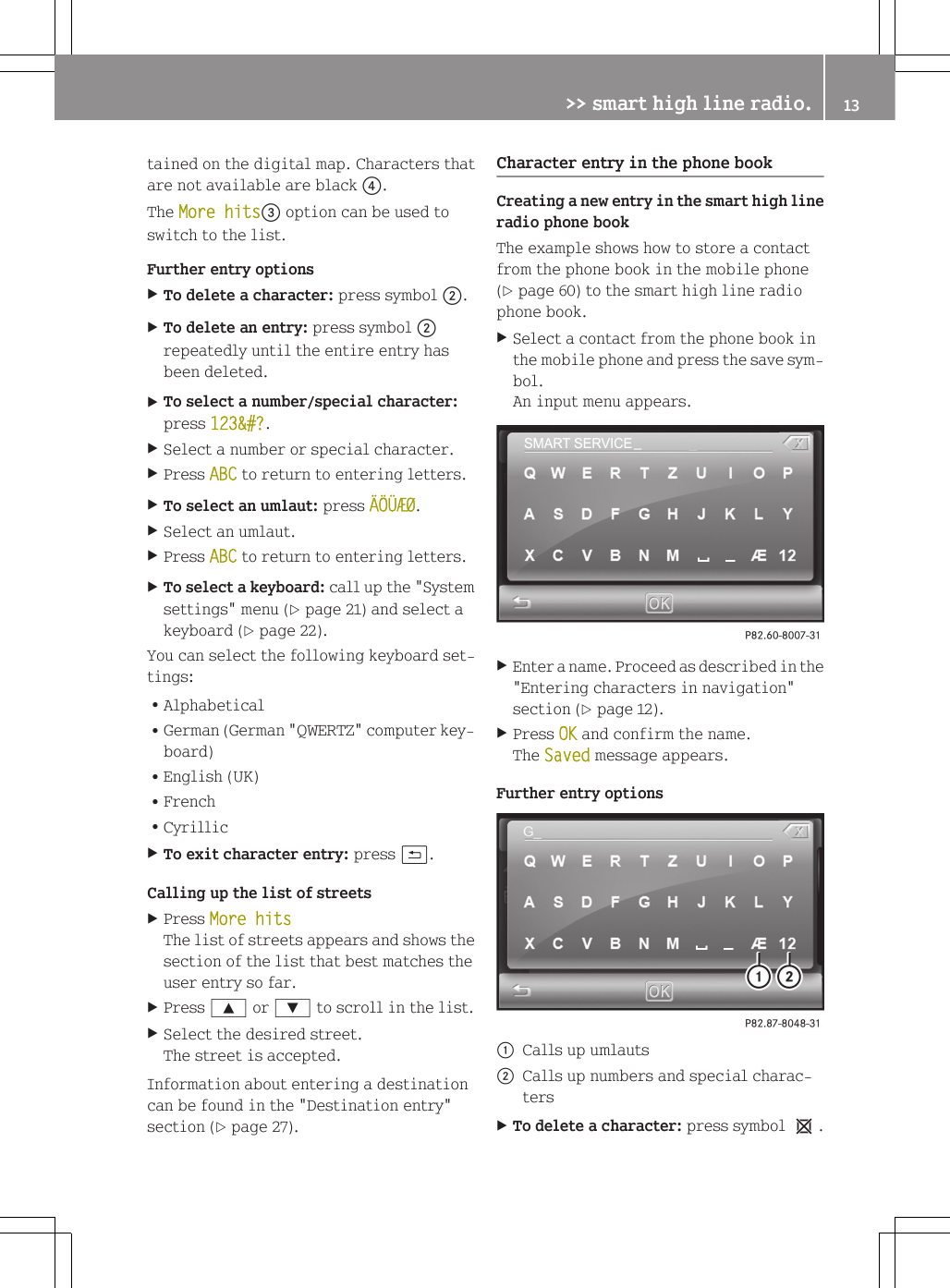
tained on the digital map. Characters thatare not available are black ?.The More hits= option can be used toswitch to the list.Further entry optionsXTo delete a character: press symbol ;.XTo delete an entry: press symbol ;repeatedly until the entire entry hasbeen deleted.XTo select a number/special character:press 123&#?.XSelect a number or special character.XPress ABC to return to entering letters.XTo select an umlaut: press ÄÖÜÆØ.XSelect an umlaut.XPress ABC to return to entering letters.XTo select a keyboard: call up the "Systemsettings" menu (Y page 21) and select akeyboard (Y page 22).You can select the following keyboard set-tings:RAlphabeticalRGerman (German "QWERTZ" computer key-board)REnglish (UK)RFrenchRCyrillicXTo exit character entry: press &.Calling up the list of streetsXPress More hitsThe list of streets appears and shows thesection of the list that best matches theuser entry so far.XPress 9 or : to scroll in the list.XSelect the desired street.The street is accepted.Information about entering a destinationcan be found in the "Destination entry"section (Y page 27).Character entry in the phone bookCreating a new entry in the smart high lineradio phone bookThe example shows how to store a contactfrom the phone book in the mobile phone(Y page 60) to the smart high line radiophone book.XSelect a contact from the phone book inthe mobile phone and press the save sym-bol.An input menu appears.XEnter a name. Proceed as described in the"Entering characters in navigation"section (Y page 12).XPress OK and confirm the name.The Saved message appears.Further entry options:Calls up umlauts;Calls up numbers and special charac-tersXTo delete a character: press symbol 1.>> smart high line radio. 13Z
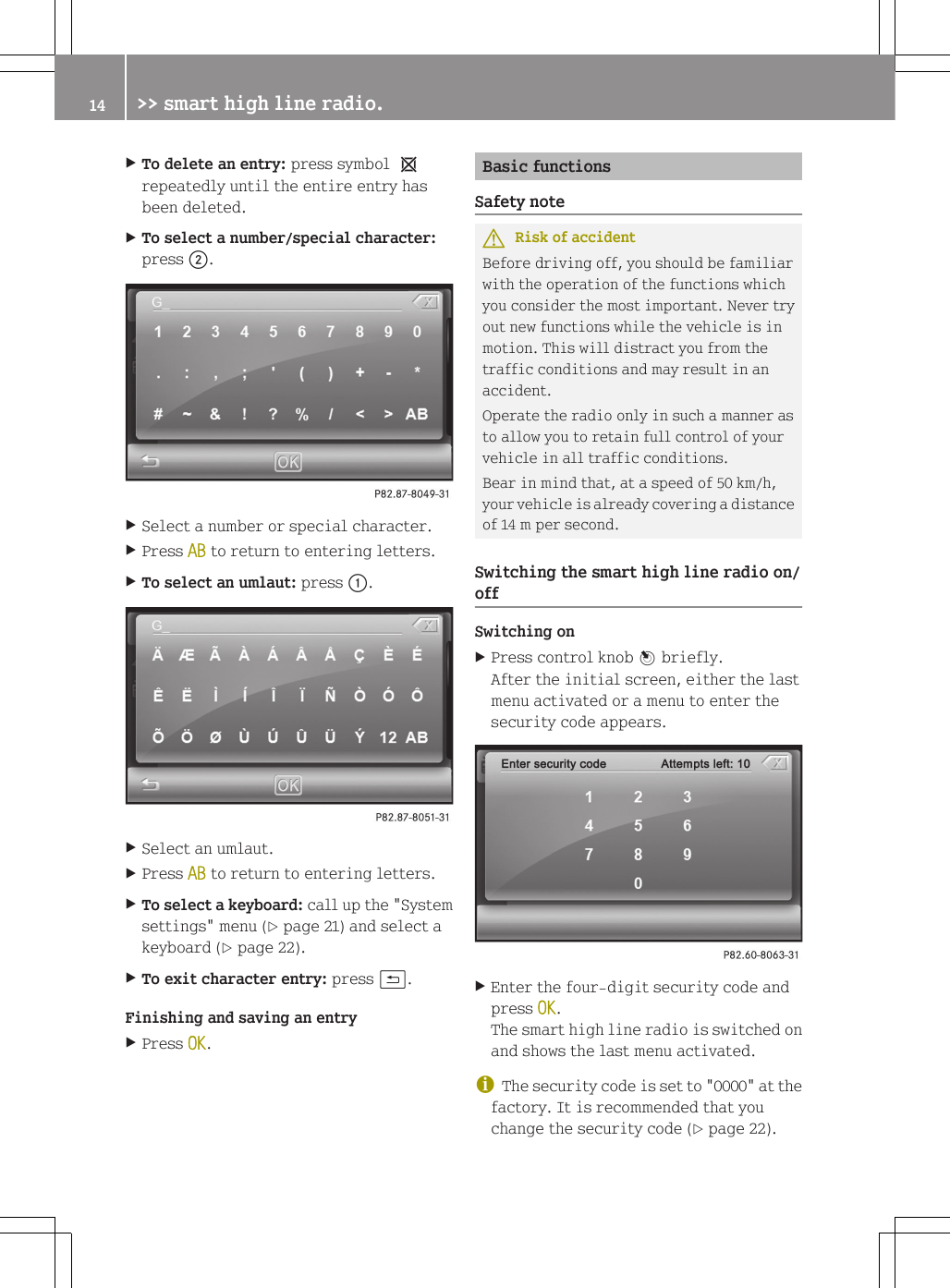
XTo delete an entry: press symbol 1repeatedly until the entire entry hasbeen deleted.XTo select a number/special character:press ;.XSelect a number or special character.XPress AB to return to entering letters.XTo select an umlaut: press :.XSelect an umlaut.XPress AB to return to entering letters.XTo select a keyboard: call up the "Systemsettings" menu (Y page 21) and select akeyboard (Y page 22).XTo exit character entry: press &.Finishing and saving an entryXPress OK.Basic functionsSafety noteGRisk of accidentBefore driving off, you should be familiarwith the operation of the functions whichyou consider the most important. Never tryout new functions while the vehicle is inmotion. This will distract you from thetraffic conditions and may result in anaccident.Operate the radio only in such a manner asto allow you to retain full control of yourvehicle in all traffic conditions.Bear in mind that, at a speed of 50 km/h,your vehicle is already covering a distanceof 14 m per second.Switching the smart high line radio on/offSwitching onXPress control knob W briefly.After the initial screen, either the lastmenu activated or a menu to enter thesecurity code appears.XEnter the four-digit security code andpress OK.The smart high line radio is switched onand shows the last menu activated.iThe security code is set to "0000" at thefactory. It is recommended that youchange the security code (Y page 22).14 >> smart high line radio.
iYou have ten attempts to enter the cor-rect security code. If you enter an incor-rect security code, an error messagestating the number of attempts remain-ing is shown for two seconds.iIf the smart high line radio was lastswitched off by switching the engine off,it is then switched on again when theengine is next started.DeactivatingXBy switching to standby mode: press andhold control knob W.The smart high line radio alwaysswitches to standby mode after the Good Bye message.Standby mode is terminated after a definedtime period (standby time). The device isthen switched off. You can set the standbytime (Y page 22).In standby mode, the device is ready for usequickly after being switched on again.iIf the smart high line radio is operatedwhile the engine is switched off, thedevice also goes into standby mode after30 minutes. A message to this effect willbe shown first.XWithout switching to standby mode: presscontrol knob W for approximately tenseconds.MuteAudio and video sourceXPress control knob W briefly.The audio or video source is muted. Whenthe sound is switched off, you will seethe , icon in the status bar.iYou will still hear traffic announce-ments and navigation announcements,even if the sound is muted.The , symbol cannot be seen on verybright areas of the screen in video modeand in the picture viewer.Audio sources are muted automatically ifyou activate voice control system for thenavigation (Y page 51).Switching Traffic Programme and naviga-tion announcements on/offXTo switch the Traffic Programme on/off:call up the "Settings" menu in radio modeand press Traffic announcement(Y page 70).Depending on the previous status, thefunction is switched on O or off ª.XTo switch off navigation announce-ments: press control knob W briefly dur-ing a navigation announcement.orXSwitch off voice output via the "Set-tings" menu (Y page 40).XTo switch on navigation messages: presson the arrow indicating the drivingdirection on the map during route guid-ance.orXSwitch on voice output via the "Settings"menu (Y page 40).Adjusts the volumeAdjusting the volume for the audio or videosourceXTurn cVd the control knob.Adjusting the volume for the trafficannouncements and navigation announce-mentsOption 1XTurn cVd the control knob during a traf-fic announcement or a navigationannouncements.Option 2XAdjust the volume for the trafficannouncements (Y page 15) or the audiofadeout in the "Volume settings" menu>> smart high line radio. 15Z
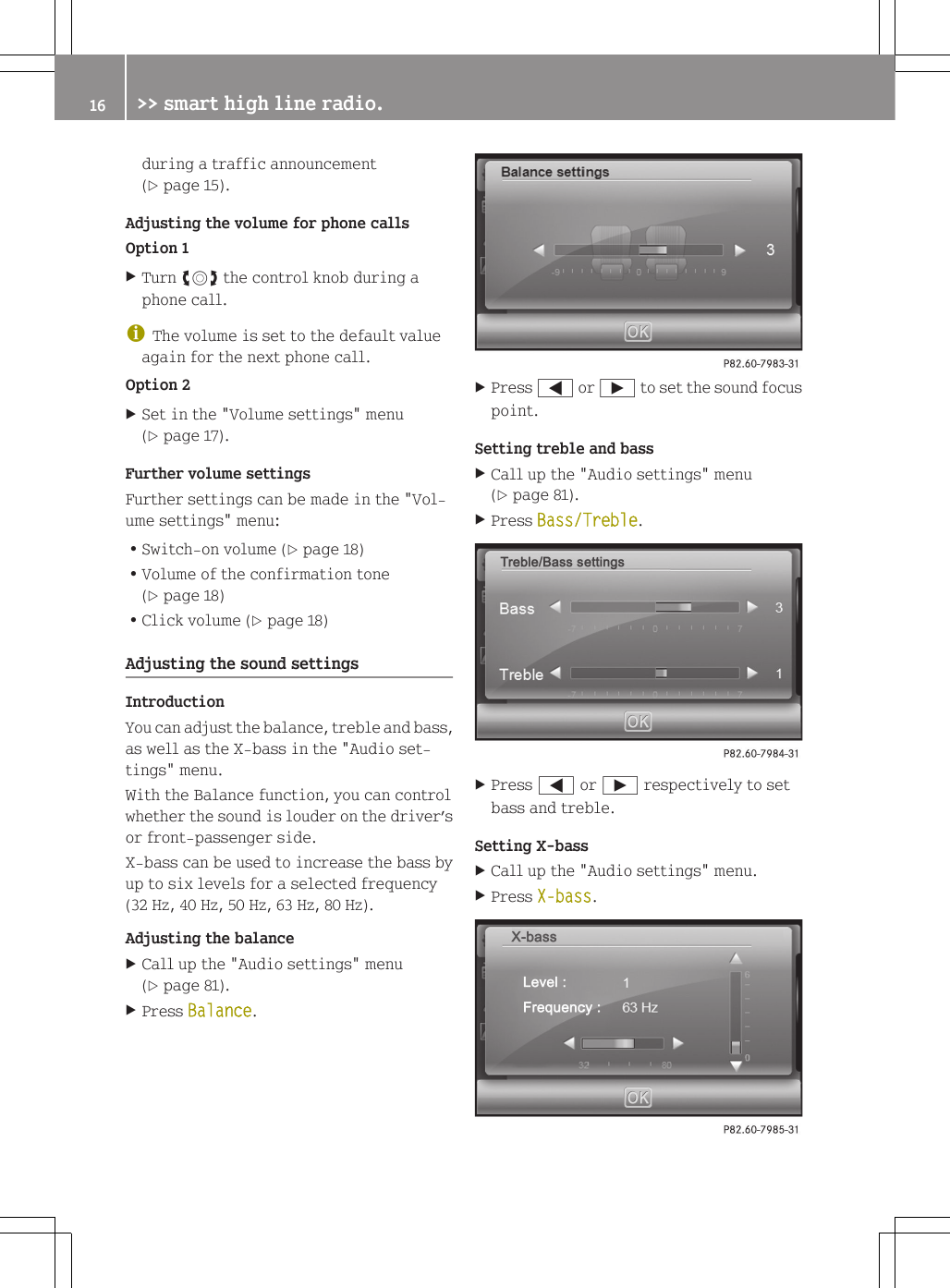
during a traffic announcement(Y page 15).Adjusting the volume for phone callsOption 1XTurn cVd the control knob during aphone call.iThe volume is set to the default valueagain for the next phone call.Option 2XSet in the "Volume settings" menu(Y page 17).Further volume settingsFurther settings can be made in the "Vol-ume settings" menu:RSwitch-on volume (Y page 18)RVolume of the confirmation tone(Y page 18)RClick volume (Y page 18)Adjusting the sound settingsIntroductionYou can adjust the balance, treble and bass,as well as the X-bass in the "Audio set-tings" menu.With the Balance function, you can controlwhether the sound is louder on the driver’sor front-passenger side.X-bass can be used to increase the bass byup to six levels for a selected frequency(32 Hz, 40 Hz, 50 Hz, 63 Hz, 80 Hz).Adjusting the balanceXCall up the "Audio settings" menu(Y page 81).XPress Balance.XPress = or Ì to set the sound focuspoint.Setting treble and bassXCall up the "Audio settings" menu(Y page 81).XPress Bass/Treble.XPress = or Ì respectively to setbass and treble.Setting X-bassXCall up the "Audio settings" menu.XPress X-bass.16 >> smart high line radio.
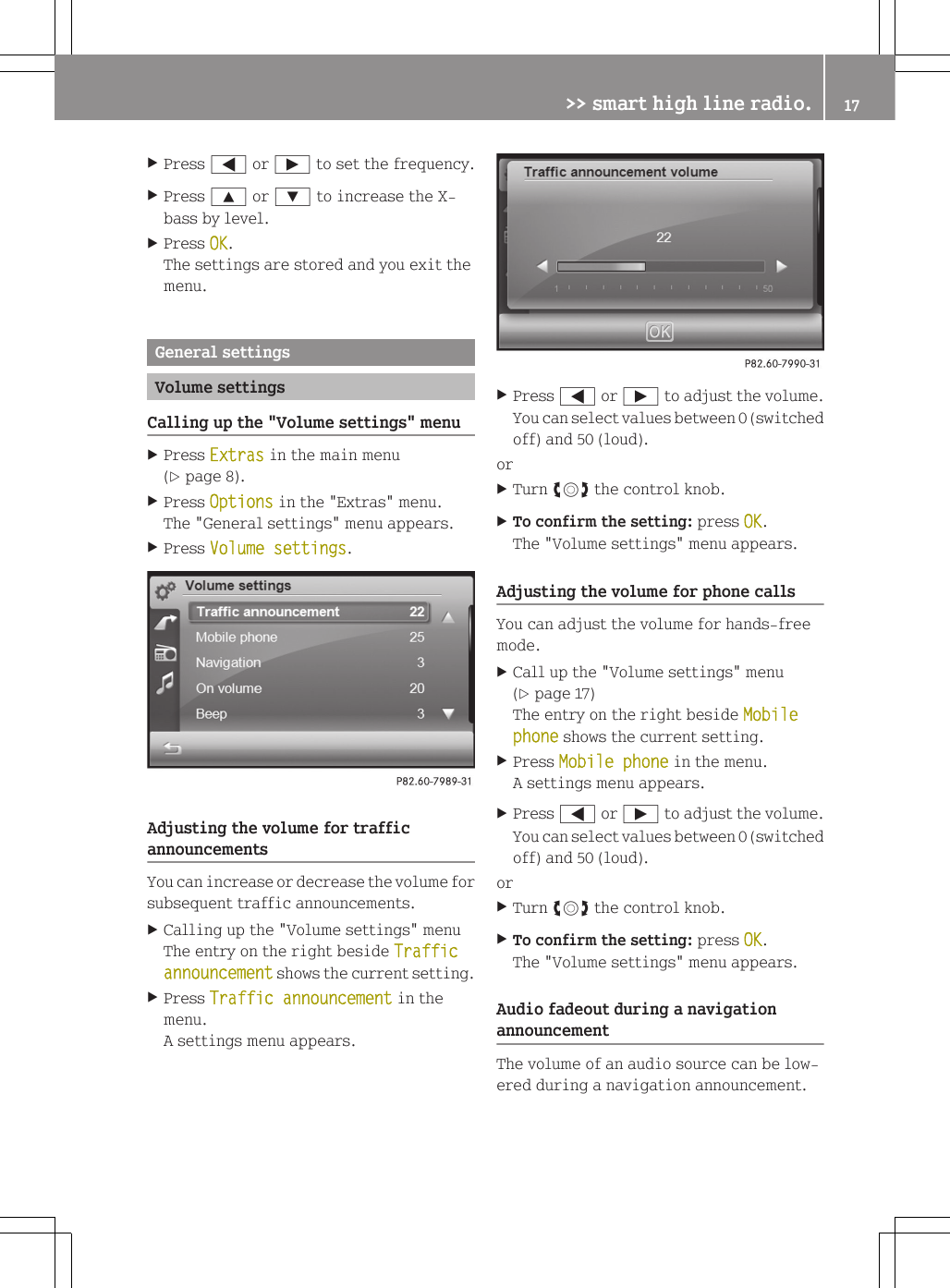
XPress = or Ì to set the frequency.XPress 9 or : to increase the X-bass by level.XPress OK.The settings are stored and you exit themenu.General settingsVolume settingsCalling up the "Volume settings" menuXPress Extras in the main menu(Y page 8).XPress Options in the "Extras" menu.The "General settings" menu appears.XPress Volume settings.Adjusting the volume for trafficannouncementsYou can increase or decrease the volume forsubsequent traffic announcements.XCalling up the "Volume settings" menuThe entry on the right beside Traffic announcement shows the current setting.XPress Traffic announcement in themenu.A settings menu appears.XPress = or Ì to adjust the volume.You can select values between 0 (switchedoff) and 50 (loud).orXTurn cVd the control knob.XTo confirm the setting: press OK.The "Volume settings" menu appears.Adjusting the volume for phone callsYou can adjust the volume for hands-freemode.XCall up the "Volume settings" menu(Y page 17)The entry on the right beside Mobile phone shows the current setting.XPress Mobile phone in the menu.A settings menu appears.XPress = or Ì to adjust the volume.You can select values between 0 (switchedoff) and 50 (loud).orXTurn cVd the control knob.XTo confirm the setting: press OK.The "Volume settings" menu appears.Audio fadeout during a navigationannouncementThe volume of an audio source can be low-ered during a navigation announcement.>> smart high line radio. 17Z
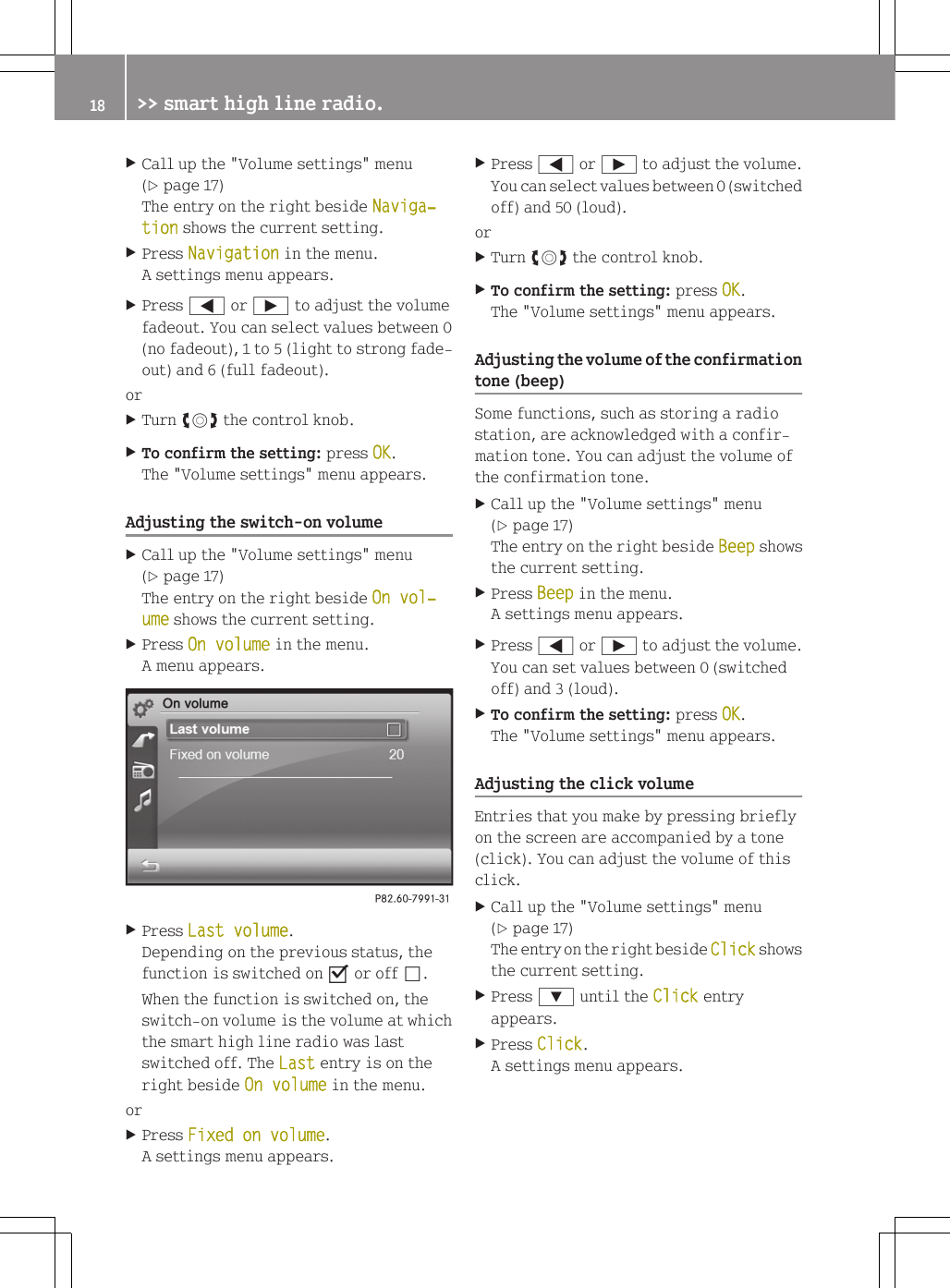
XCall up the "Volume settings" menu(Y page 17)The entry on the right beside Naviga‐tion shows the current setting.XPress Navigation in the menu.A settings menu appears.XPress = or Ì to adjust the volumefadeout. You can select values between 0(no fadeout), 1 to 5 (light to strong fade-out) and 6 (full fadeout).orXTurn cVd the control knob.XTo confirm the setting: press OK.The "Volume settings" menu appears.Adjusting the switch-on volumeXCall up the "Volume settings" menu(Y page 17)The entry on the right beside On vol‐ume shows the current setting.XPress On volume in the menu.A menu appears.XPress Last volume.Depending on the previous status, thefunction is switched on O or off ª.When the function is switched on, theswitch-on volume is the volume at whichthe smart high line radio was lastswitched off. The Last entry is on theright beside On volume in the menu.orXPress Fixed on volume.A settings menu appears.XPress = or Ì to adjust the volume.You can select values between 0 (switchedoff) and 50 (loud).orXTurn cVd the control knob.XTo confirm the setting: press OK.The "Volume settings" menu appears.Adjusting the volume of the confirmationtone (beep)Some functions, such as storing a radiostation, are acknowledged with a confir-mation tone. You can adjust the volume ofthe confirmation tone.XCall up the "Volume settings" menu(Y page 17)The entry on the right beside Beep showsthe current setting.XPress Beep in the menu.A settings menu appears.XPress = or Ì to adjust the volume.You can set values between 0 (switchedoff) and 3 (loud).XTo confirm the setting: press OK.The "Volume settings" menu appears.Adjusting the click volumeEntries that you make by pressing brieflyon the screen are accompanied by a tone(click). You can adjust the volume of thisclick.XCall up the "Volume settings" menu(Y page 17)The entry on the right beside Click showsthe current setting.XPress : until the Click entryappears.XPress Click.A settings menu appears.18 >> smart high line radio.
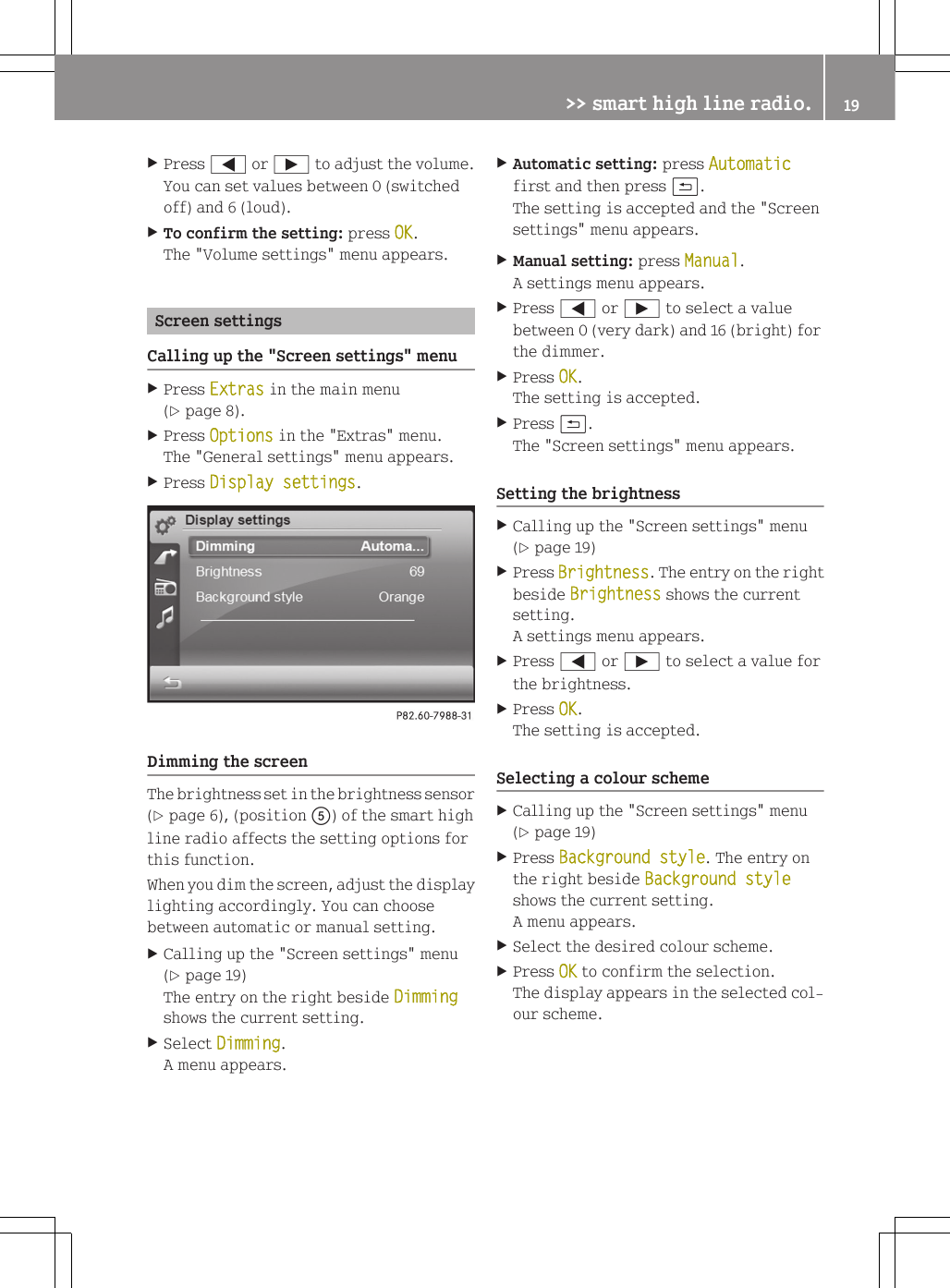
XPress = or Ì to adjust the volume.You can set values between 0 (switchedoff) and 6 (loud).XTo confirm the setting: press OK.The "Volume settings" menu appears.Screen settingsCalling up the "Screen settings" menuXPress Extras in the main menu(Y page 8).XPress Options in the "Extras" menu.The "General settings" menu appears.XPress Display settings.Dimming the screenThe brightness set in the brightness sensor(Y page 6), (position A) of the smart highline radio affects the setting options forthis function.When you dim the screen, adjust the displaylighting accordingly. You can choosebetween automatic or manual setting.XCalling up the "Screen settings" menu(Y page 19)The entry on the right beside Dimmingshows the current setting.XSelect Dimming.A menu appears.XAutomatic setting: press Automaticfirst and then press &.The setting is accepted and the "Screensettings" menu appears.XManual setting: press Manual.A settings menu appears.XPress = or Ì to select a valuebetween 0 (very dark) and 16 (bright) forthe dimmer.XPress OK.The setting is accepted.XPress &.The "Screen settings" menu appears.Setting the brightnessXCalling up the "Screen settings" menu(Y page 19)XPress Brightness. The entry on the rightbeside Brightness shows the currentsetting.A settings menu appears.XPress = or Ì to select a value forthe brightness.XPress OK.The setting is accepted.Selecting a colour schemeXCalling up the "Screen settings" menu(Y page 19)XPress Background style. The entry onthe right beside Background styleshows the current setting.A menu appears.XSelect the desired colour scheme.XPress OK to confirm the selection.The display appears in the selected col-our scheme.>> smart high line radio. 19Z
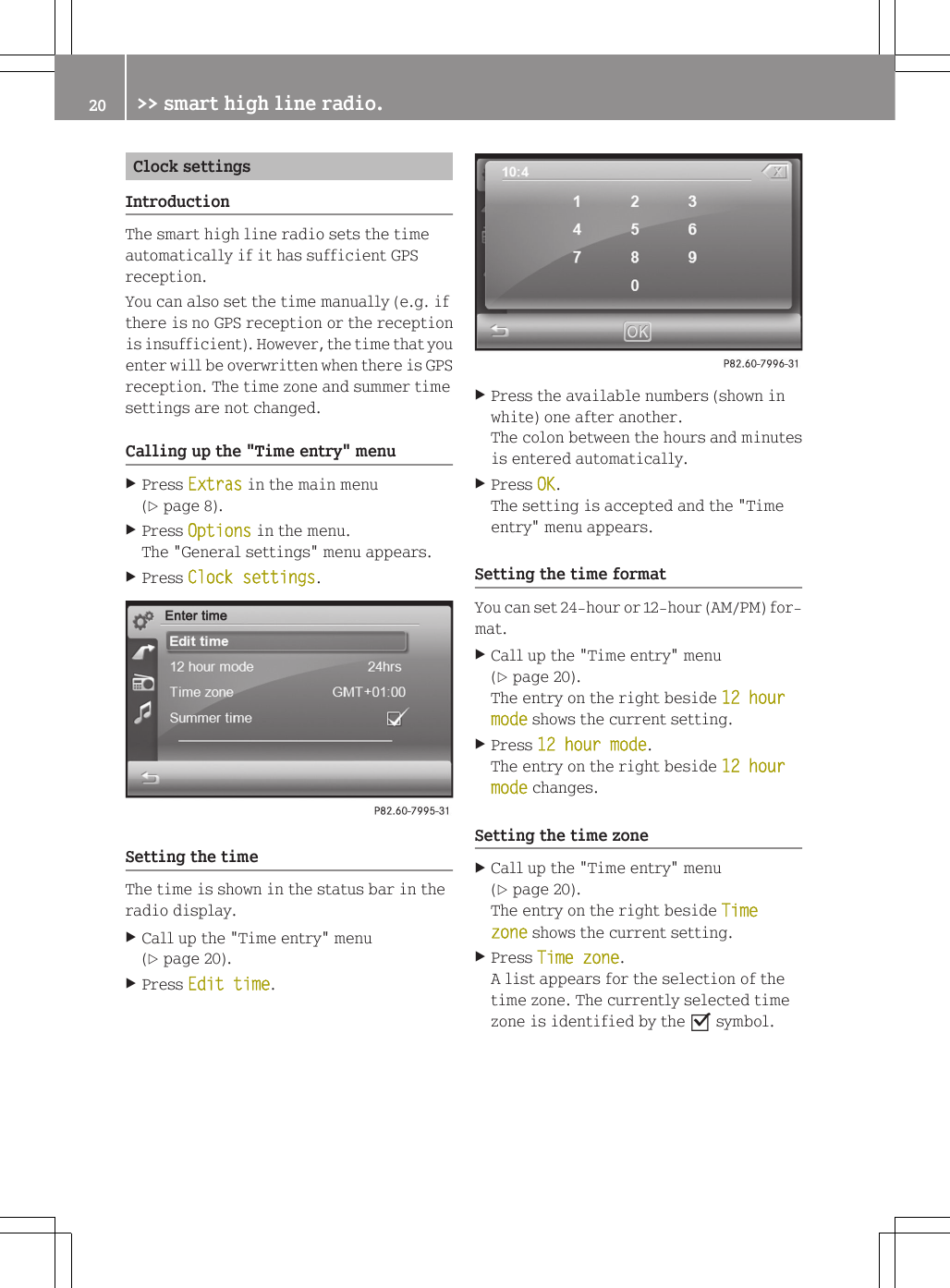
Clock settingsIntroductionThe smart high line radio sets the timeautomatically if it has sufficient GPSreception.You can also set the time manually (e.g. ifthere is no GPS reception or the receptionis insufficient). However, the time that youenter will be overwritten when there is GPSreception. The time zone and summer timesettings are not changed.Calling up the "Time entry" menuXPress Extras in the main menu(Y page 8).XPress Options in the menu.The "General settings" menu appears.XPress Clock settings.Setting the timeThe time is shown in the status bar in theradio display.XCall up the "Time entry" menu(Y page 20).XPress Edit time.XPress the available numbers (shown inwhite) one after another.The colon between the hours and minutesis entered automatically.XPress OK.The setting is accepted and the "Timeentry" menu appears.Setting the time formatYou can set 24-hour or 12-hour (AM/PM) for-mat.XCall up the "Time entry" menu(Y page 20).The entry on the right beside 12 hour mode shows the current setting.XPress 12 hour mode.The entry on the right beside 12 hour mode changes.Setting the time zoneXCall up the "Time entry" menu(Y page 20).The entry on the right beside Time zone shows the current setting.XPress Time zone.A list appears for the selection of thetime zone. The currently selected timezone is identified by the O symbol.20 >> smart high line radio.
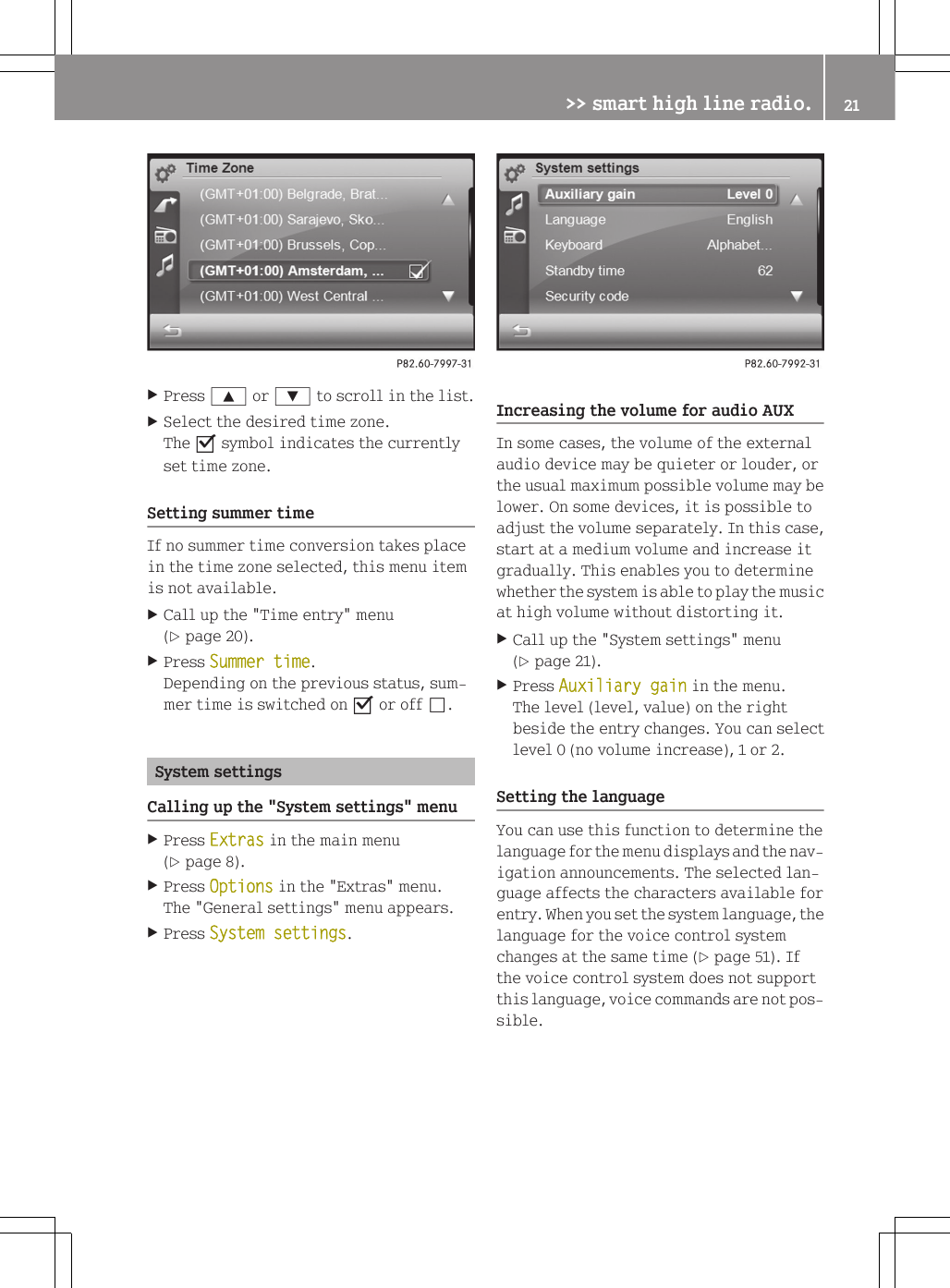
XPress 9 or : to scroll in the list.XSelect the desired time zone.The O symbol indicates the currentlyset time zone.Setting summer timeIf no summer time conversion takes placein the time zone selected, this menu itemis not available.XCall up the "Time entry" menu(Y page 20).XPress Summer time.Depending on the previous status, sum-mer time is switched on O or off ª.System settingsCalling up the "System settings" menuXPress Extras in the main menu(Y page 8).XPress Options in the "Extras" menu.The "General settings" menu appears.XPress System settings.Increasing the volume for audio AUXIn some cases, the volume of the externalaudio device may be quieter or louder, orthe usual maximum possible volume may belower. On some devices, it is possible toadjust the volume separately. In this case,start at a medium volume and increase itgradually. This enables you to determinewhether the system is able to play the musicat high volume without distorting it.XCall up the "System settings" menu(Y page 21).XPress Auxiliary gain in the menu.The level (level, value) on the rightbeside the entry changes. You can selectlevel 0 (no volume increase), 1 or 2.Setting the languageYou can use this function to determine thelanguage for the menu displays and the nav-igation announcements. The selected lan-guage affects the characters available forentry. When you set the system language, thelanguage for the voice control systemchanges at the same time (Y page 51). Ifthe voice control system does not supportthis language, voice commands are not pos-sible.>> smart high line radio. 21Z
XCall up the "System settings" menu(Y page 21).The entry on the right beside Languageshows the current setting.XPress Language.The list of languages appears. The cur-rently selected language is identifiedby the O symbol.XPress 9 or : to scroll in the list.XSelect the desired language.The smart high line radio loads the lan-guage and switches back to the "Systemsettings" menu.Selecting a keyboardThe keyboard selection affects the selec-tion options in the input menus (keyboardlayout, special character entry).You can select the following keyboard set-tings:RAlphabeticalRGerman (German "QWERTZ" computer key-board)REnglish (UK)RFrenchRCyrillicXCall up the "System settings" menu(Y page 21).The entry on the right beside Keyboardshows the current setting.XPress Keyboard.A list appears.XSelect the desired keyboard.The smart high line radio loads the key-board and switches back to the "Systemsettings" menu.Setting the standby timeThe smart high line radio uses less powerin standby mode (energy-saving operatingmode).The smart high line radio switches tostandby mode after it has been switchedoff. In this mode, the device is ready foruse quickly after being switched on again.Standby mode is terminated after a definedtime period (standby time). The device isthen switched off. You can set the standbytime individually.iThe standby time is preset to 18 h. Set-ting a low standby time is recommended,for example, when the battery charge islow.If the smart high line radio is operatedwhile the engine is switched off, thedevice also goes into standby mode after30 minutes. You will see a warning mes-sage to this effect.XCall up the "System settings" menu(Y page 21).The entry on the right beside Standby time shows the current setting.XPress Standby time in the menu.A settings menu appears.XPress = or Ì to adjust the standbytime. You can select values between 1 and24 h.XPress OK.The smart high line radio accepts thevalue and switches back to the "Systemsettings" menu.Changing the security codeEntering a four-digit security code servesto protect against theft. The security codemust be entered after disconnecting thebattery, for example.The security code is set to "0000" at thefactory. It is recommended that you changethe security code.XCall up the "System settings" menu(Y page 21).XPress Security code.An input menu appears for the entry of thecurrent security code.XTo enter the current (old) code: press thenumbers one after another.22 >> smart high line radio.
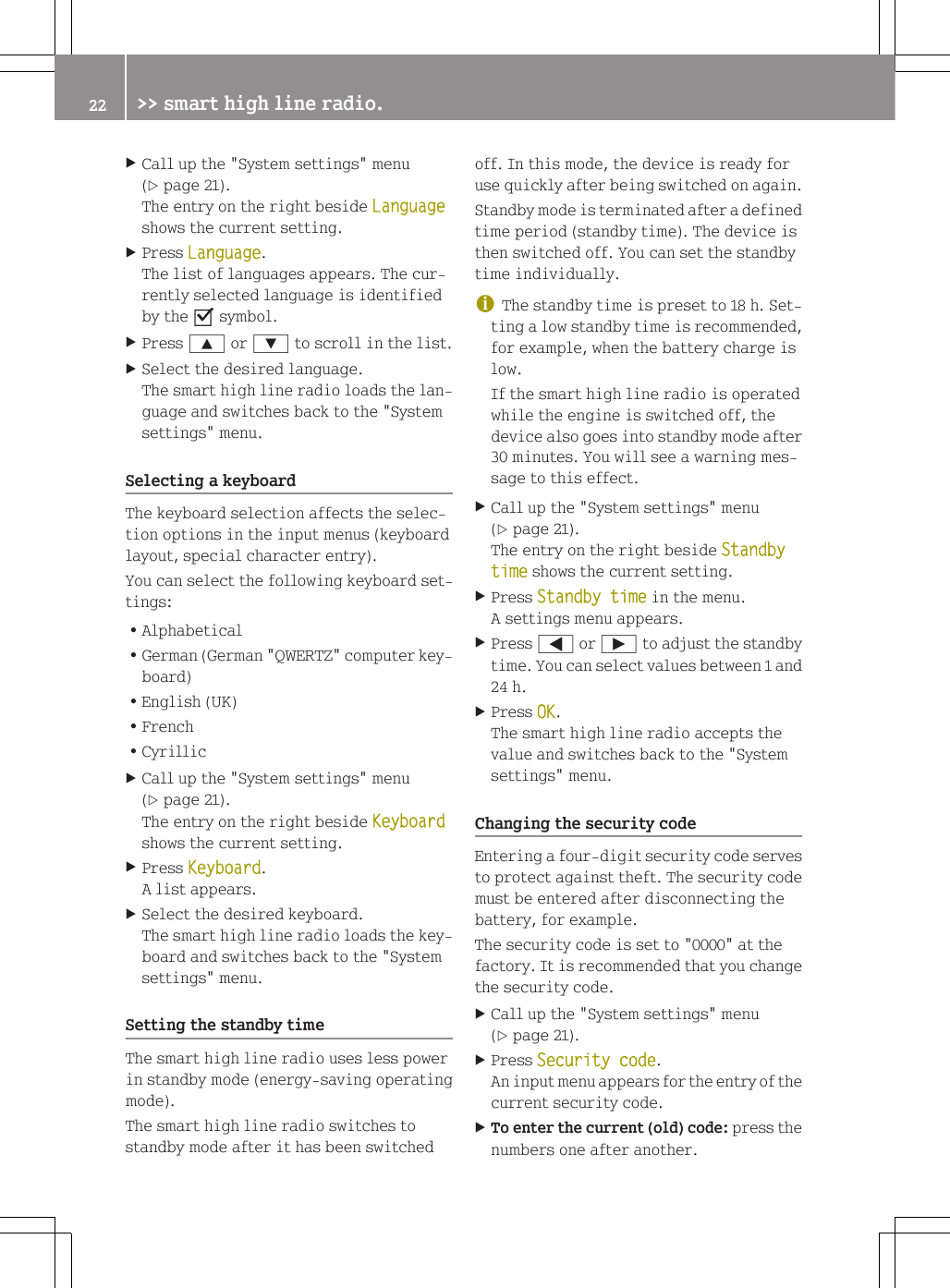
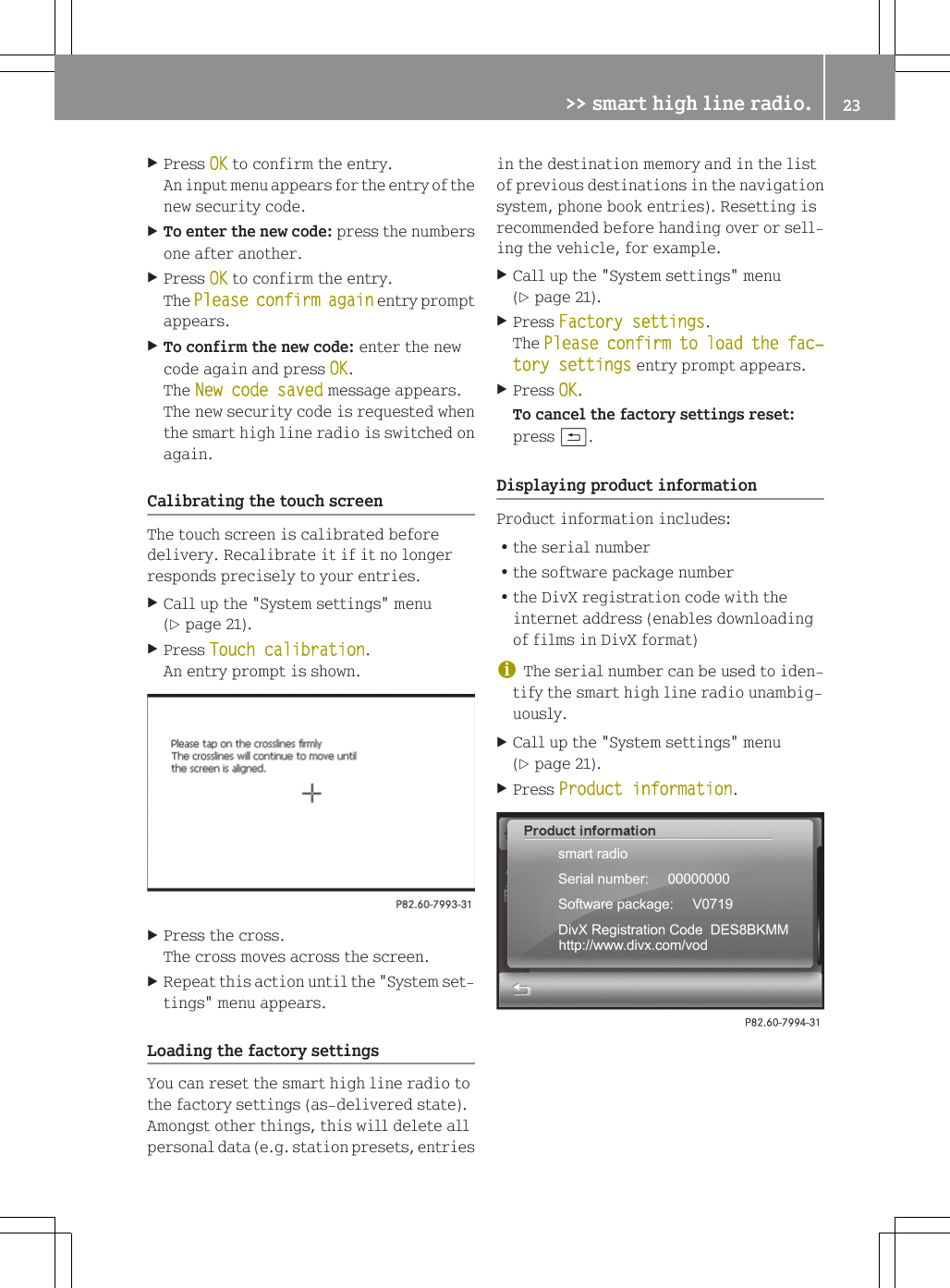
XPress OK to confirm the entry.An input menu appears for the entry of thenew security code.XTo enter the new code: press the numbersone after another.XPress OK to confirm the entry.The Please confirm again entry promptappears.XTo confirm the new code: enter the newcode again and press OK.The New code saved message appears.The new security code is requested whenthe smart high line radio is switched onagain.Calibrating the touch screenThe touch screen is calibrated beforedelivery. Recalibrate it if it no longerresponds precisely to your entries.XCall up the "System settings" menu(Y page 21).XPress Touch calibration.An entry prompt is shown.XPress the cross.The cross moves across the screen.XRepeat this action until the "System set-tings" menu appears.Loading the factory settingsYou can reset the smart high line radio tothe factory settings (as-delivered state).Amongst other things, this will delete allpersonal data (e.g. station presets, entriesin the destination memory and in the listof previous destinations in the navigationsystem, phone book entries). Resetting isrecommended before handing over or sell-ing the vehicle, for example.XCall up the "System settings" menu(Y page 21).XPress Factory settings.The Please confirm to load the fac‐tory settings entry prompt appears.XPress OK.To cancel the factory settings reset:press &.Displaying product informationProduct information includes:Rthe serial numberRthe software package numberRthe DivX registration code with theinternet address (enables downloadingof films in DivX format)iThe serial number can be used to iden-tify the smart high line radio unambig-uously.XCall up the "System settings" menu(Y page 21).XPress Product information.>> smart high line radio. 23Z
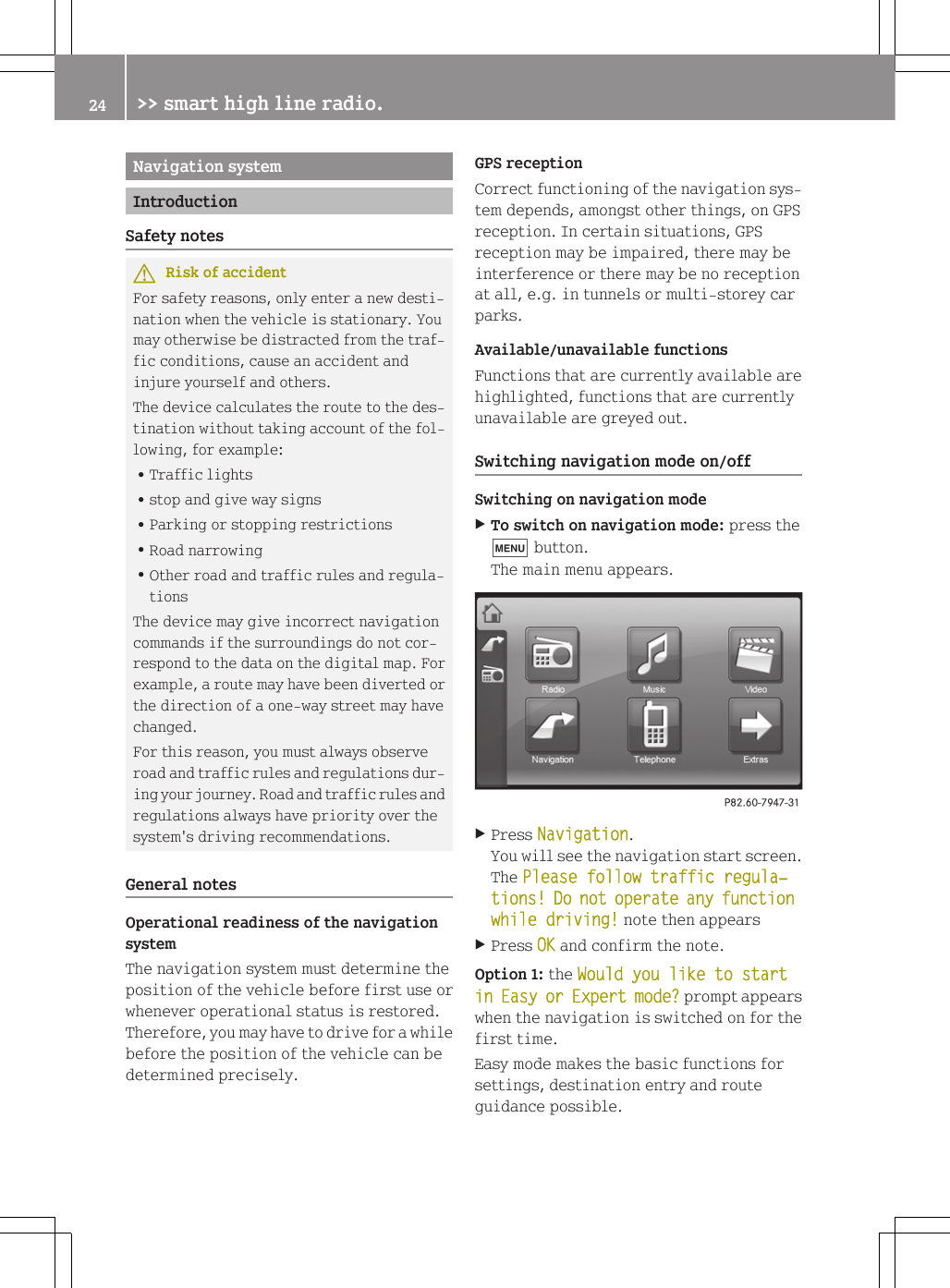
Navigation systemIntroductionSafety notesGRisk of accidentFor safety reasons, only enter a new desti-nation when the vehicle is stationary. Youmay otherwise be distracted from the traf-fic conditions, cause an accident andinjure yourself and others.The device calculates the route to the des-tination without taking account of the fol-lowing, for example:RTraffic lightsRstop and give way signsRParking or stopping restrictionsRRoad narrowingROther road and traffic rules and regula-tionsThe device may give incorrect navigationcommands if the surroundings do not cor-respond to the data on the digital map. Forexample, a route may have been diverted orthe direction of a one-way street may havechanged.For this reason, you must always observeroad and traffic rules and regulations dur-ing your journey. Road and traffic rules andregulations always have priority over thesystem's driving recommendations.General notesOperational readiness of the navigationsystemThe navigation system must determine theposition of the vehicle before first use orwhenever operational status is restored.Therefore, you may have to drive for a whilebefore the position of the vehicle can bedetermined precisely.GPS receptionCorrect functioning of the navigation sys-tem depends, amongst other things, on GPSreception. In certain situations, GPSreception may be impaired, there may beinterference or there may be no receptionat all, e.g. in tunnels or multi-storey carparks.Available/unavailable functionsFunctions that are currently available arehighlighted, functions that are currentlyunavailable are greyed out.Switching navigation mode on/offSwitching on navigation modeXTo switch on navigation mode: press thet button.The main menu appears.XPress Navigation.You will see the navigation start screen.The Please follow traffic regula‐tions! Do not operate any function while driving! note then appearsXPress OK and confirm the note.Option 1: the Would you like to start in Easy or Expert mode? prompt appearswhen the navigation is switched on for thefirst time.Easy mode makes the basic functions forsettings, destination entry and routeguidance possible.24 >> smart high line radio.
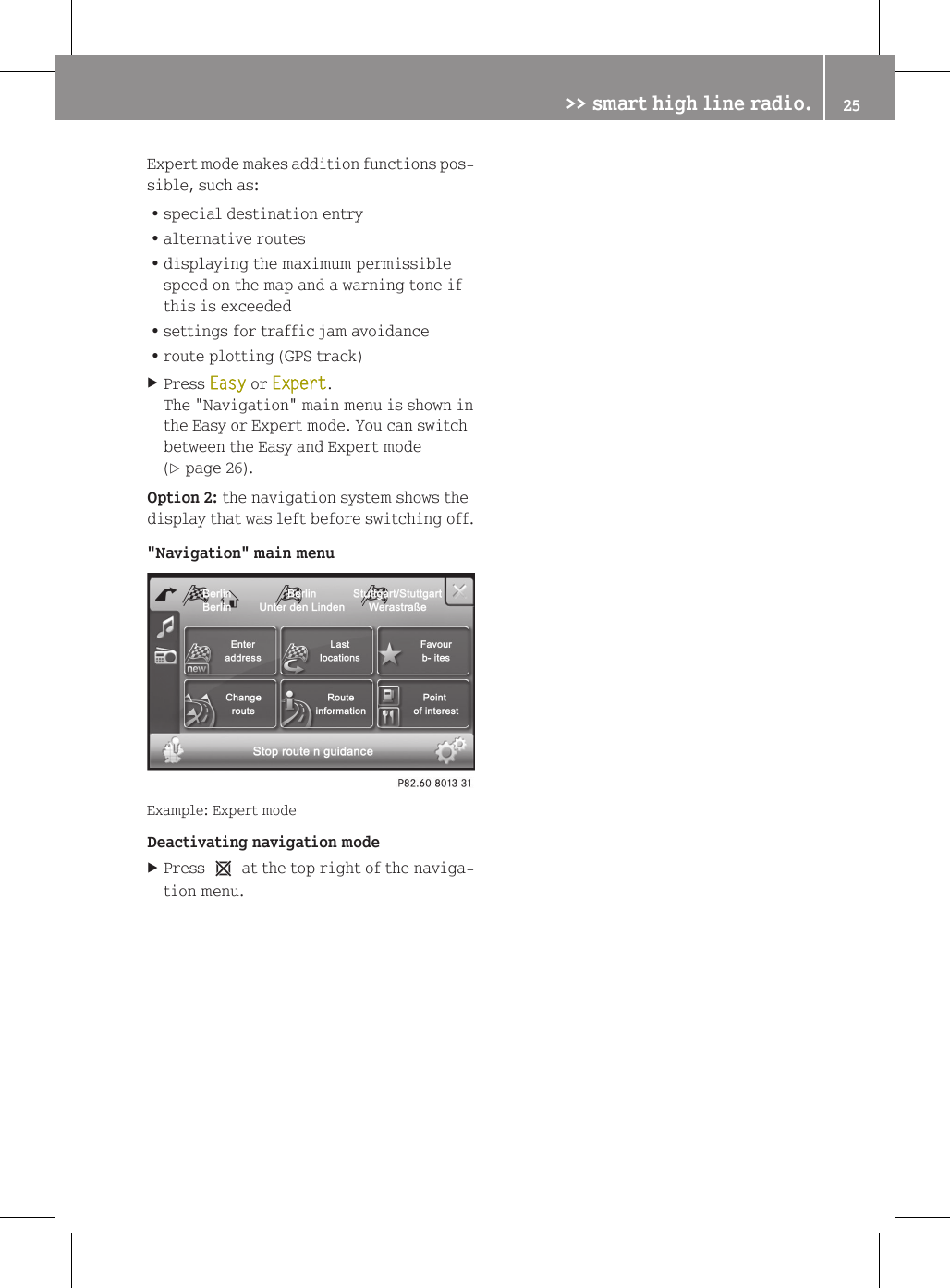
Expert mode makes addition functions pos-sible, such as:Rspecial destination entryRalternative routesRdisplaying the maximum permissiblespeed on the map and a warning tone ifthis is exceededRsettings for traffic jam avoidanceRroute plotting (GPS track)XPress Easy or Expert.The "Navigation" main menu is shown inthe Easy or Expert mode. You can switchbetween the Easy and Expert mode(Y page 26).Option 2: the navigation system shows thedisplay that was left before switching off."Navigation" main menuExample: Expert modeDeactivating navigation modeXPress 1 at the top right of the naviga-tion menu.>> smart high line radio. 25Z
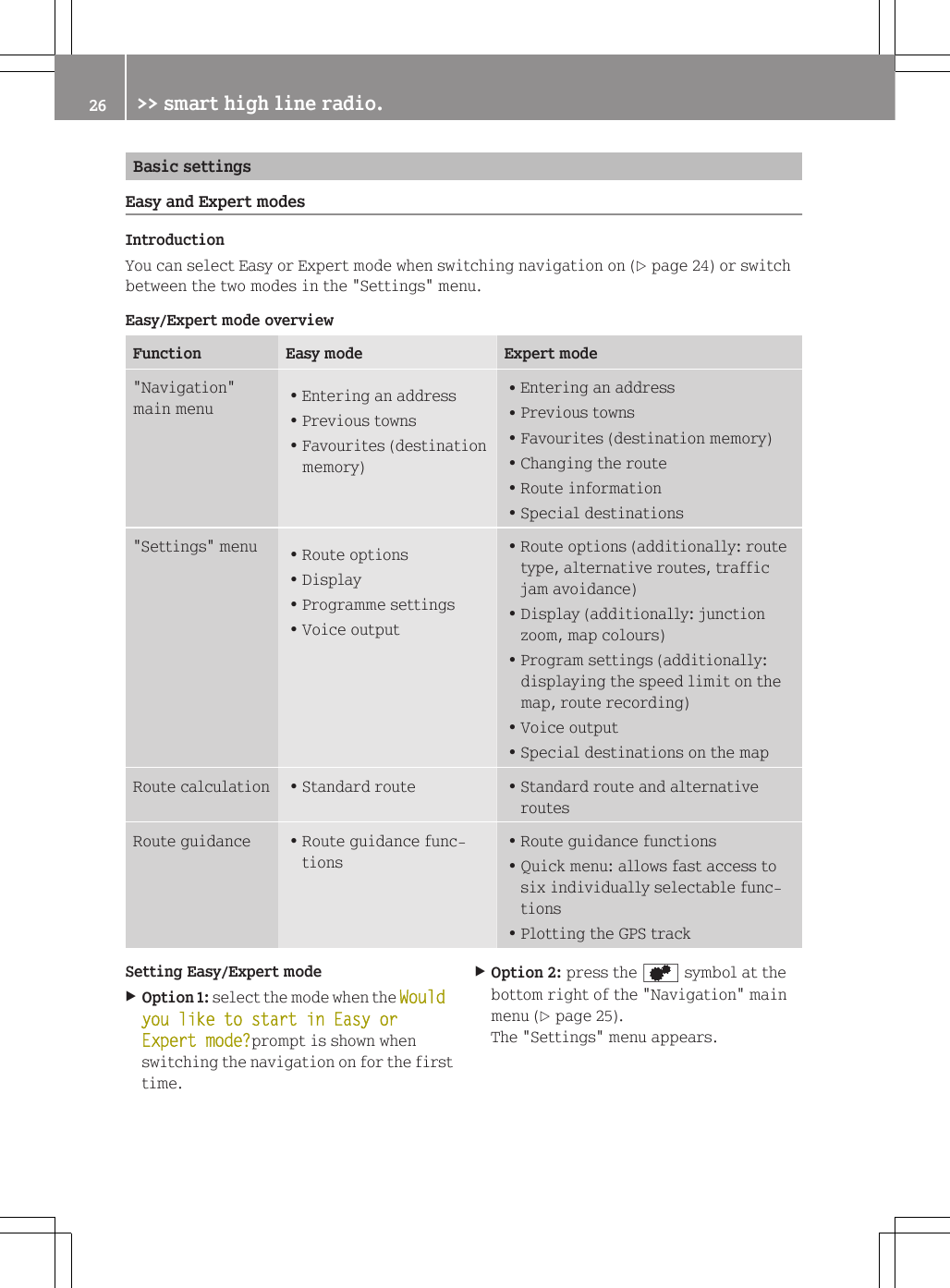
Basic settingsEasy and Expert modesIntroductionYou can select Easy or Expert mode when switching navigation on (Y page 24) or switchbetween the two modes in the "Settings" menu.Easy/Expert mode overviewFunction Easy mode Expert mode"Navigation"main menuREntering an addressRPrevious townsRFavourites (destinationmemory)REntering an addressRPrevious townsRFavourites (destination memory)RChanging the routeRRoute informationRSpecial destinations"Settings" menu RRoute optionsRDisplayRProgramme settingsRVoice outputRRoute options (additionally: routetype, alternative routes, trafficjam avoidance)RDisplay (additionally: junctionzoom, map colours)RProgram settings (additionally:displaying the speed limit on themap, route recording)RVoice outputRSpecial destinations on the mapRoute calculation RStandard route RStandard route and alternativeroutesRoute guidance RRoute guidance func-tionsRRoute guidance functionsRQuick menu: allows fast access tosix individually selectable func-tionsRPlotting the GPS trackSetting Easy/Expert modeXOption 1: select the mode when the Would you like to start in Easy or Expert mode?prompt is shown whenswitching the navigation on for the firsttime.XOption 2: press the d symbol at thebottom right of the "Navigation" mainmenu (Y page 25).The "Settings" menu appears.26 >> smart high line radio.
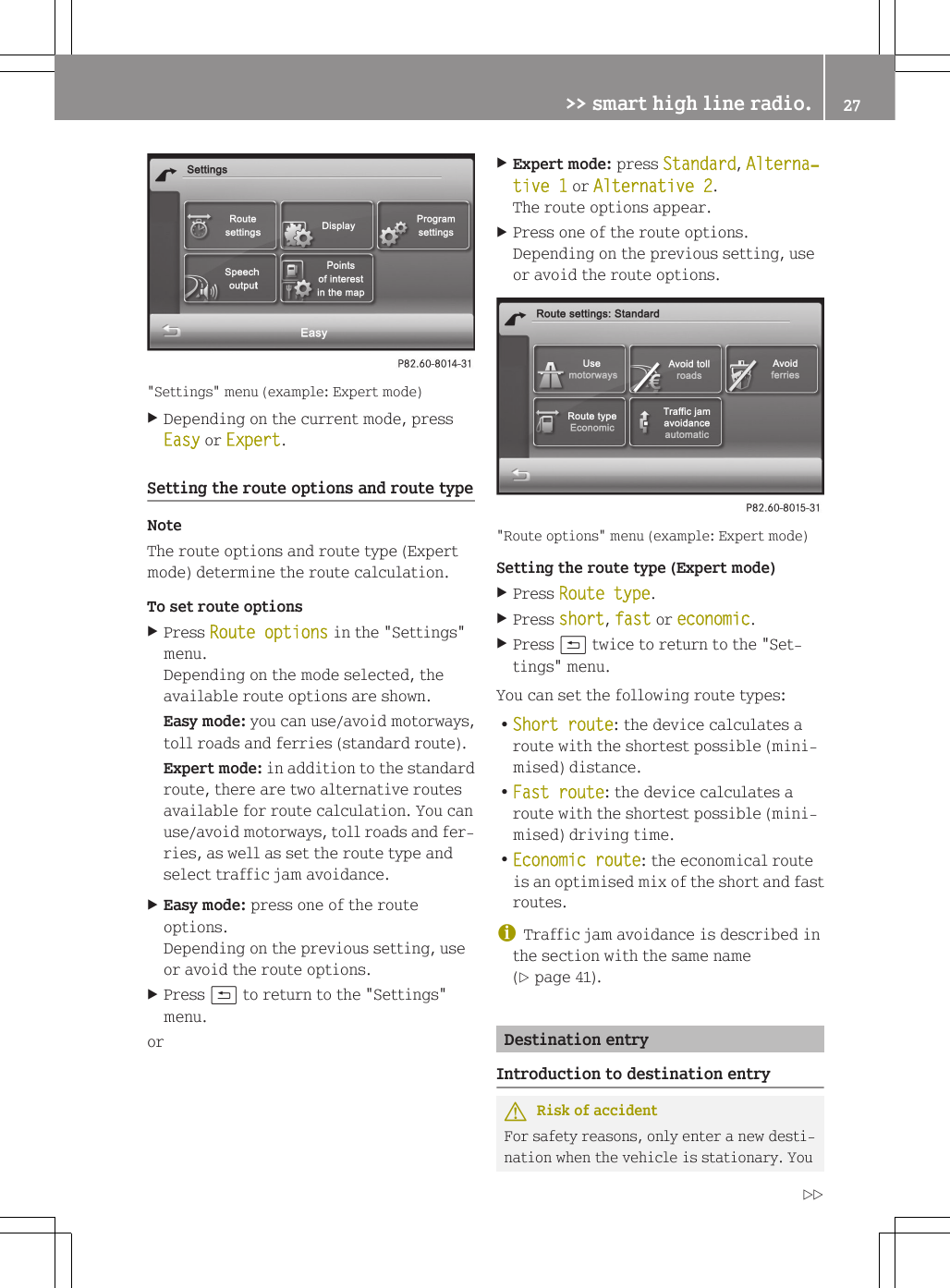
"Settings" menu (example: Expert mode)XDepending on the current mode, pressEasy or Expert.Setting the route options and route typeNoteThe route options and route type (Expertmode) determine the route calculation.To set route optionsXPress Route options in the "Settings"menu.Depending on the mode selected, theavailable route options are shown.Easy mode: you can use/avoid motorways,toll roads and ferries (standard route).Expert mode: in addition to the standardroute, there are two alternative routesavailable for route calculation. You canuse/avoid motorways, toll roads and fer-ries, as well as set the route type andselect traffic jam avoidance.XEasy mode: press one of the routeoptions.Depending on the previous setting, useor avoid the route options.XPress & to return to the "Settings"menu.orXExpert mode: press Standard, Alterna‐tive 1 or Alternative 2.The route options appear.XPress one of the route options.Depending on the previous setting, useor avoid the route options."Route options" menu (example: Expert mode)Setting the route type (Expert mode)XPress Route type.XPress short, fast or economic.XPress & twice to return to the "Set-tings" menu.You can set the following route types:RShort route: the device calculates aroute with the shortest possible (mini-mised) distance.RFast route: the device calculates aroute with the shortest possible (mini-mised) driving time.REconomic route: the economical routeis an optimised mix of the short and fastroutes.iTraffic jam avoidance is described inthe section with the same name(Y page 41).Destination entryIntroduction to destination entryGRisk of accidentFor safety reasons, only enter a new desti-nation when the vehicle is stationary. You>> smart high line radio. 27Z
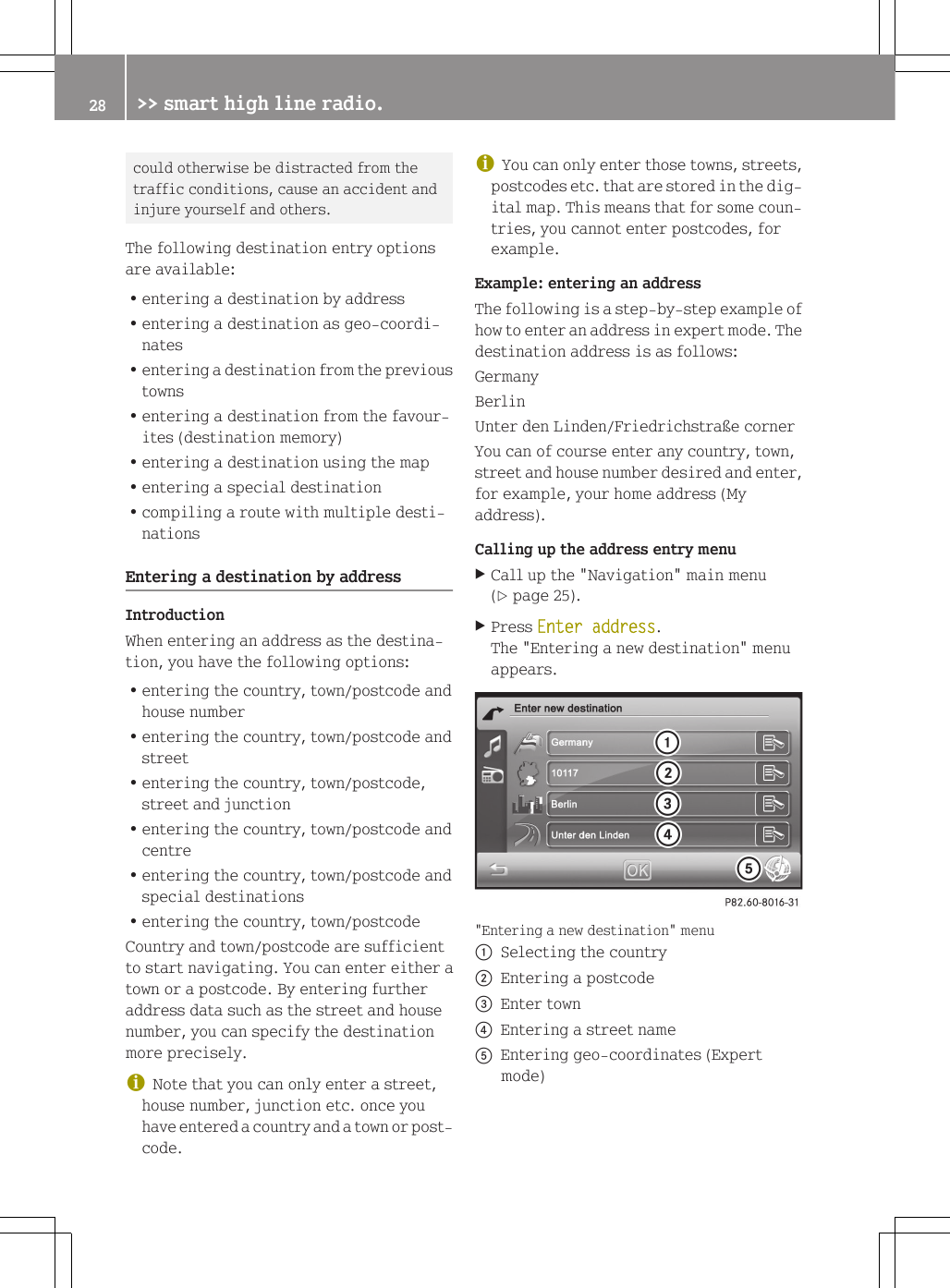
could otherwise be distracted from thetraffic conditions, cause an accident andinjure yourself and others.The following destination entry optionsare available:Rentering a destination by addressRentering a destination as geo-coordi-natesRentering a destination from the previoustownsRentering a destination from the favour-ites (destination memory)Rentering a destination using the mapRentering a special destinationRcompiling a route with multiple desti-nationsEntering a destination by addressIntroductionWhen entering an address as the destina-tion, you have the following options:Rentering the country, town/postcode andhouse numberRentering the country, town/postcode andstreetRentering the country, town/postcode,street and junctionRentering the country, town/postcode andcentreRentering the country, town/postcode andspecial destinationsRentering the country, town/postcodeCountry and town/postcode are sufficientto start navigating. You can enter either atown or a postcode. By entering furtheraddress data such as the street and housenumber, you can specify the destinationmore precisely.iNote that you can only enter a street,house number, junction etc. once youhave entered a country and a town or post-code.iYou can only enter those towns, streets,postcodes etc. that are stored in the dig-ital map. This means that for some coun-tries, you cannot enter postcodes, forexample.Example: entering an addressThe following is a step-by-step example ofhow to enter an address in expert mode. Thedestination address is as follows:GermanyBerlinUnter den Linden/Friedrichstraße cornerYou can of course enter any country, town,street and house number desired and enter,for example, your home address (Myaddress).Calling up the address entry menuXCall up the "Navigation" main menu(Y page 25).XPress Enter address.The "Entering a new destination" menuappears."Entering a new destination" menu:Selecting the country;Entering a postcode=Enter town?Entering a street nameAEntering geo-coordinates (Expertmode)28 >> smart high line radio.
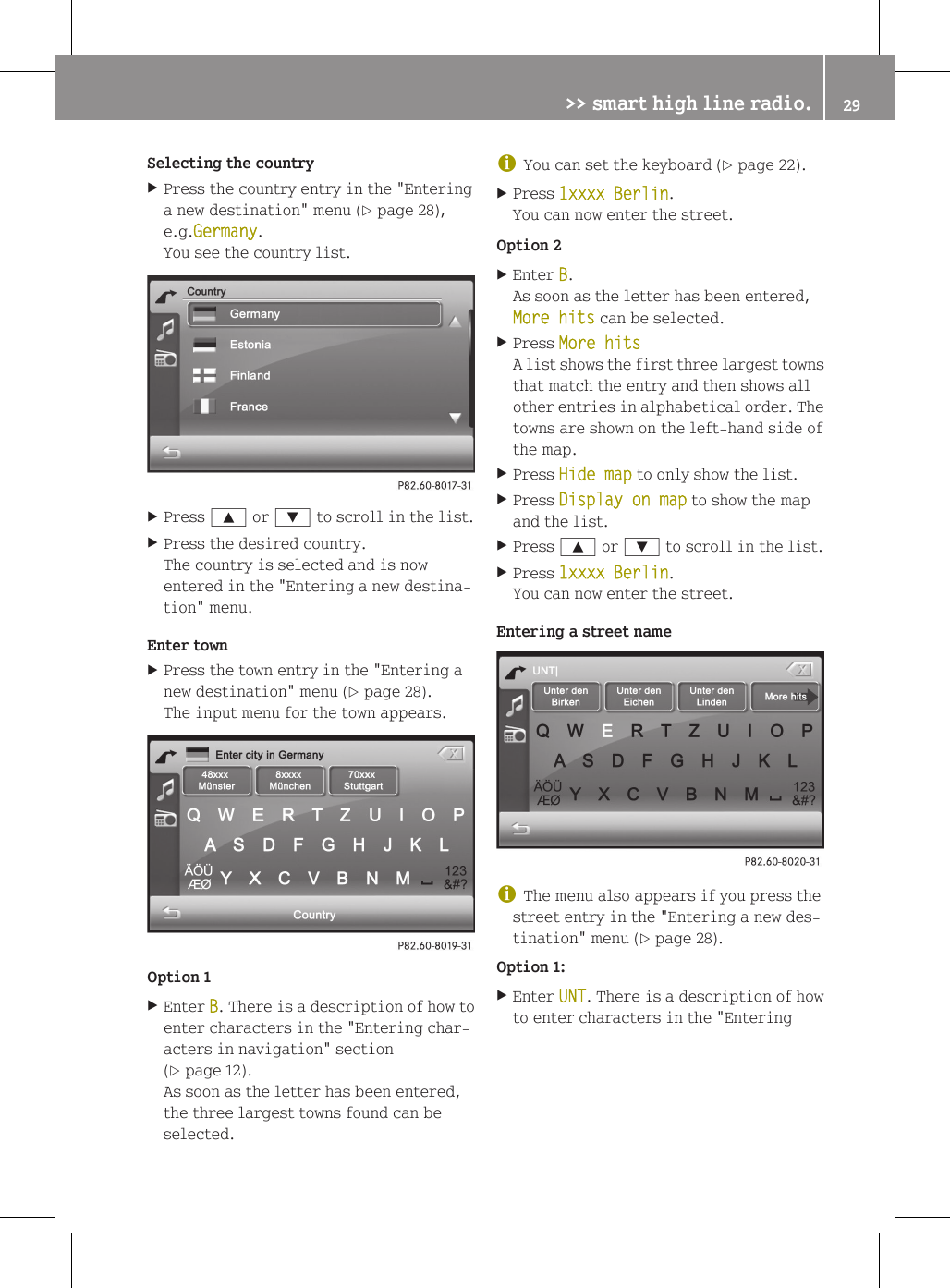
Selecting the countryXPress the country entry in the "Enteringa new destination" menu (Y page 28),e.g.Germany.You see the country list.XPress 9 or : to scroll in the list.XPress the desired country.The country is selected and is nowentered in the "Entering a new destina-tion" menu.Enter townXPress the town entry in the "Entering anew destination" menu (Y page 28).The input menu for the town appears.Option 1XEnter B. There is a description of how toenter characters in the "Entering char-acters in navigation" section(Y page 12).As soon as the letter has been entered,the three largest towns found can beselected.iYou can set the keyboard (Y page 22).XPress 1xxxx Berlin.You can now enter the street.Option 2XEnter B.As soon as the letter has been entered,More hits can be selected.XPress More hitsA list shows the first three largest townsthat match the entry and then shows allother entries in alphabetical order. Thetowns are shown on the left-hand side ofthe map.XPress Hide map to only show the list.XPress Display on map to show the mapand the list.XPress 9 or : to scroll in the list.XPress 1xxxx Berlin.You can now enter the street.Entering a street nameiThe menu also appears if you press thestreet entry in the "Entering a new des-tination" menu (Y page 28).Option 1:XEnter UNT. There is a description of howto enter characters in the "Entering>> smart high line radio. 29Z
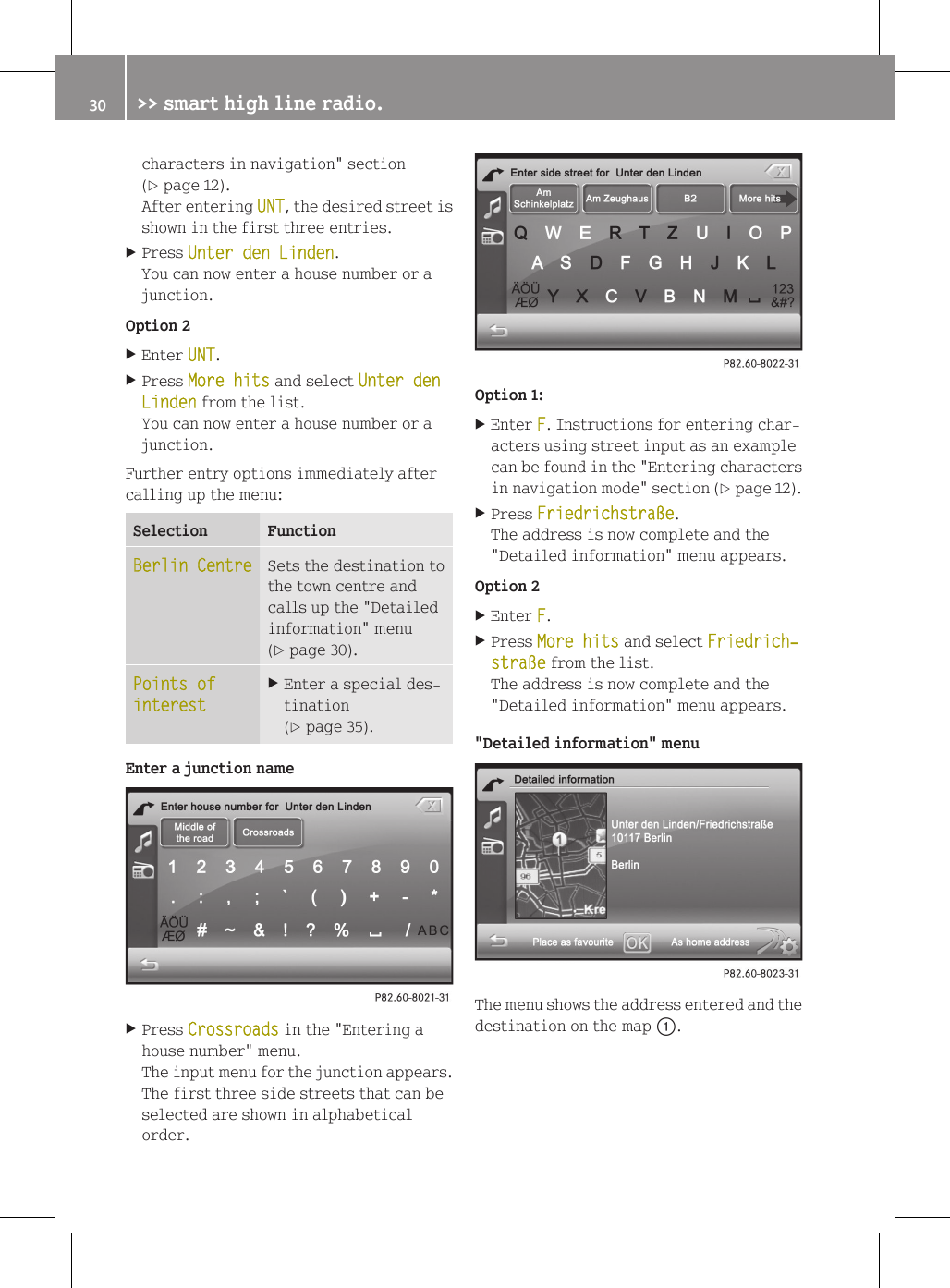
characters in navigation" section(Y page 12).After entering UNT, the desired street isshown in the first three entries.XPress Unter den Linden.You can now enter a house number or ajunction.Option 2XEnter UNT.XPress More hits and select Unter den Linden from the list.You can now enter a house number or ajunction.Further entry options immediately aftercalling up the menu:Selection FunctionBerlin Centre Sets the destination tothe town centre andcalls up the "Detailedinformation" menu(Y page 30).Points of interestXEnter a special des-tination(Y page 35).Enter a junction nameXPress Crossroads in the "Entering ahouse number" menu.The input menu for the junction appears.The first three side streets that can beselected are shown in alphabeticalorder.Option 1:XEnter F. Instructions for entering char-acters using street input as an examplecan be found in the "Entering charactersin navigation mode" section (Y page 12).XPress Friedrichstraße.The address is now complete and the"Detailed information" menu appears.Option 2XEnter F.XPress More hits and select Friedrich‐straße from the list.The address is now complete and the"Detailed information" menu appears."Detailed information" menuThe menu shows the address entered and thedestination on the map :.30 >> smart high line radio.
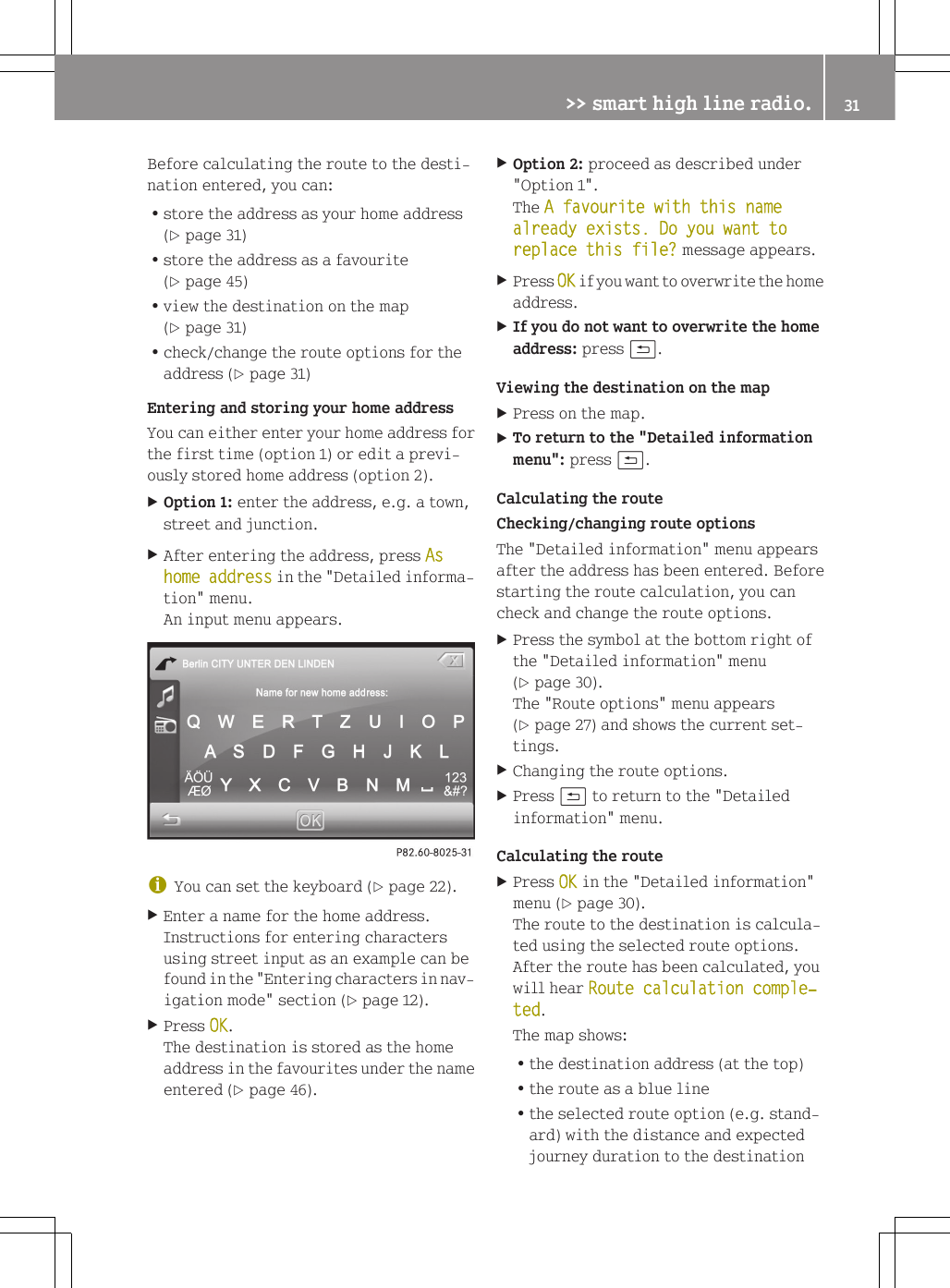
Before calculating the route to the desti-nation entered, you can:Rstore the address as your home address(Y page 31)Rstore the address as a favourite(Y page 45)Rview the destination on the map(Y page 31)Rcheck/change the route options for theaddress (Y page 31)Entering and storing your home addressYou can either enter your home address forthe first time (option 1) or edit a previ-ously stored home address (option 2).XOption 1: enter the address, e.g. a town,street and junction.XAfter entering the address, press As home address in the "Detailed informa-tion" menu.An input menu appears.iYou can set the keyboard (Y page 22).XEnter a name for the home address.Instructions for entering charactersusing street input as an example can befound in the "Entering characters in nav-igation mode" section (Y page 12).XPress OK.The destination is stored as the homeaddress in the favourites under the nameentered (Y page 46).XOption 2: proceed as described under"Option 1".The A favourite with this name already exists. Do you want to replace this file? message appears.XPress OK if you want to overwrite the homeaddress.XIf you do not want to overwrite the home address: press &.Viewing the destination on the mapXPress on the map.XTo return to the "Detailed information menu": press &.Calculating the routeChecking/changing route optionsThe "Detailed information" menu appearsafter the address has been entered. Beforestarting the route calculation, you cancheck and change the route options.XPress the symbol at the bottom right ofthe "Detailed information" menu(Y page 30).The "Route options" menu appears(Y page 27) and shows the current set-tings.XChanging the route options.XPress & to return to the "Detailedinformation" menu.Calculating the routeXPress OK in the "Detailed information"menu (Y page 30).The route to the destination is calcula-ted using the selected route options.After the route has been calculated, youwill hear Route calculation comple‐ted.The map shows:Rthe destination address (at the top)Rthe route as a blue lineRthe selected route option (e.g. stand-ard) with the distance and expectedjourney duration to the destination>> smart high line radio. 31Z
Map after route calculation (Expert mode):Address entered;Route calculated (light blue)=Selected route optionSelection FunctionDestination informationCalls up the "Detailedinformation" menu.XStore the town as afavourite or as thehome address(Y page 30).XCheck/change theroute options(Y page 31).Calculate alternatives(Expert mode)Calculates two addi-tional alternativeroutes.Calculating alternative routesThe smart high line radio calculates twoalternative routes in Expert mode (e.g.short, fast).XPress Calculate alternatives.The alternative routes are calculated.After the alternative routes have beencalculated, you will hear Route calcu‐lation completed.The map shows the following routes on theright:Rstandard (light blue)Ralternative 1 (green)Ralternative 2 (light brown)each with the distance and expectedjourney time to the destination.XTo view information about the route/alternative route =: press ã.You see the following information:Rlength (distance)Rjourney time (expected)Rarrival time (expected)Rmotorways (length of the route used)Rtoll roads (length of the route used)Rferries (length of the route used)XPress & to close the display.iThe ã symbol is shown in red if a routeoption (e.g. Avoid ferries) that hasbeen selected for the route does not makesense. Set the route options (Y page 27).XTo hide the alternative routes: pressHide alternatives.XTo start route guidance: press OK.Entering a postcodeXPress the entry with the postcode in the"Entering a new destination" menu(Y page 28).The input menu for the postcode appears.Option 1XEnter a postcode, e.g. 10117. Instruc-tions for entering characters can be32 >> smart high line radio.
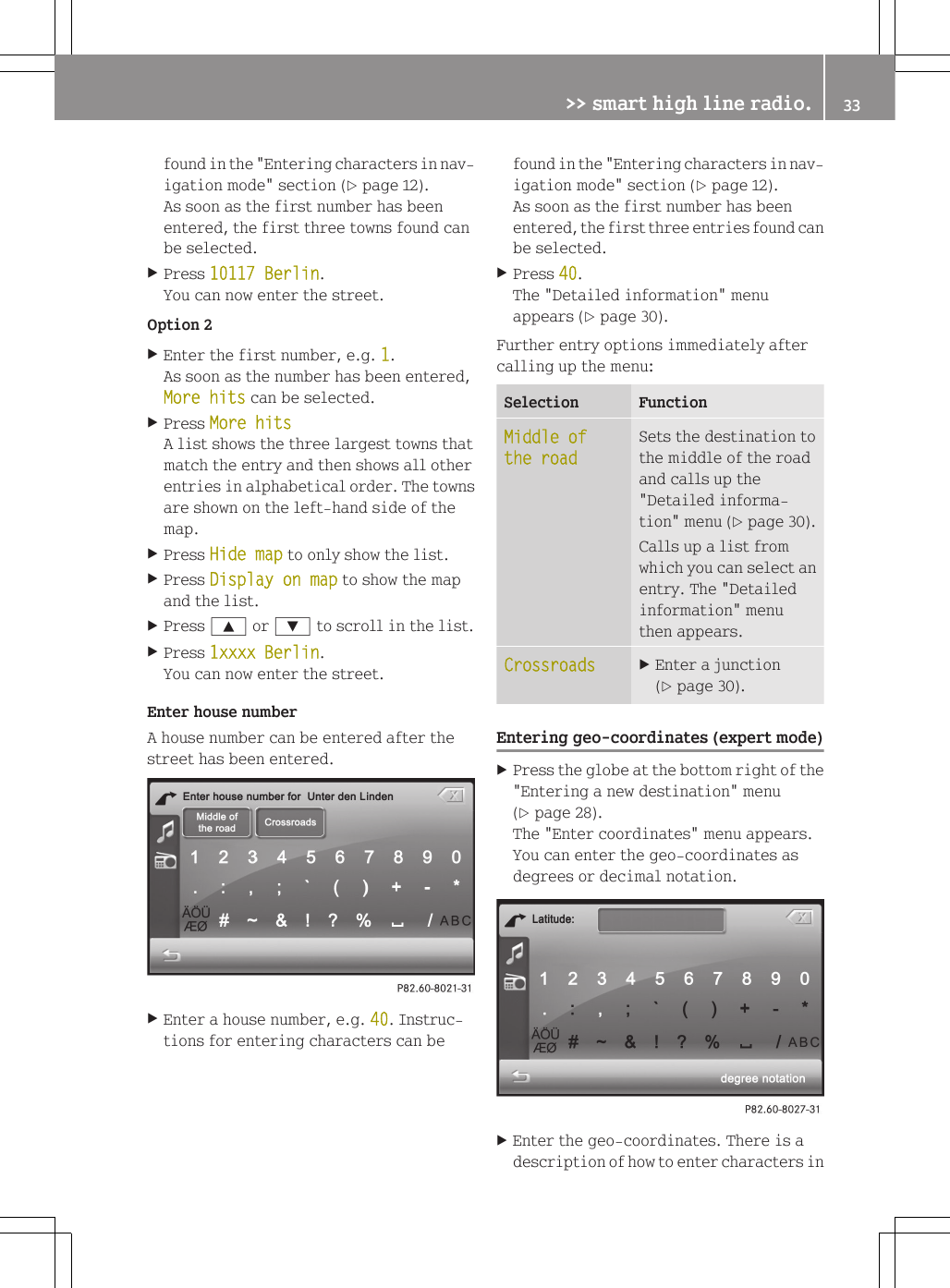
found in the "Entering characters in nav-igation mode" section (Y page 12).As soon as the first number has beenentered, the first three towns found canbe selected.XPress 10117 Berlin.You can now enter the street.Option 2XEnter the first number, e.g. 1.As soon as the number has been entered,More hits can be selected.XPress More hitsA list shows the three largest towns thatmatch the entry and then shows all otherentries in alphabetical order. The townsare shown on the left-hand side of themap.XPress Hide map to only show the list.XPress Display on map to show the mapand the list.XPress 9 or : to scroll in the list.XPress 1xxxx Berlin.You can now enter the street.Enter house numberA house number can be entered after thestreet has been entered.XEnter a house number, e.g. 40. Instruc-tions for entering characters can befound in the "Entering characters in nav-igation mode" section (Y page 12).As soon as the first number has beenentered, the first three entries found canbe selected.XPress 40.The "Detailed information" menuappears (Y page 30).Further entry options immediately aftercalling up the menu:Selection FunctionMiddle of the roadSets the destination tothe middle of the roadand calls up the"Detailed informa-tion" menu (Y page 30).Calls up a list fromwhich you can select anentry. The "Detailedinformation" menuthen appears.Crossroads XEnter a junction(Y page 30).Entering geo-coordinates (expert mode)XPress the globe at the bottom right of the"Entering a new destination" menu(Y page 28).The "Enter coordinates" menu appears.You can enter the geo-coordinates asdegrees or decimal notation.XEnter the geo-coordinates. There is adescription of how to enter characters in>> smart high line radio. 33Z
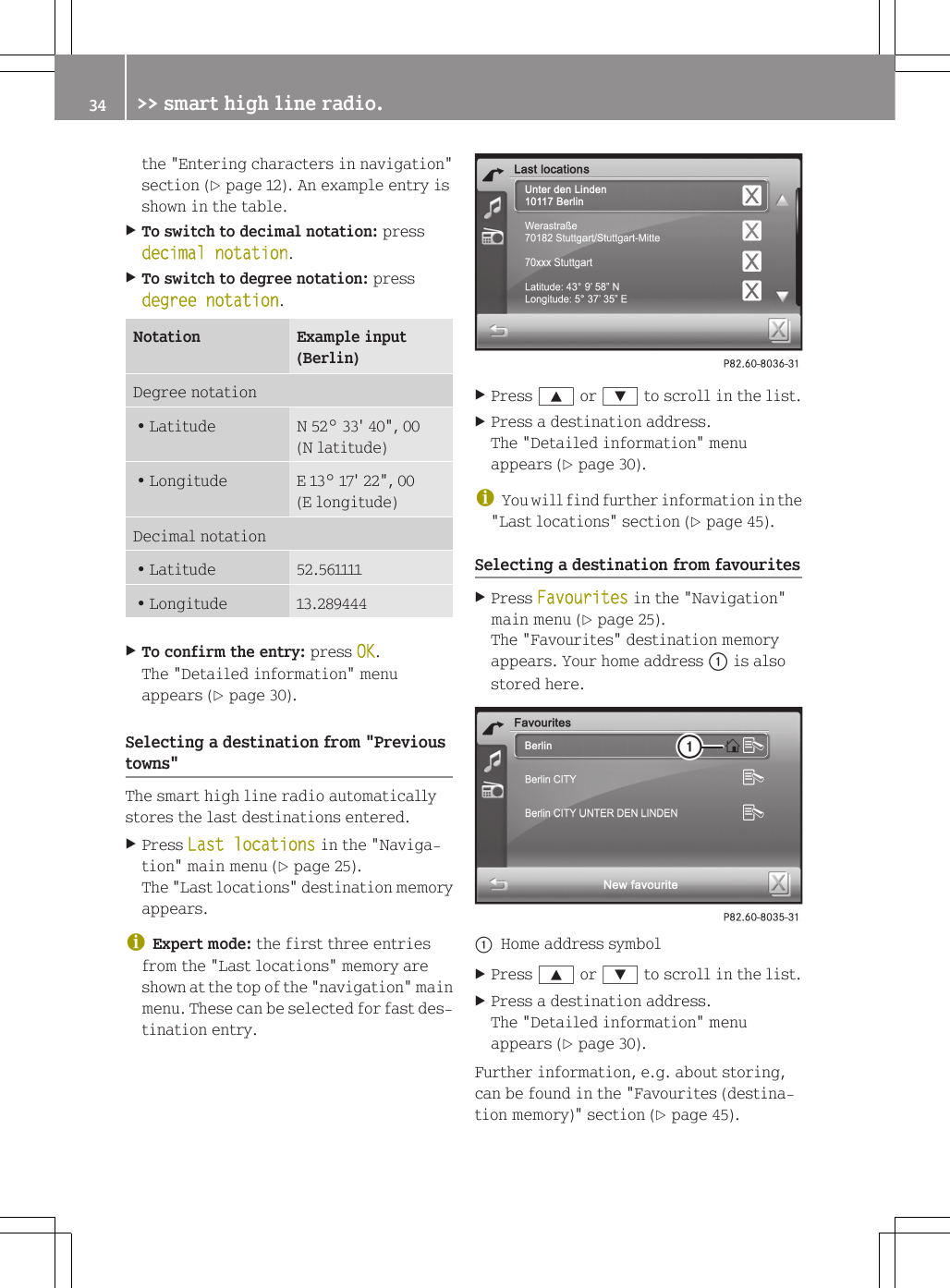
the "Entering characters in navigation"section (Y page 12). An example entry isshown in the table.XTo switch to decimal notation: pressdecimal notation.XTo switch to degree notation: pressdegree notation.Notation Example input(Berlin)Degree notationRLatitude N 52° 33' 40", 00(N latitude)RLongitude E 13° 17' 22", 00(E longitude)Decimal notationRLatitude 52.561111RLongitude 13.289444XTo confirm the entry: press OK.The "Detailed information" menuappears (Y page 30).Selecting a destination from "Previoustowns"The smart high line radio automaticallystores the last destinations entered.XPress Last locations in the "Naviga-tion" main menu (Y page 25).The "Last locations" destination memoryappears.iExpert mode: the first three entriesfrom the "Last locations" memory areshown at the top of the "navigation" mainmenu. These can be selected for fast des-tination entry.XPress 9 or : to scroll in the list.XPress a destination address.The "Detailed information" menuappears (Y page 30).iYou will find further information in the"Last locations" section (Y page 45).Selecting a destination from favouritesXPress Favourites in the "Navigation"main menu (Y page 25).The "Favourites" destination memoryappears. Your home address : is alsostored here.:Home address symbolXPress 9 or : to scroll in the list.XPress a destination address.The "Detailed information" menuappears (Y page 30).Further information, e.g. about storing,can be found in the "Favourites (destina-tion memory)" section (Y page 45).34 >> smart high line radio.
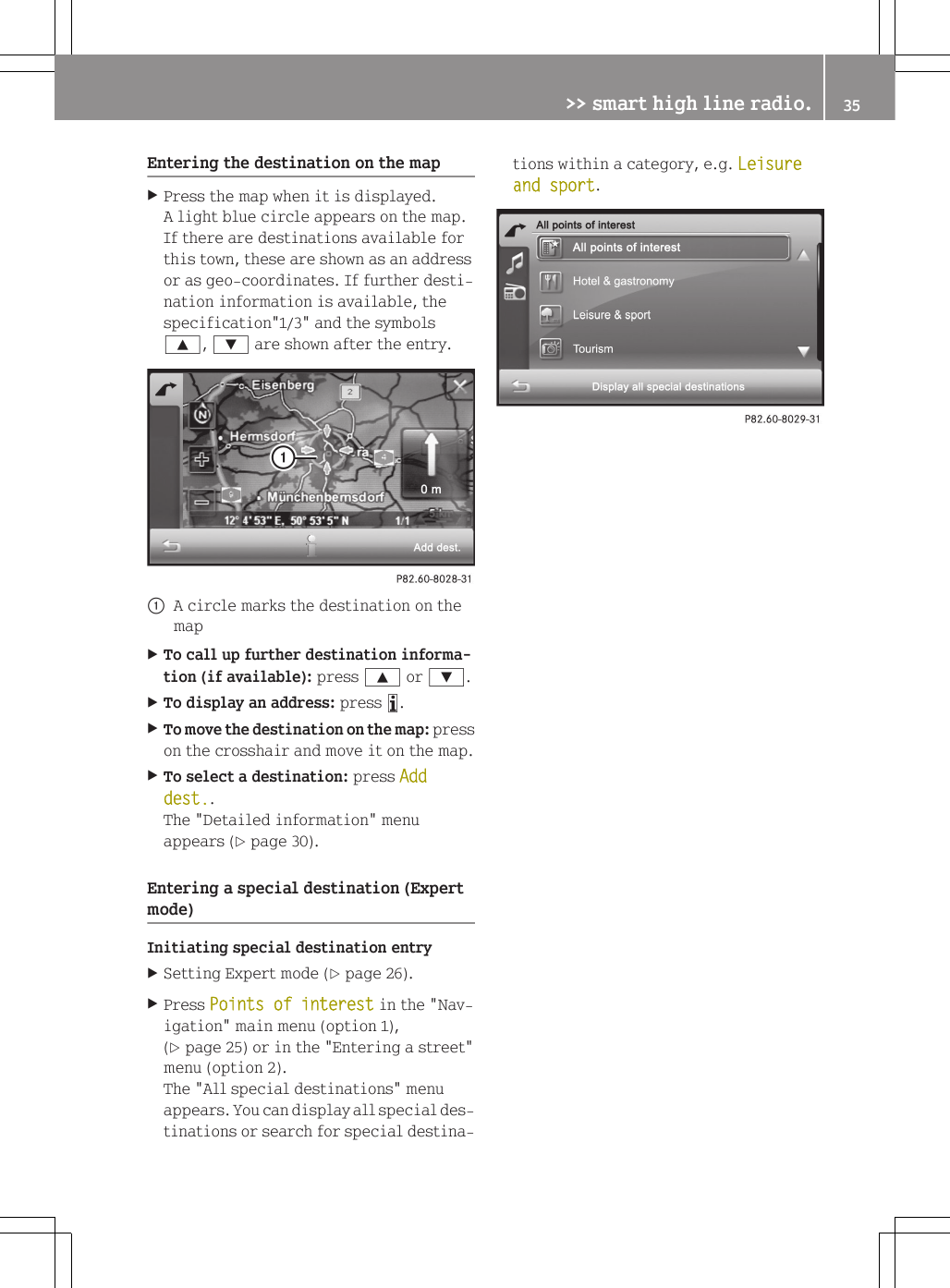
Entering the destination on the mapXPress the map when it is displayed.A light blue circle appears on the map.If there are destinations available forthis town, these are shown as an addressor as geo-coordinates. If further desti-nation information is available, thespecification"1/3" and the symbols9, : are shown after the entry.:A circle marks the destination on themapXTo call up further destination informa-tion (if available): press 9 or :.XTo display an address: press ã.XTo move the destination on the map: presson the crosshair and move it on the map.XTo select a destination: press Add dest..The "Detailed information" menuappears (Y page 30).Entering a special destination (Expertmode)Initiating special destination entryXSetting Expert mode (Y page 26).XPress Points of interest in the "Nav-igation" main menu (option 1),(Y page 25) or in the "Entering a street"menu (option 2).The "All special destinations" menuappears. You can display all special des-tinations or search for special destina-tions within a category, e.g. Leisure and sport.>> smart high line radio. 35Z
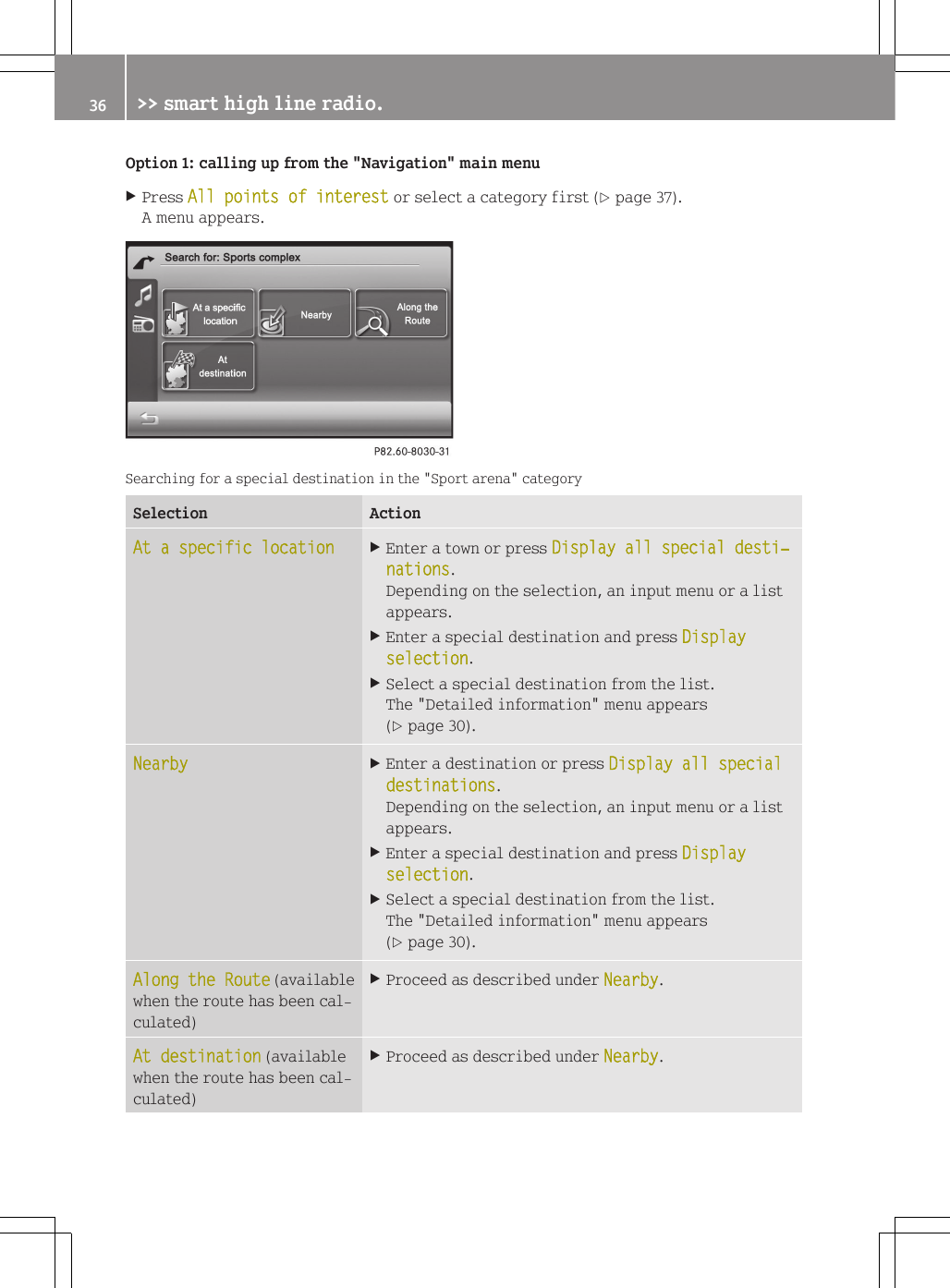
Option 1: calling up from the "Navigation" main menuXPress All points of interest or select a category first (Y page 37).A menu appears.Searching for a special destination in the "Sport arena" categorySelection ActionAt a specific location XEnter a town or press Display all special desti‐nations.Depending on the selection, an input menu or a listappears.XEnter a special destination and press Display selection.XSelect a special destination from the list.The "Detailed information" menu appears(Y page 30).Nearby XEnter a destination or press Display all special destinations.Depending on the selection, an input menu or a listappears.XEnter a special destination and press Display selection.XSelect a special destination from the list.The "Detailed information" menu appears(Y page 30).Along the Route (availablewhen the route has been cal-culated)XProceed as described under Nearby.At destination (availablewhen the route has been cal-culated)XProceed as described under Nearby.36 >> smart high line radio.
Option 2: calling up from the "Enter astreet" menuXPress All special destinations orselect a category first (Y page 37).The "Entering a special destination in<Town>" menu appears.XOption 1: enter a special destination andpress Display selection.XOption 2: press All special destina‐tions.The special destinations are displayedand shown on the left of the map.XSelecting a special destination.The "Detailed information" menuappears (Y page 30). You can call up aspecial destination if a telephone num-ber is stored and the mobile phone hasbeen connected (Y page 55).iThe phone number displayed may be out-dated due to the database.XPress Call now.This initiates dialling.Selecting a categoryExample: you would like to go to an Indianrestaurant.XPress Hotel & gastronomy in the "Allspecial destinations" menu (Y page 35).The "Hotel & gastronomy" menu shows theavailable categories.XPress Restaurant/Nightlife.The "Restaurant/bar" menu shows theavailable categories.XPress 9 or : until Indian isselected.XPress Indian.Either the "Searching for a special des-tination" menu (option 1), (Y page 36) orthe "Entering a special destination in<Town>" menu (option 2) appears.XProceed as described under option 1 or 2.Route guidanceGeneral notesThe smart high line radio guides you toyour destination by means of navigationcommands in the form of audible naviga-tion announcements and route guidancedisplays.If you do not follow the navigationannouncements or if you leave the calcula-ted route, the device automatically calcu-lates a new route to the destination.If the digital map contains the corre-sponding information, the followingapplies:RWhen selecting a route, the smart highline radio tries to avoid roads that onlyhave limited access, e.g. roads closed tothrough traffic and non-residents.Rroads that have time restrictions (e.g.closed on Sundays and public holidays)are avoided for route guidance.If the digital map provides no informationor incomplete information during routeguidance, the current vehicle position isshown using geo-coordinates.This occurs in the following situations,e.g.:Rthe vehicle is outside of the area coveredby the digital map section (off-maplocation).Rthe vehicle is travelling through an areathat is only partially shown on the map.Rthe vehicle is within the area covered bythe digital map section but not on a dig-ital road (off-road location).Starting route guidanceXCalculate a route or alternative route(Y page 31) and then press OK.Route guidance starts.>> smart high line radio. 37Z
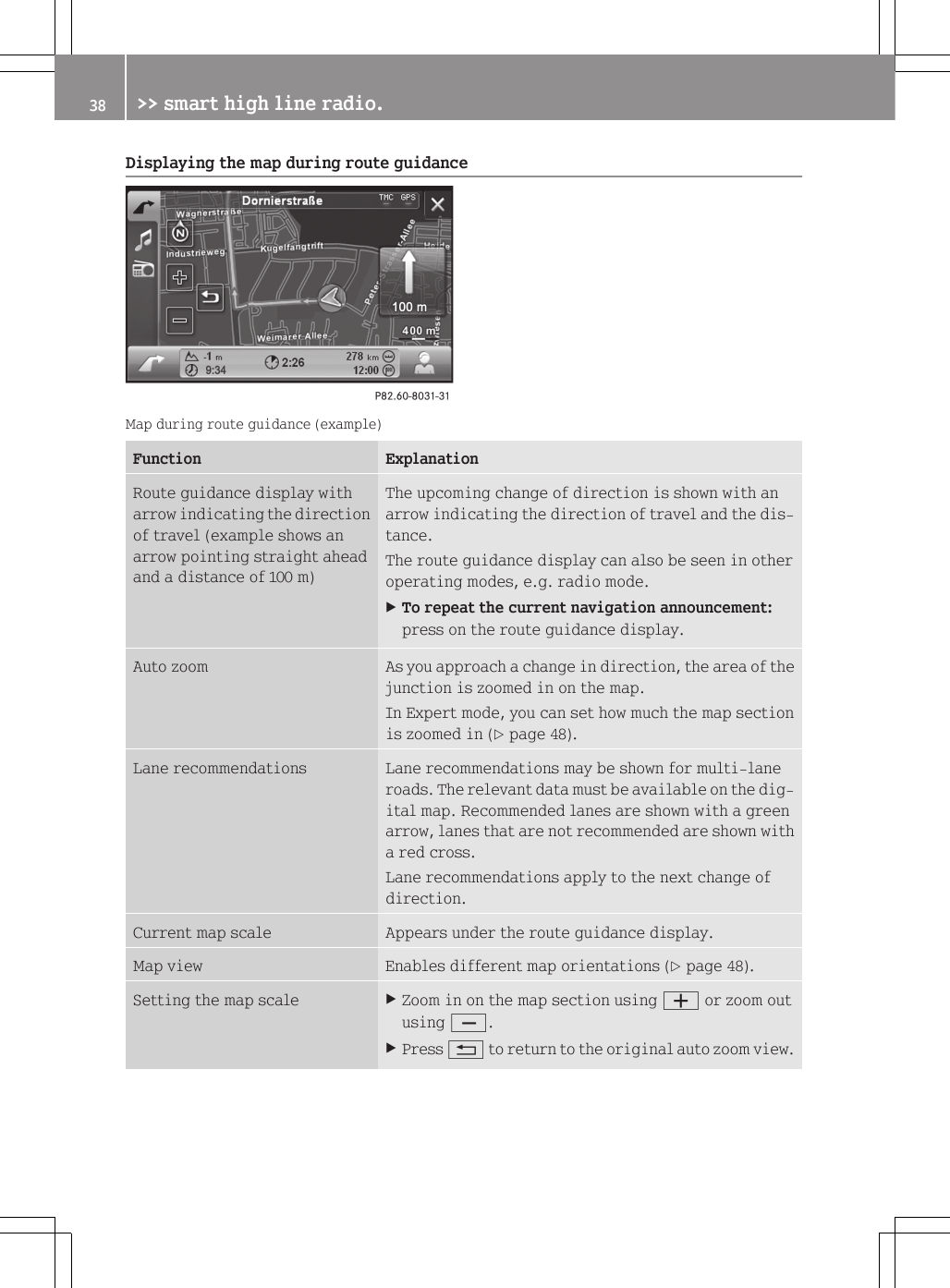
Displaying the map during route guidanceMap during route guidance (example)Function ExplanationRoute guidance display witharrow indicating the directionof travel (example shows anarrow pointing straight aheadand a distance of 100 m)The upcoming change of direction is shown with anarrow indicating the direction of travel and the dis-tance.The route guidance display can also be seen in otheroperating modes, e.g. radio mode.XTo repeat the current navigation announcement:press on the route guidance display.Auto zoom As you approach a change in direction, the area of thejunction is zoomed in on the map.In Expert mode, you can set how much the map sectionis zoomed in (Y page 48).Lane recommendations Lane recommendations may be shown for multi-laneroads. The relevant data must be available on the dig-ital map. Recommended lanes are shown with a greenarrow, lanes that are not recommended are shown witha red cross.Lane recommendations apply to the next change ofdirection.Current map scale Appears under the route guidance display.Map view Enables different map orientations (Y page 48).Setting the map scale XZoom in on the map section using W or zoom outusing X.XPress % to return to the original auto zoom view.38 >> smart high line radio.
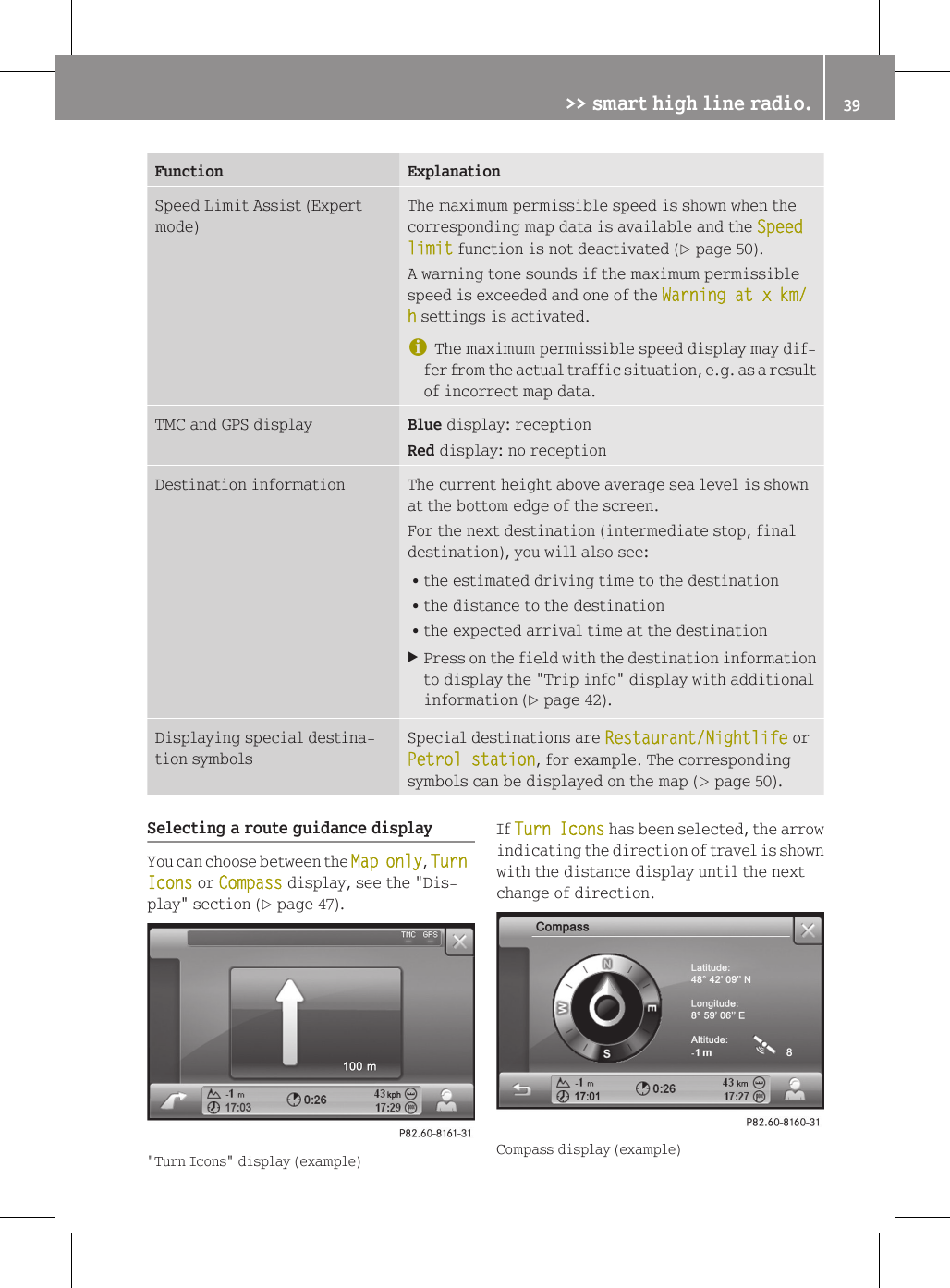
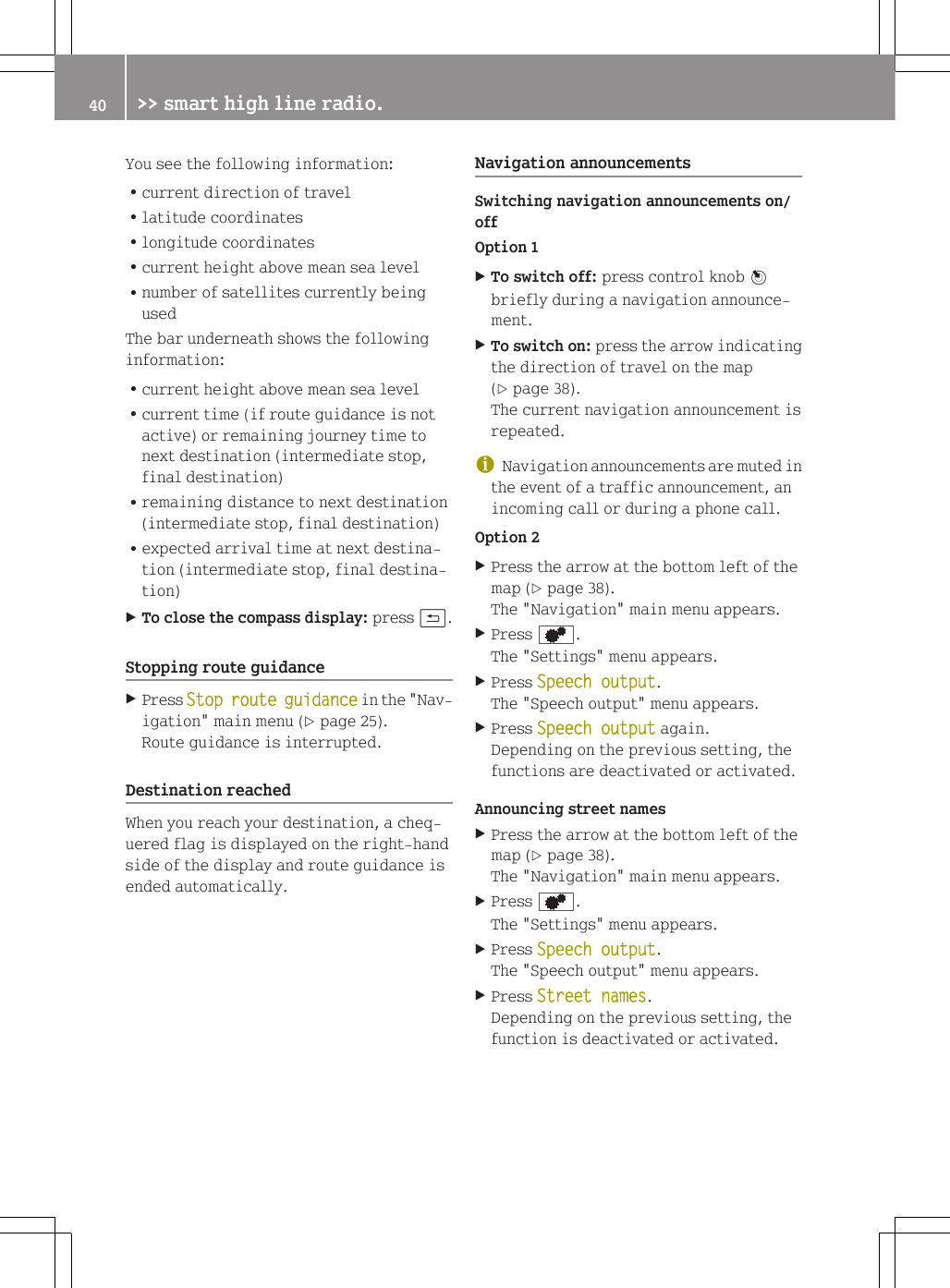
Function ExplanationSpeed Limit Assist (Expertmode)The maximum permissible speed is shown when thecorresponding map data is available and the Speed limit function is not deactivated (Y page 50).A warning tone sounds if the maximum permissiblespeed is exceeded and one of the Warning at x km/ h settings is activated.iThe maximum permissible speed display may dif-fer from the actual traffic situation, e.g. as a resultof incorrect map data.TMC and GPS display Blue display: receptionRed display: no receptionDestination information The current height above average sea level is shownat the bottom edge of the screen.For the next destination (intermediate stop, finaldestination), you will also see:Rthe estimated driving time to the destinationRthe distance to the destinationRthe expected arrival time at the destinationXPress on the field with the destination informationto display the "Trip info" display with additionalinformation (Y page 42).Displaying special destina-tion symbolsSpecial destinations are Restaurant/Nightlife orPetrol station, for example. The correspondingsymbols can be displayed on the map (Y page 50).Selecting a route guidance displayYou can choose between the Map only, Turn Icons or Compass display, see the "Dis-play" section (Y page 47)."Turn Icons" display (example)If Turn Icons has been selected, the arrowindicating the direction of travel is shownwith the distance display until the nextchange of direction.Compass display (example)>> smart high line radio. 39Z
You see the following information:Rcurrent direction of travelRlatitude coordinatesRlongitude coordinatesRcurrent height above mean sea levelRnumber of satellites currently beingusedThe bar underneath shows the followinginformation:Rcurrent height above mean sea levelRcurrent time (if route guidance is notactive) or remaining journey time tonext destination (intermediate stop,final destination)Rremaining distance to next destination(intermediate stop, final destination)Rexpected arrival time at next destina-tion (intermediate stop, final destina-tion)XTo close the compass display: press &.Stopping route guidanceXPress Stop route guidance in the "Nav-igation" main menu (Y page 25).Route guidance is interrupted.Destination reachedWhen you reach your destination, a cheq-uered flag is displayed on the right-handside of the display and route guidance isended automatically.Navigation announcementsSwitching navigation announcements on/offOption 1XTo switch off: press control knob Wbriefly during a navigation announce-ment.XTo switch on: press the arrow indicatingthe direction of travel on the map(Y page 38).The current navigation announcement isrepeated.iNavigation announcements are muted inthe event of a traffic announcement, anincoming call or during a phone call.Option 2XPress the arrow at the bottom left of themap (Y page 38).The "Navigation" main menu appears.XPress d.The "Settings" menu appears.XPress Speech output.The "Speech output" menu appears.XPress Speech output again.Depending on the previous setting, thefunctions are deactivated or activated.Announcing street namesXPress the arrow at the bottom left of themap (Y page 38).The "Navigation" main menu appears.XPress d.The "Settings" menu appears.XPress Speech output.The "Speech output" menu appears.XPress Street names.Depending on the previous setting, thefunction is deactivated or activated.40 >> smart high line radio.
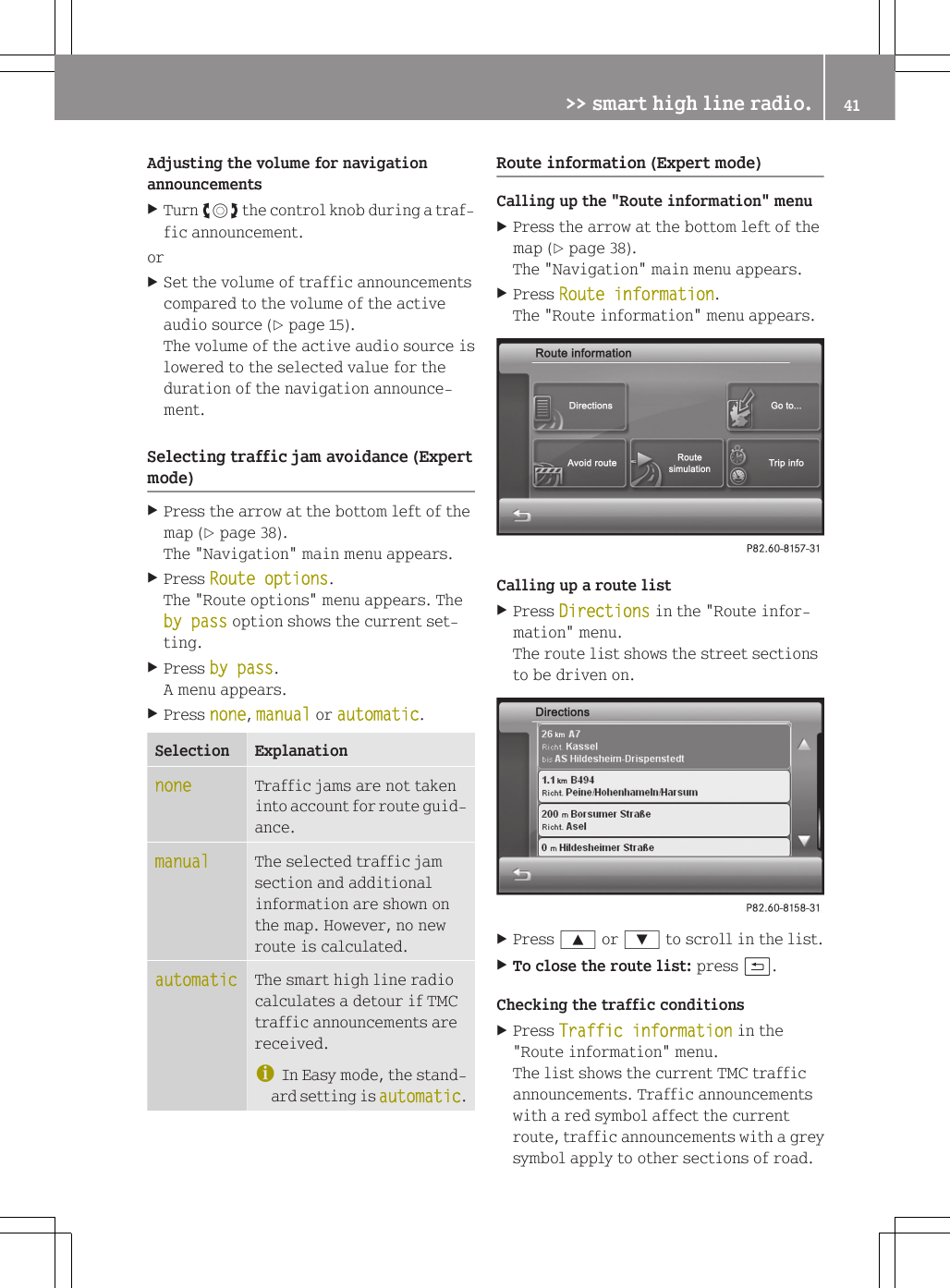
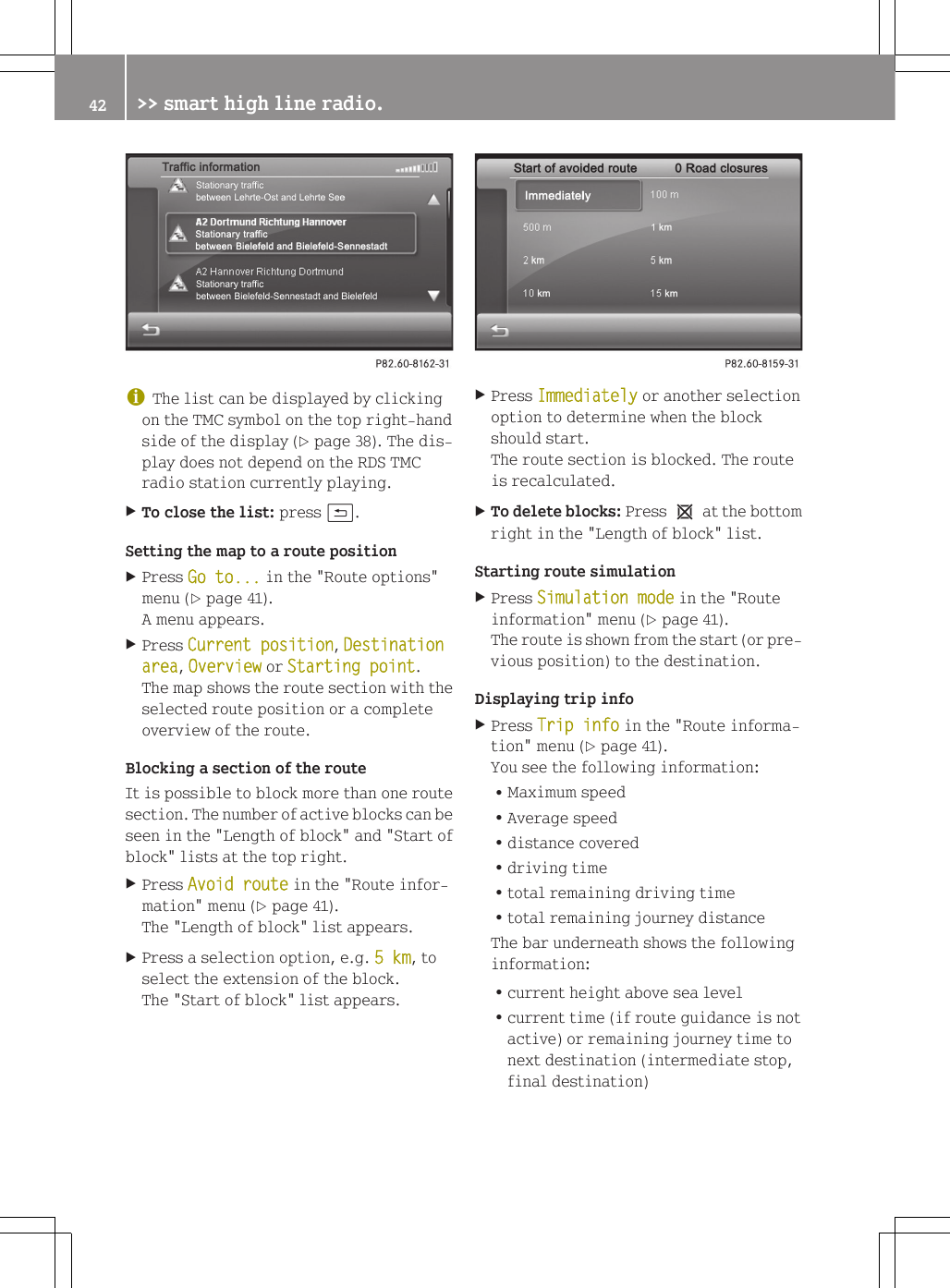
Adjusting the volume for navigationannouncementsXTurn cVd the control knob during a traf-fic announcement.orXSet the volume of traffic announcementscompared to the volume of the activeaudio source (Y page 15).The volume of the active audio source islowered to the selected value for theduration of the navigation announce-ment.Selecting traffic jam avoidance (Expertmode)XPress the arrow at the bottom left of themap (Y page 38).The "Navigation" main menu appears.XPress Route options.The "Route options" menu appears. Theby pass option shows the current set-ting.XPress by pass.A menu appears.XPress none, manual or automatic.Selection Explanationnone Traffic jams are not takeninto account for route guid-ance.manual The selected traffic jamsection and additionalinformation are shown onthe map. However, no newroute is calculated.automatic The smart high line radiocalculates a detour if TMCtraffic announcements arereceived.iIn Easy mode, the stand-ard setting is automatic.Route information (Expert mode)Calling up the "Route information" menuXPress the arrow at the bottom left of themap (Y page 38).The "Navigation" main menu appears.XPress Route information.The "Route information" menu appears.Calling up a route listXPress Directions in the "Route infor-mation" menu.The route list shows the street sectionsto be driven on.XPress 9 or : to scroll in the list.XTo close the route list: press &.Checking the traffic conditionsXPress Traffic information in the"Route information" menu.The list shows the current TMC trafficannouncements. Traffic announcementswith a red symbol affect the currentroute, traffic announcements with a greysymbol apply to other sections of road.>> smart high line radio. 41Z
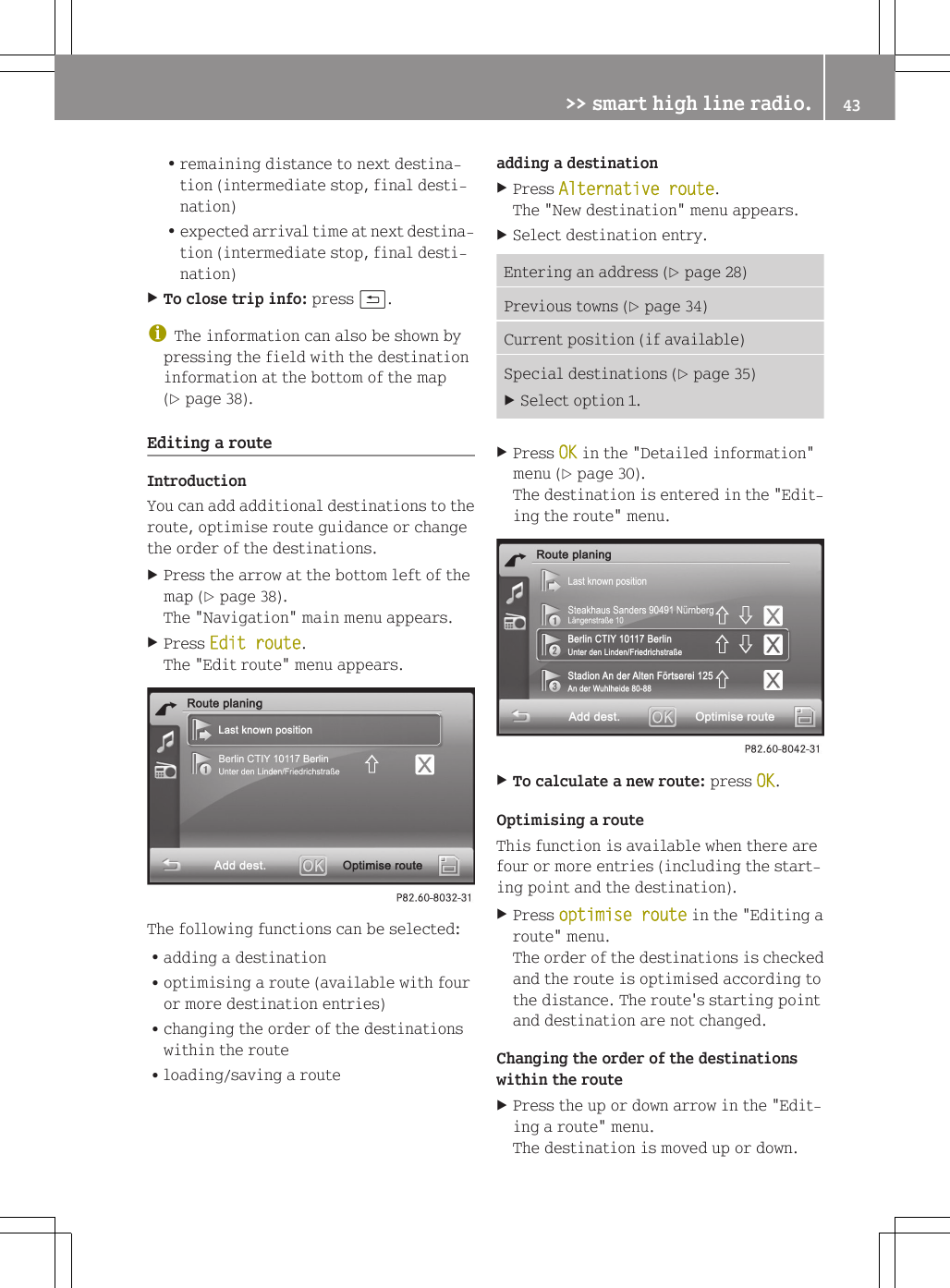
iThe list can be displayed by clickingon the TMC symbol on the top right-handside of the display (Y page 38). The dis-play does not depend on the RDS TMCradio station currently playing.XTo close the list: press &.Setting the map to a route positionXPress Go to... in the "Route options"menu (Y page 41).A menu appears.XPress Current position, Destination area, Overview or Starting point.The map shows the route section with theselected route position or a completeoverview of the route.Blocking a section of the routeIt is possible to block more than one routesection. The number of active blocks can beseen in the "Length of block" and "Start ofblock" lists at the top right.XPress Avoid route in the "Route infor-mation" menu (Y page 41).The "Length of block" list appears.XPress a selection option, e.g. 5 km, toselect the extension of the block.The "Start of block" list appears.XPress Immediately or another selectionoption to determine when the blockshould start.The route section is blocked. The routeis recalculated.XTo delete blocks: Press 1 at the bottomright in the "Length of block" list.Starting route simulationXPress Simulation mode in the "Routeinformation" menu (Y page 41).The route is shown from the start (or pre-vious position) to the destination.Displaying trip infoXPress Trip info in the "Route informa-tion" menu (Y page 41).You see the following information:RMaximum speedRAverage speedRdistance coveredRdriving timeRtotal remaining driving timeRtotal remaining journey distanceThe bar underneath shows the followinginformation:Rcurrent height above sea levelRcurrent time (if route guidance is notactive) or remaining journey time tonext destination (intermediate stop,final destination)42 >> smart high line radio.
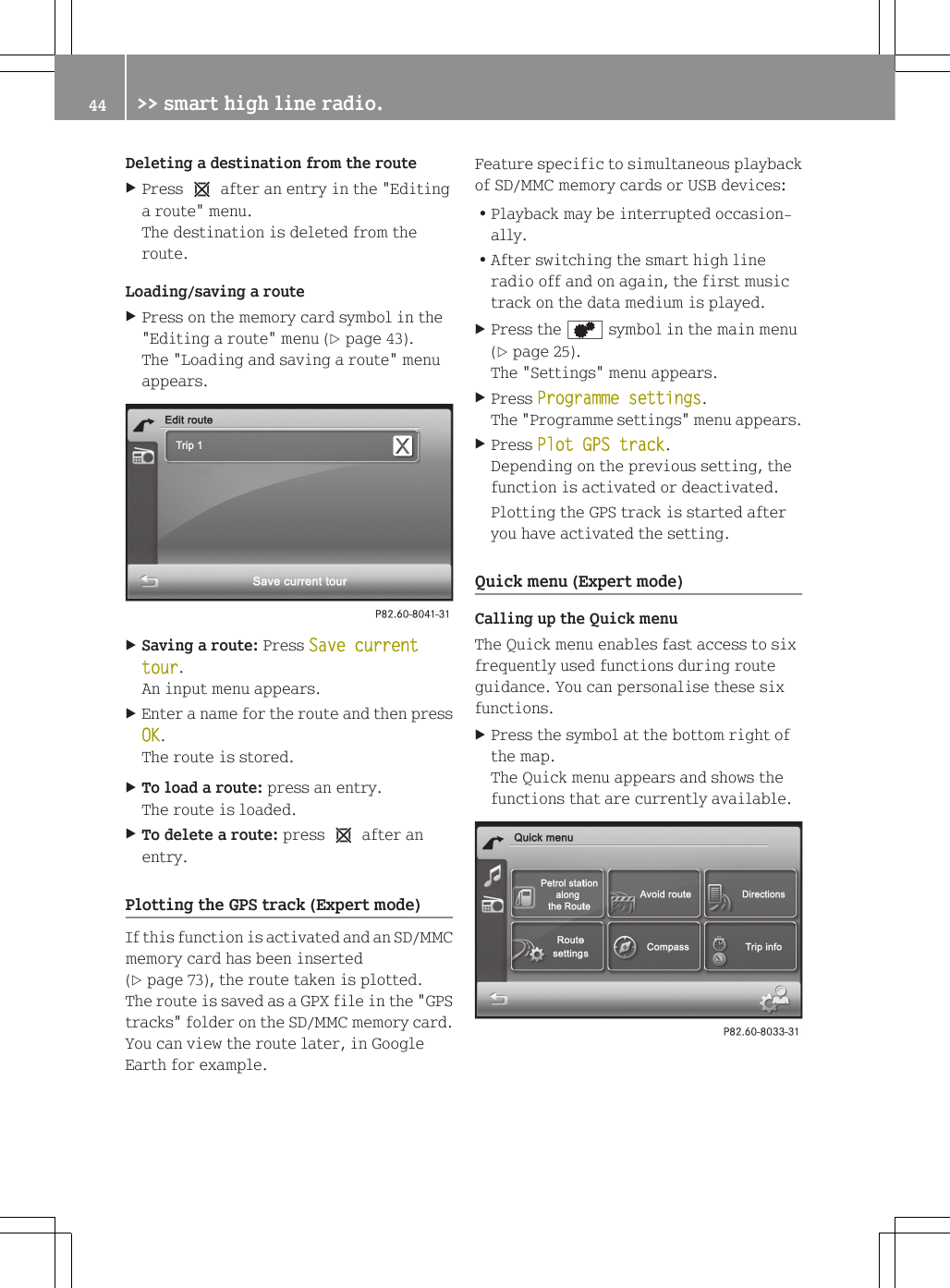
Rremaining distance to next destina-tion (intermediate stop, final desti-nation)Rexpected arrival time at next destina-tion (intermediate stop, final desti-nation)XTo close trip info: press &.iThe information can also be shown bypressing the field with the destinationinformation at the bottom of the map(Y page 38).Editing a routeIntroductionYou can add additional destinations to theroute, optimise route guidance or changethe order of the destinations.XPress the arrow at the bottom left of themap (Y page 38).The "Navigation" main menu appears.XPress Edit route.The "Edit route" menu appears.The following functions can be selected:Radding a destinationRoptimising a route (available with fouror more destination entries)Rchanging the order of the destinationswithin the routeRloading/saving a routeadding a destinationXPress Alternative route.The "New destination" menu appears.XSelect destination entry.Entering an address (Y page 28)Previous towns (Y page 34)Current position (if available)Special destinations (Y page 35)XSelect option 1.XPress OK in the "Detailed information"menu (Y page 30).The destination is entered in the "Edit-ing the route" menu.XTo calculate a new route: press OK.Optimising a routeThis function is available when there arefour or more entries (including the start-ing point and the destination).XPress optimise route in the "Editing aroute" menu.The order of the destinations is checkedand the route is optimised according tothe distance. The route's starting pointand destination are not changed.Changing the order of the destinationswithin the routeXPress the up or down arrow in the "Edit-ing a route" menu.The destination is moved up or down.>> smart high line radio. 43Z
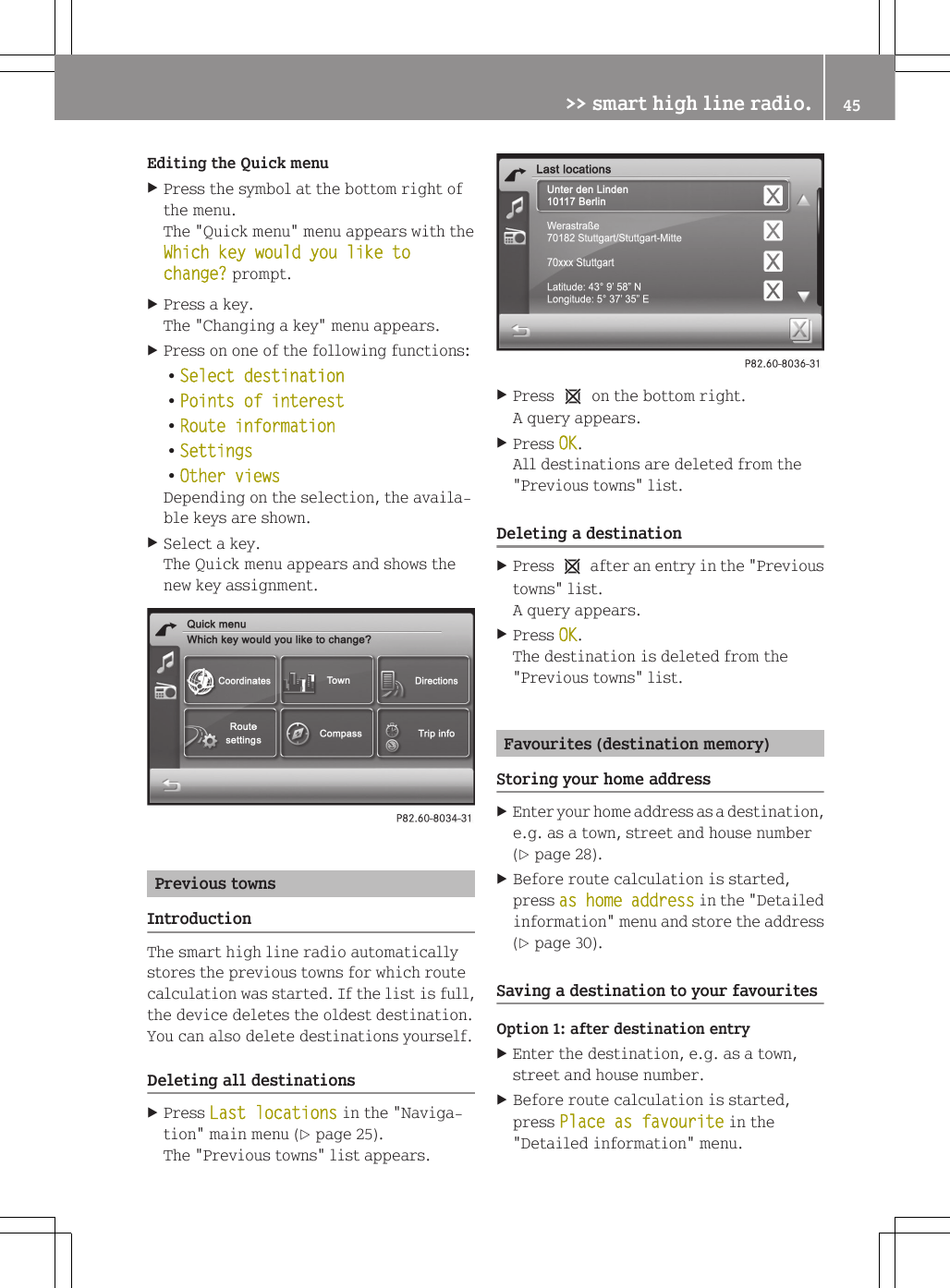
Deleting a destination from the routeXPress 1 after an entry in the "Editinga route" menu.The destination is deleted from theroute.Loading/saving a routeXPress on the memory card symbol in the"Editing a route" menu (Y page 43).The "Loading and saving a route" menuappears.XSaving a route: Press Save current tour.An input menu appears.XEnter a name for the route and then pressOK.The route is stored.XTo load a route: press an entry.The route is loaded.XTo delete a route: press 1 after anentry.Plotting the GPS track (Expert mode)If this function is activated and an SD/MMCmemory card has been inserted(Y page 73), the route taken is plotted.The route is saved as a GPX file in the "GPStracks" folder on the SD/MMC memory card.You can view the route later, in GoogleEarth for example.Feature specific to simultaneous playbackof SD/MMC memory cards or USB devices:RPlayback may be interrupted occasion-ally.RAfter switching the smart high lineradio off and on again, the first musictrack on the data medium is played.XPress the d symbol in the main menu(Y page 25).The "Settings" menu appears.XPress Programme settings.The "Programme settings" menu appears.XPress Plot GPS track.Depending on the previous setting, thefunction is activated or deactivated.Plotting the GPS track is started afteryou have activated the setting.Quick menu (Expert mode)Calling up the Quick menuThe Quick menu enables fast access to sixfrequently used functions during routeguidance. You can personalise these sixfunctions.XPress the symbol at the bottom right ofthe map.The Quick menu appears and shows thefunctions that are currently available.44 >> smart high line radio.
Editing the Quick menuXPress the symbol at the bottom right ofthe menu.The "Quick menu" menu appears with theWhich key would you like to change? prompt.XPress a key.The "Changing a key" menu appears.XPress on one of the following functions:RSelect destinationRPoints of interestRRoute informationRSettingsROther viewsDepending on the selection, the availa-ble keys are shown.XSelect a key.The Quick menu appears and shows thenew key assignment.Previous townsIntroductionThe smart high line radio automaticallystores the previous towns for which routecalculation was started. If the list is full,the device deletes the oldest destination.You can also delete destinations yourself.Deleting all destinationsXPress Last locations in the "Naviga-tion" main menu (Y page 25).The "Previous towns" list appears.XPress 1 on the bottom right.A query appears.XPress OK.All destinations are deleted from the"Previous towns" list.Deleting a destinationXPress 1 after an entry in the "Previoustowns" list.A query appears.XPress OK.The destination is deleted from the"Previous towns" list.Favourites (destination memory)Storing your home addressXEnter your home address as a destination,e.g. as a town, street and house number(Y page 28).XBefore route calculation is started,press as home address in the "Detailedinformation" menu and store the address(Y page 30).Saving a destination to your favouritesOption 1: after destination entryXEnter the destination, e.g. as a town,street and house number.XBefore route calculation is started,press Place as favourite in the"Detailed information" menu.>> smart high line radio. 45Z

Navigation menu