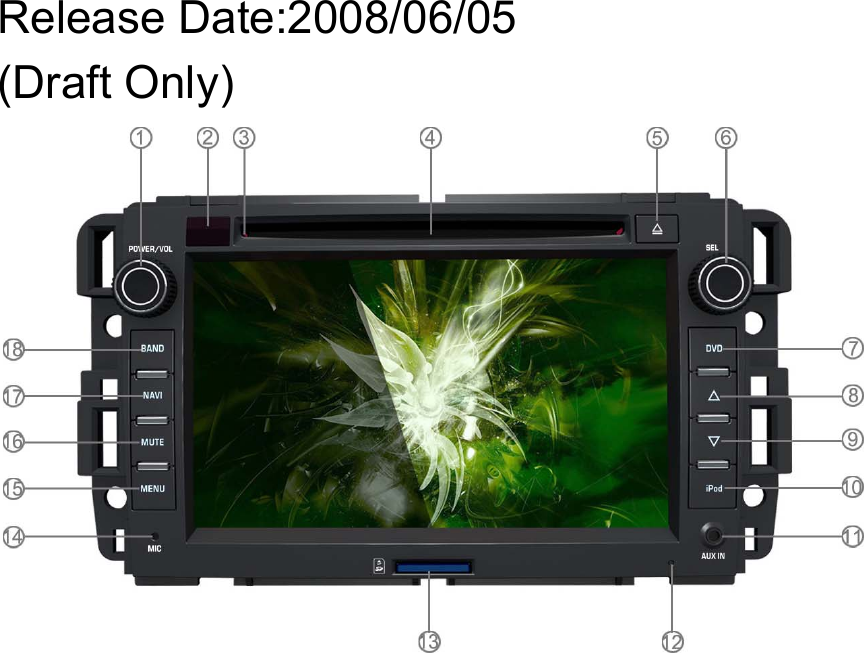
SKYPINE ELECTRONICS SN6104AC Car DVD Entertainment Center- Bluetooth Portion User Manual

SKYPINE ELECTRONICS (SHEN ZHEN) CO., LTD. Car DVD Entertainment Center- Bluetooth Portion Users Manual

Users Manual

Release Date:2008/06/05(Draft Only)
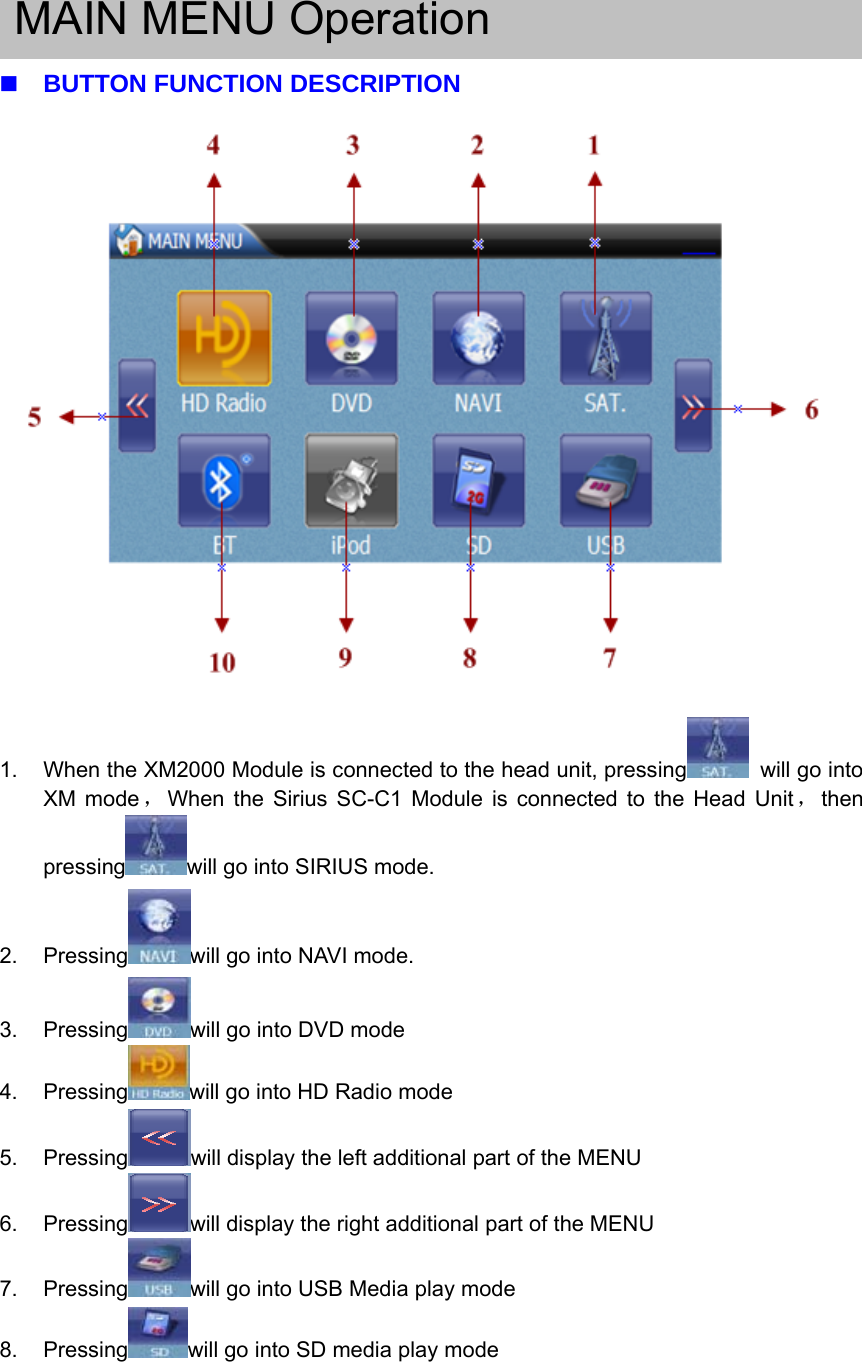
MAIN MENU OperationBUTTON FUNCTION DESCRIPTION1. When the XM2000 Module is connected to the head unit, pressing will go intoXM mode ,When the Sirius SC-C1 Module is connected to the Head Unit ,thenpressing will go into SIRIUS mode.2. Pressing will go into NAVI mode.3. Pressing will go into DVD mode4. Pressing will go into HD Radio mode5. Pressing will display the left additional part of the MENU6. Pressing will display the right additional part of the MENU7. Pressing will go into USB Media play mode8. Pressing will go into SD media play mode
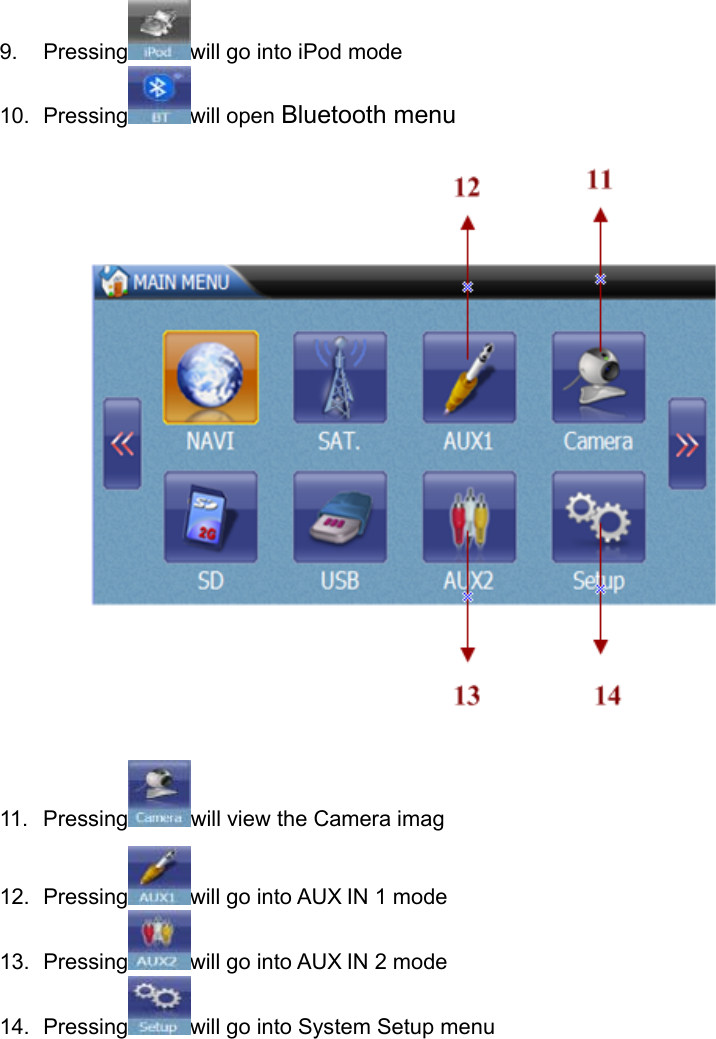
9. Pressing will go into iPod mode10. Pressing will open Bluetooth menu11. Pressing will view the Camera imag12. Pressing will go into AUX IN 1 mode13. Pressing will go into AUX IN 2 mode14. Pressing will go into System Setup menu
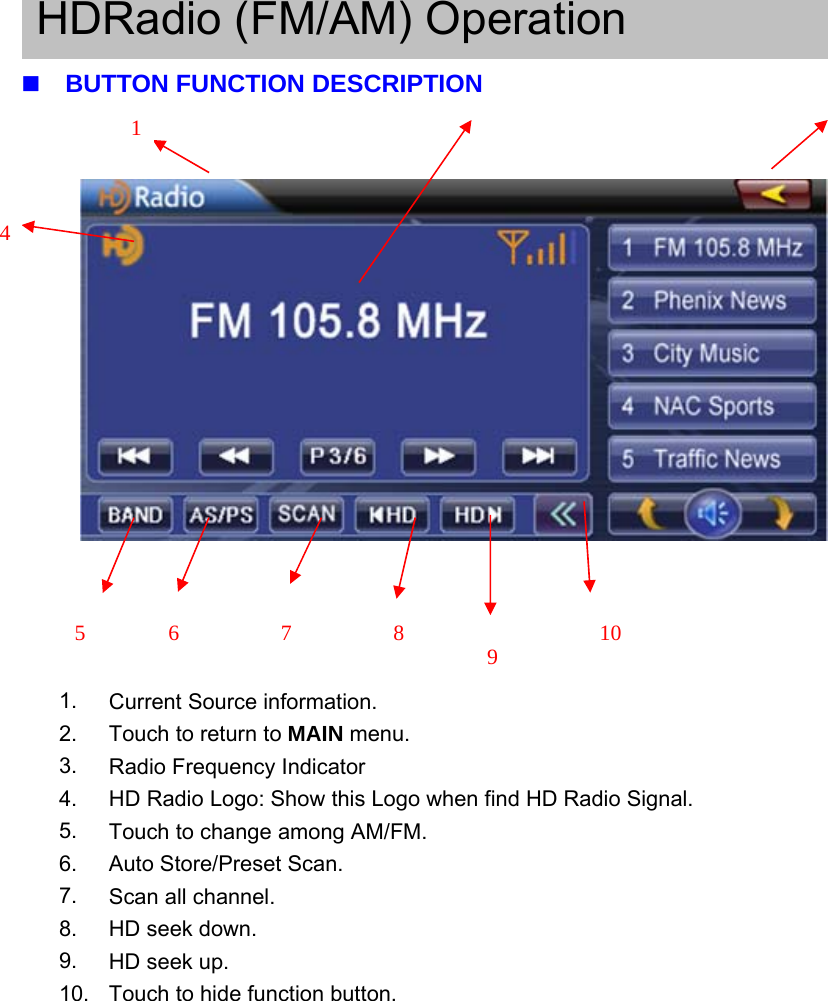
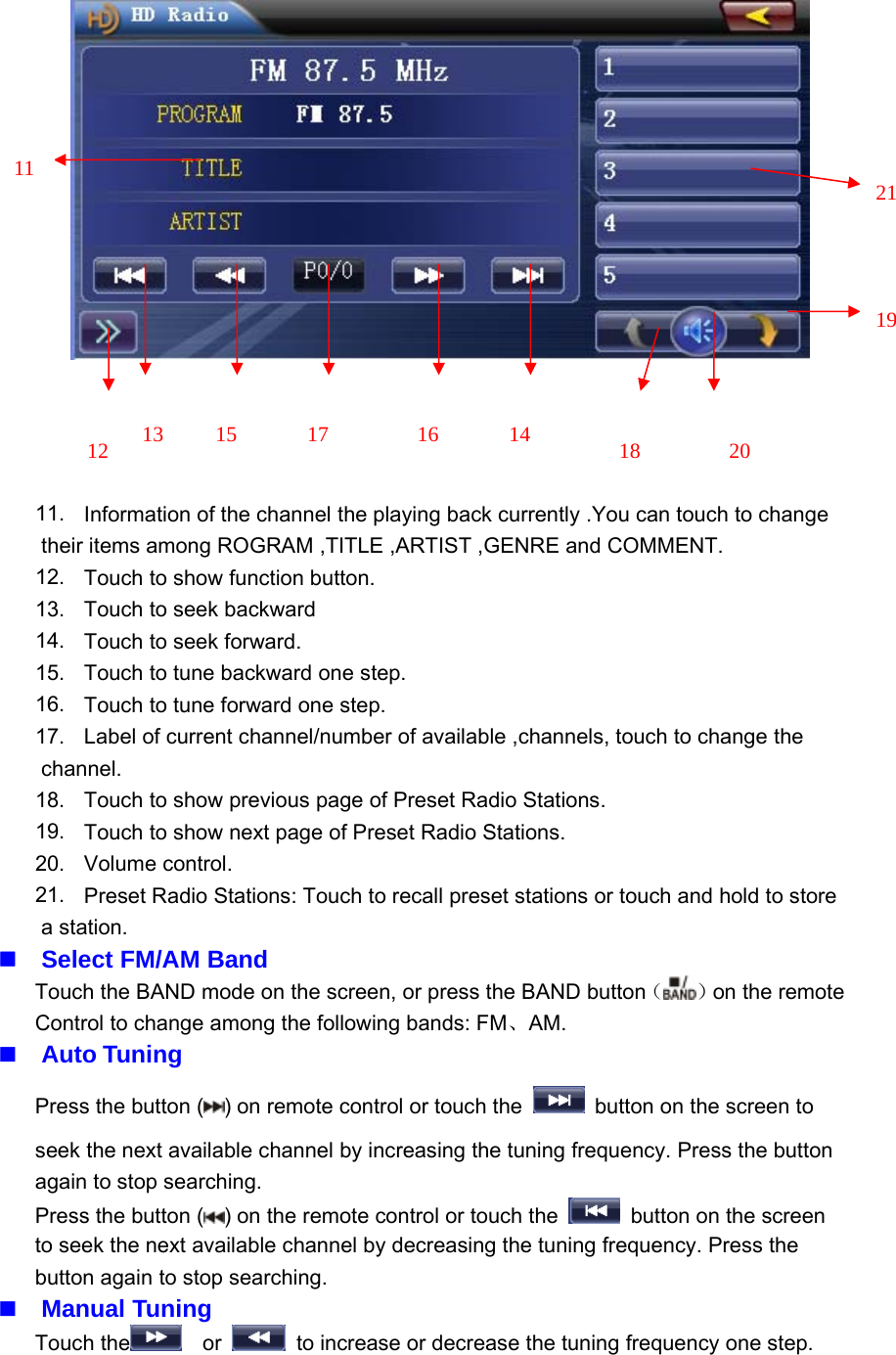
HDRadio (FM/AM) OperationBUTTON FUNCTION DESCRIPTION1. Current Source information.2. Touch to return to MAIN menu.3. Radio Frequency Indicator4. HD Radio Logo: Show this Logo when find HD Radio Signal.5. Touch to change among AM/FM.6. Auto Store/Preset Scan.7. Scan all channel.8. HD seek down.9. HD seek up.10. Touch to hide function button.145 6 7 8 910
11. Information of the channel the playing back currently .You can touch to changetheir items among ROGRAM ,TITLE ,ARTIST ,GENRE and COMMENT.12. Touch to show function button.13. Touch to seek backward14. Touch to seek forward.15. Touch to tune backward one step.16. Touch to tune forward one step.17. Label of current channel/number of available ,channels, touch to change thechannel.18. Touch to show previous page of Preset Radio Stations.19. Touch to show next page of Preset Radio Stations.20. Volume control.21. Preset Radio Stations: Touch to recall preset stations or touch and hold to storea station.Select FM/AM BandTouch the BAND mode on the screen, or press the BAND button()on the remoteControl to change among the following bands: FM、AM.Auto TuningPress the button ( ) on remote control or touch the button on the screen toseek the next available channel by increasing the tuning frequency. Press the buttonagain to stop searching.Press the button ( ) on the remote control or touch the button on the screento seek the next available channel by decreasing the tuning frequency. Press thebutton again to stop searching.Manual TuningTouch the or to increase or decrease the tuning frequency one step.2019211814161715131211
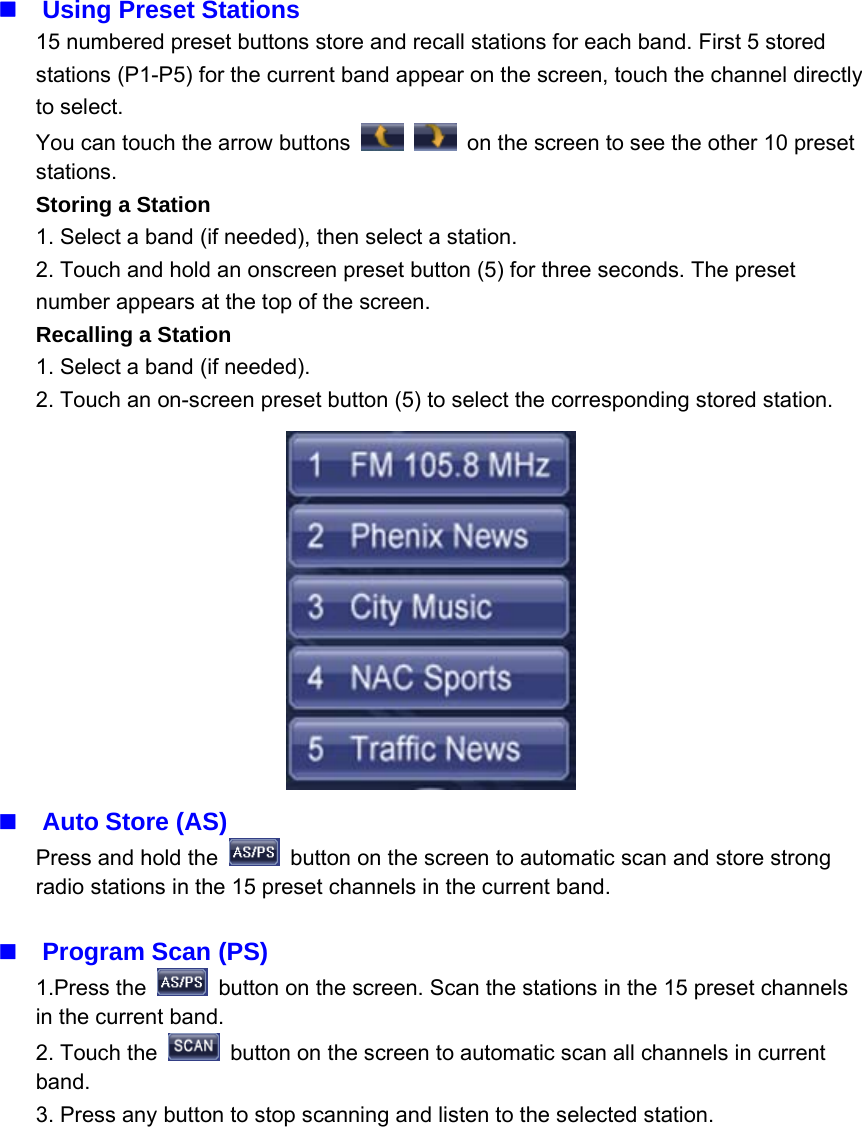
Using Preset Stations15 numbered preset buttons store and recall stations for each band. First 5 storedstations (P1-P5) for the current band appear on the screen, touch the channel directlyto select.You can touch the arrow buttons on the screen to see the other 10 presetstations.Storing a Station1. Select a band (if needed), then select a station.2. Touch and hold an onscreen preset button (5) for three seconds. The presetnumber appears at the top of the screen.Recalling a Station1. Select a band (if needed).2. Touch an on-screen preset button (5) to select the corresponding stored station.Auto Store (AS)Press and hold the button on the screen to automatic scan and store strongradio stations in the 15 preset channels in the current band.Program Scan (PS)1.Press the button on the screen. Scan the stations in the 15 preset channelsin the current band.2. Touch the button on the screen to automatic scan all channels in currentband.3. Press any button to stop scanning and listen to the selected station.
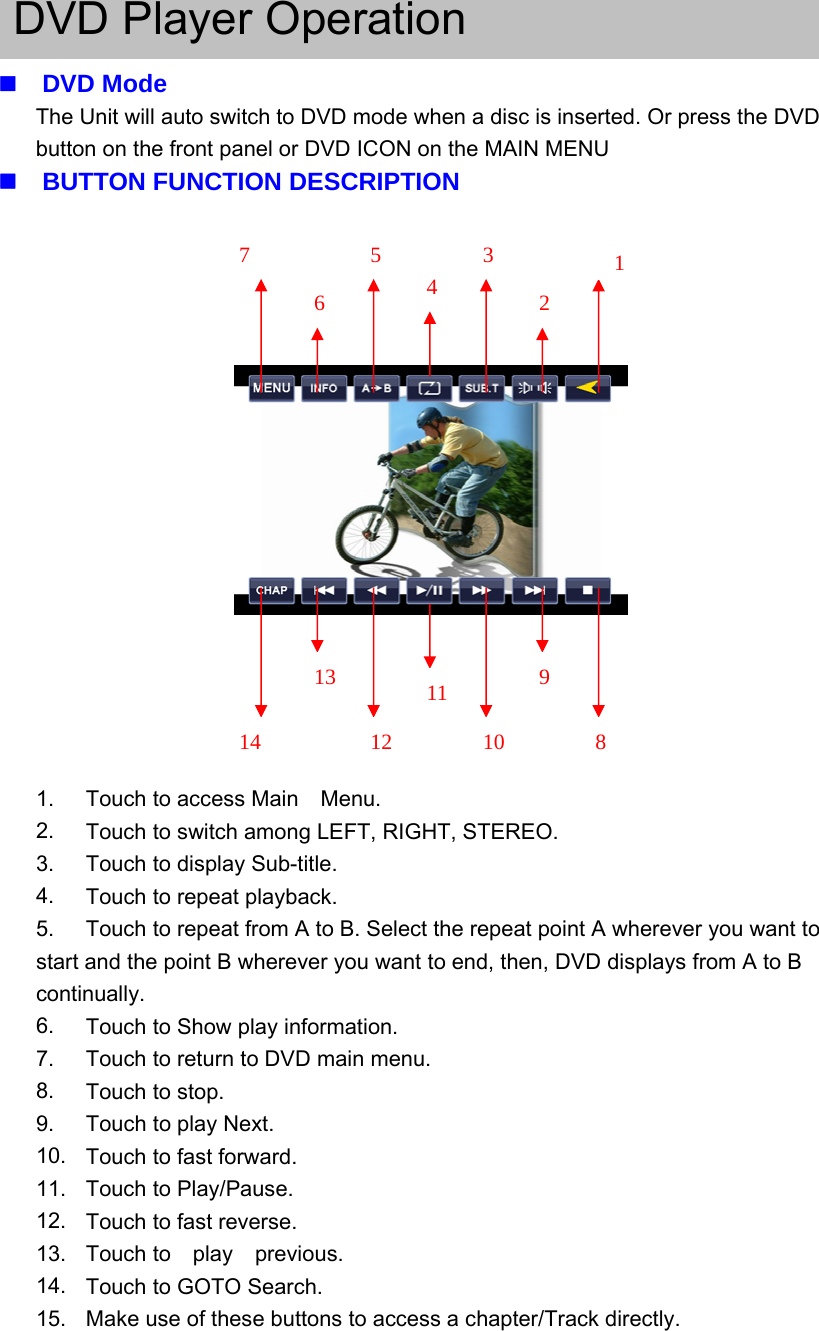
DVD Player OperationDVD ModeThe Unit will auto switch to DVD mode when a disc is inserted. Or press the DVDbutton on the front panel or DVD ICON on the MAIN MENUBUTTON FUNCTION DESCRIPTION1. Touch to access Main Menu.2. TouchtoswitchamongLEFT,RIGHT,STEREO.3. Touch to display Sub-title.4. Touch to repeat playback.5. Touch to repeat from A to B. Select the repeat point A wherever you want tostart and the point B wherever you want to end, then, DVD displays from A to Bcontinually.6. Touch to Show play information.7. Touch to return to DVD main menu.8. Touch to stop.9. Touch to play Next.10. Touch to fast forward.11. Touch to Play/Pause.12. Touch to fast reverse.13. Touch to play previous.14. Touch to GOTO Search.15. Make use of these buttons to access a chapter/Track directly.1234567891011121314
Controlling PlaybackStopping PlaybackTouch the stop button on the screen or press the ()buttonontheremotecontrol to stop DVD play and touch the play/pause button on the screen or the (OK)button on the remote control to resume disc play.Pausing PlaybackTouch the play/pause button on the screen to suspend or resume disc play.Repeat PlaybackPress the Repeat button on the screen or on the remote control to alter repeatmode according to the following:• DVD: Repeat Title, Repeat Chapter, Repeat Off• CD (PBC Off): Repeat Single, Repeat Off• MP3: Repeat Single, Repeat Folder, Repeat OffSectional Repeat Function (A-B)Use the A-B function to define a specific area of a disc to repeat.•PresstheRepeat A-B button ( ) on the screen or on the remote control to set thestart point (A) of the repeated section.•PresstheRepeat A-B button ( ) again once you reach the desired end point (B)of the repeated section. The selected portion of the DVD will now repeat continuously.•PresstheRepeat A-B button ( ) again to cancel the A-B section setting and stoprepeat play.Accessing the DVD MenuPress any place of the DVD screen.Moving Through ChaptersPress the ( ) button on the remote control to advance to the next chapter on theDVD.Press the ( ) button on the remote control to move to the previous chapter on theDVD.Fast Forward/Fast ReversePress the ( ) button on the remote control or touch the on the screen to fastforward. Keep pressing or touching and releasing the button to increase the rate from“2X” to “4X”, “8X”, and “20X”.Press the ( ) button on the remote control or touch the on the screen to fastreverse. Keep pressing or touching and releasing the button to increase the rate from“2X” to “4X”, “8X”, and “20X”.GOTO SearchDuring DVD or CD playback, perform the following steps to use the GOTO feature toaccess a specific location on a disc:1. Press the “-/--”button on remote control or touch the F Area on the screen to enter“GOTO” mode.2. Press the ( / ) buttons on the remote control to select a category.
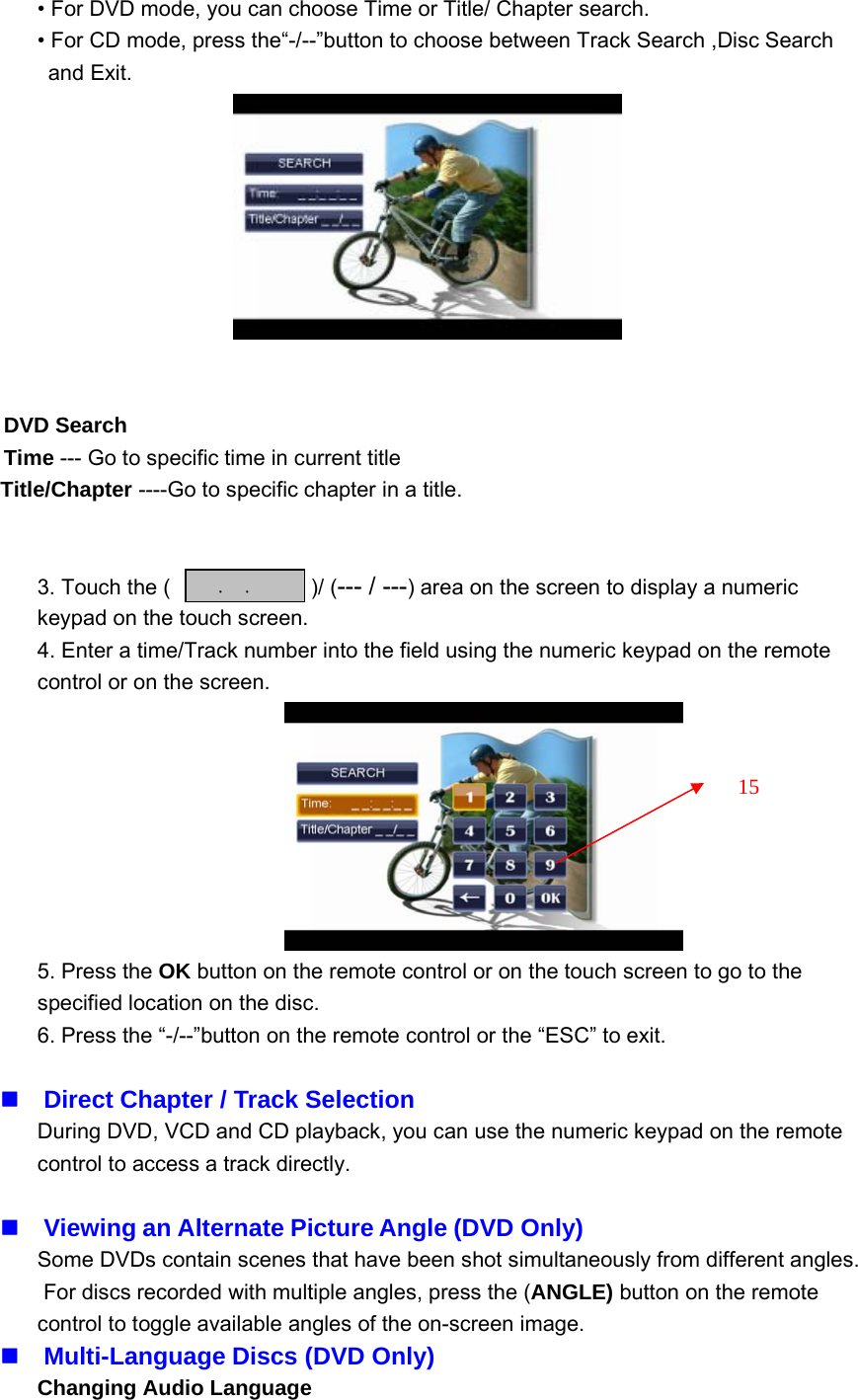
• For DVD mode, you can choose Time or Title/ Chapter search.• For CD mode, press the“-/--”button to choose between Track Search ,Disc Searchand Exit.DVD SearchTime --- Go to specific time in current titleTitle/Chapter ----Go to specific chapter in a title.3. Touch the ( )/ (--- / ---) area on the screen to display a numerickeypad on the touch screen.4. Enter a time/Track number into the field using the numeric keypad on the remotecontrol or on the screen.5. Press the OK button on the remote control or on the touch screen to go to thespecified location on the disc.6. Press the “-/--”button on the remote control or the “ESC” to exit.Direct Chapter / Track SelectionDuring DVD, VCD and CD playback, you can use the numeric keypad on the remotecontrol to access a track directly.Viewing an Alternate Picture Angle (DVD Only)Some DVDs contain scenes that have been shot simultaneously from different angles.For discs recorded with multiple angles, press the (ANGLE) button on the remotecontrol to toggle available angles of the on-screen image.Multi-Language Discs (DVD Only)Changing Audio Language::15
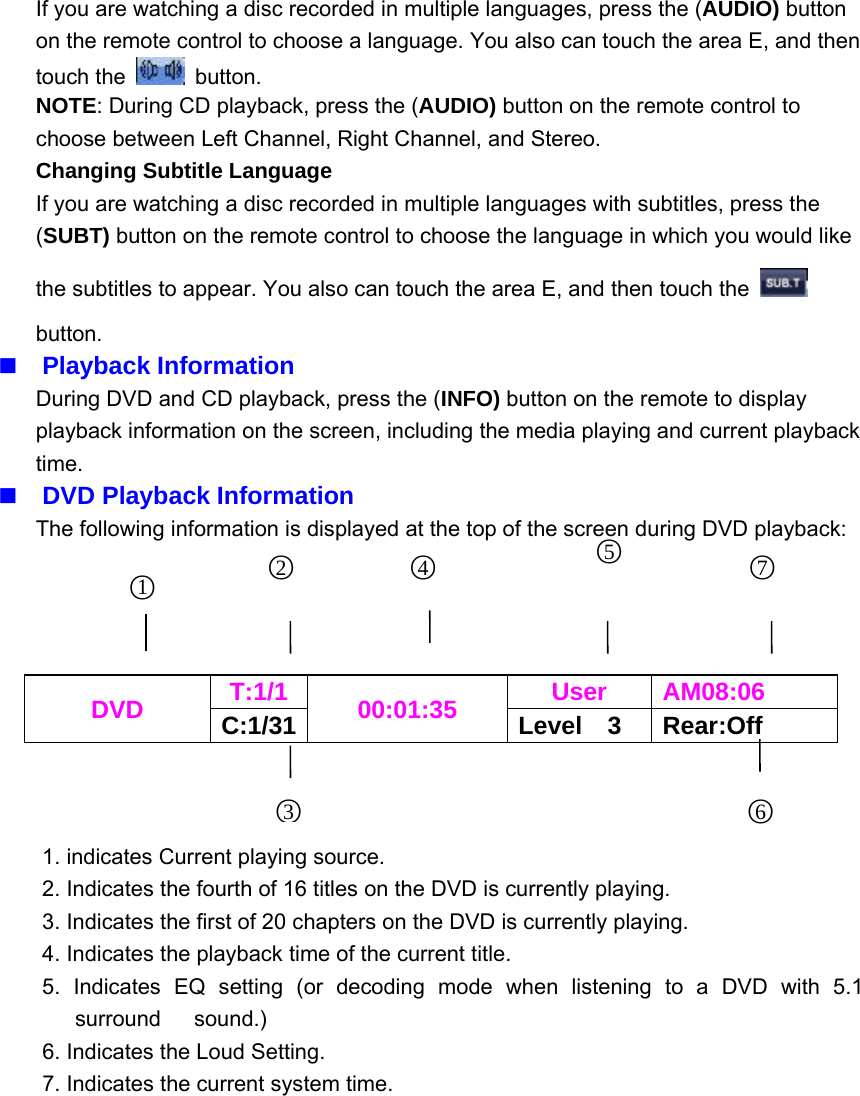
If you are watching a disc recorded in multiple languages, press the (AUDIO) buttonon the remote control to choose a language. You also can touch the area E, and thentouch the button.NOTE: During CD playback, press the (AUDIO) button on the remote control tochoose between Left Channel, Right Channel, and Stereo.Changing Subtitle LanguageIf you are watching a disc recorded in multiple languages with subtitles, press the(SUBT) button on the remote control to choose the language in which you would likethe subtitles to appear. You also can touch the area E, and then touch thebutton.Playback InformationDuring DVD and CD playback, press the (INFO) button on the remote to displayplayback information on the screen, including the media playing and current playbacktime.DVD Playback InformationThe following information is displayed at the top of the screen during DVD playback:1. indicates Current playing source.2. Indicates the fourth of 16 titles on the DVD is currently playing.3. Indicates the first of 20 chapters on the DVD is currently playing.4. Indicates the playback time of the current title.5. Indicates EQ setting (or decoding mode when listening to a DVD with 5.1surround sound.)6. Indicates the Loud Setting.7. Indicates the current system time.DVD T:1/1 00:01:35 User AM08:06C:1/31 Level 3 Rear:Off3○4○6○2○5○7○1○
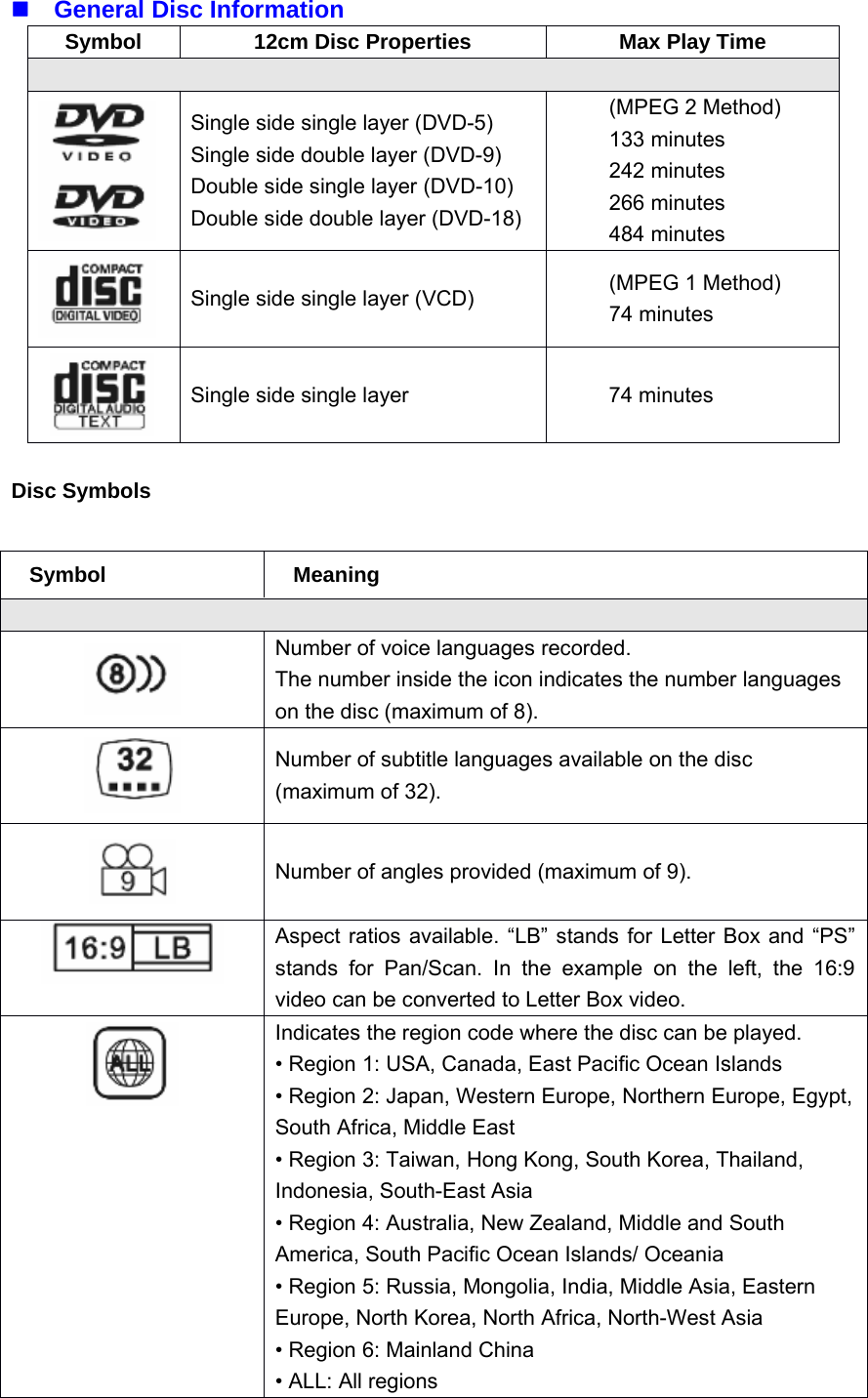
General Disc InformationDisc SymbolsSymbol 12cm Disc Properties Max Play TimeSingle side single layer (DVD-5)Single side double layer (DVD-9)Double side single layer (DVD-10)Double side double layer (DVD-18)(MPEG 2 Method)133 minutes242 minutes266 minutes484 minutesSingle side single layer (VCD) (MPEG 1 Method)74 minutesSingle side single layer 74 minutesSymbol MeaningNumber of voice languages recorded.The number inside the icon indicates the number languageson the disc (maximum of 8).Number of subtitle languages available on the disc(maximum of 32).Number of angles provided (maximum of 9).Aspect ratios available. “LB” stands for Letter Box and “PS”stands for Pan/Scan. In the example on the left, the 16:9video can be converted to Letter Box video.Indicates the region code where the disc can be played.• Region 1: USA, Canada, East Pacific Ocean Islands• Region 2: Japan, Western Europe, Northern Europe, Egypt,South Africa, Middle East• Region 3: Taiwan, Hong Kong, South Korea, Thailand,Indonesia, South-East Asia• Region 4: Australia, New Zealand, Middle and SouthAmerica, South Pacific Ocean Islands/ Oceania• Region 5: Russia, Mongolia, India, Middle Asia, EasternEurope, North Korea, North Africa, North-West Asia• Region 6: Mainland China• ALL: All regions
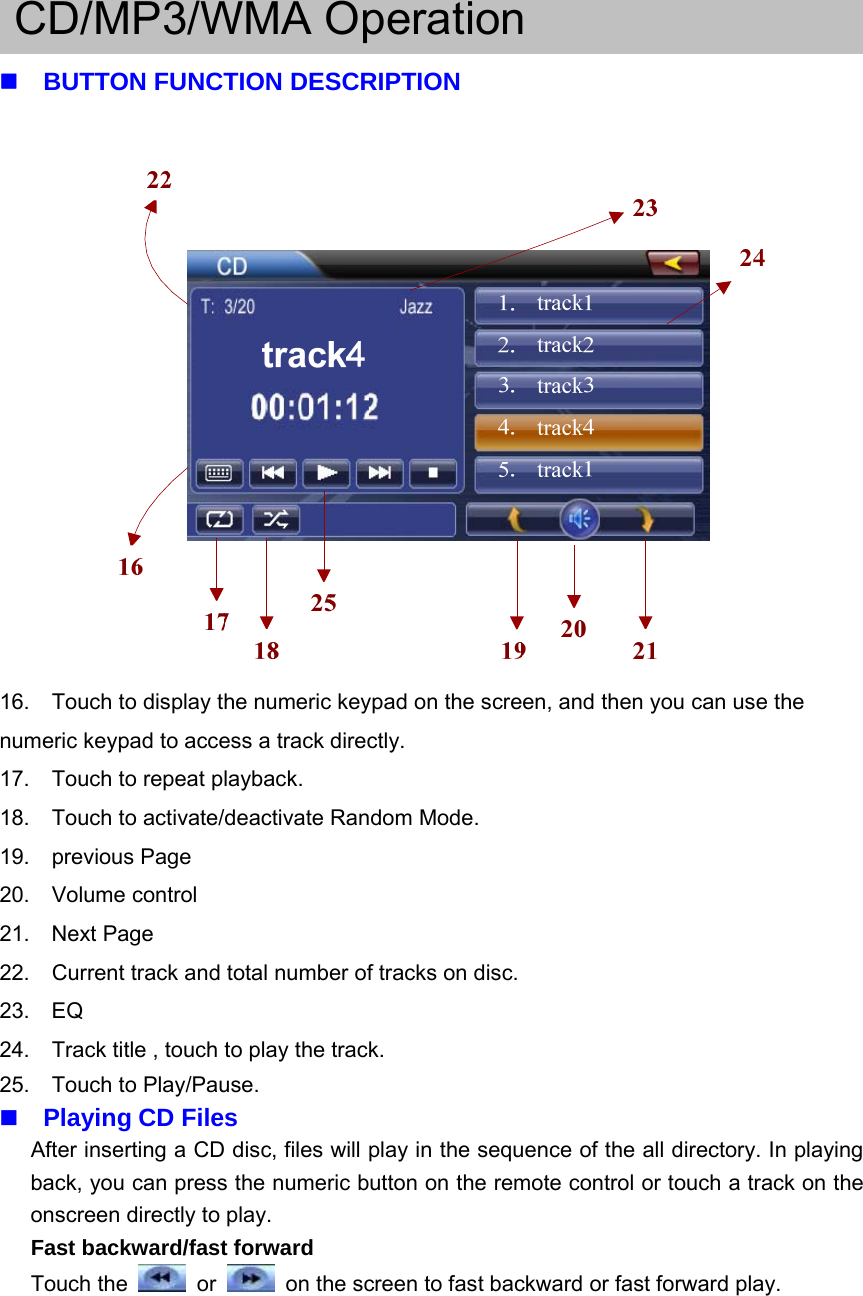
CD/MP3/WMA OperationBUTTON FUNCTION DESCRIPTION16. Touch to display the numeric keypad on the screen, and then you can use thenumeric keypad to access a track directly.17. Touch to repeat playback.18. Touch to activate/deactivate Random Mode.19. previous Page20. Volume control21. Next Page22. Current track and total number of tracks on disc.23. EQ24. Track title , touch to play the track.25. Touch to Play/Pause.Playing CD FilesAfter inserting a CD disc, files will play in the sequence of the all directory. In playingback, you can press the numeric button on the remote control or touch a track on theonscreen directly to play.Fast backward/fast forwardTouch the or on the screen to fast backward or fast forward play.
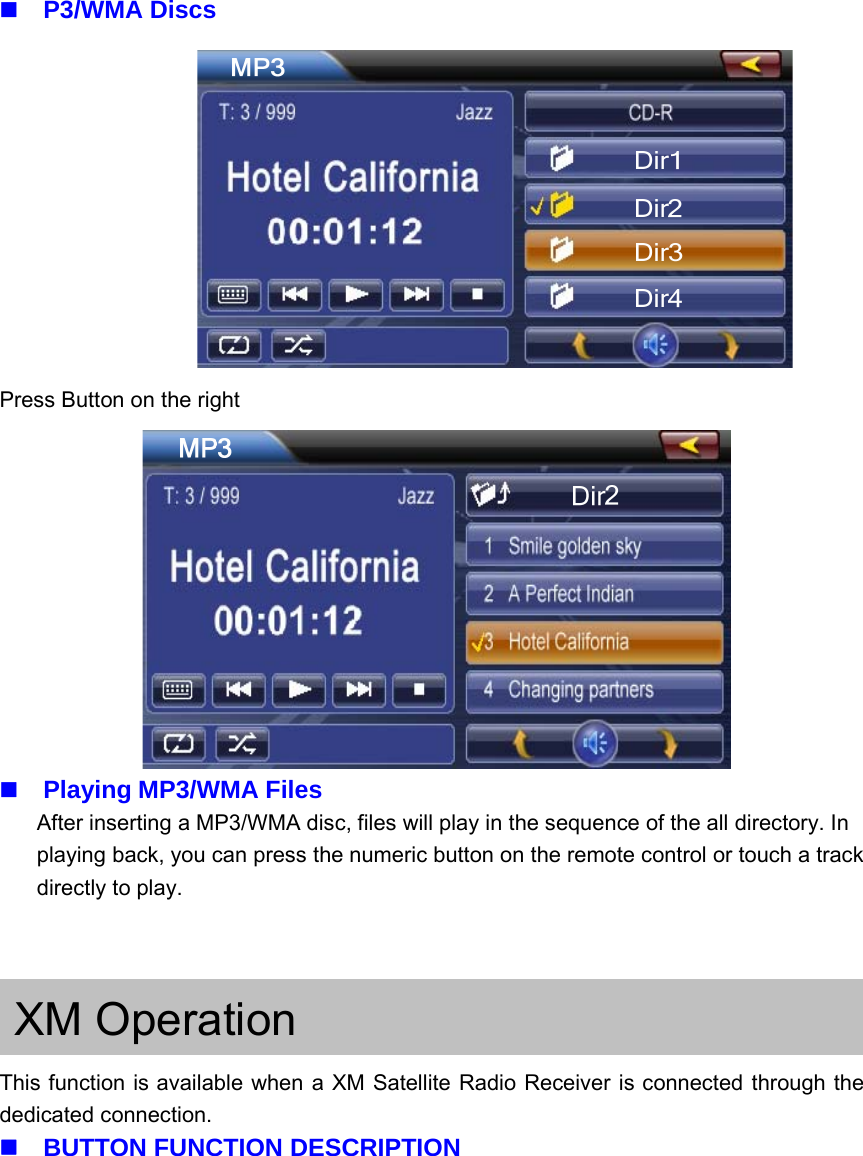
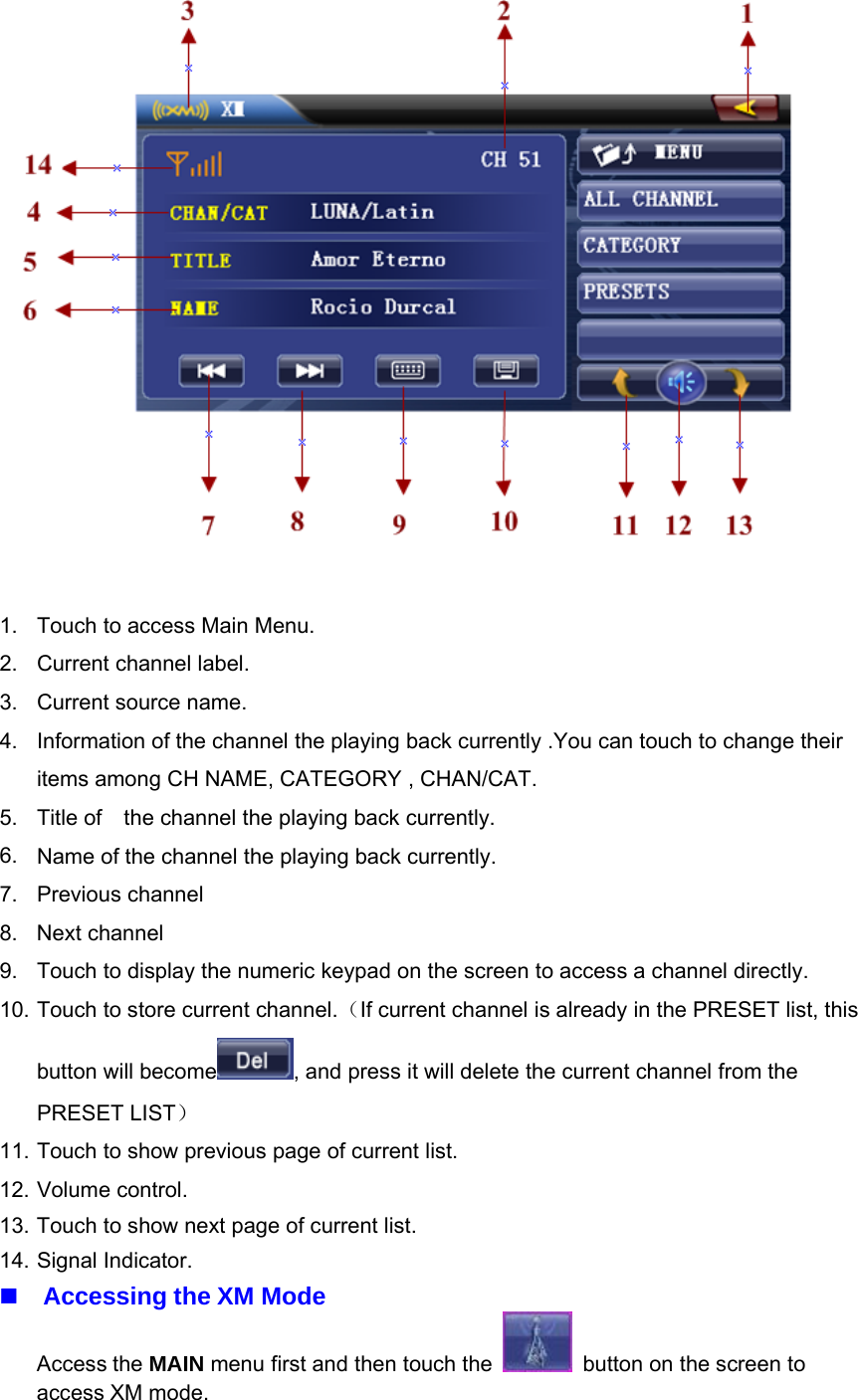
P3/WMA DiscsPress Button on the rightPlaying MP3/WMA FilesAfter inserting a MP3/WMA disc, files will play in the sequence of the all directory. Inplaying back, you can press the numeric button on the remote control or touch a trackdirectly to play.XM OperationThis function is available when a XM Satellite Radio Receiver is connected through thededicated connection.BUTTON FUNCTION DESCRIPTION
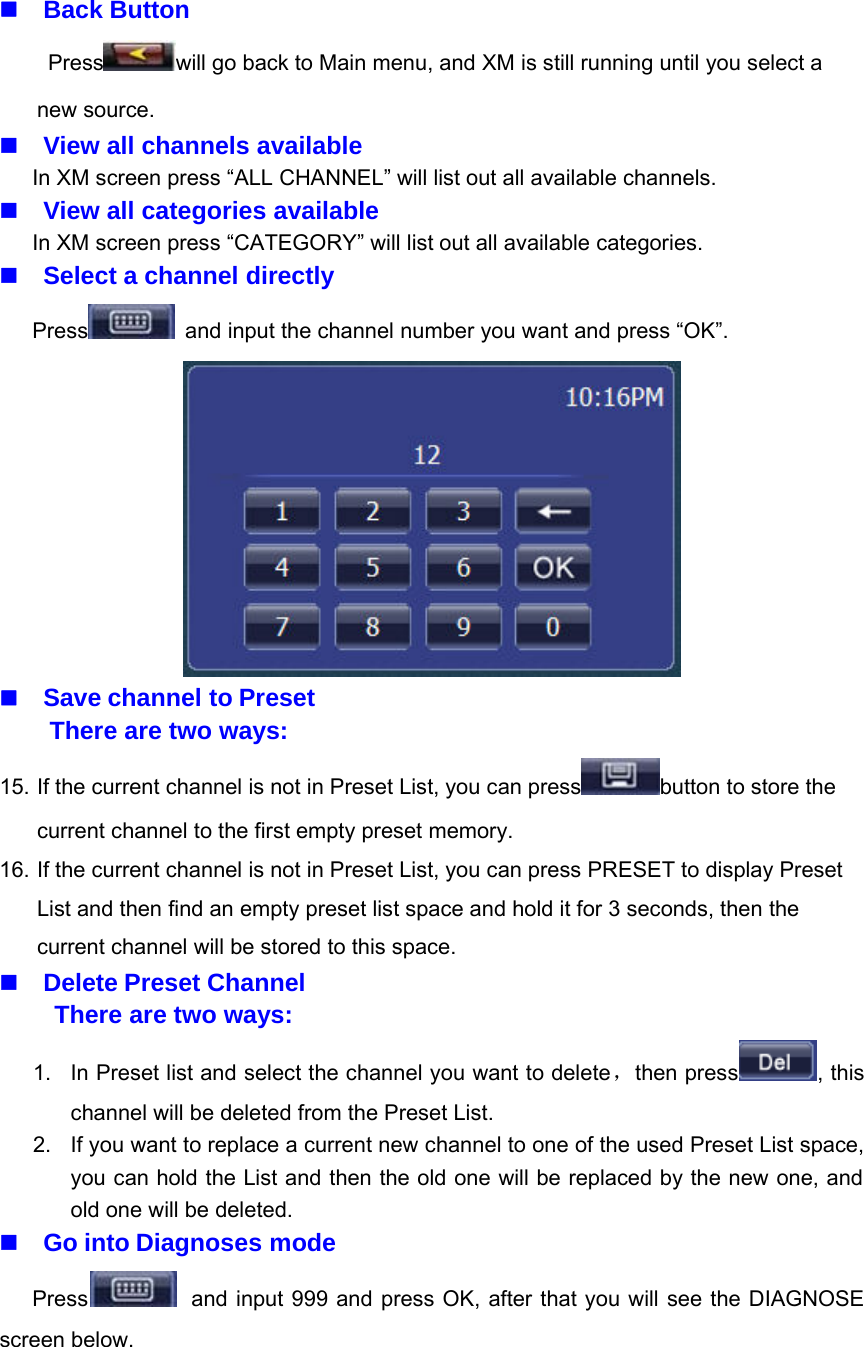
1. Touch to access Main Menu.2. Current channel label.3. Current source name.4. Information of the channel the playing back currently .You can touch to change theiritems among CH NAME, CATEGORY , CHAN/CAT.5. Title of the channel the playing back currently.6. Name of the channel the playing back currently.7. Previous channel8. Next channel9. Touch to display the numeric keypad on the screen to access a channel directly.10. Touch to store current channel.(If current channel is already in the PRESET list, thisbutton will become , and press it will delete the current channel from thePRESET LIST)11. Touch to show previous page of current list.12. Volume control.13. Touch to show next page of current list.14. Signal Indicator.Accessing the XM ModeAccess the MAIN menu first and then touch the button on the screen toaccess XM mode.
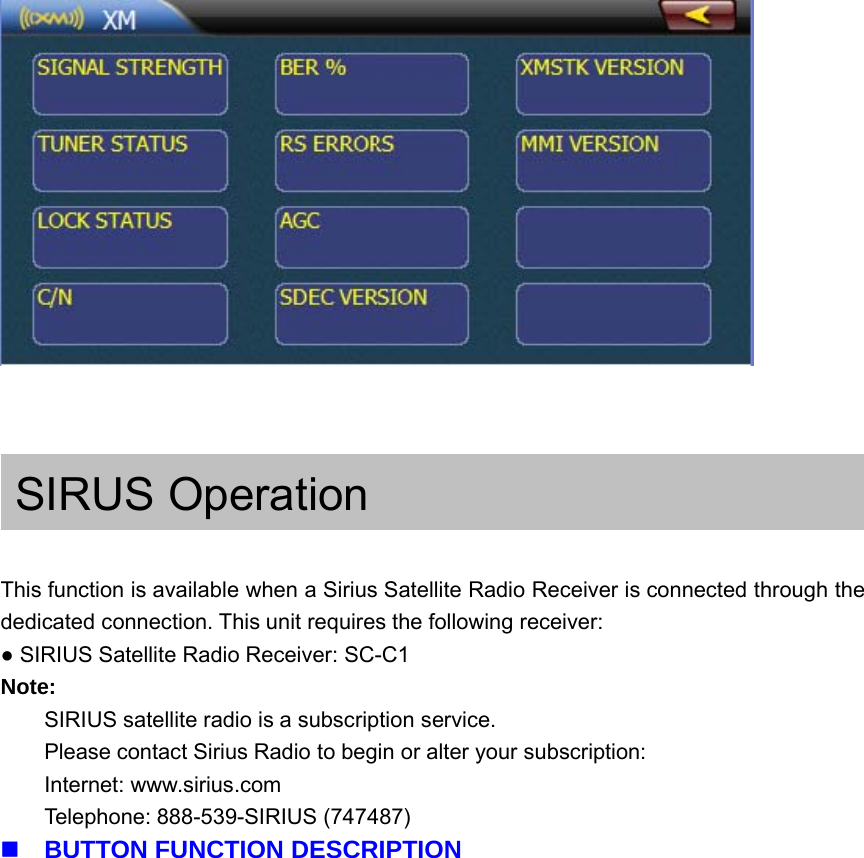
Back ButtonPress will go back to Main menu, and XM is still running until you select anew source.View all channels availableIn XM screen press “ALL CHANNEL” will list out all available channels.View all categories availableIn XM screen press “CATEGORY” will list out all available categories.Select a channel directlyPress and input the channel number you want and press “OK”.Save channel to PresetThere are two ways:15. If the current channel is not in Preset List, you can press button to store thecurrent channel to the first empty preset memory.16. If the current channel is not in Preset List, you can press PRESET to display PresetList and then find an empty preset list space and hold it for 3 seconds, then thecurrent channel will be stored to this space.Delete Preset ChannelThere are two ways:1. In Preset list and select the channel you want to delete,then press , thischannel will be deleted from the Preset List.2. If you want to replace a current new channel to one of the used Preset List space,you can hold the List and then the old one will be replaced by the new one, andold one will be deleted.Go into Diagnoses modePress and input 999 and press OK, after that you will see the DIAGNOSEscreen below.
SIRUS OperationThis function is available when a Sirius Satellite Radio Receiver is connected through thededicated connection. This unit requires the following receiver:●SIRIUS Satellite Radio Receiver: SC-C1Note:SIRIUS satellite radio is a subscription service.Please contact Sirius Radio to begin or alter your subscription:Internet: www.sirius.comTelephone: 888-539-SIRIUS (747487)BUTTON FUNCTION DESCRIPTION
1. Touch to access Main Menu.2. Signal Indicator.3. SID or Information of the channel the playing back currently .You cantouch to change their items among CHAN./CATE , CATEGORY ,CHAN.NAME ,ARTIST , TITLE.4. Previous available channel.5. Next available channel.6. Touch to display the numeric keypad on the screen to tune to a channeldirectly, same as XM mode.7. Touch to store current channel, same as XM mode.8. Touch to show previous page of current list.9. Press to display EQ Setting screen.10. Touch to show next page of current list.OPTIONS FunctionPress “OPTIONS” to go into SIRIUS Setting mode. See below.
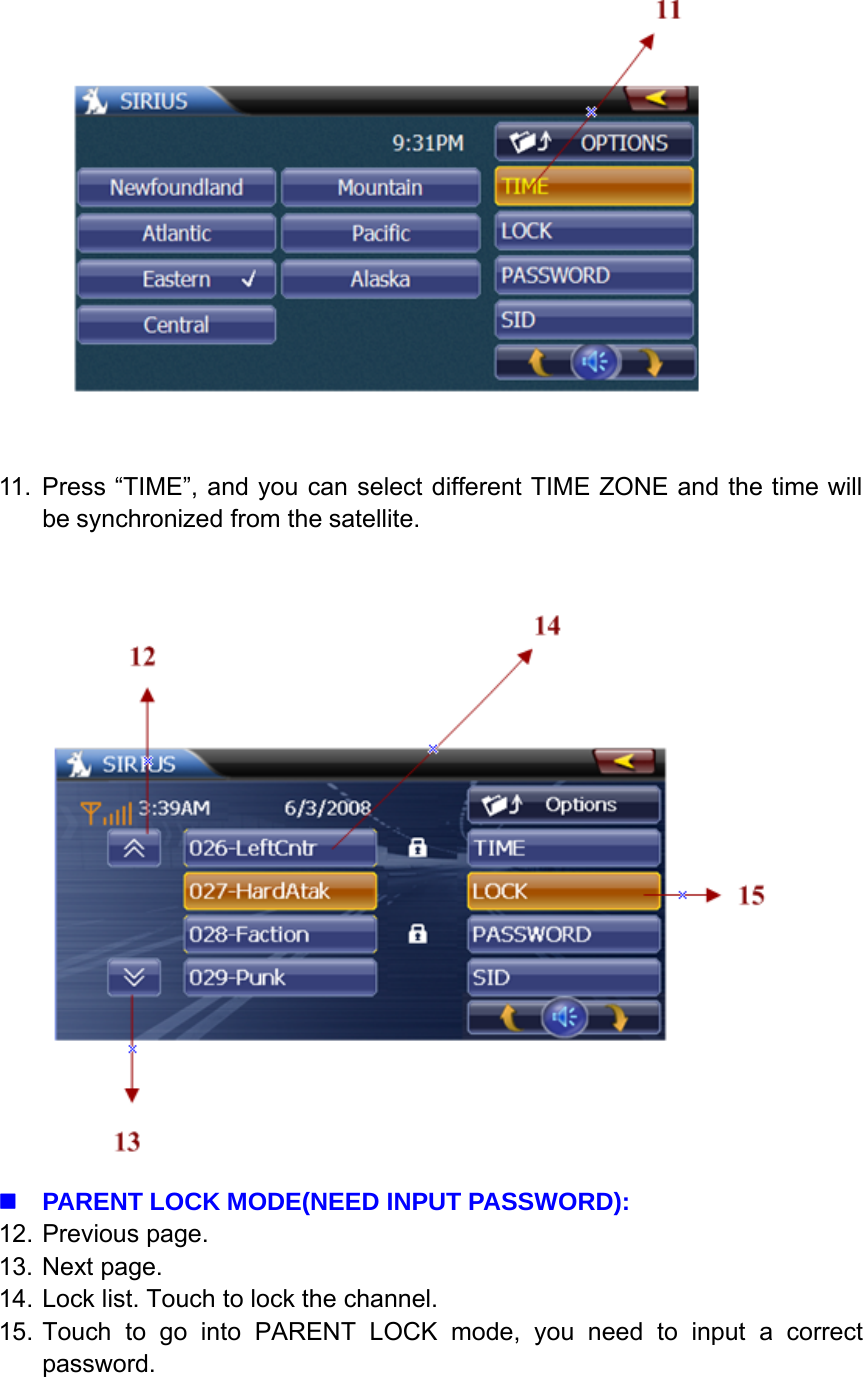
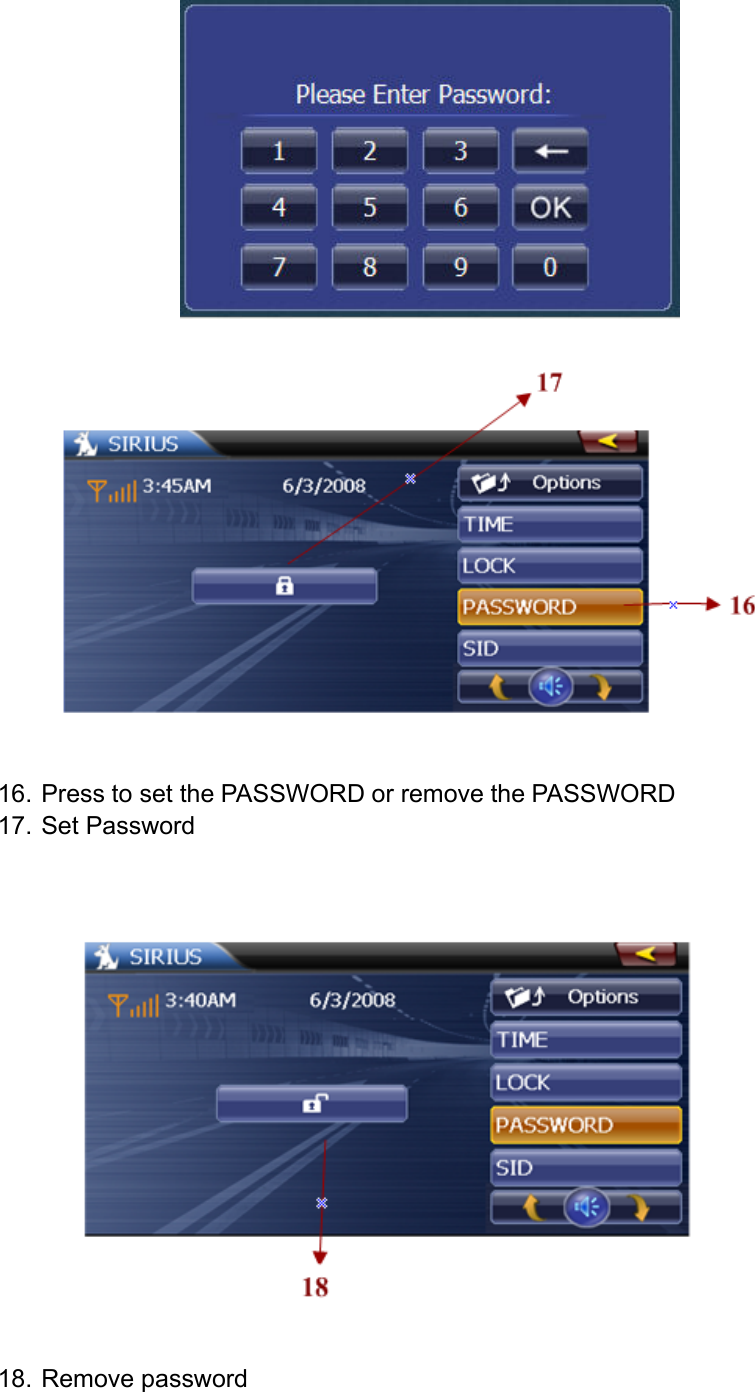
11. Press “TIME”, and you can select different TIME ZONE and the time willbe synchronized from the satellite.PARENT LOCK MODE(NEED INPUT PASSWORD):12. Previous page.13. Next page.14. Lock list. Touch to lock the channel.15. Touch to go into PARENT LOCK mode, you need to input a correctpassword.
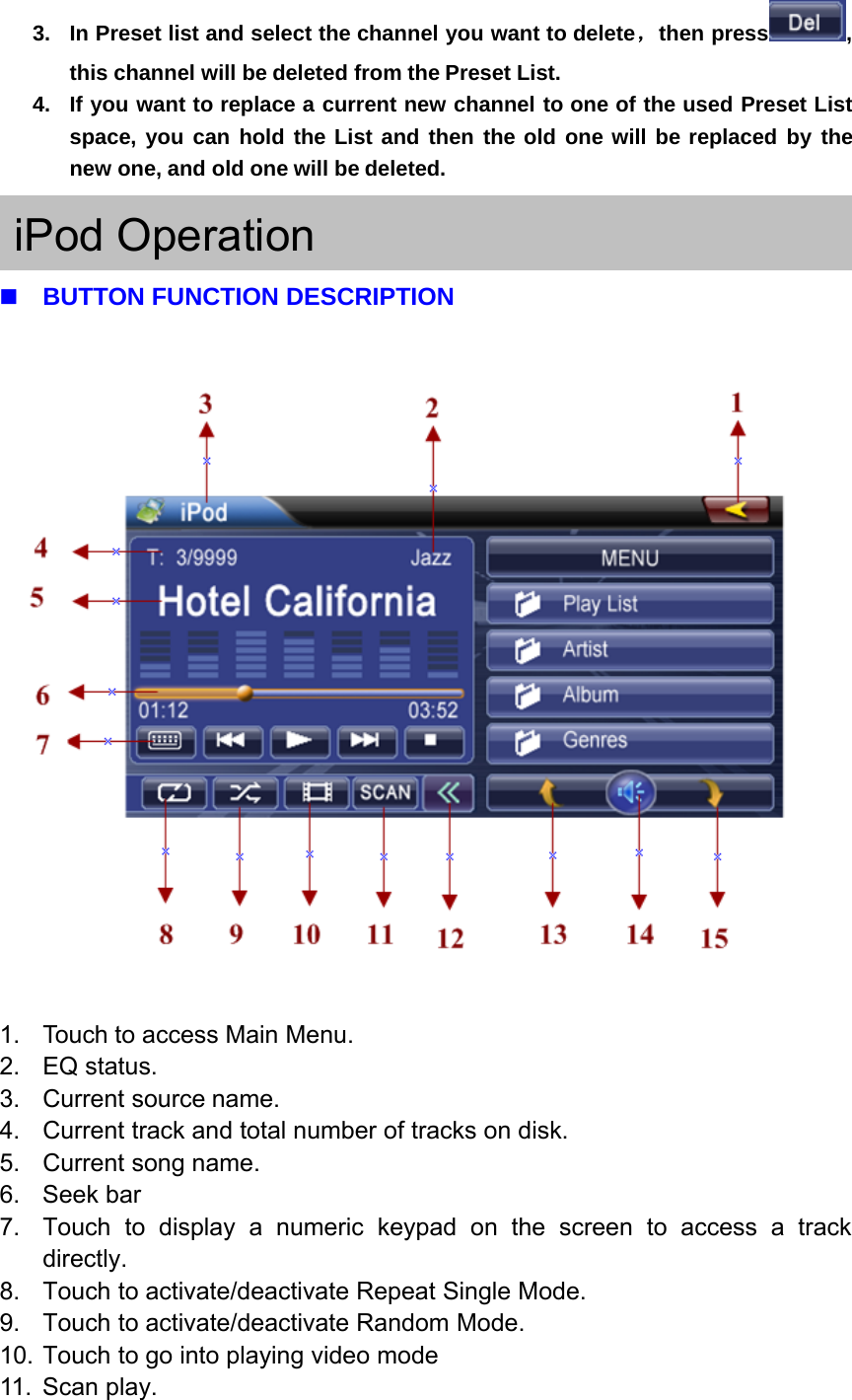
16. Press to set the PASSWORD or remove the PASSWORD17. Set Password18. Remove password
19. Press to display Sirius ID.View all channels availableIn SIRIUS screen press “ALL CHANNEL” will list out all available channels.View all categories availableIn SIRIUS screen press “CATEGORY” will list out all available categories.Select a channel directlyPress and input the channel number you want and press “OK”.Save channel to PresetThere are two ways:1. If the current channel is not in Preset List, you can press button tostore the current channel to the first empty preset memory.2. If the current channel is not in Preset List, you can press PRESET to displayPreset List and then find an empty preset list space and hold it for 3seconds, then the current channel will be stored to this space.Delete Preset ChannelThere are two ways:
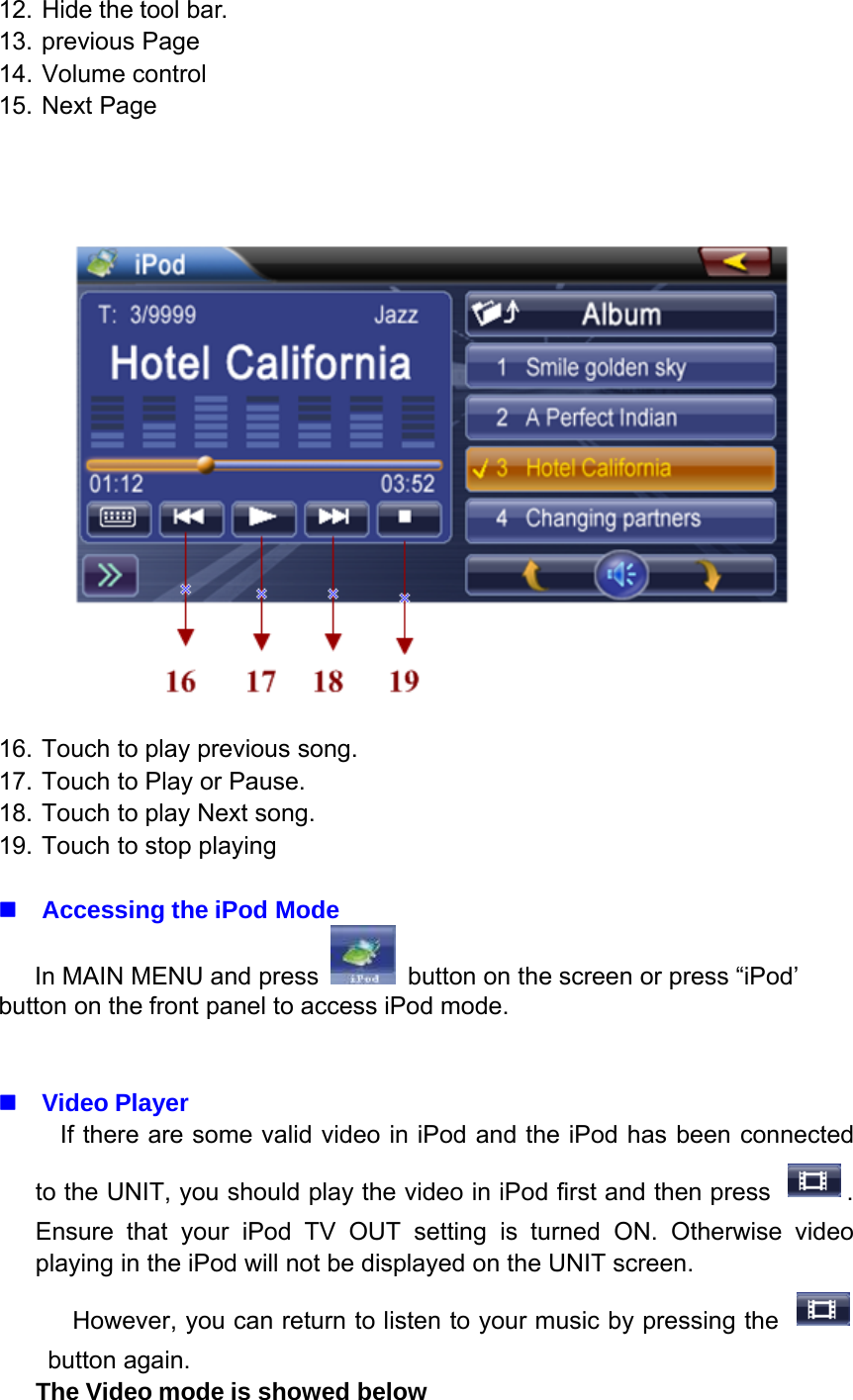
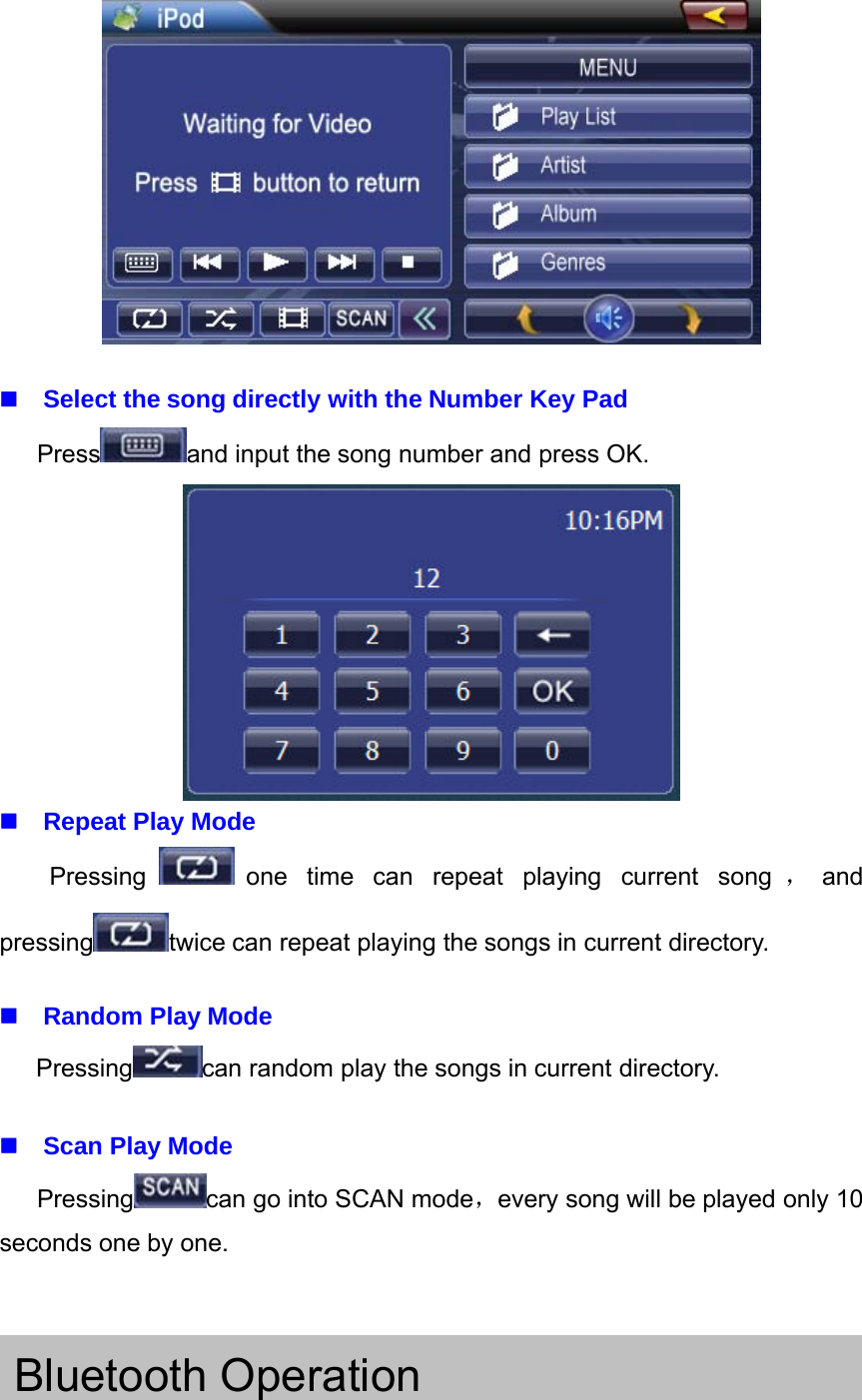
3. In Preset list and select the channel you want to delete,then press ,this channel will be deleted from the Preset List.4. If you want to replace a current new channel to one of the used Preset Listspace, you can hold the List and then the old one will be replaced by thenew one, and old one will be deleted.iPod OperationBUTTON FUNCTION DESCRIPTION1. Touch to access Main Menu.2. EQ status.3. Current source name.4. Current track and total number of tracks on disk.5. Current song name.6. Seek bar7. Touch to display a numeric keypad on the screen to access a trackdirectly.8. Touch to activate/deactivate Repeat Single Mode.9. Touch to activate/deactivate Random Mode.10. Touch to go into playing video mode11. Scan play.
12. Hide the tool bar.13. previous Page14. Volume control15. Next Page16. Touch to play previous song.17. Touch to Play or Pause.18. Touch to play Next song.19. Touch to stop playingAccessing the iPod ModeIn MAIN MENU and press button on the screen or press “iPod’button on the front panel to access iPod mode.Video PlayerIf there are some valid video in iPod and the iPod has been connectedto the UNIT, you should play the video in iPod first and then press .Ensure that your iPod TV OUT setting is turned ON. Otherwise videoplaying in the iPod will not be displayed on the UNIT screen.However, you can return to listen to your music by pressing thebutton again.The Video mode is showed below
Select the song directly with the Number Key PadPress and input the song number and press OK.Repeat Play ModePressing one time can repeat playing current song ,andpressing twice can repeat playing the songs in current directory.Random Play ModePressing can random play the songs in current directory.Scan Play ModePressing can go into SCAN mode,every song will be played only 10seconds one by one.Bluetooth Operation
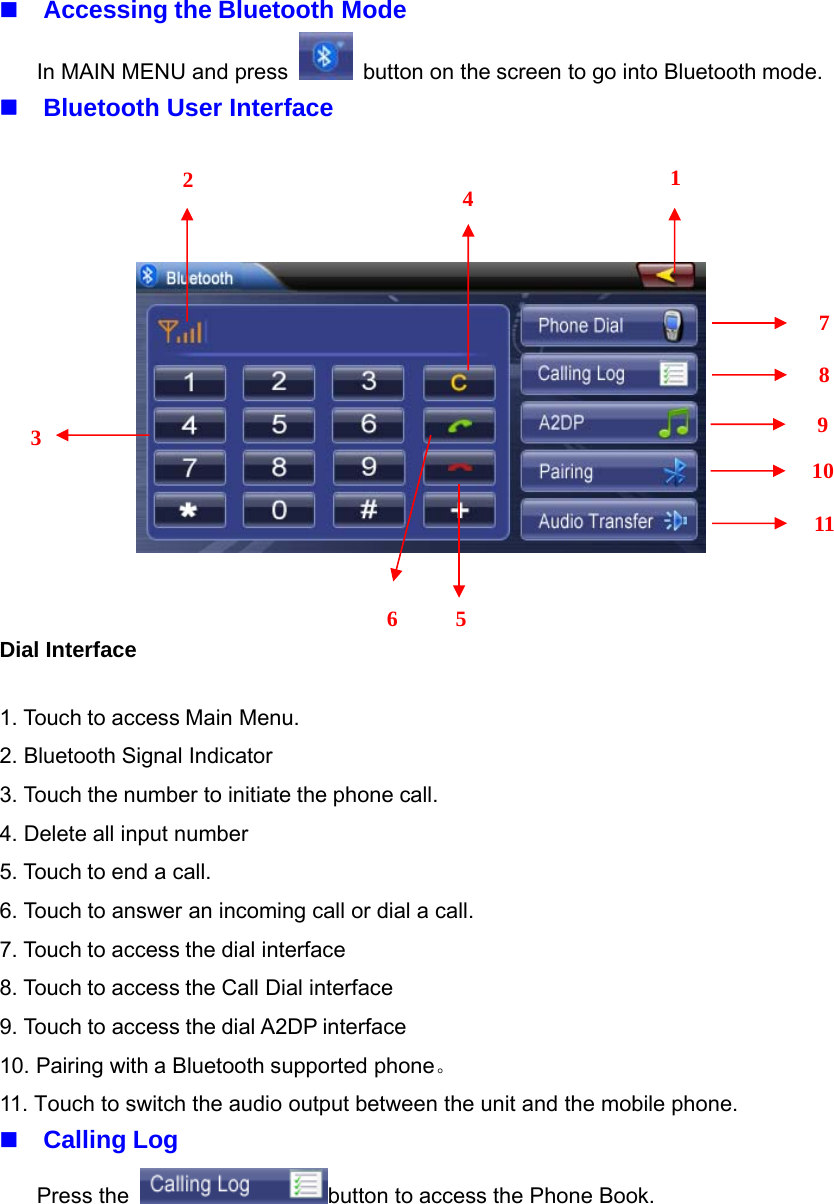
Accessing the Bluetooth ModeIn MAIN MENU and press button on the screen to go into Bluetooth mode.Bluetooth User InterfaceDial Interface1. Touch to access Main Menu.2. Bluetooth Signal Indicator3. Touch the number to initiate the phone call.4. Delete all input number5.Touchtoendacall.6. Touch to answer an incoming call or dial a call.7. Touch to access the dial interface8. Touch to access the Call Dial interface9. Touch to access the dial A2DP interface10. Pairing with a Bluetooth supported phone。11. Touch to switch the audio output between the unit and the mobile phone.Calling LogPress the button to access the Phone Book.2354167891011
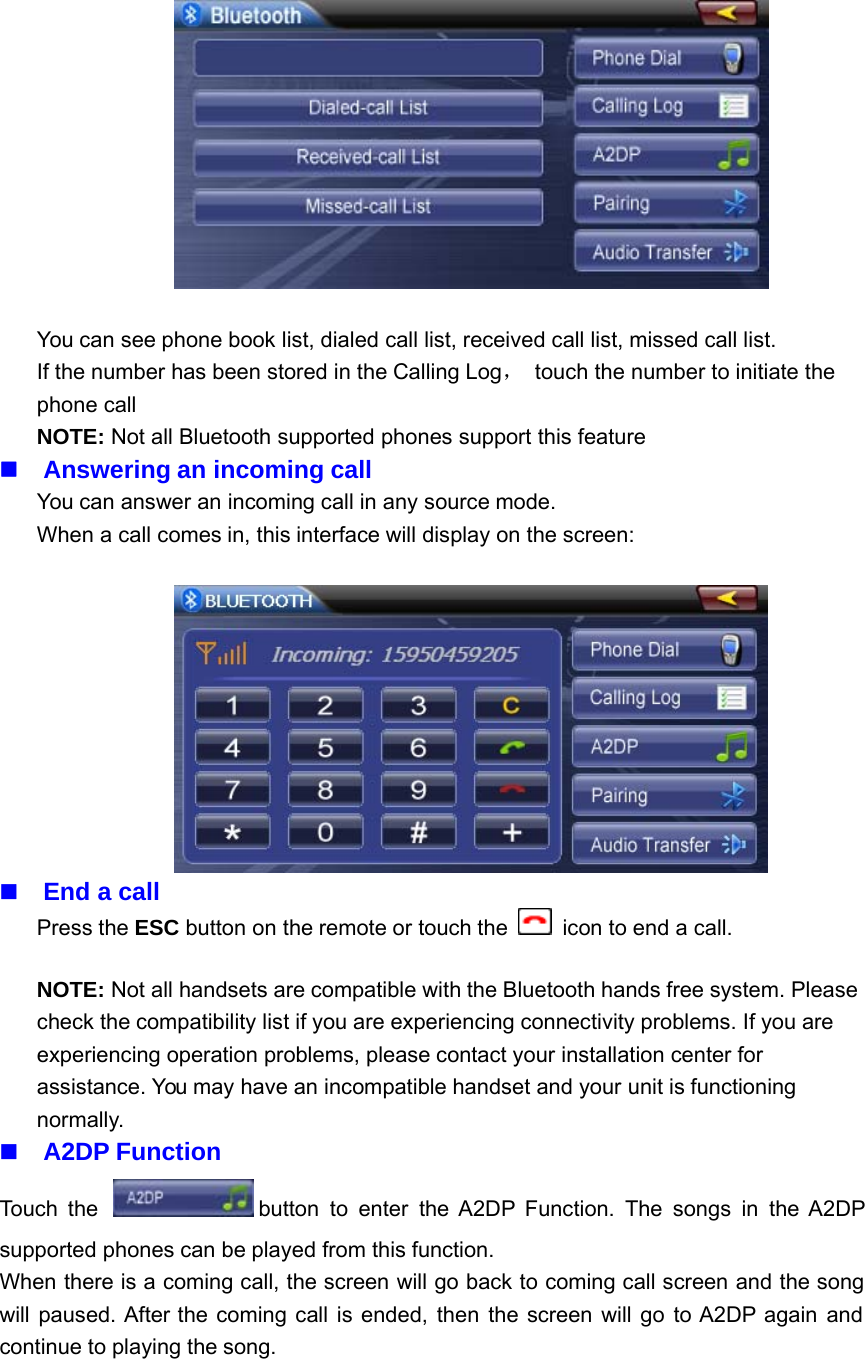
You can see phone book list, dialed call list, received call list, missed call list.If the number has been stored in the Calling Log,touch the number to initiate thephone callNOTE: Not all Bluetooth supported phones support this featureAnswering an incoming callYou can answer an incoming call in any source mode.When a call comes in, this interface will display on the screen:End a callPress the ESC button on the remote or touch the icon to end a call.NOTE: Not all handsets are compatible with the Bluetooth hands free system. Pleasecheck the compatibility list if you are experiencing connectivity problems. If you areexperiencing operation problems, please contact your installation center forassistance. You may have an incompatible handset and your unit is functioningnormally.A2DP FunctionTouch the button to enter the A2DP Function. The songs in the A2DPsupported phones can be played from this function.When there is a coming call, the screen will go back to coming call screen and the songwill paused. After the coming call is ended, then the screen will go to A2DP again andcontinue to playing the song.
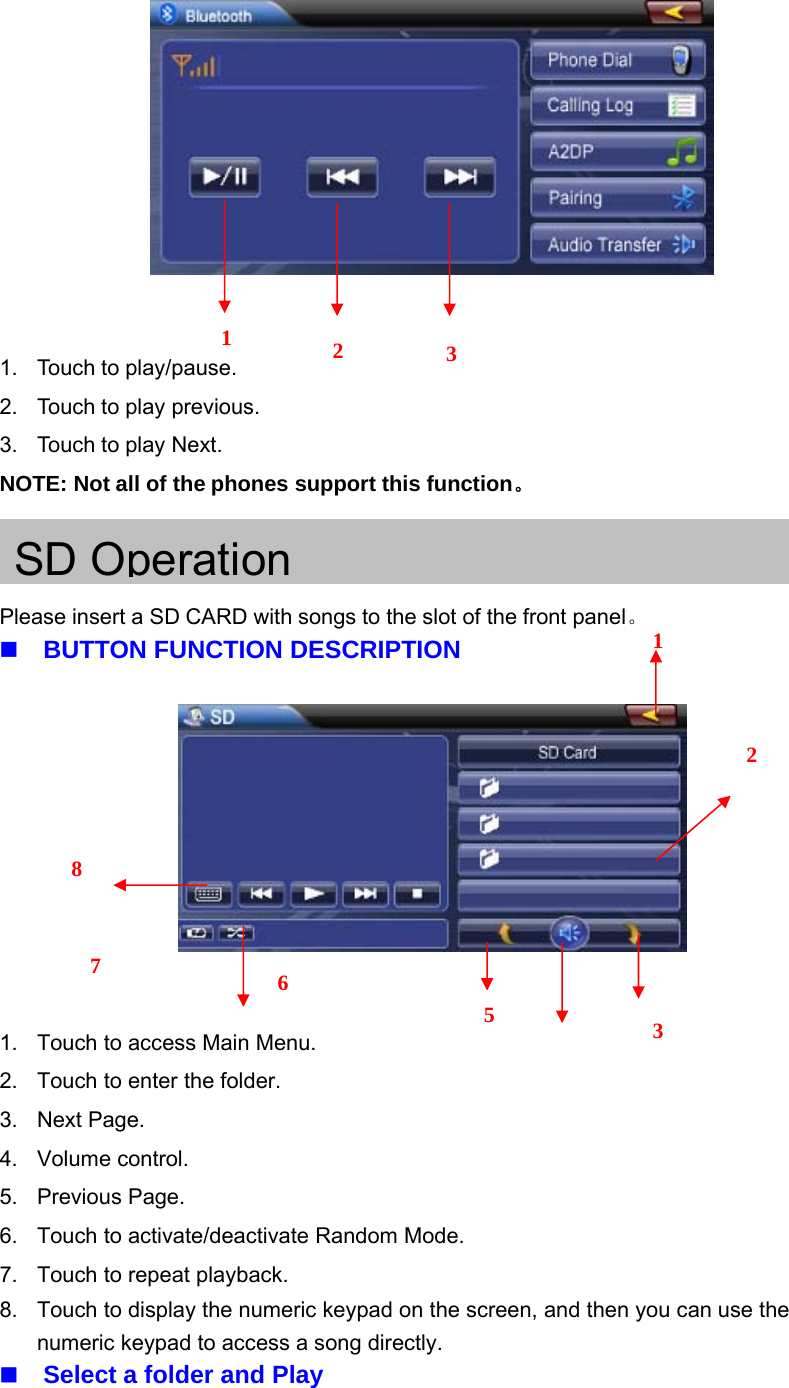
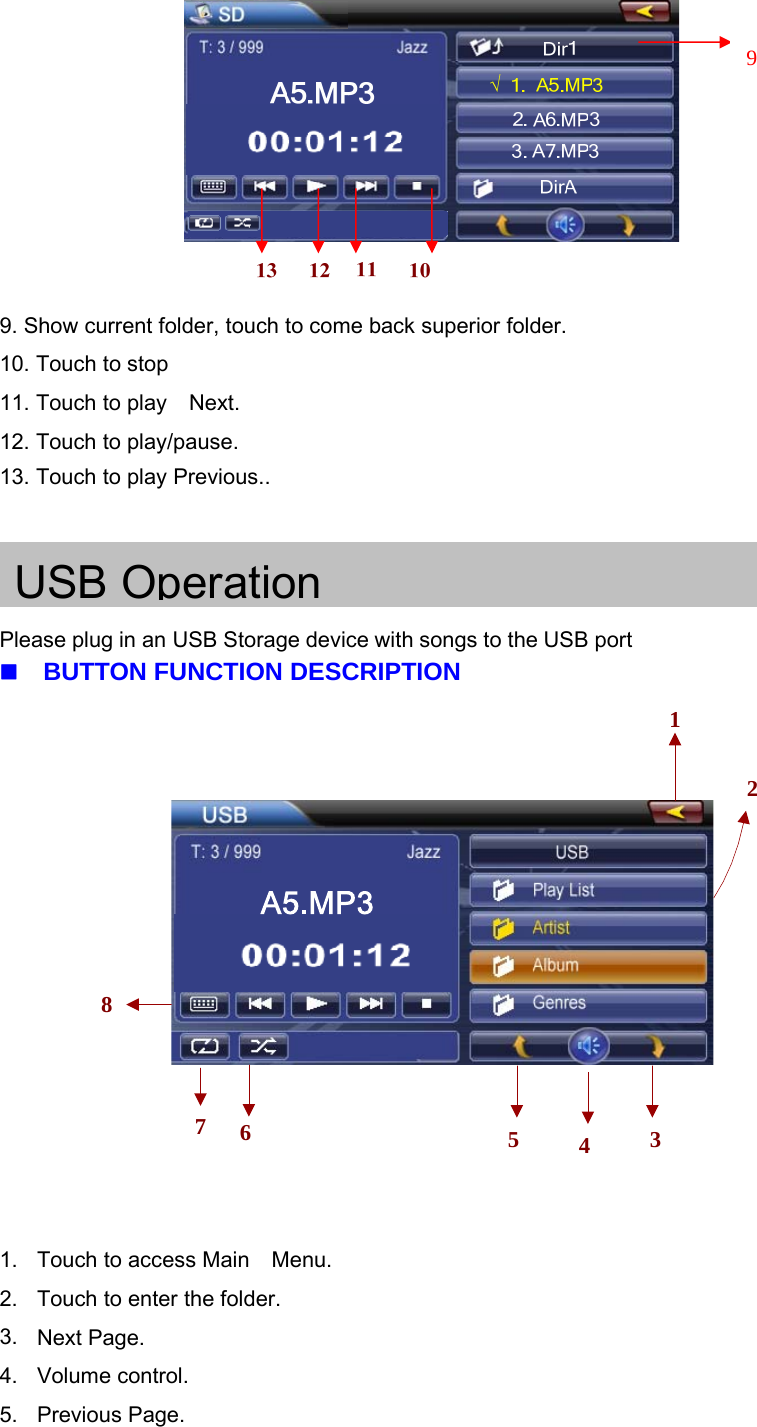
1. Touch to play/pause.2. Touch to play previous.3. Touch to play Next.NOTE: Not all of the phones support this function。SD OperationPlease insert a SD CARD with songs to the slot of the front panel。BUTTON FUNCTION DESCRIPTION1. Touch to access Main Menu.2. Touch to enter the folder.3. Next Page.4. Volume control.5. Previous Page.6. Touch to activate/deactivate Random Mode.7. Touch to repeat playback.8. Touch to display the numeric keypad on the screen, and then you can use thenumeric keypad to access a song directly.Select a folder and Play3211235678
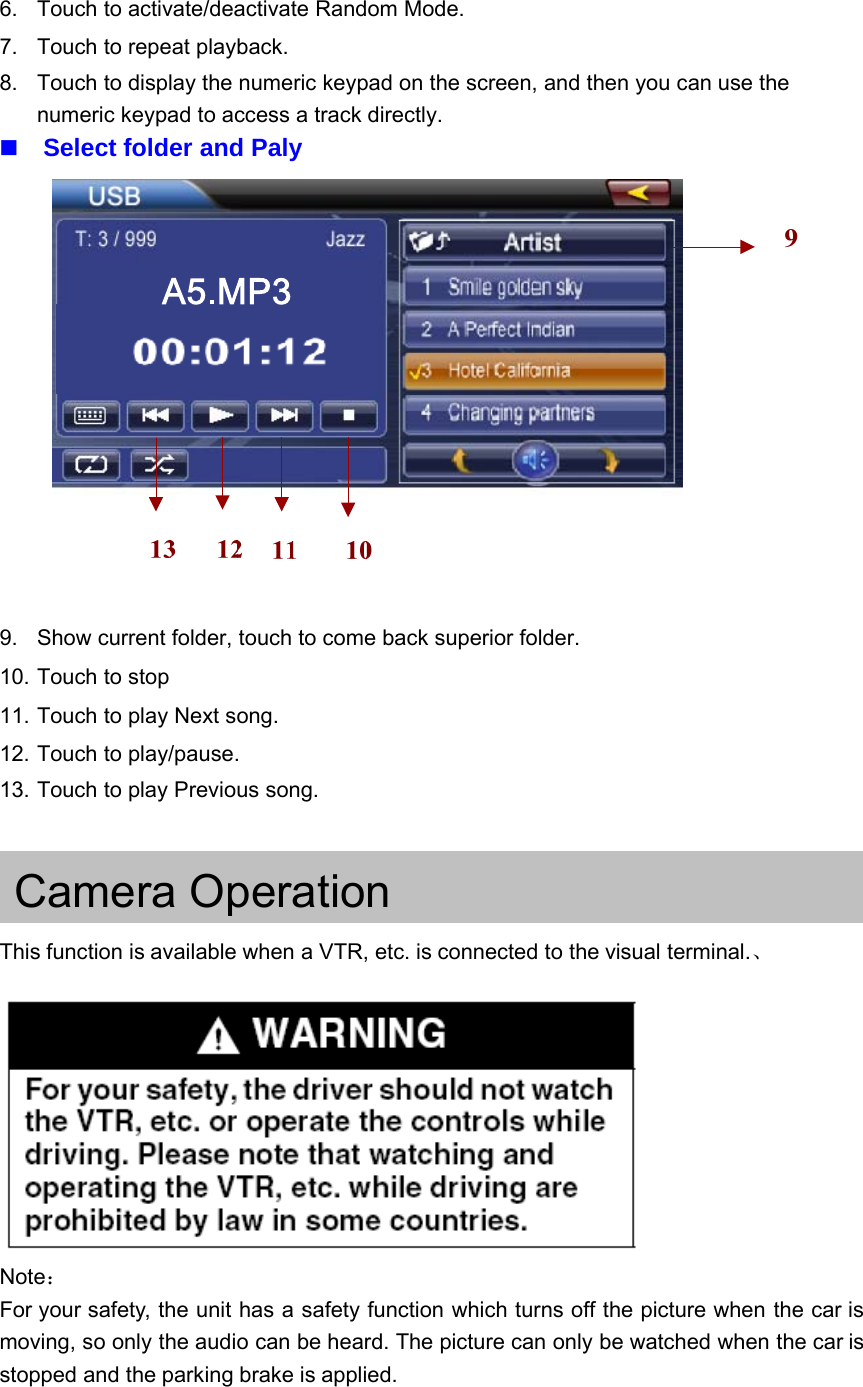
9. Show current folder, touch to come back superior folder.10. Touch to stop11. Touch to play Next.12. Touch to play/pause.13. Touch to play Previous..USB OperationPlease plug in an USB Storage device with songs to the USB portBUTTON FUNCTION DESCRIPTION8125 34761. Touch to access Main Menu.2. Touch to enter the folder.3. Next Page.4. Volume control.5. Previous Page.9
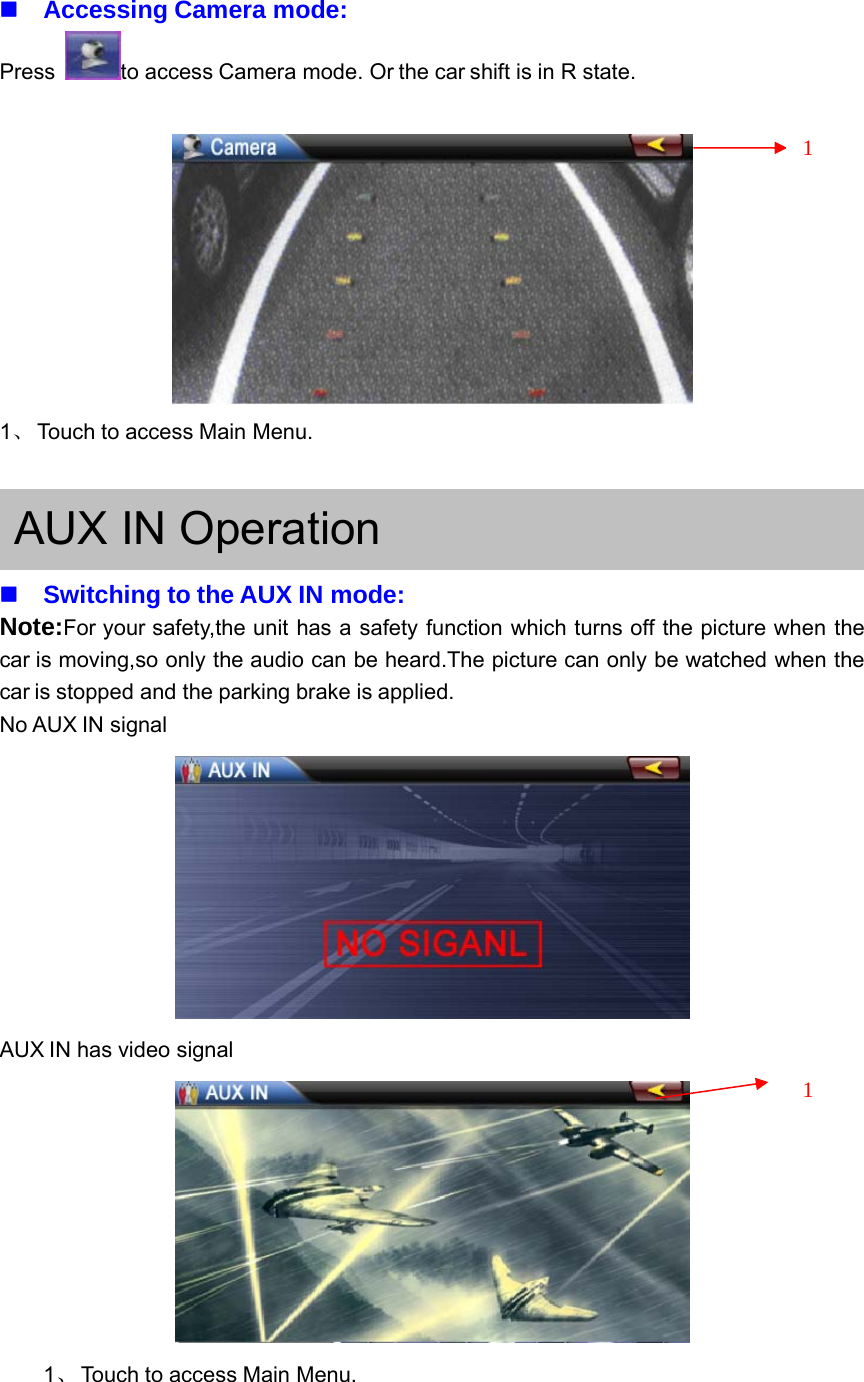
6. Touch to activate/deactivate Random Mode.7. Touch to repeat playback.8. Touch to display the numeric keypad on the screen, and then you can use thenumeric keypad to access a track directly.Select folder and Paly9. Show current folder, touch to come back superior folder.10. Touch to stop11. Touch to play Next song.12. Touch to play/pause.13. Touch to play Previous song.Camera OperationThis function is available when a VTR, etc. is connected to the visual terminal.、Note:For your safety, the unit has a safety function which turns off the picture when the car ismoving, so only the audio can be heard. The picture can only be watched when the car isstopped and the parking brake is applied.
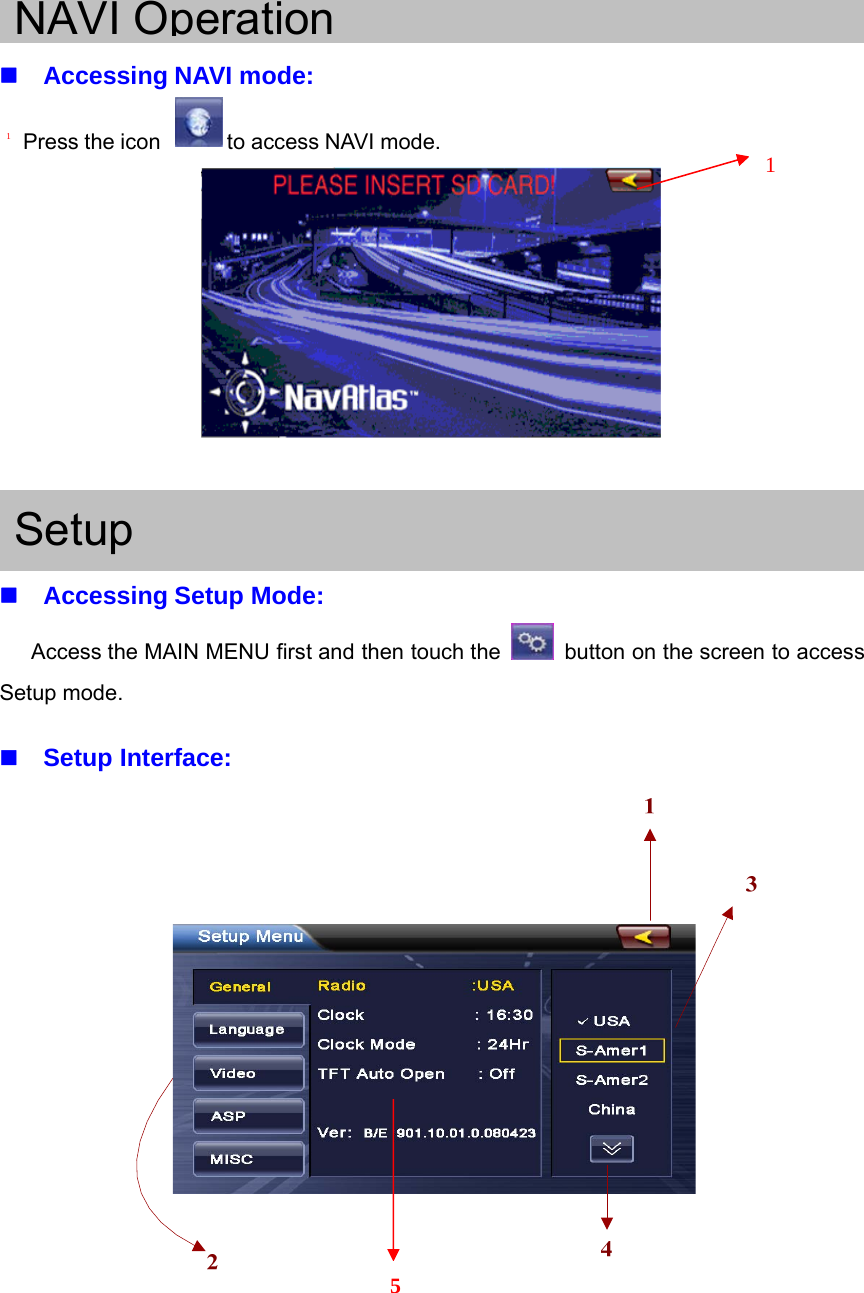
Accessing Camera mode:Press to access Camera mode. Or the car shift is in R state.1、Touch to access Main Menu.AUX IN OperationSwitching to the AUX IN mode:Note:For your safety,the unit has a safety function which turns off the picture when thecar is moving,so only the audio can be heard.The picture can only be watched when thecar is stopped and the parking brake is applied.No AUX IN signalAUX IN has video signal1、Touch to access Main Menu.11
NAVI OperationAccessing NAVI mode:Press the icon to access NAVI mode. 1 SetupAccessing Setup Mode:Access the MAIN MENU first and then touch the button on the screen to accessSetup mode.Setup Interface:15
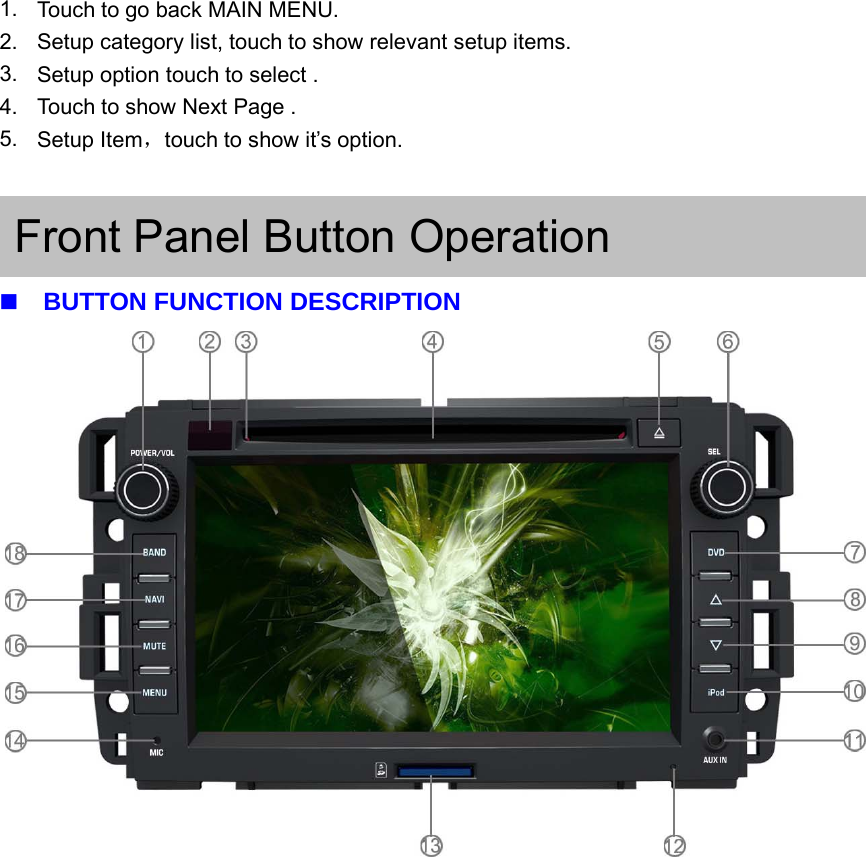
1. Touch to go back MAIN MENU.2. Setup category list, touch to show relevant setup items.3. Setupoptiontouchtoselect.4. Touch to show Next Page .5. Setup Item,touch to show it’s option.Front Panel Button OperationBUTTON FUNCTION DESCRIPTION
 FCC NOTE:  THE MANUFACTURER IS NOT RESPONSIBLE FOR ANY RADIO OR TV INTERFERENCE CAUSED BY UNAUTHORIZED MODIFICATIONS TO THIS EQUIPMENT. SUCH MODIFICATIONS COULD VOID THE USER’S AUTHORITY TO OPERATE THE EQUIPMENT.

Navigation menu