SMK FC006 Bluetooth Touchpad Remote User Manual

SMK Corporation Bluetooth Touchpad Remote Users Manual

Users Manual

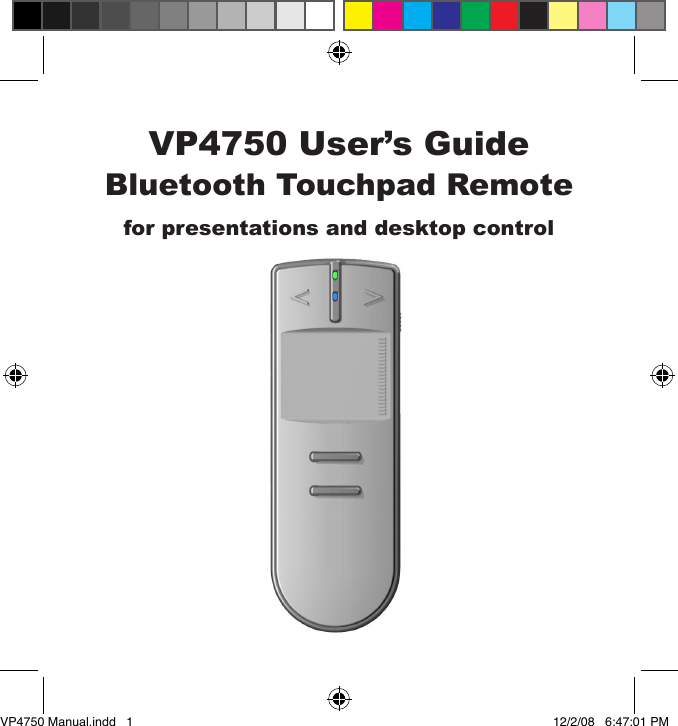
VP4750 User’s GuideBluetooth Touchpad Remotefor presentations and desktop controlVP4750 Manual.indd   1 12/2/08   6:47:01 PM
Table of ContentsGetting Started .......................................................................2Buttons and Controls ..............................................................3Windows  Pairing for Windows ................................................5  Using the remote in Windows .................................8Mac  Pairing on the Mac ..................................................9  Using the remote in OS X .....................................11Advanced Topics  ..................................................................12Agency Certications ............................................................13Product Specications ..........................................................15System Requirements ..........................................................15Trouble Shooting ..................................................................16Technical Support  ..................................................Back CoverPage 1VP4750 Manual.indd   2 12/2/08   6:47:01 PM
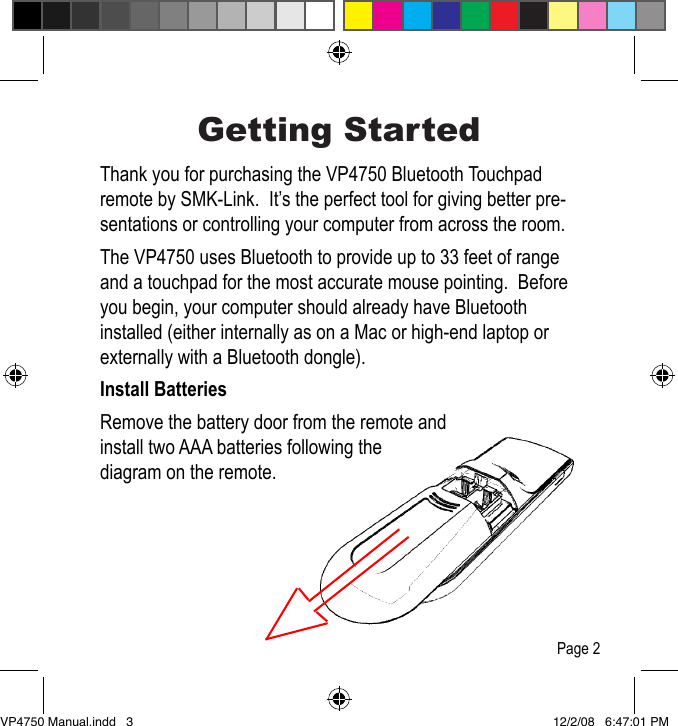
Getting StartedThank you for purchasing the VP4750 Bluetooth Touchpad remote by SMK-Link.  It’s the perfect tool for giving better pre-sentations or controlling your computer from across the room.The VP4750 uses Bluetooth to provide up to 33 feet of range and a touchpad for the most accurate mouse pointing.  Before you begin, your computer should already have Bluetooth installed (either internally as on a Mac or high-end laptop or externally with a Bluetooth dongle).Install BatteriesRemove the battery door from the remote and install two AAA batteries following the diagram on the remote.Page 2VP4750 Manual.indd   3 12/2/08   6:47:01 PM
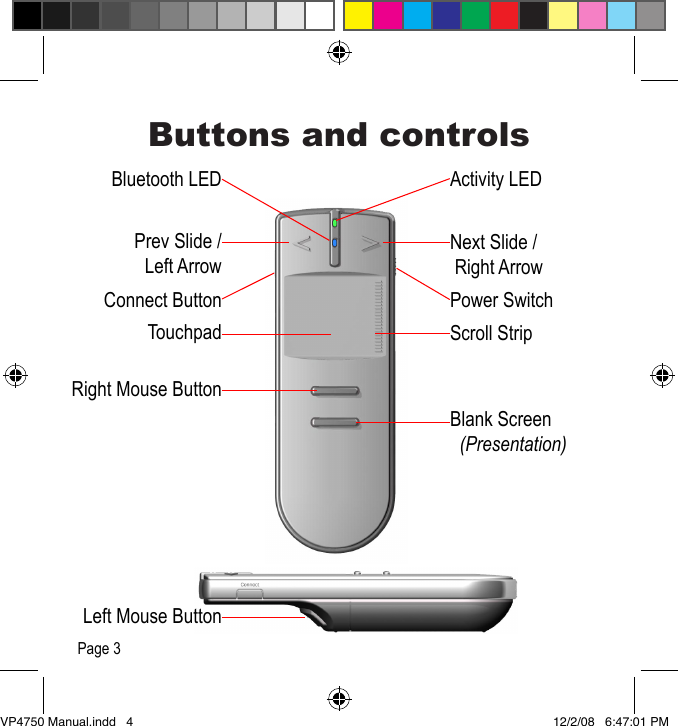
Buttons and controlsActivity LEDBluetooth LEDNext Slide / Right ArrowPrev Slide /Left ArrowPower SwitchConnect ButtonScroll StripTouchpadRight Mouse ButtonBlank Screen  (Presentation)Left Mouse ButtonPage 3VP4750 Manual.indd   4 12/2/08   6:47:01 PM
Activity LEDNext Slide / Right ArrowPower SwitchScroll StripBluetooth LED: Shows the status of the Bluetooth connection.    Fast Blinking: In Connect Mode.   Off: Not connected   Slow Blinking: Connected.    Activity LED: As you press controls this LED should blink.Next Slide / Right Arrow: Pressing this button is the same as pressing the right arrow key on your keyboard.  In presentation software it advances to the next slide.Prev Slide / Left Arrow: Pressing this button is the same as pressing the left arrow key on your keyboard.  In presentation software it returns to the previous slide.Power Switch: Slide this switch to turn the remote On. To turn Off, slide this switch and hold for 5 seconds.Connect Button: Press to place remote in connect / discovery mode.Blank Screen: By default this button sends the “b” key. In presentation software this blanks the screen.Touchpad: Move the cursor by sliding your thumb over the touchpad. Scroll through documents and web pages with the Scroll Strip. The patented click-trigger on the bottom is the left mouse button. Right click with the upper button.Page 4VP4750 Manual.indd   5 12/2/08   6:47:01 PM
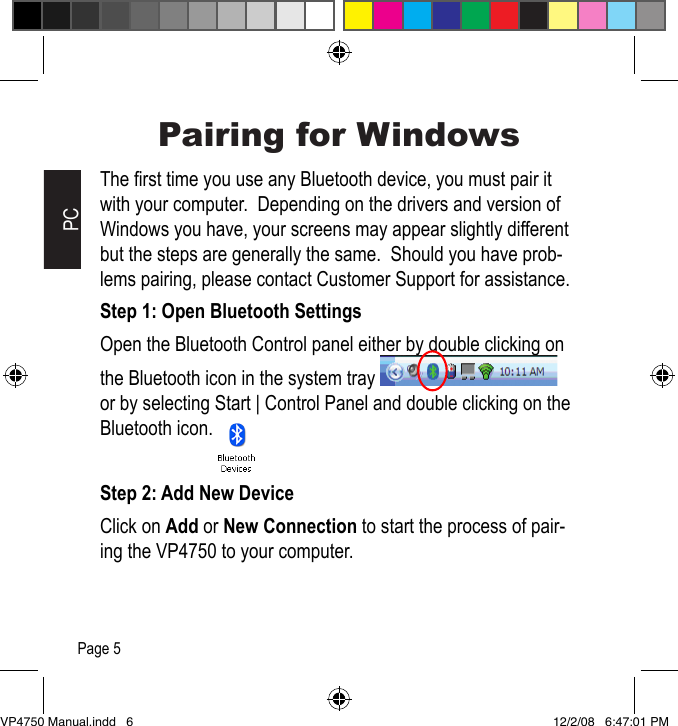
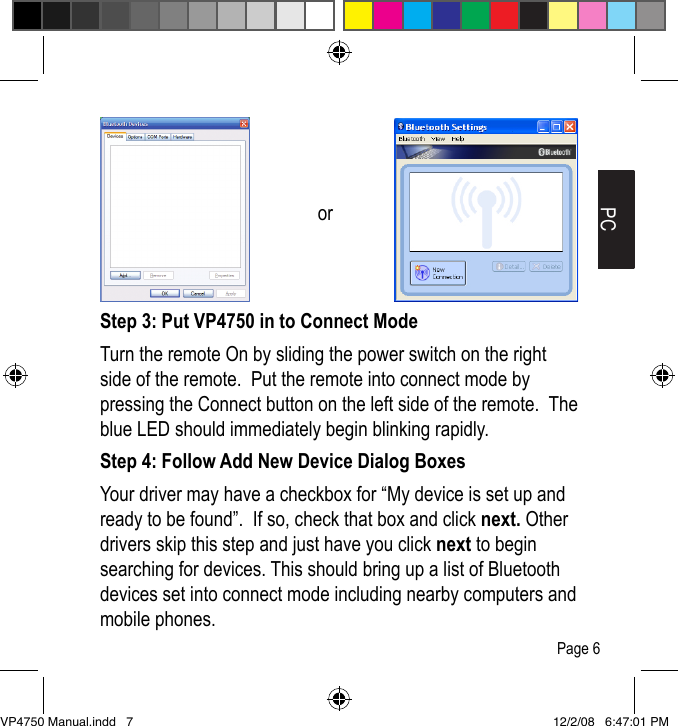
Pairing for WindowsThe rst time you use any Bluetooth device, you must pair it with your computer.  Depending on the drivers and version of Windows you have, your screens may appear slightly different but the steps are generally the same.  Should you have prob-lems pairing, please contact Customer Support for assistance.Step 1: Open Bluetooth SettingsOpen the Bluetooth Control panel either by double clicking on the Bluetooth icon in the system tray    or by selecting Start | Control Panel and double clicking on the Bluetooth icon.Step 2: Add New DeviceClick on Add or New Connection to start the process of pair-ing the VP4750 to your computer.PCPage 5VP4750 Manual.indd   6 12/2/08   6:47:01 PM
Step 3: Put VP4750 in to Connect ModeTurn the remote On by sliding the power switch on the right side of the remote.  Put the remote into connect mode by pressing the Connect button on the left side of the remote.  The blue LED should immediately begin blinking rapidly.Step 4: Follow Add New Device Dialog BoxesYour driver may have a checkbox for “My device is set up and ready to be found”.  If so, check that box and click next. Other drivers skip this step and just have you click next to begin searching for devices. This should bring up a list of Bluetooth devices set into connect mode including nearby computers and mobile phones.PCorPage 6VP4750 Manual.indd   7 12/2/08   6:47:01 PM
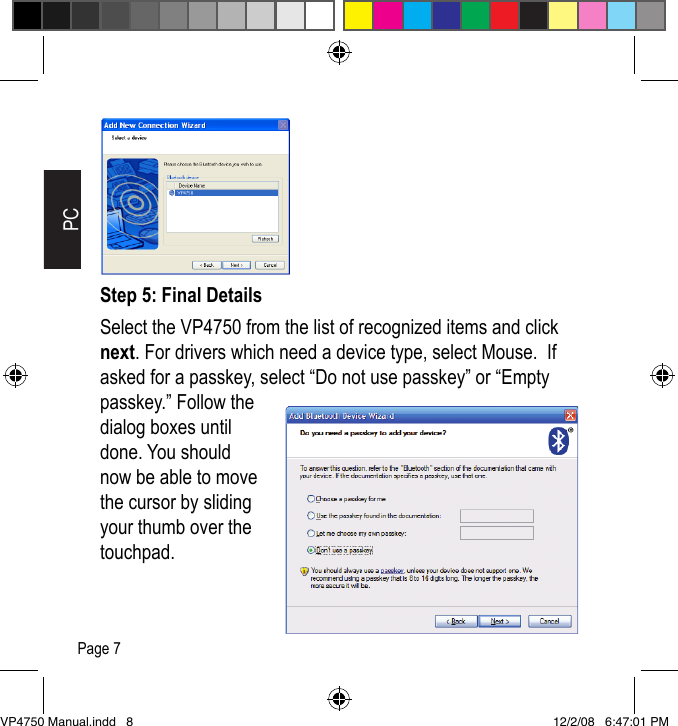
Step 5: Final DetailsSelect the VP4750 from the list of recognized items and click next. For drivers which need a device type, select Mouse.  If asked for a passkey, select “Do not use passkey” or “Empty passkey.” Follow the dialog boxes until done. You should now be able to move the cursor by sliding your thumb over the touchpad.PCPage 7VP4750 Manual.indd   8 12/2/08   6:47:01 PM
PCUsing the remote in WindowsPresentation SoftwareGive professional presentations with PowerPoint and the VP4750.  Control your slideshows from up to 33 feet away.  Use the touchpad as a mouse to load and start your presenta-tions. The Next Slide (>), Previous Slide (<) and Blank buttons will help your presentations look more professional.Hint: Use the cursor as a virtual laser pointer.  A laser pointer doesn’t show up on a web conference and is hard to see on plasma displays. Use the cursor to point out important details that would otherwise be impossible for your audience to see.Windows DesktopUse the VP4750 as a mouse to control the windows desktop from further away.  Now you can use your laptop like a home theatre system to play DVDs or to stream TV shows. Use it with your desktop to select and play music. Any program which can be controlled by a mouse, can be controlled with the VP4750.Page 8VP4750 Manual.indd   9 12/2/08   6:47:02 PM
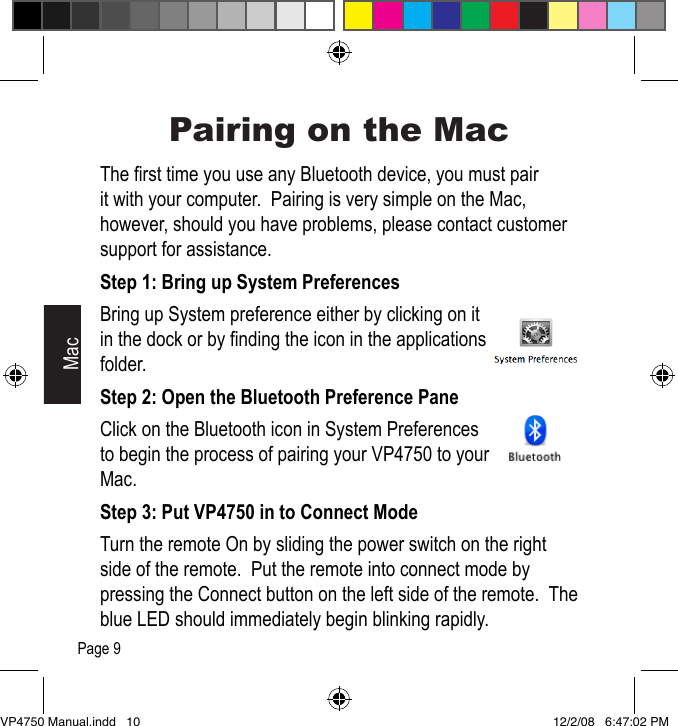
Pairing on the MacThe rst time you use any Bluetooth device, you must pair it with your computer.  Pairing is very simple on the Mac, however, should you have problems, please contact customer support for assistance.Step 1: Bring up System PreferencesBring up System preference either by clicking on it in the dock or by nding the icon in the applications folder.Step 2: Open the Bluetooth Preference PaneClick on the Bluetooth icon in System Preferences to begin the process of pairing your VP4750 to your Mac.Step 3: Put VP4750 in to Connect ModeTurn the remote On by sliding the power switch on the right side of the remote.  Put the remote into connect mode by pressing the Connect button on the left side of the remote.  The blue LED should immediately begin blinking rapidly.MacPage 9VP4750 Manual.indd   10 12/2/08   6:47:02 PM
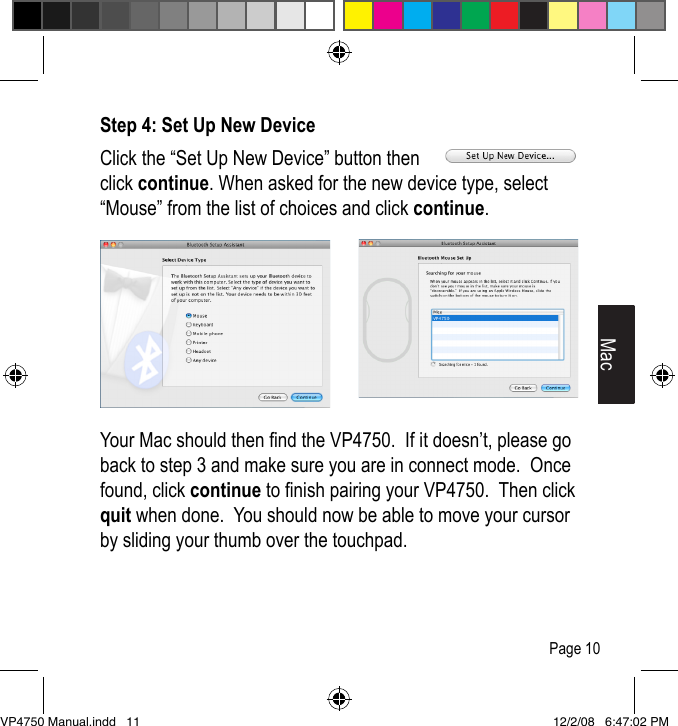
Step 4: Set Up New DeviceClick the “Set Up New Device” button then click continue. When asked for the new device type, select “Mouse” from the list of choices and click continue.Your Mac should then nd the VP4750.  If it doesn’t, please go back to step 3 and make sure you are in connect mode.  Once found, click continue to nish pairing your VP4750.  Then click quit when done.  You should now be able to move your cursor by sliding your thumb over the touchpad.MacPage 10VP4750 Manual.indd   11 12/2/08   6:47:02 PM
Using the remote in OS XPresentation SoftwareThe VP4750 works with both Apple Keynote and Microsoft PowerPoint.  Control your slideshows from up to 33 feet away.  Use the touchpad as a mouse to load and start your presenta-tions. The Next Slide (>), Previous Slide (<) and Blank buttons will help your presentations look more professional.Hint: Use the cursor as a virtual laser pointer.  A laser pointer doesn’t show up on a web conference and is hard to see on plasma displays. Use the cursor to point out important details that would otherwise be impossible for your audience to see.Other SoftwareYou can control any software on the Mac which can be con-trolled by a mouse.  This means you can use the DVD player to watch movies, iTunes to build play lists and play music or Safari to stream movies or TV shows from across the room.  Unfortunately, Front Row requires the keyboard or infrared remote, so it will not work with the VP4750.MacPage 11VP4750 Manual.indd   12 12/2/08   6:47:02 PM
Advanced TopicsMouse SpeedThe speed of the mouse can be set in your Windows control panel or the Mouse preference pane of System Preferences.  Sleep ModeBecause Bluetooth is continually transmitting and receiving, it goes to sleep after 20 minutes of inactivity.  When it goes to sleep it disconnects from your computer and turns itself off.  To wake it up, just press the power button and wait a few seconds for Bluetooth to reconnect.Turning Off the RemoteIf you do not want to wait for sleep mode to turn the remote Off, you can also turn off the remote by sliding the power switch and holding it for 5 seconds.Advanced SetupThere are various setup options to congure your VP4750. For a complete list, please visit “www.smklink.com/vp4750”.Page 12VP4750 Manual.indd   13 12/2/08   6:47:02 PM
Agency CerticationsUSA - FCC CFR 47 Part 15, Subpart B and C This device complies with Part 15 of the FCC Rules.Operation is subject to the following two conditions: (1) This device may not cause harmful interference, and (2) This device must accept any interference received, including interference that may cause undesired operation.This equipment has been tested and found to comply with the limits for a class B digital device, pursuant to part 15 of the FCC Rules. These limits are designed to provide reasonable protection against harmful interference in a residential installation. This equipment generates, uses and can radiate radio frequency energy and if not installed and used in accordance with the instruc-tions, may cause harmful interference to radio communications. However, there is no guarantee that interference will not occur in a particular installation. If this equipment does cause harmful interference to radio or television recep-tion, which can be determined by turning the equipment off and on, the user is encouraged to try to correct the interference by one or more of the following measures:* Reorient or relocate the receiving antenna.* Increase the separation between the equipment and receiver.* Connect the equipment into an outlet on a circuit different from that to which the receiver is connected.* Consult the dealer or an experienced radio/TV technician for help.Operation with non-approved equipment is likely to result in interference to radio and TV reception. The user is cautioned that changes and modications Page 13VP4750 Manual.indd   14 12/2/08   6:47:02 PM
made to the equipment without the approval of manufacturer could void the user’s authority to operate this equipment.Canada - IC RSS-210, ICES-003 This Class B digital apparatus complies with Canadian ICES-003.  Operation is subject to the following two conditions: (1) this device may not cause interfer-ence, and (2) this device must accept any interference, including interference that may cause undesired operation of the device.Europe - Declaration of Conformity We, SMK-Link Electronics declare under our sole responsibility that the prod-uct, VP4750 Bluetooth Touchpad Remote, to which this declaration relates is in conformity with the following standards or other normative documents:Art.3.1(a): EN 60950-1:2001Art.3.1(b): EN 301 489-17:2002 (V1.2.1), EN 301 489-1:2005 (V1.6.1)Art.3.2: EN 300 328:2006(V1.7.1)Following the provisions of 1999/5/EC,R&TTE directive.European RoHS DIR 2002/95/ECPage 14VP4750 Manual.indd   15 12/2/08   6:47:02 PM
SpecicationsCommunication Method  Bluetooth Standard V2.0 +EDRFrequency Band  RF 2.4 GHz (Bluetooth)Transmission Distance  Up to 33 feet Power Requirement  3V DC (two AAA sized batteries)Battery Usage  Up to 14 hours (continuous us-age)Touchpad  Capacitive Touchpad with Scroll StripSystem RequirementsOperating System  Windows XP or Vista  Mac OS X 10.4 or higherHardware  Built-in or add-on Bluetooth Dongle (Version 2.0 or higher)Page 15VP4750 Manual.indd   16 12/2/08   6:47:02 PM
TroubleshootingThe controller doesn’t work when I turn the power on.   •  If it’s never worked, you may need to insert batteries (p. 2) or pair the remote with your computer (PC p. 5, Mac p. 9).  •  If it worked 20 minutes ago, it may have gone into Sleep Mode to save power. To check, press the touchpad.  If the green Activity LED does not turn on, slide the power switch to wake the unit back up.Movement of the cursor is jerky.  •  You may be too far away from the computer.  Move closer and see if the problem gets better.  •  You may have too many items nearby using the 2.4 GHz frequency.  Try moving the computer to another location to see if it improves.  •  Your computer may be frozen or processing data. Check to see if you have the same problem with a wired mouse.  •  Your batteries may be getting low.  Try another pair.Page 16VP4750 Manual.indd   17 12/2/08   6:47:02 PM
Page 17When the computer goes into sleep mode, the remote does not operate or operates erratically.  •  Deactive the Bluetooth connection, wait a few seconds and then re-establish the connection.The mouse moves too fast / too slow.  •  The speed of the mouse can be set in your Windows control panel or the Mouse preference pane of System Preferences. The Scroll Strip does not work.  •  Not all programs support scrolling.  Try scrolling on a wired mouse.  If the wired mouse doesn’t work, you can check in the mouse section of Windows control panel to ensure it hasn’t been disabled. If it hasn’t been disabled, the program does not support mouse and touchpad scroll-ing.VP4750 Manual.indd   18 12/2/08   6:47:02 PM
Thank YouThank you for purchasing a VP4750 Bluetooth® Touchpad Remote. We know you had other choices and we appreciate that you chose SMK-Link for your wireless needs.So that we may better serve you in the future, please register online at “www.smklink.com/register”.Warranty30-Day Money Back GuaranteeOne Year, Limited WarrantyContacting Customer SupportSMK-Link Electronics, Inc.3601-B Calle TecateCamarillo, CA 93012 USATelephone 888 696 3500   Fax 805 987 6665www.smklink.comVP4750 Manual.indd   19 12/2/08   6:47:02 PM

Navigation menu