SMK FC021 neyya User Manual NeyyaQuickGuide Layout Revision2

SMK Corporation neyya NeyyaQuickGuide Layout Revision2

User manual

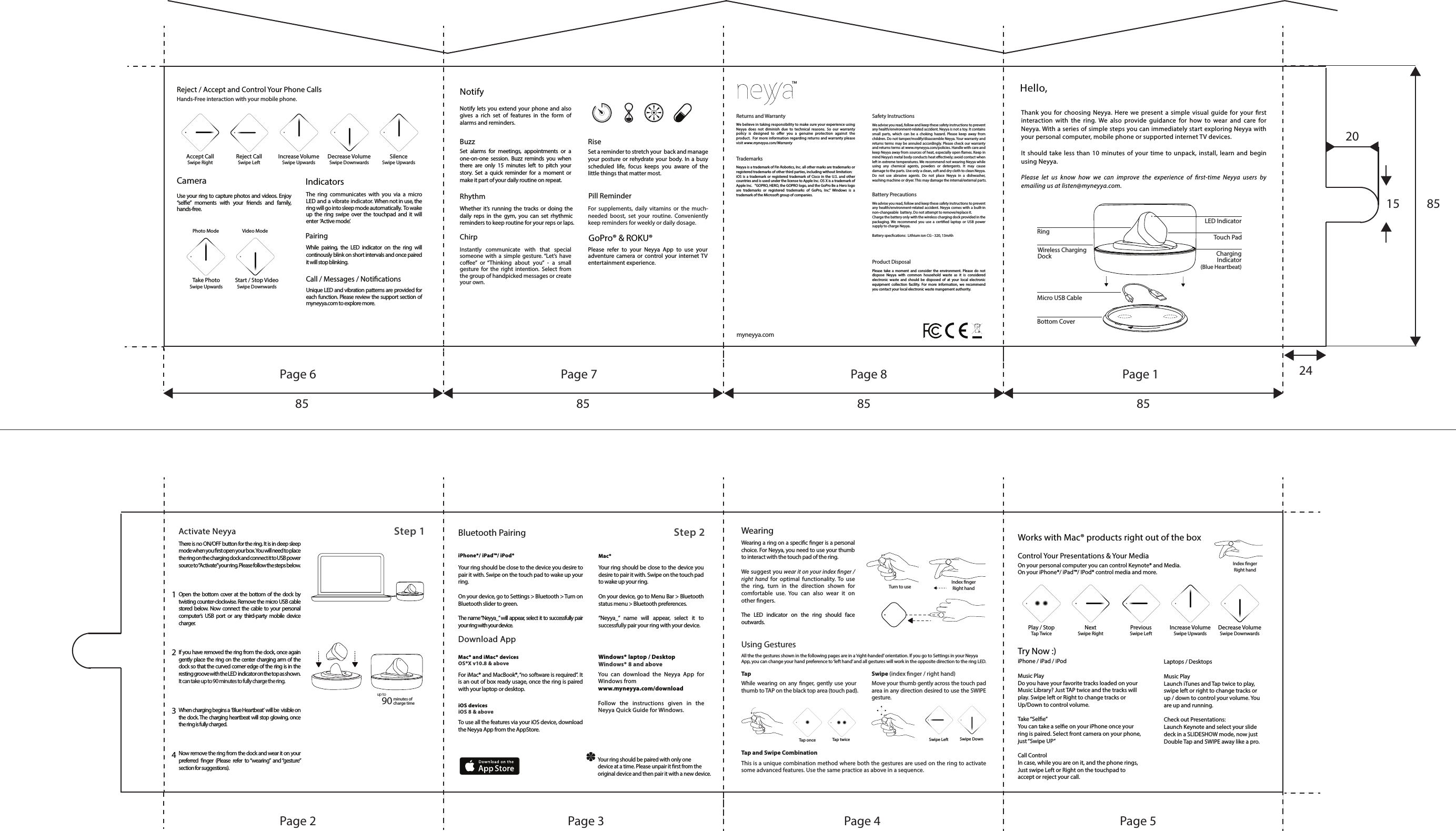
Hello,Thank you for choosing Neyya. Here we present a simple visual guide for your rst interaction with the ring. We also provide guidance for how to wear and care for Neyya. With a series of simple steps you can immediately start exploring Neyya with your personal computer, mobile phone or supported internet TV devices.It should take less than 10 minutes of your time to unpack, install, learn and begin using Neyya. Please let us know how we can improve the experience of rst-time Neyya users by emailing us at listen@myneyya.com.LED IndicatorTouch PadCharging Indicator (Blue Heartbeat)RingWireless Charging DockMicro USB CableBottom Cover1234Activate Neyya There is no ON/OFF button for the ring. It is in deep sleep mode when you rst open your box. You will need to place the ring on the charging dock and connect it to USB power source to “Activate” your ring. Please follow the steps below.Open the bottom cover at the bottom of the dock by twisting counter-clockwise. Remove the micro USB cable stored below. Now connect the cable to your personal computer’s USB port or any third-party mobile device charger.If you have removed the ring from the dock, once again gently place the ring on the center charging arm of the dock so that the curved corner edge of the ring is in the resting groove with the LED  indicator on the top as shown.   It can take up to 90 minutes to fully charge the ring.When charging begins a  ‘Blue Heartbeat’  will be  visible on the dock. The charging heartbeat will stop glowing, once the ring is fully charged.Now remove the ring from the dock and wear it on your preferred nger (Please refer to “wearing” and “gesture” section for suggestions).90 minutes of charge timeup toStep 1 Step 2 Bluetooth PairingiPhone®/ iPad™/ iPod®Your ring should be close to the device you desire to pair it with. Swipe on the touch pad to wake up your ring.On your device, go to Settings > Bluetooth > Turn on Bluetooth slider to green.The name “Neyya_” will appear, select it to successfully pair your ring with your device.  Mac®Your ring should be close to the device you desire to pair it with. Swipe on the touch pad to wake up your ring.On your device, go to Menu Bar > Bluetooth status menu > Bluetooth preferences.“Neyya_” name will appear, select it to successfully pair your ring with your device.Download AppMac® and iMac® devices OS®X v10.8 & above For iMac® and MacBook®, “no software is required”. It is an out of box ready usage, once the ring is paired with your laptop or desktop. iOS devices iOS 8 & above To use all the features via your iOS device, download the Neyya App from the AppStore.Windows® laptop / DesktopWindows® 8 and above  You can download the Neyya App for Windows fromwww.myneyya.com/downloadFollow the instructions given in the Neyya Quick Guide for Windows.Your ring should be paired with only one device at a time. Please unpair it rst from the original device and then pair it with a new device.WearingWearing a ring on a specic nger is a personal choice. For Neyya, you need to use your thumb to interact with the touch pad of the ring. We suggest you wear it on your index nger / right hand for optimal functionality. To use the ring, turn in the direction shown for comfortable use. You can also wear it on other ngers.The LED indicator on the ring should face outwards. Using GesturesTap Tap and Swipe Combination Swipe (index nger / right hand)While wearing on any nger, gently use your thumb to TAP on the black top area (touch pad).Move your thumb gently across the touch pad area in any direction desired to use the SWIPE gesture. This is a unique combination method where both the gestures are used on the ring to activate some advanced features. Use the same practice as above in a sequence. Tap once Tap twice Swipe Left Swipe DownAll the the gestures shown in the following pages are in a ‘right-handed’ orientation. If you go to Settings in your Neyya App, you can change your hand preference to ‘left hand’ and all gestures will work in the opposite direction to the ring LED.Index nger Right handTurn to useWorks with Mac® products right out of the boxControl Your Presentations & Your MediaOn your personal computer you can control Keynote® and Media.On your iPhone®/ iPad™/ IPod® control media and more. Play / StopTap TwiceNextSwipe RightPreviousSwipe LeftIncrease VolumeSwipe UpwardsDecrease VolumeSwipe DownwardsIndex nger Right handTry Now :)iPhone / iPad / iPodMusic PlayDo you have your favorite tracks loaded on your Music Library? Just TAP twice and the tracks will play. Swipe left or Right to change tracks or Up/Down to control volume.Take “Sele”You can take a sele on your iPhone once your ring is paired. Select front camera on your phone, just “Swipe UP”Call ControlIn case, while you are on it, and the phone rings, Just swipe Left or Right on the touchpad to accept or reject your call.Laptops / Desktops Music PlayLaunch iTunes and Tap twice to play, swipe left or right to change tracks or up / down to control your volume. You are up and running.Check out Presentations:Launch Keynote and select your slide deck in a SLIDESHOW mode, now just Double Tap and SWIPE away like a pro.Reject / Accept and Control Your Phone CallsHands-Free interaction with your mobile phone.Accept CallSwipe RightReject CallSwipe LeftIncrease VolumeSwipe UpwardsDecrease VolumeSwipe DownwardsSilenceSwipe UpwardsTake PhotoSwipe UpwardsStart / Stop VideoSwipe DownwardsCameraUse your ring to capture photos and videos. Enjoy  “sele” moments with your friends and family, hands-free.IndicatorsThe ring communicates with you via a micro LED and a vibrate indicator. When not in use, the  ring will go into sleep mode automatically.  To wake up the ring swipe over the touchpad and it will enter  ‘Active mode’.Pairing While pairing, the LED indicator on the ring will continously blink on short intervals and once paired it will stop blinking.Call / Messages / NoticationsUnique LED and vibration patterns are provided for each function. Please review the support section of myneyya.com to explore more.Video ModePhoto ModeGoPro® & ROKU®Please refer to your Neyya App to use your adventure camera or control your internet TV entertainment experience.NotifyNotify lets you extend your phone and also gives a rich set of features in the form of alarms and reminders.Buzz RiseRhythm Pill ReminderSet alarms for meetings, appointments or a one-on-one session. Buzz reminds you when there are only 15 minutes left to pitch your story. Set a quick reminder for a moment or make it part of your daily routine on repeat.Whether it’s running the tracks or doing the daily reps in the gym, you can set rhythmic reminders to keep routine for your reps or laps. ChirpInstantly communicate with that special someone with a simple gesture. “Let’s have coee” or “Thinking about you” - a small gesture for the right intention. Select from the group of handpicked messages or create  your own.Set a reminder to stretch your  back and manage your posture or rehydrate your body. In a busy scheduled life, focus keeps you aware of the little things that matter most. For supplements, daily vitamins or the much- needed boost, set your routine. Conveniently keep reminders for weekly or daily dosage. Returns and Warranty Safety InstructionsBattery PrecautionsProduct DisposalTrademarks We believe in taking responsibility to make sure your experience using Neyya does not diminish due to technical reasons. So our warranty policy is designed to oer you a genuine protection against the product.  For more information regarding returns and warranty please visit www.myneyya.com/WarrantyNeyya is a trademark of Fin Robotics, Inc. all other marks are trademarks or registered trademarks of other third parties, including without limitation:iOS is a trademark or registered trademark of Cisco in the U.S. and other countries and is used under the license to Apple Inc. OS X is a trademark of Apple Inc.   "GOPRO, HERO, the GOPRO logo, and the GoPro Be a Hero logo are trademarks or registered trademarks of GoPro, Inc." Windows is a  trademark of the Microsoft group of companies.We advise you read, follow and keep these safety instructions to prevent any health/environment-related accident. Neyya is not a toy. It contains small parts, which can be a choking hazard. Please keep away from children. Do not tamper/modify/disassemble Neyya. Your warranty and returns terms may be annuled accordingly. Please check our warranty and returns terms at www.myneyya.com/policies. Handle with care and keep Neyya away from sources of heat, especially open ames. Keep in mind Neyya’s metal body conducts heat eectively; avoid contact when left in extreme temperatures. We recommend not wearing Neyya while using any chemical agents, powders or detergents. It may cause damage to the parts. Use only a clean, soft and dry cloth to clean Neyya. Do not use abrasive agents. Do not place Neyya in a dishwasher, washing machine or dryer. This may damage the internal/external parts.We advise you read, follow and keep these safety instructions to prevent any health/environment-related accident. Neyya comes with a built-in non-changeable  battery. Do not attempt to remove/replace it.Charge the battery only with the wireless charging dock provided in the packaging. We recommend you use a certied laptop or USB power supply to charge Neyya.Battery speccations:  Lithium ion CG - 320, 13mAh Please take a moment and consider the environment. Please do not dispose Neyya with common household waste as it is considered  electronic waste and should be disposed of at your local electronic equipment collection facility. For more information, we recommend you contact your local electronic waste mangement authority. myneyya.com™Page 6Page 2 Page 3 Page 4 Page 5Page 7 Page 8 Page 1 2415 858520858585

Navigation menu