SMT TELECOMM X444 Mobile Phone User Manual

SMT TELECOMM HK LIMITED Mobile Phone

Contents

User manual

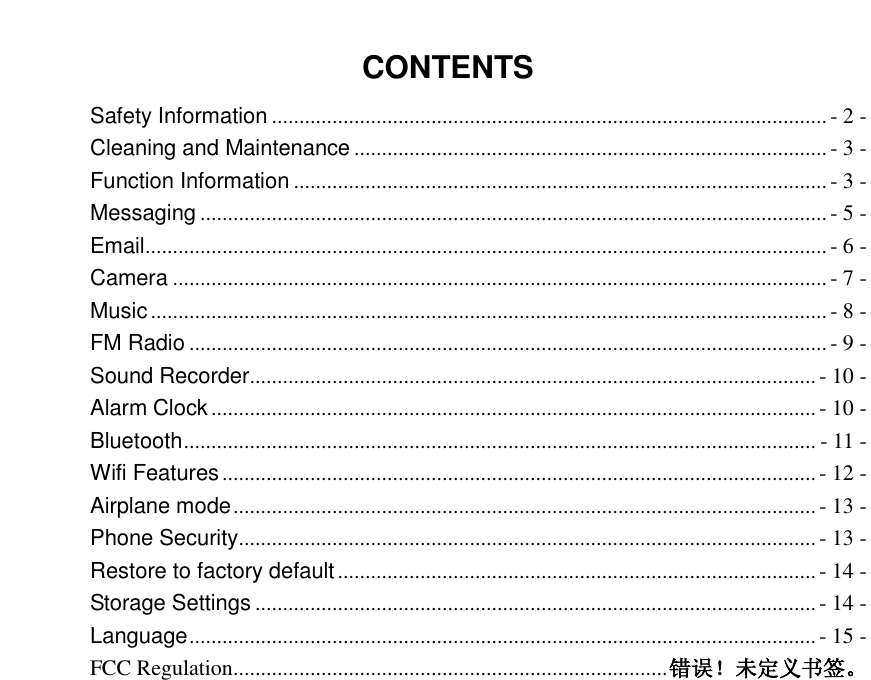
 CONTENTS Safety Information ..................................................................................................... - 2 - Cleaning and Maintenance ...................................................................................... - 3 - Function Information ................................................................................................. - 3 - Messaging .................................................................................................................. - 5 - Email ............................................................................................................................ - 6 - Camera ....................................................................................................................... - 7 - Music ........................................................................................................................... - 8 - FM Radio .................................................................................................................... - 9 - Sound Recorder ....................................................................................................... - 10 - Alarm Clock .............................................................................................................. - 10 - Bluetooth ................................................................................................................... - 11 - Wifi Features ............................................................................................................ - 12 - Airplane mode .......................................................................................................... - 13 - Phone Security ......................................................................................................... - 13 - Restore to factory default ....................................................................................... - 14 - Storage Settings ...................................................................................................... - 14 - Language .................................................................................................................. - 15 - FCC Regulation ............................................................................... 错误!未定义书签。
    Safety Information Transportation Safety  Please observe all transportation laws and regulations.  Please drive with both hands on the wheel.  Drive Responsibly - DO NOT TEXT AND DRIVE  Please turn off your mobile phone when near medical instruments.  Airports  Please  follow  all  flight  safety  regulations  and  do  not  use  your  phone during flight.  Toxic Chemicals  Do not use your mobile phone around fuels or chemicals.  Explosion Hazard  Please  observe  related  limitations  and  do  not  use  your  mobile  phone around an area where explosions may occur.  Accessories and Batteries  Please use only authorized accessories and batteries.  Water  Your phone is not waterproof. Keep it away from water and liquids.  SOS Emergency Calls  Make sure your mobile phone is switched on and in a service area. In home screen, tap the phone key and dial 911.
 - Do not expose batteries to extreme temperatures (below -8°C (18°F) or above 43°C (110°F).  - Immediately stop using the battery if it produces an odor, cracks and leaks, overheats, distorts or has any other type of physical damage.  - Avoid using the charger near or around liquids. If the charger comes in contact with water or any liquids, immediately unplug it from the outlet to reduce  the  risk  of  overheating,  charger  malfunction,  electric  shock  or fire.     Warning: Please be careful with the disposal of used batteries. Do not throw away batteries with daily waste. Please follow local environmental laws and guidelines for proper waste disposal.  Cleaning and Maintenance    - Avoid using the handset and accessories in excessively moist areas to avoid malfunction.  - Use a soft, dry cloth to clean the handset, battery and charger.  - Do not use alcohol, thinner, benzene or any other solvent to clean the handset.       Function Information  Power On and Off    On - Long press the Power key to switch on the phone on.  Off - In standby mode, long press on Power key until an options menu appears. Select OFF in the menu and confirm power off in the pop-up menu to switch off the phone.  Call Functions
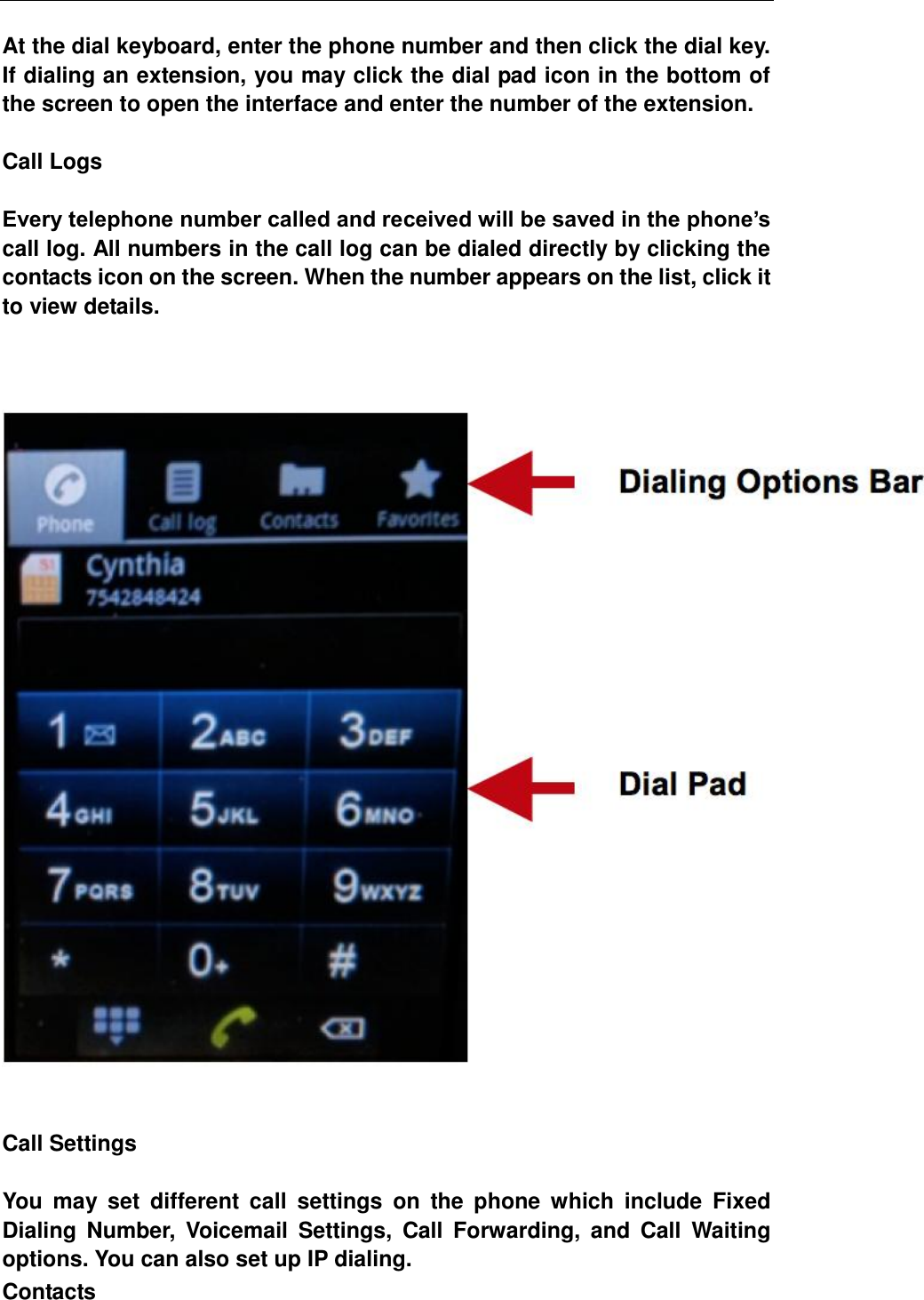
 At the dial keyboard, enter the phone number and then click the dial key. If dialing an extension, you may click the dial pad icon in the bottom of the screen to open the interface and enter the number of the extension.  Call Logs  Every telephone number called and received will be saved in the phone’s call log. All numbers in the call log can be dialed directly by clicking the contacts icon on the screen. When the number appears on the list, click it to view details.           Call Settings  You  may  set  different  call  settings  on  the  phone  which  include  Fixed Dialing  Number,  Voicemail  Settings,  Call  Forwarding,  and  Call  Waiting options. You can also set up IP dialing. Contacts
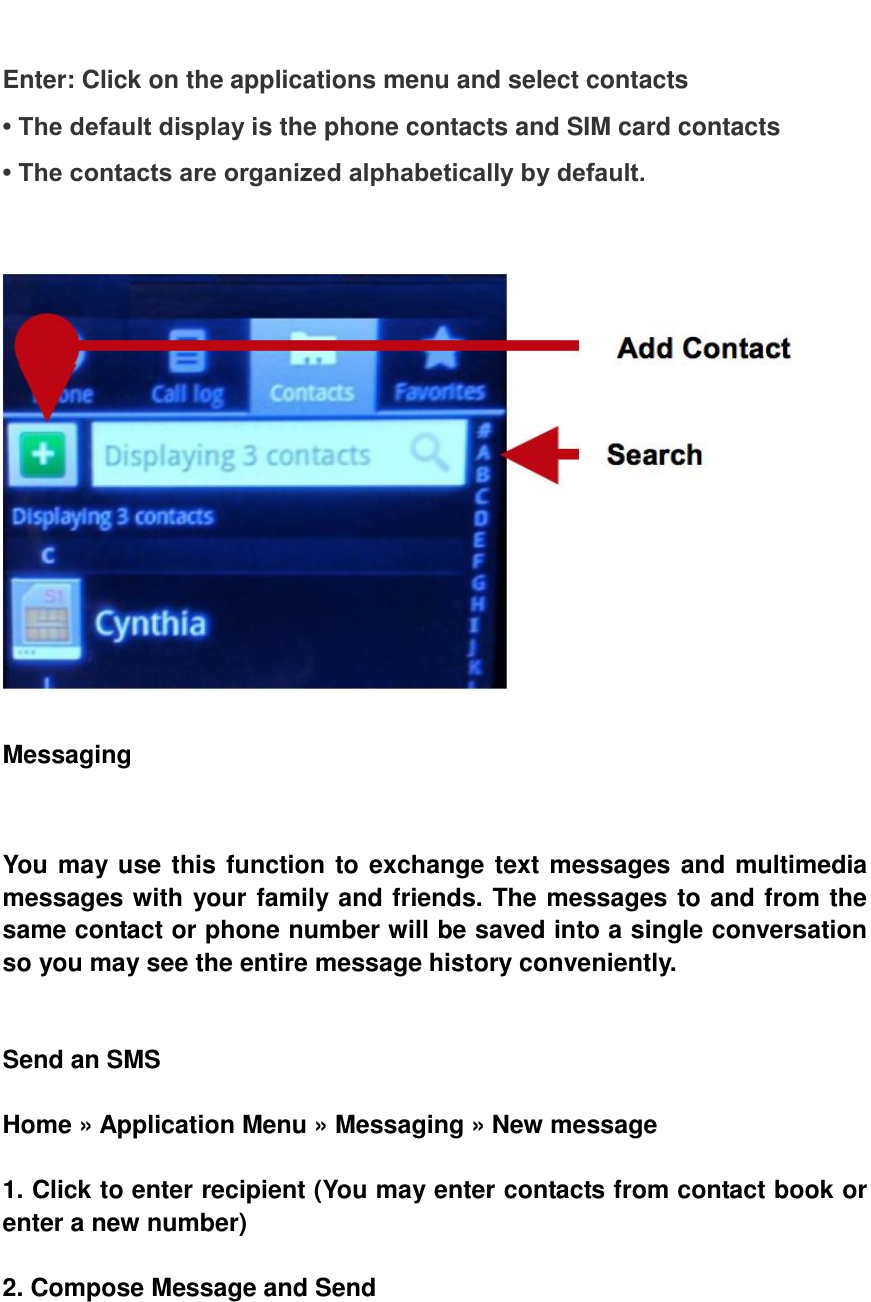
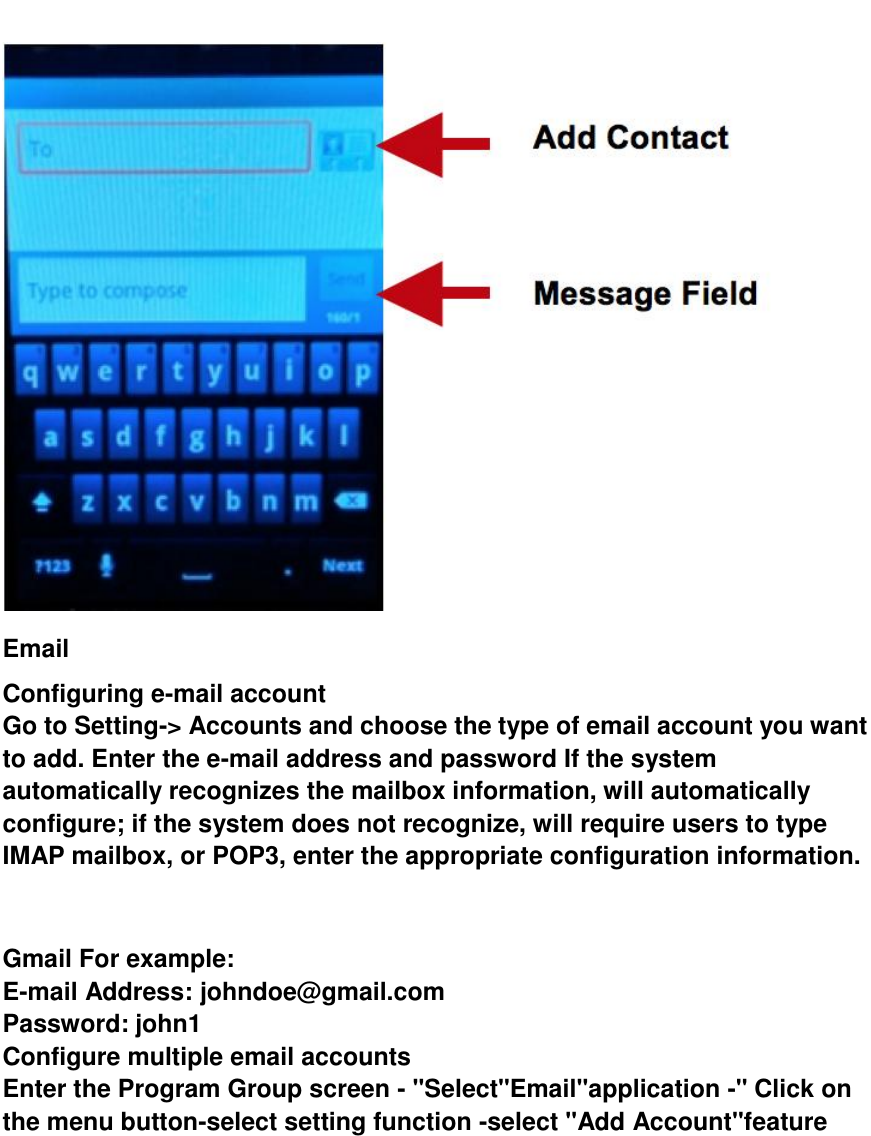
  Enter: Click on the applications menu and select contacts • The default display is the phone contacts and SIM card contacts • The contacts are organized alphabetically by default.     Messaging     You may use this function to exchange text messages and multimedia messages with your family and friends. The messages to and from the same contact or phone number will be saved into a single conversation so you may see the entire message history conveniently.     Send an SMS  Home » Application Menu » Messaging » New message  1. Click to enter recipient (You may enter contacts from contact book or enter a new number)  2. Compose Message and Send
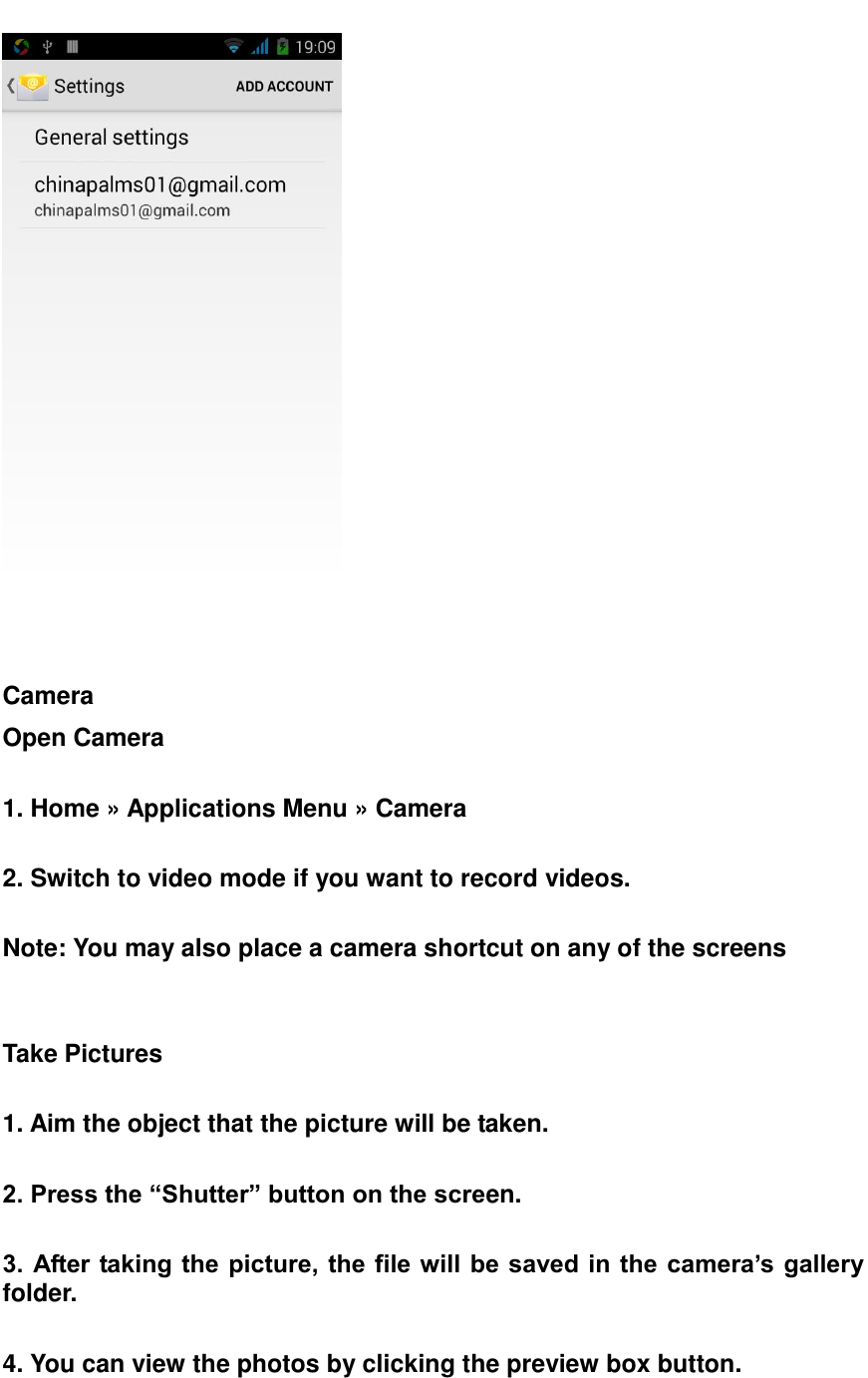
  Email Configuring e-mail account Go to Setting-> Accounts and choose the type of email account you want to add. Enter the e-mail address and password If the system automatically recognizes the mailbox information, will automatically configure; if the system does not recognize, will require users to type IMAP mailbox, or POP3, enter the appropriate configuration information.       Gmail For example: E-mail Address: johndoe@gmail.com   Password: john1 Configure multiple email accounts Enter the Program Group screen - "Select"Email"application -" Click on the menu button-select setting function -select "Add Account"feature
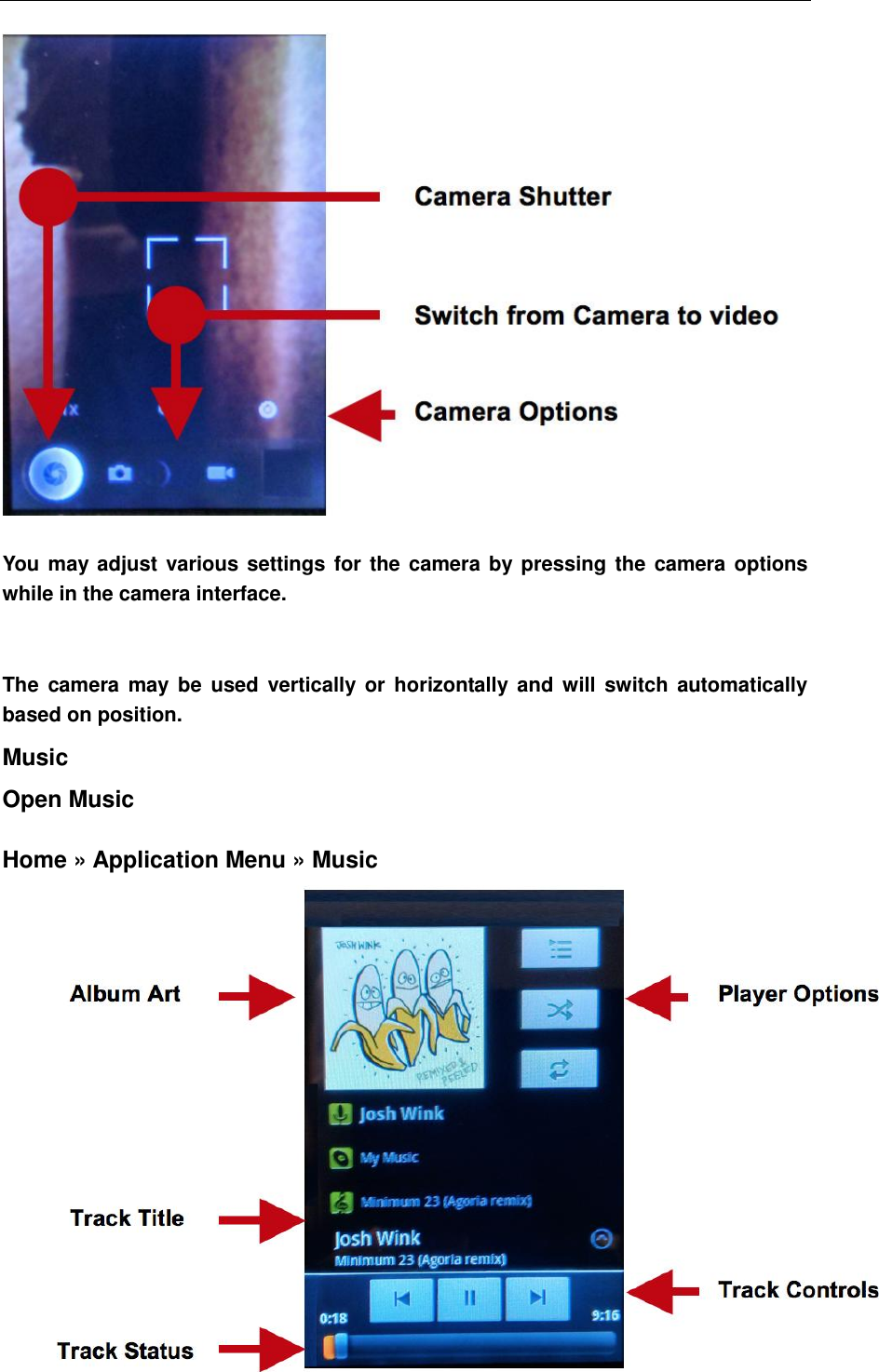
    Camera Open Camera  1. Home » Applications Menu » Camera  2. Switch to video mode if you want to record videos.  Note: You may also place a camera shortcut on any of the screens     Take Pictures  1. Aim the object that the picture will be taken.  2. Press the “Shutter” button on the screen.  3. After taking the picture, the file will be saved in  the camera’s gallery folder.  4. You can view the photos by clicking the preview box button.
          You may adjust various settings for the camera by pressing the camera options while in the camera interface.     The  camera  may be  used vertically or  horizontally and will  switch  automatically based on position. Music   Open Music    Home » Application Menu » Music
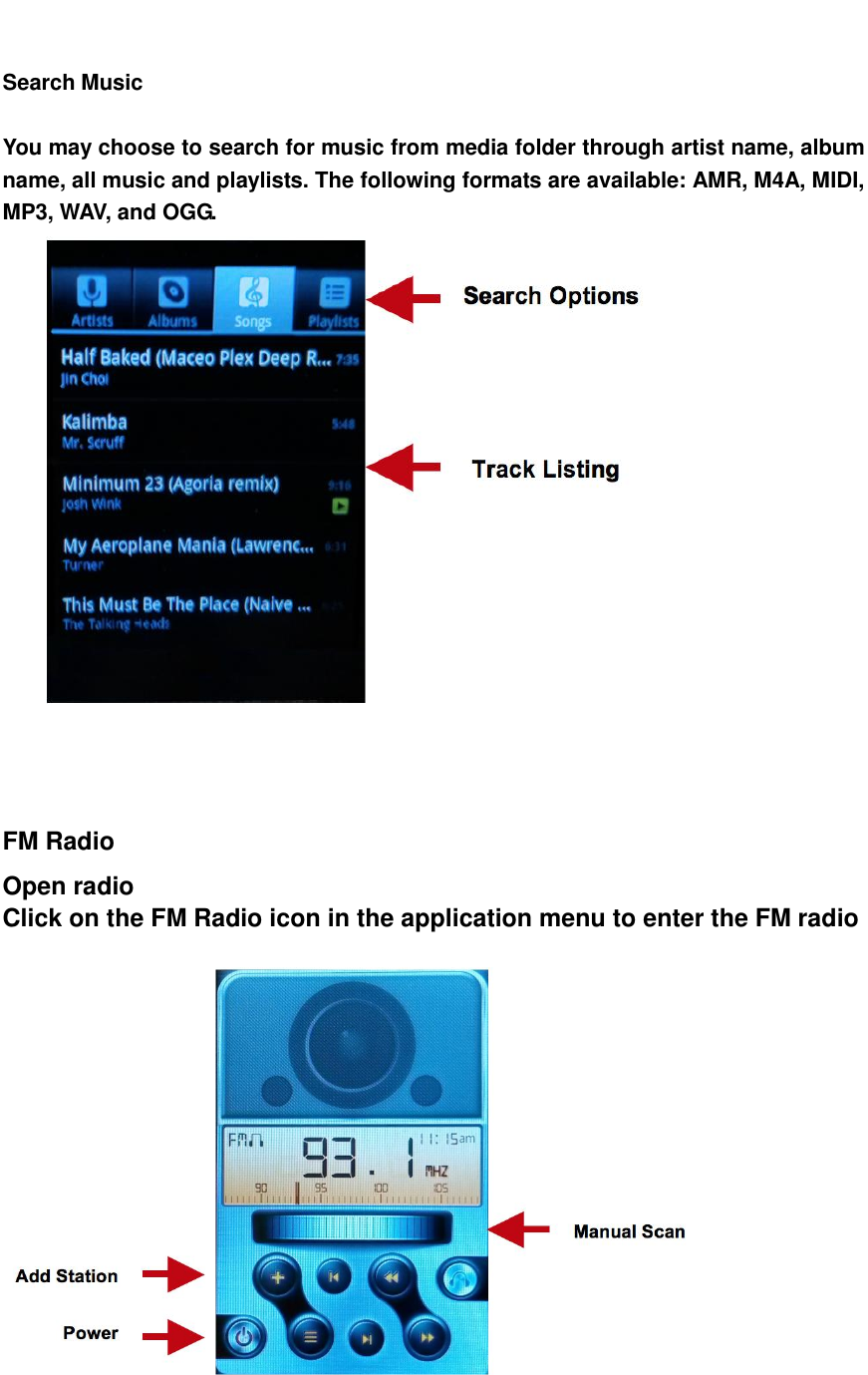
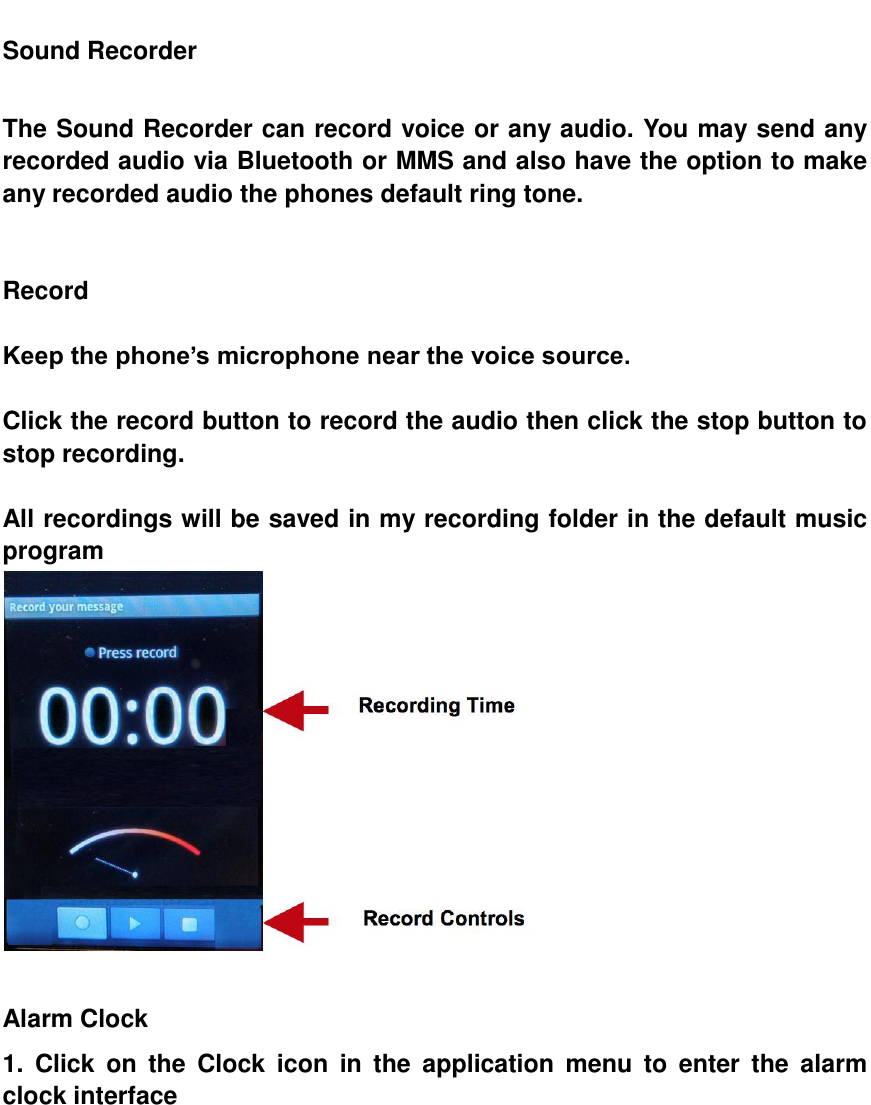
    Search Music    You may choose to search for music from media folder through artist name, album name, all music and playlists. The following formats are available: AMR, M4A, MIDI, MP3, WAV, and OGG.       FM Radio Open radio Click on the FM Radio icon in the application menu to enter the FM radio
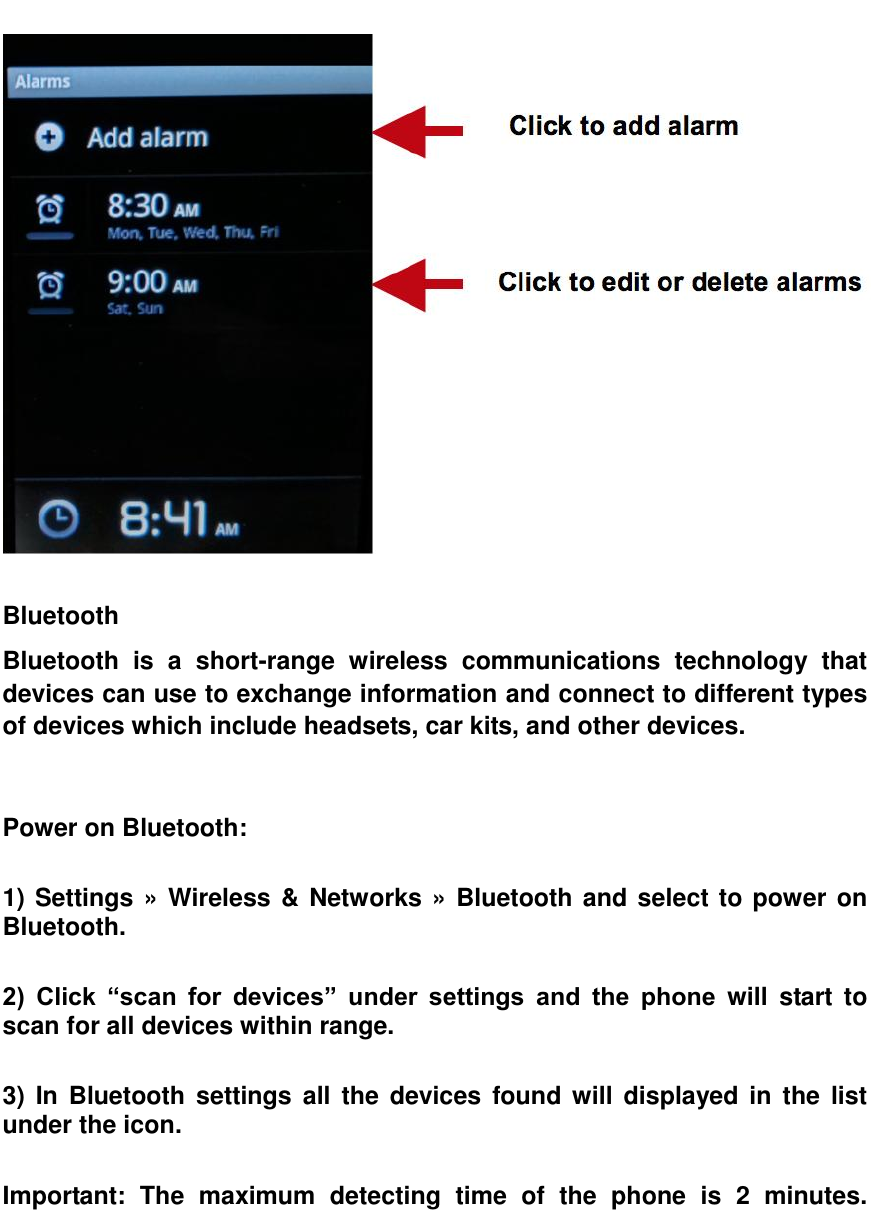
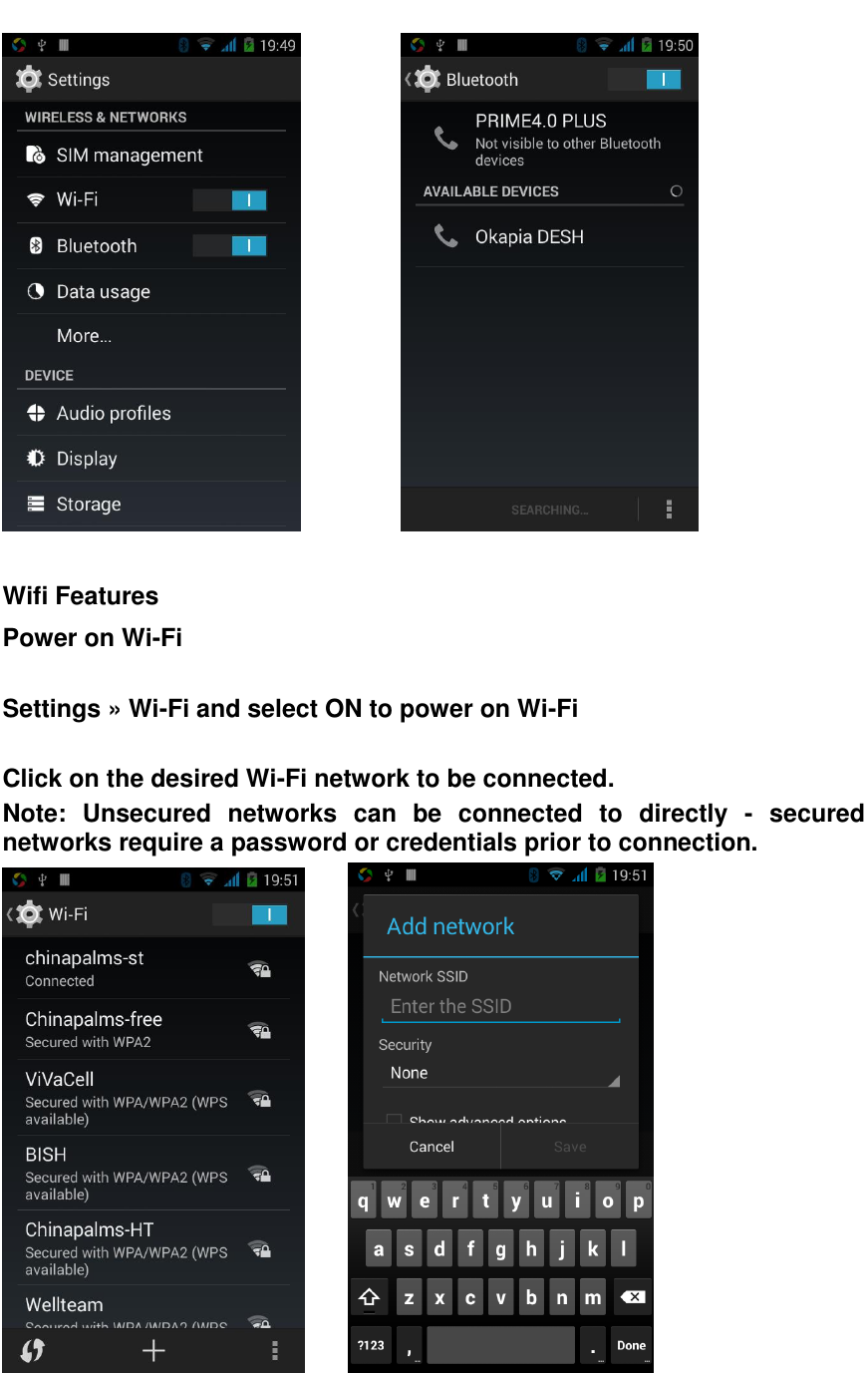
 Sound Recorder  The Sound Recorder can record voice or any audio. You may send any recorded audio via Bluetooth or MMS and also have the option to make any recorded audio the phones default ring tone.   Record  Keep the phone’s microphone near the voice source.  Click the record button to record the audio then click the stop button to stop recording.  All recordings will be saved in my recording folder in the default music program   Alarm Clock 1.  Click  on  the  Clock  icon  in  the  application  menu  to  enter  the  alarm clock interface
   Bluetooth   Bluetooth  is  a  short-range  wireless  communications  technology  that devices can use to exchange information and connect to different types of devices which include headsets, car kits, and other devices.   Power on Bluetooth:  1) Settings » Wireless & Networks » Bluetooth and select to power on Bluetooth.  2)  Click  “scan  for  devices”  under  settings  and  the  phone  will  start  to scan for all devices within range.  3)  In Bluetooth settings all the  devices  found will  displayed in  the  list under the icon.  Important:  The  maximum  detecting  time  of  the  phone  is  2  minutes.
            Wifi Features Power on Wi-Fi  Settings » Wi-Fi and select ON to power on Wi-Fi  Click on the desired Wi-Fi network to be connected. Note:  Unsecured  networks  can  be  connected  to  directly  -  secured networks require a password or credentials prior to connection.
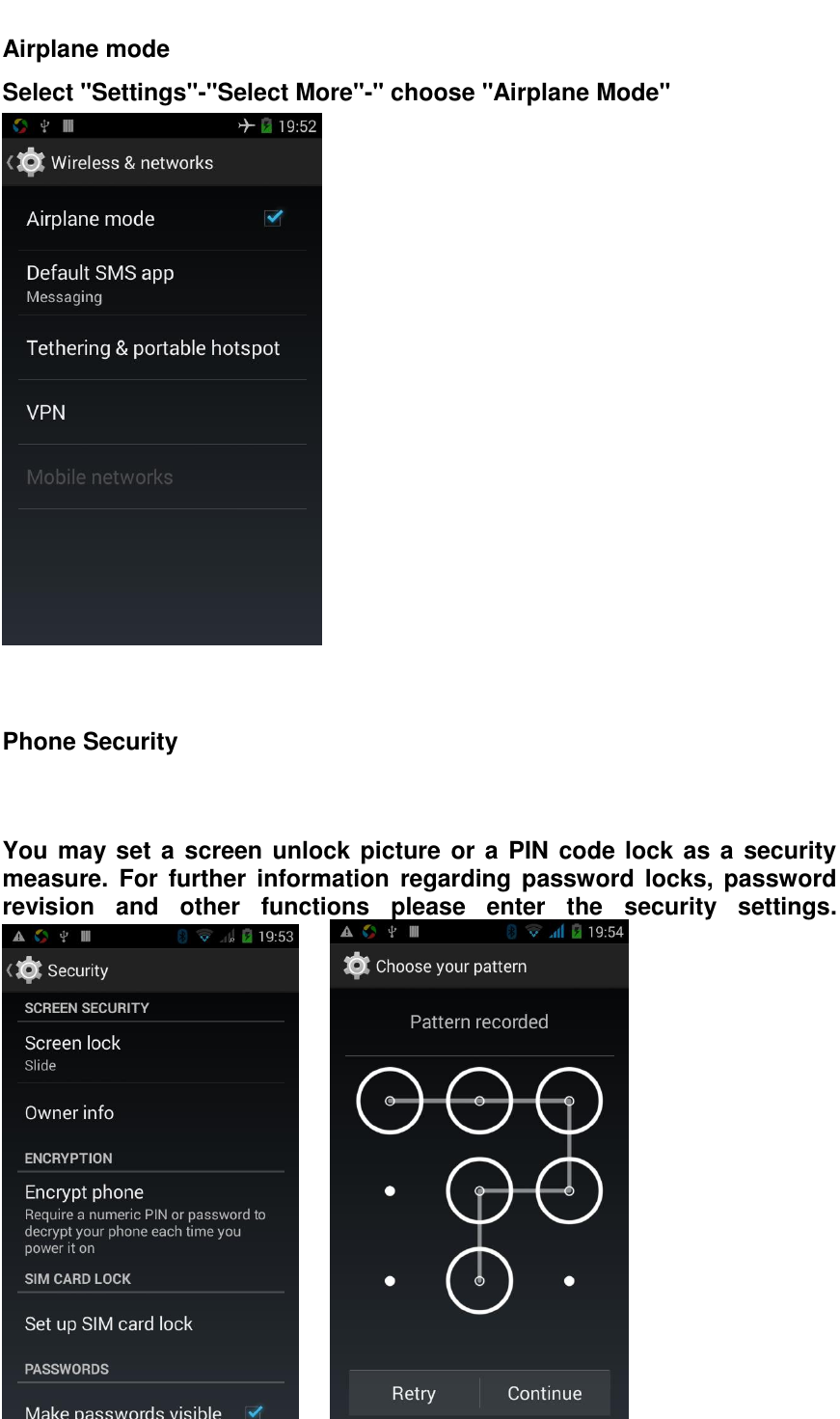
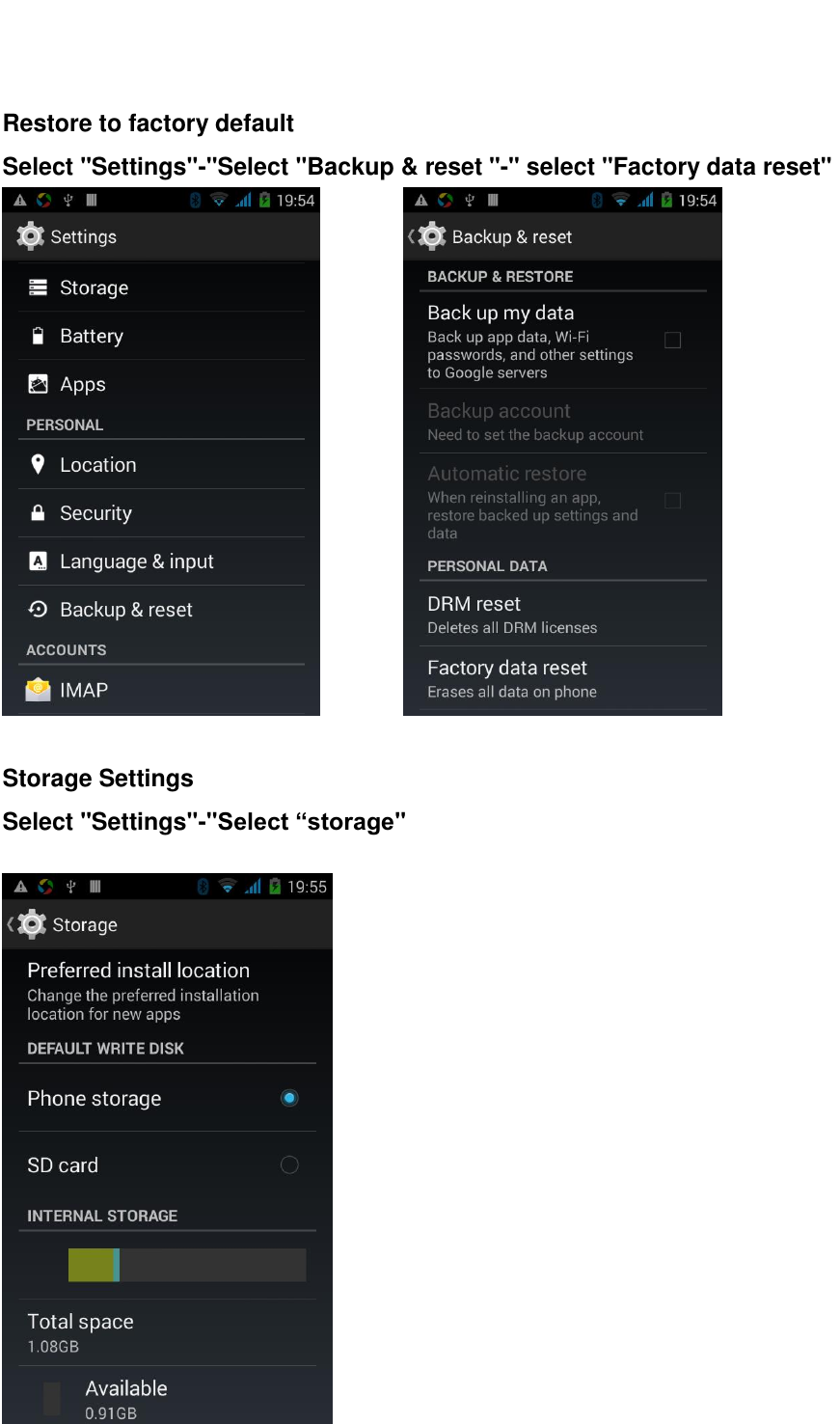
 Airplane mode   Select "Settings"-"Select More"-" choose "Airplane Mode"    Phone Security   You may set a screen unlock picture or a PIN code lock as a security measure.  For  further  information  regarding  password  locks,  password revision  and  other  functions  please  enter  the  security  settings.
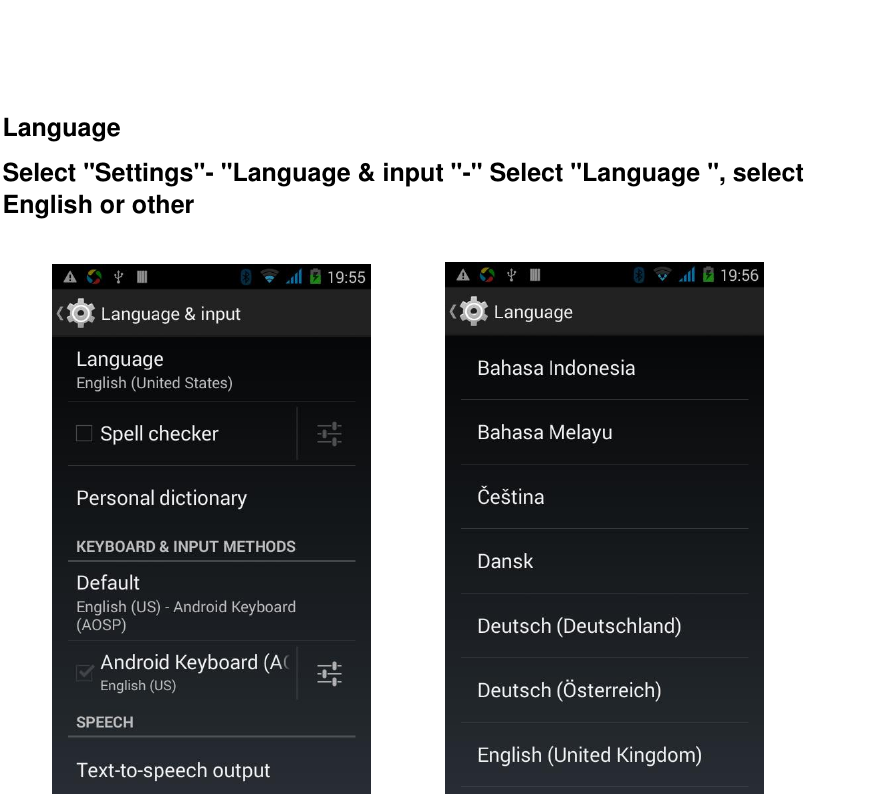
   Restore to factory default Select "Settings"-"Select "Backup & reset "-" select "Factory data reset"           Storage Settings Select "Settings"-"Select “storage"
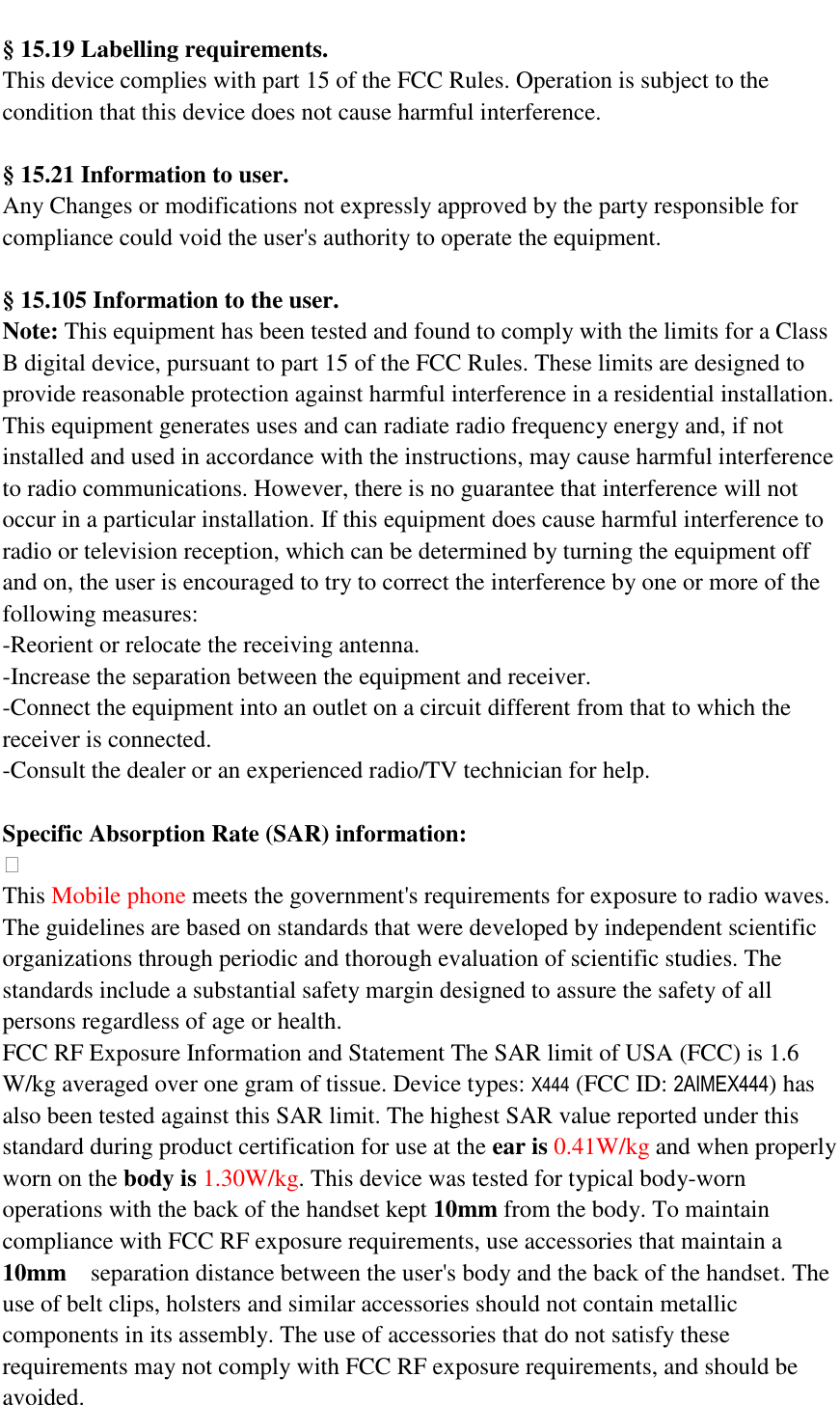
   Language Select "Settings"- "Language & input "-" Select "Language ", select English or other
 § 15.19 Labelling requirements.   This device complies with part 15 of the FCC Rules. Operation is subject to the condition that this device does not cause harmful interference.    §  15.21 Information to user. Any Changes or modifications not expressly approved by the party responsible for compliance could void the user's authority to operate the equipment.    § 15.105 Information to the user. Note: This equipment has been tested and found to comply with the limits for a Class B digital device, pursuant to part 15 of the FCC Rules. These limits are designed to provide reasonable protection against harmful interference in a residential installation. This equipment generates uses and can radiate radio frequency energy and, if not installed and used in accordance with the instructions, may cause harmful interference to radio communications. However, there is no guarantee that interference will not occur in a particular installation. If this equipment does cause harmful interference to radio or television reception, which can be determined by turning the equipment off and on, the user is encouraged to try to correct the interference by one or more of the following measures: -Reorient or relocate the receiving antenna. -Increase the separation between the equipment and receiver. -Connect the equipment into an outlet on a circuit different from that to which the receiver is connected. -Consult the dealer or an experienced radio/TV technician for help.  Specific Absorption Rate (SAR) information:  This Mobile phone meets the government's requirements for exposure to radio waves. The guidelines are based on standards that were developed by independent scientific organizations through periodic and thorough evaluation of scientific studies. The standards include a substantial safety margin designed to assure the safety of all persons regardless of age or health. FCC RF Exposure Information and Statement The SAR limit of USA (FCC) is 1.6 W/kg averaged over one gram of tissue. Device types: X444 (FCC ID: 2AIMEX444) has also been tested against this SAR limit. The highest SAR value reported under this standard during product certification for use at the ear is 0.41W/kg and when properly worn on the body is 1.30W/kg. This device was tested for typical body-worn operations with the back of the handset kept 10mm from the body. To maintain compliance with FCC RF exposure requirements, use accessories that maintain a 10mm  separation distance between the user's body and the back of the handset. The use of belt clips, holsters and similar accessories should not contain metallic components in its assembly. The use of accessories that do not satisfy these requirements may not comply with FCC RF exposure requirements, and should be avoided.
  Body-worn Operation This device was tested for typical body-worn operations. To comply with RF exposure requirements, a minimum separation distance of 1.0cm must be maintained between the user’s body and the handset, including the antenna. Third-party belt-clips, holsters, and similar accessories used by this device should not contain any metallic components. Body-worn accessories that do not meet these requirements may not comply with RF exposure requirements and should be avoided. Use only the supplied or an approved antenna.

Navigation menu