SMT TELECOMM X500 Mobile Phone User Manual

SMT TELECOMM HK LIMITED Mobile Phone

User Manual

QUICK-START USER GUIDE ANDROID 7.0TruconnectX500
*PRECAUTIONSOn the RoadUsing a device while driving is illegal in many countries. Please refrain from usingyourmobile while driving.Near Sensitive Electronics or Medical EquipmentDon’t use your device near sensitive electronic equipment – particularly medicaldevices such as pacemakers – as it could cause them to malfunction. It can also interferewith the operationof fire detectors and other automatic-control equipment.While FlyingYour device can cause interference with aircraft equipment. So it’s essential youfollow airline regulations. And if airline personnel ask you to switch off your device,or disable its wireless functions, please do as they say.At a Petrol StationDon’t use your device at petrol stations. In fact, it’s always best to switch offwhenever you’re nearfuels, chemicals or explosives.Making RepairsNever take your device apart. Please leave that to the professionals. Unauthorisedrepairs could break the terms of your warranty. Don’t use your device if the antennais damaged, as it could cause injury.Around ChildrenKeep your mobile out of children’s reach. It should never be used as a toy as thisis hazardous.Near ExplosivesTurn off your device in or near areas where explosive materials are used. Always obeylocal laws and turn off your device when requested.Emergency CallsTo make an emergency call your device must be turned on and in an area where there’snetwork coverage. Dial the national emergency number and press “Send”. Explain exactlywhere you areand don’t hang up until help has arrived.Working TemperatureThe working temperature for the device is between 0 and 40 degree Celsius. Please don’tuse the device outside the range. Using the device under too high or too low temperaturemight cause problems.At very high volume, prolonged listening to a mobile device candamage your hearing.
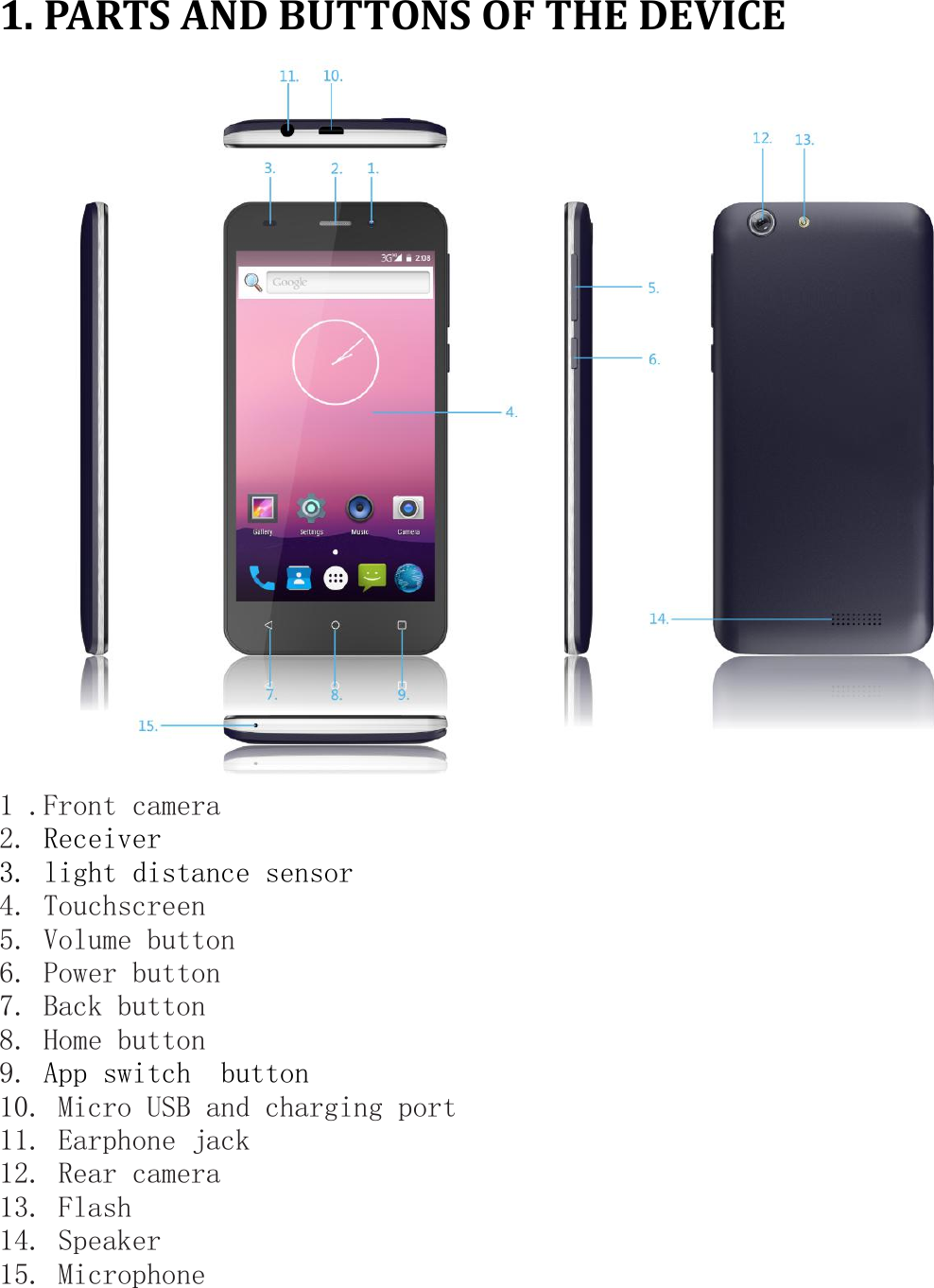
1. PARTS AND BUTTONS OF THE DEVICE1 .Front camera2. Receiver3. light distance sensor4. Touchscreen5. Volume button6. Power button7. Back button8. Home button9. App switch button10. Micro USB and charging port11. Earphone jack12. Rear camera13. Flash14. Speaker15. Microphone
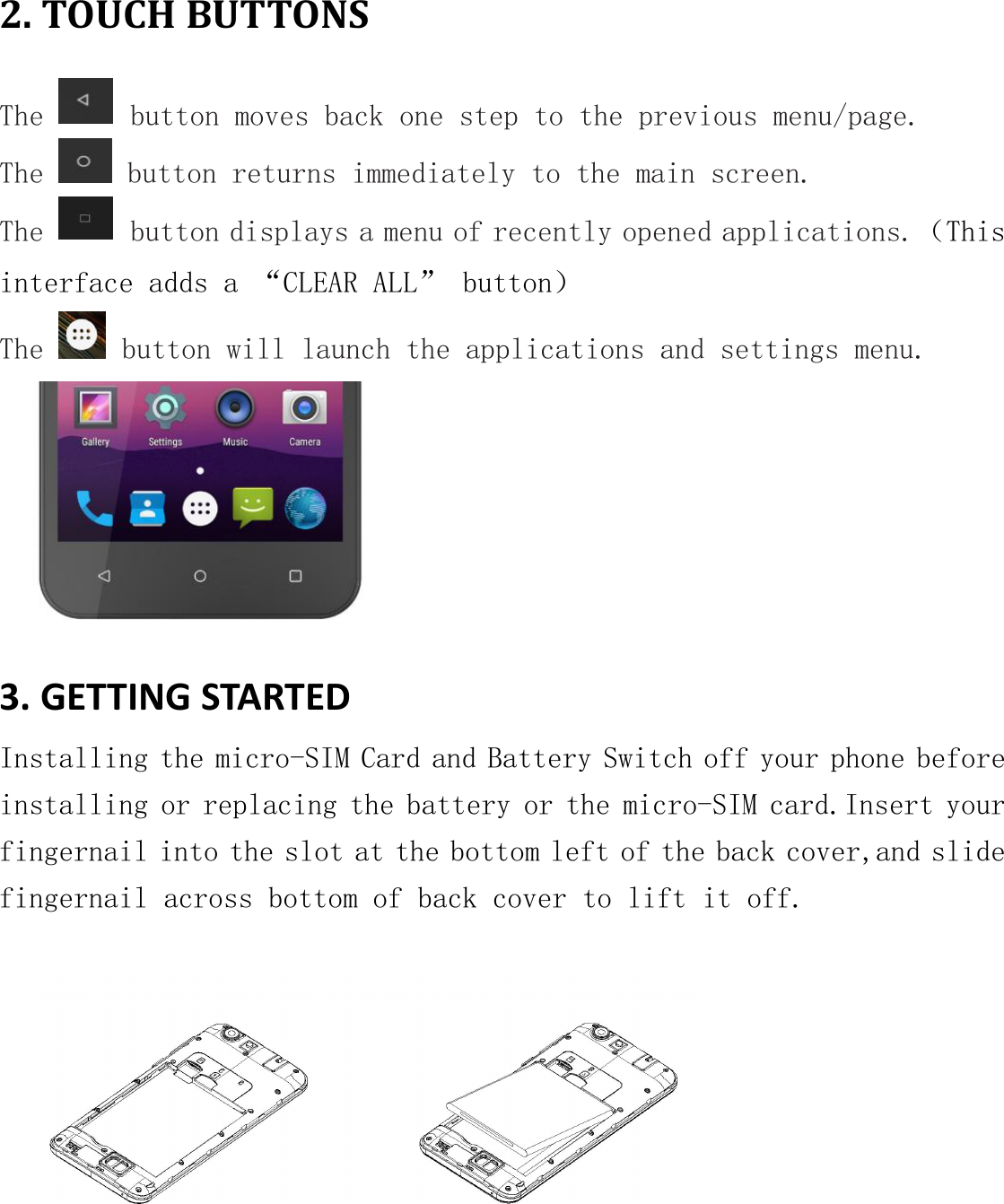
2. TOUCH BUTTONSThe button moves back one step to the previous menu/page.The button returns immediately to the main screen.The button displays a menu of recently opened applications.(Thisinterface adds a “CLEAR ALL” button)The button will launch the applications and settings menu.3. GETTING STARTEDInstalling the micro-SIM Card and Battery Switch off your phone beforeinstalling or replacing the battery or the micro-SIM card.Insert yourfingernail into the slot at the bottom left of the back cover,and slidefingernail across bottom of back cover to lift it off.
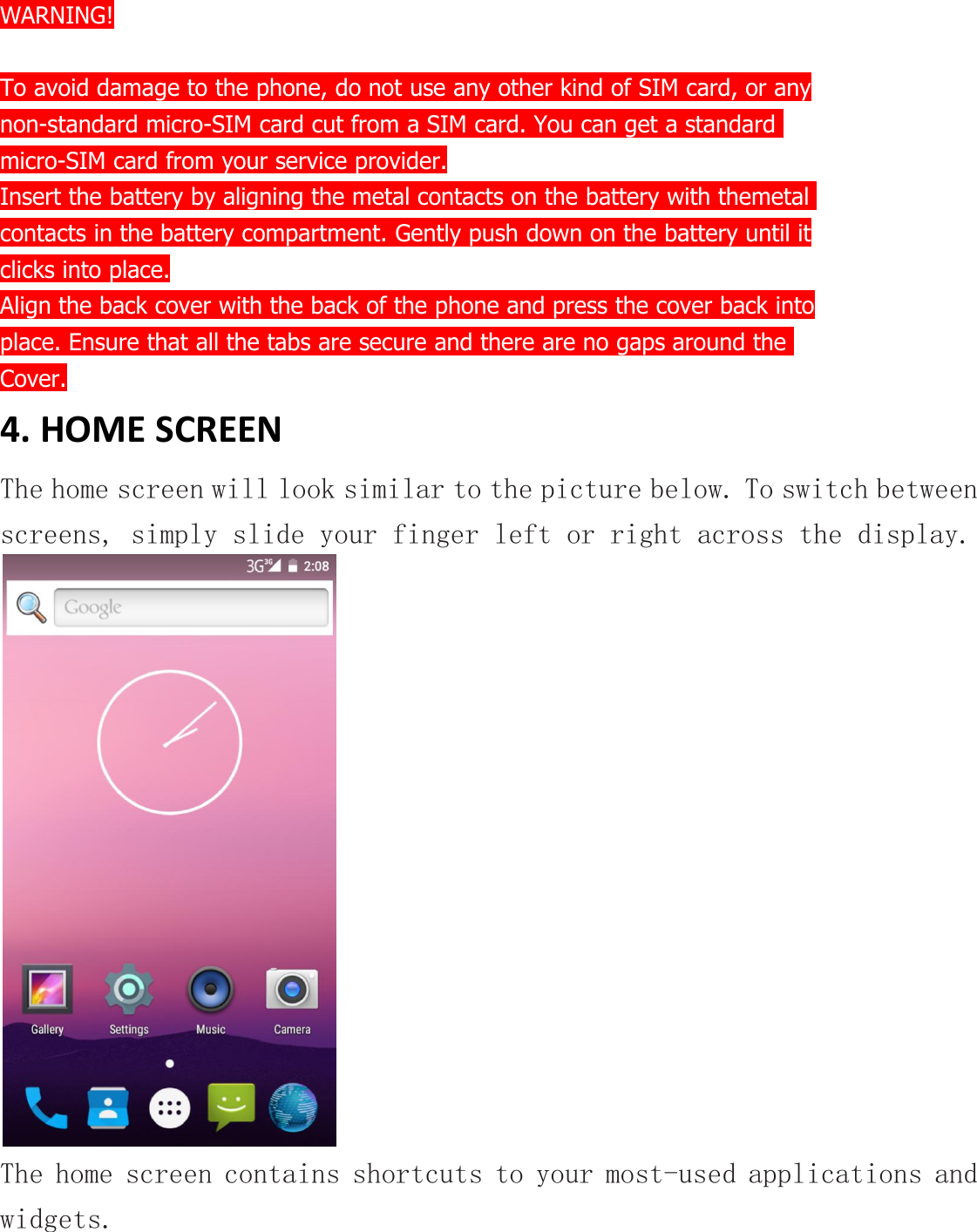
WARNING!To avoid damage to the phone, do not use any other kind of SIM card, or anynon-standard micro-SIM card cut from a SIM card. You can get a standardmicro-SIM card from your service provider.Insert the battery by aligning the metal contacts on the battery with themetalcontacts in the battery compartment. Gently push down on the battery until itclicks into place.Align the back cover with the back of the phone and press the cover back intoplace. Ensure that all the tabs are secure and there are no gaps around theCover.4. HOME SCREENThe home screen will look similar to the picture below. To switch betweenscreens, simply slide your finger left or right across the display.The home screen contains shortcuts to your most-used applications andwidgets.
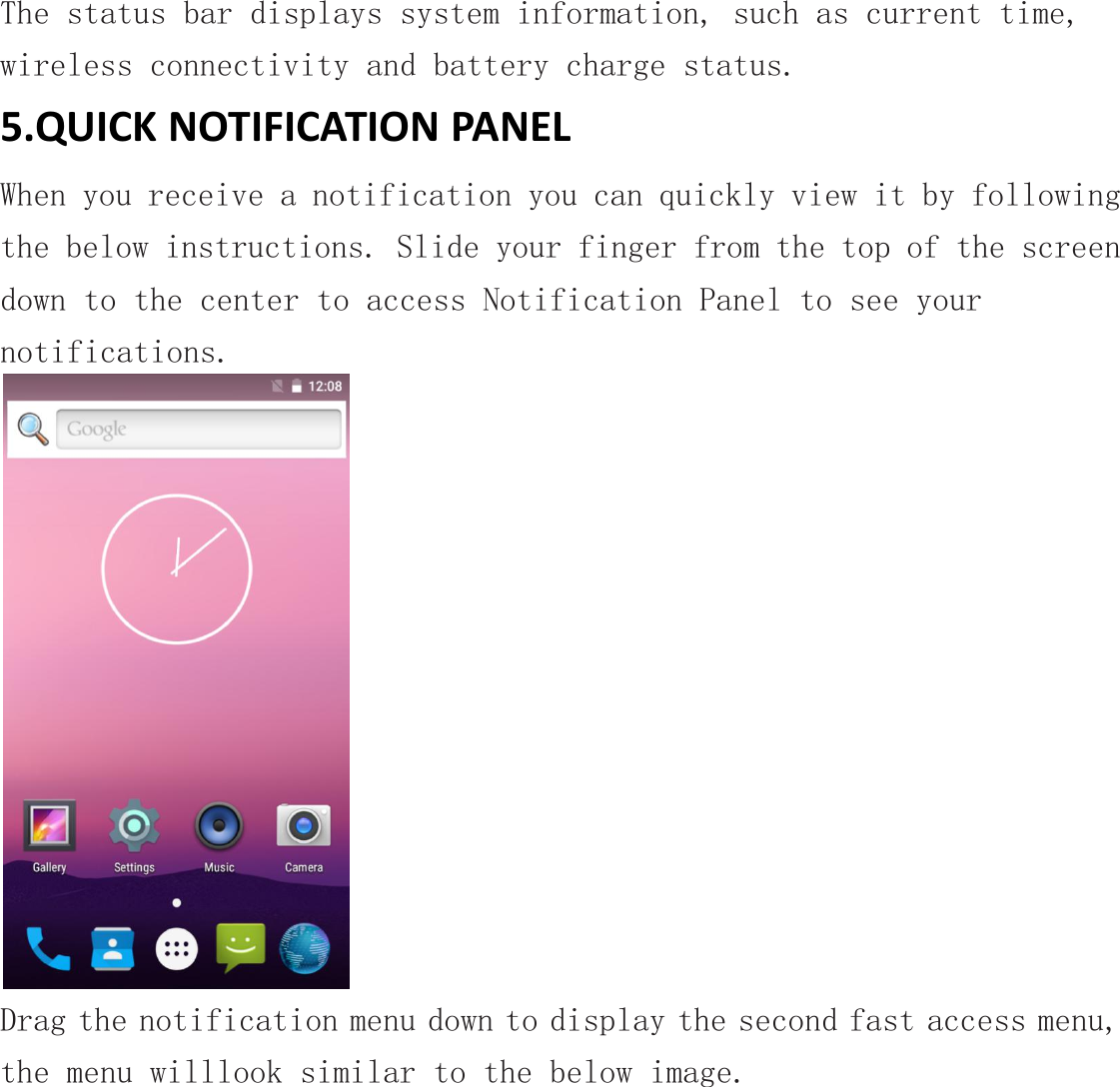
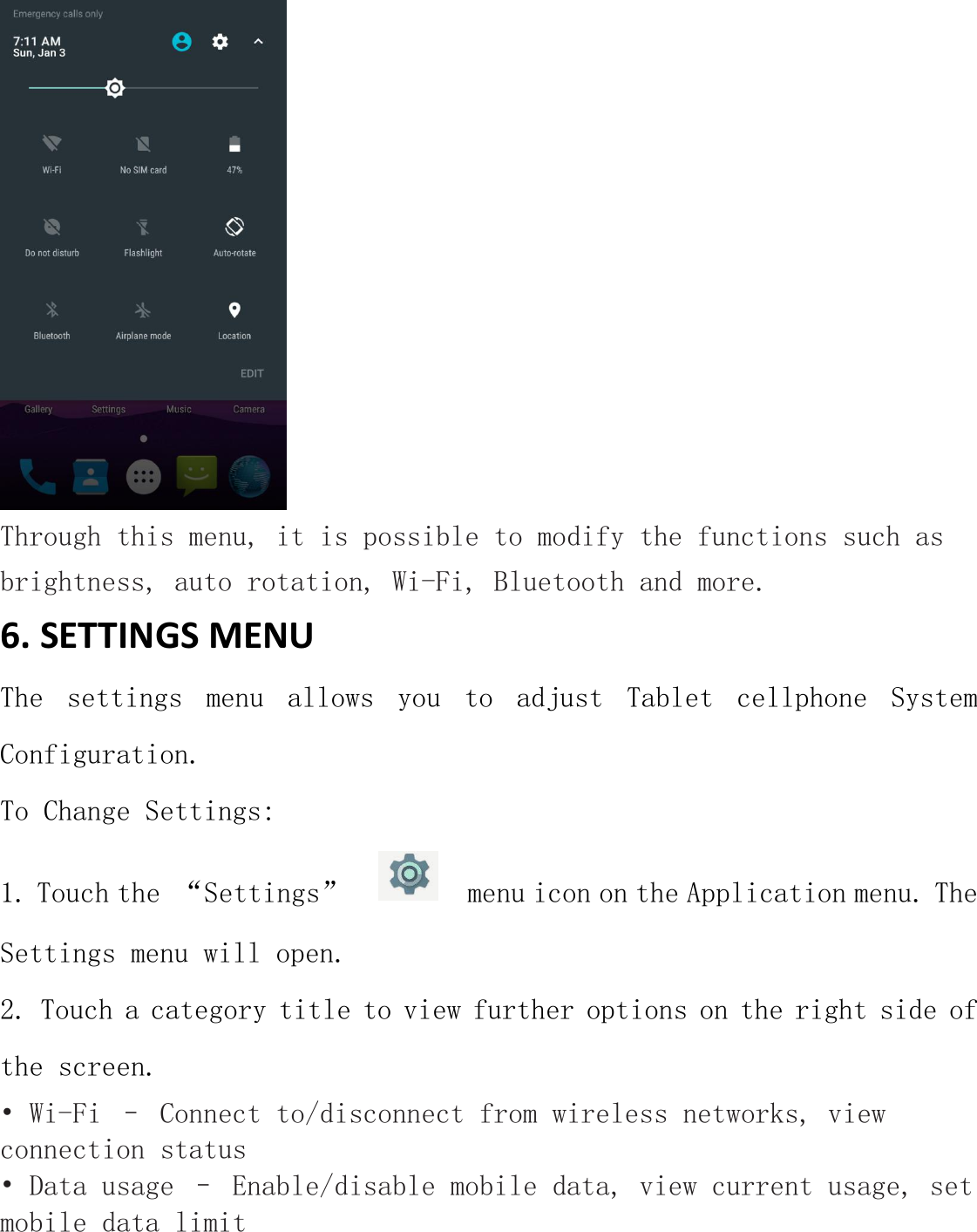
The status bar displays system information, such as current time,wireless connectivity and battery charge status.5.QUICK NOTIFICATION PANELWhen you receive a notification you can quickly view it by followingthe below instructions. Slide your finger from the top of the screendown to the center to access Notification Panel to see yournotifications.Drag the notification menu down to display the second fast access menu,the menu willlook similar to the below image.
Through this menu, it is possible to modify the functions such asbrightness, auto rotation, Wi-Fi, Bluetooth and more.6. SETTINGS MENUThe settings menu allows you to adjust Tablet cellphone SystemConfiguration.To Change Settings:1. Touch the “Settings” menu icon on the Application menu. TheSettings menu will open.2. Touch a category title to view further options on the right side ofthe screen.• Wi-Fi – Connect to/disconnect from wireless networks, viewconnection status• Data usage – Enable/disable mobile data, view current usage, setmobile data limit
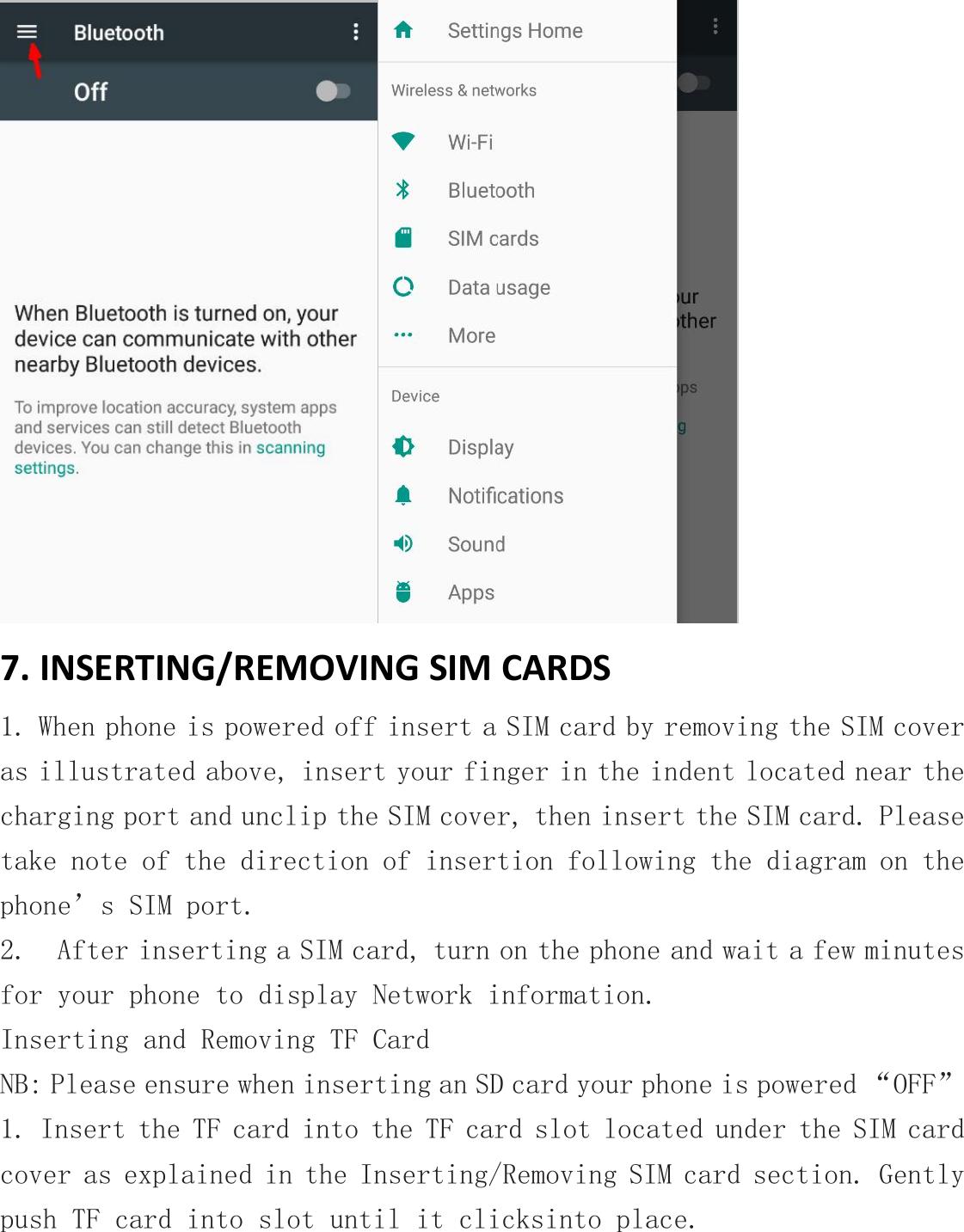
(note: this function is available only on devices supplied with 3G cardfunctionality)• Bluetooth – Connect or disconnect Bluetooth devices• Display – Adjust display settings•Notifications – Adjust different notification settings• Sound – Adjust the different audio settings such as ringtones• Apps – A list of all apps downloaded and running• Storage – View your phone’s internal and external storage settings• Battery – View the status of your battery and make adjustments topower consumption• User - Switch between Owner and Guest• Location – Change approximate location detection, improve searchresults, GPS satellites• Security – Adjust phone’s security settings• Accounts – Add or remove email and Google accounts such as Gmail,Google• Language and input – add to the dictionary, edit on-screen keyboardsettings, vocal search, etc.• Backup and reset – Backup and restore data, perform factory reset,etc.• Date & time – Set date, time zone, time, clock format etc.• Accessibility – Set up large text, auto-rotate screen, speak passwordetc.• About Phone – Displays information about your phone* "Settings" added the hamburger menu, in the two level settings inthe upper left corner of the interface, you will see this hamburger menu,click to see all the settings, easy to quickly jump.
7. INSERTING/REMOVING SIM CARDS1. When phone is powered off insert a SIM card by removing the SIM coveras illustrated above, insert your finger in the indent located near thecharging port and unclip the SIM cover, then insert the SIM card. Pleasetake note of the direction of insertion following the diagram on thephone’s SIM port.2. After inserting a SIM card, turn on the phone and wait a few minutesfor your phone to display Network information.Inserting and Removing TF CardNB: Please ensure when inserting an SD card your phone is powered “OFF”1. Insert the TF card into the TF card slot located under the SIM cardcover as explained in the Inserting/Removing SIM card section. Gentlypush TF card into slot until it clicksinto place.
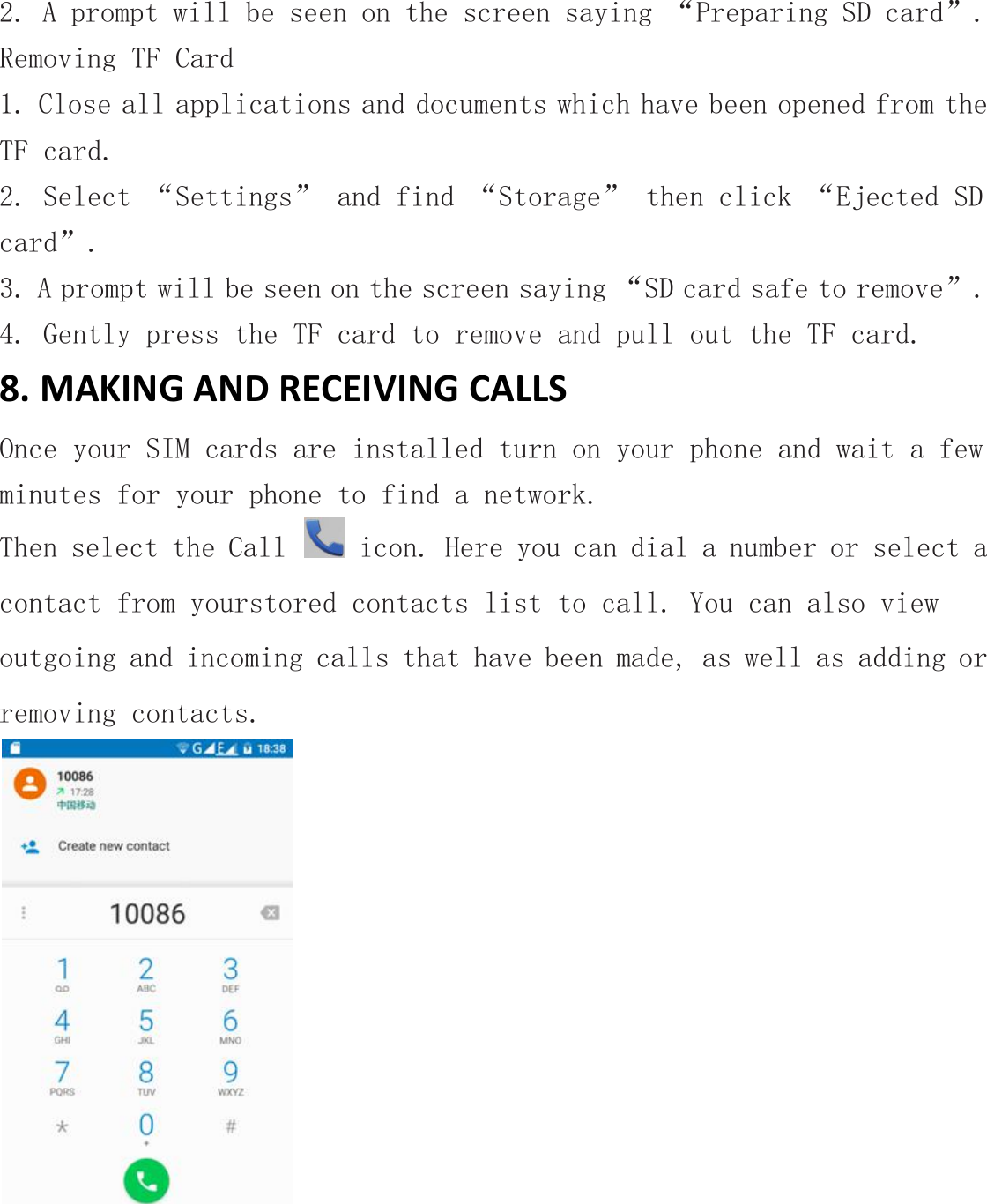
2. A prompt will be seen on the screen saying “Preparing SD card”.Removing TF Card1. Close all applications and documents which have been opened from theTF card.2. Select “Settings” and find “Storage” then click “Ejected SDcard”.3. A prompt will be seen on the screen saying “SD card safe to remove”.4. Gently press the TF card to remove and pull out the TF card.8. MAKING AND RECEIVING CALLSOnce your SIM cards are installed turn on your phone and wait a fewminutes for your phone to find a network.Then select the Call icon. Here you can dial a number or select acontact from yourstored contacts list to call. You can also viewoutgoing and incoming calls that have been made, as well as adding orremoving contacts.
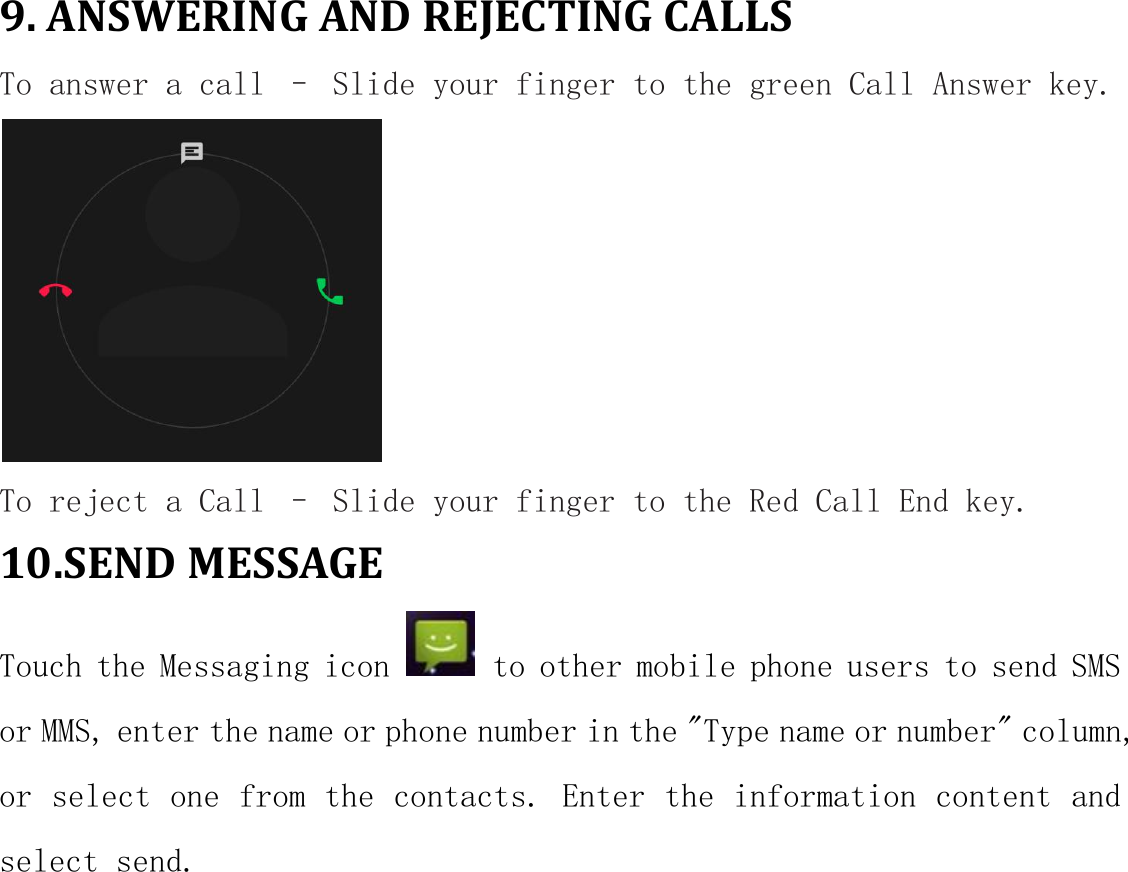
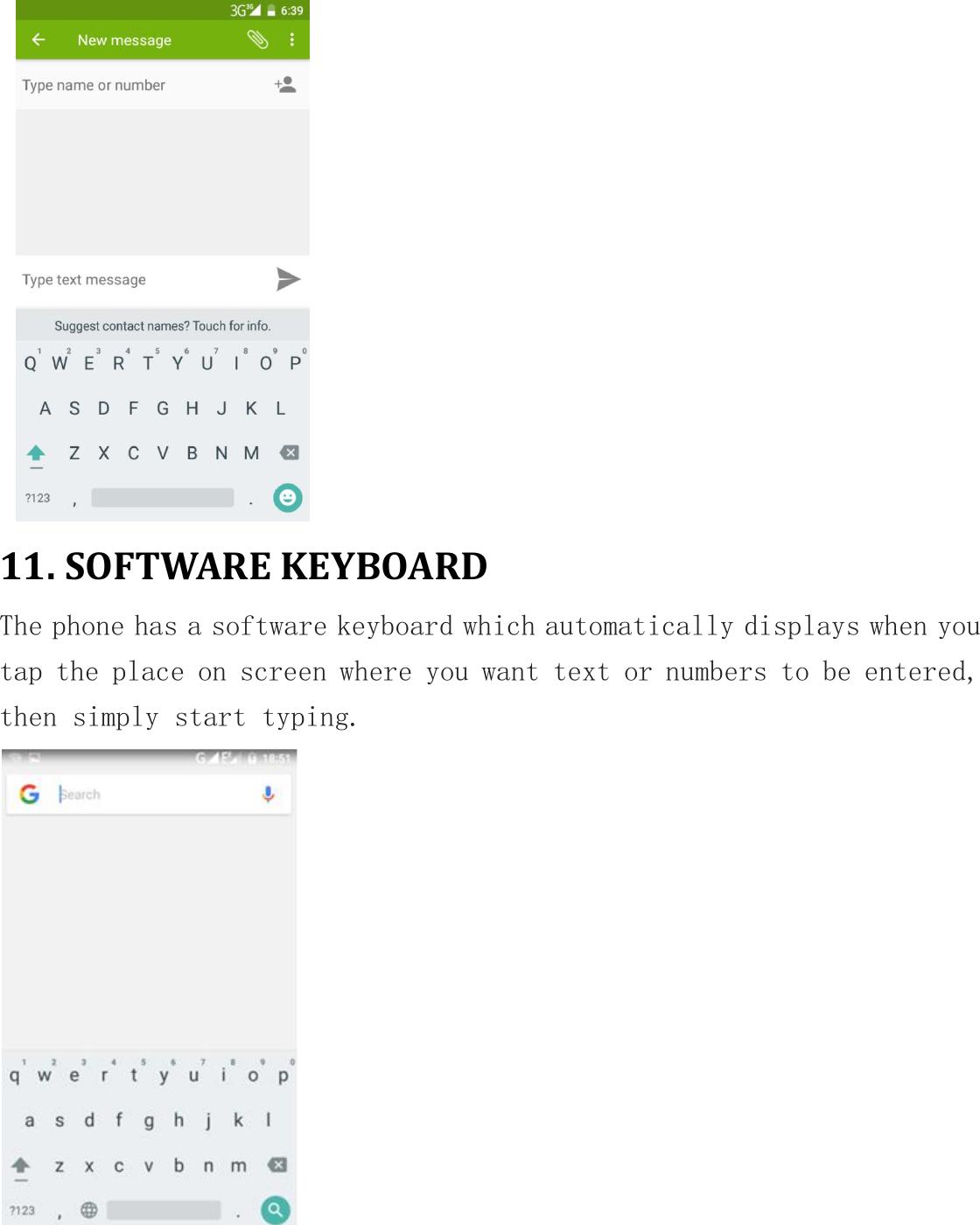
9. ANSWERING AND REJECTING CALLSTo answer a call – Slide your finger to the green Call Answer key.To reject a Call – Slide your finger to the Red Call End key.10.SEND MESSAGETouch the Messaging icon to other mobile phone users to send SMSor MMS, enter the name or phone number in the "Type name or number" column,or select one from the contacts. Enter the information content andselect send.
11. SOFTWARE KEYBOARDThe phone has a software keyboard which automatically displays when youtap the place on screen where you want text or numbers to be entered,then simply start typing.
TouchscreenThe touchscreen responds to finger touch.Note:• Don’t place any object on the touchscreen for it may damage or crushthe screen.Single Click: Single click one icon to choose the icon or option youwant.Long Press: Press and hold an icon to delete or move an icon or app.Drag: Press the icon and drag it to a different screen.12. HOW TO CONNECT TO A COMPUTERNote:• Turn on your phone before connecting the phone to a PC by USB cable.1. Use a USB cable to connect the phone with a computer. The phone willautomatically detect a USB connection.2. A notification will pop up on the screen displaying USB connected,select the desired USB operation.3. The USB connection has been successful.13. CONNECTION TO INTERNETWireless:1. Select “Settings”.2. Select “Wi-Fi” and slide OFF to ON status.3. All detected wireless networks in the area will be listed. Click toselect desired wireless connection.4. Enter network key if necessary.5. Once connected to a wireless network, settings will be saved.
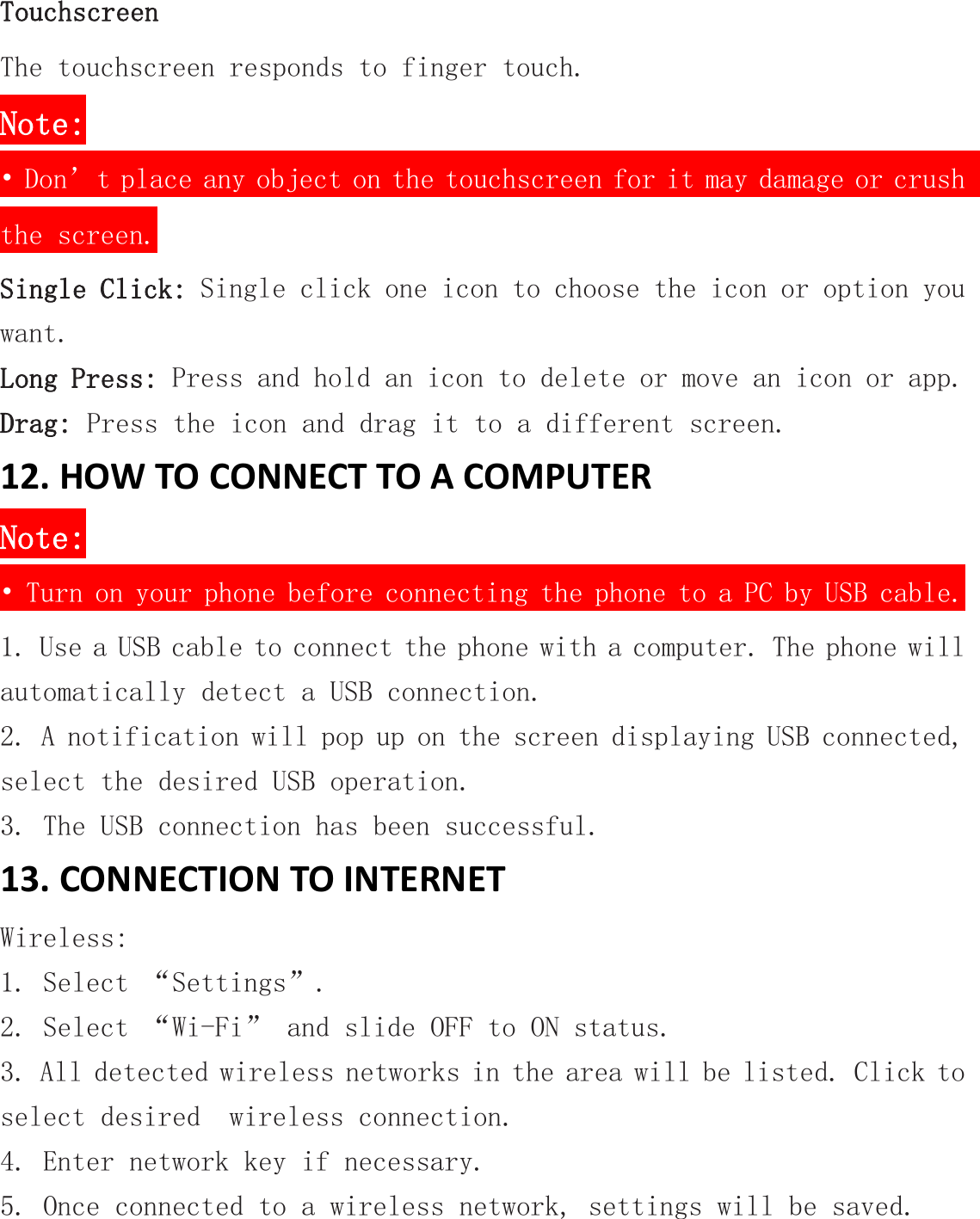
6. Wireless icon will appear on the status bar when connectedsuccessfully.Note:• When the phone detects the same wireless network in the future, thedevice will connect tohe network automatically with the same passwordrecord.14. MOBILE DATA AND INTERNETPlease Note: Cell Data may be turned “OFF” as a factory setting, toallow data to flow through your network provider please turn Cell Data“ON” either from your quick drop down menu or in > Settings > CellData, you will not be able to access the Internet when Cell Data is “OFF”and not connected to Wi-Fi.NB: Mobile Data charges apply when this setting is “ON” – Data willbe passed through your network provider.Web BrowsingConnect to the Internet and launch the browser.Type in the desired browsing URL.
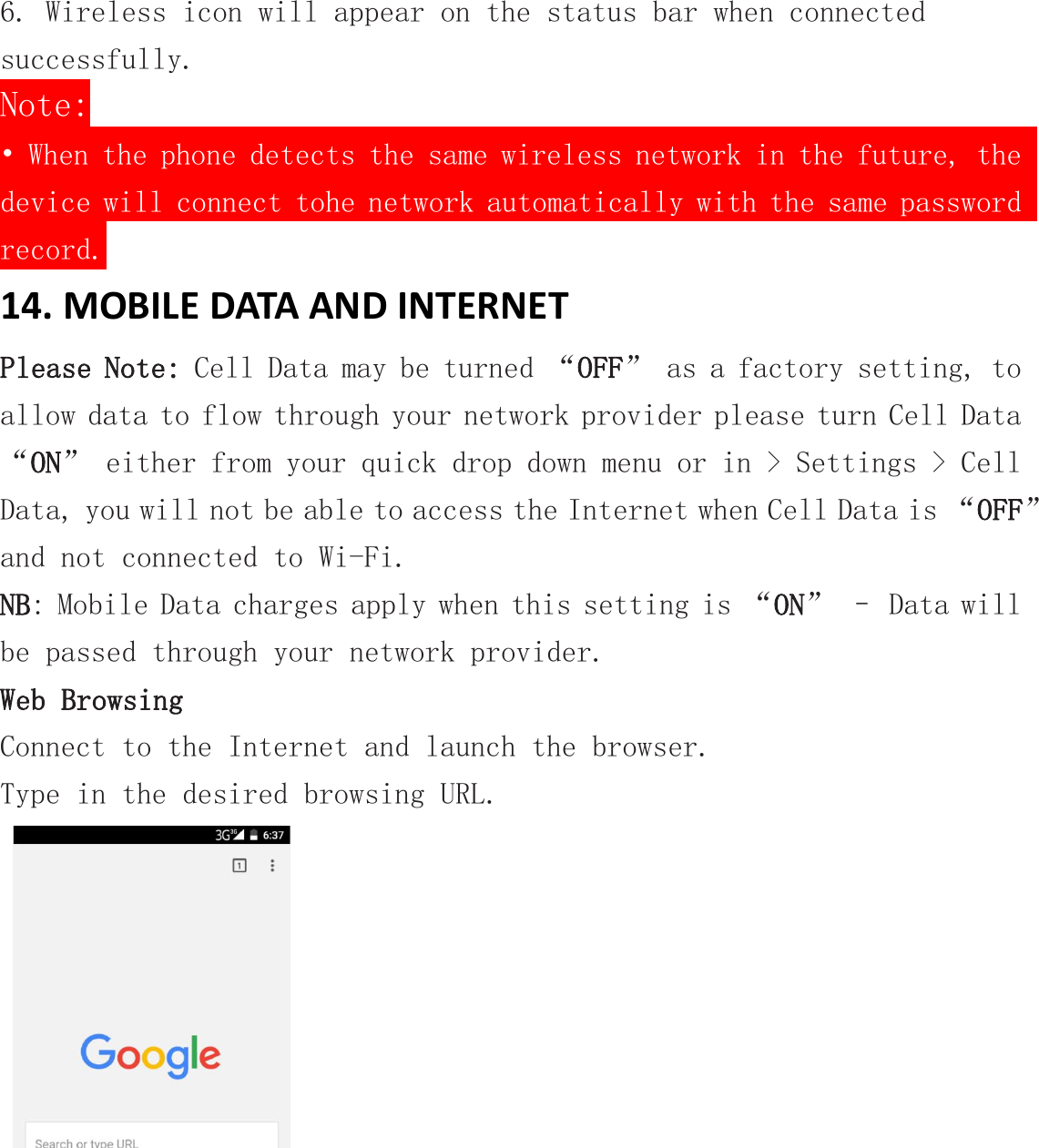
15.BLUETOOTHSelect “Settings”, select Bluetooth from “OFF” to “ON”.Search for the device you would like to pair with and select “PAIR”.You will see a message “Connected Successfully”.16. CAMERATouch the icon to enter camera mode and the interface is shownas follows:1. Touch the icon to take a photo.2. Touch the icon to start camera recording.3. Touch the icon on the top right to see the previous picture andto delete, share or set it as a wallpaper. Click the return button toexit camera interface.
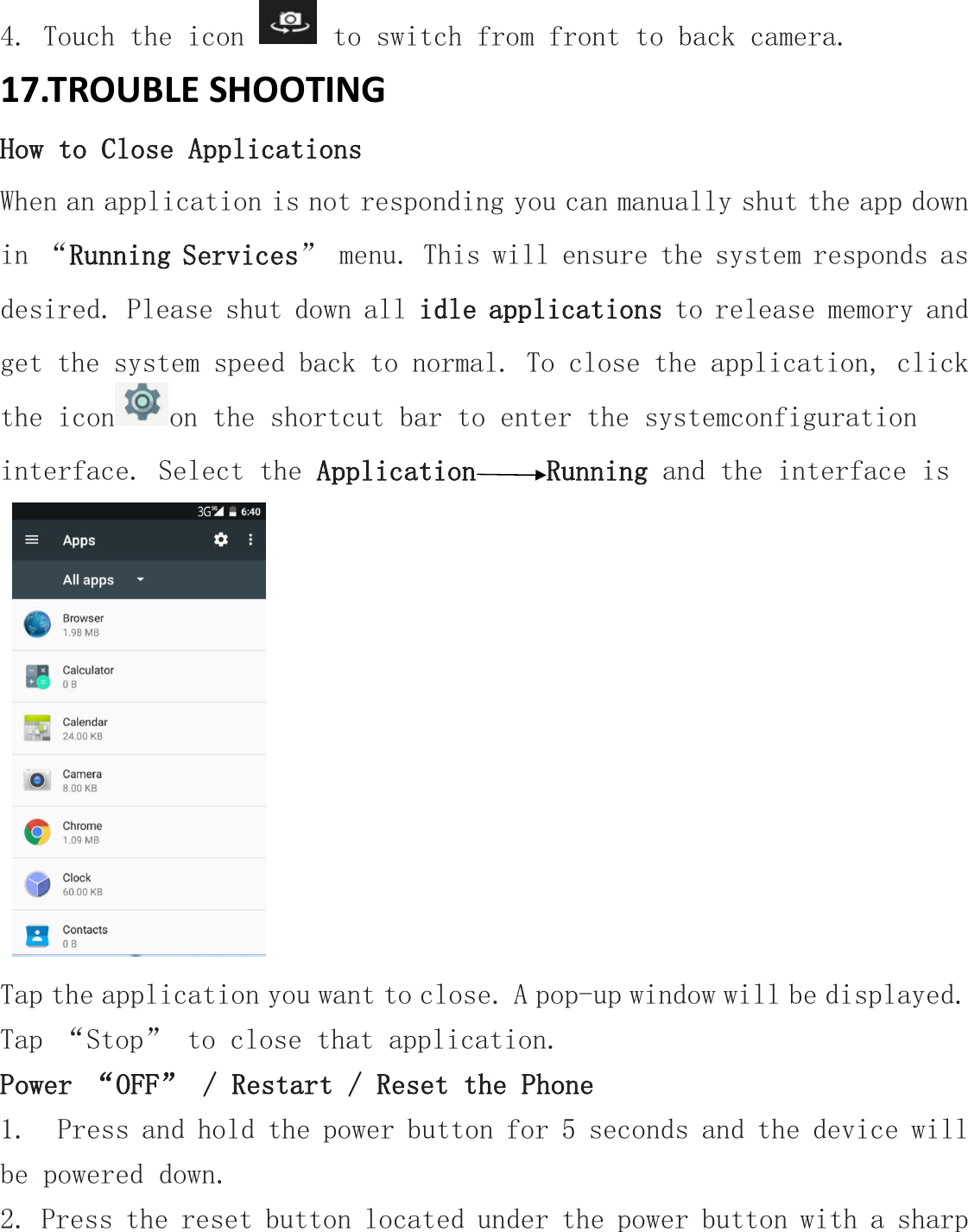
4. Touch the icon to switch from front to back camera.17.TROUBLE SHOOTINGHow to Close ApplicationsWhen an application is not responding you can manually shut the app downin “Running Services” menu. This will ensure the system responds asdesired. Please shut down all idle applications to release memory andget the system speed back to normal. To close the application, clickthe icon on the shortcut bar to enter the systemconfigurationinterface. Select the Application Running and the interface isTap the application you want to close. A pop-up window will be displayed.Tap “Stop” to close that application.Power “OFF” / Restart / Reset the Phone1. Press and hold the power button for 5 seconds and the device willbe powered down.2. Press the reset button located under the power button with a sharp
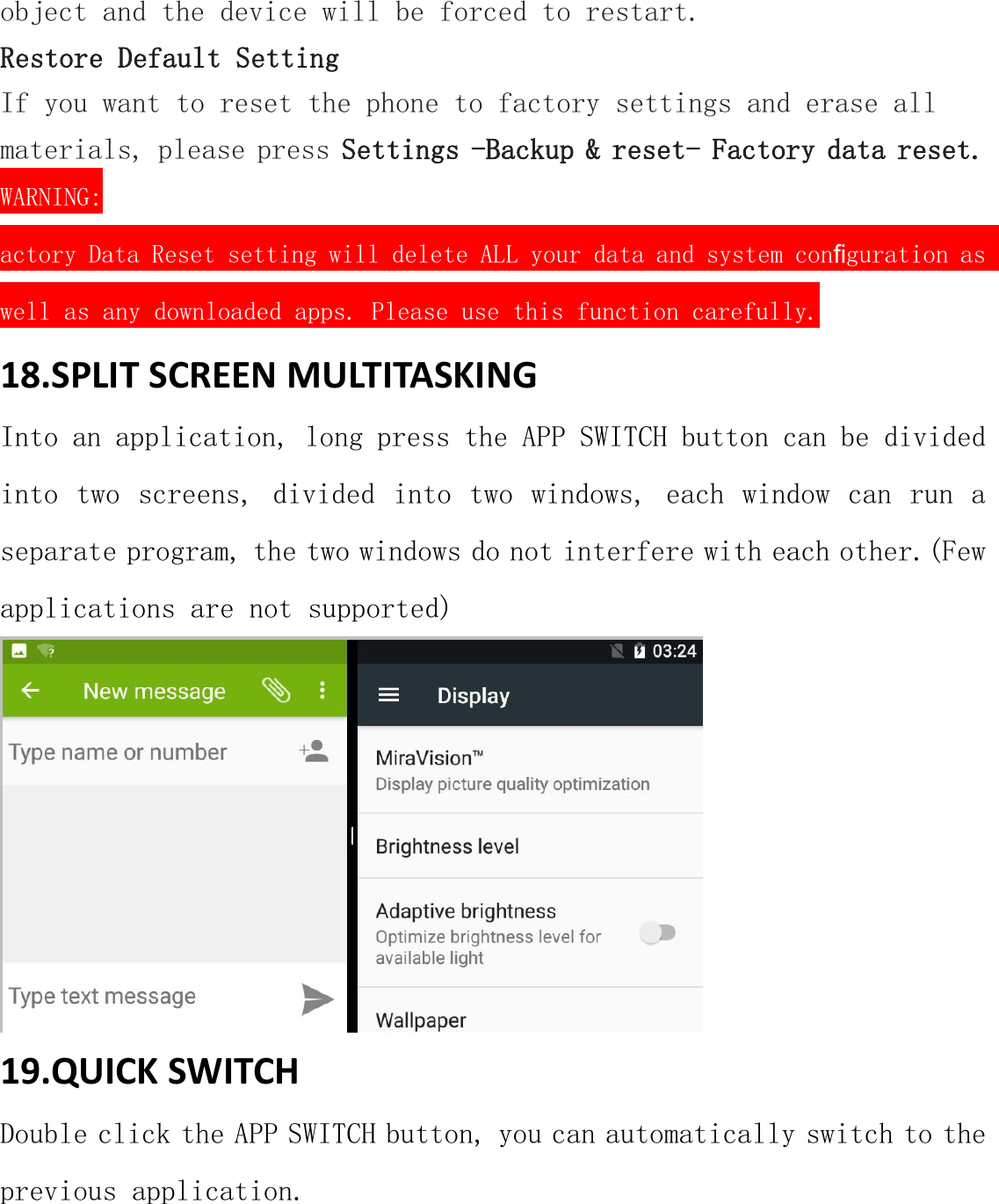
object and the device will be forced to restart.Restore Default SettingIf you want to reset the phone to factory settings and erase allmaterials, please press Settings -Backup & reset- Factory data reset.WARNING:actory Data Reset setting will delete ALL your data and system configuration aswell as any downloaded apps. Please use this function carefully.18.SPLIT SCREEN MULTITASKINGInto an application, long press the APP SWITCH button can be dividedinto two screens, divided into two windows, each window can run aseparate program, the two windows do not interfere with each other.(Fewapplications are not supported)19.QUICK SWITCHDouble click the APP SWITCH button, you can automatically switch to theprevious application.
FCC Caution.Labelling requirements.This device complies with part 15 of the FCC Rules. Operation is subject to the condition that this device doesnot cause harmful interference.Information to user.Any Changes or modifications not expressly approved by the party responsible for compliance could void theuser's authority to operate the equipment.Information to the user.Note: This equipment has been tested and found to comply with the limits for a Class B digital device,pursuant to part 15 of the FCC Rules. These limits are designed to provide reasonable protection againstharmful interference in a residential installation. This equipment generates uses and can radiate radiofrequency energy and, if not installed and used in accordance with the instructions, may cause harmfulinterference to radio communications. However, there is no guarantee that interference will not occur in aparticular installation. If this equipment does cause harmful interference to radio or television reception,which can be determined by turning the equipment off and on, the user is encouraged to try to correct theinterference by one or more of the following measures:-Reorient or relocate the receiving antenna.-Increase the separation between the equipment and receiver.-Connect the equipment into an outlet on a circuit different from that to which the receiver is connected.-Consult the dealer or an experienced radio/TV technician for help.Specific Absorption Rate (SAR) information:This Mobile Phone meets the government's requirements for exposure to radio waves. The guidelines are basedon standards that were developed by independent scientific organizations through periodic and thoroughevaluation of scientific studies. The standards include a substantial safety margin designed to assure thesafety of all persons regardless of age or health.FCC RF Exposure Information and Statement The SAR limit of USA (FCC) is 1.6 W/kg averaged over one gramof tissue. Device types: BLAZE X500(FCC ID:2AIMEX500) has also been tested against this SAR limit. Thehighest SAR value reported under this standard during product certification for use at the ear is 0.33 W/kg andwhen properly worn on the body is 0.74W/kg. This device was tested for typical body-worn operations withthe back of the handset kept 10mm from the body. To maintain compliance with FCC RF exposurerequirements, use accessories that maintain a 10mm separation distance between the user's body and theback of the handset. The use of belt clips, holsters and similar accessories should not contain metalliccomponents in its assembly. The use of accessories that do not satisfy these requirements may not complywith FCC RF exposure requirements, and should be avoided.Body-worn OperationThis device was tested for typical body-worn operations. To comply with RF exposure requirements, aminimum separation distance of 1.0 cm must be maintained between the user’s body and the handset,
including the antenna. Third-party belt-clips, holsters, and similar accessories used by this device should notcontain any metallic components. Body-worn accessories that do not meet these requirements may notcomply with RF exposure requirements and should be avoided. Use only the supplied or an approved antenna.

Navigation menu