SOYO SY K7ADA V1.0 K7ADAV1011 User Manual To The 58950cbc 8f6d 42f0 9df7 315ff15166da
User Manual: SOYO SY-K7ADA V1.0 to the manual
Open the PDF directly: View PDF  .
.
Page Count: 93

SY-K7ADA V1.0
Motherboard
****************************************************
AMD® Athlon/Duron
Processor supported
ALI MAGIK1 AGP/PCI Motherboard
266/200 MHz Front Side Bus supported
ATX Form Factor
****************************************************
User's Manual

SOYO™ SY-K7ADA V1.0
ii
Copyright © 2001 by Soyo Computer Inc.
Trademarks:
Soyo is the registered trademark of Soyo Computer Inc. All trademarks are the
properties of their owners.
Product Rights:
All names of the product and corporate mentioned in this publication are used for
identification purposes only. The registered trademarks and copyrights belong to
their respective companies.
Copyright Notice:
All rights reserved. This manual has been copyrighted by Soyo Computer Inc. No
part of this manual may be reproduced, transmitted, transcribed, translated into any
other language, or stored in a retrieval system, in any form or by any means, such
as by electronic, mechanical, magnetic, optical, chemical, manual or otherwise,
without permission in writing from Soyo Computer Inc.
Disclaimer:
Soyo Computer Inc. makes no representations or warranties regarding the contents
of this manual. We reserve the right to amend the manual or revise the
specifications of the product described in it from time to time without obligation to
notify any person of such revision or amend. The information contained in this
manual is provided to our customers for general use. Customers should be aware
that the personal computer field is subject to many patents. All of our customers
should ensure that their use of our products does not infringe upon any patents. It is
the policy of Soyo Computer Inc. to respect the valid patent rights of third parties
and not to infringe upon or to cause others to infringe upon such rights.
Restricted Rights Legend:
Use, duplication, or disclosure by the Government is subject to restrictions set
forth in subparagraph (c)(1)(ii) of the Rights in Technical Data and Computer
Software clause at 252.277-7013.
About This Guide:
This Quick Start Guide can help system manufacturers and end users in setting up
and installing the Motherboard. Information in this guide has been carefully
checked for reliability; however, to the correctness of the contents there is no
guarantee given. The information in this document is subject to amend without
notice.
For further information, please visit our Web Site on the Internet. The address is
"http://www.soyo.com.tw".
Edition: December 2001
Version 1.1
K7ADA V1.0 SERIAL
FC
CTest ed To Com ply
With FCC Standards
FOR HOME OR OFFICE USE
POST CONSUMER
RECYCLED PAPER
100%

Table of Contents SY-K7ADA V1.0
iii
Table of Contents
CHAPTER 1 MOTHERBOARD DESCRIPTION ................................1
1-1 INTRODUCTION...............................................................1
1-2 KEY FEATURES................................................................1
1-3 ELECTROSTATIC DISCHARGE PRECAUTIONS..........4
1-4 SY-K7ADA V1.0 MOTHERBOARD LAYOUT ................5
1-5 SY-K7ADA V1.0 MOTHERBOARD COMPONENTS .................6
1-6 MICROPROCESSOR.........................................................8
1-7 CHIPSET ............................................................................9
1-8 HARDWARE MONITOR.................................................12
1-9 WAKE ON LAN TECHNOLOGY ...................................13
CHAPTER 2 HARDWARE INSTALLTION........................................14
2-1 PREPARATIONS..............................................................14
2-2 UNPACKING THE MOTHERBOARD ...........................15
2-3 INSTALLATION GUIDE .................................................16
2-3.1 CPU Installation .....................................................17
2-3.2 DDR SDRAM Memory Module Installation............20
2-3.3 Motherboard Connector..........................................22
2-3.4 Jumper Setting.........................................................36
2-3.5 The synchronous/asynchronous clock mode between
CPU and memory interface setting ...................................................38
2-3.6 CPU Vcore adjustment (VJ1) ..................................38
2-3.7 CMOS Clearing (JP5) .............................................39
2-3.8 Power On ................................................................40
2-3.9 Quick BIOS Setup....................................................41
2-3.10 Troubleshooting at First Start ...............................42
2-3.11 Power Off..............................................................45
CHAPTER 3 BIOS SETUP UTILITY ..................................................46
3-1 SOYO COMBO SETUP ...................................................49

Table of Contents SY-K7ADA V1.0
iv
3-2 ADVANCED BIOS FEATURES ......................................54
3-3 ADVANCED CHIPSET FEATURES ...............................59
3-4 INTEGRATED PERIPHERALS.......................................62
3-5 POWER MANAGEMENT SETUP ..................................66
3-6 PNP/PCI CONFIGURATION SETUP..............................70
3-7 PC HEALTH STATUS ......................................................74
3-8 LOAD FAIL-SAFE DEFAULTS ......................................76
3-9 LOAD OPTIMIZED DEFAULTS.....................................77
3-10 SUPERVISOR PASSWORD ............................................78
3-11 USER PASSWORD ..........................................................79
3-12 IDE HDD AUTO DETECTION .......................................80
3-13 BOOT MENU ...................................................................81
CHAPTER 4 DRIVER INSTALLATION.............................................82

Motherboard Description SY-K7ADA V1.0
1
Chapter 1
MOTHERBOARD DESCRIPTION
1-1 INTRODUCTION
The SY-K7ADA V1.0 AGP/PCI Motherboard is a high-performance
Socket 462 ATX form-factor system board. Using ALI Chipset technology.
This Motherboard is fully compatible with industry standards and adds
many technical enhancements.
1-2 KEY FEATURES
CPU SUPPORT
The SY-K7ADA V1.0 supports THE FOLLOWING AMD® CPUs:
Supports 200MHz Front Side Bus DDR(Double Data Rate) transfer
on Athlon(750MHz~1.2GHz)/ Duron(600MHz~850MHz)
Supports 266MHz Front Side Bus DDR (Double Data Rate) transfer
on Athlon(1GHz~1.2GHz)
Supports 266MHz Front Side Bus DDR (Double Date Rate) transfer
on Athlon Palomino(1500+~1800+)
New released AMD Socket 462 CPUs will very likely be supported by the
SY-K7ADA V1.0 as well.
CPU SETTINGS
The SY-K7ADA V1.0 provides the user with a very complete and
convenient CPU setting environment. The CPU settings are all adjusted
through the DIP switch.
CPU Frequency
The SY-K7ADA V1.0 supports an incredible wide range of CPU
frequency settings:
600,650,700,750,800,850,900,950,1000+MHz.
This gives the SY-K7ADA V1.0 an overwhelming overclocking potential.

Motherboard Description SY-K7ADA V1.0
2
CPU Multiplier
EXPANDABILITY
The SY-K7ADA V1.0 provides all the standard expansion slots, and many
more additional expansion features:
Expansion slots
1 x 32-bit bus master AGP slot
5 x 32-bit bus master PCI slots
Enhanced IO
Floppy disk controller
2x EIDE controllers with support for up to 4 Ultra DMA
33/66/100 devices
Standard/EPP/ECP parallel port
2x 16550 compatible serial ports
IrDA compatible infrared port
6x USB (Universal Serial Bus) connectors
PS/2 mouse connector
PS/2 keyboard connector

Motherboard Description SY-K7ADA V1.0
3
ADVANCED FUNCTIONS
The SY-K7ADA V1.0 supports advanced functions such as:
Wake-On-LAN
Supports Wake-On-LAN (Some advanced network cards can
wake the system up over the network, the WOL connector is
provided by the SY-K7ADA V1.0 to support this function).
Multiple boot
The SY-K7ADA V1.0 supports booting from devices such as
CD-ROM, FLOPPY DRIVE & HDD, LS120, SCSI, ZIP.
Power on by modem or alarm
If the SY-K7ADA V1.0 system is in suspend mode, it can be switched
back on through the modem or RTC alarm function. This opens a lot
of possibilities, such as remote access that switches the system on
only after the modem receives a call.
FAIL SAFE
The SY-K7ADA V1.0 comes with added functionality to make managing
the system easy and safe
Hardware Monitor
The integrated Hardware Monitor IC and Hardware doctor software
enables the user to monitor system voltages, temperatures and FAN speeds.
This makes sure that the user is in full control of the system
SOYO Bonus Pack CD-ROM
COMPLIANCE
The SY-K7ADA V1.0 complies with all important industry standards. The
following underlines the reliability of the SY-K7ADA V1.0, a
motherboard to trust.
PC99, ACPI compliant
USER FRIENDLY
SOYO Combo Setup
Jumperless design
You can set up the following options through the BIOS setup

Motherboard Description SY-K7ADA V1.0
4
CPU FSB frequency
PCI clock
AGP Clock
SDRAM Clock
HANDLING THE MOTHERBOARD
To avoid damage to your Motherboard, follow these simple rules while
unpacking:
Before handling the Motherboard, ground yourself by grasping an
unpainted portion of the system's metal chassis.
Remove the Motherboard from its anti-static packaging. Hold the
Motherboard by the edges and avoid touching its components.
Check the Motherboard for damage. If any chip appears loose, press
carefully to seat it firmly in its socket.
Warning: Do not apply power if the Motherboard appears
damaged. If there is damage to the board, contact your dealer
immediately.
1-3 ELECTROSTATIC DISCHARGE PRECAUTIONS
Make sure to ground yourself before handling the Motherboard or other
system components. Electrostatic discharge can easily damage the
components. Note that you must take special precautions when handling
the Motherboard in dry or air-conditioned environment.
To protect your equipment from electrostatic discharge, take the following
precautions:
Do not remove the anti-static packaging until you are ready to install.
Ground yourself before removing any system component from its
protective anti-static packaging. (To ground yourself, grasp the expansion
slot covers or other unpainted portions of the computer chassis.)
Frequently ground yourself while working or use a grounding strap.
Handle the Motherboard by its edges and avoid touching its
components.
Motherboard Description SY-K7ADA V1.0
5
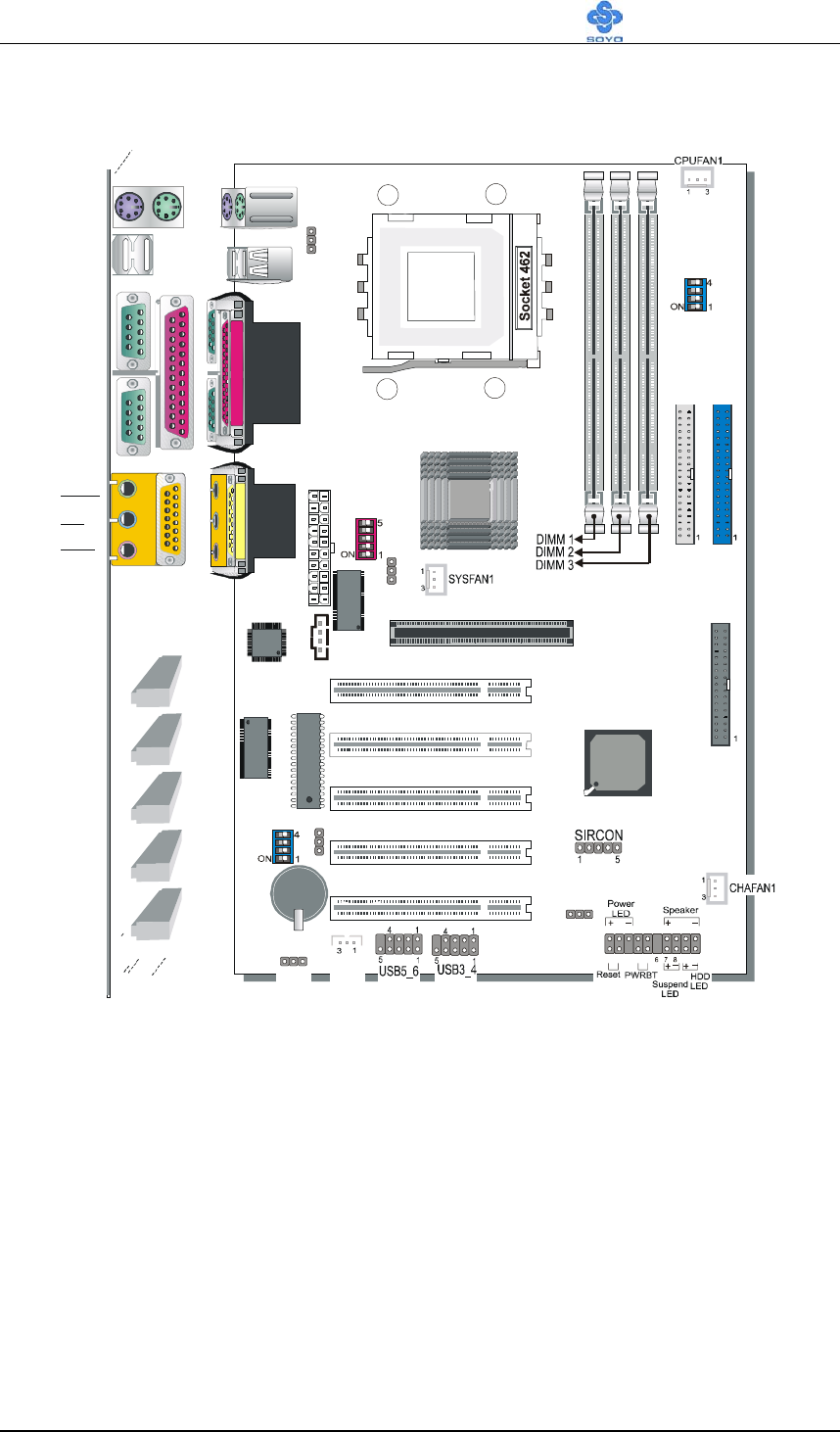
1-4 SY-K7ADA V1.0 MOTHERBOARD LAYOUT
PRT
PS/2 KB
ConnectorPS/2 Mouse
Connector
ATX Pow er
AOUT
AIN
AMIC
AGAME
COMA
COMB
USB 1_2
SDRAM
SDRAM
M1647
AGP Slot
3V
Lithium
Battery
JP1
1
3
RJ2
1
3
RJ3
1
3
CDIN1
1
4
PCI Slot #5
Flash BIOS
PCI Slot #1
PCI Slot #4
PCI Slot #3
PCI Slot #2
FLP
IDE 1
IDE 2
M1535D+
FJ1
RJ1
VJ2
1
3
VJ1
ALi
ALi
JP5
13
JP10
WOL
Header
12 3 4 5 910
1112 13 14 15 16 17 18 19 20
Sigmatel
STAC9700
ALi
M5879
ALi
M5819
Back Panel SY-K7ADA Platform
Motherboard Description SY-K7ADA V1.0
6
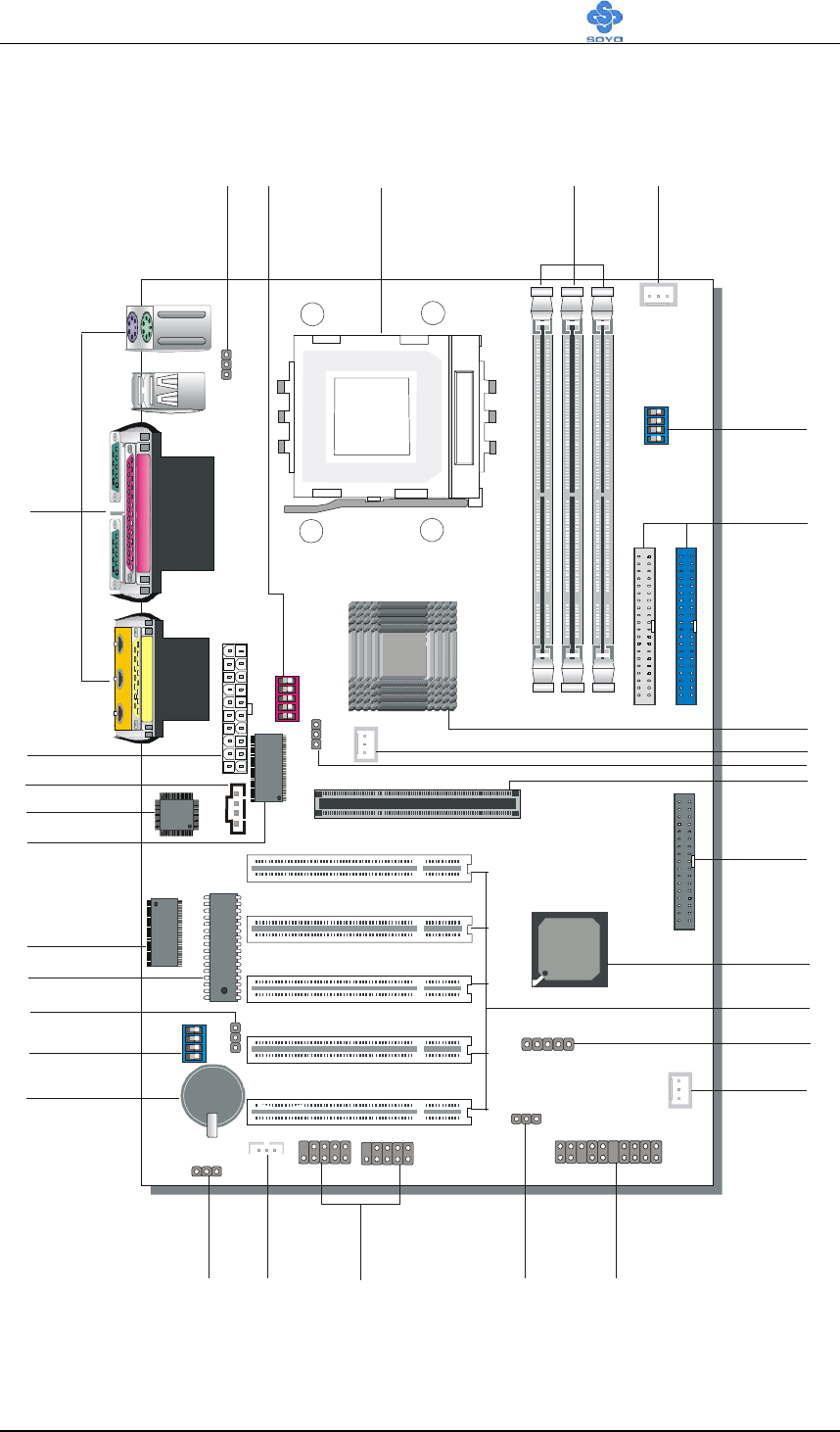
1-5 SY-K7ADA V1.0 MOTHERBOARD COMPONENTS
SDRAM
SDRAM
A
BC DE
F
G
H
I
J
K
L
M
N
O
P
QRSTU
V
W
X
Y
Z
AA
AB
AC
AD
AE

Motherboard Description SY-K7ADA V1.0
7
A K/B Power-On setting Jumper
B CPU Vcore adjustment setting switch
C Socket 462 Connector
D DIMM Banks
E CPU Cooling Fan Connector
F CPU FSB adjustment setting switch
G Bus Mastering E-IDE/ATAPI Ports
H ALi M1647 North Bridge chip
I SYS Cooling Fan
J CPU Vcore setting Jumper
K 32-bit AGP 1X/2X/4X Slot
L Floppy Disk Drive (FDD) Port
M ALi M1535D+ South Bridge chip
N 32-bit PCI Mastering Slots
O Serial Infrared (IrDA) Device Header
P Chassis Cooling Fan
Q Front panel Connectors
R CPU Multiplier setting Jumper
S USB3_4 and USB 5_6 Connectors
T Wake-On-LAN (WOL) Header
U CMOS Clear Jumper
V 3V Lithium Battery
W CPU Multiplier adjustment setting switch
X CPU Multiplier setting Jumper
Y Flash BIOS
Z R.T.C. and CMOS RAM
AA Hardware Monitor
AB Sigmatel STAC9700 Chip
AC CD In Connector
AD ATX Power Supply Connector
AE Back panel Connectors

Motherboard Description SY-K7ADA V1.0
8
1-6 MICROPROCESSOR
The motherboard supports a single Socket 462 processor. The processor’s
VID pins automatically program the voltage regulator on the motherboard
to the required processor voltage. In addition, the front side bus speed
(200/266 MHz ) is automatically selected. The motherboard supports all
current Socket 462 processor speeds, voltages, and bus frequencies.
1-6.1 Microprocessor Packaging
The CPU is packaged in a 462 pin PGA package. A fan must be used to
ensure adequate cooling.
1-6.2 Second Level Cache
The second-level cache is located on the substrate of the CPU package.
The cache includes Athlon-256KB / Duron-64KB of synchronous
pipelined burst static RAM. All supported onboard memory can be cached.
1-6.3 Microprocessor Upgrades
The motherboard can be upgraded with Socket 462 processors that run at
higher speeds. When upgrading the processor, use the BIOS configuration
mode or DIP switch to change the processor speed.

Motherboard Description SY-K7ADA V1.0
9
1-7 CHIPSET
ALi M1647 Overview
The M1647 is a high performance, high value North Bridge that supports
all Athlon family processors. Internally all 128-bit architecture with
optimization for S2K bus, DDR and AGP4X interface, the M1647 has
outstanding high system performance under all types of system operations.
The M1647 North Bridge, coupled with one of ALi’s widely adopted PCI
South Bridge devices (M1535D+) provides a flexible and scalable
motherboard core logic solution to fill all applications.
The M1647 supports all Athlon family microprocessors. Processor bus
speeds of 66MHz to 133MHz are supported. This interface has 16 entries
for outstanding processor commands and system probe commands. This
interface supports FID change protocol for mobile purposes.
The M1647 can support up to 3.0 GB of SDRAM or DDR-SDRAM main
memory. Supports any combination of 66/100/133MHz memory bus
frequency and CPU bus frequency with minimized internal protocol
handshaking overhead, the M1647 provides a flexible system application.
In addition to dynamic memory power down, the M1647 also supports a
dynamic gated clock for the internal chipset logic circuitry, which will
reduce the system power consumption for mobile applications. The m1647
support the CAS-before-RAS refresh scheme and Self-refresh scheme
during normal mod and suspend mode, respectively.
The memory access controller plays a key role of dispatching the job to
the memory interface. By using a two-level dynamic arbitration scheme,
the M1647 fulfills multiple demanding sources that need access to the
main memory with balanced latency and maximum throughput. Another
important role of the memory access controller is the integration logic
between the AGP interface and main memory to support the AGP memory
address to physical memory address translate. To fulfill this function, the
M1647 uses 128 entries and 16 tags to implement a one level GART
(Graphic Address Re-mapping Table) scheme.
The M1647 supports all features of the AGP version 2.0 specification. This

Motherboard Description SY-K7ADA V1.0
10
boosts the graphic benchmarks into another era for professional graphics
usage. The M1647 design is capable of supporting 28 outstanding AGP
commands (depth of command queue=28) and buffering 64QW for AGP
master read operations.
The M1647 is fully compliant with the PCI 2.2 specification. Flexible PCI
latency control allows the M1647 to achieve improved system
performance.
The M1647 PCI host interface features a flexible PCI latency controller
that allows a system to be tuned for the best system performance possible.
The m1647 also features an enhanced PCI arbiter that implements a fair
arbitration scheme based on a PCI and time slice mechanism. In addition
to itself and the South Bridge, the M1647 can support up to six addition
PCI masters. This gives designers the ultimate in flexibility when deciding
what combination of PCI slots and on board PCI peripheral devices to use.
One of these six PCI master channel can be assigned to a higher priority
than other five PCI masters in order to fulfill the demands of some special
real time devices, e.g. 1394 isochronous transmissions, when accessing
main memory.
Dark Green Power Management functions such as Power on Suspend,
Suspend to RAM, Suspend to Disk, PCI bus CLKRUN and Dynamic
Clock Stop are all supported. The M1647 provides the most flexible power
management capability available in any chipset.
ALi M1535D+ Overview
The M1535D+ provides the best desktop system solution. The M1535D+
integrates AC-Link Host Controller, Hardware SoundBlaster Pro/16
compatibility, Host Signal Processing (HSP) software modem solution,
ACPI support, green function, 2-channel dedicated ATA-100 IDE Master
controller, 2 USB controllers, SMBus controller, PS/2 Keyboard/Mouse
controller, the Super I/O (Floppy Disk Controller, 2 serial port/1 parallel
port) support and Fast IR into one chip.
The built-in I/O in M1535D+ is an advenced Super I/O controller
containing all of the basic IBM PC, XT, AT peripherals. It incorporates

Motherboard Description SY-K7ADA V1.0
11
three full function universal asynchronous receiver/transmitters (UARTs),
a flexible high performance internal data separator with send/receive 16
byte FIFOs. It is also suitable for notebook computers since it has Fast
Infra Red for wireless communications with other devices. It can swap the
floppy drives A & B. It supports SPP, PS/2, EPP and ECP parallel port. It
also has a programmable baud rate generator. It has high performance
power management for the FDC, UART and parallel port.
The built-in audio in M1535D+ is an advanced PCI audio accelerator
providing wave table synthesis, DirectMusic, DirectSound3D for the high
performance, cost-sensitive consumer market. It also supports full Sound
Blaster compatibility and is fully PC’98/PC’99 compliant. The M1535D+
Audio, combined with a standard AC’97/AC’98 Codec, provides better
than CD quality audio with sound-to-noise ratio of > 90 db, up to 48 KHz
sample rate, full duplex audio with independent playback and recording
sample rate, 6-channel mixer and optional 3D surround sound enhanced
output. In the legacy DOS game environment, the M1535D+ audio
accelerator provides SoundBlaster Pro/16 compatibility, OPL2 and OPL3
emulation, and 1 to 8 MB of general MIDI music through the MPU 401
compatible interface. With built-in support of the legacy mode analog
game port, the M1535D+ audio can replace all the functions of wave table
based legacy audio ISA card. In addition, the M1535D+ supports
consumer audio digital interface (SPDIF) to connect external digital audio
equipment.
The M1535D+ will provide the AC’97 2.1 compliant digital controller
interface for third parties (such as the AMC Codec’s vendor) to enable the
software modem solution. The M1535D+ provides 4 separate telephony
bus master channel. One for modem output, one for modem input, one for
handset input, and one for handset output. The M1535D+ supports the
Modem on-demand variable sample rate transfer, power management ,
wake-up, and caller ID string transmission.
The M1535D+ will support the security feature such as the platform
firmware protection. The M1535D+ also provides the ability to meet the

Motherboard Description SY-K7ADA V1.0
12
Legacy-Free and Legacy Reduction specification of PC2001.
1-7.1 PS/2 Keyboard and Mouse Interface
PS/2 keyboard and mouse connectors are located on the back panel of the
motherboard. The +5 V lines to keyboard and mouse connectors are
protected with a fuse that prevents motherboard components from being
damaged when an over-current condition occurs.
Note
The mouse and keyboard can be plugged into either PS/2 connector.
Power to the computer should be turned off before a keyboard or mouse is
connected or disconnected.
The keyboard controller contains code, which provides the traditional
keyboard and mouse control functions, and also supports Power On/Reset
password protection. Power On/Reset password can be specified in the
BIOS Setup program.
The keyboard controller also supports the hot-key sequence
<Ctrl><Alt><Del>, software reset. This key sequence resets the
computer’s software by jumping to the beginning of the BIOS code and
running the Power On Self Test (POST).
1-8 HARDWARE MONITOR
The hardware monitor subsystem provides instrumentation capabilities.
The features of the hardware monitor subsystem include:
2 thermistor input for remote temperature sensing (CPU/System)
Monitor 4 positive voltages (Vcore/+3.3V/+5V/+12V)
Monitor 2 fan speeds
2 PWM outputs for fan speed control
Power-on beep warning when CPU core voltage is out of range
VID4-VID0 monitoring inputs
Windows 95/98 utility included

Motherboard Description SY-K7ADA V1.0
13
1-9 WAKE ON LAN TECHNOLOGY
Wake on LAN technology enables remote wakeup of the computer
through a network. Wake on LAN technology requires a PCI add-in
network interface card (NIC) with remote wakeup capabilities. The remote
wakeup connector on the NIC must be connected to the onboard Wake on
LAN connector. The NIC monitors network traffic at the Ethernet interface;
upon detecting a Magic Packet, the NIC asserts a wakeup signal that
powers up the computer. This feature uses the Wake on LAN connector.
CAUTION
For Wake on LAN, the 5-V standby line for the power supply must be
capable of delivering +5V ±5 % at 720 mA. Failure to provide adequate
standby current when implementing Wake on LAN can damage the power
supply.

Hardware Installation SY-K7ADA V1.0
14
Chapter 2
HARDWARE INSTALLATION
Congratulations on your purchase of SY-K7ADA V1.0 Motherboard. You
are about to install and connect your new Motherboard.
Note: Do not unpack the Motherboard from its protective
anti-static packaging until you have made the following
preparations.
2-1 PREPARATIONS
Gather and prepare all the following hardware equipment to complete the
installation successfully:
1. Socket 462 processor with built-in CPU cooling fan (boxed type).
Note: This Motherboard supports non-boxed type CPUs. The heavier
CPU cooling fan requires the installation of a CPU support stand.
2. DDR RAM memory module (s)
3. Computer case and chassis with adequate power supply unit
4. Monitor
5. PS/2 Keyboard
6. Pointing Device (PS/2 mouse)
7. Speaker(s) (optional)
8. Disk Drives: HDD, CD-ROM, Floppy drive…
9. External Peripherals: Printer, Plotter, and Modem (optional)
10. Internal Peripherals: Modem and LAN cards (optional)
Hardware Installation SY-K7ADA V1.0
15
2-2 UNPACKING THE MOTHERBOARD
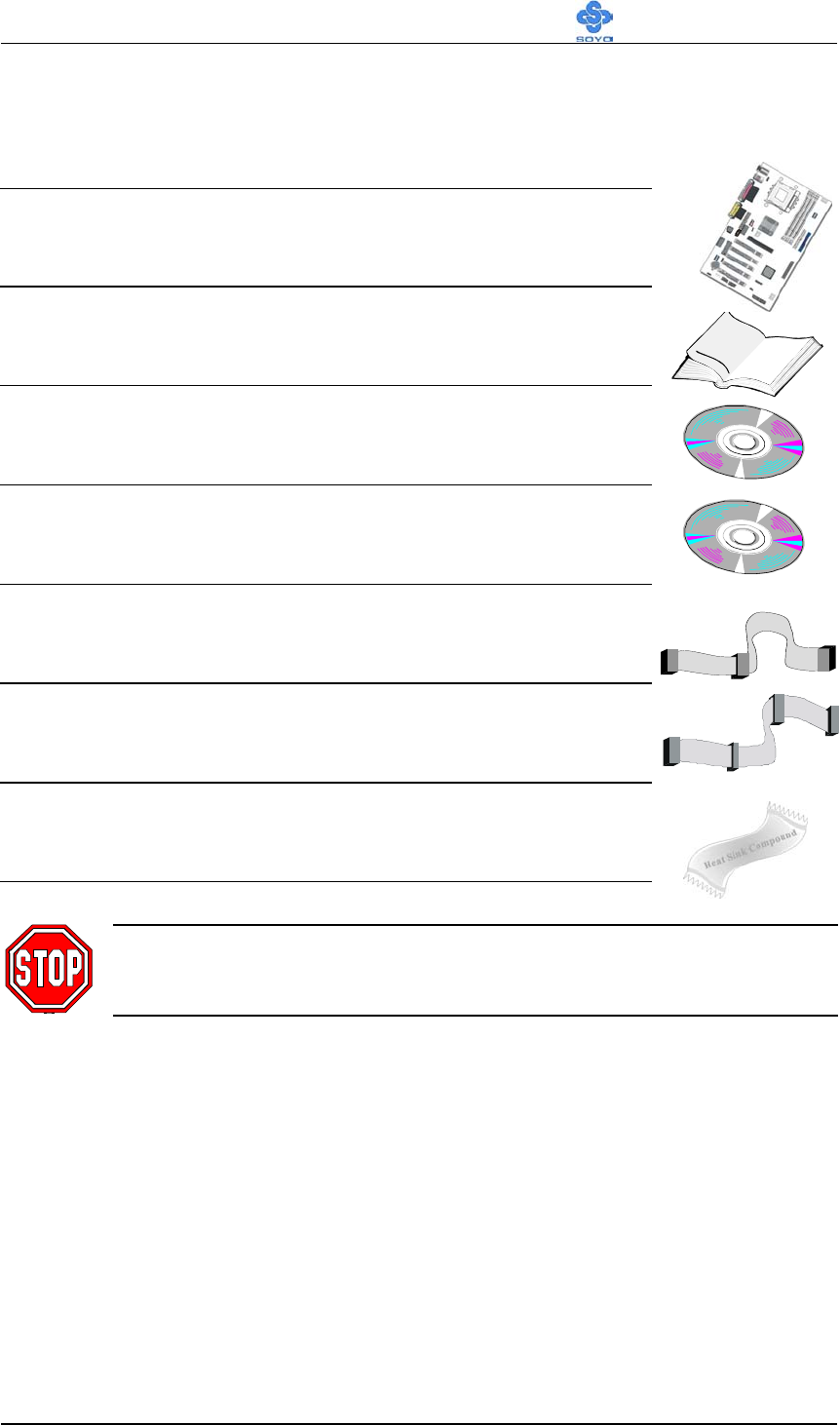
When unpacking the Motherboard, check for the following items:
The SY-K7ADA V1.0 ALi MAGIK1 AGP/PCI
Motherboard
The Quick Start Guide
The Installation CD-ROM
SOYO Bonus Pack CD-ROM
One IDE Device ATA33/66/100 Flat Cable
One Floppy Disk Drive Flat Cable
One Heat Sink Compound
Warning: Do not unpack the Motherboard from its anti-static
packaging until you are ready to install it.
Like most electronic equipment, your Motherboard may be damaged by
electrostatic discharge. To avoid permanent damage to components ground
yourself while working by using a grounding strap. Otherwise, ground
yourself frequently by touching the unpainted portion of the computer
chassis to drain the static charges.
Handle the Motherboard carefully, hold it by the edges.
You are now ready to start the installation.

Hardware Installation SY-K7ADA V1.0
16
2-3 INSTALLATION GUIDE
We will now begin the installation of the Motherboard. Please follow the
step-by-step procedure designed to lead you to a complete and correct
installation.
Warning: Turn off the power to the Motherboard, system
chassis, and peripheral devices before performing any work on
the Motherboard or system.
BEGIN THE INSTALLATION
Hardware Installation SY-K7ADA V1.0
17
2-3.1 CPU Installation
Your SY-K7ADA V1.0 motherboard comes with a CPU retention set kit.
The retention set is used to hold the processor attached to the Socket 462
CPU connector on the motherboard.
Mark your CPU Frequency:
Record the working frequency of
your CPU that should be clearly marked on the CPU cover.
200MHz FSB Athlon CPU
750 MHz (100 x 7.5)
800 MHz (100 x 8.0)
850 MHz (100 x 8.5)
900 MHz (100 x 9.0)
950 MHz (100 x 9.5)
1000 MHz (100 x 10.0)
1.1GHz (100 x 11.0)
1.2GHz(100 x 12.0)
1.3GHz (100 x 13.0)
200MHz FSB Duron CPU
600 MHz (100 x 6.0)
650 MHz (100 x 6.5)
700 MHz (100 x 7.0)
750 MHz (100 x 7.5)
800 MHz (100 x 8.0)
850 MHz (100 x 8.5)
900 MHz (100 x 9.0)
266MHz FSB Athlon CPU
1 GHz (133 x 7.5) 1.13 GHz (133 x 8.5) 1.2 GHz (133 x 9.0) 1.33 GHz (133 x 10.0)
266MHz FSB Athlon Palomino CPU
1500+ 1600+ 1700+ 1800+
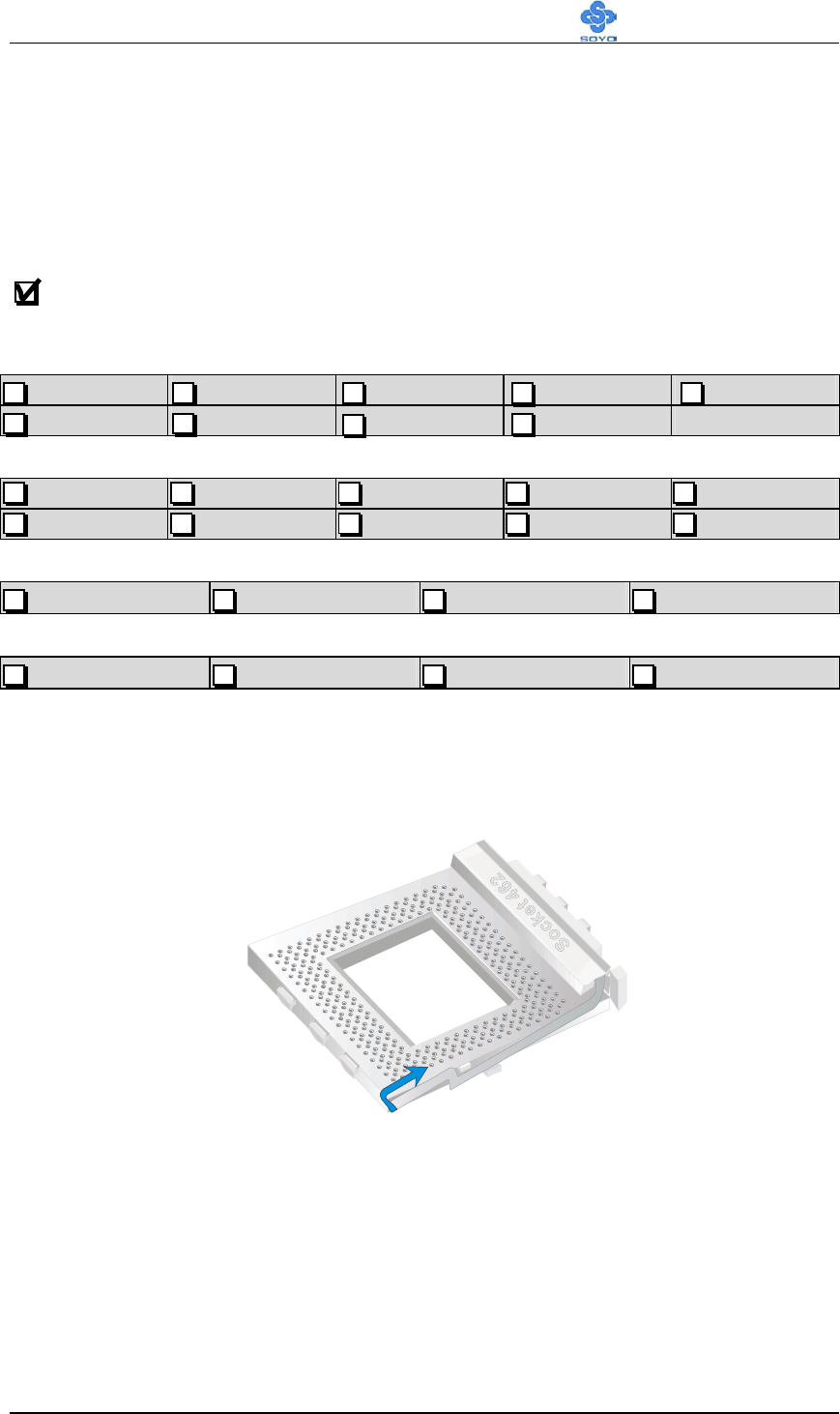
Follow these instructions to install your Socket 462 processor correctly.
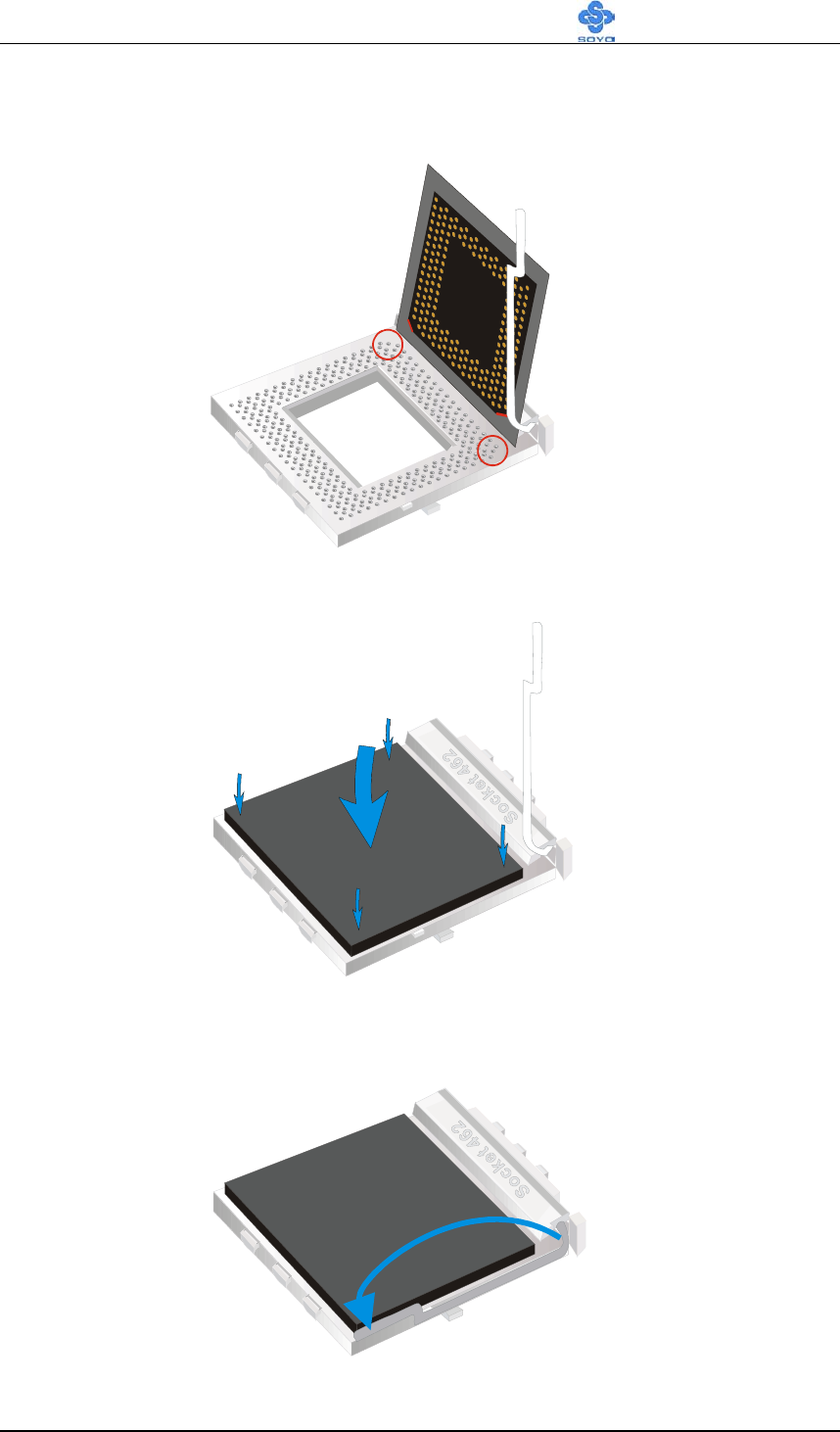
1. Lift the socket handle up to a vertical position.
Hardware Installation SY-K7ADA V1.0
18
2. Align the blunt edge of the CPU with the matching pinhole
distinctive edge on the socket.
3. Seat the processor in the socket completely and without forcing.
4. Then close the socket handle to secure the CPU in place.

Hardware Installation SY-K7ADA V1.0
19
Remember to connect the CPU Cooling Fan to the
appropriate power connector on the Motherboard. The fan is
a key component that will ensure system stability. The fan
prevents overheating, therefore prolonging the life of your
CPU.
Hardware Installation SY-K7ADA V1.0
20
2-3.2 DDR SDRAM Memory Module Installation
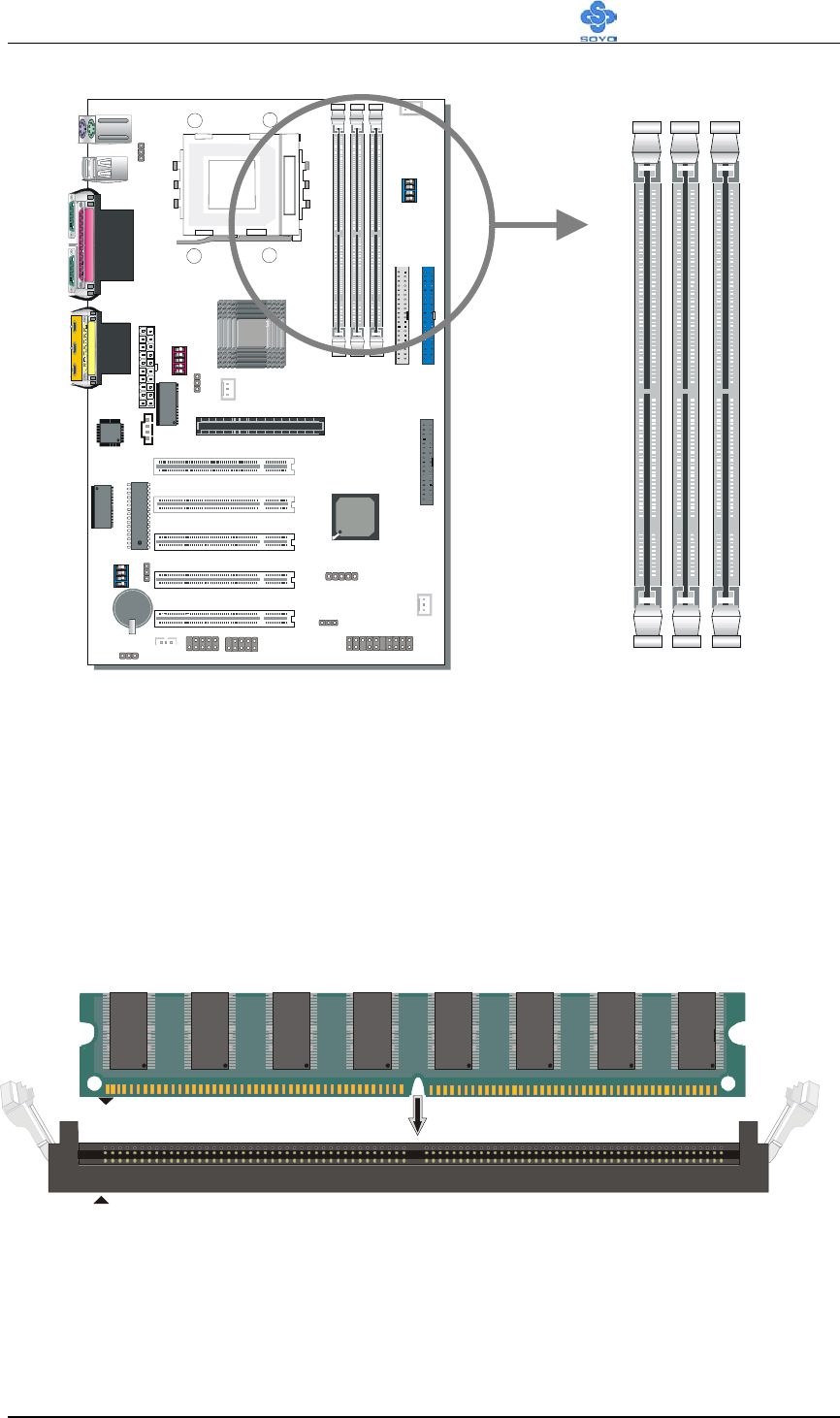
Your board comes with three DIMM sockets, providing support for up to
3GB of main memory using DDR RAM modules from 4Mb to 512Mb. On
this motherboard, DRAM speed can be set independent from the CPU
front side bus speed. Appropriate memory modules must be used. Supports
DDR frequency 100/133 MHz.
SDRAM
SDRAM
192
192

Hardware Installation SY-K7ADA V1.0
21
Memory Configuration Table
Number of Memory
Modules DIMM 1 DIMM 2 DIMM 3
RAM Type DDR SDRAM
Memory Module Size 4/16/32/64/128/256/512 Mbit
Note: This Motherboard can only support 2 pcs of PC2100 DDR
module, we suggest using DIMM1 and DIMM2 for PC2100 DDR
module.
Hardware Installation SY-K7ADA V1.0
22
Motherboard Connector
2-3.2.1 IDE Device Installation (HDD, CD-ROM)
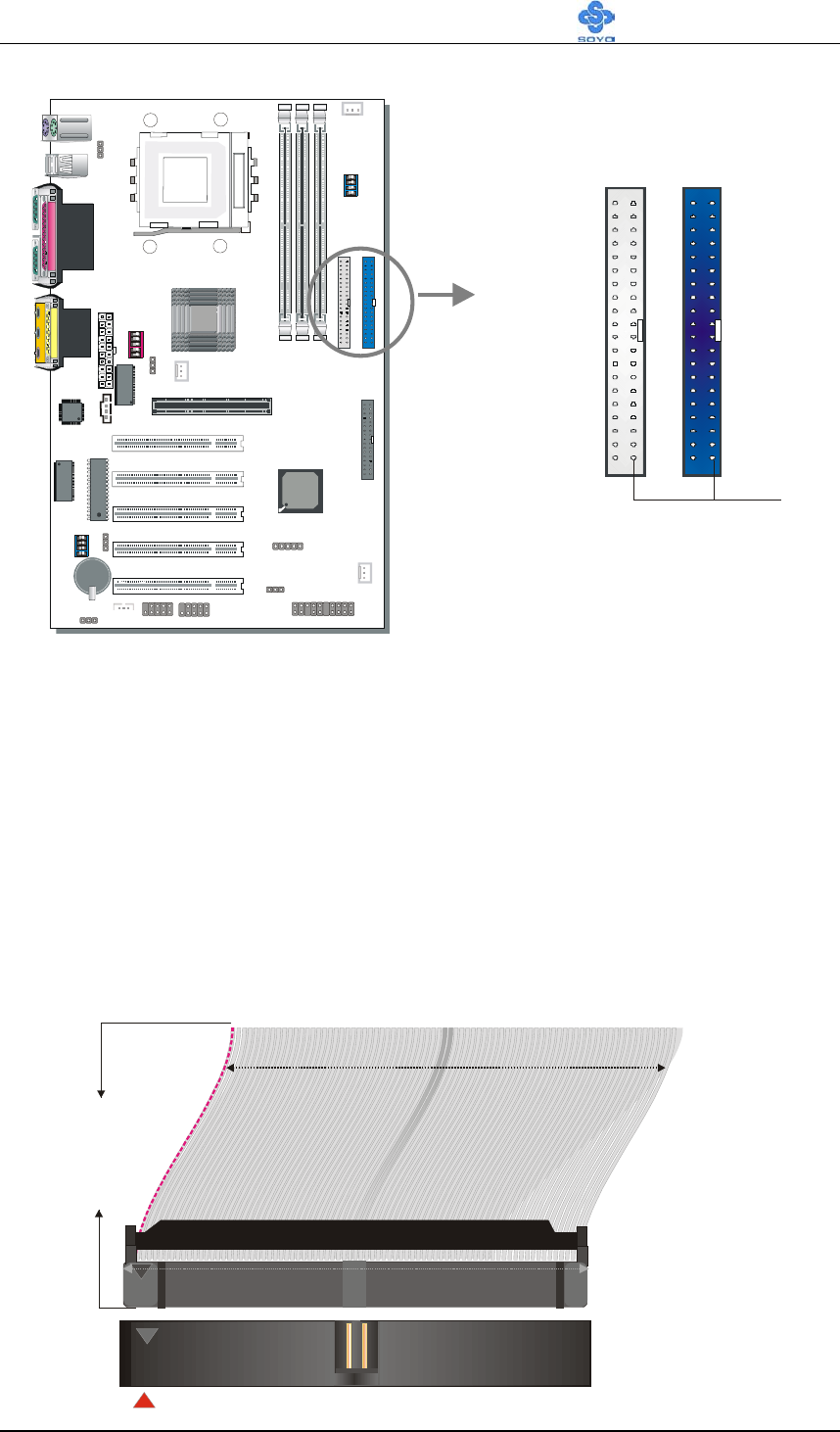
This Motherboard offers two primary and secondary IDE device
connectors (IDE1, IDE2). It can support up to four high-speed Ultra DMA
33/66/100HDD or CD-ROM.
Connect one side of the ATA33/66/100 flat cable to the IDE device (HDD
or CD-ROM) and plug the other end to the primary (IDE1) or secondary
(IDE2) directionally keyed IDE connector on the Motherboard. The
ATA33/66/100 cable is backward compatible with ATA33 HDDs.
This Motherboard can support up to four HDDs.
SDRAM
SDRAM
1
1
39
39
40-pin
ATA 66/100
Flat Cable
80-Conductor
IDE 2
Primary
IDE
Secondary
IDE
IDE 1
Pin-1
Hardware Installation SY-K7ADA V1.0
23
2-3.2.2 Floppy Drive Installation
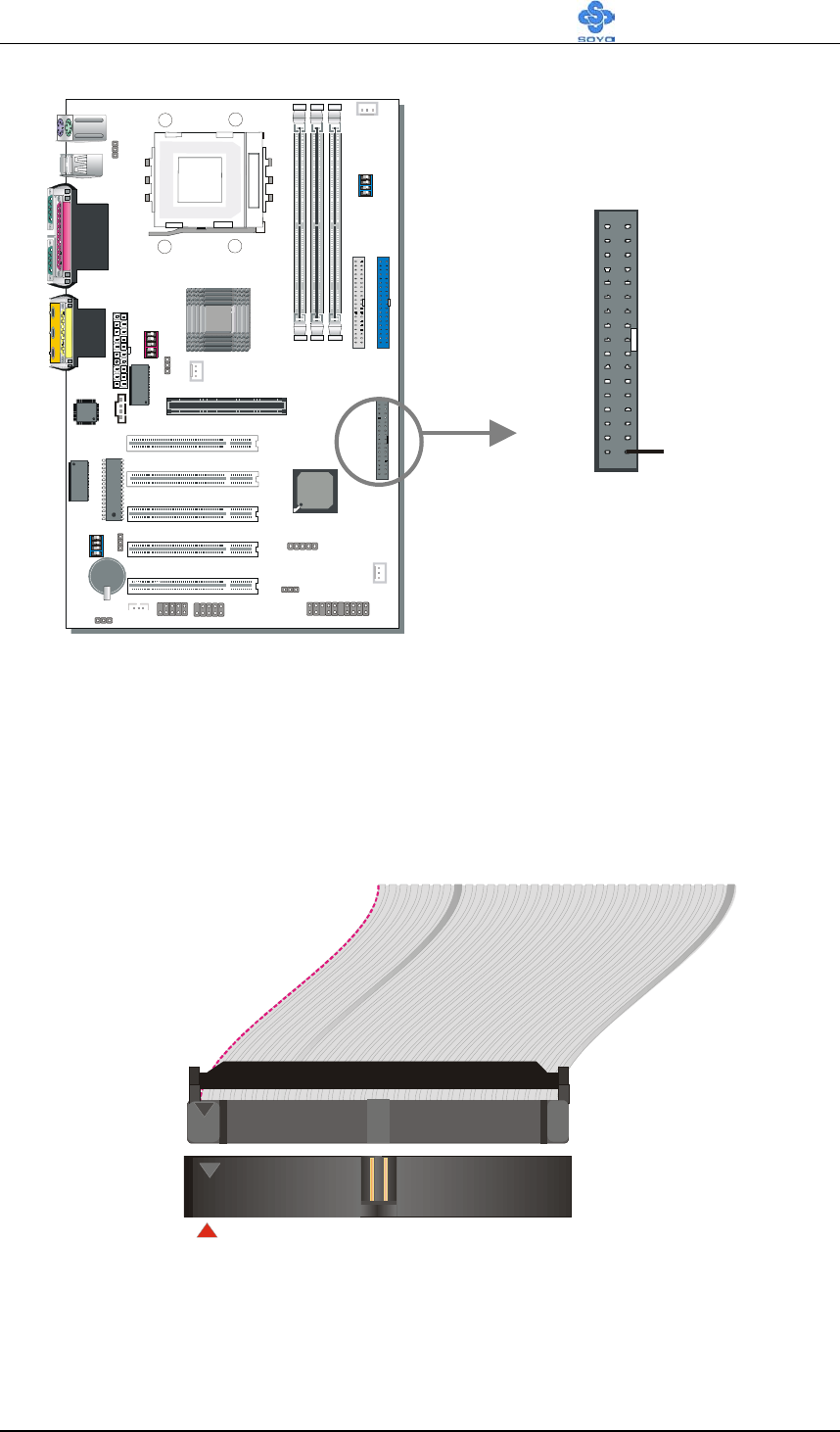
The system supports 5 possible floppy drive types: 720 KB, 1.2 MB,
1.44 MB, 2.88 MB, and LS-120.
Connect one side of the 34-pin flat cable to the floppy drive and plug the
other end to the floppy drive connector on the Motherboard.
This Motherboard can support up to 2 floppy drives.
SDRAM
SDRAM
1
1
33
33
FDC
Pin -1
Floppy Drive
Connector
Hardware Installation SY-K7ADA V1.0
24
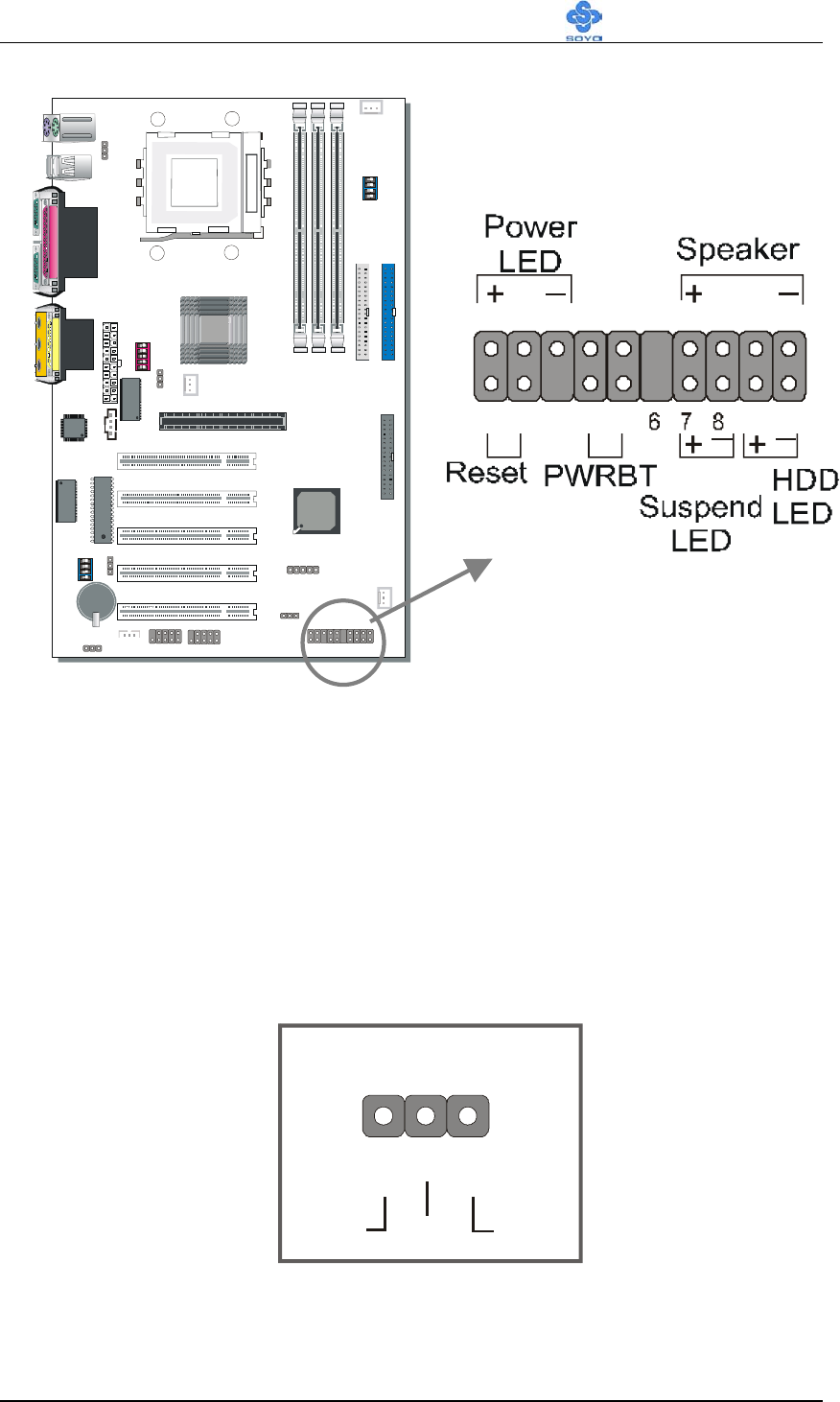
2-3.2.3 Front Panel Connections
Plug the computer case's front panel devices to the corresponding headers
on the Motherboard.
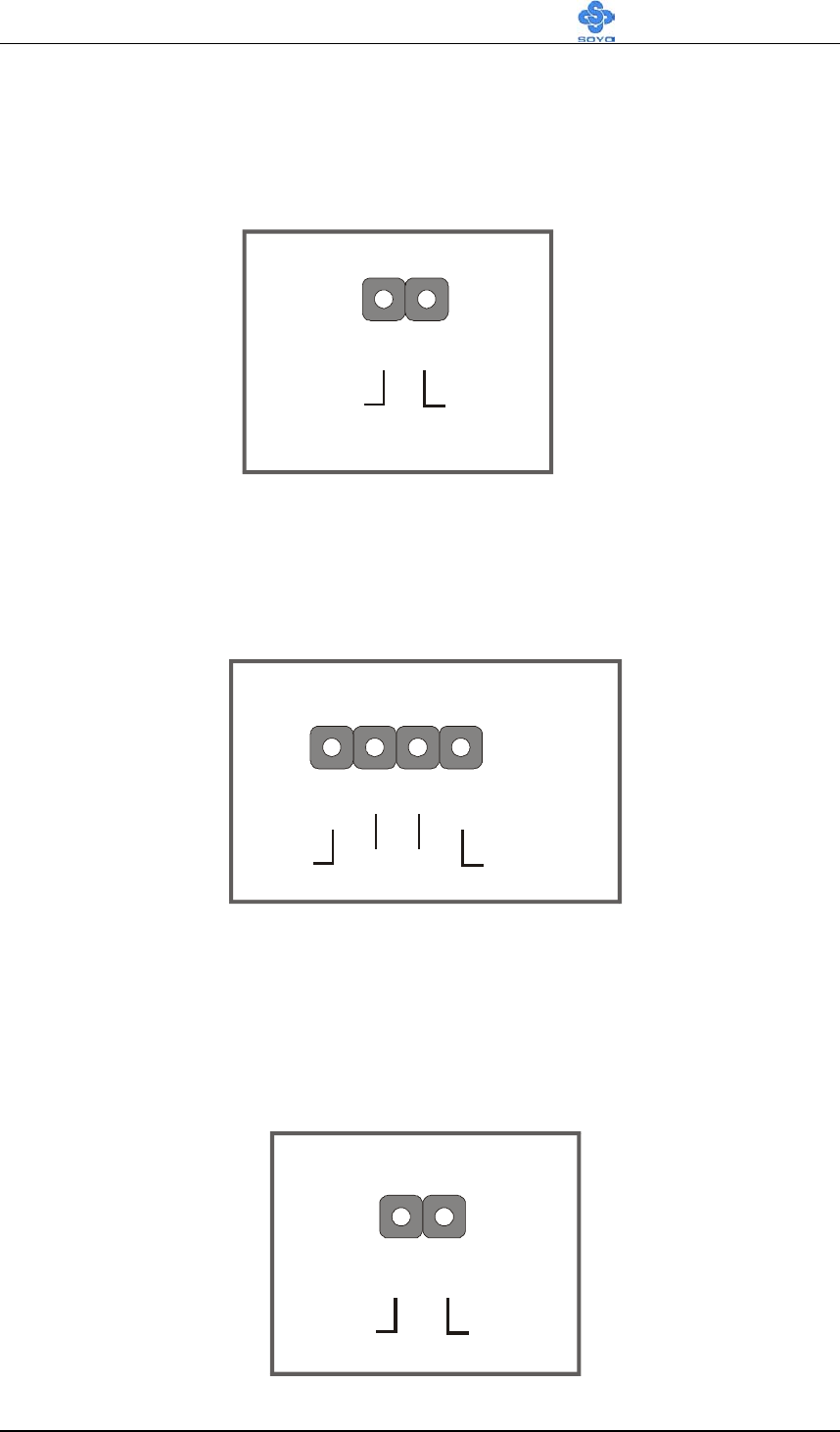
1. Power LED
Please install according to the following pin assignment: pin 1,3 are for
Power LED.
SDRAM
SDRAM
12345 910
11 12 13 14 15 16 17 18 19 20
Power LED
Pin Assignment
LED GND
+_
NC
Pin11 Pin12 Pin13
Hardware Installation SY-K7ADA V1.0
25
2. Reset
Plug the Reset push-button cable into the 2-pin Reset header on the
Motherboard. Pushing the Reset button on the front panel will cause the
system to restart the boot-up sequence.
3. Speaker
Attach the 4-pin PC speaker cable from the case to the Speaker header on
the Motherboard.
4. IDE LED
Attach the 2-pin IDE device LED cable to the corresponding IDE LED
header on the Motherboard. This will cause the LED to light up when an
IDE (HDD, CD-ROM) device is active.
Speaker Pin Assignment
+_
Power Speaker out
NC NC
Pin17 Pin18 Pin19 Pin20
HDD LED Pin Assi
g
nment
+_
Power HDD LED
Pin9 Pin10
Reset Pin Assi
g
nment
Power RST GND
Pin1 Pin2

Hardware Installation SY-K7ADA V1.0
26
5. ATX Power On/Off Switch
Attach the 2-pin momentary type switch to the PWRBT header for turning
On or Off your ATX power supply.
PWRBT Pin Assi
g
nment
PWRBTN GND
Pin4 Pin5
Hardware Installation SY-K7ADA V1.0
27
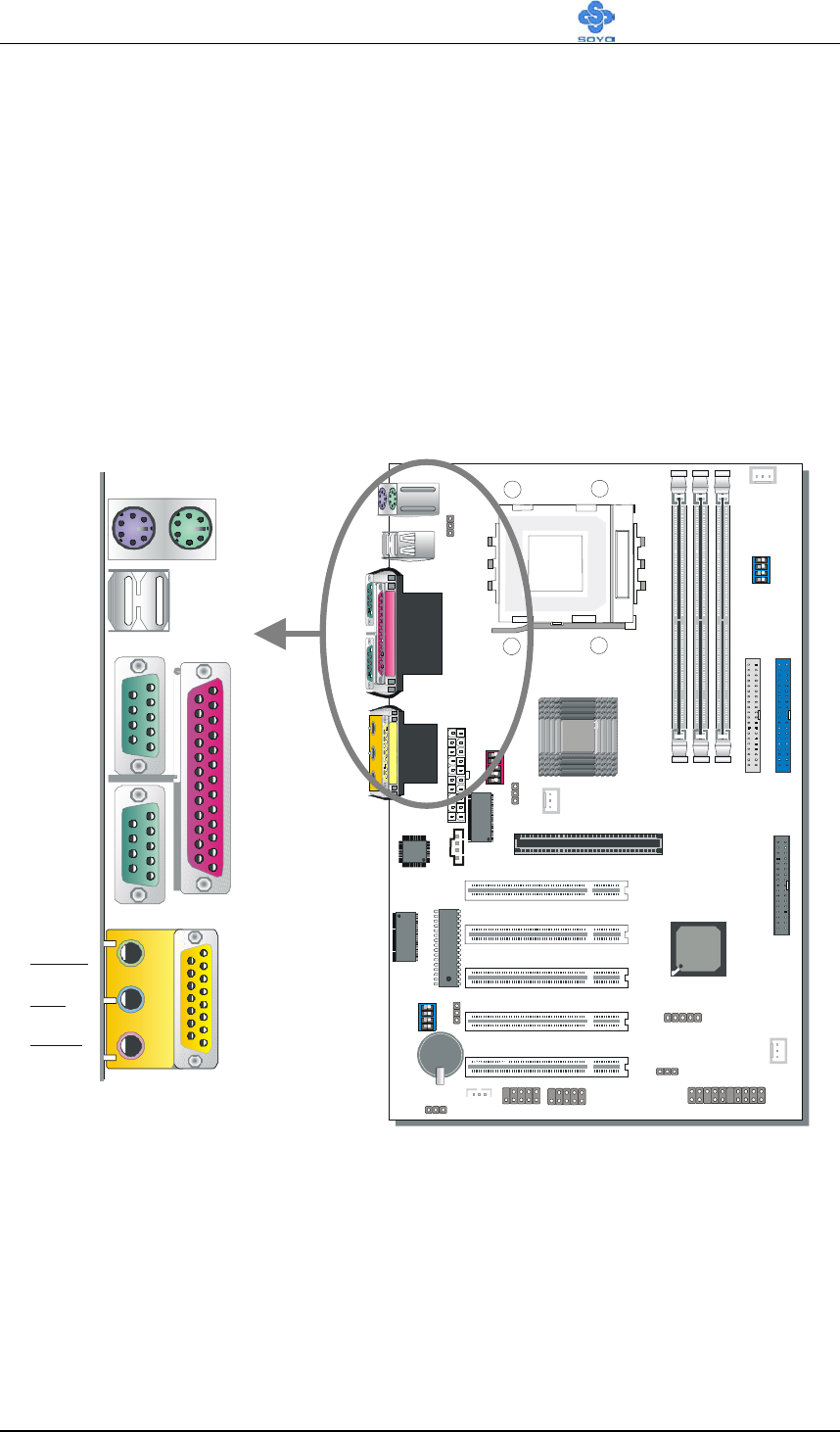
2-3.2.4 Back Panel Connections
All external devices such as the PS/2 keyboard, PS/2 mouse, printer,
modem, USB1, USB2 can be plugged directly onto the Motherboard back
panel.
Only after you have fixed and locked the Motherboard to the computer
case can you start connecting the external peripheral devices.
When connecting an external device, use the following figure to locate and
identify which back panel connector to plug the device to.
SDRAM
SDRAM
PRT
PS/2 KB PS/2 Mouse
Connector Connector
AOUT
AIN
A
MIC
AGAME
COMA
COMB
USB 1_2
Hardware Installation SY-K7ADA V1.0
28
1. Onboard Serial Ports COM1/COM2
External peripherals that use serial transmission scheme include:
- serial mouse,
- and modem.
Plug the serial device cables directly into the COM1/COM2 9-pin male
connectors located at the rear panel of the Motherboard.
2. Parallel Port PRT
This parallel port is used to connect the printer or other parallel devices.
Plug the parallel device cable into the 25-pin female connector located at
the rear panel of the Motherboard.
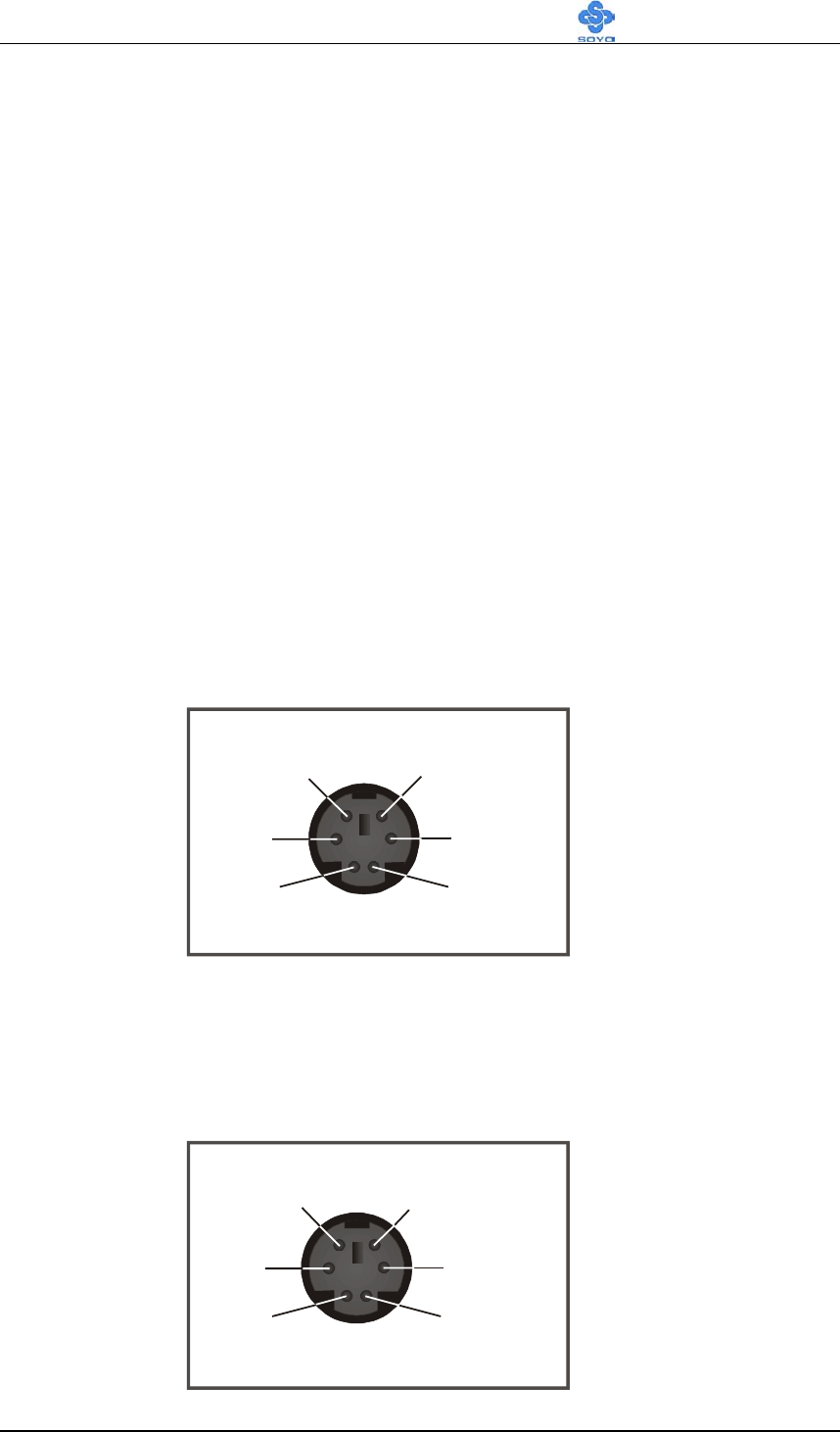
3. PS/2 Keyboard
Plug the keyboard jack directly into the 6-pin female PS/2 keyboard
connector located at the rear panel of the Motherboard.
4. PS/2 Mouse
Similarly, plug the mouse jack directly into the 6-pin female PS/2 mouse
connector.
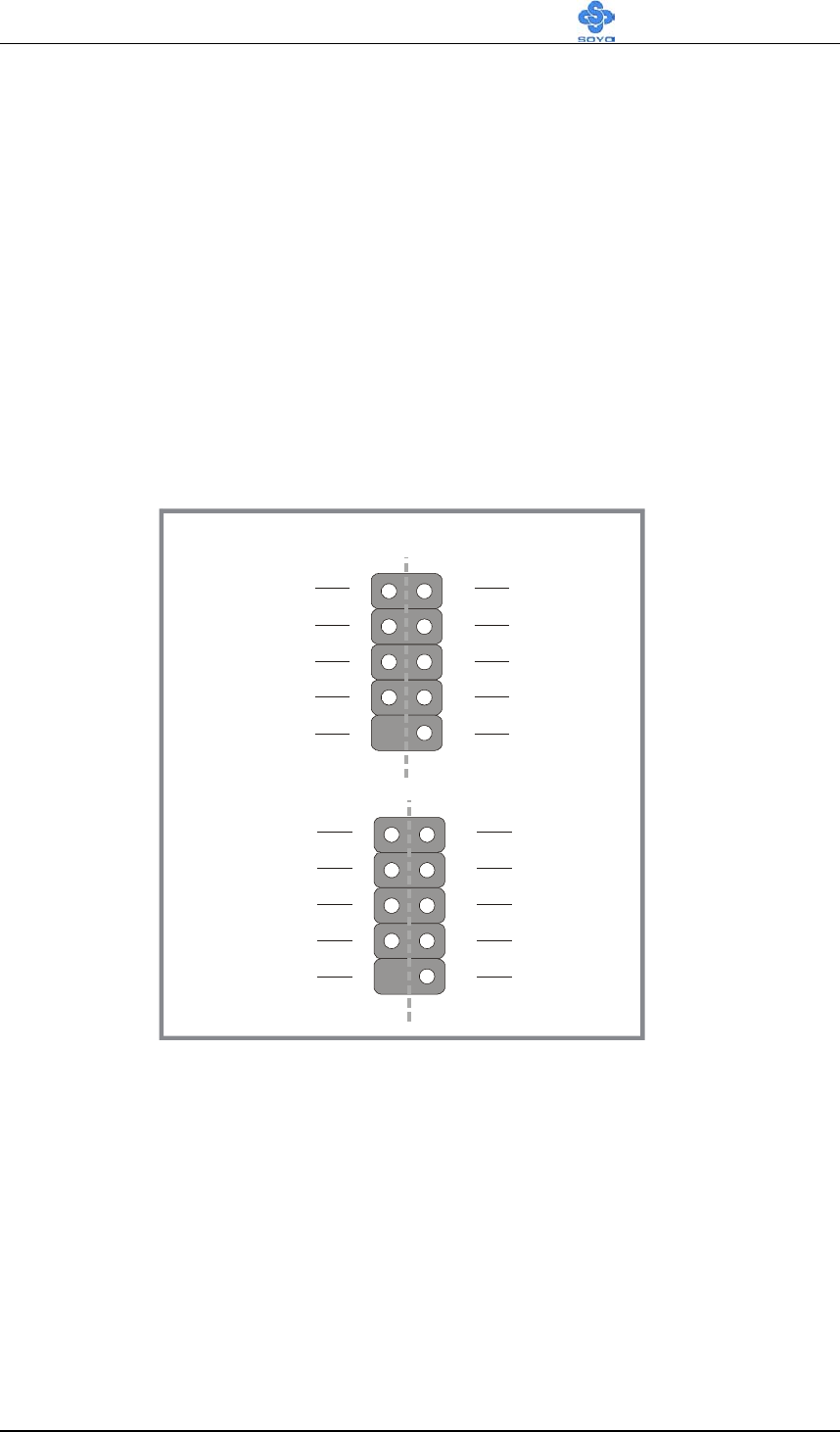
Pin5
KBD Clock
Pin6
NC
Pin3
GND
Pin1
KBD DATA
Pin2
NC
Pin4
VCC
Pin6
NC
Pin5
Mouse Clock
Pin4
VCC
Pin3
GND
Pin2
NC
Pin1
Mouse DATA
Hardware Installation SY-K7ADA V1.0
29
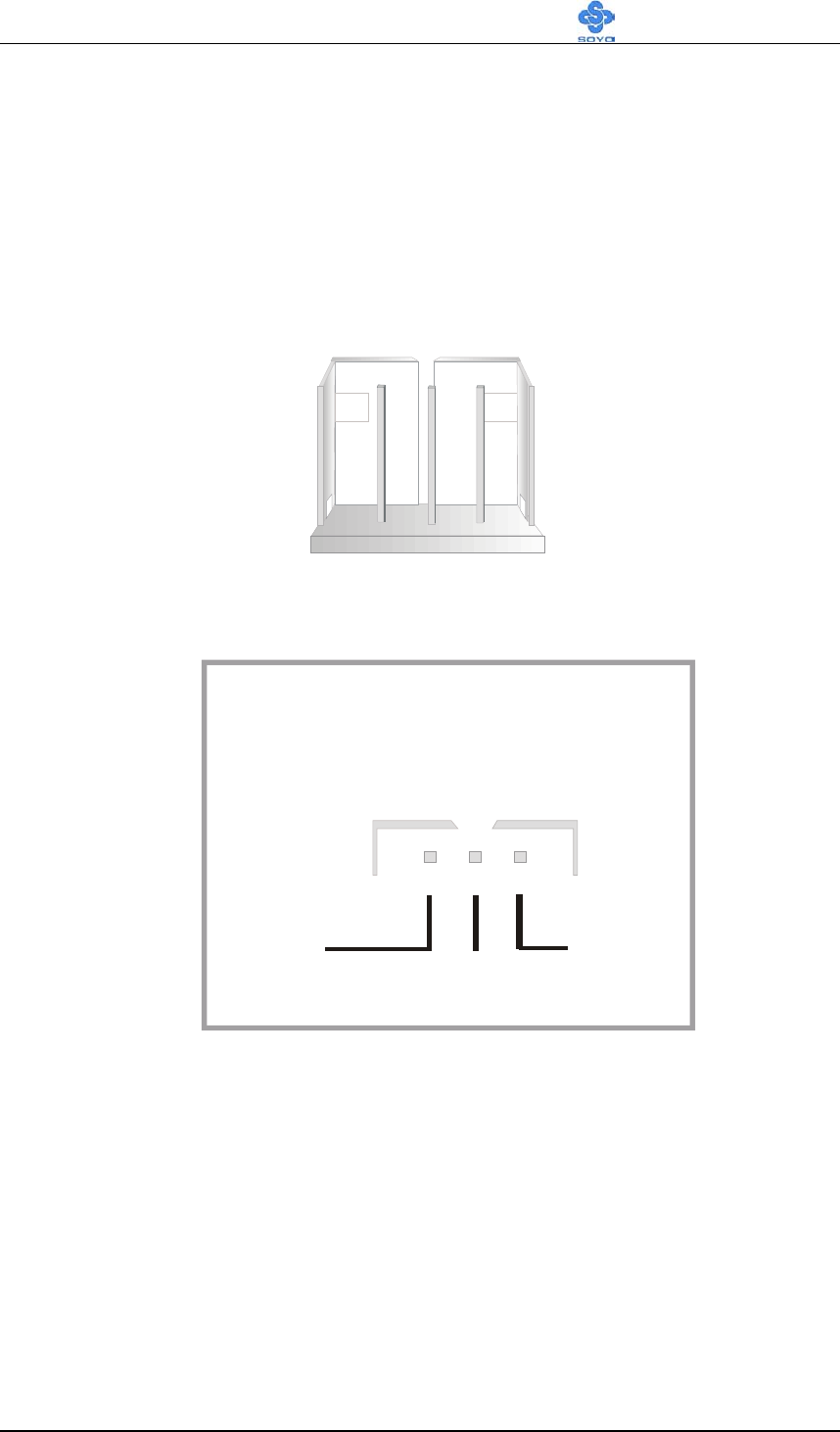
5. Universal Serial Bus (USB3, USB4/USB5, USB6)
This Motherboard provides four USB ports for your additional devices.
Plug the USB device jack into the available USB connector USB3, USB4,
USB5 and USB6 via USB cable.
- Standard device drivers come with the Win98 for commonly used
USB devices.
- With Win95, use the flow OpenHCI 1.0a specifications. To use USB
devices under Win95, usually you have to install the device that
driver comes with the USB device you have purchased.
6. Onboard Joystick port/audio
This Motherboard provides Joystick port and audio.
- Attach the joystick cable to the 15-pin JOYSTICK port at the rear
panel of you motherboard.
- This Motherboard features three built-in audio-stereo ports (labeled
line-in, line-out, and mic jack) convenient to directly plug-in all your
external audio devices.
1
3
4
5
6
27
8
9
10
NC
GND
(+)Data
(-)Data
+5V
GND
GND
(+)Data
(-)Data
+5V
USB4USB3
1
3
4
5
6
27
8
9
10
NC
GND
(+)Data (+)Data
(-)Data
+5V
GND
GND
(-)Data
+5V
USB6USB5
Hardware Installation SY-K7ADA V1.0
30
2-3.2.5 Other Connections
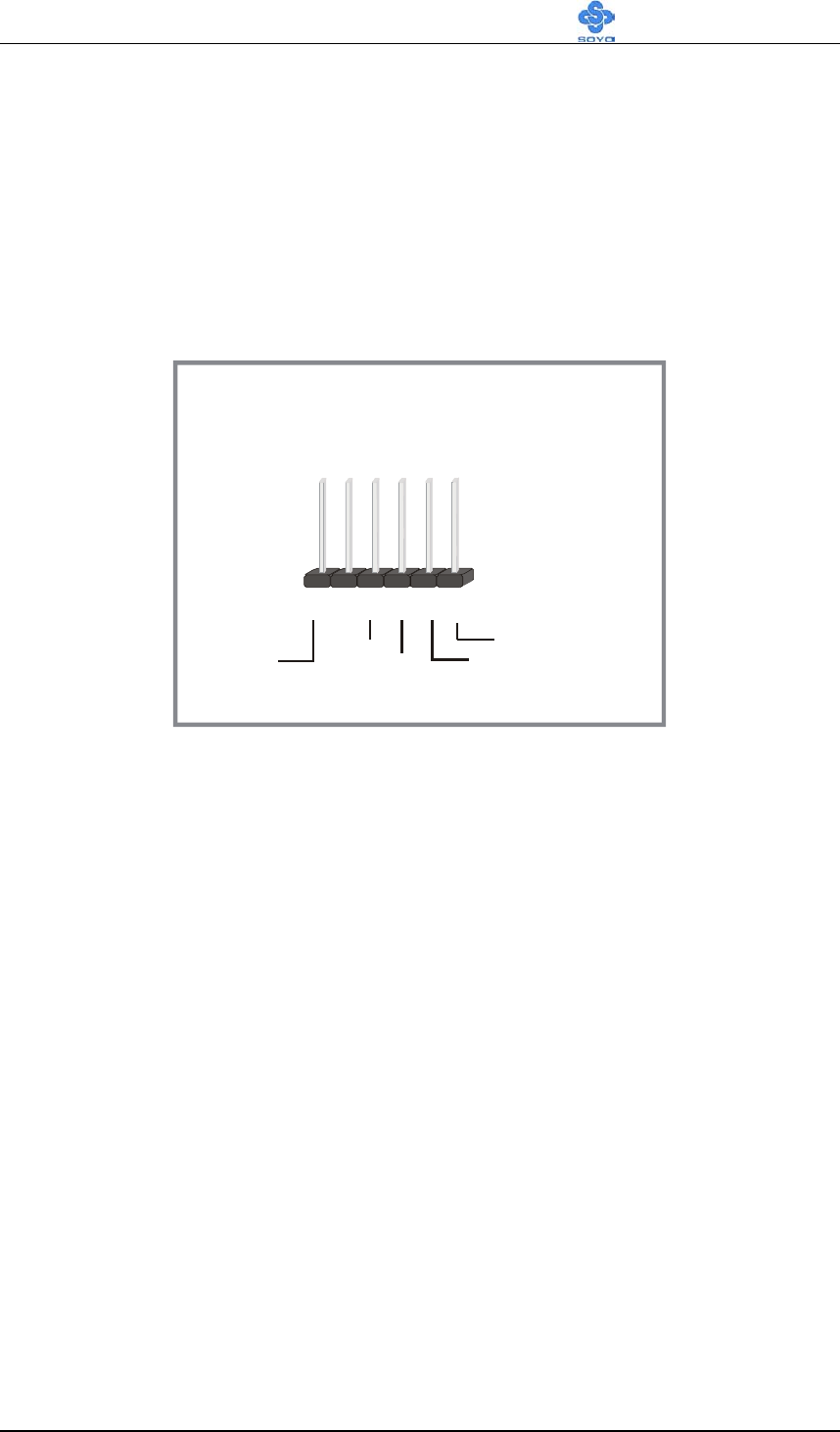
1. Wake-On-LAN (WOL)
Attach the 3-pin connector from the LAN card which supports the
Wake-On-LAN (WOL) function to the JP10 header on the Motherboard.
This WOL function lets users wake up the connected computer through the
LAN card.
Please install according to the following pin assignment:
Wake-On-LAN
JP10 Pin Assignment
PME# GND 5VSB
12
3
Hardware Installation SY-K7ADA V1.0
31
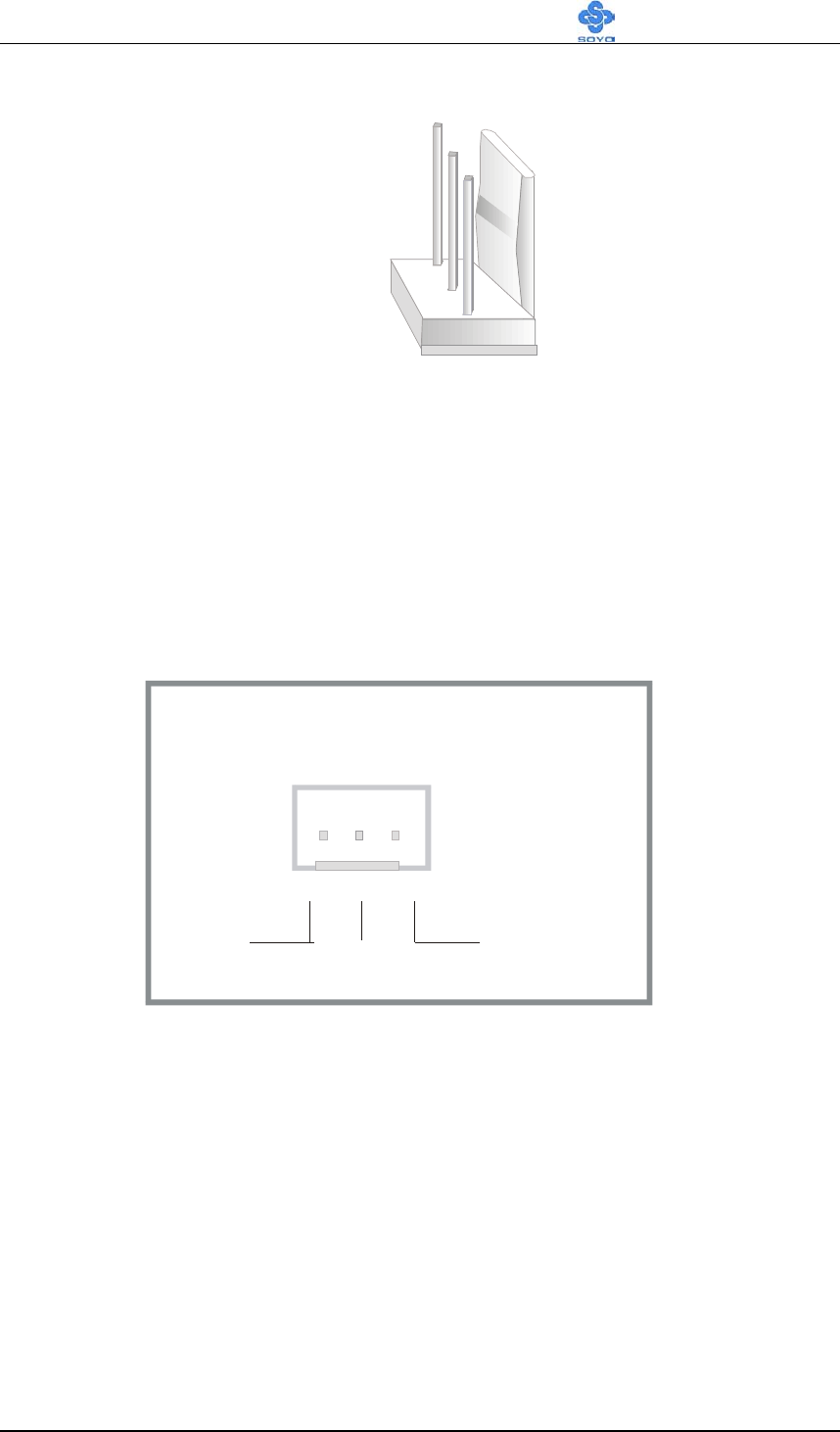
2. Infrared
Plug infrared device cable to the SIRCON header. This will enable the
infrared transfer function. This Motherboard meets both the IrDA 1.0 (SIR)
and IrDA 1.1 (FIR and MIR) specifications. Supports sharp-IR.
Please install according to the following pin assignment:
3. Other Display Cards
Insert other types of VGA cards into the PCI or ISA expansion slots
according to card specifications.
Standard Infrared
(SIRCON) Connector
SIRCON Pin Assignment
123456
+5V IRRX
GND IRTX
OVCROFF
Hardware Installation SY-K7ADA V1.0
32
4. Cooling Fan Installation
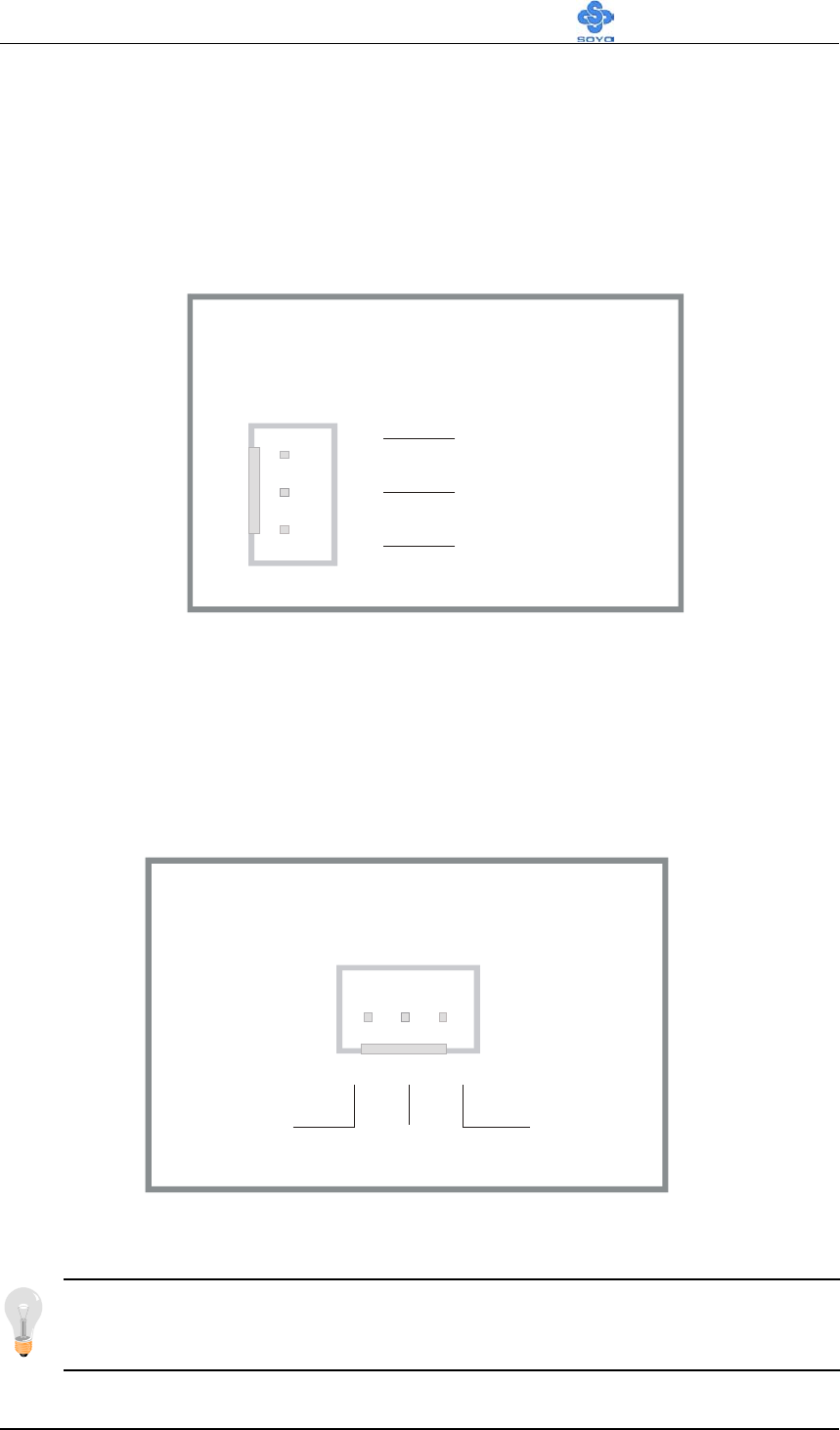
(1) CPU Cooling Fan
After you have seated the CPU properly on the processor, attach the 3-pin
fan cable to the CPUFAN connector on the Motherboard. The fan will stop
when the system enters into Suspend Mode. (Suspend mode can be
enabled from the BIOS Setup Utility, [POWER MANAGEMENT] menu.)
To avoid damage to the system, install according to the following pin
assignment:
CPU Cooling Fan
CPUFAN Pin Assignment
SENSOR12VGND
13
2
Hardware Installation SY-K7ADA V1.0
33
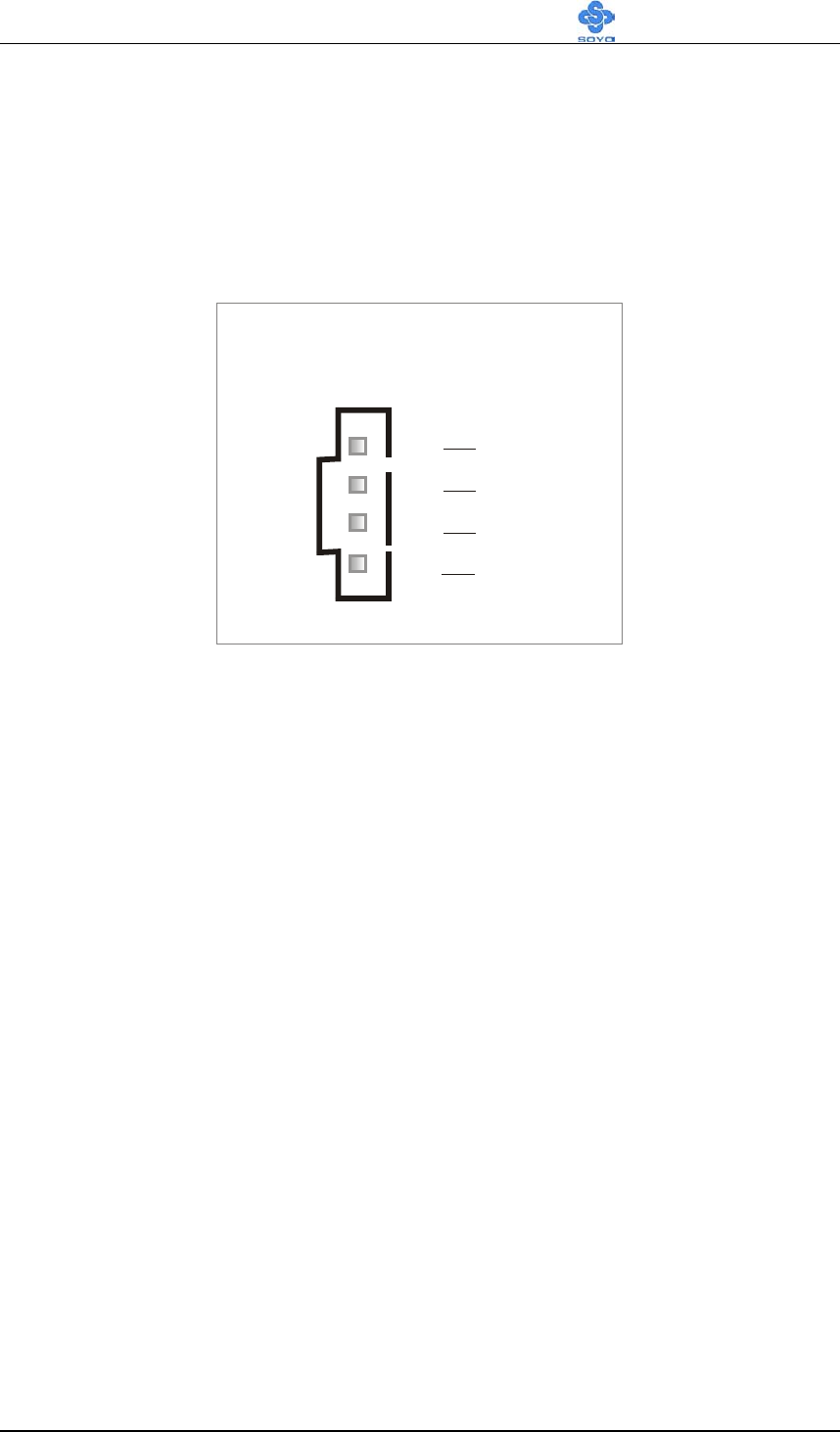
(2) Chassis Cooling Fan
Some chassis also feature a cooling fan. This Motherboard features a
CHAFAN connector to provide 12V power to the chassis fan. Connect the
cable from the chassis fan to the CHAFAN 3-pin connector. Install
according to the following pin assignment:
(3) Chipset Cooling Fan
Some chipset also feature a cooling fan. This Motherboard features a
ChipFAN connector to provide 12V power to the chassis fan. Connect the
cable from the chassis fan to the ChipFAN 3-pin connector. Install
according to the following pin assignment:
Note: CPUFAN/ChipFAN must be installed for this Motherboard,
CHAFAN is optional.
Chipset Cooling Fan
ChipFAN Pin Assignment
NC12VGND
13
2
SENSOR
+12V
PWM21
3
2
Chassis Cooling Fan
CHAFAN1 Pin Assignment
Hardware Installation SY-K7ADA V1.0
34
5. CD Line-in (CDIN1)
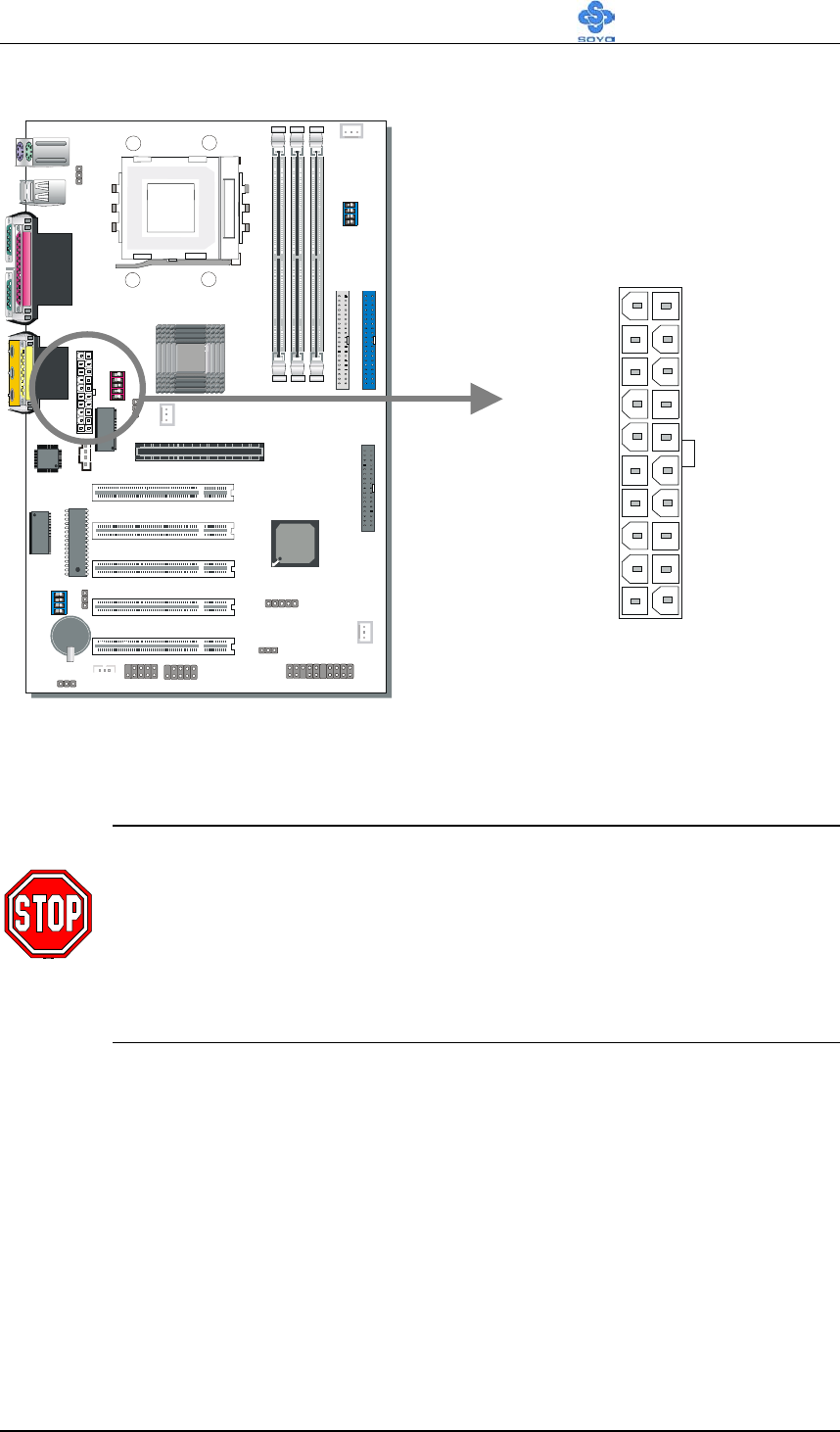
This Motherboard provides two CD-Line in connectors. Please connect the
4-pin audio cable from your CD-ROM drive to either CDIN1. (It fits in
only one, depending on the cable that came with your CD-ROM drive)
Please install according to the following pin assignment:
2-3.2.6 AGP VGA Card
Insert the AGP VGA card into the AGP slot. Then connect the monitor
information cable to the AGP card back plane external connector.
Follow the manufacturer's instructions to perform the AGP VGA drivers
installation.
CD-IN: CDIN1
1
2
3
4
Left
Right
GND
GND
Hardware Installation SY-K7ADA V1.0
35
2-3.2.7 ATX Power Supply
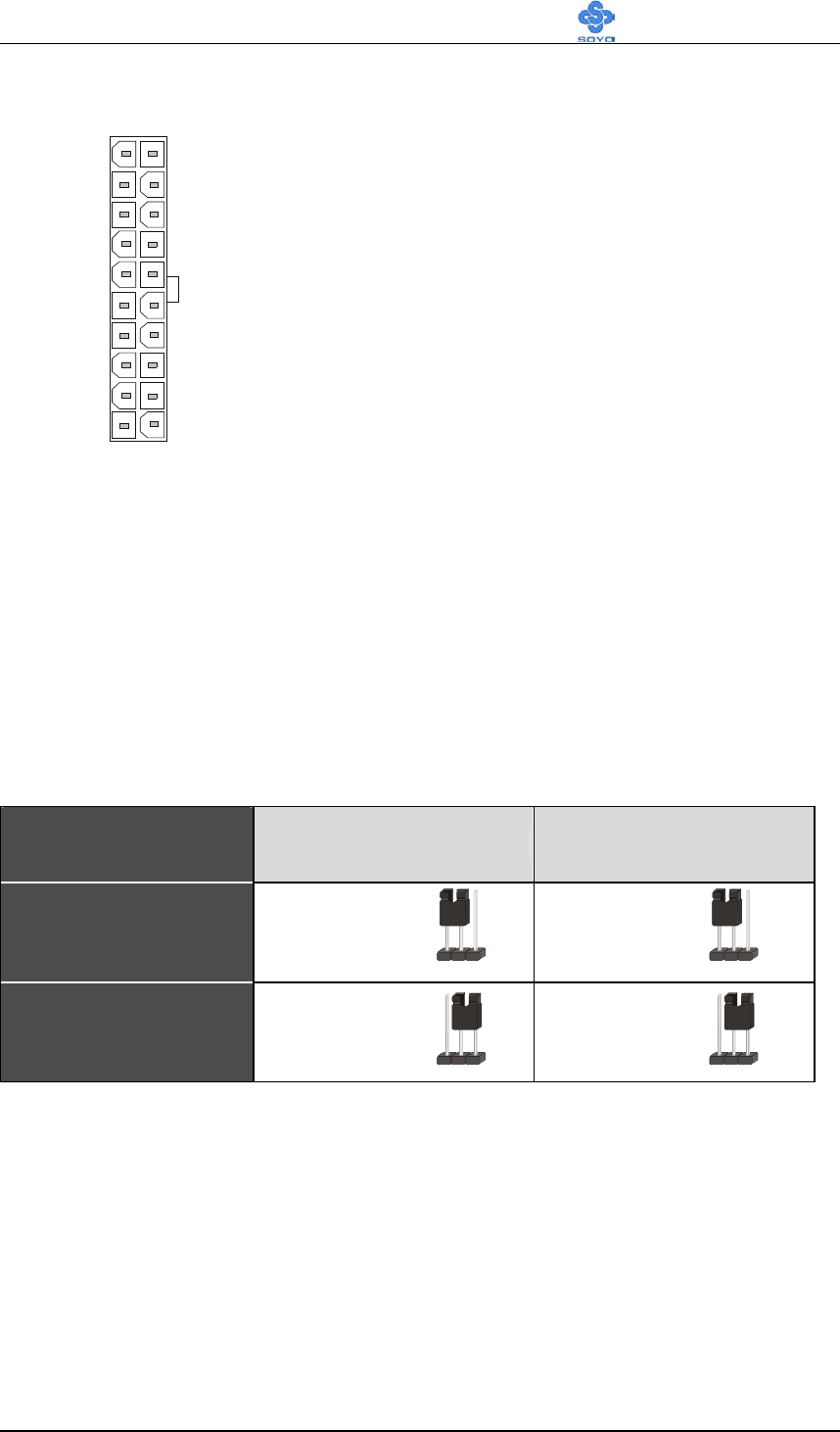
Plug the connector from the power directly into the 20-pin male ATX PW
connector on the Motherboard, as shown in the following figure.
Warning: Follow these precautions to preserve your
Motherboard from any remnant currents when connecting to
ATX power supply:
Turn off the power supply and unplug the power cord of the
ATX power supply before connecting to ATX PW connector.
The Motherboard requires a power supply with at least 200 Watts and a
"power good" signal. Make sure the ATX power supply can take at least
720 mA * load on the 5V Standby lead (5VSB) to meet the standard ATX
specification.
* Note: If you use the Wake-On-LAN (WOL) function, make sure the
ATX power supply can support at least 720 mA on the 5V Standby lead
(5VSB).
Please install the ATX power according to the following pin assignment:
SDRAM
SDRAM
A
TX Power
Hardware Installation SY-K7ADA V1.0
36
3.3V
-12V
GND
PS-ON
GND
GND
GND
-5V
5V
5V
3.3V
3.3V
GND
5V
GND
5V
GND
PW-OK
5VSB
12V
ATX Power
Pay special care to the directionality.
2-3.3 Jumper Setting
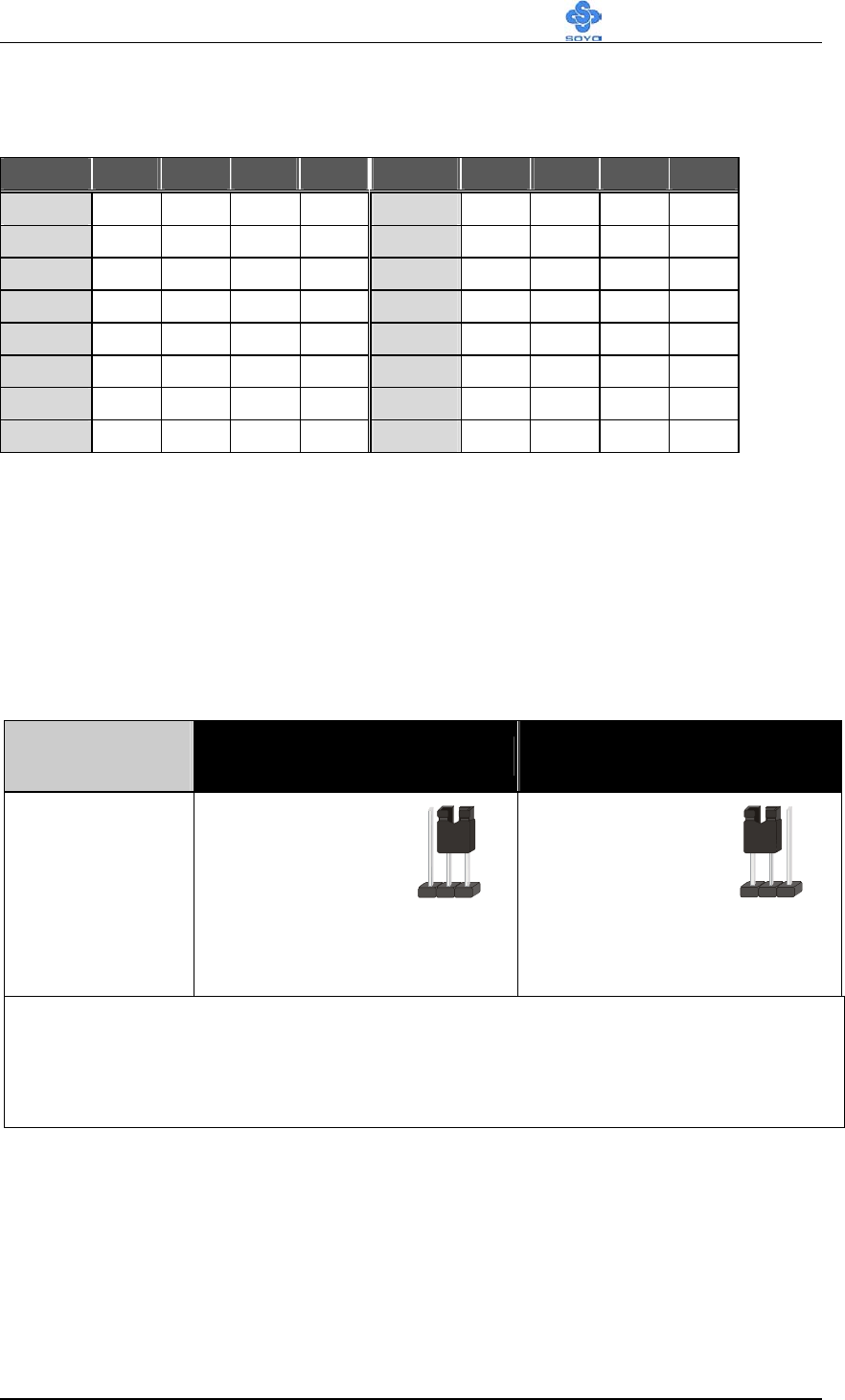
2-3.3.1 Multiplier Adjustment Setting (RJ1)
For certain AMD
CPUs, the multiplier is not locked such that
setting a multiplier higher than specified on the CPU is possible.
For technical details read the following:
Refer to the following table to set the Frequency Multiplier of your CPU.
Frequency
Multiplier Setting RJ2 RJ3
Auto Short Pin1-2 Short Pin1-2
Manual Short Pin2-3 Short Pin2-3
12 3 12 3
12 3 12 3
Hardware Installation SY-K7ADA V1.0
37
If you set ratio to manual and configure the RJ1 DIP Switch to the settings
that match your CPU speed, as follow table:
RJ1 1 2 3 4 RJ1 1 2 3 4
5 On On Off On 9 On On Off Off
5.5 Off On Off On 9.5 Off On Off Off
6 On Off Off On 10 On Off Off Off
6.5 Off Off Off On 10.5 Off Off Off Off
7 On On On Off 11 On On On On
7.5 Off On On Off 11.5 Off On On On
8 On Off On Off 12 On Off On On
8.5 Off Off On Off 12.5 Off Off On On
Note: SOYO does not guarantee system stability if the user over
clocks the system. Any malfunctions due to over-clocking are not
covered by the warranty.
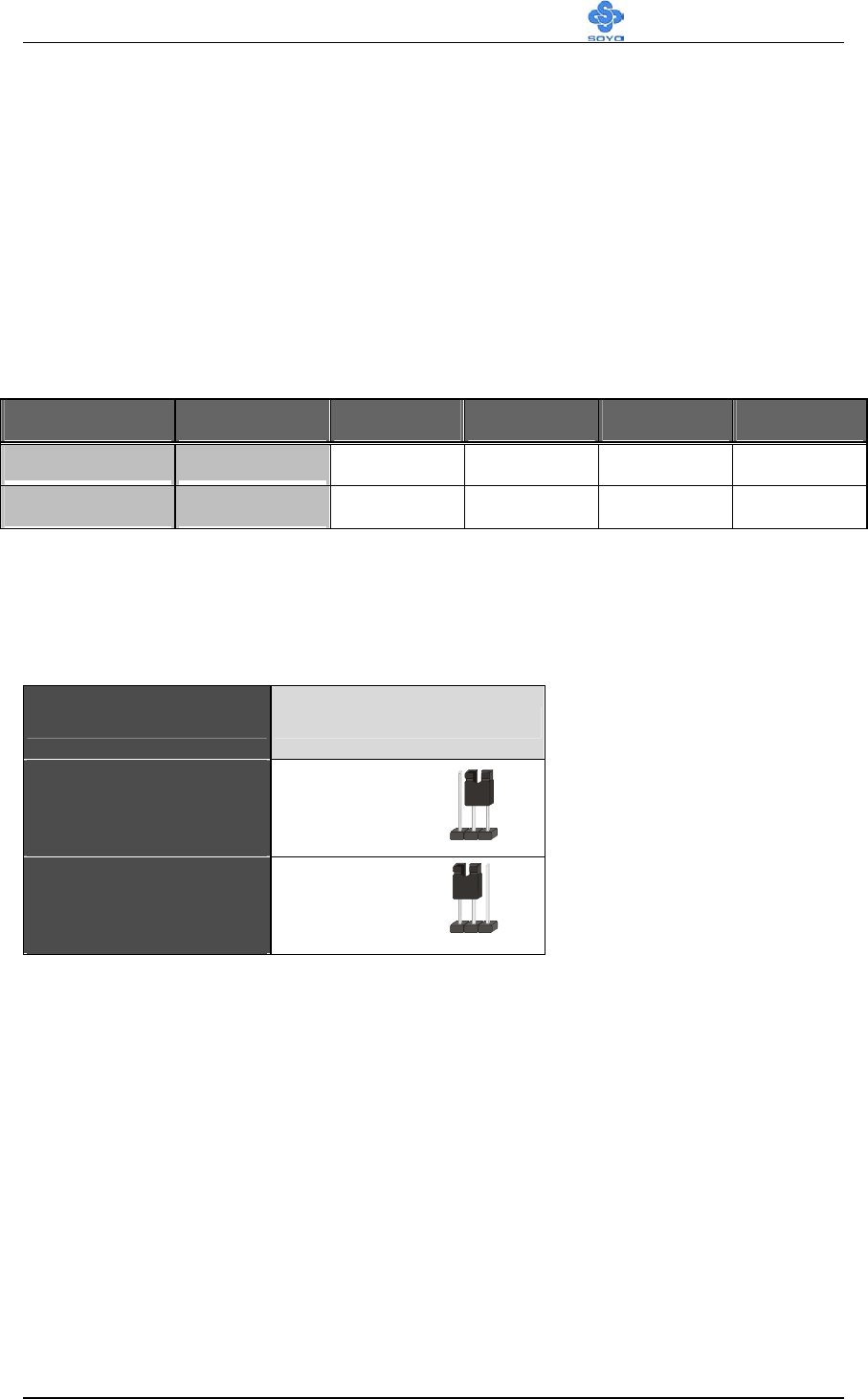
2-3.3.2 Enable/Disable Power-On by Keyboard (JP1)
You may choose to enable the Power-On through Keyboard function by
shorting pin 2-3 on jumper JP1; or short pin 1-2 to disable this function.
Power-On by
Keyboard Enable Disable
JP1 Setting
Short pin 2-3 to
enable the
Power-On by
Keyboard
function.
Short pin 1-2
and the
Power-On by
Keyboard
function is
disabled.
Important: When using the Power-On by Keyboard function, please
make sure the ATX power supply is able to provide at least 720mA on
the 5V Standby lead (5VSB) in order to meet the standard ATX
specification.
123
12 3
Hardware Installation SY-K7ADA V1.0
38
2-3.4 The synchronous/asynchronous clock mode
between CPU and memory interface setting
The FSB Frequency can be set through DIP switch FJ1 or BIOS and it
may therefore differ from the Frequency the CPU specifies. Doing so
may however force your CPU to operate out of its specifications and
therefore SOYO can not guarantee the proper functioning of your
system.
Refer to the following table:
CPU Fre
q(
MHz
)
SDRAM
(
MHz 123 4
100
100
On
On
Off
Off
133 133 On Off Off Off
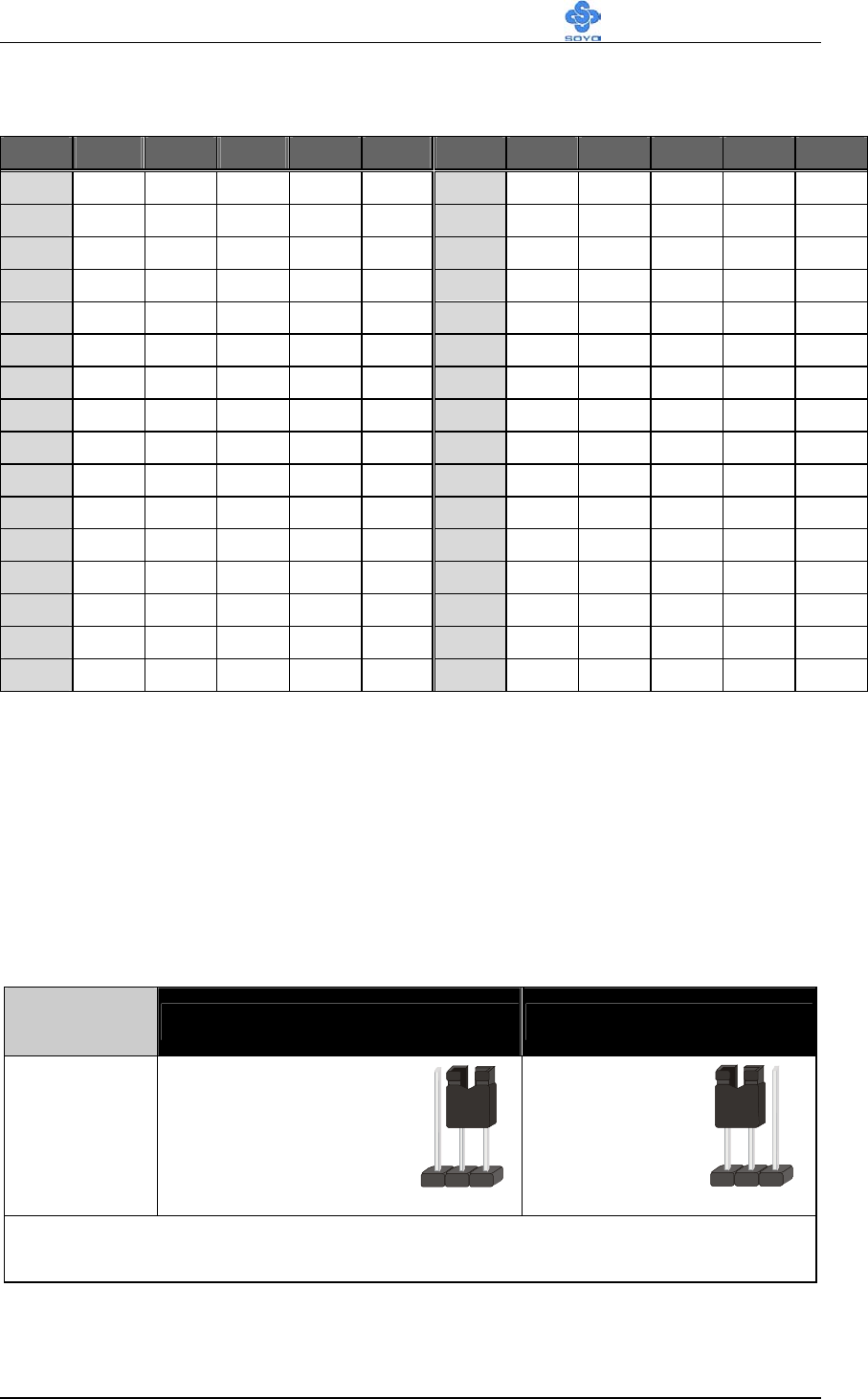
2-3.5 CPU Vcore adjustment (VJ1)
Refer to following table to set the voltage of your CPU. If you set VJ2
status to AUTO, please set VJ1 switch status to Off (all).
Status Setting VJ2
Manual Short Pin2-3
Auto Short Pin1-2
12 3
12 3
Hardware Installation SY-K7ADA V1.0
39
If you set status to manual and configure VJ1 switch to the settings that
match your CPU voltage as follow table:
VJ1 1 2 3 4 5 VJ1 1 2 3 4 5
Auto OFF OFF OFF OFF OFF 1.475 OFF OFF OFF OFF ON
1.100 ON OFF OFF OFF OFF 1.500 ON OFF OFF OFF ON
1.125 OFF ON OFF OFF OFF 1.525 OFF ON OFF OFF ON
1.150 ON ON OFF OFF OFF 1.550 ON ON OFF OFF ON
1.175 OFF OFF ON OFF OFF 1.575 OFF OFF ON OFF ON
1.200 ON OFF ON OFF OFF 1.600 ON OFF ON OFF ON
1.225 OFF ON ON OFF OFF 1.625 OFF ON ON OFF ON
1.250 ON ON ON OFF OFF 1.650 ON ON ON OFF ON
1.275 OFF OFF OFF ON OFF 1.675 OFF OFF OFF ON ON
1.300 ON OFF OFF ON OFF 1.700 ON OFF OFF ON ON
1.325 OFF ON OFF ON OFF 1.725 OFF ON OFF ON ON
1.350 ON ON OFF ON OFF 1.750 ON ON OFF ON ON
1.375 OFF OFF ON ON OFF 1.775 OFF OFF ON ON ON
1.400 ON OFF ON ON OFF 1.800 ON OFF ON ON ON
1.425 OFF ON ON ON OFF 1.825 OFF ON ON ON ON
1.450 ON ON ON ON OFF 1.850 ON ON ON ON ON
2-3.6 CMOS Clearing (JP5)
After you have turned off your computer, clear the CMOS memory by
momentarily shorting pins 2-3 on jumper JP5, for a few seconds. Then
restore JP5 to the initial 1-2 jumper setting in order to recover and retain
the default settings.
Jumper JP5 can be easily identified by its white colored cap.
CMOS
Clearing Clear CMOS Data Retain CMOS Data
JP5 Setting
Short pin 2-3 for
at least 5 seconds to
clear the CMOS
Short pin 1-2
to retain new
settings
Note: You must unplug the ATX power cable from the ATX power
connector when performing the CMOS Clear operation.
12 3
123
BIOS Setup Utility SY-K7ADA V1.0
40
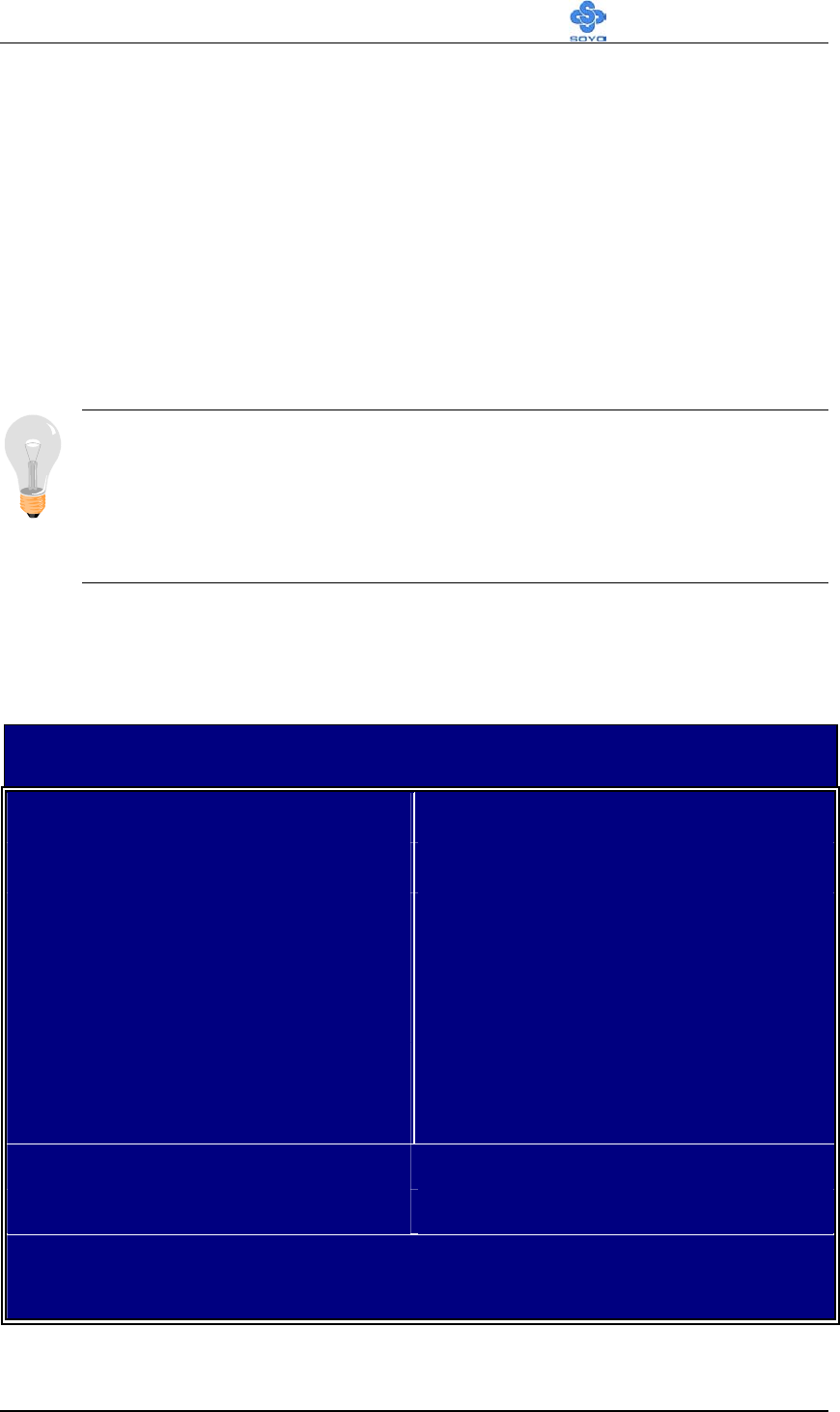
2-3.7 Power On
You have now completed the hardware installation of your Motherboard
successfully.
1. Turn the power on
2. To enter the BIOS Setup Utility, press the <DEL> key while the system
is performing the diagnostic checks,
Note: If you have failed to enter the BIOS, wait until the boot up
sequence is completed. Then push the RESET button and press
<DEL> key again at the beginning of boot-up, during diagnostic
checks.
Repeat this operation until you get the following screen.
3. The BIOS Setup screen appears:
CMOS Setup Utility – Copyright ( C ) 1984-2001 Award Software
Soyo Combo Feature PC Health Status
Standard CMOS Features Load Fail - Safe Defaults
Advanced BIOS Features Load Optimized Defaults
Advanced Chipset Features Set Supervisor Password
Integrated Peripherals Set User Password
Power Management Setup Save & Exit Setup
PnP/PCI Configurations Exit Without Saving
Esc : Quit : Select Item
F10 : Save & Exit Setup
Change CPU’s Clock & Voltage

BIOS Setup Utility SY-K7ADA V1.0
41
2-3.8 Quick BIOS Setup
This Motherboard does not use any hardware jumpers to set the CPU
frequency. Instead, CPU settings are software configurable with the BIOS
[SOYO COMBO SETUP]. The [SOYO COMBO SETUP] menu
combines the main parameters that you need to configure, all in one menu,
for a quick setup in BIOS.
After the hardware installation is complete, turn the power switch on, then
press the <DEL> key during the system diagnostic checks to enter the
Award BIOS Setup program. The CMOS SETUP UTILITY will display
on screen. Follow these steps to configure the CPU settings.
Step 1. Select [STANDARD CMOS SETUP]
Set [Date/Time] and [Floppy drive type], then set [Hard Disk Type] to
“Auto”.
Step 2. Select [LOAD SETUP DEFAULT]
Select the “LOAD SETUP DEFAULT” menu and type “Y” at the prompt
to load the BIOS optimal setup.
Step 3. Select [SAVE & EXIT SETUP]
Press <Enter> to save the new configuration to the CMOS memory, and
continue the boot sequence.

BIOS Setup Utility SY-K7ADA V1.0
42
2-3.9 Troubleshooting at First Start
Video (no display) related issues
I built a new computer system using a Soyo board and nothing
happens when turning it on, no video and no beeps from the PC
speaker. What is happening and how can it be fixed?
No screen and no beeps mean that your CPU and motherboard do not
work at all. It could be that the CPU is not seated correctly or that a
component on the M/B is grounded (shorted) with the case. Also make
sure to check the voltage setting switch (110V/220V) on the back of the
power supply. To isolate the problem do the following:
1. Press and hold down on the “Ins” (insert) key while turning on the
computer until you get video. If you do not get video then,
2. Double-check jumpers setting on you motherboard and remove all
add-on cards, unplug all hard-disk and floppy-disk drive cables and see if
you can hear some beeps. If you still do not get any beeps, then try putting
the motherboard on the table (to isolate it from the case) with the CPU and
speaker only, and give it one more try.
I hear a series of beeps and I do not get anything from my monitor.
What could be wrong?
The following lists some basic beep codes and their possible meanings:
• One long beep and 3 very short beeps - The video card is not
detected by the motherboard. Please re-seat your video card. If
you are using an AGP card, please push your AGP card down
real hard. You may have to push VERY hard without the AGP
card mounting screw. Make sure not to insert the card the other
way around.
• Continuous beeps – One or more of the memory modules is not
seated correctly in its socket.

BIOS Setup Utility SY-K7ADA V1.0
43
My PCI VGA card works fine with my system, but when I put in a
new AGP card, it does not give me any video. Is my AGP slot bad?
This is a common problem with AGP video cards. The reason is that your
AGP card did not get seated into the AGP slot fully and firmly. Please
push your AGP card down into the socket real hard, it should snap twice.
You may have to unscrew the AGP card to allow the card to go further
down. Do take care not to damage the card by using too much force.
I get distorted video my AGP card right after I save my bios. Why is
that?
The cause is likely that your AGP card is not running at the correct bus
speed. To fix this, please clear the CMOS ALi JP5 and if it still does not
work, please upgrade your motherboard bios to the latest version.
BIOS Issues
Where can I find the BIOS revision of my mainboard?
It will be displayed on the up-left corner on the screen during boot-up. It
will show as your board type followed by the revision number, such as
5EH_2CA1 (meaning revision 2CA1 for the SY-5EH board) or 6BA+
IV_2AA2 which means SY-6BA+ IV motherboard with 2AA2 bios.
Where can I find the latest BIOS of my motherboard?
Please go to the technical support page of one of the SOYO websites
(Taiwan: www.soyo.com.tw), and look up your motherboard to find
the latest BIOS revision.
Hard disk, floppy drive, CD-ROM etc
When I boot up my new computer I got "floppy boot failure" and the
LED on the floppy stays on
Make sure the red wire of floppy ribbon cable goes to Pin1 on the floppy
drive side (don't trust the "key lock" or "notch") and use the end-connector
of the cable (don't use middle one).
Modem issues
I get an "I/O Conflict" message when I turn on my system and I can
not get my modem to work

BIOS Setup Utility SY-K7ADA V1.0
44
What you need to do is to disable 'COM2' (or UART2 or serial port 2) in
the bios under integrated peripheral setup.
I have installed my modem drivers several times and I still cannot get
my modem to work. Why?
If you are sure that the modem driver has been installed correctly, then you
need to install the south bridge driver from the SOYO CD, this is because
Windows does not properly recognize relatively new chipsets.
Audio Issues
I do not get any sound from my sound card. What could be wrong?
Please make sure the speaker is connected to the speaker out port on your
sound card.
In Device Manager, I keep getting yellow exclamation signs on my
sound port even though I have installed my sound driver several times
and I could not get my sound card to work. What is wrong?
It is likely that you did not have the correct driver installed. If you are sure
that the correct sound driver has been installed, then please install the
'south bridge' driver for the motherboard.
The sound is working in my system, but when I play CD music from
the CD-ROM, I do not get any sound. What is wrong?
This is because the 3-wire audio cable from the CD-ROM to the sound
card is not connected or it is loose.
The sound from my sound card is distorted when Windows starts.
What is wrong?
First, if you are using an ISA sound card, please make sure the IRQ
needed for the sound card is set to 'Legacy ISA' in the bios. In other words,
if your ISA sound card takes IRQ5, then set IRQ5 to 'Legacy ISA'. Next,
install the 'south bridge' driver for the motherboard.
The sound and everything else works fine except that the recorder and
microphone do not work. What is wrong?

BIOS Setup Utility SY-K7ADA V1.0
45
This is because the recorder and microphone in the Windows are not
enabled. Please go to sound properties and enable them.
Lock up (freeze)
When I boot up my system, everything works fine. It sees my CPU
and memory, detects my hard drive, floppy drive and CD-ROM but
locks up at "Verify DMI pool data... ", and it won’t go any further.
What should I do?
Please clear the CMOS ALi JP5 then choose 'load fail-safe default' in the
bios and save the bios and exit. Next, unplug all other add-on cards except
the video card and floppy drive controller, and see if it can boot from
floppy. Then put back the peripherals one by one to identify which one
causes the lockup.
I can not get my board to run properly.
Please make sure you have the latest bios and driver from the SOYO web
site at: http://www.soyo.com
2-3.10 Power Off
There are two possible ways to turn off the system:
1. Use the Shutdown command in the Start Menu of Windows 95/98
to turn off your computer.
2. Press the mechanical power-button and hold down for over 4
seconds, to shutdown the computer. If you press the power-button for
less than 4 seconds, then your system will enter into Suspend Mode.
You are now ready to configure your system with the BIOS setup program.
Go to Chapter 3: BIOS SETUP

BIOS Setup Utility SY-K7ADA V1.0
46
Chapter 3
BIOS SETUP UTILITY
This Motherboard's BIOS setup program uses the ROM PCI/ISA BIOS
program from Award Software Inc.
To enter the Award BIOS program's Main Menu:
1. Turn on or reboot the system.
2. After the diagnostic checks, press the [Del] key to enter the Award
BIOS Setup Utility.
CMOS Setup Utility – Copyright ( C ) 1984-2001 Award Software
SOYO COMBO Feature PC Health Status
Standard CMOS Features Load Fail - Safe Defaults
Advanced BIOS Features Load Optimized Defaults
Advanced Chipset Features Set Supervisor Password
Integrated Peripherals Set User Password
Power Management Setup Save & Exit Setup
PnP/PCI Configurations Exit Without Saving
Esc : Quit : Select Item
F10 : Save & Exit Setup
Change CPU’s Clock & Voltage
Selecting items
Use the arrow keys to move between items and select fields.
From the Main Menu press arrow keys to enter the selected submenu.
Modifying selected items
Use the [Up]/[Down] keys to modify values within the selected fields.
Some fields let you enter values directly.

BIOS Setup Utility SY-K7ADA V1.0
47
Hot Keys: Function keys give you access to a group of commands
throughout the BIOS utility.
Function Command Description
F1 General Help Gives the list of options available for each
item.
F5 Previous
Val ue s
Restore the old values. These are the values
that the user started the current session with.
F6
Load
Fail-Safe
Defaults
Loads all items with the most conservative
values.
F7
Load
Optimized
Defaults
Loads all options with the optimize values.
F10 Save Saves your changes and reboots the system.
[Esc] Exit Returns at anytime and from any location to
the Main Menu.
[Enter] Select Will display a overlapping window with all
options for the current item.
[+/–/PU/PD] Val ue
Using the +, –, Page Up and Page Down
keys the user can toggle the value of the
current item.
BIOS Setup Utility SY-K7ADA V1.0
48
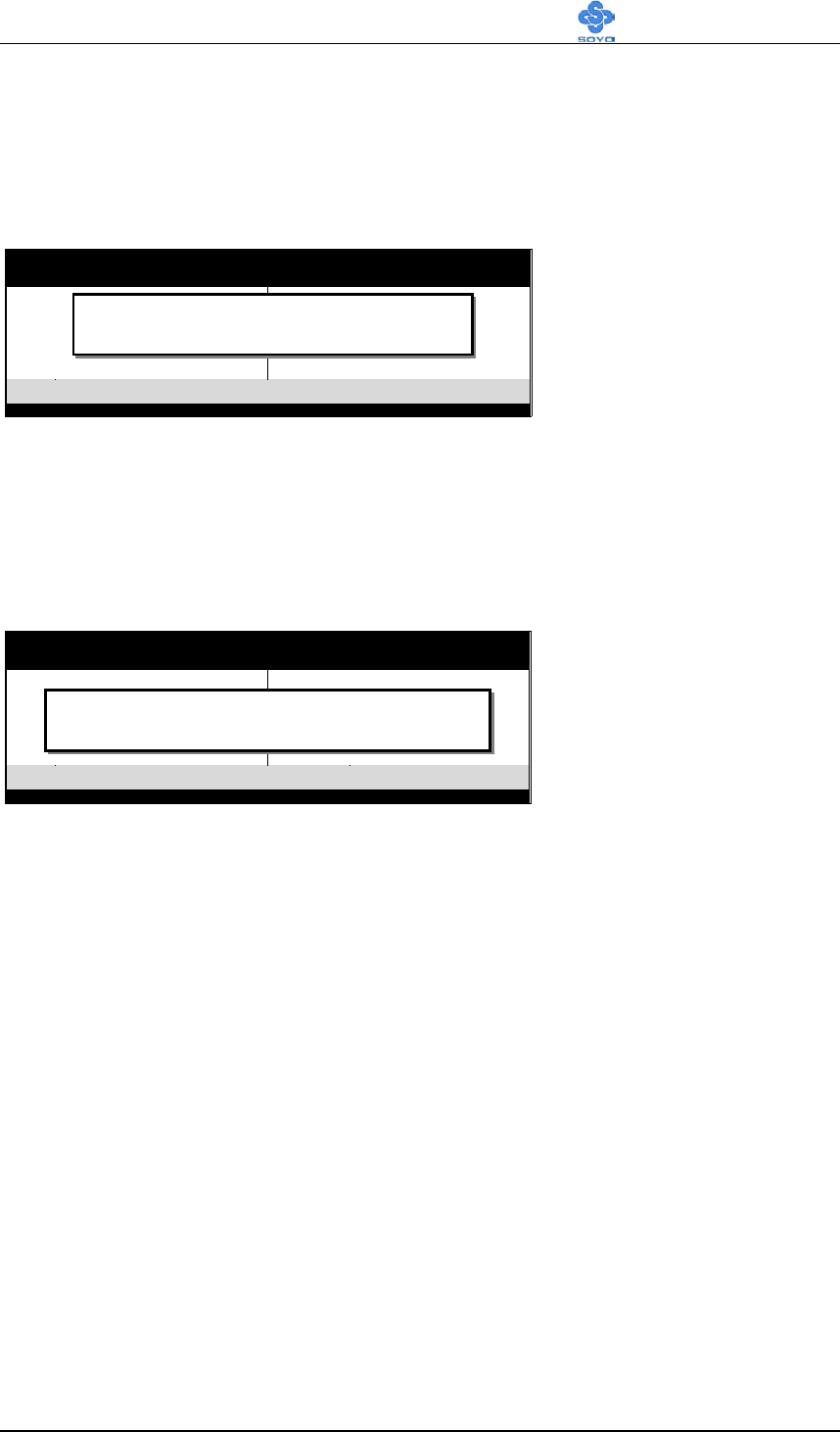
SAVE AND EXIT SETUP
Select the [SAVE & EXIT SETUP] option from the Main Menu to save
data to CMOS and exit the setup utility. This option saves all your changes
and causes the system to reboot.
Type [Y] to save the
changes and exit or [N]
to return to the Main
Menu and keep current
values.
EXIT WITHOUT SAVING
Selecting the [EXIT WITHOUT SAVING] option allows you to abandon
all data and exit setup, therefore ignoring all your changes.
Type [Y] to abandon
changes and exit or [N]
to return to the Main
Menu and keep current
values.
RO M PCI/ISA BIOS
CMOS SETUP UTILITY
AW ARD SOFTW ARE, INC.
STANDARD CMOS SETUP
BIO S FEATURES SETUP
C H IP S E T FEATU R ES S ETU P
POW ER MANAGEMENT SETUP
PNP/PC I CO NFIGURATIO N
LO AD SETUP DEFAULTS
LO AD BIOS DEFAULTS
INTEGRATED PERIPHERALS
SUPERVISOR PASSW ORD
USER PASSW ORD
IDE HDD AUTO DETECTION
SAVE & EXIT SETUP
EXIT W ITH O U T SAVIN G
Esc
F10
: Q u it
: S a v e & E x it S e tu p
↑ ↓ → ←
(S h ift) F 2
: S e le c t Ite m
: C hange C olor
T im e , D a te , H a rd D is k T y p e …
SAVE to CMOS and EXIT
R O M P C I/ IS A B IO S
CM OS SETUP UTILITY
AW ARD SOFTW ARE, INC.
STANDARD CM OS SETUP
BIO S FEATURES SETUP
CHIPSET FEATURES SETUP
POW ER MANAGEMENT SETUP
PNP/PCI CONFIGURATION
LOAD SETUP DEFAULTS
LOAD BIOS DEFAULTS
INTEGRATED PERIPHERALS
SUPERVISO R PASSW O RD
USER PASSW O RD
IDE HDD AUTO DETECTION
SAVE & EXIT SETUP
EXIT W ITHOUT SAVING
Esc
F10
: Q u it
: Save & Exit Setup
↑ ↓ → ←
(S h ift) F 2
: S e le c t Ite m
: C hange C olor
T im e , D a te , H a rd D is k T y p e …
Quit Without Saving (Y/N)? _

BIOS Setup Utility SY-K7ADA V1.0
49
3-1 SOYO COMBO SETUP
This Motherboard does not use any hardware jumpers to set the CPU
frequency. Instead, CPU settings are software configurable with the BIOS
[SOYO COMBO SETUP].
After the hardware installation is complete, turn the power switch on, then
press the <DEL> key during the system diagnostic checks to enter the
Award BIOS Setup program. The CMOS SETUP UTILITY will display
on screen. Then, select the [SOYO COMBO SETUP] option from the
main menu and press the <Enter> key.
CMOS Setup Utility – Copyright ( C ) 1984-2001 Award Software
SOYO COMBO Feature
Auto Detect DIMM/PCI Clk Enabled
Spread Spectrum Disabled Item Help
CPU Host/SDRAM/PCI Clock Default
System Performance Normal
Quick Power On Self Test Enabled
First Boot Device Floppy
Second Boot Device HDD-0
Third Boot Device LS120
Boot Other Device Enabled
ALI OnChip Audio Enabled
POWER ON Function BUTTEN ONLY
xKB Power On Password Enter
xHot Key Power ON Ctrl-F1
Menu Level
:Move Enter:Select +/-/PU/PD:Value F10:Save ESC:Exit F1:General Help
F5:Previous Values F6:Fail-Safe Defaults F7: Optimized Defaults
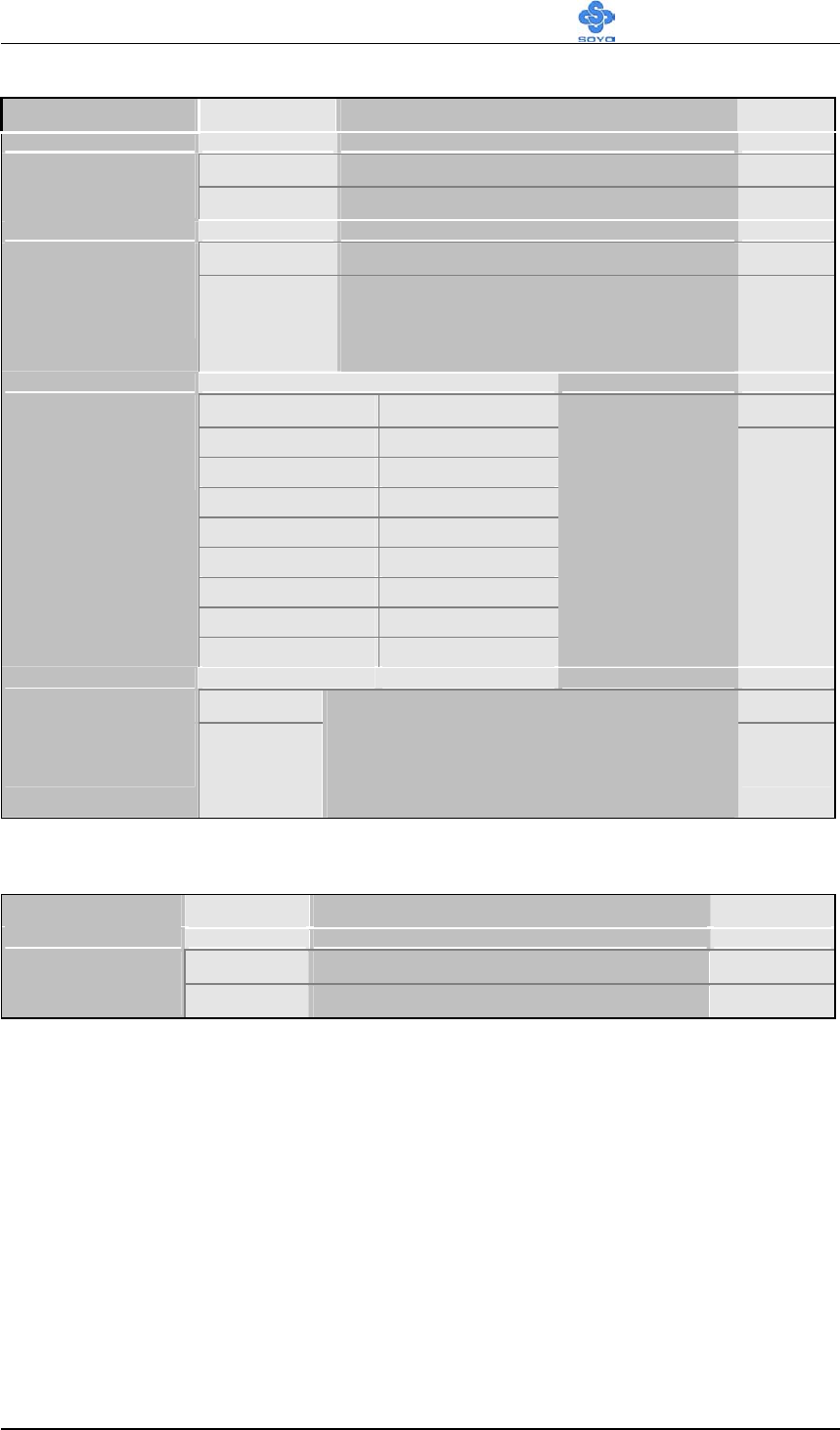
The [SOYO COMBO SETUP] menu combines the main parameters that
you need to configure, all in one menu, for a quick setup in BIOS.
BIOS Setup Utility SY-K7ADA V1.0
50
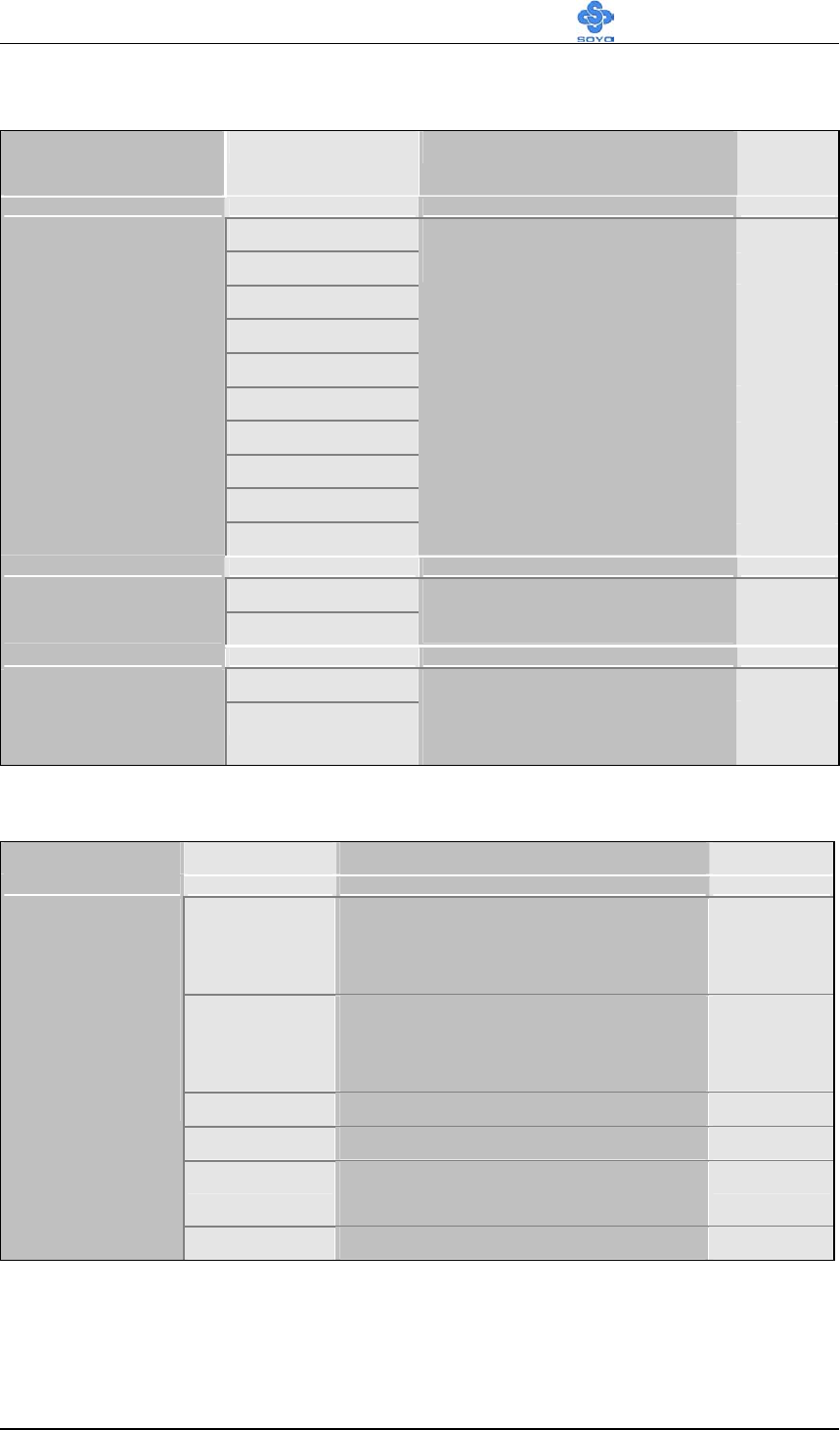
3-1.1 Quick CPU Frequency Setup
Setting Description Note
Disabled For EMI test purpose.
Auto Detect
DIMM/PCI Clk Enabled Default
Disabled Default
Spread
Spectrum
Modulated
Enabled When using Spread Spectrum
Modulated 1.5% or 6% for FCC
or DOC testing.
Default 102/136/34 MHz Default
100/100/33 MHz 105/140/35 MHz
101/101/33 MHz 107/142/35 MHz
102/102/34 MHz 133/133/33 MHz
103/103/34 MHz 136/136/34 MHz
105/105/35 MHz 137/137/34 MHz
107/107/35 MH 140/140/35 MHz
110/110/36 MHz 143/143/35 MHz
CPU Host/
SDRAM/PCI
Clock
100/133/33 MHz 146/146/37 MHz
This item lists
the CPU host
clock and the
PCI bus clock.
It is a read
only item.
System Normal Default
Performance Maximum
Adjust your computer performance.
Setting “maximum performance”
may cause your system unstable by
hardware compatibility issue.
3-1.2 Quick Power On Self Test
Setting Description Note
Disabled
Quick Power
On Self Test Enabled Provides a fast POST at boot-up. Default
BIOS Setup Utility SY-K7ADA V1.0
51
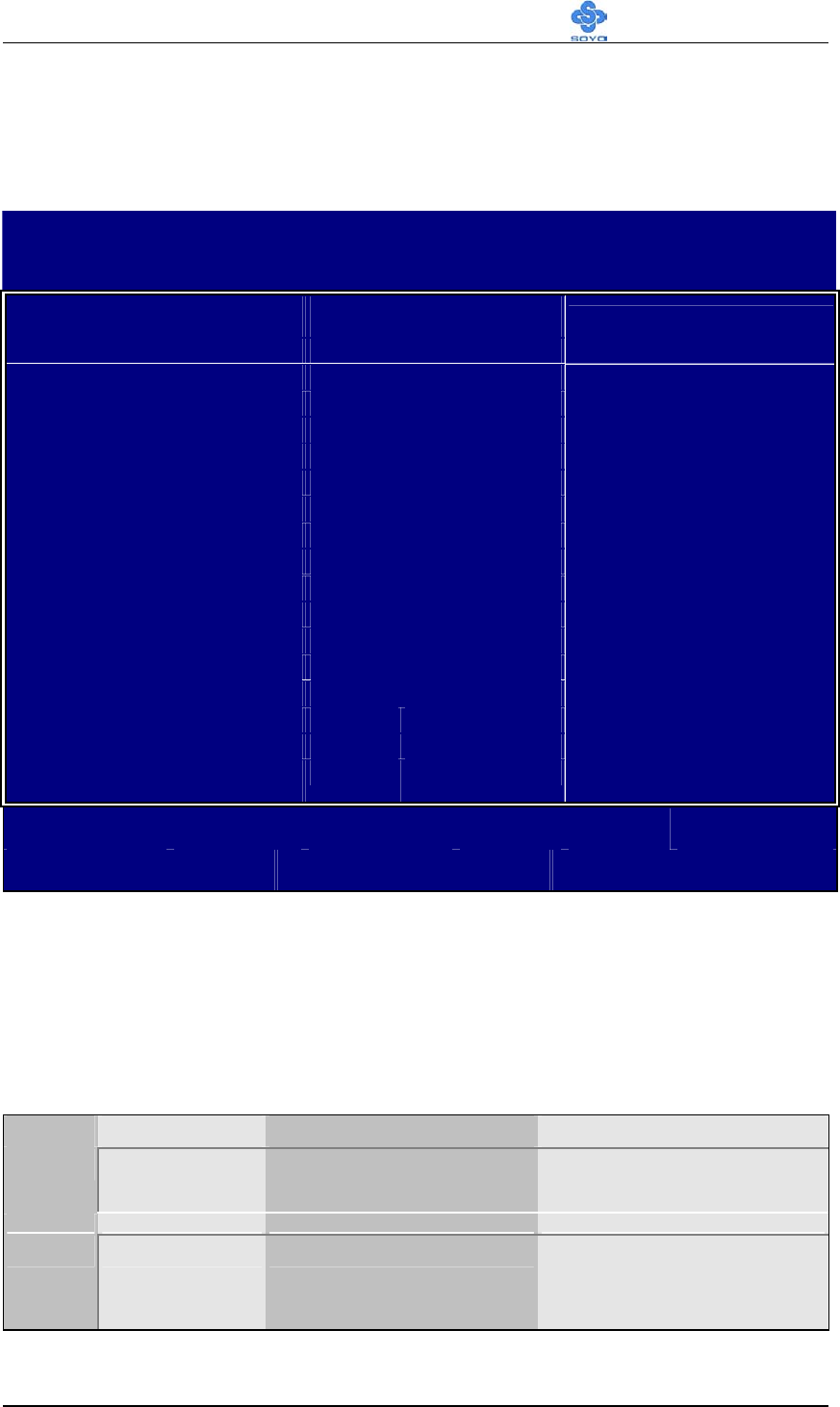
3-1.3 System Boot Control Settings
System Boot
Control Settings
Setting Description Note
Floppy
LS/ZIP
HDD-0
SCSI
CDROM
HDD-1
HDD-2
HDD-3
LAN
First
/Second/Third
Boot Device
Disabled
Select Your Boot Device
Priority
Disabled
Boot Other
Device Enabled
Select Your Boot Device
Priority Default
Enabled Default
ALi OnChip
Audio
Disabled
This item allows you to
control the onboard AC 97
audio.
3-1.4 Power Management
Setting Description Note
Password Enables you to wake-up the
system by entering a password
at the keyboard.
Hot key You can wake-up the system by
pressing the key combination of
your choice (Ctrl-F1~F12).
Mouse Left
Mouse Right
Button only Disables the Wake-Up by
Keyboard function.
Default
Power On
Function &
KB Power On
& Hot Key
Power On
Keyboard 98
BIOS Setup Utility SY-K7ADA V1.0
52
STANDARD CMOS SETUP
Select the [STANDARD CMOS SETUP] option from the Main Menu and
press [Enter] key.
CMOS Setup Utility – Copyright ( C ) 1984-2001 Award Software
Standard CMOS Features
Date (mm:dd:yy) Tue, Jan 4 2001
Time (hh:mm:ss) 1 : 22 : 12 Item Help
IDE Primary Master None
IDE Primary Slave None
IDE Secondary Master None
IDE Secondary Slave None
Drive A 1.44M, 3.5 in.
Drive B None
Floppy 3 Mode Support Disabled
Video EGA/VGA
Halt On All Errors
Base Memory 640K
Extended Memory 64512K
Total Memory 65536K
Menu Level
:Move Enter:Select +/-/PU/PD:Value F10:Save ESC:Exit F1:General Help
F5:Previous Values F6:Fail-Safe Defaults F7: Optimized Defaults
This screen allows you to modify the basic CMOS settings.
After you have completed the changes, press [Esc] key to return to the
Main Menu.
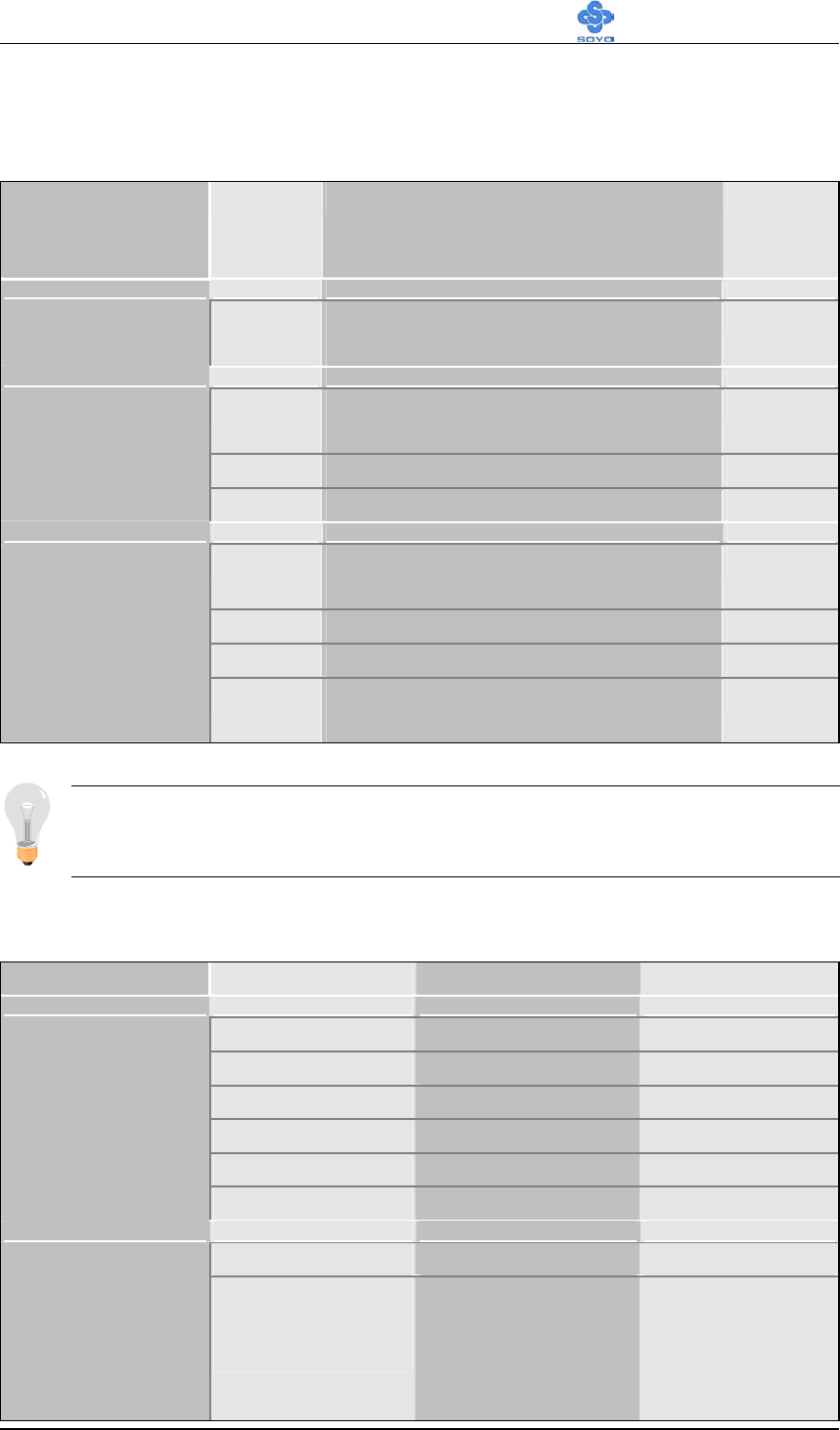
3-1.5 Date & Time
Display Setting Please Note
Date mm/dd/yyyy Type the current date You can also the
PUp/PDn keys to toggle
Time hh:mm:ss Type the current time 24-hour clock format
3:15 PM is displayed as
15:15:00
BIOS Setup Utility SY-K7ADA V1.0
53
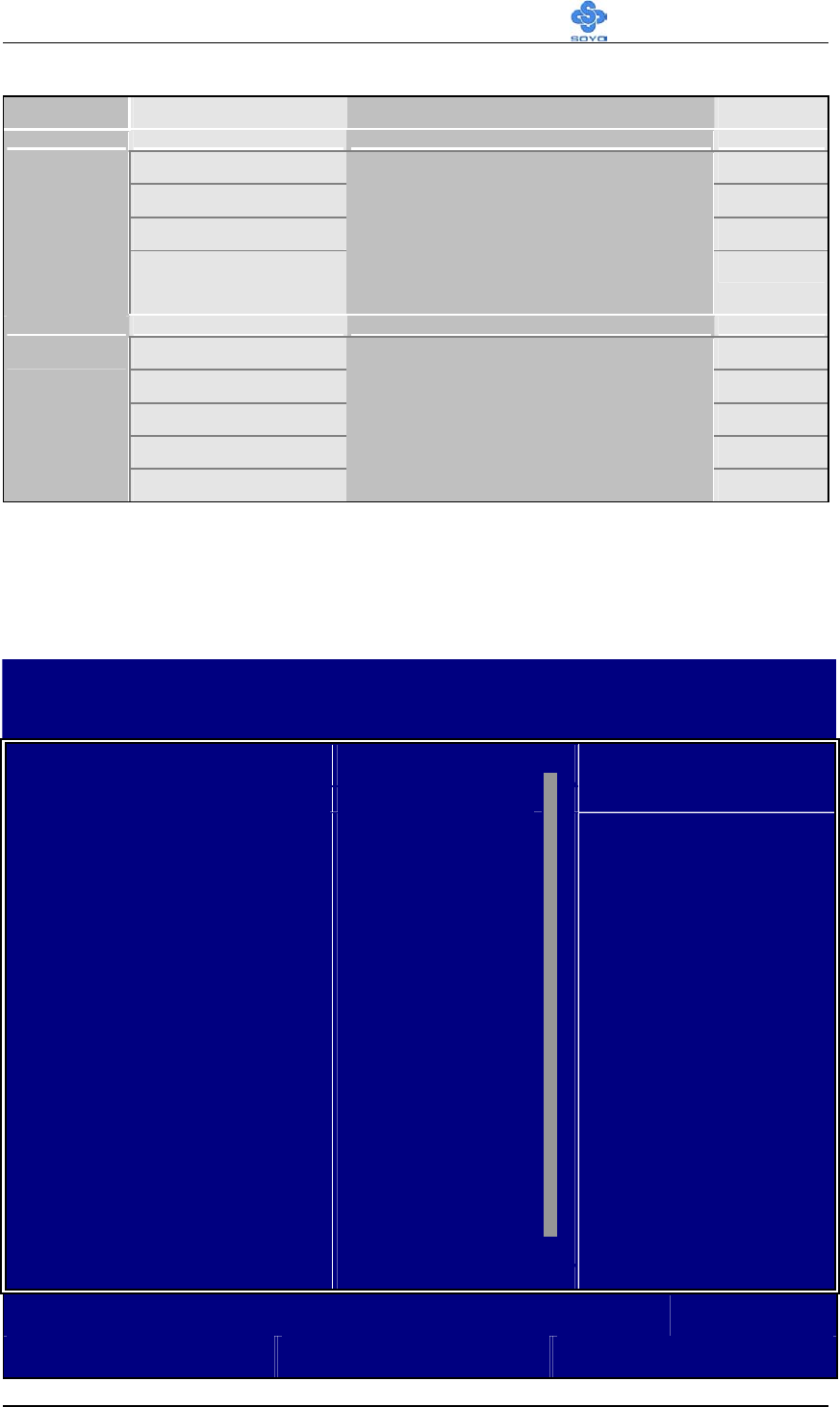
3-1.6 Hard Disks Type & Mode
Choose the type and mode for the hard disks that you have already
installed.
Primary
(Secondary)
Master & Slave
Setting Description Note
IDE HDD
Auto-Detection
Press
Enter
To auto-detect the HDD’s size,
head… on this channel
Auto BIOS detects hard disk type
automatically.
Default
User User defines the type of hard disk.
IDE Primary
Slave
(User Type)
None
Auto BIOS detects hard disk mode
automatically.
Default
Normal Normal IDE hard disk <528MB
LBA Enhanced IDE hard disk >528MB
Access Mode
Large Large IDE hard disk (for certain
hard disk)
Note: If you have any questions on your hard disk type or mode, ask
your hard disk provider or previous user for details.
3-1.7 Floppy Drives
Floppy Drives Setting Description Note
360KB, 5.25 in.
1.2MB, 5.25 in.
720KB, 3.5 in.
1.44MB, 3.5 in. Default
2.88MB, 3.5 in.
Drives A & B
None Not installed
Disabled Default
Floppy 3-Mode
Support Drive A
Drive B
Both
Supports 3-mode
floppy diskette:
740KB/1.2MB/
1.44MB on selected
disk drive.
Special disk drive
commonly used in
Japan
BIOS Setup Utility SY-K7ADA V1.0
54
3-1.8 Others Optional
Setting Description Note
EGA/VGA Default
CGA 40
CGA 80
Video
MONO
(Monochrome)
Select the video mode.
ALL Errors Default
No Errors
All, But Keyboard
All, But Diskette
Halt On
All, But Disk/Key
When the BIOS detects system
errors, this function will stop the
system. Select which type of
error will cause the system halt.
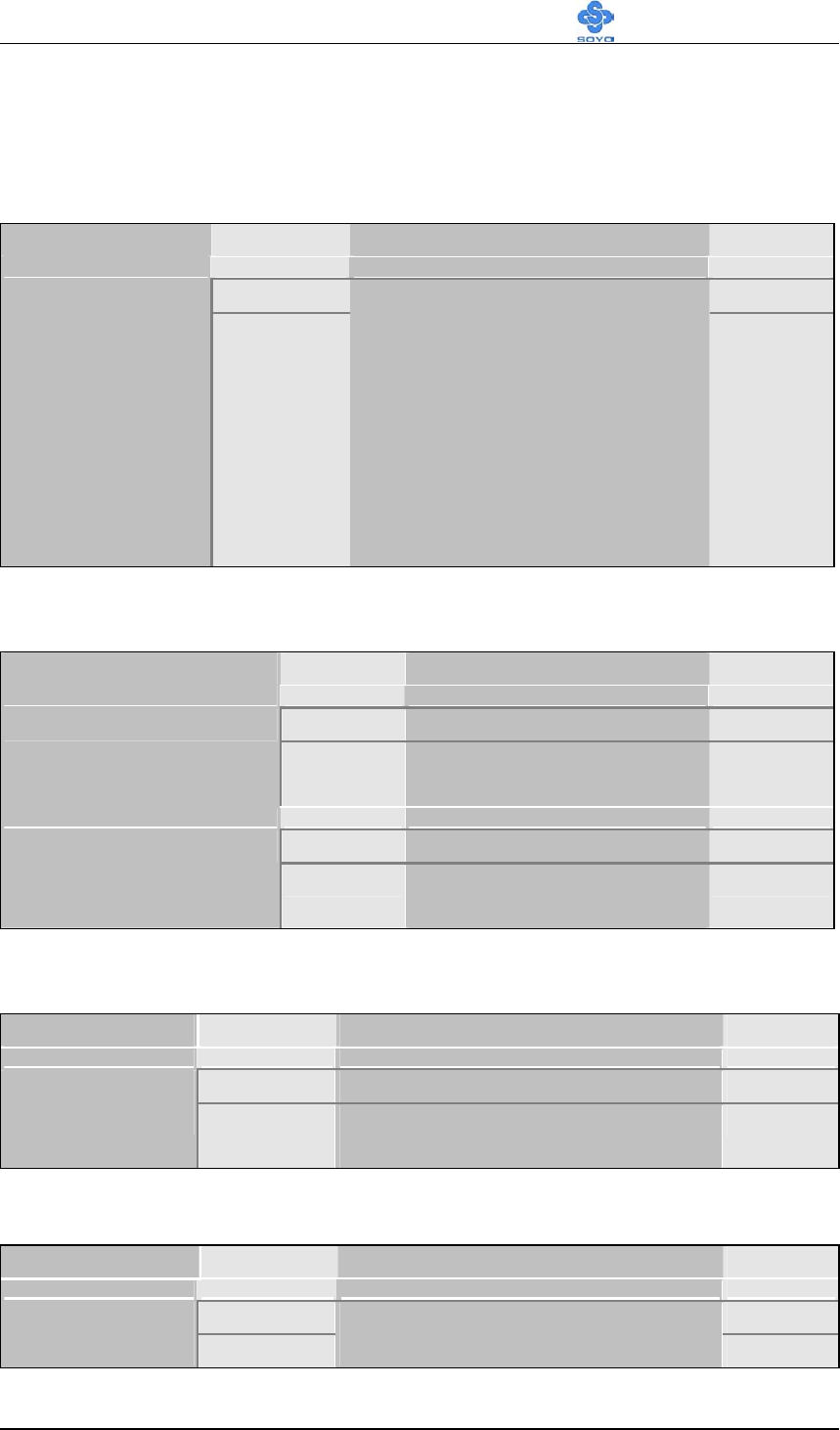
3-2 ADVANCED BIOS FEATURES
Select the [Advanced BIOS Features] option from the Main Menu and
press [Enter] key.
CMOS Setup Utility – Copyright ( C ) 1984-2001 Award Software
Advanced BIOS Features
Virus Warning Disabled
CPU Internal Cache Enabled Item Help
External Cache Enabled
Swap Floppy Drive Disabled
Boot Up Floppy Seek Enabled
Boot Up NumLock Status On
Boot Up System Speed High
Gate A20 Option Fast
Typematic Rate Setting Disabled
x Typematic Rate (Chars/Sec) 6
x Typematic Delay (Msec) 250
Security Option Setup
OS Select For DRAM > 64MB Non-OS2
Report No FDD For WIN 95 No
Video BIOS Shadow Enabled
Menu Level
:Move Enter:Select +/-/PU/PD:Value F10:Save ESC:Exit F1:General Help
F5:Previous Values F6:Fail-Safe Defaults F7: Optimized Defaults
BIOS Setup Utility SY-K7ADA V1.0
55
After you have completed the changes, press [Esc] key and follow the
instructions on your screen to save your settings or exit without saving.
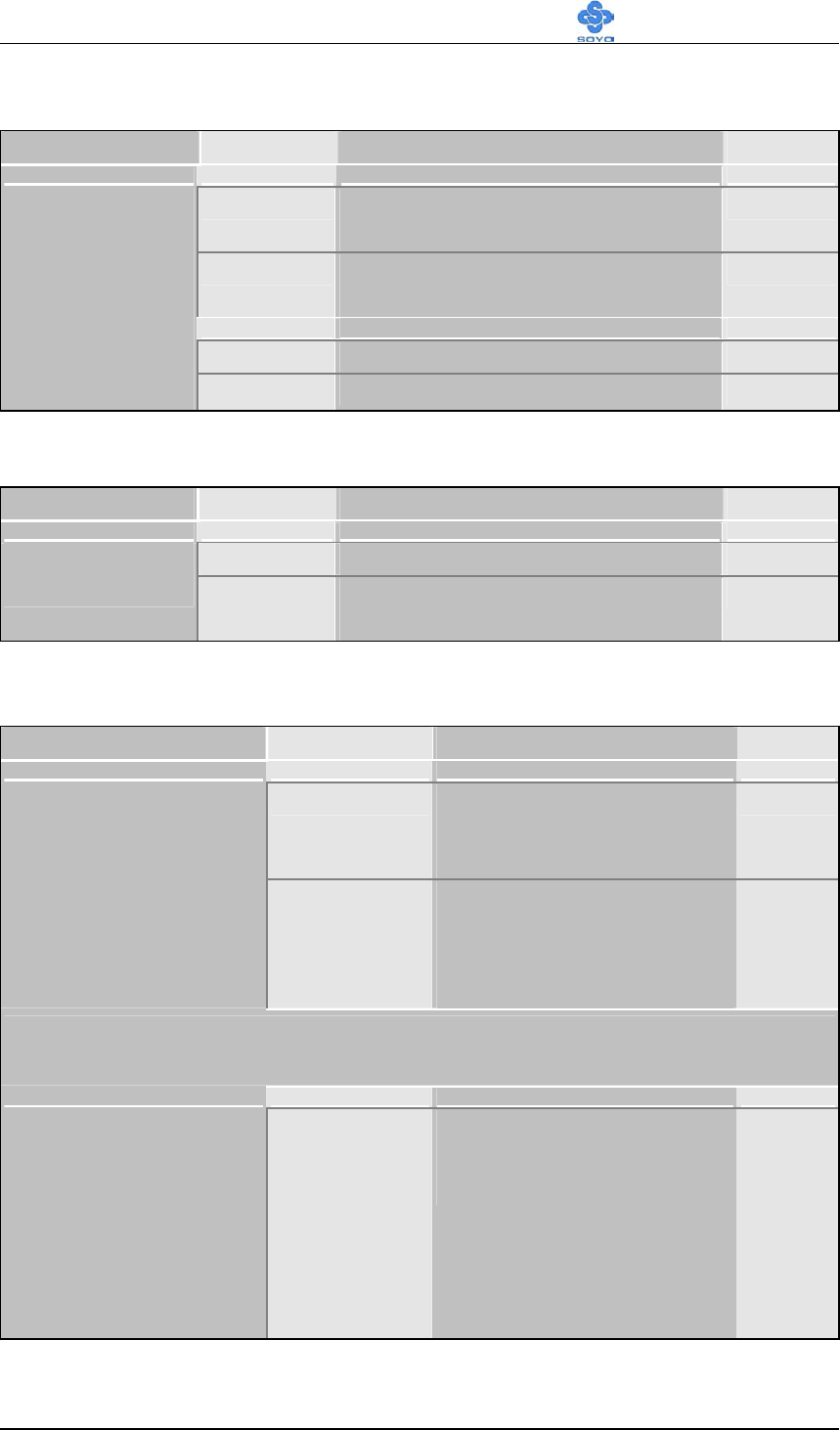
3-2.1 Virus Warning
Setting Description Note
Disabled Default
Virus Warning
Enabled
Allows you to choose the
VIRUS Warning feature for
IDE Hard Disk boot sector
protection. If this function is
enabled and someone attempt
to write data into this area,
BIOS will show a warning
message on screen and alarm
beep.
3-2.2 Cache Memory Options
Setting Description Note
Disabled
CPU Internal Cache
Enabled Enables the CPU's internal
cache.
Default
Disabled
External Cache
Enabled Enables the external
memory.
Default
3-2.3 Floppy Driver Settings
Setting Description Note
Disabled Default
Swap Floppy
Drive Enabled Changes the sequence of A and B
drives.
3-2.4 Boot Up Floppy Seek
Setting Description Note
Disabled
Boot Up Floppy
Seek Enabled
Seeks disk drives during boot up.
Disabling speeds boot up. Default
BIOS Setup Utility SY-K7ADA V1.0
56
3-2.5 Boot Up NumLock Status
Setting Description Note
On Puts numeric keypad in
NumLock mode at boot-up.
Default
Off Puts numeric keypad in arrow key
mode at boot-up.
High Boots at default CPU speed. Default
Boot Up
NumLock
Status
Boot Up System
Speed Low Boots at AT bus speed.
3-2.6 Gate A20 Options
Setting Description Note
Normal Lets chipset control GateA20.
Gate A20
Options Fast A pin in the keyboard controller
controls GateA20.
Default
3-2.7 Typematic Settings
Typematic Settings Setting Description Note
Disabled Keystrokes repeat at a rate
determined by the
keyboard.
Default
Typematic
Rate Setting
Enabled When enabled , the
typematic rate and
typematic delay can be
selected.
The following [Typematic Rate] and [Typematic Delay] fields are active
only if [Typematic Rate Setting] is set to [Enabled]
Typematic Rate 6 (Char/sec)
8 (Char/sec)
10 (Char/sec)
12 (Char/sec)
15 (Char/sec)
20 (Char/sec)
24 (Char/sec)
30 (Char/sec)
Choose the rate at which a
character is repeated when
holding down a key.
Default

BIOS Setup Utility SY-K7ADA V1.0
57
Typematic Settings Setting Description Note
Typematic Delay 250 (msec)
500 (msec)
750 (msec)
1000 (msec)
Choose how long after
you press a key down the
character begins
repeating.
Default
3-2.8 Security Option
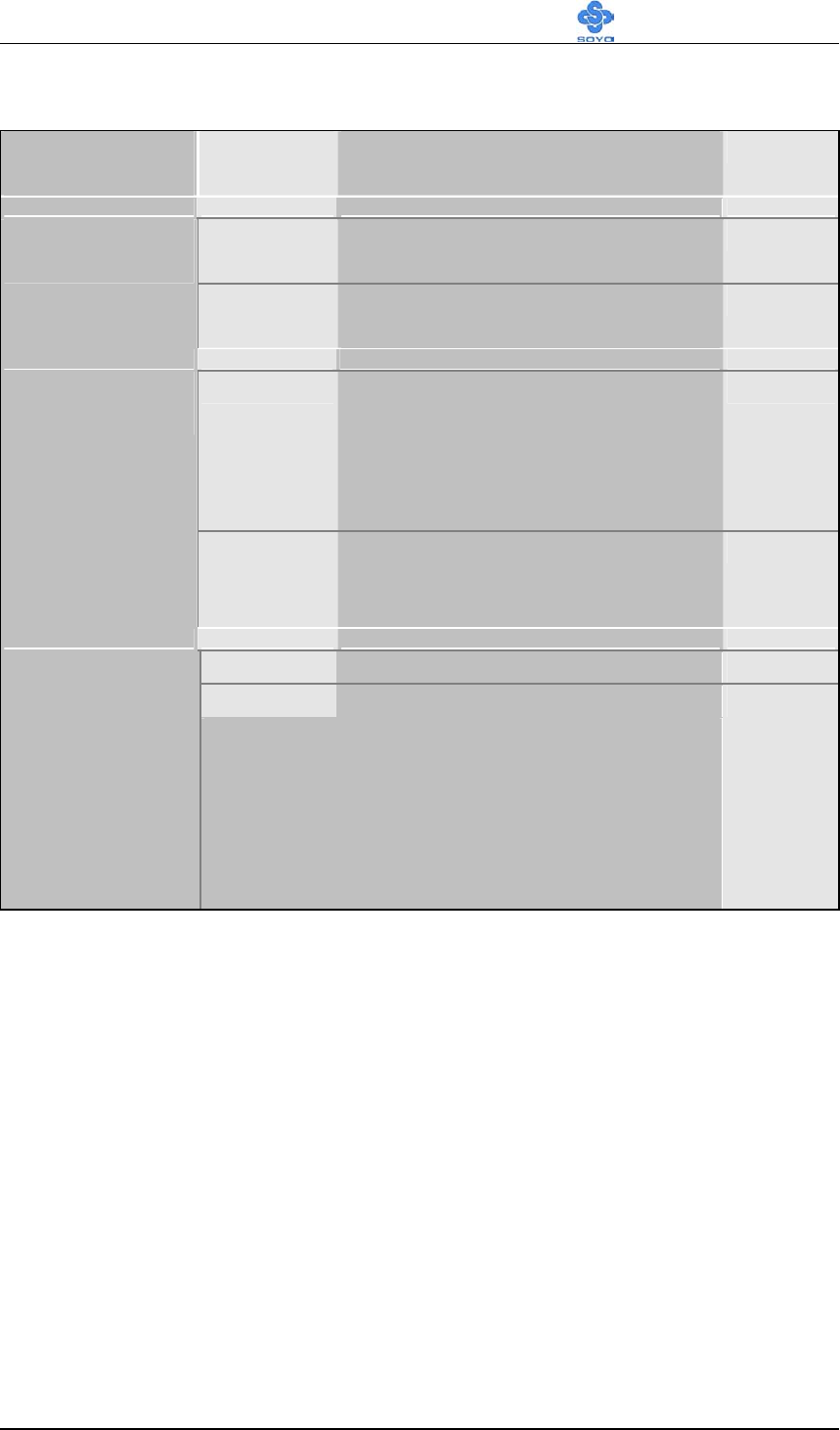
Use this feature to prevent unauthorized system boot-up or use of BIOS
Setup. The following table describes the security settings.
Setting Description Note
System Each time the system is booted,
the password prompt appears.
Security Option
Setup If a password is set, the password
prompt only appears when you
attempt to enter the BIOS Setup
program.
Default
BIOS Setup Utility SY-K7ADA V1.0
58
3-2.9 Other Control Options
Other Control
Options
Setting Description Note
OS2 When using an OS2 operating
system.
OS Select for
DRAM>64MB
Non-OS2 When using another,
non-OS2 operating system.
Default
No Windows will release IRQ line 6
(normally used by the Floppy
Disk Drive) after you disable
your on-board FDD and set this
field to [Yes].
Default
Report No FDD
For WIN 95
Yes Windows will reserve INT 6 for
your FDD, whether it is disabled
or not.
Disabled
Enabled
Video BIOS
Shadow
The BIOS is shadowed in a 16K segment if it
is enabled and if it has BIOS present.
These 16 segments can be shadowed from
ROM to RAM. BIOS shadow copies BIOS
code from slower ROM to faster RAM. BIOS
can then execute from RAM.
Default
BIOS Setup Utility SY-K7ADA V1.0
59
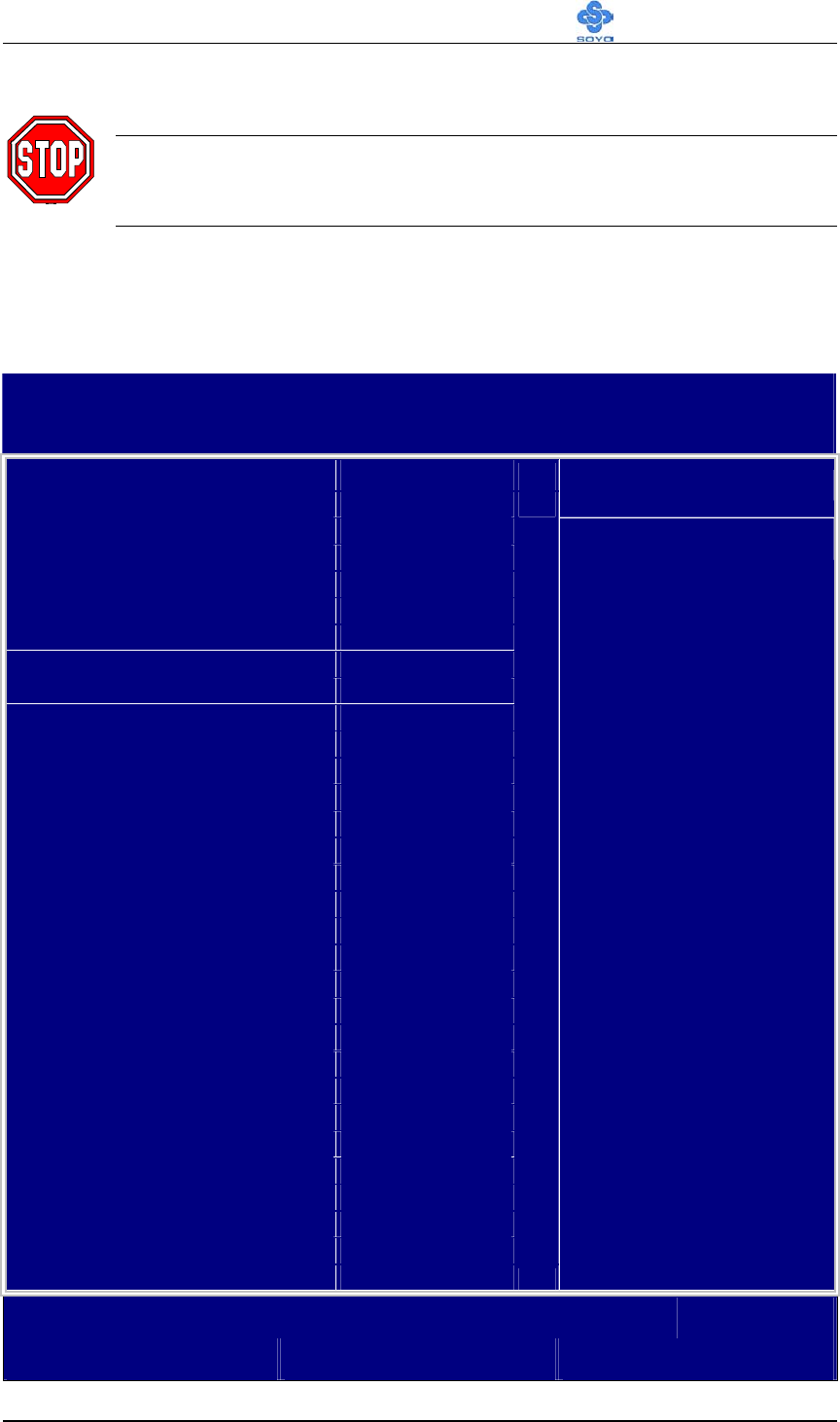
3-3 ADVANCED CHIPSET FEATURES
Caution: Change these settings only if you are already familiar
with the Chipset.
The [Advanced Chipset Features] option changes the values of the chipset
registers. These registers control the system options in the computer.
CMOS Setup Utility – Copyright ( C ) 1984-2001 Award Software
Advanced Chipset Features
DRAM CAS Select 2.5 (DDR) / 3 (SDR)
Dram Performance Normal Item Help
AT Bus Clock CLK2/4
System BIOS Cacheable Disabled
AGP Aperture Size 128M
AGP Delay Offset Auto
AGP Driving Strength Auto
Memory Hole At 15M-16M Disabled
I/O Recovery Period 1 us
Passive Release Disabled
Menu Level
:Move Enter:Select +/-/PU/PD:Value F10:Save ESC:Exit F1:General Help
F5:Previous Values F6:Fail-Safe Defaults F7: Optimized Defaults
After you have completed the changes, press [Esc] and follow the
instructions on your screen to save your settings or exit without saving.
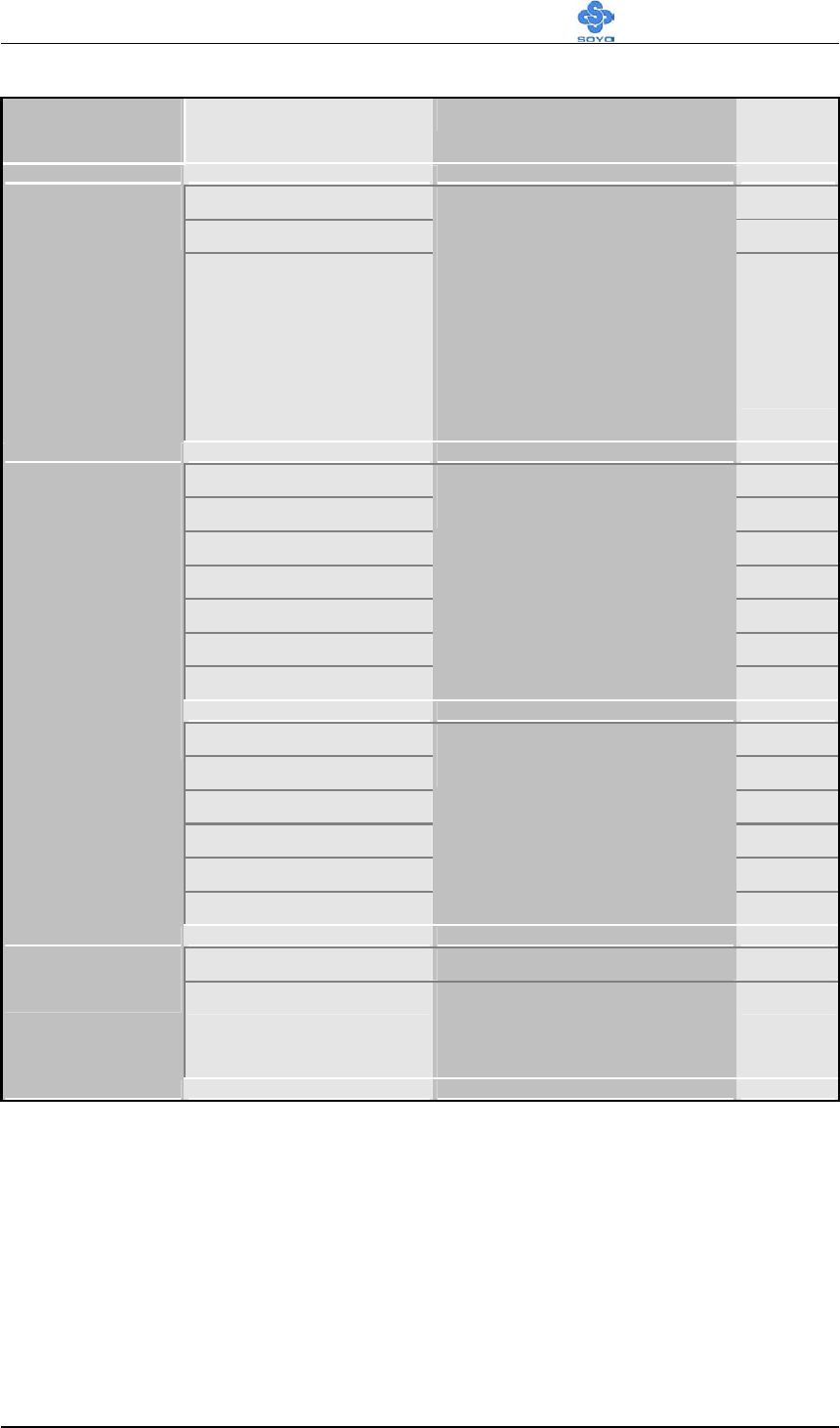
The following table describes each field in the Advanced Chipset Features
Menu and how to configure each parameter.
BIOS Setup Utility SY-K7ADA V1.0
60
CHIPSET FEATURES SETUP (Continued)
CHIPSET
FEATURES
Setting Description Note
Auto (By SPD)
2.5 (DDR) / 3 (SDR) Default
DRAM CAS
Select
2 (DDR) / 2 (SDR)
When synchronous
DRAM is installed, the
number of clock cycles of
CAS latency depends on
the DRAM timing. Do not
reset this field from the
default value specified by
the system designer.
Auto (By SPD)
Failsafe
Slow
Normal Default
Fast
Ultra
Ultra2
This item allow you to
control the DRAM timing.
7.16 MHz
CLK2/2
CLK2/3
CLK2/4 Default
CLK2/5
DARM
Performance
AT Bus Clock
CLK2/6
This item allow you to
control the ISA Bus clock.
Disabled Default
System BIOS
Cacheable Enabled The ROM area
F0000H-FFFFFH is
cacheable.
BIOS Setup Utility SY-K7ADA V1.0
61
CHIPSET FEATURES SETUP (Continued)
CHIPSET
FEATURES
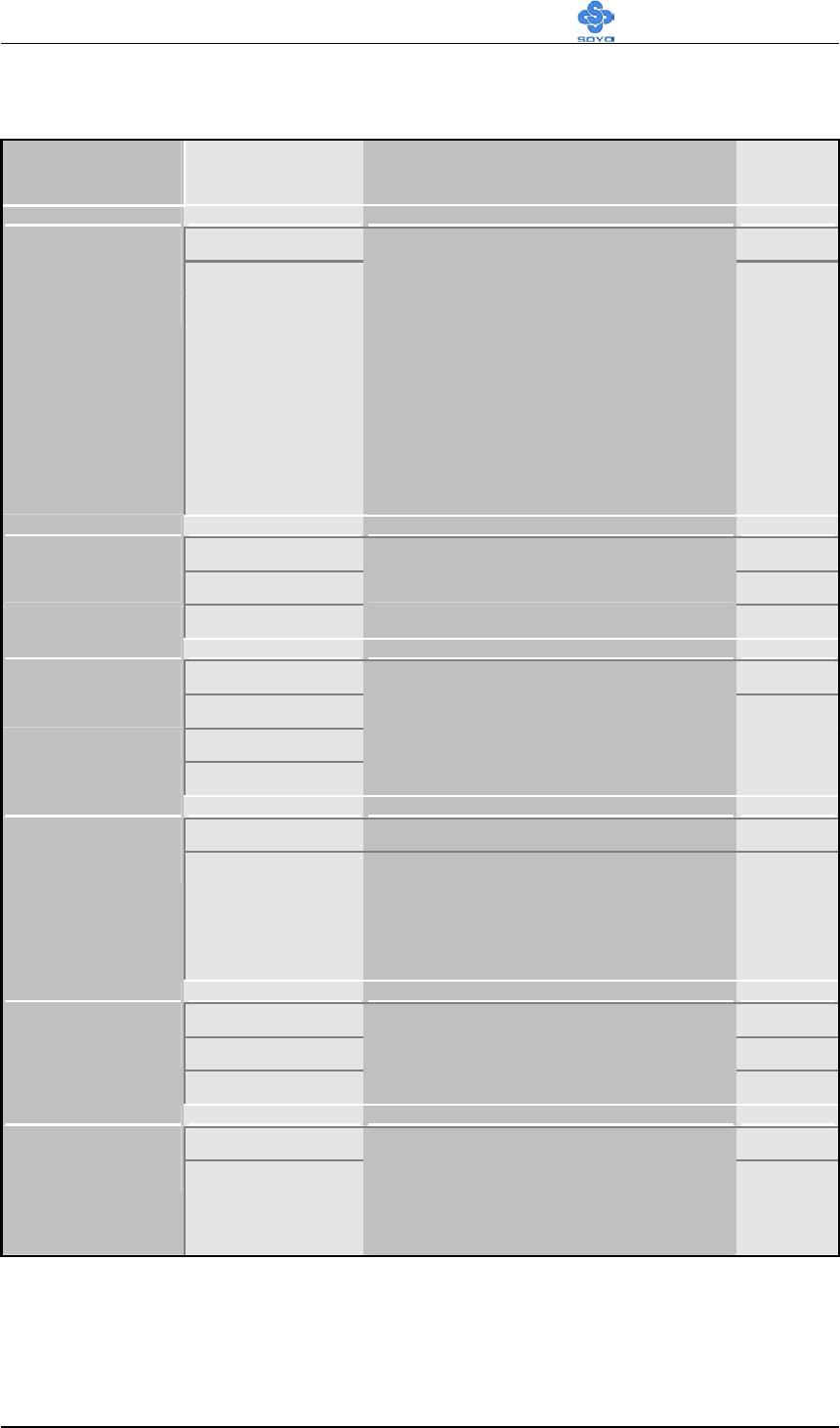
Setting Description Note
128M Default
AGP Aperture
Size
4M, 8M, 16M,
32M, 128M,
256M.
Select the size of Accelerated
Graphics Port (AGP) aperture.
The aperture is portion of the
PCI memory address range
dedicated for graphics memory
address space. Host cycles that
hit the aperture range are
forwarded to the AGP without
any translation.
Auto Default
AGP Delay
Offset +1~+7
- 1~- 7
This item allows you to adjust
the AGP delay offset.
Auto Default
AGP Driving
Strength Low
Mid
High
This item allows you to adjust
the AGP Driving force.
Disabled Default
Memory Hole
At 15M-16M Enabled Some interface cards will map
their ROM address to this area.
If this occurs, select [Enabled] in
this field.
1us Default
2us
I/O Recovery
Period
3us
This item allows you to control
the I/O Recovery Period.
Disabled Default
Passive
Release Enabled
If enabled this item can allow
PCI arbiter to grant to another
PCI master during DMA master
access.
BIOS Setup Utility SY-K7ADA V1.0
62
3-4 INTEGRATED PERIPHERALS
Caution: Change these settings only if you are already familiar
with the Chipset.
The [INTEGRATED PERIPHERALS] option changes the values of the
chipset registers. These registers control the system options in the computer.
The following screen shows setup default settings.
CMOS Setup Utility – Copyright ( C ) 1984-2001 Award Software
Integrated Peripherals
On-Chip Primary IDE Enabled
Master PIO Auto Item Help
Slave PIO Auto
Master Ultra DMA Auto
Slave Ultra DMA Auto
On-Chip Secondary IDE Enabled
Master PIO Auto
Slave PIO Auto
Master Ultra DMA Auto
Slave Ultra DMA Auto
On-Chip USB Controller Enabled
USB Keyboard Support Disabled
Init Display First AGP
IDE HDD Block Mode Enabled
Onboard FDC Controller Enabled
Onboard Serial Port 1 3F8/IRQ4
Onboard Serial Port 2 2F8/IRQ3
Onboard Serial Port 3 Disabled
xUART Mode Select IrDA
xRxD , TxD Active Hi, Lo
xIR Duplex Mode Half
xFast IR Mode Use DMA 1
Onboard Parallel Port 378/IRQ7
Parallel Port Mode SPP
xECP Mode Use DMA 3
Menu Level
:Move Enter:Select +/-/PU/PD:Value F10:Save ESC:Exit F1:General Help
F5:Previous Values F6:Fail-Safe Defaults F7: Optimized Defaults

BIOS Setup Utility SY-K7ADA V1.0
63
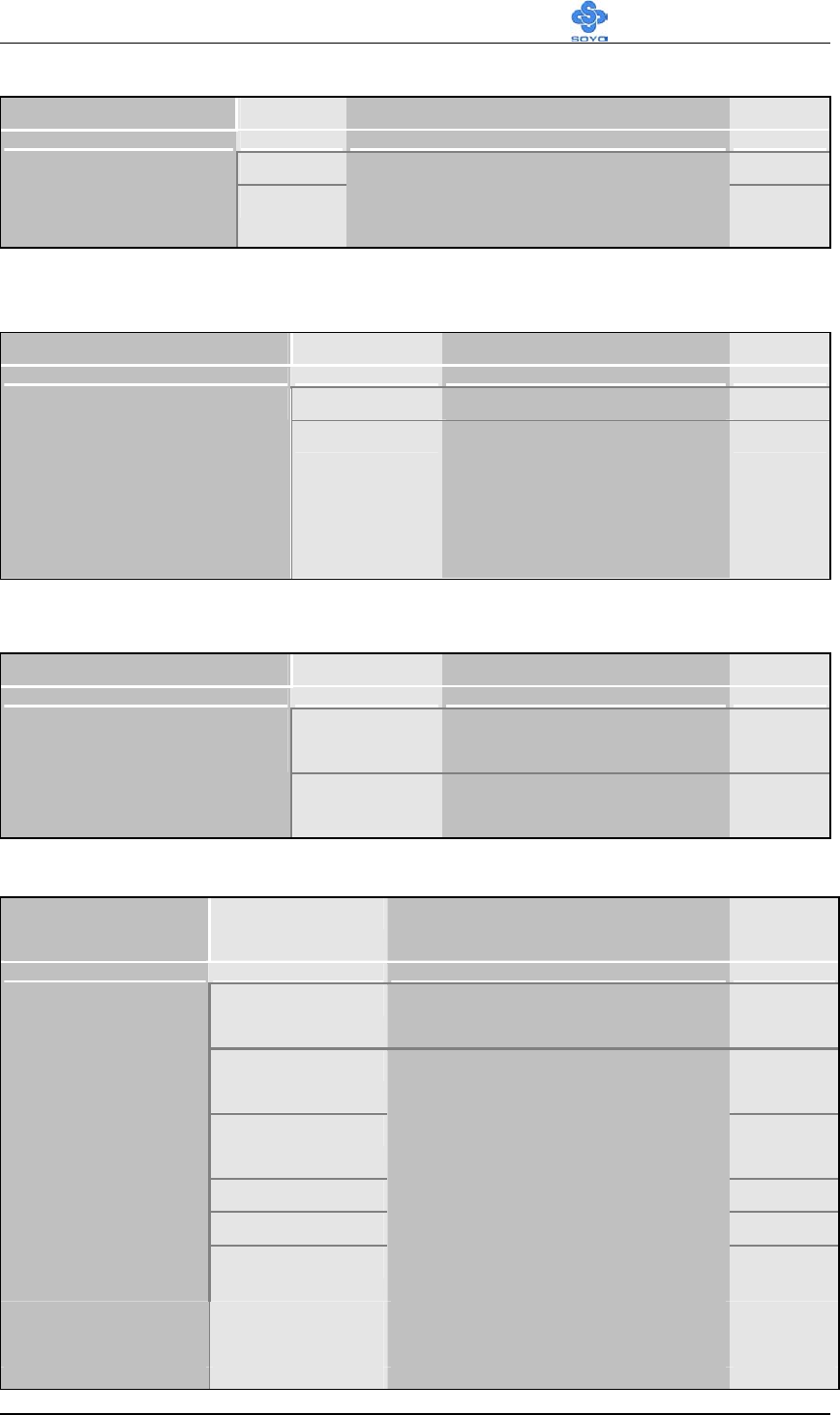
The following tables describe each field in the INTEGRATED
PERIPHERALS Menu and provide instructions on how to configure the
IDE controls, FDC controls, and the onboard serial and parallel ports.
3-4.1 IDE Device Controls
IDE Controls Setting Description Note
Disabled Turn off the on-board IDE
On-Chip PCI IDE
Primary
Secondary
Enabled Use the on-board IDE Default
mode 0-4 0 is the slowest speed
4 is the fastest speed
IDE
Primary Master PIO
Primary Slave PIO
Secondary Master PIO
Secondary Slave PIO
Auto For better performance and
stability, we suggest you use
the Auto setting to set the
HDD control timing.
Default
Disabled
IDE
Primary Master UDMA
Primary Slave UDMA
Secondary Master UDMA
Secondary Slave UDMA
Auto Select Auto to enable Ultra
DMA Mode support.
Default
Enabled Default
On-Chip USB
Controller Disabled
This should be enabled if
your system has a USB
installed on the system board
and you want to use it. Even
when so equipped, if you
add a higher performance
controller, you will need to
disable this feature.
Disabled Default
USB Keyboard
Support Enabled Select Enabled if your
system contains a Universal
Serial Bus (USB) controller
and you have a USB
keyboard.
BIOS Setup Utility SY-K7ADA V1.0
64
3-4.2 Keyboard Controls
Keyboard Controls Setting Description Note
PCI Slot
Init Display First
AGP
Choose which card – AGP
Display card or PCI VGA card –
to initialize first.
Default
3-4.3 IDE HDD Block Mode
Setting Description Note
Disabled
IDE HDD Block Mode
Enabled Invokes multi-sector
transfer instead of one
sector per transfer. Not
all HDDs support this
function.
Default
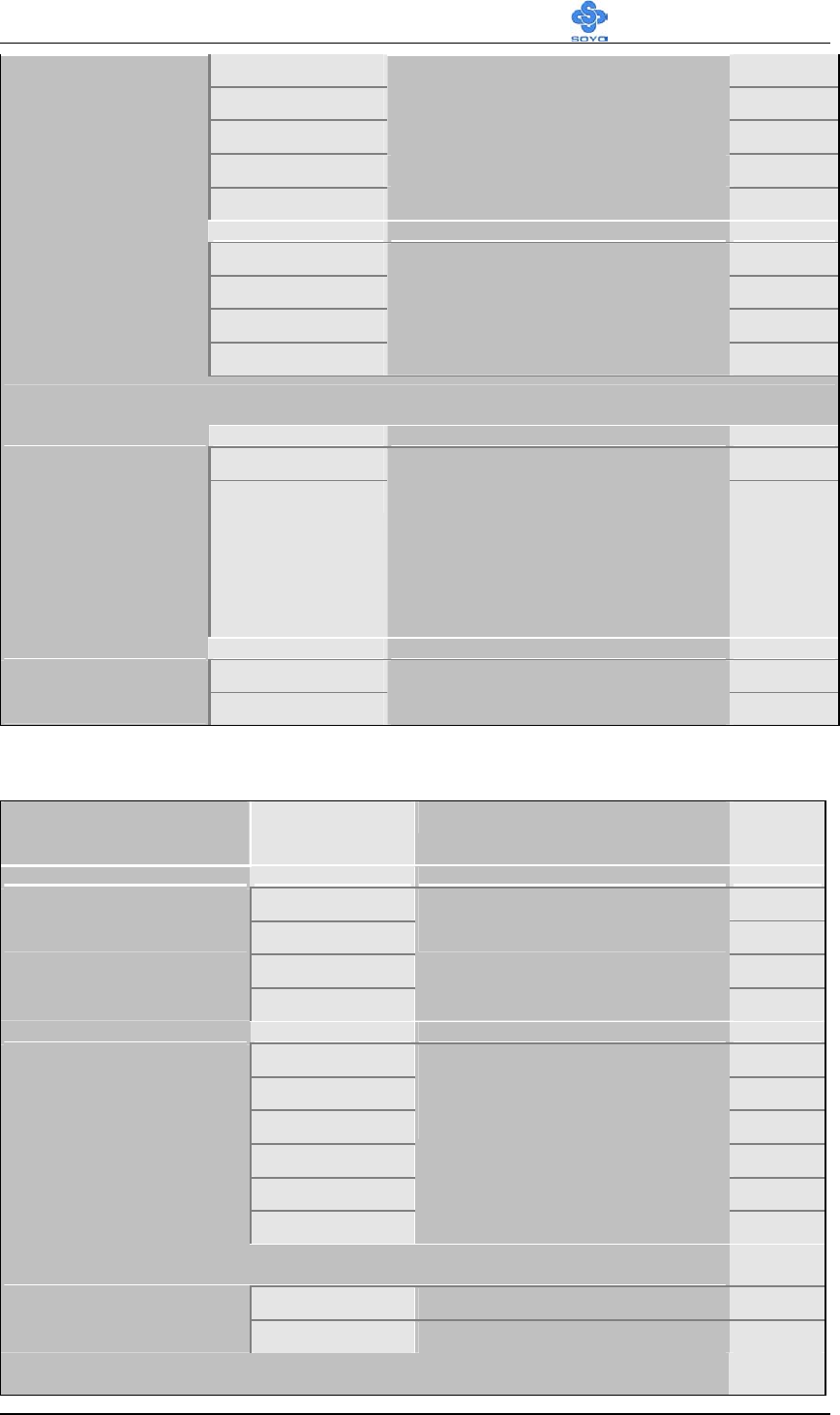
3-4.4 FDD Controls
FDD Controls Setting Description Note
Disabled Turn off the on-board
floppy controller
Onboard FDC
controller
Enabled Use the on-board floppy
controller
Default
3-4.5 Onboard Serial Ports
Onboard Serial
Ports
Setting Description Note
Disabled Default
(port 3)
3F8/IRQ4 Default
(port 1)
2F8/IRQ3 Default
(port 2)
3E8/IRQ4
2E8/IRQ3
Onboard
Serial Port 1 /
Serial Port 2 /
Serial Port 3
Auto
Choose serial port 1 & 2's I/O
address.
Do not set port 1 & 2 to the
same address except for
Disabled or Auto.
BIOS Setup Utility SY-K7ADA V1.0
65
IrDA Default
ASKIR
TFDS6000
The second serial port offers
these InfraRed interface
modes.
HSDL3600
HSDL1100
Hi, Hi
Hi, Lo Default
Lo, Hi
UART Mode
Select
RxD, TxD Active
Lo, Lo
This item allow you to
determine the active RxD,
TxD.
If [UART Mode Select] is set to [IrDA]/[ASKIR]
Half Default
IR Duplex Mode
Full
Choose [Half] or [Duplex] to
set UR2 in half duplex mode
or full duplex mode
respectively. Refer to your IR
device specifications to select
the suitable mode.
1 Default
Fast IR Mode
Use DMA 3
3-4.6 Onboard Parallel Ports
Onboard Parallel
Ports
Setting Description Note
Disabled
378/IRQ7 Default
3BC/IRQ7
Onboard Parallel
Port
278/IRQ5
Choose the printer I/O
address.
EPP 1.9
ECP
ECP+EPP1.9
SPP Default
EPP 1.7
Parallel Port Mode
ECP+EPP1.7
The mode depends on your
external device that
connects to this port.
If
[
Parall
e
l P
o
rt M
ode]
i
s
se
t t
o
[
E
C
P
]
m
ode
3 Choose DMA3 Default
ECP Mode use
DMA 1 Choose DMA1
If
[
Parallel Port Mode
]
is set to
[
EPP
]
mode
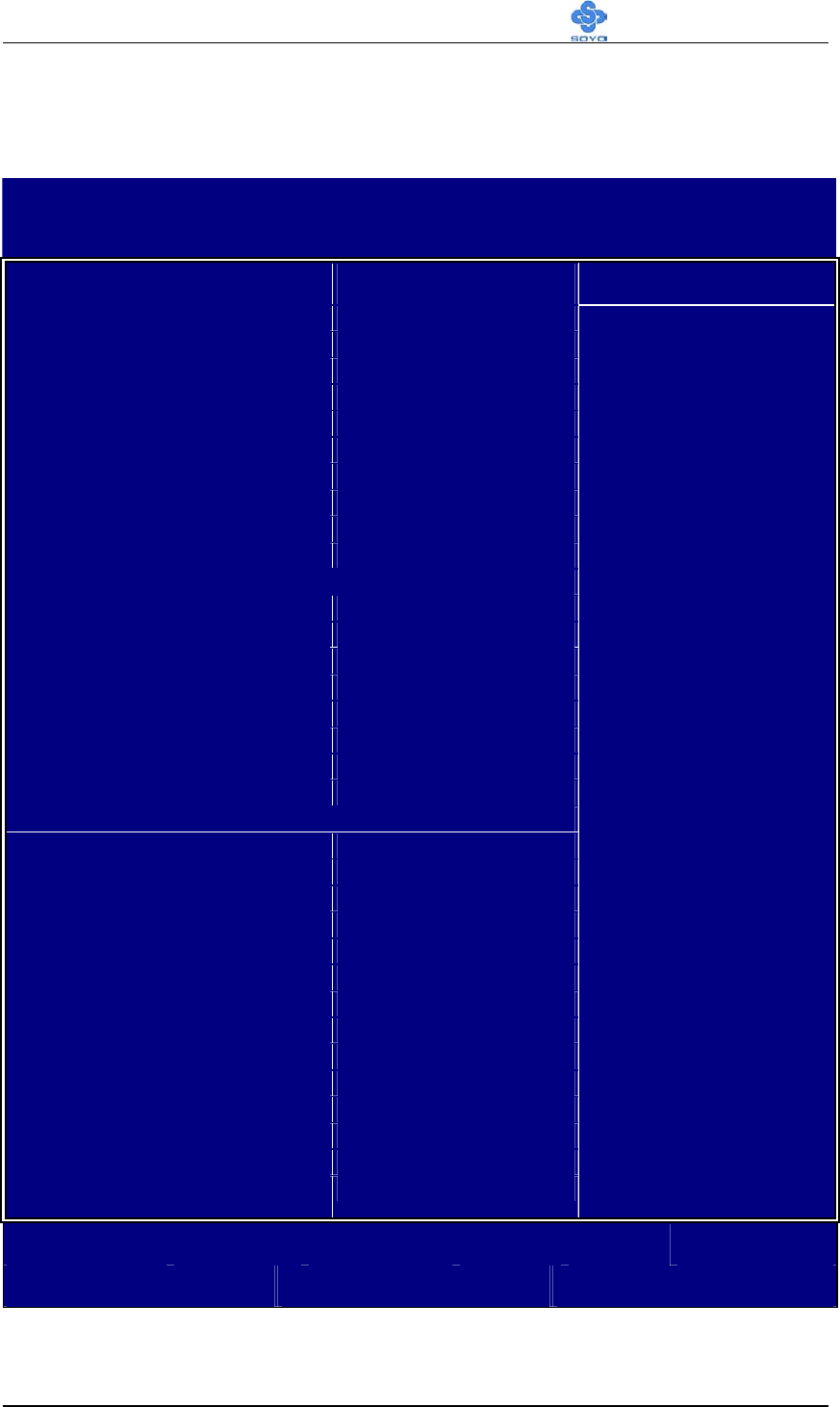
BIOS Setup Utility SY-K7ADA V1.0
66
3-5 POWER MANAGEMENT SETUP
The [POWER MANAGEMENT SETUP] sets the system's power saving
functions.
CMOS Setup Utility – Copyright ( C ) 1984-2001 Award Software
Power Management Setup
ACPI Suspend Type S1 (POS) Item Help
Power Management User Define
PM Control by APM No
MODEM Use IRQ 3
Video Off In Suspend Yes
Video Off Method DPMS
PM Timers
HDD Power Down Disabled
Suspend Mode Disabled
*** PowerOn \ WakeUp Function ***
Soft-Off by PWR-BTTN Instant-Off
WakeUp\PowerOn by PCI Card Disabled
USB Dev WakeUp From S3-S5 Disabled
Resume by Alarm Disabled
x Date (of Month) Alarm 0
x Time (hh : mm : ss) Alarm 0 : 0 : 0
*** Suspend Break Events ***
IRQ[1] ( KeyBoard ) Enabled
IRQ[3] Disabled
IRQ[4] Disabled
IRQ[5] Disabled
IRQ[6] ( Floppy Disk ) Enabled
IRQ[7] Disabled
IRQ8J ( RTC ) Disabled
IRQ[9] Disabled
IRQ[10] Disabled
IRQ[11] Disabled
IRQ[12] ( PS2 Mouse ) Enabled
IRQ[14] ( Primary IDE ) Enabled
IRQ[15] (Secondary IDE ) Disabled
Menu Level
:Move Enter:Select +/-/PU/PD:Value F10:Save ESC:Exit F1:General Help
F5:Previous Values F6:Fail-Safe Defaults F7: Optimized Defaults
After you have completed the Power Management Setup, press [Esc] to
return to the Main Menu.

BIOS Setup Utility SY-K7ADA V1.0
67
3-5.1 Power Management Controls
Power
Management
Controls
Setting Description Note
S1(POS) Default
ACPI Suspend
Type S3(STR)
The system will enter the S1
state during suspend. (Low
latency wake up)
User Define Lets you define the HDD and
system power down times.
Default
Doze
timer
Standby
timer
Suspend
timer
HDD
power
down
Min Saving 1 Hour 1 Hour 1 Hour 15 Min
Power
Management
Max Saving 1 Min 1 Min 1 Min 1 Min
Yes Default
PM Control
by APM NO
When enabled, an Advanced
Power Management device will
b
e activated to enhance the Max.
Power Saving mode and stop the
CPU internal clock. If Advance
Power Management (APM) is
installed on your system,
selecting Yes gives better power
savings.
Suspend -->
Off
Default
Video Off
Option
Always On
All Modes
--> Off
When enabled, this feature
allows the VGA adapter to
operate in a power saving mode.
V/H
Sync+Blank
Default
Blank screen
Video Off
Method
DPMS
Selects the method by which the
monitor is blanked.

BIOS Setup Utility SY-K7ADA V1.0
68
Disabled Default
HDD Power
Down 1-15 Min
When the set time has
elapsed, BIOS sends a
command to the HDD to
power down. This turns off
the HDD motor.
Some older
model HDDs
may not support
this advanced
function.
Suspend Mode Disabled Default
1 Min -
1 Hour
In Suspend mode, the CPU
stops completely (no
instructions are executed.)
Only an
SL-Enhanced
(or SMI) CPU
can enter this
mode.
Power Management Controls (Continued)
Power
Management
Controls
Setting Description Note
Instant-off Default
Soft-Off by
PWR-BTTN Delay 4
Sec.
Turns off the system power 4
seconds after pushing the power
button.
Disabled Default
Enabled
If enabled any PCI interrupt will
wake up the system.
Wake up \
Power On by
PCI Card
Disabled Default
Enabled
An input signal on the serial Ring
Indicator (RI) line (in other words,
an incoming call on the modem)
awakens the system from a soft off
state.
Wake up \
Power by Ring
Disabled Default
Enabled
If enabled this item can use A USB
device to wake up system from
S3-S5.
USB Dev
Wake up
From S3-S5
Disabled The system ignores the alarm. Default
Resume by
Alarm Enabled Set alarm to power on the system
by the date (1-31) or time
(hh:mm:ss). If the date is set to [0],
the system will self-power on by
alarm everyday at the set time.

BIOS Setup Utility SY-K7ADA V1.0
69
Enabled Default
IRQ[1]
(Keyboard) Disabled
Select enabled that will wake up
your system when in one of sleep
modes.
IRQ[3] Enabled
Disabled
Select enabled that will wake up
your system when in one of sleep
modes.
Default
IRQ[4] Enabled
Disabled Default
Select enabled that will wake up
your system when in one of sleep
modes.
IRQ[5] Enabled
Disabled Default
Select enabled that will wake up
your system when in one of sleep
modes.
Enabled Default
Disabled
IRQ[6]
(floppy Disk)
Select enabled that will wake up
your system when in one of sleep
modes.
IRQ[7] Enabled Default
Disabled
Select enabled that will wake up
your system when in one of sleep
modes.
IRQ[8] (RTC) Enabled
Disabled Default
Select enabled that will wake up
your system when in one of sleep
modes.
IRQ[9] Enabled
Disabled Default
Select enabled that will wake up
your system when in one of sleep
modes.
IRQ[10] Enabled
Disabled Default
Select enabled that will wake up
your system when in one of sleep
modes.
IRQ[11] Enabled
Disabled Default
Select enabled that will wake up
your system when in one of sleep
modes.
Enabled Default
Disabled
IRQ[12] (PS2
Mouse)
Select enabled that will wake up
your system when in one of sleep
modes.
BIOS Setup Utility SY-K7ADA V1.0
70
IRQ[14] Enabled Default
Disabled
Select enabled that will wake up
your system when in one of sleep
modes.
Enabled Default
Disabled
IRQ[15]
(Secondary
IDE)
Select enabled that will wake up
your system when in one of sleep
modes.
3-6 PNP/PCI CONFIGURATION SETUP
This option sets the Motherboard's PCI Slots.
CMOS Setup Utility – Copyright ( C ) 1984-2001 Award Software
PnP/PCI Configurations
PNP OS Installed NO
Reset Configuration Data Disabled Item Help
Resources Controlled By Auto (ESCD)
x IRQ Resources Press Enter
PCI/VGA Palette Snoop Disabled
Assign IRQ For VGA Enabled
Assign IRQ For USB Enabled
PCI IRQ Actived By Level
Menu Level
:Move Enter:Select +/-/PU/PD:Value F10:Save ESC:Exit F1:General Help
F5:Previous Values F6:Fail-Safe Defaults F7: Optimized Defaults
Note: Starred (*) items will disappear when the [Resources
Controlled By] option is set to [Auto].
After you have completed the PCI Slot Configuration, press [Esc] and
follow the instructions on your screen to save your settings or exit without

BIOS Setup Utility SY-K7ADA V1.0
71
saving.

BIOS Setup Utility SY-K7ADA V1.0
72
3-6.1 PNP/PCI Configuration Controls
PNP/PCI
Controls
Setting Description Note
Yes Set this field to [Yes] if you
are running Windows 95,
which is PnP compatible.
PnP OS
Installed
No If the OS you are running
does not support PnP
configuration.
Default
(If there is any
doubt, set this
field to [No])
Disabled Retain PnP configuration
data in BIOS.
Default
Reset
Configuration
Data Enabled Reset PnP configuration data
in BIOS.
Manual BIOS does not manage PCI/ISA PnP
card IRQ assignment.
Requires to assign IRQ-# and DMA-# to PCI or
ISA PnP manually.
IRQ-3,4,5,7,9,10,11,12,14,15 assigned to: _
DMA-0,1,3,5,6,7 assigned to: _
Resources
Controlled By
Auto
(ESCD)
The Plug-and-Play BIOS
auto manages PCI/ISA PnP
card IRQ assignment
automatically.
Recommended
If [Resources Controlled By] is set to [Manual]
PCI Device Default
IRQ-3,4,5,7,9,1
1,12,
14,15 assigned
to
Reserved
This item allow you to
assign IRQ to PCI
Device or reserved.
BIOS Setup Utility SY-K7ADA V1.0
73
PNP/PCI Configuration Setup (Continued)
PNP/PCI
Setup
Setting Description Note
Your OS may reassign another interrupt to a PCI slot after BIOS passes control to
the OS, especially if you use Windows 95, 98 or NT.
Disabled Leave this field at Disabled. Default
PCI/VGA
Palette
Snoop
Enabled
Disabled BIOS will assign IRQ for
VGA/USB port.
Assign IRQ
For
VGA/USB Enabled BIOS won’t assign IRQ for
VGA/USB port.
Default
Edge
Level Default
PCI IRQ
Active By
This item allow you to
determine which win
ACTIVATE PCI IRQ.
3-6.2 MULTI I/O ADDRESSES
Default settings for multi-I/O addresses are as follows:
Port I/O Address IRQ Status
LPT1 378H 7 ECP/EPP
COM1 3F8H 4
COM2 2F8H 3
Warning: If a default I/O address conflicts with other I/O cards
such as sound card, you must change one of the I/O addresses to
remedy to this address conflict. (I/O addresses can be adjusted from
the BIOS Setup Utility)
BIOS Setup Utility SY-K7ADA V1.0
74
3-7 PC HEALTH STATUS
This option sets the Motherboard's PC Health Status.
CMOS Setup Utility – Copyright ( C ) 1984-2001 Award Software
PC Health Status
CPU Warning Temperature Disabled
Current SYS Temperature 31 º C / 87 º F Item Help
Current CPUFAN Speed 4247 RPM
Current CHAFAN Speed 0 RPM
Vcore 1.71 V
+3.3V 3.32 V
+5V 4.92 V
+12V 12.47 V
Menu Level
Shutdown Temperature 75 º C / 167 º F
:Move Enter:Select +/-/PU/PD:Value F10:Save ESC:Exit F1:General Help
F5:Previous Values F6:Fail-Safe Defaults F7: Optimized Defaults
Note: Starred (*) items will disappear when the [Resources
Controlled By] option is set to [Auto].

BIOS Setup Utility SY-K7ADA V1.0
75
3-7.1 CPU Device Monitoring
CPU Device
Monitoring
Setting Description Note
Disabled Default
50°C/122°F
53°C/127°F
56°C/133°F
60°C/140°F
63°C/145°F
66°C/151°F
70°C/158°F
Set CPU temperature from 50°C
to 70°C. The CPU will slow
down when CPU temperature
goes beyond the preset value. The
CPU will continue to run slow
until the temperature returns back
within the safe range.
CPU Warning
Temperature
Current Sys
Temperature °C/°F Show the current status of the
system temperature.
Current CPU
Temperature °C/°F Show the current status of CPU
temperature.
Current
CPUFAN/
CHAFAN
Speed
°C/°F
Show the current status of CPU
Fan.
Vcore, 2.5V,
3.3V, 5V, 12V V Show the current voltage status.
60°C/140°F
65°C/149°F
70°C/158°F
Shutdown
Temperature
75°C/167°F
Set the maximum allowable CPU
temperature, before the system
shutdown.
Default
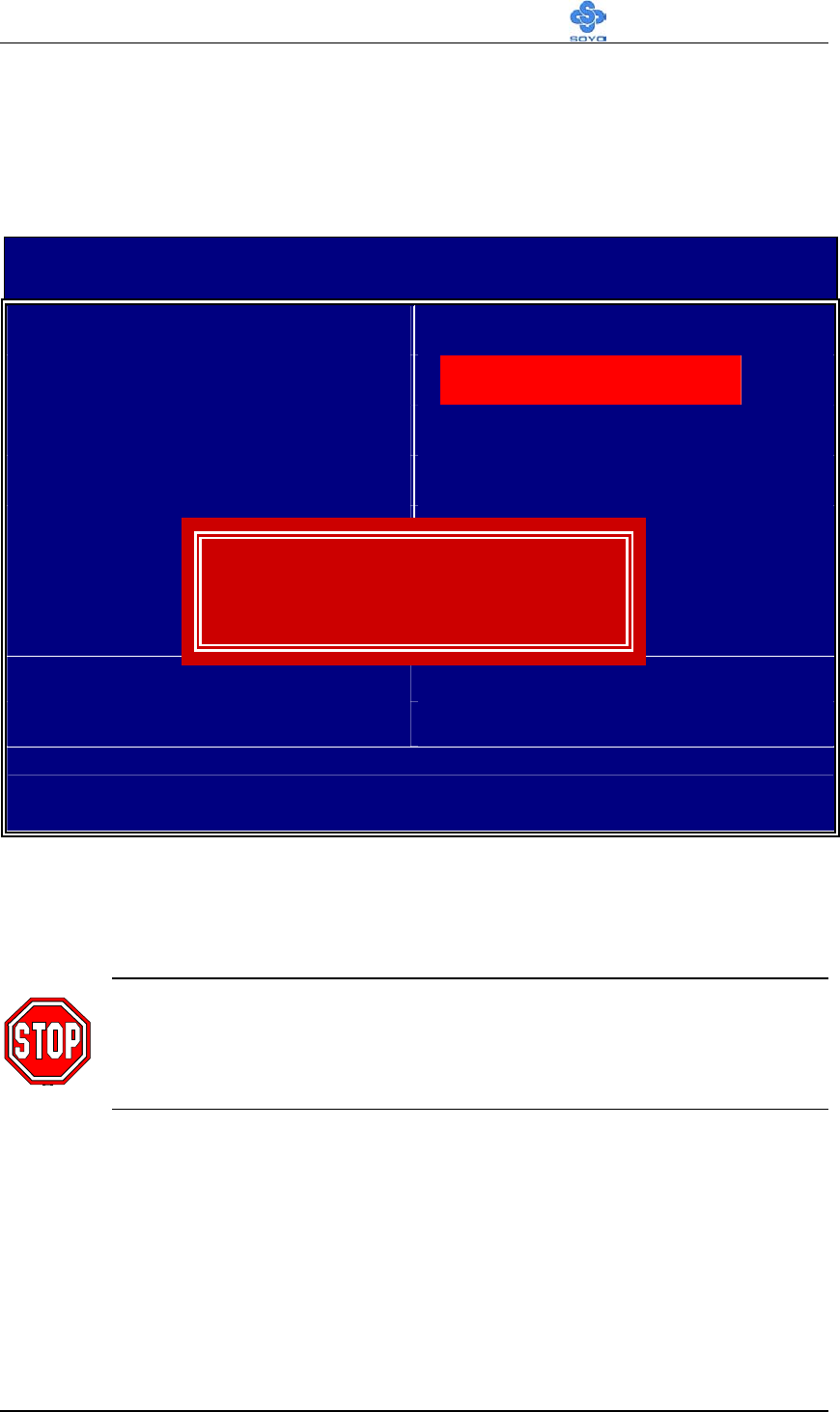
BIOS Setup Utility SY-K7ADA V1.0
76
3-8 LOAD FAIL-SAFE DEFAULTS
Select the [Load Fail-Safe Defaults] option from the Main Menu to load
the system values you have previously saved. This option is recommended
if you need to reset the system setup and to retrieve the old values.
CMOS Setup Utility – Copyright ( C ) 1984-2001 Award Software
Soyo Combo Feature PC Health Status
Standard CMOS Features Load Fail - Safe Defaults
Advanced BIOS Features Load Optimized Defaults
Advanced Chipset Features Set Supervisor Password
Integrated Peripherals Set User Password
Power Management Setup Save & Exit Setup
PnP/PCI Configurations Exit Without Saving
Esc : Quit : Select Item
F10 : Save & Exit Setup
Change CPU’s Clock & Voltage
Type [Y] to use the Setup Defaults followed by [Enter] or otherwise [N] to
return to the Main Menu and keep current values.
Warning: If you run into any problem after changing the BIOS
configuration, please load the FAILSAFE DEFAULTS for stable
performance.
Load Fail - Safe Defaults (Y/N)? Y
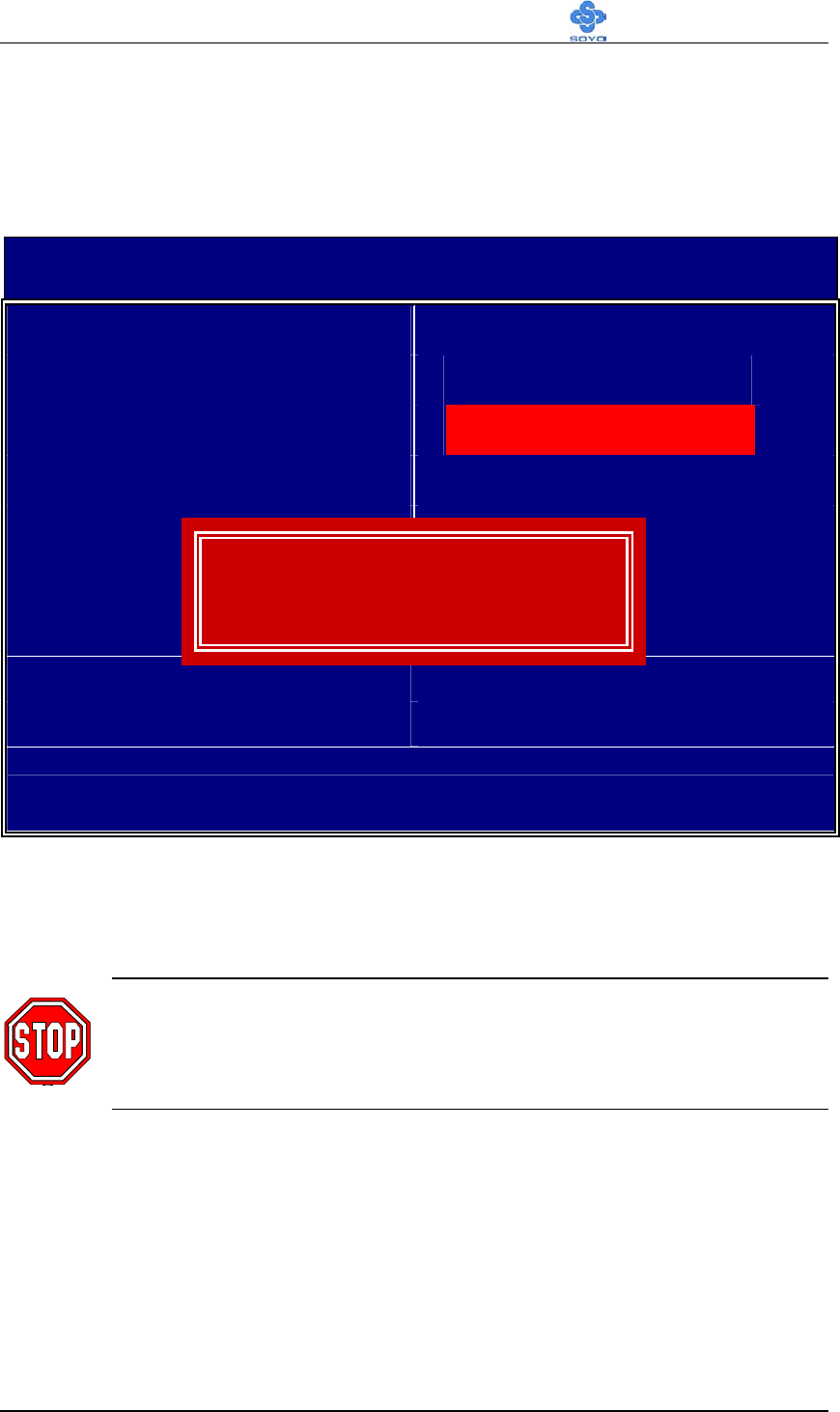
BIOS Setup Utility SY-K7ADA V1.0
77
3-9 LOAD OPTIMIZED DEFAULTS
Select the [Load Optimized Defaults] option from the Main Menu to load
the system values you have previously saved. This option is recommended
if you need to reset the system setup and to retrieve the old values.
CMOS Setup Utility – Copyright ( C ) 1984-2001 Award Software
Soyo Combo Feature PC Health Status
Standard CMOS Features Load Fail - Safe Defaults
Advanced BIOS Features Load Optimized Defaults
Advanced Chipset Features Set Supervisor Password
Integrated Peripherals Set User Password
Power Management Setup Save & Exit Setup
PnP/PCI Configurations Exit Without Saving
Esc : Quit : Select Item
F10 : Save & Exit Setup
Change CPU’s Clock & Voltage
Type [Y] to use the Setup Defaults followed by [Enter] or otherwise [N] to
return to the Main Menu and keep current values.
Warning: If you run into any problem after changing the BIOS
configuration, please load the FAILSAFE DEFAULTS for stable
performance.
Load Optimized Defaults (Y/N)? Y
BIOS Setup Utility SY-K7ADA V1.0
78
3-10 SUPERVISOR PASSWORD
Based on the setting you have made in the [Security Option] of the [BIOS
FEATURES SETUP] section, the password prevents access to the system
or the setup program by unauthorized users. Follow this procedure to set a
new password or disable the password:
1. Choose [BIOS FEATURES SETUP] in the Main Menu and press
[Enter]. Select the [Security Options] item and set the field to:
a. [System]: The password is required every time the system is
booted. This means only a person who knows the password can
use this computer.
b. [Setup]: The password is required only when you attempt to
enter the BIOS Setup program.
2. Choose [SUPERVISOR PASSWORD] from the Main Menu and
press [Enter]. The following prompt appear:
Warning: If you forget or lose the password, the only way to
access the system is to set jumper JP5 to clear the CMOS RAM.
All setup information is lost and you must run the BIOS setup
program again.
Note: If you do not wish to use the password function, press
[Enter] directly and the following message appears:
Enter Password:
Password Disabled!!
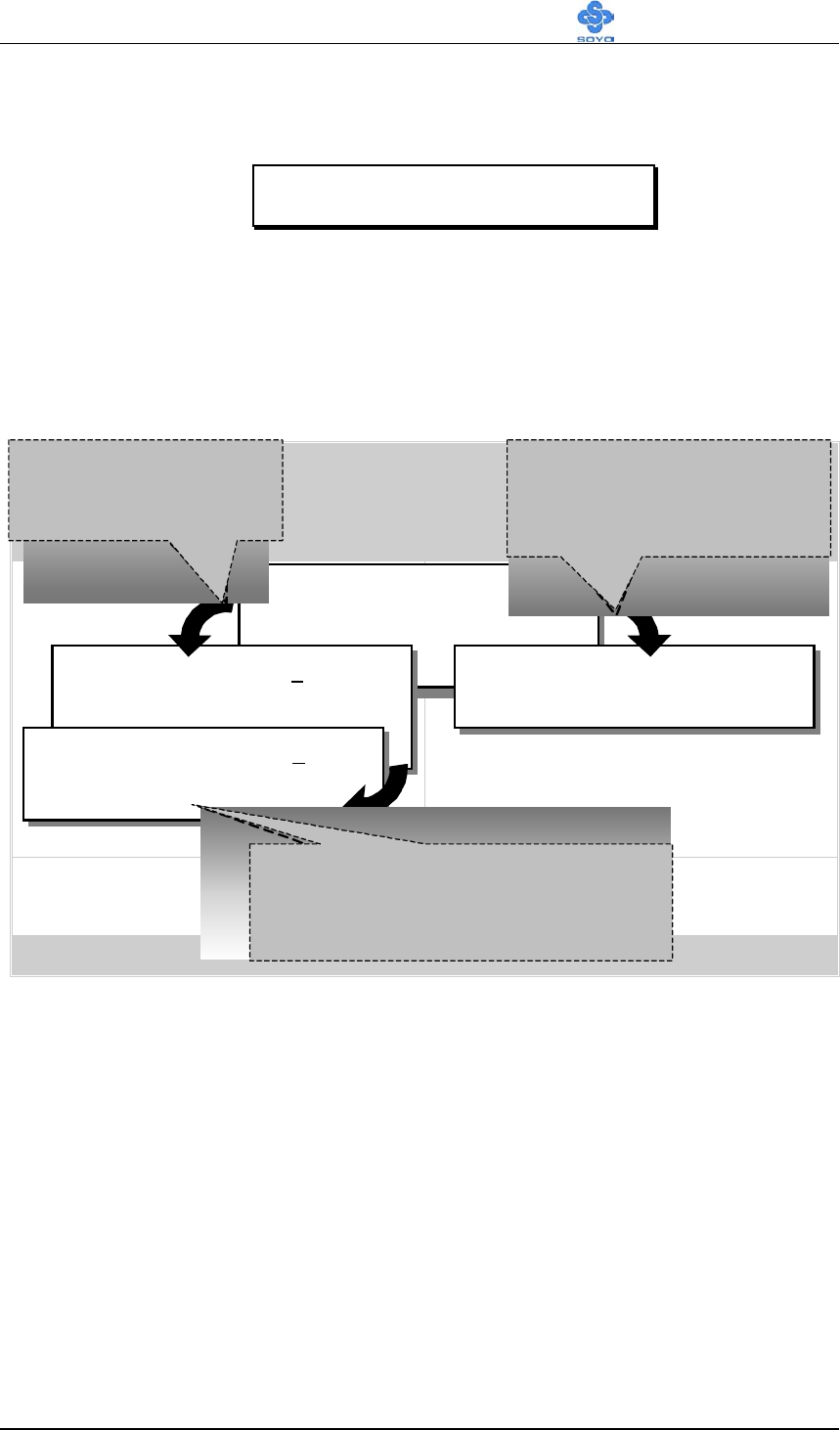
BIOS Setup Utility SY-K7ADA V1.0
79
3. Enter your new password and press [Enter]. The following message
appears, prompting to confirm the new password:
4. Re-enter your password and then press [Enter] to exit to the Main
Menu.
This diagram outlines the password selection procedure:
3-11 USER PASSWORD
When the user password option is on, you are not allowed to change any
setting in the [CMOS SETUP UTILITY] except for changing the user's
password.
The password setting procedure is similar to that for the [SUPERVISOR
PASSWORD] (Refer to section 3-9).
ROM PCI/ISA BIOS
CMOS SETUP UTILITY
AWARD SOFTWARE, INC.
STANDARD CMOS SETUP
BIOS FEATURES SETUP
CHIPSET FEATURES SETUP
POWER MANAGEMENT SETUP
PNP/PCI CONFIGURATION
LOAD SETUP DEFAULTS
LOAD BIOS DEFAULTS
INTEGRATED PERIPHERALS
SUPERVISOR PASSWORD
USER PASSWORD
IDE HDD AUTO DETECTION
SAVE & EXIT SETUP
EXIT WITHOUT SAVING
Esc
F10
: Quit
: Save & Exit Setup
↑ ↓ → ←
(Shift) F2
: Select Item
: Change Color
Time, Date, Hard Disk Type…
Enter Password:
Enter Password: ∗∗∗∗∗ Password Disabled!!
Confirm Password: ∗∗∗∗∗
Press:
↔
Without entering password
Type the Password
Press: ↔
After you confirm the
p
assword,
p
ress °to exit
Type the Password
and Press: <Enter>
Press <Enter> without
entering the password
After you confirm the password,
press <Esc> to exit
Confirm Password:
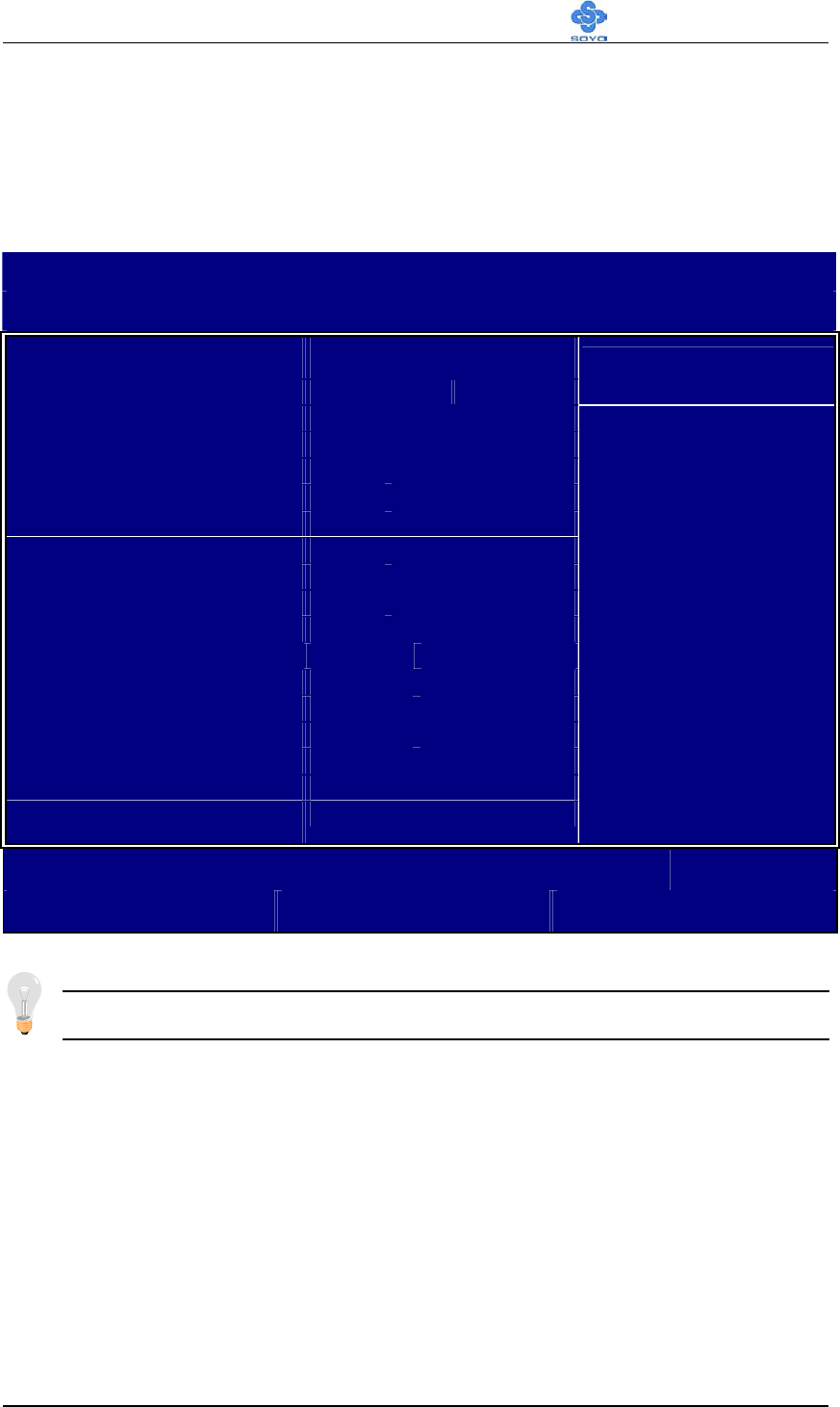
BIOS Setup Utility SY-K7ADA V1.0
80
3-12 IDE HDD AUTO DETECTION
This Main Menu function automatically detects the hard disk type and
configures the [Standard CMOS Features] accordingly.
CMOS Setup Utility – Copyright ( C ) 1984-2001 Award Software
IDE Primary Master
IDE HDD Auto-Detection Press Enter
Item Help
IDE Primary Master Auto
Capacity 0 MB
Access Mode Auto
0
Cylinder 0
Head 0
Precomp 0
Landing Zone 0
Sector
0
Menu Level
:Move Enter:Select +/-/PU/PD:Value F10:Save ESC:Exit F1:General Help
F5:Previous Values F6:Fail-Safe Defaults F7: Optimized Defaults
Note: This function is only valid for IDE type of hard disk drives.

BIOS Setup Utility SY-K7ADA V1.0
81
3-13 BOOT MENU
Boot Menu enables user to boot-up on different boot device without going into the BIOS
setup.
To enable boot Menu, press “ESC” after memory initialization, user will
see a device menu, in which user can choose the device they wish to boot
from.
Boot Menu
== Select a Boot First device ==
Floppy
Ls120
HDD-0
SCSI
CDROM
HDD-1
HDD-2
HDD-3
ZIP100
LAN
:Move ENTER:Accept F4:Exit
Drivers installation SY-K7ADA V1.0
82
Chapter 4
DRIVER INSTALLATION
Your SY-K7ADA V1.0 Motherboard comes with a CD-ROM labeled
"SOYO CD." The SOYO CD contains the user's manual file for your new
Motherboard, the drivers software available for installation, and a database
in HTML format with information on SOYO Motherboards and other
products.
Step 1. Insert the SOYO CD into the CD-ROM drive
If you use Windows NT, the SOYO-CD will not detect your motherboard
type. In that case the following dialog will pop up, please choose your
motherboard and press OK. Now the SOYO-CD Start Up Menu will be
shown.
(SOYO CD Start Up Program Menu)
7IWA-F
7IWA-F V1.0
6IWM/L
6IWM
6IWA
LI-7000
7IWB
7IWB V1.0
7IWM
7IWM/L V1
Please Select Your Board
OK Cancel
X
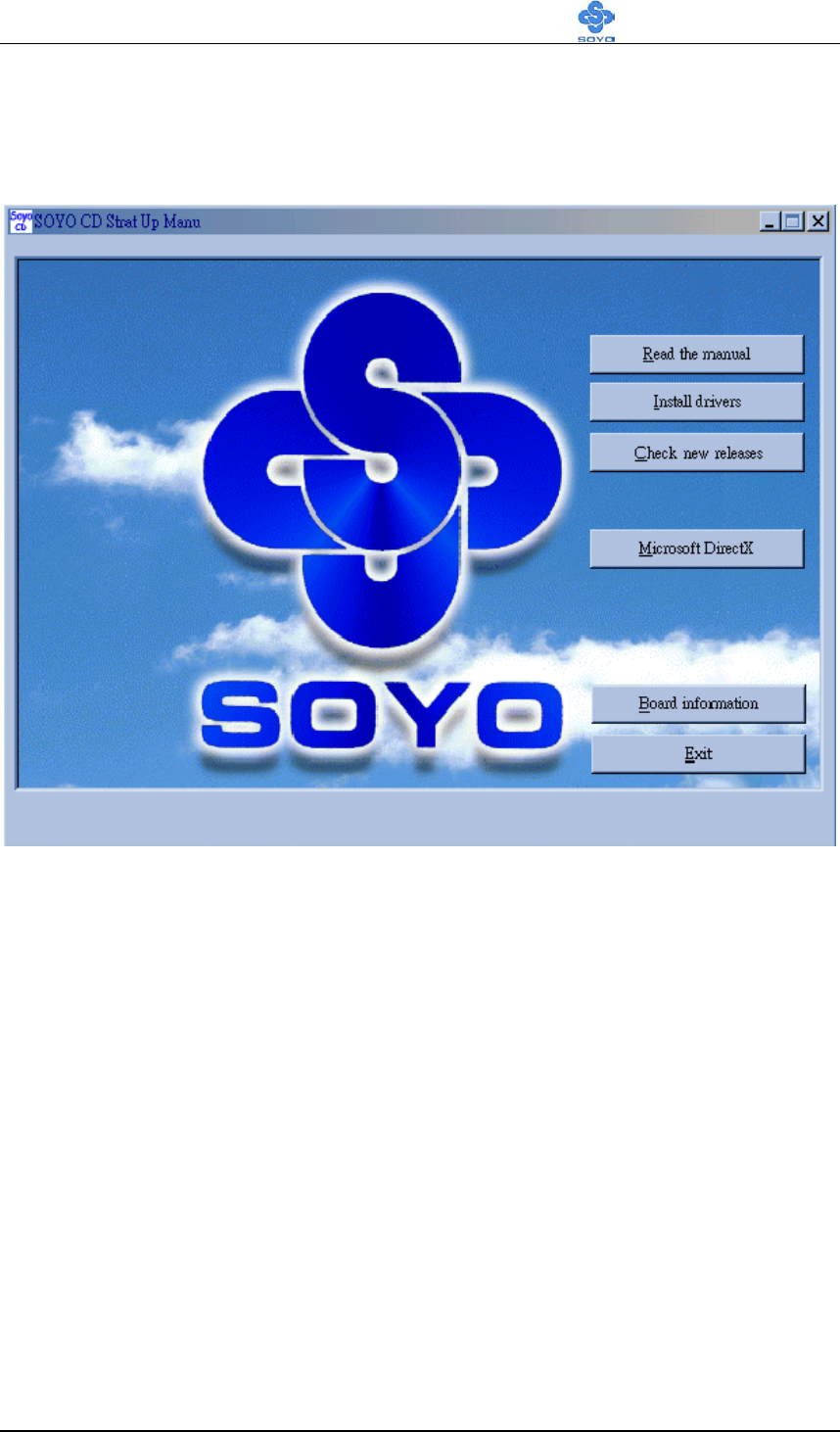
Drivers installation SY-K7ADA V1.0
83
If you use Windows 95 or 98, the SOYO CD Start Up Program
automatically detects which SOYO Motherboard you own and displays the
corresponding model name.
The user's manual files included on the SOYO CD are in PDF (Postscript
Document) format. In order to read a PDF file, the appropriate Acrobat
Reader software must be installed in your system.
Note: The Start Up program automatically detects if the Acrobat Reader
utility is already present in your system, and otherwise prompts you on
whether or not you want to install it. You must install the Acrobat Reader
utility to be able to read the user's manual file. Follow the instructions on
your screen during installation, then once the installation is completed,
restart your system and re-run the SOYO CD.
Drivers installation SY-K7ADA V1.0
84
Step 2. Install Drivers
Click the Install Drivers button to display the list of drivers software that
can be installed with your Motherboard. The Start Up program displays
the drivers available for the particular model of Motherboard you own. We
recommend that you only install those drivers.
(Driver Installation Menu)
A short description of all available drivers follows:
ALi AGP driver for Win 9x/2000/XP
The ALi AGP driver package includes all drivers your motherboard needs.
After selecting this driver package, one driver will be installed
automatically. A description of the 2 drivers follows:
ALi IDE Driver
This driver will speed up the data-transfer rate to and from the
harddisk.
ALi AGP Driver
This driver must be installed in order to be able to make use of the
on-board AGP Video functionality.
ALi Audio Accelerator Driver for Win 98/98SE/ME/2000/XP
You have to install the drivers before installing any application for the
Audio Accelerator.
driver
revision:
ALi AGP Driver for win 9x/2000/XP
ALi Onboard Audio Driver for win 98/98SE/ME/2000/XP
ALi Onboard Audio Driver for win NT4.0
ALi Hardware monitor Driver for win 9x/ME
ALi Hardware monitor Driver for win NT/2000/XP
Cancel OK

Drivers installation SY-K7ADA V1.0
85
ALi Audio Accelerator Driver for Win NT4.0
You have to install the drivers before installing any application for the
Audio Accelerator.
ALi hardware monitor for Win 9x/ME
Your motherboard comes with a hardware monitoring IC. By installing
this utility Temperature, Fan speed and Voltages can be monitored. It is
also possible to set alarms when current system values exceed or fall
below pre-set values.
ALi hardware monitor for Win NT/2000/XP
Your motherboard comes with a hardware monitoring IC. By installing
this utility Temperature, Fan speed and Voltages can be monitored. It is
also possible to set alarms when current system values exceed or fall
below pre-set values.
Select which driver you want to install and click OK, or click Cancel to
abort the driver installation and return to the main menu.
Note: Once you have selected a driver, the system will automatically exit
the SOYO CD to begin the driver installation program. When the
installation is complete, most drivers require to restart your system before
they can become active.
Step 3. Select which driver you want to install and click OK
Notice 1: Once you have selected a driver, the system will automatically exit
the SOYO CD to begin the driver installation program. When the
installation is complete, most drivers require to restart your system
before they can become active.
Notice 2: You may click Cancel to abort the driver installation and return to
the main menu.
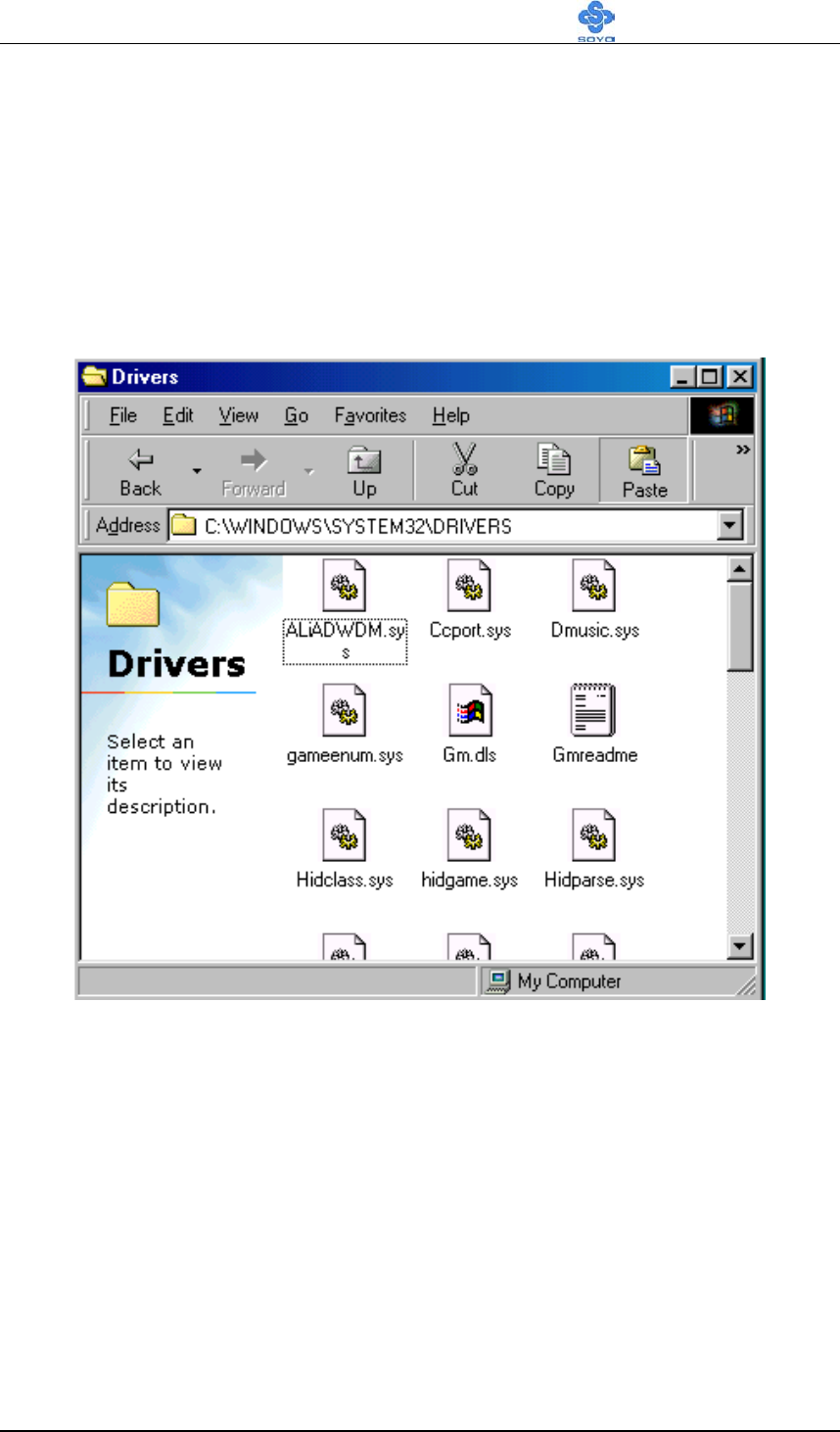
Drivers installation SY-K7ADA V1.0
86
Step 4.
1.For supporting S3 mode wake up function in WINDOWS 98se, please
download
the driver from SOYO web site (www.soyo.com.tw).
Please put this downloaded driver in c:\windows\system32\driver and
remove USB
device in “Device Manager” then refresh.
Please put this downloaded driver in c:\windows\system32\driver
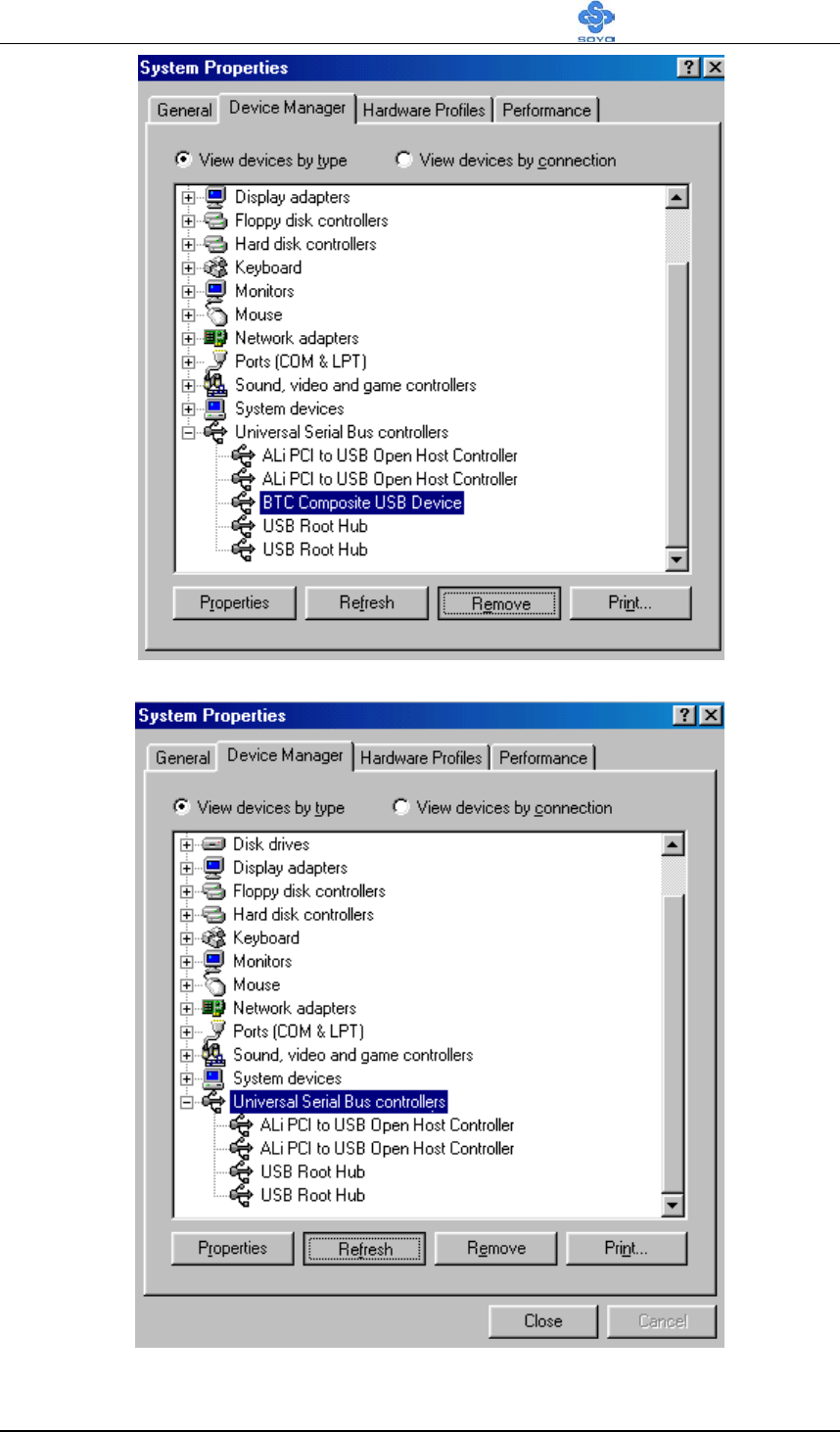
Drivers installation SY-K7ADA V1.0
87
Remove USB device(ex : USB keyboard, mouse,…,etc.)
Refresh
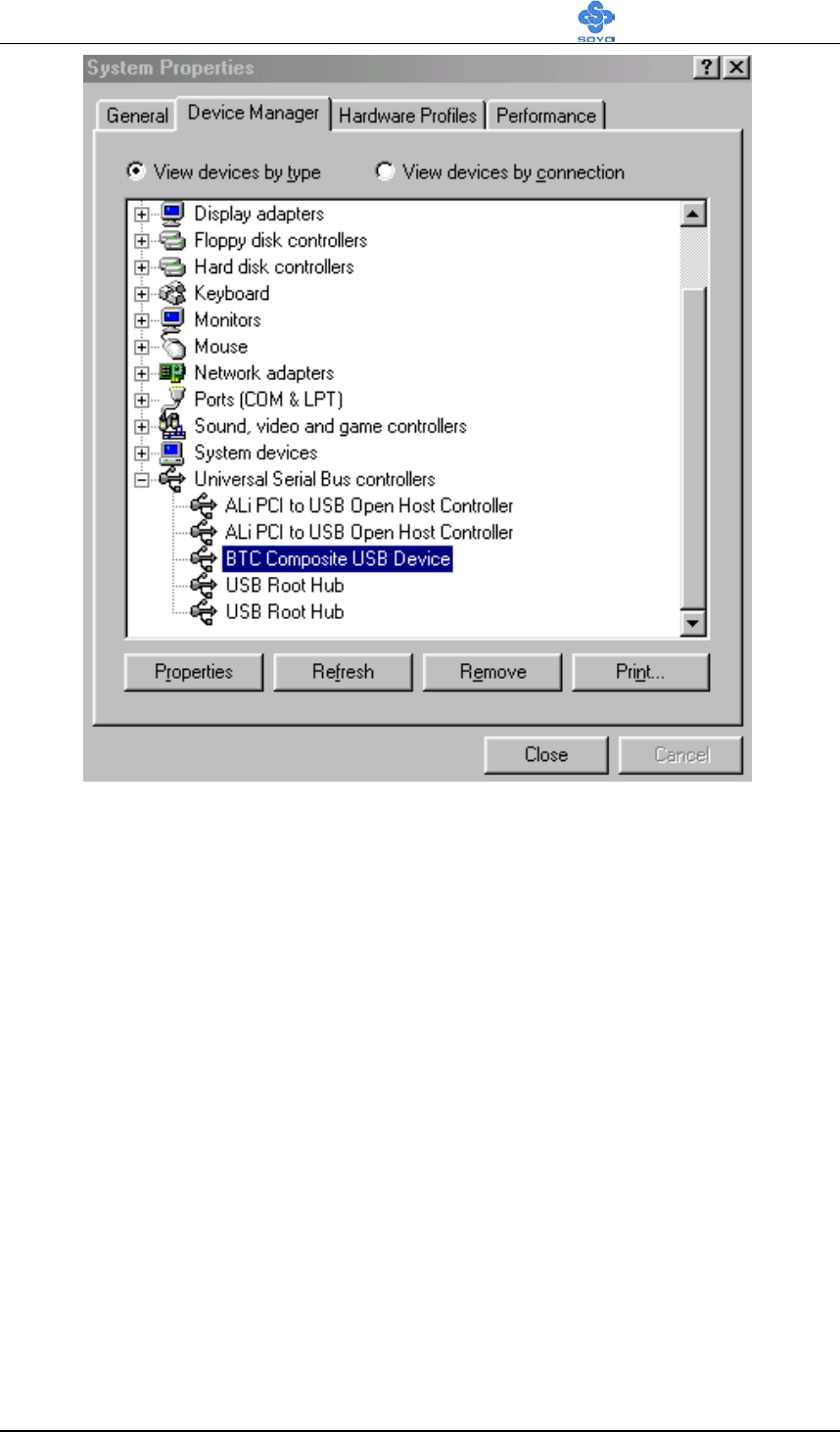
Drivers installation SY-K7ADA V1.0
88
Final
2.If customer uses the WINDOWS 95 OSR2, please use the NT version
driver when installing audio driver.
3.Right now, ALI chipset does not support ATI RAGE 128 graphics chip,
so K7ADA V1.0 can not support this kind of VGA card.
Step 5. Check the Latest Releases
Click the 'Check the latest Releases' button to go the SOYO Website to
automatically find the latest BIOS, manual and driver releases for your
motherboard. This button will only work if your computer is connected to
the internet through a network or modem connection. Make sure to get
your modem connection up before clicking this button.

89
