STONEX SRL B2030 S7 Series User Manual
STONEX SRL S7 Series
User Manual

1
STONEX
S7 SERIES
USER GUIDE
Version: 1.00
September 20

2
Company Info:
STONEX EUROPE S.R.L.
Via Cimabue,39,20851 Lissone(MB) Italy
Phone:+390392783008
Fax:+390392789576
Email: info@stonex.it
Website: www.stonexpositioning.com
Legal Notice:
Copyright and trademark
2011.Stonex Europe Srl. All rights reserved.
Release Notice
This is the June 2012 Release (Revision D) of Stonex S7 SERIES user guide. Stonex S7’s
operating system is based on the Microsoft Windows Mobile version 6.5 operating
system.
Limited Warranty Terms and Conditions:
Product Limited Warranty
Subject to the terms and conditions set forth herein, Stonex Europe Srl warrants that for
a period of (1) year from date of purchase S7 product will substantially conform to
Stonex’s publicly available specifications for the product and that the hardware and any
storage media components of S7 will be substantially free from defects in materials and
workmanship.
Product Software
Product software, whether built into hardware circuitry as firmware, provided as a
standalone computer software product, embedded in flash memory, or stored on

3
magnetic or other media, is licensed solely for use with or as an integral part of the S7
product and is not sold. The terms of the end user license agreement, as included below,
govern the use of the S7 Software, including any differing limited warranty terms,
exclusions and limitations, which shall control over the terms and conditions set forth in
the limited Product warranty.
Warranty Remedies
If S7 product fails during the warranty period for reasons covered by this limited
warranty and you notify Stonex of such failure during the warranty period, Stonex will
immediately carry out standard service procedures. According to different situation,
Stonex will repair OR replace the nonconforming Product with new, equivalent to new,
or reconditioned parts or Product, OR refund the Product purchase price paid by you, at
Stonex’s option, upon your return of the Product in accordance with Stonex's product
return procedures then in effect.
How to Obtain Warranty Service
To obtain warranty service for the Product, please contact your Stonex dealer.
Alternatively, you may contact Stonex Europe Srl. to request warranty service.
Email: support@stonex.it
Please be prepared to provide:
- your name, address, and telephone numbers;
- proof of purchase;
- a copy of this Stonex warranty;
- a description of the nonconforming Product including model name, serial
number of device;
- an explanation of the problem;
The customer service representative may need additional information from you
depending on the nature of the problem.

4
Warranty Exclusions and Disclaimer
This Product limited warranty shall only apply in the event and to the extent that (i) the
Product is properly and correctly installed, configured, interfaced, maintained, stored,
and operated in accordance with Stonex's applicable operator's manual and
specifications, and; (ii) the Product is not modified or misused. This Product limited
warranty shall not apply to, and Stonex shall not be responsible for, defects or
performance problems resulting from (i) the combination or utilization of the Product
with hardware or software products, information, data, systems, interfaces, or devices
not made, supplied, or specified by Stonex; (ii) the operation of the Product under any
specification other than, or in addition to, Stonex's standard specifications for its
products;(iii) the unauthorized installation, modification, or use of the Product;(iv)
damage caused by: accident, lightning or other electrical discharge, fresh or salt water
immersion or spray (outside of Product specifications); or exposure to environmental
conditions for which the Product is not intended; (v) normal wear and tear on
consumable parts (e.g., batteries); or (vi) cosmetic damage. Stonex does not warrant or
guarantee the results obtained through the use of the Product or software, or that
software components will operate error free.
NOTICE:
Regarding products equipped with technology capable of tracking satellite signals from
based augmentation systems (SBAS) (WAAS, EGNOS, and MSAS), OMNISTAR, GPS,
modernized GPS or GLONASS satellites, or from IALA beacon sources: STONEX is not
responsible for the operation or failure of operation of any satellite based positioning
system or the availability of any satellite based positioning signals. The foregoing limited
warranty terms state STONEX’s entire liability, and your exclusive remedies, relating to
the STONEX product. Except as otherwise expressly provided herein, the product, and
accompanying documentation and materials are provided “as-is” and without express or
implied warranty of any kind, by either STONEX or anyone who has been involved in its
creation, production, installation, or distribution, including, but not limited to, the

5
implied warranties of merchantability and fitness for a particular purpose, title, and
noninfringement. The stated express warranties are in lieu of all obligations or liabilities
on the part of STONEX arising out of, or in connection with, any product. Because some
states and jurisdiction do not allow limitations on duration or the exclusion of an
implied warranty, the above limitation may not apply to you.
Limitation of Liability
STONEX's entire liability under any provision herein shall be limited to the amount paid
by you for the product. To the maximum extent permitted by applicable law, in no event
shall STONEX or its suppliers be liable for any indirect, special, incidental, or
consequential damage whatsoever under any circumstance or legal theory relating in
any way to the products, software and accompanying documentation and
materials,(including, without limitation, damages for loss of business profits, business
interruption, loss of data, or any other pecuniary loss),regardless of whether STONEX
has been advised of the possibility of any such loss and regardless of the course of
dealing which develops or has developed between you and STONEX. Because some
states and jurisdictions do not allow the exclusion or limitation of liability for
consequential or incidental damages, the above limitation may not apply to you.

6
Contents
Chapter 1: Introduction .......................................................................................................... 1
1.1. Specification ................................................................................................................................. 10
1.2. Product Features ........................................................................................................................ 13
1.3. Inside the Box (Standard Accessories) ............................................................................... 14
1.4. Optional Accessories ................................................................................................................. 14
1.5. Use and Care of the Handheld ................................................................................................ 15
Chapter 2: Getting Started ................................................................................................... 17
2.1. Parts of the S7 SERIES Handheld .......................................................................................... 18
2.2. Powering the Handheld ............................................................................................................ 20
2.3. Turning on and turning off the handheld ........................................................................... 27
2.4. Resetting the handheld ............................................................................................................ 28
2.5. Storing data .................................................................................................................................. 29
2.6. Installing and removing a SIM card ..................................................................................... 33
2.7. Fitting the hand strap ............................................................................................................... 34
Chapter 3: Using the Windows Mobile Operating System ............................................ 35
3.1. Parts of the screen ..................................................................................................................... 36
3.2. Status indicators ......................................................................................................................... 37
3.3. Pre-installed programs ............................................................................................................ 39
3.4. Interacting with the handheld ............................................................................................... 39
3.5. Entering information ................................................................................................................ 40
3.6. Personalizing the handheld .................................................................................................... 43
3.7. GPRS network setting ............................................................................................................... 52
3.8. Bluetooth connecting ................................................................................................................ 55
Chapter 4: Connecting to a PC ............................................................................................. 58
4.1. Connection management software ....................................................................................... 59
4.2. Connecting the handheld to a PC .......................................................................................... 60
4.3. Managing the connection using the Windows Mobile Device Center ....................... 61
4.4. Managing the connection using ActiveSync technology ................................................ 63
4.5. Installing software onto the handheld ................................................................................ 64
Chapter 5: Using the camera................................................................................................ 66
Chapter 6: Troubleshooting................................................................................................. 70
6.1. Power issues ................................................................................................................................ 71
6.2. Backlight issues .......................................................................................................................... 72
6.3. Touch screen issues ................................................................................................................... 73
6.4. Storage card issues .................................................................................................................... 74
6.5. Keypad issues .............................................................................................................................. 74
6.6. Connection issues ....................................................................................................................... 74
6.7. GNSS receiver issues ................................................................................................................. 81
6.8. Real-time DGNSS issues ........................................................................................................... 82

7
Chapter 1:Introduction
In this chapter:
Specification
Product Features
Inside the Box(Standard Accessories)
Optional Accessories
Use and Care of the Handheld
8
Chapter 1: Introduction
CE certification
STONEX S7 SERIES comply with the relevant standards of CE and it also get the
agreement of the Notify Body CE0890.
FCC Certification
S7 Series sells to all over the world that means ours meet the standards of different
countries. This device complies with Part 15 of the FCC Rules. Operation is subject to the
following two conditions: (1) this device may not cause harmful interference and (2)
this device must accept any interference received, including interference that may cause
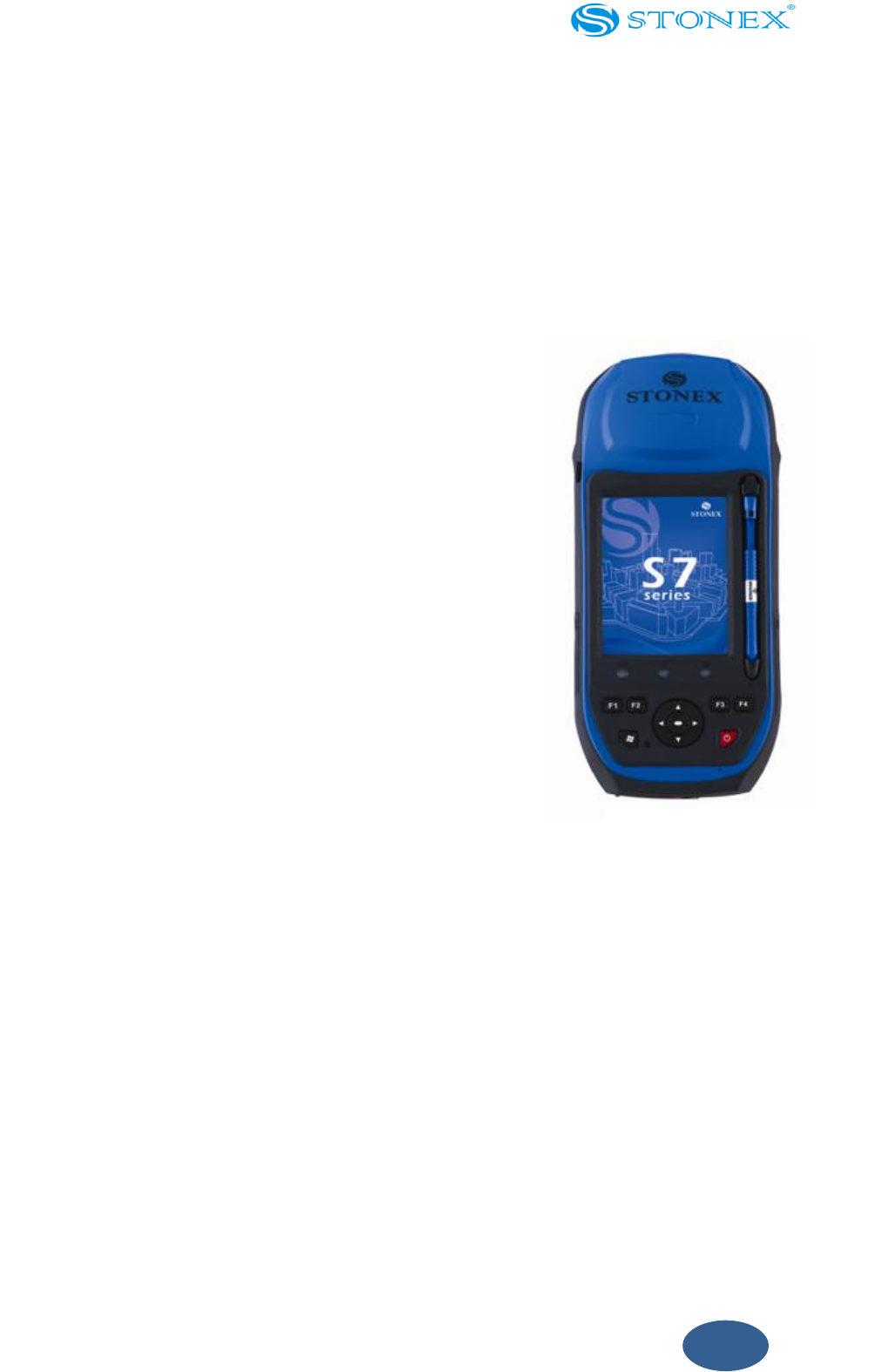
STONEX S7 SERIES includes three models: S7-S, S7-D, S7-G. These
receivers combined STONEX GPS/GNSS receiver with a field
computer powered by Microsoft Windows Mobile version 6.5
operating system, a system which you can master usage fast.
Stonex S7 is the best choice you can have for field data collection
as it delivers real high accuracy in all GPS/GNSS situations. With
all together every essential and important functionality for
productive GIS data collection in one single device: high-accuracy
positioning, quality photo capture, Internet connectivity, you can
use S7 to carry out high accuracy surveying work.
The STONEX S7 SERIES handheld has built-in Bluetooth wireless
technology for cable-free connection to other devices, and Wi-Fi
connectivity for connections to networks. In addition, wireless
GSM cellular modem allows free connectivity to Internet for data
downloading and transmitting.
Fig. 1.0.1 - S7 mainframe

9
undesired operation.
Changes or modifications not expressly approved by the party responsible for
compliance could void the user’s authority to operate the equipment.
This equipment has been tested and found to comply with the limits for a Class B digital
device, pursuant to Part 15 of the FCC Rules. These limits are designed to provide
reasonable protection against harmful interference in a residential installation. This
equipment generates, uses and can radiate radio frequency energy and, if not installed
and used in accordance with the instructions, may cause harmful interference to radio
communications. However, there is no guarantee that interference will not occur in a
particular installation.
If this equipment does cause harmful interference to radio or television reception, which
can be determined by turning the equipment off and on, the user is encouraged to try to
correct the interference by one or more of the following measures:
Reorient or relocate the receiving antenna.
Increase the separation between the equipment and receiver.
Connect the equipment into an outlet on a circuit different from that to which the
receiver is connected.
Consult the dealer or an experienced radio/TV technician for help.
This equipment complies with FCC radiation exposure limits set forth for an
uncontrolled environment. End user must follow the specific operating instructions for
satisfying RF exposure compliance. This transmitter must not be co-located or operating
in conjunction with any other antenna or transmitter.
The portable device is designed to meet the requirements for exposure to radio waves
established by the Federal Communications Commission (USA). These requirements set
a SAR limit of 1.6 W/kg averaged over one gram of tissue. The highest SAR value
reported under this standard during product certification for use when properly worn
on the body is 1.184 W/kg.
IC Certification
For the Canada market, this device also complies with Industry Canada license-exempt
RSS standard(s). Operation is subject to the following two conditions: (1) this device

10
may not cause interference and (2) this device must accept any interference, including
interference that may cause undesired operation of the device.
Cet appareil s’accorde avec Industrie Canada licence-exempte RSS standard.(1) cet
appareil ne peut pas causer l’intervention, et (2) cet appareil doit accepter de
l’intervention, y compris l’intervention qui peut causer l’opération non désirée de.
This Class【B】digital apparatus complies with Canadian ICES-003.
Cet appareil numérique de la classe B est conforme à la norme NMB-003 du Canada
1.1. Specification
System:
Operation system: Windows Mobile 6.5
Processor:Marvell PXA-310 806MHz Xscale CPU
Internal storage: 256MB RAM, 4G flash memory/SD expansion slot (up to 16GB)
Media:
Integrated Speaker and Microphone, Recording and Playback support
640x480 resolution,3.7” color LCD and touch screen
Built-in 5 megapixel autofocus camera, with LED flashlight
Data Communication
Standard waterproof USB connector
Standard Bluetooth
802.11b/g Wireless LAN
Built-in GPRS/GSM Communication Module, CDGE Support and Selectable
One-way Data Traffic

11
GNSS Specifications
S7-S:
Positioning Accuracy: Sub-meter/decimeter
Channels: 12 Channels
System: GPS (L1 C/A, L1 carrier phase smoothing), SBAS
Post-differential Positioning: <0.5m+1ppm
Point Positioning (Autonomous):2.5m (RMS)
DGPS Positioning: <0.5m (CEP)
SBAS Positioning: 0.6m (CEP)
Update Rate: 1Hz
Time to first fix: <60s (Usual)
NMEA 0183 Support: Available
RTCM Support: RTCM
SC-104 v2.x
SNR: ≥45dbHz (up to 4 satellites)
S7- D:
Positioning Accuracy: Sub-meter/decimeter
Channels: 14 Channels
System: GPS (L1 C/A, L1), GLONASS (L1 C/A, L1),SBAS
Post-differential Positioning: <0.5m+1ppm
Point Positioning (Autonomous):1.5m (RMS)
DGPS Positioning: 0.5m (CEP)
SBAS Positioning: 0.6m (CEP)
Update Rate: 1Hz
Time to first fix: <60s (Usual)
NMEA 0183 Support: Available
RTCM Support: RTCA,RTCM2,RTCM3,CMR

12
S7-G:
Positioning Accuracy: Centimeter
Channels: 120 Channels
System: GPS (L1 C/A, L1, L2, L2C), GLONASS (L1 C/A, L1,
L2)GALILEO (E1 test), COMPASS, SBAS
Post-differential Positioning: 5mm + 1ppm (horizontal)
Point Positioning (Autonomous):1.2m (RMS)
RTK Positioning (int. antenna): H: 2cm+1ppm; V: 3cm+2 ppm
RTK Positioning (ext. antenna): H: 1cm+1ppm; V: 2cm+1.5 ppm
DGPS Positioning: 0.4m (CEP)
SBAS Positioning: 0.6m (CEP)
Update Rate: 1Hz
Time to first fix: <50s (Usual)
NMEA 0183 Support: Available
RTCM Support: RTCM 2.1, 2.3, 3.0, 3.1, CMR, CMR+,RTCA
Input/Output
Support SBAS (MSAS\WAAS\EGNOS)
Data I/O, NMEA-0183 (GGA, ZDA, GLL, RMC, GSA, GSV, VTG)
Correction I/O agreement: RTCM2/3 (depending on the S7 model)
CORS and Area Reference Station VRS Compatibility
Size and Weight
Size: 234×99×56mm (L*W*D)
Weight (battery included):
S7-S/D: 850g
S7-G: 895g
Battery
Battery capacity:11.1V×2500mAh, large capacity

13
Working hours:8 hours (normal use)
Environment
Humidity: 5%~95% RH (non-condensing)
Operating Temperature: -20°C to +60°C
Storage Temperature: -30°C to +70°C
Waterproof/Dustproof: IP65
Drop test: 1.5m on concrete
1.2. Product Features
1. Professional GPS module
International professional brand survey GPS main board, with latest ASIC
chip and COAST patent algorithm, is quicker and more stable than navigation
GPS main board when tracking satellites, more accurate and reliable when it
is positioned. Using multipath rejection technology, Stonex S7 can deliver
excellent performance even in conditions where sky view is obstructed by
buildings, trees or landscape features.
2. High accuracy single point SBAS
3. Connection to CORS network of stations
Built-in high quality GPRS module, can be seamlessly connected to CORS
system or provisional base station which has net function. Stable connection
to net assures accurate and reliable real-time differentiate correction data
reaching high accuracy.
4. Convenient Bluetooth
Equipped with Bluetooth module, STONEX S7 can transmit data with other
Bluetooth devices. It can also be used with RTK receivers as a PDA.
5. Compatibility for static survey
S7 can be used with other GPS receivers in static survey to get high accuracy
data (using external antenna), in massive GPS control survey task.
6. Excellent field performance

14
With GPS antenna, main board, main receiver controller, all integrated in one
single device, S7 has industrial grade quality, can work well even in harsh
environments. The high capacity of the battery offers 8 hours of work,
enabling S7 to be used in field.
7. Advance system
Intel processor, 256MB internal memory, 640×480 high resolution and 3.7”
VGA LCD display, great graphics capability. You can freely operate it by touch
screen and open pictures easily. Moreover, S7 screen is readable even in
sunlight.
1.3. Inside the Box (Standard Accessories)
When you unpack the STONEX S7 SERIES handheld check that you have received all the
following components:
S7 PDA
USB cable
Power adapter and plugs
Battery
Package bag
Rear handstrap
Stylus pen and string
Screen protector
S7 CD and user guide
Inspect all contents for visible damage (scratches, dents) and if any components appear
damaged, notify the shipping carrier. Keep the shipping and packaging material for the
carrier’s inspection.
1.4. Optional Accessories
Plastic carrying case
Bracket

15
External antenna (GNSS L1; GNSS, L1 L2)
Telescopic carbon pole
Coaxial cable for external antenna (2m, 5m)
1.5. Use and Care of the Handheld
To protect the STONEX S7 SERIES handheld when not in use, STONEX recommends
storing the handheld in the package bag provided.
When using the handheld:
To protect the touch screen from pressure and abrasive objects, STONEX has
applied a screen protector on screen before delivery. One more piece is provided
inside the package.
Protect the touch screen by using your finger or the stylus provided and avoid
using excessive pressure and sharp or abrasive objects.
Keep the outer surface free of dirt and dust.
Ensure that protective covers and doors are appropriately fitted to the external
antenna port, SIM and storage card areas, so that they are kept free from dirt,
dust, fluid ingress and electrostatic discharge.
Protect the handheld from extreme temperatures, for example do not leave the
handheld on the dashboard of a vehicle.
When the battery is removed the handheld is not waterproof. Avoid exposing the
internals of the handheld to dust and moisture when removing the battery.
STONEX recommends that you only swap the battery indoors or from inside a
vehicle.
Use the handstrap provided with the STONEX S7 SERIES handheld. To clean the
handheld, wipe it with a clean and dry cloth. Do not immerse the handheld in
water.
Storing the handheld:

16
If you are not going to use the handheld for three months or more, STONEX recommends
that you do not leave the handheld in Suspend mode. Instead, partially charge the
battery and then turn off the handheld.
To prepare the STONEX S7 SERIES handheld for storage:
1. Transfer any data that you need to an office computer.
2. Charge the battery to approximately 30%.
3. Press the Power key for six second until the red Power light begins to blink.
4. Store the handheld at room temperature.
To use the STONEX S7 SERIES handheld after storage:
1. Press the Power key to turn on the handheld.
2. Recharge the battery.

17
Chapter 2: Getting Started
In this chapter:
Parts of the S7 SERIES Handheld
Powering the handheld
Turning on and turning off The handheld
Resetting the handheld
Storing data
Installing and removing a SIM card
Fitting the hand strap
18
2.1. Parts of the S7 SERIES Handheld
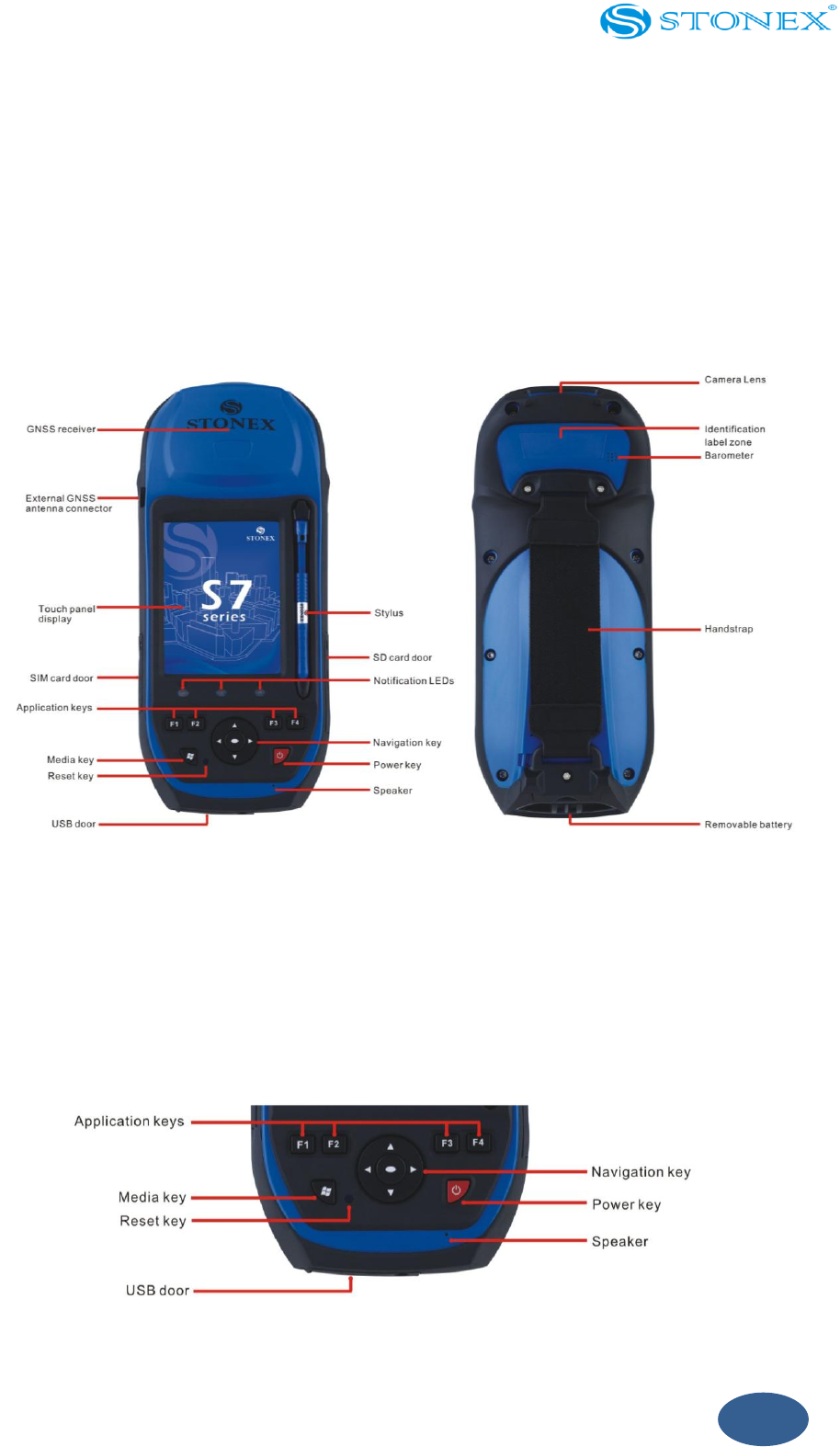
The following diagrams show the main parts of the handheld.
Fig.2.1- Parts of S7 SERIES handheld
Key Buttons
The S7 SERIES handheld has a keypad for fast and easy access to common actions. LEDs
provide visual notification of system events.
Fig.2.1- S7 SERIES handheld keypad area
19
The function of each key is described below:
Key
Description
Power key
Press briefly (less than one second) to turn on the handheld or
to turn off the handheld (put it into Suspend mode).
To access to other power options or to reset the handheld
press and hold for one second until the Power menu appears.
Left and right soft keys
By default these keys perform the same action as the left and
right soft keys in the title bar.
Alternatively, program these keys to perform a selected
action.
To program the keys use the control Buttons.
Tip: To lock the screen and handheld keys without turning off the handheld use the
device lock option.
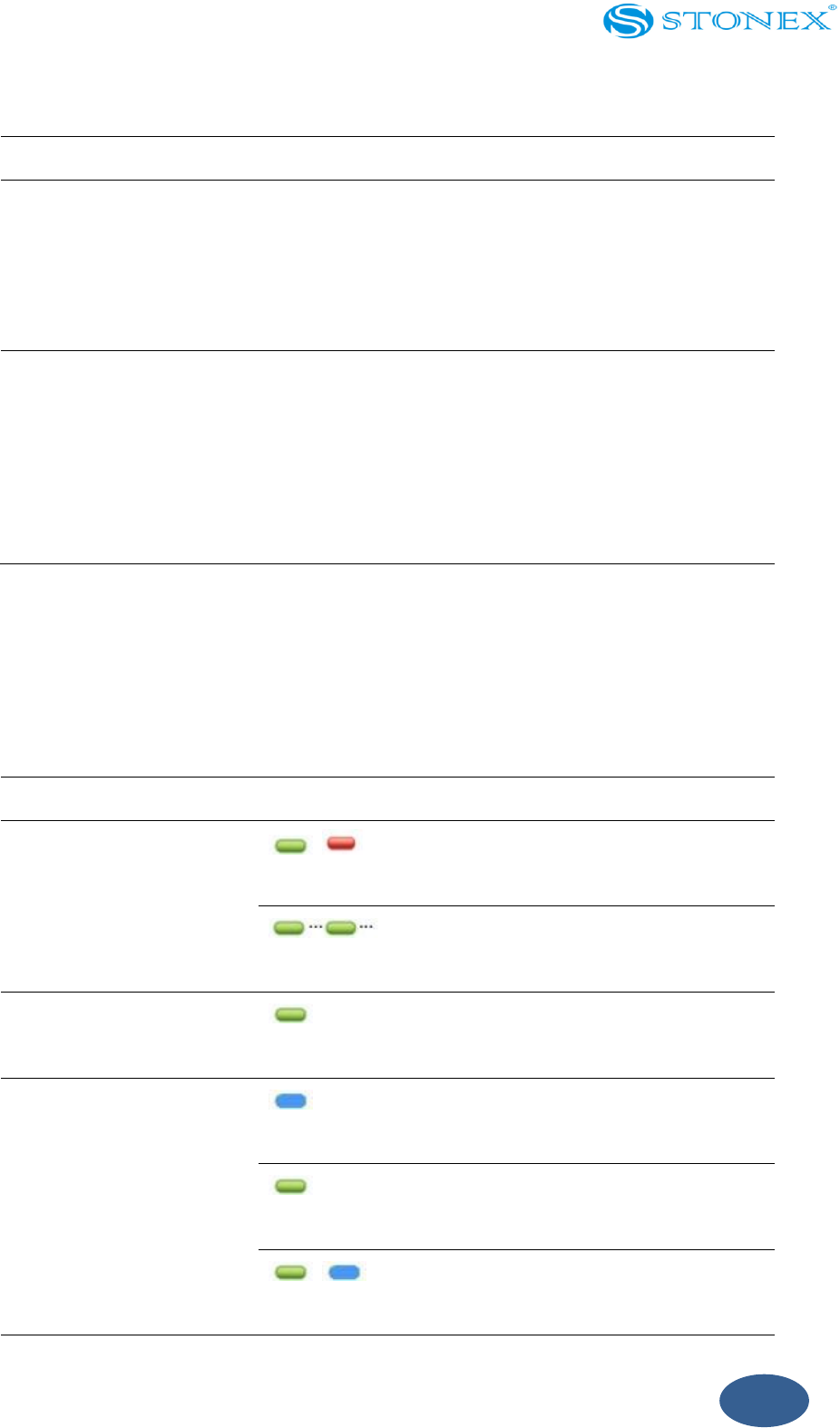
The function of each LED is described below:
Key
LED
Description
Battery status
Solid green and red:
Battery charge is complete.
Flashing green: Battery is
charging.
GPS receiver status
Solid green: GPS receiver is
turned on.
Wireless radio status
Solid blue: Blutooth is
turned on.
Solid green: Phone is
turned on.
Solid blue and green: Both
Blutooth and phone are

20
turned on.
2.2. Powering the Handheld
The STONEX S7 SERIES handheld contains a removable rechargeable Lithium-ion
battery.
Notes: Charge the battery completely before using the handheld for the first time. If the
battery has been stored for longer than six months, charge it before use. STONEX
recommends charging the battery for five hours to recharge it fully.
When the battery is fully charged, the handheld battery provides enough power for a full
work day (8 hours) using the internal GPS/GNSS antenna and with the backlight on at
the default settings.
Notes: Cold temperatures or using Bluetooth wireless technology, Wi-Fi, or the wireless
cellular modem consumes additional battery power and so shortens battery life
between charges.
AC Adapter Safety
- Use only the AC adaptor intended for the STONEX S7 SERIES handheld. Using
any other AC adaptor can damage the handheld and void its warranty. Do not
use the AC adaptor with any other products.
- Make certain that the input voltage on the adaptor matches the voltage and
frequency in your location.
- Make certain that the adaptor has prongs compatible with your outlets.
- Do not use the AC adaptor in wet outdoor areas; it is designed for indoor use
only.
- Unplug the AC adaptor from power when not in use.
- Do not short the output connector.

21
- Be aware that there are no user-serviceable parts in this product.
- If the AC adaptor becomes damaged, replace it with a new STONEX AC adaptor.
Electrostatic discharge
Static electricity will destroy internal electronic components.
To prevent electrostatic damage:
Before touching any internal electronic components internal, such as memory module,
make certain you have released the static carried by the body.
A way you can take is to touch unpainted metal surface first.
S7 SERIES is designed for outdoor use but it can discharge under low humidity or very
high voltage condition. Users should avoid touching the handheld side sunk port with
fingers, thus can minimize the risk of discharging to sensitive electronic component.
Battery safety
Do not damage the rechargeable Lithium-ion battery. A damaged battery can cause an
explosion or fire and can result in personal injury and/or property damage.
To prevent injury or damage:
- Do not use or charge the battery if it appears to be damaged. Signs of damage
include, but are not limited to, discoloration, warping, and leaking battery fluid.
- Do not store or leave your device near a heat source such as near a fireplace or
other heat-generating appliance, or otherwise expose it to temperatures in
excess of 70° C such as on a vehicle dashboard. When heated to excessive
temperatures battery cells could explode or vent, posing a risk of fire.
- Do not immerse the battery in water.
- Do not use or store the battery inside a vehicle during hot weather.
- Do not drop or puncture the battery.
- Do not open the battery or short-circuit its contacts.

22
Avoid contact with the rechargeable Lithium-ion battery if it appears to be leaking.
Battery fluid is corrosive, and contact with it can result in personal injury and/or
property damage.
To prevent injury or damage:
- If the battery leaks, avoid contact with the battery fluid.
- If battery fluid gets into your eyes, immediately rinse your eyes with clean water
and seek medical attention. Do not rub your eyes!
- If battery fluid gets onto your skin or clothing, immediately use clean water to
wash off the battery fluid.
- Do not open the battery or short-circuit its contacts.
Charge and use the rechargeable Lithium-ion battery only in strict accordance with the
instructions. Charging or using the battery in unauthorized equipment can cause an
explosion or fire and result in personal injury and/or equipment damage.
To prevent injury or damage:
- Do not charge or use the battery if it appears to be damaged or leaking.
- Charge the Lithium-ion battery only in a STONEX product that is specified to
charge it. Be sure to follow all instructions that are provided with the battery
charger.
- Discontinue charging a battery that gives off extreme heat or a burning odor.
- Use the battery only in STONEX equipment that is specified to use it.
- Use the battery only for its intended use and according to the instructions in the
product documentation.
Inserting the battery
To insert the battery into the handheld:
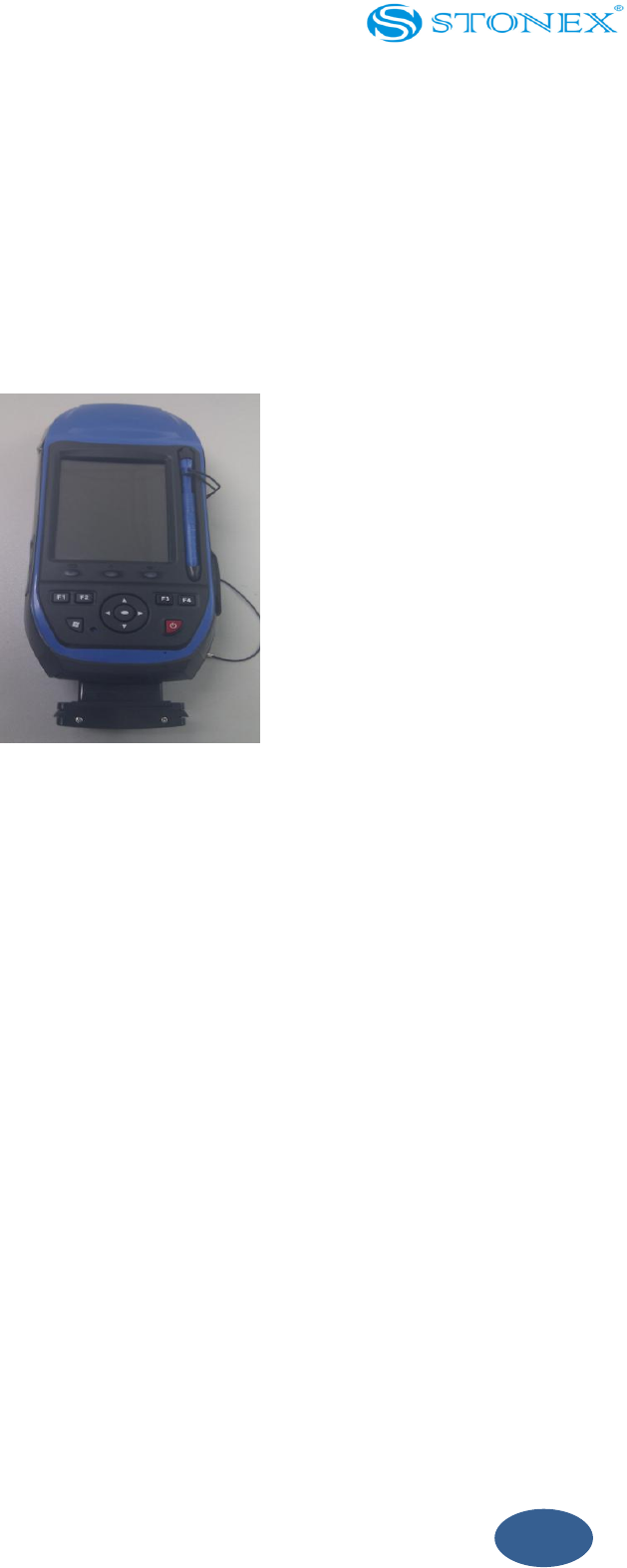
1. Slide the battery into the cavity with the label facing upwards (as shown in
Figure 2.2).
23
2. Push the battery in until it clicks into place.
Notes: Make sure that the battery is fully inserted and that both the left and right latches
are fully engaged. If the battery is not properly inserted, it may fall out if the device is
dropped.
Fig 2.2.1 - Inserting the battery
Charging the battery
The removable rechargeable Lithium-ion battery is partly charged when the instrument
leaves factory. It should be fully charging before first time use. If the battery has been
stored for longer than six months, it should be charged again before use. STONEX
recommends charging the battery for five hours to recharge it fully.
Charge the battery in the handheld, or, if you have a spare battery, you can charge it
outside the handheld.
To charge the battery:
1. Connect the connector of the AC adaptor cable to the battery and the power plug
to an AC power outlet.
2. Turn off the handheld or put the handheld in Standby mode.
Note: STONEX recommends that you charge the handheld at or below normal
24
room temperature (0 to 30° C).
3. Leave the battery to charge. It may take up to five hours for the handheld to
charge completely.
When the battery is charging inside the handheld the Power LED on the front cover
is flashing green.
When the battery is fully charged the Power LED is solid green.
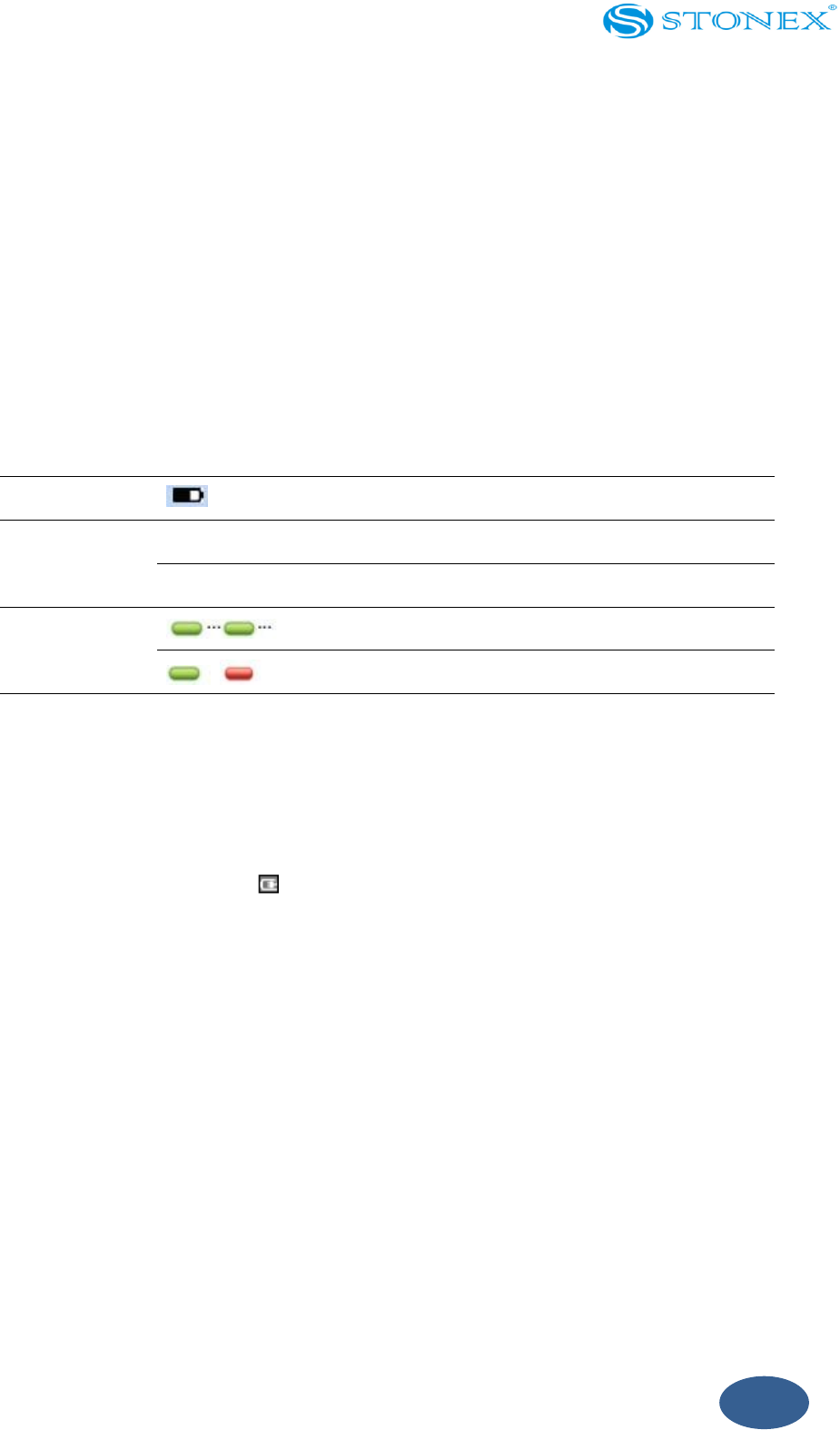
The Power LED on the keypad on the handheld indicates the battery power or charging
status as shown below:
Power source
LED state
Handheld/battery state
Battery power
Off
Handheld is turned off or is in Suspend mode.
Off
Handheld is turned on and battery level is good.
External power
Flashing green: Battery is charging.
Solid green and red: Charging is complete.
Note: During normal charging the battery may become hotter than the maximum
temperature allowed (40° C). If this happens, charging is automatically suspended until
the battery cools and then charging automatically restarts. During this time the battery
icon in the title bar shows , to indicate that the handheld is running on external
power. It may take about one hour for the battery to cool.
Avoid keeping the battery at full charge at high temperatures.
Note: The life of the battery can be significantly shortened if power is constantly
supplied to the handheld. To avoid this issue, connect the handheld to an external power
source only when the battery requires charging. Once fully charged disconnect the
external power source and allow the battery to discharge through normal use.
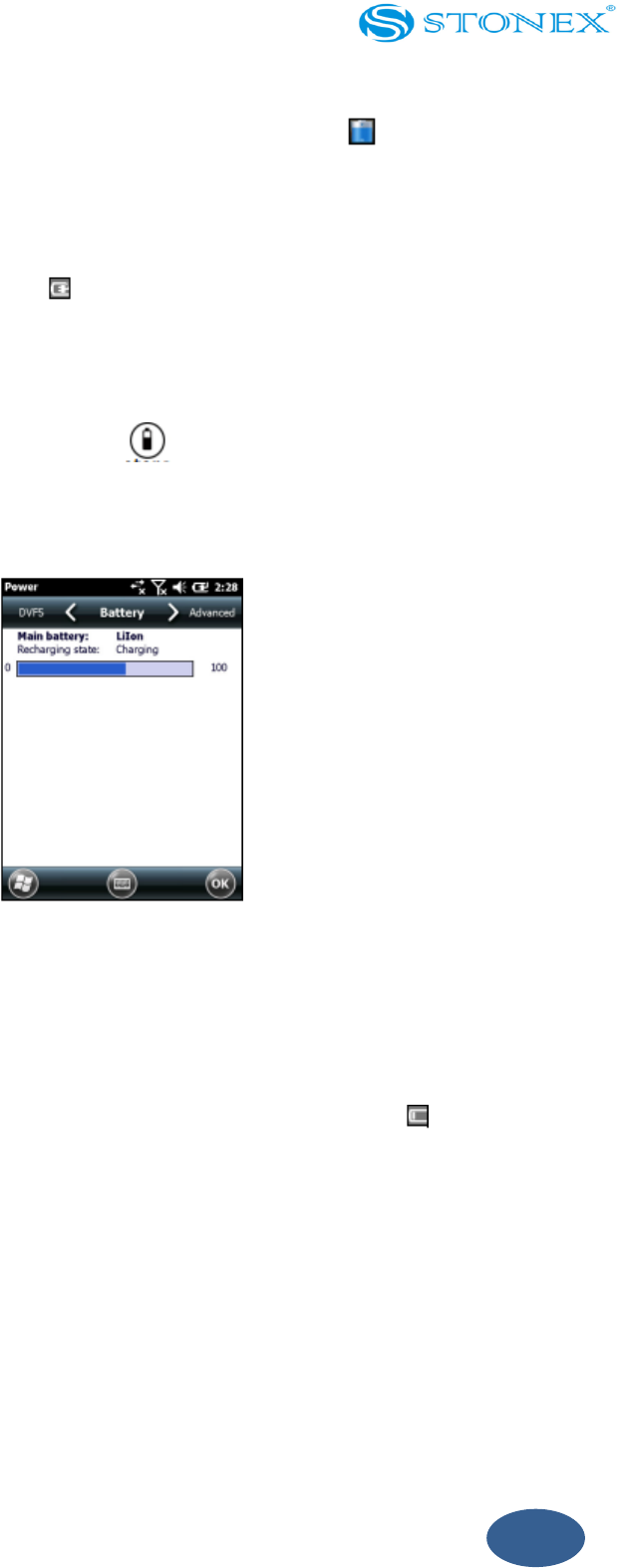
Checking the level of battery power
To check the level of battery power remaining at any time while the device is running,
25
tap the battery icon in the title bar of the Home screen and then tap in the pulldown
list. The Power control appears, displaying the Battery tab.
When the handheld battery is recharging from an external power source, the battery
icon in the Home screen changes to . You can still tap the icon to view the level of
battery power.
To check the level of battery power remaining on a spare battery or one that is not
inside the handheld press the battery icon on the battery pack label. The level of
charge indicator will light up with the approximate level of battery power remaining on
the battery. Each LED represents a 20% increment in battery capacity.
Fig.2.2.2 – Power interface
Low battery indicators
When the battery level reaches:
15% the battery icon in the title bar of the Home screen changes to .
10% the Power LED on the handheld flashes red and the a warning message
appears on the handheld.
5% the battery charge is critical and a warning message appears on the
handheld.
STONEX recommends that you recharge the battery when any of these indicators
appear.

26
Swapping the battery
If the battery runs low while you are working, you can swap the battery.
1. Save any open files.
2. Ensure that you have a spare battery close by with sufficient charge to keep
working.
3. Turn off the handheld.
4. Remove the old battery by pinching the battery latches together until the battery
is ejected. Slide the battery out.
Notes: The handheld is not sealed from water and dust when the battery is removed.
STONEX recommends only removing the battery for short periods of time and only
removing the battery indoors or from inside the protection of a vehicle.
5. Insert the new battery
Notes: The handheld has enough power to keep the device running for approximately 30
seconds with the battery removed. If the power drains before the battery is restored the
device will shut down. STONEX recommends saving open files before swapping the battery.
6. Press the Power key to resume your session.
Conserving power
Although the handheld battery can operate for a full day without recharging, STONEX
recommends you to do the following to reduce power consumption:
Set the handheld to automatically turn off when idle.
Set the backlight to automatically turn off when the handheld is idle for a
specified time.
Turn off the integrated Bluetooth, Wi-Fi, and wireless cellular modem radios
whenever you are not using them.

27
Disconnect from the integrated GNSS receiver when GNSS data is not required
by closing GPS COM port. When you disconnect from GNSS, the integrated GNSS
receiver switches off and stops drawing power.
Note: Do not disconnect from GNSS if you will be reconnecting within about five minutes. A
GNSS application can take up to 30 seconds to reactivate the integrated GNSS receiver, so
disconnecting to save power can cost time.
2.3. Turning on and turning off the handheld
If the screen on the handheld is blank, the handheld is in Standby mode, Battery Charge
mode or has been shut down. To turn on the handheld press the Power key briefly (less
than one second).
To turn off the handheld and put the handheld into Suspend mode press the Power key
briefly (less than one second). The handheld is placed in a very low power state but the
Bluetooth and wireless cellular modem radios may remain active.
To completely shut down the handheld press the Power key for one second until the
Power menu appears and then tap Shutdown. All running applications are shut down,
and the handheld is completely turned off.
Standby mode
When you press the Power key to turn off the handheld, the handheld goes into Standby
mode. This is a low-power mode that maintains the main memory contents and keeps
applications running but does not allow you to operate any of the functions of the
handheld: the handheld is apparently off. The integrated GNSS receiver is turned off and
any application using GNSS is disconnected. If a wireless radio is turned on (the LED is
flashing), the Wi-Fi radio will be turned off, and the Bluetooth and wireless cellular
modem radios will remain turned on. The handheld is capable of receiving data via
Bluetooth or the cellular modem radio while it is in Standby mode. The handheld is able
to automatically wake up to calendar alarms if it is in Standby mode.

28
Note: To save battery power, use the Wireless Manager to turn off the wireless radios
before you place the handheld into Suspend mode.
To turn on the handheld when it is in Standby mode, press the Power key. The handheld
is immediately ready for operation. There may be a delay of up to 30 seconds while the
integrated GNSS receiver and the Wi-Fi radio automatically reactivate.
You can configure the handheld to automatically enter Standby mode when it has been
idle for a specified time. By default, the handheld is set to enter Standby mode if it is not
used for one minute.
To change the time before the handheld enters Standby mode:
1. Tap the title bar of the Home or the Start screen and then tap. The Power control
appears, displaying the Battery tab.
2. Tap the Advanced tab.
3. From the On battery power option, select the Turn off screen if device not used for
check box and then select the idle time from the drop-down list.
4. Tap OK.
2.4. Resetting the handheld
If the screen on the handheld is blank, the handheld has turned off. Press the Power
button to turn on the handheld.
If the handheld stops responding to the stylus or if it does not respond when you press
any of the keypad buttons, you may need to reset it by performing a soft or hard reset.
You can also reset the handheld to its factory default settings by performing a factory
reset.
Resetting to factory default settings
Reset the handheld to factory default settings to restore the handheld to its original
state or only if a soft reset and then a hard reset does not resolve the problem.
Note: Resetting the handheld to factory default settings erases all data, installed
29
application, and settings stored in the handheld, except for any data or applications that
were pre-installed on the handheld or are stored on a storage card. It does not change the
language of the operating system used on the handheld.
Note: If you have encrypted files on a storage card and you reset the handheld to factory
default settings, the encryption key on the handheld is deleted. This means that any files
you have encrypted on a storage card are permanently locked and unreadable by any
device.
Note: To quickly and easily restore data deleted by performing a factory reset, synchronize
the handheld with a computer before you reset the handheld to the factory default settings.
Once the handheld is reset then resynchronize the handheld with the computer.
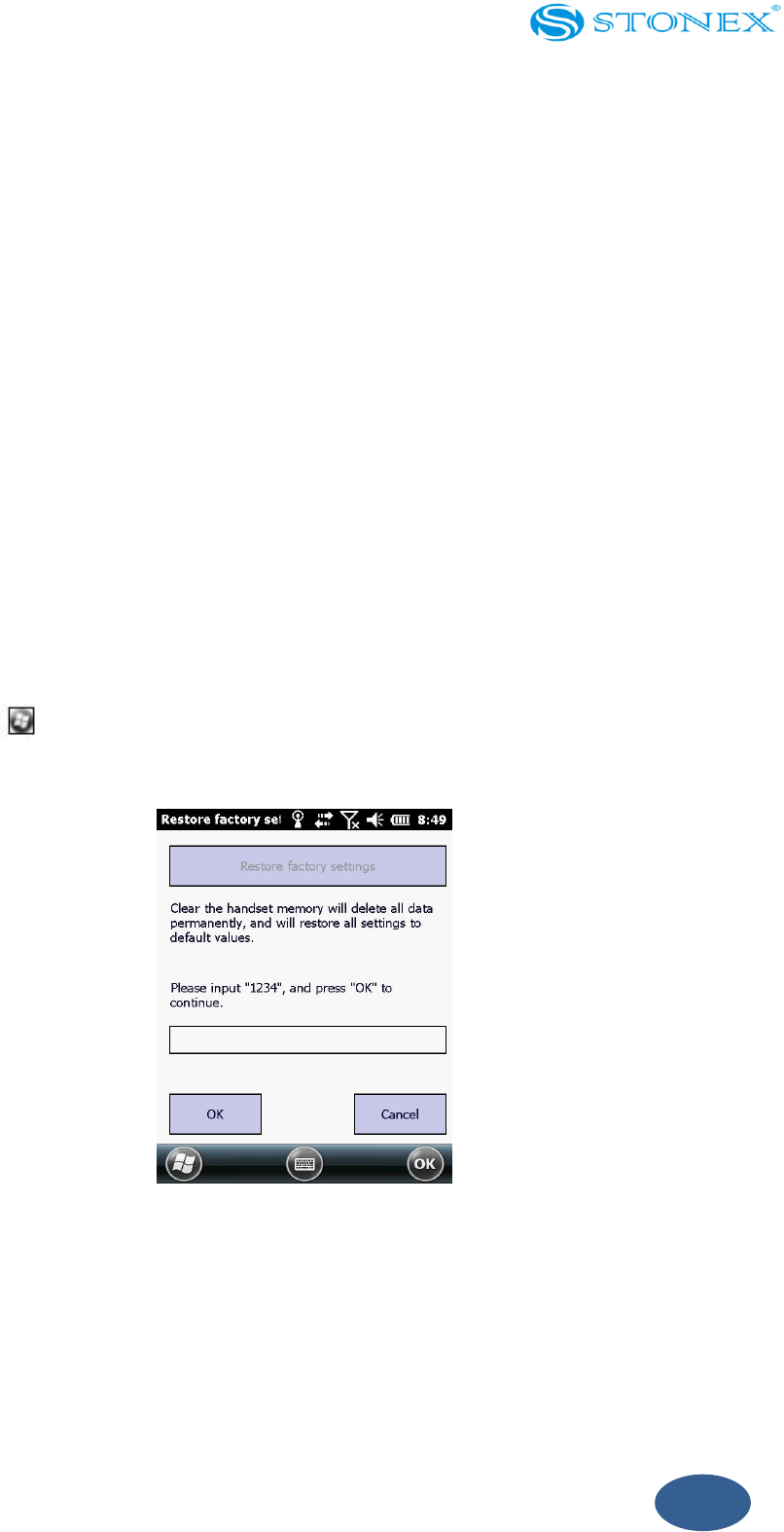
To reset the handheld to the factory default settings:
1. Tap / Settings/System/Restore factory settings.
2. Input “1234”,tap “OK”.
Fig.2.4.1 – restore factory setting
2.5. Storing data
The handheld has two types of memory:
Storage memory is similar to the hard disk in a computer, and it is used for
storing programs and data.

30
Program memory is similar to the RAM in a computer, and it is used for running
programs. You cannot use it to save data.
To check the storage capacity on the handheld, tap / Settings / System / Memory. The
Storage and Program columns show the current memory available, and the memory that
is already in use. Pre-installed documents and program files are not affected by power
loss or resetting. However, you can still lose data if you accidentally delete or overwrite
it.
Note: The Windows Mobile version 6.5 operating system does not include a Recycle Bin.
When you delete files from the handheld, they are deleted permanently.
STONEX recommends that you regularly copy important data to an office computer.
Storage cards
As an alternative to internal storage you can save data to a removable card. Use either
an SD or SDHC (high capacity SD) card to securely transfer data to and from another
device that supports SD or SDHC cards.
Note: The S7 SERIES handheld does not support SDIO (Secure Digital Input/Output) or
SDXC (Secure Digital Extended Capacity) cards.
Warning: The presence of any dust or moisture in the storage card slot may adversely
affect the device and void your STONEX warranty. To prevent dust or moisture entering the
storage card slot:
- Make certain that the storage card slot door is attached correctly when you are
using the handheld outdoors.
- When inserting or removing a storage card, place the handheld on a dust-free
indoor surface.
Warning: Static electricity can harm electronic components inside the handheld. To

31
prevent static damage:
- Discharge static electricity from your body before you touch any of the electronic
components inside your device, such as a memory module. You can do so by
touching an unpainted metal surface.
To insert an SD or SDHC card:
1. Place the handheld on a dust-free indoor surface.
2. Flip open the storage card slot door on the side of the handheld.
3. Insert the storage card into the storage card slot with the gold contacts facing
down. Gently press the card until you hear a click, and the card is locked into
place.
4. Close the storage card slot door.
When you select the Save As option in an application, the storage card appears in the list
of available storage locations.
Note: Do not store required data or applications to a storage card if the card will be
removed. Data saved to a storage card is available only when the card is inserted in the
handheld.
To remove the storage card from the storage card slot, gently press the card in and then
let go. The card pops out.
Encrypting files on storage cards
To prevent sensitive data on an SD or SDHC card from being used if the card is lost or
stolen, files can be encrypted as they are placed on the card.
When encryption is enabled, an encryption key is stored on the handheld. Files are
encrypted as they are copied or written to the storage card. Files already saved on
storage cards before enabling encryption are not automatically encrypted.
Note: Because the encryption key is stored on the handheld, encrypted files are only
readable on the handheld on which they are initially encrypted. It is not possible to read

32
encrypted files on the storage card with any other device, including another STONEX S7
SERIES handheld or an office computer.
Note: If you reset the handheld to the factory default settings, the encryption key is deleted
and the handheld is no longer able to read any encrypted files on a storage card. This
means that any files you have encrypted are permanently locked and unreadable by any
device. To avoid being unable to read previously encrypted files, STONEX recommends that
you use another device, such as an office computer, as the primary location for storing
important data and to control the encryption of important files.
To enable encryption of files as they are written to a storage card:
1. Tap /Settings / System / Encryption.
2. Select the Encrypt files when placed on a storage cards check-box.
Note: Encrypted files appear as ordinary files on the handheld they were encrypted on. If
the storage card is inserted in another device, the files appear with a .menc file extension
and cannot be opened.
To disable encryption, clear the Encrypt files when placed on a storage cards check-box.
Note: Disabling encryption does not remove encryption from any existing files on the
storage card, but ensures that new files placed onto the storage card are not encrypted.
To encrypt files that are already stored on a storage card:
1. Copy the files to the handheld’s internal storage or to a PC.
2. Ensure encryption is enabled on the handheld.
3. Copy the files back to the storage card. The files are encrypted as they are
written to the storage card.

33
To remove encryption from files so they can be read by other devices:
1. Insert the storage card in the handheld and then connect the handheld to a PC
using Microsoft ActiveSync ® technology or the WMDC.
2. Copy the encrypted files from the storage card to the PC.
3. To use the decrypted files on the handheld, copy the files from the PC to the
handheld’s internal storage.
4. To store the decrypted files on a storage card, ensure encryption is not enabled
on the handheld and then copy the decrypted files from the PC to the storage
card.
2.6. Installing and removing a SIM card
The S7 SERIES handhelds are equipped with a cellular modem. To use the integrated
modem, the 2G edition handhelds require a SIM card.
Note: The SIM card and its contents can be easily damaged by scratches or bending.
Note: The presence of any dust or moisture in the SIM card slot may adversely affect the
device and void your STONEX warranty. To prevent dust or moisture entering the SIM card
slot:
- Make certain that the SIM card slot door is attached correctly when you are using the
handheld outdoors.
- When inserting or removing a SIM card, place the handheld on a dust-free indoor
surface.
Note: Static electricity can harm electronic components inside the handheld. To prevent
static damage, discharge static electricity from your body before you touch any of the
electronic components inside your device, such as a memory module. You can do so by
touching an unpainted metal surface.
To insert a SIM card:

34
1. Turn off the handheld.
2. Place the handheld on a dust-free indoor surface.
3. Flip open the SIM card slot door on the side of the handheld.
4. Insert the card into the SIM card slot with the gold contacts facing down. Gently
press the card until you hear a click, and the card is locked into place.
5. Close the SIM card slot door.
To remove the SIM card:
1. Follow steps 1 to 3 above.
2. Gently press the card in and then let go. The card pops out.
3. Gently slide the card out of the slot.
2.7. Fitting the hand strap
The hand strap and screws are provided in the box with the handheld. To fit the hand
strap:
1. Align the upper hand strap bracket with the two mounting holes and then use a
screwdriver to tighten the screws.
2. Stretch the hand strap to align the bottom hand strap bracket with the mounting
hole and then use a screwdriver to tighten the screw.

35
Chapter 3: Using the Windows Mobile Operating
System
In this chapter:
Parts of the screen
Interacting with the handheld
Status indicators
Pre-installed programs
Entering information
Personalizing the handheld
Messaging
36
The S7 SERIES handheld is powered by the Windows Mobile 6.5 operating system.
This chapter describes the main features of this generation of the Windows Mobile
operating system.
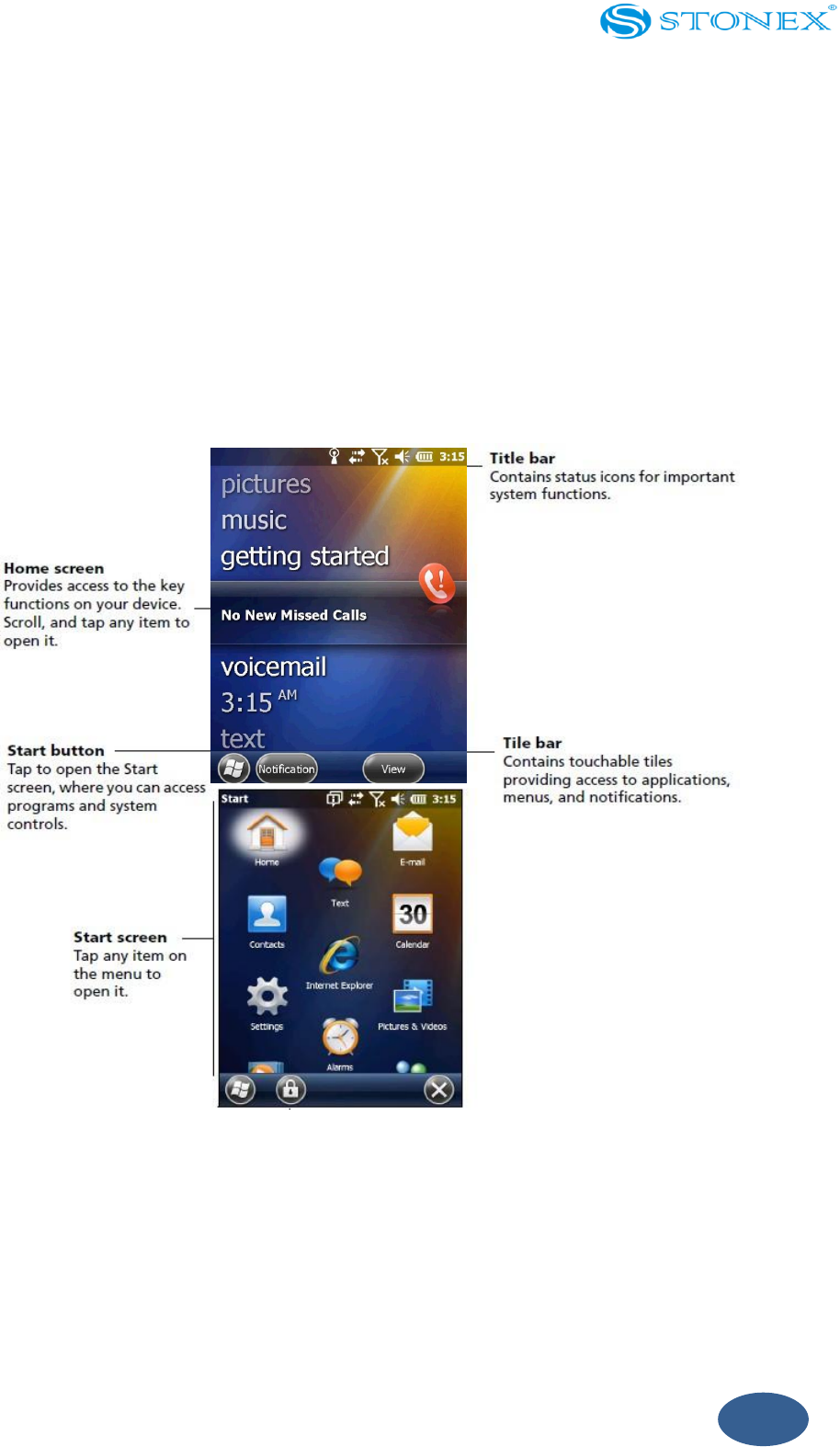
3.1. Parts of the screen
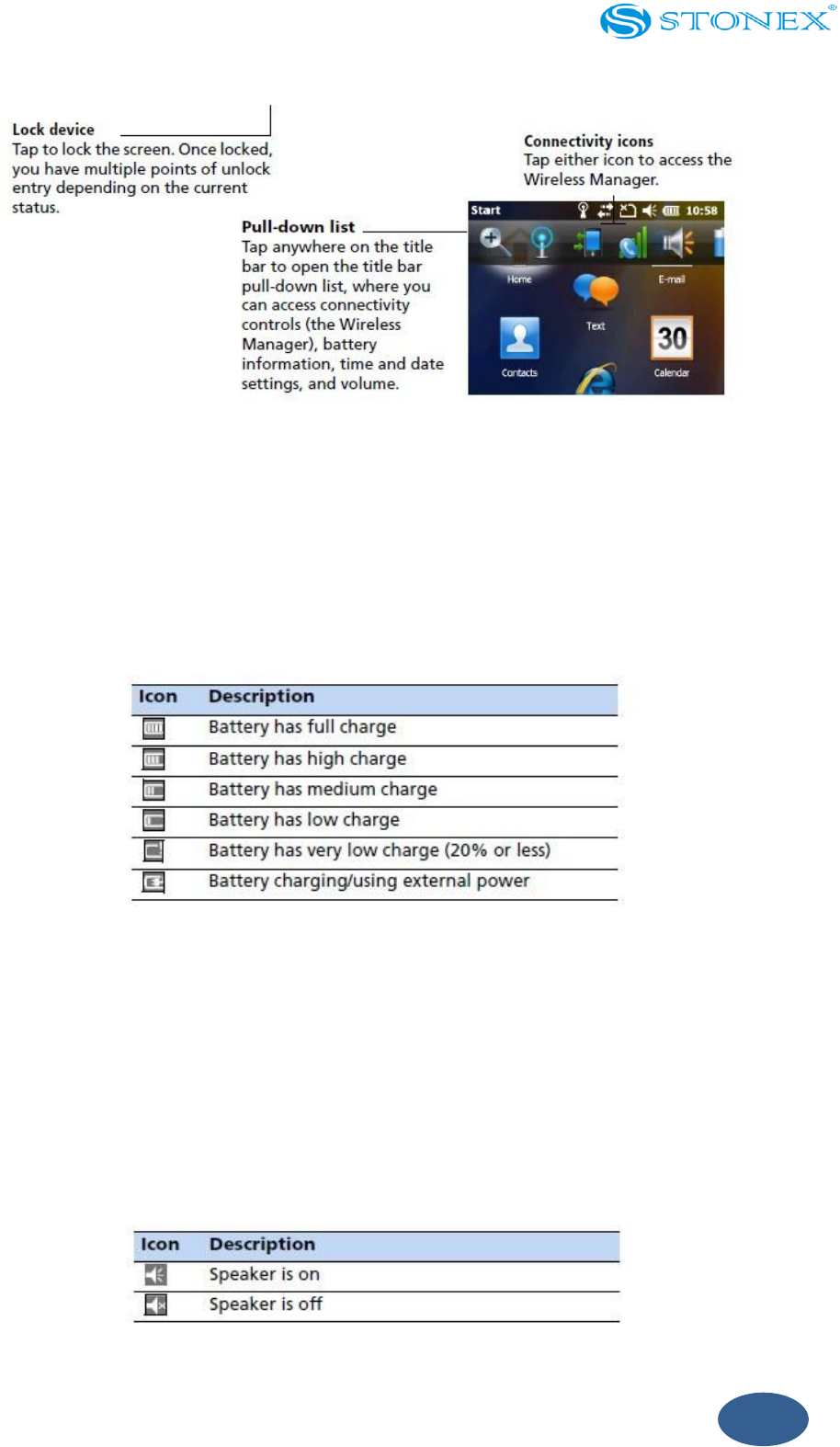
The main parts of the Home screen and the Start screen are shown below.
37
Fig. 3.1.1 – home and screen
3.2. Status indicators
Status indicators that appear in the title bar at the top of the screen are as follows:
Battery status indicators
Fig. 3.2.1 – battery icon description
The battery status icon on the title bar of the Home screen or the Start screen shows the
status of the battery charge. Tap the title bar and then on the pull-down list tap the icon
to access the Power control dialog.
Speaker status indicators
Fig. 3.2.2 – speaker icon description
38
The speaker status icon on the title bar of the Home screen or the Start screen
shows the status of the speaker. Tap the title bar and then on the pull-down list
tap the icon to adjust the volume and to turn the speaker on or off.
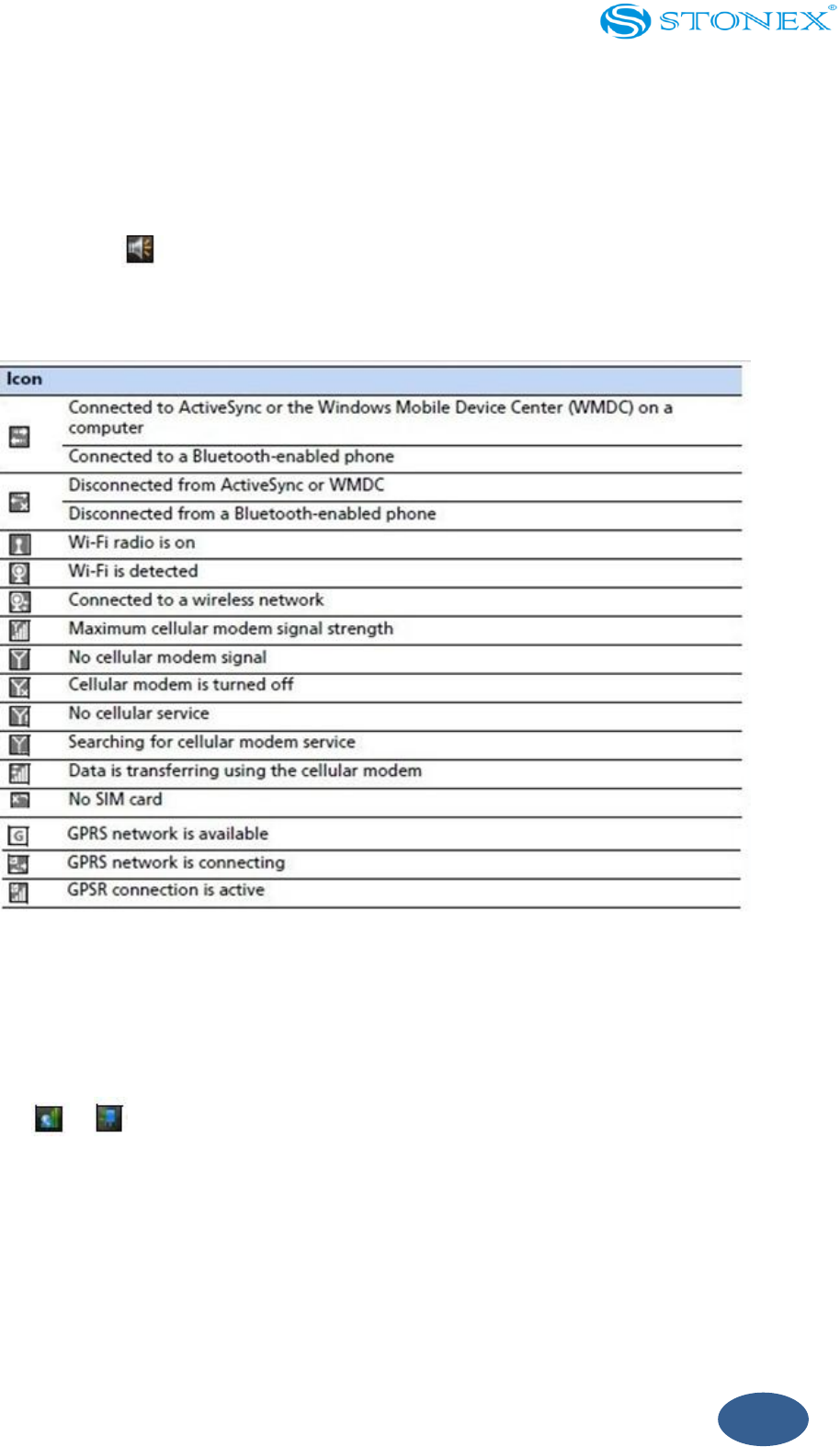
Network and modem status indicators
Fig. 3.2.3 – network icon description
The network and modem status icons on the title bar of the Home screen or the Start
screen show the status of each radio. Tap the title bar and then on the pull-down list tap
the or icon. In the Connectivity or Phone dialog, select Wireless Manager and
turn on or turn off the radio.
39
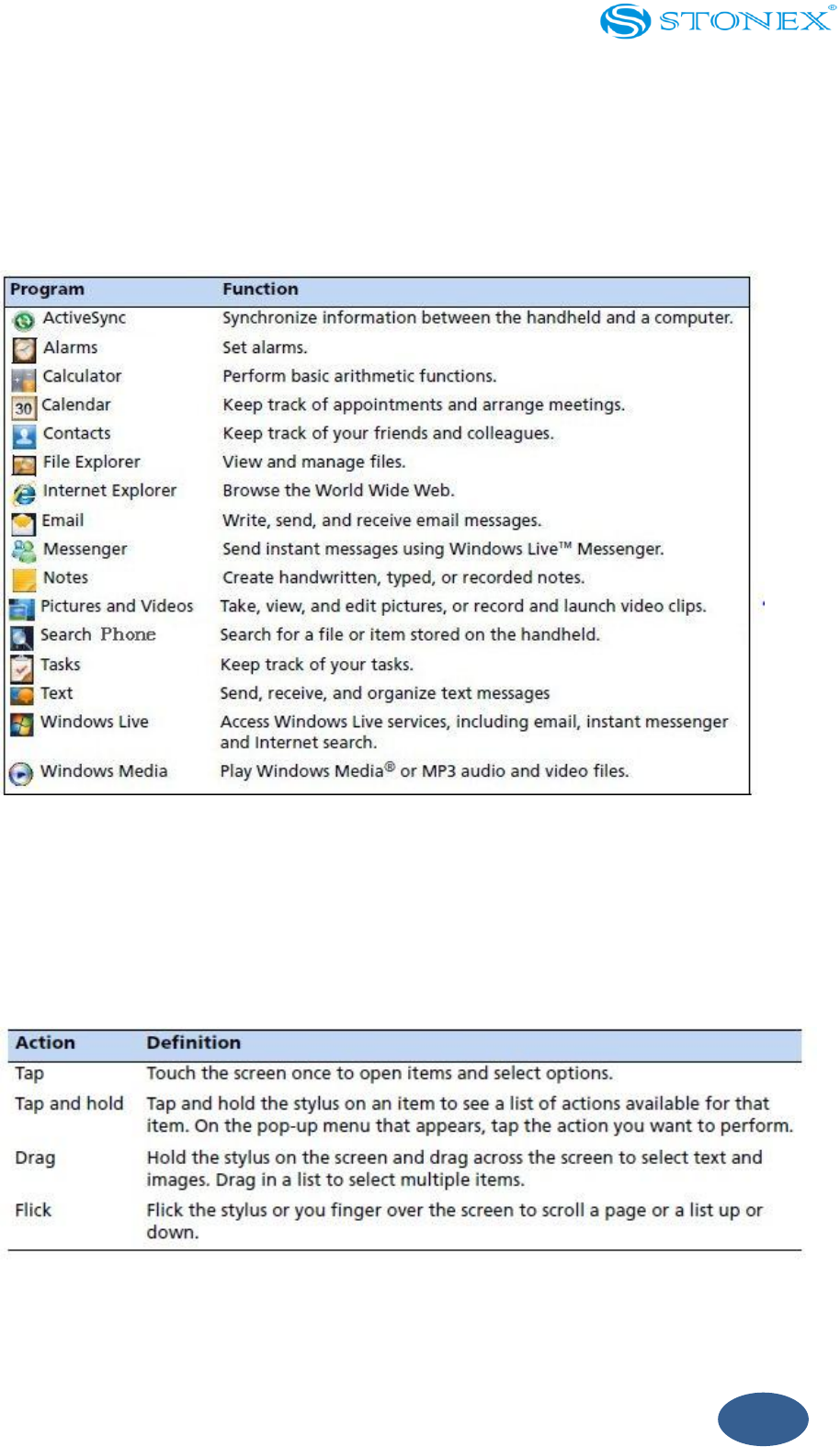
3.3. Pre-installed programs
Programs that are pre-installed on the S7 SERIES handheld are as follows:
Fig. 3.3.1 – programs of S7
3.4. Interacting with the handheld
To interact with the handheld use the stylus or your finger to tap items on the touch
screen or to scroll up or down.
Fig. 3.4.1 – manual operation
If at any time the touch screen does not respond correctly to stylus taps or your finger,

40
realign it.
The stylus is located on the rear of the handheld. To remove the stylus from its holder
slide the stylus downwards.
To attach a tether to the stylus:
1. Hold the stylus with the STONEX logo facing upwards and insert the end of the
tether down through one of the two holes in the top of the stylus and then back
up through the other hole.
2. Insert the other end of the tether through the loop and pull until the knot in the
tether is tight.
3. Attach the tethered stylus to the handheld as described below.
To attach a tethered stylus to the handheld, feed the end of the tether through the top of
the stylus retainer on the rear of the handheld and then feed the end of the stylus
through the loop until the knot in the tether is tight.
3.5. Entering information
Depending on the program you are using, you can enter information in several ways, as
described below:
Input method
Description
Synchronizing
Use Microsoft connection management software to exchange
information between the handheld and a PC.
Typing
Use the Keyboard input panel to enter typed text by tapping keys on
the on- screen keyboard.
Drawing
Use the stylus like a pen to draw (or write) directly on the screen.
Recording
Create a stand-alone recording or embed a recording into a note.
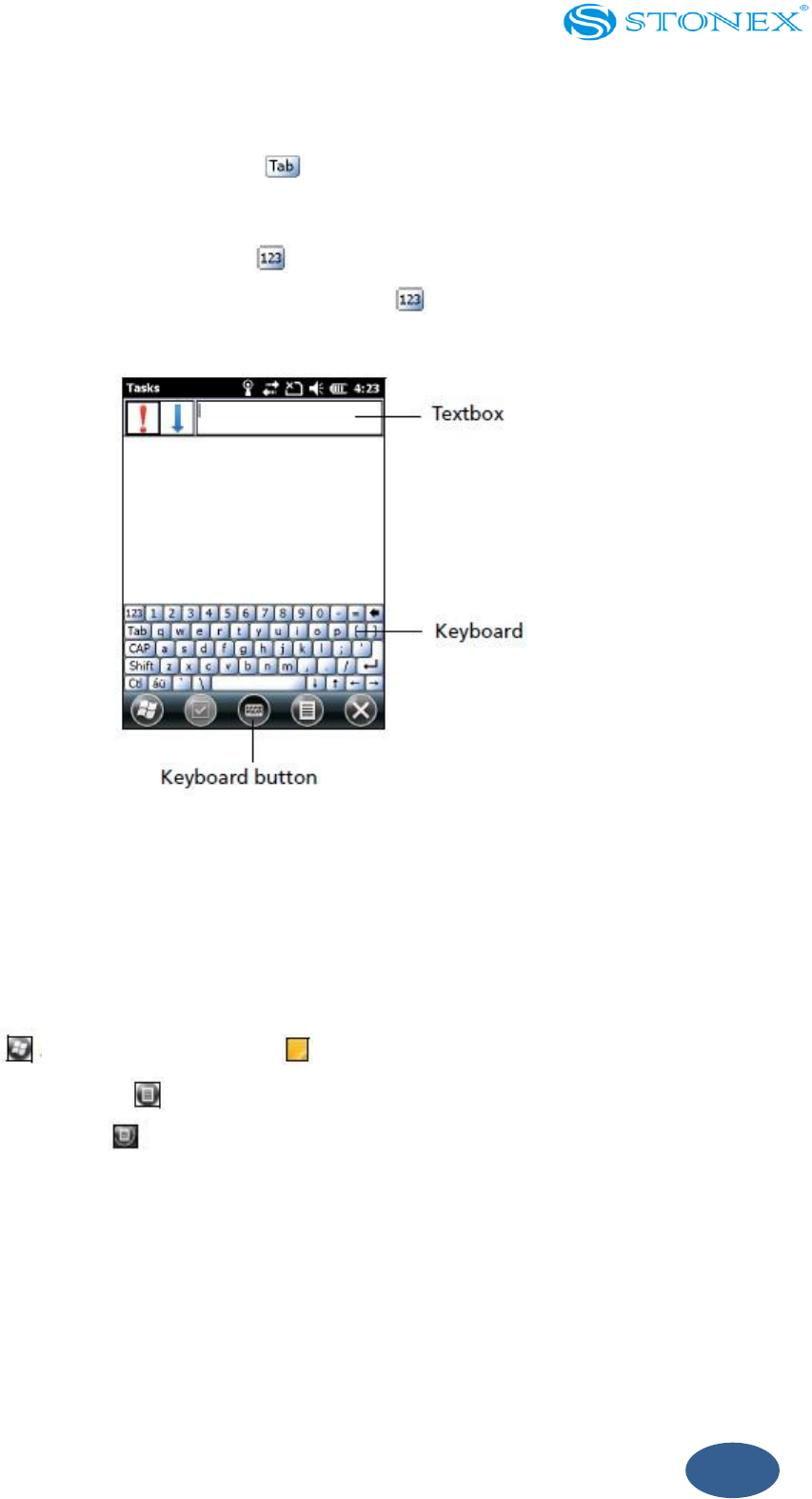
Using the on-screen keyboard
The keyboard button automatically appears in the tile bar of any application.
To display the keyboard, tap the keyboard button or tap a text box in the application.
41
To enter characters use your finger or the stylus to tap the keys on the keyboard. When
you finish entering text in a field tap to accept the text you have entered and then
move to the next field.
To enter special characters tap to display keyboards containing numbers and
symbols. To switch back to the main keyboard tap again.
To hide the keyboard tap the keyboard icon again.
Fig. 3.5.1 - keyboard
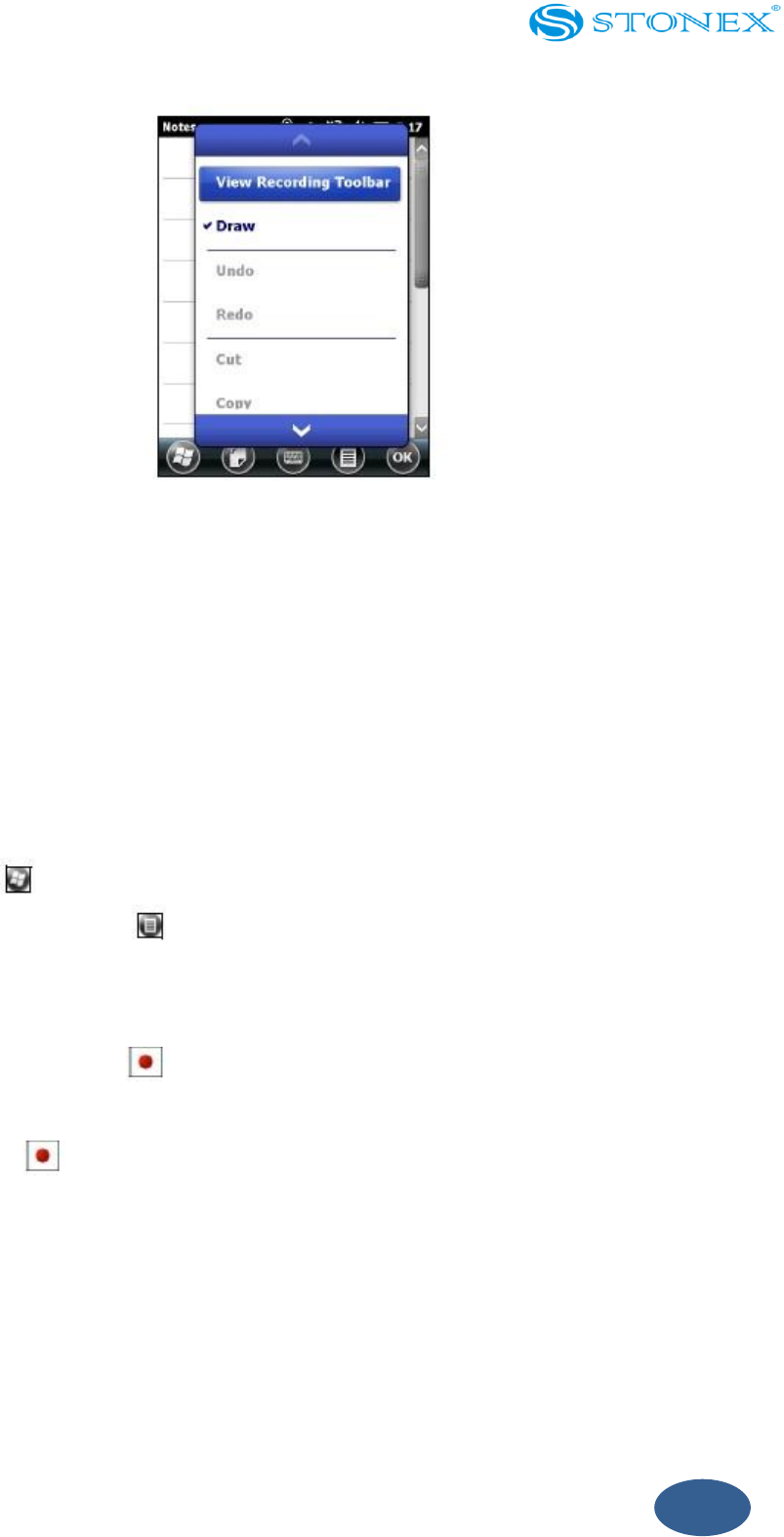
Drawing and writing directly on screen
In some applications, for example Notes, you can draw (or write directly) on the screen
using the stylus.
1. Tap and then tap the Notes icon.
2. Tap the Menu icon
3. Select Drawand then select Draw.
4. Use the stylus to write or draw on the screen.
42
Fig. 3.5.2 – writing operation
Making a recording
For handheld configurations equipped with an integrated microphone, you can create a
stand-alone voice Note or you can add a recording to a Note. Then you can work with
voice Notes in the same way that you work with Notes.
To make a recording:
1. Tap and then tap the Notes icon.
2. Tap the Menu icon
3. Do one of the following:
- To create a stand-alone recording, in the screen displaying the list of Notes, tap
the Record button to begin recording.
- To add a recording to a Note, create or open a Note and then tap the Record
button to begin recording.
Note: For S7 SERIES configurations that include an integrated microphone, the
microphone is on the front of the handheld in the keypad area. The microphone will
capture voice Notes when you are holding the handheld in front of you. In noisy
environments, you may need to move the handheld closer to you or to the source of the
sounds you want to record. Configurations available for sale in China are not equipped
43
with an integrated microphone.
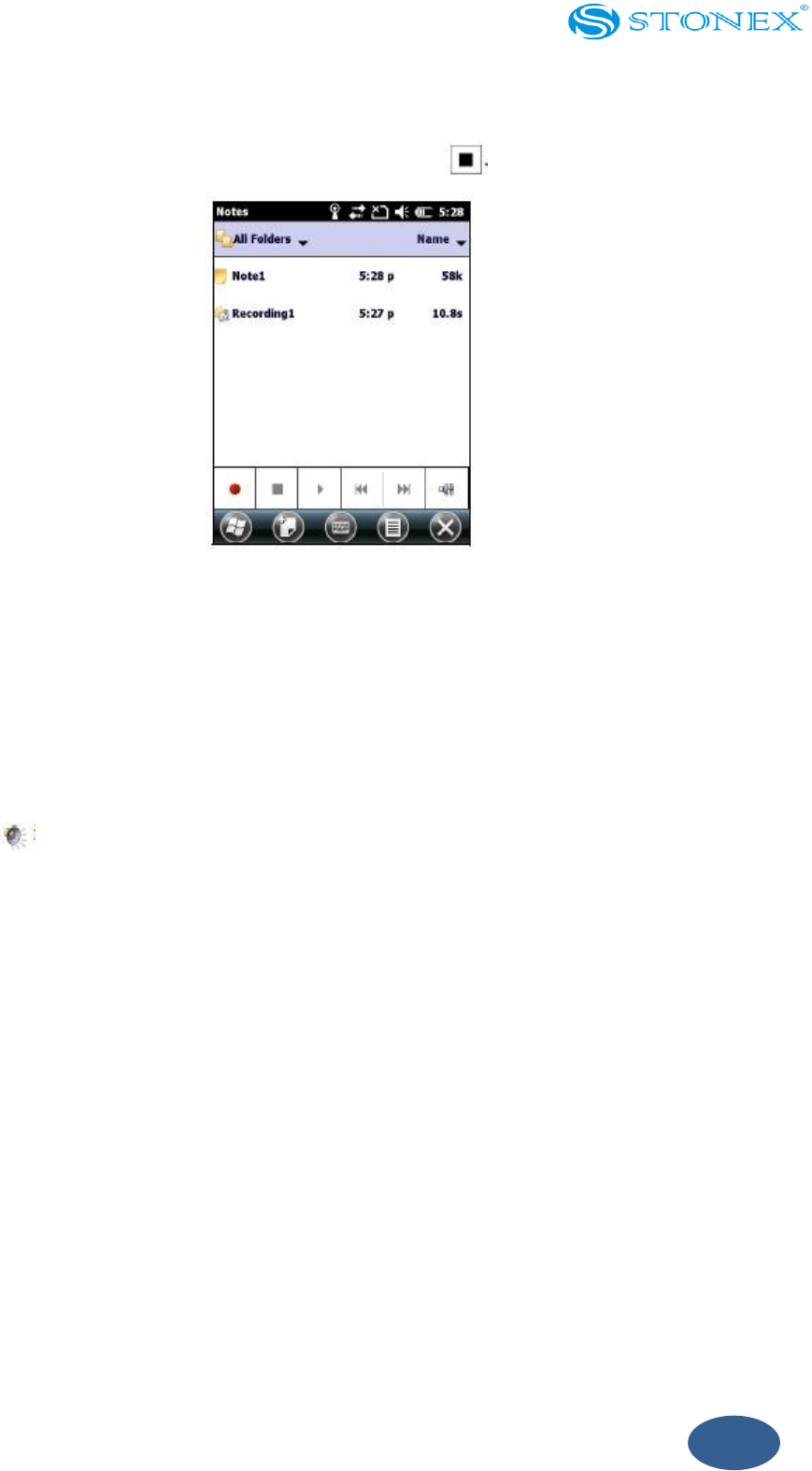
4. When you finish recording, tap the Stop button
Fig. 3.5.3 – making recording
If you are creating a stand-alone recording an icon appears in the Note list.
If you are recording in an open Note an icon appears in the Note. Tap OK to return to the
Note list.
To play a recording tap the recording in the Note list or open the Note and then tap the
icon in the Note.
3.6. Personalizing the handheld
Use the controls in the Settings area to customize the handheld. The following examples
describe controls that are available.
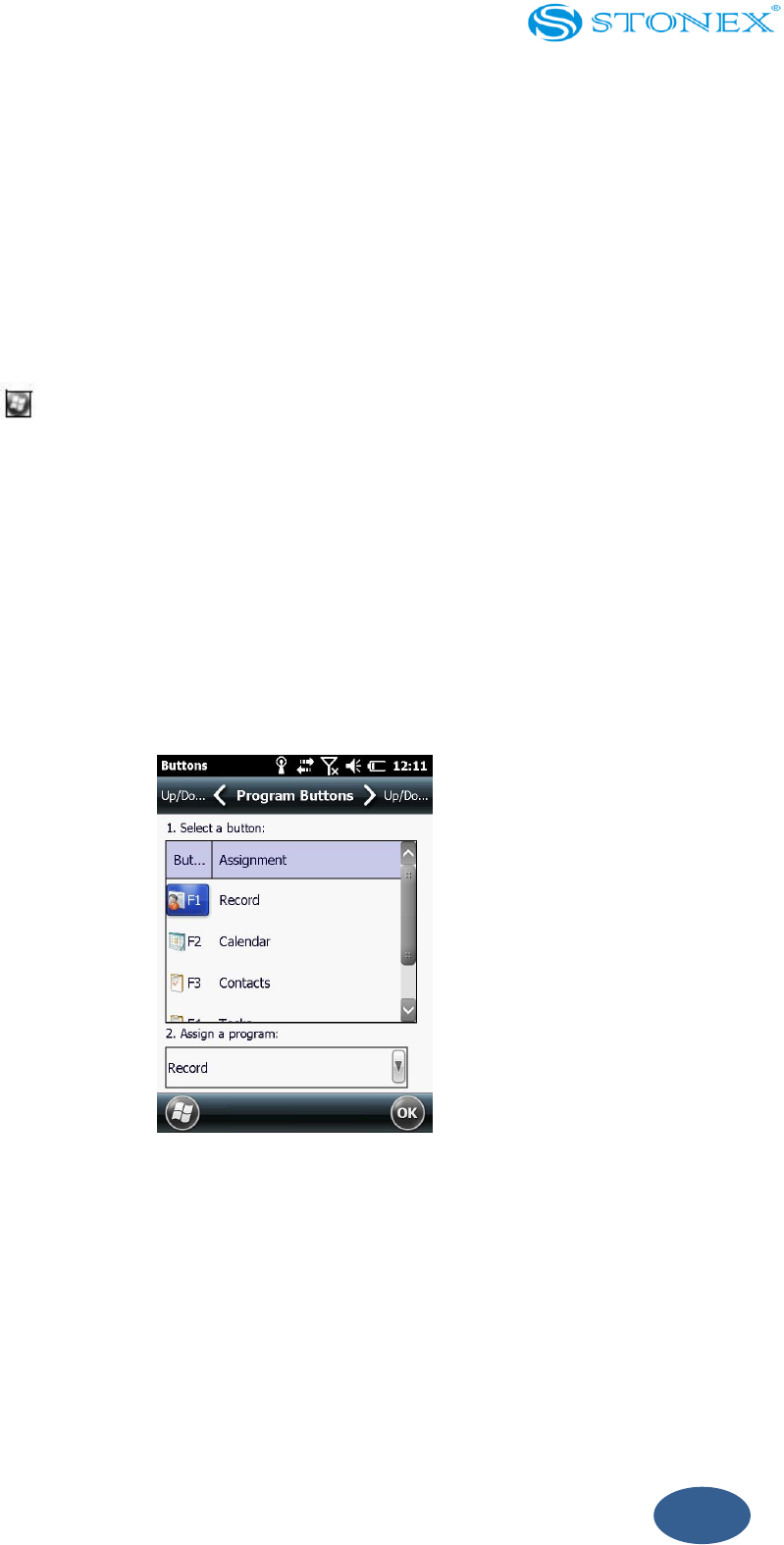
Buttons
Use the Buttons control under Personal settings to assign the action you want to be
performed when you press the left or right application key.
By default, these keys perform the same action as the left and right tiles in the tile bar.
Alternatively, program these keys to perform a selected action.
Application buttons can be programmed to perform one of the following types of
actions:
44
Run a selected application, for example Messaging or Calendar.
Act as a software button, for example an OK/Close button or a scroll button.
View a selected screen or part of a screen, for example return to the Home
screen or launch the Context menu or Input panel.
To open the Buttons control:
Tap / Settings / Personal / Buttons.
To specify an action for the button:
1. Tap the Program Buttons tab.
2. Tap a button in the list to select it.
3. From the Assign a program drop-down list, select the action you want to occur
when you press the button or tap the soft key.
4. Tap OK.
Fig. 3.6.0.1 – buttons setting
Home
Use the Home settings to change the display theme that controls the appearance of the
Home screen and to customize how items appear on the Home screen.
45
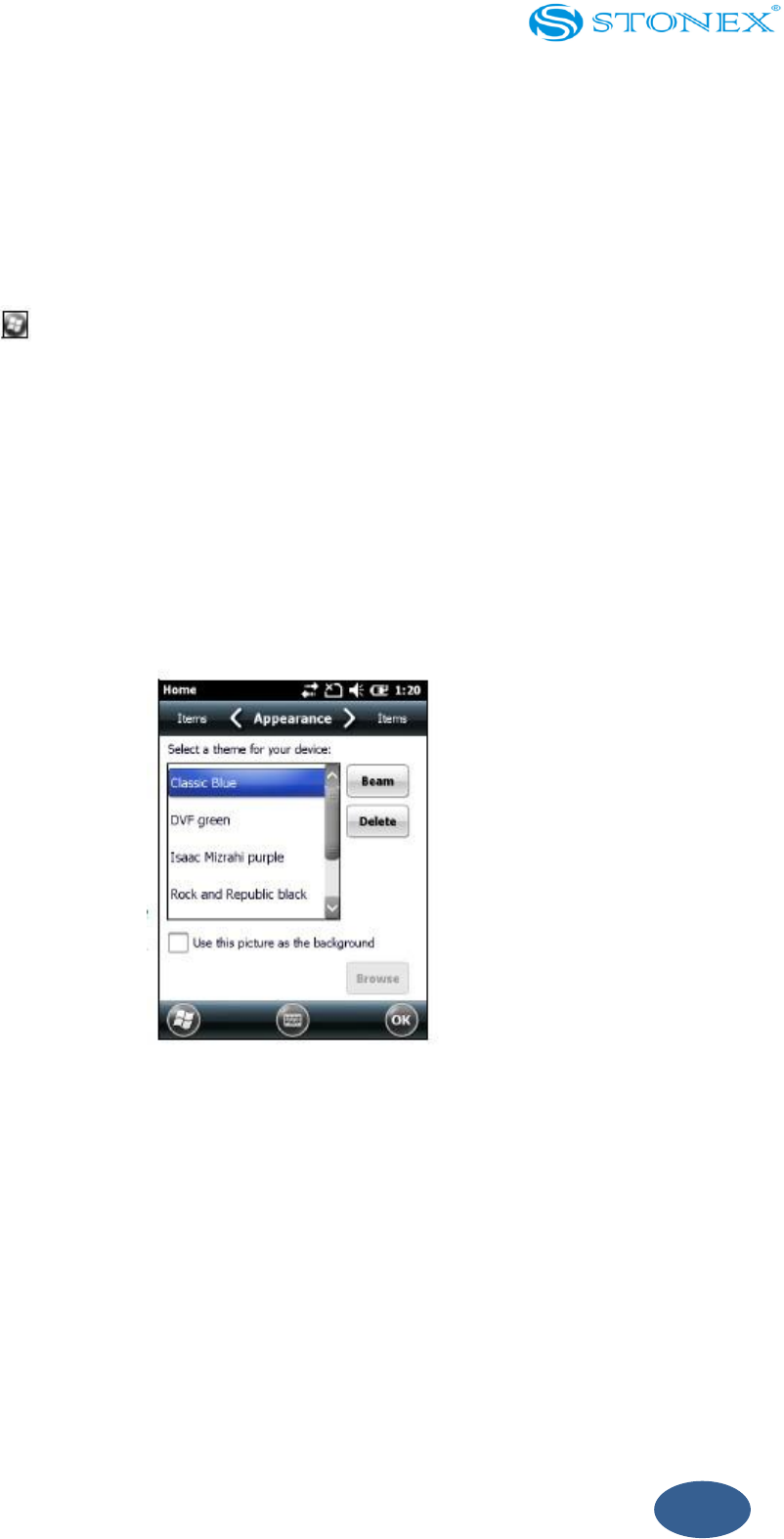
Appearance
You can use a theme to customize the background picture on the Home screen, the color
of the title and tile bars, menus and messages.
To change the display theme:
1. Tap / Settings / Home.
2. Tap the Appearance tab.
3. Do one of the following:
- To use a predefined theme select it from the list.
- To select the picture that you want to display in the Home screen background
select “Use this picture as the background” check box. Then tap Browse to
search for a file on the handheld.
4. Tap OK.
Fig. 3.6.2 – appearance setting
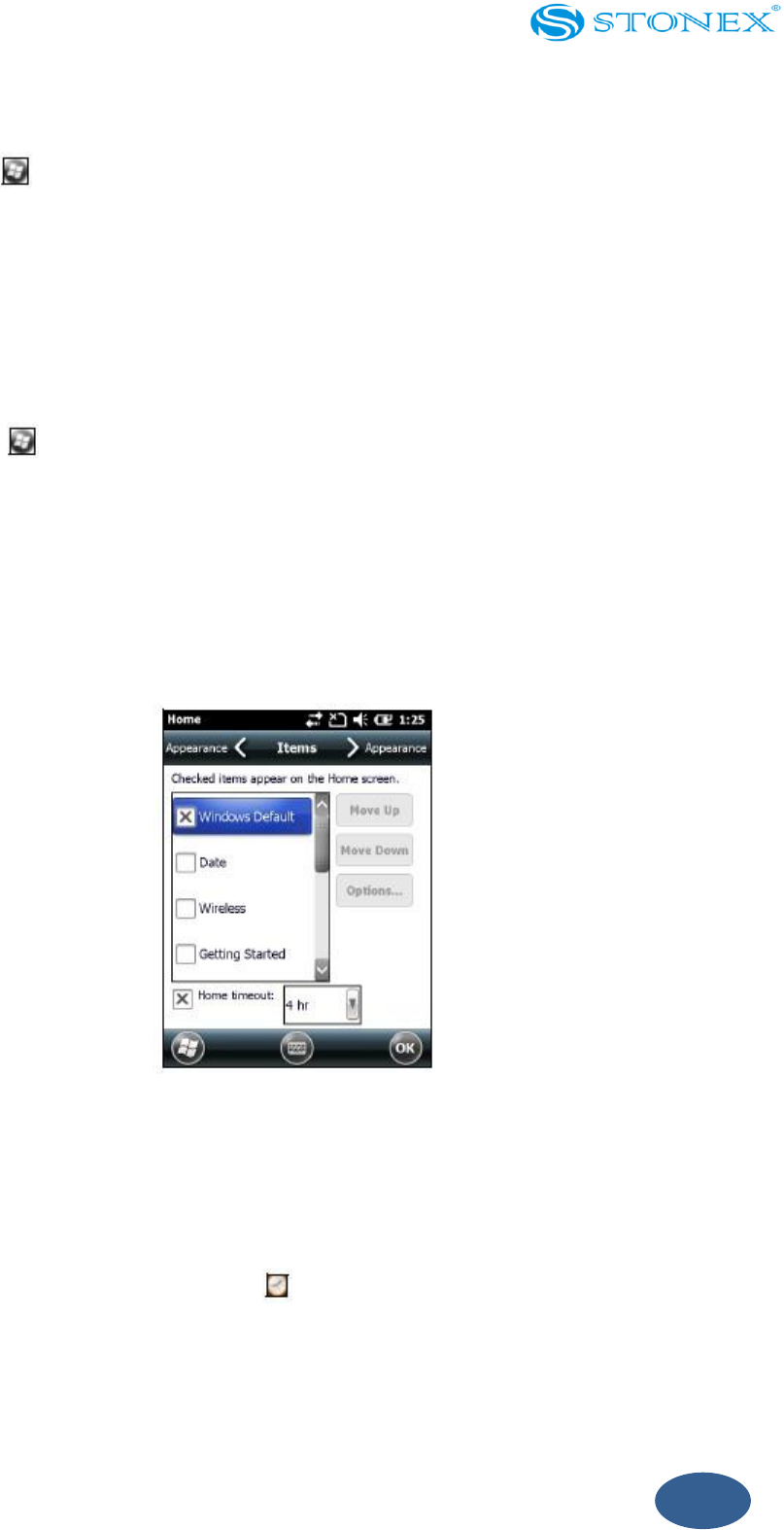
Items
You can choose between:
the Windows default Home screen view, which allows you to flick through the
list of entries, giving access to functions such as email, text messaging, current
time and Internet Explorer.
customizing which items appear on the Home screen and the order in which
they appear.
46
To use the default Home screen view:
1. Tap / Settings / Home.
2. Tap the Items tab.
3. Select the Windows Default check box.
4. Tap OK.
To customize the items which appear on the Home screen:
1. Tap / Settings / Home.
2. Tap the Items tab.
3. Select or clear the check boxes to show or hide the Home screen items.
4. Use the Move Up and Move Down buttons to change where the selected item
appears on the Home screen.
5. Tap OK.
Fig. 3.6.3 – items setting
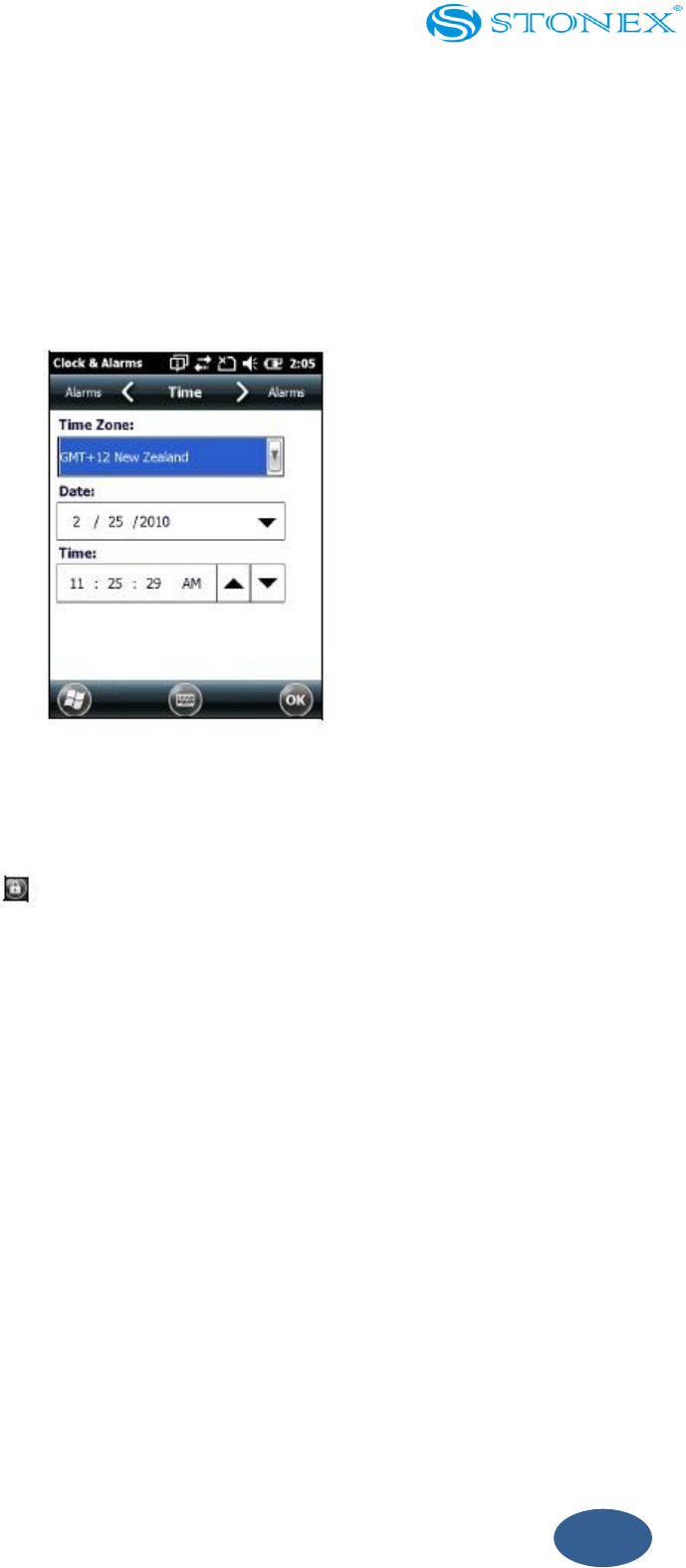
Set the time and date
1. On the Home screen tap the clock item or tap the title bar and then on the
pull-down list tap the clock icon . The Clock & Alarms screen appears.
2. Tap the Time tab.
3. In the Time Zone field, select the required time zone from the drop-down list.
4. In the Date field tap the down arrow and then select the correct date.
47
Tip: On the calendar which appears tap on the month or year to select the required value.
5. In the Time field tap in turn the hour, minute and second values and then tap the
up or down arrows to set the correct time.
Fig. 3.6.4 – time and date setting
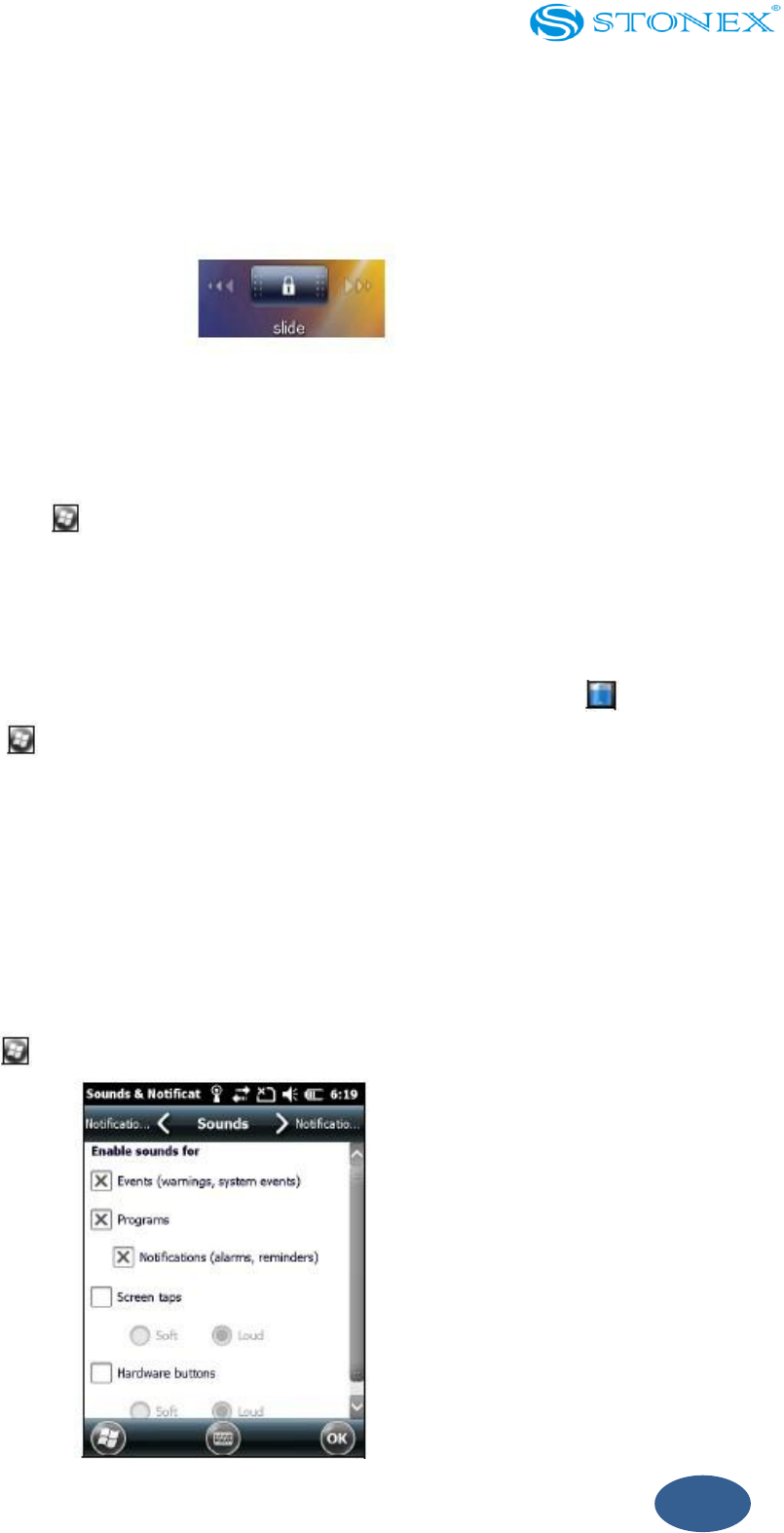
Device lock
Tap the Device Lock icon on the Start screen to lock the screen and keypad while the
handheld remains turned on.
Once the handheld is locked the screen and most of the keys do not respond until the
handheld is unlocked. The exception is the Power key which always responds when
pressed.
Communication with external devices such as a GNSS receiver or external sensors used
by GNSS field software is not interrupted by locking the handheld. This means that you
can keep using the GNSS field software when the handheld is locked. For example, you
could lock the device so that you can safely transport it between features, while keeping
the software connected to the GNSS receiver so that you can continue recording GNSS
positions.
The locked screen provides multiple unlocked sliders for different applications, when
there are new notifications. For example, if a new email has arrived, an email unlock
48
slider takes you straight to the email.
To unlock the device slide the Unlock icon for the required application to take you
straight to that application.
Fig. 3.6.5 – device locking
It is possible to keep your data secure by requiring a password each time the handheld
is turned on, tap / Settings / Lock to set a password or to change password settings.
Power
To open the Power control do one of the following:
Tap the title bar of the Home screen or the Start screen and then tap.
Tap / Settings / Power.
Tap the Battery tab to check the battery level.
Tap the Advanced tab to set the time before the handheld turns off when idle.
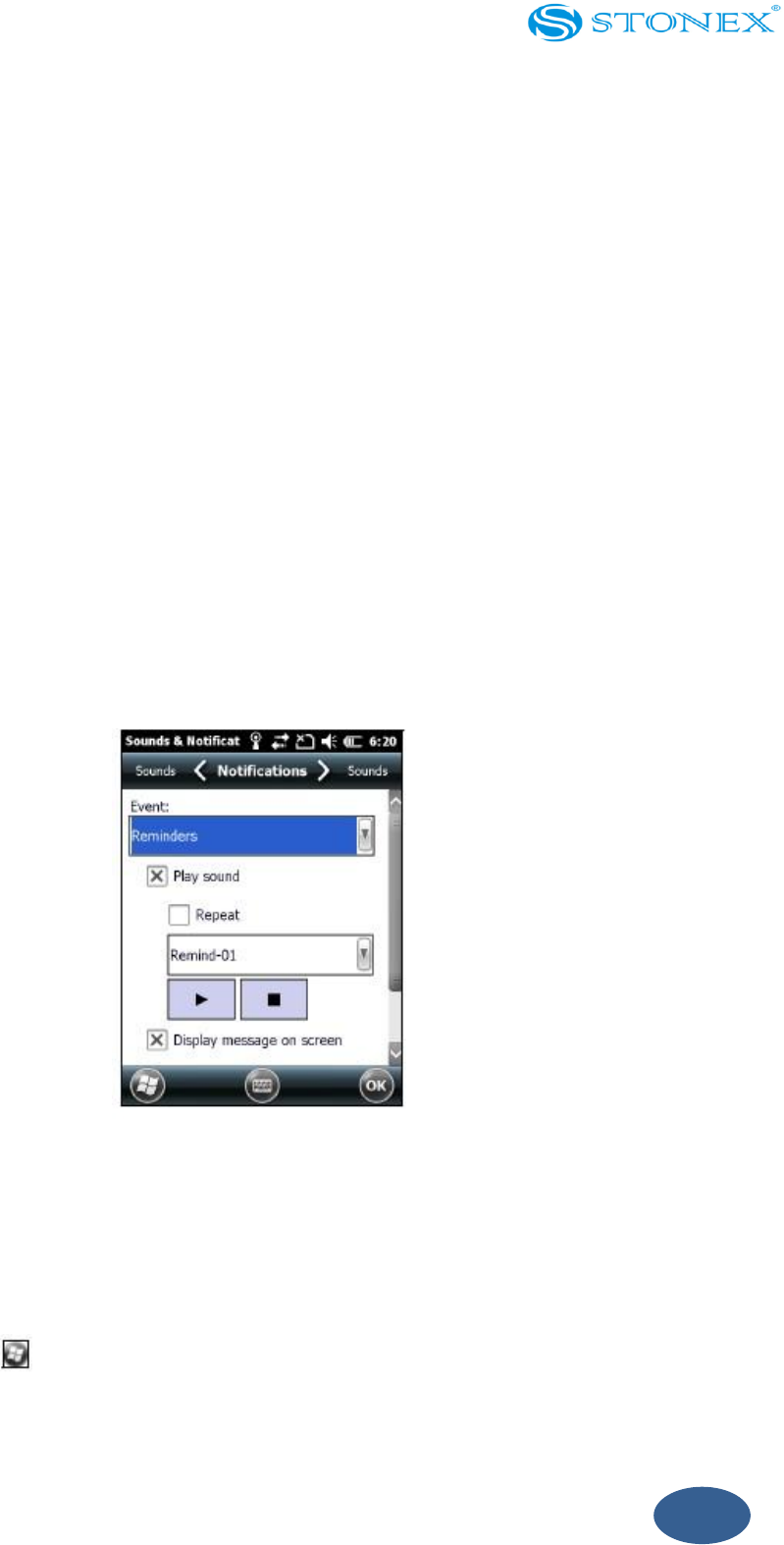
Sounds and notifications
Use the Sounds & Notifications control to set preferences for the speaker volume and
system sounds. To open the Sounds & Notifications control:
Tap / Settings / Sounds & Notifications.
Fig.3.6.6 – sounds setting
49
To turn on or turn off sounds:
1. Tap the Sounds tab.
2. Select or clear the check boxes to enable or disable categories of sounds.
3. If you select the Screen taps or Hardware buttons check boxes select the Soft or
Loud option to control the volume of the sounds.
4. Tap OK.
You can use predefined schemes to customize sounds or you can create your own sound
schemes.
To specify a sound scheme:
1. Tap the Notifications tab.
2. From the Event drop-down list select an event.
3. Select the type of notification you want to receive for that event.
4. Tap OK.
Screen
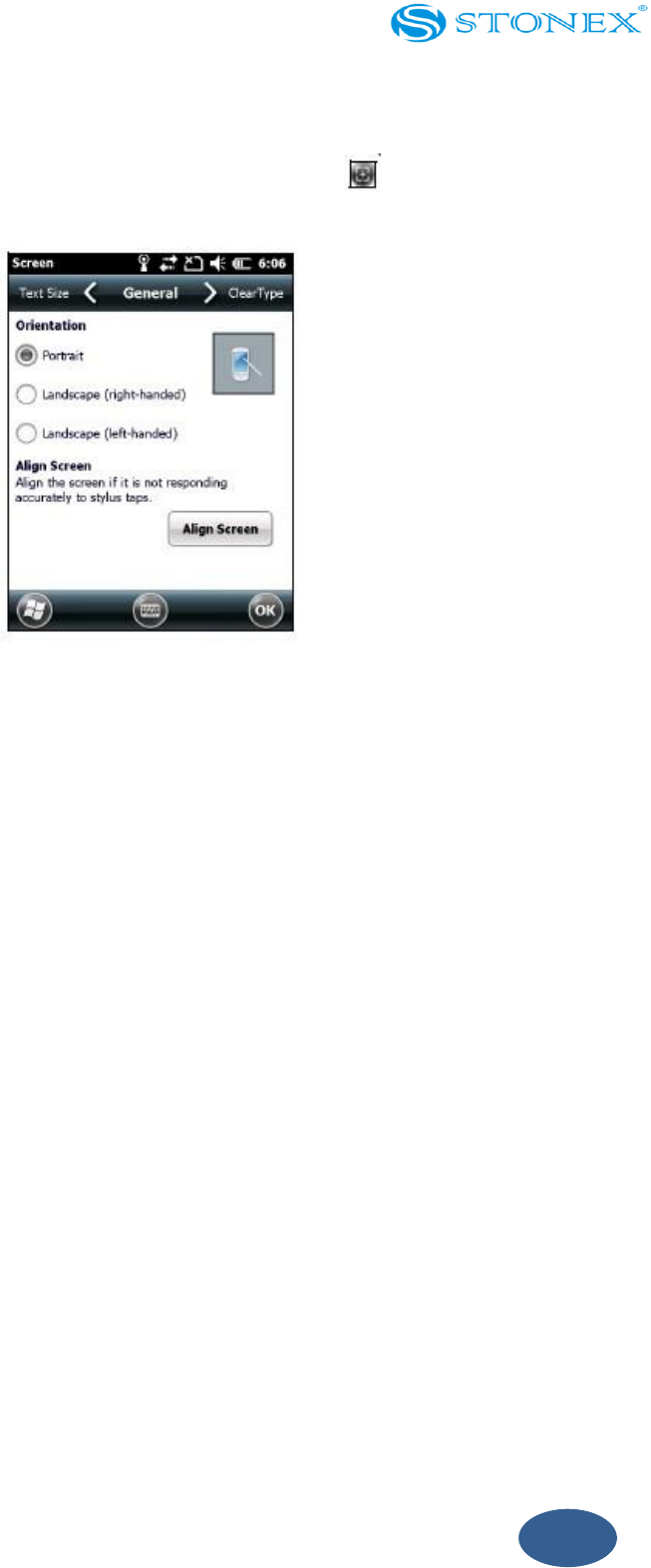
Use the Screen control to align the touch screen or to change the appearance of text on
the screen. To open the Screen control:
Tap / Settings / System / Screen.
To change the screen settings:
1. Tap the General tab.
Fig. 3.6.7 – notifications setting
50
2. To change the orientation of the screen select an option in the Orientation group.
3. To start the alignment sequence for the touch screen, tap Align Screen.
4. Tap OK.
Fig. 3.6.8 – general setting
Using ClearType font smoothing can make text easier to read on the screen.
To enable ClearType:
1. Tap the ClearType tab and then select the Enable ClearType check box.
2. Tap OK.
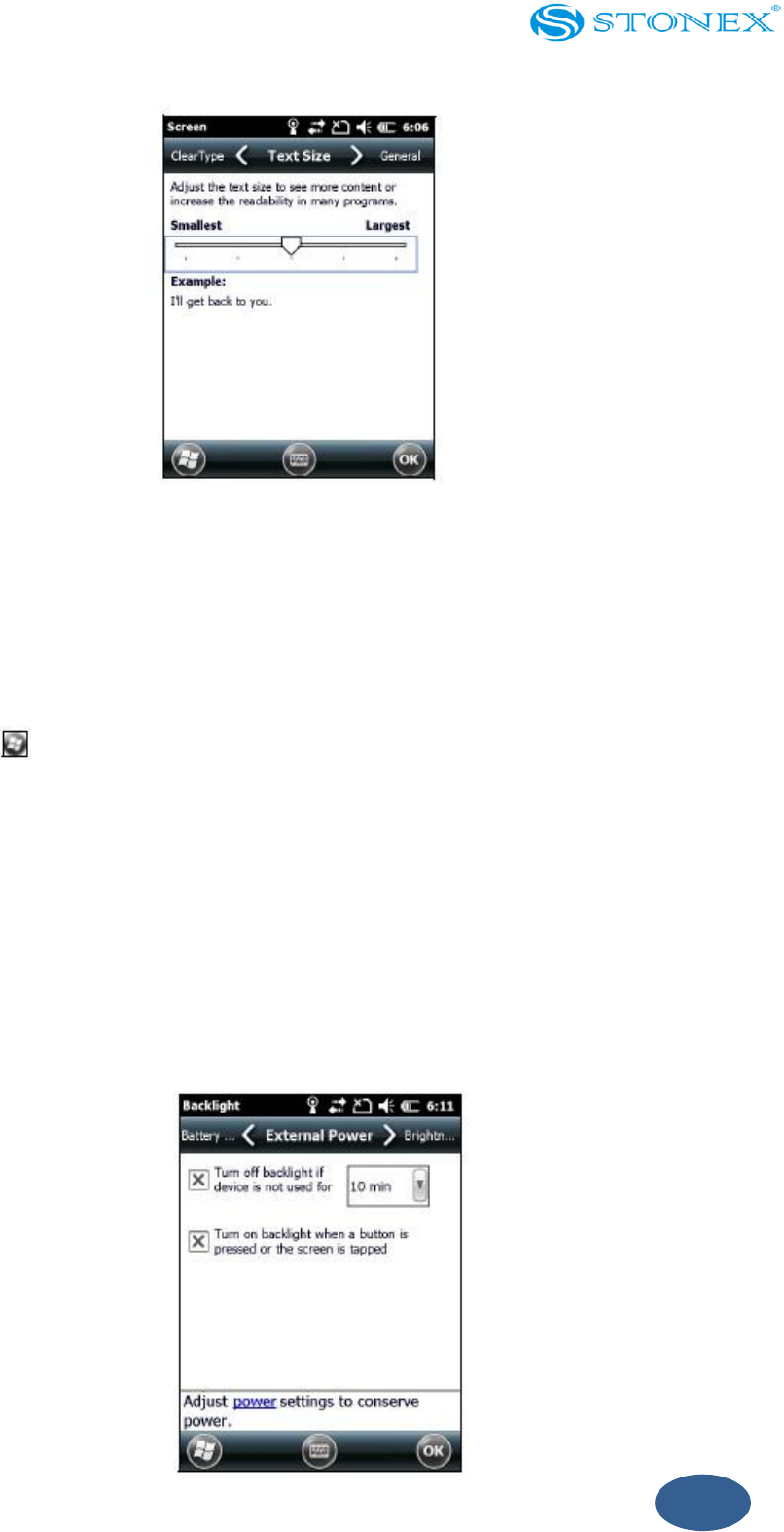
To change the size of text on screen:
1. Tap the Text Size tab.
2. Tap and drag the slider control to the left to make text smaller or to the right to
make text larger.The example text below the slider shows how the text will
appear on screen.
3. Tap OK.
51
Fig. 3.6.9 – text size setting
Backlight
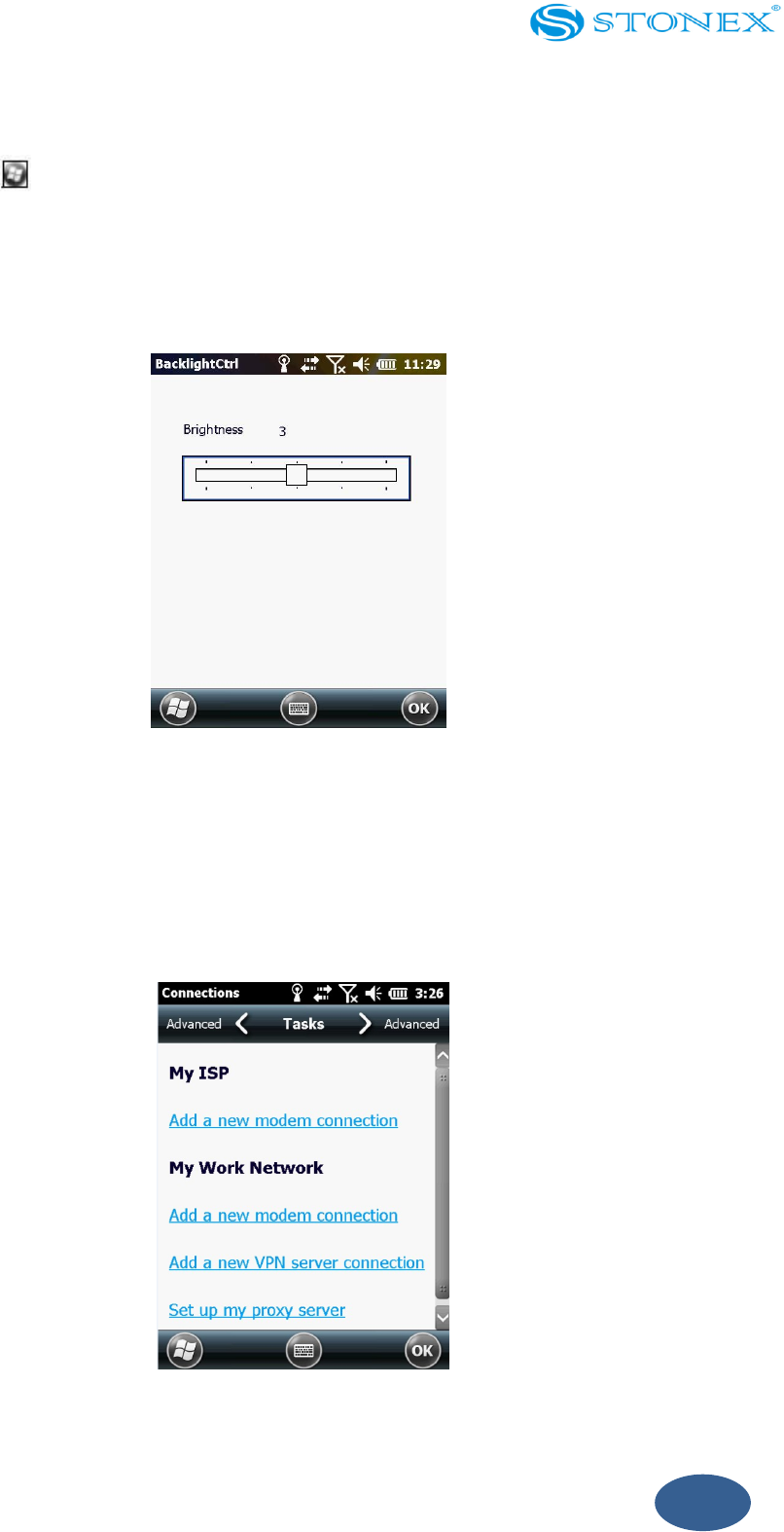
The backlight makes the screen easier to read in low light but uses extra power. Use the
Backlight control to configure power-saving settings for the backlight. To open the
Backlight control:
Tap / Settings / System / Backlight.
To set the backlight to automatically turn off:
1. To automatically turn off the backlight when the handheld is idle and is using
battery power tap the Battery Power tab. Select the Turn off backlight check box
and then select a time from the drop-down list.
2. To automatically turn off the backlight when the handheld is idle and is using
external power tap the External Power tab. Select the Turn off backlight check
box and then select a time from the drop-down list.
3. Tap OK.
Fig. 3.6.10 – backlight setting
52
To change the brightness:
1. Tap / Settings / System / Brightness.
2. Tap and drag the Brightness Level slider control to the left to make the backlight
darker or to the right to make the backlight brighter.
3. Tap OK.
Fig. 3.6.11 – brightness change
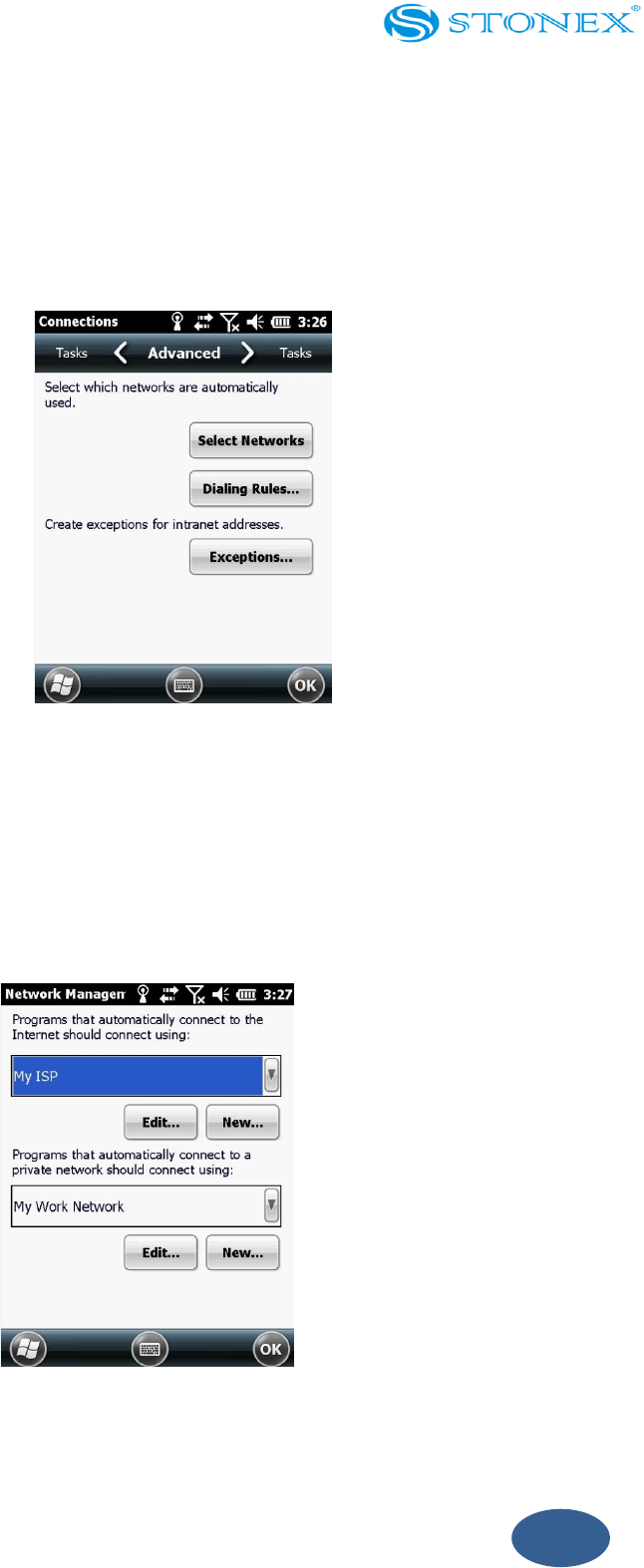
3.7. GPRS network setting
Use GPRS to connect the internet, you can receive and send messages through the
network. You need to apply for GPRS Service from your service provider.
Fig. 0.1 – network setting
53
Add new GPRS connecting
1. Click the start menu-setting-connections –connections.
2. Choose “advanced”, and then click “select networks” in advanced page. Remarks:
if internet had been set, you can turn to step 5.
Fig. 3.7.2 – network selecting
3. Choose “My ISP” in drop-down box and click “Ok” to return to first chart and
then click the “tasks” tag in the upside, while the network connecting is setting
main screen will appear. Remarks: if internet had been set, you can turn to step
5.
Fig. 3.7.3 – network manager
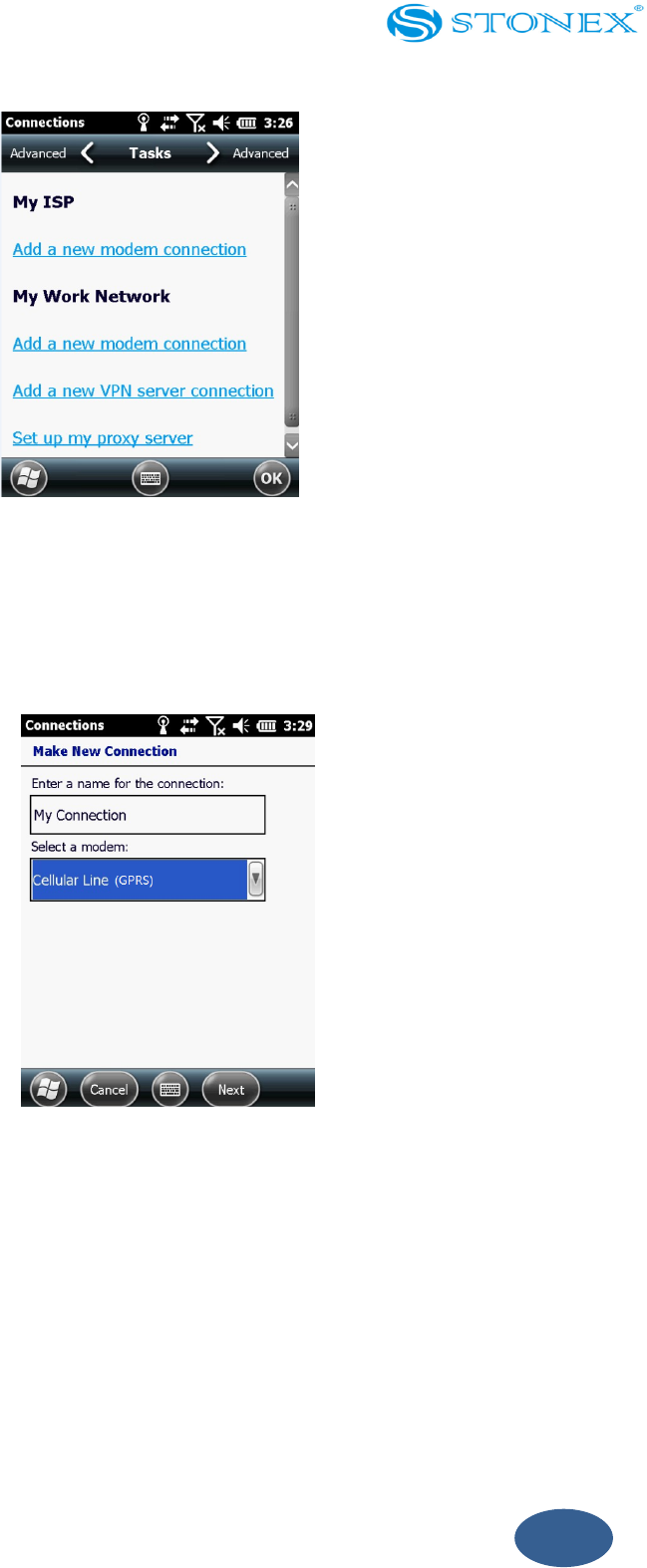
4. Click “add a new modem connection” in the screen of “tasks”.
54
Fig. 3.7.4 - modem connection
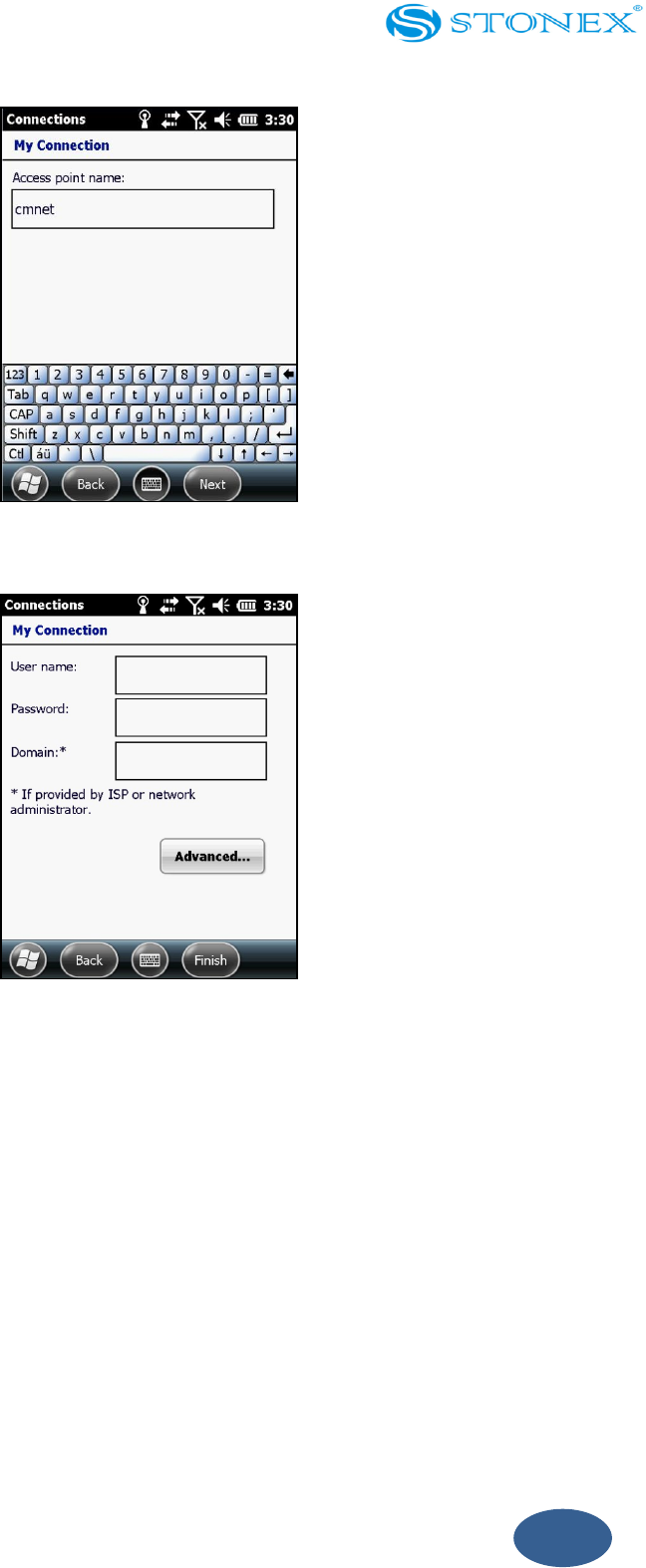
5. In “select a modem” choose “cellular line (GPRS)” and then click the next step.
Then add a new GPRS connection
Fig. 3.7.5 – modem selection
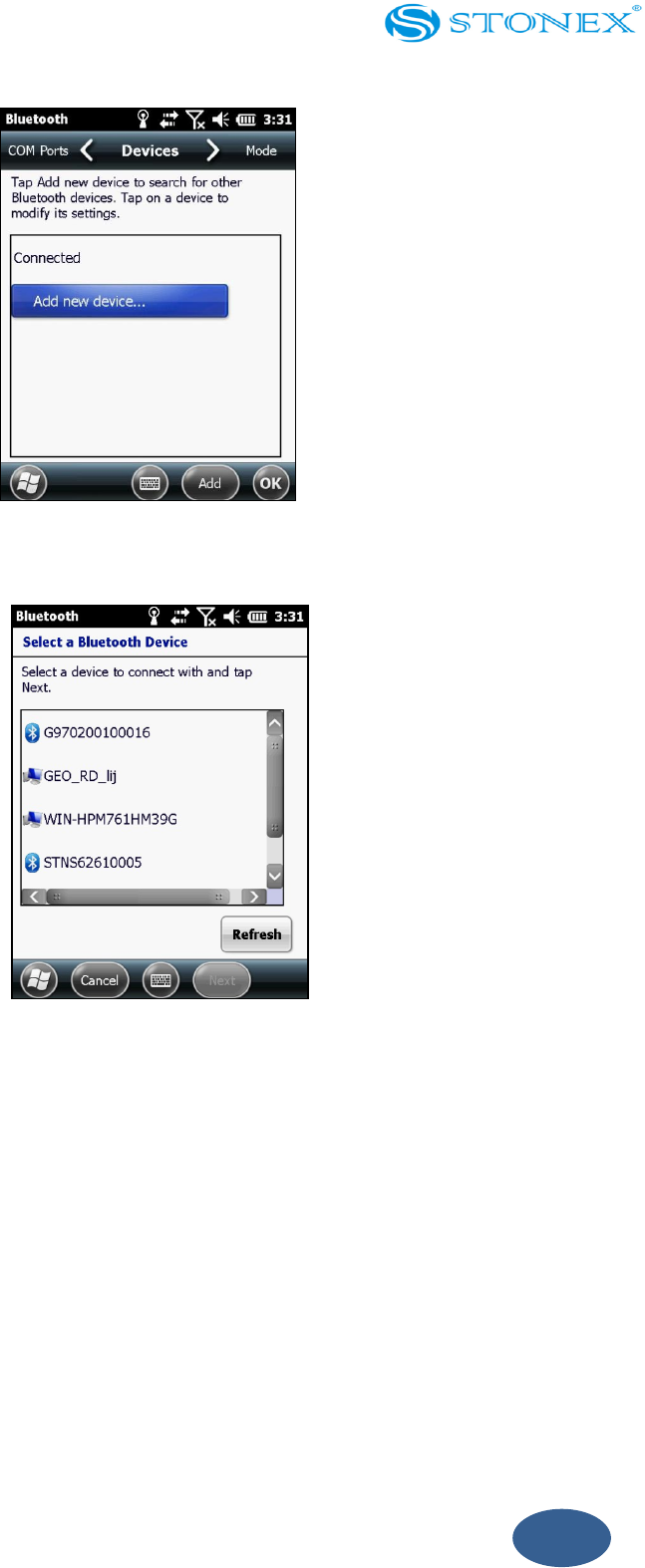
6. Input the name of access point such as “cmnet”(WAP flat rate, input cmwap) and
then click “next step”.
55
Fig. 3.7.6 - name inputting
Fig. 3.8.7 – detail inputting
7. Click “finish”.
3.8. Bluetooth connecting
S7 SERIES can be used as RTK handheld.
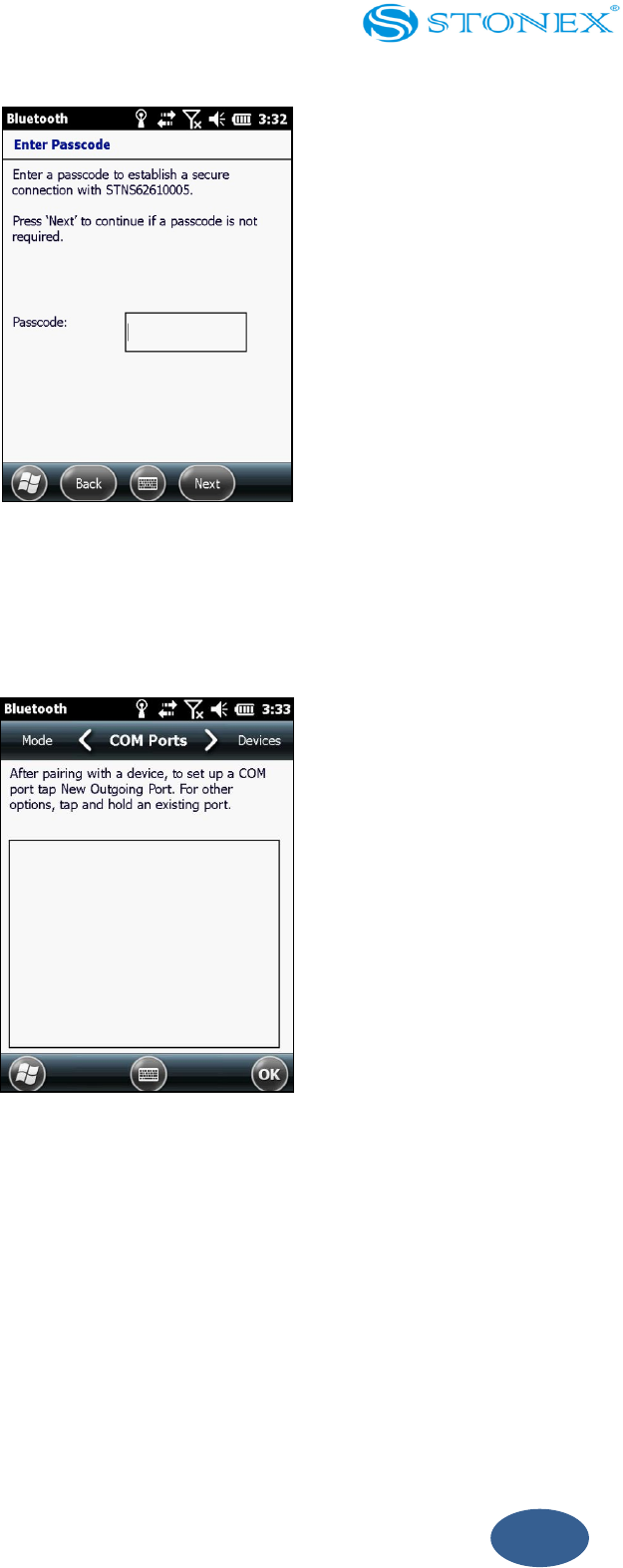
1. Start menu-setting-Bluetooth.
2. Click “add a new device”.
56
Fig. 3.8.1 – Bluetooth setting
Fig. 3.8.2 – device selecting
3. Input the password “1234”.
57
Fig. 3.8.3 – passcode inputting
4. Click “finish”.
5. Back to Bluetooth main screen and choose “COM Ports”
Fig. 3.8.4 – com ports setting
6. Choose “New Outgoing Port”
7. Confirm the handheld SN and then click “Next”.
8. Choose port, in general, choose port COM8 or COM9, and then “click finish”.

58
Chapter 4: Connecting to a PC
In this chapter:
Connection management software
Connecting the handheld to a PC
Managing the connection using the Windows Mobile Device Center
Managing the connection using ActiveSync technology
Installing software onto the handheld

59
Connect the S7 SERIES handheld to a PC to transfer information, settings and files from
one device to the other, or to install software onto the handheld.
You can connect the handheld to a PC using the USB cable or a Bluetooth wireless link.
To protect your data STONEX recommends that you regularly copy important data to
the PC.
4.1. Connection management software
To install software onto a device powered by the Windows Mobile operating system or
to copy files between the handheld and a PC you must connect the device to a PC. If the
computer is running:
Windows 7 or Windows Vista○
R operating system, use the Windows Mobile
Device Center (WMDC) to manage the connection.
Windows○
R XP or 2000 operating system, use ActiveSync technology to manage
the connection.
Note: You must install the Windows Mobile Device Center or ActiveSync technology onto
the computer before you connect the handheld.
This connection management software also enables you to synchronize Desktop office
applications on with the handheld.
Note: The available space on the handheld is small compared to a PC. To avoid
accidentally synchronizing the handheld with a large amount of data on a PC, STONEX
recommends that you either connect to the handheld without forming a partnership, or
that you limit the information types and amount of data that is synchronized.
Note: Synchronizing data is designed to keep the same data on both the PC and the
handheld. Exercise care when resynchronizing applications after deleting data from one
computer, as resynchronizing will delete the same information from the other computer.

60
Installing the Windows Mobile Device Center
The Windows 7 and the Windows Vista operating system include a basic connectivity
driver for devices powered by a Windows Mobile operating system. This driver allows
you to transfer files from the handheld to an office computer.
To install software onto a device powered by a Windows Mobile operating system, you
must install Windows Mobile Device Center 6.1 onto a PC.
A copy of the Windows Mobile Device Center is provided on the S7 SERIES Getting
Started Disc. Alternatively, go to
http://www.microsoft.com/en-us/download/windowsMobile.aspx?q=windows+mobile
to download the latest version from the Microsoft website.
Installing ActiveSync technology
A copy of ActiveSync technology is provided on the S7 SERIES Getting Started Disc.
Alternatively, go to http://www.microsoft.com/en-us/download/details.aspx?id=15 to
download the latest version from the Microsoft website.
4.2. Connecting the handheld to a PC
To connect the S7 SERIES handheld to a PC:
1. Make sure that the handheld and the PC are switched on.
2. Make sure you have installed the appropriate connection management software
onto the PC
3. To form a connection, do one of the following:
- Use the handheld's integrated Bluetooth radio to establish a wireless serial link
to a Bluetooth-enabled computer.
- Use a USB connection:
a. Connect the USB data cable to the USB port on the handheld.
b. Connect the other end of the USB data cable to a USB port on the PC.
When the handheld and the PC are connected, you can manage the connection through a
61
window that appears on the PC. See one of the following:
- Managing the connection using the Windows Mobile Device Center.
- Managing the connection using ActiveSync technology.
4.3. Managing the connection using the Windows
Mobile Device Center
1. Connect the handheld to the PC.
2. If the Autoplay window appears, close the window.
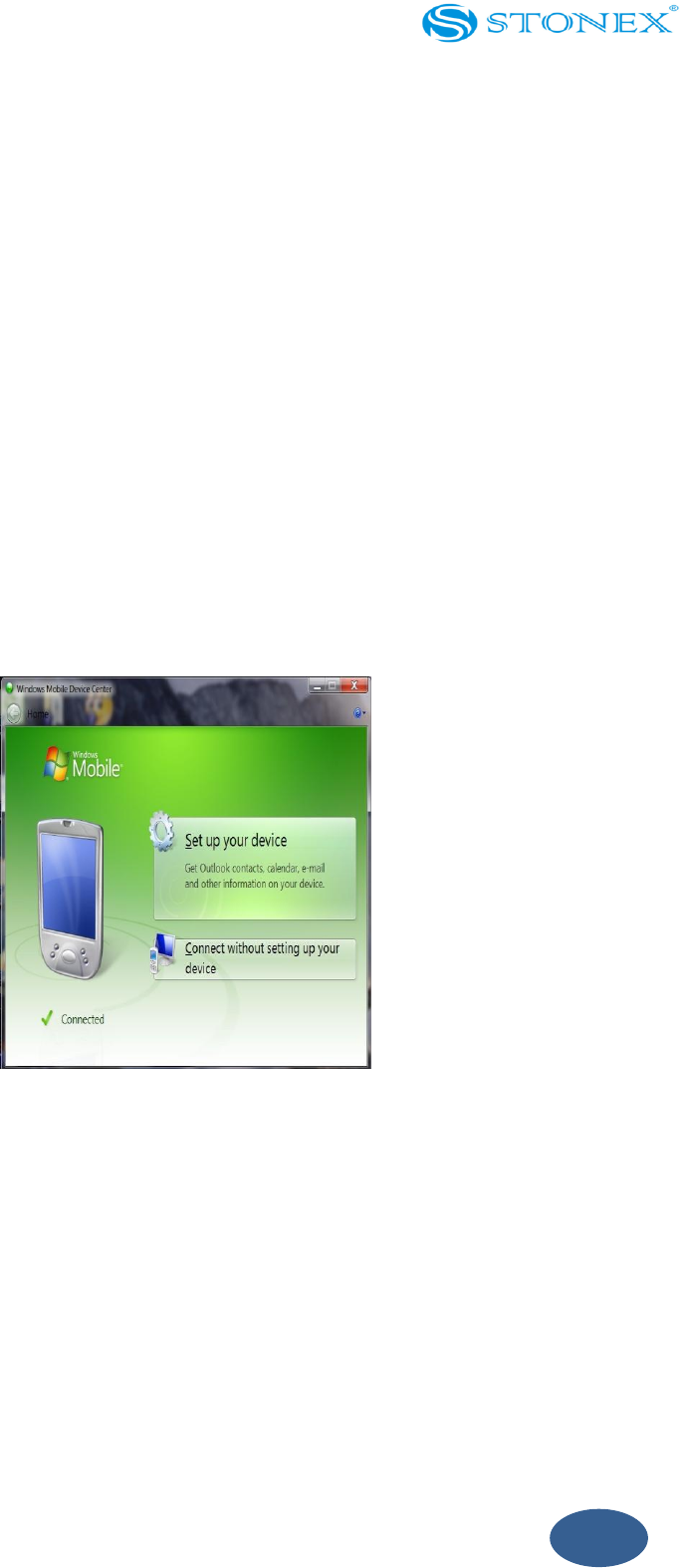
3. The Windows Mobile Device Center window displays the message Connected:
Note: If the connection is not made automatically, check that the connection is enabled in
the Windows Mobile Device Center software and on the handheld.
Fig. 4.3.1 – connection to the PC
62
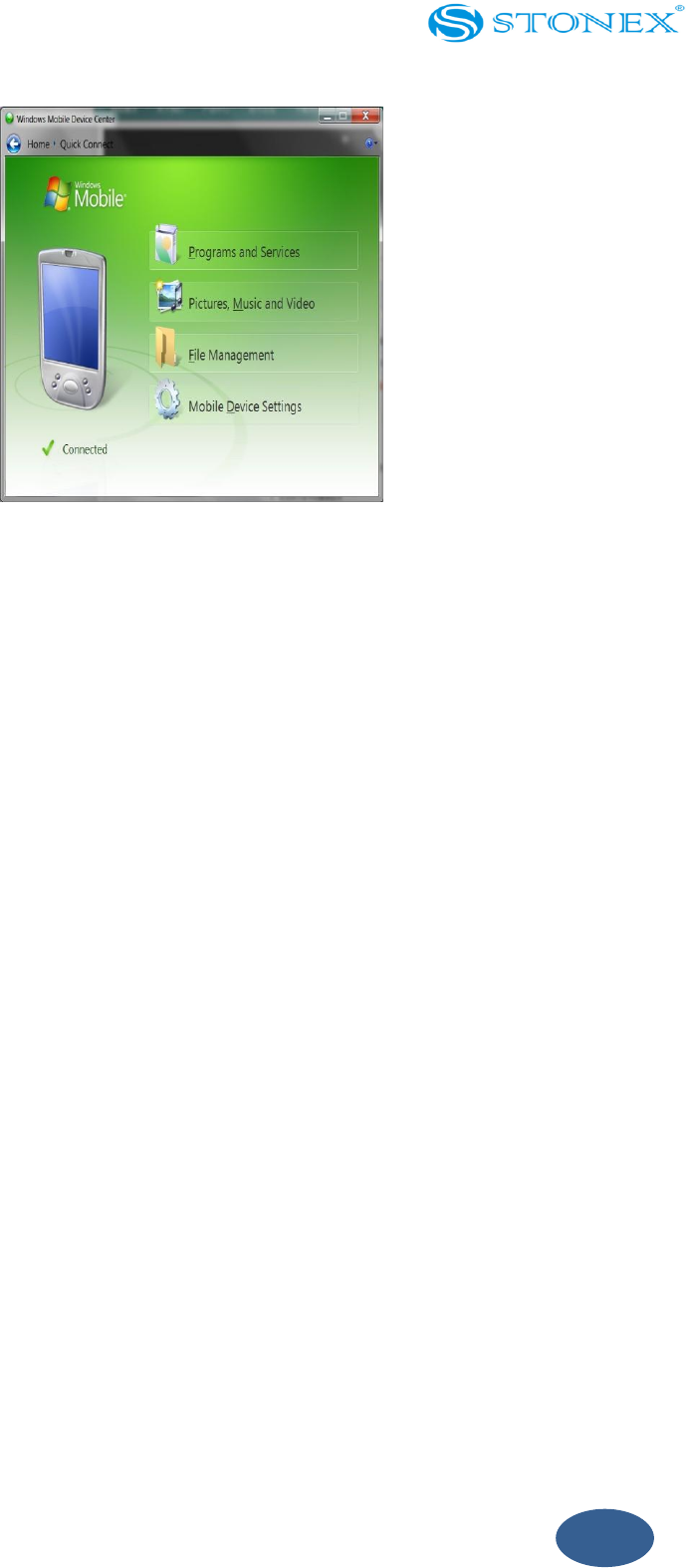
Fig. 4.3.2 – set by PC
4. Do one of the following:
- To synchronize files and data between the handheld and a PC, click Set up your
device and then follow the instructions on screen.
- To transfer data between the handheld and the PC without synchronizing the
devices, click Connect without setting up your device.
5. To transfer files between the PC and the handheld click File Management.
A Windows Explorer-type window appears, displaying files stored on the
handheld. Copy and paste files to other locations on the computer or from the PC
to the handheld.
6. To install software onto the handheld see Installing software onto the handheld.
7. To uninstall software from the handheld click Programs and Services and then
click Add/Remove Programs.
Tip: If the Add/Remove Programs option does not appear below Programs and Services
click More. The Add/Remove Programs option appears.
For more information, refer to the Windows Mobile Device Center Help.
63
4.4. Managing the connection using ActiveSync
technology
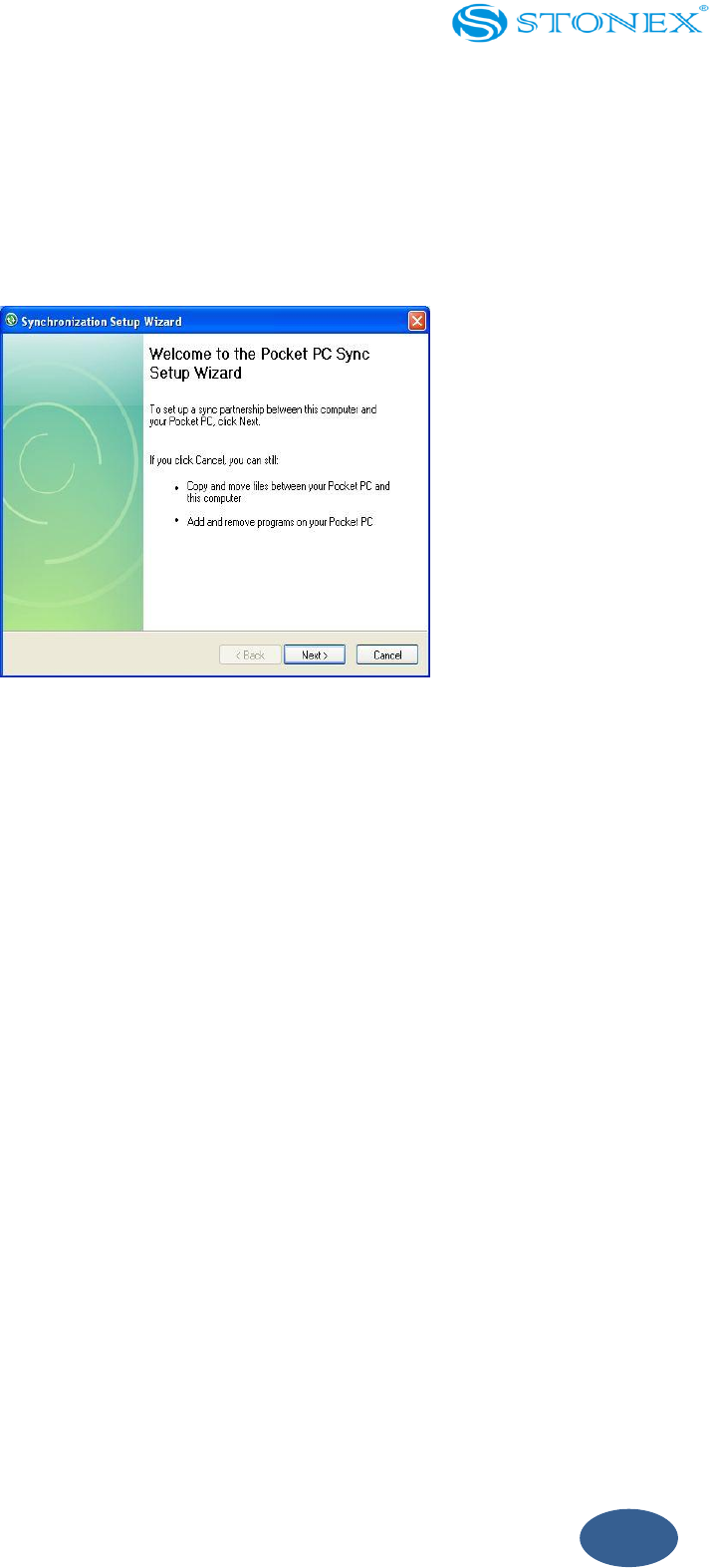
1. Connect the handheld to the PC. The Synchronization Setup Wizard appears:
Fig. 4.4.1 – setup wizard
Note: If the connection is not made automatically, check that the connection is enabled in
the ActiveSync technology and on the handheld.
2. Do one of the following:
- To synchronize files and data between the handheld and a PC, click Next and
then follow the instructions in the Synchronization Setup Wizard.
- To transfer data between the handheld and the PC without synchronizing the
devices, click Cancel to close the wizard.
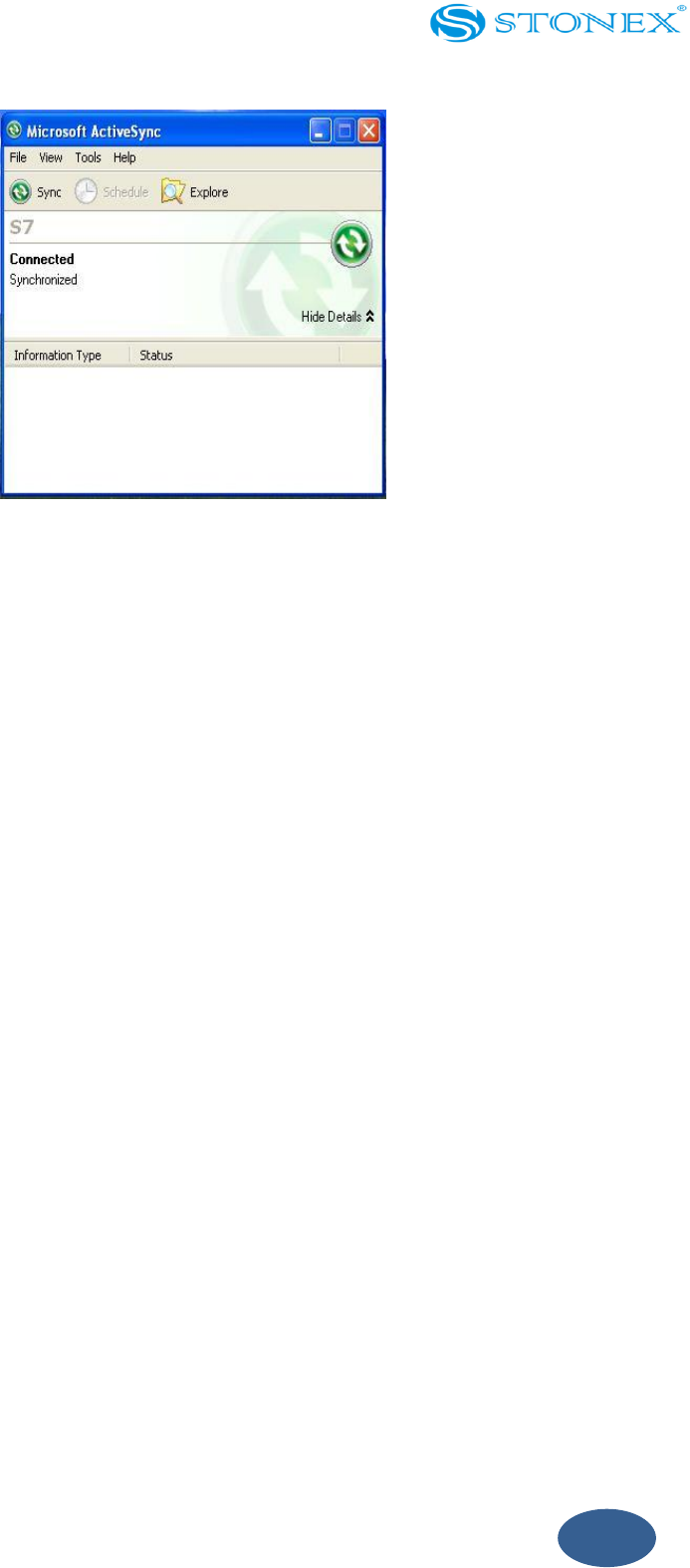
3. The Microsoft ActiveSync window displays the message Connected:
64
Fig. 4.4.2 – connection prompt
4. To transfer files between the PC and the handheld, click Explore. A Windows
Explorer-type window appears, displaying files stored on the handheld. Copy
and paste files to other locations on the PC, or from the PC to the handheld.
5. To install software onto the handheld, see Installing software onto the handheld.
6. To uninstall software from the handheld, select Add/Remove Programs from the
Tools menu. Clear the check box beside the program you want to remove and
then click OK.
For more information, refer to the ActiveSync Help.
4.5. Installing software onto the handheld
Before you begin, refer to the installation instructions provided with the software. Some
software installations are specifically designed to run on a device powered by a
Windows Mobile operating system.
To install software that has a Windows Mobile installation setup:
1. Connect the handheld to a PC.
2. Copy the installation files to a folder on the handheld.
3. Browse to the folder on the handheld. Tap and hold the installation setup file
and then select Run.

65
4. If prompted after installation, perform a soft reset of the handheld.
To install software that is provided on a CD, or as an installation setup that runs on an
PC:
1. Connect the handheld to a PC.
2. If the software is provided on a CD, insert the software CD into the PC.
3. Run the installation setup.
4. If prompted, select the install option for a device powered by a Windows Mobile
operating system. Once the software is installed on the computer it is
automatically transferred to the handheld.
Note: If a storage card is inserted in the handheld, the card appears as an installation
location option. STONEX recommends that you install software to the handheld’s internal
storage, not to a storage card. If you install software to a card and then remove the card
from the handheld, the software will not be available for use.
5. If prompted after installation, perform a soft reset of the handheld.

66
Chapter 5: Using the camera
In this chapter:
Parts of the camera
Starting the camera application and capturing photos or video
Adjusting camera settings

67
The S7 SERIES handheld contains an integrated digital camera to capture photos or
video.
Parts of the camera
Use the Camera button to:
Start the camera application
Lock focus (press and hold the button)
Capture photos (release the button)
Start and stop recording a video (in Video mode, press the button)
Starting the camera application and capturing photos or video
To start the camera, do one of the following:
1. Press the Camera button in the center of the keypad.
2. Tap / Pictures & Videos / Camera.
When the camera application is started, it is by default in Still (photo) mode.
3. Do one of the following:
a. To capture a photo:
- Hold the handheld steady. Use the preview window to frame the subject in
the center of the frame.
- To capture the photo, press the enter button of the keyboard and hold the
camera steady until the review photo is shown.
b. To capture a video:
- Tap the menu Menu button and then select Video.
- Use the preview window to frame the start of the video.
- To start recording, press the Camera button and then release. Move the
handheld to record the video.
- To pause recording, tap the Pause button. To stop recording, tap the Stop
button or press the Camera button.
68
Note: When the camera application displays the icon, it is storing the photo or video file.
Removing the battery or the memory card while recording may affect photos / videos or damage
the memory card.
To switch to Still mode from Video mode, tap the menu Menu button and then select
Still.
Adjusting camera settings
To access the camera settings:
1. Start the camera application and then tap the Menu button.
The available camera settings are displayed in a list.
2. Tap the required setting or change the current value. The list of available
settings varies depending on whether you are in Video mode or Still mode.
Table 6.1 Camera settings
Mode
Setting
Options
Video
Resolution
640x480, 320x240,
Still
Resolution
2560x480, 640x480, 320x240
Still & Video
Compression
Low quality, Medium quality, High quality
Still & Video
Full Screen
Hides the tile bar
Camera and Video options
To access to the Camera options, tap / Pictures & Videos / Camera / Menu /
Options.
Use the camera options to customize where still photos and videos are stored,
and to customize storage settings for still photos.
Save files to: If you have a storage card installed you can choose to save

69
photos in either the main memory of the device or to a folder on the
storage card. Photos saved to the main memory are saved in the My
Pictures folder.
Still filename prefix: Use this option to give still photos a customized
filename prefix.
Video filename prefix: Use this option to give videos a customized
filename prefix.
Time limit for videos: To set the automatic time limit for videos, choose a
suitable time limit from the options list.

70
Chapter 6: Troubleshooting
In this chapter:
Power issues
Backlight issues
Touch screen issues
Storage card issues
Keypad issues
Connection issues
GNSS receiver issues
Real-time DGNSS issues
Recommended GNSS settings for maximum precision and productivity
71
Use this section to identify and solve common problems that may occur when using the
S7 SERIES handheld. Please read this section before you contact technical support.
6.1. Power issues
problem
cause
solution
The handheld
does not turn on.
The battery is flat.
Recharge or swap the battery.
The screen is
blank.
The handheld is turned off.
Press the Power button to turn on the
handheld.
The handheld has locked up.
Reset the handheld.
The handheld is
not charging
The internal temperature has
risen above the allowed
maximum (40 °C or 104 °F) for
charging the battery.
Do one or all of the following:
Turn off the integrated radios before
charging the handheld.
Suspend the handheld before charging.
Remove the handheld from any external
heat sources (for example, sunlight). The
handheld will automatically start
charging again when the internal
temperature has dropped below the
range for charging the battery.
The battery
power
percentage bar
does not appear
in the Power
control.
The battery has 0% power.
Recharge the battery. Once the battery
level is above 0%, the battery power
percentage bar reappears. Tap /
Settings / System / Power / Battery to
view the level of power remaining in the
battery.
72
Under some
circumstances
the AC adapter
may be faintly
audible at close
proximity.
The AC adapter is a highly
efficient Energy Star V adapter
which is required to operate at
very low audible duty cycles
when unloaded so as not to
waste energy.
There is no safety issue related to the
faint noise. In the event of a
disconcerting noise, disconnect the
mains adapter from the mains as soon as
a battery charge is complete.
The charge level
of the battery
drops when the
handheld is
turned off.
The handheld was left in Standby
mode or was left fully charged
for a long duration.
Before storing the handheld, completely
shut down the handheld (see Turning on
and turning off the handheld, page 17).
Then store the handheld as
recommended (see Storing the handheld,
page8).
The handheld was left in
suspend mode with a wireless
radio turned on.
Before suspending the handheld, use the
Wireless Manager to turn off all wireless
radios. Make sure that all the radios are
turned off after suspending the
handheld. If a radio is still active, the
Wireless LED is Solid blue or green.
6.2. Backlight issues
problem
cause
solution
The backlight
does not come on
when you tap the
screen or press a
button.
The backlight is not set to turn
on in the Backlight control.
Tap / Settings / System / Backlight
to view the Backlight control, and make
sure that:
the Turn on backlight when a button is
pressed or the screen is tapped check
box is selected.
73
The screen is
blank or hard to
see.
The backlight is off.
Tap the screen or press a button.
The backlight level needs to be
adjusted.
Tap / Settings / System / Brightness
to view the Backlight control and then
adjust the slider in the Brightness tab.
6.3. Touch screen issues
Problem
Cause
Solution
The touch
screen does
not respond to
finger or stylus
taps.
The touch screen is incorrectly
aligned.
Realign the screen(see page 28).
The touch screen is locked.
To unlock the touch screen, slide the
Unlock icon.
The handheld has locked up.
Reset the handheld.(see Resetting the
handheld, page 19)
The screen is
blank.
The handheld is turned off.
Press the Power button to turn on the
handheld.
The battery is flat.
Recharge or swap the battery (see page 15
and 17)
The handheld has locked up.
Reset the handheld (see Resetting the
handheld, page 19)
The screen is
hard to see.
The backlight level needs to be
adjusted.
Open the brightness control and then
adjust the backlight level (see Backlight
and brightness, page 37).
The backlight is off.
Tap the screen to turn on the backlight.
You are unable to see parts of an
application windows when the
screen is in landscape
orientation.
Some applications are designed for
portrait orientation only. To view the
entire application window, change the
screen display to portrait. See Screen, page
36
74
6.4. Storage card issues
Problem
Cause
Solution
The handheld does not
recognize a storage card.
The handheld does not
support SDIO (SD
input/output) cards.
Use an SD or SDHC card.
Files on the storage card are
not visible or are not able to
be opened.
Files have been encrypted on
another device and have
a .menc file extension.
Remove encryption from the
files (see Encrypting files on
storage cards, page 21).
6.5. Keypad issues
Problem
Cause
Solution
Pressing the application key
does not activate the
function shown on the tile
above it.
The hardware application
key has been programmed
to run another program or to
perform another action.
Do one of the following:
Tap the touchscreen tile
to activate the function
shown on the tile.
Re-program the
application key to
perform the same action
as the touchscreen tile.
To do this, tap /
Settings / Personal /
Buttons, select the button
to reprogram
6.6. Connection issues
Network connections
Problem
Cause
Solution
The connection with the
If you change the proxy
Make any changes to proxy
75
cellular phone suddenly ends.
settings of the handheld while
connected to a cellular phone,
the cellular phone ends the
connection.
settings before connecting to a
mobile device.
Unable to connect to another
S7 SERIES handheld.
Data encryption settings are
set incorrectly.
When setting up a
peer-to-peer ad-hoc network
with a WEP encryption, set a
Network Key, rather than
leaving the key blank to be
provided automatically.
Windows Mobile Device Center
Problem
Cause
Solution
Windows Mobile
Device Center will
not connect to the
handheld.
The connection is not
initiated automatically.
In the Windows Mobile Device Center
software on the office computer, select
Mobile Device Settings / Connection Settings.
The Windows Mobile
Device Center software
does not recognize the S7
SERIES handheld.
Restart the PC. Disconnect the handheld from
the PC, reset it (see Resetting the handheld,
page 19) and then reconnect it to the PC.
The connection is not
enabled in Windows
Mobile Device Center on
the PC.
In the Windows Mobile Device Center
software on the PC, click Mobile Device
Settings / Connection Settings. If you are
using:
a USB cable, make sure that the Allow USB
connection check box is selected from the
drop-down list.
a Bluetooth connection, make sure that
the correct port for Bluetooth is selected.
76
Then open the Bluetooth control on the
handheld. In the Devices tab, tap the
partnership and in the services list make
sure that the ActiveSync check box is
selected.
The connection is not
enabled on the handheld.
On the handheld, tap / ActiveSync /
Menu / Connections. Make sure that the
Synchronize all PCs using this connection
check box is selected, and that the correct
option is selected.
The handheld connection
settings conflict with
network settings or VPN
client software.
If you are using a USB cable, use the USB to
PC utility to change the connection method
the handheld uses to connect to the Windows
Mobile Device Center on the computer. Tap
/ Settings / Connections / USB to PC Utility.
Clear the Enable advanced network
functionality check box. The handheld stops
using the default RNDIS method to connect
to the Windows Mobile Device Center.
ActiveSync technology
Problem
Cause
Solution
ActiveSync
technology will
not connect to
the handheld.
The connection is not
initiated
automatically.
In the ActiveSync technology dialog on the office
computer, select File / Connection Settings and
then tap Connect.
ActiveSync does not
recognize the S7
SERIES handheld.
Disconnect the handheld from the PC. Restart the
PC. Reset the handheld (see Resetting the handheld,
page 19) and then reconnect the handheld to the
PC.
77
An incompatible
version of ActiveSync
technology is
installed.
ActiveSync version 4.5 and later is compatible with
the S7 SERIES handheld. If version 4.5 or later of
the ActiveSync software is not installed on the PC,
you can install it from the S7 SERIES Getting
Started Disc. You can also download the latest
version from the Microsoft website at
http://www.microsoft.com/en-us/download/detai
ls.aspx?id=15
The connection is not
enabled in ActiveSync
on the computer.
In the ActiveSync technology dialog on the office
computer, click File / Connection Settings. If you
are using:
a USB cable, make sure that the Allow USB
connections check box is selected from the
drop-down list.
a Bluetooth connection, make sure that the
correct port for Bluetooth is selected. Then open
the Bluetooth control on the handheld. In the
Devices tab, tap the partnership and in the
services list make sure that the ActiveSync check
box is selected.
The connection is not
enabled in ActiveSync
on the handheld.
On the handheld, tap / ActiveSync / Menu /
Connections. Make sure that the Synchronize all
PCs using this connection check box is selected, and
that the correct option is selected.
The handheld
connection settings
conflict with network
settings or VPN client
software.
If you are using a USB cable, use the USB to PC
utility to change the connection method the
handheld uses to connect to ActiveSync on the
computer. Tap / Settings / Connections / USB
to PC Utility. Clear the Enable advanced network

78
functionality check box.
The handheld stops using the default RNDIS
method to connect to the ActiveSync technology.
Bluetooth wireless technology
Problem
Cause
Solution
The handheld cannot
discover a nearby
Bluetooth device.
The integrated Bluetooth
radio is not activated.
The handheld’s Bluetooth radio has been
deactivated. If Bluetooth wireless
technology is allowed where you are
working, use the Radio Activation Manager
software to re-activate the radio.
The device is out of range.
Move the devices closer to each other and
then scan again.
Bluetooth wireless
technology is not enabled on
one or both devices.
Make sure that the Bluetooth radio is
turned on, on both the handheld (see
page40) and the other Bluetooth device.
The device has not been
made discoverable.
Make sure that the Bluetooth device has
been made discoverable.
The COM port that
you assigned to a
serial port service is
not available in your
application.
The application cannot
recognize ports if they are
added after the application
opens.
Exit from the application, add the port and
then run the application again.
The Bluetooth
connection fails while
in use.
The Bluetooth device has
moved out of range.
Move the devices closer to each other. The
devices should reconnect automatically. If
they do not, select the Bluetooth device in
the Devices tab. Tap and hold the device
name and then select Delete. Tap New to
discover the device again.
79
The Bluetooth radio has lost
the connection.
Turn off the Bluetooth radio on the
handheld and then turn on the Bluetooth
radio (see page 39).
Bluetooth file transfer
interrupts the connection.
When you transfer large image or data files,
other Bluetooth connections may stop
responding. To avoid problems, close other
Bluetooth connections before transferring
large files.
An error message
reports “Problem
with Bluetooth
Hardware”.
The integrated Bluetooth
radio may have been
deactivated.
Use the Radio Activation Manager to
reactivate the Bluetooth radio.
Wi-Fi connections
Problem
Cause
Solution
The “New Network Detected”
notification does not appear
automatically.
The Wi-Fi radio is off.
Tap the wireless icon in the Home
screen or go to the Wireless
Manager and make sure Wi-Fi is on.
The handheld is out of
range of the network.
Move to within range of the
network, then tap / Settings
/Connections /Network Cards and
then set up the connection.
The handheld cannot connect
to a secure site.
The date on the
handheld is incorrect.
Check that the handheld has the date
set correctly on the Home screen. If
the date is incorrect, tap the clock
icon on the Home screen and then
adjust the date and time.
You cannot configure an
Internet connection.
Within range of more than one
network, you are not
The radio is connecting
to the first network
Tap /Settings /Connections
/Wi-Fi. Tap and hold the network
80
connecting to the network you
would prefer to use.
signal it has received.
you would prefer to use and then
select Connect.
The “New Network Detected”
notification appears but the
tile bar and tile options are
not displayed.
Some applications are
not fully compatible
with all features of the
Windows Mobile 6.5
operating system.
Use the application buttons on the
keypad, as they map to the tiles in
the tile bar:
To dismiss the notification, press
the right application button on
the keypad.
To connect to the network, press
the left application button.
Alternatively, select a Windows
Mobile application from the Start
screen, such as the Home screen or
File Explorer, and the tile bar and
soft keys will be displayed correctly.
Wi-Fi is unavailable in the
Wireless Manager.
The integrated Wi-Fi
radio has been
deactivated.
Use the Radio Activation Manager to
reactivate the Wi-Fi radio.
Internal cellular modem connections
Problem
Cause
Solution
Can't
download data.
Your account has no
remaining credit.
Contact your cellular provider to ensure that your
account has sufficient credit.
Can't connect.
The phone is turned off.
Turn on the phone using the Wireless Manager.
The connection is
incorrectly configured.
Check your APN and connection settings with your
provider.
Cellular service is
unavailable.
Check that the phone is within range of receiving
strong enough signals to connect. Move to a
81
location with stronger cellular reception. Check
with your cellular provider that coverage is
available in your region.
Can't set up a
connection.
SIM card is missing.
Insert SIM card.
SIM card is locked.
Check the PIN security: tap / Settings /
Personal / Phone, and select the Security tab.
GPRS selection is
incorrect for your
cellular provider.
Check your settings: tap / Settings /
Connections/Connections.
6.7. GNSS receiver issues
Problem
Cause
Solution
The handheld
is not receiving
GNSS positions.
The integrated GNSS
receiver is not activated.
Use the Connect or Activate GNSS/GPS command in
the field software to open the GNSS COM port and
activate the integrated GNSS receiver.
The GNSS COM port is
already in use. Only one
application at a time can
have the port open.
Do the following
Exit the software that is using the GNSS COM
port and then retry in your application.
Check that a GNSS application is not running in
the background. Tap / Task Manager and then
select and close (click End Task) any GNSS
applications you are not using.
Make sure that connections are not left in use
by the GNSS Connector software; close the
application when you are not using the
connections.
Problem
Cause
Solution
The handheld
Wait for real-time is selected in
Check that the real-time correction source
82
is not receiving
GNSS positions.
the GNSS field software and the
integrated receiver is waiting to
receive real-time corrections.
is setup correctly.
External antenna connected but
not receiving data.
The handheld can take up to two seconds
to detect that an external antenna has been
connected or disconnected.
6.8. Real-time DGNSS issues
Problem
Cause
Solution
The handheld is not
receiving SBAS
real-time
corrections
The SBAS satellite is
obstructed from view.
Check the location of the SBAS satellite in the
Skyplot section of the GNSS field software, and
if possible move to a different location.
You are outside the
WAAS, EGNOS, or MSAS
coverage area.
Wide Area Augmentation System (WAAS)
satellites are tracked in the Continental United
States including Alaska, and in southern parts
of Canada.
European Geostationary Navigation Overlay
Service (EGNOS) satellites are tracked in
Europe.
MTSAT Satellite-based Augmentation System
(MSAS) satellites are tracked in Japan.
If you have selected satellites that are not
available at your location, you cannot use SBAS
corrections.
Problem
Cause
Solution
The handheld is not
receiving real-time
corrections from
The external source is
incorrectly connected to
the real-time COM port.
In the Real-time Settings section of the GNSS
field software, select the COM port that the
real-time source is connected to.
83
the external
real-time
correction source
The port settings are
incorrect.
Change the port settings to match those used
by the external source.
No GNSS positions are
available.
You cannot use real-time corrections until the
GNSS receiver is computing positions. In the
GNSS field software, make sure that the
integrated GNSS receiver is activated, enough
satellites are available, and that the satellite
geometry (PDOP) is good enough to compute
positions.
6.9 Recommended GNSS settings for
maximum precision and productivity
The following table lists some of the factors that affect the precision of your data, and
describes how to minimize the effect of atmospheric interference and poor satellite
geometry.
Factor
Description
To maximize precision and productivity
Satellite shadow
Satellite shadow is when the
line of sight between the GNSS
receiver and satellites is
partially or fully blocked by
obstructions such as buildings,
trees, or land masses. The
effect of satellite shadow is a
reduction in the number of
satellites that the receiver is
able to track. In general, the
quality of your data increases
Tracking more satellites can help to
improve satellite geometry and thereby
improve accuracy.
Ensure the integrated GNSS receiver gets a
clear view of the sky as possible. Keep your
body mass as far from the receiver as
practical and do not crowd over the
handheld.
Use an external antenna if needed to
elevate the position of the antenna.
84
with the number of satellites
being used to calculate the
position.
Multipath
Multipath is when GNSS
satellite signals are reflected
off nearby objects, such as
buildings or cars, causing an
erroneous signal to be
received by the GNSS antenna.
This can cause errors of
several meters.
To reduce multipath, where possible
collect data in an open environment away
from large reflective surfaces and with a
clear view of the sky.
Factor
Description
To maximize precision and productivity
Occupation time
at a point
Occupation time is the time
spent at a point logging GNSS
positions.
For point features, remain at the feature
and log a number of GNSS positions to
obtain an averaged position.
When collecting line and area features,
collect them using averaged vertices.