SUNGALE ELECTRONICS 8101019 MID User Manual ID710WTA UM EN

SUNGALE ELECTRONICS (SHENZHEN) CO., LTD. MID ID710WTA UM EN

user manual

   MID   User Manual  Model Name: ID733WTA  Brand Name: SUNGALE  FCC ID: XBI8101019
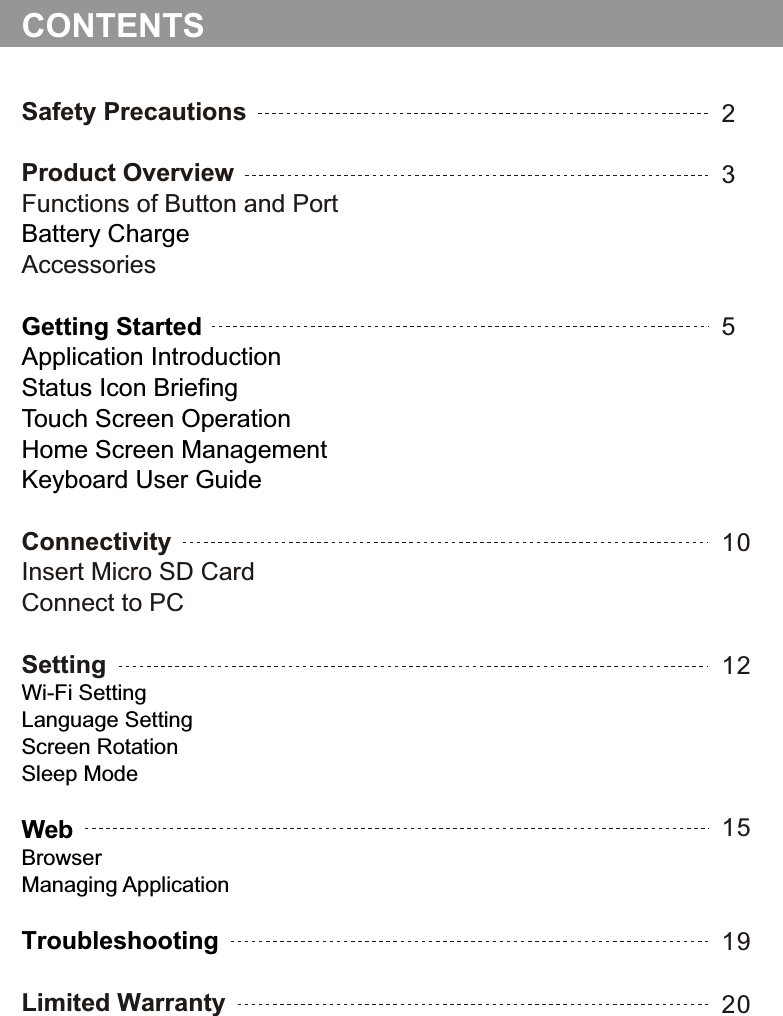
Safety PrecautionsProduct OverviewFunctions of Button and PortAccessoriesConnectivityInsert Micro SD CardConnect to PCSettingLimited WarrantyBattery ChargeGetting Started Application IntroductionStatus Icon BriefingTouch Screen OperationHome Screen ManagementKeyboard User GuideWi-Fi SettingLanguage SettingScreen RotationSleep ModeWebBrowserManaging ApplicationTroubleshooting23CONTENTS51012151920
Safety Precautions2For advanced operations such as Dev tools, it is suggested to be operated by professional engineers. Images and screenshots used in this user manual may differ in appearance from the actual product.Content in this user manual may differ from the product, or from software provided by service providers or carriers, and is subject to change without prior notice.Keep your device dry.Do not use or store your device in dusty, dirty areas.Do not place your device on slopes. If your device falls, it can be damaged.Do not place your device in too hot or too cold areas.Do not place your device with metal objects such as keys and necklaces.Do not place your device near magnetic fields.Simply put, do not drop, throw, or sit on your device, for obvious reasons. Do not use your device near other electronic devices.Please do not use your device in thundery days.Keep your device away from liquid substance.Do not place your device near or in heaters, microwaves, hot cooking equipment, or high pressure containers.
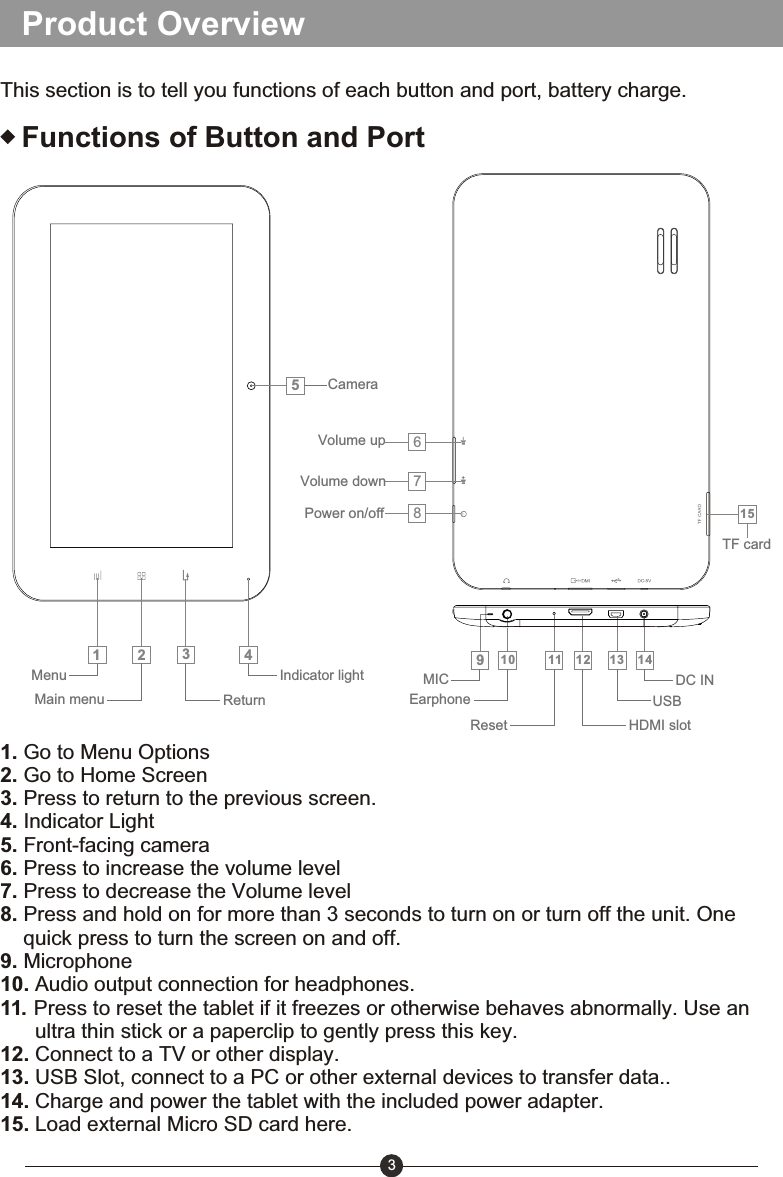
3Functions of Button and PortProduct OverviewThis section is to tell you functions of each button and port, battery charge.1 2 3567810 11 12 13 141594Indicator light Menu Main menu Return CameraPower on/off Volume down Volume upMICEarphoneReset HDMI slotUSBDC IN TF card1. Go to Menu Options2. Go to Home Screen3. Press to return to the previous screen.4. Indicator Light5. Front-facing camera6. Press to increase the volume level7. Press to decrease the Volume level8. Press and hold on for more than 3 seconds to turn on or turn off the unit. One     quick press to turn the screen on and off.9. Microphone10. Audio output connection for headphones.11. Press to reset the tablet if it freezes or otherwise behaves abnormally. Use an       ultra thin stick or a paperclip to gently press this key.12. Connect to a TV or other display.13. USB Slot, connect to a PC or other external devices to transfer data..14. Charge and power the tablet with the included power adapter.15. Load external Micro SD card here.
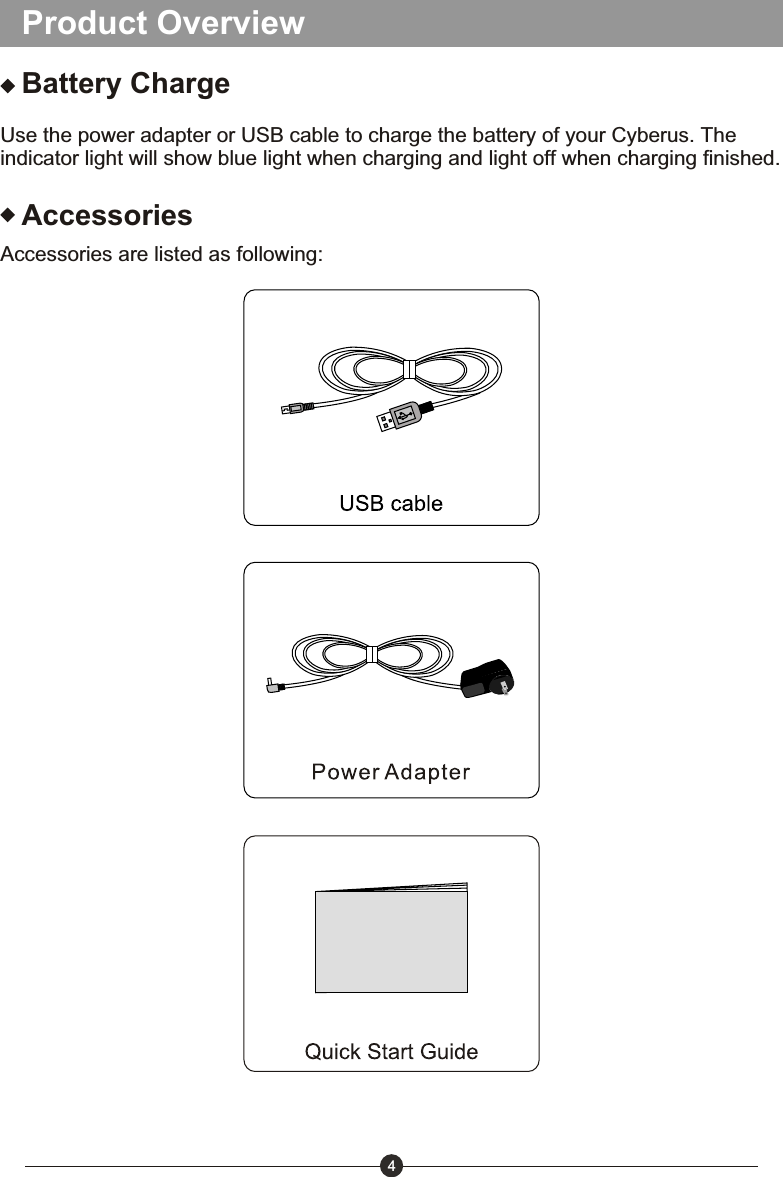
Product OverviewBattery ChargeUse the power adapter or USB cable to charge the battery of your Cyberus. The indicator light will show blue light when charging and light off when charging finished.Accessories are listed as following:4Accessories
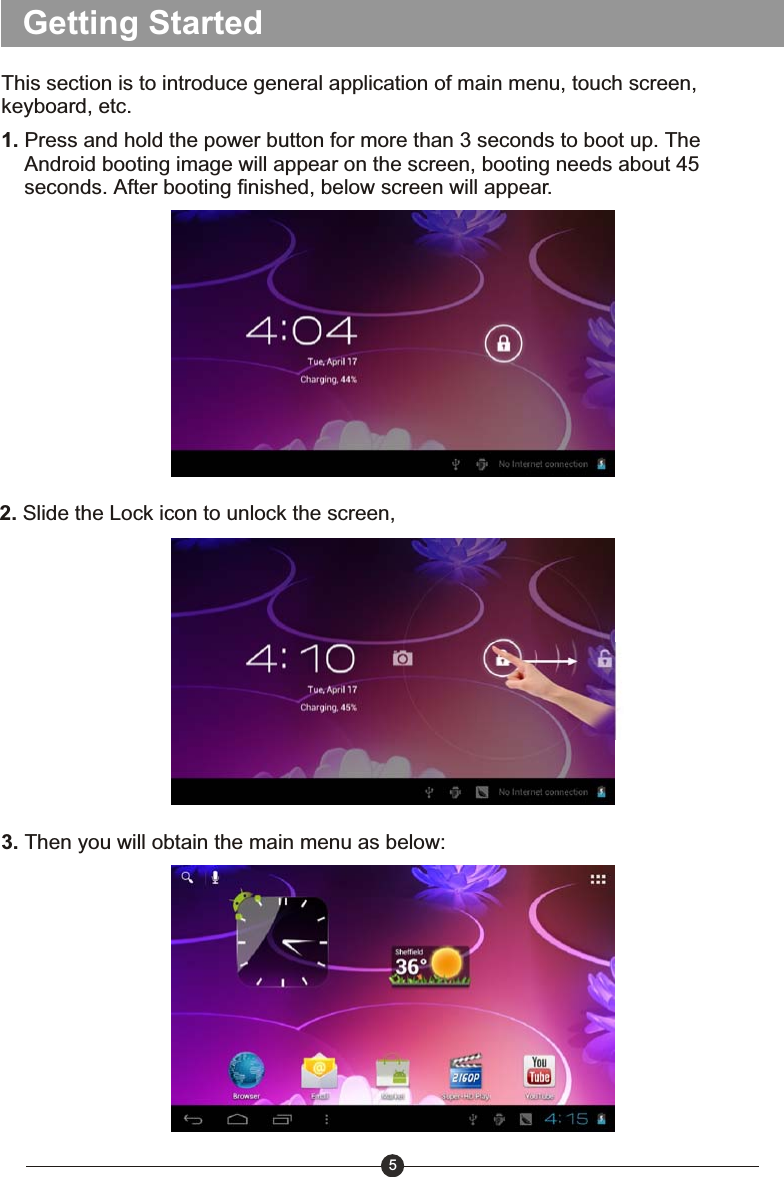
Getting StartedThis section is to introduce general application of main menu, touch screen, keyboard, etc.1. Press and hold the power button for more than 3 seconds to boot up. The     Android booting image will appear on the screen, booting needs about 45     seconds. After booting finished, below screen will appear.2. Slide the Lock icon to unlock the screen, 53. Then you will obtain the main menu as below:
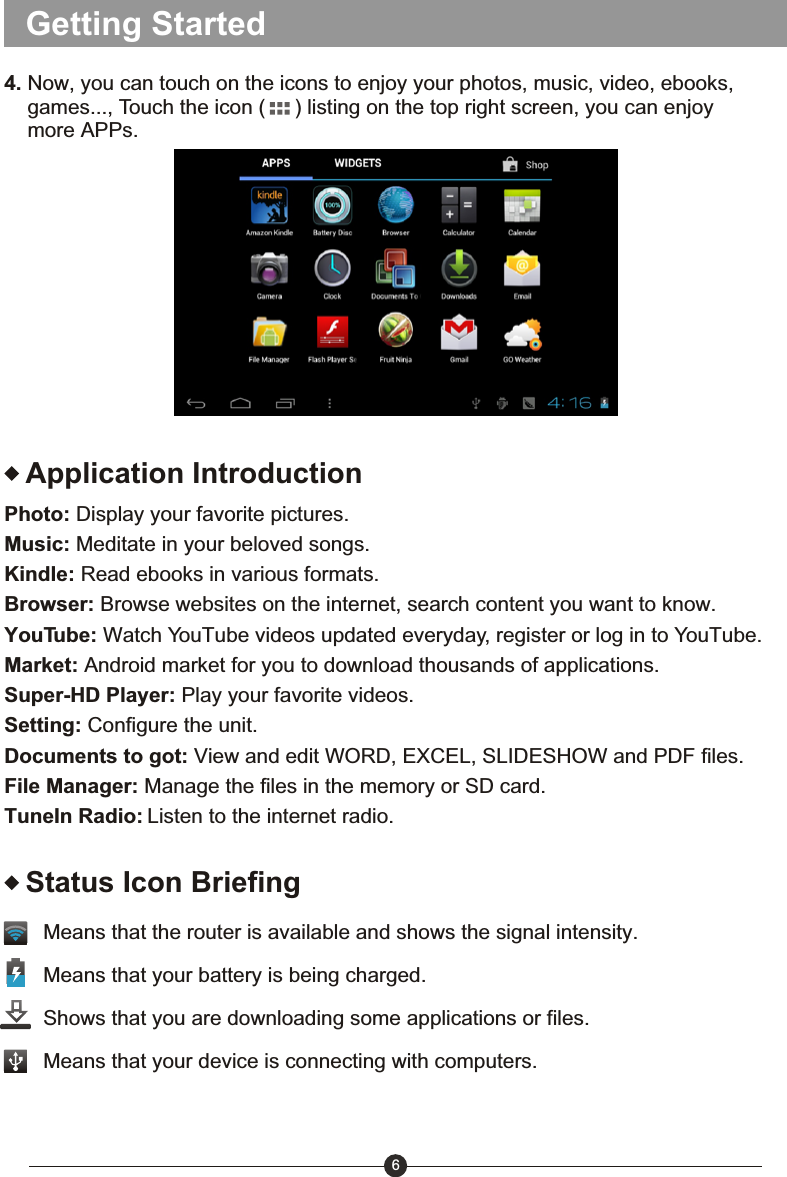
Getting Started4. Now, you can touch on the icons to enjoy your photos, music, video, ebooks,     games..., Touch the icon (     ) listing on the top right screen, you can enjoy     more APPs.Application IntroductionPhoto: Display your favorite pictures.Music: Meditate in your beloved songs.Kindle: Read ebooks in various formats.Browser: Browse websites on the internet, search content you want to know.YouTube: Watch YouTube videos updated everyday, register or log in to YouTube.Market: Android market for you to download thousands of applications.Super-HD Player: Play your favorite videos.Setting: Configure the unit.Documents to got: View and edit WORD, EXCEL, SLIDESHOW and PDF files.File Manager: Manage the files in the memory or SD card.TuneIn Radio: Listen to the internet radio.6Status Icon BriefingMeans that the router is available and shows the signal intensity. Means that your battery is being charged.Shows that you are downloading some applications or files.Means that your device is connecting with computers.
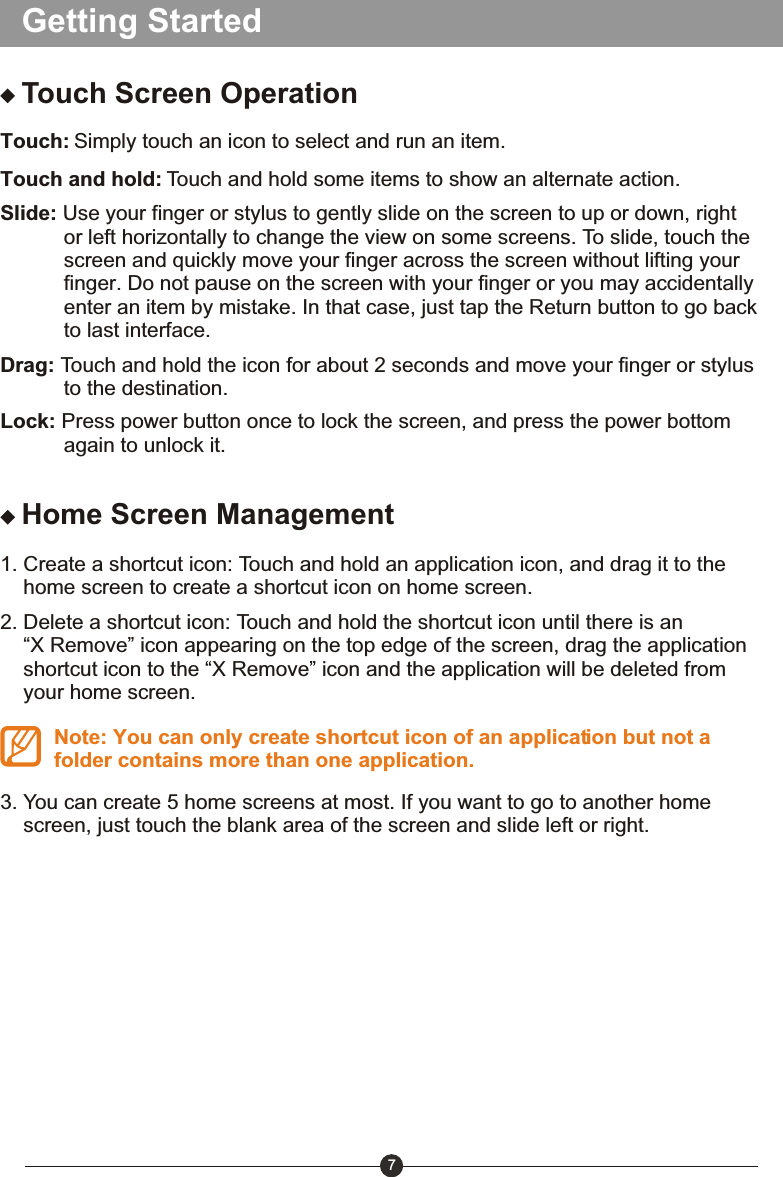
Getting StartedTouch Screen OperationTouch: Simply touch an icon to select and run an item.Touch and hold: Touch and hold some items to show an alternate action.Slide: Use your finger or stylus to gently slide on the screen to up or down, right            or left horizontally to change the view on some screens. To slide, touch the            screen and quickly move your finger across the screen without lifting your            finger. Do not pause on the screen with your finger or you may accidentally            enter an item by mistake. In that case, just tap the Return button to go back            to last interface.Drag: Touch and hold the icon for about 2 seconds and move your finger or stylus            to the destination. Lock: Press power button once to lock the screen, and press the power bottom            again to unlock it. Home Screen Management1. Create a shortcut icon: Touch and hold an application icon, and drag it to the     home screen to create a shortcut icon on home screen.2. Delete a shortcut icon: Touch and hold the shortcut icon until there is an     “X Remove” icon appearing on the top edge of the screen, drag the application     shortcut icon to the “X Remove” icon and the application will be deleted from     your home screen.Note: You can only create shortcut icon of an application but not a folder contains more than one application.3. You can create 5 home screens at most. If you want to go to another home     screen, just touch the blank area of the screen and slide left or right.7
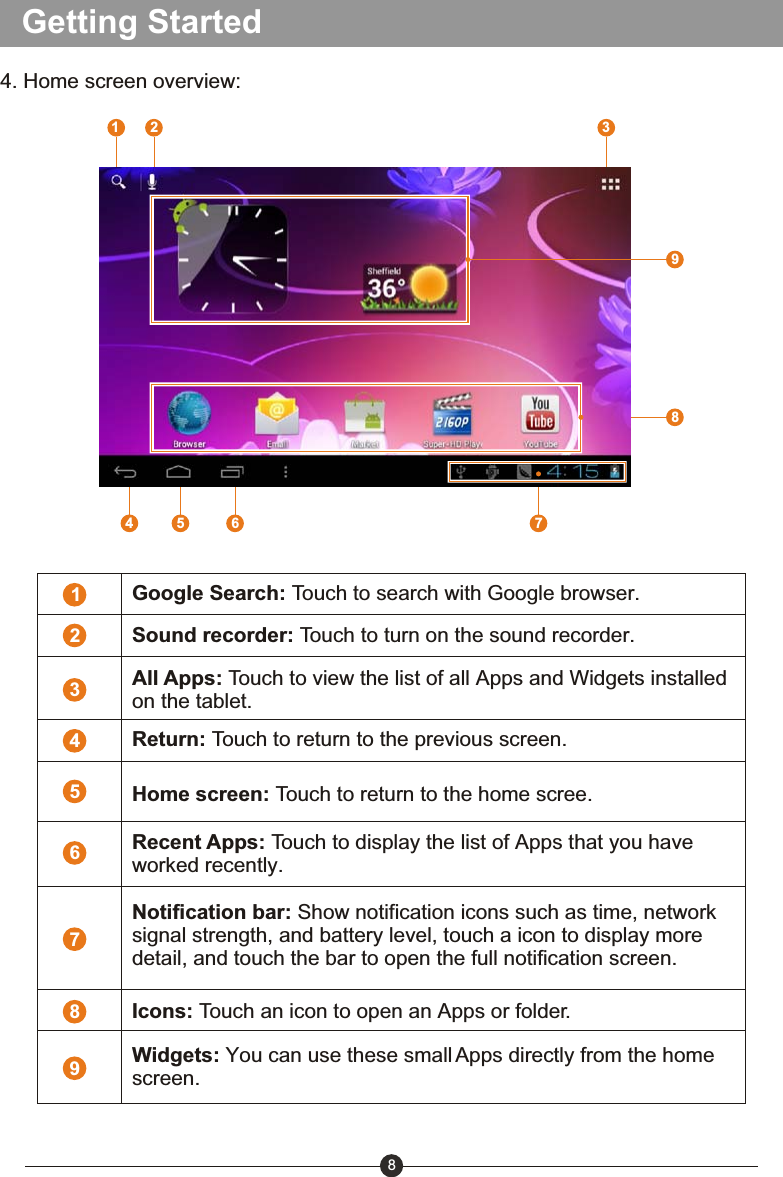
Getting Started812345678123456789Widgets: You can use these small Apps directly from the home screen.Notification bar: Show notification icons such as time, network signal strength, and battery level, touch a icon to display more detail, and touch the bar to open the full notification screen.Icons: Touch an icon to open an Apps or folder.Google Search: Touch to search with Google browser.Sound recorder: Touch to turn on the sound recorder. All Apps: Touch to view the list of all Apps and Widgets installed on the tablet.Return: Touch to return to the previous screen.Home screen: Touch to return to the home scree.Recent Apps: Touch to display the list of Apps that you have worked recently.4. Home screen overview:9
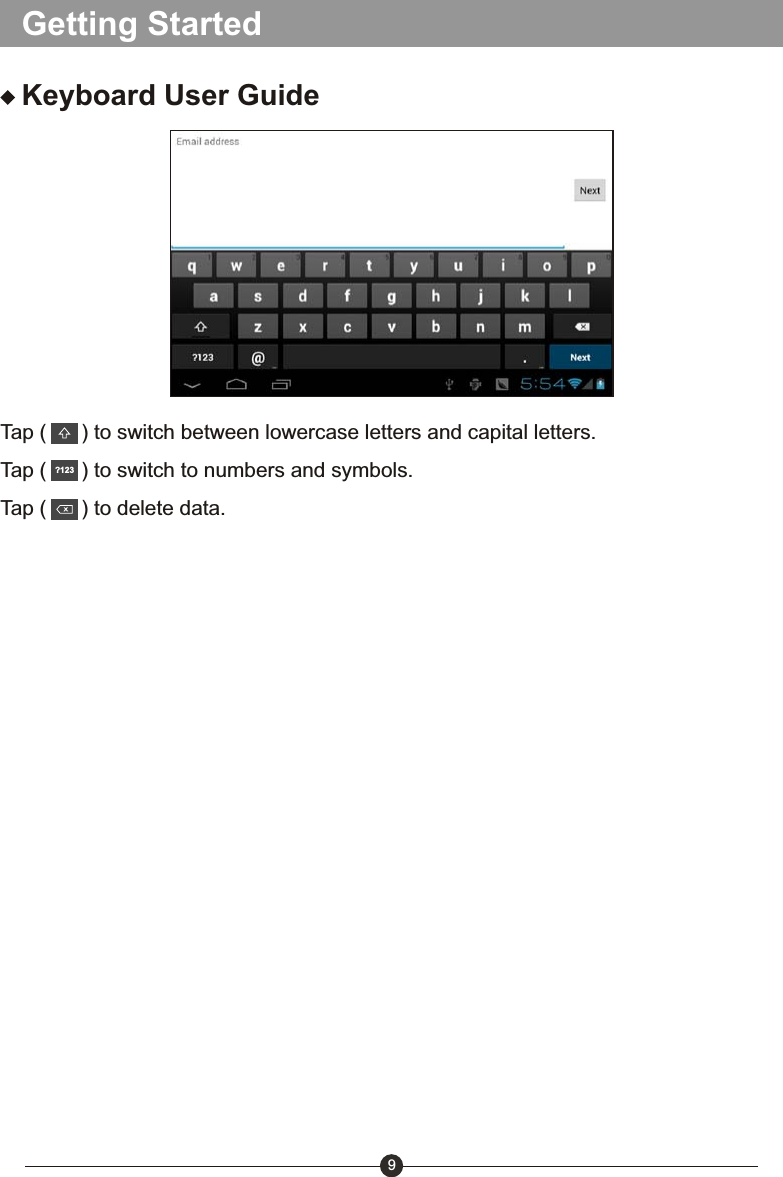
Getting Started9Keyboard User GuideTap (      ) to switch between lowercase letters and capital letters.Tap (      ) to switch to numbers and symbols.Tap (      ) to delete data.?123
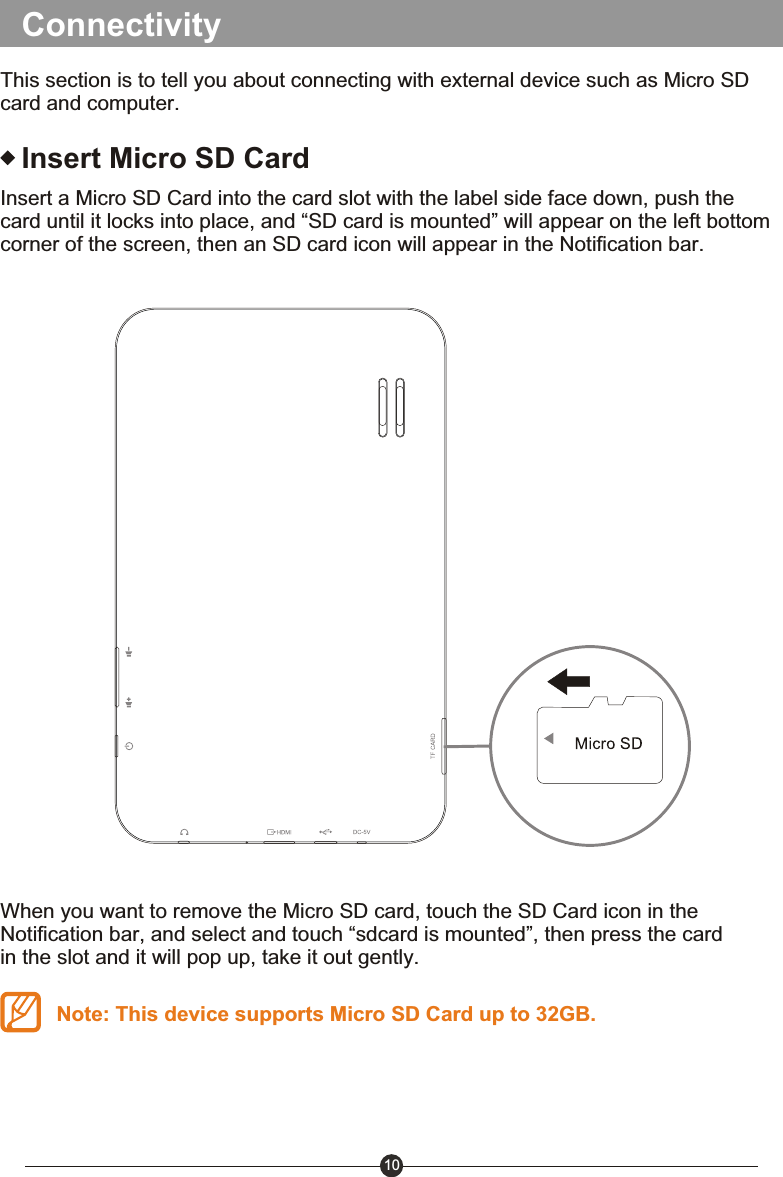
10ConnectivityThis section is to tell you about connecting with external device such as Micro SD card and computer.Insert Micro SD CardInsert a Micro SD Card into the card slot with the label side face down, push the card until it locks into place, and “SD card is mounted” will appear on the left bottom corner of the screen, then an SD card icon will appear in the Notification bar.When you want to remove the Micro SD card, touch the SD Card icon in the Notification bar, and select and touch “sdcard is mounted”, then press the card in the slot and it will pop up, take it out gently.Note: This device supports Micro SD Card up to 32GB.
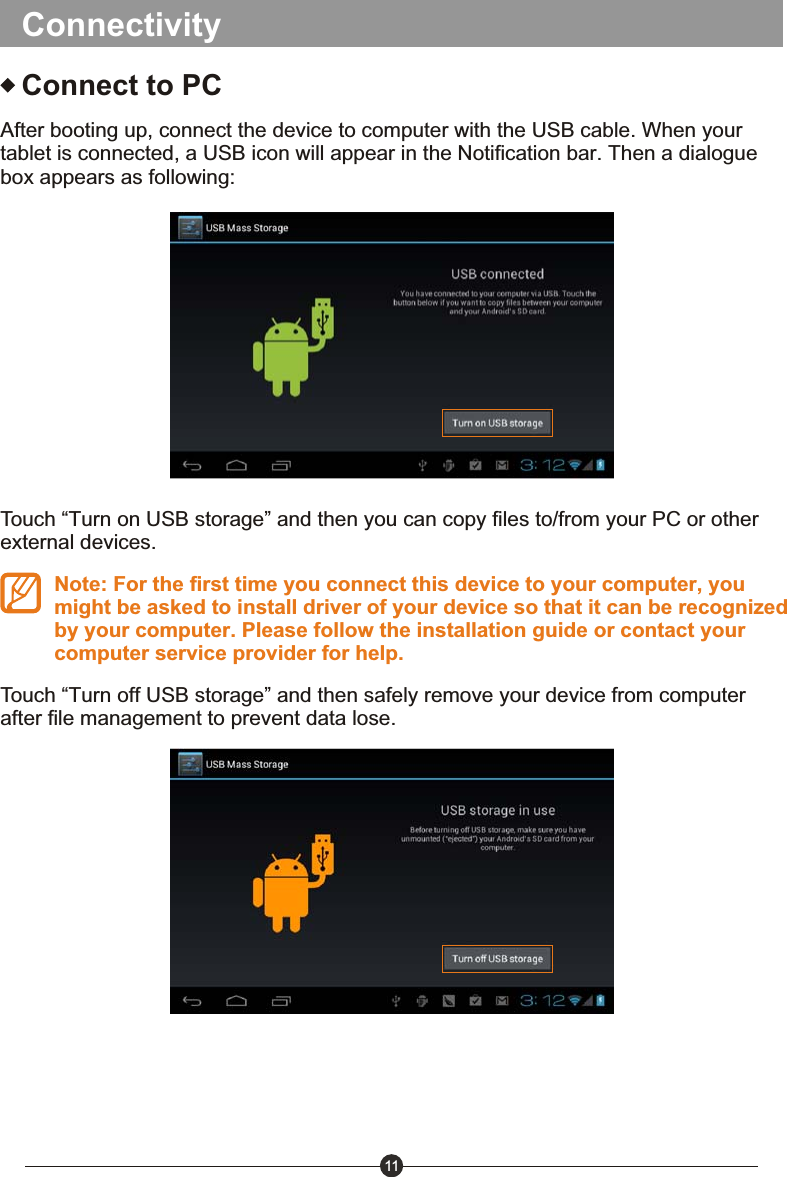
11ConnectivityConnect to PCAfter booting up, connect the device to computer with the USB cable. When your tablet is connected, a USB icon will appear in the Notification bar. Then a dialogue box appears as following:Touch “Turn on USB storage” and then you can copy files to/from your PC or other external devices.Note: For the first time you connect this device to your computer, you might be asked to install driver of your device so that it can be recognized by your computer. Please follow the installation guide or contact your computer service provider for help.Touch “Turn off USB storage” and then safely remove your device from computer after file management to prevent data lose.
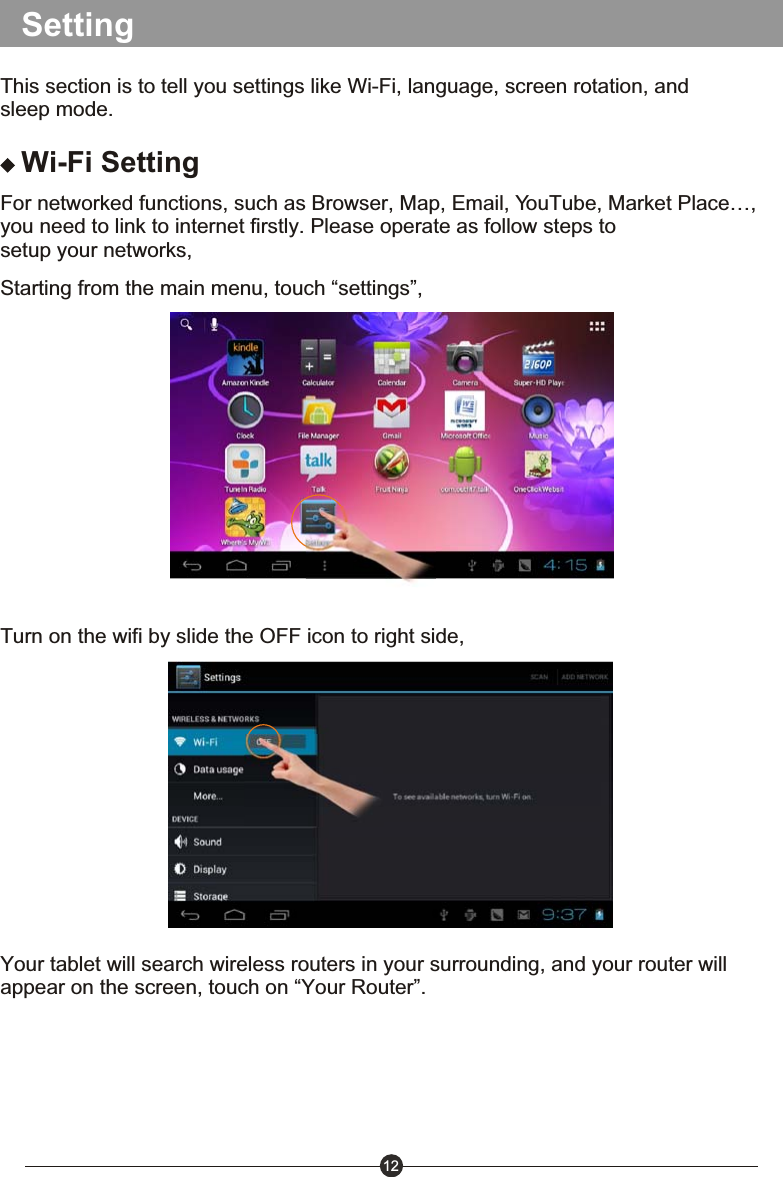
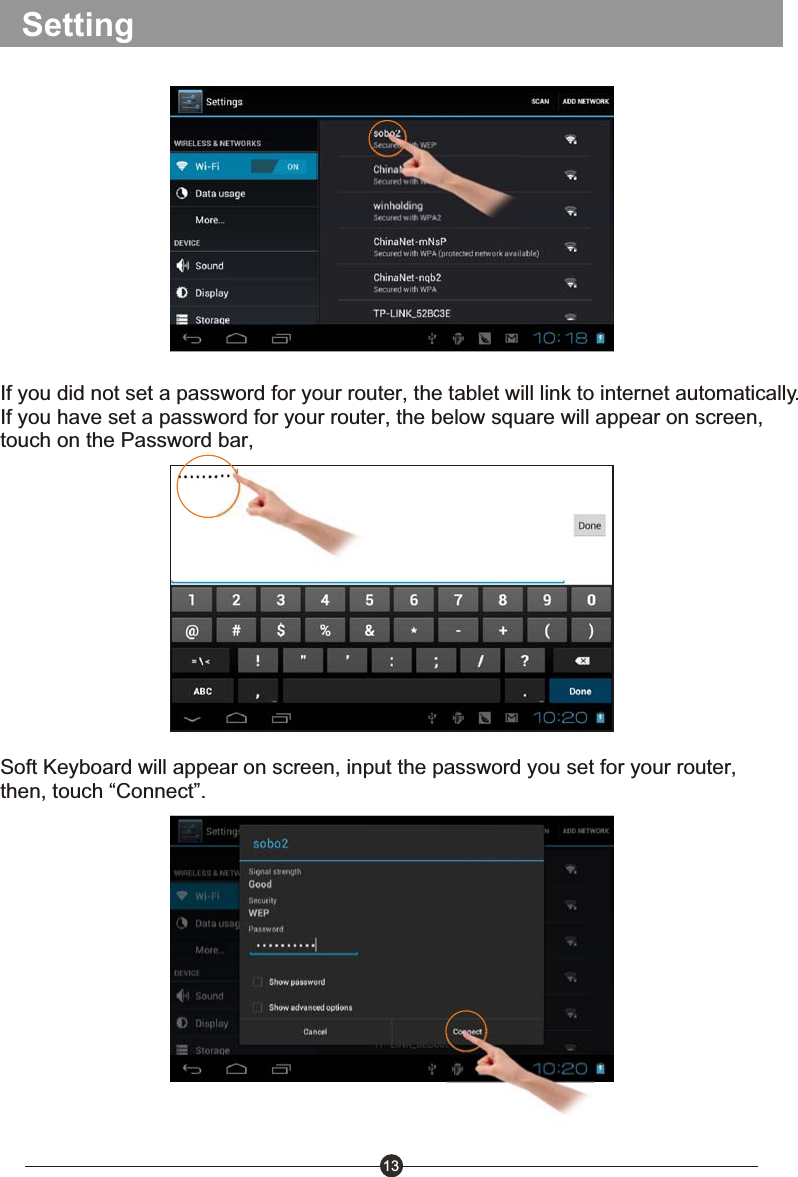
12SettingThis section is to tell you settings like Wi-Fi, language, screen rotation, and sleep mode.Wi-Fi SettingFor networked functions, such as Browser, Map, Email, YouTube, Market Place…, you need to link to internet firstly. Please operate as follow steps to setup your networks,Starting from the main menu, touch “settings”,Turn on the wifi by slide the OFF icon to right side,Your tablet will search wireless routers in your surrounding, and your router will appear on the screen, touch on “Your Router”.
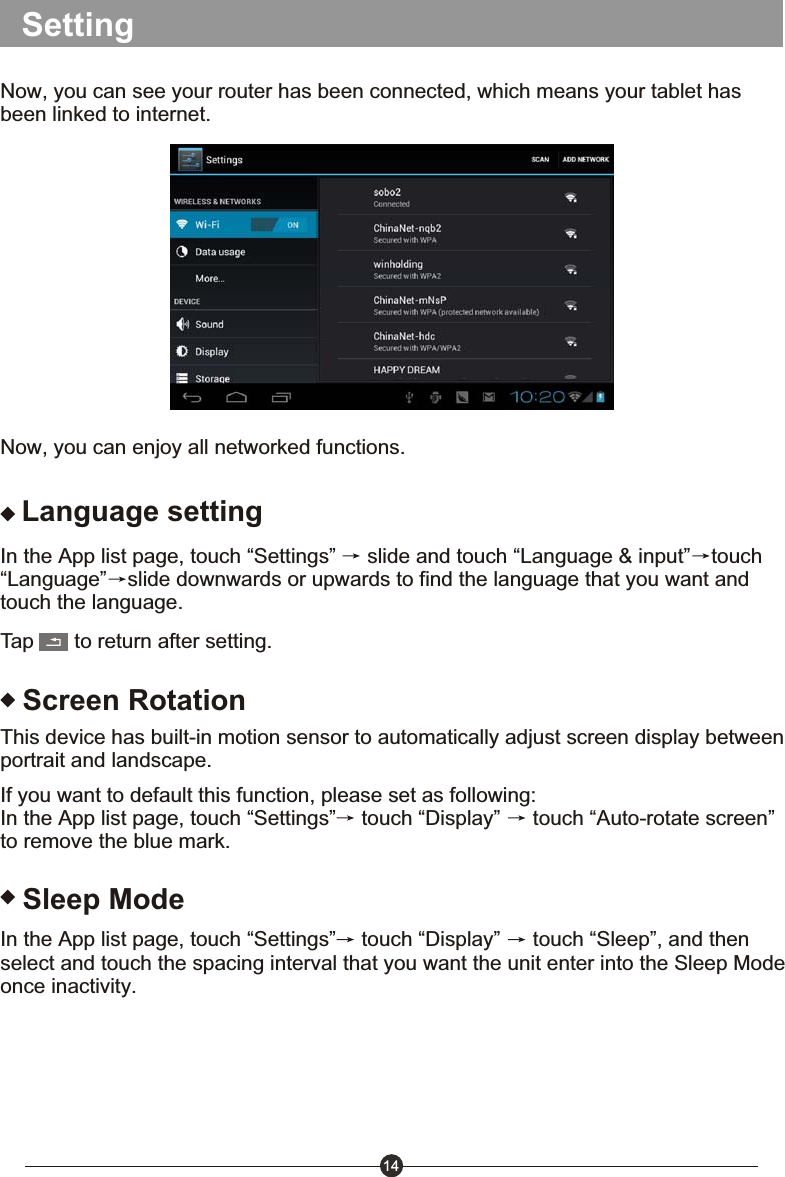
13SettingIf you did not set a password for your router, the tablet will link to internet automatically.If you have set a password for your router, the below square will appear on screen, touch on the Password bar, Soft Keyboard will appear on screen, input the password you set for your router, then, touch “Connect”.
14SettingNow, you can see your router has been connected, which means your tablet has been linked to internet. Now, you can enjoy all networked functions.Language settingIn the App list page, touch “Settings”   slide and touch “Language & input” touch“Language” slide downwards or upwards to find the language that you want and touch the language.Tap       to return after setting.Screen RotationThis device has built-in motion sensor to automatically adjust screen display between portrait and landscape.If you want to default this function, please set as following:In the App list page, touch “Settings”  touch “Display”   touch “Auto-rotate screen” to remove the blue mark.Sleep ModeIn the App list page, touch “Settings”  touch “Display”   touch “Sleep”, and then select and touch the spacing interval that you want the unit enter into the Sleep Mode once inactivity.
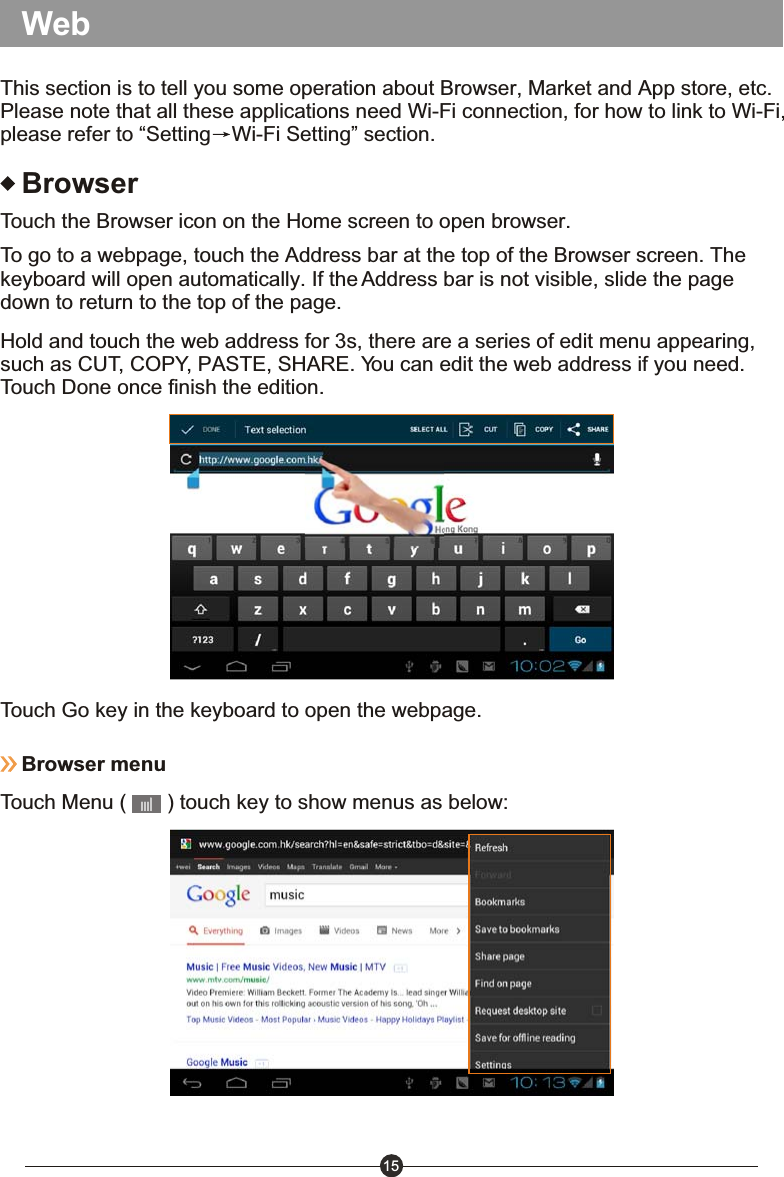
15BrowserTouch the Browser icon on the Home screen to open browser.To go to a webpage, touch the Address bar at the top of the Browser screen. The keyboard will open automatically. If the Address bar is not visible, slide the page down to return to the top of the page.Hold and touch the web address for 3s, there are a series of edit menu appearing, such as CUT, COPY, PASTE, SHARE. You can edit the web address if you need. Touch Done once finish the edition.Touch Go key in the keyboard to open the webpage.Browser menuTouch Menu (       ) touch key to show menus as below: WebThis section is to tell you some operation about Browser, Market and App store, etc. Please note that all these applications need Wi-Fi connection, for how to link to Wi-Fi, please refer to “Setting Wi-Fi Setting” section.
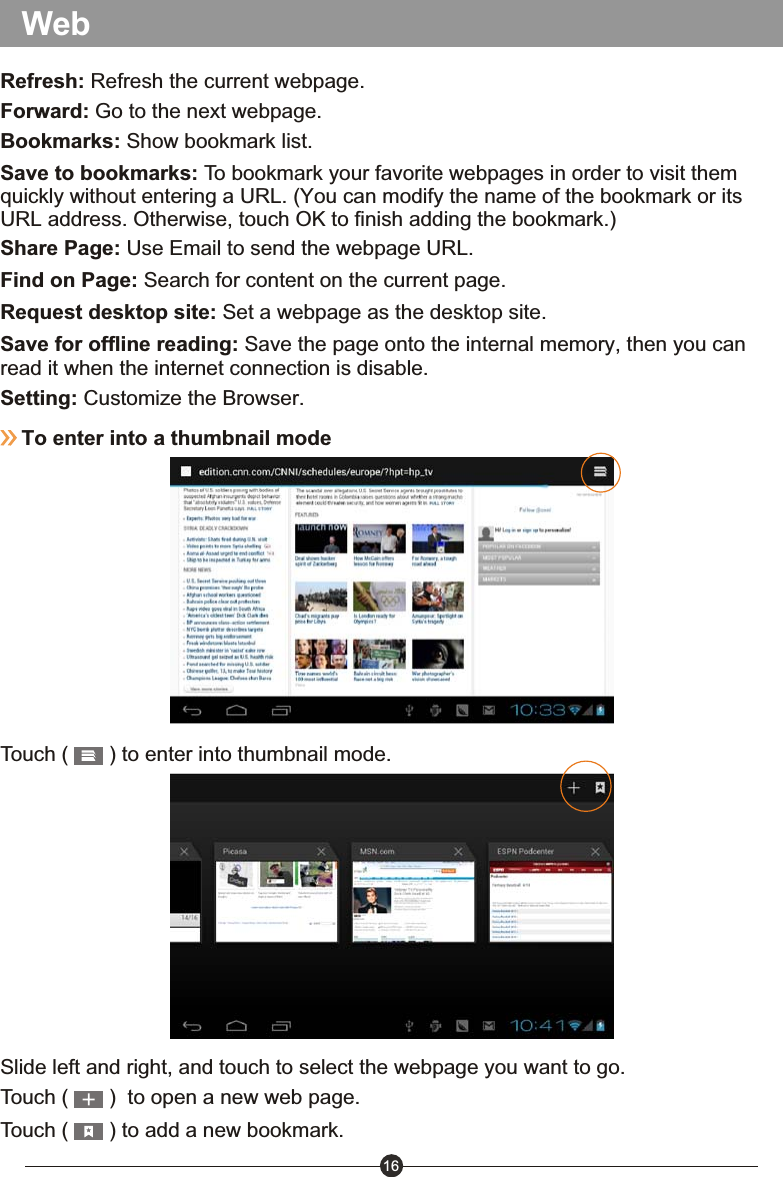
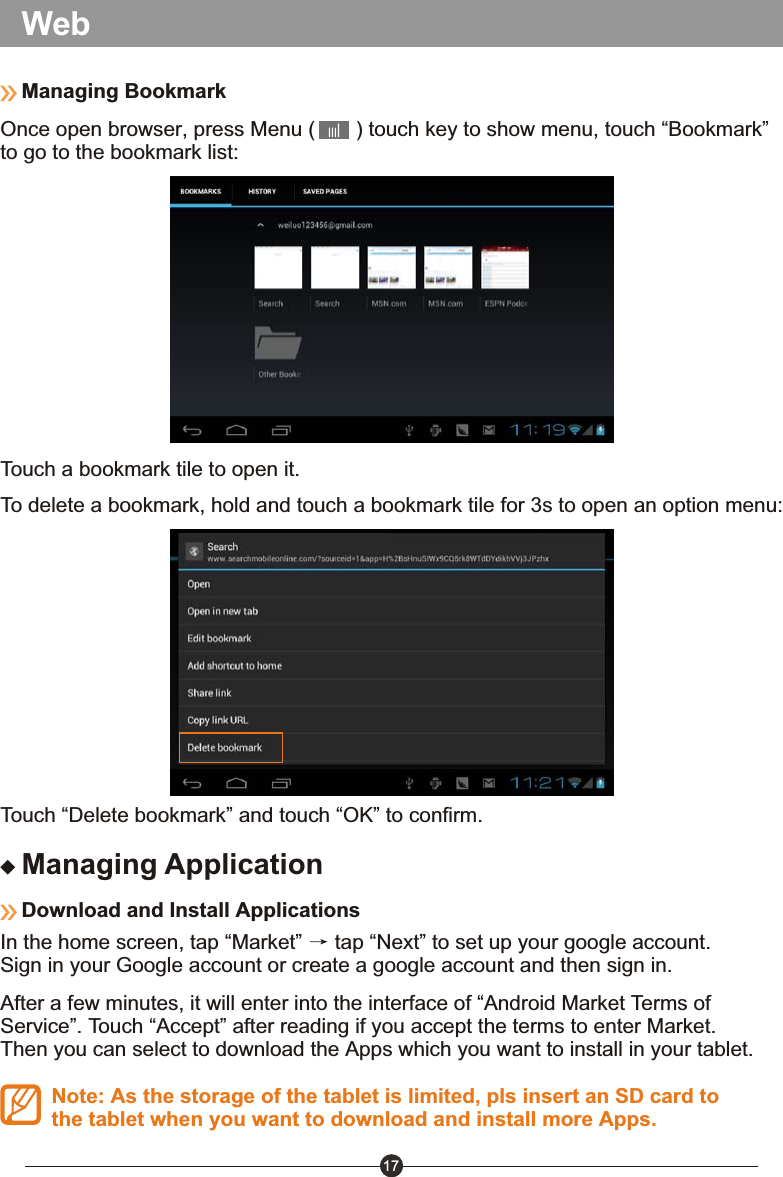
16Save to bookmarks: To bookmark your favorite webpages in order to visit them quickly without entering a URL. (You can modify the name of the bookmark or its URL address. Otherwise, touch OK to finish adding the bookmark.)Share Page: Use Email to send the webpage URL.Find on Page: Search for content on the current page.Request desktop site: Set a webpage as the desktop site.Save for offline reading: Save the page onto the internal memory, then you can read it when the internet connection is disable.Setting: Customize the Browser.To enter into a thumbnail modeTouch (       ) to enter into thumbnail mode.Slide left and right, and touch to select the webpage you want to go.Touch (       )  to open a new web page.Touch (       ) to add a new bookmark.Refresh: Refresh the current webpage.Forward: Go to the next webpage.Bookmarks: Show bookmark list.Web
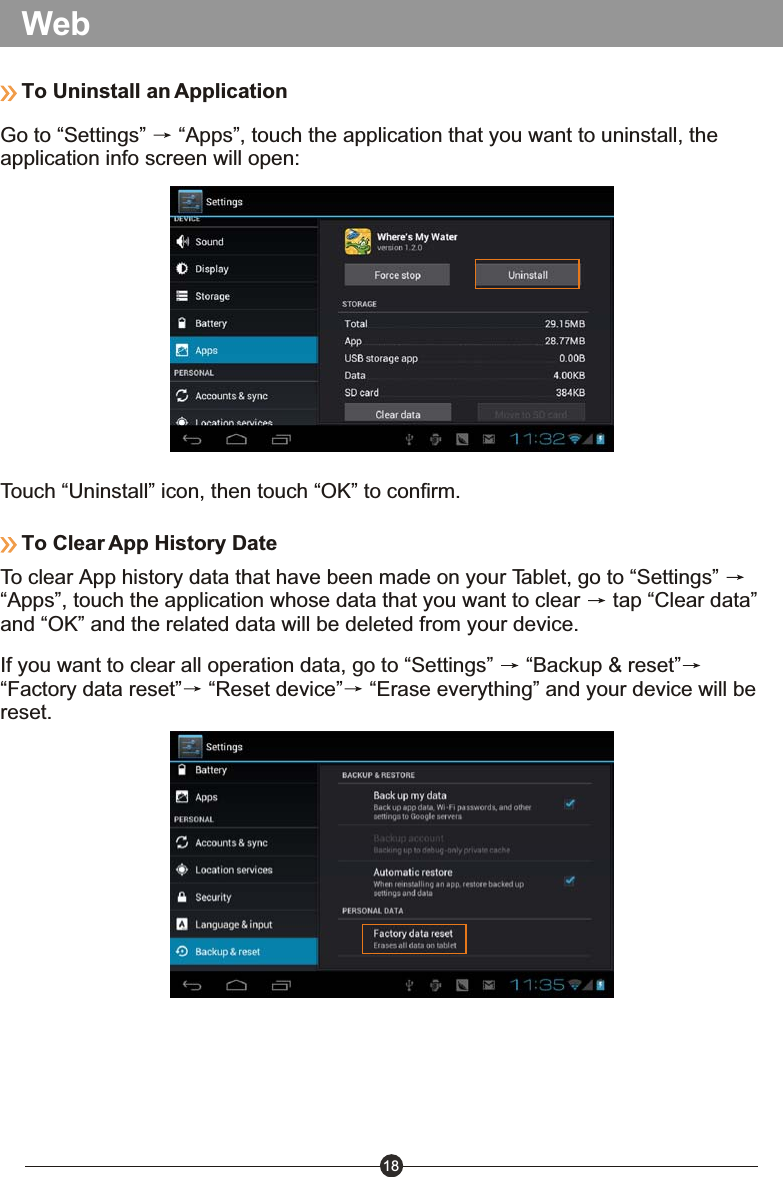
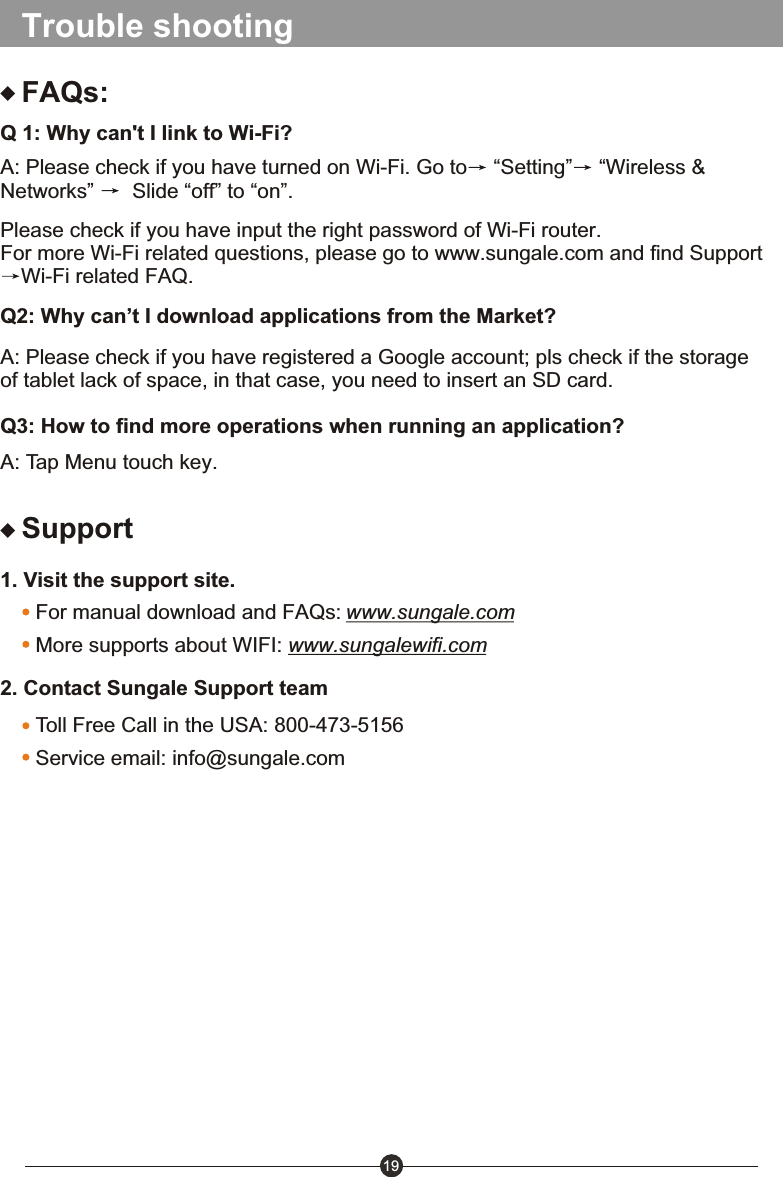
17Managing BookmarkOnce open browser, press Menu (       ) touch key to show menu, touch “Bookmark” to go to the bookmark list:Touch a bookmark tile to open it.To delete a bookmark, hold and touch a bookmark tile for 3s to open an option menu:Touch “Delete bookmark” and touch “OK” to confirm. WebManaging ApplicationDownload and Install Applications In the home screen, tap “Market”   tap “Next” to set up your google account.Sign in your Google account or create a google account and then sign in.After a few minutes, it will enter into the interface of “Android Market Terms of Service”. Touch “Accept” after reading if you accept the terms to enter Market. Then you can select to download the Apps which you want to install in your tablet.Note: As the storage of the tablet is limited, pls insert an SD card to the tablet when you want to download and install more Apps.
18WebTo Uninstall an ApplicationGo to “Settings”   “Apps”, touch the application that you want to uninstall, the application info screen will open:Touch “Uninstall” icon, then touch “OK” to confirm.To Clear App History DateTo clear App history data that have been made on your Tablet, go to “Settings” “Apps”, touch the application whose data that you want to clear   tap “Clear data” and “OK” and the related data will be deleted from your device.If you want to clear all operation data, go to “Settings”   “Backup & reset”“Factory data reset”  “Reset device”  “Erase everything” and your device will be reset.
19Trouble shootingFAQs:Q 1: Why can't I link to Wi-Fi?2. Contact Sungale Support team1. Visit the support site.For manual download and FAQs: www.sungale.comMore supports about WIFI: www.sungalewifi.comToll Free Call in the USA: 800-473-5156Service email: info@sungale.comSupportA: Please check if you have turned on Wi-Fi. Go to  “Setting”  “Wireless & Networks”   Slide “off” to “on”.Please check if you have input the right password of Wi-Fi router.For more Wi-Fi related questions, please go to www.sungale.com and find SupportWi-Fi related FAQ.Q2: Why can’t I download applications from the Market?A: Please check if you have registered a Google account; pls check if the storage of tablet lack of space, in that case, you need to insert an SD card. Q3: How to find more operations when running an application?A: Tap Menu touch key.
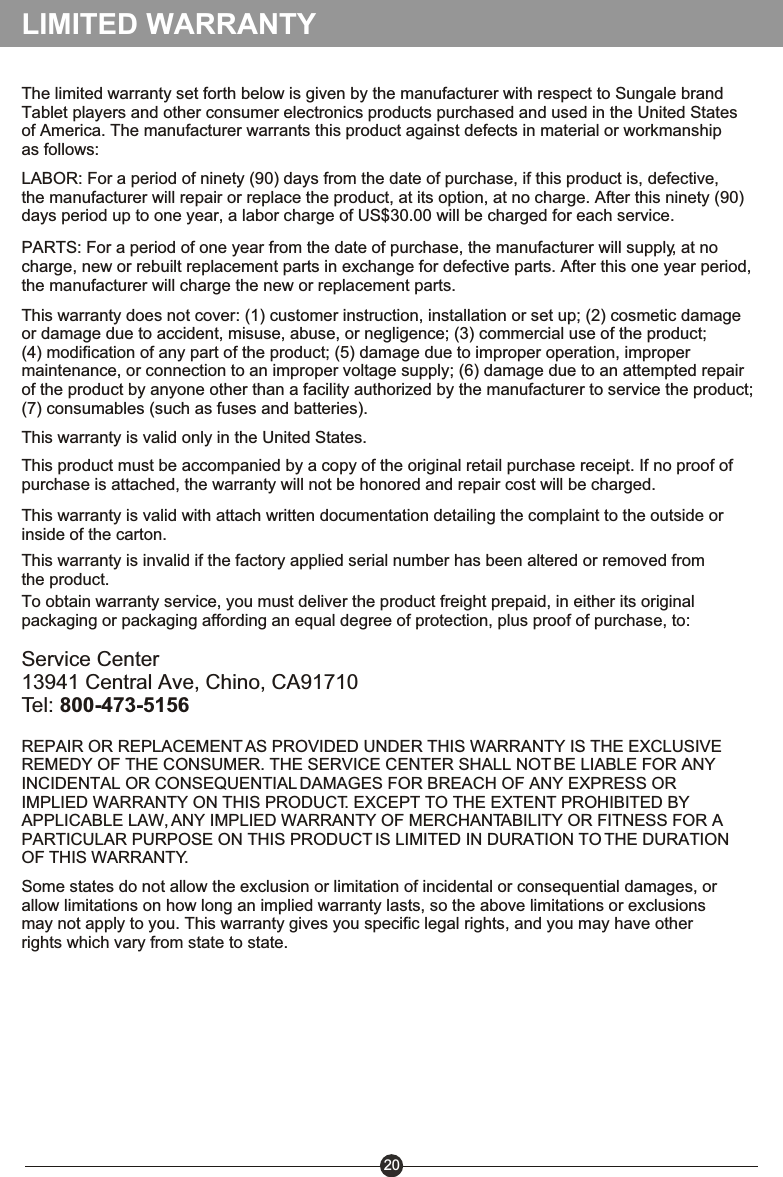
The limited warranty set forth below is given by the manufacturer with respect to Sungale brand Tablet players and other consumer electronics products purchased and used in the United States of America. The manufacturer warrants this product against defects in material or workmanship as follows:LABOR: For a period of ninety (90) days from the date of purchase, if this product is, defective, the manufacturer will repair or replace the product, at its option, at no charge. After this ninety (90) days period up to one year, a labor charge of US$30.00 will be charged for each service.PARTS: For a period of one year from the date of purchase, the manufacturer will supply, at no charge, new or rebuilt replacement parts in exchange for defective parts. After this one year period, the manufacturer will charge the new or replacement parts.This warranty does not cover: (1) customer instruction, installation or set up; (2) cosmetic damage or damage due to accident, misuse, abuse, or negligence; (3) commercial use of the product; (4) modification of any part of the product; (5) damage due to improper operation, improper maintenance, or connection to an improper voltage supply; (6) damage due to an attempted repair of the product by anyone other than a facility authorized by the manufacturer to service the product; (7) consumables (such as fuses and batteries).This warranty is valid only in the United States.Service Center13941 Central Ave, Chino, CA91710Tel: 800-473-5156REPAIR OR REPLACEMENT AS PROVIDED UNDER THIS WARRANTY IS THE EXCLUSIVE REMEDY OF THE CONSUMER. THE SERVICE CENTER SHALL NOT BE LIABLE FOR ANY INCIDENTAL OR CONSEQUENTIAL DAMAGES FOR BREACH OF ANY EXPRESS OR IMPLIED WARRANTY ON THIS PRODUCT. EXCEPT TO THE EXTENT PROHIBITED BY APPLICABLE LAW, ANY IMPLIED WARRANTY OF MERCHANTABILITY OR FITNESS FOR APARTICULAR PURPOSE ON THIS PRODUCT IS LIMITED IN DURATION TO THE DURATION OF THIS WARRANTY.Some states do not allow the exclusion or limitation of incidental or consequential damages, or allow limitations on how long an implied warranty lasts, so the above limitations or exclusions may not apply to you. This warranty gives you specific legal rights, and you may have other rights which vary from state to state.LIMITED WARRANTYThis product must be accompanied by a copy of the original retail purchase receipt. If no proof of purchase is attached, the warranty will not be honored and repair cost will be charged.This warranty is invalid if the factory applied serial number has been altered or removed from the product.This warranty is valid with attach written documentation detailing the complaint to the outside or inside of the carton.To obtain warranty service, you must deliver the product freight prepaid, in either its original packaging or packaging affording an equal degree of protection, plus proof of purchase, to: 20
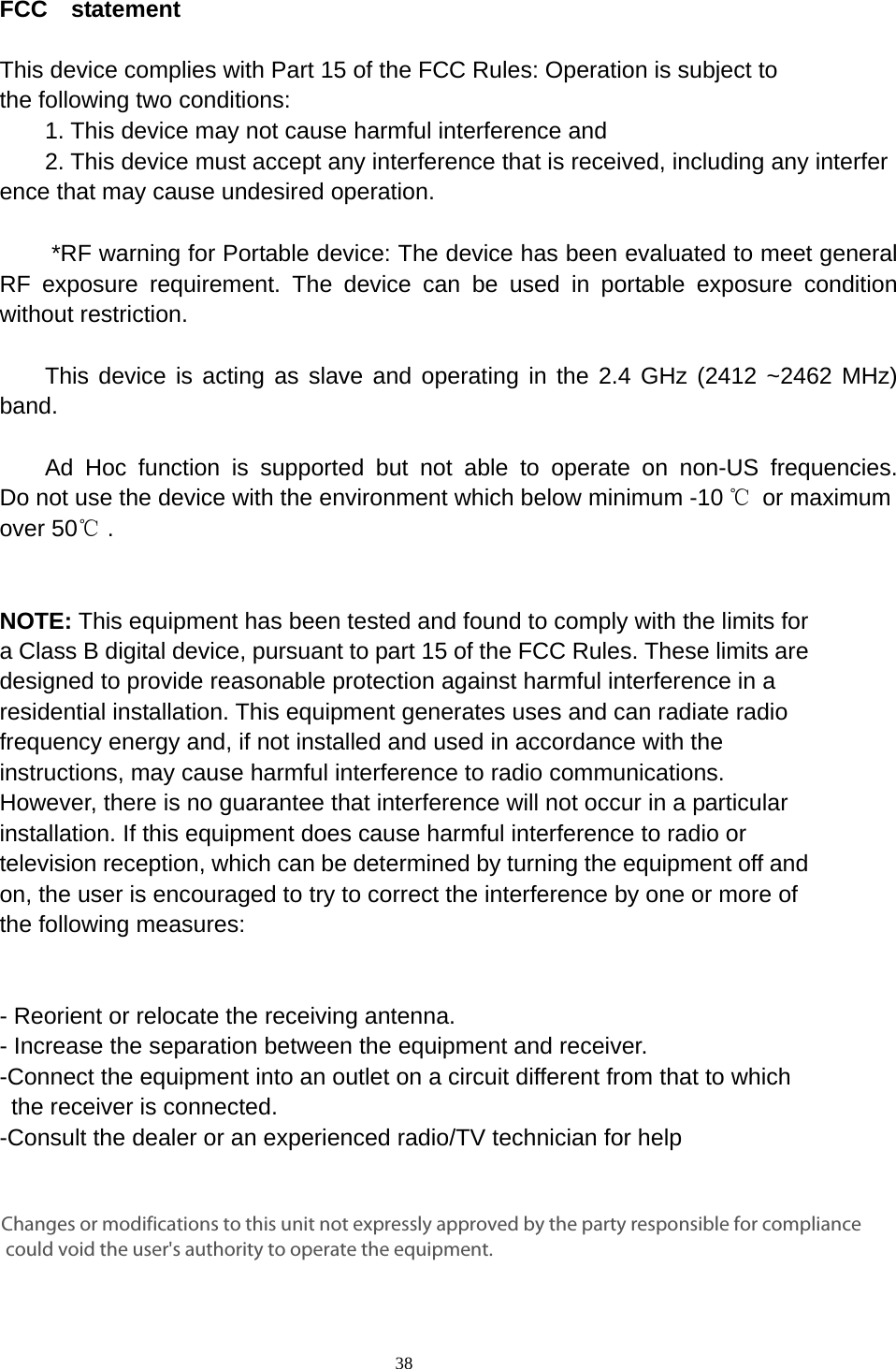
   38  FCC  statement   This device complies with Part 15 of the FCC Rules: Operation is subject to  the following two conditions:   1. This device may not cause harmful interference and   2. This device must accept any interference that is received, including any interference that may cause undesired operation.        *RF warning for Portable device: The device has been evaluated to meet general RF exposure requirement. The device can be used in portable exposure condition without restriction.      This device is acting as slave and operating in the 2.4 GHz (2412 ~2462 MHz) band.     Ad Hoc function is supported but not able to operate on non-US frequencies. Do not use the device with the environment which below minimum -10 ℃ or maximum over 50℃ .     NOTE: This equipment has been tested and found to comply with the limits for a Class B digital device, pursuant to part 15 of the FCC Rules. These limits are designed to provide reasonable protection against harmful interference in a residential installation. This equipment generates uses and can radiate radio frequency energy and, if not installed and used in accordance with the instructions, may cause harmful interference to radio communications. However, there is no guarantee that interference will not occur in a particular installation. If this equipment does cause harmful interference to radio or television reception, which can be determined by turning the equipment off and on, the user is encouraged to try to correct the interference by one or more of the following measures:      - Reorient or relocate the receiving antenna. - Increase the separation between the equipment and receiver.   -Connect the equipment into an outlet on a circuit different from that to which the receiver is connected.   -Consult the dealer or an experienced radio/TV technician for help Changes or modifications to this unit not expressly approved by the party responsible for compliance could void the user's authority to operate the equipment.

Navigation menu