Sakar Internation CAM4302 Mini tablet User Manual
Sakar Internation Inc. Mini tablet
User manual
Disney Android Family Tablet
with
User Manual

2
CONTENT
1. FEATURES ....................................................................................................... 4
1.1 About Your Vivitar® Disney Tablet ................................................................................................... 4
1.2 What’s Included ............................................................................................................................... 5
2. GETTING STARTED ........................................................................................... 5
2.1 Charging Your Tablet ........................................................................................................................ 5
2.2 Powering on Your Tablet .................................................................................................................. 5
3. INITIAL SETUP ................................................................................................. 6
3.1 Choosing a Language ........................................................................................................................ 6
3.2 Selecting WiFi ................................................................................................................................... 6
3.3 Setting Up Date and Time ................................................................................................................ 7
3.4 License Agreement ........................................................................................................................... 7
3.5 Parental Control Set Up ................................................................................................................... 8
3.6 Google Account Set Up .................................................................................................................... 9
3.7 Activating Your Disney Theme ....................................................................................................... 13
4. GETTING TO KNOW YOUR TABLET ................................................................. 15
4.1 Overview ........................................................................................................................................ 15
4.2 Locking and Unlocking Your Tablet ................................................................................................ 16
5. HOME SCREEN .............................................................................................. 18
5.1 Portrait and Landscape Orientation ............................................................................................... 18
5.2 Home Screen Interface .................................................................................................................. 19
5.3 Home Screen Features ................................................................................................................... 20
6. OVER THE AIR UPDATES (OTA) ...................................................................... 23
7. TABBED APPS MANAGER .............................................................................. 24
7.1 Disney Tab ...................................................................................................................................... 24
7.2 Add App Shortcut Using the Tabbed Apps Manager ..................................................................... 26
7.3 Add/Remove App Shortcut Using the App Settings ....................................................................... 28
8. PARENTAL CONTROL ..................................................................................... 32
8.1 Overview ........................................................................................................................................ 32
3
8.2 Welcome to Parental Control ........................................................................................................ 32
8.3 Parental Control Set up: ................................................................................................................. 33
9. MAIN APPLICATION SHORTCUTS ................................................................... 39
9.1 Photo Editor ................................................................................................................................... 40
9.2 Camera ........................................................................................................................................... 44
9.3 Apps ................................................................................................................................................ 47
9.4 Contacts ......................................................................................................................................... 49
10. TABLET SPECIFICATIONS ........................................................................... 59
11. VIVITAR ONE YEAR WARRANTY ............................................................... 60
12. FAQ .......................................................................................................... 62
4
1. FEATURES
Thank you for purchasing the Disney Tablet by Vivitar®!
1.1 About Your Vivitar® Disney Tablet
The Vivitar® Disney Tablet is a unique, pocket sized and portable Android tablet.
You can customize your wallpaper, widgets, capture videos and photos and use
the photo editor to edit and share your images. Your tablet also includes a
bumper case. In addition, you have access, via the Google Play Store, to the
world’s largest e-book store and thousands of apps and games. Equipped with all
of the features parents have come to expect from a family tablet; built in WiFi,
camera, video, touch screen and parental controls.
The Vivitar® Disney Tablet is the ultimate in functionality and fun for the entire
family!
Activating your Vivitar® Disney Tablet to your purchased Disney Theme
After the initial setup of your tablet (see the ‘Initial Setup’ section of this manual
for details), please make sure to activate your Disney Theme as seen on the APP
CARD (included). Please follow the steps below to activate your Disney Theme.
1. Complete the initial tablet setup.
2. Touch the Theme Selector icon from the Home screen.
3. A list of Disney Themes appears.
Touch your purchased Theme (as appears on the APP CARD) from the list
and then touch Add.
4. Enter your name, email and the Serial Number that appears on the APP
CARD and then touch OK to download and activate your Theme.
NOTE: The tablet must be connected to WiFi to download your Theme.
The Theme Serial Number can be found on the APP CARD included in
the packaging. This Serial Number will only download and activate
your purchased Disney Theme.
5
1.2 What’s Included
4.3 Inch Tablet
Android version 4.3 Jelly Bean Operating System
Parental Controls
Screen Resolution (480*272) 4.3 Inch display
Storage: 4GB + Expandable Micro SD Slot
RAM: 512M DDR3
Rear Camera
Built In Microphone
Built In Google Play Store lets you download hundreds of thousands of free
apps and apps available for purchase
Extra Long Life Battery
AC Charger, USB Cable, Rubber Case, App Card, User Manual
2. GETTING STARTED
2.1 Charging Your Tablet
You need to charge the tablet for at least 3 hours; however, we suggest that you
charge the tablet overnight before you use it for the first time.
The Vivitar® Disney Tablet is supplied with a USB cable and AC Charger. Make sure
your tablet is powered off. Connect the USB cable to your Tablet on one end and
connect the other end of the USB cable to either your computer USB Port or to
the AC Charger (which is then connected to an electric outlet). While charging,
the screen displays a battery icon with a green indicator showing the battery
status. When fully charged the battery icon appears completely green.
2.2 Powering on Your Tablet
Once your tablet is fully charged, press and hold the Power button for 2 seconds
to turn on your Tablet.
NOTE:
In order to power off your Tablet:
Press and hold the Power button for 2 seconds.
When your Tablet is in Sleep Mode, simply press the Power button to
activate your Tablet.
6
3. INITIAL SETUP
When turning on for the very first time, your Tablet will prompt you through a
setup process with easy steps including choosing the language, selecting WiFi,
setting up the date and time, viewing the license agreement, and the setting up
Parental Control including Google account registration.
NOTE: It is recommended to fully charge your tablet before first use.
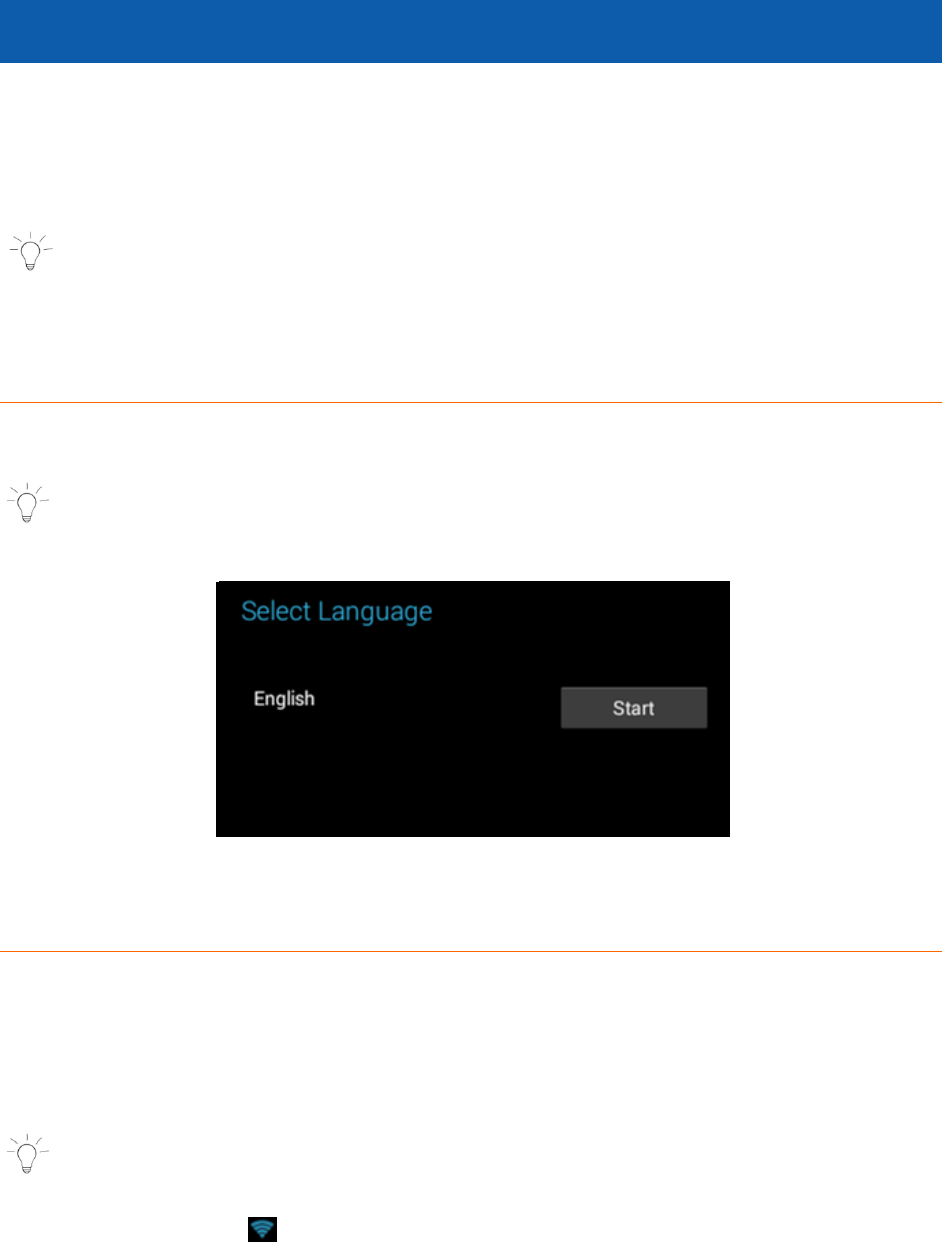
3.1 Choosing a Language
Touch one of the language options to select the on screen language for your
Vivitar® Disney Tablet. The language option include English.
NOTE: You can set your tablet to other languages included in the tablet’s
Settings. This will only set the language for the Android Setup menus.
3.2 Selecting WiFi
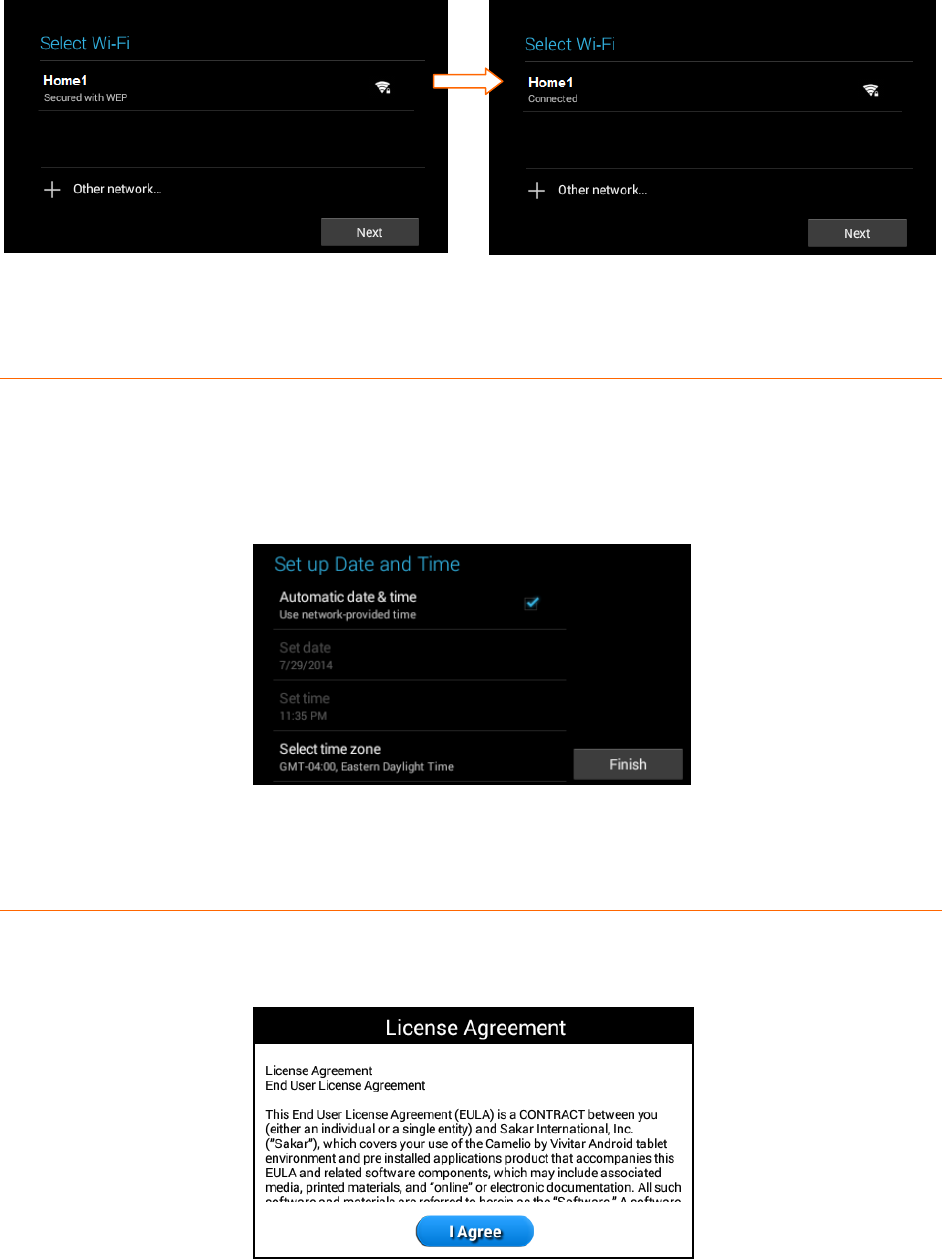
Touch one of the available WiFi connections listed on screen to select your
network. If the Wifi connects automatically, touch Connect. If a password is
required you will be prompted to first type in the WiFi password and then touch
Connect.
Touch Next to continue the setup.
NOTE: If you do not wish to connect to WiFi during the Setup touch Next.
The WiFi connection can be set at any time using the Android Settings menu.
Once connected, the WiFi icon appears on the bottom status bar.
7
3.3 Setting Up Date and Time
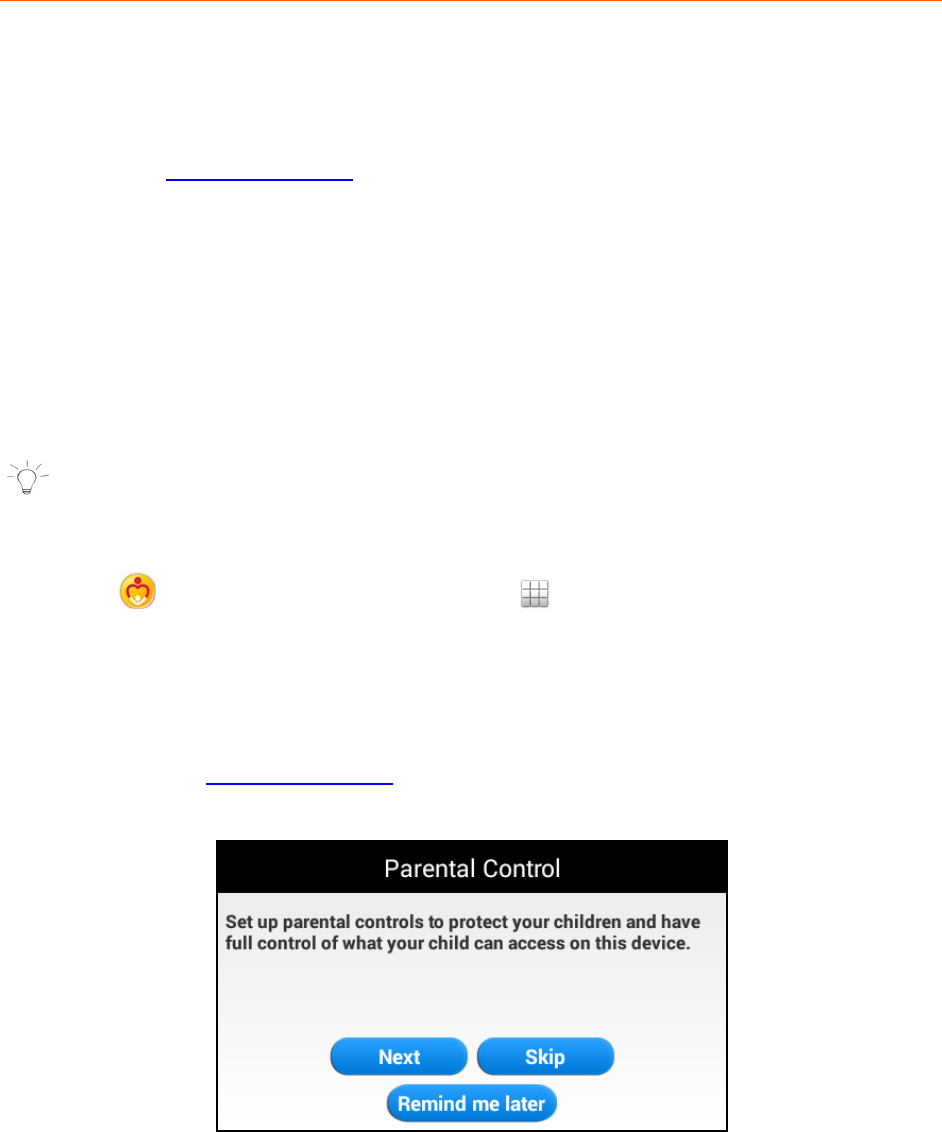
Set up the correct date, time and time zone by using either the checked default
automatic setting or tap the box and un-check the automatic setting to manually
change the date and time by touching ‘Set date’, ‘Set time’, or ‘Select time zone’
to open and edit each setting. Touch Finish to continue.
3.4 License Agreement
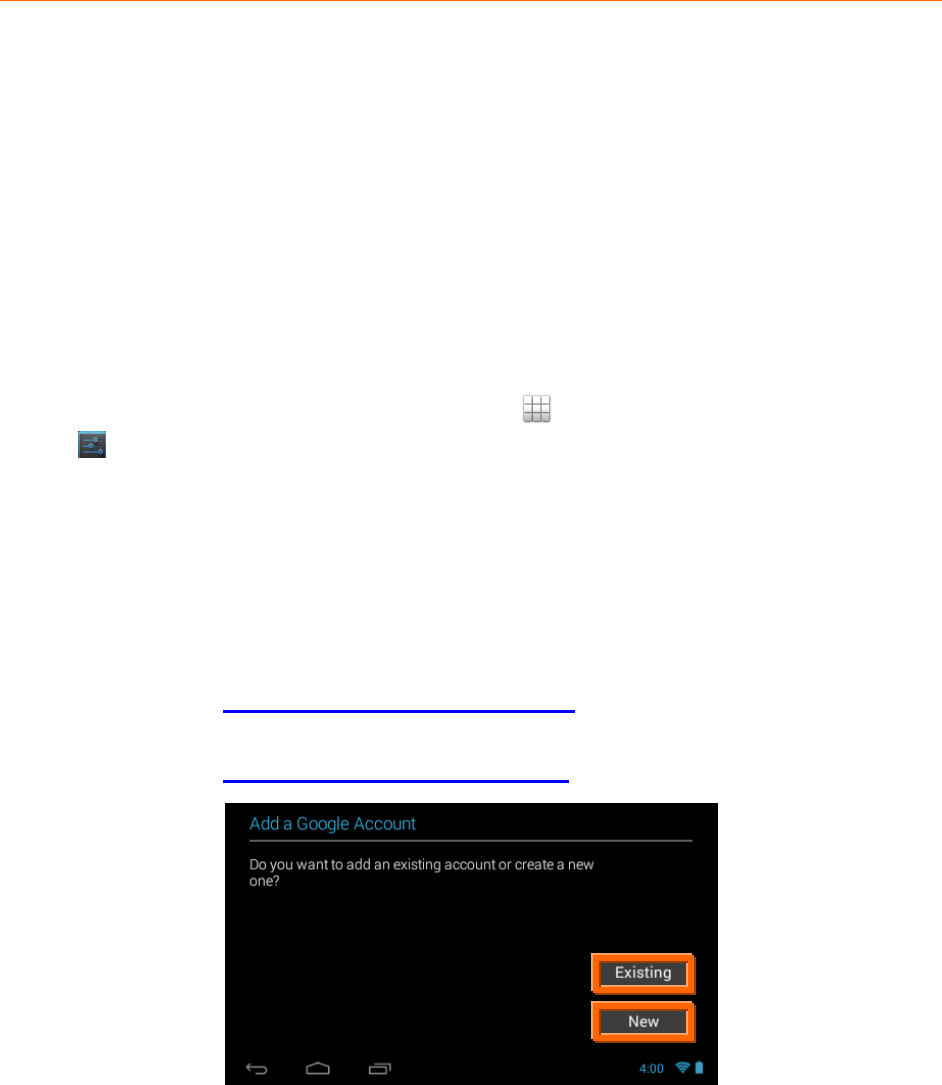
Review the End User License Agreement and then touch I Agree to continue to
the Parental Control Setup.
8
3.5 Parental Control Set Up
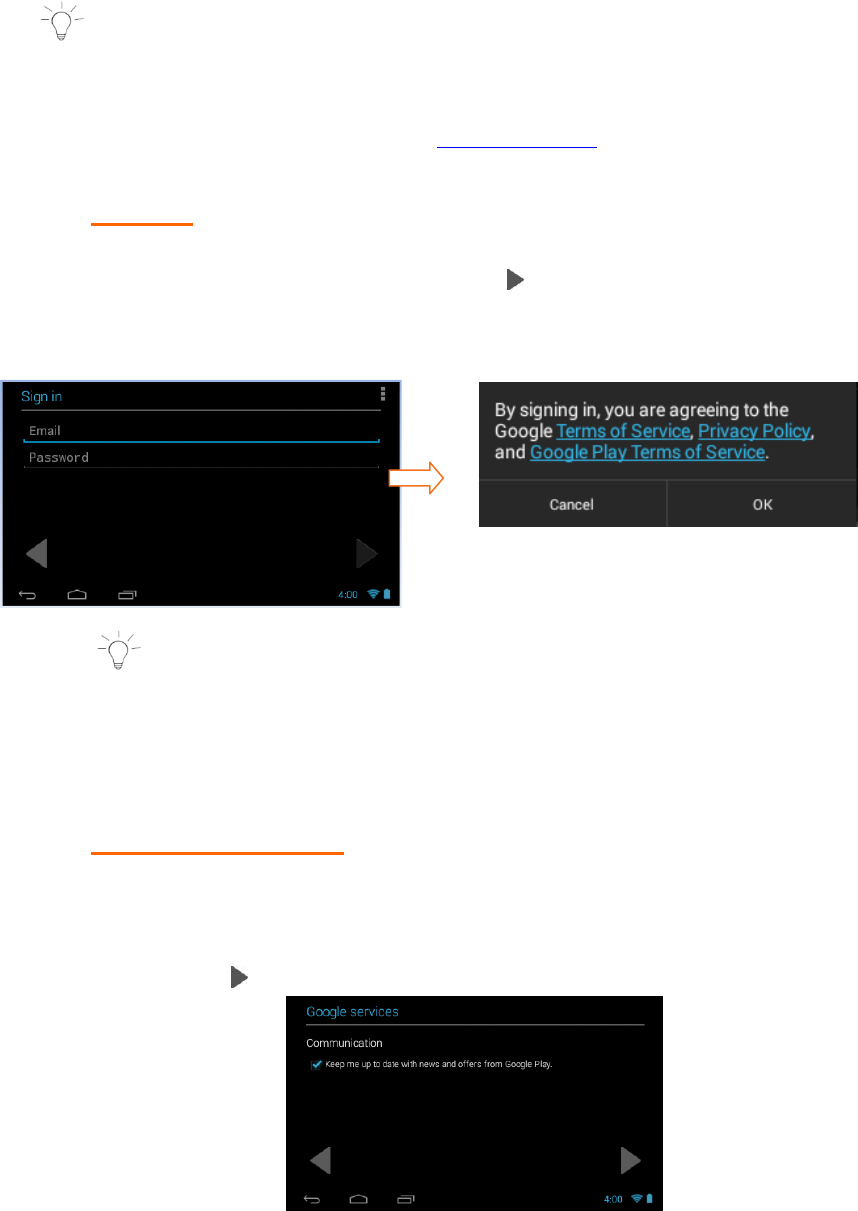
The Parental Control Set Up allows you to have full control of what your child can
access on the tablet. The following options appear:
NEXT:
Touch Next to continue to the Parental Control set up.
See the Parental Control section for more information about setting up
your Parental Control.
SKIP:
Touch Skip to continue to the Home screen without setting up Parental
Control.
REMIND ME LATER:
Touch Remind me later to continue to the Home screen. Each time the
tablet is powered on, a notification will be displayed reminding you to set
up the Parental Controls.
NOTE:
If you choose ‘Skip’ or ‘Remind me Later’ during this initial tablet set up,
you can setup your Parental Control settings at any time by opening the
Parental Control app from the Apps list.
Upon initial Parental Control set up (or when accessing Gmail or the
Google Play Store for the first time), you will be prompted to register a
Google account by either signing in to an existing one or by creating a
new account. For more information regarding Parental Control Set Up
see the Parental Control section of this manual.
9
3.6 Google Account Set Up
You must add a Google Account in order to use Parental Control, Gmail, Google
Talk and other Google Apps that require an active Google Account. If you don’t
have a Google Account you can create one.
Once you have created a new account or registered your existing account, you
can set up the Parental Controls.
The Google Account Set Up can be accessed in the following ways:
During the Initial Setup before setting up Parental Controls you will be
prompted to follow the instructions to add a Google Account. Follow the
instructions to add your Google Account.
It can also be set manually at any time by using the Android Settings.
To access the Android settings: Touch Apps, then touch the
Settings app. Under the ‘WIRELESS & NETWORKS’ setting option, make
sure WiFi is ON and connected. Under the setting option ‘ACCOUNTS’,
touch +Add Account and then touch Google. Follow the instructions to
either sign in or create a new Google account.
How to Add a Google Account once you have accessed the Google Set Up:
Touch Existing if you already have a Google Account and continue to the
instructions: Sign into Your Google Account
Touch New if you do not have a Google Account and continue to the
instructions: Create a New Google Account
10
3.6.1 Sign into Your Google Account
If you have a Google Account and have touched Existing on the ‘Add a
Google Account’ screen, please follow the instructions below.
NOTE: A WiFi connection is required to register your Google
account. If you are not connected to WiFi, you will be prompted to
connect your tablet to a WiFi network. Touch Next when the
connection is complete. Please see Selecting WiFi for further
information regarding WiFi setup.
1. SIGN IN
To sign into your account enter your Email and Password using the
onscreen keyboard, and touch Next or Done to continue. Then
touch OK to agree to the window that appears regarding Terms of
Service, Privacy Policy, and Google Play Terms of Service.
NOTE: You may be required to sign in on the web. If you are
prompted to do so, touch Next to start browser sign-in and follow
the instructions. You may be prompted to join Google +. Touch
Join Google + to join or continue without joining by touching Not
now.
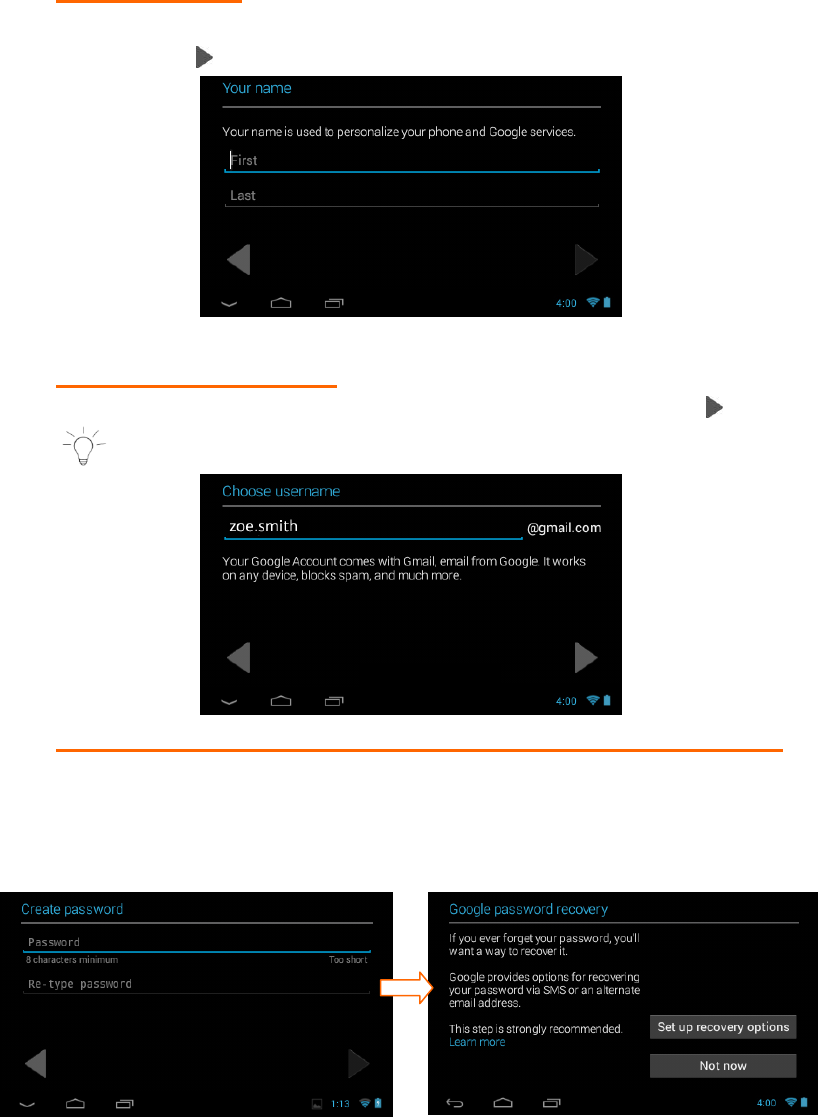
2. GOOGLE SERVICES:
The Google services option appears. The default is the option to
keep you up to date with news and offers from Google Play. If you
do not want this option, then touch the box to un-check it.
Touch Next to finish Google set up.
11
3.6.2 Create a New Google Account
If you do not have a Google Account and have touched New on the ‘Add
a Google Account’ screen, please follow these instructions.
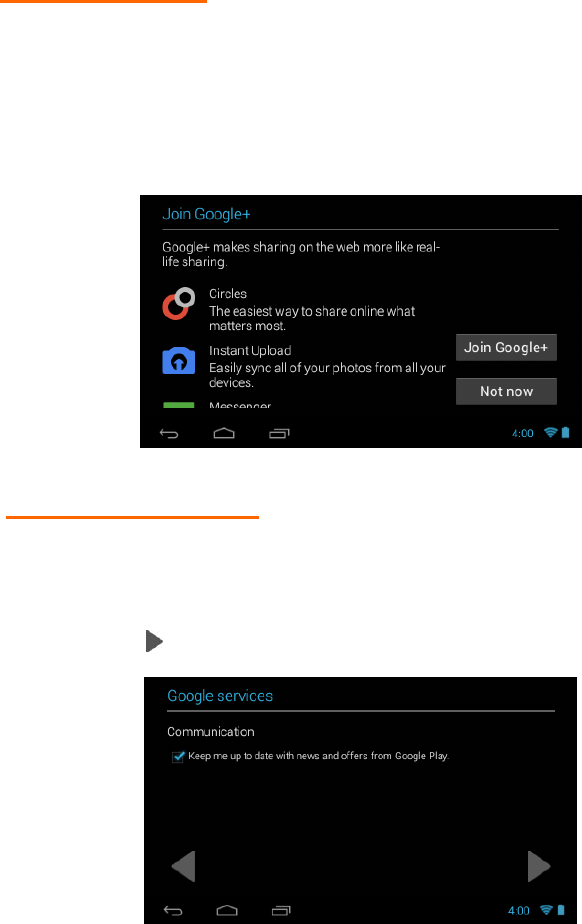
1. ENTER NAME:
You will be prompted to enter your first and last name.
Touch Next or Done once complete.
2. CHOOSE USERNAME:
Enter a username, which will be your email, then touch Next or Done.
NOTE: The email entered will be checked for availability.
3. CREATE PASSWORD/ PASSWORD RECOVERY OPTIONS:
Type your password for your account (minimum of 8 characters)
and retype to confirm your password. Touch Done when complete.
Then touch Set up recovery options if you would like to use
Google password recovery, or touch Not now to continue.
12
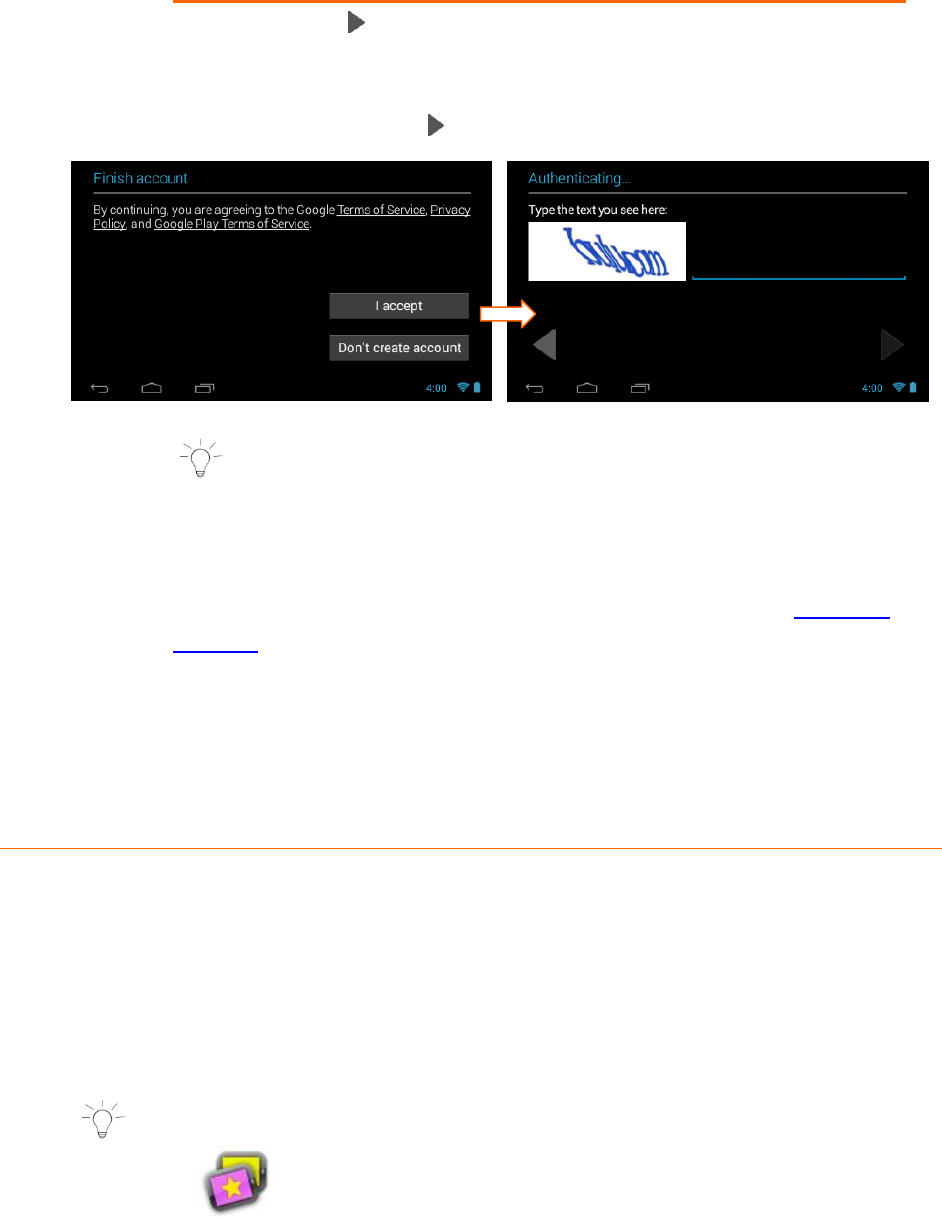
4. JOIN GOOGLE+:
If you are have not already joined Google +, then the ‘Join Google +’
window appears with the option to make sharing on the web more
like real-life sharing with Circles, Instant Upload and Messenger
using your Google Account. To join, touch
Join Google + or continue without joining by touching Not now.
5. GOOGLE SERVICES:
The Google services option appears. The default is the option to
keep you up to date with news and offers from Google Play. If you
do not want this option, then touch the box to un-check it.
Touch Next to continue.
13
6. FINISH ACCOUNT - TERMS OF SERVICE/AUTHENTICATE:
Touch I accept to accept the Google Terms of Service, Privacy
Policy and Google Play Terms of Service.
Then, to authenticate your account, type the word displayed in the
text field. Touch Next to finish setting up your Google account.
NOTE: If you were at the initial set up of the Parental Controls
when you were prompted to register your Google Account, then
after you finish registering your Google Account, you will
automatically return to the Parental Control set up. For more
information regarding Parental Control Set Up see the Parental
Control section of this manual.
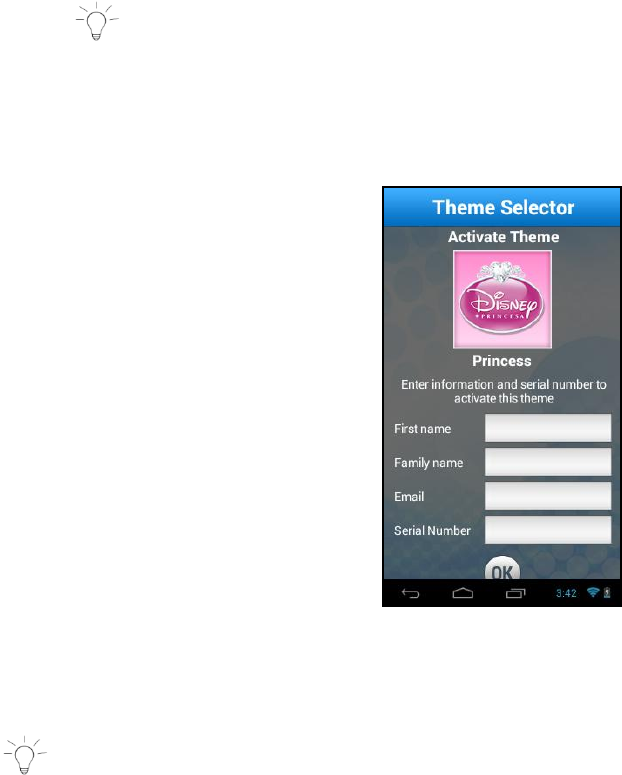
3.7 Activating Your Disney Theme
Once you have completed the initial setup, you now need to download and
activate the same Disney Theme that is shown on your APP CARD (included).
Please follow the steps below to activate your Disney Theme.
1. Complete the initial tablet setup. The Home screen appears.
NOTE: Make sure your tablet is connected to a WiFi network.
2. Touch the Theme Selector icon from the Home screen.
14
3. A list of Disney Themes appears.
Touch your purchased Theme to select it and then touch Add.
NOTE: Make sure the selected Theme is the same Theme that appears
on your APP CARD.
4. Enter your name, email and the Serial Number that appears on the APP
CARD and then touch OK to download and activate your Theme.
5. After your Disney Theme has been activated, the Home screen appears
showing your selected Disney Theme.*
NOTE: The tablet must be connected to WiFi to download your Theme.
The Theme Serial Number can be found on the APP CARD included in
the packaging. This Serial Number will only download and activate
your purchased Disney Theme.
* The screens, shown in this manual, display examples from the
Disney Princess Android Tablet. Your tablet’s screen colors and
backgrounds may vary according to your purchased Disney Tablet
and selected wallpaper. Note that the functionality is the same for
each Theme of the Vivitar® Disney Android Tablets.
15
4. GETTING TO KNOW YOUR TABLET
4.1 Overview
FRONT BACK
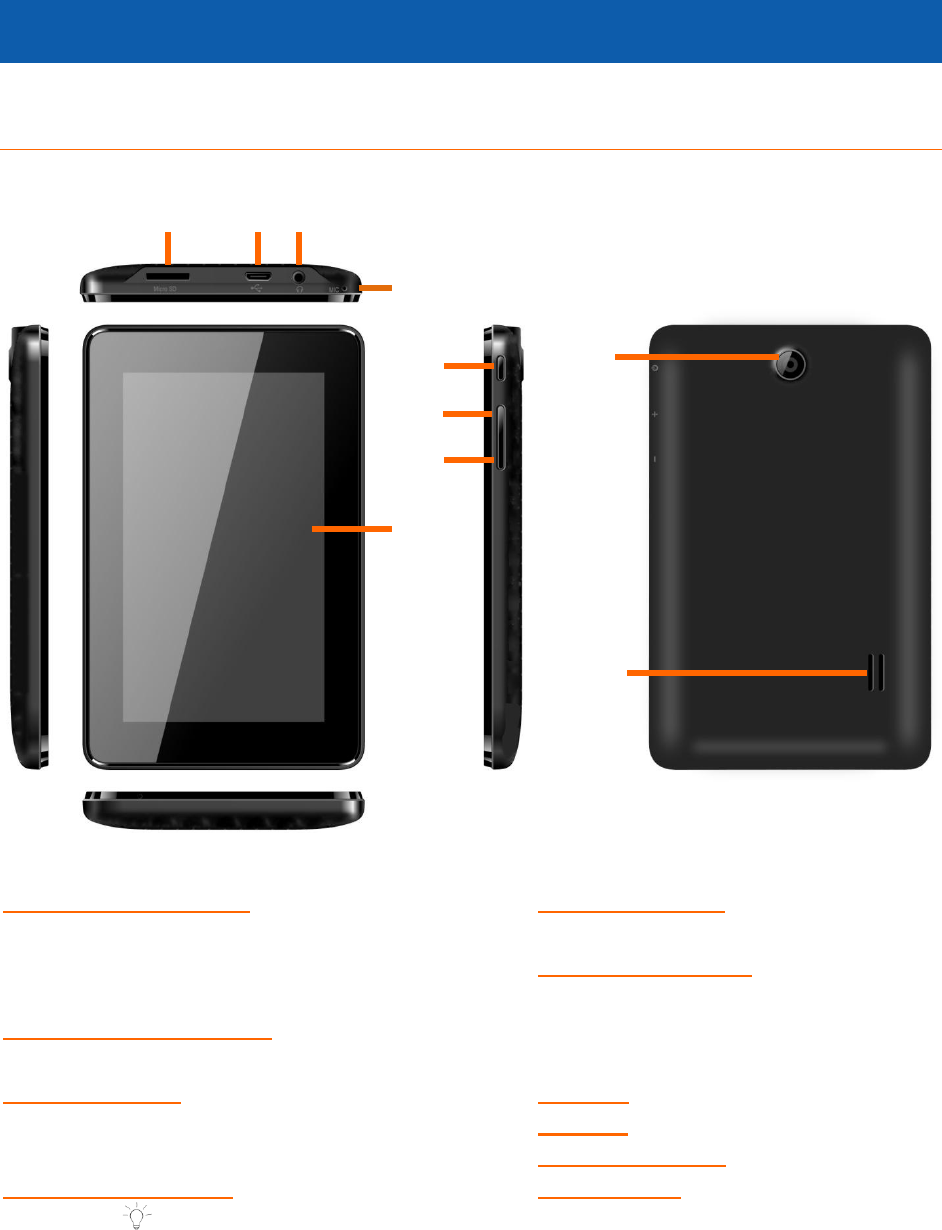
1. TOUCH LCD SCREEN: Display screen that is
also an input device to the tablet. The
orientation of the display screen rotates with
the tablet as you turn it.
2. MICRO SD CARD SLOT: Slot to insert the
Micro SD Card.
3. USB/CHARGE: Using the USB cable, your
tablet can be connected to the computer as
device and to recharge the tablet.
4. HEADPHONE JACK: Audio output jack for
earphone. NOTE: Speaker output is
automatically disabled when headphone is
connected to the tablet.
5. MICROPHONE: Used for audio chatting
and sound recording.
6. POWER BUTTON: Press to turn the
tablet on, or to turn the screen on and off
(standby). Press and hold to access the
power off menu.
7. VOL- : Decreases the volume.
8. VOL+: Increases the volume.
9. CAMERA LENS: Rear-facing camera.
10. SPEAKER: Exports sounds.
1
2 3 4
5
6
7
8
9
10
16
4.2 Locking and Unlocking Your Tablet
4.2.1 Locking Your Tablet
After your Tablet has been powered on, to lock your Tablet quick press
the Power button.
4.2.2 Automatic Lock / Sleep Mode
Your tablet includes an Automatic Lock. After the tablet has been
inactive for a period of time it will go into Sleep Mode. This saves
battery power and requires a shorter activation time. This also
automatically locks your Tablet and the Tablet Lock screen appears. In
order to use your tablet you will need to unlock it.
NOTE: The length of time your Tablet remains inactive before
going into Sleep Mode can be modified. To change the length of
time:
Enter your Tablet Settings.
Touch Display to open the Tablet Display features.
Touch the Sleep feature to open the ‘Sleep’ window.
This displays the list of time options.
Select a length of time you would like your Tablet to be inactive
prior to going into Sleep Mode.
4.2.3 Unlocking Your Tablet
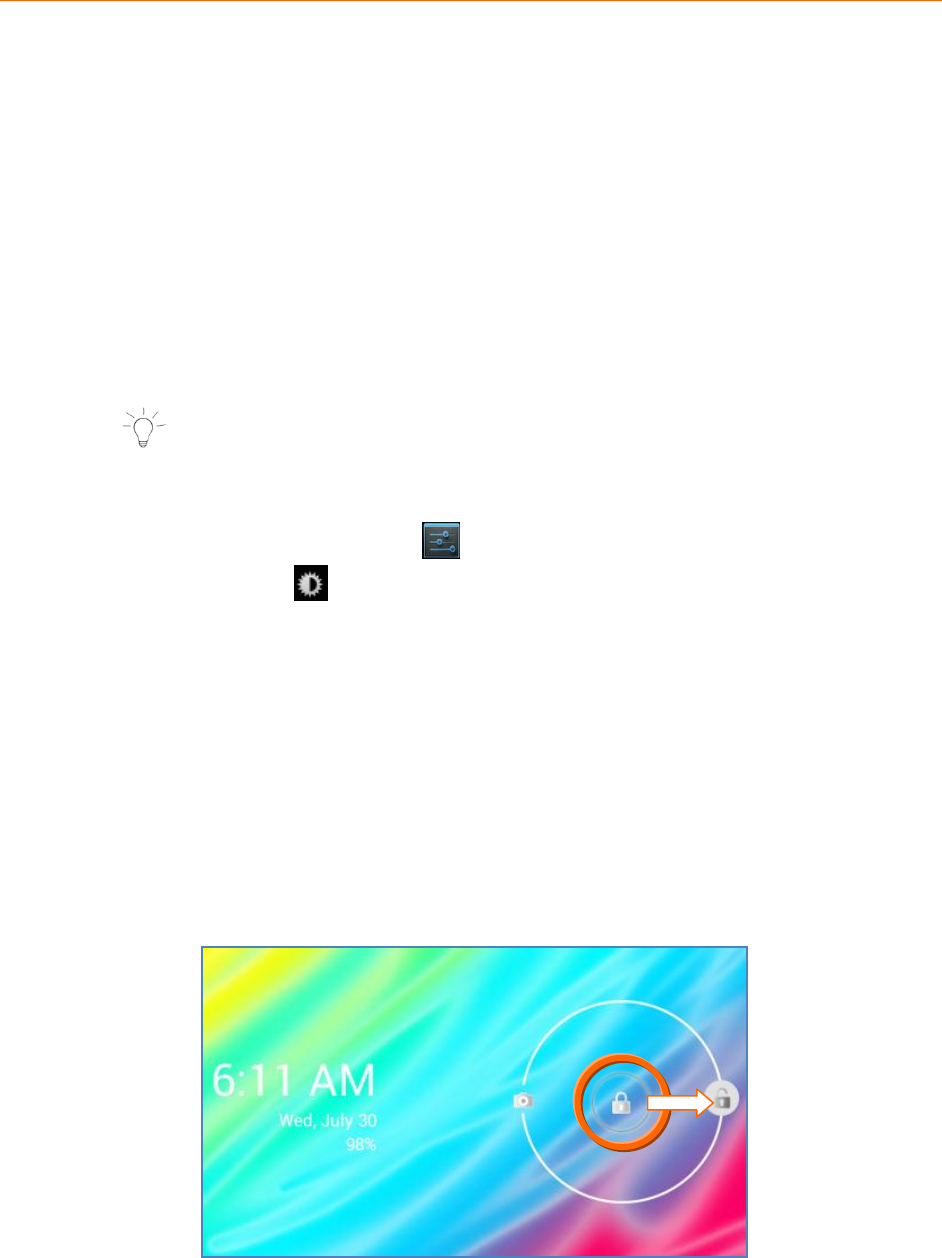
To unlock your tablet and activate the Home screen, touch and hold the
Lock icon. When it turns into a circle drag it towards the right, to the
Unlock icon. Once unlocked, the Home screen interface is activated.
17
4.2.4 Unlocking Your Tablet – Standby Mode
If you have set the Parental Control to ON, the Parental Control Lock
Code must be entered to unlock your tablet once it has been in standby
mode or has been powered on and you have swiped it to the unlock
icon.
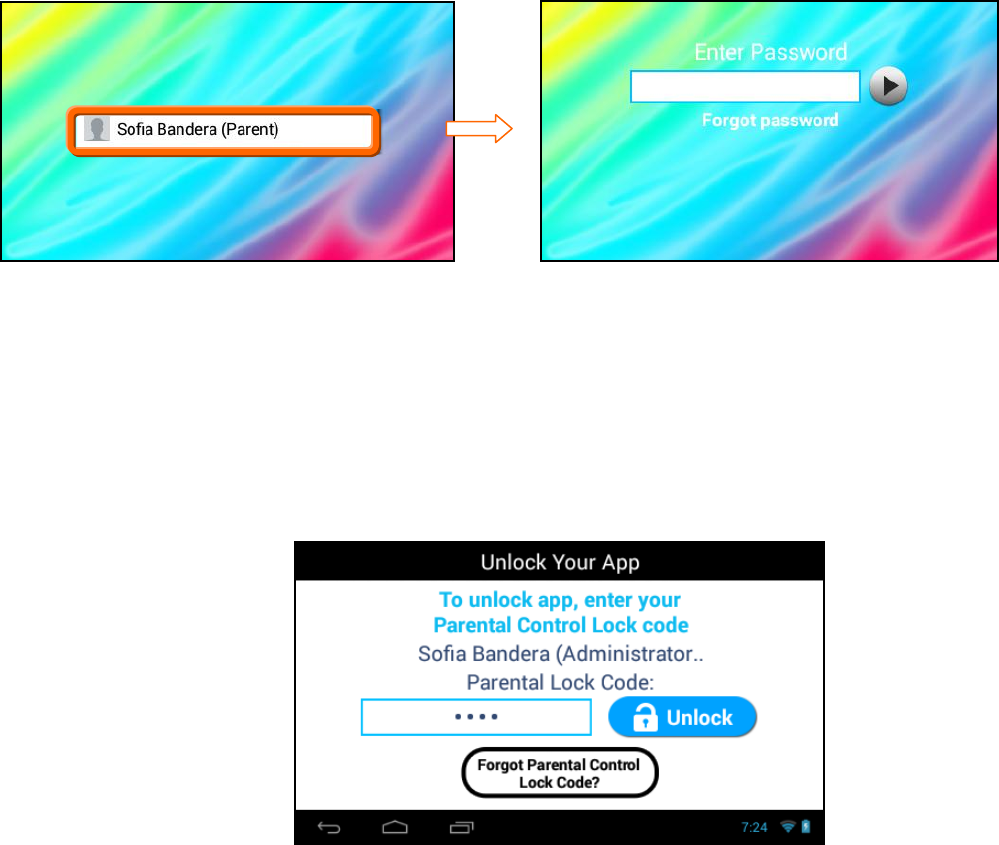
1. To unlock your tablet and activate the Home screen, touch and
hold the Lock icon. When it turns into a circle drag it towards the
right, to the Unlock icon.
2. Touch your User name.
3. Enter your Parental Password then touch Next.
4.2.5 Unlocking Your Tablet – Parental Control ON
When the Parental Control is set to ON and you have set up the
applications that require your Parental Lock Code, these applications
then require your password to be entered before opening them.
Enter your password and then touch Unlock to unlock the application.
18
5. HOME SCREEN
5.1 Portrait and Landscape Orientation
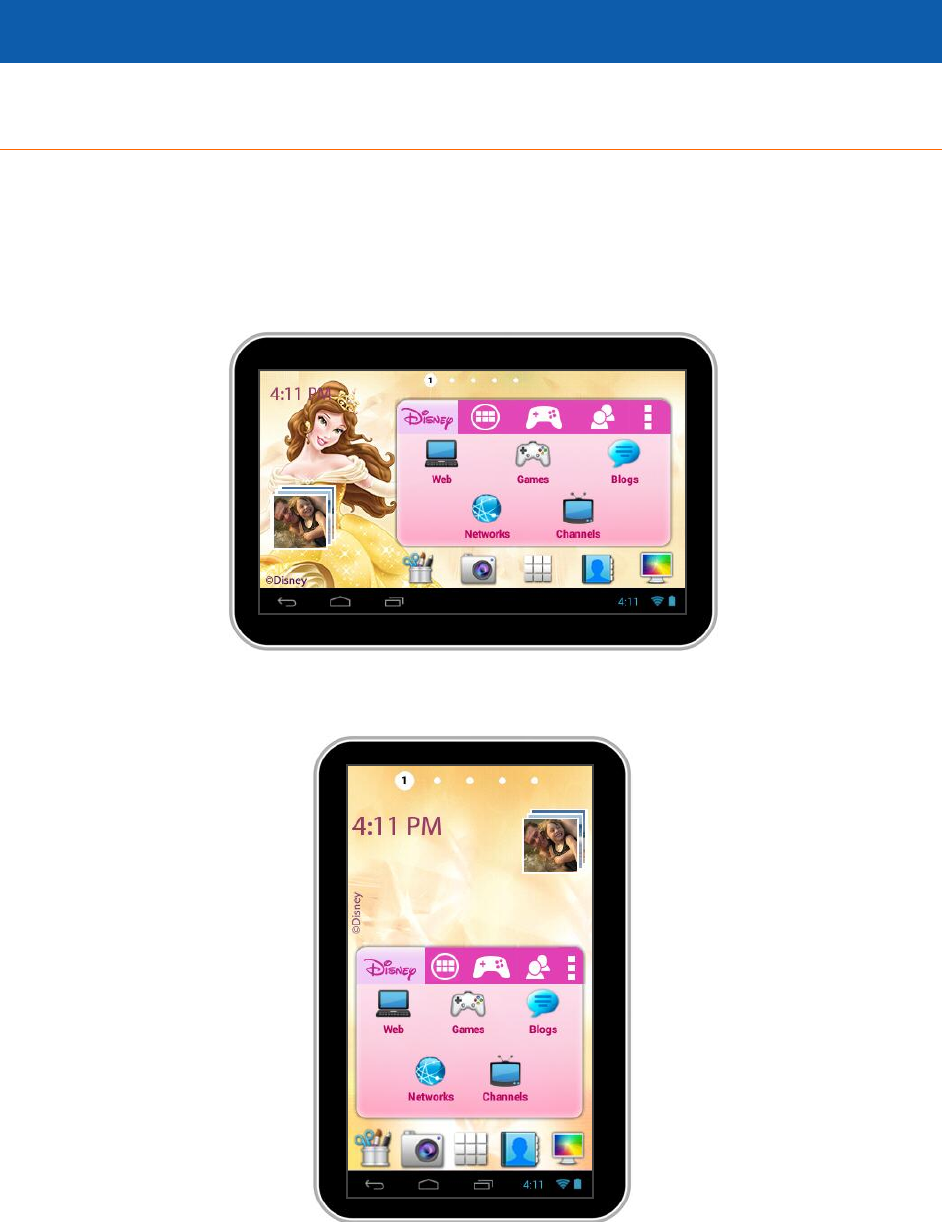
Once you have completed the Initial Setup the Home screen appears.*
The orientation of the display screen rotates with the tablet as you turn it.
Landscape Orientation
Portrait Orientation
* The screens shown in this manual display examples from the Vivitar® Disney Princess Android Tablet.
Your tablet’s screen colors and backgrounds may vary according to your purchased Disney Tablet and selected wallpaper.
Note that the functionality is the same for each Vivitar® Disney Tablet.
19
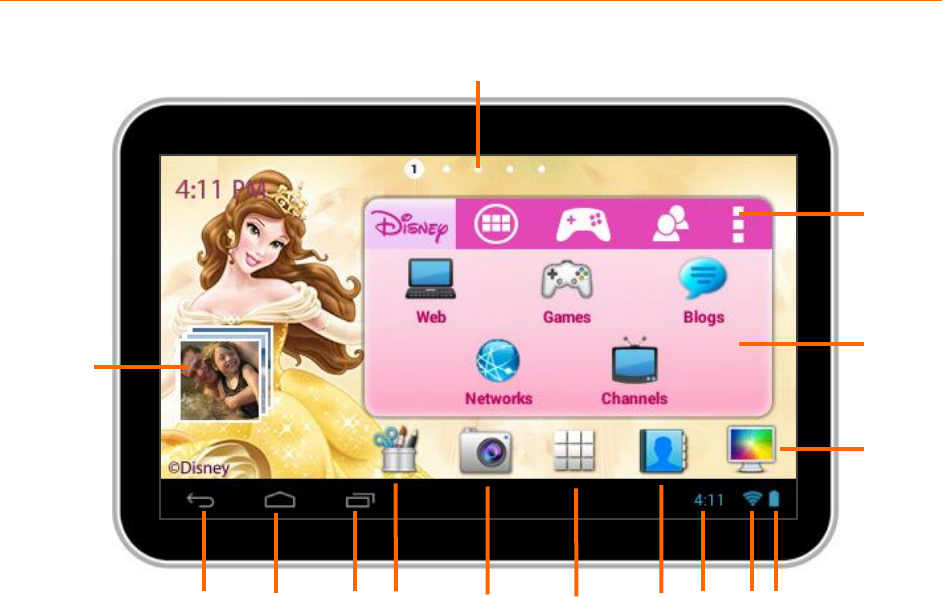
5.2 Home Screen Interface
1. Page counter
2. Image Gallery Widget
3. Vivitar® Disney Settings
4. Tabbed Apps Manager
Tabs include: Disney, Apps,
Games, Social
5. Back
6. Home
7. Recent Apps
8. Image Editor
9. Camera
10. Android Apps Mode
11. Contacts
12. Time
13. Wi-Fi Connection Signal
14. Battery Power Level
15. Wallpaper Settings
1
2
3
4
5 6 7 8 9 10 11 12 13 14
15
20
5.3 Home Screen Features
The main Home screen is the main entry point to your Vivitar® Disney Tablet. The
Tabbed Apps Manager allows you to easily access Disney apps, and organize and
create shortcuts to your favorite applications. The bottom tool bar allows quick
access to the main functions on your tablet.
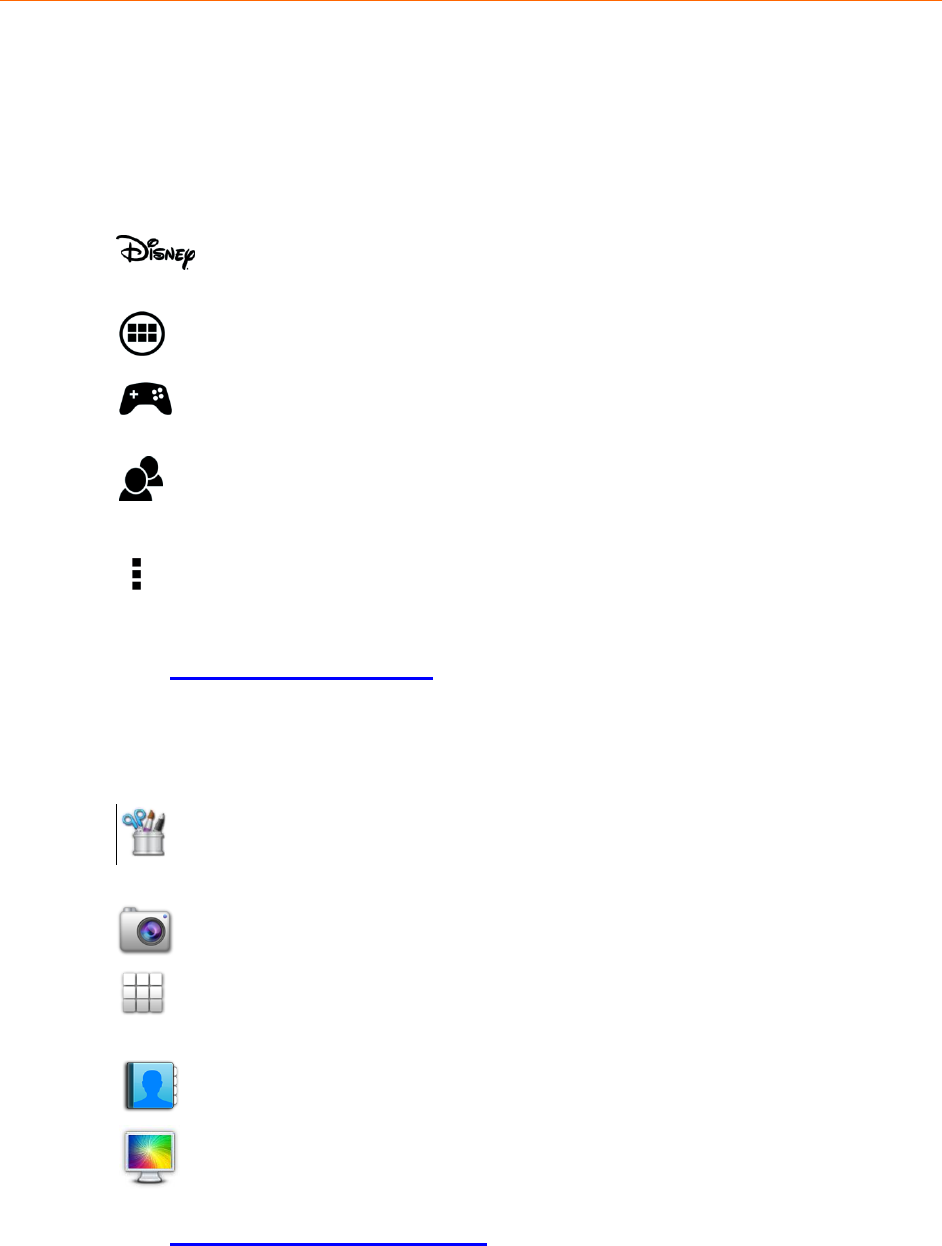
5.3.1 Tabbed Apps Manager Shortcuts
Select the Disney tab to access the Disney online site, Disney
games, as well as Disney channels, networks and blogs.
Select the Apps tab to add and organize app shortcuts.
Select the Games tab to add and organize app shortcuts to
your favorite games.
Select the Social tab to add and organize app shortcuts to your
favorite social apps.
Select Settings to Add/Remove Apps, view the online User
Manual, online Help and About.
See ‘Tabbed Apps Manager’ for more details.
5.3.2 Tool Bar Shortcuts
Select Photo Editor to edit photos, add frames and clipart
items as well as share your images.
Select Camera to to take pictures and record videos.
Select the Apps screen to access all the applications on your
tablet.
Select Contacts to add and edit your contacts.
Select Wallpapers to change the tablet’s wallpaper.
See ‘Main Application Shortcuts’ for more details.
21
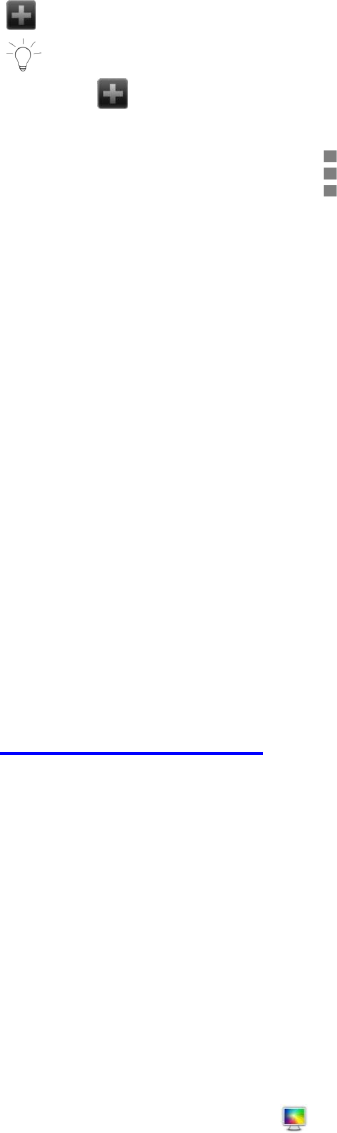
5.3.3 Adding Shortcuts to the Tabbed Apps Manager
1. Select a tab on the Tabbed Apps Manager, and then touch the
Add App icon.
NOTE:
The Add App icon only appears when the selected Tabbed
App has room for additional shortcuts.
Alternatively, touch the Settings icon to open
the ‘Settings’ screen, and then select Add/Remove apps.
2. The list of all your applications on your tablet appears on the ‘Add
Application’ screen. Alternatively, you can also touch the Plus icon
next to one of the tab names if accessing the list using the Settings
icon.
3. Touch an app to choose the one you would like to add.
4. The shortcut displays in the selected tab on the Tabbed Apps
Manager.
5. To remove an App from the Tabbed Apps Manager: Touch the
Settings icon and then select Add/Remove apps.
In the ‘Add/Remove Apps’ screen, touch the Minus icon next to
one of the listed apps to remove the shortcut from the Tabbed
Apps Manager.
See ‘Tabbed Apps Manager’ for more details.
5.3.4 Change Home Screen Wallpaper
1. Touch and hold on a Home screen (not including the Tabbed Apps
Manager area) until the ‘Choose wallpaper’ window appears.
2. Touch ‘Theme Name’ Wallpapers to open a selection of Wallpaper
images. Touch an image to view the Wallpaper in the background.
3. Touch Set Wallpaper to save and change the wallpaper to your
chosen selection.
4. Alternatively, touch the Wallpaper icon on the bottom toolbar
to quickly access wallpaper settings.
22
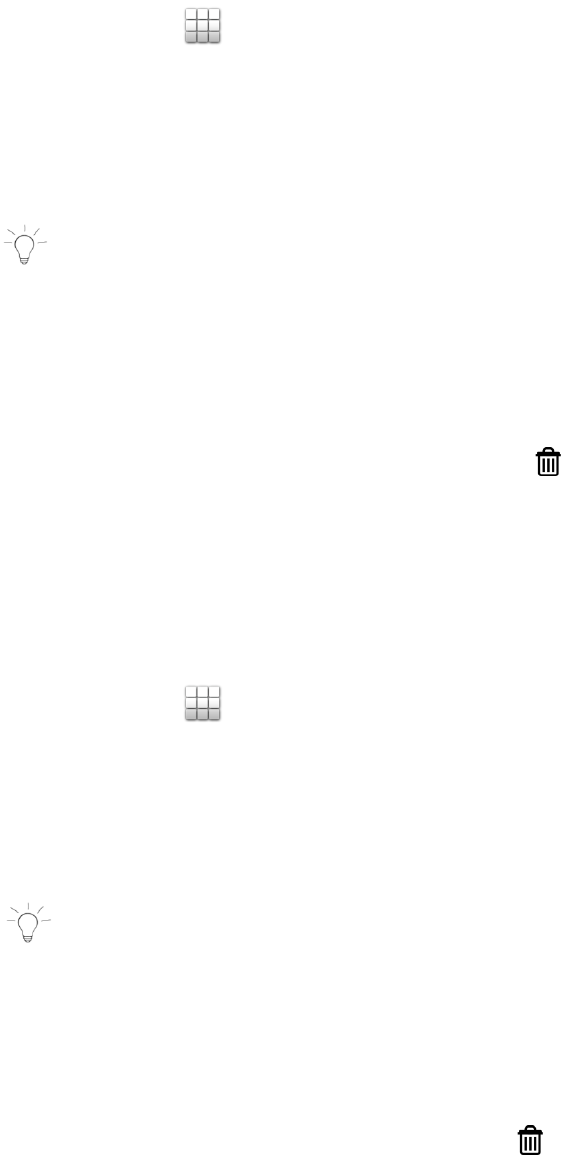
5.3.5 Add App Shortcuts to the Home Screens
1. Touch the Apps screen icon on the bottom tool bar to open
the ‘APPS’ screen that displays a list of your tablet’s applications.
2. Choose an application you would like to add as a short cut and
then long touch and drag the selected application to the desired
Home screen. The application shortcut will then appear on the
selected Home screen.
NOTE:
Application shortcuts cannot be added to the first Home screen.
To move a shortcut:
Touch and hold on a shortcut, then drag it to a different Home
screen to move it to the selected Home screen.
To remove a shortcut:
Touch and hold the shortcut until the Remove icon appears
on the screen. Then drag the shortcut to the Remove icon.
When the shortcut and Remove icon turn red, release your
touch and the shortcut will be removed.
5.3.6 Add Widgets to the Home Screens
1. Touch the Apps screen icon to open the ‘APPS’ screen that
displays a list of your tablet’s applications. Touch the WIDGETS tab
to open the list of your tablet’s widgets.
2. Choose a widget you would like to add and then long touch and
drag the selected widget to the desired Home screen. The widget
will then appear on the selected Home screen.
NOTE:
Widgets cannot be added to the first Home screen.
To move a widget:
Touch and hold on a widget, then drag it to a different Home
screen to move it to the selected Home screen.
To remove a widget:
Touch and hold the widget until the Remove icon appears
on the screen. Then drag the widget to the Remove icon. When
the widget and Remove icon turn red, release your touch and
the shortcut will be removed.
23
6. OVER THE AIR UPDATES (OTA)
The Vivitar® Disney Tablet updates are available over the air. When your Tablet is
connected to WiFi, the system will automatically check for software updates.
Notification of an available software update will be sent wirelessly to your Tablet.
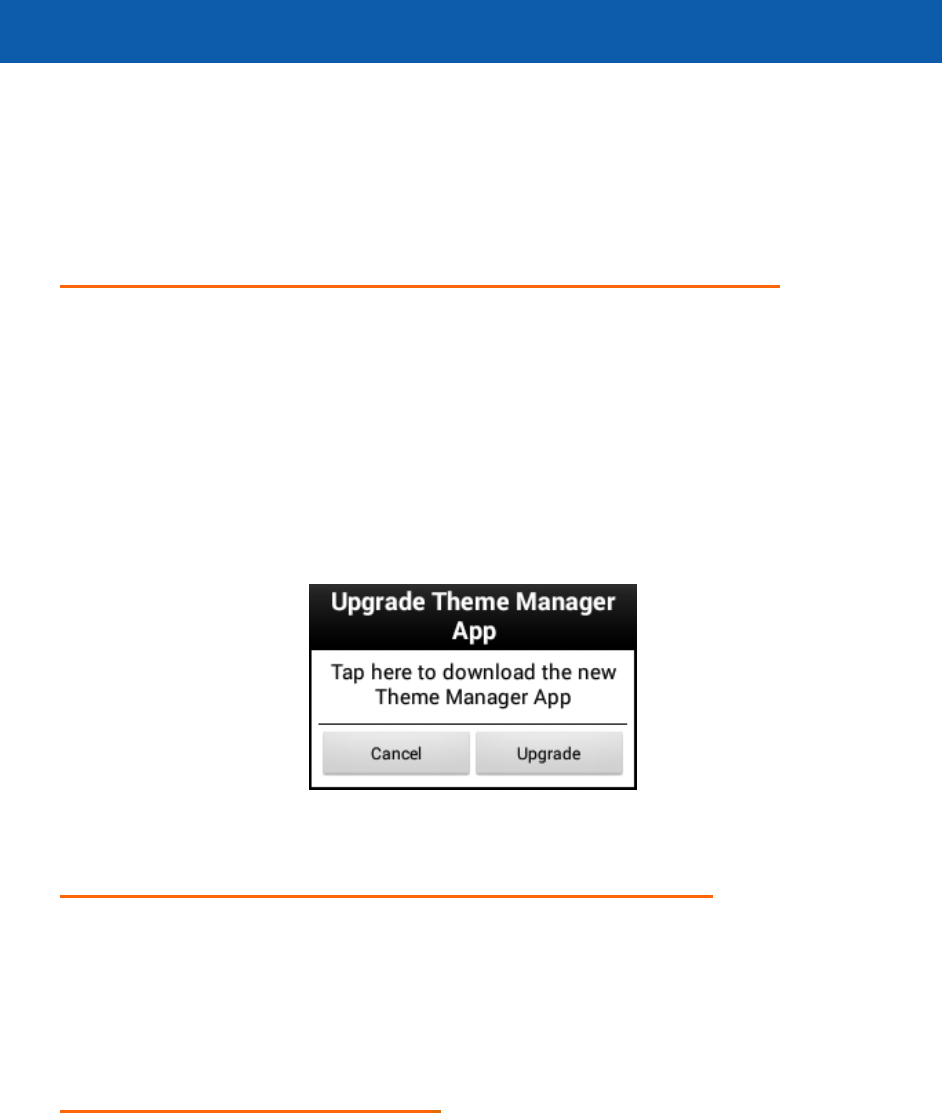
1. DOWNLOAD THE PURCHASED ‘THEME’ UPDATE:
A notification window appears when there is a new version of your
purchased Theme is available.
If you would like to upgrade, touch Upgrade to begin the download and
installation process.
The download then begins and will take some time. Progress can be seen
in the Notifications bar.
If you would like to exit the upgrade window without upgrading, touch
Cancel to exit and return to the previous screen.
2. INSTALL THE PURCHASED ‘THEME’ UPDATE:
A notification window appears showing that your purchased Theme has been
downloaded. Touch Install to begin installing the update.
To exit without installing the application upgrade touch Cancel.
3. INSTALL CONFIRMATION:
A window asking if you want to install this application appears and notifies
you what the app will get access to do. Touch Install to confirm and
complete the installation. To exit without installing the application upgrade
touch Cancel.
24
7. TABBED APPS MANAGER
The Tabbed Apps Manager allows you to easily organize and create shortcuts to
your favorite apps. These apps can be added to the Home screen Tabbed Apps
Manager. You can organize and manage your Apps by placing the shortcuts in the
selected tab. The Tab Apps Manager includes the following tabs:
Disney, Apps, Games, Social
7.1 Disney Tab
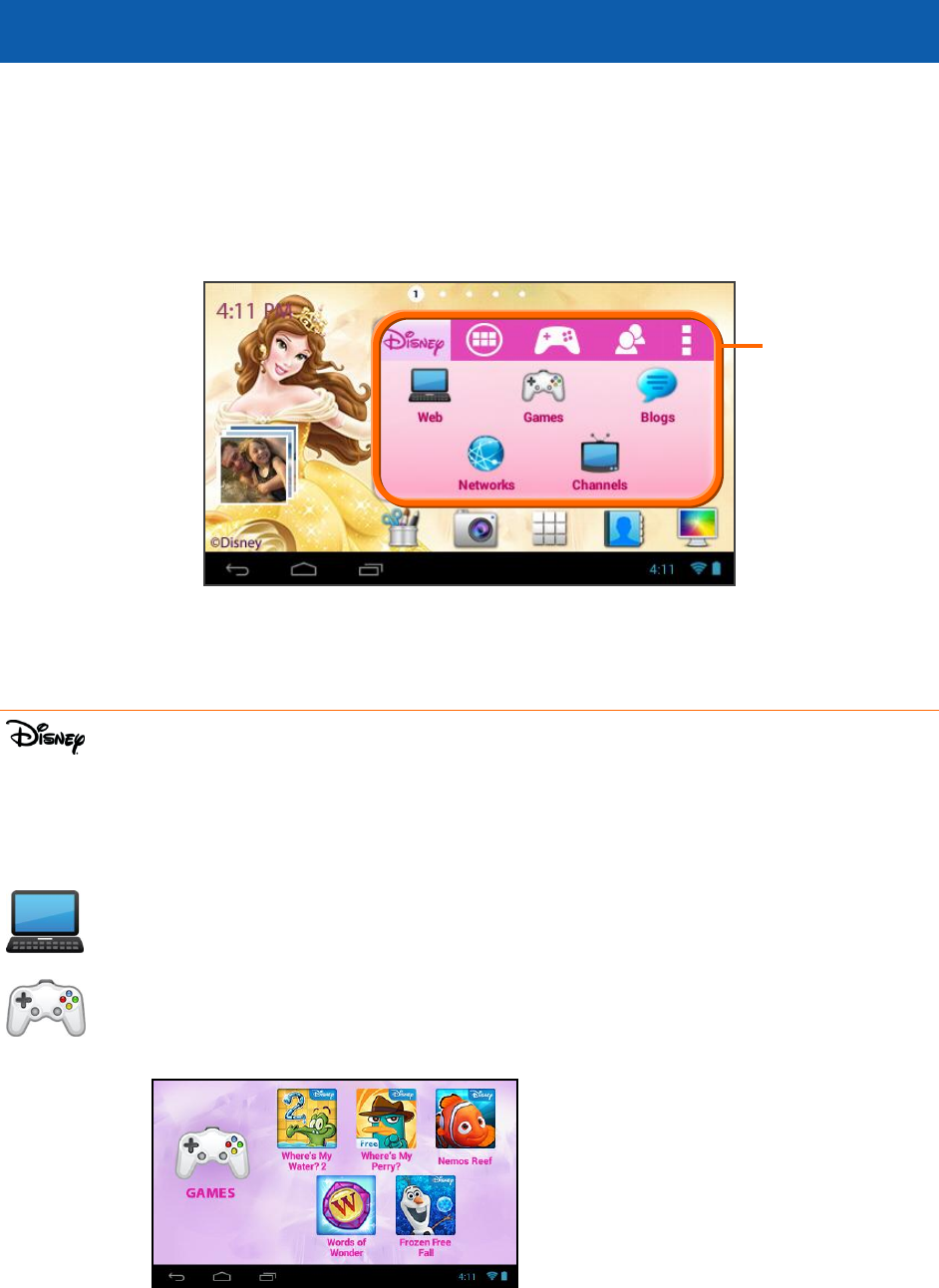
The Disney Tab includes fun and exciting links to online Disney sites and
games. The shortcuts are preset and additional shortcuts cannot be added or
removed on this tab.
The Disney Tab shortcuts include:
Web: Links to the online Disney site.
Games: Opens a display of links* to fun-filled Disney games that
connect you directly to the online Google Play Store for easy download.
* Disney Game links that are displayed vary per Disney Theme.
Tabbed Apps Manager
25
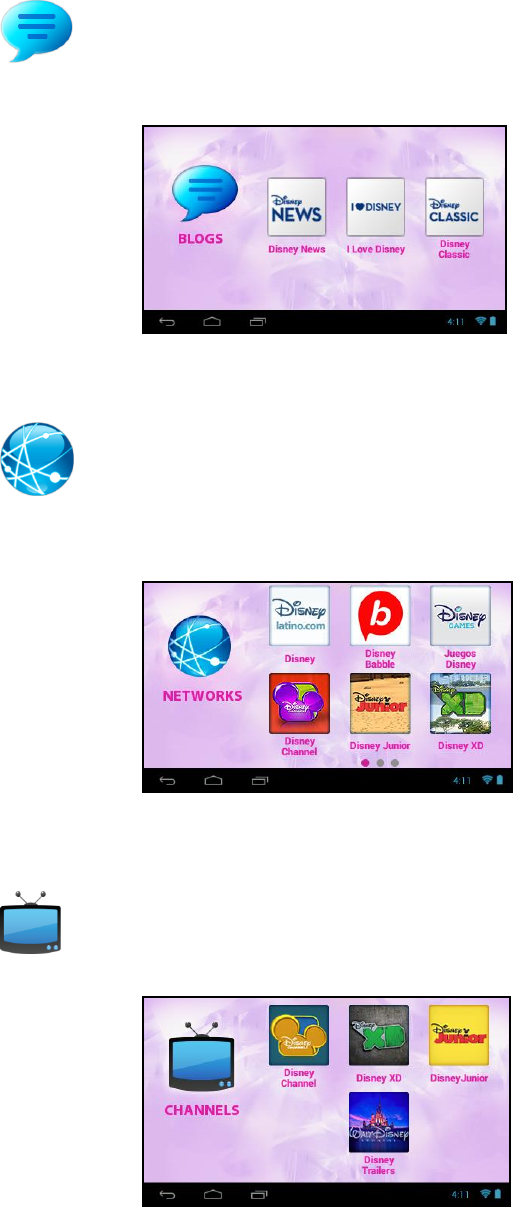
Blogs: Opens a display of online Disney Blogs. Touch a blog icon to
select that link and connect directly to the blog site.*
* Disney Blogs links that are displayed vary per Disney Theme.
Networks: Opens a display of online Disney Networks. Touch a
network icon to select that link and connect directly to the network
site. *
* Disney Network links that are displayed vary per Disney Theme.
Channels: Opens a display of online links to Disney Channels. Touch a
channel to connect you directly to that channel.*
* Disney Channel links that are displayed vary per Disney Theme.
26
7.2 Add App Shortcut Using the Tabbed Apps
Manager
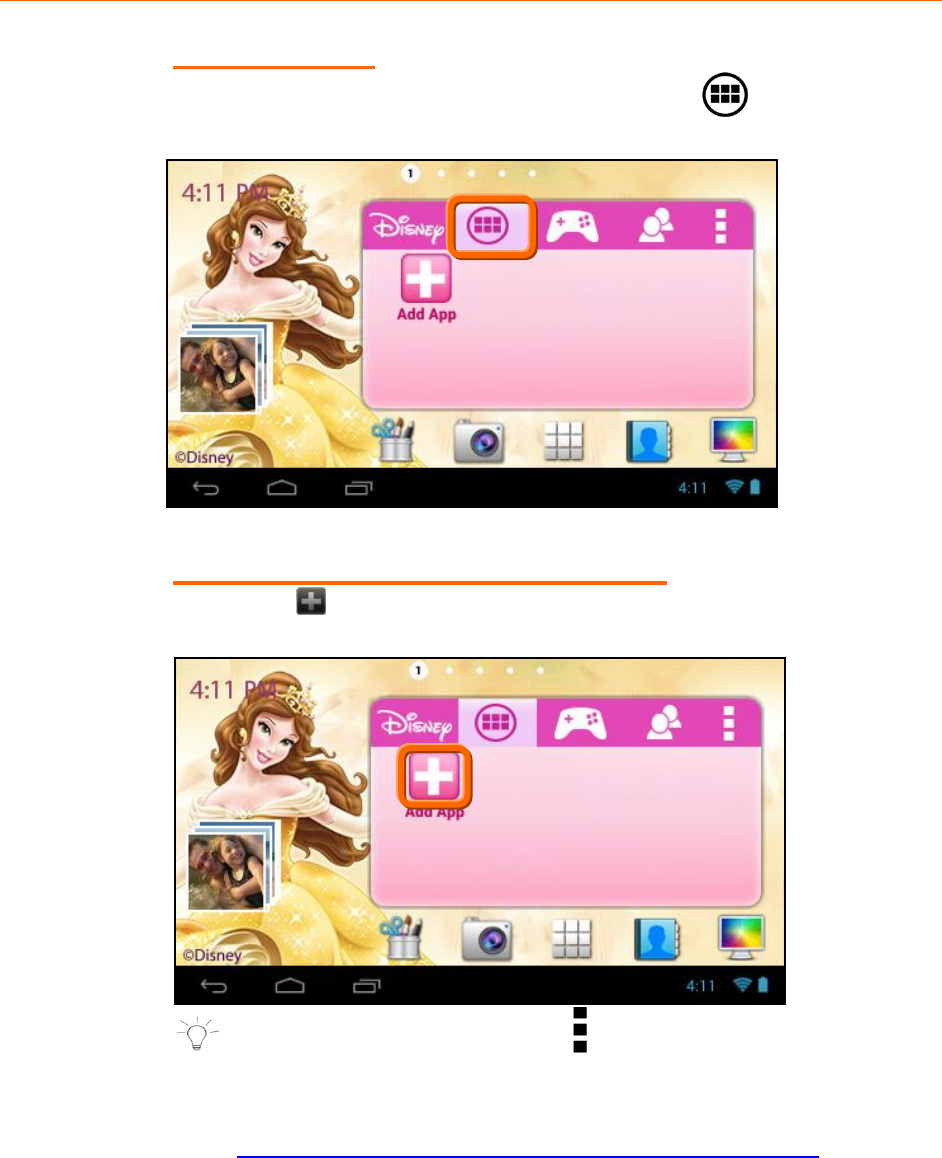
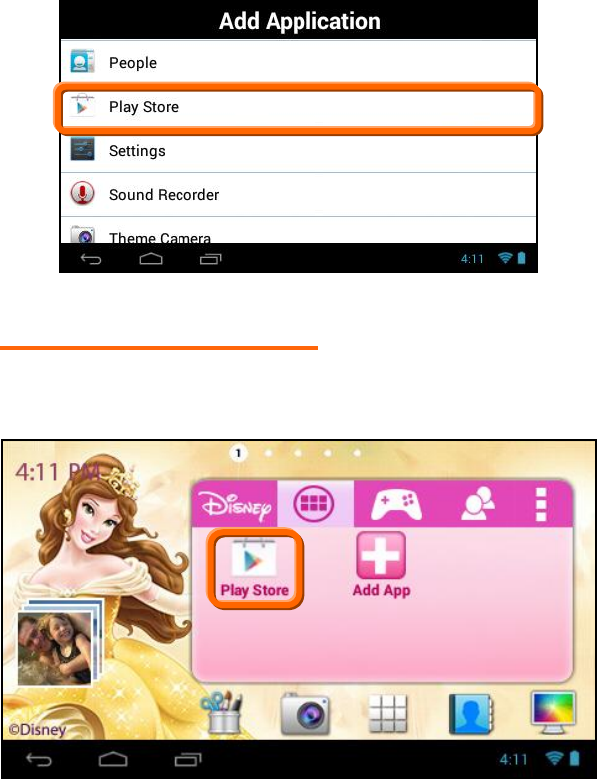
1. SELECT A TAB
First touch a Tab to select it. For example, the Apps Tab is
selected in the image below.
2. SELECT AN APPLICATION TO ADD
Touch the Add App icon. The Add App icon appears when the
Tab has room for additional shortcuts.
NOTE: You can also touch the Setting icon on the Tabbed
Apps Manager to add and remove App shortcuts.
For more information, please refer to the section:
‘Add/Remove App Shortcut Using the App Settings’.
27
The list of the available Apps currently on your tablet appears on
the screen. Touch an App to choose the one you would like to
display in the selected Tab.
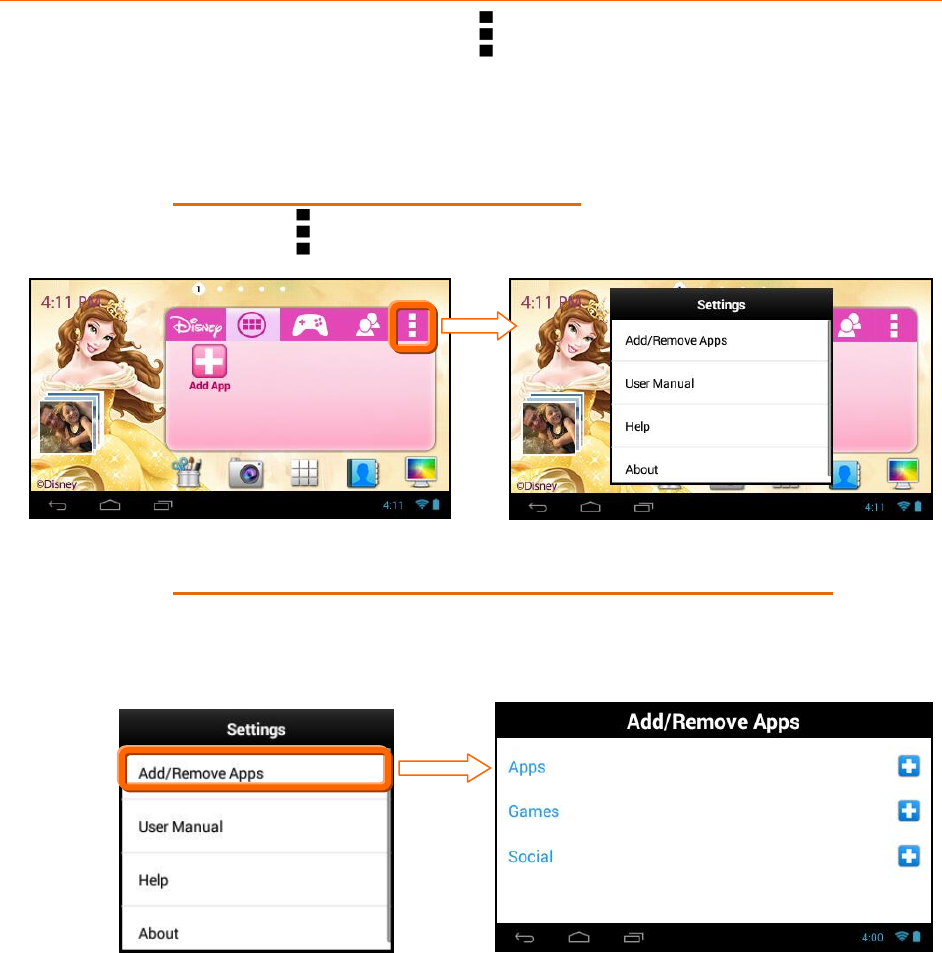
3. VIEW THE SHORTCUT
View the added shortcut of your selected App on the Tabbed Apps
Manager.
28
7.3 Add/Remove App Shortcut Using the App
Settings
App shortcuts can also be added from the App Settings icon on the Tabbed Apps
Manager. This also allows you to remove an App shortcut from the Tabbed Apps
Manager.
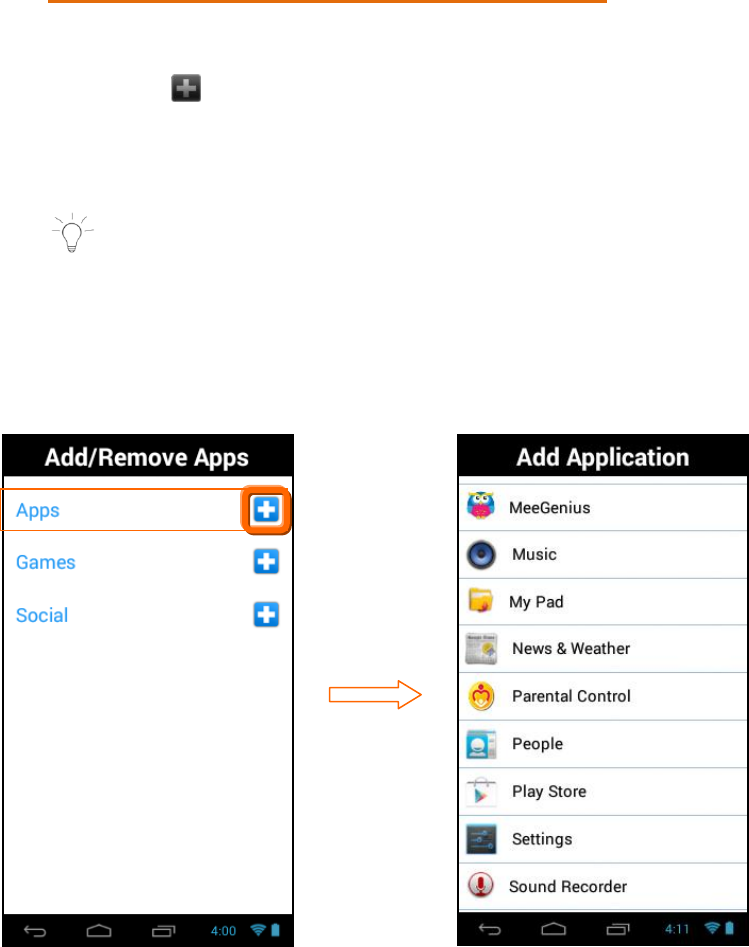
1. ACCESS THE APP SETTINGS:
Touch the App Settings Icon to open the ‘Settings’ window.
2. ACCESS THE ‘ADD/REMOVE APPS’ OPTIONS:
Touch Add/Remove Apps to open the ‘Add/Remove Apps’ screen.
The current App shortcuts displayed in each Tab appears listed
under the name of each Tab.
29
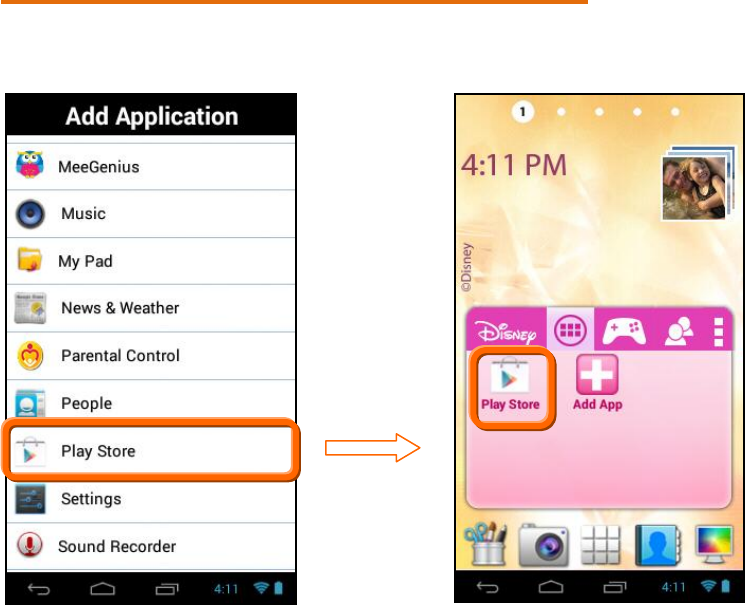
3. ACCESS THE ‘ADD APPLICATION’ LIST:
Choose which Tab you would like to add an App shortcut:
‘Apps’, ‘Games’, or ‘Social’
Touch the Add App icon (plus symbol) to the right of that Tab
name.
The ‘Add Application’ screen appears displaying the list of all your
Tablet Apps.
NOTE:
The same ‘Add Application’ Apps list appears for each Tab
(‘Apps’, ‘Games’, ‘Social’) when adding an App shortcut.
The screens below display the following example: adding
an Application shortcut from the ‘Apps’ Tab.
30
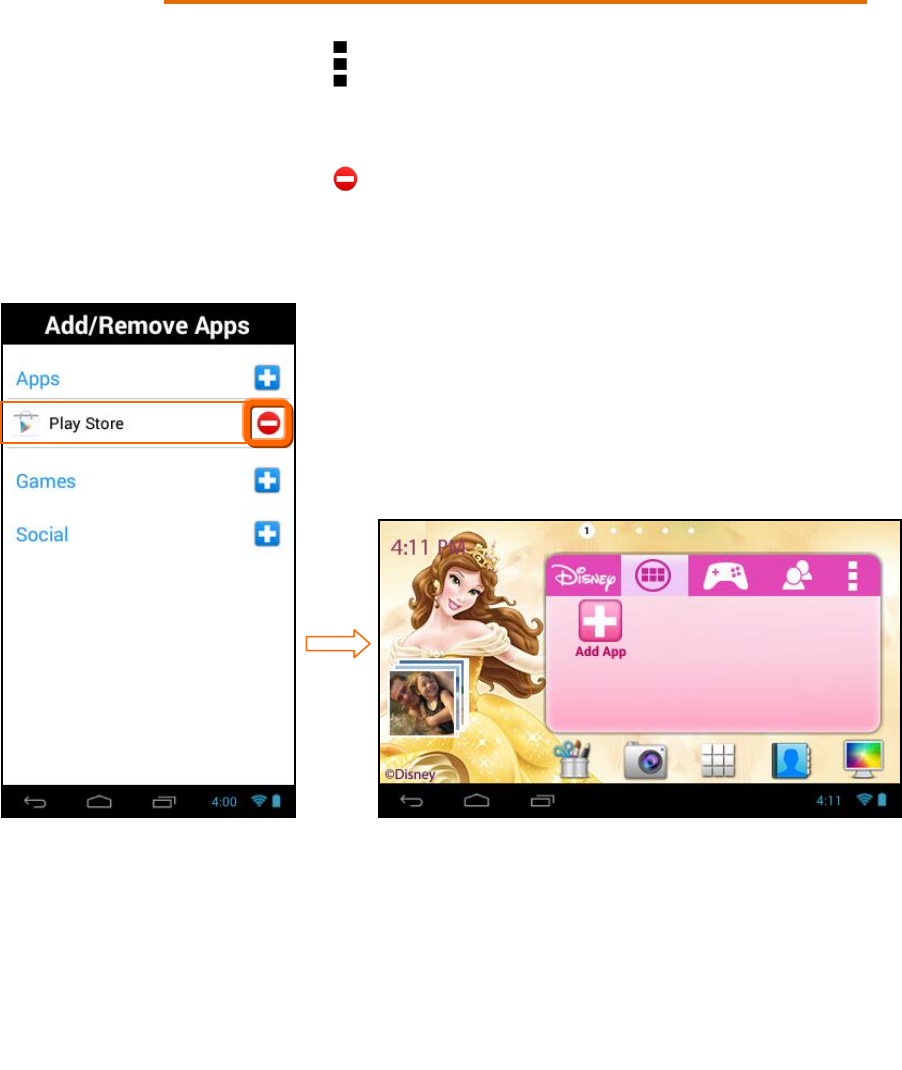
4. ADD APP SHORTCUT TO SELECTED TAB:
Touch one of the listed Apps to choose the one you would like to add.
The App shortcut appears within the selected Tab.
31
5. REMOVE APP SHORTCUT FROM SELECTED TAB:
To remove an App shortcut from the Tabbed Apps Manager:
Touch the App Settings Icon to open the ‘Settings’ window.
Touch Add/Remove Apps to open the ‘Add/Remove Apps’ screen.
The list of current App shortcuts appears for each Tab.
Touch the Remove App icon (minus symbol) next to one of
the listed App shortcuts to automatically remove the selected
App shortcut from the Tab.
32
8. PARENTAL CONTROL
8.1 Overview
The Parental Control feature can be accessed during the Initial Setup of your
tablet, or at any time after Initial Setup by touching the Parental Control icon
from the Apps list. The Parental Control allows you to specify which
applications can be accessed by your children, including when and for how long.
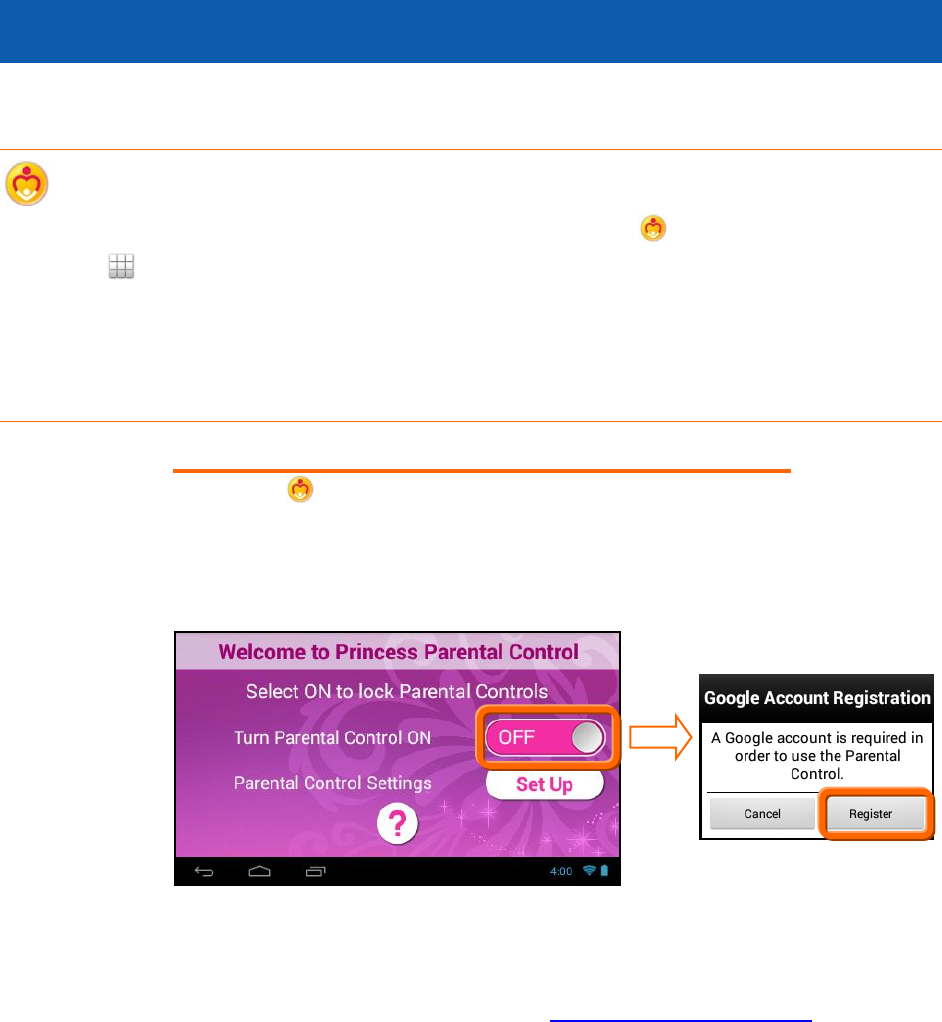
8.2 Welcome to Parental Control
1. SELECTING PARENTAL CONTROL ON/OFF:
Open the Parental Control app. By default, the Parental Control
feature is turned OFF, which means that all Apps can be accessed.
To activate the Parental Control, touch the ‘Turn Parental Control
On’ OFF option to activate it ON.
Next, you will be prompted to register a Google account, if you have
not already completed this. Touch Register to continue with the
Google account registration. See Google Account Set Up in the
manual for more details regarding Google Account registration.
33
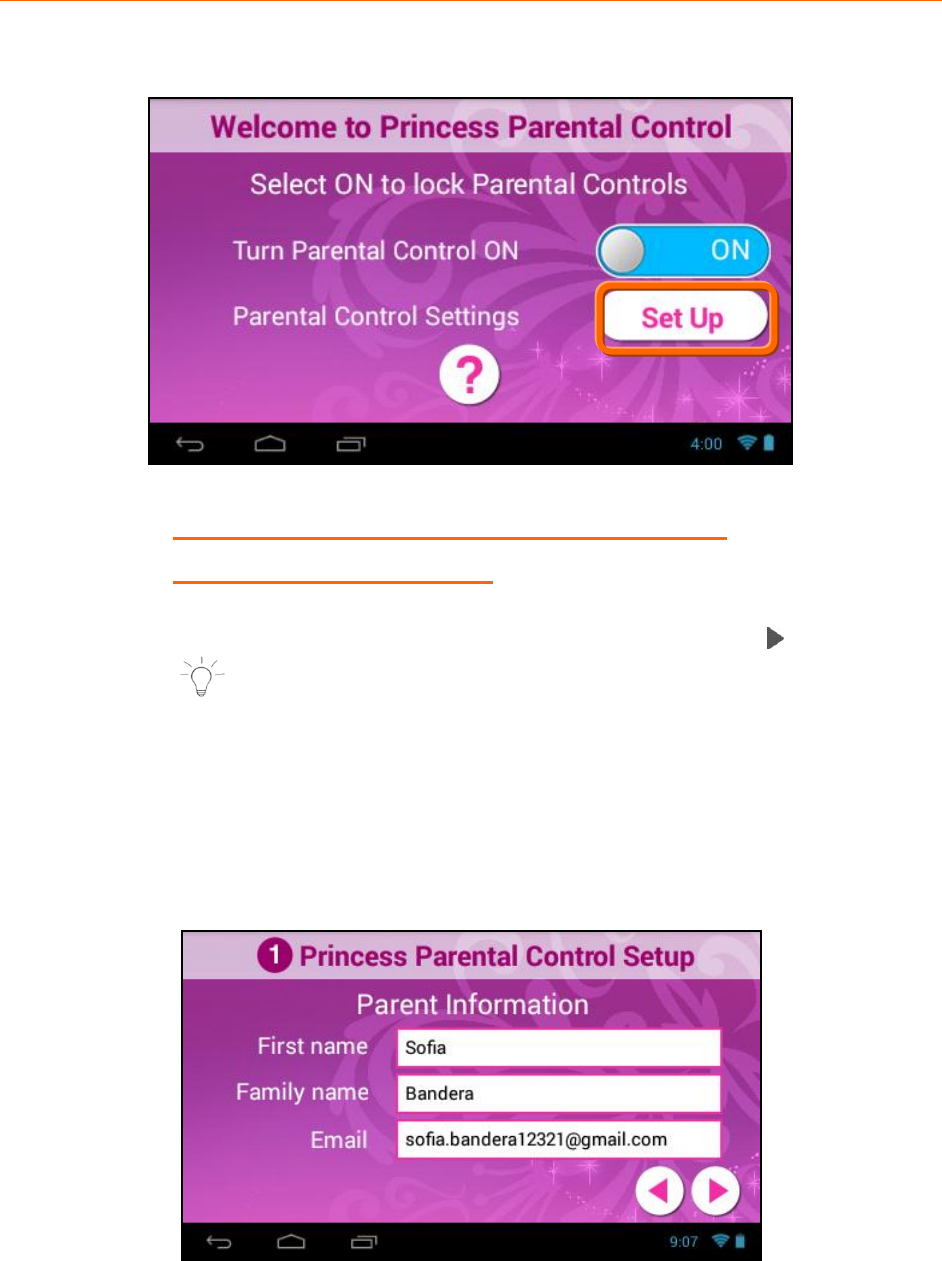
8.3 Parental Control Set up:
After you have registered your Google account, the Parental Control turns ON.
Touch the Set Up button to continue the Parental Control set up.
1. PARENTAL CONTROL SET UP > STEP 1
USER INFORMATION:
You will then be prompted to enter your first name, last name and
email. Enter your user information then touch Next .
NOTE:
Your existing Google email or the new Google account you
defined during the Initial Setup will automatically appear. If
you do not have a Google Account, you will be prompted to
create a new account.
A notification will be sent to your email Account with your
name and Parental Control Lock Code details.
34
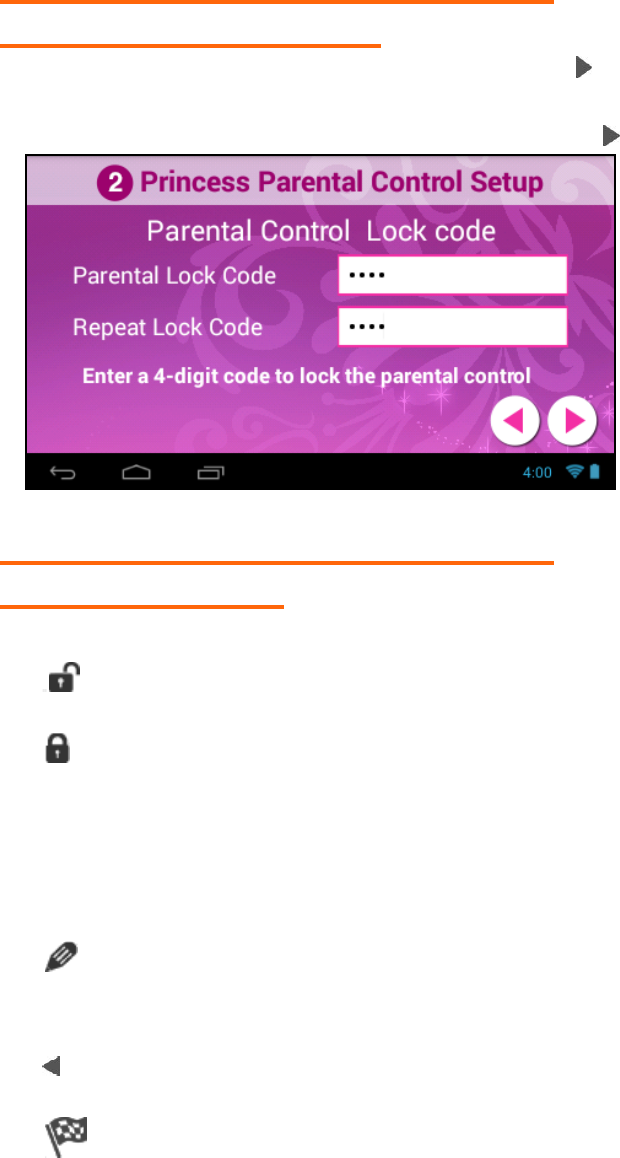
2. PARENTAL CONTROL SET UP > STEP 2
SETTING THE LOCK CODE:
Enter a 4-digit Parental Lock Code and touch Next (from the
onscreen keyboard). Then reenter the Lock Code to confirm and
touch Done (from the onscreen keyboard). Touch Next to continue.
3. PARENTAL CONTROL SET UP > STEP 3
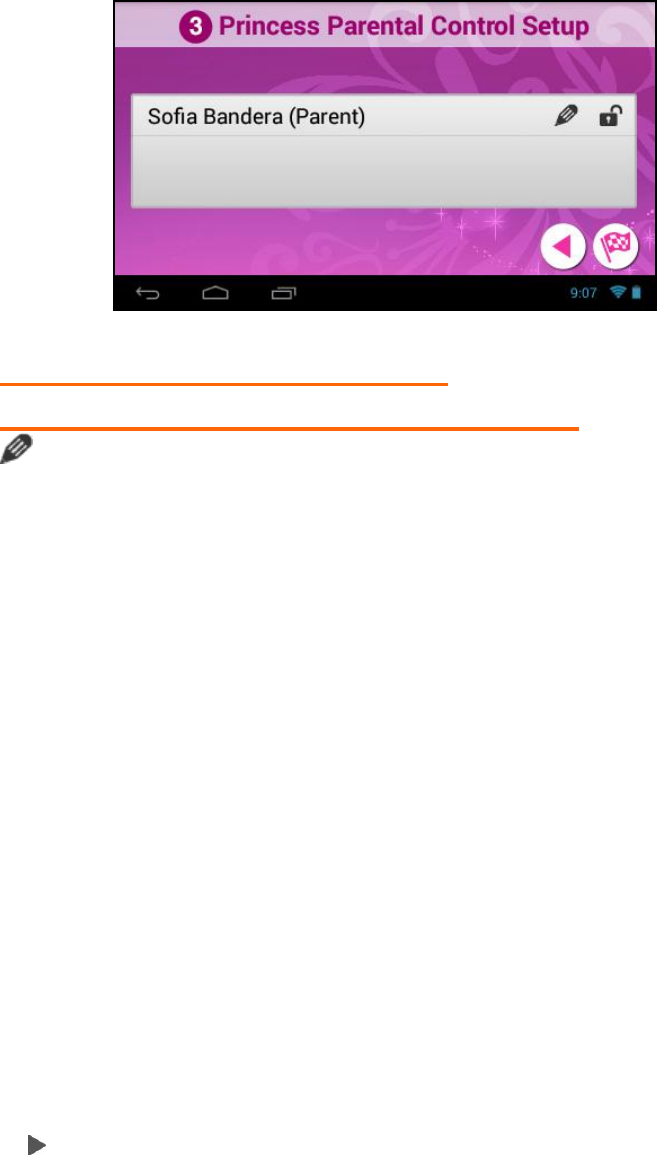
USER OPTION LIST:
The User name appears with the following options:
Unlock: The default setting is Unlocked, which means no
password is required.
Lock: To enable password protection, touch the unlock icon
and it will change to the Lock icon. This indicates that your
password is needed to enter the Parental Control app, and all
apps you have set to be locked. In addition, when you activate
the tablet once it has been in sleep mode or turned off, your
password will also be required.
Set/Edit Parental Controls: Touch the Edit icon to open the
‘Select apps for safe environment’ screen. This will enable you
to control the settings for each application on your tablet.
Back: Touch Back to return to the Parental Control Lock Code
screen.
Finish Setup: Touch Finish Setup to complete the Parental
Control setup. A message will be sent to your email with your
user information and Parental Control Lock Code. Any time you
change your user information or Lock Code and then touch
35
Finish Setup, an email will be sent with the updated
information.
4. PARENTAL CONTROL SET UP >
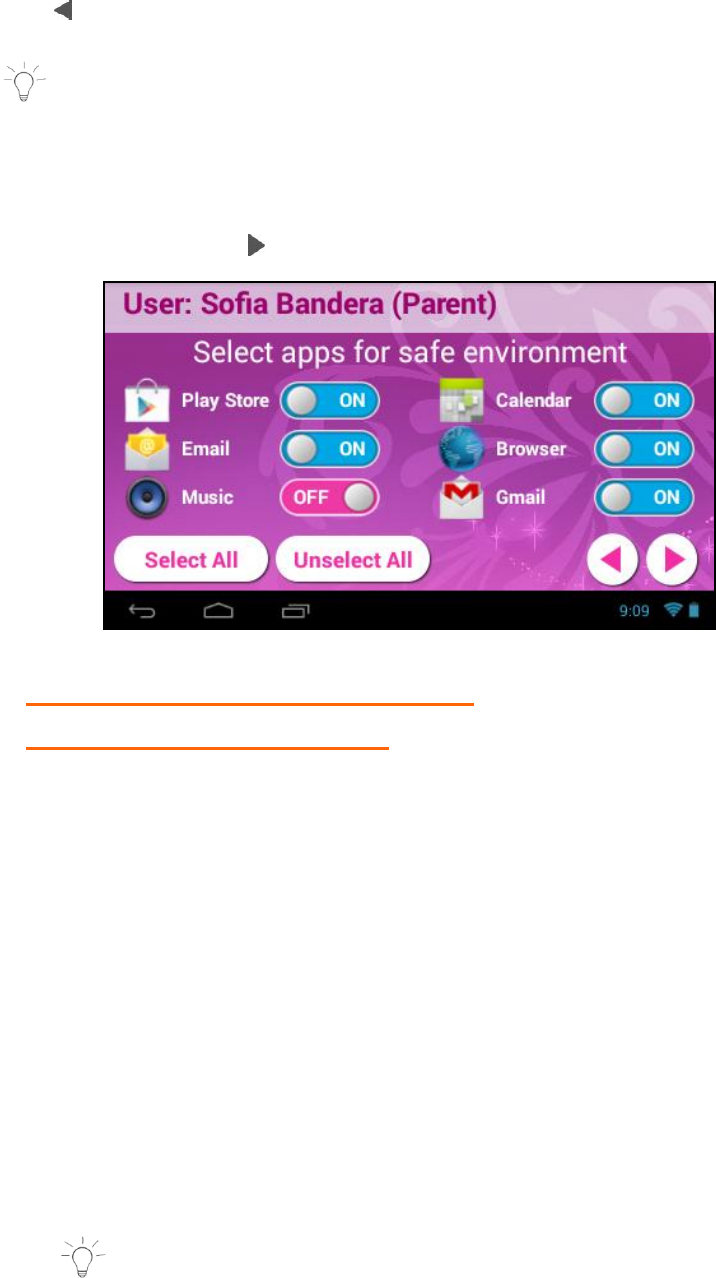
SELECT APPS FOR SAFE ENVIRONMENT
Touch the Edit icon to open the ‘Select apps for safe
environment’ screen. This enables you to control the settings for
each application on your tablet.
To change the setting: Touch ON or OFF to the right of the App to
select the Parental Control lock setting for each App. Swipe your
finger across the tablet to the right/left to view the continued list
of Apps.
The following options are available:
OFF: Indicates that the selected App will automatically launch
without entering the Parental Lock Code.
If you would like to quickly deactivate all Apps with the Parental
Control Lock set to ‘OFF’ on all Apps, you can touch Unselect All.
ON: Indicates that the Parental Control has been activated for
the selected App and your Parental Lock Code is required to be
entered in order to launch that App.
If you would like to quickly activate all Apps at once with the
Parental Control Lock ‘ON’ you can touch Select All.
Select All: All apps are set to ‘ON’
Unselect All: All apps are set to ‘OFF’
Next: Touch Next to continue to the ‘Parental Daily Limits’
settings.
36
Back: Touch Back to return to the ‘Select apps for safe
environment’ screen.
NOTE: When opening the ‘Select apps for safe environment’
screen for the first time, all Apps are by default selected with
the ‘OFF’ setting.
When you have completed setting the apps you would like to be
locked, touch Next to continue setting your Parental Controls.
5. PARENTAL CONTROL SET UP >
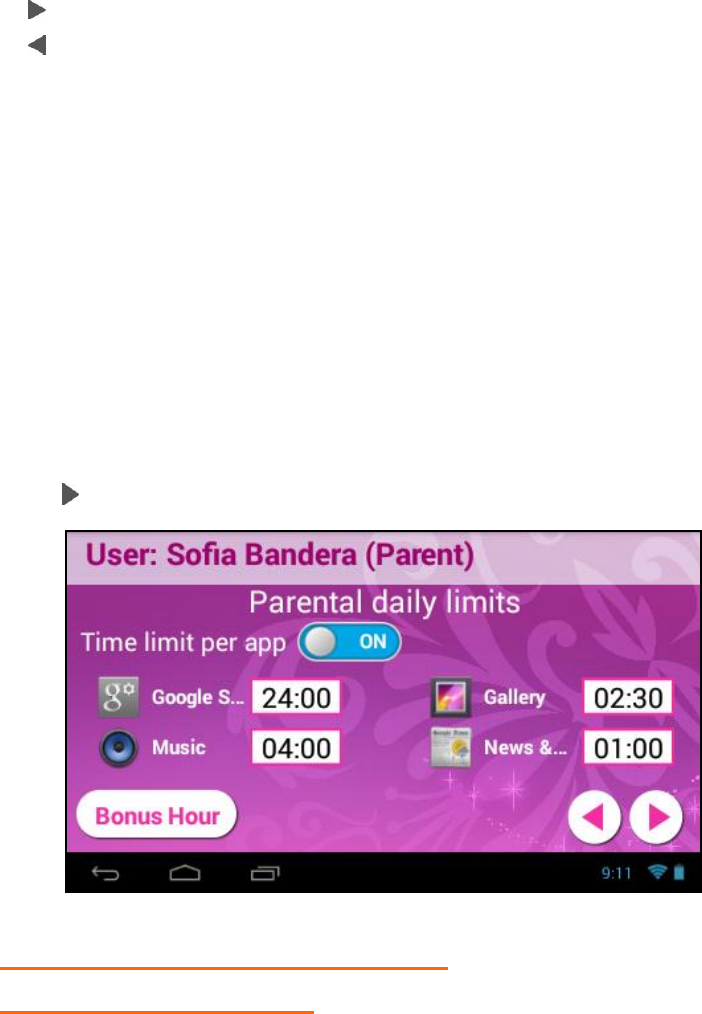
PARENTAL DAILY LIMITS
All applications that you have not locked with the Parental Lock
Code appear in the ‘Parental Daily Limits’ screen.
This setting allows you to control the amount these unlocked apps
can be used on daily basis (based on 24 hours).
The following options are available:
OFF: The default setting is OFF. This indicates that there is no
time limit. All applications can be used for an indefinite time.
ON: When turned ON, the applications can be set to be in use as
per Hours: Minutes. The default time is set to 24:00.
Bonus Hour: Touch Bonus Hour to add an hour to the use of all
apps listed in the Parental Daily Limits list. The one hour is
divided between all the applications no matter what time has
been set per app. You can add more than one Bonus Hour per day.
NOTE: The Bonus Hour needs to be reset on a daily basis.
37
The next day, all settings go back to the regular settings without
the additional time set by the Bonus Hour.
Next: Touch Next to continue to the ‘Global Limits’ settings.
Back: Touch Back to return to the ‘Select apps for safe
environment’ screen.
To activate Parental Daily Limits:
Activate the setting but touching the OFF button. The button
then changes to the ON setting.
Touch the time to the right of an application and set the time
(Hour : Minutes).
Touch Done to save your setting.
Swipe your finger across the tablet to the right/left to view the
continued list of Apps and set as desired.
When you have completed setting the apps to be locked, touch
Next to continue setting your Parental Controls.
6. PARENTAL CONTROL SET UP >
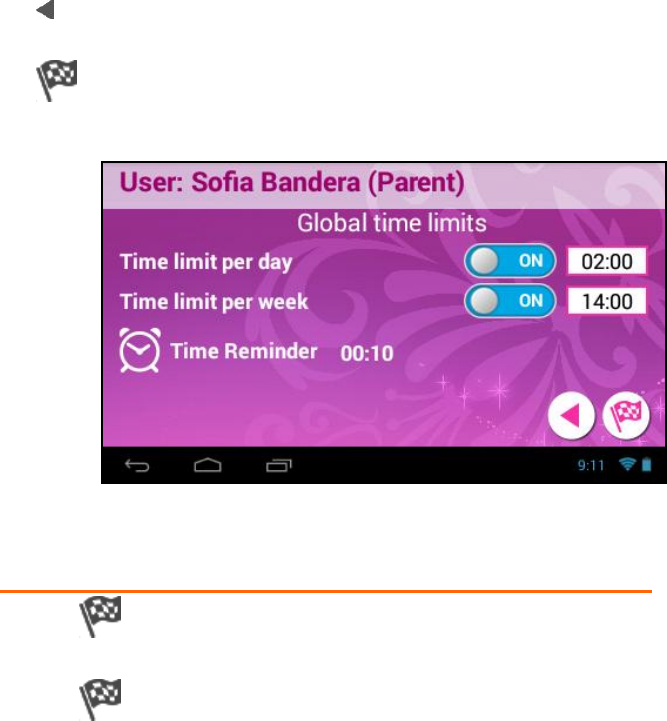
GLOBAL TIME LIMITS
All applications that you have not locked with the Parental Lock
Code apply to the ‘Global Time Limits’ setting.
The following options are available:
OFF: The default setting is OFF. This indicates that there is no
global time limit. All applications can be used for an indefinite
time.
38
ON: Touch the OFF button to turn ON. When turned ON, the
applications can be set to be in use as per Hours: Minutes. The
default time is set to 24:00.
Time Limit Per Day: The Global Time Limits allows you to set
the access to apps for a specific number of hours per day. The
time is accumulated based on the use of apps. The default is 24
hours.
Time Limit Per Week: The Global Time Limits allows you to set
the access for the specific number of days per week. The time is
counted based on the use of applications Sunday through
Sunday. The default is 168 hours.
Time Reminder: Touch the time next to the ‘Time Reminder’ to
add a notification that appears before the expiration time. The
time can be setting according to Hours: Minutes (up to 24
hours).
Back: Touch Back to return to the ‘Parental Daily Limits’
screen.
Finish Setup: Touch Finish Setup to save your Parental
Control settings and return to the User Option List screen.
7. FINISHING THE PARENTAL CONTROL SET UP
Touch Finish Setup from the Global Time Limits screen to
return to the User Option List screen.
Touch Finish Setup from User Option List screen to complete
the Parental Control setup and return to the Home screen.
39
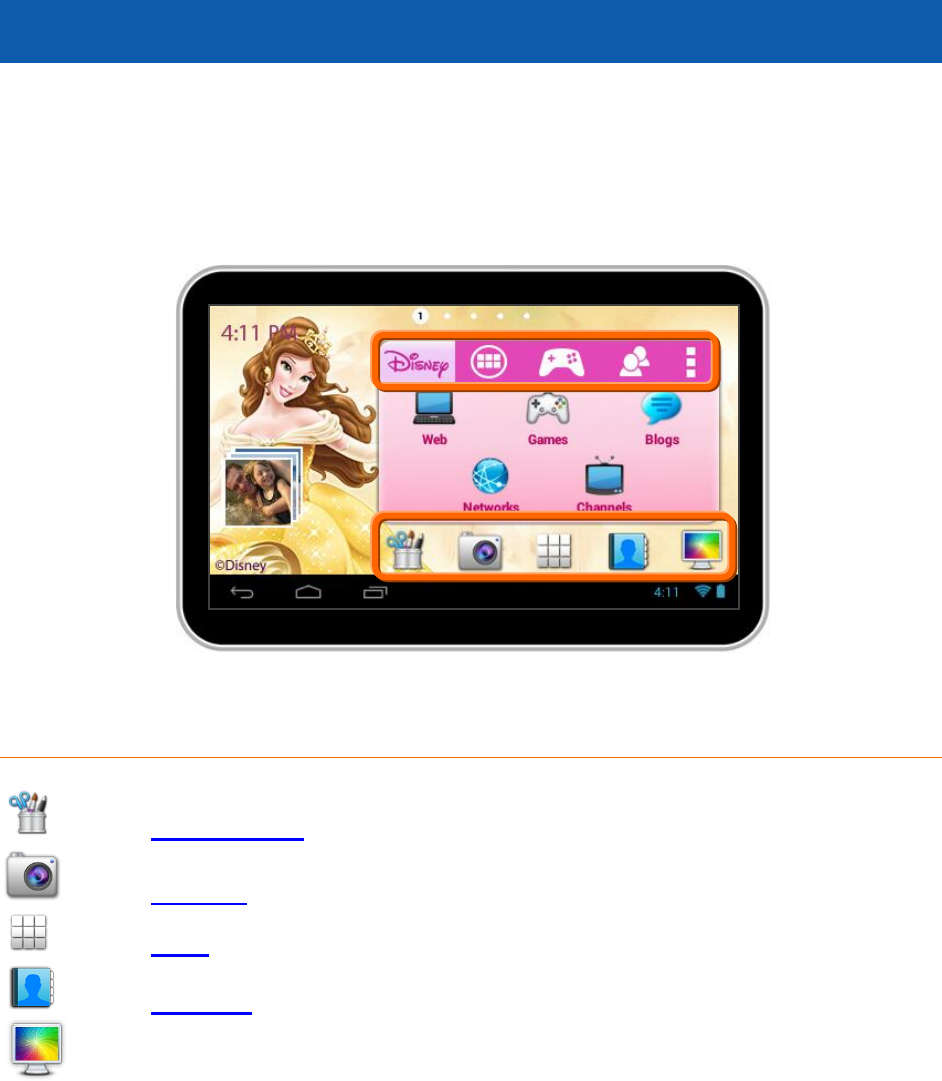
9. MAIN APPLICATION SHORTCUTS
The main Home screen is the entry point to your Vivitar® Disney Tablet. The
bottom tool bar allows quick access to the main functions on your Tablet. The
Tabbed Apps Manager allows you to easily organize and create shortcuts to your
favorite apps. The Home screen includes the following App shortcuts:
Tool Bar Shortcuts
Touch Photo Editor to edit photos, add frames and clipart items.
Touch Camera to to take pictures and record videos.
Touch Apps to view the available apps on your tablet.
Touch Contacts to add and edit your contacts.
Touch Wallpapers to change the tablet’s background wallpaper image.
40
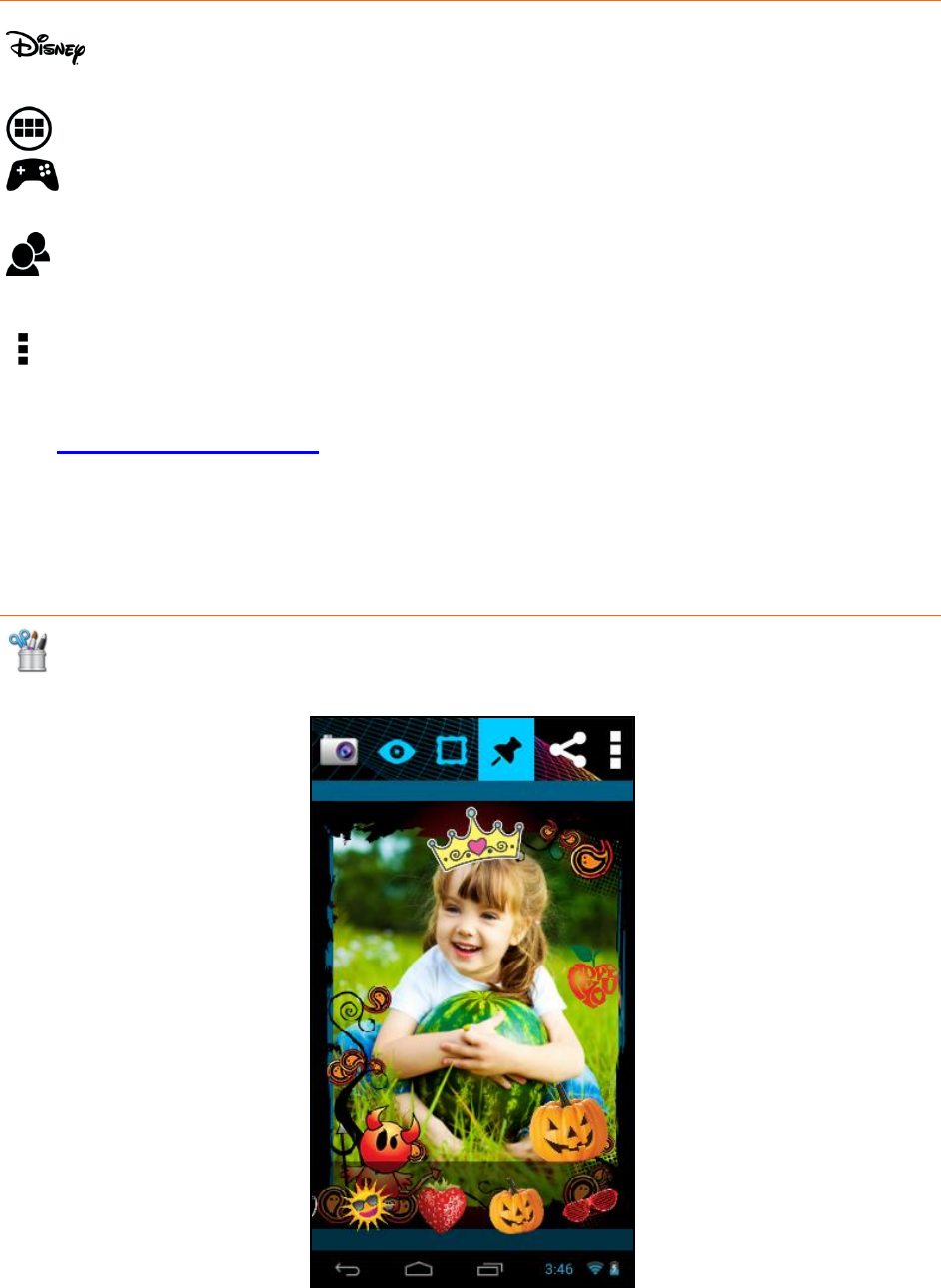
Tabbed Apps Manager
Select the Disney tab to access the Disney online site, Disney games, as
well as Disney channels, networks and blogs.
Select the Apps tab to add and organize app shortcuts.
Select the Games tab to add and organize app shortcuts to your favorite
games.
Select the Social tab to add and organize app shortcuts to your favorite
social apps.
Select Settings to Add/Remove Apps, view the online User Manual,
online Help and About.
See ‘Tabbed Apps Manager’ for more details.
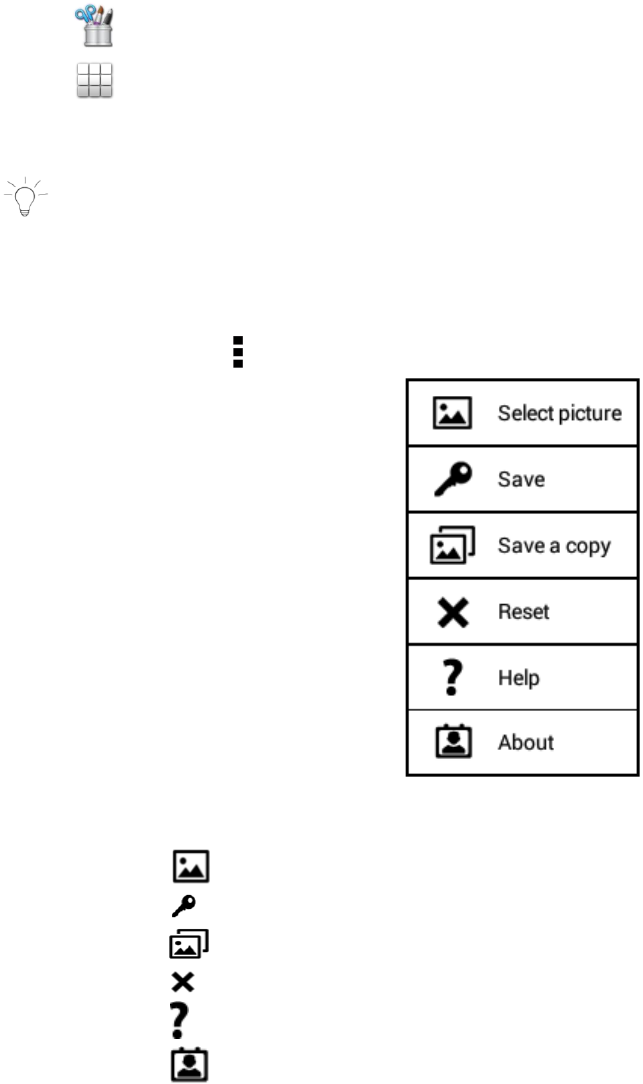
9.1 Photo Editor
Enhance your pictures, by adding frames and clipart to share with family and
friends.
41
To access the Photo Editor:
- From the Home screen, touch the Photo Editor icon.
- Alternatively, touch the Apps icon and then the Theme Photo Editor
icon.
NOTE: The orientation of the Theme Photo Editor app is Portrait only.
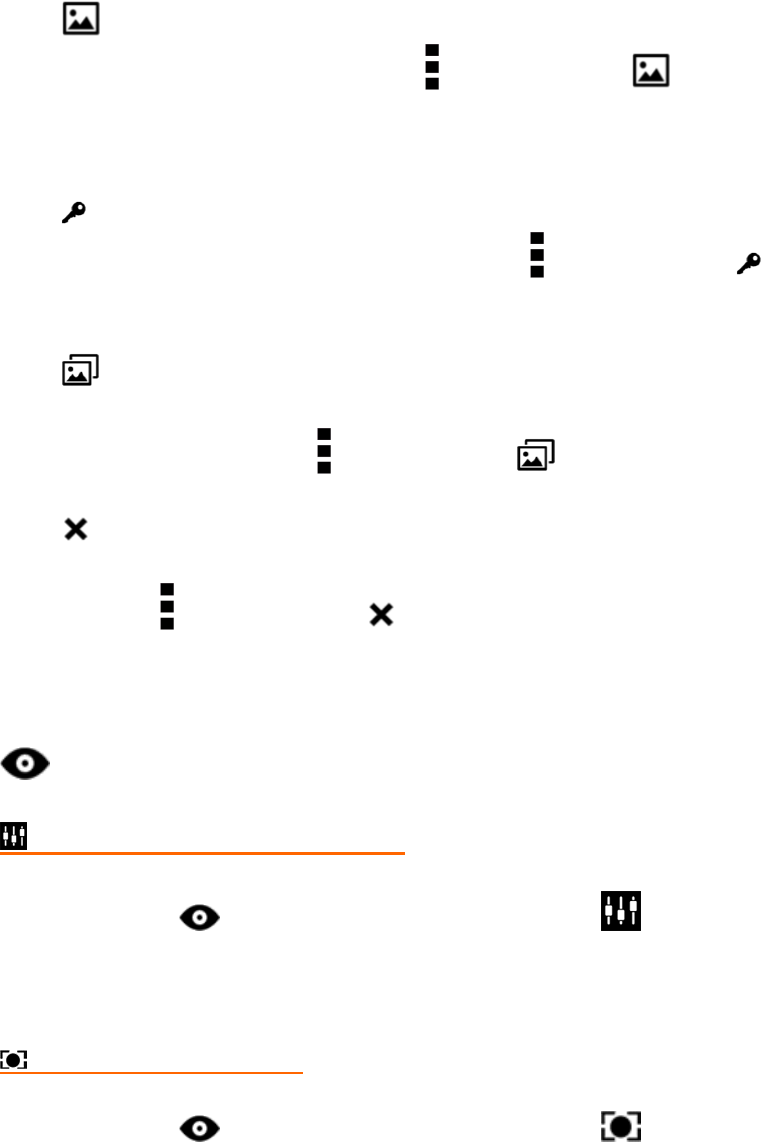
9.1.1 Menu Options
Touch the Menu/Settings icon to view the Photo Editor Menu options:
1. Select picture - Selects a picture to edit.
2. Save – Saves changes made using the editor.
3. Save a copy – Saves a copy of the edited photo.
4. Reset – Resets the photo to its original image.
5. Help – Opens the online Help.
6. About – Displays the device Build version, Copyrights.
42
9.1.2 Viewing and Saving Pictures
1. Selecting a picture:
To select pictures to edit, touch Menu and then Select
picture to view picture thumbnails. Touch a picture thumbnail to
display it in the media view area.
2. Saving changes:
To save the picture after editing it, touch Menu and then
Save.
3. Saving a copy:
To save a copy of a picture after editing it without changing the
original picture, touch Menu and then Save a copy.
4. Resetting pictures:
To go back to the original picture without any changes after editing
it, touch Menu and then Reset.
9.1.3 Enhancing Your Image
Touch the Enhance tab to auto enhance, crop or rotate your photo.
AUTO ENHANCING A PICTURE
1. Select a photo.
2. Select the Enhance tab and then touch the Auto
Enhance icon to auto improve your picture.
CROPPING A PICTURE
1. Select a photo.
2. Select the Enhance tab and then touch the Crop icon to
open the picture in the Crop mode.
3. Touch and drag the Box outlined in orange over the area that you
want to crop.
43
4. To resize the box to the size you want, touch and drag the sides of
the box to enlarge or reduce the size of the crop area.
5. Touch Save to crop the picture or Cancel to return to the picture
without cropping it.
ROTATING A PICTURE
1. Select a photo.
2. Select the Enhance tab and then touch the
Rotate icon to rotate the picture 90 degrees to the right.
9.1.4 Adding Frames
Touch the Frames tab to add creative frames to your photo.
1. Select a photo.
2. Select the Frames tab and then touch one of the frames that
appears on the bottom of the screen to add it to the picture.
3. Touch and drag the picture to reposition it within the frame. Pinch
the picture to increase or reduce the picture size.
9.1.5 Adding Clipart
Touch the Clipart tab to add fun and exciting clipart to your photo.
1. Select a photo.
2. Select the Clipart tab and then touch one of the clipart items
that appears on the left side of the screen to add it to the picture.
You can add multiple clipart items to a picture.
3. Touch and drag the clipart to reposition it within the picture. Pinch
the clipart to increase or reduce the clipart size.
9.1.6 Sharing Pictures
44
Touch the Share tab to open the ‘Share’ your photos with your
family and friends.
1. Select a picture.
2. Touch the Share tab.
3. Choose a sending method, then follow the prompts to share via:
Facebook, Photobucket, Twitter, Email, Picasa, Flickr
NOTE: You must register your device with your social networking site
before using the device to access the social network.
9.1.7 Switching to Camera
Touch the Camera icon to open the Camera app.
9.2 Camera
Use your device’s built-in camera to take pictures and record videos.
To access your Camera:
- From the Home screen, touch the Camera icon.
- Alternatively, touch the Apps icon from the Home screen and then
the Theme Camera application icon.
9.2.1 Taking Pictures
45
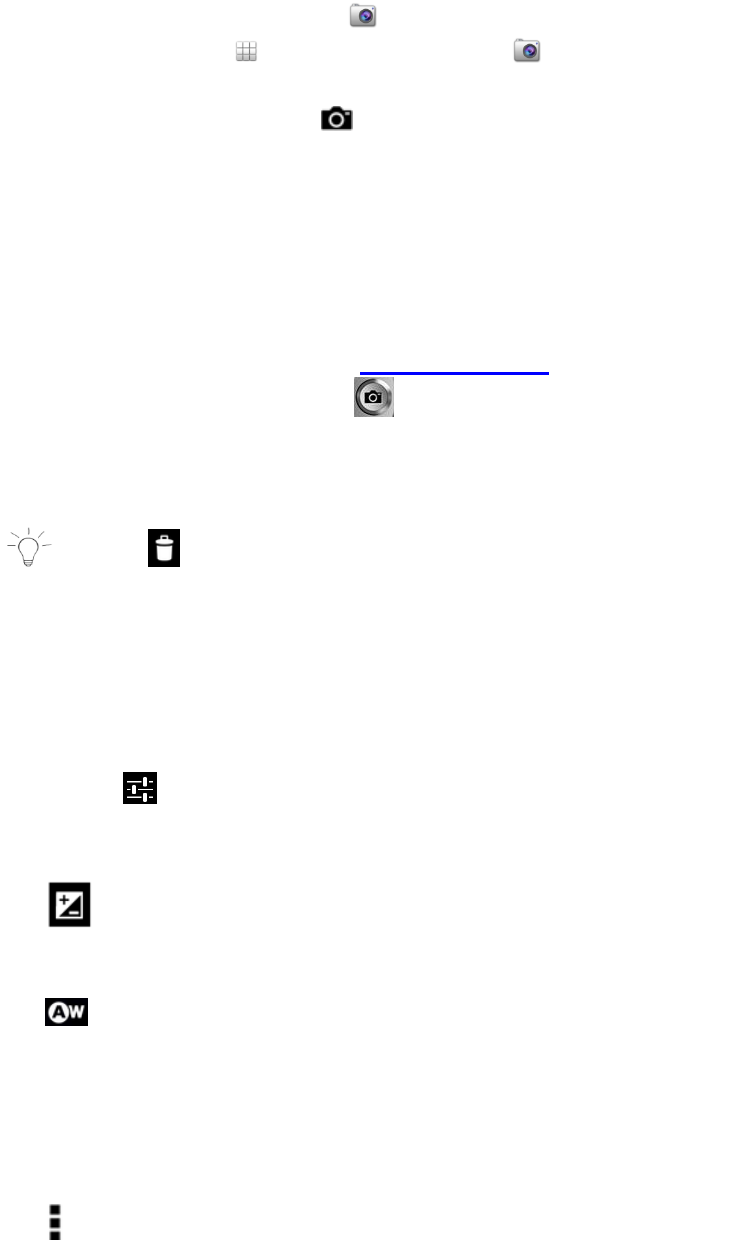
1. From the Home screen, touch Camera.
Alternatively, touch Apps and then touch Theme Camera.
2. The default Capture Mode is set to take photos – Photo Capture
Mode. If needed, touch the Camera icon to set the Tablet for
Photo Capture Mode.
3. Using the display as a viewfinder, compose your picture by aiming
the lens at the subject.
- To Zoom: Slide your finger on the Zoom line on the screen
towards the (+) Zoom In or (-) Zoom Out to focus on the area
you want.
- To configure settings, see ‘Camera Settings’.
4. To take the picture, touch the Take Photo button.
5. After taking a picture, touch the Image Viewer (the thumbnail
image of your last captured photo) to view the picture in the
‘Gallery’ application.
NOTE: Images can be deleted from the ‘Photos’ app.
6. Touch Back or the Camera icon to return to the Capture Mode to
take more photos or videos.
9.2.2 Camera Settings
1. Touch the Camera Settings icon to open the Camera Settings
options.
2. Touch one of the options to configure the camera:
- Exposure Value:
Choose a value to set the brightness of the picture:
-4.0EV ~ +4.0EV
- White Balance:
Choose a setting for the light source:
Auto, Incandescent, Daylight, Fluorescent, Cloudy.
- SCN Scene mode:
Choose a scene mode to match conditions:
Auto, Night
- Camera Settings:
46
Store location: Enable or disable tagging of pictures with the
GPS location:
Off, On
Picture quality: Set the quality of the photo:
Normal, Fine, Super Fine
Restore defaults: Set all Camera settings to the factory defaults.
Help: Access the Online Vivitar® Disney Tablet Help. You will
need to be signed into your Google account or will be
prompted to create an account if needed.
About: Display the Camera version.
9.2.3 Capturing Video
1. From the Home screen, touch Camera.
Alternatively, touch Apps and then Theme Camera.
2. The default Camera Mode is set to take photos – Photo Capture
Mode. Touch the Video button to set the Tablet for Video
Capture Mode.
3. Using the display as a viewfinder, compose your video by aiming
the lens at the subject.
- To Zoom: Slide your finger on the Zoom line on the screen
towards the (+) Zoom In or (-) Zoom Out to focus on the area
you want.
- To configure settings, see ‘Camcorder Settings’.
4. To start recording, touch the Record Video button.
During recording, the red Record icon appears with the elapsed
recording time. The Record Video button changes to red.
5. To stop recording, touch the Record Video button again.
6. After taking a video, touch the Image Viewer (the thumbnail image
of your last captured video) to view the video in the Gallery application.
NOTE: Images can be deleted from the ‘Photos’ app.
7. Touch Back to return to the Capture Mode to take more photos or
videos.
9.2.4 Camcorder Settings
47
1. Touch the Camcorder Settings icon to open the Camcorder
Settings options.
2. Touch one of the options to configure the camcorder:
- Time Lapse Interval:
Choose a value to set the time lapse:
Off, 1s, 1.5s, 2s, 2.5s, 3s, 5s, 10s
- White Balance:
Choose a setting for the light source:
Auto, Incandescent, Daylight, Fluorescent, Cloudy.
- Camera Settings:
Store location: Enable or disable tagging of pictures with the
GPS location:
Off, On
Restore defaults: Set all Camera settings to the factory defaults.
Help: Access the Online Vivitar® Disney Tablet Help. You will
need to be signed into your Google account or will be
prompted to create an account if needed.
About: Display the Camera version.
9.2.5 Switching to Photo Editor
Touch the Photo Editor icon to go to the Photo Editor app.
9.3 Apps
48
From the Home screen, touch the Apps icon to access all Applications on
your Vivitar® Disney Tablet.
9.3.1 Managing Applications/Widgets
1. From the Home screen, touch the Apps icon.
2. The ‘APPS’ screen appears as the default and lists all applications
installed on your Tablet.
3. The ‘APPS’ tab includes multiple screens. Browse the list of Apps by
sliding your finger left or right across the screen until the next
screen appears. When you install new apps, additional screens
may be added to display them.
4. The ‘WIDGETS’ tab is next to the ‘APPS’ tab. Touch the WIDGETS
tab to view the list of all Widgets installed on your Tablet.
9.3.2 Adding shortcuts from Apps to the Home Screen
1. From the Home screen, touch the Apps icon.
2. Touch and hold on an App or Widget, then drag it to a Home screen.
The selected shortcut then appears on the Home screen.
3. To remove a Shortcut, touch and hold the Shortcut
until Remove appears at the bottom of the screen, then drag
the Shortcut to the Remove icon.
NOTE: APPS and WIDGETS shortcuts cannot be added to the
first Home screen.
9.3.3 Downloading and Installing New Apps
1. Make sure your Vivitar® Disney Tablet is connected to a WiFi
network.
2. From the Home screen, touch the Apps icon.
3. Touch the Play Store icon to open the online ‘Google Play Store’.
4. Browse the app store and follow the prompts to download and
install Apps onto your Tablet.
5. The new application appears on the ‘Apps’ screen.
9.3.4 Uninstalling Apps
49
1. You can uninstall the additional Apps you have downloaded and
installed.
NOTE: Pre-loaded applications cannot be uninstalled.
2. From the Home screen, touch the Apps icon.
3. Touch the Settings icon, and then touch Apps from the Settings list.
4. The list of your downloaded Apps appears under the ‘Downloaded’
tab.
5. Touch an App to select it and then touch Uninstall and follow the
prompts to uninstall the app.
9.4 Contacts
The Contacts app allows you to create contacts, add to groups and mark favorites.
To access your Contacts:
- From the Home screen, touch the Contacts icon.
- Alternatively, touch the Apps icon and then the Theme Contacts icon.
- Select the Contacts Tab to view all contacts.
9.4.1 Creating a New Contact
50
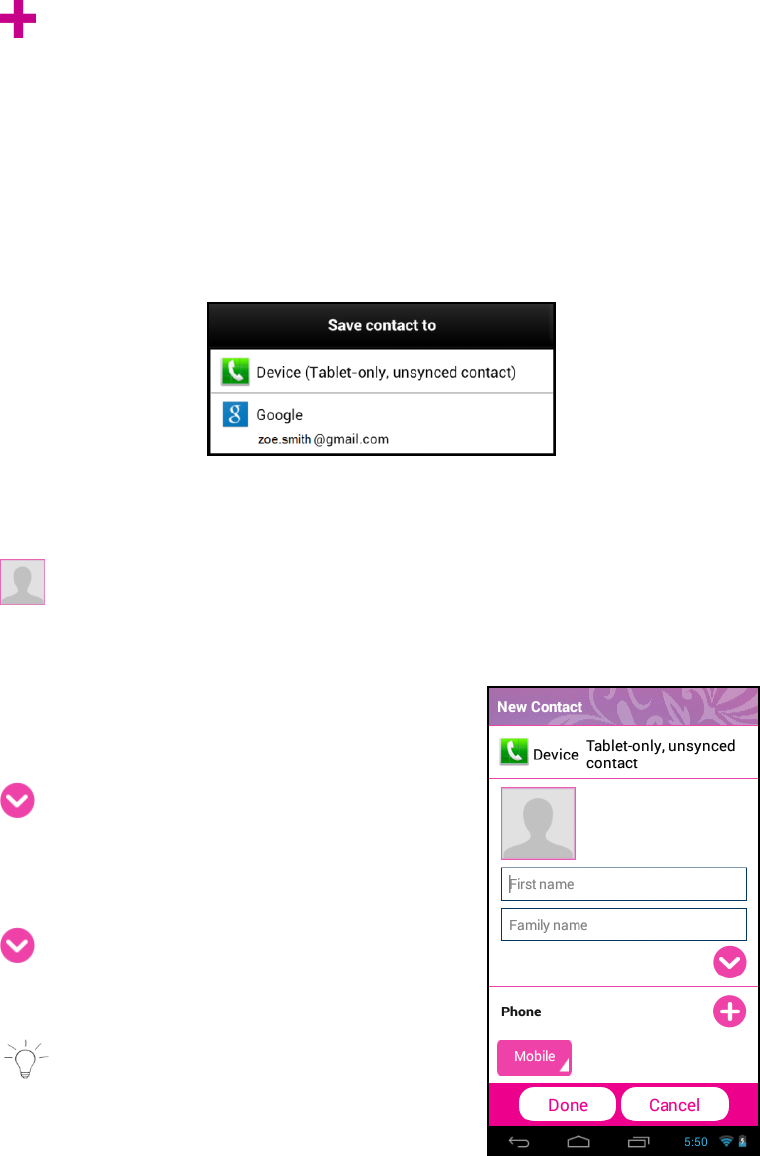
1. Touch the New Contact icon from the Contacts Main Screen to
add a new contact.
This opens the ‘Save contact to’ screen.
2. From the ‘Save contact to’ screen, touch Device to save the
account to your tablet Contacts only, or touch an account for
synchronizing the contact (available options depend on the
accounts you have set up for synchronization). After selecting
where to save the contact, the ‘New Contact’ window appears.
3. New Contact window:
Touch the Photo Thumbnail icon to select an existing photo
from the Gallery or to take a new photo that will identify the
contact.
Enter the contact’s First and Last name
in the Name fields using the onscreen
keyboard.
Touch the More Information icon to
enter additional name related fields such
as the contact’s Middle name, Name
Suffix, and more.
Touch the Information icon to
minimize the details to view the first and
last name.
NOTE: You can touch the return
button on the keyboard after each field
is complete to move to the next field.
4. Continue entering the contact’s information as specified - including
Phone, Email, IM, Groups, Postal Address and Organization.
51
You can change the Contact Label for Phone, Email and IM by
touching a current Contact Label. A list then appears of the label
options. Touch one of the options to select it and change the label
according to the contact information you have entered.
5. Touch the ‘Plus’ icon to add new fields for the contact.
Touch the ‘Minus’ icon to remove a contact field.
Touch the More icon below the ‘Organization’ field to view
additional contact fields including Notes, Nickname, Web address,
Events, Birthday, Anniversary, Other and Internet call.
6. Touch Done when you have finished entering the contact
information to save the contact details and exit to the Main
Contacts screen.
Touch Cancel to exit without saving the new contact details.
9.4.2 Managing Your Contacts
UPDATING CONTACTS
1. To Edit a Contact:
- Touch a name from the Contacts list to select it.
- Touch the Edit button to edit the selected Contact’s
information.
- Touch Contact fields to modify information.
- When you finish entering the information, touch Done.
2. To Delete a Contact:
- Touch a name from the Contacts list to select it.
- Touch the Delete button to delete the selected Contact.
- At the prompt, touch OK to proceed with deleting the
Contact.
- Touch Cancel to return to Contacts without deleting the
Contact.
NOTE: Deleting a contact when sync is enabled will only
delete the contact from the account on the device.
CONTACTS DISPLAY OPTIONS
1. Touch the Menu icon to open the Contact Menu options and
then touch Contacts to display to choose contacts to display.
52
Touch to display either All Contacts, Device, one of your
accounts or Customize List of contacts.
NOTE: ‘Customize List’ defines a custom view. Select the
options you want to restrict the view.
CHOOSING HOW CONTACTS DISPLAY
1. Touch the Menu icon to open the Contact Menu options and
then scroll down to select Settings.
2. The following options appear:
Only contacts with phones, List by, Display contacts by
- Touch Only contact with phones to display contacts that
have phone numbers.
- Touch List by to sort contacts by first or last name.
- Touch Display contacts by to show contacts by first or last
name.
EXPORTING AND IMPORTING CONTACTS
To back up and restore your Contact information, you can export
your contact list to another device, or import your contact list
(previously exported) from another device.
1. Touch the Menu icon to open the Contact Menu options and
then touch Import/Export.
2. The following options appear:
Import from SD card, Export to SD card, Share namecard via
- Touch Import from SD card to import from one or multiple
vCard files.
- Touch Export to SD card to export your contacts to an SD
card. Follow the prompts to complete the operation.
- Touch Share namecard via to export the contact details
using email. Please make sure your email account details
have been set up. If you have not yet set up your email
account you will be prompted to do so.
SENDING EMAILS
Send emails to your contacts.

53
1. Touch the Menu icon to open the Contact Menu options and
then scroll down and touch Send email.
2. Select the people to whom you would like to send and an email,
and then touch Send.
NOTE: Only contacts that include emails are listed.
3. Follow the prompts to write your email and then send via your
selected email.
JOINING CONTACTS
You may have multiple contacts for one person. When you join
contacts, all the contact’s information is displayed in one contact
record.
1. Select a Contact.
2. Touch the Menu icon to open the Contact Menu options and
then scroll down and touch Join contact.
Alternatively, touch the Connection icon from the
contact details.
3. Select the contact you want to be joined together with the
previously selected contact (step #1) and then touch Join.
4. To edit a joined Contact:
- Select a contact with joined information.
- Touch Edit then touch Select Joined Contact.
- Select one contact shown in the ‘Select Contact’ list to edit
the selected contact information.
- Touch Done once you have finished editing the contact
details.
5. To separate a joined Contact:
- Select a contact with joined information.
- Touch the Connection icon in the Contacts
information.
- Select the contact to un-join, and then touch OK to confirm.
ACCOUNTS
54
Your device provides the ability to synchronize information from a
variety of accounts. With synchronization, you can ensure that
information on your device is updated with any information that
changes in your accounts.
1. Touch the Menu icon to open the Contact Menu options and
then scroll down and touch Accounts.
2. Select Auto sync app data to synchronize information from the
listed accounts.
3. Touch Add account, and then follow the prompts to add a new
account to synchronize information.
QUICK ACCESS TO MANAGING YOUR CONTACT INFORMATION
To quickly access and manage your contact information:
1. Select the Contacts Tab.
2. Select a Contact from the Contacts List.
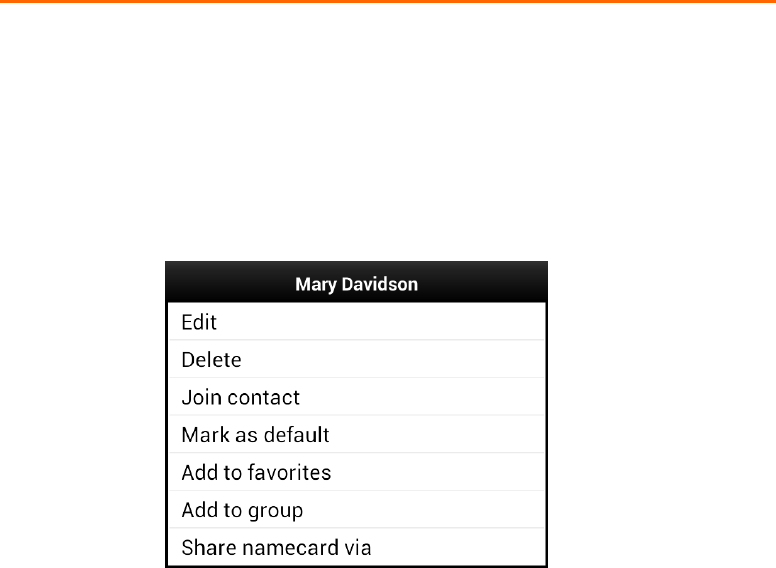
3. Touch and hold down on the selected Contact until a window
appears with the Contact name and list of menu options.
4. Select an option and follow the prompts to manage your
Contact.
9.4.3 Groups
55
CREATING GROUPS
1. Select the Groups Tab.
2. Touch the New Group icon to add a new group.
Enter a group name in the field and then touch Done.
3. Select the new group from the list on the left and then touch
the Menu icon to open the Group Menu options.
- Select Add Group Member. A list of your contacts appears.
- Select group members by touching the box on the right of
each contact to check it off.
- When you have finished selecting contacts to add to your
group, touch OK to save and exit.
The Group members you have selected for your new Group
now appear to the right of the Groups list.
NOTE: The selected Group is highlighted.
MANAGING YOUR GROUPS
Updating Groups
Touch a Group to select and display the Group details.
1. To edit the selected Group’s Name:
- Touch the Menu icon and then Edit Group Name.
- Edit the group name then touch OK to save the changes.
2. To delete the selected Group:
- Touch the Menu icon and then Delete Group.
- At the prompt, touch OK.
NOTE: New groups that you have added can be deleted.
The default Groups which are part of the app cannot be
deleted.
Adding Group Members
1. Touch a Group to select and display the Group details.
2. Touch the Menu icon and then Add Group Member.
3. Touch to check off and select group members and then touch
OK to add them.
56
NOTE: Group members can also be removed from the
group by un-checking them.
Removing Group Members
1. Touch a Group to select and display the Group details.
2. Touch the Menu icon and then Remove Group Member.
3. Touch to check off and select group members and then touch
OK to remove them.
Editing Group Members
1. Touch a Group to select and display the Group details.
2. Touch the Menu icon and then Edit Group Member.
3. Touch to check off and select a group member and touch OK.
4. Touch contact fields to modify information.
When you finish entering information, touch Done.
Sending a Message to Group Members
1. Touch a Group to select and display the Group details.
2. Touch the Menu icon and then Send Email to create a new
email.
3. Follow the prompts to compose and send the email.
QUICK ACCESS TO MANAGING YOUR CONTACT INFORMATION
To quickly access and manage your group information:
1. 1. Select the Groups Tab.
2. Select a Group from the Group List.
3. Touch and hold down on the selected Group from the Group
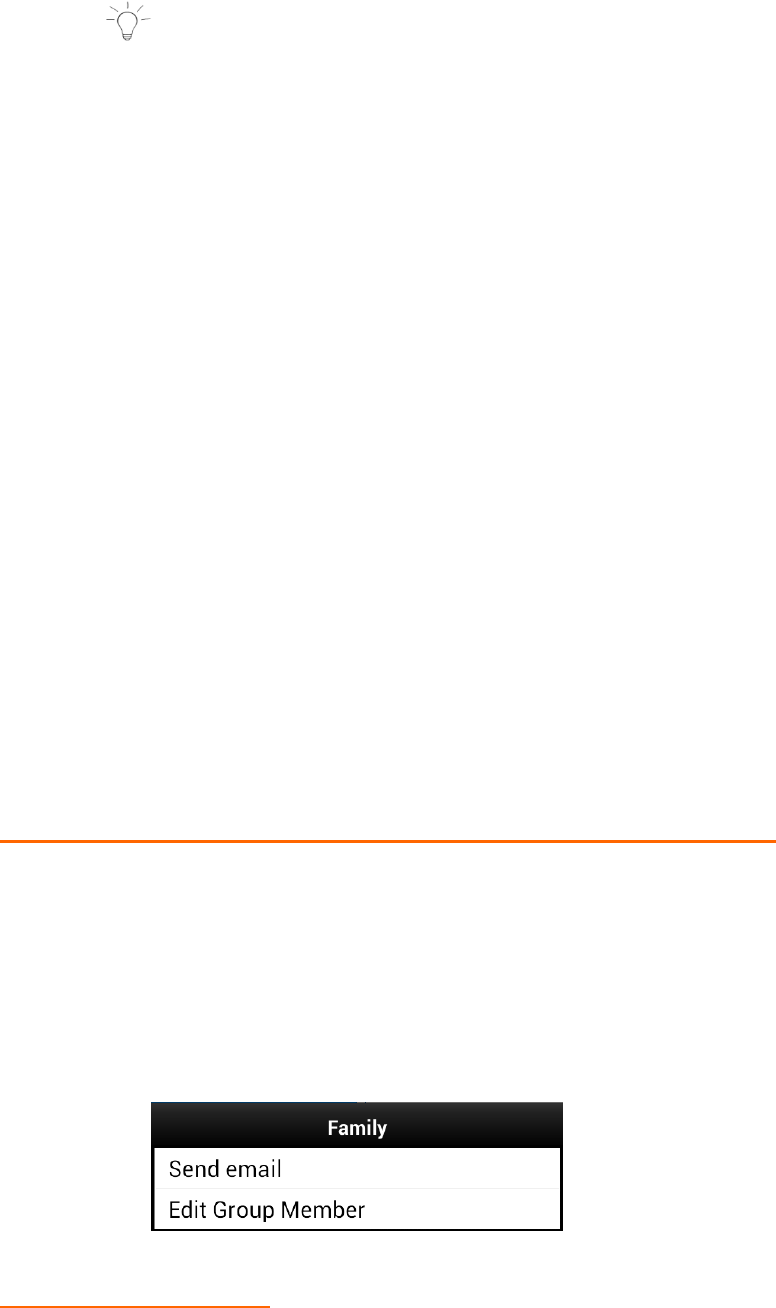
List until a window appears with the group name and list of
menu options.
4. Select an option and follow the prompts to manage the Group.
9.4.4 Favorites
MARKING FAVORITES
57
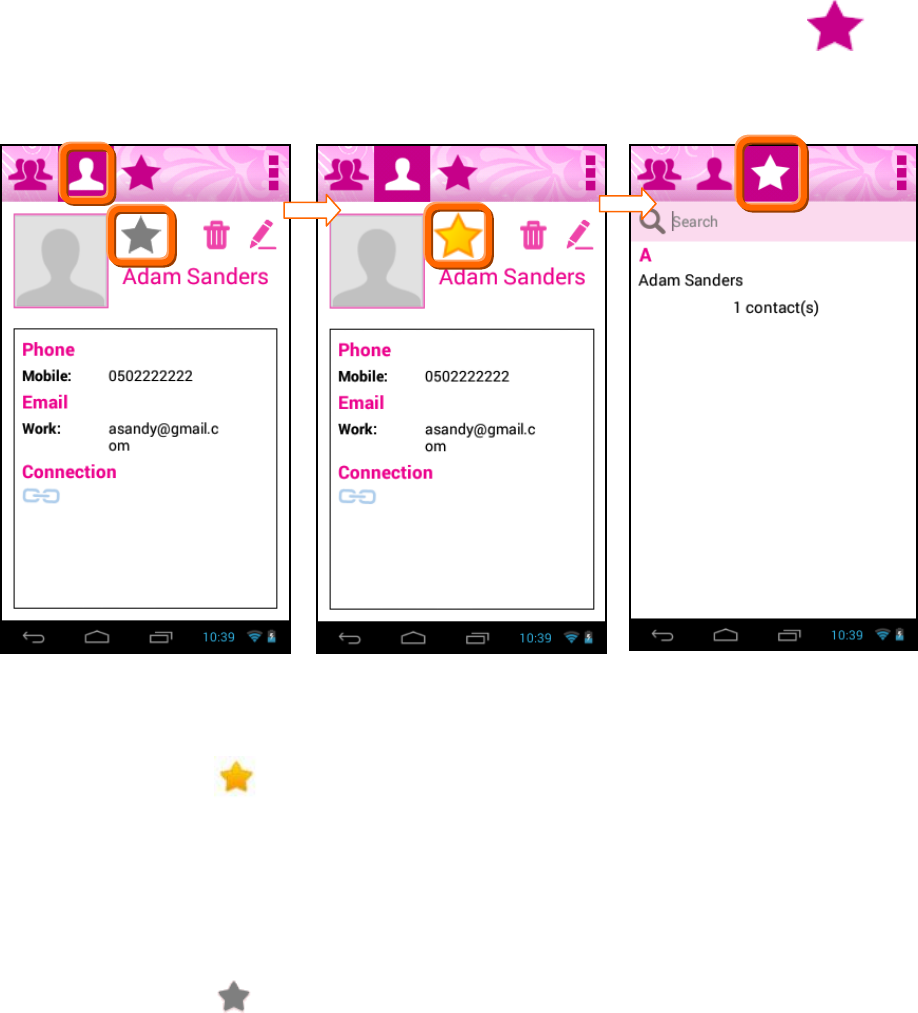
Mark your contacts with a star to identify them as Favorites.
Your Favorites display in the Favorites Tab for fast viewing or messaging,
and are indicated by a yellow star in the Contact list.
1. Select the Contacts Tab.
2. To add your Contact as a Favorite:
Touch the gray Star on the Contact to mark it.
When marked, the star is yellow – indicating that it has been
added to Favorites.
A message appears on the screen: ‘Contact Name’ has been
added to Favorites.
3. To remove your Contact as a Favorite:
Touch a yellow Star to remove the Favorites mark. The star
appears gray – indicating that it is not included as a Favorite.
A message appears on the screen: ‘Contact Name’ has been
removed from Favorites.
4. Alternatively, you can add or remove Favorites from the
Favorites Tab using the Favorites Menu options.
- Touch the Favorites Tab.
58
- To add Contacts as Favorites:
Touch the Menu icon to open the Favorites Menu options.
Touch Add Favorites.
The list of your Contacts appears.
Check off the box by the contacts you would like to add as
Favorites.
Touch OK to save your selected Favorites.
- To remove contacts as Favorites:
Touch the Menu icon.
Touch Remove Favorites.
The list of your Contacts appears.
Check off the box by the contacts you would like to remove
as Favorites.
Touch OK to save your selection and update your Favorites
list.
QUICK ACCESS TO MANAGING YOUR FAVORITES LIST
To quickly access and manage your Favorites list:
1. Select the Favorites Tab.
2. Select a Contact from the list.
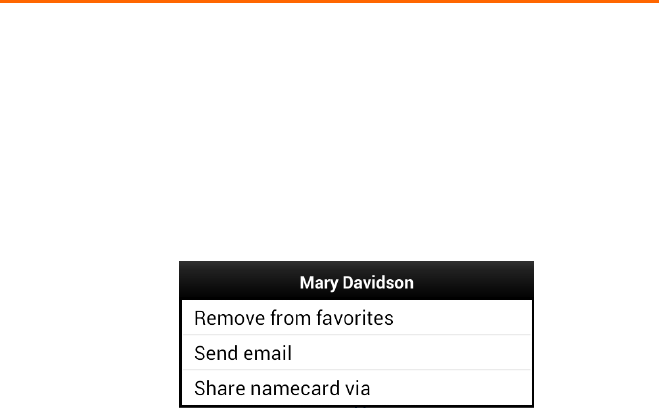
3. Touch and hold down on the selected Contact until a window
appears with the Contact name and list of menu options.
4. Select an option and follow the prompts to manage the
selected Contact.
59
10. TABLET SPECIFICATIONS
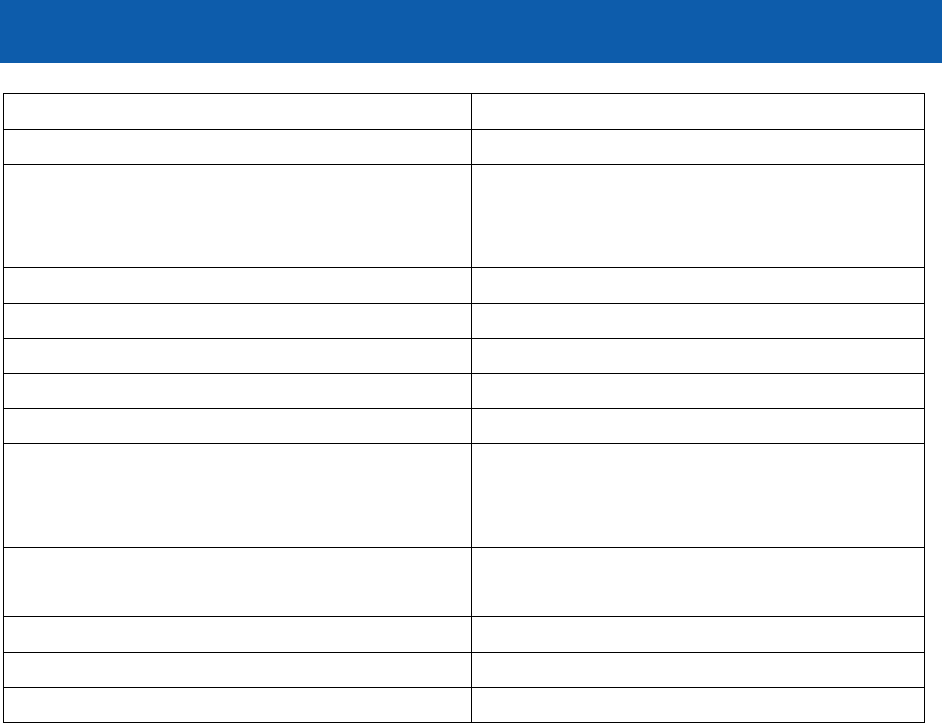
OS
ANDROID 4.3 Jelly Bean
RAM
512MB DDR3
Storage
4GB
+ Expandable Micro SD Card Slot (up
to 32GB)
Screen Size
4.3 Inch
Screen Resolution
480*272 Pixels
Touch Screen
P+G
Wireless Connection
WIFI 802.11b/g/n
Cameras
Rear Camera (0.3 Sensor)
Audio
Headphone jack.
Speaker.
Built-in Microphone.
Battery
Rechargeable Lithium Battery
3.7V/1200mAH
Power Adapter
5V/1.5A
Weight
284.5g
Dimension
123.4*78.4*11mm
60
11. VIVITAR ONE YEAR WARRANTY
This warranty covers the original consumer purchaser only and is not transferable.
This warranty covers products that fail to function properly UNDER NORMAL
USAGE, due to defects in material or workmanship. Your product will be repaired
at no charge for parts or labor for a period of one year.
What Is Not Covered by Warranty
Damages or malfunctions not resulting from defects in material or workmanship
and damages or malfunctions from other than normal use, including but not
limited to, repair by unauthorized parties, tampering, modification or accident.
What To Do When Service Is Required
When returning your defective product (postage pre-paid) for service, your
package should include:
1. Copy of original bill of sale.
2. A detailed written description of the problem.
3. Your return address and telephone number (Daytime).
MAIL TO ADDRESS BELOW:
In the U.S.
Sakar International
Attention: Service Department
195 Carter Drive
Edison, NJ 08817
You may also visit www.sakar.com for further assistance if necessary or call our
technical support department toll free at 1877 397 8200 in the US, at 0-800-917-
4831 in the UK, and in Australia at 1-800-006-614.
61
This device complies with the part 15 of the FCC rules. Operation is subject to the
following two conditions:(1) this device may not cause harmful interference , and
(2) this device must accept any interference received, including interference that
may cause undesired operation.
Caution: changes or modifications not expressly approved by the party
responsible for compliance could void the user's authority to operate the
equipment.
NOTE: This equipment has been tested and found to comply with the limits for a
Class B digital device, pursuant to Part 15 of the FCC Rules, These limits are
designed to provide reasonable protection against harmful interference in a
residential installation. This equipment generates. Uses and can radiate radio
frequency energy and, if not installed and used in accordance with instructions.
May cause harmful interference to radio or -television reception, which can be
determined by turning the equipment off and on, the user is encouraged to try to
correct the interference by one or more of the following measures:
__ Reorient or relocate the receiving antenna.
__ Increase the separation between the equipment and receiver.
__ Connect the equipment into an outlet on a circuit different from that to which
the receiver is connected.
__ Consult the dealer or experienced radio/ TV technician for help.
For Consumers in Australia Only
Our goods come with guarantees that cannot be excluded under the Australian
Consumer Law. You are entitled to a replacement or refund for a major failure
and for compensation for any other reasonably foreseeable loss or damage. You
are also entitled to have the goods repaired or replaced if the goods fail to be of
acceptable quality and the failure does not amount to a major failure.
Canadian Compliance Statement
This Class B digital apparatus complies with Canadian ICES-003. Cet appareil
numérique de la classe B est conforme à la norme NMB-003 du Canada.
NOTE:
Specifications and designs are based on the latest information available at the
time of printing and subject to change without notice.
Please refer to the online Help/Instruction Manual for the most current
information.
62
12. FAQ
Q: Why isn’t my tablet turning on?
A: Before using your tablet, it is necessary to charge its internal battery using the
included charger. For best results, give your tablet an extended overnight charge
before using it for the first time.
Q: I am having difficulties connecting to the Internet. What should I do?
A: In order to access the Internet using your tablet, you will need to connect to
the nearest Wi-Fi network. Note that some networks require you to enter a
password. Talk to the network administrator of that Wi-Fi network for password
information. Consult the full User’s Manual of your device for precise information
on connecting to Wi-Fi. Unfortunately, if your device is out of the range of any
nearby networks you will not be able to access any online features.
Q: I am having issues with an app which I have downloaded. What should I do?
A: For support on any third party apps, software or accessories, you will need to
contact the company, the software developer or manufacturer for support.
© 2014 Sakar International, Inc. All rights reserved.
Sakar USA Sakar UK
195 Carter Drive 2D, Siskin Parkway East
Edison, NJ 08817 4020 Middlemarch Business Park
Coventry, CV3 4PE
© Disney ; © Disney/Pixar
63
FCC Statement
1. This device complies with Part 15 of the FCC Rules. Operation is subject to the
following two conditions:
(1) This device may not cause harmful interference.
(2) This device must accept any interference received, including interference that
may cause undesired operation.
2. Changes or modifications not expressly approved by the party responsible for
compliance could void the user's authority to operate the equipment.
NOTE:
This equipment has been tested and found to comply with the limits for a Class B
digital device, pursuant to Part 15 of the FCC Rules. These limits are designed to
provide reasonable protection against harmful interference in a residential
installation.
This equipment generates uses and can radiate radio frequency energy and, if not
installed and used in accordance with the instructions, may cause harmful
interference to radio communications. However, there is no guarantee that
interference will not occur in a particular installation. If this equipment does
cause harmful interference to radio or television reception, which can be
determined by turning the equipment off and on, the user is encouraged to try to
correct the interference by one or more of the following measures:
Reorient or relocate the receiving antenna.
Increase the separation between the equipment and receiver.
Connect the equipment into an outlet on a circuit different from that to which the
receiver is connected.
Consult the dealer or an experienced radio/TV technician for help.
SAR Information Statement
Your wireless phone is a radio transmitter and receiver. It is designed and
manufactured not to exceed the emission limits for exposure to radiofrequency
(RF) energy set by the Federal Communications Commission of the U.S.
Government. These limits are part of comprehensive guidelines and establish
permitted levels of RF energy for the general population. The guidelines are based
on standards that were developed by independent scientific organizations
through periodic and thorough evaluation of scientific studies. The standards
include a substantial safety margin designed to assure the safety of all persons,
regardless of age and health. The exposure standard for wireless mobile phones
employs a unit of measurement known as the Specific Absorption Rate, or SAR.
The SAR limit set by the FCC is 1.6 W/kg. * Tests for SAR are conducted with the
64
Mini tablet transmitting at its highest certified power level in all tested
frequency bands. Although the SAR is determined at the highest certified power
level, the actual SAR level of the Mini tablet while operating can be well below
the maximum value. This is because the Mini tablet is designed to operate at
multiple power levels so as to use only the power required to reach the network.
In general, the closer you are to a wireless base station antenna, the lower the
power output. Before a phone model is available for sale to the public, it must be
tested and certified to the FCC that it does not exceed the limit established by the
government adopted requirement for safe exposure. The tests are performed in
positions and locations (e.g., at the ear and worn on the body) as required by the
FCC for each model. The highest SAR value for this Mini tablet when tested for
use is 0.425W/Kg(Body-worn measurements differ among phone models,
depending upon available accessories and FCC requirements). While there may be
differences between the SAR levels of various Mini tablet and at various positions,
they all meet the government requirement for safe exposure. The FCC has
granted an Equipment Authorization for this model phone with all reported SAR
levels evaluated as in compliance with the FCC RF exposure guidelines. SAR
information on this Mini tablet is on file with the FCC and can be found under the
Display Grant section of http://www.fcc.gov/ oet/fccid after searching on
FCC ID: XKK-CAM4302 Additional information on Specific Absorption Rates (SAR)
can be found on the Cellular Telecommunications Industry Asso-ciation (CTIA)
web-site at http://www.wow-com.com. * In the United States and Canada, the
SAR limit for Mini tablet used by the public is 1.6 watts/kg (W/kg) averaged over
one gram of tissue. The standard incorporates a sub-stantial margin of safety to
give additional protection for the public and to account for any variations in
measurements.
Body-worn Operation
This device was tested for typical body-worn operations. To comply with RF
exposure requirements, a minimum separation distance of 15mm must be
maintained between the user’s body and the handset, including the antenna.
Third-party belt-clips, holsters, and similar accessories used by this device should
not contain any metallic components. Body-worn accessories that do not meet
these requirements may not comply with RF exposure requirements and should
be avoided. Use only the supplied or an approved antenna.