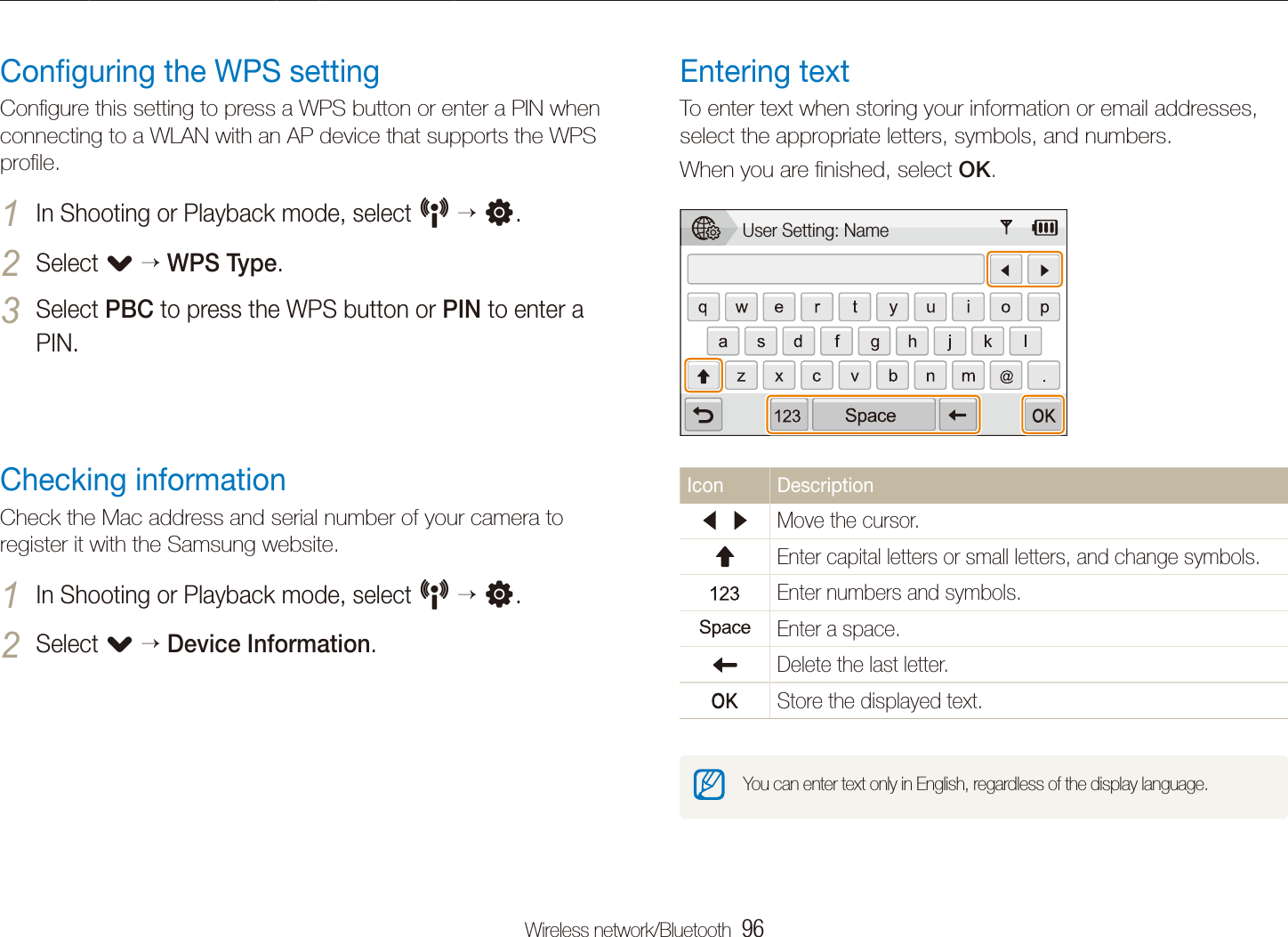
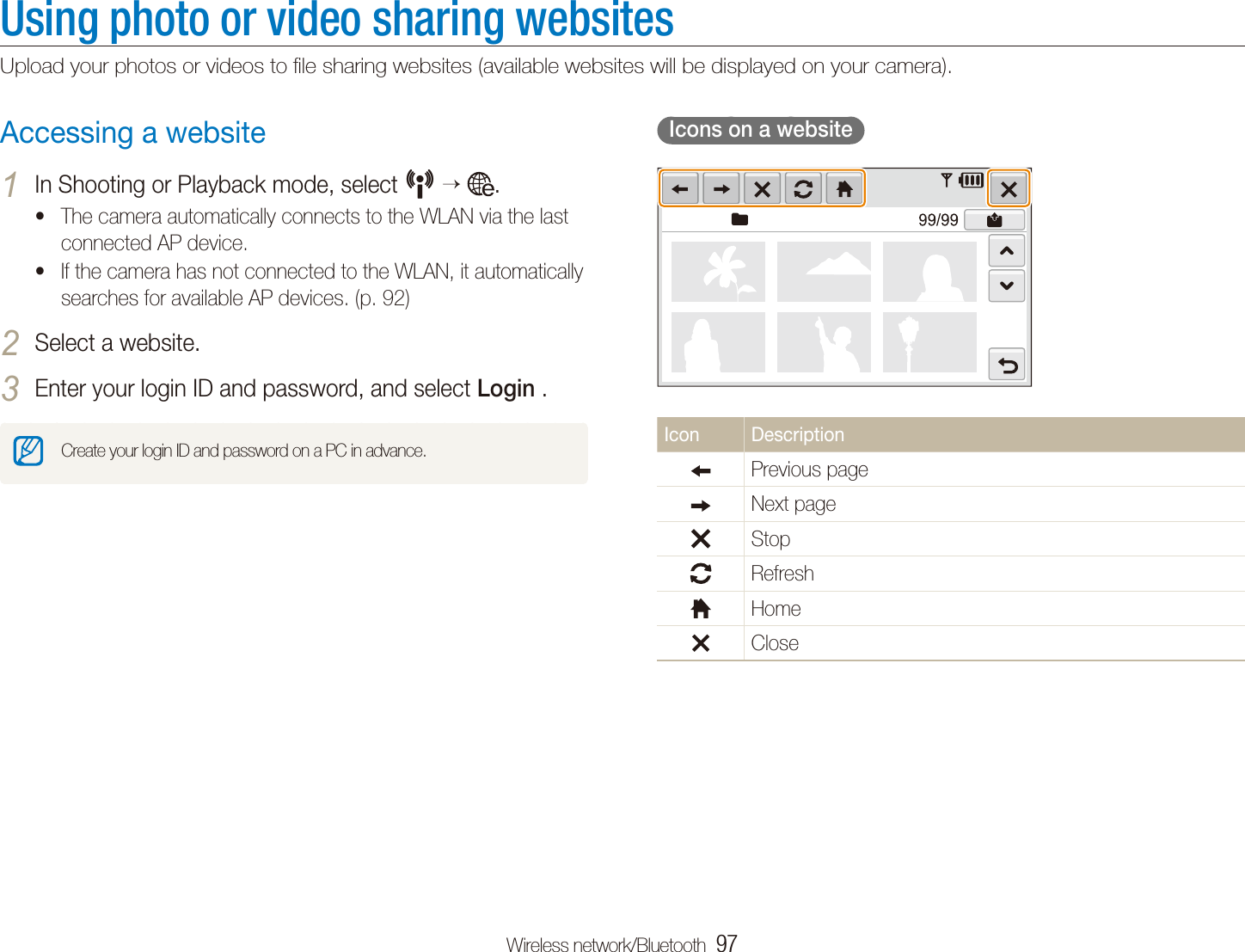
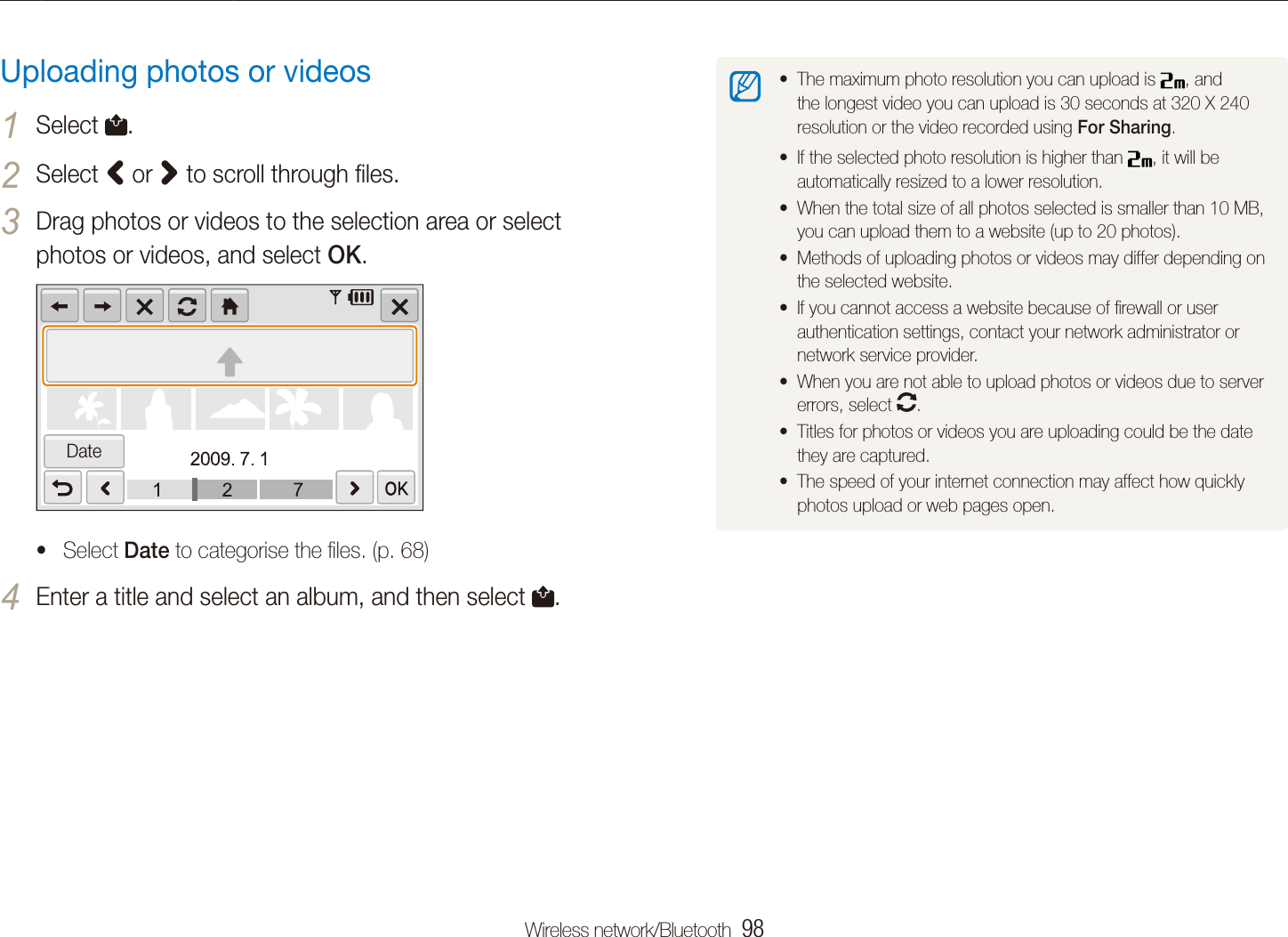
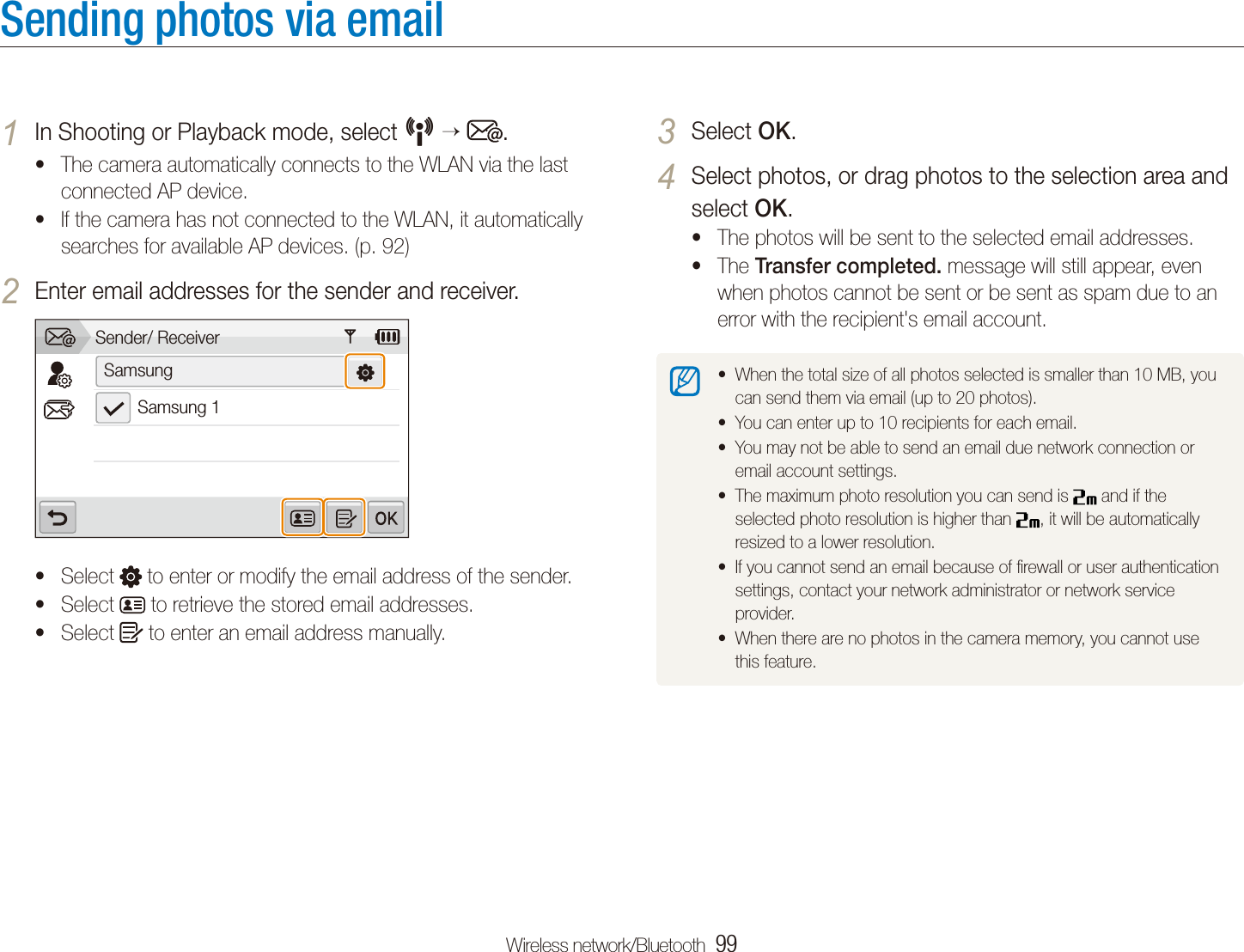
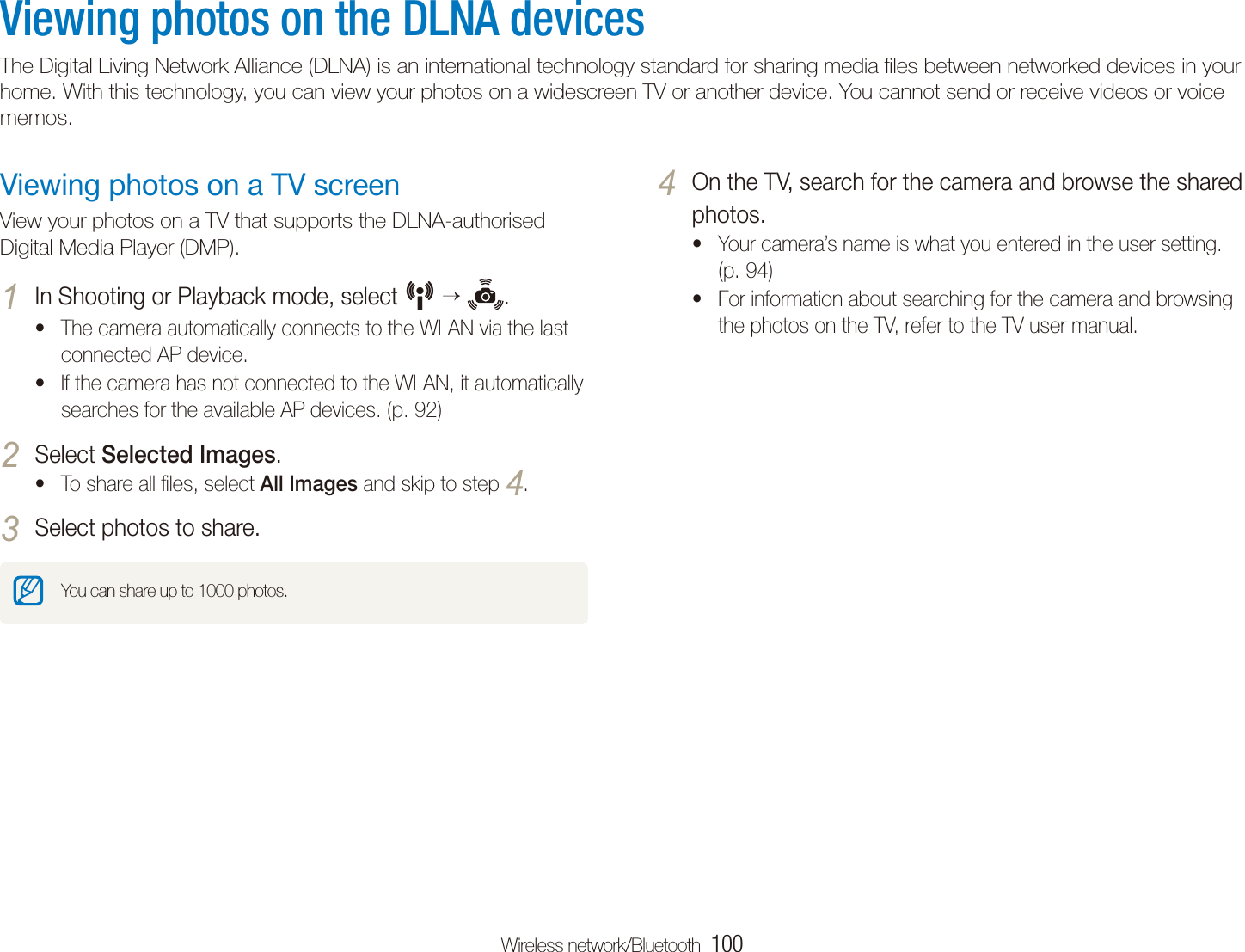
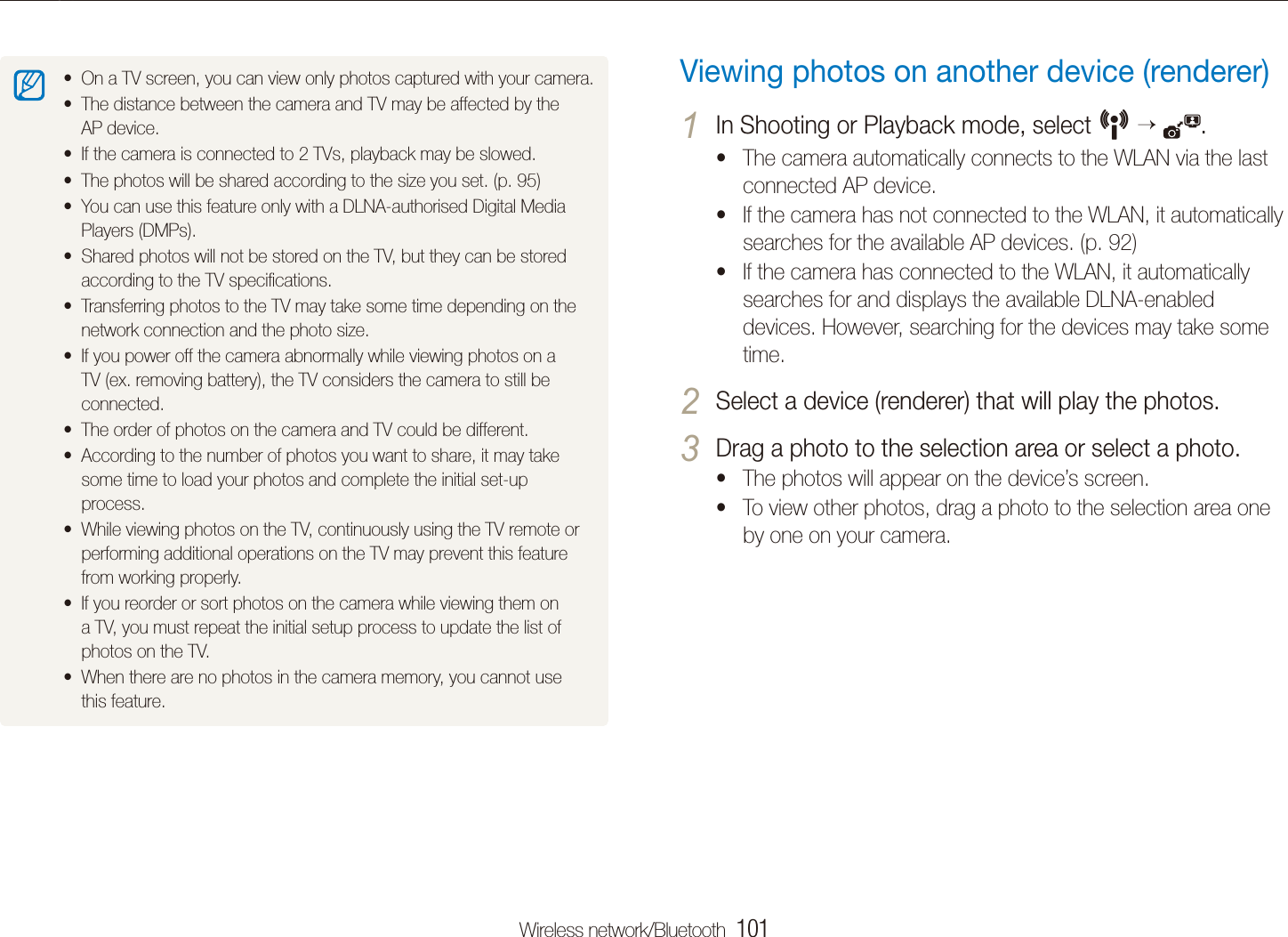
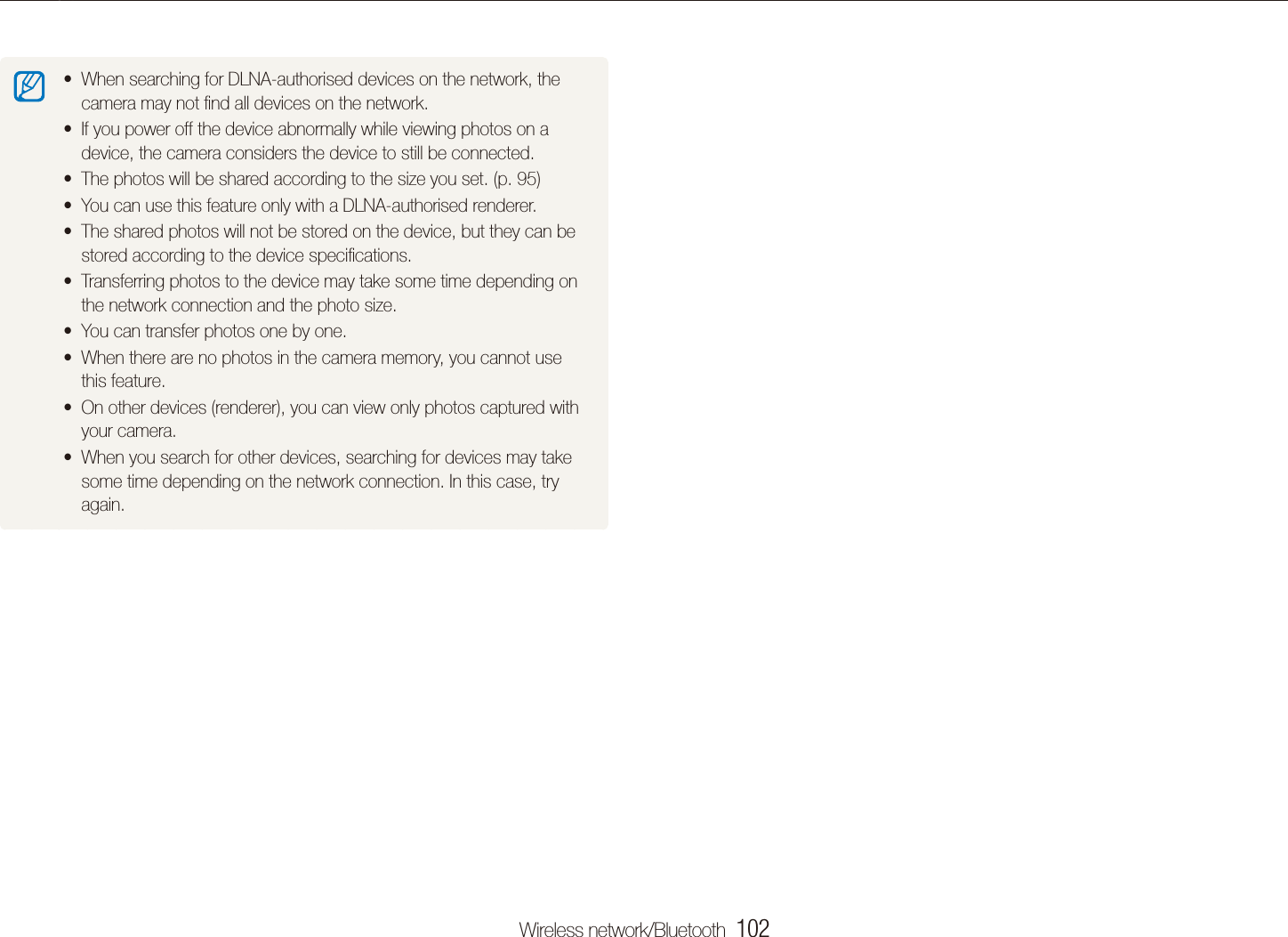
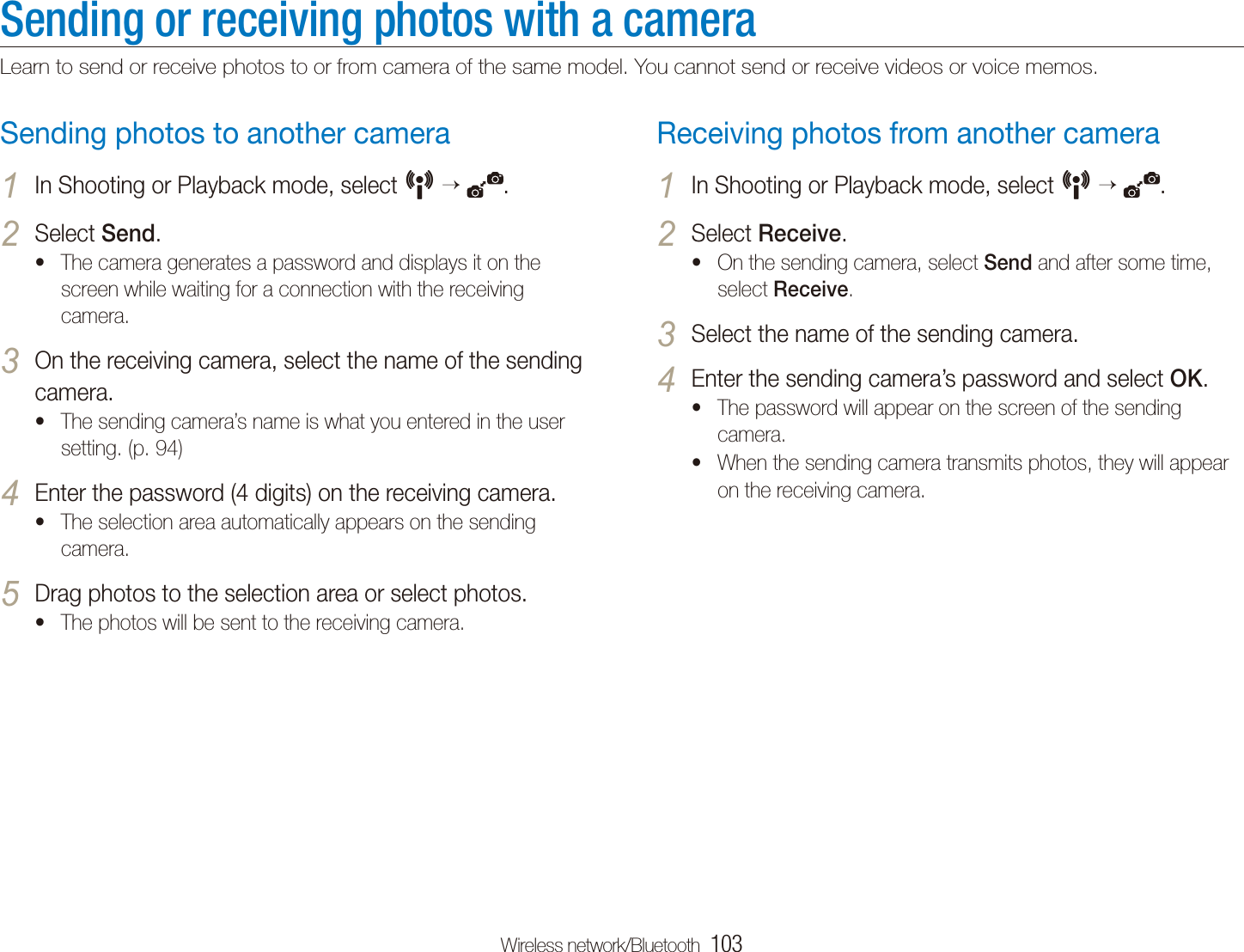
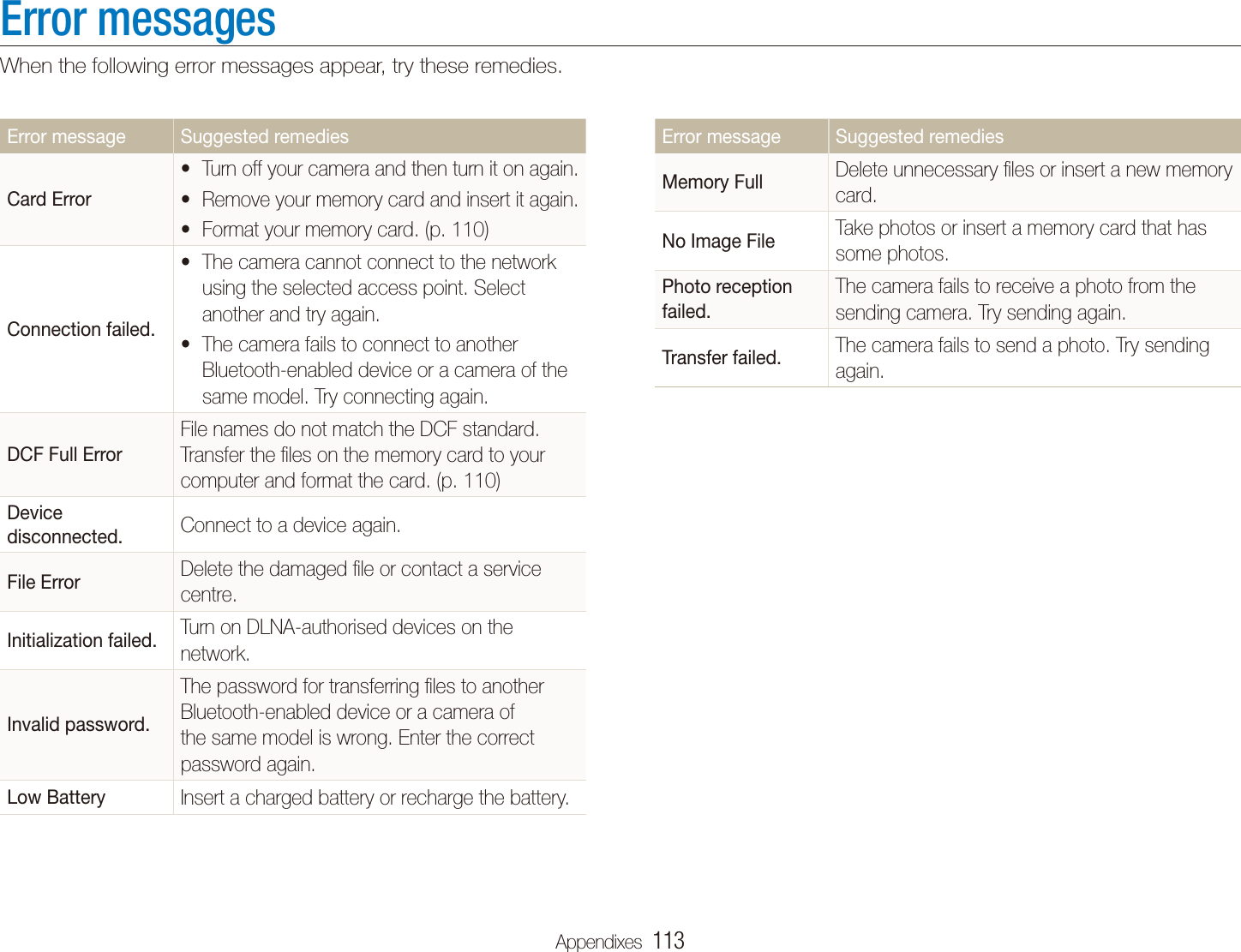
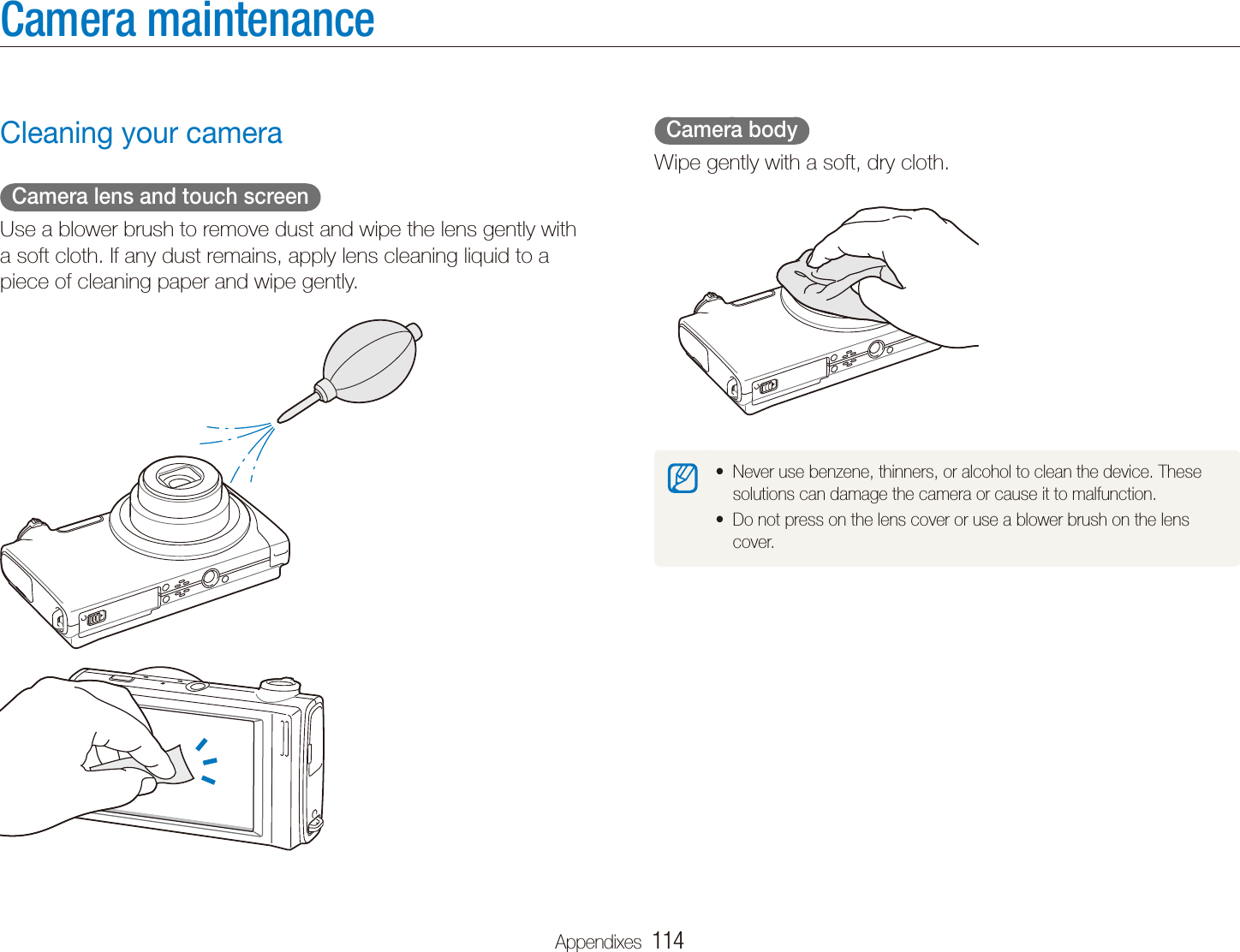
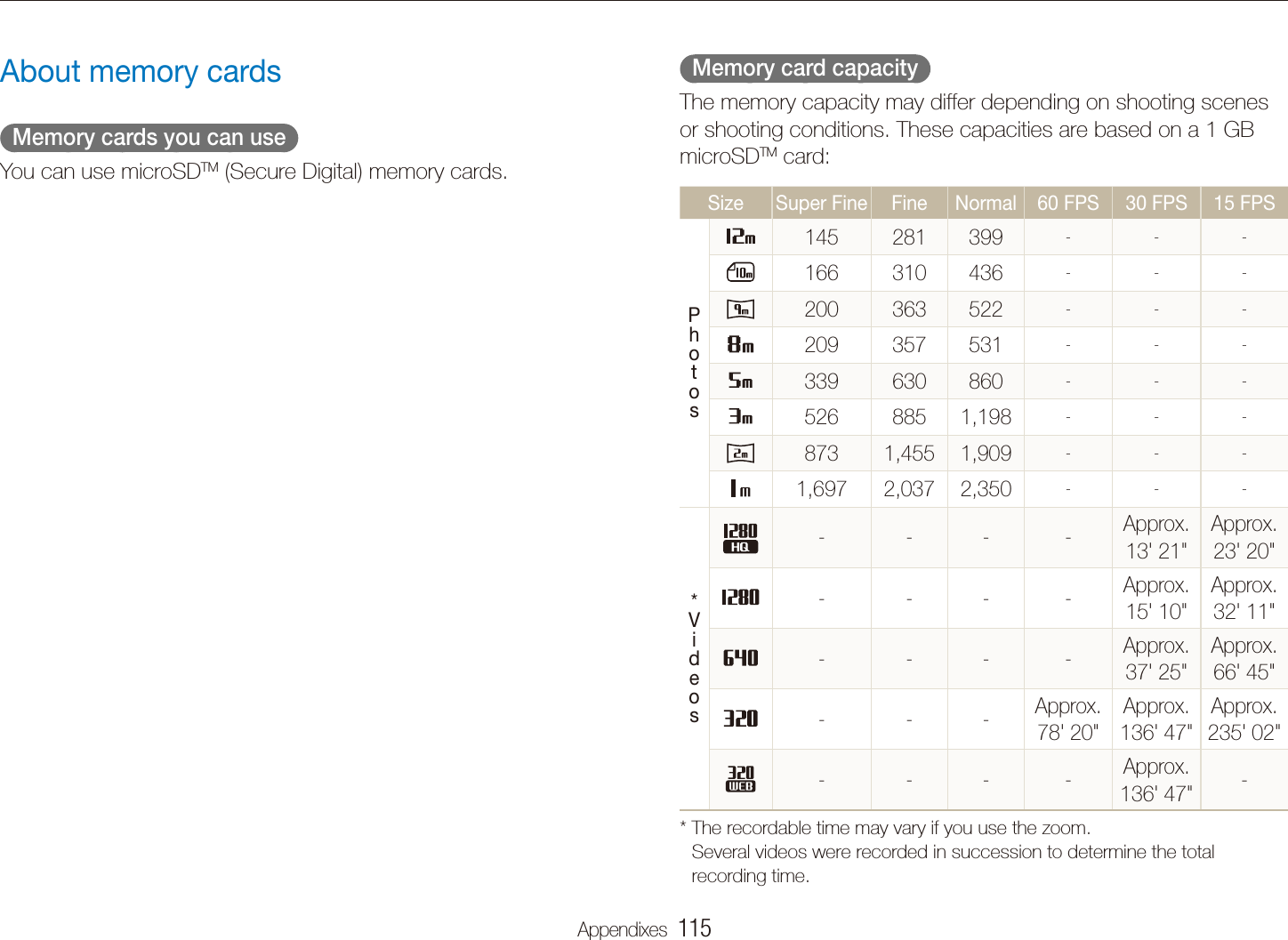
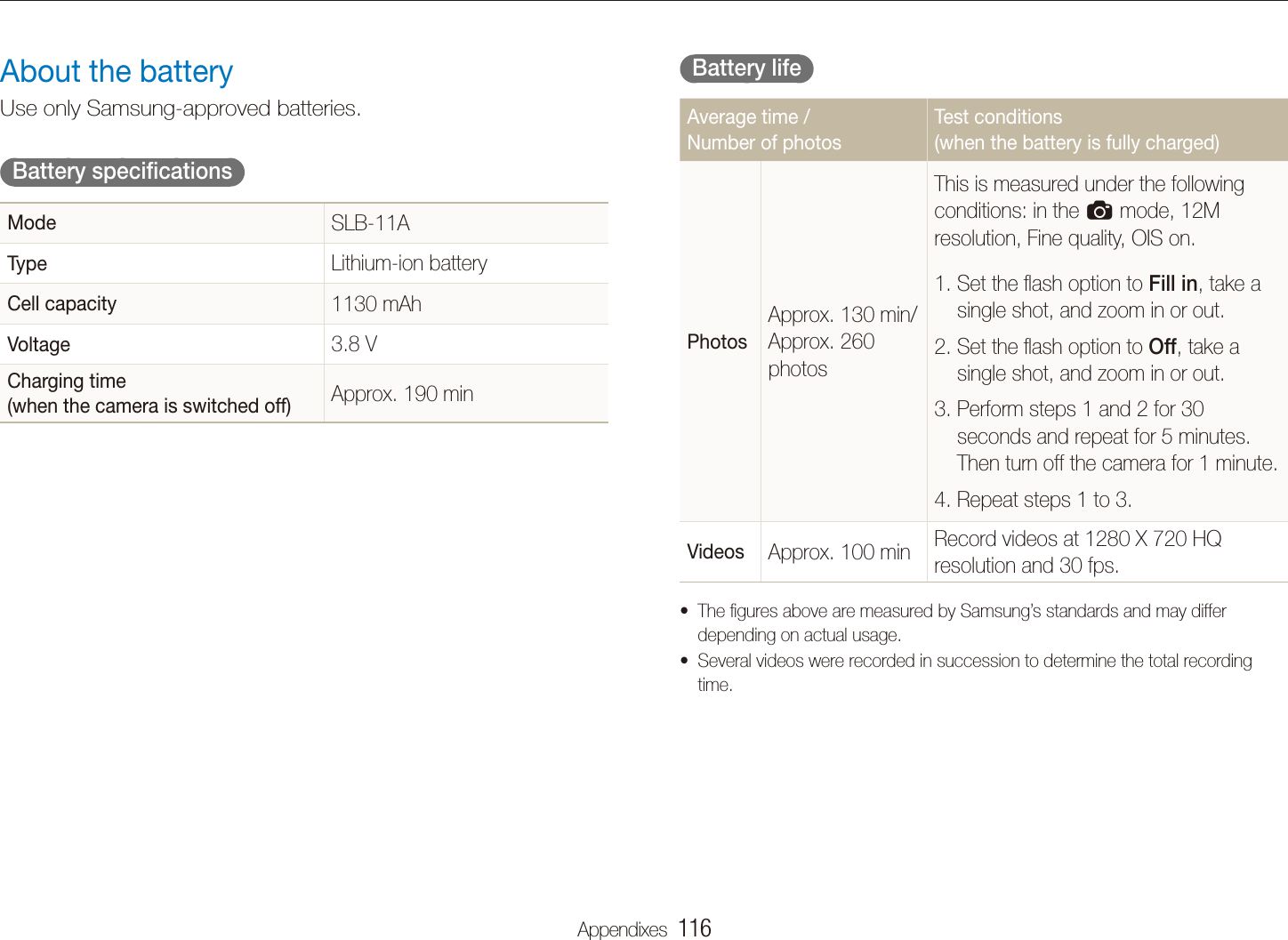
Samsung Digital Imaging ST5500 Digital Camera User Manual ST5500 UM ENG

Samsung Digital Imaging Co., Ltd. Digital Camera ST5500 UM ENG

users manual

This user manual includes detailed usage instructions for your camera. Please read  this manual thoroughly.Ä Click a topicCommon questionsQuick referenceContentsBasic functionsExtended functionsShooting optionsPlayback/EditingWireless network/BluetoothAppendixesIndexUser ManualST5500
   1Health and safety informationAlways comply with the following precautions and usage tips to avoid dangerous situations and ensure peak performance of your camera.Warning—situations that could cause injury to yourself or othersCaution—situations that could cause damage to your camera or other equipmentNote—notes, usage tips, or additional information           Safety warnings  Do not use your camera near flammable or explosive gases and liquidsDo not use your camera near fuels, combustibles, or flammable chemicals. Do not store or carry flammable liquids, gases, or explosive materials in the same compartment as the camera or its accessories.Keep your camera away from small children and petsKeep your camera and all accessories out of the reach of small children and animals. Small parts may cause choking or serious injury if swallowed. Moving parts and accessories may present physical dangers as well.Prevent damage to subjects’ eyesightDo not use the flash in close proximity (closer than 1 m/3 ft) to people or animals. Using the flash too close to your subject’s eyes can cause temporary or permanent damage.Handle and dispose of batteries and chargers with careUse only Samsung-approved batteries and chargers. tIncompatible batteries and chargers can cause serious injuries or damage to your camera.Never dispose of batteries in a fire. Follow all local regulations twhen disposing of used batteries.Never place batteries or cameras on or in heating devices, tsuch as microwave ovens, stoves, or radiators. Batteries may explode when overheated.Avoid interference with pacemakersMaintain a minimum of 15 cm (6 inches) between cameras and pacemakers to avoid potential interference, as recommended by manufacturers and the independent research group, Wireless Technology Research. If you have any reason to suspect that your camera is interfering with a pacemaker or other medical device, turn off the camera immediately and contact the manufacturer of the pacemaker or medical device for guidance.
   2Health and safety informationExercise caution when connecting cables or adapters and tinstalling batteries and memory cards. Forcing the connectors, improperly connecting cables, or improperly installing batteries and memory cards can damage ports, connectors, and accessories. Do not insert foreign objects into any of your camera’s tcompartments, slots, or access points. Damage due to improper use may not be covered by your warranty.Protect batteries, chargers, and memory cards from damageAvoid exposing batteries or memory cards to very cold or very thot temperatures (below 0º C/32º F or above 40º C/104º F). Extreme temperatures can reduce the charging capacity of your batteries and can cause memory cards to malfunction.Prevent batteries from making contact with metal objects, as tthis can create a connection between the + and – terminals of your battery and lead to temporary or permanent battery damage.Prevent memory cards from making contact with liquids, dirt, or tforeign substances. If dirty, wipe the memory card clean with a soft cloth before inserting in your camera.Do not allow liquids, dirt, or foreign substances to come in tcontact with the memory card slot. Doing so may cause the camera to malfunction.Turn off the camera when inserting or removing the memory tcard.        Safety precautions  Handle and store your camera carefully and sensiblyDo not allow your camera to get wet—liquids can cause serious tdamage. Do not handle your camera with wet hands. Water damage to your camera can void your manufacturer’s warranty.Do not expose the camera to direct sunlight or high ttemperatures for an extended period of time. Prolonged exposure to sunlight or extreme temperatures can cause permanent damage to your camera’s internal components.Avoid using or storing your camera in dusty, dirty, humid, or tpoorly-ventilated areas to prevent damage to moving parts and internal components.Remove the batteries from your camera when storing it for an textended period of time. Installed batteries may leak or corrode over time and cause serious damage to your camera.Protect your camera from sand and dirt when using it on tbeaches or in other similar areas.Protect your camera and monitor from impact, rough handling, tand excessive vibration to avoid serious damage.
   3Health and safety informationTurn off the camera near medical equipmentYour camera can interfere with medical equipment in hospitals or health care facilities. Follow all regulations, posted warnings, and directions from medical personnel.Turn off the camera when in an aircraftYour camera can cause interference with aircraft equipment. Follow all airline regulations and turn off your camera when directed by airline personnel.Avoid interference with other electronic devicesYour camera emits radio frequency (RF) signals that may interfere with unshielded or improperly shielded electronic equipment, such as pacemakers, hearing aids, medical devices, and other electronic devices in homes or vehicles. Consult the manufacturers of your electronic devices to solve any interference problems you experience.Do not bend, drop, or subject memory cards to heavy impact tor pressure.Do not use memory cards that have been formatted by other tcameras or by a computer. Reformat the memory card with your camera.Never use a damaged charger, battery, or memory card.tUse only Samsung-approved accessoriesUsing incompatible accessories may damage your camera, cause injury, or void your warranty.Protect your camera’s lensDo not expose the lens to direct sunlight, as this may discolour tthe image sensor or cause it to malfunction.Protect your lens from fingerprints and scratches. Clean your tlens with a soft, clean, debris-free lens cloth.Follow all safety warnings and regulationsComply with any regulations that restrict the use of a camera in a certain area.
   4Check that the camera is operating properly before useThe manufacturer takes no responsibility for any loss of files or damage that may result from camera malfunction or improper use.Use your camera in the normal positionAvoid contact with your camera’s internal antenna.Data transferred via WLAN or Bluetooth technology could be tleaked, so avoid transferring sensitive data in public areas or on open networks. The camera manufacturer is not liable for any data transfers tthat infringe on copyrights, trademarks, intellectual property laws, or public decency ordnances.      Important usage information  Allow only qualified personnel to service your cameraDo not allow unqualified personnel to service the camera or attempt to service the camera yourself. Any damage that results from unqualified service is not covered by your warranty.Ensure maximum battery and charger lifeOvercharging batteries may shorten battery life. After charging is tfinished, disconnect the cable from your camera.Over time, unused batteries will discharge and must be trecharged before use.Disconnect chargers from power sources when not in use.tUse batteries only for their intended purpose.tExercise caution when using the camera in humid environmentsWhen transferring the camera from a cold environment to a warm and humid one, condensation can form on the delicate electronic circuitry and memory card. In this situation, wait for at least 1 hour until all moisture has evaporated before using the camera.Health and safety information
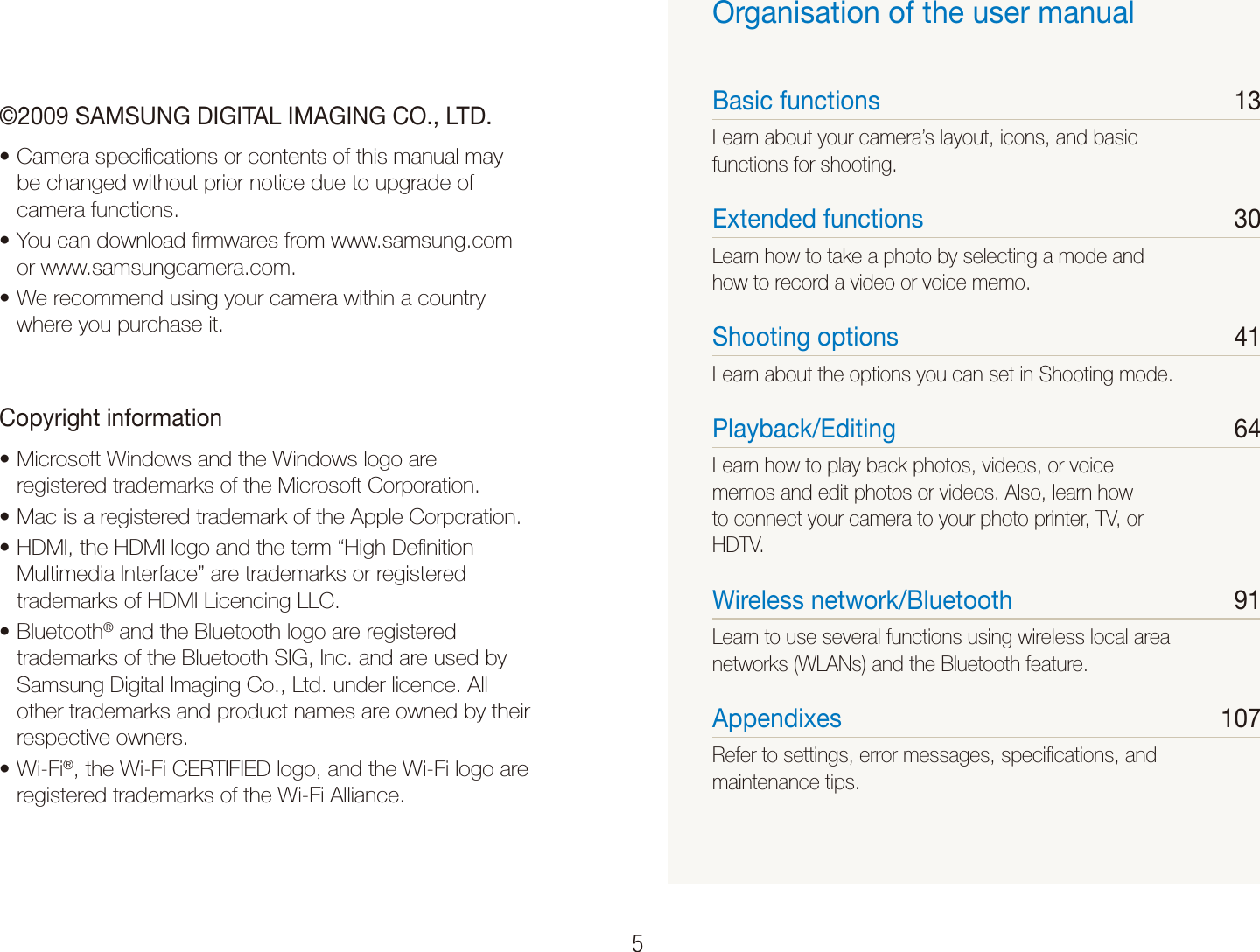
   5©2009 SAMSUNG DIGITAL IMAGING CO., LTD.Camera specifications or contents of this manual may tbe changed without prior notice due to upgrade of camera functions.You can download firmwares from www.samsung.com tor www.samsungcamera.com.We recommend using your camera within a country twhere you purchase it.Copyright informationMicrosoft Windows and the Windows logo are tregistered trademarks of the Microsoft Corporation.Mac is a registered trademark of the Apple Corporation.tHDMI, the HDMI logo and the term “High Definition tMultimedia Interface” are trademarks or registered trademarks of HDMI Licencing LLC.Bluetootht ® and the Bluetooth logo are registered trademarks of the Bluetooth SIG, Inc. and are used by Samsung Digital Imaging Co., Ltd. under licence. All other trademarks and product names are owned by their respective owners.Wi-Fit ®, the Wi-Fi CERTIFIED logo, and the Wi-Fi logo are registered trademarks of the Wi-Fi Alliance.Organisation of the user manualBasic functions  13Learn about your camera’s layout, icons, and basic functions for shooting.Extended functions  30Learn how to take a photo by selecting a mode and how to record a video or voice memo. Shooting options  41Learn about the options you can set in Shooting mode.Playback/Editing  64Learn how to play back photos, videos, or voice memos and edit photos or videos. Also, learn how to connect your camera to your photo printer, TV, or HDTV.Wireless network/Bluetooth  91Learn to use several functions using wireless local area networks (WLANs) and the Bluetooth feature. Appendixes  107Refer to settings, error messages, specifications, and maintenance tips.
   6Indications used in this manualShooting mode IndicationSmart Auto SAuto aProgram pScene sDUAL IS dMovie vShooting mode iconsThese icons indicate that a function is available in the corresponding modes. The s mode may not support functions for all scenes.e.g.)Available in the Program, DUAL IS, and Movie modesIcons used in this manualIcon FunctionAdditional informationSafety warnings and precautions[] Camera buttons; for example: [Shutter]  (represents the shutter button)() Page number of related informationThe order of options or menus you must select to perform a step; for example: Select >     (represents Select >, and then  )*AnnotationAbbreviations used in this manualAbbreviation DefinitionACB Auto Contrast BalanceAEB Auto Exposure BracketAF Auto FocusAP Access PointDIS Digital Image StabilisationDLNA Digital Living Network AllianceDPOF Digital Print Order FormatEV Exposure ValueGPS Global Positioning SystemOIS Optical Image StabilisationWB White Balance
   7Pressing the shutterHalf-press [t Shutter]: press the shutter halfway downPress [t Shutter]: press the shutter all the way downHalf-press [Shutter] Press [Shutter]Subject, background, and compositionSubjectt : the main object of a scene, such as a person, animal, or still life Backgroundt : the objects around the subjectCompositiont : the combination of a subject and backgroundBackgroundSubjectCompositionExpressions used in this manualExposure (Brightness)The amount of light that enters your camera determines the exposure. You can alter the exposure with shutter speed, aperture value, and ISO speed. By altering the exposure, your photos will be darker or lighter.Normal exposure Overexposure (too bright)
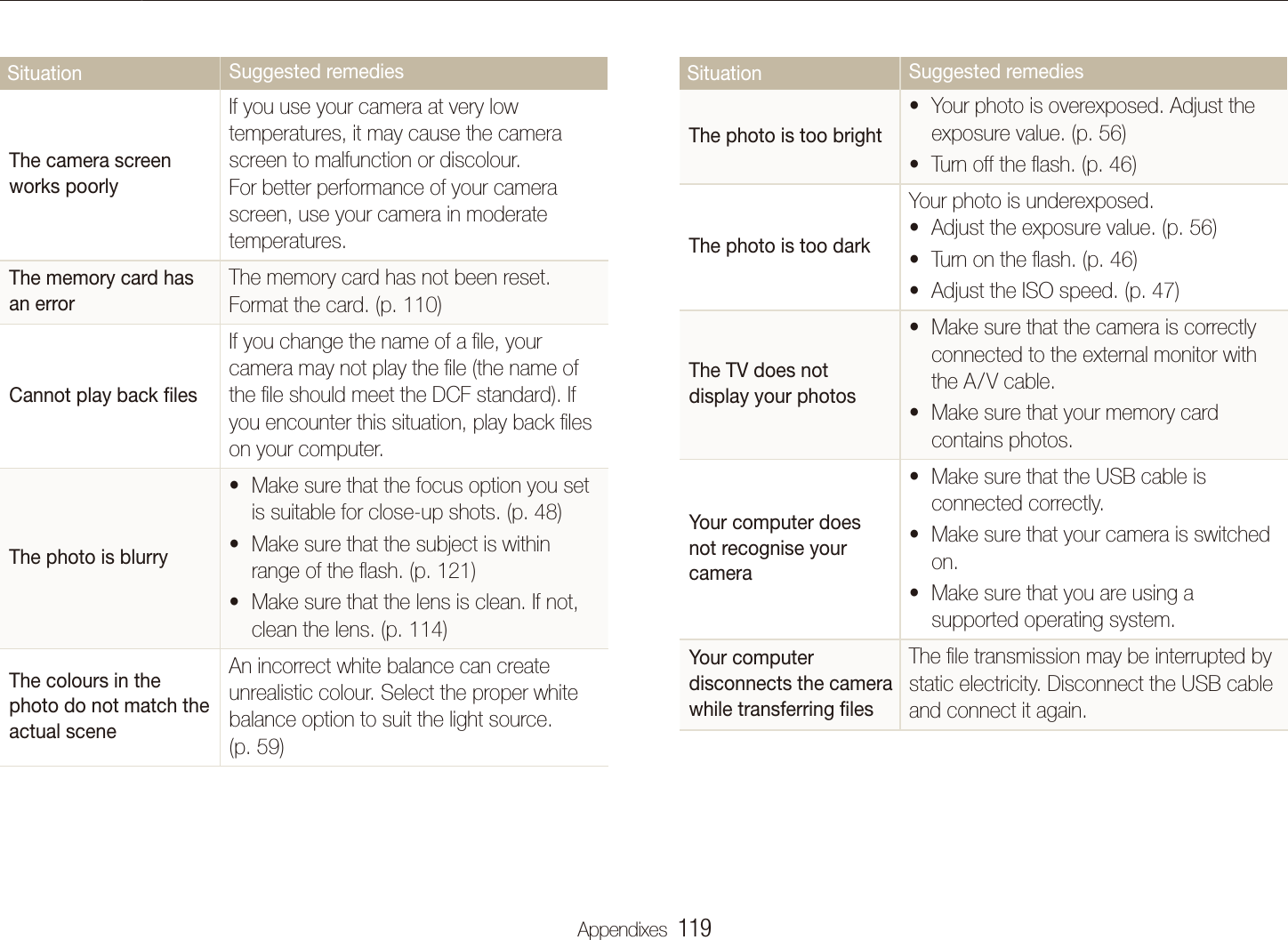
   8Common questionsYou can get answers to common questions. Solve problems easily by setting shooting options.The subject's eyes appear red.This is caused by a reflection from the camera flash.Set the flash option to t  Red-eye or   Red-eye Fix. (p. 46)If the photo has already been taken, select t  Red-eye Fix in the edit menu. (p. 79)Photos have dust spots. Dust particles floating in the air may be captured in photos when using the flash.Turn off the flash or avoid taking photos in a dusty place.tSet ISO speed options. (p. t 47)Photos are blurred. This may be caused by taking photos in low light conditions or holding the camera incorrectly. Use the td mode. (p. 35)Press [t Shutter] halfway down to make sure the subject is focused. (p. 28)Photos are blurred when shooting at night.As the camera tries to let in more light, the shutter speed slows.This can make it difficult to steady the camera and may result in camera shake.Turn on the flash. (p. t 46)Select t  Night in the s mode. (p. 34)Set ISO speed options. (p. t 47)Use a tripod to prevent your camera from shaking.tSubjects come out too dark because of backlighting.When the light source is behind the subject or when there is a high contrast between the light and dark areas, the subject may come out shaded.Avoid shooting in front of the sun.tSelect t  Backlight in the s mode. (p. 32)Set the flash option to t  Fill in. (p. 46)Set the Auto Contrast Balance (t ACB) option. (p. 57)Adjust the exposure. (p. t 56)Set the metering option to t  Spot if a bright subject is in the centre of the frame. (p. 58)
   9Quick referenceTaking photos of peoplest  mode > Beauty Shot, Portrait, Children f 32 Red-eyet , Red-eye Fix (to prevent or correct red-eye) f 46 Face Detectiont  f 51 Taking photos at night or in the darkst  mode > Night, Dawn, Fireworks f 32 Flash options tf 46 ISO speed (to adjust the sensitivity to light) tf 47 Taking action photosContinuoust , Motion Capture f 61 Taking photos of text, insects, or flowersst  mode > Close Up, Text f 32 Macrot , Auto Macro (to take close-up photos) f 48 White Balancet  (to change the colour tone) f 59 Adjusting the exposure (brightness) ISO speed (to adjust the sensitivity to light) tf 47EV (to adjust exposure) tf 56 ACB (to compensate for subjects against bright tbackgrounds) f 57 Meteringt  f 58 AEB (to take 3 photos of the same scene with different texposures) f 61 Applying a different effectPhoto styles (to apply tones) tf 62  Image adjustment (to adjust saturation, sharpness, or tcontrast) f 63 Reducing camera shakeOptical Image Stabilisation (OIS) tf 27 dt   mode f 35 Viewing files by category in tSmart Album f 68 Deleting all files on the tmemory card f 70 Viewing files as a slide show tf 72 Viewing files on a TV or HDTV tf 81 Connecting your camera to a tcomputer f 83Adjusting sound and volume tf 109 Changing the display tlanguage f 109 Adjusting the brightness of tthe display f 109 Setting the date and time tf 110 Formatting the memory card tf 110 Troubleshooting tf 118
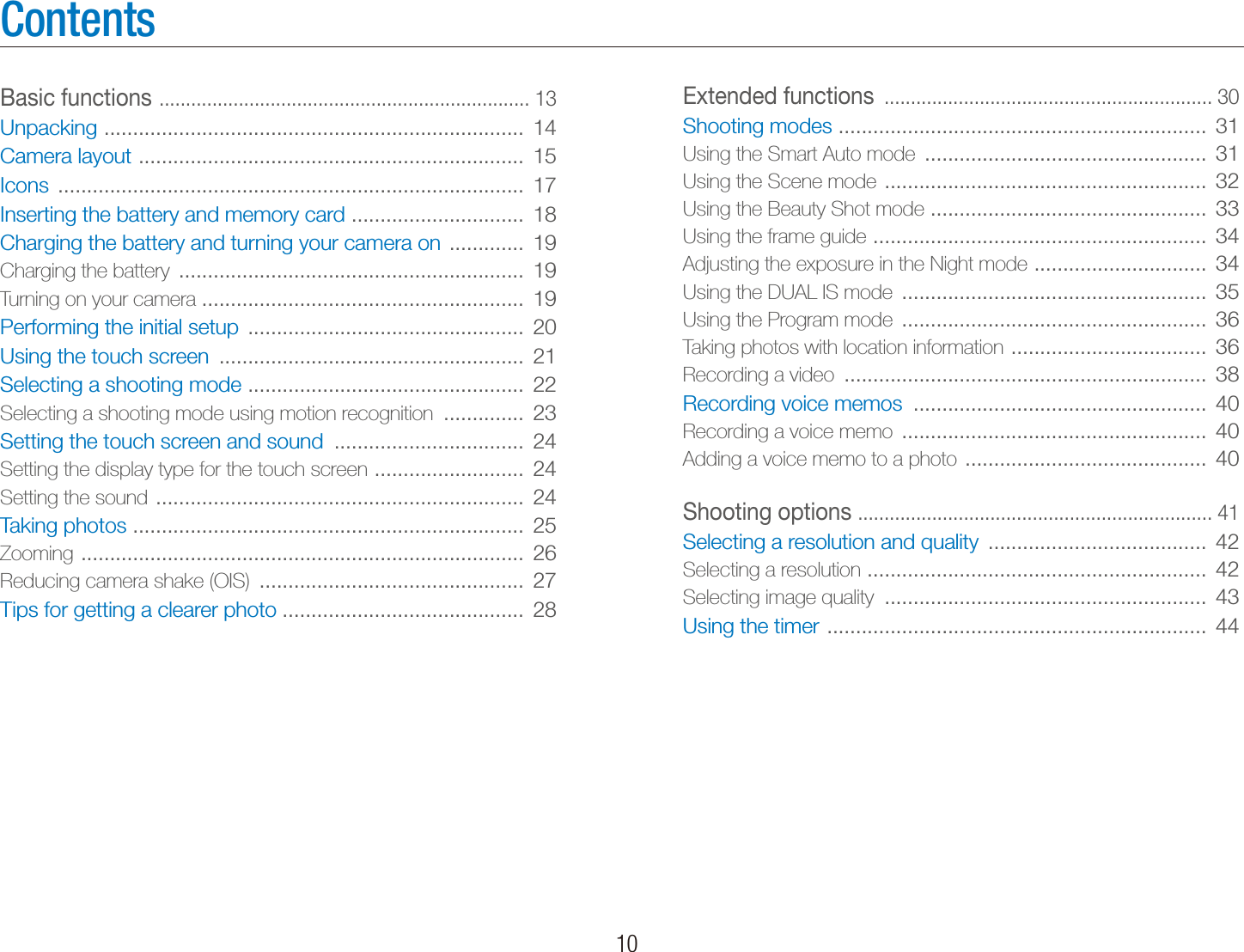
   10ContentsExtended functions  .............................................................. 30Shooting modes  ................................................................  31Using the Smart Auto mode  .................................................  31Using the Scene mode  ........................................................  32Using the Beauty Shot mode  ................................................  33Using the frame guide  ..........................................................  34Adjusting the exposure in the Night mode  ..............................  34Using the DUAL IS mode  .....................................................  35Using the Program mode  .....................................................  36Taking photos with location information  ..................................  36Recording a video  ...............................................................  38Recording voice memos  ...................................................  40Recording a voice memo  .....................................................  40Adding a voice memo to a photo  ..........................................  40Shooting options  ................................................................... 41Selecting a resolution and quality  ......................................  42Selecting a resolution  ...........................................................  42Selecting image quality  ........................................................  43Using the timer  ..................................................................  44Basic functions  ...................................................................... 13Unpacking  .........................................................................  14Camera layout  ...................................................................  15Icons  .................................................................................  17Inserting the battery and memory card  ..............................  18Charging the battery and turning your camera on  .............  19Charging the battery  ............................................................  19Turning on your camera ........................................................  19Performing the initial setup  ................................................  20Using the touch screen  .....................................................  21Selecting a shooting mode  ................................................  22Selecting a shooting mode using motion recognition  ..............  23Setting the touch screen and sound  .................................  24Setting the display type for the touch screen  ..........................  24Setting the sound  ................................................................  24Taking photos  ....................................................................  25Zooming  .............................................................................  26Reducing camera shake (OIS)  ..............................................  27Tips for getting a clearer photo ..........................................  28
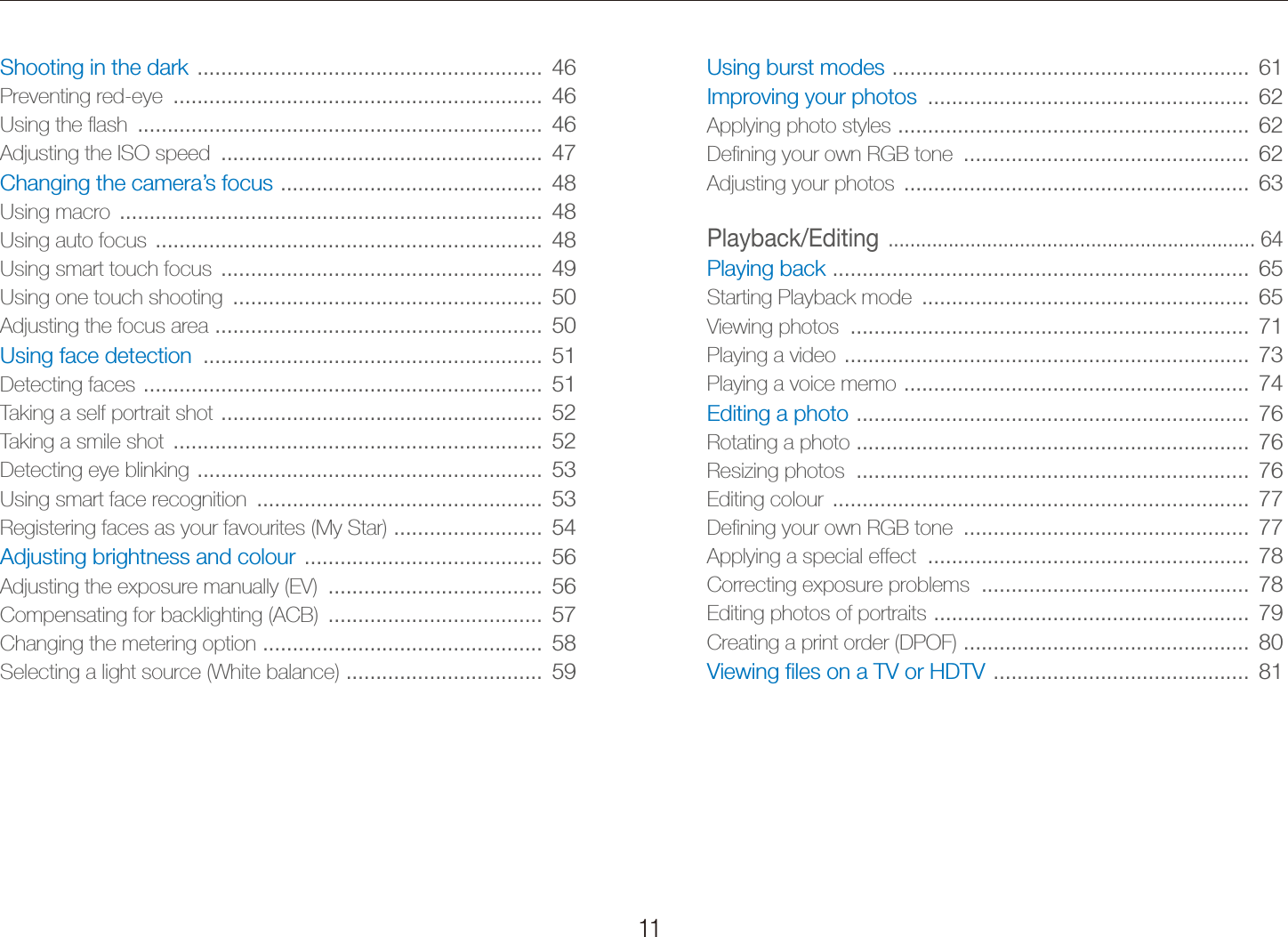
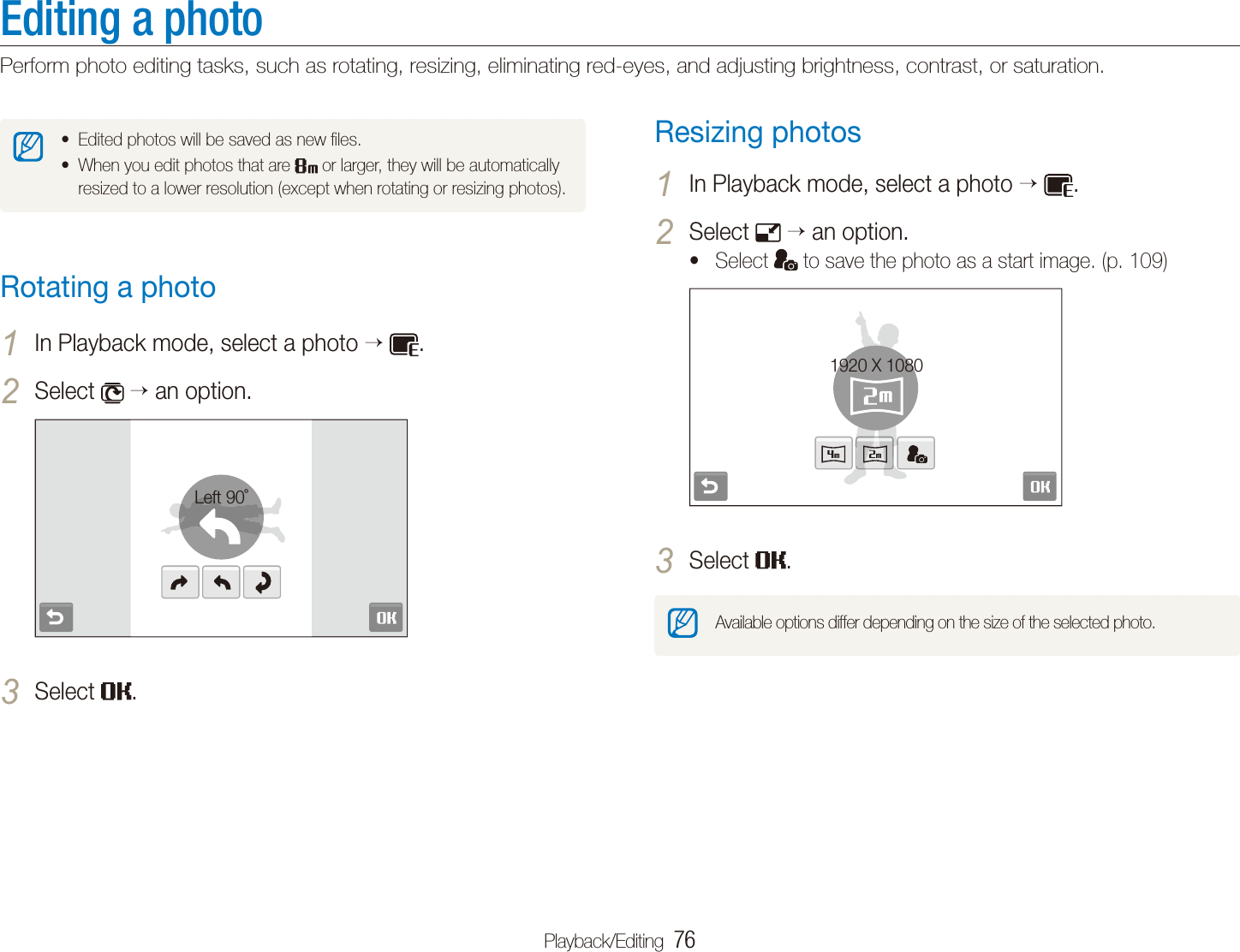
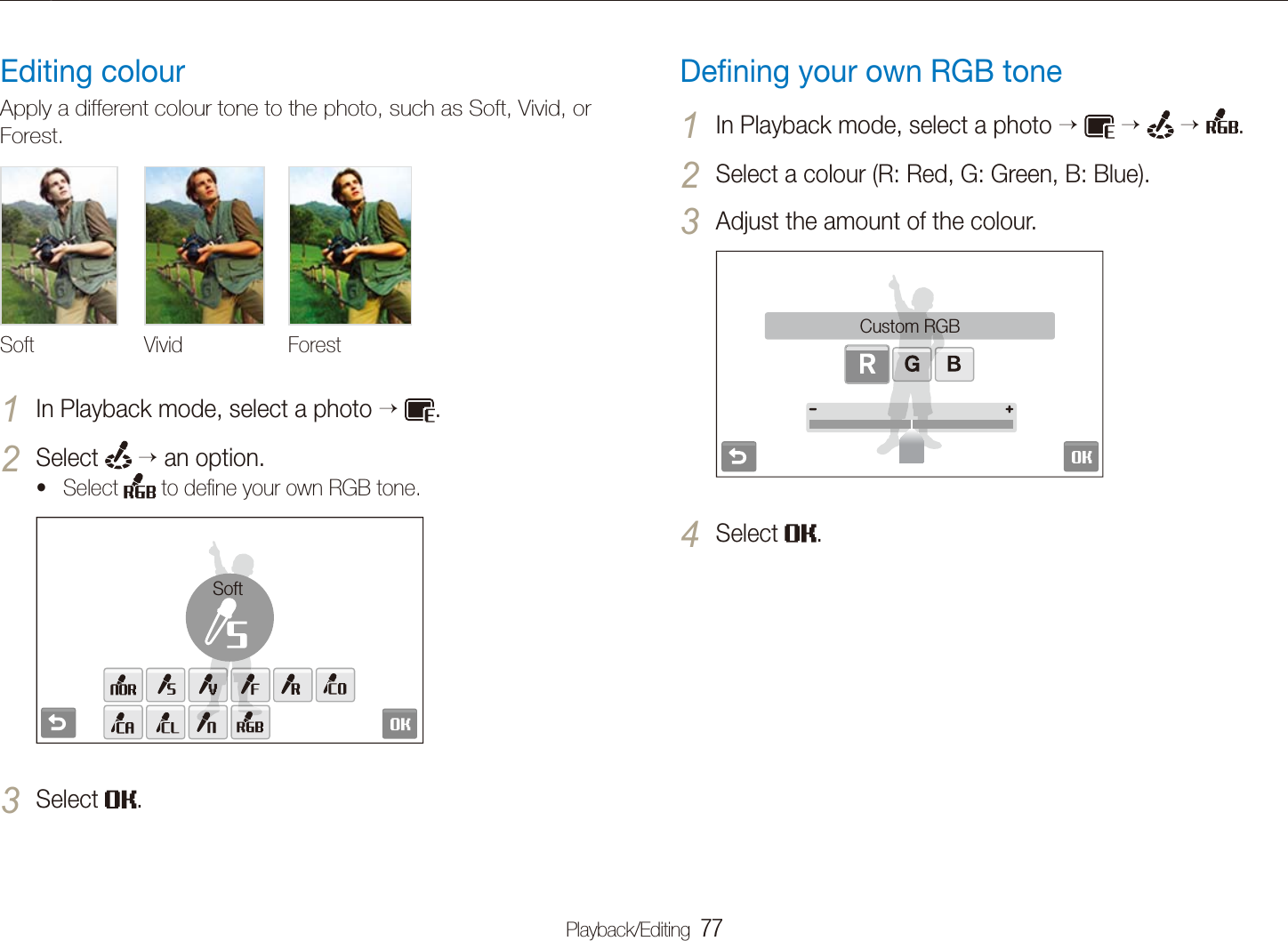
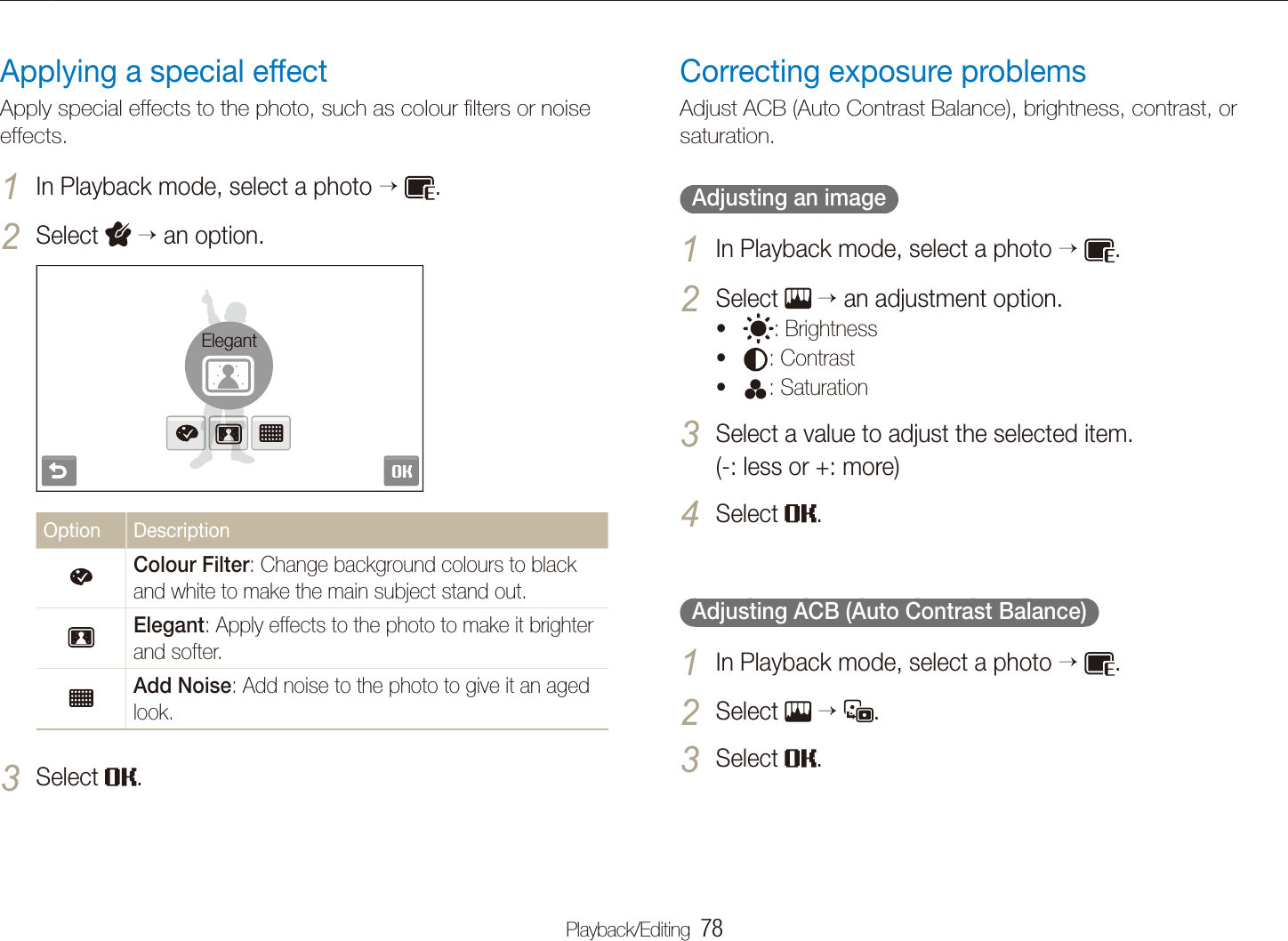
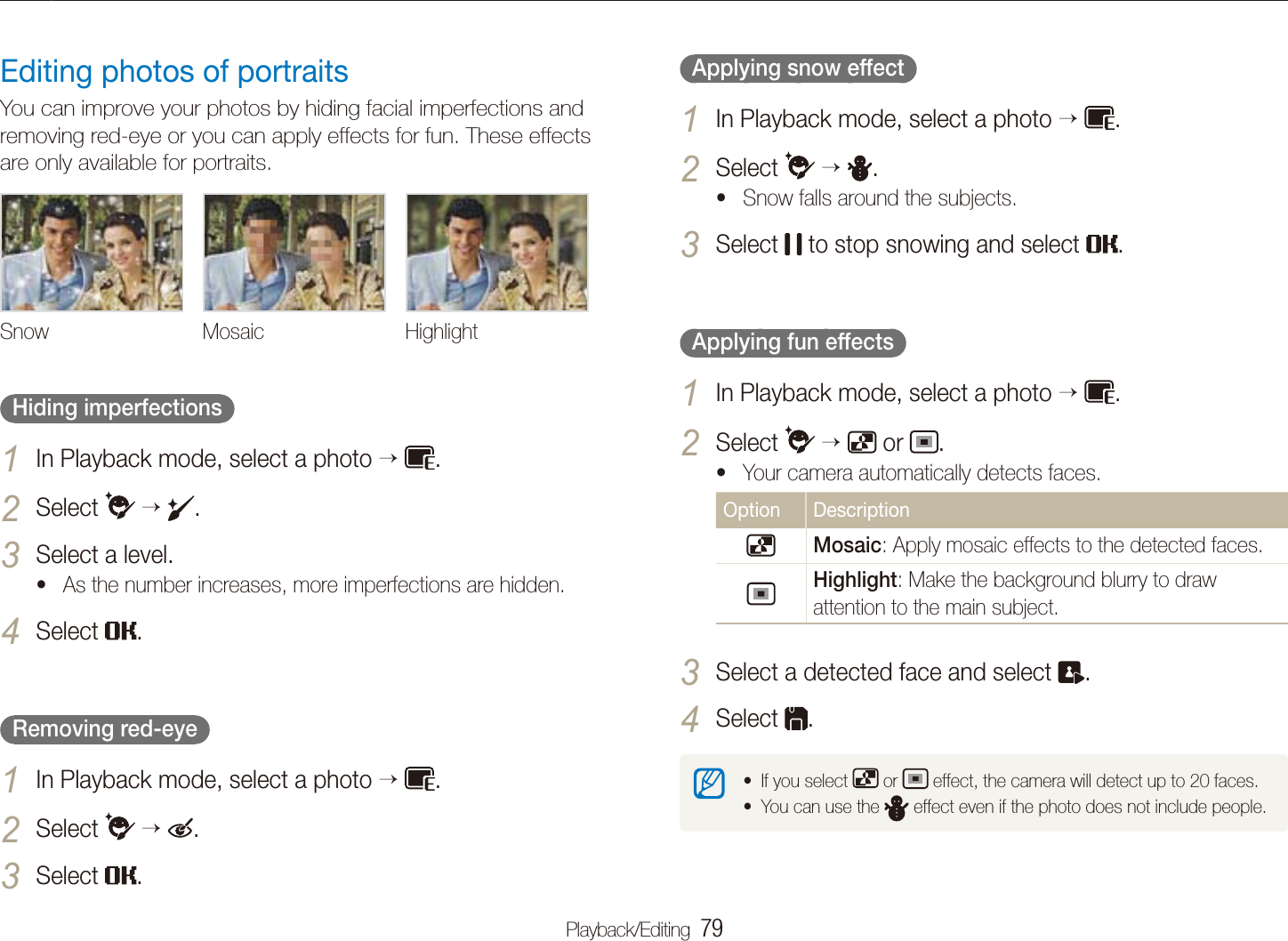
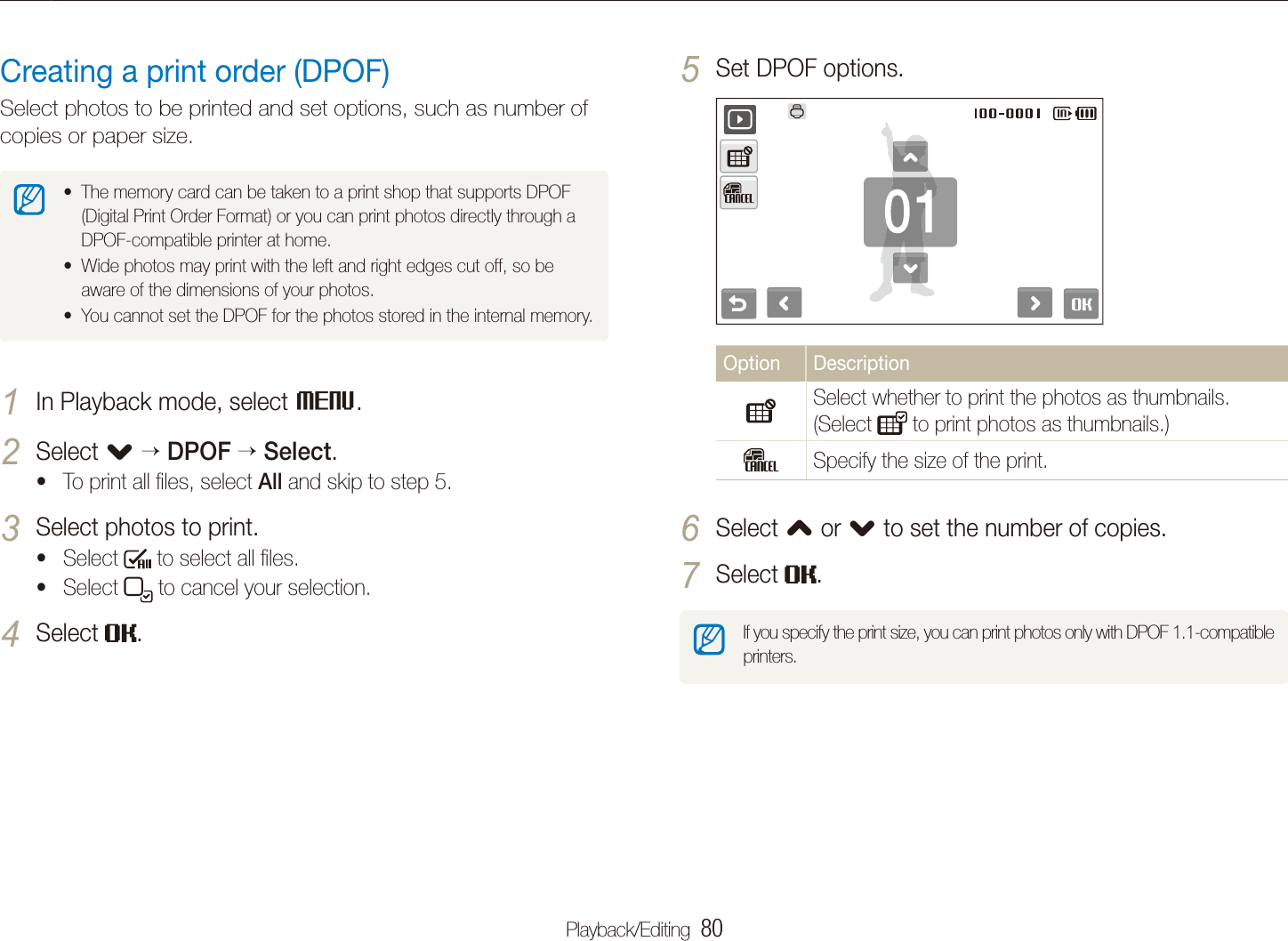
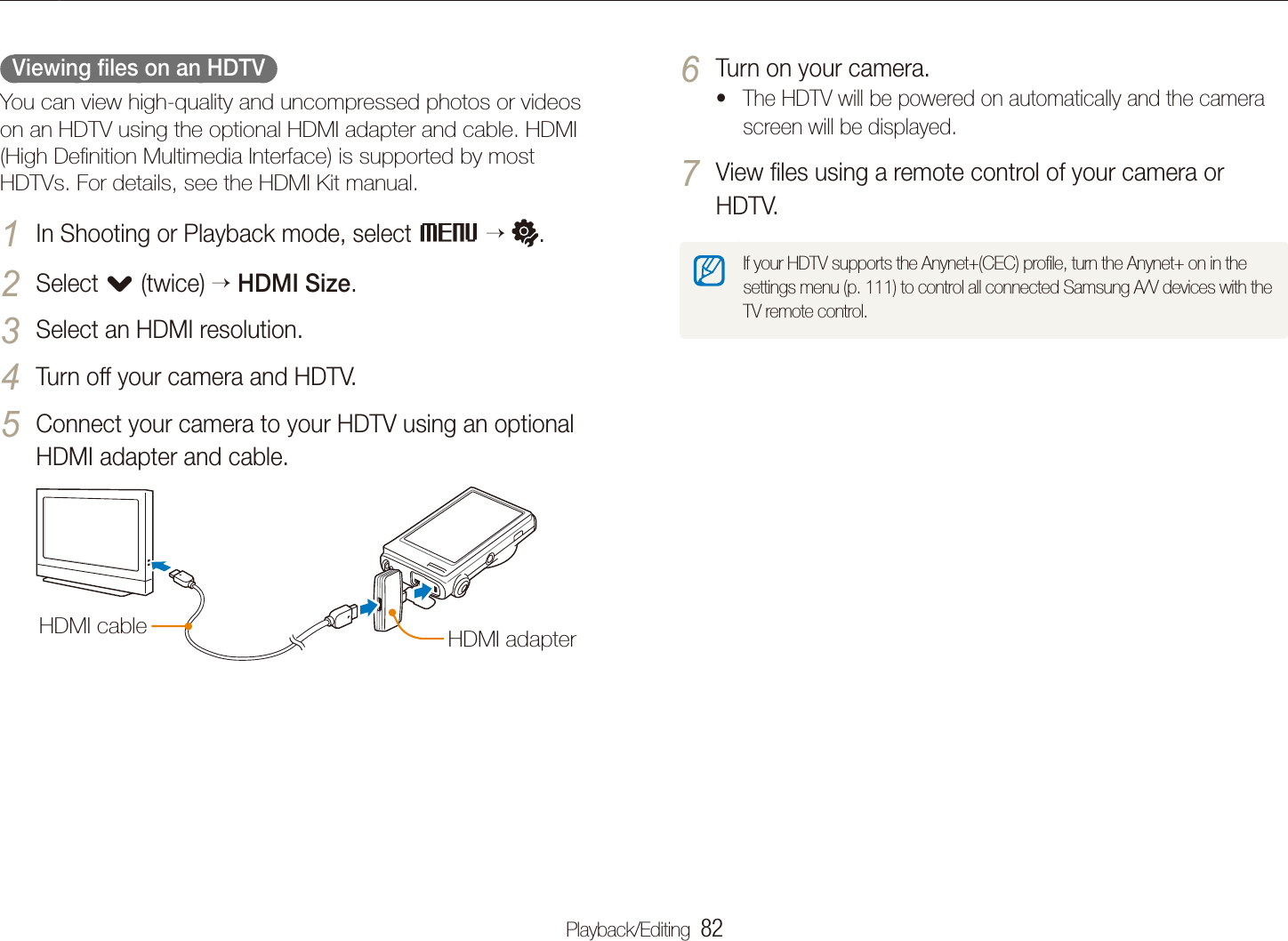
   11 ContentsShooting in the dark  ..........................................................  46Preventing red-eye  ..............................................................  46Using the flash  ....................................................................  46Adjusting the ISO speed  ......................................................  47Changing the camera’s focus  ............................................  48Using macro  .......................................................................  48Using auto focus  .................................................................  48Using smart touch focus  ......................................................  49Using one touch shooting  ....................................................  50Adjusting the focus area  .......................................................  50Using face detection  .........................................................  51Detecting faces  ...................................................................  51Taking a self portrait shot  ......................................................  52Taking a smile shot  ..............................................................  52Detecting eye blinking  ..........................................................  53Using smart face recognition  ................................................  53Registering faces as your favourites (My Star)  .........................  54Adjusting brightness and colour  ........................................  56Adjusting the exposure manually (EV)  ....................................  56Compensating for backlighting (ACB)  ....................................  57Changing the metering option  ...............................................  58Selecting a light source (White balance)  .................................  59Using burst modes  ............................................................  61Improving your photos  ......................................................  62Applying photo styles  ...........................................................  62Defining your own RGB tone  ................................................  62Adjusting your photos  ..........................................................  63Playback/Editing  ................................................................... 64Playing back  ......................................................................  65Starting Playback mode  .......................................................  65Viewing photos  ...................................................................  71Playing a video  ....................................................................  73Playing a voice memo  ..........................................................  74Editing a photo  ..................................................................  76Rotating a photo  ..................................................................  76Resizing photos  ..................................................................  76Editing colour  ......................................................................  77Defining your own RGB tone  ................................................  77Applying a special effect  ......................................................  78Correcting exposure problems  .............................................  78Editing photos of portraits  .....................................................  79Creating a print order (DPOF)  ................................................  80Viewing files on a TV or HDTV  ...........................................  81
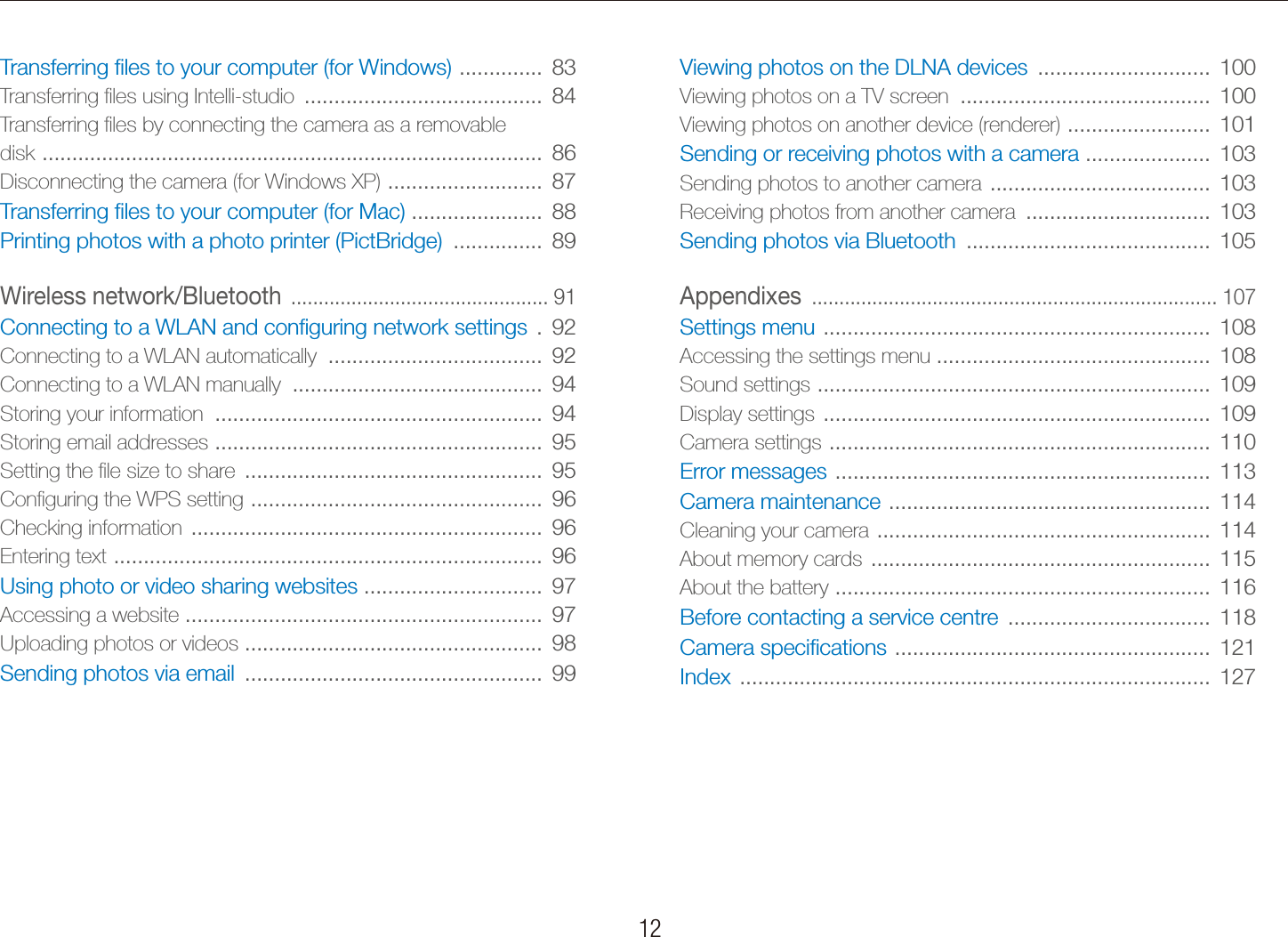
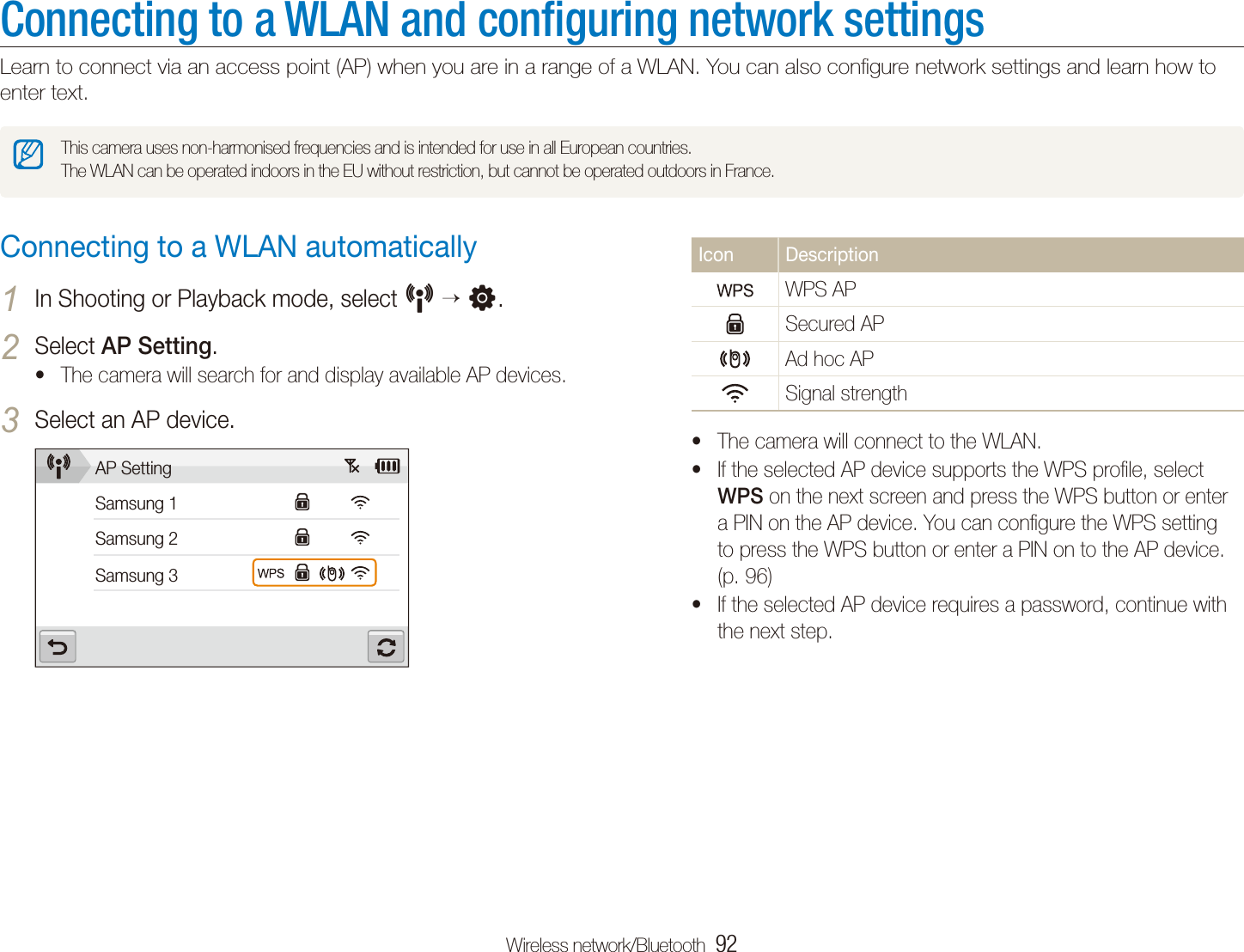
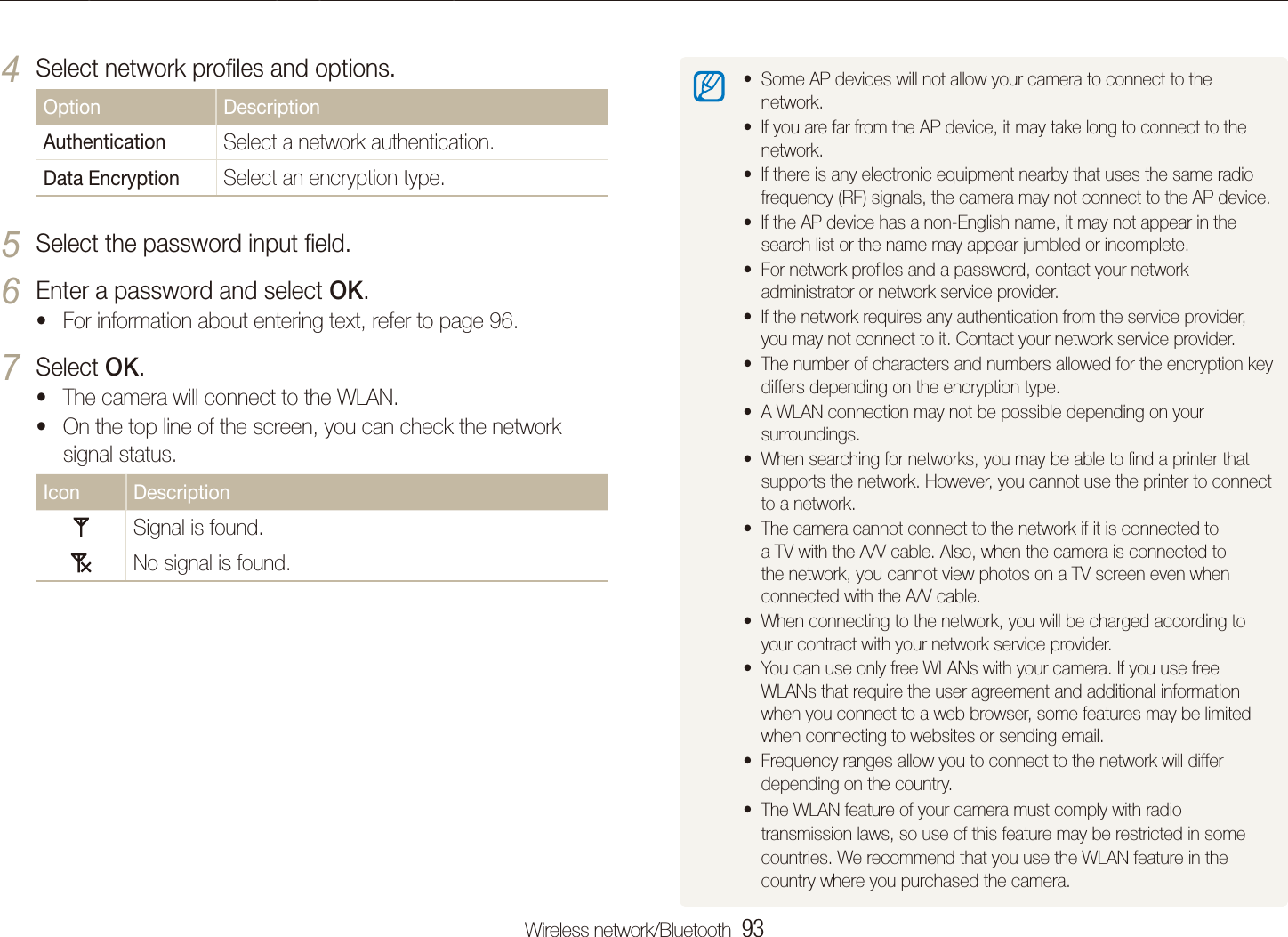
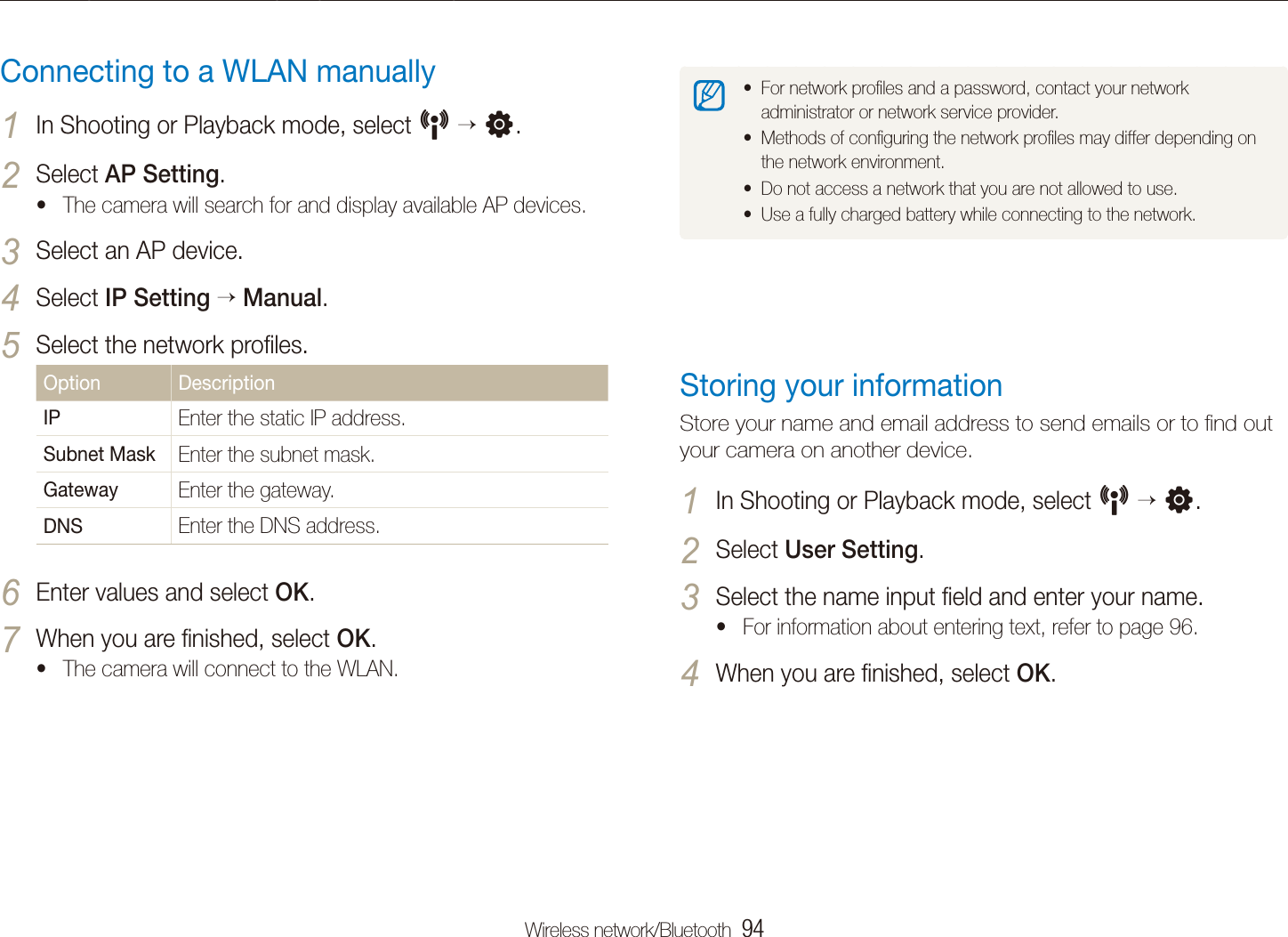
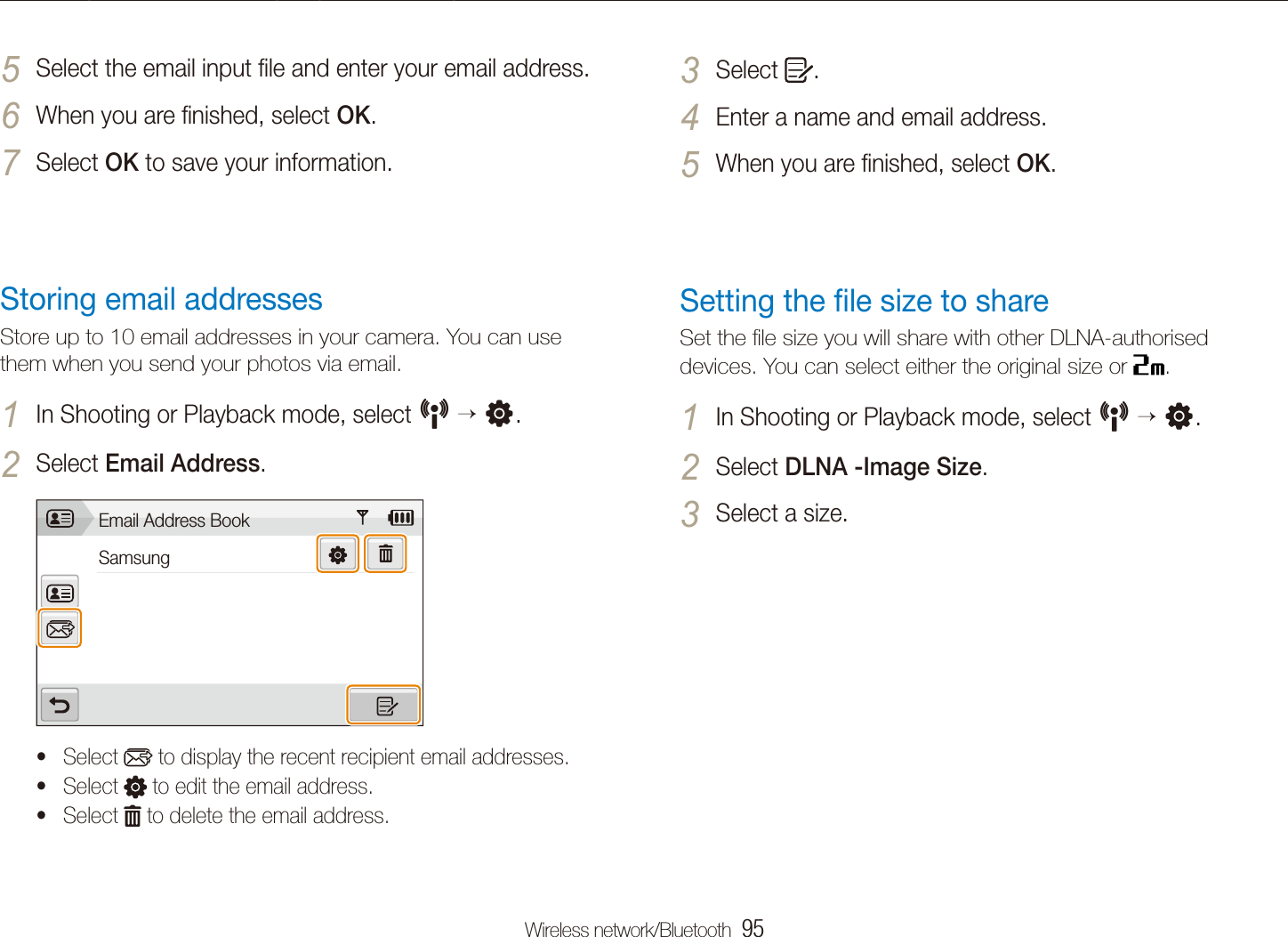
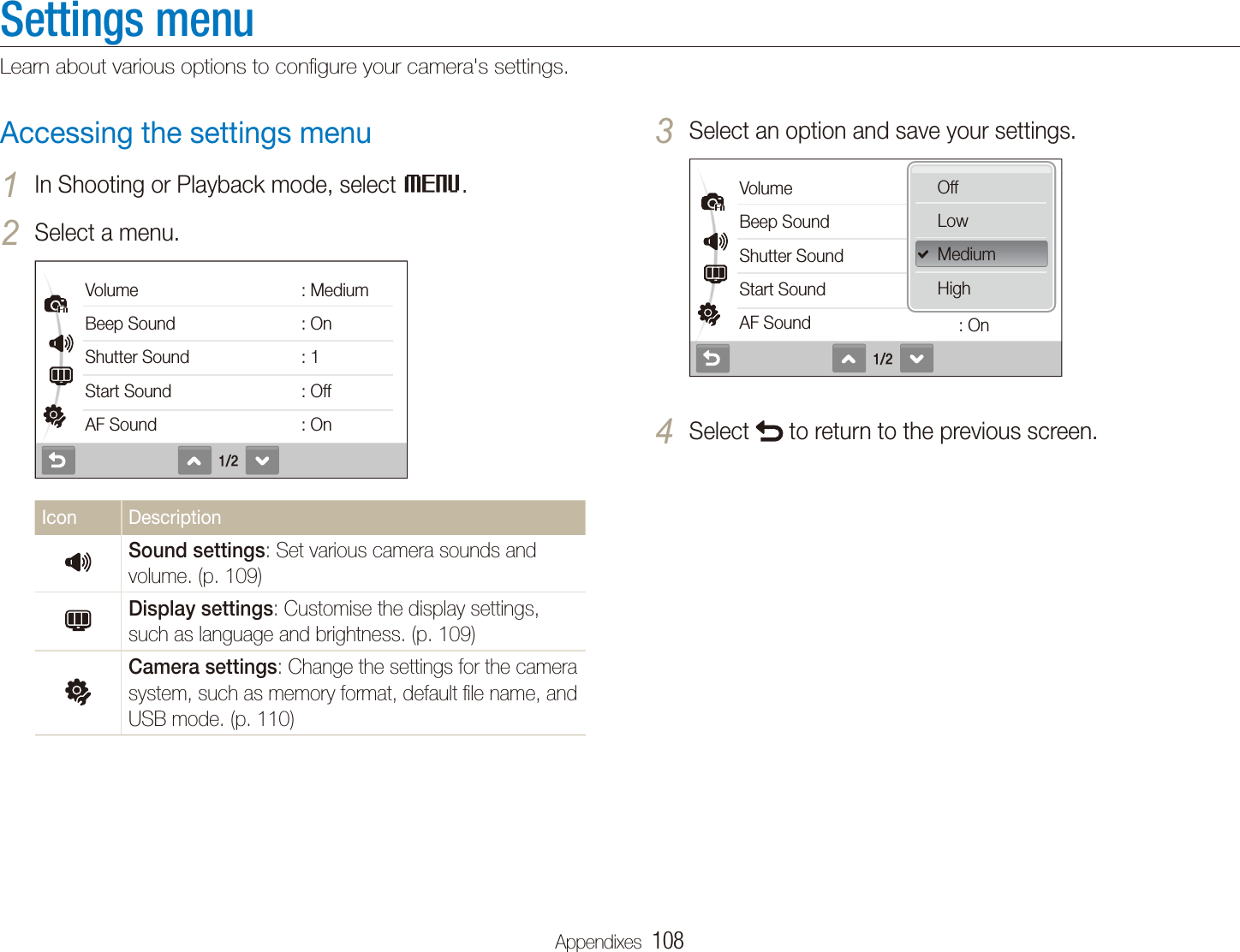
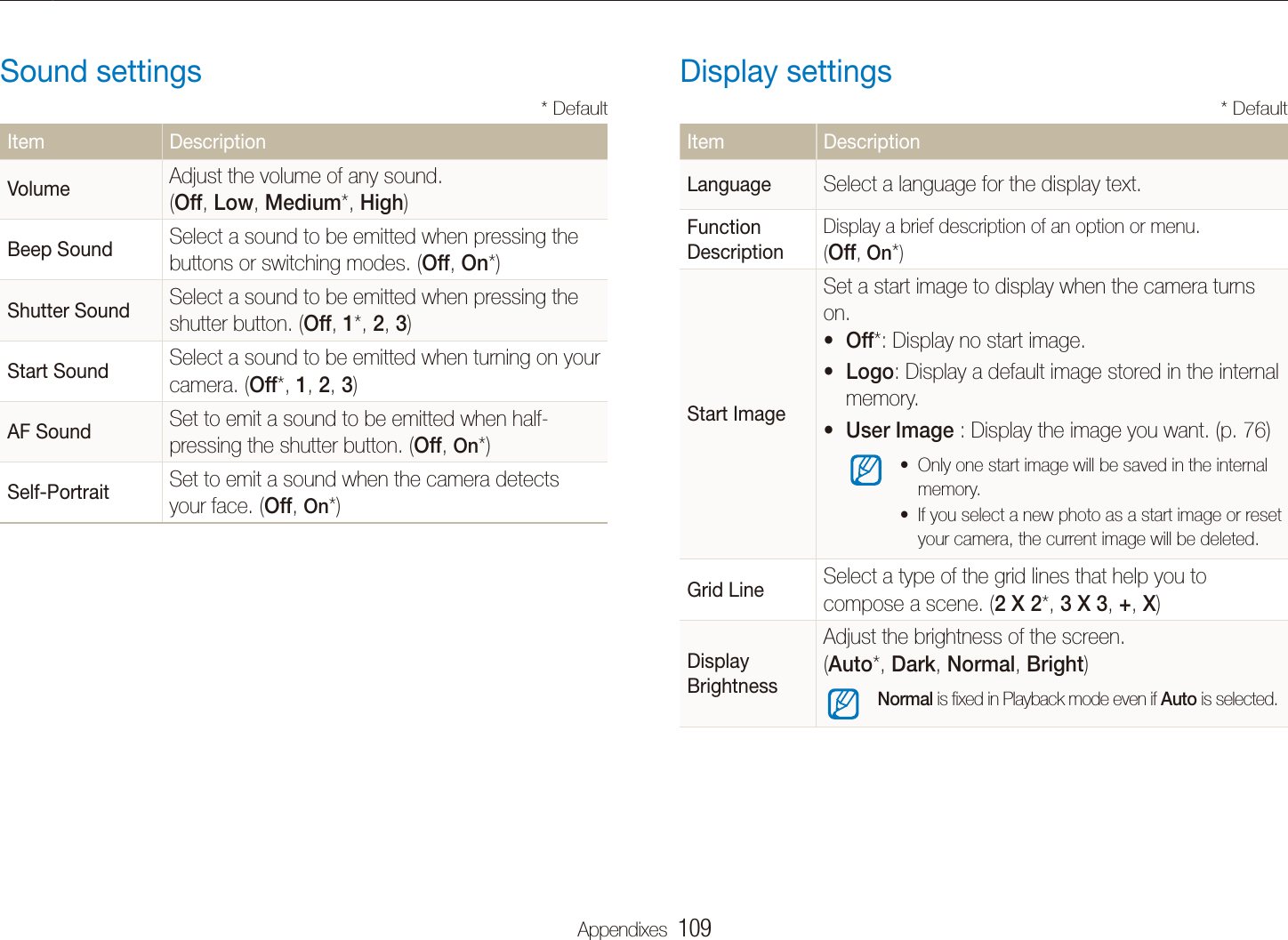
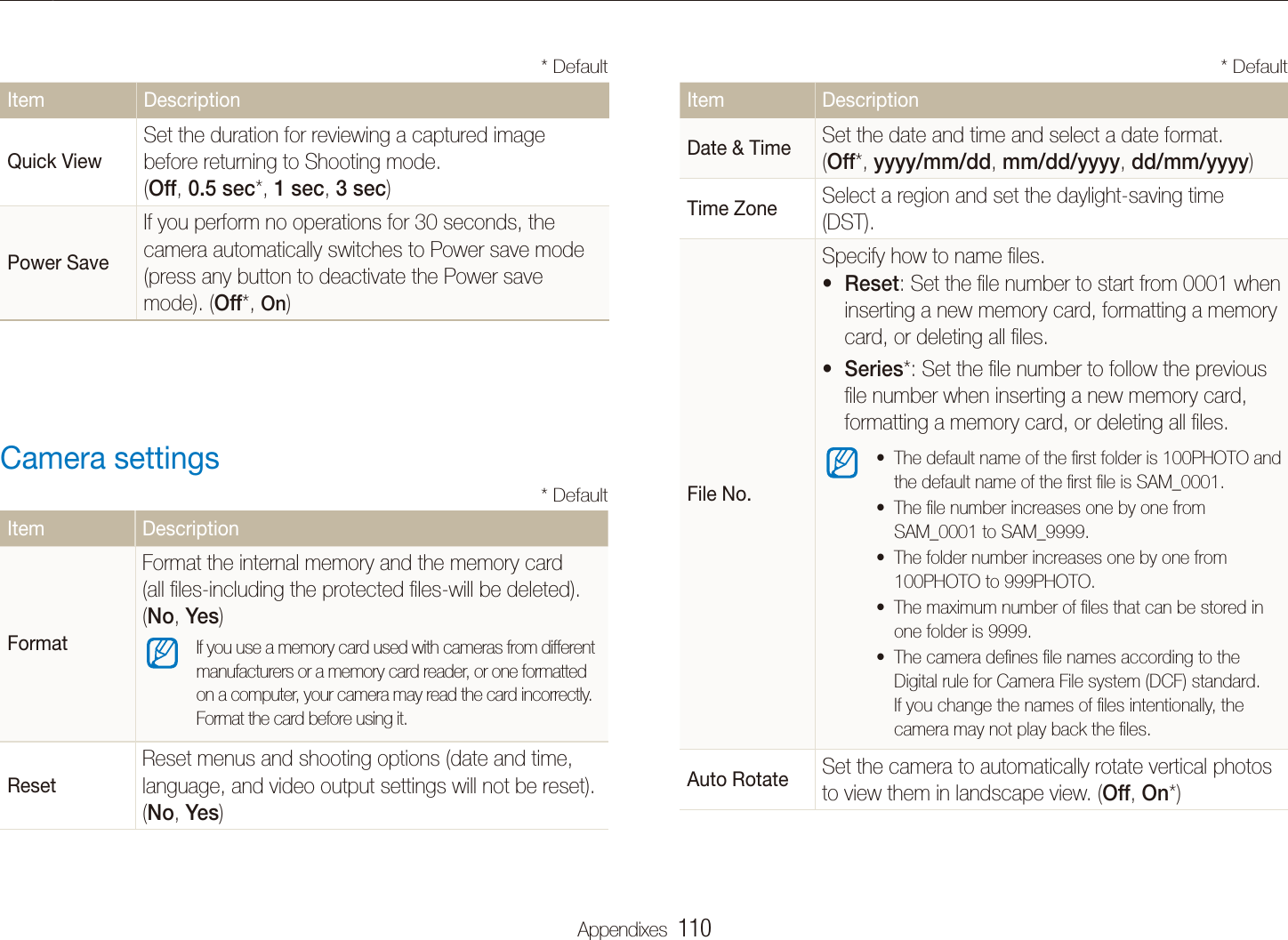
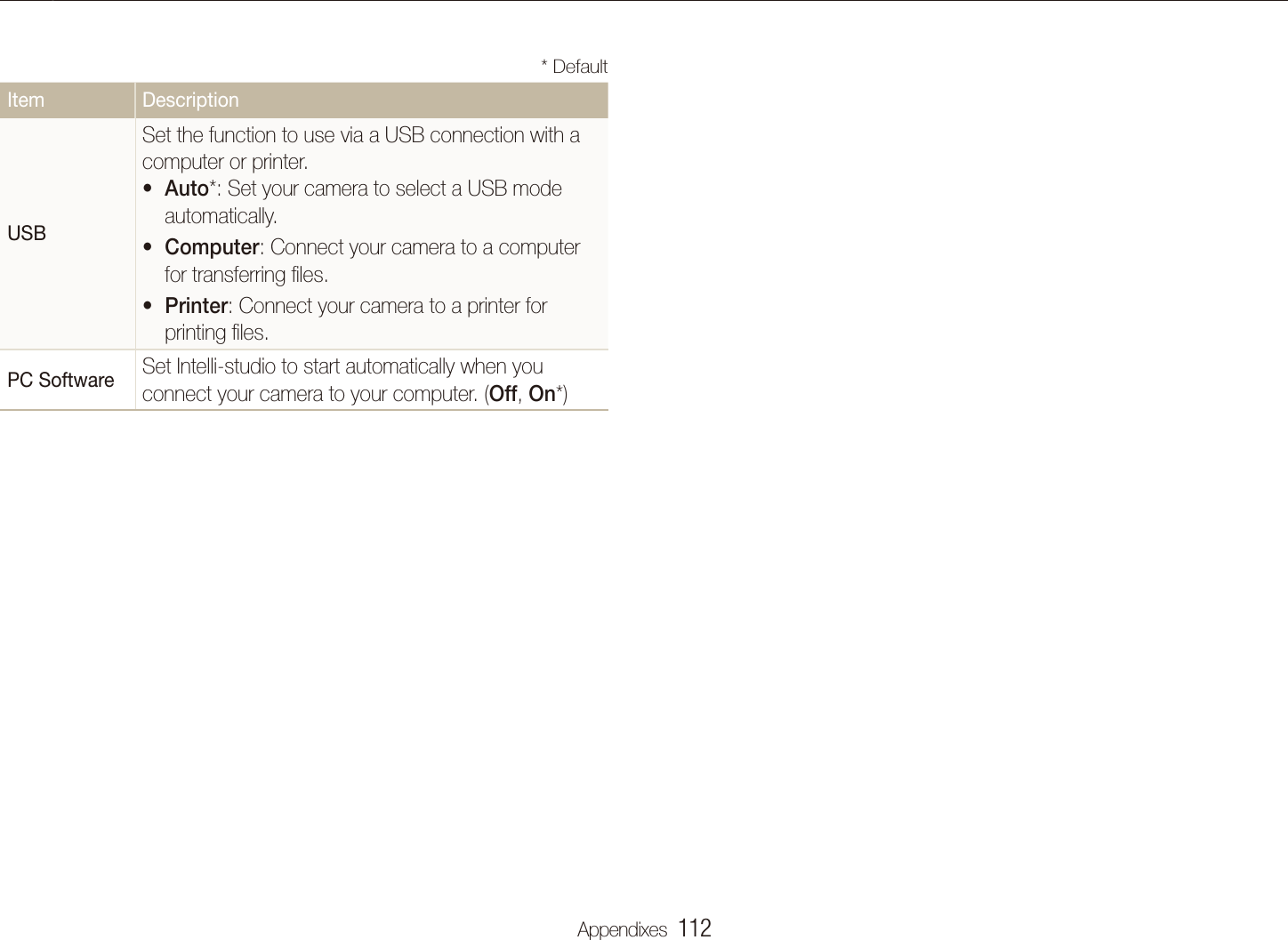
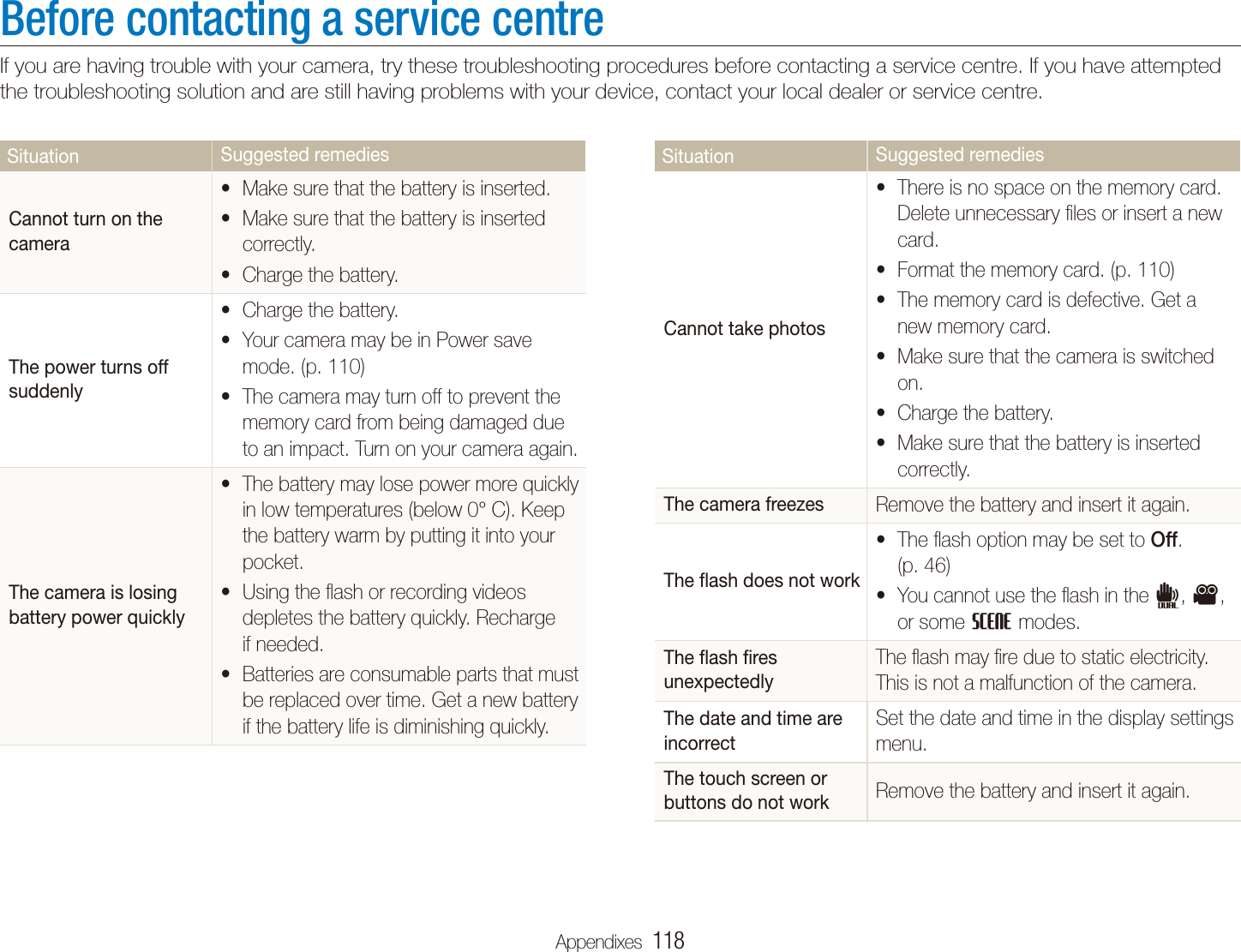
   12 ContentsViewing photos on the DLNA devices  .............................  100Viewing photos on a TV screen  ..........................................  100Viewing photos on another device (renderer)  ........................  101Sending or receiving photos with a camera  .....................  103Sending photos to another camera  .....................................  103Receiving photos from another camera  ...............................  103Sending photos via Bluetooth  .........................................  105Appendixes  .......................................................................... 107Settings menu  .................................................................  108Accessing the settings menu ..............................................  108Sound settings  ..................................................................  109Display settings  .................................................................  109Camera settings  ................................................................  110Error messages  ...............................................................  113Camera maintenance  ......................................................  114Cleaning your camera  ........................................................  114About memory cards  .........................................................  115About the battery  ...............................................................  116Before contacting a service centre  ..................................  118Camera specifications  .....................................................  121Index  ...............................................................................  127Transferring files to your computer (for Windows)  ..............  83Transferring files using Intelli-studio  ........................................  84Transferring files by connecting the camera as a removable  disk  ....................................................................................  86Disconnecting the camera (for Windows XP)  ..........................  87Transferring files to your computer (for Mac)  ......................  88Printing photos with a photo printer (PictBridge)  ...............  89Wireless network/Bluetooth  ............................................... 91Connecting to a WLAN and configuring network settings  .  92Connecting to a WLAN automatically  ....................................  92Connecting to a WLAN manually  ..........................................  94Storing your information  .......................................................  94Storing email addresses  .......................................................  95Setting the file size to share  ..................................................  95Configuring the WPS setting  .................................................  96Checking information  ...........................................................  96Entering text  ........................................................................  96Using photo or video sharing websites  ..............................  97Accessing a website ............................................................  97Uploading photos or videos  ..................................................  98Sending photos via email  ..................................................  99
Unpacking   ……………………………………  14Camera layout   ………………………………  15Icons  ……………………………………………  17Inserting the battery and memory card   …  18Charging the battery and turning your  camera on   ……………………………………  19Charging the battery  ……………………………  19Turning on your camera   ………………………  19Performing the initial setup  …………………  20Using the touch screen   ……………………  21Selecting a shooting mode  …………………  22Selecting a shooting mode using motion recognition  ………………………………………  23Setting the touch screen and sound  ………  24Setting the display type for the touch screen  …  24Setting the sound  ………………………………  24Taking photos  …………………………………  25Zooming   ………………………………………  26Reducing camera shake (OIS)  …………………  27Tips for getting a clearer photo   ……………  28Basic functionsLearn about your camera’s layout, icons, and basic functions for shooting.
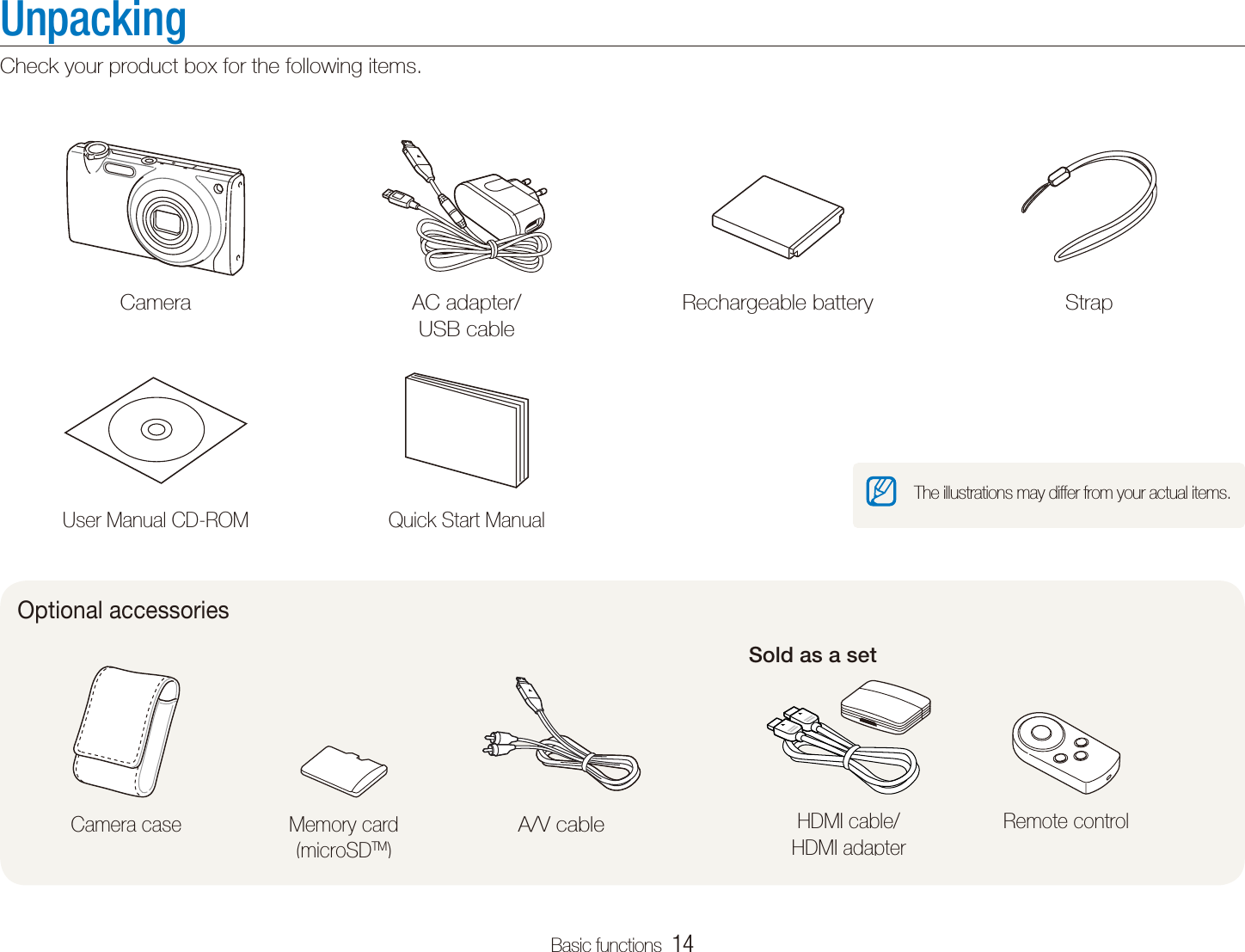
Basic functions  14UnpackingCheck your product box for the following items.Camera AC adapter/ USB cableRechargeable battery StrapUser Manual CD-ROM Quick Start ManualOptional accessoriesSold as a setHDMI cable/ HDMI adapterRemote controlCamera case Memory card(microSDTM)A/V cableThe illustrations may differ from your actual items.
Basic functions  15Camera layoutBefore you start, familiarise yourself with your camera's parts and their functions.Shutter button POWER buttonLensFlash AF-assist light/timer lampMicrophoneBattery chamber coverInsert a memory card and batteryTripod mountSpeaker
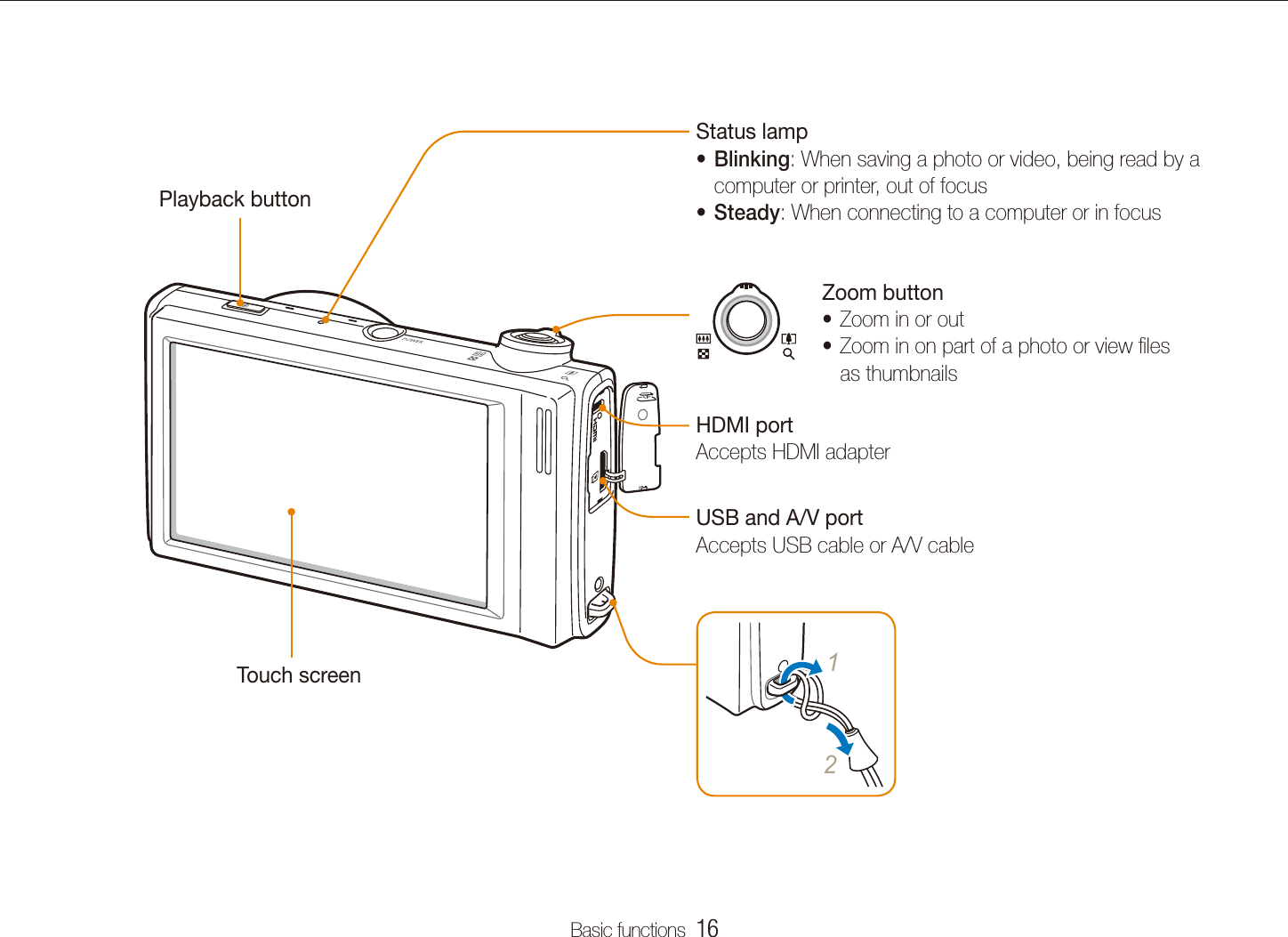
Basic functions  16Camera layoutStatus lampBlinkingt : When saving a photo or video, being read by a computer or printer, out of focusSteadyt : When connecting to a computer or in focusZoom buttonZoom in or outtZoom in on part of a photo or view files tas thumbnailsPlayback button Touch screen 12HDMI portAccepts HDMI adapterUSB and A/V portAccepts USB cable or A/V cable
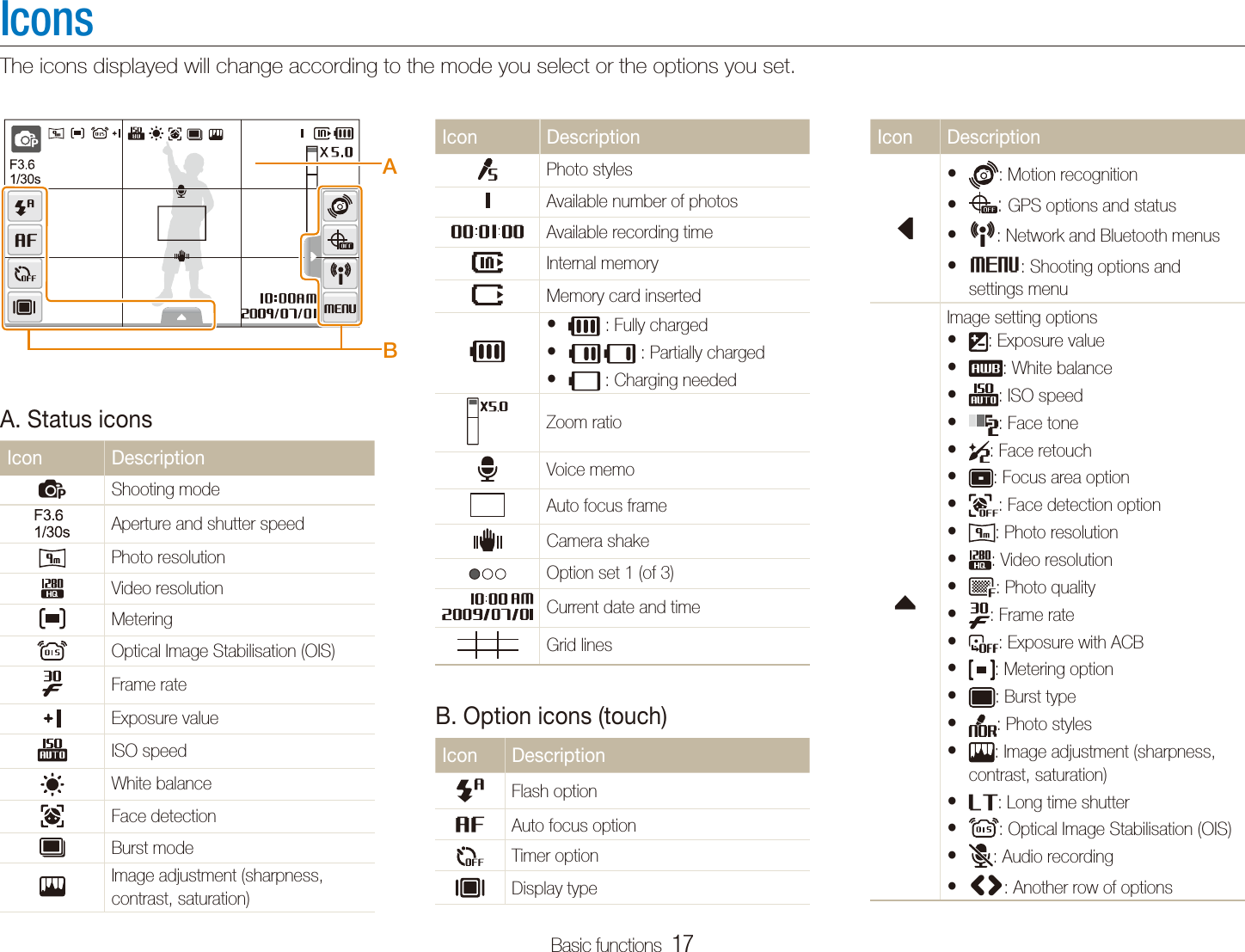
Basic functions  17Icon Descriptionlt : Motion recognitiont : GPS options and statusNt : Network and Bluetooth menusMt : Shooting options and settings menufImage setting optionst : Exposure valuet : White balancet : ISO speedt : Face tonet : Face retoucht : Focus area optiont : Face detection optiont : Photo resolutiont : Video resolutiont : Photo qualityt : Frame ratet : Exposure with ACBt : Metering optiont : Burst typet : Photo stylest : Image adjustment (sharpness, contrast, saturation)t : Long time shuttert : Optical Image Stabilisation (OIS)t : Audio recording<>t : Another row of optionsIconsThe icons displayed will change according to the mode you select or the options you set.A. Status iconsIcon DescriptionpShooting modeAperture and shutter speedPhoto resolutionVideo resolutionMeteringOptical Image Stabilisation (OIS)Frame rateExposure valueISO speedWhite balanceFace detectionBurst modeImage adjustment (sharpness, contrast, saturation)Icon DescriptionPhoto stylesAvailable number of photosAvailable recording timeInternal memoryMemory card insertedt  : Fully chargedt  : Partially chargedt  : Charging neededZoom ratioVoice memoAuto focus frameCamera shakeOption set 1 (of 3)Current date and timeGrid linesB. Option icons (touch)Icon DescriptionFlash optionAuto focus optionTimer optionDisplay typeBA
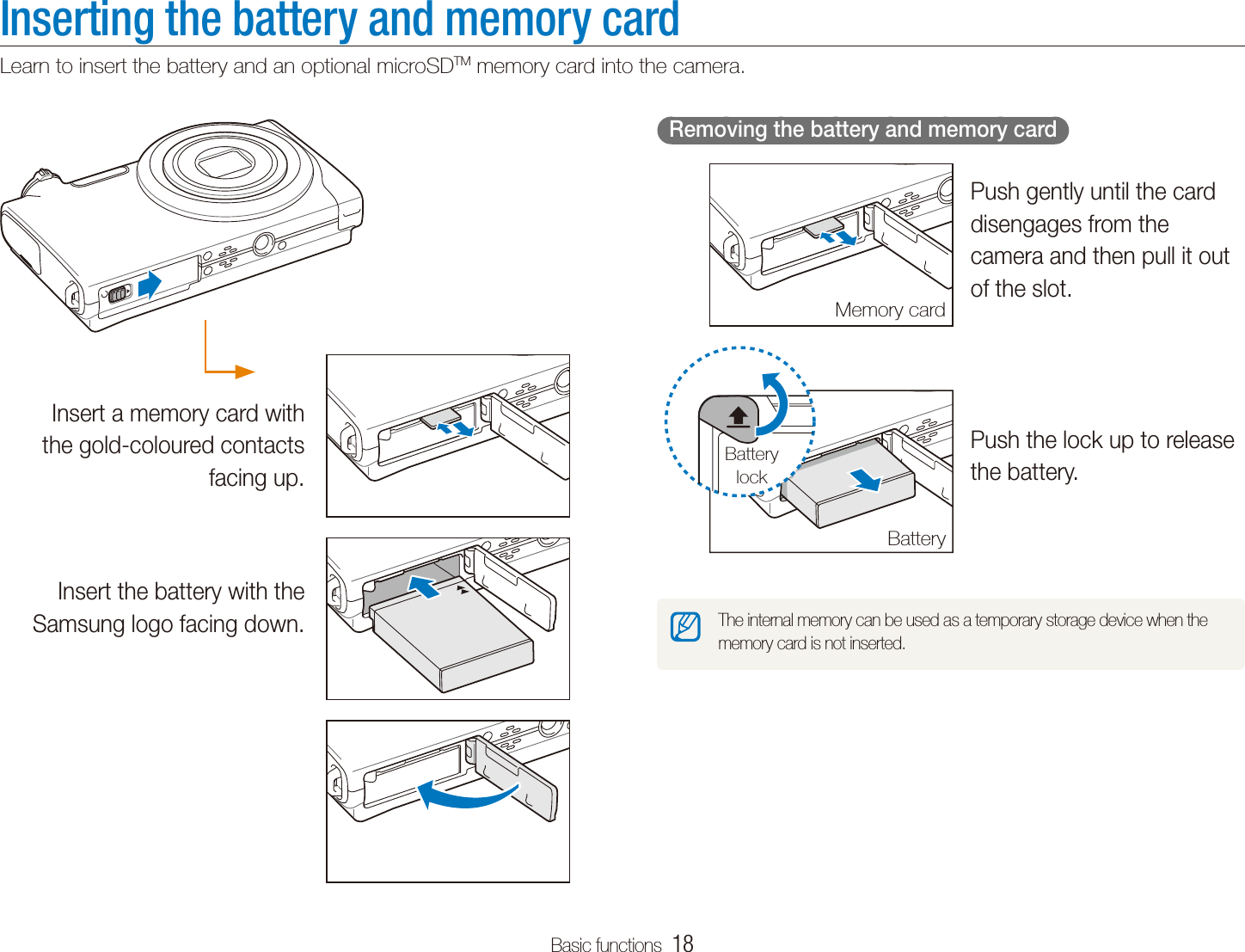
Basic functions  18Inserting the battery and memory cardLearn to insert the battery and an optional microSDTM memory card into the camera.  Removing the battery and memory card  Push gently until the card disengages from the camera and then pull it out of the slot.Push the lock up to release the battery.The internal memory can be used as a temporary storage device when the memory card is not inserted.Memory cardBatteryBattery lockInsert a memory card with the gold-coloured contacts facing up.Insert the battery with the Samsung logo facing down.
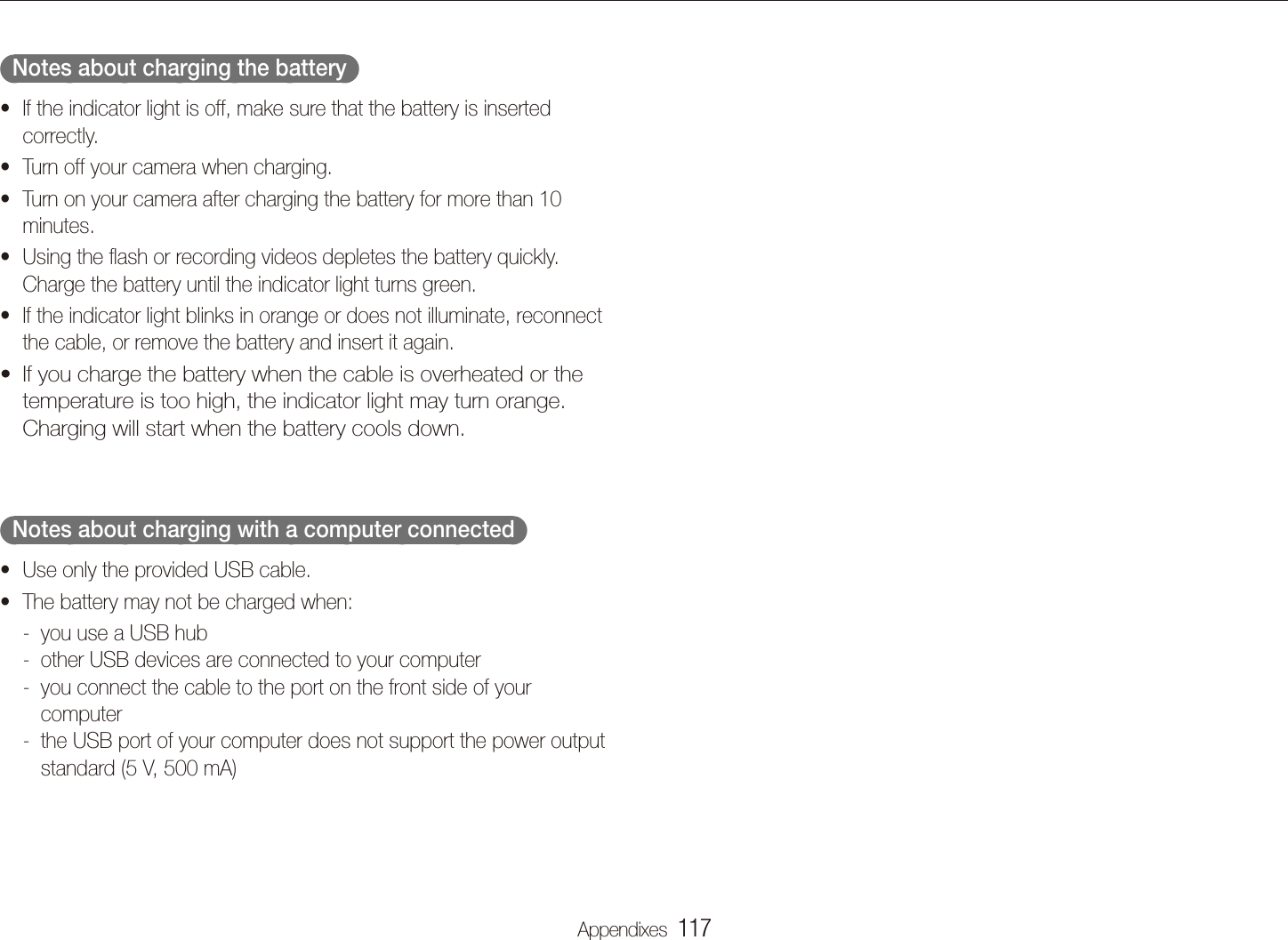
Basic functions  19Charging the battery and turning your camera onTurning on your cameraPress [POWER] to turn your camera on or off.The initial setup screen appears when you turn on the camera tfor the first time. (p. 20)  Turning on your camera in Playback mode  Press [P]. The camera turns on and accesses Playback mode immediately.Press and hold [P] to mute camera sounds.Charging the batteryBefore using the camera for the first time, you must charge the battery. Attach the USB cable to the AC adapter and then plug the end of cable with the indicator light into your camera.Indicator lightRedt : ChargingGreent : Fully charged
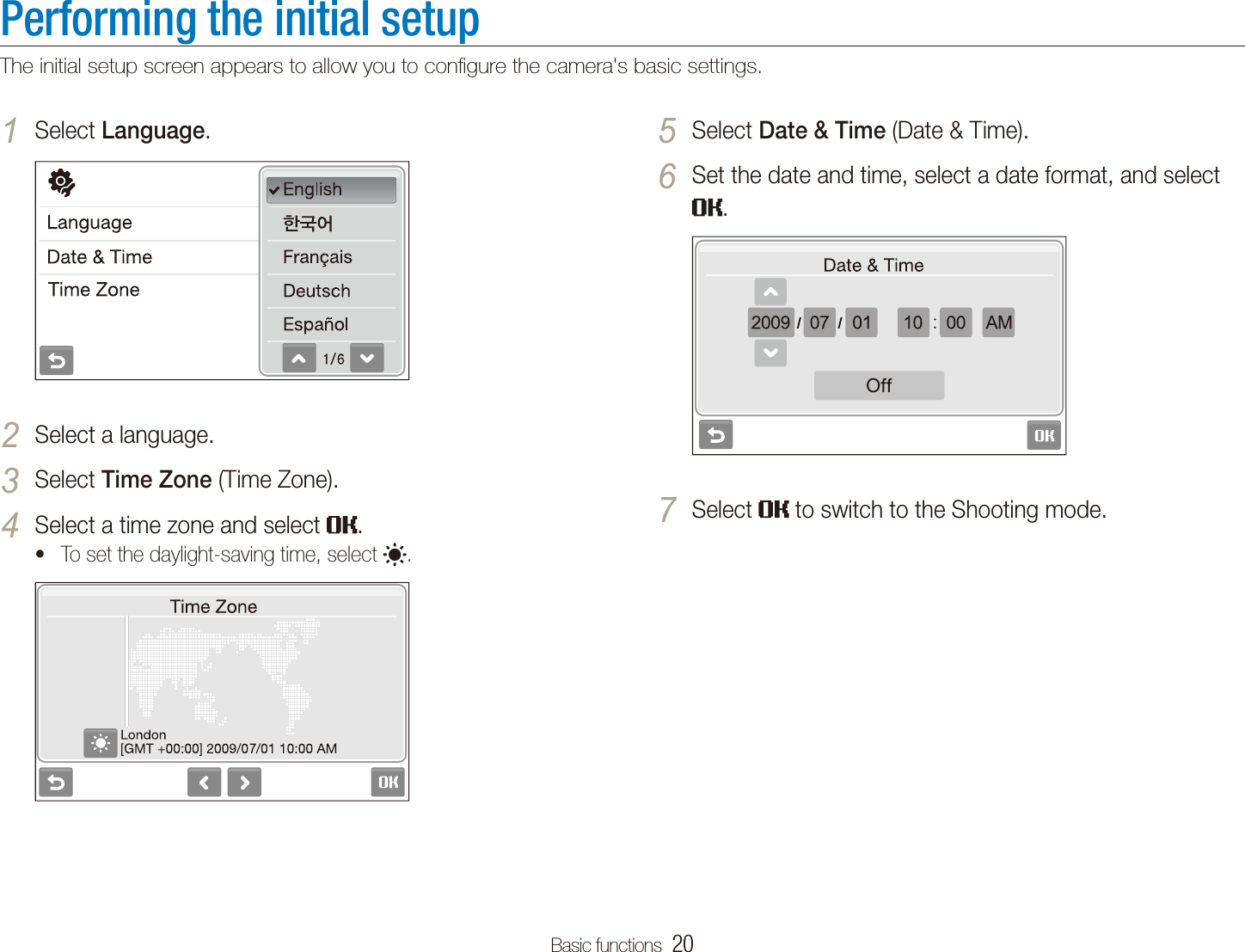
Basic functions  20Performing the initial setupThe initial setup screen appears to allow you to configure the camera's basic settings.Select 5 Date & Time (Date & Time).Set the date and time, select a date format, and select 6 .Select 7  to switch to the Shooting mode.Select 1 Language.Select a language.2 Select 3 Time Zone (Time Zone).Select a time zone and select 4 .To set the daylight-saving time, select t .
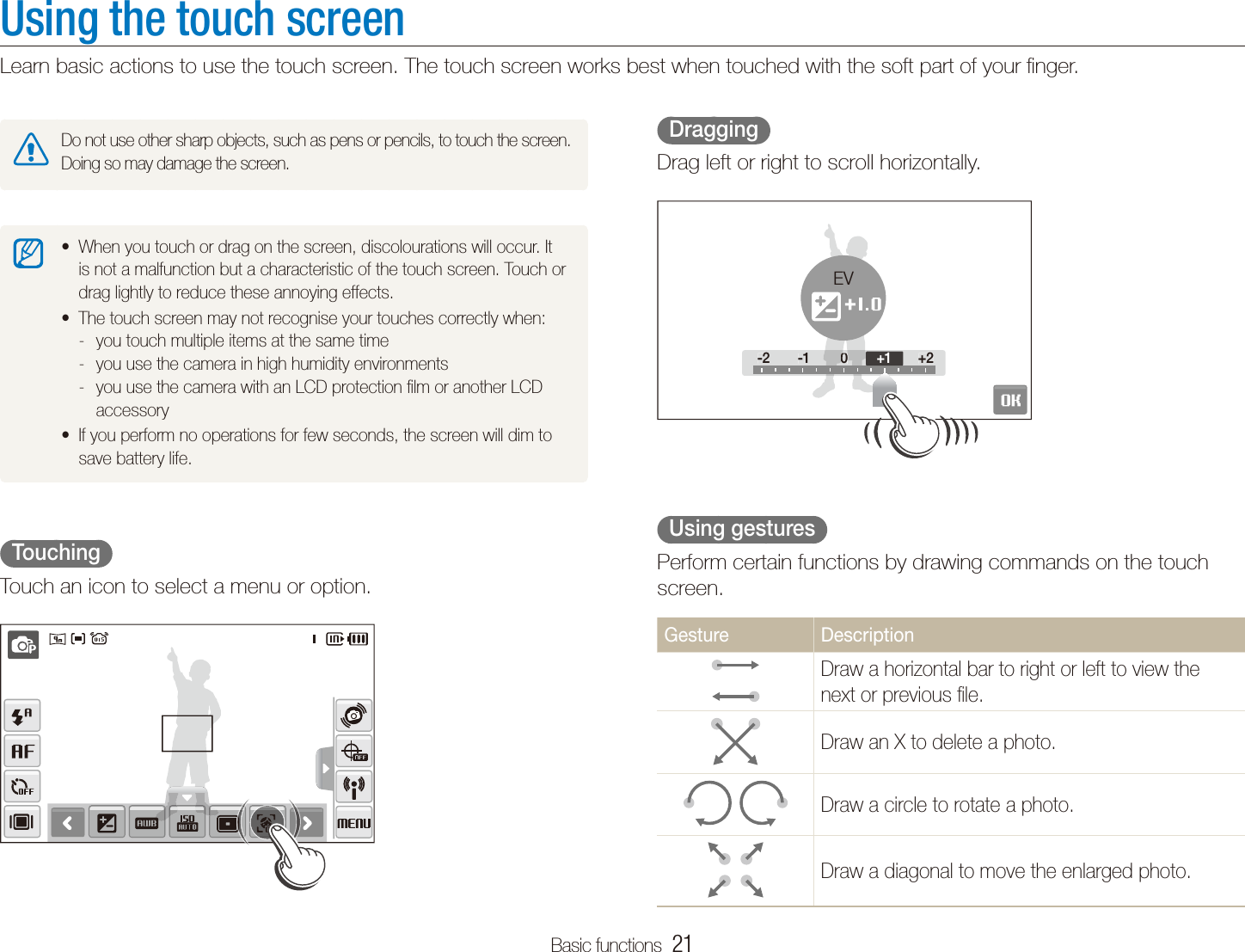
Basic functions  21Using the touch screenLearn basic actions to use the touch screen. The touch screen works best when touched with the soft part of your finger.  Dragging  Drag left or right to scroll horizontally.-2 -1 0 +2-2 -100+2+1EV  Using gestures  Perform certain functions by drawing commands on the touch screen.Gesture DescriptionDraw a horizontal bar to right or left to view the next or previous file.Draw an X to delete a photo.Draw a circle to rotate a photo.Draw a diagonal to move the enlarged photo.Do not use other sharp objects, such as pens or pencils, to touch the screen. Doing so may damage the screen.When you touch or drag on the screen, discolourations will occur. It tis not a malfunction but a characteristic of the touch screen. Touch or drag lightly to reduce these annoying effects.The touch screen may not recognise your touches correctly when:tyou touch multiple items at the same time -you use the camera in high humidity environments -you use the camera with an LCD protection film or another LCD  -accessoryIf you perform no operations for few seconds, the screen will dim to tsave battery life.  Touching  Touch an icon to select a menu or option.
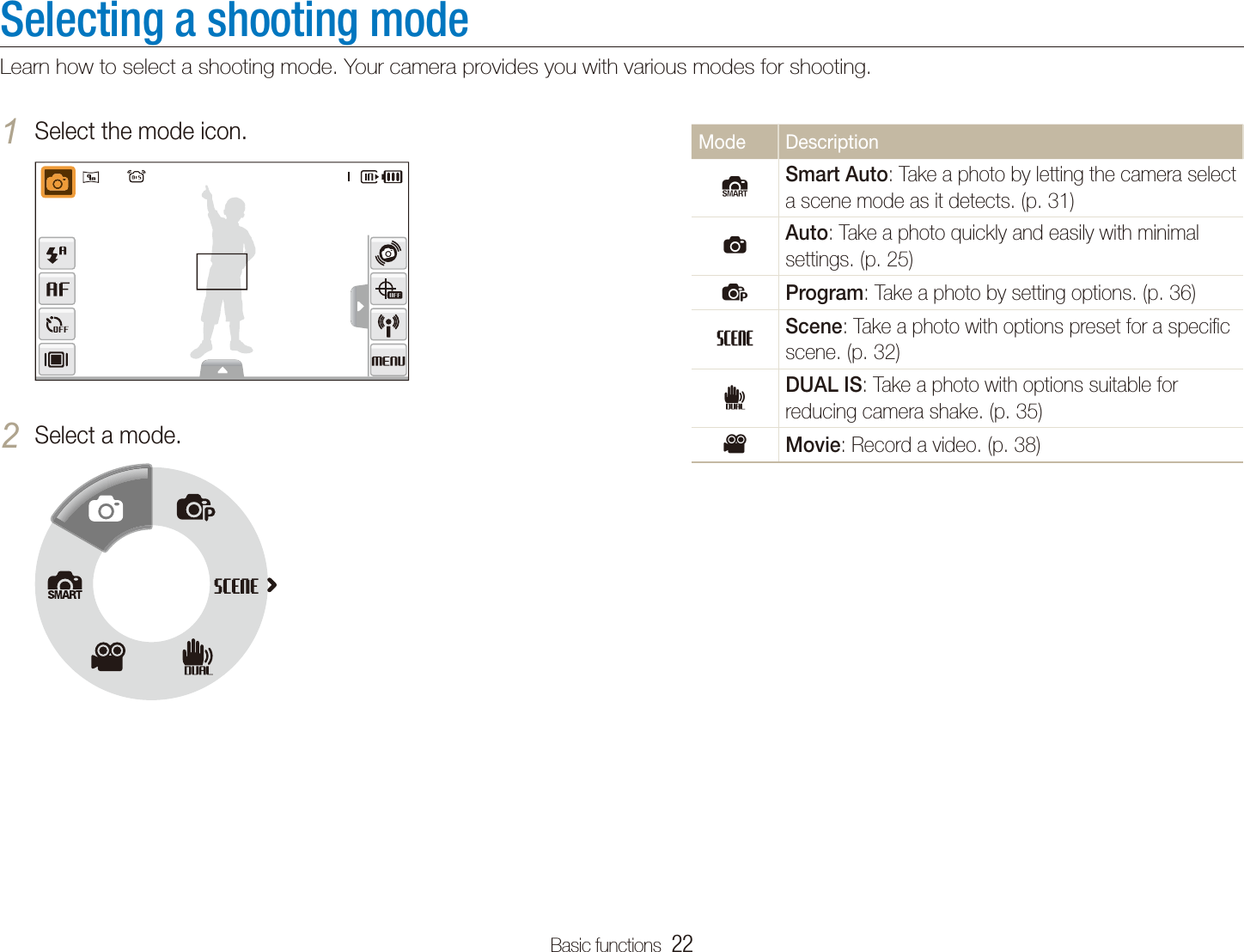
Basic functions  22Selecting a shooting modeLearn how to select a shooting mode. Your camera provides you with various modes for shooting.Mode DescriptionSSmart Auto: Take a photo by letting the camera select a scene mode as it detects. (p. 31)aAuto: Take a photo quickly and easily with minimal settings. (p. 25)pProgram: Take a photo by setting options. (p. 36)sScene: Take a photo with options preset for a specific scene. (p. 32)dDUAL IS: Take a photo with options suitable for reducing camera shake. (p. 35)vMovie: Record a video. (p. 38)Select the mode icon.1 Select a mode.2
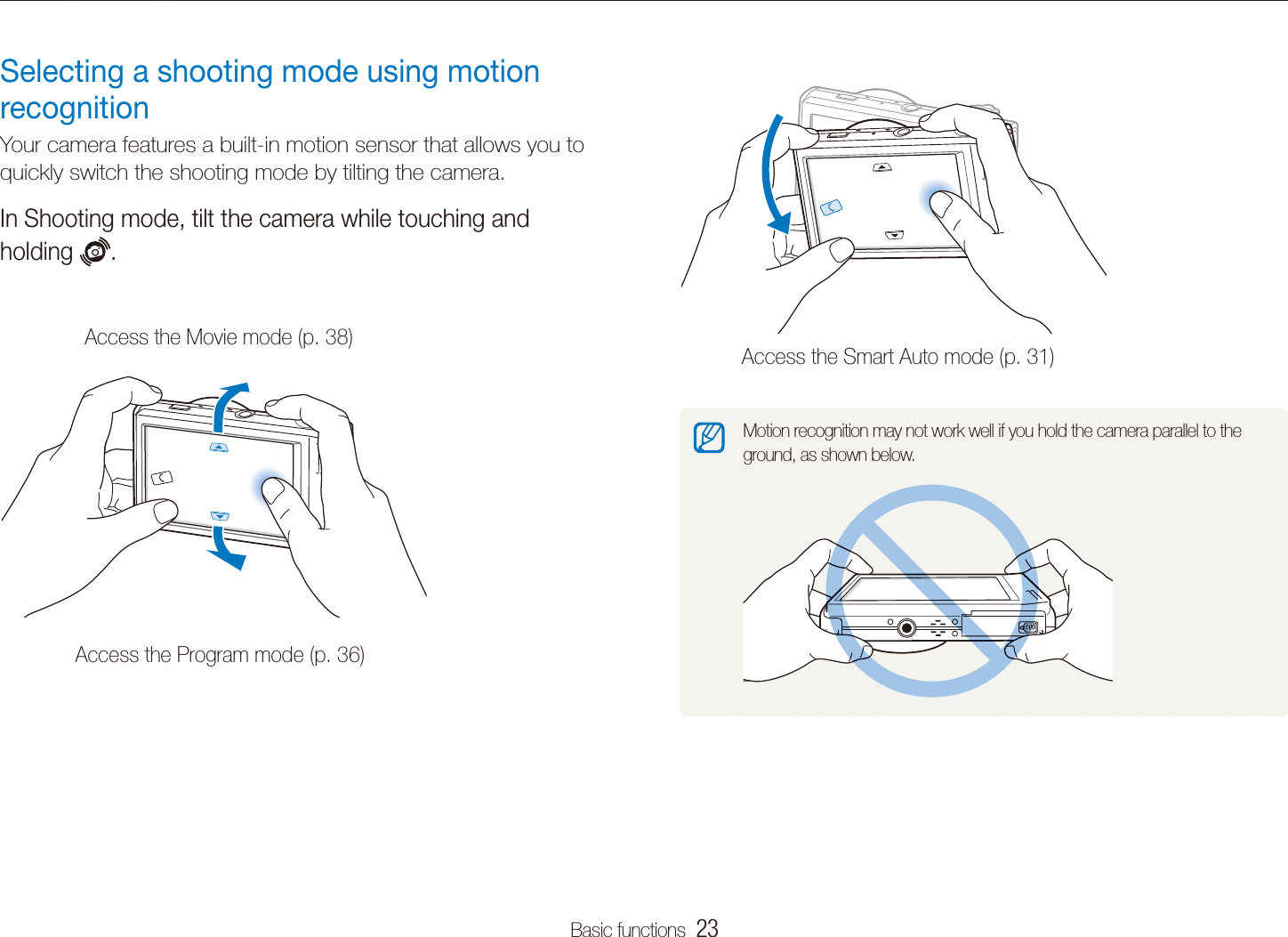
Basic functions  23Selecting a shooting modeAccess the Smart Auto mode (p. 31)Motion recognition may not work well if you hold the camera parallel to the ground, as shown below.Selecting a shooting mode using motion recognitionYour camera features a built-in motion sensor that allows you to quickly switch the shooting mode by tilting the camera. In Shooting mode, tilt the camera while touching and holding  .Access the Movie mode (p. 38)Access the Program mode (p. 36)
Basic functions  24Setting the touch screen and soundLearn how to change the basic settings for the touch screen and sound according to your preferences.Setting the soundSet whether your camera emits a specified sound when you operate your camera.In Shooting or Playback mode, select 1 M.Select 2   Beep Sound.Select an option.3 Option DescriptionOff The camera does not emit any sounds.On The camera emits sounds.Select 4  to return to the previous mode.Setting the display type for the touch screenIn Shooting mode, select 1 .  (In Playback mode, select  .)Select an option.2 FullOption DescriptionFull: Display the name of an option when you select an icon.Basic: Display icons without the name of an option. This option is available only in Playback mode.Hide: Hide icons on the screen if you perform no operations for 3 seconds (touch the screen to display icons again).Guide Line: Display grid lines. The grid lines are helpful for getting the photo aligned with a surface, such as the horizon or the edges of buildings. This option is available only in Shooting mode.
Basic functions  25Taking photosLearn basic actions to take photos easily and quickly in the Auto mode.Make sure that the camera is in the 1 a mode (Auto), the camera’s default shooting mode. If not, select the mode icon t a.Align your subject in the frame.2 Half-press [3 Shutter] to focus.A green frame means the subject in focus.tPress [4 Shutter] to take a photo.See page 28 for tips to get clearer photos.
Basic functions  26Taking photosZoomingYou can shoot close-up photos by adjusting the zoom. Your camera has a 5X optical zoom and 5X digital zoom. By using both, you can zoom in up to 25 times. Push [Zoom] right to zoom in on your subject. Push [Zoom] left to zoom out.Zoom inZoom outZoom ratioThe zoom ratio available for videos differs.  Digital zoom  If the zoom indicator is in the digital range, your camera is using the digital zoom. The picture quality may deteriorate when you use the digital zoom.Optical rangeZoom indicatorDigital rangeThe digital zoom is not available when using tS, d, s (in some scenes), and v modes and when used with Face Detection.It may take longer to save a photo when using the digital zoom.t
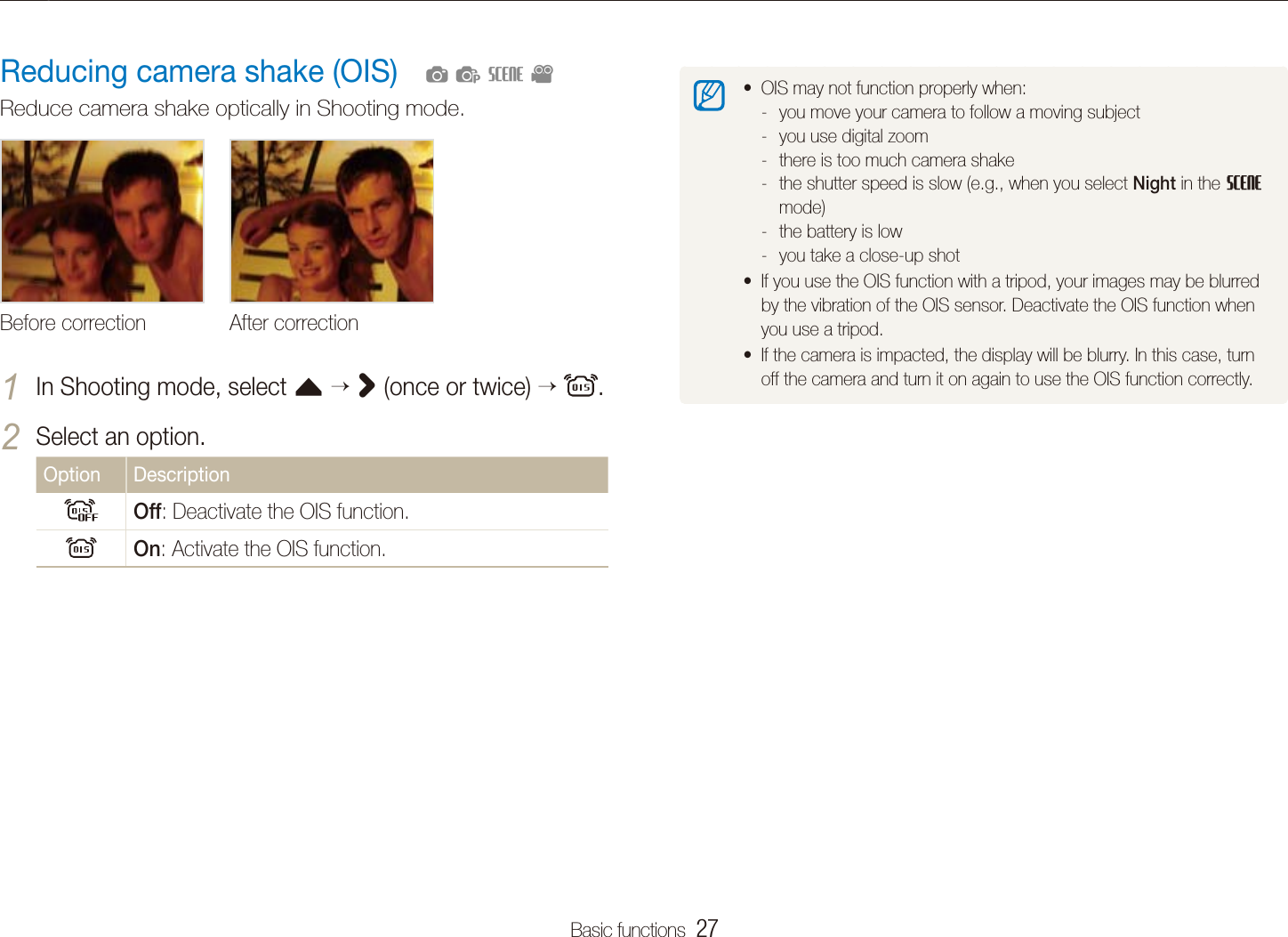
Basic functions  27Taking photosOIS may not function properly when:tyou move your camera to follow a moving subject -you use digital zoom -there is too much camera shake -the shutter speed is slow (e.g., when you select  - Night in the s mode)the battery is low -you take a close-up shot -If you use the OIS function with a tripod, your images may be blurred tby the vibration of the OIS sensor. Deactivate the OIS function when you use a tripod.If the camera is impacted, the display will be blurry. In this case, turn toff the camera and turn it on again to use the OIS function correctly.Reducing camera shake (OIS)Reduce camera shake optically in Shooting mode.Before correction After correctionIn Shooting mode, select 1 f  > (once or twice)   .Select an option.2 Option DescriptionOff: Deactivate the OIS function.On: Activate the OIS function.  apsv
Basic functions  28         Holding your camera correctly  Make sure nothing is blocking the lens.         Half-pressing the shutter button  Half-press [Shutter] and adjust the focus. Focus and exposure will be adjusted automatically.The aperture value and shutter speed are automatically set.Focus framePress [t Shutter] to take the photo if displayed in green.Change the frame and thalf-press [Shutter] again if displayed in red.         Reducing camera shake  Set the Optical Image Stabilisation option to treduce camera shake optically. (p. 27)Select the td mode to reduce camera shake both optically and digitally. (p. 35)         When h is displayed  Camera shakeWhen shooting in the dark, avoid setting the flash option to Slow Sync or Off. The aperture remains open longer and it may be harder to hold the camera still.Use a tripod or set the flash option to t Fill in. (p. 46)Set ISO speed options. (p. t 47)Tips for getting a clearer photo
Basic functions  29        Preventing your subject from being out of focus  It may be difficult to get your subject in focus when: there is little contrast between the subject and background  -(When your subject is wearing a colour of clothing that is similar to the background)the light source behind the subject is too bright -the subject is shiny -the subject includes horizontal patterns, such as blinds -the subject is not positioned in the centre of the frame -Use the focus lockHalf-press [Shutter] to focus. When the subject is in focus, you can reposition the frame to change the composition. When you are ready, press [Shutter] to take your photo.When you take photos in low lighttTurn on the flash. (p. 46)When subjects are moving fasttUse the continuous or motion capture function. (p. 61)
Shooting modes  ……………………………………………  31Using the Smart Auto mode   ………………………………  31Using the Scene mode ………………………………………  32Using the Beauty Shot mode   ………………………………  33Using the frame guide   ………………………………………  34Adjusting the exposure in the Night mode  …………………  34Using the DUAL IS mode  ……………………………………  35Using the Program mode  ……………………………………  36Taking photos with location information  ……………………  36Recording a video  ……………………………………………  38Recording voice memos  …………………………………  40Recording a voice memo  ……………………………………  40Adding a voice memo to a photo   …………………………  40Extended functionsLearn how to take a photo by selecting a mode and how to record a video or voice memo.
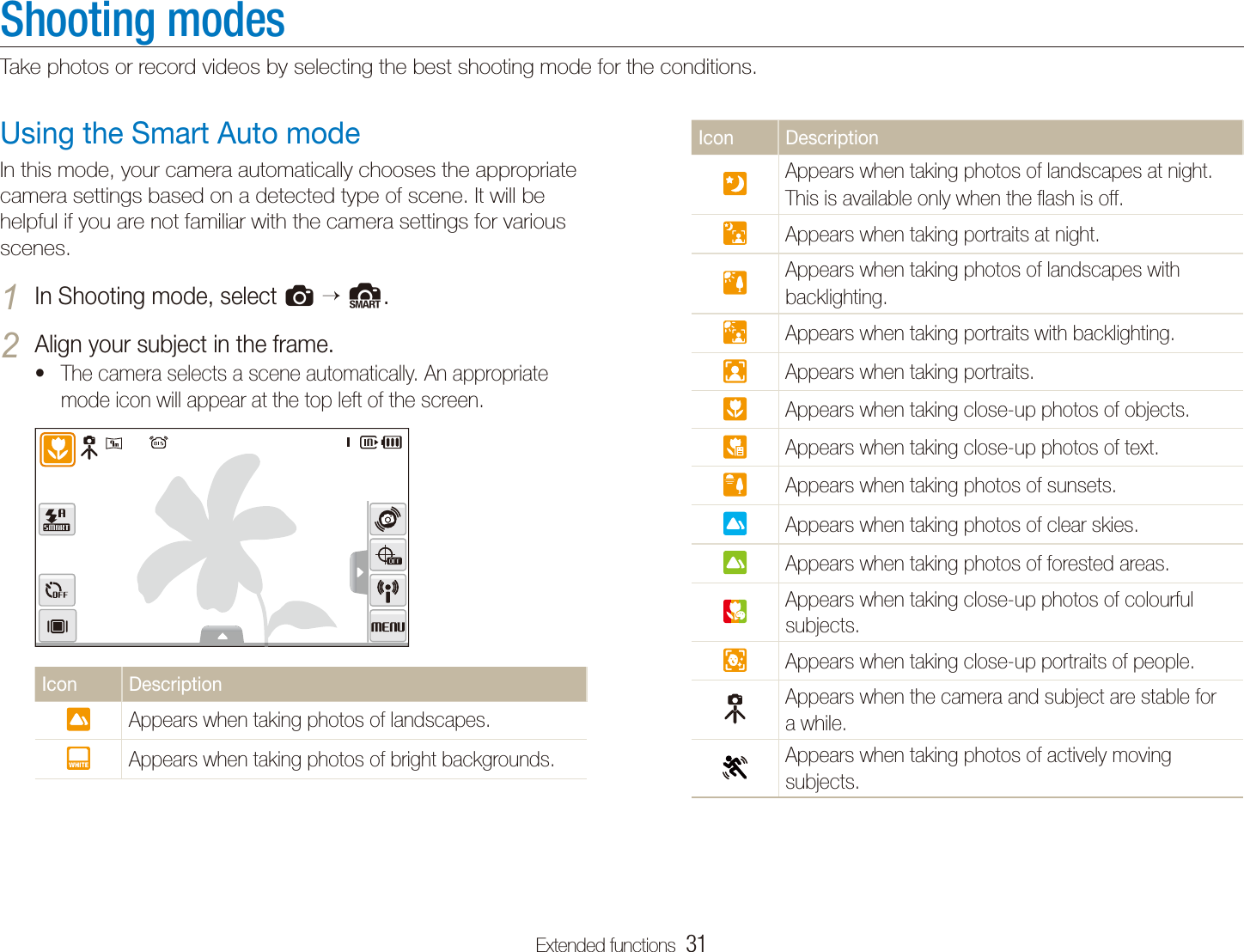
Extended functions  31Shooting modesTake photos or record videos by selecting the best shooting mode for the conditions.Icon DescriptionAppears when taking photos of landscapes at night. This is available only when the flash is off.Appears when taking portraits at night.Appears when taking photos of landscapes with backlighting.Appears when taking portraits with backlighting.Appears when taking portraits.Appears when taking close-up photos of objects.Appears when taking close-up photos of text.Appears when taking photos of sunsets.Appears when taking photos of clear skies.Appears when taking photos of forested areas.Appears when taking close-up photos of colourful subjects.Appears when taking close-up portraits of people.Appears when the camera and subject are stable for a while.Appears when taking photos of actively moving subjects.Using the Smart Auto modeIn this mode, your camera automatically chooses the appropriate camera settings based on a detected type of scene. It will be helpful if you are not familiar with the camera settings for various scenes.In Shooting mode, select 1 a  S.Align your subject in the frame.2 The camera selects a scene automatically. An appropriate tmode icon will appear at the top left of the screen.Icon DescriptionAppears when taking photos of landscapes.Appears when taking photos of bright backgrounds.
Extended functions  32Shooting modesSelect a scene.2 SceneThis mode allows you to choose an appropriate scene for a variety of situations.For the t Beauty Shot mode, see “Using the Beauty Shot mode” on page 33.For the t Frame Guide mode, see “Using the frame guide” on page 34.For the t Night mode, see “Adjusting the exposure in the Night mode” on page 34.Align your subject in the frame and half-press [3 Shutter] to focus.Press [4 Shutter] to take the photo.Half-press [3 Shutter] to focus.Press [4 Shutter] to take the photo. If the camera does not recognise a proper scene mode, tS will not change and the default settings will be used.Even if there is a face detected, the camera may not select a portrait tmode depending on the subject's position or lighting.The camera may not select the correct scene depending on shooting tenvironments, such as camera shake, lighting and distance to the subject.Even if you use a tripod, the t  mode may not be detected depending on the subject's movement.Using the Scene modeTake a photo with options preset for a specific scene.In Shooting mode, select 1 a s.
Extended functions  33Shooting modesTo hide facial imperfections, select 3 f    an option.Select a higher setting to hide a greater number of timperfections.Level 2Align your subject in the frame and half-press [4 Shutter] to focus.Press [5 Shutter] to take the photo.The focus distance will be set to Auto Macro.Using the Beauty Shot modeTake a photo of a person with options to hide facial imperfections.In Shooting mode, select 1 a  s  .To make the subject's skin tone appear lighter (face 2 only), select f   an option.Select a higher setting to make skin tone appear lighter.tLevel 2
Extended functions  34Shooting modesAdjusting the exposure in the Night modeIn the Night mode, you can catch brief flashes of light as curved streaks by extending the exposure. Use a slow shutter speed to extend the time until the shutter closes. Increase the aperture value to prevent overexposure. In Shooting mode, select 1 a  s   .Select 2 f    Aperture.Aperture Shutter SpeedSelect an option.3 Using the frame guideWhen you want another person to take a photo of you, you can compose the scene with the frame guide feature. The frame guide will help the other person take a photo of you by showing the part of the pre-composed scene.In Shooting mode, select 1 a  s   .Align your subject in the frame and press [2 Shutter].Transparent guides will appear on the left and right of the tframe.Cancel Frame: BackAsk another person to take a photo.3 The person must align the subject in the frame by using the tguides, and then press [Shutter] to take the photo.To cancel the guides, select 4 .
Extended functions  35Shooting modesUsing the DUAL IS modeReduce camera shake and prevent blurred photos with Optical and Digital Image Stabilisation functions. Before correction After correctionIn Shooting mode, select 1 a d.Align your subject in the frame and half-press [2 Shutter] to focus.Press [3 Shutter] to take the photo.The digital zoom will not work in this mode.tThe camera will correct photos optically only when you take them with ta light source that is brighter than fluorescent light.If your subject is moving rapidly, the photo may be blurry.tSet the Optical Image Stabilisation option to reduce camera shake in tdifferent shooting modes. (p. 27)Select 4 f    Shutter Speed.1.0 2.0 4.0 8.0 16.0Shutter SpeedApertureSelect a value to adjust the shutter speed and select 5 .Align your subject in the frame and half-press [6 Shutter] to focus.Press [7 Shutter] to take the photo.Use a tripod to prevent your photos from blurring.
Extended functions  36Shooting modesTaking photos with location  informationLearn to take photos with location information using the Global Positioning System (GPS). The internal GPS antenna will receive signals from GPS satellites. When location information is recorded in the photo properties, you can later view where the photo was taken and upload it to websites that support map services.In Shooting mode, select 1 .Select 2 GPS Mode  On.Customise the GPS settings.3 Option DescriptionGPS Valid Time SettingsSet the time to use the last location information when the camera fails to receive GPS signals. (If the camera fails to receive GPS signals after the specified time, the location information will not be recorded onto the photos.)Location Display Set to display the location information on the top right screen of Shooting mode. (The location information will appear in English regardless of the display language.)GPS Reset Set to search for GPS satellites around the current position.  SapsdUsing the Program modeSet various options (except for shutter speed and aperture value) in the Program mode.In Shooting mode, select 1 a  p.Set options. (For a list of options, refer to “2 Shooting options.”)Align your subject in the frame and half-press [3 Shutter] to focus.Press [4 Shutter] to take the photo.
Extended functions  37Shooting modesIn Shooting mode, the colour of   indicates the GPS signal status.Colour Description (Green) The camera is receiving GPS signals. (Red) The camera is not receiving GPS signals. (Yellow) The camera has not received GPS signals and the GPS valid time has not expired. (Gray) The GPS feature is deactivated.Select 4 .The location information appears.LondonAlign your subject in the frame and half-press [5 Shutter] to focus.Press [6 Shutter] to take the photo.A photo with the location information will be taken.tWhile viewing files as thumbnails, you can see which files tinclude location information. (p. 69)29 617202009. 7. 1You can also view the location information for a file with  tIntelli-studio.
Extended functions  38Shooting modesRecording a videoRecord videos of up to 20 minutes in length in high definition. The recorded video is saved as an H.264 (MPEG-4.AVC) file.  H.264 (MPEG-4 part10/AVC) is a high-compression video format testablished by international standard organisations ISO/IEC and ITU-T.When the Optical Image Stabilisation (t ) is activated, your video may be recorded with the OIS operation sound.In Shooting mode, select 1 a  v.Select 2 f    a frame rate (the number of frames per second).As the number of frames increases, action appears more tnatural, but the file size is increased.30 FPS is available only when the video resolution is 320 X 240.The location information will be recorded for photos taken using tContinuous or AEB.The location information will not be recorded for photos taken after the tvalid time has expired while you are taking photos using Continuous or AEB.The location information will not be recorded for photos taken using tMotion Capture.It may take some time to receive GPS signals depending on GPS tsatellites.It may be difficult to receive GPS signals in the following conditions: tBetween buildings -In lowlands -Near reflectors, such as mirrors -In bad weather conditions -Take photos outdoors to get GPS signals better.tThe recorded location information may have an error depending on tthe positioning environment.The recorded location information may differ somewhat from the local tdesignation, as place names are subject to change.The time obtained the location information will not be recorded onto tphotos.Location information cannot be recorded onto movies.tThe camera uses the World Geodetic System of 1984 (WGS 84).tThe camera receives will receive GPS signals but may not display and trecord location information, due to environmental factors.The camera may consume more battery power when the GPS feature tis active.73 nations support the GPS feature including Canada, China, France, tGermany, Great Britain, India, Italy, South Korea, Spain, and the United States. In China, you can receive GPS signals only for cameras purchased in China.
Extended functions  39Shooting modes  To pause recording  The camera allows you to pause temporarily while recording a video. With this function, you can record your favourite scenes as a single video.Select  to pause while recording. Select   to resume.Stop: ShutterSelect 3 f  >   a sound option.Option DescriptionOff: Record a video without sound.On: Record a video with sound.Set other options as desired. (For options, refer to 4 “Shooting options.”)Press [5 Shutter] to start recording.Press [6 Shutter] again to stop recording.
Extended functions  40Recording voice memosLearn how to record a voice memo that you can play back at any time. You can add a voice memo to a photo as a short reminder of shooting conditions. You will get the best sound quality when recording 40 cm away from the camera.  apsdAdding a voice memo to a photoIn Shooting mode, select 1 f  >      .MemoAlign your subject in the frame and take a photo.2 You will begin recording a voice memo right after taking the tphoto.Record a short voice memo (10 seconds maximum).3 Press [t Shutter] to stop recording a voice memo.Recording a voice memoIn Shooting mode, select 1 f  >      .RecordPress [2 Shutter] to record.Select t  to pause and   to resume.The available recording time will be displayed on the top of tthe screen.You can record voice memos of up to 10 hours in length.tPress [3 Shutter] to stop.Select 4  to switch to Shooting mode.
Selecting a resolution and quality  …………  42Selecting a resolution   …………………………  42Selecting image quality …………………………  43Using the timer   ………………………………  44Shooting in the dark  …………………………  46Preventing red-eye   ……………………………  46Using the flash   …………………………………  46Adjusting the ISO speed   ………………………  47Changing the camera’s focus  ………………  48Using macro  ……………………………………  48Using auto focus   ………………………………  48Using smart touch focus  ………………………  49Using one touch shooting   ……………………  50Adjusting the focus area   ………………………  50Using face detection  …………………………  51Detecting faces  …………………………………  51Taking a self portrait shot  ………………………  52Taking a smile shot   ……………………………  52Detecting eye blinking   …………………………  53Using smart face recognition   …………………  53Registering faces as your favourites  (My Star)   ………………………………………  54Adjusting brightness and colour   …………  56Adjusting the exposure manually (EV)  …………  56Compensating for backlighting (ACB)  …………  57Changing the metering option  …………………  58Selecting a light source (White balance)  ………  59Using burst modes   …………………………  61Improving your photos  ………………………  62Applying photo styles   …………………………  62Defining your own RGB tone   …………………  62Adjusting your photos   …………………………  63Shooting optionsLearn about the options you can set in Shooting mode.
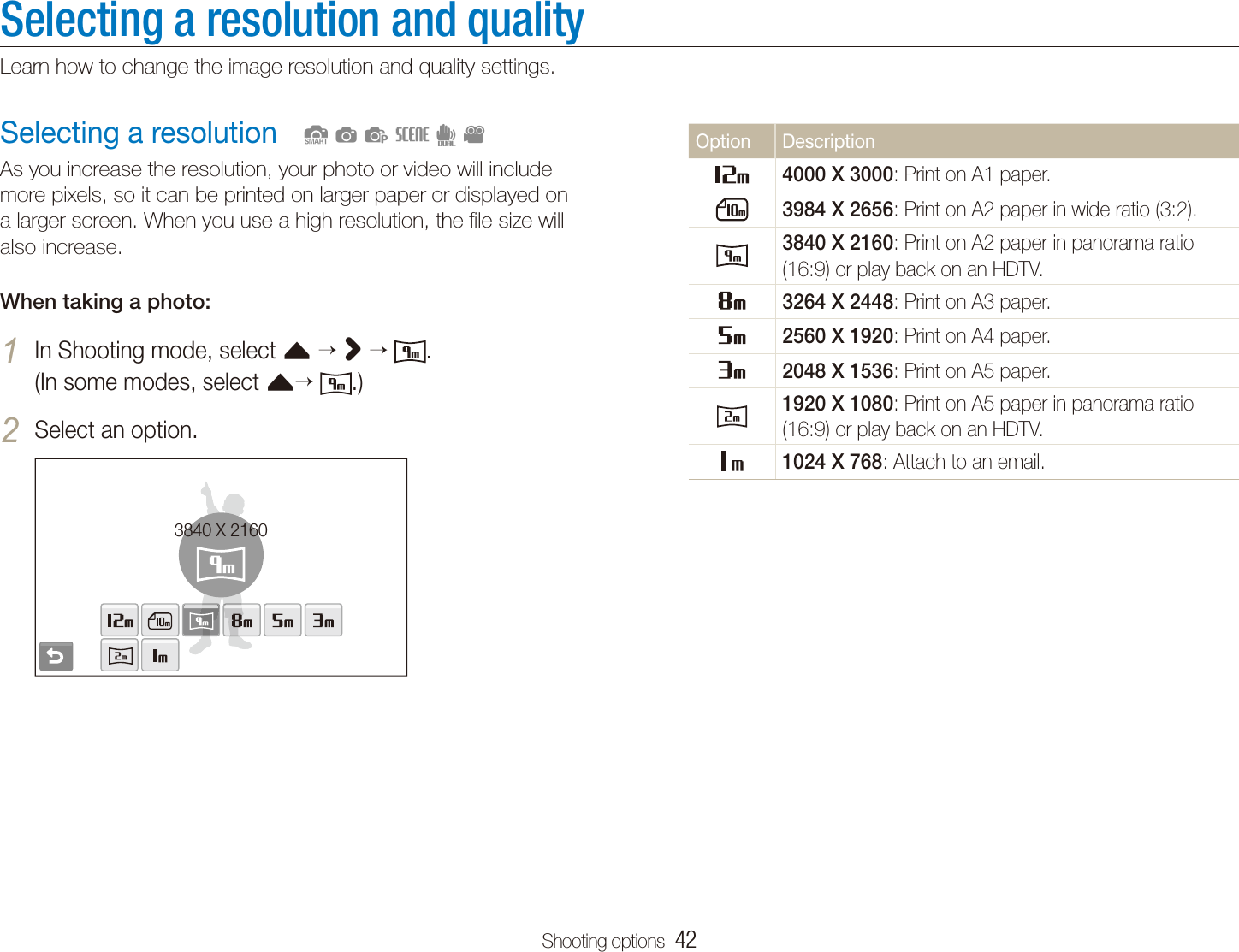
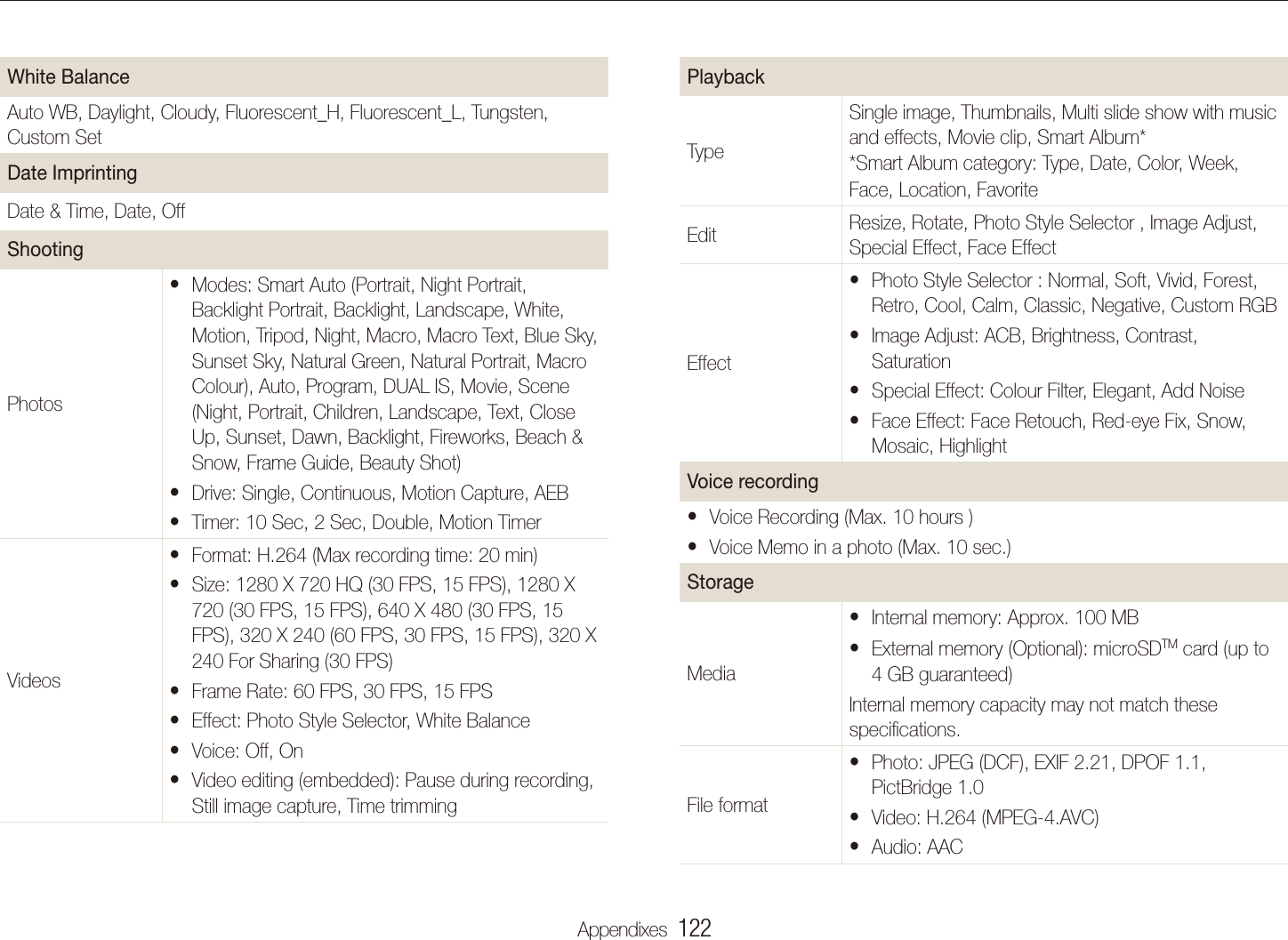
Shooting options  42Selecting a resolution and qualityLearn how to change the image resolution and quality settings.Option Description4000 X 3000: Print on A1 paper.3984 X 2656: Print on A2 paper in wide ratio (3:2).3840 X 2160: Print on A2 paper in panorama ratio (16:9) or play back on an HDTV.3264 X 2448: Print on A3 paper.2560 X 1920: Print on A4 paper.2048 X 1536: Print on A5 paper.1920 X 1080: Print on A5 paper in panorama ratio (16:9) or play back on an HDTV.1024 X 768: Attach to an email.Selecting a resolutionAs you increase the resolution, your photo or video will include more pixels, so it can be printed on larger paper or displayed on a larger screen. When you use a high resolution, the file size will also increase.When taking a photo:In Shooting mode, select 1 f >   .  (In some modes, select f .)Select an option.2 3840 X 2160  Sapsdv
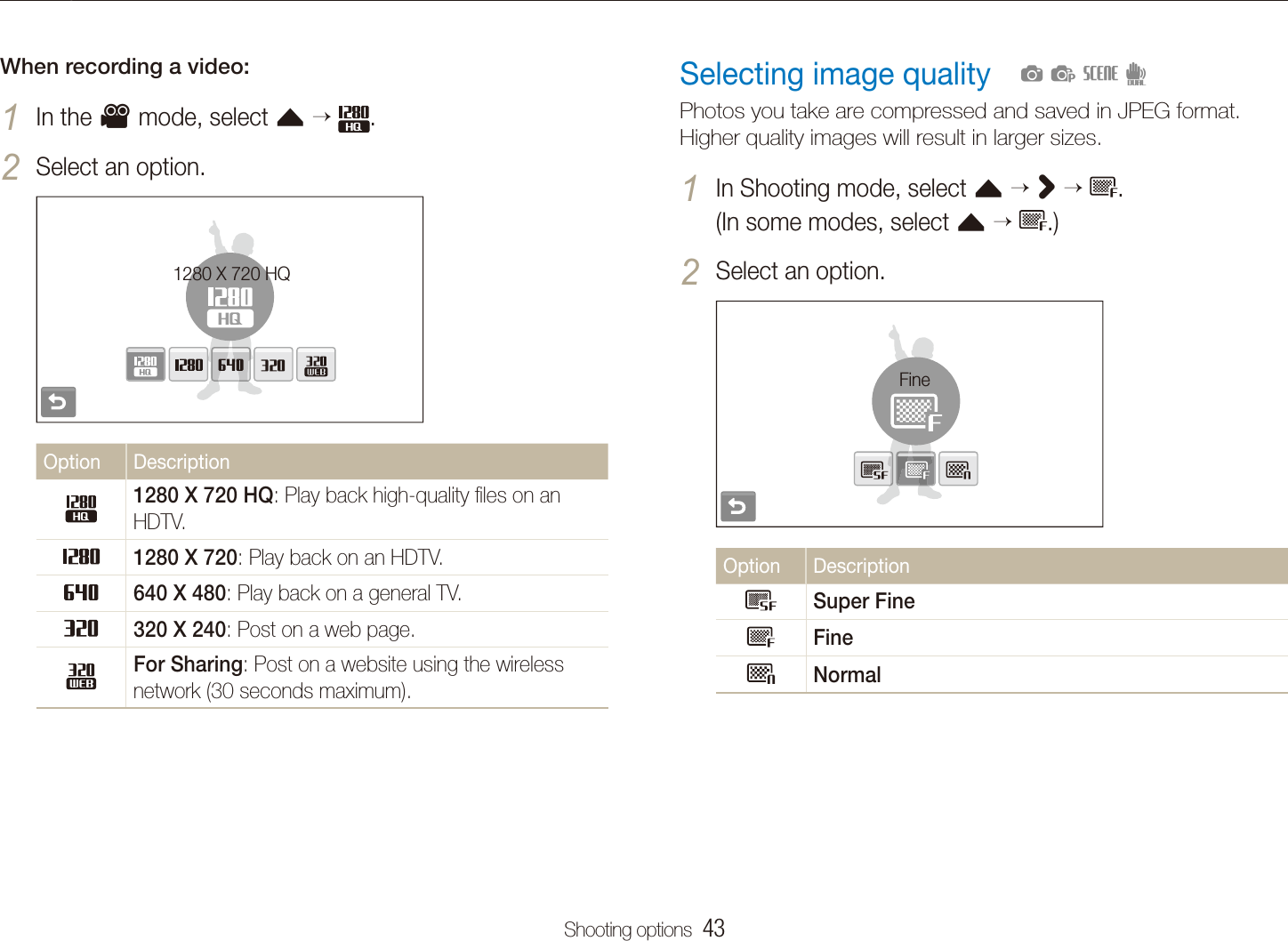
Shooting options  43Selecting a resolution and qualityWhen recording a video:In the 1 v mode, select f  .Select an option.2 1280 X 720 HQOption Description1280 X 720 HQ: Play back high-quality files on an HDTV.1280 X 720: Play back on an HDTV.640 X 480: Play back on a general TV.320 X 240: Post on a web page.For Sharing: Post on a website using the wireless network (30 seconds maximum).Selecting image qualityPhotos you take are compressed and saved in JPEG format. Higher quality images will result in larger sizes.In Shooting mode, select 1 f  >   .  (In some modes, select f   .)Select an option.2 FineOption DescriptionSuper FineFineNormal  apsd
Shooting options  44Using the timerLearn how to set the timer to delay shooting.  SapsdvPress [3 Shutter] to start the timer. The AF-assist light/timer lamp blinks. The camera will tautomatically take a photo at the specified time.Select the timer icon or press [t Shutter] to cancel the timer.Depending on the selected face defection option, the timer is not tavailable or some timer options are not available.In Shooting mode, select 1 .Select an option. 2 OffOption DescriptionOff: The timer is not active.10 Sec: Take a photo in 10 seconds.2 Sec: Take a photo in 2 seconds.Double: Take a photo in 10 seconds and take another in 2 seconds.Motion Timer: Detect your movement and then take a photo. (p. 45)The options may differ depending on the shooting mode.
Shooting options  45Using the timerPose for your photo while the AF-assist light/timer lamp 5 is blinking.The AF-assist light/timer lamp will stop blinking just before the tcamera automatically takes a photo.The motion timer may not work when:you are more than 3 m away from the cameratyour movements are too subtletthere is too much light or backlightt  Using the motion timer  In Shooting mode, select 1    .Press [2 Shutter].Stand within 3 m from the camera within 6 seconds after 3 pressing [Shutter].Make a motion, such as waving your arms, to activate 4 the timer.The AF-assist light/timer lamp will start to blink rapidly when tthe camera detects you.The detection range of the motion timer
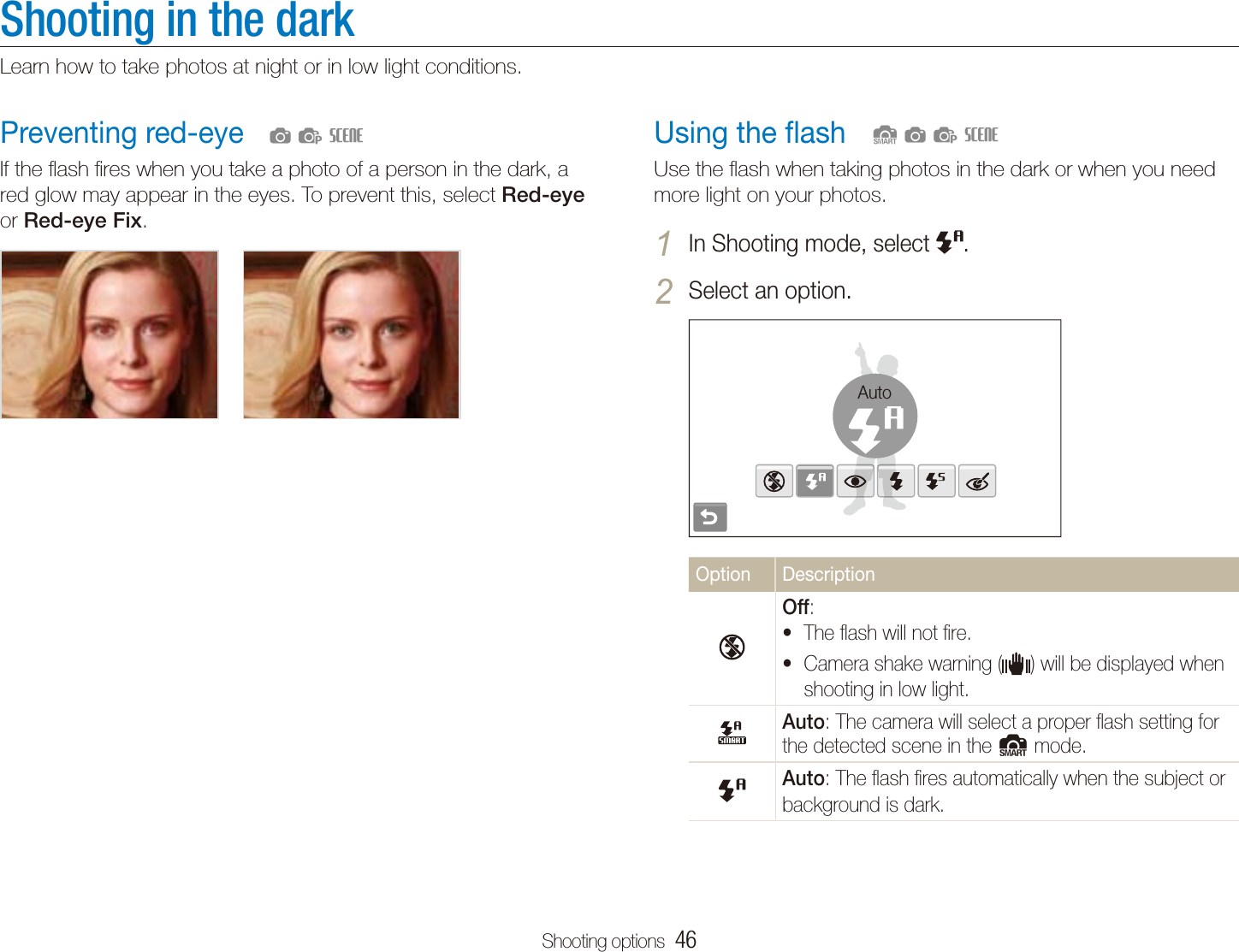
Shooting options  46Shooting in the darkLearn how to take photos at night or in low light conditions.Using the flashUse the flash when taking photos in the dark or when you need more light on your photos.In Shooting mode, select 1 .Select an option.2 AutoOption DescriptionOff:The flash will not fire.tCamera shake warning (t ) will be displayed when shooting in low light.Auto: The camera will select a proper flash setting for the detected scene in the S mode.Auto: The flash fires automatically when the subject or background is dark.  SapsPreventing red-eyeIf the flash fires when you take a photo of a person in the dark, a red glow may appear in the eyes. To prevent this, select Red-eye or Red-eye Fix.   aps
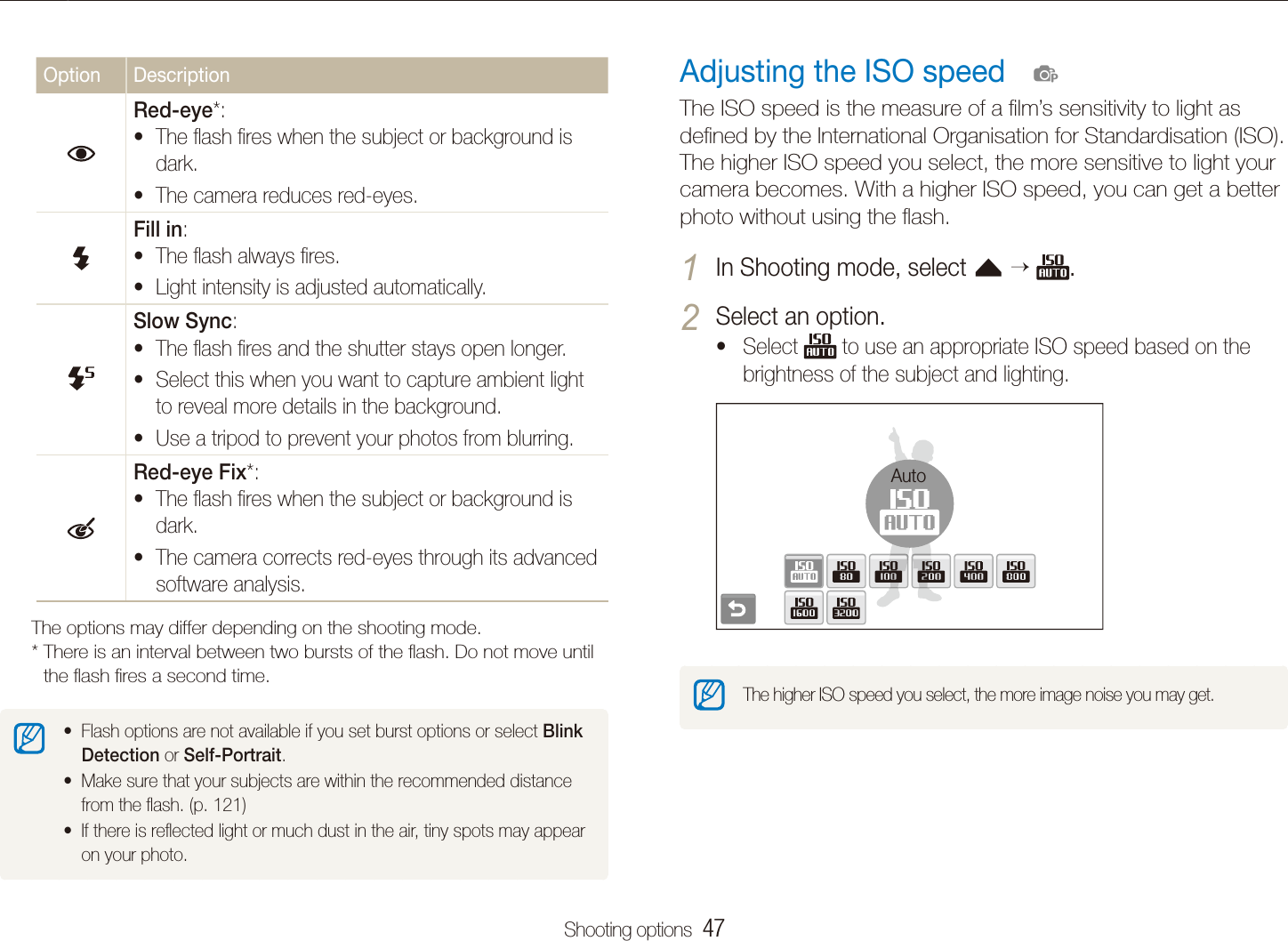
Shooting options  47Shooting in the darkAdjusting the ISO speedThe ISO speed is the measure of a film’s sensitivity to light as defined by the International Organisation for Standardisation (ISO). The higher ISO speed you select, the more sensitive to light your camera becomes. With a higher ISO speed, you can get a better photo without using the flash.In Shooting mode, select 1 f   .Select an option.2 Select t  to use an appropriate ISO speed based on the brightness of the subject and lighting.AutoThe higher ISO speed you select, the more image noise you may get.  pOption DescriptionRed-eye*: The flash fires when the subject or background is tdark.The camera reduces red-eyes.tFill in: The flash always fires.tLight intensity is adjusted automatically.tSlow Sync: The flash fires and the shutter stays open longer.tSelect this when you want to capture ambient light tto reveal more details in the background.Use a tripod to prevent your photos from blurring.tRed-eye Fix*: The flash fires when the subject or background is tdark.The camera corrects red-eyes through its advanced tsoftware analysis.The options may differ depending on the shooting mode.*  There is an interval between two bursts of the flash. Do not move until the flash fires a second time.Flash options are not available if you set burst options or select t Blink Detection or Self-Portrait.Make sure that your subjects are within the recommended distance tfrom the flash. (p. 121)If there is reflected light or much dust in the air, tiny spots may appear ton your photo.
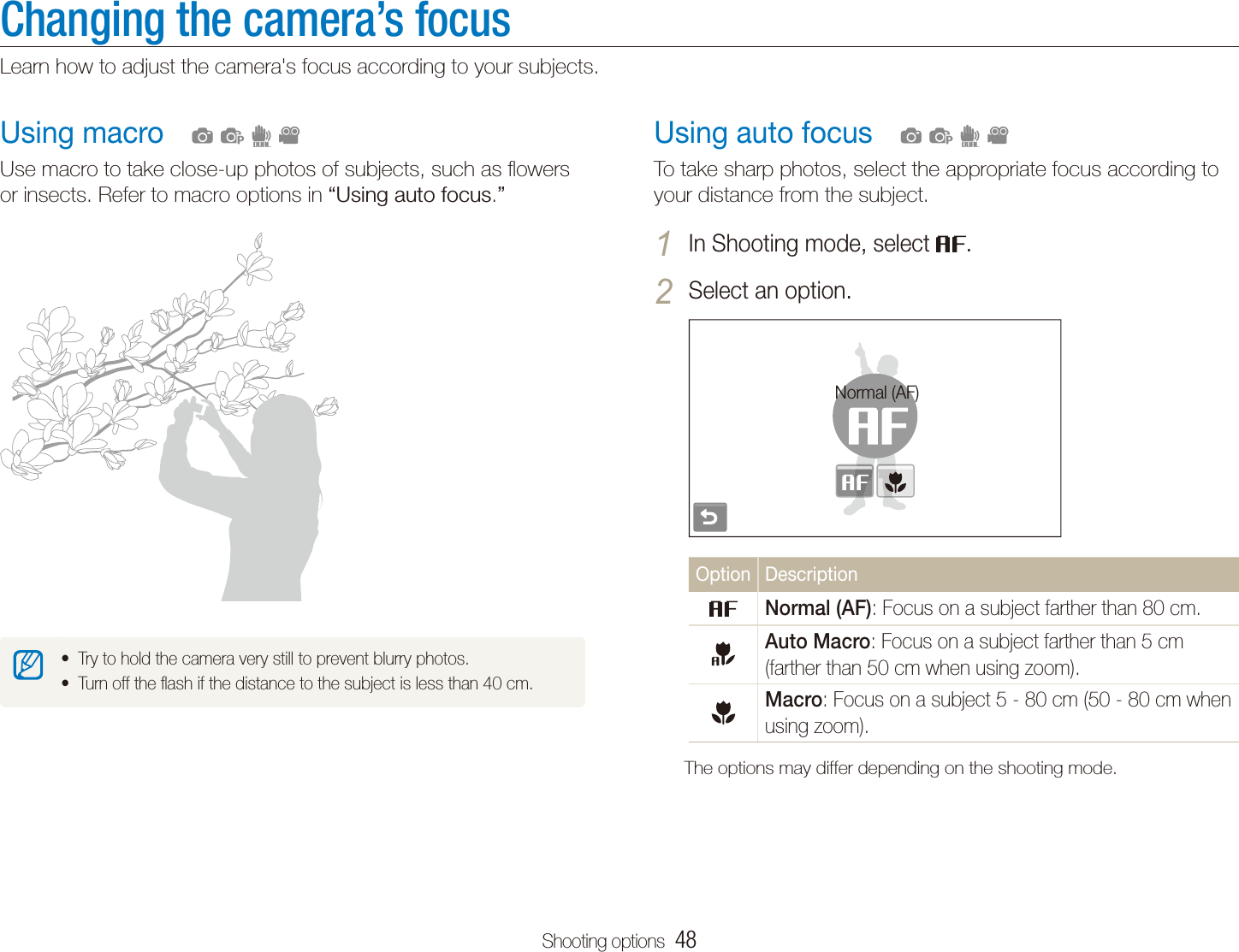
Shooting options  48Changing the camera’s focusLearn how to adjust the camera's focus according to your subjects.Using auto focusTo take sharp photos, select the appropriate focus according to your distance from the subject.In Shooting mode, select 1 .Select an option.2 Normal (AF)Option DescriptionNormal (AF): Focus on a subject farther than 80 cm.Auto Macro: Focus on a subject farther than 5 cm (farther than 50 cm when using zoom).Macro: Focus on a subject 5 - 80 cm (50 - 80 cm when using zoom).The options may differ depending on the shooting mode.  apdvUsing macroUse macro to take close-up photos of subjects, such as flowers or insects. Refer to macro options in “Using auto focus.”Try to hold the camera very still to prevent blurry photos.tTurn off the flash if the distance to the subject is less than 40 cm.t  apdv
Shooting options  49Changing the camera’s focusIf you do not touch any area on the screen, the focus frame will tappear in the centre of the screen.Tracking a subject may fail when:tthe subject is too small or the subject moves -the subject is backlit or you are shooting in a dark place -colours or patterns on the subject and the background are the  -samethe camera shakes excessively -    In these cases, the focus frame will appear as a white single-line frame.If the camera fails to track the subject, you must reselect the subject tto track. If the camera fails to fix the focus, the focus frame will change to a red tsingle-line frame.If you use this function, you cannot set face detection and photo style toptions.Using smart touch focusSmart Touch AF allows you to track and auto focus on your subject, even when you are moving.In Shooting mode, select 1 f      .Touch the subject you want to track in the touch area 2 (indicated by a frame).A focus frame will appear on the subject and will follow the tsubject as you move the camera.The white frame means that your camera is tracking the tsubject.The green frame means that your subject is in focus when you thalf-press [Shutter].  apsd
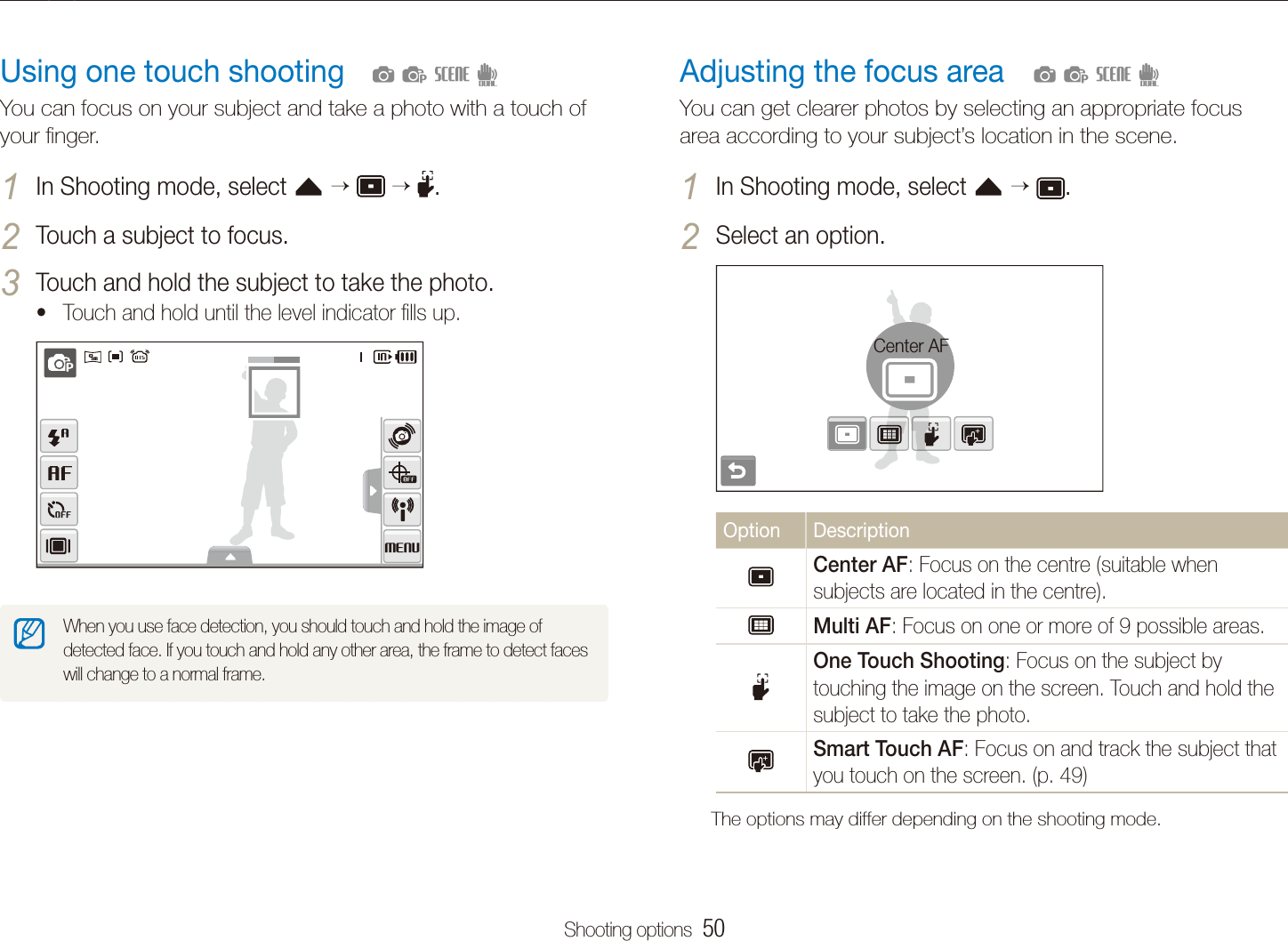
Shooting options  50Changing the camera’s focusAdjusting the focus areaYou can get clearer photos by selecting an appropriate focus area according to your subject’s location in the scene.In Shooting mode, select 1 f   .Select an option.2 Center AFOption DescriptionCenter AF: Focus on the centre (suitable when subjects are located in the centre).Multi AF: Focus on one or more of 9 possible areas.One Touch Shooting: Focus on the subject by touching the image on the screen. Touch and hold the subject to take the photo.Smart Touch AF: Focus on and track the subject that you touch on the screen. (p. 49)The options may differ depending on the shooting mode.  apsdUsing one touch shootingYou can focus on your subject and take a photo with a touch of your finger.In Shooting mode, select 1 f      .Touch a subject to focus.2 Touch and hold the subject to take the photo.3 Touch and hold until the level indicator fills up. tWhen you use face detection, you should touch and hold the image of detected face. If you touch and hold any other area, the frame to detect faces will change to a normal frame.  apsd
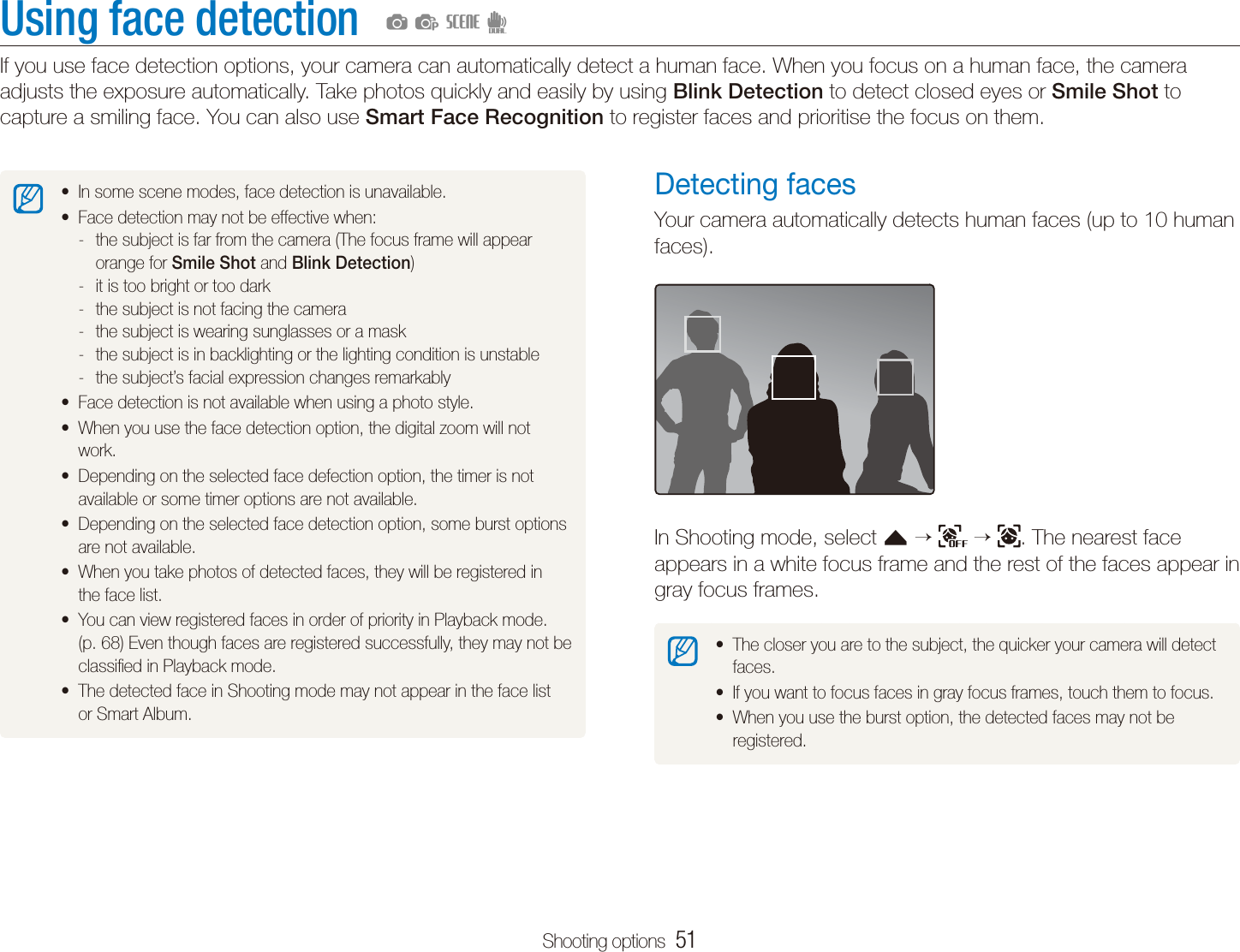
Shooting options  51Using face detectionIf you use face detection options, your camera can automatically detect a human face. When you focus on a human face, the camera adjusts the exposure automatically. Take photos quickly and easily by using Blink Detection to detect closed eyes or Smile Shot to capture a smiling face. You can also use Smart Face Recognition to register faces and prioritise the focus on them.  apsdDetecting facesYour camera automatically detects human faces (up to 10 human faces).In Shooting mode, select f      . The nearest face appears in a white focus frame and the rest of the faces appear in gray focus frames.The closer you are to the subject, the quicker your camera will detect tfaces.If you want to focus faces in gray focus frames, touch them to focus.tWhen you use the burst option, the detected faces may not be tregistered.In some scene modes, face detection is unavailable.tFace detection may not be effective when:tthe subject is far from the camera (The focus frame will appear  -orange for Smile Shot and Blink Detection)it is too bright or too dark -the subject is not facing the camera -the subject is wearing sunglasses or a mask -the subject is in backlighting or the lighting condition is unstable -the subject’s facial expression changes remarkably -Face detection is not available when using a photo style.tWhen you use the face detection option, the digital zoom will not twork.Depending on the selected face defection option, the timer is not tavailable or some timer options are not available.Depending on the selected face detection option, some burst options tare not available.When you take photos of detected faces, they will be registered in tthe face list.You can view registered faces in order of priority in Playback mode.  t(p. 68) Even though faces are registered successfully, they may not be classified in Playback mode.The detected face in Shooting mode may not appear in the face list tor Smart Album.
Shooting options  52Using face detectionTaking a smile shotThe camera automatically releases the shutter when it detects a smiling face. In Shooting mode, select f      . When your subject smiles broadly, your camera can detect the smile more easily.Taking a self portrait shotTake photos of yourself. The focus distance will be set to close-up and your camera will emit a beep.In Shooting mode, select 1 f      .When you hear a quick beep, press [2 Shutter].To turn the beep on or off, select Self-Portrait in the sound settings. (p. 109)
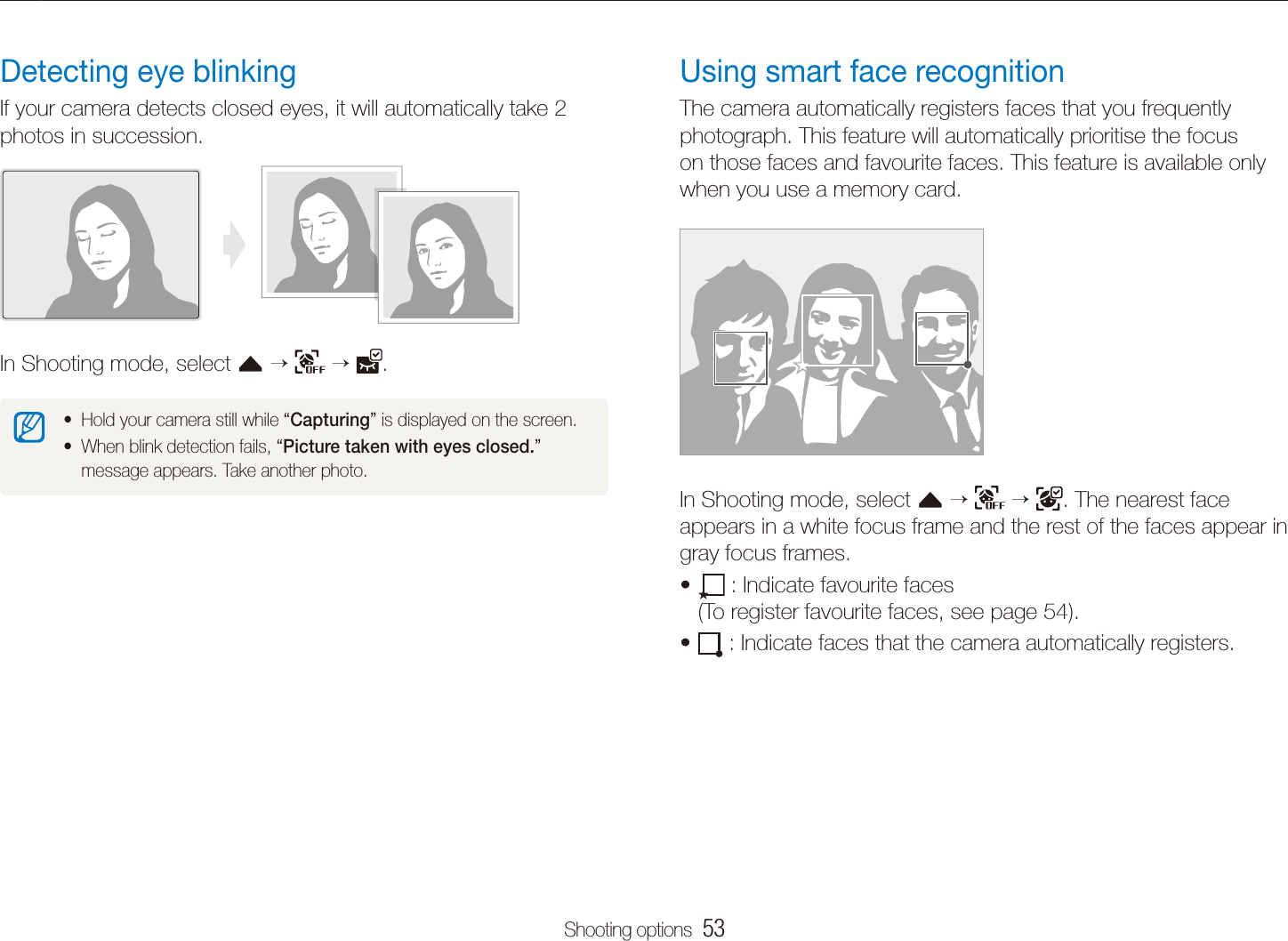
Shooting options  53Using face detectionUsing smart face recognitionThe camera automatically registers faces that you frequently photograph. This feature will automatically prioritise the focus on those faces and favourite faces. This feature is available only when you use a memory card.In Shooting mode, select f      . The nearest face appears in a white focus frame and the rest of the faces appear in gray focus frames.t  : Indicate favourite faces  (To register favourite faces, see page 54).t  : Indicate faces that the camera automatically registers.Detecting eye blinkingIf your camera detects closed eyes, it will automatically take 2 photos in succession.  In Shooting mode, select f      .Hold your camera still while t “Capturing” is displayed on the screen.When blink detection fails, t “Picture taken with eyes closed.” message appears. Take another photo.
Shooting options  54Using face detectionRegistering faces as your favourites (My Star)You can register your favourite faces to prioritise the focus and exposure on those faces. This feature is available only when you use a memory card.In Shooting mode, select 1 f      .Align your subject and press [2 Shutter] to register the face.You can register up to 5 photos for one face. For better trecognition of the face, take photos of the left, right, and front of the subject's face.The camera may recognise and register faces incorrectly depending ton lighting conditions, remarkable changes in the subject's pose or face, and whether or not the subject is wearing glasses. The camera can automatically register up to 14 faces. If the camera trecognises a new face when there are 14 registered faces, it will replace the face in the lowest priority with the new one. The camera can detect up to 10 faces and register 5 faces in one tscene.
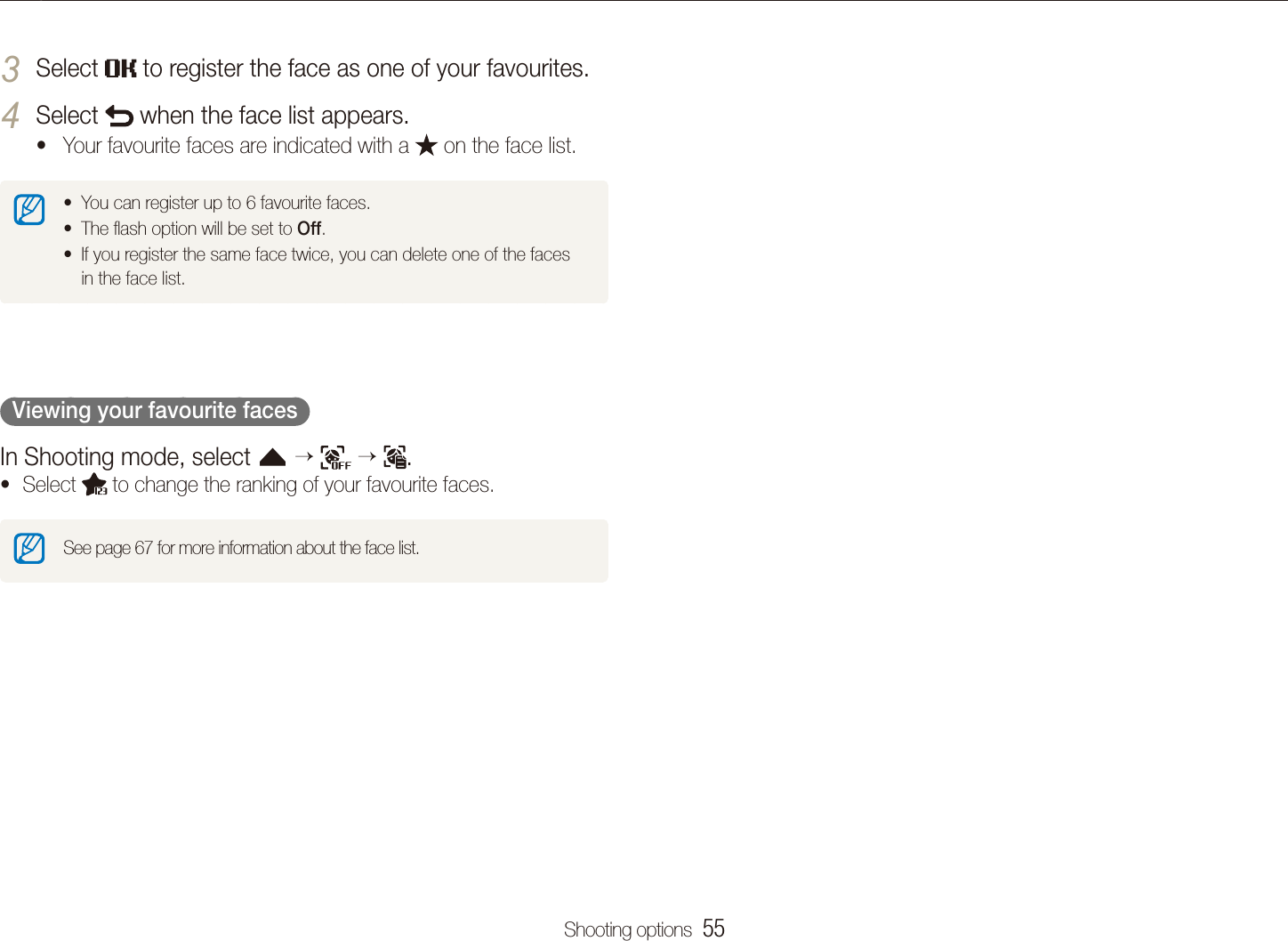
Shooting options  55Using face detectionSelect 3  to register the face as one of your favourites. Select 4  when the face list appears.Your favourite faces are indicated with a t  on the face list.You can register up to 6 favourite faces.tThe flash option will be set to t Off.If you register the same face twice, you can delete one of the faces tin the face list.  Viewing your favourite faces  In Shooting mode, select f      .Select t  to change the ranking of your favourite faces.See page 67 for more information about the face list.
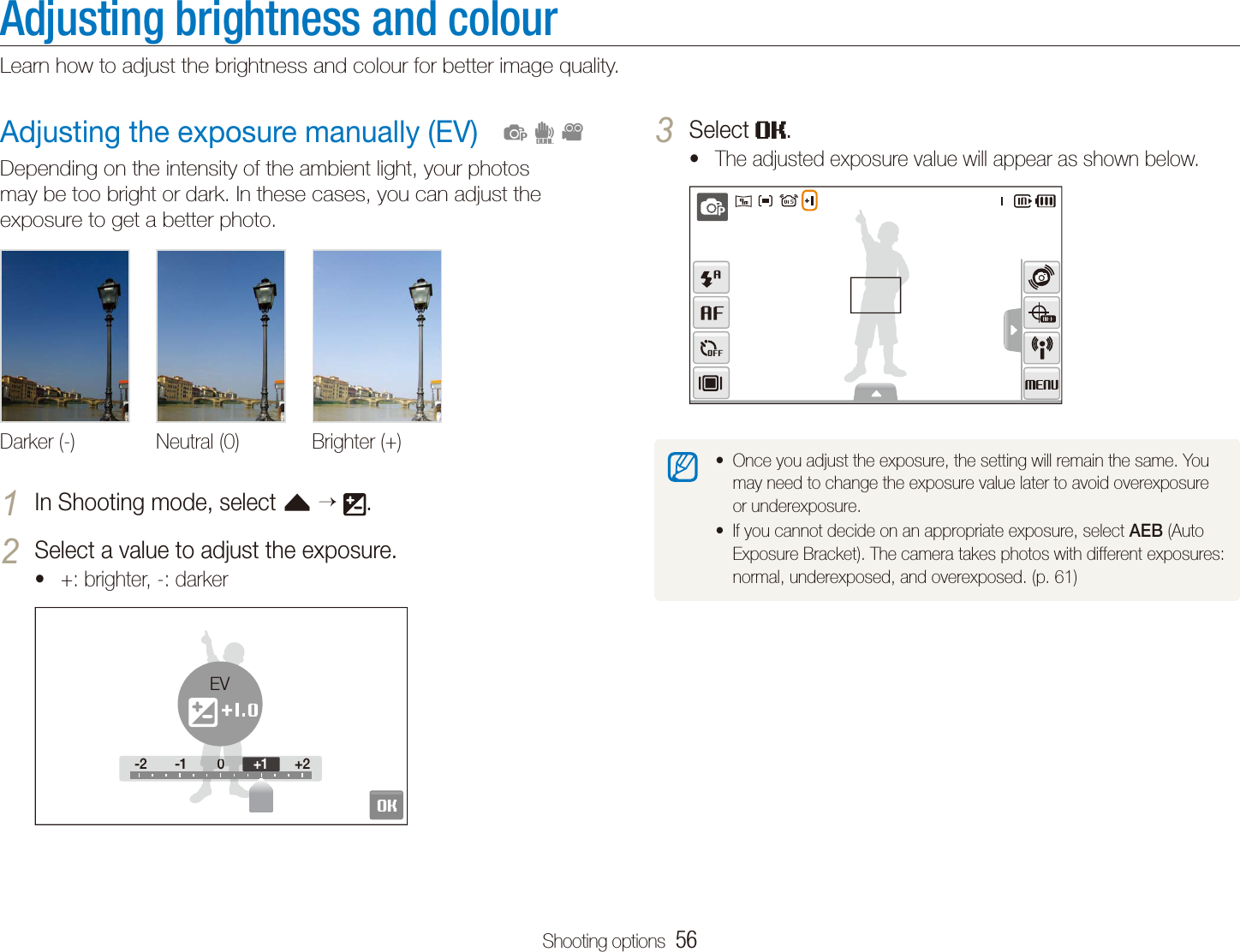
Shooting options  56Adjusting the exposure manually (EV)Depending on the intensity of the ambient light, your photos may be too bright or dark. In these cases, you can adjust the exposure to get a better photo.Darker (-) Neutral (0) Brighter (+)In Shooting mode, select 1 f   .Select a value to adjust the exposure.2 +: brighter, -: darkert-2 -1 0 +2-2 -100+2+1EV  pdvAdjusting brightness and colourLearn how to adjust the brightness and colour for better image quality.Select 3 .The adjusted exposure value will appear as shown below.tOnce you adjust the exposure, the setting will remain the same. You tmay need to change the exposure value later to avoid overexposure or underexposure. If you cannot decide on an appropriate exposure, select t AEB (Auto Exposure Bracket). The camera takes photos with different exposures: normal, underexposed, and overexposed. (p. 61)
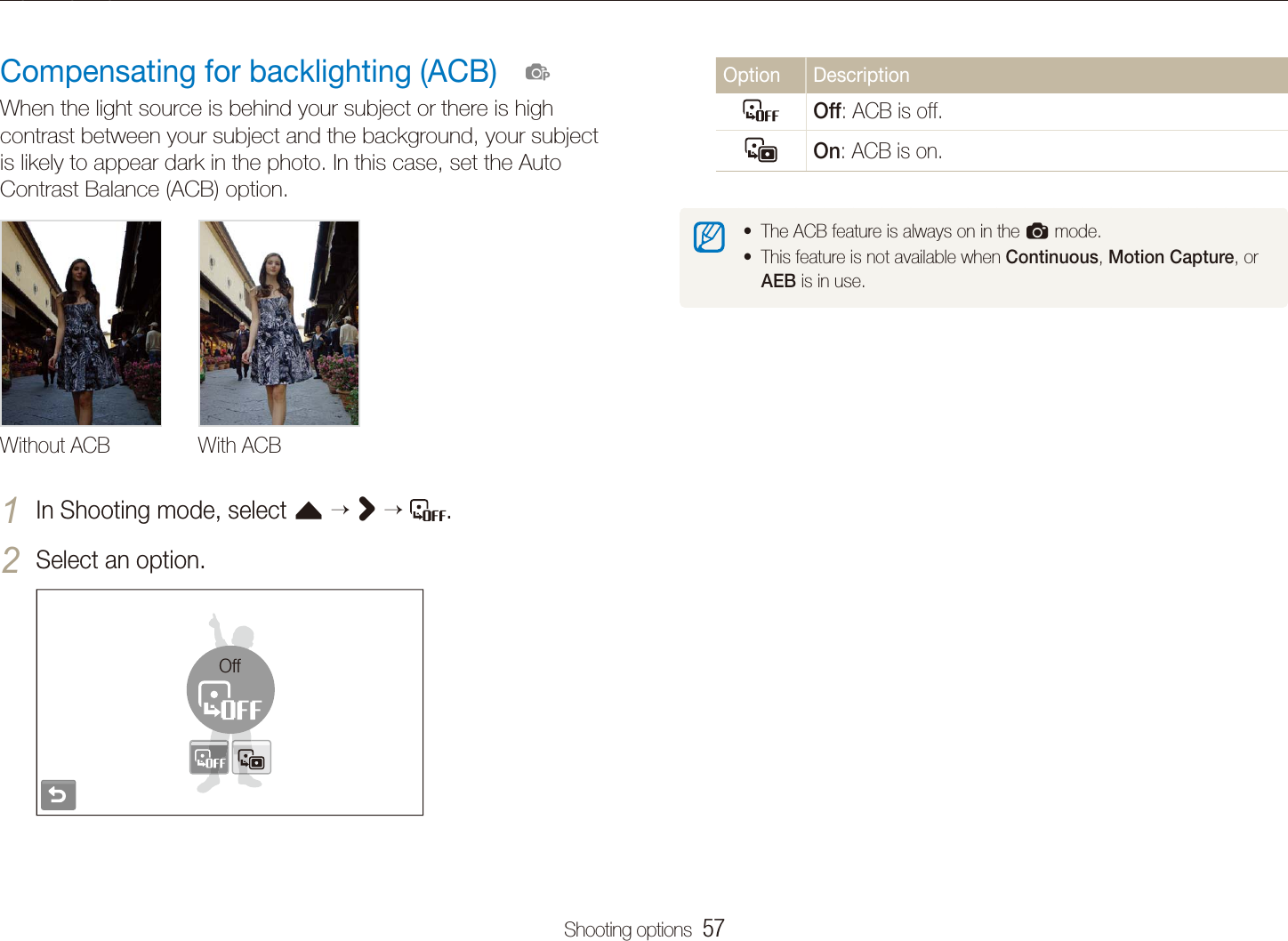
Shooting options  57Adjusting brightness and colourOption DescriptionOff: ACB is off.On: ACB is on.The ACB feature is always on in the ta mode.This feature is not available when t Continuous, Motion Capture, or AEB is in use.Compensating for backlighting (ACB)When the light source is behind your subject or there is high contrast between your subject and the background, your subject is likely to appear dark in the photo. In this case, set the Auto Contrast Balance (ACB) option.Without ACB With ACBIn Shooting mode, select 1 f >  .Select an option.2 Off  p
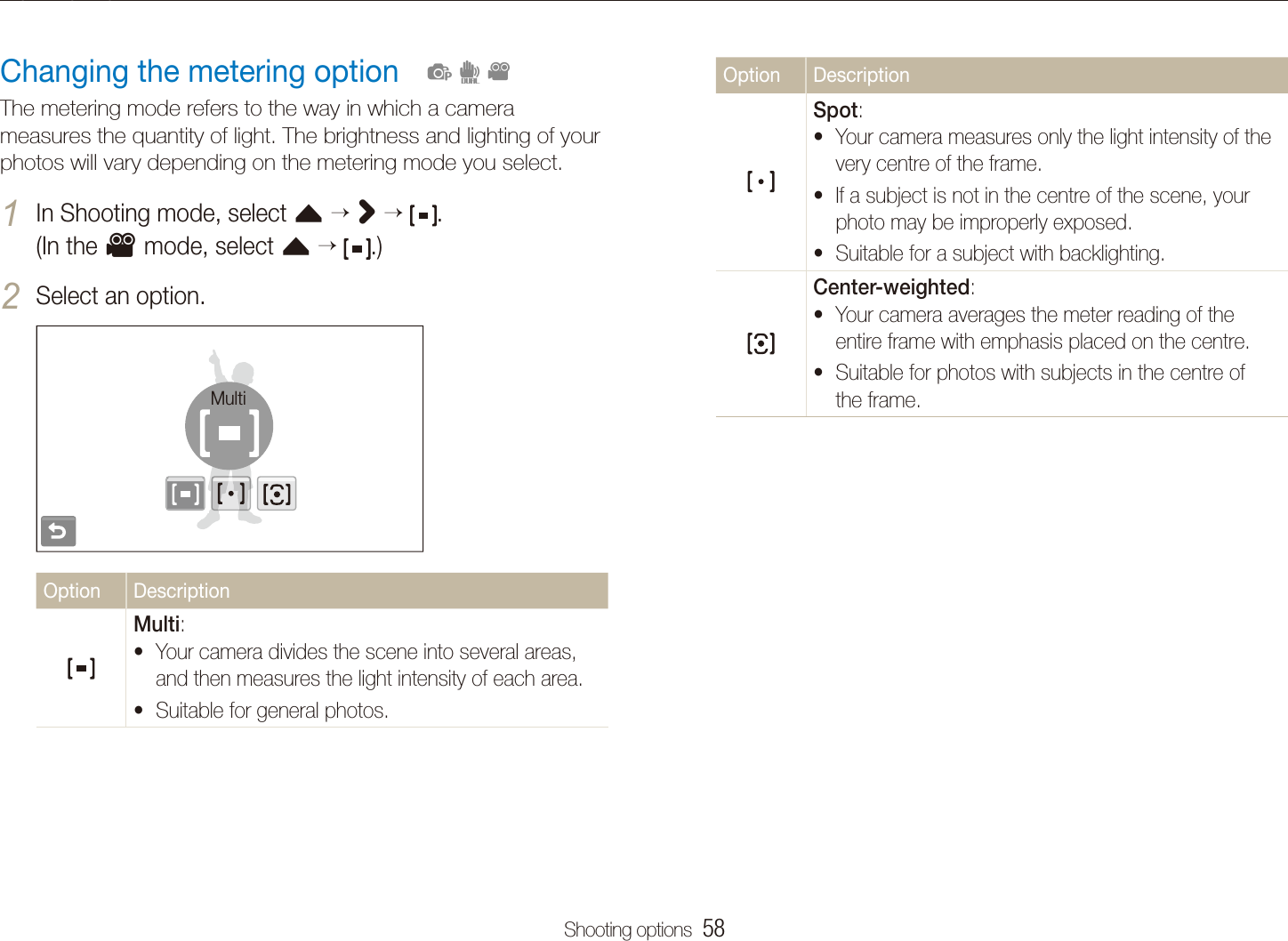
Shooting options  58Adjusting brightness and colourOption DescriptionSpot:Your camera measures only the light intensity of the tvery centre of the frame. If a subject is not in the centre of the scene, your tphoto may be improperly exposed.Suitable for a subject with backlighting.tCenter-weighted:Your camera averages the meter reading of the tentire frame with emphasis placed on the centre.Suitable for photos with subjects in the centre of tthe frame.Changing the metering optionThe metering mode refers to the way in which a camera measures the quantity of light. The brightness and lighting of your photos will vary depending on the metering mode you select.In Shooting mode, select 1 f  >   .  (In the v mode, select f   .)Select an option.2 MultiOption DescriptionMulti:Your camera divides the scene into several areas, tand then measures the light intensity of each area. Suitable for general photos.t  pdv
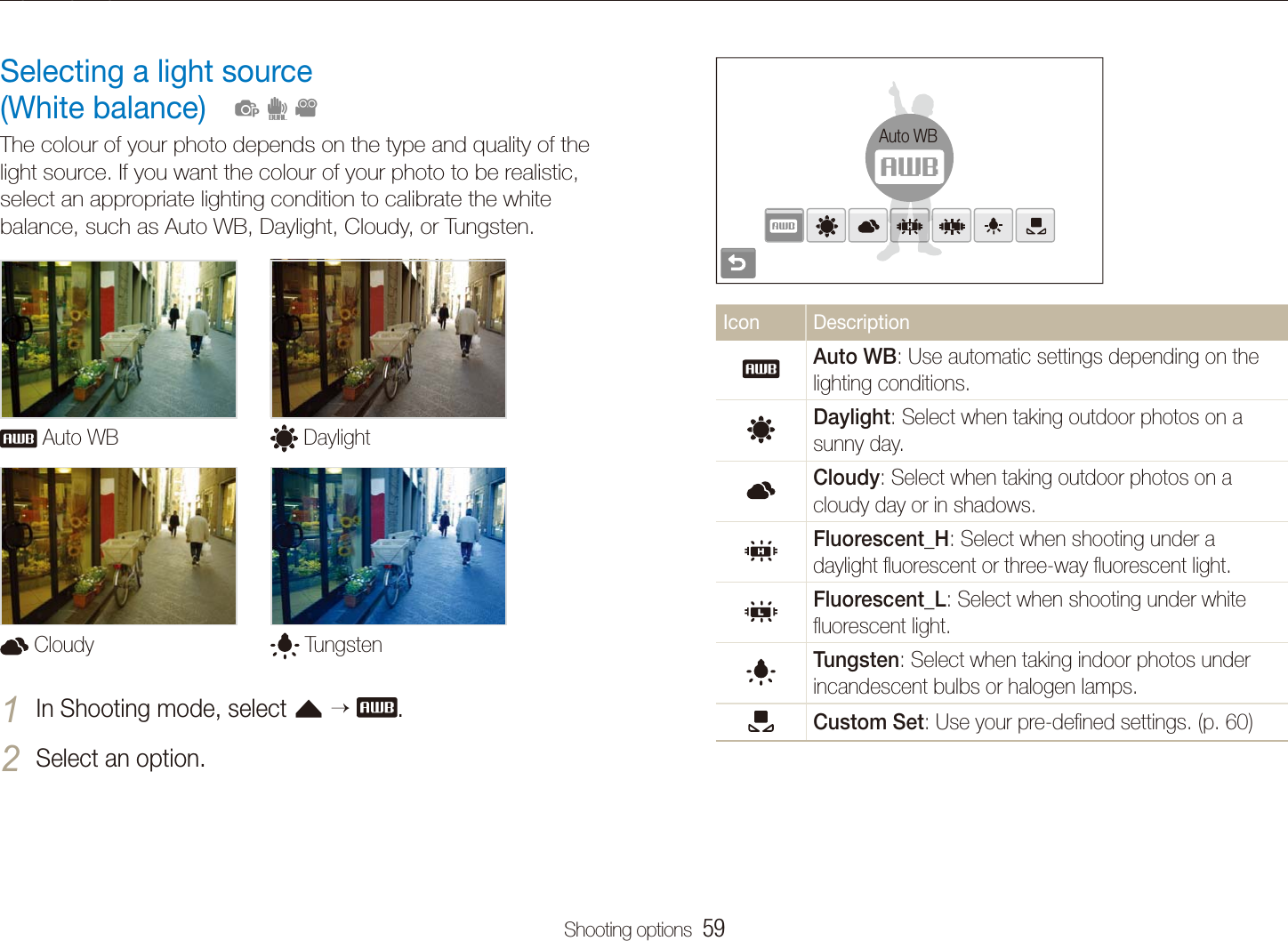
Shooting options  59Adjusting brightness and colourAuto WBIcon DescriptionAuto WB: Use automatic settings depending on the lighting conditions.Daylight: Select when taking outdoor photos on a sunny day.Cloudy: Select when taking outdoor photos on a cloudy day or in shadows.Fluorescent_H: Select when shooting under a daylight fluorescent or three-way fluorescent light.Fluorescent_L: Select when shooting under white fluorescent light.Tungsten: Select when taking indoor photos under incandescent bulbs or halogen lamps.Custom Set: Use your pre-defined settings. (p. 60)Selecting a light source  (White balance)The colour of your photo depends on the type and quality of the light source. If you want the colour of your photo to be realistic, select an appropriate lighting condition to calibrate the white balance, such as Auto WB, Daylight, Cloudy, or Tungsten. Auto WB  Daylight Cloudy  TungstenIn Shooting mode, select 1 f  .Select an option.2   pdv
Shooting options  60Adjusting brightness and colour  Defining your own white balance  You can customise the white balance by taking photos of a white surface, such as a piece of paper. This will help you to match the colours in your photo with the actual scene according to your lighting condition.In Shooting mode, select 1 f     .Aim the lens at a piece of white paper.2 Press [3 Shutter].
Shooting options  61Using burst modesIt can be difficult to take photos of fast-moving subjects or capture natural facial expressions and gestures of your subjects in photos.  In these cases, select one of the burst modes.  psOption DescriptionMotion Capture: While you are pressing [Shutter], the camera takes VGA photos (6 photos per second; maximum of 30 photos).AEB:Take 3 photos with different exposures: normal, tunderexposed, and overexposed.Use a tripod to prevent blurry photos.tThe options may differ depending on the shooting mode.You can use the flash and timer and ACB only when you select tSingle.When you select t Motion Capture, the resolution will be set to VGA and the ISO speed will be set to Auto.Depending on the selected face detection option, some burst toptions are not available.In Shooting mode, select 1 f  >   .Select an option.2 SingleOption DescriptionSingle: Take a single photo.Continuous:While you are pressing [t Shutter], the camera takes photos continuously.The maximum number of photos depends on the tcapacity of your memory card.
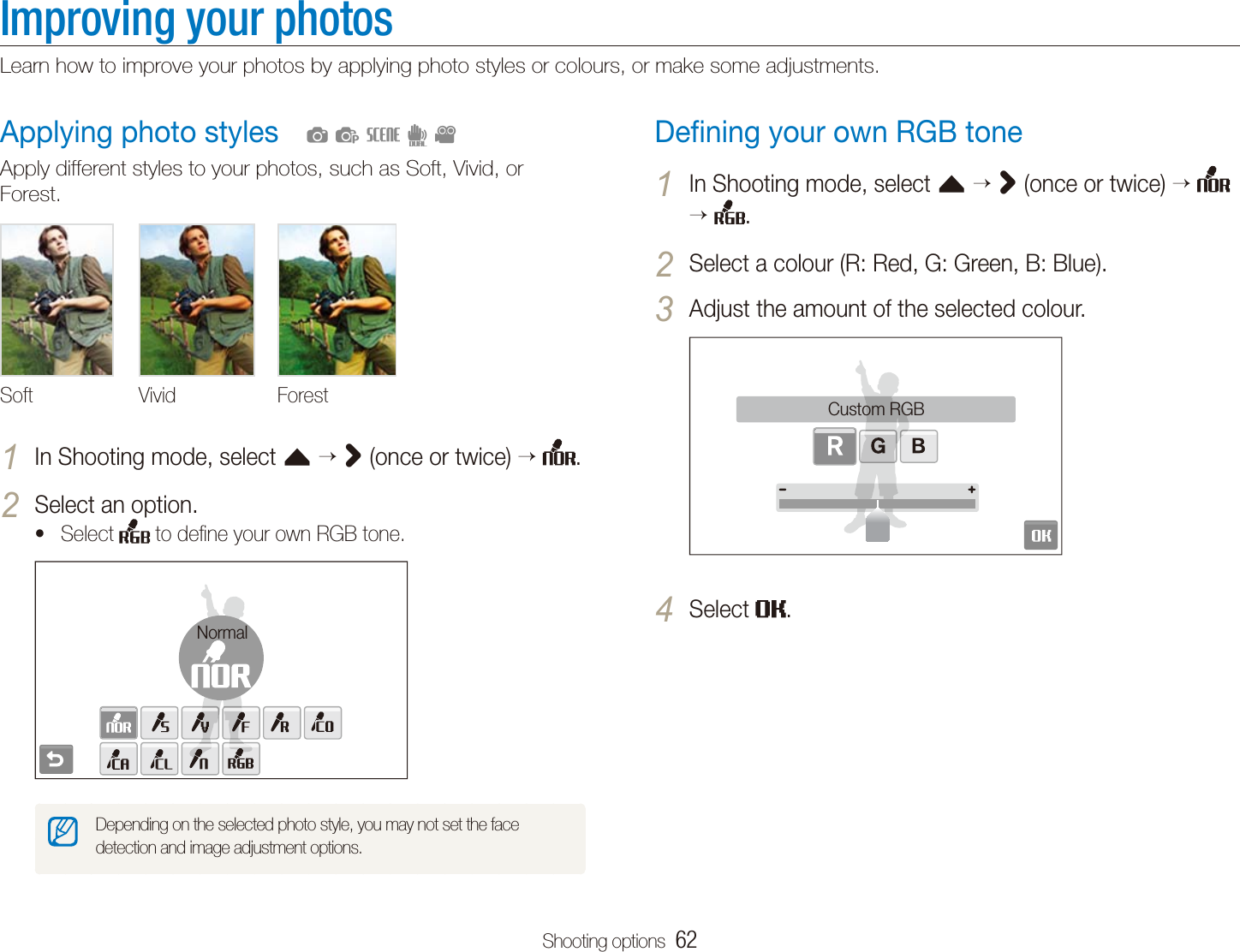
Shooting options  62Improving your photosLearn how to improve your photos by applying photo styles or colours, or make some adjustments.Defining your own RGB toneIn Shooting mode, select 1 f > (once or twice)   .Select a colour (R: Red, G: Green, B: Blue).2 Adjust the amount of the selected colour.3 Custom RGBSelect 4 .Applying photo stylesApply different styles to your photos, such as Soft, Vivid, or Forest.Soft Vivid ForestIn Shooting mode, select 1 f > (once or twice)  .Select an option.2 Select t  to define your own RGB tone.NormalDepending on the selected photo style, you may not set the face detection and image adjustment options.  apsdv
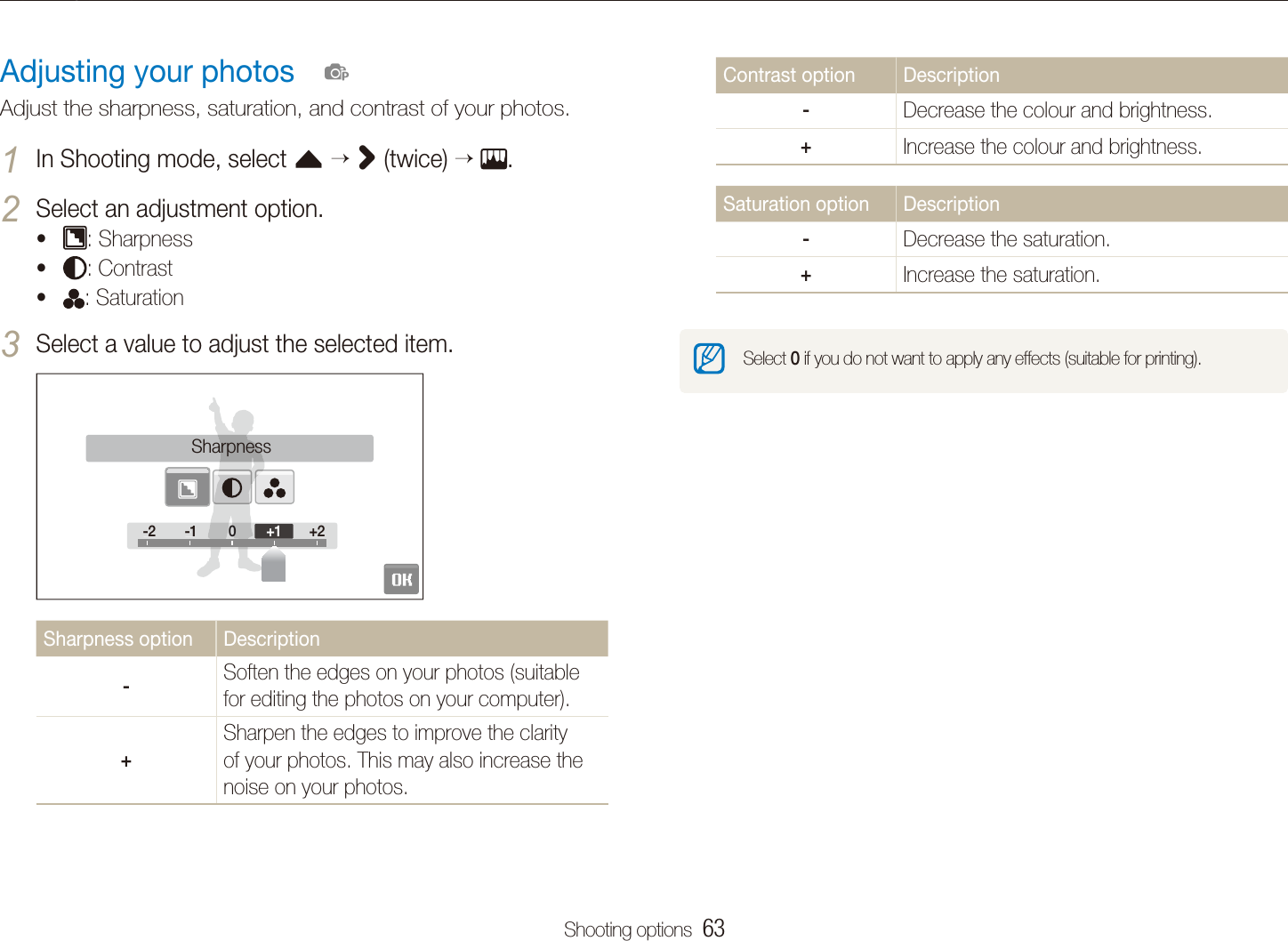
Shooting options  63Improving your photosContrast option Description-Decrease the colour and brightness.+Increase the colour and brightness.Saturation option Description-Decrease the saturation.+Increase the saturation.Select 0 if you do not want to apply any effects (suitable for printing). Adjusting your photosAdjust the sharpness, saturation, and contrast of your photos.In Shooting mode, select 1 f  > (twice)  .Select an adjustment option.2 t : Sharpnesst : Contrastt : SaturationSelect a value to adjust the selected item.3 -2 -1 +2-2-1+2+10SharpnessSharpness option Description-Soften the edges on your photos (suitable for editing the photos on your computer).+Sharpen the edges to improve the clarity of your photos. This may also increase the noise on your photos.  p
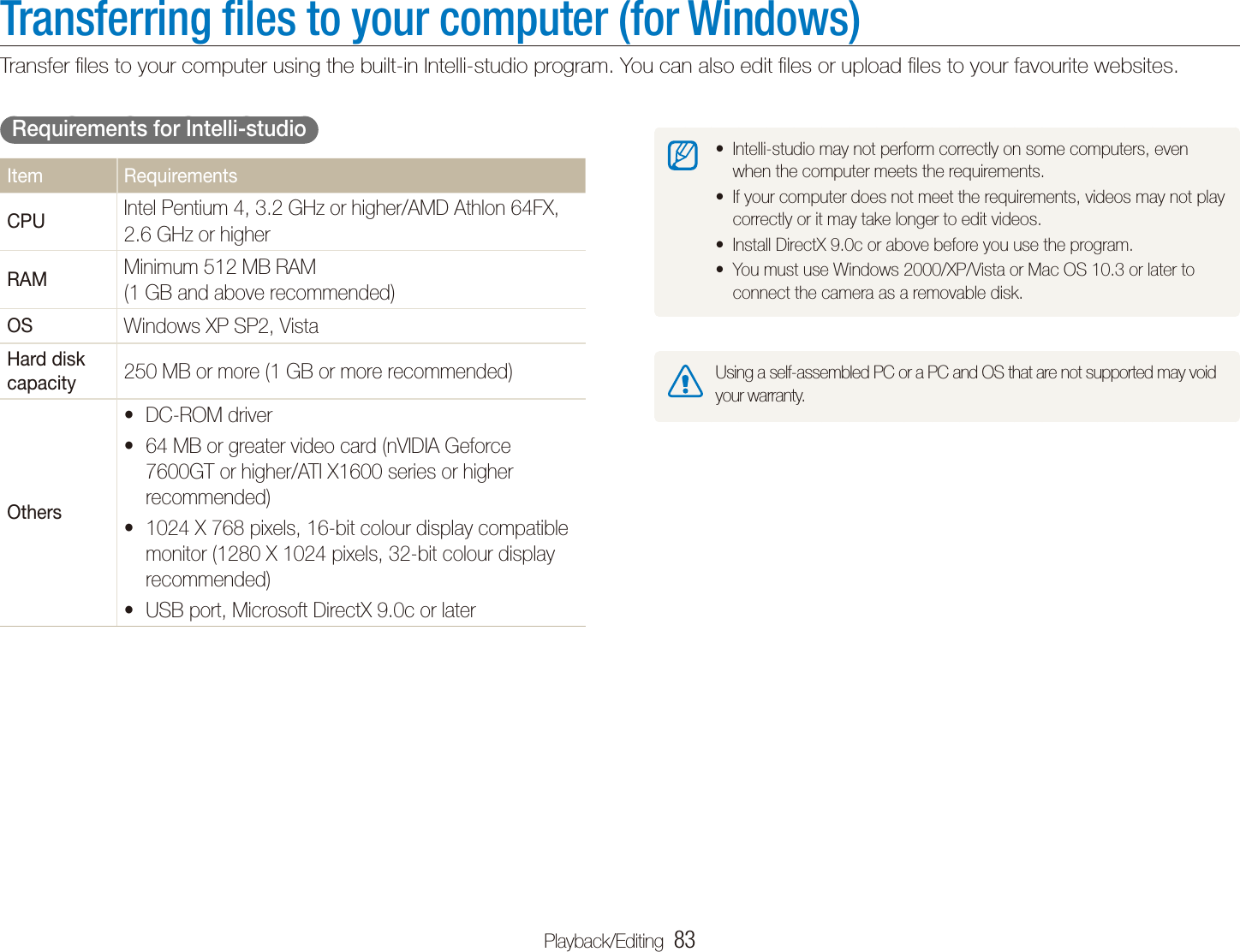
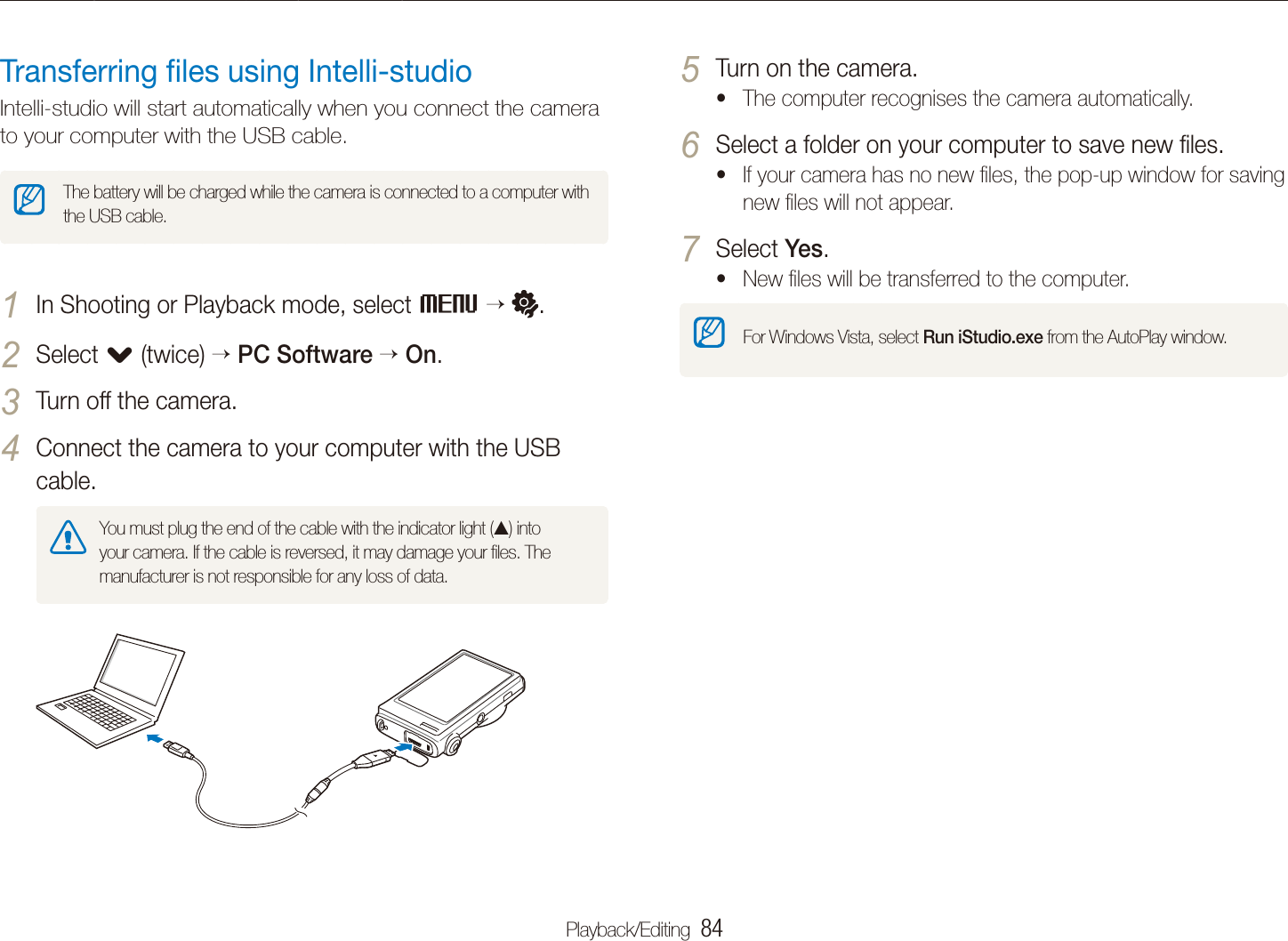
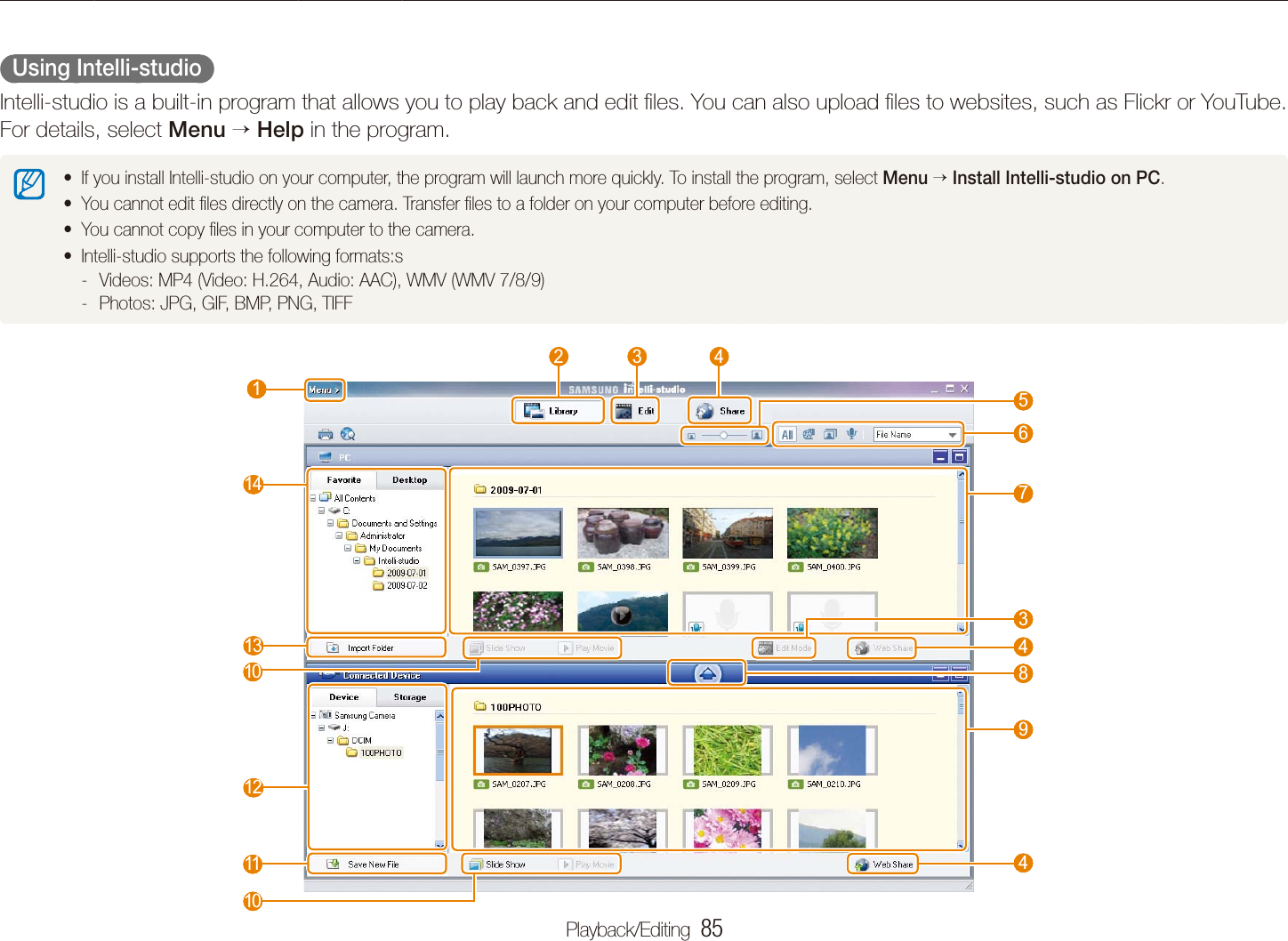
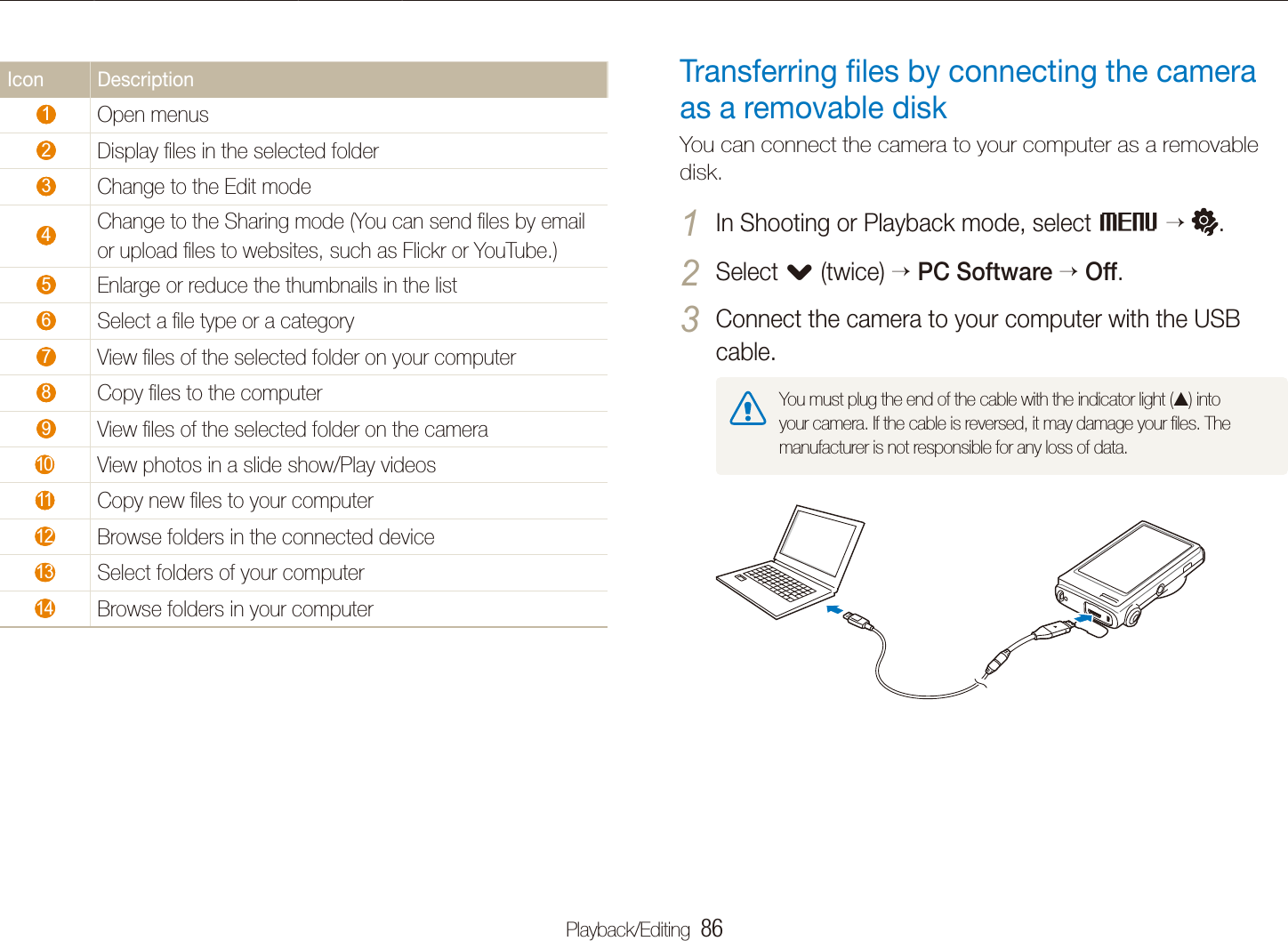
Playing back   …………………………………  65Starting Playback mode   ………………………  65Viewing photos  …………………………………  71Playing a video  …………………………………  73Playing a voice memo   …………………………  74Editing a photo   ………………………………  76Rotating a photo   ………………………………  76Resizing photos   ………………………………  76Editing colour   …………………………………  77Defining your own RGB tone   …………………  77Applying a special effect   ………………………  78Correcting exposure problems   ………………  78Editing photos of portraits   ……………………  79Creating a print order (DPOF)   …………………  80Viewing files on a TV or HDTV   ……………  81Transferring files to your computer  (for Windows)  …………………………………  83Transferring files using Intelli-studio  ……………  84Transferring files by connecting the camera  as a removable disk  ……………………………  86Disconnecting the camera (for Windows XP)  …  87Transferring files to your computer  (for Mac)   ………………………………………  88Printing photos with a photo printer (PictBridge)  ……………………………………  89Playback/EditingLearn how to play back photos, videos, or voice memos and edit photos or videos. Also, learn how to connect your camera to your photo printer, TV, or HDTV.
Playback/Editing  65Playing backLearn actions to play back photos, videos, or voice memos, and managing files.You can also view files by tilting the camera.  t(Motion recognition may not work well if you hold the camera parallel to the ground.)To deactivate this function, select tM  . Gesture View  Off in Playback mode.If you want to view files stored in the internal memory, remove your tmemory card.The camera will not properly play back files that are too large or those ttaken with cameras from other manufacturers.Starting Playback modeView photos or play videos and voice memos stored in your camera.Press [1 P].The most recent file you have taken or recorded will be tdisplayed.If the camera is off, it will turn on.tDraw a horizontal bar left or right to scroll through files.2 Select t< to view the previous file. Hold to view files quickly.Select t> to view the next file. Hold to view files quickly.
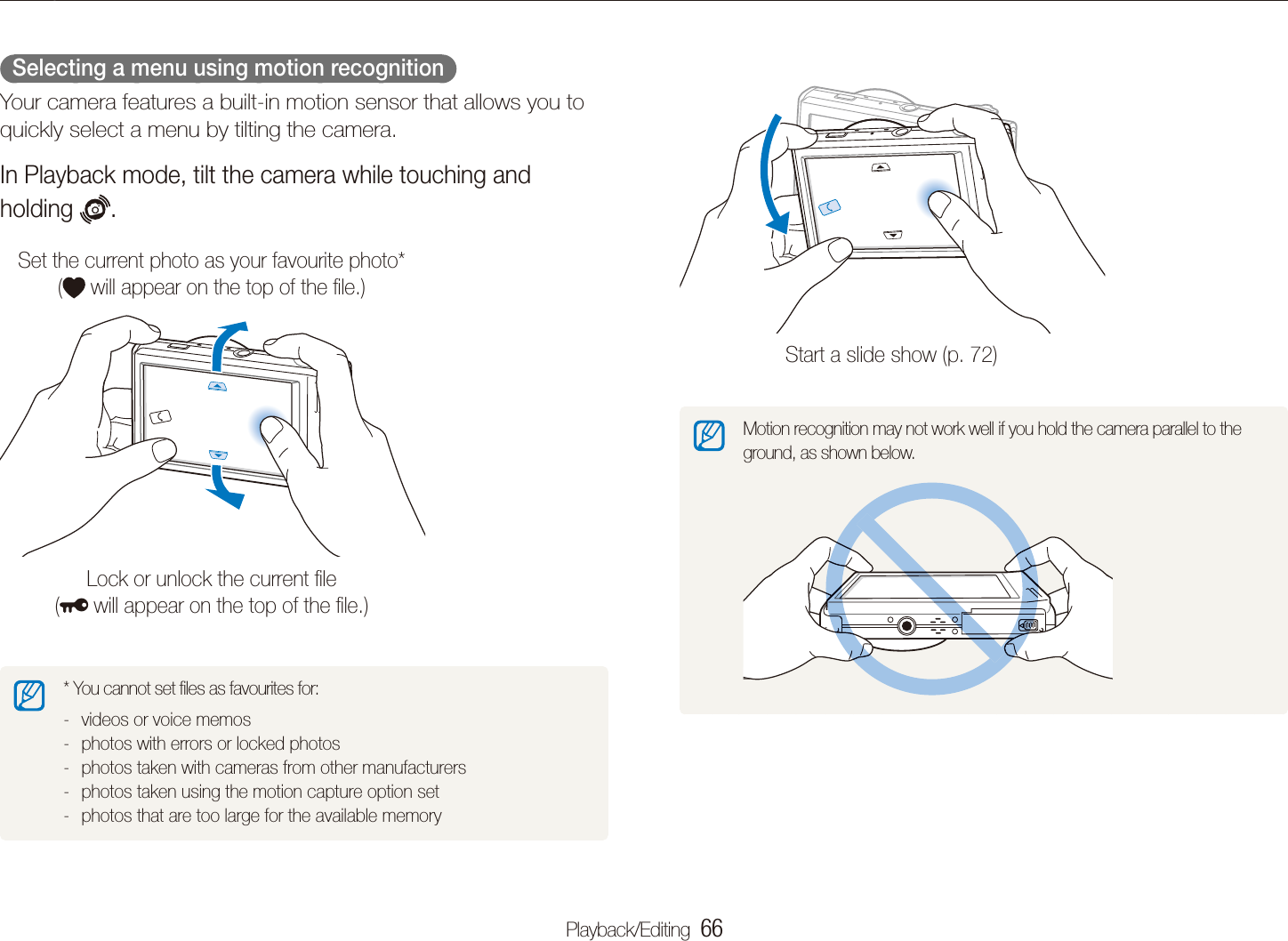
Playback/Editing  66Playing backStart a slide show (p. 72)Motion recognition may not work well if you hold the camera parallel to the ground, as shown below.  Selecting a menu using motion recognition  Your camera features a built-in motion sensor that allows you to quickly select a menu by tilting the camera. In Playback mode, tilt the camera while touching and holding  . Set the current photo as your favourite photo*  ( will appear on the top of the file.)Lock or unlock the current file  ( will appear on the top of the file.)* You cannot set files as favourites for:videos or voice memos -photos with errors or locked photos -photos taken with cameras from other manufacturers -photos taken using the motion capture option set -photos that are too large for the available memory -
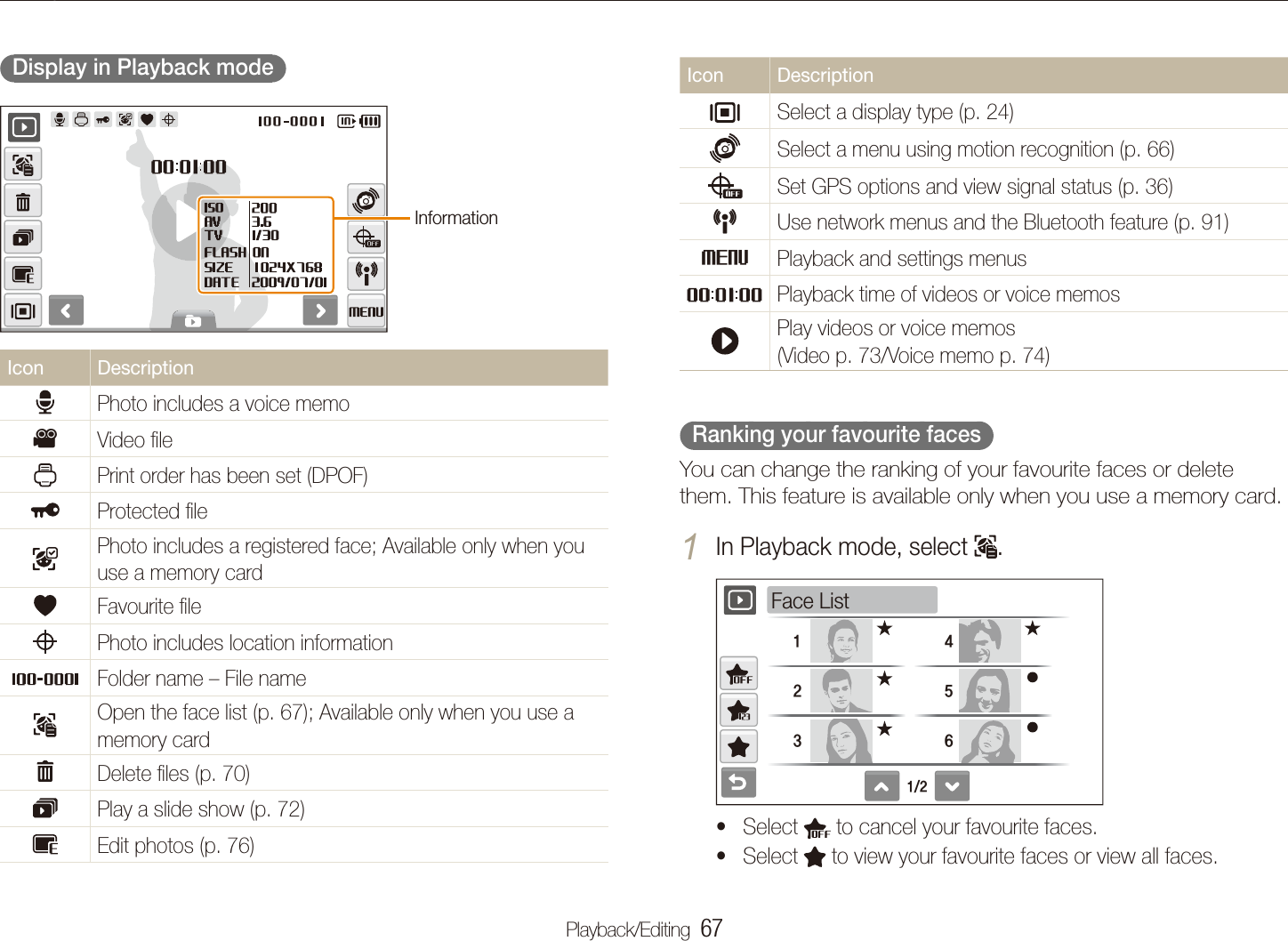
Playback/Editing  67Playing backIcon DescriptionSelect a display type (p. 24)Select a menu using motion recognition (p. 66)Set GPS options and view signal status (p. 36)NUse network menus and the Bluetooth feature (p. 91)MPlayback and settings menusPlayback time of videos or voice memosPlay videos or voice memos  (Video p. 73/Voice memo p. 74)  Ranking your favourite faces  You can change the ranking of your favourite faces or delete them. This feature is available only when you use a memory card.In Playback mode, select 1 .1/2123456Face List Select t  to cancel your favourite faces.Select t  to view your favourite faces or view all faces.  Display in Playback mode  InformationIcon DescriptionPhoto includes a voice memo vVideo filePrint order has been set (DPOF)Protected filePhoto includes a registered face; Available only when you use a memory cardFavourite filePhoto includes location informationFolder name – File nameOpen the face list (p. 67); Available only when you use a memory cardDelete files (p. 70)Play a slide show (p. 72)Edit photos (p. 76)
Playback/Editing  68Playing backOption DescriptionType View files by the file type.Date View files by the date they were saved.Color View files by the dominant colour of the image.Week View files by the weekday they were saved.Favorite View your favourite files.Location View files by recorded location informationFace View files by recognised faces and favourite faces. (Up to 20 people)It may take some time for the camera to open Smart Album or to change the category and reorganise files.Select a date, file type, weekday, colour, location, or 2 face.You can also touch and hold t< or > to scroll through dates, file types, weekdays, colours, locations, or faces.Select 3 < or > to scroll through files.Select 4  to return to the normal view.Once you select a category and a menu that displays thumbnails (such as deleting multiple files or protecting selected files), the camera will display all files sorted by category or only those that match the category option. Select 2   a face.1234Edit Ranking Select 3 , or . to change the ranking of the face and select  .  Viewing files by category in Smart Album  View and manage files by categories, such as date, file type, or week.In Playback mode, select 1      a category.You can also access Smart Album by pushing [t Zoom] left.29 617201/22009. 7. 1TypeDateColorWeekFavorite
Playback/Editing  69Playing back  Protecting files  Protect your files from accidental deletion.To select and protect files,In Playback mode, select 1 M.Select 2 Protect Select.Select files you want to protect.3 Select t  to select all files.Select t  to cancel your selection.Select 4 .  Viewing files as thumbnails  Scan thumbnails of files.In Playback mode, push [Zoom] left to display 9 or 16 thumbnails (push [Zoom] right to return to the previous mode).29 617202009. 7. 1To Do thisScroll through files Select < or >.View a file Select a thumbnail.Delete files Select   or drag a file to  . (p. 70)Select a category Select  .
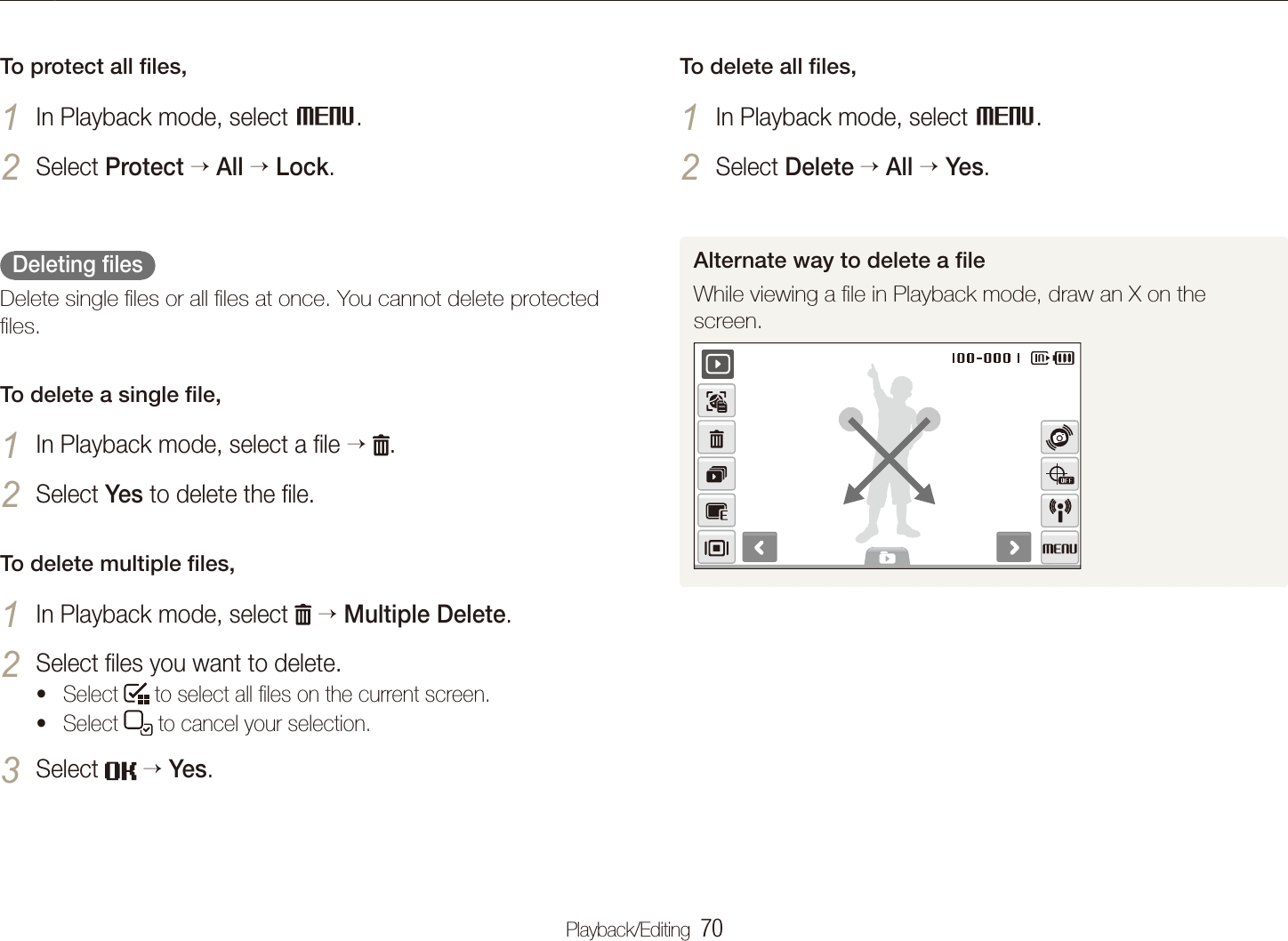
Playback/Editing  70Playing backTo delete all files,In Playback mode, select 1 M.Select 2 Delete  All  Yes.Alternate way to delete a fileWhile viewing a file in Playback mode, draw an X on the screen. To protect all files,In Playback mode, select 1 M.Select 2 Protect All Lock.  Deleting files  Delete single files or all files at once. You cannot delete protected files.To delete a single file,In Playback mode, select a file 1   .Select 2 Yes to delete the file.To delete multiple files,In Playback mode, select 1   Multiple Delete.Select files you want to delete. 2 Select t  to select all files on the current screen.Select t  to cancel your selection.Select 3   Yes.
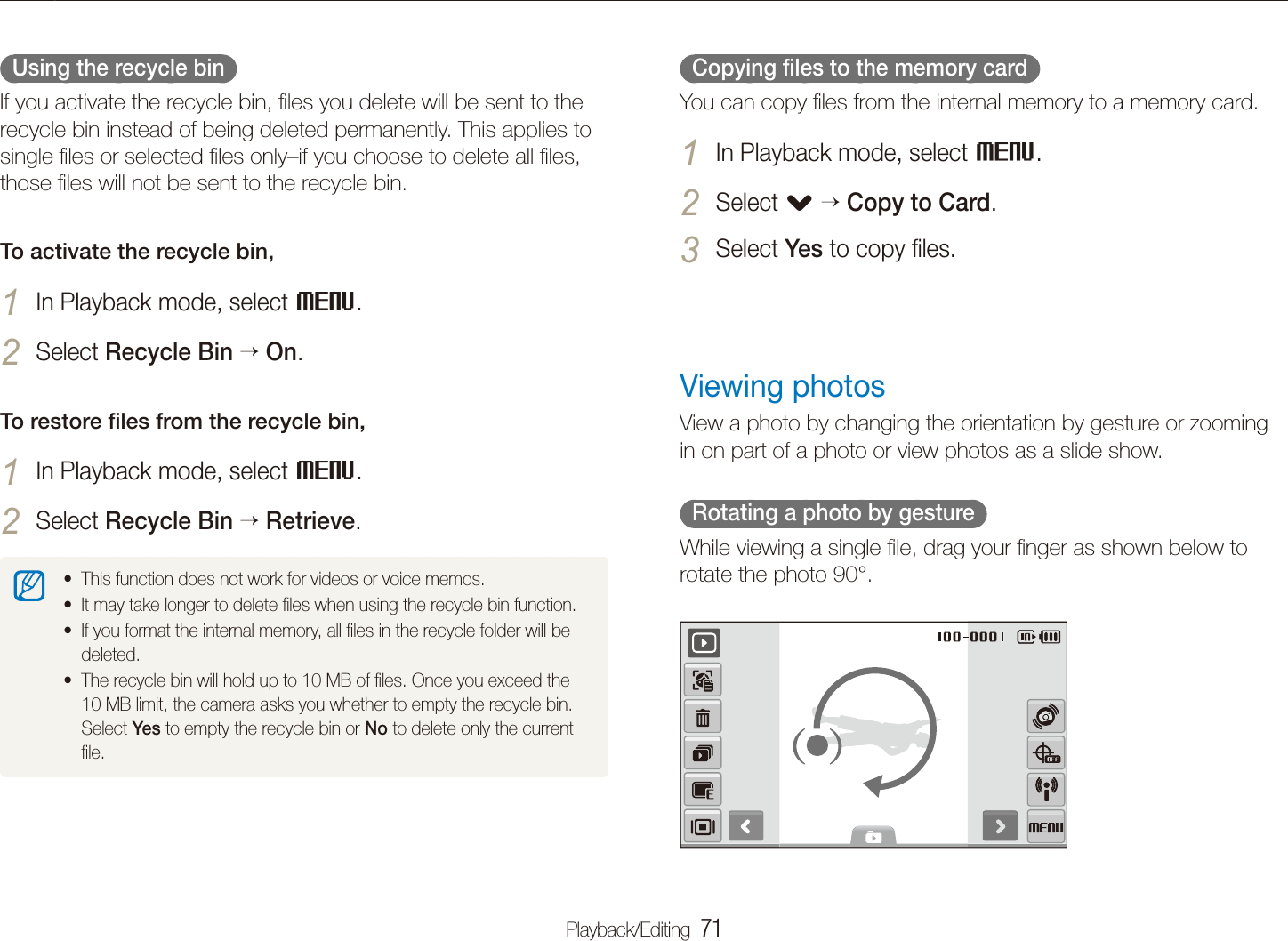
Playback/Editing  71Playing back  Copying files to the memory card  You can copy files from the internal memory to a memory card.In Playback mode, select 1 M.Select 2 . Copy to Card.Select 3 Yes to copy files.Viewing photosView a photo by changing the orientation by gesture or zooming in on part of a photo or view photos as a slide show.  Rotating a photo by gesture  While viewing a single file, drag your finger as shown below to rotate the photo 90°.  Using the recycle bin  If you activate the recycle bin, files you delete will be sent to the recycle bin instead of being deleted permanently. This applies to single files or selected files only–if you choose to delete all files, those files will not be sent to the recycle bin. To activate the recycle bin,In Playback mode, select 1 M.Select 2 Recycle Bin  On.To restore files from the recycle bin,In Playback mode, select 1 M.Select 2 Recycle Bin  Retrieve.This function does not work for videos or voice memos.tIt may take longer to delete files when using the recycle bin function.tIf you format the internal memory, all files in the recycle folder will be tdeleted. The recycle bin will hold up to 10 MB of files. Once you exceed the t10 MB limit, the camera asks you whether to empty the recycle bin. Select Yes to empty the recycle bin or No to delete only the current file.
Playback/Editing  72Playing backIcon DescriptionDelete the file.Crop the enlarged photo (it will be saved as a new file).Go back to the original view.  Starting a slide show  You can apply effects and audio to your slide show. This function does not work for videos or voice memos.In Playback mode, select 1 .Set a slide show effect.2   Viewing files by rotating the photo automatically  You can view vertical photos in landscape view without rotating your camera. Vertical photos will be automatically rotated to an upright position in landscape view once you set this option and take vertical photos.To activate the automatic rotation,In Shooting or Playback mode, select 1 M    ..Select 2 Auto Rotate  On.Select 3 .This option may not be effective for:photos taken when you hold the camera parallel to the ground -photos taken with the motion capture option set -videos -  Enlarging a photo  In Playback mode, push [Zoom] right to enlarge a photo (push [Zoom] left to reduce a photo).The enlarged area and zoom ratio are indicated on the top of the screen. The maximum zoom ratio may vary depending on the resolution. Select arrows or draw a diagonal to move the enlarged area.
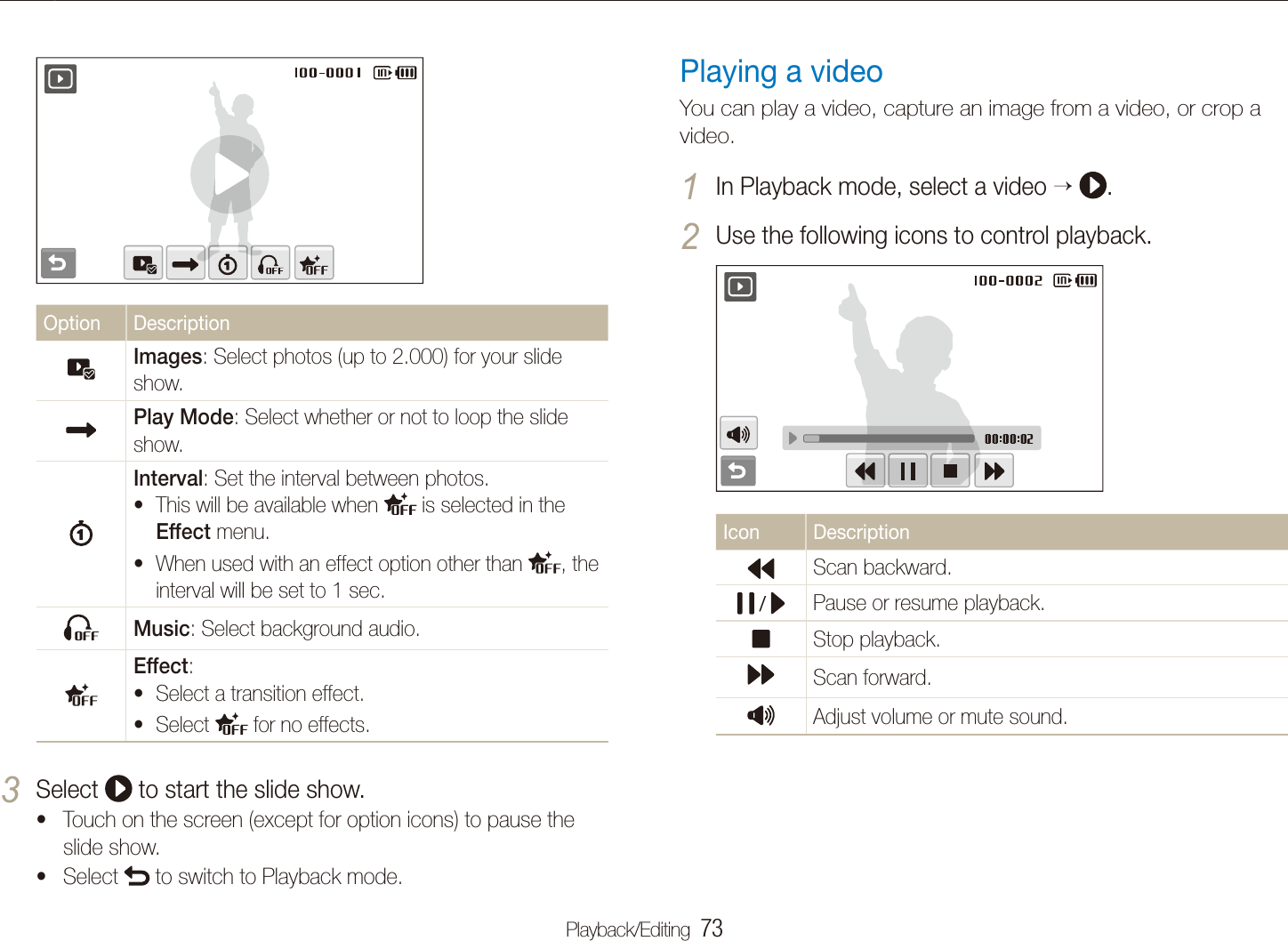
Playback/Editing  73Playing backPlaying a videoYou can play a video, capture an image from a video, or crop a video.In Playback mode, select a video 1   .Use the following icons to control playback.2 Icon DescriptionScan backward. /  Pause or resume playback.Stop playback.Scan forward.Adjust volume or mute sound. Option DescriptionImages: Select photos (up to 2.000) for your slide show.Play Mode: Select whether or not to loop the slide show.Interval: Set the interval between photos. This will be available when t  is selected in the Effect menu.When used with an effect option other than t , the interval will be set to 1 sec.Music: Select background audio.Effect:Select a transition effect.tSelect t  for no effects.Select 3  to start the slide show.Touch on the screen (except for option icons) to pause the tslide show.Select t  to switch to Playback mode.
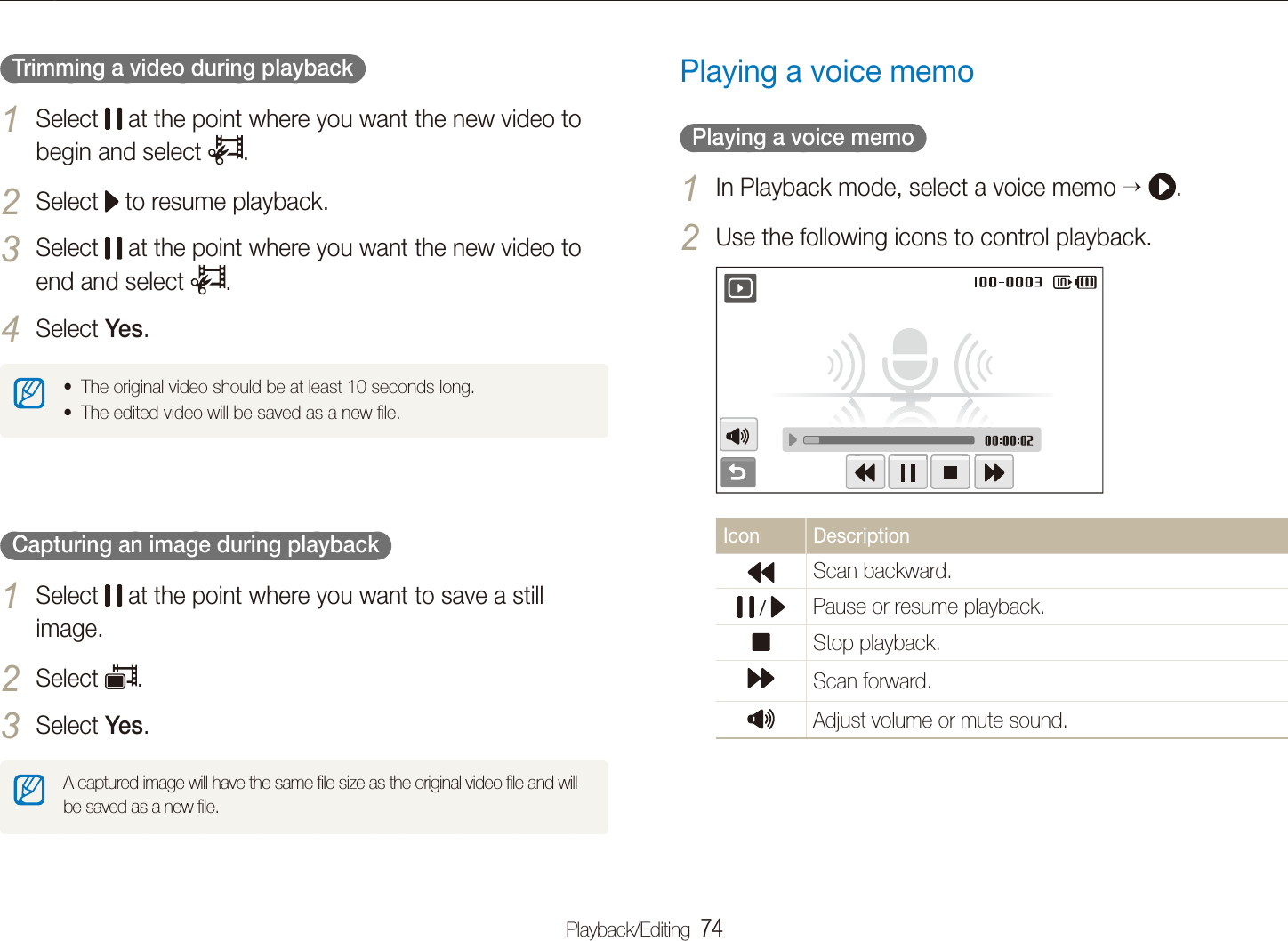
Playback/Editing  74Playing backPlaying a voice memo  Playing a voice memo  In Playback mode, select a voice memo 1   .Use the following icons to control playback.2 Icon DescriptionScan backward. /  Pause or resume playback.Stop playback.Scan forward.Adjust volume or mute sound.   Trimming a video during playback  Select 1  at the point where you want the new video to begin and select  .Select 2  to resume playback.Select 3  at the point where you want the new video to end and select  .Select 4 Yes.The original video should be at least 10 seconds long.tThe edited video will be saved as a new file.t  Capturing an image during playback  Select 1  at the point where you want to save a still image.Select 2 .Select 3 Yes.A captured image will have the same file size as the original video file and will be saved as a new file.
Playback/Editing  75Playing back  Playing a voice memo added to a photo  In Playback mode, select a photo that includes a voice 1 memo   .Use the following icons to control playback.2 Icon Description /  Pause or resume playback.Stop playback.Adjust volume or mute sound.   Adding a voice memo to a photo  In Playback mode, select a photo 1  M.Select 2 Voice memo  On.Press [3 Shutter] to record a short voice memo (10 seconds maximum).Press [t Shutter] to stop recording a voice memo.
Playback/Editing  76Editing a photoPerform photo editing tasks, such as rotating, resizing, eliminating red-eyes, and adjusting brightness, contrast, or saturation.Resizing photosIn Playback mode, select a photo 1   .Select 2  an option.Select t  to save the photo as a start image. (p. 109)1920 X 1080Select 3 .Available options differ depending on the size of the selected photo.Edited photos will be saved as new files.tWhen you edit photos that are t  or larger, they will be automatically resized to a lower resolution (except when rotating or resizing photos).Rotating a photoIn Playback mode, select a photo 1   .Select 2  an option.Left 90˚Select 3 .
Playback/Editing  77Editing a photoDefining your own RGB toneIn Playback mode, select a photo 1     .Select a colour (R: Red, G: Green, B: Blue).2 Adjust the amount of the colour.3 Custom RGBSelect 4 .Editing colourApply a different colour tone to the photo, such as Soft, Vivid, or Forest.Soft Vivid ForestIn Playback mode, select a photo 1   .Select 2  an option.Select t  to define your own RGB tone.SoftSelect 3 .
Playback/Editing  78Editing a photoApplying a special effectApply special effects to the photo, such as colour filters or noise effects.In Playback mode, select a photo 1   .Select 2  an option.ElegantOption DescriptionColour Filter: Change background colours to black and white to make the main subject stand out.Elegant: Apply effects to the photo to make it brighter and softer.Add Noise: Add noise to the photo to give it an aged look.Select 3 .Correcting exposure problemsAdjust ACB (Auto Contrast Balance), brightness, contrast, or saturation.  Adjusting an image  In Playback mode, select a photo 1   .Select 2   an adjustment option.t : Brightness t : Contrast t : Saturation Select a value to adjust the selected item.  3 (-: less or +: more)Select 4 .  Adjusting ACB (Auto Contrast Balance)  In Playback mode, select a photo 1   .Select 2    .Select 3 .
Playback/Editing  79Editing a photo  Applying snow effect  In Playback mode, select a photo 1   .Select 2    . Snow falls around the subjects. tSelect 3  to stop snowing and select  .  Applying fun effects  In Playback mode, select a photo 1   .Select 2    or  .Your camera automatically detects faces.tOption DescriptionMosaic: Apply mosaic effects to the detected faces.Highlight: Make the background blurry to draw attention to the main subject.Select a detected face and select 3 .Select 4 .If you select t  or   effect, the camera will detect up to 20 faces.You can use the t  effect even if the photo does not include people.Editing photos of portraitsYou can improve your photos by hiding facial imperfections and removing red-eye or you can apply effects for fun. These effects are only available for portraits.Snow Mosaic Highlight  Hiding imperfections  In Playback mode, select a photo 1   .Select 2    .Select a level.3 As the number increases, more imperfections are hidden.tSelect 4 .  Removing red-eye  In Playback mode, select a photo 1   .Select 2    .Select 3 .
Playback/Editing  80Editing a photoSet DPOF options.5 Option DescriptionSelect whether to print the photos as thumbnails. (Select   to print photos as thumbnails.) Specify the size of the print.Select 6 , or . to set the number of copies.Select 7 .If you specify the print size, you can print photos only with DPOF 1.1-compatible printers.Creating a print order (DPOF)Select photos to be printed and set options, such as number of copies or paper size.The memory card can be taken to a print shop that supports DPOF t(Digital Print Order Format) or you can print photos directly through a DPOF-compatible printer at home.Wide photos may print with the left and right edges cut off, so be taware of the dimensions of your photos.You cannot set the DPOF for the photos stored in the internal memory.tIn Playback mode, select 1 M.Select 2 .DPOF Select.To print all files, select t All and skip to step 5.Select photos to print.3 Select t  to select all files.Select t  to cancel your selection.Select 4 .
Playback/Editing  81Viewing files on a TV or HDTVPlay back photos or videos by connecting your camera to a TV using the A/V cable.View photos or play videos using the touch screen on 8 your camera.The touch screen will function as the controller for the TV tscreen. Locate the option you want on the TV screen and touch where the option is located on the camera screen. When a pointer appears on the option on the TV screen, select   on the camera screen.On some TVs, digital noise may occur or part of an image may not tappear.Images may not appear centred on the TV screen depending on your tTV settings.You can capture photos or videos while the camera is connected tto a TV.In Shooting or Playback mode, select 1 M  .Select2 .(twice)Video Out.Select a video signal output according to your country or 3 region. (p. 111)Turn off your camera and TV.4 Connect your camera to your TV using the A/V cable.5 Video AudioTurn on your TV and select the video output mode using 6 the TV remote control.Turn on your camera and press [7 P].
Playback/Editing  82Viewing files on a TV or HDTVTurn on your camera.6 The HDTV will be powered on automatically and the camera tscreen will be displayed.View files using a remote control of your camera or 7 HDTV.If your HDTV supports the Anynet+(CEC) profile, turn the Anynet+ on in the settings menu (p. 111) to control all connected Samsung A/V devices with the TV remote control.  Viewing files on an HDTV  You can view high-quality and uncompressed photos or videos on an HDTV using the optional HDMI adapter and cable. HDMI (High Definition Multimedia Interface) is supported by most HDTVs. For details, see the HDMI Kit manual.In Shooting or Playback mode, select 1 M   .Select 2 . (twice)  HDMI Size.Select an HDMI resolution.3 Turn off your camera and HDTV.4 Connect your camera to your HDTV using an optional 5 HDMI adapter and cable.HDMI cable HDMI adapter
Playback/Editing  83Transferring files to your computer (for Windows)Transfer files to your computer using the built-in Intelli-studio program. You can also edit files or upload files to your favourite websites.Intelli-studio may not perform correctly on some computers, even twhen the computer meets the requirements.If your computer does not meet the requirements, videos may not play tcorrectly or it may take longer to edit videos.Install DirectX 9.0c or above before you use the program.tYou must use Windows 2000/XP/Vista or Mac OS 10.3 or later to tconnect the camera as a removable disk.Using a self-assembled PC or a PC and OS that are not supported may void your warranty.  Requirements for Intelli-studio  Item RequirementsCPU Intel Pentium 4, 3.2 GHz or higher/AMD Athlon 64FX, 2.6 GHz or higherRAM Minimum 512 MB RAM  (1 GB and above recommended)OS Windows XP SP2, VistaHard diskcapacity 250 MB or more (1 GB or more recommended)OthersDC-ROM drivert64 MB or greater video card (nVIDIA Geforce t7600GT or higher/ATI X1600 series or higher recommended)1024 X 768 pixels, 16-bit colour display compatible tmonitor (1280 X 1024 pixels, 32-bit colour display recommended)USB port, Microsoft DirectX 9.0c or latert
Playback/Editing  84Transferring files to your computer (for Windows)Turn on the camera.5 The computer recognises the camera automatically.tSelect a folder on your computer to save new files.6 If your camera has no new files, the pop-up window for saving tnew files will not appear.Select 7 Yes.New files will be transferred to the computer.tFor Windows Vista, select Run iStudio.exe from the AutoPlay window.Transferring files using Intelli-studioIntelli-studio will start automatically when you connect the camera to your computer with the USB cable.The battery will be charged while the camera is connected to a computer with the USB cable.In Shooting or Playback mode, select 1 M .Select 2 . (twice)PC SoftwareOn.Turn off the camera.3 Connect the camera to your computer with the USB 4 cable.You must plug the end of the cable with the indicator light (S) into your camera. If the cable is reversed, it may damage your files. The manufacturer is not responsible for any loss of data.
Playback/Editing  85Transferring files to your computer (for Windows)  Using Intelli-studio  Intelli-studio is a built-in program that allows you to play back and edit files. You can also upload files to websites, such as Flickr or YouTube. For details, select Menu  Help in the program.If you install Intelli-studio on your computer, the program will launch more quickly. To install the program, select t Menu  Install Intelli-studio on PC.You cannot edit files directly on the camera. Transfer files to a folder on your computer before editing.tYou cannot copy files in your computer to the camera.tIntelli-studio supports the following formats:stVideos: MP4 (Video: H.264, Audio: AAC), WMV (WMV 7/8/9) -Photos: JPG, GIF, BMP, PNG, TIFF - 1  6  7  9  4  8  4  3  2   3   4  5  12  11  13  14  10  10
Playback/Editing  86Transferring files to your computer (for Windows)Transferring files by connecting the camera as a removable diskYou can connect the camera to your computer as a removable disk.In Shooting or Playback mode, select 1 M  .Select 2 . (twice) PC Software Off.Connect the camera to your computer with the USB 3 cable.You must plug the end of the cable with the indicator light (S) into your camera. If the cable is reversed, it may damage your files. The manufacturer is not responsible for any loss of data.Icon Description 1  Open menus 2  Display files in the selected folder 3  Change to the Edit mode 4  Change to the Sharing mode (You can send files by email or upload files to websites, such as Flickr or YouTube.)  5  Enlarge or reduce the thumbnails in the list 6  Select a file type or a category 7  View files of the selected folder on your computer 8  Copy files to the computer 9  View files of the selected folder on the camera 10 View photos in a slide show/Play videos  11 Copy new files to your computer 12 Browse folders in the connected device 13 Select folders of your computer 14 Browse folders in your computer
Playback/Editing  87Transferring files to your computer (for Windows)Disconnecting the camera (for Windows XP)The way to disconnect the USB cable for Windows 2000/Vista is similar.If the status lamp on your camera is blinking, wait until 1 it stops.Click 2  on the tool bar at the bottom right of your PC screen.Click the pop-up message.3 Remove the USB cable.4 The camera may not be removed safely when Intelli-studio is running.  End the program before disconnecting the camera.Turn on the camera.4 The computer recognises the camera automatically.tIf the camera fails to connect, a pop-up window will appear. Select Computer.On your computer, select 5 My computer Removable Disk DCIM 100PHOTO.Select the files you want and drag or save them to your 6 computer.
Playback/Editing  88Transferring files to your computer (for Mac)When you connect the camera to a Macintosh computer, the computer will recognise the device automatically. You can transfer files directly from the camera to the computer without installing any programs.Mac OS 10.3 or later is supported.Connect your camera to a Macintosh computer with the 1 USB cable.You must plug the end of the cable with the indicator light (S) into your camera. If the cable is reversed, it may damage your files. The manufacturer is not responsible for any loss of data.Turn on the camera.2 The computer recognises the camera automatically and a tremovable disk icon will be displayed.Double-click the removable disk icon.3 Transfer photos or videos to the computer.4
Playback/Editing  89Printing photos with a photo printer (PictBridge)Print photos with a PictBridge-compatible printer by connecting your camera directly to the printer.Select 3  to print.Select t  to set printing options. See “Configuring print settings” on page 90.Select an option.4 Option DescriptionCurrent Photo Print the currently selected photo. Skip to step 6.Selected Photos Print the photos you want.All Photos Print all photos. Skip to step 6.With the printer on, connect your camera to the printer 1 with the USB cable.Turn on your camera.2 The printer recognises the camera automatically.tIf the camera fails to connect, a pop-up window will appear. tSelect Printer.If your printer has the mass storage feature, you must first set the tUSB mode to Printer in the settings menu. (p. 112)
Playback/Editing  90Printing photos with a photo printer (PictBridge)Option DescriptionDate: Set to print the date.File Name: Set to print the name of the file.Reset: Reset the print options.Some options are not supported by some printers.Select 5 < or > to scroll to a photo to print.Select 6 , or . to set the number of copies and select .If you selected to print the photos you want, repeat steps 5-6 tfor all photos to print.Select 7 Yes to confirm.Printing starts. Select t Cancel to cancel printing.  Configuring print settings  Option DescriptionSize: Specify the size of the print.Layout: Create thumbnail prints.Type: Select the type of paper.Quality: Set the printing quality.
Connecting to a WLAN and configuring network settings  ………………………………  92Connecting to a WLAN automatically  …………  92Connecting to a WLAN manually   ……………  94Storing your information   ………………………  94Storing email addresses   ………………………  95Setting the file size to share  ……………………  95Configuring the WPS setting   …………………  96Checking information   …………………………  96Entering text   ……………………………………  96Using photo or video sharing websites   …  97Accessing a website  ……………………………  97Uploading photos or videos  ……………………  98Sending photos via email   …………………  99Viewing photos on the DLNA devices  …  100Viewing photos on a TV screen   ……………  100Viewing photos on another device  (renderer)   ……………………………………  101Sending or receiving photos with  a camera  ……………………………………  103Sending photos to another camera   ………  103Receiving photos from another camera  ……  103Sending photos via Bluetooth   …………  105Wireless network/BluetoothLearn to use several functions using wireless local area networks (WLANs) and the Bluetooth feature.
Wireless network/Bluetooth  92Icon DescriptionWPS APSecured APAd hoc APSignal strengthThe camera will connect to the WLAN.tIf the selected AP device supports the WPS profile, select tWPS on the next screen and press the WPS button or enter a PIN on the AP device. You can configure the WPS setting to press the WPS button or enter a PIN on to the AP device. (p. 96)If the selected AP device requires a password, continue with tthe next step.Connecting to a WLAN automaticallyIn Shooting or Playback mode, select 1 N  n.Select 2 AP Setting.The camera will search for and display available AP devices.tSelect an AP device.3 AP SettingSamsung 1Samsung 2Samsung 3Connecting to a WLAN and configuring network settingsLearn to connect via an access point (AP) when you are in a range of a WLAN. You can also configure network settings and learn how to enter text.This camera uses non-harmonised frequencies and is intended for use in all European countries. The WLAN can be operated indoors in the EU without restriction, but cannot be operated outdoors in France.
Wireless network/Bluetooth  93Connecting to a WLAN and configuring network settingsSome AP devt ices will not allow your camera to connect to the network.If you are far from the AP device, it may take long to connect to the tnetwork.If there is any electronic equipment nearby that uses the same radio tfrequency (RF) signals, the camera may not connect to the AP device.If the AP device has a non-English name, it may not appear in the tsearch list or the name may appear jumbled or incomplete. For network profiles and a password, contact your network tadministrator or network service provider.If the network requires any authentication from the service provider, tyou may not connect to it. Contact your network service provider.The number of characters and numbers allowed for the encryption key tdiffers depending on the encryption type.A WLAN connection may not be possible depending on your tsurroundings.When searching for networks, you may be able to find a printer that tsupports the network. However, you cannot use the printer to connect to a network.The camera cannot connect to the network if it is connected to ta TV with the A/V cable. Also, when the camera is connected to the network, you cannot view photos on a TV screen even when connected with the A/V cable.When connecting to the network, you will be charged according to tyour contract with your network service provider.You can use only free WLANs with your camera. If you use free tWLANs that require the user agreement and additional information when you connect to a web browser, some features may be limited when connecting to websites or sending email.Frequency ranges allow you to connect to the network will differ tdepending on the country. The WLAN feature of yt our camera must comply with radio transmission laws, so use of this feature may be restricted in some countries. We recommend that you use the WLAN feature in the country where you purchased the camera.Select network profiles and options.4 Option DescriptionAuthentication Select a network authentication.Data Encryption Select an encryption type.Select the password input field.5 Enter a password and select 6 OK.For information about entering text, refer to page t 96.Select 7 OK.The camera will connect to the WLAN.tOn the top line of the screen, you can check the network tsignal status.Icon DescriptionSignal is found.No signal is found.
Wireless network/Bluetooth  94Connecting to a WLAN and configuring network settingsFor network profiles and a password, contact your network tadministrator or network service provider.Methods of configuring the network profiles may differ depending on tthe network environment.Do not access a network that you are not allowed to use.tUse a fully charged battery while connecting to the network.tStoring your informationStore your name and email address to send emails or to find out your camera on another device.In Shooting or Playback mode, select 1 N  n.Select 2 User Setting.Select the name input field and enter your name.3 For information about entering text, refer to page t 96.When you are finished, select 4 OK.Connecting to a WLAN manuallyIn Shooting or Playback mode, select 1 N  n.Select 2 AP Setting.The camera will search for and display available AP devices.tSelect an AP device.3 Select 4 IP Setting  Manual.Select the network profiles.5 Option DescriptionIP Enter the static IP address.Subnet Mask Enter the subnet mask.Gateway Enter the gateway.DNS Enter the DNS address.Enter values and select 6 OK.When you are finished, select 7 OK.The camera will connect to the WLAN.t
Wireless network/Bluetooth  95Connecting to a WLAN and configuring network settingsSelect 3 .Enter a name and email address.4 When you are finished, select 5 OK.Setting the file size to shareSet the file size you will share with other DLNA-authorised devices. You can select either the original size or  .In Shooting or Playback mode, select 1 N  n.Select 2 DLNA -Image Size.Select a size.3 Select the email input file and enter your email address.5 When you are finished, select 6 OK.Select 7 OK to save your information.Storing email addressesStore up to 10 email addresses in your camera. You can use them when you send your photos via email.In Shooting or Playback mode, select 1 N  n.Select 2 Email Address.Email Address BookSamsungSelect t  to display the recent recipient email addresses.Select t  to edit the email address.Select t  to delete the email address.
Wireless network/Bluetooth  96Connecting to a WLAN and configuring network settingsEntering textTo enter text when storing your information or email addresses, select the appropriate letters, symbols, and numbers. When you are finished, select OK.User Setting: NameIcon DescriptionMove the cursor.Enter capital letters or small letters, and change symbols.Enter numbers and symbols.Enter a space.Delete the last letter.Store the displayed text.You can enter text only in English, regardless of the display language.Configuring the WPS settingConfigure this setting to press a WPS button or enter a PIN when connecting to a WLAN with an AP device that supports the WPS profile.In Shooting or Playback mode, select 1 N  n.Select 2 .  WPS Type.Select 3 PBC to press the WPS button or PIN to enter a PIN.Checking informationCheck the Mac address and serial number of your camera to register it with the Samsung website.In Shooting or Playback mode, select 1 N  n.Select 2 .  Device Information.
Wireless network/Bluetooth  97Using photo or video sharing websitesUpload your photos or videos to file sharing websites (available websites will be displayed on your camera).  Icons on a website  Icon DescriptionPrevious pageNext pageStopRefreshHomeCloseAccessing a websiteIn Shooting or Playback mode, select 1 N   .The camera automatically connects to the WLAN via the last tconnected AP device. If the camera has not connected to the WLAN, it automatically tsearches for available AP devices. (p. 92)Select a website.2 Enter your login ID and password, and select 3 Login .Create your login ID and password on a PC in advance.
Wireless network/Bluetooth  98Using photo or video sharing websitesThe maximum photo resolution you can upload is t , and the longest video you can upload is 30 seconds at 320 X 240 resolution or the video recorded using For Sharing.If the selected photo resolution is higher than t , it will be automatically resized to a lower resolution.When the total size of all photos selected is smaller than 10 MB, tyou can upload them to a website (up to 20 photos).Methods of uploading photos or videos may differ depending on tthe selected website.If you cannot access a website because of firewall or user tauthentication settings, contact your network administrator or network service provider.When you are not able to upload photos or videos due to server terrors, select  .Titles for photos or videos you are uploading could be the date tthey are captured.The speed of your internet connection may affect how quickly tphotos upload or web pages open.Uploading photos or videosSelect 1 .Select 2 < or > to scroll through files.Drag photos or videos to the selection area or select 3 photos or videos, and select OK.DateSelect t Date to categorise the files. (p. 68)Enter a title and select an album, and then select 4 .
Wireless network/Bluetooth  99Sending photos via emailSelect 3 OK.Select photos, or drag photos to the selection area and 4 select OK.The photos will be sent to the selected email addresses.tThe t Transfer completed. message will still appear, even when photos cannot be sent or be sent as spam due to an error with the recipient's email account.When the total size of all photos selected is smaller than 10 MB, you tcan send them via email (up to 20 photos).You can enter up to 10 recipients for each email.tYou may not be able to send an email due network connection or temail account settings.The maximum photo resolution you can send is t  and if the selected photo resolution is higher than  , it will be automatically resized to a lower resolution.If you cannot send an email because of firewall or user authentication tsettings, contact your network administrator or network service provider.When there are no photos in the camera memory, you cannot use tthis feature.In Shooting or Playback mode, select 1 N   .The camera automatically connects to the WLAN via the last tconnected AP device. If the camera has not connected to the WLAN, it automatically tsearches for available AP devices. (p. 92)Enter email addresses for the sender and receiver.2 Sender/ ReceiverSamsungSamsung 1Select t  to enter or modify the email address of the sender.Select t  to retrieve the stored email addresses.Select t  to enter an email address manually.
Wireless network/Bluetooth  100Viewing photos on the DLNA devicesThe Digital Living Network Alliance (DLNA) is an international technology standard for sharing media files between networked devices in your home. With this technology, you can view your photos on a widescreen TV or another device. You cannot send or receive videos or voice memos.On the TV, search for the camera and browse the shared 4 photos.Your camera’s name is what you entered in the user setting. t(p. 94)For information about searching for the camera and browsing tthe photos on the TV, refer to the TV user manual.Viewing photos on a TV screenView your photos on a TV that supports the DLNA-authorised Digital Media Player (DMP).In Shooting or Playback mode, select 1 N   .The camera automatically connects to the WLAN via the last tconnected AP device. If the camera has not connected to the WLAN, it automatically tsearches for the available AP devices. (p. 92)Select 2 Selected Images.To share all files, select t All Images and skip to step 4.Select photos to share.3 You can share up to 1000 photos.
Wireless network/Bluetooth  101Viewing photos on the DLNA devicesViewing photos on another device (renderer)In Shooting or Playback mode, select 1 N   .The camera automatically connects to the WLAN via the last tconnected AP device. If the camera has not connected to the WLAN, it automatically tsearches for the available AP devices. (p. 92)If the camera has connected to the WLAN, it automatically tsearches for and displays the available DLNA-enabled devices. However, searching for the devices may take some time.Select a device (renderer) that will play the photos.2 Drag a photo to the selection area or select a photo.3 The photos will appear on the device’s screen.tTo view other photos, drag a photo to the selection area one tby one on your camera.On a TV screen, you can view only photos captured with your camera.tThe distance between the camera and TV may be affected by the tAP device.If the camera is connected to 2 TVs, playback may be slowed.tThe photos will be shared according to the size you set. (p. t 95)You can use this feature only with a DLNA-authorised Digital Media tPlayers (DMPs).Shared photos will not be stored on the TV, but they can be stored taccording to the TV specifications.Transferring photos to the TV may take some time depending on the tnetwork connection and the photo size.If you power off the camera abnormally while viewing photos on a tTV (ex. removing battery), the TV considers the camera to still be connected.The order of photos on the camera and TV could be different.tAccording to the number of photos you want to share, it may take tsome time to load your photos and complete the initial set-up process.While viewing photos on the TV, continuously using the TV remote or tperforming additional operations on the TV may prevent this feature from working properly.If you reorder or sort photos on the camera while viewing them on ta TV, you must repeat the initial setup process to update the list of photos on the TV.When there are no photos in the camera memory, you cannot use tthis feature.
Wireless network/Bluetooth  102Viewing photos on the DLNA devicesWhen searching for DLNA-authorised devices on the network, the tcamera may not find all devices on the network.If you power off the device abnormally while viewing photos on a tdevice, the camera considers the device to still be connected.The photos will be shared according to the size you set. (p. t 95)You can use this feature only with a DLNA-authorised renderer.tThe shared photos will not be stored on the device, but they can be tstored according to the device specifications.Transferring photos to the device may take some time depending on tthe network connection and the photo size.You can transfer photos one by one.tWhen there are no photos in the camera memory, you cannot use tthis feature.On other devices (renderer), you can view only photos captured with tyour camera.When you search for other devices, searching for devices may take tsome time depending on the network connection. In this case, try again.
Wireless network/Bluetooth  103Sending or receiving photos with a cameraLearn to send or receive photos to or from camera of the same model. You cannot send or receive videos or voice memos.Receiving photos from another cameraIn Shooting or Playback mode, select 1 N   .Select 2 Receive.On the sending camera, select t Send and after some time, select Receive.Select the name of the sending camera.3 Enter the sending camera’s password and select 4 OK.The password will appear on the screen of the sending tcamera.When the sending camera transmits photos, they will appear ton the receiving camera.Sending photos to another cameraIn Shooting or Playback mode, select 1 N   .Select 2 Send.The camera generates a password and displays it on the tscreen while waiting for a connection with the receiving camera.On the receiving camera, select the name of the sending 3 camera.The sending camera’s name is what you entered in the user tsetting. (p. 94)Enter the password (4 digits) on the receiving camera.4 The selection area automatically appears on the sending tcamera.Drag photos to the selection area or select photos.5 The photos will be sent to the receiving camera.t
Wireless network/Bluetooth  104Sending or receiving photos with a cameraThis feature uses an ad hoc wireless network.tYou cannot send and receive photos at the same time. Once you thave received photos, end the connection with the camera and then reconnect to the camera to send photos.The distance between two cameras may be affected by the efficiency tof the ad hoc wireless network.If a camera turns off abnormally while sending or receiving photos, the tother camera considers the camera to still be connected. Cameras will be disconnected after some time.The photos will be sent or received according to the size you set. t(p. 95)It may take some time to send or receive photos depending on the tphoto size and the ad hoc network connection.You can transfer photos one by one.tIf you fail to receive or send a photo, it will not be saved on the treceiving camera.When there are no photos in the camera memory, you cannot use tthis feature.You can send and receive photos taken with your camera or other tcamera only.The maximum photo resolution you can send or receive is t  and if the selected photo resolution is higher than  , it will be automatically resized to a lower resolution.
Wireless network/Bluetooth  105Sending photos via BluetoothBluetooth is a wireless protocol for exchanging data over short distances. With Bluetooth, you can send photos to other mobile phones or PDAs. However, you cannot receive photos from other devices and you cannot send videos or voice memos.Enter a password (4~6 digits) and select 4 OK.If you enter a 6-digit password, you do not need to select t OK.Enter the same password on the device.5 Drag photos to the selection area or select photos.6 Select Images DateThe photos will be sent to the selected device.tThe photo size will be changed to 640 X 480 (VGA).tIn Shooting or Playback mode, select 1 N   .The Bluetooth feature turns on. However, other Bluetooth-tenabled devices cannot find your camera.To search for and display Bluetooth-enabled devices, 2 select Yes.If you have searched for the Bluetooth-enabled devices, a list tof Bluetooth-enabled devices appears. Select   to search again.Select a Bluetooth-enabled device.3 Bluetooth: Device SearchSamsung 1Samsung 2Select t. to view other devices.When searching for Bluetooth-enabled devices, you may be table to find other devices. However, you can send photos only to mobile phones or PDAs.
Wireless network/Bluetooth  106Sending photos via BluetoothAfter sending is complete, select 7   Yes.The camera and the device are disconnected and the tBluetooth feature turns off.The camera may not search for a specific Bluetooth-enabled device tand send a photo to it depending on the device type.If the other device does not have enough memory, the photo may not tbe transferred. Delete some photos to free up some memory and try sending again.You cannot connect to several Bluetooth-enabled devices at one time.tPlace the camera and the Bluetooth-enabled device reasonably close tto one another.The camera may cause interference with other devices that use or tproduce radio waves.When there are no photos in the camera memory, you cannot use tthis feature.You can send photos only to Bluetooth-enabled phones or PDAs that tsupport the Object Push Profile (OPP).Some phones or PDAs may not display photos you sent via Bluetooth.t
Settings menu   …………………………………………… 108Accessing the settings menu   ……………………………  108Sound settings  ……………………………………………  109Display settings  ……………………………………………  109Camera settings   …………………………………………  110Error messages  …………………………………………… 113Camera maintenance   …………………………………… 114Cleaning your camera   ……………………………………  114About memory cards   ……………………………………  115About the battery  …………………………………………  116Before contacting a service centre   …………………… 118Camera specifications  …………………………………… 121Index  ………………………………………………………… 127AppendixesRefer to settings, error messages, specifications, and maintenance tips.
Appendixes  108Settings menuLearn about various options to configure your camera's settings.Select an option and save your settings.3 1/2VolumeBeep SoundShutter SoundStart SoundAF SoundOffLowMediumHigh: OnSelect 4  to return to the previous screen.Accessing the settings menuIn Shooting or Playback mode, select 1 M.Select a menu.2 1/2VolumeBeep SoundShutter SoundStart SoundAF Sound: Medium: On: 1: Off: OnIcon DescriptionSound settings: Set various camera sounds and volume. (p. 109)Display settings: Customise the display settings, such as language and brightness. (p. 109)Camera settings: Change the settings for the camera system, such as memory format, default file name, and USB mode. (p. 110)
Appendixes  109Settings menuDisplay settings* DefaultItem DescriptionLanguage Select a language for the display text.Function DescriptionDisplay a brief description of an option or menu.  (Off, On*)Start Image Set a start image to display when the camera turns on.Offt *: Display no start image.Logot : Display a default image stored in the internal memory. User Image t : Display the image you want. (p. 76)Only one start image will be saved in the internal tmemory.If you select a new photo as a start image or reset tyour camera, the current image will be deleted.Grid Line  Select a type of the grid lines that help you to compose a scene. (2 X 2*, 3 X 3, +, X)Display  Brightness Adjust the brightness of the screen.  (Auto*, Dark, Normal, Bright)Normal is fixed in Playback mode even if Auto is selected.Sound settings* DefaultItem DescriptionVolume  Adjust the volume of any sound.  (Off, Low, Medium*, High)Beep Sound Select a sound to be emitted when pressing the buttons or switching modes. (Off, On*)Shutter Sound Select a sound to be emitted when pressing the shutter button. (Off, 1*, 2, 3) Start Sound Select a sound to be emitted when turning on your camera. (Off*, 1, 2, 3)AF Sound  Set to emit a sound to be emitted when half-pressing the shutter button. (Off, On*)Self-Portrait Set to emit a sound when the camera detects your face. (Off, On*)
Appendixes  110Settings menuItem DescriptionDate & Time  Set the date and time and select a date format.  (Off*, yyyy/mm/dd, mm/dd/yyyy, dd/mm/yyyy)Time Zone Select a region and set the daylight-saving time (DST).File No.Specify how to name files.Resett : Set the file number to start from 0001 when inserting a new memory card, formatting a memory card, or deleting all files.Seriest *: Set the file number to follow the previous file number when inserting a new memory card, formatting a memory card, or deleting all files.The default name of the first folder is 100PHOTO and tthe default name of the first file is SAM_0001.The file number increases one by one from tSAM_0001 to SAM_9999.The folder number increases one by one from t100PHOTO to 999PHOTO.The maximum number of files that can be stored in tone folder is 9999.The camera defines file names according to the tDigital rule for Camera File system (DCF) standard. If you change the names of files intentionally, the camera may not play back the files.Auto Rotate Set the camera to automatically rotate vertical photos to view them in landscape view. (Off, On*)Item DescriptionQuick View Set the duration for reviewing a captured image before returning to Shooting mode.  (Off, 0.5 sec*, 1 sec, 3 sec) Power Save If you perform no operations for 30 seconds, the camera automatically switches to Power save mode (press any button to deactivate the Power save mode). (Off*, On)Camera settings* DefaultItem DescriptionFormatFormat the internal memory and the memory card (all files-including the protected files-will be deleted). (No, Yes)If you use a memory card used with cameras from different manufacturers or a memory card reader, or one formatted on a computer, your camera may read the card incorrectly. Format the card before using it.ResetReset menus and shooting options (date and time, language, and video output settings will not be reset). (No, Yes)* Default * Default
Appendixes  111Settings menu* Default * DefaultItem DescriptionHDMI Size Select the resolution of photos when playing back files on an HDTV with the HDMI adapter and cable. (NTSC: 1080i*, 720p, 480p/PAL: 1080i*, 720p, 576p)If the HDTV does not support the selected tresolution, the HDTV automatically selects the next lower resolution.If you select t 480p or 576p, the playback menus and Smart Album will not be available when connected to a TV.Video Out Set the video signal output according to your region.NTSCt *: USA, Canada, Japan, Korea, Taiwan, Mexico.PALt  (supports only BDGHI): Australia, Austria, Belgium, China, Denmark, England, Finland, Germany, Italy, Kuwait, Malaysia, Netherlands, New Zealand, Norway, Singapore, Spain, Sweden, Switzerland, ThailandItem DescriptionImprint Set whether to display the date and time on your photos when printing. (Off*, Date, Date & Time)The date and time will be displayed on the bottom-tright corner of the photo in yellow.The date and time may not be printed on some tprinter models.If you selectt   in the s mode, the date and time will not be displayed.Auto Power Off Set the camera to automatically turn off when you are not using it. (Off, 1 min, 3 min*, 5 min, 10 min)Your settings will not change after replacing the tbattery.The camera will not automatically turn off when:tit is connected to a computer or printer -you are playing a slide show or videos -you are recording a voice memo -AF Lamp  Set an assistant light to help you focus in dark places. (Off, On*)Anynet+ (HDMI-CEC) Set to control the camera connected to a Samsung HDTV that supports Anynet+(CEC) with the TV remote control.Offt *: View files without using an HDTV remote control.Ont : Control the camera with an HDTV remote control.
Appendixes  112Settings menuItem DescriptionUSBSet the function to use via a USB connection with a computer or printer.Autot *: Set your camera to select a USB mode automatically.Computert : Connect your camera to a computer for transferring files.Printert : Connect your camera to a printer for printing files.PC Software Set Intelli-studio to start automatically when you connect your camera to your computer. (Off, On*)* Default
Appendixes  113Error messagesWhen the following error messages appear, try these remedies.Error message Suggested remediesMemory Full Delete unnecessary files or insert a new memory card. No Image File Take photos or insert a memory card that has some photos.Photo reception failed.The camera fails to receive a photo from the sending camera. Try sending again.Transfer failed. The camera fails to send a photo. Try sending again.Error message Suggested remediesCard ErrorTurn off your camera and then turn it on again.tRemove your memory card and insert it again.tFormat your memory card. (p. t 110)Connection failed.The camera cannot connect to the network tusing the selected access point. Select another and try again.The camera fails to connect to another tBluetooth-enabled device or a camera of the same model. Try connecting again.DCF Full ErrorFile names do not match the DCF standard. Transfer the files on the memory card to your computer and format the card. (p. 110)Device disconnected. Connect to a device again.File Error Delete the damaged file or contact a service centre.Initialization failed. Turn on DLNA-authorised devices on the network.Invalid password.The password for transferring files to another Bluetooth-enabled device or a camera of the same model is wrong. Enter the correct password again.Low Battery Insert a charged battery or recharge the battery.
Appendixes  114Camera maintenance  Camera body  Wipe gently with a soft, dry cloth.Never use benzene, thinners, or alcohol to clean the device. These tsolutions can damage the camera or cause it to malfunction.Do not press on the lens cover or use a blower brush on the lens tcover.Cleaning your camera  Camera lens and touch screen  Use a blower brush to remove dust and wipe the lens gently with a soft cloth. If any dust remains, apply lens cleaning liquid to a piece of cleaning paper and wipe gently.
Appendixes  115Camera maintenance  Memory card capacity  The memory capacity may differ depending on shooting scenes or shooting conditions. These capacities are based on a 1 GB microSDTM card:Size Super Fine Fine Normal 60 FPS 30 FPS 15 FPSP h o t o s145 281 399 ---166 310 436 ---200 363 522 ---209 357 531 ---339 630 860 ---526 885 1,198 ---873 1,455 1,909 ---1,697 2,037 2,350 ---*V i d e o s----Approx.  13' 21"Approx.  23' 20"----Approx.  15' 10"Approx.  32' 11"----Approx.  37' 25"Approx. 66' 45"---Approx. 78' 20"Approx. 136' 47"Approx. 235' 02"----Approx. 136' 47" -*  The recordable time may vary if you use the zoom. Several videos were recorded in succession to determine the total recording time.About memory cards  Memory cards you can use  You can use microSDTM (Secure Digital) memory cards.
Appendixes  116Camera maintenance  Battery life  Average time / Number of photosTest conditions (when the battery is fully charged)PhotosApprox. 130 min/Approx. 260 photosThis is measured under the following conditions: in the a mode, 12M resolution, Fine quality, OIS on.1.  Set the flash option to Fill in, take a single shot, and zoom in or out.2.  Set the flash option to Off, take a single shot, and zoom in or out.3.  Perform steps 1 and 2 for 30 seconds and repeat for 5 minutes. Then turn off the camera for 1 minute.4. Repeat steps 1 to 3.Videos Approx. 100 min Record videos at 1280 X 720 HQ resolution and 30 fps.The figures above are measured by Samsung’s standards and may differ tdepending on actual usage.Several videos were recorded in succession to determine the total recording ttime.About the batteryUse only Samsung-approved batteries.  Battery specifications  Mode SLB-11AType Lithium-ion batteryCell capacity  1130 mAhVoltage 3.8 VCharging time  (when the camera is switched off) Approx. 190 min
Appendixes  117Camera maintenance  Notes about charging the battery  If the indicator light is off, make sure that the battery is inserted tcorrectly.Turn off your camera when charging.tTurn on your camera after charging the battery for more than 10 tminutes. Using the flash or recording videos depletes the battery quickly. tCharge the battery until the indicator light turns green.If the indicator light blinks in orange or does not illuminate, reconnect tthe cable, or remove the battery and insert it again.If you charge the battery when the cable is overheated or the ttemperature is too high, the indicator light may turn orange. Charging will start when the battery cools down.  Notes about charging with a computer connected  Use only the provided USB cable.tThe battery may not be charged when:tyou use a USB hub -other USB devices are connected to your computer -you connect the cable to the port on the front side of your  -computerthe USB port of your computer does not support the power output  -standard (5 V, 500 mA)
Appendixes  118Before contacting a service centreIf you are having trouble with your camera, try these troubleshooting procedures before contacting a service centre. If you have attempted the troubleshooting solution and are still having problems with your device, contact your local dealer or service centre.Situation Suggested remediesCannot take photosThere is no space on the memory card. tDelete unnecessary files or insert a new card.Format the memory card. (p. t 110)The memory card is defective. Get a tnew memory card.Make sure that the camera is switched ton.Charge the battery.tMake sure that the battery is inserted tcorrectly.The camera freezes Remove the battery and insert it again.The flash does not workThe flash option may be set to t Off. (p. 46)You cannot use the flash in the td, v, or some s modes.The flash fires unexpectedlyThe flash may fire due to static electricity. This is not a malfunction of the camera.The date and time are incorrectSet the date and time in the display settings menu.The touch screen or buttons do not work Remove the battery and insert it again.Situation Suggested remediesCannot turn on the cameraMake sure that the battery is inserted.tMake sure that the battery is inserted tcorrectly.Charge the battery.tThe power turns off suddenlyCharge the battery.tYour camera may be in Power save tmode. (p. 110) The camera may turn off to prevent the tmemory card from being damaged due to an impact. Turn on your camera again.The camera is losing battery power quicklyThe battery may lose power more quickly tin low temperatures (below 0° C). Keep the battery warm by putting it into your pocket.Using the flash or recording videos tdepletes the battery quickly. Recharge if needed.Batteries are consumable parts that must tbe replaced over time. Get a new battery if the battery life is diminishing quickly.
Appendixes  119Before contacting a service centreSituation Suggested remediesThe photo is too brightYour photo is overexposed. Adjust the texposure value. (p. 56)Turn off the flash. (p. t 46)The photo is too darkYour photo is underexposed.Adjust the exposure value. (p. t 56)Turn on the flash. (p. t 46)Adjust the ISO speed. (p. t 47)The TV does not display your photosMake sure that the camera is correctly tconnected to the external monitor with the A/V cable.Make sure that your memory card tcontains photos.Your computer does not recognise your cameraMake sure that the USB cable is tconnected correctly.Make sure that your camera is switched ton.Make sure that you are using a tsupported operating system.Your computer disconnects the camera while transferring filesThe file transmission may be interrupted by static electricity. Disconnect the USB cable and connect it again.Situation Suggested remediesThe camera screen works poorlyIf you use your camera at very low temperatures, it may cause the camera screen to malfunction or discolour. For better performance of your camera screen, use your camera in moderate temperatures. The memory card has an errorThe memory card has not been reset. Format the card. (p. 110)Cannot play back filesIf you change the name of a file, your camera may not play the file (the name of the file should meet the DCF standard). If you encounter this situation, play back files on your computer.The photo is blurryMake sure that the focus option you set tis suitable for close-up shots. (p. 48)Make sure that the subject is within trange of the flash. (p. 121)Make sure that the lens is clean. If not, tclean the lens. (p. 114)The colours in the photo do not match the actual sceneAn incorrect white balance can create unrealistic colour. Select the proper white balance option to suit the light source. (p. 59)
Appendixes  120Before contacting a service centreSituation Suggested remediesYour camera cannot play videosYou can play videos only with the Intelli-tstudio program. Install the program on your computer. (p. 85)Make sure that the USB cable is tconnected correctly.Intelli-studio is not functioning properlyEnd Intelli-studio and restart the program.tYou cannot use Intelli-studio on tMacintosh computers.Make sure that the t PC Software is set to On in the settings menu. (p. 112)Depending on your computer's tspecification and environments, the program may not launch automatically.  In this case, click Start  My Computer  Intelli-studio   iStudio.exe on your computer.
Appendixes  121Camera specificationsShutter speedAutot : 1/8 - 1/2,000 sec.Programt : 1 - 1/2,000 sec.Nightt : 8 - 1/2,000 sec.Fireworkst : 2 sec.ExposureControl Program AEMetering Multi, Spot, Center-weightedCompensation ±2EV (1/3EV steps)ISO equivalent Auto, 80, 100, 200, 400, 800, 1600, 3200FlashMode Off, Auto, Red-eye, Fill in, Slow Sync, Red-eye FixRange Wide: 0.2 m - 3.3 m (ISO Auto)tTele: 0.5 m - 2.4 m (ISO Auto)tRecharging time Approx. 4 sec.Shake reduction DUAL IS [Optical Image Stabilisation (OIS) +  Digital Image Stabilisation (DIS)]EffectShooting modePhoto Style Selector t : Normal, Soft, Vivid, Forest, Retro, Cool, Calm, Classic, Negative, Custom RGBImage Adjustt : Sharpness, Contrast, SaturationImage sensorType 1/2.33" (Approx. 7.79 mm) CCDEffective pixels Approx. 12.2 mega-pixelsTotal pixels Approx. 12.4 mega-pixelsLensFocal lengthSchneider-KREUZNACH lens  f = 6.3 - 31.5 mm  (35 mm film equivalent: 35 - 175 mm)F-stop range F3.6 (W) - F4.8 (T)Digital zoom Still image mode: 1.0X - 5.0XtPlay mode: 1.0X - 12.5X (depending on image size)tDisplayType TFT LCDFeature 3.5" (8.9 cm) Wide w/Full Touch Screen PanelFocusingTypeTTL auto focus (Multi AF, Center AF, Face Recognition AF, Face Detection AF, Smart Touch AF, One Touch Shooting)RangeWide (W) Tele (T)Normal 80 cm - infinityMacro 5 cm - 80 cm 50 cm - 80 cmAuto Macro 5 cm - infinity 50 cm - infinity
Appendixes  122Camera specificationsPlaybackTypeSingle image, Thumbnails, Multi slide show with music and effects, Movie clip, Smart Album**Smart Album category: Type, Date, Color, Week, Face, Location, FavoriteEdit Resize, Rotate, Photo Style Selector , Image Adjust, Special Effect, Face EffectEffectPhoto Style Selector t : Normal, Soft, Vivid, Forest, Retro, Cool, Calm, Classic, Negative, Custom RGBImage Adjustt : ACB, Brightness, Contrast, SaturationSpecial Effectt : Colour Filter, Elegant, Add NoiseFace Effectt : Face Retouch, Red-eye Fix, Snow, Mosaic, HighlightVoice recordingVoice Recording (Max. 10 hours )tVoice Memo in a photo (Max. 10 sec.)tStorageMediaInternal memory: Approx. 100 MBtExternal memory (Optional): microSDtTM card (up to 4 GB guaranteed) Internal memory capacity may not match these specifications.File formatPhoto: JPEG (DCF), EXIF 2.21, DPOF 1.1, tPictBridge 1.0Video: H.264 (MPEG-4.AVC)tAudio: AACtWhite BalanceAuto WB, Daylight, Cloudy, Fluorescent_H, Fluorescent_L, Tungsten, Custom SetDate ImprintingDate & Time, Date, OffShootingPhotosModes: t Smart Auto (Portrait, Night Portrait, Backlight Portrait, Backlight, Landscape, White, Motion, Tripod, Night, Macro, Macro Text, Blue Sky, Sunset Sky, Natural Green, Natural Portrait, Macro Colour), Auto, Program, DUAL IS, Movie, Scene (Night, Portrait, Children, Landscape, Text, Close Up, Sunset, Dawn, Backlight, Fireworks, Beach & Snow, Frame Guide, Beauty Shot)Drivet : Single, Continuous, Motion Capture, AEBTimert : 10 Sec, 2 Sec, Double, Motion TimerVideosFormat: H.264 (Max recording time: 20 min)tSize: t 1280 X 720 HQ (30 FPS, 15 FPS), 1280 X 720 (30 FPS, 15 FPS), 640 X 480 (30 FPS, 15 FPS), 320 X 240 (60 FPS, 30 FPS, 15 FPS), 320 X 240 For Sharing (30 FPS)Frame Ratet : 60 FPS, 30 FPS, 15 FPSEffect: t Photo Style Selector, White BalanceVoicet : Off, On Video editing (embedded): Pause during recording, tStill image capture, Time trimming
Appendixes  123Camera specificationsInterfaceDigital output connector USB 2.0Audio output Mono (Internal speaker), Mono (Microphone)Video output AV: NTSC, PAL (selectable)tHDMI 1.2: NTSC, PAL (selectable)tDC power input connector 34 pin, 4.4VPower sourceRechargeable battery Lithium-ion battery (SLB-11A, 1130 mAh)The power source may differ depending on your region.Dimensions (W x H x D)99.8 x 60.8 x 18.9 mmWeight156 g (without battery and memory card)Operating temperature0 - 40˚ COperating humidity5 - 85 %SoftwareIntelli-studioSpecifications are subject to change without prior notice. Image sizeFor 1GB microSDTMSuper Fine Fine Normal4000 X 3000 145 281 3993984 X 2656 166 310 4363840 X 2160 200 363 5223264 X 2448 209 357 5312560 X 1920 339 630 8602048 X 1536 526 885 1,1981920 X 1080 873 1,455 1,9091024 X 768 1,697 2,037 2,350 These figures are measured under Samsung’s standard conditions and may vary depending on shooting conditions and camera settings.Wireless networkWi-Fi IEEE 802.11 b/gDLNA Version: 1.5GPS Internal GPS moduletWGS 84tBluetooth Version: 2.0tQD ID: B015611tGPSInternatWGS 8tGPS mo4l G84uleod
Appendixes  124Correct Disposal of This Product  (Waste Electrical & Electronic Equipment) (Applicable in the European Union and other European countries with separate collection systems)This marking on the product, accessories or literature indicates that the product and its electronic accessories (e.g. charger, headset, USB cable) should not be disposed of with other household waste at the end of their working life. To prevent possible harm to the environment or human health from uncontrolled waste disposal, please separate these items from other types of waste and recycle them responsibly to promote the sustainable reuse of material resources. Household users should contact either the retailer where they purchased this product, or their local government office, for details of where and how they can take these items for environmentally safe recycling. Business users should contact their supplier and check the terms and conditions of the purchase contract. This product and its electronic accessories should not be mixed with other commercial wastes for disposal.Correct disposal of batteries in this product(Applicable in the European Union and other European countries with separate battery return systems)This marking on the battery, manual or packaging indicates that the batteries in this product should not be disposed of with other household waste at the end of their working life. Where marked, the chemical symbols Hg, Cd or Pb indicate that the battery contains mercury, cadmium or lead above the reference levels in EC Directive 2006/66. If batteries are not properly disposed of, these substances can cause harm to human health or the environment. To protect natural resources and to promote material reuse, please separate batteries from other types of waste and recycle them through your local, free battery return system.The rechargeable battery incorporated in this product is not user replaceable. For information on its replacement, please contact your service provider.Samsung Eco-markIt is Samsung’s own symbol mark is used to effectively communicate Samsung’s environmental friendly product activities to the consumers. The mark represents Samsung’s continuous effort on development of environmental conscious products.
Appendixes  125CAUTIONRISK OF EXPLOSION IF BATTERY IS REPLACED BY AN INCORRECT TYPE.DISPOSE OF USED BATTERIES ACCORDING  TO THE INSTRUCTIONS.Operation is subject to the following two conditions:  (1) This device may not cause harmful interference, and  (2) This device must accept any interference received, including interference that may cause undesired operation.Caution:  Any changes or modifications to the equipment not expressly approved by the party responsible for compliance could void user’s authority to operate the equipment.This Class [B] digital apparatus complies with Canadian ICES-003.Complies with  IDA Standards  DA100790NO-L-14041/01/2009/ETA/2009 199/2009/WRLONuméro d’agrément: MR4961 ANRT 2009Date d’agrément: 11/08/2009Approved by PTA, year 2009TA-2009/631 APPROVED344/CN-TT2No.: ESD-0904239CST5500This equipment has been tested and found to comply with the limits for a Class B digital device, pursuant to part 15 of the FCC Rules. These limits are designed to provide reasonable protection against harmful interference in a residential installation. This equipment generates, uses and can radiate radio frequency energy and, if not installed and used in accordance with the instructions, may cause harmful interference to radio communications. However, there is no guarantee that interference will not occur in a particular installation. If this equipment does cause harmful interference to radio or television reception, which can be determined by turning the equipment off and on, the user is encouraged to try to correct the interference by one or more of the following measures: - Reorientate, or relocate, the receiving antenna. - Increase the distance between the equipment and receiver. - Connect the equipment into an outlet on a circuit different from that to which the receiver is connected. - Consult the dealer or an experienced radio / TV technician for help.
Appendixes  126SAMSUNG DIGTAL IMAGINGDeclaration of Conformity (R&TTE)Testing Laboratory:  SGS Testing Korea Co., Ltd. CTK Co.,Ltd.18-34, Sanbon-dong, Gunpo-si, Gyeonggi-do, Korea, 435-040Tel. +82 31 428 5700 / Fax. +82 31 427 2371386-1. Ho-dong, Cheoin-gu, Yongin-si, Gyeonggi-do, 449-100, KoreaTel. +82-31-339-9970 +82-31-339-9855This declaration is issued under the sole responsibility of the manufacturer and, if applicable, his authorised representative.Representative in the EU:Samsung Electronics Euro QA Lab.Blackbushe Business ParkSaxony Way, Yateley, HampshireGU46 6GG, UKJune 30, 2009 Yong Sang Park/S. ManagerWe, Samsung Digital imaging Co., LTD. declare under our sole responsibility that the productModel: VLUU ST5500, ST5500Type: Digital Camerato satisfies all the technical regulations applicable to the product within the scope of Council Directives 2006/95/EC, 2004/108/EC and 99/5/EC:Radio:  ETSI EN 300 328 V1.7.1, EN 300 440-1 V1.3.1,  EN 300 440-2 V1.1.2EMC:  EN 301 489-1 V1.6.1, EN 301 489-7 V1.2.1, EN 55022:2006, EN55024 :1998/A1:2001/A2:2003Safety: EN 60950-1:2001+A11:2004All essential radio test suites have been carried outMANUFACTURER or AUTHORISED REPRESENTATIVE: - Address:Samsung Digital Imaging Co., LTD.416, Maetan-dong, Yeongtong-gu, Suwon-si, Gyeonggi-do, KoreaVVVVVVVVVVVVVVVVVVVVVVVVVVVVLULULULLULLULULULULULULLULULULULLLLUUULUULULUUUU U UUUUUUUUUUUUUUUUUUU UUUUUSTSTSTSSSSTSTSSTSTSTSTSSSTSTSSSTSTSSSSTTTS5500, ST5500.666.666666666666666666666666666666666666666666666CTK Co.,Ltd.386-1. Ho-dong, Cheoin-gu, Yongin-si, GyeTel. +82-31-339-9970 +82-31-339-9855onggi-do, 449-100, Koreaeo
Appendixes  127Enlarging  72Entering text  96Error messages  113Exposure  56FFace detectionBlink detection  53Face detection  51Self-portrait  52Smart face recognition  53Smile shot  52Facial brightness  33Facial imperfections  33FlashAuto  46Fill in  47Off  46Red-eye  47Red-eye fix  47Slow sync  47DDate and time  110Deleting files  70Digital Image Stabilisation  35Digital zoom  26Disconnecting the device  87Display brightness  109Display type  24DLNA  100DPOF  80Dragging  21DUAL IS mode  35EEditing  76EmailAddress  95Sending photo  99BBatteryCharging  117Life  116Specifications  116Beauty Shot mode  33Blink detection  53Bluetooth  105BurstAuto Exposure Bracket  (AEB)  61Continuous  61Motion capture  61CCamera shake  28Capturing an image  74CleaningBody  114Display  114Lens  114AACBin Playback mode  78in Shooting mode  57AdjustingBrightness  78Contrastin Playback mode  78in Shooting mode  63Saturationin Playback mode  78in Shooting mode  63Sharpness  63AF Lamp  111AF Sound  109Anynet+  111Aperture  34Auto Contrast Balance  (ACB)  57Auto mode  25Index
Appendixes  128PPhoto quality  43Photo stylesin Playback mode  77in Shooting mode  62Playback button  19Playback mode  65Printing photos  89Print order  80Program mode  36Protecting files  69QQuick View  110RRecordingVideo  38Voice memo  40Recycle bin  71Memory cardCapacity  115microSD  115MeteringCenter  58Multi  58Spot  58Motion recognitionin Playback mode  66in Shooting mode  23Motion timer  45Movie mode  38MutingCamera  19Video  39OOne touch shooting  50Optical Image Stabilisation (OIS)  27HHalf-pressing  7HDMI size  111HDTV  82IIcons  17Imprint  111Intelli-studio  85ISO speed  47LLight source  (White balance)  59Long time shutter  34MMacro  48Maintenance  114Focus areaCenter AF  50Multi AF  50One touch shooting  50Smart Touch AF  50Focus distanceAuto macro  48Macro  48Normal (AF)  48Format  110Frame guide  34Frame rate  38Function description  109GGestures  21GPS  36Grid line  24, 109Index
Appendixes  129WWebsiteAccessing  97Uploading photo  98White balance  59WLAN  92ZZooming  26TTimer  44Touching  21Transferring filesfor Mac  88for Windows  83VVideoPlaying  73Recording  38Video Out  111Viewing filesas thumbnails  69on TV  81Slide show  72Smart album  68Voice memoPlaying  74Recording  40Volume  109Shooting modeAuto  25DUAL IS  35Movie  38Program  36Scene  32Smart Auto  31Shutter speed  34Slide show  72Smart Album  68Smart Auto mode  31Smart face recognition  53Smart Touch AF  49Smile shot  52Special effectsAdd noise  78Colour filter  78Elegant  78Start image  109Red-eyein Playback mode  79in Shooting mode  46Reset  110Resizing  76ResolutionPhoto  42Video  43RGB tonein Playback mode  77in Shooting mode  62Rotating  71, 76SScene mode  32Self-portrait  52Service centre  118SettingsAccessing  108Camera  110Display  109Sound  109Index
Please refer to the warranty that came with your product or visit our website http://www.samsungcamera.com/ for after-sales service or inquiries.
<RFExposureStatement>“ This device is for handheld operation only. The antenna(s) used for this transmitter must be installed to provide a separation distance of at least 20 cm from all persons and must not be co-located or operating in conjunction with any other antenna or transmitter.”

Navigation menu