Samsung Electronics Co 920SC PCS GSM/ EDGE Phone with Bluetooth User Manual Chic E
Samsung Electronics Co Ltd PCS GSM/ EDGE Phone with Bluetooth Chic E
Users Manual

Introduction
Thank you for purchasing the SoftBank 920SC.
●Read this guide thoroughly before
using 920SC to ensure proper usage.
●After reading this guide, keep it for
later reference.
●Should you lose or damage this guide,
contact Customer Service ( P.26-24).
●Accessible services may be limited by
contract conditions or service area.
920SC is compatible with 3G network
technology.
Note
・Unauthorized copying of any part of this
guide is prohibited.
・Contents are subject to change without
prior notice.
・Not all functions and services described in
this user guide are available in Japan.
・Steps have been taken to ensure the
accuracy of descriptions in this guide. If
you find inaccurate or missing
information, contact Customer Service
( P.26-24).
・If there are any missing/misplaced pages
in this manual, SoftBank will replace it.
i
Contents
fP.vi
Index
fP.26 -16
Objective Search Objective Search
fP.ii
Index
fP.26 -16
Feature Search
Feature Search
fP.iv
Contents
fP.vi
Using Handset Display Indicators
fP.1- 9
Function List
fP.26-2
Manual
Organization
Contents
fP.vi
Chapter Contents
fChapter Top
Solving Problems Troubleshooting
fP.26-4
Warranty & Service
fP.26 -23
Title Search
Content
Search
ii
My Contact
Informatio
n
Confirming My Number
Quickly confirm your own number
(USIM Card contains handset number).
Handset Phone Number
ConfirmationfP.1-17
Customizing Mail Address
Change default handset mail address to
add a personal touch and reduce spam.
Customizing Handset Address
fP.21-
2
Customizin
g 920SC
Downloading Music (Japanese)
Find and download music via Media
Player.
Downloading MusicfP.11 - 5
Setting Ringtones
Set ringtones for voice or video calls.
Settings Sound File as
RingtonefP.12-12
Mastering
The Basics
Learning the Handset
Learn to navigate menus and use
Keypad.
Menu OperationsfP. x i
Placing Calls
Place voice or video calls on 920SC.
Voice CallfP.2 - 2
Video CallfP. 6 -1
Objectiv
e Search
Fun Stuff

iii
Watching Digital TV
Enjoy digital TV throughout Japan.
Digital TVfP.7-1
Using Media Player
Play media files or download new
ones.
Media PlayerfP.11-1

iv
Using My Details
Save your own contact information in
order to share it with others easily.
My Phonebook DetailsfP.5-18
Messaging Multiple Receptions
Send a message to multiple addresses.
Creating MessagesfP.18-6
Sending Files Wirelessly
Transfer files between Bluetooth®
devices.
Bluetooth®fP.13-5
Customizing Standby Display
Set Wallpaper/Calendar or change
clock appearance.
WallpaperfP.9- 2
Clock/CalendarfP.9-4
Customizing Message List
Select message list window content.
Message List ViewfP.21-7
Securing Handset Info
Lock Messages, Data Folder,
Phonebook, Call Log or Calendar with
Phone Password.
Privacy LockfP.14-6
Entering Text
Create messages or Phonebook entries.
Text E n try fP. 4 - 2
Using Messaging Services
Send messages via S! Mail or SMS.
MessagingfP.18-1
Accessing the Mobile Internet
Browse the Mobile Net via Yahoo!
Keitai.
Ya h o o ! K e i t a i fP.22 - 3
Feature
Search

v
Using Convenient Tools
Use the on board Calculator or
Dictionary, etc. as tools to enhance your
day life.
CalculatorfP.15-19
DictionaryfP.15-22
Playing Games
Download S! Applications via Yahoo!
Keitai to enjoy mobile games and more
anywhere.
S! ApplifP.25-1
Using External Memory
Insert Memory Card and connect
920SC to a PC to use handset as
external memory.
Memory Car
d
Mass StoragefP.13-13
vi
920SC
Features
One Seg
Enjoy Digital TV & Data Broadcasts.
fP.7-1
Camera
Choose from Single shot, Multi-shot,
Mosaic Shot or Panorama Shot, and add
photo frames. fP.8-1
SoftBank
Mobile
Features
Yahoo! Keitai
Browse the Mobile Internet for image/
sound files as well as useful
information.
fP.22-3
3D Pictogram
Animate message text/pictograms in
3D.
fP.21-6
Useful
Features
Message Notice
View new message notices without
interrupting operations in progress.
fP.21-7
Schedule/Alarm
Save events by time/date and set
alarms.
fP.15- 2, fP.15-5
vii
PC-related
Features
PC Site Browser
Browse PC websites on 920SC.
fP.22-4
File Viewer
View PC-based documents on 920SC.
fP.12-6
viii
BookSurfing® (Japanese)
Download e-books, etc. on 920SC.
fP.25-6
Hangul Entry (Korean)
Select combinations of consonants
and vowels.
fP.4-10
Memory Card
Extend handset memory or back up
files.
fP.12-20
S! Town (Japanese)
Enjoy SoftBank communication
services.
fP.25-6
S! Appli
Download games, 3D images, etc. via
Yahoo! Keitai, etc. to install on 920SC.
fP.25-2
Near Chat (Japanese)
Exchange text messages wirelessly with
up to 8 people via Bluetooth®.
fP.25-8
Media Player
Play 920SC/Memory Card media files.
fP.11-1
Voice Recorder
Use Memory Card for longer recording.
fP.15-14
Optional Services
Use Call Forwarding, Voice Mail, Call
Waiting, etc. to handle incoming calls,
etc.
fP.17-1

ix
Mass Storage
Insert Memory Card and connect
920SC to a PC via USB cable to access
files via PC.
fP.13-13
Bluetooth®
Connect devices or move files
wirelessly.
fP.13-2
Samsung PC Stu-
dio
Install this software on a PC and
connect 920SC via USB to import PC
music files.
fP.ix
PC PC

vi
Contents
Contents .................................................. vi
Accessories.............................................. ix
About This Guide.................................... x
Safety Precautions................................. xii
General Notes .....................................xxiii
SAR Certification................................ xxx
1
Getting Started
USIM Card ...........................................1-2
Parts & Functions ................................1-6
About Battery.....................................1-11
Power On/Off .....................................1-17
Time & Date .......................................1-18
920SC Menus......................................1-19
Menu ...................................................1-22
Security Codes....................................1-22
2
Basic Operations
Initiating a Call ....................................2-2
Receiving a Call....................................2-3
Rejecting Incoming Call......................2-5
Answer Machine ..................................2-5
Engaged Call Operations ....................2-7
Call Log Records..................................2-9
Call Manager......................................2-12
Emergency Calls ................................2-14
3
Manner Profile
Minding Mobile Manners ...................3-2
Manner Profile ..................................... 3-3
Changing Profile .................................. 3-3
Offline Mode ........................................ 3-4
4
Entering Text
Text Entry ............................................ 4-2
Entering Characters ............................ 4-4
Editing Text........................................ 4-11
Prediction (Japanese) ........................ 4-13
Learning (Japanese) .......................... 4-13
Font Size ............................................. 4-13
User Dictionary (Japanese)............... 4-14
SMS Templates .................................. 4-16
5
Phonebook
Saving to Phonebook ........................... 5-2
Category Settings................................. 5-8
Using Phonebook ............................... 5-10
Editing Phonebook Entries ............... 5-15
My Phonebook Details....................... 5-18
6
Video Call
About Video Call ................................. 6-2
Initiating a Video Call ......................... 6-2
Receiving a Video Call ........................ 6-3
Engaged Video Call Operations ......... 6-4
Video Call Settings............................... 6-6
7
Digital TV
About Digital TV ................................. 7-2
Getting Started .................................... 7-2
Watching TV........................................ 7-7
Additional Settings ............................ 7-11
8
Mobile Camera
About Mobile Camera......................... 8-2
Capturing a Still Image....................... 8-4
Capturing Video ................................ 8-11
Mobile Camera Settings.................... 8-13
Viewing Images.................................. 8-16
Editing Still Images ........................... 8-16
Editing Video ..................................... 8-18
Create Flash®..................................... 8-20
Attaching Images ............................... 8-22
9
Display Settings
Standby Display Settings .................... 9-2
Menu Display ....................................... 9-5
Font ....................................................... 9-6
Backlight Brightness & Duration ...... 9-7
Dialing Display..................................... 9-7
Display Language ................................ 9-8
10
Sound Settings
Changing Profile Settings ................. 10-2
Contents

vii
Contents
11
Media Player
About Media Player...........................11-2
Playing Music .....................................11-3
Music Settings ....................................11-8
Playing Video ................................... 11-11
Video Settings...................................11-14
Streaming..........................................11-17
12
Managing Files (Data Fold-
er)
Data Folder.........................................12-2
Saved Files .......................................... 12-3
Using Files.........................................12-11
Managing Files/Folders ...................12-15
Memory Card...................................12-20
13
External Connections
External Connections ........................13-2
Bluetooth®.......................................... 13-2
USB Connection ...............................13-11
Mass Storage ....................................13-13
14
Security
Change Phone Password ...................14-2
PIN ......................................................14-2
USIM Lock .........................................14-4
Handset Security ................................14-5
Rejecting Incoming Calls .................. 14-8
Restoring Defaults ........................... 14-11
15
Tools
Alarms................................................. 15-2
Calendar ............................................. 15-5
Voice Recorder................................. 15-14
World Clock ..................................... 15-18
Calculator ......................................... 15-19
Converter.......................................... 15-19
Stopwatch ......................................... 15-21
Dictionary (Japanese)...................... 15-22
16
Advanced Functions
Calling Functions ............................... 16-2
Handling Incoming Calls .................. 16-5
Status Alert......................................... 16-6
Simple Search..................................... 16-7
Keypad Lock ...................................... 16-7
Idle Shortcuts ..................................... 16-8
Set Default Memory........................... 16-9
Memory Status ................................... 16-9
17
Optional Services
Optional Services ............................... 17-2
Call Forwarding................................. 17-2
Voice Mail........................................... 17-4
Call Waiting ....................................... 17-7
Conference Call.................................. 17-8
Call Barring ..................................... 17-10
Caller ID ........................................... 17-12
18
Messaging
Getting Started .................................. 18-2
Checking for New Messages ............. 18-2
Creating Messages ............................. 18-6
Attaching/Inserting Files ................ 18-15
Saving Created Messages................ 18-20
19
Messaging Folders
Viewing Messages .............................. 19-2
Replying to a Message ....................... 19-7
Forwarding a Message ...................... 19-8
Sending from Drafts .......................... 19-8
Sending from Unsent Messages........ 19-9
Deleting a Message ............................ 19-9
Linked Information ......................... 19-11
Using an Attachment....................... 19-13
Managing Folders ............................ 19-15
From Message List .......................... 19-18
20
Server Mail
Message List ...................................... 20-2
Remote Forward................................ 20-3
21
Other Message Settings
Customizing Handset Address ......... 21-2

viii
Contents
S! Mail Settings ..................................21-2
SMS Settings....................................... 21-5
3D Pictogram Settings .......................21-6
Reply with text ...................................21-7
22
Mobile Internet
Getting Started ...................................22-2
Getting Online ....................................22-3
Page Window Operations..................22-6
23
Mobile Internet Files
Using Image Files ...............................23-2
Using Sound Files...............................23-4
Using Video Files................................23-6
Streaming............................................23-8
Saving Pages .......................................23-8
Saving Bookmarks .............................23-9
History ..............................................23-12
Display Settings ................................23-13
24
Other Web Settings
Preferences .........................................24-2
Security ...............................................24-2
Refresh Browser.................................24-6
25
S! Appli
Getting Started ...................................25-2
Downloading S! Appli........................25-2
Starting S! Appli ................................ 25-3
Exit, Pause, & Resume ...................... 25-3
Managing S! Appli............................. 25-4
BookSurfing® (Japanese).................. 25-6
S! Town (Japanese)............................ 25-6
Near Chat (Japanese) ....................... 25-8
G-GUIDE Mobile (Japanese) ......... 25-10
Security ............................................. 25-10
S! Appli Settings............................... 25-12
26
Appendix
Function List ...................................... 26-2
Troubleshooting ................................. 26-4
Software Update .............................. 26-10
Symbols & Pictograms .................... 26-12
Memory List ..................................... 26-14
Specifications.................................... 26-14
INDEX .............................................. 26-16
Warranty & Service ........................ 26-23
Customer Service ............................. 26-24
ix
Accessories
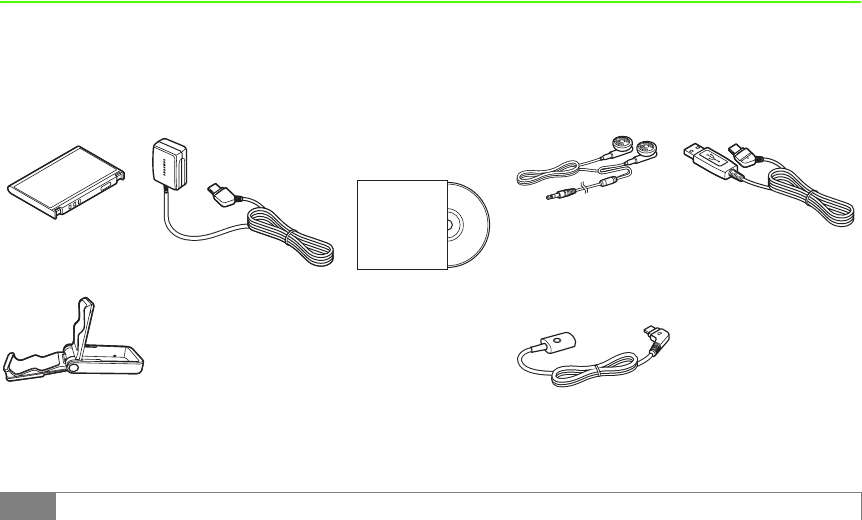
Make sure the following accessories are included in the package with handset. These accessories are also sold
separately.
For details on accessories or optional items, contact Customer Service (fP.26-24).
*Utility Software updates/upgrades may become available via SoftBank Website (http://www.softbank.jp)
without prior notification. Please check for the newest versions of Utility Software and download as
required.
Battery AC
Stereo
Utility Software*
(CD-ROM)
USB Cable
Earphone Conversion Cable
with Microphone
One-Seg Stand
Tip

x
• 920SC takes microSDTM Memory Card (not included). Purchase one to use Memory Card functions.
•microSD
TM Memory Card is referred to as “Memory Card” in this manual.
xi

x
About This Guide
In this guide, SoftBank 920SC is referred to as
920SC. Instructions are described using mainly
default settings. When settings are changed, screen
shots or handset responses may differ from those
depicted in this guide.
Screen Shots and 920SC Illustrations
Screen shots appearing in this guide are for reference
only and may differ from actual Display images.
Product illustrations may differ from actual product
appearances.
Confirmations & Warning Messages
Messages not described in this guide may appear;
read all confirmations and warning messages
carefully.
Japanese Functions & Services
When “(Japanese)” appears in a title, Japanese ability
is required to use full range of the function or
service.
Symbols
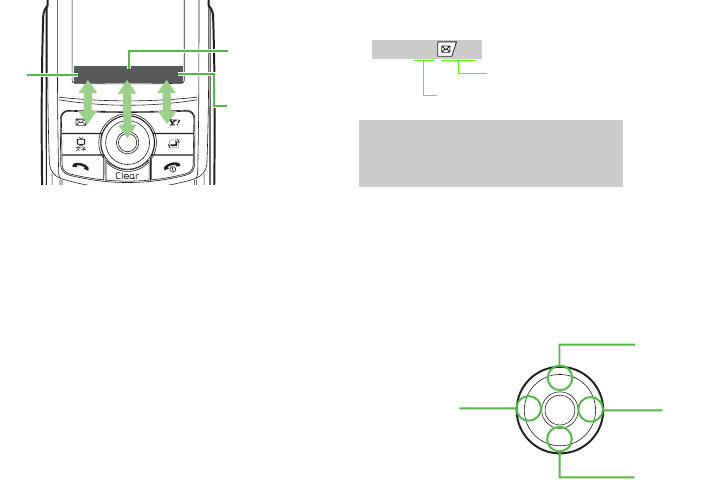
In this guide, symbols represent 920SC keys; see
"Parts & Functions" ( P.1-6). Softkey and Multi
Selector operations are indicated as follows.
Operation options appear at the bottom of Display.
Press the corresponding Softkey to execute assigned
functions.
Softkeys
xi
Softkey Operations
Use Multi Selector to select menu items, move
cursor, and scroll, etc. In this guide, Multi Selector
operations are indicated as shown below.
Basic Multi Selector Operations
j : Press u or d
s : Press l or r
Save Select Play
Press c
to Select
Press o
to Play
Press w
to Save
Multi Selector
Operations
Press
Assigned Function
Softkey
u
d
lr
xii
a : Press u,d,l, or r

xiii
Highlighting
In this guide, "to highlight" means to move cursor to
an item.
Menu Operations
Main Menu/Menu operations are simplified with
arrows.
Main Menu
Menu
Highlight an item and press c (Select)
For details, see "920SC Menus" ( P.1-19).
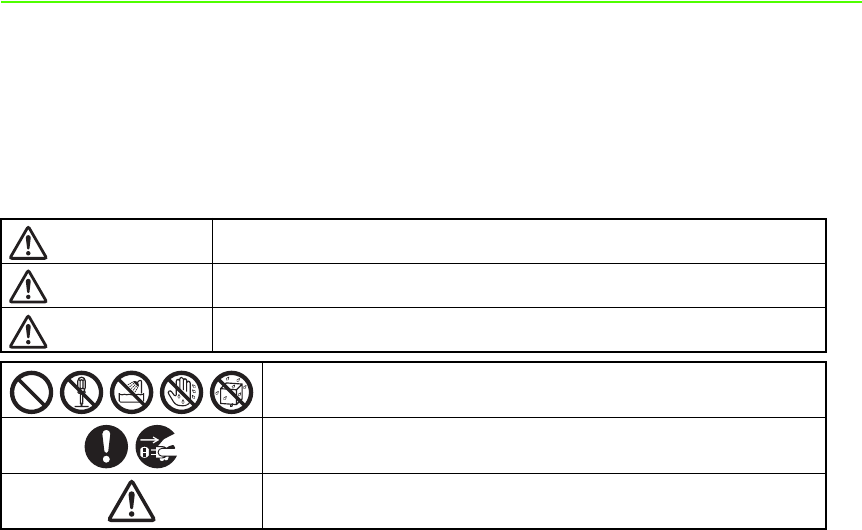
APress and select Settings →
Display settings →Wallpaper
Press o (Menu) to open Menu
Highlight an item and press c (Select)
ASelect Menu →Send →Via
bluetooth
xiv
Safety Precautions
• Read these safety precautions before
using handset.
• Observe all precautions to avoid injury
to yourself and others, or damage to
property.
• SoftBank is not liable for any damage
resulting from use of this product.
Before Using Handset
●
Symbols
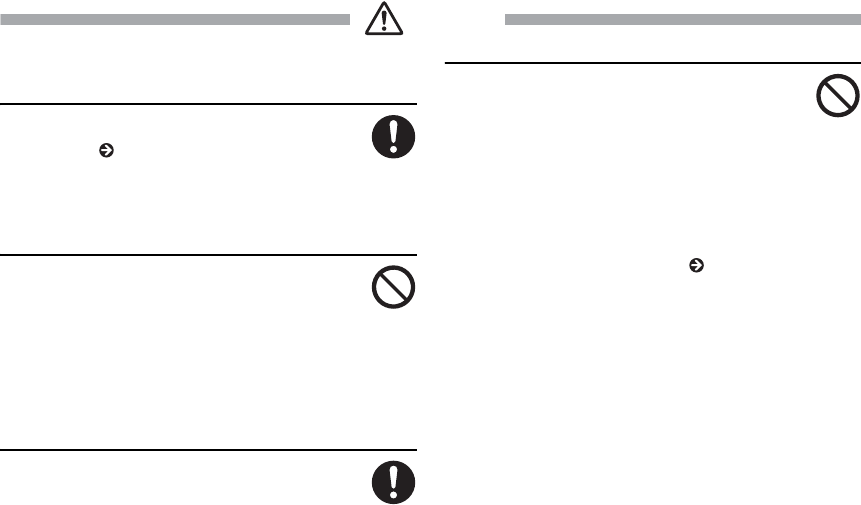
Make sure you thoroughly understand these symbols
before reading on. Symbols and their meanings are
described below:
Great risk of death or serious injury from improper use
Risk of death or serious injury from improper use
Risk of injury or damage to property from improper use
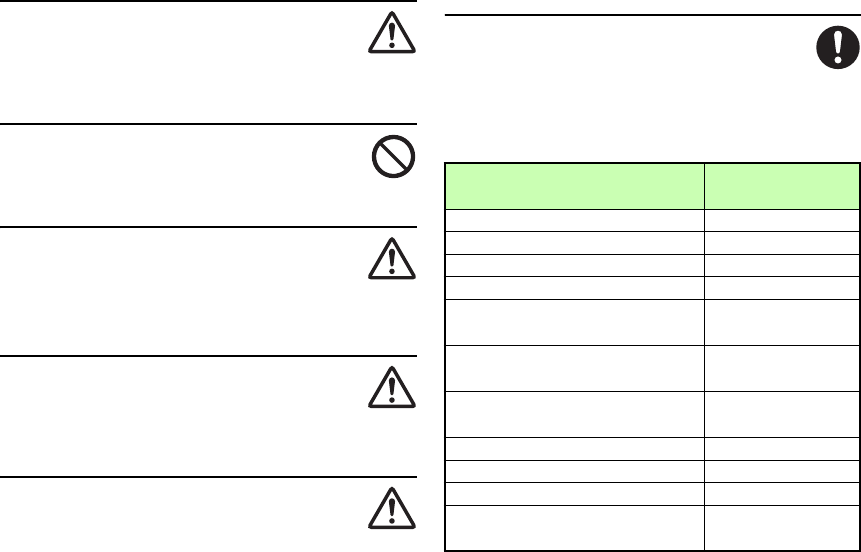
Danger
Warning
Caution
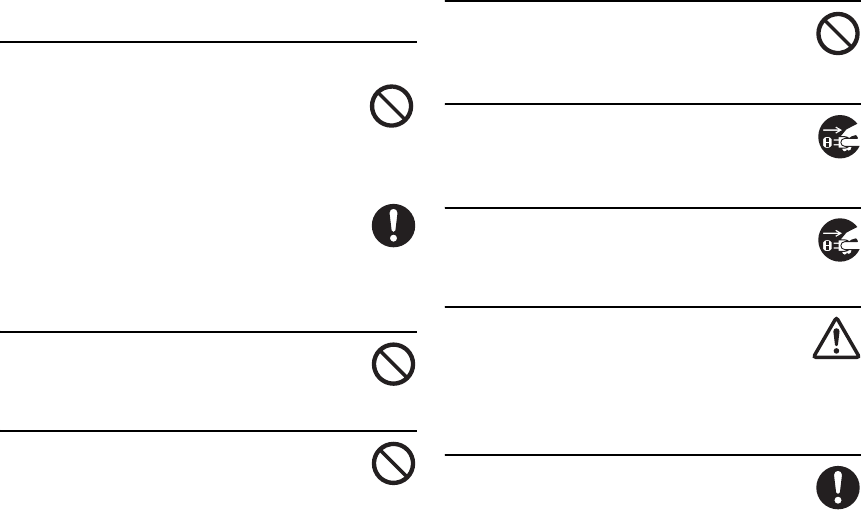
Prohibited Actions
Compulsory Actions
Attention Required
xv
Handset, Battery, & Charger
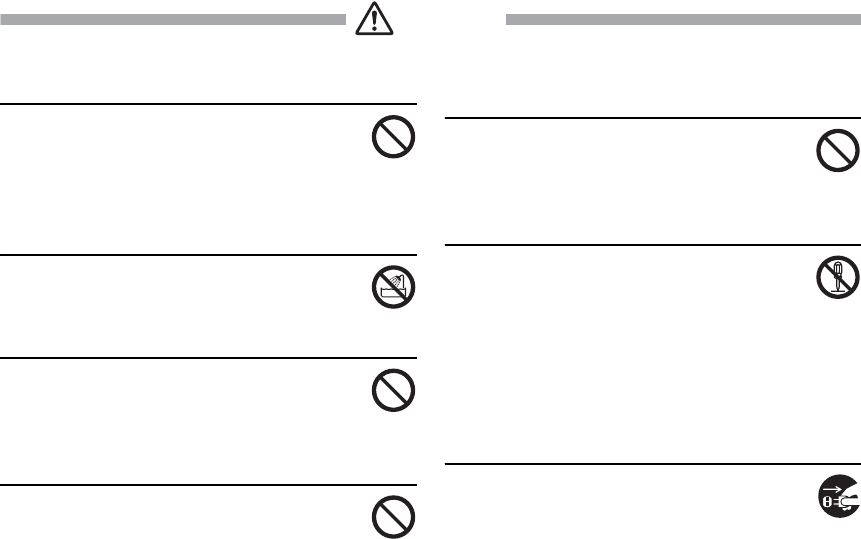
Use only specified battery and
Charger ( P.ix).
Using non-specified equipment may cause
malfunctions, electric shock or fire due to battery
leakage, overheating, or bursting.
Do not short-circuit Charger Port.
Keep metal objects away from the Charger
Port. Keep handset away from jewelry.
Battery may leak, overheat, burst, or ignite causing
injury. Use a case to carry handset.
Battery
If battery fluid gets into your eyes, do
not rub them. Rinse with clean water
and consult a doctor immediately.
Eyes may be severely damaged.
Prevent injury from battery
leakage, breakage, or fire.
Do not:
• Heat or dispose of battery in a fire.
• Disassemble, modify, or break battery.
• Damage or solder on to battery.
• Use a damaged or deformed battery.
• Use a non-specified charger ( P.ix).
• Force battery into handset.
• Charge or place battery near fire, heat sources or
expose it to extreme heat.
• Use battery for other equipments.
Danger
xvi
Handset, Battery, & Charger
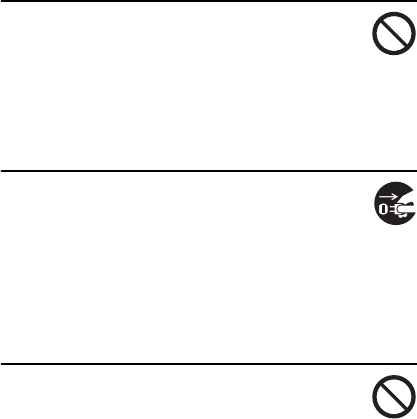
Do not insert foreign objects into
handset.
Do not place metal or flammable objects in handset
or Charger. This may cause fire or electric shock.
Keep handset out of the reach of children.
Keep handset out of rain or
extreme humidity.
Fire or electric shock may occur.
Keep handset away from liquid-
filled containers.
Keep handset and Charger away from chemicals/
liquids. Fire or electric shock may result.
Avoid sources of fire.
To prevent fire or explosion, do not use handset near
gas or fine particles (Coal, dust, metal, etc.).
Keep handset and Charger away
from microwave ovens.
Battery or handset may leak, burst, overheat, or
ignite.
Do not disassemble or modify
handset.
• Do not open the housing of handset or
Charger; it may cause electric shock or injury.
Contact the SoftBank Customer Center, Customer
Assistance for repairs.
• Do not modify handset or Charger. Fire or electric
shock may result.
If water or foreign matter gets
inside handset:
Warning
xvii
Discontinue handset use to prevent fire or electric
shock. Turn handset power off, remove battery,
unplug Charger and contact the SoftBank Customer
Center, Customer Assistance.
Do not subject handset to shocks.
Subjecting handset or Charger to shocks may
cause malfunction or injury. Should handset
break, remove battery and contact the SoftBank
Customer Center, Customer Assistance. Discontinue
handset use. Fire or electric shock may occur.
If an abnormality occurs:
Should there be any unusual sound, smoke,
or odor, discontinue handset use to avoid fire
or electric shock. Turn handset power off, remove
battery, unplug the Charger, and contact the
SoftBank Customer Center, Customer Assistance.
Fire or electric shock may result.
Keep handset off and Charger
disconnected near filling station or
places with risk of fire/explosion.
Handset use near petrochemicals or other
flammables may lead to fire or explosion.
xviii
Handset
Preventing accidents
• For safety, never use handset while driving.
Pull over beforehand. Mobile phone use
while driving is prohibited by the revised Road
Traffic Law (Effective November 1 2004).
• Do not use headphones while driving or riding a
bicycle. Accidents may result.
• Do not turn the volume up so high that ambient
sounds cannot be heard, especially when walking
in or around traffic to avoid accidents.
Do not swing handset by the strap.
Injury or breakage may result.
Turn handset power off before
boarding aircraft.
Using wireless devices aboard aircraft may cause
electronic malfunctions or endanger aircraft
operation.
Ringtone & Vibration Settings
Select settings carefully if you have a heart
condition or wear a pacemaker/defibrillator.
During thunderstorms, turn power
off; move to a safe place.
There is a risk of a lightning strike or electric shock.
Do not use handset with wet hands.
Doing so may lead to electric shock or
damage to 920SC.
xix
Charger
Use only the specified voltage.
Non-specified voltages may cause fire or electric
shock.
• AC Charger: AC 100V-240V Input
• In-Car Charger: DC 100V-240V Input
Do not use In-Car Charger inside
vehicles with a positive earth.
Fire may result. Use In-Car Charger only inside
vehicles with a negative earth.
Do not touch plug blades with wet hands.
Electric shock may occur.
Do not plug multiple cords in one
outlet.
Excess heat or fire may occur.
Do not bend, twist, pull, or set objects
on the cord. Do not put heavy objects
on the cords or heat or pull the cords.
Fire or electric shock may result.
Do not short-circuit Charger Port.
Keep the metal away from Port. Overheating,
fire, or electric shock may result.
Be sure to secure In-Car Charger.
Avoid injury or accidents.
Do not use AC/In-Car Charger if
the cord is damaged.
Fire or electric shock may be caused. Contact the
SoftBank Customer Assistance to replace the cord.
During thunderstorms:
Unplug Charger to avoid damage, fire, or
electric shock.
Keep Charger out of the reach of
children.
Electric shock or injury may result.
xx
Battery
If battery does not charge properly,
stop charging.
Battery may overheat, burst or ignite.
If there is leakage or abnormal
odor, keep battery away from fire
sources.
It may catch fire or burst.
If there is abnormal odor, excessive
heat, discoloration, or distortion,
remove battery from handset.
It may leak, overheat, or explode.
Handset Use & Electronic Medical
Equipment
This section is based on "Guidelines on the Use of
Radio Communications Equipment such as Cellular
Telephones and Safeguards for Electronic Medical
Equipment" (Electromagnetic Compatibility
Conference, April 1997) and "Report of
Investigation of the Effects of Radio Waves on
Medical Equipment, etc." (Association of Radio
Industries and Businesses, March 2001).
People with implanted pacemakers/
defibrillators should keep handset
more than 22 cm away.
Implanted pacemakers/defibrillators may
malfunction due to radio waves.
xxi
Turn handset power off in crowded
places such as trains. People with
implanted pacemakers/
defibrillators may be near.
Implanted pacemakers/defibrillators may
malfunction due to radio waves.
Observe these rules inside medical
facilities:
• Do not take handset into operating rooms
or Intensive or Coronary Care Units.
• Keep handset off in hospitals.
• Keep handset off in hospital lobbies. Electronic
equipment may be near.
• Obey rules regarding mobile phone use in medical
facilities.
Consult the manufacturer of other
electronic medical equipment
about radio wave effects.

xxii
Handset, Battery, & Charger
Handset Care
• Place 920SC on stable surfaces to avoid
malfunction or injury.
• Keep 920SC away from oily smoke or steam. Fire
or accidents may result.
• Cold air from air conditioners may condense,
resulting in leakage, or burnout.
• Keep 920SC away from direct sunlight (Inside
vehicles, etc.) or heat sources. Distortion,
discoloration, or fire may occur. Battery shape may
be affected.
• Keep 920SC out of extremely cold places to avoid
malfunction or accidents.
• Keep 920SC away from fire sources to avoid
malfunction or accidents.
Usage Environment
• Excessive dust may prevent heat release
and cause burnout or fire.
• Avoid using 920SC on the beach. Sand may cause
malfunction or accidents.
• Keep 920SC away from credit cards, phone cards,
etc. to avoid data loss.
Caution
xxiii
Handset
920SC temperature
920SC may become hot while in use. Avoid
prolonged contact with skin especially at
high temperature. May cause burn injuries.
Avoid leaving 920SC in extreme
heat (Inside vehicles, etc.).
Handset may heat up and lead to burns.
Volume settings
Keep handset volume moderate.
Excessive volume may cause damage to your
hearing.
Headphones
• Do not unplug by pulling the cord; may
damage the cord.
• Keep the plug clean to avoid noise or malfunction.
Inside vehicles:
Handset use may cause other electronic equipment to
malfunction.
Should skin irritation occur,
discontinue handset use and
consult a doctor.
Skin irritation, rashes, or itchiness may result
depending on your physical condition.
Parts Materials &
Finishing
Housing (Slide upper) MG
Housing (Slide lower) SUS
Housing (Keys side) PC + GF20%
Keypad PET + Urethane
Multi Selector PC + Film +
Urethane
Earpiece Ornament Bronze/Cr3+
coating
Charger/External Device Port
Cover, Memory Card Slot Cover PC + Urethane
Battery Cover PC + GF20%
Battery Cover Lock PC
Side keys PC + Urethane
Antenna PC + Pi-Ti +
STS304
xxiv
Charger
Charger & In-Car Charger
• Grasp the plug (not the cord) to disconnect
Charger. Otherwise, fire or electric shock
may result.
• Keep the cord away from heaters. Exposed wire
may cause fire or electric shock.
• Stop use if the plug is hot or improperly
connected. Fire or electric shock may
result.
• Keep In-Car Charger socket clean. If might
overheat and cause injury.
Use only the specified fuse
A 1A fuse is specified for In-Car Charger. An
improper fuse may cause damage or fire.
Always charge 920SC in a well-
ventilated area.
Avoid covering/wrapping Charger; may cause
damage or fire.
Do not use In-Car Charger when
engine is off.
Start engine before use; may weaken car battery.
Disconnect AC/In-Car Charger
during long periods of disuse.
Be sure to unplug AC/In-Car Charger after use.
Handset Maintenance
When cleaning, disconnect AC/In-Car
Charger to prevent shock or injury.
Installing In-Car Charger
Properly position the cable for safe driving to
avoid injury or accidents.
Battery
Keep battery out of the reach of
children.
They may sustain injuries. And when using, do not
let them remove battery from handset.
xxv
Do not leave battery in direct
sunlight or inside vehicles.
Overheating or fire may occur and performance may
be reduced.
Do not expose battery to liquids.
Performance may deteriorate.
If battery fluid makes contact with
skin or clothes:
Rinse with clean water immediately.
Do not dispose of exhausted
batteries with ordinary refuse.
Tape over battery terminals before disposal, or bring
them to a SoftBank shop. Follow local regulations
regarding battery disposal.
Do not throw or abuse battery.
Battery may overheat, burst, or ignite.
Charge battery within a range of
5°C - 40°C.
Battery may leak/overheat and performance may
deteriorate.
If a child is using handset, explain
all these instructions and supervise
handset’s usage.
If there is any abnormal odor or
excessive heat, stop using battery
and call the SoftBank Customer
Center, Customer Assistance.
Do not leave battery uncharged.
Charge at least once every six months.

xxvi
General Notes
General Use
• SoftBank is not liable for any damage
resulting from accidental loss/alteration of
any data on handset/Memory Card. Please
keep separate records of Phonebook
entries, etc.
• Handset transmissions may be disrupted
inside buildings, tunnels, or underground,
or when moving into/out of such places.
• Use handset without disturbing others.
• Handsets are radios as stipulated by the
Radio Law. Under the Radio Law,
handsets must be submitted for inspection
upon request.
• Handset use near landlines, TVs or radios
may cause interference.
• Beware of eavesdropping.
Because this service is completely digital,
the possibility of signal interception is
greatly reduced. However, some
transmissions may be overheard.
Eavesdropping
Deliberate/accidental interception of
communications constitutes
eavesdropping.
Inside Vehicles
• Never use handset while driving.
• Do not park illegally to use handset.
• Handset use may affect a vehicle's
electronic equipment.
xxvii
Aboard Aircraft
• Never use handset aboard aircraft (Keep
the power off).
• Handset use may impair aircraft operation.
Function Usage Limits
• These functions are disabled after handset
upgrade/replacement or service
cancellation: Camera; Media Player; S!
Appli; TV.
• After a long period of disuse, these
functions may be unusable; establish a
Network connection to restore usability.
Handset Care
• If handset is left with no battery or an
exhausted one, data may be altered/lost.
SoftBank is not liable for any resulting
damage.
• Use handset between 5°C - 40°C.
• Avoid extreme temperatures/direct
sunlight.
• Exposing the lens to direct sunlight may
damage the color filter and affect image
color.
• Do not drop or subject handset to shocks.
• Clean handset with a dry, soft cloth. Using
alcohol, thinner, etc. may damage it.
• Do not expose handset to rain, snow, or
high humidity.
• Never disassemble or modify handset.
• Avoid scratching Display.
• When closing handset, keep straps, etc.
outside to avoid damaging Display.
• When using headphones, moderate the
volume to avoid sound bleed.
• Handset is not water-proof. Avoid
exposure to liquids and high humidity.
xxviii
・Keep handset away from precipitation.
・Cold air from air conditioning, etc. may
condense causing corrosion.
・Avoid placing handset in damp places
(Restrooms, bath/shower rooms, etc.).
・On the beach, keep handset away from
water and direct sunlight.
・Perspiration may get inside handset
causing malfunction.
• Heavy objects or excessive pressure
should be avoided. This may cause
malfunction or injury.
・Do not sit down with handset in a back
pocket.
・Do not place heavy objects on handset in
a bag.
• Insert only specified devices into
Headphone Port. Malfunction or damage
may result.
• Always turn power off before removing
battery. If battery is removed while saving
data or sending mail, data may be lost,
changed or destroyed.
xxix
Copyrights
Copyright laws protect sounds, images, computer
programs, databases, other materials for copyright
holders. Duplicated material is limited to private use
only.
Use of materials beyond this limit or without
permission of copyright holders may constitute
copyright infringement, and be subject to criminal
punishment. Comply with copyright laws when using
images captured with handset camera.
The software contained in 920SC is copyrighted
material; copyright, moral right, and other related
rights are protected by copyright laws. Do not copy,
modify, alter, disassemble, decompile, or reverse-
engineer the software, and do not separate it from
hardware in whole or part.
Trademarks
• Licensed by QUALCOMM
Incorporated under one or more of the
following United States Patents and/or
their counterparts in other nations:
4,901,307 5,490,165 5,056,109
5,504,773 5,101,501 5,506,865
5,109,390 5,511,073 5,228,054
5,535,239 5,267,261 5,544,196
5,267,262 5,568,483 5,337,338
5,600,754 5,414,796 5,657,420
5,416,797 5,659,569 5,710,784
5,778,338
• Video Call, 3D Pictogram, S! Appli, S!
Mail and Mail Art are trademarks or
registered trademarks of SOFTBANK
MOBILE Corp.

xxx
• BookSurfing® is a registered trademark
of CELSYS, Inc., Voyager Japan, Inc.
and INFOCITY Inc.
• "SOFTBANK," SOFTBANK's
equivalent in Japanese, and the
SOFTBANK logo are trademarks or
registered trademarks of SOFTBANK
CORP. in Japan and in other countries.
• "Yahoo!", the "Yahoo!" and "Y!" logos
are trademarks or registered trademarks
of Yahoo! Inc.
• This product contains ACCESS Co.,
Ltd.’s NetFront Internet browser
software. NetFront is a trademark or
registered trademark of ACCESS Co.,
Ltd. in Japan and in other
countries.
• Part of the software in this product
incorporates a module developed by
the Independent JPEG Group.
• THIS PRODUCT IS LICENSED
UNDER THE MPEG-4 VISUAL
PATENT PORTFOLIO LICENSE FOR
THE PERSONAL AND NON-
COMMERCIAL USE OF A
CONSUMER FOR (i) ENCODING
VIDEO IN COMPLIANCE WITH
THE MPEG-4 VISUAL STANDARD
("MPEG-4 VIDEO") AND/OR (ii)
DECODING MPEG-4 VIDEO THAT
WAS ENCODED BY A CONSUMER
ENGAGED IN A PERSONAL AND
NONCOMMERCIAL ACTIVITY
AND/OR WAS OBTAINED FROM A
VIDEO PROVIDER LICENSED BY
MPEG LA TO PROVIDE MPEG-4
xxxi
VIDEO. NO LICENSE IS GRANTED
OR SHALL BE IMPLIED FOR ANY
OTHER USE. ADDITIONAL
INFORMATION INCLUDING THAT
RELATING TO PROMOTIONAL,
INTERNAL AND COMMERCIAL
USES AND LICENSING MAY BE
OBTAINED FROM MPEG LA, LLC.
SEE HTTP://WWW.MPEGLA.COM.
• Contains Macromedia® Flash® Flash
LiteTM technology by Adobe Systems
Incorporated.
• Copyright© 1995-2005 Adobe Systems
Incorporated. All rights reserved.
• Macromedia, Flash, Macromedia
Flash, and Macromedia Flash Lite are
trademarks or registered trademarks of
Adobe Systems Incorporated in the
United States and other countries.
•JBlend
TM is incorporated in this
product. JBlendTM is a JavaTM execution
environment developed by Aplix
Corporation for implementing
advanced performance and fast
operation on small-memory systems.

xxxii
• Powered by JBlendTM
Technology.
JBlend and JBlend logos are
registered trademarks of Aplix
Corporation in Japan and other
countries.
• Powered by JBlendTM,©1997-2006
Aplix Corporation.
All rights reserved.
• JBlend and all JBlend-based
trademarks and logos are trademarks or
registered trademarks of Aplix
Corporation in Japan and other
countries.
•Chaku-Uta
® and Chaku-Uta Full® are
registered trade marks of Sony Music
Entertainment Corp.
• Java and all Java-based
trademarks and logos are
trademarks or registered
trademarks of Sun Microsystems, Inc.
in the United States and other
countries.
•microSD
TM is a trademark of
SD Association.
• Bluetooth is a trademark of
the
Bluetooth SIG, Inc.
The Bluetooth word mark and logos are
owned by the Bluetooth SIG, Inc. and
any use of such marks by Samsung
Electronics is under license. Other
trademarks and trade names are those
of their respective owners.

xxxiii
Bluetooth
®
In the frequency band of the Bluetooth®
functions of 920SC, Industrial, scientific
or medical equipments such as
microwave ovens or in-house radio
stations such as the ones used in
production lines or by amateur radio
stations (Referred to as "other radio
stations" hereafter) are used. In order to
prevent radio interference with other
radio equipments, follow the points
listed below in using handset.
1.Before using Bluetooth® functions,
confirm there are no "other radio
stations" operating near you.
2.In case there is a radio interference
with "other radio stations," move to
some other place or stop the
Bluetooth® functions (Stop emitting
the radio waves) immediately.
3.If you have any questions or problems
with Bluetooth® emissions, contact
SoftBank as listed below:
Contact: SoftBank Customer Center
From a SoftBank handset, dial 157 (toll free) for
General Information. See "Customer Service"
( P.26-24) for landline numbers by service area.
920SC transmits on the 2.4 GHz band, employing
frequency-hopping spread spectrum (FHSS)
modulation, with resistance to radio frequency
interference between 1.5 - 5 meters, depending on
usage environment.

xxxvii
Health and Safety Information
Exposure to Radio Frequency (RF)
Signals
Certification Information (SAR)
Your wireless phone is a radio transmitter and
receiver. It is designed and manufactured not to
exceed the exposure limits for radio frequency (RF)
energy set by the Federal Communications
Commission (FCC) of the U.S. government. These
FCC exposure limits are derived from the
recommendations of two expert organizations, the
National Counsel on Radiation Protection and
Measurement (NCRP) and the Institute of Electrical
and Electronics Engineers (IEEE). In both cases, the
recommendations were developed by scientific and
engineering experts drawn from industry,
government, and academia after extensive reviews of
the scientific literature related to the biological
effects of RF energy.The exposure limit set by the
FCC for wireless mobile phones employs a unit of
measurement known as the Specific Absorption Rate
(SAR). The SAR is a measure of the rate of
absorption of RF energy by the human body
expressed in units of watts per kilogram (W/kg). The
FCC requires wireless phones to comply with a
safety limit of 1.6 watts per kilogram (1.6 W/kg).
The FCC exposure limit incorporates a substantial
margin of safety to give additional protection to the
public and to account for any variations in
measurements.SAR tests are conducted using
standard operating positions accepted by the FCC
with the phone transmitting at its highest certified
power level in all tested frequency bands. Although
the SAR is determined at the highest certified power

xxxviii
level, the actual SAR level of the phone while
operating can be well below the maximum value.
This is because the phone is designed to operate at
multiple power levels so as to use only the power
required to reach the network. In general, the closer
you are to a wireless base station antenna, the lower
the power output.Before a new model phone is
available for sale to the public, it must be tested and
certified to the FCC that it does not exceed the
exposure limit established by the FCC. Tests for each
model phone are performed in positions and
locations (e.g. at the ear and worn on the body) as
required by the FCC.
The highest SAR values for this model phone as
reported to the FCC are GSM1900 Mode(Part 24)
Head: 0 289 W/Kg, Body-worn:0.202 W/Kg. For
body worn operation, this model phone has been tested
and meets the FCC RF exposure guidelines whenused
with a Samsung accessory designated for this product
or when used with an accessory that contains no metal
add that positions the handset a minimum of 1.5 cm
from the body. Non-compliance with the above
restrictions may result in violation of FCC RF exposure
guidelines. SAR information on this and other model
phones can be viewed on-line at www.fcc.gov/oet/
fccid. This site uses the phone FCC ID number,
A3L920SC. Sometimes it may be necessary to
remove the battery pack to find the number. Once
you have the FCC ID number for a particular phone,
follow the instructions on the website and it should
provide values for typical or maximum SAR for a
particular phone. Additional product specific SAR
information can also be obtained at www.fcc.gov/
cgb/sar.
Consumer Information on Wireless
Phones
The U.S. Food and Drug Administration (FDA) has
published a series of Questions and Answers for
consumers relating to radio frequency (RF) exposure

xxxix
from wireless phones The FDA publication includes
the following information:
What kinds of phones are the subject of this
update?
The term wireless phone refers here to hand-held
wireless phones with built-in antennas, often called
°×cell,°± °×mobile,°± or °×PCS°± phones These
types of wireless phones can expose the user to
measurable radio frequency energy (RF) because of
the short distance between the phone and the user's
head These RF exposures are limited by Federal
Communications Commission safety guidelines that
were developed with the advice of FDA and other
federal health and safety agencies When the phone is
located at greater distances from the user, the
exposure to RF is drastically lower because a
person's RF exposure decreases rapidly with
increasing distance from the source The so-called
°×cordless phones,°± which have a base unit
connected to the telephone wiring in a house,
typically operate at far lower power levels, and thus
produce RF exposures well within the FCC's
compliance limits
Do wireless phones pose a health hazard?
The available scientific evidence does not show that
any health problems are associated with using
wireless phones There is no proof, however, that
wireless phones are absolutely safe Wireless phones
emit low levels of radio frequency energy (RF) in the
microwave range while being used They also emit
very low levels of RF when in the stand-by mode
Whereas high levels of RF can produce health effects
(by heating tissue), exposure to low level RF that
does not produce heating effects causes no known
adverse health effects Many studies of low level RF
exposures have not found any biological effects
Some studies have suggested that some biological
effects may occur, but such findings have not been

xl
confirmed by additional research In some cases,
other researchers have had difficulty in reproducing
those studies, or in determining the reasons for
inconsistent results
What is FDA's role concerning the safety of
wireless phones?
Under the law, FDA does not review the safety of
radiation-emitting consumer products such as
wireless phones before they can be sold, as it does
with new drugs or medical devices However, the
agency has authority to take action if wireless phones
are shown to emit radio frequency energy (RF) at a
level that is hazardous to the user In such a case,
FDA could require the manufacturers of wireless
phones to notify users of the health hazard and to
repair, replace or recall the phones so that the hazard
no longer exists Although the existing scientific data
do not justify FDA regulatory actions, FDA has
urged the wireless phone industry to take a number
of steps, including the following:
•Support needed research into possible biological
effects of RF of the type emitted by wireless
phones;
•Design wireless phones in a way that minimizes
any RF exposure to the user that is not necessary
for device function; and
•Cooperate in providing users of wireless phones
with the best possible information on possible
effects of wireless phone use on human health
FDA belongs to an interagency working group of the
federal agencies that have responsibility for different
aspects of RF safety to ensure coordinated efforts at
the federal level The following agencies belong to
this working group:
•National Institute for Occupational Safety and
Health
•Environmental Protection Agency
•Federal Communications Commission
• Occupational Safety and Health Administration

xli
•National Telecommunications and Information
Administration
The National Institutes of Health participates in some
interagency working group activities, as well
FDA shares regulatory responsibilities for wireless
phones with the Federal Communications
Commission (FCC) All phones that are sold in the
United States must comply with FCC safety
guidelines that limit RF exposure FCC relies on
FDA and other health agencies for safety questions
about wireless phones
FCC also regulates the base stations that the wireless
phone networks rely upon While these base stations
operate at higher power than do the wireless phones
themselves, the RF exposures that people get from
these base stations are typically thousands of times
lower than those they can get from wireless phones
Base stations are thus not the primary subject of the
safety questions discussed in this document
What are the results of the research done
already?
The research done thus far has produced conflicting
results, and many studies have suffered from flaws in
their research methods Animal experiments
investigating the effects of radio frequency energy
(RF) exposures characteristic of wireless phones
have yielded conflicting results that often cannot be
repeated in other laboratories A few animal studies,
however, have suggested that low levels of RF could
accelerate the development of cancer in laboratory
animals However, many of the studies that showed
increased tumor development used animals that had
been genetically engineered or treated with cancer-
causing chemicals so as to be pre-disposed to
develop cancer in absence of RF exposure Other
studies exposed the animals to RF for up to 22 hours
per day These conditions are not similar to the
conditions under which people use wireless phones,

xlii
so we don't know with certainty what the results of
such studies mean for human health
Three large epidemiology studies have been
published since December 2000 Between them, the
studies investigated any possible association between
the use of wireless phones and primary brain cancer,
glioma, meningioma, or acoustic neuroma, tumors of
the brain or salivary gland, leukemia, or other
cancers None of the studies demonstrated the
existence of any harmful health effects from wireless
phones RF exposures However, none of the studies
can answer questions about long-term exposures,
since the average period of phone use in these studies
was around three years
What research is needed to decide whether
RF exposure from wireless phones poses a
health risk?
A combination of laboratory studies and
epidemiological studies of people actually using
wireless phones would provide some of the data that
are needed Lifetime animal exposure studies could
be completed in a few years However, very large
numbers of animals would be needed to provide
reliable proof of a cancer promoting effect if one
exists Epidemiological studies can provide data that
is directly applicable to human populations, but ten
or more years' follow-up may be needed to provide
answers about some health effects, such as cancer
This is because the interval between the time of
exposure to a cancer-causing agent and the time
tumors develop - if they do - may be many, many
years The interpretation of epidemiological studies
is hampered by difficulties in measuring actual RF
exposure during day-to-day use of wireless phones
Many factors affect this measurement, such as the
angle at which the phone is held, or which model of
phone is used

xliii
What is FDA doing to find out more about
the possible health effects of wireless phone
RF?
FDA is working with the U S National Toxicology
Program and with groups of investigators around the
world to ensure that high priority animal studies are
conducted to address important questions about the
effects of exposure to radio frequency energy
(RF)FDA has been a leading participant in the
World Health Organization international
Electromagnetic Fields (EMF) Project since its
inception in 1996 An influential result of this work
has been the development of a detailed agenda of
research needs that has driven the establishment of
new research programs around the world The
Project has also helped develop a series of public
information documents on EMF issues
FDA and Cellular Telecommunications & Internet
Association (CTIA) have a formal Cooperative
Research and Development Agreement (CRADA) to
do research on wireless phone safety FDA provides
the scientific oversight, obtaining input from experts
in government, industry, and academic organizations
CTIA-funded research is conducted through
contracts to independent investigators The initial
research will include both laboratory studies and
studies of wireless phone users The CRADA will
also include a broad assessment of additional
research needs in the context of the latest research
developments around the world
What steps can I take to reduce my
exposure to radio frequency energy from
my wireless phone?
If there is a risk from these products - and at this
point we do not know that there is - it is probably
very small But if you are concerned about avoiding
even potential risks, you can take a few simple steps
to minimize your exposure to radio frequency energy
(RF) Since time is a key factor in how much

xliv
exposure a person receives, reducing the amount of
time spent using a wireless phone will reduce RF
exposure
•If you must conduct extended conversations by
wireless phone every day, you could place more
distance between your body and the source of the
RF, since the exposure level drops off dramatically
with distance For example, you could use a
headset and carry the wireless phone away from
your body or use a wireless phone connected to a
remote antenna
Again, the scientific data do not demonstrate that
wireless phones are harmful But if you are
concerned about the RF exposure from these
products, you can use measures like those described
above to reduce your RF exposure from wireless
phone use
What about children using wireless phones?
The scientific evidence does not show a danger to
users of wireless phones, including children and
teenagers If you want to take steps to lower exposure
to radio frequency energy (RF), the measures
described above would apply to children and
teenagers using wireless phones Reducing the time
of wireless phone use and increasing the distance
between the user and the RF source will reduce RF
exposure
Some groups sponsored by other national
governments have advised that children be
discouraged from using wireless phones at all For
example, the government in the United Kingdom
distributed leaflets containing such a
recommendation in December 2000 They noted that
no evidence exists that using a wireless phone causes
brain tumors or other ill effects Their
recommendation to limit wireless phone use by
children was strictly precautionary; it was not based
on scientific evidence that any health hazard exists

xlv
Do hands-free kits for wireless phones
reduce risks from exposure to RF
emissions?
Since there are no known risks from exposure to RF
emissions from wireless phones, there is no reason to
believe that hands-free kits reduce risks Hands-free
kits can be used with wireless phones for
convenience and comfort These systems reduce the
absorption of RF energy in the head because the
phone, which is the source of the RF emissions, will
not be placed against the head On the other hand, if
the phone is mounted against the waist or other part
of the body during use, then that part of the body will
absorb more RF energy Wireless phones marketed in
the U S are required to meet safety requirements
regardless of whether they are used against the head
or against the body Either configuration should
result in compliance with the safety limit
Do wireless phone accessories that claim to
shield the head from RF radiation work?
Since there are no known risks from exposure to RF
emissions from wireless phones, there is no reason to
believe that accessories that claim to shield the head
from those emissions reduce risks Some products
that claim to shield the user from RF absorption use
special phone cases, while others involve nothing
more than a metallic accessory attached to the phone
Studies have shown that these products generally do
not work as advertised Unlike “hand-free” kits,
these so-called “shields” may interfere with proper
operation of the phone The phone may be forced to
boost its power to compensate, leading to an increase
in RF absorption In February 2002, the Federal trade
Commission (FTC) charged two companies that sold
devices that claimed to protect wireless phone users
from radiation with making false and unsubstantiated
claims According to FTC, these defendants lacked a
reasonable basis to substantiate their claim

xlvi
What about wireless phone interference
with medical equipment?
Radio frequency energy (RF) from wireless phones
can interact with some electronic devices For this
reason, FDA helped develop a detailed test method to
measure electromagnetic interference (EMI) of
implanted cardiac pacemakers and defibrillators
from wireless telephones This test method is now
part of a standard sponsored by the Association for
the Advancement of Medical instrumentation
(AAMI) The final draft, a joint effort by FDA,
medical device manufacturers, and many other
groups, was completed in late 2000 This standard
will allow manufacturers to ensure that cardiac
pacemakers and defibrillators are safe from wireless
phone EMI FDA has tested wireless phones and
helped develop a voluntary standard sponsored by
the Institute of Electrical and Electronic Engineers
(IEEE) This standard specifies test methods and
performance requirements for hearing aids and
wireless phones so that no interference occurs when
a person uses a compatible phone and a compatible
hearing aid at the same time This standard was
approved by the IEEE in 2000
FDA continues to monitor the use of wireless phones
for possible interactions with other medical devices
Should harmful interference be found to occur, FDA
will conduct testing to assess the interference and
work to resolve the problem
Additional information on the safety of RF exposures
from various sources can be obtained from the
following organizations:
•FCC RF Safety Program:
http://www fcc gov/oet/rfsafety/
•Environmental Protection Agency (EPA):
http://www epa gov/radiation/
• Occupational Safety and Health Administration's
(OSHA):
http://www osha gov/SLTC/
radiofrequencyradiation/indexhtml

xlvii
•National institute for Occupational Safety and
Health (NIOSH):
http://www cdc gov/niosh/emfpghtml
• World health Organization (WHO):
http://www whoint/peh-emf/
•International Commission on Non-Ionizing
Radiation Protection:
http://www icnirpde
•National Radiation Protection Board (UK):
http://www nrpb org uk
•Updated 4/3/2002: US food and Drug
Administration
http://www fda gov/cellphones
Road Safety
Your w ireless phone gives you the powerful ability to
communicate by voice, almost anywhere, anytime
But an important responsibility accompanies the
benefits of wireless phones, one that every user must
uphold
When driving a car, driving is your first
responsibility When using your wireless phone
behind the wheel of a car, practice good common
sense and remember the following tips:
1 Get to know your wireless phone and its features,
such as speed dial and redial If available, these
features help you to place your call without taking
your attention off the road
2 When available, use a hands-free device If
possible, add an additional layer of convenience and
safety to your wireless phone with one of the many
hands free accessories available today
3 Position your wireless phone within easy reach Be
able to access your wireless phone without removing
your eyes from the road If you get an incoming call
at an inconvenient time, let your voice mail answer it
for you
4 Let the person you are speaking with know you are
driving; if necessary, suspend the call in heavy traffic

xlviii
or hazardous weather conditions Rain, sleet, snow,
ice and even heavy traffic can be hazardous
5 Do not take notes or look up phone numbers while
driving Jotting down a “to do” list or flipping
through your address book takes attention away from
your primary responsibility, driving safely
6Dial sensibly and assess the traffic; if possible,
place calls when you are not moving or before
pulling into traffic Try to plan calls when your car
will be stationary If you need to make a call while
moving, dial only a few numbers, check the road and
your mirrors, then continue
7 Do not engage in stressful or emotional
conversations that may be distracting Make people
you are talking with aware you are driving and
suspend conversations that have the potential to
divert your attention from the road
8Use your wireless phone to call for help Dial 9-1-1
or other local emergency number in the case of fire,
traffic accident or medical emergencies Remember,
it is a free call on your wireless phone!
9Use your wireless phone to help others in
emergencies If you see an auto accident, crime in
progress or other serious emergency where lives are
in danger, call 9-1-1 or other local emergency
number, as you would want others to do for you
10Call roadside assistance or a special non-
emergency wireless assistance number when
necessary If you see a broken-down vehicle posing
no serious hazard, a broken traffic signal, a minor
traffic accident where no one appears injured, or a
vehicle you know to be stolen, call roadside
assistance or other special non-emergency number
“The wireless industry reminds you to
use your phone safely when driving.”
For more information, please call 1-888-901-SAFE,
or visit our web-site www wow-com com Provided

xlix
by the Cellular Telecommunications & Internet
Association
Operating Environment
Remember to follow any special regulations in force
in any area and always switch your phone off
whenever it is forbidden to use it, or when it may
cause interference or danger When connecting the
phone or any accessory to another device, read its
user's guide for detailed safety instructions Do not
connect incompatible products
As with other mobile radio transmitting equipment,
users are advised that for the satisfactory operation of
the equipment and for the safety of personnel, it is
recommended that the equipment should only be
used in the normal operating position (held to your
ear with the antenna pointing over your shoulder)
Using Your Phone Near Other
Electronic Devices
Most modern electronic equipment is shielded from
radio frequency (RF) signals However, certain
electronic equipment may not be shielded against the
RF signals from your wireless phone Consult the
manufacturer to discuss alternatives
Pacemakers
Pacemaker manufacturers recommend that a
minimum distance of 15 cm (6 inches) be maintained
between a wireless phone and a pacemaker to avoid
potential interference with the pacemaker
These recommendations are consistent with the
independent research and recommendations of
Wireless Technology Research
Persons with pacemakers:
•should always keep the phone more than 15 cm (6
inches) from their pacemaker when the phone is
switched on
•should not carry the phone in a breast pocket

l
•should use the ear opposite the pacemaker to
minimize potential interference
If you have any reason to suspect that interference is
taking place, switch your phone off immediately
Hearing Aids
Some digital wireless phones may interfere with
some hearing aids In the event of such interference,
you may wish to consult your hearing aid
manufacturer to discuss alternatives
Other Medical Devices
If you use any other personal medical devices,
consult the manufacturer of your device to determine
if it is adequately shielded from external RF energy
Your physician may be able to assist you in obtaining
this information Switch your phone off in health
care facilities when any regulations posted in these
areas instruct you to do so Hospitals or health care
facilities may be using equipment that could be
sensitive to external RF energy
Vehicles
RF signals may affect improperly installed or
inadequately shielded electronic systems in motor
vehicles Check with the manufacturer or its
representative regarding your vehicle Yo u should
also consult the manufacturer of any equipment that
has been added to your vehicle
Posted Facilities
Switch your phone off in any facility where posted
notices require you to do so
Potentially Explosive Environments
Switch your phone off when in any area with a
potentially explosive atmosphere and obey all signs
and instructions Sparks in such areas could cause an
explosion or fire resulting in bodily injury or even
death
Users are advised to switch the phone off while at a
refueling point (service station) Users are reminded

li
of the need to observe restrictions on the use of radio
equipment in fuel depots (fuel storage and
distribution areas), chemical plants or where blasting
operations are in progress
Areas with a potentially explosive atmosphere are
often but not always clearly marked They include
below deck on boats, chemical transfer or storage
facilities, vehicles using liquefied petroleum gas
(such as propane or butane), areas where the air
contains chemicals or particles, such as grain, dust or
metal powders, and any other area where you would
normally be advised to turn off your vehicle engine
Emergency Calls
This phone, like any wireless phone, operates using
radio signals, wireless and landline networks as well
as user programmed functions, which cannot
guarantee connection in all conditions Therefore,
you should never rely solely on any wireless phone
for essential communications (medical emergencies,
for example)
Remember, to make or receive any calls the phone
must be switched on and in a service area with
adequate signal strength Emergency calls may not
be possible on all wireless phone networks or when
certain network services and/or phone features are in
use Check with local service providers
To make an emergency call:
1If the phone is not on, switch it on
2Key in the emergency number for your present
location (for example, 911 or other official
emergency number) Emergency numbers vary by
location
3Press [Send]
If certain features are in use (call barring, for
example), you may first need to deactivate those
features before you can make an emergency call

lii
Consult this document and your local cellular service
provider
When making an emergency call, remember to give
all the necessary information as accurately as
possible Remember that your phone may be the only
means of communication at the scene of an accident;
do not cut off the call until given permission to do so
Restricting Children's access to your
Phone
Your phone is not a toy Children should not be
allowed to play with it because they could hurt
themselves and others, damage the phone or make
calls that increase your phone bill
FCC Notice and Cautions
FCC Notice
• This device complies with Part 15 of the FCC
Rules Operation is subject to the following two
conditions: (1) this device may not cause harmful
interference, and (2) this device must accept any
interference received, including interference that
may cause undesired operation
• This equipment has been tested and found to
comply with the limits for a Class B digital device,
pursuant to part 15 of the FCC Rules These limits
are designed to provide reasonable protection
against harmful interference in a residential
installation This equipment generates, uses and
can radiate radio frequency energy and,if not
installed and used in accordance with the
instructions, may cause harmful interference to
radio communications However, there is no
guarantee that interference will not occur in a
particular installation If this equipment does cause
harmful interference to radio or television
reception, which can be determined by turning the
equipment off and on, the user is encouraged to try
to correct the interference by one or more of the
following measures:
-Reorient or relocate the receiving antenna
-Increase the separation between the equipment and
receiver

liii
-Connect the equipment into an outlet on a circuit
different from that to which the receiver is
connected
-Consult the dealer or an experienced radio/TV
technician for help
The phone may cause TV or radio interference if
used in close proximity to receiving equipment The
FCC can require you to stop using the phone if such
interference cannot be eliminated
Vehicles using liquefied petroleum gas (such as
propane or butane) must comply with the National
Fire Protection Standard (NFPA-58) For a copy of
this standard, contact the National Fire Protection
Association, One Battery march Park, Quincy, MA
02269, Attn: Publication Sales Division
Cautions
Changes or modifications made in the radio phone,
not expressly approved by Samsung, will void the
user°Øs authority to operate the equipment
Only use approved batteries, antennas and chargers
The use of any unauthorized accessories may be
dangerous and void the phone warranty if said
accessories cause damage or a defect to the phone
Although your phone is quite sturdy, it is a complex
piece of equipment and can be broken Avoid
dropping, hitting, bending or sitting on it
Other Important Safety Information.
•Only qualified personnel should service the phone
or install the phone in a vehicle Faulty installation
or service may be dangerous and may invalidate
any warranty applicable to the device
•Check regularly that all wireless phone equipment
in your vehicle is mounted and operating properly
• Do not store or carry flammable liquids, gases or
explosive materials in the same compartment as the
phone, its parts or accessories
• For vehicles equipped with an air bag, remember
that an air bag inflates with great force Do not
place objects, including both installed or portable
wireless equipment in the area over the air bag or in

liv
the air bag deployment area If wireless equipment
is improperly installed and the air bag inflates,
serious injury could result
•Switch your phone off before boarding an aircraft
The use of wireless phone in aircraft is illegal and
may be dangerous to the aircraft's operation
•Failure to observe these instructions may lead to
the suspension or denial of telephone services to
the offender, or legal action, or both
Product Performance
Getting the Most Out of Your Signal
Reception
The quality of each call you make or receive depends
on the signal strength in your area Your phone
informs you of the current signal strength by
displaying a number of bars next to the signal
strength icon The more bars displayed, the stronger
the signal
If you're inside a building, being near a window may
give you better reception Understanding the Power
Save FeatureIf your phone is unable to find a signal
after 15 minutes of searching, a Power Save feature
is automatically activated If your phone is active, it
periodically rechecks service availability or you can
check it yourself by pressing any key
Anytime the Power Save feature is activated, a
message displays on the screen When a signal is
found, your phone returns to standby mode
Understanding How Your Phone
Operates
Your phone is basically a radio transmitter and
receiver When it's turned on, it receives and
transmits radio frequency (RF) signals When you
use your phone, the system handling your call
controls the power level This power can range from
0006 watts to 0 2 watts in digital mode
Maintaining Your Phone's Peak
Performance

lv
For the best care of your phone, only authorized
personnel should service your phone and accessories
Faulty service may void the warranty
There are several simple guidelines to operating
your phone properly and maintaining safe,
satisfactory service
•Hold the phone with the antenna raised, fully-
extended and over your shoulder
•Try not to hold, bend or twist the phone's antenna
• Don't use the phone if the antenna is damaged
•Speak directly into the phone's receiver
•Avoid exposing your phone and accessories to rain
or liquid spills If your phone does get wet,
immediately turn the power off and remove the
battery If it is inoperable, call Customer Care for
service
Availability of Various Features/Ring
Tones
Many services and features are network dependent
and may require additional subscription and/or usage
charges Not all features are available for purchase or
use in all areas Downloadable Ring Tones may be
available at an additional cost Other conditions and
restrictions may apply See your service provider for
additional information
Battery Standby and Talk Time
Standby and talk times will vary depending on phone
usage patterns and conditions Battery power
consumption depends on factors such as network
configuration, signal strength, operating temperature,
features selected, frequency of calls, and voice, data,
and other application usage patterns
Battery Precautions
•Never use any charger or battery that is damaged in
any way
•Use the battery only for its intended purpose If you
use the phone near the network's base station, it
uses less power; talk and standby time are greatly
affected by the signal strength on the cellular
network and the parameters set by the network
operator

lvi
•Battery charging time depends on the remaining
battery charge and the type of battery and charger
used The battery can be charged and discharged
hundreds of times, but it will gradually wear out
When the operation time (talk time and standby
time) is noticeably shorter than normal, it is time to
buy a new battery
•If left unused, a fully charged battery will discharge
itself over time
•Use only Samsung-approved batteries and recharge
your battery only with Samsung-approved
chargers When a charger is not in use, disconnect
it from the power source Do not leave the battery
connected to a charger for more than a week, since
overcharging may shorten its life
•Extreme temperatures will affect the charging
capacity of your battery: it may require cooling or
warming first
• Do not leave the battery in hot or cold places, such
as in a car in summer or winter conditions, as you
will reduce the capacity and lifetime of the battery
Always try to keep the battery at room temperature
A phone with a hot or cold battery may temporarily
not work, even when the battery is fully charged
Li-ion batteries are particularly affected by
temperatures below 0 °C (32 °F)
• Do not short-circuit the battery Accidental short-
circuiting can occur when a metallic object (coin,
clip or pen) causes a direct connection between the
+ and - terminals of the battery (metal strips on the
battery), for example when you carry a spare
battery in a pocket or bag Short-circuiting the
terminals may damage the battery or the object
causing the short-circuiting
•Dispose of used batteries in accordance with local
regulations In some areas, the disposal of batteries
in household or business trash may be prohibited
For safe disposal options for Li-Ion batteries,
contact your nearest Samsung authorized service
center Always recycle Do not dispose of batteries
in a fire
Care and Maintenance
Your phone is a product of superior design and
craftsmanship and should be treated with care The
suggestions below will help you fulfill any warranty

lvii
obligations and allow you to enjoy this product for
many years
•Keep the phone and all its parts and accessories out
of the reach of small children
•Keep the phone dry Precipitation, humidity and
liquids contain minerals that will corrode electronic
circuits
• Do not use the phone with a wet hand Doing so
may cause an electric shock to you or damage to
the phone
• Do not use or store the phone in dusty, dirty areas,
as its moving parts may be damaged
• Do not store the phone in hot areas High
temperatures can shorten the life of electronic
devices, damage batteries, and warp or melt certain
plastics
• Do not store the phone in cold areas When the
phone warms up to its normal operating
temperature, moisture can form inside the phone,
which may damage the phone's electronic circuit
boards
• Do not drop, knock or shake the phone Rough
handling can break internal circuit boards
• Do not use harsh chemicals, cleaning solvents or
strong detergents to clean the phone Wipe it with a
soft cloth slightly dampened in a mild soap-and-
water solution
• Do not paint the phone Paint can clog the device's
moving parts and prevent proper operation
• Do not put the phone in or on heating devices, such
as a microwave oven, a stove or a radiator The
phone may explode when overheated
•When the phone or battery gets wet, the label
indicating water damage inside the phone changes
color In this case, phone repairs are no longer
guaranteed by the manufacturer's warranty, even if
the warranty for your phone has not expired
•If your phone has a flash or light, do not use it too
close to the eyes of people or animals This may
cause damage to their eyes
•Use only the supplied or an approved replacement
antenna Unauthorized antennas or modified
accessories may damage the phone and violate
regulations governing radio devices
•If the phone, battery, charger or any accessory is
not working properly, take it to your nearest

lviii
qualified service facility The personnel there will
assist you, and if necessary, arrange for service

1
Getting Started
USIM Card....................................................1-2
About USIM Card .......................................1-2
USIM Card Installation ...............................1-4
USIM PINs..................................................1-6
Parts & Functions.........................................1-7
Handset........................................................1-7
Display Indicators .....................................1-10
About Battery..............................................1-12
Before Using Battery.................................1-12
Battery Installation ....................................1-14
AC Charger ...............................................1-16
In-Car Charger (Optional).........................1-18
Power On/Off ..............................................1-19
Power On...................................................1-19
Power Off ..................................................1-20
Time & Date ................................................1-20
Time & Date..............................................1-20
Changing Home Time Zone......................1-21
920SC Menus...............................................1-22
Main Menu ................................................1-22
Shortcuts....................................................1-24
Switch Bar.................................................1-24
Menu ............................................................1-25
Security Codes.............................................1-25
Phone Password ........................................1-25
Center Access Code ..................................1-26
Network Password.....................................1-26
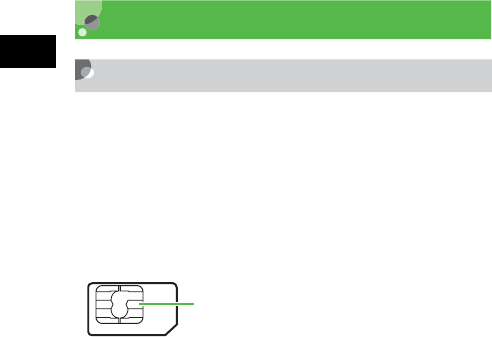
1-2
Getting Started
1
USIM Card
About USIM Card
Universal Subscriber Identity Module (USIM) Card
is an IC card containing customer and authentication
information, including handset number and limited
storage for Phonebook entries and SMS. Install
USIM Card to use 920SC; turn 920SC power off to
insert/remove USIM Card.
Insert USIM Card into another compatible handset to
access SMS and Phonebook entries saved on USIM
Card. Note the following precautions regarding
USIM Card usage and care (see USIM Card User
Guide for details):
• Avoid using excessive force when Inserting/
removing USIM Card.
• SoftBank is not liable for damage resulting from
inserting USIM Card into IC card readers or other
third party devices.
• Always keep USIM Card IC chip clean.
• Clean USIM Card IC chip with a soft, dry cloth.
• Do not attach labels to USIM Card; malfunction
may result.
IC
USIM Card

1-3
Getting Started
1
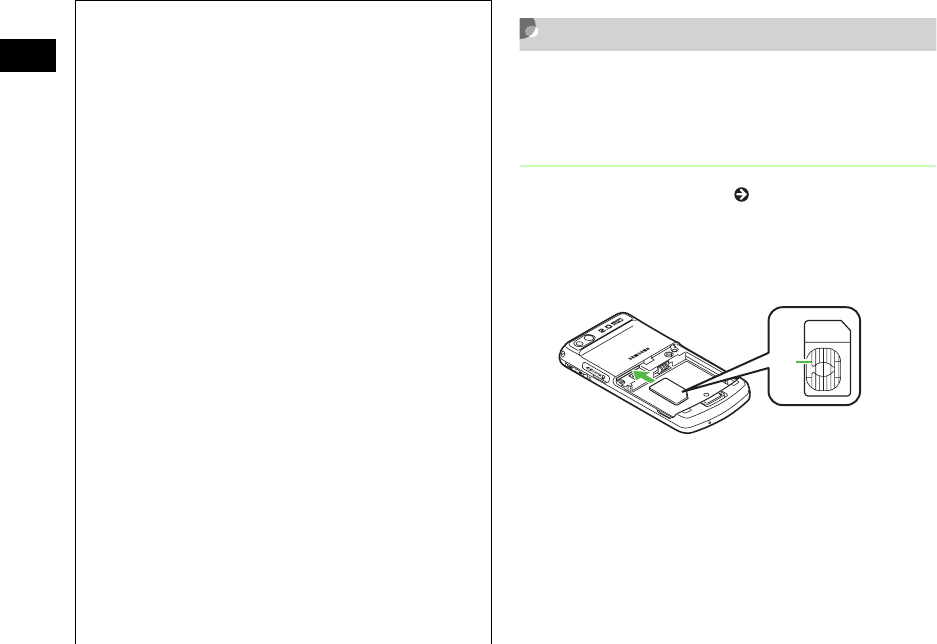
1-4
Getting Started
1USIM Card Installation
Always turn power off before opening 920SC to
remove battery, or insert/remove USIM Card.
Inserting
ARemove battery ( P.1-16)
BWith IC chip down, insert USIM
Card into card slot
Notes
• USIM Card is the property of SoftBank.
• If USIM Card is lost or damaged, you will be
charged for reissuing it.
• Return USIM Card to SoftBank upon
termination of subscription.
• Returned USIM Cards are recycled.
• USIM Card specifications may change without prior
notice.
• If USIM Card or 920SC with USIM Card
inserted is lost or stolen in Japan or abroad,
immediately contact Customer Service (fP.2 6-
24) to suspend service.
• Handset/USIM Card repairs, replacement, or
upgrades may deactivate Chaku-Uta
®
, Chaku-
Uta Full
®
,
S! Appli, or video files on handset/Memory
Card.
• Inserting another USIM Card (not the included
one) into 920SC may deactivate preinstalled S!
Appli or BookSurfing
®
files on handset.
• Back-up USIM Card files. SoftBank is not liable
for lost files.
IC
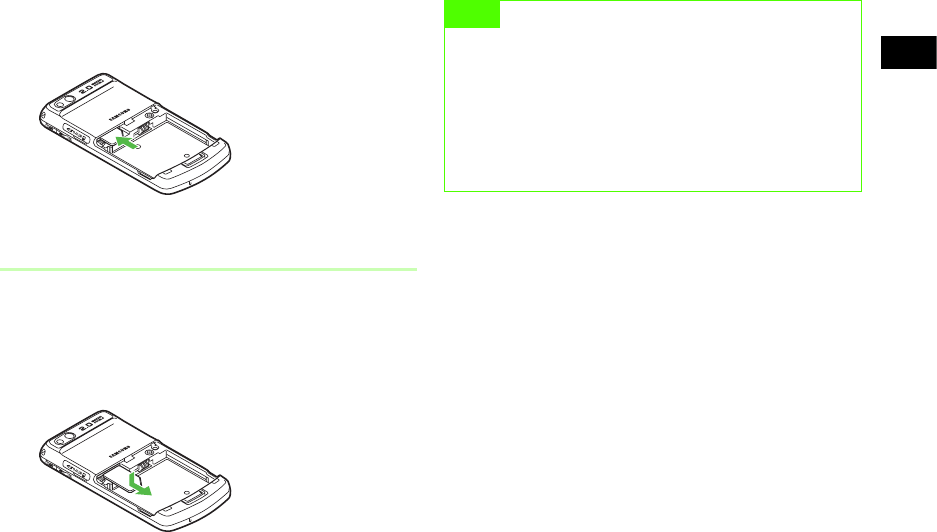
1-5
Getting Started
1
CPush in USIM Card until it stops and
locks
Removing
ARemove battery (fP.1-16)
BPress down on USIM Card and
gently slide it out
Note
• Inserting USIM Card with excessive force may
damage it or 920SC.
• Do not misplace a removed USIM Card.
• To prevent damaging it, avoid touching the IC chip
when Inserting or removing USIM Card. Do not
touch battery contacts.
1-6
Getting Started
1
USIM PINs
USIM Card features two (4- to 8-digit) security
codes:
PIN and PIN2.
PIN
Use PIN to prevent unauthorized use of 920SC by
others.
• Modify PIN ( P.14-2).
• When PIN lock is activated, PIN entry is required
each time 920SC is turned on or whenever USIM
Card is re-inserted ( P.14-3).
PIN2
PIN2 is required for Reset Call Cost or Edit Cost
Limit, etc.
• Modify PIN2 ( P.14-2).
Canceling PIN Lock (PUK/PUK2
Code)
Incorrectly entering PIN or PIN2 three consecutive
times activates PIN Lock and limits 920SC function
access. Enter PUK (PIN Unlocking Key) Code to
cancel PIN Lock. For more information, contact
Customer Service ( P.26-24).
Note
• Entering PUK or PUK2 incorrectly ten consecutive
times locks USIM Card and deactivates 920SC.
Take a note of PUK and PUK2.
• Unlocking a locked USIM Card requires a special
procedure. Contact Customer Service ( P.26-24).
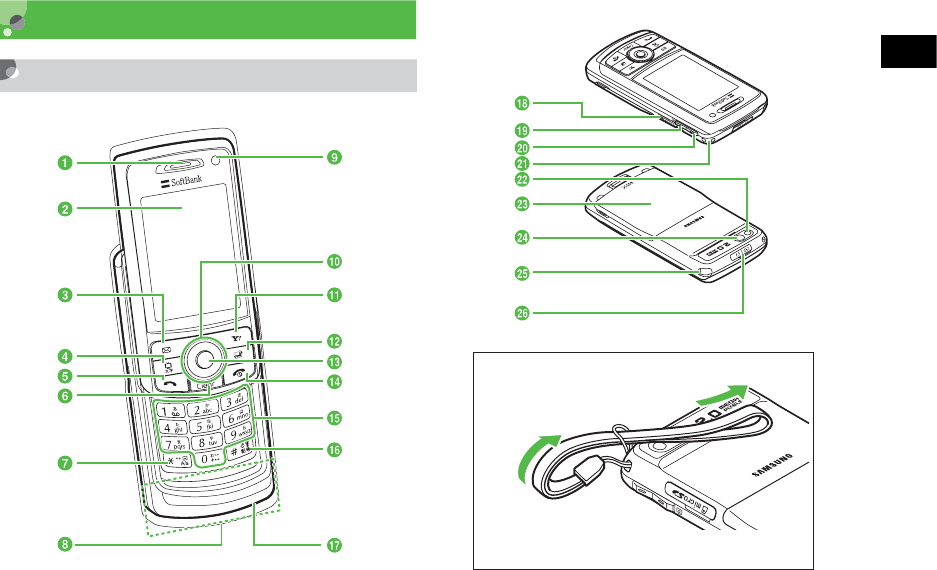
1-7
Getting Started
1
Parts & Functions
Handset
Attach strap as shown.

1-8
Getting Started
1
aEarpiece/Speaker
bDisplay
cw Left Softkey/Mail Key
Open Messaging menu or execute Left Softkey
command/function.
de TV/Character Key
Activate TV or select text entry mode.
et Start Key
Initiate and receive Voice Calls.
fC Clear/Back Key
Delete entered text or return to the previous window.
g* Key
Enter line breaks in text entry windows.
In Standby, press for 1+ seconds to open Phone
Profiles.
hInternal Antenna
iInternal Camera
Used for capturing your own image or for Video Calls.
judlr Multi Selector
Select menu items, move cursor, scroll window.
ko Right Softkey/Yahoo! Keitai Key
Access Yahoo! Keitai or execute Right Softkey command/
function.
li Switch Bar Key
Display Switch Bar (fP.1-24).
mc Center Key
Open Main Menu or execute Center Softkey command/
function.
ny Power/End Key
Turn power on/off or end operations.
o0 - 9 Keypad
Enter numbers or characters and select menu items.
p# #/Manner Key
Toggle Symbols menus in text entry windows.
In Standby, press for 1+ seconds to activate/cancel
Manner Profile.
qMicrophone
rMemory Card Slot
Insert Memory Card.
sb Side Key
Lower volume. Alternatively, reduce the image during a
Video Call.
In Standby, press for 2+ seconds to activate Camera.
tn Side Key
Raise volume. Alternatively, enlarge the image during a
Video Call.
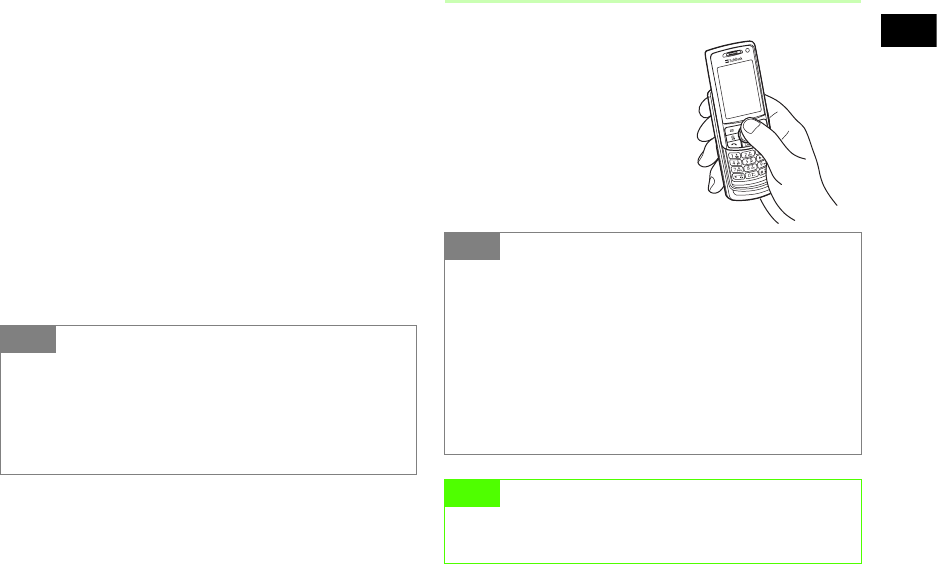
1-9
Getting Started
1
uStrap Eyelet
vExternal Camera
Capture images or send video during a Video Call.
wBattery Cover
Open to insert or remove Battery or USIM Card.
xSelf-Portrait Mirror
Used when capturing your own image with External
Camera.
yAntenna
Used for TV reception.
zCharger/External Device Port
Connect Charger, Stereo Earphone Microphone, USB
Cable, etc. here.
Opening & Closing 920SC
Use Display Lip to slide
Display portion up/down as
shown here.
Tip
• Internal Antenna
920SC transmits and receives signals via Internal
Antenna. Do not cover or place stickers, etc. over the
area containing Internal Antenna. Voice quality may
vary by where/how 920SC is used.
Tip
•Backlight
Display backlight goes out then turns off as set in
Backlight time; response varies by function in use.
• When 920SC is closed
Press Side Keys (nb) for 1+ seconds to turn
Backlight on temporarily. When Keypad Lock is
active, Backlight is turned on and a message appears
notifying the lock is temporarily released.
Note
• Make sure 920SC is completely open or closed; use
in other positions may cause malfunction/injury.
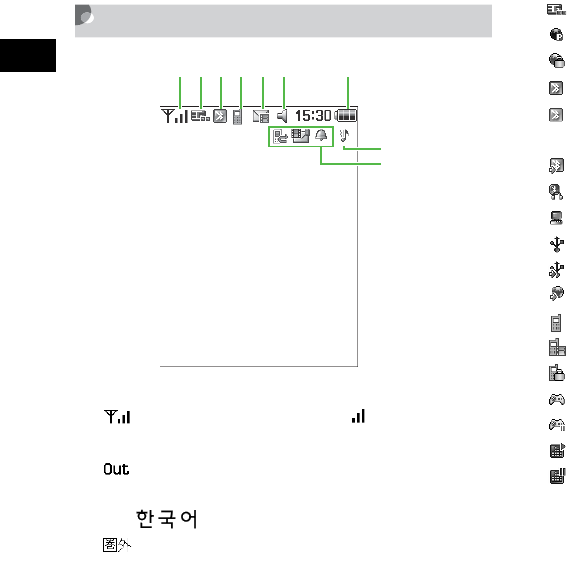
1-10
Getting Started
1
Display Indicators
aSignal Strength (more bars indicate
stronger signal)
Out-of-Range (outside service area or no
signal when Language is set to English or
)
Out-of-Range (When Language is set to
)
b3G (UMTS) Network Connected
Web Connected
Web SSL Connected
c(Blue) Bluetooth® Active
(Flashing in Blue & Pink) Bluetooth®
Transmission
Bluetooth® Packet Data Transmission
Call in Progress with Bluetooth® Active
PC Site Browser Connected
(Blue) USB Connected
(Flashing in Orange & Yellow) USB Active
Packet Data Transmission
dVoice Call in Progress
Video Call in Progress
Keypad Lock Set
S! Appli Active
S! Appli Paused
Music Playback
Music Paused
abcdf
eg
i
h
日本語
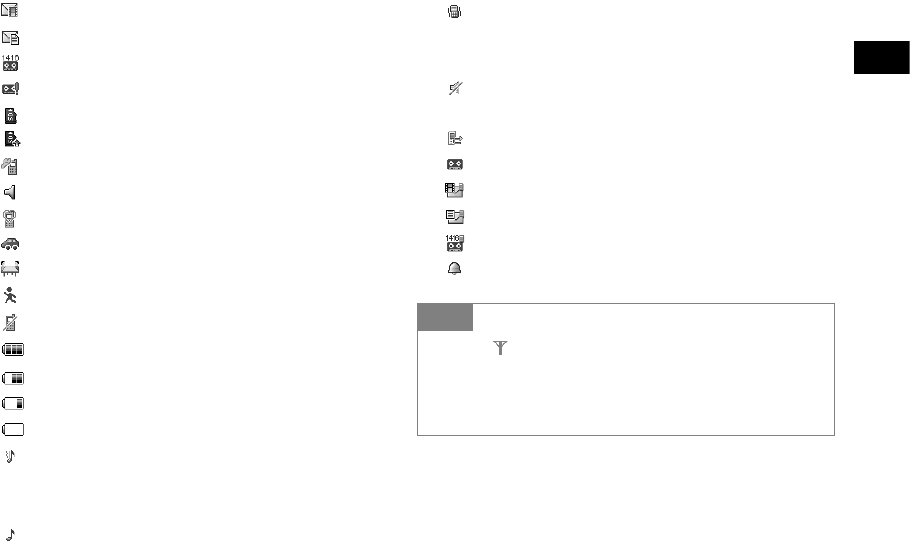
1-11
Getting Started
1
eNew S! Mail
New SMS
Unheard Voice Mail
Unheard Answer Machine Message
Memory Card Inserted
Loading Memory Card Data
Software Update Required
fNormal Profile
Manner Profile
Car Profile
Meeting Profile
Outdoor Profile
Offline Mode
gBattery Strong
Battery Moderate
Battery Low
(Flashing) Battery Weak (Charge Now)
hSound settings: Other than Off for Voice Call
Ringtone in Ringtone volume Set; and On for
Voice Call in Vibration Set
Sound settings: Other than Off for Voice Call
Ringtone in Ringtone volume Set; and Off for
Voice Call in Vibration Set
Sound settings: Off for Voice Call Ringtone in
Ringtone volume Set; and On for Voice Call in
Vibration Set
Sound settings: Off for Voice Call Ringtone in
Ringtone volume Set and Vibration Set
iVoice Mail/Call Forwarding Active
Answer Machine Active
S! Mail Memory Full
SMS Memory Full
Voice Mail Memory Full
Wake-up Alarm/Alarm Set
Tip
• When (Red) appears, only packet data
transmission and S! Mail sending are available;
Voice Call, received S! Mail notification, and SMS
sending/receiving are disabled.
1-12
Getting Started
1
About Battery
Before Using Battery
Charge battery before first use of 920SC or after long
periods of disuse.
Charging Battery
• Long periods of disuse may affect battery's ability
to hold a full charge.
• 920SC uses a lithium-ion battery; charge battery in
any state without damaging its ability to hold a
charge.
• Do not charge battery under the following
conditions:
-In ambient temperatures beyond 5°C - 40°C
-In high levels of humidity, vibration or dust
-Near a radio receiver (May cause feedback)
• 920SC or Charger may warm while charging. This
is normal, however, should they become very hot
to the touch, stop charging and contact Customer
Service (fP.26-24).
• Charge battery at least once every six months
while not in use. Otherwise, battery may become
unusable.
• Battery is a consumable; replace it if operating
time shortens noticeably.
Battery Life
Battery time/life may be reduced by any of the
following:
• Environmental Factors
-Storing/using 920SC beyond 5°C - 40°C
-Using 920SC when signal is poor/out-of-range
Note
• Use specified Charger only. Do not use it for devices
other than 920SC.
• Battery must be inside 920SC to charge it.
• When not in use, unplug Charger from outlet or
cigarette lighter socket.

1-13
Getting Started
1
-Debris to collect on 920SC, battery or Charger
Port
• Operational Factors
-Active S! Appli
-Camera use
-Media Player use
-Excessive Keypad use (e.g. for gaming or
messaging)
-Bluetooth® transmissions
-Frequently opening and closing 920SC
-Watching TV
• Settings
-Using Slide Show
-Setting Brightness higher or Backlight Time
longer
-Using Media Player with Backlight set to
Always on
Battery Disposal
Do not dispose of exhausted batteries with ordinary
refuse. Tape over battery terminals before disposal or
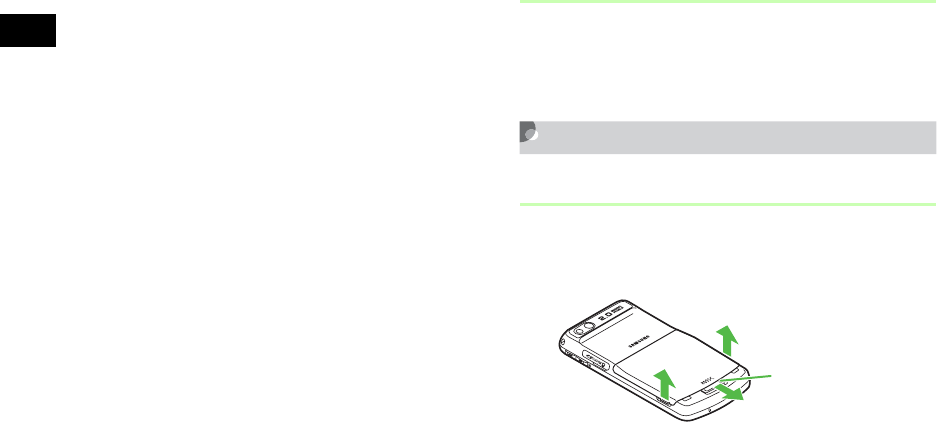
1-14
Getting Started
1
take to a SoftBank shop. Follow any and all local
regulations regarding battery disposal.
Lithium-ion batteries are recyclable.
When Battery Runs Out
When battery is weak, a warning appears and 920SC
beeps. Charge or replace battery; otherwise 920SC
will automatically turn off.
Battery Installation
Inserting
ASlide Lock over and lift up Battery
Cover as shown
b
a
Lock
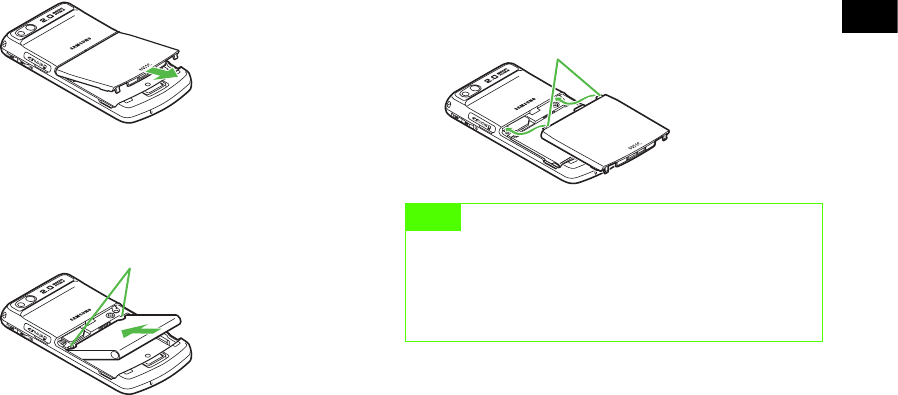
1-15
Getting Started
1
BFully remove Battery Cover as shown
CAlign Battery Slots and 920SC
Notches to insert battery as shown
DInsert Battery Cover Tabs into 920SC
Slots as shown
Notches
Note
• Remove battery cover with care; stress on tabs may
damage them.
• Gently insert battery to avoid damaging 920SC
tabs.
Battery Cover Tabs
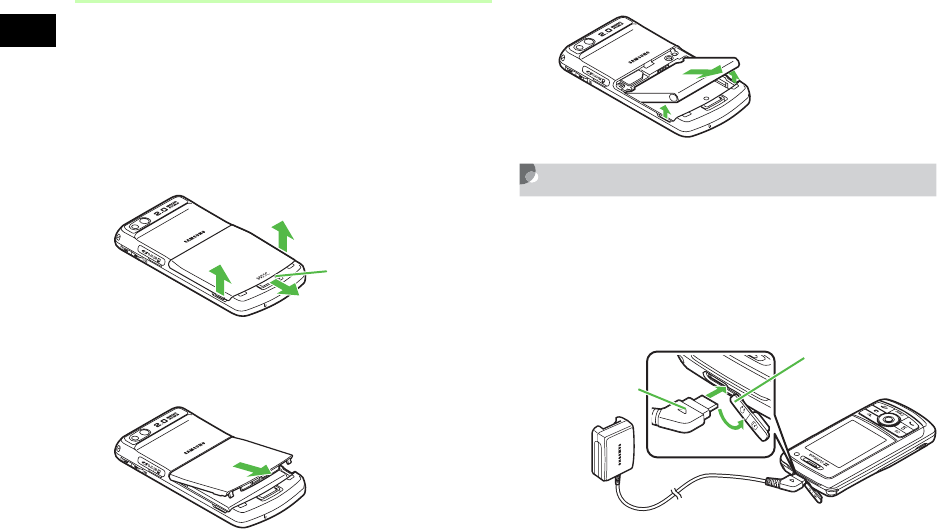
1-16
Getting Started
1
Removing
Always turn 920SC off before removing battery.
Never remove battery while AC Charger or In-Car
Charger is connected.
ASlide Lock over and lift up Battery
Cover as shown
BFully remove Battery Cover as shown
CLift battery up and remove as shown
AC Charger
Use specified Charger only.
AOpen Port Cover and insert Charger
Connector into the port
a
b
Lock
Port Cover
Charger
Connector (with
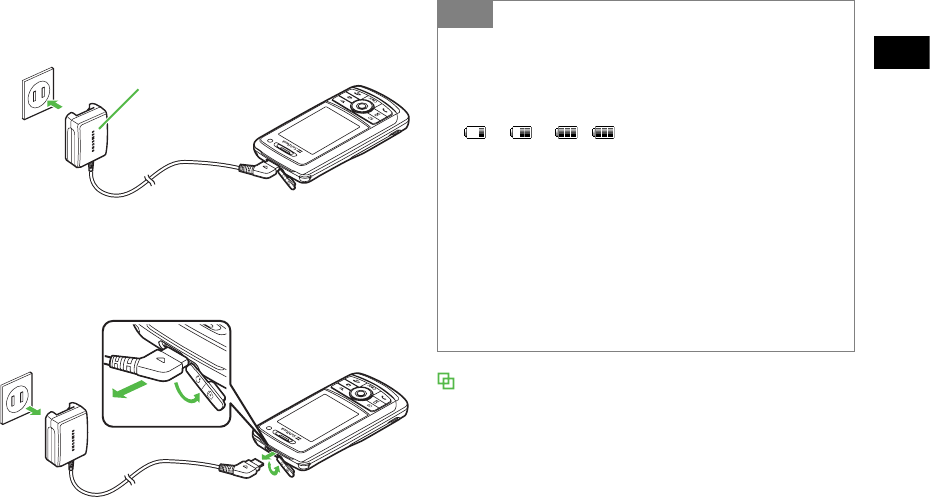
1-17
Getting Started
1
BPlug Charger into an AC 100V outlet
CWhen battery is charged, unplug
Charger, then disconnect handset
Charging via PC USB Port
Battery will be charged when 920SC is connected to a
PC via the supplied USB cable.
aOpen Port Cover and insert USB Cable Connector
bInsert USB Connector into a PC USB port
cWhen battery is charged, remove Connector from
920SC and replace Port Cover, then remove USB
Connector from the PC USB port
Charge
AC 100V
Tip
• Battery Charged Confirmation
If 920SC is on while Charger is connected, battery
indicators flash when battery is fully charged.
While charging, battery indicators change as follows:
→→. flashes when battery is fully
charged.
If 920SC is off while Charger is connected, charging
battery animation and Charging... appear. When
battery is fully charged, full battery graphics and
Battery full appear.
•Charging Time
An empty battery requires 170 minutes (approx.) to
charge when power off. Charging time may vary by
ambient temperature.
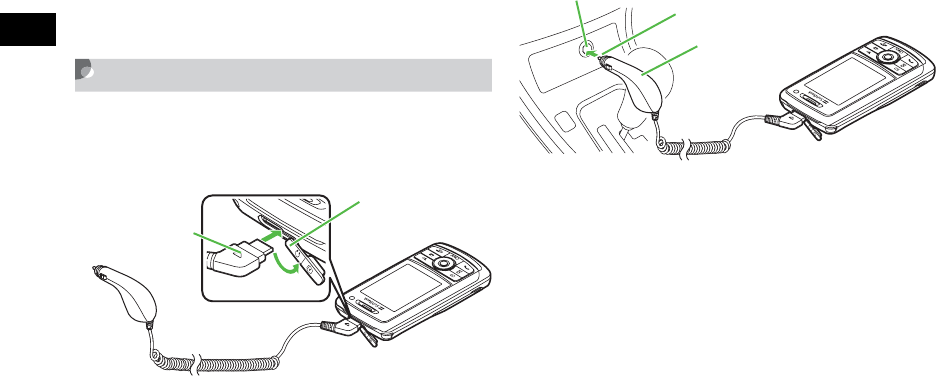
1-18
Getting Started
1
Charging via USB takes more time; charging time will
vary by PC. A weak battery may not charge via a PC
USB port.
In-Car Charger (Optional)
AOpen Port Cover and insert
Connector
BInsert Charger Connector into
lighter socket
Port Cover
Charger
Connector
In-Car
Charger
Lighter Socket
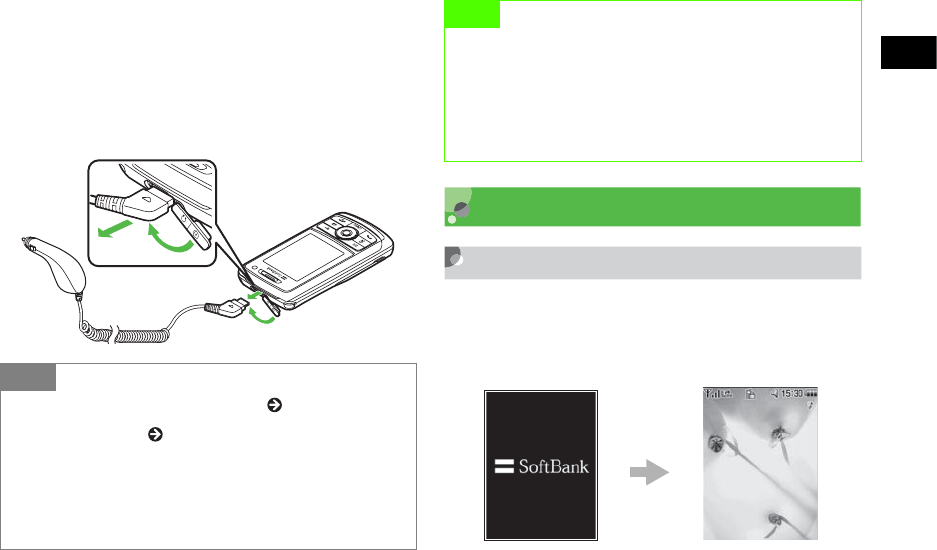
1-19
Getting Started
1
CStart the car's engine
DWhen battery is charged, disconnect
handset (replace Port Cover), then
unplug In-Car Charger
Power On/Off
Power On
AOpen 920SC
BPress y for 1+ seconds
Tip
• Battery Charged Confirmation ( P.1-17)
• Charging Time ( P.1-17)
• When using In-Car Charger
See In-Car Charger manual about In-Car Charger
operations. For safety, use In-Car Holder together with
In-Car Charger.
Note
• Do not charge battery in ambient temperatures
over 40°C (e.g. inside a closed automobile in direct
sunlight, etc.).
• Use In-Car Charger in cars with a negative earth
only (DC 12/24V).
Standby
1-20
Getting Started
1
Power Off
APress y for 2+ seconds and confirm
Display is turned off
Time & Date
Time & Date
Some 920SC functions cannot be used unless time
and date are set. Open Time & Date to change Time
Format or Date Format.
APress c and select Settings →Phone
settings →Time & date
BSet items
Time
Highlight Time field and enter the time (24-hour
format)
Tip
• To confirm handset phone number
In Standby, press c→0; your phone number
appears in My Phonebook Details. Edit or perform
Menu operations ( P.5-18).
• When 920SC is left open without operations
Display automatically shuts down to conserve power
( P.9-7).
Note
• Gently slide front face to open and close 920SC;
avoid using excessive force which could damage
handset or lead to malfunctions.
Default
Setting
■Time format: 24H
■ Date format: YYYY/MM/DD
1-21
Getting Started
1
AM/PM (for 12-hour format)
aHighlight Time field and press r twice for
AM/PM option
bUse r to toggle AM and PM
Date
Highlight Date field and enter the year, month,
and day
Time format
aSelect Time format field
bSelect the setting and press c
Date format
aSelect Date format field
bSelect the setting and press c
CPress w (Save)
Changing Home Time Zone
Select the zone closest to your locality. Set Daylight
saving time as required. Complete this setting before
selecting Dual Clock in Clock Display (fP.9-4).
APress c and select Settings →Phone
settings →Time & date
BSelect Home zone field
CSet items
Home time zone
aUse s to specify a target area
bPress c
Daylight saving time
aCheck Daylight saving
bPress w (OK)
Note
•Time zone updating is disabled even when the
setting is changed.
Default
Setting
■Home zone: GMT+9h
■ Daylight saving: Unchecked
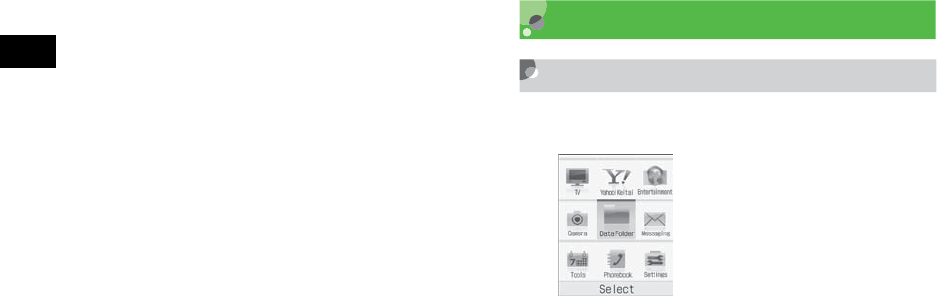
1-22
Getting Started
1
DPress w (Save) 920SC Menus
Main Menu
AIn Standby, press c
BHighlight an item and press c
(Select)
CRepeat Step 2 to open/activate the
target function
Main Menu
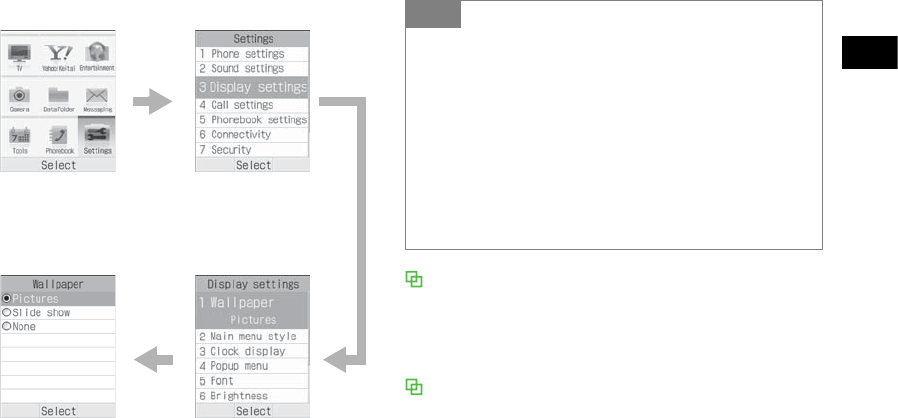
1-23
Getting Started
1
<Example> Select Display settings →Wallpaper
When Popup Menu (fP.9-5) is On
The sub-item is popped up when an item is highlighted
in Step 2. Content is different, however operations
remain the same.
Selecting items with Keypad
When numbered items appear in menus, etc., use
Keypad to select them.
Highlight
Display
settings
and press
c
(Select)
Highlight
Settings
and press
c
(Select)
Select Wallpaper
Pictures
and press
c
(Select)
Wallpaper Setup
Window appears
Tip
• To end an operation
Press y. Operation ends and 920SC returns to
Standby. When multiple functions are active, the next
active operation window appears.
• To cancel/escape an operation
Press y. Operation/function is canceled and 920SC
returns to Standby or the previous window appears. For
some menus, a confirmation appears.
• Menu operations (fP.xiii)
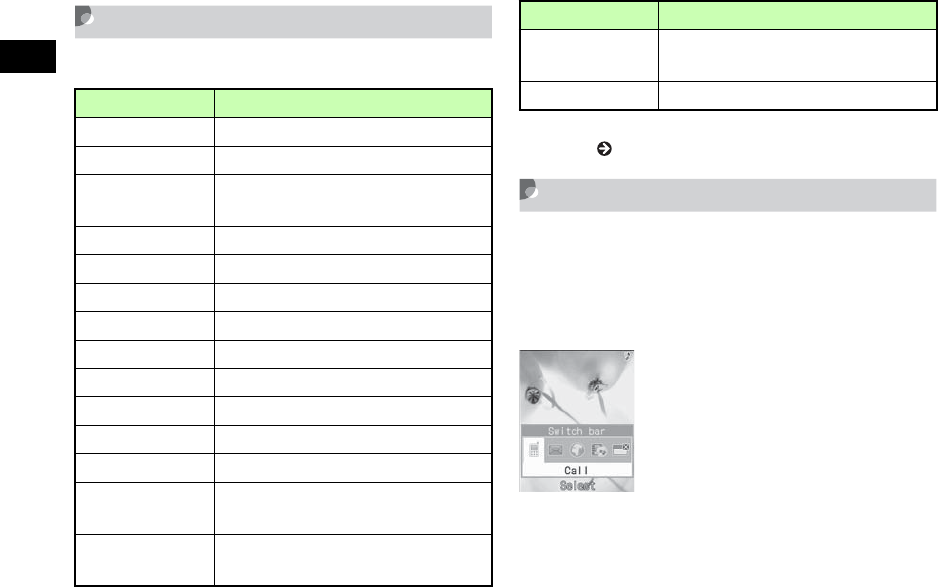
1-24
Getting Started
1
Shortcuts
In Standby, press a key to open the assigned shortcut.
* Create shortcuts for frequently used functions in Idle
shortcut ( P.16-8).
Switch Bar
Initiate Call,Messaging,Yahoo! Keitai, or Media
Player; use multiple functions concurrently (e.g.,
create a message while listening to music, or browse
the Mobile Internet while talking on the phone).
AIn Standby or an active function
window, press i
Key Corresponding Menu/Function
w Messaging
o Yahoo! Keitai Main Menu
o(1+
seconds) Yahoo! Keitai Menu
eTV activation
e (1+ seconds) TV Menu
iSwitch Bar
uIdle shortcut*
dPhonebook list
lCall Log (Received)
rCall Log (Dialled)
tCall Log (Current Contacts)
CRecordings list
C (1+
seconds) Activate/Cancel Answer Machine
* (1+
seconds) Phone Profiles
# (1+
seconds) Activate/Cancel Manner Profile
b(2+ seconds) Camera activation
Key Corresponding Menu/Function
1-25
Getting Started
1
BUse s to highlight a function and
press c (Select)
To exit an active function
From the window of the function to exit, press
y
To exit all active functions
aPress i
b
Use
s
to highlight
End all?
and press
c
(Yes)
Menu
When Menu appears at the bottom-right of Display,
press o to open Menu. To execute an option,
highlight the item and press c (Select).
Security Codes
Phone Password, Center Access Code and Network
Password are required to use 920SC.
Phone Password
The 4-digit number (9999 by default) required to use/
change some handset functions.
• Entered digits are represented with*
• If incorrect, an error message appears; try again.
• Change Phone Password as required ( P.14-2)
Tip
• When exiting all active functions
Even while creating a message or browsing Yahoo!
Keitai homepage, all active functions are exited without
confirmation.
To exit after confirmation, press y to exit one by
one. Exiting all active functions during message
creation or voice/video recording deletes created/
recorded data.
Tip
• See "Menu" (fP.xiii)
1-26
Getting Started
1
Center Access Code
4-digit number specified at subscription; required to
access Voice Mail via landlines/to subscribe to fee-
based information.
Center Access Code cannot be changed on 920SC; a
special procedure is required.
For details, contact Customer Service ( P.26-24).
Network Password
4-digit number specified at subscription, required to
restrict handset services. Entering Network Password
incorrectly three consecutive times locks Call
Barring settings. To resolve, Network Password and
Center Access Code must be changed. For details,
contact Customer Service ( P.26-24).
• Network Password can be changed on 920SC
(P.17-12).
Note
• Write down Phone Password, Center Access Code,
or Network Password. If you forget any of these
codes, contact Customer Service ( P.26-24).
• Do not reveal Phone Password, Center Access
Code, or Network Password to others. SoftBank is
not liable for damage caused by misuse of these
codes by others.
1-27

1-28
Getting Started
1

2
Basic Operations
Initiating a Call .............................................2-2
Receiving a Call ............................................2-4
Rejecting Incoming Call...............................2-5
Answer Machine ...........................................2-6
Activating & Canceling...............................2-6
Ringing Duration.........................................2-6
Sound Language..........................................2-7
Checking Recordings ..................................2-7
Engaged Call Operations .............................2-7
Earpiece Volume .........................................2-7
Hold.............................................................2-8
Speaker Phone.............................................2-8
Voice Recording ..........................................2-8
Engaged Call Menu.....................................2-9
Call Log Records ..........................................2-9
Viewing Call Log Records..........................2-9
Calling from Call Log Records .................2-11
Deleting Call Log Records........................2-11
Call Log Menu ..........................................2-12
Call Manager...............................................2-13
Data Counter, Call Costs, & Call Times ...2-13
Edit Cost Limit..........................................2-14
Display Call Cost after Call Ends .............2-14
Emergency Calls .........................................2-15

2-2
Basic Operations
2
Initiating a Call
See P.5-10 to call from a Phonebook entry or P.6-2 to
initiate a Video Call.
AEnter a phone number
When Phonebook list appears ( P.5-12)
To use Speed Dialing ( P.5-13)
BConfirm the number and press t
CPress y to end the call
Placing international calls from Japan
A separate subscription is required for international
calls.
For details, contact Customer Service (fP.26-24).
aEnter a phone number
bMenu →International dial
cSelect country or Enter Code for direct entry
dConfirm the number and press t
Tip
• To correct entered digits
Press C to delete the last digit. Press C for 1+
seconds to delete all.
• To enter "P (Pause)" or "+ (International Code)"
as a phone number
Press *for 1+ seconds to enter P or press 0
for 1+ seconds to enter +.
• When the line is busy
Press y to end the call and try again later. If Auto
Redial (fP.16-2) is active, number is automatically
redialed. Press o (Cancel) or y to cancel
redialing.
• When Stereo Earphone Microphone is connected
Enter a number and press Stereo Earphone Microphone
switch for 1+ seconds to initiate a call. When
Earphone call is On, press switch for 1+ seconds to
call specified number. Press switch for 1+ seconds to
end a call.
• Engaged Call Operations ( P.2-7)
2-3
Basic Operations
2
Using a SoftBank handset overseas
Enter handset phone number; country code is not
required.
Menu
Item Description
Video call Initiate a Video Call.
Add to
Phonebook
Save a number to Phonebook or
USIM Card Phonebook (fP.5-6).
Create msg Open a new message addressed to
the number (fP.18-6).
Phonebook Open Phonebook Search window.
Call log Open Call Log.
International dial
Add international code and
country code to a number (fP.2 -
2).
Hide/Show my ID
Hide or show your phone number
when placing calls; select None to
apply Caller ID settings (fP.17-
12).
Select Show my ID to show your
phone number. Select Hide my ID
not to show your phone number.
2-4
Basic Operations
2
Receiving a Call
AWhen 920SC rings/vibrates, press
t or c (Accept)
BPress y to end the call
Ringtones
Specify ringtones for saved numbers by Phonebook
entry or Category ( P.5-4, 5-8). When no ringtone is
set, 920SC rings according to Profile Settings ( P.10-
2).
Under following conditions, 920SC rings according to
each Profile; Secret Mode is set to Hide and
Phonebook(contains caller's number as an entry)'s
Secret Mode is set to Secret - On.
Incoming call window
If a caller sends Caller ID, phone number appears; if
saved in Phonebook, name appears. When an image is
set in Phonebook or Category, image also appears
( P.5-4, 5-8). If caller hides Caller ID, Withheld
appears.
Under following conditions, no name/image appears;
Secret Mode is set to Hide and Phonebook(contains
caller's number as an entry)'s Secret Mode is set to
Secret - On.
Missed call window
After an unanswered incoming call, Missed call window
appears. Press
w
(View), to open Missed Call Log
( P.2-9).
Tip
• When Anykey Answer (fP.16-5) is On
Press any key except w,o,y and Side Key n
b to answer Voice Calls.
• To mute ringtone for an incoming call
While 920SC rings/vibrates, press w (Mute); caller
continues to hear ringback tone. To answer the call,
press c (Accept).
• To adjust ringer volume
While 920SC rings/vibrates, press Side Key n or b.
• When Stereo Earphone Microphone is connected
When 920SC rings/vibrates, press Stereo Earphone
Microphone switch for 1+ seconds to accept a call.
Press again for 1+ seconds to end the call.
• Engaged Call Operations ( P.2-7)
2-5
Basic Operations
2
When you cannot answer a call
Use Call Forwarding/Voice Mail to forward incoming
calls to a specified number automatically/to save
messages at Voice Mail Center. When Call Forwarding
or Voice Mail is set to No reply, press o (Busy) to
forward an incoming call immediately ( P.17-3, 17-4).
Use Answer Machine to record caller messages. Up to 3
messages (15 seconds per message) can be recorded in
920SC ( P.2-6).
Rejecting Incoming Call
Proactively disconnect an incoming call without
answering it. The rejected call is recorded in Missed.
AWhile 920SC rings/vibrates, press
y
Tip
• When Side Key is set to Reject
Press n or b for 1+ seconds to reject an incoming
call.
• To reject call and send User busy message
When neither Call Forwarding ( P.17-2) nor Voice
Mail ( P.17-4) is active, press o (Busy) to
proactively disconnect a call without answering it;
"busy" message appears on caller's handset before call
is disconnected. If caller's handset is incompatible, call
is simply disconnected.
• To automatically reject a call ( P.14-8)
2-6
Basic Operations
2
Answer Machine
Record caller messages on handset. Up to 3 messages
(15 seconds per message) can be recorded.
Activating & Canceling
APress c and select Settings →Call
settings →Answer machine →Setting
BSelect the setting and press c (Save)
With Answer Machine set
In Standby, appears.
Ringing Duration
APress c and select Settings →Call
settings →Answer machine →
Ringing duration
BSelect an item, or select Other (0-
60Secs) and press d to set a time
CPress c (Save)
Default
Setting
■Off
Tip
• Alternatively, in Standby, press C for 1+ seconds
to activate/cancel Answer Machine.
Note
• Answer Machine cannot be used when handset is
off, out-of-range or in Offline mode. Use Voice Mail
to record caller messages.
• If 920SC shared memory ( P.26-14) is below 600
KB, Answer Machine cannot be used.
Default
Setting
■18 seconds
2-7
Basic Operations
2
Sound Language
APress c and select Settings →Call
settings →Answer machine →Sound
language
BSelect the setting and press c (Save)
Checking Recordings
When Answer Machine records caller messages,
appears in Display.
APress c and select Settings →Call
settings →Answer machine →
Recordings
BHighlight a message to check and
press c (Play)
Engaged Call Operations
Earpiece Volume
Adjust Earpiece or Earphone volume. Setting
remains even after power off.
ADuring a call, press Side Key n or b
Default
Setting
■日本語
Tip
• Alternatively, in Standby, press C to view
Recording list.
• To delete messages
Highlight a message in a list, press w (Delete) and
select Yes.
2-8
Basic Operations
2
Hold
When a call is put on hold, the party on hold hears a
hold tone and neither party can hear the other's voice.
A subscription to Call Waiting (fP.17-7) or
Conference Call (fP.17-8) is required to use this
function. If you do not subscribe to either service,
this function is disabled.
ADuring a call, press w (Hold)
BPress w (Retrieve) to reconnect the
call
Speaker Phone
ADuring a call, press c ( ) and
select Yes
To cancel Speaker Phone
Press c ()
Voice Recording
Record voice of a maximum of 2 minutes during a
call.
ADuring a call, select Menu →Record
BPress c (Record)
CStop or pause
To stop and save
Press w (Stop)
To pause
aPress c (Pause)
bPress c (Record) to restart recording; press
w (Stop) to end recording
Tip
• When a recording is made
Files are saved to Sounds & Ringtones folder in Data
Folder.
2-9
Basic Operations
2
Engaged Call Menu
Call Log Records
Viewing Call Log Records
• When another party calls during recording
If Call Waiting is subscribed, recording stops and
incoming call window appears.
• When call is ended while recording
Recording stops automatically and voice file is saved.
Item Description
Whisper on/off With On, raise the volume of sent
sounds.
Mute
Check Voice or Key tone and press
w (OK) to cancel sending no
sounds or key tones.
New call
Enter a number and press c (Call)
to initiate another call; requires
subscription to Conference Call
( P.17-8).
Phonebook Open Phonebook Search window.
Add to
Phonebook
Save number to Phonebook or USIM
Card Phonebook ( P.5-6).
Create msg Open a new message addressed to the
number ( P.18-6).
Send DTMF Enter digits then press c (Send).
Record
Record caller's voice during a call
( P.2-8).
Memo Create and save text memos ( P.15-
9).
End call Disconnect call.
Switch to
headset/Switch
to phone
Appears when Bluetooth®-compatible
headset is in use. Select headset or
phone (handset).
Current
contacts All incoming and outgoing calls
Missed All missed incoming calls
Received All received incoming calls
Dialled All outgoing calls
Item Description
2-10
Basic Operations
2
APress r
BUse s to select a Call Log
To confirm phone number and call duration
Highlight an item and press c (View)
Call Log Record Indicators
: Voice Call to/from a number
saved in Phonebook
: Call to/from a number saved in USIM Card
Phonebook
: Voice Call to/from an unsaved number
: Video Call to/from a number saved in Phonebook
Current Contacts (all incoming/outgoing calls)
Indicators
: Received call : Rejected incoming call
: Missed call : Dialled call
Tip
• While Secret Mode is set to Hide
For Phonebook entries with Secret Mode set to Secret -
On, caller’s information (name, etc.) saved in
Phonebook does not appear in a Call log.
2-11
Basic Operations
2
Calling from Call Log Records
APress r
BUse s to select a Call Log
CHighlight a record and press t
To initiate a Video Call
Menu →Video call
Deleting Call Log Records
Deleting a Single Record
APress r
BUse s to select a Call Log
CHighlight a record, select Menu →
Delete →Selected →Yes
Deleting Multiple Records
APress r
BUse s to select a Call Log
CSelect Menu →Delete →Multiple
DCheck a record to delete
ERepeat Step 4 to check records to
delete
FPress w (Delete)
When all records are checked
Enter Phone Password and press c (Confirm)
Tip
• To delete individual calls from records
aPerform Steps 1 and 2
bHighlight a record and press c (View)
cHighlight a call, select Menu →Delete →Selected
→Yes
2-12
Basic Operations
2
Deleting All Records
Delete all records in a Call Log at once.
APress r
BUse s to select a Call Log
To delete all Call Log records at once
Use s to select Current contacts
CSelect Menu →Delete →All →Yes
DEnter Phone Password and press
c (Confirm)
Call Log Menu
Item Description
Voice call Initiate a Voice Call to the current
number.
Video call Initiate a Video Call to the current
number ( P.2-11).
Add to
Phonebook
Save number to Phonebook or USIM
Card Phonebook ( P.5-7).
Create msg Open a new message addressed to the
current number ( P.18-6).
Delete Delete the current Call Log record
( P.2-11).
Add to black list Add the number to Black List
( P.14-10).
View phonebook
details Open Entry details for a number.
International dial Add international code and country
code to the number ( P.2-2).
Hide/Show my
ID
Hide or show your phone number
when placing calls; select None to
apply Caller ID settings.
2-13
Basic Operations
2
Call Manager
Data Counter, Call Costs, &
Call Times
APress c and select Settings →Call
settings →Call manager
BSelect an item
To reset a Data Counter item
aIn Data counter, highlight an item, select
Menu →Reset
bSelect Yes
To reset all Data Counter items
aIn Data counter, highlight an item, select
Menu →Reset all
bEnter Phone Password and press c
(Confirm), and select Yes
To reset Call Costs
aIn Call costs, select Menu →Reset call cost
bEnter PIN2 and press c (Confirm)
To reset Call Times
aIn Call times, highlight an item, select Menu
→Reset
bSelect Yes
To reset all Call Times
aIn Call times, highlight an item, select Menu
→Reset all
bEnter Phone Password and press c
(Confirm) →Yes
Data counter Confirm/reset incoming/outgoing data
volume.
Call costs
Confirm/reset Total Costs, Last Call
Cost or Cost Limit; change Call Costs
currency unit.
Call times Confirm/reset incoming/outgoing
Voice/Video Call Times.
2-14
Basic Operations
2
To change Call Costs currency unit
aIn Call costs, select Menu →Setup currency
bEnter PIN2 and press c (Confirm)
cHighlight Price field to enter a price in Yen
dSelect Currency field and enter currency unit
ePress w (Save)
Edit Cost Limit
After reaching the call cost limit, only emergency
calls ( P.2-15) can be initiated; messaging, web
connections (fee-based operations) are disabled.
APress c and select Settings →Call
settings →Call manager
BSelect Call costs
CSelect Menu →Edit cost limit
DEnter PIN2 and press c (Confirm)
EEnter limit
Display Call Cost after Call
Ends
APress c and select Settings →Call
settings →Call manager →Display
call cost
BSelect setting and press c (Save)
Note
•Edit call cost is not available when Display call cost
is disabled.
Default
Setting
■ Off
Note
•Display call cost may not be available.
2-15
Basic Operations
2
Emergency Calls
Some emergency numbers (110 (Police), 119 (Fire),
etc.) are available even when certain Call Barring
settings are active. See details below.
920SC Status Available Numbers
Offline mode ( P.3-4) is active. None
Call Cost limit exceeded ( P.2-
14). 110, 119, 118
Phone lock ( P.14-5) is active. None
Password lock ( P.14-5) is active. 110, 119, 118
Required PIN not entered ( P.14-
3). None
USIM Card cannot be
authenticated ( P.14-4). None
Outgoing Call Barring ( P.17-10)
is active. 110, 119, 118
Emergency Positioning Request
When an emergency call is made from a mobile phone,
location is reported to first response agencies such as
the police.
• Location information may be inaccurate due to
location or signal conditions. Describe location
or nearby landmarks.
• Base Station Positioning System is accurate
within 100 meters to 10 kilometers. Location
information from distant base stations may be
inaccurate.
• Function available where first response agencies
have completed system installation.
• Dialing 184 before 110, 118 or 119, cancels
location report. However, first responders may
obtain location information for immediate and
serious threats to life.
• No subscription/connection fee is required.

2-16
Basic Operations
2

3
Manner Profile
Minding Mobile Manners ............................3-2
Manner Related Functions ..........................3-2
Manner Profile..............................................3-3
Changing Profile ...........................................3-3
Offline Mode .................................................3-4

3-2
Manner Profile
3
Minding Mobile Manners
Please take care not to disturb others when using
920SC.
• Turn 920SC off in theaters, museums, and other
places where silence is the norm.
• Keep 920SC off aboard airplanes, inside hospitals,
or in other places where handset use is prohibited.
• Refrain from using 920SC in places such as
restaurants, hotel lobbies, or elevators.
• Observe announcements or posted instructions
regarding handset use aboard trains, etc.
• Refrain from handset use that interrupts the flow of
pedestrian or vehicle traffic.
Manner Related Functions
920SC offers two manner-related profiles.
Manner Profile
Silence 920SC sounds and activate Vibration for all
alerts, tones, and alarms. Use Manner Key to activate
or cancel Manner Profile.
Offline Mode
Temporarily suspend 920SC transmissions; other
920SC functions may still be used while Offline
Mode is active.
Muting/vibrating 920SC can be selected respectively
for alert tone, ringtone, or alarm in Sound settings
other than Manner Profile/Offline Mode.
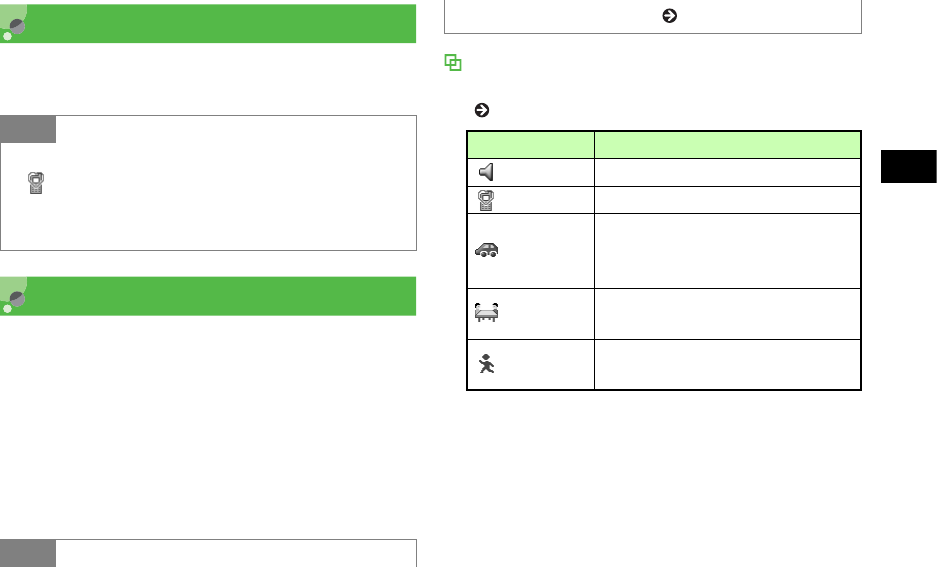
3-3
Manner Profile
3
Manner Profile
AIn Standby, press # for 1+ seconds
Changing Profile
920SC features five Profiles, including Manner
Profile.
AIn Standby, press * for 1+ seconds
BSelect a Profile
CPress c (Save)
Profiles
Select a Profile by usage and edit settings as required
( P.10-2).
Tip
• When Manner Profile is active
appears.
• Even when Manner Profile is active, shutter click
sounds for Camera.
Tip
• To change 920SC Profile ( P.10-2)
Profile Description
Normal Normal sounds output from 920SC
Manner No sounds output from 920SC
Car
Set Automatic reception of Voice
Calls and activation of Speaker
Phone
Meeting Ringtone or Key tone preset to
Vibration or Mute
Outdoor Ringtone or Key tone preset to
maximum sound volume
3-4
Manner Profile
3
Offline Mode
APress c and select Settings→Call
settings →Offline mode
BSelect the setting and press c (Save)
Default
Setting
■Off
Tip
• If 920SC is turned off while Offline mode is active
Offline mode activation confirmation appears the next
time 920SC is turned on. Press o (No) to select
Normal Profile.

4
Entering Text
Text Entry......................................................4-2
Text Entry Window .....................................4-2
Changing Text Entry Mode .........................4-2
Key Assignments ........................................4-3
Entering Characters .....................................4-4
Hiragana/Kanji ............................................4-4
Katakana......................................................4-6
Alphanumerics ............................................4-7
Numbers ......................................................4-8
Symbols, Pictograms & Emoticons.............4-8
Line Breaks .................................................4-9
Quoting Saved Text.....................................4-9
Hangul (Korean)........................................4-10
Editing Text .................................................4-11
Deleting ..................................................... 4-11
Copy/Cut, Paste & Undo...........................4-11
Jump ..........................................................4-12
Prediction (Japanese) .................................4-13
Learning (Japanese) ...................................4-13
Font Size ......................................................4-13
User Dictionary (Japanese)........................4-14
Saving to User Dictionary .........................4-15
SMS Templates............................................4-16
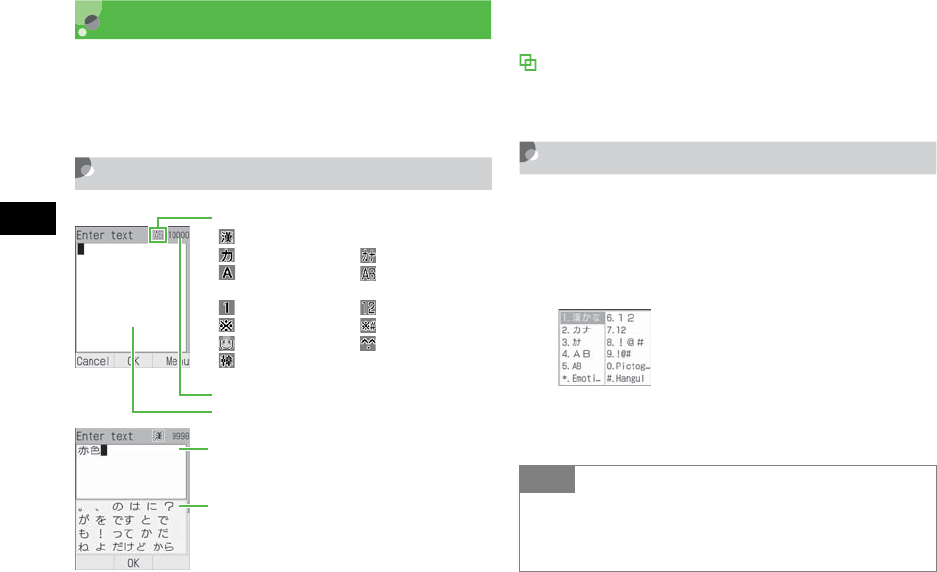
4-2
Entering Text
4
Text Entry
Enter kanji/hiragana/hangul, single- or double-byte
katakana, alphanumerics, or symbols/pictograms/
emoticons.
Text Entry Window
*Suggestions appear only in Kanji/Hiragana mode, when
Prediction setting is On.
Number Only Text Entry Fields
Text entry windows do not appear for Date field in Time
& date or Time field in Alarm; enter numbers directly.
Changing Text Entry Mode
Text Entry modes may be limited in some text entry
fields or windows.
AIn a text entry window, press e
BHighlight entry mode and press c
Current Entry Mode
: Kanji/Hiragana
: Double-byte Katakana
: Double-byte
Alphanumerics
: Double-byte Numbers
: Double-byte Symbols
: Pictograms : Emoticons
: Hangul
Number of characters that still can be entered
Text entry field
: Single-byte
Alphanumerics
: Single-byte Kataka
n
: Single-byte
: Single-byte
Text entry field
Suggestions*
Japanese kana conversion alternatives
Tip
• To toggle symbols
In text entry windows, press # to toggle Symbols,
Pictograms, and Emoticons.
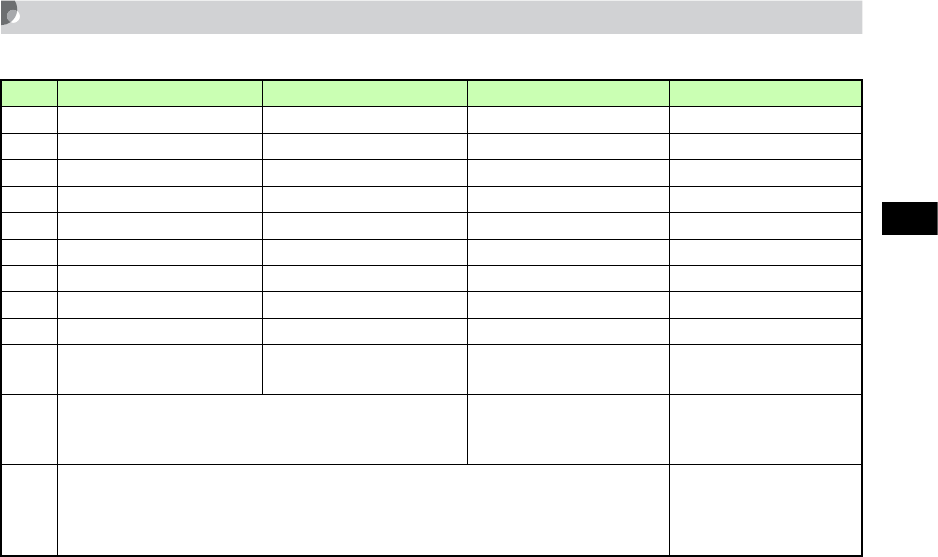
4-3
Entering Text
4
Key Assignments
Multiple characters are assigned to each key. Press a key repeatedly until the target character appears.
1 When double-byte, "~" cannot be used ("∼"appears on Display).2 Single-byte "ヮ" (lower case) cannot be entered.
Key Kanji/Hiragana Katakana Alphanumerics Numbers
1あいうえおぁぃぅぇぉ 1 アイウエオァィゥェォ 1 .@-_/:~111
2かきくけこ2 カキクケコ2 abcABC2 2
3さしすせそ3 サシスセソ3 defDEF3 3
4たちつてとっ 4 タチツテトッ 4 ghiGHI4 4
5なにぬねの5 ナニヌネノ5 jklJKL5 5
6はひふへほ6 ハヒフヘホ6 mnoMNO6 6
7まみむめも7 マミムメモ7 pqrsPQRS7 7
8やゆよゃゅょ 8 ヤユヨャュョ 8 tuvTUV8 8
9らりるれろ9 ラリルレロ9 wxyzWXYZ9 9
0わをんゎ、。−・∼!?
〈Space〉0
ワヲンヮ 2、。−・∼!?
〈Space〉0 ,.-_!?〈Space〉0 0
*
• Toggle upper/lower-case; add ゛/゜to unfixed,
convertible kana
• Enter Line Break
• Toggle upper/lower-
case
• Enter Line Break
Enter Line Break
#
• Reverse toggle characters assigned to the same key before finalizing character
selection
• Toggle Pictograms, Double-byte Symbols, Single-byte Symbols, Emoticons
Toggle Pictograms,
Double-byte Symbols,
Single-byte Symbols,
Emoticons
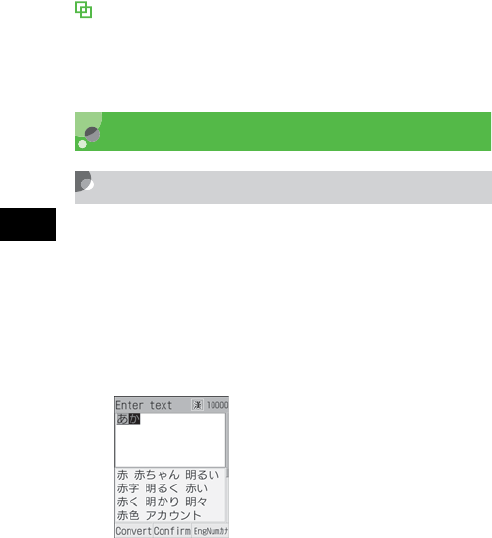
4-4
Entering Text
4
When calls/alarms interrupt text entry
Answer incoming calls without saving text first;
disconnect call to return to text entry window. Similarly,
close Alarm window to return to text entry window.
Entering Characters
Hiragana/Kanji
Enter hiragana/kanji with or without conversion
predictions. When Prediction setting is On,
Suggestions appear below text entry window.
AActivate Kanji/Kana entry mode to
enter hiragana
To add ゛or ゜
Enter a valid character and press *
To correct a misentry
Use C to delete the character then enter the
correction
When key is pressed too many times
Press # to return to the previous character
assigned to the same key
To enter consecutive characters assigned to
the same key
Press r to move cursor to the right
To enter unconverted hiragana
Press c (Confirm)
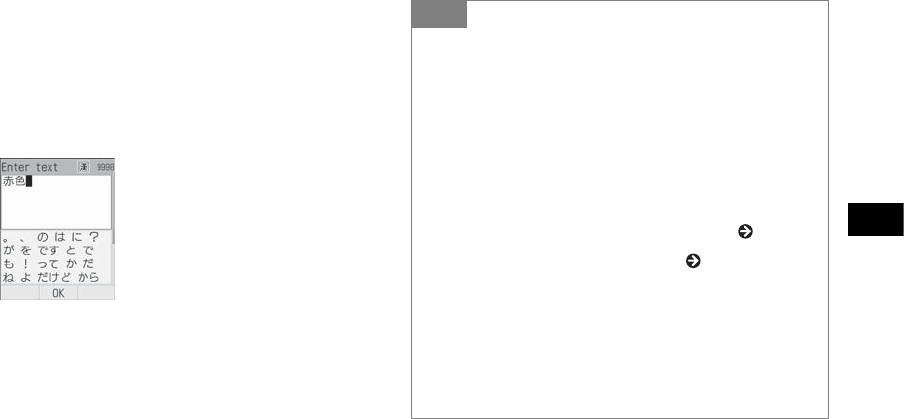
4-5
Entering Text
4
BConvert hiragana
To select a conversion from Suggestions
aPress d to move between Suggestions
bHighlight a conversion and press c
(Confirm)
When target conversion does not appear
aPress w (Convert)
bUse s to change the conversion range
cPress d to move to Suggestions
dHighlight a conversion and press c
(Confirm)
eRepeat steps b through d as required
Tip
• When characters are not converted to target Kanji
Try entering different readings. When multiple Kanji
characters do not convert together, try them separately.
• To toggle predicted/conversion alternatives
While predicted alternatives appear, press w
(Convert) for conversion alternatives. While
conversion alternatives appear, press w (Predict) for
predicted alternatives.
• To set/release prediction entry function ( P.4-13)
• To convert using User dictionary ( P.4-14)
• To enter date/time
aPress a key to enter a key to which numbers are
assigned
bPress o (EngNumカナ)
cHighlight a conversion alternative and press c
(Confirm)
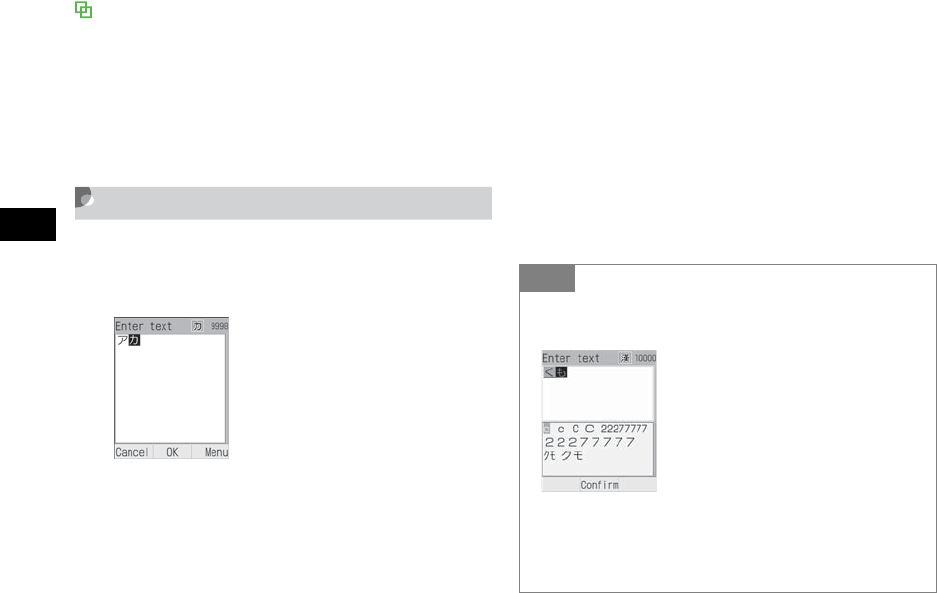
4-6
Entering Text
4
Resetting Text Entry History
Previous kanji conversions appear first for predicted/
conversion alternatives. Follow these steps to restore
defaults.
aPress c and select Settings →Phone settings →
User dictionary →Reset learning
bEnter Phone Password, press c (Confirm) →Yes
Katakana
AIn Katakana entry mode, press a key
to enter the assigned character
To add ゛or ゜
Enter a Katakana to which a voiced or semi-
voiced sound symbol should be added and press
*
To correct a misentry
Use C to delete character then correct
When key is pressed too many times
Press # to return to the previous character
assigned to the same key
To enter consecutive characters assigned to
the same key
Press r to move cursor to the right
Tip
• To enter Katakana in Kanji/Kana entry mode
For example, to convert "くも" to "クモ" or "クモ".
aIn Kanji/Kana entry mode, enter hiragana
bPress o (EngNumカナ)
cHighlight katakana conversion alternative and press
c (Confirm)
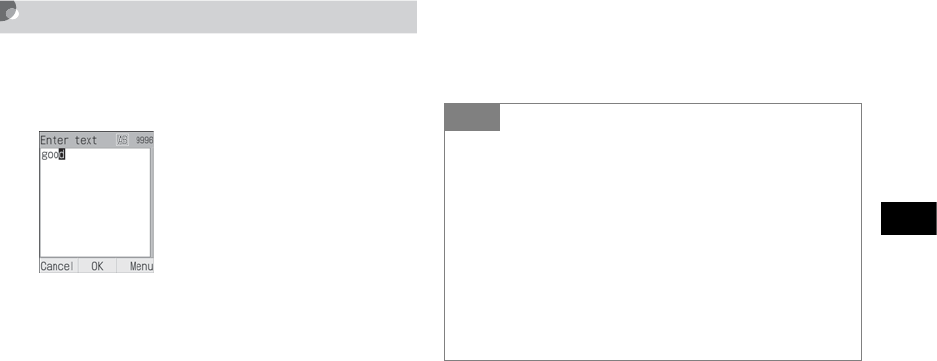
4-7
Entering Text
4
Alphanumerics
AIn Alphanumerics entry mode, press
a key to enter the assigned character
To toggle upper and lower case
Enter a character and press *
To correct a misentry
Use C to delete the character and press the
correct key
When key is pressed too many times
Press # to return to a previous character
assigned to the same key
To enter consecutive characters assigned to
the same key
Press r to move cursor to the right
Tip
• To enter alphanumerics in Kanji/Kana entry mode
Press key(s) assigned to alphanumerics as many times
as it would take to enter same character(s) in
Alphanumerics mode. For example, press 2 three
times and press 3 once to enter "cd."
aIn Kanji/Kana entry mode, press key to which
alphanumerics is assigned
bPress o (EngNumカナ)
cHighlight alphanumeric conversion alternative and
press c (Confirm)
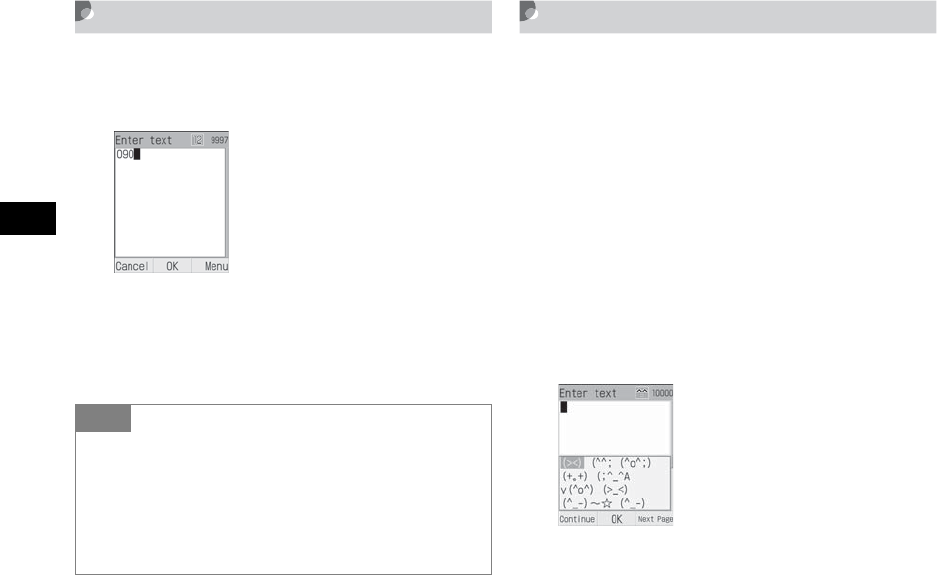
4-8
Entering Text
4
Numbers
AIn Number entry mode, press
number keys
To correct a misentry
Use C to delete the entry, then enter
correction
Symbols, Pictograms &
Emoticons
AIn a text entry window, press # to
toggle symbols
To toggle double-byte/single-byte symbols
While Symbols appear, press *
B
Highlight target character and press
c
To enter symbols, pictograms, or emoticons
successively
Press w (Continue)
Tip
• To enter numbers in Kanji/Kana entry mode
aIn Kanji/Kana entry mode, press key to which
numbers is assigned
bPress o (EngNumカナ)
cHighlight number conversion alternative and press
c (Confirm)

4-9
Entering Text
4
Line Breaks
Enter a line break the same way in all text entry
modes.
AIn a text entry window, press *
Quoting Saved Text
Using Phonebook Entries
In a text entry window, use Phonebook via Menu to
search saved entries for inserting phone numbers or
mail addresses into message text.
AIn message text, select Menu →
Phonebook
BSelect an entry and open details
CHighlight an item and press c
(Select)
Tip
• To enter symbols, pictograms, or emoticons in
Kanji/Kana entry mode
Enter hiragana like
てん
and press
w
(Convert),
symbols
・
and
…
appear among conversion alternatives.
Similarly, convert
はーと
or
でんわ
to pictograms and
わーい
or
えーん
to emoticons.
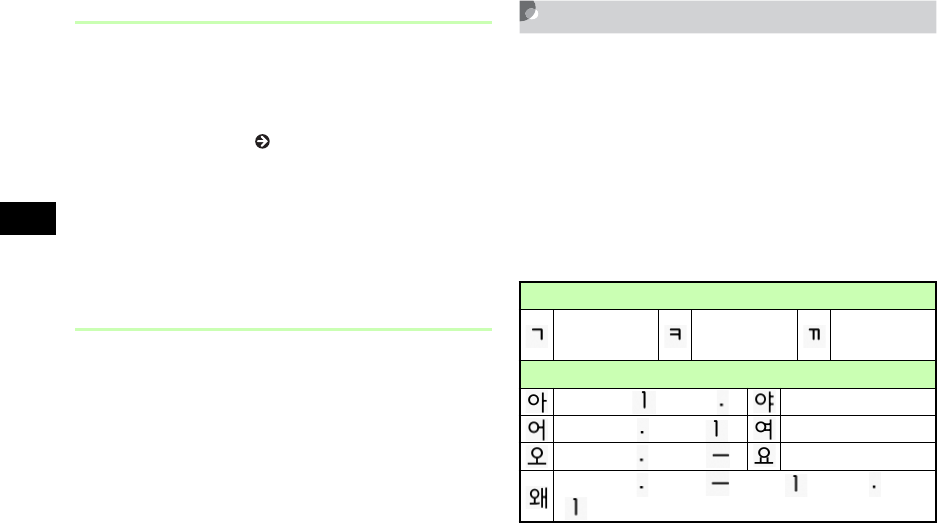
4-10
Entering Text
4
SMS Template
In a text entry window, use SMS template via Menu
to quote saved text in SMS.
Save frequently used words/phrases as SMS
templates beforehand ( P.4-16).
AIn message text, select Menu →SMS
template
BSelect a template
Using Template
In a text entry window, use Templates via Menu to
save "http://www" or ".ne.jp" in Phonebook for one
keystroke entry.
AIn message text, select Menu →
Templates
BSelect an item
Hangul (Korean)
Select Hangul entry mode to enter Hangul characters.
AIn a text entry window, press e and
select Hangul
BPress number keys to enter assigned
character units that appear; combine
several consonants and vowels
Consonant Example (Key Assignment)
4 (once) 4 (twice) 4
(three times)
Vowel Example (Key Assignment)
01 ( ), 2 () 0122
02 (), 1 () 0221
02 (), 3 () 0223
02 (), 3 (), 1 (), 2 (), 1
()

4-11
Entering Text
4
Editing Text
Deleting
AUse a to highlight character to
delete and press C
When a space is highlighted
The character before cursor is deleted.
To delete all text on/after cursor
Press C for 1+ seconds
To delete all text
Place cursor at the end of text and press C
for 1+ seconds
Copy/Cut, Paste & Undo
Copy/Cut
Select a range of characters to copy/cut. Paste
copied/cut characters repeatedly to other locations.
AIn a text entry window, select Menu
→Copy or Cut
BUse a to highlight the first
character in the range and press
c (Start)
To copy/cut all
Press o (All)
CUse a to specify range and press
c (End)
4-12
Entering Text
4Paste
AUse a to move cursor to paste
location
BSelect Menu →Paste
CSelect an item to paste and press
c (Select)
Undo
Undo operations immediately after performing such
as Cut, Paste, or Delete. Alternatively, undo
converting operations immediately after character
conversion; this operation can be performed in Kanji/
Kana entry mode only.
AIn a text entry window, select Menu
→Undo
Jump
AIn a text entry window, select Menu
→Jump →Top or End
Tip
• To copy text from Phonebook entries or My
Phonebook Details
Menu →Copy item ( P.5-14, 5-18)
• Copied/cut items
Up to 10 copied/cut items can be saved. Content
remains even power is turned off. With 10 items are
already saved, oldest item is automatically deleted.
Tip
• To delete copied/cut items
In Step 3, highlight item to delete, press w (Delete)
and select Yes
.

4-13
Entering Text
4
Prediction (Japanese)
Select to show/hide Japanese kana conversion
alternatives in Suggestions.
AIn a text entry window, select Menu
→Prediction On or Prediction Off
Learning (Japanese)
Select to save/discard entered character strings by
Suggestions.
AIn a text entry window, select Menu
→Learning On or Learning Off
Font Size
Change font size for SMS, S! Mail, or template text;
available sizes vary.
AIn message text, select Menu →Font
Size
Default
Setting
■On
Default
Setting
■On
Default
Setting
■Large

4-14
Entering Text
4
User Dictionary (Japanese)
Save frequently used words/phrases of up to 20
characters; entries appear in Suggestions when key
characters are entered.
APress c and select Settings →Phone
settings →User dictionary →New
entry
BSelect Word field and enter text
CSelect Reading field and enter key
characters
DPress w (Save)
Tip
• To edit User Dictionary entries
aPress c and select Settings →Phone settings →
User dictionary →Edit entry
bSelect contents to edit
cEdit a word or readings and press w (Save)
• To delete one item
aPress c and select Settings →Phone settings →
User dictionary →Edit entry
bHighlight item to delete, select Menu →Delete
• To delete all items
aPress c and select Settings →Phone settings →
User dictionary →Delete all
bEnter Phone Password, press c (Confirm) →Yes

4-15
Entering Text
4
Saving to User Dictionary
AIn a text entry window, select Menu
→Word registration
BUse a to move cursor to the first
character, press c (Start)
To open User Dictionary window to check
saved contents, etc.
Press o (UserDic)
CUse a to set the range, press
c (End)
DSelect Reading field and enter
reading
EPress w (Save)
Tip
• When the range contains a line break
Character string before line break is saved to
dictionary.
• To edit User dictionary
Press o (UserDic) to select start point for Word
registration; perform operations in "User Dictionary
(Japanese)" ( P.4-14). Select Edit entry and registered
entries appear.

4-16
Entering Text
4
SMS Templates
Save frequently used words/phrases of up to 70
characters.
APress w and select Templates →
SMS templates
BSelect Menu →Add new
When no SMS templates have been saved
Press w (Add new)
CPress c (Select) and enter text
DPress w (Save)
Tip
• To use an SMS template ( P.4-10)
• To edit an SMS template
aPress w and select Templates →SMS templates
bHighlight an item to edit and press c (Edit)
cPress c (Select) and edit the text
dPress w (Save)
• To delete an SMS template
aPress w and select Templates →SMS templates
bHighlight an item to delete, select Menu →Delete
→Selected →Yes
To delete all SMS templates, in step b, select Delete
→All, enter Phone Password, press c (Confirm) and
select Yes. To delete multiple items, in step b, select
Delete →Multiple, check items to delete, press w
(Delete) →Yes.

5
Phonebook
Saving to Phonebook ....................................5-2
Phonebook Entry Items...............................5-2
Adding Entry Items.....................................5-4
Saving from Call Log Records....................5-8
Category Settings..........................................5-9
New Category (USIM Card) .......................5-9
Edit Category ..............................................5-9
Add Member .............................................5-11
Using Phonebook ........................................ 5-11
Calling from Phonebook ...........................5-11
Speed Dialing ............................................5-15
Phonebook Menu ......................................5-15
Editing Phonebook Entries ........................5-17
Edit ............................................................5-17
Default Number.........................................5-17
Copy to USIM & Copy to Phone ..............5-18
Deleting Entries.........................................5-19
My Phonebook Details................................5-20
5-2
Phonebook
5
Saving to Phonebook
Phonebook Entry Items
Save phone numbers, mail addresses, and more for
up to 1,000 entries in Phonebook; USIM Card
Phonebook capacity varies by card. Insert USIM
Card into compatible SoftBank handsets to use
USIM Card Phonebook entries.
Each 920SC Phonebook entry contains items listed
below.
Item Description
Availability
(Quantity)
920SC
USIM
Card
Entry
Number a 3-digit number Ye s
(000-999)1
Yes
(000-
0XX)2
Last
name
Single-/double-byte
characters (Name in
USIM Card
Phonebook)
Yes
(Up to 25
characters)
Yes 3
First
name
Reading
last
name
Single-byte
characters (Reading
name in USIM Card
Phonebook)
Yes
(Up to 25
characters)
Yes 3
Reading
first
name
Phone
Number
Saved with area
code
Yes
(5 of up to
40 digits
each)
Yes 23
Phone
Icon
Select one of 6
icons Yes No
(1 icon)
Item Description
Availability
(Quantity)
920SC
USIM
Card
5-3
Phonebook
5
Email Single-byte
alphanumerics
Yes
(4 of up to
256
characters
each)
Yes 3
(1 address)
Email
Icon
Select one of 4
icons Yes No
(1 icon)
Categor
y
Select one of 20
categories Yes Ye s2
Caller
ID
Select incoming call
image from Data
Folder
Yes N o
Call
Notice
Select incoming call
ringtone from Data
Folder
Yes N o
Message
Notice
Select incoming S!
Mail/SMS ringtone
from Data Folder
Yes N o
Blood
Type
Select one of four
blood types Yes N o
Item Description
Availability
(Quantity)
920SC
USIM
Card
Birthday Enter the party's
date of birth Yes N o
Address
Up to 20 single-byte
characters for Post
code, 32 single-/
double-byte
characters for
Country, 64 each for
State/Province, City,
Address, and
Additional
information
Yes
(2
addresses)
No
Hobby
Up to 100 single-/
double-byte
characters
Yes N o
Compan
y
Up to 32 single-/
double- byte
characters
Yes N o
Item Description
Availability
(Quantity)
920SC
USIM
Card
5-4
Phonebook
5
1 Use speed dialing ( P.5-15) to initiate voice calls to
primary number saved in Phonebook Entry Numbers 000
- 099.
2 The number of items that can be saved varies by the type
of USIM Card.
3 The number of characters that can be saved varies by the
type of USIM Card.
Using Phonebook entries for the first time after
replacing USIM Card
A confirmation appears: Select Yes to copy entries
saved in USIM Card to 920SC.
Adding Entry Items
920SC assigns lowest available Entry Number; edit as
required.
Job Title
Up to 32 single-/
double-byte
characters
Yes N o
URL
Up to 512 single-/
double-byte
alphanumerics
Yes
(2 URLs) No
URL
Icon
Select one of 3
icons Yes N o
Notes
Up to 256 single-/
double-byte
characters
Yes N o
Secret
Mode Select secret setting Yes No
Item Description
Availability
(Quantity)
920SC
USIM
Card
Note
• Protect important information
Phonebook entries may be lost/altered if battery is
removed or left uncharged for an extended period;
accidents/malfunctions may also affect entries.
Back-up entries and store separately. SoftBank is
not liable for damage from lost information.
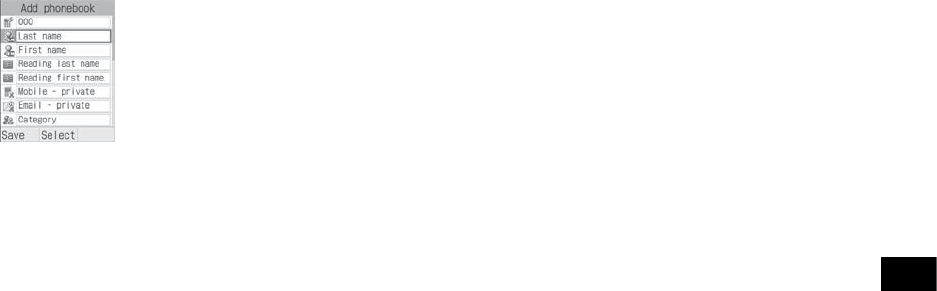
5-5
Phonebook
5
APress d and select Menu →Add to
→Phone or USIM
BAdd additional items as required
Entry number
aSelect Entry number field
bEnter a number
Last name
aSelect Last name field
bEnter a last name
First name
aSelect First name field
bEnter a first name
To modify Reading last name
aSelect Reading last name field
bEnter a reading for last name
To modify Reading first name
aSelect Reading first name field
bEnter a reading for first name (use katakana
to organize entries in Phonebook list)
Phone number
aSelect Phone number field
bEnter a number
cSelect an icon
Phonebook Details

5-6
Phonebook
5
Mail address
aSelect Email field
bEnter an address
cSelect an icon
Category
aSelect Category field
bSelect a category
Caller ID for a Voice Call or Video Call*
aSelect Caller ID field
bSelect On
cOpen Data Folder to select an image file, etc.
Call notice for a Voice or Video Call*
aSelect Call notice field
bSelect On
cOpen Data Folder to select a file
S! Mail/SMS Notice*
aSelect Message notice field
bSelect On
cSelect sound
Blood type*
aSelect Blood type field
bSelect a blood type
Birthday*
aSelect Birthday field
bEnter a birthday
Address*
aSelect Address field
bEnter a postal code
cSelect Address field and enter an address
dPress w (OK)
Hobby*
aSelect Hobby field
bEnter text
Company name*
aSelect Company field
bEnter a company name

5-7
Phonebook
5
Job Title*
aSelect Job title field
bEnter a job title
URL*
aSelect URL field
bEnter a URL
cSelect an icon
Memo*
aSelect Note field
bEnter text
Secret Mode*
aSelect Secret Mode field
bSelect Secret - On
* Not available in USIM Card Phonebook
CPress w (Save)
Tip
• Valid Phone Field Characters
Enter 0-9, #, *, P (Pause), and + (International Code).
Press * for 1+ seconds to enter P or press 0 for
1+ seconds to enter +.
• Saving an Entered Phone Number
During a call, Menu →Add to Phonebook
aIn Standby, enter a phone number
bMenu →Add to Phonebook →Phone or USIM
cSelect New or Update and select memory
dSelect a phone icon
ePerform Steps 2 and 3
• Using Memory Card Files as Incoming Images/
Tone s
A confirmation appears asking whether to copy files to
920SC before setting. When setting copyrighted files, a
confirmation appears asking whether to move file to
920SC before setting. Select Yes to complete setting.

5-8
Phonebook
5
Saving from Call Log Records
Save numbers from Call Log records to new or
existing Phonebook entries.
APress r
BUse s to open a Call Log, highlight
a record, select Menu →Add to
Phonebook →Phone or USIM
CSelect saving method
To create a new entry
Select New
To save to an existing entry
aSelect Update
bOpen the Phonebook entry ( P.5-11)
DSelect a phone icon
EAdd additional items as required
FPress w (Save)
• Synchronizing Phonebook with Samsung PC Studio
Secret Mode entries cannot be synchronized or backed-
up to a PC even if Secret Mode is active.
The entries with Secret Mode changed from Secret -
Off to Secret - On cannot be synchronized and deleted
immediately after the Secret Mode setting has been
changed and tried synchronization.
For more information about Samsung PC Studio, see
the User's guide in the attached CD-ROM.

5-9
Phonebook
5
Category Settings
Organize Phonebook entries among twenty
Categories.
New Category (USIM Card)
APress c and select Phonebook
BSelect Menu →View from USIM
CPress w (Search) and select
Category search
DSelect Menu →New category
EEnter a name
FPress w (Save)
Edit Category
Customize Category names; add image/ringtones to
appear/sound for incoming calls/messages from
members.
APress c and select Phonebook
To select a USIM Card Category
After Step 1, select Menu →View from USIM
BPress w (Search) and select
Category search
CHighlight category to change, select
Menu →Category settings
DEdit Category items
To change Category name
Select Category name field and enter a name

5-10
Phonebook
5
To set Category image
Select Category image field and select a file
from Data Folder
To set incoming call ringtone
Select Call notice field then select a file from Data
Folder
To set incoming S! Mail/SMS notice
Select Message notice field then select a
ringtone
To restore Category defaults
Highlight item to restore and press o (Reset)
EPress w (Save)
Tip
• Incoming Image & Ringtone Priority
Images and ringtones set for individual Phonebook
entries take priority over those set for a Category.
• Using Memory Card files as Incoming Images/
Ringtones
A confirmation appears asking whether to copy files to
920SC before setting. When setting copyrighted files, a
confirmation appears asking whether to move file to
920SC before setting. Select Yes to complete setting.
• When selecting USIM Card Category
Only Category name can be edited.
5-11
Phonebook
5
Add Member
APress c and select Phonebook
To select Category on USIM Card
After Step 1, select Menu →View from USIM
BPress wSearch and select Category
search
CSelect Category to which to add
member
DSelect Menu →Add member
ECheck the member to add and press
w (Add)
Using Phonebook
Calling from Phonebook
Phonebook Search
APress d
If the correct search method appears first
Proceed to Step 2, Part b
To change method in active search window
Press c and proceed to Step 2
Tip
• To delete a member from a Category
Deleting a member from a Category does not affect
member's Phonebook entry.
aPerform Steps 1 and 2 in "Add Member"
bSelect Category from which to delete member
cSelect Menu →Remove member
dCheck member to delete and press w (Remove)

5-12
Phonebook
5
BPress w (Search)
To search Phonebook list
aSelect Phonebook list
bUse s to navigate Phonebook list
To search by Category
aSelect Category search
bSelect Category
To search by nam e
aSelect Name search
bEnter any part of Name
To search by Reading
aSelect Reading search
bEnter any part of Reading
To search by Entry Number
aSelect Entry No. search
bEnter Entry Number
To search by Phone Number
aSelect Phone No. search
bEnter any part of a phone number
To search by Mail Address
aSelect Email search
bEnter any part of an mail address
CSelect an entry
To open Entry details
Press c (Details/Select)
Tip
• To set Phonebook preference (Phonebook or USIM
Card Phonebook)
aPress c and select Settings →Phonebook settings
→View phonebook from
bSelect Phone memory or USIM memory
• When Secret Mode is set to Hide
Secret Phonebook entries do not appear. Activate
Secret Mode to search Secret entries.
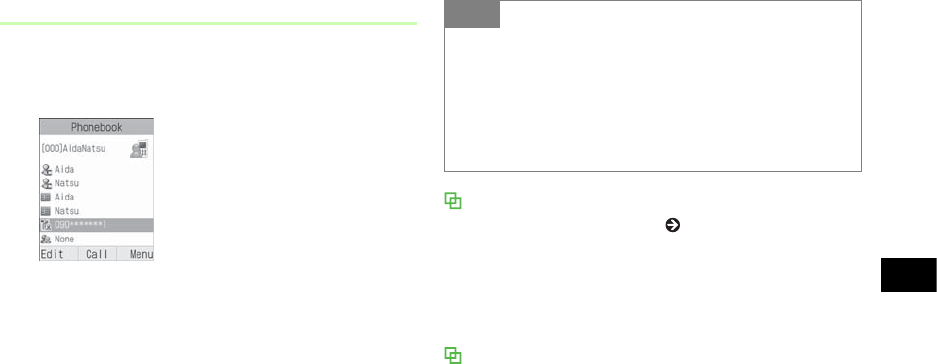
5-13
Phonebook
5
Initiating a Call
ASelect an entry, press c (Details) to
view Details window
BSelect a number and initiate a call
To initiate a Voice Call
Press c (Call) or select Menu →Voice call
To initiate a Video Call
Select Menu →Video call
Calling from Simple Search or search result
When Simple search is On ( P.16-7), after entering a
number, Reading name corresponding to the Entry
Number appears. Highlight a phone number, press t
or c (Select) →c (Call) to initiate a Voice Call;
Menu →Video call for Video Call.
Calling from Phone No. search or search result
Enter 4-digit number to search and open entry name/
phone number; this search for entries contains the
entered number at the first/last part of the entry. When
Simple search is On and an entry searched, press s to
switch search result between Phone No. search and
Simple search. Highlight a phone number, press t or
c (Select ) →c (Call) to initiate a Voice Call; select
Menu →Video call to call a Video Call.
Entry Details
Tip
• To place a call from Phonebook list
Highlight an entry, select Menu →Voice call or Video
call. When entry contains multiple numbers, Default
Number is dialed if set; otherwise, first number listed
is dialed. If Default Number is Not assigned, Call
window appears; select a number.

5-14
Phonebook
5
Calling USIM Card Phonebook
Entries
Use Entry Numbers as shortcuts to call numbers
saved in the first 100 USIM Card Phonebook entries.
AEnter last two Entry Number digits
BPress #
If the correct entry is not highlighted
Use j to highlight it
CPress w (Call)
To initiate a Video Call
Press o (V-Call)
Changing Search Method
Specify search window to appear first when d is
pressed in Standby.
APress c and select Settings →
Phonebook settings →Search type
BSelect a setting
Default
Setting
■Phonebook list
Tip
• Search Method Items
When selecting Phonebook list, press d in Standby
to display a list. When selecting other settings, the
selected search window appears.
5-15
Phonebook
5
Speed Dialing
Enter the last two Entry Number digits to call Voice
Call Default Number in Phonebook entries 000 - 099.
AEnter last two Entry Number digits
BPress c ()
Phonebook Menu
Use the following Menu in Phonebook List or Entry
details.
Tip
• When Simple search is On (fP.16-7)
Enter Entry No. for names and phone numbers. After 5
seconds, search result disappears. When appears,
press c to dial.
Note
• Speed Dialing is invalid for an entry if Voice Call
Default Number ( P.5-17) is set to Not assigned.
• While Secret Mode is set to Hide, Secret Phonebook
entries cannot be dialed.
Item Description
Add to1Start the process of saving a new
entry.
Voice call
Initiate a Voice Call to the
highlighted number or Default
Number ( P.5-13).
Video call
Initiate a Video Call to the
highlighted number or Default
Number ( P.5-13).
Create message
Open a new message addressed to
the number saved as an entry
( P.18-6).
Send
Send entry as a vFile; select Via
message, to open a new message
with entry attached ( P.18-6), or
Via bluetooth, to send entry to
another device wirelessly ( P.13-
5).
Delete Delete an entry ( P.5-19).
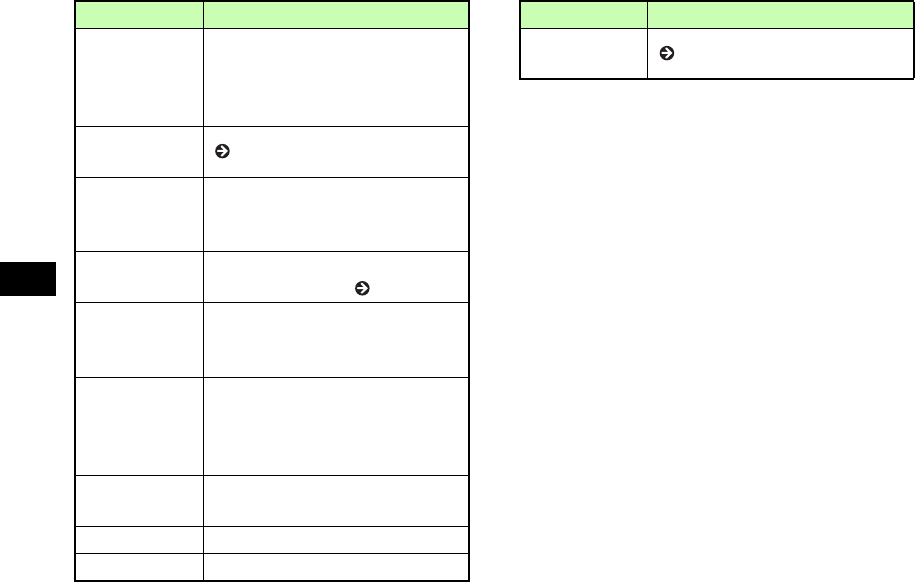
5-16
Phonebook
5
1 This item does not appear in Entry details.
2 This item does not appear in Phonebook list.
Save to data
folder
Create and save vFiles. Select Phone
to save to Data Folder Other
documents or Memory card to save
to Memory Card.
Copy to USIM/
Copy to phone ( P.5-18)
View from
USIM/View
from phone1
Toggle Phonebook and USIM
Phonebook.
International
dial
Add international code and country
code to the number ( P.2-2).
Hide/Show my
ID
Show or hide your number when
making calls; Select None to apply
Caller ID setting.
Print via
bluetooth
Print highlighted Entry details
(name, phone number information)
using the printer via Bluetooth®
connection.
Service number View service numbers saved on
USIM Card.
Memory status1Check memory usage.
Copy item2Copy highlighted entry item.
Item Description
Mark default
number2( P.5-17)
Item Description

5-17
Phonebook
5
Editing Phonebook
Entries
To search, list or Entry details, see "Phonebook
Search" ( P.5-11).
Activate Secret Mode to edit Secret Phonebook
entries.
Edit
AOpen Entry details
BPress w (Edit)
CEdit entry items in the same way as
adding entry items (fP.5-4) and
press w (Save)
Default Number
When an entry contains multiple phone numbers/
mail addresses, set calling/messaging priorities by
assigning to Default Number.
Resetting an item changes it to Not assigned.
AOpen Entry details
BSelect Menu →Mark default number
CSet or reset options
To set
aSelect Voice call,Video call, or Message
bSelect a phone number or mail address
To rese t
Highlight Voice call,Video call, or Message
and press o (Reset)
Default
Setting
■Voice call:First phone number
■Video call:First phone number
■Message:Not assigned

5-18
Phonebook
5
DPress w (Save)
Copy to USIM & Copy to
Phone
Copying a Single Entry
AHighlight an entry
To switch to Phone/USIM Card
Menu →View from USIM or View from Phone
BSelect Menu →Copy to USIM or
Copy to phone →Selected → Yes
To copy an entry from Entry details
aAfter Step 1, press c (Details)
bMenu →Copy to USIM or Copy to phone →
Yes
Copying Multiple Entries at Once
AHighlight an entry
To switch to Phone/USIM Card
Menu →View from USIM or View from Phone
BSelect Menu →Copy to USIM or
Copy to phone →Multiple
CCheck entries to copy
DRepeat Step 3 to check all target
entries
EPress w(Copy)
When a confirmation message appears
Select Yes

5-19
Phonebook
5
Copying All Entries at Once
Copy all Phonebook or USIM Card Phonebook
entries.
AHighlight an entry
To switch to Phone/USIM Card
Menu →View from USIM or View from Phone
BSelect Menu →Copy to USIM or
Copy to phone →All
When a confirmation message appears
Select Yes
Deleting Entries
Deleting a Single Entry
AHighlight an entry
BSelect Menu →Delete →Selected →
Yes
To delete an entry from Entry details
aAfter Step 1, press c (Details)
bMenu →Delete →Yes
Deleting Multiple Entries at Once
AHighlight an entry
To select Phonebook or USIM Card
Phonebook
Menu →View from Phone or View from USIM
BSelect Menu →Delete →Multiple
CCheck an entry to delete
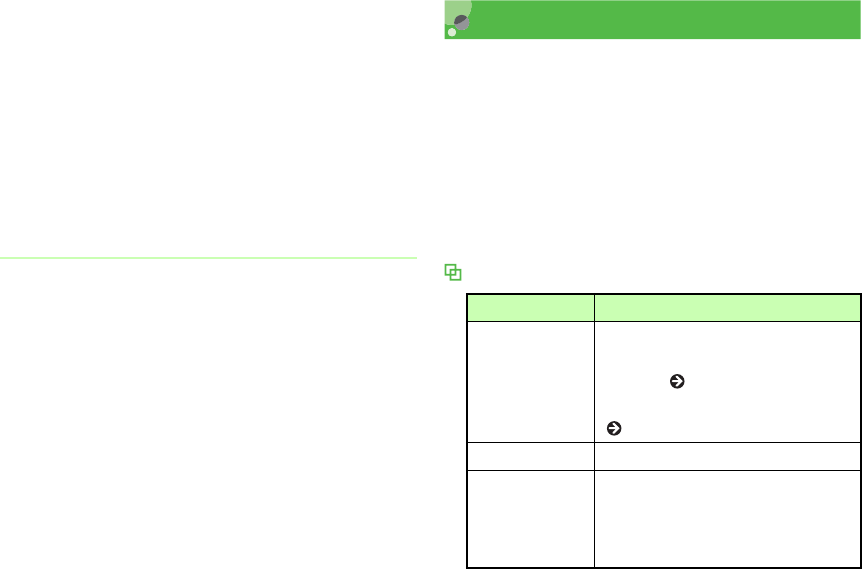
5-20
DRepeat Step 3 to check all target
entries
EPress w (Delete)
When all entries are checked
Enter Phone Password and press c (Confirm)
FSelect Yes
Deleting All Entries at Once
Delete all Phonebook or USIM Card Phonebook
entries.
AHighlight entries
To switch to Phone/USIM Card
Menu →View from USIM or View from Phone
BSelect Menu →Delete →All
CEnter Phone Password, press
c (Confirm) →Yes
My Phonebook Details
Confirm handset phone number. Add your name,
mail address, street address, and other information.
APress c and Press 0
To enter or edit other items
aPress w (Edit)
bEnter/edit items then press w (Save)
Menu
Item Description
Send my
phonebook
details
Send as a vFile; select Via message
to create a message with vFile
attached ( P.18-6), or Via
bluetooth to send vFile wirelessly
( P.13-5).
Delete Delete entered owner information.
Save to data
folder
Create and save vFiles. Select
Phone to save to Data Folder Other
documents or Memory card to save
to Memory Card.

5-21
Phonebook
5
Copy item Copy highlighted entry item.
Print via
bluetooth
Print My phonebook details (name,
phone number information) using
printer via Bluetooth® connection.
Item Description

5-22
Phonebook
5

6
Video Call
About Video Call...........................................6-2
Initiating a Video Call ..................................6-2
Receiving a Video Call..................................6-3
Engaged Video Call Operations ..................6-4
Engaged Video Call Menu ..........................6-5
Video Call Settings........................................6-6
Sending Your Image....................................6-6
Selecting a Substitute Image .......................6-7
Retry Settings ..............................................6-7
Voice Mute ..................................................6-8
6-2
Video Call
6
About Video Call
Exchange voice/video with compatible 3G handsets.
You may choose not to send your own image ( P.6-
6).
Video Call Precautions
• Video calls to incompatible handsets may be
disconnected; charges apply.
• It may be difficult to use Speaker Phone (fP.6-5)
with earpiece volume raised; lower volume or use
Stereo Earphone Microphone.
• Ambient noise may hamper voice quality; use Stereo
Earphone Microphone.
• Using Speaker Phone in public may disturb others;
please mind your mobile manners.
Initiating a Video Call
Call via Phonebook entries/Call Log records or dial
directly.
AEnter a phone number
BConfirm the phone number and
select Menu →Video call
CPress y to end the call
When Video Call cannot be connected
Unavailable for a video call... appears; select Menu →
Voice call or Create message to contact the recipient, or
View contact details to open Phonebook. Select Add to
Phonebook to save the receiver's number to Phonebook
or USIM Card Phonebook.
Tip
• Engaged Video Call Operations ( P.6-4)
6-3
Video Call
6
Receiving a Video Call
AWhen 920SC rings/vibrates, press
c (Accept)
Loudspeaker on? appears
Select Yes or No
Allow own picture to be shown? appears
Select Yes or No
BPress y to end the call
Tip
• To adjust ringtone volume
While 920SC is ringing, press n or b.
• When a Stereo Earphone Microphone is connected
Press Stereo Earphone Microphone switch for 1+
seconds to answer Video Calls. Press for 1+ seconds to
end a Video Call.
• To disconnect a Video Call without answering it
Press o (Busy)
• To change outgoing image
Set 920SC to send Substitute Image beforehand ( P.6-
7).
Alternatively, change to Substitute Image during a call
(P.6-5).
• To send Your Image or Substitute Image
After Step 1, Your Image appears. When a
confirmation appears, select Yes or No to send Your
Image or Substitute Image. When Video Call connects
Your Image or Substitute Image appears.
• Engaged Video Call Operations ( P.6-5)
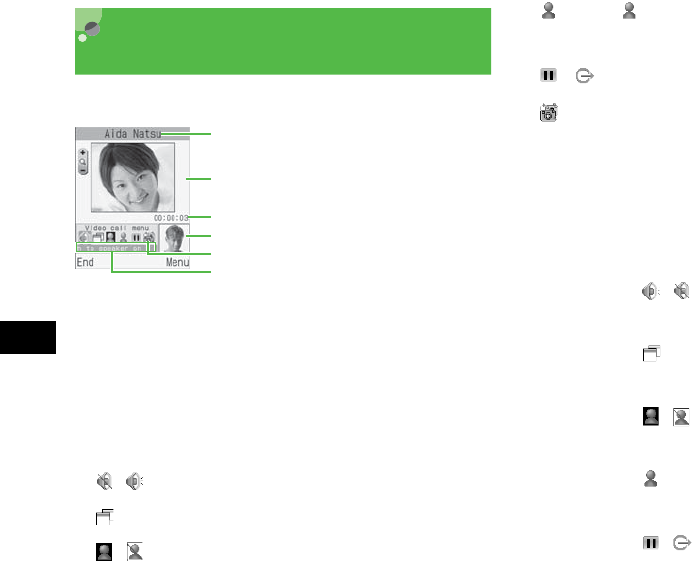
6-4
Video Call
6
Engaged Video Call
Operations
Perform operations using Video Call icons or Menu.
aThe other party's name or phone number
bLarge Display (Normally, the other party's image)
cCall duration
dSmall Display (Normally, your image)
eVideo Call Menu Icons
/ : Toggle Speaker Phone Off/On
: Toggle Incoming Image Size
/ : Freeze or unfreeze outgoing image
(Blue)/ (Gray)
: Toggle Your Image and
Substitute Image
/ : Freeze or unfreeze incoming image
: Toggle Internal Camera and External Camera
fDescription of the icon at cursor position
ADuring Video Calls, select an icon or
Menu to adjust settings
To toggle Speaker Phone off/on
Highlight / and press c
To select incoming image size
Highlight and press c to select an item
To freeze or unfreeze outgoing image
Highlight / and press c
To toggle Your Image and Substitute Image
Highlight (Blue/Gray) and press c
To freeze or unfreeze incoming image
Highlight / and press c
a
d
e
b
c
f
6-5
Video Call
6
To toggle Internal and External Camera
Highlight and press c
To cancel Your Image/mic/key tones
aMenu →Mute
bCheck item(s) to cancel and press w
(Save)
To adjust outgoing image appearance or
incoming image quality
aMenu →Display options →Effects or
Quality
bHighlight an item and press c
To adjust outgoing image brightness
aMenu →Display options →Brightness
bUse s to adjust brightness
Engaged Video Call Menu
Tip
• To adjust earpiece volume
Press j during a Video Call.
• To enlarge or reduce outgoing image
Press n or b during a Video Call.
• When outgoing image is canceled
920SC sends Substitute Image to the other party.
Item Description
Normal/Speaker on Toggle Speaker Phone off/on
( P.6-4).
Mute Cancel sending outgoing image/
mic/key tones ( P.6-5).
Display options
Adjust outgoing image
appearance/quality/brightness
( P.6-5).
Settings Select Video Call settings ( P.6-
6).
Phonebook Open Phonebook Search
window.
Add to Phonebook
Save other party’s phone number
to Phonebook or USIM Card
Phonebook ( P.5-7).
Send DTMF Press Keypad and c (send) to
send push tones.
6-6
Video Call
6
Video Call Settings
Sending Your Image
When Always ask is set, Choose between Your Image
or Substitute Image as outgoing image each time a
Video Call is received.
APress c and select Settings →Call
settings →Video call →Show my
picture
BSelect a setting and press c (Save)
Memo
Create and save text memos
( P.15-9).
Details Open Phonebook Entry details.
Switch to headset/
Switch to phone
Appears when Bluetooth®-
compatible headset is in use.
Select headset or phone
(handset).
Default
Setting
■Always ask
Item Description
6-7
Video Call
6
Selecting a Substitute Image
Select an image to use as the outgoing image.
APress c and select Settings →Call
settings →Video call →Select still
picture
BPress c (Change)
COpen Data Folder, select a file and
press c (Save)
Retry Settings
APress c and select Settings →Call
settings→Video call →Retry with
BSelect a setting and press c (Save)
Default
Setting
■Camera Off
Tip
• To restore Substitute Image to its default
aPerform Steps 1 and 2
bSelect any image file in Data Folder and select
Menu →Reset
Default
Setting
■Always ask
Tip
•Retry with Items
Always ask : Select an action from Menu.
Voice call : Redial number as a Voice Call.
Messages : Create a message.
None : Return to Standby after a failed Video
Call.
Automatic retry option changes by the
setting.
6-8
Video Call
6
Voice Mute
Set Voice mute to On to answer Video Calls without
sending sound to caller.
APress c and select Settings →Call
settings →Video call →Voice mute
BSelect On and press c (Save)
Default
Setting
■Off
Tip
• To send sound
aDuring a Video Call, select Menu →Mute
bUncheck Voice
cPress w (Save)
6-9

6-10
Video Call
6

7
Digital TV
About Digital TV ..........................................7-2
Getting Started..............................................7-3
Precautions ..................................................7-3
One Seg .......................................................7-4
Antenna .......................................................7-5
Incoming Transmissions .............................7-5
Key Assignments ........................................7-7
TV Window.................................................7-8
Area Setup...................................................7-8
Watching TV .................................................7-9
Program Guide ..........................................7-10
Program List..............................................7-10
Displaying Subtitle....................................7-10
Control Panel.............................................7-11
Switching Window Mode..........................7-11
Data Broadcast (Japanese) ........................7-11
TV Links ...................................................7-12
Additional Settings .....................................7-13
Area Settings .............................................7-13
TV Settings................................................7-15
7-2
Digital TV
7
About Digital TV
920SC supports One Seg terrestrial digital
broadcasts. One Seg is referred to as "Digital TV" in
this manual.
• Set up a channel list for the current service area or
access programs via Program Guide.
• Use Data Broadcasts to get program-related
information or to join the program through
interactive services.
Watching Digital TV
In Standby, press e to activate TV. Set up a channel
list for your service area to watch available TV
programs (
f
P.7-9).
Accessing Program Guide
Download an electronic program guide (
f
P.7-10).
Watching Data Broadcasts
In addition to audio and visuals, watch Data Broadcasts
to get program-related information (
f
P.7-11).
Tip
• Operations described in this section are described
with 920SC Display in Portrait mode (
f
P.7-8
).

7-3
Digital TV
7
Getting Started
Precautions
• 920SC supports One Seg terrestrial digital
television broadcast service available only in
Japan.
• Do not use TV while driving a vehicle or riding a
bicycle. (Mobile phone use while driving is
prohibited by the revised Road Traffic Law since
November 1 2004.)
• Incoming transmissions may affect audio/visual
signal. Use of another handset near 920SC may
also affect TV.
• Use Stereo Earphone Microphone when viewing
Digital TV.
Reception
Digital TV may not be viewable in the following
places:
• Too far from or too close to broadcasting stations
• In mountainous areas or near tall buildings
• Aboard trains or in moving vehicles
• Near high-voltage lines, neon lights or wireless base
stations
• Near railroad tracks or highways
• In underground shopping malls or tunnels
• Anywhere jamming signal is broadcast or reception is
blocked
Battery
When battery level is , Digital TV is not available.
• If battery runs out while watching, TV automatically
ends.
Charging
Charge battery while viewing Digital TV.

7-4
Digital TV
7
• Use the supplied AC Charger.
• Keep AC Charger cord close away from Antenna;
may cause interference.
• Charging takes longer when TV is active.
One Seg
One Seg is a terrestrial digital broadcast service
supporting mobile television and data broadcasts in
Japan. The 6 MHz band assigned to each digital
channel is divided into 13 segments: 12 dedicated to
HDTV broadcasting and the remaining "One Seg" to
mobile devices.
• One Seg service began on April 1 2006, in the
three largest urban areas and 13 prefectures in
Japan. For details, access the Association for
Promotion of Digital Broadcasting Website:
• The Association for Promotion of Digital
Broadcasting Website
http://www.dpa.or.jp/english/ (PC)
http://www.dpa.or.jp/1seg/k/ (Mobile) Japanese
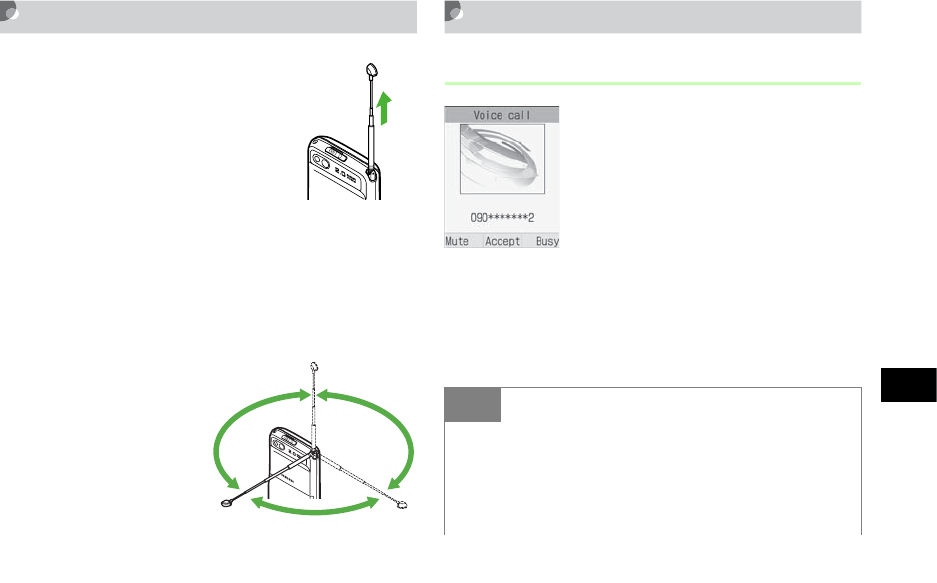
7-5
Digital TV
7
Antenna
• 920SC features a whip antenna
that divides into four segments.
Fully extend Antenna until
fixed.
• After use, hold base of Antenna
to retract it; pressing down on it
with force may cause damage.
Retract it and replace top bead
into 920SC.
• Extend Antenna when viewing Digital TV, unless a
broadcasting station is close. In this case, retract
Antenna for better reception.
•
For best reception, fold
and rotate 360
°
.
Incoming Transmissions
Incoming Calls
Incoming call window appears. Press c to answer a
call.
The other party's phone number appears. End the call
to return to Digital TV.
Tip
• To set incoming notice mode while watching TV
(
f
P.7-16)
• To answer a call
Perform Step 1 in "Receiving a Call" (fP.2-4).
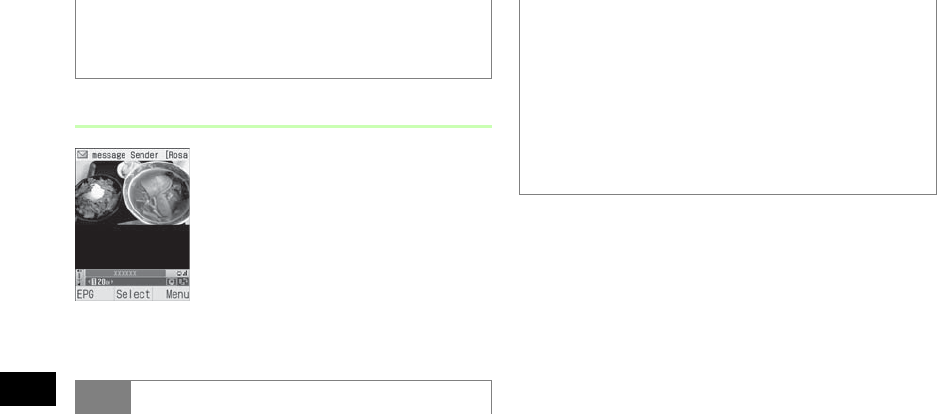
7-6
Digital TV
7
Incoming Messages
Vibrator is activated and after sender's mail address
appears at the top of Display, Mail icon appears.
• To reject an incoming call
Perform Step 1 in "Reject Incoming Call" (fP.2-5).
After rejecting the call, TV window returns.
Tip
• When returning to Standby
The number of new and unread messages appears in an
incoming notice window.
• During Voice Call or when receiving new messages
The quality of TV audio or visuals may be reduced.
When bringing another mobile phone close to 920SC
while watching TV, the audio or visual quality may
also be reduced.
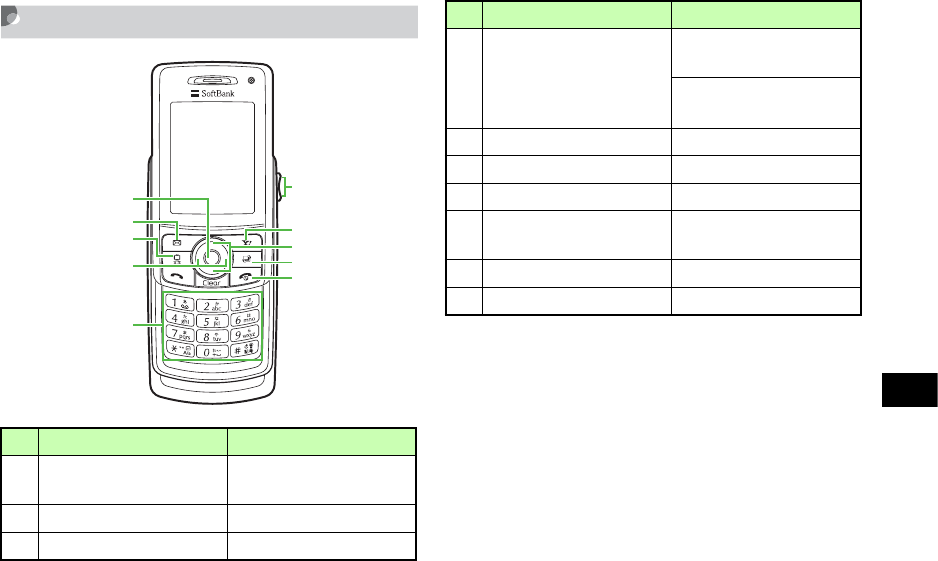
7-7
Digital TV
7
Key Assignments
In Portrait Mode In Landscape Mode
a
Execute Data Broadcast
Item
-
bShow Program Guide -
cToggle View Toggle View
a
b
c
e
f
g
i
j
h
d
dSwitch Channel Show/Hide Subtitle
(l)
Show/Hide Control Panel
(
r
)
eEnter Channel Enter Channel
fAdjust Volume Adjust Volume
gOpen Menu -
hSelect Data Broadcast
Item
Change Channel
iOpen Switch Bar Toggle Image Size
jExit TV Exit TV
In Portrait Mode In Landscape Mode
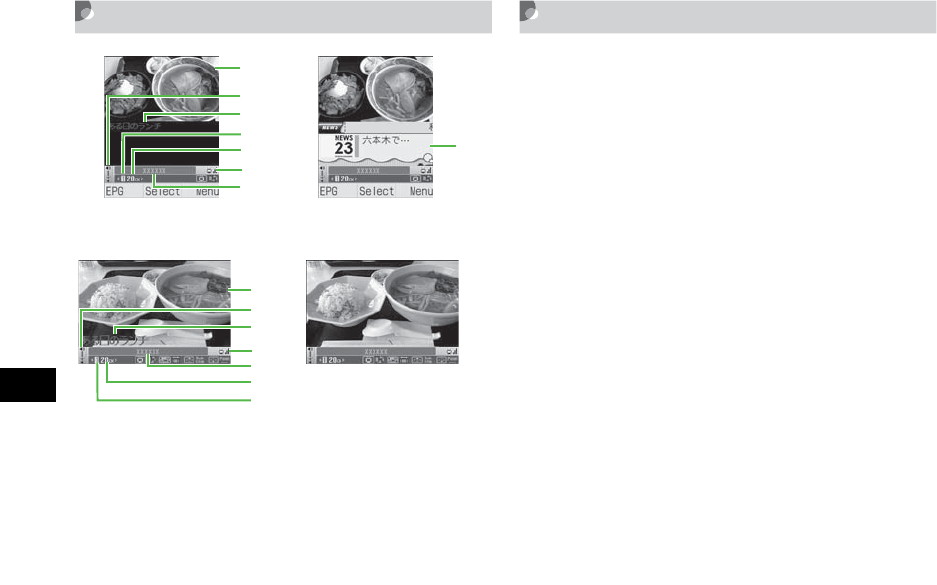
7-8
Digital TV
7
TV Window Area Setup
920SC contains local channel information. Before
using TV for the first time, specify your area to set
up channels.
APress e
B
When confirmation window appears,
select
Yes
C
Highlight a region and press
c
(Select)
D
Highlight a province and press
c
(Select)
E
Highlight a local area and press
c
(Select)
To cancel channel search
Press o (Cancel)
FPress c (Save) and enter a name
a
g
b
c
d
e
f
h
With Subtitle Without Subtitle
a
g
b
c
d
e
f
Landscape/With Subtitle
Landscape/No Subtitle
(Data Broadcast)
aTV Image
bVol ume
cSubtitle
dChannel Key
eChannel
fSignal Strength
gStation Name/
Program Name
hData Broadcast
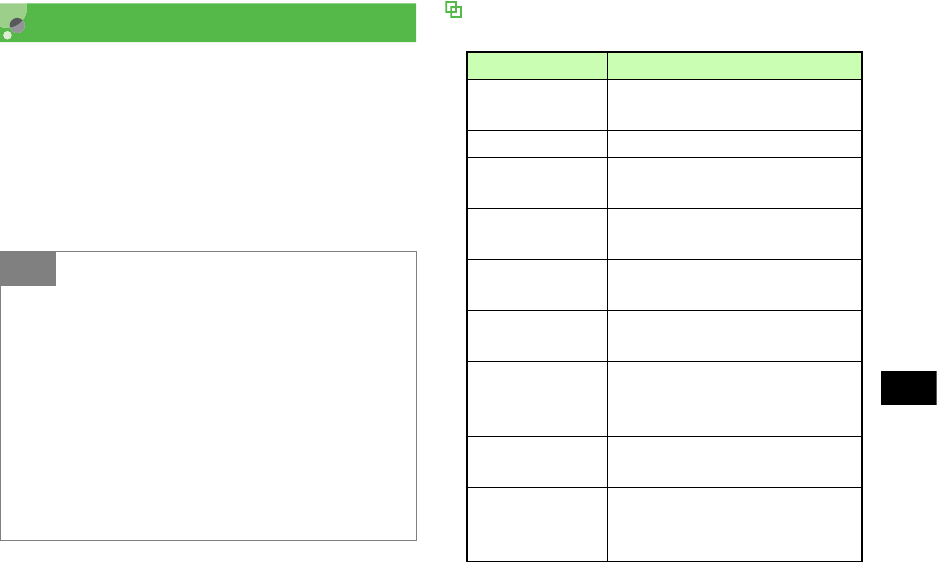
7-9
Digital TV
7
Watching TV
APress e
BUse Keypad to select a channel
To change a channel one by one
Press r or l
CTo exit TV, press y and select Yes
TV Menu
Selectable menu items vary by condition.
Tip
• To use other functions while watching TV
Use Switch Bar (fP.1-24).
• The setting in Default screen mode applies when
activating TV (
f
P.7-16).
• To check Key operations while watching TV
In TV window, select Menu →Help. To return to TV
window, press .c
• To adjust volume while watching TV
Press Side Key n or b. Press b for 2+ seconds to
mute.
Item Description
Full-screen
display
Display TV image on landscape
screen (
f
P.7-11).
Program guide
Show Program Guide (
f
P.7-10).
Program list Check information on the channel
being watched
(
f
P.7-10).
TV links Save and view linked information
on Data Broadcasting (
f
P.7-12)
.
Display subtitle/
hide subtitle Show or hide Subtitle (
f
P.7-10).
Change view
(data)
Display Data Broadcasts (
f
P. 7 -
12).
Hide control panel/
Display control
panel
Show or hide Control Panel
(
f
P.7-11).
Switch channel
list
Set up or change Area info. (
f
P. 7 -
13).
Select/Edit
channel
Select and switch a channel from
Channel Info. or edit a channel
(
f
P. 7- 1 3) .
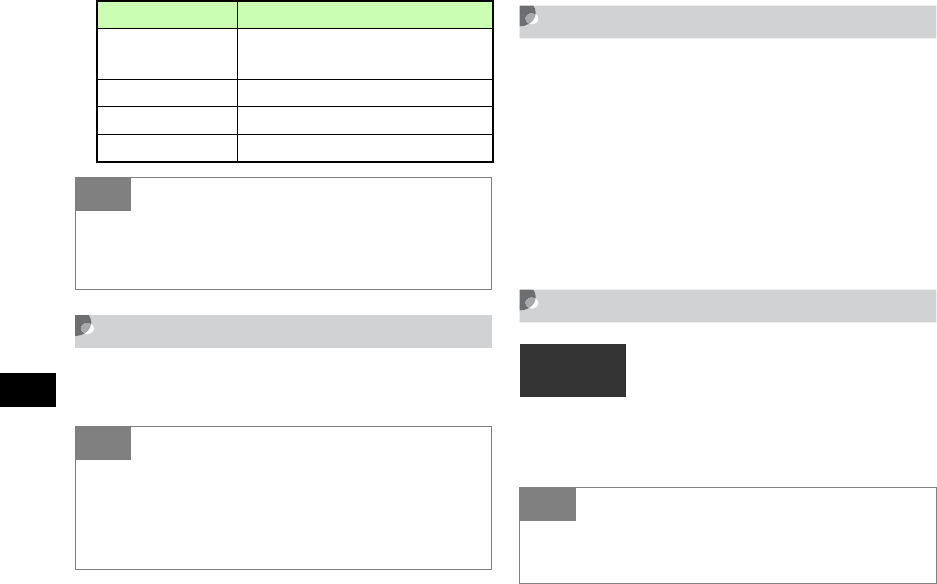
7-10
Digital TV
7
Program Guide
A
In TV window, press
w
(EPG)
Program List
AIn TV window, select Menu →
Program list
BHighlight information to check and
press c
(Select)
To return to TV window
Press c then C
Displaying Subtitle
AIn TV window, select Menu →
Display subtitle
Save channel
Add channel being watched (
f
P.7-
14).
Setting Make TV settings (
f
P.7-15).
Help Check operating procedures.
Exit Exit TV.
Tip
• To perform Menu operations
Menu operations are disabled in Landscape screen
mode. Press e to change the screen mode.
Tip
•Gガイドモバイル (G-GUIDE Mobile) (
f
P.25-10)
• When Program Guide is activated for the first time
Initial setting window for "G-Guide Mobile" appears.
Perform initial settings to access Program Guide.
Item Description
Default
Setting
■ Hide Subtitle
Tip
• If subtitles are unavailable, nothing appears.
• Subtitle field appears even if subtitles do not.
7-11
Digital TV
7
Control Panel
AIn TV window, select Menu →Hide
control panel or Display control panel
Switching Window Mode
AIn TV window, press e
To return to the previous mode
Press e
Data Broadcast (Japanese)
In addition to audio/visuals, Data broadcasts are
available. Follow onscreen instructions to get
program-related information or enjoy interactive TV
services.
Basic Operations
Follow onscreen instructions to view information.
AUse j to highlight an item and
press c (Select)
Default
Setting
■ Display control panel
Tip
• In Landscape mode, press i to change Image size.
Tip
• Internet connection confirmation appears
depending on Data Broadcast and station servers.
Viewing Data Broadcasts (receiving information) is
free. However, using data links or Internet-related
services may incur connection fees.
Note
7-12
Digital TV
7
Changing View (Data)
AIn TV window, select Menu →
Change view (data)
TV Links
Procedures to save links vary by program. Check
information in Data Broadcasts.
Saving TV Links
AOn a program offering Data
Broadcast, select a link source
Opening TV Links
AIn TV window, select Menu →TV
links
Deleting a TV link
AIn TV window. select Menu →TV
links
BHighlight a TV link to delete, and
select Menu →Delete
To delete a TV link
Select Selected →Yes
To delete multiple TV links
aSelect Multiple
bCheck channels to delete and press w
(Delete)
To delete all TV links
Select All →Yes
•Use j to highlight an item even when items are
horizontally arranged. Use s to switch channels.
Tip
• To check details
In TV links list, highlight a TV link and select Menu
→Details.

7-13
Digital TV
7
Additional Settings
Area Settings
Switch areas or set other areas.
• Save up to 10 areas (Area 0 to 9).
Switching Area
AWhile watching TV, select Menu →
Switch channel list
B
Highlight an area and press
c
(Select)
C
Highlight a channel and press
c
(Select)
Updating Channels
AIn Channel List, highlight an item
and press c (Select)
BIn TV window, Select Menu →Set
Channels →Update all or Update
further
Tip
•From Menu
After Step 1, highlight Not Stored and select Menu →
Set Area Info.
• To change names in Channel List
Select an item in Channel List and select Menu →
Rename.
• To check details
Select an item in Channel List and select Menu →
Details.
• To restore default setting
In Channel List, select Menu →Reset.
Tip
• Select Update all to delete and update all channels in
the Area.
7-14
Digital TV
7
Changing Channel Numbers
AIn TV window, select Menu →Select/
Edit channel
BHighlight a channel and select Menu
→Move
CHighlight the destination field and
press c
Deleting Channels
AIn TV window, select Menu →Select/
Edit channel
BHighlight a channel and select Menu
→Delete
CPerform operations for deleting
channels
To delete one channel
Select Selected →Yes
To select and delete multiple channels
aSelect Multiple
bCheck channels to delete and press w
(Delete)
To delete all channels
aSelect All →Yes
bEnter Phone Password, press c (Confirm)
and select Yes
Saving Channels to Channel List
• Select Update further to add new channels to
current Area without changing saved channels.
Channels assigned to the same keys are overwritten.
Tip
• To check/uncheck all channels at once
In Step 3, press o (Mark all/Unmark all).

7-15
Digital TV
7
AWhile watching a program, select
Menu →Save channel
BHighlight a destination to save to and
press c (Select)
TV Settings
Backlight
AIn TV window, select Menu →
Settings →Display →Backlight
BSelect On or Off and press c (Save)
Brightness
AIn TV window, select Menu →
Settings →Display →Brightness
BUse a to adjust brightness
Default
Setting
■
On
Default
Setting
■Level 3

7-16
Digital TV
7
Sound Output
AIn TV window, select Menu →
Settings →Sound output
BSelect Loud speaker or Earphone
Default Screen Mode
Select the window mode when activating TV from
Landscape or Portrait.
AIn TV window, select Settings →
Default screen mode
BSelect an item and press c (Select)
Sound Language
Select the sound language from Main,Sub or
Main+Sub.
AIn TV window, select Settings →
Sound language
BSelect an item and press c (Select)
Incoming Calls & Alarms
Select the incoming mode when receiving a call
while watching TV.
AIn TV window, select Menu →
Settings →Calls & Alarms
Default
Setting
■
Loud speaker
Default
Setting
■
Landscape
Default
Setting
■Main
Default
Setting
■ Incoming call: Call priority
■ Alarms: Alarm priority

7-17
Digital TV
7
BSelect Incoming calls or Alarms
When selecting Incoming calls
Select Voice call or Video call
CSelect an item and perform
operations to set
To set Voice call or Video call
Select Call priority or Notice a call
To set Alarms
Select Alarm priority or Alarm notice
Broadcast Data
AIn TV window, select Menu →
Settings →Broadcast data
BSelect an item and perform
operations to set
To set connection notification
aSelect Notify connection
bSelect On or Off
To set manufacturer number
aSelect Manufacture number
bSelect On or Off
To delete all station data
aSelect Delete station data
bSelect Menu →Delete all
Tip
• When Call priority/Alarm priority is set
TV is automatically paused and an incoming call
window or alarm window appears.
• When Notice a call/Alarm notice is set
In TV window, the notice for incoming calls or alarms
appears at the top of Display and 920SC vibrates. Press
t to answer a call. Press y to reject a call. Press
o to end Alarm.

7-18
Digital TV
7
To delete all station data items
aSelect Delete station data
bHighlight a station and select Menu →Delete
Alternatively, highlight a station, press
c (Select) and select Menu →Delete all.
To delete a station data item
aSelect Delete station data
bHighlight a station and press c (Select)
cHighlight an item to delete and press c
(Select)

8
Mobile Camera
About Mobile Camera..................................8-2
Mobile Camera Precautions ........................8-2
Using Display as Viewfinder ......................8-2
Capturing a Still Image ................................8-4
Camera Mode ..............................................8-4
Capturing Still Images.................................8-4
Capturing Video.......................................... 8-11
Video Mode...............................................8-11
Recording Video........................................8-11
Mobile Camera Settings.............................8-13
Camera Settings ........................................8-13
Video Settings ...........................................8-15
Viewing Images ...........................................8-16
Viewing Still Images .................................8-16
Viewing Videos .........................................8-16
Editing Still Images.....................................8-16
Editing Video...............................................8-19
Create Flash®..............................................8-21
Attaching Images ........................................8-23
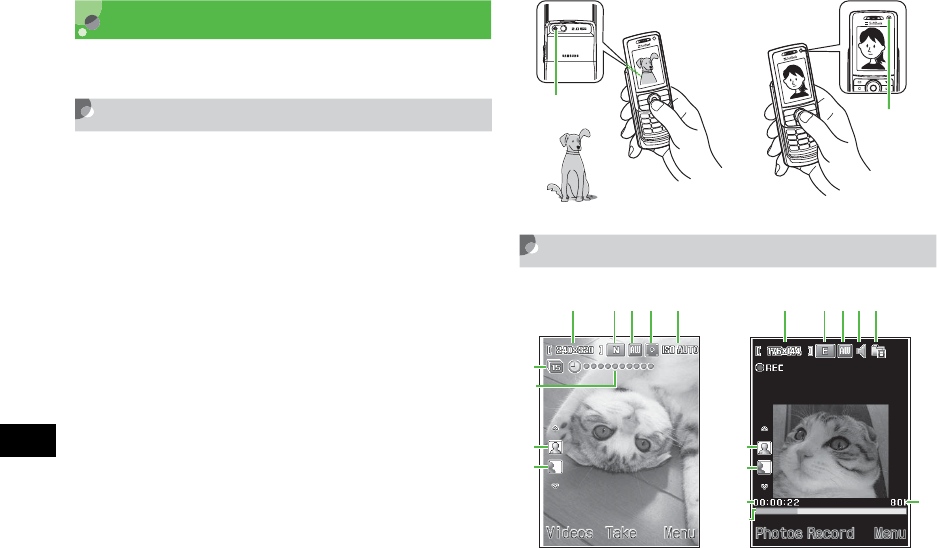
8-2
Mobile Camera
8
About Mobile Camera
Capture still images in JPEG or video in 3GP format.
Mobile Camera Precautions
• Use a dry soft cloth to remove debris from camera
lens.
• Avoid camera shake; hold 920SC steady or place it
on a stable surface and use Timer.
• Mobile Camera employs high precision
technology, however, some pixels may seem
brighter or darker than others.
• Leaving 920SC in a hot place for an extended
period before image capture/save may affect image
quality.
• Exposing lens to direct sunlight may affect color
filter.
• The quality of images captured with Panorama
shot may be lower than those captured with other
modes.
Using Display as Viewfinder
Internal
Camera
External
Camera
Camera Viewfinder Video Viewfinder
g
f
h
i
abcd e
abcjk
l
h
i
m
n
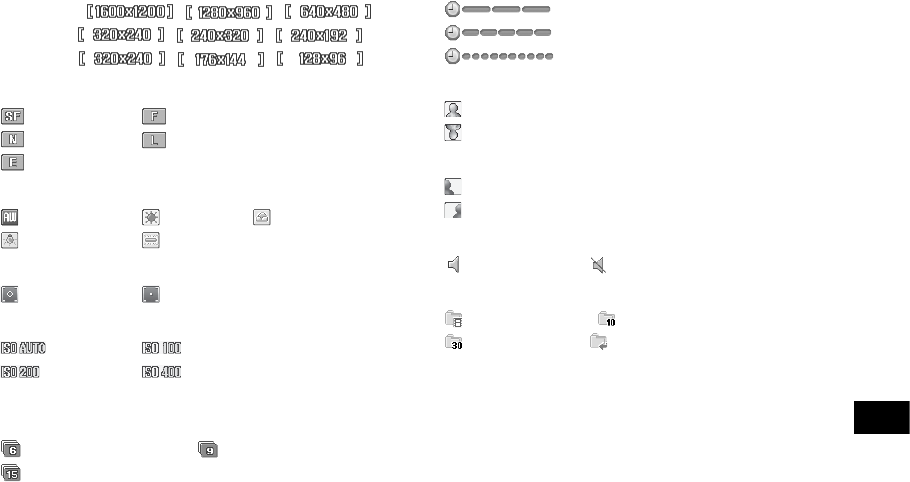
8-3
Mobile Camera
8
aSize
Still Image: , , ,
, ,
Video : , ,
bQuality
: Superfine : Fine
: Normal : Low
: Economy
cWhite Balance
: Auto : Fine : Cloudy
: Incandescent : Fluorescent
dSpot Metering
: Off : On
eISO
: Auto : 100
: 200 : 400
fMode
No display : Single shot
: Multi-shot (6 shots) : Multi-shot (9 shots)
: Multi-shot (15 shots)
gTimer (When set)
: 3 seconds
: 5 seconds
: 10 seconds
hImage Orientation (Portrait)
: Upright Image
: Downward Image
iImage Orientation (Landscape)
: Normal Image
: Mirror Image
jAudio Recording
: On : Off
kRecording Time
: Limit for S! Mail : 10 seconds
: 30 seconds : Normal recording
lElapsed Recording Time
mTotal Data Size/Recording Time
nProgress Bar
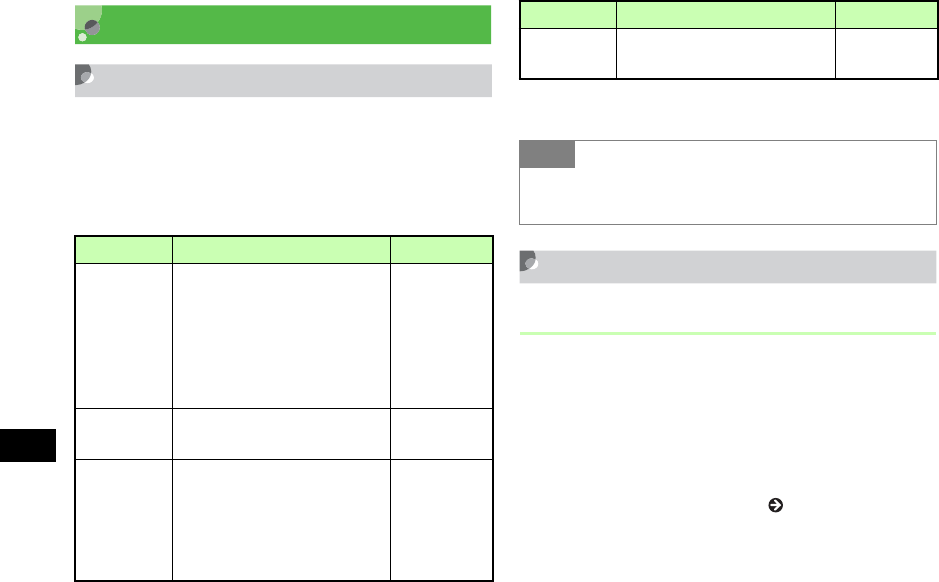
8-4
Mobile Camera
8
Capturing a Still Image
Camera Mode
Select Single shot to capture single images, Multi-
shot or Mosaic shot to capture multiple images. Save
images in Pictures. Select Panorama Shot to capture
images as panorama.
* Image size up to 240 x 1824 (portrait), or 1824 x 320
(landscape)
Capturing Still Images
Single Shot
APress b for 2+ seconds
In Video mode
Press w (Photos) to change to Camera mode
BSelect Menu and perform other
actions as required ( P.8-5)
Mode Description Image size
Single shot
Capture single images, select
size for purpose; attach
images to S! Mail, save as
Wallpaper, etc.
1600 x 1200
1280 x 960
640 x 480
320 x 240
240 x 320
240 x 192
Multi-shot Press shutter once to capture
6, 9 or 15 sequential images. 320 x 240
Mosaic shot
Capture multiple images at a
time; select Frame to
automatically combine
single images into one
composite image.
240 x 192
Panorama
Shot Capture images as panorama. 240 x 320*
Tip
• When using Single shot mode with a flame
Image size is automatically adjusted to 240 x 192.
Mode Description Image size
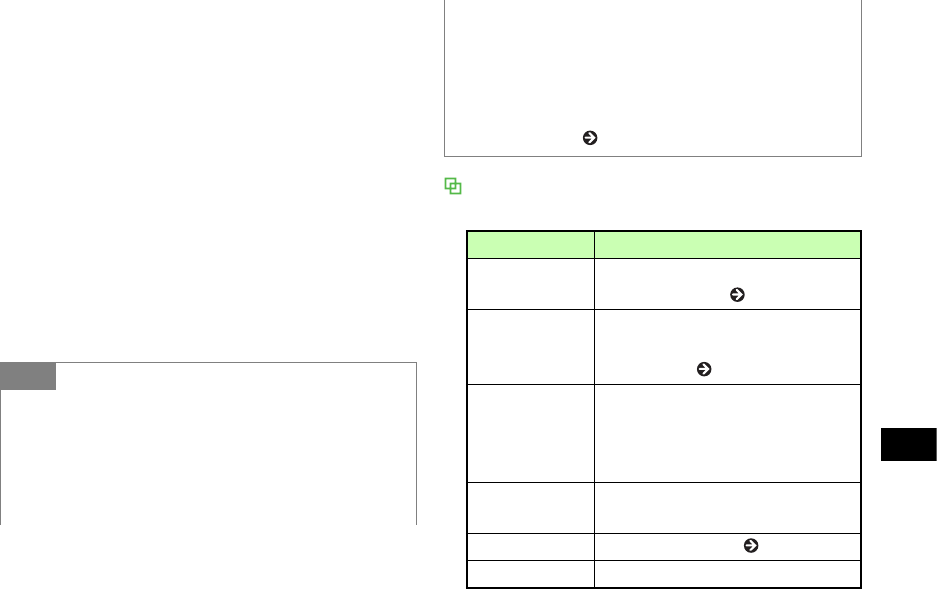
8-5
Mobile Camera
8
CUse Display as viewfinder
Zoom in/out (Except 1600 x 1200 External
Camera and 640 x 480 Internal Camera)
Use u or d to enlarge or reduce image
Brightness
Use r or l to lighten or darken image
DPress c (Take)
To retake an image
Press C
EPress w (Save)
Preview Menu
Available menu items may vary by mode and settings.
Tip
• To activate/adjust Timer in image preview
Before Step 4, press
5
to toggle
3 seconds
,
5
seconds
,
10 seconds
, and
Off
.
• To toggle Internal Camera and External Camera
In image preview, select Menu →Switch camera.
• To adjust image preview
Press # to toggle Full screen,Full screen without
indicator, Full screen with grid, and Actual ratio.
• To send an image via S! Mail or Bluetooth®
aAfter Step 4, press c (Send) and select an item
bSend image ( P.13-5, 18-6)
Item Description
Switch camera Toggle Internal Camera and
External Camera ( P.8-5).
Shooting mode
Set Single shot,Panorama Shot,
image count for Multi-shot or
Mosaic shot ( P.8-4, 8-8, 8-9).
Effects
Select Black & White,Sepia or
Negative effects filters. When an
effect is active, select None to
cancel.
Frames Add a frame to image in Single shot
mode.
Timer Activate self-timer ( P.8-5).
Go to photos Open Pictures folder.
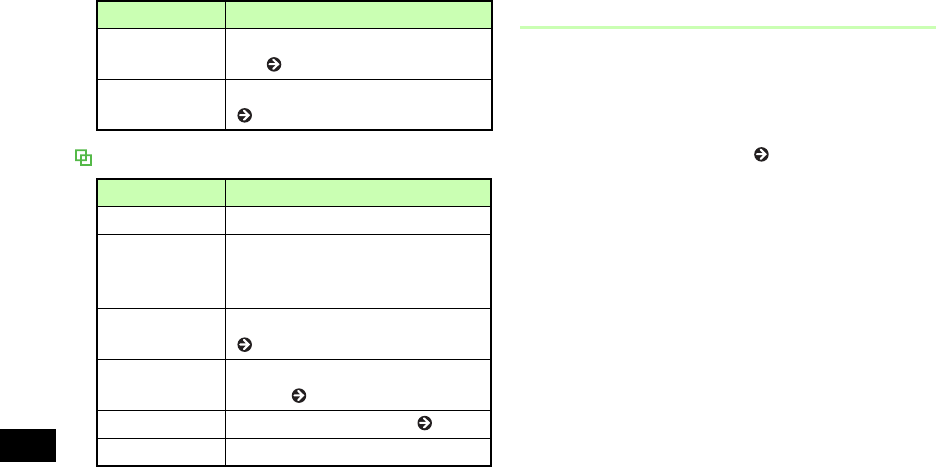
8-6
Mobile Camera
8
Review Menu
Mobile Postcard
This function renders one of two images as line art,
merging it with the other to create a stamped
photograph.
ACapture an image ( P.8-4, 8-8)
BSelect Menu →mPostcard
CPress c (Add)
DAdd a second image
To select a still image from Data Folder
aSelect Open
bOpen Data Folder and select an image file
To capture an image
aSelect Take photo
bPress c (Take)
cPress c (Add)
Camera settings Select image size, image quality,
etc. ( P.8-13).
Camera
shortcuts
Open a function shortcuts graphic
( P.8-10).
Item Description
Save Save captured images.
Set as
Set image for Wallpaper,
Phonebook entries, or Substitute
Image.
Edit photo Edit an image in Pictures folder
( P.8-16).
Dynamic Effect Create Flash® images using Still
images ( P.8-21).
mPostcard Create a mobile postcard ( P.8-6).
Go to photos Open Pictures folder.
Item Description

8-7
Mobile Camera
8
EPress c (Merge) and check result
To change image
aPress C
bHighlight image to change, select Menu →
Change image
cRepeat Steps 4 and 5
To swap image positions
aPress C
bMenu →Swap image
cPerform Step 5
FTo edit line art, press o (Edit)
To change line art position
aMenu →Move
bUse a to move image and press w
(Done)
To change line art size
aMenu →Size
bUse j to adjust image and press w
(Done)
To rotate line art
aMenu →Rotate
bUse s to rotate image and press w
(Done)
To change line art color
aMenu →Change colour
bUse s to select color and press w
(Done)
To adjust line art shadow
aMenu →Shadow on or Shadow off
bPress w (Done)
GPress w (Save) and enter a file
name
To save and send image
aPress c (S & S)
bSelect an item and send ( P.13-5, 18-6)

8-8
Mobile Camera
8
Multi Shot
APress b for 2+ seconds
In Video mode
Press w (Photos) to change Camera mode
BSelect Menu →Shooting mode →
Multi-shot and select the number of
images to capture
CSelect Menu and perform other
actions as required ( P.8-5)
DPreview shooting object on Display
Zoom in/out
Use u or d to enlarge or reduce image
Brightness
Use r or l to lighten or darken image
EPress c (Take)
To view still images individually
aHighlight the image and press c (View)
bUse r or l to go to next/previous image
cPress C
To retake still images
Press C
FPress w (Save)
Mosaic Shot
APress b for 2+ seconds
In Video mode
Press w (Photos) to change Camera mode
BSelect Menu →Shooting mode →
Mosaic shot to select Frame
CSelect Menu and perform other
actions as required ( P.8-5)
DPreview shooting object on Display

8-9
Mobile Camera
8
Zoom in/out
Use u or d to enlarge or reduce image
Brightness
Use r or l to brighten or darken image
EPress c (Take) for each frame
To retake still images
Press C
FPress w (Save)
Panorama Shot
APress b for 2+ seconds
In Video mode
Press w (Photos) to change Camera mode
BSelect Menu →Shooting mode →
Panorama Shot
CSelect Menu and perform other
actions as required ( P.8-5)
DUse Display as viewfinder
Zoom in/out
Use u or d to enlarge or reduce image
Brightness
Use r or l to brighten or darken image
EPress c (Take) and pan 920SC
FPress c (Stop) to end capturing
When capture area is full
Capturing ends automatically
To retake image
Press C
GPress w (Save)
8-10
Mobile Camera
8
Shortcut Key Operations
Press the assigned key to change item settings.
Available shortcuts vary by mode or setting status.
Key Item Description
1Size
1600 x 1200, 1280 x 960,
640 x 480, 320 x 240,
240 x 320, 240 x 192
2Quality Superfine, Fine, Normal,
Low, Economy
3Shooting
mode
Single shot, Multi-shot 6,
Multi-shot 9, Multi-shot 15,
Mosaic shot, Panorama Shot
4White balance Auto, Fine, Cloudy,
Incandescent, Fluorescent
5Timer 3 seconds, 5 seconds, 10
seconds
6Frames Select from 9 types
7Effects Black & White, Sepia,
Negative
8ISO Auto, 100, 200, 400
9Spot metering Off, On
0Photo album -
#Screen mode Toggle Normal screen, no
indicator, with grid
wMode switch -
nVer ti ca l
inverse -
bHorizontal
inverse -
jZoom -
sBrightness -
Key Item Description

8-11
Mobile Camera
8
Capturing Video
Video Mode
Capture clips easily. Alternatively, capture clips
without sound. Files are saved in 3GP format to
Videos folder in Data Folder. When recording a
video to attach to/insert into an S! Mail, select
Recording time →Limit for S! Mail ( P.8-15).
Recording Video
APress b for 2+ seconds
In Camera mode
Press w (Videos) to open Video mode
BSelect Menu and perform other
actions as required ( P.8-12)
CUse Display as viewfinder
Zoom in/out
Use u or d to enlarge or reduce image
Brightness
Use r or l to lighten or darken image
DPress c (Record)
EPress c (Stop) to end recording
After recording time elapses
Recording ends automatically
FSelect Save
To preview saved clip
Select Preview
To send saved clip by email
Select Send to Message
To send saved clip via Bluetooth®
Select Send to bluetooth
8-12
Mobile Camera
8
Preview Menu
Review Menu
Perform operations in a preview window after
capturing.
Shortcut Key Operations
Change settings by pressing key assigned to each item.
Tip
• To activate/adjust Timer
Before Step 4, press
5
to toggle
3 seconds
,
5
seconds
,
10 seconds
,
Off
.
• To toggle Internal Camera and External Camera
Before Step 4, select Menu →Switch camera.
Item Description
Switch camera Toggle Internal Camera and
External Camera ( P.8-12).
Effects
Select Black & White,Sepia, or
Negative effects filters. When an
effect is active, select None to
cancel.
Timer Activate self-timer ( P.8-12).
Go to videos Open Videos folder.
Video settings Select image size, image quality,
etc. ( P.8-15).
Camcorder
shortcuts
Open a function shortcuts graphic
( P.8-12).
Item Description
Resolution Select video display size while
playing or paused.
Key Item Description
1Size 320 x 240, 176 x 144,
128 x 96
2Quality Fine, Normal, Low,
Economy
3Shooting time
Limit for S! Mail, 10
seconds, 30 seconds,
Normal recording
4White balance Auto, Fine, Cloudy,
Incandescent, Fluorescent
5Timer 3 seconds, 5 seconds, 10
seconds
6Audio
recording On, Off
8-13
Mobile Camera
8
Mobile Camera Settings
Adjust image capture settings, including image size,
image quality and save location, etc.
Camera Settings
APress b for 2+ seconds
In Video mode
Press w (Photos) to change to Camera mode
BSelect Menu →Camera settings
7Effects Black & White, Sepia,
Negative
0Record album -
wMode switch -
nVe rt i ca l
inverse -
bHorizontal
inverse -
jZoom -
sBrightness -
Key Item Description
Default
Setting
■ Size: 240 x 320 ■ Quality: Normal
■ Viewfinder: Full screen without indicator
■ Shutter sound: Shutter 1
■ Multi-shot speed: High
■ Automatic save: Off
■ White balance: Auto
■ ISO: Auto
■ Spot metering: Off
■ Scene program: Normal
■ Default storage: Phone
■ Default name: Photo

8-14
Mobile Camera
8
CSet items
Image size
aSelect Size
bSelect a setting and press c (Save)
Image quality
aSelect Quality
bSelect a setting and press c (Save)
Viewfinder
aSelect Viewfinder
bSelect a setting and press c (Save)
Shutter sound
aSelect Shutter sound
bSelect a setting and press c (Save)
Sequential shot speed
aSelect Multi-shot speed
bSelect a setting and press c (Save)
Automatic save
aSelect Automatic save
bSelect a setting and press c (Save)
White balance
aSelect White balance
bSelect a setting and press c (Save)
ISO
aSelect ISO
bSelect a setting and press c (Save)
Spot metering
aSelect Spot metering
bSelect a setting and press c (Save)
Scene program
aSelect Scene program
bSelect a setting and press c (Save)
Save location (Phone/Memory Card)
aSelect Default storage
bSelect a setting and press c (Save)
File name
aSelect Default name
bEnter file name

8-15
Mobile Camera
8
Video Settings
APress b for 2+ seconds
In Camera mode
Press w (Videos) to change to Video mode
BSelect Menu →Video settings
CSet items
Duration
aSelect Recording time
bSelect a setting and press c (Save)
Size
aSelect Size
bSelect a setting and press c (Save)
Image quality
aSelect Quality
bSelect a setting and press c (Save)
Voice recording
aSelect Audio recording
bSelect a setting and press c (Save)
Save location (Phone/Memory Card)
aSelect Default storage
bSelect a setting and press c (Save)
File name
aSelect Default name
bEnter file name
Tip
•Default storage setting
Changing the setting here applies to
Default storage
in
Video settings.
Default
Setting
■ Recording time: Limit for S! Mail
■ Size: 176 x 144
■ Quality: Economy ■ Audio recording:
On
■ Default storage: Phone
■ Default name: Video
8-16
Mobile Camera
8
Viewing Images
View images/video clips saved in Data Folder.
Viewing Still Images
APress b for 2+ seconds
In Video mode
Press w (Photos) to change Camera mode
BSelect Menu →Go to photos
CHighlight a file and press c (View)
Viewing Videos
APress b for 2+ seconds
In Camera mode
Press w (Videos) to change to Video mode
BSelect Menu →Go to videos
CHighlight and select a file and press
c (Play)
Editing Still Images
Edit image files saved in Data Folder.
APress c, select Data Folder and
select an image to edit
BHighlight a file and press c (View)
CSelect Menu →Edit
Tip
• Video recording time
For Normal recording, record up to one hour of video.
• When Recording time is set to Limit for S! Mail
Size 320 x 240 is not selectable and Quality is
Economy.
•Default storage setting
Changing the setting here applies to Default storage in
Camera settings.

8-17
Mobile Camera
8
DEdit using Menu
To change the size of an image
aSelect Resize
bSelect the setting
cEnter Width or Height (If Customise is
selected)
dPress w (Done)
To add effects to an image
aSelect Effects
bSelect the setting
cPress w (Done)
To add blur or correct red-eye
aSelect Partial effects →Partial blur or
Redeye repair
bMenu and select the suitable operation
cPress w (Done)
To adjust an image
aSelect Adjust →Brightness/Contrast/Colour
bAdjust the image
cPress w (Done)

8-18
Mobile Camera
8
To add a frame
aSelect Frames
bUse s to select a frame
cPress w (Done)
To add clip art to an image
aSelect Cliparts
bSelect a piece of clip art to add to an image
cMenu →Size and use j to adjust clip art
size
dMenu →Rotate and use s to turn clip art
eMenu →Move and use a to move clip art
fPress w (Done)
To add text to image (320 x 240 or above)
aSelect Insert text
bEnter text
cMenu →Size and use j to adjust text size
dMenu →Rotate and use s to turn text
eMenu →Font size →Large/Normal/Small
f
Menu →Colour
and use
a
to adjust text color
gPress w (Done)
To rotate image
aSelect Rotate
bSelect 90° R or 90° L
cPress w (Done)
To flip image
aSelect Flip
bSelect Vertically or Horizontally
cPress w (Done)
To crop image
aSelect Crop
b
Menu →Size
and use
j
to adjust trimming
size
c
Menu
→
Shape
and use
s
to select trimming
shape
dMenu →Move and use a to adjust
trimming position
eMenu →Crop
fPress w (Done)
EPress c (Save)

8-19
Mobile Camera
8
FEnter an image name Editing Video
Edit Video files in Data Folder.
APress c, and select Data Folder →
Videos
BHighlight a file, and select Menu →
Edit
CEdit using Menu
To cut vide o
aSelect Cut
bPress c (Play)
cPress w (Start) at the start point
dPress w (End) at the End point
eTo cancel and retry, press o (Reset) and
repeat steps b to d
fPress w (Done)

8-20
Mobile Camera
8
To merge multiple videos
aSelect Merge
bCheck files to merge (Up to 9 files)
cPress o (Memory) for Memory Card files
dRepeat steps b and c to check all target
files
ePress w (Done)
fPress c (Merge)
To replace sound from other video/sound
aSelect Replace sound →From other video or
From other sound
bPress c (Select)
cSelect a file and press w (Done)
To erase sound
aSelect Audio Erase
bPress c (Erase)
To erase image
aSelect Video Erase
bPress c (Erase)
To play back in slow motion
aSelect Slow Motion →1/2X, 1/3X, or 1/4X
bPress c (Execute)
To play back in fast motion
aSelect Fast Motion →2X, 3X, or 4X
bPress c (Execute)
DPress c (Save)
EEnter a file name
Tip
• To confirm video before or after editing
aPress w (Preview)
bPress c (Play)
cPress C to return to the editing window
• To add files to merge videos
aAfter e in Step 3 in "To merge multiple videos,"
select Menu →Add
bPerform steps b to e in Step 3 in "To merge
multiple videos"
8-21
Mobile Camera
8
Create Flash®
Create Flash® images using still images saved in
Pictures folder or still images previewed
immediately after shooting; newly created Flash®
images are saved to Other documents folder in Data
Folder.
APress c and Camera →Dynamic
effect list
BSelect a file
CPerform creation operations
To add frame to image
aSelect (Frame)
bSelect a frame
To add icon to image
aSelect (Icon)
bSelect an icon
cSelect Menu →Size, use j to adjust size
and press w (Done)
dSelect Menu →Rotate and use s to adjust
angle and press w (Done)
eSelect Menu →Reverse, use a to adjust
orientation and press w (Done)
fSelect Menu →Transparency, use j to
adjust transparency and press w (Done)
gUse a to adjust position and w (Done)
hRepeat steps a to g to add more icons
• To delete the file order for merging
aAfter step e in Step 3 in "To merge multiple
videos," use s to highlight the file to delete
bMenu →Delete →Yes
• To change the file order for merging
aAfter step e in Step 3 in "To merge multiple
videos," use s to highlight the file to move
bMenu →Change order
cUse s to highlight a personal folder or a file,
highlight the file and press c

8-22
Mobile Camera
8
To add self-made balloon
aSelect (Balloon)
bSelect Normal
cSelect a balloon
dEnter text
eSelect Menu →Font size, use j to adjust
the size and press w (Done)
fSelect Menu →Font color, use s to adjust
the text color and press w (Done)
gSelect Menu →Action text, use s to select
an action for text and press w (Done)
hSelect Menu →Reverse, use a to adjust
orientation and press w (Done)
iSelect Menu →Change text, and edit text
jUse a to adjust position and w (Done)
kSelect (Balloon), press c (Insert) and
repeat steps b to i to add more icons
To add pre-installed balloon
aSelect (Balloon)
bSelect Ready-made
cSelect a balloon
dUse a to adjust position and w (Done)
eSelect (Balloon), press
c (Insert) and
repeat steps b to d to add more icons
To add watch on image
aSelect (Watch)
bSelect the watch
cPress w (Done)
To reset image during editing
aSelect (Reset)
bSelect Yes
DPress w (Save)
EEnter an image name
8-23
Mobile Camera
8
Attaching Images
Attach captured image or recorded video to S! Mail.
However, in case of videos, only videos recorded
with
Limit for S! Mail ( P.8-15) can be attached.
AAfter capturing, press c (Send) →
Via message
To send video
In Menu window appeared after recording,
select Send to Message
BEnter an address, subject, text, etc.,
and send
Tip
• To delete added frame/watch
aAfter Step 2, select (Frame) or (Watch)
bPress w (Delete)
• To delete added icon(s)/balloon(s)
aAfter Step 2, select (Icon) or (Balloon)
bUse s to highlight more icons/text to delete
cPress w (Delete)
dPress c (Done)
• Available icon/balloon to add
Up to 5 icons/3 balloons can be added.
• To create Flash® images using Data Folder images
aHighlight image saved in Data Folder and select
Menu →Dynamic Effect
bPerform Steps 3 to 5 ( P.8-21 to 8-22) in "Create
Flash®"
Tip
• To send a still image or video via Bluetooth®
To send a still image, select Via bluetooth in Step 1. To
send video, select Send to bluetooth in Step 1 ( P.13-
5).

8-24
Mobile Camera
8

9
Display Settings
Standby Display Settings..............................9-2
Wallpaper ....................................................9-2
Clock Display..............................................9-4
Operator Name ............................................9-5
Menu Display ................................................9-5
Menu Style ..................................................9-5
Popup Menu ................................................9-6
Font ................................................................9-6
Font Type.....................................................9-6
Font Size......................................................9-7
Backlight Brightness & Duration................9-7
Adjusting Display Brightness .....................9-7
Backlight Duration ......................................9-7
Dialing Display..............................................9-8
Display Language .........................................9-9

9-2
Display Settings
9
Standby Display Settings
Wallpaper
Set an image, animation or Slide Show to appear in
Standby; hide image.
A
Press
c
and select
Settings
→
Display settings
→
Wallpaper
BSet items
To change settings
Select Pictures,Slide show or None
To change the image
aSelect Pictures
bSelect a folder then a file
cPress c (Set)
To set/edit the image of Slide show
aSelect Side show
bPerform Steps 2 to 4 in "Setting Slide Show"
( P.9-2) or perform Steps 2 and 3 in "Editing
Slide Show" ( P.9-3)
Setting Slide Show
APress c and select Camera →Slide
show
BPress c (Add)
CSelect a folder, check an image and
press w (Done)
To see preview
aPress w (Preview) and select Yes (cropped
image) or No (original image)
bPress C to close the preview
Default
Setting
■Pictures
9-3
Display Settings
9
To set effect
aUse j to highlight Effect field
bUse s to toggle setting
To change the slide interval
aUse j to highlight Duration field
bUse s to highlight Effect field
DPress c (Set) and select Yes (crop
sides) or No (show full image)
Editing Slide Show
APress c and select Camera →Slide
show
BEdit Slide images
To edit still images
aMenu →Replace
bCheck a still image to set and press w
(Done)
To change image order
aHighlight images to change and select Menu
→Change Order
bUse a to change order and press c
(Save)
To delete a still image
Highlight image to delete, select Menu →
Delete →Yes
To add a still image
aHighlight an empty slide and press o
(Add)
bCheck image to add and press w (Done)
CPress c (Set) and select Yes or No
Tip
• To adjust slide size
For a larger image, select Yes in Step 4. For the original
image, select No.
Tip

9-4
Display Settings
9
Clock Display
Set Digital clock, Dual clock, Calendar or Today’s
event to appear in Standby. Alternatively, hide clock
in Standby.
APress c and select Settings →
Display settings →Clock display
BSelect settings
To set Digital clock
aSelect Digital clock
bPress w (Edit) and use s to select clock
type
cPress c
To set Dual clock
aSelect Dual clock
bPress w (Edit)
• To adjust slide size
For a larger image, select Yes in Step 3. For the original
image, select No.Default
Setting
■Off
9-5
Display Settings
9
cPerform Step 3 in "Changing Home Time
Zone" ( P.1-21)
To display Calendar
Select Calendar
To display Today’s event
Select Today’s event
To hide clock
Select Off
CPress c (Save)
Operator Name
In Standby, show or hide operator name.
APress c and select Settings →
Display settings →Operator name
BSelect a setting and press c (Save)
Menu Display
Menu Style
Change menu appearance.
APress c and select Settings →
Display settings →Main menu style
Tip
• When Dual clock is set
Two clocks appear in Standby. Top time is that of the
zone selected in "Time & Date" ( P.1-20) and bottom
time is that of the zone set in Dual clock ( P.9-4).
Default
Setting
■Off
Default
Setting
■White
9-6
Display Settings
9
BHighlight an item and press c
(Save)
Popup Menu
When active, sub menus appear in a popup window
when a menu item is highlighted.
APress c and select Settings →
Display settings →Popup menu
BSelect a setting and press c (Save)
Font
Font Type
APress c and select Settings →
Display settings →Font
BSelect Font type
CSelect Font1 or Font2
DPress c (Save)
Default
Setting
■Off
Tip
• When an item with no sub menu is highlighted
Nothing appears. Popup menus do not appear in
Alarms.
Default
Setting
■Font1
9-7
Display Settings
9
Font Size
APress c and select Settings →
Display settings →Font
BSelect Font size
CSelect an item
List font
Select List font and select Large or Small
Browser
Select Browser and select Large,Standard or
Small
Phonebook
Select
Phonebook
and select
Large
,
Standard
or
Small
DPress c (Save)
Backlight Brightness &
Duration
Adjusting Display Brightness
APress c and select Settings →
Display settings →Brightness
BUse a to adjust brightness and
press c (Save)
Backlight Duration
Set backlight time. Display becomes dimmer when
time set in On elapses and turns off when time set in
Dim has elapsed.
Default
Setting
■List font: Large
■Browser: Standard
■Phonebook: Standard
Default
Setting
■On: 15 seconds ■Dim: 5 seconds

9-8
Display Settings
9
APress c and select Settings →
Display settings →Backlight time
BSet items
To set the time to light up
aSelect On field
bSelect the time to set and press c
To set the time till Display goes off
aSelect Dim field
bSelect the time to set and press c
CPress w (Save)
Dialing Display
Appears when dialing in Standby. When character
type is set to Normal or Serif, select font size, color
and background color.
APress c and select Settings →
Display settings →Dialling display
Default
Setting
■Font type: Normal
9-9
Display Settings
9
BSet items
Font type
aSelect Font type
bUse s to switch font type
Font size
aSelect Font size
bUse s to select the size
Font color
aSelect Font colour
bUse s to select the setting
cUse u to move cursor to Color selection
field and use s to select a color (For
Monochrome only)
Background color
aSelect Background colour
bUse s to select the color
CPress c (Save)
Display Language
Set 920SC user interface to appear in English,
Japanese, or Korean.
APress c and select →
→Language or
BSelect English and press c (保存/
Save/)
Default
Setting
■日本語 (Japanese)
設定
一般設定
言語選択

9-10
Display Settings
9

10
Sound Settings
Changing Profile Settings ..........................10-2

10-2
Sound Settings
10
Changing Profile Settings
Change 920SC incoming transmission response by
profile.
In Car Profile, select Call answer mode.
AIn Standby, press * for 1+ seconds
BHighlight a profile and press
w (Edit)
To set Ringtone volume
aSelect Ringtone volume and select item to set
bUse s to adjust volume
cPress w (Play) to confirm volume and
press c (Save)
To set sound effect or key tone volume
aSelect Ringtone volume and select key tones
bUse s to adjust volume and press c
(Save)
To set Voice/Video Call ringtone
aSelect Ringtone and select Voice call
ringtone or Video call ringtone
bSelect the save location for files
cHighlight a melody, press w (Play) to
confirm melody and press o (Select)
To set S! Mail/SMS ringtone
aSelect Ringtone and select Message ringtone
bSelect setting, press w (Play) to confirm
ringtone and press c (Save)
To set vibration
aSelect Vibration and select an item
bSelect setting and press c (Save)
To set S! Mail/SMS ring duration
aSelect Message ringtone duration
bEnter duration and press c
To set Phone sounds
aSelect Phone sounds
bCheck items to set and press w (Save)

10-3
Sound Settings
10
To set key tone
aSelect Key tones
bSelect a setting and press c (Save)
To set Car Profile answering method
aSelect Call answer mode
bSelect a setting and press c (Save)
Sound settings
Change Normal Profile sound settings here. Settings for
other profiles cannot be changed.
Tip
• Ringtone volume
Select for step-up ringer.
• Ringer Reducer
Reduces ringer volume to Level 1 for the first two
seconds.
• Car Profile Call answer mode
If Anykey is set, press any key except w,o,y,
or Side Key n or b.
• To set Car Profile auto answer time
After step a in "To set Car Profile answering method"
in Step 2, select Automatic and press w (Edit); edit
answer time and press c.
• To set Voice recorder recording as ringtone
After step b in "To set ringtone" in Step 2, select amr
file.
• To adjust the volume while 920SC rings
Press Side Key n or b while 920SC rings.
• To turn ringer and vibration off
Mute Ringtone volume and set Vibration Off; mute
indicator ( ) appears.
• To change ringtone title for S! Mail/SMS
aAfter step b in "To set S! Mail/SMS ringtone" in
Step 2, highlight Data Folder and press c (Select)
bSelect save location for a file
cHighlight a file and press w (Play)
dPress o (Select)
• To adjust key tone volume
In Standby, press Side Key n or b.
10-4
Sound Settings
10
Profile settings
Available items vary by Profile. Defaults are as listed below.
Profile
Item Normal Manner Car Meeting Outdoor
Ringtone volume
Voice call
ringtone Level 4 N/A Level 4 Off Level 5
Video call
ringtone Level 4 N/A Level 4 Off Level 5
Message
ringtone Level 4 N/A Level 4 Off Level 5
Key tones Level 2 N/A Level 4 Off Level 5
Ringtone
Voice call
ringtone Tripping.mmf N/A Tripping.mmf Tripping.mmf Tripping.mmf
Video call
ringtone Secret Life.mmf N/A Secret Life.mmf Secret Life.mmf Secret Life.mmf
Message
ringtone Pure N/A Pure Pure Pure
Vibration
Voice call Pattern 1 Pattern 1 Pattern 1 Pattern 1 Pattern 1
Video call Pattern 1 Pattern 1 Pattern 1 Pattern 1 Pattern 1
Message Pattern 1 Pattern 1 Pattern 1 Pattern 1 Pattern 1
10-5
Sound Settings
10
Profile
Item Normal Manner Car Meeting Outdoor
Message ringtone
duration 5 Seconds N/A 5 Seconds 5 Seconds 5 Seconds
Phone sounds Several tones On Alerts on call Several tones On Alerts on call Several tones On
Key tones Xylophone N/A Xylophone Xylophone Xylophone
Call answer mode N/A N/A Normal N/A N/A
Answer machine N/A On N/A N/A N/A
10-6
Sound Settings
10
Phone Sounds
Available items vary by Profile. Volume Level set in
Key Tone Volume applies to all Phone Sounds.
Item Description
All Check/uncheck all items.
Popup box
alerts Sounds for confirmations/warnings.
Minute minder Sounds about once a minute during
calls.
Call connect
tone
Sounds when calls connect before
called phone rings.
Call end tone Sounds when a call ends.
Power on Sounds when power is turn on.
Power off Sounds when power is turn off.
Slide up/down Sounds when 920SC is slid up/
down.
Alerts on call Sounds for alarms/incoming
transmissions.

11
Media Player
About Media Player.................................... 11-2
Playing Music.............................................. 11-3
Playing Files from Playlists ......................11-8
Music Settings ............................................. 11-9
Repeat Mode .............................................11-9
Equalizer Type...........................................11-9
Tone Volume ...........................................11-10
Audio Skin ..............................................11-10
Visualization Mode .................................11-10
Music Menu ............................................ 11-11
Playing Video ............................................ 11-12
Video Settings............................................11-15
Repeat Mode ...........................................11-15
Tone Volume ...........................................11-16
Video Menu.............................................11-16
Video Thumbnail Display .......................11-17
Resolution ...............................................11-17
Streaming...................................................11-18
Entering URL Directly............................11-18
Accessing from Bookmark......................11-19
Accessing from History...........................11-19
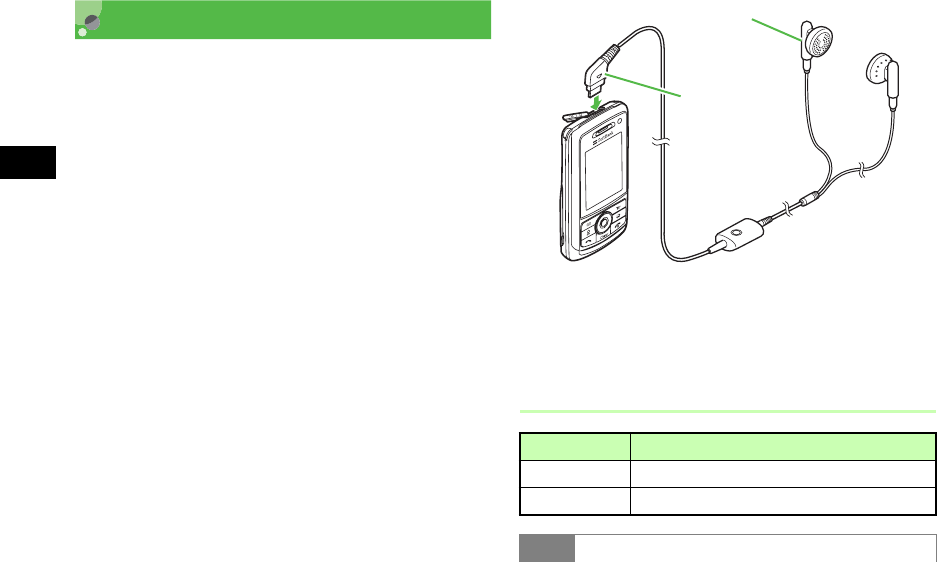
11-2
Media Player
11
About Media Player
Play Data Folder sound/video files or stream online
media.
• From Music or Video menu, select Download
music or Download videos, to download files via
Yahoo! Keitai.
• Use Stereo Earphone Microphone. Insert as shown
below. Unplug Stereo Earphone Microphone to use
Speaker. (When playing melody or video with
Stereo Earphone Microphone connected while
Manner Profile is active, sound is not output from
Speaker when Stereo Earphone Microphone is
disconnected from 920SC.)
• Use Stereo Earphone Microphone to accept Voice
Calls. When 920SC rings/vibrates, press Stereo
Earphone Microphone switch for 1+ seconds to
answer the call.
Playable File Formats
Player File (Extension)
Music MPEG4 Audio (mp4, 3gp (sound only))
Video MPEG4 (mp4, 3gp)
Tip
Left
Right
Stereo
Earphone
Charger
Connecto

11-3
Media Player
11
Playing Music
APress c and select Entertainment →
Media Player → Music
BSelect a file
To select from All music files
Select All music and highlight a file
To select from recently played files
Select Recent music and highlight a file
To select from frequently played files
Select Most played music and highlight a file
To play files from Playlists files ( P.11-8)
To select from Artist files
aSelect Artist and select a file
bHighlight a file
To select from Album files
aSelect Album and select a file
bHighlight a file
• Other Playback Conditions
Only files described above saved in Sound &
Ringtones in Data Folder can be played from Media
Player. To play other files, select from Sound &
Ringtones in Data Folder.
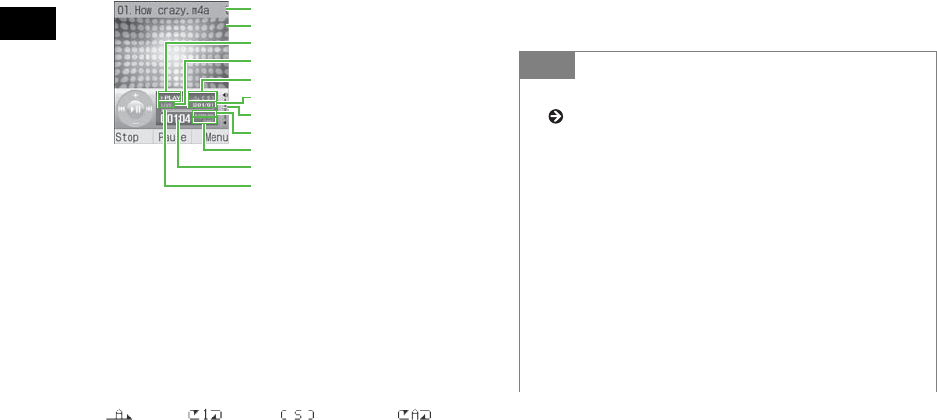
11-4
Media Player
11
To select from Genre files
aSelect Genre and select a file
bHighlight a file
CPress c (Play)
a
Artist's name and title (File name if title is
unknown)
bSkin
cStatus : PLAY, PAUSE, STOP
dEqualizer type
eRepeat mode
(Off), (One), (Shuffle), (All)
fFile number/Total number of files
gPlaying volume
hTotal playing time
iRepeat section
jElapsed playing time
kProgress bar
Melody Player Window
a
b
g
h
i
e
f
c
k
j
dTip
• To select folders displayed in Music in Media Player
( P.11-11)
• To end playback and return to Menu
Press w (Stop) then C. In Menu, press C to
return to the previous menu or close Menu menu.
• To move to previous/next file
Press r to go to next file. Press l to go back to the
beginning of the file. Press l at the beginning of the
file to go back to the previous file.
• To repeat playing the specified part of the file
During playback, press e at the starting point and
press e at the ending point. Press e to cancel.
11-5
Media Player
11
All music
Lists all playable files (up to 9999 files).
Download music
Shortcut to download site.
Music search
Shortcut to Music search site; search by genre or
keyword.
• Incoming calls
Playback pauses and 920SC rings; after call ends, a
confirmation asking whether to resume playback
appears. (When activating Messaging or Yahoo! Keitai
during music playback, a confirmation appears after
returning to Standby.)
• Alarm times
When playing file with Media Player, a confirmation
asking whether to resume playback appears. When
playing as BGM, playback resumes after canceling
Alarm.
• To save files as Ringtone
Highlight a file in list or from pause or stop, press w
(Set as) and select a function ( P.12-12). Only valid
files can be saved.
• To use other functions with Media Player activated
Use Switch Bar ( P.1-24).
• To exit Media Player while playing back music
If C or y is pressed when Media Player is
activated from main menu and playing music, Melody
player window ends but playback continues. To handle
music being played, select Now playing from Music in
Media Player.
To end playback, press y in Standby and a
confirmation appears; select Yes. If activated from
Switch Bar, playback may not continue.
• Memory Card Music Files
When Memory Card is inserted, Memory Card music
files appear in All music list, indicated by .
11-6
Media Player
11
Recent music/Most played music
Most recently played file appears first in Recent music.
Most frequently played file appears first in Most played
music. Each list holds up to 100 records.
Album/Artist/Genre
All files in Music are automatically sorted by Album,
Artist and Genre, and listed in each file. (When
inserting Memory Card containing playable files,
loading may take longer.)
Player Window & List Menu
Available items vary by file type, etc.
Item Description
Send
Send a file. Select Via message to
create a message with attached file
( P.18-6). Select Via bluetooth to
send a file to a selected party via
Bluetooth® ( P.13-5).
Add
Add files to Playlist. Select
Playlist to add all files contained
in another Playlist. Select Files to
add selected files to Playlist.
Move track in
playlist Change order of files in Playlist.
Add to playlist
Files in All music are added to Play
List. Choose Selected file to add
highlighted file, or Multiple file to
add multiple files to Playlist.
Sort by
Sort files by Title,Date or Artist.
The original order is restored when
Media Player ends.
Delete Delete a highlighted file or all
files.
11-7
Media Player
11
Shortcut Key Operations
Press the assigned key to perform operations. Available
shortcuts vary by playback status or file type.
Rename Change file name.
Lock/Unlock Set/release file protection.
Details Confirm file size, etc.
Stop End playback.
Play via
In Player window, select
Headphone or Speaker ( P.13-6)
for sound output.
Transfer to A/V
headset/Transfer
to Phone
Select Headphone or Speaker
( P.13-6) as sound output source.
Download
content key Purchase or acquire Content Key.
Create playlist Create new Playlist ( P.11-8).
Rename Change Playlist name.
Shortcut Check functions assigned to each
key.
Time search Play music from the specified
point.
settings Adjust Media Player settings
( P.11-9).
Item Description Tip
• When Transfer to A/V headset is set
Raise/lower volume from A/V headset.
Key Description Key Description
cPlay/Pause oMenu
rNext song eRepeat section
lPrevious song 1Repeat mode
uVolume up 2Equalizer type
dVolume down 3Time search
wStop 4Visualization
skin
11-8
Media Player
11
Playing Files from Playlists
Create Playlist
Create up to 20 Playlists, containing up to 100 files
each.
APress c, select Entertainment →
Media Player → Music → Playlists
and select Menu → Create playlist
BEnter Playlist name
CSelect the created Playlist
DSelect Menu →Add →Files
ECheck files to save and press
w (Save)
Play
APress c, select Entertainment →
Media Player → Music and select a
playlist folder
BSelect a playlist and press w (Play)
Tip
• To create a Playlist from tracks in an existing one:
aPerform Steps 1 to 3
bMenu →Add →Playlists
cSelect Playlist from which to add all melodies
• To change Playlist name
aHighlight Playlist, select Menu →Rename
bEnter Playlist name
• To delete selected Playlist
Menu →Delete →Selected →Yes
• To delete all Playlists
aHighlight Playlist, select Menu →Delete →All
bEnter Phone Password and press c (Confirm)
cSelect Yes

11-9
Media Player
11
Music Settings
Repeat Mode
Play a single track repeatedly, all files in All music,
or tracks from Playlist, randomly or repeatedly.
APress c, select Entertainment →
Media Player → Music and select
Menu → Settings
BSelect Repeat mode
CSelect an item and press c (Save)
Equalizer Type
• Use this function only when listening to music
with Stereo Earphone Microphone.
APress c, select Entertainment →
Media Player → Music and select
Menu → Settings
BSelect Equalizer type
CSelect a type and press c (Save)
Default
Setting
■OFF
Default
Setting
■Normal
11-10
Media Player
11
Tone Volume
APress c, select Entertainment →
Media Player → Music and select
Menu →Settings →Tone volume
BUse a to adjust volume and press
c (Save)
Audio Skin
Set one of two images to appear while music plays.
APress c, select Entertainment →
Media Player → Music and select
Menu →Settings →Audio Skin
BSelect a setting and press c (Save)
Visualization Mode
Visualization On/Off
Activate or cancel this setting to apply or cancel
Skin, Controller and Backlight settings while playing
MPEG4 AAC or AAC+ files.
APress c, select Entertainment →
Media Player → Music and select
Menu →Settings →Visualization →
Visualization mode
BSelect a setting and press c (Save)
Default
Setting
■Rainbow wave
Default
Setting
■On

11-11
Media Player
11
Skin, Show Controller, & Backlight
Select one of ten skins to appear while music plays.
Set Show controller to Hide for full screen view. Set
Backlight to Always on to see skin with handset
open.
APress c, select Entertainment →
Media Player → Music and select
Menu →Settings →Visualization →
Skin,Show controller, or Backlight
BSelect a setting and press c (Save)
Music Menu
Select folders displayed in Music.
APress c, select Entertainment →
Media Player → Music and select
Menu → Settings
BSelect Music menu
CCheck folders to display and press
w (Save)
Default
Setting
■Skin: Flowers
■Show controller: Show
■Backlight: Normal
Default
Setting
■Recent music, Most played music, Artist
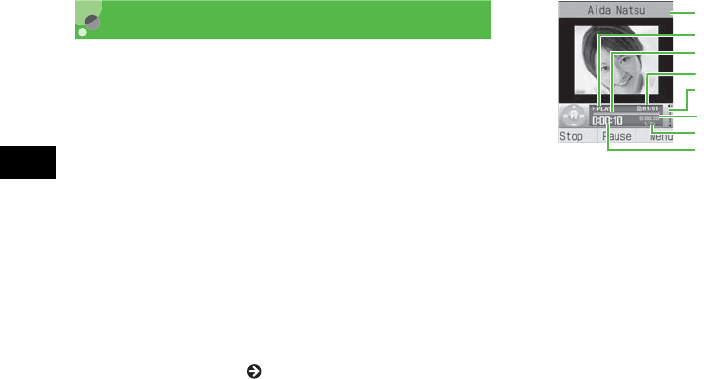
11-12
Media Player
11
Playing Video
APress c and select Entertainment →
Media Player →Video
BSelect files
From All Video
Select All Video and highlight the file
From Recent video
Select Recent video and highlight the file
From Most Played video
Select Most Played video and highlight the file
From Playlists ( P.11-8)
CPress c (Play)
aArtist's name and title (File name when the video
title information is unknown)
bPlaying status: PLAY/PAUSE/STOP
cProgress bar
dFile no./Total number of files
ePlaying volume level
fTotal playing time
gRepeat section/Playback speed
hElapsed playing time
a
g
b
c
d
e
f
h
Video Player Window
11-13
Media Player
11
All Video
All (up to 9999) playable files appear.
Download videos
Shortcut to download site.
Recent video/Most Played video
Most recently played file appears first in Recent video.
Most frequently played file appears first in Most Played
Video. Each list holds up to 100 records.
Player Window & List Menu
Select Menu in Player window or list and perform
operations listed below. Available items vary by file
type, etc.
Tip
• To set video file as Ringtone
Highlight paused file or one from list and press w
(Set as). Set file as Ringtone ( P.12-12). Valid only
for compatible files.
• Playlist
aAfter Step 1, select Playlists and select Menu →
Create playlist
bPerform Steps 2 to 5 in "Create Playlist" ( P.11-8)
• To capture still image from video
Copy protected data cannot be handled. Captured
image is saved to Pictures folder in Data Folder.
aSelect Menu →Capture frame
bPress c (Save)
• To play video file by searching time
aSelect Menu →Time search
bEnter a time
• Memory Card Video Files
In list window of All Video, music files in Memory
Card also appear. Those files are indicated by .
Item Description
Full screen view Play video in full screen view.
Add
Add files to Playlist. Select Playlist
to add all files contained in another
Playlist. Select individual files to
add to Playlist.
Move track in
playlist Change order of files in Playlist.
Stop End video playback.
Edit Edit video files ( P.8-19).
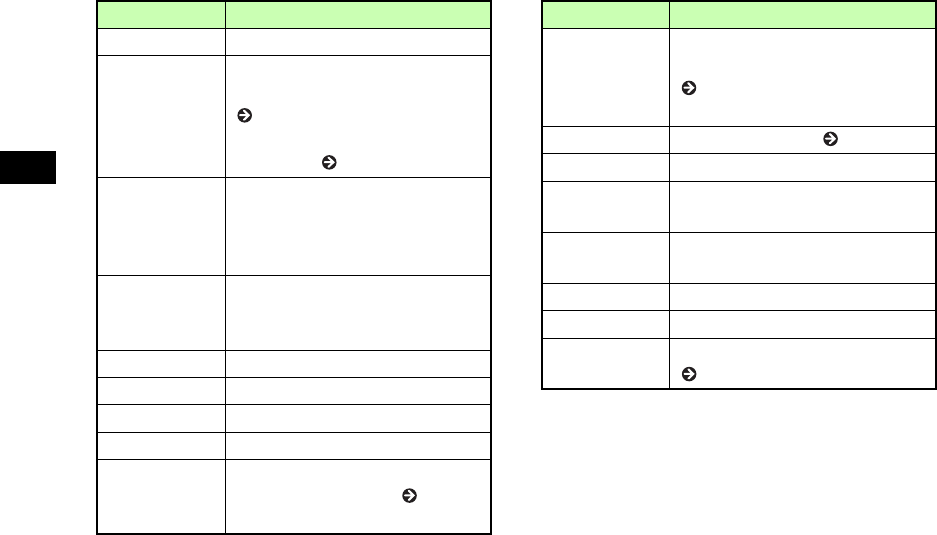
11-14
Media Player
11
Resolution Set video display size.
Send
Send a file. Select Via message to
create a message with attached file
( P.18-6). Select Via bluetooth to
send a file to a selected party via
Bluetooth® ( P.13-5).
Add to playlist
Add a file to Playlist in All Video.
Select Selected file to add
highlighted file to Playlist. Select
Multiple file to add multiple files.
Sort by
Sort files by Date or Title. The
original order is restored when
Media Player ends.
Delete Delete a highlighted file or all files.
Rename Change file name.
Lock/Unlock Set/release file protection.
Details Confirm file size, etc.
Play via
In Player window, select
Headphone or Speaker ( P.13-6)
for sound output.
Item Description
Transfer to A/V
headset/
Transfer to
Phone
Select Headphone or Speaker
( P.13-6) as sound output source.
Create Playlist Create new Playlist ( P.11-8).
Rename Change Playlist name.
Shortcut Check functions assigned to each
key.
Playback speed Change playback speed. Sound
does not output while changing.
Time search Play music from the specified point.
Capture frame Capture an image from a video.
settings Adjust Media Player settings
( P.11-15).
Item Description
11-15
Media Player
11
Shortcut Key Operations
Press the assigned key to perform operations. Available
shortcuts vary by playback status or file type.
In Normal Screen View
In Full Screen View
Video Settings
Repeat Mode
Play a file repeatedly or files in a folder randomly/
repeatedly.
APress c and select Entertainment →
Media Player →Video
BHighlight a file
CSelect Menu →Settings →Repeat
mode
DSelect a setting and press c (Save)
Key Description Key Description
cPlay/Pause 1Repeat mode
rNext video 2Full screen view
lPrevious video 3Time search
uVo l u m e u p 4Resolution
dVolume down 5Capture frame
wStop 6Play faster
oMenu 7Play slower
eRepeat section
Key Description Key Description
cPlay/Pause 1Repeat mode
rVo l u m e u p 2
Normal screen
view
lVolume down 5Capture frame
uNext video 6Play faster
dPrevious video 7Play slower
eRepeat section
Default
Setting
■Off
Key Description Key Description

11-16
Media Player
11
Tone Volume
APress c and select Entertainment →
Media player →Video
BHighlight a file and press c (Play)
CSelect Menu →Settings →Tone
volume
DUse a to adjust the volume and
press c (Save)
Video Menu
Select folders displayed in Video for Media Player.
APress c and select Entertainment →
Media Player →Video and select
Menu →Settings
BSelect Video menu
CCheck folders to display and press
w (Save)
Default
Setting
■ All Checked

11-17
Media Player
11
Video Thumbnail Display
Set whether or not to display thumbnails in Video list
for Media Player.
APress c and select Entertainment →
Media Player →Video and select
Menu →Settings
BSelect Video thumbnail display
CSelect On or Off and press c (Save)
Resolution
Adjust video size during playback or while paused.
APress c and select Entertainment →
Media Player →Video
BHighlight a file and press c (Play)
CSelect Menu →Resolution and select
a size
Default
Setting
■ On
11-18
Media Player
11
Streaming
Enjoy audio visual media while it is downloaded.
Entering URL Directly
APress c and select Entertainment →
Media Player →Streaming
BSelect Enter URL
CEnter a URL
Menu
Selectable menu items vary by data.
Tip
• To stream files
Operate the same as Media Player ( P.11-3, 11-12).
Note
• Even if streaming is paused, data transfer continues
and packet transmission fees apply.
Item Description
Resolution Set video size while playing or
paused.
Add to
Bookmarks
Save a current streaming as a
bookmark.
View
bookmarks
Access a streaming saved as a
bookmark.
View history Access a streaming already
accessed.
11-19
Media Player
11
Accessing from Bookmark
Up to 20 bookmarks can be saved in Streaming
Bookmark.
APress c and select Entertainment →
Media Player →Streaming
BSelect Bookmark
Menu
Selectable menu items vary by data.
Accessing from History
Up to 20 accessed bookmarks can be saved in
Streaming History.
APress c and select Entertainment →
Media Player →Streaming
BSelect History
Menu
Selectable menu items vary by data.
Item Description
Open Access URL.
Edit Edit URL.
Delete Delete one or all URLs.
Item Description
Open Access URL from History.
Delete Delete one or all URLs.

11-20
Media Player
11

12
Managing Files (Data Folder)
Data Folder..................................................12-2
Default Folders..........................................12-2
Saved Files ...................................................12-3
Opening Files ............................................12-3
Using Photo Browser ................................12-5
Using File Viewer .....................................12-6
Viewing Graphics/Animation with SVG-T/
Flash® Viewer ...........................................12-9
Sorting Files ............................................12-10
Using Files ................................................. 12-11
Wallpaper ................................................12-11
Setting Sound File as Ringtone ...............12-12
Setting Video File as Ringtone................12-13
Setting Flash® file as Wallpaper .............12-13
Saving a vFile..........................................12-14
Data Folder Menu ...................................12-14
Managing Files/Folders............................12-16
Create Folder ...........................................12-16
Changing a File/Folder Name .................12-16
Moving a File/Folder...............................12-17
Copying Files/Folders .............................12-18
Deleting a File/Folder .............................12-20
Deleting a Content Key...........................12-21
Memory Card............................................12-22
Precautions ..............................................12-22
Inserting & Removing.............................12-23
Rename Memory Card ............................12-24
Memory Card Details..............................12-24
Format Memory Card..............................12-25
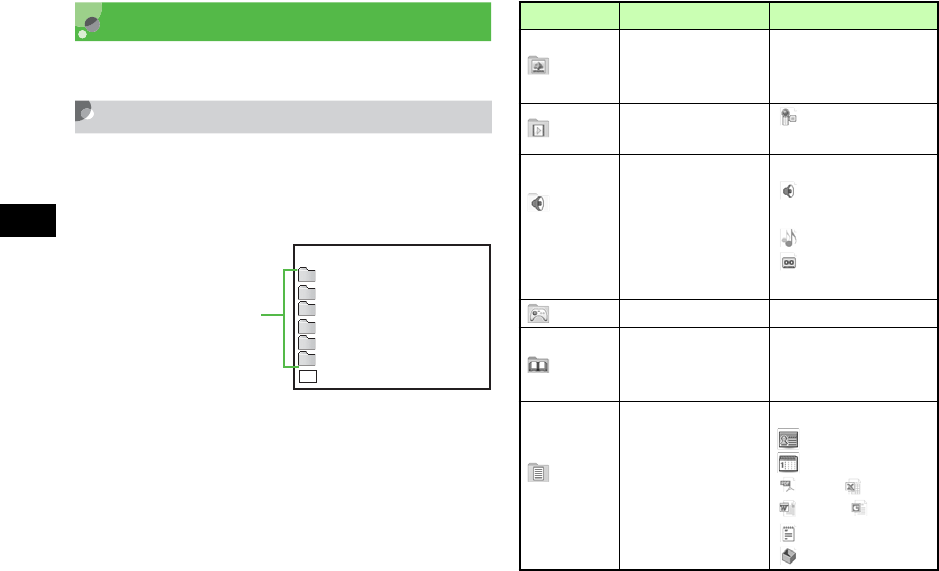
12-2
Managing Files (Data Folder)
12
Data Folder
920SC files are organized in folders by file format.
Default Folders
Data Folder contains six default folders; new files are
saved to the appropriate folder (see right). Create
additional sub-folders in Default folders as required.
Data Folder
Pictures
Sounds & Ringtones
S! Appli
Book
Other documents
Memory status
Videos
*
*
*
Default
* Sub-folder Pre-Installed
(For files which come
pre-installed with
Folder Description File Formats1
Pictures All still images
JPEG, BMP, GIF,
WBMP, PNG,
Animation GIF
Videos All videos MPEG4 (3GP,
MP4)
Sounds
&
Ringtones
All sounds
recorded with
Voice Recorder,
downloaded music,
and other sound
files
SMAF/MIDI/SP-
MIDI,
MPEG4 Audio,
AMR
S! Appli S! Appli JAVA
Book
Save downloaded
electronic comic/
photo book files
CCF
Other
documents
Documents,
graphics/animation
requiring File
Viewer for display;
Flash® files,
vFiles, etc. are
saved here
SWF, SVG,
vCard,
vCalendar,
PDF, XLS,
DOC, PPT,
TXT,
Unsupported files
12-3
Managing Files (Data Folder)
12
1 Copy or move sorted files to other folders as required.
Memory status
Select to view memory usage of each Data Folder.
Alternatively, use setup menu to view memory status
( P16-9).
Download links
appears in Data Folder for download site shortcut.
Select to connect to the download site.
With Memory Card inserted
In Phone Data Folder, press w (Memory) to display
Memory Card Data Folder; appears. Press w
(Phone) to return to Phone Data Folder.
Download Book feature
In Data Folder, Use Download Book in Book Folder as
a download site shortcut. Select it to open the site.
Saved Files
Opening Files
APress c and select Data Folder
BSelect the folder where a file is saved
CHighlight a file and press c (View/
Play/Select/Start)
Tip
• Savable number of files/folders
Up to 999 files/folders can be saved each Default
Folder.
Tip
12-4
Managing Files (Data Folder)
12
Activating Camera or Voice Recorder from
Data Folder
Select Menu →Take photo; activate Camera in Camera
mode by highlighting the Pictures folder or an image
file captured by 920SC.
Select Menu →Record video; activate Camera in Video
mode by highlighting the Videos folder or a video
captured by 920SC.
Select Menu →Record sound; activate Voice Recorder
by highlighting the Sounds & Ringtones folder or sound
file captured by 920SC.
• File List Indicators
: Nontransferable
: Nontransferable & unusable
: Protected
: Copy Protected file (Transferable, Content Key
valid)
: Copy Protected file (Transferable, Content Key
expired)
: Copy Protected file (Nontransferable, Content
Key valid)
: Copy Protected file (Nontransferable, Content
Key expired)
: Set as Wallpaper ( P.12-11)
: Set as Ringtone ( P.12-12)
• When another USIM Card is inserted into 920SC
S! Appli is disabled. Also nontransferable/copy
protected files except preinstalled ones cannot be used.
•
To enlarge or reduce SVG, SVGZ or SWF format
images
aPerform Steps 1 to 3 to display an image
bMenu →Zoom
cPress w (), o ( ), or a to enlarge,
reduce, or scroll the image
dPress C to return to the previous window
• To view File Details
Menu →Details
Note
• Files over 3 MB cannot be opened. Files larger than
1600 x 1200 pixels cannot be edited or zoomed. Files
over 1.3 MB cannot be set as Incoming image or
Substitute Image. However, JPEG files that are
displayable on 920SC can be zoomed.
• During music playback, thumbnails for video files
do not appear in a list window for Video folder, etc.
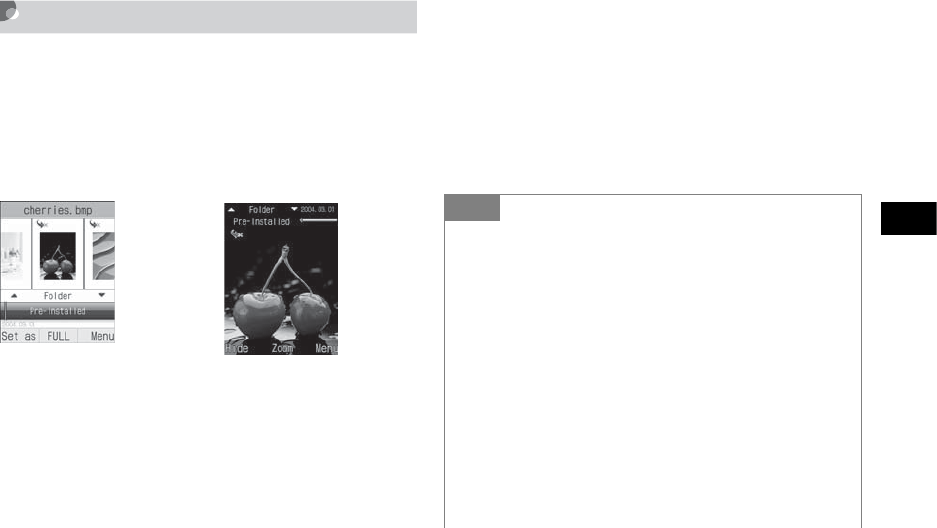
12-5
Managing Files (Data Folder)
12
Using Photo Browser
Sort images by Timeline, Folder, Composition or
Color. Select an image file saved in Pictures folder;
Photo Browser activates automatically. A
horizontally long image rotates vertically to be
enlarged. Select Normal View or Full Screen View.
APress c and select Data Folder
BSelect Pictures
CHighlight an image and press
c (View)
To display in Full Screen View
aPress c (FULL)
bPress C to return to Normal View
DUse j to select the sorting mode
EUse s to move image
Full Screen View
Normal View
Tip
• To enlarge an image
aPerform Steps 1 to 3 to display image
b
Press
c
(FULL) and press
c
(Zoom)
cUse n to enlarge image or b to reduce image, or
a to scroll as required
dPress C to return to Normal View
• To go to next images automatically
Display images in turn using Slide Show
aPerform Steps 1 to 3 to display an image
bMenu →Slide show
cPress w
(Stop) to stop Slide Show
To pause/resume Slide Show, press c (Pause/
Restart).
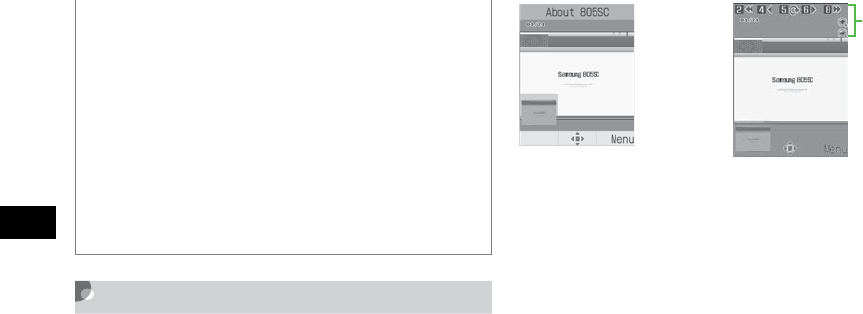
12-6
Managing Files (Data Folder)
12
Using File Viewer
Open PDF, XLS, DOC, PPT, or TXT files saved in
Data Folder; File Viewer activates automatically.
Select Normal View or Full Screen View; navigate
files via Menu or shortcuts.
APress c and select Data Folder
BSelect file location then file
CSelect Menu/navigation shortcuts to
navigate
To scro ll
Press a
To change Display appearance
Menu →Full screen view or Normal view
To enlarge or reduce the image
aMenu →Zoom
bPress In or Out to enlarge/reduce
• To move images quickly
In Step 5, use Side Key b or n to move images by
category
• Guide in Full Screen View
Guide disappears when about 3 seconds elapsed after
image is displayed. Guide also disappears by pressing
w (Hide) while Guide is displayed. Press w to
display Guide while hiding.
• To view File Details
Menu →Details
Normal View Full Screen View
Navigatio
n

12-7
Managing Files (Data Folder)
12
To fit document size to Display
Menu →Fit to screen
To move a page
Menu →Go to and select an item
To move to specified page
aMenu →Go to →Page
bEnter page number
To capture current screen image
Select Screen capture
To rotate image 90 degrees clockwise
aMenu →Rotate
bMenu →Rotate to return to the previous
window
To search words in the page
aMenu →Search
bEnter words
cPress 3 to continue searching forward or
press 1 to continue searching backward,
for the same word
To view assigned shortcut keys
Menu →Shortcut
File Viewer Settings
APress c and select Data Folder
BSelect save location and select a file
CSelect Menu →Settings
DPerform operations to set
To assign scroll range per press of a
aSelect Panning
Tip
• After capturing
Captured files are saved in Other documents in 920SC
Data Folder (Phone) as JPEG format.
Default
Setting
■ Panning: 10 pixel ■ Reflow: Off
■ Map on: On ■ Controller: On
■ Name: Capture
12-8
Managing Files (Data Folder)
12
bSelect a setting and press c (Save)
To fit text width to Display
aSelect Reflow
bSelect On and press c (Save)
To set Map (shows display position) on/off
aSelect Map on
bSelect a setting and press c (Save)
To set guide for shortcuts in Full screen view
aSelect Controller
bSelect a setting and press c (Save)
To change default file mane
aSelect Name
bEnter a name
Navigation Shortcuts
Confirmation Window & List Menu
For items other than window operation options, see
"Data Folder Menu" ( P.12-14).
Tip
• When Reflow is On
Fit text width (such as doc. or txt.) to 920SC window
width. No need to scroll right/left to show the contents.
• When Map on is On
At the bottom left of the window, map showing the
current position/area in the whole page appears. The
current position/area is indicated in red frame.
Key Description
Side Key nZoom in
Side Key bZoom out
2Move to the first page
4Move to the previous page
5Rotate 90 degrees clockwise or
cancel
6Move to the next page
8Move to the final page
*Select Normal View or Full Screen
View
Note
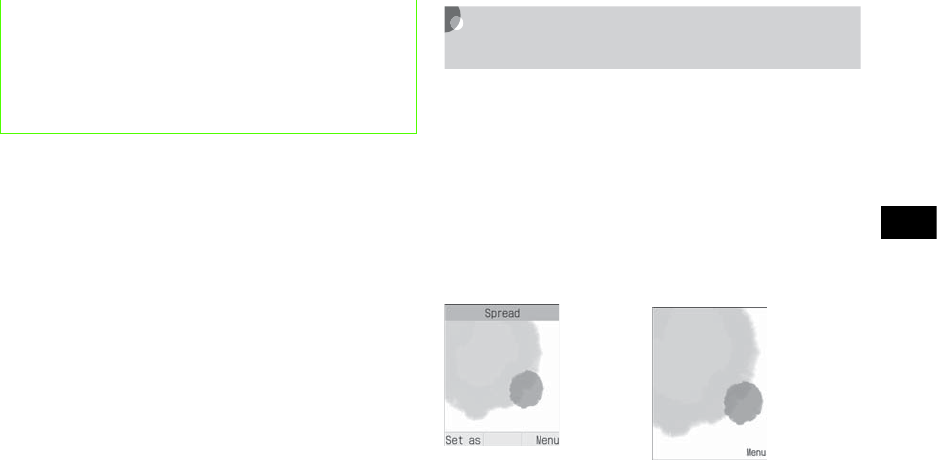
12-9
Managing Files (Data Folder)
12
Viewing Graphics/Animation with
SVG-T/Flash
®
Viewer
View SVG, SVGZ, and SWF formatted files in Data
Folder. When one of these files is selected from Data
Folder list, the SVG-T/Flash® Viewer is
automatically launched.
View the graphics/animation on Normal View or Full
Screen View. In either mode, Menu and shortcut
(Key operations) are available to control Display.
APress c and select Data Folder
BSelect file location then file
• If a document includes many pages or complicated
designs, all pages of the document may not appear
properly.
• If a file includes any language other than Japanese
or English, that file may not appear properly.
Normal View Full Screen View
12-10
Managing Files (Data Folder)
12
CSelect Menu/navigation shortcuts to
navigate
To change view
Menu →Full screen view or Normal view
To enlarge or reduce the image
aMenu →Zoom
bPress w ( ) to enlarge image or
o () to reduce
cUse a to scroll the window
dPress c to return to the previous window
To pause or restart an flash® image
Menu →Pause or Resume
To select image quality
Menu →Quality and select an item
To rotate the screen 90 degrees clockwise or
counterclockwise
Menu →Rotate and select an item
Confirmation Window & List Menu
For items other than window operation options, see
"Data Folder Menu" ( P.12-14).
Sorting Files
Sort files in various ways.
ASelect Menu →Sort by
BSelect an item
To sort files in descending order of dates
Select Date
To sort files by file types
Select Type
To sort files by file names
Select Name
Tip
• To set an image for Wallpaper
Press w (Set as) on Normal View, or in Menu of Full
Screen View, select Set as and select Wallpaper.

12-11
Managing Files (Data Folder)
12
To sort files in ascending order of size
Select Size
To sort files by status of Content Key
Select Activation Status
Using Files
Wallpaper
Set an image file as Wallpaper of Display, an image
in Phonebook, or a Substitute Image for Video Calls
to display with incoming calls.
AHighlight a file and press w (Set
as)
To set while viewing an image
Highlight a file, press
c
(View) then
w
(Set as)
BSet the Use of the File
To set as Wallpaper
Select Wallpaper, confirm the preview and
press c (Set)
To set as Caller ID Phonebook image
aSelect Caller ID
Tip
• When folders are listed
Folders appear at the top of list.
• When sorted by Type
Files appear in alphabetical order by file extension
(e.g., doc, jpg, swf, and such).
• When sorted by Name
Files appear by file name: numbers→ alphanumerics
→ Japanese syllabary
• When sorted by Activation status
Files appear as follows:
Unrestricted → Nontransferable → Copy Protected
(Content Key valid) → Copy Protected (Content Key
expired) → Invalid Nontransferable

12-12
Managing Files (Data Folder)
12
bSearch and select an entry in which to place
the image and press c (Set)
To set as incoming Video Call Substitute
Image
aSelect Still picture
bPress c (Save)
Setting Sound File as Ringtone
Change ringtone settings in Normal profile ( P.3-3).
APress c, select Data Folder and
select save location for a file
BHighlight a file and press w (Set as)
CSet items
To set ringtone for Voice Calls
Select Voice ringtone
To set ringtone for Video Calls
Select Video ringtone
To set ringtone for Phonebook entries
aSelect Caller ringtone
bSearch Phonebook and select an entry
To set ringtone for S! Mail/SMS
Select Message alert tone
Tip
• When setting Memory Card file
A confirmation appears asking whether to copy file to
920SC before setting. When setting copyrighted file, a
confirmation appears asking whether to move file to
920SC before setting. Select Yes to complete setting.
• To edit a still image ( P.8-16)
• To create a mobile postcard ( P.8-6)
• To print a still image ( P.13-12)
12-13
Managing Files (Data Folder)
12
Setting Video File as Ringtone
Change ringtone settings in Normal profile ( P.3-3).
APress c, select Data Folder and
select save location for a file
BHighlight a file and press w (Set as)
CSet items
To set video file as ringtone for Voice Call
Select Voice ringtone
To set video file as ringtone for Video Call
Select Video ringtone
To set ringtone for Phonebook entries
aSelect Caller ringtone
bSelect a Phonebook entry
Setting Flash® file as
Wallpaper
APress c and select Data Folder →
Other documents
BHighlight a file, press w (Set as)
To set while viewing a Flash® image
Highlight the file, press c (View) and press
w (Set as)
Tip
• When setting Memory Card file
A confirmation appears asking whether to copy file to
920SC before setting. When setting copyrighted file, a
confirmation appears asking whether to move file to
920SC before setting. Select Yes to complete setting.
• Player Restrictions
Only copy protected MPEG4 AAC, AAC+, or
Enhanced AAC+ files are playable.
Tip
• Restrictions
Only copy protected MPEG4 (mp4, 3gp) AAC, AAC+,
or Enhanced AAC+ files can be set.
12-14
Managing Files (Data Folder)
12
CSelect Wallpaper
DCheck preview window and press
c (Set)
Saving a vFile
vFile is the standard format to exchange Phonebook
data, etc. via the Internet. 920SC uses vCard
(extension: vcf) format for Phonebook data; also uses
vCalendar (extension: vcs) format for Schedule/To
Do data.
Save a vFile stored in Data Folder to Phonebook,
calendar, or as a scheduled event.
APress c, select Data Folder and
select save location for a vFile
BSelect a file and press c (Register)
Data Folder Menu
Menu vary by file or folder.
For File Viewer or SVG-T/Flash® Viewer, see
"Using File Viewer" ( P.12-6) or "Viewing a
Graphics/Animation with the SVG-T/Flash®
Viewer" ( P.12-9).
Item Description
Edit Edit a still image or Videos ( P.8-16).
Dynamic Effect/
Dynamic effect
list
Create Flash® images using Still
images ( P.8-21).
Register to
phonebook
Export a vCard file to Phonebook
( P.12-14).
Register to
calendar
Export a vCalendar file to Calendar
( P.12-14).
Send
Send a file. Select Via message to
create a message with attached file
( P.18-6). Select Via bluetooth to
send a file to a selected party via
Bluetooth® ( P.13-5).
mPostcard Create a mobile postcard ( P.8-6).
12-15
Managing Files (Data Folder)
12
Zoom Enlarge or reduce still image being
confirmed ( P.12-4).
Browser access Access linked site included in
electronic comic/photo book files.
Memory card/
Phone memory
With Memory Card, select to display
Memory Card/handset Data Folder.
Sort by Sort files ( P.12-10).
Move Move files from/to 920SC another
folder (Phone) or to Memory Card.
Copy
Copy files and paste from/to 920SC
another folder (Phone) or to Memory
Card.
Set default
memory
With Memory Card inserted, select
save location for still images, videos,
downloaded files. Select save location
each time the setting is set to Always
ask.
Add to playlist Add files to Playlist.
Delete Delete a file/files ( P.12-20).
Delete folder Delete a folder ( P.12-20).
Take photo Activate Camera in Camera mode
( P.12-4).
Item Description
Record video Activate Camera in Video mode
( P.12-4).
Record sound Activate Voice Recorder ( P.12-4).
Rename Change file name ( P.12-16).
Rename folder Change folder name ( P.12-16).
Show/Hide file
info
In List window for Picture Folder with
thumbnail view, set to display folder/
file name when highlighted.
View By
Select List window type for Picture
Folder.
Select List to show folder/file in list
view.
Select Thumbnail view to show folder/
file in thumbnail view.
Create folder Create a new folder ( P.12-16).
Print via
Print Still images using the printer via
USB/Bluetooth® connection ( P.13-7,
13-12).
Lock/Unlock Set/release file protection.
Download
content key Purchase or acquire Content Key.
Details Confirm file/folder properties.
Item Description
12-16
Managing Files (Data Folder)
12
Managing Files/Folders
Create Folder
Create sub-folder in Default folders.
APress c and select Data Folder
BSelect Default folder to create a
sub-folder
CSelect Menu →Create folder
DEnter a name
Changing a File/Folder Name
Change the name of a file or a created sub-folder.
APress c and select Data Folder
BSelect Default folder and highlight a
sub-folder or a file
CSelect Menu →Rename folder or
Rename
DEnter a name
Memory card
settings
In Memory Card Data Folder window
with Memory Card inserted; check
details information, format, and change
names ( P.12-24).
Content key
info
Show the list of Content Keys for the
files in Data Folder; manage them by
selecting Delete to delete ( P.12-21)
or Details to check the details.
Item Description
Tip
• When a file is locked
You cannot change the file name.
12-17
Managing Files (Data Folder)
12
Moving a File/Folder
Move a file/folder to another folder or a location
outside folders. Alternatively, with Memory Card
inserted, move folders between 920SC (Phone) and
Memory Card.
APress c and select Data Folder
BSelect Default folder and highlight a
sub-folder or a file
CSelect Menu →Move
DMove file or folder
To move one file or all files in the same folder
or all created sub-folders
Select Selected or All
To select and move multiple files or created
sub-folders
aSelect Multiple
bCheck files or created sub-folders to move
and press w (Move)
ESelect destination folder →Move
here
With Memory Card inserted
aSelect Phone or Memory card
bSelect destination folder and select Move
here
Tip
• To check/uncheck all files or folders at once
Press o (Mark all/Unmark all)
• When a file is locked
File cannot to be moved.
• When target file/folder with the same name exists
Change file/folder name; enter new name in message
text.
12-18
Managing Files (Data Folder)
12
Copying Files/Folders
Make a copy of a file or folder in another folder or a
location outside folders. Alternatively, with Memory
Card inserted, copy folders between 920SC and
Memory Card.
APress c and select Data Folder
• When a file is set as Display image or Ringtone
To move a file to Memory Card, a confirmation
message appears. Select Yes to complete the move,
canceling the settings.
When moving multiple or all files to Memory Card, a
confirmation message appears. Select Yes to complete
the move, canceling the settings. Select No to move
files except those set as Display images or Ringtones
(those settings remain). Press C to cancel moving
files.
Note
• Downloaded files may not appear/play properly if
moved to another device or when a different USIM
Card is inserted in 920SC.
• Nontransferable and unusable files ( ),
encrypted files ( ), or nontransferable and copy
protected files ( , ) cannot be moved to
Memory Card.
• Nontransferable files ( ) are saved as
nontransferable and copy protected files ( )
when moved to Memory Card.

12-19
Managing Files (Data Folder)
12
BHighlight a folder or file, select Menu
→Copy
CCopy file or folder
To copy one file or all files in the same folder
or all folders
Select Selected or All
To select and copy multiple files or folders
aSelect Multiple
bCheck files or folders to copy and press
w (Copy)
DSelect destination folder and select
Paste here
With Memory Card inserted
aSelect Phone or Memory card
b
Select the destination folder and select
Paste
here
Tip
• To check/uncheck all files or folders at once
( P.12-17)
12-20
Managing Files (Data Folder)
12
Deleting a File/Folder
Delete
APress c and select Data Folder
BHighlight a file, select Menu →Delete
CDelete the file
To delete one f ile
Select Selected →Yes
To delete all files from the same folder
aSelect All
bEnter Phone Password press c (Confirm)
and select Yes
To select and delete multiple files
aSelect Multiple
bCheck files, press w (Delete)
cEnter Phone Password and press c
(Confirm)
(If all files are checked)
dSelect Yes
• When a copy of a file or folder is pasted to the same
location as the original
The pasted file or folder is saved under another name,
i.e., _001 is automatically added to the name.
• When target file/folder with the same name exists
Change file/folder name; enter new name in message
text.
Note
• Nontransferable files cannot be copied.
Tip
• To check/uncheck files or folders at once ( P.12-17)
• If a file is set as Wallpaper or ringtone, or locked
A confirmation appears; select Yes to delete file. When
deleting multiple files, select No to delete unset/
unprotected files only.
• When file has Content Key
A confirmation appears; select Yes to delete file and
Content Key.

12-21
Managing Files (Data Folder)
12
Delete Folder
APress c and select Data Folder
BSelect Default folder and highlight a
created sub-folder to delete, and
select Menu →Delete folder
CEnter Phone Password, press
c (Confirm) and select Yes
When no file is saved in sub-folder
Phone Password is not required
Deleting a Content Key
APress c and select Data Folder
BSelect Menu →Content key info
CPerform operations to delete
To delete a Content Key
Select Delete Selected
To delete all Content Keys
Select Delete all
Tip
• If a folder contains files set as Wallpaper, ringtones,
or locked/copy protected files
A confirmation message appears. Select Yes to execute
folder deletion. Select No to delete only files without
designated uses or protection, leaving the folder
undeleted.
• When file in a folder has Content Key
A confirmation message appears. Select Yes to delete
both the file and Content Key.
12-22
Managing Files (Data Folder)
12
Memory Card
920SC is compatible with microSDTM Memory Card.
Purchase microSDTM Memory Card to use Memory
Card-related handset functions.
Precautions
Note the following precautions regarding microSDTM
Memory Card usage and care.
• To reduce risk of malfunction, use only
recommended microSDTM Memory Card sizes.
• Do not place labels or stickers on Memory Card.
These items may affect card performance or result
in lost information.
• Never disassemble or modify a Memory Card.
• Do not expose Memory Card to strong impacts,
pressure or liquids.
• Do not touch Memory Card terminals or expose
them to metal objects.
• Keep a Memory Card away from dust, high
humidity, or excessive heat.
• Do not use in the presence of corrosive gases.
• Avoid heat sources and do not dispose of in fire.
• A Memory Card is a consumable item. Card
performance deteriorates with usage.
Note
• Protect important information
SoftBank is not liable for any damage resulting
from accidental loss/alteration of information. Keep
a copy of Phonebook entries, etc. in a separate
place.
•microSD
TM Memory Cards do not have Write
Protection Switch. There is a risk of accidental
erasure or overwriting of files.
Tip
• Memory Card size
SoftBank recommends the use of 64, 128, 256, 512
MB, 1 GB, or 2 GB cards.
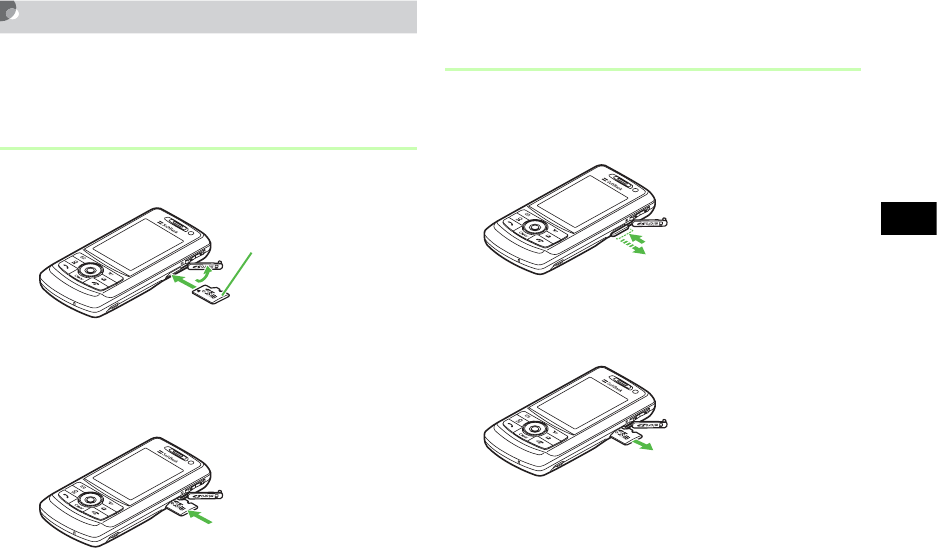
12-23
Managing Files (Data Folder)
12
Inserting & Removing
Turn handset power off before inserting or removing
a Memory Card.
Inserting
AOpen cover
BWith contacts down, insert Memory
Card until it clicks
CClose cover
Removing
AOpen cover, gently push down on
card until it clicks
BLet card pop out, then remove it
CClose cover
Contacts side down
12-24
Rename Memory Card
Change name that appears in Memory Card details.
APress c and select Settings →
Memory settings →Memory card →
Rename memory card
BEnter a name
Memory Card Details
Confirm name, memory capacity or remaining
memory.
APress c and select Settings →
Memory settings →Memory card →
Memory card details
Tip
• Removing Memory Card during operations
If Memory Card Data Folder is open when Memory
Card is removed, Data Folder automatically appears in
its place.
• To back-up data to Memory Card ( P.12-17, 12-
18)
Note
• Avoid using excessive force when inserting/
removing Memory Card.
• Take care not to lose removed Memory Card.
• Avoid touching/damaging Memory Card contacts
before inserting/removing a Memory Card.
• Never remove Memory Card or battery while files
are being accessed. Damage to handset/card may
result and files/data may be damaged/lost.

12-25
Managing Files (Data Folder)
12
Format Memory Card
APress c and select Settings →
Memory settings →Memory card →
Format memory card
BEnter Phone password, press
c (Confirm) and select Yes

12-26
Managing Files (Data Folder)
12

13
External Connections
External Connections .................................13-2
Bluetooth®...................................................13-2
About Bluetooth®Communications .........13-2
Sending & Receiving Files........................13-3
Connecting Handsfree...............................13-9
Changing Bluetooth® Settings ................13-11
USB Connection........................................13-12
Connecting to a PC..................................13-12
Connecting to a Printer............................13-13
Mass Storage .............................................13-14
Connecting to a PC..................................13-14
Disconnecting from a PC ........................13-15
13-2
External Connections
13
External Connections
Exchange files wirelessly with Bluetooth®-
compatible devices, or connect to PCs or printers via
USB cable.
Bluetooth®
Exchange files wirelessly with Bluetooth® devices or
use a Bluetooth® handsfree device for calls. Use
Bluetooth® to connect PCs and other devices for
Internet access, etc.
About Bluetooth
®
Communications
Bluetooth® transmissions require Bluetooth®-
compatible devices with the same profiles.
920SC Bluetooth® specifications:
1 For Printing function only
2 Varies by radio interference and other conditions.
Item Specification
Communication
Standard Bluetooth® Standard Version 1.2
Applicable
profiles
Headset
Handsfree
Serial Port
Dialup Networking
File Transfer
Object Push
Advanced Audio Distribute
Audio/Video Remote Control
Basic Imaging1
Basic Printing
Output Bluetooth® Power Class2
Line-of-signal
distance2Approximately 10 meters or less
Frequency band
used 2.4 GHz
Bluetooth® QD
ID B012718
13-3
External Connections
13
Bluetooth® Precautions
• 920SC may not work with all Bluetooth® devices.
• File transfers may not possible with some
Bluetooth® devices. Operations, displays or
actions vary by device.
• The 2.4GHz band used by Bluetooth
®
devices is
used by other devices that may reduce transmission
rates/distance.
• Use of handsfree devices may create noise
depending on connected devices/the environment.
• 920SC cannot be connected to other devices when
it is connected to Bluetooth®-compatible
headphones or headset.
• USB and Bluetooth® cannot be used at the same
time.
• Deactivate Bluetooth® before connecting USB
cable.
Sending & Receiving Files
Send and receive Phonebook entries, My Phonebook
details, Schedule information, Task information, still
images, video, sound files, vFiles, and others.
Activation
Activating Bluetooth® makes 920SC visible to other
devices; appears at the top of Display.
Tip
• To check Bluetooth® functions available
aPress c and select Settings →Connectivity →
Bluetooth →Bluetooth service
bSelect an item and view the contents
• To confirm the device address of 920SC
Press c and select Settings →Connectivity →
Bluetooth →My Information
Default
Setting
■Off

13-4
External Connections
13
APress c and select Settings →
Connectivity →Bluetooth →
Activation
BSelect a setting
Search New Device
Save up to 10 devices to My devices list. Enter the
same Passkey on both 920SC and the device.
Activate Bluetooth® on device beforehand.
APress c and select Settings →
Connectivity →Bluetooth →My
devices
BSelect Search new device
CWhen devices appear, select device to
save
DEnter 4-16 digit Passkey and press c
EWithin 30 seconds, enter the same
passkey on the other device
13-5
External Connections
13
My devices list Indicators
Device name is preceded by one of these indicators:
: Personal Computer : Mobile phone
: Handsfree device/Headset
: PDA : Printer : Other
When a connection request appears
If connection request appears, select Yes and enter valid
Passkey within 30 seconds.
Connection requests from saved devices are connected
automatically.
Tip
• Passkey
The password used to connect Bluetooth® devices.
When connecting to a handsfree device, enter specified
Passkey. Passkey re-entry is not required for registered
devices.
• If authentication failed
A confirmation appears; select Yes to retry.
• If ten devices have already been registered
The oldest device is deleted so that new one can be
registered. If all devices are authorized, device
memory full message appears.
• To check Bluetooth® functions available for each
device
aPress c and select Settings →Connectivity →
Bluetooth →My devices
bHighlight a device, select Menu →Service list
cHighlight an item, select Menu →Help
• To change the name of a registered device
aPress c and select Settings →Connectivity →
Bluetooth →My devices
bHighlight a device, select Menu →Rename
cEnter a new name
• To delete a device from My devices
aPress c and select Settings →Connectivity →
Bluetooth →My devices
bHighlight a device, select Menu →Delete →
Selected or All
cEnter Phone Password, press c (Confirm) (In the
case of All only) and select Yes
• To search for or register a device from other
Bluetooth®-compatible devices ( P.13-11)

13-6
External Connections
13
Sending Files
Send via function Menu menu. Transfer begins as
soon as receiving device accepts it.
ASelect files to send
To send files from Data Folder or Phonebook
aIn list window, select Menu →Send →Via
bluetooth
bCheck files or Phonebook entries to send and
press w (Send)
To send files from Calendar
aIn list window, highlight the data to send
bMenu →Send schedule →Via bluetooth
To send multiple Calendar and Task entries
aIn list window, Select Menu →Send all
schedules and tasks
bCheck data to send and press w (Send)
BSelect receiving device
If receiving device has not been set
Select Service new device, search for that device
and set it ( P.13-4)
Tip
• To send from Details or Playback windows
Some functions allow sending option from Details/
Playback window.
• To check/uncheck all files at once
In step b in “To send files from Data Folder“, press
o (Mark all/Unmark all).
13-7
External Connections
13
Receiving a File
When connection is approved, file reception starts
and the received file is saved in Data Folder.
AWhen confirmation window appears,
select Yes
A/V Headset
Connect Bluetooth®-compatible headphones.
APlay files via Media Player
( P.11-3, 11-12)
BSelect Menu →Transfer to A/V
headset
CSelect receiver's device
To save device
Select Search new device and save device
(P.13-4)
Print Data Folder Image Files
Connect Bluetooth®-compatible printer to 920SC;
print Still images/vFiles in Data Folder directly. Set
paper size/number on 920SC.
See printer User Guide for printer operations/
settings.
AIn Data Folder list window, select
Menu →Print via →Bluetooth
BCheck files to print and press
w (Print)
CSelect receiver's device
Tip
• While Melody is stopped
aIn Melody Playback window, select Menu →Play
via → A/V headset
bSelect the destination device or Search new device
and search the device to register ( P.13-4)

13-8
External Connections
13
To register receiver's device
Select Search new device to search and register
(P.13-4)
DSet items
Paper size
Select Paper size and the setting
To set the number of copies
Select Number of copies, enter the number of
copies (1 to 99) and press c
To set the number of pages to print on a sheet
aSelect Page format and select the setting
b
When selecting
Duplicate
in step
a
, select
Pages per sheet
and select the setting (1 to 16
up)
To set whether or not to print the date
Select Date print and the setting
To set whether or not to print a frame
Select Frame and the setting
Print quality
Select Print quality and the setting
EPress c (Preview)
FConfirm and press c (Print)
Accessing Connected Device Files
Access shared folders/files on other party's device.
Alternatively, receive/delete files on another device.
APress c and select Settings →
Connectivity →Bluetooth →My
devices
BSelect a device
CApprove access on source device
13-9
External Connections
13
Locations of received folders or files
Received folders are automatically saved to other
documents folder in Data Folder. Received files are
saved according to the file format; for example, JPEG
and BMP files are saved to the Pictures folder and
vFiles* to Other documents folder.
* An incoming vCard or vCalendar is automatically
saved to Phonebook or Calendar.
Connecting Handsfree
Save device to My Devices beforehand ( P.13-4).
Waiting for a Connection Request
APress c and select Settings →
Connectivity →Bluetooth →My
devices
BSelect a handsfree-compatible device
When Passkey entry window appears
Enter Passkey set for the handsfree device
Tip
• To receive an accessed file
After Step 3, highlight a file and select Menu →Get.
• To receive an accessed folder
After Step 3, highlight a folder and select Menu →Get.
13-10
External Connections
13
Answering Mode
In Automatic, calls are answered automatically.
APress c and select Settings →
Connectivity →Bluetooth →
Answering mode and select a setting
BSelect a setting
Handsfree Mode
Select handsfree device usage mode.
APress c and select Settings →
Connectivity →Bluetooth →
Handsfree Setting
BSelect a setting
Default
Setting
■Normal
Tip
• To set the time (seconds) before automatic reception
After Step 2, select Automatic and entire time.
Default
Setting
■ Handsfree Mode
Tip
•Private Mode
Answer outgoing/incoming calls with 920SC for calls
made with 920SC; answer outgoing/incoming calls
with handsfree devices for calls made with handsfree
devices.
• Handsfree Mode
Use handsfree device for all calls.

13-11
External Connections
13
Changing Bluetooth® Settings
My Phone's Visibility
To enable search and saving from other Bluetooth®-
compatible devices, make 920SC visible.
APress c and select Settings →
Connectivity →Bluetooth →My
phone's visibility
BSelect a setting
Bluetooth® Name
Change name appearing for 920SC on other devices.
APress c and select Settings →
Connectivity →Bluetooth →
My Information
BSelect Bluetooth Name
CModify the name and press c
Secure Mode for Data Transfer
If On is set, a confirmation appears before transfers.
Default
Setting
■On
Default
Setting
■920SC
Default
Setting
■On
13-12
External Connections
13
APress c and select Settings →
Connectivity →Bluetooth →
Secure mode and select a setting
USB Connection
Connect 920SC to a PC via USB cable to transfer
data between the devices. Alternatively, connect a
printer to print still images.
Connecting to a PC
Perform the following operations:
• Transfer 920SC Data Folder files to a PC
• Import PC files and save to Data Folder
• Perform packet data communications
Before Using USB Connection
Install USB driver and Samsung PC Studio
beforehand. For more about installation, PC
operating environment, etc., see attached CD-ROM
User Guide.

13-13
External Connections
13
Connecting to a Printer
Connect 920SC to a PictBridge-compatible printer
with a USB cable and print still images directly from
Data Folder.
Set paper size, number of prints, and other
items on 920SC.
For more information about printer operations and
paper setting, see the printer's User Manual.
Printing a Still Image from Data
Folder
AHighlight an image file in Data
Folder
BSelect Menu →Print via → USB
C
Connect 920SC to printer via USB cable
DSet items
Paper size
Select Paper size and select the setting
To set number of prints
Select Number of copies, enter number (1 to 99)
and press c
To set the number of pages to print on a sheet
aSelect Page format and select the setting
b
When selecting
Duplicate
in step
a
, select
Pages per sheet
and select the setting (1 to 16
up)
To set whether or not to print the date
Select Date print and select the setting
To set whether or not to print a frame
Select Border and select the setting
Print quality
Select Print quality and select the setting
EPress c
FCheck the preview window and press
c (Print)
13-14
External Connections
13
Mass Storage
With Memory Card inserted, connect 920SC to a PC
via USB cable; exchange files with PC via Memory
Card.
Connecting to a PC
APress c and select Settings →
Connectivity →Mass Storage
BEnter Phone Password, press
c (Confirm)
CConnect 920SC to a PC via USB
cable
DExchange files with PC
Note
• Never disconnect the USB cable during printing.
Tip
13-15
External Connections
13
Disconnecting from a PC
AWhile connected, press o (Exit)
BFrom the PC, perform operations to
disconnect hardware devices
CUnplug the USB cable
• While Mass storage is active
Offline mode is activated.
Note
• Do not remove USB cable before disconnecting.
13-16

14
Security
Change Phone Password ............................14-2
PIN ...............................................................14-2
Changing PIN/PIN2 ..................................14-2
PIN Lock ...................................................14-3
Resetting PIN Lock ...................................14-3
USIM Lock ..................................................14-4
Handset Security.........................................14-5
Phone Lock................................................14-5
Password Lock ..........................................14-5
Privacy Lock .............................................14-6
Activate Secret Mode................................14-6
Mobile Tracker..........................................14-7
Rejecting Incoming Calls ...........................14-8
Reject Withheld.........................................14-8
Reject Unavailable ....................................14-9
Reject Payphone........................................14-9
Reject Unknown........................................14-9
Black List ................................................14-10
Restoring Defaults ....................................14-11
Clear Memory .........................................14-11
Reset Settings ..........................................14-11
Reset All..................................................14-12
14-2
Security
14
Change Phone Password
APress c and select Settings →
Security →Change phone password
BEnter current Phone Password and
press c (Confirm)
CEnter new 4-digit Phone Password
and press c (Confirm)
DEnter new Phone Password again
and press c (Confirm)
PIN
PINs are security codes for USIM Card. For more
information, see "USIM Card" ( P.1-2).
Changing PIN/PIN2
APress c and select Settings →
Security →Change PIN code or
Change PIN2 code
BEnter current PIN or PIN2 and press
c (Confirm)
CEnter new PIN or PIN2 (4 to 8 digits)
and press c (Confirm)
DEnter new PIN or PIN2 again and
press
c (Confirm)
Default
Setting
■9999
14-3
Security
14
PIN Lock
To require PIN authentication each time the power is
turned on, set this function to Enable.
APress c and select Settings →
Security →PIN lock
BSelect a setting and press c (Save)
CEnter PIN and press c (Confirm)
Resetting PIN Lock
If PIN or PIN2 is been incorrectly entered three
consecutive times, PIN or PIN2 lock is set,
restricting operations of 920SC. Unlock PIN or PIN2
lock.
AIn PUK Code entry window, enter
PUK Code and press c (Confirm)
BEnter new PIN or PIN2 (4 to 8 digits)
and press c
CEnter new PIN or PIN2 again and
press c
Note
• When PIN lock ( P.14-3) is set to Disable, PIN
cannot be changed.

14-4
Security
14
USIM Lock
Activate to disable 920SC unless USIM password is
entered whenever a different USIM Card is installed.
APress c and select Settings →
Security →USIM lock
BSelect a setting and press c (Save)
CEnter a USIM password (4 to 8
digits) and press c (Confirm)
To set Disable
Setting is saved and operation complete.
To set Enable
Proceed to Step 4
DEnter the USIM password again and
press c (Confirm)
Note
• For more information about PUK and PUK2,
contact Customer Service ( P.26-24).
• If incorrect PUK Code is entered ten consecutive
times, USIM Card is locked (turning 920SC off does
not reset count).
• A locked USIM Card cannot be unlocked. Contact
Customer Service ( P.26-24).
Default
Setting
■Disable

14-5
Security
14
Handset Security
Phone Lock
Set Phone lock to Enable; then Phone Password
entry is required each time the power is turned on.
APress c and select Settings →
Security →Phone lock
BSelect the setting and press c (Save)
CEnter Phone Password and press
c (Confirm)
Password Lock
Set Password lock to Enable; Press any key in
Standby; Phone Password entry window appears.
Enter Phone Password to cancel Password lock;
920SC operations are enabled.
APress c and select Settings →
Security →Password lock
BSelect a setting and press c (Save)
CEnter Phone Password and press
c (Confirm)
Tip
• USIM password
This is a password dedicated to USIM Card
authentication. If USIM password matches, another
USIM Card may be used in 920SC.
Change USIM password each time USIM check setting
is set to Enable.
• When you forget your USIM password
Insert a USIM Card (with USIM lock set to Enable) in
920SC and execute All reset ( P.14-12).
Default
Setting
■Disable
Default
Setting
■Disable
14-6
Security
14
Privacy
L
ock
Activate to require Phone Password entry to open
All,Messages,Data Folder,Phonebook,Call log or
Calendar.
APress c and select Settings →
Security →Privacy lock
BCheck the functions to lock and press
w (Save)
CEnter Phone Password and press
c (Confirm)
Activate Secret Mode
Activate Secret Mode to hide Secret Phonebook
entries.
APress c and select Settings →
Security →Activate Secret mode
BEnter Phone Password and press
c (Confirm)
CSelect a setting and press c (Save)
Tip
• When Password lock is canceled
Password lock is automatically set to Disable.
Default
Setting
■Unlock all
Default
Setting
■Hide
Tip
• Under following conditions, 920SC turns the setting
to Hide;Activate Secret mode is set to Show then
920SC is powered on again.

14-7
Security
14
Mobile Tracker
Activate to receive notification whenever a different
USIM Card is inserted. Enter up to two SMS
addresses via which to receive notification.
APress c and select Settings →
Security →Mobile tracker
BEnter Phone Password and press
c (Confirm)
CSelect Activation field
DSelect On and press c (Select)
ESelect Recipients field and enter an
address
To select an address from Phonebook
aHighlight To field and select Menu →
Phonebook
bSearch Phonebook and select an entry ( P.5-
11)
cHighlight phone number and press c
(Select)
To enter a phone number directly
aHighlight To field and select Menu →Direct
input
bEnter phone number
FPress w (Done)
GSelect Sender field and enter a
sender's name
HPress w (Save)
IPress w (Accept) after checking
the items
Default
Setting
■Off
14-8
Security
14
With a different USIM Card is inserted
If Mobile Tracker is on, SMS notification is sent to
specified address when 920SC is turned on; nothing
appears on 920SC. If Phone Password is incorrectly
entered three consecutive times when trying to set
Mobile Tracker, SMS notification is also sent.
Rejecting Incoming Calls
Automatically reject calls with no Caller ID, calls
from payphone or from numbers that are not saved in
Phonebook. Reject nuisance calls by saving phone
numbers to Black List.
Reject Withheld
APress c and select Settings →Call
settings →All calls →Reject incoming
calls
BSelect Reject withheld field
CSelect a setting and press c
DPress w (Save)
Tip
• To delete an address
After Step 5, highlight the address, select Menu →
Delete.
Default
Setting
■Off

14-9
Security
14
Reject Unavailable
Reject/accept calls by callers who are unable to send
caller ID, like International calls from overseas/
transferred calls from landlines.
APress c and select Settings →Call
settings →All calls →Reject incoming
calls
BSelect Reject unavailable field
CSelect a setting and press c
DPress w (Save)
Reject Payphone
APress c and select Settings →Call
settings →All calls →Reject incoming
calls
BSelect Reject payphone field
CSelect a setting and press c
DPress w (Save)
Reject Unknown
Default
Setting
■Off Default
Setting
■Off
Default
Setting
■Off
14-10
Security
14
APress c and select Settings →Call
settings →All calls →Reject incoming
calls
BSelect Reject unknown field
CSelect a setting and press c
DPress w (Save)
Black List
APress c and select Settings →Call
settings →All calls →Reject incoming
calls
BSelect Black list field
CSet the phone number
To enter a phone number directly
aMenu →Add →Direct input
bEnter phone number
To select a phone number from Phonebook
aMenu →Add →Phonebook
bSearch Phonebook and select an entry ( P.5-
11)
cSelect phone number
To enter a phone number using Call Log
aMenu →Add →Call log
bSelect the log record
DPress C and press w (Save)
Reject Black List
APress c and select Settings →Call
settings →All calls →Reject incoming
calls
Tip
• To delete phone numbers from Black list
aPerform Steps 1 and 2
bHighlight the phone number to delete, select Menu
→Delete →Selected or All →Yes
14-11
Security
14
BSelect Reject black list field
CSelect a setting and press c
DPress w (Save)
Calls from phone numbers in Black list
Calls are not connected. Caller hears a busy tone.
Missed call appears in Standby. Press w (View) to
see Missed Calls.
Restoring Defaults
Clear Memory
Clear Data Folder, Messaging folders, Phonebook
(Phone) entries, and Calendar entries each or all at
once.
APress c and select Settings →
Memory settings →Phone memory →
Clear memory
BCheck items to reset and press
w (OK)
CEnter Phone Password, press
c (Confirm) and select Yes
Reset Settings
Clear Saved contents/settings and restore defaults.
The following settings are not affected.
Item Unaffected Settings
Phone settings Time & date Time and Date fields
Display settings Brightness
Call settings
All calls →Reject incoming calls →
contents saved in Black list
Voice call/Video call →Diverts
Voice call →Call waiting
Call barring
Voice mail
Phonebook
settings
My phonebook details,Category
settings
14-12
Security
14
APress c and select Settings →
Memory settings →Phone memory →
Master reset →Reset settings
BEnter Phone Password, press
c (Confirm) and select Yes
Reset All
Restore 920SC defaults and delete Phonebook
(Phone), Messaging, and Data Folder contents/
settings. Original files and S! Appli are restored.
APress c and select Settings →
Memory settings →Phone memory →
Master reset →Reset all
BEnter Phone Password, press
c (Confirm) and select Yes
Security USIM lock,PIN lock,Change PIN
code,Change PIN2 code
Item Unaffected Settings

15
Tools
Alarms..........................................................15-2
Wake-up Alarm/Alarms ............................15-2
Auto Power On..........................................15-4
Calendar ......................................................15-5
Calendar View...........................................15-5
Saving New Entries to Calendar ...............15-7
Viewing Saved Calendar Entries.............15-12
Editing Calendar Entries .........................15-13
Deleting Calendar Entries .......................15-14
Calendar Menu ........................................15-15
Voice Recorder ..........................................15-16
Voice Recorder Window .........................15-16
Recording Voice ......................................15-17
Playing Voice...........................................15-17
Changing Voice Recorder Settings..........15-18
World Clock ..............................................15-20
Viewing World Clock..............................15-20
Selecting Areas........................................15-20
Calculator ..................................................15-21
Converter...................................................15-21
Converting Currencies.............................15-21
Converting Units .....................................15-23
Stopwatch ..................................................15-24
Dictionary (Japanese)...............................15-24
15-2
Too ls
15
Alarms
Wake-up Alarm/Alarms
Save Wake-up alarm and up to four Alarm times.
Add titles to appear at Alarm time. Use Alarm
activation to activate or cancel alarm settings. Set
alarms to repeat on specific days of the week or
everyday.
APress c and select Tools →Alarms
BSelect an alarm from Wake-up alarm
to Alarm4
CSelect Alarm activation field
DSelect On and press c
ESet items
Name (Wake-up alarm cannot be edited)
aSelect Alarm name field
bEnter a name
Alarm time
Select Alarm time field and enter the time to set
Alarm sound or video
aSelect Alert tone/video field
bSelect the location of sound file or video file,
select an alarm sound or video and press c
Vibrator
aSelect Vibration field
bSelect a setting and press c
Alarm volume
aSelect Volume field
bUse s to adjust the volume
cPress w (Play) to check the volume and
press c (Save)
To set whether to sound repeatedly or once
aSelect Repeat field
bSelect Everyday or Once alarm and press c
15-3
Too ls
15
To set days of the week for a repeated alarm
to sound
aSelect Repeat field
bSelect Specify days and press c (Edit)
cCheck the days to set and press w (OK)
Snooze procedure
aSelect Snooze field
bSelect the setting and press c
Snooze repeat time(s)
aSelect Snooze repeat times field
bSelect the setting and press c
If you do not want to activate Alarm yet
aSelect Alarm activation field
bSelect Off and press c
FPress w (Save)
When alarm time arrives
Alarm sounds and a message appears. If set to mute
( P.10-3), handset vibrates. Press any key once to stop
Alarm sound and once more to clear the message.
Tip
• When wake-up alarm/alarms are set
appears.
• When wake-up alarm and/or multiple alarms have
been set for the same activation time
Wake-up alarm takes priority over Alarm1 to Alarm4.
Among alarms, the last set one takes priority.
• Alarm volume settings
Select to adjust volume step by step. Alarm volume
become louder gradually.
• When setting Memory Card file as Alarm sound
A confirmation appears asking whether to copy file to
920SC before setting. When setting copyrighted file, a
confirmation appears asking whether to move file to
920SC before setting. Select Yes to complete setting.
15-4
Too ls
15
When Snooze is set
Alarm sounds for one minute at the specified interval,
or until Snooze is canceled. Alarm repeats the specified
times. If no handset operations take place, and any key
other than y or o (End) is pressed while alarm
sounds, alarm is automatically reset to sound again at
the specified interval. To cancel Snooze, press y or
o (End).
When a call is being initiated or during a call
When 920SC is engaged (Connecting…appears), a tone
sounds and an indicator appears; uncheck Alerts on call
(in Phone sounds setting) to cancel tone. When a call is
being initiated (Dialing…appears), an indicator
appears. Press any key twice to clear indicator; if
Snooze On, press o (End). When an alarm with
video set is activated during a call, alarm sounds and
pre-installed animation appears.
While capturing video or recording sound
Alarm sounds when image capturing or recording ends.
Auto Power On
When this setting is active, 920SC automatically
turns on at Wake-up alarm or Alarm time.
APress c and select Tools →Alarms
→Auto power
BSelect On or Off
Default
Setting
■Off
Note
• When
Auto power
is set to
On
, alarms set to be activated
within 3 minutes after power is off are disabled.
• Cancel Auto Power On near electronic devices
employing high precision or low frequency signals,
in places where mobile phone use is prohibited, like
airplanes or hospitals.
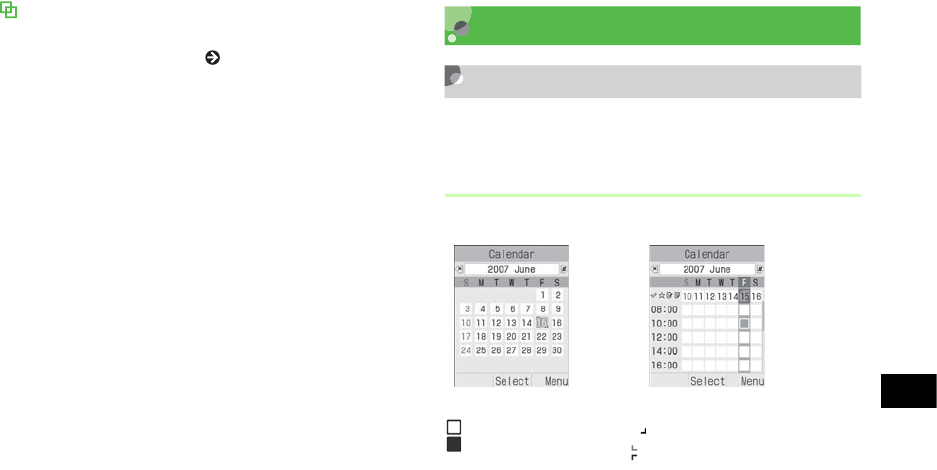
15-5
Too ls
15
At Wake-up Alarm/Alarm Time
920SC automatically turns on and Alarm sounds. Press
any key to cancel Alarm ( P.15-4). 920SC returns to
Standby.
Calendar
Calendar View
A
Press
c
and select
Tools
→
Calendar
Viewing
View Calendar in Monthly, Weekly or Daily view.
Monthly View Window
: Highlighted position
(Date in orange) : Current
day
Date in red: Holiday/Sunday
Weekly View Window
(In Blue) : Schedule registered
(In Green) : Memo registered
(In Red) : Task registered
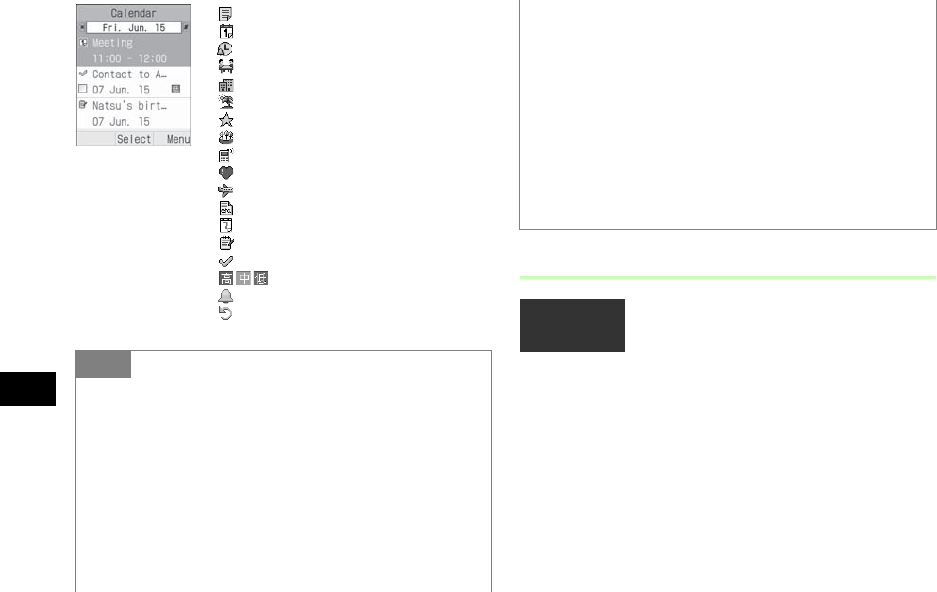
15-6
Too ls
15
Calendar Window Format
Set first day of the week to Sunday or Monday as
well as the default Calendar window.
APress c and select Tools →
Calendar
BSelect Menu →Settings
Tip
• To see previous or later months in Monthly view
Press */# or highlight Year/Month field and
press s
• To see previous or later weeks in Weekly view
Press */# or highlight Year/Month field and
press s
• To see previous later days in Daily view
Press s,*, or #
Daily View
: Schedule
: Schedule (No category)
: Schedule (Appointment)
: Schedule (Meeting)
: Schedule (Business)
: Schedule (Holiday)
: Schedule (Anniversary)
: Schedule (Birthday)
: Schedule (Phone call)
: Schedule (Date)
: Schedule (Travel)
: Schedule (Miscellaneous)
: Holiday
: Memo
: Task
: Priority
: Alarm set
: Repetition set
• To view a particular month or week
From Monthly view window or Weekly view window,
change Display by specifying year, month, and day as
follows.
aIn the calendar window, select Menu →Go to
b
Select Date, enter the year, month, and day and press
c
When Today is selected in step b, the current date is
highlighted on the window of the current month or
week.
Default
Setting
■Starting day: Sunday
■Default view mode: Monthly view
15-7
Too ls
15
CSet items
First day of week
aSelect Starting day
bSelect a setting and press c (Save)
Default view mode
aSelect Default view mode
bSelect a setting and press c (Save)
Saving New Entries to
Calendar
Scheduled Events
Save a maximum of 100 items.
APress c and select Tools →
Calendar
BSelect Menu →Add new →Schedule
CSet items
Title
Select Title field and enter a text
Details
Select Details field and enter a text
Starting date
Select Start date field and enter a date
Starting time
Select Start time field and enter a time
Tip
• When settings are changed
A change in Starting day is immediately reflected.
Selecting the settings of Default view mode can be
applied when you deactivate calendar and then
reactivate it.
• To temporarily change Display mode
In the calendar window, select Menu →View mode →
Display mode

15-8
Too ls
15
Ending date
Select End date field and enter a date
Ending time
Select End time field and enter a time
Event location
Select Location field and enter a text
Category
Select Category field and select a category
Alarm
aCheck Alarm field
bSelect Before field, enter an interval before
Alarm time, highlight Unit field and use s
to switch to an appropriate unit
cSelect Alert tone/video field, select a location
of sound files and select an alert tone
dSelect Vibration field, select a setting and
press c
eSelect Volume field, use s to adjust
volume and press c (Save)
Repeat
aCheck Repeat field
bHighlight Time cycle field and use s to
switch to an appropriate time cycle unit
cSelect Value field and enter a value
dSelect Until field and enter a year, month,
and day to stop repetition
Expiry time for a Calendar Event
Highlight Expiry field and use s to switch the
expiry limit
DPress w (Save)

15-9
Too ls
15
Holiday
Register a maximum of 50 holidays.
APress c and select Tools →
Calendar
BSelect Menu →Add new →Holiday
Tip
• To make it easier to enter a Start/End date
Put cursor on the target date on Calendar window
before Step 2 to show that date in Start date or End date
field.
• When an event has expired
Event is automatically deleted from Calendar. For
example, if expiry is After 1 year, and repetition is not
set, it is deleted after one year from the event end date.
With repetition set, it is deleted one year after the end
date of the last repetition. To cancel automatic deletion,
set Disable for expiry date.
• When setting Memory Card file as Alarm sound
A confirmation appears asking whether to copy file to
920SC before setting. When setting copyrighted file, a
confirmation appears asking whether to move file to
920SC before setting. Select Yes to complete setting.
15-10
Too ls
15
CSet items
Text
aSelect Text entry field
bEnter text
Date
Select Date field and enter the date
To set to repeat every year
Check Repeat every year field
DPress w (Save)
Memo
Register a maximum of 20 memos. Memos can be
registered even while talking ( P.2-9, 6-6).
APress c and select Tools →
Calendar
BSelect Menu →Add new →Memo
C
Select the memo text box and enter text
Set the date
Select Date and enter the date
DPress w (Save)
Tip
• To make it easier to enter a date
Put cursor on the target date on Calendar window
before Step 2 to show that date in Date field. Tip
• To make it easier to enter a date ( P.15-10)

15-11
Too ls
15
Tasks
Register a maximum of 100 time-limited items and
manage them in a list.
APress c and select Tools →
Calendar
BSelect Menu →Add new →Task
CSelect items
Title
aSelect Title field
bEnter title
Description of the task
aSelect Task field
bEnter text
Starting date
Select Start date field and enter the date
Due date
Select Due date field and enter the date
Alarm
aCheck Alarm field
bSelect Before field, enter an interval before
Alarm time, highlight Scheduling field and
use s to select week or day
cSelect Alarm time field and enter a time
dSelect Alert tone/video field, select the
location of sound files and select an alert tone
e
Select Vibration field and select a setting
fSelect Volume field, use s to adjust
volume and press c (Save)
Priority level
Highlight Priority field and use s to select a
value
DPress w (Save)
15-12
Too ls
15
When the time set for Alarm comes
Alarm sounds and a message appears. To stop Alarm,
press any key. Press c to cancel the message display.
With no action to stop Alarm, a message appears
indicating Missed alarm event. Press w (View) to
view the message.
When a call is being initiated or during a call
During a call or connection (Connecting…appears),
920SC notifies with a short sound and indicator;
uncheck Alerts on call (in Phone sounds setting) to
notify only by an indicator. When an outgoing call is
being Initiated (Dialing…appears), 920SC notifies only
by an indicator. Press c to clear an indicator.
Viewing Saved Calendar
Entries
APress c and select Tools →
Calendar
BOpen a window listing items
To check items of one day
Select a date on Monthly view window or
Weekly view window, or use s to change the
date on Daily view window
To check registered contents by type
Menu →Event list and select a type
To check the message of a missed alarm
Menu →Missed alarm event
CSelect and view details
Tip
• To simplify Start or Due date entry
Put cursor on the target date on Calendar window
before Step 2 to show that date in Starting date and
Due date field.
• When setting Memory Card file as Alarm sound
A confirmation appears asking whether to copy file to
920SC before setting. When setting copyrighted file, a
confirmation appears asking whether to move file to
920SC before setting. Select Yes to complete setting.
Tip

15-13
Too ls
15
Editing Calendar Entries
Editing and Saving as New Entries
In addition to edit and update the entries, edit the
entries and save them as new entries.
APress c and select Tools →
Calendar
BOpen a window listing entries
To open a window listing entries for a single day
Select a date on Monthly view window or
Weekly view window, or use s to change the
date on Daily view window
To view events by type
Menu →Event list and select a type
CSelect an item to edit
DPress c (Edit)
EChange the information as required
FPress w (Save) and select New or
Update
Marking a Task as Completed
APress c and select Tools →
Calendar
BSelect Menu →Event list →Task
CHighlight a completed task and select
Menu →Completed
To remove the completion mark
Menu →To do
• To check calendar item status
Select Menu in Calendar or registered contents list and
Memory status; check the number of savings by type.
Tip
15-14
Too ls
15
Deleting Calendar Entries
AIn Calendar window or saved
contents list, select Menu →Delete
BDelete entry
To delete only the highlighted entry
Select Selected →Yes
To delete all entries of current month or week
Select This month or This week →Yes
To delete only entries from a specific period
of time
aSelect Periods
bEnter the start and end dates
cPress c (Delete) and select Yes
To delete all entries or all before the
highlighted date
aSelect All or All past data
bEnter Phone Password, press c (Confirm)
and select Yes
• To sort tasks
In the Task window, select Menu →Sort by and select
a sorting type. Classify tasks into completed/
uncompleted ones or sort them by due date or priority.
15-15
Too ls
15
Calendar Menu
Perform the following operations from Menu on a
window listing Calendar entries:
Tip
• To collectively delete multiple registered items
Select registered unnecessary items from a list by type
and delete them collectively.
aPress c and select Tools →Calendar
bMenu →Event list and select the type
cMenu →Delete →Multiple
dCheck the items to delete, press w (Delete) and
select Yes
Item Description
Add new Save a new Calendar entry ( P.15-7).
Send schedule/
Send task
Send Calendar entry via S! Mail
( P.18-6) or Bluetooth® ( P.13-6).
View mode Select a display mode ( P.15-7).
Go to
Display a particular month or week by
changing Monthly/Weekly view
window ( P.15-6).
Event list View events listed by type ( P.15-12).
Send all
schedules and
tasks
Send multiple Schedules or Tasks at
once
Delete Delete a Calendar entry ( P.15-14).
Completed/To
do
Set or cancel the task completion mark
( P.15-13).
Sort by Sort tasks ( P.15-14).
Save to Data
Folder
Create and save vFiles to Data Folder
Other documents or Memory card.
Settings Select Calendar Display settings
( P.15-6).
Missed alarm
event
View the message of a missed alarm
( P.15-12).
Print via
bluetooth
Print highlighted schedule event or
task via Bluetooth® printer.
Memory status Check memory usage for Calendar
functions ( P.15-13).
Item Description
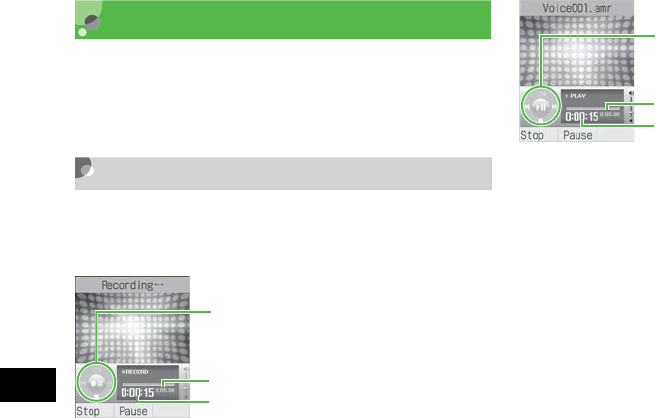
15-16
Too ls
15
Voice Recorder
Record up to 60 minutes; activate from Tools, during
a call, via Data Folder Menu or a Message creation
window.
Voice Recorder Window
Control Voice Recorder with Softkeys and
navigation key.
Recording
Navigation key
Elapsed time
Remaining recording time
Playback Window
Navigation key
Elapsed time
Play time
15-17
Too ls
15
Recording Voice
Files are saved in Data Folder Sounds & Ringtones.
APress c and select Tools →Voice
recorder
To change the fixed recording time ( P.15-19)
BPress c (Record)
CPress w (Stop) or continue
recording until the set time runs out
DAs required, press c (Play) to
replay
To pause
Press c (Pause)
To continue to record voice
Menu →Record
To perform operations for recorded voice
from Menu ( P.15-17)
Playing Voice
Replay a voice file saved in Data Folder.
APress c and select Tools →Voice
recorder
BSelect Menu →My sounds
CHighlight a file and press c (Play)
Voice Recorder Menu
Operate listed below from Menu before and after
recording. Menu's selectable items vary by the
conditions. For more information about available
options after selecting My sounds, see "Data Folder
Menu" ( P.12-14).
Item Description
Record Start recording.
My sounds Call up list of sound files saved in
the My sounds folder.
15-18
Too ls
15
Changing Voice Recorder
Settings
Default Name
The voice recorded with Voice recorder is saved
under a name such as "Voice 001." "Voice" can be
changed to another word.
APress c and select Tools →Voice
recorder
BSelect Menu →Record settings →
Default name
CEnter a name
Send
Send a file. Select Via message to
create a message with attached file
( P.18-6). Select Via bluetooth to
send a file to a selected party via
Bluetooth® ( P.13-6).
Set as Set voice for ringtone, etc.
Delete Delete a recorded voice file.
Rename Change file name.
Lock/Unlock Set/release file protection.
Details Confirm recorded sound file size,
etc.
Record settings
Select the file name assigned
automatically or the fixed recording
time ( P.15-18).
Item Description
Default
Setting
■Vo i c e
Tip
15-19
Too ls
15
Recording Time
APress c and select Tools →Voice
recorder
BSelect Menu →Record settings →
Recording time
CSelect a duration and press c
(Save)
Set Default Memory
With Memory Card inserted, set save location to
920SC (Phone) or Memory Card for recorded sound
files.
APress c and select Tools →Voice
recorder
BSelect Menu →Record settings →Set
default memory
CSelect the setting and press c (Save)
• If the default name is changed
The naming rule is applied from the next recording.
Default
Setting
■5 min Default
Setting
■Phone
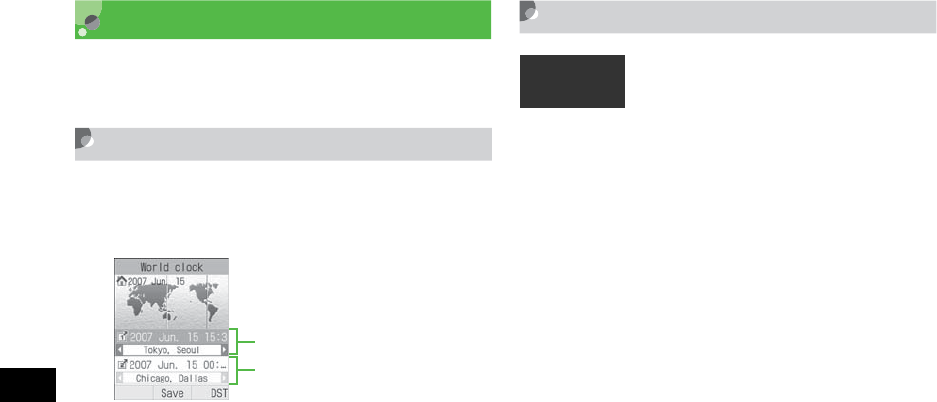
15-20
Too ls
15
World Clock
World clock allows you to check the current time all
over the world.
Viewing World Clock
APress c and select Tools →World
clock
Selecting Areas
When you save a second time zone, easily check the
time at that area looking at World clock.
APress c and select Tools →World
clock
BUse j to highlight area 1 and use
sto change city name
To set summer time
aPress o (DST)
bCheck the area to set summer time and press
w (Done)
CPress c (Save)
Current time and city name of
Current time and city name of
Default
Setting
■Tokyo, Seoul for both areas

15-21
Too ls
15
Calculator
Arithmetic operations to a maximum of 13 digits can
be performed.
A
Press
c
and select
Tools
→
Calculator
BCalculate
To enter numbers
Press keys
To enter +,−,×, or ÷
Press r,l,u, or d
To display the calculation result
Press c
To enter ., (, or )
Press w (.( )) to toggle symbols
To move cursor left or right
Press * or #
To erase a symbol in a mathematical expression
Place cursor after a symbol to erase and press
C
To erase both the mathematical expression
and the calculation result
Press o (C) or press C for 1+ seconds
Converter
Convert the currencies for various countries or
convert the units of length, weight, etc.
Converting Currencies
APress c and select Tools →
Converter →Currency
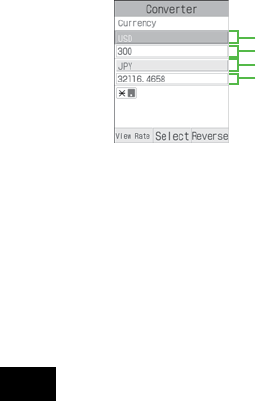
15-22
Too ls
15
BIn Original currency field, select unit
To replace the original currency with target
Press o (Reverse)
C
In Original currency value field, enter
value
To enter a decimal point
Press *
DIn Target currency field, select unit
ESee Converted currency field
To check the exchange rate
aHighlight either Currency field and press
w (View Rate)
bPress C to return to Converter top menu
To change the exchange rate
aHighlight either Currency field and press
w (View Rate)
bSelect the base currency to change the rate,
highlight the currency, select Menu →Edit
Original currency field
Original currency value field
Target currency field
Converted currency value field
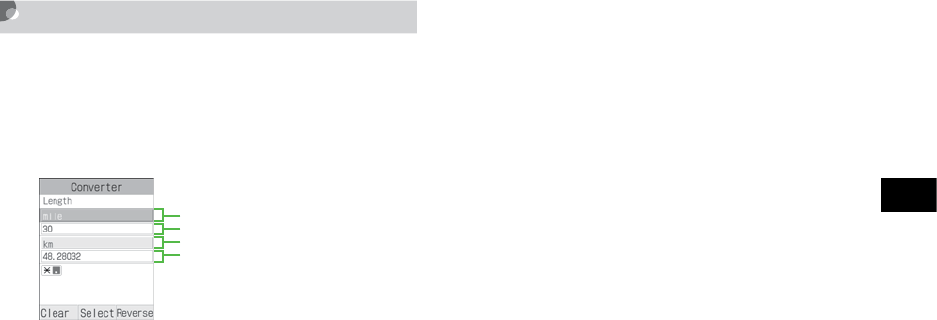
15-23
Too ls
15
cEnter the rate and press c (Save)
To add a currency unit
aPress w (View Rate)
bMenu →Add Rate
cEnter the currency unit/rate and press c
(Save)
Converting Units
A
Press
c
and select
Tools
→
Converter
BSelect Length,Weight,Volume,Area,
or Temperature
CIn Original unit field, select unit
To replace original unit with target
Press o (Reverse)
DIn Original unit value field, enter
value
To enter a decimal point
Press *
To enter/delete "-" for temperature
Press #
EIn Target unit field, select unit
FSee Converted value field
To clear the values
Press w (Clear)
Original unit field
Original unit value field
Target unit field
Converted value field

15-24
Too ls
15
Stopwatch
Use 920SC as a stopwatch; record up to ten lap times
and total time.
APress c and select Tools →
Stopwatch
BPress c (Start)
CPress c (Lap) to measure a lap time
or w (Stop) to stop time
measurement
Dictionary (Japanese)
Look up words in English/Japanese dictionaries.
APress c and select Tools →
Dictionary
BSelect a dictionary
To use English dictionary
Select English dictionary
To use Japanese dictionary
Select Japanese dictionary
CEnter a word to search
DSelect a target word

16
Advanced Functions
Calling Functions........................................16-2
Auto Redial ...............................................16-2
International Dial ......................................16-2
Earphone call.............................................16-3
Handling Incoming Calls ...........................16-5
Anykey Answer.........................................16-5
Ringer Reducer..........................................16-5
Active Slide...............................................16-5
Side Key Silence/Reject............................16-6
Status Alert..................................................16-6
Simple Search..............................................16-7
Keypad Lock ...............................................16-8
Idle Shortcuts ..............................................16-8
Set Default Memory....................................16-9
Memory Status ..........................................16-10
16-2
Advanced Functions
16
Calling Functions
Auto Redial
Set to automatically disconnect a Voice/Video Call
initiated to a party that is busy and redial the same
party soon. Automatic redialing repeats up to 10
times until y is pressed or 920SC is closed.
APress c and select Settings →Call
settings→All calls →Auto redial
BSelect a value and press c (Save)
International Dial
International Prefix
APress c and select Settings→Call
settings →Voice call →International
dial→ Int'l prefix
BEnter an international code
Default
Setting
■Off
Tip
• When Retry with is set for Video Call
Automatic redialing settings take priority.
• When receiver has activated Voice Mail or Call
Forwarding
The call is forwarded and automatic redialing is
canceled.
Default
Setting
■ 010

16-3
Advanced Functions
16
Editing Country Codes
APress c and select Settings →Call
settings →Voice call →International
dial →Country codes
BPerform operations to add, change,
or delete
To add or change
aHighlight item to add or change and press
c (Change)
b
Select Country name field and enter a country
name
cHighlight Country code, enter code and press
w (Save)
To del ete
Highlight item to delete, press w (Delete) and
select Yes
Earphone call
When Earphone call is On, press switch for 1+
seconds to call specified number.
APress c and select Settings →Call
settings →Voice call →Earphone call
BSelect Earphone call activate
CSelect a setting
Default
Setting
■1: Japan 2: KOR 3: GBR 4: ITA 5:
CHE
6: ESP 7: DEU 8: PRT 9: NLD10:
FRA
11: MCO12: USA13: SWE14: AUS
15: CHN 16: HKG17: TWN
18 to 20: Unused
Default
Setting
■ Earphone call activate: Off
■ Call number: No list

16-4
Advanced Functions
16
DHighlight Call number and perform
operations to save phone number
To enter a phone number directly
aPress c (Select) and select Direct input
bEnter phone number
To select a phone number from Phonebook
aPress c (Select) and select Phonebook
bSearch Phonebook and select an entry ( P.5-
11)
cHighlight phone number and press c
(Select)
To enter a phone number using Call Log
aPress c (Select) and select Call log
bSelect the log record
EPress w (Save)
Tip
• To delete a phone number
aPerform Step 1
bSelect Call number then Direct input
cPress C for 1+ seconds press c
• To change a phone number
aPerform Step 1
bPerform Step 4
cPress c (Save)
16-5
Advanced Functions
16
Handling Incoming Calls
Anykey Answer
Answer Voice Calls using keys other than c
(Accept) or t.
APress c and select Settings →Phone
settings →Anykey answer
BSelect On or Off and press c (Save)
Ringer Reducer
Reduces ringer volume to Level 1 for the first two
seconds.
APress c and select Settings →Call
settings →All calls →Ringer Reducer
BSelect a setting and press c (Save)
Active Slide
Open 920SC to answer an incoming call.
Alternatively, close 920SC to disconnect a call
during a call.
Default
Setting
■Off
Tip
• Answering a Voice Call when On is set ( P.2-4)
Default
Setting
■On
Default
Setting
■Slide up: On ■Slide down: Off

16-6
Advanced Functions
16
APress c and select Settings →Phone
settings →Active Slide
BSelect Slide up or Slide down
CSelect On or Off and press c (Save)
Side Key Silence/Reject
Use n or b to mute ringer or reject an incoming
call. Select from Reject (disconnect the call) or
Silence (silence the incoming tone).
APress c and select Settings →Phone
settings →Side key
BSelect the setting and press
c (Save)
Status Alert
Make a notification of missed calls or new messages
by ringtone, vibration or Keypad lighting.
APress c and select Settings →Phone
settings →Status alert
BSelect Missed call or Messages
Tip
• The contents of Slide up are:
On : Opening 920SC will answer an incoming call.
Off : Opening 920SC will not answer an incoming call.
• The contents of Slide down are:
On : During a call, closing 920SC will end a call.
Off : During a call, closing 920SC will not end a call.
Hold
: During a Voice Call, closing 920SC will place a call
on hold (when Call Waiting or Conference Call is in
use); during a Video Call, placing a call on hold by
closing 920SC is not available.
Default
Setting
■Silence
Default
Setting
■Missed call: Off ■Messages: Off
16-7
Advanced Functions
16
CSelect an item
To notify with ringtone and vibration
aSelect Ringtone & vibration alert
bSelect On or Off and press c (Save)
To notify with Keypad lighting
aSelect Keypad light alert
bSelect On or Off and press c (Save)
Simple Search
When Simple search is On, enter numbers in Standby
to search Phonebook entries starting with Reading
name corresponding each number. Then search result
(entry names and phone numbers) list appears.
APress c and select Settings →Phone
settings →Simple search
BSelect a setting and press c (Save)
Default
Setting
■Off
Tip
• To initiate calls using Simple search ( P.5-13)
16-8
Advanced Functions
16
Keypad Lock
In Standby, with 920SC open, perform operations to
set.
APress c for 1+ seconds
Idle Shortcuts
Up to nine frequently used functions can be saved;
create own Shortcut Menu. In Standby, press u to
access functions saved to shortcuts.
APress u
BHighlight unsaved function entry box
and press c (Assign)
CSelect the function
DRepeat Steps 2 and 3 to save the
function
Tip
• With Keypad Lock active
In Standby, appears; close 920SC and perform any
key operation, then popup message appears indicating
procedure to temporally cancel Keypad Lock.
• When opening 920SC
Key operations are enabled (Keypad Lock remains
potentially active; close 920SC, then Keypad Lock is
activated again).
• To cancel
With 920SC open, press c for 1+ seconds to cancel;
with 920SC closed, press c for 1+ seconds to
perform key operations temporally.
Default
Setting
■1: Camera 2: S! Appli

16-9
Advanced Functions
16
Set Default Memory
With Memory Card inserted, select save location to
920SC (Phone) or Memory Card. This location
change is available for the data when editing images,
saving S! Mail attachments, downloading files from
information window, receiving data via Bluetooth®,
or other occasions.
A
Press
c
and select
Settings
→
Memory settings
→
Set default memory
BSelect the setting and press c (Save)
Tip
• To change functions
aIn Step 2, highlight the function, select Menu →
Assign
bSelect Yes and select the function
• To sort functions
aIn Step 2, highlight the function, select Menu →
Change Order
bUse a to highlight the target function box and
press c (Select)
• To delete functions
aIn Step 2, highlight the function, select Menu →
Delete
bSelect Yes
• To restore defaults
aIn Step 2, highlight the function, select Menu →
Reset
bSelect Yes
Default
Setting
■On phone
Tip
• With no Memory Card inserted
On memory card or Always ask is set; save location is
automatically set to 920SC (Phone).

16-10
Advanced Functions
16
Memory Status
Check the following information:
• Available shared memory
• Status of SMS and S! Mail mailboxes
• Status of memory in Data Folder
• Status of Calendar items registered
• Status of Phonebooks (Handset and USIM Card)
Alternatively, delete saved entries and/or files.
APress c and select Settings →
Memory settings →Memory status
BSelect an item to check
Tip
• To delete Data Folder, Calendar or Phonebook
content
aPerform Steps 1 and 2
bHighlight an item, press c (Select), select Yes and
view an entry
cCheck the fields to delete, press w (Delete) and
select Yes
• To delete all contents
After step c in "To delete the contents," enter Phone
Password, press c (Confirm) and select Yes
• To check/uncheck all contents at once
After step c in "To delete the contents," press o
(Mark all/Unmark all).
• When the checked contents contain the contents
that functions or locks are set in
After step c in "To delete the contents" or the "To
delete all contents" operations, a confirmation appears.
If you select Yes, the deletion is performed. If you
select No, only files without functions or locks set are
deleted.

17
Optional Services
Optional Services ........................................17-2
Call Forwarding..........................................17-2
Activating Call Forwarding.......................17-3
Cancel All..................................................17-4
Check Status..............................................17-4
Voice Mail ....................................................17-4
Activating Voice Mail ...............................17-4
Cancel All..................................................17-5
Check Status..............................................17-5
Listening to Messages ...............................17-5
Incoming Call Notification .......................17-6
Call Waiting.................................................17-7
Activating or Canceling ............................17-7
Receiving a Second Call ...........................17-7
Conference Call...........................................17-8
New Call....................................................17-8
Engaged Conference Call Operations .......17-9
Join ............................................................17-9
Call Barring...............................................17-10
Restrict Calls or SMS..............................17-11
Cancel All................................................17-11
Changing Network Password..................17-12
Caller ID ....................................................17-12
Show My Number ...................................17-12
Adding 186 or 184 ..................................17-13
17-2
Optional Services
17
Optional Services
The following optional services are available on
920SC:
* This service requires a separate subscription.
Call Forwarding
Set forwarding condition and number, by call type
(Voice Call or Video Call), beforehand, to divert
incoming calls to a specified number.
Service Description
Call
Forwarding
When you know you will be unable to
answer calls, automatically divert calls to
a specified number.
Voice Mail
Divert all or all unanswered calls to Voice
Mail Center; access caller messages via
920SC from within the service area or via
a touchtone phone anywhere.
Call Waiting* Put the line on hold to answer another
line or alternate between lines.
Conference
Call*
Open another line while one is engaged;
toggle lines or talk on up to six parties
simultaneously.
Call Barring Restrict incoming or outgoing calls by
condition.
Caller ID Show or hide your own number when
placing calls.
Note
• When Out appears, access services from a
touchtone landline. For details, contact Customer
Service ( P.26-24).
Forwarding
Condition Description
No reply
Unanswered calls are diverted after the
specified ring time, or when the line is
busy or 920SC is out-of-range.
Always
920SC does not ring/vibrate for incoming
calls; calls are diverted automatically and
Missed Call does not appear.
17-3
Optional Services
17
Activating Call Forwarding
Specify a forwarding number beforehand.
APress c and select Settings →Call
settings →Voice call or Video call →
Diverts
BSelect No reply or Always; view the
current settings
When the settings are acceptable
After viewing, press l to return to the
previous window
CHighlight Divert to field and enter a
number to forward to
To select a phone number from Phonebook
aHighlight Forwarding address field and
select Menu →Phonebook
bSelect Phonebook, highlight a phone number
and press c (Select)
DFor No reply, highlight Waiting time
field and use s to set a time
EPress c (ON)
Note
• Call Forwarding and Voice Mail cannot be used at
the same time.
• Activating Call Forwarding cancels Voice Mail.
Tip
• When Call Forwarding (No reply) is active
While 920SC rings/vibrates, answer a call or press
o (Busy) to forward it.
17-4
Optional Services
17
Cancel All
Cancel all Diverts services at once.
APress c and select Settings →Call
settings →Voice call or Video call →
Diverts →Cancel all
Check Status
APress c and select Settings →Call
settings →Voice call or Video call →
Diverts →Check status
Voice Mail
Forward an incoming Voice Call to Voice Mail
Center or a specified number based on preset
forwarding conditions ( P.17-2).
Activating Voice Mail
APress c and select Settings →Call
settings →Voice mail
BSelect No reply or Always
Tip
• To stop Call Transfer service for each forwarding
condition
aPress c and select Settings →Call settings →
Voice call or Video call →Diverts
bSelect No reply or Always
cPress w (OFF)
Note
• Voice Mail and Call Forwarding cannot be active at
the same time.
• Activating Voice Mail cancels Call Forwarding.
• Voice Mail is not available when All outgoing calls
or All incoming calls in Call Barring is active (Call
Barring takes priority over Voice Mail).
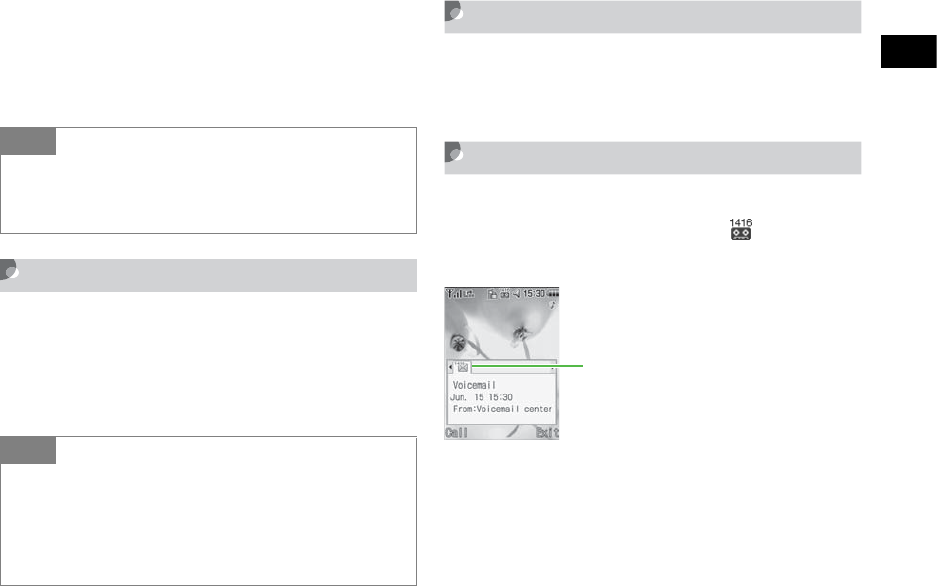
17-5
Optional Services
17
CFor No reply, highlight Waiting time
field and set a time
DPress c (ON)
Cancel All
Cancel all Voice Mail services at once.
APress c and select Settings →Call
settings →Voice mail →Cancel all
Check Status
APress c and select Settings →Call
settings →Voice mail →Check status
Listening to Messages
When a caller saves a Voice Mail message, a
notification appears in Standby and appears at
the top of Display.
Tip
• When Voice Mail (No reply) is active
While 920SC rings/vibrates, answer a call or press
o
(Busy) to forward it.
Tip
• To cancel Voice Mail by forwarding condition
aPress c and select Settings →Call settings →
Voice mail
bSelect No reply or Always
cPress w (OFF)
Notification
17-6
Optional Services
17
While Message Appears
Connect to Voice Mail Center as described below
and follow voice prompts.
APress w (Call)
To check message details
Press c while message appears
While No Message Appears
AEnter 1416 and press t
Incoming Call Notification
SMS is delivered for calls unanswered because
920SC is outside service area or off, or if a caller
saves a message at Voice Mail Center while the line
is engaged.
Incoming Call Notification
AEnter 1414 and press t
To set via landline in Japan (toll free)
Dial 090-665-1414 and press t
BFollow voice guidance
Tip
• To delete a message without listening to it
Press o (Exit).
• To clear
Voice Mail indicator disappears when messages are
accessed via 920SC.

17-7
Optional Services
17
Call Waiting
A separate subscription is required to use this
service.
This service is only available for Voice Calls.
Activating or Canceling
APress c and select Settings →Call
settings →Voice call →Call waiting
BActivate or cancel the service
To activate
Press c (ON)
To cancel
Press w (OFF)
Receiving a Second Call
When there is an incoming call during a call, you are
notified with a specific interrupt sound and display.
Place the current call on hold and answer the second
call.
AWhen you hear the interrupt sound,
press c (Accept)
BSelect Hold active call
To end current call and answer second call
Select End active call
CPress w (Swap) to toggle the calls
DTo end the current call, press y
To end the call on hold
Menu →End →Held call
To end both calls at once
Menu →End →All calls

17-8
Optional Services
17
Conference Call
A separate subscription is required to use this
service.
Talk with a maximum of six parties simultaneously.
New Call
When a new call is connected, first party is placed on
hold.
ADuring a call, select Menu →New call
and enter number
To use Phonebook
aPress c (Search) and select Phonebook
bHighlight the phone number and press
c (Select)
BPress c (Call)
Tip
• When one party ends a call with another on hold
Press w (Retrieve) to talk to the waiting party.
• When Call Transfer or Voice Mail service is active
When the second call is not answered, it is forwarded
to a forwarding destination or Voice Mail Center.
When the forwarding condition is set to Always, the
Call Waiting service is not available.
17-9
Optional Services
17
Engaged Conference Call
Operations
ACall another party during a call
( P.17-8)
BPress w (Swap) to switch
connected calls
Join
ADuring a call, initiate a call to
another party ( P.17-8)
BSelect Menu →Join
Tip
• To end the call on hold
During a call, select Menu →End →Held call
• To end all calls
During a call, select Menu →End →All calls
• When the connected party ends the call during
Conference Call
A party on hold remains on-hold state. Switch to the
on-hold party to talk.
Tip
• To talk with only one person
During a call, select
Menu →Split
and select a caller to
talk to
• To end the call for a specific caller
During a call, select Menu →End →Select
participant, check callers to end and press w (End)
• To end the all calls
During a call, press y
• When one party ends the call during Conference
Call
Continue talking with remaining parties.
17-10
Optional Services
17
Call Barring
Bar outgoing/incoming Voice/Video Calls or SMS by
the conditions listed below.
Setting restrictions requires Network Password (The
4-digit number dedicated to Call Barring service
specified at the subscription).
Item Description
Restrict
outgoing
calls
All outgoing
calls
Deactivates initiating calls
and SMS sending, except
emergency calls.
Outgoing Intl
calls
Deactivates initiating
international calls and SMS
sending except within
Japan.
Restrict
incoming
calls
All incoming
calls
Deactivates reception of all
calls and SMS receiving.
Note
• If incorrect Network Password is entered three
consecutive times, Call Barring service is disabled.
In this case, change Network Password and Center
Access code. For more information, contact
Customer Service ( P.26-24).
• If Call Forwarding or Voice Mail is active, All
outgoing calls and All incoming calls cannot be set.
Tip
• If a call is attempted while restricting outgoing calls
A message appears indicating that outgoing call
restriction is active. The message may appear after a
while depending on service area.
17-11
Optional Services
17
Restrict Calls or SMS
Restrict incoming/outgoing Voice Call, Video Call or
SMS.
APress c and select Settings →Call
settings →Call barring
BSelect Voice call,Video call, or SMS
and select a restriction type
CEnter Network Password
DSet or cancel call barring
To set
Press c (ON)
To cancel
Press w (OFF)
Cancel All
Canceling outgoing and incoming call is available
for each of call types (Voice and Video Calls, SMS)/
transmission.
APress c and select Settings →Call
settings →Call barring
BSelect Voice call,Video call, or SMS
→Cancel all
CEnter Network Password and press
c
Tip
• To check settings
Perform Steps 1 and 2. After checking the settings,
press C to return to the previous window.
17-12
Optional Services
17
Changing Network Password
APress c and select Settings →Call
settings →Call barring → Change
password
BEnter current Network Password in
Old field and new Network Password
(4 digits) in New and Confirm fields,
then press c (Confirm)
Caller ID
Show or hide your own phone number when calling
from 920SC.
Show My Number
APress c and select Settings →Call
settings →All calls →Show my
number
BSelect setting and press c (Save)
Default
Setting
■By network
Tip
• When set to By network
Automatically set to Show/Hide your number by
current network status.

17-13
Optional Services
17
Adding 186 or 184
Use 186 (Show ID) or 184 (Hide ID) prefixes to
show or hide your number when calling from 920SC,
regardless of the Show my number setting.
AEnter Show ID or Hide ID Prefix
To show Caller ID
Press 186
To hide Caller ID
Press 184
BEnter a phone number
CPress t
To initiate a Video Call
Menu →Video call
17-14

18
Messaging
Getting Started............................................18-2
Checking for New Messages ......................18-2
Retrieving Complete Messages.................18-4
Using Received Messages.........................18-6
Creating Messages ......................................18-6
Procedures .................................................18-7
Address......................................................18-8
Subject.....................................................18-10
Message...................................................18-11
Sending a Message..................................18-11
Slide Show ..............................................18-12
Edit Style (Arrange Mail)........................18-13
Templates ................................................18-14
Attaching/Inserting Files..........................18-15
Message Field Files.................................18-15
Creating & Inserting a File......................18-19
Saving Created Messages.........................18-20
Save to Drafts..........................................18-20
Save as a Template ..................................18-21
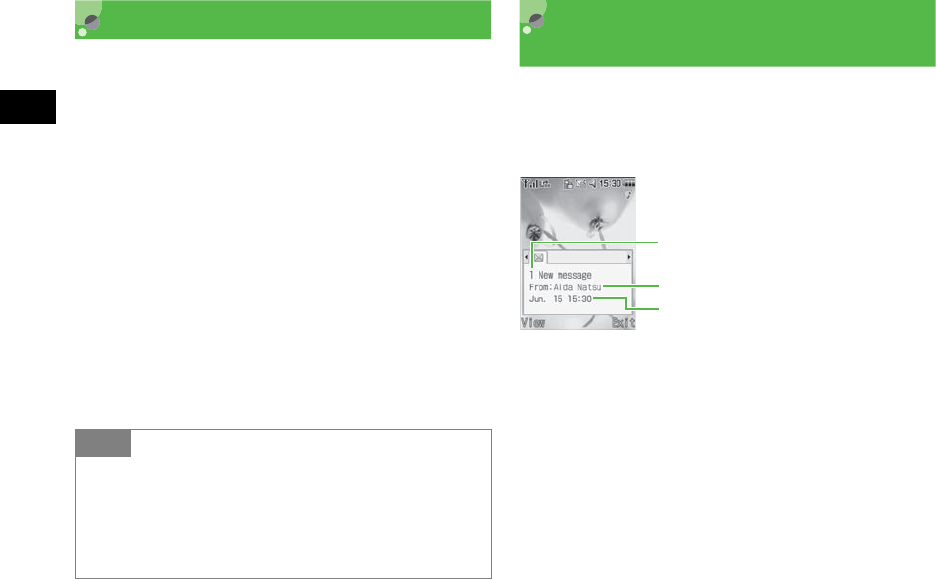
18-2
Messaging
18
Getting Started
S! Mail
Use this service to send/receive long text messages,
images, videos, other files, and sounds between S!
Mail compatible SoftBank handsets and PCs via e-
mail.
A separate subscription is required to use S! Mail and
receive e-mail.
SMS
Use this service to send/receive short text messages
between SMS-compatible SoftBank handsets using
phone numbers.
Checking for New
Messages
When a message is received in Standby, reception
notification appears. The number of received
messages, senders and reception dates/times appear.
Tip
• Retry function
If the other party's handset cannot receive a message
because the power turned off or out-of-range, 920SC
keeps the messages saved on Mail Server; then send to
the other party after signal reception recovers stable.
Reception Notification Window
Number of received messages
Sender
Reception date and time
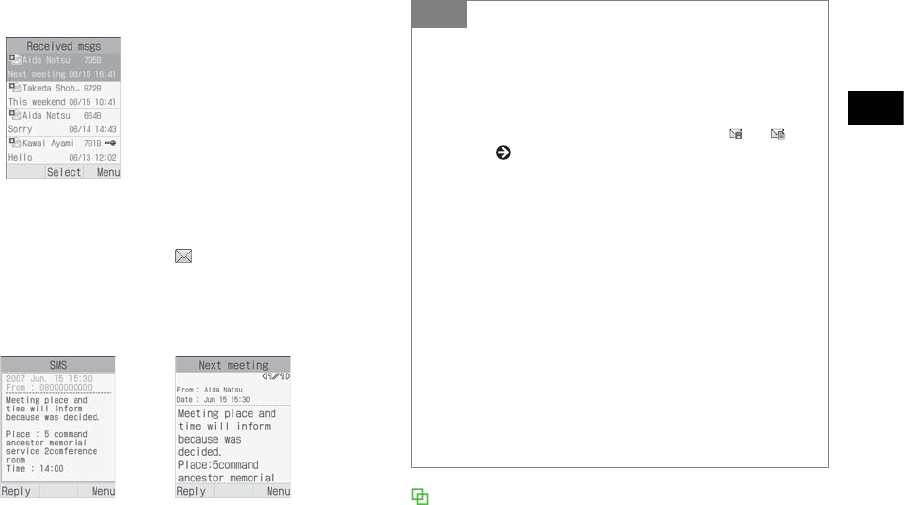
18-3
Messaging
18
APress w (View)
When multiple messages appear
Use s to select the tab and press w
(View)
BSelect a new message
SMS Operations
In SMS window, press Side Keys nb to enlarge/
reduce text font size. Alternatively, press u or d for
1+ seconds to auto scroll. To stop auto scroll, press any
Message List Window
Tip
• When a message is received (out of Standby mode)
By default, the number of received messages and
sender’s phone number or mail address (registered name
if the entry is saved in Phonebook) appear as a telop at
the top Display. After the telop disappears, or
appears ( P.1-9, P.21-7).
• Received message count
When there are unread messages, the total number of
new and unread messages appears.
• Sender information
A phone number or mail address appears. When the
sender has been saved in Phonebook, you will see the
name saved in Phonebook. When an incoming image
has been saved in Phonebook or an incoming image has
been set for the group, the image appears at the same
time. While Secret Mode is set to
Hide
and Phonebook
Secret Mode is set to
Secret - On
for message receiver/
sender information; sender's name/image does not
appear.

18-4
Messaging
18
key. During auto scroll operation, press r or l to
adjust the scroll speed.
3D Pictogram ( P.21-6)
If 3D Pictogram is set to other than Off, the message
text appears in 3D Pictogram when you check a new/
unread message (Except S! Mail that is set for Slide
Show or with an attachment). After 3D Pictogram
display ends or w (Stop) is pressed, Message window
appears. Perform various operations after Message
window appears.
Retrieving Complete Messages
When Receiving options is set to Manual, S! Mail is
temporarily stored on Mail Server; part of the
received message is sent to 920SC as a reception
notification. Retrieve complete messages from Mail
Server.
APress w and select Received msgs
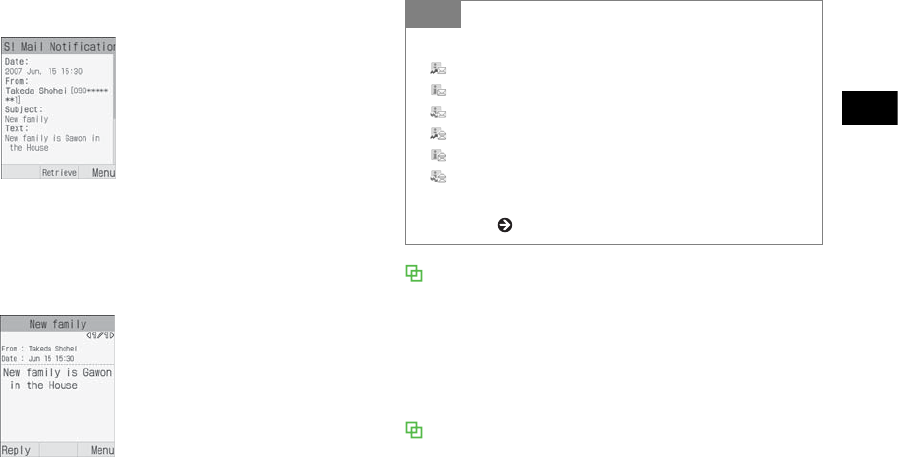
18-5
Messaging
18
BSelect a message with the rest of it
CPress c (Retrieve)
DSelect complete message Message window for S! Mail with an
attachment
The first page shows the file name for the attachment and
the second and subsequent pages show the message. Use
r
to read the message or select
Menu →Play
to start
Slide Show.
Message window for S! Mail with Slide Show set
Select Menu →Play to play the slide. During playing,
press c (Pause)/w (Stop) to pause/stop it. Use s
to manually select pages.
Notification Details
Message Window
Tip
• Received Message list window indicators
: Unread reception notification (Priority: High)
: Unread reception notification (Priority: Standard)
: Unread reception notification (Priority: Low)
: Read reception notification (Priority: High)
: Read reception notification (Priority: Standard)
: Read reception notification (Priority: Low)
• To retrieve complete messages from Message list
window ( P.20-2)
18-6
Messaging
18
Message window for S! Mail with an inserted
file ( P.18-17, 18-19)
If an image is inserted, the image appears with the
message.
If sound is inserted, select Menu →Play to play sound.
If Slide Show is set, sound is played when the page with
an inserted sound appears.
If video is inserted, select Menu →Play and press
o (Video) to play video. If Slide Show is set, Video
appears at the lower right and pressing o (Video)
plays video when the page with video inserted appears.
Message window with a file requiring
purchasing/obtaining Content Key
appears on a page with an inserted file that you
cannot view/play. Select Menu →Download content
key to view/play the file.
Using Received Messages
Send a message directly to the sender.
APress w (Reply) on the Message
window
BCreate a message and press
w (Send)
Tip
• Subject display of S! Mail for replies
The subject of a replied S! Mail is prefixed with "RE:"
automatically.
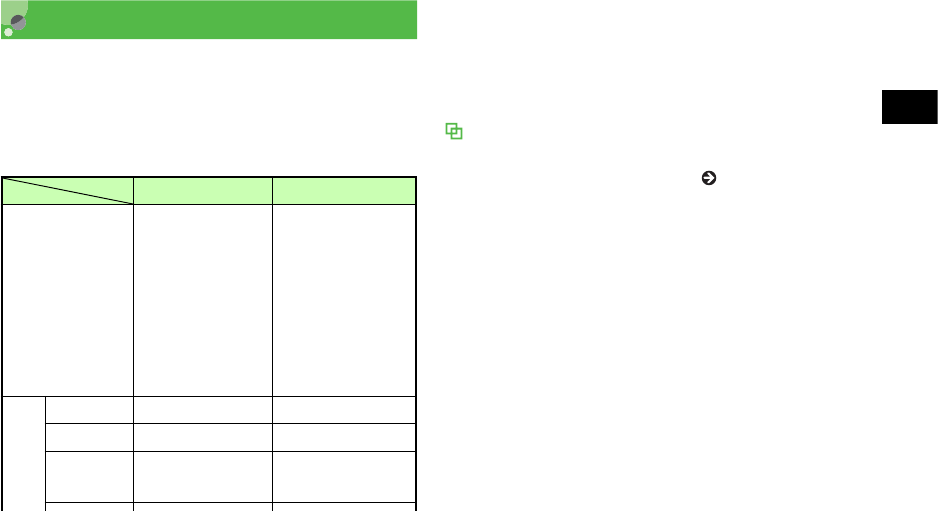
18-7
Messaging
18
Creating Messages
Two types of messages are available on 920SC: S!
Mail and SMS. The number of characters that can be
sent and entry items are different between these types
(Shown below).
Yes : Ava i lab l e
No: Not available
1 The number of characters that can be sent varies by the
attachment size, etc.
2 Set a maximum of 20 slides in one message.
3 Total size of all kinds of messages (Including address,
subject, text, and attachments).
Using Mail Art
In S! Mail window, view text/images consecutively like
slides or with background color ( P.18-12, 18-15, 18-
19).
S! Mail SMS
Number of
characters that
can be sent
Approximately
10,000 single-/
double-byte
characters1
Approximately
10,000 characters
in one slide2
(Up to 294KB3)
Maximum of 70
single-/double-
byte Katakana
characters
Maximum of 160
single-byte
alphanumerics
(Up to 140 bytes)
Entr
y
item
s
Address Yes Yes
Subject Yes No
Attachme
nt Yes No
MY Y
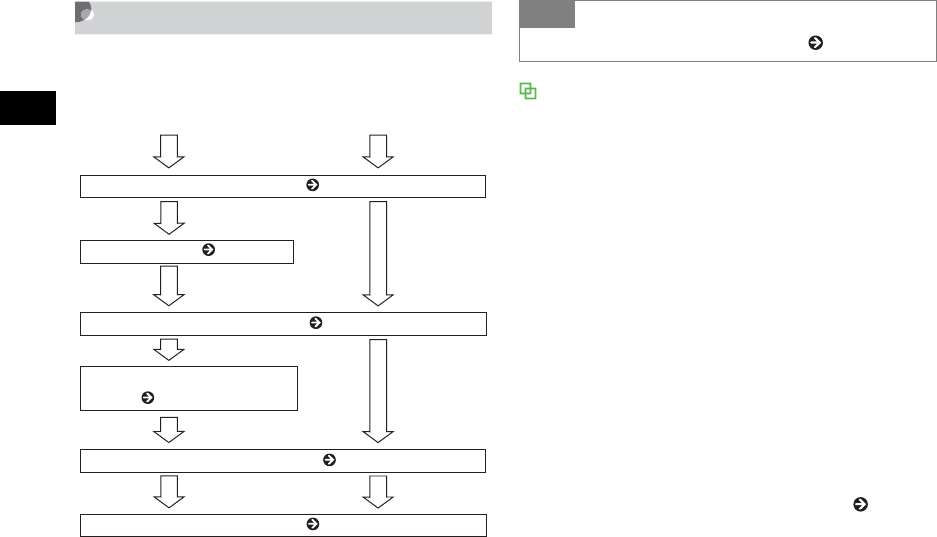
18-8
Messaging
18
Procedures
Create messages in the flow shown below. Enter and
set options other than Address as required. Automatic Change of Message Type
When message creation is started, the message type is
set to SMS; it automatically changes to S! Mail when
one of the following occurs:
• Entering mail address as an address
• Entering a subject
• Entering characters exceeding the number of
characters that can be sent by SMS
• Inserting files on Slide Show page
• Attaching or inserting a file
• Changing the address type to Cc or Bcc
When the message is modified to allow it to be sent as
SMS, for example, by deleting an attached or inserted
file or a subject, the message type automatically
changes to SMS.
Depending on message creation conditions, it may not
automatically change type. If the mail type is not
changed automatically, change it manually ( P.18-11).
Creating S! Mail Creating SMS
Enter an address ( P.18-8)
Enter message text ( P.18-11)
Enter a subject ( P.18-10)
Attach/Insert files
( P.18-15, 18-19)
Set any sending options ( P.18-11)
Send the message ( P.18-11)
Tip
• To set sending options beforehand ( P.21-2, 21-5)
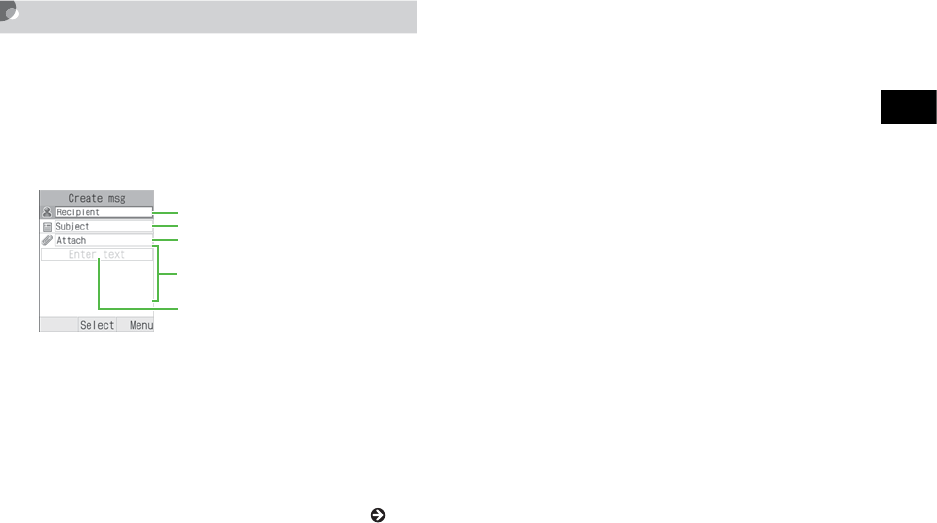
18-9
Messaging
18
Address
Enter a phone number or mail address for S! Mail or
a phone number for SMS as a message address. Up
to twenty addresses can be entered.
APress w and select Create msg
BEnter an address
To select an address from Phonebook
aSelect Address field and select From
Phonebook
bSearch Phonebook and select an entry ( P.5-
10)
cHighlight a phone number or mail address
and press c (Select)
To enter an address directly
aSelect Address field and select Enter
Recipient
bEnter phone number or mail address
To select an address from sent records
Select Address field and select the record
To select an address from a Phonebook
Category
aSelect Address field and select From
Category
bSelect a Category, with/without Address
selection window, highlight an address to
enter and press c (Select)
CEnter another address as required
To enter an address directly
aSelect Address field
bSelect Entry field and select Enter Recipient
Message Creation Window
Address field
Subject field
Message field
Text entry field
Attach field

18-10
Messaging
18
cEnter phone number or mail address and
press w (Done)
To select an address from Phonebook
aMenu →Add recipients →Phonebook
bSearch and select Phonebook ( P.5-10)
cHighlight a phone number or mail address
and press c (Select)
To select an address from a Phonebook
Category
aMenu →Add recipients →Category
bSelect a Category; with/without Address
selection window, highlight an Address to
enter and press c (Select)
Tip
• To create a message using a template ( P.18-14)
• To confirm the entered address
In Step 3, select Menu →View recipient list
• To add an address after confirming entered address
aIn Step 3, select Menu →View recipient list
bSelect Entry field and perform operation in the
same way as Step 2
cPress w (Done)
18-11
Messaging
18
Subject
AIn Message creation window, select
Subject field
BEnter a subject
• To send a message after confirming entered address
aIn Step 3, select Menu →View recipient list
bMenu →Send
• To change the address type to To, Cc, or Bcc
aIn Step 3, select Menu →View recipient list
bHighlight an address and select Menu →Change
recipients →To,Cc, or Bcc
• To delete an address
aIn Step 3, select Menu →View recipient list
bHighlight an address and select Menu →Remove
• To copy, cut, or paste characters ( P.4-11)
• Viewing Address field
When multiple addresses have been saved, and the
number of addresses appear in Address field on
Message creation window.
Note
• If shared memory ( P.26-14) is less than 464KB,
you cannot create a message. To create a message,
delete unnecessary messages or files.
• A message created on 920SC may not appear the
same way on the other party's phone.
• Message sent with Subject/Text in Hangul, may
appear as spaces or be deleted on the other party's
phone.
Tip
• To copy, cut, or paste characters ( P.4-11)
• To set/release the prediction entry function
(P.4-13)
18-12
Messaging
18
Message
AIn Message creation window, select
Message field
When Slide Show is set ( P.18-12)
Select Text entry field
BEnter a message
Sending a Message
AIn Message creation window, press
w (Send)
Tip
• To copy, cut, or paste characters ( P.4-11)
• To use an SMS template or Phonebook entry
( P.4-10)
• To change the font size of characters being entered
•In Step 2, select Menu →Font Size →Small,
Standard, or Large
• To set/release the prediction entry function
( P.4-13)
• To set Slide Show ( P.18-12)
• To insert image files, etc. in a Message field
( P.18-15, 18-19)
• To view the text in 3D Pictogram
In Message creation window, highlight Message field,
select Menu →3D Pict.Disp.
Tip
• To set sending settings for a message being created
aIn Message creation window, select Menu →
Sending options
bSelect an item and make settings ( P.21-2, 21-5)
cPress w (Apply)
• To change the message type
aIn Message creation window, highlight all fields
except Address field
bMenu →Change to S! Mail or Change to SMS →
Yes
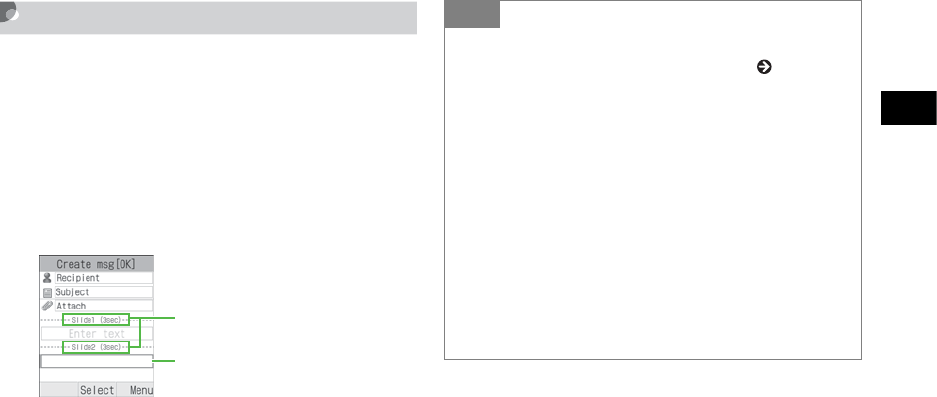
18-13
Messaging
18
Slide Show
Open S! Mail window in Slide Show. Text messages,
images, movies, and sounds can be inserted on each
page of Slide Show. Set a maximum of 20 slide pages
in one message.
AIn Message creation window, select
Menu →Insert →Text
BSelect added Text entry field and
enter a message
CTo add a Text entry field for Slide
Show, perform Steps 1 and 2
Message Creation Window
Slide page No. and display
time
Added Text entry field
Tip
• To insert Image,Sound, or Video
Perform operations in "Inserting a File" ( P.18-17).
Alternatively, other files can be inserted in the same
page. But image/video or sound/video cannot be
displayed in the same page.
• To delete a Text entry field
aIn Message creation window, highlight Text entry
field
bMenu →Remove →Yes
• To preview Slide Show before sending
aIn Message creation window, highlight a field other
than Address field
bMenu →Preview
cMenu →Play

18-14
Messaging
18
Edit Style (Arrange Mail)
Select font color, font size, background color, Slide
interval, text/image order etc. for S! Mail messages.
Compose an S! Mail message then follow these
steps.
AIn Message creation window,
highlight Message field
BSet items
Background color
aMenu →Edit style
bHighlight Select page and use s to display
All pages
cHighlight Background colour and use a to
highlight a color
Slide Show interval
aHighlight a Character entry field to set
bMenu →Edit style
cHighlight Slide interval and enter a time
Font color
aMenu →Edit style
bHighlight Select page and use s to display
All pages
c
Highlight
Font colour
and use
a
to highlight a
color
Font color for a single slide page
aHighlight a Character entry field to set
bMenu →Edit style
cHighlight Font colour and use a to
highlight
a color
Font size for all pages
aMenu →Edit style
bHighlight Select page and use s to display
All pages
cHighlight Font Size and use s to display a
size
18-15
Messaging
18
Font size for a single slide page
aHighlight a Character entry field to set
bMenu →Edit style
cHighlight Font Size and use s to display a
size
To change text and image order
aMenu →Edit style
bHighlight Select page and use s to display
All pages
cHighlight Order item and use s to display
Text-Top or Image (Video)-Top
CPress c (Save)
Tip
• To preview the style before sending
aIn Message creation window, highlight a field other
than Address field
bMenu → Preview
cMenu → Play
Note
•Edit style or Preview does not appear in SMS Menu.
18-16
Messaging
18
Templates
Create and send a message using S! Mail or SMS
template.
APress w and select Templates →
S! Mail templates or SMS templates
BHighlight an S! Mail or SMS
template
CSelect Menu →Send
DCreate a message and press w
(Send)
Tip
• To use after viewing an S! Mail template
aPerform Steps 1 and 2
bMenu →View
cMenu →Play as required
dMenu →Edit and send
• To register a template ( P.4-16, 19-20)
18-17
Messaging
18
Attaching/Inserting Files
A file that can be attached/inserted to an S! Mail is
limited in size to 294KB including the message
address, subject and message text size. Up to 20 files
can be attached to one S! Mail.
Message Field Files
Attach images, video, and/or sounds saved in Data
Folder to a message, as well as any contents saved in
Phonebook, Calendar and My Phonebook Details
(converted as vCard format or vCalendar format). If you
insert a file in Message field, display/play the file when
you view the Message window.
Attaching a File
AIn Message creation window, Select
Attach field
Tip
• To check the size of a message being created
Select S! Mail as the type of the message, the message
size appears in the upper-right corner.
Note
• Note that some recipients may not be able to receive
attachment or inserted files.
• When attaching/inserting a video to/into an S! Mail,
select a file recorded with Limit for S! Mail
( P.8-15). When trying to attach/insert a video
that cannot be sent, a message appears indicating
that the file cannot be attached.
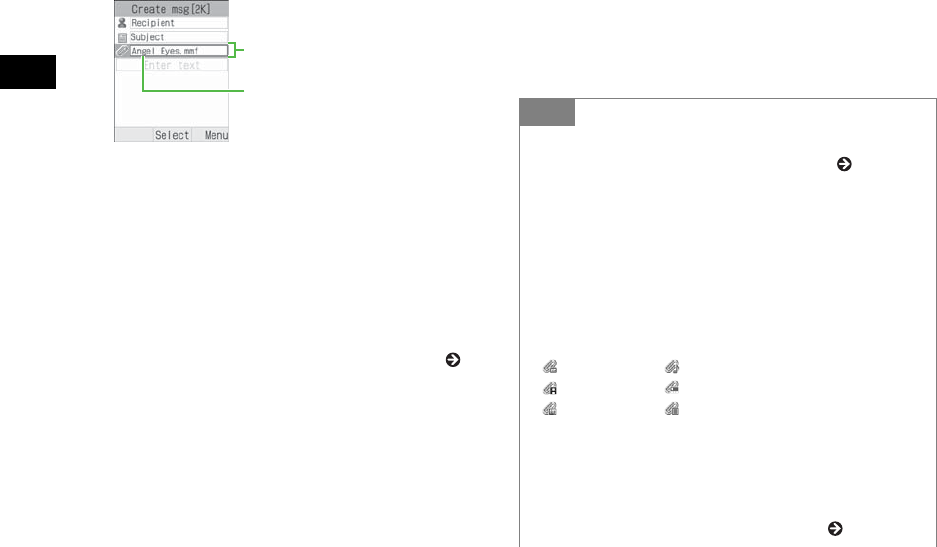
18-18
Messaging
18
BAttach file
To attach file
aSelect Data Folder
bSelect a file from Data Folder
To attach Phonebook data as vCard file
aSelect Phonebook details
bSearch Phonebook and select an entry ( P.5-
10)
cPress w (Add)
To attach Calendar items as vCalendar file
aSelect Calendar item
bSelect the items
To attach My Phonebook Details data as
vCard file
aSelect My phonebook details
bw (Add)
Message Creation Window
(File Attached)
Attach field
Attachment name
Tip
• To add a file
Perform Step 1 to 2 in "Attaching a file" ( P.18-15)
• To check an attachment
aIn Message creation window, highlight a file in
Attach field and select Menu →View attachment
bSelect a file
• If you attach a file
File type indicator and file name appears in Attach
field.
: Image : Sound
: Video : vCalendar
: vCard : File other than above
• To replace a file
aIn Message creation window, highlight a file in
Attach field and select Menu →View attachment
bHighlight a file and select Menu →Replace
cPerform Step 2 in "Attaching a file" ( P.18-15)
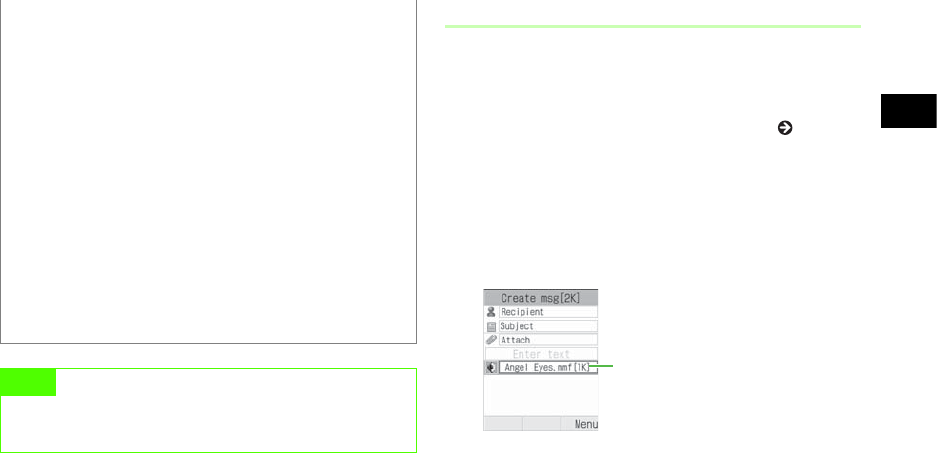
18-19
Messaging
18
Inserting a File
AIn Message creation window, select
Menu →Insert
To insert a file with Slide Show set ( P.18-12)
aIn Message creation window, highlight Text
entry field to insert a file
bMenu →Insert
BSelect file to insert
To insert an image
aSelect Image
bSelect an image from Data Folder
• To delete a file
aIn Message creation window, highlight a file in
Attach field and select Menu →View attachment
bHighlight a file and select Menu →Remove →
Selected
• To delete all files
aIn Message creation window, highlight a file in
Attach field and select Menu →View attachment
bMenu →Remove →All →Yes
• When files saved in Memory Card is attached
Removing Memory Card shows the message indicating
the S! Mail is saved to Drafts; 920SC returns to
Messaging menu. The saved S! Mail in Drafts has no
attachment.
Note
• For items in My Phonebook Details, Caller ID and
Hobby cannot be attached. Message Creation
Window (File Inserted)
Inserted file name

18-20
Messaging
18
To insert sound
aSelect Sound
bSelect sound from Data Folder
To insert a video
aSelect Video
bSelect a movie from Data Folder
Tip
• To preview an inserted file
aMenu →Preview
bMenu →Play
• If you insert a file
In Message creation window, file type indicator, file
name, and file size is displayed in Text entry field. If
you inserted an image with no restriction, the image
will be shown in reduced size instead of the icon.
: Images that cannot be displayed because of
Content Key has not been purchased or otherwise
obtained
: Sound
: Video
• To replace a file
aIn Message creation window, highlight a file in Text
entry field
bMenu →Replace
cSelect a file
• To delete a file
aIn Message creation window, highlight a file in Text
entry field
bMenu →Remove →Yes
• To insert a file where another is inserted
A new Slide Show page is added automatically and the
file is inserted. In case of an image file and sound file,
both can be inserted on the same page.
• When files saved in Memory Card is inserted
Removing Memory Card shows the message indicating
the S! Mail is saved to Drafts; 920SC returns to
Messaging menu. The saved S! Mail in Drafts has no
inserted file.
18-21
Messaging
18
Creating & Inserting a File
While creating a message, create a file and insert it.
When Message window is opened, inserted file
appears/plays.
AIn Message creation window, select
Menu →Create & Insert
To insert a file with Slide Show set
aIn Message creation window, highlight Text
entry field where a file to be inserted
bMenu →Create & Insert
BSelect a creation method and insert a
file
To capture a photograph
aSelect Take picture
bPress c (Take)
cPress c (Add)
To record video
aSelect Record video
bPress c (Record)
cPress c (Stop)
dSelect Add
To record sound
aSelect Record sound
bPress c (Record)
cPress w (Stop)
dMenu →Add to message
Tip
• If you insert a file
920SC works the same way as the file inserted from
Data Folder to Text entry field ( P.18-18).
• To insert a file where another file has already been
inserted
920SC works the same way as the file inserted from
Data Folder to Text entry field ( P.18-18).
• To replace or delete a file
Perform operations the same way as the file inserted
from Data Folder to Text entry field ( P.18-18).
18-22
Messaging
18
Saving Created Messages
Save to Drafts
When message creation is interrupted before
completion, etc., save the message being created to
Drafts.
AIn Message creation window, select
Menu →Save to Drafts
• Operations before and after capturing a still image
(P.8-5)
• Operations before and after recording video
( P.8-12)
• Operations before and after recording sound
( P.15-15)
Tip
• When C / y / l is pressed on Message
creation window
When C,y, or l is pressed after entering
address, subject or text, or attaching or inserting a file,
a message appears asking whether to finish creating the
message. Select Yes to save the created message to
Drafts.
Note

18-23
Messaging
18
Save as a Template
By saving a message with fixed contents, etc. as an
S! Mail templates, new S! Mail can be easily created
and sent.
AIn Message creation window,
highlight Attach or Text entry field
BSelect Menu →Save as template
•Save to Drafts appears in Menu after address,
subject or text has been entered or a file is attached/
inserted.
Note
•Save as template appears in Menu only when a
subject is entered or the message is longer than
SMS, or when a file is inserted.
18-24

19
Messaging Folders
Viewing Messages .......................................19-2
Message Lists ............................................19-2
Message Window Operations....................19-5
Replying to a Message ................................19-7
Forwarding a Message ...............................19-8
Sending from Drafts ...................................19-9
Sending from Unsent Messages .................19-9
Deleting a Message......................................19-9
Deleting Specified Message(s)..................19-9
Designating & Deleting a Mailbox .........19-11
Deleting All Messages from a Mailbox .. 19-11
Linked Information ..................................19-12
Saving to Phonebook...............................19-12
Saving as a Bookmark.............................19-13
Initiating a Call, Sending a Message, or
Accessing the Web ..................................19-13
Using an Attachment ................................19-14
Viewing an Attachment...........................19-14
Saving Attachments to Data Folder ........19-14
Managing Folders .....................................19-15
Create Folder ...........................................19-15
Edit Folder...............................................19-15
Security ON/OFF ....................................19-16
Moving Messages....................................19-16
Distribution Rule .....................................19-17
Delete Folder ...........................................19-18
From Message List....................................19-18
Saving to Phonebook...............................19-18
Sorting Messages ....................................19-19
Move to Phone/Move to USIM...............19-20
Saving an S! Mail Template ....................19-20
Message List Menu .................................19-22
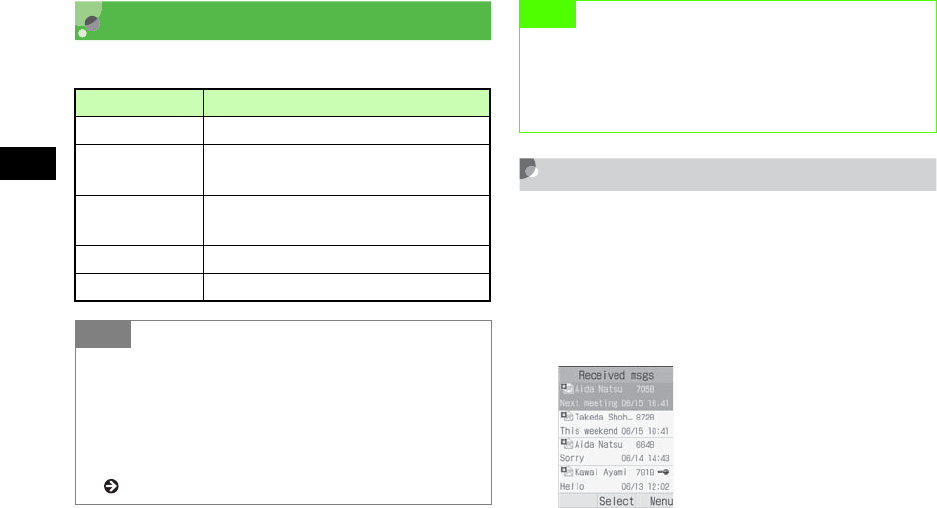
19-2
Messaging Folders
19
Viewing Messages
Five mailboxes are created on 920SC.
Message Lists
From list of Received msgs or Unsent msgs, view the
messages.
APress w
BSelect Received msgs or Unsent msgs
Mailbox Message type
Received msgs Received messages.
Drafts Message drafts saved before
completion.
Unsent msgs Messages unsent because of failure or
cancellation, or waiting to be sent.
Sent msgs Messages already sent.
Templates S! Mail or SMS saved as templates.
Tip
• To check message memory status
aPress w
bSelect Memory status
cSelect SMS,S! Mail (By count), or S! Mail (By size)
• To create a personal folder in Received msgs
( P.19-15)
Note
• When adding a new SMS to Drafts, Unsent msgs, or
Sent msgs cause the maximum number of allowed
message to be exceeded, the oldest SMS is deleted
automatically.
Received Message List
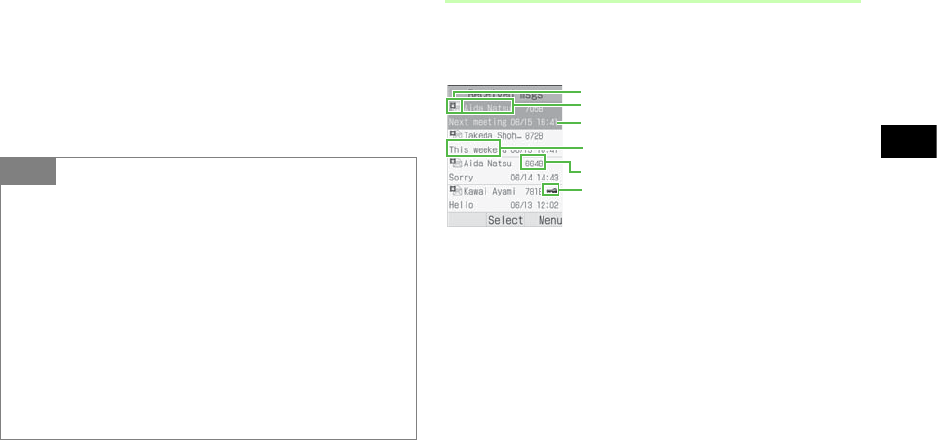
19-3
Messaging Folders
19
From a personal folder in Received msgs
Select a folder; then Phone Password entry window
appears, enter Phone Password and press c
(Confirm)
CSelect a message
Message List Window
The following information appears in lists for each
Messaging folder.
Tip
• In Message window, press * or #
Switch between previous and next window.
• When pressing Side Keys nb in SMS window
Press Side Key n to enlarge font size; press Side Key
b to reduce font size.
• To view a sent message
aIn Step 2, select Sent msgs
bHighlight a message, select Menu →View
• To view S! Mail details
In Step 3, highlight a message, select Menu →Details
Received Message List
Message type icon
Copy protected file indicator
Sender or recipient
Reception date
Subject or the top of the message
Message size
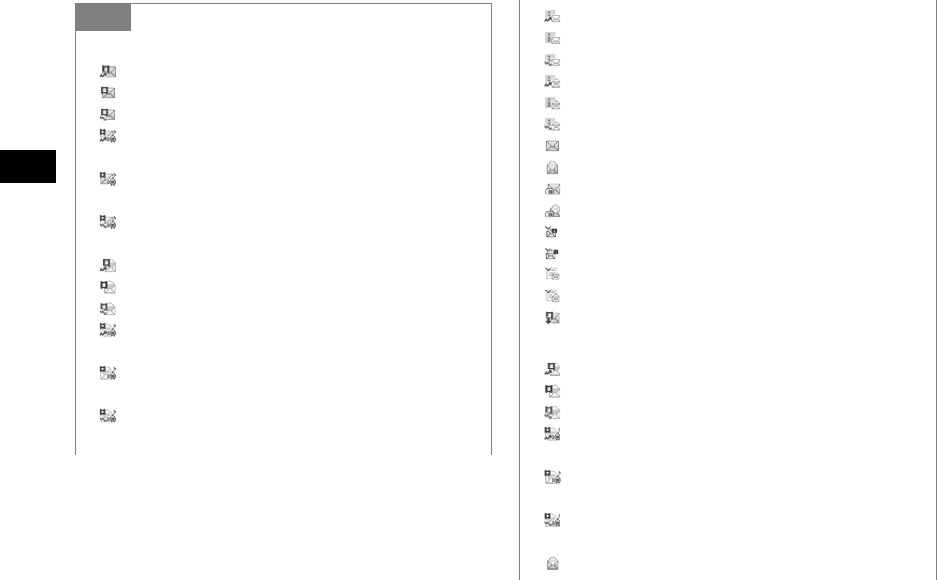
19-4
Messaging Folders
19
Tip
• Received Message Indicators
: Unread S! Mail (Priority: High)
: Unread S! Mail (Priority: Standard)
: Unread S! Mail (Priority: Low)
: Unread S! Mail (Priority: High; Video and/or
sound inserted)
: Unread S! Mail (Priority: Standard; Video and/or
sound inserted)
: Unread S! Mail (Priority: Low; Video and/or
sound inserted)
: Read S! Mail (Priority: High)
: Read S! Mail (Priority: Standard)
: Read S! Mail (Priority: Low)
: Read S! Mail (Priority: High; Video and/or sound
inserted)
: Read S! Mail (Priority: Standard; Video and/or
sound inserted)
: Read S! Mail (Priority: Low; Video and/or sound
inserted)
: Unread reception notification (Priority: High)
: Unread reception notification (Priority: Standard)
: Unread reception notification (Priority: Low)
: Read reception notification (Priority: High)
: Read reception notification (Priority: Standard)
: Read reception notification (Priority: Low)
: Unread SMS
: Read SMS
: Unread SMS (saved in USIM Card)
: Read SMS (saved in USIM Card)
: Unread S! Mail Delivery Report
: Read S! Mail Delivery Report
: Unread SMS Delivery Report
: Read SMS Delivery Report
: Receiving S! Mail
• Draft Message Indicators
: S! Mail (Priority: High)
: S! Mail (Priority: Standard)
: S! Mail (Priority: Low)
: S! Mail (Priority: High; Video and/or sound
inserted)
: S! Mail (Priority: Standard; Video and/or sound
inserted)
: S! Mail (Priority: Low; Video and/or sound
inserted)
: SMS
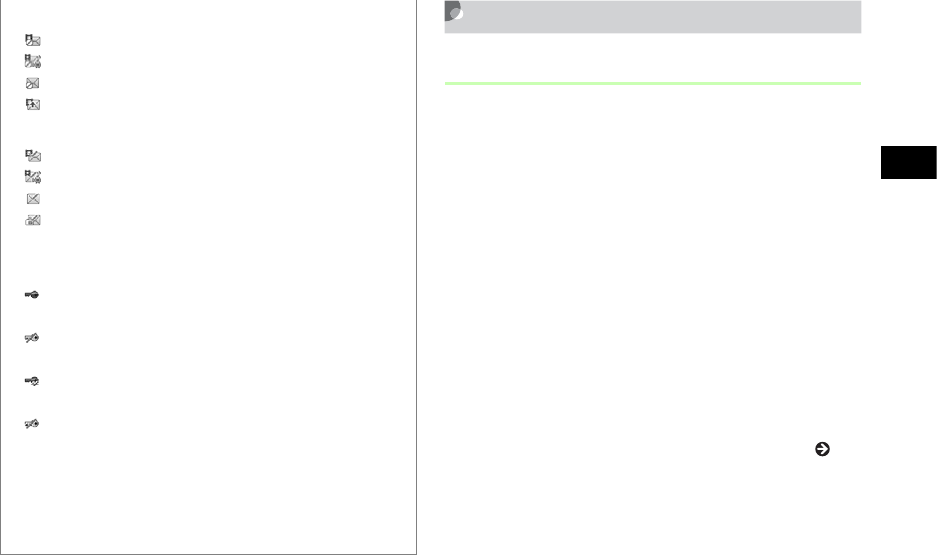
19-5
Messaging Folders
19
Message Window Operations
Saving to Phonebook
Save phone number/mail address of the sender/
recipient to Phonebook while viewing Message
window (Received)/Reception notification window.
AIn Message window, select Menu i
Add to Phonebook i Phone or USIM
BSelect saving method
To save as a new entry
Select New
To save to an existing entry
aSelect Update
bSearch Phonebook and select an entry ( P.5-
11)
CSelect an icon
• Unsent Message Indicators
: S! Mail
: S! Mail (Video and/or sound inserted)
: SMS
: Sending S! Mail
• Sent Message Indicators
: S! Mail
: S! Mail (Video and/or sound inserted)
: SMS
: SMS (saved in USIM Card)
• Copy protected file indicators
Attached/inserted Copy protected file indicators
: Transferable, Content Key has already been
purchased
: Transferable, Content Key has not been purchased
or otherwise obtained
: Nontransferable, Content Key has already been
purchased
: Nontransferable, Content Key has not been
purchased or otherwise obtained
• While Secret Mode is set to Hide
Phonebook Secret Mode is set to Secret - On for
message receiver/sender information; only the number
or mail addresses appear (instead of the name).
19-6
Messaging Folders
19
DAdd additional items as required
( P.5-4)
EPress w (Save)
Saving as an S! Mail Template
Save received or sent S! Mail as an S! Mail template.
AIn Message window, select Menu i
Save as S! Mail template
Message Window Menu
Note
• When an underlined phone number, mail address
or URL is highlighted in a message window, Add to
Phonebook does not appear in Menu.
Tip
• If a message appears indicating name duplication
aPress c
bPress c (Select) and enter the name
cPress w (Save)
• When a name entry window appears
aPress c (Select) and enter the name
bPress w (Save)
Note
• While viewing S! Mail sent via PC, etc., Save as
S! Mail template does not appear in Menu.
Item Description
Reply to all Reply to all recipients entered in S!
Mail.
Forward Forward received message.
Download
content key Purchase or acquire Content Key.
Delete Delete displayed messages.
Save as S! Mail
template
Add displayed S! Mail as an S! Mail
template ( P.19-6).
Save items Save files attached or inserted in an S!
Mail to Data Folder ( P.19-14).
19-7
Messaging Folders
19
Replying to a Message
APress w (Reply) on the Message
window
To reply to all recipients entered in the S!
Mail
In Message window, select Menu → Reply to all
BCreate a message and press
w (Send)
Copy Copy the specified part from Address
list, Subject or Text ( P.4-11).
Add to
Phonebook
Save number or mail address to
Phonebook or USIM Card Phonebook
( P.19-5).
Play Play Slide Show, inserted video, or
sound ( P.18-5).
Details Confirm S! Mail size, etc.
3D Pict. Disp. Display a message in 3D Pictogram
( P.21-6).
Move to Phone/
USIM
Move an SMS received or being sent
to handset or USIM Card ( P.19-20).
Item Description
19-8
Messaging Folders
19
Forwarding a Message
Forward a received or sent message to another
recipient.
APress w and select Received msgs
or Sent msgs
BHighlight a message, select Menu i
Forward
CCreate a message and press
w (Send)
Tip
• The subject of message replies
The subject of an S! Mail reply is prefixed with "RE:"
automatically.
• While Reply with text is On
Under two line breaks, received message text is
automatically entered in Text entry field.
Note
• If shared memory ( P.26-14) is less than 464KB,
you cannot reply to a message. To reply to the
message, delete messages.
Tip
• The subject of forwarded messages
The subject of a forwarded S! Mail is prefixed with
"FW:" automatically.
Note
19-9
Messaging Folders
19
Sending from Drafts
APress w and select Drafts
BHighlight a message and press
w (Send)
When Send does not appear
aPress c (Edit)
bEnter address and press w (Send)
Sending from Unsent
Messages
Send messages directly from Unsent Messages.
APress w and select Unsent msgs
BHighlight a message and press
w (Send)
To send after modifying
aHighlight a message, select Menu →Edit
bEdit the message and press w (Send)
Deleting a Message
Deleting Specified Message(s)
Delete multiple specified messages. Alternatively,
specify and delete saved templates.
APress w
• If shared memory ( P.26-14) is less than 464KB,
you cannot forward a message. To forward the
message, delete messages.
19-10
Messaging Folders
19
BSelect a mailbox
To delete a saved S! Mail or SMS templates
Select Templates →S! Mail templates or SMS
templates
CDelete a Message or Template
To delete one message or template
aHighlight a message or template
bMenu →Delete →Selected →Yes
To delete multiple messages or templates
aMenu →Delete →Multiple
bCheck a message or template to delete
cRepeat step b to check all of the target
messages or templates
dPress w (Delete) and proceed to step f
when all are not checked
eEnter Phone Password and press c
(Confirm)
fSelect Yes
Tip
• To view the contents of multiple messages or S!
Mail templates while selecting them
aRepeat Steps 1 and 2
bMenu →Delete →Multiple
cHighlight a message or S! Mail template, select
Menu →View
• To collectively select/deselect multiple messages or
S! Mail templates
aRepeat Steps 1 and 2
bMenu →Delete →Multiple
cMenu →Mark all or Unmark all
• To collectively select/deselect multiple SMS
templates
aPerform Steps 1 and 2
bMenu →Delete →Multiple
cPress o (Mark all/Unmark all)
Note
• While highlighting an S! Mail template designated
as default, Delete does not appear in Menu.

19-11
Messaging Folders
19
Designating & Deleting a
Mailbox
APress w to select Settings i
Delete all
BCheck a mailbox to delete
CRepeat Step 2 to check all target
mailboxes
DPress w (Delete)
EEnter Phone Password, and press
c (Confirm) to select Yes
Deleting All Messages from a
Mailbox
Delete saved templates all at once.
APress w
BSelect a mailbox
To delete an S! Mail or SMS template
Select Templates →S! Mail templates or SMS
templates
CSelect Menu i Delete i All
DEnter Phone Password, press
c (Confirm) and select Yes
19-12
Messaging Folders
19
Linked Information
If Message window or Notification details window
contains an underlined number, mail address, or
URL; save it to Phonebook or use it to place a call,
send messages, save bookmark, or access the site.
As linked information, following number of
characters can be recognized for each S! Mail Font
size setting:
Maximum of 45 lines (1,035 characters) for
Standard,
54 lines (1,026 characters) for Large, and 41 lines
(1,025 characters) for Small.
Saving to Phonebook
AIn Message window, select a phone
number, mail address, or URL and
select Add to Phonebook i Phone or
USIM
BSelect saving method
To save as a new entry
Select New
To save to an existing entry
aSelect Update
bSearch Phonebook and select an entry ( P.5-
11)
CSelect an icon
DAdd additional items as required
( P.5-4)
EPress w (Save)
Note
• Personal folders cannot be deleted by this
operation. To delete Personal folders, select
Messaging i Settings i Delete all
• You cannot delete the S! Mail template designated
as the default.
19-13
Messaging Folders
19
Saving as a Bookmark
AIn Message window, select a URL and
select Bookmarks
BPress c (Select) to enter a title and
press w (Save)
Initiating a Call, Sending a
Message, or Accessing the Web
Use phone number/mail address/URL information in
Message window or Notification details window.
AIn Message window, use the available
links
To initiate a Voice Call
Select a phone number and select Voice call
To initiate a Video Call
Select a phone number and select Video call
To create and send a message
aSelect a phone number or mail address and
select Create msg
bCreate a message and press w (Send)
To access the Web
Select URL and select Go to URL
Note
• If URL is selected, USIM is unselectable in Step 1.
Tip
• Operations in Notification details window
Phone number/mail address/URL information except
in From (other party's phone number) can be used.
19-14
Messaging Folders
19
Using an Attachment
Viewing an Attachment
Open images/play sounds attached to S! Mail. For
vCard/vCalendar, open Details to see contents.
ASelect a file and select Open file
Saving Attachments to Data
Folder
Save S! Mail attachment/inserted files to 920920SC.
AIn Message window, select Menu i
Save items
BPerform file selection operation
To select and save one file
aHighlight a file
bPress c (Select) or select Menu →Selected
Tip
• To save a file in Data Folder directly
In Message window, select a file →Save item
• To save vCard/vCalendar to Phonebook/Calendar
directly
In Message window, select a file →Register to
phonebook or Register to calendar
• To save vCard/vCalendar to Phonebook/Calendar
after viewing
aPerform Step 1
bPress c (Register)
• When a file requiring Content Key is attached
If you perform Step 1, a message appears and you
cannot open the file. To view the file, select Save item
in Step 1 to save and purchase/obtain Content Key
from Data Folder ( P.12-15).
• When an attachment has a restriction (only one
time playback allowed)
When you perform Step 1, a message appears notifying
you that only one time playback is allowed.
19-15
Messaging Folders
19
To select and save multiple files
aMenu →Multiple
bCheck the files to save
cRepeat step b to check all target files
dPress w (Save)
To save all files
Menu →All
Managing Folders
Create personal folders in Received msgs; organize
messages by message type. Activate Security for
personal folders.
Create Folder
APress w and select Received msgs
BSelect Menu i Create folder
CEnter a name
Edit Folder
Change personal folder names.
APress w and select Received msgs
BSelect Menu i Edit folder
CEnter a name
Tip
• To select or deselect multiple files at once
aIn Step 2, select Menu → Multiple
bPress o (Mark all/Unmark all)
• When a popup message appears indicating the file
name is a duplicate while saving
aPress c
bPress c (Select) and change the file name
cPress w (Save)
Note
• When a file is highlighted in Message window, Save
items does not appear in Menu.
19-16
Messaging Folders
19
Security ON/OFF
Activate Security to require Phone Password entry to
open a personal folder.
APress w and select Received msgs
BHighlight a folder, select Menu i
Security ON/OFF
CEnter Phone Password and press
c (Confirm), then select Yes
Moving Messages
APress w and select Received msgs
To move messages from a personal folder
Select the personal folder
BHighlight a message, select Menu i
Move i Selected
To move multiple messages
aSelect Multiple
bCheck messages to move and press w
(Move)
CSelect a destination folder
To return messages to Received msgs
Select Received msgs
Tip
• Secure Folders
appears.
• When a Secure Folders is selected
Phone Password entry window appears. Enter Phone
Password and press c; Message list appears.
19-17
Messaging Folders
19
Distribution Rule
Sort and save the received messages automatically
by sender's phone number, mail address, etc. to the
specified folders. Subjects in S! Mail or text in SMS
can also be used as a sorting rule. Up to 20 rules can
be set per folder.
APress w and select Received msgs
BHighlight a folder and select Menu i
Distribution rule
CPerform operations to set rules
To set phonebook entry as a rule
aSelect Blank field and select Sender →
From phonebook
bSearch Phonebook and select an entry ( P.5-
11)
cHighlight a phone number or mail address
and press c (Select)
To enter phone number/mail address directly
aSelect Blank field and select Sender →
Enter Sender
bEnter a phone number or mail address
To set phonebook category as a rule
aSelect Blank field and select Sender →
From category
bHighlight a category and press c(Select)
Categories saved on USIM Card cannot be set as a
rule.
To set text as a rule
aSelect Blank field and select Subject
bEnter text to set as a rule
DPress w (Done)
Tip
• To change saved rules
aAfter Step 2, highlight a field to change and select
Menu → Replace rule
bRepeat Steps 3 and 4
19-18
Messaging Folders
19
Delete Folder
APress w and select Received msgs
BHighlight a personal folder, select
Menu i Delete folder
CEnter Phone Password and press
c (Confirm)
DSelect Yes
From Message List
Saving to Phonebook
APress w and select Received msgs,
Unsent msgs or Sent msgs
BHighlight a message, select Menu i
Add to Phonebook
CSelect a phone number or mail
address and select Phone or USIM
DSelect saving method
To save as a new entry
Select New
To save to an existing entry
aSelect Update
bSearch Phonebook and select an entry ( P.5-
11)
• To delete saved rules
After Step 2, highlight a field to delete and select Menu
→ Delete
• To delete all saved rules
After Step 2, highlight a field to delete and select Menu
→ Delete all → Yes
19-19
Messaging Folders
19
ESelect an icon
FAdd additional items as required
( P.5-4)
GPress w (Save)
Sorting Messages
Available sorting types to display vary by Message
list window of the mailbox.
AIn Message list window, highlight a
message and select Menu i Sort by
BSelect an item
To sort in descending order of date
Select Date
To sort by sender
Select Sender
To sort by recipient
Select Recipient
To view read and unread messages separately
Select Unread to read or Read to unread
To view messages separately by type
Select Message type
To sort by subject
Select Subject
To sort in descending order of message size
Select Size
Tip
• Listing order when selecting Message type
SMS → S! Mail (Including message notification) →
SMS saved in USIM Card.
•Sender, Recipient, or Subject list order
Single-byte symbol →single-byte number → single-
byte alphabet →single-byte Katakana →double-byte
symbol →double-byte Hiragana →double-byte
Katakana →Kanji → double-byte number → double-
byte alphabet. But if Subject is selected, messages with
no subject are listed at the top.
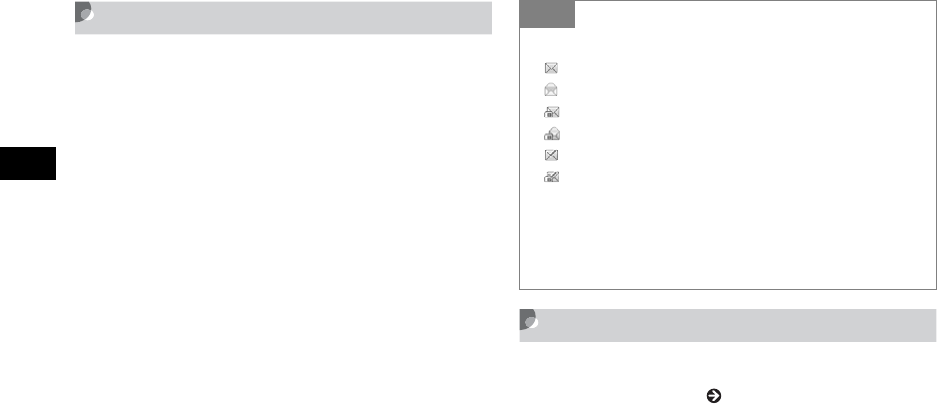
19-20
Messaging Folders
19
Move to Phone/Move to USIM
Move received SMS or sent SMS.
Save up to ten messages to USIM Card.
APress w and select Received msgs
or Sent msgs
BMove messages
To move from USIM Card to 920SC
aHighlight an SMS saved on USIM Card
bMenu →Move to phone
To move from 920SC to USIM Card
aHighlight an SMS saved in 920SC
bMenu →Move to USIM
Saving an S! Mail Template
For more information about saving an SMS template,
see "SMS Templates" ( P.4-16).
APress w and select Templates i S!
Mail templates
BSelect Menu i Add new
Tip
• Message List SMS Indicators
: Unread SMS
: Read SMS
: Unread SMS (USIM Card)
: Read SMS (USIM Card)
: Sent SMS
: Sent SMS (USIM Card)
• When moving received SMS from personal folders
to USIM Card
A confirmation appears. Select Yes to complete the
move.

19-21
Messaging Folders
19
CSelect Subject field or Text entry field
and enter a subject or message
DPress w (Save)
Tip
• To view an S! Mail template being created
In Step 3, select Menu →Preview
• To display and view an S! Mail template
In Step 2, highlight an S! Mail template, select Menu
→View
• To modify an S! Mail template
aIn Step 2, select a saved S! Mail template and
perform modification operation
bPress w (Save)
• To delete an S! Mail template
Perform the same operation as for a message ( P.19-
9).
• To copy, cut, or paste characters ( P.4-11)
• To use contents of an SMS template or Phonebook
( P.4-10)
• To change font size
aIn Step 3, select Text entry field, select Menu →
Font Size
bSelect any of Small,Standard, or Large
• To set/release the prediction entry function
(P.4-13)
• Setting Slide Show/inserting a file
aIn Step 3, select Menu →Insert or Create & Insert
bPerform setting, attaching, or inserting operation
( P.18-13, 18-17, 18-21)
• To view a text in 3D Pictogram
In Step 3, highlight Text entry field, select Menu →3D
Pict.Disp.
19-22
Messaging Folders
19
Message List Menu
Item Description
Retrieve Retrieve complete S! Mail from Mail
Server.
Reply Reply to the sender ( P.19-7).
Reply to all Reply to all recipients entered in S!
Mail ( P.19-7).
Forward Forward received message ( P.19-8).
Move Move received mails to a personal
folder ( P.19-16).
Create folder Create a personal folder ( P.19-15).
Distribution rule
Save received messages to the
specified folders automatically
( P.19-17).
Edit folder Change personal folder name ( P.19-
15).
Security ON/
OFF
With Security activated, enter Phone
Password to check mails in a personal
folder ( P.19-16).
Delete folder Delete a personal folder ( P.19-18).
View Open sent messages or S! Mail
templates ( P.19-3, 19-21).
Edit Edit and send unsent message ( P.19-
9).
Delete Delete messages or templates ( P.19-
9, 19-11).
Move to phone/
Move to USIM
Move SMS between 920SC and
USIM Card ( P.19-20).
Sort by Sort messages in Message List
window ( P.19-19).
Message list
view
Select window type for Message List
( 21-7).
Add to
Phonebook
Save number or mail address to
Phonebook or USIM Card Phonebook
( P.19-18).
Details Check memory status in a personal
folder or confirm S! Mail size, etc.
Cancel
retrieving
Stop message retrieval from Mail
Server.
Send Send message using S! Mail template
or SMS template ( P.18-16).
Item Description

19-23
Messaging Folders
19
Add new Save a new S! Mail template or SMS
template ( P.4-16, 19-20).
Tip
• Message List View setting changed via Menu
becomes invalid when Message list window is
closed.
Item Description

19-24
Messaging Folders
19

20
Server Mail
Message List ................................................20-2
Acquire Mail List ......................................20-2
Download ..................................................20-2
Delete ........................................................20-2
Remote Forward .........................................20-3
20-2
Server Mail
20
Message List
View Mail Server message list. Retrieve, forward, or
delete messages.
Acquire Mail List
APress w and select Server mail box
BSelect Acquire Mail List
Download
APress w and select Server mail box
BSelect Mail List
CHighlight a message, select Menu i
Download
Delete
APress w and select Server mail box
BSelect Mail List
CDelete unwanted messages
Tip
• To check Mail Server usage state
aIn Step 2, select Server mail volume
bPress c (Update) and select Yes to update to the
latest information
Tip
• To receive all messages from Message list window
In Step 2, select Retrieve All Mails
20-3
Server Mail
20
To delete one message
aHighlight a message
bSelect Menu →Delete →Selected →Yes
To delete multiple messages
aSelect Menu →Delete →Multiple
bCheck a message to delete
c
Repeat step
b
to check all target messages to
delete
d
Press
w
(Delete) and go to step
f
if
unmarking all
eEnter Phone Password and press c
(Confirm)
fSelect Yes
To delete all messages
aSelect Menu →Delete →All
bEnter Phone Password, press c (Confirm)
and select Yes
Remote Forward
Forward a message from Mail Server to another
address. Contents except the address are sent without
modification.
APress w and select Server mail box
BSelect Mail List
CHighlight a message, select Menu i
Server mail forward
DEnter an address
To directly enter an address
aSelect Entry field and select Enter Recipient
bEnter a phone number or mail address
Tip
• To select/deselect multiple messages at once
aPerform Steps 1 and 2
bSelect Menu →Delete →Multiple
cSelect Menu →Mark all or Unmark all

20-4
Server Mail
20
To enter an address using a log
Select Entry field and select a displayed log
entry
To select an address from Phonebook
aSelect Entry field and select From
Phonebook
bSearch Phonebook and select an entry ( P.5-
11)
cHighlight a phone number or mail address
and press c (Select)
To select an address via Phonebook category
aSelect Entry field and select From Category
bSelect a Category, with/without an Address
selection window, highlight an address and
press w (Select)
ESelect Menu i Send

20-5
Server Mail
20
Tip
• Message subject
Forwarded message Subject is automatically prefixed
with "FW:".
• To set other sending options for a message
aIn Step 5, select Menu →Sending options
bSelect an item and perform operations to set
( P.21-2)
cPress w (Apply)
• To delete an address
In Step 5, highlight a recipient, select Menu →Remove
• To change the address type to To, Cc, or Bcc
aIn Step 5, highlight a recipient, select Menu →
Change recipients
bSelect any of To,Cc, or Bcc

20-6
Server Mail
20

21
Other Message Settings
Customizing Handset Address ..................21-2
S! Mail Settings ...........................................21-2
Sending Settings........................................21-2
Receiving Settings.....................................21-3
Message Size.............................................21-3
Default Style..............................................21-4
SMS Settings ...............................................21-5
3D Pictogram Settings ................................21-6
Message Notice View................................21-7
Message List View ....................................21-7
Reply with text ............................................21-7
21-2
Other Message Settings
21
Customizing Handset
Address
Change your mail address (alphanumerics before @)
used for sending and receiving S! Mail to/from PC,
etc. The default account name consists of random
alphanumerics.
APress w and select Settings i S!
Mail i Mail Address Setting
BFollow onscreen instructions
S! Mail Settings
Sending Settings
Set Sending options. Alternatively, set options for
each
S! Mail to send ( P.18-12).
APress w and select Settings i
S! Mail iSending options
BSelect an item
Message priority
aSelect Priority
bSelect a level and press c
Mail Server Retention Period (before expiry)
aSelect Expiration
bSelect an item and enter a time if you
selected Custom time (Hour)
cPress c
Mail Server Retention Period (before
delivery)
aSelect Delivery
bSelect an item and press c
Default
Setting
■Priority: Normal ■Expiration: Maximum
■Delivery: Immediately
■Request delivery report: Unchecked
21-3
Other Message Settings
21
Delivery report request
Check Request delivery report
CPress w (Save)
Receiving Settings
Set Receiving options.
APress w and select Settings i
S! Mail iReceiving options
BSelect an item
CPress w (Save)
Message Size
Cancel outgoing messages exceeding specified size.
APress w and select Settings i S!
Mail iMessage size
BSelect an item and press c (Save)
Tip
• When retention set in Expiration expires
The S! Mail is deleted automatically from Mail Server.
• When retention is set in Delivery
When the specified time has elapsed, the S! Mail is
sent from Mail Server.
• When Request delivery report is checked
When an S! Mail is sent from Mail Server, a
distribution report is sent to your handset.
Default
Setting
■Auto download
Tip
•Receiving options Items
Auto download : Receive automatically.
Manual : Receive only reception notification.
Default
Setting
■300KB
21-4
Other Message Settings
21
Default Style
Set font color, font style, background color, and Slide
Show time intervals. Alternatively, change display
settings for each S! Mail sent ( P.18-14).
APress w and select Settings i S!
Mail i Default style
BSet items
Font color
aSelect Font colour
bUse a to highlight a color and press c
Font size
aSelect Font Size
bSelect an item and press c
Background color
aSelect Background colour
bUse a to highlight a color and press c
Slide Show time intervals
aSelect Slide interval
bSelect an item, with Custom time (seconds),
enter a time
cPress c
CPress w (Save)
Default
Setting
■Font color: Black ■Font size: Large
■Background color: White
■Slide interval: Custom time (3 seconds)
21-5
Other Message Settings
21
SMS Settings
Set Sending options. Alternatively, set options for
each SMS message to send ( P.18-12).
APress w and select Settings i SMS
BSet items
Delivery Report
aSelect Delivery report
bSelect an item and press c (Select)
Center Address
aSelect Centre address
bHighlight an item to set and press & c
(Select)
cEnter Center Address
Character encoding
aSelect Character support
bSelect an item and press c (Select)
CPress c (Save)
Default
Setting
■Delivery report: Off
■Center address: +819066519300
■Character support: Automatic
Tip
• When Delivery report is checked
When an SMS is sent from Mail Server, a delivery
report is sent to your handset.
• To edit Center Address
aAfter Step 2, highlight Center Address to edit
bPress w (Edit)
cEdit Center Address and press c (Save)
Note
• Do not change Center Address unless instructed by
SoftBank.
21-6
Other Message Settings
21
3D Pictogram Settings
Animate text, pictograms or emoticons in message
text. Activate/cancel 3D Pictogram; set background
color/speed.
APress w and select Settings i
General i 3D pictogram
BSet items
3D Pictogram
aSelect Display type
bSelect an item and press c (Save)
Background & font colors
aSelect Background
bPress s, select a pattern and press c
(Save)
Running speed
aSelect Running speed
bSelect an item and press c (Save)
Default
Setting
■Display type: OFF
■Background: Pattern 1
■Running Speed: Normal Tip
•Display type Items
Always : Use 3D Pictogram when viewing
every message.
New mails only : Use 3D Pictogram only when
viewing an unread message.
OFF : Not use 3D Pictogram.
Note
• Mail attachments, such as slide shows, may not
appear properly in 3D Pictogram.

21-7
Other Message Settings
21
Message Notice View
Select Sender,Subject,Sender & Subject or Off for
incoming message notices appearing at top of
Display.
APress w and select Settings i
General i Message notice view
BSelect an item and press c (Save)
Message List View
Select the setting from 2 line,1 line (subject) or
1 line (sender).
APress w and select Settings i
General i Message list view
BSelect an item and press c (Save)
Reply with text
Activate to include original message text in Reply.
APress w and select Settings i
General i Reply with text
BSelect an item and press c (Save)
Default
Setting
■Sender
Default
Setting
■2 line
Default
Setting
■Off
Tip
•Reply with text Items
On : Reply with text including received message text.
Off : Reply with text not including received message
text.
21-8

26-23
Appendix
26
Warranty & Service
Warranty
The purchased 920SC comes with a Warranty.
• Check the shop and date of purchase.
• Read through the contents of the Warranty and
keep it in a safe place.
• The warranty period can be found in the Warranty.
SoftBank is not liable for damage to you or a third
party from missed calls, etc. due to handset failure or
malfunction, etc.
Repair Requests
Before submitting 920SC for repair, consult the
"Troubleshooting" section for a solution.
If a problem persists, contact Customer Service
( P.26-24) or the nearest SoftBank shop; be
prepared to describe problem in detail.
• During the warranty period, repairs will be made
under the terms and conditions described in the
warranty.
• After the warranty period, repairs will be upon
request; if said repairs can be made, you will be
charged for them.
Note
• 920SC files and settings may be lost or altered due
to accidents or repairs. Keep a copy of important
files, etc. like Phonebook entries. SoftBank is not
liable for damage resulting from accidental loss or
alteration of 920SC files (Phonebook, Data Folder,
etc.) or settings.
• Disassembling or modifying this product may be a
violation of the Radio Law. Note that SoftBank will
not accept repair requests for disassembled or
modified products.
26-24
Appendix
26
Customer Service
For SoftBank handset or service information, call General Information. For repairs, call Customer Assistance.
Call these numbers toll free from landlines.
SoftBank Customer Center SoftBank International Call Center
From a SoftBank handset, dial 157 for General
Information,
or 113 for Customer Assistance, toll free
From outside Japan, dial +81-3-5351-3491
(Please take care to dial correctly. International charges will
apply.)
Subscription Areas Contact
Hokkaido, Aomori, Akita, Iwate, Yamagata, Miyagi, Fukushima,
Niigata, Tokyo, Kanagawa, Chiba, Saitama, Ibaraki, Tochigi,
Gunma, Yamanashi, Nagano, Toyama, Ishikawa, Fukui
General Information 0088-240-157 (Toll-
free)
Customer Assistance 0088-240-113 (Toll-
free)
Aichi, Gifu, Mie, Shizuoka
General Information 0088-241-157 (Toll-
free)
Customer Assistance 0088-241-113 (Toll-
free)
Osaka, Hyogo, Kyoto, Nara, Shiga, Wakayama
General Information 0088-242-157 (Toll-
free)
Customer Assistance 0088-242-113 (Toll-
free)

26-25
Appendix
26
Hiroshima, Okayama, Yamaguchi, Tottori, Shimane, Tokushima,
Kagawa, Ehime, Kochi, Fukuoka, Saga, Nagasaki, Oita,
Kumamoto, Miyazaki, Kagoshima, Okinawa
General Information 0088-250-157 (Toll-
free)
Customer Assistance 0088-250-113 (Toll-
free)
Subscription Areas Contact

26-26
Appendix
26

SoftBank 920SC User
May 2007 Version 1
For more information, please
visit your nearest SoftBank
SOFTBANK MOBILECorp.
Model Name: SoftBank 920SC
Manufacturer:Samsung Electronics
Co., Ltd.
To help protect the environment and
recycle valuable resources, mobile
phone, and PHS shops displaying the
above mark accept mobile phones,
batteries, and chargers of all
manufacturers.
Mobile phones, batteries, and chargers
collected for recycling cannot be
returned.
To protect your privacy, delete any
personal information (telephone numbers,