Samsung Electronics Co NP-P60 Notebook PC User Manual 2
Samsung Electronics Co Ltd Notebook PC Users Manual 2
Contents
- 1. Users Manual 1
- 2. Users Manual 2
Users Manual 2

72 Users Manual
Refer to setting up the advanced settings by clicking on the Advanced button.
Network authentication: The network authentication options include an Open
System and Shared Key. When selecting Open Systems, no authentication is
applied (however, encryption is supported). When selecting Shared Key, a WEP
key is used for authentication. The default setting is Open System.
Data encryption (WEP): The IEEE 802.11 WEP (Wired Equivalent Privacy)
standard defines two levels of encryption, a 64-bit key (this is sometimes
represented by 40bits) and a 128-bit key.
Key index: Select the current encryption key index used by the access point out of
1 to 4.
Using an encryption key: Click Use pass phrase to activate, and enter 5 (for 64-
bit) or 13 (for 128-bit) alphanumeric characters (represented by 0-9, a-z, or A-Z).
6. The Done window appears, click OK.
When a wireless connection to an access point is established, the connection icon
( ) appears in front of the name of the connected profile.

Connecting to the Internet 73
Using Samsung Network Manager
Samsung Network Manager is a program that has been developed to enable users to use
the network easily.
Samsung Network Manager provides the following features.
xYou can easily set up the network and printer settings.
xYou can immediately use the network without defining new network
settings again after moving locations.
By setting the network settings (IP address, printer settings, etc.) for each
location, you can immediately access the network without following network
setting procedures each time regardless of your location.
xYou can easily share Internet Access.
You can share your Internet connection by setting up a computer with 2 LAN
interfaces (wired and wireless, or 2 wired LAN) as the sharing server. Then,
you can access the Internet on a sharing client by connecting to the sharing
server.
xYou can diagnose the network status.
You can diagnose the network status when the network is not properly
connected.
Using the Network
This section describes the procedures to connect to the Internet by setting up a network.
The setting up procedures include the procedures to add a printer to the network.
The setting up procedures are different for wired and wireless LAN
connections.
To use a wireless LAN, there should be a wireless LAN AP available nearby.
Setting Up a Network
1. To use a wired LAN, connect the LAN cable to the LAN port.
To use a wireless LAN, slide the Wireless LAN Latch into the ON position, if the
wireless LAN is turned off.Op4P
When the wireless LAN is turned on, the Wireless LAN Operation LED ( )
lights up.
74 Users Manual
2. Run Samsung Network Manager.
Select Start > All Programs > Samsung > Samsung Network Manager >
Samsung Network Manager or double click the Samsung Network
Manager( ) icon on the Desktop.
3. Click the Add button.
4. Select a network location icon and enter the name of the location (e.g. Home).
Click the Next button.
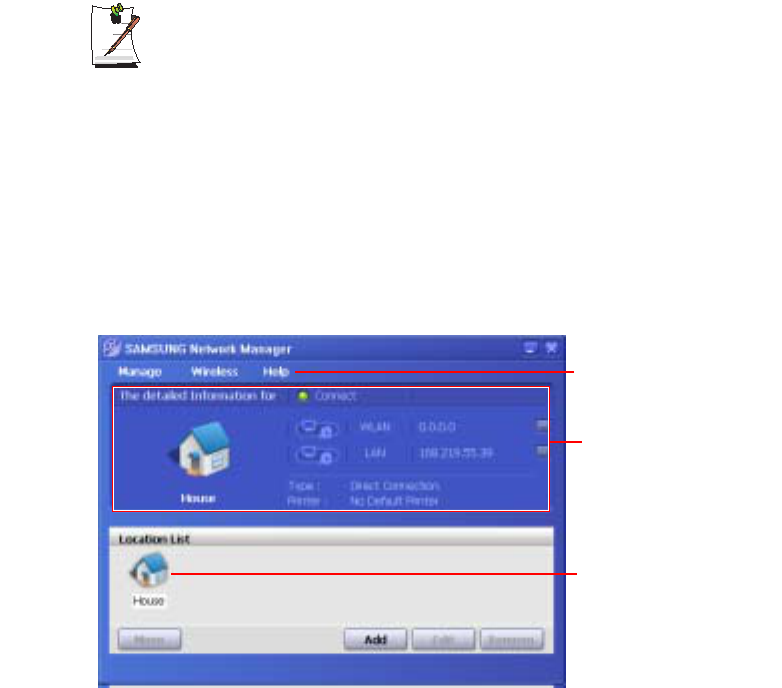
5. Select Internet direct connection and click the Next button.
6. Select the LAN device, setup the IP address and click the Next button.
Select Device
Select a device to be connected to the Internet. Select either Wired LAN or
Wireless LAN.
Select Device
Setup IP Address
Connecting to the Internet 75
Setting up the IP Address
To allocate an IP address automatically (DHCP), select Get IP Automatically.
To use a static IP address, unselect Get IP Automatically and enter an IP
address. For IP address information, ask your network administrator.
7. When the Printer Setting window appears, click Finish.
To add a printer, click Add Printer. The Add Printer Wizard appears. Set up the
printer according to the instructions displayed on the screen.
When the printer has been added, click the Show printer button, select the newly
added printer and then click the Finish button.
To not add a printer, select No Default Printer and then click the Finish
button.
When the network setting is complete, the ’Do you want to move to newly
added location now?’ message appears. If you select ’Yes’, the network
settings for the added location are applied.
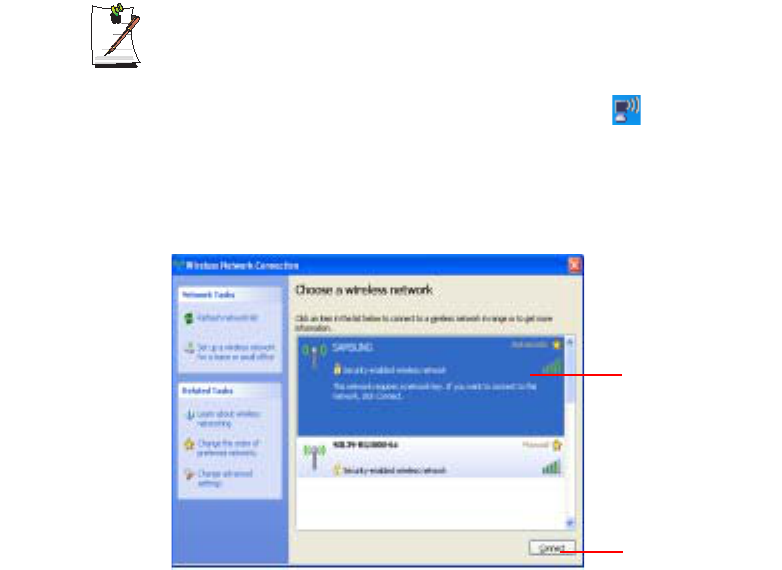
When the network settings for the added location are applied, the added place
and the corresponding network connection information is displayed in The
detailed Information for window.
When the network setting is complete, an icon for the added location is created within
the Saved Locations window. Now you can use the Internet or add a new network
location.
Menu
Current Place
Information
Saved Locations
76 Users Manual
Wireless LAN AP Connection Procedures
To use a wireless LAN, first connect to a wireless LAN AP and then you can
access the network even when moving location. Or moving location and then
you can access the network even when connecting to a wireless LAN AP
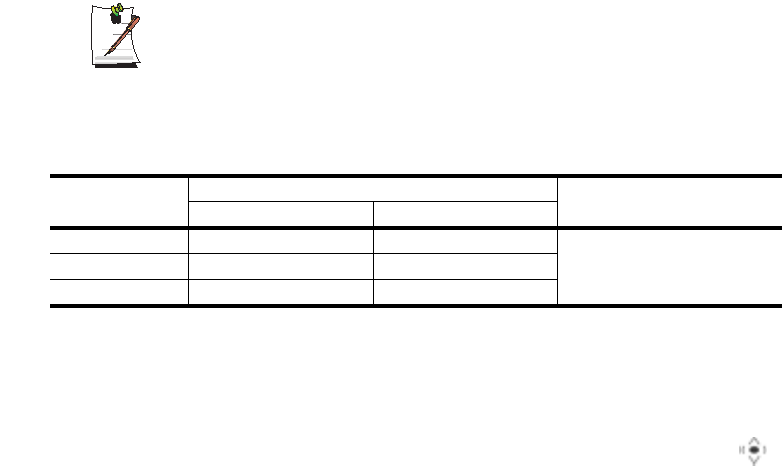
1. Right-click over the Wireless Network Connection ( ) icon on the
Taskbar and click View Available Wireless Networks.
2. Click Search AP from the Wireless menu to search for wireless LAN APs.
Select an available wireless network (e.g. SAMSUNG) and click the Connect
button. For information on available wireless LAN APs, ask your network
administrator.
3. The network key (security key) input window appears.
- If a network key has been set for the wireless LAN AP, enter the network key
and click the Connect button. For the network key information, ask your
network administrator.
- If no network key has been set for the wireless LAN AP, click the Connect
button without entering the network key.
4. When the computer is connected to the wireless LAN AP, the Connected
message will appear on the Wireless Network icon in the Taskbar.
Using the network after moving location
By setting the network settings (IP address, printer setting, etc.) for each location, you
can immediately access the network without performing the network setting
procedures regardless of your location.
1. Run Samsung Network Manager when connected to the Internet.
Available AP
Connect
Connecting to the Internet 77
2. Select an icon that represents the corresponding location from the Saved Locations
window and then click Move.
3. When the network settings of the selected location are applied, the new location
and the network connection information are displayed in The detailed
Information for window.
Sharing Internet Access
This section describes the procedures to share Internet Access.
To share Internet Access, you first have to set a sharing server and a sharing client.
When the setup is complete, you can access the Internet from the sharing client by
connecting to the sharing server.
Sharing Server : A computer with a direct connection to the internet and a
local network connection.
Sharing Client : A computer that uses the Internet by connecting to a sharing
server without itself having a direct connection to the Internet.
You can connect a sharing server and a sharing client as follows.(See Figure
5 on page (p74))
For Connection 3, you have to connect a LAN card in advance.
To connect a sharing server and a sharing client using a wired LAN, connect
the computers with a crossover LAN cable or network hub first.
To use a wireless LAN, slide the Wireless LAN Latch into the ON position, if
the wireless LAN is turned off.
When the wireless LAN is turned on, the Wireless LAN Operation LED ( )
lights up.
As an example, Internet sharing procedures for [Connection 1], which connect the
sharing server and the Internet through a wired LAN and connect the sharing server and
the sharing client through a wireless LAN, are described below.
Sharing Server Sharing Client
External Internet Device Client Device
Connection 1 Wired LAN Wireless LAN Connect a sharing client with the
Connection 2 Wireless LAN Wired LAN device that is the same as the
Connection 3 Wired LAN Wired LAN client device of the sharing server.
78 Users Manual
Setting Up a Sharing Server
1. Run Samsung Network Manager on the computer to be used as the sharing
server.
2. Click the Add button.
3. Select a network location icon and enter the name of the location (e.g. Home).
Click the Next button.
4. Select Internet direct Connection for sharing and click the Next button.
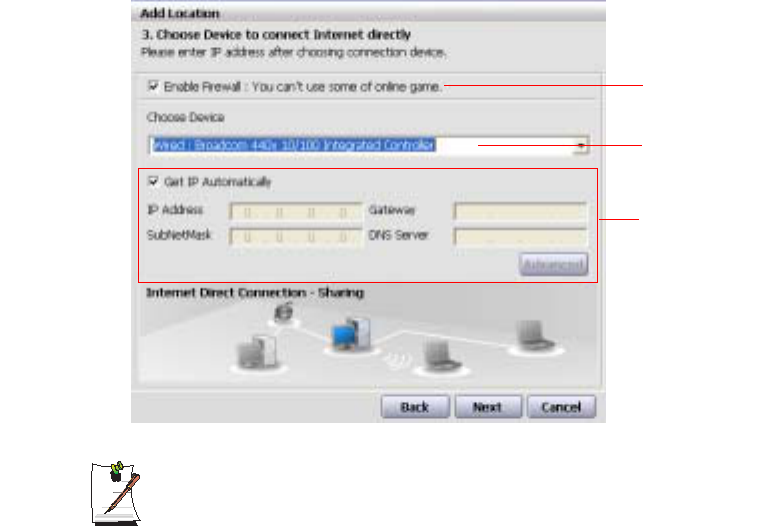
5. Set up the network device to be connected to the external Internet. Determine
whether to use a firewall and select a network device to be connected to the
external Internet (e.g. Wired LAN). Set the IP address and then click the Next
button.
- To protect against external intrusion attempts, using a firewall is
recommended.
- For more information on selecting a device and setting the IP address, refer
to the description of item 6 of "Setting Up a Network" on page 73.
6. Select a network device to connect to the sharing client (e.g. wireless LAN) and
click the Next button.
Determine whether
to use a firewall
Select a device
Set an IP address

Connecting to the Internet 79
To Share Internet Access through a Wireless LAN
- In the Select Device field, select Wireless.
- In the Wireless Connection Name (e.g. Samsung) field, enter the network
name.
- To use the network key (security key), select the "Use Password ,,," option
and enter a network key. Remember the network key because you have to re-
enter the key on the sharing client to connect to the sharing server.
7. The setup information is displayed. Confirm the settings and click the Next button.
8. When the Printer Setting window appears, click Finish.
For the printer setup procedures, refer to the description of item 7 of "Setting Up
a Network" on page 73.
When the Shared Server setting is completed, set up the shared client.
Setting Up the Sharing Client
1. Run Samsung Network Manager on the computer to be used as a sharing client.
2. Click the Add button.
3. Select a network location icon and enter the name of the location. Click the Next
button.
4. Select Internet Sharing and click the Next button.
- To connect through a wireless LAN, select Internet Sharing - Wireless.
- To connect through a wired LAN, select Internet Sharing - Wired.
5. Confirm the network device to be connected to the server and click the Next
button.
- To connect through a wireless LAN, enter the wireless connection name
(e.g. Samsung) you entered in the sharing server. If you have set a network
key (security key) for the sharing server, enter the network key.
6. The setup information appears. Confirm the information and click the Next button.
7. When the Printer Setting window appears, click Finish.
80 Users Manual
For the printer setup procedures, refer to the description of item 7 of "Setting Up
a Network" on page 73.
When the settings are completed, you can use the Internet on the shared client.
- To access the Internet from the sharing client, the sharing server has to be
on.
- To use the Internet on the sharing client, select a sharing client icon from the
Location List window and then click the Move button.
- If the connection is broken while using the Internet on the sharing client, click
the Ap Active from the Wireless menu to reestablish the connection.
Network Status Diagnosis
You can diagnose the network status when the network is not properly connected.
1. Run Samsung Network Manager.
2. Select Auto Diagnosis from the Manage menu.
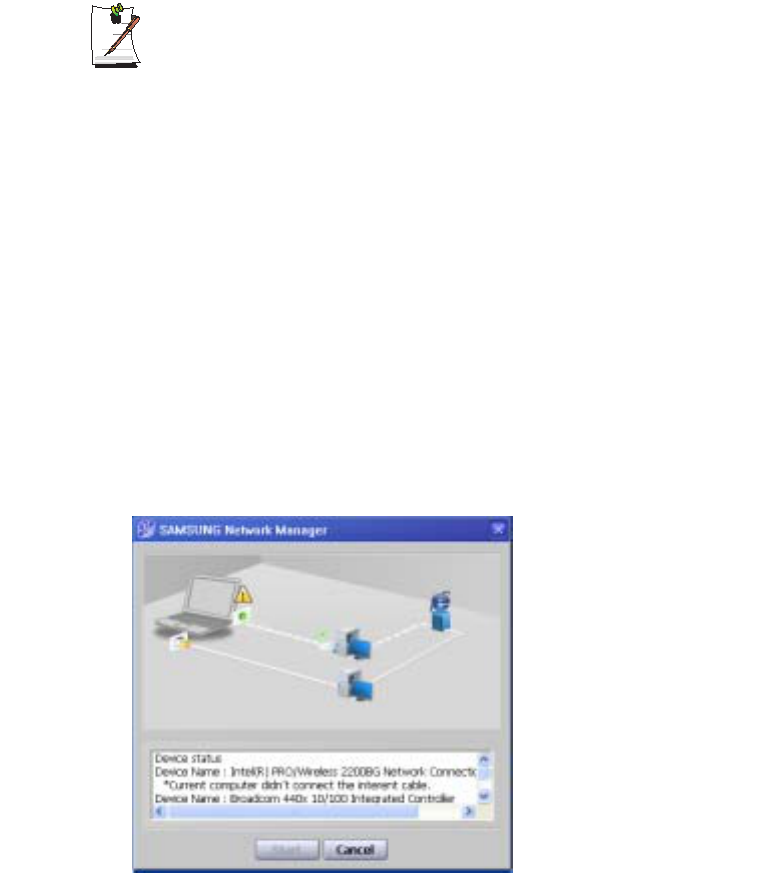
3. The Network Connections figure window appears. Click the Start button to start
the network diagnosis.
4. When the diagnosis is complete, out of order devices are marked by the
exclamation mark icon. For detailed device status, read the description in the lower
part of the window.
Reconnect and set up the device according to the diagnosis result.

Connecting to the Internet 81
Using Network Services
While the computer is connected to the network, you can use network services to share
files, folders, and printers.
Network services are provided for the computers that are connected to the
network through wired or wireless network connections. For details, see
“Connecting Through a Wired LAN” on page 63 and see “Connecting Through
a Wireless LAN (Optional)” on page 65.
Sharing files or folders
This section describes how to share files and folders between computers connected to
the network.
To share files, complete the following procedures:
xStep 1. Configuring the sharing of files and folders on a computer.
xStep 2. Accessing shared files and folders from another computer.
When a file or folder is shared, anyone connected to the network can open and
delete the shared file or folder.
Configure a file sharing network only when the network is secure, and do not
share important data.
82 Users Manual
Step 1. Configuring Sharing
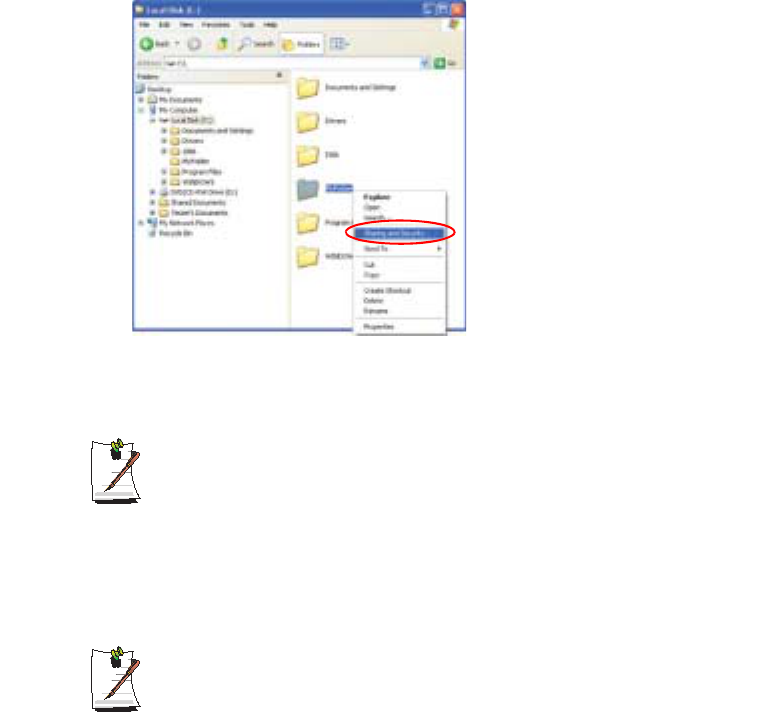
1. Right-click the target file or folder to share in My Computer, and select Sharing
and Security.
2. Click 'IF you understand the security risks but want to share files without running
the wizard, click here'.
It has the same security effect as that of the 'Network Setup Wizard'.
This screen does not appear if Internet Sharing Network Wizard has been
installed in the computer-to-computer wireless network environment.
3. Select 'Just enable file sharing', and click OK.
4. In the 'Network sharing and security' field, select 'Share this folder on the network',
enter the share name, and click OK.
Be cautious when selecting 'Allow network users to change my files' since
other network users can change the files in the shared folder.
The file and folder sharing configuration has been completed.
Connecting to the Internet 83
Step 2. Using Shared Files or Folders
This section describes how to access shared files or folders if your computer is a
member of the same workgroup.
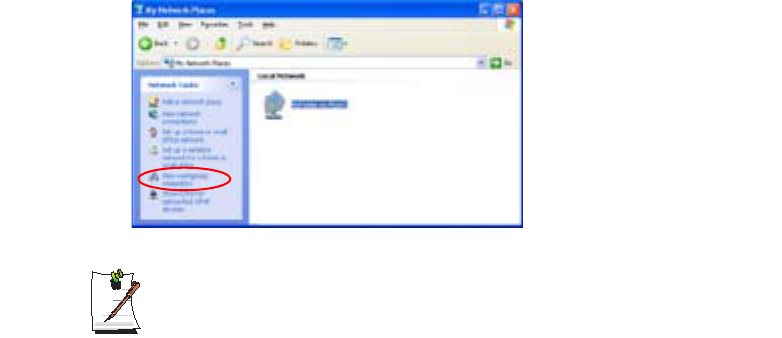
1. Double-Click My Network Places of desktop under Other Places.
2. Click 'View workgroup computers', and click the desired computer to access the
shared file.
If your computer is a member of another workgroup:
1. Click Other Places > Microsoft Windows Network.
2. Click the desired workgroup.
3. Click the desired computer to display the shared files or folders.
Sharing Printers
This section describes how to share a printer between computers connected to a
network.
To share a printer, complete the following procedures:
xStep 1. Configure printer sharing in the computer connected to the printer.
xStep 2. Add and use the shared printer in other computers on the network.
84 Users Manual
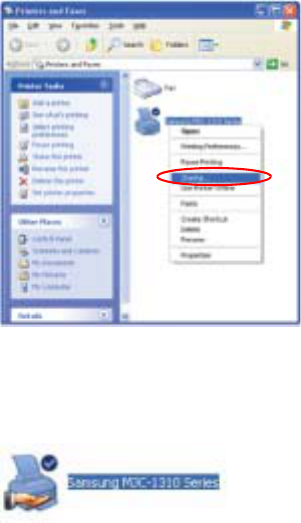
Step 1. Configuring Printer Sharing
1. From the computer connected to the printer, click Start > Printers and Faxes.
2. Right-click the printer you want to share, and click Sharing.
3. Select 'Share this printer', enter a share name for the shared printer, and click OK.
4. In the Printers and Faxes window, you will find the printer icon has been changed
to another icon on a hand.
Step 2. Adding and Using a Shared Printer.
1. From a different computer that wants to use the shared printer, click Start >
Printers and Faxes.
2. Click Add a printer.
3. In the Add Printer Wizard, click Next.
4. Select 'A network printer, or a printer attached to another computer', and click
Next.
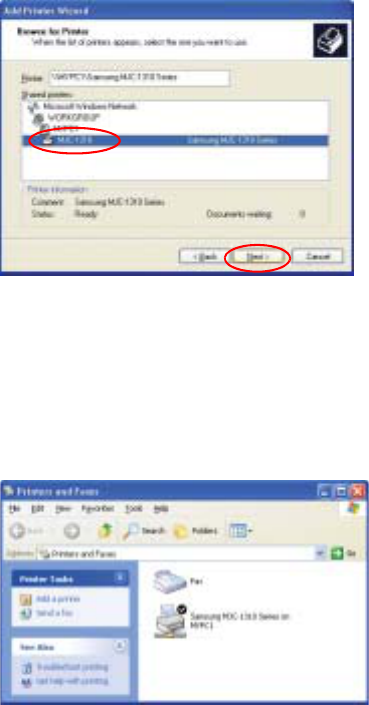
5. Select 'Browse for a printer', and click Next.
Connecting to the Internet 85
6. Select the workgroup or computer, select the desired printer, and click Next.
If you cannot find the desired printer, try again after a while.
7. Read the warning about a shared printer, and click Yes to install the shared printer.
8. Select Yes for 'Do you want to use this printer as a default printer?', and click Next.
9. Click Finish.
10. When the printer sharing configuration has been completed, the shared printer
appears in the Printers and Faxes window.
Now you can print using the shared printer even if your computer is not directly
connected to a printer.

86 Users Manual
Using Bluetooth Devices (Optional)
Bluetooth is a wireless communication technology that allows access to devices nearby
such as a computer, mobile phone, printer, keyboard or mouse without a cable
connection. Bluetooth enables file transmissions, Internet access, a private area
network function, and access to a keyboard, mouse and printer between devices
supporting the Bluetooth function without a cable connection.
The Bluetooth function is only available between devices supporting Bluetooth
(computers, mobile phones, PDAs, printers, etc.), and the function may be
restricted depending on the device profile.
The Bluetooth function is optional and may not be supported depending on
your model.
Bluetooth Functions
xFile Transmission ( )
You can exchange files between 2 Bluetooth devices. You can exchange files
with other computers, mobile phones, PDAs, etc.
xNetwork Access ( )
You can connect to another computer with the Bluetooth function as you access
a wireless LAN in Ad-Hoc mode or connect to the Internet through an AP or
Internet Connecting Sharing Server.
xNetwork Access through a Phone Connection ( )
You can connect to the Internet through a Bluetooth mobile phone.
xData Sync (Synchronization) ( )
You can synchronize the PIMS data (Outlook E-mail address data) with mobile
phones, PDAs, notebook computers, etc. supporting Bluetooth.
xElectronic Business Card (Vcard) Exchange ( )
You can exchange electronic business cards with mobile phones, PDAs,
notebook computers, etc. supporting Bluetooth.
xSound Output ( )
You can listen to audio from the computer through another Bluetooth device or
listen to audio of another Bluetooth device through the computer.
Connecting to the Internet 87
xHID Connections ( )
You can connect a keyboard, mouse, joystick, etc. supporting Bluetooth.
For more information about using the Bluetooth function, refer to the online
help of the Bluetooth Device.
Bluetooth Software Setup
Bluetooth software is installed on some models. To use the Bluetooth function, you
have to setup the Bluetooth software first. Set the software up as follows when using
the function for the first time.
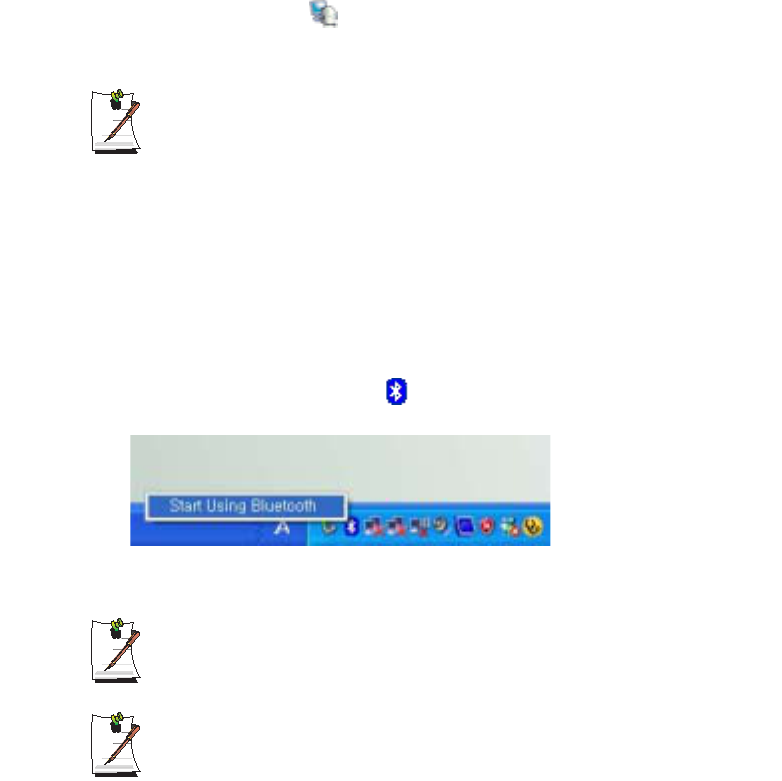
1. Right-click the Bluetooth icon( ) on the bottom right Taskbar using the
mouse(or touchpad) and select Start Using Bluetooth from the pop-up menu.
2. Click the Next button to start setting up.
In the setting up steps, enter a device name to be displayed in the Bluetooth
Manager program. Enter a Name in the Computer Name field and select
Laptop for the Computer Type field.
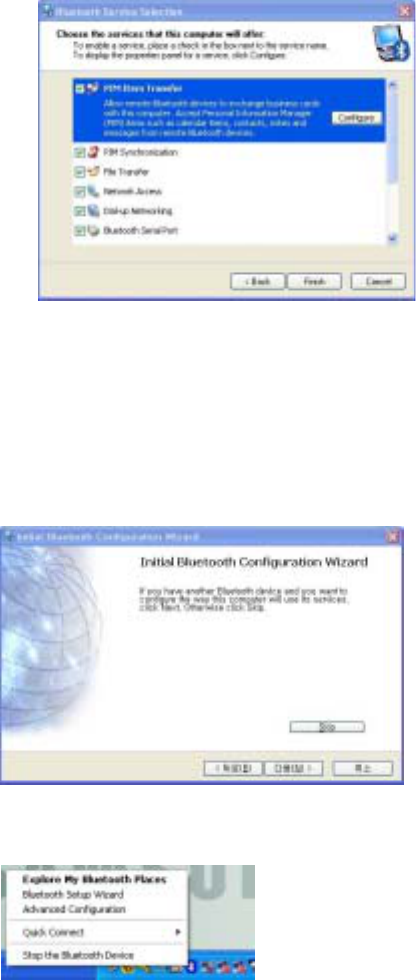
Also, a step appears for selecting the services to be provided by your
Bluetooth device for other Bluetooth devices. At this point, the program
automatically detects available services and displays them as selected. It is
recommended not to change the default selection.
88 Users Manual
If you change the service settings, the driver necessary for the additionally
selected services are installed.
At this point, a warning message may appear informing you that there is no
Microsoft logo. Since it does not affect the operation, continue the installation.
3. If the driver installation is complete, the next step proceeds which searches for
nearby Bluetooth devices. Since you do not have to search while setting up, click
the Skip button and finish the settings.
4. When the settings are complete, the Bluetooth icon menu of the notification area
changes as shown in the figure.
Connecting to the Internet 89
Using Bluetooth
Describes how to exchange files between computers supporting Bluetooth and how to
use other Bluetooth devices.
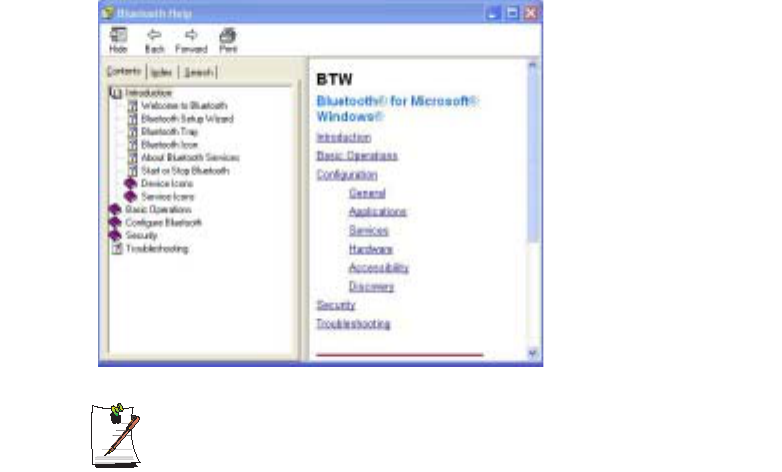
Bluetooth Help
Bluetooth Help provides detailed procedures on using Bluetooth functions.
Click on My Bluetooth Settings on the Desktop and press the F1 key (Help).
Select Start > Help and Support > Networking and the Web > Networking >
Wireless networking > Bluetooth devices (wireless) to view Windows Help.
90 Users Manual
Exchanging Files between Bluetooth computers
The procedures to exchange files and folders between Bluetooth computers are
described below.
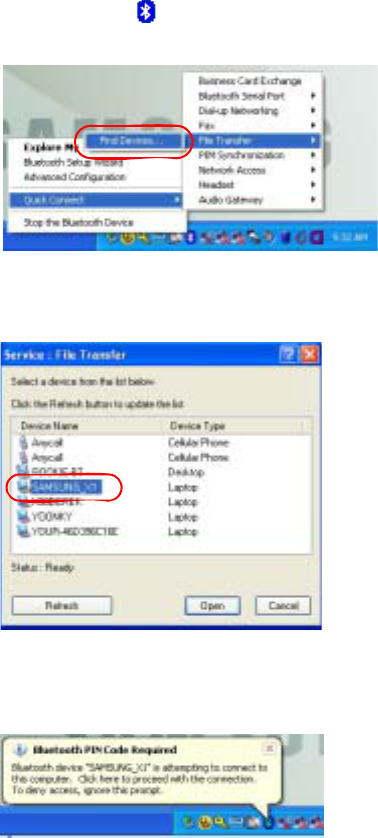
1. On the computer that is sending a file (hereafter Computer A), right-click the
Bluetooth icon ( ) in the notification area and select Quick Connection > File
Transmission > Search for Device.
2. In the Select Device window, click on a computer to be connected (hereafter
Computer B).
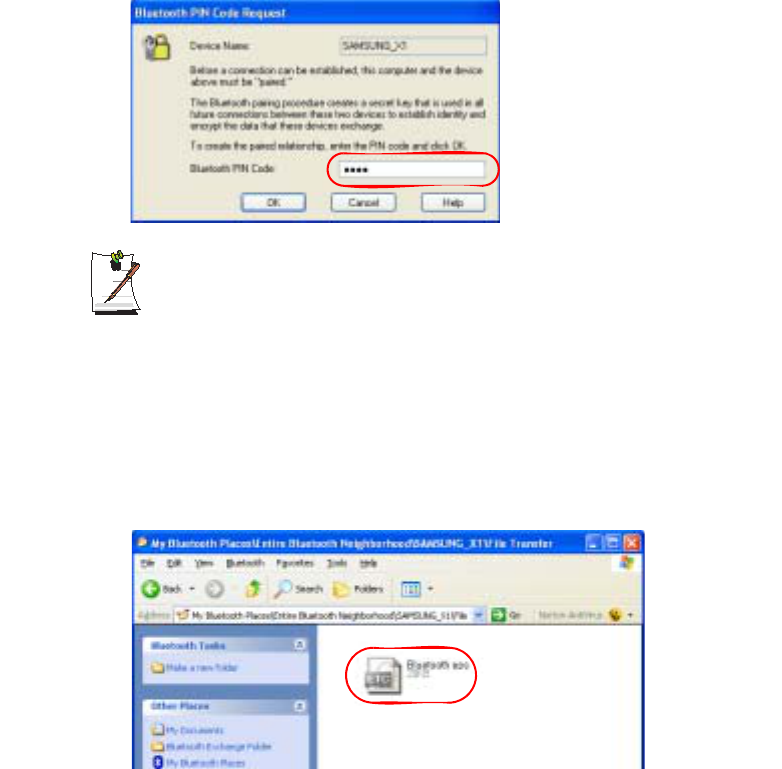
3. If the Bluetooth PIN code requested notification window appears on the bottom
right taskbar, click on the window, enter the Bluetooth PIN code and click the OK
button.
Connecting to the Internet 91
The Bluetooth PIN Code is a password used for the connection between two
Bluetooth devices, the user just enter the same PIN Code (E.g. same
numbers) on both Bluetooth devices to make a connection.
4. After a short while, the Bluetooth PIN Code required dialog box appears on
Computer B, enter the code that you have entered in Step 3 above.
5. If the FTP File Access Privilege Request window appears on Computer B, click on
the window. If the Select Access Permission window appears, click the OK button.
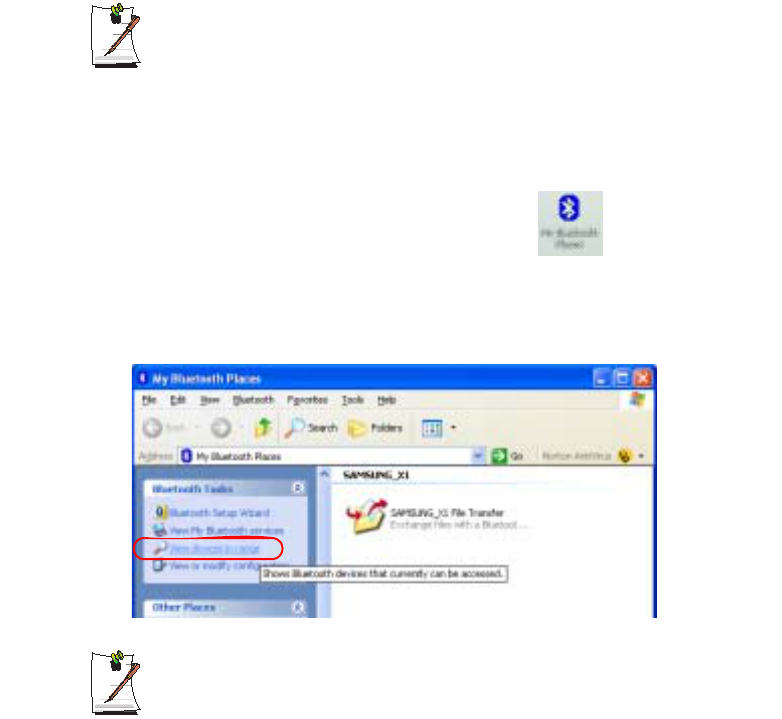
6. The file transmission window appears on computer A. Drag files or folders to send
onto the window, and the files or folders are automatically transmitted.
7. If the file transmission is complete, close the File Transmission window.
When clicking on Start > My Documents on the computer to which the files are
transferred, the Bluetooth Exchange Folder appears which includes the
transmitted files.
92 Users Manual
Connecting Keyboard, Mouse, Joystick and Headset devices
The procedures to use Bluetooth HID devices (keyboard, mouse, joystick, etc.) or a
headset, etc. on the computer are described below.
The Bluetooth PIN Code is a password used for the connection between two
Bluetooth devices, the user just enter the same PIN Code on both Bluetooth
devices to make a connection.
1. Turn on the Bluetooth function on the device to connect to (mouse, keyboard,
joystick or headset).
Some devices have a button to turn on the Bluetooth function, so refer to the
corresponding device manual.
2. Double-click on the My Bluetooth Settings icon ( ) on the Desktop.
3. If the My Bluetooth Settings window appears, click on View Devices within
Coverage.
If the device to connect to appears, click on the device. (E.g. mouse)
If the device does not appear, click the View Devices within Coverage. If the
device has not appeared yet, since this menu changes to Search Devices
within Coverage, click the Search Devices within Coverage to show the
device.
4. If the Bluetooth PIN Code input window appears, enter a PIN code referring to
the manual of the corresponding device. The PIN code for an HID device is
generally printed in the manual of the corresponding device.
5. If you enter the PIN code, you can immediately use the device.

Connecting to the Internet 93
A Bluetooth keyboard and mouse work only in Windows. They will not work in
MS-DOS mode or in Hibernation mode.
Stopping a Bluetooth device
Right-click the Bluetooth icon ( ) on the taskbar and select Stop the Bluetooth
device.
To use a Bluetooth device after stopping it, select Start Bluetooth device as above.
Use Instructions
xBluetooth devices must be within a 3m distance.
xFor a better communications environment, use the devices in an open space
where no wall or obstacle exists.
xFor a telephone connection, data synchronization, electronics business card
exchange, fax transmission/reception, sound related functions, and serial port
function, you can connect with only one Bluetooth device.
xUsing the network connection or file transmission function, multiple Bluetooth
devices can be connected. However, since connecting with multiple devices
may slow down the data rate or make the connection unstable, connecting with
one device at a time is recommended.
xThe Bluetooth function of a Bluetooth PDA, mobile phone, mouse or keyboard
may be turned off. To use them in connection with a Samsung computer
supporting Bluetooth, you must check if the Bluetooth function of the device to
connect to is turned on.
For the procedures on turning on the Bluetooth function of a device, refer to the
manual of the device.
xThe services provided by Bluetooth devices may vary depending on their
capability. For the services provided by Bluetooth devices, refer to the manual
of the device.
94 Users Manual
Customizing Your Computer
Using System Setup
The System Setup (BIOS) program enables you to configure your computer hardware
and set security and power-savings options. The settings you choose are stored in
battery-maintained CMOS memory that saves the information even when the
computer’s power is turned off. When your computer is turned back on, it is configured
with the values found in this memory.
Run System Setup if you get a message prompting you to run the program. You may
also want to run System Setup, particularly the first time you use your computer, to set
the time and date, use security or power-management features, or alter the settings of
other features.
BIOS Caution:
If you are not familiar with BIOS setup and what the parameters mean, seek
help from a person who is knowledgeable. Incorrect settings may cause your
system to malfunction or "Crash”.
Your computer’s version of System Setup may not include all the fields listed
here or may include additional fields. Field names and order of appearance
can vary according to the version of the BIOS (basic input/output system) on
your computer.
Customizing Your Computer 95
Starting System Setup
To start System Setup, turn on your computer and then press <F2> and hold until the
System Setup screen appears.
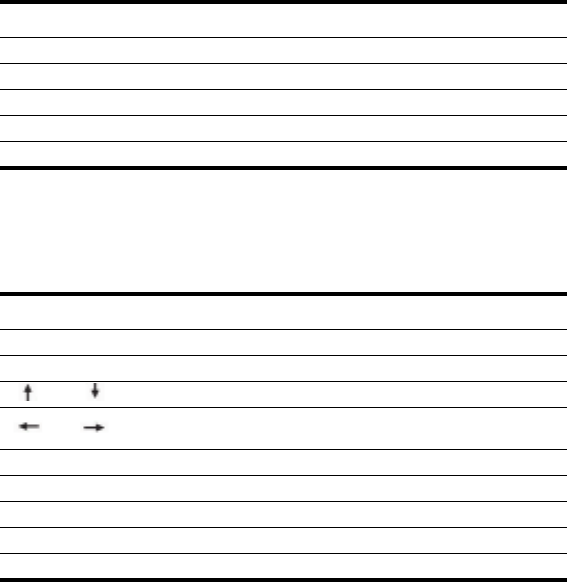
Table 2. System Setup Menus
To open the menu you need to use, use the left or right arrow keys to select the menu
name.
Table 3. System Setup Navigation Keys
Menu Function
Main Changes the basic system.
Advanced Configures advanced features on your computer.
Security Enables security features, including passwords.
Boot Specifies the order of boot devices and configures boot features.
Exit Specifies how to exit System Setup.
Navigation Key Function
<F1> Displays the General Help window.
<Esc> Exits the current menu.
<> or <> Moves the cursor up and down between fields.
<> or <> Selects different menus. Pressing the <Esc>key at the Main menu
brings you to the Exit menu.
<F5> Scrolls backwards through the options for the highlighted field.
<F6> Scrolls forward through the options for the highlighted field.
<F9> Sets the parameters for the current menu to their default values.
<F10> Save changes and exit system setup.
<Enter> Executes commands or opens a submenu.

96 Users Manual
Changing Booting Priority
You can select the booting priority among the devices such as the hard drive, CD-ROM
drive, etc. The following example describes how to configure the hard drive as the first
booting device when the CD-ROM drive is configured as the first booting device by
default.
1. Select the Boot menu in System Setup.
2. Press <Enter> on Boot Device Priority item.
3. Use <> key to move to the Hard Drive item, and press <F6> until it is at the
very top.
4. Press <F10> to save the changed configuration, and exit System Setup.
Now you can boot the system with the hard disk drive as the first booting device.
Customizing Your Computer 97
Configuring the Password
Setting the Supervisor Password
By configuring a supervisor password, you can restrict system access to authorized
users only.
Do not lose or forget your password. If you have forgotten your password,
contact the Samsung service center.
1. Select the Security menu in the System Setup. To enter System Setup, see “Starting
System Setup” on page 95.
2. On the Set Supervisor Password item, press <Enter>.
3. Enter a password, press <Enter>, re-enter the password for confirmation, and
press <Enter> again.
4. When a message confirming the password configuration appears in the [Setup
Notice] window, press <Enter>.
Setting the User Password
You can configure user passwords so that other users can use the system.
Before configuring a user password, a supervisor password must have been
configured.
Users can start the system with their user password, but cannot enter into the
System Setup.
Deactivating the supervisor password also deactivates the user password.
On the Set User Password item, press <Enter>, and complete step 3-4 of "Setting the
Supervisor Password".

98 Users Manual
Activating the Booting Password
Before activating the booting password, the supervisor password must have
been configured.
Set the Password on boot option to [Enabled].
From now on, system booting will not proceed without the password.
Deactivating the Password
1. On the password to delete, press <Enter>. (e.g. supervisor password)
2. Enter the current configured password, and press <Enter>.
3. Leave the 'Enter New Password' and 'Confirm New Password' field empty, and
press <Enter> to deactivate the password.
Customizing Your Computer 99
Configuring Resolution and Color Depth
Screen resolution is the number of pixels displayed on the screen. High resolution
makes the overall screen area large, although individual items appear small. Color
quality is determined by the number of bits used to represent a pixel on the screen. High
color quality displays more number of colours on your screen.
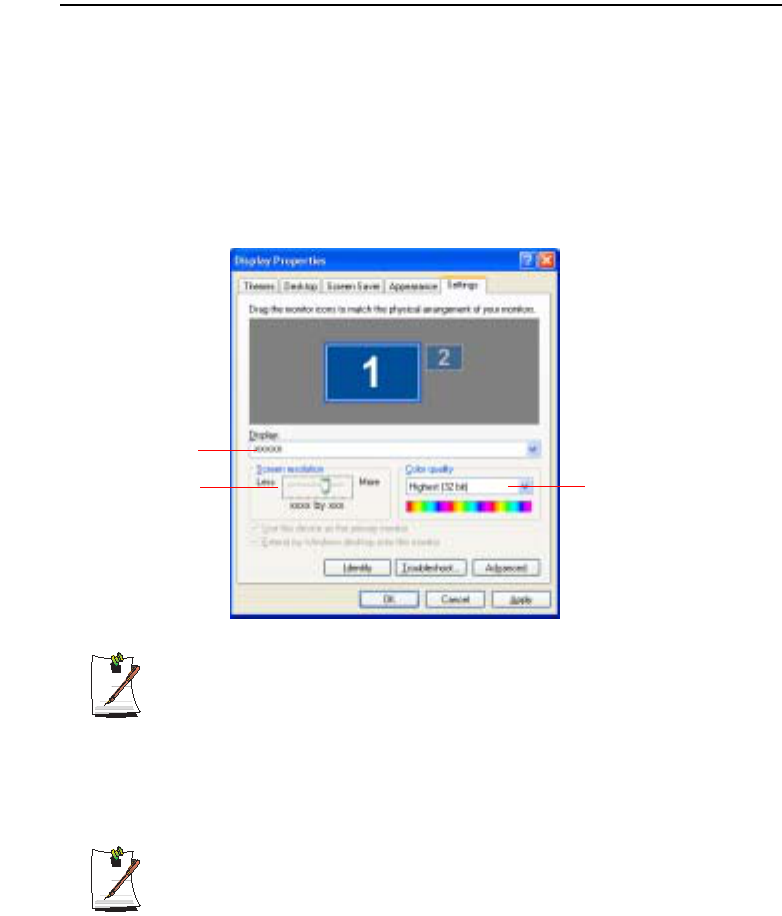
1. Select Start > Control Panel > Appearance and Themes > Change the screen
resolution.
2. Make changes on the Settings tab of the [Display Properties] dialog box.
Graphics Chipset Information
You can view the installed graphics chipset in the Display Properties window.
TGATI Mobility Radeon X1300/X1400/X1600
TGIntel 945GM Graphics (DVMT)
3. When you have completed configuration, click Apply.
The following resolution and color quality settings are recommended
depending on the LCD screen of the system.
- WXGA: Screen resolution: 1280x 800, Color quality: Very high (32bit)
- WSXGA+: Screen resolution: 1680 x 1050, Color quality: Very high (32bit)
To change the number of
colors displayed on a
monitor, select an
appropriate colour quality.
To change your screen
resolution, move the slider
to select an appropriate
resolution.
You can view the graphics
chipset.
100 Users Manual
Using External Display Devices
Using external display devices such as monitors, projectors, TVs, etc allows you to
view screen images alternatively or simultaneously on each device. Additionally, you
can extend the screen onto two display devices to use a larger workspace. Using
external display devices is especially useful when you are giving a presentation or
watching a movie through your TV.
Switching Display Devices Using the Shortcut Key
You can watch the screen through either the LCD or an external display device, or you
can even watch the screen through both the LCD and an external display device
simultaneously.
1. Connect the external display device (e.g. a monitor or a projector) to the
corresponding port of the system. To connect a TV, connect the TV to the TV
output port of the system.
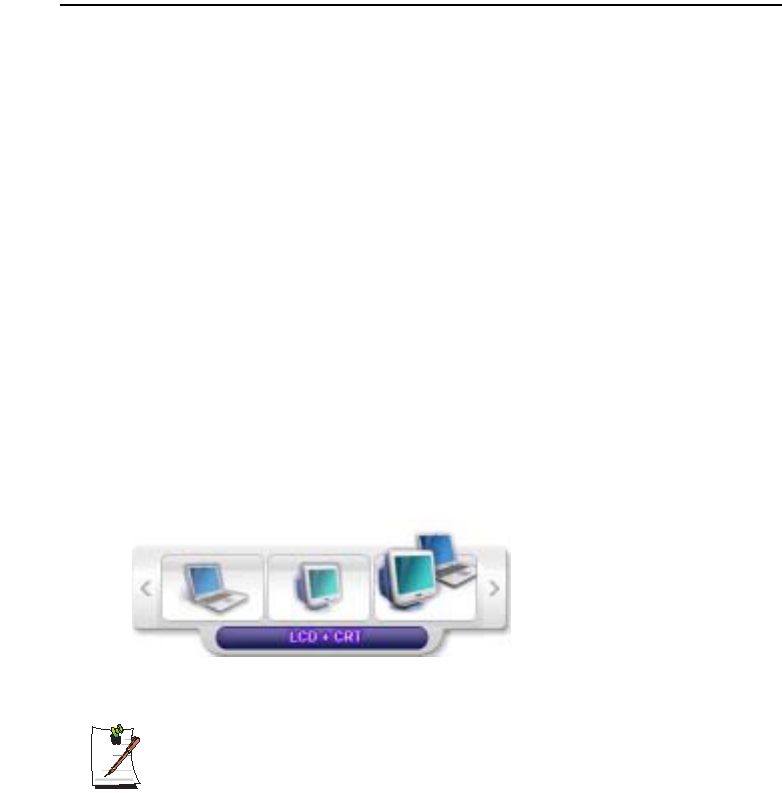
2. If you press the <Fn>+<F4> key combination once, the Samsung Display
Manager screen appears where you can select a screen.
Whenever you press the <F4> key while pressing the <Fn> key, selection moves
to the next item. Select a mode.
Example) Select LCD+CRT
LCD: Notebook Screen
CRT: External Monitor Screen
LCD+CRT: Notebook + External Monitor Screen
TV: TV Screen (connected to the TV OUT port)
In the MS-DOS environment, the picture is displayed to the LCD > CRT, in
turns, and output to a TV/DVI is not supported. In full screen MS-DOS mode
of Windows, you cannot change the display device by pressing the shortcut
key.
Customizing Your Computer 101
Using Dual View to View Extended Screen
You can expand the screen into two display devices and work conveniently in separate
workspaces.
In Dual View mode, you can select the screen resolution and colour quality for each
display device, as if there were two separate graphics cards.
1. Connect the external display device (e.g. a monitor or a projector) to the
corresponding port of the system. To connect a TV, connect the TV to the TV
output port of the system.
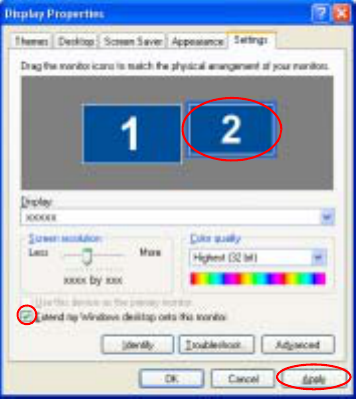
2. Press touchpad right button on the desktop, click Properties, and then click the
Settings tab.
3. Click the monitor '2' icon, select the 'Extend my Windows desktop onto this
monitor' check box, and then click Apply.
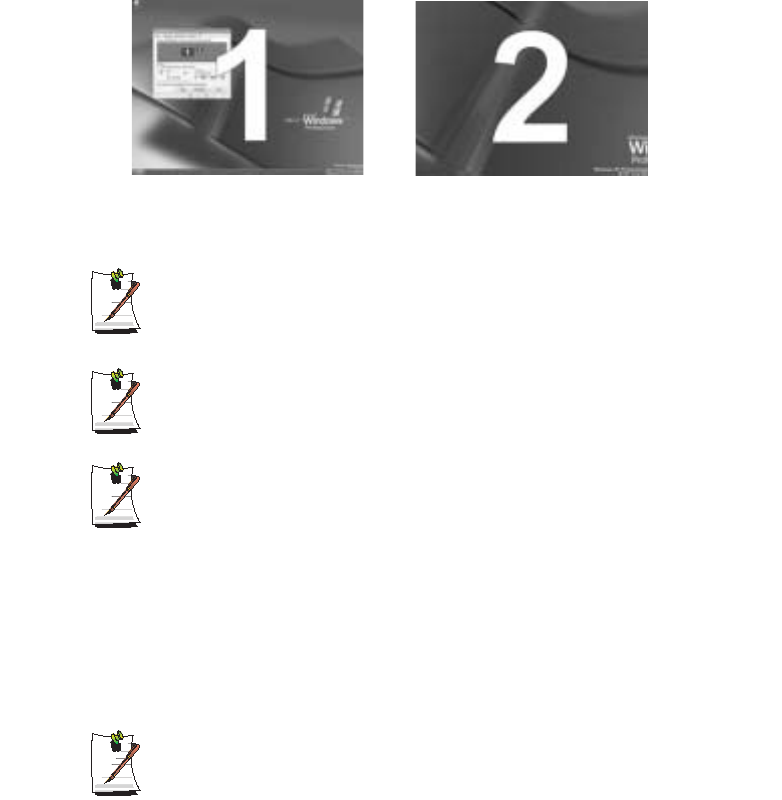
4. When the configuration is complete, click Identify on the left side of
Troubleshoot. The primary display device(the LCD) is indicated as '1', and the
secondary display device is indicated as '2'.
102 Users Manual
Now you can view the screen through two monitors.
When you use Dual View, configuring the LCD as the 'Primary' monitor is
recommended.
If the screen of the secondary display device is displayed at 640x480 pixels,
with 256 colours, change the settings to the desired screen resolution and
colour quality in the [Display Properties] dialog box.
When Dual view is not properly set up, refer to Q&A. (p122)
Deactivating Dual View Mode
Click the monitor '2' icon, clear the 'Extend my Windows desktop onto this monitor'
check box, and then click Apply.
To move a window between display devices in Dual View mode
Click the title bar of the window in the primary display device (1, the LCD), and
drag it to the secondary display device (2). The window is moved to the
secondary display device.
2 : Secondary1 : Primary
System Management 103
System Management
Using Power Management Options
Your computer includes Power Management options that can help the battery charge
last longer and extend the life of the battery. Power-management options will slow
down or shut off system components when the components are not being used.
Power management may slow down system performance. Your computer runs fastest
with the power cord attached, whereby power management is disabled.
In the next sections, basic and advanced methods of power management will be
discussed.
Basic Power Management Schemes
This section discusses the basic schemes of power management when the computer is
operating on battery power or using AC power.
Standby vs. Hibernation
Hibernation is a state where the contents of memory are stored in a special file
on the hard disk, and Standby simply keeps a small holding current through
the memory to keep the data. You are more likely to sustain loss of data in
Standby mode so it is recommended to save all open files before entering
Standby.
Changing Devices:
Do not change PC Cards while in standby or hibernate modes.
To enter the power management window complete the following:
1. Click Start > Control Panel > Performance and Maintenance.
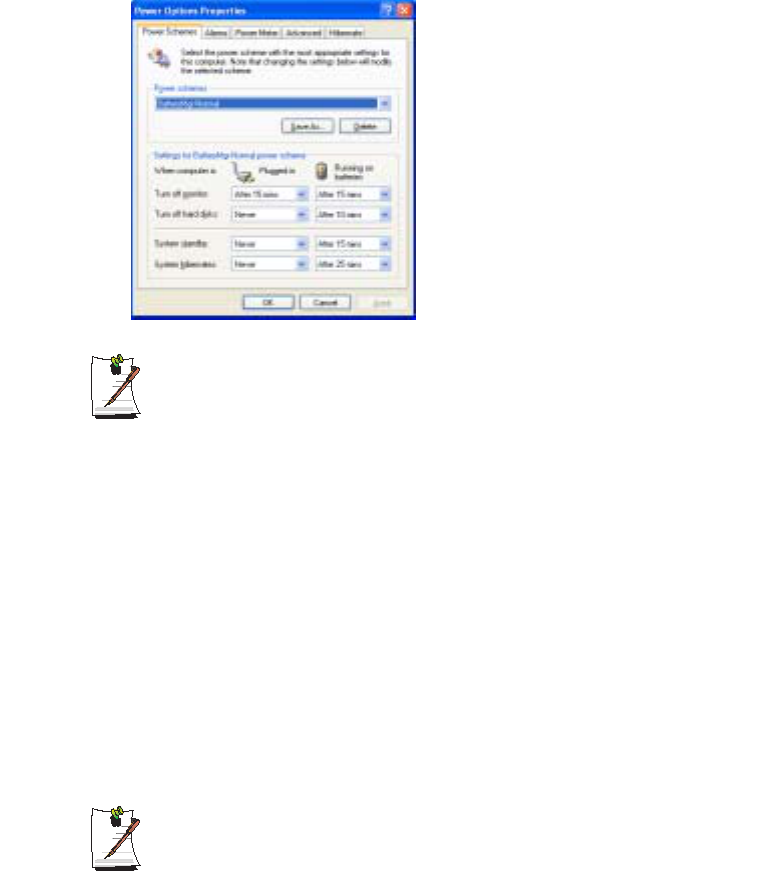
2. Click icon to display the Power Options Properties window.
104 Users Manual
3. Click the Power Schemes tab to display the basic power management options.
By default, the power scheme is configured to BatteryMgr-normal mode.
BatteryMgr-normal mode extends the battery life and optimizes the Intel
Speedstep function.GSince the CPU power consumption is automatically
optimized to conserve power when the computer is operating on battery
power, an application may be executed slower than when it is operating on AC
power.To use BatteryMgr-normal mode after reinstalling Windows, install the
Battery Manager program using the system software Media.
4. Select the time that you wish each of the following actions to occur in Battery and
AC power mode.
xTurn off monitor
xTurn off hard disks
xSystem standby
xSystem hibernates
Turning off the monitor and HDDs will save a substantial amount of battery power,
therefore when in battery only mode select the shortest time practical.
You can also reserve Turning Computer Off, Hibernation state, Hold Mode,
etc. by selecting System > Computer Scheduling in the EasyBox program.
(see “Using EasyBox” on page 37.)
If you change the power settings in the Battery Manager program, the settings
of the 'Power Options Properties' window are automatically changed
accordingly ("Using the Battery Manager" (p110)).
System Management 105
Hibernate Mode (Power Management or Manual Method)
When hibernation is used, your computer turns off and when you power up again,
everything is restored exactly as you left it—including programs and documents you
may not have saved or closed. Everything in memory gets saved to the HDD, and the
monitor and hard disk get turned off.
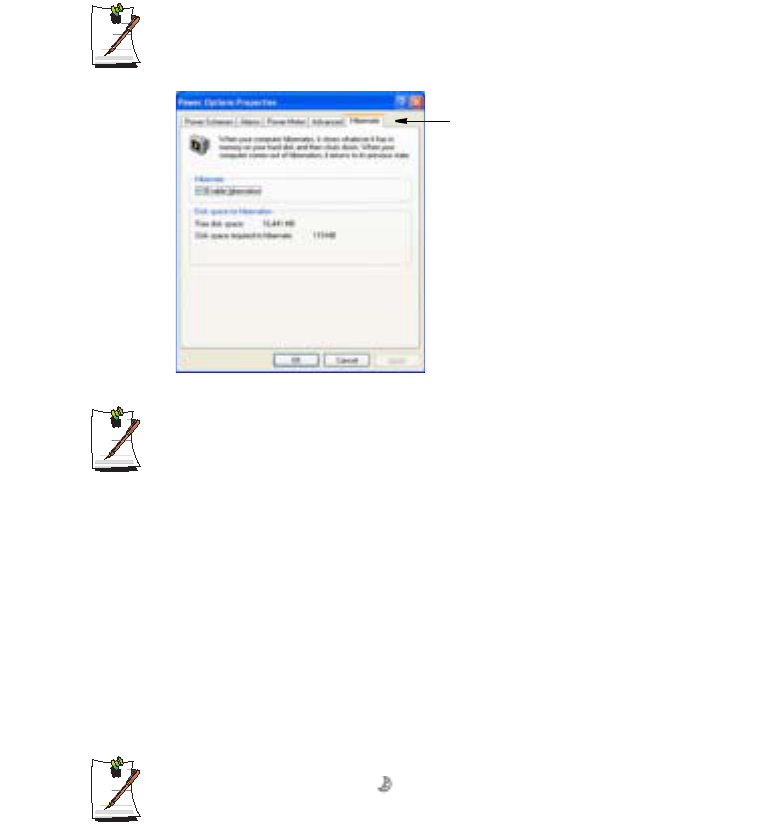
If You Reinstall Windows:
You should re-establish hibernate in power options by opening Power
Options Properties window and click on the Hibernate tab then click
“Enable Hibernation”.
Frequent Interruptions:
If you experience frequent interruptions, you might also consider putting your
computer into automatic hibernation after a specified number of minutes using
the power management options.
Standby Mode (Power Management or Manual Method)
Standby is used mainly for conserving battery power in your notebook computer. It
also gives you the benefit of getting right back to your work without waiting for the
computer to restart. Standby turns off your monitor and hard disks, placing your entire
system in a low-power state. When you return to your computer, restores your desktop
exactly as you left it. It is recommended that you do not enter standby mode with less
than 20% battery power.
5. Click OK to set your power management options and close the window.
Rest Key:
The manual <Fn>+<Esc/ > key combination will not activate Standby or
Hibernate modes while you are playing a multimedia program or have an
active USB device connected.
Hibernate Tab
106 Users Manual
Advanced Power Management Schemes
This section discusses the advanced power management schemes. There are two
buttons that you can use to manually conserve power.
To enter the power management window complete the following:
1. Click Start > Control Panel > Performance and Maintenance.
2. Click icon to display the Power Options Properties window.
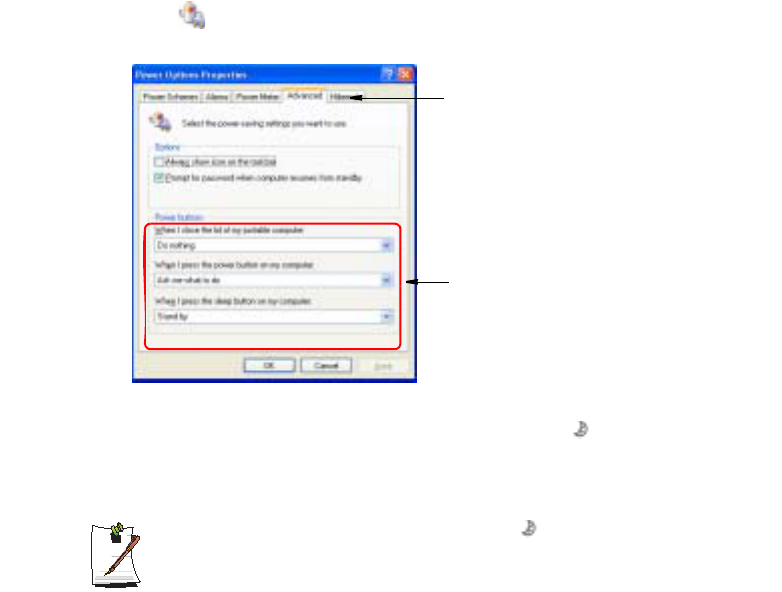
3. Click the Advanced tab to display the advanced power management options.
4. Select the mode (Do nothing/Ask me what to do/Standby/Hibernate/Shut
down) assigned to the Power button and/or Rest <Esc/ > key. Also select the
action (Do nothing/Standby/Hibernate) associated with closing the computer
lid.
The “Rest” key is assigned to the <Fn+Esc/ > key combination. "Basic
Power Management Schemes" on page 103 for a better understanding of
Standby and Hibernate modes.
5. Click OK to set your power management options and close the window.
You can return to normal operation after you have used one of the “Power
Management” buttons by quickly pushing and releasing the Power button.
Advanced Tab
Power & Sleep Button
Programming Windows
System Management 107
Using the Battery
Please refer to the following instructions when running the computer on battery power
without connecting the AC power.
Precautions
xUse only chargers specified in the User Manual.
xNever heat the battery pack, put it near or in a fire or use at a temperature
higher than 60°C, as this may cause fire.
xNever cause a short circuit between the battery pack terminals or
disassemble the battery pack.
xCarefully read and follow the precautions printed on the battery and the
safety instructions in the User Manual before using the battery.
Please read the instructions on the battery before use.
Please refer to the system operation environment (p151) of this manual and
operate and store the battery at room temperature.
Ejecting and Attaching Battery
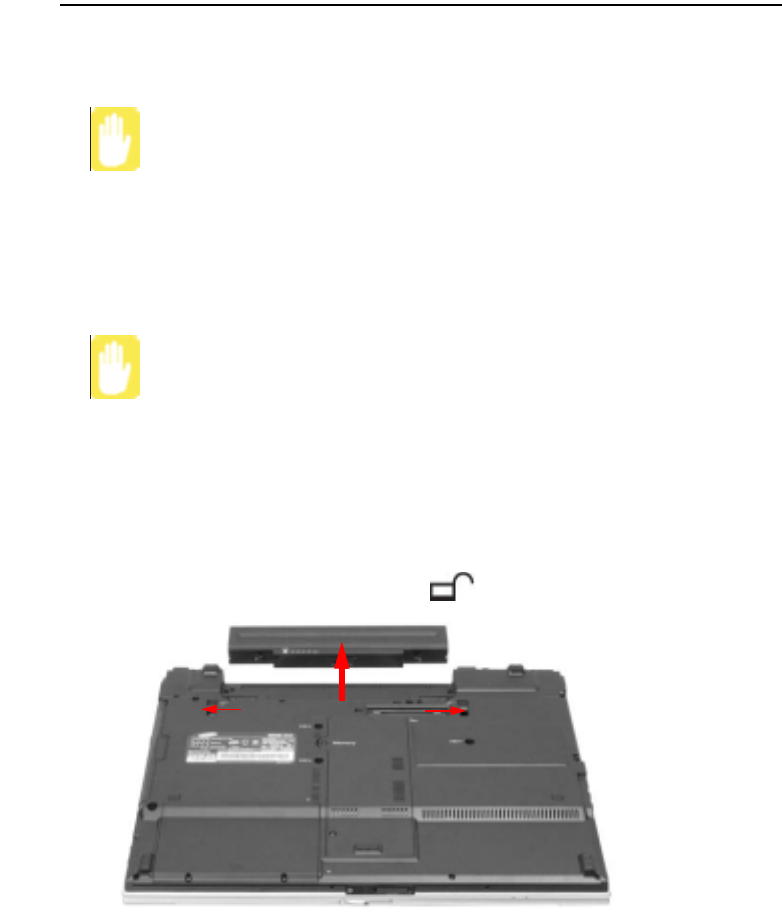
1. Shutdown the system and close LCD.
2. Put the computer upside down on a flat surface.
3. Pull the two battery latches outward.( ), then remove the battery.
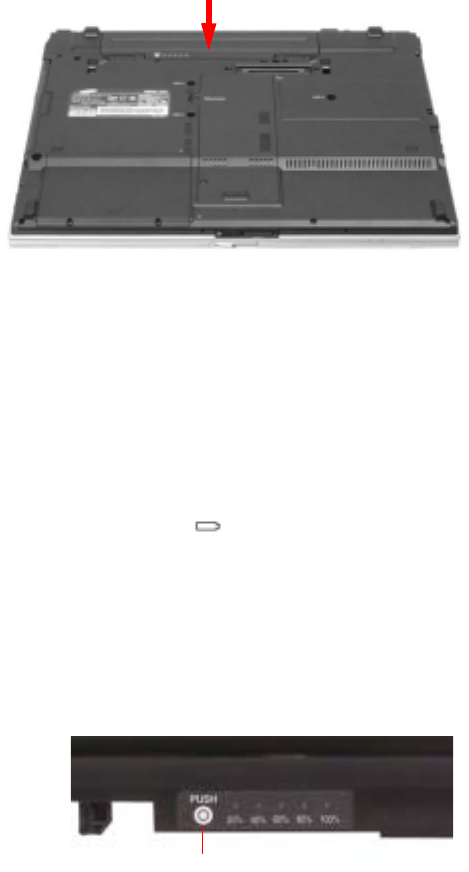
108 Users Manual
4. To install the battery again, slide the battery into the system as below. The battery
latches move inward, and fix the battery automatically.
Monitoring the Battery Charge
You can view the battery charge status by completing the following procedures.
To use the shortcut key to view
If you press the <Fn>+<F2/ > key combination on the keyboard, the remaining
battery charge appears on the screen for a while. It appears only when the Samsung
Display Manager program is installed on your computer.
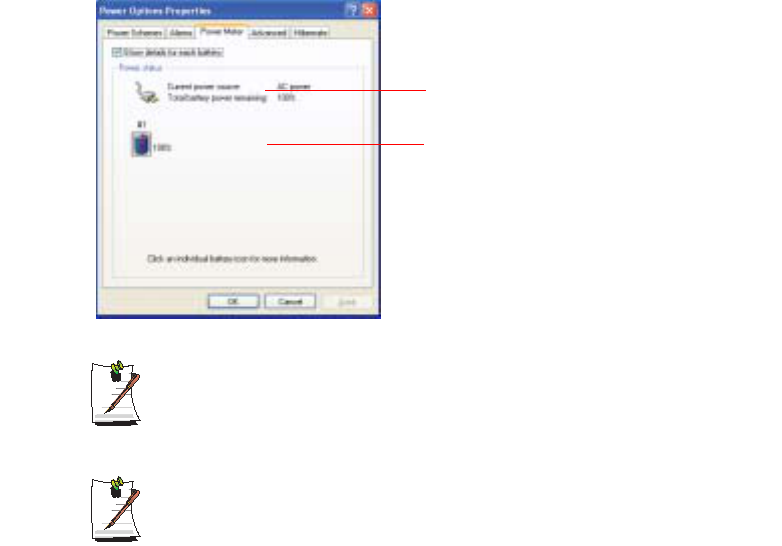
To view on the battery
Click the PUSH button on the battery. The remaining battery charge (%) will be
displayed.
Push button
System Management 109
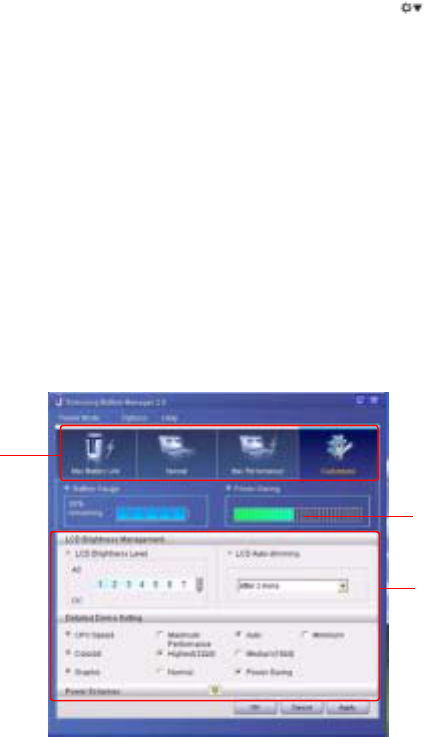
To view through the Control Panel
Select Start > Control Panel > Performance and Maintenance > Power Option >
Power Measure tab.Then you can view the current power source and the current
remaining battery charge.
Using the battery
Battery is an expendable supply, so when you use it for a long time, the
capacity/battery life is shortened. If the battery life is reduced to under half of
the initial time, we recommend that you purchase a new battery to use.
Battery Warning
You will hear an alarm when the remaining battery charge is under 10%.
Connect the power cable or turn off the computer and install a fully charged
battery.
When the remaining battery charge is under 3%, the computer automatically
saves current work and turns off. This may be different according to the
settings in Control Panel > Performance and Maintenance > Power
Options > Alarms tab.
Power Supply Status
Remaining Battery Charge
110 Users Manual
Extending the battery use time
Decreasing the LCD Brightness
Decreasing the LCD brightness by pressing the <Fn>+< > key combination on the
keyboard or adjusting the brightness in the Battery Manager program extends the
battery use time.
Decreasing the LCD brightness by one level extends the battery use time by 3~5%
(10~20 minutes). (The battery use time is determined by the corresponding model.)
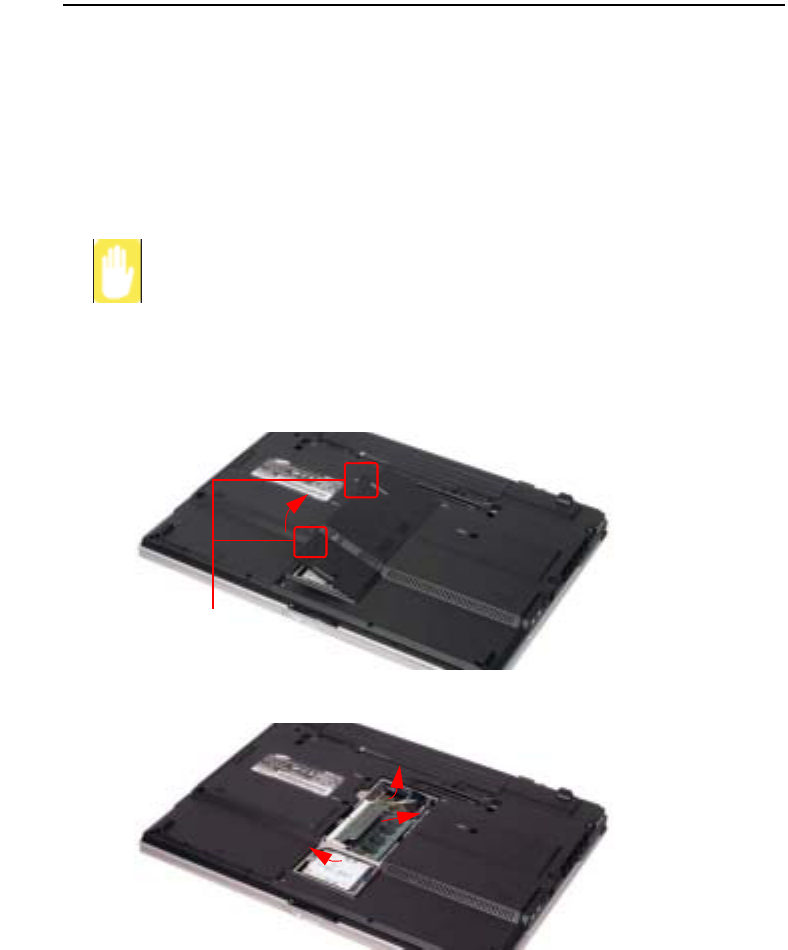
Using the Battery Manager
Battery Manager is a power management program that enables using battery power
efficiently.
You can easily change the power mode by selecting an optimized power mode and
manually optimizing the battery use time by setting each option.
Click on Start > All Programs > Samsung > Samsung Battery Manager >
Samsung Battery Manager.
x Maximum Battery Saving Mode : This mode is appropriate for conditions
which require the maximum battery use time. This may degrade the
performance of the system.
x Normal Mode : This mode is appropriate for normal conditions. Both system
performance and battery use time are optimized.
Change Power
Mode
You can only change the
detailed configuration in
Custom Mode.
Power Saving
Effects

System Management 111
x Maximum Performance Mode : This mode is appropriate for conditions that
require maximum system performance.Therefore, the battery usage time may
be reduced in this mode.
x Custom Mode : In this mode, a user can configure a detailed configuration to
save the battery usage time. You can adjust the LCD brightness, the system
standby time, the screen color quality, and the graphic mode values.
Power Saving Effect
This shows the relative battery use time for each power mode. The more
effective the power saving, the longer the graph will appear.
When Running a Game or Multimedia Application
A game or multimedia application may not work smoothly in Maximum Battery
Saving Mode. Using this is recommended when the AC adapter is connected
or in Normal or higher modes.
Turning Off Unnecessary Devices
Turning off unnecessary devices extends the battery use time.
Select the Start > Control Panel > Performance and Maintenance > System >
Hardware tab and click Device Manager. Right-click a device you are not using, and
select 'Disable' (e.g. wireless LAN, 1394 , etc.)
Battery Calibration
If you charge/discharge the battery repeatedly for only a short time, the battery use
time may be reduced by the difference between the actual battery charge and the
remaining charge display. In this case, the actual battery charge and the remaining
charge display will be same by discharging the battery completely using the Battery
Calibration function, and then recharging it again.
1. Disconnect the AC power adapter after turning off the system.
2. Restart your computer and press <F2> to enter BIOS setup.
3. Using the arrow keys, highlight Smart Battery Calibration in the Boot menu. The
Battery Calibration function is activated and the battery is discharged forcibly.
This operation requires 3~5 hours depending on the battery capacity and the
remaining battery charge.
4. When the calibration process is complete, recharge the battery fully.
112 Users Manual
Upgrading Memory
This computer has one or more 256 MB or 512 MB memory module(s). Two memory
module sockets are provided so that you can replace memory or install an additional
memory module.
Removing the memory module
Before removing/replacing the memory module, turn the system off completely
and remove the battery. Do not replace the memory module when the system
is in Standby/Hibernate mode.
When using memory in dual channel, using memory of the same specification
(the same capacity and manufacturer) is recommended.
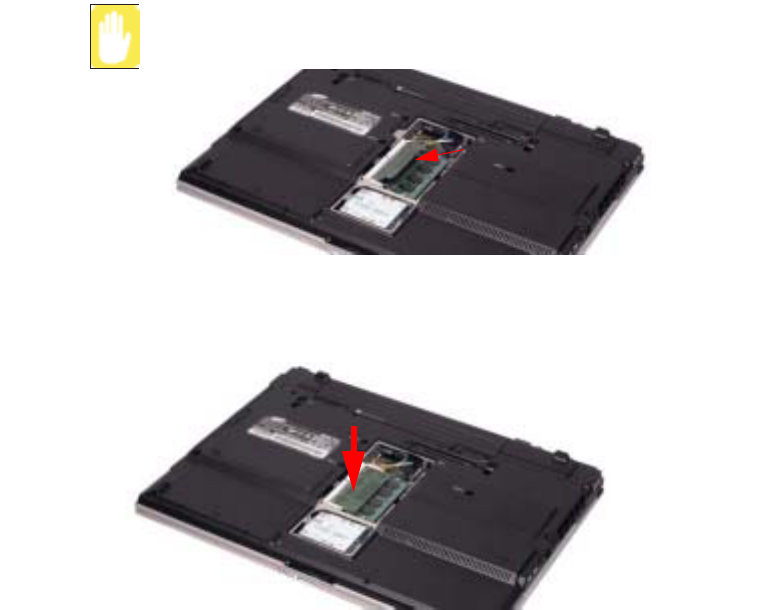
1. Using a screwdriver, open the memory module compartment cover on the bottom
of the computer.
2. Push the memory module tabs outward to pop the memory module upwards.
Carefully pull the module out at an angle of about 30°.
screw
System Management 113
Adding a memory module
1. Align the new memory module connectors accordingly and slide it into the slot at
a 30° angle.
Ensure the notch on the memory module corresponds with the notch on the
socket.
2. Push the memory module in until the module clicks into place. If the memory
module is not fixed completely, gently push the memory down while pressing the
memory module tabs outward.
3. Close and fix the memory module compartment cover using a screwdriver.
114 Users Manual
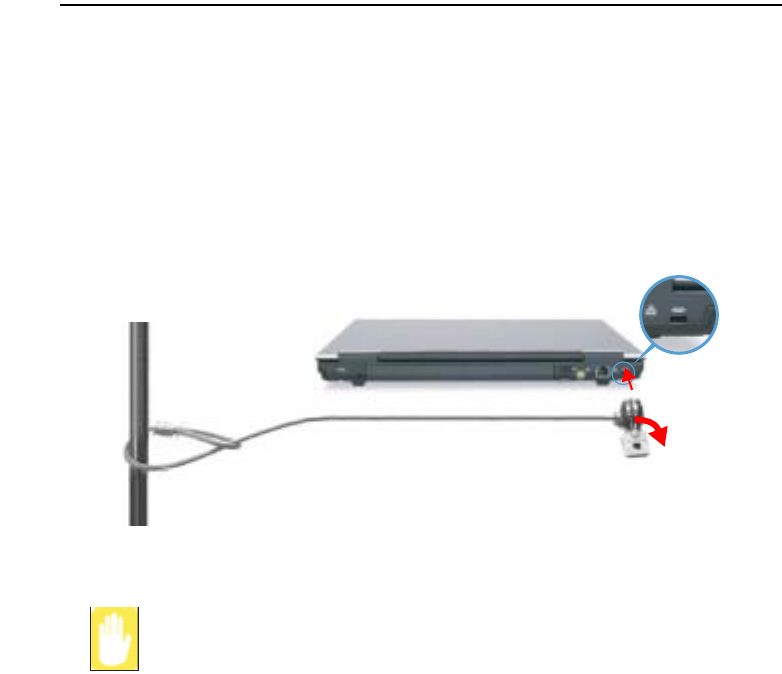
Using the Security Lock Port
The security lock is a device used to physically 'fix' the system when using it in a public
place. The locking device needs to be purchased separately. The shape and methods of
use may differ depending on the manufacturer. Please refer to the manual provided
with the security lock for proper use.
1. Connect a security lock cable to a fixed object.
2. While holding the security lock port lever to the left, connect the cable to the
security lock port.
Any damage to the machine caused by using a locking / security device is not
covered under warranty.

System Management 115
Tips for Using Your Computer
The following information helps you avoid potential problems as you use your
computer:
Do not try to disassemble your computer. Opening the system chassis voids
your warranty. Only an authorised manufacturer service center can replace or
add any parts inside the chassis.
xFollow all the instructions and cautions in your computer user documentation.
xThe LCD has a polarized surface and can be damaged easily. To prevent
damage, avoid touching the screen.
xUse only approved AC adapters, auto adapters, memory modules and other
options.
xBecause a notebook computer is small and has restricted air flow around
components, it is more likely to overheat than a desktop computer. A fan inside
your computer runs when needed to help eliminate heat. Make sure the fan vent
on the left side of your computer is not blocked when you use the computer.
Occasionally check the vents and remove any accumulated dust on the outside.
xAvoid using or storing the computer in extremely hot or cold areas, such as a
car on a hot day. Keep the computer away from heaters and out of direct
sunlight. Exposure to excessive heat may damage computer components. If you
have left your computer in a hot place, let it cool down slowly to room
temperature (with the LCD panel open) before using it.
xDo not remove the memory-module compartment door, or try to install a
memory module when the computer is on.
xSet up your computer work area to avoid physical strain. Sit with your back
straight and supported by your chair. Adjust your chair or work table so that
your arms and wrists can remain in a relaxed position, parallel with the floor.
Avoid bending or twisting your wrists as you work. Your hands should “float”
slightly above the keyboard. Refer to a book on office ergonomics for more
information on setting up your work area.
xTake frequent breaks from working at the computer to rest your eyes and
stretch your muscles.
xRemember to save your data files frequently and to make backup copies of your
files.

116 Users Manual
xA walkie-talkie must be kept more than 1 meter away from the device.
Since a walkie-talkie transmits a very strong signal, it may cause a computer
malfunction.
Travelling with Your Computer
Air Travel
If you are travelling by air, follow these tips:
xTake the computer with you as carry-on luggage. Do not check the computer
with your baggage.
xAllow the computer and disks to go through the X-ray security devices. Do not
hand-carry disks through the walk-through metal detectors, which can cause
loss of data.
xBe prepared to turn off the computer during take off and landing.
Please follow the instruction of the corresponding facilities regarding the use
of wireless devices (wireless LAN, Bluetooth , etc.) when in a wireless
communication restricted area (e.g. airplane, hospital , etc.).
Handling Spills
Do not spill anything on your computer. The best way to avoid spills is to avoid eating
and drinking around your computer. If you do spill something on your computer, turn
off your computer, unplug it immediately, and do the following:
xIf you spill liquid on the keyboard, drain as much of the liquid from the
keyboard as possible. Be careful not to let the liquid drip onto the LCD panel.
Allow the system to dry for several days before trying to use it.
xIf you spill liquid on an external keyboard or keypad, unplug it and drain as
much of the liquid as possible. Allow the keyboard to sit at room temperature
for a full day before trying to use it.
System Management 117
Sweet liquids leave a sticky residue that may jam the keyboard despite your
efforts to dry it.
xIf you spill liquid on the LCD panel, clean it immediately with a soft cloth and
denatured alcohol or a proprietary LCD screen cleaner. Do not use water,
window cleaner, acetone, aromatic solvent, or dry, rough towels to clean it.
Some liquids damage the polarized LCD screen. If your screen is damaged,
contact your authorized manufacturer’s service center for a replacement.
Storing the Computer for Long Periods
If you will not be using the computer for a long period of time (a month or more), you
should discharge the battery completely then remove the battery from the computer.
This extends the life of the battery.

118 Users Manual
Troubleshooting
Complete the following in the order presented until your system is functioning
properly. If all of the steps below fail then contact your local reseller for assistance.
Questions and Answers
Please see “Questions and Answers” on page 120 for assistance in correcting any
computer operational problems.
Check the Connections
Verify all of the power and peripheral cables are securely plugged into their sockets
and that your system and power supply is on.
Norton AntiVirus
Run Norton AntiVirus to ensure a virus is not affecting your computer.
To run Norton AntiVirus proceed as follows:
Click Start > All Programs > Norton AntiVirus > Norton AntiVirus 2005.
Magic Doctor
Magic Doctor is a program developed and distributed by Samsung Computer and is
used to troubleshoot problems. Since this program enables you to diagnose your
system with one-click, try to diagnosis your system with Magic Doctor.
Click Start > All Programs > Samsung > Magic Doctor > Magic Doctor. (p140)
Windows Help and Support
Run Windows Help and Support to find problem that may be affecting your computer.
To run Windows Help and Support proceed as follows:
Click Start > Help and Support.
Frequently Asked Questions
To view FAQ’s on your computer, please visit www.samsungpc.com.
Reinstalling Software
If for some reason your system crashes you may corrupt your HDD, Windows
operating system and/or some of your device drivers. If this is the case, use System
Recovery CD to reinstall OS and System Software Media to reinstall the corrupt
device drivers.

Troubleshooting 119
System Recovery Precaution:
Before you start restoring your windows operating system insure you backup
all data on your hard drive.
Samsung is NOT responsible for any data loss.

120 Users Manual
Questions and Answers
This section provides information on possible problems, solutions and other references
for system use.
Windows Related
Q1 The system does not shutdown properly.
AWhen the system does not shutdown normally, press and hold the Power button
until the system manually shuts off. If the Power-Saving Mode is configured into
the Power button, press and hold for more than 4 seconds to shut the system off.
When the system is turned on after such manual shutdown, Scandisk will run to
check errors in the system.
Q2 The system freezes during program operation
A1 There is an error with the program currently being used. Press the <Ctrl>, <Alt>,
and <Delete> keys simultaneously and click End Task in the [Windows Task
Manager] window.
A2 There is an error with the Windows OS. Reboot the system by using the Power
button.
Display Related
Q1 The LCD screen is too dark or too bright
AAdjust the LCD screen brightness. Use the <Fn>+< >,<Fn>+< > keys.
Q2 The screen saver disturbs screen viewing during Media Player or video file
operation.
AUnselect Tools > Options > Player > Allow screen saver during playback in the
Media Player.
Q3 In DOS mode, changing the full screen DOS mode by pressing
<ALT>+<Enter> key displays a broken image for a short period.

Troubleshooting 121
AThe DOS mode which supports 2 Byte characters such as Korean and Japanese
runs in graphic not in text mode. In this case, a broken image may be displayed
while changing the video mode settings.
Q4 In the following cases, the screen blinks or displays noise for a short time:
(Click on the Graphics Related tab, Change Resolution, Change Display
Device, Remove the AC Adapter, Restart the System and then Change the
PowerMizer level.)
AThis may happen while the video driver is examining the connected device.
While detecting, any connected display devices may blink or some noise may
occur.
Q5 When I connect a projector, and change the setting to display screen image
on both the LCD and the projector by pressing <Fn>+<F4 / > keys,
screen is not displayed properly.
APress <Fn>+<F4 / > keys once again.
If the same problem continues, it means the projector cannot support the
resolution. Lower the resolution to 1024 x 768.
Q6 The playback screen of a DVD title or an MPEG file is only displayed on the
LCD.
AVideo is displayed on a single display device by default, when both LCD and
CRT are selected simultaneously.
1. Right-click over the Desktop and select Properties from the pop-up menu.
2. In the [Display Properties] window, select the Settings tab > Advanced >
CATALYST Control Center tab.
3. Click the ATI CATALYST Control Center button and run the CATALYST
Control Center.
4. From the View menu, select the Advanced View item.
5. Select Avivo Video > Theater Mode and set the Clone Mode Overlay Display
item to Theater Mode (Full Screen). You can then view the video on both LCD
and CRT.
Q7 After connecting to a TV, some programs such as Debug, Mem, etc. do not
run in full screen MS-DOS mode.
122 Users Manual
AIf a TV is used as the display device, some programs such as Debug, Mem, etc.
may not run properly in full screen MS-DOS mode. Run the programs in the MS-
DOS window.
Q8 The Taskbar on the bottom of the screen does not appear when a projector
is used as the display device.
AIt may happen that even though the Wide LCD supports the resolution, the
projector does not support the resolution. In this case, change the system
resolution to 1024 x 768 pixels (recommended).
Q9 When a TV is connected, the Turn off monitor power option is not
performed.
AWhen connecting a TV after booting up your computer, the Turn off monitor
power option may not be performed. For it to operate properly, it is recommended
to connect a TV and then booting up the computer.
Q10 The shortcut icon does not appear on the screen.
AThe shortcut icon appears only when Magic Keyboard and the Samsung Display
Manager program are installed.
Q11 I cannot set up Dual View properly. (For Intel Graphics only.)
AThis may happen when Clone mode is selected for an external monitor.
Press the <Fn>+<F4> key combination to select LCD and try to set up Dual
View again.
Q12 The screen is rotated, but I cannot return it to the original orientation. (This
only applies to Intel graphics cards.)
AThis may happen when you have used the screen pivot function or pressed a
wrong key while using the computer. For Intel Graphics, press the
Ctrl+Alt+Direction Key ( ˦: rotate 0 degrees, ˧: rotate 270 degrees, ˨: rotate
180 degrees, ˥: rotate 90 degrees)to return to the original orientation.
Q13 While playing a video in the LCD/CRT status, and I change the display
screen to Full Screen or move the display screen, black lines appear on the
secondary display device.

Troubleshooting 123
ASet Avivo Video > Theater Mode > Theater Mode Setting to Full Screen in
the CCI Options.
Q14 If I run the Catalyst Control Center of the graphics driver, it appears on the
screen after some time.
ASince the Catalyst Control Center is developed based on the .Net Framework of
Microsoft, some time is required to define the .Net Framework settings when
launched for the first time.
Q15 I have connected a TV with a cable that converts S-Video to Composite, but
the picture is displayed abnormally on the screen.
AThis system supports connecting a TV with an S-Video or Component cable but
does not support connecting a TV through a Composite interface with a cable that
converts S-Video to Composite.
Q16 If I change the graphics settings using the Display Settings Wizard of the
graphics driver, the setting window goes back and hidden.
AThis is a problem due to the design of the graphics driver. If a user clicks on the
Apply button after setting the graphics settings using the Settings Wizard, the
final Finish screen goes back and is hidden.
Q17 The picture is abnormally displayed on the screen when the computer is
resumed in Standby mode. (This only applies to Intel graphics cards.)
AThis may happen when the CRT is set as the Primary device in the Extended
Desktop Settings.
When the CRT is set as Primary and the LCD as Secondary, the picture may be
displayed abnormally if the system enters Standby mode, is restarted after
disconnecting the CRT and the resolution is changed. It is recommended setting
the LCD as the Primary Display Device.
Q18 <Fn>+<F4/ > Key combination does not work.
A While displaying video of VCD or MPEG, or the display setting is Dual View,
you cannot toggle display devices. Also the installation of NetWare Client 32
program disables the function of <Fn+F4/ >.

124 Users Manual
Sound Related
Q1 How to install and uninstall the sound driver
ATo install or uninstall the sound driver from this system, please follow the
procedures below.
xSound Driver Components
The sound driver consists of the following 3 components and the 3 components
are automatically installed during the installation.
–High Definition Audio - KB888111: Microsoft UAA Bus Driver for High
Definition Audio
–SoundMAX: SoundMAX Integrated Digital HD Audio
–WOW XT and TSXT Filter Driver: SRS
xUninstalling the Sound Driver
To remove the sound driver due to a problem or for an update, follow the
procedures below.
If you do not follow the sequence below, the sound driver may not be removed
or the reinstalled driver, or may not work properly.
1. Select Start > Control Panel > Add or Remove Programs.
2. Remove WOW XT and TSXT Filter Driver first.
3. Remove SoundMAX and restart the computer.
Do not remove the High Definition Audio item. Removing this item also
removes the modem device driver.
If you have removed this item, you need to install the modem device driver
again.
xReinstalling the Sound Driver
If there is an already installed sound driver, uninstall the driver according to the
procedures above.
The sound driver is included on the System Software Media.
1. Insert the System Software CD-ROM into the CD-ROM drive.
2. Select the Sound Driver on either Standard Installation or Custom Installation,
then the 3 components of the sound driver are automatically installed.

Troubleshooting 125
xInstalling the Sound Driver after a Windows XP Reinstallation
If you install the sound driver after reinstalling Windows XP, the Add Hardware
Wizard (Modem Device) window may appear during the sound driver
installation. This happens because the High Definition Audio - KB888111
Hotfix, which has been installed on your system, has changed the settings to
search for both sound and modem devices. If you install the modem device, this
message will not appear. If necessary, install the modem device together.
The number of the High Definition Audio - KB888111 Hotfix may differ if you
have updated the Hotfix from the Microsoft web site.
Q2 Recording with the built-in microphone
ASince the default setting is set to recording with an external microphone, change
the settings to record using the built-in microphone.
1. Double-click the Volume icon in the Taskbar (Add icon of 2 on page 46) and
click Options > Properties.
2. Click on Options >Properties.
3. Select SoundMAX HD Audio O in the Mixer Device field and select 'MIC' in
the Show the following volume control field.
4. When clicking the OK button, the MIC field appears in the Master Volume.
5. Select Options > Advanced Controls.
6. Unselect Advanced > Microphone Jack in the MIC field of the Master Volume
window and click on Close.
You can now record using the built-in microphone.
Q3 Using the additional functions when recording with the built-in microphone
ATo record sound at the center of both microphones, set it up as follows.
1. Click on Start > Control Panel > Sound, Audio and Audio Devices >
SoundMAX.
2. In the Microphone Peripherals field, select 'Directional Beam' and click the
OK button.
126 Users Manual
Modem Related
Q1 I cannot hear the modem sound.
A1 Check that the telephone line is properly connected to the modem.
A2 Check that the modem driver is installed properly.
1. Click Start > Control Panel > Performance and Maintenance > System.
2. Select Hardware tab > Device Manager > Modems in the System Properties
window, and check if there is a yellow exclamation mark on the installed modem
icon. If there is, delete the modem device driver and reinstall the driver, because
the yellow exclamation mark represents a not properly installed driver.
3. If there is no yellow exclamation mark, double-click the installed modem, and
click Diagnostics tab > Query Modem in the Modem Properties window to
diagnose the modem.
No message in either of Command and Response in the Diagnostics tab means
that the modem is not operating properly.
Diagnose the modem again after restarting the system or reinstalling the driver.
(You have to exit all programs using modem in the advance of diagnostics of the
modem).
Q2 I cannot make a call using an extension line.
AIn general, the dial tone of a PBX or a digital phone switching system is not a
continuous one, unlike that of a trunk line.
Therefore, the modem may not make a call because the modem mistakes the dial
tone from a PBX or a digital phone switching system as a busy tone.
In this case, complete the following procedures.
- Using an AT command
As an initialization command, use the command, ATX3.
Otherwise, enter the ATX3 command manually before making a call.
It can correct this problem by skipping the dial tone check step.
- Configuring the Modem through the Control Panel
1. Click Start > Control Panel > Network and Internet Connections.
2. Under See Also, click Phone and Modem Options.
3. In the Modems tab, select the installed modem, and click Properties.
4. In the Modem tab of the Modem Properties window, clear the 'Wait for dial tone
before dialing' check box.
Troubleshooting 127
5. When the configuration is completed, click OK.
Q3 How do I use my modem when dialing from overseas?
A1 Check that the modem is correctly configured according to the current country.
Because the values for communication may differ according to the country, you
may not be able to connect via the modem due to an incorrect modem
configuration.
1. Click Start > Control Panel > Network and Internet Connections.
2. Under See Also, click Phone and Modem Options.
3. In the Dialing Rules tab, click Edit.
4. In the General tab in the Edit Location window, select the current country from
the Country/region radio box, specify the Area code, and click OK.
A2 Because the shape of the telephone plug may differ according to the country, you
have to purchase and use the appropriate telephone plug for that particular
country.
Q4 How do I receive a fax while the system is in power saving modeG(Rest mode) ?
ATo receive a fax in Standby Mode, you have to set it up as follows.
1. The automatic fax reception function of the fax program needs to be activated.
(For more information, refer to the corresponding fax program manual.)
2. Click Start > Control Panel > Network and Internet Connections.
3. Under See Also, click Phone and Modem Options.
4. In the Modems tab, select the installed modem, and click Properties.
5. In the Power Management tab of the Modem Properties window, select the “With
this device, exit the computer from stand-by mode” item and then click OK.
The above setting enables the modem to turn on the system and receive a fax
when in power saving mode.
128 Users Manual
Wired LAN Related
Q1 <Wake On LAN> function
A<Wake On LAN> is a function that activates the system in rest mode when a
signal (such as ping or magic packet commands) arrives from network (wired
LAN).
To use <Wake On LAN> function:
1. Select My Network Places > View network connections from the Desktop.
2. Click the right button on the touchpad over Local Area Connection, and select
Properties.
3. Click Configure, and select Power Management tab. Select ’Allow this device to
bring the computer out of standby’, then click OK. Restart the system.
- If the system in rest mode is activated when there is no received signal, use the
system after disabling <Wake On LAN> function.
- Connecting wired LAN while using wireless LAN may not execute <Wake On
LAN> function. Configure wireless LAN to ’Disable’ to use <Wake On LAN>
function.
1. Click on My Network Place> View network connections on the Desktop.
2. Right-click over Wireless Network Connection and select Disable.
Q2 When I connected 100Mbps wired LAN and the computer exits standby/
hibernate mode, a message informing 10Mbps wired LAN connection
appears.
A When the computer exits standby/hibernate mode, restoring the network takes
about 3 seconds. When the network is restored, it operates in 100Mbps.
Q3 To network-boot quickly when both the X-Dock and the Wireline LAN port
of the system are both connected to the LAN with the LAN cables,
AIf LAN cables are connected to both ports, because the LAN cable connection
status of X-Dock is checked and the status of the system is checked in sequence,
approximately 2 minutes are required.
To boot quickly, press the <F12> key, press the <Esc> key and select either
'Network Boot from Internal LAN' or 'Network Boot from Dock LAN'.
Troubleshooting 129
Wireless LAN Related
Q1 The Wireless LAN device is operating properly, but I cannot connect to the
Internet or to another computer.
This is due to an incorrect configuration, or a configuration error. Check the
following check lists:
A1 If you are using a computer-to-computer (Ad Hoc) network connection, check
that the name of the configured network (SSID) is correct. The network name
(SSID) is case sensitive.
A2 If you are using a network key (encryption key), you have to use the same
network keys for an AP (Access Point) or a computer-to-computer network (Ad
Hoc). The network key of the AP is configured in the AP management program.
Ask your network administrator or AP manager for more detailed information.
A3 Check that the device driver is properly installed. If the driver is not properly
installed, you will find a yellow exclamation mark on the network icon by
clicking Start > Control Panel > Performance and Maintenance > System >
Hardware tab > Device Manager > Network adapters > Wireless LAN adapter. If
there is a yellow exclamation mark, please reinstall the device driver with the
system software Media.
A4 Referring to A2 of Q3, Check that the network bridge configuration is correct.
Q2 The signal strength is excellent, but I cannot connect to the network.
Even if the signal strength is excellent, the network connection may not operate
properly if the TCP/IP properties are not properly configured, or the network key
(encryption key) is incorrect.
A1 Check that the TCP/IP properties are configured properly. When you connect to
an AP, click the Wireless Network Connection icon on the taskbar and select the
Support tab. If the IP is not allocated properly, the IP address will be displayed
as follows (e.g. 169.254.xxx.xxx).
If the network does not provide DHCP, you have to specify the correct IP address
by asking your network administrator.
Even if the network provides DHCP, the server may not allocate an IP address to
the client properly, and the client station cannot connect to the network.
A2 Referring to A2 of Q1, check that the network key is correct.
A3 Referring to Q4, check that AP is operating properly.
Q3 I cannot share an Internet connection.
130 Users Manual
A1 It may require some time to synchronize the computers to share an Internet
connection after the Internet connection sharing configuration is completed. If
you cannot share Internet connection even after a longer period, restart the
computer.
A2 Check if the connection between the network adapters is configured to bridge. If
there is a configured bridge connection between the network adapters through the
network configuration wizard, remove the network bridge, and reconfigure the
Internet connection sharing.
A bridge connection is created when you ran Network Setup Wizard from the
[Network Connections] window, and selected both the internal connection
adapter and another adapter in the wizard.
Q4 I cannot connect to the AP.
Check the Computer Settings
A1 Verify whether the wireless LAN function of the computer is on by doing the
following. If the wireless LAN function is off, turn it on.
- For Windows XP, verify that the wireless network connection has been set to
"Enable" in Start > Control Panel > Network Connections.
- Check if the wireless LAN is turned on.
A2 Verify whether the same network key (encryption key) has been entered in both
the AP and the computer.
The network key is an encryption key for encrypting data transmitted between the
AP and the computer. It is recommended setting the network key manually.
Check the AP Settings
For the AP settings, refer to the User's Guide provided by the AP manufacturer.
A3 Verify whether the environment is suitable for using a wireless LAN.
The use of a wireless LAN may be restricted according to the environment and
distance. Obstacles such as walls or doors affect the use of a wireless LAN.
Install the AP in a high and open space 50cm from the wall and far removed from
any other radio signal sources.
A4 Verify whether the AP is operating properly.
- When the AP is not operating normally, turn off the AP and after a short while
turn it on again.
- Verify whether the AP's firmware is the most recent version. (Contact the AP
manufacturer or the place where you purchased the AP for details of the AP
firmware.)
A5 Verify whether the AP has been properly connected to the network.
Troubleshooting 131
Verify whether the network is operating normally by connecting the wired
network cable, which has been connected to the AP, to your computer.
A6 Check the network key settings (encryption key).
When automatic code conversion (a passphrase function) has been selected and
data communication is not functioning even with a normal wireless connection,
it is recommended entering the network key (encryption key) manually.
A7 Check the AP settings as follows. (The following is recommended for a standard
environment and thus may differ according to the specific wireless network
environment.)
- When several APs are present simultaneously, check the channel setting for
each AP. When different APs are using nearby channels, interference may occur
between electronic waves. Set the APs' channels further apart from each other.
(Ex: Ch1, Ch5, Ch9, Ch13)
- When an AP's SSID (Service Set ID) option is set to "Hide", you cannot search
for that AP on the computer. We recommend canceling the "Hide" option for an
AP. The SSID is a name for distinguishing one wireless LAN from another
wireless LAN.
- It is recommended using Long Preamble. Preamble is a signal for data
transmission synchronization. Short Preamble may be supported by some types
of APs but may cause compatibility problems.
- It is recommended using a static IP.
- Since static channel selection is more reliable than auto channel selection, it is
recommended setting a static channel.
Q5 In the Windows XP 'Available wireless networks' window, the Wireless
Network Connection is displayed as 'Not Available'.
A1 Check if the wireless LAN is turned on.
A2 Check if there is additional program for a wireless LAN connection installed.
Windows XP supports wireless LAN connections through the Wireless Zero
Configuration (WZC) service. Therefore, an additional program for wireless
LAN connection is not required, unless the network requires a specific program.
However, installation of some wireless LAN related programs may sometimes
disable the [View Available Wireless Networks] window supported by WZC
service. Exit the wireless LAN related program then check whether the window
is enabled.
A3 Initialize the device driver.
Click Start > Control Panel > Performance and Maintenance > System >
132 Users Manual
Hardware tab > Device Manager > Network adapters, and select the wireless
LAN adapter. Right-click the network adaptor and select 'Disable'. Then right-
click over the network adaptor and select 'Enable' after a short wait to check that
the device is operating properly.
A4 Right-click the My computer icon, and select Manage. When the Computer
Management window appears, double-click Services and Applications on the
left, and then click Services from the sub menu tree. Select the Standard tab in
the right pane, double-click Wireless Zero Configuration and check that Startup
Type is configured to Automatic, and the Service status is Started.
A5 In the case of Windows XP, click Advanced in the [Wireless Network
Connection] dialog box (see "Connecting to an Access Point (AP)" (p66)) and
make sure that 'Use Windows to configure my wireless network settings' is
selected.
This may happen when a third-party wireless network setup program (e.g.
PROSet) other than Windows XP default program is installed. For setting up a
wireless network using the Windows XP program, this option should be selected.
Q6 When connecting to a computer-to-computer (Ad Hoc) network, I cannot
connect to another computer connected to the same computer-to-computer
network.
A1 Make sure that the security settings and network name of the computer-to-
computer (Ad Hoc) network is correct.
A2 Check the TCP/IP properties of the computers to be connected through the
computer-to-computer (Ad Hoc) network. All of the computers to be connected
through a computer-to-computer (Ad Hoc) network should be configured so that
their IP addresses are within the same subnet range.
- If the TCP/IP Settings are configured to DHCP, the address is automatically
configured to an address within the subnet IP range. This will take about 2~3
minutes.
- If the IP address is configured to static IP in TCP/IP properties, select Use the
following IP address in the TCP/IP properties of the wireless adapter, configure
IP address:10.0.0.1~10.0.0.254, and Subnet mask: 255.255.0.0, and then try
again.
- A fixed IP is recommended for a small-size network.
Q7 When using a computer-to-computer (Ad Hoc) network, sometimes I cannot
search the access point.
A It may happen occasionally when you are using a computer-to-computer (Ad
Troubleshooting 133
Hoc) network connection. Even if you cannot find some access points, the
computer-to-computer (Ad Hoc) network is operating properly. Click Refresh to
view the latest search result.
Q8 Running Help file while running Profile Wizard in the wireless LAN
program (PROSet) makes the PROSet window white.
A It will be displayed properly when you finish the profile wizard. It dose not affect
the program operation.
Q9 The network does not operate properly when both the wireless and the wired
network connections are simultaneously configured with the same IP
address.
AYou cannot use the wireless and the wired network connections using the same
IP address simultaneously. To use either the wireless or the wired network in turn
with the same IP address, you have to Disable whichever network device will not
be using in the network connection of the Control Panel.
Q10 The wireless LAN does not work properly when there is a device operating
on an adjacent frequency in the vicinity of the product.
A1 Channel interference may occur when a wireless video transceiver or a
microwave oven is being used.If you experience channel interference from other
equipment, it is recommended changing the channel to connect to the AP. For
more information about AP settings, refer to the User Manual supplied by the AP
manufacturer.
A2 Since IEEE802.11g equipment operates in hybrid mode when there is active
IEEE802.11b equipment, the data rate may be degraded.
Q11 An established wireless LAN connection is disconnected after 2~3 minutes,
and the connection is not recovered.
A1 This may be caused by channel interference. Change the channel of the AP, and
reconnect.
A2 This may be caused by selecting the ’Use IEEE 802.1x network authentication’
option when IEEE 802.1x authentication is not available.
Check the properties of the AP in the wireless network settings. If the ’Use IEEE
802.1x authentication in this network’ option is selected, deselect the option on
the Authentication tab.
For more detailed information about authentication server, ask your network
administrator.
134 Users Manual
A3 If the AP is configured to ’Use network authentication (Shared Key)’
If the AP is configured to authentication shared mode, all computers to be
connected should be configured as follows:
- If you are using Windows XP, select network authentication(shared mode) in
the wireless network settings.
Select Start > Control Panel > Network and Internet Connections > Network
Connections, right-click the Wireless Network Connection icon and then select
View Available Wireless Networks.
Select Change Advanced Settings from the left menu, select an AP from
Preferred networks window in the Wireless Networks tab, and click the
Properties button. Select Shared Mode in the Network Authentication field of the
Association tab, and then click the OK button.
If the Preferred networks window in the Wireless Network tab is empty, click
View Wireless Networks, select an AP to connect to, and select Shared Mode in
the Network Authentication field of the Connection Information tab as described
above.
For more detailed network authentication procedures, ask your AP (Access
Point) administrator.
Q12 After PROSet is installed, The “AEGIS Protocol (IEEE 802.1x) v2.2.1.0”
appears in the [Local Area Connection Properties] window.
AThe AEGIS Protocol is a security authentication protocol that is automatically
installed when PROSet is installed and does not affect the operation of other
programs.
Q13 Although I have turned the wireless LAN off using the Off Button on the
PROSet, the wireless LAN operating light is still on.
AThis is normal. The Off Button for the Wireless LAN on the PROSet only turns
off the S/W and not the H/W for the Wireless LAN.
Q14 After installing the PROSet, I cannot manage the wireless network under
Windows.
AClick on "Use Microsoft Client" in the Tools menu of the PROSet program to
manage a wireless network in Windows.
To manage a wireless network in the PROSet program, click on "Use Inter
PROSet/Wireless" in the Tools menu of the PROSet program.

Troubleshooting 135
Games and Programs Related
Q1 3D game is not executed, or some functions are not working.
AChange the graphic setting of the game to '2D' or 'Software Renderer', then
execute the program again.
Q2 I launched a game right after installing it, and the game is not executed.
AThis problem may occur when the game is not compatible with Windows XP.
Launch the game again, and it will be executed properly.
Q3 While playing a game, pressing the <Fn>+<F4 / >keys does not work or
the screen is not properly displayed.
ASome games and 3D application programs may change the display device
control. Therefore, pressing the <Fn>+<F4 / > keys may terminate the running
program or may display an abnormal screen.
Press the <Fn>+<F4 / > keys before launching a program and do not press
them while running the program.
Q4 Running speed of a game is too slow or fast.
AChange the setting of Power Schemes to 'Always On'.
(Click Start > Control Panel > Performance and Maintenance > Power Options >
Power Schemes tab, then configure the Power schemes field to 'Always On'.)
Q5 Some part of a game image is not displayed or is displayed in black.
AThis may happen when running a game designed for DirectX 8.1, such as NHL
2003, MVP Baseball 2003, etc.
Q6 The game screen is displayed small.
A [ATI Graphics]
This may happen when the display settings are set to zoom out mode ('Use center
output'). Change the settings as follows to fit the game screen to the LCD screen.
1. Right-click over the Desktop and select Properties from the pop-up menu.
2. In the [Display Properties] window, select the Settings tab > Advanced >
CATALYST Control Center tab.
136 Users Manual
3. Click the ATI CATALYST Control Center button to run the CATALYST
Control Center.
4. From the View menu, select the Advanced View item.
5. Select Notebook Panel Properties > Properties and set the Panel Settings to
'Image Zoom In - Fit to Panel Size' and click the Apply button.
[Intel Graphics]
1URight-click on the Desktop and select Properties from the pop-up menu.
2. In the [Display Properties] window, select the Settings tab > Advanced > Intel
Graphics Media Accelerator Driver for Mobile tab.
3. Select the Graphic Properties item, select 'Single Display' and set the Current
Display to 'Notebook'.
4. Click the Display Settings menu, select 'Full Screen' for the Display Extension
and then click the Apply button.
Q7 The game play screen frequently stops and starts.
A [Intel Graphics]
This may occur when 'Intel Dual Frequency Graphics Technology' is selected.
1. Right-click on the Desktop and select Properties from the pop-up menu.
2. In the [Display Properties] window, select the Setting tab > Advanced > Intel
Graphics Media Accelerator Driver for Mobile tab.
3. Select the Graphic Properties item, select 'Single Display' and set the Current
Display to 'Notebook'.
4. Click the Display Settings menu and the 'Power Settings'.
5. Unselect 'Intel Dual Frequency Graphics Technology' and then click the
Apply button.
Q8 Game play is not displayed smoothly on the screen.
AFor 3D games, the texture data for the 3D screen display is saved to the system
memory. If there is insufficient system memory, the data is saved to the hard disk
drive and loaded to memory when required. This operation may temporarily stop
displaying the picture on the screen.
In this case, lower the game resolution or the screen settings. (For Delta Force:
Black Hawk Down, Medal of Honor, Battle Field, 1942, etc.)
Troubleshooting 137
Q9 If I run a game, a message appears informing me that the game is not
supported.
ASince Intel Graphics do not support the H/W T&L function, a game using the H/
W T&L function may play abnormally.
Example) SWAT4, Splinter Cell, Armies of Exigo, Brothers In Arms, Medal of
Honor Pacific Assault, The Lord of the Rings, Alexander, Enter the Matrix, etc.
Security Center
Q1 To change the popup window display settings when connected to the
Internet.
In the Windows XP SP2 environment, you can decide whether to display a popup
window when connected to the Internet, for user convenience and security.
A1 To display most of the popup windows when connected to the Internet:
1. Click on Internet Options in Start > Control Panel > Security Center > Manage
security settings for.
2. In the Privacy tab of Internet Properties, clear Block pop-ups.
A2 To display popup windows only from the current site when connected to the
Internet:
Place the cursor on the notification area at the bottom of the Internet address bar
and right-click to display a menu, from which you can select Temporarily Allow
Pop-ups or Always Allow Pop-ups from This Site.
A3 To display popup windows from a particular site:
1. Click on Internet Options in Start > Control Panel > Security Center > Manage
security settings for.
2. In the Privacy tab of Internet Properties, click on Settings from Block pop-ups.
3. Enter a URL to want to allow pop-ups into Address of Web site to allow and click
on Add.
4. You will find that the entered address is added to the allowed sites list. The next
time you connect to the Web site, you will see pop-ups appearing.
When you need to re-block a permitted site, select the Web site address that you
want to block from the Allowed Sites and click on Remove.
Q2 When you connect to a Web site, you see the message, “To help protect your
security, Internet Explorer stopped this site from installing an ActiveX

138 Users Manual
control on your computer” or “This site might require the following ActiveX
control” below the address bar.
AWindows XP SP2 blocks unsigned ActiveX controls from being installed when
connected to certain Web sites for security reasons. On some Web sites that have
no ActiveX controls installed, applications are not started or do not display
properly.
In this case, to install ActiveX controls, right-click the notification area to display
a menu from which you can select Install ActiveX control.
Q3 When you see a Windows Security Alert icon ( ) appear on the right part
of the task bar.
With the Security Center feature added, Windows XP SP2 checks the Firewall,
the automatic updates configuration and installation of virus-checking programs
to display a Windows Security Alert icon on the right part of the task bar when it
judges that the computer is vulnerable to attacks from the Internet. In this case,
check the following to install the necessary components.
A1 Set up the Windows Firewall.
When you set up the Windows Firewall, you will be protected from unauthorized
access through the Internet or the network.
1. Click on Windows Firewall in Start > Control Panel > Security Center > Manage
security settings for.
2. From the General tab of Windows Firewall, select ON (recommended).
3. If you want to allow a certain program or service to gain access to your computer
using the Firewall, select and check the program or service that you want to allow
access from, in the Exceptions tab of the Windows Firewall. If you want to add
a program to Programs and Services, click on Add Program and select it.
A2 Set up Windows Automatic Updates.
This automatically downloads and installs critical updates via the Internet to keep
your computer up to date.
1. Click on Automatic Updates in Start > Control Panel > Security Center > Manage
security settings for.
2. From general tab of Automatic Updates window, select Automatic
(recommended).
A3 Keep your computer current with the latest virus updates. (ex: Norton Antivirus)
Even when you have installed Norton AntiVirus on your computer, Windows
cannot recognize the program until you configure the settings, displaying a
Security Alert icon.

Troubleshooting 139
When you first use or install Norton AntiVirus for the first time, follow the
Registration Wizard steps to configure the registration settings.
To protect your computer from virus attacks with the latest updates, click on
Options to display the Norton AntiVirus Options window. From the left menu of
the window, check Run Automatic Protection to select Automatic Protection and
check Run LiveUpdate to select LiveUpdate.
A4 Two virus scanning programs on one computer may cause system conflicts.
Remove one of the programs from the system.
A5 If Windows does not recognize the existence of an anti-virus program even when
it has been installed, your computer could be vulnerable to attacks from the
Internet. You should install an anti-virus program that your computer is able to
identify.
Check the following programs which Windows can detect and select one from
the list.
A list of anti-virus programs that Windows can detect:
-Symantec Norton Anti-Virus
-NetworkAssociates (McAfee)
-TrendMicro
-ComputerAssociates
-Panda
-Kaspersky
-Ahnlabs (AhnLab)
Visit the Microsoft Web site (www.microsoft.com) regularly to check the latest
list.
Other
Q1 4GB memory capacity is not properly recognized by Windows.
AWindows XP SP2 and Windows Sever 2003 SP1 Standard Server cannot display
memory exceeding 4GB due to license and driver compatibility problem. Even if
the memory capacity is displayed as 3GB in your system information, 4GB
memory is recognized normally by the system.
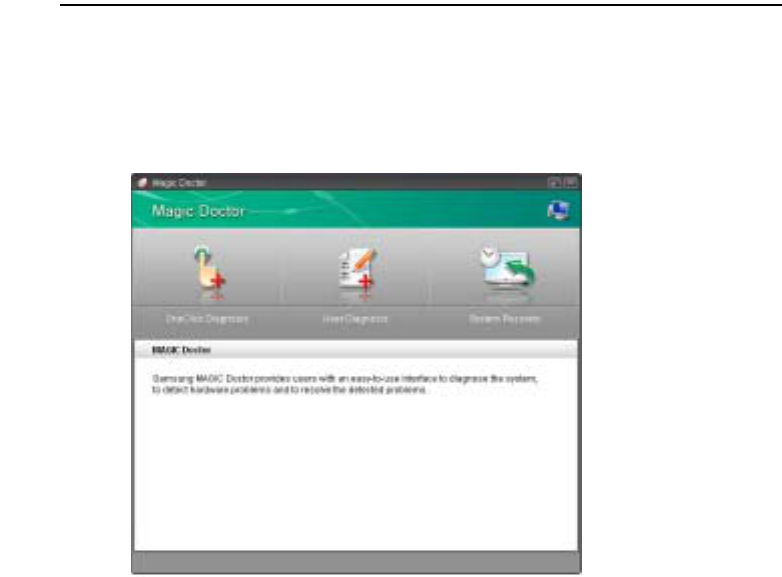
140 Users Manual
Using Magic Doctor
Magic Doctor is troubleshooting software provided by Samsung Computer. A user can
diagnose system problems via one-click or by selecting diagnostic items.
1. Click Start > All Programs > Samsung > Magic Doctor > Magic Doctor.
2. Click on an icon at the top of the screen.
–OneClick Diagnosis: You can diagnose problems affecting the system
connections and system operations via one-click.
–User Diagnosis: You can select the necessary diagnostic items and diagnose
system problems.
–System Recovery: Launches the Restoring the System function of Windows
XP. (p141)
3. When the system diagnosis is completed, the diagnostic result appears.
If problems are found, click the Cure button to correct the problem. Magic Doctor
starts the correction operations.
Troubleshooting 141
Restoring the System
This description is only for models running Window XP.
The System Restore function allows you to restore your computer to an earlier copy
(called restore point), and restores the settings if a problem occurs.The System Restore
function is provided by Windows XP to enable the resolution of various problems
without reinstalling Windows XP completely.
You can use System Restore in the following cases.
xThe system files are deleted or damaged by mistake.
xThe system is unstable or a problem occurs in a device driver.
xA problem occurs after changing system files such as the registry.
xA problem occurs after installing a new program.
Creating a Restore Point
Restore points are created at predetermined times and at times of significant system
events such as when a program or a driver is installed. You can also decide when to
create your own restore points.
There has to more than 200MB of free space on the hard disk drive. If the disk
space is insufficient, a saved restore point might be deleted.
You are recommended to create a restore point when you have purchased a
new computer and before installing new programs or device drivers. Before
creating a restore point, check that the computer is operating properly.
The procedures to create your own restore point are described below.
1. Click Start > All Programs > Accessories > System Tools > System Restore.
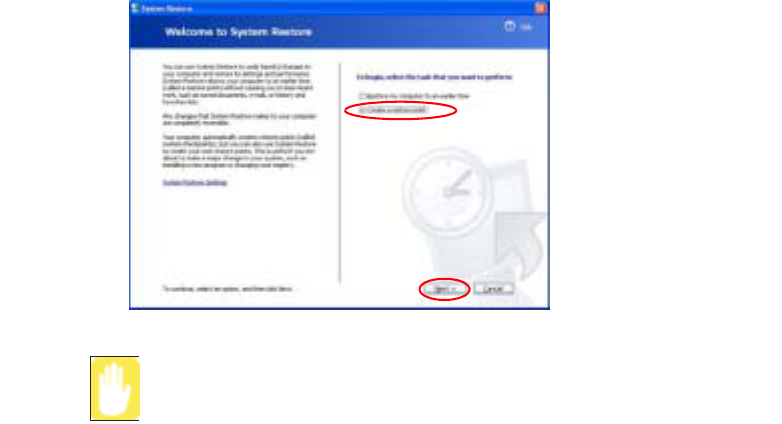
142 Users Manual
2. Select "Create a restore point", and click Next.
Since changes made after the Recovery Point may not be maintained, please
back-up all necessary files to another location before performing system
recovery.
3. In the Restore point description box, type a name to identify the restore point, and
than click Create. A restore point has been created.
Returning your computer to an earlier restore point
The procedures to return your computer to an earlier restore point when a problem has
occurred are described below.
1. Click Start > All Programs > Accessories > System Tools > System Restore.
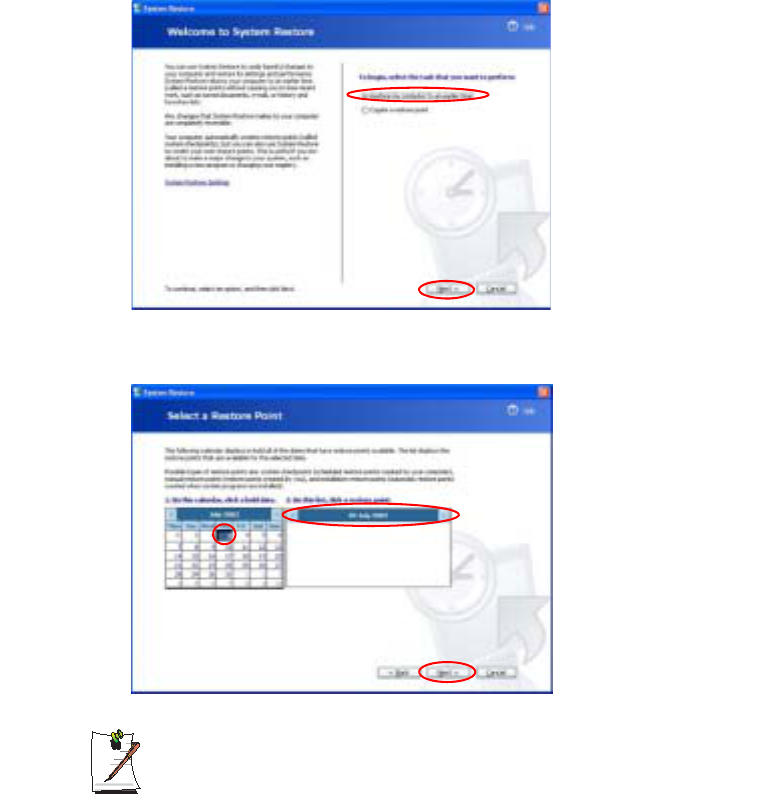
Troubleshooting 143
2. Select "Restore my computer to an earlier time", and then click Next.
3. Select the desired restore date from the calendar restoration and select the desired
restore point from the list, and then click Next.
The date of the restore point is displayed in bold font.
4. Confirm the selected restore point and click Next. System Restore shuts down
Windows, and starts the restoration processes.
5. After the restoration is complete, Windows restarts. In the [System Restore
completed] dialog, click OK.Your computer has been restored to the selected
restore point.
144 Users Manual
Undoing the last restoration
The procedures to undo a restoration are described below.
1. Click Start > All Programs > Accessories > System Tools > System Restore.
2. Select "Undo my last restoration", and then click Next.
3. Confirm the restoration information to undo, and than click Next. System Restore
shuts down Windows and starts undoing the restoration.
4. After the undo restoration is complete, Windows restarts. In the [Undo the last
restoration completed] dialog, click OK.Your computer has been restored to the
point prior to the last restoration.
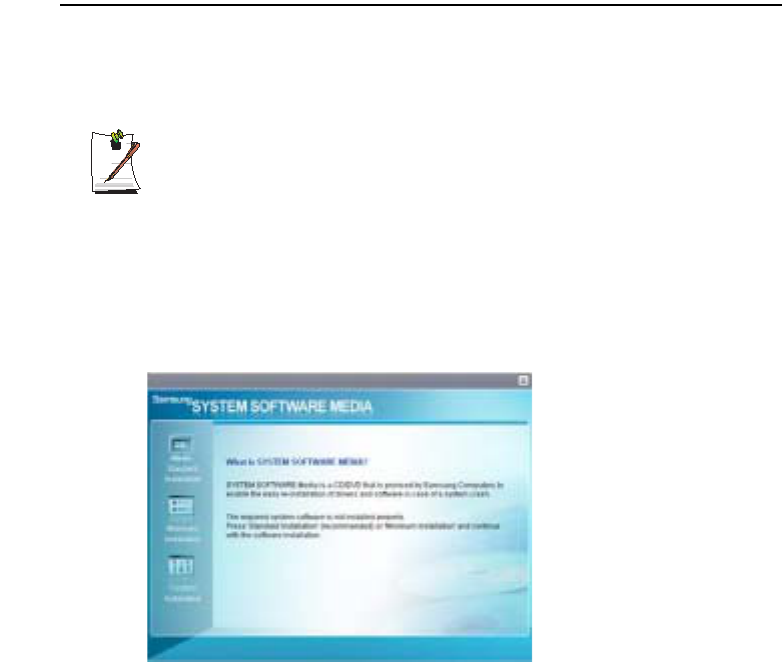
Troubleshooting 145
Reinstalling Software
If you have reinstalled the Windows operating system, or the system and program do
not operate properly, you can re-install the driver and program using the system
software Media.
This computer is optimized for Microsoft Windows XP, therefore drivers for
other operating systems are not included on the System Software Media.
Running the system software Media
Insert the system software Media into the CD-ROM drive. The initial screen appears
automatically.
xStandard Installation: This displays a list of drivers or programs that are not
currently installed on your computer from the system software Media provided.
All necessary components are installed using the factory defaults.
xMinimum Installation: This displays the components (driver, Windows
programs, etc) that, if not installed, may cause problems with the system
performance. You can install only required components.
xCustom Installation: You can customize the installation of drivers and
programs.
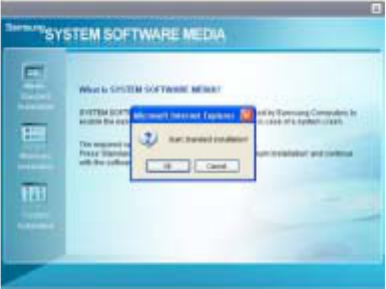
146 Users Manual
Installing drivers and programs
1. Click Standard Installation in the main window of the System Software Media.
(Standard Installation is recommended)
2. The system is scanned to display the drivers and programs that need to be installed.
3. Click OK. The drivers and programs are automatically installed as factory
defaults.
4. When done, restart the system.
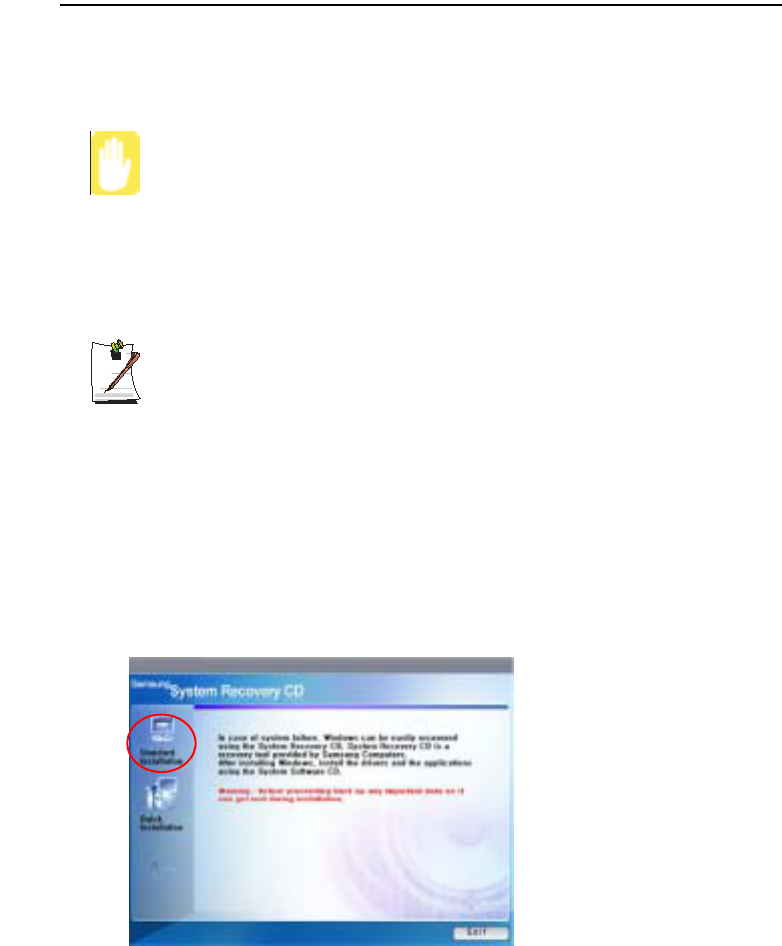
Troubleshooting 147
Reinstalling Windows XP
If the Windows XP does not operate properly due to an error in the system, or if you
have replaced the hard disk drive, you can reinstall Windows XP using the system
recovery CD.
With the system recovery CD, you can reinstall Windows XP only. To return
the system to the state of shipment, reinstall the device drivers and programs
with the system software Media after reinstalling Windows XP with the system
recovery CD.
Reinstalling Window may delete the data on the hard disk drive such as files,
programs, etc. In order to minimize damage from data loss, please remember
to always back up data. Samsung Electronics is not liable in the case of data
loss, please consult your warranty statement for clarification.
When you have set a booting password
You are asked to enter your booting password after restarting the system
during the Windows installation. Enter the password to continue to the next
steps.
Reinstalling Windows
Explain Standard installation option as a standard.
1. Insert the system recovery CD into the CD-ROM drive.
2. In the initial screen, click Standard Installation.

148 Users Manual
xStandard installation: You can change the settings for partitioning, the
installation folder, etc. during the Windows installation. However, reinstalling
Windows may delete the data on the hard disk drive such as files, programs,
etc. In order to minimize damage from data loss, please remember to always
back up data.
xQuick Installation: This re-installs Windows with the user data and the system
configuration intact. The user data in the already existing Windows folders may
be preserved as the existing Windows folders are overwritten.
3. The description for the standard installation appears. Click Yes.
The installation starts, and the system will be restarted after a while.
When Quick Installation is selected,
Setup proceeds with Step 3 before automatically installing Windows. Quick
Installation overwrites the existing Windows version, so that drivers or
applications do not need to be reinstalled.
4. After the system has restarted, the message ’Press any key to boot from CD’
appears. Do not press any key at this time. After a while the partition configuration
screen appears.
To not change the partition, press <Enter>.
What is partition configuration?
Partition configuration is a function that devides the hard disk drive into one or
several partitions. Note that changing the partition deletes all of the data on the
hard disk drive.
5. Select the folder to install the Windows operating system.
To delete the previous version of Windows and install in the current folder, press
<L> on the keyboard.
If you press ESC to select another folder for the installation, new Windows
folders are created causing a risk of dual booting.
6. After the installation process copies the necessary folders for the Windows
installation, restart the system, and the message “Press any key to boot from CD”
is displayed. You do not need to enter anything. In a moment, the Windows XP
installation screen will appear to proceed with the installation.
Troubleshooting 149
7. When the Regional and Language Options window appears, click Next.
8. When a window that requires your name and organization pops up, enter your
name and the organization and click Next.
In the Windows XP Professional edition, an additional window that requires the
computer name and the administrator password appears.
Enter the computer name and the administrator password and click Next.
9. When the Date and Time Settings window appears, click Next.
Setup will continue.
10. When the system restarts to display Press any key to boot from CD, do not press
any key.
When you see the Windows desktop, this means that the installation process is
completed. Remove the system recovery CD and install the device drivers and
applications from the system software Media.

150 Users Manual
If You Cannot Run Windows
If you cannot run Windows, you have to boot the system with the system recovery CD,
and reinstall Windows. If you boot the system from the system recovery CD, you can
install Windows only with the user installation option. You cannot install with the
standard installation option.
1. Insert the system recovery CD into the CD-ROM drive and start the computer.
2. If the following message appears on the screen, press any key from the keyboard.
This message appears only when the CD drive has booting priority. If the
message does not appear, configure the CD drive as the first booting device
referring to "Changing Booting Priority" on page 96.
3. Do not press any key at this time. After a while the partition configuration screen
appears.
To not change the partition, press <Enter>.
4. Select the desired file system ( format ).
To maintain the current file system, press <Enter>.
5. Select the folder to install the Windows operating system.
To delete the previous version of Windows and install in the current folder, press
<L> on the keyboard.
6. After the installation process copies the necessary folders for the Windows
installation, restart the system, and the message “Press any key to boot from CD”
is displayed. You do not need to enter anything. In a moment, the Windows XP
installation screen will appear to proceed with the installation.
7. Follow the instructions of the Windows XP installation wizard to continue with the
installation.
8. When the installation is complete, the computer will restart.
When the system has restarted, the Press any key to boot from CD message
appears. Ignore the message.
The system boots and the Windows and Windows Registration screen appears.
Register Windows, following the instructions to finish the Windows installation.
Remove the System Recovery CD and install the device drivers and application
programs using Standard Installation from the System Software Media.
Press any key to boot from CD.....

Specifications 151
Specifications
System Specification (X60)
The system specifications will be described below. The system specifications may
differ depending on the derived models.
The system specifications are subject to change without notice. For detailed system specifications, refer to the
product catalog.
The capacity of the hard disk drive with Samsung Recovery Solution will be displayed as less than the specified
capacity.
Item Specification Remarks
CPU Intel Core ˞ processor Duo
Intel Core ˞ processor Solo
Optional
Cache memory 2MB
Main memory 256MB / 512MB, Max 4GB Memory type : DDR2 SODIMM Optional
Main Chipset Intel 945PM / 945GM , ICH7-M/ICH7-M DH Optional
Hard disk drive (HDD) 9.5mmH 2.5" HDD
40GB/60GB/80GB/100GB/120GB
Optional
CD drive RW-Combo, DVD Super Multi Optional
Graphics ATI Mobility Radeon X1300/X1400/X1600 (64MB/128MB/256MB)
Intel 945GM Graphics (DVMT 64M/128M)
Optional
Sound High Definition Audio Codec AD1986A
Network Interface Modem: V.92
Wired LAN: Intel i82573E 1G + AMT
Intel i82573L 1G
Wireless LAN: 802.11ABG
Bluetooth 2.0+EDR
Optional
Optional
Optional
Multi Card Slot Memory Stick, Memory Stick Pro, SD Card, MMC, xD card Supported
PCMCIA Card Slot PCMCIA Type I and II Compatible
Ports IEEE 1394 (4 Pin), USB2.0 x 3, Microphone, Headphone (S/PDIF
supported), Modem (RJ-11), LAN (RJ-45), Monitor and TV Out (S-
Video), DC Jack, Security Lock Port, 120 Pin Dock Port
Optional
Buttons AVS Button, Volume Control Button
Optional Remote Control, Remote Control Sensor, TPM, Dock
Dimensions (mm) 361 x 265 x 23.9 mm W x D x H
LCD 15.4" WXGA(1280 x 800), 15.4" WSXGA+(1680 x 1050) Optional
Weight 2.48Kg
Battery Lithium-Ion smart battery: 6 Cells
Operation
Environment
Temperature (storage) : -5 ~ 40°C (operation) : 10 ~ 32° C
Humidity (storage) : 5% ~ 90% (operation) : 20% ~ 80%
Operation Voltage 100 - 240 VAC
Frequency 50 - 60 Hz
Output Power 90W
Output Voltage 19.0VDC

152 Users Manual
System Specification (P60)
The system specifications will be described below. The system specifications may
differ depending on the derived models.
The system specifications are subject to change without notice. For detailed system specifications, refer to the
product catalog.
The capacity of the hard disk drive with Samsung Recovery Solution will be displayed as less than the specified
capacity.
Item Specification Remarks
CPU Intel Core ˞ processor Duo
Intel Core ˞ processor Solo
Optional
Cache memory 2MB
Main memory 256MB / 512MB, Max 4GB Memory type : DDR2 SODIMM Optional
Main Chipset Intel 945PM / 945GM , ICH7-M Optional
Hard disk drive (HDD) 9.5mmH 2.5" HDD
40GB/60GB/80GB/100GB/120GB
Optional
CD drive CD-ROM, DVD-ROM, RW-Combo, DVD Super Multi Optional
Graphics ATI Mobility Radeon X1300/X1400/X1600 (64MB/128MB/256MB)
Intel 945GM Graphics (DVMT 64M/128M)
Optional
Sound High Definition Audio Codec AD1986A
Network Interface Modem: V.92
Wired LAN: Intel i82573E 1G + AMT
Intel i82573L 1G
Wireless LAN: 802.11ABG
Bluetooth 2.0+EDR
Optional
Optional
Optional
PCMCIA Card Slot PCMCIA Type I and II Compatible
Ports IEEE 1394 (4 Pin), USB2.0 x 3, Microphone, Headphone (S/PDIF
supported), Modem (RJ-11), LAN (RJ-45), Monitor and TV Out (S-
Video), Serial Port, DC Jack, Security Lock Port, 120 Pin Dock Port
Optional
Optional Fingerprint Sensor, TPM, Dock
Dimensions (mm) 357 x 265 x 23.9 mm W x D x H
LCD 15.4" WXGA(1280 x 800), 15.4" WSXGA+(1680 x 1050) Optional
Weight 2.47Kg
Battery Lithium-Ion smart battery: 6 Cells
Operation
Environment
Temperature (storage) : -5 ~ 40°C (operation) : 10 ~ 32° C
Humidity (storage) : 5% ~ 90% (operation) : 20% ~ 80%
Operation Voltage 100 - 240 VAC
Frequency 50 - 60 Hz
Output Power 90W
Output Voltage 19.0VDC

Specifications 153
Wireless LAN Specification (Optional)
Intel(R) PRO/Wireless 3945ABG Network Connection
Product Specification
* This piece of equipment supports the Wi-Fi wireless LAN security standard, WPA (Wi-Fi Protected Access) and
CCX (Cisco Compatible eXtensions). To connect to a wireless network consisting of the WPA and CCX,
certificates or PROSet may be required depending on the network settings. For driver update, visit
www.samsung.com and for information on the PROSet installation, refer to "Wireless Network Setup Using the
Wireless LAN Setup Program" (p71). For more information, ask your network administrator.
Radio Specifications
* The transmission rate may differ from the actual transmission rate.
** 11a mode is supported only when the device is connected with an IEEE802.11a device (e.g. IEEE802.11a
compatible Access Point).
***11g mode is supported only when you are connected to an IEEE 802.11g device (e.g. An Access Point
supporting IEEE 802.11g).
Item Detailed Specifications
Physical
Specifications
Dimensions (Width X Height) 30.0 x 50.95 mm
operation temperature and
humidity
Same as system operation
Temperature: 0°C ~ 70°C
Humidity: less than 85%
Power Specification Power Saving Mode 70 mW
Receiving Mode 0.95 W
Transmission Mode 1.4 W
Power 3.3V
Network
Specifications
Compatibility IEEE802.11a, IEEE802.11b, IEEE802.11g
Operating System Microsoft Windows XP
- NDIS5 Miniport Driver
Media Access Protocol CSMA/CA (Collision Avoidance) with
Acknowledgement(ACK)
Security Wired Equivalent Privacy support (WEP) 64bit / 128bit
WPA*, CCX*
RF Band 2.4GHz, 5GHz
Support Channels Channels allowed per country.
Device Transceiver
Standard Output Power 5 mW
Transmission Method 11a mode: OFDM
11b mode: DSSS
11g mode: OFDM
Transmission Rate (Mbps) * 11a mode**
11b mode: 11, 5.5, 2, and 1
11g mode*** : 54, 48, 36, 24, 18, 12, 9, and 6
Antenna Type Internal Antenna 2 EA (Main/Aux)

154 Users Manual
Abbreviations
A . . . . . . . . . Amperes
AC . . . . . . . . Alternating current
ACPI . . . . . . Advanced Configuration and Power management Interface
APM . . . . . . Advanced Power Management
ATA. . . . . . . AT attachment (refers to the hard-drive interface in an AT-
compatible computer)
ATAPI. . . . . AT attachment packet interface
BBS . . . . . . . Bulletin board system
BIOS . . . . . . Basic input/output system
C . . . . . . . . . Centigrade
CD . . . . . . . . Compact disc
CD-ROM . . Compact disc read-only memory
cm . . . . . . . . Centimeters
COM . . . . . . Communication (as in communication port)
CMOS . . . . . Complementary metal-oxide semiconductor
DC . . . . . . . . Direct current
DMA . . . . . . Direct memory access
DPMS . . . . . Display power-management signaling
DRAM. . . . . Dynamic random access memory
DSTN . . . . . Double layer super twist nematic
ECP . . . . . . . Extended capabilities port
EPP . . . . . . . Enhanced parallel port
g. . . . . . . . . . gram
G . . . . . . . . . Gravity
GB . . . . . . . . Gigabytes
hr . . . . . . . . . hour
Hz . . . . . . . . Hertz
IDE . . . . . . . Integrated drive electronics
I/O . . . . . . . . Input/output
IRQ . . . . . . . Interrupt request line
Abbreviations 155
ISA . . . . . . . Industry Standard Architecture
KB . . . . . . . . Kilobytes
kg. . . . . . . . . Kilograms
LAN. . . . . . . Local-area network
lb.. . . . . . . . . Pounds
LBA. . . . . . . Logical block addressing
LCD. . . . . . . Liquid-crystal display
m . . . . . . . . . Meters
mA. . . . . . . . Milliampere
mAhr. . . . . . Milliampere hour
MB. . . . . . . . Megabyte
mm . . . . . . . millimeter
MPEG . . . . . Motion Picture Experts Group
MPU . . . . . . Microprocessor unit
ms . . . . . . . . Millisecond
PDF . . . . . . . Portable document format
PC . . . . . . . . Personal computer
PCI . . . . . . . Peripheral component interconnect
PCMCIA. . . Personal Computer Memory Card International Association
POST. . . . . . Power-on self-test
PNP . . . . . . . Plug and play
PS/2 . . . . . . . Personal System/2
RAM . . . . . . Random-access memory
ROM . . . . . . Read-only memory
SVGA . . . . . Super video graphics array
TFT . . . . . . . Thin-film transistor
USB . . . . . . . Universal serial bus
V . . . . . . . . . Volt
VAC . . . . . . Voltage alternating current
VCC . . . . . . Voltage collector current
VDC . . . . . . Voltage direct current
whr . . . . . . . Watt hour

156 Users Manual
Glossary
AC adapter
The AC (or alternating current) adapter regulates current coming into your
computer from the wall outlet. The current at the wall outlet is alternating current
and needs to be changed by the adapter to DC (direct current) before your
computer can use it for power.
ACPI
ACPI (Advanced Configuration and Power Interface)- a method for describing
hardware interfaces in terms abstract enough to allow flexible and innovative
hardware implementations and concrete enough to allow shrink-wrap OS code to
use such hardware interfaces.
BIOS
BIOS stands for basic input/output system. The BIOS is software (often called
firmware) that is independent of any operating system. It enables the computer to
communicate with the screen, keyboard, and other peripheral devices without
using programs on the hard disk.
The BIOS on your computer is flash BIOS, which means that it has been recorded
on a flash memory chip that can be updated if needed.
Boot
To start your computer. A cold boot resets the entire computer and runs through
all computer self-tests. A warm boot clears out computer memory only.
Boot disk
A disk containing operating system programs required to start your computer. A
boot disk can be a floppy disk, hard drive, or compact disc.
Byte
The basic unit of measure for computer memory. A character-such as a letter of
the alphabet—uses one byte of memory. Computer memory is often measured in
kilobytes (1,024 bytes) or megabytes (1,048,576 bytes).
Each byte is made up of eight bits. For more information on bytes and bits, see an
introductory book on computers.
Cache memory
Cache is very fast, zero-wait-state memory located between the microprocessor
and main memory. Cache reduces the average time required by the
microprocessor to get the data it needs from the main memory by storing recently
accessed data in the cache.
Glossary 157
CardBus
CardBus technology enables the computer to use 32-bit PC Cards. Hardware in
the computer and the Windows operating system provide support for the 32-bit
cards. The voltage of 32-bit cards (3.3 volts) is lower than that of 16-bit cards (5
volts). The 32-bit cards can transmit more data at a time than the 16-bit cards, thus
increasing their speed.
CMOS memory
CMOS (complementary metal oxide semiconductor) memory is powered by the
CMOS battery. The System Setup settings and other parameters are maintained in
CMOS memory. Even when you turn your computer off, the information in
CMOS memory is saved.
COM port
COM stands for communication. COM ports are the serial ports in your computer.
Compact Disc
A compact disc (CD).
Conventional memory
The first 640 KB of system memory. Operating systems and application programs
can directly access this memory without using memory-management software.
Disk
The device used by the computer to store and retrieve information. Disk can refer
to a floppy disk, hard disk, or RAM disk.
Disk cache
A software device that accumulates copies of recently used disk sectors in RAM.
The application program can then read these copies without accessing the disk.
This, in turn, speeds up the performance of the application.
A cache is a buffer for transferring disk sectors in and out of RAM. Data stored in
a disk cache is a copy of data already stored on the physical disk.
DMA (direct memory access)
A method of transferring data from a device to memory without having the data
pass through the microprocessor. Using DMA can speed up system performance.
DPMS
Display Power Management Signalling. Displays or monitors that comply with
this can be managed by the Power Management features found in the system
setup.
Floppy disk
A removable disk, also called floppy or diskette.
158 Users Manual
Hard drive
Also called fixed disk. A hard drive is connected to the computer and can be
installed or removed. Data written to a hard drive remains until it is overwritten
or corrupted.
The 2.5-inch hard drive in your computer was designed for use in a notebook
computer. Because hard drives in notebook computers are smaller than those in
desktop computers, their maximum storage capacity may be less than that of
desktop hard drives. However, because of their smaller size, the drives handle
shock and vibration better than larger drives, which is important for a notebook
computer.
I/O
Input/output. Refers to peripheral devices, such as printers, that are addressed
through an I/O address.
I/O address
I/O stands for input/output. Peripheral devices, such as printers, are addressed
through the I/O port address.
IRQ (interrupt request line)
The IRQ is a hardware line that a device uses to signal the microprocessor when
the device needs the microprocessor’s services. The number of IRQs is limited by
industry standards.
LCD (liquid-crystal display)
The LCD screen on your computer differs from the display screen of a desktop
monitor. Most desktop monitors use CRT (cathode-ray tube) displays, which
work by moving an electron beam across phosphor dots on the back of the screen.
The phosphor dots light up to show the image. LCDs use a liquid-crystal solution
between two sheets of polarizing material. Electric current passing through the
liquid aligns the crystals so that light can or cannot pass through them, creating an
image.
MB (megabyte)
1,024 kilobytes.
Megabit
1,048,576 bits or about 128 kilobytes.
Operating system
A program that supervises the computer's operation, including handling I/O.
Application programs and users can request operating-system services. A user
might request operation-system services to copy files or format a disk. An
application program might use the operating system to obtain keyboard input,
write data to a file, or write data to a screen.
Glossary 159
PC Card
PC Card stands for personal computer card. The Personal Computer Memory
Card International Association (PCMCIA) defines the standards used to develop
all PC Cards. PC Card types include: modems, Ethernet adapters, SCSI adapters,
ATA cards, and memory cards.
PC slot
The PC slot is the hardware slot in the computer where the PC Card is placed.
Pixel
A pixel is an individual dot in a graphic displayed on your computer. The pixels
are so close together that they look as though they are connected. An LCD screen
displays thousands or millions of pixels.
Plug and Play
A plug and play operating system automatically configures computer components
to work with your system. With this type of operating system, you normally do
not need to set jumpers on devices or set memory addresses or IRQs.
RAM (random access memory)
The computer's system memory, including conventional and extended memory.
You can write to and read from RAM. Information stored in RAM is temporary,
and is erased when the system is turned off.
Refresh rate
The refresh rate is the rate at which the image on the LCD screen is rewritten to
the screen. A fast refresh rate helps keep the image from flickering.
Resolution
The resolution is the sharpness or clarity of the image on your LCD screen.
Resolution is measured by the number of pixels the computer’s screen can
display. For example, a resolution of 800 x 600 means that the screen can display
800 pixels in row and can display 600 rows. The more pixels displayed, the higher
the resolution and the better the image.
ROM (read-only memory)
Permanent computer memory dedicated to a particular function. For example, the
instructions for starting the computer when you first turn on power are contained
in ROM. You cannot write to ROM. (ROM is not the same as RAM).
Sector
Also known as disk sector. The portion of a track that is numbered and can hold
a specified number of characters (usually 512 KB).
160 Users Manual
Shadow RAM
A write-protected area of RAM that contains a copy of the BIOS. As the computer
boots, the BIOS is copied from its permanent location in ROM to RAM. The
BIOS can be executed much faster in RAM than in ROM. The BIOS remains in
shadow RAM until you turn off the computer.
TFT (thin film transistor) LCD
A TFT LCD uses a separate transistor circuit to control each pixel. This
technology provides the best resolution for an LCD screen. A TFT LCD is also
sometimes called an active matrix LCD.

Contact SAMSUNG WORLD WIDE
[U.K / AUSTRALIA / HONG KONG / INDIA / MALAYSIA / SINGAPORE]
Contact SAMSUNG WORLD WIDE
If you have any comments or questions regarding a Samsung products, contact the SAMSUNG cus-
tomer care center.
- Customer Care Center ൭: (U.K) 0870 242 0303 Web Site: www.samsung.com/uk
- Customer Care Center ൭: (AUSTRALIA) 1300 362 603 Web Site: www.samsung.com/au
- Customer Care Center ൭: (HONG KONG) 2862 6001 Web Site: www.samsung.com/hk
- Customer Care Center ൭: (INDIA) 3030 8282 / 1600 1100 11
Web Site: www.samsung.com/in
- Customer Care Center ൭: (MALAYSIA) 1800-88-9999 Web Site: www.samsung.com/my
- Customer Care Center ൭: (SINGAPORE) 1800-SAMSUNG(7267864)
Web Site: www.samsung.com/sg
[FRANCE] Comment contacter Samsung dans le monde
Si vous avez des suggestions ou des questions concernant les produits Samsung, veuillez contacter le
Service Consommateurs Samsung.
- Customer Care Center ൭: 08 25 08 65 65 Web Site: www.samsung.fr
[GERMANY] Kontakt zu Samsung
Falls Sie Fragen oder Anregungen zu Samsung-Produkten haben, wenden Sie sich bitte an den Sam-
sung-Kundendienst.
- Customer Care Center ൭: 01805 121213 Web Site: www.samsung.de
[SPAIN] Contacte con SAMSUNG WORLD WIDE
Si tiene alguna pregunta o comentario referente a nuestros productos, por favor contacte con nuestro
Servicio de Atencion al Cliente.
- Customer Care Center ൭: 902 10 11 30 Web Site: www.samsung.com/es
[PORTUGAL]Contacte SAMSUNG GLOBAL
Se tem algumas dɴvidas ou comentɛrios sobre os produtos Samsung, contacte por favor a nossa linha
de apoio a clientes Samsung.
- Customer Care Center ൭: 808 200 128 Web Site: www.samsung.pt
[RUSSIA / UKRAINE] ɋɜɹɡɵɜɚɣɬɟɫɶ ɫ SAMSUNG ɩɨ ɜɫɟɦɭ ɦɢɪɭ
ȿɫɥɢ ɭ ɜɚɫ ɟɫɬɶ ɩɪɟɞɥɨɠɟɧɢɹ ɢɥɢ ɜɨɩɪɨɫɵ ɩɨ ɩɪɨɞɭɤɬɚɦ Samsung, ɫɜɹɡɵɜɚɣɬɟɫɶ ɫ
ɢɧɮɨɪɦɚɰɢɨɧɧɵɦ ɰɟɧɬɪɨɦ Samsung.
- Customer Care Center ൭: (RUSSIA) 8-800-200-0400 Web Site: www.samsung.ru
- Customer Care Center ൭: (UKRAINE) 8-800-502-0000 Web Site: www.samsung.com/ur
- Customer Care Center ൭: 800-810-5858 / (010) 64751880 Web Site: www.samsung.com.cn
- Customer Care Center ൭: 1800-29-3232 / 02-689-3232 Web Site: www.samsung.com/th
Rev. 1.0