Samsung Electronics Co SCHA870 Tri-Mode Dual-Mode Phone (AMPS/CDMA) w/ Bluetooth User Manual C s and Settings RALP
Samsung Electronics Co Ltd Tri-Mode Dual-Mode Phone (AMPS/CDMA) w/ Bluetooth C s and Settings RALP
Contents
- 1. Users Manual 1
- 2. Users Manual 2
Users Manual 1

ZB15_PMa870_022306_D6
SCH-a870 Series
PORTABLE
All Digital
Mobile Phone
User Guide
Please read this manual before operating your
phone, and keep it for future reference.
a550.book Page 1 Thursday, February 23, 2006 5:41 PM

Intellectual Property
All Intellectual Property, as defined below, owned by or which is
otherwise the property of Samsung or its respective suppliers
relating to the SAMSUNG Phone, including but not limited to,
accessories, parts, or software relating there to (the “Phone
System”), is proprietary to Samsung and protected under federal
laws, state laws, and international treaty provisions. Intellectual
Property includes, but is not limited to, inventions (patentable or
unpatentable), patents, trade secrets, copyrights, software,
computer programs, and related documentation and other
works of authorship. You may not infringe or otherwise violate
the rights secured by the Intellectual Property. Moreover, you
agree that you will not (and will not attempt to) modify, prepare
derivative works of, reverse engineer, decompile, disassemble,
or otherwise attempt to create source code from the software. No
title to or ownership in the Intellectual Property is transferred to
you. All applicable rights of the Intellectual Property shall
remain with SAMSUNG and its suppliers.
Samsung Telecommunications America (STA),
L.P.
Headquarters: Customer Care Center:
1301 E. Lookout Drive 1000 Klein St.
Richardson, TX 75082 Plano, TX 75074
Toll Free Tel: 1.888.987.HELP (4357)
Fax: 972.801.6065
Internet Address: http://www.samsungusa.com
©2006 Samsung Telecommunications America, L.P. is a
registered trademark of Samsung Electronics America, Inc. and
its related entities.
a550.book Page 2 Thursday, February 23, 2006 5:41 PM
Licensed by Qualcomm Incorporated under one or more of the
following patents: U.S. Patent No. 4, 901, 307; 5, 056, 109; 5, 099, 204;
5, 101, 501; 5, 103, 459; 5, 107, 225; 5, 109, 390.
Printed in Korea
GH68-08345A
Openwave® is a registered Trademark of Openwave, Inc.
RSA® is a registered Trademark RSA Security, Inc.
Disclaimer of Warranties; Exclusion of Liability
EXCEPT AS SET FORTH IN THE EXPRESS WARRANTY
CONTAINED ON THE WARRANTY PAGE ENCLOSED WITH
THE PRODUCT, THE PURCHASER TAKES THE PRODUCT "AS
IS", AND SAMSUNG MAKES NO EXPRESS OR IMPLIED
WARRANTY OF ANY KIND WHATSOEVER WITH RESPECT
TO THE PRODUCT, INCLUDING BUT NOT LIMITED TO THE
MERCHANTABILITY OF THE PRODUCT OR ITS FITNESS FOR
ANY PARTICULAR PURPOSE OR USE; THE DESIGN,
CONDITION OR QUALITY OF THE PRODUCT; THE
PERFORMANCE OF THE PRODUCT; THE WORKMANSHIP
OF THE PRODUCT OR THE COMPONENTS CONTAINED
THEREIN; OR COMPLIANCE OF THE PRODUCT WITH THE
REQUIREMENTS OF ANY LAW, RULE, SPECIFICATION OR
CONTRACT PERTAINING THERETO. NOTHING
CONTAINED IN THE INSTRUCTION MANUAL SHALL BE
CONSTRUED TO CREATE AN EXPRESS OR IMPLIED
WARRANTY OF ANY KIND WHATSOEVER WITH RESPECT
TO THE PRODUCT. IN ADDITION, SAMSUNG SHALL NOT BE
LIABLE FOR ANY DAMAGES OF ANY KIND RESULTING
FROM THE PURCHASE OR USE OF THE PRODUCT OR
ARISING FROM THE BREACH OF THE EXPRESS WARRANTY,
INCLUDING INCIDENTAL, SPECIAL OR CONSEQUENTIAL
DAMAGES, OR LOSS OF ANTICIPATED PROFITS OR
BENEFITS.
a550.book Page 3 Thursday, February 23, 2006 5:41 PM
a550.book Page 4 Thursday, February 23, 2006 5:41 PM

Table of Contents 5
Table of Contents
Table of Contents
Section 1: Getting Started .................................. 9
Turning Your Phone On and Off ........................................ 10
Setting Up Voicemail ........................................................10
Understanding this User Manual .......................................11
Section 2: Understanding Your Phone ............. 13
Features of Your Phone .................................................... 14
Front View of Your Phone .................................................15
Command Keys ................................................................20
Understanding the Display Screen .................................... 22
Battery .............................................................................26
Phone Memory Storage .................................................... 29
Section 3: Call Functions .................................. 31
Making a Call ...................................................................32
Answering a Call .............................................................. 33
Recent Calls .....................................................................33
Roaming ..........................................................................37
TTY .................................................................................. 38
VoiceSignal™ ..................................................................39
Section 4: Menu Navigation ............................. 49
Menu Navigation ..............................................................50
Menu Outline ................................................................... 52
Section 5: Entering Text ................................... 59
Changing the Text Entry Mode ..........................................60
Using Word Mode ............................................................. 61
Entering Upper and Lower Case .......................................62
Entering Symbols .............................................................63
Entering Numbers ............................................................64
Section 6: Understanding Your Contacts ......... 65
Opening Contacts Menu ................................................... 66
a550.book Page 5 Thursday, February 23, 2006 5:41 PM

Table of Contents
6
Adding a Contact ..............................................................67
Adding Pauses .................................................................69
Contact Groups .................................................................70
Finding a Contacts Entry ...................................................74
Editing an Existing Contact Entry ......................................74
Deleting a Contact Entry ...................................................74
Storing Numbers After a Call ............................................75
Speed Dialing ...................................................................75
Finding My Phone Number ...............................................77
Section 7: Messaging .......................................79
Types of Messages ...........................................................80
Retrieving New Messages ................................................80
Creating and Sending TXT Messages ................................81
Creating and Sending PIX Messages .................................83
Receiving PIX Messages ...................................................84
New Sketch Messages .....................................................86
Message Folders ..............................................................86
Changing Message Settings .............................................92
Voicemail .........................................................................93
E-Mail ..............................................................................94
Mobile IM .........................................................................94
Chat .................................................................................95
Section 8: Changing Your Settings .................. 99
My Account ....................................................................100
Tools ..............................................................................100
Sound Settings ...............................................................101
Display Settings .............................................................104
Phone Settings ...............................................................110
Call Settings ...................................................................119
Bluetooth Settings ..........................................................123
Memory ..........................................................................126
Phone Info ......................................................................127
a550.book Page 6 Thursday, February 23, 2006 5:41 PM

Table of Contents 7
Table of Contents
Section 9: Multimedia .................................... 129
Get It Now ...................................................................... 130
Get Tunes & Tones .........................................................131
Get PIX ...........................................................................133
Get Fun & Games ...........................................................136
Get News & Info ............................................................. 136
Get Going ....................................................................... 137
Get Extras ......................................................................138
Section 10: Tools ............................................ 139
Voice Commands ...........................................................140
Calculator ...................................................................... 140
Calendar ........................................................................142
Alarm Clock ...................................................................145
World Clock ....................................................................147
Stop Watch ....................................................................148
Notepad .........................................................................149
Section 11: Mobile Web .................................. 153
Mobile Web ....................................................................154
Launching Mobile Web ................................................... 154
Exit Mobile Web ............................................................. 154
Navigate the Web ...........................................................155
Mobile Web Soft Keys ....................................................155
Links .............................................................................. 157
Place a Call While Using Mobile Web .............................. 157
Section 12: Health and Safety Information .... 159
Health and Safety Information ........................................160
Consumer Information on Wireless Phones ..................... 162
Road Safety ................................................................... 172
Operating Environment ...................................................175
Using Your Phone Near Other Electronic Devices ............176
Potentially Explosive Environments .................................178
Emergency Calls ............................................................ 179
a550.book Page 7 Thursday, February 23, 2006 5:41 PM

Table of Contents
8
FCC Notice and Cautions ................................................180
Other Important Safety Information .................................181
Product Performance ......................................................182
Availability of Various Features/Ring Tones .....................183
Battery Standby and Talk Time .......................................184
Battery Precautions ........................................................184
Care and Maintenance ....................................................186
Section 13: Warranty Information .................. 189
Standard Limited Warranty .............................................190
Index ...............................................................197
a550.book Page 8 Thursday, February 23, 2006 5:41 PM

Section 1: Getting Started 9
Section 1
Section 1: Getting Started
Topics Covered
• Turning Your Phone On and Off
• Setting Up Voicemail
• Understanding this User Manual
This section allows you to start using your phone by
activating your service, setting up your voicemail,
contacting customer support, or getting an
understanding of how this manual is put together.
a550.book Page 9 Thursday, February 23, 2006 5:41 PM
10
Section 1
Turning Your Phone On and Off
Turning Your Phone On
1. Open the flip, then press .
Note: As with any other radio-transmitting device, do not touch the internal
antenna as it affects call quality and may cause the phone to operate at a
higher power level than is necessary. The internal antenna is located along
the top on the back side of your phone.
2. Your service provider’s name momentarily appears in the
display and the phone begins searching for a network
signal.
3. Once the phone finds a signal, the time, date, and day
appear in the display.
4. You’re now ready to place and receive calls.
If the phone is outside of the Verizon Wireless coverage or
roaming area, appears in the top of the display.
Turn Your Phone Off
Press and hold for two or more seconds. Your phone
powers off.
Setting Up Voicemail
Voicemail allows callers to leave voice messages, which
can be retrieved any time.
Note: Once your voicemail account has been set up, you can use the
Voicemail selection 7 (under the Messaging menu) to view details of voice
messages in your voicemail box.
a550.book Page 10 Thursday, February 23, 2006 5:41 PM

Section 1: Getting Started 11
Understanding this User Manual
Section 1
Voicemail Setup
1. In standby mode, press and hold the key or press
, , , .
2. Follow the prompts in the new user tutorial to setup your
mailbox.
Listen to Voicemail
1. In standby mode, press and hold the key or press
, , , .
2. You are then prompted to enter your password followed
by key.
3. Follow the recorded prompts to listen to messages,
change administrative options, and so on.
Understanding this User Manual
The chapters of this manual generally follow the same
order as the menus and sub-menus in your phone. A
robust index for quick reference to most features begins
on page 197.
Also included is important safety information that you
should know before using your phone. Most of this
information is near the back of the guide, beginning on
page 159.
Notes and Tips
Throughout this guide are icons and text that are set apart
from the rest. These are intended to point out important
information, quick methods for activating features, to
define terms, and more. The definitions for these methods
are as follows:
a550.book Page 11 Thursday, February 23, 2006 5:41 PM

12
Section 1
• Notes: Explain alternative options within the current feature,
menu, or sub-menu.
• Tips: Provide quick or innovative methods for performing
functions related to the subject at hand.
• Important: Points out important information about the current
feature that could affect performance, or even damage your
phone.
a550.book Page 12 Thursday, February 23, 2006 5:41 PM

Section 2: Understanding Your Phone 13
Section 2
Section 2: Understanding Your Phone
Topics Covered
• Features of Your Phone
• Front View of Your Phone
• Command Keys
• Understanding the Display Screen
• Battery
• Phone Memory Storage
This section outlines some key features of your phone. It
also displays the screen and the icons that are displayed
when the phone is in use.
a550.book Page 13 Thursday, February 23, 2006 5:41 PM

14
Section 2
Features of Your Phone
• Domestic and international voice and text messaging service
(available on participating networks).
• High speed data (CDMA 2000 1x Technology)
• Global Positioning (GPS) Technology
• PIM Functions
• MMS Messaging
• TXT Messaging
• PIX Messaging
• E-mail Messaging
• Mobile IM
• Chat
• VGA (300K Pixel) Camera
• Advance Speech Recognition
• Speakerphone
• Phone Memory Storage
• Bluetooth® Wireless Technology **
** The SCH-a870 supports the wireless headset profile and handsfree kit profile for
Bluetooth® wireless technology. The SCH-a870 does not support Bluetooth OBEX
profiles. Go to www.verizonwireless.com/bluetoothchart to check vehicle/accessory
compatibility.
a550.book Page 14 Thursday, February 23, 2006 5:41 PM
Section 2: Understanding Your Phone 15
Front View of Your Phone
Section 2
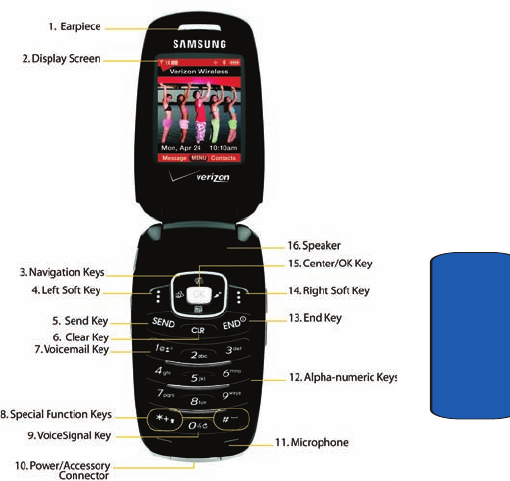
Front View of Your Phone
The following illustrations show the main elements of
your phone:
Open View
a550.book Page 15 Thursday, February 23, 2006 5:41 PM

16
Section 2
Features
1. Earpiece: The earpiece allows you to hear the other
caller.
2. Display Screen Icons: Indicates the status of your phone,
including status icons, message indicators, signal
strength, etc.
3. Navigation Keys: This key allows you to scroll through
the phone menu options.
4. Left Soft Key: This key is used to navigate through
menus and applications by selecting the choice available
in the Left Soft key Option.
5. Send Key: Allows you to place or receive a call. In
standby mode, press the key once to access the recent
call log.
6. Clear Key: Deletes characters from the display when you
are in text entry mode. Press to return to the previous
menu or screen when navigating features on your phone.
7. Voicemail Key: In standby mode press and hold to launch
Voicemail.
8. Special Function Keys: Enters special characters.
Performs various functions.
9. VoiceSignal Key: In standby mode press and hold to
launch VoiceSignal.
10. Power/Accessory Connector: The power/accessory
interface connector is used to plug in the charging
accessories and also connect any available accessory
cables to your phone.
a550.book Page 16 Thursday, February 23, 2006 5:41 PM

Section 2: Understanding Your Phone 17
Front View of Your Phone
Section 2
11. Microphone: The Microphone allows the other caller to
hear you clearly when you are speaking to them.
12. Alpha-numeric Keys: Use these keys to enter numbers,
letters, and characters.
13. End Key: Ends a call. If you press and hold the END key,
the power goes On or Off. When you receive an incoming
call, press to mute the ringer and send the call to
voicemail.
14. Right Soft Key: This key is used to navigate through
menus and applications by selecting the choice available
in the Right Soft key Option.
15. Center/OK Key: Pressing when navigating through a
menu accepts the highlighted choice in a menu.
16. Speaker: Ringtones, and Sounds are played through the
speaker.
a550.book Page 17 Thursday, February 23, 2006 5:41 PM

18
Section 2
Closed View
Features
1. Headset Jack: Allows you to plug in an optional headset
for safe, convenient, hands-free conversations.
2. Flash: The built-in flash has manual and automatic
capabilities.
3. Volume Key: Allows you to adjust the master volume in
standby mode (with the flip open) or adjust the voice
volume during a call. To mute the ringer during an
incoming call, press the volume key up or down. When
the flip is closed, press and hold the key, and sub LCD
displays.
a550.book Page 18 Thursday, February 23, 2006 5:41 PM

Section 2: Understanding Your Phone 19
Front View of Your Phone
Section 2
4. External LCD Display: External LCD shows signal and
battery strength, alarm, time, day, and date. It also
displays incoming calls or messages.
5. Speakerphone Key: Press this key to enable/disable the
speakerphone option.
6. Camera Key: Launches the Camera feature of your
phone.
7. Camera Lens: The lens of your built-in camera.
a550.book Page 19 Thursday, February 23, 2006 5:41 PM

20
Section 2
Command Keys
Functions for the soft keys are defined by what appears
above each in the display. There are two soft keys, the left
soft key and the right soft key .
Left Soft Key
Some functions of the left soft key are as follows.
• In standby mode, press the Message (left) soft key to
open the Message menu.
• When the left soft key function is Settings, press the Settings
(left) soft key to view settings for the feature.
• When the left soft key function is Edit, press the Edit (left) soft
key to edit a Contact or Profile setting.
Right Soft Key
Some functions of the right soft key are as follows.
• In standby mode, press the Contacts (right) soft key to
open your Contacts list.
• When the right soft key function is Options, press the Options
(right) soft key to view more options for the current menu.
Clear Key
The CLR key is used to erase or clear numbers, text, or
symbols from the display. You can also use to return
to a previous menu or to return to standby mode from any
menu.
1. If you enter an incorrect character, briefly press to
backspace (and delete) the character.
a550.book Page 20 Thursday, February 23, 2006 5:41 PM

Section 2: Understanding Your Phone 21
Command Keys
Section 2
2. To erase the previous word in a sentence, press and hold
.
3. To back up one menu level, briefly press .
4. To return to standby mode from any menu, press and
hold until you return to standby mode.
End Key
1. Press and hold the End key to turn your phone on
or off.
2. Briefly press once to disconnect a call.
3. Press to return to standby mode from any menu, or
to cancel the last input.
Send Key
The Send key is used to answer calls, dial calls, and to
recall the last number(s) dialed, received, or missed.
1. Press once to answer calls.
2. Enter a number and briefly press to make a call.
3. Briefly press in standby mode to display a list of
recent calls to and from your phone.
4. Press twice in standby mode to call the most
recently dialed, received, or missed number.
5. Press to pick up a waiting call. Press again to
switch back to the other call.
Navigation Key
Use the directional keys on the navigation key to browse
menus, sub-menus, and lists. Each key also acts as a
a550.book Page 21 Thursday, February 23, 2006 5:41 PM
22
Section 2
shortcut to launch applications. The down navigation key
is user-definable.
Speakerphone Key
Use the speakerphone key to switch from using the
earpiece to the speakerphone before or during a call. Use
the volume keys (located on the right side of your phone)
adjust the volume. Press the speakerphone key to enable
and disable the speakerphone option.
Understanding the Display Screen
The top line of the display is reserved for icons that
indicate network status, battery power, signal strength,
and more. The following table lists some display icons
and their descriptions.
Display icons
Signal Strength: Always appears when your phone is
on and indicates the current signal strength. More bars
indicate a stronger signal.
Standalone Mode: Appears when Standalone Mode is
on. When on, all RF functions for your phone are
disabled, and you cannot use your phone to place or
receive calls.
Roaming Indicator: Your phone is outside your home
area. While roaming, another wireless provider may be
handling your call. The service rate for the call may be
higher than those made from within your home area.
Please refer to Verizon Wireless for roaming rates.
Digital: Appears when your phone is receiving digital
data.
a550.book Page 22 Thursday, February 23, 2006 5:41 PM

Section 2: Understanding Your Phone 23
Understanding the Display Screen
Section 2
Analog: Appears when your phone is receiving
analog data.
1X Protocol: Indicates your phone is using the CDMA 1X
protocol.
Note: 1X protocol is available only in the Verizon Wireless network.
SSL: Indicates the secure socket layer is active transmits
your communications over the internet in an encrypted
format.
Voice Privacy: Prevents eavesdropping over a CDMA
traffic channel.
Phone Lock: Indicates your keypad is locked.
No service Indicator: Your phone cannot find a signal
because you’re outside a service area. You cannot make
or receive calls. Wait for a signal or move to an open area
to find a signal. This indicator always appears when you
first turn on your phone and disappears once service is
located.
Dormant: Indicates no incoming or outgoing data.
Voice Call: Indicates a call in progress. When dialing a
number, this icon flashes until the call connects.
Data Call: Indicates a call in progress. When dialing a
number, this icon flashes until the call connects.
Location: Global Positioning Service (GPS) for 911 is set
to On for emergency calls only.
GPS On: Global Positioning Service is set to On for
location and 911 calls.
a550.book Page 23 Thursday, February 23, 2006 5:41 PM

24
Section 2
Bluetooth: Indicates that Bluetooth wireless technology
is active.
Bluetooth Connected: Indicates Bluetooth wireless
technology is active and connected.
Bluetooth Active: Indicates that Bluetooth wireless
technology is connected and recieving or pushing data.
Battery Level: More bars indicate a greater charge.
When the battery is low, an empty battery icon flashes
and the phone sounds an alert, which indicates your
phone is about to shut down.
TTY: Indicates that TTY is enabled.
All Sounds Off: The ringer is silenced for all alerts,
incoming calls, and incoming messages.
Alarm Only: Your phone will only ring when the set
alarm sounds.
Vibrate Only: Your phone vibrates upon receiving a call.
Speakerphone: Your phone switches to speakerphone
instead of earpiece.
Missed Calls: Your phone displays this icon when calls
are missed.
New Message: You’ve received a new text, page or
web alert message. You’re also notified of a new
message by animations and sound. You have one or
more unread voicemail messages in your voicemail box.
(Only applicable on Verizon Wireless Network.)
Calendar Appointment: Your phone displays this icon
when you have a calendar appointment scheduled.
a550.book Page 24 Thursday, February 23, 2006 5:41 PM

Section 2: Understanding Your Phone 25
Understanding the Display Screen
Section 2
Voicemail: You’ve received a voicemail message, page
or web alert message.
Alarm On: Indicates that your phone has a set alarm.
Auto Answer: Automatic answer is enabled. Your
phone automatically picks up calls after the designated
time with stereo headset or bluetooth headset
connected.
Dialogue boxes
Dialogue boxes prompt for action, inform you of status, or
warn of situations such as low memory. Dialogue boxes
and their definitions are outlined below.
• Choice
• Example: “Save message draft?”
• Reconfirm
• Example: “Delete all received messages?”
• Performing
• Example: “Sending...” “Connecting...”
• Completed
• Example: “Message sent successfully!”
• Information
• Example: “New Message”
• Error
• Example: “System Error!”
• Warning
• Example: “Battery Low,” “Memory Full!”
a550.book Page 25 Thursday, February 23, 2006 5:41 PM
26
Section 2
Battery
Note: This phone comes packaged with a partially charged rechargeable
standard Li-Ion battery and travel charger.
Important: Although the phone can be used while the battery is charging,
the battery must be fully charged before first use, otherwise you could
damage the battery.
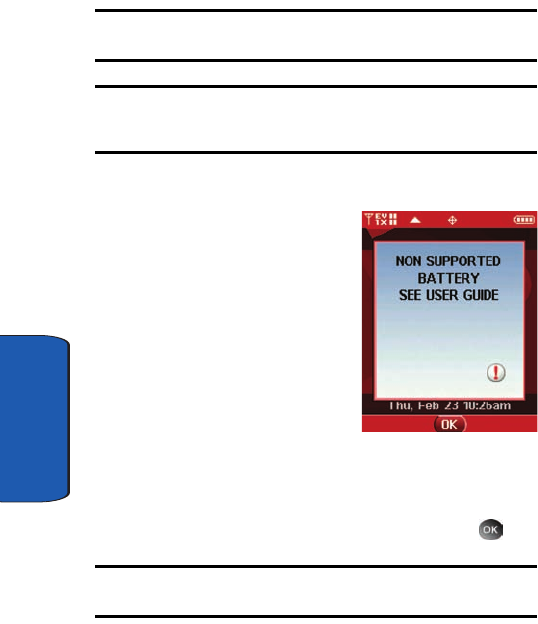
Using A Non-Supported Battery
Samsung handsets do not
support the use of a non-
supported battery. Samsung
charging accessories (i.e. travel
adapter, and cigarette lighter
adapter) will only charge a
Samsung approved battery.
When using a non-supported
battery you will hear a series of
beeps followed by a warning
message stating “NON
SUPPORTED BATTERY SEE
USER GUIDE.” If you receive this warning, battery
charging is disabled.
To continue use of your Samsung handset press .
Note: When using a non-supported battery the handset can only be used
for the duration of the battery life.
a550.book Page 26 Thursday, February 23, 2006 5:41 PM
Section 2: Understanding Your Phone 27
Battery
Section 2
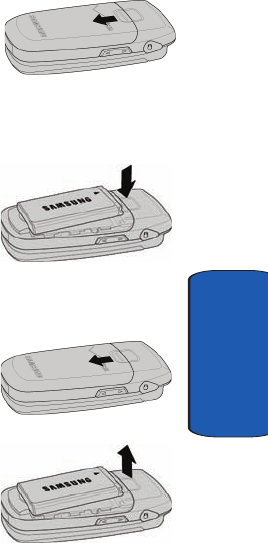
Install the Battery
1. Slide the battery cover down and lift up to remove it.
2. Insert the top end of the
battery in the direction of
the arrow printed on the
battery into the phone
housing. The gold contacts
on the top of the battery
should match up with those
on the phone.
3. Push the bottom end of the
battery down until it snaps
into place.
4. Slide the battery cover up
until it snaps into place.
Remove the Battery
1. Slide the battery cover
down and lift up to remove
it.
2. Use your finger to lift the
battery (bottom end first) up
and away from the phone.
a550.book Page 27 Thursday, February 23, 2006 5:41 PM
28
Section 2
Charge the Battery
Your phone is powered by a rechargeable standard Li-ion
battery. Only use Samsung-approved charging devices
and batteries. Samsung accessories are designed to
maximize battery life. Using other accessories may
invalidate your warranty and may cause damage.
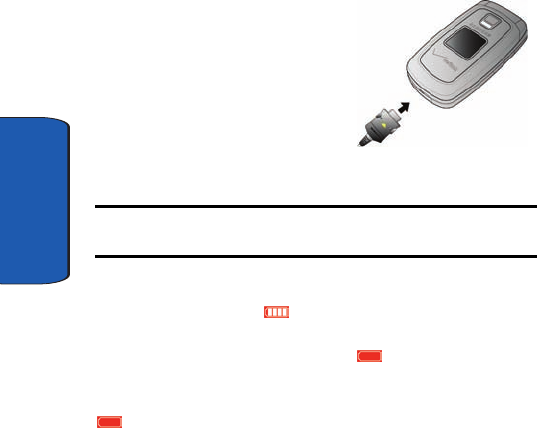
Travel Charger
The travel charger is a convenient, light-weight charger
that rapidly charges your phone from any 120/ 220 VAC
outlet.
1. Plug the large end of the
travel charger into a
standard 120/220 VAC wall
outlet.
2. Insert the smaller end of
the travel charger into the
charger/ accessory
connector at the bottom end of the phone.
Note: You can use your phone while charging, however, the battery
charges faster if the phone is turned off.
Battery Indicator
The battery indicator in the upper-right corner of the
display indicates battery power level. Four bars indicate
a full charge, while an empty icon indicates an almost
empty battery. Two to three minutes before the battery
becomes too low to operate, a blinking empty battery icon
appears and a tone sounds. If you continue to operate
the phone without charging, it shuts down.
a550.book Page 28 Thursday, February 23, 2006 5:41 PM

Section 2: Understanding Your Phone 29
Phone Memory Storage
Section 2
Phone Memory Storage
The following file types can be saved to the phone
memory storage area:
• My PIX: Pictures you have saved from a PIX message,
downloaded via the “Get It Now” application, or taken using
your phone.
• My Sounds: Sounds you have downloaded, recorded using
your phone, or saved from a PIX message with Sound attached.
• My Ringtones: Ringtones you have downloaded via the “Get It
Now” application, or saved from a PIX message with Ringtone
attached.
a550.book Page 29 Thursday, February 23, 2006 5:41 PM

30
Section 2
a550.book Page 30 Thursday, February 23, 2006 5:41 PM

Section 3: Call Functions 31
Section 3
Section 3: Call Functions
Topics Covered
• Making a Call
• Answering a Call
• Recent Calls
•Roaming
• TTY
• VoiceSignal™
This section allows you to make or answer a call. It also
includes the features and functionality associated with
making or answering a call.
a550.book Page 31 Thursday, February 23, 2006 5:41 PM
32
Section 3
Making a Call
1. At the standby screen, enter the number you want to call
using the keypad.
2. Press .
Making Calls Using Contacts
Contacts are entries that you create to store names,
numbers, and other information for people or groups of
interest. If you’ve already entered information into your
Contacts list, you can recall and dial the contact easily.
See "Adding a Contact" on page 67 for information on
creating contacts.
1. At the standby screen, press the right soft key
Contacts.
2. Press the or keys on the side of your phone or the
navigation up and down keys until the contact that you
want to call is highlighted.
Tip: To quickly locate a name, press (or multi-press) any key on the
keypad that corresponds to the first, second, and/or third letters of the
contact’s name.
3. When the desired contact is highlighted, press
VIEW. Details for the contact appear in the display.
4. If the entry contains more than one number, use or
to highlight the desired number.
5. Press to call the number.
a550.book Page 32 Thursday, February 23, 2006 5:41 PM

Section 3: Call Functions 33
Answering a Call
Section 3
Answering a Call
When you receive an incoming call, the Incoming screen
appears in the display, press the key to answer the call
or Ignore () soft key to send the call to voicemail, or
Quiet ( ) soft key to silence the ringer.
Note: To change the answer options, see "Answer Options" on page 119.
Answering Call-Waiting Calls
• When you receive a call while on a call, the Incoming screen
displays. You can press and answer the new call or let the
new call go to your voicemail.
• If you choose and answer the incoming call, the original
caller is placed on call waiting. To return to your original call
when you finish with an incoming call, press the Send
key.
Recent Calls
When you place, miss, or receive a call, a record of the call
is saved in Recent Calls, which is a listing of the different
types of calls you can either receive or make. These types
of calls are listed below.
• Missed: Displays any missed calls.
• Received: Displays any received calls that were answered.
• Dialed: Displays all outgoing calls made from your phone.
• All: Displays all missed, received, and outgoing calls made
from your phone.
• View Timers: Displays the length of your calls.
a550.book Page 33 Thursday, February 23, 2006 5:41 PM

34
Section 3
Viewing Call Information
Recent Calls retains information such as the duration,
date and time, and whether the call was received, dialed,
or missed.
1. At the standby screen, press the key.
2. Press the down navigation key to highlight the desired
number.
3. Once the desired number is highlighted, press
OPEN.
4. The following options appear in the display:
•“type” call: Where “type” indicates if the call was missed,
dialed, or received.
•Name: If the caller is in your Contacts list, their name is listed
here. This option only appears if the caller is in your Contacts
list.
•Number: Displays the telephone number as well as the
appropriate icon to indicate mobile, work, or home number.
•Time: The time of the call.
•Date: The date of the call.
•Duration: The duration of the calls made or receive.
5. Press the right soft key Options to display the
following options:
•Save: Save the number to your Contacts list.
•Details: Shows details of caller if they are in your Contacts
list. Otherwise, this option is not displayed.
•Erase: Delete the call from Call History.
•Lock/Unlock: locks or unlocks the entry to prevent
accidental deletion.
•Erase All: Delete the entire Call History list at one time.
a550.book Page 34 Thursday, February 23, 2006 5:41 PM
Section 3: Call Functions 35
Recent Calls
Section 3
•View Timers: Select to view the call timers for your phone.
6. Press the down navigation key to highlight an option.
Press to enter the highlighted option’s sub-menu.
Call History Icons
When you view Recent Calls, an icon to the left of the
number indicates the type of call.
Indicates a Missed call
Indicates a Dialed call
Indicates a Received call
Making Calls Using Call History
1. At the standby screen, press then press up or down
navigation key until the desired number is highlighted.
2. Press to call the highlighted number. Or, you can
press OPEN, then press to call the highlighted
number.
Creating or Updating Contacts Using Call History
1. At the standby screen, press then press up or down
navigation key until the desired number is highlighted.
2. Press the right soft key Options. Save is
highlighted. Press .
3. Use the up or down navigation keys to highlight Create
New or Update Existing. Press .
a550.book Page 35 Thursday, February 23, 2006 5:41 PM
36
Section 3
4. Use the up or down navigation keys to highlight one of
the following options:
• Mobile 1
• Mobile 2
• Home
•Work
•Fax
5. Press to add a new contact, and then enter
information.
6. Use the navigation keys to enter additional information
for the entry and then press SAVE.
Delete Call History Entries
1. At the standby screen, press then press up or down
navigation key until the desired number is highlighted.
2. Press the right soft key Options. A pop-up menu
appears in the display.
3. Press the down navigation key to highlight Erase and
press . Select Yes or No at the ERASE ENTRY? pop-
up screen.
4. Press .
Delete All Call History Entries
1. At the standby screen, press .
2. Press the right soft key Options. A pop-up menu
appears in the display.
3. Press the down navigation key to highlight Erase All and
press . Select Yes or No at the ERASE ALL ENTRIES?
pop-up screen.
a550.book Page 36 Thursday, February 23, 2006 5:41 PM
Section 3: Call Functions 37
Roaming
Section 3
4. Press .
Roaming
What is Roaming?
Your phone can roam on other digital networks. Roaming
occurs when you travel outside a pre-designated
coverage area. The roaming icon displays when roaming
is active and extra charges may apply when making or
receiving calls.
Note: Some features may be unavailable while roaming.
Roaming Options
The following roaming options are available:
• Home Only: Your phone is available for normal operation only in
the designated coverage area.
• Automatic A: The preferred roaming list is used to acquire
service. If no preferred systems are found, any digital "A"
system is acquired.
• Automatic B: The preferred roaming list is used to acquire
service. If no preferred systems are found, any digital "B"
system is acquired.
Note: Contact your service provider for information regarding preferred
systems.
To change your Roaming option, follow these steps:
1. Press MENU. Use the right navigation key to
highlight SETTINGS & TOOLS.
2. Press Phone Settings.
a550.book Page 37 Thursday, February 23, 2006 5:41 PM
38
Section 3
3. Press System Select.
4. Use the up or down navigation keys to choose the setting
you want, and press .
TTY
Your phone is fully TTY compatible. Connect the TTY
equipment to the headset jack, which is located on the left
side of the phone. Before you can use your phone with a
TTY device, you’ll need to enable TTY functions in the
phone.
1. Press MENU. Use the right navigation key to
highlight SETTINGS & TOOLS.
2. Press Call Settings.
3. Press TTY Mode. The TTY Mode screen displays.
4. A warning appears in the display stating “ENABLING
TTY WILL DISABLE HEADSET AUDIO. CONTINUE?”
Use the up or down navigation key to highlight Yes and
press to proceed to TTY MODE screen.
Use the up or down navigaton key to highlight No and
press to return to Call Settings menu.
5. Use the up or down navigation keys to select one of the
following:
• TTY Full
• TTY + Talk
• TTY + Hear
• TTY Off
6. Press to make your selection. The TTY Mode Set
screen displays.
a550.book Page 38 Thursday, February 23, 2006 5:41 PM

Section 3: Call Functions 39
VoiceSignal™
Section 3
VoiceSignal™
VoiceSignal is advanced speech recognition software
that can be used to activate a wide-variety of functions
on your phone. VoiceSignal software automatically voice
activates all contacts for voice dialing and searching, no
pre-recording or training needed. Speak phone numbers
naturally to dial, and use voice commands to launch
applications and navigate phone menus.
VoiceSignal Settings
You can adjust the settings and preferences for
VoiceSignal by opening Voice Commands menu. Using
this menu, you can change the following Voice Command
features:
• Tips for adapting Digit Dial
• Digit Dial Adaptation
• Reset Digit Dial Adaptation
• Call Digit Dialing
• Call Name Dialing
• Send Text Msg.
• Name Lookup
• Opening Apps
• Checking Phone Status
To access the VoiceSignal Settings menu, follow these
steps:
1. At the standby screen, press MENU. Use the right
navigation key to highlight SETTINGS & TOOLS.
a550.book Page 39 Thursday, February 23, 2006 5:41 PM

40
Section 3
2. Press Tools, then Voice Commands, and
Voice Settings.
3. Use the navigation keys to select the setting you want to
change. The following options are available:
• Choice Lists: If VoiceSignal is not absolutely confident that it
has correctly identified a name or number, it can display a
choice list of up to three possibilities, and prompt you to
confirm the correct one. You can control when choice lists
appear by changing the Choice Lists setting to the following:
•Automatic: VoiceSignal displays a choice list when it is not
confident it has identified the correct choice from among
multiple alternatives.
•Always On: When there are multiple alternatives,
VoiceSignal always displays a choice list.
•Always Off: VoiceSignal never displays a choice list. Instead,
the application picks the best from among the possible
choices.
• Sensitivity: In VoiceSignal, sensitivity controls the balance
between rejecting too much, which means the phone
frequently does not recognize names, numbers, or
commands, and rejecting too little, which means it
frequently recognizes something even if nothing was said.
When VoiceSignal rejects an utterance, it displays a
message such as “Please repeat…” or “No match found.” If
you frequently experience these messages, you might be
able to get better recognition by adjusting the Sensitivity
setting toward Reject Less. If you frequently experience
false activations (VoiceSignal detects a wrong match), you
might be able to get better performance by adjusting the
Sensitivity setting toward Reject More.
• Digit Dialing: Use the Digit Dialing menu to adapt digit
dialing to your voice.
a550.book Page 40 Thursday, February 23, 2006 5:41 PM

Section 3: Call Functions 41
VoiceSignal™
Section 3
•Adapt Digits: Lets you adapt digits, which can improve
voice recognition of phone numbers. Adaptation takes about
180 seconds.
•Reset Digits: Erases any digit adaptation you have done and
resets digit recognition to the factory default. If you have not
adapted digits, this option is grayed out.
• Sound: You can customize the VoiceSignal user interface by
turning playback on or off for prompts, names, and numbers.
You can also change the speed and volume of name
playback.
•Prompts: Turns playback on or off for prompts such as
“Please Say a command.”
•Digits: Turns playback on or off for digits, for example, when
confirming a phone number.
•Names: Turns playback on or off for names.
•Name Settings: Adjusts the speed and volume of name
playback.
• About: Displays information about VoiceSignal including
version number, build number, and device number.
Adapting VoiceSignal
Voice dialing works well for most people without special
adaptation. However, people with strong accents or
unique voice characteristics may receive better results
after adapting the system to match their voices.
You should adapt Digit Dial only if the system is
frequently unable to recognize your speech. After you
adapt Digit Dial, your phone is customized to your voice,
and your voice only. Others will not be able to use it unless
they reset the phone to factory defaults.
a550.book Page 41 Thursday, February 23, 2006 5:41 PM
42
Section 3
Adaptation involves recording several digit sequences to
adapt the system to the unique properties of your voice.
The adaptation process takes about three minutes.
Tips for adapting Digit Dial
• Adapt digits in a quiet place.
• Make sure you wait for the beep before starting to speak.
• Speak clearly, and say each digit distinctly.
• If you make a mistake while recording a sequence of digits, or if
there is an unexpected noise that spoils the recording, re-
record that sequence.
• Only adapt digits if you regularly have problems with digit
dialing. Once adapted, digit dialing will not work as well for
other people using your phone.
• Adapt Digit Dial to your voice.
Digit Dial Adaptation
To access the Adapt Digits menu, follow these steps:
1. At the standby screen, press MENU. Use the right
navigation key to highlight SETTINGS & TOOLS.
2. Press Tools, then Voice Commands.
3. Press Voice Settings, then Digit Dialing.
4. Adapt Digits is highlighted. Press .
5. A short description of the Adapt Digits displays.
6. Read the description until you are comfortable to
proceed, then press .
7. Your phone displays the first digit sequence and “Please
say” plays through the speaker followed by the four
digits appearing in the display.
a550.book Page 42 Thursday, February 23, 2006 5:41 PM
Section 3: Call Functions 43
VoiceSignal™
Section 3
Wait for the beep and repeat the digits using your normal
tone of voice.
8. After a moment, the phone plays back the recording and
prompts “Did the recording sound ok?” If the recording
was good, say “Yes.” If you need to re-record, say “No.”
If you say “No,” the phone prompts you to pronounce the
digits again. Wait for the beep and then re-record.
Repeat this step until you’re satisfied with the recording.
9. After confirming that the recording sounds ok, repeat the
recording process with the next set of digits. After ten
sets of digits, the phone indicates that adaptation is
complete.
Reset Digit Dial Adaptation
This option erases an adaptation and resets Digit Dial to
its original state.
1. At the standby screen, press MENU. Use the right
navigation key to highlight SETTINGS & TOOLS.
2. Press Tools, then Voice Commands.
3. Press Voice Settings, then Digit Dialing.
4. Highlight Reset Digits and press . The Reset
Digit Adaptation screen displays requesting confirmation
of reset.
Note: If you have not performed the Adapt Digits function, the Reset Digits
option will not be accessible.
5. Press to proceed. Digit Adaptation Reset is
completed.
a550.book Page 43 Thursday, February 23, 2006 5:41 PM

44
Section 3
VoiceSignal Commands
The following is a list of functions that you can perform
using VoiceSignal speech recognition on your phone.
• Call <Name or #>: Dial by saying a Name in your Contacts List
or a Name and a Location (home, work, mobile).
• Send Text<Name>: Send a text message to a number or to
someone in your Contacts List.
• Send Picture <Name>: Send a PIX message to a number or to
someone in your Contacts List.
• Lookup <Name>: Open the contact record for any name in
your Contacts List.
• Go to <Menu>: Open any application installed on your device.
• Check <Item>: Provides details of your coverage, signal
strength, and battery level.
Call Name Dialing
To use Name Dial, you’ll need to have entries stored in
your Contacts list. See page 67 for information on creating
a Contacts list.
1. In standby mode, press and hold the key.
2. After a brief pause, a list of optional commands appears
in the display and the audio prompt “Say a command”
plays through the earpiece.
3. Say “Call” at a distance of 3-12 inches from the phone in
a natural voice.
4. “Say the Name or Number” plays through the earpiece or
speakerphone--if it is enabled.
5. To use Name Dialing, say the name of the contact that
you want to dial.
a550.book Page 44 Thursday, February 23, 2006 5:41 PM

Section 3: Call Functions 45
VoiceSignal™
Section 3
6. The name that you said is repeated through the earpiece
and your phone dials the number.
7. If VoiceSignal is not sure of the number that you said, a
list of possible matches appears in the display.
8. You’re asked to confirm the correct number as
VoiceSignal displays the results. Say “Yes” or “No” to
confirm or reject the number when prompted.
9. The location is repeated through the earpiece and your
phone dials the number.
Call Digit Dialing
Digit Dial allows you to dial any phone number by simply
speaking the digits into the phone. No training is
necessary, and Digit Dial is programmed to understand
natural speech.
1. In standby mode, press and hold the key.
2. After a brief pause, a list of optional commands appears
in the display and the audio prompt “Say a command”
plays through the earpiece or speakerphone--if it is
enabled.
3. Say “Call” at a distance of 3-12 inches from the phone in
a natural voice.
4. “Say the Name or Number” plays through the earpiece.
5. To use Digit Dialing, say the area code and number that
you want to dial into the microphone, clearly and
naturally.
6. The number that you said is repeated through the
earpiece and your phone dials the number.
a550.book Page 45 Thursday, February 23, 2006 5:41 PM

46
Section 3
7. If VoiceSignal is not sure of the number that you said, a
list of possible matches appears in the display.
8. You’re asked to confirm the correct number as
VoiceSignal displays the results. Say “Yes” or “No” to
confirm or reject the number when prompted.
Name Lookup
To perform a name lookup, you’ll need to have some
entries in your Contacts list.
1. In standby mode, press and hold the key.
2. A list of commands appears in the display and the audio
prompt “Say a command” plays through the earpiece or
speakerphone--if it is enabled.
3. Say “Lookup” at a distance of 3-12 inches from the
microphone. “Say the name” plays through the earpiece
or speakerphone.
4. Say the name exactly as it is displayed in your Contacts
list, first name followed by last name.
5. The contact name appears in the display with other
information that you’ve entered for that contact.
a550.book Page 46 Thursday, February 23, 2006 5:41 PM

Section 3: Call Functions 47
VoiceSignal™
Section 3
Opening Apps
The example that follows instructs you how to open
Internet Explorer. However, you can open any
application on your phone using VoiceSignal.
1. In standby mode, press and hold the key.
2. A list of commands appears in the display and the audio
prompt “Say a command” plays through the earpiece or
speakerphone--if it is enabled.
3. Say “Go To” at a distance of 3-12 inches from the
microphone. A list of options displays and a prompt of
“Please choose” plays through the earpiece or
speakerphone.
4. The menu option spoken opens.
a550.book Page 47 Thursday, February 23, 2006 5:41 PM

48
Section 3
a550.book Page 48 Thursday, February 23, 2006 5:41 PM

Section 4
Section 4: Menu Navigation 49
Section 4: Menu Navigation
Topics Covered
• Menu Navigation
• Menu Outline
This section explains the menu navigation for your
phone. It also includes an outline of all the available
menus associated with your phone.
a550.book Page 49 Thursday, February 23, 2006 5:41 PM

Section 4
50
Menu Navigation
Access menus using the navigation keys, two soft keys
, or use a shortcut.
1. In standby mode press MENU. The first of several menus
appear in the display.
2. Use the navigation keys to browse phone menus.
3. Press to enter the menu or sub-menu presently
appearing in the display.
Return to the Previous Menu
Press to return to the previous menu.
Navigate Using Shortcuts
You can also access menus and sub-menus using menu
numbers. This method is often called a “shortcut.” To
shortcut to a menu or sub-menu, press MENU, then
enter the menu and/or sub-menu number(s) for the
feature in question. Use "Navigation Key Shortcuts" on
page 51, for looking up the menu shortcut number.
1. In standby mode, press MENU. The CONTACTS
menu is launched.
2. Press the number of the menu, sub-menu, and so on to
arrive at the desired feature.
3. Press MENU, then press Groups,
Business.
a550.book Page 50 Thursday, February 23, 2006 5:41 PM
Section 4: Menu Navigation 51
Menu Navigation
Section 4
Navigation Key Shortcuts
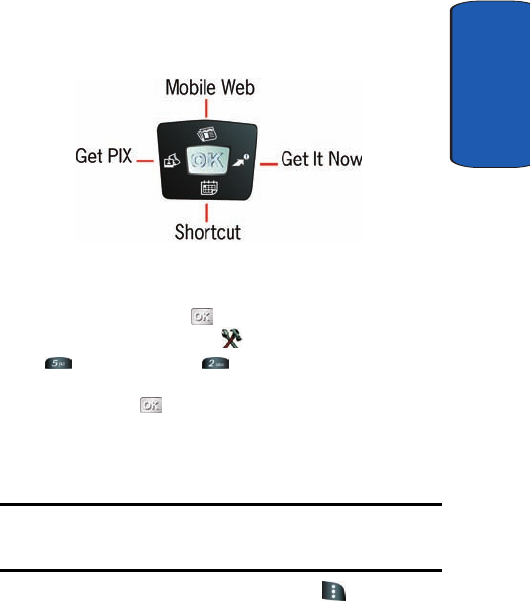
In standby mode, press a navigation key (as illustrated
below) to launch its corresponding application.
The Shortcut menu is set to Calendar by default, but it can
be customized to select other functions instead.
In standby mode, press MENU, use the right
navigation key to highlight SETTINGS & TOOLS.
Press Phone Settings Shortcut Key. The shortcut
key list displays. Use the navigation key to change the
setting and press to save your selection.
The In-Use Option
Access numerous menus and features even while in a call.
Note: If the call is disconnected while accessing the In-Use Option, the In-
Use Option disappears from the display and the phone eventually returns to
standby mode.
1. While in a call, press the right soft key Options. The
following menu items appear in the display.
•Message: Open the Messages menu.
•Contacts: Open the contacts to view.
a550.book Page 51 Thursday, February 23, 2006 5:41 PM

Section 4
52
•Recent Calls: Display your recent incoming, missed and
outgoing calls.
•Send DTMF: Sends keypad tones.
•Voice Privacy: Prevent recipients of your calls from seeing
your number on their display. Select from standard or
enhanced options.
•Voice Memo: Record a voice memo.
2. Use the navigation key to highlight a menu. Press to
open the highlighted menu or to activate the feature.
Menu Outline
The following list shows the menu structure and indicates
the number assigned to each option.
GET IT NOW
1: Get Tunes & Tones
1: Get New Ringtones
1: Get New App.
2: My Ringtones
1: Get New Ringtones
1: Get New App.
3: My Sounds
1: Record New
2: Get PIX
1: Get New PIX
1: Get New App.
2: My PIX
3: PIX Place
4: Take PIX
3: Get Fun & Games
1: Get New App.
4: Get News & Info
5: Get Going
a550.book Page 52 Thursday, February 23, 2006 5:41 PM

Section 4: Menu Navigation 53
Menu Outline
Section 4
1: Get New App.
6: Get Extras
1: Get New App.
MESSAGING
1: New Msg
1: TXT Msg
2: PIX Msg
3: Sketch Msg
4: Postcard
2: Inbox
3: Sent
4: Drafts
5: Voicemail
6: E-Mail
7: Mobile IM
8: Chat
CONTACTS
1: New Contact
2: Contact List
3: Groups
1: No Group
2: Business
3: Colleague
4: Family
5: Friends
4: Speed Dials
RECENT CALLS
1: Missed
2: Received
3: Dialed
4: All
5: View Timers
a550.book Page 53 Thursday, February 23, 2006 5:41 PM

Section 4
54
SETTINGS & TOOLS
1: My Account
2: Tools
1: Voice Commands
1: Voice Dial
2: Menu Readout
3: Voice Settings
2: Calculator
1: Normal
2: Tip
3: Converter
3: Calendar
4: Alarm Clock
5: World Clock
6: Stop Watch
7: Notepad
3: Sound Settings
1: Master Volume
2: Call Sounds
1: Call Ringtone
1: My Ringtones
2: My Sounds
2: Call Vibrate
3: Alert Sounds
1: TXT Message
1: Tone
1: My Ringtones
2: My Sounds
2: Vibrate
3: Reminder
2: PIX Message
1: Tone
1: My Ringtones
2: My Sounds
a550.book Page 54 Thursday, February 23, 2006 5:41 PM

Section 4: Menu Navigation 55
Menu Outline
Section 4
2: Vibrate
3: Reminder
3: Voicemail Msg
1: Tone
1: My Ringtones
2: My Sounds
2: Vibrate
3: Reminder
4: Device Connect
4: Keypad Volume
5: Earpiece Volume
6: Service Alerts
1: ERI
2: Minute Beep
3: Call Connect
7: Power On/Off
1: Power On
2: Power Off
8: VibeTonz
4: Display Settings
1: Banner
1: Personal
2: ERI Banner
2: Backlight
1: Display
1: Duration
2: Brightness
2: Keypad
3: Contrast
4: Wallpaper
1: Main Screen
1: My PIX
2: Pre-loaded PIX
2: Front Screen
a550.book Page 55 Thursday, February 23, 2006 5:41 PM

Section 4
56
1: My PIX
2: Pre-loaded PIX
5: Display Themes
6: Clock Format
1: Main Clock
2: Front Clock
7: Power On/Off
1: Power On
2: Power Off
8: Dialing Font
1: Size
2: Style
3: Hyphenation
5: Phone Settings
1: Standalone Mode
2: Shortcut Key
3: Language
4: Location
5: Security
6: System Select
7: NAM Selection
8: Quick Search
9: PC Connection
0: Time & Date
6: Call Settings
1: Answer Options
2: Auto Retry
3: TTY Mode
4: One Touch Dial
5: Voice Privacy
6: Call Restrictions
1: Outgoing
2: Incoming
a550.book Page 56 Thursday, February 23, 2006 5:41 PM

Section 4: Menu Navigation 57
Menu Outline
Section 4
3: Contacts
7: Data Settings
8: DTMF Tones
9: Ringer ID
0: Picture ID
7: Bluetooth
1: Add New Device
8: Memory
1: Memory Usage
2: My PIX
3: My Ringtones
4: My Sounds
9: Phone Info
1: My Number
2: SW Version
3: Icon Glossary
a550.book Page 57 Thursday, February 23, 2006 5:41 PM

Section 4
58
a550.book Page 58 Thursday, February 23, 2006 5:41 PM

Section 5: Entering Text 59
Section 5
Section 5: Entering Text
Topics Covered
• Changing the Text Entry Mode
• Using Word Mode
• Entering Upper and Lower Case
• Entering Symbols
• Entering Numbers
This section outlines how to select the desired text input
mode when entering characters into your phone. This
section also describes how to use the T9 predictive text
entry system to reduce the amount of key strokes
associated with entering text.
a550.book Page 59 Thursday, February 23, 2006 5:41 PM

60
Section 5
Changing the Text Entry Mode
1. While composing a message in the Text area, press the
right soft key Options to display the following
options:
• Add: Allows you to add more information or multimedia
items to your message.
•Graphics: Lists preloaded and downloaded graphics to add
to the message.
•Animation: Lists preloaded and downloaded animations to
add to the message.
•Sound: Lists preloaded and downloaded sounds to add to the
message.
•Quick Text: Choose from up to 22 messages which include
12 pre-loaded messages.
• Edit Text Format: Change font size, text alignment, style,
and color.
• Save As Draft: Save the message to your Draft folder.
• Priority Level: Save the message with a High or Normal
priority.
• Validity Period: Save the message for the assigned
period of time.
• Deferred Delivery: Save the message to be delivered at
the assigned delivery date and time.
• Enh. Delivery Ack: Displays a pop-up screen notifying
the message sent has been received.
• Add To Contacts: Save the recipients number to your
Contacts as a new entry or add to an existing entry.
2. While composing a message, press left soft key Abc
to display a pop-up menu with the following Text Entry
Mode options:
a550.book Page 60 Thursday, February 23, 2006 5:41 PM

Section 5: Entering Text 61
Using Word Mode
Section 5
•Word
•Abc
•ABC
•123
•Symbols
Using Word Mode
Word recognizes the most commonly used word for any
sequence of key presses and inserts that word into your
message. It’s much faster than the traditional method of
text entry (Abc) and requires only one key press per letter
of the word that you’re spelling.
1. In standby mode, press the left soft key Message,
then press New Msg, TXT Msg to compose a
new text message.
2. Enter the phone number or email address of the
recipient, then press the down navigation key to move to
the Text field.
3. Press the left soft key Abc to display a pop-up menu
containing text entry mode options.
4. Abc is highlighted by default. Use the up/down
navigation keys to highlight Word, then press .
Now, for practice, enter the word “Hello” into your
message by pressing each of the following keys only
once:
HEL LO
a550.book Page 61 Thursday, February 23, 2006 5:41 PM

62
Section 5
Word recognizes that the most frequently used word for
the sequence that you just entered is “Hello.” If more than
one word shares the same sequence, Word provides the
most common of the two. Press to display other words
in the dictionary, if available.
Entering Upper and Lower Case
• Enter characters while in ABC mode by pressing the key that
contains the desired characters. For example press for
“G”.
• Press the key repeatedly to cycle through other available
characters for that key.
• Pause briefly when the desired character appears in the display
to accept the character and therefore insert it into the
message.
• Press to enter a space.
• To cycle between uppercase, lower case, and initial caps for
characters in ABC mode, briefly press .
a550.book Page 62 Thursday, February 23, 2006 5:41 PM

Section 5: Entering Text 63
Entering Symbols
Section 5
Entering Symbols
Symbol mode enables you to enter symbols such as @ or%
into a text message.
1. In standby mode, press the left soft key Message,
then press New Msg, TXT Msg to compose a
new text message.
2. Enter the phone number or email address of the
recipient, then press the down navigation key to enter
text.
3. Press the left soft key Abc to display a pop-up
menu containing the text entry mode options.
4. Abc is highlighted by default. Use the up/down
navigation keys to highlight Symbols, then press .
The first of three screens containing symbols appears in
the display.
5. Press Prev or Next to page through the other
symbols, if necessary.
6. Enter the key that corresponds with the symbol that you
wish to enter. For example, press for an exclamation
point (!) on the first page of symbols.
7. Repeat steps 3 through 6 to insert as many symbols into
your message as desired.
a550.book Page 63 Thursday, February 23, 2006 5:41 PM
64
Section 5
Entering Numbers
Enter numbers into a text message while in number mode
(123). See "Changing the Text Entry Mode" on page 60 for
instructions on changing text entry modes.
1. In standby mode, press the left soft key Message,
then press New Msg, TXT Msg to compose a
new text message.
2. Enter the phone number or email address of the
recipient, then press the down navigation key to enter
text.
3. Press the left soft key Abc to display a pop-up menu
containing the text entry mode options.
4. Abc is highlighted by default. Use the up/down
navigation keys to highlight 123, then press .
5. Enter the key that corresponds with the number that you
wish to enter. For example, press for the number 4.
6. When you are finished adding numbers, press the left
soft key 123 to change to another Text Entry Mode
or press SEND to send your message.
a550.book Page 64 Thursday, February 23, 2006 5:41 PM

Section 6: Understanding Your Contacts 65
Section 6
Section 6: Understanding Your Contacts
Topics Covered
• Opening Contacts Menu
• Adding a Contact
• Adding Pauses
• Contact Groups
• Finding a Contact Entry
• Editing an Existing Contact Entry
• Deleting a Contact Entry
• Storing Numbers After a Call
• Speed Dialing
• Finding My Phone Number
This section allows you to manage your daily contacts by
storing their name and number in your Contacts menu.
Contact entries can be sorted by name, entry, or group.
a550.book Page 65 Thursday, February 23, 2006 5:41 PM
66
Section 6
Opening Contacts Menu
The Contacts menu provides access to powerful features
such as adding Groups, and viewing the phone number
assigned to your phone by Verizon Wireless.
1. In standby mode, press MENU. The CONTACTS
menu displays.
• New Contact: Add a number, e-mail, or web address to your
Contacts.
• Contact List: Find a phone number by Name.
•Groups: Add new or rename one of your five default groups.
•Speed Dials: Set a speed dial for a contact.
2. Use the navigation key to highlight the CONTACTS
sub-menu of your choice, then press .
Contacts Icons
You can assign multiple entries to a contact. The icons in
the following table represent all available entry types
Mobile 1 icon. Enter a primary mobile number for the
contact.
Home icon. Enter a home number for the contact.
Work icon. Enter the work number for the contact.
E-mail 1 icon. Enter an e-mail address for the contact.
Group icon. Select an available group to associate with
the contact.
PIX icon. Select an available picture from My PIX Gallery
to associate with the contact.
a550.book Page 66 Thursday, February 23, 2006 5:41 PM
Section 6: Understanding Your Contacts 67
Adding a Contact
Section 6
Ringtone icon. Select a ringtone from My Ringtones or My
Sounds to associate with the contact.
Mobile 2 icon. Enter a secondary mobile number for the
contact.
Fax icon. Enter a fax number for the contact.
E-mail 2 icon. Enter a secondary e-mail address for the
contact.
Adding a Contact
When you add information to your Contacts, you can add
it as a new entry or as an existing entry.
Method 1
1. In standby mode, press MENU, the CONTACTS
menu opens.
2. Press New Contact to enter the contact information.
3. Enter a name for the entry using the keypad.
4. Use the navigation key to highlight the appropriate type
(Mobile, Home, Work, E-mail, etc.). Once highlighted,
use the keypad to enter required information.
5. Use the navigation key to highlight other type fields, if
desired. Enter information using the keypad.
6. When you’re finished entering information for the entry,
press SAVE to save the entry to your Contacts.
a550.book Page 67 Thursday, February 23, 2006 5:41 PM

68
Section 6
Method 2
You can add new numbers to the Contacts by simply
entering the number while the phone is in standby mode,
then following the necessary prompts to complete the
process.
1. In standby mode, enter the number that you wish to save
using the keypad, then press the left soft key Save.
You’re prompted to select from Create New or Update
Existing.
2. Press to enter the number as a Create New, or
press to append the number to Update Existing.
3. If you selected Create New, the following types are
available.
• Mobile 1
• Mobile 2
• Home
• Work
• Fax
4. If you selected Update Existing, proceed to step 8.
5. Use the up/down navigation keys to highlight the desired
entry type (mobile, home, work, etc.) then press .
6. Enter a name for the entry using the keypad. Press the
left soft key Abc if you wish to select a different
method of text entry, such as Word, Abc, ABC, 123, or
Symbols.
7. When you’re finished entering information for the entry,
press SAVE. The entry is saved to your Contacts.
a550.book Page 68 Thursday, February 23, 2006 5:41 PM
Section 6: Understanding Your Contacts 69
Adding Pauses
Section 6
8. If you selected Update Existing, the Contact List opens
in Search mode. Use the navigation key to browse
through entries, or enter the name of the entry using the
keypad. Once you’ve highlighted the entry you wish to
append the number, press .
9. An UPDATE EXISTING pop-up screen with a selection list
of entry types displays. Use the up or down navigation
keys to highlight the desired type then press . The
number is appended to the selected entry. Press
SAVE to save the updated information for the contact.
Adding Pauses
Calls to automated systems often require a password or
account number. Instead of manually entering numbers
each time, store the numbers to your Contacts along with
special characters called pauses.
• Wait: A hard pause stops the calling sequence until further
input from you.
• 2-sec pause: A two-second pause stops the calling sequence
for two seconds and then automatically sends the remaining
digits.
1. In standby mode, enter the number.
2. Press Options use the navigation key to highlight
Wait or 2-sec Pause and press .
3. When you’re finished entering information for the entry,
press Save. The entry is saved to your Contacts.
4. Continue with Step 2, Method 2 of Adding a Contact.
a550.book Page 69 Thursday, February 23, 2006 5:41 PM
70
Section 6
Note: Entering multiple two-second pauses extends the length of a pause.
For example, two consecutive two-second pauses cause a total pause time
of four seconds. Keep in mind pauses count as digits towards the 48-digit
maximum.
Contact Groups
You can place Contact entries into categories, called
“Groups.” Groups allow you to search your Contacts
faster, quickly send messages to one or more group
members, and more.
Note: By default, new entries to your Contacts are placed into No Group
unless another group is specified.
View Groups
1. In standby mode, press MENU, then press
Groups. The following predefined groups appear in the
display.
•No Group
•Business
•Colleague
•Family
•Friends
2. Use the navigation key to highlight the desired group,
then press to access the group and view its
contents.
a550.book Page 70 Thursday, February 23, 2006 5:41 PM
Section 6: Understanding Your Contacts 71
Contact Groups
Section 6
Move an Entry to Another Group
1. In standby mode, press the right soft key Contacts.
Use the navigation key to highlight the contact you wish
to move.
2. Press the left soft key Edit. Use the up/down
navigation key to scroll to the Group field.
3. Press the left soft key Set. Choose from the
following groups:
•No Group
•Business
•Colleague
•Family
•Friends
4. Use the navigation key to highlight the group you want to
associate to the contact, then press .
5. Press SAVE. The selection has been saved to the
designated group.
Create a New Group
In addition to the five predefined groups already in your
phone, you can create additional groups (a maximum of
30). New groups can be named anything you like as long
as their names are within the 32-character limit.
1. In standby mode, press MENU, then press
Groups. Your existing groups appear in the display.
2. Press the left soft key New. A NEW GROUP pop-up
menu displays with the “Enter New Name” highlighted.
3. Press SAVE to save. The Groups list now displays the
new group added.
a550.book Page 71 Thursday, February 23, 2006 5:41 PM
72
Section 6
Send a Text Message to Members of a Group
Use Send Message in the Group feature to send a message
to as many as 10 members of a group at once.
Note: Text messaging availability varies when roaming off the Verizon
Wireless Network.
1. In standby mode, press MENU, then press
Groups. Your existing groups appear in the display.
2. Highlight the desired group name and press the right soft
key Options. Highlight Send TXT Msg and press
.
3. Use the down navigation key to highlight the contacts in
the group to which you want to send a message. Press
MARK to place a checkmark next to each selection
to send messages to.
4. Press the left soft key Done after selecting up to 10
contacts.
Note: You can mark up to 10 members of a group for message distribution.
If you try and mark an 11th member, you’ll be notified that “MAXIMUM
RECIPIENTS IS 10”.
5. Press the down navigation key to place the cursor in the
Text field.
6. Enter the content of your message using the keypad.
7. To send the text message, press SEND.
a550.book Page 72 Thursday, February 23, 2006 5:41 PM
Section 6: Understanding Your Contacts 73
Contact Groups
Section 6
Send a PIX Msg to Members of a Group
Note: Only available within Verizon Wireless Enhanced Services Area.
1. In standby mode, press MENU, then press
Groups. Your existing groups appear in the display.
2. Highlight the desired group name and press the right soft
key Options. Highlight Send PIX Msg and press
.
3. Use the down navigation key to highlight the contacts in
the group to which you want to send a message. Press
MARK to place a checkmark next to each selection
to send messages to.
4. Press the left soft key Done after selecting up to 10
contacts.
5. The CREATE PIX MSG screen appears. Press the down
navigation key to move the cursor into the following
entry fields:
•Text: Add text to the PIX Msg.
•PIX: Add an image from the PIX Gallery to the message.
•Sound: Add sound to the PIX Msg
•Subject: Add a subject to the PIX Msg.
6. Once you’ve finished adding the desired content to your
PIX Msg, press SEND to send the PIX Msg to the
intended recipients.
a550.book Page 73 Thursday, February 23, 2006 5:41 PM

74
Section 6
Finding a Contacts Entry
From standby mode, you can quickly open the Contacts
list. Contacts is a quick way of viewing entries you’ve
stored in the Contacts list.
1. In standby mode, press the right soft key Contacts.
The Contact List displays.
2. In the Search field, enter the first and second letters of
the name you wish to search until it is highlighted.
Editing an Existing Contact Entry
1. In standby mode, press MENU, then press
Contact List.
2. Use the navigation key to highlight the contact list entry
and press the left soft key Edit.
3. Use the navigation key to highlight the name, number, e-
mail address, or other field that you wish to edit.
4. Press to backspace and delete numbers, text, or
symbols.
5. Press and hold to erase all numbers in the
highlighted field.
6. Use the keypad to re-enter numbers, text, or symbols.
7. When you’re finished editing the entry, press SAVE.
Your changes are saved.
Deleting a Contact Entry
1. In standby mode, press MENU, then press
Contact List.
a550.book Page 74 Thursday, February 23, 2006 5:41 PM
Section 6: Understanding Your Contacts 75
Storing Numbers After a Call
Section 6
2. Use the navigation key to display the contact list entry
and press VIEW.
3. Press the left soft key Erase.
4. A pop-up “ERASE ENTRY?” screen displays.
5. Highlight Yes or No, then press .
Storing Numbers After a Call
Once you’ve finished a call, you can store the number of
the caller to your Contact List.
Note: If the call was incoming and Caller ID information was unavailable,
then the store option is also unavailable.
1. After you press to end your call, the call time,
length of call and phone number appears in the display.
2. Press the right soft key Save. You’re prompted to
confirm this as a Create New, or Update Existing.
3. Follow the on-screen prompts to designate other
information.
Store a number in standby mode
Store a phone number by entering the number in standby
mode, then press Save. Follow the screen prompts to
assign number types and other information.
Speed Dialing
Note: 1-Touch, 2-Touch, and 3-Touch dialing allows you to call numbers
stored in your Contact List quicker.
a550.book Page 75 Thursday, February 23, 2006 5:41 PM

76
Section 6
Speed dialing allows you to press and hold a key (or keys)
to dial the number associated with those key(s). There are
three types of speed dialing; 1-touch, 2-touch, and 3-touch
dialing.
Note: Memory location 001 is reserved for voicemail.
1-touch dialing
Call phone numbers assigned to memory locations 002 -
009 by pressing and holding the any of the 2 - 9 keys. For
example, to speed dial the number assigned to location 2,
press and hold until the name and number appear in
the display and the number is dialed.
2-touch dialing
Call phone numbers assigned to keys 010 through 099 by
briefly pressing the first key, then pressing and holding
the second key. For example, to speed dial the number
assigned to 013, briefly press , then press and hold
until the number dials.
3-touch dialing
Call phone numbers assigned to memory locations 100
through 999 by briefly pressing the first and second keys,
then pressing and holding the third key. For example, to
dial location number 113, briefly press , , then press
and hold until the number dials.
Assign a speed dial location
1. In standby mode, press MENU, then press
Speed Dials. The Speed Dials screen displays with the
first available number highlighted.
a550.book Page 76 Thursday, February 23, 2006 5:41 PM
Section 6: Understanding Your Contacts 77
Finding My Phone Number
Section 6
2. Use the navigation keys to highlight the number you wish
to assign or enter the speed dial location using the
keypad, press SET.
3. The SET SPEED DIAL screen displays.
4. Use the navigation keys to highlight the entry you want,
then press .
5. At the pop-up screen, use the navigation key to highlight
Yes or No and press .
6. Continue to assign speed dial entries or press the
key to return to standby mode.
Finding My Phone Number
My Number displays the ten-digit number assigned to
your phone.
1. In standby mode, press MENU, then press the right
navigation key to SETTINGS & TOOLS.
2. Press Phone Info.
3. Press My Number. The mobile device, phone
number, and mobile identification number are displayed.
a550.book Page 77 Thursday, February 23, 2006 5:41 PM

78
Section 6
a550.book Page 78 Thursday, February 23, 2006 5:41 PM

Section 7: Messaging 79
Section 7
Section 7: Messaging
Topics Covered
• Types of Messages
• Retrieving New Messages
• Creating and Sending TXT Messages
• Creating and Sending PIX Messages
• Receiving PIX Messages
• New Sketch Messages
• Message Folders
• Changing Message Settings
•Voicemail
•E-Mail
• Mobile IM
•Chat
This section allows you to send or receive different types
of messages. It also includes the features and functionality
associated with messaging.
a550.book Page 79 Thursday, February 23, 2006 5:41 PM
80
Section 7
Types of Messages
Your phone is capable of sending email, text, PIX, and
voicemail messages. Send email, text, PIX messages by
simply entering the email address or the phone number of
the recipient in the To: <.........> or Send To field when
creating a new message.
Retrieving New Messages
While text messages from other phones are delivered
directly to your phone, PIX messages and emails will be
stored in the Inbox of the message server and the server
will alert you to new messages. Therefore you need to
retrieve new messages to your phone and read them on
the phone.
Retrieving a Text Message
When you receive a message in standby mode, the
message ringer sounds, (unless turned off), and New Text
Msg appears in the display along with the closed
envelope icon . The date and time of the message also
appear in the display.
1. Press to View Now, or press the down navigation
key to highlight View Later and press . The message
is saved to your inbox where you can view it later.
2. With the message open, press the right soft key
Options to Forward, Reply With Copy, Save Graphic,
Save Sound, Save Quick Text, Lock, Add To Contacts or
Message Info.
3. With the message open, press REPLY to return a
message to the sender.
a550.book Page 80 Thursday, February 23, 2006 5:41 PM

Section 7: Messaging 81
Creating and Sending TXT Messages
Section 7
Note: When viewing a TXT message, you can view the previous TXT
message by pressing the left navigation key and view the next TXT
message by pressing the right navigation key.
Creating and Sending TXT Messages
You can send text messages to another mobile phone or
to an email address.
1. In standby mode, press MENU, then press the left
navigation key to highlight MESSAGING, press
New Msg. Or in standby mode, press the left soft key
Message then press New Msg.
2. Press TXT Msg to compose a new text message.
3. Enter the phone number or email address of the
recipient.
4. Press the left soft key 123 to display a pop-up menu
with the options listed.
•Entry Mode: Choose from Word, Abc, ABC, 123, Symbols
and Shortcuts modes of text entry.
5. Press the right soft key Add to select from the
following options:
•Contacts: Choose a number from your contacts list
•Groups: Choose a group or a number from your group.
•Recent Calls: Choose a number from the recent calls list.
6. After selecting or entering your recipients in the To field,
use the down navigation key, or key to move to the
message composer.
a550.book Page 81 Thursday, February 23, 2006 5:41 PM

82
Section 7
7. In the Text field, compose your message using the
keypad. At any point while composing a message, press
the right soft key Options to display the following
options:
• Add: Add information from the following categories.
•Graphics: Lists preloaded and downloaded graphics.
•Animation: Lists preloaded and downloaded animations.
•Sound: Lists preloaded and downloaded sounds.
•Quick Text: Choose from up to 12 pre-loaded messages.
You can add 10 additional messages by pressing the right soft
key
New and erase messages by pressing the left soft
key
Erase.
• Edit Text Format: Allows you to edit the text size,
alignment, style, color, and background color.
• Save As Draft: Save the message to your Draft folder.
• Priority Level: Save the message with a High or Normal
priority.
• Validity Period: Save the message for the assigned period
of time.
• Deferred Delivery: Save the message to be delivered at the
assigned delivery date and time.
• Enh. Delivery Ack: Turn message delivery
acknowledgement Off or On.
• Add To Contacts: Save the recipients number to your
Contacts as a new entry or add to an existing entry.
8. Use the navigation key to highlight an option. Press
to perform the function for the option, or to enter its
sub-menu.
9. To send the message, press SEND.
a550.book Page 82 Thursday, February 23, 2006 5:41 PM

Section 7: Messaging 83
Creating and Sending PIX Messages
Section 7
Creating and Sending PIX Messages
Note: Only available within Verizon Wireless Enhanced Services Area.
You can add sounds and attach a picture to your PIX Msg.
This is also known as Multimedia Messaging (MMS).
1. In standby mode, press MENU, then press the left
navigation key to highlight MESSAGING, press
New Msg. Or in standby mode, press the left soft key
Message then press New Msg.
2. Press PIX Msg to compose a new message.
3. Enter the phone number or e-mail address of the
recipient (or recipients) using the keypad.
4. Press the left soft key 123 to display a pop-up menu
that provides the following options:
•Entry Mode: Choose from Word, Abc, ABC, 123, Symbols
and Shortcuts modes of text entry.
5. Press the right soft key Add to select from the
following options:
•Contacts: Choose a number from your contacts list
•Groups: Choose a group or a number from your group.
•Recent Calls: Choose a number from the recent calls list.
•To PIX Place: Send the message to the PIX Place.
6. Press once you’ve finished entering the phone
number(s) or email address(es).
7. In the Text field, compose your message.
a550.book Page 83 Thursday, February 23, 2006 5:41 PM
84
Section 7
8. Press the down navigation key to highlight the PIX field.
Press the left soft key My PIX to add a PIX, and
follow the prompts. Press to attach the highlighted
object.
9. Press the up/down navigation key to highlight the Sound
field. Press the left soft key Sounds to select a
sound. Press the up/down navigation key to highlight the
desired sound and press .
10. Press the down navigation key to highlight the Subject
field. Press the left soft key Abc to change entry
mode. Press the right soft key Options to Add
Quick Text. Press the up/down navigation key to
highlight the desired Quick Text phrase, and press .
11. Once all fields are complete, press to send the
message to the intended recipient(s).
Receiving PIX Messages
When you receive a new PIX Msg, NEW PIX MSG
appears in the display along with the options View Now,
View Later or Reject.
Note: For the option Reject to appear in the display when you receive a PIX
Msg, Auto Receive mode must be set to Off in the Message Settings
menu.
1. When you receive a new PIX Msg, press View Now.
Downloading... appears in the display.
2. After downloading, the image (and text if any) contained
in the PIX Msg appear in the display.
a550.book Page 84 Thursday, February 23, 2006 5:41 PM

Section 7: Messaging 85
Receiving PIX Messages
Section 7
3. Use the navigation keys to scroll through the message or
view the entire picture if necessary.
Note: When viewing a PIX message, you can view the previous PIX
message by pressing the left navigation key and view the next PIX
message by pressing the right navigation key.
Receive Messages While in a Call
When you receive a message while in a call, the NEW PIX
MESSAGE dialog box appears in the display. Press to
clear. You can view the message without disconnecting
your call by pressing Options and then selecting
Message.
Reject a PIX Msg
Note: For the option Reject to appear in the display when you receive a PIX
Msg, Auto Receive mode must be set to Off in the Message Settings
menu.
This feature is currently unavailable outside of the United States.
1. When you get notification to view a new PIX Msg that you
don’t want to receive, press the down navigation key to
highlight Reject.
2. Press to reject.
View a PIX Msg Later
1. When you receive a new PIX Msg that you would like to
view later, highlight View Later and press .
2. To view the message, press the left soft key
Message, Inbox.
a550.book Page 85 Thursday, February 23, 2006 5:41 PM
86
Section 7
3. Use the navigation key to highlight the unopened
message, then press OPEN. The INBOX screen
appears first with information about the PIX message.
Press DOWN to download and view the PIX
message.
New Sketch Messages
You can convert a picture to a black and white sketch
drawing that can be sent with a message. For information
on taking a picture see "Take PIX" on page 135. For
information on sending the message, see "Creating and
Sending PIX Messages" on page 83.
Message Folders
Your phone provides default message folders for your
Text and PIX messages.
Note: To quickly view all messages in the Inbox, Sent, or Drafts folders,
open one message and then press the right navigation key to view the next
message or press the left navigation key to view the previous message.
Inbox
Received messages of all types are stored in the Inbox
folder.
1. In standby mode, press the left soft key Message
then press Inbox. Or in standby mode, press
MENU and use the left navigation key to highlight
MESSAGING then press Inbox.
2. Use the navigation key to highlight the message that you
wish to view.
a550.book Page 86 Thursday, February 23, 2006 5:41 PM

Section 7: Messaging 87
Message Folders
Section 7
3. Press OPEN to view contents of the highlighted
message.
4. While viewing a message press the right soft key
Options to display the options listed.
•Play Again: Replays a PIX message.
•Forward: Forward the message to another recipient.
•Reply With Copy: Allows you to reply with a copy of
previous message attached.
•Save PIX: Saves the picture sent in a PIX message to My
PIX.
•Save Graphic: Saves the animation or graphic received with
the message.
•Save as Ringtone: Saves the sound received with the
message in My Ringtones.
•Save Sound: Saves the sound received with the message in
My Sounds.
•Save Quick Text: Saves the text received in the message to
the Quick Text list.
•Lock/Unlock: Locks the message to prevent deletion.
•Add To Contacts: Save the number of the sender to your
Contacts as a new entry or add to an existing entry.
•Message Info: Provides the following information: From and
Callback Number, Priority, Msg Type, and Size of PIX, Sound or
Graphic attached to the message.
5. Press the REPLY key to return a message to the
sender.
6. From the Inbox menu, press the left soft key Erase
to delete the message from the Inbox. Highlight Yes to
delete, or No to return to the Inbox menu.
a550.book Page 87 Thursday, February 23, 2006 5:41 PM
88
Section 7
Note: When Auto Erase is turned on, the oldest read TXT message is
replaced by an incoming TXT message when 70 TXT messages are stored
in the Inbox, and the oldest read PIX message is replaced by an incoming
PIX message when 100 PIX messages are stored in the Inbox. See
"Changing Message Settings" on page 92 for information on how to set
Auto Erase and Auto Receive.
Sent
Your phone stores messages in the Sent folder, regardless
of whether the message was successfully transmitted.
Verify if and when a message or e-mail was successfully
transmitted by enabling the Enh. Delivery Ack feature in
Message Settings.
Review Messages in the Sent Folder
1. In standby mode, press the left soft key Message
then press Sent. Or in standby mode, press
MENU and use the left navigation key to highlight
MESSAGING then press Sent.
2. Use the navigation key to highlight the message that you
wish to review, then press OPEN.
3. While viewing the message, press the right soft key
Options to display the options listed.
• Play Again: Replays the PIX message.
•Forward: Forwards the message to another recipient.
•Lock/Unlock: Locks the message to prevent deletion.
•Save Quick Text: Saves the Subject line in the message to
the Quick Text list.
•Add To Contacts: Adds the sender’s information to your
contact list.
a550.book Page 88 Thursday, February 23, 2006 5:41 PM
Section 7: Messaging 89
Message Folders
Section 7
•Message Info: Provides the following information: TO
Number, Priority, Msg Type, Size of message and PIX
attachments, Status of message (e.g. Delivered or Failed) and
Error Code if any.
4. Use the navigation key to highlight the desired option
and press to perform the function for the highlighted
option.
5. Press RESEND to send the message to the recipeint
again.
6. From the Sent menu, press the left soft key Erase to
delete the message from the Sent folder. Highlight Yes to
delete, or No to return to the Sent menu.
Drafts
Draft messages are those that have been composed but
never sent. You can return to the Drafts folder at any time
to view, edit, or send a draft message.
Create a Draft Text Message
1. In standby mode, press MENU, then press the left
navigation key to highlight MESSAGING, press
New Msg. Or in standby mode, press the left soft key
Message then press New Msg.
2. Select the type of message you want to create.
3. Enter the phone number of the recipient, then press the
down navigation key.
4. Compose your message using the keypad, then press
the right soft key Options. A pop-up menu appears
in the display.
a550.book Page 89 Thursday, February 23, 2006 5:41 PM
90
Section 7
5. Scroll down with the navigation key until Save As Draft
is highlighted, then press . A confirmation message
appears in the display and your message is saved to the
Drafts folder.
View and Edit Draft Messages
1. In standby mode, press the left soft key Message
then press Drafts. Or in standby mode, press
MENU and use the left navigation key to highlight
MESSAGING then press Drafts.
2. Use the navigation key to highlight the message that you
wish to view, then press EDIT. The message opens
in the Text field with the message text displayed.
3. Press the CLR key to backspace and delete any
current characters in the display, if desired. Press and
hold to erase an complete word.
4. Press the right soft key Options. A pop-up menu
appears in the display with the options listed.
• Add: Add information from the following categories.
•Graphics: Lists all graphics pre-loaded and downloaded.
•Animation: Lists all animations pre-loaded and downloaded.
•Sound: Lists all sounds pre-loaded and downloaded.
•Quick Text: Choose from up to 12 pre-loaded messages.
• Edit Text Format: Allows you to edit the text size,
alignment, style, color, and background color.
• Save As Draft: Save the message to your Draft folder.
• Priority Level: Save the message with a High or Normal
priority.
• Validity Period: Save the message for the assigned period
of time.
a550.book Page 90 Thursday, February 23, 2006 5:41 PM
Section 7: Messaging 91
Message Folders
Section 7
• Deferred Delivery: Save the message to be delivered at the
assigned delivery date and time.
• Enh. Delivery Ack: Displays a pop-up screen notifying the
message sent has been received.
• Add to Contacts: Save the recipients number to your
Contacts as a new entry or add to an existing entry.
5. Use the navigation key to highlight the desired option.
Press to perform the function for the highlighted
option.
6. Once you’ve returned to the message composer, press
to send the message, if desired.
Erase Options
You can erase unlocked messages in your Inbox, Drafts
folder, or Sent folder. Locked or unread messages are not
erased.
To erase messages:
1. In standby mode, press MENU, then press the left
navigation key to highlight MESSAGING, then press
the right soft key Options.
2. The following options are available:
•Erase Inbox: Erases unlocked messages in your Inbox.
• Erase Sent: Erases unlocked messages in your Sent folder.
•Erase Drafts: Erases unlocked messages in your Drafts
folder.
•Erase All: Erases unlocked messages in all message
folders (Inbox, Drafts and Sent).
a550.book Page 91 Thursday, February 23, 2006 5:41 PM
92
Section 7
Changing Message Settings
This menu allows you to define settings for messages sent
or received on your phone. To access your message
settings, use the following steps:
1. In standby mode, press MENU, then press the left
navigation key to highlight MESSAGING, then press
the left soft key Settings. Or press the left soft key
Message and press the left soft key Settings.
2. Select the message type you would like to change and
press . Choose from the following options:
• All Msg: Allows you make a broadcast change to all
message settings.
•Auto Save: Saves all messages sent. Use the navigation
keys to select On, Off, or Prompt.
•Auto Erase: Erases the oldest message of the same type
(TXT or PIX) when the maximum number of received messages
of that type is exceeded in the Inbox. For example, the oldest
read TXT message is replaced by an incoming TXT message when
70 TXT messages are stored in the Inbox, and the oldest read PIX
message is replaced by an incoming PIX message when 50 PIX
messages are stored in the Inbox. Choose from On or Off.
•Quick Text: Displays the Quick Text pre-defined entries for
Text Msg and PIX Msg. Press the right soft key New to
add to the Quick Text list. Enter your new text and press .
The new Quick Text item shows in the first position of the list.
•Voicemail: Enter the speed dial entry set for your voicemail.
•Entry Mode: Sets the default entry mode for messaging.
Choose from Word, Abc, ABC, or 123.
•Callback #: Displays the callback number in the text
message. Choose from On or Off.
a550.book Page 92 Thursday, February 23, 2006 5:41 PM

Section 7: Messaging 93
Voicemail
Section 7
•Signature: Adds the signature text to each message sent.
Choose from None or Custom.
• Text Msg: Allows you to customize Text Msg. settings.
•Auto View: Automatically displays the text message when
received. Choose from On or Off.
•Signature: Adds the signature text to each message sent.
Choose from None or Custom.
•Auto Scroll: When enabled, advances body text
automatically one line at a time.
• PIX Msg: Allows you to customize PIX Msg. settings.
•Auto Receive: Automatically receives messages into your
Inbox. Choose from On or Off.
•Signature: Adds the signature text to each message sent.
Choose from None or Custom.
Voicemail
New voicemail alerts are sent via an SMS text message.
These messages indicate how many new and urgent
voicemails are in your box. Open the text message to view
the number of new and urgent voice messages in your
voicemailbox. If a caller leaves a callback number, this
number will also be sent via an SMS text message.
Receive Voicemail Messages
When you receive a new voicemail message you’ll hear a
sound and an SMS text message appears in the display.
1. Press the up/down navigation keys to select Listen Now
or Listen Later.
2. Press .
a550.book Page 93 Thursday, February 23, 2006 5:41 PM

94
Section 7
View Voicemail Messages in the Inbox Folder
1. In standby mode, press MENU, then press the left
navigation key to highlight MESSAGING, press
Voicemail. Or press the left soft key Message and
press Voicemail.
2. Press OPEN to dial voicemail and retrieve your
message(s).
E-Mail
This menu allows you to send and receive E-Mail using
Mobile Web. To use your E-Mail, follow these steps:
1. In standby mode, press MENU, then press the left
navigation key to highlight MESSAGING, then press
E-Mail. Or press the left soft key Message and
press E-Mail.
2. Using the up and down navigation keys, select one of the
following E-Mail providers and press .
•MSN Hotmail
•AOL Mail
• Yahoo! Mail
•Find More
3. Use the on-screen application specific functions and
options to use the E-Mail applications.
Mobile IM
The Instant Messaging function allows you to send and
receive instant messages using one of the following
communities:
• AOL® Instant Messenger TM
a550.book Page 94 Thursday, February 23, 2006 5:41 PM
Section 7: Messaging 95
Chat
Section 7
• MSN® Messenger Service
• Yahoo!® Messenger
Note: You must first create the Instant Message account before accessing
it on your phone.
Using Mobile IM
1. In standby mode, press MENU, then press the left
navigation key to highlight MESSAGING, then press
Mobile IM. Or press the left soft key Message
and press Mobile IM.
2. Highlight Mobile IM and press .
3. Select your instant message community using the left
and right navigation keys and press .
4. Use the on-screen application specific functions and
options to use the instant message applications.
Chat
You have the ability to join wireless chat rooms from your
phone. Send messages including text and icons to many
chat room participants or launch one-on-one (private)
chat rooms.
To access a chat room from the browser:
1. In standby mode, press MENU, then press the left
navigation key to highlight MESSAGING, then press
Chat. Or press the left soft key Message and
press Chat.
a550.book Page 95 Thursday, February 23, 2006 5:41 PM

96
Section 7
2. Mobile Web is launched. Using the up and down
navigation keys, select one of the following chat rooms
and press .
• UPOC CHAT
•LAVALIFE
• FRIENDZ
•LIFESTYLE
• POWER CHAT
• FIND MORE
3. Use the on-screen application specific functions and
options to use the Chat applications.
a550.book Page 96 Thursday, February 23, 2006 5:41 PM

Section 7: Messaging 97
Chat
Section 7
a550.book Page 97 Thursday, February 23, 2006 5:41 PM

98
Section 7
a550.book Page 98 Thursday, February 23, 2006 5:41 PM

Section 8: Changing Your Settings 99
Section 8
Section 8: Changing Your Settings
Topics Covered
• My Account
• Tools
• Sound Settings
• Display Settings
• Phone Settings
• Call Settings
• Bluetooth
•Memory
• Phone Info
This section explains the sound and phone settings for
your phone. It includes display settings, security settings,
Bluetooth settings, call settings, and other settings
associated with your phone.
a550.book Page 99 Thursday, February 23, 2006 5:41 PM
Section 8
100
My Account
The My Account menu connects to the VZW Mobile Web.
You can setup Favorites or choose from the available
applications.
1. In standby mode, press MENU, use the right
navigation key to highlight SETTINGS & TOOLS.
Press My Account. The menus are listed in the
display.
2. Use the navigation keys to make your selection and
press . Follow the on-screen instructions.
Tools
The Tools menu provides the ability to access the
following menus:
• Voice Commands: For more information see, "VoiceSignal™"
on page 39.
• Calculator: For more information see, "Calculator" on page
140.
• Calendar: For more information see, "Calendar" on page 142.
• Alarm Clock: For more information see, "Alarm Clock" on page
145.
• World Clock: For more information see, "World Clock" on page
147.
• Stop Watch: For more information see, "Stop Watch" on page
148.
• Notepad: For more information see, "Notepad" on page 149.
a550.book Page 100 Thursday, February 23, 2006 5:41 PM
Section 8: Changing Your Settings 101
Sound Settings
Section 8
Sound Settings
The Sound menu provides the ability to access the
following menus:
Master Volume
1. In standby mode, press MENU, use the right
navigation key to highlight SETTINGS & TOOLS.
Press Sound Settings. The Sound Settings menus
are listed in the display.
2. Press Master Volume.
3. Use the Up and Down navigation keys to adjust the
volume. Press the left soft key Play to hear the
volume.
4. Press SET to save.
Call Sounds
Ringer Settings
1. In standby mode, press MENU, use the right
navigation key to highlight SETTINGS & TOOLS.
Press Sound Settings. The Sound Settings menus
are listed in the display.
2. Press Call Sounds. Press Call Ringtone.
Available options are:
•My Ringtones: You can get new ringtones from the web
or choose from the list.
•My Sounds: You can record new sounds to use or
choose from the list.
3. Press Call Vibrate to set the Call Sounds to vibrate.
a550.book Page 101 Thursday, February 23, 2006 5:41 PM