Samsung Electronics Co SGHG818E Cellular/PCS GSM/EDGE Phone with Bluetooth User Manual SGH G818E
Samsung Electronics Co Ltd Cellular/PCS GSM/EDGE Phone with Bluetooth SGH G818E
Users Manual

Some of the contents in this manual may differ from your device depending on the software of the device or
your service provider.
World Wide Web
http://www.samsungmobile.com
Code No.:GH68-XXXXXA
English. 05/2008. Rev. 1.0

SGH-G818E
user manual
Draft version 2008.06.10

Using this guide
This user's guide has been specially
designed to guide you through the
functions and features of your device.
Instructional icons
Before you start, familiarise yourself with
the icons you will see in this guide:
Warning—situations that could
cause injury to yourself or
others
Caution—situations that could
cause damage to your device
or other equipment
Note—notes, usage tips, or
additional information
X
Refer to—pages with related
information; for example:
X
p. 12 (represents refer to
page 12)
→
Followed by—the order of
options or menus you must
select to perform a step; for
example: Press [Menu]
→
Messaging
→
New message
(represents [Menu], followed
by
Messaging
, followed by
New message
)
[ ]
Square brackets—phone keys;
for example: [ ] (represents
the Power key)
< > Angled brackets—softkeys that
control different functions at
each screen; for example:
<
OK
> (represents the
OK
softkey)

Copyrights and trademarks
Rights to all technologies and products
that comprise this device are the
property of their respective owners:
• This product includes
software licensed from
Symbian Ltd.
© 1998-2008. Symbian
and Symbian OS are
trademarks of Symbian
Ltd.
• Java™ is a trademark of
Sun Microsystems, Inc.
• Bluetooth
®
is a registered trademark
of the Bluetooth SIG, Inc.
worldwide—Bluetooth QD ID: B013532
• Windows Media Player
®
is a registered
trademark of Microsoft Corporation.
2
Contents
Safety and usage information........... 5
1. Introduce your device 11
Unpack........................................ 11
Device layout ............................... 11
2. Assemble and prepare your
device 15
Insert the SIM card and battery...... 15
Charge the battery........................ 16
Insert a memory card (optional) ..... 17
3. Basic functions 18
Switch the device on or off............. 18
Enter text.................................... 18
Work with applications .................. 20
Customise your device ...................21
4. Communication 23
Calls............................................23
Messages .....................................26
Logs ............................................44
5. Media 48
Music player .................................48
Music Client..................................50
Camera........................................50
Gallery.........................................53
Video Editor..................................54
Image Editor.................................57
Radio...........................................59
RealPlayer® .................................61
3
Contents
MICAT......................................... 62
Recorder ..................................... 62
PC Studio .................................... 63
6. Personal Productivity 64
Contacts...................................... 64
Calendar...................................... 68
Quickoffice®................................ 70
Adobe® Reader®......................... 71
Notes.......................................... 72
7. Web 73
Browse a web page....................... 73
Change browser settings................ 75
Add a bookmark ........................... 75
Use a bookmark ............................76
Save a web page and view it offline .76
Download files from the web...........77
8. Connectivity 78
Use the Bluetooth wireless feature...78
Connect via USB ...........................81
Synchronise your device.................83
9. Additional Programs 85
Game ..........................................85
Calculator.....................................85
Clock ...........................................86
Converter.....................................87
GPS data......................................89
4
Contents
Landmarks................................... 91
Mobile Stock ................................ 91
E-Book........................................ 91
10. Managers 92
File manager................................ 92
Application manager ..................... 93
Device manager ........................... 94
Activation key manager ................. 96
Memory card manager................... 97
Connection manager ..................... 98
11. Settings 101
General settings..........................101
Phone settings ............................106
Connection settings .....................109
Applications settings ....................111
12. Troubleshooting 115

5
Safety and usage
information
Comply with the following precautions to
avoid dangerous or illegal situations and
ensure peak performance of your device.
Safety warnings
Keep your device away from small
children and pets
Keep your device and all accessories out
of the reach of small children or animals.
Small parts may cause choking or serious
injury if swallowed.
Protect your hearing
Install mobile devices and
equipment with caution
Ensure that any mobile devices or related
equipment installed in your vehicle are
securely mounted. Avoid placing your
device and accessories near or in an air
bag deployment area. Improperly
installed wireless equipment can cause
serious injury when air bags inflate
rapidly.
Handle and dispose of batteries and
chargers with care
• Use only Samsung-approved batteries
and chargers specifically designed for
your device. Incompatible batteries
and chargers can cause serious injuries
or damage to your device.
• Never dispose of batteries in a fire.
Follow all local regulations when
disposing used batteries.
Listening to a headset at high
volumes can damage your
hearing. Use only the minimum
volume setting necessary to hear
your conversation or music.
Safety and usage information
6
• Never place batteries or phones on or
in heating devices, such as microwave
ovens, stoves, or radiators. Batteries
may explode when overheated.
Avoid interference with pacemakers
Maintain a minimum of 15 cm (6 inches)
between mobile devices and pacemakers
to avoid potential interference, as
recommended by manufacturers and the
independent research group, Wireless
Technology Research. If you have any
reason to suspect that your device is
interfering with a pacemaker or other
medical equipment, turn off the device
immediately and contact the
manufacturer of the pacemaker or
medical equipment for guidance.
Turn off the device in potentially
explosive environments
Do not use your device at refuelling
points (service stations) or near fuels or
chemicals. Turn off your device whenever
directed by warning signs or instructions.
Your device could cause explosions or fire
in and around fuel or chemical storage
and transfer areas or blasting areas. Do
not store or carry flammable liquids,
gases, or explosive materials in the same
compartment as the device, its parts, or
accessories.
Reduce the risk of repetitive motion
injuries
When sending text messages or playing
games on your device, hold the device
with a relaxed grip, press the keys lightly,
use special features that reduce the
number of keys you have to press (such
as templates and predictive text), and
take frequent breaks.

7
Safety and usage information
Safety precautions
Drive safely at all times
Avoid using your device while driving and
obey all regulations that restrict the use
of mobile devices while driving. Use
hands-free accessories to increase your
safety when possible.
Follow all safety warnings and
regulations
Comply with any regulations that restrict
the use of a mobile device in a certain
area.
Use only Samsung-approved
accessories
Using incompatible accessories may
damage your device or cause injury.
Turn off the device near medical
equipment
Your device can interfere with medical
equipment in hospitals or health care
facilities. Follow all regulations, posted
warnings, and directions from medical
personnel.
Turn off the device or disable the
wireless functions when in an
aircraft
Your device can cause interference with
aircraft equipment. Follow all airline
regulations and turn off your device or
switch to a mode that disables the
wireless functions when directed by the
airline personnel.
Safety and usage information
8
Protect batteries and chargers from
damage
• Avoid exposing batteries to very cold or
very hot temperatures (below 0° C/
32° F or above 45° C/113° F). Extreme
temperatures can reduce the charging
capacity and life of your batteries.
• Prevent batteries from contacting
metal objects, as this can create a
connection between the + and -
terminals of your batteries and lead to
temporary or permanent battery
damage.
• Never use a damaged charger or
battery.
• Risk of explosion if a battery is
replaced by an incorrect type. Dispose
of used batteries according to the
instructions.
Handle your device carefully and
sensibly
• Do not allow your device to get wet—
liquids can cause serious damage. Do
not handle your device with wet hands.
Water damage to your device can void
your manufacturer's warranty.
• Avoid using or storing your device in
dusty, dirty areas to prevent damage
to moving parts.
• Your device is made of complex
electronics—protect it from impacts
and rough handling to avoid serious
damage.
• Do not paint your device, as paint can
clog moving parts and prevent proper
operation.
• Avoid using the device's camera flash
or light close to the eyes of children or
animals.

9
Safety and usage information
• Your device and memory cards may be
damaged by exposure to magnetic
fields. Do not use carrying cases or
accessories with magnetic closures or
allow your device to come in contact
with magnetic fields for extended
periods of time.
Avoid interference with other
electronic equipment
Your device emits radio frequency (RF)
signals that may interfere with
unshielded or improperly shielded
electronic equipment, such as
pacemakers, hearing aids, and medical
equipment in homes or vehicles. Consult
the manufacturers of your electronic
equipment to solve any interference
problems you experience.
Important usage
information
Use your device in the normal
position
Avoid contact with your device's internal
antenna.
Allow only qualified personnel to
service your device
Allowing unqualified personnel to service
your device may result in damage to your
device and will void your warranty.
Ensure maximum battery and
charger life
• Avoid charging batteries for more than
a week, as overcharging may shorten
battery life.
• Over time, unused batteries will
discharge and must be recharged
before use.
Safety and usage information
10
• Disconnect chargers from power
sources when not in use.
• Use batteries only for their intended
purpose.
Handle SIM cards and memory cards
with care
• Do not remove a card while the device
is transferring or accessing
information, as this could result in loss
of data and/or damage to the card or
device.
• Protect cards from strong shocks,
static electricity, and electrical noise
from other equipment.
• Frequent writing and erasing will
shorten the life span of memory cards.
• Do not touch gold-coloured contacts or
terminals with your fingers or metal
objects. If dirty, wipe the card with a
soft cloth.
Ensure access to emergency services
Emergency calls from your device may
not be possible in some areas or
circumstances. Before travelling in
remote or undeveloped areas, plan an
alternate method of contacting
emergency services personnel.
Specific Absorption Rate (SAR)
certification information
Your wireless phone is a radio transmitter and
receiver. It is designed and manufactured not to
exceed the exposure limits for radio frequency (RF)
energy set by the Federal Communications
Commission (FCC) of the U.S. government. These
FCC exposure limits are derived from the
recommendations of two expert organizations, the
National Counsel on Radiation Protection and
Measurement (NCRP) and the Institute of Electrical
and Electronics Engineers (IEEE). In both cases,
the recommendations were developed by scientific
and engineering experts drawn from industry,
government, and academia after extensive reviews
11
Safety and usage information
of the scientific literature related to the biological
effects of RF energy.
The exposure limit set by the FCC for wireless
mobile phones employs a unit of measurement
known as the Specific Absorption Rate (SAR). The
SAR is a measure of the rate of absorption of RF
energy by the human body expressed in units of
watts per kilogram (W/kg). The FCC requires
wireless phones to comply with a safety limit of 1.6
watts per kilogram (1.6 W/kg). The FCC exposure
limit incorporates a substantial margin of safety to
give additional protection to the public and to
account for any variations in measurements.
SAR tests are conducted using standard operating
positions accepted by the FCC with the phone
transmitting at its highest certified power level in all
tested frequency bands. Although the SAR is
determined at the highest certified power level, the
actual SAR level of the phone while operating can
be well below the maximum value. This is because
the phone is designed to operate at multiple power
levels so as to use only the power required to
reach the network. In general, the closer you are to
a wireless base station antenna, the lower the
power output.
Before a new model phone is available for sale to
the public, it must be tested and certified to the
FCC that it does not exceed the exposure limit
established by the FCC. Tests for each model
phone are performed in positions and locations
(e.g. at the ear and worn on the body) as required
by the FCC.
The highest SAR values for this model phone as
reported to the FCC are:
GSM 850 Mode
•Head: 0.102 W/Kg.
• Body-worn: 0.465 W/Kg.
GSM 1900 Mode(Part 24)
•Head: 0.3 W/Kg.
• Body-worn: 0.454 W/Kg.
For body worn operation, this model phone
has been tested and meets the FCC RF exposure
guidelines whenused with a Samsung accessory
designated for this product or when used with an
accessory that contains no metal and that
positions the handset a minimum of 1.5 cm from
the body.

Safety and usage information
12
Non-compliance with the above restrictions may
result in violation of FCC RF exposure guidelines.
SAR information on this and other model phones
can be viewed on-line at www.fcc.gov/oet/fccid.
This site uses the phone FCC ID number,
A3LSGHG818E. Sometimes it may be necessary
to remove the battery pack to find the number.
Once you have the FCC ID number for a particular
phone, follow the instructions on the website and it
should provide values for typical or maximum SAR
for a particular phone. Additional product specific
SAR information can also be obtained at
www.fcc.gov/cgb/sar.
Consumer Information on Wireless
Phones
The U.S. Food and Drug Administration (FDA)
has published a series of Questions and
Answers for consumers relating to radio
frequency (RF) exposure from wireless phones.
The FDA publication includes the following
information:
What kinds of phones are the subject of
this update?
The term wireless phone refers here to hand-
held wireless phones with built-in antennas,
often called “cell,” “mobile,” or “PCS” phones.
These types of wireless phones can expose the
user to measurable radio frequency energy
(RF) because of the short distance between the
phone and the user's head. These RF
exposures are limited by Federal
Communications Commission safety guidelines
that were developed with the advice of FDA and
other federal health and safety agencies. When
the phone is located at greater distances from
the user, the exposure to RF is drastically lower
because a person's RF exposure decreases
rapidly with increasing distance from the
source. The so-called “cordless phones,” which
have a base unit connected to the telephone
wiring in a house, typically operate at far lower
power levels, and thus produce RF exposures
well within the FCC's compliance limits.
Do wireless phones pose a health hazard?
The available scientific evidence does not show
that any health problems are associated with
using wireless phones. There is no proof,
however, that wireless phones are absolutely
safe. Wireless phones emit low levels of radio
frequency energy (RF) in the microwave range
13
Safety and usage information
while being used. They also emit very low
levels of RF when in the stand-by mode.
Whereas high levels of RF can produce health
effects (by heating tissue), exposure to low
level RF that does not produce heating effects
causes no known adverse health effects. Many
studies of low level RF exposures have not
found any biological effects. Some studies have
suggested that some biological effects may
occur, but such findings have not been
confirmed by additional research. In some
cases, other researchers have had difficulty in
reproducing those studies, or in determining
the reasons for inconsistent results.
What is FDA's role concerning the safety
of wireless phones?
Under the law, FDA does not review the safety
of radiation-emitting consumer products such
as wireless phones before they can be sold, as
it does with new drugs or medical devices.
However, the agency has authority to take
action if wireless phones are shown to emit
radio frequency energy (RF) at a level that is
hazardous to the user. In such a case, FDA
could require the manufacturers of wireless
phones to notify users of the health hazard and
to repair, replace or recall the phones so that
the hazard no longer exists.
Although the existing scientific data do not
justify FDA regulatory actions, FDA has urged
the wireless phone industry to take a number
of steps, including the following:
• “Support needed research into possible
biological effects of RF of the type emitted
by wireless phones;
• “Design wireless phones in a way that
minimizes any RF exposure to the user that
is not necessary for device function; and
• “Cooperate in providing users of wireless
phones with the best possible information
on possible effects of wireless phone use on
human health.
FDA belongs to an interagency working group
of the federal agencies that have responsibility
for different aspects of RF safety to ensure
coordinated efforts at the federal level. The
following agencies belong to this working
group:
• “National Institute for Occupational Safety
and Health
• “Environmental Protection Agency
• “Federal Communications Commission
• “Occupational Safety and Health
Administration
• “National Telecommunications and
Information Administration
Safety and usage information
14
The National Institutes of Health participates in
some interagency working group activities, as
well.
FDA shares regulatory responsibilities for
wireless phones with the Federal
Communications Commission (FCC). All phones
that are sold in the United States must comply
with FCC safety guidelines that limit RF
exposure. FCC relies on FDA and other health
agencies for safety questions about wireless
phones.
FCC also regulates the base stations that the
wireless phone networks rely upon. While these
base stations operate at higher power than do
the wireless phones themselves, the RF
exposures that people get from these base
stations are typically thousands of times lower
than those they can get from wireless phones.
Base stations are thus not the primary subject
of the safety questions discussed in this
document.
What are the results of the research done
already?
The research done thus far has produced
conflicting results, and many studies have
suffered from flaws in their research methods.
Animal experiments investigating the effects of
radio frequency energy (RF) exposures
characteristic of wireless phones have yielded
conflicting results that often cannot be
repeated in other laboratories. A few animal
studies, however, have suggested that low
levels of RF could accelerate the development
of cancer in laboratory animals. However, many
of the studies that showed increased tumor
development used animals that had been
genetically engineered or treated with cancer-
causing chemicals so as to be pre-disposed to
develop cancer in absence of RF exposure.
Other studies exposed the animals to RF for up
to 22 hours per day. These conditions are not
similar to the conditions under which people
use wireless phones, so we don't know with
certainty what the results of such studies mean
for human health.
Three large epidemiology studies have been
published since December 2000. Between
them, the studies investigated any possible
association between the use of wireless phones
and primary brain cancer, glioma, meningioma,
or acoustic neuroma, tumors of the brain or
salivary gland, leukemia, or other cancers.
None of the studies demonstrated the
existence of any harmful health effects from
wireless phones RF exposures. However, none
of the studies can answer questions about
long-term exposures, since the average period
15
Safety and usage information
of phone use in these studies was around three
years.
What research is needed to decide
whether RF exposure from wireless
phones poses a health risk?
A combination of laboratory studies and
epidemiological studies of people actually using
wireless phones would provide some of the
data that are needed. Lifetime animal exposure
studies could be completed in a few years.
However, very large numbers of animals would
be needed to provide reliable proof of a cancer
promoting effect if one exists. Epidemiological
studies can provide data that is directly
applicable to human populations, but ten or
more years' follow-up may be needed to
provide answers about some health effects,
such as cancer. This is because the interval
between the time of exposure to a cancer-
causing agent and the time tumors develop - if
they do - may be many, many years. The
interpretation of epidemiological studies is
hampered by difficulties in measuring actual RF
exposure during day-to-day use of wireless
phones. Many factors affect this measurement,
such as the angle at which the phone is held, or
which model of phone is used.
What is FDA doing to find out more about
the possible health effects of wireless
phone RF?
FDA is working with the U.S. National
Toxicology Program and with groups of
investigators around the world to ensure that
high priority animal studies are conducted to
address important questions about the effects
of exposure to radio frequency energy (RF).
Safety and usage information
16
FDA has been a leading participant in the World
Health Organization international
Electromagnetic Fields (EMF) Project since its
inception in 1996. An influential result of this
work has been the development of a detailed
agenda of research needs that has driven the
establishment of new research programs
around the world. The Project has also helped
develop a series of public information
documents on EMF issues.
FDA and Cellular Telecommunications &
Internet Association (CTIA) have a formal
Cooperative Research and Development
Agreement (CRADA) to do research on wireless
phone safety. FDA provides the scientific
oversight, obtaining input from experts in
government, industry, and academic
organizations. CTIA-funded research is
conducted through contracts to independent
investigators. The initial research will include
both laboratory studies and studies of wireless
phone users. The CRADA will also include a
broad assessment of additional research needs
in the context of the latest research
developments around the world.
What steps can I take to reduce my
exposure to radio frequency energy from
my wireless phone?
If there is a risk from these products - and at
this point we do not know that there is - it is
probably very small. But if you are concerned
about avoiding even potential risks, you can
take a few simple steps to minimize your
exposure to radio frequency energy (RF). Since
time is a key factor in how much exposure a
person receives, reducing the amount of time
spent using a wireless phone will reduce RF
exposure.
• “If you must conduct extended
conversations by wireless phone every day,
you could place more distance between
your body and the source of the RF, since
the exposure level drops off dramatically
with distance. For example, you could use a
headset and carry the wireless phone away
from your body or use a wireless phone
connected to a remote antenna.
Again, the scientific data do not demonstrate
that wireless phones are harmful. But if you are
concerned about the RF exposure from these
products, you can use measures like those
described above to reduce your RF exposure
from wireless phone use.
What about children using wireless
phones?
The scientific evidence does not show a danger
to users of wireless phones, including children
17
Safety and usage information
and teenagers. If you want to take steps to
lower exposure to radio frequency energy (RF),
the measures described above would apply to
children and teenagers using wireless phones.
Reducing the time of wireless phone use and
increasing the distance between the user and
the RF source will reduce RF exposure.
Some groups sponsored by other national
governments have advised that children be
discouraged from using wireless phones at all.
For example, the government in the United
Kingdom distributed leaflets containing such a
recommendation in December 2000. They
noted that no evidence exists that using a
wireless phone causes brain tumors or other ill
effects. Their recommendation to limit wireless
phone use by children was strictly
precautionary; it was not based on scientific
evidence that any health hazard exists.
Do hands-free kits for wireless phones
reduce risks from exposure to RF
emissions?
Since there are no known risks from exposure
to RF emissions from wireless phones, there is
no reason to believe that hands-free kits
reduce risks. Hands-free kits can be used with
wireless phones for convenience and comfort.
These systems reduce the absorption of RF
energy in the head because the phone, which is
the source of the RF emissions, will not be
placed against the head. On the other hand, if
the phone is mounted against the waist or
other part of the body during use, then that
part of the body will absorb more RF energy.
Wireless phones marketed in the U.S. are
required to meet safety requirements
regardless of whether they are used against
the head or against the body. Either
configuration should result in compliance with
the safety limit.
Do wireless phone accessories that claim
to shield the head from RF radiation work?
Since there are no known risks from exposure
to RF emissions from wireless phones, there is
no reason to believe that accessories that claim
to shield the head from those emissions reduce
risks. Some products that claim to shield the
user from RF absorption use special phone
cases, while others involve nothing more than
a metallic accessory attached to the phone.
Studies have shown that these products
generally do not work as advertised. Unlike
“hand-free” kits, these so-called “shields” may
interfere with proper operation of the phone.
The phone may be forced to boost its power to
compensate, leading to an increase in RF
absorption. In February 2002, the Federal trade
Commission (FTC) charged two companies that

Safety and usage information
18
sold devices that claimed to protect wireless
phone users from radiation with making false
and unsubstantiated claims. According to FTC,
these defendants lacked a reasonable basis to
substantiate their claim.
What about wireless phone interference
with medical equipment?
Radio frequency energy (RF) from wireless
phones can interact with some electronic
devices. For this reason, FDA helped develop a
detailed test method to measure
electromagnetic interference (EMI) of
implanted cardiac pacemakers and
defibrillators from wireless telephones. This
test method is now part of a standard
sponsored by the Association for the
Advancement of Medical instrumentation
(AAMI). The final draft, a joint effort by FDA,
medical device manufacturers, and many other
groups, was completed in late 2000. This
standard will allow manufacturers to ensure
that cardiac pacemakers and defibrillators are
safe from wireless phone EMI. FDA has tested
wireless phones and helped develop a
voluntary standard sponsored by the Institute
of Electrical and Electronic Engineers (IEEE).
This standard specifies test methods and
performance requirements for hearing aids and
wireless phones so that no interference occurs
when a person uses a compatible phone and a
compatible hearing aid at the same time. This
standard was approved by the IEEE in 2000.
FDA continues to monitor the use of wireless
phones for possible interactions with other
medical devices. Should harmful interference
be found to occur, FDA will conduct testing to
assess the interference and work to resolve the
problem.
Additional information on the safety of RF
exposures from various sources can be
obtained from the following organizations:
• FCC RF Safety Program:
http://www.fcc.gov/oet/rfsafety/
• Environmental Protection Agency (EPA):
http://www.epa.gov/radiation/
• Occupational Safety and Health
Administration's (OSHA):
http://www.osha.gov/SLTC/
radiofrequencyradiation/index.html
• National institute for Occupational Safety
and Health (NIOSH):
http://www.cdc.gov/niosh/emfpg.html
• World health Organization (WHO):
http://www.who.int/peh-emf/
• International Commission on Non-Ionizing
Radiation Protection:

19
Safety and usage information
http://www.icnirp.de
• National Radiation Protection Board (UK):
http://www.nrpb.org.uk
• Updated 4/3/2002: US food and Drug
Administration
http://www.fda.gov/cellphones
Road Safety
Your wireless phone gives you the powerful
ability to communicate by voice, almost
anywhere, anytime. But an important
responsibility accompanies the benefits of
wireless phones, one that every user must
uphold.
When driving a car, driving is your first
responsibility. When using your wireless phone
behind the wheel of a car, practice good
common sense and remember the following
tips:
1. Get to know your wireless phone and its
features, such as speed dial and redial. If
available, these features help you to place
your call without taking your attention off
the road.
2. When available, use a hands-free device. If
possible, add an additional layer of
convenience and safety to your wireless
phone with one of the many hands free
accessories available today.
3. Position your wireless phone within easy
reach. Be able to access your wireless
phone without removing your eyes from the
road. If you get an incoming call at an
inconvenient time, let your voice mail
answer it for you.
4. Let the person you are speaking with know
you are driving; if necessary, suspend the
call in heavy traffic or hazardous weather
conditions. Rain, sleet, snow, ice and even
heavy traffic can be hazardous.
5. Do not take notes or look up phone
numbers while driving. Jotting down a “to
do” list or flipping through your address
book takes attention away from your
primary responsibility, driving safely.
6. Dial sensibly and assess the traffic; if
possible, place calls when you are not
moving or before pulling into traffic. Try to
plan calls when your car will be stationary.
If you need to make a call while moving,
dial only a few numbers, check the road
and your mirrors, then continue.
7. Do not engage in stressful or emotional
conversations that may be distracting.
Make people you are talking with aware you

Safety and usage information
20
are driving and suspend conversations that
have the potential to divert your attention
from the road.
8. Use your wireless phone to call for help.
Dial 9-1-1 or other local emergency
number in the case of fire, traffic accident
or medical emergencies. Remember, it is a
free call on your wireless phone!
9. Use your wireless phone to help others in
emergencies. If you see an auto accident,
crime in progress or other serious
emergency where lives are in danger, call
9-1-1 or other local emergency number, as
you would want others to do for you.
10. Call roadside assistance or a special non-
emergency wireless assistance number
when necessary. If you see a broken-down
vehicle posing no serious hazard, a broken
traffic signal, a minor traffic accident where
no one appears injured, or a vehicle you
know to be stolen, call roadside assistance
or other special non-emergency number.
“The wireless industry reminds you to use
your phone safely when driving.”
For more information, please call 1-888-901-
SAFE, or visit our web-site www.wow-com.com
Provided by the Cellular Telecommunications &
Internet Association
Operating Environment
Remember to follow any special regulations in
force in any area and always switch your phone
off whenever it is forbidden to use it, or when it
may cause interference or danger. When
connecting the phone or any accessory to
another device, read its user's guide for
detailed safety instructions. Do not connect
incompatible products.
As with other mobile radio transmitting
equipment, users are advised that for the
satisfactory operation of the equipment and for
the safety of personnel, it is recommended that
the equipment should only be used in the
normal operating position (held to your ear
with the antenna pointing over your shoulder).
Using Your Phone Near Other
Electronic Devices
Most modern electronic equipment is shielded
from radio frequency (RF) signals. However,
certain electronic equipment may not be
shielded against the RF signals from your
wireless phone. Consult the manufacturer to
discuss alternatives.
Pacemakers

21
Safety and usage information
Pacemaker manufacturers recommend that a
minimum distance of 15 cm (6 inches) be
maintained between a wireless phone and a
pacemaker to avoid potential interference with
the pacemaker.
These recommendations are consistent with
the independent research and
recommendations of Wireless Technology
Research.
Persons with pacemakers:
• should always keep the phone more than
15 cm
(6 inches) from their pacemaker when the
phone is switched on.
• should not carry the phone in a breast
pocket.
• should use the ear opposite the pacemaker
to minimize potential interference.
If you have any reason to suspect that
interference is taking place, switch your phone
off immediately.
Hearing Aids
Some digital wireless phones may interfere
with some hearing aids. In the event of such
interference, you may wish to consult your
hearing aid manufacturer to discuss
alternatives.
Other Medical Devices
If you use any other personal medical devices,
consult the manufacturer of your device to
determine if it is adequately shielded from
external RF energy. Your physician may be able
to assist you in obtaining this information.
Switch your phone off in health care facilities
when any regulations posted in these areas
instruct you to do so. Hospitals or health care
facilities may be using equipment that could be
sensitive to external RF energy.
Vehicles
RF signals may affect improperly installed or
inadequately shielded electronic systems in
motor vehicles. Check with the manufacturer or
its representative regarding your vehicle. You
should also consult the manufacturer of any
equipment that has been added to your
vehicle.
Posted Facilities
Switch your phone off in any facility where
posted notices require you to do so.
Potentially Explosive
Environments
Switch your phone off when in any area with a
potentially explosive atmosphere and obey all

Safety and usage information
22
signs and instructions. Sparks in such areas
could cause an explosion or fire resulting in
bodily injury or even death.
Users are advised to switch the phone off while
at a refueling point (service station). Users are
reminded of the need to observe restrictions on
the use of radio equipment in fuel depots (fuel
storage and distribution areas), chemical plants
or where blasting operations are in progress.
Areas with a potentially explosive atmosphere
are often but not always clearly marked. They
include below deck on boats, chemical transfer
or storage facilities, vehicles using liquefied
petroleum gas (such as propane or butane),
areas where the air contains chemicals or
particles, such as grain, dust or metal powders,
and any other area where you would normally
be advised to turn off your vehicle engine.
Emergency Calls
This phone, like any wireless phone, operates
using radio signals, wireless and landline
networks as well as user programmed
functions, which cannot guarantee connection
in all conditions. Therefore, you should never
rely solely on any wireless phone for essential
communications (medical emergencies, for
example).
Remember, to make or receive any calls the
phone must be switched on and in a service
area with adequate signal strength. Emergency
calls may not be possible on all wireless phone
networks or when certain network services
and/or phone features are in use. Check with
local service providers.
To make an emergency call:
1. If the phone is not on, switch it on.
2. Key in the emergency number for your
present location (for example, 911 or other
official emergency number). Emergency
numbers vary by location.
3. Press .
If certain features are in use (call barring, for
example), you may first need to deactivate
those features before you can make an
emergency call. Consult this document and
your local cellular service provider.
When making an emergency call, remember to
give all the necessary information as accurately
as possible. Remember that your phone may
be the only means of communication at the
scene of an accident; do not cut off the call
until given permission to do so.

23
Safety and usage information
Restricting Children's access to your
Phone
Your phone is not a toy. Children should not be
allowed to play with it because they could hurt
themselves and others, damage the phone or
make calls that increase your phone bill.
FCC Notice and Cautions
FCC Notice
• This device complies with Part 15 of the FCC
Rules. Operation is subject to the following two
conditions: (1) this device may not cause harmful
interference, and (2) this device must accept any
interference received, including interference that
may cause undesired operation.
• This equipment has been tested and found to
comply with the limits for a Class B digital device,
pursuant to part 15 of the FCC Rules. These limits
are designed to provide reasonable protection
against harmful interference in a residential
installation.This equipment generates, uses and
can radiate radio frequency energy and,if not
installed and used in accordance with the
instructions, may cause harmful interference to
radio communications.

Safety and usage information
24
The phone may cause TV or radio interference if used
in close proximity to receiving equipment. The FCC
can require you to stop using the phone if such
interference cannot be eliminated.
Vehicles using liquefied petroleum gas (such as
propane or butane) must comply with the
National Fire Protection Standard (NFPA-58).
For a copy of this standard, contact the
National Fire Protection Association, One
Battery march Park, Quincy, MA 02269, Attn:
Publication Sales Division.
Cautions
Changes or modifications made in the radio
phone, not expressly approved by Samsung,
will void the user’s authority to operate the
equipment.
Only use approved batteries, antennas
andchargers.
The use of any unauthorized accessories may
be dangerous and void the phone warranty if
said accessories cause damage or a defect to
the phone.
Although your phone is quite sturdy, it is a
complex piece of equipment and can be
broken. Avoid dropping, hitting, bending or
sitting on it.
Other Important Safety
Information
• Only qualified personnel should service the
phone or install the phone in a vehicle.
Faulty installation or service may be
dangerous and may invalidate any warranty
applicable to the device.
• Check regularly that all wireless phone
equipment in your vehicle is mounted and
operating properly.
• Do not store or carry flammable liquids,
gases or explosive materials in the same
However, there is no guarantee that interference
will not occur in a particular installation. If this
equipment does cause harmful interference to
radio or television reception, which can be
determined by turning the equipment off and
on, the user is encouraged to try to correct the
interference by one or more of the following
measures:
-Reorient or relocate the receiving antenna.
-Increase the separation between the equipment
and receiver.
-Connect the equipment into an outlet on a
circuit different from that to which the receiver
is conected.
-Consult the dealer or an experienced radio/TV
technician for help

25
Safety and usage information
compartment as the phone, its parts or
accessories.
• For vehicles equipped with an air bag,
remember that an air bag inflates with
great force. Do not place objects, including
both installed or portable wireless
equipment in the area over the air bag or in
the air bag deployment area. If wireless
equipment is improperly installed and the
air bag inflates, serious injury could result.
• Switch your phone off before boarding an
aircraft. The use of wireless phone in
aircraft is illegal and may be dangerous to
the aircraft's operation.
• Failure to observe these instructions may
lead to the suspension or denial of
telephone services to the offender, or legal
action, or both.
Product Performance
Getting the Most Out of Your Signal
Reception
The quality of each call you make or receive
depends on the signal strength in your area.
Your phone informs you of the current signal
strength by displaying a number of bars next to
the signal strength icon. The more bars
displayed, the stronger the signal.
If you're inside a building, being near a window
may give you better reception.
Understanding the Power Save Feature
If your phone is unable to find a signal after 15
minutes of searching, a Power Save feature is
automatically activated. If your phone is active,
it periodically rechecks service availability or
you can check it yourself by pressing any key.
Anytime the Power Save feature is activated, a
message displays on the screen. When a signal
is found, your phone returns to standby mode.
Understanding How Your Phone Operates
Your phone is basically a radio transmitter and
receiver. When it's turned on, it receives and
transmits radio frequency (RF) signals. When
you use your phone, the system handling your
call controls the power level. This power can
range from 0.006 watts to 0.2 watts in digital
mode.

Safety and usage information
26
Maintaining Your Phone's Peak
Performance
For the best care of your phone, only
authorized personnel should service your
phone and accessories. Faulty service may void
the warranty.
There are several simple guidelines to
operating your phone properly and maintaining
safe, satisfactory service.
• Hold the phone with the antenna raised,
fully-extended and over your shoulder.
• Try not to hold, bend or twist the phone's
antenna.
• Don't use the phone if the antenna is
damaged.
• Speak directly into the phone's receiver.
• Avoid exposing your phone and accessories
to rain or liquid spills. If your phone does
get wet, immediately turn the power off
and remove the battery. If it is inoperable,
call Customer Care for service.
Availability of Various Features/
Ring Tones
Many services and features are network
dependent and may require additional
subscription and/or usage charges. Not all
features are available for purchase or use in all
areas. Downloadable Ring Tones may be
available at an additional cost. Other conditions
and restrictions may apply. See your service
provider for additional information.
Battery Standby and Talk Time
Standby and talk times will vary depending on
phone usage patterns and conditions. Battery
power consumption depends on factors such as
network configuration, signal strength,
operating temperature, features selected,
frequency of calls, and voice, data, and other
application usage patterns.
Battery Precautions
• Never use any charger or battery that is
damaged in any way.
• Use the battery only for its intended
purpose.
• If you use the phone near the network's
base station, it uses less power; talk and
standby time are greatly affected by the
signal strength on the cellular network and
the parameters set by the network
operator.

27
Safety and usage information
• Battery charging time depends on the
remaining battery charge and the type of
battery and charger used. The battery can
be charged and discharged hundreds of
times, but it will gradually wear out. When
the operation time (talk time and standby
time) is noticeably shorter than normal, it
is time to buy a new battery.
• If left unused, a fully charged battery will
discharge itself over time.
• Use only Samsung-approved batteries and
recharge your battery only with Samsung-
approved chargers. When a charger is not
in use, disconnect it from the power source.
Do not leave the battery connected to a
charger for more than a week, since
overcharging may shorten its life.
• Extreme temperatures will affect the
charging capacity of your battery: it may
require cooling or warming first.
• Do not leave the battery in hot or cold
places, such as in a car in summer or
winter conditions, as you will reduce the
capacity and lifetime of the battery. Always
try to keep the battery at room
temperature. A phone with a hot or cold
battery may temporarily not work, even
when the battery is fully charged. Li-ion
batteries are particularly affected by
temperatures below 0 °C (32 °F).
• Do not short-circuit the battery. Accidental
short- circuiting can occur when a metallic
object (coin, clip or pen) causes a direct
connection between the + and - terminals
of the battery (metal strips on the battery),
for example when you carry a spare battery
in a pocket or bag. Short-circuiting the
terminals may damage the battery or the
object causing the short-circuiting.
• Dispose of used batteries in accordance
with local regulations. In some areas, the
disposal of batteries in household or
business trash may be prohibited. For safe
disposal options for Li-Ion batteries,
contact your nearest Samsung authorized
service center. Always recycle. Do not
dispose of batteries in a fire.
Care and Maintenance
Your phone is a product of superior design and
craftsmanship and should be treated with care.
The suggestions below will help you fulfill any
warranty obligations and allow you to enjoy
this product for many years.
Safety and usage information
28
• Keep the phone and all its parts and
accessories out of the reach of small
children.
• Keep the phone dry. Precipitation, humidity
and liquids contain minerals that will
corrode electronic circuits.
• Do not use the phone with a wet hand.
Doing so may cause an electric shock to
you or damage to the phone.
• Do not use or store the phone in dusty,
dirty areas, as its moving parts may be
damaged.
• Do not store the phone in hot areas. High
temperatures can shorten the life of
electronic devices, damage batteries, and
warp or melt certain plastics.
• Do not store the phone in cold areas. When
the phone warms up to its normal operating
temperature, moisture can form inside the
phone, which may damage the phone's
electronic circuit boards.
• Do not drop, knock or shake the phone.
Rough handling can break internal circuit
boards.
• Do not use harsh chemicals, cleaning
solvents or strong detergents to clean the
phone. Wipe it with a soft cloth slightly
dampened in a mild soap-and-water
solution.
• Do not paint the phone. Paint can clog the
device's moving parts and prevent proper
operation.
• Do not put the phone in or on heating
devices, such as a microwave oven, a stove
or a radiator. The phone may explode when
overheated.
• When the phone or battery gets wet, the
label indicating water damage inside the
phone changes color. In this case, phone
repairs are no longer guaranteed by the
manufacturer's warranty, even if the
warranty for your phone has not expired.
• If your phone has a flash or light, do not
use it too close to the eyes of people or
animals. This may cause damage to their
eyes.
• Use only the supplied or an approved
replacement antenna. Unauthorized
antennas or modified accessories may
damage the phone and violate regulations
governing radio devices.
• If the phone, battery, charger or any
accessory is not working properly, take it to
your nearest qualified service facility. The
personnel there will assist you, and if
necessary, arrange for service.

11
1
Introduce your device
Learn about your device's parts,
accessories, keys, and icons.
Unpack
Your package contains the following
items:
•Handset
• Battery
• Travel adapter (charger)
• Headset
• PC data cable
Device layout
Front view
4-way
navigation
key
End key
Right
softkey
Confirm key
Alphanumeric
key
Display
Mouthpiece
Delete key
Special
functions
keys
Earpiece
Select
player key
Left softkey
Multifunction
jack
Power key
Menu key
Talk key
Headset jack

Introduce your device
12
Rear view Keys
Camera
cover
Flashbulb
Volume key
Camera key
Camera lens
Battery
cover
Memory
card slot
Key Description
Turn the device on or off
(press and hold); Access the
Quick Menu
Perform actions indicated at
the bottom of the display
Scroll through lists or
menus; Move the cursor up,
down, left, or right
Confirm your selection
Open the main menu; Show
all active applications (press
and hold)
Display a list of players
Make or answer a call; In
Standby mode, access call
logs

13
Introduce your device
Icons
Delete
End a call; Exit an application
Enter numbers and
characters; In Standby
mode, press and hold [
1
] to
access voice mail
Enter an international call
prefix or pause; Display a list
of symbols (press and hold)
Change the text input mode;
Change character case; In
Standby mode, activate or
deactivate Silent mode
(press and hold)
In Standby mode, adjust key
volume; During a call, adjust
earpiece volume; During an
incoming call, adjust
ringtone volume
Key Description
Turn on the camera (press
and hold); In Camera mode,
take a photo or record a
video
Icon Description
Signal strength (GSM/GPRS
network)
Alarm activated
New text message
New voice mail message
New email message
Sending a message
Active phone line
Missed call
Key Description

Introduce your device
14
Bluetooth activated
Headset connected
Connected to computer
Keypad locked
Memory card inserted
Battery power level
Icon Description
15
2
Assemble and prepare your device
Get started by assembling and setting up
your device for its first use.
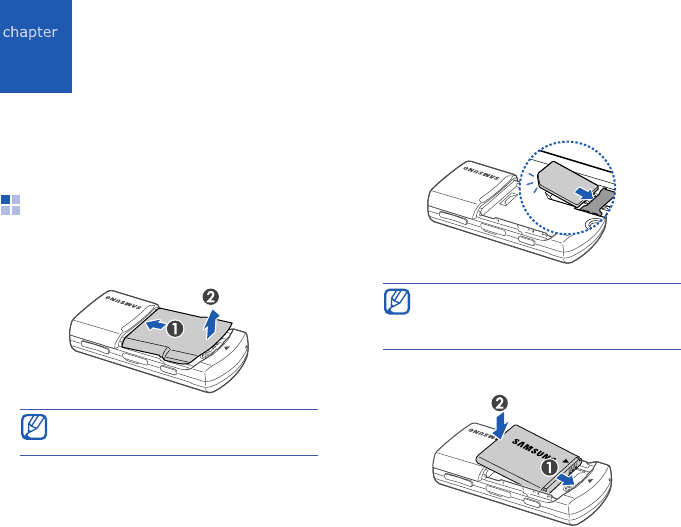
Insert the SIM card and
battery
1. Remove the battery cover.
2. Insert the SIM card.
3. Insert the battery.
If the phone is on, press and hold
the Power key to turn it off.
Place the card in the phone with the
gold-coloured contacts facing
down.

Assemble and prepare your device
16
4. Replace the battery cover.
Charge the battery
Before using the phone for the first time,
you must charge the battery.
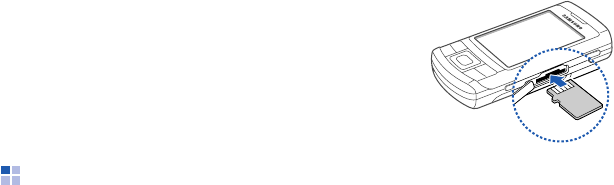
1. Open the cover to the multifunction
jack on the side of the phone.
2. Plug the small end of the travel
adapter into the jack.
Improperly connecting the adapter
can cause serious damage to the
device. Any damages by misuse are
not covered by the warranty.
With the triangle facing the front
of your phone
17
Assemble and prepare your device
3. Plug the large end of the travel
adapter into a power outlet.
4. When the battery is fully charged (the
icon is no longer moving), unplug the
travel adapter from the power outlet.
5. Unplug the travel adapter from the
device.
6. Close the cover to the multifunction
jack.
Insert a memory card
(optional)
By inserting a memory card, you can
store multimedia files and messages or
backup your important information. Your
phone accepts microSD™ memory cards
up to 4 GB (depending on memory card
manufacturer and type).
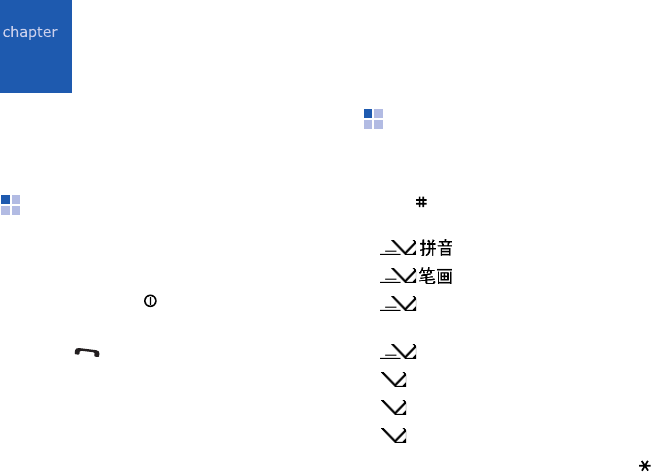
1. Open the cover to the memory card
slot on the side of the device.
2. Insert a memory card with the label
side facing down.
3. Push the card in the slot until it locks
in place.
To remove the memory card, push it
gently until it disengages from the
device, and then pull the card out of the
slot.
18
3
Basic functions
Learn how to perform basic operations
and use the main features of your device.
Switch the device on or
off
To switch the device on,
1. Press and hold [ ].
2. Enter your PIN (if necessary) and
press [ ].
3. Follow the onscreen instructions to see
the region, city, current time, and the
date.
To switch the device off, repeat step 1
above.
Enter text
Change the text input mode
Press [ ] to switch between the following
text input modes:
•: Pinyin mode
•: Stroke mode
•
Abc
: Predictive mode (initial
capital)
•
abc
: Predictive mode (lower case)
•
Abc
: Normal mode (initial capital)
•
abc
: Normal mode (lower case)
•
123
: Number mode
To access symbols, press and hold [ ].

19
Basic functions
To use Pinyin and Stroke mode, press
<
Options
>
→
Writing language
→
.
Enter text in Pinyin mode
Pinyin is a system to enter Chinese words
by spelling them phonetically (how they
sound) using the Latin alphabet.
1. Press the appropriate alphanumeric
keys to enter pinyins.
2. Scroll left or right to select a pinyin.
3. Press the Confirm key. A number
appears by each character.
4. Scroll up or down to select a character.
5. Press an alphanumeric key to enter
the corresponding character.
6. When you are finished, press
<
Cancel
>.
Enter text in Stroke mode
Stroke mode allows you to enter
individual Chinese strokes, in written
order, from top to bottom, and from left
to right.
1. Press [
1
] through [
5
] to enter strokes.
Press [
6
] when you are unsure which
stroke to enter. This will insert a
placeholder.
2. Scroll left or right to select a character.
A number appears by each character.
3. Press an alphanumeric key to enter
the corresponding character.
4. When you are finished, press
<
Cancel
>.

Basic functions
20
Enter text in Predictive mode
In Predictive mode, your device attempts
to predict the word you are entering to
save you time and keystrokes.
To enter a word in Predictive mode,
1. Press each alphanumeric key one time
only for each letter needed.
2. Type the complete word before
confirming that the device has
predicted it properly. The device will
actively attempt to predict words, so
the correct word may not appear until
you have entered it completely.
3. If the device shows the correct word,
scroll right to confirm the word.
4. If the device shows an incorrect word,
press [ ] to view other words that
match your entry, or add a word to the
dictionary (see the next section).
Add a word to the dictionary
When using Predictive mode, you can add
new words to the dictionary.
1. Press <
Spell
>.
2. Enter the word in normal mode and
press <
OK
> to confirm.
Work with applications
Open applications or folders
1. In Standby mode, press [Menu].
2. Scroll to an application and press the
Confirm key.

21
Basic functions
Switch applications
Your device allows you to multi-task by
running multiple applications at the same
time.
To switch from one active application to
another,
1. Press and hold [Menu] to open a list of
applications.
2. Scroll to an application and press
<
Select
>.
Close applications
To close the current application, press
[].
To close an application that is running in
the background,
1. Press and hold [Menu] to open a list of
applications.
2. Scroll to an application and press [
C
].
3. Press <
Yes
> to exit the application.
Customise your device
Your device includes preset profiles that
control ringtones, key tones, and alerts
and themes that control skins, wallpaper,
and menu layouts. You can activate
profiles for different situations,
personalise profiles, apply themes, and
download new themes from the web.

Basic functions
22
Activate a profile
1. In Standby mode, press [Menu]
→
Profiles
.
2. Scroll to a profile and press
<
Options
>
→
Activate
.
Personalise a profile
1. In Standby mode, press [Menu]
→
Profiles
.
2. Press <
Options
>
→
Personalise
.
3. Change the settings as desired.
4. When you are finished personalising
the profile, press <
Back
>.
Apply a theme
1. In Standby mode, press [Menu]
→
Settings
→
General
→
Personalisation
→
Themes
.
2. Scroll to a category and press the
Confirm key:
•
General
: choose a skin for your
display.
•
Menu view
: choose a layout of the
display.
•
Wallpaper
: choose a background
image for Standby mode.
3. Scroll to a theme or image and press
the Confirm key.
In Standby mode, the current
profile is shown at the top of the
display (except for the General
profile). To quickly change profiles
press [ ] and select a different
profile.

23
4
Communication
Your device allows you to send and
receive many types of calls and
messages over cellular networks and the
internet.
Calls
Learn to use your device's call functions.
Make a call
1. In Standby mode, enter an area code
and phone number.
2. Press [ ] to dial the number.
3. To end the call, press [ ].
Answer a call
1. When a call comes in, press [ ].
2. To end the call, press [ ].
Call an international number
1. Press [ ] twice to insert the
+
character (this replaces the
international access code).
2. Enter the complete number you want
to dial (country code, area code, and
phone number), and then press [ ]
to dial.
3. To end the call, press [ ].

Communication
24
Make a call from the contact list
1. In Standby mode, press [Menu]
→
Contacts
to open your contact list.
2. Scroll to a contact or search by
entering the first few letters of the
contact's name.
3. Press [ ] to call the default number
for the contact.
Insert a pause
When calling automated systems, you
can insert a pause between the device
number and another set of numbers.
To insert a pause, press [ ] to select the
type of pause:
•
p
(automatic pause): press [ ] three
times to insert an automatic pause.
The device will pause for two seconds,
then automatically transmit the
numbers after the pause.
•
w
(manual pause): press [ ] four
times to insert a manual pause. After
the pause, you must press <
Send
> to
transmit the remaining numbers.
You can also press
the Confirm key
to
open the contact information and
select a different number or call type
(e.g., video).

25
Communication
View and return missed calls
Your device will show missed calls on the
display.
To return a missed call,
1. Press the Confirm key.
2. Scroll to a missed call.
3. Press [ ] to dial.
Call a recently dialled number
1. In Standby mode, press [ ] to
display a list of recent numbers.
2. Scroll to a number and press [ ].
Divert calls
Your service provider or network may or
may not support this feature.
To divert your incoming calls to another
number,
1. In Standby mode, press [Menu]
→
Settings
→
Phone
→
Call divert
.
2. Scroll to a call type and press the
Confirm key.
3. Scroll to a diverting type and press
<
Options
>
→
Activate
.
4. For voice calls, scroll to a diverting
location (mailbox or other number)
and press the Confirm key.
5. If necessary, enter a phone number
and press <
OK
>.

Communication
26
Bar (block) calls
To activate this function, you need a
barring password from your service
provider.
To bar incoming calls from a specific
number,
1. In Standby mode, press [Menu]
→
Settings
→
Phone
→
Call barring
.
2. Scroll to a barring type and press
<
Options
>
→
Activate
.
3. Enter the barring password and press
<
OK
>.
Messages
Learn to use messaging functions. For
instructions on entering text, see "Enter
text."
X
p. 18 For an explanation of
options, see "Change message options."
X
p. 40
Message folders
When you open Messaging, you will see
the
New message
function and a list of
folders:
•
Inbox
: received messages, except
email and cell broadcast messages
•
My folders
: message templates and
saved messages
•
Mailbox
: received email messages;
when you create a mailbox, the name
you specify will appear here
If you enter the incorrect barring
password three times, the device will
lock. Contact your service provider.

27
Communication
•
Drafts
: messages you have not yet
sent
•
Sent
: recent sent messages
•
Outbox
: temporary storage for
messages waiting to be sent
•
Reports
: delivery reports of text and
multimedia messages; you must
request a delivery report in the
message options before sending
Inbox icons
In the Inbox, you may see the following
icons next to your messages:
• Messages sent via the Bluetooth
wireless feature are not saved in the
Drafts or Sent folder.
• You may not receive a delivery
report for a multimedia message if
you send it to an email address.
Icon Description
Unread text message
Multimedia message
notification
Unread multimedia message
Unread smart message
Unread service message
Data received via a
Bluetooth connection
Unknown message type

Communication
28
Outbox status
When you are outside your service area
or have no connection to the network or
email server, your messages will remain
in the Outbox until you re-establish a
connection. The outbox status explains
why a message is being held in the
Outbox:
•
Sending
: the device is connecting and
the message will be sent immediately
•
Waiting
: the message is in cue behind
another message and will be sent as
soon as possible
•
Resend at (time)
: the message has
failed to send and will be sent at the
specified time. Press <
Options
>
→
Send
to resend the message
immediately
•
Deferred
: the message has been
scheduled to send at a later time
•
Failed
: the device has attempted to
send the message multiple times, but
has failed
Text messages
Send a text message
1. In Standby mode, press [Menu]
→
Messaging
→
New message
→
Text
message
.
2. Enter a phone number or press the
Confirm key to select a contact.
3. Scroll down and enter text.
4. Press the Confirm key
→
Send
to send
the message.
Text messages longer than 160
characters will be sent as two or more
messages and may result in additional
charges.
29
Communication
View a text message
1. In Standby mode, press [Menu]
→
Messaging
→
Inbox
.
2. Scroll to a message and press the
Confirm key.
Retrieve messages from a SIM card
If you have text messages stored on a
SIM card, you must copy them to the
device before you can view them.
1. In Standby mode, press [Menu]
→
Messaging
→
<
Options
>
→
SIM
messages
.
2. Press <
Options
>
→
Mark/Unmark
→
Mark
(to select one) or
Mark all
(to
select all).
3. Press <
Options
>
→
Copy
→
Inbox
or
a folder.
You can now view the messages from the
folder on your device.
Multimedia messages
Before you can send multimedia
messages, you must define an access
point.
Set an access point
Your service provider may supply access
point settings via a smart message. To
automatically set an access point using a
smart message, see "Save smart
message data or settings to your device."
X
p. 39
To manually set an access point,
1. In Standby mode, press [Menu]
→
Settings
→
Connection
→
Access
points
.
2. Scroll down and press the Confirm key
to select an existing access point or
press <
Options
>
→
New access
point
.

Communication
30
3. Set access point options according to
the instructions provided by your
service provider.
Send a multimedia message
1. In Standby mode, press [Menu]
→
Messaging
→
New message
→
Multimedia message
.
2. Enter a phone number or press the
Confirm key to select a contact.
3. Scroll down and enter a subject.
4. Scroll down and enter text.
5. To insert an existing multimedia
object, press <
Options
>
→
Insert
object
→
an object type. To create and
insert a new multimedia object, press
<
Options
>
→
Insert new
→
an
object type.
6. Press the Confirm key
→
Send
to send
the message.
Edit a multimedia message
You can edit your multimedia message
before sending it:
• To add fields to the message header,
press <
Options
>
→
Address fields
→
a field type
• To change the message layout, press
<
Options
>
→
a text position
• To preview the message, press
<
Options
>
→
Preview
• To remove an item, press <
Options
>
→
Remove
→
an item
You can only add images with a
resolution of 176 x 144 or lower.
You can add images, sounds, or
videos to slides; however, you can
only add one type of media type per
slide.
31
Communication
View a multimedia message
1. In Standby mode, press [Menu]
→
Messaging
→
Inbox
.
2. Scroll to a message and press the
Confirm key.
Listen to voice mail
If your voice mail number is preset by
your service provider, you can press and
hold [
1
] to access your voice mail.
If the voice mail number is not preset or
if you need to change the voice mail
number,
1. In Standby mode, press [Menu]
→
Tools
→
Call mailbox
.
2. Enter the voice mail number provided
by your service provider.
3. Press <
OK
>.
You can now access your voice mail from
Standby mode by pressing and holding
[
1
].
Email messages
Before you can send or receive email
messages, you must create a mailbox.
Create a mailbox
1. In Standby mode, press [Menu]
→
Messaging
→
<
Options
>
→
Settings
→
E-mail
.
2. Scroll to
Mailbox in use
and press the
Confirm key.
3. Press <
Yes
>.
4. Press the Confirm key to start the
mailbox wizard and follow the
onscreen instructions.

Communication
32
The new mailbox will automatically
appear in Messaging. To change the
current mailbox, return to email settings
and switch the "Mailbox in use" to
another mailbox.
Send an email message
1. In Standby mode, press [Menu]
→
Messaging
→
New message
→
E-mail
.
2. Enter an email address or press the
Confirm key to select a contact.
3. Scroll down and enter a subject.
4. Scroll down and enter text.
5. Press <
Options
>
→
Insert
→
an
attachment type (optional).
6. Press the Confirm key
→
Send
.
If you are offline or outside your service
area, the message will be held in the
Outbox until you are online and in your
service area.
View an email message
When you open a mailbox, you can view
previously retrieved emails offline or
connect to the email server to view new
messages. After you retrieve email
messages, you can view them offline.
To view new messages online,
1. In Standby mode, press [Menu]
→
Messaging
→
your mailbox.
2. Press <
Options
>
→
Connect
.
3. Press <
Options
>
→
Retrieve e-mail
→
New
.
If you use the POP3 protocol, the
mailbox will not update automatically
when you are online. You must
disconnect and then reconnect to view
new messages.
33
Communication
To view new messages offline,
1. Repeat steps 1-3 above.
2. Press <
Options
>
→
Disconnect
.
View or save email attachments
To view an attachment,
1. From an open email message, press
<
Options
>
→
Attachments
.
2. Scroll to the attachment and press the
Confirm key.
The attachment opens with the
corresponding application.
To save an attachment,
1. From an open email message, press
<
Options
>
→
Attachments
.
2. Scroll to the attachment and press
<
Options
>
→
Save
.
Delete an email message
You can delete email messages from your
device only or from both your device and
the mail server.
To delete a message from your device
only,
1. In Standby mode, press [Menu]
→
Messaging
→
your mailbox.
2. Scroll to an email and press
<
Options
>
→
Delete
→
Phone only
.
Email attachments ( ) may contain
viruses that can damage your
device. To protect your device, open
attachments only if you trust the
sender. For more information, see
"Certif. management."
X
p. 105
The email header will remain in your
mailbox until you delete the message
from the mail server.

Communication
34
To delete a message from both from
device and the mail server,
1. In Standby mode, press [Menu]
→
Messaging
→
your mailbox.
2. Scroll to an email and press
<
Options
>
→
Delete
→
Phone and
server
.
Instant messages
You can send and receive instant
messages (IM) if your service provider
supports this feature. Before you can
send or receive instant messages, you
must set up a server.
Set up a server
1. In Standby mode, press [Menu]
→
Connect.
→
IM
.
A prompt asks if you want to define a
server. Press <
Yes
> (If the prompt
does not appear, press <
Options
>
→
Settings
→
Servers
).
2. Set the server options according to
instructions provided by your service
provider.
Log in to the IM server
1. In Standby mode, press [Menu]
→
Connect.
→
IM
.
2. If the device does not attempt to log in
automatically, press <
Options
>
→
Log in
.
If you are offline, messages will be
deleted from the server the next time
you connect. If you are using the
POP3 protocol, deleted messages are
removed when you close the mailbox
connection.
35
Communication
3. Enter your user ID and password, and
then press <
OK
>.
4. To log out, press <
Options
>
→
Log
out
.
Start a conversation
1. In Standby mode, press [Menu]
→
Connect.
→
IM
→
Conversations
.
2. Press <
Options
>
→
New
conversation
→
Enter user ID
or
Select from contacts
.
3. Enter a user ID or select a contact
from your contact list.
4. During a conversation, press
<
Options
> to access the following:
•
Insert smiley
: use one of the
preset smileys
•
Send image
: send an image to an
IM contact
•
Record chat
: record your
conversation and save it in Notes
•
Blocking options
→
Add to
blocked list
: block messages from
an IM contact
•
Change own availability
: change
the way you appear to other IM
contacts
5. To end the conversation, press
<
Options
>
→
End conversation
.
Accept an invitation
When you receive an IM invitation, press
<
Show
> to accept the invitation. If you
have multiple invitations at once, press
<
Show
>, scroll to an invitation, and
press <
OK
>.
Communication
36
Add IM contacts
You can save IM contact information by
pressing <
Options
>
→
Add to IM
contacts
during a conversation. You can
also add information in IM Contacts by
pressing <
Options
>
→
New IM
contact
.
When you view your IM contacts, you
may see the following icons:
If you see no icon next to a contact's
name, the contact is unknown.
Change IM options
When chatting, press <
Options
>
→
Settings
to change the following:
•
Preferences
: set preferences for IM
contacts and messages
•
Servers
: add a new server or edit
settings for an existing server
•
Default server
: set the default server
for instant messaging
•
IM login type
: set the login mode to
automatic (types) or manual
Audio messages
You can send audio messages with voice
memos or sound clips. To record a voice
memo or sound clip, see "MICAT."
X
p. 62
Icon Description
the contact is online
the contact is offline
37
Communication
Send an audio message
1. In Standby mode, press [Menu]
→
Messaging
→
New message
→
Audio message
.
2. Press <
Options
>
→
Add recipient
.
3. Scroll to a recipient and press the
Confirm key
→
<
OK
>
→
a number (if
necessary).
4. To insert an existing sound clip:
a. Press <
Options
>
→
Insert sound
clip
→
From Gallery
.
b. Scroll to a sound clip and press the
Confirm key (skip to step 6).
5. To record and insert a new sound clip:
a. Press <
Options
>
→
Insert sound
clip
→
New sound clip
.
b. When you finish recording, press
<
Stop
> to automatically attach the
sound clip to the audio message.
6. Press <
Options
>
→
Send
.
Cell broadcast messages
If your service provider supports this
function, you can subscribe to cell
broadcasts that provide automatic
notifications or news updates. To learn
about available cell broadcasts, contact
your service provider.
Add a cell broadcast topic
1. In Standby mode, press [Menu]
→
Messaging
→
<
Options
>
→
Cell
broadcast
.
2. Press <
Options
>
→
Topic
→
Add
manually
.
3. Enter the topic name and number, and
then press <
OK
>.

Communication
38
Subscribe to a cell broadcast
1. In Standby mode, press [Menu]
→
Messaging
→
<
Options
>
→
Cell
broadcast
.
2. Scroll to a topic and press <
Options
>
→
Subscribe
.
Your device will now receive new
messages automatically.
3. To cancel a subscription, press
<
Options
>
→
Cancel subscription
.
View a cell broadcast topic
1. In Standby mode, press [Menu]
→
Messaging
→
<
Options
>
→
Cell
broadcast
.
2. Scroll to a topic folder and press the
Confirm key.
3. Scroll to a topic and press the Confirm
key.
Set automatic notification of new cell
broadcast messages
1. In Standby mode, press [Menu]
→
Messaging
→
<
Options
>
→
Cell
broadcast
.
2. Scroll to a topic and press <
Options
>
→
Hotmark
.
3. To stop automatic notifications, press
<
Options
>
→
Remove hotmark
.
Some connection settings may block
cell broadcasts. Contact your service
provider for the appropriate
connection settings.
39
Communication
Smart messages
Your device can receive many kinds of
smart messages, including business
cards, ringtones, calendar events,
browser bookmarks, and settings. Your
service provider may send smart
messages that you can use to load
settings into your device.
Save smart message data or settings
to your device
1. In Standby mode, press [Menu]
→
Messaging
→
Inbox
.
2. Scroll to a message and press the
Confirm key.
3. Press <
Options
> and save the data or
settings according to the smart
message type:
• Business card: select
Save
business card
• Ringing tone: to save a ringtone to
Gallery
, press <
Options
>
→
Save
• Calendar entry: select
Save to
Calendar
• WAP message: select
Add to
bookmarks
or
Save to Contents
• SMS service number: select
Save
• Voice mail number: select
Save to
Contacts
• Access point settings: select
Save
• Email settings: select
Save
You may also receive an email
notification, which tells you how many
new email messages are in your remote
mailbox.
Communication
40
Service messages
You may receive service messages from
your service provider that are deleted
automatically when they expire. You can
view service messages from the Inbox
(you may have to download the message
from the service provider). Contact your
service provider for more information
about service messages.
Change message options
Change text message options
In Standby mode, press [Menu]
→
Messaging
→
<
Options
>
→
Settings
→
Text message
to change the following
options:
•
Message centres
: view all defined
message centres or add a new centre
(press <
Options
>
→
New message
centre
)
•
Message centre in use
: set a
message centre to use when sending
text messages
•
Character encoding
: set a character
encoding type (
Full support
for
Unicode reduces your maximum
message length by about one-half)
•
Receive report
: set to receive a
report when the message has been
delivered
•
Message validity
: set a duration for
the message to be valid; if the
message cannot be delivered within
the specified time, it will be removed
from the message centre
41
Communication
•
Message sent as
: set to convert text
messages to another format
•
Preferred connection
: set a network
connection type
•
Reply via same centre
: set to use
the same message centre when
receiving a reply message
Change multimedia message options
In Standby mode, press [Menu]
→
Messaging
→
<
Options
>
→
Settings
→
Multimedia message
to change the
following options:
•
Image size
: set a size for images
added to multimedia messages (when
sending a message to an email
address, the size is automatically set to
Small
)
•
MMS creation mode
: set the mode
for creating multimedia messages
•
Access point in use
: set an access
point to use when sending multimedia
messages
•
Multimedia retrieval
: set an option
for receiving multimedia messages
•
Allow anon. msgs.
: set to allow or
deny messages from anonymous
senders
•
Receive adverts
: set to receive or
block advertisements
•
Receive report
: set to receive a
report when the message has been
delivered
•
Deny report sending
: set to deny
delivery reports for multimedia
messages
Communication
42
•
Message validity
: set a duration for
the message to be valid; if the
message cannot be delivered within
the specified time, it will be removed
from the message centre
Change email options
In Standby mode, press [Menu]
→
Messaging
→
<
Options
>
→
Settings
→
E-mail
to change the following options:
•
Mailboxes
: view a list of defined
mailboxes; for each mailbox, you can
set the following options:
Connection settings
-
Incoming e-mail
: set options for
incoming email messages
-
Outgoing e-mail
: set options for
outgoing email messages
User settings
-
My name
: set your user name
-
Send message
: set email to send
immediately or the next time you
connect to the server
-
Send copy to self
: set to save
copies of outgoing email messages
-
Include signature
: create a
signature to include in a new email
message
-
New e-mail alerts
: set to show an
icon when you receive a new email
message
Retrieval settings
-
E-mail to retrieve
: set to retrieve
email headers or full messages with
attachments (you can specify a size
limit for full messages)
-
Retrieval amount
: set a maximum
number of headers to retrieve at one
time
43
Communication
-
IMAP4 folder path
(IMAP4): set a
path to the folder that will
synchronise with the server
-
Folder subscriptions
(IMAP4):
connect to mailbox and update
folders
Automatic retrieval
-
E-mail notifications
: set to be
notified when you receive a new
email message
-
E-mail retrieval
: set to
automatically retrieve email from the
server
•
Mailbox in use
: set a mailbox for
messages
Change service message options
In Standby mode, press [Menu]
→
Messaging
→
<
Options
>
→
Settings
→
Service message
to change the
following options:
•
Service messages
: set to receive
service messages
•
Download messages
: set to
automatically or manually download
new service messages
Change cell broadcast message
options
In Standby mode, press [Menu]
→
Messaging
→
<
Options
>
→
Settings
→
Cell broadcast
to change the following
options:
•
Reception
: set to receive cell
broadcast messages
•
Language
: set to receive cell
broadcast messages in
All
,
Selected
,
or
Other
languages
•
Topic detection
: set to automatically
save the topic number when you
receive a cell broadcast message that
does not belong to an existing topic

Communication
44
Change other message options
In Standby mode, press [Menu]
→
Messaging
→
<
Options
>
→
Settings
→
Other
to change the following options:
•
Save sent messages
: set to save
copies of sent messages
•
Number of saved msgs.
: set a
maximum number of saved messages
to store in the Sent folder; as new
messages are saved, older messages
will be deleted
•
Memory in use
: set a memory
location to use for storing messages
Logs
Learn to view log information about calls,
packet data, and other communication
events.
Recent calls
You can view recent and erase logs of
recently missed calls, received calls, or
dialled numbers.
View recent call logs
To view recently missed calls, received
calls, or dialled numbers,
1. In Standby mode, press [Menu]
→
Log
→
Recent calls
.
2. Scroll to a call type and press the
Confirm key.
To call a number from a call log, scroll
to the number and press
[]
.
45
Communication
Erase recent call logs
You can erase all recent call logs at once,
erase a single call log, or delete a single
number from a log.
To erase all recent call logs,
1. In Standby mode, press [Menu]
→
Log
→
Recent calls
.
2. Press <
Options
>
→
Clear recent
calls
.
3. Press <
Yes
> to confirm.
To erase a single call log,
1. In Standby mode, press [Menu]
→
Log
→
Recent calls
→
a call type.
2. Press <
Options
>
→
Clear list
.
3. Press <
Yes
> to confirm.
To erase a single number from a log,
1. In Standby mode, press [Menu]
→
Log
→
Recent calls
→
a call type.
2. Scroll to a number and press [
C
].
3. Press <
Yes
> to confirm.
Call duration
To view the durations of your last call,
dialled number, received call, or all calls.
In Standby mode, press [Menu]
→
Log
→
Call duration
.
To reset the call timers,
1. In Standby mode, press [Menu]
→
Log
→
Call duration
.
2. Press <
Options
>
→
Clear timers
.
3. Enter the lock code (the default lock
code is
00000000
), and then press
<
OK
>.

Communication
46
Packet data
To view the amount of sent or received
packet data.
In Standby mode, press [Menu]
→
Log
→
Packet data
.
To reset the packet data counters,
1. In Standby mode, press [Menu]
→
Log
→
Packet data
.
2. Press <
Options
>
→
Clear counters
.
3. Enter the lock code (the default lock
code is
00000000
), and then press
<
OK
>.
Communication log
You can view communication details and
filter logs with the communication log.
View the communication log
1. In Standby mode, press [Menu]
→
Log
.
2. Scroll right to switch to the
communication log.
Filter log events
1. In Standby mode, press [Menu]
→
Log
.
2. Scroll right to switch to the
communication log.
3. Press <
Options
>
→
Filter
.
4. Scroll to a filter type and press the
Confirm key.
Some events, such as a text message
split into multiple parts, will appear as
one communication event.

47
Communication
Erase the communication log
To permanently erase all of the log
contents, press <
Options
>
→
Clear log
.
1. In Standby mode, press [Menu]
→
Log
2. Scroll right to switch to the
communication log.
3. Press <
Options
>
→
Clear log
.
4. Press <
Yes
> to confirm.
Log duration
You can change the length of time that
communication events are stored in the
logs. After that time, events are
automatically erased to free up memory.
To set a log duration,
1. In Standby mode, press [Menu]
→
Log
.
2. Press <
Options
>
→
Settings
.
3. Press <
Options
>
→
Change
.
4. Scroll to a duration and press the
Confirm key.
If you select
No log
, no
communication events will be stored
in the log.

48
5
Media
Learn to use the media applications on
your device: Music player, Music Client,
Camera, Gallery, Video Editor, Image
Editor, Radio, RealPlayer, MICAT,
Recorder, and PC Studio.
Music player
With Music player, you can play mp3 or
aac music files.
Add files to your device
Use the following methods to add music
files to your device:
• Download files from a PC, using the
supplied PC Studio software
• Copy files to a microSD memory card
and insert the card into the device
• Download files from the wireless web
(see "Download files from the web."
X
p. 77)
• Receive via Bluetooth (see "Receive
data via the Bluetooth wireless
feature."
X
p. 80)
• Synchronise with Windows Media
Player (see "Synchronise with Windows
Media Player."
X
p. 82)
Add files to the music library
To automatically add files to the music
library,
1. Add music files to your device.
2. In Standby mode, press [Menu]
→
Media
→
Music plyr.

49
Media
3. Press <
Options
>
→
Music library
.
4. Press <
Options
>
→
Update Music
library
.
Play music files
1. In Standby mode, press [Menu]
→
Media
→
Music plyr.
2. Press <
Options
>
→
Music library
.
3. Scroll to a playlist.
4. Press <
Options
>
→
Play
.
5. Use the following keys during
playback:
You can also access the following
options:
• To play tracks in random, press
<
Options
>
→
Random play
.
• To play a track or all tracks
repeatedly, press <
Options
>
→
Loop
.
• To close the music player, leaving
music still in the background, press
<
Options
>
→
Play in background
.
Key Function
Confirm Pause or resume
playback
Navigation
(Up) Skip backward; scan
backward (press and
hold)
Navigation
(Down) Skip forward; scan
forward (press and
hold)
Navigation
(Left/Right)/
Volume
Adjust the volume up
or down
0
Stop playback
Key Function

Media
50
Create a playlist
To create a custom playlist,
1. In Standby mode, press [Menu]
→
Media
→
Music plyr.
2. Press <
Options
>
→
Music library
→
Track lists
.
3. Press <
Options
>
→
New track list
→
a memory location (if necessary).
4. Enter a name for the playlist and press
the Confirm key.
5. Scroll to a track and press the Confirm
key to add the track to the playlist.
Music Client
With the Music Client server, you can buy
and download your favourite songs, and
listen to them at any time. For more
information, contact your service
provider.
In Standby mode, press [Menu]
→
Installations
→
Music Client
.
Camera
Your device allows you to take digital
photos (jpg format) or record videos
(mp4 format).

51
Media
Capture a photo
1. Open the camera cover. The camera
starts automatically.
If the cover is already open, press
[Menu]
→
Media
→
Camera
or press
and hold the Camera key in Standby
mode.
2. Rotate the device 90°
counterclockwise (to the left).
3. Aim the lens at the subject and make
adjustments (see "Use the keypad in
Camera mode").
4. Press the Camera key to capture the
image.
Use the keypad in Camera mode
Set the GPS Off/On setting to
On
and
capture a photo. The photo saves the
current location information and you
can upload it to Google Map.
Key Function
Navigation
(Up) Hide or show the icons or
guidelines on the screen
Navigation
(Down) Set the time delay before
taking a photo
Navigation
(Left) Open the Quickview
Navigation
(Right) Turn the flash on or off
1
Switch to Camcorder mode
2
Change the shooting mode
3
Set the time delay before
taking a photo
Turn the flash on or off
0
Turn the macro feature on
or off
Hide or show the icons or
guidelines on the screen

Media
52
View a photo
1. In Standby mode, press [Menu]
→
Media
→
Gallery
→
Images
.
2. Scroll to an image and press the
Confirm key.
Record a video
1. Open the camera cover. The camera
starts automatically.
If the cover is already open, press
[Menu]
→
Media
→
Camera
or press
and hold the Camera key in Standby
mode.
2. Rotate the device 90°
counterclockwise (to the left).
3. Press [
1
] three times to launch the
camcorder.
4. Aim the lens at the subject and make
any adjustments (see "Use the keypad
in Camcorder mode").
5. Press the Camera key to begin
recording.
6. Press < > or the Camera key to stop
recording.
Use the keypad in Camcorder
mode
Key Function
Navigation
(Up) Hide or show the icons on
the screen
Navigation
(Down) Set the time delay before
recording a video
Navigation
(Left) Open the Quickview

53
Media
Play a video
1. In Standby mode, press [Menu]
→
Media
→
Gallery
→
Video clips
.
2. Scroll to a video and press the Confirm
key.
Gallery
You can manage all your media files and
streaming internet links from Gallery.
Open a media file
1. To open the Gallery, press [Menu]
→
Media
→
Gallery
.
Your media files are automatically
organised by file type.
2. Scroll to a media folder and press the
Confirm key.
3. Scroll to a media file and press the
Confirm key.
Navigation
(Right) Mute or unmute the audio
1
Switch to Camera mode
3
Set the time delay before
recording a video
Hide or show the icons on
the screen
Key Function

Media
54
Add a streaming internet link to
the Gallery
1. In Standby mode, press [Menu]
→
Media
→
Gallery
→
Streaming links
.
2. Press <
Options
>
→
New link
→
a
memory location (if necessary).
3. Enter a name and web address and
press <
OK
>.
Play streaming content from the
internet
1. In Standby mode, press [Menu]
→
Media
→
Gallery
→
Streaming links
.
2. Scroll to a link and press the Confirm
key.
RealPlayer will launch and ask if you
want to connect to the wireless web.
3. Press <
Yes
>.
Video Editor
With Video Editor, you can edit or make
videos by combining photos or videos.
Crop a video
1. In Standby mode, press [Menu]
→
Media
→
Video Editor
→
Edit video
.
2. Select a video file.
3. Press the Confirm key to start
playback.
4. Mark the beginning and end of the new
video:
• Press <
Start
> at the point where
you want the new video to begin.
• Press <
End
> at the point where you
want the new video to end.
55
Media
5. Press <
Options
>
→
Settings
and
change the properties for saving the
video file, such as image quality, name
prefix, and memory location.
6. When you are finished, press <
Back
>
→
<
Options
>
→
Save
.
After saving the new video, the device
plays the video automatically.
Add audio to a video
1. In Standby mode, press [Menu]
→
Media
→
Video Editor
→
Edit video
.
2. Select a video file.
3. Press the Confirm key to start
playback.
4. Press <
Options
>
→
Audio
and choose
one of the following options:
•
Audio dubbing
: Add one of the
sounds you have saved.
•
Live dubbing
: Add audio by
recording a new sound.
5. To add an existing sound, press
<
Options
>
→
Dubbing
→
a sound.
To add a new sound, press <
Record
>
and record a sound.
After adding the sound, the device
plays the video automatically.
6. Press <
Back
>.
7. Press <
Options
>
→
Settings
and
change the properties for saving the
video file, such as image quality, name
prefix, and storage location.
8. When you are finished, press <
Back
>
→
<
Options
>
→
Save
.
After saving the new video, the device
plays the video automatically.

Media
56
Make a slideshow
You can combine photos to make a
slideshow with your favourite photos.
1. In Standby mode, press [Menu]
→
Media
→
Video Editor
→
Make photo
movie
.
2. Select the photos you want and press
<
Done
>.
3. While viewing photos, press
<
Options
> to use the following
options:
4. When you are finished, press
<
Options
>
→
Save
.
After saving the new video, the device
plays the video automatically.
Option Description
Effect
Change the colour tone
or apply a special effect
Insert
→
Insert
photos
,
Insert
text clip
Insert a photo or a text
Transition
Change how your
slideshow plays from one
video clip or photo to the
next
Narration
→
Insert
Add audio to your
slideshow
Duration
Set the duration of
photos
Move
Change the order of
photos
Settings
Change the properties
for saving the video file,
such as image quality,
default label, and
memory location
Option Description

57
Media
Make a storyboard
You can combine photos and videos to
make a storyboard.
1. In Standby mode, press [Menu]
→
Media
→
Video Editor
→
Storyboard
.
2. Select the photos and videos you want
and press <
Done
>.
You can use the same options as when
making a slideshow. See the previous
section.
Additionally, you can use
Edit clip
to
crop a selected video or add audio to
the video.
3. When you are finished, press
<
Options
>
→
Save
.
After saving the new video, the device
plays the video automatically.
Image Editor
With Image Editor, you can edit images
and apply fun effects.
Apply effects to images
1. In Standby mode, press [Menu]
→
Media
→
ImageEditor
.
2. Press <
Options
>
→
New Image
→
Open
or
Capture image
.
3. Select an image or take a new photo.
4. Press <
Options
>
→
Effects
→
an
effect option.
5. Select a variation of the effect to apply
and press <
Done
>.
6. When you are finished, press
<
Options
>
→
Save as
.
7. Enter a new file name for the image
and press <
OK
>.
Media
58
Adjust an image
1. In Standby mode, press [Menu]
→
Media
→
ImageEditor
.
2. Press <
Options
>
→
New Image
→
Open
or
Capture image
.
3. Select an image or take a new photo.
4. Press <
Options
>
→
Adjust
→
an
adjustment option (auto level,
brightness, contrast, or colour).
5. Using the navigation key, adjust the
image as desired and press <
Done
>.
6. When you are finished, press
<
Options
>
→
Save as
.
7. Enter a new file name for the image
and press <
OK
>.
Transform an image
1. In Standby mode, press [Menu]
→
Media
→
ImageEditor
.
2. Press <
Options
>
→
New Image
→
Open
or
Capture image
.
3. Select an image or take a new photo.
4. Press <
Options
>
→
Transform
→
Rotate
or
Flip
.
5. Using the navigation key, rotate or flip
the image as desired and press
<
Done
>.
6. When you are finished, press
<
Options
>
→
Save as
.
7. Enter a new file name for the image
and press <
OK
>.

59
Media
Insert a visual feature
1. In Standby mode, press [Menu]
→
Media
→
ImageEditor
.
2. Press <
Options
>
→
New Image
→
Open
or
Capture image
.
3. Select an image or take a new photo.
4. Press <
Options
>
→
Insert
→
a visual
feature (frame, image, clip art,
emoticon, or text).
5. Select a visual feature to add and
press <
Select
>.
6. Press <
Done
> or <
Options
>
→
Done
.
7. When you are finished, press
<
Options
>
→
Save as
.
8. Enter a new file name for the image
and press <
OK
>.
Radio
You can listen to your favourite stations
with the FM radio.
Listen to the FM radio
1. Plug a headset into the headset jack.
2. In Standby mode, press [Menu]
→
Media
→
Radio
.
3. Select or to scan through
available radio stations.
4. Use the following options:
• To access a radio station by manually
entering a frequency, press
<
Options
>
→
Manual tuning
.
• To adjust the volume level, press the
Volume key.
• To switch sound output to the
speaker, press <
Options
>
→
Activate loudspeaker
.

Media
60
• To access other functions while
listening to the radio, press
<
Options
>
→
Play in background
.
Set up your favourite radio
station list
Once you have set up a station list, you
can access the stations by selecting
or from the radio screen.
Save radio stations by automatic
tuning
1. From the radio screen, press
<
Options
>
→
Stations
to access the
station list.
2. Press <
Options
>
→
Auto-save
stations
.
3. Press <
Yes
> to confirm (this will
replace any existing stations).
4. When you are finished, press <
Back
>.
Save a radio station manually
1. From the radio screen, scroll to the
radio station you want.
2. Press <
Options
>
→
Save station
.
3. Select an empty location.
4. Enter a station name and press <
OK
>.
Record a radio clip
1. In Standby mode, press [Menu]
→
Media
→
Radio
.
2. Press the Confirm key to begin the
recording.
3. When you are finished recording, press
the Confirm key. The radio clip is
automatically saved.

61
Media
Play a radio clip
1. In Standby mode, press [Menu]
→
Media
→
Gallery
→
Tracks
.
2. Scroll to a radio clip and press the
Confirm key. Playback begins
automatically.
3. Use the onscreen buttons to control
the playback.
RealPlayer
®
Your device includes RealPlayer for
viewing many types of media files and
streaming content from the wireless web.
RealPlayer supports files with the
following extensions: 3gp, mp4, rm, ram,
ra, and rv.
Play a media file in RealPlayer
1. In Standby mode, press [Menu]
→
Media
→
RealPlayer
.
2. Press <
Options
>
→
Open
→
Most
recent clips
or
Saved clip
.
3. Locate a media file and press the
Confirm key.
Play streaming web content with
RealPlayer
When you open a link to streaming web
content via your web browser, RealPlayer
will buffer and play the content (see
"Browse a web page."
X
p. 73). You can
then use the softkeys and volume key to
control options for the streaming content.

Media
62
MICAT
MICAT is a multimedia transfer service.
You can send a variety of media files to
your friends or the preset website and
back up your private data, such as SMS
and contacts, to the website. For more
information, contact your service
provider.
In Standby mode, press [Menu]
→
Installations
→
MICAT
.
Recorder
You can use Recorder to record and play
back voice memos and sound clips.
Record a voice clip
1. In Standby mode, press [Menu]
→
Media
→
Recorder
.
2. Press the Confirm key to begin the
recording.
3. When you are finished recording, press
<
Stop
>.
The voice clip is automatically saved.
Play a voice clip
1. In Standby mode, press [Menu]
→
Media
→
Recorder
.
2. Press <
Options
>
→
Go to Gallery
.
3. Scroll to a voice clip and press the
Confirm key.
Playback begins automatically.
4. Use the onscreen buttons to control
the playback.

63
Media
PC Studio
PC Studio, which is included on the PC
Studio CD-ROM, is a Windows-based
program that allows you to manage your
personal information and sync files to
your device. For more information, install
the program and refer to the PC Studio
help.
Install PC Studio
1. Insert the PC Studio CD into a
Windows-compatible PC.
2. Select a language for the setup
program.
3. Follow the onscreen instructions.
Use PC Studio
To connect your phone to a PC with PC
Studio, you must change the phone's
USB mode (see "Use PC Studio."
X
p. 82).
During installation, the setup program
will automatically install the necessary
USB drivers.

64
6
Personal Productivity
Learn to manage contacts, schedule
calendar events, create notes, and use
QuickOffice and Adobe
®
Reader™.
Contacts
Learn to use contact cards and groups to
store personal information, such as
names, phone numbers, and addresses.
Create a new contact card
You can store contact cards in your
device's memory or on a SIM card.
Create a new contact card in the
device's memory
1. In Standby mode, press [Menu]
→
Contacts
.
2. Press <
Options
>
→
New contact
.
3. Enter contact information.
4. When you are finished entering
information, press <
Done
> to save
the contact card.
Create a new contact card on a SIM
card
1. In Standby mode, press [Menu]
→
Contacts
.
2. Press <
Options
>
→
SIM contacts
→
SIM directory
(SIM card).
To insert additional information
fields, press <
Options
>
→
Add
detail
→
a detail type. To assign an
image to the contact card, press
<
Options
>
→
Add thumbnail
→
an image.

65
Personal Productivity
3. Press <
Options
>
→
New SIM
contact
.
4. Enter contact information.
5. When you are finished entering
information, press <
Done
> to save
the contact card.
Search for a contact card
1. In Standby mode, press [Menu]
→
Contacts
.
2. Enter the first few characters of the
contact name in the search box.
The contact cards are listed,
highlighting the name that most
closely matches your input.
3. Scroll to a contact and press the
Confirm key to open it.
Copy contact cards
To copy contact cards from one memory
location to another,
1. Open a contact list:
a. In Standby mode, press [Menu]
→
Contacts
(device's memory).
b. In Standby mode, press [Menu]
→
Contacts
→
<
Options
>
→
SIM
contacts
→
SIM directory
(SIM
card).
2. Scroll to a contact and press
<
Options
>
→
Copy to Contacts
or
Copy to SIM directory
.
If you have inserted a memory card,
you can also copy contacts to and
from the card: press <
Options
>
→
Copy
→
To memory card
or
From
memory card
.
Personal Productivity
66
Set a default number or address
Some contact cards may include more
than one number or address.
To assign a single number or address as
the default,
1. Open a contact list (see "Copy contact
cards."
X
p. 65).
2. Scroll to a contact and press the
Confirm key.
3. Press <
Options
>
→
Defaults
.
4. Scroll to a default type and press the
Confirm key.
5. Scroll to a number or address and
press the Confirm key.
6. When you are finished, press <
Back
>.
Assign a speed dial number to a
contact card
You can assign speed dial numbers to up
to eight contact cards ([
2
] through [
9
]);
[
1
] is reserved as a speed dial number
for your voice mail.
To assign a speed dial number,
1. In Standby mode, press [Menu]
→
Contacts
.
2. Scroll to a contact and press the
Confirm key.
3. Scroll to a phone number and press
<
Options
>
→
Assign speed dial
.
4. Scroll to a speed dial number and
press the Confirm key.
5. Press <
Yes
> (if necessary).

67
Personal Productivity
Assign a ringtone to a contact
card or group
You can assign a ringtone to any contact
card or group.
1. In Standby mode, press [Menu]
→
Contacts
.
2. Scroll to a contact or group and press
the Confirm key.
3. Press <
Options
>
→
Ringing tone
.
4. Scroll to a ringtone and press the
Confirm key.
Create a contact group
You can create groups of contacts and
send messages to the entire group.
1. In Standby mode, press [Menu]
→
Contacts
.
2. Scroll right to switch to the group list.
3. Press <
Options
>
→
New group
.
4. Enter a name and press the Confirm
key.
5. Scroll to your new group and press the
Confirm key to open it.
6. Press <
Options
>
→
Add members
.
7. Scroll to each contact you want to add
and press the Confirm key.
8. When you are finished selecting
contacts, press <
OK
> to save them to
the group.
For an individual contact, your device
will use the ringtone that was
assigned last to the contact card. For
example, if you assign a ringtone to a
group and then assign another
ringtone to a contact card within that
group, the device will use the ringtone
assigned to the contact card when
that contact calls.

Personal Productivity
68
Synchronise your contacts
To synchronise your contacts by using
the current sync profile,
1. In Standby mode, press [Menu]
→
Contacts
.
2. Scroll to a contact and press
<
Options
>
→
Synchronisation
→
Start
.
3. Scroll to a sync profile or device and
press the Confirm key.
Calendar
Use the calendar to keep track of
appointments, birthdays, or other events.
Create a calendar event
1. In Standby mode, press [Menu]
→
Organiser
→
Calendar
.
2. Scroll to a date and press <
Options
>
→
New entry
→
an event type:
•
Meeting
: a reminder at a specific
date and time
•
Memo
: general text
•
Anniversary
: an annual reminder of
a special date
•
To-do
: a note about a particular
task
To change sync profiles or settings,
see "Synchronise your device."
X
p. 83

69
Personal Productivity
3. Complete the fields and adjust the
settings for your event.
4. When you are finished, press <
Done
>
to save your entry.
Change the calendar view
1. In Standby mode, press [Menu]
→
Organiser
→
Calendar
.
2. Press <
Options
>
→
a view type.
Stop an event alarm
If you set an alarm for a calendar event,
the alarm will sound for one minute at
the specified time. To stop the alarm,
press <
Stop
>. To silence the alarm,
press <
Silence
>. To set the alarm to
sound again shortly, press <
Silence
>
→
<
Snooze
>
→
a snooze period.
Change calendar options
From any calendar view, press
<
Options
>
→
Settings
to change the
following options:
•
Calendar alarm tone
: set a
personalised alarm tone
•
Alarm snooze time
: set a snooze
duration for calendar alarms
•
Default view
: set the view that is
shown when you open Calendar
In the
Synchronisation
field, you
can specify whether an event is
Private
(seen only by you),
Public
(seen by anyone with access to your
data after you sync), or
None
(not
synchronised).

Personal Productivity
70
•
Week starts on
: set a day to show
first in week view
•
Week view title
: set the title of the
week view to a week number or date
Quickoffice
®
With Quickoffice, you can open Word,
Excel, and PowerPoint files on your
device.
Open a Quickoffice document
1. In Standby mode, press [Menu]
→
Organiser
→
Quickoffice
.
2. Scroll right to switch applications
(Quickword, Quicksheet, and
Quickpoint).
3. Scroll to a document and press the
Confirm key.
4. While viewing a document, press
<
Options
> to use the following
options:
Option Description
Zoom
Magnify part of a
document
Worksheet
Switch to another
worksheet
Search
Search for text
Go to
Jump to the top,
bottom, or the specific
part of a document
Start
Autoscroll
Automatically scroll
through a document
Resize
Resize a column or
row, or fit a column
into the widest column
Pan
Move right or left
Full screen
Use the full display for
viewing

71
Personal Productivity
Update Quickoffice
With Quickmanager, you can download
program updates, new Quickoffice
products, or special offers.
1. In Standby mode, press [Menu]
→
Organiser
→
Quickoffice
.
2. Scroll right to switch to
Quickmanager
.
3. Scroll to a Quickmanager item and
press the Confirm key.
Adobe
®
Reader
®
With Adobe Reader, you can open and
view PDF documents.
1. In Standby mode, press [Menu]
→
Organiser
→
Adobe PDF
.
2. Press <
Options
>
→
Browse for file
.
3. Scroll to a memory location and press
the Confirm key.
4. Scroll to a file type and press the
Confirm key.
5. Scroll to a file and press the Confirm
key.
6. While viewing a document, press
<
Options
> to use the following
options:
Option Description
Zoom
Magnify part of a
document
Find
Search for text
View
Use the full display for
viewing or rotating the
document
Go to
Skip to another page

Personal Productivity
72
Notes
With Notes, you can create text notes
and synchronise them with other devices.
Create a note
1. In Standby mode, press [Menu]
→
Organiser
→
Notes
.
2. Press <
Options
>
→
New note
.
3. Enter text.
4. When you are finished entering text,
press <
Done
> to save the note.
Synchronise notes with other
devices
1. In Standby mode, press [Menu]
→
Organiser
→
Notes
.
2. Scroll to a note and press <
Options
>
→
Synchronisation
→
Start
.
3. Scroll to a sync profile or device and
press the Confirm key.

73
7
Web
Your device allows you to connect to the
wireless web with the built-in web
browser. To connect to the web, you
must:
• Subscribe to a wireless network that
supports data calls
• Activate the data service for your SIM
card
• Obtain an internet access point from a
service provider
• Define your web settings
Browse a web page
1. In Standby mode, press [Menu]
→
Web
.
The device shows the list of
bookmarks and folders.
2. Access a web page:
• Scroll to a bookmark or folder and
press the Confirm key
• Enter a web address and press the
Confirm key
3. While browsing a web page, press and
hold the Confirm key to display or hide
the toolbar:
Your device is preset to access the
wireless web. If you cannot connect to
the web, contact your service provider
to download new browser settings.
Icon Description
Frequently used links
Forward

Web
74
4. To close the web connection, press
<
Close
>.
While browsing, press <
Options
> to
access the following:
•
Go to web address
: move to the
entered web page
•
Bookmarks
: open the bookmark list
•
Save as bookmark
: create a new
bookmark for the current page
•
Rotate screen
: switch to wide view
•
Navigation options
: view
screenshots of pages you have visited
recently or reload the current page
•
Zooming options
: zoom in or out on
a web page
•
Window
: block all pop-ups while
browsing the wireless web, or allow the
pop-ups to display on the browser
•
Clear privacy data
: delete data
transmitted while browsing the
wireless web, such as cookies, data in
the cache, history, and form or
password data
Home
Page overview
Reload
Find
Stop
• If your device shows "Not enough
memory," close other running
applications to free up memory, and
then restart the browser.
• The device will show a security
indicator ( ) whenever you have
established an encrypted
connection.
Icon Description

75
Web
•
Tools
: save pages for viewing offline,
send a web page, or view information
about a web page
•
Find
: search for text on a web page
•
Settings
: change the browser settings
Change browser
settings
From the browser, press <
Options
>
→
Settings
to access the following:
•
General
: set access point, homepage,
history, security, and Java options
•
Page
: set options for loading and
displaying web content
•
Privacy
: set bookmark and cookie
options
•
Web feeds
: set the page to update
automatically
Add a bookmark
1. In Standby mode, press [Menu]
→
Web
.
2. Press <
Options
>
→
Bookmark
manager
→
Add bookmark
.
3. Enter the bookmark name, address,
and access point, as well as a user
name and password if desired.
4. Press <
Options
>
→
Save
.
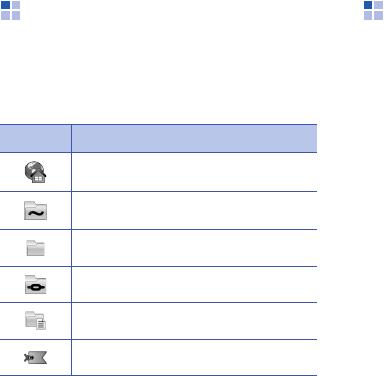
Web
76
Use a bookmark
While browsing, you can also access
bookmarks (see "Add a bookmark."
X
p. 75). Press <
Options
>
→
Bookmarks
to access the following:
Save a web page and
view it offline
When you save a web page, you can view
a copy of it offline without connecting to
the web. The saved copy will not update
automatically, so you must reconnect to
the web periodically to retrieve the
current version.
Save a web page
1. Use your browser to access the web
page (see "Browse a web page."
X
p. 73).
2. Press <
Options
>
→
Tools
→
Save
page
.
The web page is saved to your device.
Icon Description
Start page of the access point
Folder of automatic bookmarks
Folder you have created
Default folder
Web feed folder
Bookmark

77
Web
View a saved web page
1. In Standby mode, press [Menu]
→
Web
.
2. Scroll to
Saved pages
and press the
Confirm key.
3. Scroll to a saved web page and press
the Confirm key.
4. To update the web page, press
<
Options
>
→
Navigation options
→
Reload
.
Download files from the
web
When you download files from the web,
your device stores them in a
corresponding folder in the Gallery. For
example, your device will store
downloaded images in the
Images
folder.
Files you download from the web can
include viruses that will damage
your device. To lessen your risk, only
download files from sources you
trust.
Some media files include Digital
Rights Management to protect
copyrights. This protection may
prevent you from downloading,
copying, modifying, or transferring
some files.

78
8
Connectivity
Learn to transfer data to and from your
device via the Bluetooth wireless feature
or the PC data cable.
Use the Bluetooth
wireless feature
You can connect with other Bluetooth-
enabled wireless devices over a distance
of 10 metres (30 feet). Walls or other
obstacles between devices may block or
impair the wireless connection.
Turn on the Bluetooth wireless
feature
1. In Standby mode, press [Menu]
→
Connect.
→
Bluetooth
.
2. Scroll to
Bluetooth
and press the
Confirm key.
3. To make your device visible to others,
scroll to
My phone's visibility
and
press the Confirm key.
4. Select a visibility option and press the
Confirm key.
Search for and pair with a
Bluetooth-enabled device
1. In Standby mode, press [Menu]
→
Connect.
→
Bluetooth
.
2. Scroll right to open the paired device
list.

79
Connectivity
3. Press <
Options
>
→
New paired
device
.
Your device searches for and displays
the list of Bluetooth-enabled devices:
4. Scroll to a device and press the
Confirm key.
5. Enter the Bluetooth passcode and
press the Confirm key.
6. To allow the device to send and receive
data without confirmation, press
<
Yes
>. Otherwise, press <
No
> to
require confirmation.
Change paired device options
From the paired device list, press
<
Options
> to access the following:
•
New paired device
: search for
another Bluetooth-enabled device
•
Connect to audio device
: connect to
the paired audio device
Icon Device type
Mobile phone
Computer
Headset
Hands-free car kit
Audio device
Unknown device
To pair with another Bluetooth-
enabled device, both devices must
use the same passcode. Headsets or
hands-free car kit may use a fixed
passcode, such as
0000
.

Connectivity
80
•
Assign short name
: set a short name
for a paired device
•
Set as authorised
/
Set as
unauthorised
: set to allow another
device to connect automatically or
require permission
•
Delete
: remove a device from the list
•
Delete all
: remove all devices from
the list
•
Exit
: close the paired device list
Send data via the Bluetooth
wireless feature
1. Select a file or item to send.
2. Press <
Options
>
→
Send
→
Via
Bluetooth
.
3. Scroll to a paired device and press the
Confirm key.
4. Enter a passcode and press <
OK
>
(if necessary).
Receive data via the Bluetooth
wireless feature
1. When another device attempts to
access yours, press <
Yes
> to permit
the connection.
2. Press <
Yes
> again to confirm that you
are willing to receive data from the
device (if necessary).
Accepted items are placed in your
Inbox. The icon indicates
messages received via Bluetooth.
81
Connectivity
Activate Remote SIM mode
To use Remote SIM mode with a
compatible hands-free car kit,
1. Connect to your device from an
authorised hands-free car kit.
2. In Standby mode, press [Menu]
→
Connect.
→
Bluetooth
→
Remote
SIM mode
→
On
.
You can now make or answer calls only
with the connected hands-free car kit
via the SIM card on your device.
To deactivate it, press [ ]
→
Exit
remote SIM mode
.
Connect via USB
Set a default action for your USB
connection
To set your device to perform a default
action when you connect the device to a
computer with the PC data cable,
1. In Standby mode, press [Menu]
→
Connect.
→
USB
→
USB mode
.
2. Set the default USB mode (
Media
player
,
PC Studio
, or
Data
transfer
).
You can also set your device to
Ask
on connection
, instead of using a
default USB mode. If you use this
setting, your device will prompt you to
choose the USB mode every time you
connect to a computer.
Connectivity
82
Use PC Studio
1. Change the USB connection to
PC
Studio
.
2. Connect your device to a PC with the
PC data cable.
3. Run PC Studio and manage personal
data and media files.
Refer to the PC Studio help for more
information.
Synchronise with Windows
Media Player
You can copy music files to the device by
synchronising with Windows Media Player
11.
1. Change the USB connection to
Media
player
.
2. Connect your device to a PC with the
PC data cable.
3. Select
Sync digital media files to
this device
when a pop-up window
appears on your PC.
4. Enter the name of your device and
click
Finish
.
5. Select and drag the music files you
want to the sync list.
6. Click
Start Sync
.
7. When synchronisation is finished,
disconnect the device from the PC.
Copy files to a memory card
1. Insert a memory card into the device.
2. Change the USB connection to
Data
transfer
.
3. Connect your device to a computer
with the PC data cable.

83
Connectivity
4. Select
Open folder to view files
when a pop-up window appears on
your PC.
5. Copy files from the PC to the memory
card.
6. When you are finished, disconnect the
device from the PC.
Synchronise your device
Learn to synchronise the data on your
device with data on a computer or other
wireless device.
Create a new sync profile
Your device includes a sync profile for PC
Studio.
To create a new sync profile,
1. In Standby mode, press [Menu]
→
Connect.
→
Sync
.
2. Press <
Options
>
→
New sync
profile
.
3. Press <
Yes
> to copy settings from an
existing profile or <
No
> to define new
settings.
4. Define the following:
•
Sync profile name
: set a name for
the profile
•
Applications
: set the applications to
synchronise
•
Connection settings
: set options
for connecting to the network
5. Press <
Back
> to save your new
profile.

Connectivity
84
Synchronise data
1. Connect your device to another
Bluetooth-enabled wireless device (see
"Search for and pair with a Bluetooth-
enabled device."
X
p. 78).
2. In Standby mode, press [Menu]
→
Connect.
→
Sync
.
3. Press <
Options
>
→
Synchronise
.
4. Scroll to a device and press the
confirm key (if necessary).
Your device displays a progress metre
at the bottom of the screen.
After synchronisation is complete, you
can press <
Options
>
→
View log
to
view a list of data that was changed.

85
9
Additional Programs
Learn to use Game, Calculator, Clock,
Converter, GPS data, Landmarks, Mobile
Stock, and E-Book.
Game
Play a fun game with Mahjong.
In Standby mode, press [Menu]
→
Installations
→
Mahjong
.
Calculator
1. In Standby mode, press [Menu]
→
Organiser
→
Calculator
.
2. Use the alphanumeric keys and the
navigation key to perform basic
mathematical operations.
3. When performing calculations, press
<
Options
> to access the following:
•
Last result
: insert the result from
the last calculation
•
Memory
: save, recall, or clear the
calculator's temporary memory
•
Clear screen
: clear all calculations
on the screen
Press [ ] to insert a decimal. Press
[
C
] to clear a result. Press [ ] to
switch functions.

Additional Programs
86
Clock
You can adjust clock settings, set alarms,
and create a world clock.
Change clock settings
1. In Standby mode, press [Menu]
→
Organiser
→
Clock
.
2. Press <
Options
>
→
Settings
(see
"Date and time."
X
p. 103).
Set a new alarm
1. In Standby mode, press [Menu]
→
Organiser
→
Clock
.
2. Scroll right to the alarm view.
3. Press <
Options
>
→
New alarm
.
4. Set alarm details.
5. Press <
Done
>.
Stop an alarm
When an alarm sounds, press <
Stop
> to
end the alarm or <
Snooze
> to repeat
the alarm after a specified time. You can
delay the alarm (snooze) up to five
times.
Create a world clock
With a world clock, you can monitor the
time in another city or country.
To create a world clock,
1. In Standby mode, press [Menu]
→
Organiser
→
Clock
.
2. Scroll right to the world clock view.
3. Press <
Options
>
→
Add city
.
Your current profile setting will not
affect the volume of a clock alarm.

87
Additional Programs
4. Scroll to a city and press the Confirm
key, or enter the first few letters of the
city name to search the list.
5. Repeat steps 3 and 4 to add more
cities (if necessary).
6. When you are finished adding cities,
press <
Exit
>.
Converter
With Converter, you can convert
measurements or currencies from one
unit to another. To convert currencies,
you must first set a base currency and
exchange rate.
Add currencies and exchange
rates
1. To set a base currency, in Standby
mode, press [Menu]
→
Organiser
→
Converter
.
2. Scroll right until the type shows
Currency
.
3. Press <
Options
>
→
Currency rates
.
4. Scroll to a currency and press
<
Options
>
→
Rename currency
.
5. Enter the name of the base currency
and press the Confirm key.
The value of the base currency is
always 1. You must enter exchange
rates for other currencies as they
relate to one unit of the base
currency. Exchange rates change
often. To ensure an accurate
conversion, you must enter a current
exchange rate.
Additional Programs
88
6. Press <
Options
>
→
Set as base
currency
.
7. Press <
Yes
> to confirm.
To add other currencies and exchange
rates,
1. Repeat steps 1-4 above.
2. Enter the name of a new currency and
press the Confirm key.
3. Scroll to the new currency and enter
the exchange rate.
4. Press <
Options
>
→
Save
.
Convert currencies
1. In Standby mode, press [Menu]
→
Organiser
→
Converter
.
2. Scroll right until the type shows
Currency
.
3. Scroll down to
Unit
and scroll right to
select a currency to convert.
4. Scroll down to
Amount
and enter the
amount to convert.
5. Scroll down to
Unit
and scroll right to
select a currency to convert to.
The device displays the conversion
result.
Convert measurements
1. In Standby mode, press [Menu]
→
Organiser
→
Converter
.
2. Scroll right to change the type of
measurement.
3. Scroll down to
Unit
and scroll right to
change the base unit (if necessary).
4. Scroll down to
Amount
and enter the
base amount.

89
Additional Programs
5. Scroll down to
Unit
and scroll right to
change the conversion unit (if
necessary).
The device displays the conversion
result.
GPS data
You can view GPS data to help you
navigate, show your position, or monitor
trip details. Before you can use GPS data,
you must activate a positioning method
via a Bluetooth wireless connection or a
wireless network connection.
Activate a positioning method
1. In Standby mode, press [Menu]
→
Tools
→
GPS data
.
2. Press <
Options
>
→
Positioning
settings
.
3. Scroll to a positioning method
(
Bluetooth GPS
or
Network based
)
and press <
Options
>
→
Enable
.
For information about mobile
navigation, refer to http://
samsung.navigon.com. This may not
be available depending on your
country or service provider.
• If you enable Bluetooth GPS, you
must pair with a Bluetooth-enabled
device (see "Search for and pair with
a Bluetooth-enabled device."
X
p. 78). Once you activate a
positioning method, your device will
attempt to open that connection
when you launch GPS data.
• If you use Integrated GPS, you must
install XTRA data file (see
"Landmarks."
X
p. 91).
Additional Programs
90
Navigate with GPS data
1. In Standby mode, press [Menu]
→
Tools
→
GPS data
→
Navigation
.
2. Press <
Options
>
→
Set destination
→
Coordinates
.
3. Enter the latitude and longitude of
your destination and press the Confirm
key.
Your device will display the direction of
your destination, your current speed,
and the duration of your trip.
4. To stop the GPS navigation, press
<
Options
>
→
Stop navigation
.
View your current position
In Standby mode, press [Menu]
→
Tools
→
GPS data
→
Position
.
Monitor trip details
1. In Standby mode, press [Menu]
→
Tools
→
GPS data
→
Trip distance
.
2. Press <
Options
>
→
Start
.
Your device will track trip details,
including distance, time, and speed.
3. To stop monitoring trip details, press
<
Options
>
→
Stop
.

91
Additional Programs
Landmarks
With Landmarks, you can save your
current location or manually enter new
locations.
1. In Standby mode, press [Menu]
→
Tools
→
Landmarks
.
2. Press <
Options
>
→
New landmark
→
Current position
or
Enter manually
.
3. Enter details about the landmark (if
necessary).
4. When you are finished entering
landmark information, press <
Done
>.
Mobile Stock
Mobile Stock is a Windows Mobile
software for mobile phones to use online
stock transaction services. For more
information, contact your service
provider.
In Standby mode, press [Menu]
→
Installations
→
Mobile Stock
.
E-Book
E-Book is a mobile reading application
which provides you with an electronic
book reading, comments, and interactive
communication services. For more
information, contact your service
provider.
In Standby mode, press [Menu]
→
Installations
→
E-Book
.
To add your current location
automatically, your device must
have an active connection.

92
10
Managers
Learn to manage files, applications,
device configurations, activation keys,
and connections.
File manager
With File manager, you can search for
and organise your files or folders.
Search for a file or folder
1. In Standby mode, press [Menu]
→
Organiser
→
File mgr.
2. Press <
Options
>
→
Find
.
3. Scroll to a memory location and press
the Confirm key.
4. Enter text in the search field and press
the Confirm key.
5. To open a file or folder from the search
results, scroll to the file or folder and
press the Confirm key.
Create a new folder
1. In Standby mode, press [Menu]
→
Organiser
→
File mgr.
2. Press <
Options
>
→
New folder
.
3. Enter a folder name and press the
Confirm key.
Move a file to a folder
1. In Standby mode, press [Menu]
→
Organiser
→
File mgr.
2. Scroll to a file or folder and press
<
Options
>
→
Move to folder
→
a
memory location (if necessary).

93
Managers
3. Scroll to a folder and press the Confirm
key.
4. Scroll to a subfolder and press the
Confirm key (if necessary).
5. Press the Confirm key.
Application manager
Your device supports applications made
for the Symbian OS and the Java
platform, Micro Edition (J2ME™). Your
device will not support applications made
for other operating systems or Java
platforms (including PersonalJava™). To
download applications to your device, see
"Download files from the web."
X
p. 77
Install a new application
1. In Standby mode, press [Menu]
→
Installat.
→
App. mgr.
2. Scroll to an application and press
<
Options
>
→
Install
.
3. Follow any onscreen instructions.
The application manager
automatically tries to verify an
application's digital signatures and
certificates during installation and will
show a warning if the application does
not meet normal security
requirements. To protect your device
and your data, do not install
applications that do not have valid
digital signatures or certificates.

Managers
94
Change installation options
In Standby mode, press [Menu]
→
Installations
→
App. mgr.
→
<
Options
>
→
Settings
to access the
following:
•
Software installation
: set to allow or
block installations
•
Online certificate check
: set to
check for online certificates when
installing applications
•
Default web address
: set a default
web address for checking online
certificates
Remove an application
1. In Standby mode, press [Menu]
→
Installat.
→
App. mgr.
2. Scroll to an application and press
<
Options
>
→
Remove
.
3. Press <
Yes
> to confirm.
Device manager
This feature is network-dependent and
may not be available from your service
provider. If available, Device manager
allows your service provider to assist you
with device configurations. Before you
can start a configuration session, you
must define a server profile.
Define a server profile
1. In Standby mode, press [Menu]
→
Tools
→
Device mgr.
2. Press <
Options
>
→
New server
profile
.
3. Set the following server options
according to the instructions provided
by your service provider:
•
Server name
: set a name for this
profile
95
Managers
•
Server ID
: set the ID of the remote
server
•
Server password
: set the password
that must be used by the device
manager to synchronise your device
•
Access point
: set an access point
•
Host address
: set the web address
of the host server
•
Port
: set a port to use for the device
manager
•
User name
: set a user name for this
profile
•
Password
: set a user password for
this profile
•
Allow configuration
: set to allow
the server to configure your device
•
Network authentication
: set to
require network authentication
4. When you are finished setting the
options, press <
Back
>.
Start a configuration session
1. In Standby mode, press [Menu]
→
Tools
→
Device mgr.
2. Scroll to a server profile and press
<
Options
>
→
Start configuration
.
3. Press <
Yes
> to confirm.
4. Scroll to an access point and press the
Confirm key (if necessary).

Managers
96
Activation key manager
When you download digital content, you
may need to purchase an activation key
from the website that allows you to
access the file.
View activation keys
1. In Standby mode, press [Menu]
→
Tools
→
Actv. keys
.
2. Scroll to a folder and press the Confirm
key:
•
Valid keys
: all valid activation keys
•
Invalid keys
: expired activation
keys
•
Not in use
: activation keys of media
files that are no longer stored on the
device
3. Scroll to an activation key and press
the Confirm key.
Restore an expired activation
key
When your activation key expires, you
must purchase additional rights to use
the media file.
1. In Standby mode, press [Menu]
→
Tools
→
Actv. keys
.
2. Scroll to
Invalid keys
and press the
Confirm key.
3. Scroll to an activation key and press
<
Options
>
→
Get new key
.
4. Press <
Yes
> to confirm.
5. Follow the onscreen instructions.

97
Managers
Memory card manager
With Memory card manager, you can
back up and restore data, protect a
memory card with a password, or view
memory details.
Before you can use a memory card for
the first time, you must format the card.
Format a memory card
1. Insert a memory card (see "Insert a
memory card (optional)."
X
p. 17).
2. In Standby mode, press [Menu]
→
Organiser
→
Memory
.
3. Press <
Options
>
→
Format memory
card
.
4. Press <
Yes
> to confirm.
Back up data to a memory card
1. In Standby mode, press [Menu]
→
Organiser
→
Memory
.
2. Press <
Options
>
→
Back up phone
memory
3. Press <
Yes
> to confirm.
Restore data from a memory
card
1. In Standby mode, press [Menu]
→
Organiser
→
Memory
.
2. Press <
Options
>
→
Restore from
card
.
3. Press <
Yes
> to confirm.
Your device supports FAT16 or FAT32
file systems.

Managers
98
Protect a memory card with a
password
1. In Standby mode, press [Menu]
→
Organiser
→
Memory
.
2. Press <
Options
>
→
Set password
.
3. Enter and confirm a password (up to 8
characters).
4. To remove the password, press
<
Options
>
→
Remove password
.
5. Enter and confirm the password.
View memory details
You can view the used and available
memory on your memory card,
1. In Standby mode, press [Menu]
→
Organiser
→
Memory
.
2. Press <
Options
>
→
Memory details
.
Connection manager
With Connection manager, you can view
the details of data connections and close
open connections.
Devices that do not support this
feature, such as PCs, cannot read the
card while the password protection is
active. Remove the password
protection from the card to use it with
those devices.
99
Managers
View connection details
1. In Standby mode, press [Menu]
→
Connectivity
→
Conn. mgr.
→
Active
data connections
.
2. Scroll to a connection and press
<
Options
>
→
Details
to access the
following:
•
Name
: the current access point or
modem (if using a dial-up
connection)
•
Bearer
: the type of data connection
•
Status
: the connection status
•
Total
: the total amount of data
received and sent
•
Received
: the amount of data
received
•
Sent
: the amount of data sent
•
Duration
: the length of time the
connection has been open
•
Speed
: the current upload and
download speeds
•
Acc. pt.
: the name of the access
point in use
•
Shared
: the number of applications
using the same connection
Close an open connection
1. In Standby mode, press [Menu]
→
Connectivity
→
Conn. mgr.
→
Active
data
.
2. Scroll to a connection and press
<
Options
>
→
Disconnect
.
3. Press <
Yes
> to confirm.
Managers
100
View wireless connection details
1. In Standby mode, press [Menu]
→
Connectivity
→
Conn. mgr.
→
Available WLAN networks
.
2. Scroll to a connection and press
<
Options
>
→
Details
to access the
following:
•
Network
: the name of the access
point in use
•
Signal
: the strength of the signal
•
Mode
: the current network mode
•
Security
: the security state of the
access point in use
•
Coverage
: the number of access
points
•
Speed
: current upload and
download speeds

101
11
Settings
Learn about your device settings. To
access your device settings,
1. In Standby mode, press [Menu]
→
Settings
.
2. Scroll to a category (
General
,
Phone
,
Connection
, or
Applications
) and
press the Confirm key.
General settings
Personalisation
Control the appearance and behavior of
your display, Standby mode, tones, and
language (for
Themes
settings, see
"Apply a theme."
X
p. 22).
Display
•
Brightness
: set the brightness of the
display
•
Font size
: set the size of the text on
the display
•
Welcome note/logo
: set a text note
or image that shows when you turn on
the device
•
Backlight on time
: set the delay
before the backlight dims
•
Dim time
: set the delay before the
dimmed backlight turns off
Standby mode
•
Active standby
: set to show
application shortcuts and calendar
events in Standby mode
You can also access some settings
from other menus: press <
Options
>
→
Settings
.
Settings
102
•
Shortcuts
: set the softkey shortcuts
for Standby mode
•
Active standby apps.
: set the
application shortcuts to show in
Standby mode
Tones
•
Ringing tone
: set a ringtone for
incoming calls
•
Ringing type
: set a ring type
•
Ringing volume
: set the volume for
ringtones and message alerts
•
Message alert tone
: set a tone for
incoming text or multimedia messages
•
E-mail alert tone
: set a tone for
incoming email messages
•
Calendar alarm tone
: set a tone for
calendar events
•
Clock alarm tone
: set a tone for a
clock alarm
•
Vibrating alert
: set a vibrating alert
for incoming voice calls and text or
multimedia messages
•
Keypad tones
: set the volume for
keypad tones
•
Warning/game tones
: set the device
to sound a warning tone (e.g., when
the battery is low) or a tone while
playing a game
Language
•
Phone language:
set a display
language (for all menus and
applications)
•
Writing language
: set a language for
writing messages (for all text editors
and dictionaries)
•
Predictive text
: turn Predictive text
on or off (for all text editors)
103
Settings
Date and time
Control the appearance and behavior of
the date, time, and alarms.
•
Time
: set the current time (press [
C
]
to switch between am and pm)
•
Time zone
: set the time zone
•
Date
: set the current date
•
Date format
: set a date format
•
Date separator
: set a date separator
•
Time format
: set a time format
•
Time separator
: set a time separator
•
Clock type
: set a clock type for the
display
•
Clock alarm tone
: set a tone for a
clock alarm
•
Alarm snooze time
: set the delay for
alarms to repeat
•
Workdays
: set the days of the week
to sound alarms
•
Network operator time
: set the
network to automatically update the
time and date
Enhancement
Set the device to use the headset,
headphone, hands-free car kit, or a TV as
the default enhancement.
Press <
Options
>
→
Set
. You can change
the following settings for either
enhancement:
•
Default profile
: set the default profile
for the enhancement
•
Automatic answer
: set the
enhancement to automatically answer
incoming calls (when connected to the
device)
Settings
104
•
TV screen size
: set a screen size of
your TV
•
TV system
: set a system of your TV
Security
Set security codes and manage security
certificates or security modules.
Phone and SIM card
•
PIN code request
: set the device to
request a PIN code each time you turn
it on
•
PIN code
: set a PIN code for the
device
•
PIN2 code
: set a PIN2 code (supplied
with some SIM cards)
•
Phone autolock period
: set the delay
before the device locks automatically
•
Lock code
: set a lock code for the
device
•
Lock if SIM card changed
: set the
device to lock automatically when the
SIM card is changed
•
Closed user group
: set the device to
restrict calls to and from a selected
group of users
•
Confirm SIM services
: set the device
to show a confirmation message when
you use a SIM service
•
Lock Keypad if slide closed
: set to
lock the keypad automatically when
the device is closed
105
Settings
Certif. management
Your device uses digital certificates to
verify the identity and authenticity of
various online services and software.
These certificates help keep your
personal data secure and help you avoid
viruses and other dangerous software. In
Certificate management, you can view
certificate details, delete certificates, or
change the following trust settings:
•
Internet
: set the device to verify web
servers that use this certificate
•
Online certif. check
: set the device
to check the certificate against a list of
revoked certificates
•
VPN
: set the device to verify VPN
connections that use this certificate
Security module
Manage security modules on your device.
Factory settings
Reset settings to their factory defaults.
You must enter the lock code to reset the
device. After entering the code, the
device will restart.
Positioning
Control the methods and servers your
device uses to retrieve global positioning
information.
Positioning methods
•
Bluetooth GPS
: set the device to use
the Bluetooth feature to retrieve global
positioning information
•
Network based
: set the device to use
the cellular network to retrieve global
positioning information

Settings
106
Positioning server
•
Access point
: set an access point for
the global positioning server
•
Server address
: set a web address
for the global positioning server
Phone settings
Call
Control how your device handles calls
with caller ID, call waiting, speed dial,
and other call settings.
•
Send my caller ID
: set to send your
caller ID based on your preferences or
network settings
•
Call waiting
: set to alert you of an
incoming call while you are on a call
•
Reject call with SMS
: set to send a
text message to callers you reject
•
Message text
: set the message to
send to rejected callers
•
Automatic redial
: set to
automatically redial an unconnected
call
•
Show call duration
: set to show the
length of a call
•
Summary after call
: set to show a
summary after a call
•
Speed dialling
: set to allow speed
dialling
•
Anykey answer
: set to answer a call
when you press any key (except
[
],
[], and the Volume key).
•
Alert during call
: set to sound a tone
when you receive a message and an
alarm expires during a call
107
Settings
•
Side volume key
: set the Volume key
to mute the ringer or reject calls when
pressed during an incoming call
•
Slide up
: set to answer a call when
you open the device
•
Slide down
: set to continue or stop an
operation when you close the device
Call divert
Divert incoming calls to another number.
When you divert calls, you must specify a
receiving number or delay time for
diverted calls.
Voice calls
•
All voice calls
: set to divert all voice
calls
•
If busy
: set to divert calls when you
are on another call
•
If not answered
: set to divert calls
you do not answer
•
If out of reach
: set to divert calls
when you are outside the service area
•
If not available
: set to divert calls
when your device is off
Data calls
•
All data calls
: set to divert all data
calls
•
If busy
: set to divert calls when you
are on another call
•
If not answered
: set to divert calls
you do not answer
•
If out of reach
: set to divert calls
when you are outside the service area
•
If not available
: set to divert calls
when your device is off

Settings
108
Call barring
•
Outgoing calls
: set to prevent all
outgoing calls
•
International calls
: set to prevent
calls to international numbers
•
International calls except to home
country
: set to prevent international
calls to countries other than your home
country
•
Incoming calls
: set to prevent all
incoming calls
•
Incoming calls when abroad
: set to
prevent incoming calls when you are
outside your home service area
Network
Control network modes and selection
methods.
•
Operator selection
: set the device to
automatically or manually select a list
of cellular networks
•
Cell info display
: set to indicate when
the device is used in a Micro Cellular
Network
•
Operator Settings
: check your
service provider according to the SIM
card you are using
To receive service on another
network, you must select one that
has a roaming agreement with your
home network.

109
Settings
Connection settings
Bluetooth
Control the Bluetooth wireless feature.
•
Bluetooth
: turn the Bluetooth wireless
feature on or off
•
My phone's visibility
: make your
device visible to or hidden from other
Bluetooth-enabled devices and set how
long the device is visible to other
Bluetooth-enabled devices
•
My phone's name
: set a name for
your device
•
Remote SIM mode
: activate Remote
SIM mode to make a call from a
Bluetooth hands-free car kit connected
to your device
USB
Control how your device behaves when
you connect it to a PC.
•
USB mode
: set to
Media player
(when synchronising with Windows
Media Player to copy media files),
PC
Studio
(when using PC Studio to sync
files), or
Data transfer
(when using a
memory card to transfer files)
•
Ask on connection
: set to ask which
mode to use when you connect to a PC
Access points
Control access point connections,
passwords, and homepages.
•
Connection name
: set a name for the
access point connection
•
Access point name
: set the web
address for the access point
Settings
110
•
User name
: set a user name
•
Prompt password
: set to ask for a
password when you connect to the
access point
•
Password
: set a password for the
access point
•
Authentication
: set an authentication
mode
•
Homepage
: set a homepage for
access points that connect to web
services
You can also define advanced settings for
access points: press <
Options
>
→
Advanced settings
.
•
Network type
: set a network type
(IPv6 or IPv4)
•
Phone IP address
(IPv4 only): set
the IP address of your device
•
DNS address
(IPv4): set primary and
secondary domain name server (DNS)
addresses or set to 0.0.0.0 for
automatic detection
•
DNS address
(IPv6): set primary and
secondary domain name server (DNS)
addresses or set to
Automatic
(use
automatic detection) or
Well-known
(use well-known IPv6 addresses)
•
Proxy server address
: set the IP
address of the proxy server
•
Proxy port number
: set the port
number of the proxy server

111
Settings
Packet data
Control packet data connections when
using a GPRS network.
•
Packet data connection
: set to open
a packet data connection,
When
needed
(if an application needs to
send packet data) or
When available
(anytime a packet data connection on a
GPRS network becomes available)
•
Access point
: set an access point
name to send packet data to a PC (see
PC Studio help)
Configurations
View network configurations received
from your service provider. To apply the
configurations, press <
Options
>
→
Save
.
APN control
Control the use of packet data
connections, if your SIM card supports
the access point control service. To turn
this service on or off or to change the
allowed access points, press <
Options
>.
Applications settings
RealPlayer
Control how RealPlayer behaves when
playing videos or streaming media.
Video
•
Contrast
: set the contrast for the
video playback
•
Loop
: set to loop video playback
Settings
112
Streaming (Proxy)
•
Use proxy
: set to use a proxy server
•
Proxy server address
: set the
address of a proxy server
•
Proxy port number
: set the port
number of a proxy server
Streaming (Network)
•
Default access point
: set a default
access point
•
Online time
: set a time to remain
online when RealPlayer is inactive
•
Lowest UDP port
: set the lower end
of a range of server ports
•
Highest UPD port
: set the higher end
of a range of server ports
Camera
Control how the camera behaves when
you capture images or videos.
General
•
Extended Digital Zoom
: set to
extend the zoom ratio
•
Shutter sound
: set to sound when
you press the shutter release key
•
Contrast
: set the contrast for new
images and videos
•
Saturation
: set the saturation for new
images and videos
•
Sharpness
: set the sharpness for new
images and videos
•
Date/Time
: set to insert date or time
and date
113
Settings
•
Default storage
: set a memory
location to store new images or videos
•
GPS Off/On
: set to store the current
location information
Image
•
Quality
: set to capture High, Normal,
or Economy quality images
•
ISO
: set an ISO setting to controls the
sensitivity of the device
•
Exposure Metering
: set to use a
Matrix, Spot, or Center-weighted light
meter
•
Auto Focus
: set to use Auto-focus
mode
•
Single Shot Mode
: set to save new
images automatically
Video
Quality
: set to capture High, Normal, or
Economy quality videos
Voice recorder
Control the quality and memory location
of voice clips.
•
Recording quality
: set to record High
or MMS-compatible voice clips
•
Memory in use
: set a memory
location to store new voice clips
Settings
114
App. manager
Control how your device behaves when
you install new applications.
•
Software installation
: set to install
only programs with signed security
certificates or to install all programs
•
Online certificate check
: set to
require that applications pass a
security certificate check
•
Default web address
: set a default
web address to use when checking
security certificates
Log
Set how long the Log will store call and
packet data information.

115
12
Troubleshooting
If you have trouble with your device, try
these procedures before you contact a
service professional.
Contacting a service centre
If you have attempted the
troubleshooting solution and are still
having problems with your device, make
a note of the following information and
contact your local dealer or Samsung
after-sales service:
• Model number(s) of your device
• Serial number(s) of your device
• A clear description of the problem
When contacting Samsung, use the
contact phone numbers, web addresses,
or postal addresses for your country of
residence.
When you turn on your device, the
following messages may appear:
Message Try this to solve the
problem:
Insert SIM
card Ensure that the SIM card is
installed correctly.
Locked The autolock feature is
enabled. To use the device,
you must press <
Unlock
>
and enter the code. To
disable the autolock feature,
1. In Standby mode, press
[Menu]
→
Settings
→
General
→
Security
→
Phone and SIM card
.
2. Set the Phone autolock
period to
None
.

Troubleshooting
116
Your device does not show a signal
(no bars next to the network icon)
• If you just turned on the device, wait
about 2 minutes for your device to find
the network and receive a signal.
• You may not be able to receive a signal
in tunnels or elevators. Move to an
open area.
• You may be between service areas. You
should receive a signal when you enter
a service area.
You forgot a security, PIN, or PUK
code
The default lock code is
00000000
. If
you forget or lose this or another code,
contact the seller or your service
provider.
PIN code When using the device for
the first time or when the
PIN code request is enabled,
you must enter the PIN
supplied with the SIM card.
To disable the PIN code
request feature,
1. In Standby mode, press
[Menu]
→
Settings
→
General
→
Security
→
Phone and SIM card
.
2. Set the PIN code request
to
Off
.
PUK code Your SIM card is blocked,
usually as a result of
entering your PIN incorrectly
several times. You must
enter the PUK supplied by
your service provider.
Message Try this to solve the
problem:

117
Troubleshooting
Your display shows white lines
The display may show white lines if you
have turned the device on after a long
period of disuse or if you removed the
battery without first turning off the
device. The display should correct itself in
a short time.
You enter a number, but the call is
not dialled
• Ensure that you have pressed [ ].
• Ensure that you have accessed the
right cellular network.
• Ensure that you have not set call
barring for the phone number.
You select a contact to call, but the
call is not dialled
• Ensure that the correct number is
stored in the contact information.
• Re-enter and save the number, if
necessary.
Another caller cannot hear you
speaking
• Ensure that you are not blocking the
built-in microphone.
• Move the built-in microphone closer to
your mouth.
• If using a headset, ensure that it is
properly connected.
The sound quality of a call is poor
• Ensure that you are not blocking the
internal antenna on top of the device.
• When you are in areas with weak
signals, you may lose reception. Move
to another area and try again.
Troubleshooting
118
The battery does not charge properly
or sometimes your device turns itself
off while charging
• Disconnect the device from the
charger, remove and reinstall the
battery, and try charging again.
• The battery terminals may be dirty.
Wipe both gold-coloured contacts with
a clean, soft cloth and try charging the
battery again.
• If the battery no longer charges
completely, dispose of the old battery
properly and replace it with a new
battery.
Your device is hot to the touch
When you use several applications at
once, your device requires more power
and may heat up. This is normal and
should not affect your device's lifespan or
performance.
Your device prompts you to delete
some data
The available memory is low. Move your
data to a memory card or delete old
items from applications.
An application is frozen (will not
respond)
1. Press and hold [Menu] to open the
application list.
2. Scroll to the application that is frozen
and press [
C
] and then <
Yes
>.
3. Launch the application again.
119
Troubleshooting
You cannot find a Bluetooth-enabled
device
• Ensure that both devices have
activated the Bluetooth wireless
feature.
• Ensure that the distance between the
devices is not more than 10 metres
and that they are not separated by
walls or other obstacles.
• Ensure that each device's visibility is
not set to
Hidden
.
• Ensure that both devices are
compatible with Bluetooth wireless
technology.