Samsung Electronics Co YPS5 DIGITAL AUDIO PLAYER User Manual YPS5 USA ENGLISH0 0 0703 1
Samsung Electronics Co Ltd DIGITAL AUDIO PLAYER YPS5 USA ENGLISH0 0 0703 1
Contents
- 1. USERS MANUAL 1
- 2. USERS MANUAL 2
USERS MANUAL 1
MP3 Player
user manual
imagine the possibilities
Thank you for purchasing this Samsung product.
To receive more complete service, please
register your product at
www.samsung.com/global/register
YP-S5

features of your new MP3 Player
Good looking. Smart. Reliable. And lots of fun. Your new MP3 player
is all this and more. Its compact silhouette takes up the tiniest space
in your pocket, and its state-of-the-art technology delivers rich sound,
vibrant pictures, and action-packed games. You’ll love your new MP3
player, whether you’re exercising, downloading your favorite tunes,
watching videos, playing games, or even listening to FM Radio.
Use it once, and you’ll wonder how you ever lived without it.
HIGH-QUALITY STEREO SPEAKER!
Slide the speaker unit to reveal it, with which
you can enjoy a dynamic music.
You can share your favorite music anytime
and anywhere.
PUTTING THE “MULTI” IN MULTIMEDIA
We call it an MP3 player, but it’s much more
than that. It allows you to view pictures, text,
and videos and listen to FM radio.
The built-in Bluetooth wireless technology
turns your MP3 player into your own
personal network.
TOUCH NAVIGATION!
You can tap on the touch pad to navigate
through the menus.
WHERE FORM MEETS FUNCTION
Sure, it’s sleek and good-looking. But it’s
easy to hold and use, too.
LONGER PLAY TIME AND SHORTER
DOWNLOADING!
A fully charged battery can play up to 24
hours of music or 4 hours of video(when
using the earphone).
Download times are shorter. Because of its
USB 2.0 capability, the player is much faster
than models with USB 1.1.
ACOUSTIC WONDER
Your new MP3 player has built-in DNSe
(Digital Natural Sound engine), Samsung’s™
unique sound technology created to deliver
richer, deeper sound for an unbelievable
listening experience.
safety information
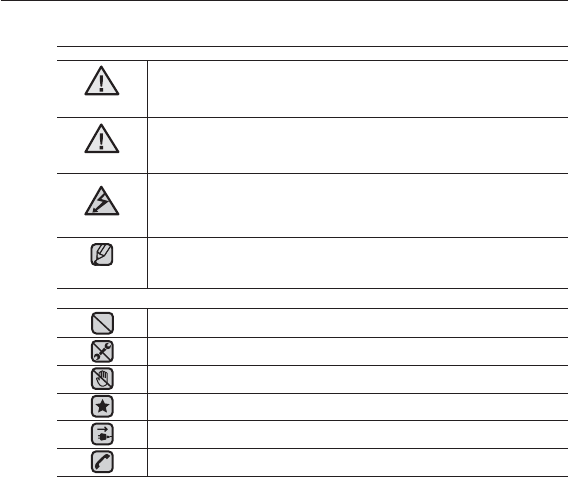
What the icons and signs in this user manual mean :
WARNING
Means that death or serious personal injury is a risk.
CAUTION
Means that there is a potential risk for personal injury or
material damage.
CAUTION
To reduce the risk of fi re, explosion, electric shock, or
personal injury when using your MP3 Player, follow
these basic safety precautions:
NOTE
Means hints or referential pages that may be helpful to
operate the player.
Do NOT attempt.
Do NOT disassemble.
Do NOT touch.
Follow directions explicitly.
Unplug the power plug from the wall socket.
Call the service center for help.
These warning signs are here to prevent injury to you and others.
Please follow them explicitly.
After reading this section, keep it in a safe place for future reference.
safety information
This manual describes how to properly use your new mp3 player.
Read it carefully to avoid damaging the player and injuring yourself.
Pay particular attention to the following serious warnings:
PROTECT YOURSELF
Do not disassemble, repair, or modify this product on your own.
Do not get the product wet or drop it in water. If the product gets wet, do
not switch it on because you could get an electric shock. Instead, contact
a Samsung Customer Service Center near you.
Do not use the earphones while you are driving a bicycle, automobile or
motorcycle.
It can cause a serious accident, and furthermore, is prohibited by the law in some
areas.
Using the earphones while walking or jogging on a road, in particular, on a
crosswalk can lead to a serious accident.
For your safety, make sure the earphone cable does not get in the way of
your arm or other surrounding objects while you are taking exercise or a
walk.
Do not place the product in damp, dusty, or sooty areas because these
environments could lead to fi re or electric shock.
CAUTION
WARNING
CAUTION
PROTECT YOURSELF
Using the earphone or headphone for an extended time can cause
serious damage to your hearing.
If you are exposed to sound louder than 85db for an extended time, you may
adversely affect your hearing. The louder the sound is, the more seriously damaged
your hearing may be (an ordinary conversation is between 50 to 60db and road
noise is approximately 80db). You are strongly advised to set the volume level to
medium (the medium level is usually less than 2/3 of the maximum).
If you feel a ringing in the ear(s), lower the volume or stop using the
earphone or headphone.
PROTECT YOUR MP3 PLAYER
Do not leave the player in temperatures above 95°F (35°C), such as a
sauna or a parked car.
Do not cause excessive impact on the player by dropping it.
Do not place heavy objects on top of the player.
Prevent any foreign particles or dust from entering into the product.
Do not place the product near magnetic objects.
Be sure to backup important data. Samsung is not responsible for data loss.
Use only accessories provided by or approved by Samsung.
Do not spray water on the product. Never clean the product with chemical
substances such as benzene or thinner, as it may cause fi re, electric
shock or deteriorate the surface.
The Bluetooth function of this product can’t be provided for services
regarding rescue/health assistance as it can be impaired by radio frequency
interference.
Failure to follow these instructions may lead to physical injuries or damage to
the player.
When printing this user manual, we recommend that you print in color and
check “Fit to Page” in the print option for better viewing.
CAUTION
NOTE
WARNING
CAUTION

SAFETY INFORMATION
FCC
This device complies with part 15 of the FCC Rules.
Operation is subject to the following two conditions:
(1) This device may not cause harmful interference, and
(2) This device must accept any interference received, including interference
that may cause undesired operation.
Caution: Any changes or modifi cations in construction of this device which are
not expressly approved by the party responsible for compliance could void the
user’s authority to operate the equipment.
Note: This equipment has been tested and found to comply with the limits for
a Class B digital device, pursuant to part 15 of the FCC Rules. These limits
are designed to provide reasonable protection against harmful interference
in a residential installation. This equipment generates, uses and can radiate
radio frequency energy and, if not installed and used in accordance with the
instructions, may cause harmful interference to radio communications, However,
there is no guarantee that interference will not occur in a particular installation.
If this equipment does cause harmful interference to radio or television
reception, which can be determined by turning the equipment off and on, the
user is encouraged to try to correct the interference by one or more of the
following measures:
-Reorient or relocate the receiving antenna.
-Increase the separation between the equipment and receiver.
-Connect the equipment to an outlet on a circuit different from that to which
the receiver is connected.
-Consult the dealer or an experienced radio/TV technician for help.

SAFETY INFORMATION (Continued)
Declaration of Conformity
We, Samsung Electronics Co.,Ltd., declares under its sole responsibility that
the product, Trade name Samsung & Model name YP-S5, has been tested
according to the part 15 of the FCC Rules.
Party responsible for Product Compliance
Samsung Electronics America QA Lab.
18600 Broadwick Street, Rancho Dominguez, CA 90220

contents
THE BASICS
12
12 What’s included
13 Your MP3 Player
16 Screen displays
19 Using the touch button
19 Using the speaker
20 Charging the battery
21 Caring for the battery
21 Turning the Power on & off
22 Playing music
22 Controlling the volume
23 Disabling the buttons
23 Browsing for fi les using
“File Browser”
24 Deleting fi les with (File Browser)
25 Changing the settings and
preferences
25 Menu Style Settings
26 Sound Settings
27 Display Settings
28 Language Settings
29 Time Settings
30 System Settings
32 RESETTING THE SYSTEM
SAMSUNG MEDIA STUDIO
33
33 PC Requirements
34 Installing Samsung Media Studio
35 Transferring fi les to the Player with
Samsung Media Studio

contents
LISTENING TO MUSIC
40
38 Listening by category
40 Pausing
40 Searching within a track
40 Playing from the beginning of the
current track
40 Playing the previous track
40 Playing the next track
41 Creating an album (playlist) using
Samsung Media Studio
41 Creating an Album (Playlist)
42 Adding music fi les to an Album
(Playlist) you’ve created
43 Transferring an Album (Playlist) to
your player using Media Studio
44 Creating a playlist on your mp3
player
45 Playing a playlist
46 Deleting a fi le from playlist
46 Deleting all fi les from playlist
47 Using the music menu
WATCHING A VIDEO
56
56 Pausing
57 To move to a specifi c frame
57 To play the previous video fi le
57 To play the next video fi le
58 Using the video menu

contents
VIEWING PICTURES
60
60 Viewing pictures
61 Using the picture menu
LISTENING TO
FM RADIO
65
65 To use the mute function
66 To search for FM stations
67 Using the FM radio menu
USING THE DATACAST
75
75 Registering a channel
76 Creating a new channel group
76 Transferring the Datacast from the
“Media Studio”
77 Viewing Datacasts
ENJOYING
THE PRIME PACK
78
78 Reading text
79 Using the text menu
82 Voice recording
83 Using the voice recording menu
84 Playing video games
86 Setting the alarm
89 Viewing the World Clock
90 Listening to music from external
device using the speaker

TROUBLESHOOTING
112
112 Troubleshooting
APPENDIX
116
116 Menu Tree
117 Product Specifi cations
119 License
120 Warranty
contents
USING BLUETOOTH
91
91 What is Bluetooth?
93 Using a Bluetooth stereo headset
96 Using a Bluetooth mobile phone
102 Transferring fi les
107 Using Bluetooth menu
108 Bluetooth settings
UPGRADING FIRMWARE
110
110 Upgrading fi rmware
12 _ the basics
the basics
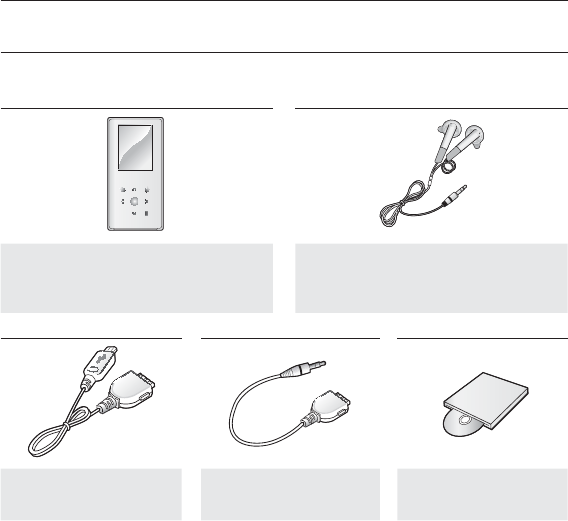
WHAT’S INCLUDED
Your new mp3 player comes with these accessories. If you’re missing any of these
items, contact Samsung Customer Service at 1-800-SAMSUNG (1-800-726-7864).
Player
Earphones
Black : AH59-01883A
White : AH59-01883B
USB Cable
AH39-00899A
Line In Cable
AH39-00900A
Installation CD
AH46-00048B
The accessories in your box may look slightly different than these.
the basics _ 13
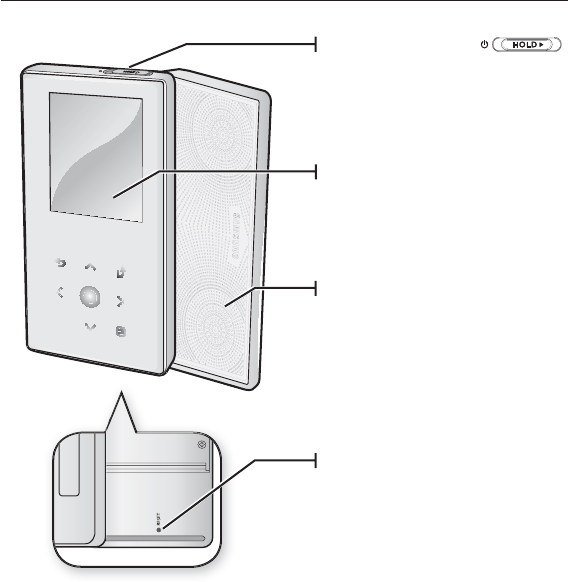
YOUR MP3 PLAYER
Power & Hold switch
Slide and hold in the opposite
direction of the arrow for power
on/off.
Slide in the direction of the arrow
to lock the button functions.
Screen display
Speaker
Reset Hole
If a player malfunction occurs,
press the reset hole with a pointed
object to re-initialize the system.
14 _ the basics
YOUR MP3 PLAYER (Continued)
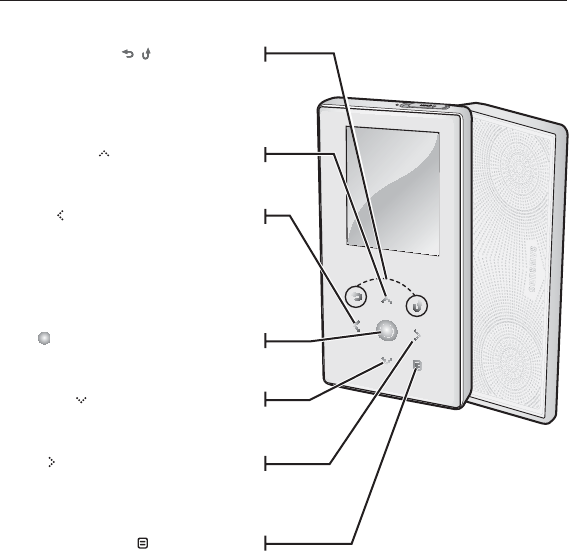
These buttons are ‘Touch’ buttons.
Back button
Tap to move to the previous
screen.
Press and briefl y hold to move to
the main menu screen.
Up volume button
Tap to increase the volume or
move to an upper item/menu.
Play/Pause, Select button
Tap to select the play/pause and
function, move to the next screen.
Left fi le browser button
Tap to move to the previous track/
menu or play the current track
from the beginning.
Press and briefl y hold to quickly
scan tracks.
Down volume button
Tap to reduce the volume or move
to a lower item/menu.
Right fi le browser button
Tap to move to next track/menu.
Press and briefl y hold to quickly
scan tracks.
Menu button
Tap to display the menu screen.
the basics _ 15
YOUR MP3 PLAYER (Continued)
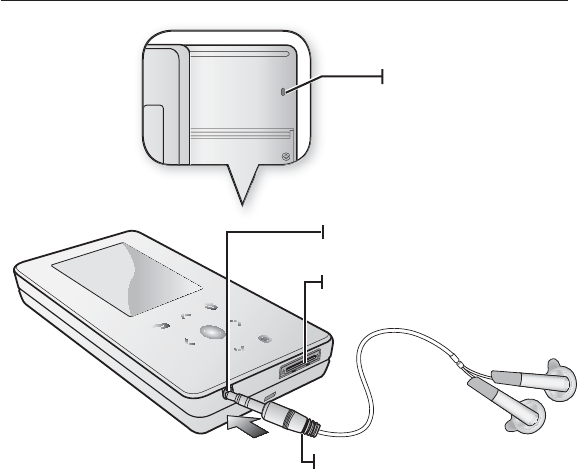
Earphones
Labeled “L” for the left earpiece
and “R” for the right earpiece.
Also serves as an antenna for FM
Radio in the MP3 player.
Earphone connection jack
USB connection port
Microphone
16 _ the basics
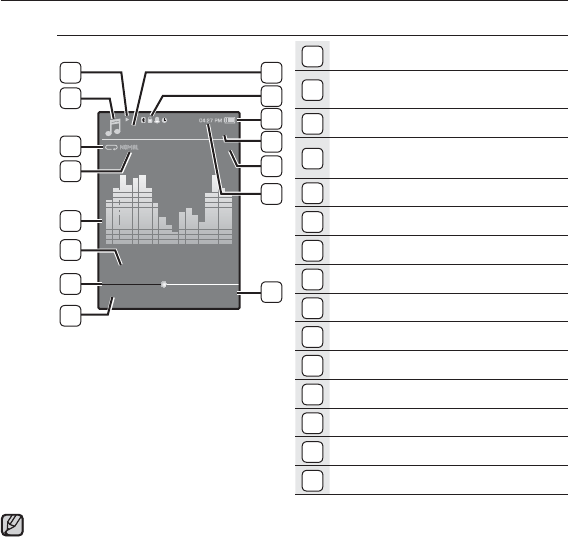
SCREEN DISPLAYS
Music
1
Parent Menu Indicator
2
Bluetooth/Lock/Alarm/
Sleep Timer Indicator
3
Battery Status
4
Current track playing / Total
number of tracks Indicator
5
Play Speed Indicator
6
Current Time
7
Total Play Time
8
Play/Pause, Search Indicator
9
Music Mode Indicator
10
Play Mode Indicator
11
DNSe Mode Indicator
12
Music Play Screen
13
Music Title
14
Play Status Bar
15
Current Play Time
The screen pictures are for illustration purposes only. The actual screen
may differ.
Music
1.Life is cool
02:13 04:28
15/20
8
9
10
11
12
13
14
15
1
3
2
4
5
6
7
NOTE
X 1.1
the basics _ 17
SCREEN DISPLAYS (Continued)
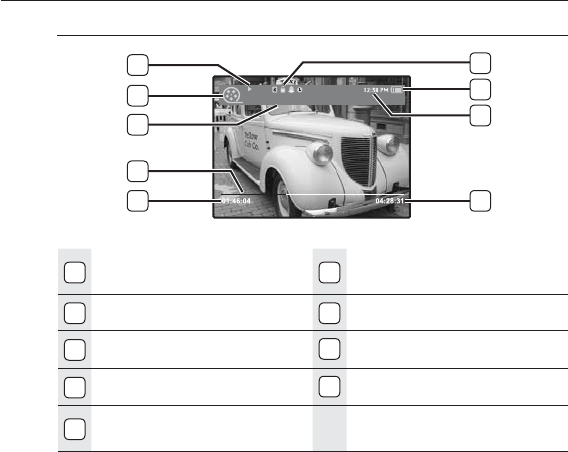
Video
1
Bluetooth/Lock/Alarm/
Sleep Timer Indicator
6
Video Mode Indicator
2
Battery Status
7
File Name
3
Current Time
8
Play Status Bar
4
Total Play Time
9
Current Play Time
5
Play/Pause, Search
Indicator
Video Track 1
5
6
7
8
9
1
2
3
4
18 _ the basics
SCREEN DISPLAYS (Continued)
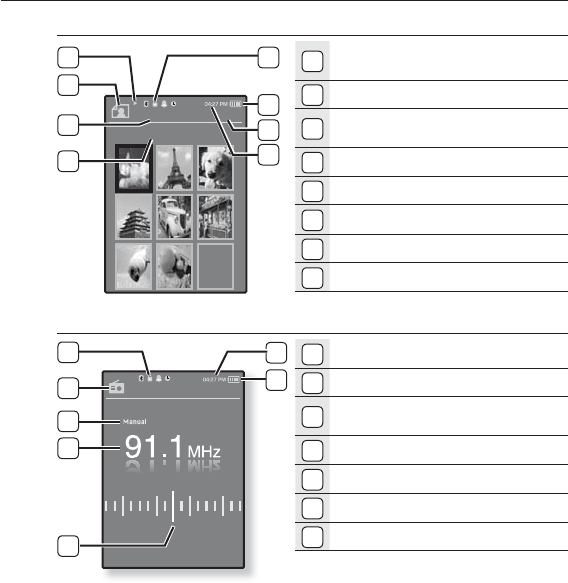
Picture
1
Bluetooth/Lock/Alarm/
Sleep Timer Indicator
2
Battery Status
3
Current fi le /
Total number of fi les Indicator
4
Current Time
5
Music Play Status
6
Picture Mode Indicator
7
Parent Menu Indicator
8
File Name
FM Radio
1
Current Time
2
Battery Status
3
Bluetooth/Lock/Alarm/
Sleep Timer Indicator
4
Radio Mode Indicator
5
Manual/Preset Indicator
6
Current Frequency(MHz) Indicator
7
Frequency Location Indicator
Pictures 1/8
Picture Image 1.jpg
5
6
7
8
1
2
3
4
3
4
5
6
7
1
2
the basics _ 19
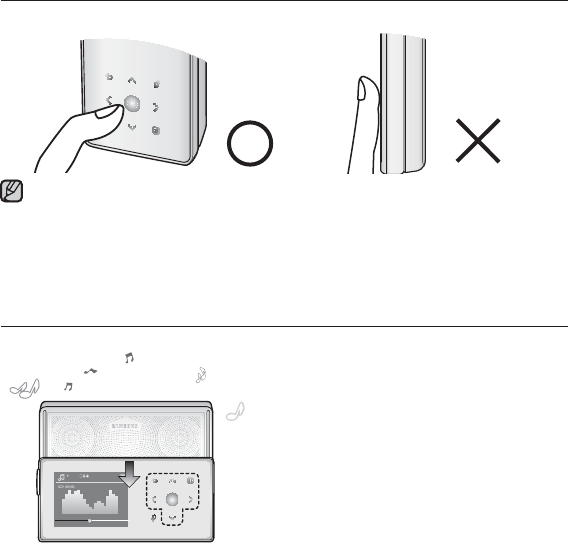
USING THE TOUCH BUTTON
Tap on touch screen with your fi ngertip.
To avoid damage to the touch screen, do not use any object other than your fi ngers
to operate the touch screen.
Do not tap on the touch screen if your fi ngers are not clean.
Do not tap on the touch screen with gloves on.
The touch screen may not function if you use a fi ngernail or other instruments such
as a ballpoint pen.
USING THE SPEAKER
Slide the middle of the player in the arrow
direction while listening to music or the
radio.
You can listen to music through the speaker.
Make sure that the earphones are connected
to the player if you want to listen to the radio
through the speaker.
If you want to use the earphone for enjoying
the music, close the speaker by sliding back to
the original position.
If you close the slide panel, the speaker will
shut off.
Please position the player horizontally when
using the speaker.
NOTE
Music
1.Life is cool
02:13 04:28
15
03:28 PM
20 _ the basics
CHARGING THE BATTERY
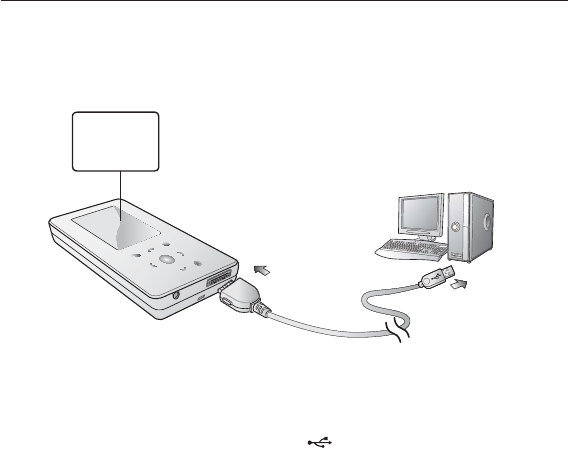
Charge it before using the player for the fi rst time and when you haven’t used it
for a long time.
The battery for your mp3 player will fully charge in about 3 hours, although total
charging time varies depending on your PC environment.
1. Connect the other (larger) end of the USB cable to the USB Connection Port
on the bottom of the player.
2. Connect the USB cable to the USB port ( ) on your PC.
2
Screen Display
USB Connected
Charging...
Fully Charged
1
the basics _ 21
CARING FOR THE BATTERY
Your battery will last longer if you follow these simple guidelines for caring for
and storing it.
•Recharge and store the battery within the temperature range of 40°F~95°F
(5°C~35°C ).
•Do not overcharge (longer than 12 hours).
Excessive charging or discharging may shorten the battery’s life.
•Battery life naturally shortens slowly over time.
If you are charging the player while it is connected to a laptop computer, make sure
the laptop’s battery is also fully charged or that the laptop is plugged into its power
source.
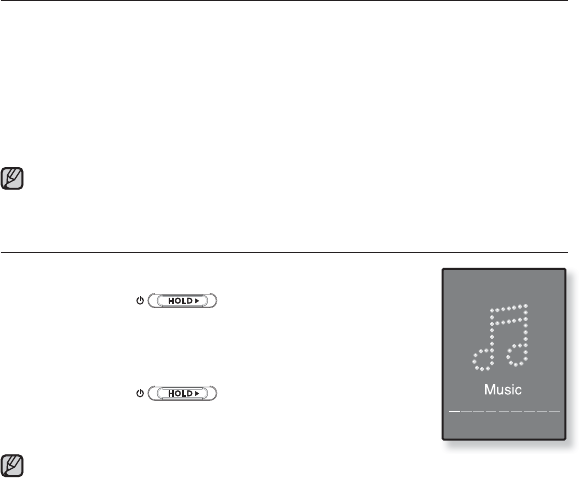
TURNING THE POWER ON & OFF
Turning the Power on
Slide and hold the switch in the opposite
direction of the arrow.
Power is turned on.
Turning the Power off
Slide and hold the switch in the opposite
direction of the arrow again.
Power is turned off.
Your mp3 player will be automatically turned off when none of the buttons have
been pressed for a specifi c length of time in the pause mode. The factory setting for
<Auto Power Off> is 1 minute, but you can change this length of time. See page 31
for more information.
NOTE
NOTE
22 _ the basics
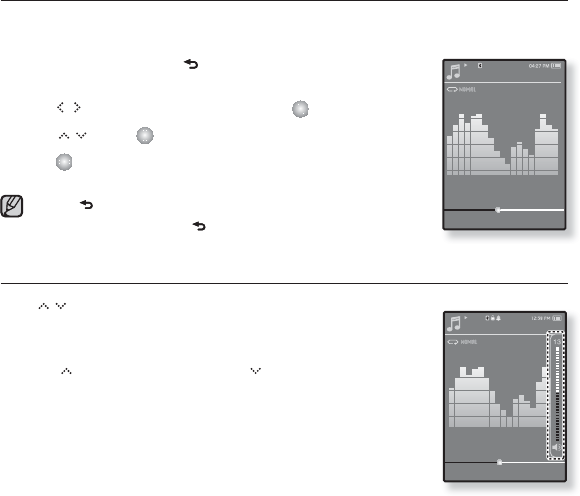
PLAYING MUSIC
Load music fi les onto your new mp3 player using Samsung Media Studio.
Learn more about Media Studio on page 35.
1. Press and briefl y hold [ ] to move to the main menu
screen.
2. Tap [ ] to select <Music> and tap [ ].
3. Use [] and [ ] to select a music fi le of your choice.
4. Tap [ ].
The music fi le will begin playing.
Tap [ ] to move to the previous screen.
Press and briefl y hold [ ] to move to the main menu screen.
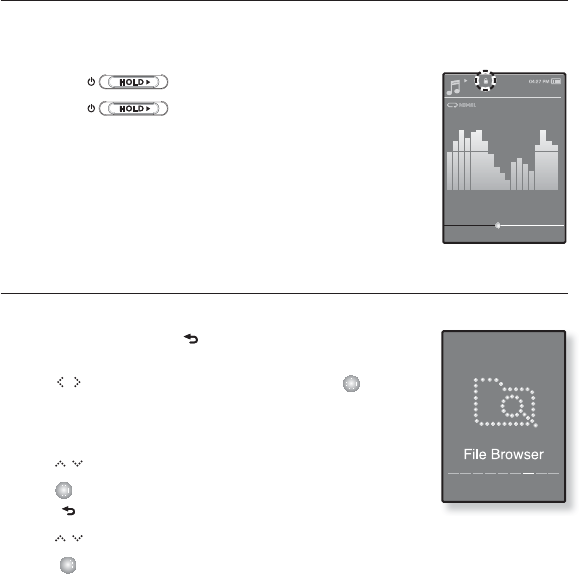
CONTROLLING THE VOLUME
Tap [ ].
You will see a volume control icon.
The range of volume is set between 0 to 30.
Tap [ ] to increase the volume or [ ] to decrease it.
Music
1.Life is cool
02:13 04:28
15/20
NOTE
Music
1.Life is cool
02:13 04:28
15/20
the basics _ 23
DISABLING THE BUTTONS
The hold function disables all the other buttons on the mp3 player, so that if
you accidentally bump one-while working out, for example-your music won’t be
interrupted.
1. Slide the in the direction of the arrow.
2. Slide the in the opposite direction of the arrow
to release the Lock function.
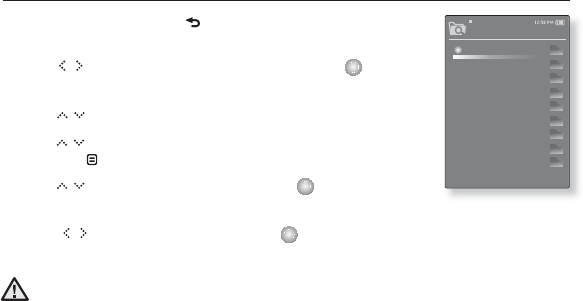
BROWSING FOR FILES USING “File Browser”
Search easily for fi les using the “File Browser” function.
1. Press and briefl y hold [ ] to move to the main menu
screen.
2. Tap [ ] to select <File Browser> and tap [ ].
The <File Browser> folder list containing “Music, Playlists,
Video, Pictures, Datacasts, Texts, Recorded Files, Games and
Received Files ” appears.
3. Tap [ ] to select a desired folder.
4. Tap [ ] to bring up the fi le list in the selected folder.
Tap [ ] to move to the previous screen.
5. Tap [ ] to select a desired fi le.
6. Tap [ ].
The fi le will start playing.
Music
1.Life is cool
02:13 04:28
15/20
24 _ the basics
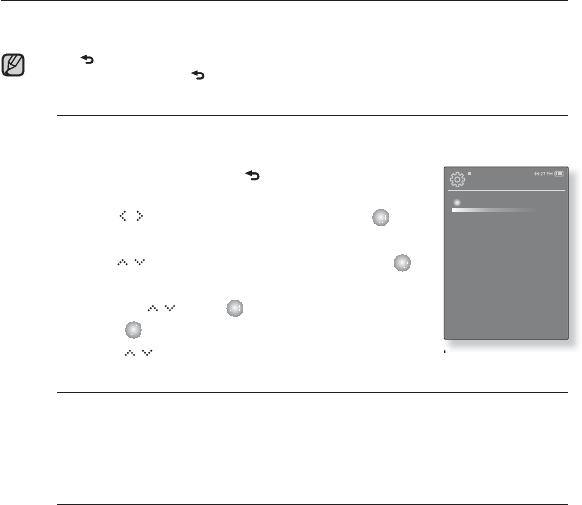
DELETING FILES WITH (FILE BROWSER)
1. Press and briefl y hold [ ] to move to the main menu
screen.
2. Tap [ ] to select <File Browser> and tap [ ].
The <File Browser> folder list containing appears.
3. Tap [ ] to select a desired folder.
4. Tap [] to select the fi le that you want to delete
and tap [ ].
5. Tap [ ] to select <Delete> and tap [ ].
The confi rmation window will apear.
6. Tap [ ] to select <Yes> and tap [ ].
The fi le will be deleted
Once fi les are deleted, they cannot be recovered.
CAUTION
File Browser
Music
Playlists
Video
Pictures
Datacasts
Texts
Recorded Files
Games
Received Files
the basics _ 25
CHANGING THE SETTINGS AND PREFERENCES
Your mp3 player comes with settings and preferences that were set up at the
factory, but you can change these pre-set values to truly customize your player.
Tap [ ] to move to the previous screen.
Press and briefl y hold [ ] to move to the main menu screen.
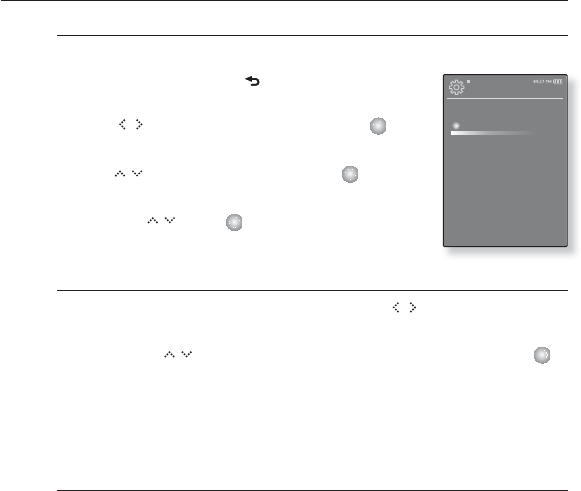
Menu Style Settings
You can change the menu design and font and delete the background
image of the main menu.
1. Press and briefl y hold [ ] to move to the main
menu screen.
2. Tap [] to select <Settings> and tap [ ].
The <Settings> menu appears.
3. Tap [ ] to select <Menu Style> and tap [ ].
The <Menu Style> menu appears.
4. Use the [ ] and [ ] to set functions.
Tap [ ] to move to the next item/select the menu.
Tap [ ] to move up or down through the current menu.
Menu Style Setting Options
Menu Design : You can change the style of the main menu screen. Select from
<Crystal>, <My skin>, <Stella>.
Font : You can change the font type of the menu language. Select one from 3
font types.
Reset My Skin : Initializes the background image of the screen display to its
default image.
NOTE
Settings
Menu Style
Sound
Display
Language
Time
System
26 _ the basics
CHANGING THE SETTINGS AND PREFERENCES (Continued)
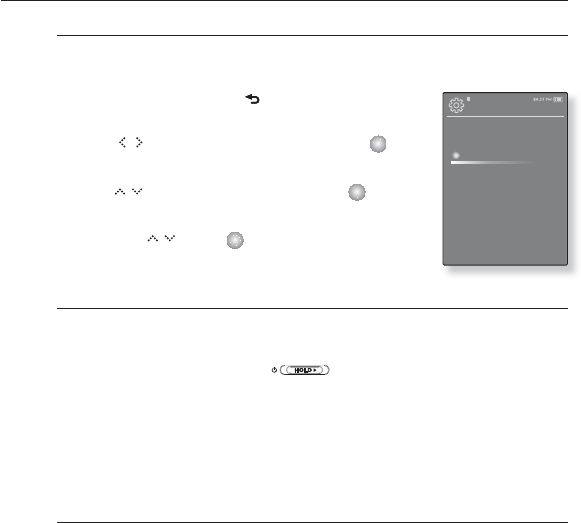
Sound Settings
You can set the master EQ, beep sound, volume limit.
1. Press and briefl y hold [ ] to move to the main
menu screen.
2.
Tap [ ] to select <Settings> and tap [ ].
The <Settings> menu appears.
3.
Tap [ ] to select <Sound> and tap [ ].
The <Sound> menu appears.
4. Use the [ ] and [ ] to set functions.
Sound Setting Options
Master EQ : You can optimize sound settings. Tap [ ] to select the
frequency you want to adjust. The frequency can be selected from <60Hz>,
<125Hz>, <250Hz>, <500Hz>, <1KHz>, <2KHz>,<4KHz>, <8KHz>, and
<16KHz>.Tap [ ] to adjust the selected frequency’s level and then tap [ ].
Beep Sound : Sets the beep sound for button operations to on or off. Select
from <Off> and <On>.
Volume Limit : You can avoid hearing damage by setting the limit of the volume
when using the earphone. <On> will limit the maximum volume level to 15.
The maximum volume level when volume limit is set to <Off> is 30. Even if you
have select <Off>, the volume will be set back to 15 to avoid hearing damage
when you turn the player back on.
Settings
Menu Style
Sound
Display
Language
Time
System
the basics _ 27
CHANGING THE SETTINGS AND PREFERENCES (Continued)
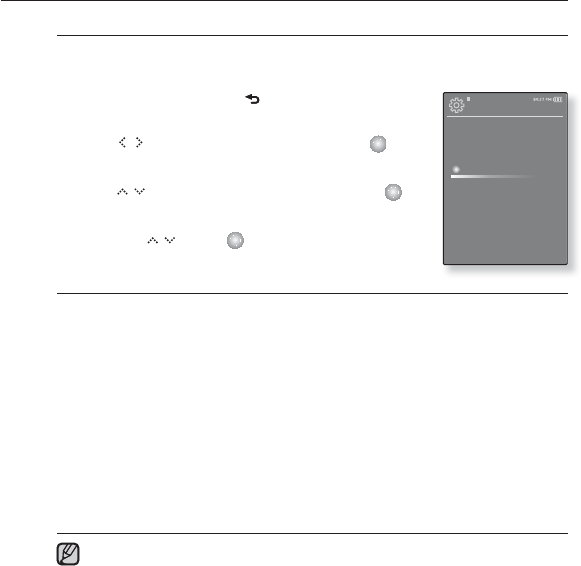
Display Settings
Change the display off time, the screen saver and brightness of your
screen.
1. Press and briefl y hold [ ] to move to the main
menu screen.
2.
Tap [ ] to select <Settings> and tap [ ].
The <Settings> menu appears.
3.
Tap [ ] to select <Display> and tap [ ].
The <Display> menu appears.
4. Use the [ ] and [ ] to set functions.
Display Setting Options
Display Off : If no button is tapped within the time set shown below, the screen
display will be automatically turned off. Select either <15 sec>,
<30 sec>, <1 min>, <3 min>, <5 min>, or <Always On>. Press any button to turn
it back on. However, Sliding the in the opposite direction of the arrow
when the HOLD condition is on will not turn on the display.
Screen Saver : You can set an image to use as a screen saver. Select either
<Analog Clock>, <Digital Clock>, <Animation 1>, <Animation 2>,< Animation 3>
and set the wait time. You can select from <Off>, <15sec>, <30sec>, <1min>,
<3min> and <5min>. If no button is tapped within the time set shown above, the
player will display the screen saver image.
Brightness : You can adjust the brightness of the display screen. Select a level
from <0-10>, where 10 is the brightest.
Settings
Menu Style
Sound
Display
Language
Time
System
28 _ the basics
CHANGING THE SETTINGS AND PREFERENCES (Continued)
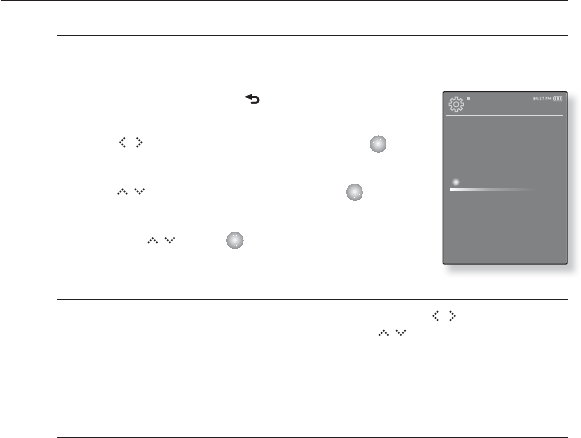
Language Settings
The menus on your new mp3 player can be set to appear in any one of
multiple languages. You can change your preference language easily.
1. Press and briefl y hold [ ] to move to the main
menu screen.
2.
Tap [ ] to select <Settings> and tap [ ].
The <Settings> menu appears.
3. Tap [ ] to select <Language> and tap [ ].
The <Language> menu appears.
4. Use the [ ] and [ ] to set functions.
Language Setting Options
Menu : Set the menu language. Select from <English>, <한국어>, <Français>,
<Deutsch>, <Italiano>, <日本語>, <∝䇁ㅔԧ>, <Español>, <㐕储Ё᭛>,
<Ɋɭɫɫɤɢɣ>, <Magyar>, <Nederlands>, <Polski>, <Português>, <Svenska>,
<ѳъѕ>, <þeština>, <
ƧnjnjLjǎNJNjƽ
>, <Türkçe>, <Norsk>, <Dansk>, <suomi>,
<Español (Sudamérica)>, <Português (América do Sul)>, <Indonesia>,
<TiӃng ViӋt>, <Bulgarian>, <Romani>, <ɍɤɪɚʀɧɫɶɤɚ>, <Slovenšþina> or
<Slovenský>.
Contents :
Set the language in which the track information and Text will appear.
Select from <English>, <Korean>, <French>, <German>, <Italian>, <Japanese>,
<Chinese(S)>, <Tranditional Chinese>, <Spanish>, <Russian>, <Hungarian>,
<Dutch>, <Polish>, <Portuguese>, <Swedish>, <Thai>, <Finnish>, <Danish>,
<Norwegian>, <Farsi>, <Afrikaans>, <Basque>, <Catalan>, <Czech>, <Estonian>,
<Greek>, <Hrvatski>, <Icelandic>, <Romany>, <Slovak>, <Slovene>, <Turkish> or
<Vietnamese>.
The supported languages can be changed or added.
Settings
Menu Style
Sound
Display
Language
Time
System
NOTE
the basics _ 29
CHANGING THE SETTINGS AND PREFERENCES (Continued)
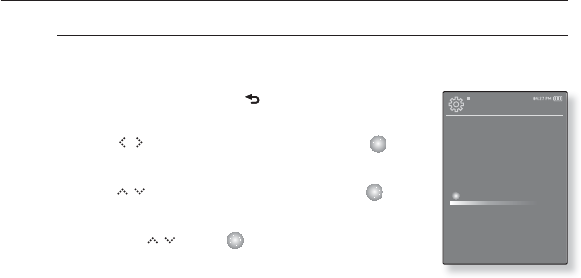
Time Settings
Setting the time allows you to use the date/time set, date type and even
time zone.
1. Press and briefl y hold [ ] to move to the main
menu screen.
2.
Tap [ ] to select <Settings> and tap [ ].
The <Settings> menu appears.
3. Tap [ ] to select <Time> and tap [ ].
The <Time> menu appears.
4. Use the [ ] and [ ] to set functions.
Time Setting Options
Date & Tme : You can set the current time and date. Tap [ ] to move to
<Year, Month, Date, Hour, Min, AM/PM> and tap [ ] to set each item.
Date Type : You can set the time display type for the World Clock. Select from
<YY-MM-DD>, <MM-DD-YY> and <DD-MM-YY>.
Time Zone : You can change the current time by selecting an international city-
specifi c time zone. You must set the time zone before you can display the world
time information. See page 88.
Settings
Menu Style
Sound
Display
Language
Time
System
30 _ the basics
CHANGING THE SETTINGS AND PREFERENCES (Continued)
System Settings
Choose the sleep timer, start mode, auto power off, default setting that’s
right for you.
1. Press and briefl y hold [ ] to move to the main
menu screen.
2.
Tap [ ] to select <Settings> and tap [ ].
The <Settings> menu appears.
3. Tap [ ] to select <System> and tap [ ].
The <System> menu appears.
4. Use the [ ] and [ ] to set functions.
Settings
Menu Style
Sound
Display
Language
Time
System
the basics _ 31
CHANGING THE SETTINGS AND PREFERENCES (Continued)
System Setting Options
Sleep : Turns off power automatically after the preset time. Select either <Off>,
<15 min>, <30 min>, <60 min>, <90 min>, or <120 min>.
Start Mode : You can set the start screen displayed when you turn on the
player. Select from <Home> and <Last State>. Select <Home> to start the
system with the main menu screen while <Last State> will use the last used
menu screen.
Auto Power Off : Automatically turns power off when there is no button
operation after the preset time in the pause mode. Select either <15sec>,
<30sec>, <1min>, <3min>, <5min> or <Always On>.
Default Set : Returns all settings to the default value. Select either <Yes> or
<No>. <Yes> initializes all settings to default. <No> cancels default settings.
Format : Formats the internal memory. Select either <Yes> or <No>.
Selecting <Yes> will format the internal memory and delete all fi les on the
player. Selecting <No> does not format the internal memory.
Check before formatting it.
About : Checks the fi rmware version and memory capacity.
<Firmware Version> displays the current fi rmware version.
<Used> indicates the usage, <Available> indicates the remaining capacity and
<Total> indicates the total memory capacity.
Regarding the Built-In Memory
1GB=1,000,000,000 bytes : actual formatted capacity may be less as the
internal fi rmware uses a portion of the memory.
NOTE
32 _ the basics
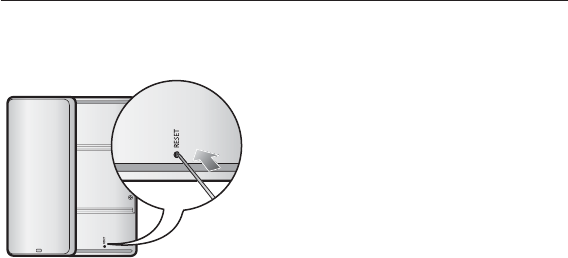
RESETTING THE SYSTEM
If your mp3 player won’t turn on, won’t play music, or isn’t recognized by your
computer when you connect it, you may have to reset the system.
Press the Reset hole at the rear of the
player with a pointed object such as a
safety clip.
The system will be initialized.
Your settings and fi les will not be affected.

samsung media studio _ 33
samsung media studio
Samsung Media Studio is the easy-to-use software application that
helps you organize your fi les on your PC. With your fi les already sorted
and organized in Media Studio, you can quickly transfer them to your
mp3 without searching your entire hard drive for the right fi le.
PC REQUIREMENTS
Your PC system must meet the following minimum specifi cations in order to
install and run Media Studio:
•Pentium 500MHz or higher
•USB Port 2.0
•Windows XP Service Pack 2 or higher
•DirectX 9.0 or higher
•100MB of free hard disc space
•CD Rom Drive (2X or higher)
•Windows Media Player 10.0 or higher
•Resolution 1024 X 768 or higher
•Internet Explorer 6.0 or higher
•512 MB RAM or higher
34 _ samsung media studio
INSTALLING SAMSUNG MEDIA STUDIO
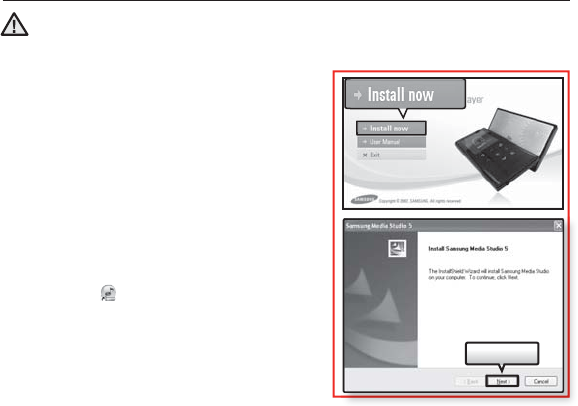
Ensure that you run the <Media Studio> installer in your PC’s administrator account.
Otherwise, <Media Studio> will not be installed. To fi nd the administrator account,
please refer to your PC’s user manual.
1. Insert the Installation CD provided
with the player into the CD-ROM drive.
2. Click <Install Now>.
3. Click <Next>.
<Media Studio> installation starts and then
creates an icon on your desktop when
installation is complete.
CAUTION
Next >
samsung media studio _ 35
TRANSFERRING FILES TO THE PLAYER WITH
SAMSUNG MEDIA STUDIO
<Media Studio> enables you to select and organize fi les and folders before
transferring them to your player. This will make scanning fi les on your mp3
player easier and faster. <Media Studio> fi le transfer is the easiest way to get
fi les from your PC to your mp3 player.
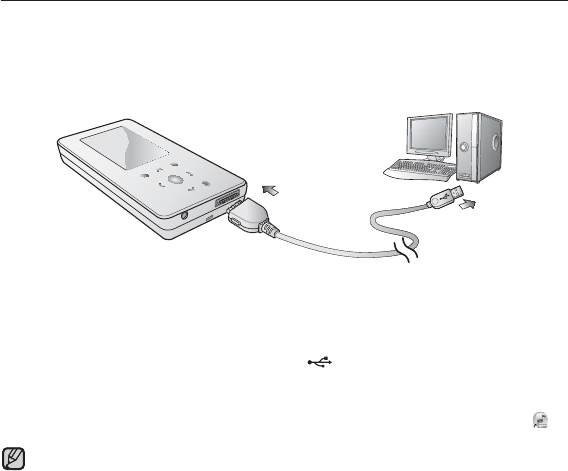
1. Connect the other (larger) end of the USB cable to the USB Connection Port
on the bottom of the player.
2. Connect the USB cable to the USB port ( ) on your PC.
<USB Connected> appears on the screen display of the player.
<Media Studio> will automatically start when the player is connected to your PC.
If the program does not start automatically, double click the <Media Studio> icon
on the desktop.
Music recognition technology and related data are provided by Gracenote and
Gracenote CDDB® Music Recognition ServiceSM.
CDDB is a registered trademark of Gracenote. The Gracenote logo and logotype,
the Gracenote CDDB logo and logotype, and the “Powered by Gracenote CDDB”
logo are trademarks of Gracenote. Music Recognition Service and MRS are service
marks of Gracenote.
12
NOTE
36 _ samsung media studio
TRANSFERRING FILES TO THE PLAYER WITH
SAMSUNG MEDIA STUDIO (Continued)
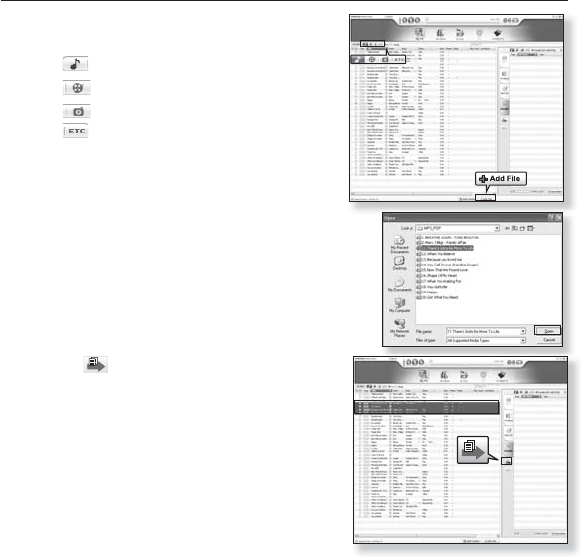
3. Click the icon for the type of fi le you want to
transfer.
Click to display music list.
Click to display video list.
Click to display picture list
Click to display etc list. The ETC list includes
fi le types (ex: TXT, etc) other than music, picture,
and video fi les.
4. Click <Add File> on the bottom of
<Media Studio>.
The <Open> window will appear.
5. Select the fi les to add and click <Open>.
The fi les are added to the list on the left side the
<Media Studio> Screen.
6. Select the fi le to transfer from the list on the left
side.
7. Click the icon.
The fi le you selected is transferred to the player.
3
4
5
7
6
samsung media studio _ 37
TRANSFERRING FILES TO THE PLAYER WITH
SAMSUNG MEDIA STUDIO (Continued)
Do not disconnect the USB plug during fi le transfer. Disconnecting during transfer
may damage the player or your PC.
Connect the player to the computer directly rather than through a USB hub to avoid
an unstable connection.
When transferring a video fi le to the player using Media Studio, it is automatically
converted into. SVI format before transfer. The fi le size is automatically adjusted,
too.
When transferring a picture fi le to the player using Media Studio, it is automatically
converted into JPG format before transfer. The fi le size is automatically adjusted,
too.
GA picture that is transferred to the player without using <Media Studio> can look
different on the screen from the original picture.
All functions are disabled during connection.
If you connect the USB plug to the PC in the Low Battery condition, the player will
be charged for several minutes before connecting to the PC.
Samsung Media Studio has a thorough Help function. If you can’t fi nd the answer to
your question about Media Studio, click <MENU> ĺ <Help> ĺ <Help> on the top
of the <Media Studio> program.
What is SVI?
Samsung Audio Video interleaving(SVI) is a new video format developed and
controlled by Samsung.
CAUTION
NOTE
38 _ listening to music
listening to music
Before you start - Connect the earphones, then turn on the player, and check the battery.
Tap [ ] to move to the previous screen.
Press and briefl y hold [ ] to move to the main menu screen.
LISTENING BY CATEGORY
1. Press and briefl y hold [ ] to move to the main menu screen.
2. Tap [ ] to select <Music> and tap [ ].
The <Music> list appears.
3. Tap [ ] to select the desired list and tap [ ].
The music fi les appears.
4. Tap [ ] to select the fi le to play and tap [ ].
The music will start playing.
NOTE
Music
1.Life is cool
02:13 04:28
15/20
Music
Now Playling
Artists
Albums
Songs
Genres
Playlists
Recorded Files
Music Browser
03:28 PM
listening to music _ 39
LISTENING BY CATEGORY (Continued)
Music List
File information including the artist name, album name, music title and genre will be displayed according to
the ID3 tag information on the appropriate music fi le. A fi le without an ID3 Tag is displayed as [Unknown].
Now Playing :
Plays a recently played fi le or moves to the playback screen of the current fi le.
Artists : To play by artist Albums : To play by album
Songs : To play in numeric or alphabetical order Genres : To play by genre
Playlists : To play by Playlist.
Recorded Files : Shows all recoded fi les.
Music Browser : Shows all the music fi les stored in the Music Folder.
MP3 and WMA music fi les are compatible with the player.
MP1 or MP2 fi les which only have a changed extension to MP3 may not play on the
player.
Disconnecting the earphones during music playback will pause the playback.
What is ID3 Tag?
This is what is attached to an MP3 to carry information relevant to the fi le such as
the title, artist, album, year, genre and a comment fi eld.
NOTE
40 _ listening to music
PAUSING
1. Tap [ ] while the music is playing.
The music playback will be paused.
2. Tap [ ] again.
The music will play from the point where it stopped.
SEARCHING WITHIN A TRACK
1. Press and briefl y hold [ ] while the selected track is playing.
It searches to the beginning or the end of the track.
2. Release the button at the point you wish to start.
It starts playing from the point you release the button.
PLAYING FROM THE BEGINNING OF THE CURRENT TRACK
1. Tap [ ] after 3 seconds of play.
The current track starts playing from the beginning.
PLAYING THE PREVIOUS TRACK
Tap [ ] within 3 seconds of play.
Tap [ ] twice after 3 seconds of play.
The previous track will start playing.
PLAYING THE NEXT TRACK
Tap [ ].
The next track will start playing.
When playing VBR fi les, the previous track may not play even if you tap [ ] within
3 seconds of the play.
CAUTION
listening to music _ 41
CREATING AN ALBUM (PLAYLIST) USING
SAMSUNG MEDIA STUDIO
With <Media Studio>, you can create your own collection, or album, of audio fi les.
Before you start - Connect the player to your PC.
Media Studio must be installed on your PC.
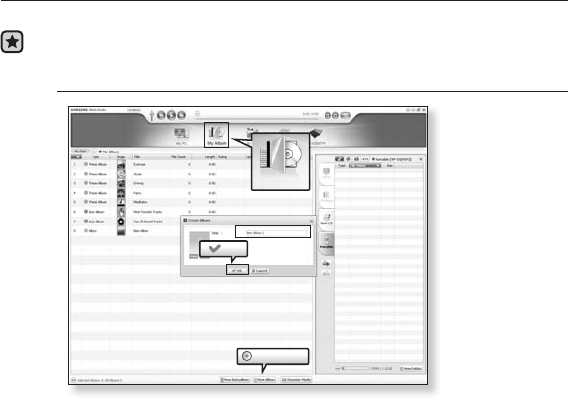
Creating an Album (Playlist)
1. Click <My Album> on the top of <Media Studio>.
The <My Album> window appears.
2. Click <New Album> on the bottom.
The <Creation> window appears.
3. Type in the album title and click [OK].
A new album (playlist) will be named and stored in the <My Album> section
of <Media Studio>.
2
1
OK
New Album
3
My Album
42 _ listening to music
CREATING AN ALBUM (PLAYLIST) USING
SAMSUNG MEDIA STUDIO (Continued)
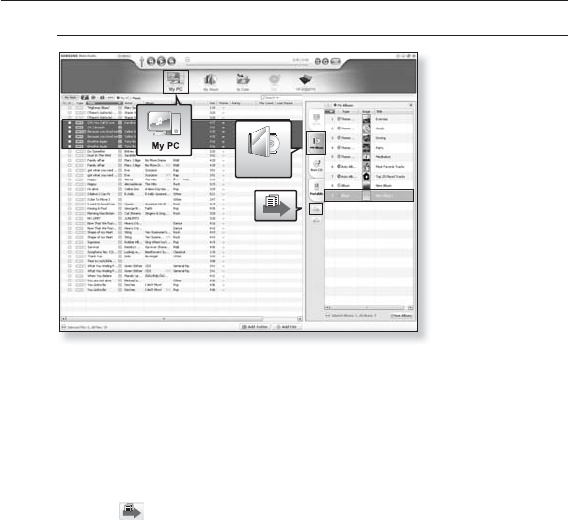
Adding music fi les to an Album (Playlist) you’ve created
1. Click <My PC> on the top of <Media Studio>.
The <My PC> window appears.
2. Click <My Album> in the right corner of the window.
The <My Album> window appears.
3. Double click on an album in the right window.
4. Select fi les that you want to transfer in the <My PC> window.
5. Click .
The selected fi les will be added to the album (playlist).
5
1
My Album
3
4
2
listening to music _ 43
CREATING AN ALBUM (PLAYLIST) USING
SAMSUNG MEDIA STUDIO (Continued)
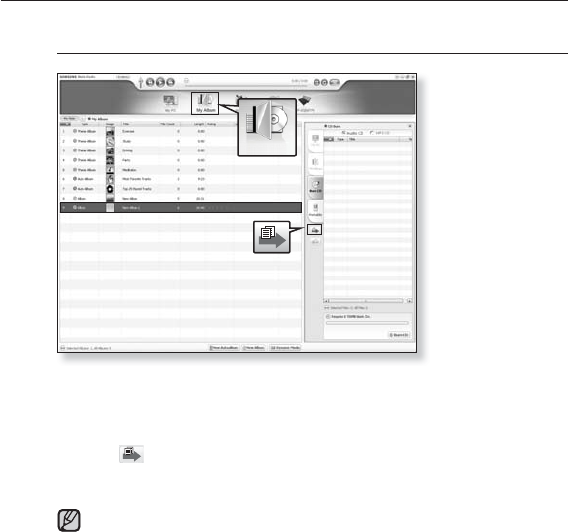
Transferring an Album (Playlist) to your player using
Media Studio
1. Click <My Album> on the top of <Media Studio>.
The <My Album> window appears.
2. Select an album in the <My Album> list.
3. Click .
The selected album will be transferred to the player folder by folder in
<File Browser> ĺ <Playlists>.
A maximum of 999 transferred playlists can be played.
1
3
2
My Album
NOTE
44 _ listening to music
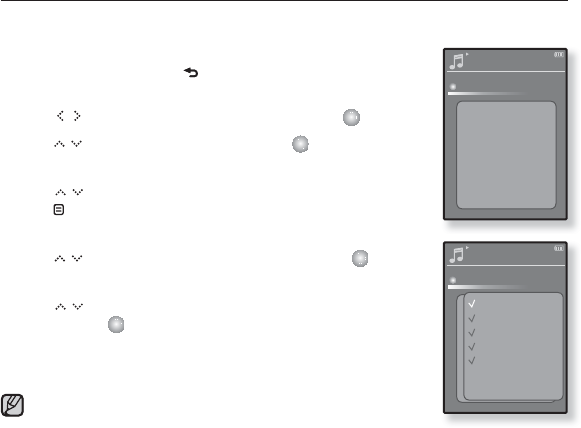
CREATING A PLAYLIST ON YOUR MP3 PLAYER
If you’ve already downloaded fi les to your mp3 player, you can create a
“Favorites” playlist without Media Studio or your PC.
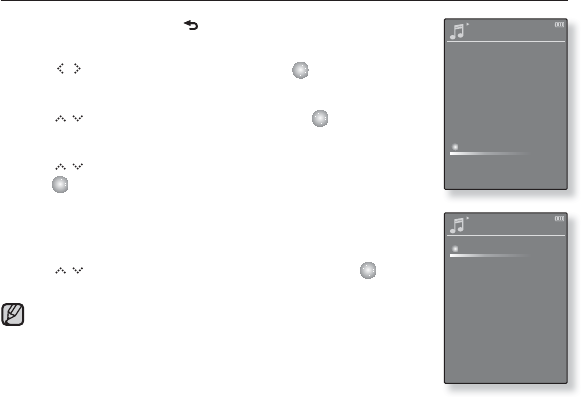
1. Press and briefl y hold [] to move to the main menu
screen.
2. Tap [ ] to select <File Browser> and tap [ ].
3. Tap [] to select <Music> and tap [ ].
The music fi le appears.
4. Tap [ ] to select a fi le to add to the playlist list and
tap [ ].
The Playlist menu appears.
5.
Tap [ ] to select <Add to Playlist> and tap [ ].
<Playlist 1> to <Playlist 5> appears.
6. Tap [ ] to select a playlist number to add the selected
fi le and tap [ ].
The selected fi le will be added to the playlist.
You can check the playlist in <Music> ĺ <Playlist> ĺ
<Playlist 1> to <Playlist 5> in the main menu.
You can add up to 100 music fi les to each of <Playlist 1> to
<Playlist 5>.
Music
Life is cool
My love
Add to Playlist
Delete from Pla..
Delete
03:28 PM
Music
Life is cool
My love
Add to Playlist
Delete from Fav..
03:28 PM
Playlist 1
Playlist 2
Playlist 3
Playlist 4
Playlist 5
NOTE
listening to music _ 45
PLAYING A PLAYLIST
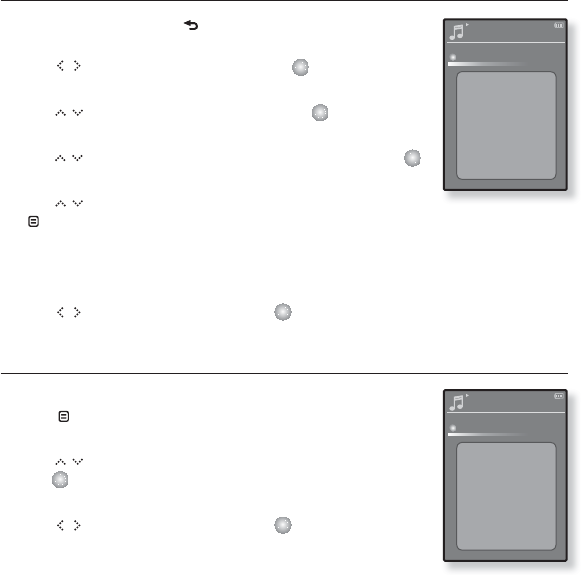
1. Press and briefl y hold [ ] to move to the main menu
screen.
2. Tap [ ] to select <Music> and tap [ ].
The music list appears.
3. Tap [ ] to select <Playlists> and tap [ ].
The playlist(s) appear.
4. Tap [ ] to select the playlist of your choice and
tap [ ].
Music fi les stored in the selected playlist appear.
If there is no playlist found, you will see a <No fi le> message on
the screen.
5. Tap [ ] to select a music fi le to play and tap [ ].
The music fi le will start playing.
See pages 41 and 43 to see how to transfer the playlist using
<Media Studio>.
Music
Now Playling
Artists
Albums
Songs
Genres
Playlists
Recorded Files
Music Browser
03:28 PM
NOTE
Playjlists
Playlist 1
Playlist 2
Playlist 3
Playlist 4
Playlist 5
03:28 PM
46 _ listening to music
DELETING A FILE FROM PLAYLIST
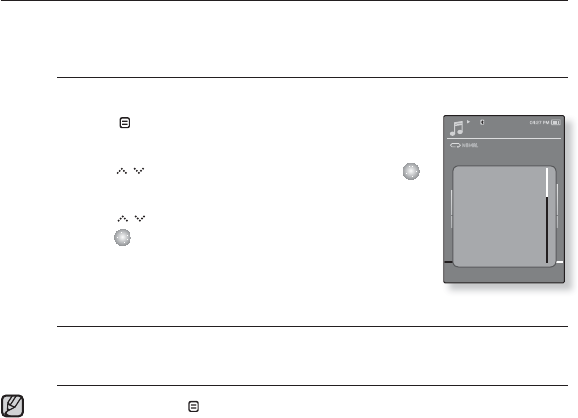
1. Press and briefl y hold [ ] to move to the main menu
screen.
2. Tap [] to select <Music> and tap [ ].
The music list appears.
3. Tap [ ] to select <Playlists> and tap [ ].
The playlist(s) appear.
4.
Tap [ ] to select the playlist of your choice and tap [ ].
Music fi les stored in the selected playlist appear.
5. Tap [ ] to select a fi le to delete from the playlist and tap
[ ].
The Playlist menu appears.
6. Tap <Delete from Playlist>.
The delete confi rmation window appeas.
7. Tap [ ] to select <Yes> and tap [ ].
The selected fi le is deleted from the playlist.
DELETING ALL FILES FROM PLAYLIST
Follow the same 1-4 steps above.
5. Tap [].
The playlist menu appears.
6. Tap [ ] to select <Delete All from Playlist> and
tap [ ].
The delete confi rmation window appeas.
7. Tap [ ] to select <Yes> and tap [ ].
All fi les are deleted from the playlist.
Playlists 1
Life is cool
My love
Delete from Playlist
Delete All from ..
03:28 PM
Playlist 1
Life is cool
My love
Delete from Playlist
Delete All from ..
03:28 PM
listening to music _ 47
USING THE MUSIC MENU
The Music menu allows you manage all facets of listening - from repeating
tracks and albums to choosing the background on the screen as you listen.
To set the sound effect
You can enjoy clearer sound.
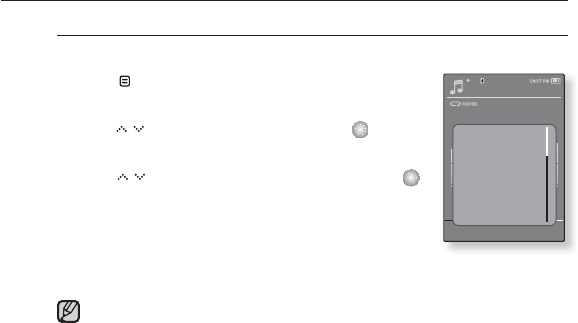
1. Tap [] while listening to music.
The music menu appears.
2. Tap [ ] to select <Sound Efect> and tap [ ].
The <Sound Effect> menu appears.
3. Tap [ ] to select the desired sound effect and
tap [ ].
Sound Effect Options
Street Mode : Allows you to hear the music outdoors clearly by fi ltering out
some of the street noise. Select either <Off> or <On>.
Clarity: You can enjoy clearer sound with improved quality. Select from <0 - 2>.
To exit the menu, tap [ ].
Music
1.Life is cool
02:18 04:28
15/20
Sound Effect
DNSe
Play Mode
Music Play Scre..
Add to Alarm
Play Speed
Skip Interval
NOTE
48 _ listening to music
USING THE MUSIC MENU (Continued)
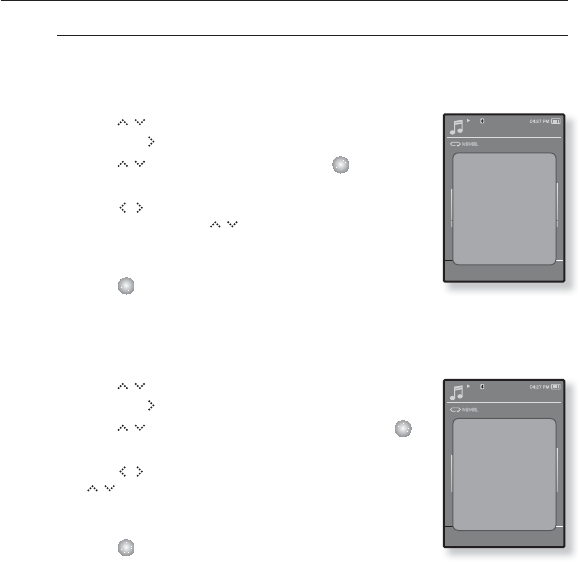
To set the Digital Natural Sound engine (DNSe)
Select the right sound for each music genre.
1. Tap [ ] while listening to music.
The music menu appears.
2. Tap [ ] to select <DNSe> and tap [ ].
The <DNSe> menu appears.
3. Tap [] to select a desired DNSe and tap [ ].
Select from <Normal>, <Rock>, <Vocal>, <Bass
Boost>, <Classical>, <Studio>, <Concert Hall>, and
<User>.
You can set <EQ> and <3D&BASS> when you have
selected <User>. See page 49.
What is DNSe?
Digital Natural Sound Engine (DNSe) is a sound effect function for MP3
players developed by Samsung. It provides various sound settings to
enhance the type of music you’re listening to.
NOTE
Music
1.Life is cool
02:18 04:28
15/20
Sound Effect
DNSe
Play Mode
Music Play Scre..
Add to Alarm
Play Speed
Skip Interval
listening to music _ 49
USING THE MUSIC MENU (Continued)
To set the Digital Natural Sound engine (DNSe)
(Continued)
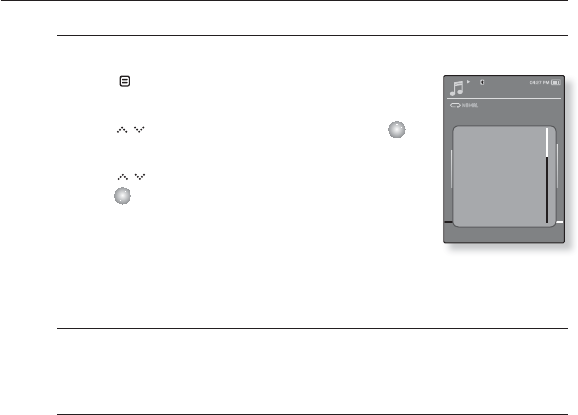
<EQ>
You can adjust individual frequencies to adjust the sound to your
preference.
1Tap [] in the DNSe menu to select <User>
and tap [ ].
2. Tap [ ] to select <EQ> and tap [ ].
The <EQ> setting screen appears.
3. Tap [ ] to select the frequency you want
to adjust and tap [ ] to adjust the selected
frequency’s level.
You can select from –10 to +10 for <EQ>.
4. Tap [ ].
The setting is completed.
<3D&BASS>
You can set the 3D surround sound and bass boost level.
1. Tap [] in the DNSe menu to select <User>
and tap [ ].
2. Tap [ ] to select <3D & BASS> and tap [ ].
The <3D & BASS> setting screen appears.
3. Tap [ ] to select <3D> or <BASS> and tap
[ ].
You can select a <3D> level from 0 to 4, and <BASS>
from 0 to 4.
4. Tap [ ].
The setting is completed.
Music
1.Life is cool
02:18 04:28
15/20
EQ
3D & BASS
Music
1.Life is cool
02:18 04:28
15/20
EQ
3D & BASS
50 _ listening to music
USING THE MUSIC MENU (Continued)
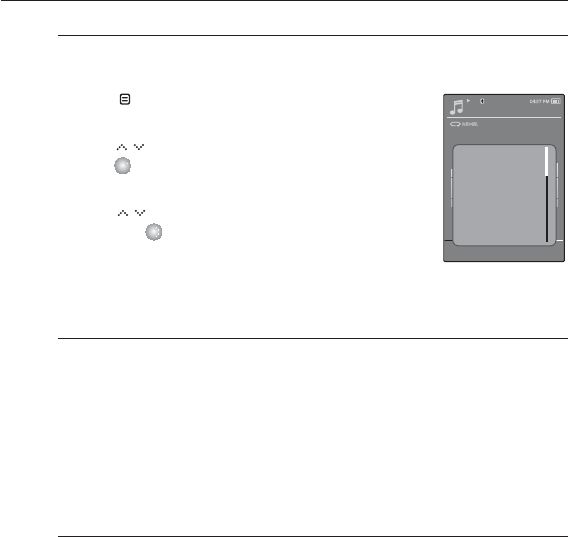
To set the play mode
Select playback mode such as repeat settings.
1. Tap [ ] while listening to music.
The music menu appears.
2. Tap [ ] to select <Play Mode> and tap [ ].
The <Play Mode> menu appears.
3. Tap [ ] to select the desired mode and
tap [ ].
Select from <Normal>, <Repeat>, <Repeat One> and
<Shuffl e>.
Play Mode Options
Normal : To play all the tracks in order one time.
Repeat : To repeat all fi les in the current folder.
Repeat One : To repeat one fi le.
Shuffl e : To play fi les at random.
Music
1.Life is cool
02:18 04:28
15/20
Sound Effect
DNSe
Play Mode
Music Play Scre..
Add to Alarm
Play Speed
Skip Interval
listening to music _ 51
USING THE MUSIC MENU (Continued)
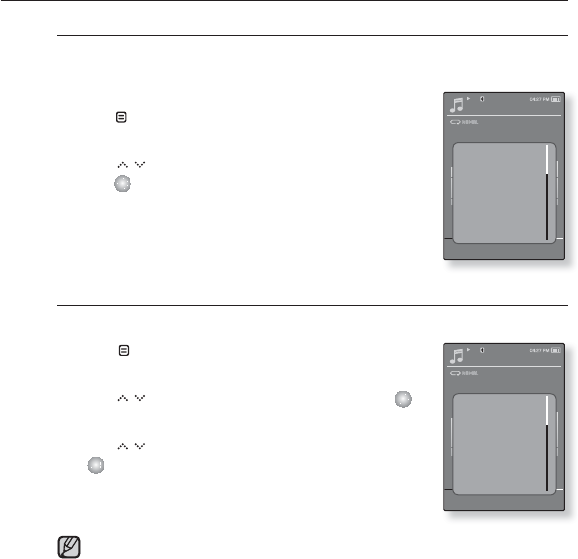
To select the music play screen
Choose a background image from those provided, or choose an image
of your own to be displayed as you listen to music.
1. Tap [ ] while listening to music.
The music menu appears.
2. Tap [ ] to select <Music Play Screen> and
tap [ ].
The <Music Play Screen> menu appears.
3. Tap [ ] to select a desired music play screen
and tap [ ].
Select from <Type 1>, <Type 2>, <Type 3>, <Album
Info.>, <Album Cover> and <Auto>.
Music Play Screen Options
Type 1 ~ Type 3 : You can select a desired music play screen.
Album Info. : Information on the artist name, album and genre displays if ID3
Tag information is stored on the music fi le.
Album Art :The album cover image displays if an album cover image is
included in the ID3 Tag information of the music fi le.
The album cover image stored in the player displays if there is no
album cover image in the ID3 Tag information of the music fi le.
Album Cover images less than 200 pixel (horizontal) x 200
pixel(vertical) in size are supported.
Auto : Automatically switches <Type 1> through <Type 3> each time a different
music fi le is played.
Music
1.Life is cool
02:18 04:28
15/20
Sound Effect
DNSe
Play Mode
Music Play Scre..
Add to Alarm
Play Speed
Skip Interval
52 _ listening to music
USING THE MUSIC MENU (Continued)
To add to alarm sound
You can add your favorite music fi le to the alarm sound list, so it can
be heard the next time the alarm goes off. See page 86 to set the alarm.
1. Select a musc fi le to add to the alarm sound and
tap [].
The music menu appears.
2. Tap [ ] to select <Add to Alarm> and
tap [ ].
The selected music will be added to the alarm sound
list.
One music fi le can be added to the alarm sound.
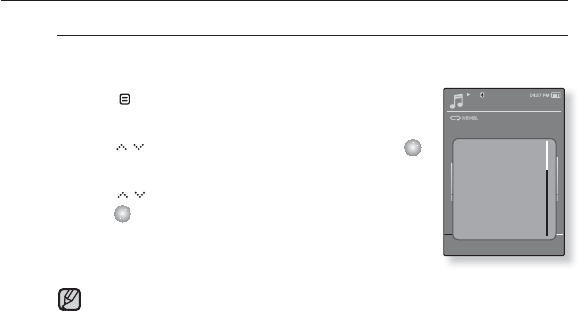
To set the play speed
Speed up or slow down your favorite music by adjusting the play speed.
1. Tap [ ] while listening to music.
The music menu appears.
2. Tap [ ] to select <Play Speed> and tap [ ].
The <Play Speed> menu appears.
3. Tap [ ] to select a desired play speed and tap
[ ].
Select from <X 0.7>, <X 0.8>, <X 0.9>, <X 0
(Normal)>, <X 1.1>, <X 1.2>, <X 1.3>
The higher the number is, the faster the speed is.
The adjusted play speed may differ from the actual speed, depending on
the fi le.
Music
1.Life is cool
02:18 04:28
15/20
Sound Effect
DNSe
Play Mode
Music Play Scre..
Add to Alarm
Play Speed
Skip Interval
Music
1.Life is cool
02:18 04:28
15/20
Sound Effect
DNSe
Play Mode
Music Play Scre..
Add to Alarm
Play Speed
Skip Interval
NOTE
listening to music _ 53
USING THE MUSIC MENU (Continued)
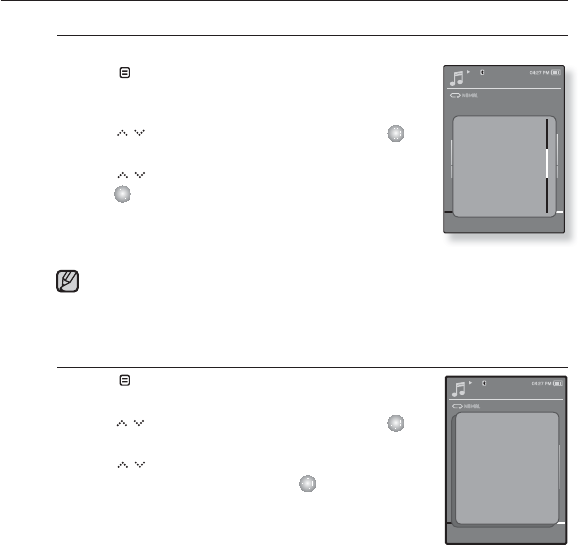
To set the skip interval
You can fast forward through a fi le at various intervals. Skip a whole
track or skip several seconds at a time.
1. Tap [ ] while listening to music.
The music menu appears.
2. Tap [ ] to select <Skip Interval> and tap [ ].
The <Skip Interval> menu appears.
3. Tap [ ] to select a desired skip interval and
tap [ ].
Select from <1 Song>, <5 sec>, <10 sec>, <30 sec>
and <1 min>.
If the fi le was developed with a variable bit rate, the actual length of the
skip interval may not be exactly what you select.
NOTE
Music
1.Life is cool
02:18 04:28
15/20
Sound Effect
DNSe
Play Mode
Music Play Scre..
Add to Alarm
Play Speed
Skip Interval
54 _ listening to music
USING THE MUSIC MENU (Continued)
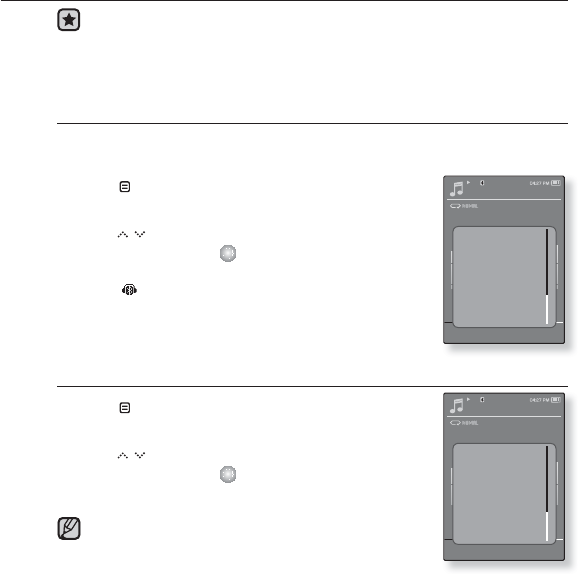
To set a bookmark
Once you set a bookmark, you can easily fi nd that position later.
1. Tap [] at the point you want while listening to
music.
The music menu appears.
2. Tap [ ] to select <Bookmark> and tap [ ].
The <Bookmark> menu appears.
3. Tap [ ] to select <Add Bookmark> and
tap [ ].
The current play / stop point will be added to the
bookmark.
You will see the [ Ň ] symbol next to the bookmark point.
The Overwrite window appears if there is a bookmark previously set. If you
select <Yes>, the previously set bookmark is deleted and a new bookmark
is added.
The bookmark can be set one for each music fi le, and a maximum number
of 50 bookmarks can be set.
To move / remove the bookmark
1. Tap [ ] while listening to music.
The music menu appears.
2. Tap [ ] to select <Bookmark> and tap [ ].
The <Bookmark> menu appears.
3. Tap [ ] to select <Go to Bookmark> or
<Delete Bookmark> and tap [ ].
When you selected <Go to Bookamrk> then it will
move to the selected bookmark and start playing from
that bookmark.
<Delete Bookmark> will remove the selected bookmark
from the music fi le.
Music
1.Life is cool
02:18 04:28
15/20
Play Mode
Lyrics
Music Play Scr..
Add to Alarm
PlaySpeed
Skip Interval
Bookmark
Add Bookmark
Go to Bookmark
Delete Bookmark
NOTE
Music
1.Life is cool
02:18 04:28
15/20
DNSe
Play Mode
Music Play Scre..
Add to Alarm
Play Speed
Skip Interval
Bookmark
listening to music _ 55
USING THE MUSIC MENU (Continued)
Before you start - Use only the Bluetooth-certifi ed stereo headset.
Check if your Bluetooth stereo headset has been registered. <Connect to
Headset> appears when there is a registered headset.
For more information, refer to <Using a Bluetooth Stereo Headset.>.
See page 93.
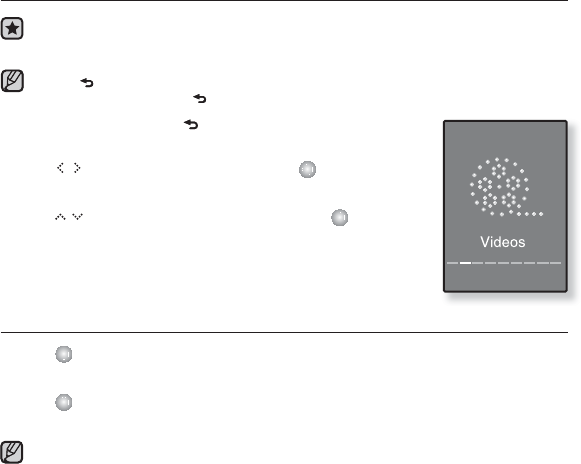
To connect a Bluetooth stereo headset
You can connect directly to the registered Bluetooth stereo headset
during music playback.
1. Tap [ ] while listening to music.
The music menu appears.
2. Tap [ ] to select <Connect to Stereo
headset> and tap [ ].
When the connection is successfully done, you will see
the [ ] icon on the screen.
You can listen to the music through the stereo headset.
To disconnect the Bluetooth stereo headset
1. Tap [ ] while listening to music.
The music menu appears.
2. Tap [ ] to select <Disconnect to Stereo
headset> and tap [ ].
The headset is disconnected.
Some menu will not be selected while the player is
connecting to the Bluetooth stereo headset.
Music
1.Life is cool
02:18 04:28
15/20
Play Mode
Music Play Scre..
Add to Alarm
Play Speed
Skip Interval
Bookmark
Disconnect to..
Music
1.Life is cool
02:18 04:28
15/20
Play Mode
Music Play Scre..
Add to Alarm
Play Speed
Skip Interval
Bookmark
Connect to Ster..
NOTE
56 _ watching a video
watching a video
Before you start - Connect the earphones, then turn on the player, and check the
battery.
Transfer a video fi le to the player. See pages 35~37.
Tap [ ] to move to the previous screen.
Press and briefl y hold [ ] to move to the main menu screen.
1. Press and briefl y hold [ ] to move to the main menu
screen.
2. Tap [ ] to select <Videos> and tap [ ].
The video list appears.
3. Tap [ ] to select a video to play and tap [ ].
The selected video fi le starts to play horizontally.
PAUSING
1. Tap [ ] during a video playback.
The player pauses playing.
2. Tap [ ] again.
The player resumes playing from the last played point.
When transferring a video fi le to the player using <Media Studio>, it is automatically
converted into SVI(video) format before transfer. The fi le size is automatically
adjusted, too.
NOTE
NOTE
watching a video _ 57
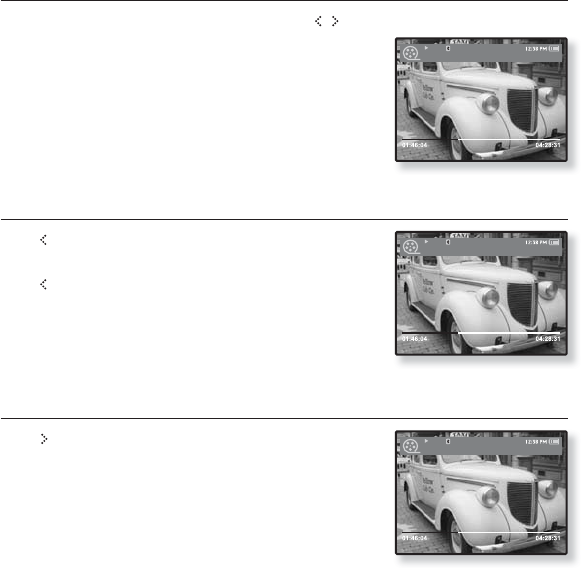
TO MOVE TO A SPECIFIC FRAME
1. In horizontal view, press and briefl y hold [ ].
This enables you to move backwards or in forwards
current video fi le.
2. Release the button when you have moved to the
position you want.
The video starts playing from the position.
TO PLAY THE PREVIOUS VIDEO FILE
Tap [ ] within 3 seconds after the current fi le started
playing.
Tap [ ] twice after 3 seconds after the current fi le
started playing.
This will return to the previous video.
TO PLAY THE NEXT VIDEO FILE
Tap [ ].
This will move to the next video.
Video Track 1
Video Track 2
Video Track 1
58 _ watching a video
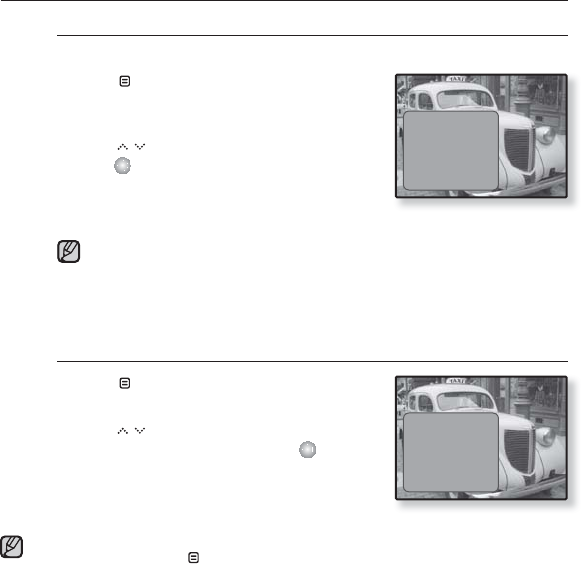
USING THE VIDEO MENU
To set a bookmark
Once you set a bookmark, you can easily fi nd that position later.
1. Tap [ ] at the desired scene you want
during video playback.
The video menu appears.
2. Tap [ ] to select <Add Bookmark> and
tap [ ].
The current play / stop point will be added to
the bookmark.
You will see the [Ň] symbol next to the bookmark point.
The Overwrite window appears if there is a bookmark previously set. If you
select <Yes>, the previously set bookmark is deleted and a new bookmark
is added.
The bookmark can be set one for each video fi le, and a maximum number
of 50 bookmarks can be set.
To move or remove the bookmark
1. Tap [ ] during video playback.
The video menu appears.
2. Tap [ ] to select <Go to Bookmark> or
<Delete Bookmark> and tap [ ].
When you selected <Go to Bookamrk> then it
will move to the selected bookmark and start
playing from that bookmark.
<Delete Bookmark> will remove the selected bookmark from the video fi le.
To exit the menu, tap [ ].
NOTE
NOTE
Add Bookmark
Go to Bookmark
Delete Bookmark
DNSe
Brightness
Add Bookmark
Go to Bookmark
Delete Bookmark
DNSe
Brightness
viewing Pictures _ 59
USING THE VIDEO MENU
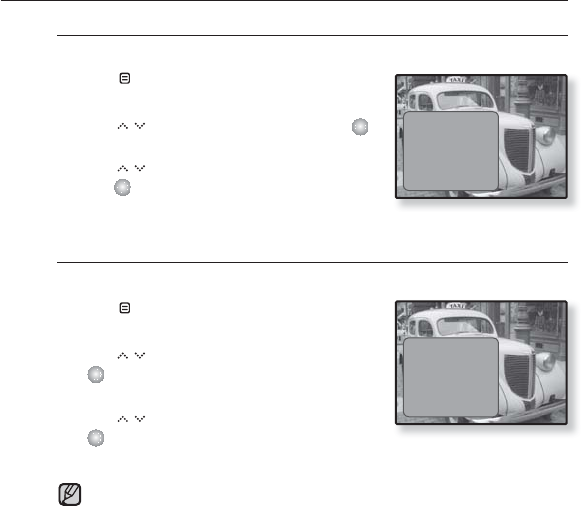
To set the Digital Natural Sound engine (DNSe)
Select the right sound for each video genre.
1. Tap [ ] during video playback.
The video menu appears.
2. Tap [ ] to select <DNSe> and tap [ ].
The <DNSe> menu appears.
3. Tap [ ] to select a desired DNSe and
tap [ ].
Select from <Normal>, <Drama> and <Action>.
To adjust the brightness
You can adjust the screen brightness for a video.
1. Tap [ ] during video playback.
The video menu appears.
2. Tap [ ] to select <Brightness> and tap
[ ].
The <Brightness> menu appears.
3. Tap [ ] to adjust the brightness and tap
[ ].
Select from <0~10>.
What is DNSe?
Digital Natural Sound Engine (DNSe) is a sound effect function for MP3
players developed by Samsung.
Add Bookmark
Go to Bookmark
Delete Bookmark
DNSe
Brightness
Add Bookmark
Go to Bookmark
Delete Bookmark
DNSe
Brightness
NOTE
60 _ viewing Pictures
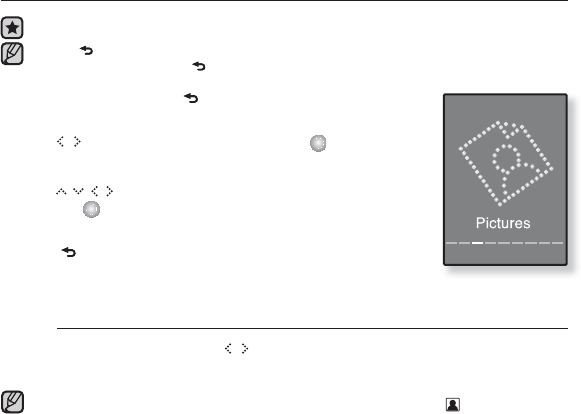
viewing pictures
Before you start - Connect the earphones, then turn on the player, and check the battery.
Tap [ ] to move to the previous screen.
Press and briefl y hold [ ] to move to the main menu screen.
1. Press and briefl y hold [ ] to move to the main menu
screen.
2. Tap [] to select <Pictures> and tap [ ].
The picture preview window appears.
3. Tap [ ] to select the picture you want to look at
and tap [ ].
The selected picture will be displayed.
Tap [ ] to move to the preview window.
To move to the previous/next picture
In horizontal view, tap [ ].
The previous/next picture will be displayed.
A JPG fi le including incorrect thumbnail data will be displayed in .
Some pictures can be displayed slowly.
When transferring a picture to the player using <Media Studio>, it is automatically
converted into JPG format before transfer. The fi le size is automatically adjusted,
too.
You can also use the <File Browser> to search for a picture. See page 23.
NOTE
NOTE